Introduction
Welcome to the instaVision Camera App.
This manual will guide you
through the various features of the app to
ensure you get the most
out of your security camera.
r the Apple Store or
Google Play Store
Installation and Setup
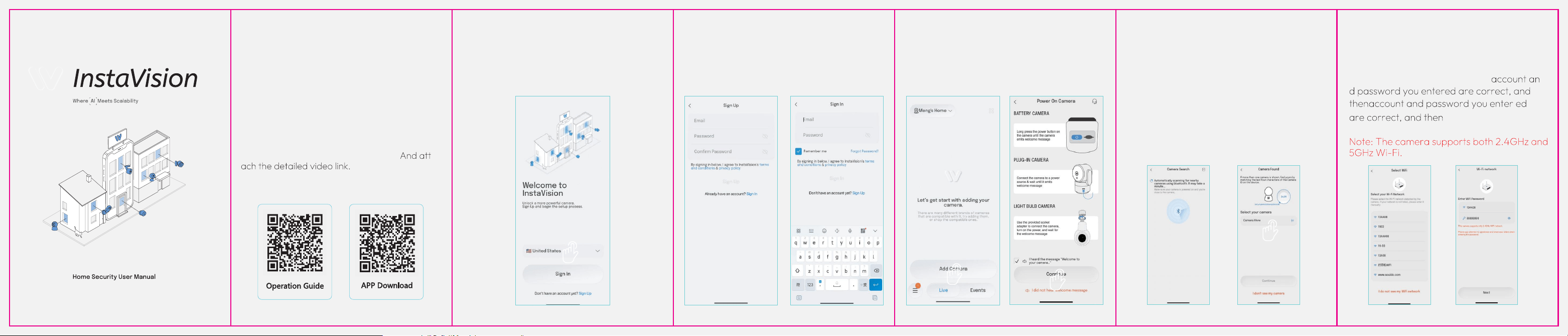
1. Download and Install: Download and install
the InstaVision app by scanning the QR code fo
.
2.Account Registration: Open the app.
Select the corresponding address
3. Account Registration: Register a new
account or log in to an existing account.
4.Add Camera: Navigate to the Home
Page within the app.
5.Add Camera Connect Bluetooth:
Bluetoothconnection Turn on the
Bluetooth function of the mobile phone and click
search device, and click the corresponding
device to connect
Note:The Bluetooth of the mobile phone must be
turned on ,otherwise the Bluetooth connection
cannot be used.
6.Add Camera Connect to WIFI:
Enter the name and password of the Wi-Fi
network. To keep the connection of WiFi,
please put the camera near the router.
Please make sure that the Wi-Fi
click "Next", Please
wait for the connection to complete.
"continue" to wait for the identification and
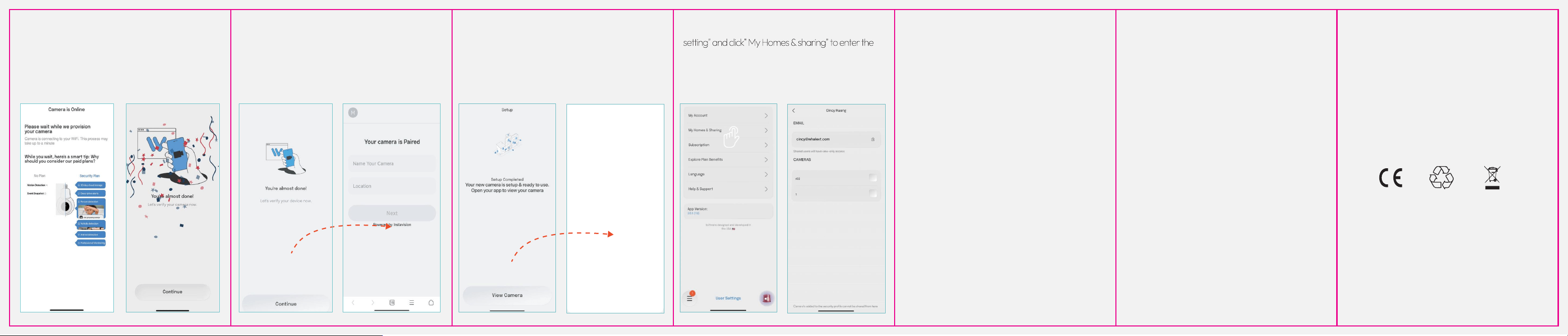
7.Add Camera :Wait for the connection until
"you're almost donne"
8.Name your camera before everything
is set up.
9. See Live view: After compieting the initiai
setup, you wili see the live viewof the camera
on the main interface.
10.Device sharing: On the home page, select "User
corresponding account to be shared, and select the
model you want to share
Email: support@instavision.ai
Phone: +1 (877) 916-
If you need further assistance, please contact our
customer support team.
You can send an email or call customer service
through the "Contact Us"
page within the app.
3025
Thank you for choosing InstaVision App. We are
the best user experience and security protection.
If you have any suggestions or feedback, please
feel free to contact us.
For additional help, please contact our customer
support team:
Warning: When installing the camera, the
installation height should exceed 2 meters. Please
disconnect the power supply before replacing
the memory card to prevent electric shock!
IF YOU CANNOT CONNECT THE CAMERA TO THE INTERNET,
CHECK THE FOLLOWING STEPS
-- Increase the separation between the equipment
and receiver.
-- Connect the equipment into an outlet on a circuit
different
from that to which the receiver is connected.
-- Consult the dealer or an experienced radio/TV
technician for help.
To maintain compliance with FCC’s RF Exposure
guidelines, This equipment should be
installed and operated with minimum distance
between 20cm the radiator your body: Use
only the supplied antenna.
:
TroubleShoo
If the above doesn’t help, reset the camera and start pa
· Ensure the camera is placed as close to the router as possible.
· Ensure the camera is powered on.
· Ensure you are using the correct APP (InstaVis
· Ensure y
ou are connecting to a 2.4GHz Wi-Fi not 5GHz.
· Ensure Wi-Fi password or SSID is correct.
ion).
iring again.
ting
commied to providing
Customer Support
FCC WARNING
This device complies with part 15 of the FCC Rules.
Operation is subject to the following two conditions: (1
) this device may not cause harmful interference, and (2
) this device must accept any interference received,
including interference that may cause undesired
operation.
Any changes or modifications not expressly approved
by the party responsible for compliance could void the
user's authority to operate the equipment.
NOTE: This equipment has been tested and found to
comply with the limits for a Class B
digital device, pursuant to Part 15 of the FCC Rules.
These limits are designed to provide
reasonable protection against harmful interference in a
residential installation. This equipment generates, uses
and can radiate radio frequency energy and, if not
installed and used in
accordance with the instructions, may cause harmful
interference to radio communications.
However, there is no guarantee that interference will
not occur in a particular installation.
If this equipment does cause harmful interference to
radio or television reception,
which can be determined by turning the equipment off
and on, the user is encouraged to try to correct the
interference by one or more of the following measures:
-- Reorient or relocate the receiving antenna.