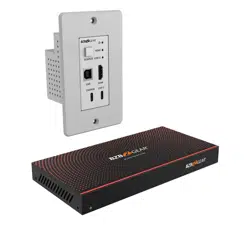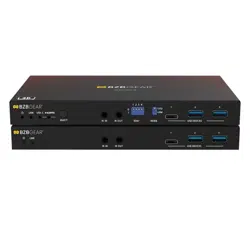
BG-PSC51-4K
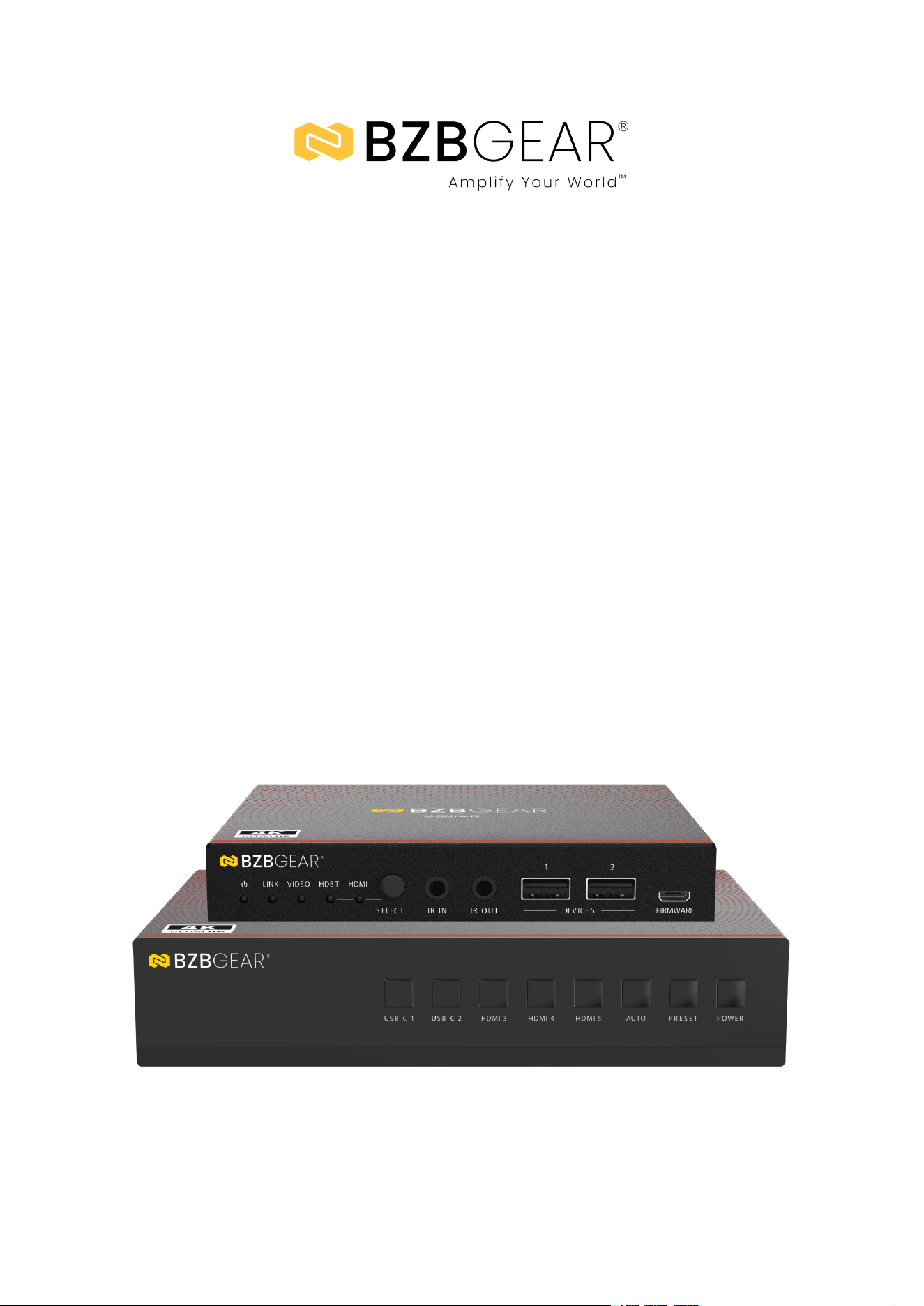
5x1 4K60 18Gbps Seamless HDMI/USB-C Presentation Switcher
with Multiview/KVM/60W Charging/Dante Audio
and Included HDBaseT 3.0 Receiver
User Manual

BZBGEAR BG-PSC51-4K PRODUCT MANUAL
Address: 830 National Drive #140, Sacramento, CA 95834, USA · Tel: +1(888)499-9906 · Email: support@bzbgear.com 2

BZBGEAR BG-PSC51-4K PRODUCT MANUAL
TABLE OF CONTENTS
Statement 4
Safety Precaution 4
Introduction 5
Features 5
Packing List 6
Specifications 7
Operation Controls and Functions 10
HDBaseT Receiver Panel 12
IR Cable Pin Assignment 14
IR Remote Description 15
Web GUI User Guide 16
Step 1: Obtain IP Address 16
Step 2: Network Connection 16
Step 3: Access Web GUI 16
Switch Mode 21
Window Layout 21
Output Settings 22
Source Select 23
Input Settings 23
Output Settings 23
GEQ Settings 23
RS-232 Settings 25
Display Control Commands 25
General RS-232 Control 25
Display Control 27
System Utilities 27
Firmware Update 27
Dante Web GUI User Guide 28
RS-232 Control Command 30
RS-232 Control Command List 31
Connection Diagram 49
Troubleshooting 50
Tech Support 51
Limited Product Warranty Terms 51
Mission Statement 52
Copyright 52
Address: 830 National Drive #140, Sacramento, CA 95834, USA · Tel: +1(888)499-9906 · Email: support@bzbgear.com 3

BZBGEAR BG-PSC51-4K PRODUCT MANUAL
Statement
Please read these instructions carefully before connecting, operating, or configuring this
product. Please save this manual for future reference.
Safety Precaution
● To prevent damaging this product, avoid heavy pressure, strong vibration, or immersion
during transportation, storage, and installation.
● The housing of this product is made of organic materials. Do not expose to any liquid,
gas, or solids which may corrode the shell.
● Do not expose the product to rain or moisture.
● To prevent the risk of electric shock, do not open the case. Installation and maintenance
should only be carried out by qualified technicians.
● Do not use the product beyond the specified temperature, humidity, or power supply
specifications.
● This product does not contain parts that can be maintained or repaired by users.
Damage caused by dismantling the product without authorization from BZBGEAR is not
covered under the warranty policy.
● Installation and use of this product must strictly comply with local electrical safety
standards.
Address: 830 National Drive #140, Sacramento, CA 95834, USA · Tel: +1(888)499-9906 · Email: support@bzbgear.com 4

BZBGEAR BG-PSC51-4K PRODUCT MANUAL
Introduction
The BG-PSC51-4K is a professional 5×1 seamless presentation switch designed for
modern collaboration, conferencing, and AV integration environments. It supports
three HDMI inputs and two USB-C inputs with DisplayPort Alt Mode, enabling
video, USB 2.0, 100M Ethernet, and up to 60W device charging over a single
USB-C connection. The system provides mirrored HDMI and HDBaseT outputs,
delivering uncompressed video up to 4K@60Hz 4:4:4 with seamless switching
performance. Using HDBaseT 3.0 with standard PoE support, signals can be
extended up to 230 ft (70 m) at 4K@30Hz or 131 ft (40 m) at 4K@60Hz over a single
CAT6A cable, ensuring reliable long-distance transmission for centralized or remote
display deployments.
The switch supports a wide range of advanced display modes, including single
full-screen, picture-in-picture (PIP), picture-by-picture (PBP), triple-window, and
quad-window layouts, making it ideal for multi-source presentation and comparison
workflows. Integrated USB 2.0 KVM functionality allows local and remote USB
device switching over HDBaseT, while bi-directional RS-232 and IR pass-through
enable centralized control of connected source and display devices. Flexible signal
management is further enhanced by advanced EDID handling, HDCP 2.2
compliance, and support for automatic or manual input switching.
Audio capabilities are equally robust, featuring analog audio input/output and
built-in Dante 2×2 audio input and output with a 3×3 internal audio matrix.
Independent audio EQ, volume, and delay control allow precise audio tuning across
HDMI, HDBaseT, analog, and Dante paths. The BG-PSC51-4K can be controlled via
front-panel buttons, IR remote, RS-232, TCP/IP, or an intuitive Web GUI.
Features
● 5×1 Seamless Presentation Switching: Supports three HDMI and two USB-C
inputs with glitch-free source switching for professional presentation environments.
● Dual USB-C with DP Alt Mode: USB-C inputs deliver video, USB 2.0 data, 100M
Ethernet, and up to 60W power charging over a single cable.
● 4K60 4:4:4 Video Support: Delivers up to 18Gbps bandwidth with resolutions up to
4K@60Hz 4:4:4 in compliance with HDMI 2.0b.
● HDBaseT 3.0 Extension with PoE: Extends uncompressed 4K60 video up to 131 ft
(40 m) or 4K30 up to 230 ft (70 m) over a single CAT6A cable while powering the
receiver via PoE.
● Mirrored HDMI and HDBaseT Outputs: Provides simultaneous local HDMI and
remote HDBaseT outputs for flexible display deployment.
● Advanced Multiview Display Modes: Supports Single, PIP, PBP, Triple, and Quad
display layouts for multi-source collaboration.
● Seamless and Fast Switching: Enables seamless switching in single-screen mode
and rapid switching in multiview configurations.
Address: 830 National Drive #140, Sacramento, CA 95834, USA · Tel: +1(888)499-9906 · Email: support@bzbgear.com 5

BZBGEAR BG-PSC51-4K PRODUCT MANUAL
● Integrated USB 2.0 KVM Extension: Allows keyboard, mouse, and USB device
switching locally or over HDBaseT for remote system control.
● Bi-Directional RS-232 and IR Pass-Through: Enables centralized control and
automation of source and display devices.
● Analog and Networked Audio Support: Features balanced/unbalanced analog
audio I/O and built-in Dante 2×2 audio input/output.
● Built-In 3×3 Audio Matrix: Provides independent audio routing with adjustable EQ,
volume, and delay for precise audio management.
● Audio Embedding and De-Embedding: Supports embedding and extracting
analog or Dante audio across HDMI and HDBaseT outputs.
● Advanced EDID Management: Ensures optimal compatibility with connected
sources and displays through customizable EDID control.
● Automatic and Manual Input Switching: Supports auto-switching with
configurable fallback sources or manual source selection.
● Comprehensive Control Options: Offers control via front panel buttons, IR remote,
RS-232, TCP/IP, or Web GUI.
● CEC and Display Power Control: Supports CEC and RS-232 display on/off and
input control for streamlined system automation.
● PoE Functionality Control: Allows enabling or disabling HDBaseT PoE operation
through the Web GUI for system flexibility.
● Firmware Upgrade and Configuration Backup: Supports MCU, scaler, web, and
receiver firmware updates with import/export of system settings.
Packing List
● 1 x 5x1 Seamless Presentation Switch
● 1 x HDBaseT Receiver
● 1 x IR Blaster Cable (1.5 meters)
● 1 x IR Wideband Receiver Cable (1.5 meters)
● 2 x 3pin-3.5mm Phoenix Connector (male)
● 3 x 5pin-3.5mm Phoenix Connector (male)
● 4 x Mounting Ear
● 8 x Machine Screw
● 1 x 24V/8A Desktop Power Supply & 1 x AC
Power Cord (1.5 meters)
● 1 x IR Remote
● 1 x User Manual
Address: 830 National Drive #140, Sacramento, CA 95834, USA · Tel: +1(888)499-9906 · Email: support@bzbgear.com 6
BZBGEAR BG-PSC51-4K PRODUCT MANUAL
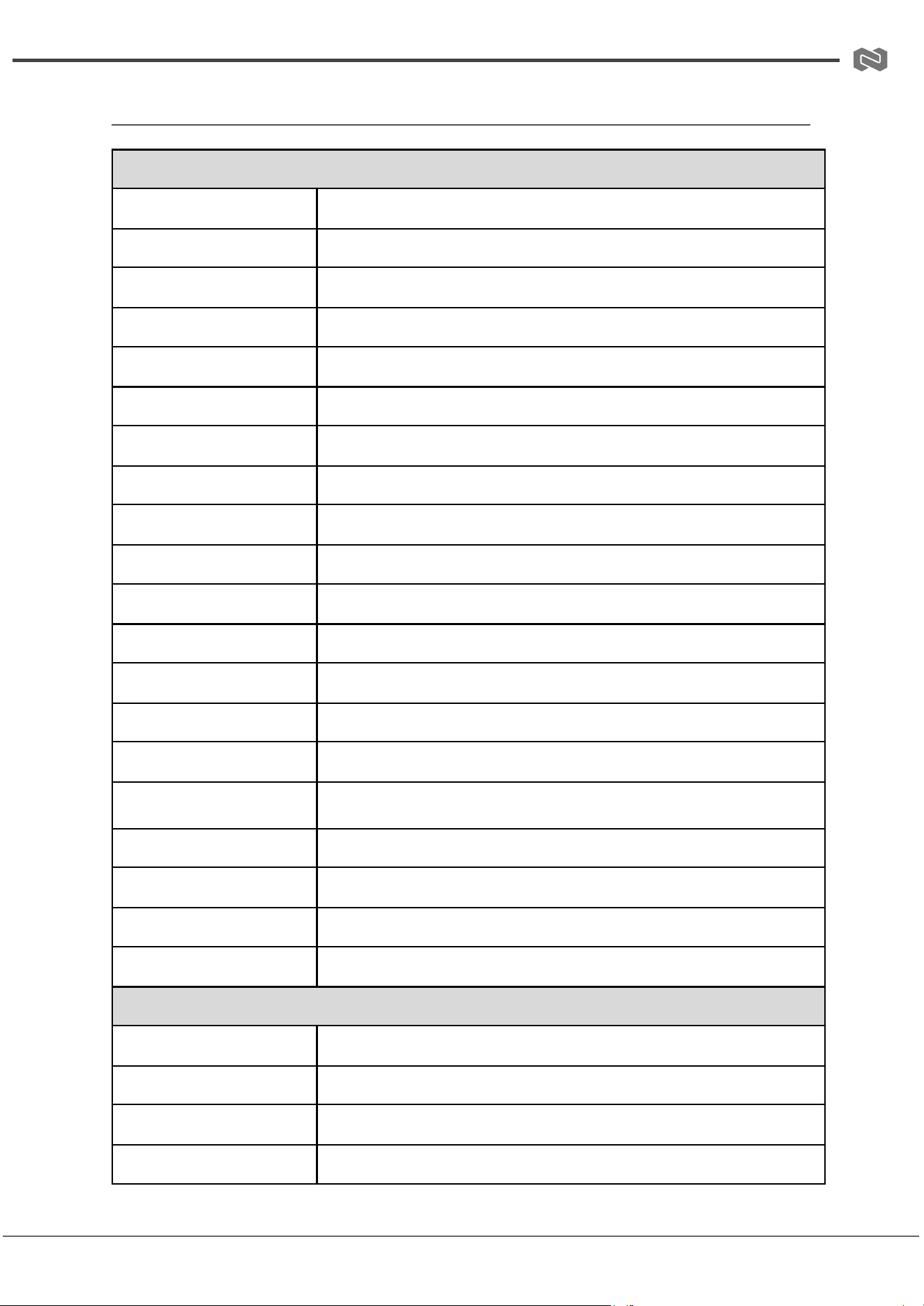
Specifications
TECHNICAL
Product Model
BG-PSC51-4K
HDMI Compliance
HDMI 2.0b
HDCP Compliance
HDCP 2.2
DisplayPort Version
DP 1.2
Video Bandwidth
18 Gbps
Input Video Resolution
480i–1080p@50/60Hz, 4K@24/30Hz, 4K@50/60Hz 4:4:4
Output Video Resolution
Auto, up to 4096×2160@60Hz
Color Space
RGB, YCbCr 4:4:4 / 4:2:2, YUV 4:2:0
Color Depth
Input: 8/10/12-bit (8-bit @ 4K60 4:4:4); Output: 8-bit
HDR Support
Input supported; output not supported
HDBaseT Standard
HDBaseT 3.0
Transmission Distance
230 ft / 70 m (1080p & 4K30); 131 ft / 40 m (4K60)
PoE Support
Yes (TX PSE, RX PD)
Multiview Modes
Single, PIP, PBP, Triple, Quad
USB Support
USB 2.0 local KVM and USB extension over HDBaseT
USB-C Functions
Video (DP Alt Mode), USB 2.0, 100M Ethernet, up to 60W charging
Network Bandwidth
100 Mbps
Control Methods
Front panel, IR, RS-232, TCP/IP, Web GUI
EDID Management
Advanced, user-configurable
ESD Protection
IEC 61000-4-2 ±8kV (air), ±4kV (contact)
TX ANALOG AUDIO
Input Impedance
10 kΩ
Output Impedance
330 Ω
Max Line Input Level
8.2 dBu (2 Vrms), balanced/unbalanced
Max Line Output Level
8.2 dBu (2 Vrms) balanced; 2.2 dBu (1 Vrms) unbalanced
Address: 830 National Drive #140, Sacramento, CA 95834, USA · Tel: +1(888)499-9906 · Email: support@bzbgear.com 7
BZBGEAR BG-PSC51-4K PRODUCT MANUAL
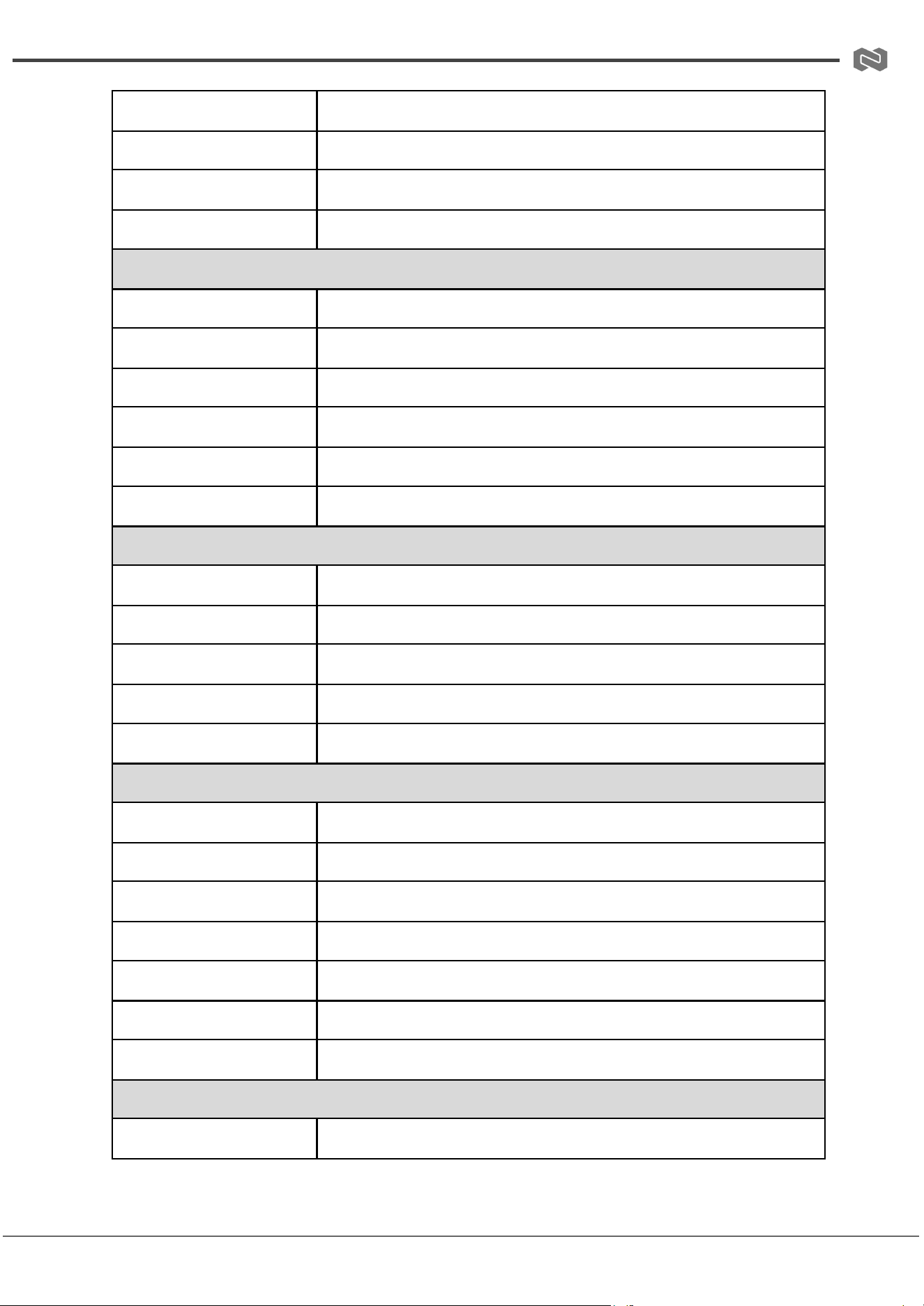
Frequency Response
20 Hz–20 kHz (+0.5 dB / −1 dB)
Audio Delay
0–50 ms
S/N Ratio
93 dB @ 2 Vrms, 1 kHz (A-weighted)
THD+N
<0.1% @ 0 dBV, 1 kHz
RX ANALOG AUDIO
Output Impedance
330 Ω
Max Line Output Level
8.2 dBu (2 Vrms) balanced; 2.2 dBu (1 Vrms) unbalanced
Frequency Response
20 Hz–20 kHz (+0.5 dB / −1 dB)
Audio Delay
0–50 ms
S/N Ratio
93 dB @ 2 Vrms, 1 kHz (A-weighted)
THD+N
<0.1% @ 0 dBV, 1 kHz
DANTE AUDIO
Network Audio
Dante 2×2
Audio Format
LPCM 2.0
Sample Rates
44.1 / 48 / 88.2 / 96 kHz @ 24-bit
Audio Delay
2, 3, 4, 5, 10 ms
Network Bandwidth
100 Mbps
CONNECTION
Transmitter Inputs
3× HDMI, 2× USB-C, 1× Line In, 1× Dante
Transmitter Outputs
1× HDMI, 1× HDBaseT, 1× Line Out
Transmitter Control
RS-232, LAN, USB Host, 2× USB Device, IR In/Out
Receiver Inputs
HDBaseT, HDMI
Receiver Outputs
HDMI, Line Out
Receiver Control
RS-232, USB Host, 2× USB Device, IR In/Out
Receiver Power
PoE via HDBaseT or DC 24V
MECHANICAL
Housing
Aluminum front panel, metal enclosure
Address: 830 National Drive #140, Sacramento, CA 95834, USA · Tel: +1(888)499-9906 · Email: support@bzbgear.com 8
BZBGEAR BG-PSC51-4K PRODUCT MANUAL
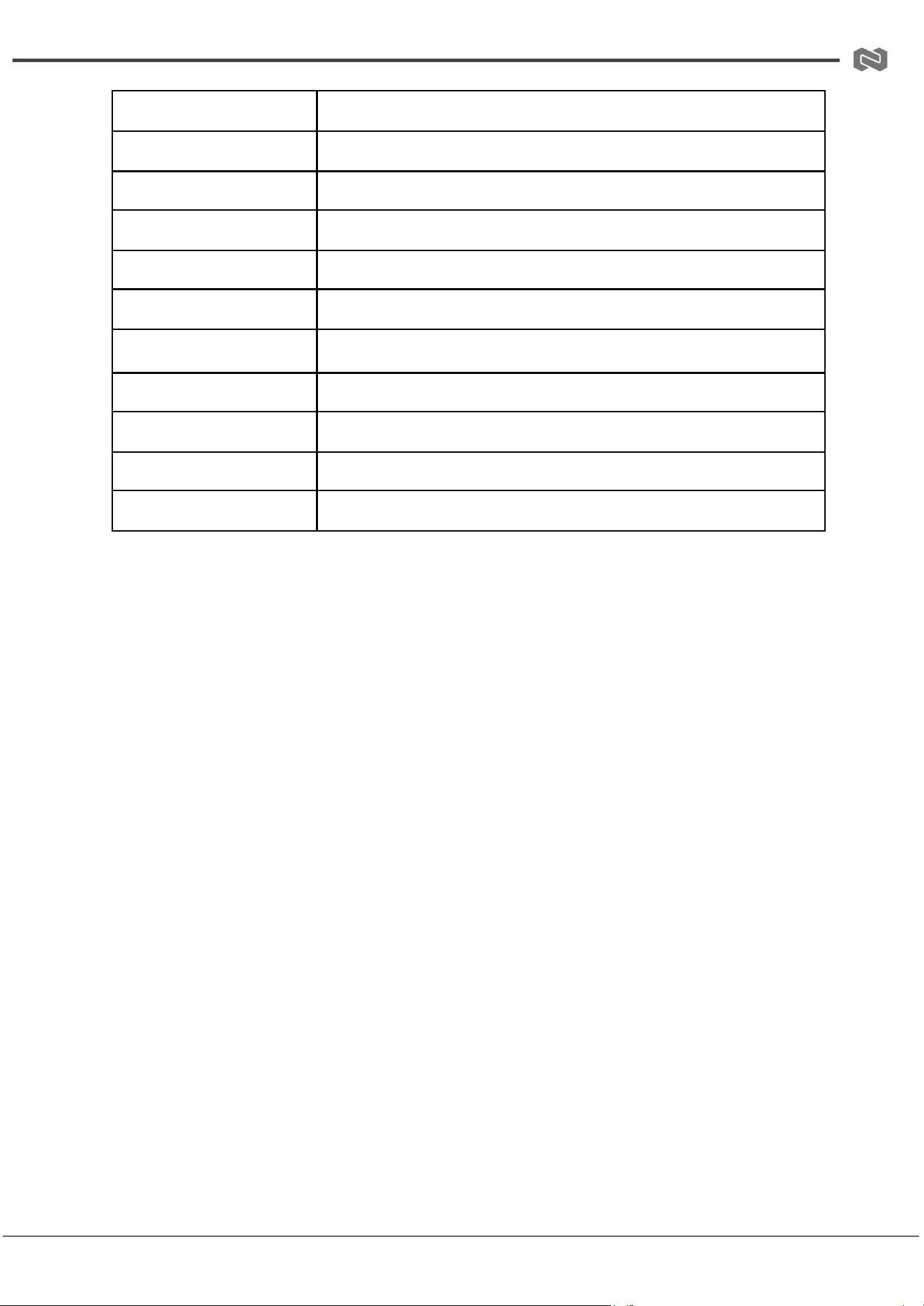
Color
Black
Dimensions (Transmitter)
8.7 × 5.9 × 1.7 in [220 × 150 × 44 mm]
Dimensions (Receiver)
5.5 × 4.1 × 0.85 in [140 × 105 × 21.5 mm]
Weight (Transmitter)
2.7 lbs [1.21 kg]
Weight (Receiver)
0.93 lbs [424 g]
Power Supply
AC 100–240V, DC 24V / 8A
Max Power Consumption
150 W
Operating Temperature
32°F to 104°F / 0°C to 40°C
Storage Temperature
−4°F to 140°F / −20°C to 60°C
Operating Humidity
20%–80% RH (non-condensing)
Storage Humidity
10%–90% RH (non-condensing)
Address: 830 National Drive #140, Sacramento, CA 95834, USA · Tel: +1(888)499-9906 · Email: support@bzbgear.com 9
BZBGEAR BG-PSC51-4K PRODUCT MANUAL
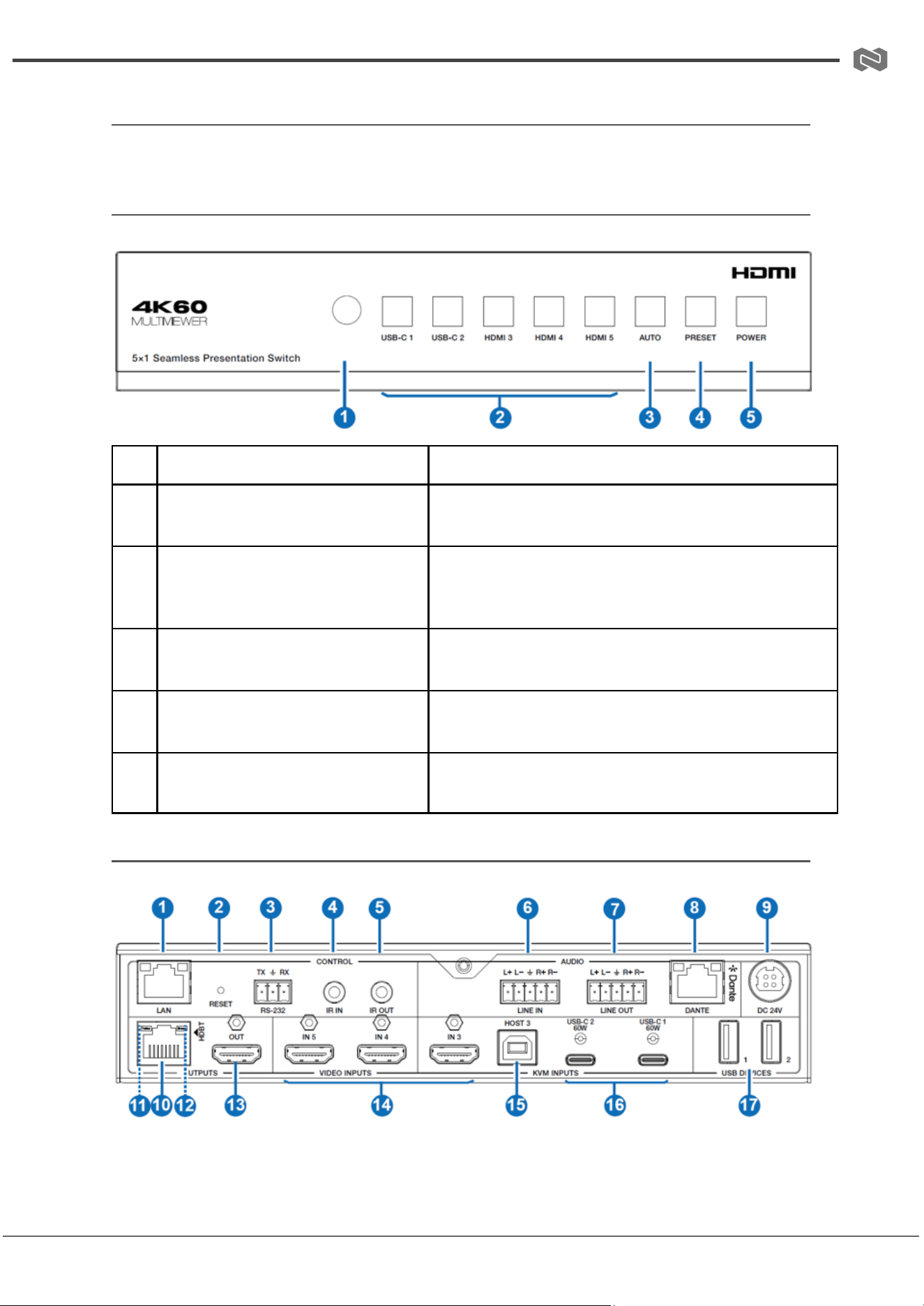
Operation Controls and Functions
Transmitter Front Panel
No.
Name
Description
1
IR Window
Receives IR signals from the remote control for system
operation and control.
2
Input Selection Buttons (USB-C 1 /
USB-C 2 / HDMI 3 / HDMI 4 / HDMI
5)
Selects active input source in single-screen mode; in
multiview mode indicates active sources assigned to
display windows.
3
AUTO Button
Enables or disables automatic input switching based on
signal detection priority.
4
PRESET Button
Cycles through saved multiview or layout presets
configured via Web GUI.
5
POWER Button
Turns the unit on or places it into standby mode with a
long press (3 seconds).
Transmitter Rear Panel
Address: 830 National Drive #140, Sacramento, CA 95834, USA · Tel: +1(888)499-9906 · Email: support@bzbgear.com 10

BZBGEAR BG-PSC51-4K PRODUCT MANUAL
No.
Name
Description
1
LAN Port
Provides network access for Web GUI control and USB-C Ethernet
functionality.
2
RESET Button
Restores the device to factory default settings when pressed and
held for 5 seconds.
3
RS-232 Port
Enables serial control and bi-directional RS-232 pass-through
communication.
4
IR IN Port
Receives external IR signals for control or pass-through to
connected devices.
5
IR OUT Port
Sends IR signals from the system to controlled devices via IR
blaster.
6
LINE IN Port
Accepts balanced or unbalanced analog audio input (up to 2 Vrms).
7
LINE OUT Port
Outputs analog audio with support for balanced and unbalanced
connections.
8
DANTE Port
Provides Dante 2×2 network audio input/output.
9
DC 24V Port
Power input for the external 24V power adapter.
10
HDBaseT OUTPUT Port
Transmits uncompressed AV signal to receiver over CAT6A with PoE
support.
11
Data Signal Indicator
(Yellow)
Indicates HDMI signal status (HDCP, active signal, or no signal).
12
Link Signal Indicator
(Green)
Shows HDBaseT link status between transmitter and receiver.
13
HDMI OUTPUT Port
Provides mirrored local HDMI output to a display device.
14
HDMI IN 3/4/5 Ports
HDMI inputs for connecting external video sources.
15
USB HOST Port
USB-B connection for PC host control in KVM mode.
16
USB-C 1/2 Ports
USB-C inputs supporting video (DP Alt Mode), USB 2.0, Ethernet,
and 60W charging.
17
USB DEVICE Ports
USB-A ports for peripherals such as keyboard, mouse, or USB
cameras.
Address: 830 National Drive #140, Sacramento, CA 95834, USA · Tel: +1(888)499-9906 · Email: support@bzbgear.com 11
BZBGEAR BG-PSC51-4K PRODUCT MANUAL
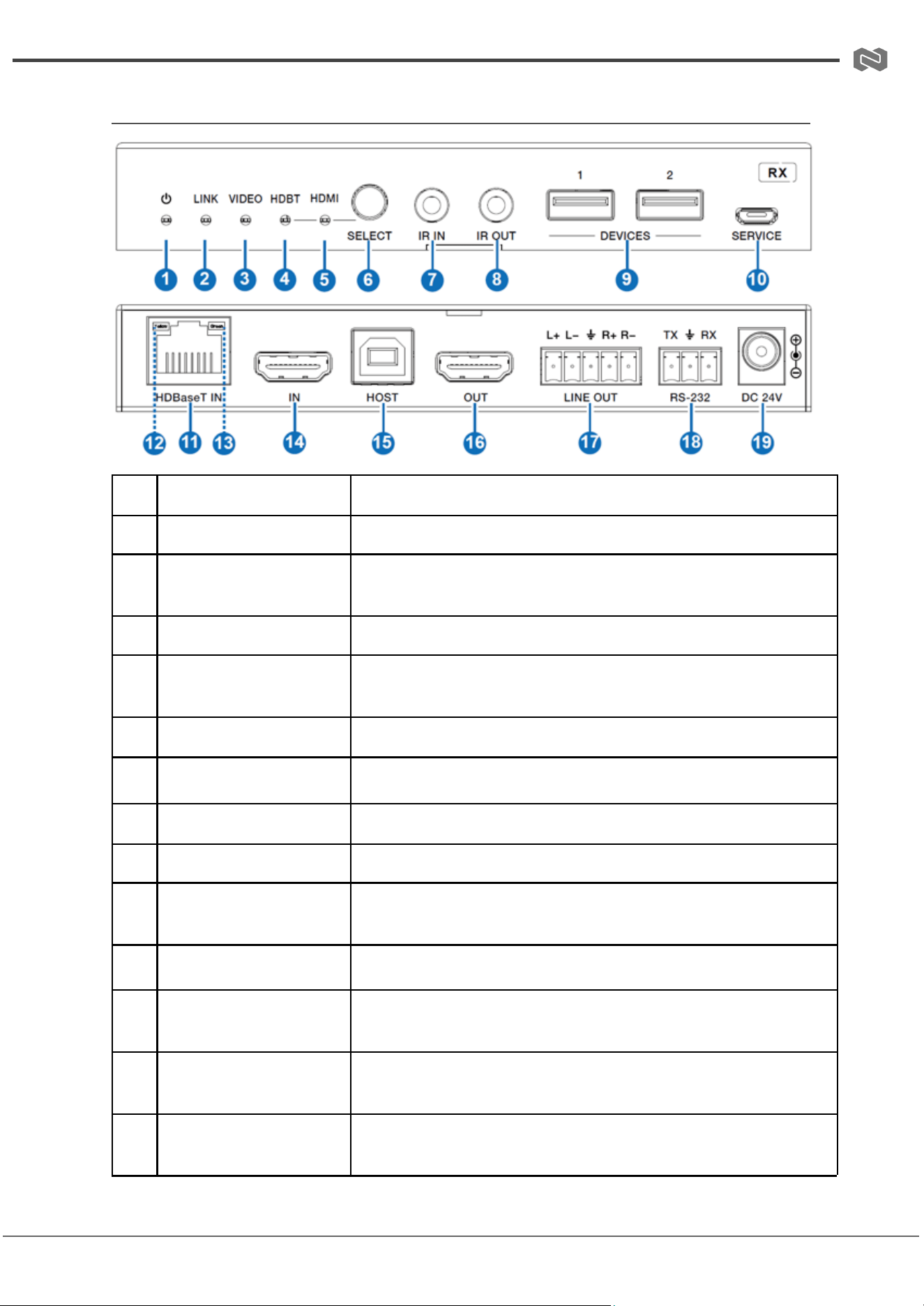
HDBaseT Receiver Panel
No.
Name
Description
1
Power LED
Indicates the receiver is powered on.
2
LINK LED
Shows HDBaseT connection status between transmitter and
receiver.
3
VIDEO LED
Indicates active video signal presence and HDCP status.
4
HDBT LED
Illuminates when HDBaseT input is selected as the active source.
5
HDMI LED
Illuminates when HDMI input is selected as the active source.
6
SELECT Button
Manually switches between HDMI IN and HDBaseT IN inputs.
7
IR IN Port
Receives IR signals for pass-through or remote system control.
8
IR OUT Port
Outputs IR signals to controlled devices via IR blaster.
9
USB DEVICE Ports (2x)
Connects USB peripherals such as keyboard, mouse, or
touchscreen devices.
10
SERVICE Port
Used for firmware upgrades and maintenance via USB connection.
11
HDBaseT IN Port
Receives AV, USB, control, and power signals from the transmitter
via CAT6A cable.
12
Data Signal Indicator
(Yellow)
Indicates HDMI signal status (HDCP active, non-HDCP signal, or no
signal).
13
Link Signal Indicator
(Green)
Shows HDBaseT link quality and connection status.
Address: 830 National Drive #140, Sacramento, CA 95834, USA · Tel: +1(888)499-9906 · Email: support@bzbgear.com 12

BZBGEAR BG-PSC51-4K PRODUCT MANUAL
14
HDMI IN Port
Local HDMI input for alternate source selection at the receiver.
15
USB HOST Port
USB-B connection for PC host in KVM operation mode.
16
HDMI OUT Port
Outputs video signal to connected display device.
17
LINE OUT Port
Provides balanced/unbalanced analog audio output.
18
RS-232 Port
Enables serial control and bi-directional pass-through
communication.
19
DC 24V Port
Optional power input when PoE is not used via HDBaseT.
Address: 830 National Drive #140, Sacramento, CA 95834, USA · Tel: +1(888)499-9906 · Email: support@bzbgear.com 13
BZBGEAR BG-PSC51-4K PRODUCT MANUAL
IR Cable Pin Assignment
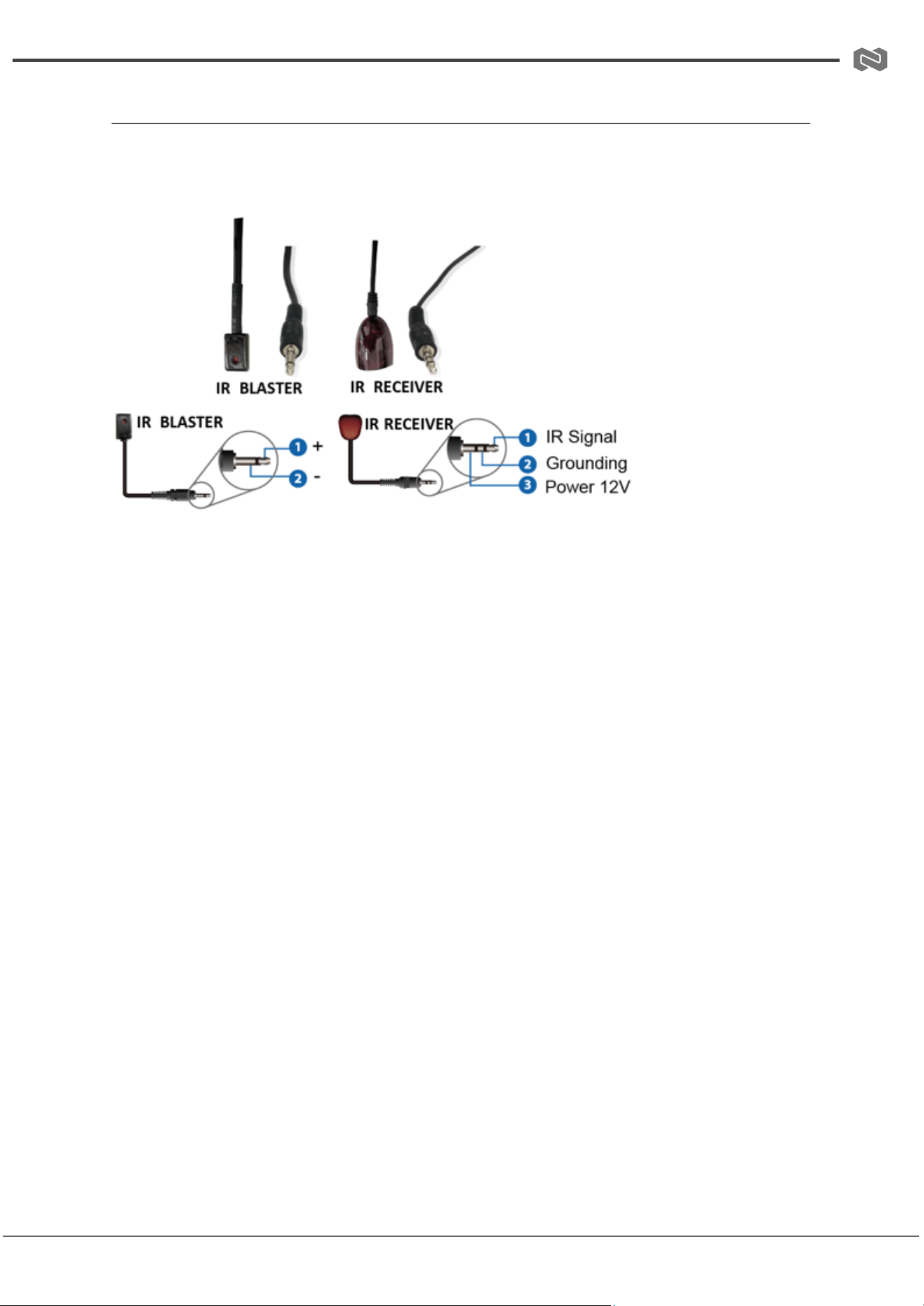
The IR interface on the BG-PSC51-4K uses a standard 3.5mm stereo (TRS) connector for
both the IR receiver and IR blaster cables.
● Tip (T): IR Signal
● Ring (R): +5V DC (power for IR module)
● Sleeve (S): Ground (GND)
The IR Receiver Cable is used to receive infrared commands from the remote control and
pass them to the system for local or remote device control. The IR Blaster Cable outputs
infrared signals to external devices such as displays or source equipment for power and
input control functions.
For best performance, the IR receiver should be positioned with a clear line of sight to the
remote. Effective transmission range is approximately 0–5 meters within ±45°, and up to
0–8 meters within ±90° depending on alignment and environmental conditions.
Address: 830 National Drive #140, Sacramento, CA 95834, USA · Tel: +1(888)499-9906 · Email: support@bzbgear.com 14
BZBGEAR BG-PSC51-4K PRODUCT MANUAL
IR Remote Description
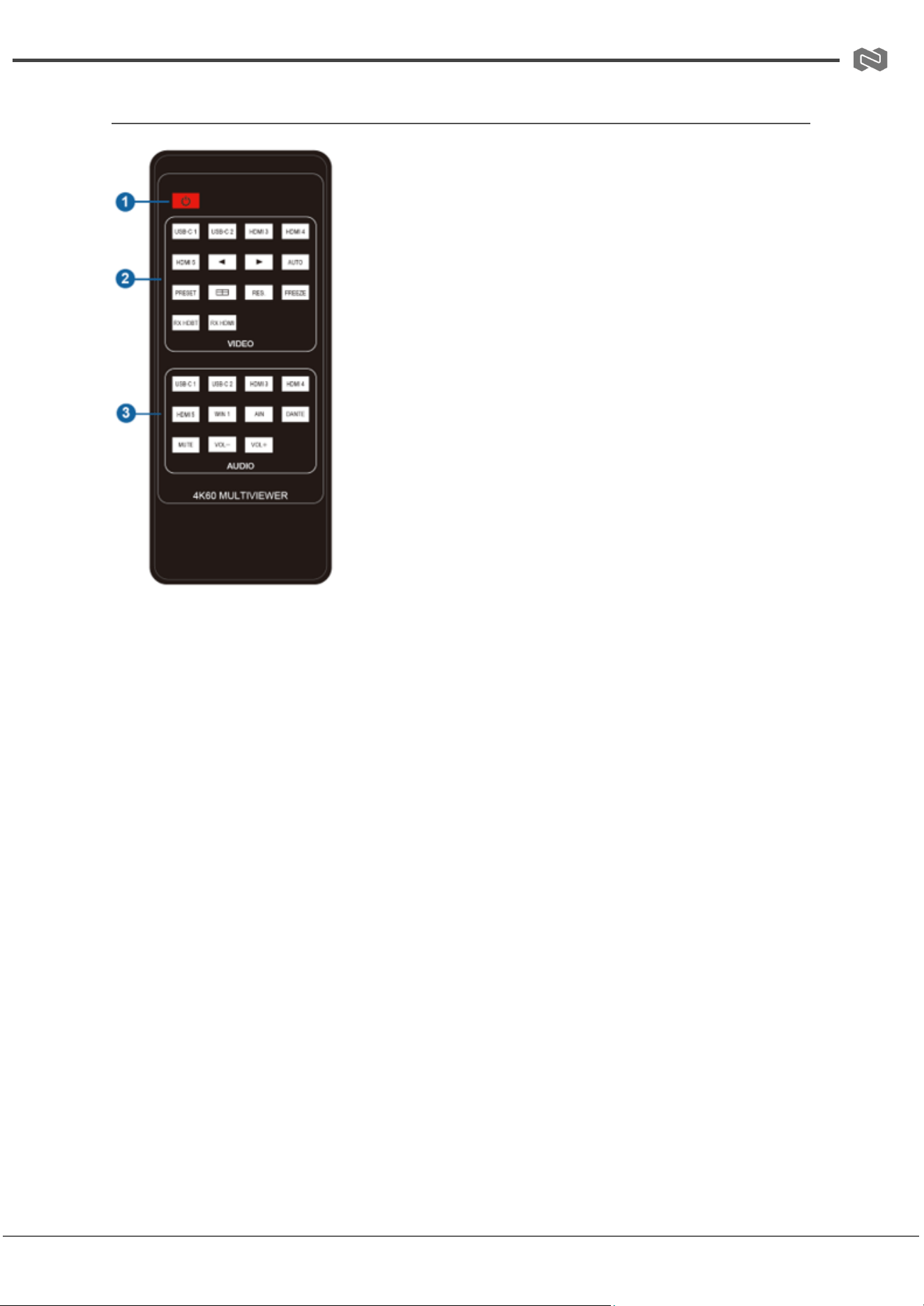
1. Power Button: Press to power the switcher on or
place it into standby mode.
2. Video Control Buttons: Includes input selection
(USB-C 1 / USB-C 2 / HDMI 3 / HDMI 4 / HDMI 5) for
single-screen mode, with corresponding front panel
indicator lighting in blue. Provides channel navigation
(previous/next input), AUTO switching enable/disable,
PRESET scene cycling, multiview mode switching (Single →
PIP → PBP → Triple → Quad), output resolution cycling
(RES.), screen freeze/unfreeze (FREEZE), and receiver
source selection (RX HDBT / RX HDMI) to choose between
HDBaseT IN or HDMI IN as the receiver input source.
3. Audio Control Buttons: Allows selection of audio
input sources (USB-C 1 / USB-C 2 / HDMI 3 / HDMI 4 / HDMI 5 / WIN 1 / AIN /
DANTE) for HDMI/HDBT output audio routing, with USB-C/HDMI/WIN sources
grouped under Main In. Includes Master Out mute/unmute control and volume
adjustment (VOL- / VOL+) to increase or decrease output level.
Address: 830 National Drive #140, Sacramento, CA 95834, USA · Tel: +1(888)499-9906 · Email: support@bzbgear.com 15
BZBGEAR BG-PSC51-4K PRODUCT MANUAL
Web GUI User Guide
The presentation switch can be controlled via the built-in Web GUI interface. Follow the
steps below to access and operate the system.
Step 1: Obtain IP Address
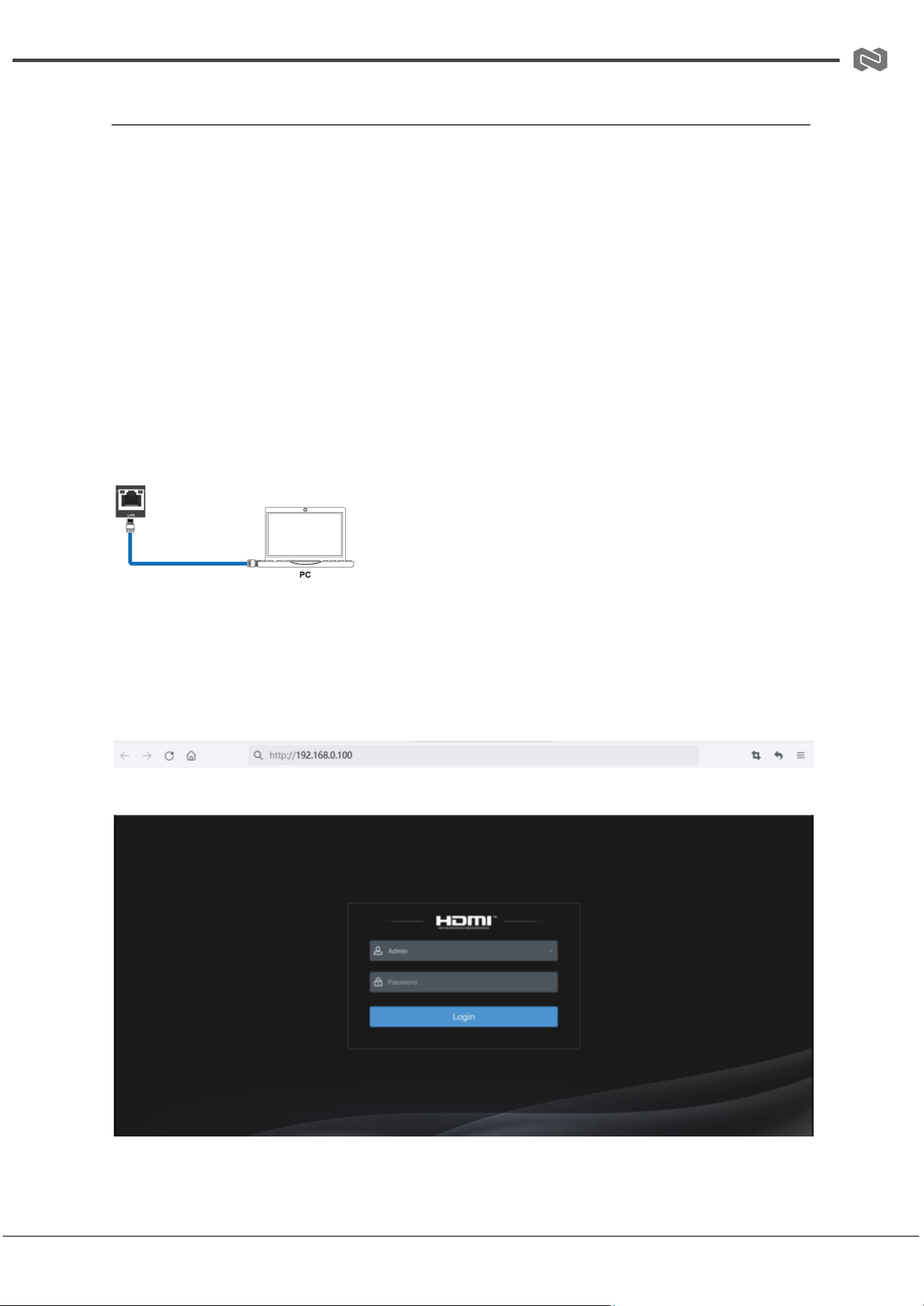
The default IP address is 192.168.0.100 when the system is not connected to a router.
To retrieve the current IP address, send the RS-232 ASCII command: r ip addr
Use a serial command tool to execute the command. The device will return its current IP
address. (The IP may vary depending on network configuration.)
For RS-232 command details, refer to Section 9: RS-232 Control Command.
Step 2: Network Connection
Connect the LAN port of the presentation switch to a PC using an Ethernet cable. Ensure
the PC is set to the same network segment as the device IP address.
Step 3: Access Web GUI
Address: 830 National Drive #140, Sacramento, CA 95834, USA · Tel: +1(888)499-9906 · Email: support@bzbgear.com 16
BZBGEAR BG-PSC51-4K PRODUCT MANUAL
Enter the device IP address into a web browser (Chrome/Edge recommended) to open the
Web GUI login page.
Login Credentials
Username
Password
Admin
admin
User
user
Select User or Admin, enter the corresponding password, then click Login.
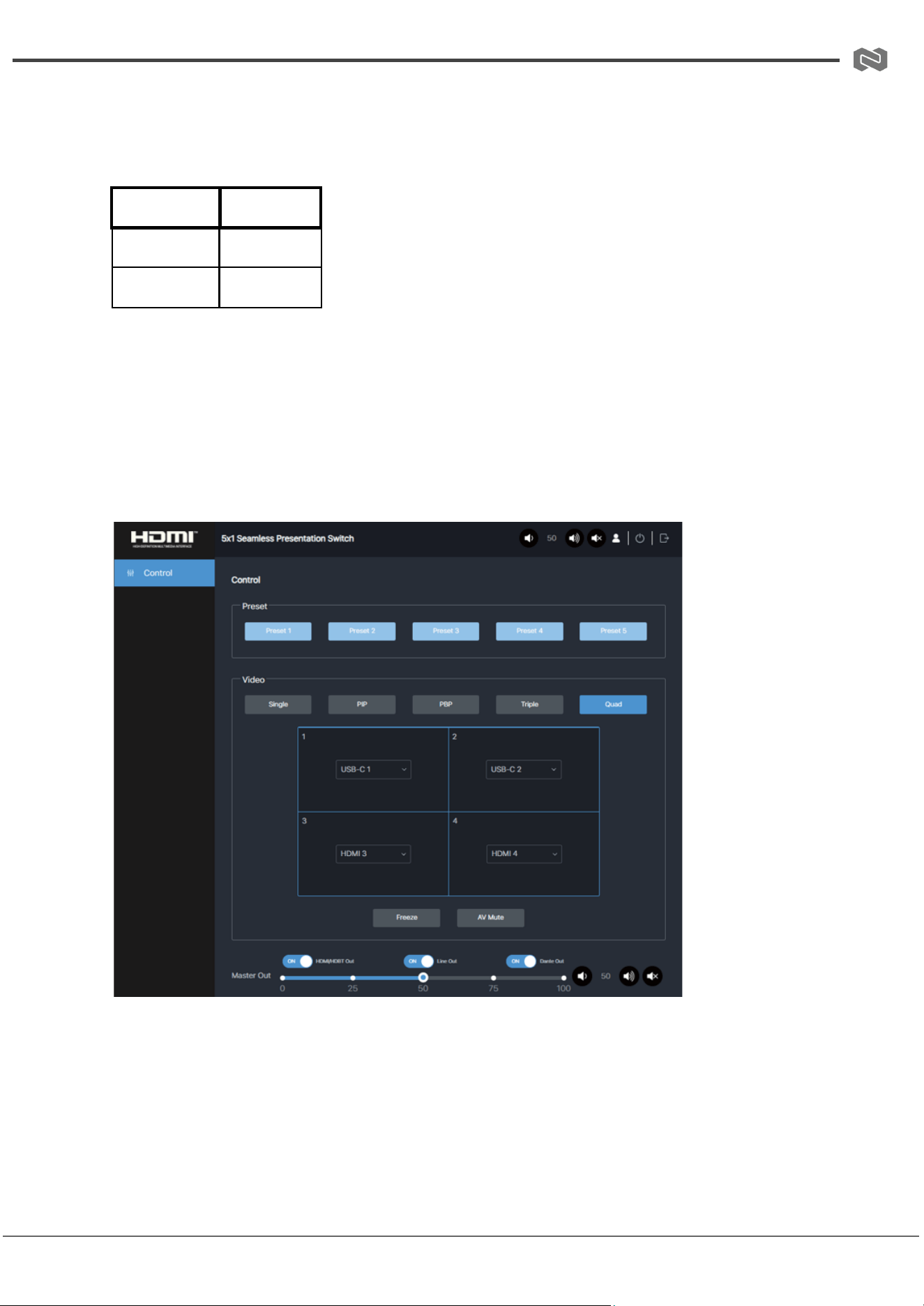
User Page (User Login)
The User interface allows basic control functions:
● Preset: Recall saved application scenes.
● Video: Select multiview display mode, assign input sources per window, freeze
screen, or mute audio.
● Master Out: Adjust volume or mute/unmute Master Out audio. Enable/disable
HDMI/HDBT Out, Line Out, or Dante Out individually.
Address: 830 National Drive #140, Sacramento, CA 95834, USA · Tel: +1(888)499-9906 · Email: support@bzbgear.com 17
BZBGEAR BG-PSC51-4K PRODUCT MANUAL
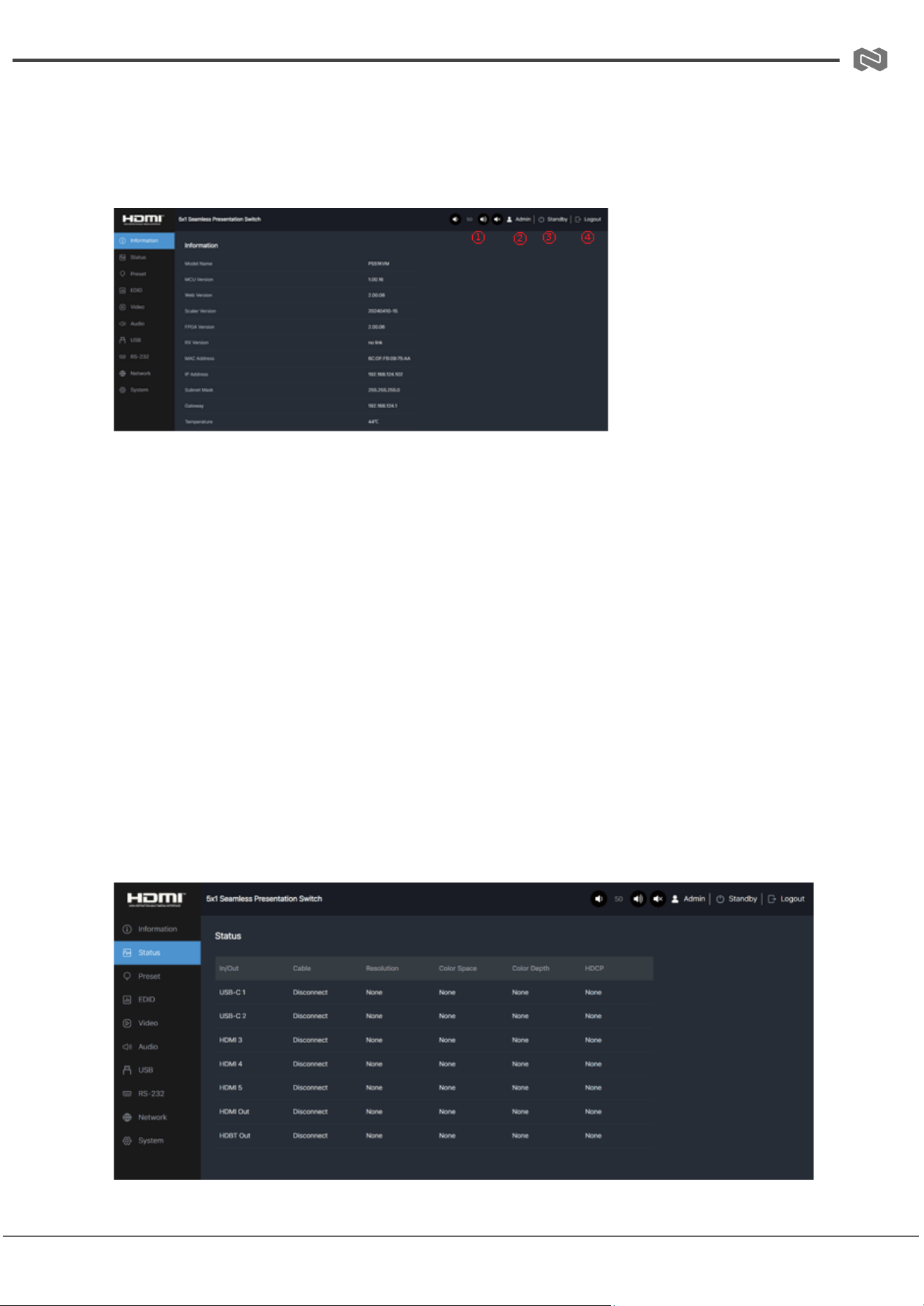
Admin Interface
Information Page
Displays system information including:
● Model name
● Software version
● IP information
● System temperature
Top-right corner controls:
1. Master Out volume control (increase/decrease/mute)
2. Current user display (User/Admin)
3. Power control (ON/Standby)
4. Logout button
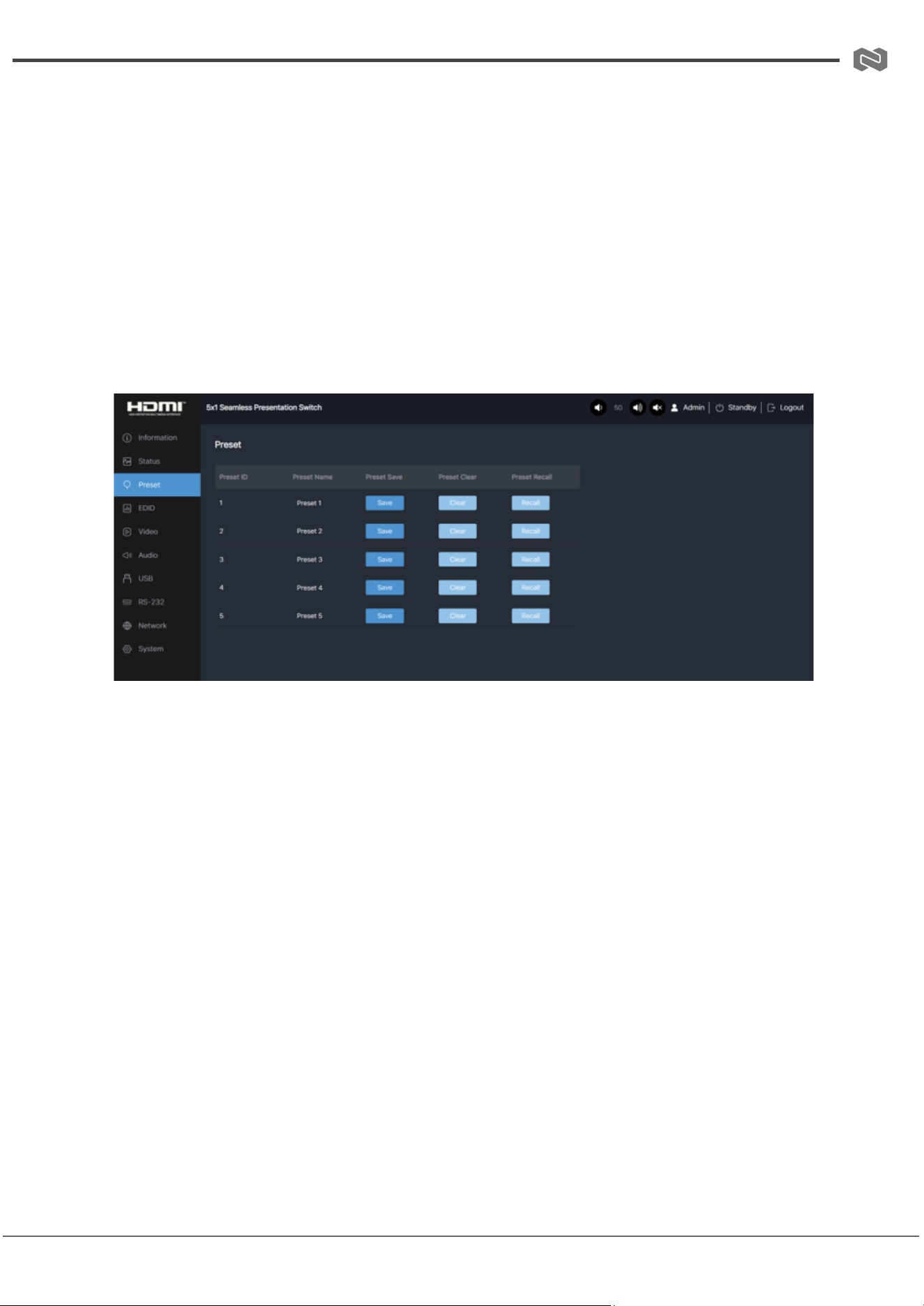
Status Page
Address: 830 National Drive #140, Sacramento, CA 95834, USA · Tel: +1(888)499-9906 · Email: support@bzbgear.com 18
BZBGEAR BG-PSC51-4K PRODUCT MANUAL
Displays real-time system status including:
● Input/output connection status
● Input/output resolution
● Color space
● Color depth
● HDCP status
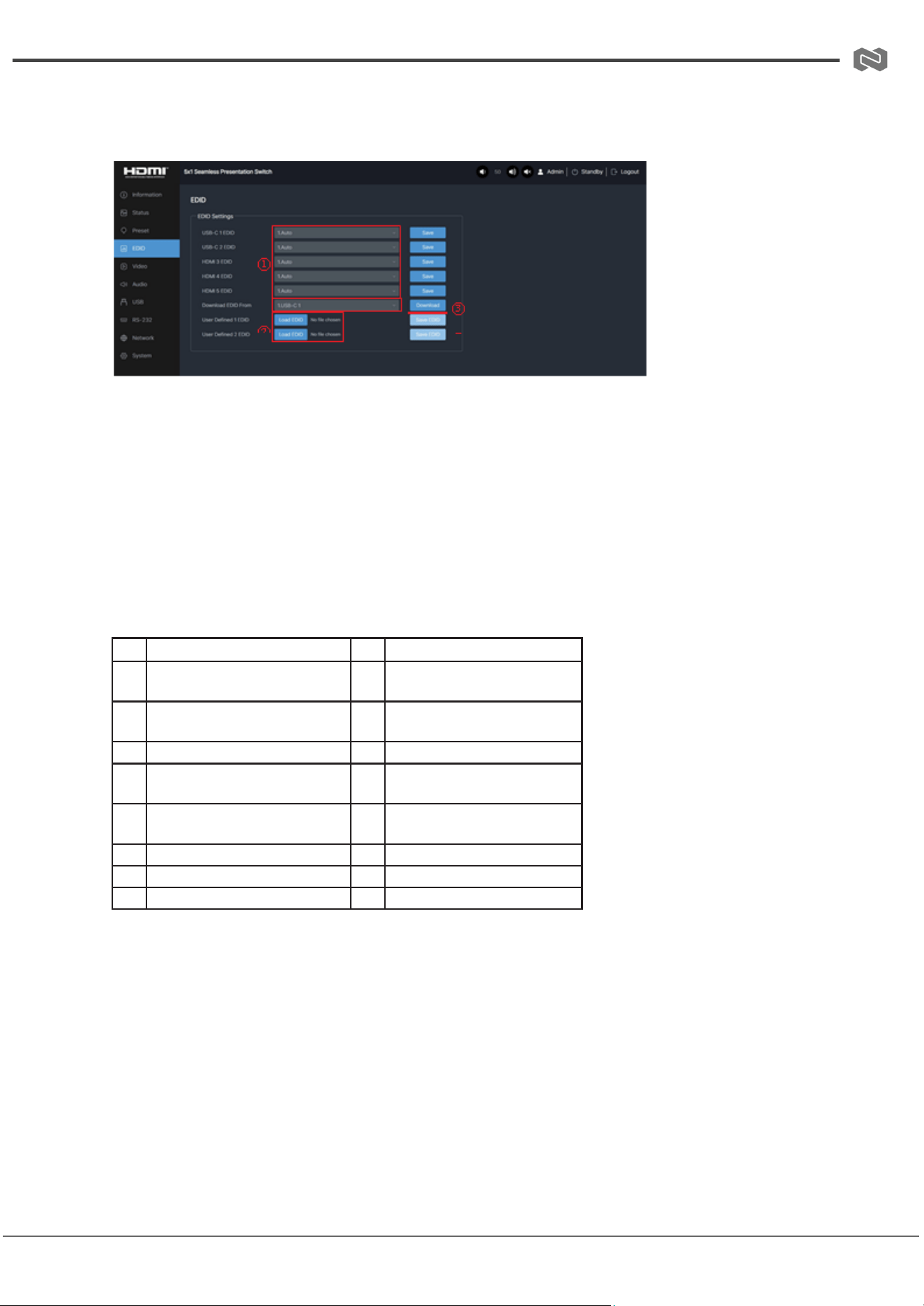
Preset Page
Supports up to 5 preset scenes:
1. Preset Name: Assign a name (no Chinese characters supported)
2. Save: Save current configuration
3. Clear: Delete saved preset
4. Recall: Load saved preset
Address: 830 National Drive #140, Sacramento, CA 95834, USA · Tel: +1(888)499-9906 · Email: support@bzbgear.com 19
BZBGEAR BG-PSC51-4K PRODUCT MANUAL
EDID Page
Controls EDID management per input.
● Select EDID mode from predefined list (Auto, Copy HDMI OUT, 4K/1080P/720P
options, user-defined, etc.)
● Select input/output port for EDID download (USB-C 1/2, HDMI 3–5, HDMI OUT,
HDBT OUT)
● Download: Export EDID (.bin file)
● Load EDID: Upload custom EDID file (.bin only)
● Save EDID: Store user-defined EDID
No.
EDID Mode
No.
EDID Mode
1
Auto
9
1680x1050, Stereo Audio
2.0
2
Copy HDMI OUT
10
1600x1200, Stereo Audio
2.0
3
Copy HDBT OUT
11
1440x900, Stereo Audio 2.0
4
4K2K60_444, Stereo Audio
2.0
12
1360x768, Stereo Audio 2.0
5
4K2K30_444, Stereo Audio
2.0
13
1280x1024, Stereo Audio
2.0
6
1080P, Stereo Audio 2.0
14
1024x768, Stereo Audio 2.0
7
720P, Stereo Audio 2.0
15
User Defined 1
8
1920x1200, Stereo Audio 2.0
16
User Defined 2
Address: 830 National Drive #140, Sacramento, CA 95834, USA · Tel: +1(888)499-9906 · Email: support@bzbgear.com 20
BZBGEAR BG-PSC51-4K PRODUCT MANUAL
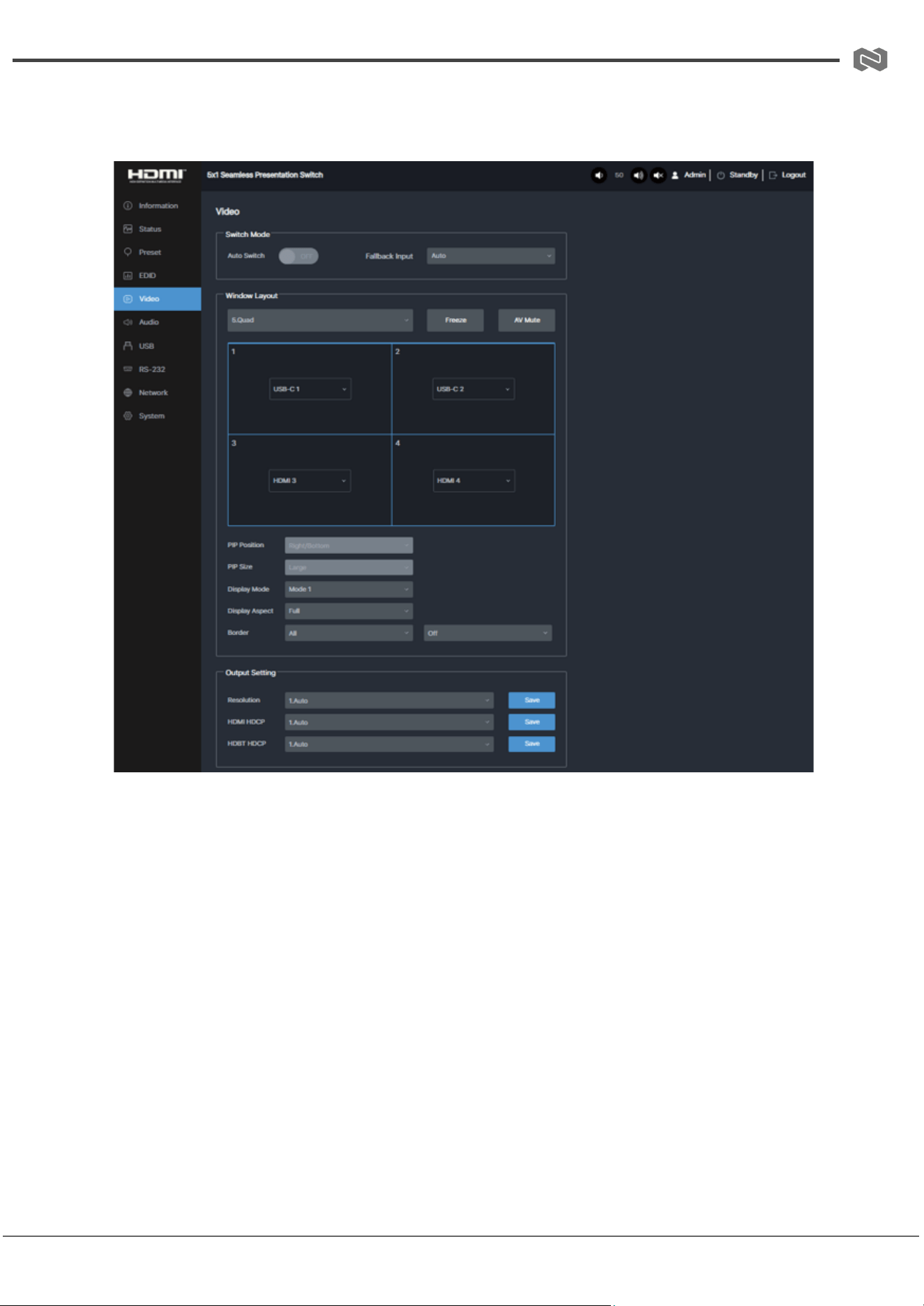
Video Page
Switch Mode
● Auto Switch ON/OFF
● Fallback Input selection (Auto / USB-C 1 / USB-C 2 / HDMI 3 / HDMI 4 / HDMI 5)
○ Auto fallback follows priority: USB-C 1 → USB-C 2 → HDMI 3 → HDMI 4 →
HDMI 5
● Auto switching works only in single-screen mode
Window Layout
● Select display mode: Single / PIP / PBP / Triple / Quad
● Freeze screen
● AV Mute (audio/video mute)
● PIP position and size selection
● Display mode options for PBP/Triple/Quad
● Aspect ratio settings
Address: 830 National Drive #140, Sacramento, CA 95834, USA · Tel: +1(888)499-9906 · Email: support@bzbgear.com 21
BZBGEAR BG-PSC51-4K PRODUCT MANUAL
● Border and border color settings
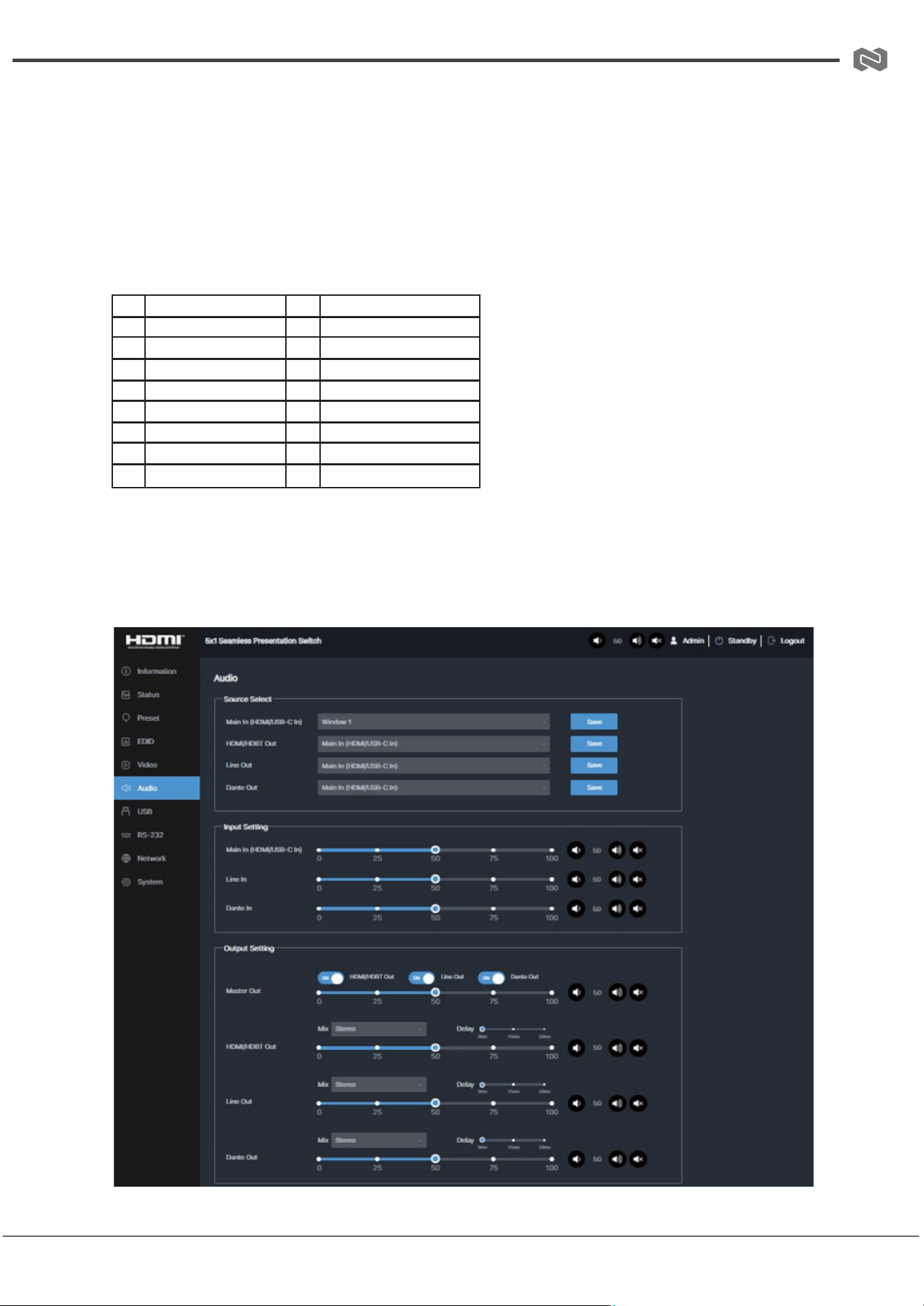
Output Settings
● Output resolution selection (Auto, up to 4K/60Hz and lower formats)
● HDMI HDCP version selection
● HDBT HDCP version selection
● Click Save to apply changes
No.
Output Resolution
No.
Output Resolution
1
Auto
9
1920x1080p60
2
3840x2160p60
10
1920x1080p50
3
3840x2160p50
11
1360x768p60
4
4096x2160p60
12
1280x800p60
5
4096x2160p50
13
1280x720p60
6
3840x2160p30
14
1280x720p50
7
3840x2160p25
15
1024x768p60
8
1920x1200p60RB
Audio Page
Address: 830 National Drive #140, Sacramento, CA 95834, USA · Tel: +1(888)499-9906 · Email: support@bzbgear.com 22
BZBGEAR BG-PSC51-4K PRODUCT MANUAL
Source Select
● Select Main In source
● Assign audio sources for HDMI/HDBT Out, Line Out, Dante Out
● Click Save to apply
Input Settings
● Adjust volume or mute for Main In, Line In, Dante In
Output Settings
● Master Out volume and mute control for HDMI/HDBT, Line Out, Dante Out
● Independent or synchronized control supported
● Select audio mix channel per output
● Delay and gain adjustment available
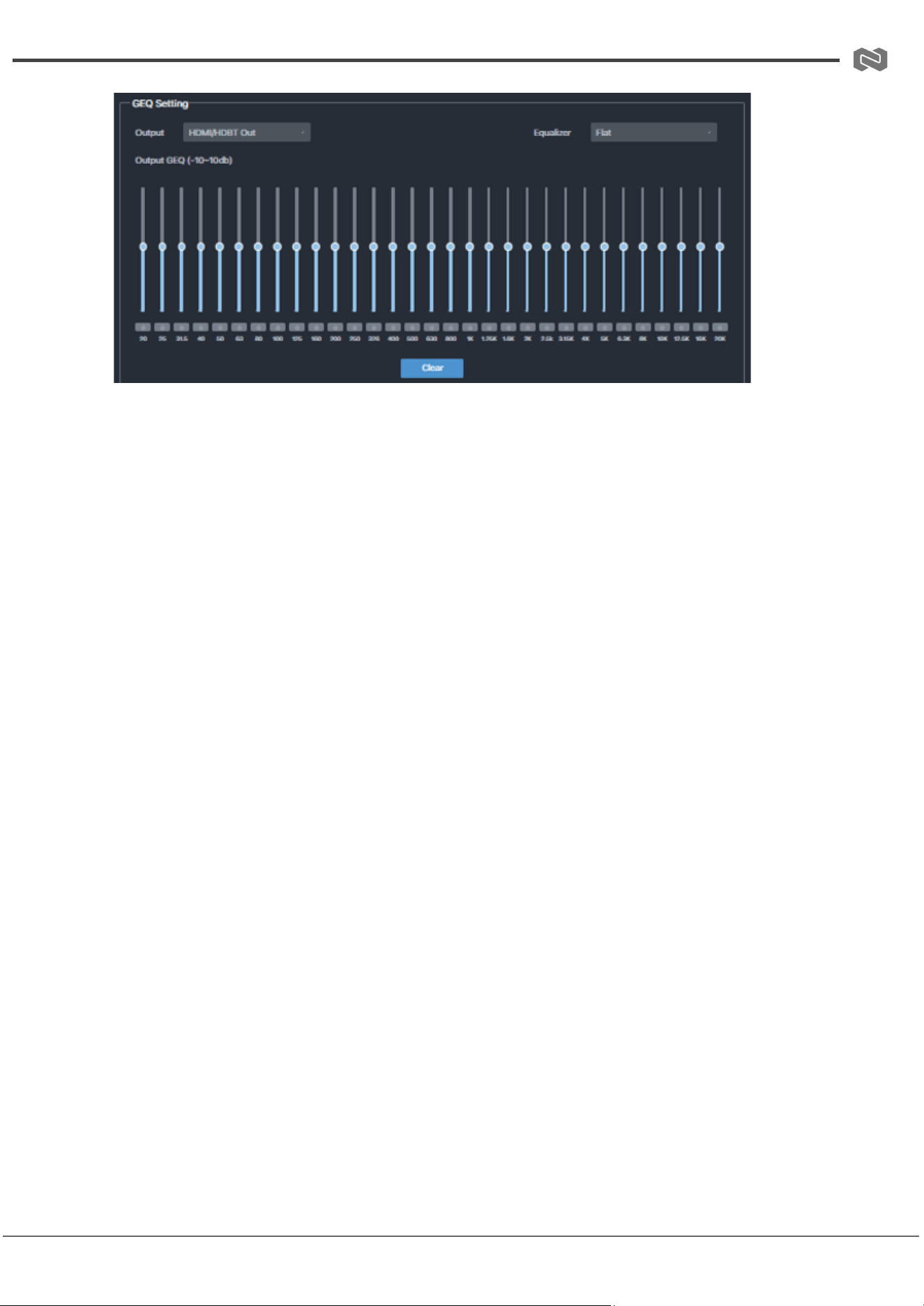
GEQ Settings
● Select output channel
● EQ presets: Flat, Custom 1–5
Address: 830 National Drive #140, Sacramento, CA 95834, USA · Tel: +1(888)499-9906 · Email: support@bzbgear.com 23
BZBGEAR BG-PSC51-4K PRODUCT MANUAL
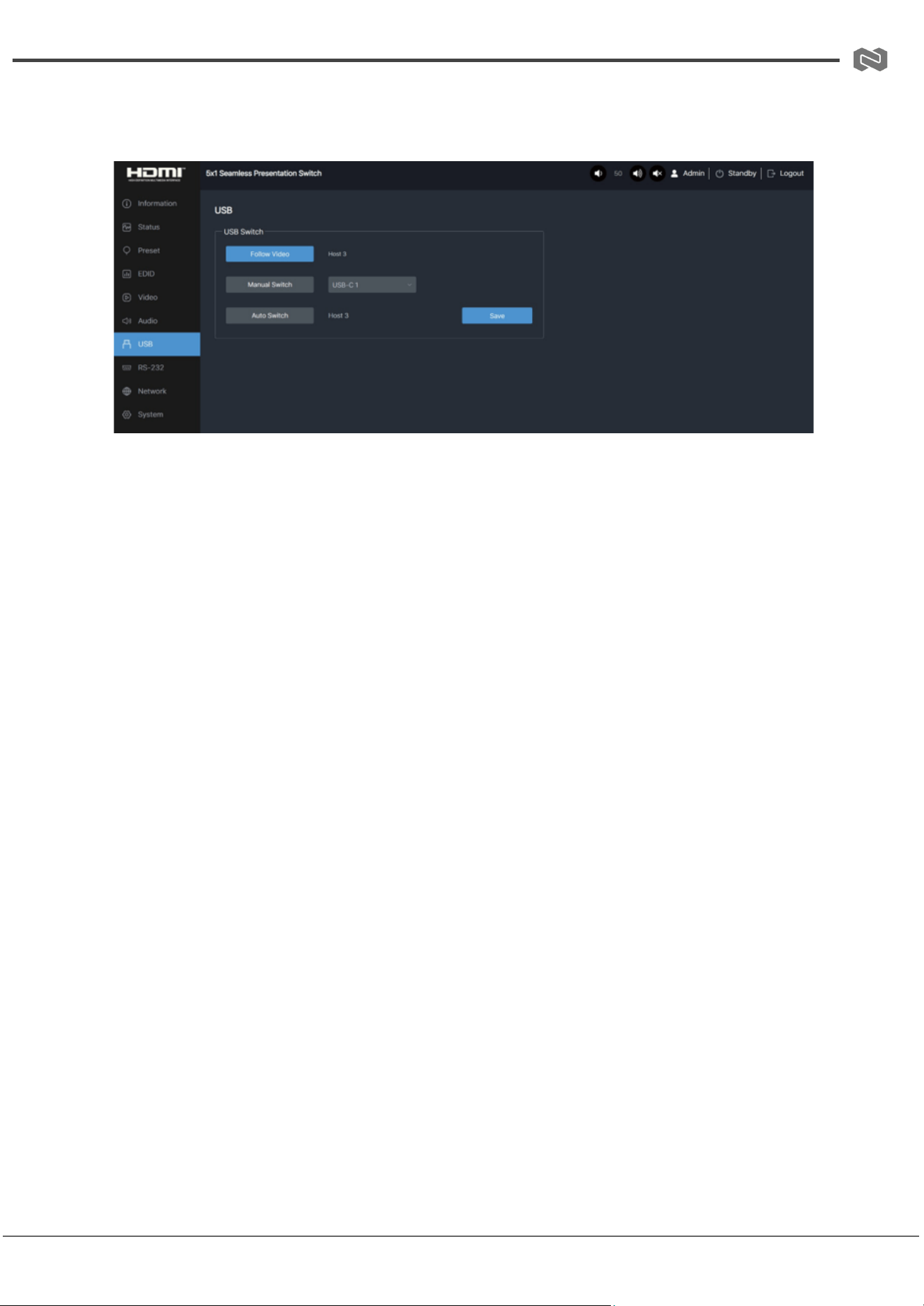
USB Page
● Follow Video: USB follows video window 1 in multiview
● Manual Switch: Select USB-C 1 / USB-C 2 / Host 3 manually
● Auto Switch: Automatic USB switching between inputs
● Click Save to apply
Address: 830 National Drive #140, Sacramento, CA 95834, USA · Tel: +1(888)499-9906 · Email: support@bzbgear.com 24
BZBGEAR BG-PSC51-4K PRODUCT MANUAL
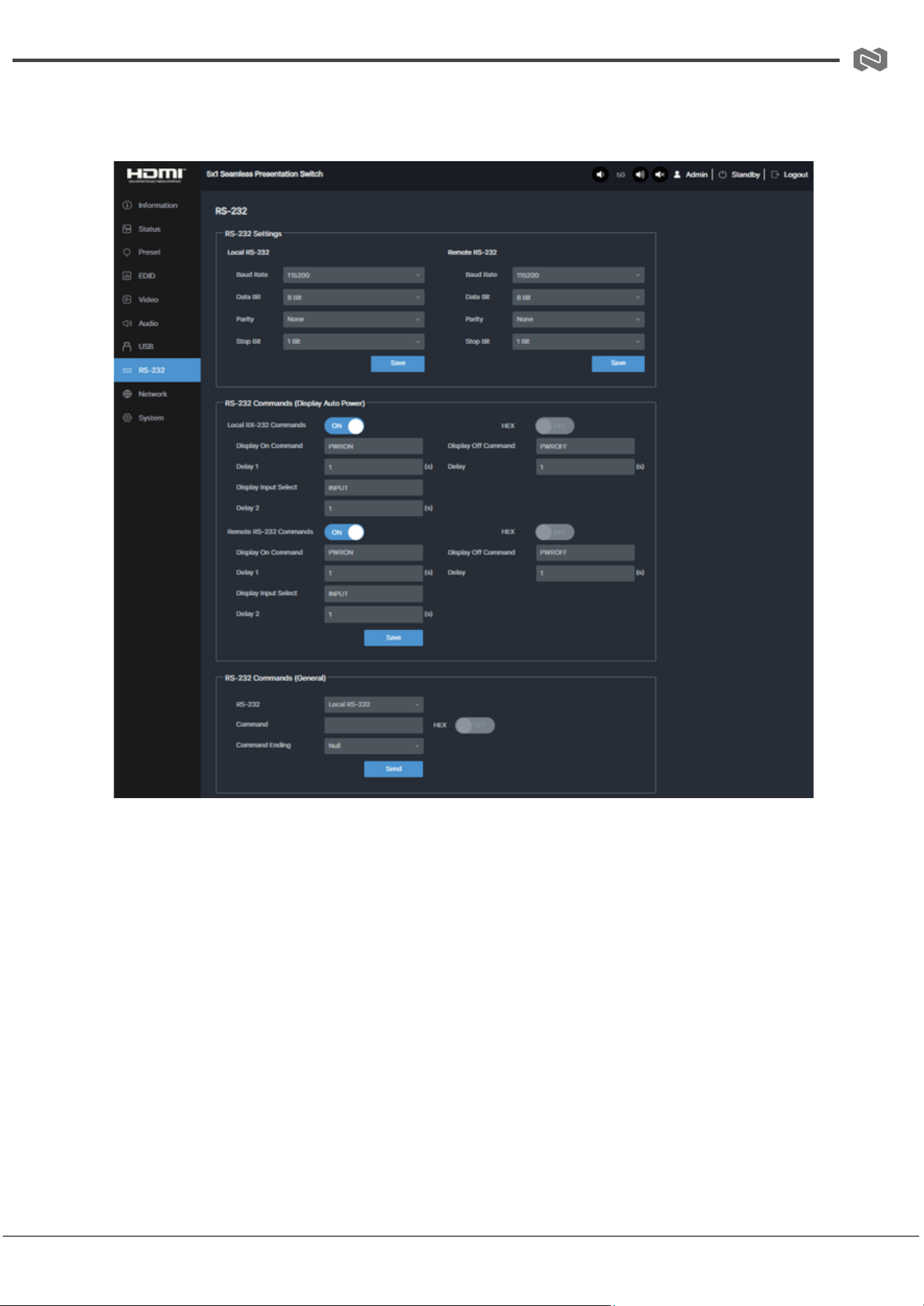
RS-232 Page
RS-232 Settings
● Configure baud rate, data bit, parity, stop bit for:
○ Local RS-232 (transmitter)
○ Remote RS-232 (receiver)
Display Control Commands
● Enable/disable RS-232 commands
● Set display ON/OFF command
● Configure delay timers
● Set input switching commands
General RS-232 Control
● Select Local/Remote RS-232
Address: 830 National Drive #140, Sacramento, CA 95834, USA · Tel: +1(888)499-9906 · Email: support@bzbgear.com 25
BZBGEAR BG-PSC51-4K PRODUCT MANUAL
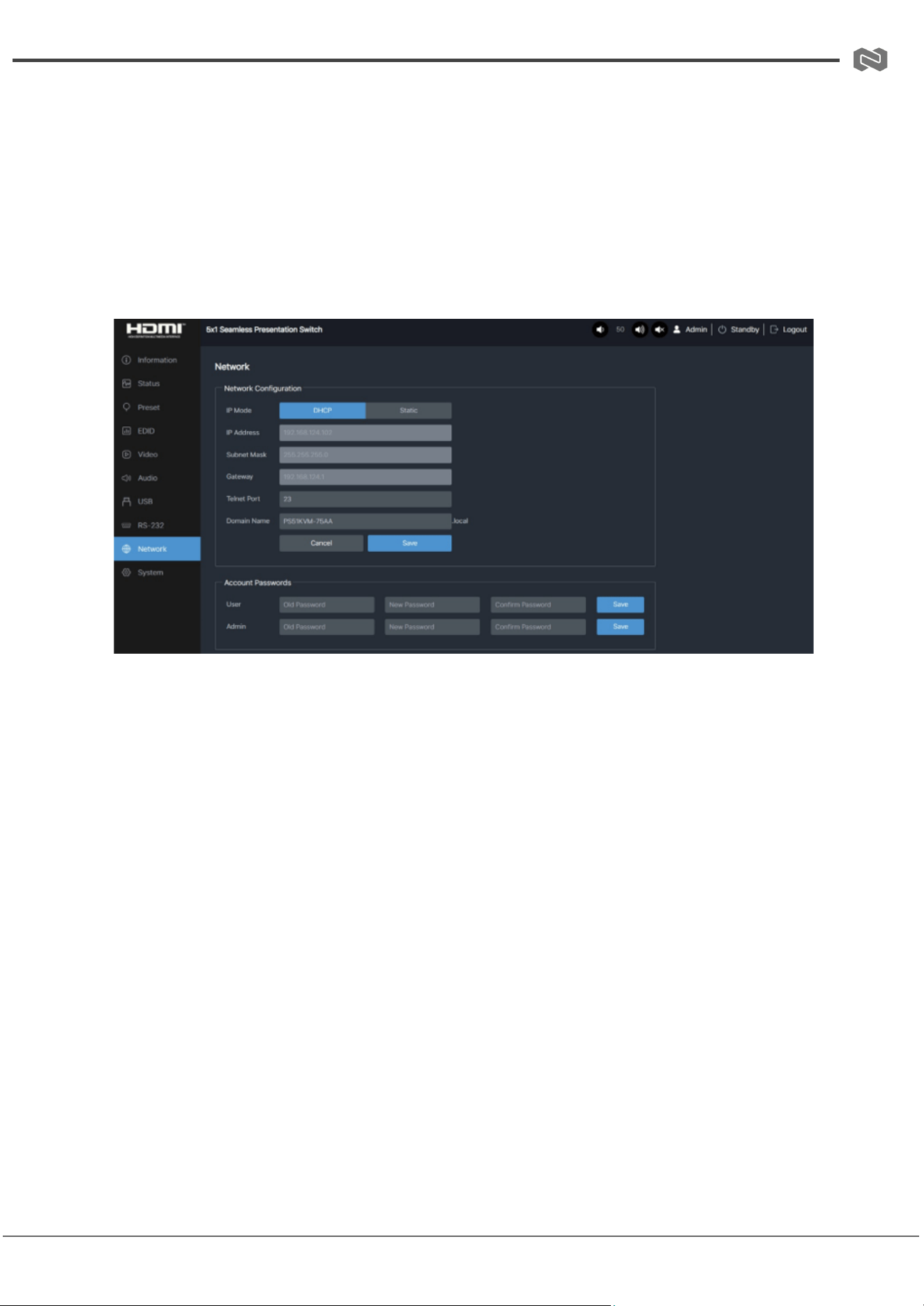
● Enter command (HEX optional)
● Select command ending format
● Click Send
Network Page
● Set IP mode (DHCP/Static)
● Configure IP address, subnet mask, gateway, DNS, Telnet port
● Domain name access supported (e.g., device.local)
● Modify User/Admin passwords
Address: 830 National Drive #140, Sacramento, CA 95834, USA · Tel: +1(888)499-9906 · Email: support@bzbgear.com 26
BZBGEAR BG-PSC51-4K PRODUCT MANUAL
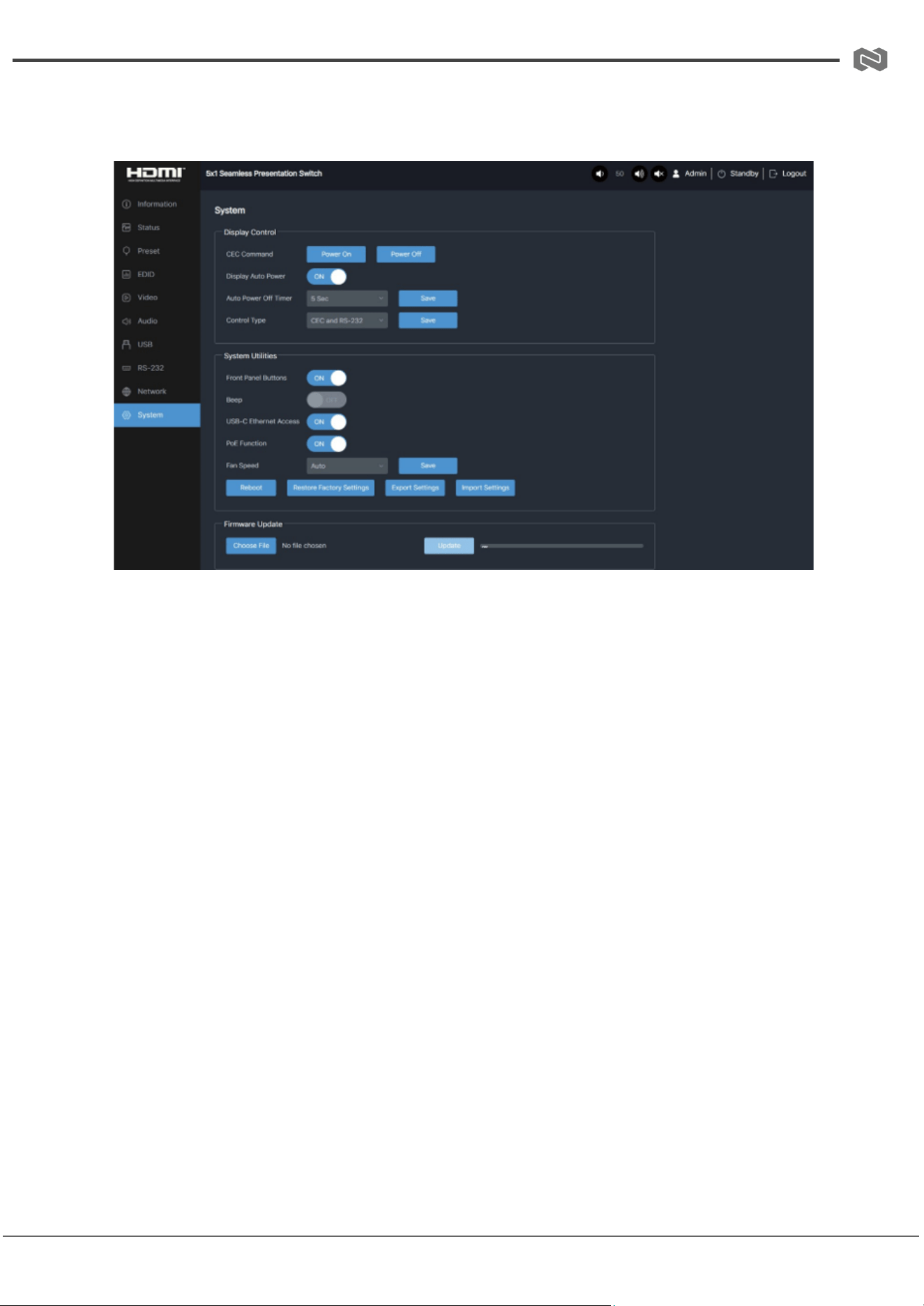
System Page
Display Control
● CEC power control ON/OFF
● Display auto power control
● Auto power-off timer
● Control type selection
System Utilities
● Front panel lock/unlock
● Beep ON/OFF
● USB-C Ethernet access ON/OFF
● PoE ON/OFF
● Fan speed control
● Reboot system
● Factory reset
● Export/import configuration
Firmware Update
● Supports MCU, Web, Scaler, and receiver updates
● Select file → click Update → wait for completion (100%)
Address: 830 National Drive #140, Sacramento, CA 95834, USA · Tel: +1(888)499-9906 · Email: support@bzbgear.com 27

BZBGEAR BG-PSC51-4K PRODUCT MANUAL
Dante Web GUI User Guide
Dante audio control is integrated within the Audio Page of the Web GUI. It allows routing,
level adjustment, and equalization of Dante audio signals within the system.
Dante Output Source Selection
In the Source Select section, you can assign the audio source for Dante output:
● Select Dante Out from the available input sources (e.g., Main In, Line In,
HDMI/USB-C sources depending on routing options)
● Click Save to apply the selected routing
This determines which audio signal is transmitted to the Dante network output.
Dante Input / Processing Settings
Within the Input Settings section:
● Adjust Dante In audio level (increase or decrease volume)
● Mute/Unmute Dante input as needed
These controls allow you to manage incoming Dante audio before it is routed to outputs.
Dante Output Control
Under Output Settings:
● Adjust Dante Out volume
● Enable or disable mute
● Select the audio mix channel assigned to Dante Out via the Mix drop-down menu
● Fine-tune audio with:
○ Gain adjustment (increase/decrease audio level)
○ Delay settings (for synchronization)
Master Out Synchronization
Dante output can be managed alongside other system outputs:
● HDMI/HDBT Out
Address: 830 National Drive #140, Sacramento, CA 95834, USA · Tel: +1(888)499-9906 · Email: support@bzbgear.com 28

BZBGEAR BG-PSC51-4K PRODUCT MANUAL
● Line Out
● Dante Out
You can choose to control these outputs independently or synchronize them under Master
Out settings.
GEQ (Equalizer) for Dante
The Dante output supports built-in equalization control:
● Select Dante Out (or relevant output channel) in the GEQ section
● Choose EQ mode:
○ Flat (0 dB baseline)
○ Custom 1–5 presets
This allows tone shaping of Dante audio for different environments or system tuning.
~ All changes must be confirmed by clicking Save to ensure settings take effect.
Address: 830 National Drive #140, Sacramento, CA 95834, USA · Tel: +1(888)499-9906 · Email: support@bzbgear.com 29
BZBGEAR BG-PSC51-4K PRODUCT MANUAL
RS-232 Control Command
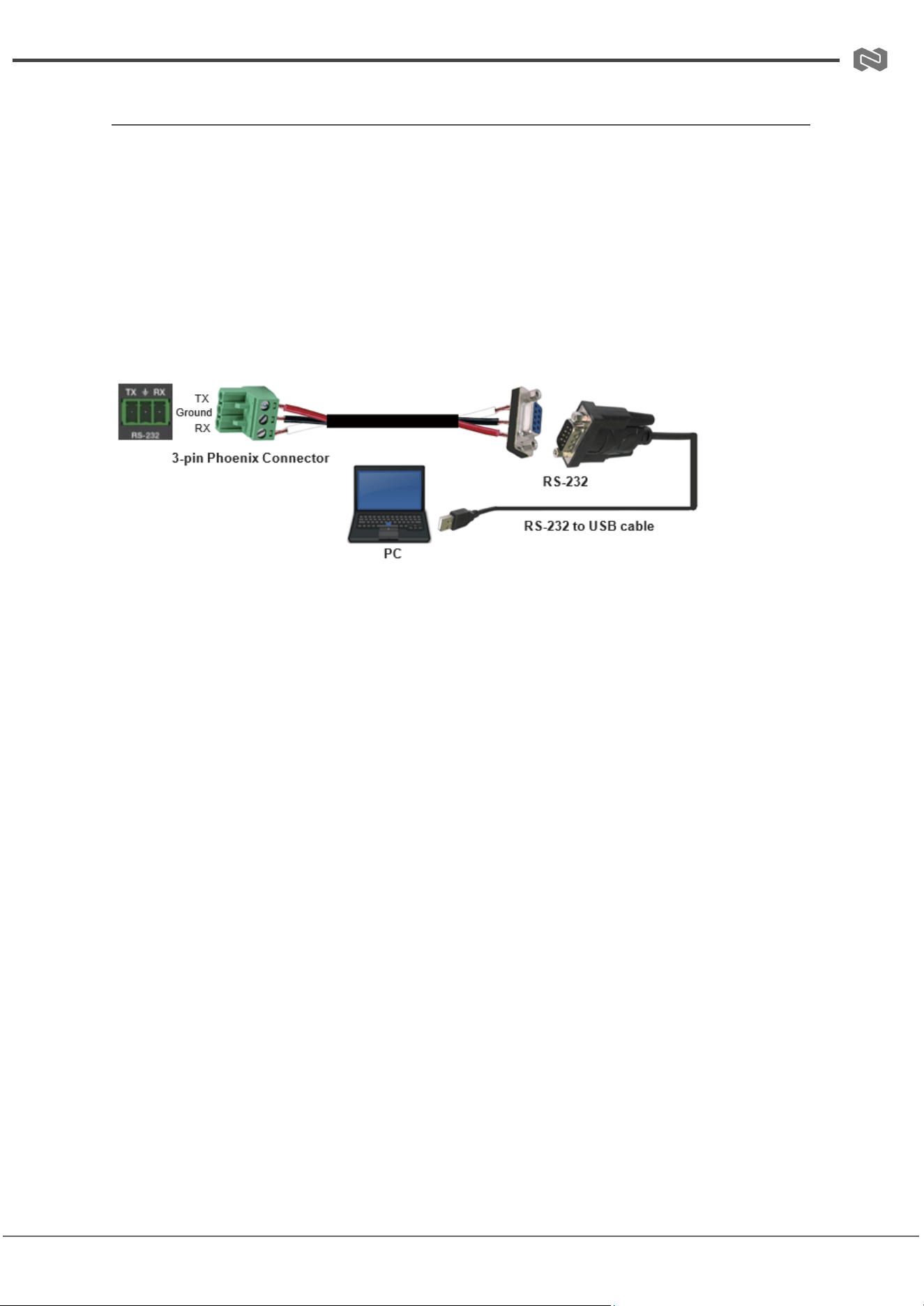
The presentation switch supports serial control via RS-232, allowing third-party control
systems, PCs, or automation platforms to manage device operation, switching, and display
control.
RS-232 Connection
RS-232 communication is available on both the local (transmitter) and remote (receiver)
RS-232 ports. Use a standard straight-through serial cable to connect the device to a
control system or PC.
Default RS-232 Parameters
● Baud Rate: 9600 bps
● Data Bits: 8
● Parity: None
● Stop Bits: 1
● Flow Control: None
(Parameters can be modified via the Web GUI under the RS-232 Page.)
Address: 830 National Drive #140, Sacramento, CA 95834, USA · Tel: +1(888)499-9906 · Email: support@bzbgear.com 30
BZBGEAR BG-PSC51-4K PRODUCT MANUAL
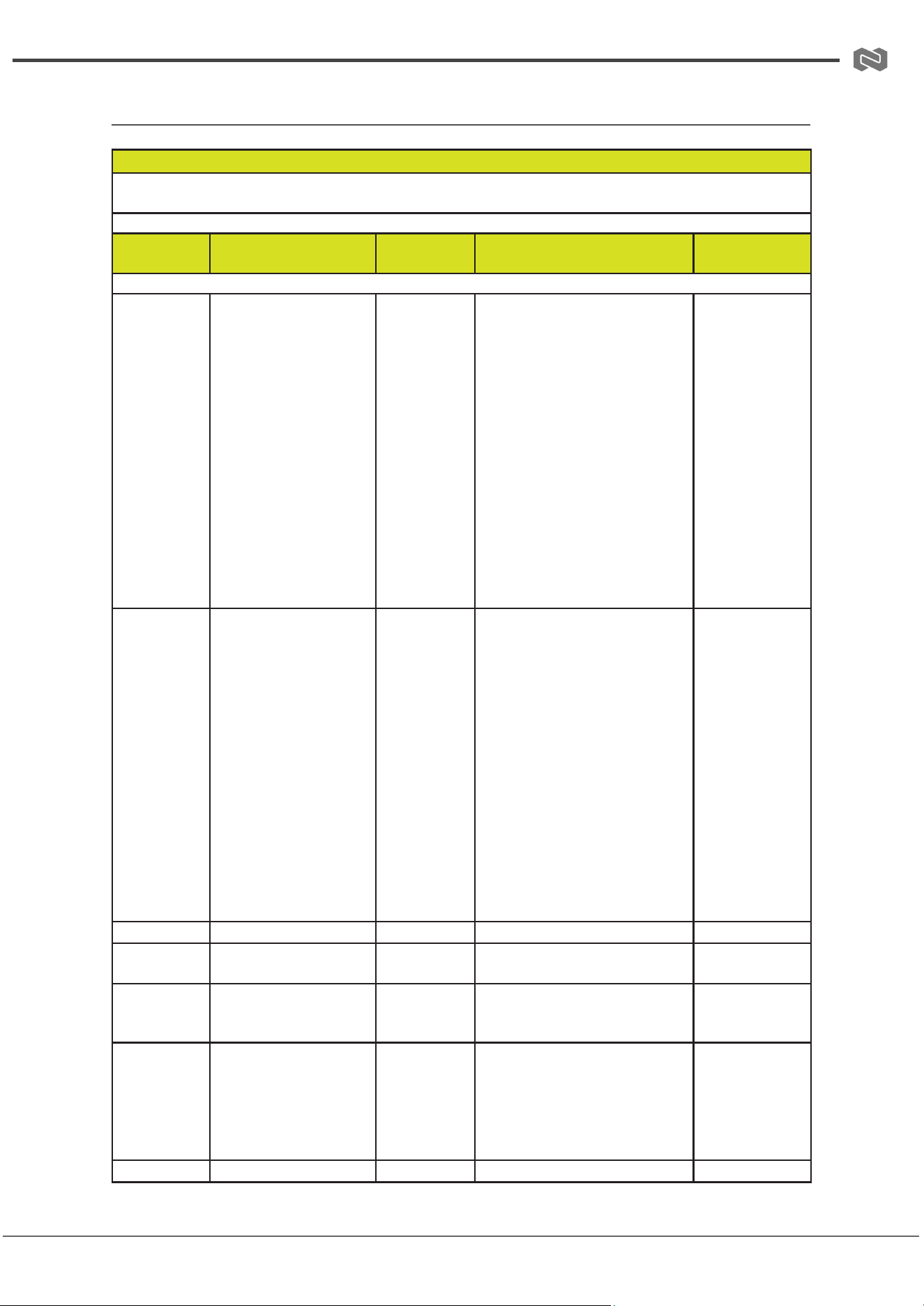
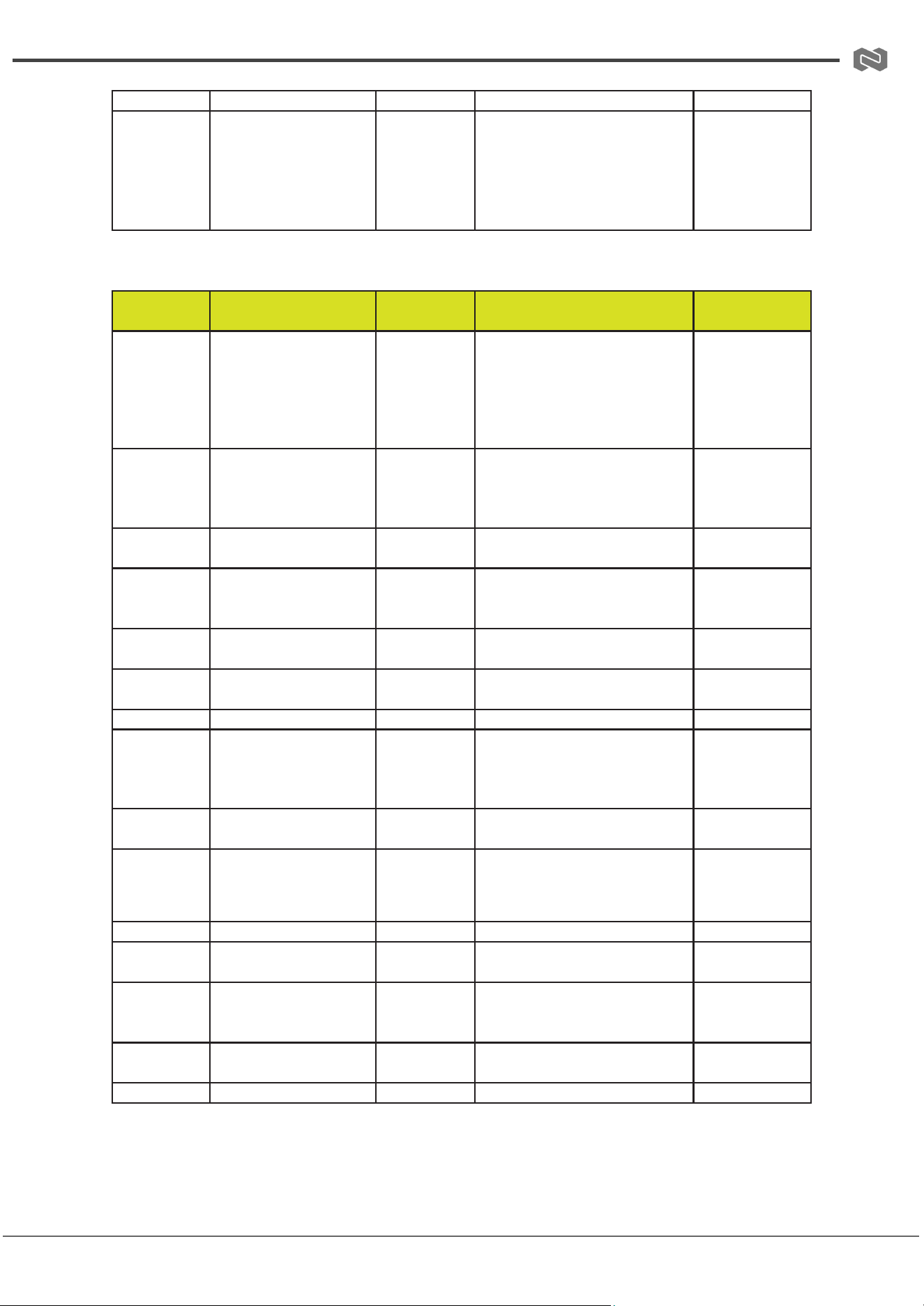
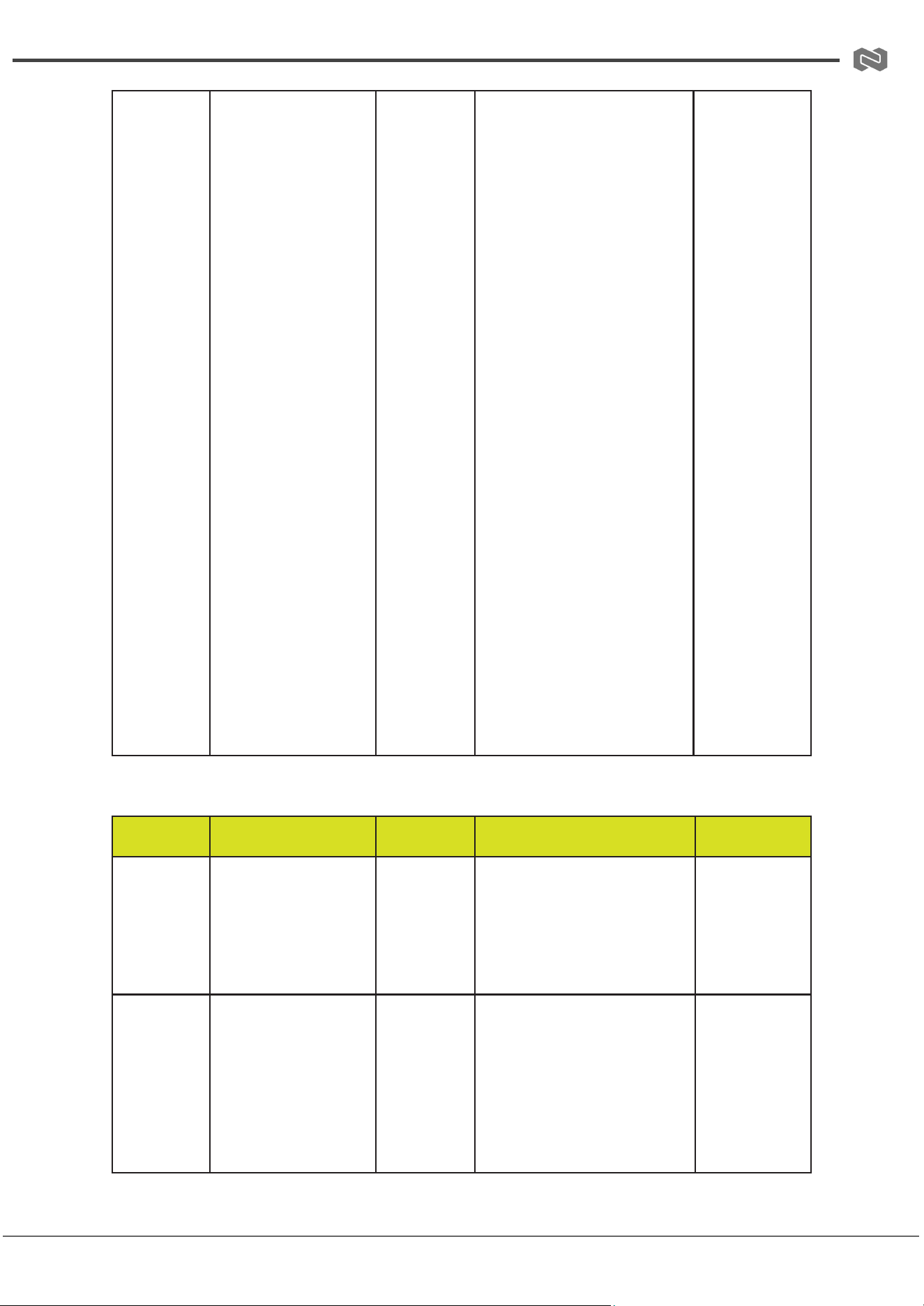
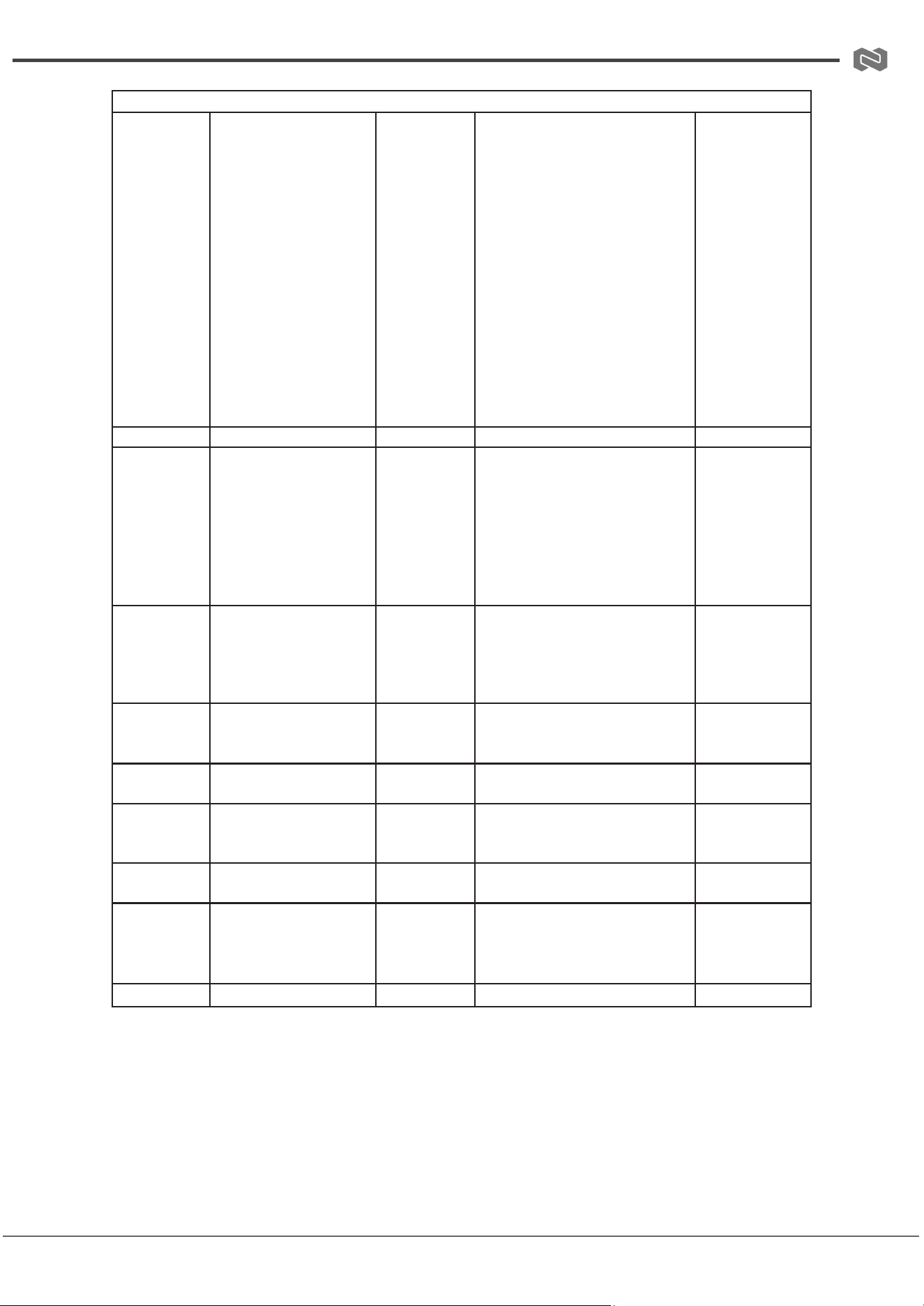
RS-232 Control Command List
ASCII Command
Serial port protocol: Baud rate: 115200 (default), Data bits: 8bit, Stop bits:1, Parity bit: none TCP/IP
protocol port: 8000
x - Parameter 1. y - Parameter 2.
Command
Code
Function Description
Example
Feedback
Default Setting
System Setting
?
Get the list of all
commands
?
===================
Help Info
MCU 1.1.0 Web 1.1.0
Scaler 20230228-10
FPGA 1.1.0 RX 1.18.02
?
Get the list of all commands
help
Get the list of all commands
r type
Get device model r status
Get device current status r fw
version
Get Firmware version
......................
===================
List all API
commands
help
Get the list of all
commands
help
===================
Help Info
MCU 1.1.0 Web 1.1.0
Scaler 20230228-10
FPGA 1.1.0 RX 1.18.02
?
Get the list of all commands
help
Get the list of all commands
r type
Get device model r status
Get device current status r fw
version
Get Firmware version
......................
===================
List all API
commands
r type
Get device model
r type
PS51KVM
r status
Get device current
status
r status
Please refer to the note
at the end of the list.
r fw version
Get Firmware version
r fw version
MCU 1.1.0 Web 1.1.0
Scaler 20230228-10
FPGA 1.1.0 RX 1.18.02
s power on
Power on the device
s power on
Power on
System Initializing...
Initialization Finished! MCU
1.1.0 Web 1.1.0
Scaler 20230228-10
FPGA 1.1.0 RX 1.18.02
s power off
Power off the device
s power off
Power off
Address: 830 National Drive #140, Sacramento, CA 95834, USA · Tel: +1(888)499-9906 · Email: support@bzbgear.com 31
BZBGEAR BG-PSC51-4K PRODUCT MANUAL
r power
Get current power state
r power
power on /power off
s reboot
Reboot the device
s reboot
Reboot…
System Initializing...
Initialization Finished! MCU
1.1.0 Web 1.1.0
Scaler 20230228-10
FPGA 1.1.0 RX 1.18.02
Command
Code
Function Description
Example
Feedback
Default Setting
s reset
Reset to factory
defaults
s reset
Reset to factory defaults
System Initializing...
Initialization Finished! MCU
1.1.0 Web 1.1.0
Scaler 20230228-10
FPGA 1.1.0 RX 1.18.02
s front button
x
Set front button locked
on/off (x=0~1)
0. Unlocked
1. Locked
s front button
0
Front button: Unlocked
0
r front button
Get front button locked
on/off status
r front button
Front button: Unlocked
s beep x
Set buzzer on/off
(x=0~1)
0. Off 1. On
s beep 0
Beep: Off
0
r beep
Get buzzer on/off
status
r beep
Beep: Off
s ir x
Set IR on/off (x=0~1)
0. Off 1. On
s ir 1
IR: On
1
r ir
Get IR on/off status
r ir
IR: Off
s
UsbcAccess
Network x
Set USB-C access
network feature on/off
(x=0~1)
0. Off 1. On
s
UsbcAccess
Network 1
USB-C Access Network: On
1
r UsbcAccess
Network
Get USB-C access
network feature on/off
r UsbcAccess
Network
USB-C Access Network: On
s fan speed x
Set fan speed (x=0~4)
0. Auto 1. 25% 2. 50%
3. 75% 4. 100%
s fan speed 0
Fan Speed: Auto
0
r fan speed
Get fan speed
r fan speed
Fan Speed: Auto
r temp
Get device internal
temperature
r temp
Temp: 65C
s poe x
Set HDBT port PoE
feature on/off (x=0~1)
0. Off 1. On
s poe 1
PoE: On
1
r poe
Get HDBT port PoE
feature on/ off status
r poe
PoE: On
Input Setting
Address: 830 National Drive #140, Sacramento, CA 95834, USA · Tel: +1(888)499-9906 · Email: support@bzbgear.com 32
BZBGEAR BG-PSC51-4K PRODUCT MANUAL
s input x
EDID y
Set input EDID (x=0~5)
(y=1~16) x=0: all inputs
x=1: USB-C 1
x=2: USB-C 2
x=3: HDMI 3
x=4: HDMI 4
x=5: HDMI 5
y=1: Auto (HDBT or
HDMI or HDBT+HDMI)
y=2: Copy HDMI OUT
y=3: Copy HDBT OUT
y=4: 4K2K60_444,
Stereo Audio 2.0 y=5:
4K2K30_444, Stereo
Audio 2.0 y=6: 1080P,
Stereo Audio 2.0
y=7: 720p, Stereo
Audio 2.0
y=8: 1920x1200, Stereo
Audio 2.0 y=9:
1680x1050, Stereo
Audio 2.0 y=10:
1600x1200, Stereo
Audio 2.0 y=11:
1440x900, Stereo
Audio 2.0 y=12:
1360x768, Stereo
Audio 2.0 y=13:
1280x1024, Stereo
Audio 2.0 y=14:
1024x768, Stereo
Audio 2.0 y=15: User
Defined 1
y=16: User Defined 2
s input 0
EDID 1
Input USB-C 1 EDID: Auto
Input USB-C 2 EDID: Auto
Input HDMI 3 EDID: Auto Input
HDMI 4 EDID: Auto Input HDMI
5 EDID: Auto
1
Command
Code
Function Description
Example
Feedback
Default Setting
r input x EDID
Get input EDID mode
(x=0~5) x=0: all inputs
x=1: USB-C 1
x=2: USB-C 2
x=3: HDMI 3
x=4: HDMI 4
x=5: HDMI 5
r input 0 EDID
Input USB-C 1 EDID: Auto
Input USB-C 2 EDID: Auto
Input HDMI 3 EDID: Auto Input
HDMI 4 EDID: Auto Input HDMI
5 EDID: Auto
r input x
EdidData
Get input EDID Data
(x=0~5) x=0: all inputs
x=1: USB-C 1
x=2: USB-C 2
x=3: HDMI 3
x=4: HDMI 4
x=5: HDMI 5
r input 0
EdidData
Input USB-C 1 EDID Data: <00
FF FF FF….> Input USB-C 2
EDID Data: <00 FF FF FF….>
Input HDMI 3 EDID Data:
<00 FF FF FF….>
Input HDMI 4 EDID Data:
<00 FF FF FF….>
Input HDMI 5 EDID Data:
<00 FF FF FF….>
Address: 830 National Drive #140, Sacramento, CA 95834, USA · Tel: +1(888)499-9906 · Email: support@bzbgear.com 33
BZBGEAR BG-PSC51-4K PRODUCT MANUAL
Output Setting
s output res x
Set Output Resolution
(x=1~15) x=1: Auto
x=2: 3840x2160p60
x=3: 3840x2160p50
x=4: 4096x2160p60
x=5: 4096x2160p50
x=6: 3840x2160p30
x=7: 3840x2160p25
x=8: 1920x1200p60RB
x=9: 1920x1080p60
x=10: 1920x1080p50
x=11: 1360x768p60
x=12: 1280x800p60
x=13: 1280x720p60
x=14: 1280x720p50
x=15: 1024x768p60
s output res 1
Out Resolution: Auto
1
r output res
Get output resolution
r output res
Out Resolution: Auto
s output x
hdcp y
Set output (x=0~2)
hdcp (y=1~3) x=0: all
outputs (HDMI/HDBT)
x=1: HDMI output
x=2: HDBT output y=1:
Auto
y=2: HDCP 1.4
y=3: HDCP 2.2
s output 0
hdcp 1
Output HDMI HDCP: Auto
Output HDBT HDCP: Auto
1
r output x
hdcp
Get output hdcp status
(x=0~2) x=0: all outputs
(HDMI/HDBT) x=1:
HDMI output
x=2: HDBT output
r output 0
hdcp
Output All HDCP: Auto
s output
avmute x
Set output avmute
on/off (x=0~1) x=0: Off
x=1: On
s output
avmute 1
Output AV Mute: On
0
r output
avmute
Get output avmute
on/off status
r output
avmute
Output AV Mute: On
s output
freeze x
Set output freeze on/off
(x=0~1) x=0: Off
x=1: On
s output
freeze 1
Output Freeze: On
0
r output
freeze
Get output freeze on/off
status
r output
freeze
Output Freeze: On
s output itc x
Set output video mode
(x=1~2) x=1: Video
mode
x=2: PC mode
s output itc 1
Output ITC: Video Mode
1
r output itc
Get output video mode
r output itc
Output ITC: Video Mode
Address: 830 National Drive #140, Sacramento, CA 95834, USA · Tel: +1(888)499-9906 · Email: support@bzbgear.com 34

BZBGEAR BG-PSC51-4K PRODUCT MANUAL
Command
Code
Function Description
Example
Feedback
Default Setting
Audio Setting
s main in
audio x
Set Main In
(HDMI/USB-C In) audio
from (x=1~6)
x=1: Window 1
x=2: USB-C 1
x=3: USB-C 2
x=4: HDMI 3
x=5: HDMI 4
x=6: HDMI 5
s main in
audio 1
Main In Audio: Window 1
1
r main in
audio
Get Main In
(HDMI/USB-C In) audio
source
r main in
audio
Main In Audio: Window 1
s output x
audio y
Set output (x=0~3)
audio source from
(y=1~3)
x=0: all outputs
(HDMI/HDBT, Line,
Dante)
x=1: HDMI/HDBT Out
x=2: Line Out x=3:
Dante Out
y=1: Main In
(HDMI/USB-C In)
y=2: Line In y=3: Dante
In
s output 0
audio 1
Output HDMI/HDBT Audio:
Main In (HDMI/USB-C In)
Output Line Audio: Main In
(HDMI/USB-C In)
Output Dante Audio: Main In
(HDMI/USB-C In)
1
r output x
audio
Get output (x=0~3)
audio source x=0: all
outputs (HDMI/HDBT,
Line, Dante)
x=1: HDMI/HDBT Out
x=2: Line Out x=3:
Dante Out
r output 1
audio
Output HDMI/HDBT Audio:
Main In (HDMI/ USB-C In)
s input x
audio vol+
Increase input (x=0~3)
audio volume
x=0: all inputs
(HDMI/USB-C, Line,
Dante)
x=1: Main In
(HDMI/USB-C In)
x=2: Line In x=3: Dante
In
s input 1
audio vol+
Input Main In (HDMI/ USB-C In)
Audio Volume: 50
s input x
audio vol-
Decrease input (x=0~3)
audio volume
x=0: all inputs
(HDMI/USB-C, Line,
Dante)
x=1: Main In
(HDMI/USB-C In)
x=2: Line In x=3: Dante
In
s input 1
audio vol-
Input Main In (HDMI/ USB-C In)
Audio Volume: 50
Address: 830 National Drive #140, Sacramento, CA 95834, USA · Tel: +1(888)499-9906 · Email: support@bzbgear.com 35
BZBGEAR BG-PSC51-4K PRODUCT MANUAL
s input x
audio vol y
Set input (x=0~3) audio
volume value (y=0~100)
x=0: all inputs
(HDMI/USB-C, Line,
Dante)
x=1: Main In
(HDMI/USB-C In)
x=2: Line In x=3: Dante
In
s input 1
audio vol 50
Input Main In (HDMI/ USB-C In)
Audio Volume: 50
50
r input x
audio vol
Get input (x=0~3) audio
volume value
x=0: all inputs
(HDMI/USB-C, Line,
Dante)
x=1: Main In
(HDMI/USB-C In)
x=2: Line In x=3: Dante
In
r input 1
audio vol
Input Main(HDMI/USB-C In)
Audio Volume: 50
Command
Code
Function Description
Example
Feedback
Default Setting
s input x
audio mute y
Set input (x=0~3) audio
mute on/off (y=0~1)
x=0: all inputs
(HDMI/USB-C, Line,
Dante)
x=1: Main In
(HDMI/USB-C In)
x=2: Line In x=3: Dante
In y=0: mute off y=1:
mute on
s input 0
audio mute 1
Input Main(HDMI/USB-C In)
Audio Mute: On
Input Line Audio Mute: On
Input Dante Audio Mute: On
0
r input x
audio mute
Get input (x=0~3) audio
mute on/off
x=0: all inputs
(HDMI/USB-C, Line,
Dante)
x=1: Main In
(HDMI/USB-C In)
x=2: Line In x=3: Dante
In
r input 0
audio mute
Input Main (HDMI/USB-C In)
Audio Mute: On
Input Line Audio Mute: On
Input Dante Audio Mute: On
s master
member x y z
Set master output
member (x/y/z=0~1)
x=0: Exclude
HDMI/HDBT Out x=1:
Include HDMI/HDBT
Out y=0: Exclude Line
Out
y=1: Include Line Out
z=0: Exclude Dante Out
z=1: Include Dante Out
s master
member 1 1 1
Master Member: 111
111
r master
member
Get master output
member
r master
member
Master Member: 111
Address: 830 National Drive #140, Sacramento, CA 95834, USA · Tel: +1(888)499-9906 · Email: support@bzbgear.com 36
BZBGEAR BG-PSC51-4K PRODUCT MANUAL
s master
audio vol+
Increase master output
audio volume
s master
audio vol+
Master Audio Volume: 50
s master
audio vol-
Decrease master
output audio volume
s master
audio vol-
Master Audio Volume: 50
s master
audio vol x
Set master output
audio volume value
(x=0~100)
s master
audio vol 50
Master Audio Volume: 50
50
r master
audio vol
Get master output
audio volume value
r master
audio vol
Master Audio Volume: 50
s master
audio mute x
Set master output
audio mute on/off
(x=0~1)
x=0: mute off
x=1: mute on
s master
audio mute 1
Master Audio Mute: On
0
r master
audio mute
Get master output
audio mute on/off
status
r master
audio mute
Master Audio Mute: On
s output x
audio vol+
Increase output (x=0~3)
audio volume
x=0: all outputs
(HDMI/HDBT, Line,
Dante)
x=1: HDMI/HDBT Out
x=2: Line Out x=3:
Dante Out
s output 1
audio vol+
Output HDMI/HDBT Audio
Volume: 50
s output x
audio vol-
Decrease output
(x=0~3) audio volume
x=0: all outputs
(HDMI/HDBT, Line,
Dante)
x=1: HDMI/HDBT Out
x=2: Line Out x=3:
Dante Out
s output 1
audio vol+
Output HDMI/HDBT Audio
Volume: 50
Command
Code
Function Description
Example
Feedback
Default Setting
s output x
audio vol y
Set output (x=0~3)
audio volume value
(y=0~100)
x=0: all outputs
(HDMI/HDBT, Line,
Dante)
x=1: HDMI/HDBT Out
x=2: Line Out x=3:
Dante Out
s output 1
audio vol 50
Output HDMI/HDBT Audio
Volume: 50
50
r output x
audio vol
Get output (x=0~3)
audio volume value
x=0: all outputs
(HDMI/HDBT, Line,
Dante)
x=1: HDMI/HDBT Out
x=2: Line Out x=3:
Dante Out
r output 1
audio vol
Output HDMI/HDBT Audio
Volume: 50
Address: 830 National Drive #140, Sacramento, CA 95834, USA · Tel: +1(888)499-9906 · Email: support@bzbgear.com 37

BZBGEAR BG-PSC51-4K PRODUCT MANUAL
s output x
audio mute y
Set output (x=0~3)
audio mute on/off
(y=0~1)
x=0: all outputs
(HDMI/HDBT, Line,
Dante)
x=1: HDMI/HDBT Out
x=2: Line Out x=3:
Dante Out y=0: mute
off y=1: mute on
s output 0
audio mute 1
Output HDMI/HDBT Audio
Mute: On
Output Line Audio Mute: On
Output Dante Audio Mute: On
0
r output x
audio mute
Get output (x=0~3)
audio mute on/off
x=0: all outputs
(HDMI/HDBT, Line,
Dante)
x=1: HDMI/HDBT Out
x=2: Line Out x=3:
Dante Out
r output 0
audio mute
Output HDMI/HDBT Audio
Mute: On
Output Line Audio Mute: On
Output Dante Audio Mute: On
s output x
audio mix y
Set output (x=0~3)
audio mix (y=1~4)
x=0: all outputs
(HDMI/HDBT, Line,
Dante)
x=1: HDMI/HDBT Out
x=2: Line Out x=3:
Dante Out y=1: Stereo
y=2: Left
y=3: Right
y=4: Left and Right
s output 0
audio mix 1
Output HDMI/HDBT Audio Mix:
Stereo Output Line Audio Mix:
Stereo
Output Dante Audio Mix: Stereo
Stereo
r output x
audio mix
Get output (x=0~3)
audio mix mode
x=0: all outputs
(HDMI/HDBT, Line,
Dante)
x=1: HDMI/HDBT Out
x=2: Line Out x=3:
Dante Out
r output 0
audio mix
Output HDMI/HDBT Audio Mix:
Stereo Output Line Audio Mix:
Stereo
Output Dante Audio Mix: Stereo
s output x
audio delay y
Set output (x=0~3)
audio delay (y=0~50)
x=0: all outputs
(HDMI/HDBT, Line,
Dante)
x=1: HDMI/HDBT Out
x=2: Line Out x=3:
Dante Out
y=[0~50]: Delay Time,
Millisecond
s output 0
audio delay
50
Output HDMI/HDBT Audio
Delay: 50ms Output Line Audio
Delay: 50ms
Output Dante Audio Delay:
50ms
0
Address: 830 National Drive #140, Sacramento, CA 95834, USA · Tel: +1(888)499-9906 · Email: support@bzbgear.com 38

BZBGEAR BG-PSC51-4K PRODUCT MANUAL
Command
Code
Function Description
Example
Feedback
Default Setting
r output x
audio delay
Get output (x=0~3)
audio delay value
x=0: all outputs
(HDMI/HDBT, Line,
Dante)
x=1: HDMI/HDBT Out
x=2: Line Out x=3:
Dante Out
r output 0
audio delay
Output HDMI/HDBT Audio
Delay: 50ms Output Line Audio
Delay: 50ms
Output Dante Audio Delay:
50ms
s output x
audio eq y val
z
Set output (x=0~3)
audio GEQ Index
(y=1~31) to value
(z=0~20) x=0: all
outputs (HDMI/HDBT,
Line, Dante)
x=1: HDMI/HDBT Out
x=2: Line Out x=3:
Dante Out
y=[1~31]: EQ Index
z=[0~20]: EQ Value
s output 0
audio eq 1 val
20
Output HDMI/HDBT Audio EQ
Index 1 to Value 20
Output Line Audio EQ Index 1 to
Value 20 Output Dante Audio
EQ Index 1 to Value 20 Output
Dante Audio EQ Preset is Flat
Mode
r output x
audio eq y val
Get output (x=0~3)
audio GEQ Index
(y=1~31) value
x=0: all outputs
(HDMI/HDBT, Line,
Dante)
x=1: HDMI/HDBT Out
x=2: Line Out x=3:
Dante Out
y=[1~31]: EQ Index
r output 0
audio eq 1 val
Output HDMI/HDBT Audio EQ
Index 1 to Value 20
Output Line Audio EQ Index 1 to
Value 20 Output Dante Audio
EQ Index 1 to Value 20
s output x
audio eq
preset y
Set output (x=0~3)
audio GEQ to preset
(y=1~6)
x=0: all outputs
(HDMI/HDBT, Line,
Dante)
x=1: HDMI/HDBT Out
x=2: Line Out x=3:
Dante Out y=1: Flat
y=2: Custom1 y=3:
Custom2 y=4: Custom3
y=5: Custom4 y=6:
Custom5
s output 0
audio eq
preset 1
Output HDMI/HDBT Audio EQ
Preset 1 Output Line Audio EQ
Preset 1
Output Dante Audio EQ Preset 1
1
r output x
audio eq
preset
Get output (x=0~3)
audio GEQ preset
x=0: all outputs
(HDMI/HDBT, Line,
Dante)
x=1: HDMI/HDBT Out
x=2: Line Out x=3:
Dante Out
r output 0
audio eq
preset
Output HDMI/HDBT Audio EQ
Preset 1 Output Line Audio EQ
Preset 1
Output Dante Audio EQ Preset 1
Address: 830 National Drive #140, Sacramento, CA 95834, USA · Tel: +1(888)499-9906 · Email: support@bzbgear.com 39
BZBGEAR BG-PSC51-4K PRODUCT MANUAL
s output x
audio eq
reset
Set output (x=0~3)
audio GEQ reset
x=0: all outputs
(HDMI/HDBT, Line,
Dante)
x=1: HDMI/HDBT Out
x=2: Line Out x=3:
Dante Out
s output 0
audio eq
reset
Output HDMI/HDBT Audio EQ
Reset Output Line Audio EQ
Reset
Output Dante Audio EQ Reset
Command
Code
Function Description
Example
Feedback
Default Setting
Single Screen Setting
s auto switch
x
Enable/disable auto
switch feature (x=0~1)
x=0: Disable auto
switch
x=1: Enable auto
switch
s auto switch
0
Auto Switch: Off
0
r auto switch
Get auto switch feature
r auto switch
Auto Switch: Off
s input
source x
Route input source to
output (x=1~5)
x=1: USB-C 1
x=2: USB-C 2
x=3: HDMI 3
x=4: HDMI 4
x=5: HDMI 5
s input
source 1
Input Source: USB-C 1
1
r input source
Get output selected
input source
r input source
Input Source: USB-C 1
s fallback
input x
Set fallback input
source (x=0~5) x=0:
Next Input
x=1: USB-C 1
x=2: USB-C 2
x=3: HDMI 3
x=4: HDMI 4
x=5: HDMI 5
s fallback
input 0
Fallback Input: Next Input
0
r fallback
input
Get fallback input
source
r fallback
input
Fallback Input: Next Input
Multiview Setting
s multiview x
Set multiview display
mode (x=1~5)
x=1: Single x=2: PIP
x=3: PBP
x=4: Triple x=5: Quad
s multiview 1
Multiview: Single
1
r multiview
Get multiview display
mode
r multiview
Multiview: Single
Address: 830 National Drive #140, Sacramento, CA 95834, USA · Tel: +1(888)499-9906 · Email: support@bzbgear.com 40
BZBGEAR BG-PSC51-4K PRODUCT MANUAL
s window x in
y
Set window (x=0~4)
source from (y=1~5)
x=0: All Windows x=1:
Window 1
x=2: Window 2
x=3: Window 3
x=4: Window 4
y=1: USB-C 1
y=2: USB-C 2
y=3: HDMI 3
y=4: HDMI 4
y=5: HDMI 5
s window 1 in
1
Window 1 in USB-C 1
r window x in
Get window (x=0~4)
source x=0: All
Windows
x=1: Window 1
x=2: Window 2
x=3: Window 3
x=4: Window 4
r window 0 in
Window 1 in USB-C 1
Window 2 in USB-C 2
Window 3 in HDMI 3
Window 4 in HDMI 4
s PIP position
x
Set PIP window
position (x=1~4) x=1:
Left Top
x=2: Left Bottom x=3:
Right Top x=4: Right
Bottom
s PIP position
4
PIP Position: Right Bottom
4
r PIP position
Get PIP window
position
r PIP position
PIP Position: Right Bottom
Command
Code
Function Description
Example
Feedback
Default Setting
s PIP size x
Set PIP window size
(x=1~3) x=1: Small
x=2: Medium x=3:
Large
s PIP size 3
PIP Size: Large
3
r PIP size
Get PIP window size
r PIP size
PIP Size: Large
s PBP mode
x
Set PBP windows
display mode (x=1~2)
x=1: PBP Mode 1
x=2: PBP Mode 2
s PBP mode
1
PBP Mode: Mode 1
1
r PBP mode
Get PBP windows
display mode
r PBP mode
PBP Mode: Mode 1
s PBP aspect
x
Set PBP windows
display aspect ratio
(x=1~2)
x=1: Full screen x=2:
16:9
s PBP aspect
1
PBP Aspect: Full Screen
1
r PBP aspect
Get PBP windows
display aspect ratio
r PBP aspect
PBP Aspect: Full Screen
s triple mode
x
Set triple windows
display mode (x=1~2)
x=1: Triple Mode 1
x=2: Triple Mode 2
s triple mode
1
Triple Mode: Mode 1
1
Address: 830 National Drive #140, Sacramento, CA 95834, USA · Tel: +1(888)499-9906 · Email: support@bzbgear.com 41
BZBGEAR BG-PSC51-4K PRODUCT MANUAL
r triple mode
Get triple windows
display mode
r triple mode
Triple Mode: Mode 1
s triple
aspect x
Set triple windows
display aspect ratio
(x=1~2)
x=1: Full screen
x=2: 16:9
s triple aspect
1
Triple Aspect: Full Screen
1
r triple aspect
Get triple windows
display aspect ratio
r triple aspect
Triple Aspect: Full Screen
s quad mode
x
Set quad windows
display mode (x=1~2)
x=1: Quad Mode 1
x=2: Quad Mode 2
s quad mode
1
Quad Mode: Mode 1
1
r quad mode
Get quad windows
display mode
r quad mode
Quad Mode: Mode 1
s quad
aspect x
Set quad windows
display aspect ratio
(x=1~2)
x=1: Full screen x=2:
16:9
s quad
aspect 1
Quad Aspect: Full Screen
1
r quad aspect
Get quad windows
display aspect ratio
r quad aspect
Quad Aspect: Full Screen
s window x
border y
Set the border(y=0~9)
mode of the specified
window (x=0~4) x=0:
All
x=1: Window 1
x=2: Window 2
x=3: Window 3
x=4: Window 4 y=0: Off
y=1: Black y=2: Red
y=3: Green y=4: Blue
y=5: Yellow y=6:
Magenta y=7: Cyan
y=8: White y=9: Gray
s window 0
border 0
Window 1 Border: Off Window 2
Border: Yellow Window 3
Border: Off Window 4 Border:
Cyan
0,0
Command
Code
Function Description
Example
Feedback
Default Setting
r window x
border
Get the border mode of
the specified window
(x=0~4) x=0: All
x=1: Window 1
x=2: Window 2
x=3: Window 3
x=4: Window 4
r window 0
border
Window 1 Border: Off Window 2
Border: Yellow Window 3 Border:
Off Window 4 Border: Cyan
RX Setting
s rx input x
Set RX input source
(x=1~2) x=1: HDBT IN
x=2: HDMI IN
s rx input 1
RX Input: HDBT Error,RX not
ready!
1
r rx input
Get RX input source
r rx input
RX Input: HDBT
r rx hdmi5v
Get RX HDMI input
power 5V
r rx hdmi5v
RX HDMI 5V: 1
Address: 830 National Drive #140, Sacramento, CA 95834, USA · Tel: +1(888)499-9906 · Email: support@bzbgear.com 42
BZBGEAR BG-PSC51-4K PRODUCT MANUAL
r rx host5v
Get RX USB host
power 5V
r rx host5v
RX Host 5V: 1
s rx auto
switch mode
x
Set RX Auto Switch
detection mode (x=1~2)
x=1: TMDS x=2: 5V
s rx auto
switch mode
1
RX Auto Switch Mode: TMDS
1
r rx auto
switch mode
Get RX Auto Switch
detection mode
r rx auto
switch mode
RX Auto Switch Mode: TMDS
s rx auto
switch x
Set RX Auto Switch
on/off (x=0~1) x=0: Off
x=1: On
s rx auto
switch 1
RX Auto Switch: On
1
r rx auto
switch
Get RX Auto Switch
on/off
r rx auto
switch
RX Auto Switch: On
s rx
usbpower x
Set RX 2 USB device
ports 5V power mode
(x=0~2)
x=0: Force off x=1:
Force on x=2: Follow
s rx
usbpower 0
RX UsbPower: Force On
2
r rx usbpower
Get RX 2 USB device
ports 5V power mode
r rx usbpower
RX UsbPower: Force On
CEC Setting
s cec power
on
Set CEC power on
command
s cec power
on
CEC Power On
s cec power
off
Set CEC power off
command
s cec power
off
CEC Power Off
s auto power
feature x
Set display auto power
feature on/off (x=0~1)
x=0: Off
x=1: On
s auto power
feature 1
Auto Power Feature: On
1
r auto power
feature
Get display auto power
feature on/off status
r auto power
feature
Auto Power Feature: On
s auto power
off timer x
Set auto power off
command
(CEC/RS-232) will be
sent out after x (x=1~6)
x=1: 5 sec
x=2: 10 sec
x=3: 30 sec
x=4: 1 min
x=5: 5 min
x=6: 10 min
s auto power
off timer 4
Auto Power Off Timer: 1 min
4
r auto power
off timer
Get auto power off
timer
r auto power
off timer
Auto Power Off Timer: 1 min
s auto power
control x
Set auto power feature
control via (x=1~3)
x=1: CEC x=2: RS-232
x=3: CEC and RS-232
s auto power
control 1
Auto Power Control: CEC
1
Address: 830 National Drive #140, Sacramento, CA 95834, USA · Tel: +1(888)499-9906 · Email: support@bzbgear.com 43

BZBGEAR BG-PSC51-4K PRODUCT MANUAL
Command
Code
Function Description
Example
Feedback
Default Setting
r auto power
control
Get auto power feature
control type
r auto power
control
Auto Power Control: CEC
USB Setting
s
UsbSwitchMo
de x
Set USB switch mode
(x=1~3) x=1: Auto
mode (detect USB 5V
then switch)
x=2: Manual mode
x=3: Follow video
(HDMI 3 bind with USB
Host 3)
s
UsbSwitchMo
de 1
UsbSwitchMode: Auto mode
1
r
UsbSwitchMo
de
Get USB switch mode
r
UsbSwitchMo
de
UsbSwitchMode: Auto mode
s UsbManual
x
Set USB manual switch
(x=1~3) x=1: USB-C 1
x=2: USB-C 2
x=3: USB Host 3
s UsbManual
3
UsbManual: USB Host 3
1
r
UsbSwitchSt
atus
Get USB switch status
r
UsbSwitchSt
atus
UsbSwitchStatus: USB-C 1
s UsbPower x
Set TX 2 USB device
ports 5V power mode
(x=0~2)
x=0: Force off x=1:
Force on x=2: Follow
s UsbPower 0
UsbPower: Force on
2
r UsbPower
Get TX 2 USB device
ports 5V power mode
r UsbPower
UsbPower: Force on
RS-232 Setting
s serial x
setting y
Set serial port (x=0~2)
setting to y x=0: All
RS-232 (Local and
HDBT) x=1: Local
RS-232
x=2: HDBT RS-232 y=
115200-8n1
Baud rate:
115200/57600/56000/
38400/19200/9600/480
0/2400
Data bits: 7/8
Parity: n(None)/o(Odd)
/e(Even) Stop bits: 1/2
s serial 0
setting
115200-8n1
Local RS-232: 115200-8n1
HDBT RS-232: 115200-8n1
115200-8n1
r serial x
setting
Get serial port (x=0~2)
setting x=0: All RS-232
(Local and HDBT) x=1:
Local RS-232
x=2: HDBT RS-232
r serial 0
setting
Local RS-232: 115200-8n1
HDBT RS-232: 115200-8n1
Address: 830 National Drive #140, Sacramento, CA 95834, USA · Tel: +1(888)499-9906 · Email: support@bzbgear.com 44

BZBGEAR BG-PSC51-4K PRODUCT MANUAL
s serial x
enable y
Set serial port (x=0~2)
on/off (y=0~1)
x=0: All RS-232 (Local
and HDBT) x=1: Local
RS-232
x=2: HDBT RS-232
y=0: Off y=1: On
s serial 0
enable 1
Local RS-232: on HDBT RS-232:
on
on
r serial x
enable
Get serial port (x=0~2)
on/off status
x=0: All RS-232 (Local
and HDBT) x=1: Local
RS-232
x=2: HDBT RS-232
r serial 0
enable
Local RS-232: on HDBT RS-232:
on
Command
Code
Function Description
Example
Feedback
Default Setting
s serial x
HEX/ ASCII
power on
<y1> delay1
<y2> input
<y3> delay2
<y4>
Set serial port (x=0~2)
HEX/ ASCII power on
<y1> delay1
<y2> input <y3> delay2
<y4> x=0: TX/RX
RS-232
x=1: TX RS-232 x=2:
RX RS-232
Command format is
HEX or ASCII y1=
RS-232 power on
command y2=
0~999sec
y3= RS-232 input port
selection y4= 0~999sec
NOTE: delay1 <y2>
input <y3> delay2 <y4>
can be NULL
s serial 1
ASCII power
on
<PWRON>
delay1
<10> input
<INPUT1>
delay2
<10>
s serial 2
ASCII power
on
<PWRON>
s serial 2 HEX
power on
<11 22 33
44>
delay1 <10>
input <55>
Set TX RS-232 ASCII
power on <PWRON> delay1
<10> input
<INPUT1> delay2 <10> Set RX
RS-232 ASCII
power on <PWRON> Set RX
RS-232 HEX
power on <11 22 33 44>
delay1 <10> input <55>
r serial x
power on
command
Get serial port (x=0~2)
power on command
x=0: TX/RX RS-232
x=1: TX RS-232 x=2:
RX RS-232
r serial 0
power on
command
TX RS-232 ASCII power
on <PWRON> delay1
<10> input <INPUT1>
delay2 <10>
RX RS-232 ASCII power
on <PWRON> delay1
<10> input <INPUT1>
delay2 <10>
s serial x
HEX/ ASCII
power off
<y1> delay
<y2>
Set serial port (x=0~2)
HEX/ ASCII power off
<y1> delay <y2> x=0:
TX/RX RS-232
x=1: TX RS-232 x=2:
RX RS-232
Command format is
HEX or ASCII y1=
RS-232 power off
s serial 1
ASCII power
off
<PWROFF>
delay
<1>
s serial 2 HEX
power off
Set TX RS-232 ASCII
power off <PWROFF> delay <1>
Set RX RS-232 HEX
power off <66 77 88 99>
Address: 830 National Drive #140, Sacramento, CA 95834, USA · Tel: +1(888)499-9906 · Email: support@bzbgear.com 45
BZBGEAR BG-PSC51-4K PRODUCT MANUAL
command y2=
0~999sec
NOTE: delay <y2> can
be NULL
<66 77 88
99>
r serial x
power off
command
Get serial port (x=0~2)
power off command
x=0: TX/RX RS-232
x=1: TX RS-232 x=2:
RX RS-232
r serial 0
power off
command
TX RS-232 ASCII power
off <PWROFF> delay
<1>RX RS-232 HEX
power off <66 77 88 99>
delay <1>
s serial x
HEX/ ASCII
command
<y> end z
Set serial port (x=0~2)
HEX/ ASCII command
<y> ending with
(z=0~3)
x=0: TX/RX RS-232
x=1: TX RS-232 x=2:
RX RS-232
Command format is
HEX or ASCII y=
RS-232 command
z=0: Null z=1: <CR>
z=2: <LF>
z=3: <CR><LF>
s serial 1
ASCII
command
<SET
INPUT1> end
0
s serial 2 HEX
command
<66 77 88
99>
end 3
Set TX RS-232 ASCII
command <SET INPUT1> Set RX
RS-232 HEX
command <66 77 88 99>
Preset Setting
s preset save
x
Save the current unit’s
settings to the
specified preset
(x=1~5)
All settings except
network setting.
x=1: Preset 1
x=2: Preset 2
x=3: Preset 3
x=4: Preset 4
x=5: Preset 5
s preset save
1
Preset Save: Preset 1
Command
Code
Function Description
Example
Feedback
Default Setting
s preset recall
x
Recall a specified
preset into unit (x=1~5)
All settings except
network setting. x=1:
Preset 1
x=2: Preset 2
x=3: Preset 3
x=4: Preset 4
x=5: Preset 5
s preset recall
1
Preset Recall: Preset 1
s preset clear
x
Clear a specified preset
into unit (x=1~5)
All settings except
network setting. x=1:
Preset 1
x=2: Preset 2
x=3: Preset 3
s preset clear
1
Preset Clear: Preset 1
Address: 830 National Drive #140, Sacramento, CA 95834, USA · Tel: +1(888)499-9906 · Email: support@bzbgear.com 46
BZBGEAR BG-PSC51-4K PRODUCT MANUAL
x=4: Preset 4
x=5: Preset 5
s preset x
name y
Set preset (x=1~5)
name to y (16
characters max)
x=1: Preset 1
x=2: Preset 2
x=3: Preset 3
x=4: Preset 4
x=5: Preset 5
s preset 1
name
MeetingRoom
1
Preset 1 Name:
MeetingRoom 1
r preset x
name
Get preset (x=1~5)
name x=1: Preset 1
x=2: Preset 2
x=3: Preset 3
x=4: Preset 4
x=5: Preset 5
r preset x
name
Preset 1 Name:
MeetingRoom 1
Network Setting
r ipconfig
Get the current IP
Configuration
r ipconfig
IP Mode: DHCP IP:
192.168.62.106
Subnet Mask: 255.255.255.0
Gateway: 192.168.62.1
TCP/IP port: 8000
Telnet port: 23
MAC: 6C:DF:FB:0C:B3:8E (Static:
169.254.100.200
255.255.0.0 169.254.100.1)
default static
IP is
192.168.0.100/
255.255.0.0/
192.168.0.1
r mac addr
Get network MAC
address
r mac addr
MAC: 6C:DF:FB:0C:B3:8E
s ip mode x
Set network IP mode to
static IP or DHCP
(x=0~1)
x=0: Static x=1: DHCP
s ip mode 0
IP mode: Static
(Please use "s net reboot!"
command or repower device to
apply new config!)
1
r ip mode
Get network IP mode
r ip mode
IP mode: DHCP
s ip addr
xxx.xxx.
xxx.xxx
Set network IP address
s ip addr
192.168.1.10
0
IP address: 192.168.1.100
(Please use "s net reboot!"
command or repower
device to apply new config!)
DHCP on, Device can't config
static address, set DHCP off first.
r ip addr
Get network IP address
r ip addr
IP: 192.168.62.106
Command
Code
Function Description
Example
Feedback
Default Setting
s subnet
xxx.xxx.xxx.x
xx
Set network subnet
mask
s subnet
255.255.255.
0
Subnet Mask: 255.255.255.0
(Please use "s net reboot!"
command or repower device to
apply new config!)
DHCP on, Device can't config
subnet mask, set DHCP off first.
r subnet
Get network subnet
mask
r subnet
Subnet Mask: 255.255.255.0
Address: 830 National Drive #140, Sacramento, CA 95834, USA · Tel: +1(888)499-9906 · Email: support@bzbgear.com 47
BZBGEAR BG-PSC51-4K PRODUCT MANUAL
s gateway
xxx.xxx.xxx.x
xx
Set network gateway
s gateway
192.168.1.1
Gateway: 192.168.1.1 (Please
use "s net reboot!" command or
repower device to apply new
config!)
DHCP on, Device can't config
gateway, set
DHCP off first.
r gateway
Get network gateway
r gateway
Gateway: 192.168.1.1
s tcp/ip port x
Set network TCP/IP
port (x=1~65535)
s tcp/ip port
8000
TCP/IP port: 8000
8000
r tcp/ip port
Get network TCP/IP
port
r tcp/ip port
TCP/IP port: 8000
s telnet port x
Set network telnet port
(x=1~65535)
s telnet port
23
Telnet port: 23
23
r telnet port
Get network telnet port
r telnet port
Telnet port: 23
s net reboot
Reboot network
modules
s net reboot
Search for IP, Please wait ...!
IP Mode: DHCP IP:
192.168.62.106
Subnet Mask: 255.255.255.0
Gateway: 192.168.62.1
TCP/IP port: 8000
Telnet port: 23
MAC: 6C:DF:FB:0C:B3:8E (Static:
169.254.100.200
255.255.0.0
169.254.100.1)
Password Setting
s admin
password x
Set admin login
password (x=[16
characters max])
s admin
password
admin
admin password: admin
admin
r admin
password
Get admin login
password
r admin
password
admin password: admin
s user
password x
Set user login
password (x=[16
characters max])
s user
password
user
user password: user
user
r user
password
Get user login
password
r user
password
user password: user
Address: 830 National Drive #140, Sacramento, CA 95834, USA · Tel: +1(888)499-9906 · Email: support@bzbgear.com 48
BZBGEAR BG-PSC51-4K PRODUCT MANUAL
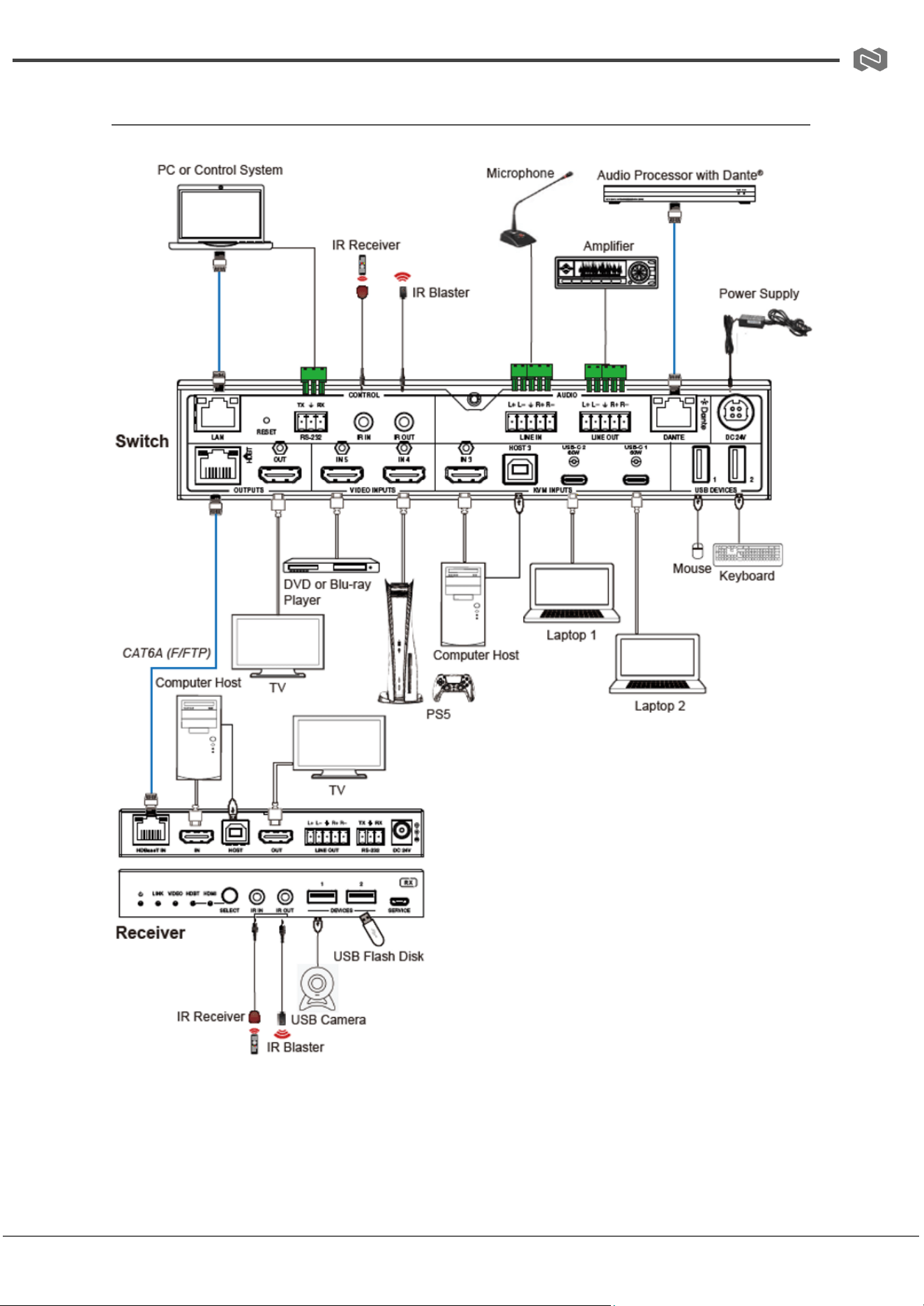
Connection Diagram
Address: 830 National Drive #140, Sacramento, CA 95834, USA · Tel: +1(888)499-9906 · Email: support@bzbgear.com 49

BZBGEAR BG-PSC51-4K PRODUCT MANUAL
Troubleshooting
Problems
Causes
Solutions
No Power / All LED off
Power supply not connected,
connected fully, or wrong power
supply.
Check if the power supply is
connected correctly and the
output voltage value is within
recommended specifications.
No sound or sound issues
The HDMI connection is faulty,
the audio format is not
supported by the displays, or
the source player is set to
another port for audio output
Check if the HDMI cables are
connected correctly.
Check if the audio format is
supported by the display and
that a user has not changed the
supported audio format on the
player`s audio output. Ensure
output settings from the HDMI
source device as set correctly.
No picture or picture flickers
The HDMI cable may be faulty
or the category cable quality is
faulty.
Check if the HDMI
and category cable connections
are correct and undamaged.
Change to another good
working HDMI cable or category
cable (CAT6 or better cable is
recommended).
Address: 830 National Drive #140, Sacramento, CA 95834, USA · Tel: +1(888)499-9906 · Email: support@bzbgear.com 50

BZBGEAR BG-PSC51-4K PRODUCT MANUAL
Tech Support
Have technical questions? We may have answered them already!
Please visit BZBGEAR’s support page (bzbgear.com/support) for helpful information and
tips regarding our products. Here you will find our Knowledge Base
(bzbgear.com/knowledge-base) with detailed tutorials, quick start guides, and step-by-step
troubleshooting instructions. Or explore our YouTube channel, BZB TV
(youtube.com/c/BZBTVchannel), for help setting up, configuring, and other helpful how-to
videos about our gear.
Need more in-depth support? Connect with one of our technical specialists directly:
Phone
1.888.499.9906
Email
support@bzbgear.com
Live Chat
bzbgear.com
Limited Product Warranty Terms
Pro Line: 5-year warranty from the date of purchase for AV/Broadcasting products bought
on or after August 1, 2024.
Essential Line: 3-year warranty from the date of purchase for AV/Broadcasting products
bought on or after August 1, 2024.
Cables: Lifetime Limited Product Warranty.
For complete warranty information, please visit bzbgear.com/warranty.
For questions, please call 1.888.499.9906 or email support@bzbgear.com.
Address: 830 National Drive #140, Sacramento, CA 95834, USA · Tel: +1(888)499-9906 · Email: support@bzbgear.com 51

BZBGEAR BG-PSC51-4K PRODUCT MANUAL
Mission Statement
BZBGEAR is a breakthrough manufacturer of high-quality, innovative audiovisual equipment
ranging from AVoIP, professional broadcasting, conferencing, home theater, to live
streaming solutions. We pride ourselves on unparalleled customer support and services.
Our team offers system design consultation, and highly reviewed technical support for all
the products in our catalog. BZBGEAR delivers quality products designed with users in
mind.
Copyright
All the contents in this manual and its copyright are owned by BZBGEAR. No one is allowed
to imitate, copy, or translate this manual without BZBGEAR’s permission. This manual
contains no guarantee, standpoint expression or other implies in any form. Product
specification and information in this manual is for reference only and subject to change
without notice.
All rights reserved. No reproducing is allowed without acknowledgement.
Address: 830 National Drive #140, Sacramento, CA 95834, USA · Tel: +1(888)499-9906 · Email: support@bzbgear.com 52