F2
User Guide | Gebrauchsanweisung | Manual de instrucciones |
Mode d'emploi | Istruzioni per l'uso
| 取扱説明ガイド|说明使用指南
BLUETOOTH HEADPHONES
1
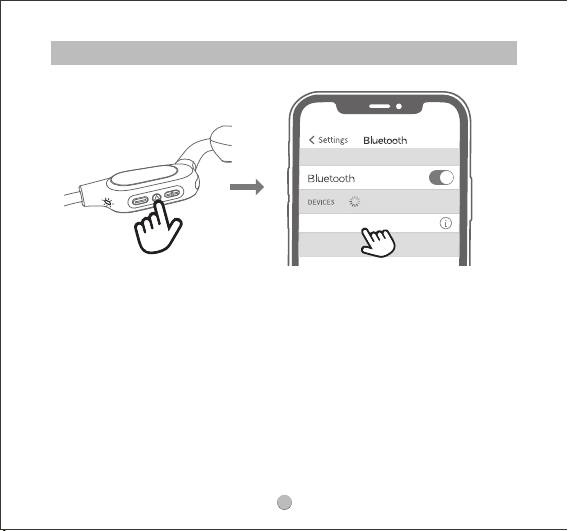
Pairing
1.Please press and hold the power button of the headphones for 3 seconds to turn
on the headphones. Then the red and white indicators start to ash alternately,
and the headphones enter the pairing mode.
2.Turn on your device's Bluetooth and select "TRUEFREE F2" from the Bluetooth list to
complete the pairing.
TRUEFREE F 2
Connected
2
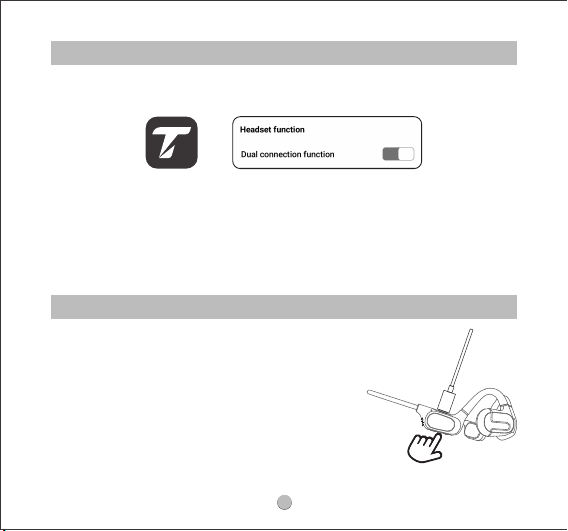
Multipoint Connection
Reset
1.Please use the charging cable to charge
the headphones and ensure that the
headphones are in charging status.
2.Press and hold the power button of the
headphones for 3 seconds until red and
white indicators ash alternately twice.
3.Unplug the charging cable and turn the
headphones on, then the reset is complete.
Please activate the multipoint connection function in the TRUEFREE APP before you
are ready to use it.
The pairing steps are as follows:
1. Turn o the Bluetooth on Device A aer successfully connecting to the
headphones.
2. Repeat the pairing operation to connect the headphones to Device B.
3. Turn on the Bluetooth on Device A aer successfully pairing to Device B.
4. Once the headphones are re-connected with Device A, the multi-point
connection function can work now.
3
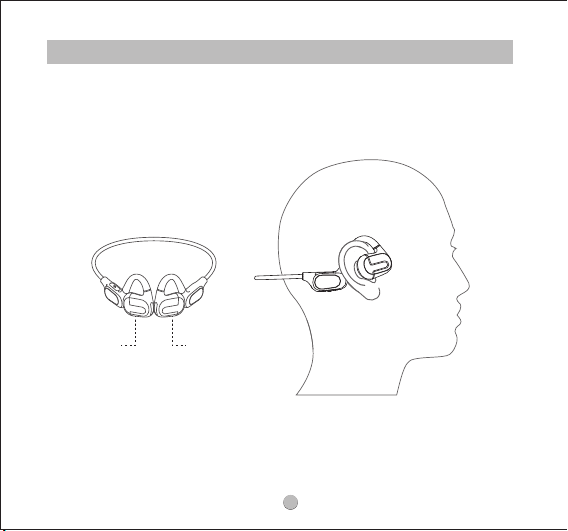
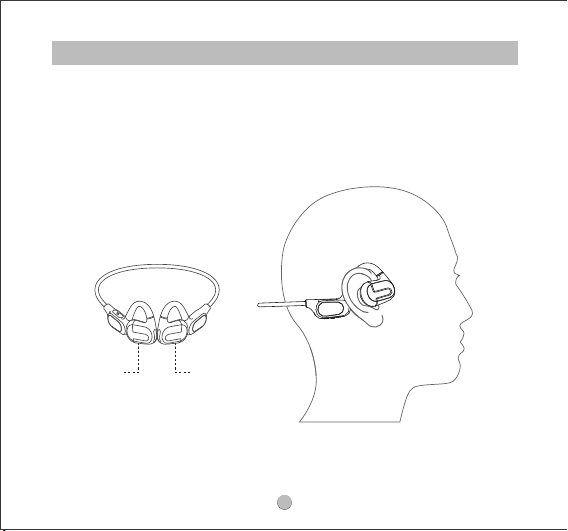
Wearing
Please wear it as shown below.
LR
4
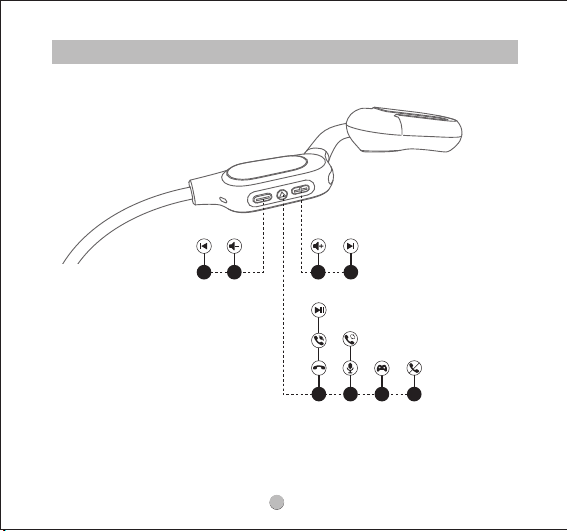
Product Diagram
1.5s1x1x1.5s
2x1x 3x 1.5s
5
Button Control
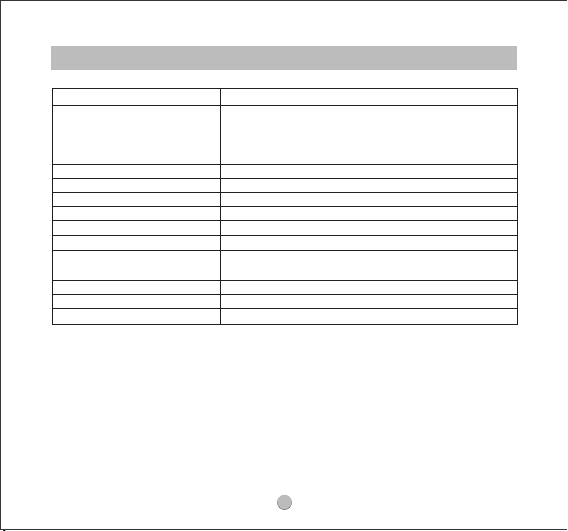
Power on
Power o
Play / Pause
Volume -
Volume +
Previous Track
Next Track
Activate the Game Mode
Answer / Hang up Phone
Call
Reject Phone Call
Switch Between Two Calls
Activate Voice Assistant
Manually: long press the power button for 3s
Auto: automatically power o without connection for
3mins
Manually: long press the power button for 3s, with
earphones on
Short press the power button
Short press the volume down button
Short press the volume up button
Long press the volume down button for 1.5s
Long press the volume up button for 1.5s
Press the power button for three times
Short press the power button
Long press the power button for 1.5s
Double-press the power button
Double-press the power button
6
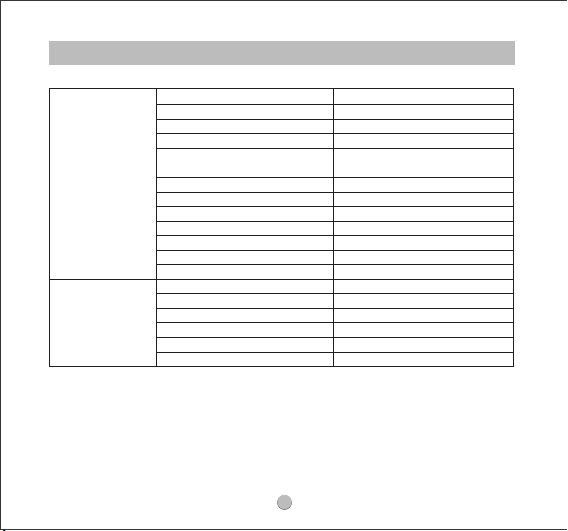
Bluetooth Version
Bluetooth Range
Audio Codec
Waterproof Grade
Maximum Latency
Noise Cancellation for Calls
Driver Size
Control Type
Multipoint Connection
Frequency Response
Weight
Dimension
Listening Time
Charging Hours
Charging Port
Battery Compacity
Battery Type
Charging Input
Specications
Battery
Bluetooth 5.3
10m / 33feet
AAC, SBC, LDCA
IPX4
Normal mode 90ms
Game mode 43ms
Dual mic and ENC tech
16.2mm
Button Control
Support
20-20KHZ
24.4g
134 x 115 x 49 mm
15 Hours
2 Hours
Type-C
120mAh
Li-Polymer
5V/1A
PART 1 INFORMATION
7
Pairing
1.Please press and hold the power button for 3 seconds to turn on the headphones.
The red and white light start to ash alternately. The headphones enter pairing
mode.
2.Open the Bluetooth on your device and select "Truefree F2" from the Bluetooth list
to complete the pairing.
Reset
1.Plug in the headphones and make sure they are in charging status.
2.Press and hold the power button for 3 seconds until red and white light ash
alternately twice.
3.Unplug the charging cable and turn on the headphones. The reset is complete.
PART 2 BLUETOOTH

When using the headphone close to
personal computers, Wi-Fi routers,
microwave ovens, refrigerators, etc.
Refrigerators, microwave ovens, Wi-Fi
routers, personal computers, etc. are
devices that emit radio waves. The
headphone may be aected by these
radio waves when using them in a
location with a mixture of multiple radio
waves.
Please use the
headphone away from
Wi-Fi routers, personal
computers, microwave
ovens, refrigerators,
etc. in order to avoid
radio wave
interference.
8
Why is the Bluetooth connection unstable sometimes?
Case 1
When using the Bluetooth device in the
pocket of the chest or pants, or a bag
while listening to the audio.
If the engine ear is diagonal to the
Bluetooth device, it will aect the
Bluetooth signal. As human body is the
biggest source of signal blocking.
When putting the
Bluetooth device in a
pocket or bag, move
the Bluetooth device
to a place with no
barriers between the
device and
headphones (such as
the human body).
Case 2
Reasons Workarounds

9
When using the headphones close to the
other Bluetooth devices.
The headphone may be aected by
these radio waves when using them in a
location with a mixture of multiple radio
waves.
Turn o the Bluetooth
function on the other
Bluetooth devices.
Case 1
When using the device away from the
headphones, such as in a dierent room.
Bluetooth communication gradually
becomes weaker the further away
Bluetooth headphone are placed from a
Bluetooth player.When using Bluetooth
headphone and a Bluetooth player in
dierent rooms with the doors closed,
Bluetooth communication may be weak.
Keep the Bluetooth
headphone as close to
the Bluetooth player as
possible.
Case 4
When a lot of Applications are running at
the same time.
Quit APPs which you
are not using on the
device to reduce the
load.
Case 5
10
1.Clear the pairing record between the headphones and all of the previous
connected devices.
2.Remove some Bluetooth pairing records on your device and restart the device.
3.Reset the headphones.
What can I do if the headphone stopped connecting to my
device?
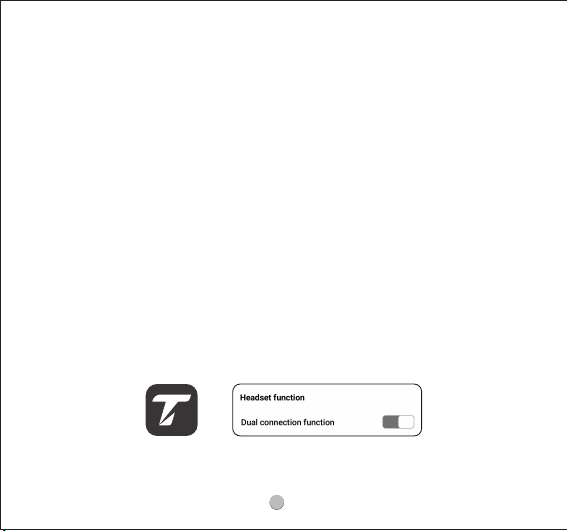
Please activate the multipoint connection function in the TRUEFREE APP before you
are ready to use it.
The pairing steps are as follows:
1. Turn o the Bluetooth on Device A aer successfully connecting to the
headphones.
2. Repeat the pairing operation to connect the headphones to Device B.
3. Turn on the Bluetooth on Device A aer successfully pairing to Device B.
4. Once the headphones are re-connected with Device A, the multipoint
connection function can work now.
How to connect the headphone with two devices at the same
time?
LR
5
Why does the volume of the headphone reduce?
1.This has a lot to do with the wearing angle, please try to adjust the wearing angle
as the following.
2.Please turn up the volume of the headphones and your device.
PART 4 SOUND

Please check if you connect the headphones to a second device at the same
time. Clear the pairing record or turn o the Bluetooth on the device which you do
not need temporarily.
Why do the headphones lost sound all of a sudden?
1. Please choose to pick up phone calls via the headphones.
2. Please do not mute the phone calls.
3. Please clean the mic holes to avoid dust or secretions blocking.
4. Please kindly adjust the volume through the headphones and devices.
5. If you are using the headphones with an Android phone, please check the
settings to see if you have allowed both phone audio and media audio to be
transmitted through the headphone.
6. Please change to other devices to have a try.
Why can’t the other side hear me well when calling?
11

12
PART 5 CHARGING
How to confirm the charging status?
1.The red light stays on when the headphones are charging.
2.The white light stays on when the headphones are fully charged.
How to charge the headphones?
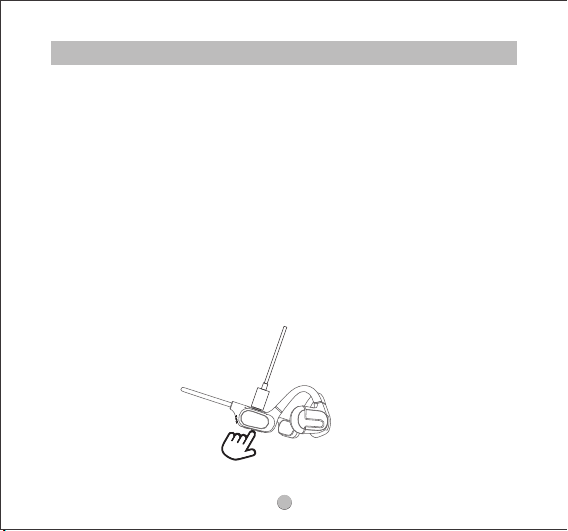
1.Open the silicone cover of the charging port and use the Type-C charging cable
to plug in for charging. (The current does not exceed 1A).
2.If the headphones stay idle for an extended period, charge them at least every
three months to avoid battery damage.

13
How to register an account?
1. Fill in an email address, set and conrm the password (use some combinations of
letters and numbers, avoid special characters like %$^&).
2.Click "get verication code".
3.Type in the code you get from the email.
4. Register complete.
Fail to receive the verification code?
1.Make sure your phone is connected with good network and try to send the code
again about 5 minutes later.
2.Checkyourspamfolderto see if the email is blocked.
3.Trytoregisterwithadierentemailaddress.
4. Uninstall the APP,re-installitandrestartyourdevicetoregisteragain.
5.Pleasemanuallytypeyouremailinsteadofauto-llin,andpayattentiontothe
formatofEnglishletters and the space before and aer the email address.
PART 6 TRUEFREE APP

14
1.Please check if your TRUEFREE APP has been updated to the latest version. Log in
the APP nd the icon with three bars in the upper le corner, and go to "about"
to check the version.
2.Please make sure the headphones Bluetooth name is the defaulted “Truefree F2”.
If you have changed the default name, please change to its original format.
Then restart your phone. Please note that changing the default Bluetooth name
of the model may cause connection issue to this APP.
3.Please make sure the headphones are connected to your phone. Then open the
APP to connect the headphones.
4.If the headphones can not connect to APP, please follow the steps one by one:
- Turn o APP completely (Turn o the background running of the APP totally).
- Un-pair the headphones to your phone and turn o the phone Bluetooth.
- Reset the headphones.
- Reconnect the headphones to your phone (Please make sure the TRUEFREEAPP is
o).
- Re-open the APP to search for headphones to connect to APP;
What can I do if the headphones won’t connect to the APP?

15
1.Reset the headphones.
2.Turn on the Bluetooth of your phone to connect with the headphones.
3.Make sure your phone is connected with good network. Turn o the APP and
reopen it.
4.Connect the APP with your phone and do the upgrade again.
5.Precautions during the APP upgrade process:
- During the upgrade, the distance between the headphones and the phone must
be within 0.5 meters.
- Do not disconnect, play music, or answer the phone calls at this time.
- Don't close or shrink the upgrade page.
What can I do if the APP can’t be updated?

16
What should I do if the problem about the headphone is not
mentioned in this FAQ?
If there is no solution for your problem in this FAQ, please feel free to contact our
Customer Service Team and we will provide you a solution as soon as possible. If we
conrm that the problem can't be solved, we will apply a replacement or refund
for you. TUREFREE provides a 12-month warranty for every product. Your satisfaction
is always greatly important to us.
Email: [email protected]
PART 7 CUSTOMER SERVICE