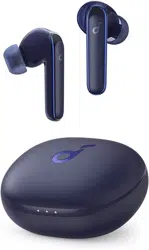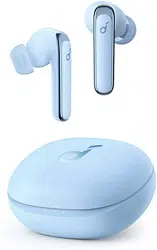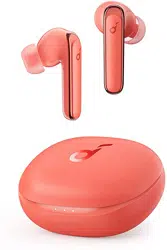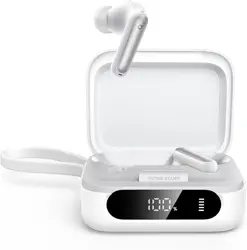
OVERVIEW
1
2 3 4 5 76
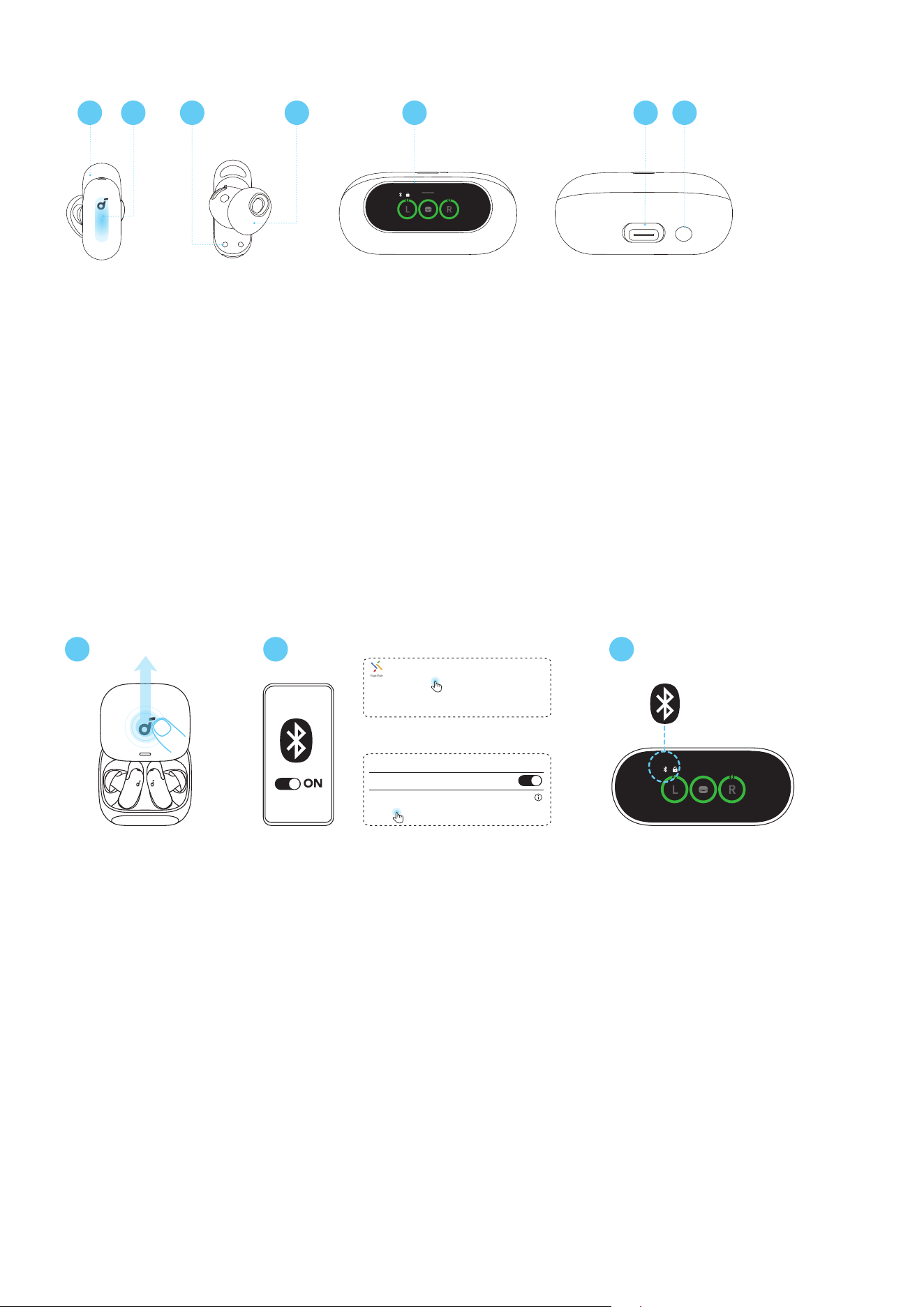
1. Ear Fin
• Size 1 ear fins are pre-installed on the earbuds.
2. Touch Control Area
• Tap the control area on the earbud stems to manage dierent functions.
3. Earbud Charging Contacts
4. Ear Tip
• M-size eartips are pre-installed at the time of purchase.
5. Smart Screen
6. USB-C Charging Port
7. Charging Case Button
POWERING ON & PAIRING
Note: Before using the earbuds, remove all protective films and stickers from the earbuds and the
charging case.
1
2
Android 6.0+
Fast Pair
soundcore Liberty 5 Pro
iOS & Others
soundcore
Liberty 5 Pro
Connected
Bluetooth
Bluetooth
<
Settings
Tap to pair. Device will be tied to Your
Google Account
3
1. Slide open the charging case. The earbuds will power on and enter pairing mode.
2. Select "soundcore Liberty 5 Pro" on your device's Bluetooth list to connect.
Google Fast Pair Supported: Enjoy instant pairing with your Android smartphone (running Android 6.0
or above) using Google Fast Pair.
3. When connected, the Bluetooth icon on the Smart Screen will stay on.
WEARING GUIDE
21
1
0
2
XS
XXS
S M L
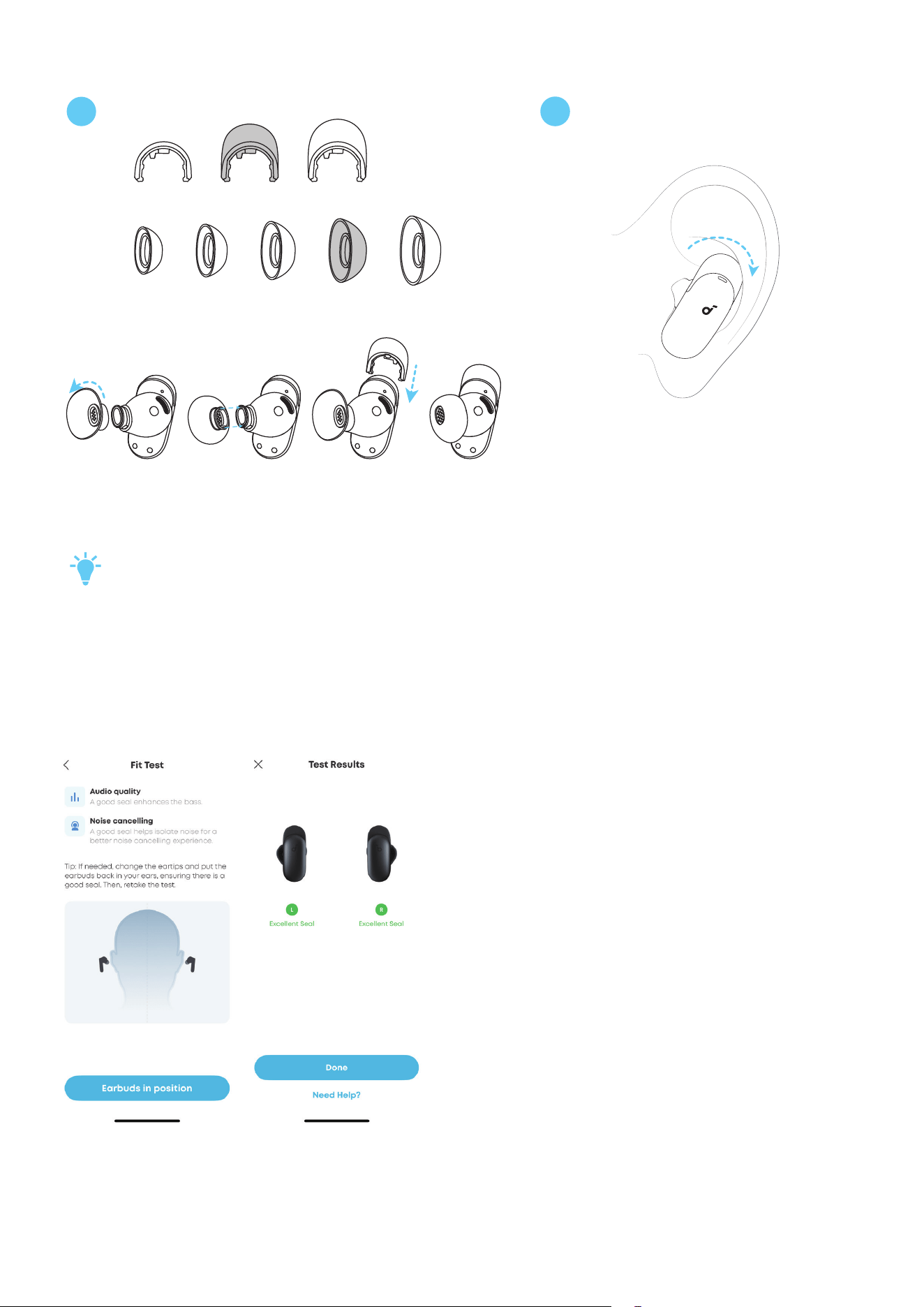
Properly wearing your earbuds will provide a more comfortable and stable fit while ensuring optimal
noise cancellation and sound quality.
1. Try dierent ear tips and fins to find your best fit.
How to choose the right ear tips and fins?
Start by wearing the pre-installed size 1 ear fins and M-size ear tips. Aer wearing them
properly:
a. If the ear fins cause pressure or discomfort, switch to the size 0 or size 2 ear fins.
b. With the default M-size eartips, if one earbud doesn't fit well, try using dierent sizes for each
ear, such as medium in one ear and large in the other.
2. Gently place the earbuds into your ear canal and rotate them for a snug fit.
3. Take a fit test in the soundcore app (Go to Settings > Fit Test ) to ensure you get the best active noise
cancelling peormance.
Note: The UI images are for illustration purposes only. Actual display contents may vary based on the
soware version.
• When wearing the earbuds, avoid touching the area near the logo to prevent accidental touches.
• Dust, earwax, or other debris can accumulate in the earbuds. To maintain optimal sound
quality, clean them regularly. Use a slightly moistened cotton swab with rubbing alcohol to
gently wipe the metal mesh filter beneath the rubber ear tips. Make sure the alcohol has
completely dried on the metal mesh filter before using the earbuds again.
MULTI-DEVICE CONNECTION
Multi-Device Connection feature is enabled automatically. If you prefer to disable this feature, tap
the gear icon in the upper-right corner to access Settings, then tap the toggle switch for Multi-Device
Connection to turn it o.
How to Connect New Devices
21
3s
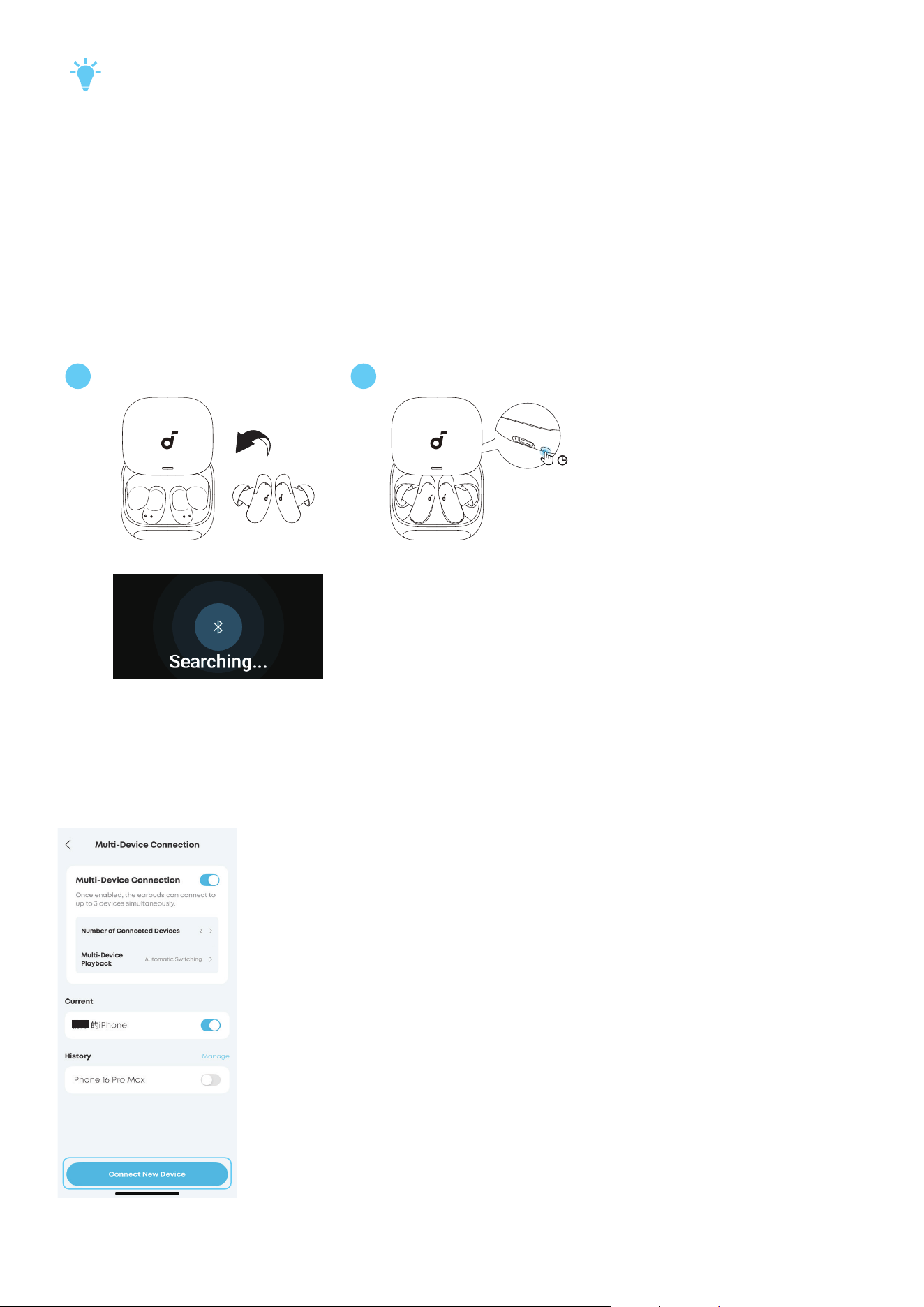
To connect a new device while one device is already connected, return both earbuds to the case, then
press and hold the charging case button for 3 seconds with the lid open, until the Bluetooth Pairing
prompt appears on the Smart Screen. You can then proceed to pair with new devices.
If you are wearing the earbuds, tap and hold the touch control area on both earbuds to enter pairing mode.
You can also tap Connect New Device in the app, then your earbuds can be discovered by another
Bluetooth device.
Note: The UI images are for illustration purposes only. Actual display contents may vary based on the
soware version.
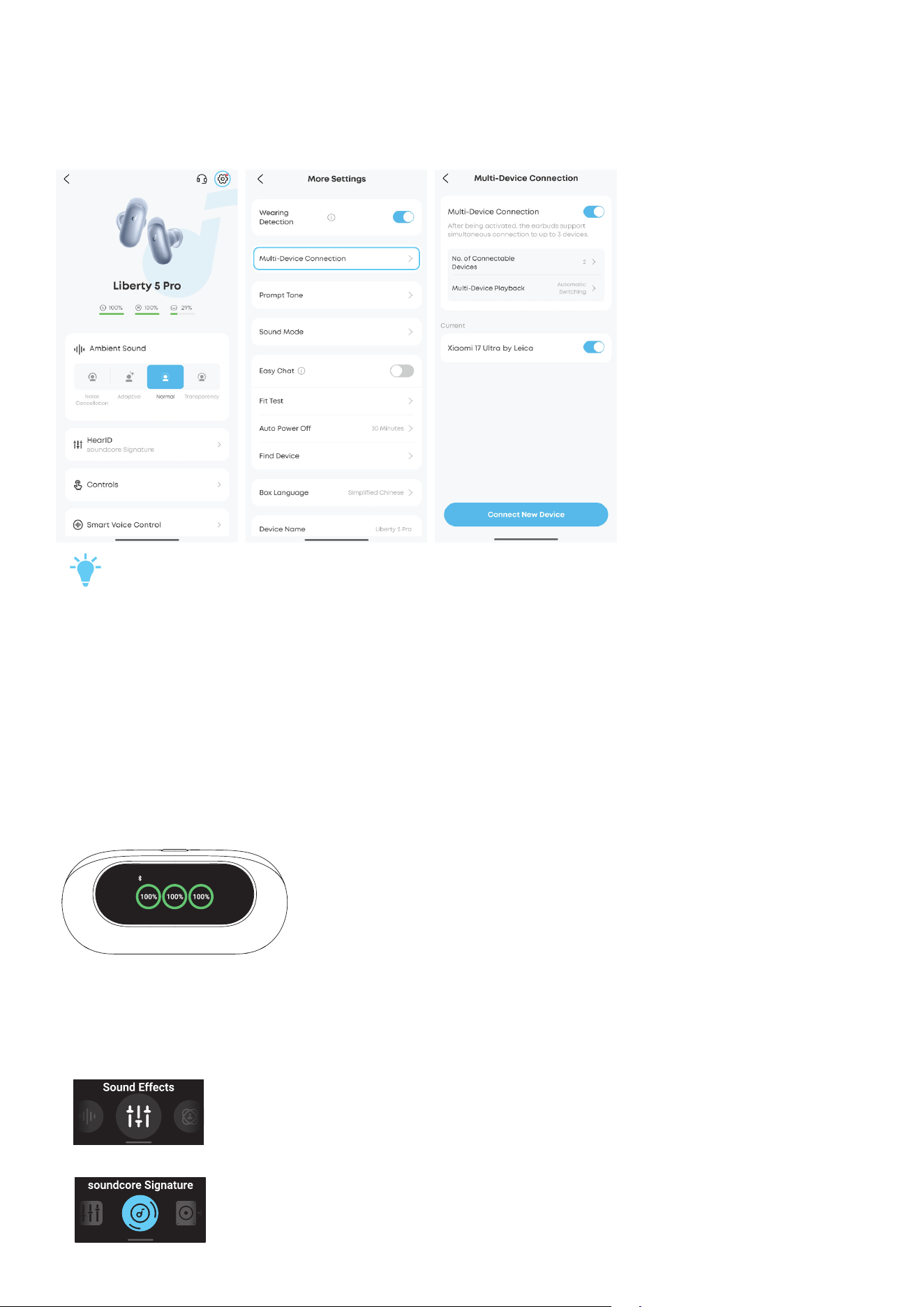
Number of Connected Devices
In this setting, you can select the number of connected devices in the soundcore app. By default, the
earbuds can connect 2 devices simultaneously. The maximum number of connected devices is 3.
Note: The UI images are for illustration purposes only. Actual display contents may vary based on the
soware version.
1
2
LDAC is unavailable when the earbuds are connected to 3 devices simultaneously.
Multi-Device Playback
There are two audio playback switching modes available in the soundcore app, giving you the ideal
flexibility for audio experience across smartphones, tablets, and computers.
• Automatic Switching: The earbuds intelligently switch to the device that starts playback, ensuring a
smooth and uninterrupted listening experience.
• Manual Switching: To change devices manually, pause audio on the current device, then start
playback on another connected device.
SMART SCREEN
The Smart Screen on the charging case shows you the battery level of both the charging case and
earbuds, and provides easy control over multiple features.
• Swipe up to unlock the Smart Screen.
• Swipe down to access dierent features aer unlocking the screen.
• Swipe le or right to select dierent features
• Tap the feature icon to view details.
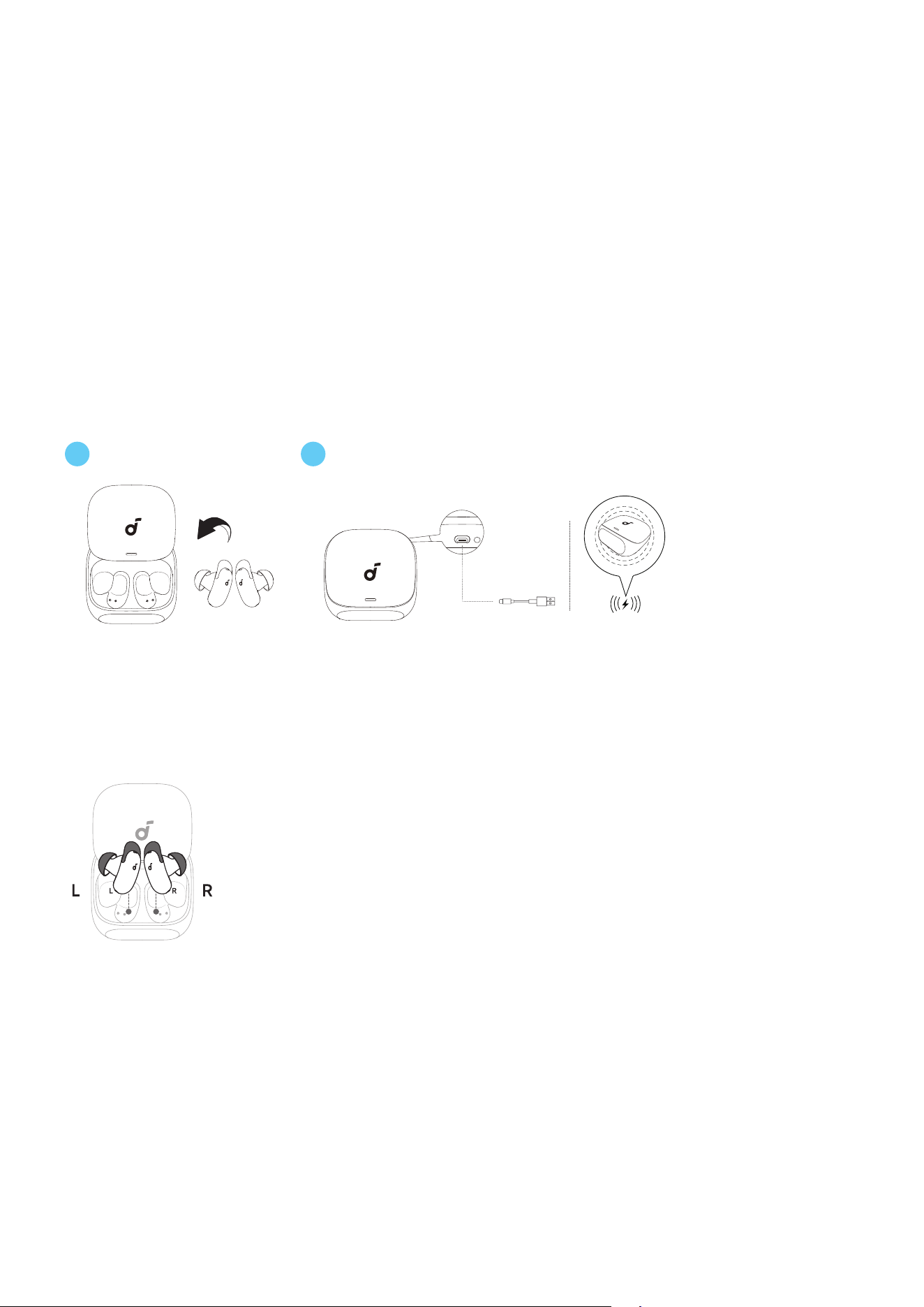
There are a total of seven features available for smart control via the charging case:
Ambient Sound: Adjust the ambient sound levels to suit your environment and preferences, ensuring an
optimal listening experience.
Sound Eects: Customize your audio experience with preset sound modes to match your favorite music
style.
Dolby Audio: Experience immersive 3D sound that adjusts dynamically based on your head movements,
providing a more realistic audio experience.
Easy Chat: Automatically lowers the volume of music and enables Transparency mode so that you can
have face-to-face conversations without removing the earbuds.
Remote Camera: With the camera feature activated on your phone, use the charging case to control
your smartphone's camera remotely.
Find Device: Locate your misplaced earbuds within Bluetooth range by enabling them to sound alerts.
Bluetooth Pairing: Enter Bluetooth pairing mode directly from the Smart Screen to quickly connect with
new devices.
CHARGING
21
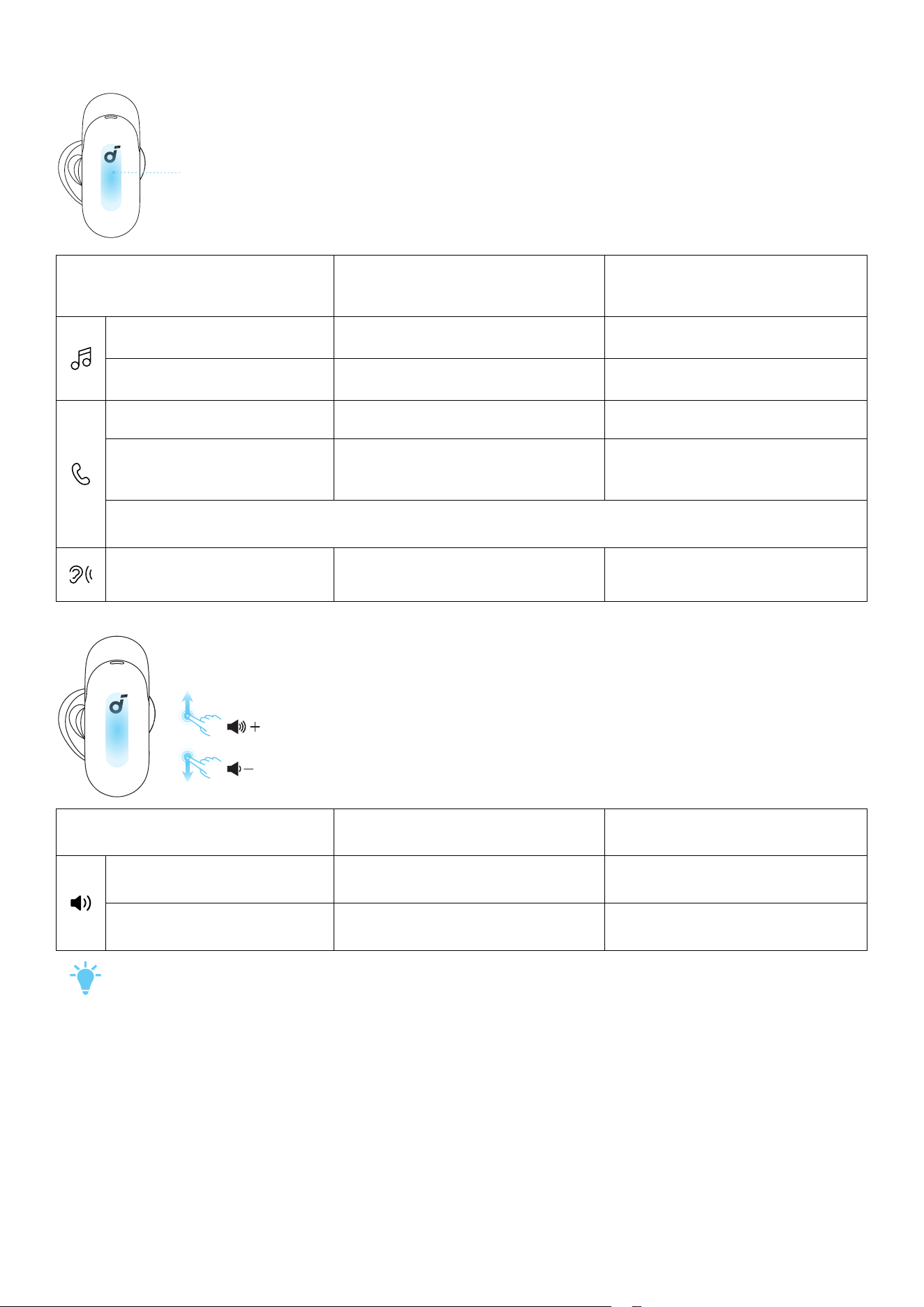
1. Place the earbuds in the charging case and close it.
• Ensure the earbuds and the USB-C charging port are fully dry before charging.
• Tip: Make sure the earbuds are correctly oriented before closing the case. Align the charging
contacts on each earbud with the corresponding contacts inside the case, and ensure the right
earbud is placed in the right slot and the le earbud is placed in the le slot. Note that the case lid
can still close even if the earbuds are placed incorrectly, which will prevent them from charging.
2. Connect the charging case to a power supply using the provided USB-C charging cable. For wireless
charging, place the charging case at the center of your wireless charger.
• Recharging the charging case with the earbuds removed takes 3 hours via cable. A 5-minute
charge of the earbuds provides 4 hours of playtime.
CONTROLS
Touch
Control Area
Using Dual Earbuds Using Single Earbud
Play / Pause Audio Double Tap (R) Double Tap
Play the Next Track Double Tap (L) /
Answer a Call / End a Call Double Tap (L/R) Double Tap
Reject an Incoming Call /
Change ANC Mode During
a Call
Tap and Hold for 2 Seconds (L/R) Tap and Hold for 2 Seconds
Note: To change ANC mode via touch controls, update the earbuds’ firmware to the latest
version.
Switch Between ANC and
Transparency Modes
Tap and Hold for 2 Seconds (L/R) Tap and Hold for 2 Seconds
Using Dual Earbuds Using Single Earbud
Increase Volume Slide up (L/R) Slide up
Decrease Volume Slide down (L/R) Slide down
You can customize controls in the soundcore app.
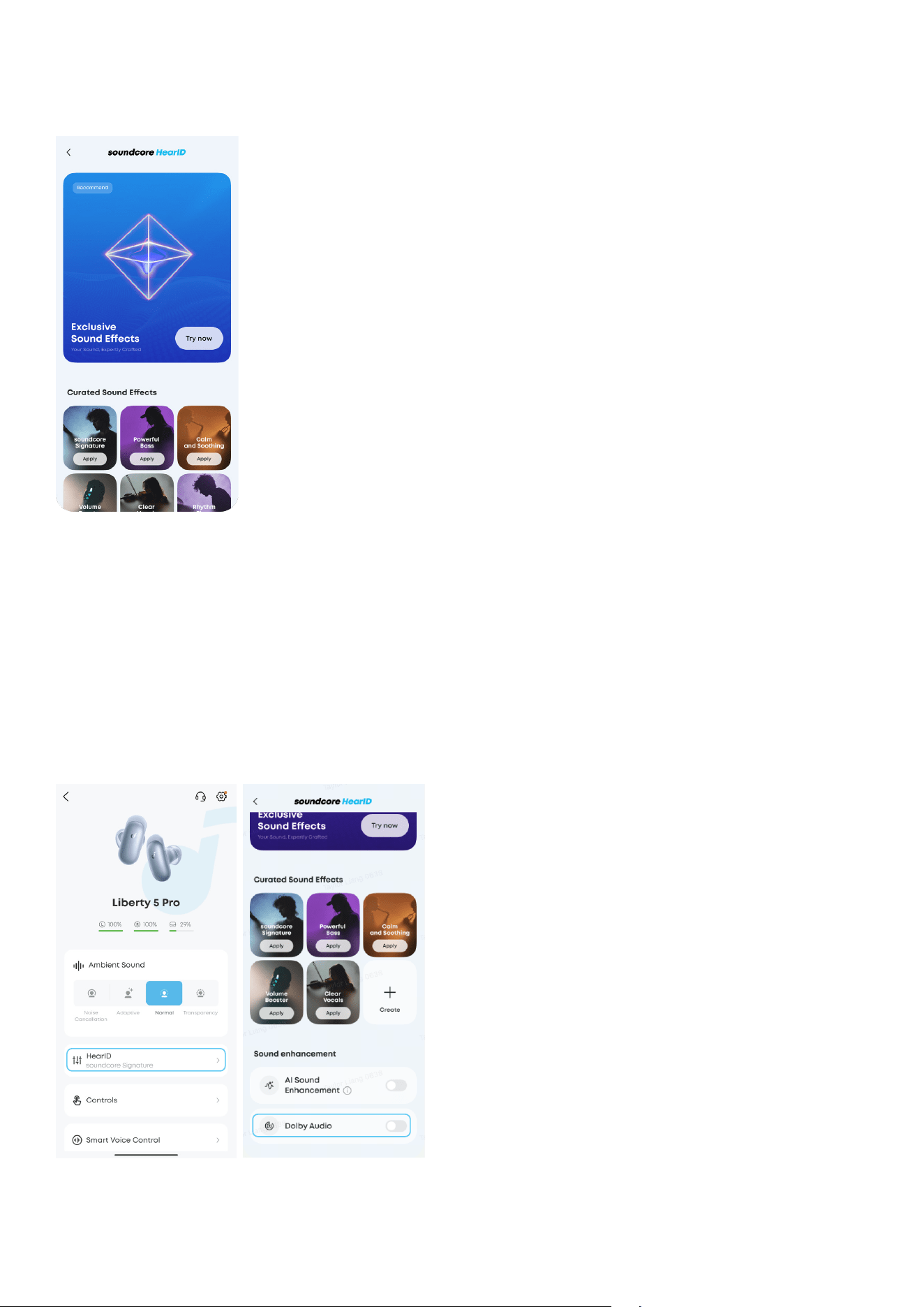
SOUND EFFECTS
Note: The UI images are for illustration purposes only. Actual display contents may vary based on the
soware version.
The soundcore app oers a range of preset EQ modes designed to match dierent listening
preferences. Each preset EQ mode is carefully tuned to bring out distinct sound characteristics.
soundcore Signature (default): Suitable for various music styles and delivers pleasant listening experience.
Clear Vocals: Suitable for podcast, audiobooks, and music.
Poweul Bass: Suitable for hip-hop, rock, electronic, and dance music.
Calm and Soothing: Suitable for classical, jazz, and soothing music.
Balanced for Pure Enjoyment: Suitable for pop and blues music.
DOLBY AUDIO
Note: The UI images are for illustration purposes only. Actual display contents may vary based on the
soware version.
1
2
Dolby Audio creates an immersive listening experience by placing sound all around you.
Music Mode:
• Head Tracking: Hear surround sound that follows your head movement.
• Fixed: Listen to Spatial Audio without head tracking.
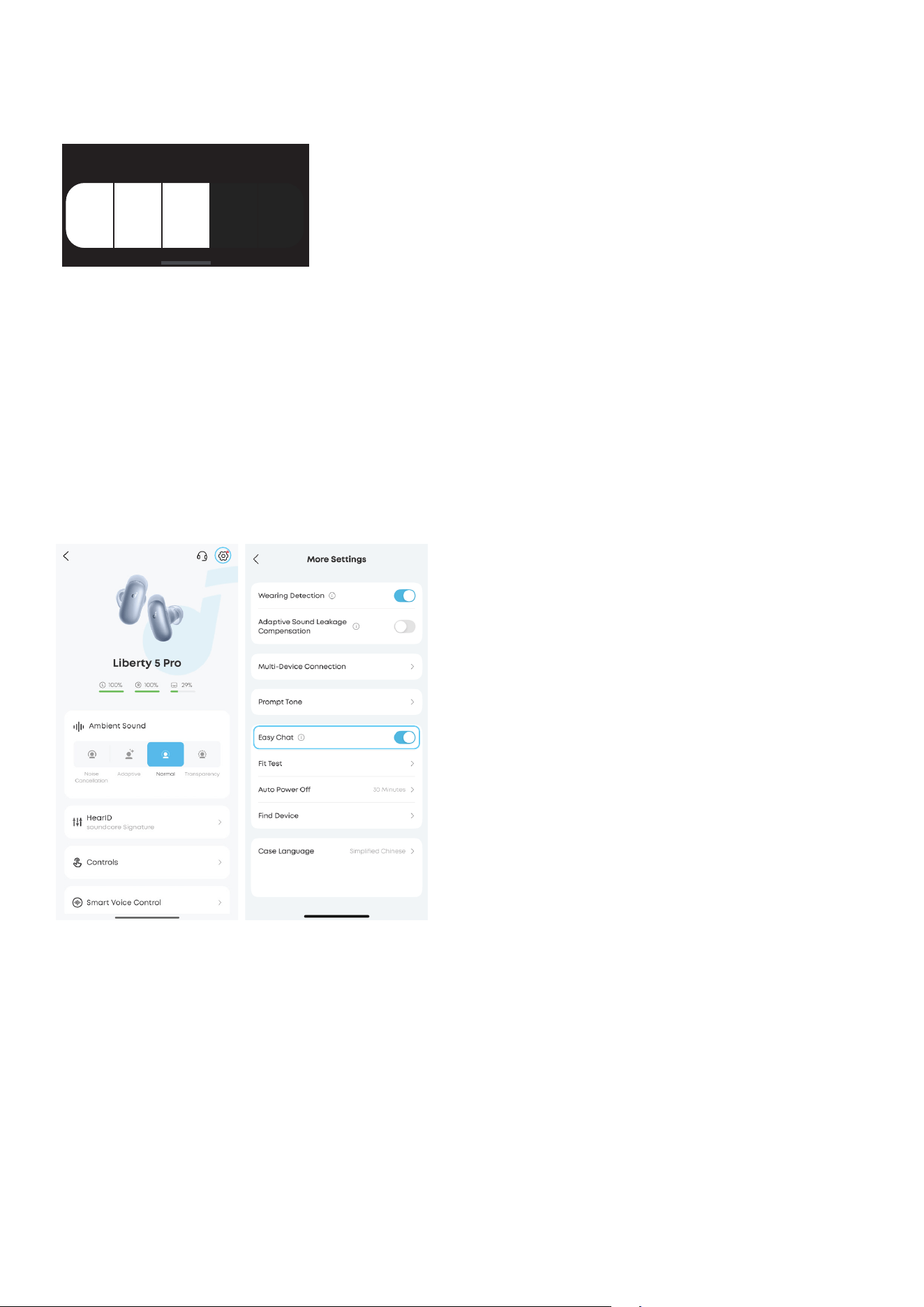
AMBIENT SOUND
Control with Smart Screen
You can easily switch between dierent ambient sound levels by sliding le or right on the Smart Screen.
3
ANC Level
Control with App
You can select from Noise Cancellation, Adaptive, Normal, or Transparency modes in the soundcore app.
• Noise Cancellation (Level 1 to Level 5): Adjust the strength of noise cancellation to match your environment.
• Adaptive: Experience seamless sound with Adaptive Noise Cancellation that intuitively tunes to your
environment, preserving the peect harmony between clarity and awareness.
• Normal: Enjoy balanced sound without noise cancellation.
• Transparency: Stay aware of your surroundings while listening to music.
EASY CHAT
Note: The UI images are for illustration purposes only. Actual display contents may vary based on the
soware version.
1
2
When activated, Easy Chat automatically switches the earbuds to Transparency mode and lowers your
music volume, helping you communicate without taking o the earbuds.
Easy Chat is only available in ANC mode.
By default, when you have stopped talking for 5 seconds, your earbuds will automatically exit Easy Chat
mode and resume the original ANC level and volume.
Tip: Turn o Easy Chat when not in use to avoid aecting your listening experience.
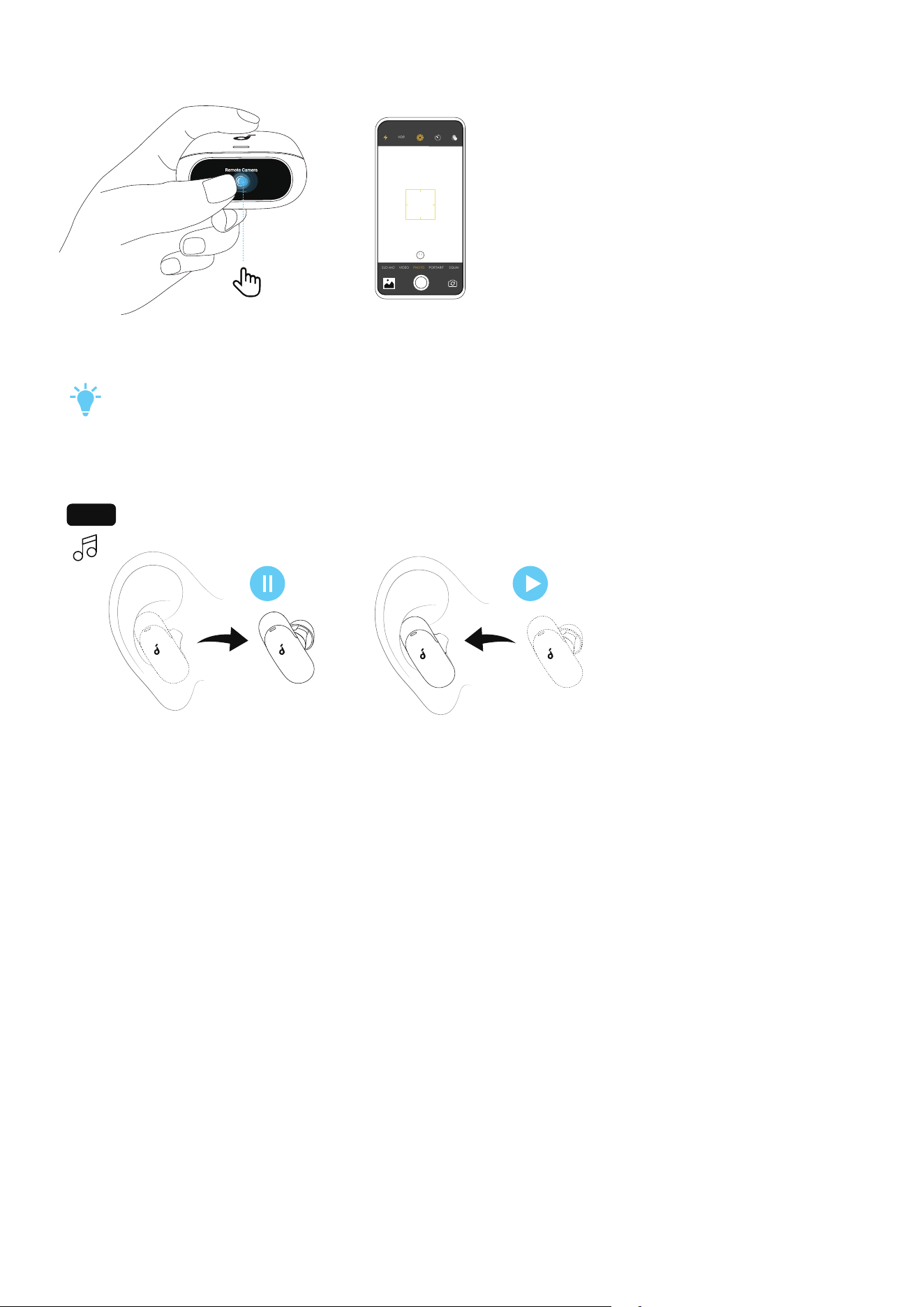
REMOTE PHOTO SNAP
1 ×
HDR
SLO-MO VIDEO PHO TO
PORTARIT SQUA I
×1
When the earbuds are connected to your phone via Bluetooth, open your phone's camera. Then tap the
Remote Camera shortcut on the Smart Screen to take a photo remotely.
• Keep the earbuds connected to the phone via Bluetooth during use.
• Due to system settings, this feature is not supported on some phones.
WEARING DETECTION
L/R
Your earbuds can automatically detect when you’re wearing them.
Playback will pause when you remove an earbud, and resume as soon as you put it back on.
Wearing Detection is turned on by default. If you prefer to disable it, go to Settings > Wearing Detection,
and toggle the switch to the le.
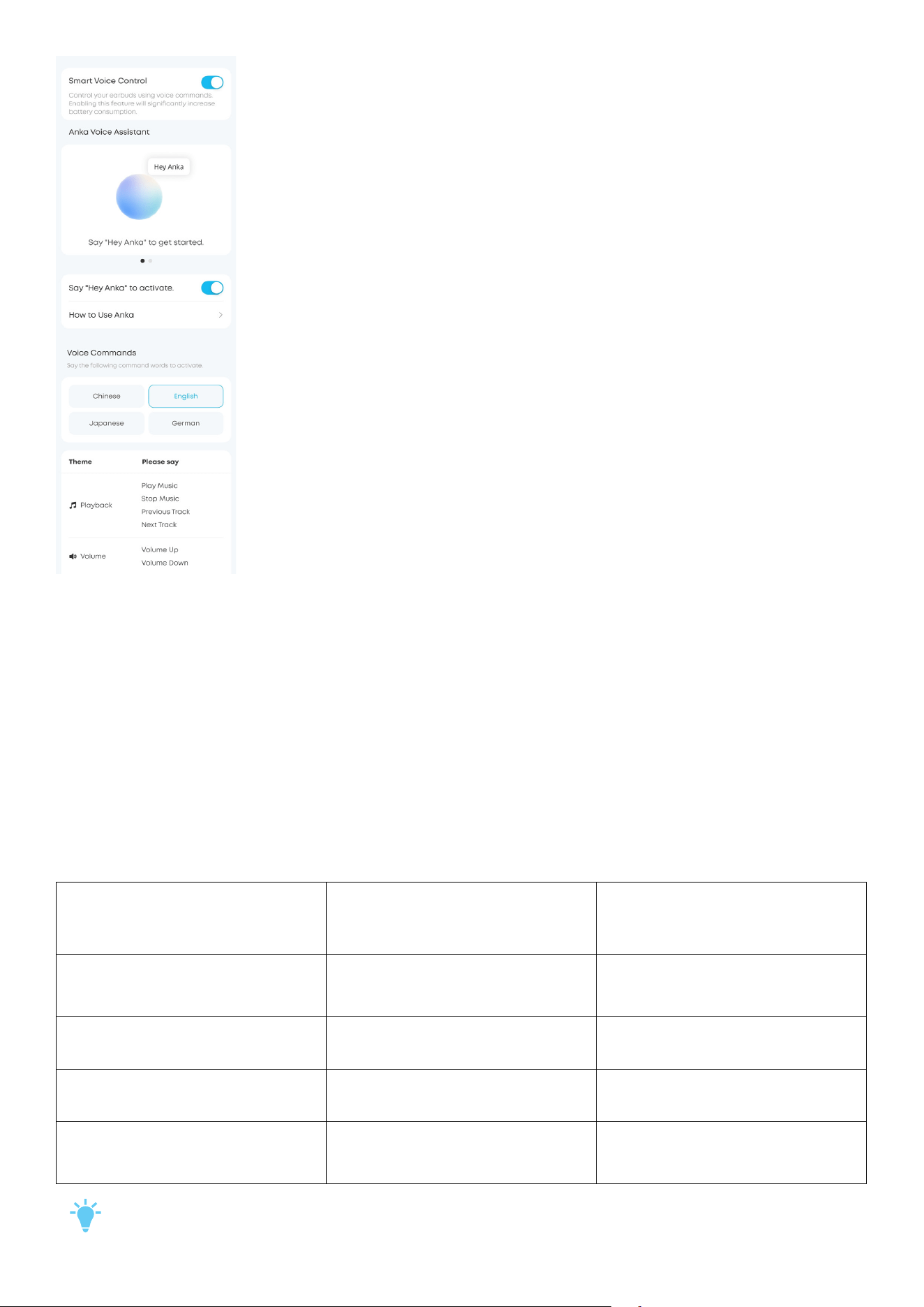
VOICE CONTROL
Note: The UI images are for illustration purposes only. Actual display contents may vary based on the
soware version.
Enable voice control to control your earbuds hands-free with voice commands.
This feature currently supports command words in Chinese, English, Japanese, and German. You can
change voice command language anytime in app settings.
Access the complete voice command list in the soundcore app under Voice Control.
Note: Enabling voice control may reduce the earbuds' battery life.
AI ASSISTANT
Before Use:
• Uninstall any previous versions of the soundcore app on your device and download the latest version.
• Keep the app open and your earbuds connected to your phone via Bluetooth while using the AI
assistant. On Android devices, allow the app to run in the background.
Note:
• The AI assistant prioritizes your privacy and data security.
• AI-generated responses are for reference only and may contain inaccuracies. Please use your discretion.
• Feature inteaces may vary with app version updates.
What Anka Can Do for You
Function What It Does
Example Command (Say
the following to Anka aer
activating with "Hey Anka")
Answering Questions
Acts as your portable
encyclopedia. Ask any question
anytime.
"Why do giraes have such long
necks?"
Casual Conversation
Chats with you like a friend would
and helps you relax.
"Tell me a joke."
Information Aggregation
Keeps you up to date with daily
news and updates.
"Tell me the latest tech news for
today."
Information Lookup
Checks the weather, the latest
match scores, and more.
"What's the weather like in
New York today? Will I need an
umbrella when I go out?"
• Some voice commands may not work due to app limitations.
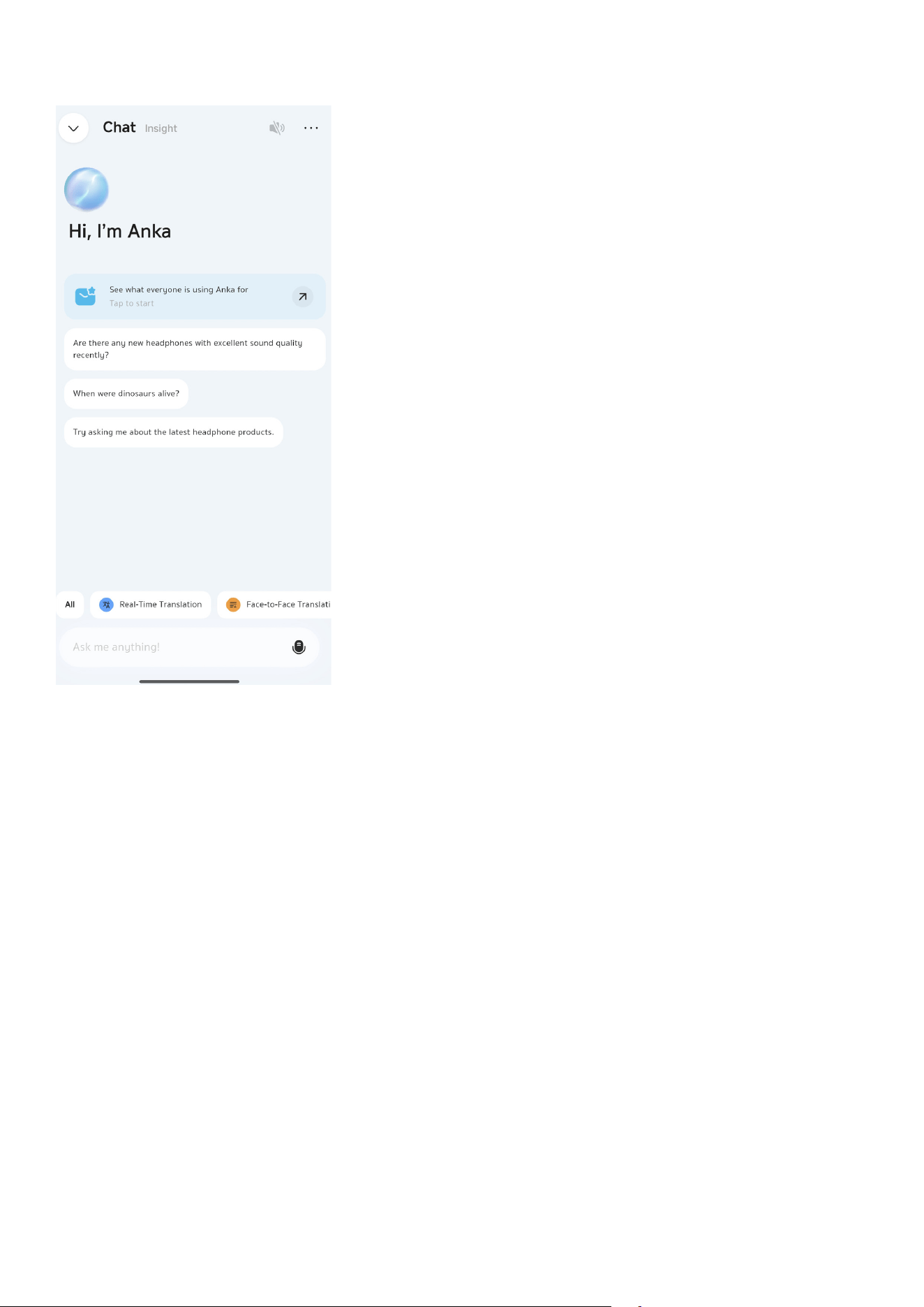
How to Access the Feature
In the soundcore app, go to Anka Page > Chat With Anka.
AI TRANSLATION
Note: Feature paths and inteace visuals may change with soware updates. For the most accurate
guidance, please refer to your latest app version.
Before Use:
• Please upgrade to the latest version of the soundcore app and ensure that your earbuds are
connected to the app.
• Disable Multi-Device Connection.
Real-Time Translation
In settings where you're exposed to content in a foreign language for extended periods (e.g., lectures,
classes), real-time translation delivers continuous text display and audio playback of the translated
content with almost no lag.
In the soundcore app, go to Anka page and tap Real-Time Translation. Make sure your earbuds are
connected to the app.
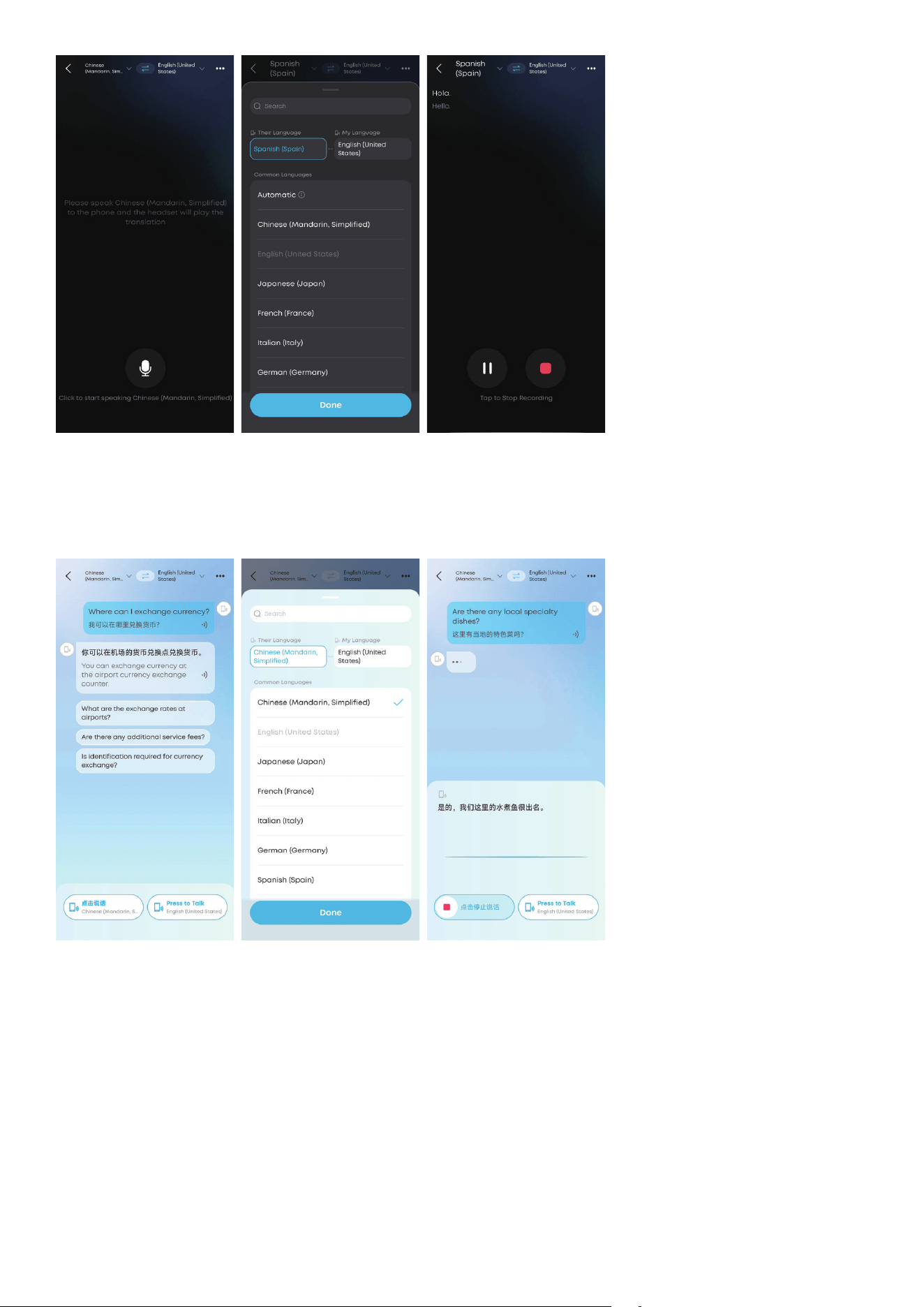
1. Tap Real-Time Translation.
2. Tap the language section at the top of the page, then select Their Language and My Language.
3. Tap the microphone button to start recording.
Face-to-Face Translation
In the soundcore app, go to Anka page and tap Face-to-Face Translation.
When your earbuds are connected to the app, follow the steps below to try out Face-to-Face
Translation.
1. Tap the language section at the top of the page, then select Their Language and My Language.
2. Tap the bottom-right button and speak into your earbuds. The translation will play from your phone.
3. Tap the bottom-le button and speak into your phone. The translation will play from your earbuds.
Note: This feature works even if your earbuds aren’t connected to the app. Just speak into your phone,
and the translation will play through its speaker.
LDAC
Enable LDAC in the soundcore app to enjoy high-resolution audio on devices running Android 8.0 or
later. This feature delivers higher sound quality but may increase power consumption and reduce
playtime. For the best LDAC peormance with stable Bluetooth connection, use LDAC in a low-
inteerence environment.
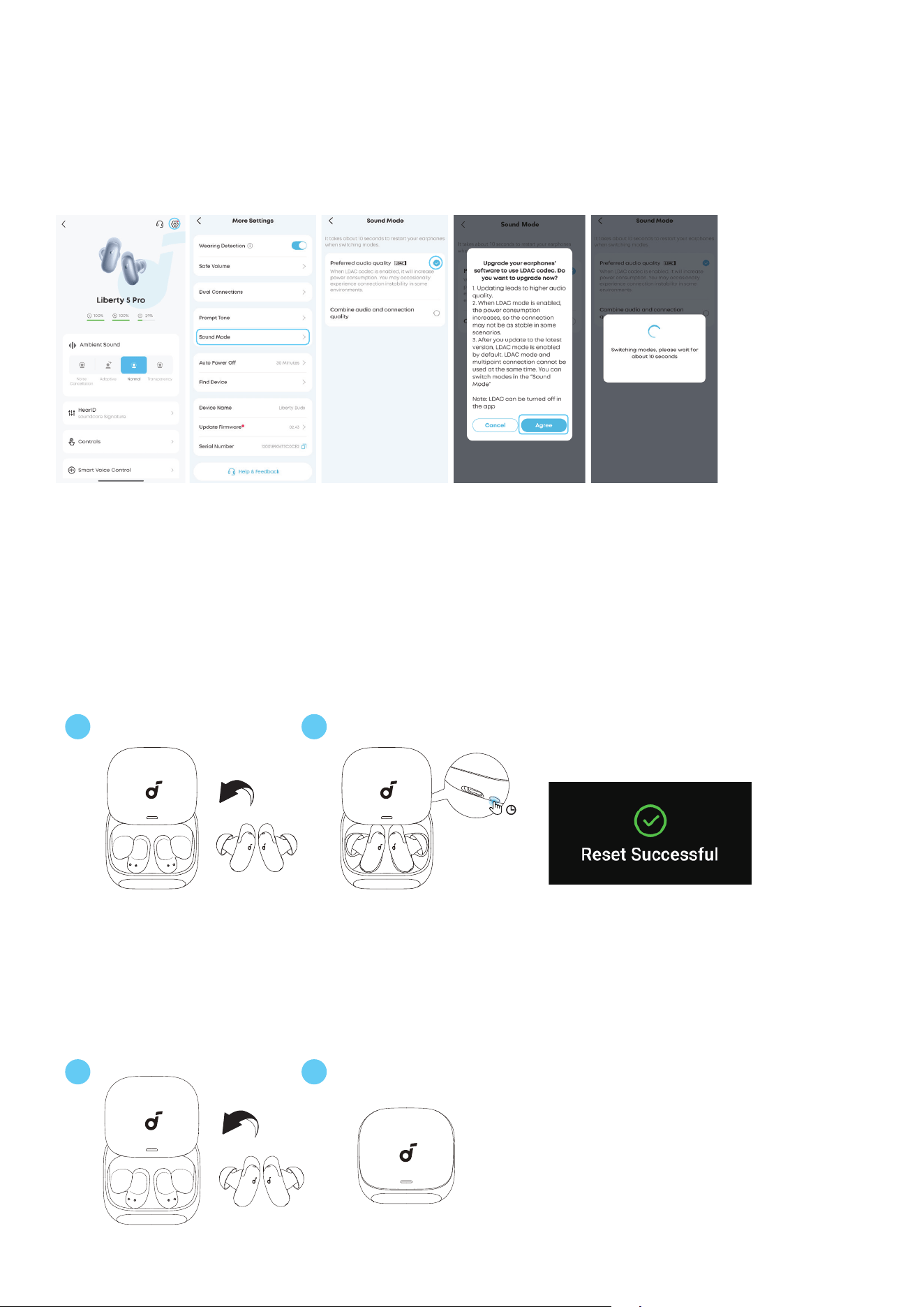
Follow the steps below to enable LDAC on your device:
Note: UI images are for illustrative purposes only; actual display may vary by soware version.
1
2
4
3
1. Open the soundcore app and go to Settings.
2. Tap "Sound Mode".
3. Select "Preferred audio quality" to switch to LDAC codec.
4. Tap "Agree" to proceed.
5. Switching audio codecs takes about 10 seconds. You may be prompted to update your earbuds'
firmware if an update is available.
RESETTING
21
10s
You might need to reset the earbuds if you experience any connectivity issues.
Place the earbuds in the charging case and leave the lid open. Press and hold the charging case
button behind the charging case for 10 seconds. Upon a successful reset, the Smart Screen will show a
prompt, and you will hear a notification sound from the charging case.
POWERING OFF
21
To power o, simply return the earbuds to the charging case and slide down the lid.
FIRMWARE UPDATE
You will be informed once a new firmware version is detected when you connect the earbuds to the
app. Ensure the earbuds are placed in the charging case and the lid remains open until the firmware
update is complete. During the update, ensure the earbuds are being charged and avoid using them.
SPECS
Specifications are subject to change without notice.
Input 5V 1A
Output 5V 0.54A (0.27A per port)
Battery Capacity
62mAh × 2 (Earbuds)
690mAh (Charging case)
Playtime (with ANC O) Up to 12 hours (50 hours in total with the charging case)
Playtime (with ANC On)
ANC On: Up to 6.5 hours (28 hours in total with the charging case)
ANC + Voice Call: Up to 4 hours
ANC + Dolby Audio: Up to 5 hours
ANC + Voice Control: Up to 5 hours
ANC + AI Sound Enhancement: Up to 4.5 hours
ANC + LDAC: Up to 4.5 hours
Charging Time
Up to 1 hour (Earbuds)
Up to 3 hours (Charging case)
Driver Unit 9.2 mm dynamic driver
Frequency Response 10 Hz - 40 kHz
Impedance 17 Ω
Waterproof & Dustproof Rating
(Earbuds Only)
IP55
Bluetooth Version BT 6.1
Bluetooth Range 10 m / 33
CUSTOMER SERVICE
service@soundcore.com
uk.support@soundcore.com (UK)
ie.support@soundcore.com (IE)
support.mea@anker.com (MEA)
support.india@anker.com (IN)
ced-cn@anker.com (CN)
support@anker.com (JP)
support.kr@anker.com (KR)
( US/CA ) +1 (800) 988-7973
( UK ) +44 (0) 1604 936 200
( DE ) +49 (0) 69 9579 7960
( RSA ) +27 801112209
( UAE ) +971 8000 320 817
( KSA ) +966 8008 500 030
( KW ) +965 2206 9086
( EG ) +20 8000 000 826
( TR ) 00800 621 24 94
( IN ) +91 8000 504 414
( CN ) +86 400 0550 036
( JP ) 03 4455 7823
( KR ) +82 1666 8470
( AU/NZ ) +61 1800 920 330
( PL ) +48 800 707 993
( SE ) +46 20 012 33 22
Note: The 'x' of SN Code: xxxxxxxxxxxxxxxx is a variable, see below table.
Variable 'x' Range of variable Content
Eighth 0-9 or A-F
Denotes the hardware version which is not eected on the
safety compliance.
Ninth 8,9,A,B,C...
Denotes the year, 8 means 2018, 9 means 2019, A means 2020, B
means 2021, C means 2022, and so on.
Tenth and
Eleventh
01,02,03...
Denotes weeks, 01 means the first week in this year, 02 means
the secondary week in this year, and so on.
Twelh 1-7
Denotes date, 1 means Monday, 2 means Tuesday..., 7 means
Sunday and so on.
The last five 00001-99999 Denotes serial No.
Hereby, Anker Innovations Limited declares that this device is in compliance with The Product Security
and Telecommunications Infrastructure (Security Requirements for Relevant Connectable Products)
Regulations 2023. For the Statement of Compliance, visit the website:
https://uk.soundcore.com/pages/psti-related.
Default Open Port: Classic Bluetooth
Port Description: Aer the device is powered on, Classic Bluetooth visibility (or pairing mode) is
automatically enabled, providing Bluetooth pairing (or control) services. The Bluetooth service is
disabled when the device is powered o.
This product is designed and intended for personal consumer use only.