
VERSION 1.6
NOVEMBER 2022
702P08818
Xerox
®
VersaLink
®
B400
Printer
User Guide

© 2022 Xerox Corporation. All rights reserved. Xerox
®
, VersaLink
®
, FreeFlow
®
, SMARTsend
®
, Scan to PC Desktop
®
,
MeterAssistant
®
, SuppliesAssistant
®
, Xerox Secure Access Unified ID System
®
, Xerox Extensible Interface Platform
®
,
Global Print Driver
®
, and Mobile Express Driver
®
are trademarks of Xerox Corporation in the United States and / or
other countries.
Adobe
®
, Adobe PDF logo, Adobe
®
Reader
®
, Adobe
®
Type Manager
®
, ATM
™
, Flash
®
, Macromedia
®
, Photoshop
®
, and
PostScript
®
are trademarks or registered trademarks of Adobe Systems, Inc.
Apple
®
, Bonjour
®
, EtherTalk
™
, TrueType
®
, iPad
®
, iPhone
®
, iPod
®
, iPod touch
®
, AirPrint
®
and the AirPrint Logo
®
, Mac
®
,
Mac OS
®
, and Macintosh
®
are trademarks or registered trademarks of Apple Inc. in the U.S. and other countries.
Gmail
™
webmail service and Android
™
mobile technology platform are trademarks of Google, Inc.
HP-GL
®
, HP-UX
®
, and PCL
®
are registered trademarks of Hewlett-Packard Corporation in the United States and/or
other countries.
IBM
®
and AIX
®
are registered trademarks of International Business Machines Corporation in the United States and/
or other countries.
McAfee
®
is a trademark or registered trademark of McAfee, Inc. in the United States and other countries.
Microsoft
®
, Windows
®
, Windows Server
®
, and OneDrive
®
are registered trademarks of Microsoft Corporation in the
United States and other countries.
Mopria is a trademark of the Mopria Alliance.
Novell
®
, NetWare
®
, NDPS
®
, NDS
®
, IPX
™
, and Novell Distributed Print Services
™
are trademarks or registered
trademarks of Novell, Inc. in the United States and other countries.
SGI
®
and IRIX
®
are registered trademarks of Silicon Graphics International Corp. or its subsidiaries in the United
States and/or other countries.
Sun, Sun Microsystems, and Solaris are trademarks or registered trademarks of Oracle and/or its affiliates in the
United States and other countries.
UNIX
®
is a trademark in the United States and other countries, licensed exclusively through X/ Open Company
Limited.
Wi-Fi CERTIFIED Wi-Fi Direct
®
is a trademark of the Wi-Fi Alliance.

Xerox
®
VersaLink
®
B400 Printer User Guide 3
Contents
Safety .... .. .. .. . .. .. .. .. .. . .. .. .. .. .. . .. .. .. .. .. . .. .. .. .. .. .. . .. .. .. .. .. . .. .. .. .. .. . .. .. .. ..... .. .. .. ..... .. .. .. ..... .. .. .. ....... .. .. .. ..... .. .. .. . .. .9
Notices and Safety . .. .. .. . .. .. .. .. .. . .. .. .. .. .. . .. .. .. .. .. . .. .. .. .. .. . .. .. .. .. .. . .. .. .. ....... .. .. .. ..... .. .. .. ..... .. .. .. ..... .. .. .. ..... 10
Electrical Safety ... .. . .. .. .. .. .. . .. .. .. .. .. .. . .. .. .. ..... .. .. .. ..... .. .. .. ..... .. .. .. ..... .. .. .. ....... .. .. ....... .. .. .. . .. .. .. .. .. . .. .. .. .. 11
General Guidelines ... .. .. .. ..... .. .. .. ....... .. .. ....... .. .. .. ..... .. .. .. ... .. .. .. .. . .. .. .. .. .. . .. .. .. .. .. . .. .. .. .. .. .. . .. .. .. .. .. . . 11
Power Cord..... .. .. .. ..... .. .. .. ..... .. .. .. . .. .. .. .. .. . .. .. .. .. .. . .. .. .. .. .. . .. .. .. .. .. .. . .. .. .. .. .. . .. .. .. .. .. . .. .. .. .. .. . .. .. .. .. .. . 11
Emergency Power Off.. .. .. .. . .. .. .. .. .. . .. .. .. .. .. . .. .. .. .. .. . .. .. .. .. .. . .. .. .. .. .. .. . .. .. .. ..... .. .. .. ..... .. .. .. ..... .. .. .. ..... 12
Operational Safety .. .. .. .. ..... .. .. .. ....... .. .. .. ..... .. .. .. . .. .. .. .. .. . .. .. .. .. .. . .. .. .. .. .. . .. .. .. .. .. . .. .. .. .. .. .. . .. .. .. .. .. . .. .. .. .. 13
Operational Guidelines ... .. .. .. .. .. . .. .. .. .. .. . .. .. .. .. .. . .. .. .. .. .. . .. .. .. .. .. . .. .. .. .. .. .. . .. .. ....... .. .. .. ..... .. .. .. ..... .. .. 13
Ozone Release.. .. .. .. .. .. . .. .. .. ....... .. .. .. ..... .. .. .. ..... .. .. .. ..... .. .. .. ..... .. .. .. ....... .. .. . .. .. .. .. .. .. . .. .. .. .. .. . .. .. .. .. 13
Printer Location .. . .. .. .. .. .. . .. .. .. .. .. . .. .. .. .. .. . .. .. .. .. .. .. . .. .. .. .. .. . .. .. .. .. .. . .. .. .. ..... .. .. .. ..... .. .. .. ....... .. .. ....... . 13
Printer Supplies .. .. .. . .. .. .. .. .. . .. .. .. .. .. .. . .. .. .. .. .. . .. .. .. .. .. . .. .. .. .. .. . .. .. .. .. .. . .. .. .. ..... .. .. .. ....... .. .. .. ..... .. .. .. ..14
Maintenance Safety .. .. .. . .. .. .. .. .. . .. .. .. .. .. .. . .. .. ....... .. .. .. ..... .. .. .. ..... .. .. .. ..... .. .. .. ..... .. .. .. . .. .. .. .. .. .. . .. .. .. .. .. . . 15
Printer Symbols .. . .. .. .. .. .. . .. .. .. .. .. . .. .. .. .. .. .. . .. .. .. .. .. . .. .. .. .. .. . .. .. .. .. ... .. .. .. ..... .. .. .. ..... .. .. .. ....... .. .. .. ..... .. .. .. .. 16
Environmental, Health and Safety Contact Information.. .. .. . .. .. .. .. .. . .. .. .. .. .. . .. .. .. .. .. . .. .. .. .. .. .. . .. .. .. .. .. . .. .. .. .. 18
Getting Started... .. .. .. ..... .. .. .. ..... .. .. .. . .. .. .. .. .. .. . .. .. .. .. .. . .. .. .. .. .. . .. .. .. .. .. . .. .. .. .. .. . .. .. .. .. .. . .. .. .. .. .. .. . .. .. .. .. .. . .. .. .. ..19
Parts of the Printer. .. .. .. .. . .. .. .. .. .. . .. .. .. .. .. .. . .. .. ....... .. .. .. ..... .. .. .. ..... .. .. .. ..... .. .. .. ..... .. .. .. . .. .. .. .. .. .. . .. .. .. .. .. . . 20
Front View... .. . .. .. .. .. .. . .. .. .. .. .. . .. .. .. .. .. . .. .. .. .. .. . .. .. .. .. .. .. . .. .. ....... .. .. .. ..... .. .. .. ..... .. .. .. ..... .. .. .. ..... .. .. .. . 20
Control Panel .. .. .. .. . .. .. .. .. .. . .. .. .. .. .. . .. .. .. .. .. . .. .. .. .. .. . .. .. .. .. .. . .. .. .. .. .. .. . .. .. .. ..... .. .. .. ..... .. .. .. ..... .. .. .. ..... 21
Internal Parts ... .. .. .. ..... .. .. .. ....... .. .. .. . .. .. .. .. .. . .. .. .. .. .. . .. .. .. .. .. . .. .. .. .. .. . .. .. .. .. .. . .. .. .. .. .. .. . .. .. .. .. .. . .. .. .. .. 23
Rear View....... .. .. .. ..... .. .. .. ..... .. .. .. . .. .. .. .. .. . .. .. .. .. .. . .. .. .. .. .. . .. .. .. .. .. .. . .. .. .. .. .. . .. .. .. .. .. . .. .. .. .. .. . .. .. .. ..... 24
Power Options ... .. .. . .. .. .. .. .. . .. .. .. .. .. .. . .. .. .. .. .. . .. .. .. ..... .. .. .. ..... .. .. .. ..... .. .. .. ....... .. .. ....... .. .. .. . .. .. .. .. .. . .. .. .. .. 25
Powering on the Printer.. .. .. .. .. . .. .. .. .. .. . .. .. .. .. .. . .. .. .. .. .. .. . .. .. .. .. .. . .. .. .. .. .. . .. .. .. .. .. . .. .. .. ..... .. .. .. ..... .. .. .. . 25
Exiting Low-Power Mode or Sleep Mode.. .. .. ..... .. .. .. ....... .. .. ....... .. .. .. ..... .. .. .. ..... .. .. .. . .. .. .. .. .. . .. .. .. .. .. . 25
Restarting, Entering Sleep Mode or Low-Power Mode.. .. .. ..... .. .. .. ..... .. .. .. ..... .. .. .. ..... .. .. .. . .. .. .. .. .. . .. .. .. . 26
Accessing the Printer.. . .. .. .. .. .. . .. .. .. ..... .. .. .. ..... .. .. .. ....... .. .. .. ..... .. .. .. ..... .. .. .. . .. .. .. .. .. . .. .. .. .. .. . .. .. .. .. .. . .. .. .. . 27
Logging In. . .. .. ....... .. .. ....... .. .. .. ..... .. .. .. ..... .. .. .. . .. .. .. .. .. . .. .. .. .. .. . .. .. .. .. .. .. . .. .. .. .. .. . .. .. .. .. .. . .. .. .. .. .. . .. .. 27
Smart Card. .. .. .. .. .. . .. .. .. .. .. . .. .. .. .. .. . .. .. .. .. .. . .. .. .. .. .. . .. .. .. ..... .. .. .. ....... .. .. .. ..... .. .. .. ..... .. .. .. ..... .. .. .. ..... 28
Introduction to Apps. .. .. . .. .. .. .. .. . .. .. .. ..... .. .. .. ..... .. .. .. ..... .. .. .. ..... .. .. .. ....... .. .. .. . .. .. .. .. .. . .. .. .. .. .. . .. .. .. .. .. . .. .. 29
Information Pages.. ....... .. .. ....... .. .. .. . .. .. .. .. .. . .. .. .. .. .. . .. .. .. .. .. . .. .. .. .. .. . .. .. .. .. .. .. . .. .. .. .. .. . .. .. .. .. .. . .. .. .. ..... .. .. 30
Printing Information Pages.. . .. .. .. ....... .. .. ....... .. .. .. ..... .. .. .. ..... .. .. .. ..... .. .. .. . .. .. .. .. .. . .. .. .. .. .. .. . .. .. .. .. .. . . 30
Configuration Report .. .. .. .. .. . .. .. .. .. .. .. . .. .. .. .. .. . .. .. .. .. .. . .. .. .. ..... .. .. .. ..... .. .. .. ..... .. .. .. ....... .. .. .. ..... .. .. .. . . 30
The Embedded Web Server . .. .. .. . .. .. .. .. .. . .. .. .. .. .. . .. .. .. .. .. . .. .. .. ..... .. .. .. ....... .. .. .. ..... .. .. .. ..... .. .. .. ..... .. .. .. . .. .. 32
Accessing the Embedded Web Server .. . .. .. .. .. .. . .. .. .. .. .. .. . .. .. .. .. .. . .. .. .. .. .. . .. .. .. .. .. . .. .. .. .. .. . .. .. .. .. .. . .. .. .. . 32
Finding the IP Address of Your Printer.. .. .. ....... .. .. .. ..... .. .. .. ... .. .. .. .. . .. .. .. .. .. . .. .. .. .. .. . .. .. .. .. .. .. . .. .. .. .. .. . . 32
Certificates for the Embedded Web Server... . .. .. .. .. .. . .. .. .. ..... .. .. .. ....... .. .. .. ..... .. .. .. ..... .. .. .. ..... .. .. .. . .. .. 33
Downloading the Configuration Report from the Embedded Web Server.. ..... .. .. .. ..... .. .. .. ....... .. .. ....... . 33
Using the Remote Control Panel Feature . .. .. .. .. . .. .. .. .. .. .. . .. .. .. .. .. . .. .. .. .. .. . .. .. .. ..... .. .. .. ..... .. .. .. ..... .. .. .. . 33
Installation and Setup. .. .. .. .. .. . .. .. .. .. .. . .. .. .. .. .. . .. .. .. .. .. .. . .. .. .. .. .. . .. .. .. ..... .. .. .. ..... .. .. .. ..... .. .. .. ....... .. .. ....... . 35
Installation and Setup Overview . .. .. ..... .. .. .. ..... .. .. .. ....... .. .. ....... .. .. .. ..... .. .. .. ..... .. .. .. . .. .. .. .. .. . .. .. .. .. .. . 35
Selecting a Location for the Printer. .. .. . .. .. .. .. .. . .. .. .. .. .. . .. .. .. .. .. . .. .. .. .. .. . .. .. .. ..... .. .. .. ....... .. .. .. ..... .. .. .. ..35
Connecting the Printer .. .. .. .. .. . .. .. .. .. .. . .. .. .. .. .. . .. .. .. .. .. .. . .. .. .. .. .. . .. .. .. .. .. . .. .. .. .. .. . .. .. .. .. .. . .. .. .. ....... .. .. ....... . 36
Selecting a Connection Method. . .. .. .. .. . .. .. .. ..... .. .. .. ....... .. .. ....... .. .. .. ..... .. .. .. ..... .. .. .. . .. .. .. .. .. . .. .. .. .. .. . 36

4 Xerox
®
VersaLink
®
B400 Printer User Guide
Connecting to a Computer Using USB .. .. . .. .. .. .. .. . .. .. .. .. .. . .. .. .. .. .. . .. .. .. .. .. .. . .. .. .. .. .. . .. .. .. ..... .. .. .. ..... .. .. 36
Connecting to a Wired Network. ... .. .. .. ..... .. .. .. . .. .. .. .. .. .. . .. .. .. .. .. . .. .. .. .. .. . .. .. .. .. .. . .. .. .. .. .. . .. .. .. .. .. . .. .. .. . 37
Connecting to a Wireless Network ... .. .. .. ..... .. .. .. ..... .. .. .. . .. .. .. .. .. . .. .. .. .. .. .. . .. .. .. .. .. . .. .. .. .. .. . .. .. .. .. .. . .. .. 37
Configuring AirPrint. .. .. . .. .. .. .. .. .. . .. .. .. .. .. . .. .. .. .. .. . .. .. .. .. .. . .. .. .. .. .. . .. .. .. .. .. .. . .. .. ....... .. .. .. ..... .. .. .. ..... .. .. 44
Configuring Google Cloud Print .. .. .. . .. .. .. .. .. . .. .. .. .. .. . .. .. .. .. .. . .. .. .. .. .. .. . .. .. .. .. .. . .. .. .. .. .. . .. .. .. .. .. . .. .. .. ..... 45
Initial Printer Setup.. .. .. .. . .. .. .. .. .. . .. .. .. .. .. .. . .. .. ....... .. .. .. ..... .. .. .. ..... .. .. .. ..... .. .. .. ..... .. .. .. . .. .. .. .. .. .. . .. .. .. .. .. . . 47
Xerox
®
Easy Assist (XEA) App ... .. .. .. ..... .. .. .. ..... .. .. .. . .. .. .. .. .. . .. .. .. .. .. .. . .. .. .. .. .. . .. .. .. .. .. . .. .. .. .. .. . .. .. .. .. .. . 47
Initial Setup with Xerox
®
Easy Assist (XEA) App .... .. .. .. ..... .. .. .. . .. .. .. .. .. . .. .. .. .. .. . .. .. .. .. .. .. . .. .. .. .. .. . .. .. .. .. 48
Adding Multiple Printers to the Xerox Easy Assist App .. .. .. . .. .. .. .. .. . .. .. .. .. .. .. . .. .. .. .. .. . .. .. .. .. .. . .. .. .. .. .. . .. .. 50
Installing the Software . .. . .. .. .. .. .. . .. .. .. .. .. .. . .. .. .. .. .. . .. .. .. .. .. . .. .. .. .. .. . .. .. .. .. .. . .. .. .. .. .. . .. .. .. .. .. .. . .. .. .. ..... .. .. .. ..51
Operating System Requirements.. .. .. .. .. .. . .. .. .. ..... .. .. .. ..... .. .. .. ..... .. .. .. ....... .. .. ....... .. .. .. . .. .. .. .. .. . .. .. .. .. 51
Installing the Print Drivers for a Windows Network Printer... .. .. .. .. . .. .. .. .. .. . .. .. .. .. .. . .. .. .. .. .. . .. .. .. ..... .. .. .. . 51
Installing the Print Drivers for a Windows USB Printer ... .. .. .. . .. .. .. .. .. . .. .. .. .. .. . .. .. .. .. .. . .. .. .. .. .. .. . .. .. .. .. .. . . 51
Installing the Drivers and Utilities for Macintosh OS X ... .. ..... .. .. .. ....... .. .. .. ..... .. .. .. ..... .. .. .. . .. .. .. .. .. . .. .. 52
Installing Drivers and Utilities for UNIX and Linux. .. .. .. . .. .. .. .. .. . .. .. .. .. .. . .. .. .. .. .. . .. .. .. .. .. .. . .. .. .. .. .. . .. .. .. .. 53
Installing the Printer as a Web Service on Devices. .. .. .. ..... .. .. .. ..... .. .. .. ....... .. .. ....... .. .. .. ..... .. .. .. . .. .. .. .. 53
More Information... . .. .. .. .. .. . .. .. .. .. .. .. . .. .. .. .. .. . .. .. .. .. .. . .. .. .. .. .. . .. .. .. .. .. . .. .. .. .. .. .. . .. .. ....... .. .. .. ..... .. .. .. ..... .. .. 55
Customize and Personalize. .. .. . .. .. .. .. .. . .. .. .. .. .. .. . .. .. .. .. .. . .. .. .. .. .. . .. .. .. .. .. . .. .. .. ..... .. .. .. ..... .. .. .. ....... .. .. .. ..... .. .. .. .. 57
Customize and Personalize Overview .. .. .. ..... .. .. .. ..... .. .. .. ....... .. .. ....... .. .. .. ..... .. .. .. . .. .. .. .. .. . .. .. .. .. .. . .. .. .. .. .. . 58
Customizing or Personalizing the Home Screen ....... .. .. .. ..... .. .. .. ..... .. .. .. ..... .. .. .. . .. .. .. .. .. . .. .. .. .. .. .. . .. .. .. .. .. . . 59
Hiding or Showing an App on the Home Screen ... .. .. .. ..... .. .. .. . .. .. .. .. .. . .. .. .. .. .. . .. .. .. .. .. .. . .. .. .. .. .. . .. .. .. .. 59
Rearranging Apps on the Home Screen.. .. .. .. .. . .. .. .. .. .. . .. .. .. .. .. . .. .. .. .. .. . .. .. .. .. .. . .. .. .. ....... .. .. .. ..... .. .. .. ..59
Customizing or Personalizing the Apps ... .. .. . .. .. .. .. .. . .. .. .. .. .. .. . .. .. .. .. .. . .. .. .. .. .. . .. .. .. .. ... .. .. .. ..... .. .. .. ..... .. .. .. . 60
Customizing or Personalizing the Feature List . .. .. .. .. . .. .. .. .. .. . .. .. .. .. .. . .. .. .. ..... .. .. .. ..... .. .. .. ....... .. .. ....... . 60
Saving Presets. ....... .. .. ....... .. .. .. ..... .. .. .. . .. .. .. .. .. . .. .. .. .. .. . .. .. .. .. .. . .. .. .. .. .. .. . .. .. .. .. .. . .. .. .. .. .. . .. .. .. .. .. . .. .. 60
Removing App Customization using the Control Panel . .. .. . .. .. .. .. .. . .. .. .. .. .. .. . .. .. .. .. .. . .. .. .. ..... .. .. .. ..... .. .. 61
Xerox
®
Apps.. . .. .. .. .. .. . .. .. .. .. .. . .. .. .. .. .. . .. .. .. .. .. .. . .. .. .. .. .. . .. .. .. ..... .. .. .. ..... .. .. .. ..... .. .. .. ..... .. .. .. ....... .. .. .. . .. .. .. .. .. . . 63
Xerox
®
App Gallery .. .. . .. .. .. .. .. . .. .. .. .. .. . .. .. .. .. .. . .. .. .. .. .. .. . .. .. .. ..... .. .. .. ..... .. .. .. ..... .. .. .. ..... .. .. .. ....... .. .. ....... . 64
Xerox
®
App Gallery Overview .. .. .. . .. .. .. ..... .. .. .. ....... .. .. .. ..... .. .. .. ..... .. .. .. ..... .. .. .. . .. .. .. .. .. . .. .. .. .. .. . .. .. .. . 64
Creating a Xerox® App Gallery Account. .. . .. .. .. .. .. .. . .. .. .. .. .. . .. .. .. ..... .. .. .. ..... .. .. .. ..... .. .. .. ....... .. .. ....... . 64
Logging into your Xerox
®
App Gallery Account . .. .. .. .. .. . .. .. .. .. .. . .. .. .. .. .. . .. .. .. .. .. . .. .. .. .. .. .. . .. .. .. .. .. . .. .. .. .. 65
Installing or Updating an App from the Xerox
®
App Gallery. .. .. ..... .. .. .. ....... .. .. ....... .. .. .. ..... .. .. .. ..... .. .. 65
Device. .. ..... .. .. .. ..... .. .. .. ..... .. .. .. ....... .. .. .. . .. .. .. .. .. . .. .. .. .. .. . .. .. .. .. .. . .. .. .. .. .. . .. .. .. .. .. . .. .. .. .. .. .. . .. .. .. .. .. . .. .. .. .. 67
Device Overview . . .. .. .. .. .. . .. .. .. .. .. . .. .. .. .. .. . .. .. .. .. .. .. . .. .. .. .. .. . .. .. .. .. .. . .. .. .. .. .. . .. .. .. .. .. . .. .. .. ....... .. .. ....... . 67
About. .. .. . .. .. .. .. .. .. . .. .. .. .. .. . .. .. .. .. .. . .. .. .. .. .. . .. .. .. .. .. . .. .. .. .. .. . .. .. .. ....... .. .. .. ..... .. .. .. ..... .. .. .. ..... .. .. .. ..... 68
Supply Status.. ....... .. .. . .. .. .. .. .. .. . .. .. .. .. .. . .. .. .. .. .. . .. .. .. .. .. . .. .. .. .. .. . .. .. .. .. .. .. . .. .. .. .. .. . .. .. .. ..... .. .. .. ..... .. .. 68
Billing and Usage Counters. .. .. .. .. . .. .. .. ..... .. .. .. ....... .. .. .. ..... .. .. .. ..... .. .. .. ..... .. .. .. . .. .. .. .. .. . .. .. .. .. .. . .. .. .. . 69
Reset to Factory Defaults ..... .. .. .. ....... .. .. ....... .. .. .. . .. .. .. .. .. . .. .. .. .. .. . .. .. .. .. .. . .. .. .. .. .. . .. .. .. .. .. .. . .. .. .. .. .. . . 69
Remote Services .. .. ..... .. .. .. . .. .. .. .. .. . .. .. .. .. .. . .. .. .. .. .. . .. .. .. .. .. . .. .. .. .. .. .. . .. .. .. .. .. . .. .. .. .. .. . .. .. .. .. .. . .. .. .. ..... 70
Jobs.. .. .. . .. .. .. .. .. . .. .. .. ..... .. .. .. ..... .. .. .. ....... .. .. ....... .. .. .. ..... .. .. .. ..... .. .. .. . .. .. .. .. .. . .. .. .. .. .. . .. .. .. .. .. .. . .. .. .. .. .. . . 71
Jobs Overview . .. .. .. .. .. . .. .. .. ..... .. .. .. ..... .. .. .. ..... .. .. .. ....... .. .. ....... .. .. .. . .. .. .. .. .. . .. .. .. .. .. . .. .. .. .. .. . .. .. .. .. .. . 71
Managing Jobs .. .. .. .. .. . .. .. .. .. .. .. . .. .. .. .. .. . .. .. .. .. .. . .. .. .. .. .. . .. .. .. .. .. . .. .. .. .. .. .. . .. .. ....... .. .. .. ..... .. .. .. ..... .. .. 71
Managing Special Job Types .. .. .. . .. .. .. .. .. . .. .. .. .. .. . .. .. .. .. .. . .. .. .. .. .. . .. .. .. .. .. .. . .. .. .. .. .. . .. .. .. .. .. . .. .. .. ..... .. .. 72
Managing Jobs Using the Embedded Web Server ... .. .. ..... .. .. .. ..... .. .. .. ....... .. .. ....... .. .. .. . .. .. .. .. .. . .. .. .. .. 75
Contents

Xerox
®
VersaLink
®
B400 Printer User Guide 5
USB . .. . .. .. .. ..... .. .. .. ....... .. .. ....... .. .. .. ..... .. .. .. ..... .. .. .. . .. .. .. .. .. . .. .. .. .. .. . .. .. .. .. .. .. . .. .. .. .. .. . .. .. .. .. .. . .. .. .. .. .. . .. .. 76
USB Overview . .. .. .. . .. .. .. .. .. . .. .. .. ..... .. .. .. ..... .. .. .. ..... .. .. .. ..... .. .. .. ....... .. .. .. . .. .. .. .. .. . .. .. .. .. .. . .. .. .. .. .. . .. .. 76
Printing from a USB Flash Drive.. . .. .. .. .. .. . .. .. .. .. .. . .. .. .. .. .. . .. .. .. ..... .. .. .. ....... .. .. ....... .. .. .. ..... .. .. .. ..... .. .. 76
Printing from a USB Flash Drive Already Inserted in the Printer... .. . .. .. .. .. .. .. . .. .. .. .. .. . .. .. .. ..... .. .. .. ..... .. .. 76
@PrintByXerox ....... .. .. .. ..... .. .. .. ..... .. .. .. ..... .. .. .. ..... .. .. .. ....... .. .. . .. .. .. .. .. .. . .. .. .. .. .. . .. .. .. .. .. . .. .. .. .. .. . .. .. .. .. .. . 78
@PrintByXerox Overview .. .. .. .. ..... .. .. .. . .. .. .. .. .. . .. .. .. .. .. .. . .. .. .. .. .. . .. .. .. .. .. . .. .. .. .. .. . .. .. .. .. .. . .. .. .. .. .. . .. .. .. . 78
Printing with the @PrintByXerox App . .. ..... .. .. .. ....... .. .. .. ..... .. .. .. ..... .. .. .. ..... .. .. .. . .. .. .. .. .. . .. .. .. .. .. . .. .. .. . 78
Printing ..... .. .. ....... .. .. .. ..... .. .. .. ..... .. .. .. . .. .. .. .. .. . .. .. .. .. .. . .. .. .. .. .. .. . .. .. .. .. .. . .. .. .. .. .. . .. .. .. .. .. . .. .. .. .. .. . .. .. .. .. .. . .. .. .. . 79
Printing Overview ... .. .. .. ..... .. .. .. ..... .. .. .. ..... .. .. .. ..... .. .. .. . .. .. .. .. .. . .. .. .. .. .. .. . .. .. .. .. .. . .. .. .. .. .. . .. .. .. .. .. . .. .. .. .. .. . 80
Selecting Printing Options ... .. .. .. ..... .. .. .. ..... .. .. .. ..... .. .. .. ....... .. .. . .. .. .. .. .. .. . .. .. .. .. .. . .. .. .. .. .. . .. .. .. .. .. . .. .. .. .. .. . 81
Print Driver Help ... .. .. .. . .. .. .. .. .. .. . .. .. .. .. .. . .. .. .. .. .. . .. .. .. .. .. . .. .. .. .. .. . .. .. .. ....... .. .. ....... .. .. .. ..... .. .. .. ..... .. .. 81
Windows Printing Options ... .. .. .. . .. .. .. ..... .. .. .. ..... .. .. .. ..... .. .. .. ..... .. .. .. ....... .. .. ....... .. .. .. . .. .. .. .. .. . .. .. .. .. 81
Macintosh Printing Options . .. .. .. . .. .. .. .. .. . .. .. .. ..... .. .. .. ..... .. .. .. ..... .. .. .. ....... .. .. ....... .. .. .. . .. .. .. .. .. . .. .. .. .. 83
UNIX and Linux Printing .. .. .. .. . .. .. .. .. .. . .. .. .. .. .. . .. .. .. .. .. .. . .. .. .. .. .. . .. .. .. .. .. . .. .. .. .. .. . .. .. .. ..... .. .. .. ..... .. .. .. . 84
Mobile Printing Options .. .. .. .. .. .. . .. .. .. .. .. . .. .. .. .. .. . .. .. .. .. .. . .. .. .. ..... .. .. .. ....... .. .. ....... .. .. .. ..... .. .. .. ..... .. .. 86
Printing Features . .. . .. .. .. .. .. . .. .. .. .. .. . .. .. .. .. .. . .. .. .. .. .. . .. .. .. .. .. .. . .. .. .. .. .. . .. .. .. .. .. . .. .. .. .. .. . .. .. .. ..... .. .. .. ..... .. .. .. . 87
Managing Jobs .. .. .. .. .. . .. .. .. .. .. .. . .. .. .. .. .. . .. .. .. .. .. . .. .. .. .. .. . .. .. .. .. .. . .. .. .. .. .. .. . .. .. ....... .. .. .. ..... .. .. .. ..... .. .. 87
Printing Special Job Types .. ..... .. .. .. ..... .. .. .. ..... .. .. .. ....... .. .. ....... .. .. .. ..... .. .. .. . .. .. .. .. .. . .. .. .. .. .. . .. .. .. .. .. . 88
Selecting Paper Options for Printing ... .. .. ..... .. .. .. . .. .. .. .. .. . .. .. .. .. .. . .. .. .. .. .. .. . .. .. .. .. .. . .. .. .. .. .. . .. .. .. .. .. . .. .. 89
Scaling .. . .. .. .. .. .. . .. .. .. .. .. . .. .. .. .. .. . .. .. .. .. .. . .. .. .. .. .. .. . .. .. .. .. .. . .. .. .. .. .. . .. .. .. ..... .. .. .. ..... .. .. .. ....... .. .. ....... . 89
Printing on Both Sides of the Paper. . .. .. .. .. .. . .. .. .. .. ... .. .. .. ..... .. .. .. ....... .. .. .. ..... .. .. .. ..... .. .. .. ..... .. .. .. . .. .. 89
Printing Mirror Images.. .. .. .. . .. .. .. .. .. .. . .. .. .. .. .. . .. .. .. .. .. . .. .. .. .. .. . .. .. .. .. .. . .. .. .. ..... .. .. .. ....... .. .. .. ..... .. .. .. ..90
Printing Multiple Pages to a Single Sheet... .. ..... .. .. .. . .. .. .. .. .. . .. .. .. .. .. .. . .. .. .. .. .. . .. .. .. .. .. . .. .. .. .. .. . .. .. .. .. .. . 90
Print Quality . .. .. .. .. . .. .. .. .. .. . .. .. .. .. .. . .. .. .. .. .. . .. .. .. .. .. . .. .. .. .. .. . .. .. .. ....... .. .. .. ..... .. .. .. ..... .. .. .. ..... .. .. .. ..... 91
Image Options. .. ..... .. .. .. ..... .. .. .. ....... .. .. ....... .. .. .. . .. .. .. .. .. . .. .. .. .. .. . .. .. .. .. .. . .. .. .. .. .. . .. .. .. .. .. .. . .. .. .. .. .. . . 91
Contrast. .. .. .. .. . .. .. .. .. .. . .. .. .. .. .. .. . .. .. .. ..... .. .. .. ..... .. .. .. ..... .. .. .. ..... .. .. .. ....... .. .. . .. .. .. .. .. .. . .. .. .. .. .. . .. .. .. .. 91
Lightness . .. .. .. . .. .. .. .. .. . .. .. .. ....... .. .. .. ..... .. .. .. ..... .. .. .. ..... .. .. .. ..... .. .. .. . .. .. .. .. .. . .. .. .. .. .. .. . .. .. .. .. .. . .. .. .. .. 91
Image Shift . .. ..... .. .. .. ..... .. .. .. ..... .. .. .. . .. .. .. .. .. . .. .. .. .. .. .. . .. .. .. .. .. . .. .. .. .. .. . .. .. .. .. .. . .. .. .. .. .. . .. .. .. .. .. . .. .. .. . 91
Printing Booklets. .. .. .. .. . .. .. .. ....... .. .. .. ..... .. .. .. ..... .. .. .. ..... .. .. .. ..... .. .. .. ....... .. .. . .. .. .. .. .. .. . .. .. .. .. .. . .. .. .. .. 91
Using Special Pages . .. .. .. ..... .. .. .. ....... .. .. . .. .. .. .. .. .. . .. .. .. .. .. . .. .. .. .. .. . .. .. .. .. .. . .. .. .. .. .. . .. .. .. .. .. .. . .. .. .. .. .. . . 92
Printing Watermarks for Windows ... ..... .. .. .. . .. .. .. .. .. . .. .. .. .. .. . .. .. .. .. .. .. . .. .. .. .. .. . .. .. .. .. .. . .. .. .. .. .. . .. .. .. .. .. . 94
Orientation. ..... .. .. .. ..... .. .. .. . .. .. .. .. .. .. . .. .. .. .. .. . .. .. .. .. .. . .. .. .. .. .. . .. .. .. .. .. . .. .. .. .. .. . .. .. .. .. .. .. . .. .. .. ..... .. .. .. ..94
Printing Banner Pages.. .. .. .. ..... .. .. .. ..... .. .. .. ..... .. .. .. ....... .. .. . .. .. .. .. .. .. . .. .. .. .. .. . .. .. .. .. .. . .. .. .. .. .. . .. .. .. .. .. . 95
Selecting Job Completion Notification for Windows ... .. .. ..... .. .. .. ..... .. .. .. ..... .. .. .. ..... .. .. .. . .. .. .. .. .. . .. .. .. . 95
Using Custom Paper Sizes . .. ....... .. .. .. ..... .. .. .. ..... .. .. .. . .. .. .. .. .. . .. .. .. .. .. . .. .. .. .. .. .. . .. .. .. .. .. . .. .. .. .. .. . .. .. .. .. .. . .. .. 96
Printing on Custom Paper Sizes .. .. .. ..... .. .. .. ..... .. .. .. ....... .. .. ....... .. .. .. ..... .. .. .. ..... .. .. .. . .. .. .. .. .. . .. .. .. .. .. . 96
Defining Custom Paper Sizes... . .. .. .. .. .. . .. .. .. .. .. . .. .. .. ....... .. .. ....... .. .. .. ..... .. .. .. ..... .. .. .. ..... .. .. .. . .. .. .. .. .. . 96
Paper and Media .. .. .. .. .. . .. .. .. .. .. . .. .. .. .. .. .. . .. .. .. .. .. . .. .. .. .. .. . .. .. .. ..... .. .. .. ..... .. .. .. ....... .. .. ....... .. .. .. ..... .. .. .. . .. .. .. .. 99
Supported Paper ... .. .. . .. .. .. .. .. . .. .. .. .. .. . .. .. .. .. .. . .. .. .. .. .. .. . .. .. .. .. .. . .. .. .. ..... .. .. .. ..... .. .. .. ..... .. .. .. ....... .. .. ...... 100
Ordering Paper. .. ..... .. .. .. . .. .. .. .. .. . .. .. .. .. .. . .. .. .. .. .. .. . .. .. .. .. .. . .. .. .. .. .. . .. .. .. .. .. . .. .. .. .. .. . .. .. .. .. .. ... .. .. ...... 100
General Paper Loading Guidelines. .. .. .. ..... .. .. .. . .. .. .. .. .. .. . .. .. .. .. .. . .. .. .. .. .. . .. .. .. .. .. . .. .. .. .. .. . .. .. .. .. .. . .. .. . 100
Paper That Can Damage Your Printer . ..... .. .. .. ..... .. .. .. ..... .. .. .. ..... .. .. .. ....... .. .. . .. .. .. .. .. .. . .. .. .. .. .. . .. .. .. 100
Paper Storage Guidelines .. .. . .. .. .. .. .. .. . .. .. .. .. .. . .. .. .. .. .. . .. .. .. .. .. . .. .. .. .. .. . .. .. .. .. .. . .. .. .. .. .. .. . .. .. .. .. ... .. .. .. 101
Supported Standard Paper Sizes . .. .. ..... .. .. .. ..... .. .. .. ....... .. .. ....... .. .. .. . .. .. .. .. .. . .. .. .. .. .. . .. .. .. .. .. . .. .. .. .. . 101
Supported Paper Types and Weights . .. ..... .. .. .. ..... .. .. .. .. . .. .. .. .. .. . .. .. .. .. .. . .. .. .. .. .. . .. .. .. .. .. . .. .. .. .. .. . .. .. . 102
Contents

6 Xerox
®
VersaLink
®
B400 Printer User Guide
Supported Standard Paper Sizes for Automatic 2-Sided Printing . .. . .. .. .. .. .. .. . .. .. .. .. .. . .. .. .. ..... .. .. .. ..... .. 102
Supported Paper Types and Weights for Automatic 2-Sided Printing.. .. .. .. .. .. . .. .. .. .. .. . .. .. .. .. .. .. . .. .. .. .. .. 103
Supported Custom Paper Sizes . .. .. .. .. .. . .. .. .. .. .. . .. .. .. .. .. .. . .. .. .. .. .. . .. .. .. ..... .. .. .. ..... .. .. .. ..... .. .. .. ..... .. .. . 103
Cardstock. .. .. .. .. .. .. . .. .. .. .. .. . .. .. .. .. .. . .. .. .. .. .. . .. .. .. .. .. . .. .. .. .. .. . .. .. .. ....... .. .. .. ..... .. .. .. ..... .. .. .. ..... .. .. .. ... 103
Loading Paper . .. .. .. . .. .. .. .. .. . .. .. .. .. .. .. . .. .. .. ..... .. .. .. ..... .. .. .. ..... .. .. .. ..... .. .. .. ....... .. .. . .. .. .. .. .. .. . .. .. .. .. .. . .. .. .. 104
Changing Paper Settings. .. .. . .. .. .. .. .. .. . .. .. .. .. .. . .. .. .. .. .. . .. .. .. .. .. . .. .. .. .. .. . .. .. .. ..... .. .. .. ....... .. .. .. ..... .. .. .. 104
Loading Paper in Trays 1-4 .. .. .. .. ..... .. .. .. ..... .. .. .. ..... .. .. .. ..... .. .. .. ....... .. .. .. . .. .. .. .. .. . .. .. .. .. .. . .. .. .. .. .. . .. 104
Loading Paper in the Bypass Tray..... .. .. .. ..... .. .. .. ..... .. .. .. . .. .. .. .. .. . .. .. .. .. .. .. . .. .. .. .. .. . .. .. .. .. .. . .. .. .. .. .. . .. 106
Loading Small Paper Sizes in the Bypass Tray .. .. .. ..... .. .. .. ..... .. .. .. . .. .. .. .. .. .. . .. .. .. .. .. . .. .. .. .. .. . .. .. .. .. .. . .. 109
Configuring Trays 1–4 for the Paper Length . .. .. ....... .. .. .. ..... .. .. .. ..... .. .. .. ..... .. .. .. ..... .. .. .. . .. .. .. .. .. . .. .. . 112
Printing on Special Paper . .. . .. .. .. .. .. . .. .. .. ..... .. .. .. ..... .. .. .. ....... .. .. ....... .. .. .. ..... .. .. .. . .. .. .. .. .. . .. .. .. .. .. . .. .. .. .. . 114
Envelopes.. .. .. . .. .. .. .. .. . .. .. .. .. .. . .. .. .. .. .. . .. .. .. .. .. . .. .. .. .. .. .. . .. .. .. .. .. . .. .. .. .. .. . .. .. .. ..... .. .. .. ..... .. .. .. ..... .. .. . 114
Labels..... .. .. .. ..... .. .. .. . .. .. .. .. .. . .. .. .. .. .. . .. .. .. .. .. . .. .. .. .. .. .. . .. .. .. .. .. . .. .. .. .. .. . .. .. .. .. .. . .. .. .. ..... .. .. .. ..... .. .. . 119
Maintenance. .. .. .. .. . .. .. .. ....... .. .. ....... .. .. .. ..... .. .. .. ..... .. .. .. ..... .. .. .. . .. .. .. .. .. . .. .. .. .. .. .. . .. .. .. .. .. . .. .. .. .. .. . .. .. .. .. .. . .. 123
General Precautions . .. .. .. .. .. . .. .. .. .. .. .. . .. .. .. .. .. . .. .. .. .. .. . .. .. .. .. .. . .. .. .. ..... .. .. .. ....... .. .. ....... .. .. .. ..... .. .. .. ..... .. 124
Cleaning the Printer . .. .. .. ..... .. .. .. ....... .. .. .. ..... .. .. .. . .. .. .. .. .. . .. .. .. .. .. . .. .. .. .. .. . .. .. .. .. .. . .. .. .. .. .. .. . .. .. .. .. .. . .. .. .. 125
Cleaning the Exterior.. .. .. . .. .. .. ..... .. .. .. ..... .. .. .. ....... .. .. .. ..... .. .. .. ..... .. .. .. ..... .. .. .. . .. .. .. .. .. . .. .. .. .. .. . .. .. . 125
Cleaning the Interior .. . .. .. .. .. .. . .. .. .. .. .. . .. .. .. .. .. . .. .. .. .. .. .. . .. .. .. .. .. . .. .. .. .. .. . .. .. .. .. .. . .. .. .. ..... .. .. .. ..... .. .. . 125
Adjustments and Maintenance Procedures... .. ..... .. .. .. ..... .. .. .. ..... .. .. .. ....... .. .. .. ..... .. .. .. ..... .. .. .. . .. .. .. .. .. . .. 126
Adjusting Paper Registration . .. ..... .. .. .. . .. .. .. .. .. . .. .. .. .. .. .. . .. .. .. .. .. . .. .. .. .. .. . .. .. .. .. .. . .. .. .. .. .. . .. .. .. .. .. . .. .. . 126
Supplies. .. .. ..... .. .. .. ....... .. .. . .. .. .. .. .. .. . .. .. .. .. .. . .. .. .. .. .. . .. .. .. .. .. . .. .. .. .. .. . .. .. .. .. .. .. . .. .. .. .. .. . .. .. .. ..... .. .. .. ..... .. 128
Consumables .. .. .. .. . .. .. .. .. .. . .. .. .. ..... .. .. .. ..... .. .. .. ..... .. .. .. ..... .. .. .. ....... .. .. .. . .. .. .. .. .. . .. .. .. .. .. . .. .. .. .. .. . .. 128
Routine Maintenance Items . .. ..... .. .. .. ..... .. .. .. . .. .. .. .. .. .. . .. .. .. .. .. . .. .. .. .. .. . .. .. .. .. .. . .. .. .. .. .. . .. .. .. .. .. . .. .. . 128
Ordering Supplies . .. .. .. . .. .. .. ....... .. .. .. ..... .. .. .. ..... .. .. .. ..... .. .. .. ..... .. .. .. . .. .. .. .. .. . .. .. .. .. .. .. . .. .. .. .. .. . .. .. .. 128
Toner Cartridges . . .. .. .. .. .. . .. .. .. .. .. . .. .. .. .. .. . .. .. .. .. .. .. . .. .. .. .. .. . .. .. .. ..... .. .. .. ..... .. .. .. ..... .. .. .. ....... .. .. ...... 129
Recycling Supplies.. .. .. .. .. . .. .. .. .. .. . .. .. .. .. .. . .. .. .. .. .. .. . .. .. .. ..... .. .. .. ..... .. .. .. ..... .. .. .. ..... .. .. .. ....... .. .. . .. .. . 130
Managing the Printer . .. .. . .. .. .. .. .. . .. .. .. .. .. .. . .. .. ....... .. .. .. ..... .. .. .. ..... .. .. .. ..... .. .. .. ..... .. .. .. . .. .. .. .. .. .. . .. .. .. .. .. 131
Viewing the Meter Reading .. .. .. .. . .. .. .. .. .. . .. .. .. ....... .. .. .. ..... .. .. .. ..... .. .. .. ..... .. .. .. ..... .. .. .. . .. .. .. .. .. . .. .. . 131
Printing the Billing Summary Report . .. .. .. . .. .. .. .. .. . .. .. .. .. .. . .. .. .. ..... .. .. .. ....... .. .. ....... .. .. .. ..... .. .. .. ..... .. 131
Moving the Printer.. . .. .. .. .. .. . .. .. .. .. .. .. . .. .. .. .. .. . .. .. .. .. .. . .. .. .. ..... .. .. .. ..... .. .. .. ....... .. .. ....... .. .. .. ..... .. .. .. . .. .. .. 132
Troubleshooting.. .. .. .. ..... .. .. .. ..... .. .. .. ....... .. .. .. ..... .. .. .. . .. .. .. .. .. . .. .. .. .. .. . .. .. .. .. .. . .. .. .. .. .. . .. .. .. .. .. .. . .. .. .. .. .. . .. .. .. 135
General Troubleshooting..... .. .. .. . .. .. .. .. .. . .. .. .. .. .. . .. .. .. .. .. . .. .. .. .. .. . .. .. .. .. .. .. . .. .. .. .. .. . .. .. .. .. .. . .. .. .. ..... .. .. .. ... 136
Printer Does Not Power On .. . .. .. .. .. .. .. . .. .. .. .. .. . .. .. .. .. .. . .. .. .. .. .. . .. .. .. .. .. . .. .. .. ..... .. .. .. ....... .. .. .. ..... .. .. .. 136
Printer Resets or Powers Off Frequently. .. . .. .. .. .. .. . .. .. .. .. .. . .. .. .. .. .. . .. .. .. .. .. .. . .. .. .. .. .. . .. .. .. .. .. . .. .. .. .. .. . .. 136
Printer Does Not Print.. .. .. .. ..... .. .. .. ..... .. .. .. . .. .. .. .. .. . .. .. .. .. .. . .. .. .. .. .. .. . .. .. .. .. .. . .. .. .. .. .. . .. .. .. .. .. . .. .. .. .. . 137
Printing Takes Too Long .. .. .. .. .. .. . .. .. .. .. .. . .. .. .. .. .. . .. .. .. .. .. . .. .. .. ..... .. .. .. ....... .. .. ....... .. .. .. ..... .. .. .. ..... .. 138
Document Prints from Wrong Tray...... .. .. ....... .. .. .. . .. .. .. .. .. . .. .. .. .. .. . .. .. .. .. .. . .. .. .. .. .. . .. .. .. .. .. .. . .. .. .. .. .. 139
Automatic 2-Sided Printing Problems.. .. .. .. .. . .. .. .. .. .. . .. .. .. .. .. . .. .. .. .. .. .. . .. .. .. ..... .. .. .. ..... .. .. .. ..... .. .. .. ... 139
Printer is Making Unusual Noises . .. .. .. .. .. . .. .. .. .. .. . .. .. .. .. .. . .. .. .. .. .. . .. .. .. .. .. .. . .. .. .. .. .. . .. .. .. ..... .. .. .. ..... .. 139
Paper Tray Will Not Close ... . .. .. .. ..... .. .. .. ..... .. .. .. ..... .. .. .. ..... .. .. .. ....... .. .. .. . .. .. .. .. .. . .. .. .. .. .. . .. .. .. .. .. . .. 140
Condensation has Formed Inside the Printer.. .. ....... .. .. .. ..... .. .. .. ..... .. .. .. ..... .. .. .. ..... .. .. .. . .. .. .. .. .. . .. .. . 140
Paper Jams . .. . .. .. .. .. .. . .. .. .. .. .. . .. .. .. .. .. . .. .. .. .. .. . .. .. .. .. .. .. . .. .. .. .. .. . .. .. .. ..... .. .. .. ..... .. .. .. ..... .. .. .. ....... .. .. ...... 141
Locating Paper Jams .... .. .. .. ....... .. .. .. ..... .. .. .. ..... .. .. .. ..... .. .. .. ..... .. .. .. . .. .. .. .. .. . .. .. .. .. .. .. . .. .. .. .. .. . .. .. .. 141
Minimizing Paper Jams . .. .. .. . .. .. .. .. .. .. . .. .. .. .. .. . .. .. .. .. .. . .. .. .. .. .. . .. .. .. .. .. . .. .. .. .. .. . .. .. .. ....... .. .. .. ..... .. .. .. 141
Contents

Xerox
®
VersaLink
®
B400 Printer User Guide 7
Clearing Paper Jams. .. .. .. .. .. . .. .. .. .. .. .. . .. .. ....... .. .. .. ..... .. .. .. ..... .. .. .. ..... .. .. .. ..... .. .. .. . .. .. .. .. .. .. . .. .. .. .. .. 142
Troubleshooting Paper Jams .. .. .. ..... .. .. .. . .. .. .. .. .. . .. .. .. .. .. . .. .. .. .. .. . .. .. .. .. .. .. . .. .. .. .. .. . .. .. .. .. .. . .. .. .. .. .. . .. 153
Print-Quality Problems . .. ..... .. .. .. ..... .. .. .. . .. .. .. .. .. . .. .. .. .. .. . .. .. .. .. .. . .. .. .. .. .. .. . .. .. .. .. .. . .. .. .. .. .. . .. .. .. .. .. . .. .. .. ... 156
Controlling Print-Quality. .. .. . .. .. .. ..... .. .. .. ..... .. .. .. ..... .. .. .. ..... .. .. .. ....... .. .. .. ..... .. .. .. . .. .. .. .. .. . .. .. .. .. .. . .. 156
Paper and Media . .. .. .. . .. .. .. .. .. . .. .. .. .. .. . .. .. .. .. .. . .. .. .. .. .. .. . .. .. .. .. .. . .. .. .. .. .. . .. .. .. ..... .. .. .. ..... .. .. .. ..... .. .. . 156
Solving Print-Quality Problems. .. .. ....... .. .. ....... .. .. .. ..... .. .. .. ..... .. .. .. . .. .. .. .. .. . .. .. .. .. .. . .. .. .. .. .. .. . .. .. .. .. .. 157
Getting Help.... .. .. .. ....... .. .. ....... .. .. .. ..... .. .. .. . .. .. .. .. .. . .. .. .. .. .. . .. .. .. .. .. . .. .. .. .. .. .. . .. .. .. .. .. . .. .. .. .. .. . .. .. .. .. .. . .. 161
Viewing Warning Messages on the Control Panel. . .. .. .. .. .. . .. .. .. .. .. . .. .. .. .. .. .. . .. .. .. .. .. . .. .. .. .. .. . .. .. .. .. .. . .. 161
Viewing Current Errors on the Control Panel.. .. . .. .. .. .. .. . .. .. .. .. .. . .. .. .. .. .. . .. .. .. ..... .. .. .. ....... .. .. .. ..... .. .. .. 161
Using the Integrated Troubleshooting Tools .. .. . .. .. .. .. .. .. . .. .. .. .. .. . .. .. .. .. .. . .. .. .. .. .. . .. .. .. .. .. . .. .. .. .. .. . .. .. . 161
Online Support Assistant .. .. .. .. . .. .. .. .. .. . .. .. .. .. .. . .. .. .. ....... .. .. ....... .. .. .. ..... .. .. .. ..... .. .. .. ..... .. .. .. . .. .. .. .. . 161
Helpful Information Pages... .. .. .. ..... .. .. .. . .. .. .. .. .. . .. .. .. .. .. . .. .. .. .. .. . .. .. .. .. .. .. . .. .. .. .. .. . .. .. .. .. .. . .. .. .. .. .. . .. 161
More Information about Your Printer.. ..... .. .. .. ..... .. .. .. ..... .. .. .. ..... .. .. .. . .. .. .. .. .. . .. .. .. .. .. .. . .. .. .. .. .. . .. .. .. 162
A Specifications . ..... .. .. .. ....... .. .. . .. .. .. .. .. .. . .. .. .. .. .. . .. .. .. .. .. . .. .. .. .. .. . .. .. .. .. .. . .. .. .. .. .. .. . .. .. .. .. .. . .. .. .. .. .. . .. .. .. ..... .. 163
Printer Configurations and Options .. .. .. .. ..... .. .. .. . .. .. .. .. .. . .. .. .. .. .. . .. .. .. .. .. .. . .. .. .. .. .. . .. .. .. .. .. . .. .. .. .. .. . .. .. .. .. . 164
Available Configurations . .. .. ....... .. .. .. ..... .. .. .. . .. .. .. .. .. . .. .. .. .. .. . .. .. .. .. .. . .. .. .. .. .. . .. .. .. .. .. .. . .. .. .. .. .. . .. .. .. 164
Standard Features. .. .. .. . .. .. .. .. .. .. . .. .. .. .. .. . .. .. .. .. .. . .. .. .. ..... .. .. .. ..... .. .. .. ....... .. .. ....... .. .. .. ..... .. .. .. . .. .. .. 164
Options and Upgrades. . .. .. .. .. .. .. . .. .. .. .. .. . .. .. .. .. .. . .. .. .. .. .. . .. .. .. .. .. . .. .. .. .. .. .. . .. .. ....... .. .. .. ..... .. .. .. ..... .. 165
Physical Specifications.. .. .. .. . .. .. .. .. .. .. . .. .. .. .. .. . .. .. .. .. .. . .. .. .. .. .. . .. .. .. .. .. . .. .. .. .. .. .. . .. .. .. .. .. . .. .. .. ..... .. .. .. ..... .. 166
Weights and Dimensions . .. .. .. . .. .. .. .. .. . .. .. .. .. .. . .. .. .. ....... .. .. ....... .. .. .. ..... .. .. .. ..... .. .. .. ..... .. .. .. . .. .. .. .. . 166
Standard Configuration ... .. ..... .. .. .. . .. .. .. .. .. . .. .. .. .. .. . .. .. .. .. .. . .. .. .. .. .. .. . .. .. .. .. .. . .. .. .. .. .. . .. .. .. .. .. . .. .. .. .. . 166
Configuration with Three Optional 550-Sheet Feeders . .. .. .. .. . .. .. .. .. .. .. . .. .. .. .. .. . .. .. .. .. .. . .. .. .. .. .. . .. .. .. .. . 166
Total Space Requirements . .. . .. .. .. .. .. .. . .. .. .. .. .. . .. .. .. ..... .. .. .. ..... .. .. .. ..... .. .. .. ..... .. .. .. ....... .. .. .. . .. .. .. .. .. 167
Clearance Requirements ..... .. .. .. . .. .. .. .. .. . .. .. .. .. .. . .. .. .. .. .. . .. .. .. .. .. . .. .. .. .. .. .. . .. .. .. .. .. . .. .. .. .. .. . .. .. .. ..... .. 167
Environmental Specifications...... .. .. .. ..... .. .. .. ..... .. .. .. . .. .. .. .. .. . .. .. .. .. .. . .. .. .. .. .. .. . .. .. .. .. .. . .. .. .. .. .. . .. .. .. .. .. . .. 169
Temperature .. .. .. ..... .. .. .. ..... .. .. .. ....... .. .. ....... .. .. .. . .. .. .. .. .. . .. .. .. .. .. . .. .. .. .. .. . .. .. .. .. .. . .. .. .. .. .. .. . .. .. .. .. .. 169
Relative Humidity .. . .. .. ....... .. .. .. ..... .. .. .. ..... .. .. .. ..... .. .. .. ..... .. .. .. . .. .. .. .. .. .. . .. .. .. .. .. . .. .. .. .. .. . .. .. .. .. .. . .. 169
Elevation.. .. .. .. ....... .. .. . .. .. .. .. .. .. . .. .. .. .. .. . .. .. .. .. .. . .. .. .. .. .. . .. .. .. .. .. . .. .. .. .. .. .. . .. .. .. .. .. . .. .. .. .. .. . .. .. .. ..... .. 169
Electrical Specifications . . .. .. .. .. .. . .. .. .. .. .. . .. .. .. .. .. . .. .. .. .. .. . .. .. .. .. .. . .. .. .. .. .. .. . .. .. .. .. .. . .. .. .. .. .. . .. .. .. ..... .. .. .. ... 170
Power Supply Voltage and Frequency ... .. .. .. ..... .. .. .. ....... .. .. ....... .. .. .. . .. .. .. .. .. . .. .. .. .. .. . .. .. .. .. .. . .. .. .. .. . 170
Power Consumption ... . .. .. .. .. .. . .. .. .. .. .. . .. .. .. ..... .. .. .. ....... .. .. ....... .. .. .. ..... .. .. .. ..... .. .. .. ..... .. .. .. . .. .. .. .. . 170
Performance Specifications .. .. .. .. ....... .. .. .. ..... .. .. .. . .. .. .. .. .. . .. .. .. .. .. . .. .. .. .. .. . .. .. .. .. .. . .. .. .. .. .. .. . .. .. .. .. .. . .. .. .. 171
Print Speed. .. .. .. .. .. . .. .. .. .. .. . .. .. .. .. .. . .. .. .. .. .. . .. .. .. ..... .. .. .. ..... .. .. .. ....... .. .. .. ..... .. .. .. ..... .. .. .. . .. .. .. .. .. . .. 171
B Regulatory Information .. ..... .. .. .. ..... .. .. .. ....... .. .. ....... .. .. .. . .. .. .. .. .. . .. .. .. .. .. . .. .. .. .. .. . .. .. .. .. .. . .. .. .. .. .. .. . .. .. .. .. .. 173
Basic Regulations .. . .. .. .. ..... .. .. .. ..... .. .. .. ..... .. .. .. ..... .. .. .. ....... .. .. . .. .. .. .. .. .. . .. .. .. .. .. . .. .. .. .. .. . .. .. .. .. .. . .. .. .. .. . 174
United States FCC Regulations .. .. . .. .. .. .. .. . .. .. .. ....... .. .. .. ..... .. .. .. ..... .. .. .. ..... .. .. .. ..... .. .. .. ..... .. .. .. . .. .. . 174
Canada... . .. .. .. .. .. .. . .. .. .. .. .. . .. .. .. .. .. . .. .. .. ..... .. .. .. ..... .. .. .. ..... .. .. .. ....... .. .. .. ..... .. .. .. . .. .. .. .. .. . .. .. .. .. .. . .. 174
Certifications in Europe.. .. .. ..... .. .. .. . .. .. .. .. .. . .. .. .. .. .. . .. .. .. .. .. . .. .. .. .. .. .. . .. .. .. .. .. . .. .. .. .. .. . .. .. .. .. .. . .. .. .. ... 174
European Union Lot 4 Imaging Equipment Agreement Environmental Information ...... .. .. .. ..... .. .. .. ... 175
Germany.. .. ..... .. .. .. ..... .. .. .. ....... .. .. .. ..... .. .. .. ..... .. .. .. . .. .. .. .. .. . .. .. .. .. .. . .. .. .. .. .. . .. .. .. .. .. .. . .. .. .. .. .. . .. .. .. 177
Turkey RoHS Regulation .. .. .. ....... .. .. .. . .. .. .. .. .. . .. .. .. .. .. . .. .. .. .. .. . .. .. .. .. .. . .. .. .. .. .. . .. .. .. .. .. .. . .. .. .. .. .. . .. .. .. 178
Eurasian Economic Community Certification. .. . .. .. .. .. .. . .. .. .. .. .. . .. .. .. .. .. . .. .. .. .. .. . .. .. .. ....... .. .. .. ..... .. .. .. 178
Regulatory Information for 2.4-GHz and 5-GHz Wireless Network Adapters . .. .. ..... .. .. .. ..... .. .. .. ..... .. .. . 178
Ozone Release.. .. .. .. .. .. . .. .. .. ....... .. .. .. ..... .. .. .. ..... .. .. .. ..... .. .. .. ..... .. .. .. ....... .. .. . .. .. .. .. .. .. . .. .. .. .. .. . .. .. .. 178
Contents

8 Xerox
®
VersaLink
®
B400 Printer User Guide
Safety Certification . .. .. .. .. .. . .. .. .. ..... .. .. .. ..... .. .. .. ..... .. .. .. ....... .. .. ....... .. .. .. . .. .. .. .. .. . .. .. .. .. .. . .. .. .. .. .. . .. .. .. .. . 179
Material Safety Data Sheets.... .. .. .. ..... .. .. .. ..... .. .. .. . .. .. .. .. .. .. . .. .. .. .. .. . .. .. .. .. .. . .. .. .. .. .. . .. .. .. .. .. . .. .. .. .. .. . .. .. . 180
C Recycling and Disposal ....... .. .. . .. .. .. .. .. .. . .. .. .. .. .. . .. .. .. .. .. . .. .. .. .. .. . .. .. .. .. .. . .. .. .. .. .. .. . .. .. .. .. .. . .. .. .. ..... .. .. .. ..... .. 181
All Countries. .. . .. .. .. .. .. .. . .. .. .. .. .. . .. .. .. .. .. . .. .. .. .. .. . .. .. .. .. .. . .. .. .. .. .. . .. .. .. .. .. .. . .. .. .. ..... .. .. .. ..... .. .. .. ..... .. .. .. ... 182
North America . .. .. .. ....... .. .. ....... .. .. .. . .. .. .. .. .. . .. .. .. .. .. . .. .. .. .. .. . .. .. .. .. .. . .. .. .. .. .. .. . .. .. .. .. .. . .. .. .. .. .. . .. .. .. .. ... .. 183
European Union.. .. .. .. . .. .. .. .. .. . .. .. .. .. .. . .. .. .. .. .. . .. .. .. .. .. .. . .. .. .. ..... .. .. .. ..... .. .. .. ..... .. .. .. ..... .. .. .. ....... .. .. ...... 184
Domestic/Household Environment .. ..... .. .. .. ..... .. .. .. ....... .. .. ....... .. .. .. . .. .. .. .. .. . .. .. .. .. .. . .. .. .. .. .. . .. .. .. .. . 184
Professional/Business Environment... .. .. .. . .. .. .. .. .. . .. .. .. .. .. . .. .. .. .. .. . .. .. .. .. .. .. . .. .. .. .. .. . .. .. .. .. .. . .. .. .. .. .. . .. 184
Collection and Disposal of Equipment and Batteries. . .. .. .. .. .. . .. .. .. .. .. .. . .. .. .. .. .. . .. .. .. .. .. . .. .. .. ..... .. .. .. ... 185
Battery Symbol Note . .. ....... .. .. .. ..... .. .. .. . .. .. .. .. .. . .. .. .. .. .. . .. .. .. .. .. . .. .. .. .. .. .. . .. .. .. .. .. . .. .. .. .. .. . .. .. .. .. .. . .. 185
Battery Removal.. .. .. .. .. .. . .. .. .. ..... .. .. .. ..... .. .. .. ....... .. .. .. ..... .. .. .. ..... .. .. .. . .. .. .. .. .. . .. .. .. .. .. . .. .. .. .. .. . .. .. . 185
Other Countries.. .. .. .. .. .. . .. .. ....... .. .. .. ..... .. .. .. ..... .. .. .. ..... .. .. .. ..... .. .. .. . .. .. .. .. .. .. . .. .. .. .. .. . .. .. .. .. .. . .. .. .. .. .. . .. 186
Contents

Xerox
®
VersaLink
®
B400 Printer User Guide 9
Safety
This chapter contains:
Notices and Safety .. .. ..... .. .. .. ..... .. .. .. . .. .. .. .. .. .. . .. .. .. .. .. . .. .. .. .. .. . .. .. .. .. .. . .. .. .. .. .. . .. .. .. .. .. . .. .. .. .. .. .. . .. .. .. ..... .. .. .. ..10
Electrical Safety .. .. . .. .. .. .. .. . .. .. .. .. .. . .. .. .. .. .. . .. .. .. .. .. . .. .. .. .. .. .. . .. .. .. ..... .. .. .. ..... .. .. .. ..... .. .. .. ..... .. .. .. ....... .. .. . .. .. .. . 11
Operational Safety .. .. .. .. ....... .. .. ....... .. .. .. ..... .. .. .. ..... .. .. .. . .. .. .. .. .. . .. .. .. .. .. . .. .. .. .. .. .. . .. .. .. .. .. . .. .. .. .. .. . .. .. .. .. .. . .. .. 13
Maintenance Safety . .. .. . .. .. .. .. .. . .. .. .. .. .. . .. .. .. .. .. . .. .. .. .. .. . .. .. .. ....... .. .. ....... .. .. .. ..... .. .. .. ..... .. .. .. ..... .. .. .. . .. .. .. .. .. . 15
Printer Symbols. .. .. .. .. . .. .. .. .. .. . .. .. .. .. .. . .. .. .. ....... .. .. ....... .. .. .. ..... .. .. .. ..... .. .. .. ..... .. .. .. ..... .. .. .. . .. .. .. .. .. .. . .. .. .. .. .. . . 16
Environmental, Health and Safety Contact Information ... .. .. .. ....... .. .. ....... .. .. .. . .. .. .. .. .. . .. .. .. .. .. . .. .. .. .. .. . .. .. .. .. .. . 18
Your printer and the recommended supplies have been designed and tested to meet strict safety requirements.
Attention to the following information ensures the continued safe operation of your Xerox printer.

Notices and Safety
Read the following instructions carefully before operating your printer. Refer to these instructions to ensure the
continued safe operation of your printer.
Your Xerox
®
printer and supplies are designed and tested to meet strict safety requirements. These include safety
agency evaluation and certification, and compliance with electromagnetic regulations and established
environmental standards.
The safety and environment testing and performance of this product have been verified using Xerox
®
materials
only.
Note: Unauthorized alterations, which can include the addition of new functions or connection of external
devices, can affect the product certification. For more information, contact your Xerox representative.
10
Xerox
®
VersaLink
®
B400 Printer User Guide
Safety
Electrical Safety
GENERAL GUIDELINES
WWaarrnniinngg::
• Do not push objects into slots or openings on the printer. Touching a voltage point or shorting out a
part could result in fire or electric shock.
• Do not remove the covers or guards that are fastened with screws unless you are installing optional
equipment and are instructed to do so. Power off the printer when performing these installations.
Disconnect the power cord when removing covers and guards for installing optional equipment. Except
for user-installable options, there are no parts that you can maintain or service behind these covers.
The following are hazards to your safety:
• The power cord is damaged or frayed.
• Liquid is spilled into the printer.
• The printer is exposed to water.
• The printer emits smoke, or the surface is unusually hot.
• The printer emits unusual noise or odors.
• The printer causes a circuit breaker, fuse, or other safety device to activate.
If any of these conditions occur, do the following:
1. Power off the printer immediately.
2. Disconnect the power cord from the electrical outlet.
3. Call an authorized service representative.
POWER CORD
Use the power cord supplied with your printer.
• Plug the power cord directly into a properly grounded electrical outlet. Ensure that each end of the cord is
connected securely. If you do not know if an outlet is grounded, ask an electrician to check the outlet.
WWaarrnniinngg:: To avoid risk of fire or electrical shock, do not use extension cords, power strips, or power
plugs for more than 90 days. When a permanent outlet receptacle cannot be installed, use only one
factory-assembled extension cord of the appropriate gauge for each printer or multifunction printer.
Always adhere to national and local building, fire, and electrical codes regarding length of cord,
conductor size, grounding, and protection.
• Do not use a ground adapter plug to connect the printer to an electrical outlet that does not have a ground
connection terminal.
• Verify that the printer is plugged into an outlet that is providing the correct voltage and power. Review the
electrical specification of the printer with an electrician if necessary.
Xerox
®
VersaLink
®
B400 Printer User Guide 11
Safety

• Do not place the printer in an area where people can step on the power cord.
• Do not place objects on the power cord.
• Do not plug or unplug the power cord while the power switch is in the On position.
• If the power cord becomes frayed or worn, replace it.
• To avoid electrical shock and damage to the cord, grasp the plug when unplugging the power cord.
The power cord is attached to the printer as a plug-in device on the back of the printer. If it is necessary to
disconnect all electrical power from the printer, disconnect the power cord from the electrical outlet.
EMERGENCY POWER OFF
If any of the following conditions occur, power off the printer immediately and disconnect the power cord from the
electrical outlet. Contact an authorized Xerox service representative to correct the problem if:
• The equipment emits unusual odors or makes unusual noises.
• The power cable is damaged or frayed.
• A wall panel circuit breaker, fuse, or other safety device has been tripped.
• Liquid is spilled into the printer.
• The printer is exposed to water.
• Any part of the printer is damaged.
12
Xerox
®
VersaLink
®
B400 Printer User Guide
Safety
Operational Safety
Your printer and supplies were designed and tested to meet strict safety requirements. These include safety agency
examination, approval, and compliance with established environmental standards.
Your attention to the following safety guidelines helps to ensure the continued, safe operation of your printer.
OPERATIONAL GUIDELINES
• Do not remove any trays when the printer is printing.
• Do not open the doors when the printer is printing.
• Do not move the printer when it is printing.
• Keep hands, hair, neckties, and so on, away from the exit and feed rollers.
• Covers, which require tools for removal, protect the hazard areas within the printer. Do not remove the
protective covers.
• Do not override any electrical or mechanical interlock devices.
• Do not attempt to remove paper that is jammed deeply inside the printer. Switch off the printer promptly and
contact your local Xerox representative.
WWaarrnniinngg::
• The metallic surfaces in the fuser area are hot. Always use caution when removing paper jams from
this area and avoid touching any metallic surfaces.
• To avoid a tip hazard, do not push or move the device with all the paper trays extended.
OZONE RELEASE
This printer produces ozone during normal operation. The amount of ozone produced is dependent on copy volume.
Ozone is heavier than air and is not produced in amounts large enough to harm anyone. Install the printer in a well-
ventilated room.
For more information in the United States and Canada, go to www.xerox.com/environment. In other markets,
please contact your local Xerox representative or go to www.xerox.com/environment_europe.
PRINTER LOCATION
• Place the printer on a level, solid, non-vibrating surface with adequate strength to hold its weight. To find the
weight for your printer configuration, refer to Physical Specifications.
• Do not block or cover the slots or openings on the printer. These openings are provided for ventilation and to
prevent overheating of the printer.
• Place the printer in an area where there is adequate space for operation and servicing.
• Place the printer in a dust-free area.
• Do not store or operate the printer in an extremely hot, cold, or humid environment.
Xerox
®
VersaLink
®
B400 Printer User Guide 13
Safety
• Do not place the printer near a heat source.
• Do not place the printer in direct sunlight to avoid exposure to light-sensitive components.
• Do not place the printer where it is directly exposed to the cold air flow from an air conditioning system.
• Do not place the printer in locations susceptible to vibrations.
• For optimum performance, use the printer at the elevations specified in Elevation.
PRINTER SUPPLIES
• Use the supplies designed for your printer. The use of unsuitable materials can cause poor performance and a
possible safety hazard.
• Follow all warnings and instructions marked on, or supplied with, the product, options, and supplies.
• Store all consumables in accordance with the instructions given on the package or container.
• Keep all consumables away from the reach of children.
• Never throw toner, toner cartridges, drum cartridges, or waste cartridges into an open flame.
• When handling cartridges, for example toner and such, avoid skin or eye contact. Eye contact can cause
irritation and inflammation. Do not attempt to disassemble the cartridge, which can increase the risk of skin or
eye contact.
CCaauuttiioonn:: Use of non-Xerox supplies is not recommended. The Xerox Warranty, Service Agreement, and
Total Satisfaction Guarantee do not cover damage, malfunction, or degradation of performance caused
by use of non-Xerox supplies, or the use of Xerox supplies not specified for this printer. The Total
Satisfaction Guarantee is available in the United States and Canada. Coverage could vary outside these
areas. Please contact your Xerox representative for details.
14
Xerox
®
VersaLink
®
B400 Printer User Guide
Safety
Maintenance Safety
• Do not attempt any maintenance procedure that is not specifically described in the documentation supplied
with your printer.
• Clean with a dry lint-free cloth only.
• Do not burn any consumables or routine maintenance items. For information on Xerox
®
supplies recycling
programs, go to www.xerox.com/recycling.
WWaarrnniinngg:: Do not use aerosol cleaners. Aerosol cleaners can cause explosions or fires when used on
electromechanical equipment.
When installing the device in a hallway or similar restricted area, additional space requirements can apply. Ensure
that you comply with all workspace safety regulations, building codes, and fire codes for your area.
Xerox
®
VersaLink
®
B400 Printer User Guide 15
Safety

Printer Symbols
SSYYMMBBOOLL DDEESSCCRRIIPPTTIIOONN
Warning:
Indicates a serious hazard that can result in death or
serious injury if not avoided.
Hot Warning:
Hot surface on or in the printer. Use caution to avoid
personal injury.
Warning: Moving parts. To avoid personal injury, use
caution.
Caution:
Indicates a mandatory action to take in order to avoid
damage to the property.
Caution:
To avoid damage to the property, be careful not to spill
toner when handling the waste cartridge.
Do not touch the part or area of the printer.
Do not expose the drum cartridges to direct sunlight.
Do not burn the toner cartridges.
Do not burn the waste cartridge.
Do not burn the drum cartridges.
Do not use paper attached with staples or any form of
binding clip.
16
Xerox
®
VersaLink
®
B400 Printer User Guide
Safety

SSYYMMBBOOLL DDEESSCCRRIIPPTTIIOONN
Do not use folded, creased, curled, or wrinkled paper.
Do not use inkjet paper.
Do not use transparencies or overhead projector
sheets.
Do not reload paper previously printed on or used.
Do not copy money, revenue stamps, or postage
stamps.
For details about all the printer symbols that appear on your printer, refer to the Printer Symbols guide at www.
xerox.com/support/VLB400docs.
Xerox
®
VersaLink
®
B400 Printer User Guide 17
Safety

Environmental, Health and Safety Contact Information
For more information on Environment, Health, and Safety in relation to this Xerox product and supplies, contact:
• United States and Canada: 1-800-ASK-XEROX (1-800-275-9376)
For product safety information in the United States and Canada, go to www.xerox.com/environment.
For product safety information in Europe, go to www.xerox.com/environment_europe.
18
Xerox
®
VersaLink
®
B400 Printer User Guide
Safety

Xerox
®
VersaLink
®
B400 Printer User Guide 19
Getting Started
This chapter contains:
Parts of the Printer .. .. ..... .. .. .. ..... .. .. .. . .. .. .. .. .. .. . .. .. .. .. .. . .. .. .. .. .. . .. .. .. .. .. . .. .. .. .. .. . .. .. .. .. .. . .. .. .. .. .. .. . .. .. .. ..... .. .. .. ..20
Power Options . .. ..... .. .. .. ....... .. .. ....... .. .. .. . .. .. .. .. .. . .. .. .. .. .. . .. .. .. .. .. . .. .. .. .. .. . .. .. .. .. .. .. . .. .. .. .. .. . .. .. .. .. .. . .. .. .. .. .. . .. .. 25
Accessing the Printer . .. .. . .. .. .. .. .. . .. .. .. .. .. .. . .. .. .. .. .. . .. .. .. .. .. . .. .. .. ..... .. .. .. ..... .. .. .. ....... .. .. ....... .. .. .. ..... .. .. .. . .. .. .. .. 27
Introduction to Apps .. .. .. .. . .. .. .. .. .. . .. .. .. .. .. . .. .. .. ..... .. .. .. ....... .. .. .. ..... .. .. .. ..... .. .. .. ..... .. .. .. ..... .. .. .. . .. .. .. .. .. . .. .. .. . 29
Information Pages ... .. .. ..... .. .. .. ..... .. .. .. ..... .. .. .. . .. .. .. .. .. . .. .. .. .. .. .. . .. .. .. .. .. . .. .. .. .. .. . .. .. .. .. .. . .. .. .. .. .. . .. .. .. .. .. . .. .. .. . 30
The Embedded Web Server.. .. . .. .. .. .. .. . .. .. .. ....... .. .. ....... .. .. .. ..... .. .. .. ..... .. .. .. ..... .. .. .. . .. .. .. .. .. . .. .. .. .. .. .. . .. .. .. .. .. . . 32
Installation and Setup . .. . .. .. .. .. .. . .. .. .. .. .. .. . .. .. .. .. .. . .. .. .. .. .. . .. .. .. .. .. . .. .. .. .. .. . .. .. .. .. .. .. . .. .. .. .. .. . .. .. .. ..... .. .. .. ..... .. .. 35
Connecting the Printer ... .. .. .. ..... .. .. .. ..... .. .. .. . .. .. .. .. .. . .. .. .. .. .. . .. .. .. .. .. . .. .. .. .. .. .. . .. .. .. .. .. . .. .. .. .. .. . .. .. .. .. .. . .. .. .. ..... 36
Initial Printer Setup . .. .. .. ....... .. .. . .. .. .. .. .. .. . .. .. .. .. .. . .. .. .. .. .. . .. .. .. .. .. . .. .. .. .. .. . .. .. .. .. .. .. . .. .. .. .. .. . .. .. .. .. .. . .. .. .. ..... .. .. 47
Installing the Software.. .. .. ..... .. .. .. ..... .. .. .. ....... .. .. ....... .. .. .. ..... .. .. .. . .. .. .. .. .. . .. .. .. .. .. . .. .. .. .. .. . .. .. .. .. .. .. . .. .. .. .. .. . . 51
More Information . .. .. ..... .. .. .. ..... .. .. .. ....... .. .. .. ..... .. .. .. ..... .. .. .. . .. .. .. .. .. . .. .. .. .. .. . .. .. .. .. .. . .. .. .. .. .. .. . .. .. .. .. .. . .. .. .. .. 55

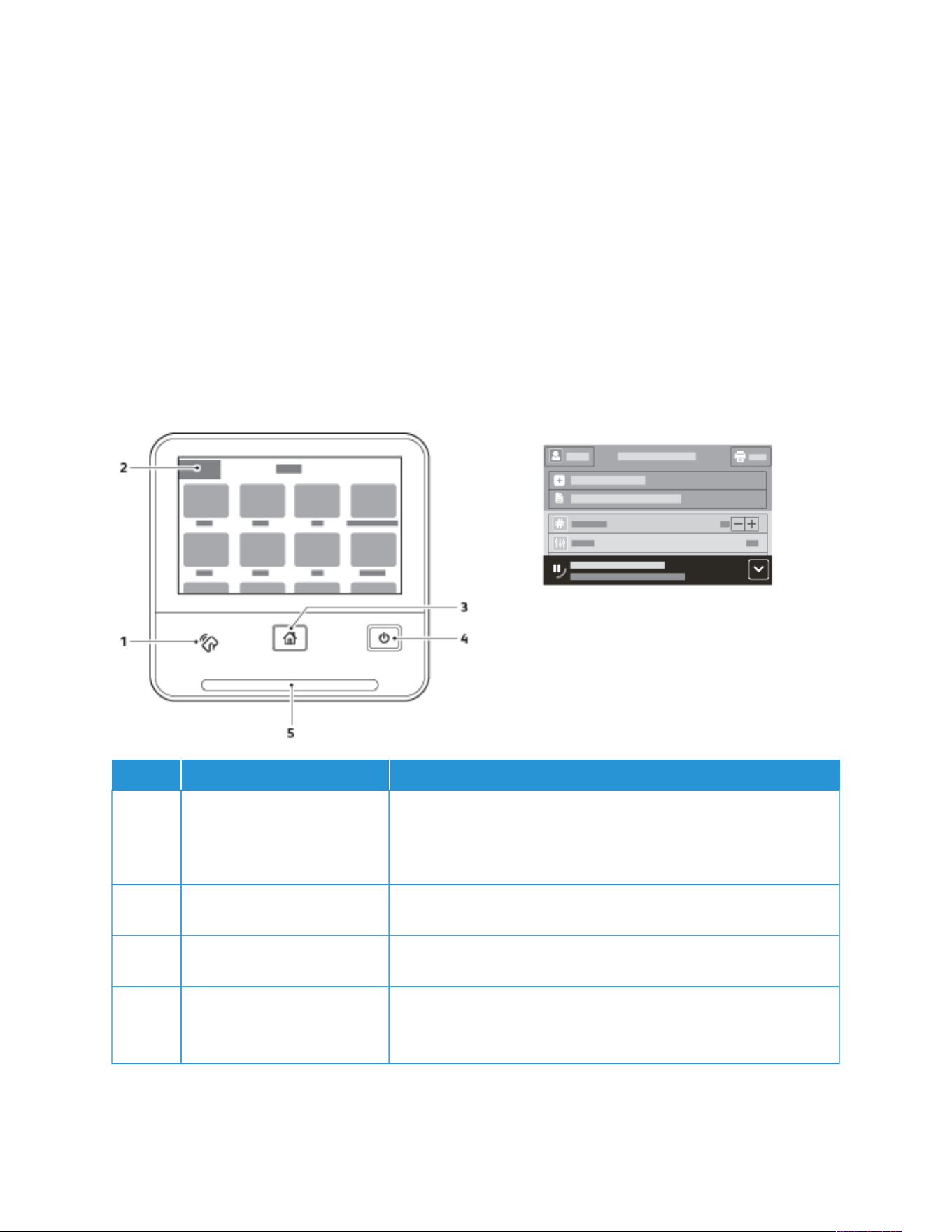
CONTROL PANEL
The control panel consists of a touch screen and buttons you press to control the functions available on the printer.
The control panel:
• Displays the current operating status of the printer.
• Provides access to printing features.
• Provides access to reference materials.
• Provides access to Tools and Setup menus.
• Prompts you to load paper, replace supplies, and clear jams.
• Displays errors and warnings.
• Provides the Power/Wake button used for powering on or off the printer. This button also supports the power-
saver modes, and blinks to indicate the power status of the printer.
IITTEEMM NNAAMMEE DDEESSCCRRIIPPTTIIOONN
1 NFC Area Near Field Communication (NFC), is a technology that enables
devices to communicate when they are within 10 cm (4 in.) of each
other. Use the NFC area to obtain a network interface or to establish
a TCP/IP connection between your device and the printer.
2 Touch Screen Display The screen displays information and provides access to printer
functions.
3 Home Button This button provides access to the Home menu for access to printer
features.
4 Power/Wake This button serves several power-related functions.
• When the printer is powered off, this button powers on the
printer.
Xerox
®
VersaLink
®
B400 Printer User Guide 21
Getting Started

IITTEEMM NNAAMMEE
DDEESSCCRRIIPPTTIIOONN
• When the printer is powered on, pressing this button displays a
menu on the control panel. From this menu, you can choose to
enter Sleep mode, restart, or power off the printer.
• When the printer is powered on, but in a low-power mode or
Sleep mode, pressing this button wakes the printer.
• When the printer is powered on, holding this button for 10-
seconds turns off the printer.
• This button also blinks to indicate the power status of the printer.
• When the light blinks slowly, the printer is in low-power mode or
Sleep mode.
• When the light blinks rapidly, the printer is powering down, or
exiting a low-power mode.
5 Status LED This light blinks blue or amber to indicate printer status.
BBlluuee
• Blinks blue once to acknowledge a successful Authentication
request.
• Blinks blue once slowly for a print job initiated at the control
panel.
• Blinks blue twice slowly for a print job received from the network.
• Blinks blue rapidly while the printer is powering up, or to signal
detection of a Wi-Fi Direct connection request.
AAmmbbeerr
• Blinks amber to indicate an error condition or warning that
requires your attention. For example, an out-of-toner condition, a
paper jam, or out of paper for the current job.
• It also blinks amber to indicate a system error, which typically is
associated with an error code.
6 Notification Banner Notifications and messages are displayed in a pop-up banner below
the apps area. To view the full notification, touch the down arrow.
Once you have reviewed the information, touch XX to close.
7 Pause Button When a job is being processed, a Pause icon appears in the
notification banner area. To pause the current job, touch the Pause
icon. The job pauses with the option to resume or delete the job.
22
Xerox
®
VersaLink
®
B400 Printer User Guide
Getting Started


REAR VIEW
1. Duplex Unit
2. Transfer Roll
3. Fuser
4. Power Connector
5. Back Cover
6. Control Board
7. Left-Side Cover
8. Power Switch
9. Foreign Device Interface Connector
10. USB 2.0 Port
11. USB 3.0 Port
12. Wireless Network Adapter Port Cover
13. Ethernet Port
24
Xerox
®
VersaLink
®
B400 Printer User Guide
Getting Started
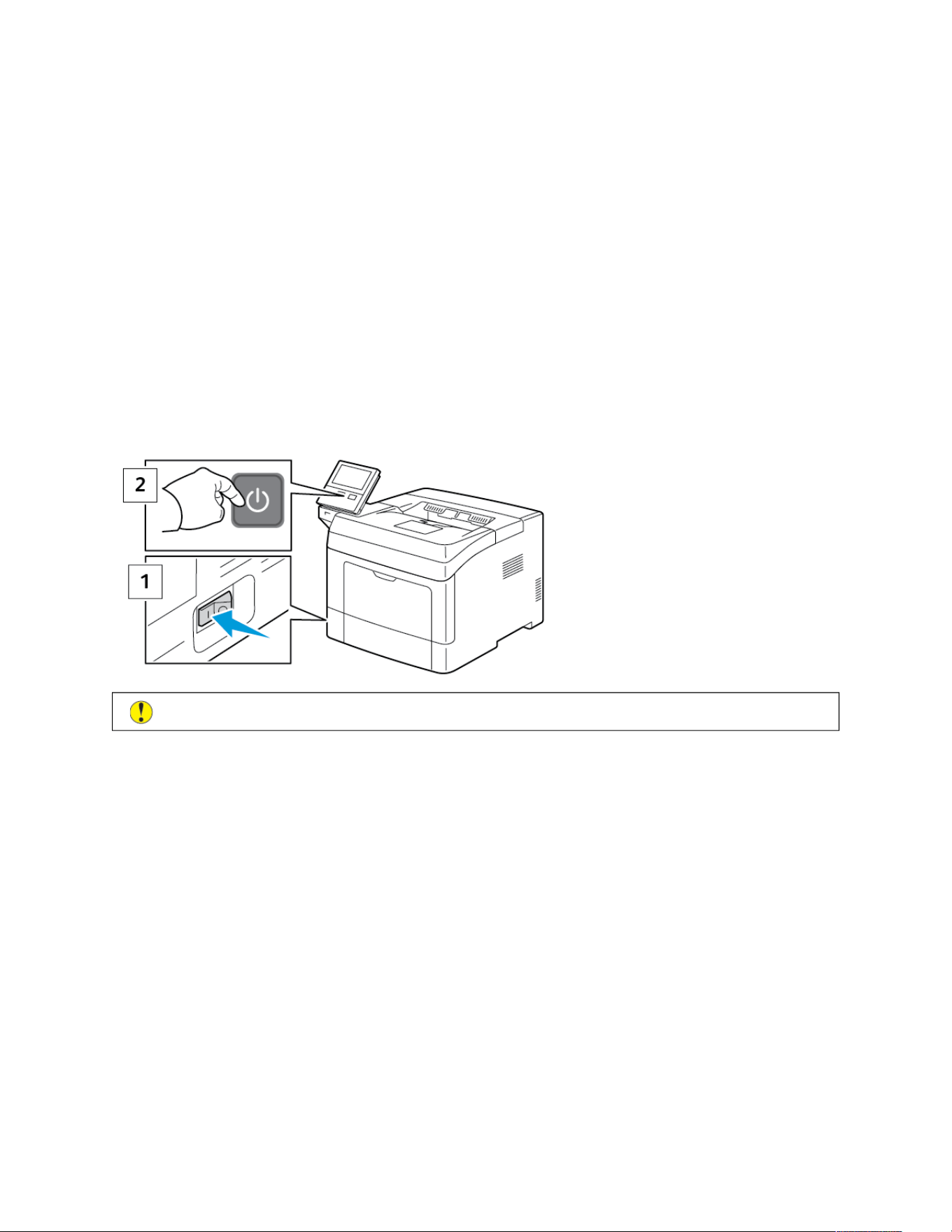
Power Options
The Power/Wake button is a single multifunction button on the control panel.
• The Power/Wake button powers on the printer.
• If the printer is already powered on, you can use the Power/Wake button to:
– Restart the printer
– Enter or exit Sleep mode
– Enter or exit Low-Power mode
• The Power/Wake button also flashes when the printer is in Low-Power mode.
POWERING ON THE PRINTER
To power on the printer when it is off, press the power switch and then press the PPoowweerr//WWaakkee button.
CCaauuttiioonn:: Do not plug or unplug the power cord while the printer is powered on.
EXITING LOW-POWER MODE OR SLEEP MODE
Once the printer is powered on:
• The printer exits Low-Power mode or Sleep mode automatically when it receives data from a connected device.
• The touch screen may appear blank and unresponsive when the printer is in Low-Power mode or Sleep mode. To
wake the printer manually, press the PPoowweerr//WWaakkee button.
Xerox
®
VersaLink
®
B400 Printer User Guide 25
Getting Started

CCaauuttiioonn:: Do not unplug the power cord while the printer powers down.
RESTARTING, ENTERING SLEEP MODE OR LOW-POWER MODE
To restart, enter sleep mode, or enter low-power mode:
1. At the printer control panel, press the PPoowweerr//WWaakkee button.
2. Select an option:
• To restart the printer, touch RReessttaarrtt.
• To place the printer in Sleep Mode, touch SSlleeeepp.
In Sleep Mode, the touch screen goes dark and the Power/Wake button flashes.
26
Xerox
®
VersaLink
®
B400 Printer User Guide
Getting Started

Accessing the Printer
LOGGING IN
Logging in is the process by which you identify yourself to the printer for authentication. If authentication is set, to
access printer features, you log in with your user credentials.
Logging In at the Control Panel
1. At the printer control panel, press the HHoommee button.
2. Touch LLoogg IInn.
3. Type the User Name using the keypad, then touch EEnntteerr.
4. If prompted, enter the password, then touch EEnntteerr.
Note: For more information on logging in as system administrator, refer to the System Administrator Guide
at www.xerox.com/support/VLB400docs.
5. Touch OOKK.
Note: To access each password-protected service, enter the User Name and password.
Functions Related to NIST 800-171 for Local Authentication
To improve critical cybersecurity infrastructure for organizations, the National Institute of Standards and
Technology (NIST) in the United States created the Cybersecurity Framework (CSF). The system administrator can
change the NIST 800-171r2 compatible settings through the Embedded Web Server. The NIST 800-171r2 related
functions include the following features:
PPrreevveenntt RReeuussee ooff UUsseerr IIDD
The system administrator can configure the printer to prohibit the reuse of a previous user ID value for a
specified amount of time since the user ID was last used, from 1–999 days. The system administrator can
change the number of days through the Embedded Web Server.
AAuuttoo UUsseerr IIDD DDiissaabblleemmeenntt
The printer disables the user accounts that have not logged in to the printer for a specified period. The system
administrator can specify the number of days, from 1–999 days. If your account is locked after a period of time
and you cannot access the printer, contact your system administrator for assistance.
PPaasssswwoorrdd CCoommpplleexxiittyy
When you change a password, the printer restricts the number of characters that you can reuse from the
previous password. The system administrator specifies the maximum number of characters that can be reused,
from 1–63. The printer rejects any new password that exceeds the specified maximum number of reused
characters. If you are changing your password and encounter an error, contact your system administrator and
comply with the password complexity requirements for your printer.
For example, if the maximum number of characters is set to 3 characters, a password of TEST123 cannot be
changed to TEST444, because it contains four characters from the previous password. A password of
GOOD123 is valid, because it contains three characters from the previous password.
Xerox
®
VersaLink
®
B400 Printer User Guide 27
Getting Started

RReeuussee ooff PPaasssswwoorrdd
To prohibit the reuse of recent passwords, the system administrator can specify the interval before a user can
reuse a password. The interval range is from 1–10. If you are changing your password and encounter an error,
contact your system administrator and comply with the password complexity requirements for your printer.
TTeemmppoorraarryy PPaasssswwoorrdd
After the system administrator creates a user account or changes or resets the account password using one of
the following options, when you log in, the printer can prompt a password change:
• AAdddd
• EEddiitt
• RReesseett PPaasssswwoorrdd
When the option is enabled, the password set by the system administrator is regarded as a temporary password.
When you are logged in with a temporary password, the printer prompts you to change the password. As a
security feature, you are required to change your password before the first login at the printer. Until the
temporary password is changed, remote authentication attempts through EIP or SNMP fail for the user. Contact
your system administrator for assistance.
UUsseerr AAccccoouunntt LLoocckk--oouutt
After a specified number of invalid login attempts for a user account, the printer locks out the account. If you do
not log in to the printer for a long period of time, your account can be disabled automatically. Contact your
system administrator for assistance.
For more information, refer to the System Administrator Guide at www.xerox.com/support/VLB400docs.
SMART CARD
When a Common Access Card system is installed on your Xerox device, access to the printer requires the use of a
Smart Card. There are several models of card readers that are compatible with your device. To access the printer,
insert the pre-programmed identification card into the reader, or place your card on the reader. If extra security
credentials are required, enter the login information at the control panel.
For more information about configuring a Common Access Card system on your device, refer to the Xerox
®
VersaLink
®
Common Access Card System Configuration Guide at www.xerox.com/support/VLB400docs.
28
Xerox
®
VersaLink
®
B400 Printer User Guide
Getting Started

Introduction to Apps
Xerox Apps are a gateway to the features and functions of your device. Standard Apps are already installed on the
device and appear on the Home screen. Some Apps are installed as standard, but hidden the first time you use the
device.
When you log in, the Apps configured for your personal account appear on the control panel.
You can download more Apps for your device from the Xerox
®
App Gallery. For more information, refer to www.
xerox.com/XeroxAppGallery.
Xerox
®
VersaLink
®
B400 Printer User Guide 29
Getting Started
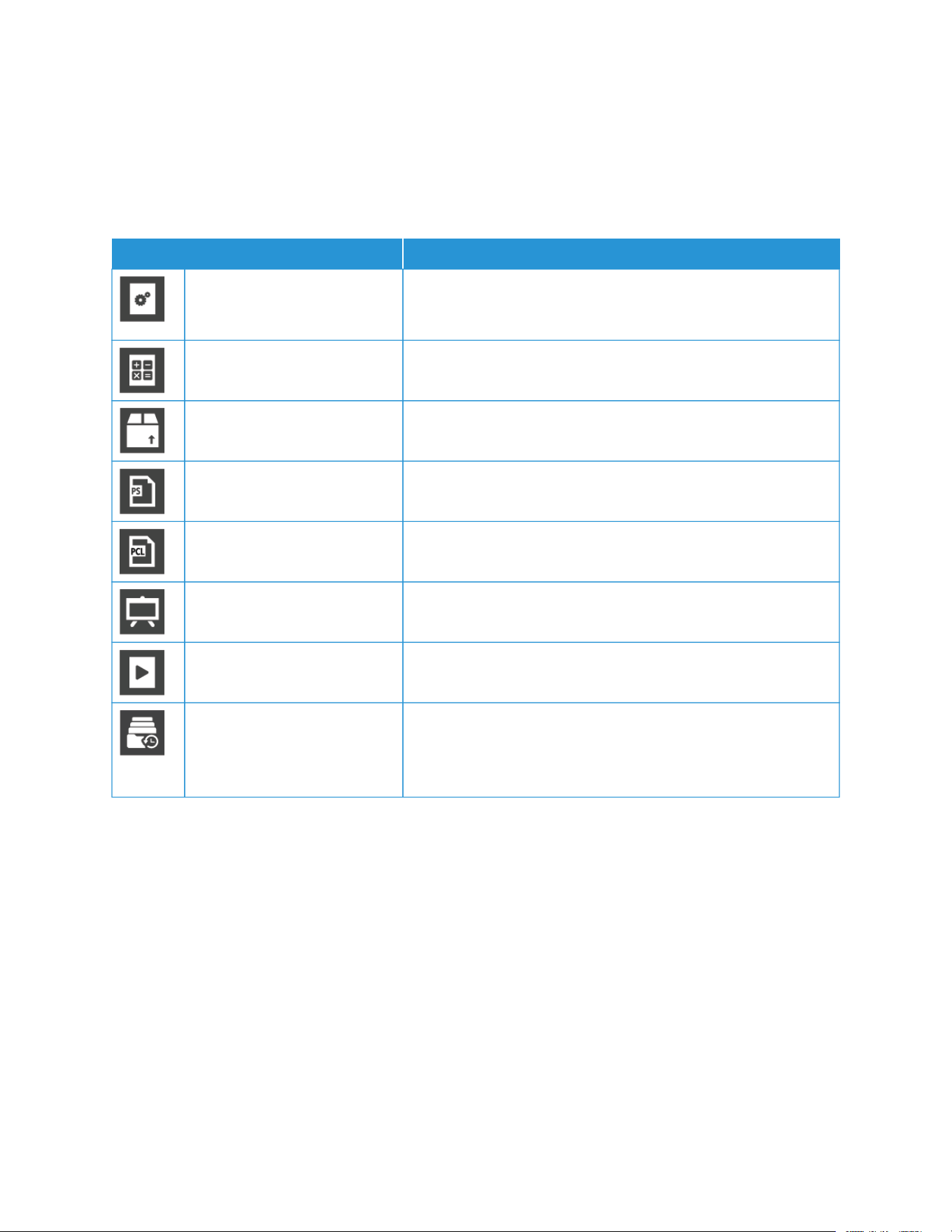
Information Pages
Your printer has a set of Information Pages that you can print. These pages include configuration and font
information, demonstration pages, and more.
The following Information Pages are available:
NNAAMMEE
DDEESSCCRRIIPPTTIIOONN
Configuration Report The Configuration Report provides printer information including
installed options, network settings, port setup, tray information,
and more.
Billing Summary Report The Billing Summary Report provides information about the device
and a detailed listing of the billing meters and sheet counts.
Supplies Usage Report The Supplies Usage Report provides coverage information and part
numbers for reordering supplies.
PostScript Font List The PostScript Font List provides a printout of all PostScript fonts
that are available on the printer.
PCL Font List The PCL Font List provides a printout of all PCL fonts that are
available on the printer.
Demonstration Print Demonstration Print provides a demonstration of the current print-
quality settings.
Startup Page The Startup Page provides basic printer configuration and network
information.
Job History Report The Job History Report provides retained information on previous
print jobs, including the date, time, job type, document name,
output color, paper size, number of pages, and results. The status
of a maximum of 20 jobs prints on the Job History Report.
PRINTING INFORMATION PAGES
1. At the printer control panel, press the HHoommee button.
2. Touch DDeevviiccee >> AAbboouutt >> IInnffoorrmmaattiioonn PPaaggeess.
3. To print an information page, touch the needed page.
4. To return to the Home screen, press the HHoommee button.
CONFIGURATION REPORT
The Configuration Report provides product information including installed options, network settings, port setup, tray
information, and more.
30
Xerox
®
VersaLink
®
B400 Printer User Guide
Getting Started

Printing the Configuration Report
1. At the printer control panel, press the HHoommee button.
2. Touch DDeevviiccee >> AAbboouutt >> IInnffoorrmmaattiioonn PPaaggeess.
3. Touch CCoonnffiigguurraattiioonn RReeppoorrtt.
4. To return to the Home screen, press the HHoommee button.
Xerox
®
VersaLink
®
B400 Printer User Guide 31
Getting Started

The Embedded Web Server
The Embedded Web Server is the administration and configuration software that is installed in the printer. It allows
you to configure and administer the printer from a Web browser.
The Embedded Web Server requires:
• A TCP/IP connection between the printer and the network in Windows, Macintosh, UNIX, or Linux environments.
• TCP/IP and HTTP enabled in the printer.
• A network-connected computer with a Web browser that supports JavaScript.
ACCESSING THE EMBEDDED WEB SERVER
At your computer, open a Web browser. In the address field, type the IP address of the printer, then press EEnntteerr or
RReettuurrnn.
FINDING THE IP ADDRESS OF YOUR PRINTER
To install the print driver for a network-connected printer, it is often necessary to know the IP address of your
printer. Also, the IP address is used to access the settings of your printer through the Embedded Web Server. You
can view the IP address of your printer on the control panel or on the Configuration Report.
Note: To view the TCP/IP address on the control panel, wait until the printer has been on for 2 minutes. If
the TCP/IP address is 0.0.0.0, or begins with 169, it indicates a network connectivity issue. However, if Wi-Fi
is set as the primary Ethernet connection, 0.0.0.0 is displayed as the IP address for the printer.
Viewing the IP Printer Address on the Control Panel
To view the IP address of the printer on the control panel:
1. At the printer control panel, press the HHoommee button.
2. Touch DDeevviiccee >> AAbboouutt.
3. Record the IP address from the display.
4. To return to the Home screen, press the HHoommee button.
Obtaining the Printer IP Address from the Configuration Report
To obtain the printer IP address from the Configuration Report:
1. At the printer control panel, press the HHoommee button.
2. Touch DDeevviiccee >> AAbboouutt >> IInnffoorrmmaattiioonn PPaaggeess.
3. Touch CCoonnffiigguurraattiioonn RReeppoorrtt.
The IP address appears in the Connectivity section of the Configuration Report for IPv4 or IPv6.
4. To return to the Home screen, press the HHoommee button.
32
Xerox
®
VersaLink
®
B400 Printer User Guide
Getting Started

CERTIFICATES FOR THE EMBEDDED WEB SERVER
Your device includes a self-signed HTTPS certificate. The device generates the certificate automatically during
device installation. The HTTPS certificate is used to encrypt communications between your computer and the Xerox
device.
Note:
• The Embedded Web Server page for your Xerox device can display an error message that the security
certificate is not trusted. This configuration does not lessen the security of the communications between
your computer and the Xerox device.
• To eliminate the connection warning in your Web browser, you can replace the self-signed certificate
with a signed certificate from a Certificate Authority. For information on obtaining a certificate from a
Certificate Authority, contact your Internet Service Provider.
For information on obtaining, installing, and enabling certificates, refer to the System Administrator Guide at www.
xerox.com/support/VLB400docs.
DOWNLOADING THE CONFIGURATION REPORT FROM THE EMBEDDED WEB SERVER
From the Embedded Web Server, you can download and save a copy of the Configuration Report to your computer
hard drive. Use Configuration Reports from multiple devices to compare software versions, configurations, and
compliance information.
To download a copy of the Configuration Report from the Embedded Web Server:
1. At your computer, open a Web browser. In the address field, type the IP address of the printer, then press EEnntteerr
or RReettuurrnn.
For details about obtaining the IP address of your printer, refer to Finding the IP Address of Your Printer.
2. To download the Configuration Report scroll to the bottom of the page, then, in the Quick Links section, click
DDoowwnnllooaadd CCoonnffiigguurraattiioonn RReeppoorrtt.
Note: If this feature does not appear, log in as a system administrator.
The document is saved automatically as an XML file in the default download location on your computer hard
drive. To open the Configuration Report, use an XML viewer.
USING THE REMOTE CONTROL PANEL FEATURE
The Remote Control Panel feature in the Embedded Web Server allows you to access the printer control panel
remotely from a Web browser.
To access the Remote Control Panel, first enable the feature. For details, contact your system administrator or refer
to the System Administrator Guide at www.xerox.com/support/VLB400docs.
1. At your computer, open a Web browser. In the address field, type the IP address of the printer, then press EEnntteerr
or RReettuurrnn.
For details about obtaining the IP address of your printer, refer to Finding the IP Address of Your Printer.
2. In the Quick Links area, click RReemmoottee CCoonnttrrooll PPaanneell.
Note: If the Remote Control Panel option is not displayed or fails to load, contact your system administrator.
Xerox
®
VersaLink
®
B400 Printer User Guide 33
Getting Started

3. To restrict other users from accessing the device control panel when you are connected remotely to the device,
click the LLoocckk DDeevviiccee CCoonnttrrooll PPaanneell option.
Note: If a local user attempts to access the control panel while the device control panel is locked, the control
panel does not respond. A message appears on the control panel, confirming that the control panel is locked
and the device is being controlled remotely.
4. To enable remote access to the device control panel, click RReeqquueesstt SSeessssiioonn. The remote control panel sends a
request to the local control panel.
• If the local control panel is inactive, the remote control panel session is activated automatically.
• If a local user is active on the device, a Remote Session Request message appears on the local control
panel. The local user chooses to accept or deny the request. If the request is accepted, the remote control
panel session is activated. If the request is denied, a Request Denied message appears in the Embedded
Web Server.
Note: If the system administrator requests a remote session, if the request is denied, an option to override
the local session is displayed.
34
Xerox
®
VersaLink
®
B400 Printer User Guide
Getting Started

Installation and Setup
For reference:
• Installation Guide packaged with your printer
• Online Support Assistant at www.xerox.com/support/VLB400docs
INSTALLATION AND SETUP OVERVIEW
Before you print, ensure that your computer and the printer are plugged in, powered on, and connected. Configure
the initial settings of the printer, then install the print driver software and utilities on your computer.
You can connect to your printer directly from your computer using USB, or connect to a network using an Ethernet
cable or wireless connection. Hardware and cabling requirements vary for the different connection methods.
Routers, network hubs and switches, modems, Ethernet cables, and USB cables are not included with your printer
and must be purchased separately. Xerox recommends an Ethernet connection because it is typically faster than a
USB connection, and it provides access to the Embedded Web Server.
For more information, refer to the System Administrator Guide at www.xerox.com/support/VLB400docs.
SELECTING A LOCATION FOR THE PRINTER
1. Select a dust-free area with temperatures from 5–32°C (41–90°F), and relative humidity 15–85%.
Note: Sudden temperature fluctuations can affect print quality. Rapid heating of a cold room can cause
condensation inside the printer, directly interfering with image transfer.
2. Place the printer on a level, solid, non-vibrating surface with adequate strength for the weight of the printer.
The printer must be horizontal with all four feet in solid contact with the surface. To find the weight for your
printer configuration, refer to Weights and Dimensions. Select a location with adequate clearance to access
supplies and to provide proper ventilation. To find the clearance requirements for your printer, refer to
Clearance Requirements.
3. After positioning the printer, you are ready to connect it to the power source and computer or network.
Xerox
®
VersaLink
®
B400 Printer User Guide 35
Getting Started

Connecting the Printer
SELECTING A CONNECTION METHOD
You can connect the printer to your computer using a USB cable, Ethernet cable, or wireless connection. The
method that you select depends on how your computer is connected to the network. A USB connection is a direct
connection and is the easiest to set up. An Ethernet connection is used to connect to a network. If you are using a
network connection, it is important to understand how your computer is connected to the network.
Note: Hardware and cabling requirements vary for the different connection methods. Routers, network hubs,
network switches, modems, Ethernet cables, and USB cables are not included with your printer and must be
purchased separately.
UUSSBB
If you connect the printer to one computer and do not have a network, use a USB connection. A USB
connection offers fast data speeds, but typically not as fast as a network connection.
Note: To access the Embedded Web Server, a network connection is required.
NNeettwwoorrkk
If your computer is connected to an office network or home network, use an Ethernet cable to connect the
printer to the network. You cannot connect the printer directly to the computer. A connection through a router
or network switch is required. An Ethernet network can be used for one or more computers and supports many
printers and systems simultaneously. An Ethernet connection is typically faster than USB and allows you direct
access to the settings of the printer using the Embedded Web Server.
WWiirreelleessss NNeettwwoorrkk
If your environment includes a wireless router or wireless access point, you can connect the printer to the
network with a wireless connection. A wireless network connection provides the same access and services as a
wired connection. A wireless network connection is typically faster than USB and allows direct access to the
settings of the printer using the Embedded Web Server.
CONNECTING TO A COMPUTER USING USB
To connect using USB, you need one of these operating systems:
• Windows 7, Windows 8.1, Windows Server 2008, Windows 10, Windows Server 2008 R2, and Windows Server
2012.
• Macintosh OS X version 10.10 and later.
• UNIX and Linux: Your printer supports connection to various UNIX platforms through the network interface.
To connect the printer to the computer using a USB cable:
1. Connect the BB end of a standard A/B USB 2.0 or USB 3.0 cable to the USB Port on the back of the printer.
2. Connect the AA end of the USB cable to the USB port on the computer.
3. If the Windows Found New Hardware Wizard appears, press CCaanncceell.
4. Install the print driver.
36
Xerox
®
VersaLink
®
B400 Printer User Guide
Getting Started

CONNECTING TO A WIRED NETWORK
1. Ensure that the printer is powered off.
2. Attach a Category 5 or better Ethernet cable from the printer to the network or router socket. Use an Ethernet
switch or router, and two or more Ethernet cables. Connect the computer to the switch or router with one cable,
then connect the printer to the switch or router with the second cable. Connect to any port on the switch or
router except the uplink port.
3. Attach the power cord, then plug in the printer and power it on.
4. Set the network IP printer address, or set up the printer for automatic printer IP detection. For more
information, refer to the System Administrator Guide at www.xerox.com/support/VLB400support.
CONNECTING TO A WIRELESS NETWORK
A wireless local area network (WLAN) provides the means to connect 2 or more devices in a LAN without a physical
connection. The printer can connect to a wireless LAN that includes a wireless router or wireless access point. Before
connecting the printer to a wireless network, the wireless router must be configured with a service set identifier
(SSID) and any necessary credentials.
Note: Wireless networking is available only on printers with the optional Wireless Network Adapter installed.
Configuring the Printer for a Wireless Network
Note: Before you configure wireless network settings, install the Xerox
®
Wireless Network Adapter Kit.
If you purchased and installed a Wireless Network Adapter Kit, you can connect the device to a wireless network. If
the device is connected to a wired network, you can configure wireless networking at the device, or use the
Embedded Web Server. For details on configuring wireless network settings, refer to the System Administrator Guide
at www.xerox.com/support/VLB400docs.
After the Wireless Network Adapter is installed, remove it only as necessary. For information on removing the
adapter, refer to Removing the Wireless Network Adapter.
Installing the Wireless Network Adapter
The optional wireless network adapter plugs in to the back of the printer. After the adapter is installed, and wireless
networking is enabled and configured, the adapter is able to connect to a wireless network.
To install the Wireless Network Adapter:
Xerox
®
VersaLink
®
B400 Printer User Guide 37
Getting Started

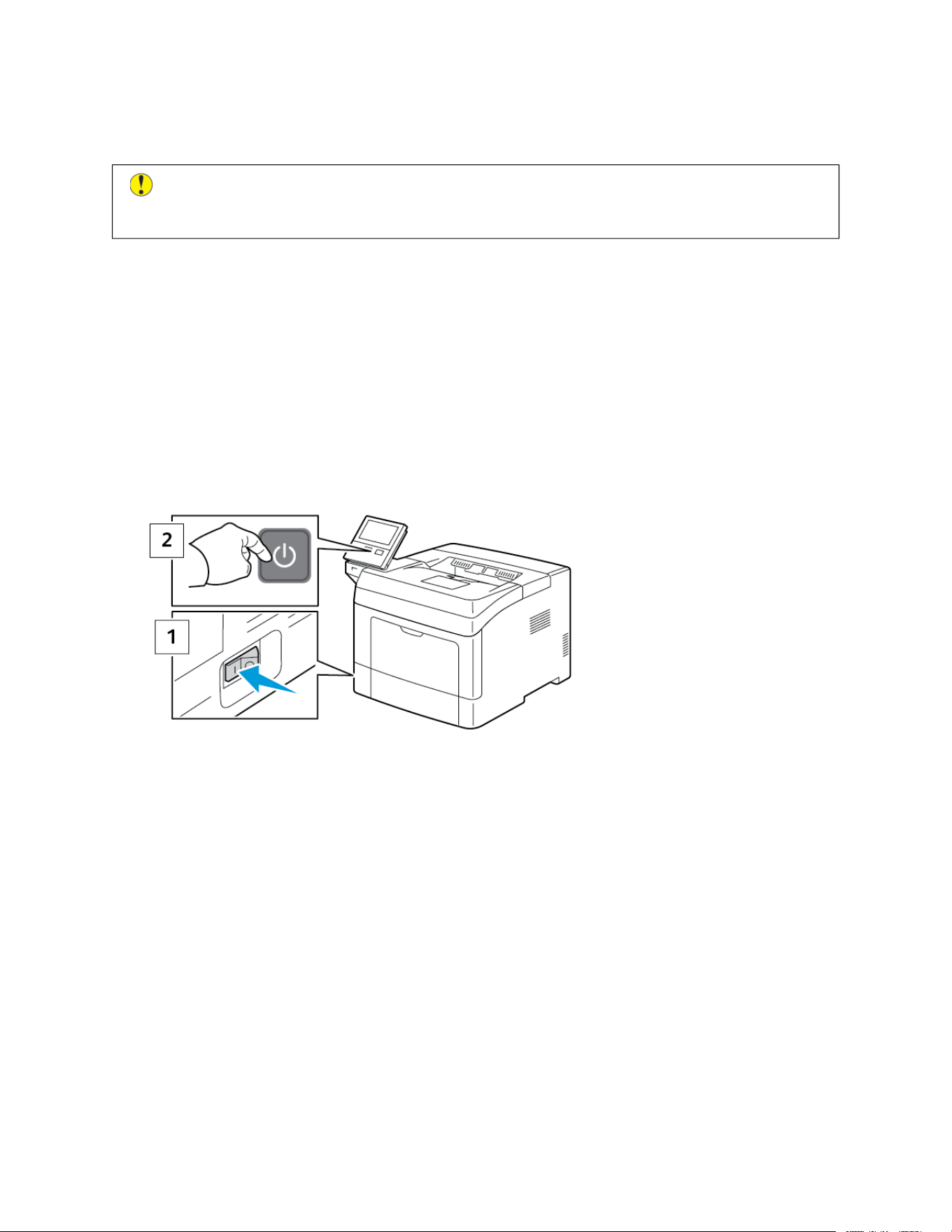
5. To install the Wireless Network Adapter, follow the installation instructions provided with the Wireless Network
Adapter.
CCaauuttiioonn:: Pulling on the adapter can cause damage. After the adapter is installed, remove it only as
needed, and as directed in the Wireless Network Adapter removal instructions. For details, refer to
Removing the Wireless Network Adapter.
6. Power on the printer.
7. Configure the Wi-Fi Settings. For details about configuring the Wi-Fi settings, refer to the System Administrator
Guide at Removing the Wireless Network Adapter.
Removing the Wireless Network Adapter
1. Power off the printer.
Xerox
®
VersaLink
®
B400 Printer User Guide 39
Getting Started
2. To open the left-side cover, loosen the bolt on the back of the printer that secures the cover. Slide the cover
toward the back, then out and away from the printer.
3. Reach into the printer and pull the release lever. Grasp the Wireless Network Adapter with your other hand and
carefully pull it away from the printer.
CCaauuttiioonn:: Do not use force to pull on the Wireless Network Adapter. If the latch is released properly, the
adapter pulls out easily. Pulling on a secured adapter can damage it.
40
Xerox
®
VersaLink
®
B400 Printer User Guide
Getting Started

4. To reinstall the Wireless Network Adapter Port Cover, insert the tab into the small slot. Gently press the port
cover against the back of the printer until the cover latches into place.
5. Place the left-side cover into position and slide it toward the front of the printer. Tighten the bolt to secure the
cover.
Xerox
®
VersaLink
®
B400 Printer User Guide 41
Getting Started
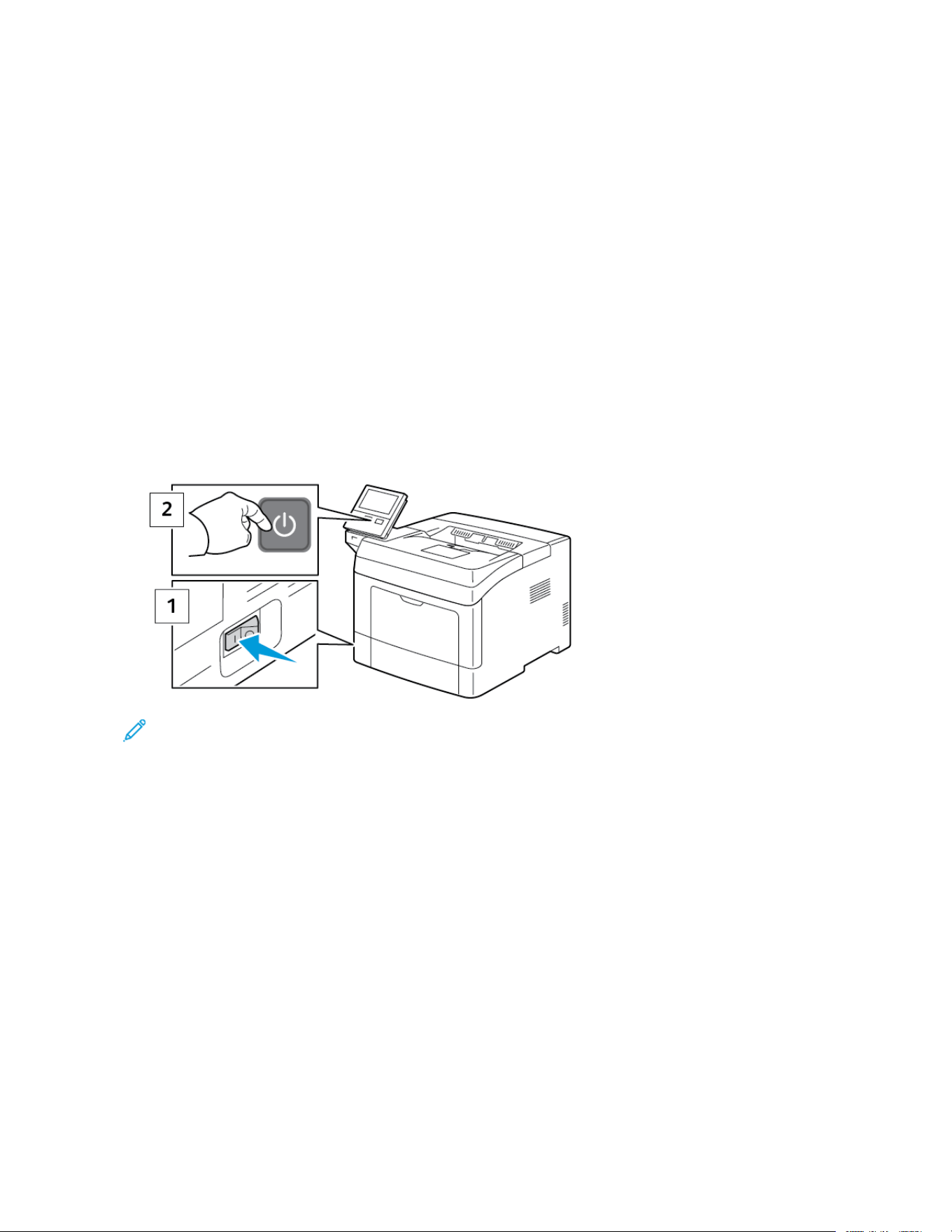
6. Connect the printer to your computer with a USB cable or through the network using an Ethernet cable.
7. Power on the printer.
Note: If the printer was installed previously in a wireless network environment, it could retain setup and
configuration information from that environment. To prevent the printer from attempting to connect to the
previous network, reset the wireless settings. For more information, refer to the System Administrator Guide
at www.xerox.com/support/VLB400docs.
Connecting to a Wi-Fi Network at the Control Panel
To connect to a Wi-Fi network at the control panel:
1. At the printer control panel, press the HHoommee button.
2. Log in as administrator. For details, refer to the System Administrator Guide at www.xerox.com/support/
VLB400docs.
3. Touch DDeevviiccee >> CCoonnnneeccttiivviittyy >> WWii--FFii.
4. To enable the Wi-Fi feature, touch the enable toggle button.
5. To connect automatically to an existing Wi-Fi network:
42
Xerox
®
VersaLink
®
B400 Printer User Guide
Getting Started

a. In the list of available Wi-Fi networks, touch the required network.
If the required Wi-Fi network is not listed, or if the required network uses WPS, configure the connection
manually. For details, go to the next step.
b. If needed, to log in to the network, type the password.
c. To select a Wi-Fi frequency band, touch WWii--FFii BBaanndd, then select an option.
By default, the Wi-Fi frequency band is set to AUTO.
d. Touch OOKK.
6. To connect manually to a Wi-Fi Network:
a. Touch MMaannuuaall SSeettuupp.
b. In the first field, type a name for the Wi-Fi network, then touch EEnntteerr.
c. Touch NNeettwwoorrkk TTyyppee, then select an option.
d. Touch SSeeccuurriittyy, then select an option.
e. Touch WWii--FFii PPrrootteecctteedd SSeettuupp ((WWPPSS)), then select an option.
Note: For a WPS setup with a Push Button Connection (PBC), select PPBBCC.
f. Touch OOKK.
Configuring the Primary Network at the Control Panel
You can set the primary network connection type at the device control panel.
Note:
• A Primary Network setup is required only if the optional Wi-Fi network connection kit is installed and
enabled.
• By default, without a Wi-Fi network connection, the primary network is set to Ethernet. When the kit is
installed and enabled, the device acquires two network connections. One network connection is primary,
and the other network connection is secondary.
• The following features are available only over the primary network connection:
– IPsec
– SMTP
– SNTP
– WSD scan
– Scan to SFTP, Scan to SMB, Scan to Email
– LDAP
– UPnP discovery
– ThinPrint
– EIP Web Service
Xerox
®
VersaLink
®
B400 Printer User Guide 43
Getting Started

• If you remove the Wi-Fi network connection module, the primary network connection is set to Ethernet.
To configure the primary network at the control panel:
1. At the printer control panel, press the HHoommee button.
2. Log in as administrator. For details, refer to the System Administrator Guide at www.xerox.com/support/
VLB400docs.
3. Touch DDeevviiccee >> CCoonnnneeccttiivviittyy >> PPrriimmaarryy NNeettwwoorrkk.
4. Select the appropriate network connection type for the device.
5. To apply the changes and restart the device, at the prompt, touch RReessttaarrtt NNooww.
Connecting to Wi-Fi Direct
You can connect to your printer from a Wi-Fi mobile device, such as a tablet, computer, or smartphone, using Wi-Fi
Direct. Wi-Fi Direct is disabled by default.
Note: Wireless networking is available only on printers with the optional Wireless Network Adapter installed.
To connect with Wi-Fi Direct, follow the directions provided with your mobile device.
CONFIGURING AIRPRINT
AirPrint
®
is a software feature that allows you to print from wired or wireless Apple iOS-based mobile devices and
Mac OS-based devices without the need to install a print driver. AirPrint-enabled printers allow you to print directly
from a Mac, an iPhone, iPad, or iPod touch. You can use AirPrint to print from a wired device or a wireless device
without using a print driver.
Note:
• Not all applications support AirPrint
®
.
• Wireless devices must join the same wireless network as the printer.
• For AirPrint to function, both IPP and Bonjour
®
(mDNS) protocols must be enabled.
• The device that submits the AirPrint job must be on the same subnet as the printer. To allow devices to
print from different subnets, configure your network to pass multicast DNS traffic across subnets.
• The Mac OS device must be Mac OS 10.10 or later.
• AirPrint-enabled printers work with all models of iPad, iPhone (3GS or later), and iPod touch (third
generation or later), running the latest version of iOS.
1. At your computer, open a Web browser. In the address field, type the IP address of the printer, then press EEnntteerr
or RReettuurrnn.
Note: If you do not know the IP address for your printer, refer to Finding the IP Address of Your Printer.
44
Xerox
®
VersaLink
®
B400 Printer User Guide
Getting Started

2. In the Embedded Web Server, click HHoommee >> CCoonnnneeccttiivviittyy.
Note: If this feature does not appear, log in as a system administrator.
3. For Mobile Printing, click AAiirrPPrriinntt.
4. To enable AirPrint, click the EEnnaabbllee toggle button.
Note: AirPrint is enabled by default when IPP and Bonjour
®
(mDNS) are both enabled.
• To change the printer name, in the Name field, enter a new name.
• To enter a location for the printer, in the Location field, enter the location of the printer.
• To enter a physical location or address for the printer, in the Geo-Location field, enter the geographic
latitude and longitude coordinates in decimal form. For example, use coordinates such as 45.325026,
-122.766831 for a location.
5. Click OOKK.
6. To activate your changes, at the prompt, click RReessttaarrtt NNooww.
CONFIGURING GOOGLE CLOUD PRINT
Google Cloud Print allows you to print documents that are stored in the cloud without using a print driver.
Before you begin:
• Set up a Google email account.
• Configure the printer to use IPv4.
• Configure Proxy Server settings as needed.
To configure Google Cloud Print:
1. At your computer, open a Web browser. In the address field, type the IP address of the printer, then press EEnntteerr
or RReettuurrnn.
Note: If you do not know the IP address for your printer, refer to Finding the IP Address of Your Printer.
2. In the Embedded Web Server, click HHoommee >> CCoonnnneeccttiivviittyy.
3. For Mobile Printing, click GGooooggllee CClloouudd PPrriinntt.
4. To enable Google Cloud Print, click the EEnnaabbllee toggle button.
5. Click OOKK.
6. Restart the printer, then wait 2 minutes for the printer to connect.
7. Refresh your Web browser, then for Mobile Printing, click GGooooggllee CClloouudd PPrriinntt.
8. Click PPrriinntteerr RReeggiissttrraattiioonn.
9. Click RReeggiisstteerr.
A printer registration page prints.
Xerox
®
VersaLink
®
B400 Printer User Guide 45
Getting Started

10. To register the printer, in your Web browser, type the URL provided, or use your mobile phone to scan the
barcode.
After the printer is registered, a confirmation status window appears.
11. To access the Google Cloud Print feature, in your Google account, click MMaannaaggee YYoouurr PPrriinntteerr.
Note: The default printer name appears in this format: Model name (MAC address).
46
Xerox
®
VersaLink
®
B400 Printer User Guide
Getting Started

Initial Printer Setup
Before installing the printer software, verify that the printer is set up correctly. Setup includes enabling the optional
features and assigning an IP address for the Ethernet network connection. The installation wizard starts
automatically the first time the printer is powered on. The installation wizard prompts the system administrator to
configure the following settings:
• Language
• Network Connection
• Proxy Server Setup
• Date and Time
• Measurements
• LDAP Settings
• Apps Setup
• Security Settings
For more information on configuring the printer settings, refer to the System Administrator Guide at www.xerox.
com/support/VLB400docs.
XEROX
®
EASY ASSIST (XEA) APP
Xerox Easy Assist app allows you to access and configure the printer from your smartphone. To access the printer
from your smartphone, download and install the Xerox Easy Assist app on your mobile device. By installing the
Xerox Easy Assist app on your smartphone, you can setup your new printer easily, manage its configuration, view
alerts indicating supply requirements and order them, and get live troubleshooting support for your printer.
To install the Xerox Easy Assist app on your smartphone, you need to scan a QR Code or search the app in the Apple
App Store or Google Play Store. There are two types of XEA QR Codes:
• QR Code to acquire the XEA app: This QR Code is for the initial installation of the app. To install the Xerox Easy
Assist app for the first time, you are required to scan this QR Code using your smartphone camera. You can find
this QR Code on the packaging box or the XEA QR Code Flyer that comes with the printer. Check the following
locations for the XEA QR Code:
– XEA QR Code Flyer
– Printer packaging box
– Device Install Wizard
For more information, refer to Initial Setup with Xerox
®
Easy Assist (XEA) App.
• QR Code to connect the mobile device to the printer: This QR Code is to setup a Wireless network connection
between the smartphone and the printer. For example, connection to Wi-Fi Direct. You can find this QR Code in
the device Install Wizard. The QR Code provides all key information to connect your smartphone and the printer
without manually entering any technical information. To connect to the printer, scan this QR Code within the
Xerox Easy Assist app.
Primary features of Xerox Easy Assist app, are:
Xerox
®
VersaLink
®
B400 Printer User Guide 47
Getting Started

SSeett UUpp aa NNeeww PPrriinntteerr
If you have the QR Code available, you can set up a new Xerox printer with the help of Xerox Easy Assist app. On
My Printers screen in the app, touch the ++ icon, then touch SSeett UUpp aa NNeeww PPrriinntteerr. Follow the instructions from
the app.
To add an existing printer to the XEA app, use the IP Address of the printer. For more information, refer to
Adding Multiple Printers to the Xerox Easy Assist App.
PPrriinntteerr SSttaattuuss
The status displays the printer information, such as readiness of the printer, toner level, and paper tray status for
each tray. You can order parts and supplies through the Xerox Easy Assist app. If the toner level appears to be
low, to order a new toner, select the TToonneerr icon, then touch RReeoorrddeerr.
AAlleerrttss
The Xerox Easy Assist app can notify you of any errors or problems in the printer. To view the error statement,
touch the BBeellll icon.
PPrriinntt
You can perform a print job through the Xerox Easy Assist app. In the app, select your printer, then touch PPrriinntt.
Select the document that you need to print from your mobile device, confirm the print settings, then touch
PPrriinntt.
DDeevviiccee SSeettttiinnggss
You can view and edit your printer settings from the DDeevviiccee SSeettttiinnggss tab. If you have not setup a password
during the initial setup, to view or edit existing printer settings, you need to set up the password.
SSuuppppoorrtt
You can request support and find solutions for printer-related problems through the Xerox Easy Assist app. In the
app, select your printer, then touch SSuuppppoorrtt. It connects you to Xerox’s Support Agent Live Chatbot.
SSeett UUpp CCoommppuutteerr
You can download Print and Scan Drivers for your printer through Xerox Easy Assist app. In the app, select your
printer, then touch SSeett UUpp CCoommppuutteerr. In the Email field, type your registered email address, then touch the ++
icon to add your email. To download and install the Print and Scan Drivers, the app sends a Quick Link to your
email address.
PPrriinntt TTeesstt PPaaggee
To confirm that all settings are correct, you can print a test page. In the app, select your printer, then touch
PPrriinntt TTeesstt PPaaggee.
RReemmoovvee aa PPrriinntteerr
You can remove a printer from the Xerox Easy Assist app. In the app, select a printer from My Printers list, then
swipe left and touch RReemmoovvee.
INITIAL SETUP WITH XEROX
®
EASY ASSIST (XEA) APP
To complete the initial setup and install the Xerox Easy Assist app for the first time, do the following:
48
Xerox
®
VersaLink
®
B400 Printer User Guide
Getting Started

1. For initial setup when the printer is powered on for the first time, the Initial Setup Wizard appears. In the printer
control panel, do the following:
a. Select your LLaanngguuaaggee, then touch NNeexxtt.
The Xerox Easy Assist Mobile App screen appears.
b. To use your mobile device to set up and manage your printer, touch YYeess.
Get the App screen appears to confirm the type of your mobile device. Choose any one option:
• iiOOSS: To install the Xerox Easy Assist app for your iPhone, select this option.
• AAnnddrrooiidd: To install the Xerox Easy Assist app for your Android mobile device, select this option.
• II hhaavvee tthhee AApppp: If you have already installed Xerox Easy Assist app on your mobile device, select this
option.
2. If you have selected iOS or Android option, a screen appears to help you download the app. In the control
panel, touch SShhooww QQRR CCooddee option.
A screen appears with the QR Code. To install the app, scan the QR Code with your smartphone camera.
3. Download and install the Xerox Easy Assist app on your smartphone:
• For Android phones: Go to Google Play Store, then search for Xerox Easy Assist app.
• For iOS or iPhones: Go to Apple App Store, then search for Xerox Easy Assist app.
4. When you install the app for the first time on your smartphone, for End-User License Agreement (EULA), touch
II AAggrreeee.
Note: The Xerox Easy Assist App has instructions that help you to unpack the printer from its packaging box.
To watch a helpful video to unpack your printer, scan the QR Code on the XEA QR Code Flyer that came with
your printer with your smartphone camera. Accept the End-User License Agreement (EULA), then follow the
instructions that appear on the app.
5. Follow the instructions that appear on the app. To connect your smartphone with the printer, touch CCoonnnneecctt
TToo MMyy PPrriinntteerr.
6. In the printer control panel, to connect to the app, touch SShhooww QQRR CCooddee option. The second or connect–QR
Code appears.
7. Scan the QR Code through the Xerox Easy Assist app. Follow the instructions that appear on the app.
When the connection is configured, your smartphone and the printer share the same Wireless network,
temporarily.
8. With the support of Xerox Easy Assist app, complete the general settings and register the printer on the
network.
General settings include Admin Password, Connectivity, Measurements, Date and Time, Sound, Power Saver
settings, and more.
Note: Ensure that your smartphone is connected to the same Wireless or wired network as the printer and
they can communicate after the setup is complete.
9. To complete the initial setup in the app, type the necessary information for your printer, then touch CCoommpplleettee
SSeettuupp.
The Welcome screen appears.
Xerox
®
VersaLink
®
B400 Printer User Guide 49
Getting Started

When the initial setup is complete, with the Xerox Easy Assist app, you can perform the following:
• Setting up a new printer
• Checking the printer status and order supplies
• Downloading Print and Scan Drivers
• Printing
• Getting troubleshooting support
• Removing a printer from the XEA app My Printers list
For Xerox Easy Assist app features, refer to Xerox
®
Easy Assist (XEA) App.
ADDING MULTIPLE PRINTERS TO THE XEROX EASY ASSIST APP
If your printer is already set up on your network and the Initial Setup Wizard is complete, through the XEA app, you
can include additional printers directly to the list of My Printers. To add printers that are on the network, open the
XEA app Home page. On the My Printers screen, touch the ++ icon, then refer to the following options:
• SSeettttiinngg UUpp aa NNeeww PPrriinntteerr: To set up a new printer from your smartphone XEA app, in the Add Printer screen,
select SSeett UUpp aa NNeeww PPrriinntteerr. Follow the instructions that appear on the printer control panel and your mobile
device.
• AAddddiinngg aann EExxiissttiinngg PPrriinntteerr: To add an existing printer from the network, there are two options:
– QQRR CCooddee
– IIPP AAddddrreessss
Select the IIPP AAddddrreessss option. To connect to the printer by typing the IP Address manually, touch IIPP AAddddrreessss.
Type the IP Address of the printer, then touch OOKK. To find the IP Address, refer to Finding the IP Address of Your
Printer.
Note: For an existing printer that does not require Initial Setup, QQRR CCooddee option is not applicable.
• FFiinnddiinngg tthhee NNeeaarrbbyy NNeettwwoorrkk PPrriinntteerrss: When your smartphone is connected to the same wireless or wired
network as the printer, to find nearby printers, select PPrriinntteerrss AArroouunndd MMee. The app looks for nearby printers on
the network:
– If the app finds the printer, you can select and add the printer directly.
– If the app is unable to find the printer you are looking for, then you can add the printer by typing its IP
address.
Note: If the printer and mobile device cannot communicate, ensure that they are on the same network.
50
Xerox
®
VersaLink
®
B400 Printer User Guide
Getting Started

Installing the Software
Before installing driver software, verify that the printer is plugged in, powered on, connected correctly, and has a
valid IP address. The IP address usually appears in the upper, right corner of the control panel. If you cannot find
the IP address, refer to Finding the IP Address of Your Printer.
If the Software and Documentation disc is not available, download the latest drivers from www.xerox.com/support/
VLB400drivers.
OPERATING SYSTEM REQUIREMENTS
• Windows 7, Windows 8.1, Windows Server 2008, Windows 10, Windows Server 2008 R2, and Windows Server
2012.
• Macintosh OS X version 10.10 and later.
• UNIX and Linux: Your printer supports connection to various UNIX platforms through the network interface.
INSTALLING THE PRINT DRIVERS FOR A WINDOWS NETWORK PRINTER
1. Insert the Software and Documentation disc into the appropriate drive on your computer. If the installer does
not start automatically, navigate to the drive, and double-click the SSeettuupp..eexxee installer file.
2. Select your printer model.
3. Click IInnssttaallll DDrriivveerrss.
4. Select IInnssttaallll PPrriinntt DDrriivveerr.
5. At the License Agreement, click II AAggrreeee.
6. From the list of discovered printers, select your printer.
Note: When installing drivers for a network printer, if your printer does not appear in the list, click the IIPP
AAddddrreessss oorr DDNNSS NNaammeebutton. In the IP Address or DNS Name field, type the IP address of your printer,
then click SSeeaarrcchh to locate and select your printer. If you do not know the IP address of the printer, refer to
Finding the IP Address of Your Printer.
7. Click NNeexxtt.
8. If needed, you can name your printer by typing a name in the QQuueeuuee NNaammee field.
9. Select a Print Driver.
10. Click IInnssttaallll.
11. If needed, set the printer as the default printer.
Note: Before selecting SShhaarree PPrriinntteerr, contact your system administrator.
12. To complete the installation, click FFiinniisshh, then click CClloossee.
INSTALLING THE PRINT DRIVERS FOR A WINDOWS USB PRINTER
1. Insert the Software and Documentation disc into the appropriate drive on your computer. If the installer does
not start automatically, navigate to the drive, and double-click the SSeettuupp..eexxee installer file.
Xerox
®
VersaLink
®
B400 Printer User Guide 51
Getting Started

2. Click IInnssttaallll SSooffttwwaarree.
3. At the License Agreement, select II AAggrreeee, then click NNeexxtt.
4. To install the printer support software, select SSooffttwwaarree, then click NNeexxtt.
5. In the Software and Documentation window, clear the check box for any unnecessary options.
6. Click NNeexxtt.
7. To complete the installation, click FFiinniisshh.
INSTALLING THE DRIVERS AND UTILITIES FOR MACINTOSH OS X
1. Insert the Software and Documentation disc into the appropriate drive on your computer.
2. Open Xerox
®
Print Drivers 3.xx.x.dmg/.pkg as needed for your printer.
3. To run Xerox
®
Print Drivers 3.xx.x.dmg/.pkg, double-click the appropriate file name.
4. When prompted, click CCoonnttiinnuuee.
5. To accept the license agreement, click II AAggrreeee.
6. To accept the current installation location, click IInnssttaallll, or select another location for the installation files, then
click IInnssttaallll.
7. If prompted, enter your password, then click OOKK.
8. From the list of discovered printers, select your printer, then click NNeexxtt.
9. If your printer does not appear in the list of discovered printers:
a. Click the NNeettwwoorrkk PPrriinntteerr IIccoonn.
b. Type the IP address of your printer, then click CCoonnttiinnuuee.
c. Select your printer in the list of discovered printers, then click CCoonnttiinnuuee.
10. If your printer was not detected, verify that the printer is powered on and that the Ethernet or USB cable is
connected properly.
11. To accept the print queue message, click OOKK.
12. Select or clear the SSeett PPrriinntteerr aass DDeeffaauulltt and PPrriinntt aa TTeesstt PPaaggee check boxes.
13. Click CCoonnttiinnuuee, then click CClloossee.
Adding the Printer
1. Verify that the CUPS (Common UNIX Printing System) daemon is running.
2. Open a Web browser and type http://localhost:631/admin, then click EEnntteerr or RReettuurrnn.
3. For User ID, type root. For password, type the root password.
4. Click AAdddd PPrriinntteerr, then follow the onscreen prompts to add the printer to the CUPS printer list.
To add the printer using Bonjour
1. From the computer Applications folder or from the dock, open SSyysstteemm PPrreeffeerreenncceess.
52
Xerox
®
VersaLink
®
B400 Printer User Guide
Getting Started

2. Click PPrriinntteerrss && SSccaannnneerrss.
The list of printers appears on the left of the window.
3. Under the list of printers, click the plus button (++).
4. At the top of the window, click the DDeeffaauulltt icon.
5. Select your printer from the list, then click AAdddd.
Adding the Printer by Specifying the IP Address
To add the printer by specifying the IP address:
1. From the computer Applications folder or from the dock, open SSyysstteemm PPrreeffeerreenncceess.
2. Click PPrriinntteerrss && SSccaannnneerrss.
The list of printers appears on the left of the window.
3. Under the list of printers, click the Plus icon (++).
4. Click IIPP.
5. From the Protocol list, select the protocol.
6. In the Address field, enter the IP address of the printer.
7. In the Name field, enter a name for the printer.
8. From the Use list, choose SSeelleecctt aa ddrriivveerr ttoo uussee.
9. From the printer software list, select the print driver for your printer model.
10. Click AAdddd.
INSTALLING DRIVERS AND UTILITIES FOR UNIX AND LINUX
For more information on installing print drivers and utilities for UNIX and Linux, refer to UNIX and Linux Printing.
INSTALLING THE PRINTER AS A WEB SERVICE ON DEVICES
Web Services on Devices (WSD) allows a client to discover and access a remote device and its associated services
across a network. WSD supports device discovery, control, and use.
To install a WSD printer using the Add Device Wizard
1. At your computer, click SSttaarrtt, then select DDeevviicceess aanndd PPrriinntteerrss.
2. To launch the Add Device Wizard, click AAdddd aa DDeevviiccee.
3. In the list of available devices, select the one you want to use, then click NNeexxtt.
Note: If the printer you want to use does not appear in the list, click the CCaanncceell button. Add the WSD
printer manually using the Add Printer Wizard.
4. Click CClloossee.
Xerox
®
VersaLink
®
B400 Printer User Guide 53
Getting Started

To install a WSD printer using the Add Printer Wizard
1. At your computer, click SSttaarrtt, then select DDeevviicceess aanndd PPrriinntteerrss.
2. To launch the Add Printer Wizard, click AAdddd aa PPrriinntteerr.
3. Click AAdddd aa nneettwwoorrkk,, wwiirreelleessss,, oorr BBlluueettooootthh pprriinntteerr.
4. In the list of available devices, select the one you want to use, then click NNeexxtt.
5. If the printer you want to use does not appear in the list, click TThhee pprriinntteerr tthhaatt II wwaanntt iiss nnoott lliisstteedd.
6. Select AAdddd aa pprriinntteerr uussiinngg aa TTCCPP//IIPP aaddddrreessss oorr hhoossttnnaammee, then click NNeexxtt.
7. From the Device type field, select WWeebb SSeerrvviicceess DDeevviiccee.
8. Enter the printer IP address in the Hostname or IP address field, then click NNeexxtt.
9. Click CClloossee.
54
Xerox
®
VersaLink
®
B400 Printer User Guide
Getting Started

More Information
You can obtain more information about your printer from these sources:
RREESSOOUURRCCEE LLOOCCAATTIIOONN
Installation Guide Packaged with the printer.
Other documentation for your printer www.xerox.com/support/VLB400docs
Recommended Media List United States: www.xerox.com/rmlna
European Union: www.xerox.com/rmleu
Technical support information for your printer;
including online technical support, Online Support
Assistant, and print driver downloads.
www.xerox.com/support/VLB400support
Information Pages Print from the control panel. For details, refer to
Information Pages.
Order supplies for your printer www.xerox.com/supplies
Local sales and Technical Customer Support www.xerox.com/office/worldcontacts
Printer registration www.xerox.com/register
Xerox
®
Direct online store www.direct.xerox.com/
Xerox
®
VersaLink
®
B400 Printer User Guide 55
Getting Started


Xerox
®
VersaLink
®
B400 Printer User Guide 57
Customize and Personalize
This chapter contains:
Customize and Personalize Overview. .. .. .. .. . .. .. .. .. .. . .. .. .. .. .. . .. .. .. ..... .. .. .. ..... .. .. .. ....... .. .. ....... .. .. .. ..... .. .. .. . .. .. .. .. 58
Customizing or Personalizing the Home Screen.. .. .. . .. .. .. .. .. . .. .. .. .. .. . .. .. .. .. .. . .. .. .. ....... .. .. ....... .. .. .. ..... .. .. .. ..... .. .. 59
Customizing or Personalizing the Apps . .. .. .. .. .. .. . .. .. .. .. .. . .. .. .. ..... .. .. .. ..... .. .. .. ..... .. .. .. ..... .. .. .. ....... .. .. .. . .. .. .. .. .. . . 60

Customize and Personalize Overview
This chapter provides information on how to customize and personalize your device to meet the specific demands
of your workflows.
You can customize your apps, hide, or show apps on the Home screen, and rearrange the order
to suit your job priorities. For each app, you can hide or show individual features and configure
default settings to meet the needs of your workgroup. You can save job settings for repeated
use.
Customization enables users to work more productively.
When individual user accounts are configured on the device, you can personalize the device to
meet specific user needs. You can configure your personal Home page to hide or show only the
apps you use. Each of the feature lists can be tailored to your job requirements. Default settings
for each app can be specified, and settings for regular jobs can be saved for your use.
Personalization options ensure that the features and functions displayed meet individual user
needs, improving efficiency.
58
Xerox
®
VersaLink
®
B400 Printer User Guide
Customize and Personalize

Customizing or Personalizing the Home Screen
HIDING OR SHOWING AN APP ON THE HOME SCREEN
1. At the printer control panel, press the HHoommee button.
2. Touch CCuussttoommiizzee.
3. To display an installed app that is hidden initially:
a. Touch the PPlluuss (++) icon.
b. Touch the app that you want to appear on the control panel.
c. Touch DDoonnee.
4. To hide an installed app:
a. For the app, touch XX.
b. Touch DDoonnee.
5. Verify that only the selected apps appear on the Home screen.
REARRANGING APPS ON THE HOME SCREEN
1. At the printer control panel, press the HHoommee button.
2. Touch CCuussttoommiizzee.
3. Touch and hold the required app.
4. Drag the app to the new location.
5. Release the app.
6. Touch DDoonnee.
7. Verify that the apps appear in the correct location on the Home screen.
Xerox
®
VersaLink
®
B400 Printer User Guide 59
Customize and Personalize

Customizing or Personalizing the Apps
Customization enables you to modify the features available, delete a saved preset, or remove customized settings
applied to an app.
CUSTOMIZING OR PERSONALIZING THE FEATURE LIST
To customize the Features list for an App:
1. At the printer control panel, press the HHoommee button.
2. Touch the App required.
3. Scroll to the bottom, then touch CCuussttoommiizzee.
4. Touch FFeeaattuurree LLiisstt.
Note: For logged-in administrators, a window appears that asks you to confirm if the changes are for a Guest
or for you.
5. Touch the desired option.
• To hide a feature, for the required feature, touch the EEyyee icon. To signify that the feature is hidden, the Eye
icon appears with a line across.
• To show a feature, for the required feature, touch the EEyyee icon. To signify a feature is visible, the Eye icon
appears with no line across.
6. To reorder the menu features, touch and drag the features into the desired order.
7. To save the current configuration, touch DDoonnee.
SAVING PRESETS
You can use this feature to save a particular combination of app settings for future jobs. You can save the settings
with a name and retrieve them for later use.
To save the current app settings:
1. At the printer control panel, press the HHoommee button.
2. Touch the app required.
3. Select the job settings.
4. Scroll to the bottom, then touch SSaavvee.
5. Touch SSaavvee aass NNeeww PPrreesseett.
6. Touch EEnntteerr PPrreesseett NNaammee, then to enter a preset name, use the keypad.
7. Touch NNeexxtt.
8. Select an icon that best suits the preset that you are creating.
9. Touch DDoonnee.
Note: The preset is stored within the Preset feature.
60
Xerox
®
VersaLink
®
B400 Printer User Guide
Customize and Personalize

Deleting a Saved Preset
To delete a saved preset:
1. At the printer control panel, press the HHoommee button.
2. Touch the app required.
3. Scroll to the bottom, then touch CCuussttoommiizzee.
4. Touch PPrreesseettss.
5. Touch the TTrraasshh icon that corresponds with the preset that you want to delete.
6. At the prompt, touch DDeelleettee.
7. Touch DDoonnee.
REMOVING APP CUSTOMIZATION USING THE CONTROL PANEL
To remove the current app customization settings:
1. At the printer control panel, press the HHoommee button.
2. Touch the app required.
3. Scroll to the bottom, then touch CCuussttoommiizzee.
4. Touch RReemmoovvee AApppp CCuussttoommiizzaattiioonn.
5. At the prompt, touch OOKK.
Xerox
®
VersaLink
®
B400 Printer User Guide 61
Customize and Personalize


Xerox
®
VersaLink
®
B400 Printer User Guide 63
Xerox
®
Apps
This chapter contains:
Xerox
®
App Gallery.. .. .. .. . .. .. .. .. .. . .. .. .. ....... .. .. .. ..... .. .. .. ..... .. .. .. ..... .. .. .. ..... .. .. .. ... .. .. .. .. . .. .. .. .. .. .. . .. .. .. .. .. . .. .. .. .. 64
Device .. .. .. ..... .. .. .. . .. .. .. .. .. .. . .. .. .. .. .. . .. .. .. .. .. . .. .. .. .. .. . .. .. .. .. .. . .. .. .. .. .. . .. .. .. .. .. .. . .. .. .. .. .. . .. .. .. ..... .. .. .. ..... .. .. .. ..... 67
Jobs . .. .. ..... .. .. .. . .. .. .. .. .. . .. .. .. .. .. . .. .. .. .. .. .. . .. .. .. .. .. . .. .. .. .. .. . .. .. .. .. .. . .. .. .. .. .. . .. .. .. ....... .. .. ....... .. .. .. ..... .. .. .. ..... .. .. 71
USB.. .. .. ..... .. .. .. ..... .. .. .. . .. .. .. .. .. . .. .. .. .. .. .. . .. .. .. .. .. . .. .. .. .. .. . .. .. .. .. .. . .. .. .. .. .. . .. .. .. .. .. .. . .. .. ....... .. .. .. ..... .. .. .. ..... .. .. 76
@PrintByXerox.... .. .. .. ..... .. .. .. ..... .. .. .. ....... .. .. .. . .. .. .. .. .. . .. .. .. .. .. . .. .. .. .. .. . .. .. .. .. .. . .. .. .. .. .. . .. .. .. .. .. .. . .. .. .. .. .. . .. .. .. ..78
Xerox
®
Apps are a gateway to the features and functions of your device. There are standard Apps already installed
and displayed on the Homescreen. There are also Apps that are installed as standard but are hidden when your
device is used for the first time.
For more information about customizing the Home screen and the Apps features, refer to Customize and
Personalize.
A range of Apps are available for download and installation from the Xerox
®
App Gallery. These include Xerox
®
Extensible Interface Platform (EIP) Apps. EIP Apps enable you to install secure, signed apps on compatible printers.
For more information about using the Xerox
®
Apps Gallery and downloading Apps, refer to Xerox
®
App Gallery.

Xerox
®
App Gallery
XEROX
®
APP GALLERY OVERVIEW
Use the Xerox
®
App Gallery to find apps that provide new features or capabilities for your
device. The Xerox
®
App Gallery provides direct access to apps that can improve your
productivity, simplify workflows, and enhance your user experience.
The Xerox
®
App Gallery enables you to browse and update apps easily. You can browse through the app library
without logging in. The moving banner provides an active display of apps, or you can scroll the full list of apps. To
get more details on an app, touch the app name in the list.
To use the Xerox
®
App Gallery App, ensure that your device uses either the wireless or the wired network connection.
Note: If a local server inside a firewall hosts your device and a proxy is enabled, set a proxy exception at the
device.
For more information and instructions on using the Xerox
®
App Gallery, refer to the Xerox
®
App Gallery User Guide
available at www.xerox.com/XeroxAppGallery.
CREATING A XEROX® APP GALLERY ACCOUNT
With an App Gallery account, you have direct access to all the available Apps for your device. An App Gallery
account allows you to view and acquire Apps, install Apps on your device, and manage your Apps and licenses.
An App Gallery account can be setup using the control panel or the Embedded Web Server. For information about
accessing the Embedded Web Server, refer to Getting Started.
Note: If you have an existing Xerox App Gallery Account, refer to Logging into your Xerox
®
App Gallery
Account.
To create an App Gallery account using the Control Panel:
1. At the printer control panel, press the HHoommee button.
2. Touch XXeerrooxx AApppp GGaalllleerryy.
3. Touch RReeqquueesstt aann AAccccoouunntt.
4. Touch the EEnntteerr yyoouurr eemmaaiill aaddddrreessss. Enter a valid email address using the touch screen keypad, then touch
EEnntteerr.
5. Touch OOKK. A message is displayed stating completion instructions have been sent to the email address entered.
6. Touch CClloossee.
7. Access your email account for the email address that you provided to Xerox App Gallery.
8. Open the Xerox App Gallery Account Request email, then click the URL link for creating an account.
9. Review and accept the Terms of Use. To continue creating an account, click the AAggrreeee button.
64
Xerox
®
VersaLink
®
B400 Printer User Guide
Xerox
®
Apps

10. Enter the information required into the appropriate fields:
• User ID
• Password
• Confirm Password
• First and Last Name
• Company Name
• Address (Street, City, State/Province, Postal)
• Country
11. Click OOKK.
12. After the account is created, a confirmation message appears.
13. At the printer control panel, log in to your App Gallery Account.
LOGGING INTO YOUR XEROX
®
APP GALLERY ACCOUNT
When you are logged in to the App Gallery, you can browse available apps, and install and update apps.
To log in to your App Gallery Account:
1. At the printer control panel, press the HHoommee button.
2. Touch XXeerrooxx
®
AApppp GGaalllleerryy.
3. Enter your User Name using the touch screen keypad, then touch EEnntteerr.
4. Enter your Password using the touch screen keypad, then touch EEnntteerr.
5. Touch LLoogg IInn. The Xerox
®
App Gallery appears.
INSTALLING OR UPDATING AN APP FROM THE XEROX
®
APP GALLERY
Xerox
®
Apps add, extend, or customize the functionality of your device. You can use the Xerox
®
App Gallery App to
browse and install Apps at your device control panel.
Installing an App from the App Gallery
1. At the printer control panel, press the HHoommee button.
2. Touch XXeerrooxx
®
AApppp GGaalllleerryy.
Note: You can browse the App Gallery and view app descriptions without being logged in. To download or
update apps, you must be logged in to the App Gallery.
3. Enter your User Name using the touch screen keypad, then touch EEnntteerr.
4. Enter your Password using the touch screen keypad, then touch EEnntteerr.
5. Touch LLoogg IInn. The Xerox
®
App Gallery appears.
Xerox
®
VersaLink
®
B400 Printer User Guide 65
Xerox
®
Apps

6. Touch the app required, then touch IInnssttaallll. The License Agreement screen appears.
Note: If the app was installed previously and a new version is available, the button is labeled as Update.
7. Touch AAggrreeee. The installation process begins.
If the app is not successfully installed, to attempt the installation process again, touch IInnssttaallll.
8. To exit the Xerox
®
App Gallery, touch EExxiitt.
Updating an App from the App Gallery
1. At the printer control panel, press the HHoommee button.
2. Touch XXeerrooxx
®
AApppp GGaalllleerryy.
3. Enter your User Name using the touch screen keypad, then touch EEnntteerr.
4. Enter your Password using the touch screen keypad, then touch EEnntteerr.
5. Touch LLoogg IInn. The Xerox
®
App Gallery appears.
6. Touch the app required, then touch UUppddaattee. The License Agreement screen appears.
7. Touch AAggrreeee.
8. When the update is complete, the Update button is labeled as Installed.
9. To exit the Xerox
®
App Gallery App, touch EExxiitt.
66
Xerox
®
VersaLink
®
B400 Printer User Guide
Xerox
®
Apps
Device
DEVICE OVERVIEW
The Device App gives you access to information about your printer, including the serial
number and model. You can view the status of the paper trays, billing and supplies
information, and print Information Pages.
You can configure many Device options to meet your individual needs. For details about configuring all Device
settings, refer to the System Administrator Guide at www.xerox.com/support/VLB400support.
Device Options
For details on configuring the printer settings, refer to the System Administrator Guide at www.xerox.com/support/
VLB400docs.
The following Device options are available:
OOPPTTIIOONN DDEESSCCRRIIPPTTIIOONN
Language Language allows you to set the language that appears on the control panel.
About The About option provides an overview of your device and its current
settings and status. You can access Information Pages and reports using this
option.
Software Update Use this option to check for software updates and configure update settings.
Notifications Use the Notifications option to see details of current alerts or faults on the
device. A History button displays fault codes and the date that the fault
occurred on the device.
Paper Trays Use the Paper Trays option to see the paper size, type, and color set for each
paper tray and the tray-capacity status.
Supplies Use the Supplies option to monitor the status of the components you can
replace. The supply level and estimated number of impressions or days left
for each unit is displayed.
Billing/Usage Use the Billing/Usage option to view the serial number and the total number
of impressions made by your device.
General Use the General option to customize settings such as the power-saver
modes, date and time, and control panel brightness. You can configure the
General settings using the device control panel, or by using the Embedded
Web Server.
Xerox
®
VersaLink
®
B400 Printer User Guide 67
Xerox
®
Apps
OOPPTTIIOONN DDEESSCCRRIIPPTTIIOONN
Apps Use Apps to select settings for the apps installed on your device.
Connectivity Use the Connectivity option to configure network settings at the control
panel, or join another wireless network.
Support Use this option to access and print the Support Pages to assist with
troubleshooting errors.
Resets Use the Resets option to reset device settings and font, forms, and macros
to the factory-default settings.
ABOUT
The About option provides an overview of your device and current settings and status. You can access Information
Pages and reports using this option.
SUPPLY STATUS
You can check the status and percentage of life remaining for your printer supplies at the control panel or from the
Embedded Web Server. When printer supplies near their replacement time, warning alerts appear on the control
panel. You can customize the alerts that appear on the control panel and configure email alert notifications.
To check the supplies status and set up alerts using the Embedded Web Server, refer to the System Administrator
Guide at www.xerox.com/support/VLB400docs.
Checking the Supplies Status at the Control Panel
1. To view status information for the printer supplies, touch DDeevviiccee >> SSuupppplliieess.
2. To view details about a specific item, including part numbers for reordering, touch the specific item.
3. To return to the Supplies screen, touch XX.
4. To return to the Device screen, touch the back arrow.
Customizing Supplies Alert Settings
1. To customize the alerts that appear for printer supplies, touch DDeevviiccee >> SSuupppplliieess >> AAlleerrttss SSeettuupp.
2. To enable supplies alerts that appear on the control panel, touch the EEnnaabbllee AAlleerrttss toggle button.
3. To configure the printer to display an alert when an item reaches a specific usage percentage level, touch the
item, then select the percentage.
4. To customize the alerts for each supply item, or to enable or disable an alert, touch the toggle button.
5. To return to the Supplies screen, touch XX.
6. To return to the Device screen, touch the back arrow.
68
Xerox
®
VersaLink
®
B400 Printer User Guide
Xerox
®
Apps

Setting Up Email Alerts
To check the supplies status and set up alerts using the Embedded Web Server, refer to the System Administrator
Guide at www.xerox.com/support/VLB400docs.
1. To set up alerts to send to an email address, touch DDeevviiccee >> SSuupppplliieess >> EEmmaaiill AAlleerrttss.
2. To enter an email address, touch AAdddd EEmmaaiill, then touch EEnntteerr EEmmaaiill AAddddrreessss.
3. Use the touch screen keyboard to enter an email address, or select an entry from the Address Book, then touch
OOKK.
4. Add more email addresses if necessary.
5. To customize the alerts for each supply item, or to enable or disable an alert, touch the toggle button.
6. To exit the menu, touch OOKK.
7. To return to the Device screen, touch the back arrow.
BILLING AND USAGE COUNTERS
The Billing/Usage menu displays the total number of impressions that the printer generated or printed during its
lifetime. You cannot reset the counters. A page is counted as one side of a sheet of paper. For example, a sheet of
paper that is printed on two sides counts as two impressions.
To view the Billing and Usage Counters:
1. At the printer control panel, press the HHoommee button.
2. Touch DDeevviiccee >> BBiilllliinngg//UUssaaggee.
3. To view more details, touch UUssaaggee CCoouunntteerrss, then select an option.
• IImmpprreessssiioonn CCoouunntteerrss: This option provides the number of impressions made by the printer. The number of
impressions cannot equal the number of sheets counted, depending on the printer setup. If your printer
counts large sheets as large impressions or as multiple smaller impressions, the number of impressions can
differ.
• SShheeeett CCoouunntteerrss: This option provides the number of impressions made by the printer. Impressions for 2-
sided sheets are listed on a separate line from 1-sided sheets.
• AAllll UUssaaggee CCoouunntteerrss: This option provides all printer usage information.
4. To return to the Billing/Usage screen, touch the back arrow.
5. To return to the Device screen, touch the back arrow.
RESET TO FACTORY DEFAULTS
CCaauuttiioonn:: The Reset to Factory Defaults feature erases all settings and returns the printer to the original
factory state. All jobs, presets, apps, and device settings are reset. If the printer includes a hard disk, the
disk is reinitialized.
The non-volatile memory (NVRAM) stores printer settings, even after the power is turned off. When complete, the
printer restarts, then displays the Install Wizard.
To reset the printer to factory defaults:
Xerox
®
VersaLink
®
B400 Printer User Guide 69
Xerox
®
Apps

1. At the printer control panel, press the HHoommee button.
2. Touch DDeevviiccee >> RReesseettss >> RReesseett ttoo FFaaccttoorryy DDeeffaauullttss.
3. At the prompt, touch RReesseett.
4. When the process is complete, the printer restarts automatically.
REMOTE SERVICES
You can use the Remote Services option in the Embedded Web Server to send error and usage information to the
Xerox support team to help them resolve problems quickly.
For information about enabling Remote Services and uploading information to Xerox, refer to the System
Administrator Guide at www.xerox.com/support/VLB400docs.
70
Xerox
®
VersaLink
®
B400 Printer User Guide
Xerox
®
Apps

Jobs
JOBS OVERVIEW
Use Jobs to view current jobs, print saved, personal, and secure jobs, and view details of
completed jobs. You can pause, delete, print, or view job progress or job details for a
selected job.
MANAGING JOBS
From the control panel Jobs menu, you can view lists of active jobs, secure jobs, or completed jobs. You can pause,
delete, print, or view job progress or job details for a selected job. From the Jobs window in the Embedded Web
Server, you can view a list of active and completed print jobs. For more information, refer to Managing Jobs Using
the Embedded Web Server.
A print job can be held by the printer when it is unable to complete a print job. For example, when the printer needs
attention, paper, or supplies. When the condition is resolved, the printer automatically resumes printing. When you
send a Secure Print job, the job is held until you release it by typing a passcode at the control panel. For more
information, refer to Printing Special Job Types.
Pausing the Print Job with the Option to Delete It
1. At the printer control panel, press the HHoommee button.
2. Touch JJoobbss, then touch the name of the print job.
3. Do one of the following:
• To pause the print job, touch PPaauussee. To resume the print job, touch RReessuummee.
• To delete the print job, touch DDeelleettee. At the prompt, touch DDeelleettee.
Note: If you do not make a selection within 60 seconds, the job resumes automatically.
4. To return to the Home screen, press the HHoommee button.
Viewing, Printing, or Deleting Saved and Secure Jobs
Note:
• The system administrator can restrict users from deleting jobs. If a system administrator has restricted
job deletion, you can view the jobs, but not delete them.
• Only the user that sent the job or the system administrator can delete a Secure Print job.
1. At the printer control panel, press the HHoommee button.
2. To view a list of active and completed jobs, touch JJoobbss.
Xerox
®
VersaLink
®
B400 Printer User Guide 71
Xerox
®
Apps

3. To view a list of specific job types, touch an option.
• To view Saved Jobs, touch SSaavveedd JJoobbss. To print the job, touch the job, enter the quantity, then touch OOKK. To
delete the job, touch the TTrraasshh icon, then touch DDeelleettee.
• To view Personal jobs, touch PPeerrssoonnaall && SSeeccuurree JJoobbss. To print the jobs, touch the folder, then touch PPrriinntt
AAllll, or DDeelleettee AAllll.
• For Secure Jobs, touch PPeerrssoonnaall && SSeeccuurree JJoobbss. Touch the folder, enter the passcode number, then touch
OOKK. To print a Secure Job, touch the job. To print or delete all the jobs in the folder, touch PPrriinntt AAllll, or
DDeelleettee AAllll.
4. To view details about a job, touch the job.
5. To return to the Home screen, press the HHoommee button.
Printing a Job Held for Resources
1. At the printer control panel, press the HHoommee button.
2. Touch JJoobbss.
3. From the jobs list, touch the held job name. The resources required for the job appear on the control panel.
4. Do one of the following:
• To print the job, replenish the resources required. The job resumes automatically when the required
resources are available. If the job does not print automatically, touch RReessuummee. Select from the following
options:
• DDeelleettee JJoobb: To delete the print job that is on hold, touch DDeelleettee.
• RReellooaadd MMeeddiiaa: To load recommended media in the feeder, touch RReellooaadd MMeeddiiaa.
• CChhaannggee MMeeddiiaa: If the recommended media is unavailable, to print on alternate media, touch CChhaannggee
MMeeddiiaa.
Note: If the new media size is smaller than the size specified in original print job, valid data outside the
printable area of the new media will be cut off.
• To delete the print job, touch DDeelleettee. At the prompt, touch DDeelleettee.
5. To return to the Home screen, press the HHoommee button.
MANAGING SPECIAL JOB TYPES
Special job types allow you to send a print job from your computer, then print it from the printer control panel.
Select special job types in the print driver, Printing Options tab, under Job Type.
Saved Jobs
Saved Jobs are documents sent to the printer and, unless deleted, are stored there for future use. Any user can print
or delete a Saved Job.
To print a Saved Job, refer to Printing a Saved Job.
72
Xerox
®
VersaLink
®
B400 Printer User Guide
Xerox
®
Apps

Releasing a Saved Job
1. At the printer control panel, press the HHoommee button.
2. Touch JJoobbss.
3. To view Saved Jobs, touch SSaavveedd JJoobbss.
4. To print a Saved Job, touch the job name, enter the quantity, then touch OOKK.
5. To delete the document after printing, for that job, touch the TTrraasshh icon, then at the prompt, touch DDeelleettee.
6. To return to the Home screen, press the HHoommee button.
Secure Print
Use Secure Print to print sensitive or confidential information. After you send the job, it is held at the printer until
you enter your passcode at the printer control panel.
To print a Secure Print job, refer to Printing a Secure Print Job.
Releasing a Secure Print job
1. At the printer control panel, press the HHoommee button.
2. Touch JJoobbss.
3. To view Secure Print jobs, touch PPeerrssoonnaall && SSeeccuurree JJoobbss.
4. Touch your folder.
5. Enter the passcode number, then touch OOKK.
6. Select an option:
• To print a Secure Print job, touch the job.
• To print all the jobs in the folder, touch PPrriinntt AAllll.
• To delete a Secure Print job, touch the TTrraasshh icon. At the prompt, touch DDeelleettee.
• To delete all the jobs in the folder, touch DDeelleettee AAllll.
Note: After a Secure Print job is printed, it is deleted automatically.
7. To return to the Home screen, press the HHoommee button.
Personal Print
Personal Print allows you to store a document in the printer, then print it from the control panel.
Note: The Personal Print feature is only available on a Windows computer printing to a network printer.
Personal Print is a type of saved job with these features:
• A Personal Print job appears in a folder named after the user ID associated with the print job.
• A Personal Print job does not use a passcode.
• Any user can print or delete a Personal Print job.
• You can print all jobs in the list at once, delete an individual job, or delete all jobs in the list.
Xerox
®
VersaLink
®
B400 Printer User Guide 73
Xerox
®
Apps

• After a Personal Print job is printed, it is deleted automatically.
To print a Personal Print job, refer to Printing a Personal Print Job.
Releasing a Personal Print Job
1. At the printer control panel, press the HHoommee button.
2. Touch JJoobbss.
3. To view Personal Print jobs, touch PPeerrssoonnaall && SSeeccuurree JJoobbss.
4. Touch your folder.
5. If prompted for a passcode, touch SSkkiipp.
Note: When your folder contains Secure Print jobs and Personal Print jobs, the passcode prompt appears.
6. Select an option.
• To print a Personal Print job, touch the job.
• To print all the jobs in the folder, touch PPrriinntt AAllll.
• To delete all the jobs in the folder, touch DDeelleettee AAllll.
7. To return to the Home screen, press the HHoommee button.
Sample Set
The Sample Set job type prints one copy of a multiple-copy print job before printing the remaining copies. After
reviewing the sample set, you can either print the remaining copies or delete them at the printer control panel.
Sample Set is a type of saved job with these features:
• A Sample Set job appears in a folder named after the user ID associated with the print job.
• A Sample Set job does not use a passcode.
• Any user can print or delete a Sample Set job.
• A Sample Set prints one copy of a job to allow you to proofread the job before printing any remaining copies.
After a Sample Set job is printed, it is deleted automatically.
To print a Sample Set, refer to Printing a Sample Set.
Releasing a Sample Set
1. At the printer control panel, press the HHoommee button.
2. To view available jobs, touch JJoobbss.
3. Touch the Sample Set job.
Note: The Sample Set file description shows the job as Held for Future Printing, and shows the number of
remaining copies of the job.
4. Select an option.
• To print the remaining copies of the job, touch RReelleeaassee.
• To delete the remaining copies of the job, touch DDeelleettee.
74
Xerox
®
VersaLink
®
B400 Printer User Guide
Xerox
®
Apps

5. To return to the Home screen, press the HHoommee button.
MANAGING JOBS USING THE EMBEDDED WEB SERVER
You can view a list of active jobs and delete print jobs from the Active Jobs list in the Embedded Web Server. You
can use the Embedded Web Server to submit jobs for printing at the device. You can print *.pdf, *.ps, *.pcl,
*.prn, *.xps, *.jpg, *.tif and *.txt files directly from the Embedded Web Server without opening another
application or the print driver. The files can be stored on a local computer hard drive, mass storage device, or
network drive.
1. At your computer, open a Web browser. In the address field, type the IP address of the printer, then press EEnntteerr
or RReettuurrnn.
2. In the Embedded Web Server, click JJoobbss.
3. Click the job name.
4. Do one of the following:
• To pause the print job, click PPaauussee. To resume the print job, click RReessuummee.
• To delete the print job, click DDeelleettee. At the prompt, click DDeelleettee.
5. To return to the Home screen, click HHoommee.
Submitting Jobs for Printing Using the Embedded Web Server
1. At your computer, open a Web browser. In the address field, type the IP address of the printer, then press EEnntteerr
or RReettuurrnn.
2. In the Embedded Web Server, click HHoommee.
3. In the Quick Links area, click SSuubbmmiitt FFiillee.
4. Click the SSuubbmmiitt field.
5. In the selection window, select a file to print, then click OOppeenn.
6. To print the document, click SSuubbmmiitt.
Xerox
®
VersaLink
®
B400 Printer User Guide 75
Xerox
®
Apps

USB
USB OVERVIEW
Use the Print from USB feature to print jobs already stored on a USB drive. Jobs in a print-
ready format, such as PDF, TIFF, or JPEG, can be printed.
To create a print-ready file, select the Print to File option when you print your documents from programs such as
Microsoft Word. From advanced publishing programs, there may be several methods to create print-ready files.
PRINTING FROM A USB FLASH DRIVE
You can print a file stored on a USB Flash drive. The USB port is on the front of the printer.
Note:
• If the device is in Power Saver mode, before proceeding with the Print job, to wake the device, press the
PPoowweerr//WWaakkee button.
• Only USB Flash drives formatted to the typical FAT32 file system are supported.
1. Insert the USB Flash drive into the USB memory port on the printer.
2. At the USB Drive has been detected screen, touch PPrriinntt ffrroomm UUSSBB.
Note: If this feature does not appear, enable the feature or contact the system administrator. For more
information, see the System Administrator Guide at www.xerox.com/support/VLB400docs.
3. Add files using the Browse USB screen.
• To print a group of print-ready files, for the USB drive or folder, touch the SSeelleecctt AAllll icon. Verify that the
files are selected.
• To print a specific file, browse to that file, then touch the file name or icon.
4. Touch OOKK.
5. Confirm that the required files are listed.
• To select more files, touch AAdddd DDooccuummeennttss, then touch OOKK.
• To remove a file name from the list, touch the file name, then touch RReemmoovvee.
6. Select the paper supply, quantity, and 2-sided printing options.
7. Touch PPrriinntt.
8. When you are finished, remove the USB Flash drive.
PRINTING FROM A USB FLASH DRIVE ALREADY INSERTED IN THE PRINTER
1. If the USB Flash drive is already in the USB memory port, press the HHoommee button.
76
Xerox
®
VersaLink
®
B400 Printer User Guide
Xerox
®
Apps

2. Touch PPrriinntt ffrroomm UUSSBB.
Note: If this feature does not appear, enable the feature or contact the system administrator. For more
information, see the System Administrator Guide at www.xerox.com/support/VLB400docs.
3. Add files using the Browse USB screen.
• To print a group of print-ready files, for the USB drive or folder, touch the SSeelleecctt AAllll icon. Verify that the
files are selected.
• To print a specific file, browse to that file, then touch the file name or icon.
4. Touch OOKK.
5. Confirm that the correct documents appear. If the documents do not appear, touch AAdddd DDooccuummeennttss, select
additional documents, then touch OOKK.
6. Select the paper supply, quantity, and 2-sided printing options.
7. Touch PPrriinntt.
Xerox
®
VersaLink
®
B400 Printer User Guide 77
Xerox
®
Apps

@PrintByXerox
@PRINTBYXEROX OVERVIEW
You can use the Xerox
®
@PrintByXerox App to print email attachments and documents sent
to your printer from mobile devices.
When your Xerox device is connected to the Internet, the @PrintByXerox App works with the
Xerox
®
Workplace Cloud for simple email-based printing.
Note: The @PrintByXerox App and Xerox
®
Workplace Cloud software require specific licenses, configuration
settings, and minimum system specifications. For details, refer to the Xerox
®
@PrintByXerox App Quick Start
Guide available at www.xerox.com/XeroxAppGallery.
PRINTING WITH THE @PRINTBYXEROX APP
First-time users receive a response email with a user ID and password.
2. At the Xerox device control panel, press the HHoommee button.
3. Touch @@PPrriinnttBByyXXeerrooxx.
4. Enter your email address, then touch SSaavvee.
5. On the Enter password screen, use the onscreen keyboard to enter your password, then touch SSaavvee.
6. Select the documents that you want to print.
7. Touch PPrriinntt SSeettttiinnggss, then touch OOKK.
8. Touch PPrriinntt.
• The Submitting Jobs to Print message and conversion state appears.
• When the documents begin to print, a green check mark appears.
78
Xerox
®
VersaLink
®
B400 Printer User Guide
Xerox
®
Apps

Xerox
®
VersaLink
®
B400 Printer User Guide 79
Printing
This chapter contains:
Printing Overview . .. .. .. .. . .. .. .. ..... .. .. .. ..... .. .. .. ..... .. .. .. ..... .. .. .. ....... .. .. . .. .. .. .. .. .. . .. .. .. .. .. . .. .. .. .. .. . .. .. .. .. .. . .. .. .. .. .. . 80
Selecting Printing Options.. .. .. . .. .. .. .. .. . .. .. .. .. .. .. . .. .. .. .. .. . .. .. .. .. .. . .. .. .. .. .. . .. .. .. .. .. . .. .. .. ..... .. .. .. ....... .. .. .. ..... .. .. .. ..81
Printing Features ..... .. .. .. ....... .. .. ....... .. .. .. ..... .. .. .. . .. .. .. .. .. . .. .. .. .. .. . .. .. .. .. .. . .. .. .. .. .. .. . .. .. .. .. .. . .. .. .. .. .. . .. .. .. .. .. . .. .. 87
Using Custom Paper Sizes.. .. .. .. .. . .. .. .. .. .. .. . .. .. .. ..... .. .. .. ..... .. .. .. ..... .. .. .. ..... .. .. .. ....... .. .. . .. .. .. .. .. .. . .. .. .. .. .. . .. .. .. .. 96

Printing Overview
Before printing, your computer and the printer must be plugged in, powered on, and connected. Ensure that you
have the correct print driver software installed on your computer.
1. Select the appropriate paper.
2. Load paper in the appropriate tray. On the printer control panel, specify the size, color, and type.
3. Access the print settings in your software application. For most software applications, press CCTTRRLL++PP for
Windows, or CCMMDD++PP for Macintosh.
4. Select your printer.
5. To access the print driver settings:
• For Windows, select PPrrooppeerrttiieess or PPrreeffeerreenncceess.
• For Macintosh, select XXeerrooxx
®
FFeeaattuurreess.
The title of the button can vary depending on your application.
6. Modify the print driver settings as necessary, then click OOKK.
7. To send the job to the printer, click PPrriinntt.
80
Xerox
®
VersaLink
®
B400 Printer User Guide
Printing

Selecting Printing Options
Printing options, also called print driver software options, are specified as Printing preferences in Windows and
Xerox
®
Features in Macintosh. Printing options include settings for 2-sided printing, page layout, and print quality.
Printing options that are set from Printing preferences within the Devices and Printers window become the default
setting. Printing options that are set from within the software application are temporary. The application and the
computer do not save the settings after the application is closed.
PRINT DRIVER HELP
Xerox
®
print driver software Help information is available from the Printing Preferences window. Click the HHeellpp
button (??) in the bottom, left corner of the Printing Preferences window to see the Help.
Information about Printing Preferences appears in the Help window. From there, you can select by topic or use the
search field to enter the topic or function for which you need information.
WINDOWS PRINTING OPTIONS
Selecting Printing Options for an Individual Job for Windows
To use special printing options for a particular job, you can change the Printing Preferences before sending the job
to the printer.
1. With the document open in your software application, access the print settings. For most software applications,
click FFiillee >> PPrriinntt or press CCTTRRLL++PP.
Xerox
®
VersaLink
®
B400 Printer User Guide 81
Printing

2. Select your printer and click the PPrrooppeerrttiieess or PPrreeffeerreenncceess button to open the Printing Preferences window.
The title of the button can vary depending on your application.
3. Click a tab in the Printing Preferences window, then make selections.
4. To save and close the Printing Preferences window, click OOKK.
5. To send the job to the printer, click PPrriinntt.
Setting Default Printing Options for Windows
When you print from any software application, the printer uses the print job settings specified in the Printing
Preferences window. You can specify your most common printing options and save them so that you do not have to
change them every time you print.
For example, if you want to print on both sides of the paper for most jobs, specify 2-sided printing in Printing
Preferences.
1. Navigate to the list of printers on your computer:
• For Windows Server 2008 and later, click SSttaarrtt >> SSeettttiinnggss >> PPrriinntteerrss.
• For Windows 7, click SSttaarrtt >> DDeevviicceess aanndd PPrriinntteerrss.
• For Windows 8, click SSttaarrtt >> CCoonnttrrooll PPaanneell >> DDeevviicceess aanndd PPrriinntteerrss.
• For Windows 10, click SSttaarrtt >> SSeettttiinnggss >> DDeevviicceess >> PPrriinntteerrss && ssccaannnneerrss. Scroll down in the window, then
under Related settings, click DDeevviicceess aanndd pprriinntteerrss.
Note: If you are using a custom Start Menu application, it can change the navigation path to your list of
printers.
2. In the list of printers, right-click the icon for your printer, then click PPrriinnttiinngg pprreeffeerreenncceess.
3. In the Printing Preferences window, click a tab, then select the options. To save the settings, click OOKK.
Note: For more information about Windows print driver options, click the HHeellpp button (??) in the Printing
Preferences window.
Selecting Printing Defaults in Windows for a Shared Network Printer
1. Navigate to the list of printers on your computer:
• For Windows Server 2008 and later, click SSttaarrtt >> SSeettttiinnggss >> PPrriinntteerrss.
• For Windows 7, click SSttaarrtt >> DDeevviicceess aanndd PPrriinntteerrss.
• For Windows 8, click SSttaarrtt >> CCoonnttrrooll PPaanneell >> DDeevviicceess aanndd PPrriinntteerrss.
• For Windows 10, click SSttaarrtt >> SSeettttiinnggss >> DDeevviicceess >> PPrriinntteerrss && ssccaannnneerrss. Scroll down in the window. For
Related settings, click DDeevviicceess aanndd pprriinntteerrss.
Note: If the Control Panel icon does not appear on the desktop, right-click the desktop, then select
PPeerrssoonnaalliizzee >> CCoonnttrrooll PPaanneell HHoommee >> DDeevviicceess aanndd PPrriinntteerrss.
2. In the list of printers, right-click the icon for your printer, then select PPrriinntteerr pprrooppeerrttiieess.
3. In the printer Properties dialog box, click the AAddvvaanncceedd tab.
4. On the Advanced tab, click PPrriinnttiinngg DDeeffaauullttss.
82
Xerox
®
VersaLink
®
B400 Printer User Guide
Printing

5. Make your selections on the print driver tabs as needed, then click AAppppllyy.
6. To save the settings, click OOKK.
Saving a Set of Commonly Used Printing Options for Windows
You can define and save a set of options, so that you can apply them to future print jobs.
To save a set of printing options:
1. With the document open in your application, clickFFiillee >> PPrriinntt.
2. To open the Printing Preferences window, select your printer, then click PPrrooppeerrttiieess or PPrreeffeerreenncceess.
3. In the Printing Properties window, click the tabs, then select the desired settings
4. In the Printing Properties window, click SSaavveedd SSeettttiinnggss, then click SSaavvee AAss.
5. To save the set of options in the Saved Settings list, type a name for the set of printing options, then click OOKK.
MACINTOSH PRINTING OPTIONS
Selecting Printing Options for Macintosh
To use specific printing options, change the settings before sending the job to the printer.
1. With the document open in your application, click FFiillee >> PPrriinntt.
2. Select your printer.
3. In the Print Options menu, select XXeerrooxx FFeeaattuurreess.
Note: To see all printing options, click SShhooww DDeettaaiillss.
4. Select any other required printing options from the lists.
5. To send the job to the printer, click PPrriinntt.
Saving a Set of Commonly Used Printing Options for Macintosh
You can define and save a set of options, so that you can apply them to future print jobs.
To save a set of printing options:
1. With the document open in your application, click FFiillee >> PPrriinntt.
2. Select your printer from the Printers list.
3. Select the required printing options from the lists in the Print dialog box.
Note: To see all printing options, click SShhooww DDeettaaiillss.
4. Click PPrreesseettss >> SSaavvee CCuurrrreenntt SSeettttiinnggss aass PPrreesseett.
5. Type a name for the printing options. To save the set of options in the Presets list, click OOKK.
6. To print using these options, select the name from the Presets list.
Xerox
®
VersaLink
®
B400 Printer User Guide 83
Printing

UNIX AND LINUX PRINTING
The Xerox
®
Print Driver package provides tools for you to manage printers connected in UNIX and Linux
environments.
The Xerox
®
print drivers provide a GUI-based (Graphical User Interface) driver dialog for printer feature selections.
You can select print drivers based on your operating system.
Xerox
®
Printer Manager
Xerox
®
Printer Manager is an application that allows you to manage and print to multiple printers in UNIX and
Linux environments.
Xerox
®
Printer Manager allows you to:
• Configure and check the status of network connected printers.
• Set up a printer on your network and monitor the operation of the printer once installed.
• Perform maintenance checks and view supplies status at any time.
• Provide a common look and feel across the many different suppliers of UNIX and Linux operating systems.
Installing Xerox
®
Printer Manager
Before you begin, ensure that you have root or superuser privileges to install Xerox
®
Printer Manager.
To install Xerox
®
Printer Manager:
1. Download the appropriate package for your operating system. To locate print drivers for your printer, go to
www.xerox.com/support/VLB400drivers.
2. On the print driver website, navigate to your printer model.
3. For your printer model, click DDrriivveerrss && DDoowwnnllooaaddss.
4. From the Operating System menu, select your operating system.
5. To identify the print driver for your printer model, review the list of available print drivers.
Note: For additional information on each driver, click DDeessccrriippttiioonn.
6. To select the print driver for your printer model and operating system, click the print driver name.
7. To begin the download, read the End User License Agreement, then click AAcccceepptt.
The file automatically downloads to the default location for your computer file downloads.
8. To install the Xerox
®
Print Driver package:
a. Open the package with your OS package manager.
b. To install using a command-line utility, change to the directory where you downloaded the file. To run the
installer, type the appropriate command-line utility for your operating system. For example:
• RReedd HHaatt: rpm -U <filename>.rpm
• DDeebbiiaann--bbaasseedd LLiinnuuxx: dpkg -i <filename>.deb
• AAIIXX: rpm -U <filename>.rpm
• HHPPUUXX: <filename>.depot.gz
84
Xerox
®
VersaLink
®
B400 Printer User Guide
Printing

• SSoollaarriiss: pkgadd -d <filename>.pkg
Note: Most installations create a Xerox directory in /opt/Xerox/prtsys. For additional information about
utilities included in the OS package manager, refer to the manual included with the package. For example,
man xeroxprtmgr.
Launching Xerox
®
Printer Manager
To launch Xerox
®
Printer Manager, do one of the following tasks.
• For UNIX, log in as root. From a terminal window, type xosdprtmgr, then press EEnntteerr or RReettuurrnn.
• For Linux, type sudo xeroxprtmgr, then press EEnntteerr or RReettuurrnn.
Printing with xeroxprint
Xerox has its own print command. You can use the following command:
xxeerrooxxpprriinntt --dd<<SSoommee__QQuueeuuee >> --oo[[OOppttiioonnss]] <<SSoommeeffiillee
Printing from a Linux Workstation
To print from a Linux workstation, install either a Xerox
®
print driver for Linux or a CUPS (Common UNIX Printing
System) print driver. You do not need both drivers.
Xerox recommends that you install one of the full-featured custom print drivers for Linux. To locate drivers for your
printer, go to www.xerox.com/drivers.
If you use CUPS, ensure that CUPS is installed and running on your workstation. The instructions for installing and
building CUPS are contained in the CUPS Software Administrators Manual, written and copyrighted by Easy
Software Products. For complete information on CUPS printing capabilities, refer to the CUPS Software Users
Manual available from www.cups.org/documentation.php.
Installing the PPD File on the Workstation
1. If available, download the Xerox
®
PPD for CUPS (Common UNIX Printing System) from the Drivers and
Downloads page on the Xerox Support website.
2. Copy the PPD file into the CUPS ppd/Xerox folder on your workstation. If you are unsure of the location of the
folder, use the Find command to locate the PPD files.
3. Follow the instructions that are included with the PPD file.
Adding the Printer
1. Verify that the CUPS (Common UNIX Printing System) daemon is running.
2. Open a Web browser and type http://localhost:631/admin, then click EEnntteerr or RReettuurrnn.
3. For User ID, type root. For password, type the root password.
4. Click AAdddd PPrriinntteerr, then follow the onscreen prompts to add the printer to the CUPS printer list.
Printing with CUPS (Common UNIX Printing System)
CUPS supports the use of both the System V (lp) and Berkeley (lpr) printing commands.
1. To print to a specific printer in System V, type lp -dprinter filename, then click EEnntteerr.
Xerox
®
VersaLink
®
B400 Printer User Guide 85
Printing

2. To print to a specific printer in Berkeley, type lpr -Pprinter filename, then click EEnntteerr.
MOBILE PRINTING OPTIONS
This printer can print from iOS and Android mobile devices. For more information, refer to Configuring Google Cloud
Print.
Printing with Wi-Fi Direct
You can connect to your printer from a Wi-Fi mobile device, such as a tablet, computer, or smartphone, using Wi-Fi
Direct.
For details on using Wi-Fi Direct, refer to the documentation provided with your mobile device.
Note: Depending on which mobile device you are using, the printing procedure varies.
Printing with AirPrint
You can print directly from your iPhone, iPad, iPod touch, or Mac using AirPrint
®
. To enable AirPrint
®
for your printer,
refer to Configuring AirPrint. To use AirPrint
®
, ensure that your mobile device is connected to the same wireless
network as the printer.
To print with AirPrint
®
:
1. Open the email, photograph, website page, or document that you want to print.
2. Tap the AAccttiioonn icon.
3. Tap PPrriinntt.
4. Select your printer, then set the printer options.
5. Tap PPrriinntt.
Printing from a MOPRIA-Enabled Mobile Device
MOPRIA
™
is a software feature that enables users to print from mobile devices without requiring a print driver. You
can use MOPRIA
™
to print from your mobile device to MOPRIA
™
-enabled printers.
Note:
• MOPRIA
™
and all of its required protocols are enabled by default.
• Ensure that you have the latest version of the MOPRIA
™
Print Service installed on your mobile device. You
can obtain a free download from the Google Play Store.
• Wireless devices must join the same wireless network as the printer.
• The name and location of your printer appears in a list of MOPRIA
™
-enabled printers on connected
devices.
To print using MOPRIA
™
, follow the directions provided with your mobile device.
86
Xerox
®
VersaLink
®
B400 Printer User Guide
Printing

Printing Features
MANAGING JOBS
From the Jobs window in the Embedded Web Server, you can view a list of active and completed print jobs.
From the control panel Jobs menu, you can view lists of active jobs, secure jobs, or completed jobs. You can pause,
delete, print, or view job progress or job details for a selected job. When you send a secure print job, the job is held
until you release it by typing a passcode at the control panel. For more information, see Printing Special Job Types.
Pausing the Print Job with the Option to Delete It
1. At the printer control panel, press the HHoommee button.
2. Touch JJoobbss, then touch the name of the print job.
3. Do one of the following:
• To pause the print job, touch PPaauussee. To resume the print job, touch RReessuummee.
• To delete the print job, touch DDeelleettee. At the prompt, touch DDeelleettee.
Note: If you do not make a selection within 60 seconds, the job resumes automatically.
4. To return to the Home screen, press the HHoommee button.
Viewing, Printing, or Deleting Jobs
1. At the printer control panel, press the HHoommee button.
2. To view a list of active and completed jobs, touch JJoobbss.
3. To view a list of specific job types, touch an option.
• To view Saved Jobs, touch SSaavveedd JJoobbss. To print the job, touch the job, enter the quantity, then touch OOKK. To
delete the job, touch the TTrraasshh icon, then touch DDeelleettee.
• To view Personal Jobs, touch PPeerrssoonnaall && SSeeccuurree JJoobbss. To print the jobs, touch the folder, then touch PPrriinntt
AAllll, or DDeelleettee AAllll.
• For Secure Jobs, touch PPeerrssoonnaall && SSeeccuurree JJoobbss. Touch the folder, enter the passcode number, then touch
OOKK. To print a Secure Job, touch the job. To print or delete all the jobs in the folder, touch PPrriinntt AAllll, or
DDeelleettee AAllll.
4. To view details about a job, touch the job.
5. To return to the Home screen, press the HHoommee button.
Note:
• The system administrator can restrict users from deleting jobs. If a system administrator has restricted
job deletion, you can view the jobs, but not delete them.
• Only the user that sent the job or the system administrator can delete a Secure Print job.
Xerox
®
VersaLink
®
B400 Printer User Guide 87
Printing

PRINTING SPECIAL JOB TYPES
Special job types allow you to send a print job from your computer, then print it from the printer control panel. To
select special job types from the print driver, select PPrriinnttiinngg OOppttiioonnss >> JJoobb TTyyppee.
Printing a Saved Job
1. In your software application, access the print settings. For most software applications, press CCTTRRLL++PP for
Windows or CCMMDD++PP for Macintosh.
2. Select your printer, then open the print driver.
• For Windows, click PPrriinntteerr PPrrooppeerrttiieess. Depending on your application, the title of the button can vary.
• For Macintosh, in the Print window, click PPrriinntt OOppttiioonnss, then select XXeerrooxx FFeeaattuurreess.
3. For Job Type, select SSaavveedd JJoobb.
4. Type a job name or select a name from the list, then click OOKK.
5. Select any other required printing options.
• For Windows, click OOKK, then click PPrriinntt.
• For Macintosh, click PPrriinntt.
Printing a Secure Print Job
1. In your software application, access the print settings. For most software applications, press CCTTRRLL++PP for
Windows or CCMMDD++PP for Macintosh.
2. Select your printer, then open the print driver.
• For Windows, click PPrriinntteerr PPrrooppeerrttiieess. Depending on your application, the title of the button varies.
• For Macintosh, in the Print window, click PPrreevviieeww, then select XXeerrooxx FFeeaattuurreess.
3. For Job Type, select SSeeccuurree PPrriinntt.
4. Type the passcode, confirm the passcode, then click OOKK.
5. Select any other required printing options.
• For Windows, click OOKK, then click PPrriinntt.
• For Macintosh, click PPrriinntt.
Printing a Personal Print Job
1. In your software application, access the print settings. For most software applications, click FFiillee >> PPrriinntt or for
Windows, press CCTTRRLL++PP.
2. Select your printer, then click PPrriinntteerr PPrrooppeerrttiieess. Depending on your application, the title of the button varies.
3. For Job Type, select PPeerrssoonnaall PPrriinntt.
4. Select any other required printing options, then click OOKK.
5. To send the job to the printer, click PPrriinntt.
88
Xerox
®
VersaLink
®
B400 Printer User Guide
Printing

Printing a Sample Set
1. In your software application, access the print settings. For most software applications, press CCTTRRLL++PP for
Windows or CCMMDD++PP for Macintosh.
2. Select your printer, then open the print driver.
• For Windows, click PPrriinntteerr PPrrooppeerrttiieess. Depending on your application, the title of the button varies.
• For Macintosh, in the Print window, click PPrreevviieeww, then select XXeerrooxx FFeeaattuurreess.
3. For Job Type, select SSaammppllee SSeett.
4. Select any other required printing options.
• For Windows, click OOKK, then click PPrriinntt.
• For Macintosh, click PPrriinntt.
SELECTING PAPER OPTIONS FOR PRINTING
There are two ways to select the paper for your print job. You can let the printer select which paper to use based on
the document size, paper type, and paper color you specify. You can also select a specific tray loaded with the
desired paper.
Note: To enable printing on envelopes, refer to Adjusting the Fuser for Printing Envelopes.
• For Windows, paper options are in the Paper field on the Printing Options tab.
• For Macintosh, in the Print window, in Xerox Features, paper options are in the Paper field for Paper/Output.
SCALING
Scaling reduces or enlarges the original document to match the selected output paper size.
• For Windows, the scale options are on the Printing Options tab, in the Paper field.
• For Macintosh, the scale options are in the Print window. To view more printing options, click SShhooww DDeettaaiillss.
The following scaling options are available:
• AAuuttoommaattiiccaallllyy SSccaallee scales the document to fit the selected Output Paper Size. The scaling amount appears in
the percentage box below the sample image.
• NNoo SSccaalliinngg does not change the size of the page image printed on the output paper, and 100% appears in the
percentage box. If the original size is larger than the output size, the page image is cropped. If the original size
is smaller than the output size, extra space appears around the page image.
• MMaannuuaallllyy SSccaallee scales the document by the amount entered in the percentage box below the preview image.
PRINTING ON BOTH SIDES OF THE PAPER
Printing a 2-Sided Document
If your printer supports Automatic 2-Sided Printing, the options are specified in the print driver. The print driver uses
the settings for portrait or landscape orientation from the application for printing the document.
Xerox
®
VersaLink
®
B400 Printer User Guide 89
Printing
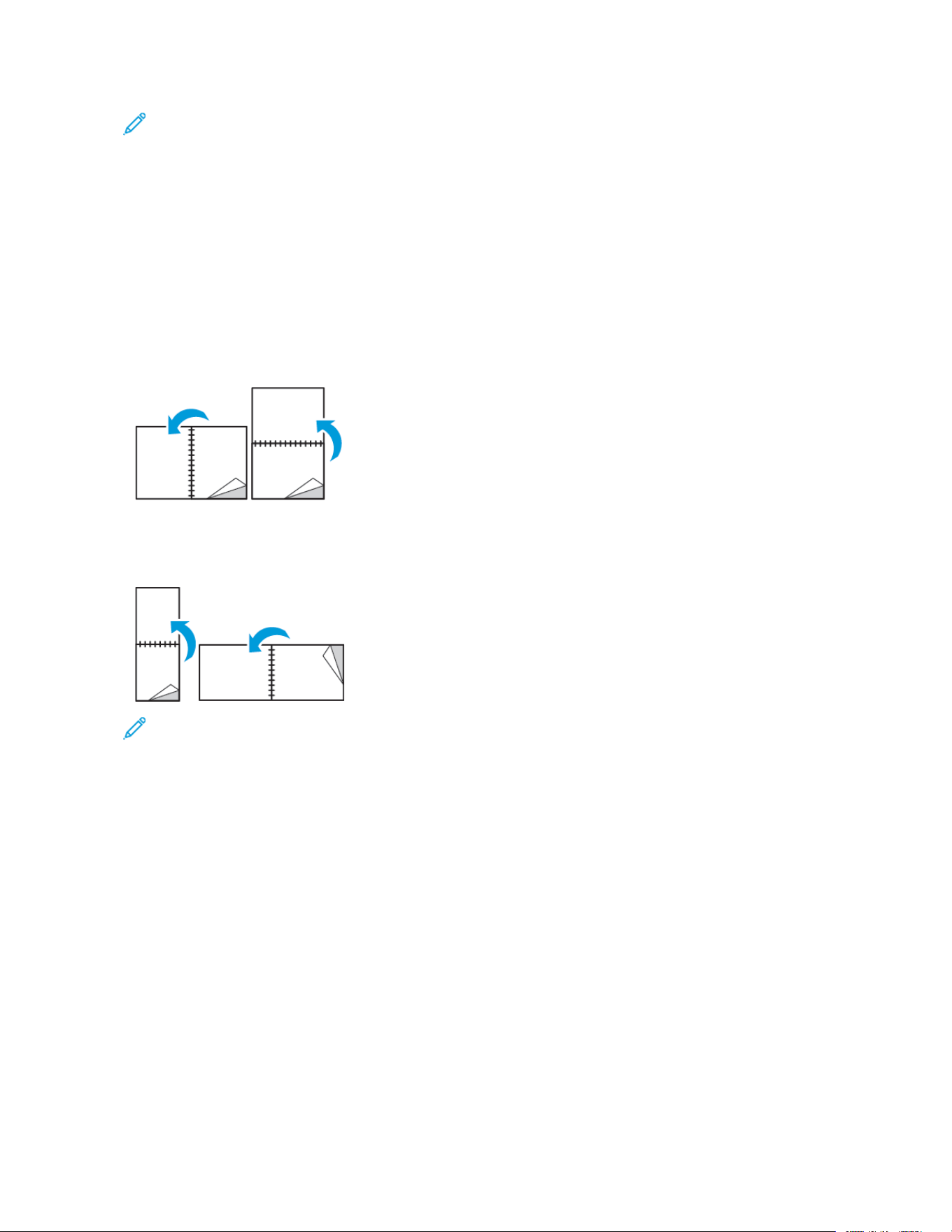
Note: Ensure that the paper size and weight are supported. For details, refer to Supported Paper Types and
Weights for Automatic 2-Sided Printing.
2-Sided Page Layout Options
You can specify the page layout for 2-sided printing, which determines how the printed pages turn. These settings
override the application page orientation settings.
• 11--SSiiddeedd PPrriinntt: This option prints on one side of the media. Use this option when printing on envelopes, labels,
or other media that cannot be printed on both sides.
• 22--SSiiddeedd PPrriinntt: This option prints the job on both sides of the paper to allow binding on the long edge of the
paper. The following illustrations show the result for documents with portrait and landscape orientation,
respectively:
• 22--SSiiddeedd PPrriinntt,, FFlliipp oonn SShhoorrtt EEddggee: This option prints on both sides of the paper. The images print to allow
binding on the short edge of the paper. The following illustrations show the result for documents with portrait
and landscape orientations, respectively:
Note: 2-Sided Printing is part of the Earth Smart settings.
To change your default print driver settings, refer to Setting Default Printing Options for Windows.
PRINTING MIRROR IMAGES
If the PostScript driver is installed, you can print pages as a mirror image. Images mirror left to right when printed.
PRINTING MULTIPLE PAGES TO A SINGLE SHEET
When printing a multiple-page document, you can print more than one page on a single sheet of paper.
To print 1, 2, 4, 6, 9, or 16 pages per side, select PPaaggeess PPeerr SShheeeett on the Pages Per Sheet Page Layout tab.
• For Windows, Page Layout is on the Document Options tab.
• For Macintosh, in the Print window, Layout is on the Preview list.
90
Xerox
®
VersaLink
®
B400 Printer User Guide
Printing

To print a border around each page, select PPaaggee BBoorrddeerrss.
PRINT QUALITY
Print-quality modes:
• Standard print-quality mode: 600 x 600 dpi
• Enhanced print-quality mode: 1200 x 1200 dpi
IMAGE OPTIONS
Image options controls how the printer uses lightness and contrast to produce your document. The Windows
PostScript print driver and the Macintosh print drivers provide the widest range of controls on the Image Options
tab.
• For Windows, Lightness and Contrast features are on the Image Options tab.
• For Macintosh, in the Print window, in Xerox Features, Image Options is on the Paper/Output list.
CONTRAST
You can use the Contrast feature to adjust the variation between light and dark areas of the print job.
LIGHTNESS
The Lightness feature allows you to adjust the overall lightness or darkness of the text and images in your printed
job.
IMAGE SHIFT
Image Shift allows you to modify the location of the image on the page. You can shift the printed image along the
X and Y axes of each sheet of paper.
PRINTING BOOKLETS
With 2-sided printing, you can print a document in the form of a small booklet. You can create booklets from any
paper size that is supported for 2-sided printing.
The print driver automatically reduces each page image and prints four page images per sheet of paper, two page
images on each side. The pages are printed in the correct order so that you can fold and staple the pages to create
the booklet.
Xerox
®
VersaLink
®
B400 Printer User Guide 91
Printing
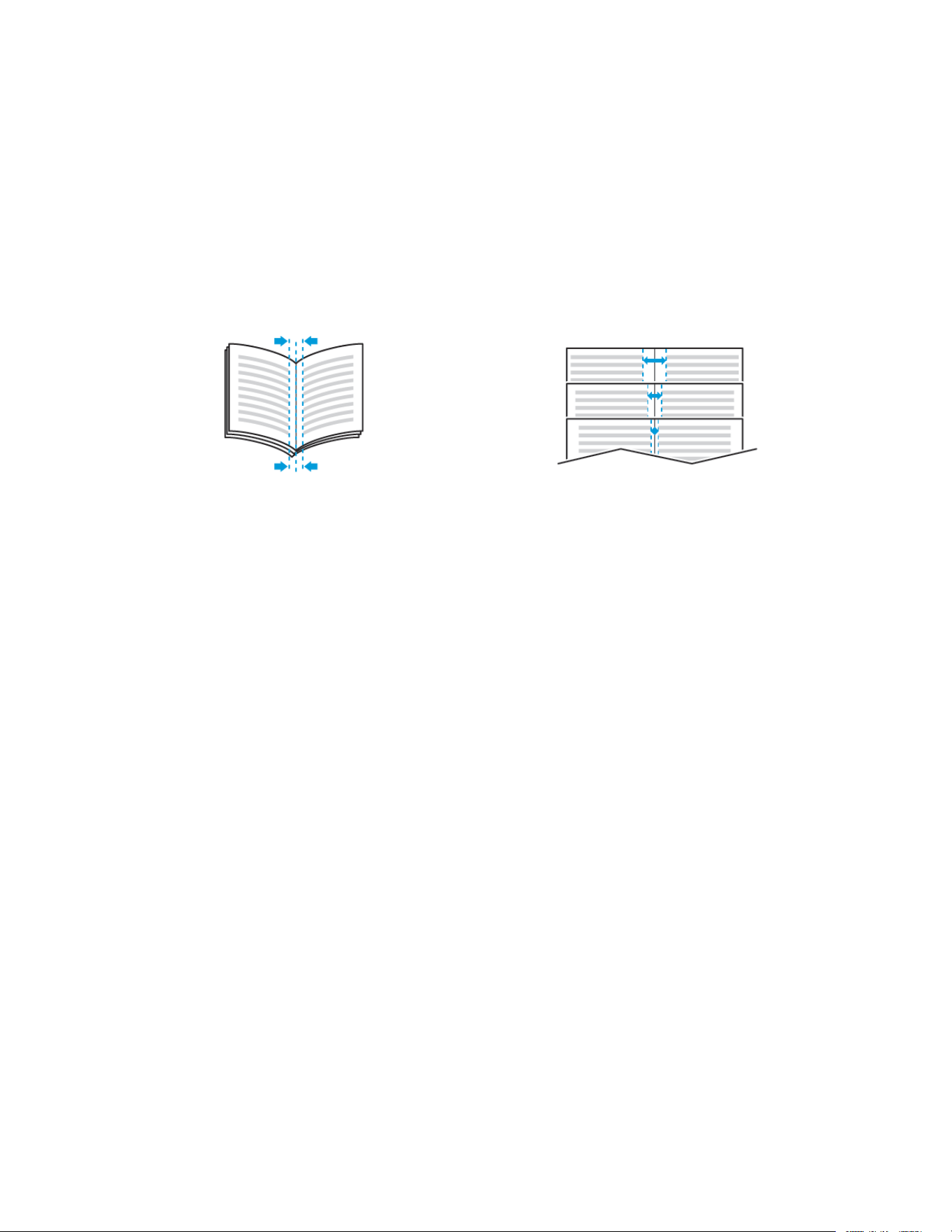
• For Windows, Booklet Layout is on the Page Layout tab. Page Layout is on the Document Options tab.
• For Macintosh, in the Print window, in Xerox Features, Booklet Layout is on the Paper/Output list.
When you print booklets using the Windows PostScript or Macintosh driver, you can specify the gutter and creep.
• GGuutttteerr: Specifies the horizontal distance in points between the page images. A point is 0.35 mm (1/72 in.).
• CCrreeeepp: Specifies how much the page images shift outward in tenths of a point. Shifting compensates for the
thickness of the folded paper, which can cause the page images to shift outward slightly when folded. You can
select a value from zero to 1 point.
Gutter
Creep
USING SPECIAL PAGES
The Special Pages options control how covers, inserts, and exception pages are added to your printed document.
• For Windows, the Special Pages tab is on the Document Options tab.
• For Macintosh, in the Print window, in Xerox Features, Special Pages is on the Paper/Output drop-down list.
Printing Cover Pages
A cover page is the first or last page of a document. You can select paper sources for the cover pages that are
different from the source used for the body of a document. For example, you can use your company letterhead for
the first page of a document. You can also use heavyweight paper for the first and last pages of a report. You can
use any applicable paper tray as the source for printing cover pages.
Select one of these options for printing cover pages:
• NNoo CCoovveerrss: This option does not print cover pages. No cover pages are added to the document.
• FFrroonntt OOnnllyy: This option prints the first page on paper from the specified tray.
• BBaacckk OOnnllyy: This option prints the back page on paper from the specified tray.
• FFrroonntt aanndd BBaacckk:: SSaammee prints the front and back cover pages from the same tray.
• FFrroonntt aanndd BBaacckk:: DDiiffffeerreenntt prints the front and back cover pages from different trays.
After making a selection for printing the cover pages, you can select the paper for the front and back covers by size,
color, or type. You can also use blank or pre-printed paper, and you can print side one, side two, or both sides of the
cover pages.
92
Xerox
®
VersaLink
®
B400 Printer User Guide
Printing

Printing Insert Pages
You can add blank or pre-printed insert pages before page one of each document or after designated pages within
a document. Adding an insert after designated pages within a document separates sections, or acts as a marker or
placeholder. Ensure that you specify the paper to use for the insert pages.
• IInnsseerrtt OOppttiioonnss provides the options to place an insert After Page X, where X is the specified page, or Before
Page 1.
• IInnsseerrtt QQuuaannttiittyy specifies the number of pages to insert at each location.
• PPaaggeess: Specifies the page or range of pages that use the exception page characteristics. Separate individual
pages or page ranges with commas. Specify pages within a range with a hyphen. For example, to specify pages
1, 6, 9, 10, and 11, type 11,,66,,99--1111.
• PPaappeerr: Displays the default size, color, and type of paper selected in Use Job Settings.
• JJoobb SSeettttiinngg: Displays the attributes of the paper for the remainder of the job.
Printing Exception Pages
Exception pages have different settings from the rest of the pages in the job. You can specify differences such as
page size, page type, and page color. You can also change the side of the paper on which to print as your job
requires. A print job can contain multiple exceptions.
For example, your print job contains 30 pages. You want five pages to print on only one side of a special paper, and
the remainder of the pages printed 2-sided on regular paper. You can use exception pages to print the job.
In the Add Exceptions window, you can set the characteristics of the exception pages and select the alternate
paper source:
• PPaaggeess: Specifies the page or range of pages that use the exception page characteristics. Separate individual
pages or page ranges with commas. Specify pages within a range with a hyphen. For example, to specify pages
1, 6, 9, 10, and 11, type 1,6,9-11.
• PPaappeerr: Displays the default size, color, and type of paper selected in Use Job Settings.
• 22--SSiiddeedd PPrriinnttiinngg allows you to select 2-sided printing options. Click the DDoowwnn arrow to select an option:
– 11--SSiiddeedd PPrriinntt prints the exception pages on one side only.
– 22--SSiiddeedd PPrriinntt prints the exception pages on both sides of the paper and flips the pages on the long edge.
The job then can be bound on the long edge of the pages.
– 22--SSiiddeedd PPrriinntt,, FFlliipp oonn SShhoorrtt EEddggee prints the exception pages on both sides of the paper and flips the
pages on the short edge. The job then can be bound on the short edge of the pages.
– UUssee JJoobb SSeettttiinngg prints the job using the attributes shown in the Job Settings box.
• JJoobb SSeettttiinngg: Displays the attributes of the paper for the remainder of the job.
Note: Some combinations of 2-sided printing with certain paper types and sizes can produce unexpected
results.
Xerox
®
VersaLink
®
B400 Printer User Guide 93
Printing

PRINTING WATERMARKS FOR WINDOWS
A watermark is special purpose text that can be printed across one or more pages. For example, you can add a word
like Copy, Draft, or Confidential as a watermark instead of stamping it on a document before distribution.
Note: This feature is only available on a Windows computer printing to a network printer.
To print a watermark:
1. In the print driver, click the DDooccuummeenntt OOppttiioonnss tab.
2. Click the WWaatteerrmmaarrkk tab.
3. From the Watermark menu, select the watermark. You can choose from preset watermarks, or create a
customized watermark. You can also manage watermarks from this menu.
4. Under Text, select an option:
• TTeexxtt: Enter the text in the field, then specify the font.
• TTiimmee SSttaammpp: Specify the date and time options, then specify the font.
• PPiiccttuurree: To locate the picture, click the Browse icon.
5. Specify the scaling angle and position of the watermark.
• Select the scaling option that specifies the size of the picture in relation to the original image. Use the
arrows to scale the image in increments of 1%.
• To define the angle of the image on the page, specify the position option or to rotate the image left or right
by increments of 1, use the arrows.
• To define the location of the image on the page, specify the position option, or to move the image in each
direction in increments of 1, use the arrows.
6. Under LLaayyeerriinngg, select how to print the watermark.
• PPrriinntt iinn BBaacckkggrroouunndd prints the watermark behind the text and graphics in the document.
• BBlleenndd: This option combines the watermark with the text and graphics in the document. A blended
watermark is translucent, so you can see both the watermark and the document content.
• PPrriinntt iinn FFoorreeggrroouunndd prints the watermark over the text and graphics in the document.
7. Click PPaaggeess, then select the pages to print the watermark:
• PPrriinntt oonn AAllll PPaaggeess prints the watermark on all pages of your document.
• PPrriinntt oonn PPaaggee 11 OOnnllyy prints the watermark only on the first page of the document.
8. If you select a picture as a watermark, specify the lightness settings for the image.
9. Click OOKK.
ORIENTATION
Orientation allows you to select the direction that the page prints.
• For Windows, the Orientation tab is on the Document Options tab.
94
Xerox
®
VersaLink
®
B400 Printer User Guide
Printing

Note: The orientation setting in your application print dialog box may override the orientation options
in the print driver.
• For Macintosh, Orientation options are in the Print window for Preview.
The following options are available:
• PPoorrttrraaiitt: Orients the paper so that the text and images print across the short dimension of the paper.
• LLaannddssccaappee: Orients the paper so that the text and images print across the long dimension of the paper.
• RRoottaatteedd LLaannddssccaappee: Orients the paper so that the content is rotated 180 degrees and with the long bottom
side up.
Note: For Macintosh, to print portrait text and images in landscape orientation, clear the Auto Rotate check
box.
PRINTING BANNER PAGES
To enable or disable Banner Pages, contact your system administrator, or refer to the System Administrator Guide at
www.xerox.com/support/VLB400docs.
SELECTING JOB COMPLETION NOTIFICATION FOR WINDOWS
You can select to be notified when your job finishes printing. A message appears on your computer screen with the
name of the job and the name of the printer where it was printed.
Note: This feature is only available on a Windows computer printing to a network printer.
To select job completion notification from the Advanced tab:
1. Click NNoottiiffiiccaattiioonnss.
2. Click NNoottiiffyy ffoorr CCoommpplleetteedd JJoobbss, then select an option.
• EEnnaabblleedd: This option turns on notifications.
• DDiissaabblleedd: This option turns off the Notification feature.
3. Click OOKK.
Xerox
®
VersaLink
®
B400 Printer User Guide 95
Printing

Using Custom Paper Sizes
You can print on custom paper sizes that are within the minimum and maximum size range supported by the
printer. For more information, refer to Supported Custom Paper Sizes.
PRINTING ON CUSTOM PAPER SIZES
Note: Before printing on a custom paper size, use the Custom Paper Sizes feature in Printer Properties to
define the custom size.
For more information, refer to Defining a Custom Paper Size at the Control Panel.
Printing on Custom Paper Size from Windows
Note: Before printing on custom-size paper, define the custom size in the Printer Properties.
1. Load the custom-size paper in the tray.
2. In the application, click FFiillee >> PPrriinntt, then select your printer.
3. In the Print dialog box, click PPrriinntteerr PPrrooppeerrttiieess.
4. On the Printing Options tab, from the Paper list, select the required custom paper size and type.
5. Select any other required options, then click OOKK.
6. In the Print dialog box, click PPrriinntt.
Printing on Custom-Size Paper from a Macintosh Computer
1. Load the custom-size paper.
2. In the application, click FFiillee >> PPrriinntt.
3. From the Paper Size list, select the custom paper size.
4. Click PPrriinntt.
DEFINING CUSTOM PAPER SIZES
To print custom paper sizes, define the custom width and length of the paper in the print driver software and on the
printer control panel. When setting the paper size, ensure that you specify the same size as the paper in the tray.
Setting the wrong size paper can cause a printer error. Print driver settings override control panel settings when you
print using the print driver software on your computer.
Creating and Saving Custom Paper Sizes in the Print Driver
You can print custom-size paper from any paper tray. Custom-size paper settings are saved in the print driver and
are available for you to select in all your applications.
For more information on supported paper sizes for each tray, refer to Supported Custom Paper Sizes.
96
Xerox
®
VersaLink
®
B400 Printer User Guide
Printing

Creating and Saving Custom Sizes for Windows
1. In the print driver, click the PPrriinnttiinngg OOppttiioonnss tab.
2. For Paper, click the arrow, then select OOtthheerr SSiizzee >> AAddvvaanncceedd PPaappeerr SSiizzee >> OOuuttppuutt PPaappeerr SSiizzee >> NNeeww.
3. In the New Custom Paper Size window, enter the height and width of the new paper size.
4. To specify the units of measurement, at the bottom of the window, click the MMeeaassuurreemmeennttss button, then
select IInncchheess or MMiilllliimmeetteerrss.
5. To save, in the Name field, type a title for the new size, then click OOKK.
Creating and Saving Custom Sizes for Macintosh
1. In the application, click FFiillee >> PPrriinntt.
2. Click PPaappeerr SSiizzee, then select MMaannaaggee CCuussttoomm SSiizzeess.
3. To add a new size, in the Manage Paper Sizes window, click the PPlluuss iiccoonn (++).
4. Double-click UUnnttiittlleedd, then type a name for the new custom paper size.
5. Enter the height and width of the new custom paper size.
6. Click the arrow for the Non-Printable Area field, then select the printer from the list. Or, for User Defined
margins, set the top, bottom, right, and left margins.
7. To save the settings, click OOKK.
Defining a Custom Paper Size at the Control Panel
You can print custom-size paper from any paper tray. Custom-size paper settings are saved in the print driver and
are available for you to select in all your applications.
1. At the printer control panel, press the HHoommee button.
2. Touch DDeevviiccee >> PPaappeerr TTrraayyss.
3. Touch the desired tray for your custom-size paper.
4. Touch the current paper size setting, then from the list, touch CCuussttoomm.
5. In the Custom Paper Size screen, enter the height and width of the new paper size.
6. To save the setting, touch OOKK.
7. To return to the Home screen, press the HHoommee button.
Xerox
®
VersaLink
®
B400 Printer User Guide 97
Printing


Xerox
®
VersaLink
®
B400 Printer User Guide 99
Paper and Media
This chapter contains:
Supported Paper . .. ..... .. .. .. ..... .. .. .. ..... .. .. .. ....... .. .. ....... .. .. .. ..... .. .. .. . .. .. .. .. .. . .. .. .. .. .. . .. .. .. .. .. . .. .. .. .. .. .. . .. .. .. .. .. 100
Loading Paper ....... .. .. .. ..... .. .. .. ..... .. .. .. ..... .. .. .. . .. .. .. .. .. . .. .. .. .. .. .. . .. .. .. .. .. . .. .. .. .. .. . .. .. .. .. .. . .. .. .. .. .. . .. .. .. .. .. . .. .. . 104
Printing on Special Paper .. .. .. . .. .. .. .. .. . .. .. .. ..... .. .. .. ..... .. .. .. ..... .. .. .. ..... .. .. .. ....... .. .. .. . .. .. .. .. .. . .. .. .. .. .. . .. .. .. .. .. . .. 114

Supported Paper
Your printer is designed to use various paper and other media types. To ensure the best print quality and to avoid
jams, follow the guidelines in this section.
For best results, use Xerox paper and media recommended for your printer.
ORDERING PAPER
To order paper or other media, contact your local reseller or visit www.xerox.com/supplies.
GENERAL PAPER LOADING GUIDELINES
• Do not overfill the paper trays. Do not load paper above the maximum fill line in the tray.
• Adjust the paper guides to fit the paper size.
• Fan paper before loading it in the paper tray.
• If excessive jams occur, use paper or other approved media from a new package.
• Do not print on label media after a label has been removed from a sheet.
• Use only paper envelopes. Print envelopes 1-sided only.
PAPER THAT CAN DAMAGE YOUR PRINTER
Some paper and other media types can cause poor output quality, increased paper jams, or damage your printer.
Do not use the following:
• Rough or porous paper
• Inkjet paper
• Non-laser glossy or coated paper
• Paper that has been photocopied
• Paper that has been folded or wrinkled
• Paper with cutouts or perforations
• Stapled paper
• Envelopes with windows, metal clasps, side seams, or adhesives with release strips
• Padded envelopes
• Plastic media
• Transparencies
CCaauuttiioonn:: The Xerox Warranty, Service Agreement, or Xerox Total Satisfaction Guarantee does not cover
damage caused by using unsupported paper or specialty media. The Xerox Total Satisfaction Guarantee is
available in the United States and Canada. Coverage could vary outside these areas. Please contact your
local representative for details.
100
Xerox
®
VersaLink
®
B400 Printer User Guide
Paper and Media

PAPER STORAGE GUIDELINES
Storing your paper and other media properly contributes to optimum print quality.
• Store paper in dark, cool, relatively dry locations. Most paper is susceptible to damage from ultraviolet and
visible light. Ultraviolet light, from the sun and fluorescent bulbs, is particularly damaging to paper.
• Reduce the exposure of paper to strong lights for long periods of time.
• Maintain constant temperatures and relative humidity.
• Avoid storing paper in attics, kitchens, garages, or basements. These spaces are more likely to collect moisture.
• Store paper flat, either on pallets, cartons, shelves, or in cabinets.
• Avoid food or drinks in the area where paper is stored or handled.
• Do not open sealed packages of paper until you are ready to load the paper into the printer. Leave stored paper
in the original packaging. The paper wrapper protects the paper from moisture loss or gain.
• Some special media is packaged inside resealable plastic bags. Store the media inside the bag until you are
ready to use it. Keep unused media in the bag and reseal it for protection.
SUPPORTED STANDARD PAPER SIZES
TTRRAAYY
EEUURROOPPEEAANN SSTTAANNDDAARRDD SSIIZZEESS
NNOORRTTHH AAMMEERRIICCAANN SSTTAANNDDAARRDD
SSIIZZEESS
All Trays A4 (210 x 297 mm, 8.3 x 11.7 in.)
A5 (148 x 210 mm, 5.8 x 8.3 in.)
215 x 315 mm, 8.5 x 12.4 in.
Legal (216 x 356 mm, 8.5 x 14 in.)
Folio (216 x 330 mm, 8.5 x 13 in.)
Letter (216 x 279 mm, 8.5 x 11 in.)
Executive (184 x 267 mm, 7.25 x
10.5 in.)
203 x 254 mm, 8 x 10 in.
Statement (140 x 216 mm, 5.5 x
8.5 in.)
Tray 1
Bypass Tray
A6 (105 x 148 mm, 4.1 x 5.8 in.) Postcard (101.6 x 152.4 mm, 4 x 6
in.)
127 x 178 mm, 5 x 7 in.
Bypass Tray C5 envelope (162 x 229 mm, 6.4 x 9 in.)
C6 envelope (114 x 162 mm, 4.5 x 6.38 in.)
DL envelope (110 x 220 mm, 4.33 x 8.66 in.)
Monarch envelope (98 x 190 mm,
3.9 x 7.5 in.)
No. 10 envelope (241 x 105 mm,
4.1 x 9.5 in.)
Xerox
®
VersaLink
®
B400 Printer User Guide 101
Paper and Media

SUPPORTED PAPER TYPES AND WEIGHTS
TTRRAAYYSS PPAAPPEERR TTYYPPEESS WWEEIIGGHHTTSS
All Trays Plain
Hole-Punched
Recycled
Custom
60–90 g/m²
Bond
Letterhead
Pre-Printed
90–105 g/m²
Lightweight Cardstock 106–163 g/m²
Cardstock 164–220 g/m²
Bypass Tray Envelopes
Labels
60–216 g/m²
SUPPORTED STANDARD PAPER SIZES FOR AUTOMATIC 2-SIDED PRINTING
EEUURROOPPEEAANN SSTTAANNDDAARRDD SSIIZZEESS NNOORRTTHH AAMMEERRIICCAANN SSTTAANNDDAARRDD SSIIZZEESS
A4 (210 x 297 mm, 8.3 x 11.7 in.)
A5 (148 x 210 mm, 5.8 x 8.3 in.)
215 x 315 mm, 8.5 x 12.4 in.
Legal (216 x 356 mm, 8.5 x 14 in.)
Letter (216 x 279 mm, 8.5 x 11 in.)
Folio (216 x 330 mm, 8.5 x 13 in.)
Executive (184 x 267 mm, 7.25 x 10.5 in.)
203 x 254 mm, 8 x 10 in.
Statement (140 x 216 mm, 5.5 x 8.5 in.)
102
Xerox
®
VersaLink
®
B400 Printer User Guide
Paper and Media
SUPPORTED PAPER TYPES AND WEIGHTS FOR AUTOMATIC 2-SIDED PRINTING
PPAAPPEERR TTYYPPEE
WWEEIIGGHHTT
Plain
Hole-Punched
Recycled
Custom
60–90 g/m²
Bond
Letterhead
Pre-Printed
90–105 g/m²
Lightweight Cardstock 106-163 g/m²
SUPPORTED CUSTOM PAPER SIZES
TTRRAAYY NNUUMMBBEERR PPAAPPEERR SSIIZZEESS
Tray 1 Width: 76.2–215.9 mm (3–8.5 in.)
Length: 127.0–355.6 mm (5–14 in.)
Tray 2–4 Width: 139.7–215.9 mm (5.5–8.5 in.)
Length: 210–355.6 mm (8.3–14 in.)
Bypass Tray Width: 76.2–215.9 mm (3–8.5 in.)
Length: 127.0–355.6 mm (5–14 in.)
2-Sided Printing Width: 139.7–215.9 mm (5.5–8.5 in.)
Length: 210–355.6 mm (8.3–14 in.)
CARDSTOCK
You can print Cardstock and Lightweight Cardstock up to 220 g/m² from any tray.
• For types and weights of supported Cardstock for 1-Sided printing, refer to Supported Paper Types and Weights.
• For types and weights of supported Cardstock for 2-Sided printing, refer to Supported Paper Types and Weights
for Automatic 2-Sided Printing.
Xerox
®
VersaLink
®
B400 Printer User Guide 103
Paper and Media

Loading Paper
CHANGING PAPER SETTINGS
When you load paper into a tray, you can change the paper tray settings. The following options are available:
• FFuullllyy AAddjjuussttaabbllee: If you select this paper setting, you can change the paper size, type, and color when you load
paper into the tray.
• DDeeddiiccaatteedd: If you select this paper setting, you cannot change the paper size, type, and color when you load
paper into the tray.
• BByyppaassss: When paper is present in this tray, it is used for print jobs where you did not specify a particular tray.
For details about how to change the paper tray setting when loading paper in trays 1–4, refer to Loading Labels in
Trays 1-4. For details about how to change the paper setting when loading paper in the bypass tray, refer to
Loading Paper in the Bypass Tray.
LOADING PAPER IN TRAYS 1-4
You can adjust the length of the paper tray to accommodate A4, Letter (8.5 x 11 in.), and Legal (8.5 x 14 in.) paper
sizes.
Note: Trays 2–4 are optional.
To load paper in Trays 1–4:
1. To remove the tray from the printer, pull out the tray until it stops, lift the front of the tray slightly, then remove
it.
104 Xerox
®
VersaLink
®
B400 Printer User Guide
Paper and Media

2. Adjust the paper length and width guides as shown.
3. Flex the sheets back and forth and fan them, then align the edges of the stack on a level surface. This
procedure separates any sheets that are stuck together and reduces the possibility of jams.
4. Load paper into the tray with the print side face up.
• Load hole-punched paper with the holes to the left.
• For 1-sided printing, load letterhead paper face up with the top of the paper toward the back of the tray.
• For 2-sided printing, load letterhead and pre-printed paper face down with the top edge going into the
printer.
Note: Do not load paper above the maximum fill line. Overfilling the tray can cause the printer to jam.
5. Adjust the length and width guides to fit the paper.
Xerox
®
VersaLink
®
B400 Printer User Guide 105
Paper and Media

6. Slide the tray back into the printer.
Note:
• If the tray does not go all the way in, ensure that the paper lift at the back of the tray is locked down.
• To avoid paper jams, do not remove the paper cover while printing is in progress.
• If the tray is extended for legal-size paper, the tray protrudes when it is inserted into the printer.
• To confirm the same paper size, type, or color, touch OOKK.
• To select a new paper size, type or color, touch the current setting, then select a new setting. When you
are finished, touch OOKK.
7. To change a paper tray to Dedicated mode:
a. At the printer control panel, press the HHoommee button.
b. Touch DDeevviiccee >> PPaappeerr TTrraayyss.
c. In the Paper Trays menu, touch the preferred tray.
d. To dedicate the tray for a paper size, type, or color, touch TTrraayy MMooddee, then touch DDeeddiiccaatteedd.
• To select a paper or envelope size, touch the current size setting, then select a size.
• To select a paper type, touch the current paper type, then select a paper type.
• To select a paper color, touch the current paper color, then select a paper color.
e. To save the settings, touch OOKK.
f. To return to the Home screen, press the HHoommee button.
LOADING PAPER IN THE BYPASS TRAY
The Bypass Tray supports the widest variety of media types. It is intended primarily for small-quantity jobs that use
special media.
To load paper in the bypass tray:
106
Xerox
®
VersaLink
®
B400 Printer User Guide
Paper and Media


4. Flex the sheets back and forth and fan them, then align the edges of the stack on a level surface. This
procedure separates any sheets that are stuck together and reduces the possibility of jams.
5. Load the paper in the tray. Load hole-punched paper with the holes to the left.
• For 1-sided printing, load letterhead or pre-printed paper face up with the top edge going into the printer.
• For 2-sided printing, load letterhead and pre-printed paper face down with the top edge facing you.
108 Xerox
®
VersaLink
®
B400 Printer User Guide
Paper and Media

6. Adjust the width guides until they touch the edges of the paper.
7. If the control panel prompts you, verify the size, type, and color on the touch screen. If you are not prompted,
change the paper settings.
a. At the printer control panel, press the HHoommee button.
b. Touch DDeevviiccee >> PPaappeerr TTrraayyss.
c. In the Paper Trays menu, touch the bypass tray icon.
• To select a paper or envelope size, touch the current size setting, then select a size.
• To select a paper type, touch the current paper type, then select a paper type.
• To select a paper color, touch the current paper color, then select a paper color.
d. To save a setting, touch OOKK.
8. To return to the Home screen, press the HHoommee button.
LOADING SMALL PAPER SIZES IN THE BYPASS TRAY
The Bypass Tray supports the widest variety of media types. It is intended primarily for small-quantity jobs that use
special media.
To load small paper sizes in the bypass tray:
1. Open the bypass tray. If the bypass tray is loaded with paper already, remove any paper that is a different size
or type.
Xerox
®
VersaLink
®
B400 Printer User Guide 109
Paper and Media

2. To remove the bypass tray from the printer, pull the tray straight out of the printer.
3. If the bypass tray is loaded with paper already, remove any paper that is a different size or type. Raise the
paper stop.
4. Flex the sheets back and forth and fan them, then align the edges of the stack on a level surface. This
procedure separates any sheets that are stuck together and reduces the possibility of jams.
Note: To avoid jams and misfeeds, do not remove paper from its packaging until you are ready to use it.
110
Xerox
®
VersaLink
®
B400 Printer User Guide
Paper and Media
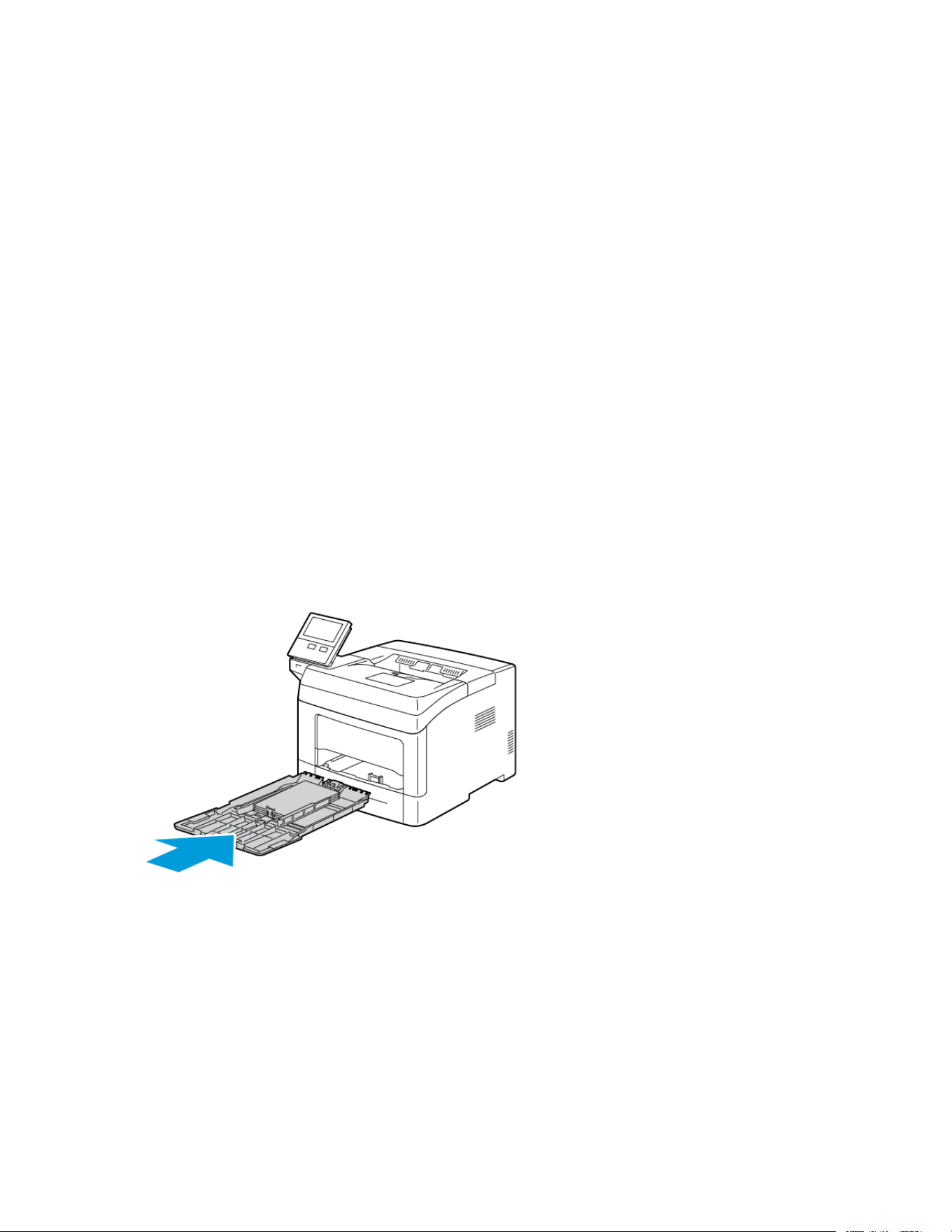
5. Load the paper in the tray.
6. Adjust the width guides and the paper stop until they touch the edges of the paper.
7. Slide the tray back into the printer.
8. If the control panel prompts you, verify the size, type, and color on the screen. If you are not prompted, change
the paper settings.
a. At the printer control panel, press the HHoommee button.
b. Touch DDeevviiccee >> PPaappeerr TTrraayyss.
c. In the Paper Trays menu, touch the bypass tray icon.
• To select a paper or envelope size, touch the current size setting, then select a size.
• To select a paper type, touch the current paper type, then select a paper type.
• To select a paper color, touch the current paper color, then select a paper color.
Xerox
®
VersaLink
®
B400 Printer User Guide 111
Paper and Media

d. To save the settings, touch OOKK.
9. To return to the Home screen, press the HHoommee button.
CONFIGURING TRAYS 1–4 FOR THE PAPER LENGTH
You can adjust the lengths of trays 1–4 to accommodate A4, Letter (8.5 x 11 in.), and larger paper sizes. For the
longer-length settings, the trays protrude from the front of the printer.
To change Trays 1–4 to match the paper length:
1. Remove all paper from the tray.
2. To remove the tray from the printer, pull out the tray until it stops, lift the front of the tray slightly, then remove
it.
112 Xerox
®
VersaLink
®
B400 Printer User Guide
Paper and Media

3. Configure the tray.
• To compress the tray for shorter paper, hold the back of the tray with one hand. With the other hand, press
the release latch at the front of the tray, then push the ends inward until they latch.
• To extend the tray for longer paper, hold the back of the tray with one hand. With the other hand, press the
release latch at the front of the tray, then pull the ends outward until they latch.
To protect the paper when the tray is extended, place the paper cover over the extended section of the
paper tray.
4. Load paper into the tray before inserting it back into the printer. For details, refer to Loading Labels in Trays 1-4.
Xerox
®
VersaLink
®
B400 Printer User Guide 113
Paper and Media

Printing on Special Paper
To order paper or other media, contact your local reseller or visit www.xerox.com/supplies.
For reference:
• www.xerox.com/rmlna Recommended Media List (United States)
• www.xerox.com/rmleu Recommended Media List (Europe)
ENVELOPES
You can print envelopes from the bypass tray only.
Guidelines for Printing Envelopes
• Use only paper envelopes.
• Do not use envelopes with windows or metal clasps.
• Print quality depends on the quality and construction of the envelopes. If you do not get the desired results, try
another envelope brand.
• Maintain constant temperatures and relative humidity.
• Store unused envelopes in their packaging to avoid excess moisture and dryness which can affect print quality
and cause wrinkling. Excessive moisture can cause the envelopes to seal before or during printing.
• Remove air bubbles from the envelopes before loading them into the tray by setting a heavy book on top of the
envelopes.
• In the print driver software, select Envelope as the paper type.
• Do not use padded envelopes. Use envelopes that lie flat on a surface.
• Do not use envelopes with heat-activated glue.
• Do not use envelopes with press-and-seal flaps.
Loading Envelopes in the Bypass Tray
1. Open the bypass tray.
114 Xerox
®
VersaLink
®
B400 Printer User Guide
Paper and Media


3. To load envelopes, select an option:
• For Number 10 envelopes, load the envelopes print side up, flaps down, with the short edge going into the
printer.
Note: When you load Monarch or DL envelopes, remove the Bypass Tray. For details, refer to Loading
Small Paper Sizes in the Bypass Tray.
• For C5 envelopes, do one of the following steps.
– Insert envelopes with the print side up, flaps open and down, and the bottom of the envelope going
into the printer.
– Insert envelopes with the print side up, flaps closed and down, and flaps going into the printer.
4. If the control panel prompts you, verify the size, type, and color on the screen. If you are not prompted, change
the paper settings.
116
Xerox
®
VersaLink
®
B400 Printer User Guide
Paper and Media

a. At the printer control panel, press the HHoommee button.
b. Touch DDeevviiccee >> PPaappeerr TTrraayyss.
c. In the Paper Trays menu, touch the bypass tray icon.
• To select an envelope size, touch the current size setting, then select an envelope size.
• To select a paper type, touch the current paper type, then select eennvveellooppee.
• To select an envelope color, touch the current paper color, then select a color.
d. To save the settings, touch OOKK.
5. To return to the Home screen, press the HHoommee button.
Adjusting the Fuser for Printing Envelopes
The Fuser has two switches that require adjustment to enable printing on Envelopes. If the switches are not set to
the correct position for Envelope printing, image quality issues and poor fusing can occur.
To adjust the Fuser to enable printing on Envelopes:
1. On the back of the printer, lift the door release latch, then pull open the door.
2. To open the Fuser, lift both green fuser levers to their full-upright position.
Xerox
®
VersaLink
®
B400 Printer User Guide 117
Paper and Media

3. Locate the two gray Fuser switches, then slide each one to the setting for envelopes.
4. Lower the green levers to their original position.
5. Close the rear door.
6. Print your document.
7. When printing completes, to print all other paper types, repeat these steps to return the gray switches back to
the paper setting.
118
Xerox
®
VersaLink
®
B400 Printer User Guide
Paper and Media
LABELS
You can print labels from any tray.
Guidelines for Printing Labels
• Use labels designed for laser printing.
• Do not use vinyl labels.
• Do not feed a sheet of labels through the printer more than once.
• Do not use dry gum labels.
• Print only on one side of the sheet of labels. Use full-sheet labels only.
• Store unused labels flat in their original packaging. Leave the label sheets inside the original packaging until
ready to use. Return any unused label sheets to the original packaging and reseal it.
• Do not store labels in extremely dry or humid conditions or extremely hot or cold conditions. Storing labels in
extreme conditions can cause print-quality problems or cause labels to jam in the printer.
• Rotate stock frequently. Long periods of storage in extreme conditions can cause labels to curl and jam in the
printer.
• In the print driver software, select Label as the paper type.
• Before loading labels, remove all other paper from the tray.
WWaarrnniinngg:: Do not use any sheet where labels are missing, curled, or pulled away from the backing sheet.
It could damage the printer.
Loading Labels in Trays 1-4
1. To remove the tray, lift the front of it slightly, then pull it out of the printer.
Xerox
®
VersaLink
®
B400 Printer User Guide 119
Paper and Media

2. Adjust the paper length and width guides as shown.
3. Load labels into the tray with the label side face up.
4. Adjust the length and width guides to fit the paper.
5. Slide the tray back into the printer.
6. Push the tray completely back into the printer.
Note:
• If the tray does not go in all the way, ensure that the paper lift plate at the back of the tray is locked
down.
• If the tray is extended for legal-size paper, the tray protrudes when it is inserted into the printer.
7. If the control panel prompts you, verify the size, type, and color on the screen. If you are not prompted, change
the paper settings.
120
Xerox
®
VersaLink
®
B400 Printer User Guide
Paper and Media

a. At the printer control panel, press the HHoommee button.
b. Touch DDeevviiccee >> PPaappeerr TTrraayyss.
c. In the Paper Trays menu, touch the desired tray.
d. To configure the printer to prompt you to set the paper type and size when paper is loaded, touch TTrraayy
MMooddee, then touch FFuullllyy AAddjjuussttaabbllee.
e. To dedicate the tray for a paper size, type, or color, touch TTrraayy MMooddee, then touch DDeeddiiccaatteedd.
• To select a paper or envelope size, touch the current size setting, then select a size.
• To select a paper type, touch the current paper type, then select LLaabbeellss.
• To select a paper color, touch the current paper color, then select a paper color.
f. To save the settings, touch OOKK.
8. To return to the Home screen, press the HHoommee button.
Loading Labels in Tray 1 and the Bypass Tray
1. Remove all paper from the bypass tray.
2. Load Labels in the bypass tray, face up, with the top edge of the page going into the printer first.
3. Adjust the width guides until they touch the edges of the paper.
4. If the control panel prompts you, verify the size, type and color on the screen. If you are not prompted, change
the paper settings.
Xerox
®
VersaLink
®
B400 Printer User Guide 121
Paper and Media

a. At the printer control panel, press the HHoommee button.
b. Touch DDeevviiccee >> PPaappeerr TTrraayyss.
c. In the Paper Trays menu, touch the bypass tray icon.
• To select a paper size, touch the current size setting, then select a size.
• To select a paper type, touch the current paper type, then select llaabbeellss.
• To select a paper color, touch the current paper color, then select a paper color.
d. To save the settings, touch OOKK.
5. To return to the Home screen, press the HHoommee button.
122
Xerox
®
VersaLink
®
B400 Printer User Guide
Paper and Media

Xerox
®
VersaLink
®
B400 Printer User Guide 123
Maintenance
This chapter contains:
General Precautions... ..... .. .. .. ..... .. .. .. . .. .. .. .. .. .. . .. .. .. .. .. . .. .. .. .. .. . .. .. .. .. .. . .. .. .. .. .. . .. .. .. .. .. . .. .. .. .. .. .. . .. .. .. ..... .. .. .. 124
Cleaning the Printer... . .. .. .. .. .. . .. .. .. .. .. . .. .. .. ....... .. .. ....... .. .. .. ..... .. .. .. ..... .. .. .. ..... .. .. .. . .. .. .. .. .. . .. .. .. .. .. .. . .. .. .. .. .. 125
Adjustments and Maintenance Procedures .. .. ..... .. .. .. ..... .. .. .. ....... .. .. ....... .. .. .. ..... .. .. .. . .. .. .. .. .. . .. .. .. .. .. . .. .. .. .. . 126
Supplies .... .. .. ....... .. .. .. ..... .. .. .. ..... .. .. .. . .. .. .. .. .. . .. .. .. .. .. . .. .. .. .. .. .. . .. .. .. .. .. . .. .. .. .. .. . .. .. .. .. .. . .. .. .. .. .. . .. .. .. ..... .. .. . 128
Managing the Printer.. .. .. .. . .. .. .. .. .. . .. .. .. .. .. . .. .. .. .. .. . .. .. .. .. .. .. . .. .. .. .. .. . .. .. .. .. .. . .. .. .. ..... .. .. .. ..... .. .. .. ....... .. .. ...... 131
Moving the Printer . .. .. .. . .. .. .. .. .. . .. .. .. .. .. . .. .. .. .. .. . .. .. .. .. .. . .. .. .. .. .. .. . .. .. .. .. .. . .. .. .. .. .. . .. .. .. ..... .. .. .. ..... .. .. .. ..... .. .. . 132
General Precautions
CCaauuttiioonn:: Do not expose the drum cartridge to direct sunlight or strong indoor fluorescent lighting. Do
not touch or scratch the surface of the drum.
CCaauuttiioonn:: When cleaning your printer do not use organic or strong chemical solvents or aerosol cleaners.
Do not pour fluids directly into any area. Use supplies and cleaning materials only as directed in this
documentation.
WWaarrnniinngg:: Keep all cleaning materials out of the reach of children.
WWaarrnniinngg:: Do not use pressurized spray cleaning aids on or in the printer. Some pressurized sprays
contain explosive mixtures and are not suitable for use in electrical applications. Use of pressurized spray
cleaners increases the risk of fire and explosion.
WWaarrnniinngg:: Do not remove the covers or guards that are fastened with screws. You cannot maintain or
service any parts that are behind these covers and guards. Do not attempt any maintenance procedure
that is not described in the documentation supplied with your printer.
WWaarrnniinngg:: Internal parts of the printer can be hot. Use caution when doors and covers are open.
• Do not place anything on top of the printer.
• Do not leave the covers and doors open for any length of time, especially in well-lit places. Light exposure can
damage the drum cartridge.
• Do not open covers and doors during printing.
• Do not tilt the printer while it is in use.
• Do not touch the electrical contacts or gears. Doing so could damage the printer and cause the print quality to
deteriorate.
• Ensure any parts removed during cleaning are replaced before you plug in the printer.
124
Xerox
®
VersaLink
®
B400 Printer User Guide
Maintenance
Cleaning the Printer
CLEANING THE EXTERIOR
Clean the exterior of the printer once a month.
• Wipe the paper tray, output tray, control panel, and other parts with a damp, soft cloth.
• After cleaning, wipe with a dry, soft cloth.
• For stubborn stains, apply a small amount of mild detergent to the cloth and gently wipe the stain off.
CCaauuttiioonn:: Do not spray detergent directly on the printer. Liquid detergent could enter the printer through
a gap and cause problems. Never use cleaning agents other than water or mild detergent.
CLEANING THE INTERIOR
Clean the interior of the printer regularly to prevent stains inside the printer that can deteriorate print quality. Clean
the printer interior whenever you replace a drum cartridge.
After clearing paper jams or replacing a toner cartridge, inspect inside the printer before closing the printer covers
and doors.
• Remove any remaining pieces of paper or debris. For details, refer to Clearing Paper Jams.
• Remove any dust or stains with a clean, dry, lint-free cloth.
WWaarrnniinngg:: Never touch a labeled area on or near the heat roller in the fuser. You can get burned. If a
sheet of paper is wrapped around the heat roller, do not try to remove it immediately. Power off the
printer immediately and wait 40 minutes for the fuser to cool. Try to remove the paper jam after the
printer has cooled.
Xerox
®
VersaLink
®
B400 Printer User Guide 125
Maintenance
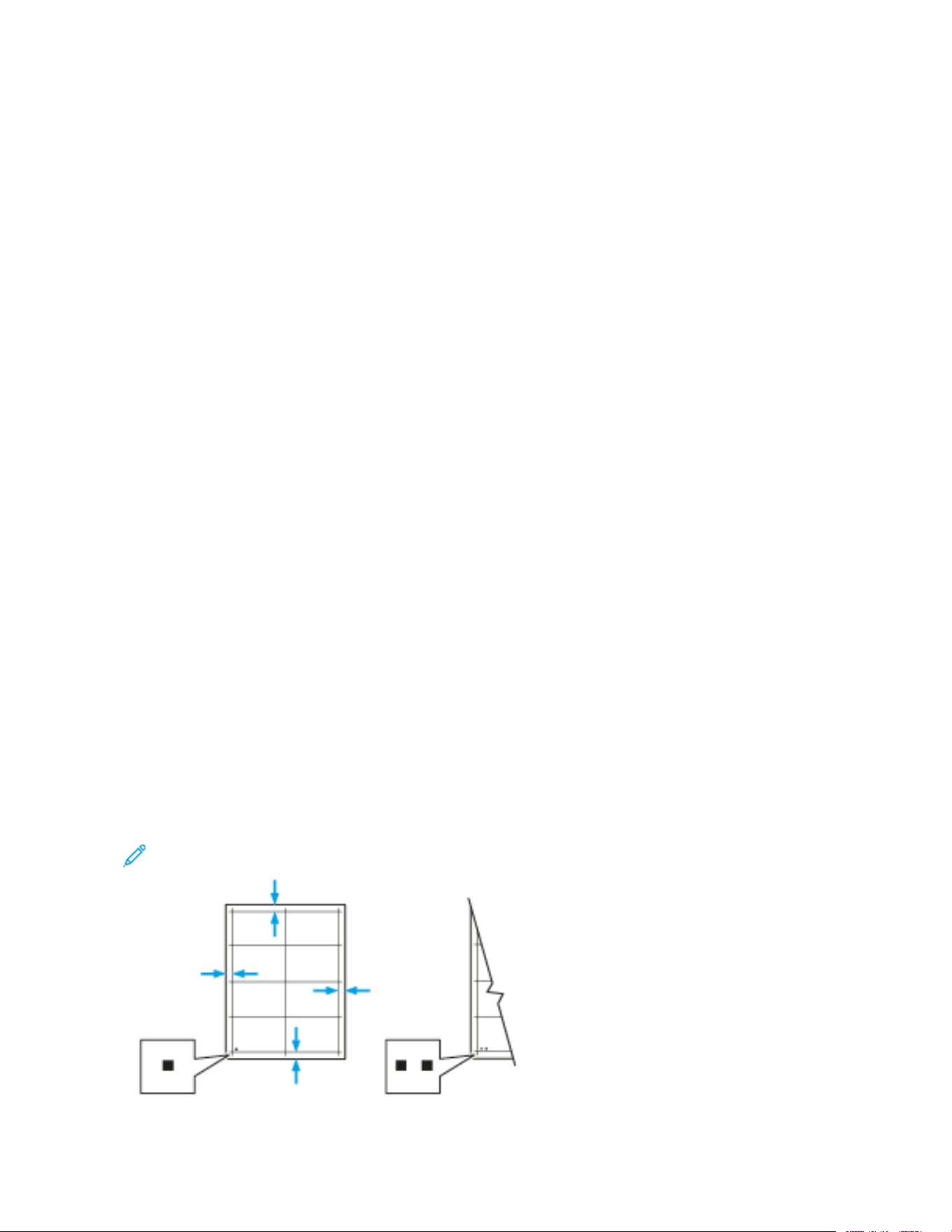
Adjustments and Maintenance Procedures
ADJUSTING PAPER REGISTRATION
Use Adjust Paper Registration to adjust the placement of the printed image on the page. The adjustment allows
you to place the top, bottom, left, and right margins exactly where you want. You can specify the image position on
both the front and back sides of the paper, for each installed paper tray.
Verifying Paper Registration
1. At the printer control panel, press the HHoommee button.
2. Log in as administrator. For details, refer to the System Administrator Guide at www.xerox.com/support/
VLB400docs.
3. Touch DDeevviiccee >> SSuuppppoorrtt >> IImmaaggee PPoossiittiioonn.
4. Select the source paper tray for the registration print.
a. Touch PPaappeerr SSuuppppllyy.
b. Touch the desired tray.
5. If your printer has automatic 2-sided printing, select the sides that you want to optimize.
• To select a sample registration page for adjusting side 1, touch AAddjjuusstteedd SSiiddee, then touch SSiiddee 11.
• To select a sample registration page for adjusting both sides, touch AAddjjuusstteedd SSiiddee, then touch SSiiddee 22.
6. Specify the consecutive number of sample pages to print.
a. Touch PPrriinntt SSeettttiinnggss.
b. To increase or decrease the number of sample pages, for Quantity, touch Plus (++) or Minus (--), then touch
OOKK.
7. To print the sample pages, touch PPrriinntt SSaammppllee.
8. When printing is completed, touch CClloossee.
9. On the sample pages, for Side 1, use a ruler to measure the distance of the printed image from the top,
bottom, left, and right edges.
Note: For identification, a single dot is printed on Side 1, and two dots are printed on Side 2.
126 Xerox
®
VersaLink
®
B400 Printer User Guide
Maintenance

10. For Side 2, measure the distance of the printed image from the top, bottom, left, and right edges.
11. If the image is centered, no adjustment is required. If not centered, adjust the paper registration. For details,
refer to Performing a Paper Registration Adjustment.
Performing a Paper Registration Adjustment
1. At the control panel, press the HHoommee button.
2. Log in as administrator. For details, refer to the System Administrator Guide at www.xerox.com/support/
VLB400docs.
3. Touch DDeevviiccee >> SSuuppppoorrtt >> IImmaaggee PPoossiittiioonn.
4. To adjust registration, select the source paper tray.
a. Touch PPaappeerr SSuuppppllyy.
b. Touch the desired tray.
5. Using the chart printed in Verifying Paper Registration, select the side for registration.
a. For adjusting Side 1, touch AAddjjuusstteedd SSiiddee, then touch SSiiddee 11.
b. For adjusting Side 2, touch AAddjjuusstteedd SSiiddee, then touch SSiiddee 22.
6. To adjust the registration, touch LLeeaadd//SSiiddee RReeggiissttrraattiioonn.
a. To adjust the side-to-side registration, for SSiiddee RReeggiissttrraattiioonn, touch the PPlluuss icon (++) or the MMiinnuuss icon (--).
b. To adjust the top-to-bottom registration, for LLeeaadd RReeggiissttrraattiioonn, touch the PPlluuss icon (++) or the MMiinnuuss icon (--).
For reference, position the chart so that Side-1 or Side-2 dots are at the bottom of the page.
• For Lead Registration, a positive value shifts the image down the page.
• For Side Registration, a positive value shifts the image to the left.
7. To save your settings, touch OOKK.
8. As needed, to enter additional values, repeat the previous steps.
9. Print another sample page, then repeat the process until you complete the registration corrections.
10. To return to the Home screen, press the HHoommee button.
Xerox
®
VersaLink
®
B400 Printer User Guide 127
Maintenance
Supplies
CONSUMABLES
Consumables are printer supplies that get depleted during the operation of the printer. The consumable supply for
this printer is the genuine Xerox
®
Black Toner Cartridge.
Note:
• Each consumable includes installation instructions.
• Install only new cartridges in your printer. If a used toner cartridge is installed, then the toner remaining
amount displayed could be inaccurate.
• To ensure print quality, the toner cartridge has been designed to cease functioning at a predetermined
point.
CCaauuttiioonn:: Use of toner other than genuine Xerox
®
Toner can affect print quality and printer reliability.
Xerox
®
Toner is the only toner designed and manufactured under strict quality controls by Xerox for
specific use with this printer.
ROUTINE MAINTENANCE ITEMS
Routine maintenance items are printer parts that have a limited life and require periodic replacement.
Replacements can be parts or kits. Routine maintenance items are typically customer replaceable.
Note: Each routine maintenance item includes installation instructions.
Routine maintenance items for this printer include the following:
• Drum Cartridge
• Maintenance Kit, which includes a Fuser and Transfer Roller
ORDERING SUPPLIES
When to Order Supplies
A warning appears on the control panel when supplies near their replacement time. Verify that you have
replacements on hand. It is important to order these items when the messages first appear to avoid interruptions to
your printing. An error message appears on the control panel when supplies must be replaced.
Order supplies from your local reseller or go to www.xerox.com/supplies.
CCaauuttiioonn:: Use of non-Xerox supplies is not recommended. The Xerox Warranty, Service Agreement, and
Total Satisfaction Guarantee do not cover damage, malfunction, or degradation of performance caused
by use of non-Xerox supplies, or the use of Xerox supplies not specified for this printer. The Total
Satisfaction Guarantee is available in the United States and Canada. Coverage could vary outside these
areas. Please contact your Xerox representative for details.
128
Xerox
®
VersaLink
®
B400 Printer User Guide
Maintenance
Supply Status Information
You can check the supplies status, customize the alerts that appear on the control panel, and configure email alert
notifications.
To check the supplies status and set up alerts using the Embedded Web Server, refer to the System Administrator
Guide at www.xerox.com/support/VLB400docs.
Supplies Usage Report
The Supplies Usage Report provides coverage information and part numbers for reordering supplies. The date a
supply item was installed appears on the report.
To print the Supplies Usage Report:
1. At the printer control panel, press the HHoommee button.
2. Touch DDeevviiccee >> AAbboouutt >> IInnffoorrmmaattiioonn PPaaggeess.
3. Touch SSuupppplliieess UUssaaggee RReeppoorrtt.
4. To return to the Home screen, press the HHoommee button.
TONER CARTRIDGES
General Precautions
WWaarrnniinngg::
• When replacing a toner cartridge, be careful not to spill the toner. If any toner spills, avoid contact with
clothes, skin, eyes, and mouth. Do not inhale the toner dust.
• Keep toner cartridges out of the reach of children. If a child accidentally swallows toner, have the child
spit out the toner, and rinse out their mouth with water. Consult a physician immediately.
• Use a damp cloth to wipe off spilled toner. Never use a vacuum cleaner to remove spills. Electric sparks
inside the vacuum cleaner can cause a fire or explosion. If you spill a large volume of toner, contact
your local Xerox representative.
• Never throw a toner cartridge into an open flame. Remaining toner in the cartridge can catch fire and
cause burn injuries or an explosion.
WWaarrnniinngg:: Do not remove the covers or guards that are fastened with screws. You cannot maintain or
service any parts that are behind these covers and guards. Do not attempt any maintenance procedure
that is not described in the documentation supplied with your printer.
• Do not open covers and doors during printing.
• Do not leave the covers and doors open for any length of time, especially in well-lit places. Light exposure can
damage the drum cartridge.
• Do not place anything on top of the printer.
• Do not tilt the printer while it is in use.
Xerox
®
VersaLink
®
B400 Printer User Guide 129
Maintenance

• Do not touch the electrical contacts or gears. Doing so could damage the printer and cause the print quality to
deteriorate.
• Ensure any parts removed during cleaning are replaced before you plug in the printer.
Replacing a Toner Cartridge
A message appears on the control panel when a toner cartridge must be replaced.
Note: Each toner cartridge includes installation instructions.
PPRRIINNTTEERR SSTTAATTUUSS MMEESSSSAAGGEE CCAAUUSSEE AANNDD SSOOLLUUTTIIOONN
Reorder Toner The toner cartridge is low. Order a new toner cartridge.
Out of Toner The toner cartridge is empty. Replace the toner
cartridge with a new one.
RECYCLING SUPPLIES
For more information on the Xerox
®
supplies recycling program, go to www.xerox.com/recycling.
130
Xerox
®
VersaLink
®
B400 Printer User Guide
Maintenance

Managing the Printer
VIEWING THE METER READING
The Billing/Usage menu displays the total number of impressions that the printer generated or printed during its
lifetime. You cannot reset the counters. A page is counted as one side of a sheet of paper. For example, a sheet of
paper that is printed on two sides counts as two impressions.
Note: If you provide regular billing information for your device, you can use the Remote Services Upload
feature to simplify the process. You can enable Remote Services to send billing meter readings to Xerox
automatically so that you do not have to collect the readings manually. For more information, refer to the
System Administrator Guide at www.xerox.com/support/VLB400docs.
To view the billing information for your printer:
1. At the printer control panel, press the HHoommee button.
2. Touch DDeevviiccee >> BBiilllliinngg//UUssaaggee.
3. To view more details, touch UUssaaggee CCoouunntteerrss, then select an option.
4. After viewing the usage readings, to return to the Home screen, press the HHoommee button.
PRINTING THE BILLING SUMMARY REPORT
The Billing Summary Report provides information about the device and a detailed listing of the billing meters and
sheet counts.
To print the Billing Summary Report:
1. At the printer control panel, press the HHoommee button.
2. Touch DDeevviiccee >> AAbboouutt >> IInnffoorrmmaattiioonn PPaaggeess.
3. Touch BBiilllliinngg SSuummmmaarryy RReeppoorrtt.
4. To return to the Home screen, press the HHoommee button.
Xerox
®
VersaLink
®
B400 Printer User Guide 131
Maintenance
Moving the Printer
WWaarrnniinngg::
• To prevent you from dropping the printer or injury, lift the printer firmly by gripping the recessed areas
on both sides of the printer. Never lift the printer by gripping any other areas.
• If the optional 550-Sheet Feeder is installed, uninstall it before you move the printer. If the optional
550-Sheet Feeder is not fixed to the printer securely, it can fall to the ground and cause injury.
Follow these instructions when moving the printer:
1. Power off the printer, then disconnect the power cord and other cables from the back of the printer.
2. Remove any paper or other media from the output tray. If the output tray extension is open, close it.
3. Remove the paper from the paper tray.
4. Keep the paper wrapped and away from humidity and dirt.
132
Xerox
®
VersaLink
®
B400 Printer User Guide
Maintenance
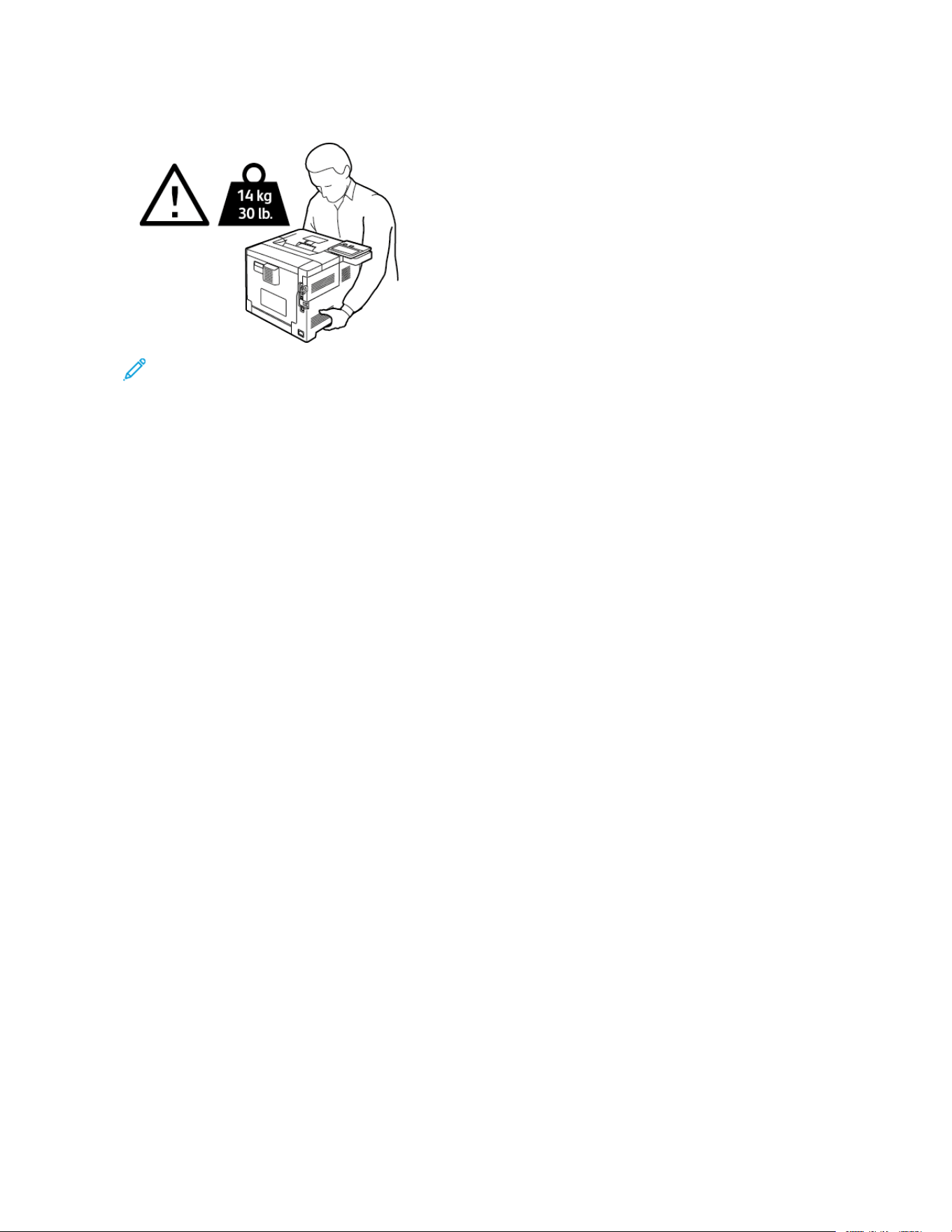
5. Lift and carry the printer as shown in the illustration.
Note:
• When moving the printer, do not tilt it more than 10 degrees in any direction. Tilting the printer more
than 10 degrees can cause toner spillage.
• When moving the printer over a long distance, remove the drum cartridge and toner cartridge to prevent
toner from spilling.
After moving the printer:
1. Reinstall any parts that you removed.
2. Reconnect the printer to the cables and power cord.
3. Plug in and power on the printer.
Xerox
®
VersaLink
®
B400 Printer User Guide 133
Maintenance


Xerox
®
VersaLink
®
B400 Printer User Guide 135
Troubleshooting
This chapter contains:
General Troubleshooting ... ..... .. .. .. ..... .. .. .. . .. .. .. .. .. . .. .. .. .. .. .. . .. .. .. .. .. . .. .. .. .. .. . .. .. .. .. .. . .. .. .. .. .. . .. .. .. .. .. .. . .. .. .. .. .. 136
Paper Jams ... .. .. ..... .. .. .. . .. .. .. .. .. . .. .. .. .. .. .. . .. .. .. .. .. . .. .. .. .. .. . .. .. .. .. .. . .. .. .. .. .. . .. .. .. .. .. .. . .. .. ....... .. .. .. ..... .. .. .. ..... .. 141
Print-Quality Problems.. .. .. .. .. . .. .. ....... .. .. .. ..... .. .. .. ..... .. .. .. ..... .. .. .. ..... .. .. .. . .. .. .. .. .. .. . .. .. .. .. .. . .. .. .. .. .. . .. .. .. .. .. . .. 156
Getting Help . .. .. . .. .. .. .. .. . .. .. .. .. .. . .. .. .. .. .. .. . .. .. .. ..... .. .. .. ..... .. .. .. ..... .. .. .. ..... .. .. .. ....... .. .. . .. .. .. .. .. .. . .. .. .. .. .. . .. .. .. 161
General Troubleshooting
This section contains procedures to help you locate and resolve problems. Resolve some problems by simply
restarting the printer.
PRINTER DOES NOT POWER ON
PPRROOBBAABBLLEE CCAAUUSSEESS SSOOLLUUTTIIOONNSS
The power switch is not turned on. To power on the printer when it is off, press the power
switch and then press the PPoowweerr//WWaakkee button. For
details, refer to Power Options.
The power cord is not plugged into the outlet correctly. Power off the printer, and plug the power cord securely
into the outlet.
The printer requires a full reset. Power off the printer, then unplug the power cord and
wait 30 seconds. Plug the power cord into the outlet
securely. To power on the printer, press the power
switch and then press the PPoowweerr//WWaakkee button.
Something is wrong with the outlet connected to the
printer.
• Plug another electrical appliance into the outlet
and check if it operates properly.
• Try a different outlet.
The printer is connected to an outlet with a voltage or
frequency that does not match the printer
specifications.
Use a power source with the specifications listed in the
Electrical Specifications.
CCaauuttiioonn:: Plug the three-wire cord with grounding prong directly into a grounded AC outlet.
PRINTER RESETS OR POWERS OFF FREQUENTLY
PPRROOBBAABBLLEE CCAAUUSSEESS SSOOLLUUTTIIOONNSS
The power cord is not plugged into the outlet correctly. Power off the printer, confirm that the power cord is
plugged in correctly to the printer and the outlet, then
power on the printer.
A system error occurred. Power off the printer, then power on again. For more
information, refer to Printing the Error History Report. If
the error persists, contact your Xerox representative.
The printer is connected to an uninterruptible power
supply.
Power off the printer, then connect the power cord to a
suitable outlet.
136
Xerox
®
VersaLink
®
B400 Printer User Guide
Troubleshooting
PPRROOBBAABBLLEE CCAAUUSSEESS SSOOLLUUTTIIOONNSS
The printer is connected to a power strip shared with
other high-power devices.
Plug the printer directly into the outlet or into a power
strip that is not shared with other devices.
The AAuuttoo PPoowweerr OOffff feature is enabled to save power. Increase the AAuuttoo PPoowweerr OOffff timer setting or disable
the AAuuttoo PPoowweerr OOffff feature. For more information,
refer to the System Administrator Guide at www.xerox.
com/support/VLB400docs.
PRINTER DOES NOT PRINT
PPRROOBBAABBLLEE CCAAUUSSEESS SSOOLLUUTTIIOONNSS
The printer is in Power Saver mode. On the control panel, press the PPoowweerr//WWaakkee button.
The printer has an error. If the Status LED is blinking amber, follow the
instructions on the control panel to clear the error. If
the error persists, contact your Xerox representative.
The printer is out of paper. Load paper into the tray.
The incorrect paper is loaded for the print job. Load the correct paper in the appropriate tray. At the
printer control panel, specify the correct paper size,
type and color.
The paper settings for the print job do not match any
paper loaded in the paper trays at the printer.
From the print driver, select a paper tray containing the
correct paper.
A toner cartridge is empty. Replace the empty toner cartridge.
No control panel indicators are lighted. Power off the printer, confirm that the power cord is
plugged in correctly to the printer and the outlet, then
power on the printer. If the error persists, contact your
Xerox representative.
The printer is busy.
• If the Status LED is flashing blue, a previous print
job could be the problem.
1 In the print driver, use the Printer Properties to
delete all print jobs in the print queue.
2 At the control panel, touch JJoobbss, then delete all
pending print jobs.
• Load the paper in the tray.
• If the Status LED does not flash once after you
send a print job, check the connection between the
printer and the computer. Power off the printer,
then power on the printer.
The printer cable is disconnected. If the Status LED does not flash once after you send a
print job, check the connection between the printer
and the computer.
Xerox
®
VersaLink
®
B400 Printer User Guide 137
Troubleshooting

PPRROOBBAABBLLEE CCAAUUSSEESS SSOOLLUUTTIIOONNSS
There is a network-connectivity issue. If the printer is connected to a network:
1 Verify that the Ethernet cable is connected to the
printer.
2 On the printer Ethernet connector, verify that the
green LED is On. If the green LED is not lighted,
reseat both ends of the Ethernet cable.
3 Examine the TCP/IP address in the Communication
section of the Configuration Report. For more
information, refer to Printing the Configuration
Report.
4 If the TCP/IP address is 0.0.0.0, the printer needs
more time to acquire an IP address from the DHCP
server. Wait 2 minutes, then print the Configuration
Report again.
5 If the TCP/IP address is unchanged, or begins with
169, contact your network administrator.
There is a wireless network setup or connectivity issue. Verify that the Wireless Network Adapter is installed
and properly configured. For more information, refer to
Connecting to a Wireless Network.
PRINTING TAKES TOO LONG
PPRROOBBAABBLLEE CCAAUUSSEESS SSOOLLUUTTIIOONNSS
The printer is set to a slower printing mode. For
example, the printer could be set to print on
Heavyweight paper.
It takes more time to print on certain types of special
paper. Ensure that the paper type is set properly in the
driver and at the printer control panel. For details, refer
to Print Speed.
The printer is in Power Saver mode. It takes time for printing to start when the printer is
coming out of Power Saver mode.
The way the printer was installed on the network could
be an issue.
Determine if a print spooler or a computer sharing the
printer is buffering all print jobs and then spooling
them to the printer. Spooling can slow print speeds. To
test the speed of the printer, print some information
pages such as the Demonstration Print. For details,
refer to Information Pages. If the page prints at the
rated speed of the printer, there could be a network or
printer installation issue. For more help, contact the
system administrator.
The job is complex. Wait. No action needed.
The print-quality mode in the driver is set to Enhanced. Change the print-quality mode in the print driver to
Standard.
138
Xerox
®
VersaLink
®
B400 Printer User Guide
Troubleshooting
DOCUMENT PRINTS FROM WRONG TRAY
PPRROOBBAABBLLEE CCAAUUSSEESS SSOOLLUUTTIIOONNSS
Application and print driver have conflicting tray
selections.
1 Check the tray selected in the print driver.
2 Access the page setup or printer settings of the
application from which you are printing.
3 Set the paper source to match the tray selected in
the print driver or set the paper source to
AAuuttoommaattiiccaallllyy SSeelleecctt.
4 Check that you have the latest print driver installed.
For details, go to www.xerox.com/support/
VLB400support.
Note: To have the print driver select the tray, set
the tray used as the paper source to AAuuttoo
SSeelleeccttiioonn EEnnaabblleedd.
AUTOMATIC 2-SIDED PRINTING PROBLEMS
PPRROOBBAABBLLEE CCAAUUSSEESS SSOOLLUUTTIIOONNSS
Unsupported or incorrect paper. Ensure that you are using a supported paper size and weight for 2-
sided printing. Envelopes, cardstock, and labels cannot be used for
2-sided printing. For details, refer to Supported Paper Types and
Weights for Automatic 2-Sided Printing.
Your printer model is not configured
with automatic 2-sided printing.
Ensure that your printer supports automatic 2-sided printing. For
details, refer to Printer Configurations and Options.
Incorrect setting. In the print driver Printing Options tab, select 22--SSiiddeedd PPrriinntt.
PRINTER IS MAKING UNUSUAL NOISES
PPRROOBBAABBLLEE CCAAUUSSEESS SSOOLLUUTTIIOONNSS
There is an obstruction or debris inside the printer. Power off the printer, then remove the obstruction
or debris. If you cannot remove the obstruction,
contact your Xerox representative.
Xerox
®
VersaLink
®
B400 Printer User Guide 139
Troubleshooting

PAPER TRAY WILL NOT CLOSE
PPRROOBBAABBLLEE CCAAUUSSEESS SSOOLLUUTTIIOONNSS
The paper tray does not fully close.
• If the tray is extended for legal-size paper, the tray
protrudes when it is inserted into the printer. For
more information, refer to Configuring Trays 1–4
for the Paper Length.
• Some debris or an object is blocking the tray.
• The tray is blocked by the table or shelf on which it
is located.
• If the paper lift plate at the back of the tray is not
locked down, replace the tray.
CONDENSATION HAS FORMED INSIDE THE PRINTER
Moisture can condense inside a printer where the humidity is above 85% or when a cold printer is located in a
warm room. Condensation can form in a printer after it has been sitting in a cold room that is heated quickly.
PPRROOBBAABBLLEE CCAAUUSSEESS SSOOLLUUTTIIOONNSS
The printer has been sitting in a cold room. Allow the printer to operate for several hours at room
temperature.
The relative humidity of the room is too high.
• Reduce the humidity in the room.
• Move the printer to a location where the
temperature and relative humidity are within the
operating specifications.
140
Xerox
®
VersaLink
®
B400 Printer User Guide
Troubleshooting
Paper Jams
LOCATING PAPER JAMS
WWaarrnniinngg:: Never touch a labeled area on or near the heat roller in the fuser. You can get burned. If a
sheet of paper is wrapped around the heat roller, do not try to remove it immediately. Power off the
printer immediately and wait 40 minutes for the fuser to cool. Try to remove the jam after the printer has
cooled. If the error persists, contact your Xerox representative.
CCaauuttiioonn:: Do not attempt to clear any paper jams using tools or instruments. This can permanently
damage the printer.
The following illustration shows where paper jams can occur along the paper path:
1. Optional Trays 2, 3, and 4
2. Fuser
3. Bypass Tray
4. Tray 1
MINIMIZING PAPER JAMS
The printer is designed to function with minimal paper jams using Xerox supported paper. Other paper types can
cause jams. If supported paper is jamming frequently in one area, clean that area of the paper path.
The following can cause paper jams:
• Selecting the incorrect paper type in the print driver.
• Using damaged paper.
• Using unsupported paper.
Xerox
®
VersaLink
®
B400 Printer User Guide 141
Troubleshooting

• Loading paper incorrectly.
• Overfilling the tray.
• Adjusting the paper guides improperly.
Most jams can be prevented by following a simple set of rules:
• Use only supported paper.
• Follow proper paper handling and loading techniques.
• Always use clean, undamaged paper.
• Avoid paper that is curled, torn, moist, creased, or folded.
• To separate the sheets before loading into the tray, fan the paper.
• Observe the paper tray fill line; never overfill the tray.
• Adjust the paper guides in all trays after inserting the paper. A guide that is not properly adjusted can cause
poor print quality, misfeeds, skewed prints, and printer damage.
• After loading the tray, at the control panel, select the correct paper type and size.
• When printing, select the correct type and size in the print driver.
• Store paper in a dry location.
Avoid the following:
• Polyester coated paper that is designed especially for inkjet printers.
• Paper that is folded, wrinkled, or excessively curled.
• Loading more than one type, size, or weight of paper in a tray at the same time.
• Overfilling the tray.
• Allowing the output tray to overfill.
For a detailed list of supported paper, refer to Supported Paper.
CLEARING PAPER JAMS
Clearing Paper Jams from the Bypass Tray
To resolve the error that appears on the control panel, clear all paper from the paper path.
142
Xerox
®
VersaLink
®
B400 Printer User Guide
Troubleshooting



6. Insert Tray 1 into the printer, then push it all the way in.
7. Insert the Bypass Tray completely into the printer.
8. When paper trays are set to Fully Adjustable, you are prompted to verify or change the paper settings.
• To confirm the same paper size, type, or color, touch OOKK.
• To select a new paper size, type or color, touch the current setting, then select a new setting. When finished,
touch OOKK.
9. To return to the Home screen, press the HHoommee button.
Clearing Paper Jams from the Tray 1 Area
To resolve the error that appears on the control panel, clear all paper from the paper path.
Xerox
®
VersaLink
®
B400 Printer User Guide 145
Troubleshooting



6. Insert Tray 1 into the printer, then push it in all the way.
7. Insert the Bypass Tray completely into the printer.
8. When paper trays are set to Fully Adjustable, you are prompted to verify or change the paper settings.
• To confirm the same paper size, type, or color, touch OOKK.
• To select a new paper size, type or color, touch the current setting, then select a new setting. When finished,
touch OOKK.
9. To return to the Home screen, press the HHoommee button.
Clearing Paper Jams from Tray 2, 3 and 4 Areas
To resolve the error that appears on the control panel, clear all paper from the paper path.
148
Xerox
®
VersaLink
®
B400 Printer User Guide
Troubleshooting


4. At the back of the printer, open the Tray 2 door, then remove any paper jammed at the back of the printer.
5. Insert the tray into the printer, then push it in all the way.
6. When paper trays are set to Fully Adjustable, you are prompted to verify or change the paper settings.
• To confirm the same paper size, type, or color, touch OOKK.
• To select a new paper size, type or color, touch the current setting, select a new setting, then touch OOKK.
7. To return to the Home screen, press the HHoommee button.
Clearing Paper Jams from the Fuser Area
To resolve the error that appears on the control panel, clear all paper from the paper path.
1. Lift the door release latch, then pull open the door.
150 Xerox
®
VersaLink
®
B400 Printer User Guide
Troubleshooting


8. Close the rear door.
TROUBLESHOOTING PAPER JAMS
Multiple Sheets Pulled Together
PPRROOBBAABBLLEE CCAAUUSSEESS SSOOLLUUTTIIOONNSS
The paper tray is too full. Remove some of the paper. Do not load paper above the maximum
fill line.
The edges of the paper are not even. Remove the paper, align the edges, and then reload the paper.
The paper is moist from humidity. Remove the paper from the paper tray. Load new, dry paper into the
tray.
Too much static electricity is present. Load a new ream of paper.
Using unsupported paper. Use only Xerox
®
-approved paper. For details, refer to Supported Paper.
Humidity is too high for coated paper.
• Feed paper one sheet at a time.
• Try loading paper in the Bypass tray.
The feed rollers are dirty. With a clean, lint-free cloth moistened with water, wipe the feed
rollers until they are clean. For details, refer to Cleaning the Printer.
Tray is loaded with mixed paper. Load the tray with only one type and size of paper.
Paper Misfeeds
PPRROOBBAABBLLEE CCAAUUSSEESS SSOOLLUUTTIIOONNSS
The paper is not correctly positioned in the tray. Remove the misfed paper and reposition it properly in
the tray.
Adjust the paper guides in the tray to match the size of
the paper.
The paper tray is too full. Remove some of the paper. Do not load paper past the
fill line.
Xerox
®
VersaLink
®
B400 Printer User Guide 153
Troubleshooting
PPRROOBBAABBLLEE CCAAUUSSEESS SSOOLLUUTTIIOONNSS
The paper guides are not correctly adjusted to the
paper size.
Adjust the paper guides in the tray to match the size of
the paper.
The tray contains warped or wrinkled paper. Remove the paper, smooth it out, and reload it. If it still
misfeeds, do not use that paper.
The paper is moist from humidity. Remove the moist paper and replace it with new, dry
paper.
Using paper of the wrong size, thickness, or type. Use only Xerox approved paper. For details, refer to
Supported Paper.
The feed rollers are dirty. With a clean, lint-free cloth moistened with water, wipe
the feed rollers until they are clean. For details, refer to
Cleaning the Printer.
Label and Envelope Misfeeds
PPRROOBBAABBLLEE CCAAUUSSEESS SSOOLLUUTTIIOONNSS
The label sheet is facing the wrong way
in the tray.
• Load label sheets according to the instructions from the
manufacturer.
• Load labels in the tray, face up.
• For more information, refer to Labels.
Labels are missing, curled, or pulled
away from the backing sheet.
Do not use any sheet where labels are missing, curled, or pulled away
from the backing sheet.
Envelopes are loaded incorrectly. You can print envelopes from the Bypass Tray or Tray 1.
For more information, refer to Envelopes.
Envelopes are wrinkling.
• The heat and pressure of the laser printing process can cause
wrinkling.
• Use supported envelopes. For more information, refer to Guidelines
for Printing Envelopes.
Note: When you load envelopes long-edge feed, ensure that
you specify landscape orientation in the print driver.
Paper Jam Message Stays On
Note: Check for, and remove, torn pieces of paper in the paper path.
154
Xerox
®
VersaLink
®
B400 Printer User Guide
Troubleshooting

PPRROOBBAABBLLEE CCAAUUSSEESS SSOOLLUUTTIIOONNSS
Some paper remains jammed in the
printer.
Recheck the paper path and make sure that you have removed all of
the jammed paper.
One of the printer doors is open. Check the doors on the printer. Close any door that is open.
Jams During Automatic 2-Sided Printing
PPRROOBBAABBLLEE CCAAUUSSEESS SSOOLLUUTTIIOONNSS
Using paper of the wrong size,
thickness, or type.
Use paper of the correct size, thickness, or type. For more information,
refer to Supported Paper Types and Weights for Automatic 2-Sided
Printing.
Paper is loaded in the wrong tray. Ensure that paper is loaded into the correct tray. For more
information, refer to Supported Paper.
Tray is loaded with mixed paper. Load the tray with only one type and size of paper.
Xerox
®
VersaLink
®
B400 Printer User Guide 155
Troubleshooting
Print-Quality Problems
Your printer is designed to produce consistently high-quality prints. If you observe print-quality problems, use the
information in this section to troubleshoot the problem. For more information, go to www.xerox.com/support/
VLB400support.
CCaauuttiioonn:: The Xerox Warranty, Service Agreement, or Xerox Total Satisfaction Guarantee does not cover
damage caused by using unsupported paper or specialty media. The Xerox Total Satisfaction Guarantee is
available in the United States and Canada. Coverage could vary outside these areas. Please contact your
local representative for details.
Note: To ensure consistent print quality, the toner cartridges and imaging units for many models of
equipment are designed to cease functioning at a predetermined point.
CONTROLLING PRINT-QUALITY
Various factors can affect the quality of the output of your printer. For consistent and optimum print quality, use
paper designed for your printer and set the paper type correctly. Follow the guidelines in this section to maintain
optimum print quality from your printer.
Temperature and humidity affect the quality of the printed output. The guaranteed range for optimal print quality
is 15–28ºC (59–82ºF) and 20–70% relative humidity.
PAPER AND MEDIA
Your printer is designed to use various paper and other media types. Follow the guidelines in this section for the best
print quality and to avoid jams:
• Use only Xerox approved paper. For details, refer to Supported Paper.
• Use only dry, undamaged paper.
CCaauuttiioonn:: Some paper and other media types can cause poor output quality, increased paper jams, or
damage your printer. Do not use the following:
• Rough or porous paper
• Inkjet paper
• Non-laser glossy or coated paper
• Paper that has been photocopied
• Paper that has been folded or wrinkled
• Paper with cutouts or perforations
• Stapled paper
• Envelopes with windows, metal clasps, side seams, or adhesives with release strips
• Padded envelopes
• Plastic media
• Transparencies
156
Xerox
®
VersaLink
®
B400 Printer User Guide
Troubleshooting
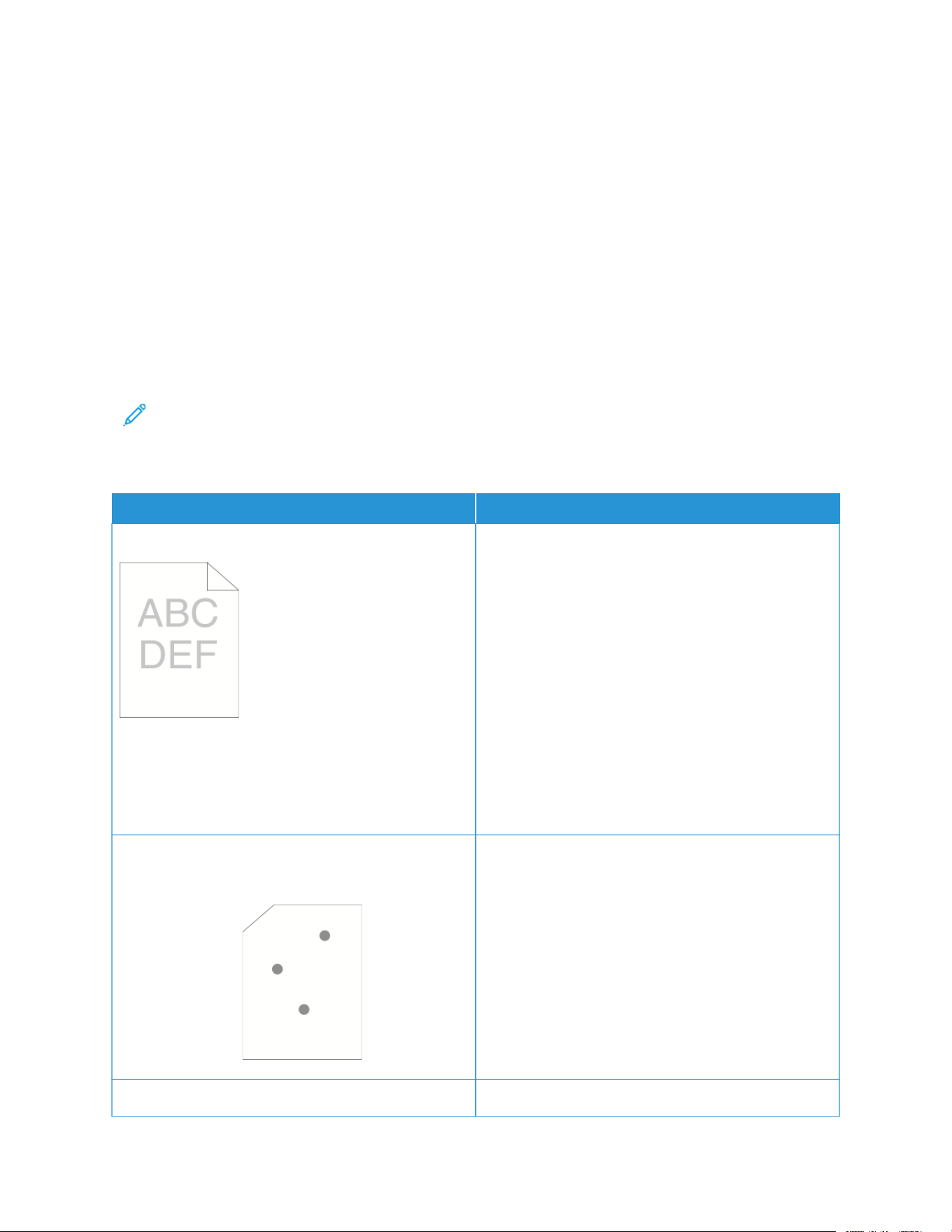
• Ensure the paper type selected in your print driver matches the paper type on which you are printing.
• If you have the same size paper loaded in more than one tray, ensure that the proper tray is selected in the
print driver.
• Store your paper and other media properly for optimum print quality. For details, refer to Paper Storage
Guidelines.
SOLVING PRINT-QUALITY PROBLEMS
When the print quality is poor, select the closest symptom from the following table and refer to the corresponding
solution to correct the problem. You can print a Demonstration Print page to more precisely determine the print-
quality problem. For details, refer to Information Pages.
If the print quality does not improve after performing the appropriate action, contact your Xerox representative.
Note: To maintain print quality, the toner cartridge is designed to provide a warning message when the
toner level is low. When the toner cartridge reaches this level, a warning message appears. When the toner
cartridge is empty, another message prompts you to replace the toner cartridge. The printer stops printing
until you install a new toner cartridge.
SSYYMMPPTTOOMM SSOOLLUUTTIIOONNSS
The output is too light.
• To check the toner level, check the control panel,
use the print driver, or the Embedded Web Server. If
the toner cartridge is near empty, replace it.
• Verify that the toner cartridge is approved for use in
this printer, and replace it as needed. For best
results, use a genuine Xerox toner cartridge.
• Replace the paper with a recommended size and
type, and confirm that your printer and print driver
settings are correct.
• Verify that the paper is dry and that supported
paper is used. If not, change the paper.
• Change the Paper Type settings in the print driver.
In the print driver Printing Options tab, select
PPaappeerr, then change the OOtthheerr TTyyppee setting.
Toner smears or print rubs off.
The output has stains on the back side.
• Change the Paper Type settings in the print driver.
For example, change Plain to Lightweight
Cardstock. In the print driver Printing Options tab,
select PPaappeerr, then change the OOtthheerr TTyyppee setting.
• Verify that the paper is the correct size, type, and
weight. If not, change the paper settings.
• Verify that the printer is plugged into an outlet that
is providing the correct voltage and power. Review
the electrical specification of the printer with an
electrician if necessary. For details, refer to Electrical
Specifications.
Random spots on the output, or the image is blurry.
• Ensure that the toner cartridge is installed correctly.
Xerox
®
VersaLink
®
B400 Printer User Guide 157
Troubleshooting

SSYYMMPPTTOOMM SSOOLLUUTTIIOONNSS
• If you used a non-genuine brand toner cartridge,
install a genuine Xerox toner cartridge.
• Use the Rough paper type setting, or try a paper
with a smoother surface.
• Ensure that the humidity in the room is within
specifications. For details, see Relative Humidity.
The output is blank.
• Power off the printer, then power on again.
• If the error persists, contact your Xerox
representative.
Streaks appear in the output.
• Replace the Drum Cartridge.
• If the error persists, contact your Xerox
representative.
The output has a mottled appearance.
• Verify that the paper is the correct size, type, and
weight. If not, change the paper settings.
• Ensure that the humidity in the room is within
specifications. For details, refer to Relative Humidity.
• Choose a different paper type at the control panel,
in the application, and in the print driver.
• Replace the paper.
Ghosting appears in the printed output.
• Verify that the paper is the correct size, type, and
weight. If not, change the paper settings.
• Change the Paper Type settings in the print driver.
In the print driver Printing Options tab, select
PPaappeerr, then change the OOtthheerr TTyyppee setting.
• Replace the Drum Cartridge.
158
Xerox
®
VersaLink
®
B400 Printer User Guide
Troubleshooting

SSYYMMPPTTOOMM SSOOLLUUTTIIOONNSS
Auger marks appear on the printed output.
• To check the toner level, check the control panel,
use the print driver, or the Embedded Web Server. If
the toner cartridge is near empty, replace it.
• Verify that the toner cartridge is approved for use in
this printer, and replace it as needed. For best
results, use a genuine Xerox toner cartridge.
The output print is wrinkled or stained.
• Verify that the paper is the correct size, type, and
weight for the printer and that it is loaded properly.
If not, change the paper.
• Try a new ream of paper.
• Change the Paper Type settings in the print driver.
In the print driver Printing Options tab, select
PPaappeerr, then change the OOtthheerr TTyyppee setting.
Envelopes are wrinkled or creased when printed. Check if the crease is within 30 mm (1.2 in.) of the four
edges of the envelope.
• If yes, it is printing as expected. Your printer is not
faulty.
• If not, take the following actions:
Ensure that envelopes are loaded properly in the
bypass tray. For details, see Loading Envelopes in
the Bypass Tray.
Follow the guidelines for printing on envelopes. For
details, see Guidelines for Printing Envelopes.
If the problem persists, use a different size
envelope.
The top margin is incorrect.
• Ensure that the paper is loaded properly.
• Ensure that the margins are set correctly in the
application you are using.
Xerox
®
VersaLink
®
B400 Printer User Guide 159
Troubleshooting

SSYYMMPPTTOOMM SSOOLLUUTTIIOONNSS
• Adjust the paper registration. For details, see
Adjusting Paper Registration.
The printed surface of the paper is bumpy.
1 Print a solid image over the entire surface of one
sheet of paper.
2 Load the printed sheet into the tray with the
printed side face down.
3 Print five blank pages to remove debris from the
fuser rollers.
Spots or lines appear at regular intervals on the prints.
1 Print the Repeating Defects pages.
At the control panel, touch DDeevviiccee >> SSuuppppoorrtt >>
SSuuppppoorrtt PPaaggeess >> RReeppeeaattiinngg DDeeffeeccttss.
2 To determine the cause, measure the distance
between the print defects.
• 28 mm (1.1 in.): Drum Cartridge
• 53 mm (2.1 in.): Drum Cartridge
• 94 mm (3.7 in.): Drum Cartridge
• 49 mm (1.9 in.): Transfer Roller
• 80 mm (3.1 in.): Fuser
• 95 mm (3.7 in.): Fuser
3 If the repeating defects matches the Drum
Cartridge distances, replace the Drum Cartridge.
4 If the distance matches the Fuser or Transfer Roller,
call for service.
160
Xerox
®
VersaLink
®
B400 Printer User Guide
Troubleshooting

Getting Help
Your printer includes utilities and resources to help you troubleshoot printing problems.
VIEWING WARNING MESSAGES ON THE CONTROL PANEL
When a warning condition occurs, the printer alerts you of the problem. A message appears on the control panel
and the LED status light on the control panel flashes amber or red. Warning alerts inform you about printer
conditions, such as low supplies or open doors, that require your attention. If more than one warning condition
occurs, only one warning message appears on the control panel at a time.
VIEWING CURRENT ERRORS ON THE CONTROL PANEL
When an error condition occurs, a message appears on the control panel to inform you of the problem. Error
messages warn you about printer conditions that prevent the printer from printing or degrade printing
performance. If more than one error occurs, only one is displayed on the control panel.
USING THE INTEGRATED TROUBLESHOOTING TOOLS
Your printer has a set of reports that you can print. These reports include the Demonstration Print page and the
Error History report that can assist you in troubleshooting certain problems. The Demonstration Print page prints an
image to show print quality. You can use this page to troubleshoot print-quality issues with the printer. The Error
History report prints information on the most recent printer errors.
For more information, refer to Printing Information Pages.
Printing the Error History Report
1. At the printer control panel, press the HHoommee button.
2. To print the Error History Report, touch DDeevviiccee >> SSuuppppoorrtt >> SSuuppppoorrtt PPaaggeess >> EErrrroorr HHiissttoorryy RReeppoorrtt.
3. To return to the Home screen, press the HHoommee button.
ONLINE SUPPORT ASSISTANT
The Online Support Assistant is a knowledge base that provides instructions and troubleshooting help to solve your
printer problems. You can find solutions for print-quality problems, paper jams, software installation issues, and
more.
To access the Online Support Assistant, go to www.xerox.com/support/VLB400support.
HELPFUL INFORMATION PAGES
To assist with troubleshooting, your printer has a set of Information Pages that you can print. These pages include
configuration and font information, demonstration pages, and more. For more information, refer to Information
Pages.
Xerox
®
VersaLink
®
B400 Printer User Guide 161
Troubleshooting


Xerox
®
VersaLink
®
B400 Printer User Guide 163
Specifications
This appendix contains:
Printer Configurations and Options. .. .. . .. .. .. .. .. .. . .. .. .. .. .. . .. .. .. .. .. . .. .. .. ..... .. .. .. ..... .. .. .. ..... .. .. .. ....... .. .. .. ..... .. .. .. 164
Physical Specifications ... .. .. .. ..... .. .. .. ..... .. .. .. . .. .. .. .. .. . .. .. .. .. .. . .. .. .. .. .. . .. .. .. .. .. .. . .. .. .. .. .. . .. .. .. .. .. . .. .. .. .. .. . .. .. .. ... 166
Environmental Specifications ..... .. .. .. ..... .. .. .. ..... .. .. .. ..... .. .. .. . .. .. .. .. .. . .. .. .. .. .. .. . .. .. .. .. .. . .. .. .. .. .. . .. .. .. .. .. . .. .. .. .. . 169
Electrical Specifications ... .. ..... .. .. .. ..... .. .. .. ....... .. .. . .. .. .. .. .. .. . .. .. .. .. .. . .. .. .. .. .. . .. .. .. .. .. . .. .. .. .. .. . .. .. .. .. .. .. . .. .. .. .. .. 170
Performance Specifications .. .. ..... .. .. .. ....... .. .. .. ..... .. .. .. . .. .. .. .. .. . .. .. .. .. .. . .. .. .. .. .. . .. .. .. .. .. . .. .. .. .. .. .. . .. .. .. .. .. . .. .. .. 171

Printer Configurations and Options
AVAILABLE CONFIGURATIONS
The printer is available in the following configuration:
Network printer with automatic 2-sided printing and USB or network connectivity.
STANDARD FEATURES
Print Speed Standard and Enhanced modes up to 47 ppm (letter)/
45 ppm (A4)
2-Sided Print Speed Standard and Enhanced modes up to 29 images per
minute
Print Resolution
• Standard mode: 600 x 600 dpi
• Enhanced mode: 1200 x 1200 dpi
Paper Capacity
• Bypass Tray
• Tray 1
• Optional 550-Sheet Feeder (up to 3x)
• Output Tray
• 150 sheets
• 550 sheets
• 550 sheets (1x)/1100 (2x)/1650 (3x)
• 250 sheets
Maximum Print Size Legal (216 x 356 mm, 8.5 x 14 in.)
2-Sided Printing Up to 163 g/m² from any tray
File Formats
• JPEG
• TIFF
• PDF
• PDF/A
• XPS
Control Panel 5-inch LCD touch screen with home and power/wake
buttons
Connectivity
• 2 x USB 2.0 (Type A)
• USB 3.0 (Type B)
• Ethernet 10BASE-T/100BASE-TX/1000BASE-T
• Wireless network connectivity with an IEEE802.11
n/g/b-compliant Wireless Network Adapter
(optional)
• Near Field Communication (NFC)
• AirPrint™
• Mopria™
Remote Access Embedded Web Server
164
Xerox
®
VersaLink
®
B400 Printer User Guide
Specifications

OPTIONS AND UPGRADES
• Wireless network adapter
• 16-GB Solid State Drive
• 550-Sheet Feeder
• Stand
• External Card Reader/RFID Kit
• Foreign Device Interface Kit
• Xerox
®
Common Access Card Enablement Kit
Note: This product supports up to three additional 550-Sheet Feeder trays
Xerox
®
VersaLink
®
B400 Printer User Guide 165
Specifications
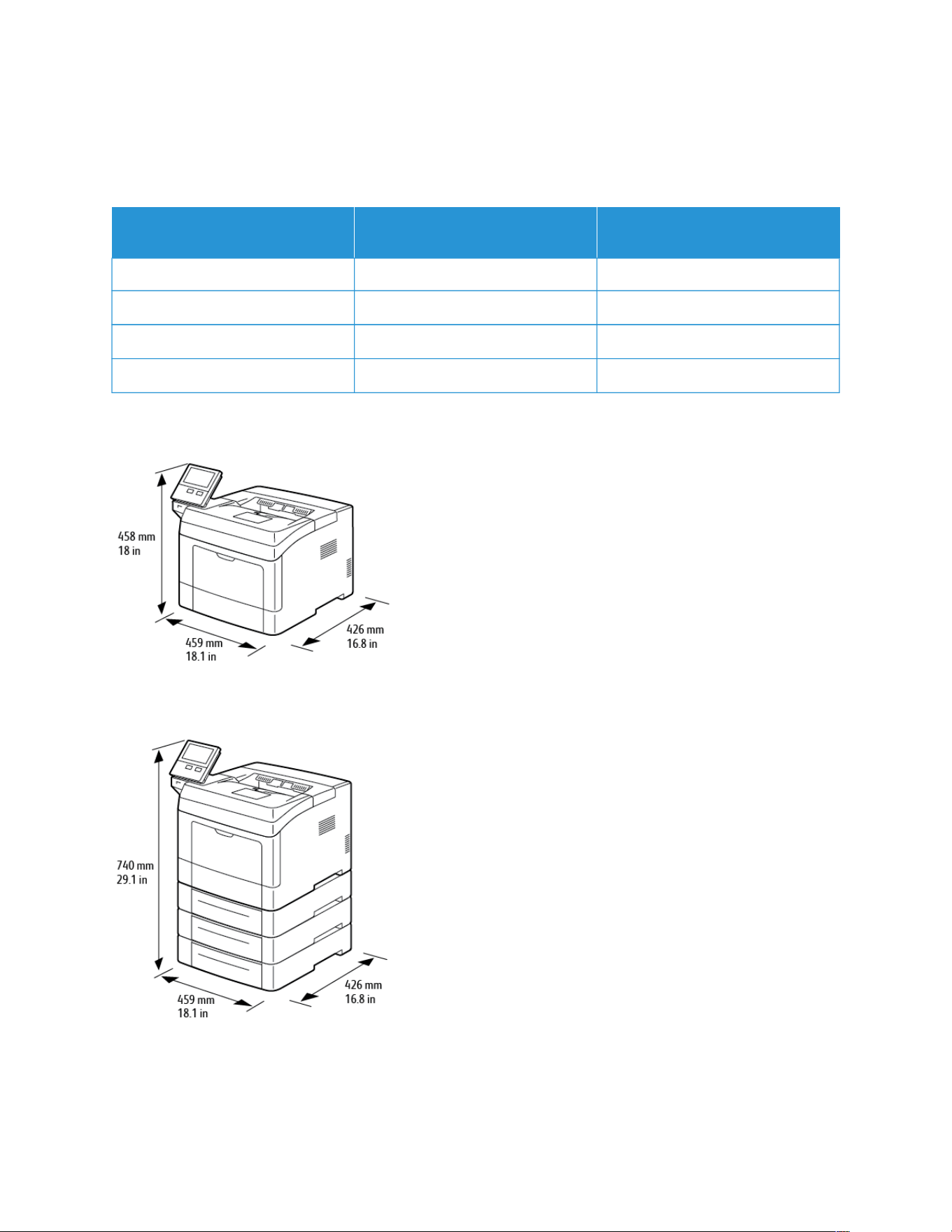
Physical Specifications
WEIGHTS AND DIMENSIONS
SSTTAANNDDAARRDD CCOONNFFIIGGUURRAATTIIOONN
CCOONNFFIIGGUURRAATTIIOONN WWIITTHH TTHHRREEEE
OOPPTTIIOONNAALL 555500--SSHHEEEETT FFEEEEDDEERRSS
Width 459 mm (18.1 in.) 459 mm (18.1 in.)
Depth 426 mm (16.8 in.) 426 mm (16.8 in.)
Height 458 mm (18 in.) 740 mm (29.1 in.)
Weight 13.5 kg (29.8 lbs.) 23.1 kg (50.9 lbs.)
STANDARD CONFIGURATION
CONFIGURATION WITH THREE OPTIONAL 550-SHEET FEEDERS
166 Xerox
®
VersaLink
®
B400 Printer User Guide
Specifications

TOTAL SPACE REQUIREMENTS
SSTTAANNDDAARRDD CCOONNFFIIGGUURRAATTIIOONN
CCOONNFFIIGGUURRAATTIIOONN WWIITTHH TTHHRREEEE
OOPPTTIIOONNAALL 555500--SSHHEEEETT FFEEEEDDEERRSS
Width 959 mm (37.8 in.) 959 mm (37.8 in.)
Depth 1426 mm (56.1 in.) 1426 mm (56.1 in.)
Height 658 mm (25.9 in.) 940 mm (37 in.)
CLEARANCE REQUIREMENTS
Clearance Requirements for Base Configuration
Xerox
®
VersaLink
®
B400 Printer User Guide 167
Specifications


Environmental Specifications
TEMPERATURE
• Operating Temperature Range: 10–32°C (50–90°F)
• Optimal Temperature Range: 15–28°C (59–82°F)
RELATIVE HUMIDITY
• Operating Humidity Range: 10–85%
• Optimal Humidity Range: 20–70% relative humidity at 28°C (82°F)
Note: Under extreme environmental conditions, such as 10°C and 85% relative humidity, printing defects
can occur due to condensation inside the printer.
ELEVATION
For optimum performance, use the printer at elevations below 3100 m (10,170 ft.).
Xerox
®
VersaLink
®
B400 Printer User Guide 169
Specifications

Electrical Specifications
POWER SUPPLY VOLTAGE AND FREQUENCY
PPOOWWEERR SSUUPPPPLLYY VVOOLLTTAAGGEE
FFRREEQQUUEENNCCYY CCUURRRREENNTT RREEQQUUIIRREEDD
110–127 VAC +/-10%
(99–140 VAC)
60 Hz +/-3 Hz 11 A
220–240 VAC +/-10%
(198–264 VAC)
50 Hz +/-3 Hz 6 A
POWER CONSUMPTION
• Sleep mode: less than 4 W
• Low Power mode: 9.5 W
• Standby: 46 W
• Continuous printing: 565 W
170
Xerox
®
VersaLink
®
B400 Printer User Guide
Specifications
Performance Specifications
FFEEAATTUURREE SSPPEECCIIFFIICCAATTIIOONNSS
Printer warm-up time Power on: as fast as 60 seconds.
Recovery from sleep mode as fast as 4 seconds.
Note: Warm-up time assumes an ambient
temperature of 20ºC (68°F) at 65% relative
humidity.
PRINT SPEED
Print speeds for continuous printing are up to 47 ppm.
Several factors affect print speed:
• Print mode: The fastest print mode is Standard.
• Paper size: Letter (8.5 x 11 in.) prints slightly faster than A4 (210 x 297 mm). Larger sizes reduce print speeds.
• Paper type and weights: For faster printing, use paper weights of 105 g/m² or less.
Maximum Print Speeds:
• 1-sided printing: 47 ppm on Letter-sized paper and 45 ppm on A4 paper
• 2-sided printing: 28 images per minute on Letter-sized paper and on A4 paper
• Heavyweight Paper: 23 ppm
Xerox
®
VersaLink
®
B400 Printer User Guide 171
Specifications


Xerox
®
VersaLink
®
B400 Printer User Guide 173
Regulatory Information
This appendix contains:
Basic Regulations ... .. .. .. ..... .. .. .. ..... .. .. .. . .. .. .. .. .. . .. .. .. .. .. . .. .. .. .. .. .. . .. .. .. .. .. . .. .. .. .. .. . .. .. .. .. .. . .. .. .. .. .. . .. .. .. .. .. . .. .. . 174
Safety Certification. . .. .. .. . .. .. .. .. .. . .. .. .. .. .. .. . .. .. .. .. .. . .. .. .. .. .. . .. .. .. ..... .. .. .. ..... .. .. .. ....... .. .. ....... .. .. .. ..... .. .. .. . .. .. .. 179
Material Safety Data Sheets .. . .. .. .. .. .. . .. .. .. .. .. .. . .. .. .. .. .. . .. .. .. .. .. . .. .. .. ..... .. .. .. ..... .. .. .. ..... .. .. .. ....... .. .. .. ..... .. .. .. 180
Basic Regulations
Xerox has tested this printer to electromagnetic emission and immunity standards. These standards are designed to
mitigate interference caused or received by this printer in a typical office environment.
UNITED STATES FCC REGULATIONS
This equipment has been tested and found to comply with the limits for a Class A digital device, pursuant to Part 15
and Part 18 of the FCC Rules. These limits are designed to provide reasonable protection against harmful
interference when the equipment is operated in a commercial environment. This equipment generates, uses, and
can radiate radio frequency energy. If the equipment is not installed and used in accordance with these
instructions, it can cause harmful interference to radio communications. Operation of this equipment in a residential
area is likely to cause harmful interference. Users are required to correct the interference at their own expense.
If this equipment does cause harmful interference to radio or television reception, which can be determined by
turning the equipment off and on, the user is encouraged to try to correct the interference by one or more of the
following measures:
• Reorient or relocate the receiving antenna.
• Increase the separation between the equipment and receiver.
• Connect the equipment into an outlet on a circuit different from that to which the receiver is connected.
• Consult the dealer or an experienced radio/TV technician for help.
Changes or modifications to this equipment not approved by Xerox can void the authority of the user to operate
this equipment.
WWaarrnniinngg:: To ensure compliance with Part 15 and Part 18 of the FCC rules, use shielded interface cables.
CANADA
This Class A digital apparatus complies with Canadian ICES-003 and ICES-001.
Cet appareil numérique de la classe A est conforme à la norme NMB-003 et NMB-001 du Canada.
CERTIFICATIONS IN EUROPE
The CE mark applied to this product symbolizes a declaration of conformity by Xerox with the
following applicable Directives of the European Union as of the date indicated:
• April 16, 2014: Radio Equipment Directive 2014/53/EU
Hereby, Xerox declares that the radio equipment model VersaLink
®
B400 is in compliance with Directive 2014/53/
EU. The full text of the EU declaration of conformity can found at the following internet address: www.xerox.com/
environment_europe
This printer, if used properly in accordance with the instructions, is not dangerous for the consumer or for the
environment.
174
Xerox
®
VersaLink
®
B400 Printer User Guide
Regulatory Information

WWaarrnniinngg::
• Changes or modifications to this equipment not specifically approved by the Xerox Corporation may
void the user's authority to operate this equipment.
• External radiation from Industrial, Scientific, and Medical (ISM) equipment can interfere with the
operation of this Xerox device. If external radiation from ISM equipment interferes with this device,
contact your Xerox representative for assistance.
• This is a class A product. In a domestic environment, this product can cause radio frequency
interference, in which case the user can be required to take adequate measures.
• To ensure compliance with European Union regulations, use shielded interface cables.
EUROPEAN UNION LOT 4 IMAGING EQUIPMENT AGREEMENT ENVIRONMENTAL INFORMATION
Environmental Information Providing Environmental Solutions and Reducing Cost
The following information has been developed to assist users and has been issued in relation to the European
Union (EU) Energy Related Products Directive, specifically the Lot 4 study on Imaging Equipment. This requires
manufacturers to improve environmental performance of in scope products and supports the EU action plan on
energy efficiency.
In scope products are Household and Office equipment that meet the following criteria:
• Standard monochrome format products with a maximum speed less than 66 A4 images per minute
• Standard color format products with a maximum speed less than 51 A4 images per minute
Environmental Benefits of Duplex Printing
Most Xerox products have duplex printing, also known as 2-sided printing, capability. This enables you to print on
both sides of the paper automatically, and therefore helps to reduce the use of valuable resources by reducing your
paper consumption. The Lot 4 Imaging Equipment agreement requires that on models greater than or equal to 40
ppm color or greater than or equal to 45 ppm monochrome the duplex function has been auto enabled, during the
setup and driver installation. Some Xerox models below these speed bands may also be enabled with 2-sided
printing settings defaulted on at the time of install. Continuing to use the duplex function will reduce the
environmental impact of your work. However, should you require simplex/1-sided printing, you may change the
print settings in the print driver.
Paper Types
This product can be used to print on both recycled and virgin paper, approved to an environmental stewardship
scheme, which complies with EN12281 or a similar quality standard. Lighter weight paper (60 g/m²), which contains
less raw material and thus saves resources per print, may be used in certain applications. We encourage you to
check if this is suitable for your printing needs.
Xerox
®
VersaLink
®
B400 Printer User Guide 175
Regulatory Information

ENERGY STAR
The ENERGY STAR program is a voluntary scheme to promote the
development and purchase of energy efficient models, which help to
reduce environmental impact. Details on the ENERGY STAR program
and models qualified to ENERGY STAR can be found at the following
website: www.energystar.gov
The ENERGY STAR and ENERGY STAR mark are registered United
States trademarks.
The ENERGY STAR Imaging Equipment Program is a team effort
between United States, European Union, and Japanese governments
and the office equipment industry to promote energy-efficient
copiers, printers, fax, multifunction printers, personal computers, and
monitors. Reducing product energy consumption helps combat smog,
acid rain, and long-term changes to the climate by decreasing the
emissions that result from generating electricity.
For additional information on energy or other related topics, go to www.xerox.com/environment or www.xerox.com/
environment_europe.
Power Consumption and Activation Time
The amount of electricity that a device consumes depends on the way the device is used. This device is designed
and configured to enable you to reduce your electricity usage.
Power Saver modes are enabled on your device to reduce energy consumption. After the last print, the device
transitions to Ready mode. In this mode, the device can print again immediately. If the device is not used for a
specified period, the device transitions to Low Power mode, then to Sleep mode. In these modes, to enable reduced-
power consumption, only essential functions remain active. The device takes longer to produce the first print after it
exits the Power Saver modes than it takes to print in Ready mode. This delay is the result of the system waking up
and is typical of most imaging devices on the market.
To save power, you can enable Auto Power Off mode on your device. If Auto Power Off mode is enabled, you can
configure the mode as follows:
• AAllwwaayyss AAlllloowweedd: The device powers off automatically after the specified time, and the cumulative Low Power
mode and Sleep mode timeouts have elapsed.
• AAlllloowweedd OONNLLYY WWhheenn CCoonnddiittiioonnss aarree MMeett: The device automatically powers off only after timeouts have
elapsed. The device also powers off if Fax, USB Drive, and Wired and Non-Wired Network have not been
activated.
To change the Power Saver settings, refer to the User Guide at www.xerox.com/support/VLB400docs. For further
assistance, contact your System Administrator or refer to the System Administrator Guide.
To enable Auto Power Off mode, contact your System Administrator. For details, refer to the System Administrator
Guide at www.xerox.com/support/VLB400docs.
To learn more about Xerox participation in sustainability initiatives, go to: www.xerox.com/environment.
Note: Changing the default Power Saver activation times can result in an overall higher energy consumption
of the device. Before you turn off Power Saver modes or set a long activation time, consider the increase in
device power consumption.
176
Xerox
®
VersaLink
®
B400 Printer User Guide
Regulatory Information

Default Power Saver Settings
This device is ENERGY STAR
®
-qualified under the ENERGY STAR Program Requirements for Imaging Equipment. The
transition time from Ready mode to Low-Power mode can be set up to 60 minutes. The default value is 5 minutes.
The transition time from Low-Power mode to Sleep mode can be set up to 60 minutes. The default value is set at 1
minute. The total transition time from Ready mode to Sleep mode can take up to 60 minutes.
To change the Power Saver settings, contact your System Administrator, or refer to the System Administrator Guide
at www.xerox.com/support/VLB400docs.
EcoLogo Certified to Office Machines CCD-035
This product is certified to EcoLogo standard for office machines, meeting all requirements for
reduced environmental impact. As part of achieving certification, Xerox Corporation has proven
this product meets the EcoLogo criteria for energy efficiency. Certified copier, printer,
multifunctional device, and fax products must also meet criteria such as reduced chemical
emissions and demonstrate compatibility with recycled supplies. EcoLogo was established in 1988
to help consumers find products and services with reduced environmental impacts. EcoLogo is a
voluntary, multi-attribute, and lifecycle-based environmental certification. This certification
indicates that a product has undergone rigorous scientific testing, exhaustive auditing, or both, to
prove its compliance with stringent, third-party, environmental performance standards.
GERMANY
Germany - Blue Angel
RAL, the German Institute for Quality Assurance and Labeling, has awarded this device the Blue
Angel Environmental Label. This label distinguishes it as a device that satisfies Blue Angel criteria
for environmental acceptability in terms of device design, manufacture, and operation. For more
information, go to: www.blauer-engel.de.
Blendschutz
Das Gerät ist nicht für die Benutzung im unmittelbaren Gesichtsfeld am Bildschirmarbeitsplatz vorgesehen. Um
störende Reflexionen am Bildschirmarbeitsplatz zu vermeiden, darf dieses Produkt nicht im unmittelbaren
Gesichtsfeld platziert werden.
Lärmemission
Maschinenlärminformations-Verordnung 3. GPSGV: Der höchste Schalldruckpegel beträgt 70 dB(A) oder weniger
gemäß EN ISO 7779.
Importeur
Xerox GmbH
Hellersbergstraße 2-4
Xerox
®
VersaLink
®
B400 Printer User Guide 177
Regulatory Information

41460 Neuss
Deutschland
TURKEY ROHS REGULATION
In compliance with Article 7 (d), we hereby certify “it is in compliance with the EEE regulation.”
“EEE yönetmeliğine uygundur.”
EURASIAN ECONOMIC COMMUNITY CERTIFICATION
Russia, Belarus, and Kazakhstan are working to establish a common customs union, the Eurasian
Economic Community, or EurAsEC. The Eurasian Economic Community members anticipate
sharing a common regulatory scheme and common EurAsEC certification mark, the EAC Mark.
REGULATORY INFORMATION FOR 2.4-GHZ AND 5-GHZ WIRELESS NETWORK ADAPTERS
This product contains a 2.4-GHz and 5-GHz Wireless LAN radio transmitter module that complies with the
requirements specified in FCC Part 15, Industry Canada RSS-210, and European Council Directive 2014/53/EU.
Radio Frequency (RF) output power of this device will not exceed 20 dBm in either frequency band.
Operation of this device is subject to the following two conditions:
1. This device may not cause harmful interference, and
2. This device must accept any interference received, including interference that may cause undesired operation.
Changes or modifications to this device not specifically approved by the Xerox Corporation may void the user's
authority to operate this equipment.
OZONE RELEASE
This printer produces ozone during normal operation. The amount of ozone produced is dependent on copy volume.
Ozone is heavier than air and is not produced in amounts large enough to harm anyone. Install the printer in a well-
ventilated room.
For more information in the United States and Canada, go to www.xerox.com/environment. In other markets,
please contact your local Xerox representative or go to www.xerox.com/environment_europe.
178
Xerox
®
VersaLink
®
B400 Printer User Guide
Regulatory Information

Safety Certification
This device is certified by the following agencies using the following safety standards.
AAGGEENNCCYY SSTTAANNDDAARRDD
Underwriters Laboratories Inc. (US/Canada) UL 60950-1, 2nd Edition, 2014-10-14
CAN/CSA C22.2 No. 60950-1-07, 2nd Edition, 2014-10
Underwriters Laboratories Inc. (Europe) IEC 60950-1:2005 + A1:2009 + A2:2013 EN 60950-
1:2006 + A11:2009 + A1:2010 + A12:2011 + A2:2013
Xerox
®
VersaLink
®
B400 Printer User Guide 179
Regulatory Information

Material Safety Data Sheets
For Material Safety Data information regarding your printer, go to:
• North America: www.xerox.com/msds
• European Union: www.xerox.com/environment_europe
For the Customer Support Center phone numbers, go to www.xerox.com/office/worldcontacts.
180
Xerox
®
VersaLink
®
B400 Printer User Guide
Regulatory Information

Xerox
®
VersaLink
®
B400 Printer User Guide 181
Recycling and Disposal
This appendix contains:
All Countries.. ..... .. .. .. ..... .. .. .. ..... .. .. .. . .. .. .. .. .. .. . .. .. .. .. .. . .. .. .. .. .. . .. .. .. .. .. . .. .. .. .. .. . .. .. .. .. .. . .. .. .. .. .. .. . .. .. .. .. .. . .. .. .. 182
North America. .. . .. .. .. .. .. . .. .. .. .. .. . .. .. .. .. .. .. . .. .. .. .. .. . .. .. .. .. .. . .. .. .. .. .. . .. .. .. .. .. . .. .. .. ....... .. .. ....... .. .. .. ..... .. .. .. ..... .. 183
European Union . .. .. .. ..... .. .. .. ..... .. .. .. ....... .. .. .. ..... .. .. .. . .. .. .. .. .. . .. .. .. .. .. . .. .. .. .. .. . .. .. .. .. .. . .. .. .. .. .. .. . .. .. .. .. .. . .. .. .. 184
Other Countries . .. .. ....... .. .. .. ..... .. .. .. ..... .. .. .. ..... .. .. .. ..... .. .. .. . .. .. .. .. .. . .. .. .. .. .. .. . .. .. .. .. .. . .. .. .. .. .. . .. .. .. .. .. . .. .. .. .. . 186

All Countries
If you are managing the disposal of your Xerox product, please note that the printer may contain lead, mercury,
perchlorate, and other materials whose disposal may be regulated due to environmental considerations. The
presence of these materials is fully consistent with global regulations applicable at the time that the product was
placed on the market. For recycling and disposal information, contact your local authorities. Perchlorate Material:
This product may contain one or more Perchlorate-containing devices, such as batteries. Special handling may
apply. For more information, go to www.dtsc.ca.gov/hazardouswaste/perchlorate.
182
Xerox
®
VersaLink
®
B400 Printer User Guide
Recycling and Disposal

North America
Xerox operates an equipment take-back and reuse/recycle program. Contact your Xerox representative (1-800-ASK-
XEROX) to determine if this Xerox product is part of the program. For more information about Xerox environmental
programs, visit www.xerox.com/environment, or for recycling and disposal information, contact your local
authorities.
Xerox
®
VersaLink
®
B400 Printer User Guide 183
Recycling and Disposal

European Union
Some equipment may be used in both a domestic/household and a professional/business application.
DOMESTIC/HOUSEHOLD ENVIRONMENT
Application of this symbol on your equipment is confirmation that you should not dispose of the
equipment in the normal household waste stream.
In accordance with European legislation, end of life electrical and electronic equipment subject to disposal must be
segregated from household waste.
Private households within EU member states may return used electrical and electronic equipment to designated
collection facilities free of charge. Please contact your local disposal authority for information.
In some member states, when you purchase new equipment, your local retailer may be required to take back your
old equipment free of charge. Please ask your retailer for information.
PROFESSIONAL/BUSINESS ENVIRONMENT
Application of this symbol on your equipment is confirmation that you must dispose of this
equipment in compliance with agreed national procedures.
In accordance with European legislation, end of life electrical and electronic equipment subject to disposal must be
managed within agreed procedures.
Prior to disposal, please contact your local reseller or Xerox representative for end of life take-back information.
184
Xerox
®
VersaLink
®
B400 Printer User Guide
Recycling and Disposal

COLLECTION AND DISPOSAL OF EQUIPMENT AND BATTERIES
These symbols on the products and/or accompanying documents mean that used electrical
and electronic products and batteries should not be mixed with general household waste.
For proper treatment, recovery, and recycling of old products and used batteries, please take
them to applicable collection points, in accordance with your national legislation and the
Directive 2002/96/EC and 2006/66/EC.
By disposing of these products and batteries correctly, you will help to save valuable resources
and prevent any potential negative effects on human health and the environment which
could otherwise arise from inappropriate waste handling.
For more information about collection and recycling of old products and batteries, please
contact your local municipality, your waste disposal service or the point of sale where you
purchased the items.
Penalties may be applicable for incorrect disposal of this waste, in accordance with national
legislation.
Business Users in the European Union
If you wish to discard electrical and electronic equipment, please contact your dealer or supplier for further
information.
Disposal Outside of the European Union
These symbols are only valid in the European Union. If you wish to discard these items, please contact your local
authorities or dealer and ask for the correct method of disposal.
BATTERY SYMBOL NOTE
This wheeled bin symbol may be used in combination with a chemical symbol. This establishes
compliance with the requirements set out by the Directive.
BATTERY REMOVAL
Batteries should only be replaced by a manufacturer-approved service facility.
Xerox
®
VersaLink
®
B400 Printer User Guide 185
Recycling and Disposal