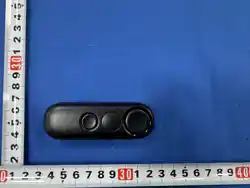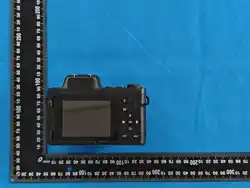
4G Real-time Camera
User Manual
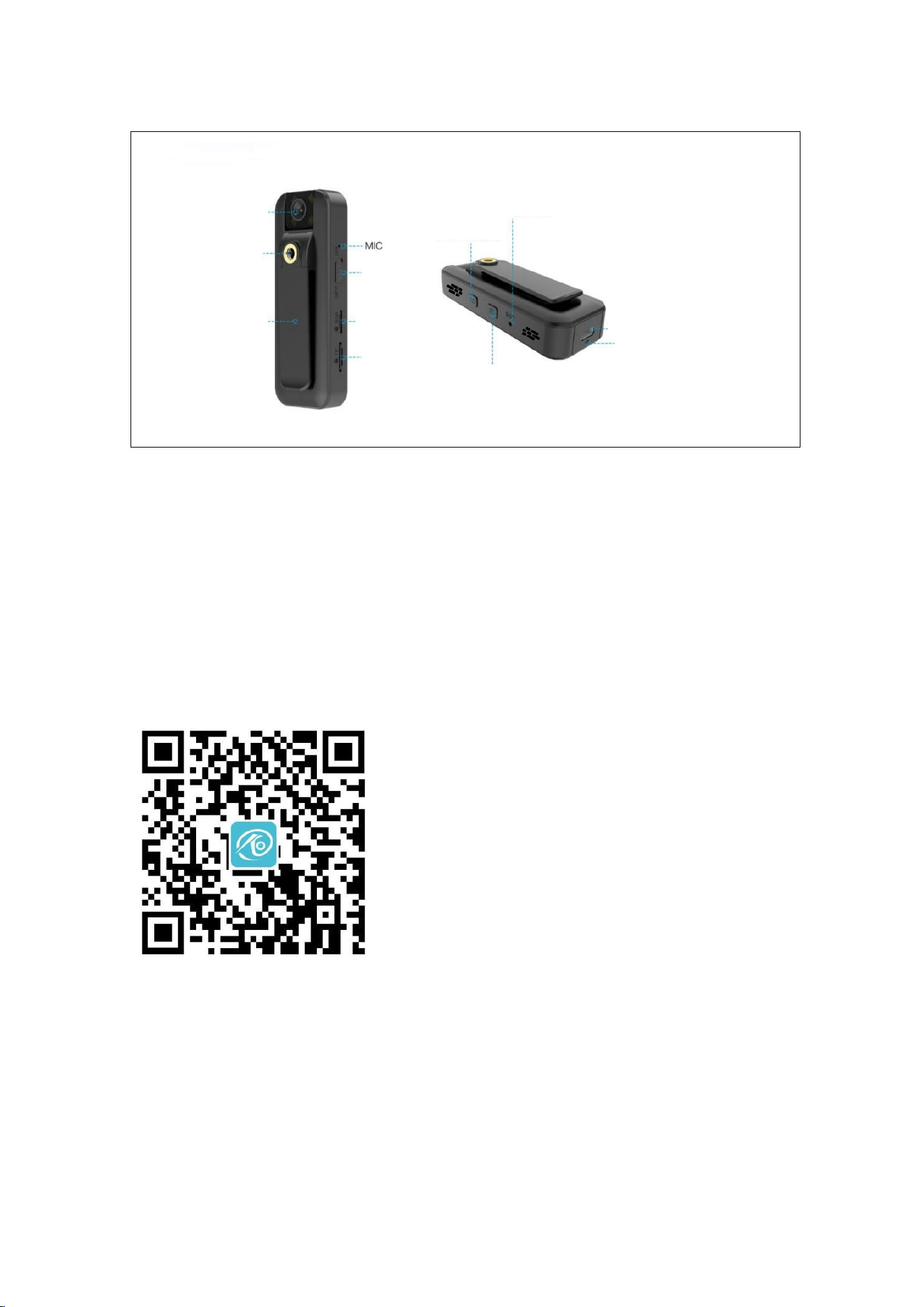
HD lens
Record /pause button
ON/OFF
SIM card slot
TF card slot
1/4 threaded hole
Business back clip
This 4G Real-time Camera is an ideal video recording device for on-road driving scenarios, which can
capture real-time driving images and videos with high definition to record the whole driving process and
preserve objective on-site evidence for traffic accident identification and liability confirmation. It is also
applicable to professional operation scenarios such as logistics transportation and commercial vehicle
dispatching, enabling managers to remotely monitor the driving status of vehicles and the work
condition of drivers through the matching APP, realizing standardized management of the operation
process. In addition, it can be used in outdoor work scenarios that require real-time video backhaul and
evidence collection, such as road patrol and field operation supervision, with stable 4G network
connection to ensure the timeliness and integrity of video data transmission and meet the high demand
for on-site information recording and remote monitoring in various professional work fields.
1.Set Up Your Camera
Step 1. Download App
Search for O-KAM Pro in App Store or Google Play, or scan the QR code to download the App.
Step2. Log In
1.Please create an account and log in;
2. If you already have an account, please log in directly.
Step3. Add Device
Note: Please insert the SIM card into the device when it is powered off;
Open the App, click the "+" in the upper right corner, scan the QR code on the device, and follow
the App instructions to complete the binding.
Type C power port
Status LED
Photo button & double press to turn off infrared night vision
Reset button
2.
LED Status
1
Blinking blue fast
Connecting to the network(the SIM card is not inserted or the SIM card
is disconnected from the network.)
2
Solid blue
Network connection succeeded (when no TF card is inserted
3
Blinking red slowly
Connect to the network successfully and record
4
Solid red
Stop recording
5
Blinking red and blue alternately
Restore factory settings
3.
Button Functions
ON:Turn on the device
OFF:Turn off the device
Record/pause button: Press the record button once to pause or start (recording starts by default,
blinking red slowly)
Photo button: Press once to take photo;
Automatic night vision on/off: Press the photo button twice;
Reset button: Press and hold the RST button for 5 seconds.
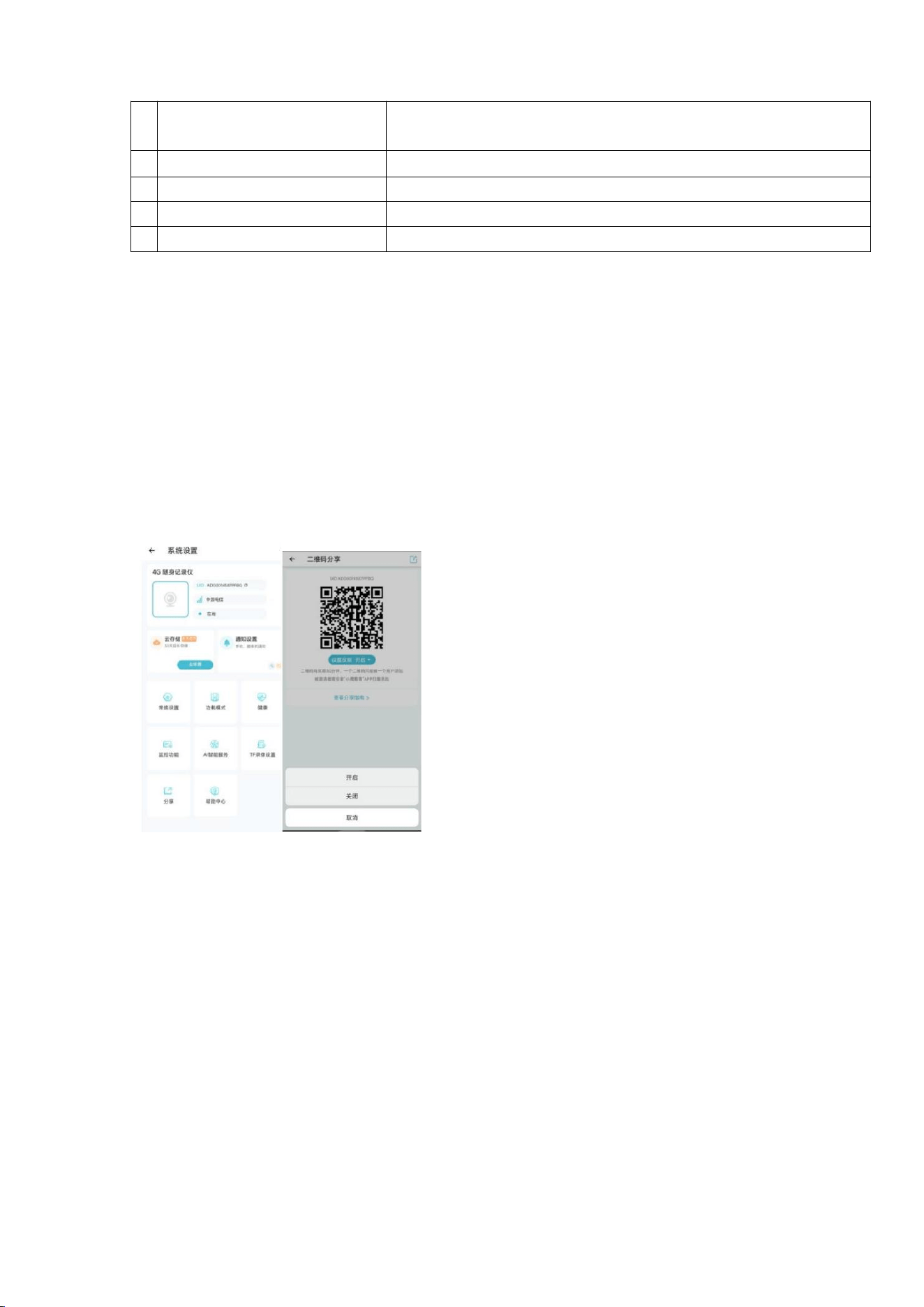
4.Device Sharing
If the permission is turned on, the shared user can set the functions of the device; if the
permission is turned off, the shared user can only watch but cannot set functions.
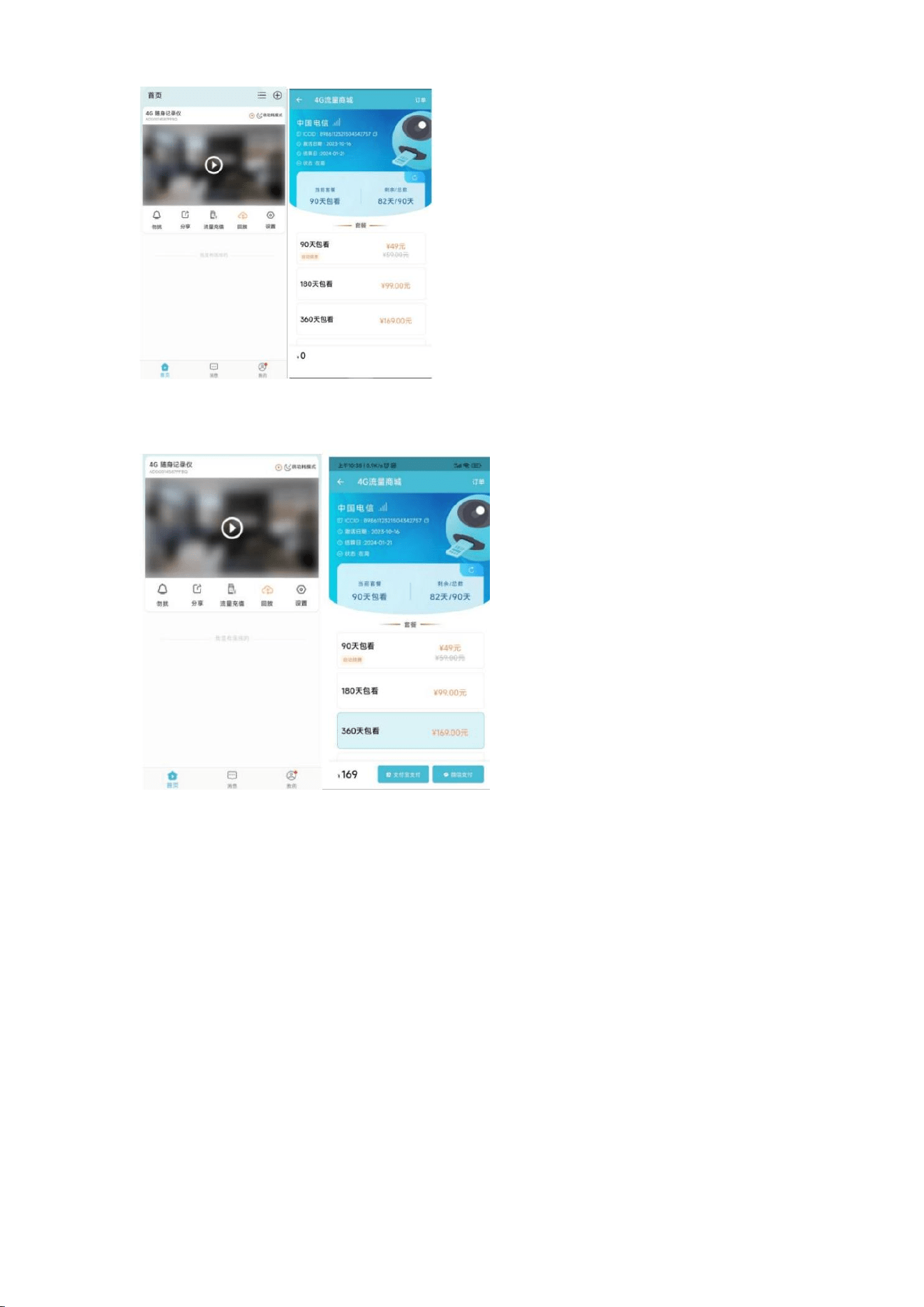
5.Check Data Usage
Only when you use the original SIM card can you check and purchase data on the APP.
6.Purchase Data
The time when recharge takes effect is subject to the local operator and is expected to take effect
within one hour.
7.Notes
Thank you for using this product. In order to provide you with perfect after-sales service, please
read the notes carefully and keep it properly.
1. The SIM card provided has been bound to the device. If you pull out the SIM card and insert it
into other devices, the SIM card will not be usable.
2. After the data is used up, if you have not purchased data for 6 consecutive months, the SIM card
will automatically be invalidated.
3. When the SIM card is invalidated or damaged, you can contact the dealer to replace the SIM
card. After inserting the new SIM card into the device, you can continue to use it.

FCC warning statements:
This equipment has been tested and found to comply with the limits for a Class
B digital device, pursuant to part 15 of the FCC Rules. These limits are
designed to provide reasonable protection against harmful interference in a
residential installation. This equipment generates, uses and can radiate radio
frequency energy and, if not installed and used in accordance with the
instructions, may cause harmful interference to radio communications.
However, there is no guarantee that interference will not occur in a particular
installation. If this equipment does cause harmful interference to radio or
television reception, which can be determined by turning the equipment off and
on, the user is encouraged to try to correct the interference by one or more of
the following measures:
• Reorient or relocate the receiving antenna.
• Increase the separation between the equipment and receiver.
• Connect the equipment into an outlet on a circuit different from that to which
the receiver is connected.
• Consult the dealer or an experienced radio/TV technician for help.
Caution: Any changes or modifications to this device not explicitly approved
by manufacturer could void your authority to operate this equipment.
This device complies with part 15 of the FCC Rules. Operation is subject to the
following two conditions: (1) This device may not cause harmful interference,
and (2) this device must accept any interference received, including
interference that may cause undesired operation.
The device has been evaluated to meet general RF exposure requirement This
equipment complies with FCC radiation exposure limits set forth for an uncontrolled
environment.
This equipment should be installed and operated with minimum distance 20cm
between the radiator & your body.