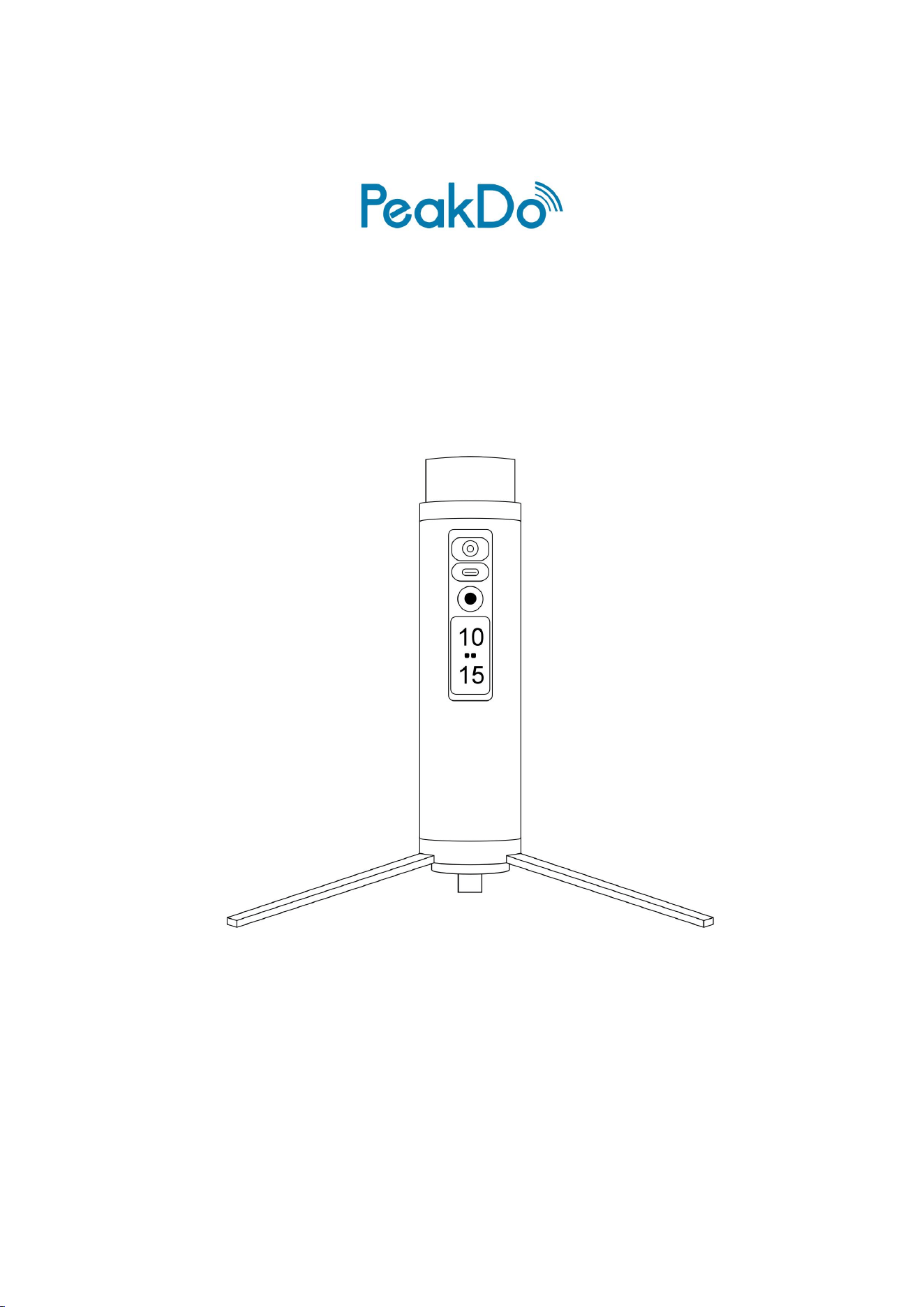
Link Power Pod 1
Power Bank for Starlink® Mini
Quick Start
V 1.0

Link Power Pod 1 Quick Start
2
Introduction
Meet the Link Power Pod 1 power solution!
The Link Power Pod 1 power bank is a compact, high-efficiency power solution designed
exclusively for the Starlink® Mini.
With a 99Wh battery capacity, Link Power Pod 1 provides over 5 hours of continuous
runtime, keeping your internet connection alive - even in remote locations.
Link Power Pod 1 supports USB-C bidirectional power delivery. With 100W
1,2
USB-C input, it
charges from 20% to 80% in just 45 minutes. The USB-C port also can delivers 65W output,
perfect for powering your phone, laptop, and other USB-C devices.
Best of all, Link Power Pod 1 can power the Starlink® Mini while charging itself via the
USB-C port - ensuring uninterrupted operation when you need it most.
With a simple long press of the power button, you can turn the DC output on or off to
control the Starlink® Mini.
NOTE: Before using Link Power Pod 1 for the first time, you must activate it. Please refer to
the "Setup" section for activation methods.
1. Input (Charging) power limit can be set via Web App. The max power limit is 100W.
2. Warning: Charging or discharging the battery at high power levels may significantly
reduce its lifespan. For optimal battery health, avoid excessive power usage unless necessary.
Link Power Pod 1 Quick Start
3
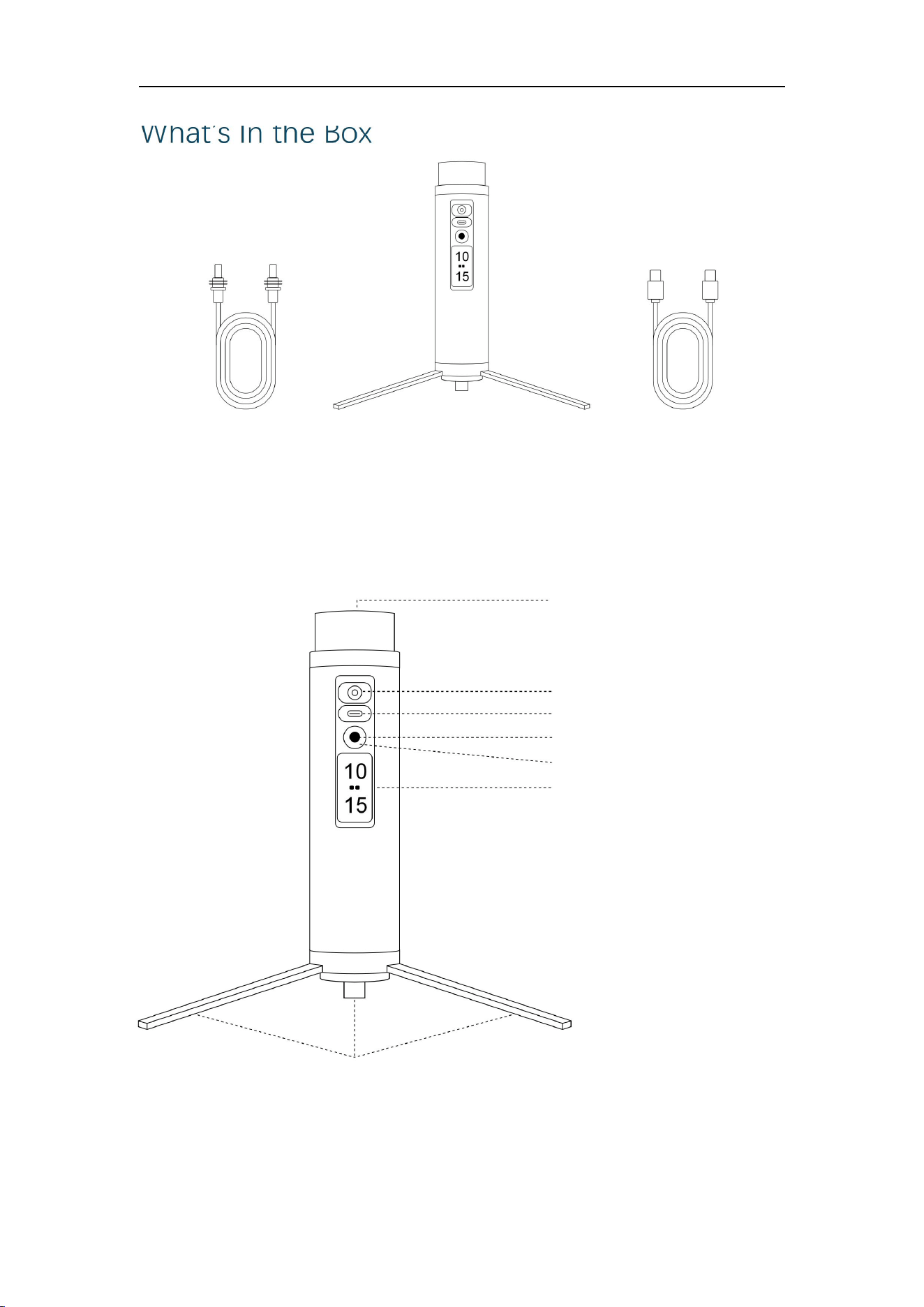
What’s In the Box
Device Overview
WARNING: The DC output port is for output only. Do not connect any DC power
adapters, as it may damage the device.
DC-to-DC Cable
Link Power Pod 1
Type-C to Type-C cable
DC output port
1/4-inch Screw
Power button
LED
LCD
Type-C PD output/input port
Tripod
Link Power Pod 1 Quick Start
4
Setup
WARNING: The DC output port is for output only. Do not connect any DC power
adapters, as it may damage the device.
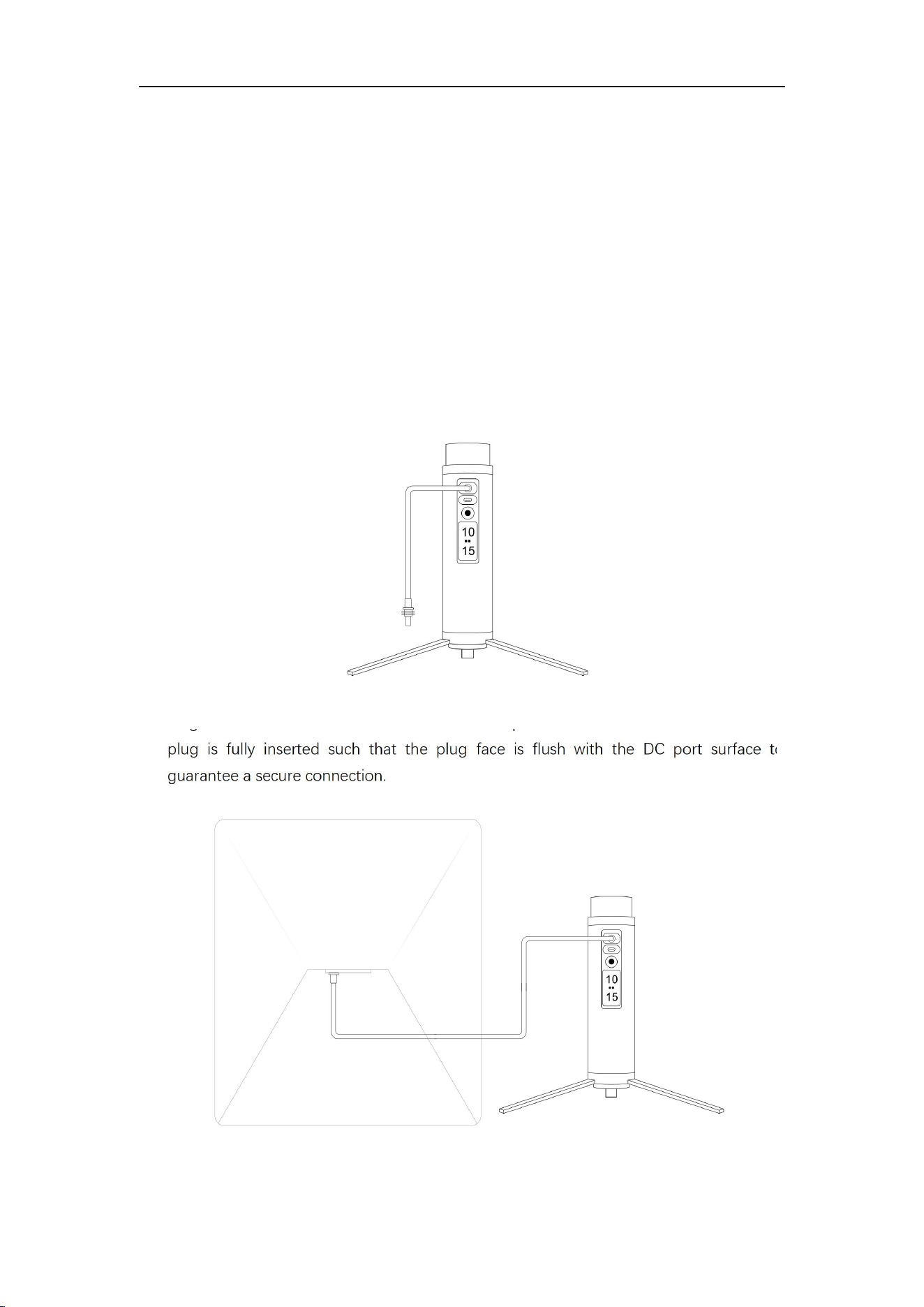
1. Place the Starlink® Mini face down on a table or other flat surface. Be careful not to
scratch the face of the Starlink® Mini. Remove the kickstand if used.
2. Unpack the Link Power Pod 1 and plug the included DC-to-DC cable into the DC port
on the Link Power Pod 1.
3. Plug the other end of the DC cable into the DC port on the Starlink® Mini. Ensure the
plug is fully inserted such that the plug face is flush with the DC port surface to
guarantee a secure connection.
Link Power Pod 1 Quick Start
5
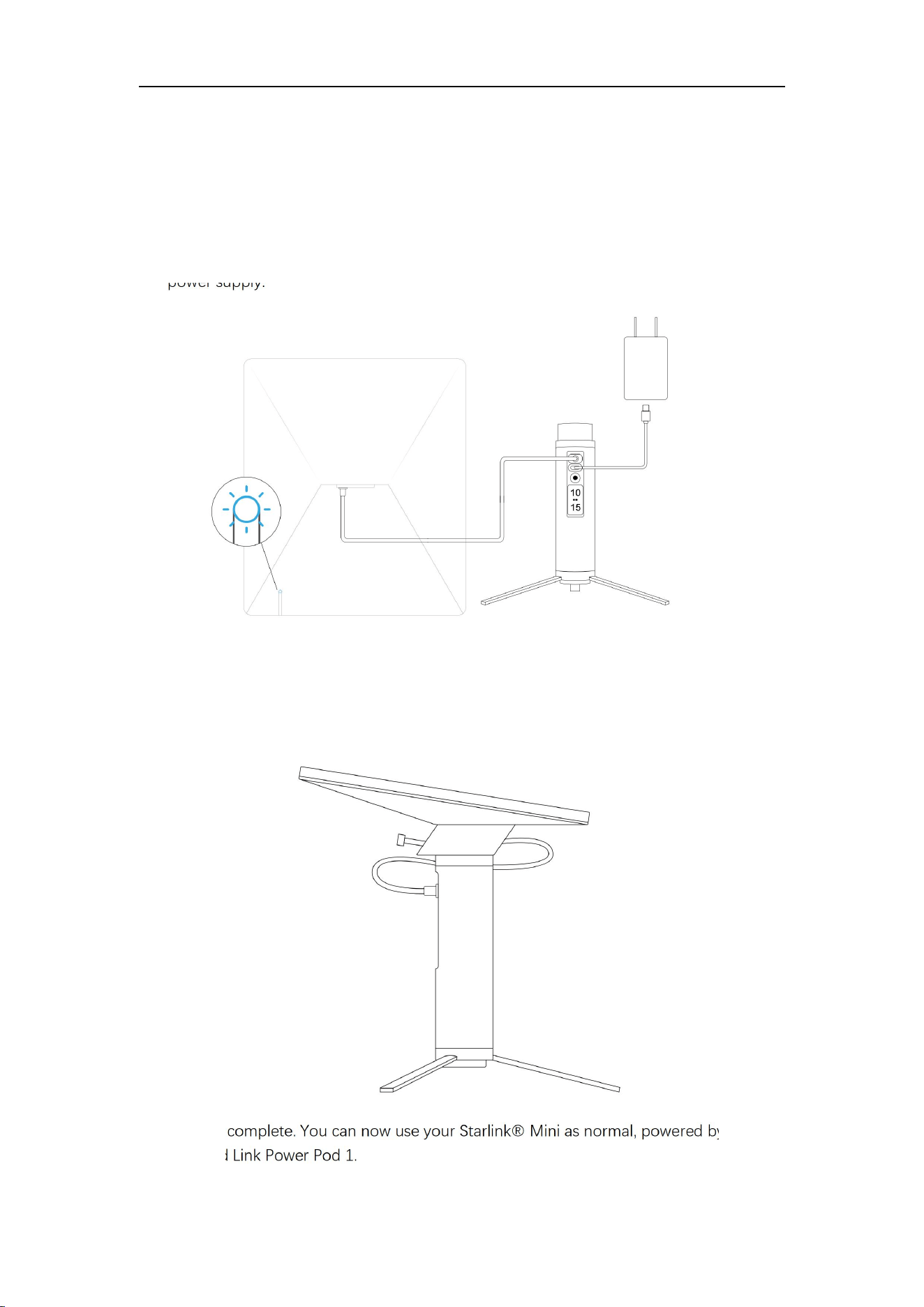
4. Plug in an external PD power supply to activate the Link Power Pod 1. Alternatively,
press and hold the power button for 10 seconds. Activation is complete once the screen
turns on. When the Link Power Pod 1 powered on, the LED indicator on the power
button will light up. The Starlink® Mini will automatically power on, and its LED indicator
will begin flashing.
NOTE: After Link Power Pod 1 has been activated, you can remove the external PD
power supply.
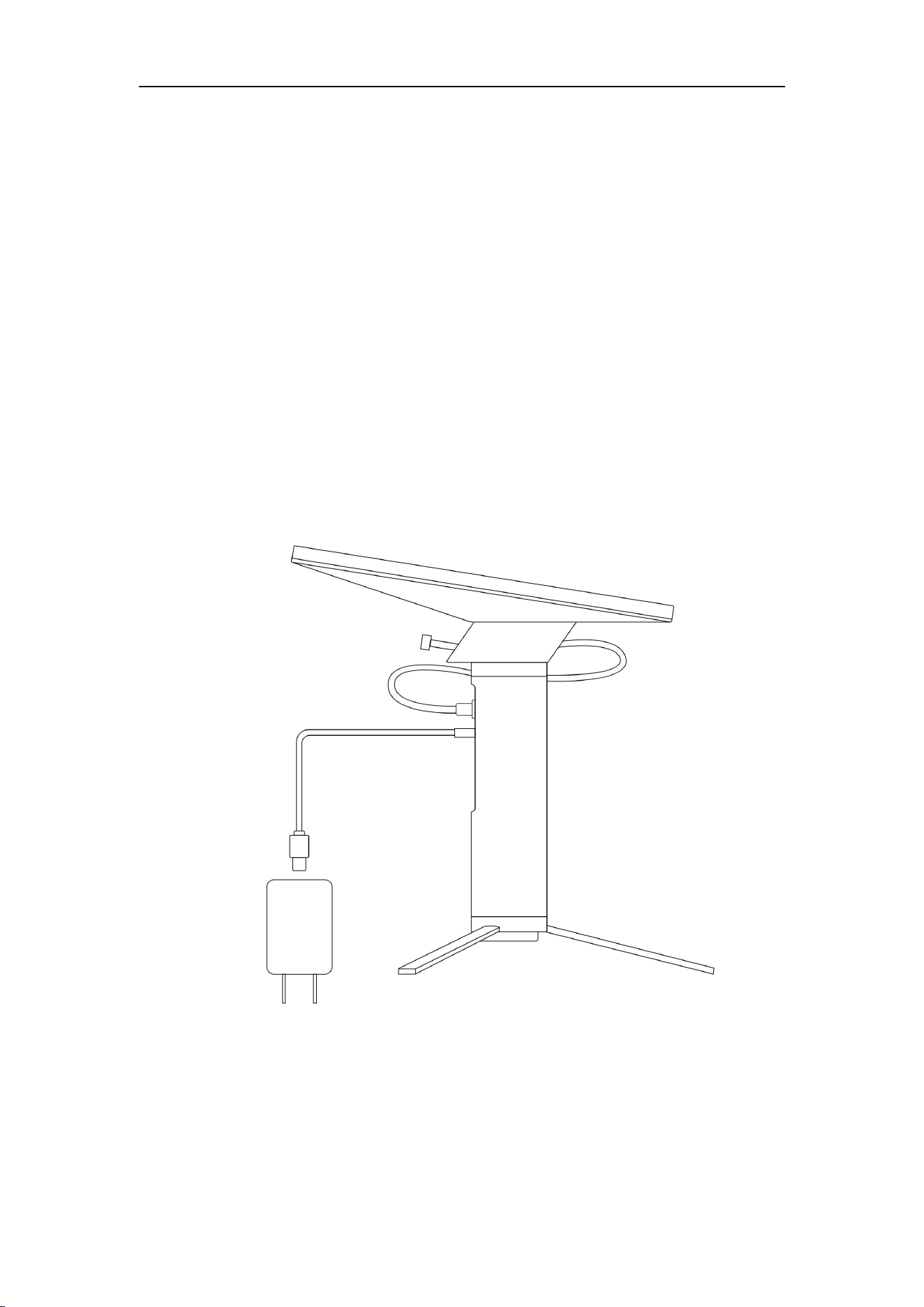
5. Gently slide the Link Power Pod 1 toward the Starlink® Mini until you hear a clicking
sound. This indicates that the Link Power Pod 1 is securely attached to the Starlink®
Mini.
6. Setup is complete. You can now use your Starlink® Mini as normal, powered by the
attached Link Power Pod 1.
Link Power Pod 1 Quick Start
6
Usage
Charging
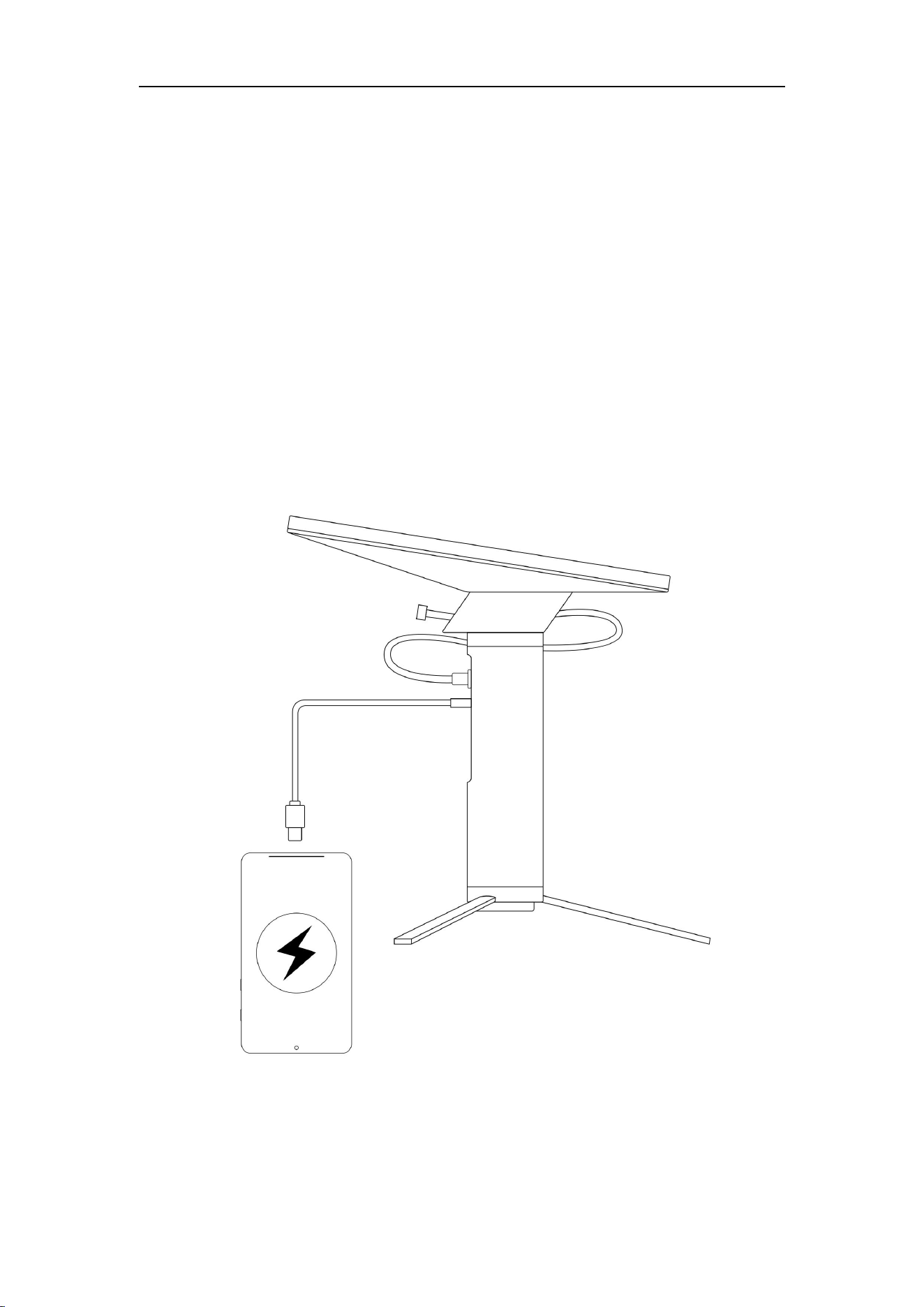
Link Power Pod 1 supports the following three charging methods while simultaneously
powering the Starlink Mini:
Type-C PD Charging:Charge Link Power Pod 1 via the Type-C PD port while (Supports PD
3.1, PPS, and QC5。Compatible with QC 3.0 / 2.0, FCP, AFC, SCP, and Apple 2.4A)
Link Power Pod 1 Quick Start
7
Works as a normal power bank
When needed, Link Power Pod 1 can also be used to charge other devices through its USB
Type-C PD port.
NOTE: The power bank reserves approximately 10%~15% of its capacity for the Starlink
Mini. When the remaining battery level falls below this range, the Type-C output will
automatically turn off to ensure better overall usability and avoid your Starlink Mini
powering down unexpectedly (due to USB outputs draining the battery).
Link Power Pod 1 Quick Start
8
Power Button Functions
·
1. Power Off:Press and hold the power button for 10 seconds to power off the Link Power
Pod 1
2. DC Output On / Off:Press and hold the power button for 2 seconds. Release the button
when the breathing light starts flashing to turn the DC output on or off.
3. Breathing Light On / Off: (When the DC output port is on) Quickly press the power
button twice to turn the breathing light on or off.
4. PIN Mode Switching:Quickly press the power button three times to switch between Fixed
PIN (020555) and random PIN.(During pairing, if no verification code is displayed on the
screen, a fixed PIN is used. If a verification code is displayed, a random PIN is used.)
When the mode is successfully switched, the LED indicator will flash to confirm.
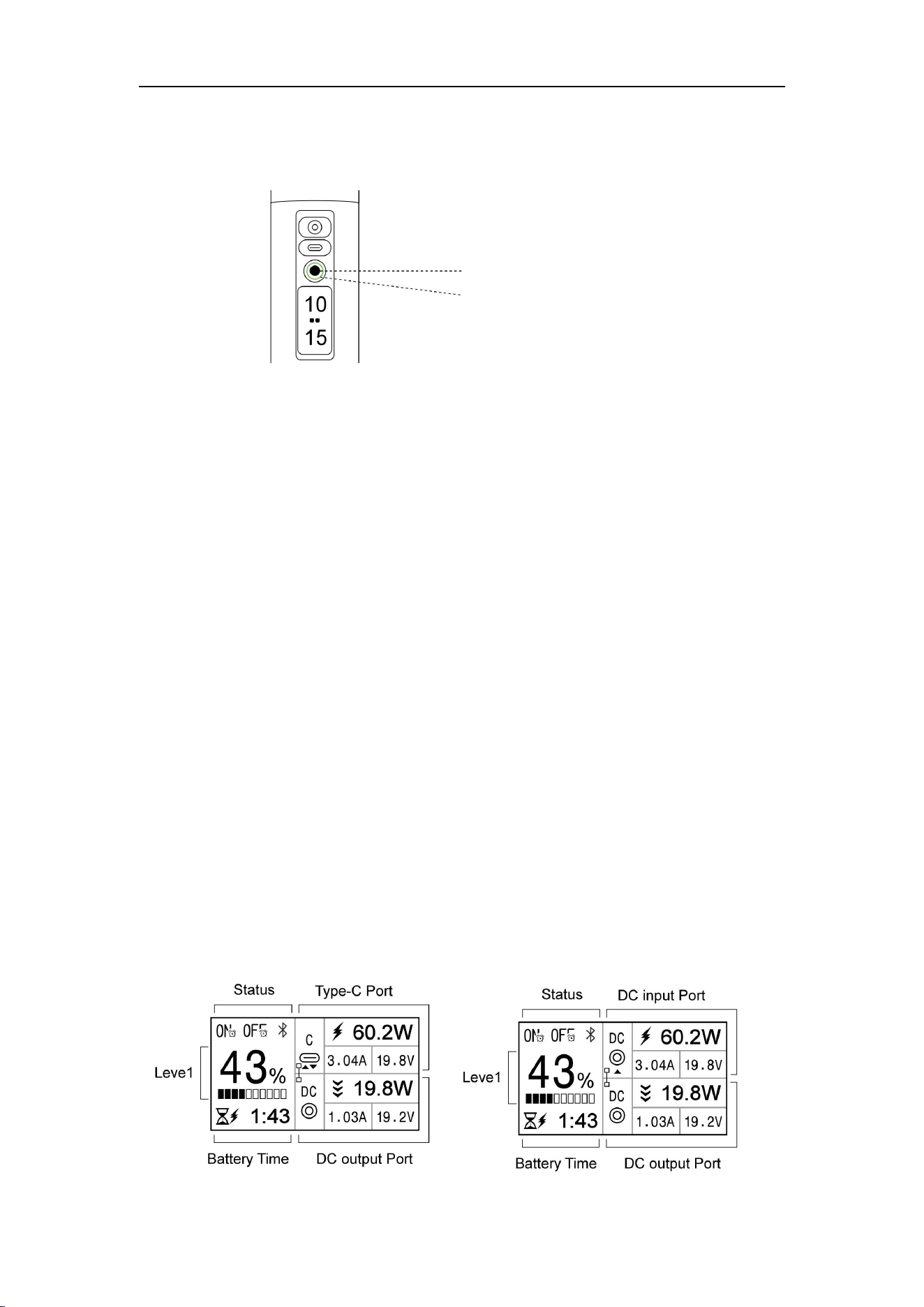
Check the status
To check the status of Link Power Pod 1, press Power Button once to turn on the LCD screen.
Following is the layout of the full UI:
Power button
Breathing LED
Link Power Pod 1 Quick Start
9
Battery Level
Displays Battery Level
Battery Time
Displays the estimated time until Link Power Pod 1 is fully charged
Displays the estimated time until Link Power Pod 1 is fully discharged
Status
Indicate a timer is active for turning on the DC port
Indicate a timer is active for turning off the DC port
Indicate work status of Bluetooth
DC output
Port
Displays the power, current, voltage and work status of the DC port
Indicate DC port is discharging
Type-C Port
Displays the power, current, voltage and work status of the Type-C port
Indicate Type-C port is charging
Indicate Type-C port is discharging
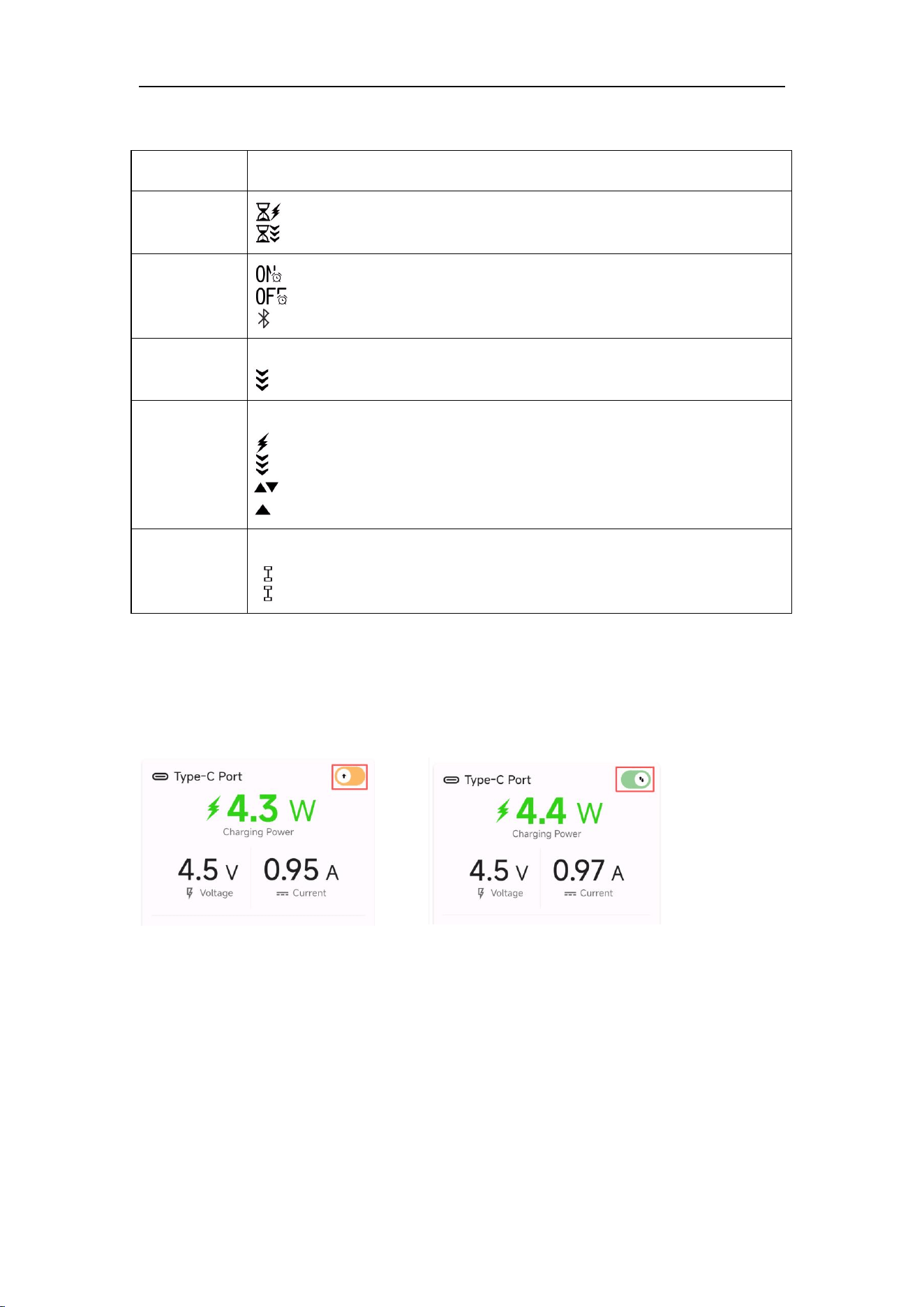
Enable charging or discharging
Enable charging-only mode
Bypass State
Located between the DC and Type-C displays
When the color is yellow, it indicates manual activation
When the color is green, it indicates automatic activation
When the DC port is enabled, the LED indicator will gently pulse.
Open the app, scroll down to find the Type-C port, and tap the button on the right to switch
between Charge Only and Charging/Discharging
Bypass function
When the bypass function is on, external power is routed directly to the Starlink Mini. The
following scenarios apply:
Low battery condition: If the battery level is very low and can only be charged slowly,
Charging Only
Charging or Discharging
Link Power Pod 1 Quick Start
10
the external power will be used directly instead of draining the battery.
Temperature protection: If the battery temperature is outside the safe discharge range
(below –20 °C or above 60 °C), the battery will refuse to discharge for protection, and
external power will be routed directly to the Starlink Mini.
Manually Controlling the DC Port
You can manually enable or disable the Link Power Pod 1's DC port, which in turn powers
your Starlink® Mini on or off.
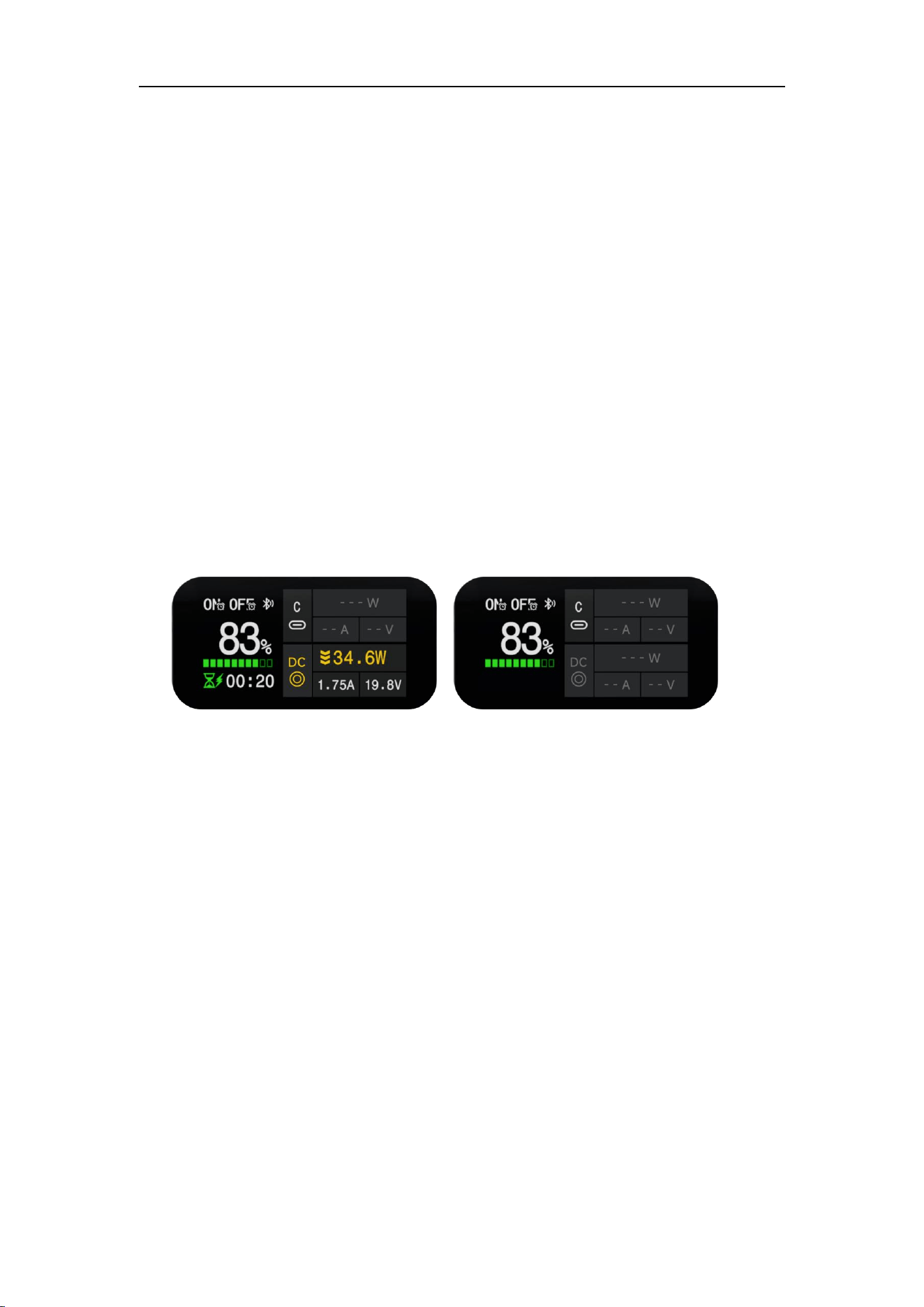
To do this, press and hold the Power Button for at least 2 seconds. The LED indicator will
quickly flash twice to confirm this action.
When the DC port is enabled, the LED indicator will gently pulse.
When the DC port is disabled, the LED indicator will turn off.
Shutting Down Link Power Pod 1
If you don't plan to use Link Power Pod 1 for an extended period, you can shut it down
completely. This helps to preserve battery life and health.
To do so, press and hold the Power Button for at least 10 seconds. Once Link Power Pod 1 is
fully shut down, the Power Button will become unresponsive.
To restart Link Power Pod 1 from a complete shutdown, simply plug in an external power
supply.
enabled
disabled
Link Power Pod 1 Quick Start
11
Using Web App
NOTE: The Web App currently only works on following browsers:
Windows/macOS: Chrome, Edge, Opera
Android: Chrome, Edge, Opera, Samsung Internet
iOS: Bluefy
NOTE: The Web App can function offline after your initial visit.
Access Web App
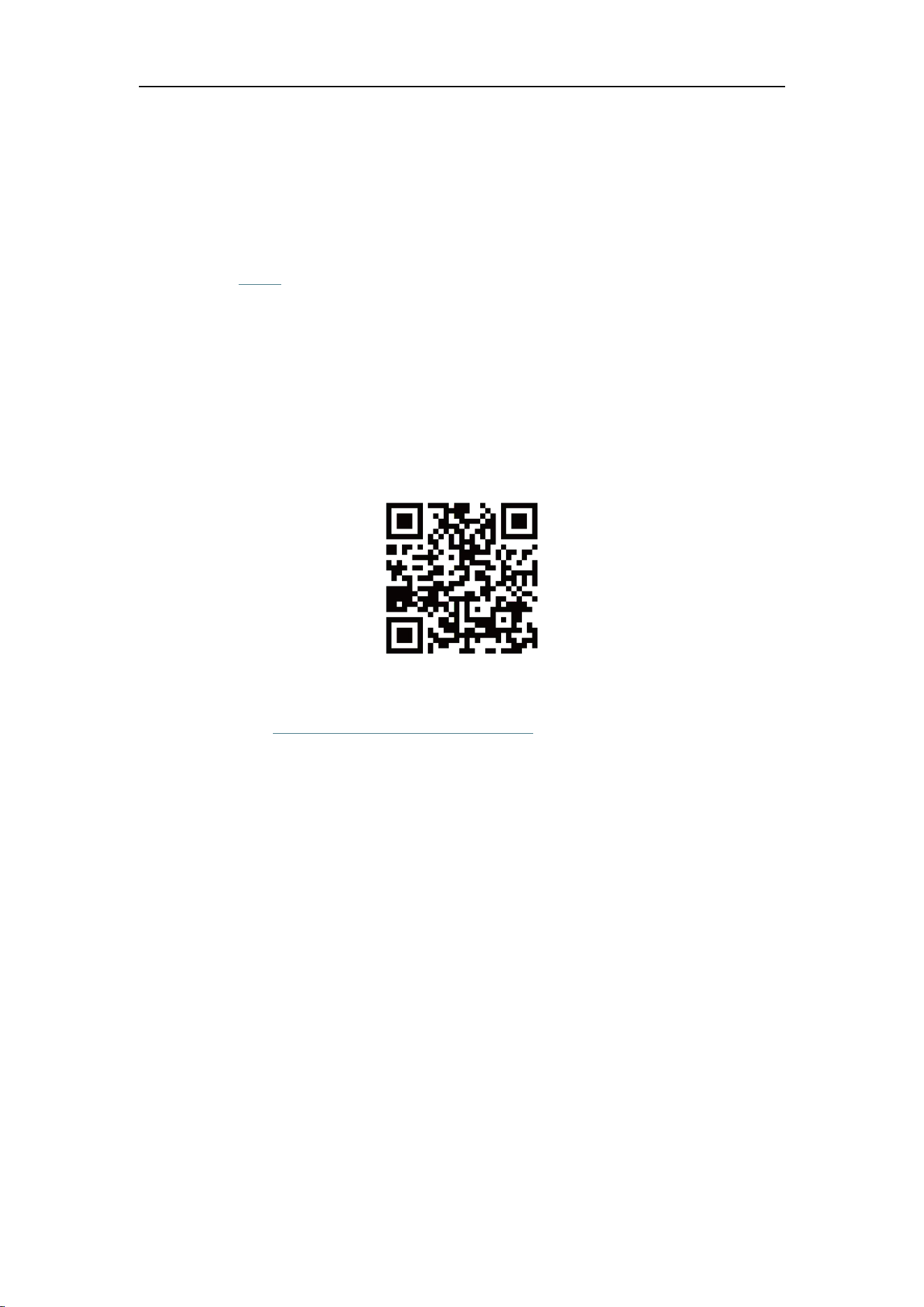
Scan the following QR code, or the one on the back of the Link Power Pod 1.
Or type in the URL https://pwa.peakdo.ca/link-power-1/ manually.
(Optional) Install Web App
NOTE: You may need to grant your browser 'Home screen shortcuts' permission.
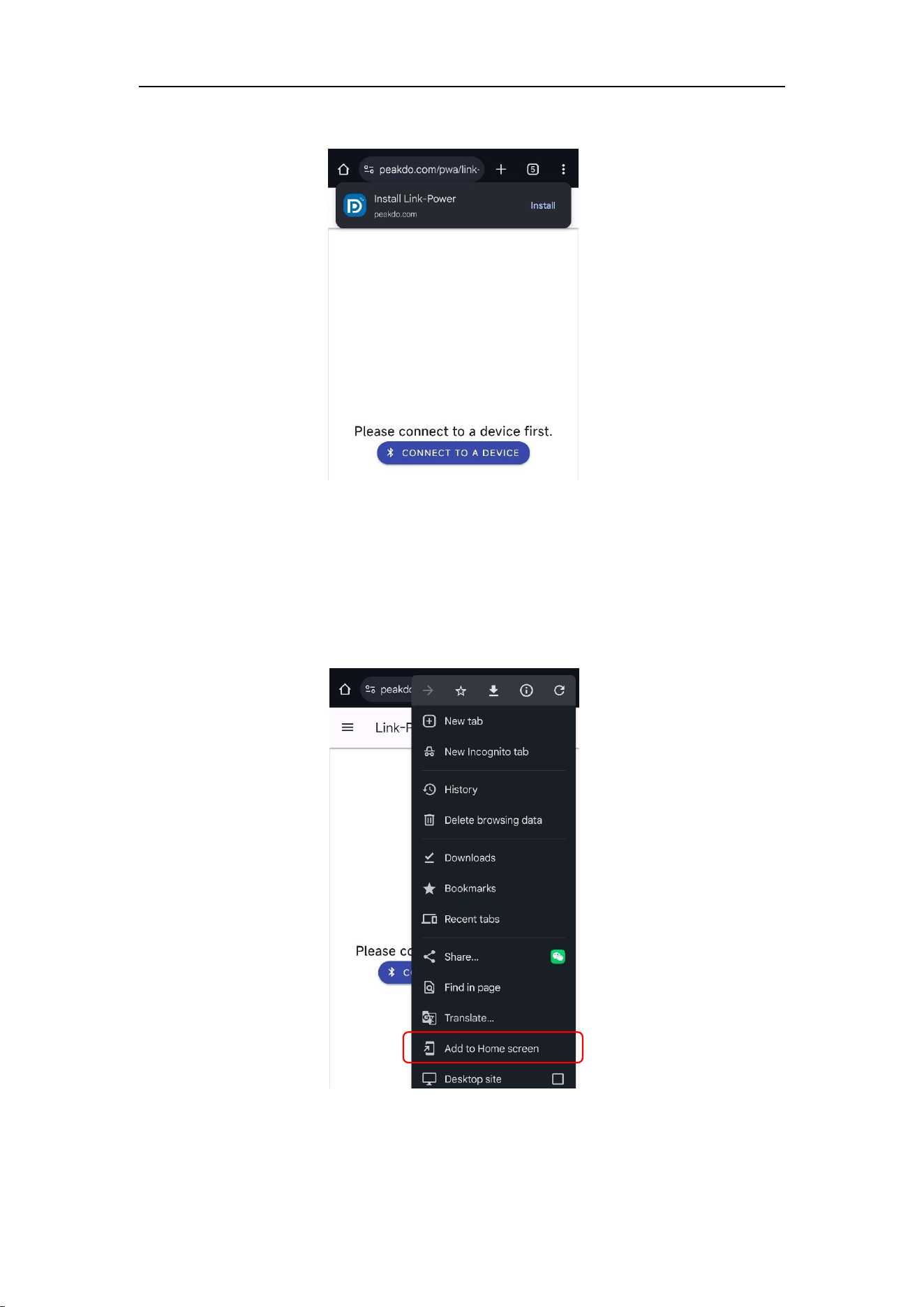
You can access the Web App directly in your browser. For a more integrated experience, you
can also install it like a native app, which provides a launch icon on your desktop or allows it
to be pinned to your Windows Taskbar.
When you visit the Web App for the first time, your browser may prompt you to install it.
Link Power Pod 1 Quick Start
12
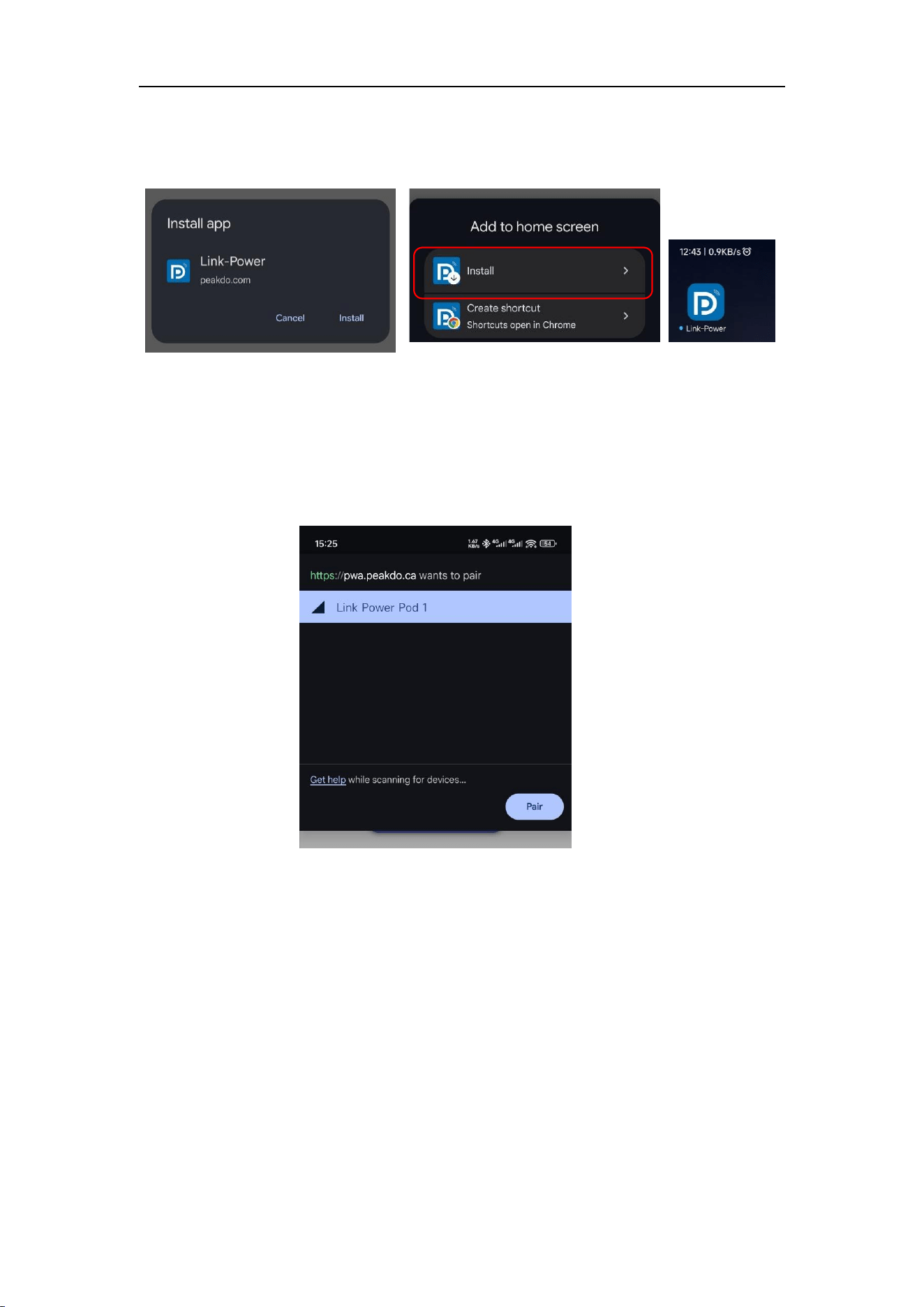
If not, you can typically find the installation option via your browser's "Add to Home screen"
or similar menu.
Link Power Pod 1 Quick Start
13
Follow the on-screen guide to install the Web App:
Connect to Link Power Pod 1
The Web App communicates with Link Power Pod 1 via Bluetooth.
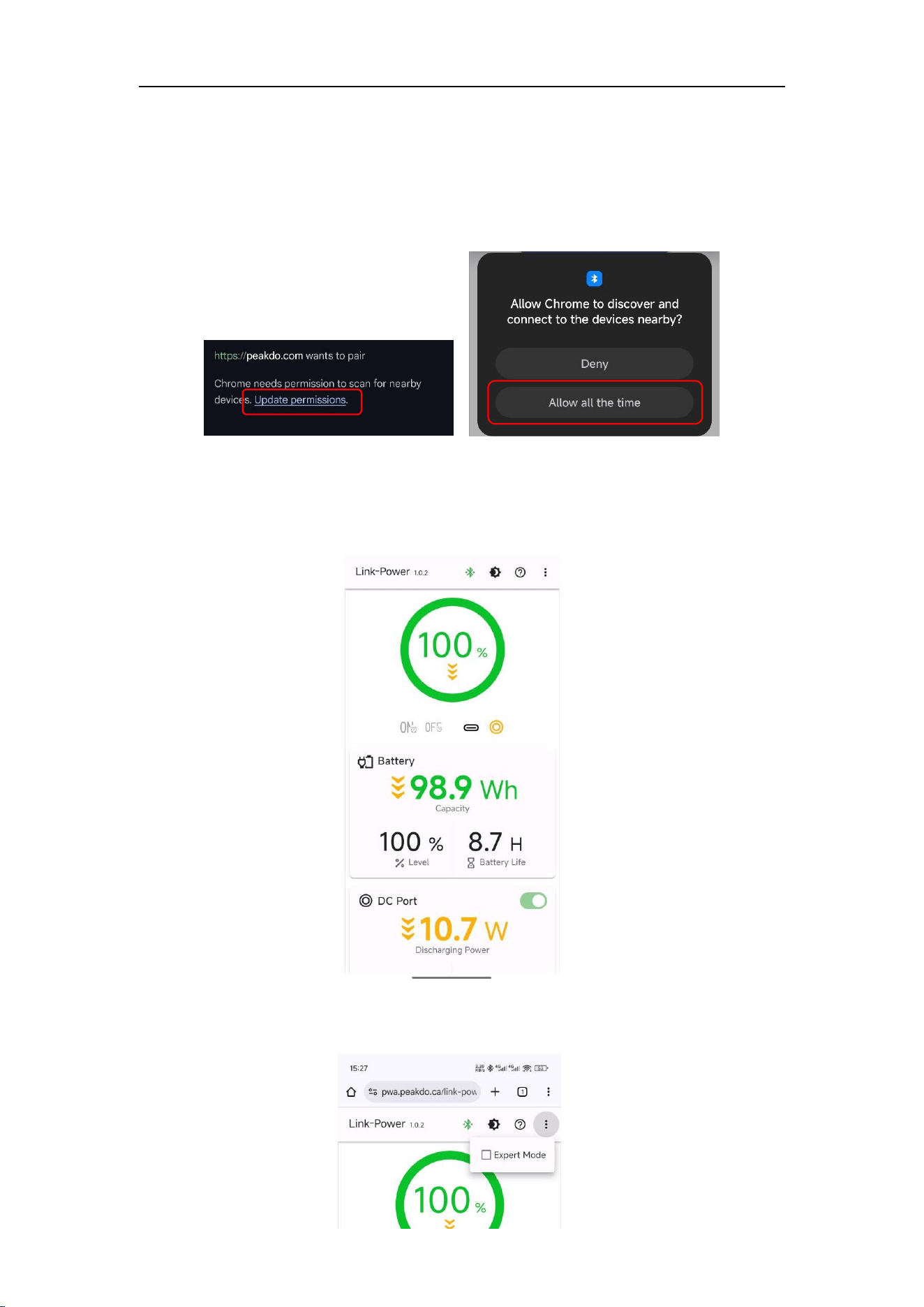
You can connect to your Link Power Pod 1 by tap the “Connect to a device” button.
Your browser will scan for all nearby Link Power Pod 1 devices and display them in a list,
allowing you to select one to pair.
NOTE: In some situations, a previously paired or bonded device may not show up in the list.
You can unpair or remove the bond from your system and try again.
Link Power Pod 1 Quick Start
14
Grant permission to Browser
If your browser lacks Bluetooth access permission, it may prompt you to grant it.
Follow the on-screen guide to allow access:
The UI
Following is the UI of the Web App, it’s pretty straightforward.
Some advance actions hidden by default. You can show them by check the “Expert Mode”
menu in the three dots menu:

Link Power Pod 1 Quick Start
15
Pair with Link Power Pod 1
When connect to the Link Power Pod 1 device, your operating system (OS) will prompt you
to enter a PIN to pair with the Link Power Pod 1 device. You'll only need to do this once,
unless you delete the Link Power Pod 1 bond from your OS settings.
NOTE: A random six‑ digit PIN will be displayed on the LCD screen. If not, use the default
PIN 020555.
Troubleshooting
Our Web App has been successfully tested with the following browsers:
Windows/macOS: Chrome, Edge
Android: Chrome, Edge, Samsung Internet
iOS: Bluefy
1. Activate Link Power Pod 1, and make sure Bluetooth is turned on: the Bluetooth icon
should be highlighted white (not green or dim grey) on top of the screen.
2. Make sure your system has Bluetooth hardware and it is turned on:
For Windows
Go to `Settings` → `Bluetooth & devices`. Make sure Bluetooth is turned on
In `Bluetooth & devices`, click `Add device`
Choose `Bluetooth`
Wait for Windows to discover your BLE device, you should see the device
named `Link Power Pod 1` in the list
For Android
Make sure Bluetooth is turned on
you should see the device named `Link Power Pod 1` in the `Available devices`
list
3. Install and launch a supported browser
Link Power Pod 1 Quick Start
16
Specifications
Product Name
Link Power Pod 1
Battery Capacity
99Wh, 27500mAh(3.6v)
Battery Runtime
~5Hours for Starlink® Mini
Battery Type
21700 Lithium Battery
Ports
PD/USB-C; DC 5.5 x 2.1;
DC Output
DC 15-21V (65W Max)
PD/USB-C Input
5V-3A; 9V-3A; 12V-3A; 15V-5A; 20V-3.25A;
Default 65W Max
1,2
.
PD/USB-C Output
5V-3A; 9V-3A; 12V-3A; 15V-5A; 20V-3.25A;
Default 65W Max
Screen
1.47" LCD
Control
Power Button / Bluetooth Low Energy
Others
LED Indicator;
A standard 1/4-inch screw holes.
Dimensions
244mm x Ø60mm
Weight
~667g
Working Temperature
-20℃ ~ 60°C
Waterproof Rating
IP65
1. Input (Charging) Power Limit can be set via Web App. The max power limit is 100W.
2. Warning: Charging or discharging the battery at high power levels may significantly
reduce its lifespan. For optimal battery health, avoid excessive power usage unless necessary.

FCC Warnning:
This equipment has been tested and found to comply with the limits for a Class B digital device,
pursuant to part 15 of the FCC Rules. These limits are designed to provide
reasonable
protection againstharmful interference in a residential installation. This equipment generates,
uses and can radiateradio
frequency
energy
and,
if
not
installed
and
used
in
accordance
with
the
instructions,
maycause
harmful
interference
to
radio
communications.
However,
there
is
no
guarantee
thatinterference
will
not
occur
in
a
particular
installation.
If
this
equipment
does
cause
harmfulinterference to radio or television reception, which can be
determined by turning the equipmentoff
and
on,
the
user
is
encouraged
to
try
to
correct
the
interference
by
one
or
more
of
thefollowing measures:
•
Reorient or relocate the receiving antenna.
•
Increase the separation between the equipment and receiver.
•
Connect the equipment into an outlet on a circuit different from that to which the receiver is
connected.
• Consult the dealer or an experienced radio/TV technician for help.
Caution:
Any
changes
or
modifications
to
this
device
not
explicitly
approved
by
manufacturer
could void your authority to operate this equipment.
This
device
complies
with
part
15
of
the
FCC
Rules.
Operation
is
subject
to
the
following
two
conditions:
(1)This
device
may
not
cause
harmful
interference,
and
(2)
this
device
must
accept
any
interference received, including interference that may cause undesired operation.
This
equipment
complies
with
FCC
radiation
exposure
limits
set
forth
for
an
uncontrolled
environment.
This
equipment
should
be
installed
and
operated
with
minimum
distance
20cm
between the radiator and your body.