
Online Manual
Easy-PhotoPrint Editor Guide
English

Contents
Symbols Used in This Document. . . . . . . . . . . . . . . . . . . . . . . . . . . . . . . . . . . . . 4
Trademarks. . . . . . . . . . . . . . . . . . . . . . . . . . . . . . . . . . . . . . . . . . . . . . . . . . . . . . 5
Licenses. . . . . . . . . . . . . . . . . . . . . . . . . . . . . . . . . . . . . . . . . . . . . . . . . . . . . . . . 6
General Notes (Easy-PhotoPrint Editor). . . . . . . . . . . . . . . . . . . . . . . . . . . . . . . 32
What Is Easy-PhotoPrint Editor?. . . . . . . . . . . . . . . . . . . . . . . . . . . . . . . . . . . . . 33
Easy-PhotoPrint Editor Features. . . . . . . . . . . . . . . . . . . . . . . . . . . . . . . . . . . . . . . . . . . . 34
Starting Easy-PhotoPrint Editor. . . . . . . . . . . . . . . . . . . . . . . . . . . . . . . . . . . . . . . . . . . . . 38
Printing Photos and Items. . . . . . . . . . . . . . . . . . . . . . . . . . . . . . . . . . . . . . . . . . 39
Printing Photos. . . . . . . . . . . . . . . . . . . . . . . . . . . . . . . . . . . . . . . . . . . . . . . . . . . . . . . . . . 40
Cropping Photos (for Photo Print). . . . . . . . . . . . . . . . . . . . . . . . . . . . . . . . . . . . . . . . . . . . . . . . . . . . . . 45
Enhancing Photos with Creative Filters (for Photo Print). . . . . . . . . . . . . . . . . . . . . . . . . . . . . . . . . . . . . 49
Printing Disc Labels (CD/DVD/BD). . . . . . . . . . . . . . . . . . . . . . . . . . . . . . . . . . . . . . . . . . . 52
Creating and Printing Items. . . . . . . . . . . . . . . . . . . . . . . . . . . . . . . . . . . . . . . . . . . . . . . . 58
Printing Photos in Variety of Layouts. . . . . . . . . . . . . . . . . . . . . . . . . . . . . . . . . . . . . . . . . . . . . . . . . . . . 65
Printing in Shuffled Layouts. . . . . . . . . . . . . . . . . . . . . . . . . . . . . . . . . . . . . . . . . . . . . . . . . . . . . . . . . . . 71
Printing Collages. . . . . . . . . . . . . . . . . . . . . . . . . . . . . . . . . . . . . . . . . . . . . . . . . . . . . . . . . . . . . . . . . . . 74
Printing by Specifying the Size. . . . . . . . . . . . . . . . . . . . . . . . . . . . . . . . . . . . . . . . . . . . . . . . . . . . . . . . 80
Printing Calendars. . . . . . . . . . . . . . . . . . . . . . . . . . . . . . . . . . . . . . . . . . . . . . . . . . . . . . . . . . . . . . . . . . 85
Printing Cards. . . . . . . . . . . . . . . . . . . . . . . . . . . . . . . . . . . . . . . . . . . . . . . . . . . . . . . . . . . . . . . . . . . . . 92
Printing Posters. . . . . . . . . . . . . . . . . . . . . . . . . . . . . . . . . . . . . . . . . . . . . . . . . . . . . . . . . . . . . . . . . . . . 98
Printing Business Cards. . . . . . . . . . . . . . . . . . . . . . . . . . . . . . . . . . . . . . . . . . . . . . . . . . . . . . . . . . . . . 104
Printing Scrapbook Materials. . . . . . . . . . . . . . . . . . . . . . . . . . . . . . . . . . . . . . . . . . . . . . . . . . . . . . . . . 110
Printing Stickers. . . . . . . . . . . . . . . . . . . . . . . . . . . . . . . . . . . . . . . . . . . . . . . . . . . . . . . . . . . . . . . . . . . 116
Printing ID Photos. . . . . . . . . . . . . . . . . . . . . . . . . . . . . . . . . . . . . . . . . . . . . . . . . . . . . . . . . . . . . . . . . 122
Editing Items. . . . . . . . . . . . . . . . . . . . . . . . . . . . . . . . . . . . . . . . . . . . . . . . . . . 128
Adding Text. . . . . . . . . . . . . . . . . . . . . . . . . . . . . . . . . . . . . . . . . . . . . . . . . . . . . . . . . . . . 129
Adding/Adjusting Text Boxes. . . . . . . . . . . . . . . . . . . . . . . . . . . . . . . . . . . . . . . . . . . . . . 132
Adding Stamps. . . . . . . . . . . . . . . . . . . . . . . . . . . . . . . . . . . . . . . . . . . . . . . . . . . . . . . . . 136
Adding/Changing/Swapping Images. . . . . . . . . . . . . . . . . . . . . . . . . . . . . . . . . . . . . . . . . 140
Adjusting Position and Size of Images. . . . . . . . . . . . . . . . . . . . . . . . . . . . . . . . . . . . . . . 144
Cropping Images (for Items). . . . . . . . . . . . . . . . . . . . . . . . . . . . . . . . . . . . . . . . . . . . . . . 146

Enhancing Images with Creative Filters (for Items). . . . . . . . . . . . . . . . . . . . . . . . . . . . . 149
Changing Image Frames. . . . . . . . . . . . . . . . . . . . . . . . . . . . . . . . . . . . . . . . . . . . . . . . . 151
Adding QR Codes. . . . . . . . . . . . . . . . . . . . . . . . . . . . . . . . . . . . . . . . . . . . . . . . . . . . . . . 153
Changing Background Colors. . . . . . . . . . . . . . . . . . . . . . . . . . . . . . . . . . . . . . . . . . . . . . 157
Changing Template. . . . . . . . . . . . . . . . . . . . . . . . . . . . . . . . . . . . . . . . . . . . . . . . . . . . . 159
Adding, Deleting, or Rearranging Pages. . . . . . . . . . . . . . . . . . . . . . . . . . . . . . . . . . . . . 162
Easy-PhotoPrint Editor Screens. . . . . . . . . . . . . . . . . . . . . . . . . . . . . . . . . . . . 168
Home Screen. . . . . . . . . . . . . . . . . . . . . . . . . . . . . . . . . . . . . . . . . . . . . . . . . . . . . . . . . . 169
New Screen. . . . . . . . . . . . . . . . . . . . . . . . . . . . . . . . . . . . . . . . . . . . . . . . . . . . . . . . . . . . . . . . . . . . . . 171
Template Details Screen (Featured). . . . . . . . . . . . . . . . . . . . . . . . . . . . . . . . . . . . . . . . . . . . . . . 173
Your Items Screen. . . . . . . . . . . . . . . . . . . . . . . . . . . . . . . . . . . . . . . . . . . . . . . . . . . . . . . . . . . . . . . . . 174
Item Details Screen. . . . . . . . . . . . . . . . . . . . . . . . . . . . . . . . . . . . . . . . . . . . . . . . . . . . . . . . . . . . 175
Favorites Screen. . . . . . . . . . . . . . . . . . . . . . . . . . . . . . . . . . . . . . . . . . . . . . . . . . . . . . . . . . . . . . . . . . 176
Template Details Screen (Favorites). . . . . . . . . . . . . . . . . . . . . . . . . . . . . . . . . . . . . . . . . . . . . . . 177
Select Template Screen. . . . . . . . . . . . . . . . . . . . . . . . . . . . . . . . . . . . . . . . . . . . . . . . . . 178
Template Details Screen (Select Template). . . . . . . . . . . . . . . . . . . . . . . . . . . . . . . . . . . . . . . . . . . . . 181
Import Locations Screen. . . . . . . . . . . . . . . . . . . . . . . . . . . . . . . . . . . . . . . . . . . . . . . . . . . . . . . . . . . . 182
Select Data Screen (Cloud Service). . . . . . . . . . . . . . . . . . . . . . . . . . . . . . . . . . . . . . . . . . . . . . . 184
Custom Frame Size Screen. . . . . . . . . . . . . . . . . . . . . . . . . . . . . . . . . . . . . . . . . . . . . . . 186
Select Paper Size Screen. . . . . . . . . . . . . . . . . . . . . . . . . . . . . . . . . . . . . . . . . . . . . . . . . 188
Photo Locations Screen. . . . . . . . . . . . . . . . . . . . . . . . . . . . . . . . . . . . . . . . . . . . . . . . . . 190
Item Edit Screen. . . . . . . . . . . . . . . . . . . . . . . . . . . . . . . . . . . . . . . . . . . . . . . . . . . . . . . . 192
Item Edit Screen (Thumbnail List View). . . . . . . . . . . . . . . . . . . . . . . . . . . . . . . . . . . . . . . . . . . . . . . . . 197
Calendar Settings Screen. . . . . . . . . . . . . . . . . . . . . . . . . . . . . . . . . . . . . . . . . . . . . . . . . . . . . . . . . . . 199
Advanced Settings Screen (Disc Labels). . . . . . . . . . . . . . . . . . . . . . . . . . . . . . . . . . . . . . . . . . . . . . . . 205
Advanced Settings Screen (Business Cards, Stickers, and ID Photos). . . . . . . . . . . . . . . . . . . . . . . . 206
Print Settings Screen (Windows). . . . . . . . . . . . . . . . . . . . . . . . . . . . . . . . . . . . . . . . . . . 207
Print Settings Screen (macOS). . . . . . . . . . . . . . . . . . . . . . . . . . . . . . . . . . . . . . . . . . . . . 213
Paper Size List. . . . . . . . . . . . . . . . . . . . . . . . . . . . . . . . . . . . . . . . . . . . . . . . . . . . . . . . . 218

Symbols Used in This Document
Warning
Instructions that, if ignored, could result in death, serious personal injury, or property damage caused by
incorrect operation of the equipment. These must be observed for safe operation.
Caution
Instructions that, if ignored, could result in personal injury or property damage caused by incorrect
operation of the equipment. These must be observed for safe operation.
Important
Instructions including important information that must be observed to avoid damage and injury or
improper use of the product. Be sure to read these instructions.
Note
Instructions including notes for operation and additional explanations.
Basics
Instructions explaining basic operations of your product.
Note
• Icons may vary depending on your product.
4

Trademarks
• Microsoft, Excel, Internet Explorer, Microsoft Edge, Microsoft Store, OneDrive, PowerPoint, Windows
and Windows Vista are trademarks of the Microsoft group of companies.
• Mac, Mac OS, macOS, OS X, AirPort, App Store, AirPrint, the AirPrint logo, Safari, Bonjour, iPad, iPad
Air, iPad mini, iPadOS, iPhone and iPod touch are trademarks of Apple Inc., registered in the U.S. and
other countries and regions.
• The Mopria® word mark and the Mopria® Logo are registered and/or unregistered trademarks of Mopria
Alliance, Inc. in the United States and other countries. Unauthorized use is strictly prohibited.
• IOS is a trademark or registered trademark of Cisco in the U.S. and other countries and is used under
license.
• Google, Chromebook, Android, Chrome OS, Google Chrome, Google Analytics, Google Apps, Google
Docs, Google Drive, Google Home, Google Play, Google Play Logo and YouTube are either registered
trademarks or trademarks of Google LLC.
• Adobe, Acrobat, Adobe RGB, Adobe RGB (1998) , Flash, Illustrator, Lightroom, Photoshop and
Photoshop Elements are either registered trademarks or trademarks of Adobe in the United States
and/or other countries.
• USB Type-C™ is a trademark of USB Implementers Forum.
• Amazon, Echo and Alexa are trademarks of Amazon.com, Inc. or its affiliates.
• LINE is a registered trademark or trademark of LY Corporation.
• AOSS™ is a trademark of BUFFALO INC.
• Autodesk and AutoCAD are registered trademarks or trademarks of Autodesk, Inc., and/or its
subsidiaries and/or affiliates in the USA and/or other countries.
• QR Code is a registered trademark of DENSO WAVE INCORPORATED in Japan and in other
countries.
• HP-GL and HP-GL/2 are either registered trademarks or trademarks of HP Inc. in the United States
and/or other countries.
• Mozilla Firefox is a trademark or registered trademark of Mozilla Foundation in the U.S. and/or other
countries.
• Wi-Fi, WPA, WPA2 and WPA3 are either registered trademarks or trademarks of Wi-Fi Alliance.
• All other company names and products mentioned in this guide may be registered trademarks or
trademarks of their respective companies.
5

Licenses
Copyright (c) 2003-2015 Apple Inc. All rights reserved.
Redistribution and use in source and binary forms, with or without modification, are permitted provided
that the following conditions are met:
1. Redistributions of source code must retain the above copyright notice, this list of conditions and the
following disclaimer.
2. Redistributions in binary form must reproduce the above copyright notice, this list of conditions and
the following disclaimer in the documentation and/or other materials provided with the distribution.
3. Neither the name of Apple Inc. ("Apple") nor the names of its contributors may be used to endorse or
promote products derived from this software without specific prior written permission.
THIS SOFTWARE IS PROVIDED BY APPLE AND ITS CONTRIBUTORS "AS IS" AND ANY EXPRESS
OR IMPLIED WARRANTIES, INCLUDING, BUT NOT LIMITED TO, THE IMPLIED WARRANTIES
OF MERCHANTABILITY AND FITNESS FOR A PARTICULAR PURPOSE ARE DISCLAIMED. IN
NO EVENT SHALL APPLE OR ITS CONTRIBUTORS BE LIABLE FOR ANY DIRECT, INDIRECT,
INCIDENTAL, SPECIAL, EXEMPLARY, OR CONSEQUENTIAL DAMAGES (INCLUDING, BUT NOT
LIMITED TO, PROCUREMENT OF SUBSTITUTE GOODS OR SERVICES; LOSS OF USE, DATA,
OR PROFITS; OR BUSINESS INTERRUPTION) HOWEVER CAUSED AND ON ANY THEORY OF
LIABILITY, WHETHER IN CONTRACT, STRICT LIABILITY, OR TORT (INCLUDING NEGLIGENCE OR
OTHERWISE) ARISING IN ANY WAY OUT OF THE USE OF THIS SOFTWARE, EVEN IF ADVISED OF
THE POSSIBILITY OF SUCH DAMAGE.
Apache License
Version 2.0, January 2004
http://www.apache.org/licenses/
TERMS AND CONDITIONS FOR USE, REPRODUCTION, AND DISTRIBUTION
1. Definitions.1.
"License" shall mean the terms and conditions for use, reproduction, and distribution as defined by
Sections 1 through 9 of this document.
"Licensor" shall mean the copyright owner or entity authorized by the copyright owner that is granting
the License.
"Legal Entity" shall mean the union of the acting entity and all other entities that control, are controlled
by, or are under common control with that entity. For the purposes of this definition, "control" means
(i) the power, direct or indirect, to cause the direction or management of such entity, whether by
contract or otherwise, or (ii) ownership of fifty percent (50%) or more of the outstanding shares, or (iii)
beneficial ownership of such entity.
"You" (or "Your") shall mean an individual or Legal Entity exercising permissions granted by this
License.
"Source" form shall mean the preferred form for making modifications, including but not limited to
software source code, documentation source, and configuration files.
6

"Object" form shall mean any form resulting from mechanical transformation or translation of a Source
form, including but not limited to compiled object code, generated documentation, and conversions to
other media types.
"Work" shall mean the work of authorship, whether in Source or Object form, made available under
the License, as indicated by a copyright notice that is included in or attached to the work (an example
is provided in the Appendix below).
"Derivative Works" shall mean any work, whether in Source or Object form, that is based on (or
derived from) the Work and for which the editorial revisions, annotations, elaborations, or other
modifications represent, as a whole, an original work of authorship. For the purposes of this License,
Derivative Works shall not include works that remain separable from, or merely link (or bind by name)
to the interfaces of, the Work and Derivative Works thereof.
"Contribution" shall mean any work of authorship, including the original version of the Work
and any modifications or additions to that Work or Derivative Works thereof, that is intentionally
submitted to Licensor for inclusion in the Work by the copyright owner or by an individual or
Legal Entity authorized to submit on behalf of the copyright owner. For the purposes of this
definition, "submitted" means any form of electronic, verbal, or written communication sent to the
Licensor or its representatives, including but not limited to communication on electronic mailing lists,
source code control systems, and issue tracking systems that are managed by, or on behalf of,
the Licensor for the purpose of discussing and improving the Work, but excluding communication
that is conspicuously marked or otherwise designated in writing by the copyright owner as "Not a
Contribution."
"Contributor" shall mean Licensor and any individual or Legal Entity on behalf of whom a Contribution
has been received by Licensor and subsequently incorporated within the Work.
2. Grant of Copyright License. Subject to the terms and conditions of this License, each Contributor
hereby grants to You a perpetual, worldwide, non-exclusive, no-charge, royalty-free, irrevocable
copyright license to reproduce, prepare Derivative Works of, publicly display, publicly perform,
sublicense, and distribute the Work and such Derivative Works in Source or Object form.
3. Grant of Patent License. Subject to the terms and conditions of this License, each Contributor hereby
grants to You a perpetual, worldwide, non-exclusive, no-charge, royalty-free, irrevocable (except
as stated in this section) patent license to make, have made, use, offer to sell, sell, import, and
otherwise transfer the Work, where such license applies only to those patent claims licensable by
such Contributor that are necessarily infringed by their Contribution(s) alone or by combination of
their Contribution(s) with the Work to which such Contribution(s) was submitted. If You institute
patent litigation against any entity (including a cross-claim or counterclaim in a lawsuit) alleging that
the Work or a Contribution incorporated within the Work constitutes direct or contributory patent
infringement, then any patent licenses granted to You under this License for that Work shall terminate
as of the date such litigation is filed.
4. Redistribution. You may reproduce and distribute copies of the Work or Derivative Works thereof in4.
any medium, with or without modifications, and in Source or Object form, provided that You meet the
following conditions:
1. You must give any other recipients of the Work or Derivative Works a copy of this License; and
2. You must cause any modified files to carry prominent notices stating that You changed the files;
and
7

3. You must retain, in the Source form of any Derivative Works that You distribute, all copyright,
patent, trademark, and attribution notices from the Source form of the Work, excluding those
notices that do not pertain to any part of the Derivative Works; and
4. If the Work includes a "NOTICE" text file as part of its distribution, then any Derivative Works4.
that You distribute must include a readable copy of the attribution notices contained within such
NOTICE file, excluding those notices that do not pertain to any part of the Derivative Works, in
at least one of the following places: within a NOTICE text file distributed as part of the Derivative
Works; within the Source form or documentation, if provided along with the Derivative Works;
or, within a display generated by the Derivative Works, if and wherever such third-party notices
normally appear. The contents of the NOTICE file are for informational purposes only and do not
modify the License. You may add Your own attribution notices within Derivative Works that You
distribute, alongside or as an addendum to the NOTICE text from the Work, provided that such
additional attribution notices cannot be construed as modifying the License.
You may add Your own copyright statement to Your modifications and may provide additional or
different license terms and conditions for use, reproduction, or distribution of Your modifications,
or for any such Derivative Works as a whole, provided Your use, reproduction, and distribution of
the Work otherwise complies with the conditions stated in this License.
5. Submission of Contributions. Unless You explicitly state otherwise, any Contribution intentionally
submitted for inclusion in the Work by You to the Licensor shall be under the terms and conditions
of this License, without any additional terms or conditions. Notwithstanding the above, nothing herein
shall supersede or modify the terms of any separate license agreement you may have executed with
Licensor regarding such Contributions.
6. Trademarks. This License does not grant permission to use the trade names, trademarks, service
marks, or product names of the Licensor, except as required for reasonable and customary use in
describing the origin of the Work and reproducing the content of the NOTICE file.
7. Disclaimer of Warranty. Unless required by applicable law or agreed to in writing, Licensor provides
the Work (and each Contributor provides its Contributions) on an "AS IS" BASIS, WITHOUT
WARRANTIES OR CONDITIONS OF ANY KIND, either express or implied, including, without
limitation, any warranties or conditions of TITLE, NON-INFRINGEMENT, MERCHANTABILITY,
or FITNESS FOR A PARTICULAR PURPOSE. You are solely responsible for determining the
appropriateness of using or redistributing the Work and assume any risks associated with Your
exercise of permissions under this License.
8. Limitation of Liability. In no event and under no legal theory, whether in tort (including negligence),
contract, or otherwise, unless required by applicable law (such as deliberate and grossly negligent
acts) or agreed to in writing, shall any Contributor be liable to You for damages, including any direct,
indirect, special, incidental, or consequential damages of any character arising as a result of this
License or out of the use or inability to use the Work (including but not limited to damages for loss of
goodwill, work stoppage, computer failure or malfunction, or any and all other commercial damages
or losses), even if such Contributor has been advised of the possibility of such damages.
9. Accepting Warranty or Additional Liability. While redistributing the Work or Derivative Works thereof,
You may choose to offer, and charge a fee for, acceptance of support, warranty, indemnity, or other
liability obligations and/or rights consistent with this License. However, in accepting such obligations,
You may act only on Your own behalf and on Your sole responsibility, not on behalf of any other
Contributor, and only if You agree to indemnify, defend, and hold each Contributor harmless for any
liability incurred by, or claims asserted against, such Contributor by reason of your accepting any
8

such warranty or additional liability.
END OF TERMS AND CONDITIONS
---- Part 1: CMU/UCD copyright notice: (BSD like) -----
Copyright 1989, 1991, 1992 by Carnegie Mellon University
Derivative Work - 1996, 1998-2000
Copyright 1996, 1998-2000 The Regents of the University of California
All Rights Reserved
Permission to use, copy, modify and distribute this software and its documentation for any purpose and
without fee is hereby granted, provided that the above copyright notice appears in all copies and that both
that copyright notice and this permission notice appear in supporting documentation, and that the name of
CMU and The Regents of the University of California not be used in advertising or publicity pertaining to
distribution of the software without specific written permission.
CMU AND THE REGENTS OF THE UNIVERSITY OF CALIFORNIA DISCLAIM ALL WARRANTIES
WITH REGARD TO THIS SOFTWARE, INCLUDING ALL IMPLIED WARRANTIES OF
MERCHANTABILITY AND FITNESS. IN NO EVENT SHALL CMU OR THE REGENTS OF THE
UNIVERSITY OF CALIFORNIA BE LIABLE FOR ANY SPECIAL, INDIRECT OR CONSEQUENTIAL
DAMAGES OR ANY DAMAGES WHATSOEVER RESULTING FROM THE LOSS OF USE, DATA OR
PROFITS, WHETHER IN AN ACTION OF CONTRACT, NEGLIGENCE OR OTHER TORTIOUS ACTION,
ARISING OUT OF OR IN CONNECTION WITH THE USE OR PERFORMANCE OF THIS SOFTWARE.
---- Part 2: Networks Associates Technology, Inc copyright notice (BSD) -----
Copyright (c) 2001-2003, Networks Associates Technology, Inc
All rights reserved.
Redistribution and use in source and binary forms, with or without modification, are permitted provided
that the following conditions are met:
* Redistributions of source code must retain the above copyright notice, this list of conditions and the
following disclaimer.
* Redistributions in binary form must reproduce the above copyright notice, this list of conditions and the
following disclaimer in the documentation and/or other materials provided with the distribution.
* Neither the name of the Networks Associates Technology, Inc nor the names of its contributors may be
used to endorse or promote products derived from this software without specific prior written permission.
THIS SOFTWARE IS PROVIDED BY THE COPYRIGHT HOLDERS AND CONTRIBUTORS ``AS
IS'' AND ANY EXPRESS OR IMPLIED WARRANTIES, INCLUDING, BUT NOT LIMITED TO, THE
IMPLIED WARRANTIES OF MERCHANTABILITY AND FITNESS FOR A PARTICULAR PURPOSE
ARE DISCLAIMED. IN NO EVENT SHALL THE COPYRIGHT HOLDERS OR CONTRIBUTORS BE
LIABLE FOR ANY DIRECT, INDIRECT, INCIDENTAL, SPECIAL, EXEMPLARY, OR CONSEQUENTIAL
DAMAGES (INCLUDING, BUT NOT LIMITED TO, PROCUREMENT OF SUBSTITUTE GOODS OR
SERVICES; LOSS OF USE, DATA, OR PROFITS; OR BUSINESS INTERRUPTION) HOWEVER
CAUSED AND ON ANY THEORY OF LIABILITY, WHETHER IN CONTRACT, STRICT LIABILITY, OR
TORT (INCLUDING NEGLIGENCE OR OTHERWISE) ARISING IN ANY WAY OUT OF THE USE OF
THIS SOFTWARE, EVEN IF ADVISED OF THE POSSIBILITY OF SUCH DAMAGE.
9

---- Part 3: Cambridge Broadband Ltd. copyright notice (BSD) -----
Portions of this code are copyright (c) 2001-2003, Cambridge Broadband Ltd.
All rights reserved.
Redistribution and use in source and binary forms, with or without modification, are permitted provided
that the following conditions are met:
* Redistributions of source code must retain the above copyright notice, this list of conditions and the
following disclaimer.
* Redistributions in binary form must reproduce the above copyright notice, this list of conditions and the
following disclaimer in the documentation and/or other materials provided with the distribution.
* The name of Cambridge Broadband Ltd. may not be used to endorse or promote products derived from
this software without specific prior written permission.
THIS SOFTWARE IS PROVIDED BY THE COPYRIGHT HOLDER ``AS IS'' AND ANY EXPRESS
OR IMPLIED WARRANTIES, INCLUDING, BUT NOT LIMITED TO, THE IMPLIED WARRANTIES OF
MERCHANTABILITY AND FITNESS FOR A PARTICULAR PURPOSE ARE DISCLAIMED. IN NO
EVENT SHALL THE COPYRIGHT HOLDER BE LIABLE FOR ANY DIRECT, INDIRECT, INCIDENTAL,
SPECIAL, EXEMPLARY, OR CONSEQUENTIAL DAMAGES (INCLUDING, BUT NOT LIMITED TO,
PROCUREMENT OF SUBSTITUTE GOODS OR SERVICES; LOSS OF USE, DATA, OR PROFITS; OR
BUSINESS INTERRUPTION) HOWEVER CAUSED AND ON ANY THEORY OF LIABILITY, WHETHER
IN CONTRACT, STRICT LIABILITY, OR TORT (INCLUDING NEGLIGENCE OR OTHERWISE) ARISING
IN ANY WAY OUT OF THE USE OF THIS SOFTWARE, EVEN IF ADVISED OF THE POSSIBILITY OF
SUCH DAMAGE.
---- Part 4: Sun Microsystems, Inc. copyright notice (BSD) -----
Copyright c 2003 Sun Microsystems, Inc., 4150 Network Circle, Santa Clara, California 95054, U.S.A. All
rights reserved.
Use is subject to license terms below.
This distribution may include materials developed by third parties.
Sun, Sun Microsystems, the Sun logo and Solaris are trademarks or registered trademarks of Sun
Microsystems, Inc. in the U.S. and other countries.
Redistribution and use in source and binary forms, with or without modification, are permitted provided
that the following conditions are met:
* Redistributions of source code must retain the above copyright notice, this list of conditions and the
following disclaimer.
* Redistributions in binary form must reproduce the above copyright notice, this list of conditions and the
following disclaimer in the documentation and/or other materials provided with the distribution.
* Neither the name of the Sun Microsystems, Inc. nor the names of its contributors may be used to
endorse or promote products derived from this software without specific prior written permission.
THIS SOFTWARE IS PROVIDED BY THE COPYRIGHT HOLDERS AND CONTRIBUTORS ``AS
IS'' AND ANY EXPRESS OR IMPLIED WARRANTIES, INCLUDING, BUT NOT LIMITED TO, THE
IMPLIED WARRANTIES OF MERCHANTABILITY AND FITNESS FOR A PARTICULAR PURPOSE
ARE DISCLAIMED. IN NO EVENT SHALL THE COPYRIGHT HOLDERS OR CONTRIBUTORS BE
LIABLE FOR ANY DIRECT, INDIRECT, INCIDENTAL, SPECIAL, EXEMPLARY, OR CONSEQUENTIAL
DAMAGES (INCLUDING, BUT NOT LIMITED TO, PROCUREMENT OF SUBSTITUTE GOODS OR
10

SERVICES; LOSS OF USE, DATA, OR PROFITS; OR BUSINESS INTERRUPTION) HOWEVER
CAUSED AND ON ANY THEORY OF LIABILITY, WHETHER IN CONTRACT, STRICT LIABILITY, OR
TORT (INCLUDING NEGLIGENCE OR OTHERWISE) ARISING IN ANY WAY OUT OF THE USE OF
THIS SOFTWARE, EVEN IF ADVISED OF THE POSSIBILITY OF SUCH DAMAGE.
---- Part 5: Sparta, Inc copyright notice (BSD) -----
Copyright (c) 2003-2012, Sparta, Inc
All rights reserved.
Redistribution and use in source and binary forms, with or without modification, are permitted provided
that the following conditions are met:
* Redistributions of source code must retain the above copyright notice, this list of conditions and the
following disclaimer.
* Redistributions in binary form must reproduce the above copyright notice, this list of conditions and the
following disclaimer in the documentation and/or other materials provided with the distribution.
* Neither the name of Sparta, Inc nor the names of its contributors may be used to endorse or promote
products derived from this software without specific prior written permission.
THIS SOFTWARE IS PROVIDED BY THE COPYRIGHT HOLDERS AND CONTRIBUTORS ``AS
IS'' AND ANY EXPRESS OR IMPLIED WARRANTIES, INCLUDING, BUT NOT LIMITED TO, THE
IMPLIED WARRANTIES OF MERCHANTABILITY AND FITNESS FOR A PARTICULAR PURPOSE
ARE DISCLAIMED. IN NO EVENT SHALL THE COPYRIGHT HOLDERS OR CONTRIBUTORS BE
LIABLE FOR ANY DIRECT, INDIRECT, INCIDENTAL, SPECIAL, EXEMPLARY, OR CONSEQUENTIAL
DAMAGES (INCLUDING, BUT NOT LIMITED TO, PROCUREMENT OF SUBSTITUTE GOODS OR
SERVICES; LOSS OF USE, DATA, OR PROFITS; OR BUSINESS INTERRUPTION) HOWEVER
CAUSED AND ON ANY THEORY OF LIABILITY, WHETHER IN CONTRACT, STRICT LIABILITY, OR
TORT (INCLUDING NEGLIGENCE OR OTHERWISE) ARISING IN ANY WAY OUT OF THE USE OF
THIS SOFTWARE, EVEN IF ADVISED OF THE POSSIBILITY OF SUCH DAMAGE.
---- Part 6: Cisco/BUPTNIC copyright notice (BSD) -----
Copyright (c) 2004, Cisco, Inc and Information Network Center of Beijing University of Posts and
Telecommunications.
All rights reserved.
Redistribution and use in source and binary forms, with or without modification, are permitted provided
that the following conditions are met:
* Redistributions of source code must retain the above copyright notice, this list of conditions and the
following disclaimer.
* Redistributions in binary form must reproduce the above copyright notice, this list of conditions and the
following disclaimer in the documentation and/or other materials provided with the distribution.
* Neither the name of Cisco, Inc, Beijing University of Posts and Telecommunications, nor the names of
their contributors may be used to endorse or promote products derived from this software without specific
prior written permission.
THIS SOFTWARE IS PROVIDED BY THE COPYRIGHT HOLDERS AND CONTRIBUTORS ``AS
IS'' AND ANY EXPRESS OR IMPLIED WARRANTIES, INCLUDING, BUT NOT LIMITED TO, THE
IMPLIED WARRANTIES OF MERCHANTABILITY AND FITNESS FOR A PARTICULAR PURPOSE
11

ARE DISCLAIMED. IN NO EVENT SHALL THE COPYRIGHT HOLDERS OR CONTRIBUTORS BE
LIABLE FOR ANY DIRECT, INDIRECT, INCIDENTAL, SPECIAL, EXEMPLARY, OR CONSEQUENTIAL
DAMAGES (INCLUDING, BUT NOT LIMITED TO, PROCUREMENT OF SUBSTITUTE GOODS OR
SERVICES; LOSS OF USE, DATA, OR PROFITS; OR BUSINESS INTERRUPTION) HOWEVER
CAUSED AND ON ANY THEORY OF LIABILITY, WHETHER IN CONTRACT, STRICT LIABILITY, OR
TORT (INCLUDING NEGLIGENCE OR OTHERWISE) ARISING IN ANY WAY OUT OF THE USE OF
THIS SOFTWARE, EVEN IF ADVISED OF THE POSSIBILITY OF SUCH DAMAGE.
---- Part 7: Fabasoft R&D Software GmbH & Co KG copyright notice (BSD) -----
Copyright (c) Fabasoft R&D Software GmbH & Co KG, 2003 [email protected]
Author: Bernhard Penz <[email protected]>
Redistribution and use in source and binary forms, with or without modification, are permitted provided
that the following conditions are met:
* Redistributions of source code must retain the above copyright notice, this list of conditions and the
following disclaimer.
* Redistributions in binary form must reproduce the above copyright notice, this list of conditions and the
following disclaimer in the documentation and/or other materials provided with the distribution.
* The name of Fabasoft R&D Software GmbH & Co KG or any of its subsidiaries, brand or product names
may not be used to endorse or promote products derived from this software without specific prior written
permission.
THIS SOFTWARE IS PROVIDED BY THE COPYRIGHT HOLDER ``AS IS'' AND ANY EXPRESS
OR IMPLIED WARRANTIES, INCLUDING, BUT NOT LIMITED TO, THE IMPLIED WARRANTIES OF
MERCHANTABILITY AND FITNESS FOR A PARTICULAR PURPOSE ARE DISCLAIMED. IN NO
EVENT SHALL THE COPYRIGHT HOLDER BE LIABLE FOR ANY DIRECT, INDIRECT, INCIDENTAL,
SPECIAL, EXEMPLARY, OR CONSEQUENTIAL DAMAGES (INCLUDING, BUT NOT LIMITED TO,
PROCUREMENT OF SUBSTITUTE GOODS OR SERVICES; LOSS OF USE, DATA, OR PROFITS; OR
BUSINESS INTERRUPTION) HOWEVER CAUSED AND ON ANY THEORY OF LIABILITY, WHETHER
IN CONTRACT, STRICT LIABILITY, OR TORT (INCLUDING NEGLIGENCE OR OTHERWISE) ARISING
IN ANY WAY OUT OF THE USE OF THIS SOFTWARE, EVEN IF ADVISED OF THE POSSIBILITY OF
SUCH DAMAGE.
---- Part 8: Apple Inc. copyright notice (BSD) -----
Copyright (c) 2007 Apple Inc. All rights reserved.
Redistribution and use in source and binary forms, with or without modification, are permitted provided
that the following conditions are met:
1. Redistributions of source code must retain the above copyright notice, this list of conditions and the
following disclaimer.
2. Redistributions in binary form must reproduce the above copyright notice, this list of conditions and
the following disclaimer in the documentation and/or other materials provided with the distribution.
3. Neither the name of Apple Inc. ("Apple") nor the names of its contributors may be used to endorse or
promote products derived from this software without specific prior written permission.
THIS SOFTWARE IS PROVIDED BY APPLE AND ITS CONTRIBUTORS "AS IS" AND ANY EXPRESS
OR IMPLIED WARRANTIES, INCLUDING, BUT NOT LIMITED TO, THE IMPLIED WARRANTIES
12

OF MERCHANTABILITY AND FITNESS FOR A PARTICULAR PURPOSE ARE DISCLAIMED. IN
NO EVENT SHALL APPLE OR ITS CONTRIBUTORS BE LIABLE FOR ANY DIRECT, INDIRECT,
INCIDENTAL, SPECIAL, EXEMPLARY, OR CONSEQUENTIAL DAMAGES (INCLUDING, BUT NOT
LIMITED TO, PROCUREMENT OF SUBSTITUTE GOODS OR SERVICES; LOSS OF USE, DATA,
OR PROFITS; OR BUSINESS INTERRUPTION) HOWEVER CAUSED AND ON ANY THEORY OF
LIABILITY, WHETHER IN CONTRACT, STRICT LIABILITY, OR TORT (INCLUDING NEGLIGENCE OR
OTHERWISE) ARISING IN ANY WAY OUT OF THE USE OF THIS SOFTWARE, EVEN IF ADVISED OF
THE POSSIBILITY OF SUCH DAMAGE.
---- Part 9: ScienceLogic, LLC copyright notice (BSD) -----
Copyright (c) 2009, ScienceLogic, LLC
All rights reserved.
Redistribution and use in source and binary forms, with or without modification, are permitted provided
that the following conditions are met:
* Redistributions of source code must retain the above copyright notice, this list of conditions and the
following disclaimer.
* Redistributions in binary form must reproduce the above copyright notice, this list of conditions and the
following disclaimer in the documentation and/or other materials provided with the distribution.
* Neither the name of ScienceLogic, LLC nor the names of its contributors may be used to endorse or
promote products derived from this software without specific prior written permission.
THIS SOFTWARE IS PROVIDED BY THE COPYRIGHT HOLDERS AND CONTRIBUTORS "AS
IS" AND ANY EXPRESS OR IMPLIED WARRANTIES, INCLUDING, BUT NOT LIMITED TO, THE
IMPLIED WARRANTIES OF MERCHANTABILITY AND FITNESS FOR A PARTICULAR PURPOSE
ARE DISCLAIMED. IN NO EVENT SHALL THE COPYRIGHT HOLDERS OR CONTRIBUTORS BE
LIABLE FOR ANY DIRECT, INDIRECT, INCIDENTAL, SPECIAL, EXEMPLARY, OR CONSEQUENTIAL
DAMAGES (INCLUDING, BUT NOT LIMITED TO, PROCUREMENT OF SUBSTITUTE GOODS OR
SERVICES; LOSS OF USE, DATA, OR PROFITS; OR BUSINESS INTERRUPTION) HOWEVER
CAUSED AND ON ANY THEORY OF LIABILITY, WHETHER IN CONTRACT, STRICT LIABILITY, OR
TORT (INCLUDING NEGLIGENCE OR OTHERWISE) ARISING IN ANY WAY OUT OF THE USE OF
THIS SOFTWARE, EVEN IF ADVISED OF THE POSSIBILITY OF SUCH DAMAGE.
---- Part 10: Lennart Poettering copyright notice (BSD-like) -----
Copyright 2010 Lennart Poettering
Permission is hereby granted, free of charge, to any person
obtaining a copy of this software and associated documentation files
(the "Software"), to deal in the Software without restriction,
including without limitation the rights to use, copy, modify, merge,
publish, distribute, sublicense, and/or sell copies of the Software,
and to permit persons to whom the Software is furnished to do so,
subject to the following conditions:
13

The above copyright notice and this permission notice shall be
included in all copies or substantial portions of the Software.
THE SOFTWARE IS PROVIDED "AS IS", WITHOUT WARRANTY OF ANY KIND,
EXPRESS OR IMPLIED, INCLUDING BUT NOT LIMITED TO THE WARRANTIES OF
MERCHANTABILITY, FITNESS FOR A PARTICULAR PURPOSE AND
NONINFRINGEMENT. IN NO EVENT SHALL THE AUTHORS OR COPYRIGHT HOLDERS
BE LIABLE FOR ANY CLAIM, DAMAGES OR OTHER LIABILITY, WHETHER IN AN
ACTION OF CONTRACT, TORT OR OTHERWISE, ARISING FROM, OUT OF OR IN
CONNECTION WITH THE SOFTWARE OR THE USE OR OTHER DEALINGS IN THE
SOFTWARE.
---- Part 11: IETF copyright notice (BSD) -----
Copyright (c) 2013 IETF Trust and the persons identified as authors of
the code. All rights reserved.
Redistribution and use in source and binary forms, with or without
modification, are permitted provided that the following conditions are
met:
* Redistributions of source code must retain the above copyright notice,
this list of conditions and the following disclaimer.
* Redistributions in binary form must reproduce the above copyright
notice, this list of conditions and the following disclaimer in the
documentation and/or other materials provided with the distribution.
* Neither the name of Internet Society, IETF or IETF Trust, nor the
names of specific contributors, may be used to endorse or promote
products derived from this software without specific prior written
permission.
THIS SOFTWARE IS PROVIDED BY THE COPYRIGHT HOLDERS AND CONTRIBUTORS "AS
IS" AND ANY EXPRESS OR IMPLIED WARRANTIES, INCLUDING, BUT NOT LIMITED
TO, THE IMPLIED WARRANTIES OF MERCHANTABILITY AND FITNESS FOR A
PARTICULAR PURPOSE ARE DISCLAIMED. IN NO EVENT SHALL THE COPYRIGHT OWNER
OR CONTRIBUTORS BE LIABLE FOR ANY DIRECT, INDIRECT, INCIDENTAL, SPECIAL,
EXEMPLARY, OR CONSEQUENTIAL DAMAGES (INCLUDING, BUT NOT LIMITED TO,
PROCUREMENT OF SUBSTITUTE GOODS OR SERVICES; LOSS OF USE, DATA, OR
PROFITS; OR BUSINESS INTERRUPTION) HOWEVER CAUSED AND ON ANY THEORY OF
LIABILITY, WHETHER IN CONTRACT, STRICT LIABILITY, OR TORT (INCLUDING
NEGLIGENCE OR OTHERWISE) ARISING IN ANY WAY OUT OF THE USE OF THIS
SOFTWARE, EVEN IF ADVISED OF THE POSSIBILITY OF SUCH DAMAGE.
14

---- Part 12: Arista Networks copyright notice (BSD) ----
Copyright (c) 2013, Arista Networks, Inc.
All rights reserved.
Redistribution and use in source and binary forms, with or without
modification, are permitted provided that the following conditions are
met:
* Redistributions of source code must retain the above copyright notice,
this list of conditions and the following disclaimer.
* Redistributions in binary form must reproduce the above copyright
notice, this list of conditions and the following disclaimer in the
documentation and/or other materials provided with the distribution.
* Neither the name of Arista Networks, Inc. nor the names of its
contributors may be used to endorse or promote products derived
from this software without specific prior written permission.
THIS SOFTWARE IS PROVIDED BY THE COPYRIGHT HOLDERS AND CONTRIBUTORS
"AS IS" AND ANY EXPRESS OR IMPLIED WARRANTIES, INCLUDING, BUT NOT
LIMITED TO, THE IMPLIED WARRANTIES OF MERCHANTABILITY AND FITNESS FOR
A PARTICULAR PURPOSE ARE DISCLAIMED. IN NO EVENT SHALL THE COPYRIGHT
HOLDERS OR CONTRIBUTORS BE LIABLE FOR ANY DIRECT, INDIRECT,
INCIDENTAL, SPECIAL, EXEMPLARY, OR CONSEQUENTIAL DAMAGES (INCLUDING,
BUT NOT LIMITED TO, PROCUREMENT OF SUBSTITUTE GOODS OR SERVICES; LOSS
OF USE, DATA, OR PROFITS; OR BUSINESS INTERRUPTION) HOWEVER CAUSED AND
ON ANY THEORY OF LIABILITY, WHETHER IN CONTRACT, STRICT LIABILITY, OR
TORT (INCLUDING NEGLIGENCE OR OTHERWISE) ARISING IN ANY WAY OUT OF THE
USE OF THIS SOFTWARE, EVEN IF ADVISED OF THE POSSIBILITY OF SUCH
DAMAGE.
---- Part 13: VMware, Inc. copyright notice (BSD) -----
Copyright (c) 2016, VMware, Inc.
All rights reserved.
Redistribution and use in source and binary forms, with or without
modification, are permitted provided that the following conditions are met:
* Redistributions of source code must retain the above copyright notice,
this list of conditions and the following disclaimer.
15

* Redistributions in binary form must reproduce the above copyright
notice, this list of conditions and the following disclaimer in the
documentation and/or other materials provided with the distribution.
* Neither the name of VMware, Inc. nor the names of its contributors
may be used to endorse or promote products derived from this software
without specific prior written permission.
THIS SOFTWARE IS PROVIDED BY THE COPYRIGHT HOLDERS AND CONTRIBUTORS "AS
IS" AND ANY EXPRESS OR IMPLIED WARRANTIES, INCLUDING, BUT NOT LIMITED TO,
THE IMPLIED WARRANTIES OF MERCHANTABILITY AND FITNESS FOR A PARTICULAR
PURPOSE ARE DISCLAIMED. IN NO EVENT SHALL THE COPYRIGHT HOLDERS OR
CONTRIBUTORS BE LIABLE FOR ANY DIRECT, INDIRECT, INCIDENTAL, SPECIAL,
EXEMPLARY, OR CONSEQUENTIAL DAMAGES (INCLUDING, BUT NOT LIMITED TO,
PROCUREMENT OF SUBSTITUTE GOODS OR SERVICES; LOSS OF USE, DATA, OR PROFITS;
OR BUSINESS INTERRUPTION) HOWEVER CAUSED AND ON ANY THEORY OF LIABILITY,
WHETHER IN CONTRACT, STRICT LIABILITY, OR TORT (INCLUDING NEGLIGENCE OR
OTHERWISE) ARISING IN ANY WAY OUT OF THE USE OF THIS SOFTWARE, EVEN IF
ADVISED OF THE POSSIBILITY OF SUCH DAMAGE.
---- Part 14: USC/Information Sciences Institute copyright notice (BSD) -----
Copyright (c) 2017-2018, Information Sciences Institute
All rights reserved.
Redistribution and use in source and binary forms, with or without
modification, are permitted provided that the following conditions are met:
* Redistributions of source code must retain the above copyright notice,
this list of conditions and the following disclaimer.
* Redistributions in binary form must reproduce the above copyright
notice, this list of conditions and the following disclaimer in the
documentation and/or other materials provided with the distribution.
* Neither the name of Information Sciences Institue nor the names of its
contributors may be used to endorse or promote products derived from
this software without specific prior written permission.
THIS SOFTWARE IS PROVIDED BY THE COPYRIGHT HOLDERS AND CONTRIBUTORS "AS
IS" AND ANY EXPRESS OR IMPLIED WARRANTIES, INCLUDING, BUT NOT LIMITED TO,
THE IMPLIED WARRANTIES OF MERCHANTABILITY AND FITNESS FOR A PARTICULAR
PURPOSE ARE DISCLAIMED. IN NO EVENT SHALL THE COPYRIGHT HOLDERS OR
CONTRIBUTORS BE LIABLE FOR ANY DIRECT, INDIRECT, INCIDENTAL, SPECIAL,
EXEMPLARY, OR CONSEQUENTIAL DAMAGES (INCLUDING, BUT NOT LIMITED TO,
16

PROCUREMENT OF SUBSTITUTE GOODS OR SERVICES; LOSS OF USE, DATA, OR PROFITS;
OR BUSINESS INTERRUPTION) HOWEVER CAUSED AND ON ANY THEORY OF LIABILITY,
WHETHER IN CONTRACT, STRICT LIABILITY, OR TORT (INCLUDING NEGLIGENCE OR
OTHERWISE) ARISING IN ANY WAY OUT OF THE USE OF THIS SOFTWARE, EVEN IF
ADVISED OF THE POSSIBILITY OF SUCH DAMAGE.
MIT License
Copyright (c) 1998, 1999, 2000 Thai Open Source Software Center Ltd
Permission is hereby granted, free of charge, to any person obtaining a copy of this software and
associated documentation files (the "Software"), to deal in the Software without restriction, including
without limitation the rights to use, copy, modify, merge, publish, distribute, sublicense, and/or sell copies
of the Software, and to permit persons to whom the Software is furnished to do so, subject to the following
conditions:
The above copyright notice and this permission notice shall be included in all copies or substantial
portions of the Software.
THE SOFTWARE IS PROVIDED "AS IS", WITHOUT WARRANTY OF ANY KIND, EXPRESS OR
IMPLIED, INCLUDING BUT NOT LIMITED TO THE WARRANTIES OF MERCHANTABILITY, FITNESS
FOR A PARTICULAR PURPOSE AND NONINFRINGEMENT. IN NO EVENT SHALL THE AUTHORS
OR COPYRIGHT HOLDERS BE LIABLE FOR ANY CLAIM, DAMAGES OR OTHER LIABILITY,
WHETHER IN AN ACTION OF CONTRACT, TORT OR OTHERWISE, ARISING FROM, OUT OF OR
IN CONNECTION WITH THE SOFTWARE OR THE USE OR OTHER DEALINGS IN THE SOFTWARE.
Copyright 2000 Computing Research Labs, New Mexico State University
Copyright 2001-2015 Francesco Zappa Nardelli
Permission is hereby granted, free of charge, to any person obtaining a copy of this software and
associated documentation files (the "Software"), to deal in the Software without restriction, including
without limitation the rights to use, copy, modify, merge, publish, distribute, sublicense, and/or sell copies
of the Software, and to permit persons to whom the Software is furnished to do so, subject to the following
conditions:
The above copyright notice and this permission notice shall be included in all copies or substantial
portions of the Software.
THE SOFTWARE IS PROVIDED "AS IS", WITHOUT WARRANTY OF ANY KIND, EXPRESS OR
IMPLIED, INCLUDING BUT NOT LIMITED TO THE WARRANTIES OF MERCHANTABILITY, FITNESS
FOR A PARTICULAR PURPOSE AND NONINFRINGEMENT. IN NO EVENT SHALL THE COMPUTING
RESEARCH LAB OR NEW MEXICO STATE UNIVERSITY BE LIABLE FOR ANY CLAIM, DAMAGES
OR OTHER LIABILITY, WHETHER IN AN ACTION OF CONTRACT, TORT OR OTHERWISE, ARISING
FROM, OUT OF OR IN CONNECTION WITH THE SOFTWARE OR THE USE OR OTHER DEALINGS IN
THE SOFTWARE.
Written by Joel Sherrill <[email protected]>.
COPYRIGHT (c) 1989-2000.
On-Line Applications Research Corporation (OAR).
17

Permission to use, copy, modify, and distribute this software for any purpose without fee is hereby
granted, provided that this entire notice is included in all copies of any software which is or includes a
copy or modification of this software.
THIS SOFTWARE IS BEING PROVIDED "AS IS", WITHOUT ANY EXPRESS OR IMPLIED WARRANTY.
IN PARTICULAR, THE AUTHOR MAKES NO REPRESENTATION OR WARRANTY OF ANY KIND
CONCERNING THE MERCHANTABILITY OF THIS SOFTWARE OR ITS FITNESS FOR ANY
PARTICULAR PURPOSE.
(1) Red Hat Incorporated
Copyright (c) 1994-2009 Red Hat, Inc. All rights reserved.
This copyrighted material is made available to anyone wishing to use, modify, copy, or redistribute it
subject to the terms and conditions of the BSD License. This program is distributed in the hope that it
will be useful, but WITHOUT ANY WARRANTY expressed or implied, including the implied warranties of
MERCHANTABILITY or FITNESS FOR A PARTICULAR PURPOSE. A copy of this license is available at
http://www.opensource.org/licenses. Any Red Hat trademarks that are incorporated in the source code or
documentation are not subject to the BSD License and may only be used or replicated with the express
permission of Red Hat, Inc.
(2) University of California, Berkeley
Copyright (c) 1981-2000 The Regents of the University of California.
All rights reserved.
Redistribution and use in source and binary forms, with or without modification, are permitted provided
that the following conditions are met:
* Redistributions of source code must retain the above copyright notice, this list of conditions and the
following disclaimer.
* Redistributions in binary form must reproduce the above copyright notice, this list of conditions and the
following disclaimer in the documentation and/or other materials provided with the distribution.
* Neither the name of the University nor the names of its contributors may be used to endorse or promote
products derived from this software without specific prior written permission.
THIS SOFTWARE IS PROVIDED BY THE COPYRIGHT HOLDERS AND CONTRIBUTORS "AS
IS" AND ANY EXPRESS OR IMPLIED WARRANTIES, INCLUDING, BUT NOT LIMITED TO, THE
IMPLIED WARRANTIES OF MERCHANTABILITY AND FITNESS FOR A PARTICULAR PURPOSE ARE
DISCLAIMED. IN NO EVENT SHALL THE COPYRIGHT OWNER OR CONTRIBUTORS BE LIABLE FOR
ANY DIRECT, INDIRECT, INCIDENTAL, SPECIAL, EXEMPLARY, OR CONSEQUENTIAL DAMAGES
(INCLUDING, BUT NOT LIMITED TO, PROCUREMENT OF SUBSTITUTE GOODS OR SERVICES;
LOSS OF USE, DATA, OR PROFITS; OR BUSINESS INTERRUPTION) HOWEVER CAUSED AND ON
ANY THEORY OF LIABILITY, WHETHER IN CONTRACT, STRICT LIABILITY, OR TORT (INCLUDING
NEGLIGENCE OR OTHERWISE) ARISING IN ANY WAY OUT OF THE USE OF THIS SOFTWARE,
EVEN IF ADVISED OF THE POSSIBILITY OF SUCH DAMAGE.
The FreeType Project LICENSE
----------------------------
2006-Jan-27
Copyright 1996-2002, 2006 by
18

David Turner, Robert Wilhelm, and Werner Lemberg
Introduction
============
The FreeType Project is distributed in several archive packages; some of them may contain, in addition to
the FreeType font engine, various tools and contributions which rely on, or relate to, the FreeType Project.
This license applies to all files found in such packages, and which do not fall under their own explicit
license. The license affects thus the FreeType font engine, the test programs, documentation and
makefiles, at the very least.
This license was inspired by the BSD, Artistic, and IJG (Independent JPEG Group) licenses, which
all encourage inclusion and use of free software in commercial and freeware products alike. As a
consequence, its main points are that:
o We don't promise that this software works. However, we will be interested in any kind of bug reports.
(`as is' distribution)
o You can use this software for whatever you want, in parts or full form, without having to pay us.
(`royalty-free' usage)
o You may not pretend that you wrote this software. If you use it, or only parts of it, in a program, you
must acknowledge somewhere in your documentation that you have used the FreeType code. (`credits')
We specifically permit and encourage the inclusion of this software, with or without modifications, in
commercial products.
We disclaim all warranties covering The FreeType Project and assume no liability related to The FreeType
Project.
Finally, many people asked us for a preferred form for a credit/disclaimer to use in compliance with this
license. We thus encourage you to use the following text:
"""
Portions of this software are copyright © <year> The FreeType
Project (www.freetype.org). All rights reserved.
"""
Please replace <year> with the value from the FreeType version you actually use.
Legal Terms
===========
0. Definitions
--------------
Throughout this license, the terms `package', `FreeType Project', and `FreeType archive' refer to the set
of files originally distributed by the authors (David Turner, Robert Wilhelm, and Werner Lemberg) as the
`FreeType Project', be they named as alpha, beta or final release.
`You' refers to the licensee, or person using the project, where `using' is a generic term including
compiling the project's source code as well as linking it to form a `program' or `executable'.
This program is referred to as `a program using the FreeType engine'.
19

This license applies to all files distributed in the original FreeType Project, including all source code,
binaries and documentation, unless otherwise stated in the file in its original, unmodified form as
distributed in the original archive.
If you are unsure whether or not a particular file is covered by this license, you must contact us to verify
this.
The FreeType Project is copyright (C) 1996-2000 by David Turner, Robert Wilhelm, and Werner Lemberg.
All rights reserved except as specified below.
1. No Warranty
--------------
THE FREETYPE PROJECT IS PROVIDED `AS IS' WITHOUT WARRANTY OF ANY KIND, EITHER
EXPRESS OR IMPLIED, INCLUDING, BUT NOT LIMITED TO, WARRANTIES OF MERCHANTABILITY
AND FITNESS FOR A PARTICULAR PURPOSE. IN NO EVENT WILL ANY OF THE AUTHORS OR
COPYRIGHT HOLDERS BE LIABLE FOR ANY DAMAGES CAUSED BY THE USE OR THE INABILITY
TO USE, OF THE FREETYPE PROJECT.
2. Redistribution
-----------------
This license grants a worldwide, royalty-free, perpetual and irrevocable right and license to use, execute,
perform, compile, display, copy, create derivative works of, distribute and sublicense the FreeType Project
(in both source and object code forms) and derivative works thereof for any purpose; and to authorize
others to exercise some or all of the rights granted herein, subject to the following conditions:
o Redistribution of source code must retain this license file (`FTL.TXT') unaltered; any additions, deletions
or changes to the original files must be clearly indicated in accompanying documentation. The copyright
notices of the unaltered, original files must be preserved in all copies of source files.
o Redistribution in binary form must provide a disclaimer that states that the software is based in part of
the work of the FreeType Team, in the distribution documentation. We also encourage you to put an URL
to the FreeType web page in your documentation, though this isn't mandatory.
These conditions apply to any software derived from or based on the FreeType Project, not just the
unmodified files. If you use our work, you must acknowledge us. However, no fee need be paid to us.
3. Advertising
--------------
Neither the FreeType authors and contributors nor you shall use the name of the other for commercial,
advertising, or promotional purposes without specific prior written permission.
We suggest, but do not require, that you use one or more of the following phrases to refer to this software
in your documentation or advertising materials: `FreeType Project', `FreeType Engine', `FreeType library',
or `FreeType Distribution'.
As you have not signed this license, you are not required to accept it. However, as the FreeType Project
is copyrighted material, only this license, or another one contracted with the authors, grants you the right
to use, distribute, and modify it.
Therefore, by using, distributing, or modifying the FreeType Project, you indicate that you understand and
accept all the terms of this license.
4. Contacts
20

-----------
There are two mailing lists related to FreeType:
Discusses general use and applications of FreeType, as well as future and wanted additions to the library
and distribution.
If you are looking for support, start in this list if you haven't found anything to help you in the
documentation.
Discusses bugs, as well as engine internals, design issues, specific licenses, porting, etc.
Our home page can be found at
http://www.freetype.org
--- end of FTL.TXT ---
The TWAIN Toolkit is distributed as is. The developer and distributors of the TWAIN Toolkit expressly
disclaim all implied, express or statutory warranties including, without limitation, the implied warranties
of merchantability, noninfringement of third party rights and fitness for a particular purpose. Neither the
developers nor the distributors will be liable for damages, whether direct, indirect, special, incidental, or
consequential, as a result of the reproduction, modification, distribution or other use of the TWAIN Toolkit.
JSON for Modern C++
Copyright (c) 2013-2017 Niels Lohmann
Permission is hereby granted, free of charge, to any person obtaining a copy of this software and
associated documentation files (the "Software"), to deal in the Software without restriction, including
without limitation the rights to use, copy, modify, merge, publish, distribute, sublicense, and/or sell copies
of the Software, and to permit persons to whom the Software is furnished to do so, subject to the following
conditions:
The above copyright notice and this permission notice shall be included in all copies or substantial
portions of the Software.
THE SOFTWARE IS PROVIDED "AS IS", WITHOUT WARRANTY OF ANY KIND, EXPRESS OR
IMPLIED, INCLUDING BUT NOT LIMITED TO THE WARRANTIES OF MERCHANTABILITY, FITNESS
FOR A PARTICULAR PURPOSE AND NONINFRINGEMENT. IN NO EVENT SHALL THE AUTHORS
OR COPYRIGHT HOLDERS BE LIABLE FOR ANY CLAIM, DAMAGES OR OTHER LIABILITY,
WHETHER IN AN ACTION OF CONTRACT, TORT OR OTHERWISE, ARISING FROM, OUT OF OR
IN CONNECTION WITH THE SOFTWARE OR THE USE OR OTHER DEALINGS IN THE SOFTWARE.
Copyright (c) 2011 - 2015 ARM LIMITED
All rights reserved.
Redistribution and use in source and binary forms, with or without modification, are permitted provided
that the following conditions are met:
- Redistributions of source code must retain the above copyright notice, this list of conditions and the
following disclaimer.
21

- Redistributions in binary form must reproduce the above copyright notice, this list of conditions and the
following disclaimer in the documentation and/or other materials provided with the distribution.
- Neither the name of ARM nor the names of its contributors may be used to endorse or promote products
derived from this software without specific prior written permission.
THIS SOFTWARE IS PROVIDED BY THE COPYRIGHT HOLDERS AND CONTRIBUTORS "AS
IS" AND ANY EXPRESS OR IMPLIED WARRANTIES, INCLUDING, BUT NOT LIMITED TO, THE
IMPLIED WARRANTIES OF MERCHANTABILITY AND FITNESS FOR A PARTICULAR PURPOSE ARE
DISCLAIMED. IN NO EVENT SHALL COPYRIGHT HOLDERS AND CONTRIBUTORS BE LIABLE FOR
ANY DIRECT, INDIRECT, INCIDENTAL, SPECIAL, EXEMPLARY, OR CONSEQUENTIAL DAMAGES
(INCLUDING, BUT NOT LIMITED TO, PROCUREMENT OF SUBSTITUTE GOODS OR SERVICES;
LOSS OF USE, DATA, OR PROFITS; OR BUSINESS INTERRUPTION) HOWEVER CAUSED AND ON
ANY THEORY OF LIABILITY, WHETHER IN CONTRACT, STRICT LIABILITY, OR TORT (INCLUDING
NEGLIGENCE OR OTHERWISE) ARISING IN ANY WAY OUT OF THE USE OF THIS SOFTWARE,
EVEN IF ADVISED OF THE POSSIBILITY OF SUCH DAMAGE.
Copyright (c) 2014, Kenneth MacKay
All rights reserved.
Redistribution and use in source and binary forms, with or without modification, are permitted provided
that the following conditions are met:
* Redistributions of source code must retain the above copyright notice, this list of conditions and the
following disclaimer.
* Redistributions in binary form must reproduce the above copyright notice, this list of conditions and the
following disclaimer in the documentation and/or other materials provided with the distribution.
THIS SOFTWARE IS PROVIDED BY THE COPYRIGHT HOLDERS AND CONTRIBUTORS "AS
IS" AND ANY EXPRESS OR IMPLIED WARRANTIES, INCLUDING, BUT NOT LIMITED TO, THE
IMPLIED WARRANTIES OF MERCHANTABILITY AND FITNESS FOR A PARTICULAR PURPOSE
ARE DISCLAIMED. IN NO EVENT SHALL THE COPYRIGHT HOLDER OR CONTRIBUTORS BE
LIABLE FOR ANY DIRECT, INDIRECT, INCIDENTAL, SPECIAL, EXEMPLARY, OR CONSEQUENTIAL
DAMAGES (INCLUDING, BUT NOT LIMITED TO, PROCUREMENT OF SUBSTITUTE GOODS OR
SERVICES; LOSS OF USE, DATA, OR PROFITS; OR BUSINESS INTERRUPTION) HOWEVER
CAUSED AND ON ANY THEORY OF LIABILITY, WHETHER IN CONTRACT, STRICT LIABILITY, OR
TORT (INCLUDING NEGLIGENCE OR OTHERWISE) ARISING IN ANY WAY OUT OF THE USE OF
THIS SOFTWARE, EVEN IF ADVISED OF THE POSSIBILITY OF SUCH DAMAGE.
Copyright (c) 2006, CRYPTOGAMS by <[email protected]> All rights reserved.
Redistribution and use in source and binary forms, with or without modification, are permitted provided
that the following conditions are met:
* Redistributions of source code must retain copyright notices, this list of conditions and the following
disclaimer.
* Redistributions in binary form must reproduce the above copyright notice, this list of conditions and the
following disclaimer in the documentation and/or other materials provided with the distribution.
* Neither the name of the CRYPTOGAMS nor the names of its copyright holder and contributors may be
used to endorse or promote products derived from this software without specific prior written permission.
22

ALTERNATIVELY, provided that this notice is retained in full, this product may be distributed under the
terms of the GNU General Public License (GPL), in which case the provisions of the GPL apply INSTEAD
OF those given above.
THIS SOFTWARE IS PROVIDED BY THE COPYRIGHT HOLDER AND CONTRIBUTORS "AS IS"
AND ANY EXPRESS OR IMPLIED WARRANTIES, INCLUDING, BUT NOT LIMITED TO, THE
IMPLIED WARRANTIES OF MERCHANTABILITY AND FITNESS FOR A PARTICULAR PURPOSE ARE
DISCLAIMED. IN NO EVENT SHALL THE COPYRIGHT OWNER OR CONTRIBUTORS BE LIABLE FOR
ANY DIRECT, INDIRECT, INCIDENTAL, SPECIAL, EXEMPLARY, OR CONSEQUENTIAL DAMAGES
(INCLUDING, BUT NOT LIMITED TO, PROCUREMENT OF SUBSTITUTE GOODS OR SERVICES;
LOSS OF USE, DATA, OR PROFITS; OR BUSINESS INTERRUPTION) HOWEVER CAUSED AND ON
ANY THEORY OF LIABILITY, WHETHER IN CONTRACT, STRICT LIABILITY, OR TORT (INCLUDING
NEGLIGENCE OR OTHERWISE) ARISING IN ANY WAY OUT OF THE USE OF THIS SOFTWARE,
EVEN IF ADVISED OF THE POSSIBILITY OF SUCH DAMAGE.
ISC License
Copyright (c) 2013-2017
Frank Denis <j at pureftpd dot org>
Permission to use, copy, modify, and/or distribute this software for any purpose with or without fee is
hereby granted, provided that the above copyright notice and this permission notice appear in all copies.
THE SOFTWARE IS PROVIDED "AS IS" AND THE AUTHOR DISCLAIMS ALL WARRANTIES WITH
REGARD TO THIS SOFTWARE INCLUDING ALL IMPLIED WARRANTIES OF MERCHANTABILITY
AND FITNESS. IN NO EVENT SHALL THE AUTHOR BE LIABLE FOR ANY SPECIAL, DIRECT,
INDIRECT, OR CONSEQUENTIAL DAMAGES OR ANY DAMAGES WHATSOEVER RESULTING FROM
LOSS OF USE, DATA OR PROFITS, WHETHER IN AN ACTION OF CONTRACT, NEGLIGENCE
OR OTHER TORTIOUS ACTION, ARISING OUT OF OR IN CONNECTION WITH THE USE OR
PERFORMANCE OF THIS SOFTWARE.
Copyright (c) 2008 The NetBSD Foundation, Inc.
All rights reserved.
This code is derived from software contributed to The NetBSD Foundation
by Lennart Augustsson ([email protected]) at
Carlstedt Research & Technology.
Redistribution and use in source and binary forms, with or without
modification, are permitted provided that the following conditions
are met:
1. Redistributions of source code must retain the above copyright
notice, this list of conditions and the following disclaimer.
2. Redistributions in binary form must reproduce the above copyright
notice, this list of conditions and the following disclaimer in the
documentation and/or other materials provided with the distribution.
THIS SOFTWARE IS PROVIDED BY THE NETBSD FOUNDATION, INC. AND CONTRIBUTORS
"AS IS" AND ANY EXPRESS OR IMPLIED WARRANTIES, INCLUDING, BUT NOT LIMITED
TO, THE IMPLIED WARRANTIES OF MERCHANTABILITY AND FITNESS FOR A PARTICULAR
23

PURPOSE ARE DISCLAIMED. IN NO EVENT SHALL THE FOUNDATION OR CONTRIBUTORS
BE LIABLE FOR ANY DIRECT, INDIRECT, INCIDENTAL, SPECIAL, EXEMPLARY, OR
CONSEQUENTIAL DAMAGES (INCLUDING, BUT NOT LIMITED TO, PROCUREMENT OF
SUBSTITUTE GOODS OR SERVICES; LOSS OF USE, DATA, OR PROFITS; OR BUSINESS
INTERRUPTION) HOWEVER CAUSED AND ON ANY THEORY OF LIABILITY, WHETHER IN
CONTRACT, STRICT LIABILITY, OR TORT (INCLUDING NEGLIGENCE OR OTHERWISE)
ARISING IN ANY WAY OUT OF THE USE OF THIS SOFTWARE, EVEN IF ADVISED OF THE
POSSIBILITY OF SUCH DAMAGE.
Copyright (c) 2000 Intel Corporation
All rights reserved.
Redistribution and use in source and binary forms, with or without
modification, are permitted provided that the following conditions are met:
* Redistributions of source code must retain the above copyright notice,
this list of conditions and the following disclaimer.
* Redistributions in binary form must reproduce the above copyright notice,
this list of conditions and the following disclaimer in the documentation
and/or other materials provided with the distribution.
* Neither name of Intel Corporation nor the names of its contributors
may be used to endorse or promote products derived from this software
without specific prior written permission.
THIS SOFTWARE IS PROVIDED BY THE COPYRIGHT HOLDERS AND CONTRIBUTORS
"AS IS" AND ANY EXPRESS OR IMPLIED WARRANTIES, INCLUDING, BUT NOT
LIMITED TO, THE IMPLIED WARRANTIES OF MERCHANTABILITY AND FITNESS FOR
A PARTICULAR PURPOSE ARE DISCLAIMED. IN NO EVENT SHALL INTEL OR
CONTRIBUTORS BE LIABLE FOR ANY DIRECT, INDIRECT, INCIDENTAL, SPECIAL,
EXEMPLARY, OR CONSEQUENTIAL DAMAGES (INCLUDING, BUT NOT LIMITED TO,
PROCUREMENT OF SUBSTITUTE GOODS OR SERVICES; LOSS OF USE, DATA, OR
PROFITS; OR BUSINESS INTERRUPTION) HOWEVER CAUSED AND ON ANY THEORY
OF LIABILITY, WHETHER IN CONTRACT, STRICT LIABILITY, OR TORT (INCLUDING
NEGLIGENCE OR OTHERWISE) ARISING IN ANY WAY OUT OF THE USE OF THIS
SOFTWARE, EVEN IF ADVISED OF THE POSSIBILITY OF SUCH DAMAGE.
Lua
Copyright © 1994–2014 Lua.org, PUC-Rio.
Permission is hereby granted, free of charge, to any person obtaining a copy of this software and
associated
documentation files (the "Software"), to deal in the Software without restriction, including without limitation
the
rights to use, copy, modify, merge, publish, distribute, sublicense, and/or sell copies of the Software, and
to
permit persons to whom the Software is furnished to do so, subject to the following conditions:
24

The above copyright notice and this permission notice shall be included in all copies or substantial
portions of
the Software.
THE SOFTWARE IS PROVIDED "AS IS", WITHOUT WARRANTY OF ANY KIND, EXPRESS OR
IMPLIED,
INCLUDING BUT NOT LIMITED TO THE WARRANTIES OF MERCHANTABILITY, FITNESS FOR A
PARTICULAR PURPOSE AND NONINFRINGEMENT. IN NO EVENT SHALL THE AUTHORS OR
COPYRIGHT HOLDERS BE LIABLE FOR ANY CLAIM, DAMAGES OR OTHER LIABILITY, WHETHER
IN AN
ACTION OF CONTRACT, TORT OR OTHERWISE, ARISING FROM, OUT OF OR IN CONNECTION
WITH
THE SOFTWARE OR THE USE OR OTHER DEALINGS IN THE SOFTWARE.
LuaSocket
LuaSocket 2.0.2 license
Copyright © 2004-2007 Diego Nehab
Permission is hereby granted, free of charge, to any person obtaining a
copy of this software and associated documentation files (the "Software"),
to deal in the Software without restriction, including without limitation
the rights to use, copy, modify, merge, publish, distribute, sublicense,
and/or sell copies of the Software, and to permit persons to whom the
Software is furnished to do so, subject to the following conditions:
The above copyright notice and this permission notice shall be included in
all copies or substantial portions of the Software.
THE SOFTWARE IS PROVIDED "AS IS", WITHOUT WARRANTY OF ANY KIND, EXPRESS OR
IMPLIED, INCLUDING BUT NOT LIMITED TO THE WARRANTIES OF MERCHANTABILITY,
FITNESS FOR A PARTICULAR PURPOSE AND NONINFRINGEMENT. IN NO EVENT SHALL THE
AUTHORS OR COPYRIGHT HOLDERS BE LIABLE FOR ANY CLAIM, DAMAGES OR OTHER
LIABILITY, WHETHER IN AN ACTION OF CONTRACT, TORT OR OTHERWISE, ARISING
FROM, OUT OF OR IN CONNECTION WITH THE SOFTWARE OR THE USE OR OTHER
DEALINGS IN THE SOFTWARE.
LuneScript
Copyright (c) 2018 ifritJP
Permission is hereby granted, free of charge, to any person obtaining a copy
of this software and associated documentation files (the "Software"), to deal
in the Software without restriction, including without limitation the rights
to use, copy, modify, merge, publish, distribute, sublicense, and/or sell
copies of the Software, and to permit persons to whom the Software is
furnished to do so, subject to the following conditions:
The above copyright notice and this permission notice shall be included in all
copies or substantial portions of the Software.
25

THE SOFTWARE IS PROVIDED "AS IS", WITHOUT WARRANTY OF ANY KIND, EXPRESS OR
IMPLIED, INCLUDING BUT NOT LIMITED TO THE WARRANTIES OF MERCHANTABILITY,
FITNESS FOR A PARTICULAR PURPOSE AND NONINFRINGEMENT. IN NO EVENT SHALL THE
AUTHORS OR COPYRIGHT HOLDERS BE LIABLE FOR ANY CLAIM, DAMAGES OR OTHER
LIABILITY, WHETHER IN AN ACTION OF CONTRACT, TORT OR OTHERWISE, ARISING FROM,
OUT OF OR IN CONNECTION WITH THE SOFTWARE OR THE USE OR OTHER DEALINGS IN THE
SOFTWARE.
Copyright (c) 2002-2019, Jouni Malinen <[email protected]> and contributors
All Rights Reserved.
This software may be distributed, used, and modified under the terms of
BSD license:
Redistribution and use in source and binary forms, with or without
modification, are permitted provided that the following conditions are
met:
1. Redistributions of source code must retain the above copyright
notice, this list of conditions and the following disclaimer.
2. Redistributions in binary form must reproduce the above copyright
notice, this list of conditions and the following disclaimer in the
documentation and/or other materials provided with the distribution.
3. Neither the name(s) of the above-listed copyright holder(s) nor the
names of its contributors may be used to endorse or promote products
derived from this software without specific prior written permission.
THIS SOFTWARE IS PROVIDED BY THE COPYRIGHT HOLDERS AND CONTRIBUTORS
"AS IS" AND ANY EXPRESS OR IMPLIED WARRANTIES, INCLUDING, BUT NOT
LIMITED TO, THE IMPLIED WARRANTIES OF MERCHANTABILITY AND FITNESS FOR
A PARTICULAR PURPOSE ARE DISCLAIMED. IN NO EVENT SHALL THE COPYRIGHT
OWNER OR CONTRIBUTORS BE LIABLE FOR ANY DIRECT, INDIRECT, INCIDENTAL,
SPECIAL, EXEMPLARY, OR CONSEQUENTIAL DAMAGES (INCLUDING, BUT NOT
LIMITED TO, PROCUREMENT OF SUBSTITUTE GOODS OR SERVICES; LOSS OF USE,
DATA, OR PROFITS; OR BUSINESS INTERRUPTION) HOWEVER CAUSED AND ON ANY
THEORY OF LIABILITY, WHETHER IN CONTRACT, STRICT LIABILITY, OR TORT
(INCLUDING NEGLIGENCE OR OTHERWISE) ARISING IN ANY WAY OUT OF THE USE
OF THIS SOFTWARE, EVEN IF ADVISED OF THE POSSIBILITY OF SUCH DAMAGE.
Copyright (C) 2019, Broadcom Corporation. All Rights Reserved.
Permission to use, copy, modify, and/or distribute this software for any
purpose with or without fee is hereby granted, provided that the above
copyright notice and this permission notice appear in all copies.
26

THE SOFTWARE IS PROVIDED "AS IS" AND THE AUTHOR DISCLAIMS ALL WARRANTIES
WITH REGARD TO THIS SOFTWARE INCLUDING ALL IMPLIED WARRANTIES OF
MERCHANTABILITY AND FITNESS. IN NO EVENT SHALL THE AUTHOR BE LIABLE FOR ANY
SPECIAL, DIRECT, INDIRECT, OR CONSEQUENTIAL DAMAGES OR ANY DAMAGES
WHATSOEVER RESULTING FROM LOSS OF USE, DATA OR PROFITS, WHETHER IN AN ACTION
OF CONTRACT, NEGLIGENCE OR OTHER TORTIOUS ACTION, ARISING OUT OF OR IN
CONNECTION WITH THE USE OR PERFORMANCE OF THIS SOFTWARE.
The certificate files "Amazon Root CA 1", "Amazon Root CA 2", "Amazon Root CA 4" are licensed under a
Creative Commons Attribution-NoDerivatives 4.0 International License.
This software is licensed under the MIT License.
Copyright Fedor Indutny, 2018.
Permission is hereby granted, free of charge, to any person obtaining a
copy of this software and associated documentation files (the
"Software"), to deal in the Software without restriction, including
without limitation the rights to use, copy, modify, merge, publish,
distribute, sublicense, and/or sell copies of the Software, and to permit
persons to whom the Software is furnished to do so, subject to the
following conditions:
The above copyright notice and this permission notice shall be included
in all copies or substantial portions of the Software.
THE SOFTWARE IS PROVIDED "AS IS", WITHOUT WARRANTY OF ANY KIND, EXPRESS
OR IMPLIED, INCLUDING BUT NOT LIMITED TO THE WARRANTIES OF
MERCHANTABILITY, FITNESS FOR A PARTICULAR PURPOSE AND NONINFRINGEMENT. IN
NO EVENT SHALL THE AUTHORS OR COPYRIGHT HOLDERS BE LIABLE FOR ANY CLAIM,
DAMAGES OR OTHER LIABILITY, WHETHER IN AN ACTION OF CONTRACT, TORT OR
OTHERWISE, ARISING FROM, OUT OF OR IN CONNECTION WITH THE SOFTWARE OR THE
USE OR OTHER DEALINGS IN THE SOFTWARE.
The following applies only to products supporting Wi-Fi.
(c) 2009-2013 by Jeff Mott. All rights reserved.
Redistribution and use in source and binary forms, with or without modification, are permitted provided
that the following conditions are met:
* Redistributions of source code must retain the above copyright notice, this list of conditions, and the
following disclaimer.
* Redistributions in binary form must reproduce the above copyright notice, this list of conditions, and the
following disclaimer in the documentation or other materials provided with the distribution.
* Neither the name CryptoJS nor the names of its contributors may be used to endorse or promote
products derived from this software without specific prior written permission.
THIS SOFTWARE IS PROVIDED BY THE COPYRIGHT HOLDERS AND CONTRIBUTORS "AS
IS," AND ANY EXPRESS OR IMPLIED WARRANTIES, INCLUDING, BUT NOT LIMITED TO, THE
IMPLIED WARRANTIES OF MERCHANTABILITY AND FITNESS FOR A PARTICULAR PURPOSE,
27

ARE DISCLAIMED. IN NO EVENT SHALL THE COPYRIGHT HOLDER OR CONTRIBUTORS BE
LIABLE FOR ANY DIRECT, INDIRECT, INCIDENTAL, SPECIAL, EXEMPLARY, OR CONSEQUENTIAL
DAMAGES (INCLUDING, BUT NOT LIMITED TO, PROCUREMENT OF SUBSTITUTE GOODS OR
SERVICES; LOSS OF USE, DATA, OR PROFITS; OR BUSINESS INTERRUPTION) HOWEVER
CAUSED AND ON ANY THEORY OF LIABILITY, WHETHER IN CONTRACT, STRICT LIABILITY, OR
TORT (INCLUDING NEGLIGENCE OR OTHERWISE) ARISING IN ANY WAY OUT OF THE USE OF
THIS SOFTWARE, EVEN IF ADVISED OF THE POSSIBILITY OF SUCH DAMAGE.
Copyright 2008, Google Inc.
All rights reserved.
Redistribution and use in source and binary forms, with or without
modification, are permitted provided that the following conditions are
met:
* Redistributions of source code must retain the above copyright
notice, this list of conditions and the following disclaimer.
* Redistributions in binary form must reproduce the above
copyright notice, this list of conditions and the following disclaimer
in the documentation and/or other materials provided with the
distribution.
* Neither the name of Google Inc. nor the names of its
contributors may be used to endorse or promote products derived from
this software without specific prior written permission.
THIS SOFTWARE IS PROVIDED BY THE COPYRIGHT HOLDERS AND CONTRIBUTORS
AS IS AND ANY EXPRESS OR IMPLIED WARRANTIES, INCLUDING, BUT NOT
LIMITED TO, THE IMPLIED WARRANTIES OF MERCHANTABILITY AND FITNESS FOR
A PARTICULAR PURPOSE ARE DISCLAIMED. IN NO EVENT SHALL THE COPYRIGHT
OWNER OR CONTRIBUTORS BE LIABLE FOR ANY DIRECT, INDIRECT, INCIDENTAL,
SPECIAL, EXEMPLARY, OR CONSEQUENTIAL DAMAGES (INCLUDING, BUT NOT
LIMITED TO, PROCUREMENT OF SUBSTITUTE GOODS OR SERVICES; LOSS OF USE,
DATA, OR PROFITS; OR BUSINESS INTERRUPTION) HOWEVER CAUSED AND ON ANY
THEORY OF LIABILITY, WHETHER IN CONTRACT, STRICT LIABILITY, OR TORT
(INCLUDING NEGLIGENCE OR OTHERWISE) ARISING IN ANY WAY OUT OF THE USE
OF THIS SOFTWARE, EVEN IF ADVISED OF THE POSSIBILITY OF SUCH DAMAGE.
Copyright (c) 1998-2010, Brian Gladman, Worcester, UK. All rights reserved.
The redistribution and use of this software (with or without changes)
is allowed without the payment of fees or royalties provided that:
source code distributions include the above copyright notice, this
list of conditions and the following disclaimer;
binary distributions include the above copyright notice, this list
of conditions and the following disclaimer in their documentation.
This software is provided 'as is' with no explicit or implied warranties
in respect of its operation, including, but not limited to, correctness
and fitness for purpose.
28

Disclaimer: IMPORTANT: This Apple software is supplied to you, by Apple Inc. ("Apple"), in your
capacity as a current, and in good standing, Licensee in the MFi Licensing Program. Use of this
Apple software is governed by and subject to the terms and conditions of your MFi License,
including, but not limited to, the restrictions specified in the provision entitled "Public
Software", and is further subject to your agreement to the following additional terms, and your
agreement that the use, installation, modification or redistribution of this Apple software
constitutes acceptance of these additional terms. If you do not agree with these additional terms,
please do not use, install, modify or redistribute this Apple software.
Subject to all of these terms and in consideration of your agreement to abide by them, Apple grants
you, for as long as you are a current and in good-standing MFi Licensee, a personal, non-exclusive
license, under Apple's copyrights in this original Apple software (the "Apple Software"), to use,
reproduce, and modify the Apple Software in source form, and to use, reproduce, modify, and
redistribute the Apple Software, with or without modifications, in binary form. While you may not
redistribute the Apple Software in source form, should you redistribute the Apple Software in binary
form, you must retain this notice and the following text and disclaimers in all such redistributions
of the Apple Software. Neither the name, trademarks, service marks, or logos of Apple Inc. may be
used to endorse or promote products derived from the Apple Software without specific prior written
permission from Apple. Except as expressly stated in this notice, no other rights or licenses,
express or implied, are granted by Apple herein, including but not limited to any patent rights that
may be infringed by your derivative works or by other works in which the Apple Software may be
incorporated.
Unless you explicitly state otherwise, if you provide any ideas, suggestions, recommendations, bug
fixes or enhancements to Apple in connection with this software ("Feedback"), you hereby grant to
Apple a non-exclusive, fully paid-up, perpetual, irrevocable, worldwide license to make, use,
reproduce, incorporate, modify, display, perform, sell, make or have made derivative works of,
distribute (directly or indirectly) and sublicense, such Feedback in connection with Apple products
and services. Providing this Feedback is voluntary, but if you do provide Feedback to Apple, you
acknowledge and agree that Apple may exercise the license granted above without the payment of
royalties or further consideration to Participant.
The Apple Software is provided by Apple on an "AS IS" basis. APPLE MAKES NO WARRANTIES,
EXPRESS OR
IMPLIED, INCLUDING WITHOUT LIMITATION THE IMPLIED WARRANTIES OF NON-INFRINGEMENT,
MERCHANTABILITY
AND FITNESS FOR A PARTICULAR PURPOSE, REGARDING THE APPLE SOFTWARE OR ITS USE
AND OPERATION ALONE OR
IN COMBINATION WITH YOUR PRODUCTS.
IN NO EVENT SHALL APPLE BE LIABLE FOR ANY SPECIAL, INDIRECT, INCIDENTAL OR
CONSEQUENTIAL DAMAGES
(INCLUDING, BUT NOT LIMITED TO, PROCUREMENT OF SUBSTITUTE GOODS OR SERVICES;
LOSS OF USE, DATA, OR
PROFITS; OR BUSINESS INTERRUPTION) ARISING IN ANY WAY OUT OF THE USE,
REPRODUCTION, MODIFICATION
AND/OR DISTRIBUTION OF THE APPLE SOFTWARE, HOWEVER CAUSED AND WHETHER UNDER
THEORY OF CONTRACT, TORT
(INCLUDING NEGLIGENCE), STRICT LIABILITY OR OTHERWISE, EVEN IF APPLE HAS BEEN
29

ADVISED OF THE
POSSIBILITY OF SUCH DAMAGE.
Copyright (C) 2009 Apple Inc. All Rights Reserved.
Copyright (c) 2012-2013 Apple Inc. All rights reserved.
Copyright (C) 2013 Apple Inc. All Rights Reserved.
The following applies only to products supporting the cloud integration service (formerly known as PIXUS
Cloud Link, PIXMA Cloud Link, or MAXIFY Cloud Link).
THE BASIC LIBRARY FUNCTIONS
---------------------------
Written by: Philip Hazel
Email local part: ph10
Email domain: cam.ac.uk
University of Cambridge Computing Service, Cambridge, England.
Copyright (c) 1997-2012 University of Cambridge
All rights reserved.
PCRE JUST-IN-TIME COMPILATION SUPPORT
-------------------------------------
Written by: Zoltan Herczeg
Email local part: hzmester
Emain domain: freemail.hu
Copyright(c) 2010-2012 Zoltan Herczeg
All rights reserved.
STACK-LESS JUST-IN-TIME COMPILER
--------------------------------
Written by: Zoltan Herczeg
Email local part: hzmester
Emain domain: freemail.hu
Copyright(c) 2009-2012 Zoltan Herczeg
All rights reserved.
THE C++ WRAPPER FUNCTIONS
-------------------------
Contributed by: Google Inc.
Copyright (c) 2007-2012, Google Inc.
All rights reserved.
THE "BSD" LICENCE
30

-----------------Redistribution and use in source and binary forms, with or without modification, are permitted
provided that the following conditions are met:
* Redistributions of source code must retain the above copyright notice,
this list of conditions and the following disclaimer.
* Redistributions in binary form must reproduce the above copyright
notice, this list of conditions and the following disclaimer in the
documentation and/or other materials provided with the distribution.
* Neither the name of the University of Cambridge nor the name of Google
Inc. nor the names of their contributors may be used to endorse or
promote products derived from this software without specific prior
written permission.
THIS SOFTWARE IS PROVIDED BY THE COPYRIGHT HOLDERS AND CONTRIBUTORS "AS IS"
AND ANY EXPRESS OR IMPLIED WARRANTIES, INCLUDING, BUT NOT LIMITED TO, THE
IMPLIED WARRANTIES OF MERCHANTABILITY AND FITNESS FOR A PARTICULAR PURPOSE
ARE DISCLAIMED. IN NO EVENT SHALL THE COPYRIGHT OWNER OR CONTRIBUTORS BE
LIABLE FOR ANY DIRECT, INDIRECT, INCIDENTAL, SPECIAL, EXEMPLARY, OR
CONSEQUENTIAL DAMAGES (INCLUDING, BUT NOT LIMITED TO, PROCUREMENT OF
SUBSTITUTE GOODS OR SERVICES; LOSS OF USE, DATA, OR PROFITS; OR BUSINESS
INTERRUPTION) HOWEVER CAUSED AND ON ANY THEORY OF LIABILITY, WHETHER IN
CONTRACT, STRICT LIABILITY, OR TORT (INCLUDING NEGLIGENCE OR OTHERWISE)
ARISING IN ANY WAY OUT OF THE USE OF THIS SOFTWARE, EVEN IF ADVISED OF THE
POSSIBILITY OF SUCH DAMAGE.
This software is based in part on the work of the Independent JPEG Group.
31

General Notes (Easy-PhotoPrint Editor)
Easy-PhotoPrint Editor is subject to the following restrictions. Keep these points in mind.
• Access our website for products supporting Easy-PhotoPrint Editor.
• Some emoji and symbols are not supported. They may not be printed even if entered.
• Printable items vary depending on your printer.
• Available functions and settings vary depending on your printer.
• In this guide, descriptions are mainly based on the screens displayed when using Windows 10 operating
system (hereinafter "Windows 10") or macOS Ventura 13.
Restrictions on Printing
• Printing on disc labels (CD/DVD/BD), paper larger than A4, or small size paper such as business
cards is available on supported models only.
• In Windows, you cannot print if a printer driver that supports Easy-PhotoPrint Editor is not installed on
your computer.
In macOS, if a printer driver that supports Easy-PhotoPrint Editor is not installed on your computer,
print using AirPrint. For restrictions on AirPrint, see
Restrictions on Printing Using AirPrint (macOS).
• Borderless printing is available on supported models only.
• In bordered printing, the margins may be uneven as shown below, depending on your model.•
Restrictions on Printing Using AirPrint (macOS)
• A printer that supports Easy-PhotoPrint Editor is required.
• In ID photo printing, cut lines may not be printed or images may be cropped, depending on your
model.
Available File Formats
File formats available in Easy-PhotoPrint Editor are as follows.
• JPEG (.jpg, .jpeg)
• PNG (.png)
• HEIF (.heic) (in macOS)
• PosterArtist export data (.eppa)
32

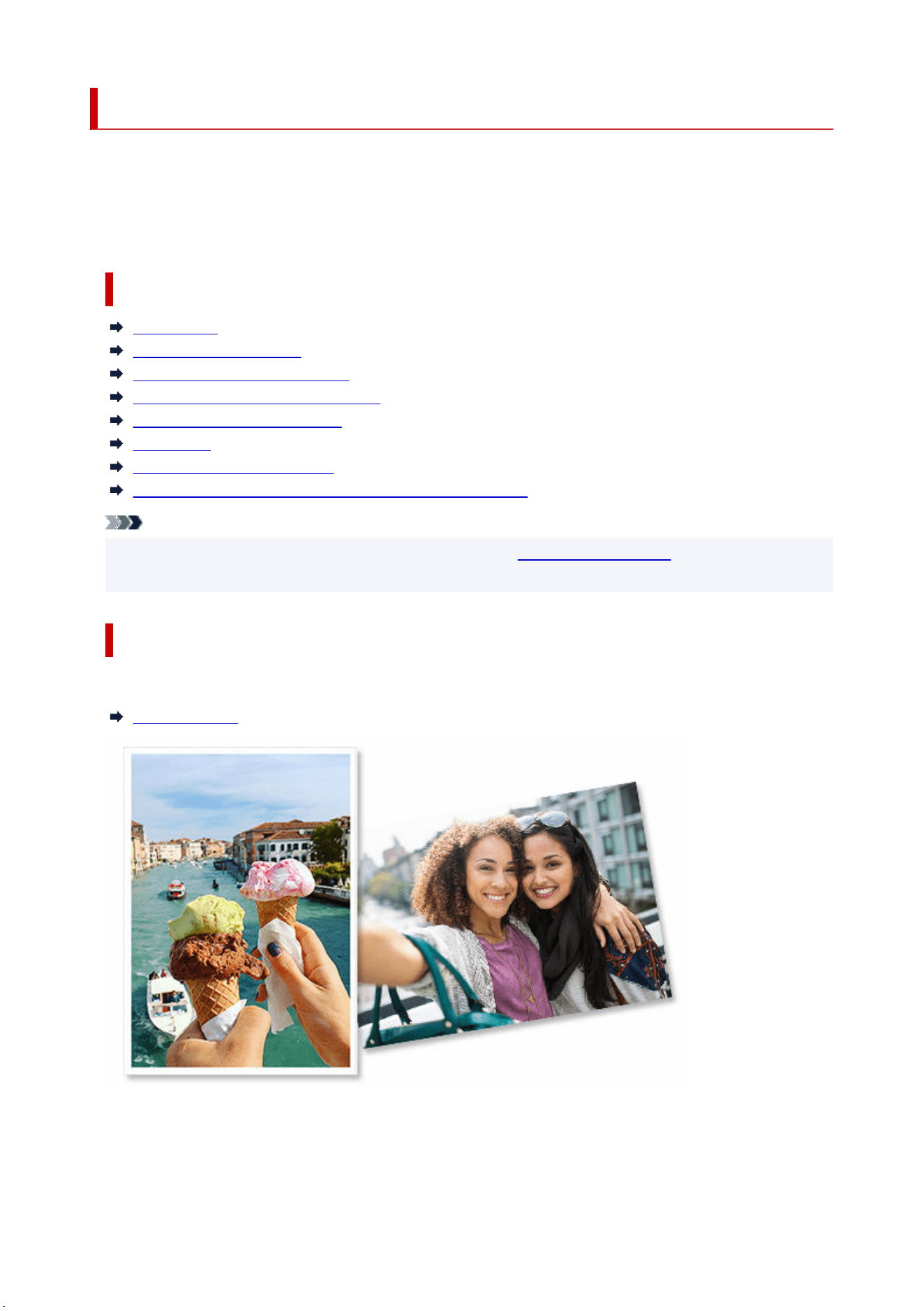
Easy-PhotoPrint Editor Features
Easy-PhotoPrint Editor is an application for printing photos easily and for creating and printing collages,
calendars, posters, etc. by simply selecting photos and templates.
You can create your own attractive items using a variety of templates that are updated constantly while your
computer is connected to the Internet.
Features at Glance
Print Photos
Print Personalized Items
Print Disc Labels (CD/DVD/BD)
Enhance Photos with Special Filters
Add Text and Stamps to Items
Save Items
Save Templates as Favorites
Print Photos from Social Networks or Photo Sharing Sites
Note
• For file formats available in Easy-PhotoPrint Editor, see
Available File Formats in "General Notes
(Easy-PhotoPrint Editor)."
Print Photos
Print your favorite photos easily.
Printing Photos
34
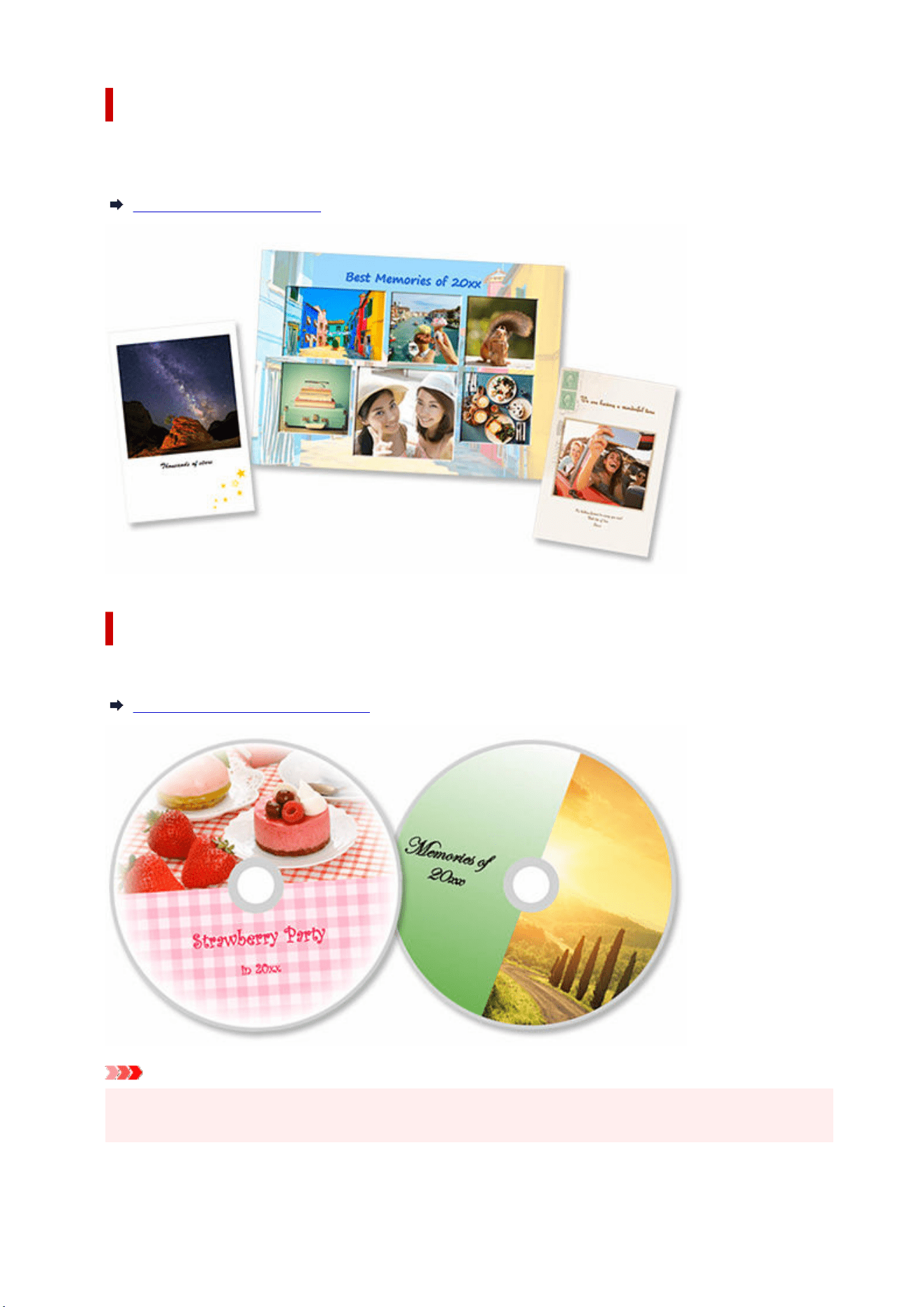
Print Personalized Items
Combine your favorite photos with preset templates to create and print personalized items such as
collages and cards.
Creating and Printing Items
Print Disc Labels (CD/DVD/BD)
Print disc labels (CD/DVD/BD) with memorable photos and titles.
Printing Disc Labels (CD/DVD/BD)
Important
• Only supported models can print disc labels. Before creating, check if your printer is included in List
of Supported Models.
35
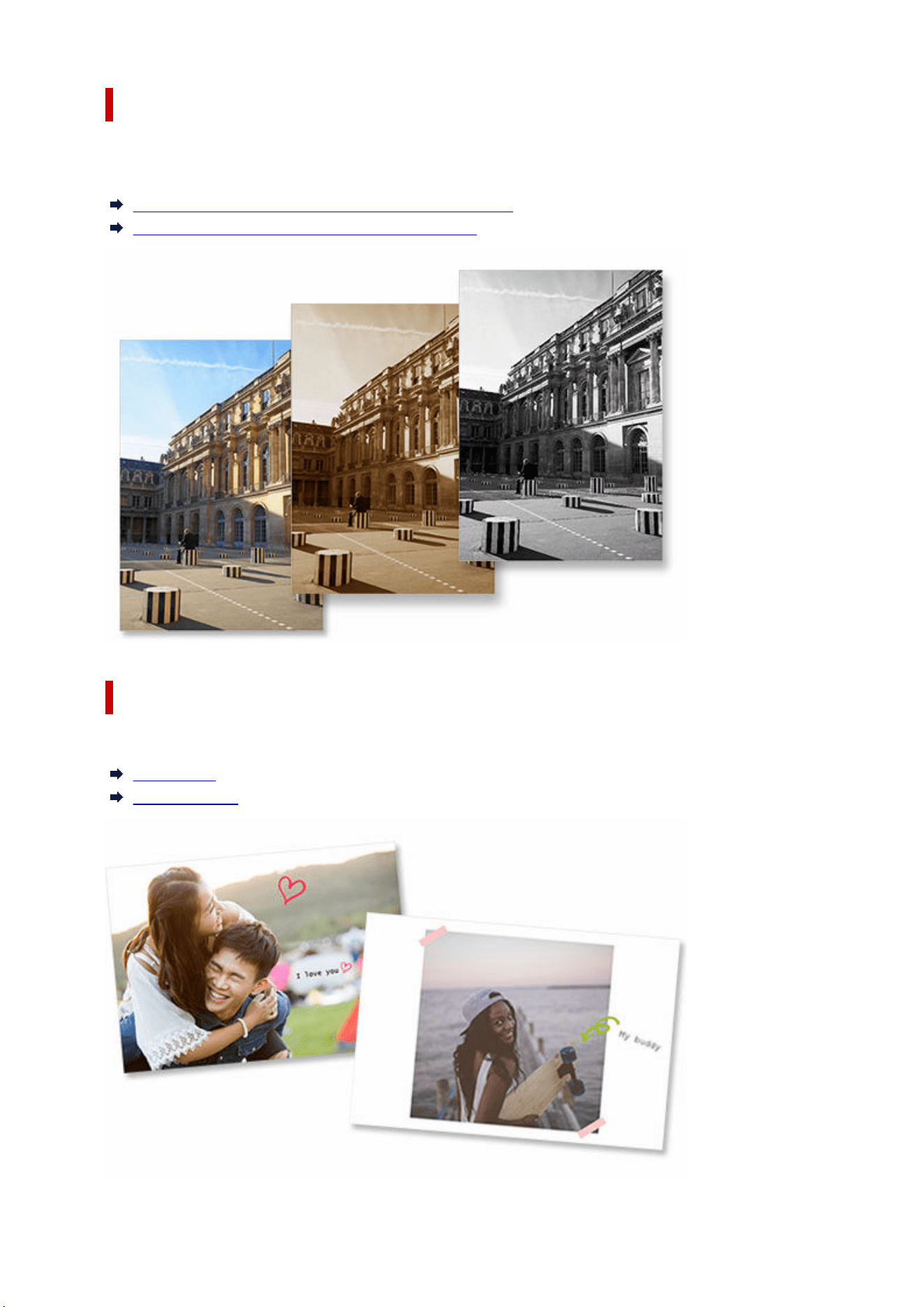
Enhance Photos with Special Filters
Brighten photos or enhance them with effects such as sepia tone and black and white tone using special
filters.
Enhancing Photos with Creative Filters (for Photo Print)
Enhancing Images with Creative Filters (for Items)
Add Text and Stamps to Items
Add messages or colorful stamps such as callouts and hearts to items.
Adding Text
Adding Stamps
36

Save Items
Save created items. Saved items appear in the Your Items screen; edit or print them anytime.
Your Items Screen
Save Templates as Favorites
Save templates you frequently use or like as favorites. Templates saved as favorites appear in the
Favorites screen; you can create items quickly from the next time.
Select Template Screen
Favorites Screen
Print Photos from Social Networks or Photo Sharing Sites
Not only photos saved on a computer but also photos on social networks or photo sharing sites can be
printed or used in your items.
Photo Locations Screen
37
Starting Easy-PhotoPrint Editor
Easy-PhotoPrint Editor can be started as follows.
Windows
• The following is an example for Windows 11.•
From
(Start button) on the taskbar, select All apps > Canon Utilities > Easy-PhotoPrint Editor.
Note
• Windows 10•
From
(Start button) on the taskbar, select Canon Utilities > Easy-PhotoPrint Editor.
• Windows 8.1•
Select Easy-PhotoPrint Editor on Start screen.
If Easy-PhotoPrint Editor is not displayed on the Start screen, select the Search charm, and then
search for "Easy-PhotoPrint Editor."
• Windows 7•
From Start menu, select All Programs > Canon Utilities > Easy-PhotoPrint Editor > Easy-
PhotoPrint Editor.
macOS
• Select Applications from the Go menu of Finder, and then double-click Canon Utilities > Easy-
PhotoPrint Editor > the Easy-PhotoPrint Editor icon.
38

Printing Photos and Items
Printing Photos
Cropping Photos (for Photo Print)
Enhancing Photos with Creative Filters (for Photo Print)
Printing Disc Labels (CD/DVD/BD)
Creating and Printing Items
Printing Photos in Variety of Layouts
Printing in Shuffled Layouts
Printing Collages
Printing by Specifying the Size
Printing Calendars
Printing Cards
Printing Posters
Printing Business Cards
Printing Scrapbook Materials
Printing Stickers
Printing ID Photos
39
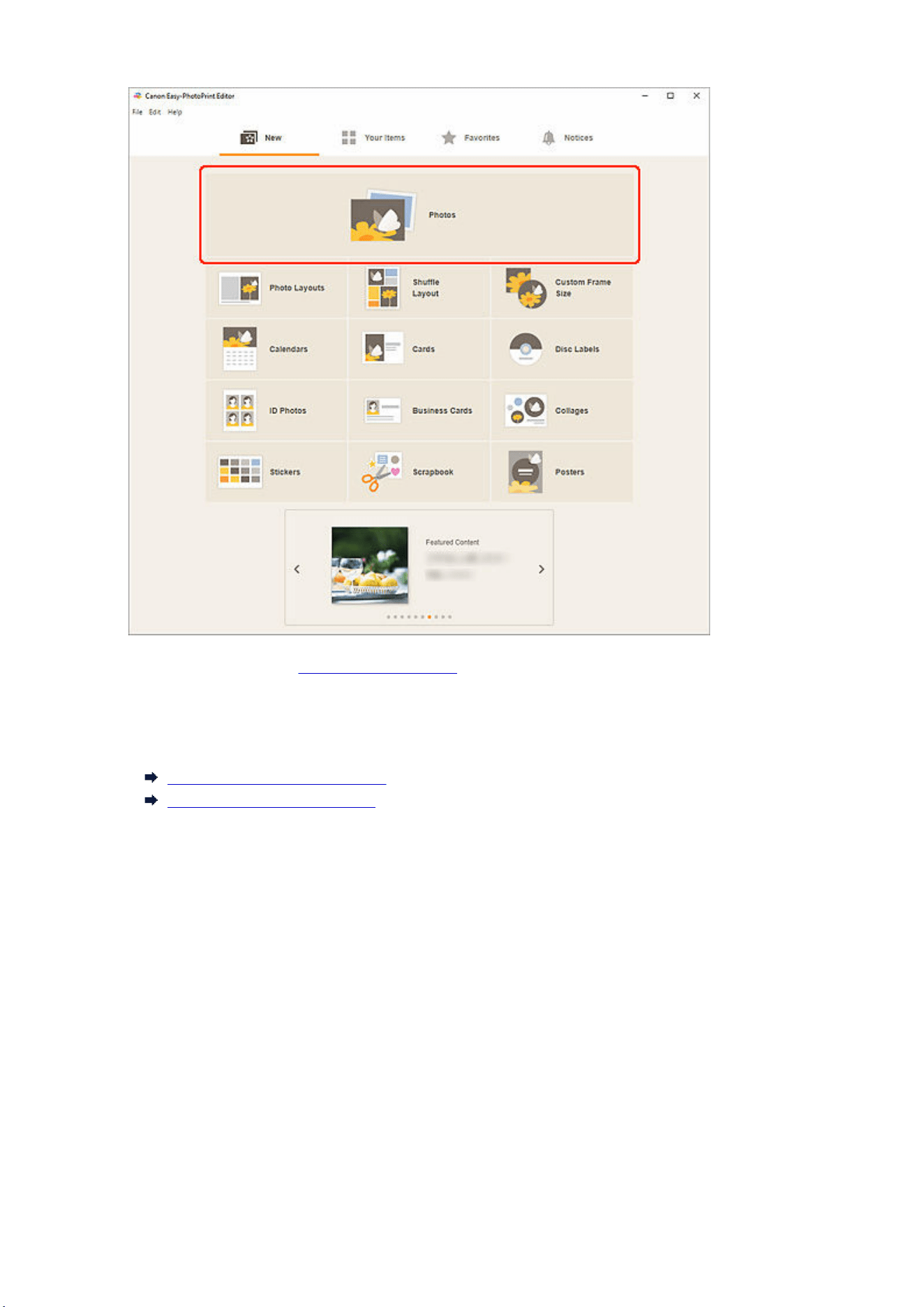
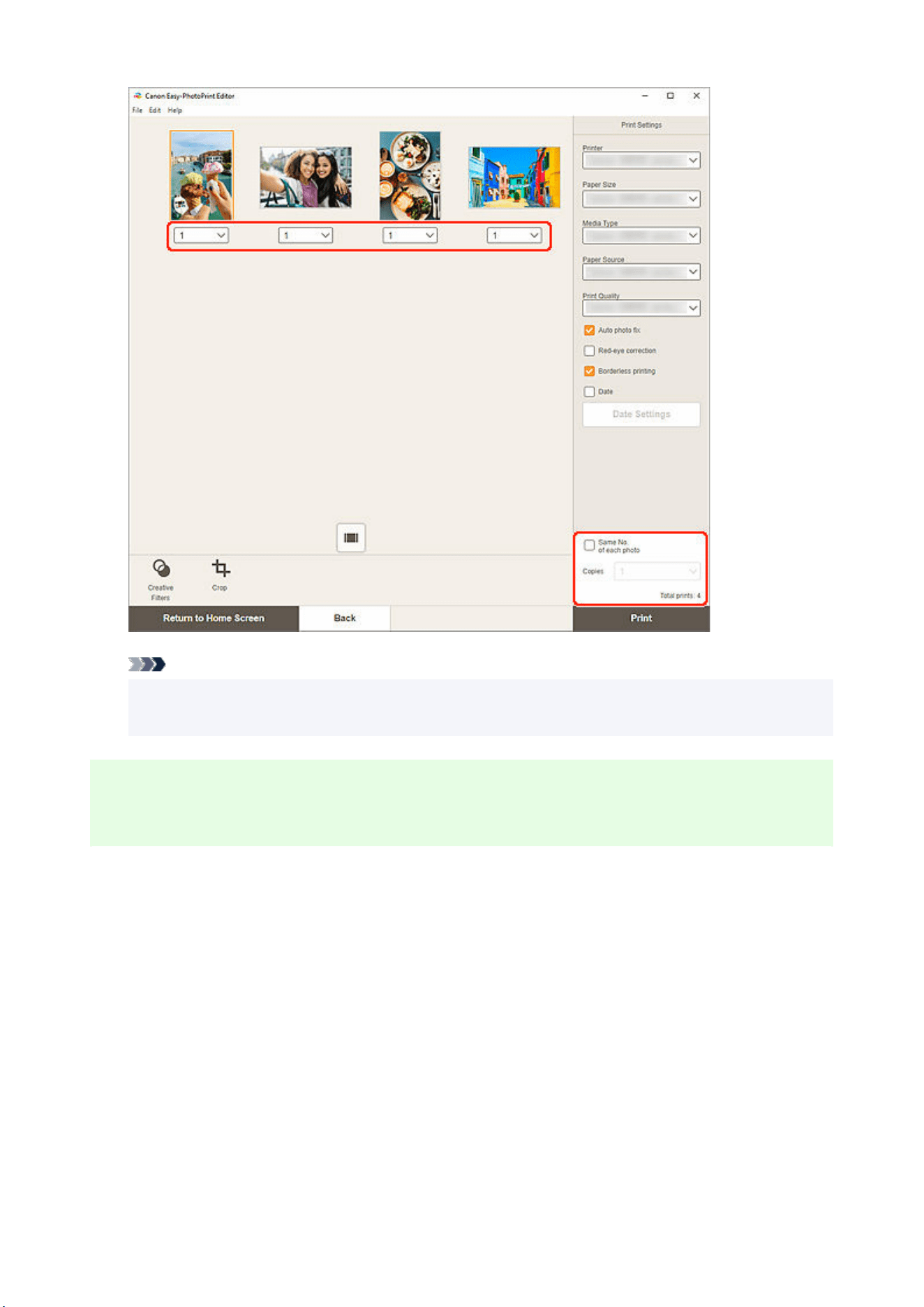
Note
• To set the number of copies to print for all the photos at once, select the Same No. of each photo
checkbox, and then enter the number of copies.
Windows
6. Specify printer and paper to use, and other settings.6.
42
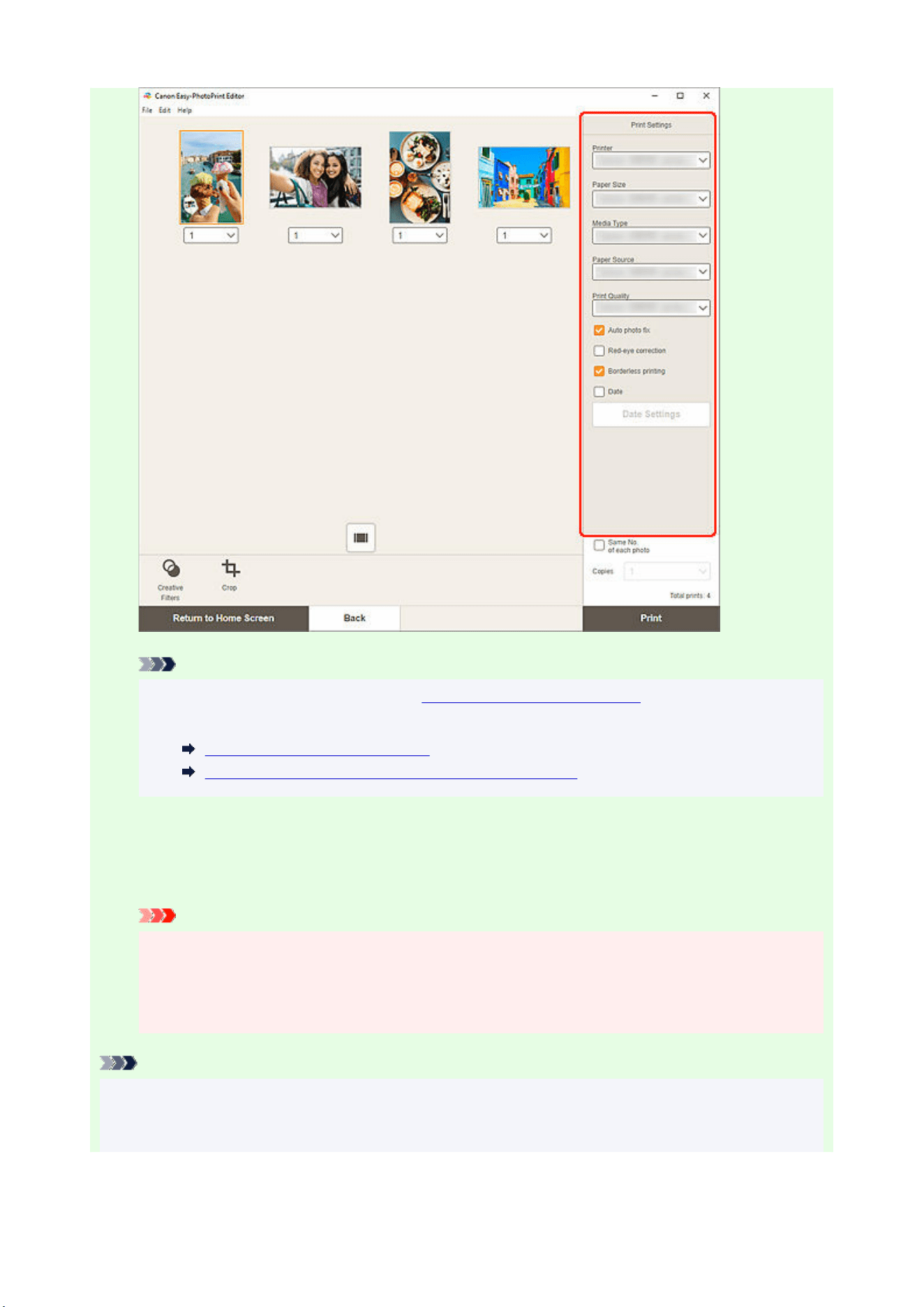
Note
• For details on the setting items, see
Print Settings Screen (Windows).
• Photos can be cropped or enhanced before printing as needed.•
Cropping Photos (for Photo Print)
Enhancing Photos with Creative Filters (for Photo Print)
7. Load paper in printer.7.
8. Click Print.8.
Important
• If you print a large number of high resolution images at one time, it may take time to start
printing, or printing may pause halfway through.
• If you print in a bordered layout, the margins on the left and right or the top and bottom may
become wider than the other.
Note
• Colors may fade with time if the printed paper is left for a long period of time.
After printing, dry the paper sufficiently, and then store or display indoors at room temperature and
normal humidity, avoiding high temperatures, high humidity, and direct sunlight.
43
To avoid direct exposure to air, we recommend that you store the paper in an album, plastic folder,
photo frame, or other container.
macOS
6. Set Auto photo fix, Red-eye correction, and other settings.6.
Note
• For details on the setting items, see
Print Settings Screen (macOS).
• Photos can be cropped or enhanced before printing as needed.•
Cropping Photos (for Photo Print)
Enhancing Photos with Creative Filters (for Photo Print)
7. Load paper in printer.7.
8. Click Next.8.
The Print dialog appears.
9. Specify printer and paper to use, and other settings.9.
Note
• When printing on T-Shirt Transfers using AirPrint, you may need to set the flip horizontally
setting depending on the printer. To set the flip horizontally setting, enable Flip Horizontally in
Layout.
• For details on the Print dialog, see Help of macOS.
10. Click Print.10.
Important
• If you print a large number of high resolution images at one time, it may take time to start
printing, or printing may pause halfway through.
• If you print in a bordered layout, the margins on the left and right or the top and bottom may
become wider than the other.
Note
• Colors may fade with time if the printed paper is left for a long period of time.
After printing, dry the paper sufficiently, and then store or display indoors at room temperature and
normal humidity, avoiding high temperatures, high humidity, and direct sunlight.
To avoid direct exposure to air, we recommend that you store the paper in an album, plastic folder,
photo frame, or other container.
44
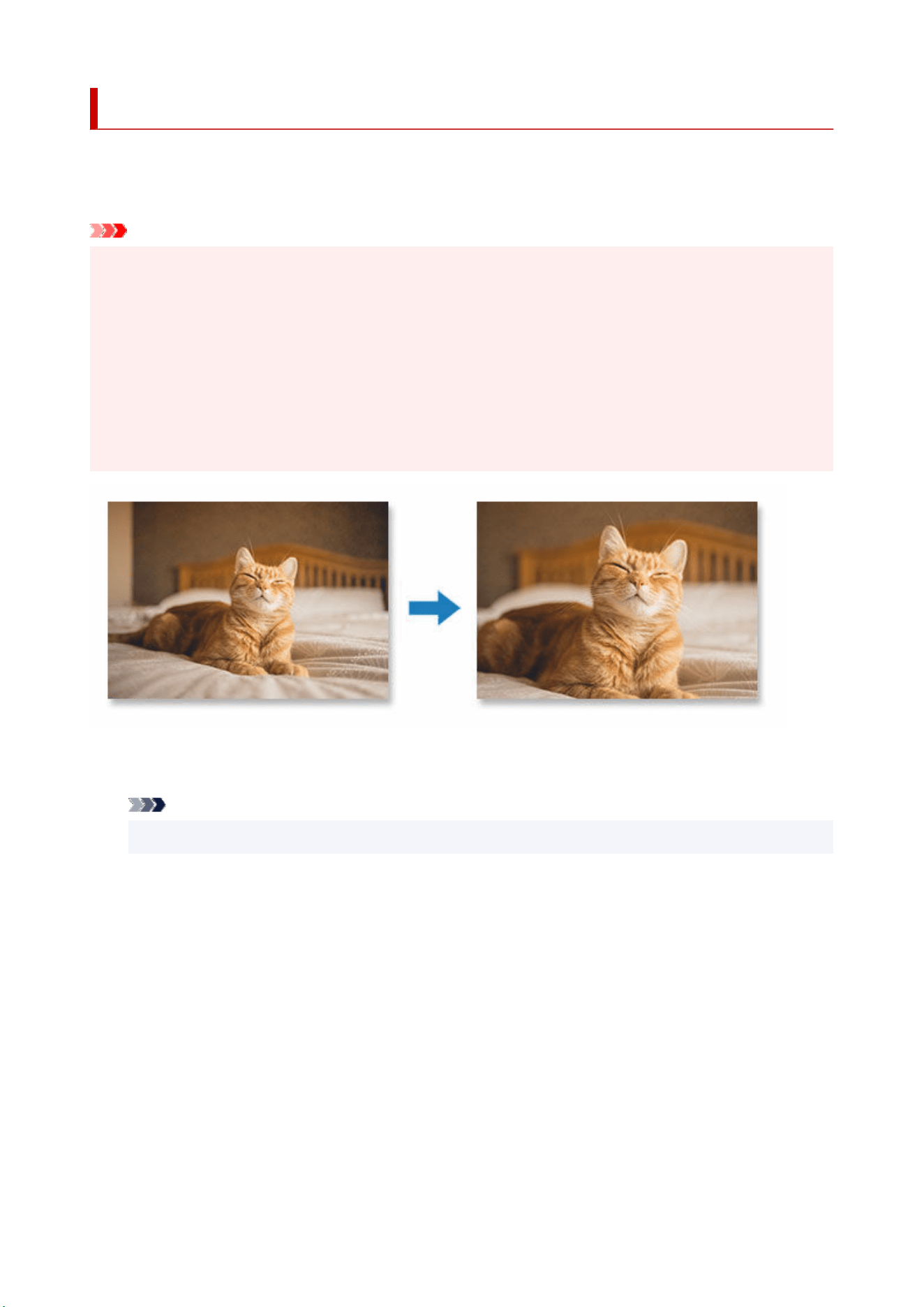
Cropping Photos (for Photo Print)
Cropping is the act of selecting the area you want to keep in an image and discarding the rest.
In photo printing, you can crop photos in the Print Settings screen.
Important
• Windows•
To crop an image, set Printer, Paper Size, and Borderless printing beforehand. Changing these
settings after cropping an image will restore the image to the state before it was cropped.
Changing Media Type or Paper Source may also restore the image to the state before it was cropped,
depending on the selected media type and paper source.
• macOS•
To crop an image, set Paper Size beforehand. Changing the paper size after cropping an image will
restore the image to the state before it was cropped.
1. In Print Settings screen, select the photo you want to crop, and then click Crop.1.
Note
• The selected image will be outlined in orange.
45
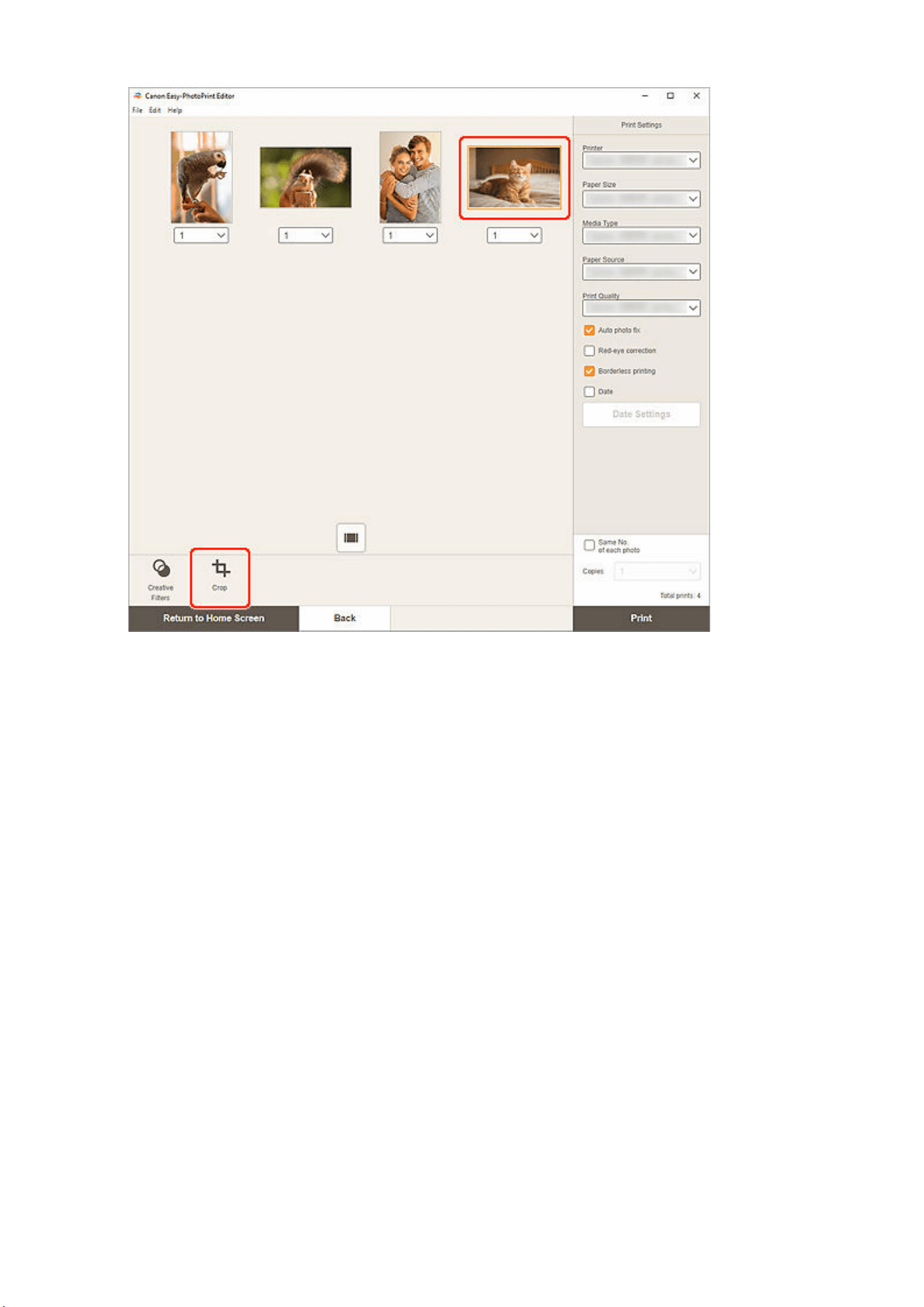
The view switches to the Crop screen.
2. Enlarge/reduce or rotate image while previewing the result.2.
46
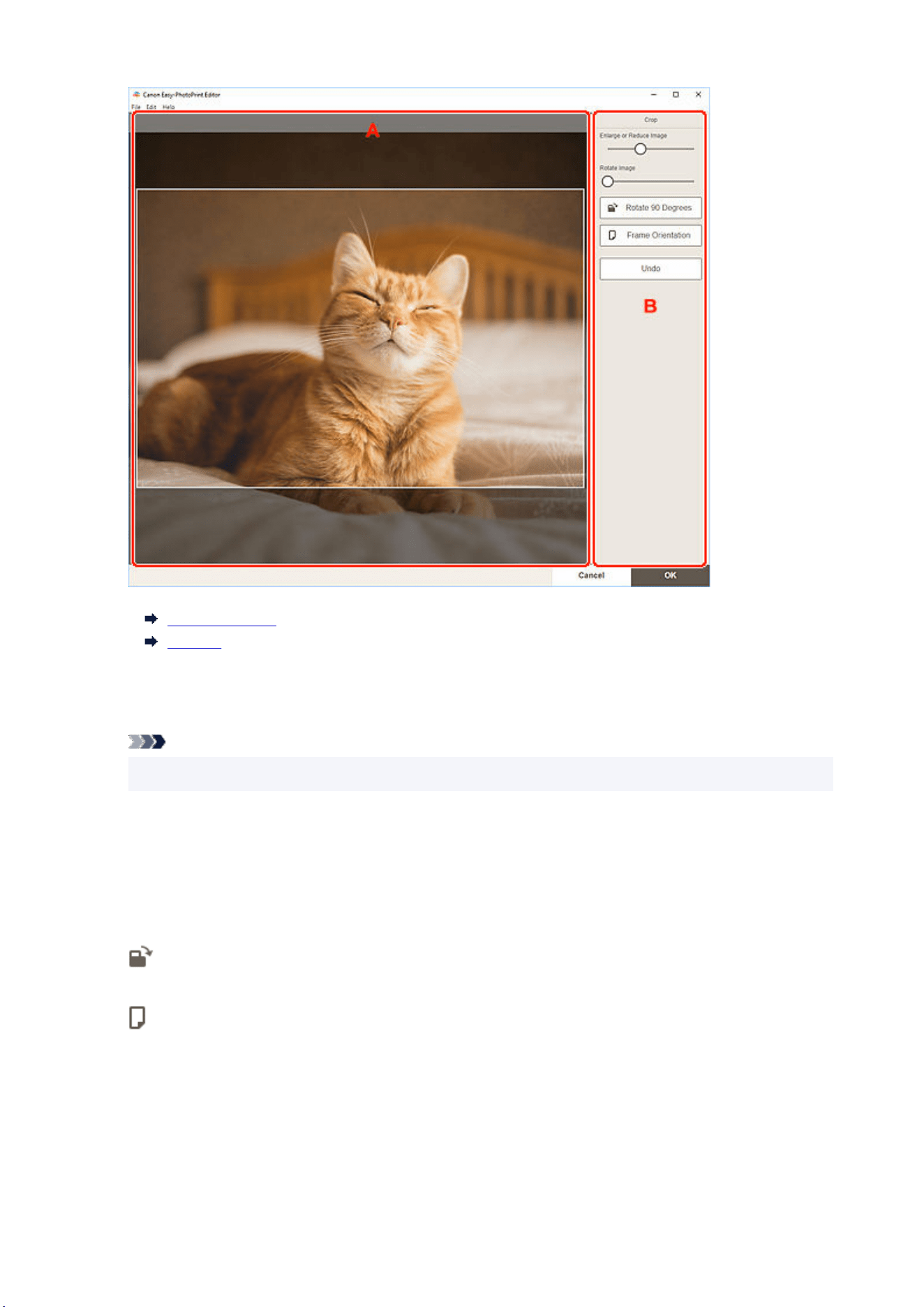
A: Preview Area
B: Crop
A: Preview Area
Displays the preview of the image being cropped.
Note
• You can specify the area to crop by dragging the image.
B: Crop
Enlarge or Reduce Image
Drag the slider to enlarge or reduce the image freely.
Rotate Image
Drag the slider to rotate the image clockwise.
Rotate 90 Degrees
Rotates the image 90 degrees clockwise with each click.
Frame Orientation
Click to switch the cropping frame orientation between portrait and landscape.
Undo
Restores the image to the state before it was cropped.
3. Click OK.3.
The view switches to the Print Settings screen.
47

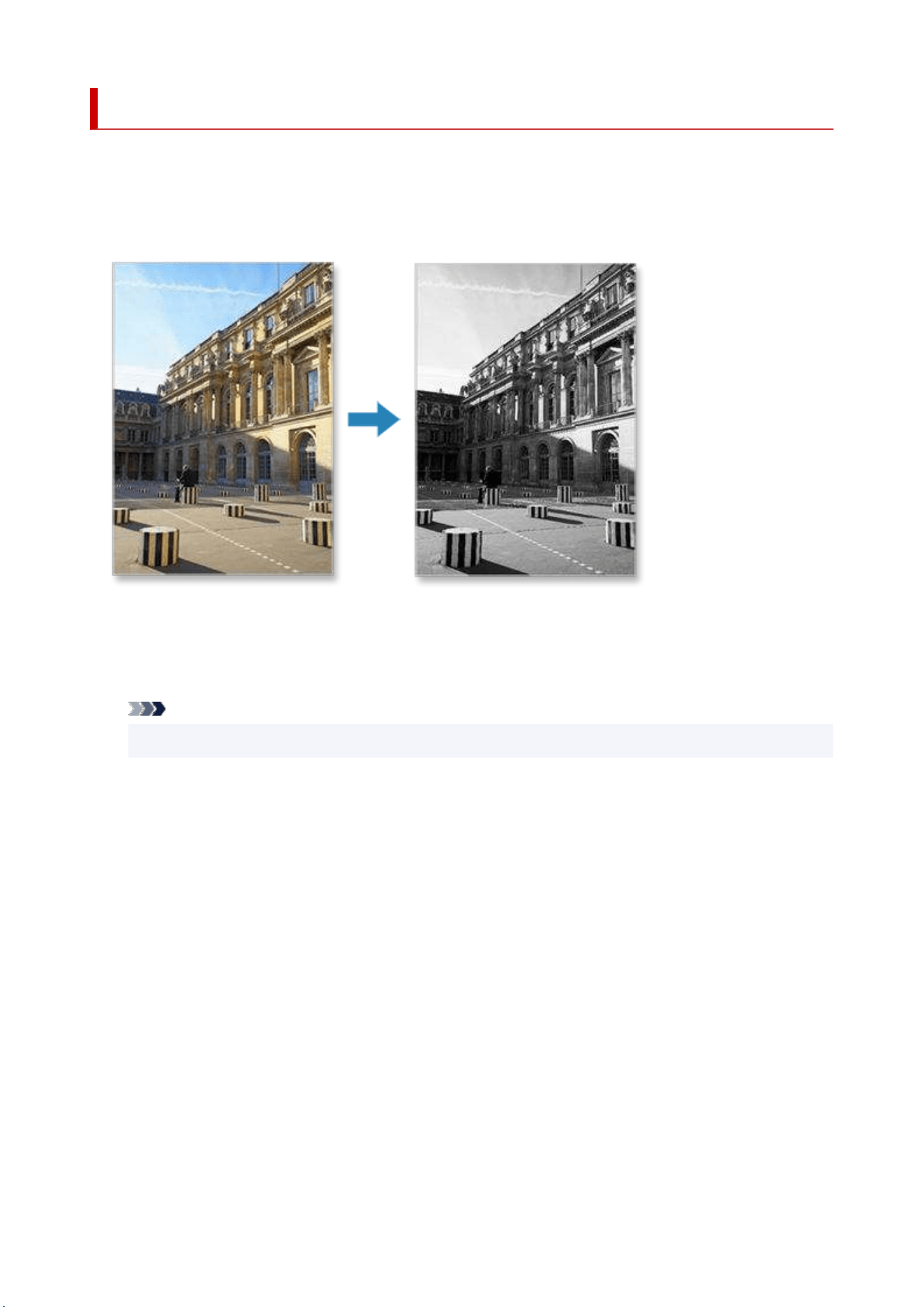
Enhancing Photos with Creative Filters (for Photo Print)
Make your photos attractive by enhancing them with effects such as black and white tone and antique tone
using special filters.
In photo printing, you can enhance photos in the Print Settings screen.
1. In Print Settings screen, select the photo you want to enhance, and then click Creative1.
Filters.
Note
• The selected image will be outlined in orange.
49
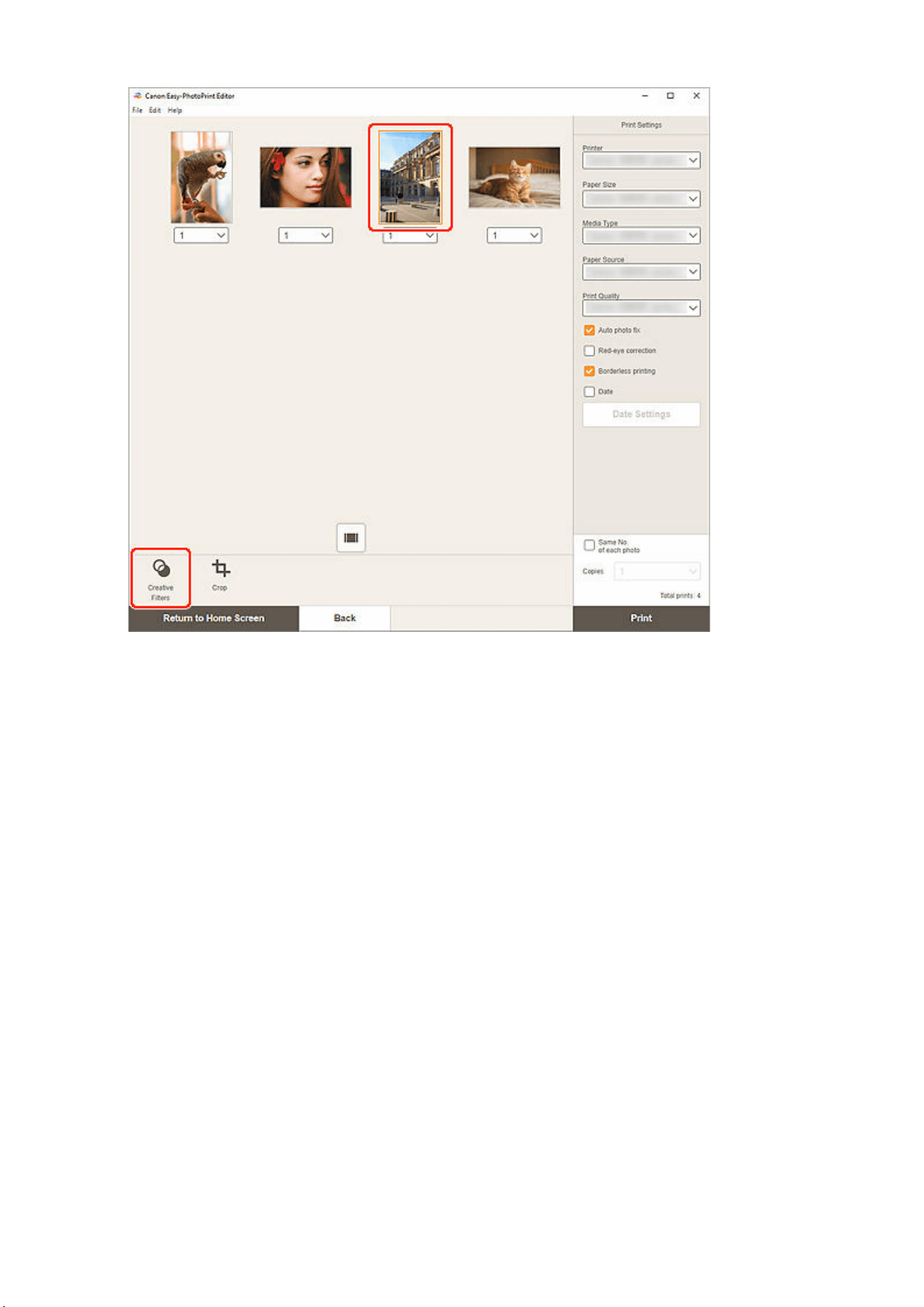
The view switches to the Creative Filters screen.
2. Enhance image with filter while previewing the result.2.
50
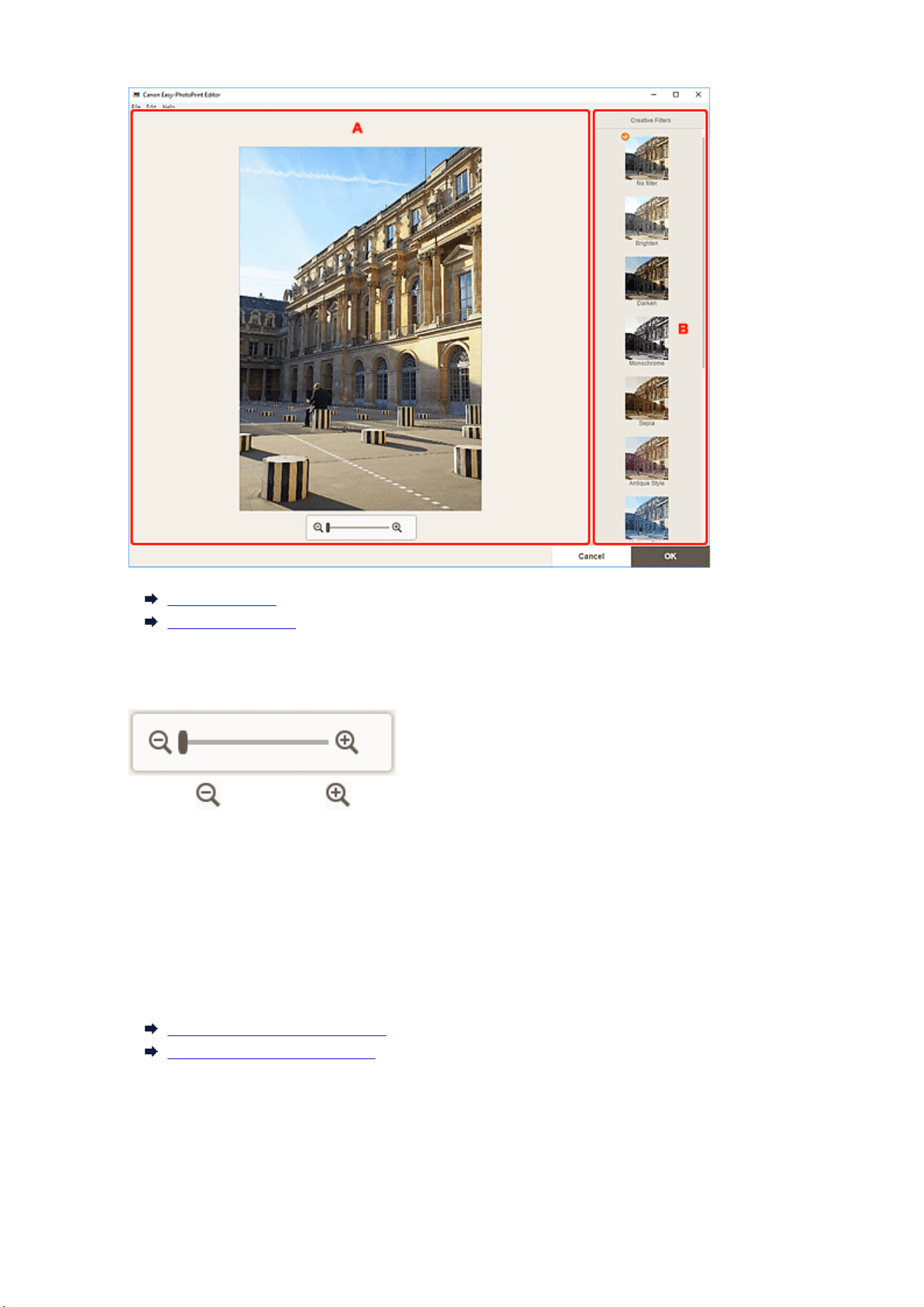
A: Preview Area
B: Creative Filters
A: Preview Area
Displays the preview of the image being enhanced.
(Zoom Out/Zoom In)
Click (Zoom Out) or (Zoom In) to reduce or enlarge the display size. You can also freely
change the display size by dragging the slider.
B: Creative Filters
Select a filter from the list to brighten the image or enhance it with sepia tone, black and white tone, or
other effect.
3. Click OK.3.
The view switches to the Print Settings screen.
Print Settings Screen (Windows)
Print Settings Screen (macOS)
51
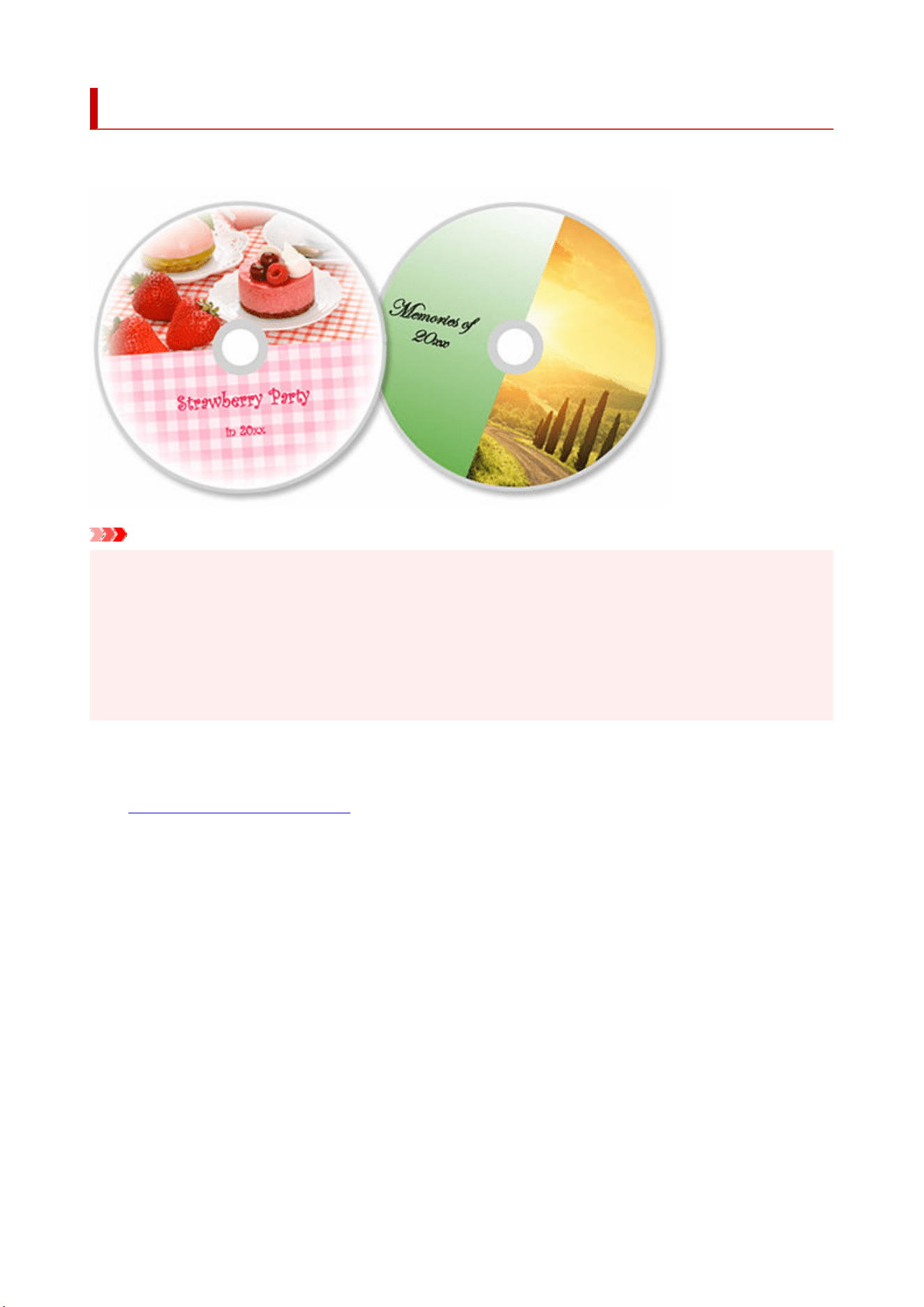
Printing Disc Labels (CD/DVD/BD)
Create and print personalized disc labels (CD/DVD/BD) from your favorite photos.
Important
• Only supported models can print disc labels. Before creating, check if your printer is included in List of
Supported Models.
• Do not set the multi-purpose tray or disc tray until a message prompting you to load a printable disc
appears on the printer's operation panel. Loading a printable disc while the printer is in operation may
damage the printer.
• To set or remove the multi-purpose tray or disc tray, click Home to return to the top page of the Online
Manual for your model and search for "Placing a Printable Disc."
1. Check that printer is on.1.
2.
Start Easy-PhotoPrint Editor.2.
3. In New screen, click Disc Labels.3.
52
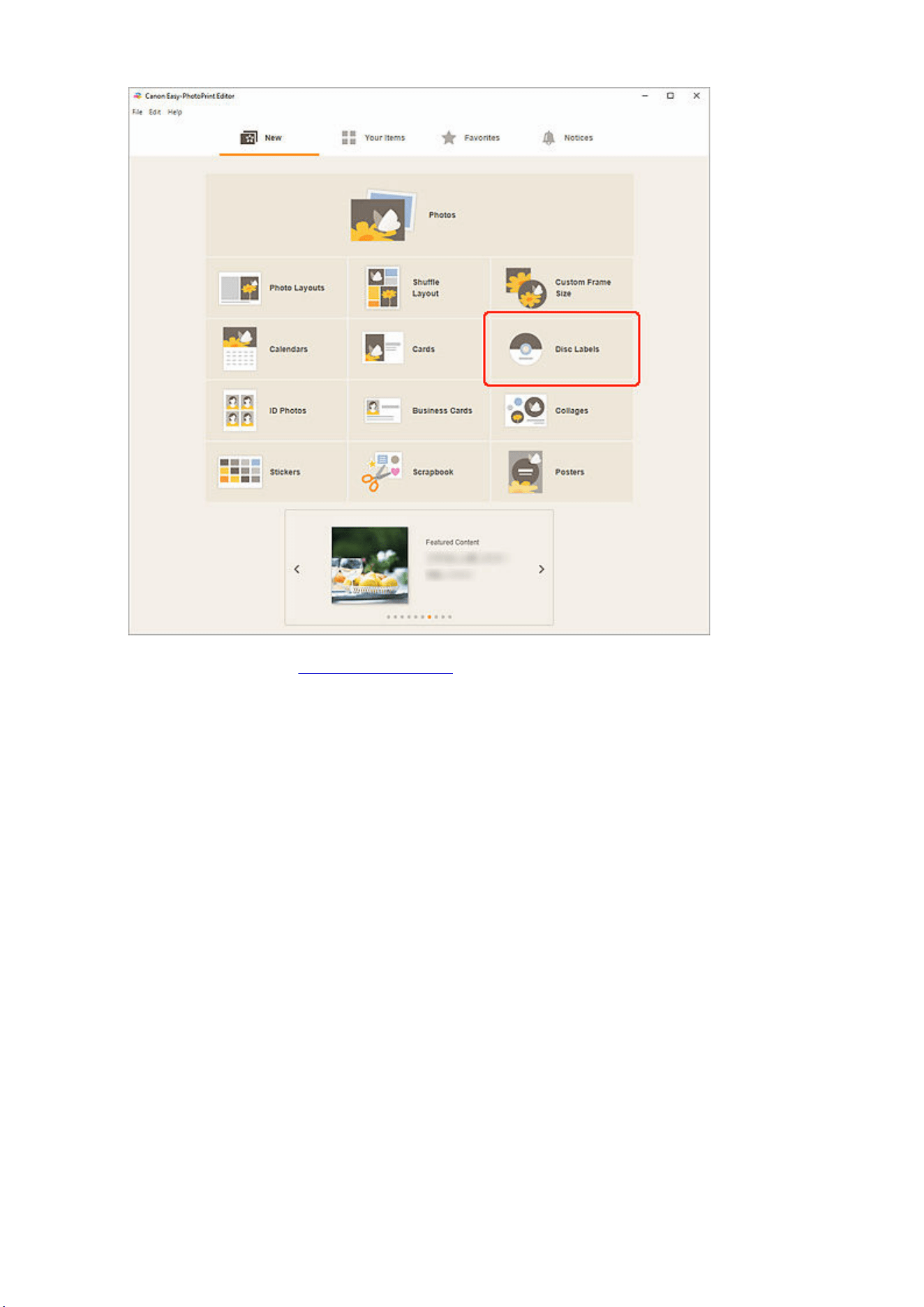
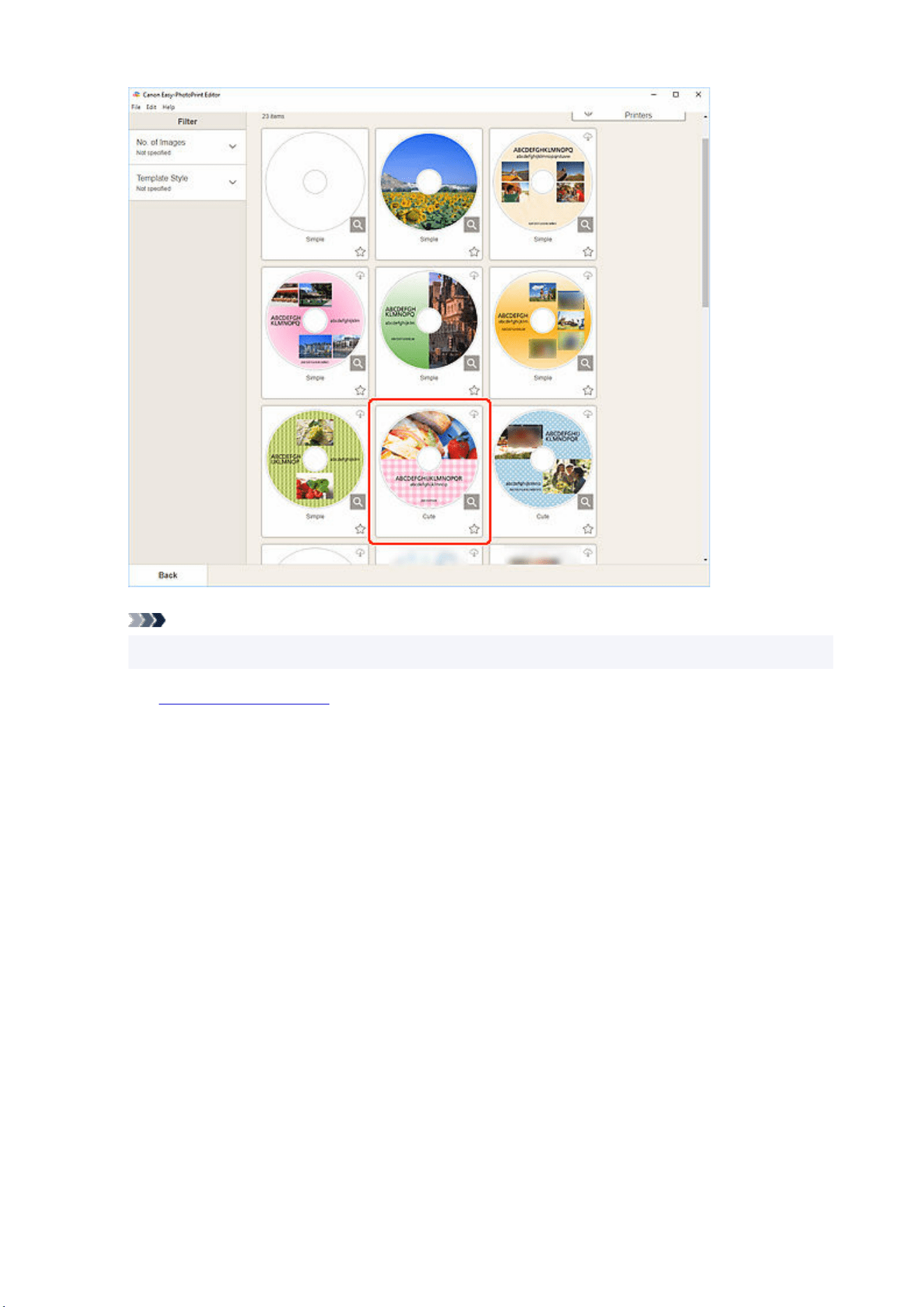
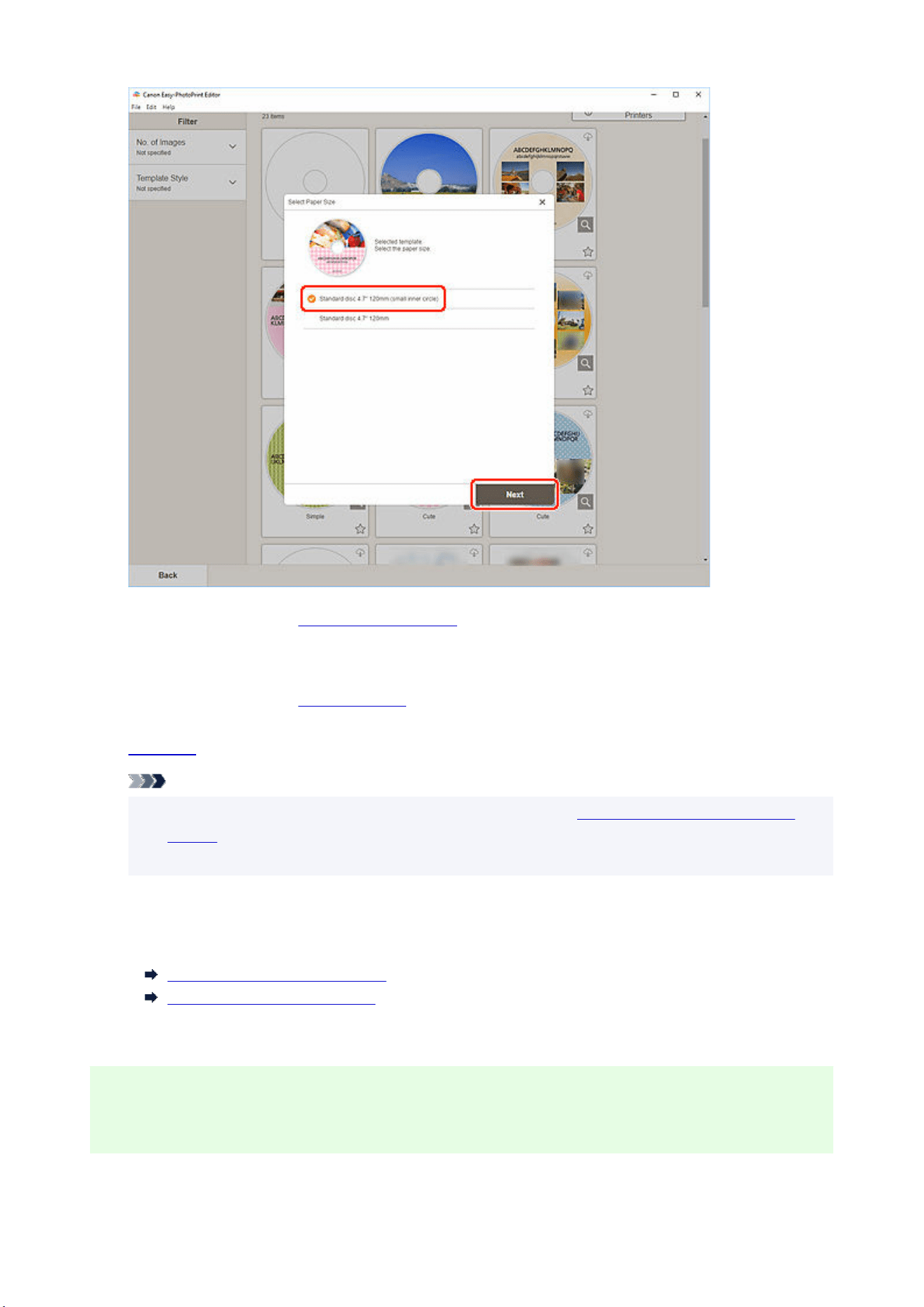
The view switches to the Photo Locations screen.
6. Select the photo(s) you want to use for disc label (CD/DVD/BD).6.
The view switches to the
Item edit screen.
7.
Edit item according to preference.7.
Note
• The print area for disc labels (CD/DVD/BD) can be set in the
Advanced Settings Screen (Disc
Labels) displayed by clicking Advanced... at the bottom of the screen.
• To save the item being edited, click Save.
8. Click Next.8.
The view switches to the Print Settings screen.
Print Settings Screen (Windows)
Print Settings Screen (macOS)
Check the displayed message, and then click OK.
Windows
9. Specify printer and paper to use, and other settings.9.
55
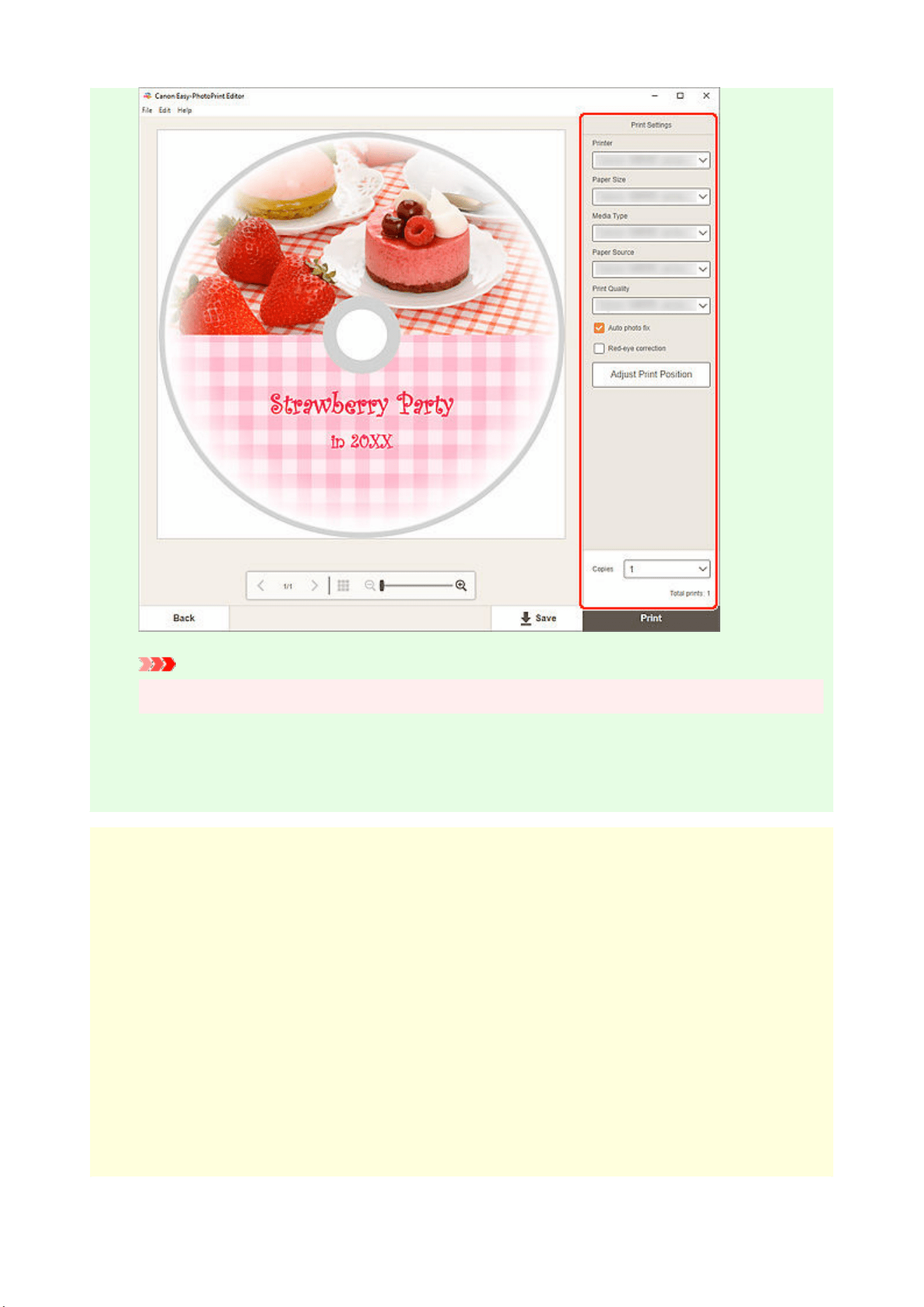
Important
• The paper size cannot be changed.
10. Click Print.10.
When a message appears on the printer's operation panel, set the multi-purpose tray or disc tray.
macOS
9. Set Paper Size, Auto Photo Fix, Red-Eye Correction, Adjust Print Position, and9.
Copies.
10. Click Next.10.
The Print dialog appears.
11. Specify printer to use and other settings.11.
12. Click Page Attributes to check if the selected paper size is set in Paper Size.12.
13. Click Media & Quality, and set as shown below:13.
56

• Select Auto Select or CD-DVD Tray in Feed From.
• Select Auto Select or Printable disc in Media Type.
Note
• If Media & Quality doesn't appear, click Quality & Media in Printer Options, and select
Printable disc or Printable disc (bleed-proof) in Media Type.
14. Click Print.14.
When a message appears on the printer's operation panel, set the multi-purpose tray or disc tray.
Note
• To print disc labels with the same settings from the next time, save the settings specified in the
Print dialog to Presets. For the save procedure, see Help of macOS.
• If the print result's color tone is faint, select Media & Quality in the Print dialog, and then select
Best in Quality.
57
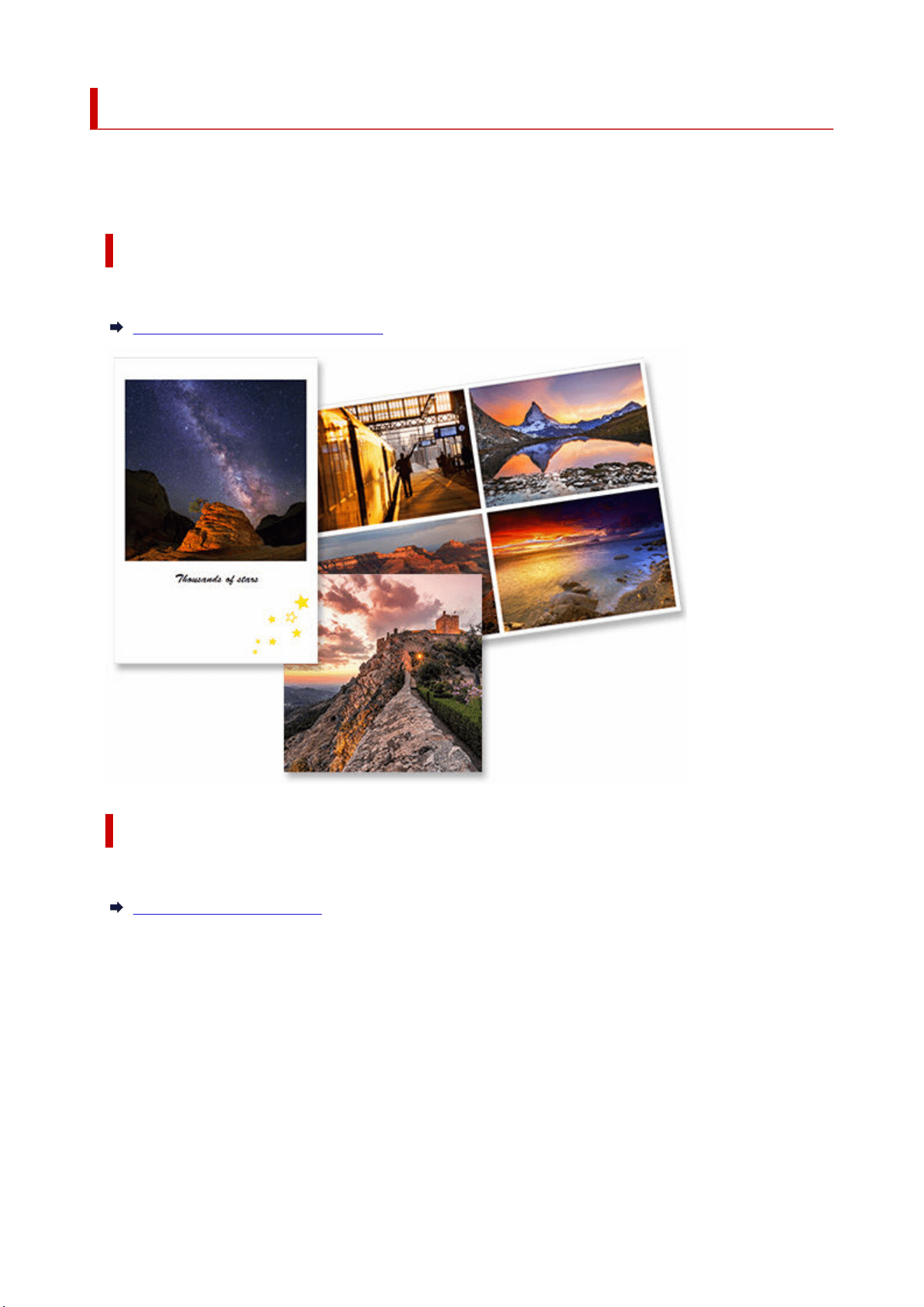
Creating and Printing Items
Create and print personalized items from your favorite photos easily.
You can create and print items such as the following.
Print Photos in Variety of Layouts
Print your favorite photos in grid layouts or add photo frames or messages before printing.
Printing Photos in Variety of Layouts
Print in Shuffled Layouts
Print in various layouts by selecting your favorite photos and shuffling them automatically.
Printing in Shuffled Layouts
58
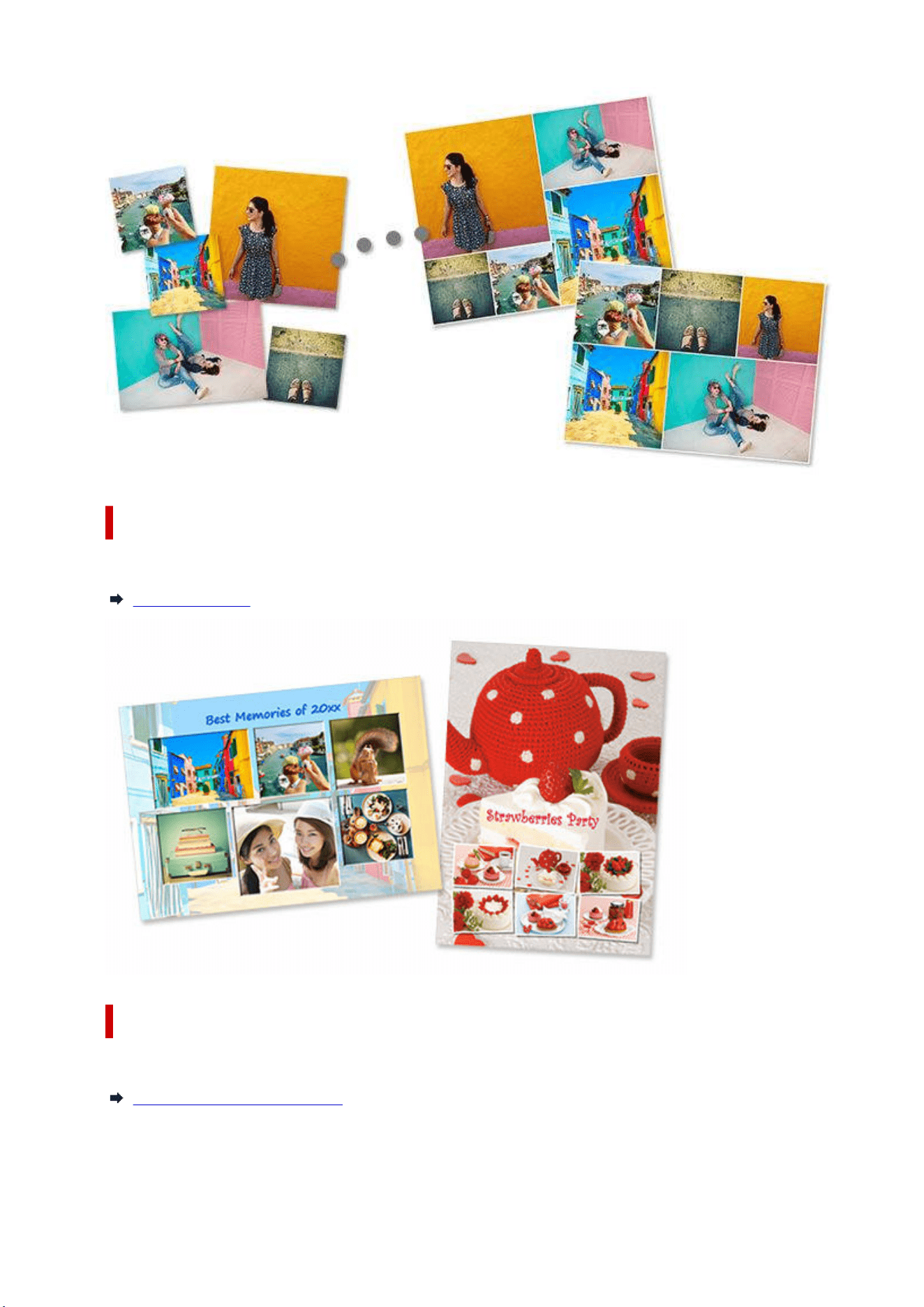
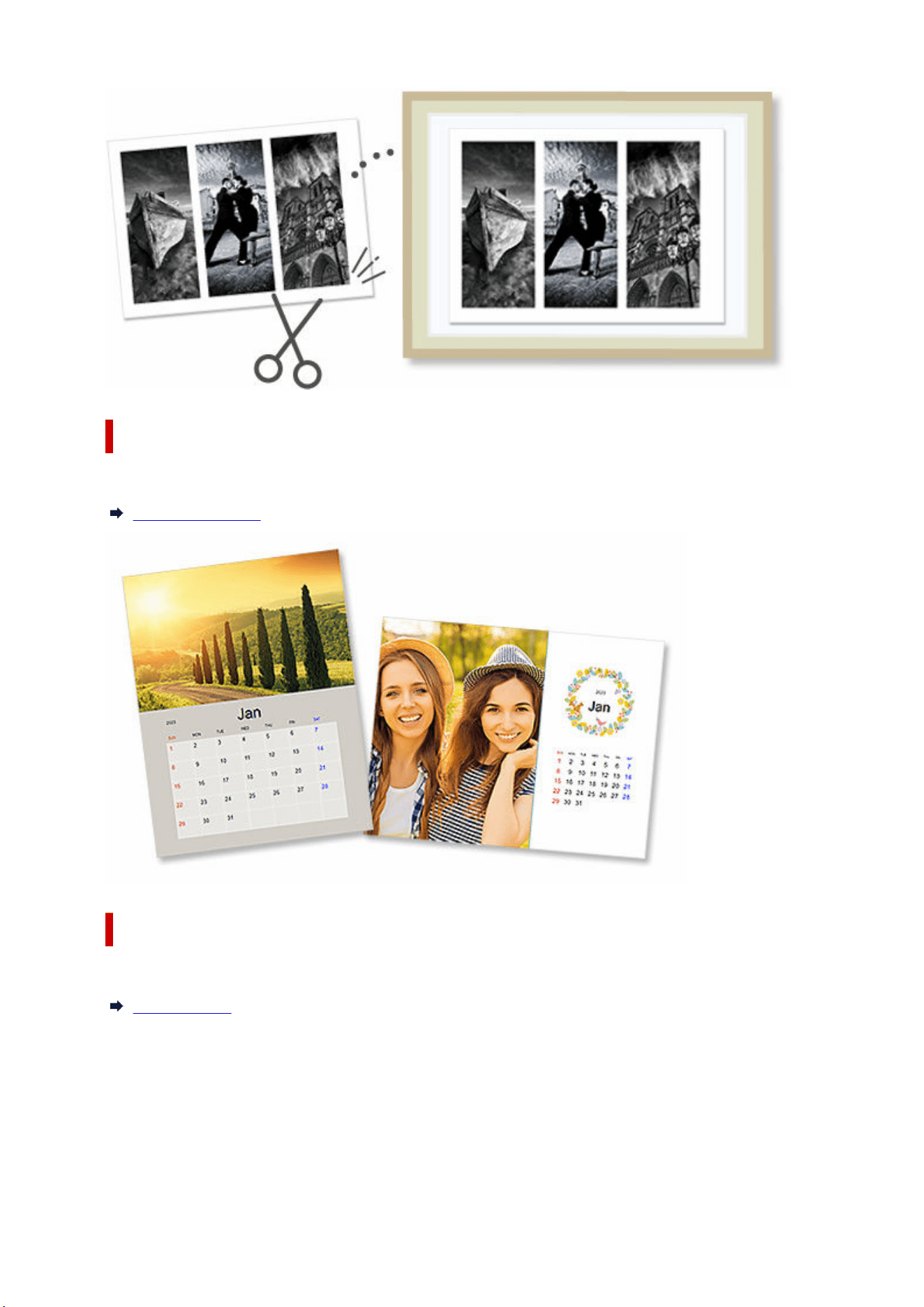
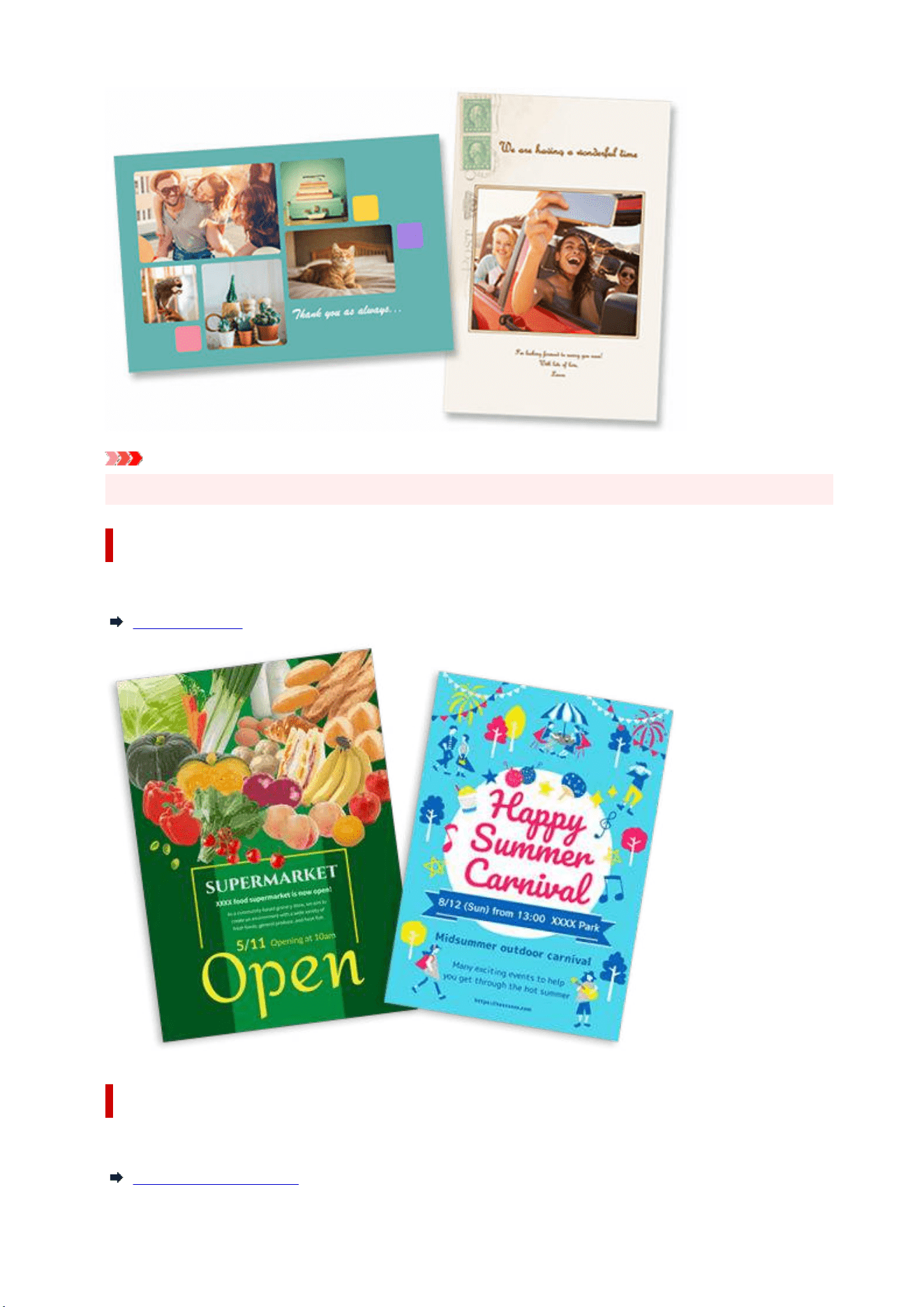
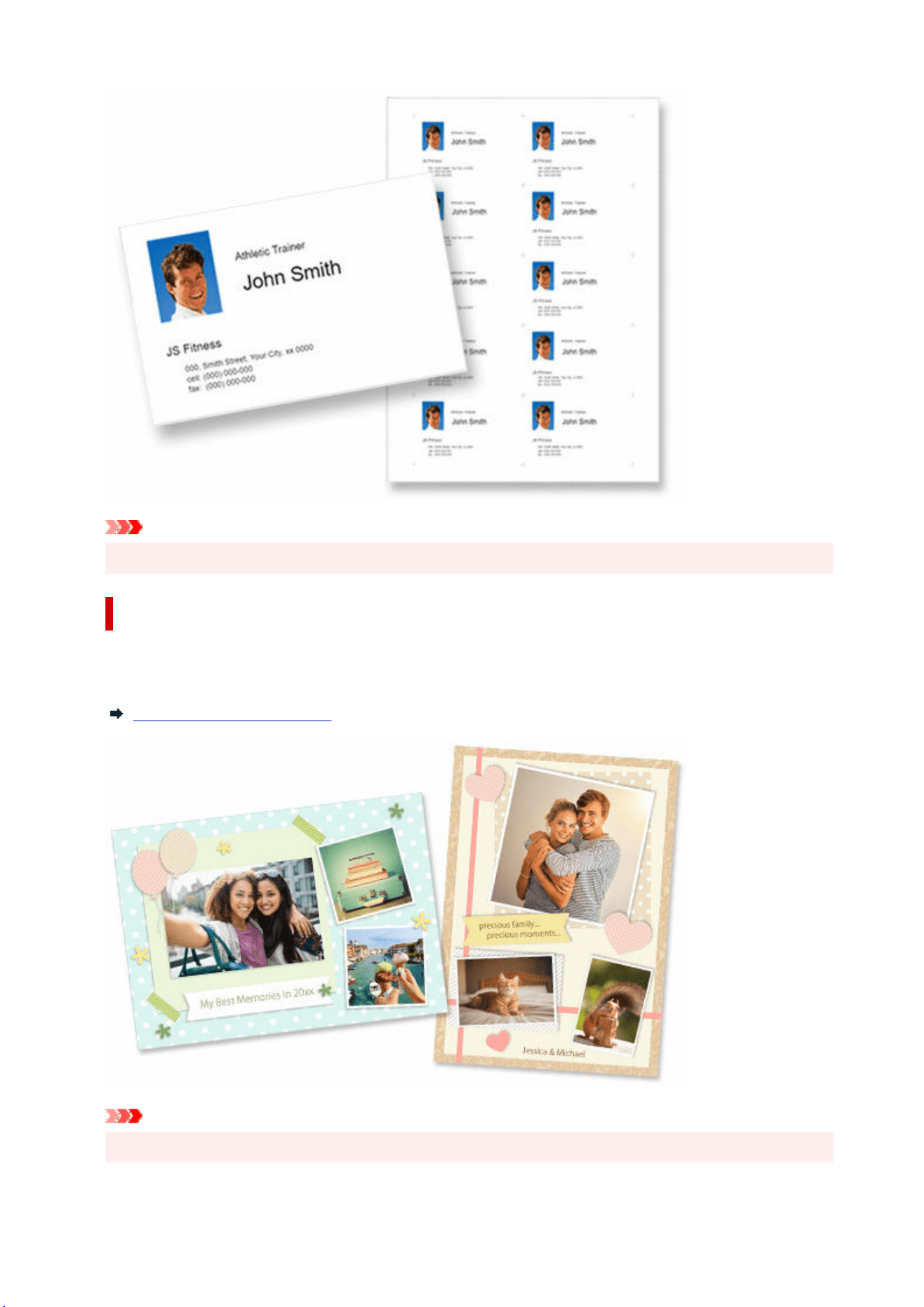
Important
• Business cards cannot be printed depending on your printer.
Print Scrapbook Materials
Print scrapbook paper and decorations. Create a stylish scrapbook by printing and pasting memorable
photos and decorations to scrapbook paper.
Printing Scrapbook Materials
Important
• Scrapbook materials cannot be printed depending on your printer.
62
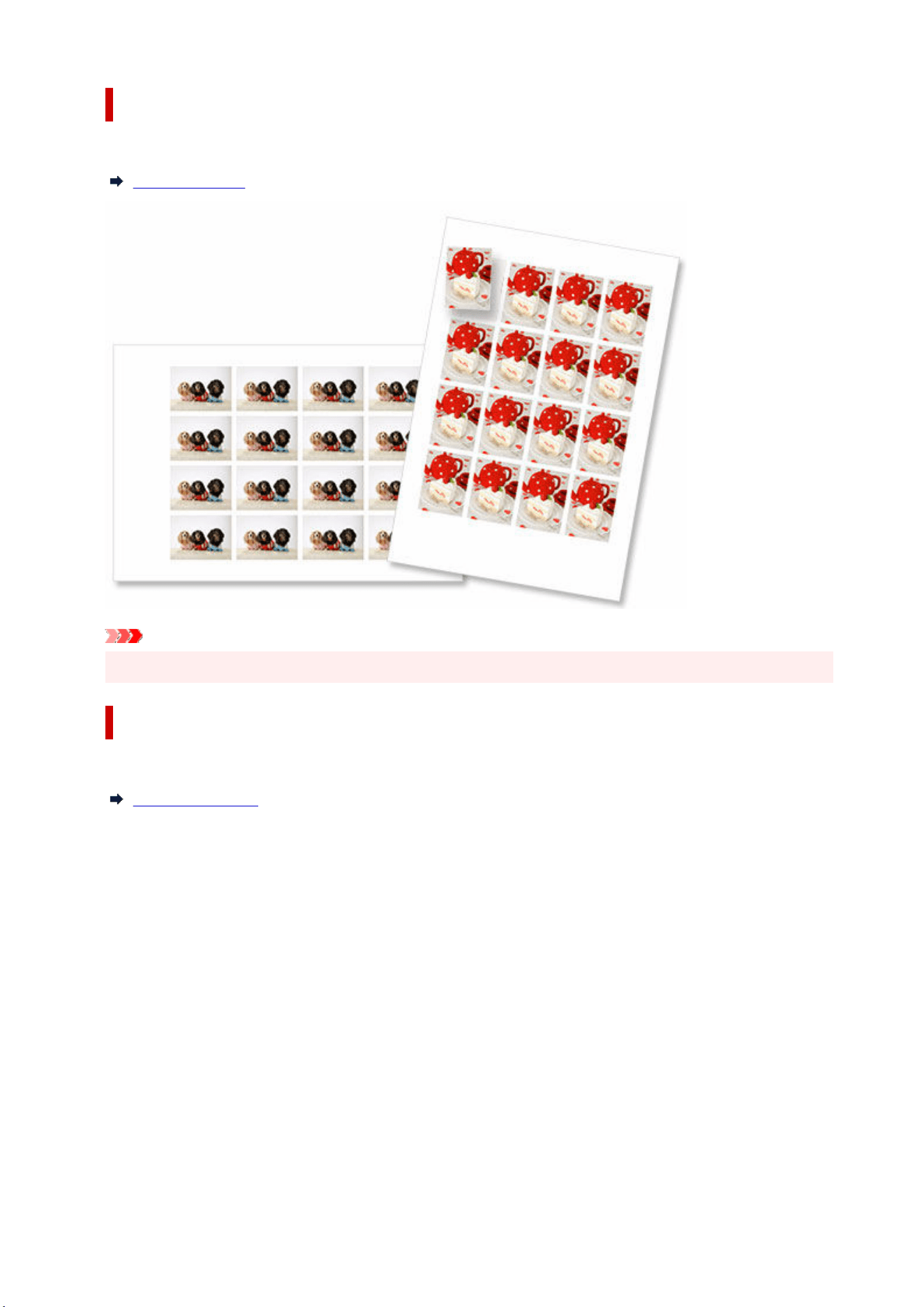
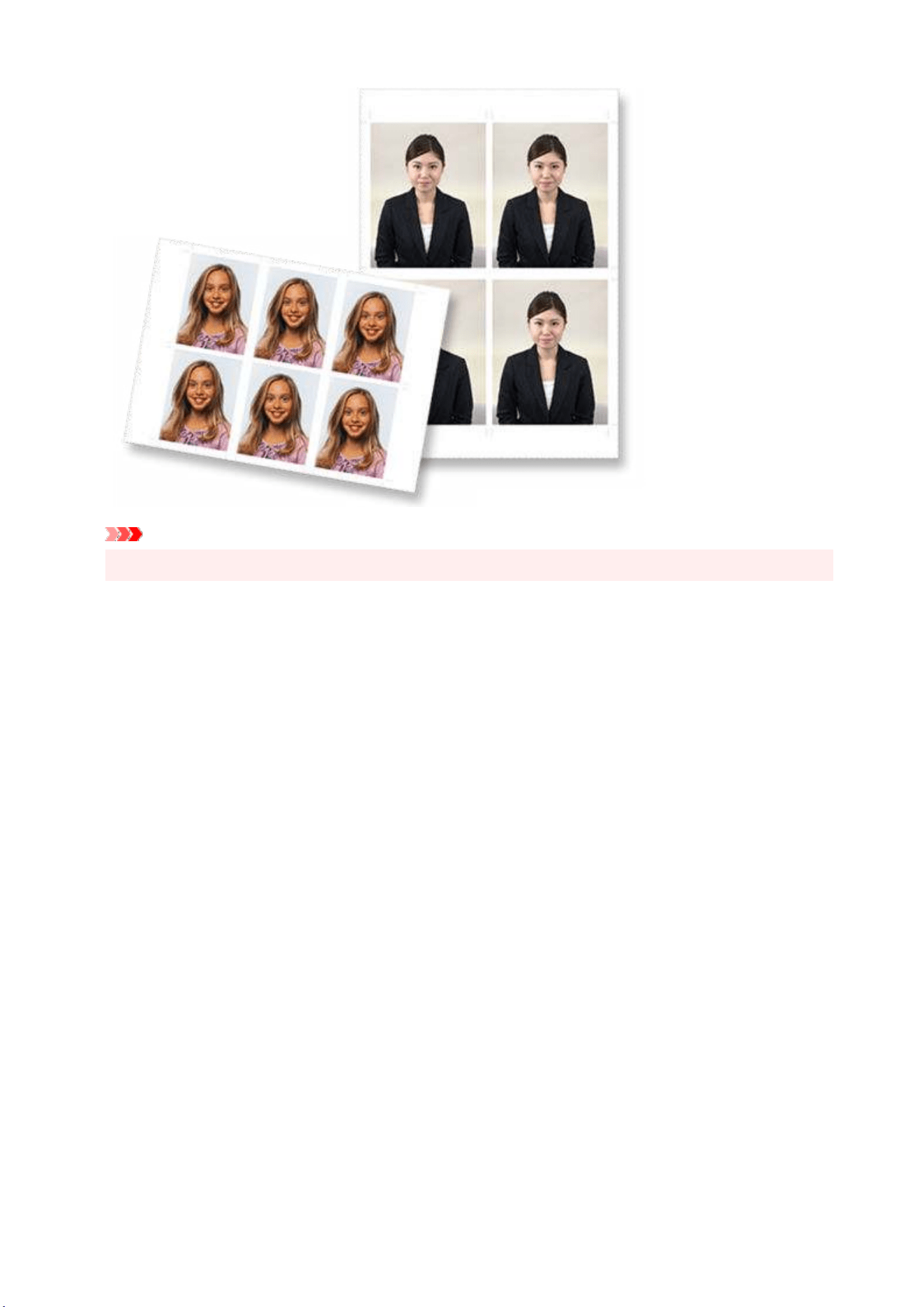
Important
• ID photos cannot be printed depending on your printer.
64
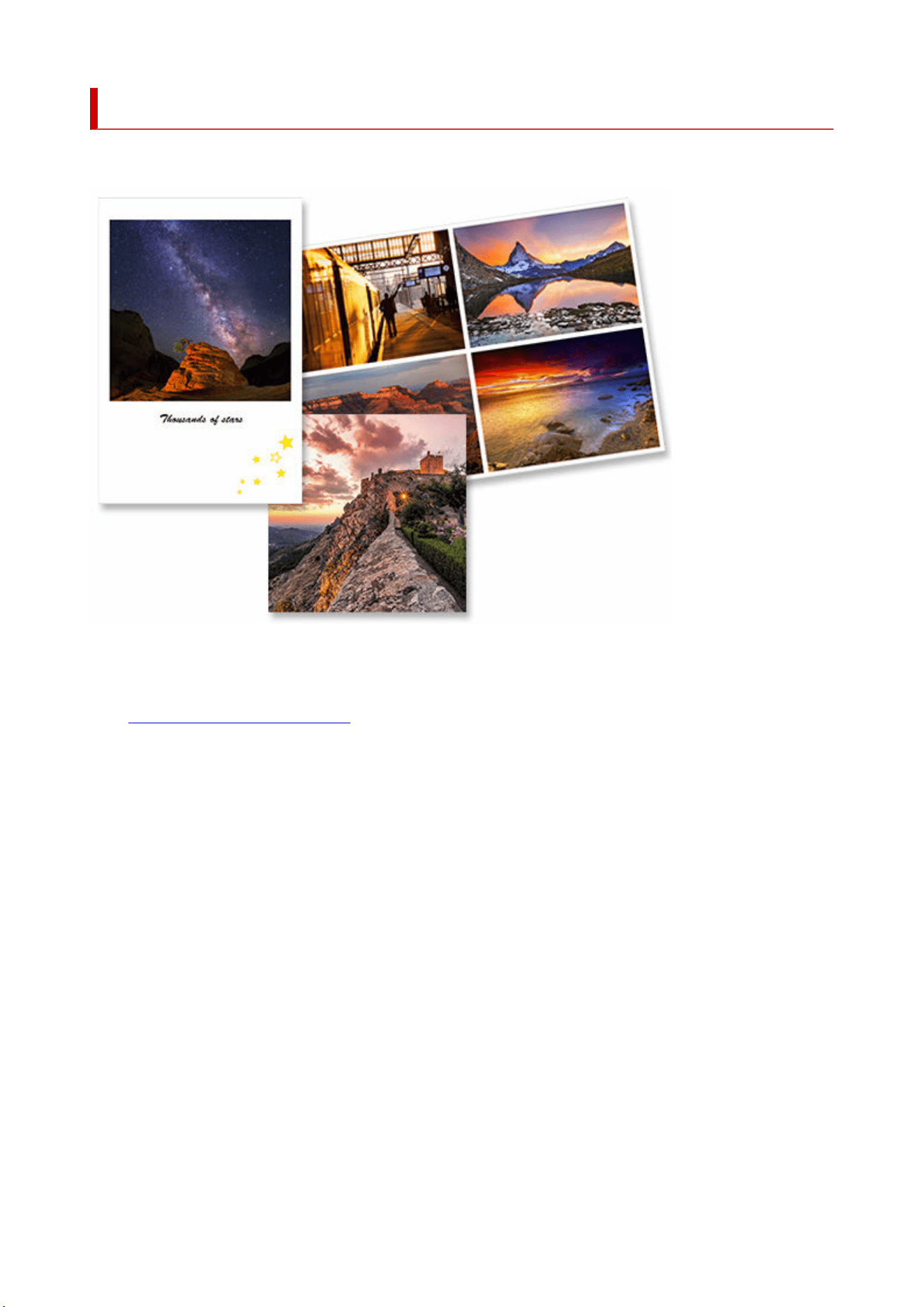
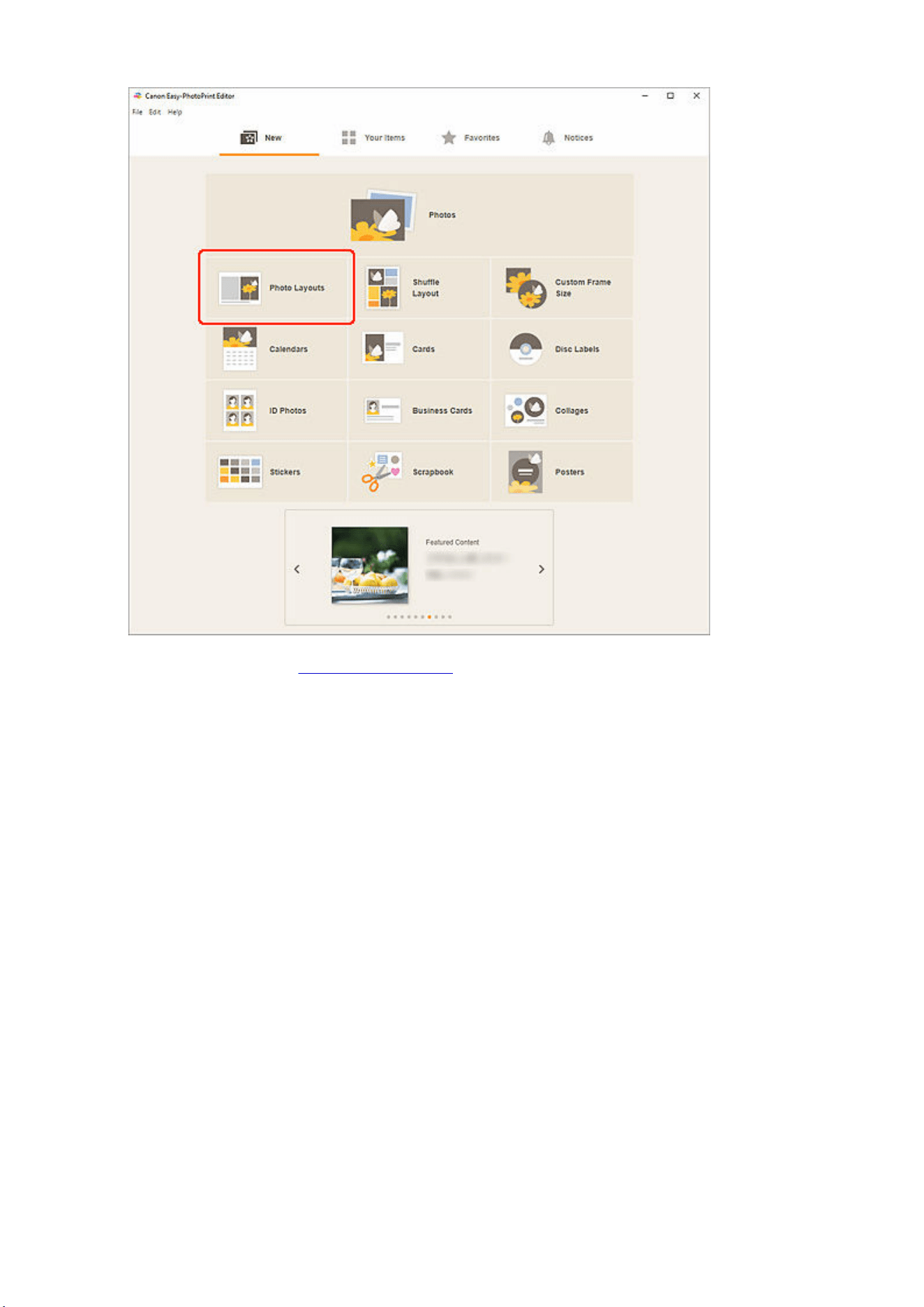
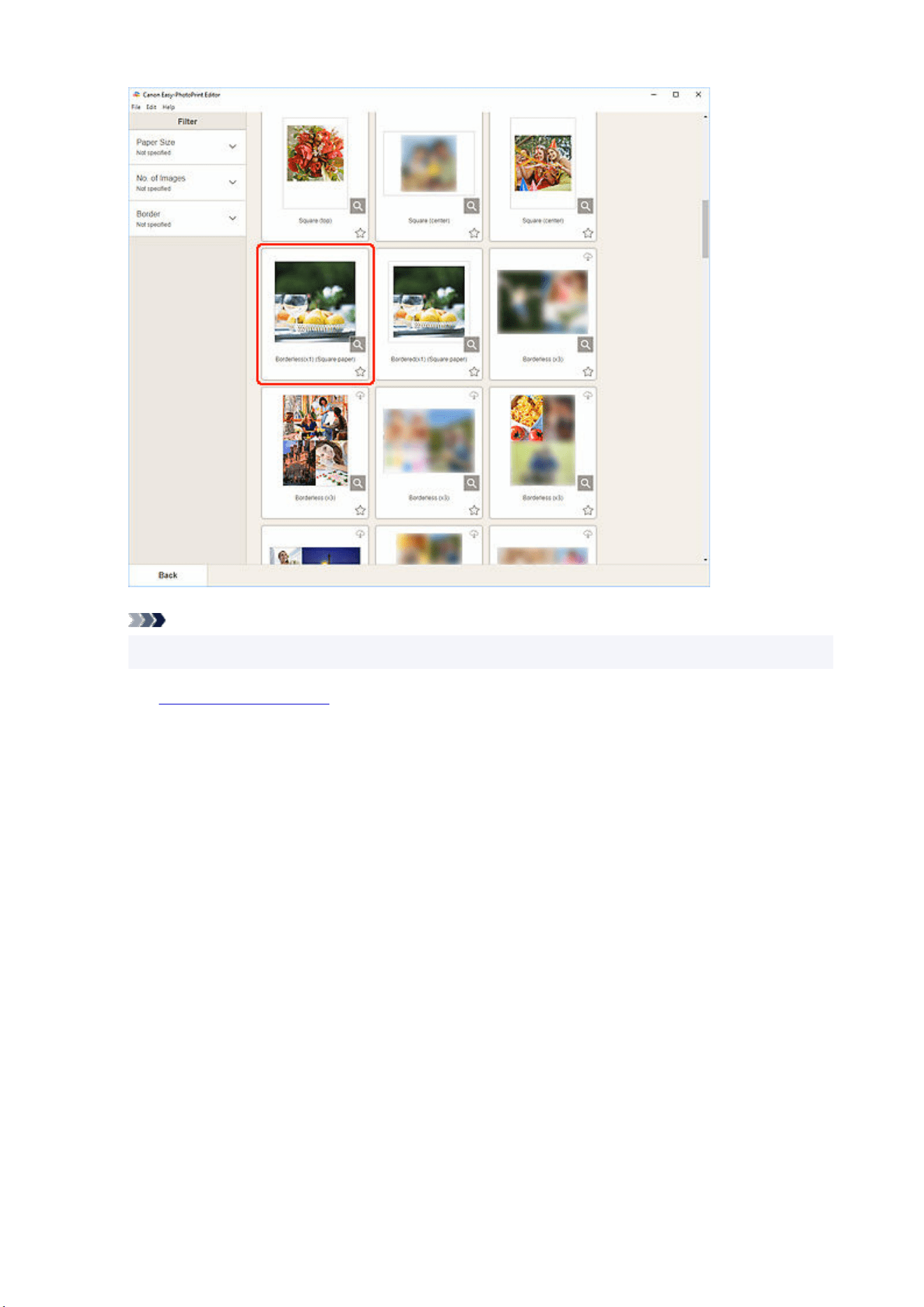
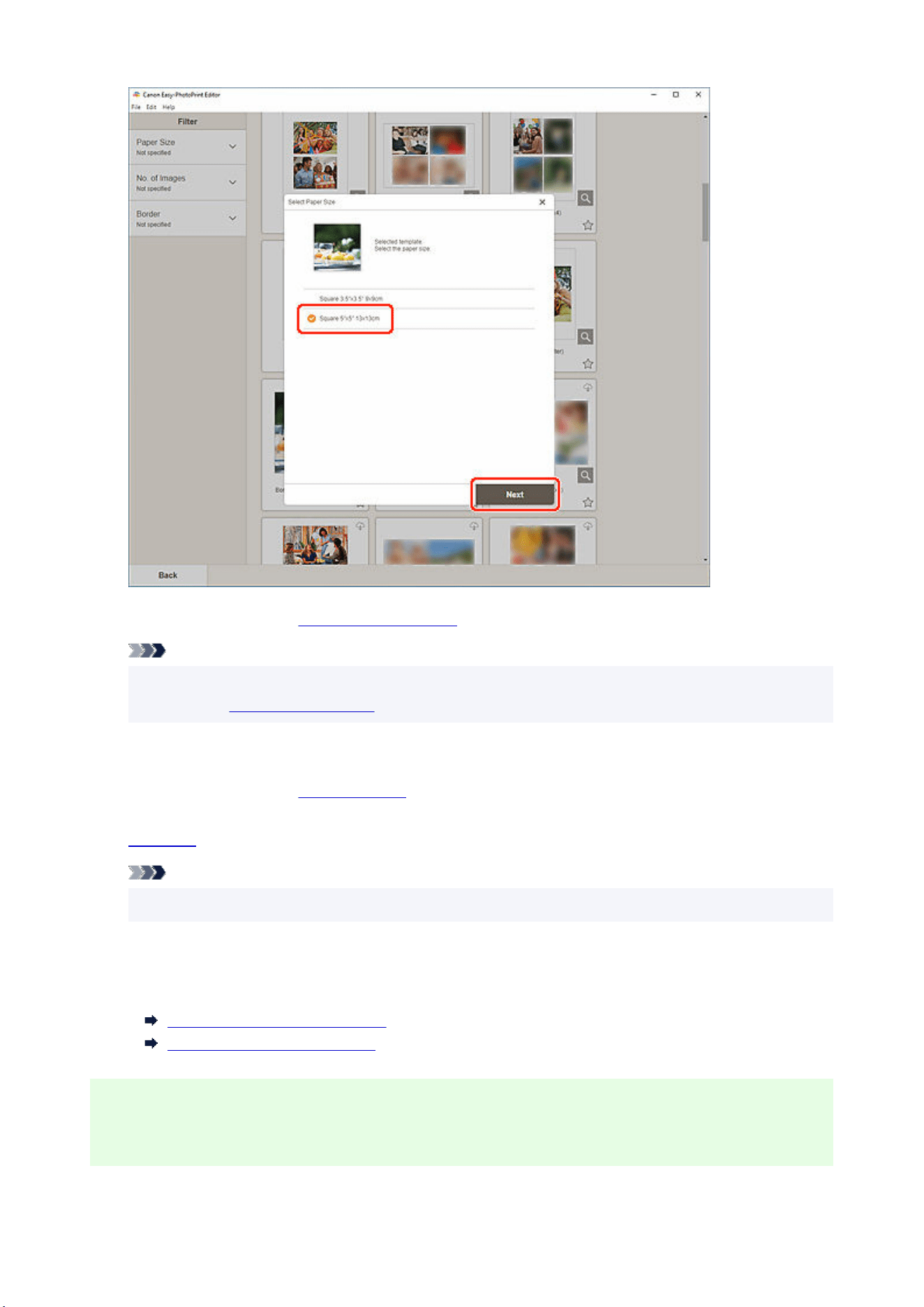
The view switches to the Photo Locations screen.
Note
• You can also print photos by enlarging/reducing them to the roll paper width. In Windows, it can
be set in
B: Print Settings Area in the Print Settings screen.
6. Select the photo(s) you want to use for item.6.
The view switches to the
Item edit screen.
7.
Edit item according to preference.7.
Note
• To save the item being edited, click Save.
8. Click Next.8.
The view switches to the Print Settings screen.
Print Settings Screen (Windows)
Print Settings Screen (macOS)
Windows
9. Specify printer and paper to use, and other settings.9.
68
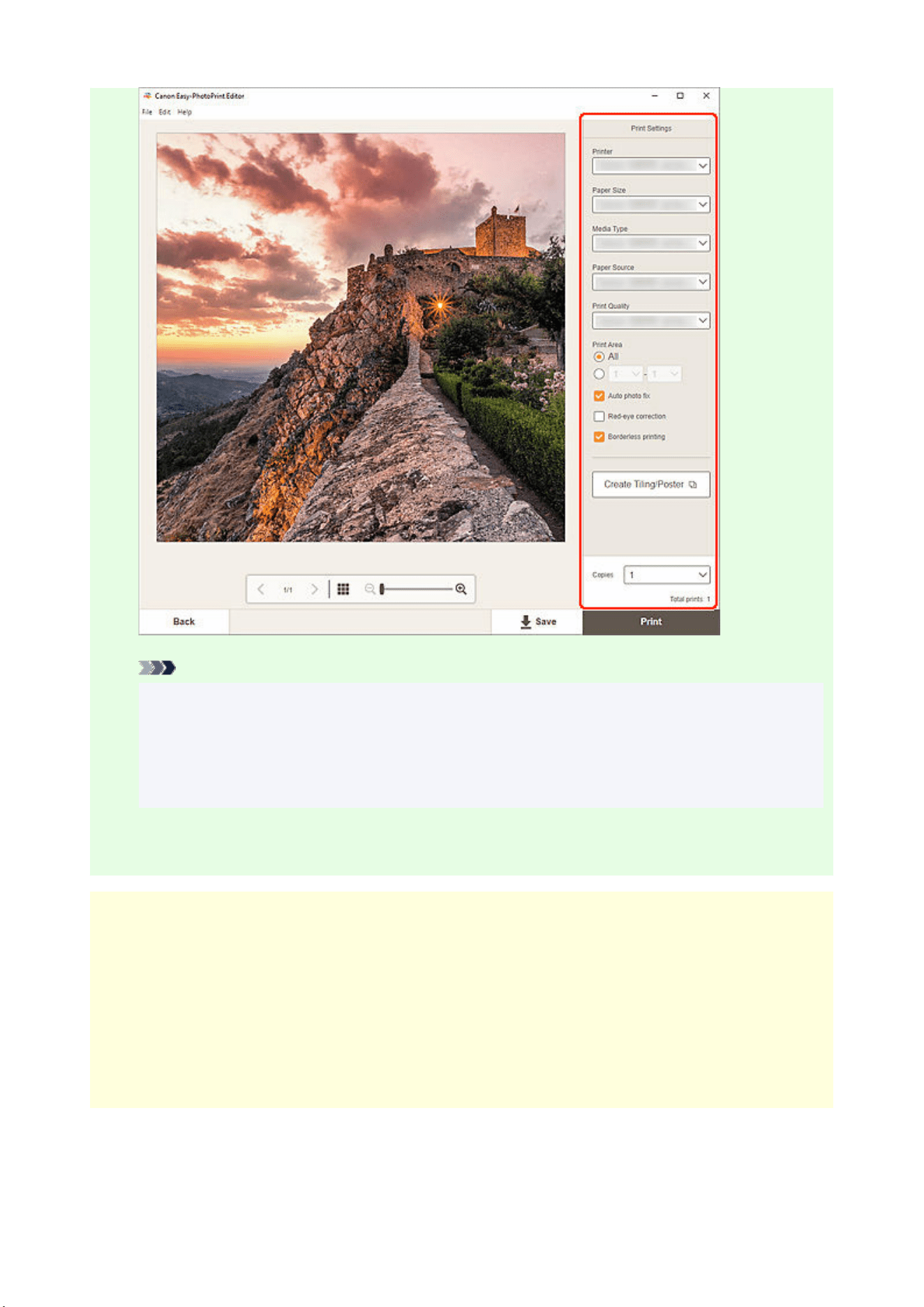
Note
• Click Create Tiling/Poster to start Easy-Layout Editor with which you can print over multiple
sheets of paper and combine them to create a large poster. If Easy-Layout Editor is not
installed, follow the on-screen instructions to download and install it from the web page. For
Easy-Layout Editor, see Easy-Layout Editor Guide.
• Create Tiling/Poster does not appear depending on your printer.
10. Click Print.10.
macOS
9. Set Auto photo fix, Red-eye correction, and number of copies to print.9.
10. Click Next.10.
The Print dialog appears.
11. Specify printer and paper to use, and other settings.11.
69

Note
• When printing on T-Shirt Transfers using AirPrint, you may need to set the flip horizontally
setting depending on the printer. To set the flip horizontally setting, To set the flip horizontally
setting, enable Flip Horizontally in Layout.
• For details on the Print dialog, see Help of macOS.
12. Click Print.12.
70
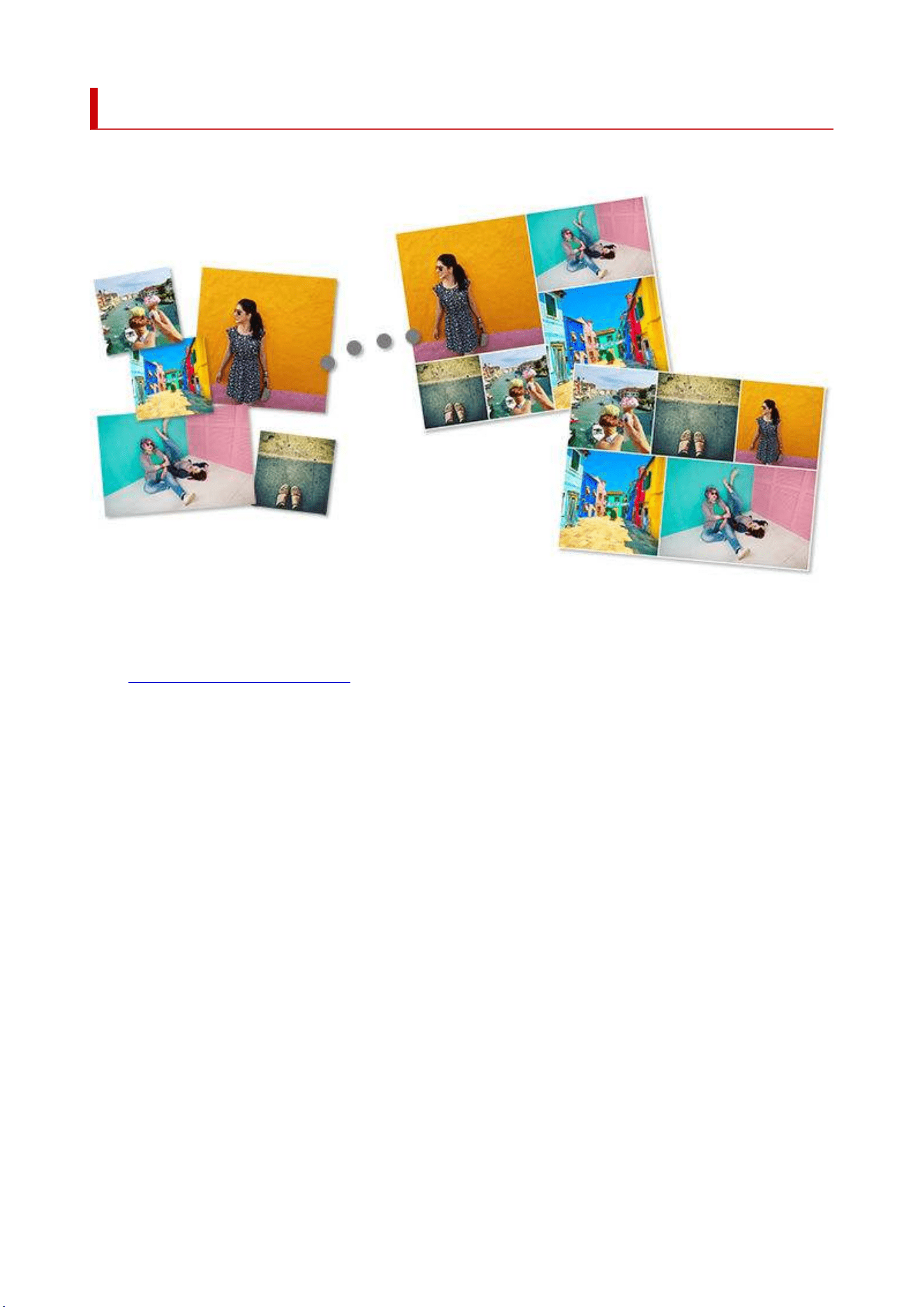
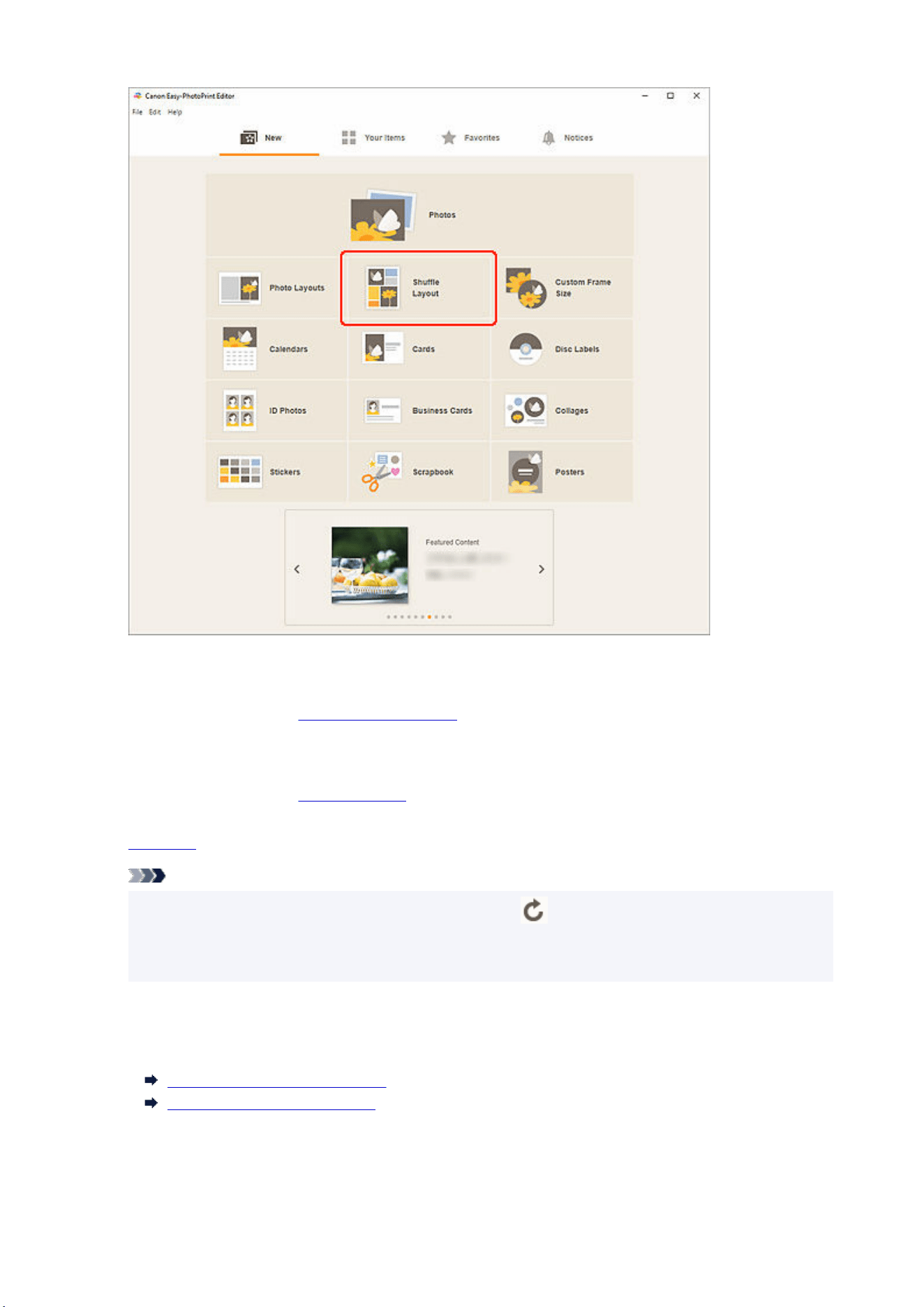
4. Select paper size and click Next.4.
The view switches to the
Photo Locations screen.
5. Select the photos you want to use for item.5.
The view switches to the
Item edit screen.
6.
Edit item according to preference.6.
Note
• To shuffle the layout and placement of images, click (Shuffle).
• In Shuffle Layout, some editing functions are not available (e.g., text cannot be entered).
• If you reselect a photo, all images will be swapped.
7. Click Next.7.
The view switches to the Print Settings screen.
Print Settings Screen (Windows)
Print Settings Screen (macOS)
72

Windows
8. Specify printer and paper to use, and other settings.8.
9. Click Print.9.
macOS
8. Set Auto photo fix, Red-eye correction, and number of copies to print.8.
9. Click Next.9.
The Print dialog appears.
10. Specify printer and paper to use, and other settings.10.
Note
• For details on the Print dialog, see Help of macOS.
11. Click Print.11.
73
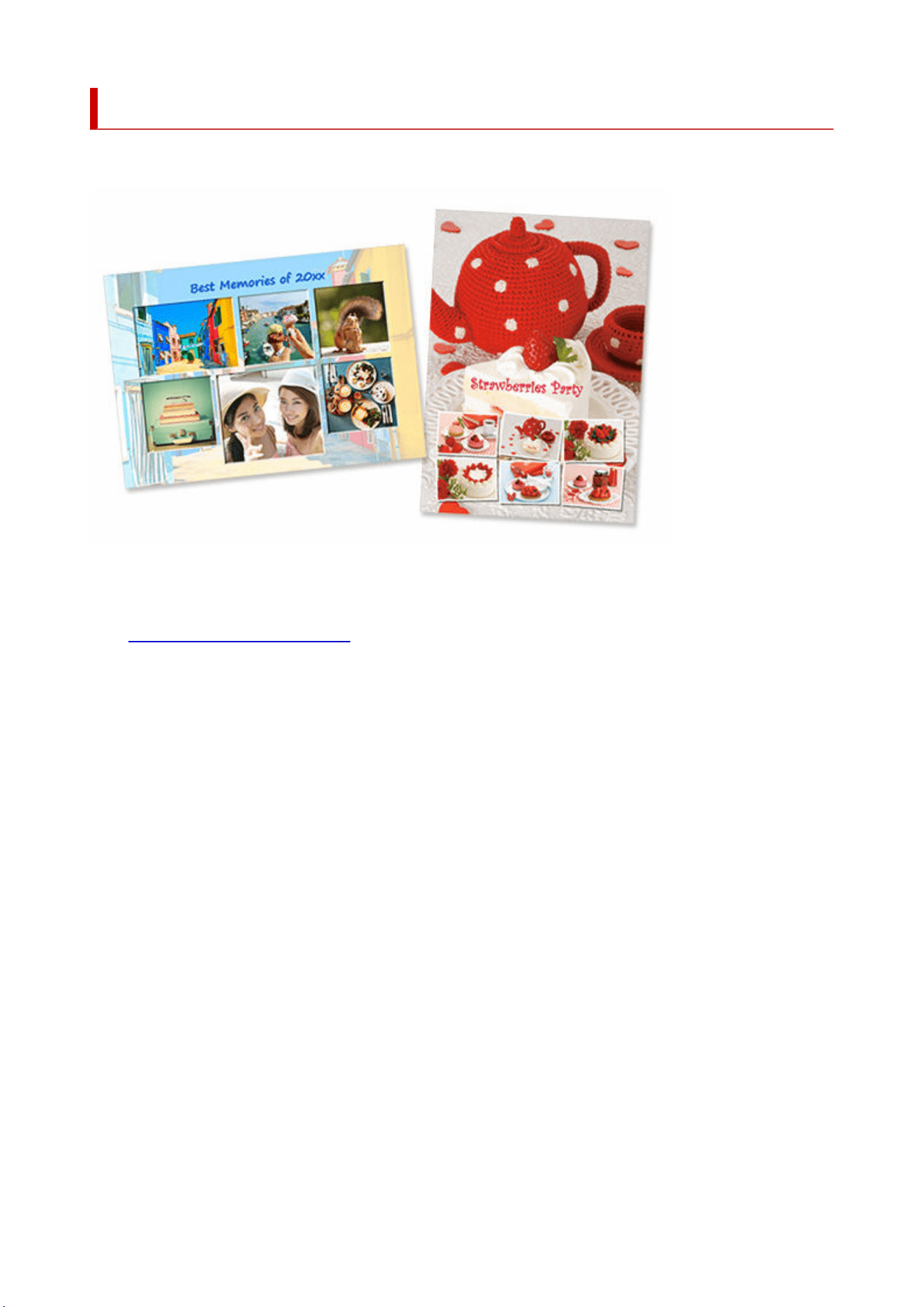
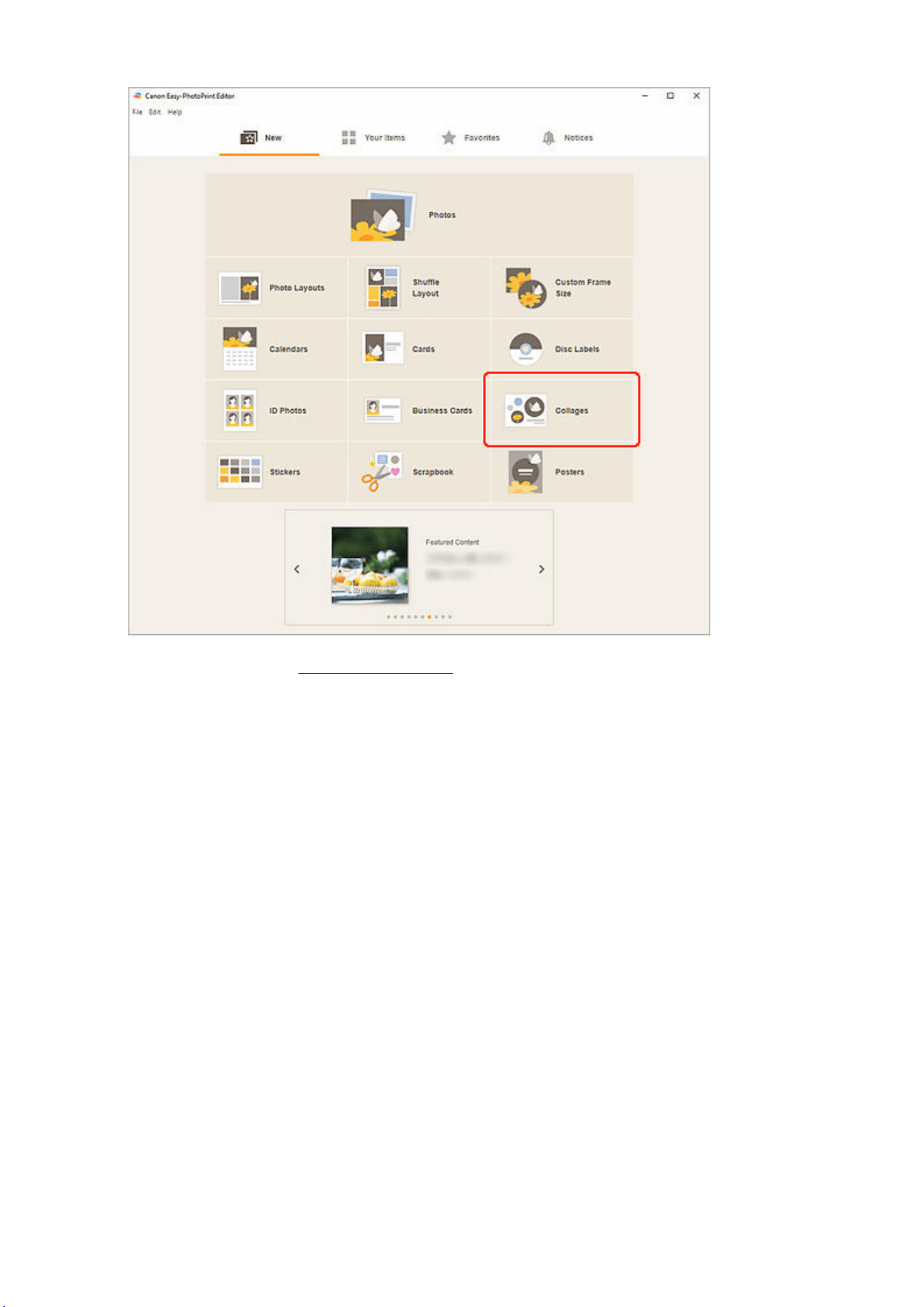
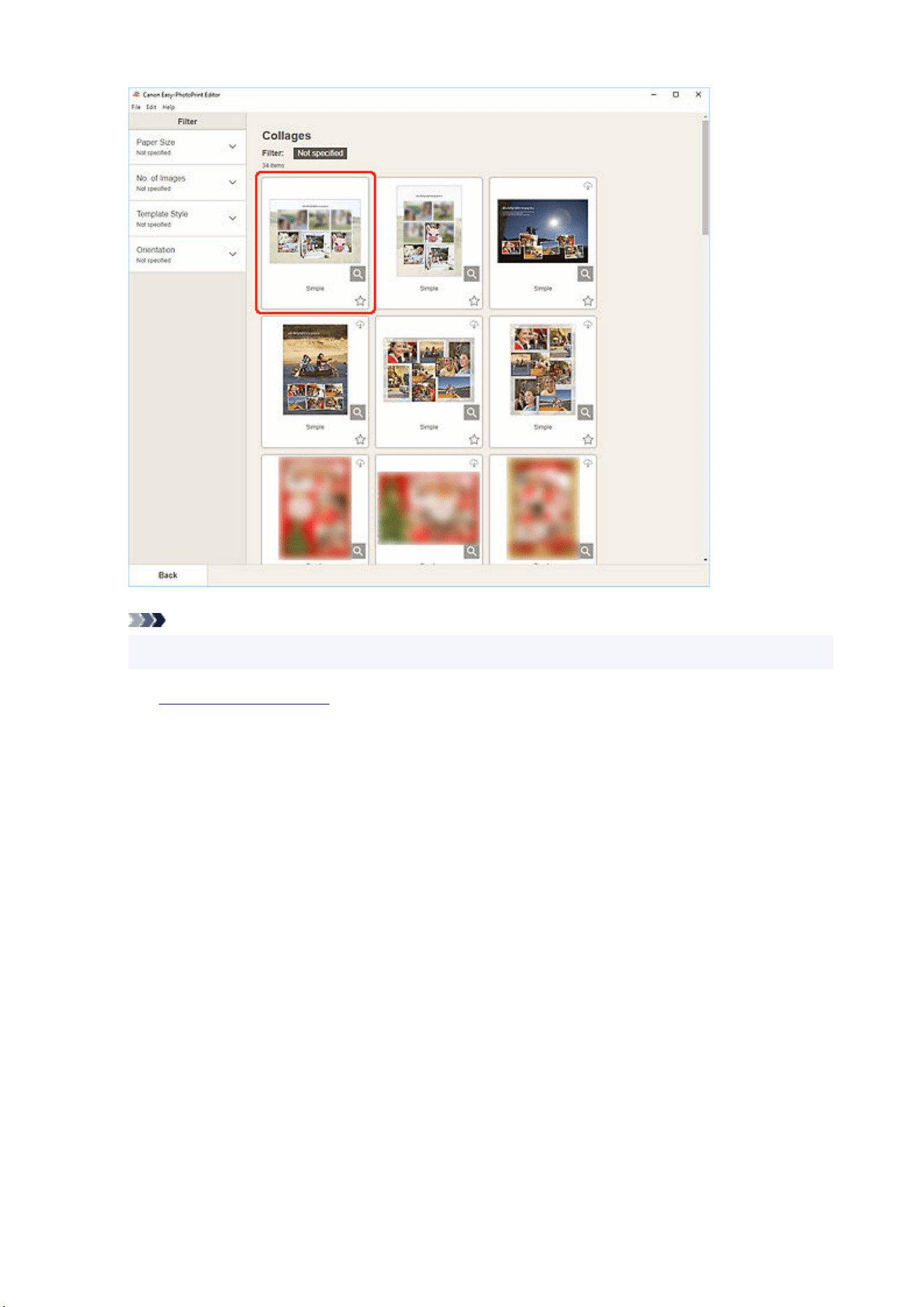
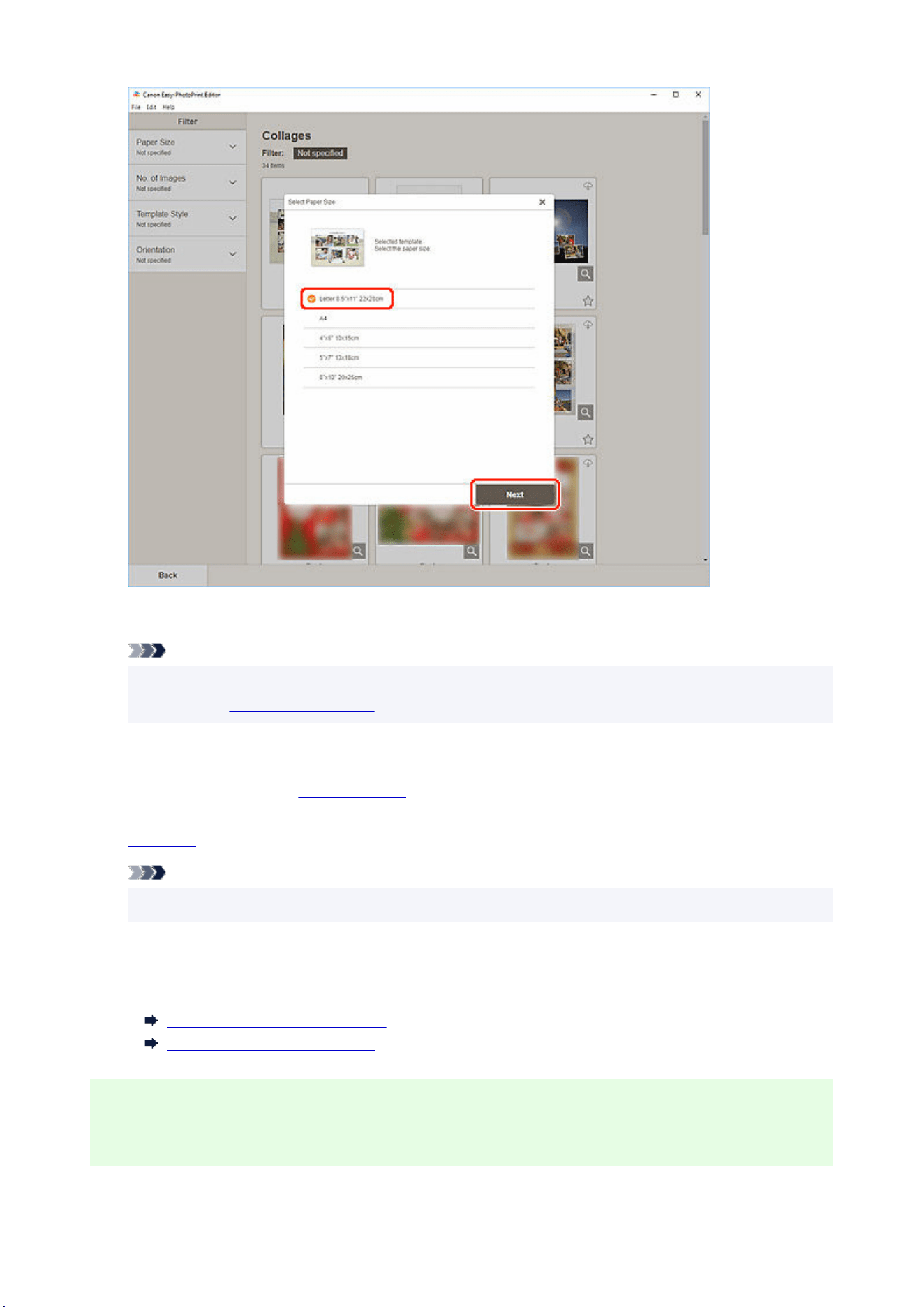
The view switches to the Photo Locations screen.
Note
• You can also print photos by enlarging/reducing them to the roll paper width. In Windows, it can
be set in
B: Print Settings Area in the Print Settings screen.
6. Select the photo(s) you want to use for item.6.
The view switches to the
Item edit screen.
7.
Edit item according to preference.7.
Note
• To save the item being edited, click Save.
8. Click Next.8.
The view switches to the Print Settings screen.
Print Settings Screen (Windows)
Print Settings Screen (macOS)
Windows
9. Specify printer and paper to use, and other settings.9.
77
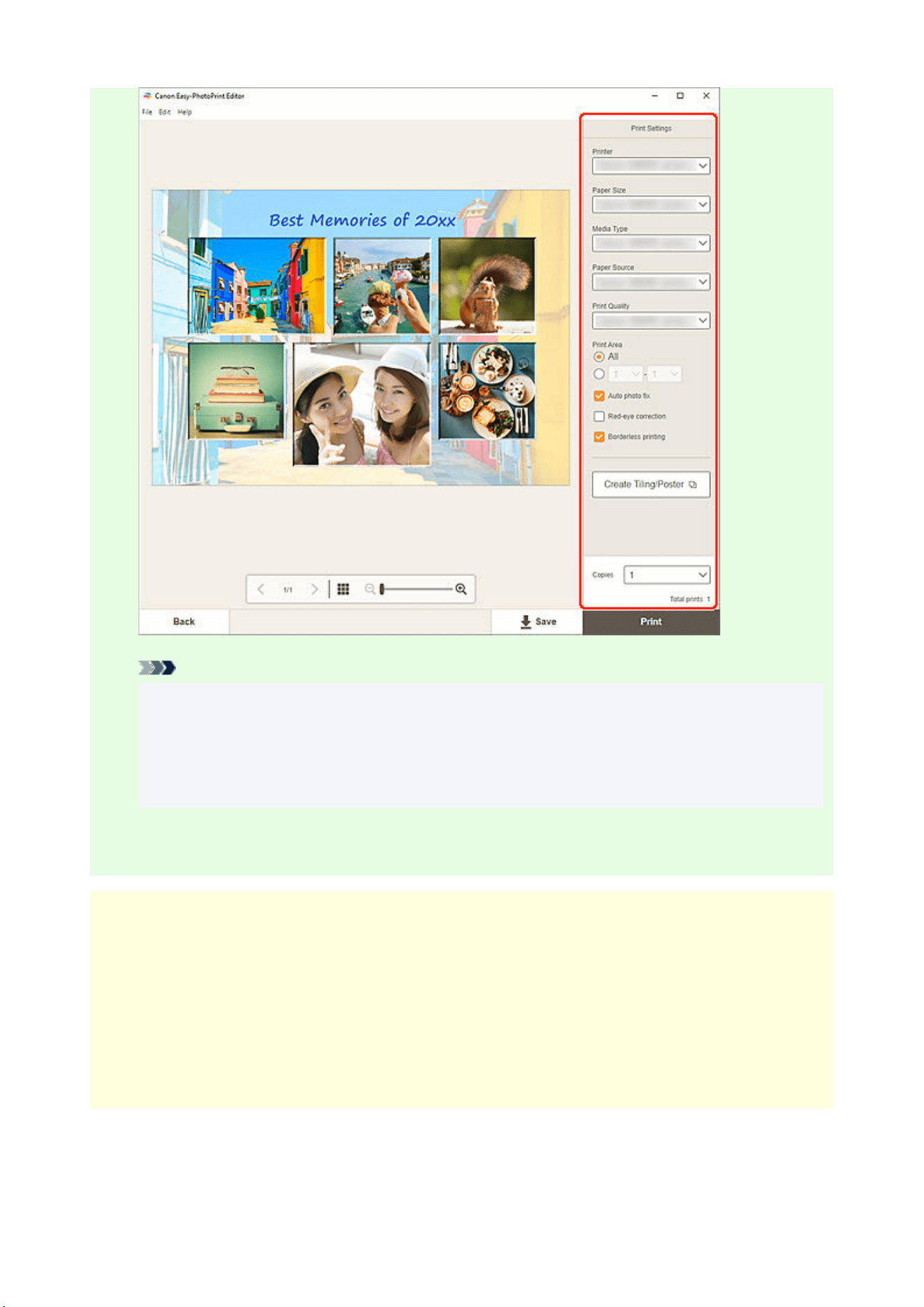
Note
• Click Create Tiling/Poster to start Easy-Layout Editor with which you can print over multiple
sheets of paper and combine them to create a large poster. If Easy-Layout Editor is not
installed, follow the on-screen instructions to download and install it from the web page. For
Easy-Layout Editor, see Easy-Layout Editor Guide.
• Create Tiling/Poster does not appear depending on your printer.
10. Click Print.10.
macOS
9. Set Auto photo fix, Red-eye correction, and number of copies to print.9.
10. Click Next.10.
The Print dialog appears.
11. Specify printer and paper to use, and other settings.11.
78

Note
• When printing on T-Shirt Transfers using AirPrint, you may need to set the flip horizontally
setting depending on the printer. To set the flip horizontally setting, To set the flip horizontally
setting, enable Flip Horizontally in Layout.
• For details on the Print dialog, see Help of macOS.
12. Click Print.12.
79
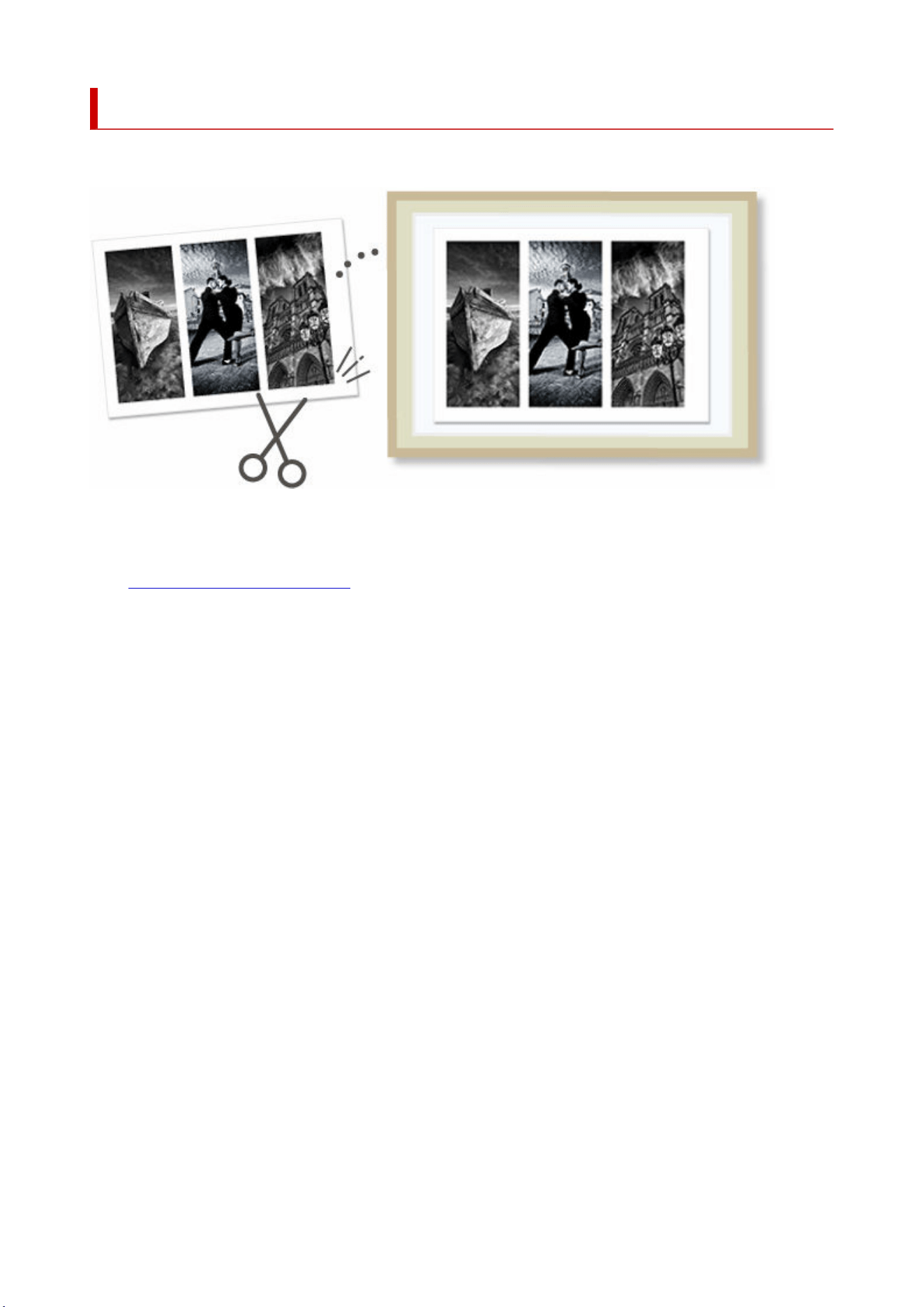
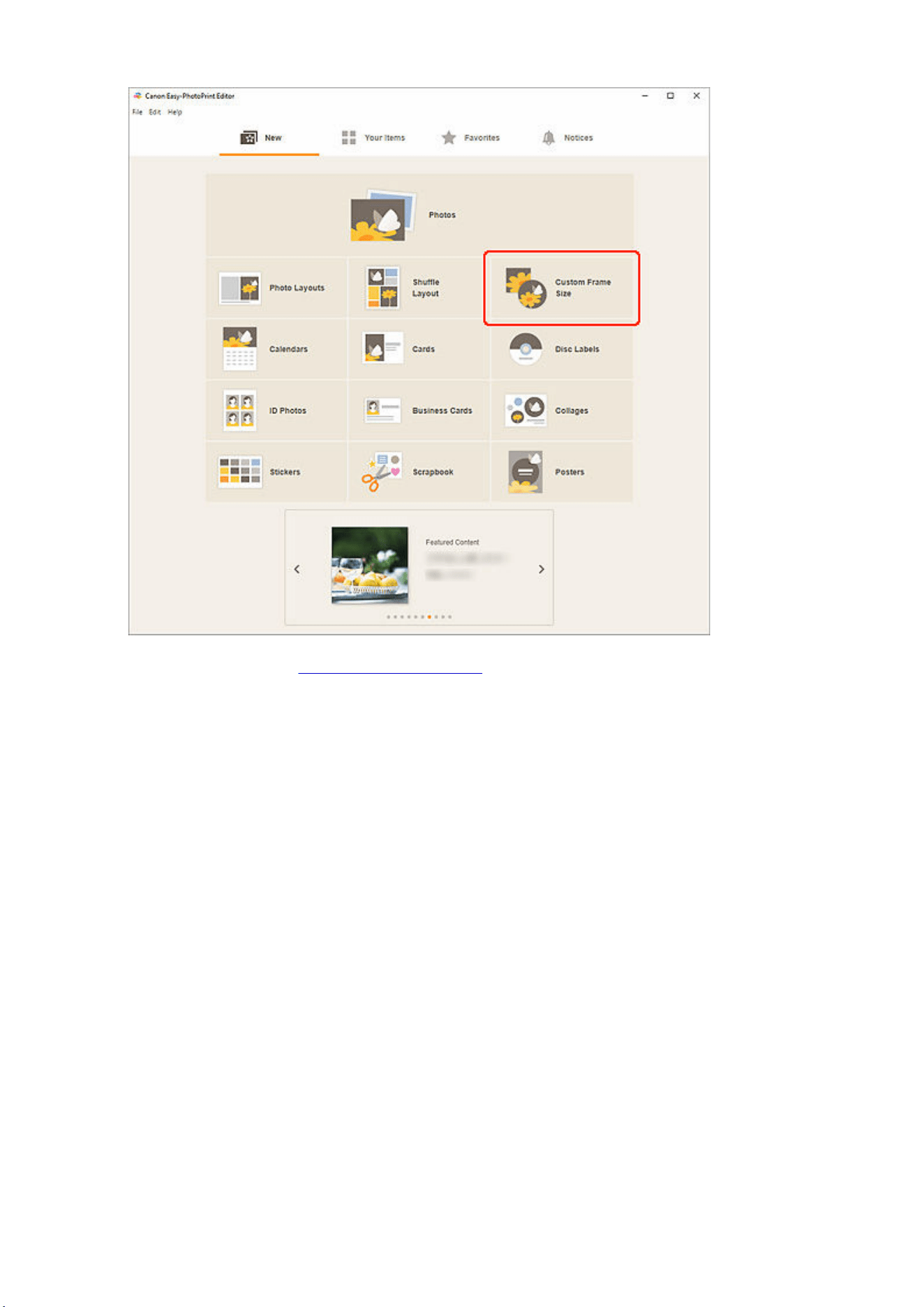
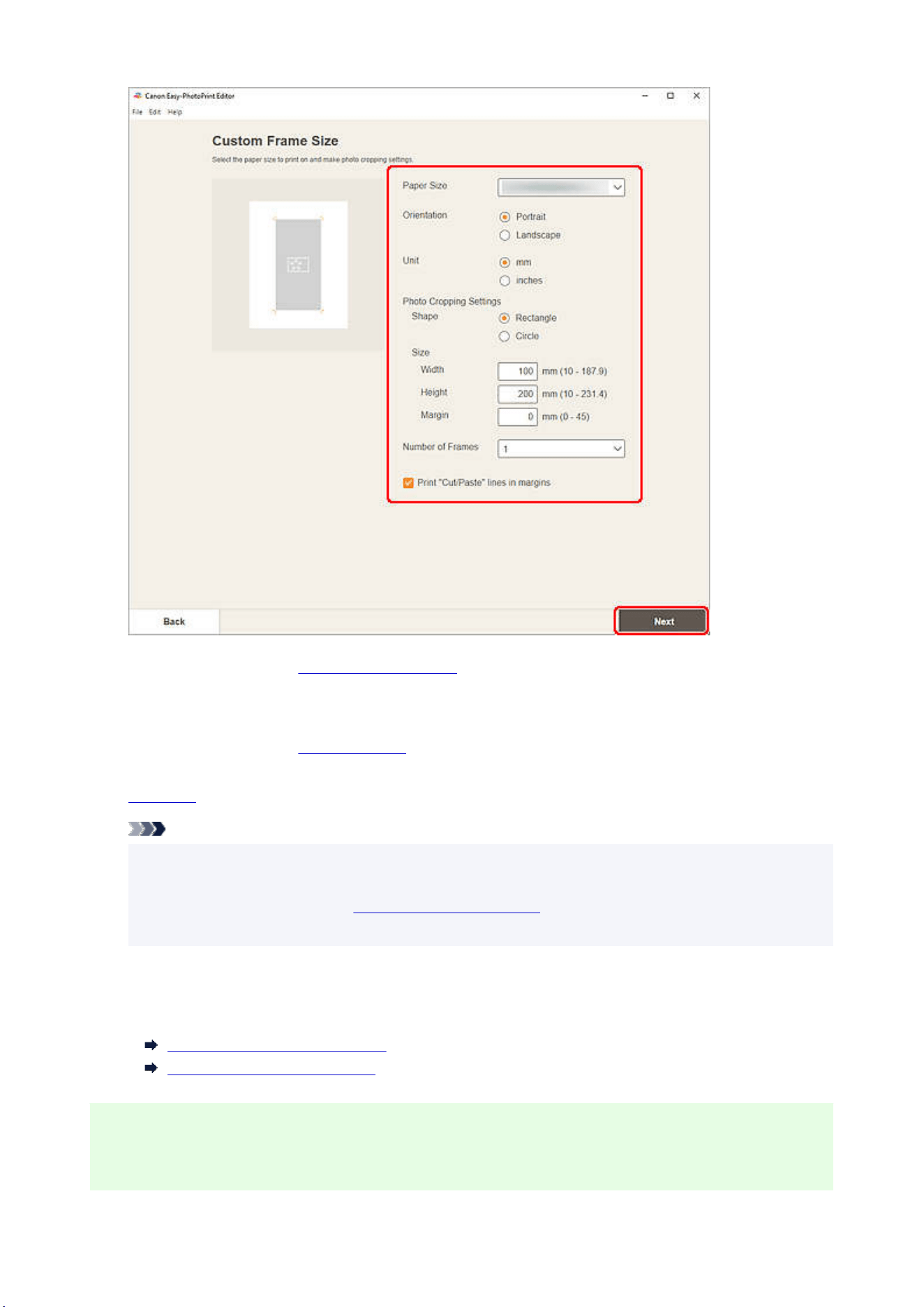
The view switches to the Photo Locations screen.
5. Select the photo(s) you want to use for item.5.
The view switches to the
Item edit screen.
6.
Edit item according to preference.6.
Note
• In Custom Frame Size, some editing functions are not available (e.g., text cannot be entered).
• Click Advanced... to switch to the Custom Frame Size screen for changing the paper size and
photo size. For details, see
Custom Frame Size Screen.
• To save the item being edited, click Save.
7. Click Next.7.
The view switches to the Print Settings screen.
Print Settings Screen (Windows)
Print Settings Screen (macOS)
Windows
8. Specify printer and paper to use, and other settings.8.
82
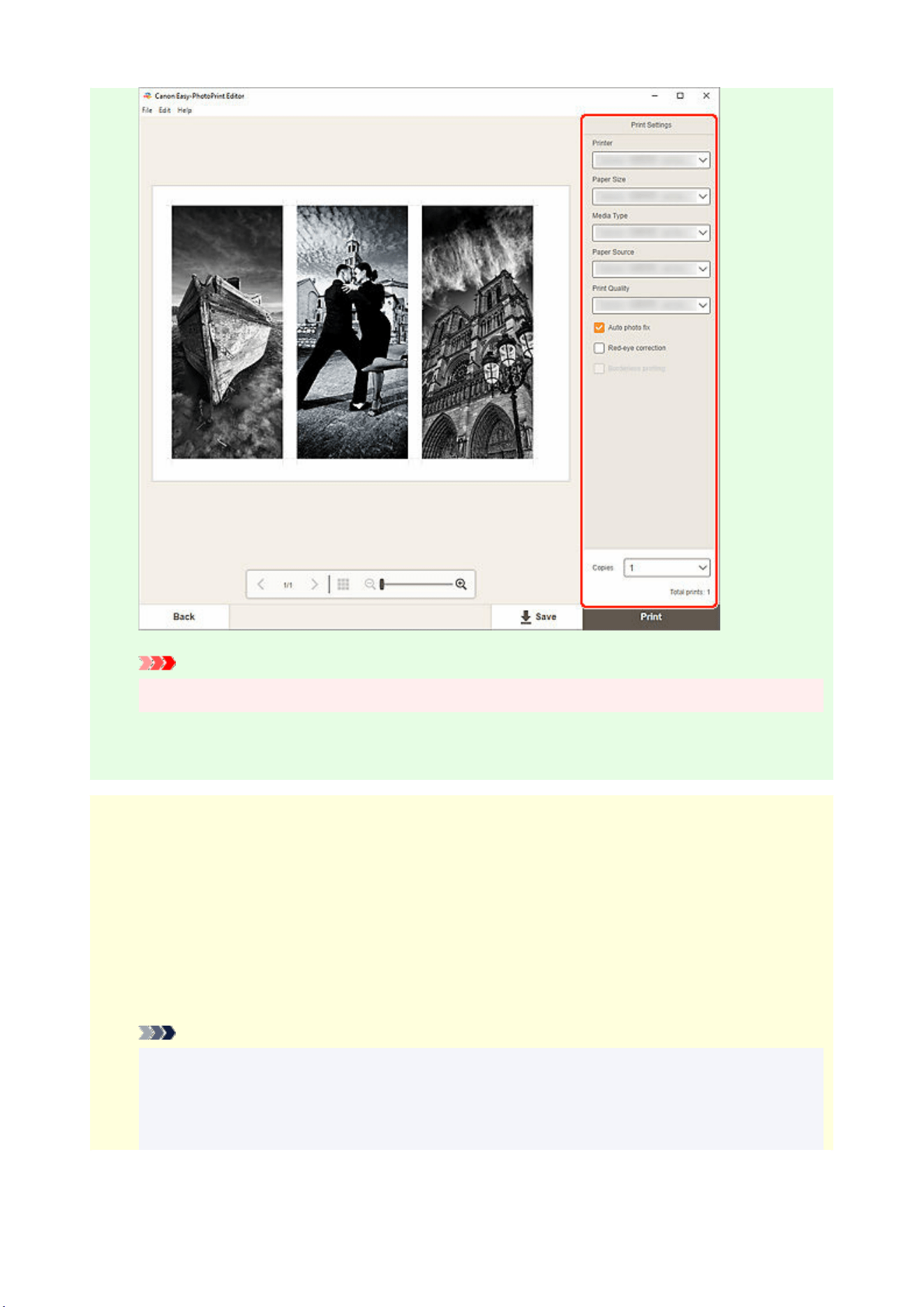
Important
• The paper size cannot be changed.
9. Click Print.9.
macOS
8. Set Auto photo fix, Red-eye correction, and number of copies to print.8.
9. Click Next.9.
The Print dialog appears.
10. Specify printer and paper to use, and other settings.10.
Note
• When printing on T-Shirt Transfers using AirPrint, you may need to set the flip horizontally
setting depending on the printer. To set the flip horizontally setting, To set the flip horizontally
setting, enable Flip Horizontally in Layout.
• For details on the Print dialog, see Help of macOS.
83

11. Click Print.11.
84
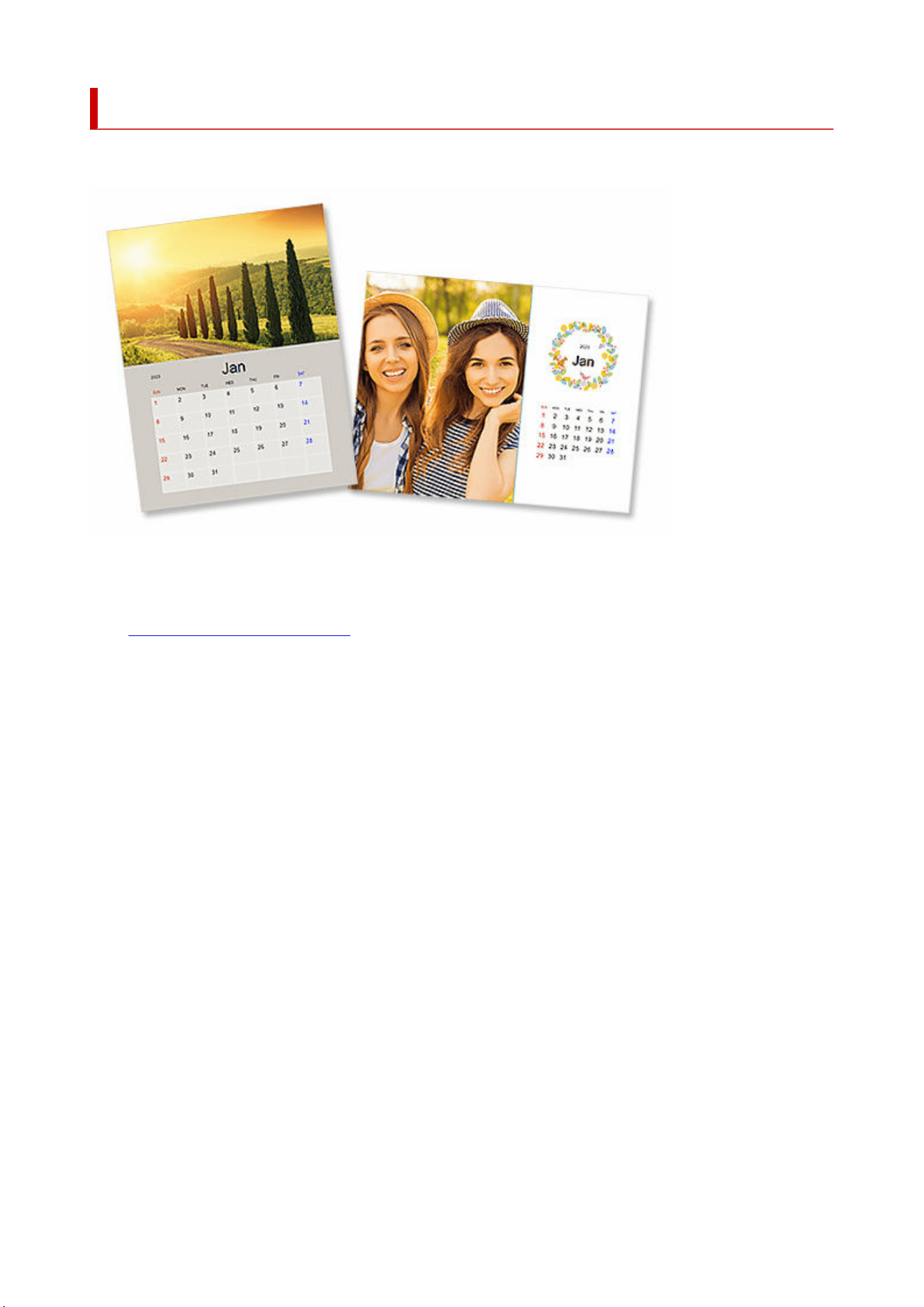
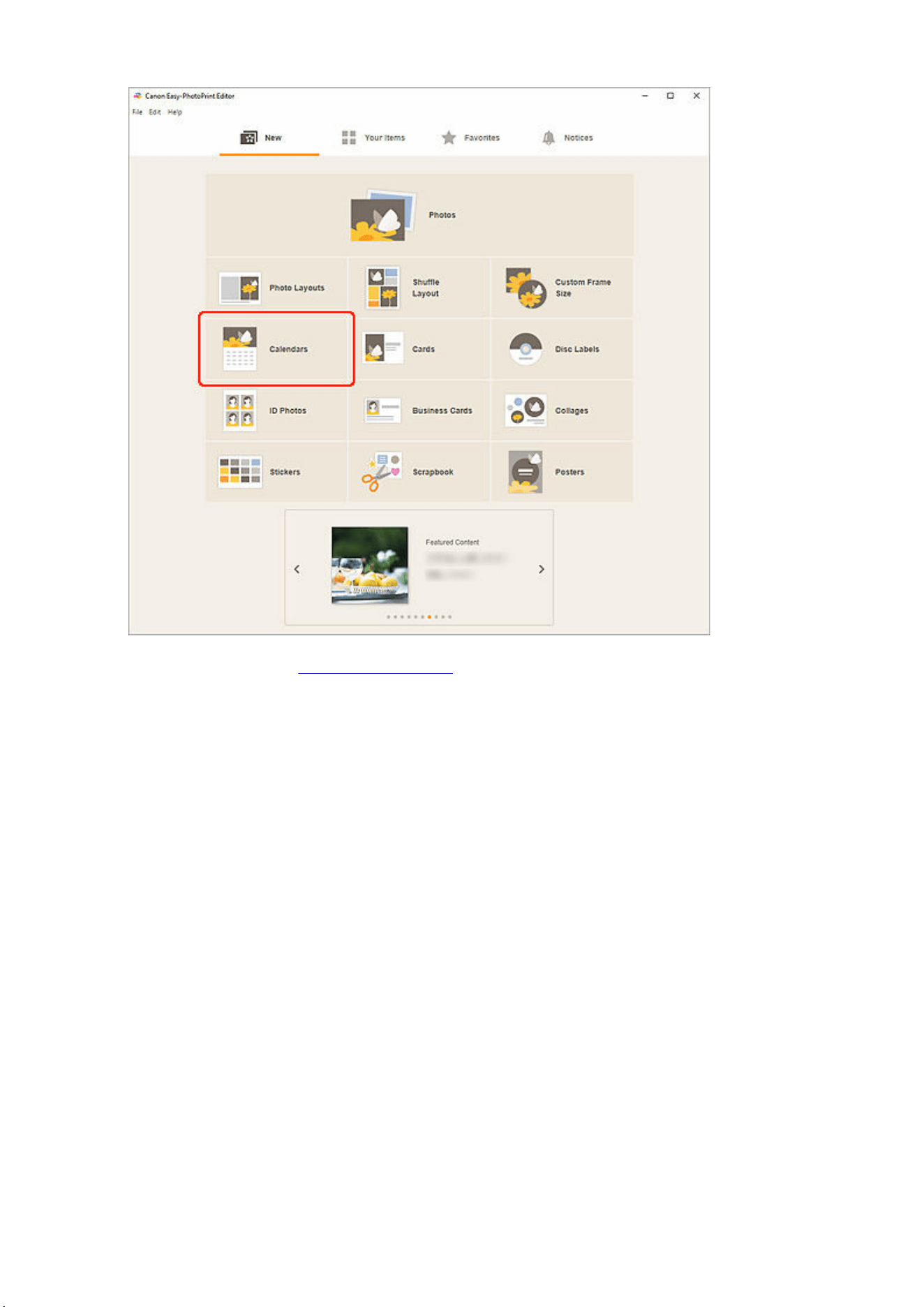
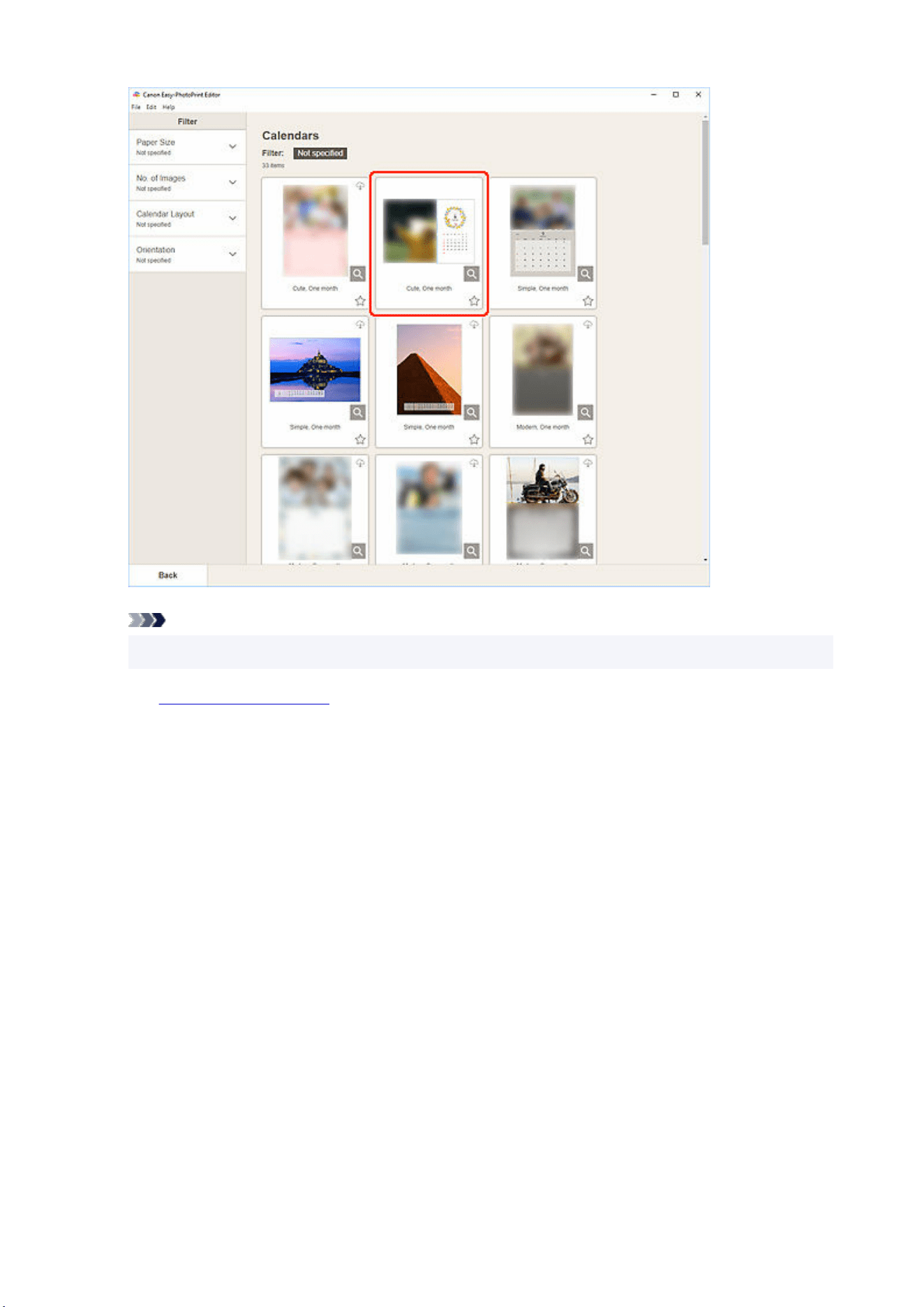
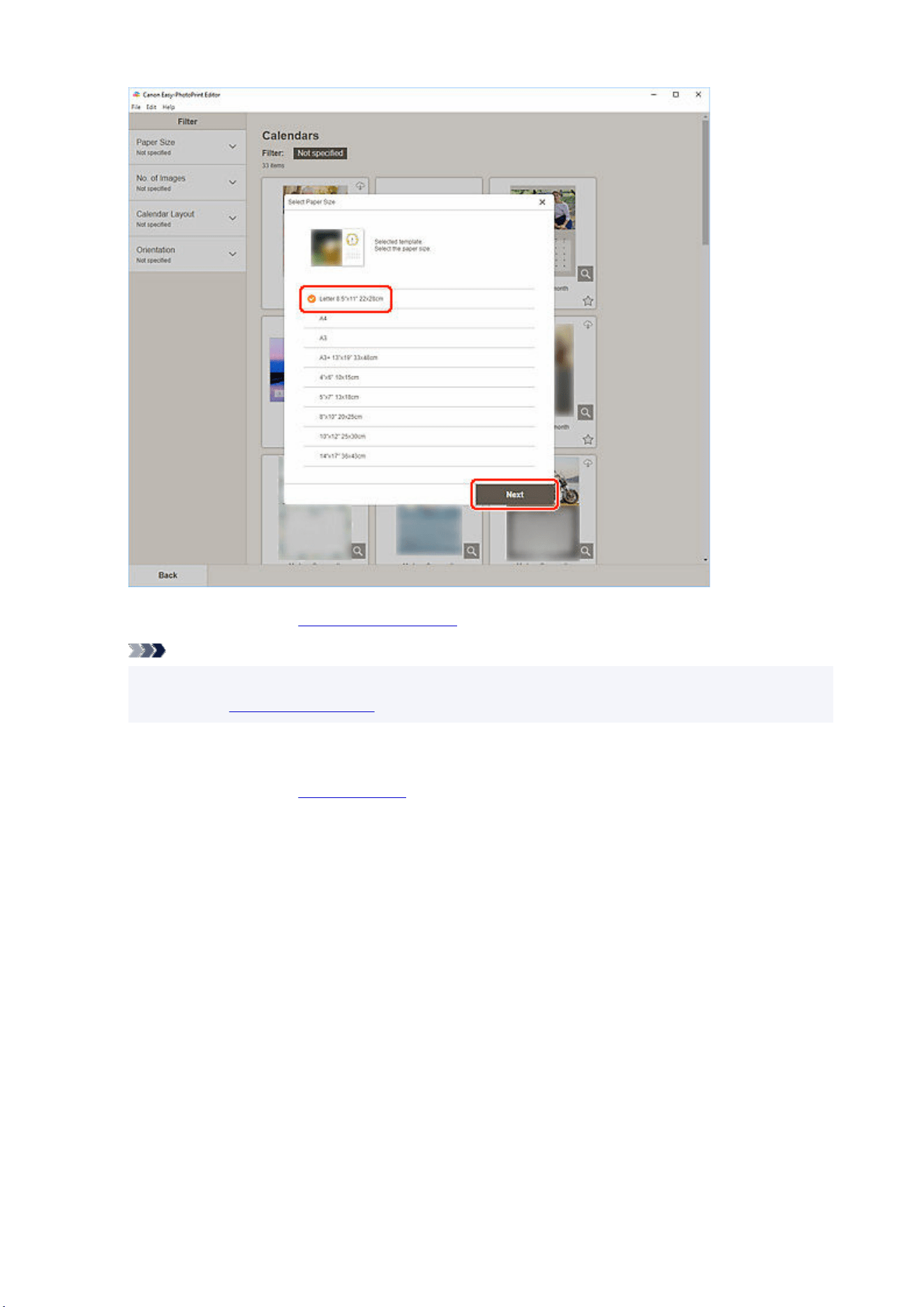
The view switches to the Photo Locations screen.
Note
• You can also print photos by enlarging/reducing them to the roll paper width. In Windows, it can
be set in
B: Print Settings Area in the Print Settings screen.
6. Select the photo(s) you want to use for item.6.
The view switches to the
Item edit screen.
7. Click Advanced....7.
88
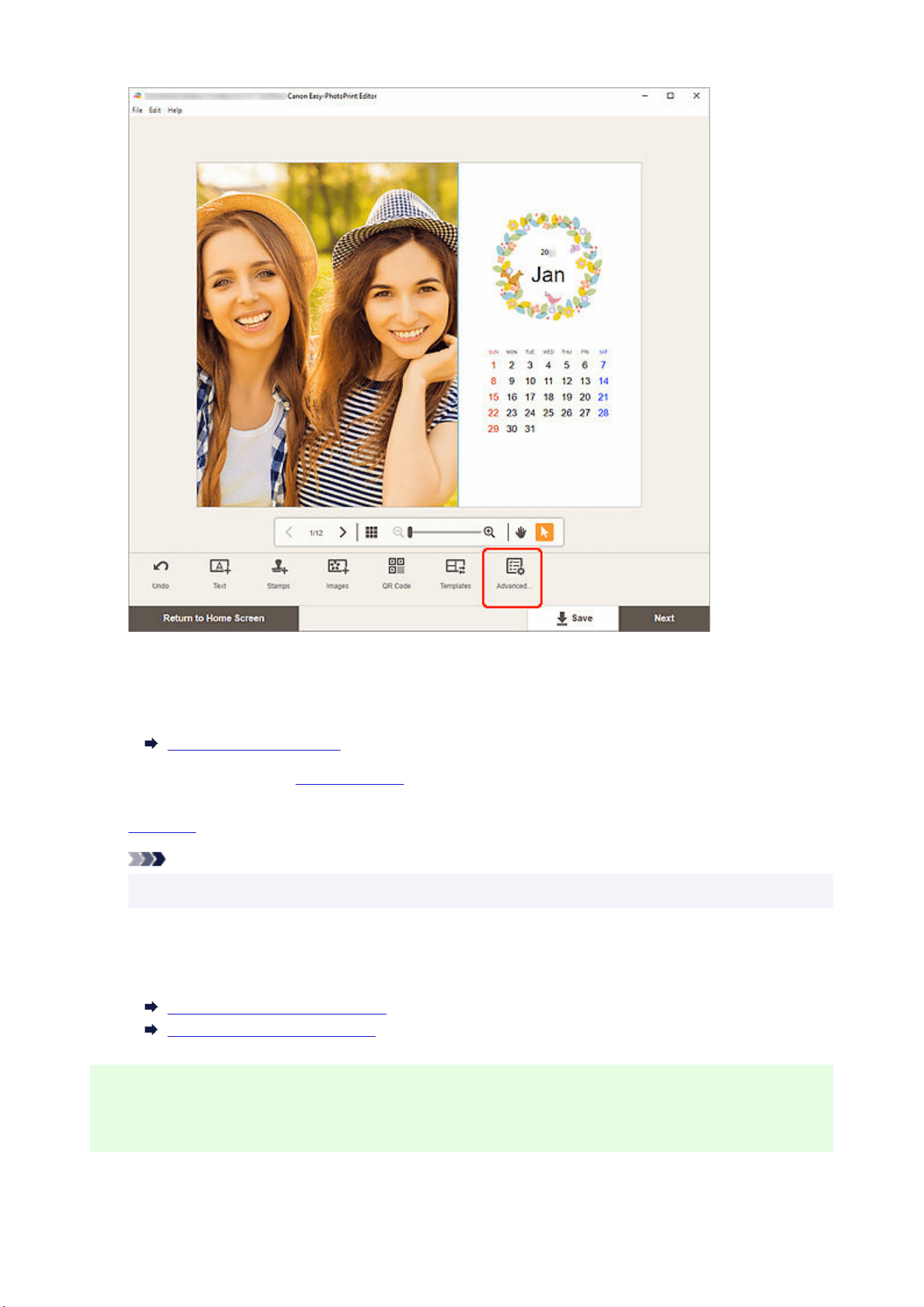
The Calendar Settings screen appears.
8. Set calendar holidays and display style.8.
Calendar Settings Screen
Click OK to return to the Item edit screen.
9.
Edit item according to preference.9.
Note
• To save the item being edited, click Save.
10. Click Next.10.
The view switches to the Print Settings screen.
Print Settings Screen (Windows)
Print Settings Screen (macOS)
Windows
11. Specify printer and paper to use, and other settings.11.
89
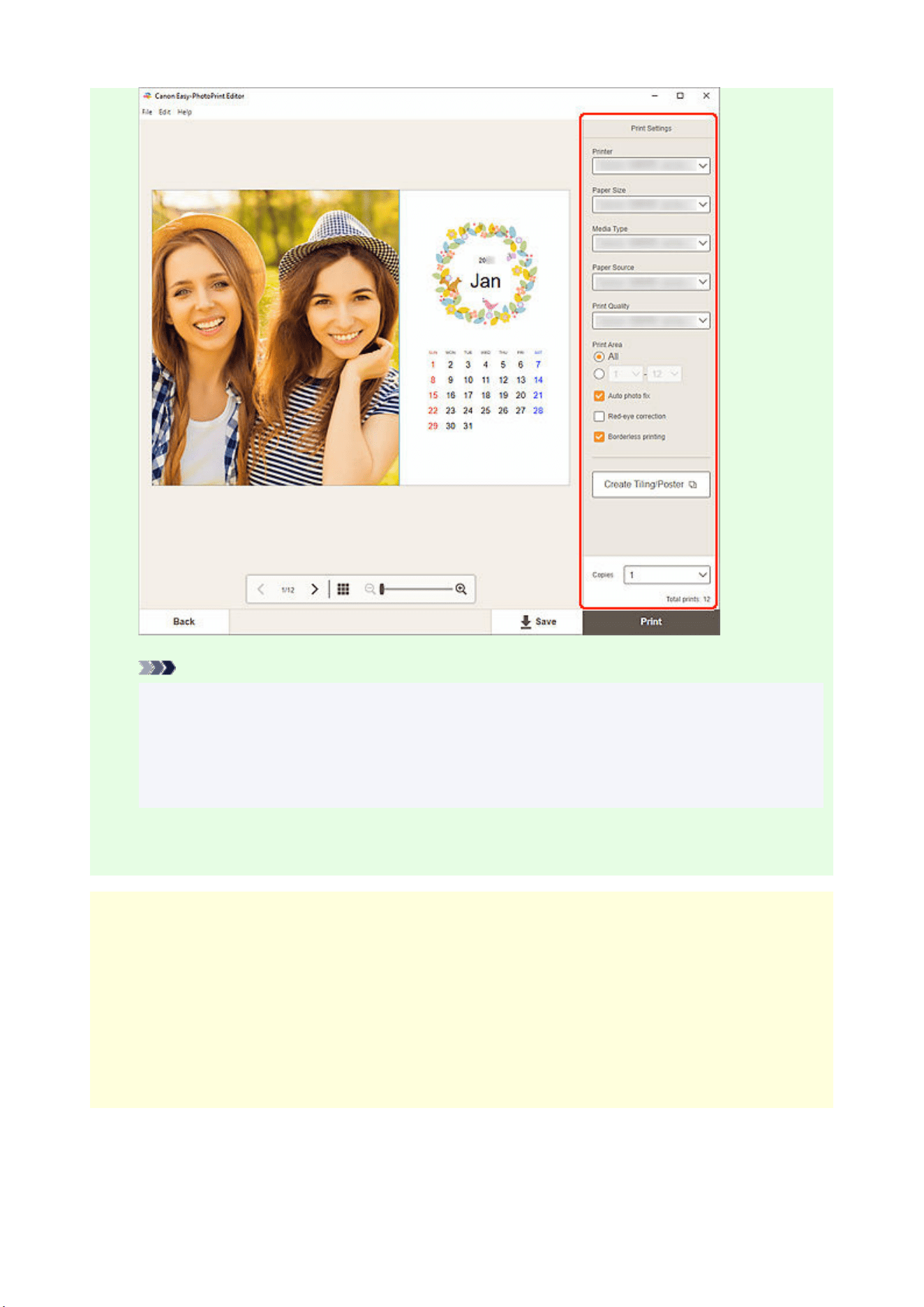
Note
• Click Create Tiling/Poster to start Easy-Layout Editor with which you can print over multiple
sheets of paper and combine them to create a large poster. If Easy-Layout Editor is not
installed, follow the on-screen instructions to download and install it from the web page. For
Easy-Layout Editor, see Easy-Layout Editor Guide.
• Create Tiling/Poster does not appear depending on your printer.
12. Click Print.12.
macOS
11. Set Auto photo fix, Red-eye correction, and number of copies to print.11.
12. Click Next.12.
The Print dialog appears.
13. Specify printer and paper to use, and other settings.13.
90

Note
• When printing on T-Shirt Transfers using AirPrint, you may need to set the flip horizontally
setting depending on the printer. To set the flip horizontally setting, To set the flip horizontally
setting, enable Flip Horizontally in Layout.
• For details on the Print dialog, see Help of macOS.
14. Click Print.14.
91
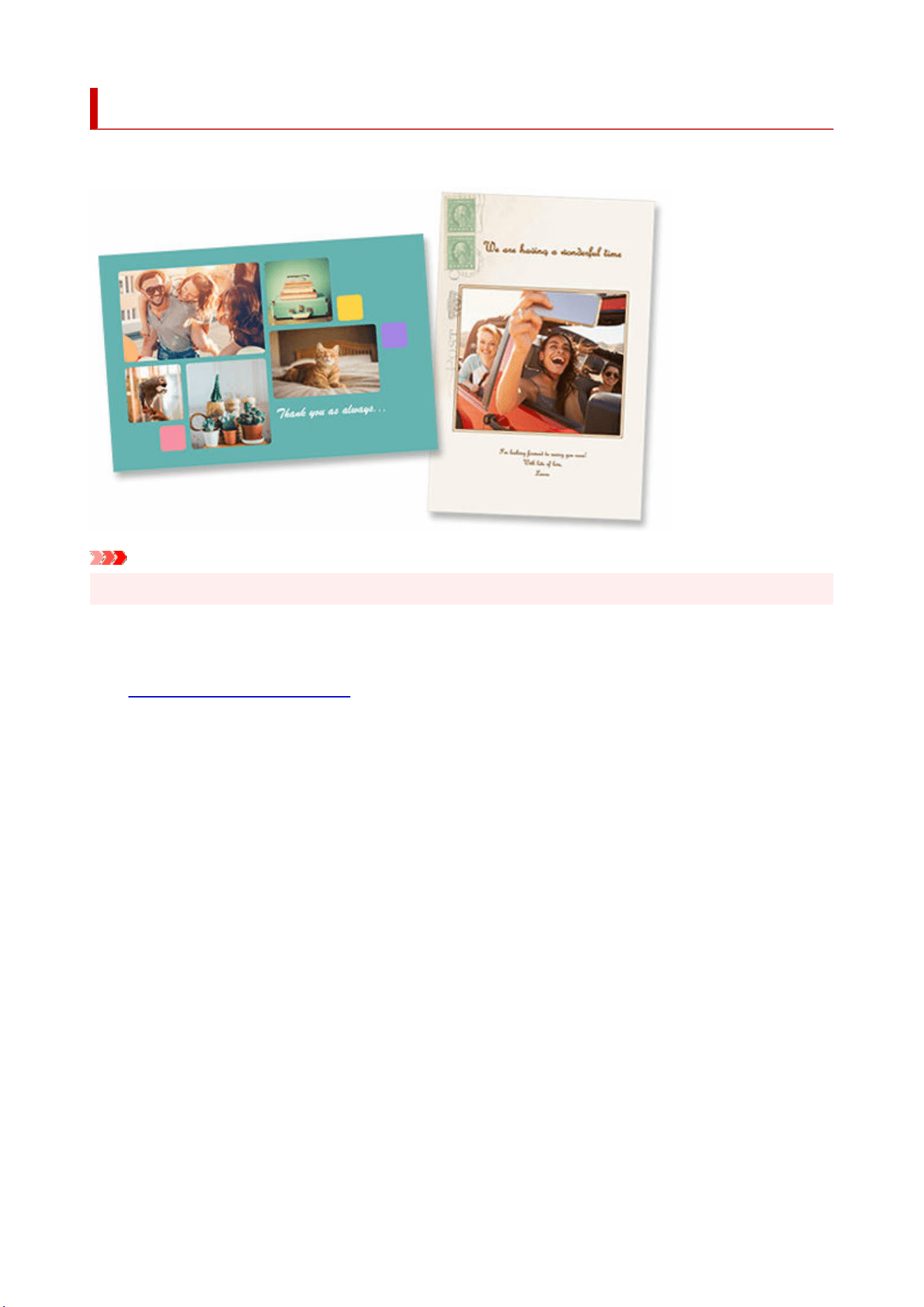
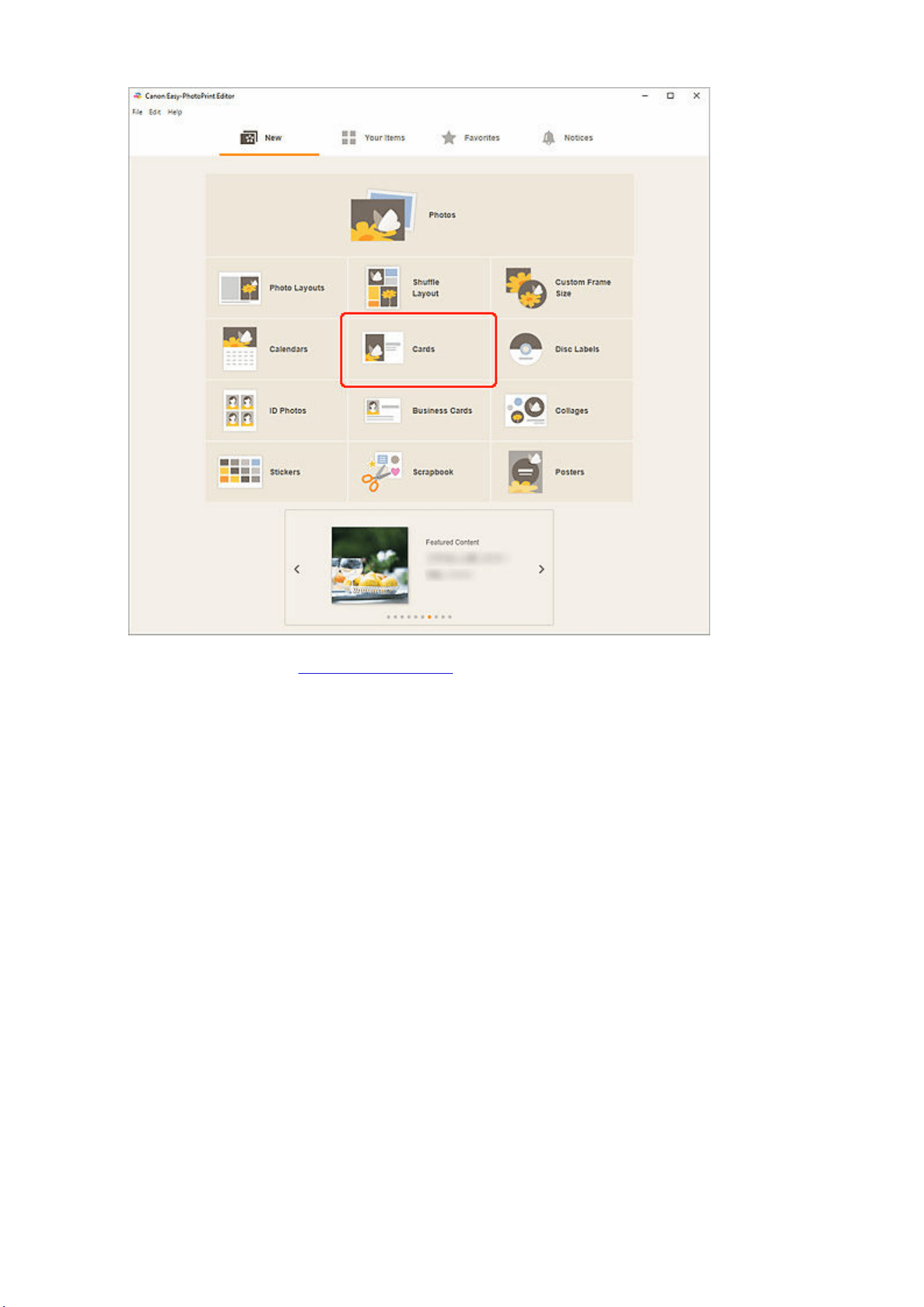
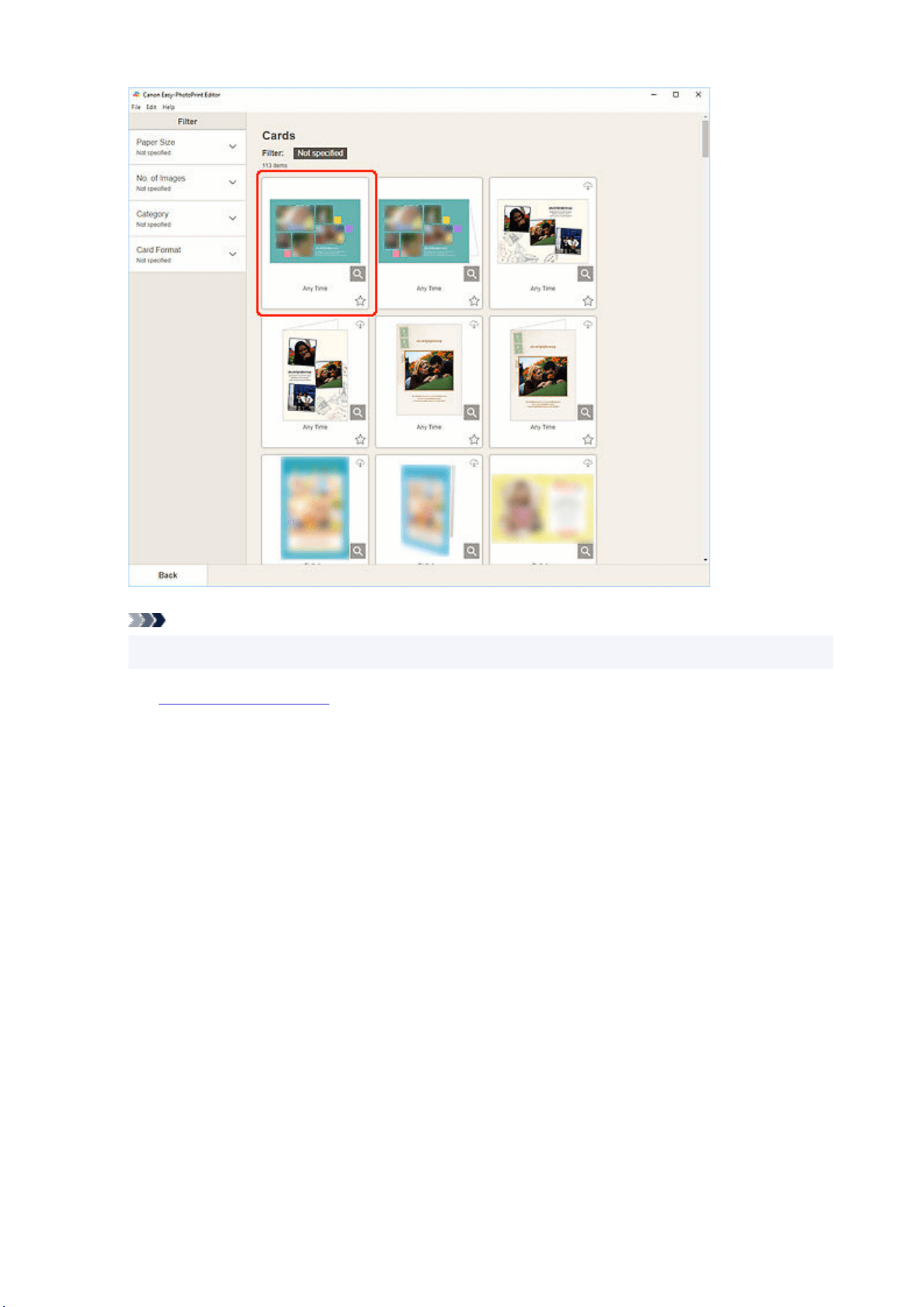
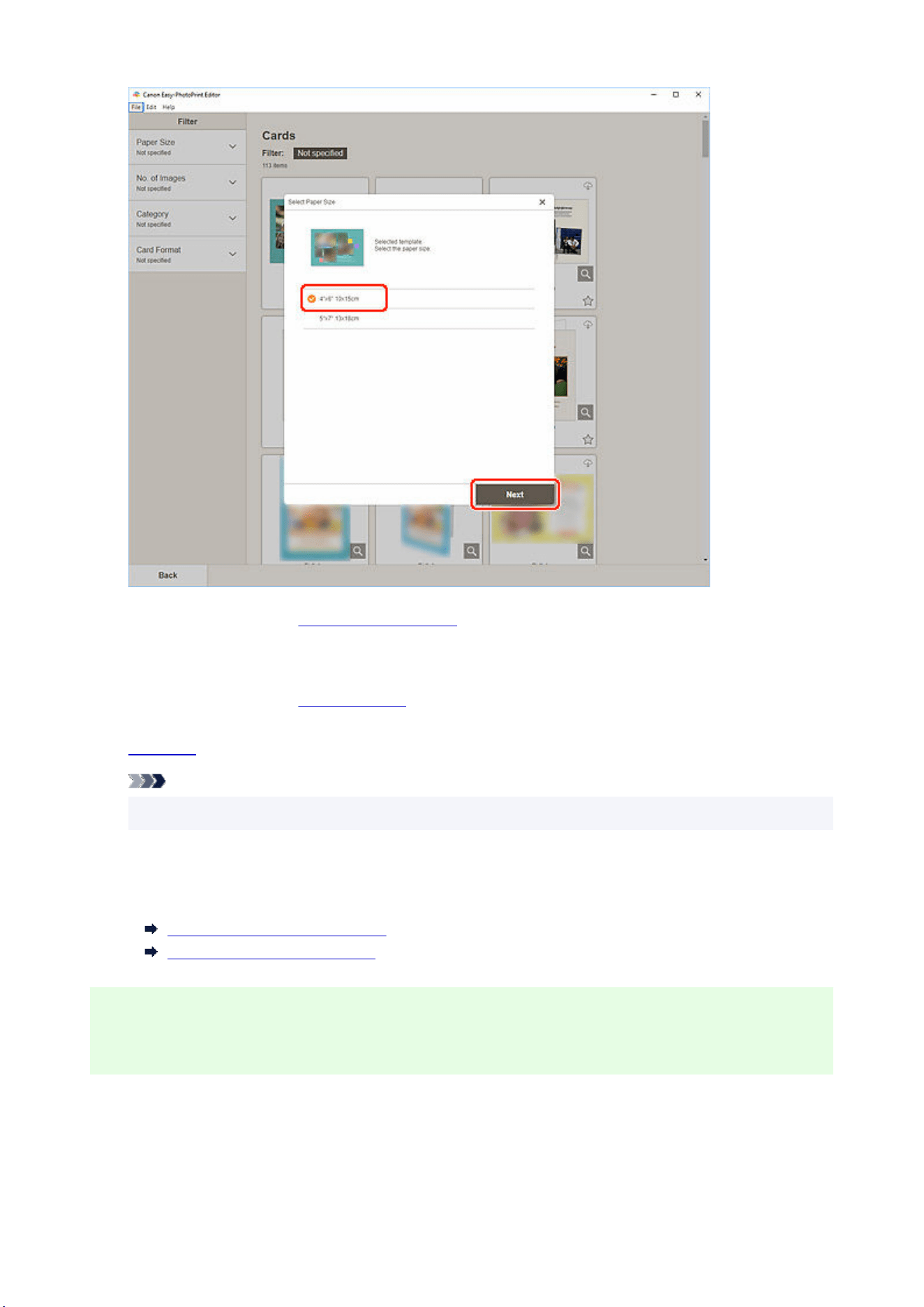
The view switches to the Photo Locations screen.
6. Select the photo(s) you want to use for item.6.
The view switches to the
Item edit screen.
7.
Edit item according to preference.7.
Note
• To save the item being edited, click Save.
8. Click Next.8.
The view switches to the Print Settings screen.
Print Settings Screen (Windows)
Print Settings Screen (macOS)
Windows
9. Specify printer and paper to use, and other settings.9.
95
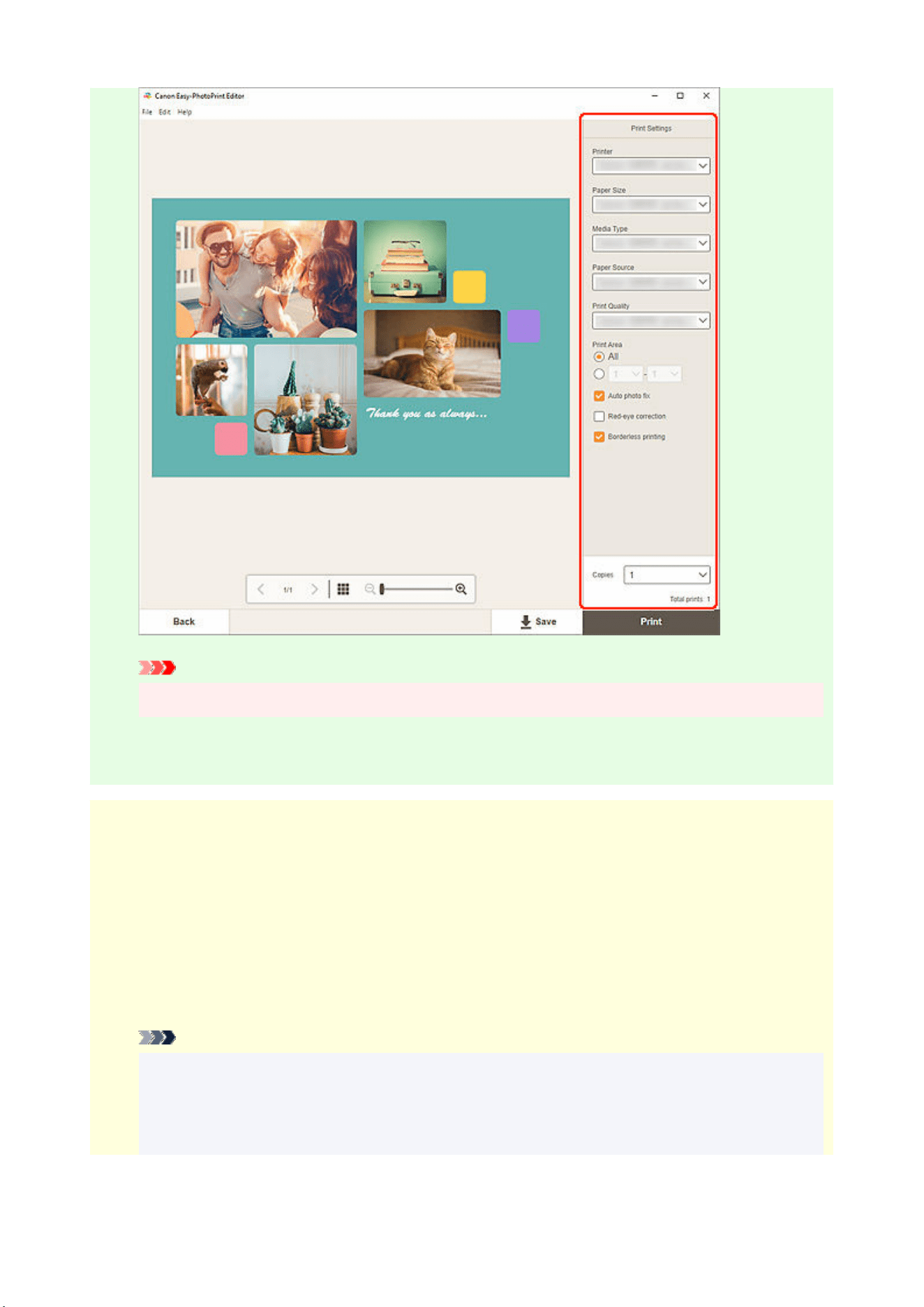
Important
• The paper size cannot be changed.
10. Click Print.10.
macOS
9. Set Auto photo fix, Red-eye correction, and number of copies to print.9.
10. Click Next.10.
The Print dialog appears.
11. Specify printer and paper to use, and other settings.11.
Note
• When printing on T-Shirt Transfers using AirPrint, you may need to set the flip horizontally
setting depending on the printer. To set the flip horizontally setting, To set the flip horizontally
setting, enable Flip Horizontally in Layout.
• For details on the Print dialog, see Help of macOS.
96

12. Click Print.12.
97
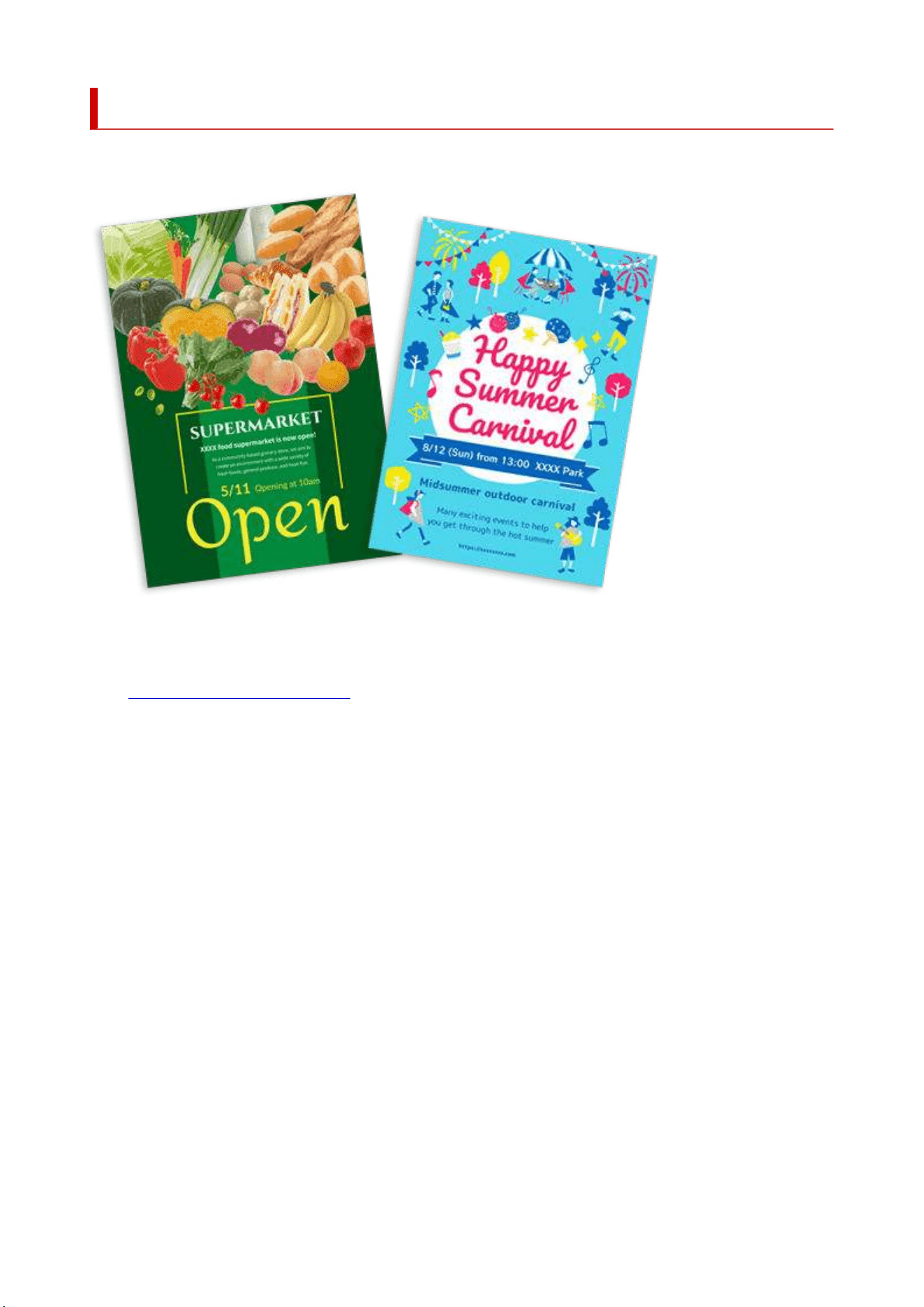
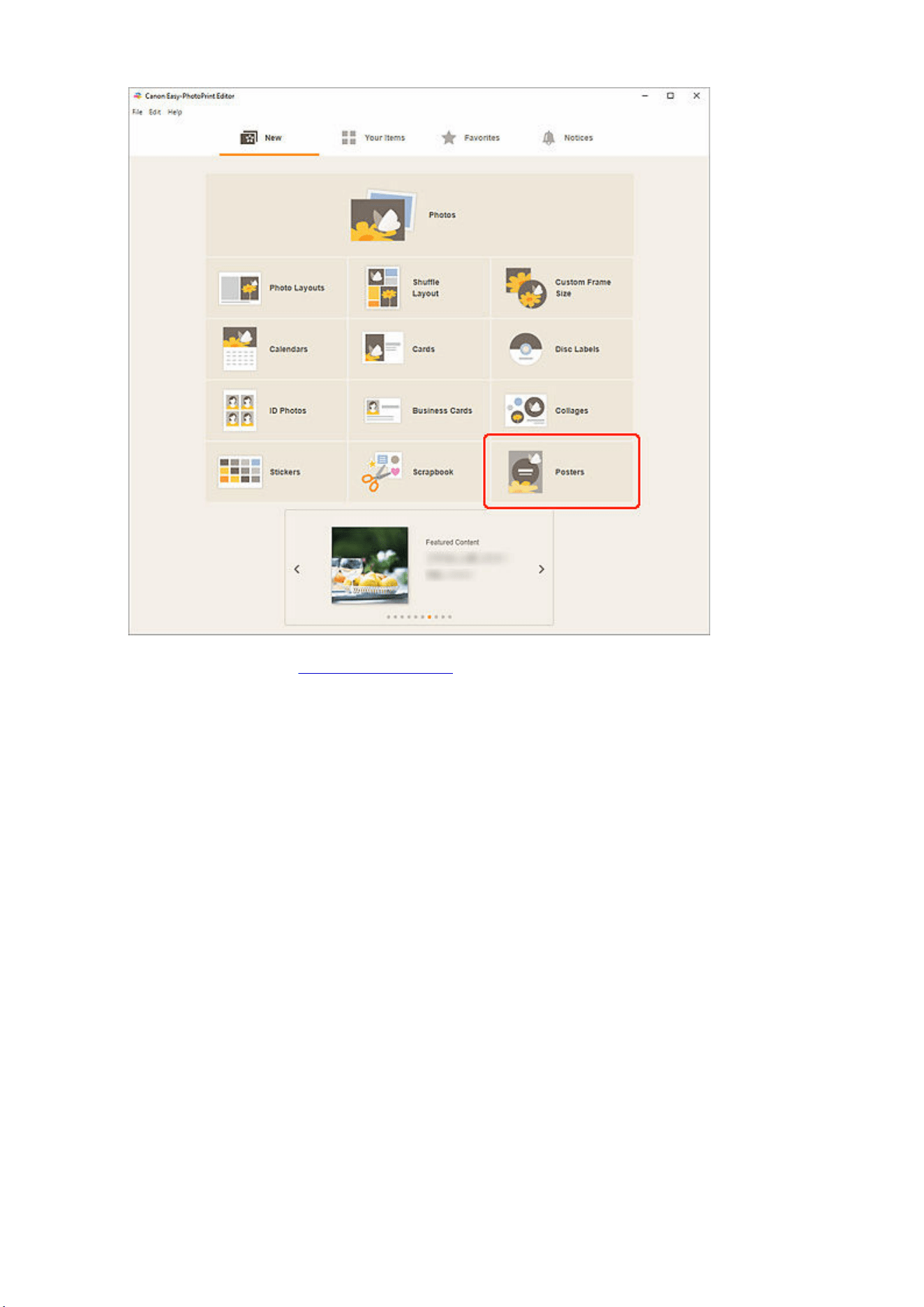
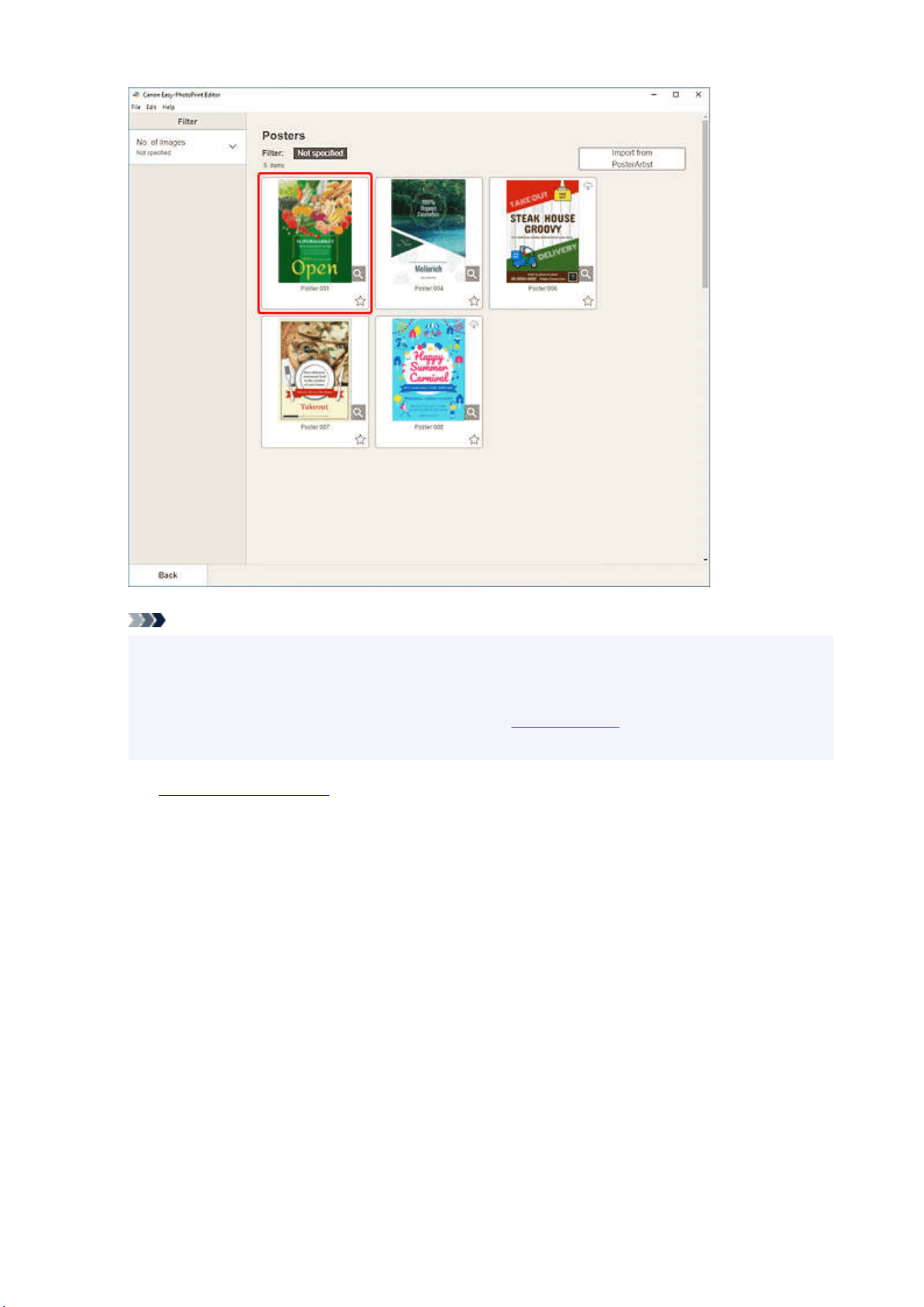
Note
• To narrow down the templates, set the conditions in the Filter area.
• You can also print or edit items exported from PosterArtist. Click Import from PosterArtist, and
then select the item you want to print or edit.
When you select the item, the view switches to the
Item edit screen. Skip ahead to Step 6.
For how to export items from PosterArtist, refer to the PosterArtist manual.
The Select Paper Size screen appears.
5. Select paper size and click Next.5.
100
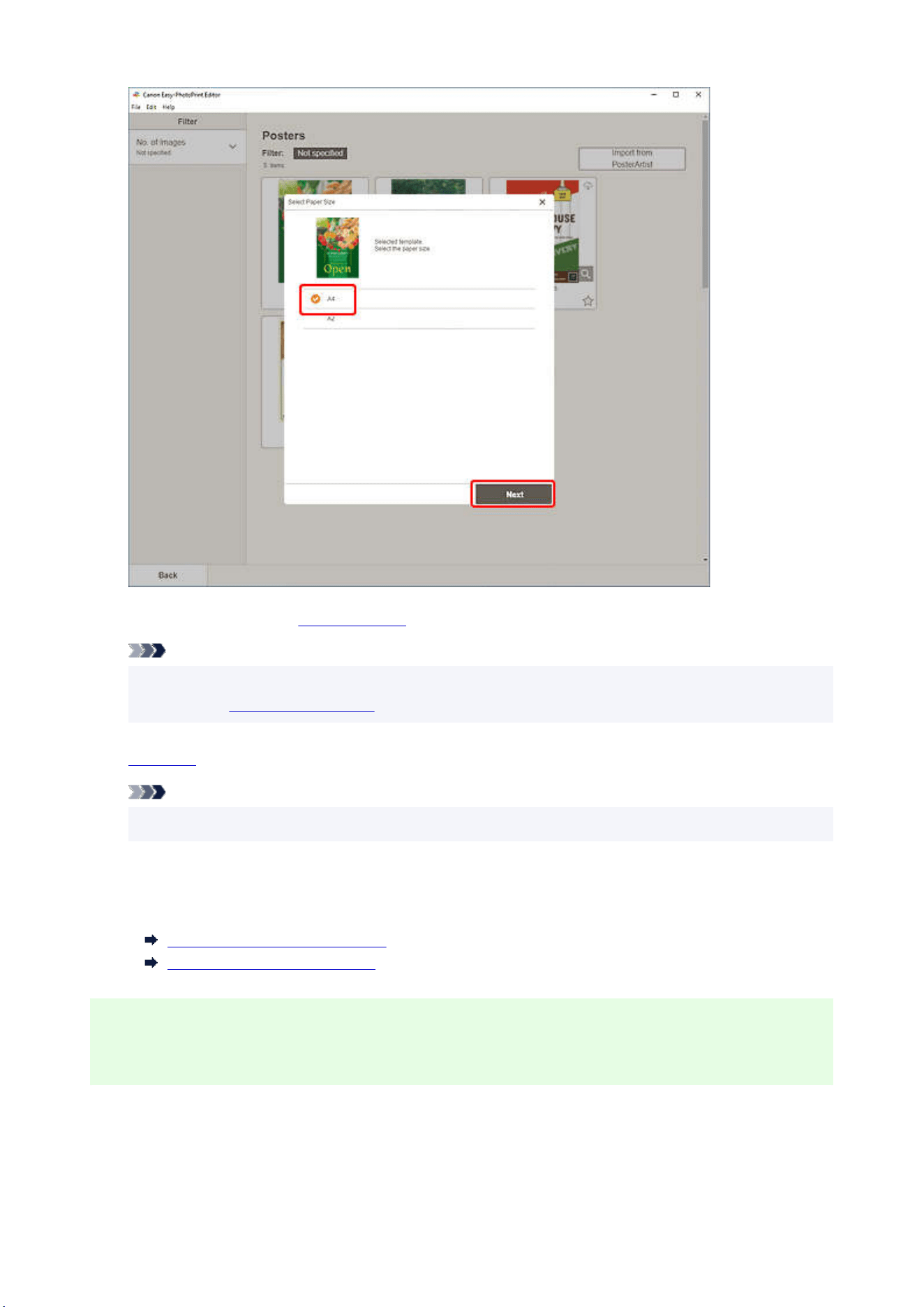
The view switches to the Item edit screen.
Note
• You can also print photos by enlarging/reducing them to the roll paper width. In Windows, it can
be set in
B: Print Settings Area in the Print Settings screen.
6.
Edit item according to preference.6.
Note
• To save the item being edited, click Save.
7. Click Next.7.
The view switches to the Print Settings screen.
Print Settings Screen (Windows)
Print Settings Screen (macOS)
Windows
8. Specify printer and paper to use, and other settings.8.
101
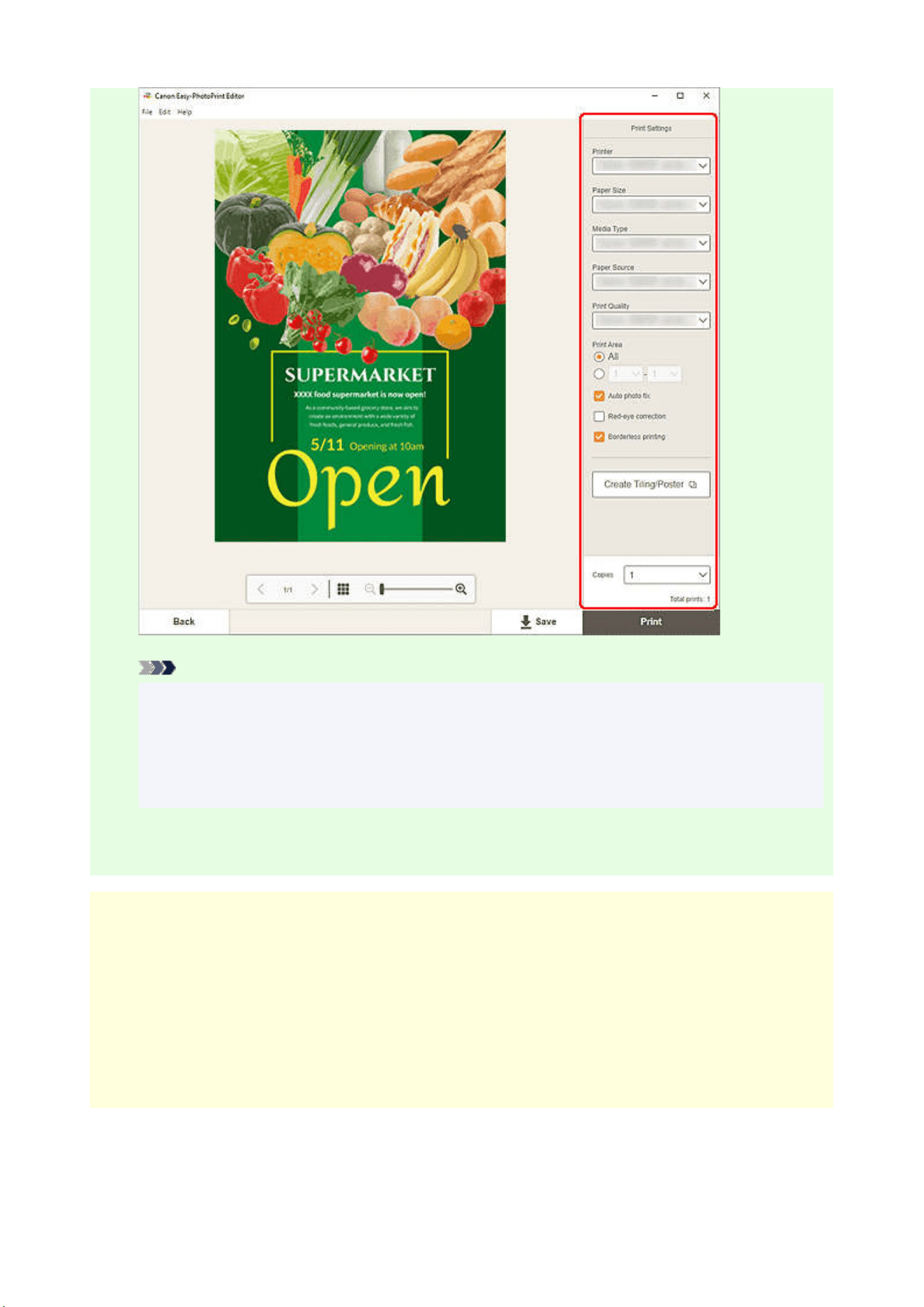
Note
• Click Create Tiling/Poster to start Easy-Layout Editor with which you can print over multiple
sheets of paper and combine them to create a large poster. If Easy-Layout Editor is not
installed, follow the on-screen instructions to download and install it from the web page. For
Easy-Layout Editor, see Easy-Layout Editor Guide.
• Create Tiling/Poster does not appear depending on your printer.
9. Click Print.9.
macOS
8. Set Auto photo fix, Red-eye correction, and number of copies to print.8.
9. Click Next.9.
The Print dialog appears.
10. Specify printer and paper to use, and other settings.10.
102

Note
• When printing on T-Shirt Transfers using AirPrint, you may need to set the flip horizontally
setting depending on the printer. To set the flip horizontally setting, To set the flip horizontally
setting, enable Flip Horizontally in Layout.
• For details on the Print dialog, see Help of macOS.
11. Click Print.11.
103
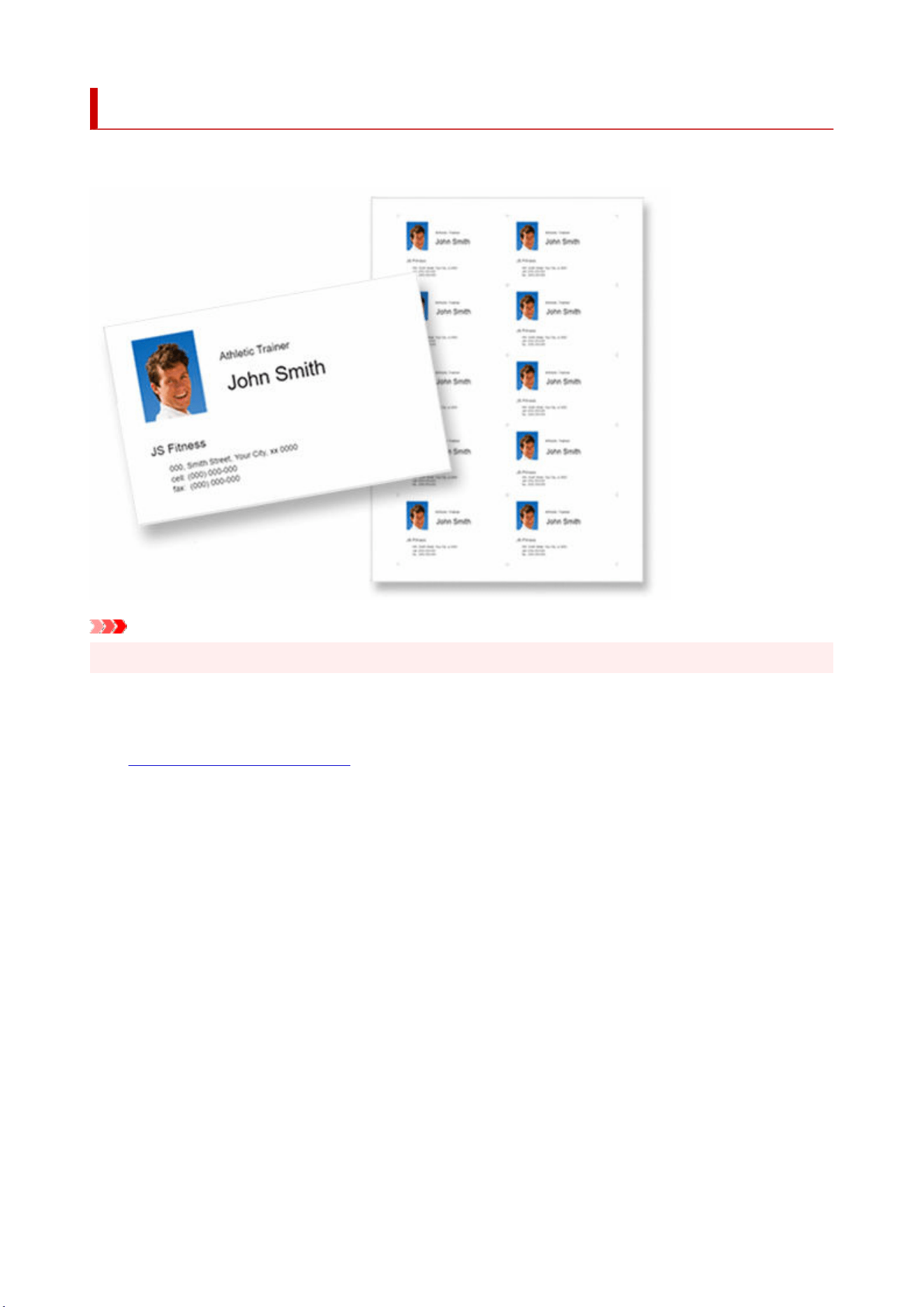
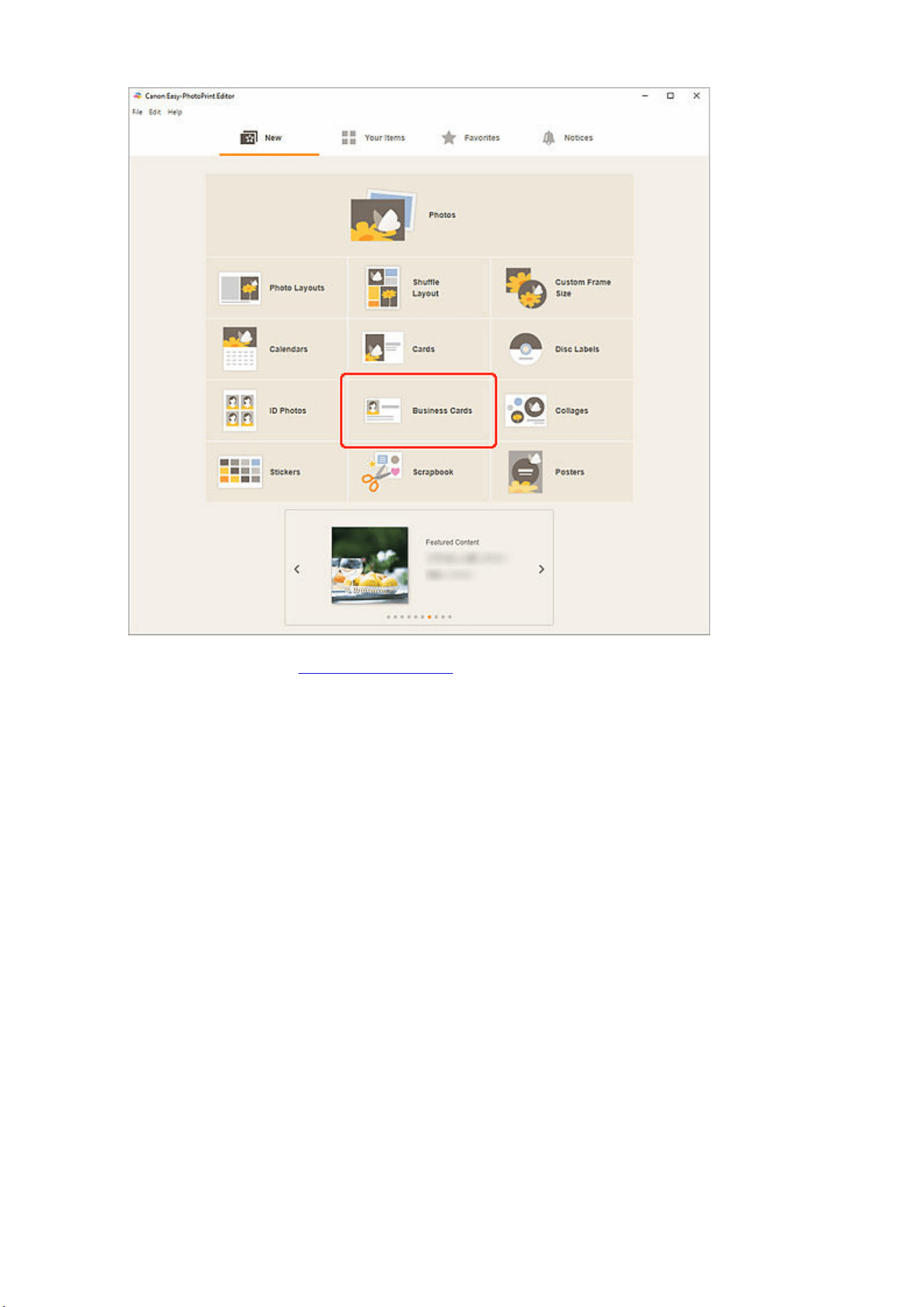
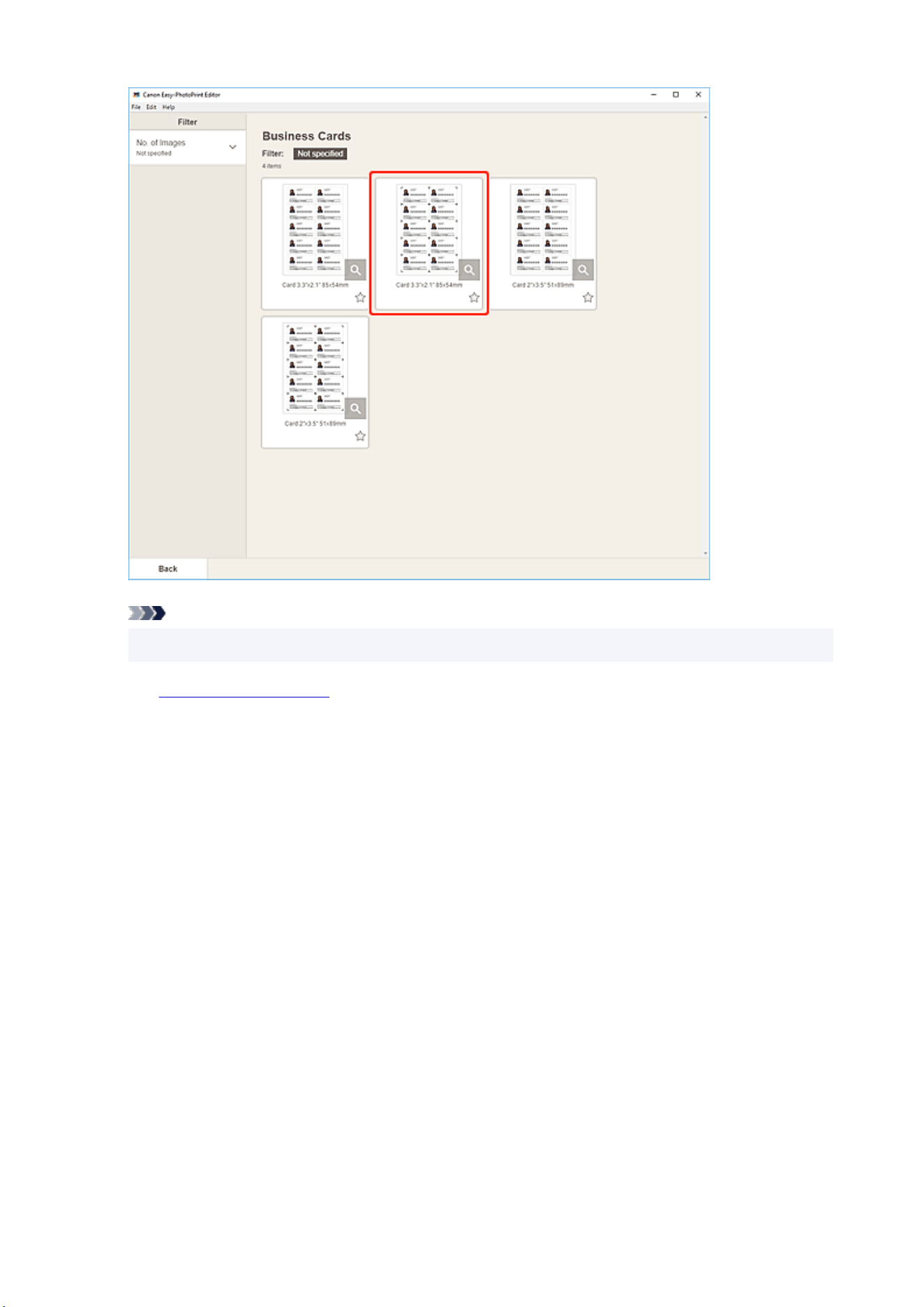
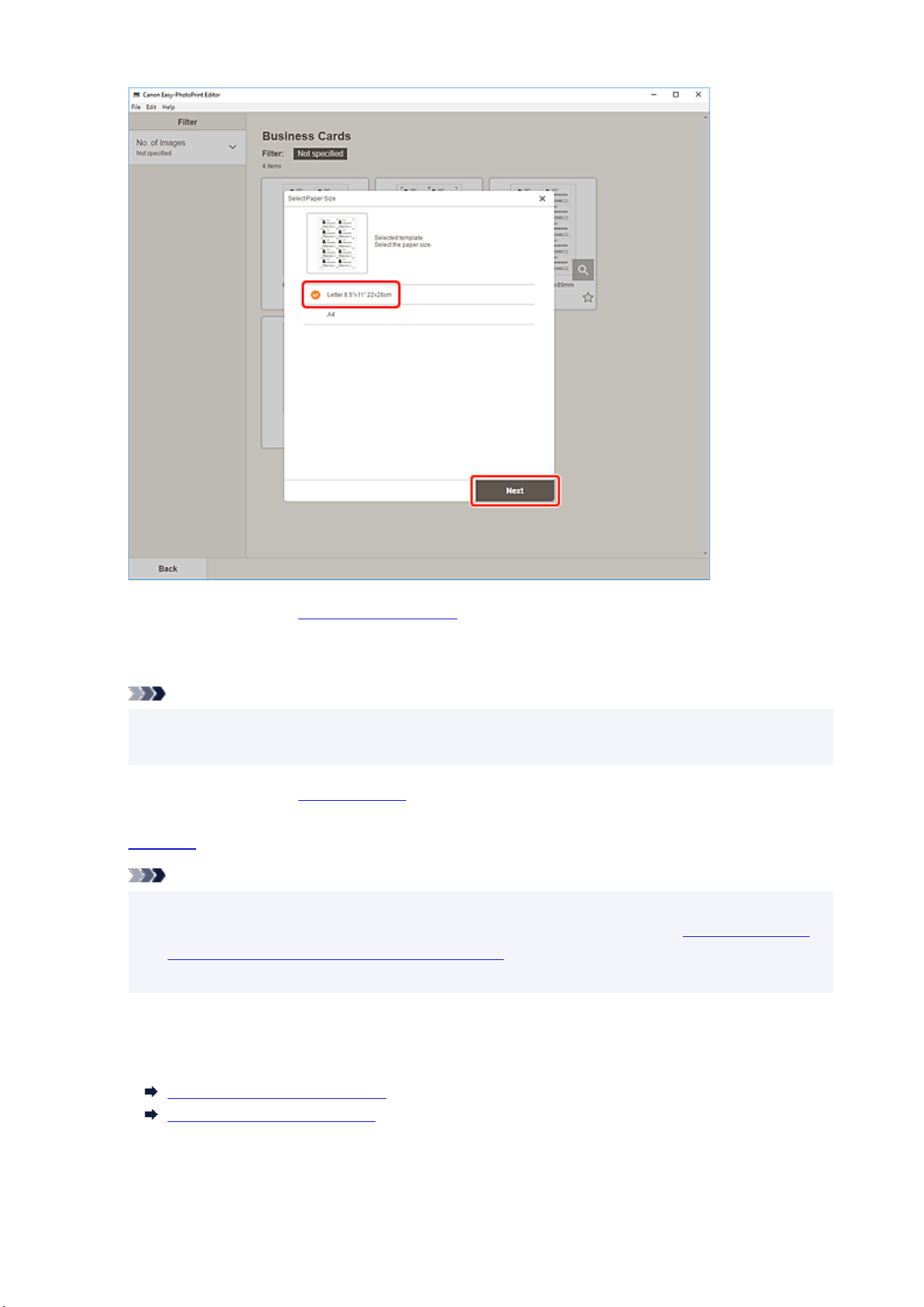
The view switches to the Photo Locations screen.
6. Select the photo(s) you want to use for item.6.
Note
• Select the Add the same image to all frames checkbox to use the same image in all image
layout frames.
The view switches to the
Item edit screen.
7.
Edit item according to preference.7.
Note
• To apply the same cropping and Creative filter settings to all copies of the same image within the
page, click Advanced.... For details on the Advanced Settings screen, see
Advanced Settings
Screen (Business Cards, Stickers, and ID Photos).
• To save the item being edited, click Save.
8. Click Next.8.
The view switches to the Print Settings screen.
Print Settings Screen (Windows)
Print Settings Screen (macOS)
107
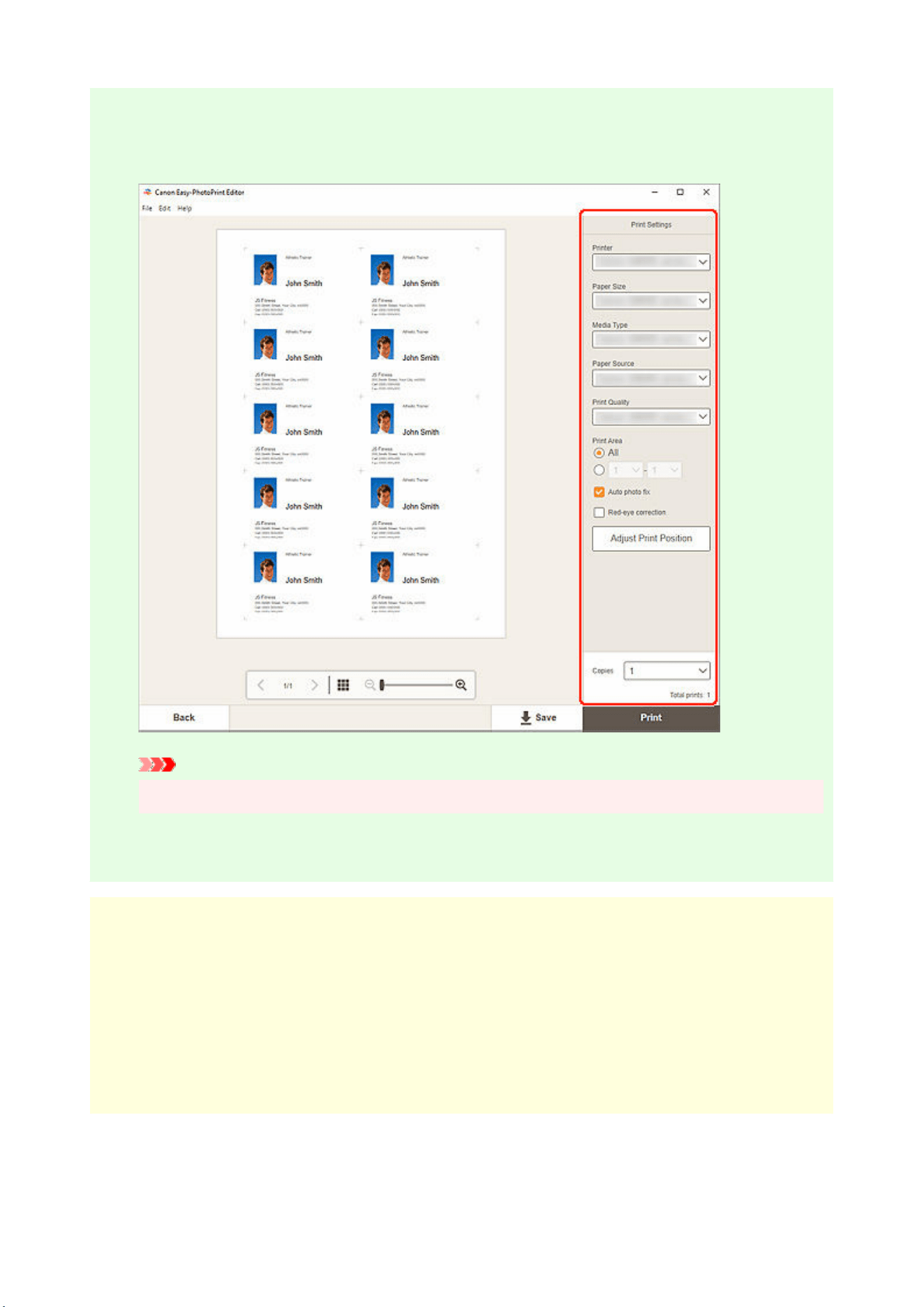
Windows
9. Specify printer and paper to use, and other settings.9.
Important
• The paper size cannot be changed.
10. Click Print.10.
macOS
9. Set Auto photo fix, Red-eye correction, and number of copies to print.9.
10. Click Next.10.
The Print dialog appears.
11. Specify printer and paper to use, and other settings.11.
108

Note
• When printing on T-Shirt Transfers using AirPrint, you may need to set the flip horizontally
setting depending on the printer. To set the flip horizontally setting, To set the flip horizontally
setting, enable Flip Horizontally in Layout.
• For details on the Print dialog, see Help of macOS.
12. Click Print.12.
109
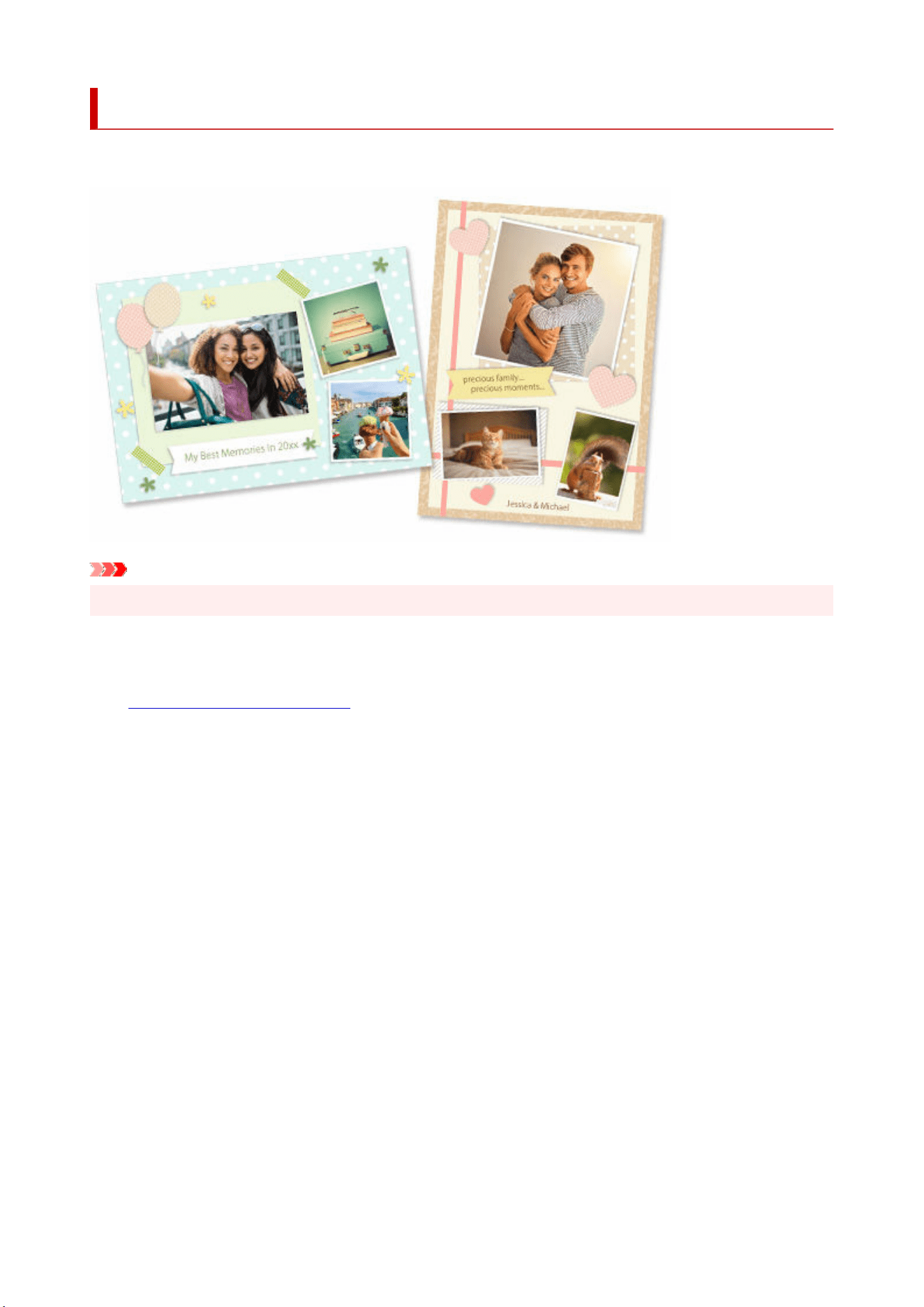
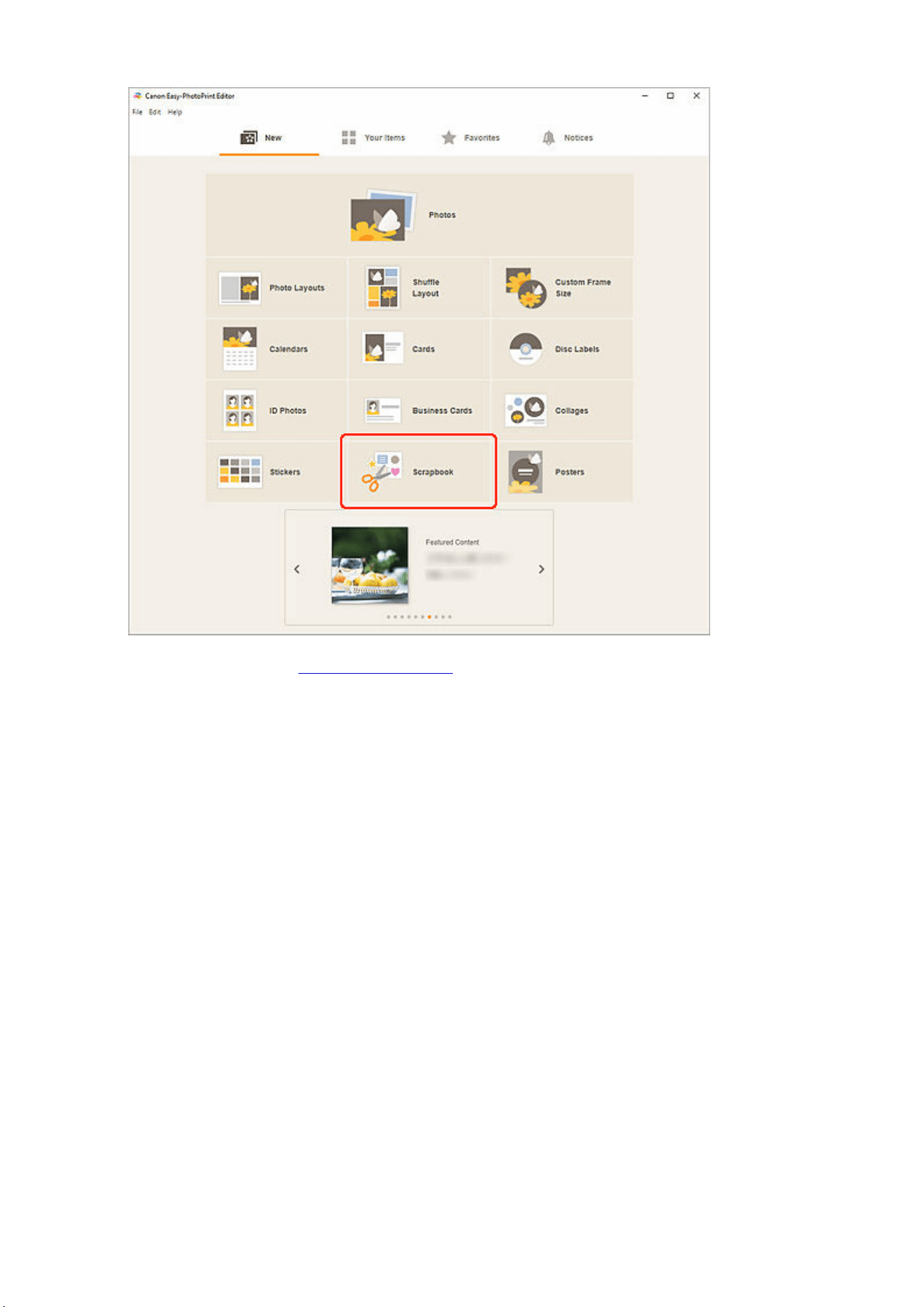
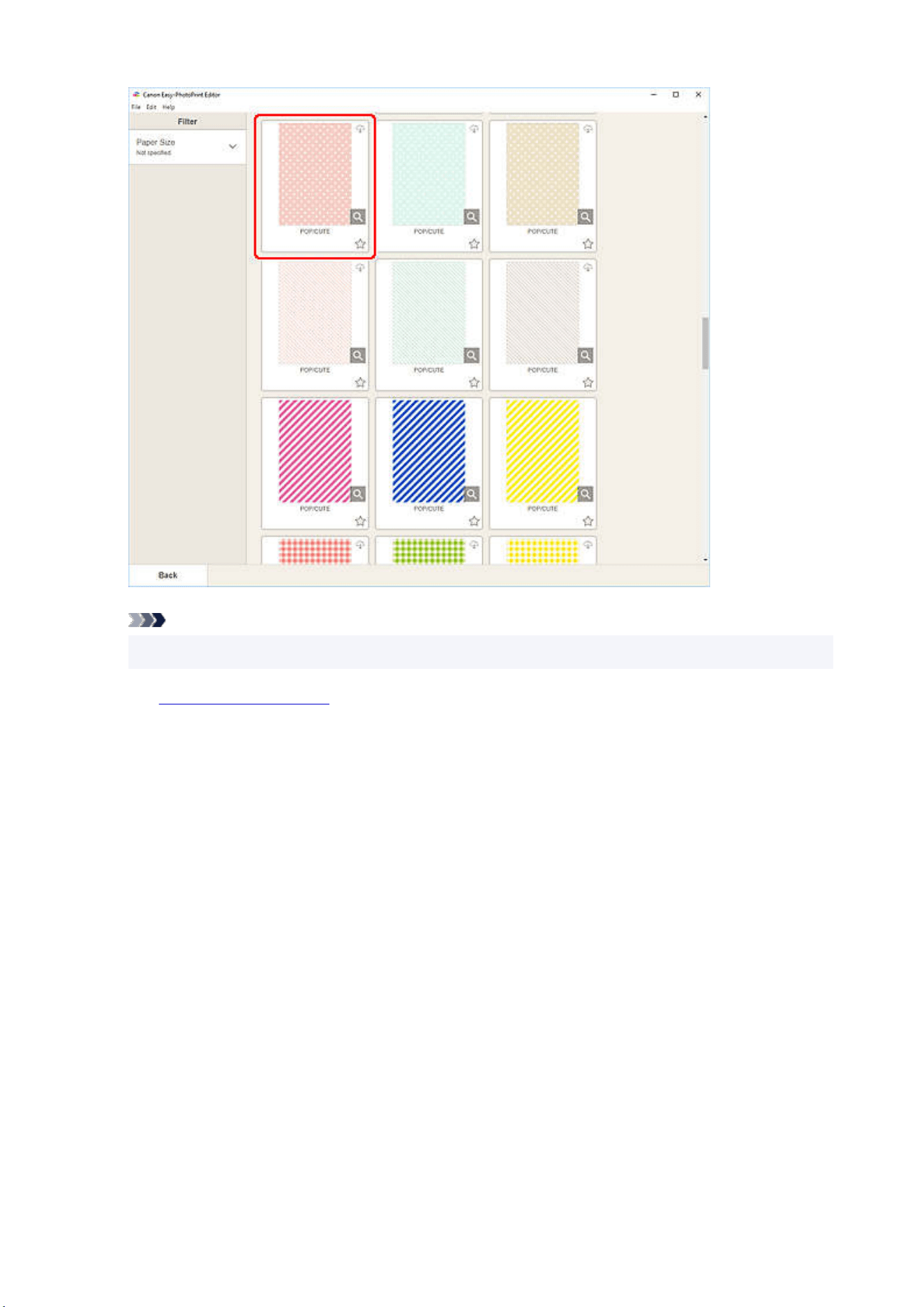
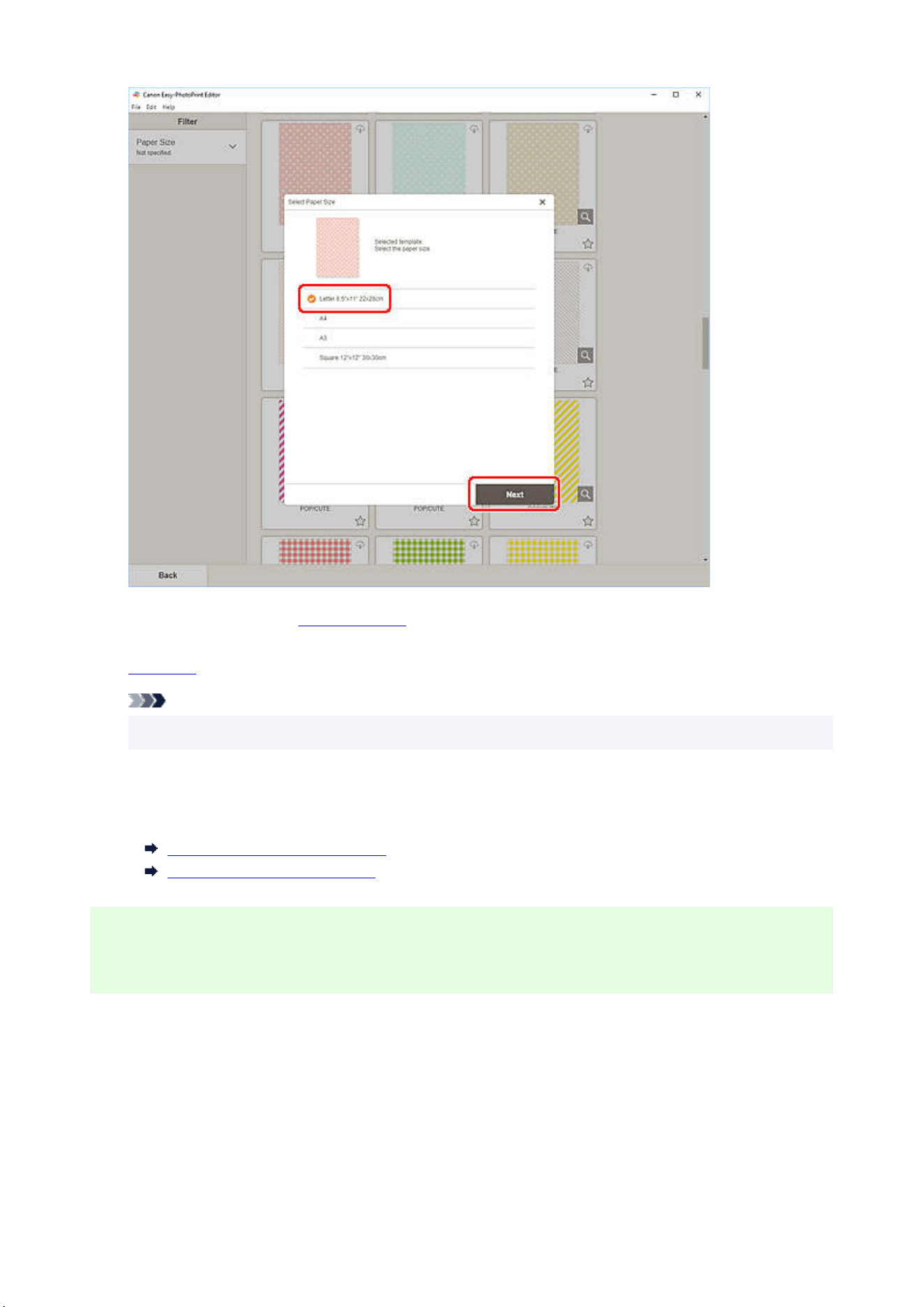
The view switches to the Item edit screen.
6.
Edit item according to preference.6.
Note
• To save the item being edited, click Save.
7. Click Next.7.
The view switches to the Print Settings screen.
Print Settings Screen (Windows)
Print Settings Screen (macOS)
Windows
8. Specify printer and paper to use, and other settings.8.
113
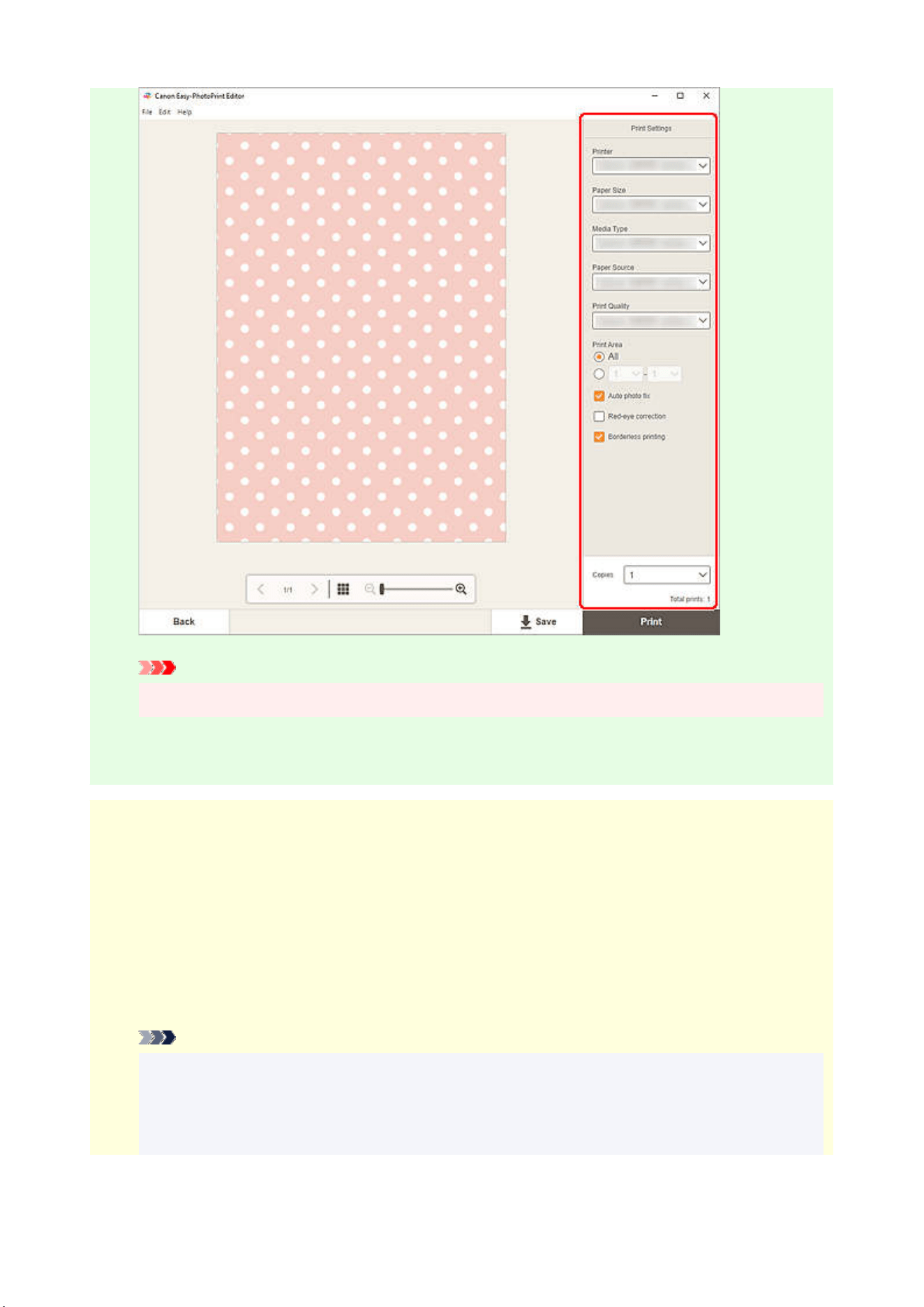
Important
• The paper size cannot be changed.
9. Click Print.9.
macOS
8. Set Auto photo fix, Red-eye correction, and number of copies to print.8.
9. Click Next.9.
The Print dialog appears.
10. Specify printer and paper to use, and other settings.10.
Note
• When printing on T-Shirt Transfers using AirPrint, you may need to set the flip horizontally
setting depending on the printer. To set the flip horizontally setting, To set the flip horizontally
setting, enable Flip Horizontally in Layout.
• For details on the Print dialog, see Help of macOS.
114

11. Click Print.11.
115
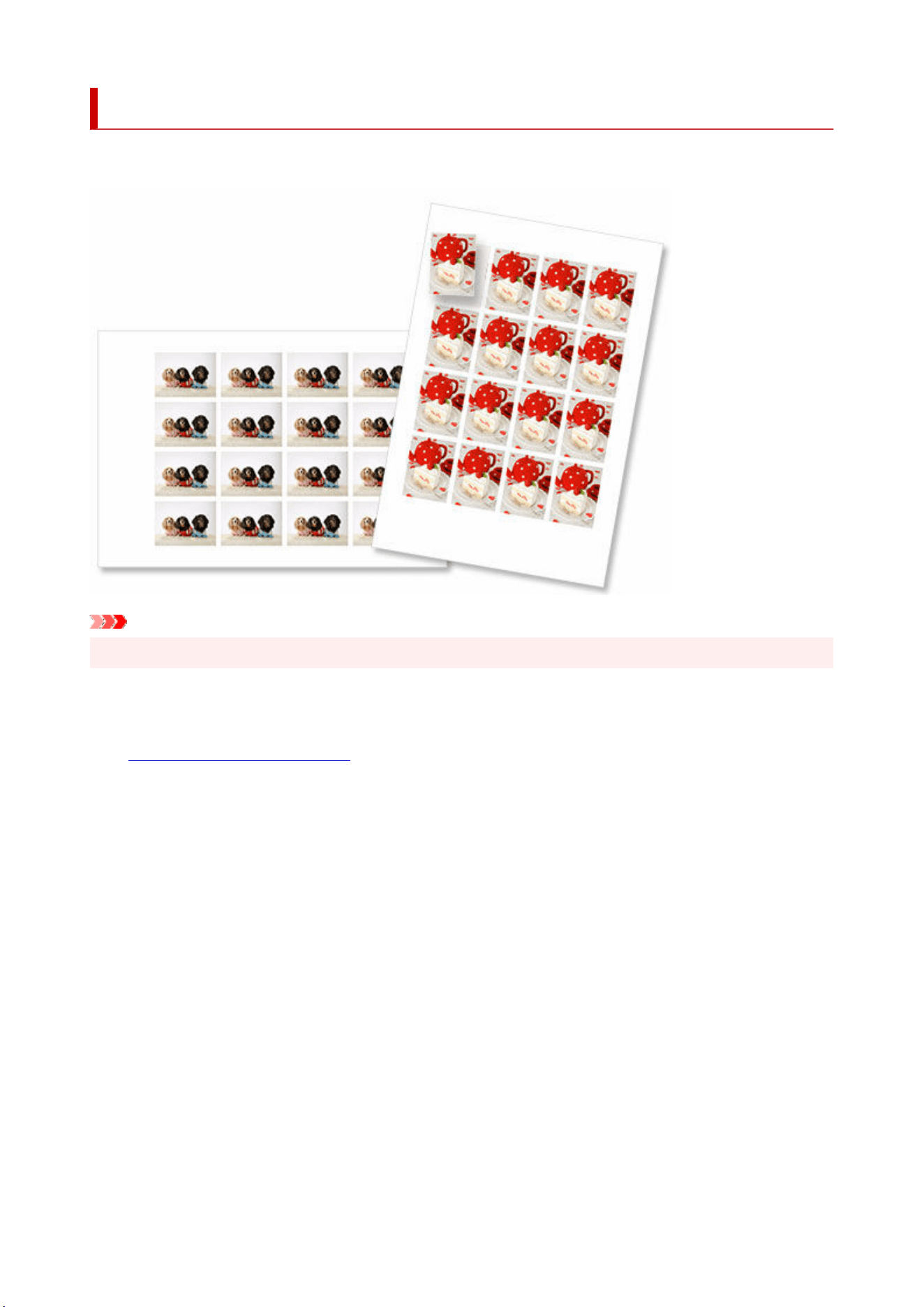
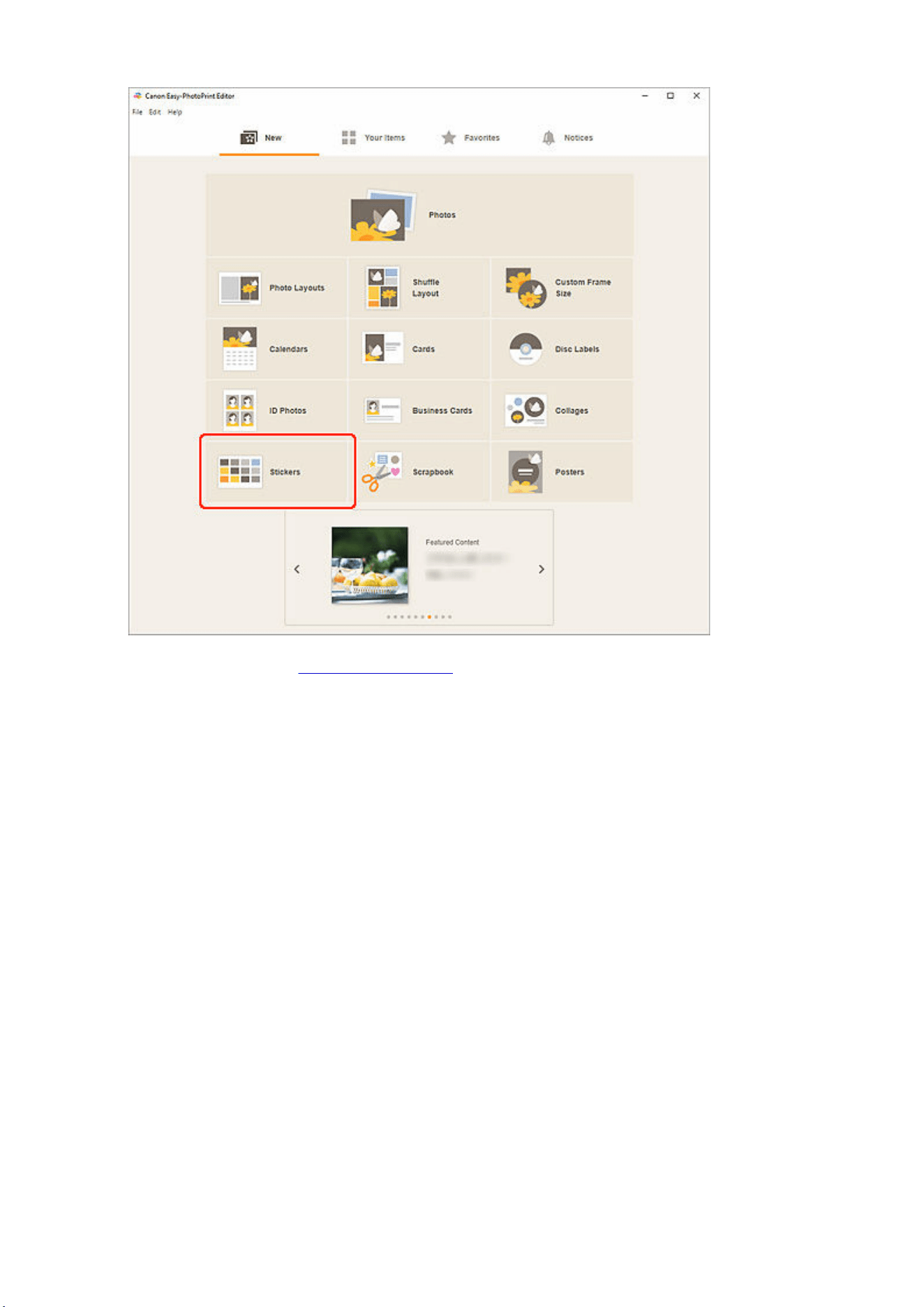
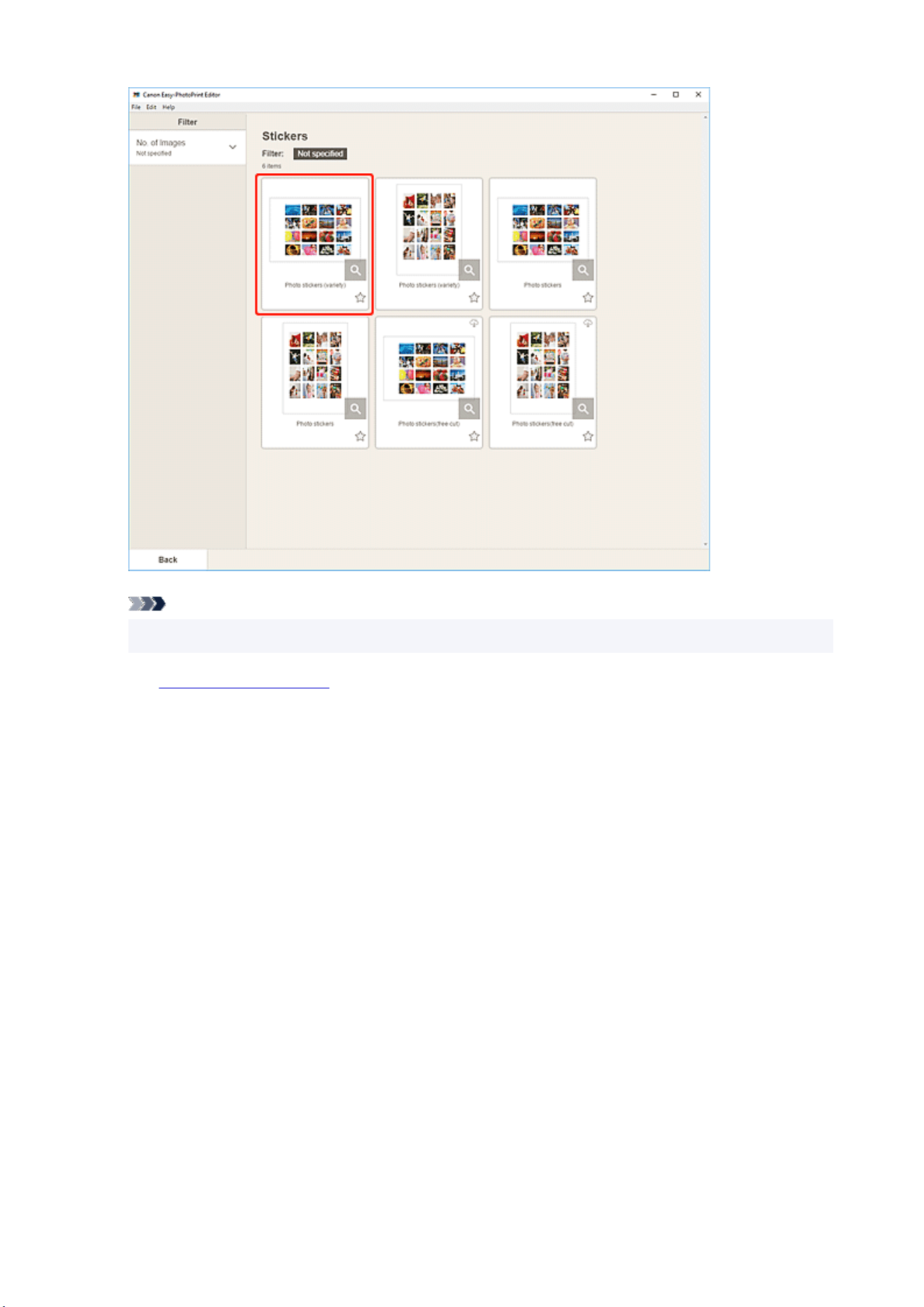
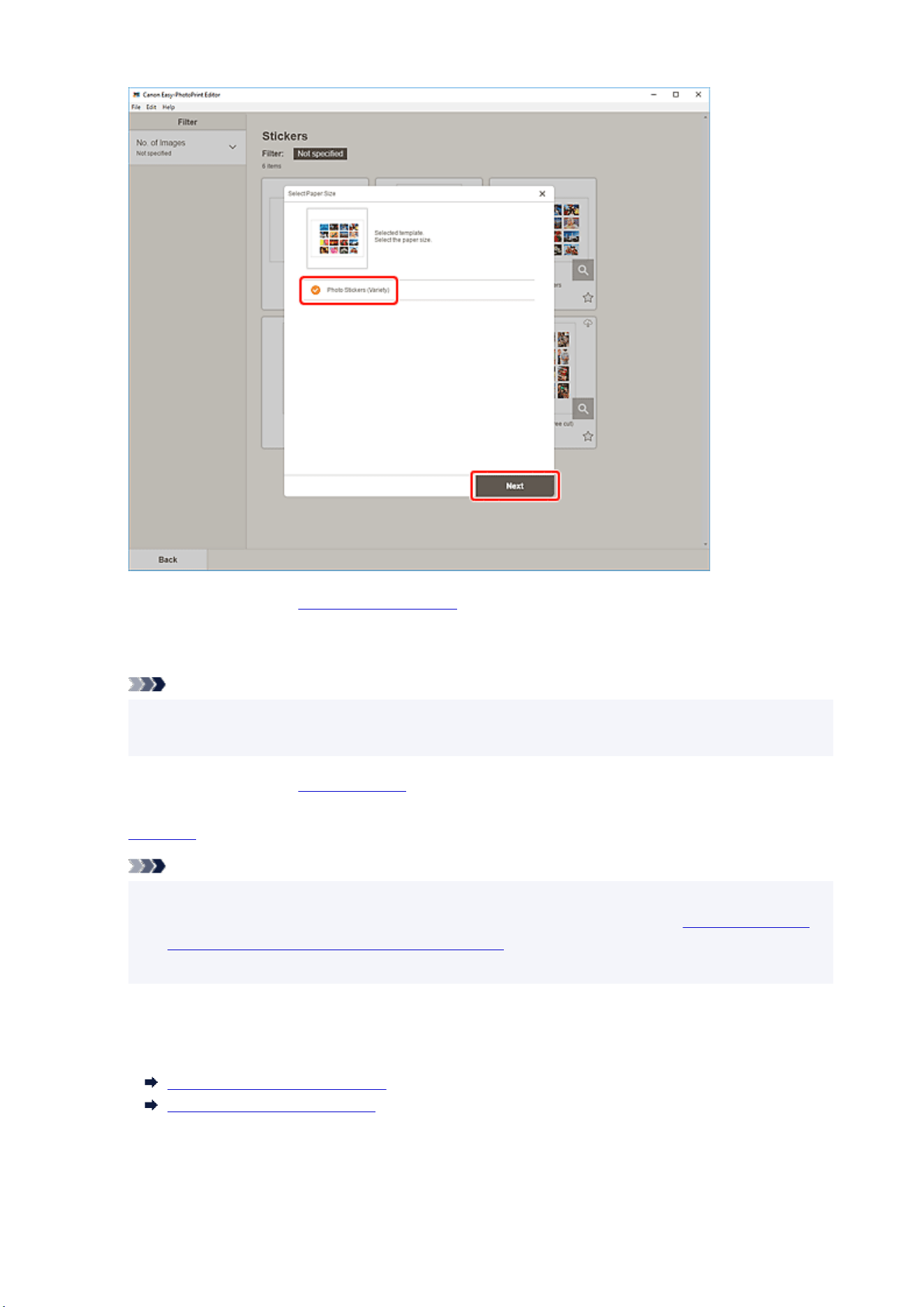
The view switches to the Photo Locations screen.
6. Select the photo(s) you want to use for item.6.
Note
• Select the Add the same image to all frames checkbox to use the same image in all image
layout frames.
The view switches to the
Item edit screen.
7.
Edit item according to preference.7.
Note
• To apply the same cropping and Creative filter settings to all copies of the same image within the
page, click Advanced.... For details on the Advanced Settings screen, see
Advanced Settings
Screen (Business Cards, Stickers, and ID Photos).
• To save the item being edited, click Save.
8. Click Next.8.
The view switches to the Print Settings screen.
Print Settings Screen (Windows)
Print Settings Screen (macOS)
119
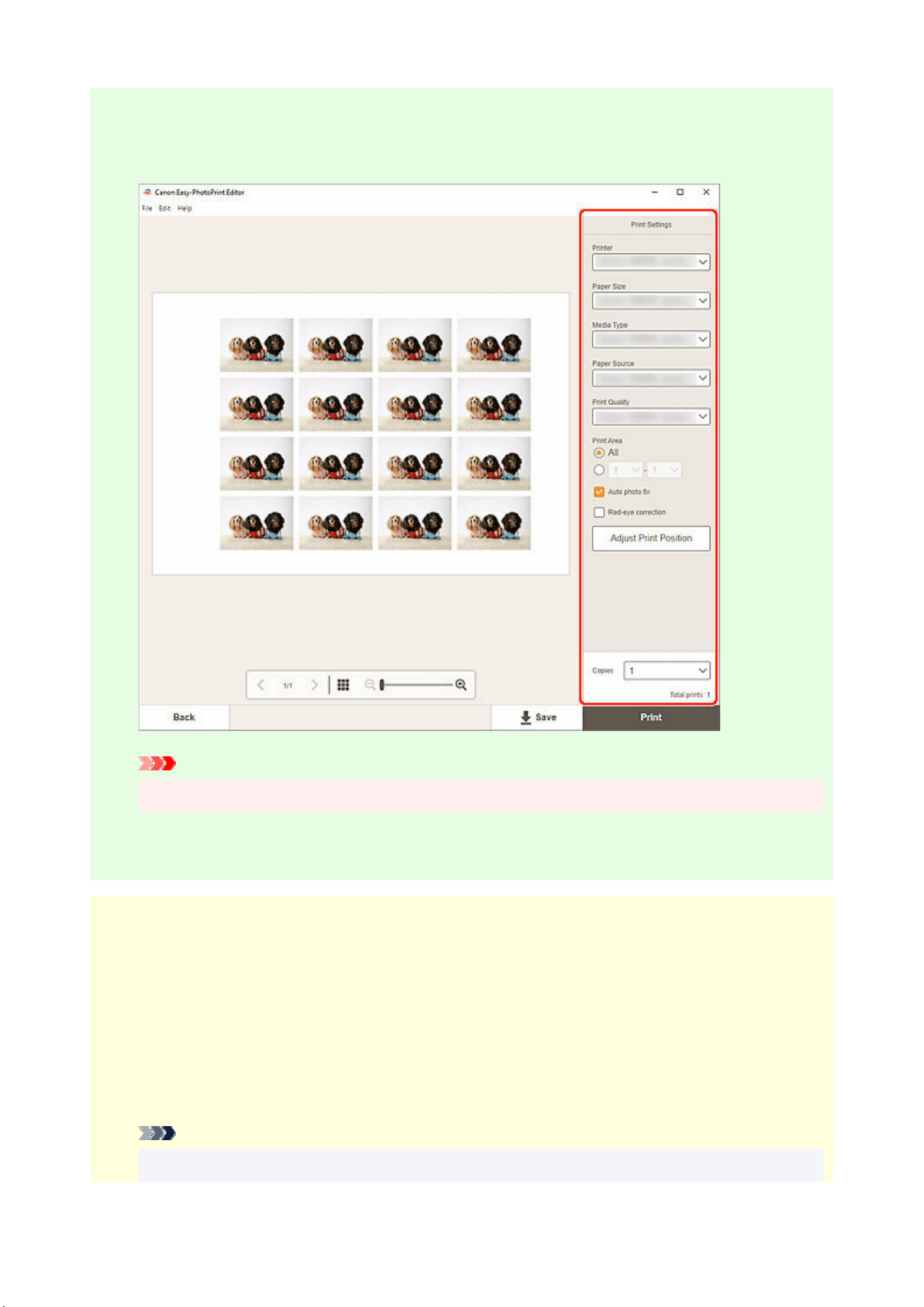
Windows
9. Specify printer and paper to use, and other settings.9.
Important
• The paper size cannot be changed.
10. Click Print.10.
macOS
9. Set Auto photo fix, Red-eye correction, print position, and number of copies to print.9.
10. Click Next.10.
The Print dialog appears.
11. Specify printer and paper to use, and other settings.11.
Note
• For details on the Print dialog, see Help of macOS.
120

12. Click Print.12.
121
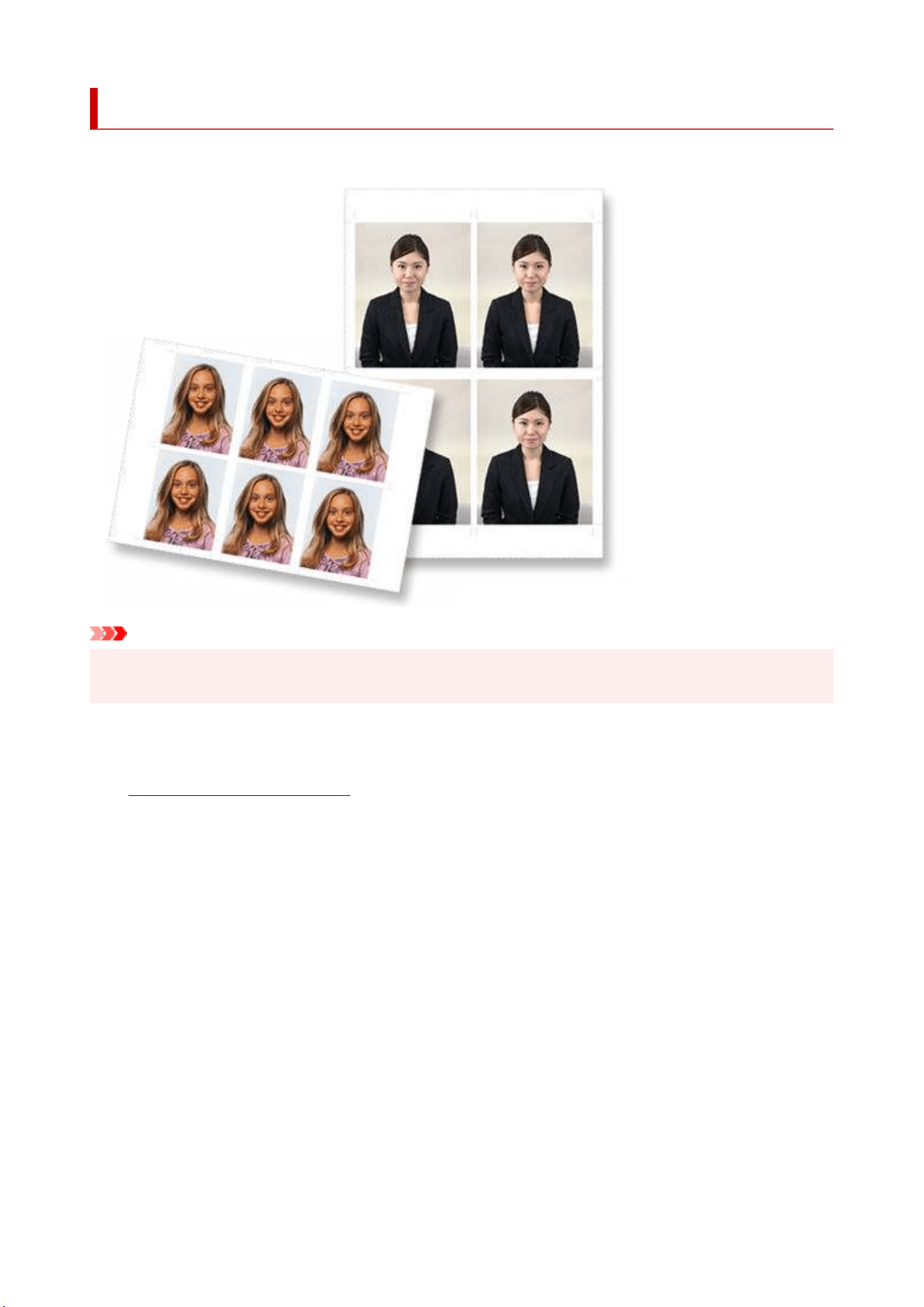
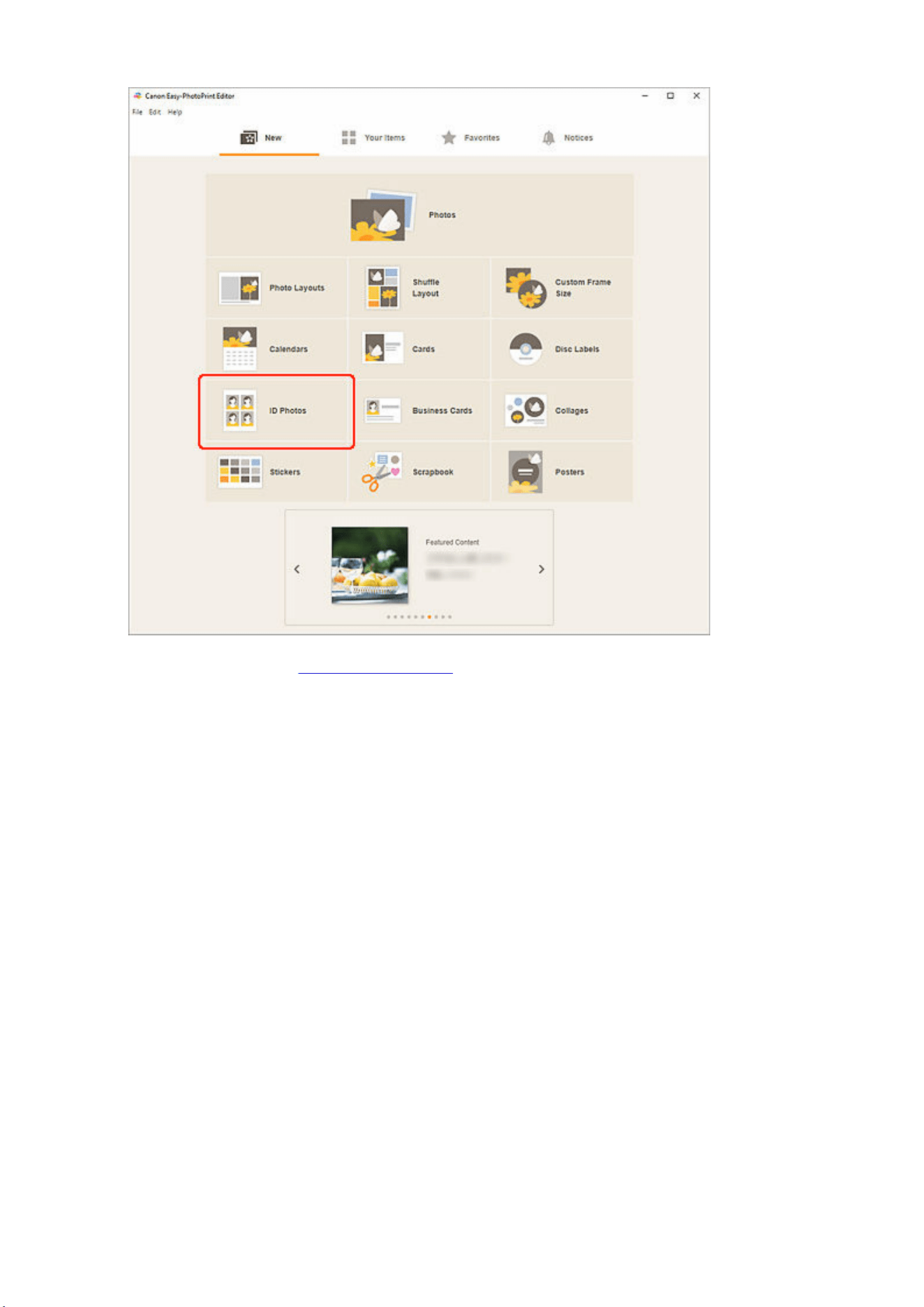
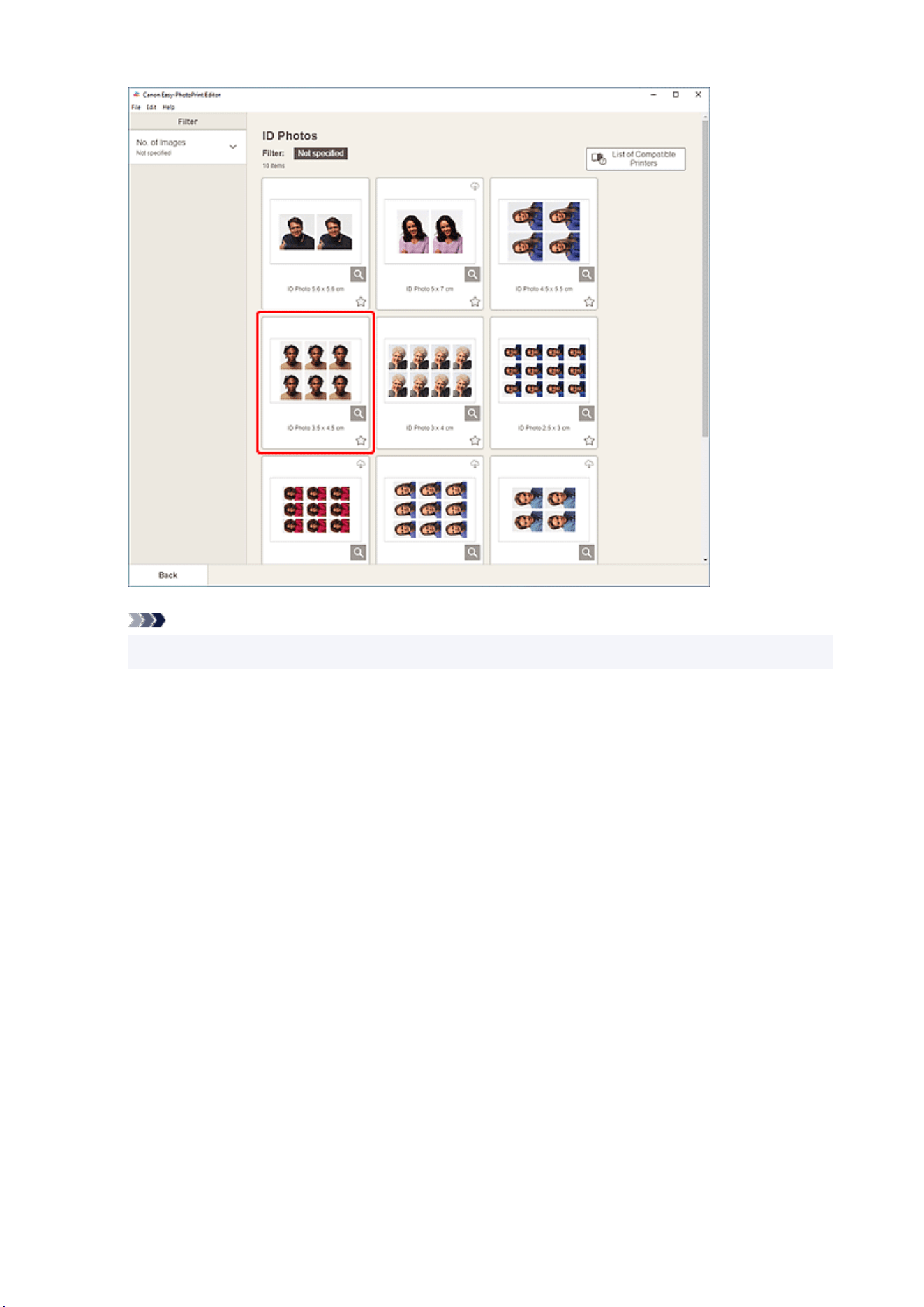
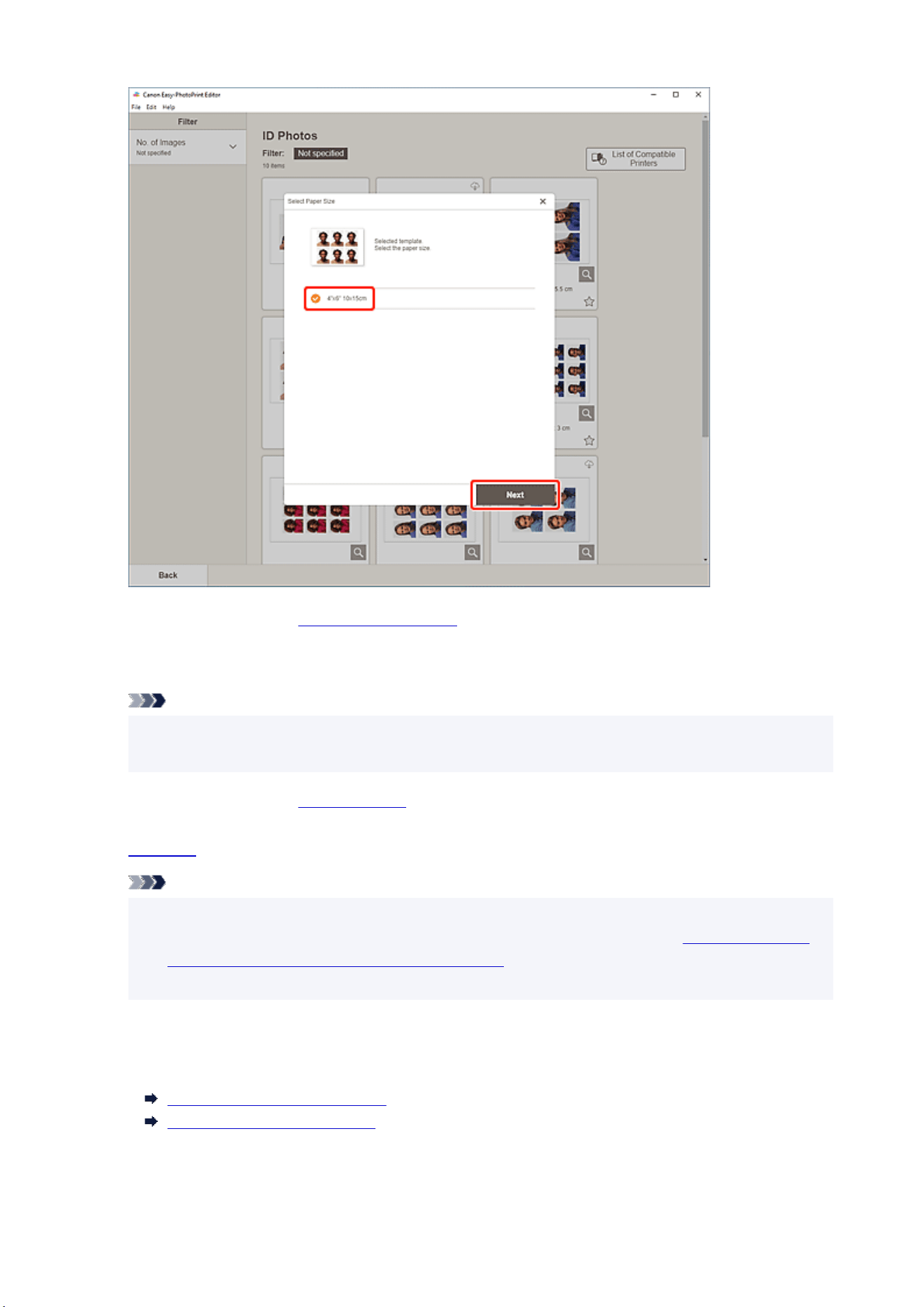
The view switches to the Photo Locations screen.
6. Select the photo(s) you want to use for item.6.
Note
• Select the Add the same image to all frames checkbox to use the same image in all image
layout frames.
The view switches to the
Item edit screen.
7.
Edit item according to preference.7.
Note
• To apply the same cropping and Creative filter settings to all copies of the same image within the
page, click Advanced.... For details on the Advanced Settings screen, see
Advanced Settings
Screen (Business Cards, Stickers, and ID Photos).
• To save the item being edited, click Save.
8. Click Next.8.
The view switches to the Print Settings screen.
Print Settings Screen (Windows)
Print Settings Screen (macOS)
125
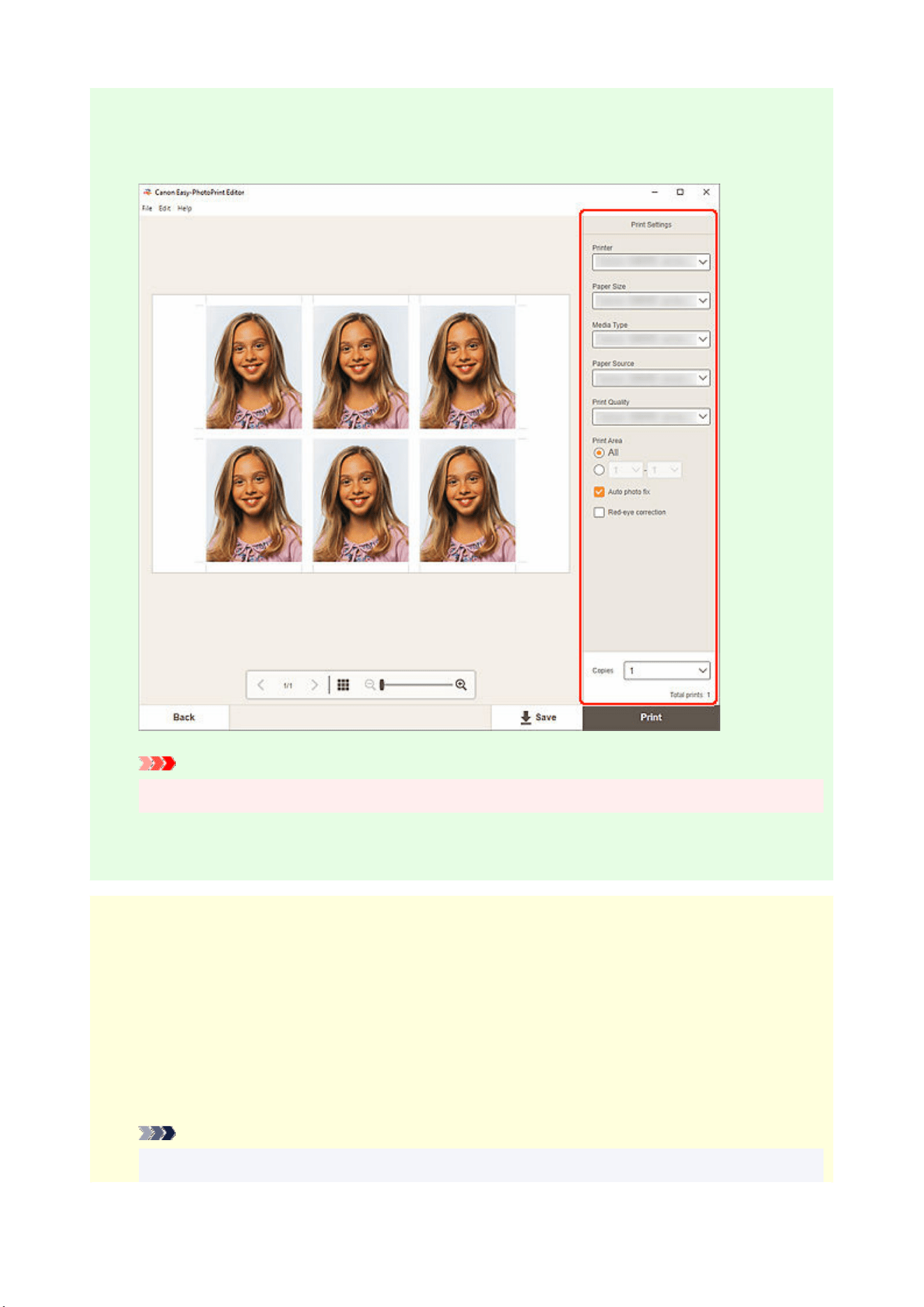
Windows
9. Specify printer and paper to use, and other settings.9.
Important
• The paper size cannot be changed.
10. Click Print.10.
macOS
9. Set Auto photo fix, Red-eye correction, and number of copies to print.9.
10. Click Next.10.
The Print dialog appears.
11. Specify printer and paper to use, and other settings.11.
Note
• For details on the Print dialog, see Help of macOS.
126

12. Click Print.12.
127

Editing Items
Adding Text
Adding/Adjusting Text Boxes
Adding Stamps
Adding/Changing/Swapping Images
Adjusting Position and Size of Images
Cropping Images (for Items)
Enhancing Images with Creative Filters (for Items)
Changing Image Frames
Adding QR Codes
Changing Background Colors
Changing Template
Adding, Deleting, or Rearranging Pages
Note
• Editable properties vary depending on the selected item.
128
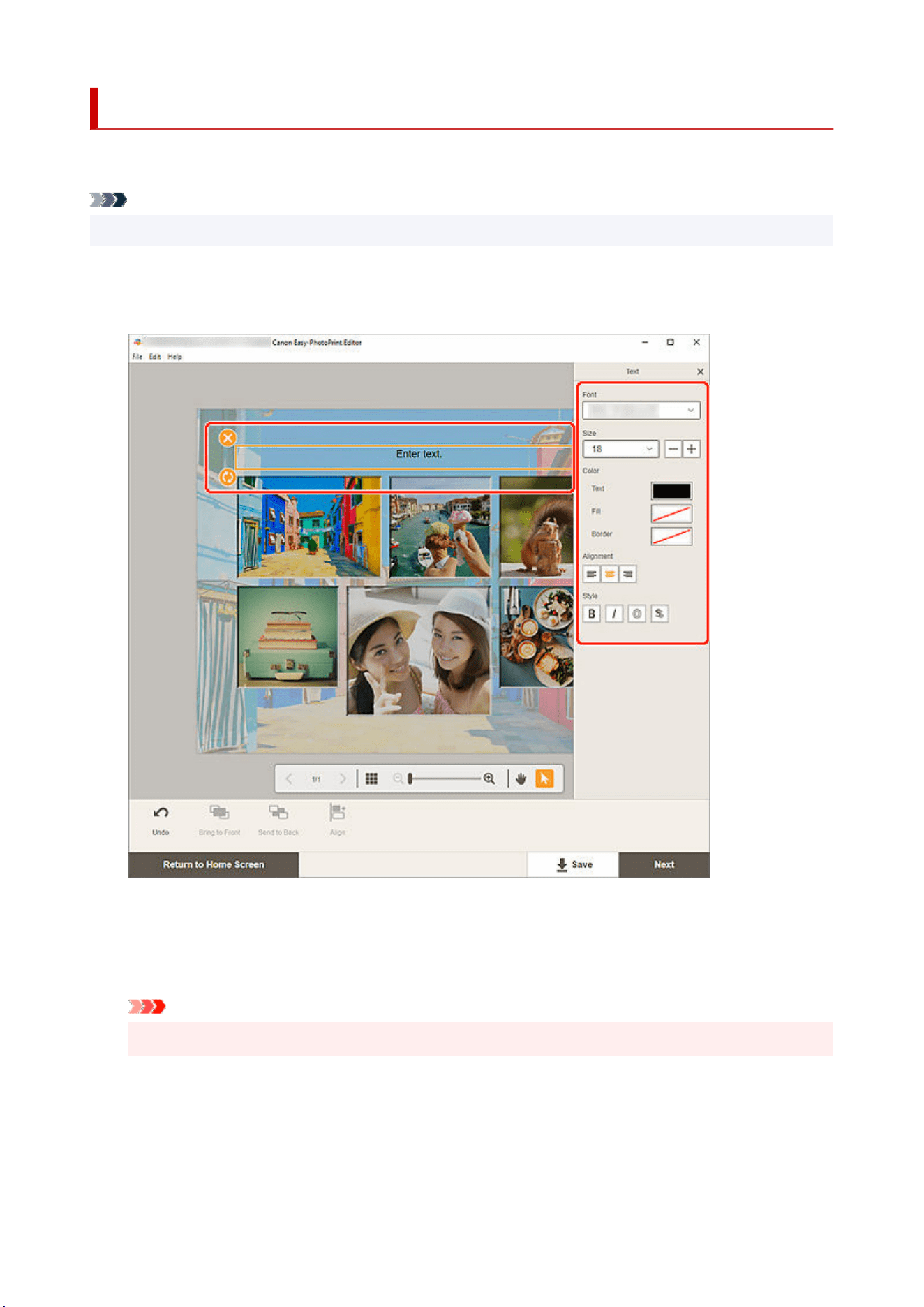
Adding Text
In the Item edit screen, you can enter text into text boxes in items.
Note
• You can also add text boxes. For details, see
Adding/Adjusting Text Boxes.
1. In Item edit screen, click text box in item.1.
The Text palette appears on the Sidebar of the Item edit screen.
2. Click selected text box again to activate text entry mode.2.
3. Enter text in text box.3.
Important
• Some emoji and symbols may not be displayed or printed correctly.
4. Use Text palette to change font type, font size, font color, text position, etc.4.
129
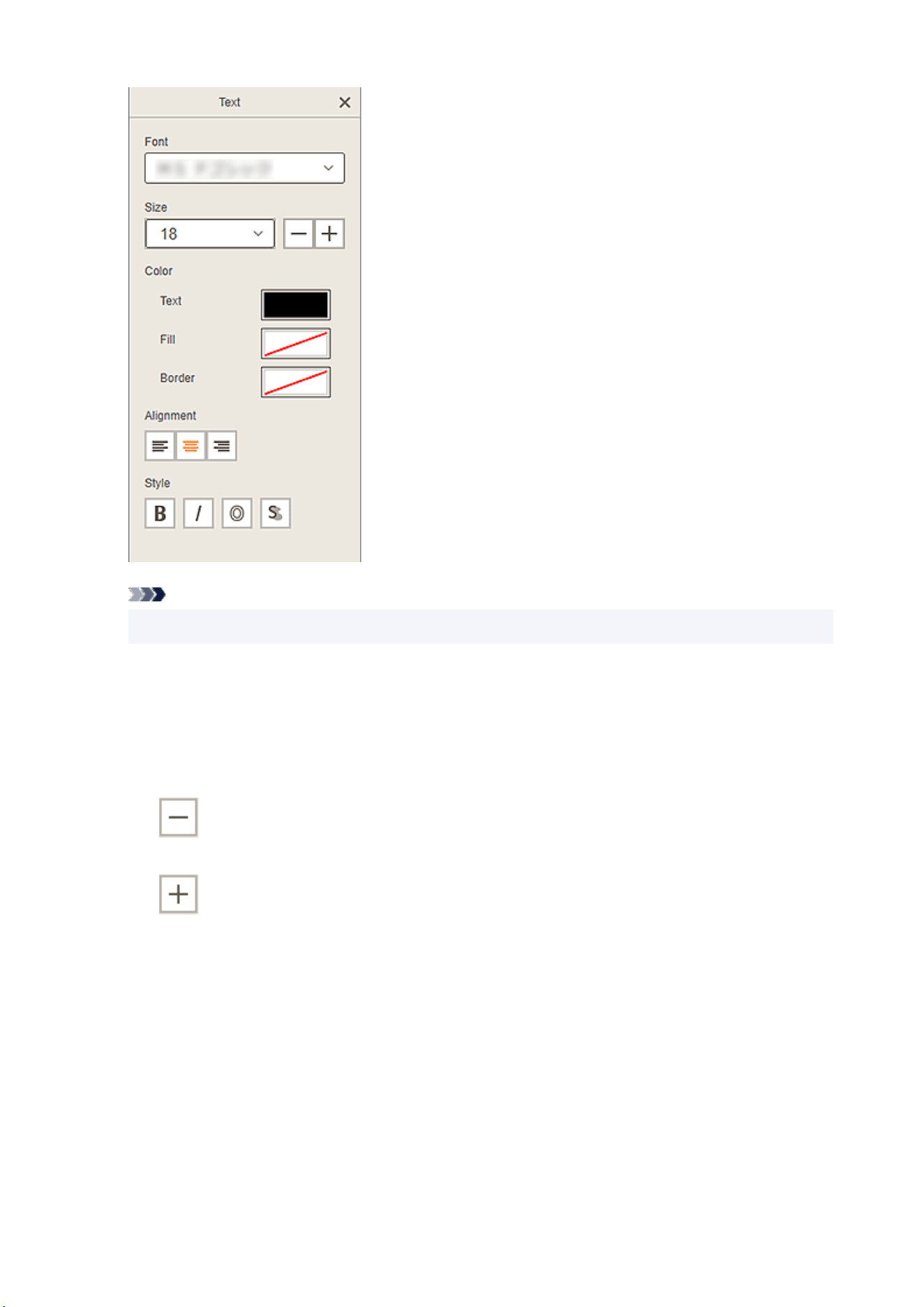
Note
• The displayed contents vary depending on the item.
Font
Select the font type.
Size
For horizontal and vertical text boxes, select the font size from the range of 5 to 500 points.
For arched text boxes, select the font size from the range of 5 to 100 points.
(Decrease Font Size)
Decreases the font size with each click.
(Increase Font Size)
Increases the font size with each click.
Color
Set the color for the text and background of a text box.
Text
Select the text color.
Fill
Select the fill color for the text box.
Border
Select the border color for the text box.
130
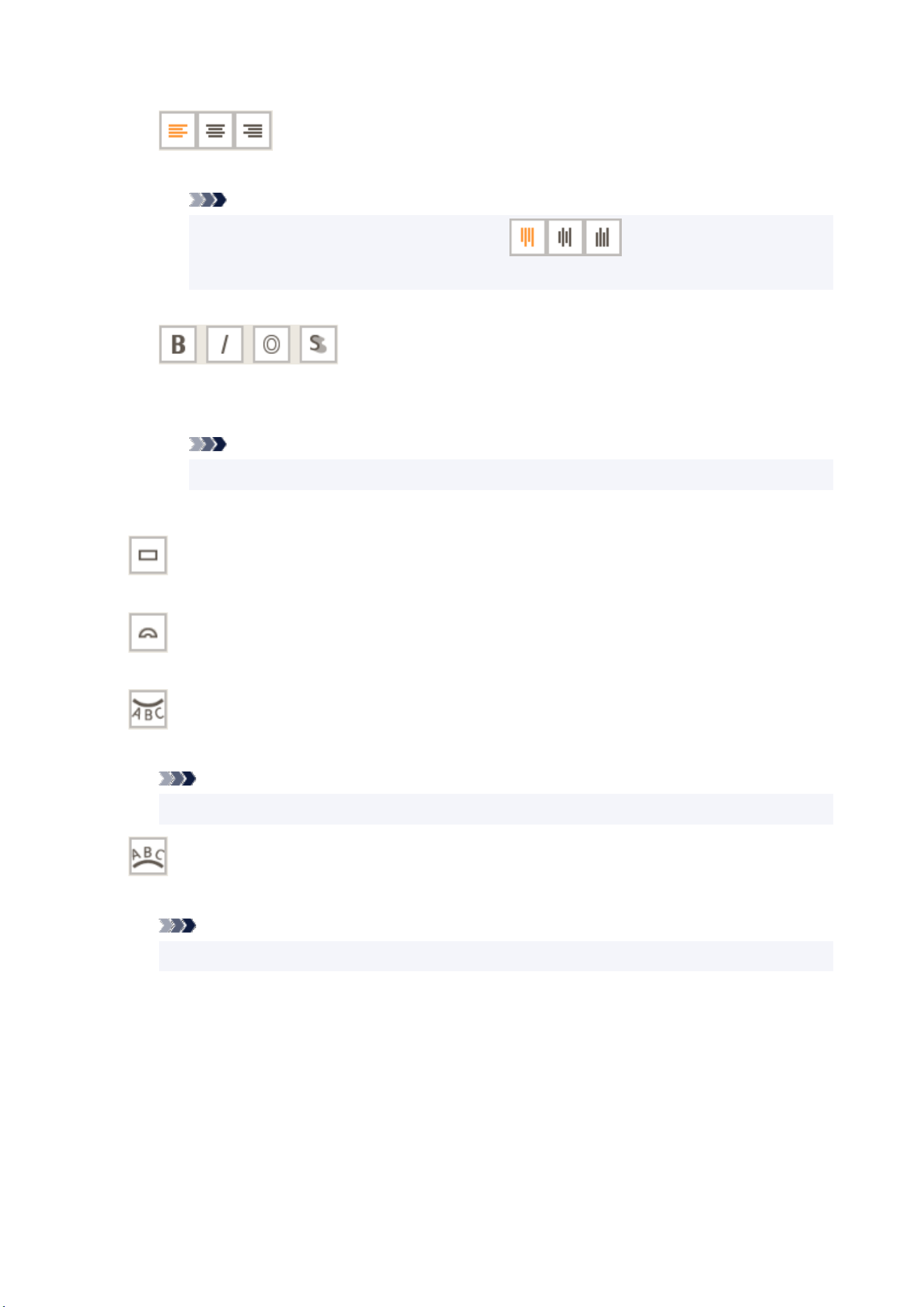
Alignment
(Align Left/Align Center/Align Right)
Set how you want to align text.
Note
• For vertical text boxes, you can select from (Align Top/Align Middle/Align
Bottom).
Style
(Bold/Italic/Outline/Shadow)
Set the font style.
You can also set multiple font styles.
Note
• Available font styles vary depending on the selected font.
When text box is added to disc label:
(Rectangle)
Enter text horizontally.
(Arch)
Enter arched text.
(Inward Text)
Positions the text with the characters facing inward.
Note
• This appears when the Arch Up or Arch Down text box is clicked.
(Outward Text)
Positions the text with the characters facing outward.
Note
• This appears when the Arch Up or Arch Down text box is clicked.
5. Click outside item.5.
The text box is reflected in the item.
131
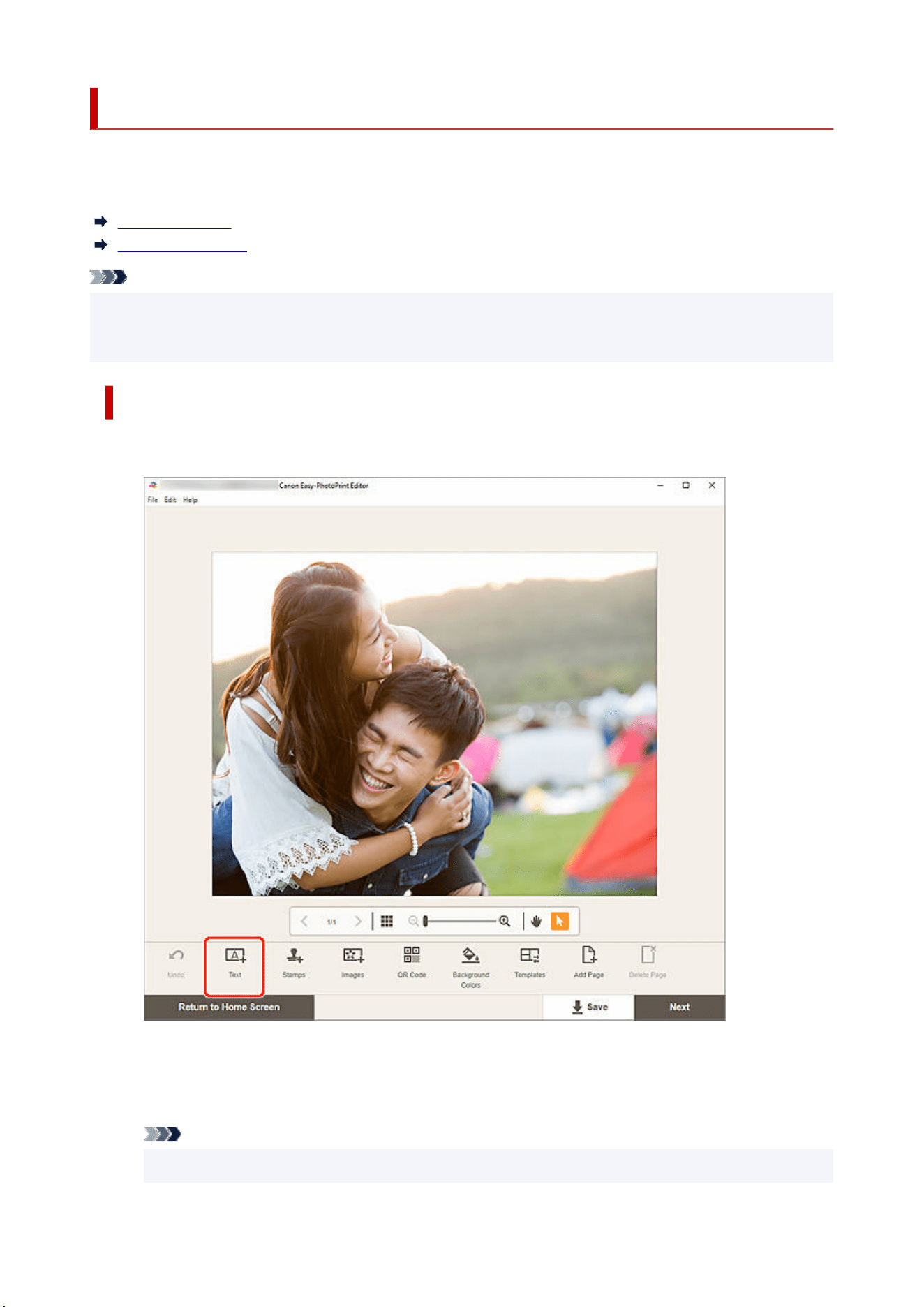
Adding/Adjusting Text Boxes
In the Item edit screen, you can add text boxes to items. You can also adjust the positions, shapes, and
other properties of text boxes.
Adding Text Box
Adjusting Text Box
Note
• To disc labels (CD/DVD/BD), arched text boxes can be added as well as horizontal or vertical ones.•
You can add horizontal or vertical text boxes to items other than disc labels (CD/DVD/BD).
Adding Text Box
1. In Item edit screen, click Text.1.
The available text shapes appear.
2. Select text shape.2.
Note
• The displayed contents vary depending on your environment and item.
132
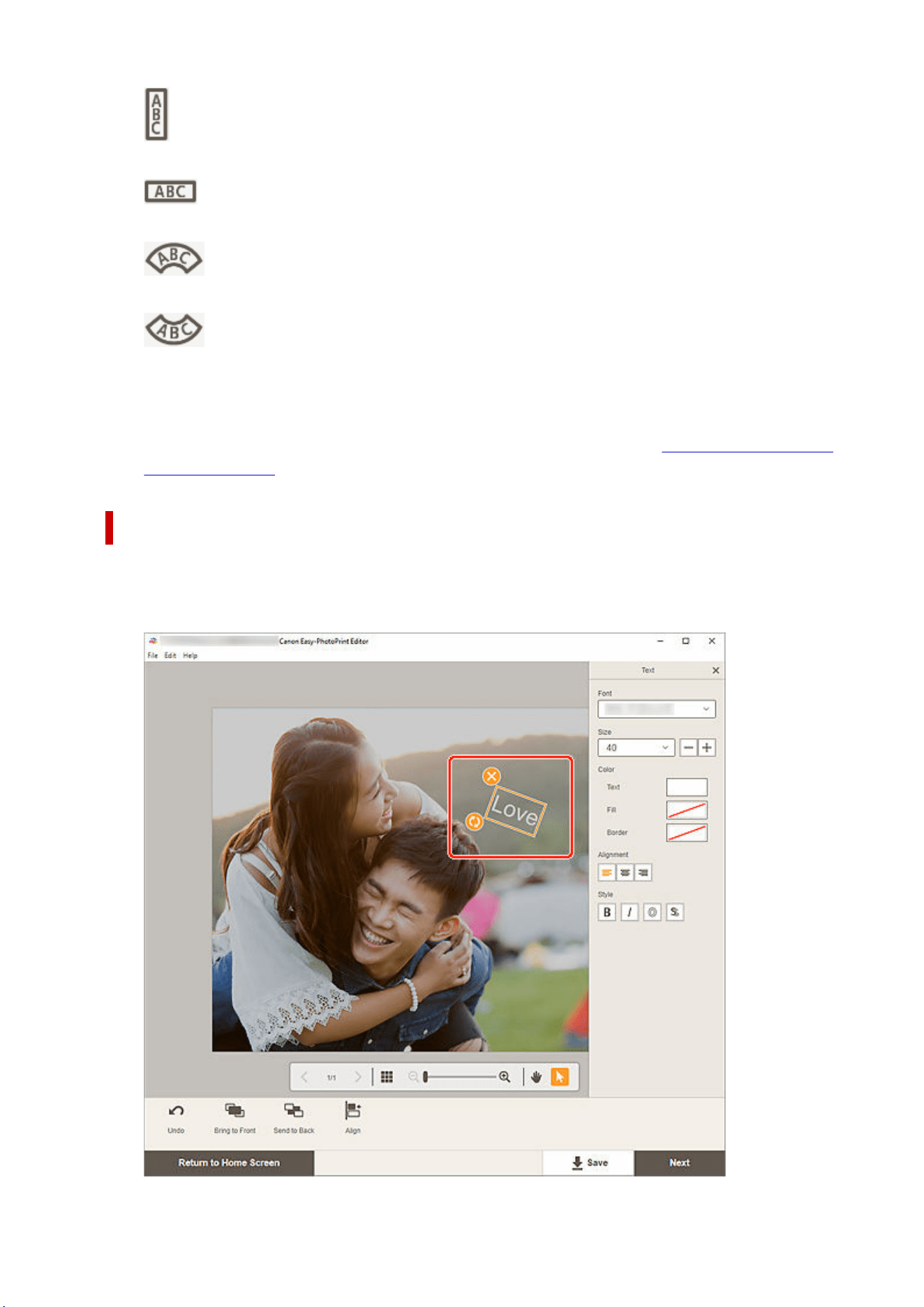
Vertical
Add a vertical text box.
Horizontal
Add a horizontal text box.
Arch Up
Add an arched text box suitable for the upper half of the disc label.
Arch Down
Add an arched text box suitable for the lower half of the disc label.
3. Enter text in added text box, and then click outside item.3.
The Text palette appears on the Sidebar of the Item edit screen and you can
change the font type, font
size, font color, etc.
Adjusting Text Box
1. In Item edit screen, click the text box you want to adjust.1.
The operation icons appear around the frame of the text box.
133
Note
• The displayed contents vary depending on the item.
2. Adjust text box (move, rotate, etc.).2.
Move
When you place the cursor over the frame of a text box, the cursor changes to
(Move) and
you can move the text box.
Note
• To move an Arch Up or Arch Down text box, use (Rotate) or (Enlarge/Reduce
Arch).
(Delete)
Deletes the text box.
(Rotate)
Drag to rotate the text box freely around its center.
When editing an Arch Up or Arch Down text box, the text box rotates around the center of the
disc label.
Click to rotate clockwise by 90 degrees. When editing an Arch Up or Arch Down text box, the
text box cannot be rotated.
(Enlarge/Reduce Arch)
This appears when the Arch Up or Arch Down text box is selected in a disc label.
Drag to enlarge/reduce the text box in an arch shape from the center of the disc label.
Note
• Windows•
From the menu displayed by right-clicking a text box, you can cut or copy the text box, or
change the display order or alignment/distribution of text boxes. The cut or copied text box can
be pasted from the menu displayed by right-clicking the page.
• macOS•
From the menu displayed by control-clicking a text box, you can cut or copy the text box, or
change the display order or alignment/distribution of text boxes. The cut or copied text box can
be pasted from the menu displayed by control-clicking the page.
3. In Editing tools area, adjust text boxes (change display order, align/distribute, etc.).3.
134
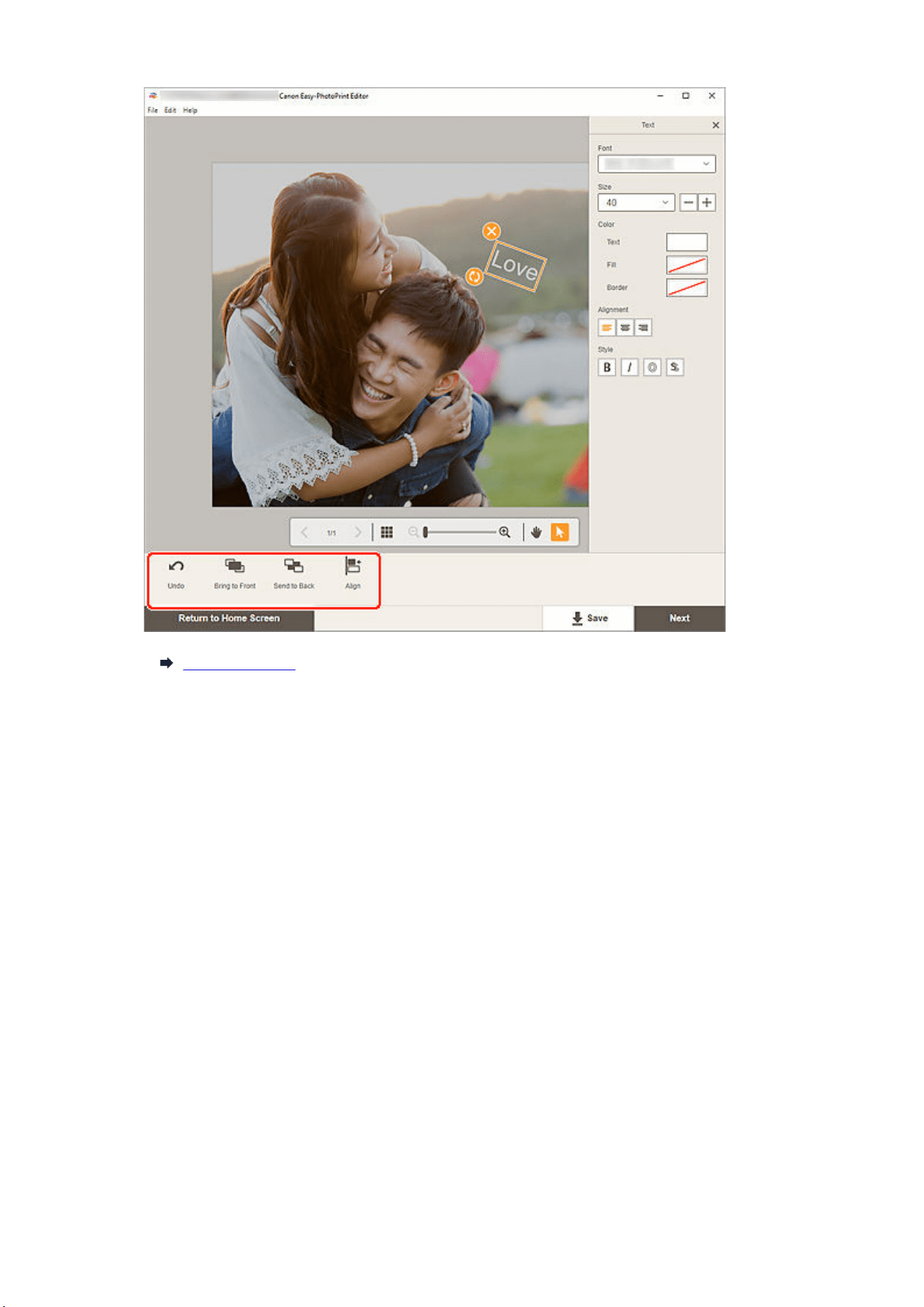
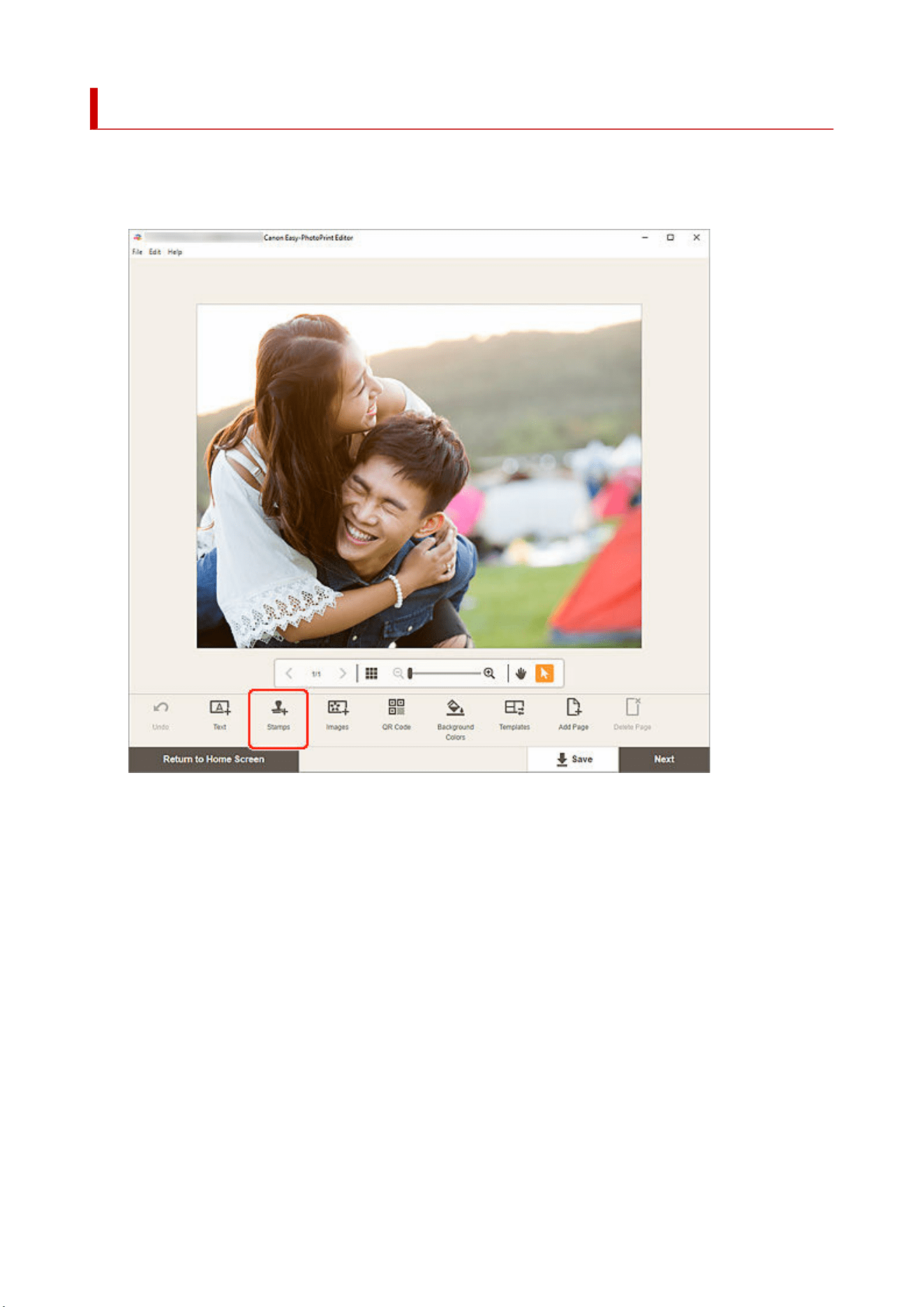
Adding Stamps
In the Item edit screen, you can add stamps to items.
1. In Item edit screen, click Stamps.1.
The Stamps palette appears on the Sidebar of the Item edit screen.
2. In Stamps palette, select the stamp you want to use.2.
136
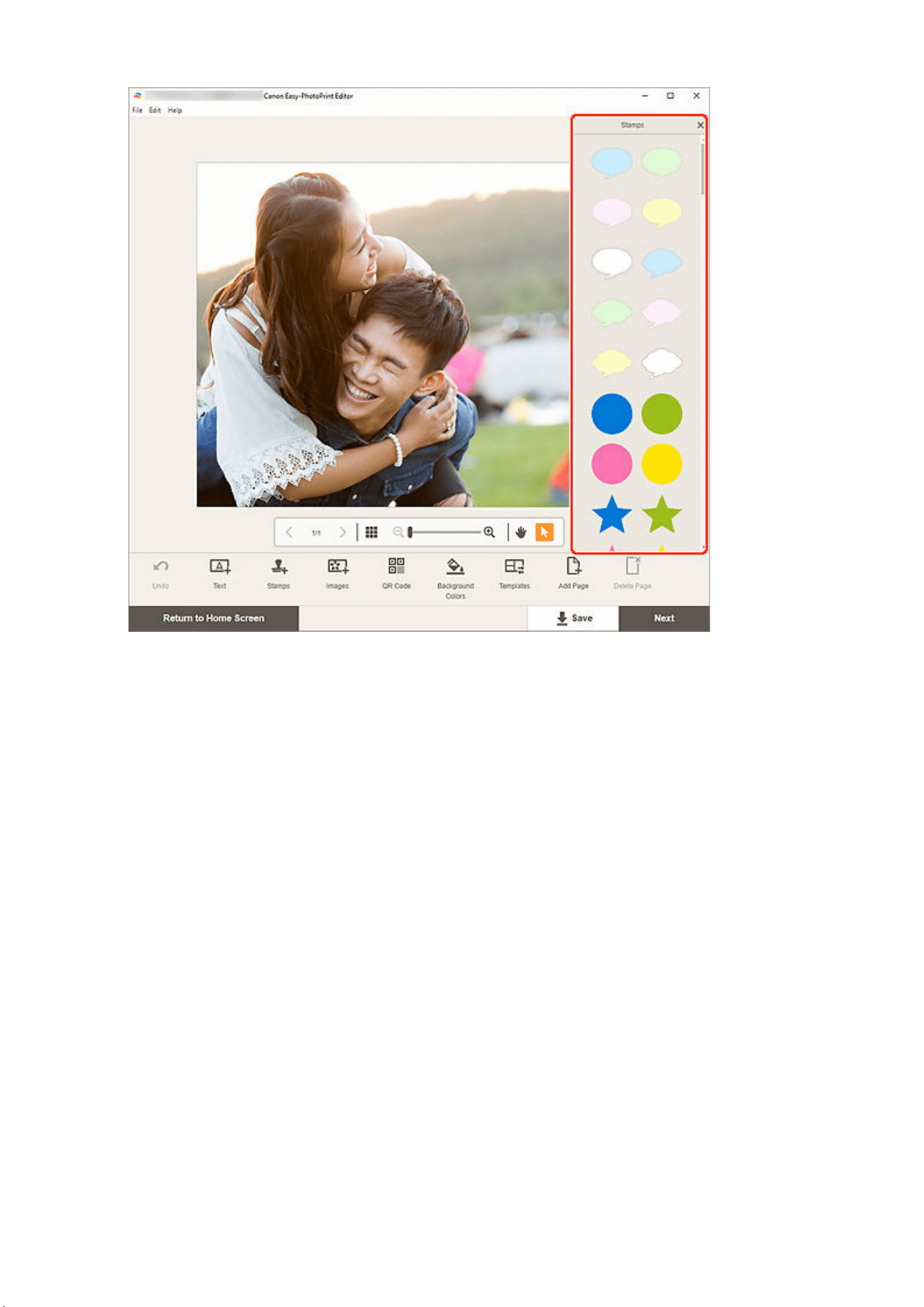
3. Adjust stamp (move, reduce, enlarge, rotate, etc.).3.
137
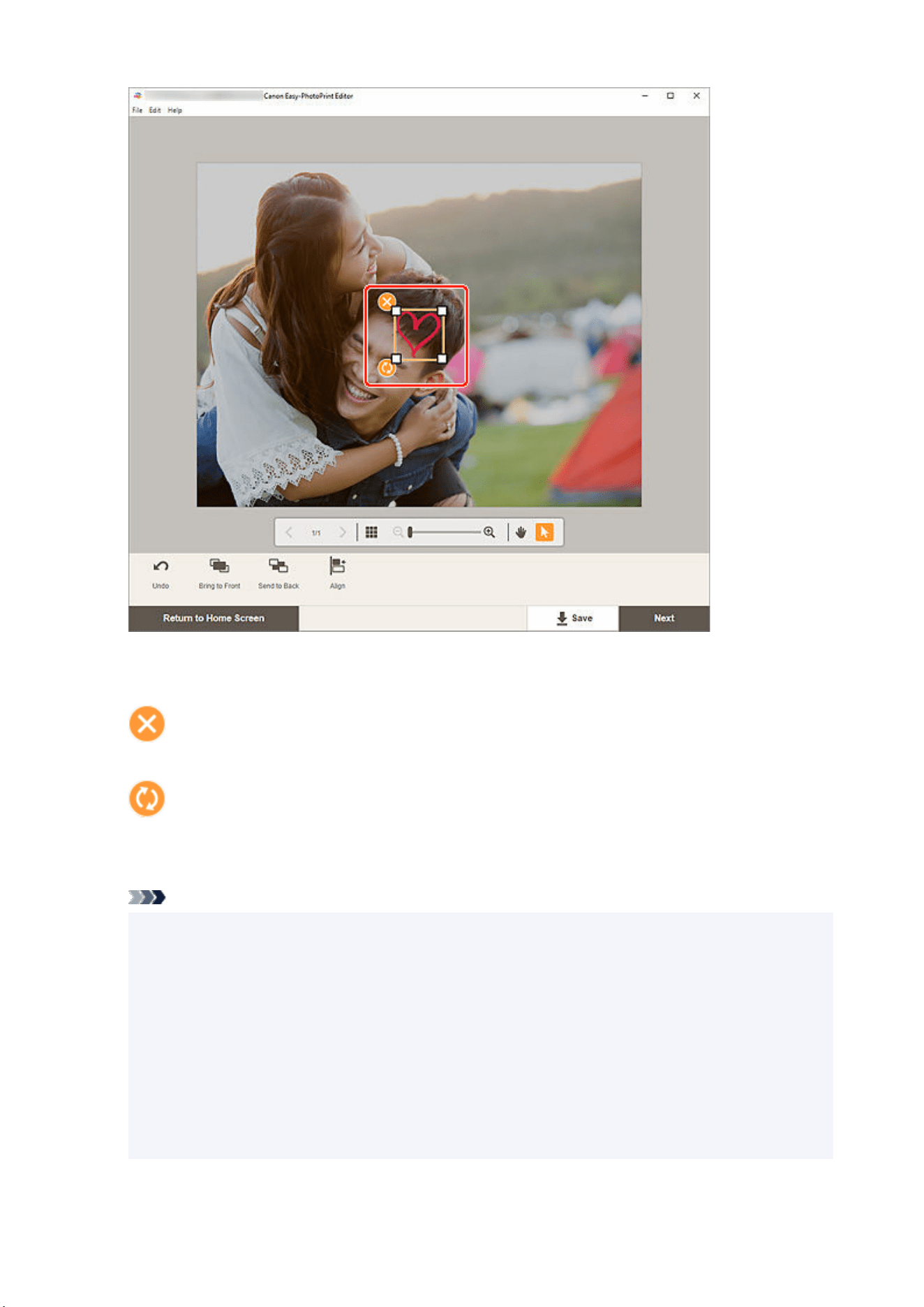
Size
Drag the four white corners of the stamp to adjust its size.
(Delete)
Deletes the stamp.
(Rotate)
Drag to rotate the stamp freely around its center.
Click to rotate clockwise by 90 degrees.
Note
• Drag the stamp to adjust its position.
• Windows•
From the menu displayed by right-clicking a stamp, you can cut or copy the stamp, or change the
display order or alignment/distribution of stamps. The cut or copied stamp can be pasted from the
menu displayed by right-clicking the page.
• macOS•
From the menu displayed by control-clicking a stamp, you can cut or copy the stamp, or change
the display order or alignment/distribution of stamps. The cut or copied stamp can be pasted from
the menu displayed by control-clicking the page.
138
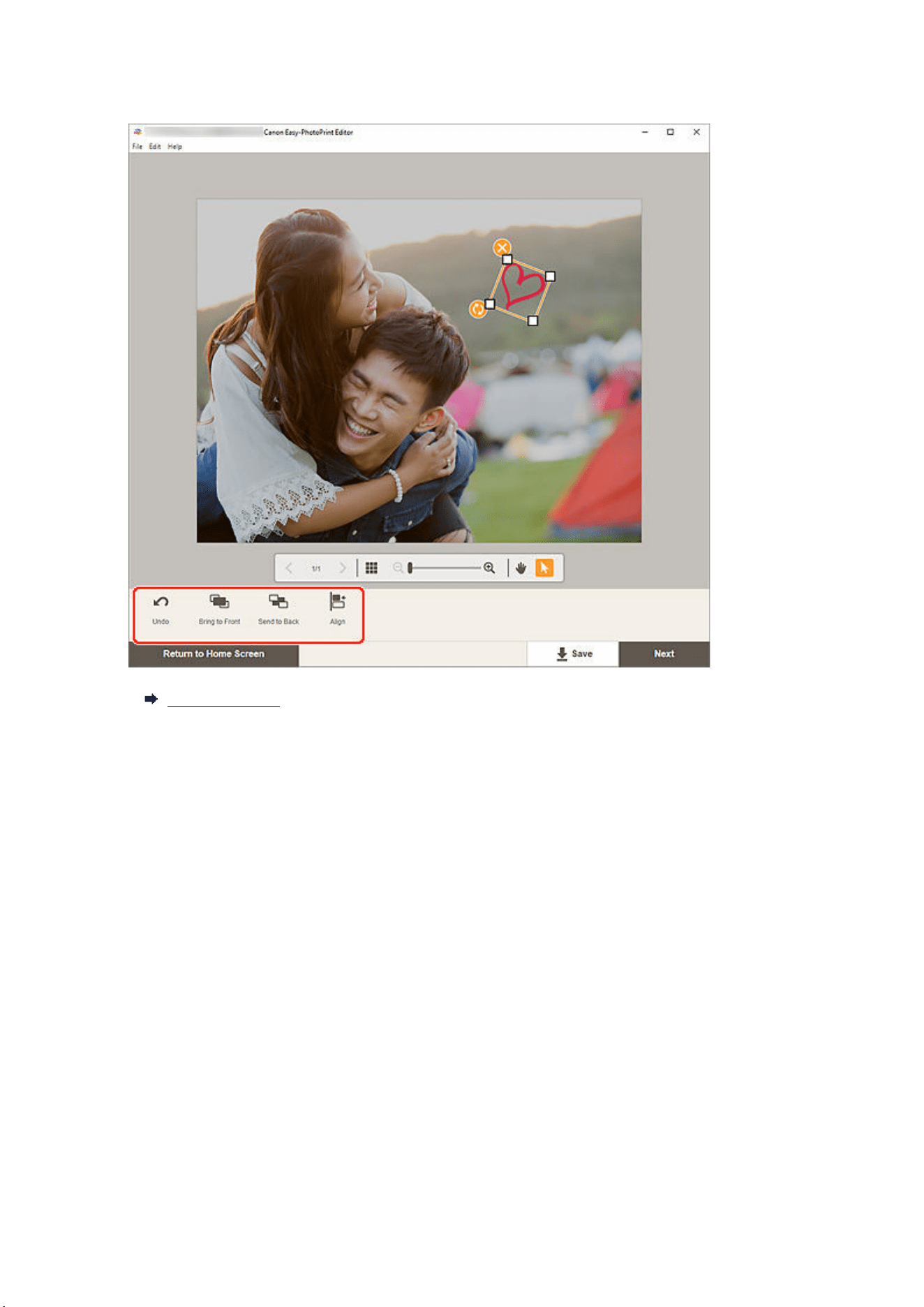
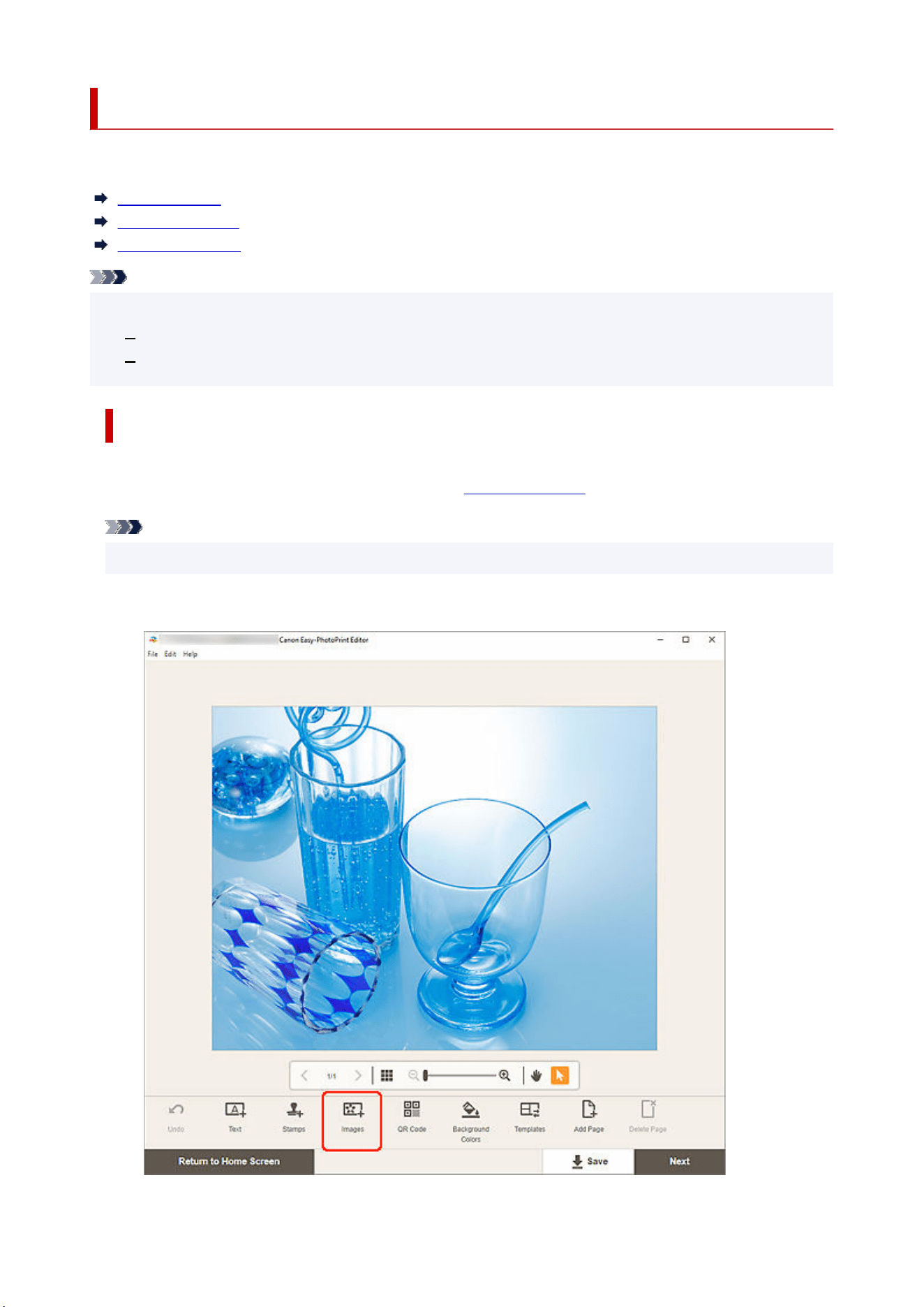
Adding/Changing/Swapping Images
In the Item edit screen, you can add or change images, or swap placed images.
Adding Images
Changing Images
Swapping Images
Note
• The following functions are not available in shuffled layouts.•
Adding an image by dragging and dropping it
Adding images one by one
Adding Images
You can add images to items.
To place images in empty image layout frames, see Changing Images.
Note
• You cannot add images when a template with 10 or more image layout frames is used.
1. In Item edit screen, click Images.1.
140
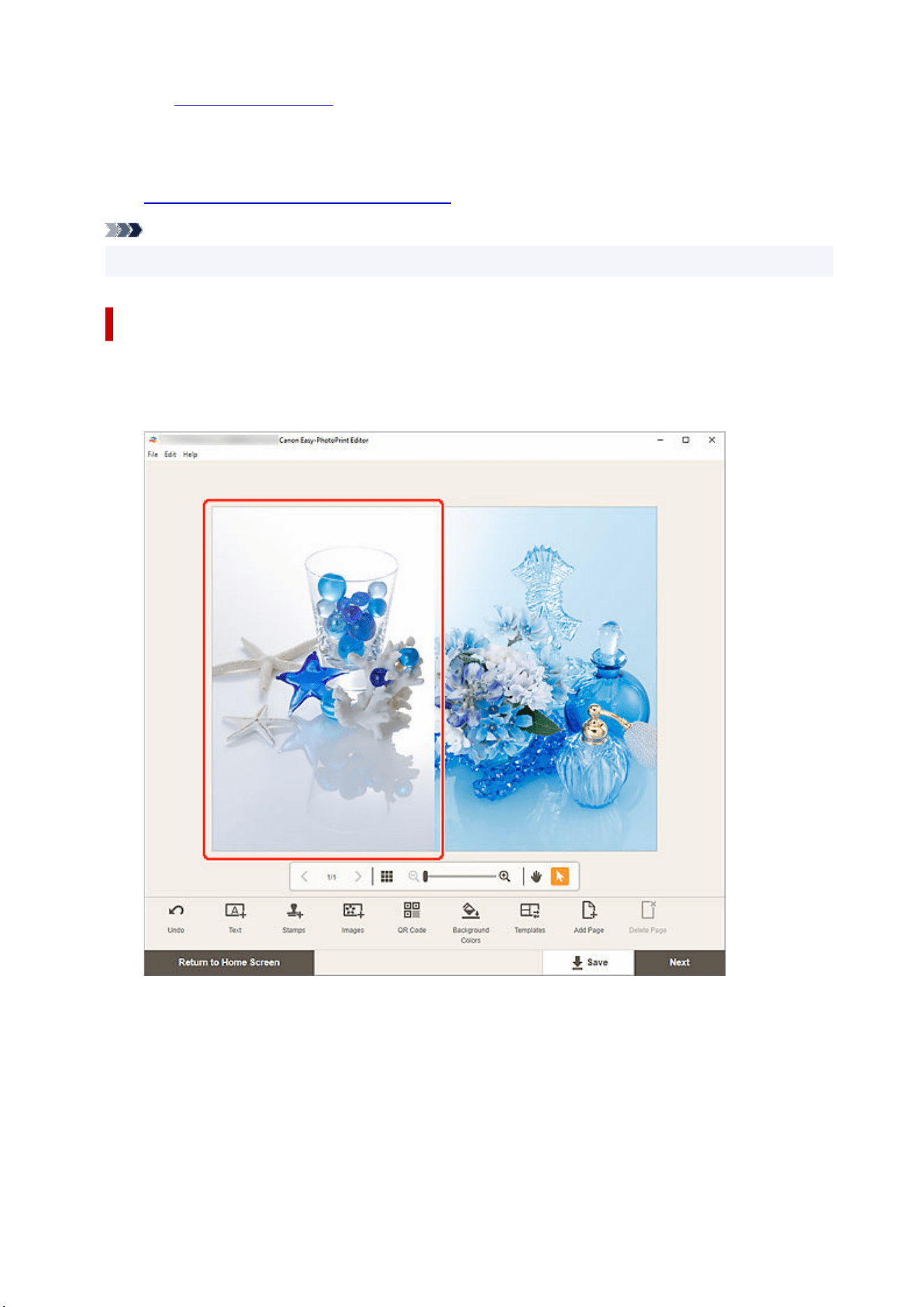
The Photo Locations screen appears.
2. Select the photo you want to add.2.
3.
Adjust position and size of added image as needed.3.
Note
• You can also add images by dragging and dropping them from folders.
Changing Images
You can change images in items. You can also place images in empty image layout frames.
1. In Item edit screen, click the image you want to change or an empty image layout frame.1.
2. Click Select Image.2.
141
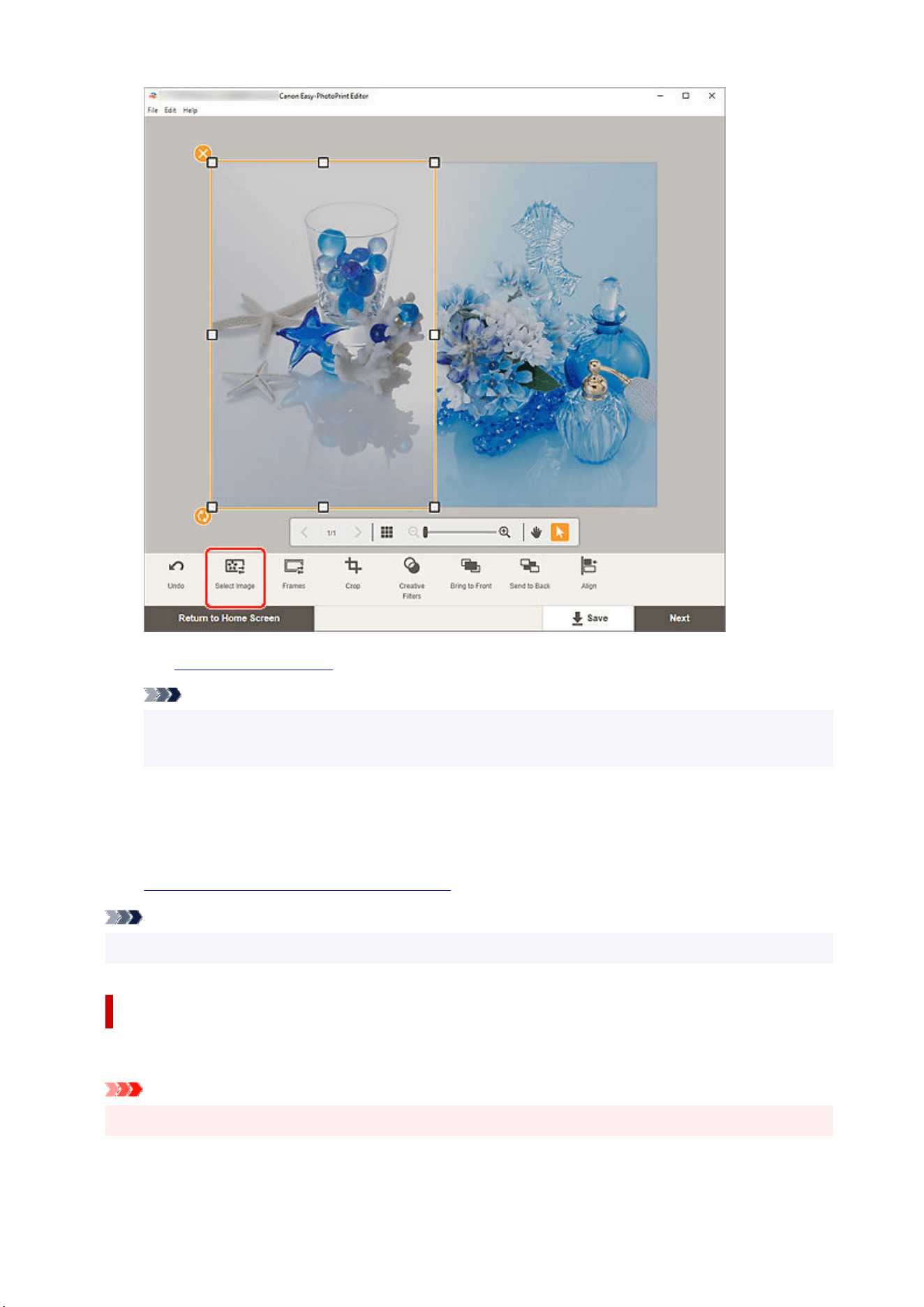
The Photo Locations screen appears.
Note
• Double-clicking the image you want to change or an empty image layout frame also displays the
Photo Locations screen.
3. Select the photo you want to add.3.
The image is changed.
4.
Adjust position and size of added image as needed.4.
Note
• You can also change an image by dragging and dropping another from a folder.
Swapping Images
You can swap an image placed in an item with another image in an image layout frame easily.
Important
• If you swap a cropped image, the cropping settings will be canceled.
1. In Item edit screen, click the image you want to swap.1.
142

2. Drag and drop the selected image to the destination image layout frame.2.
The destination image layout frame turns green when the image is dragged to it.
When the image is dropped, the images will be swapped.
Note
• Only the images will be swapped; frames, stamps, and text boxes will not be moved.
143
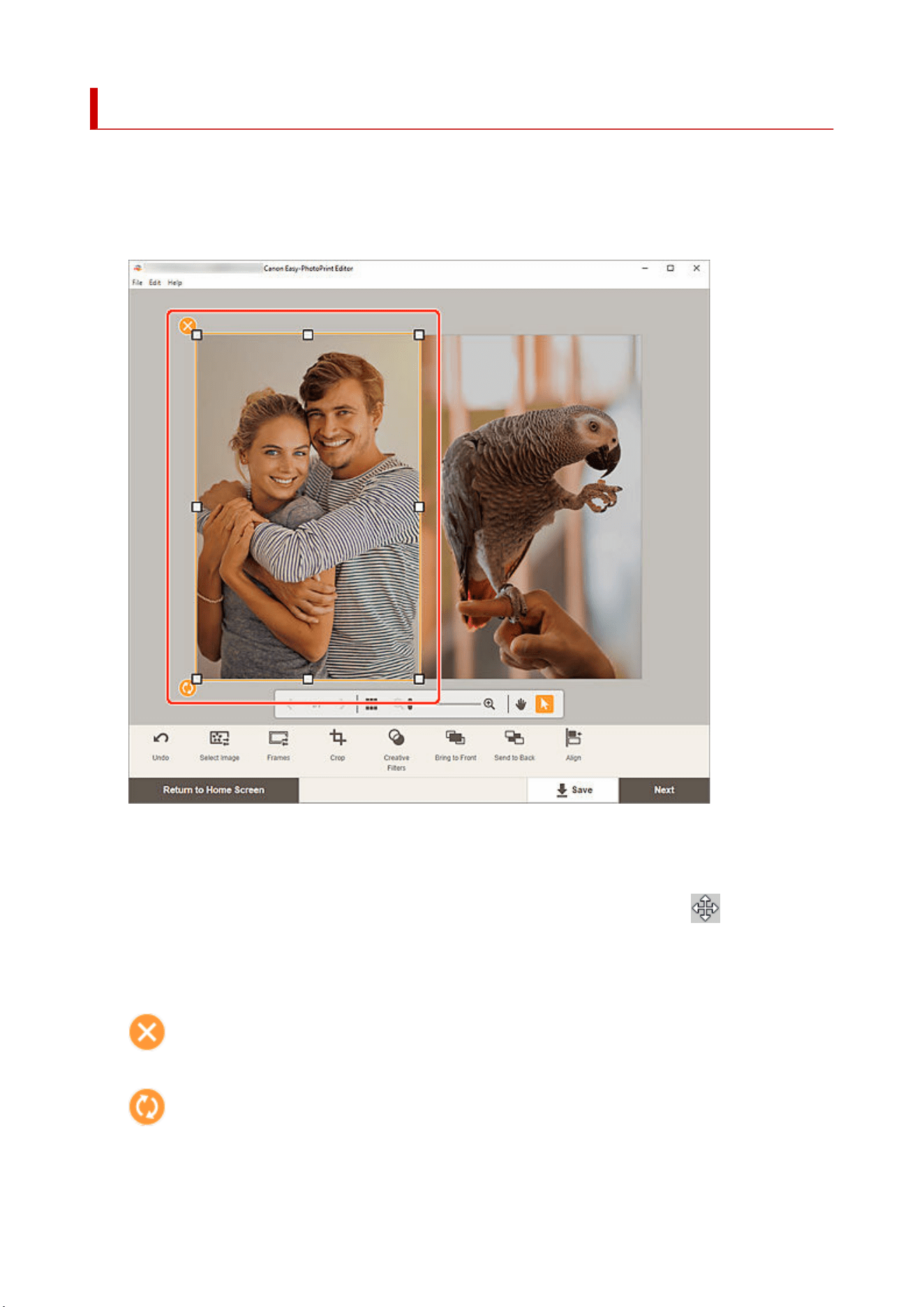
Adjusting Position and Size of Images
In the Item edit screen, you can adjust the position and size of images.
1. In Item edit screen, select the image you want to adjust.1.
An image layout frame and operation icons appear.
2. Change position, size, or angle of image.2.
Move
When you place the cursor over the image layout frame, the cursor changes to
(Move) and you
can move the image.
Size
Drag the white squares of the image layout frame to adjust its size.
(Delete)
Deletes the image layout frame.
(Rotate)
Drag to rotate the image layout frame freely around its center.
Click to rotate clockwise by 90 degrees.
144
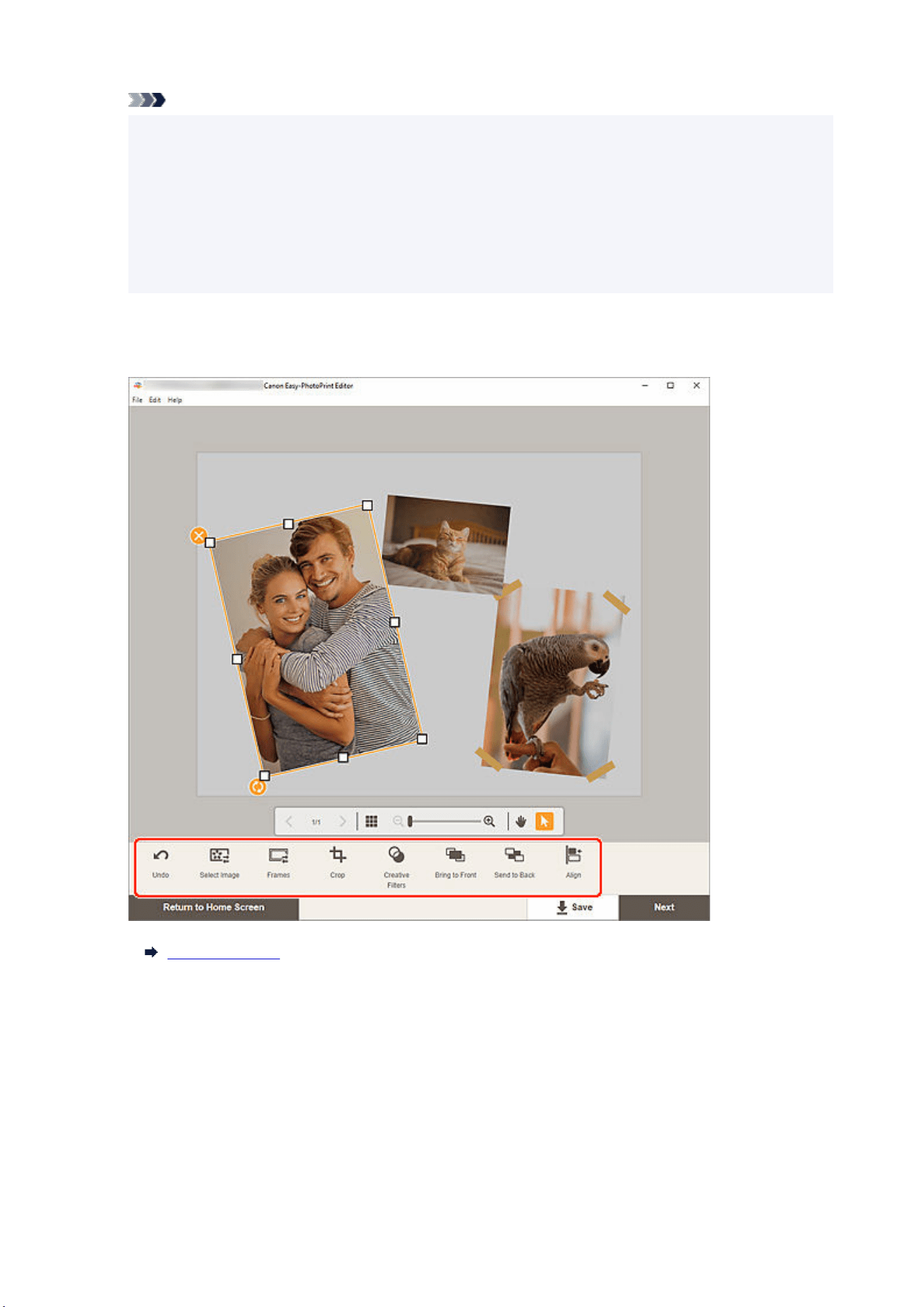
Note
• Windows•
In the menu displayed by right-clicking an image layout frame, you can cut, copy, or paste the
image, or change the display order or alignment/distribution of images.
• macOS•
In the menu displayed by control-clicking an image layout frame, you can cut, copy, or paste the
image, or change the display order or alignment/distribution of images.
3. In Editing tools area, adjust images (add frames, crop, change display order, align/3.
distribute, etc.).
Item Edit Screen
4. Click outside item.4.
The adjusted image is reflected in the item.
145
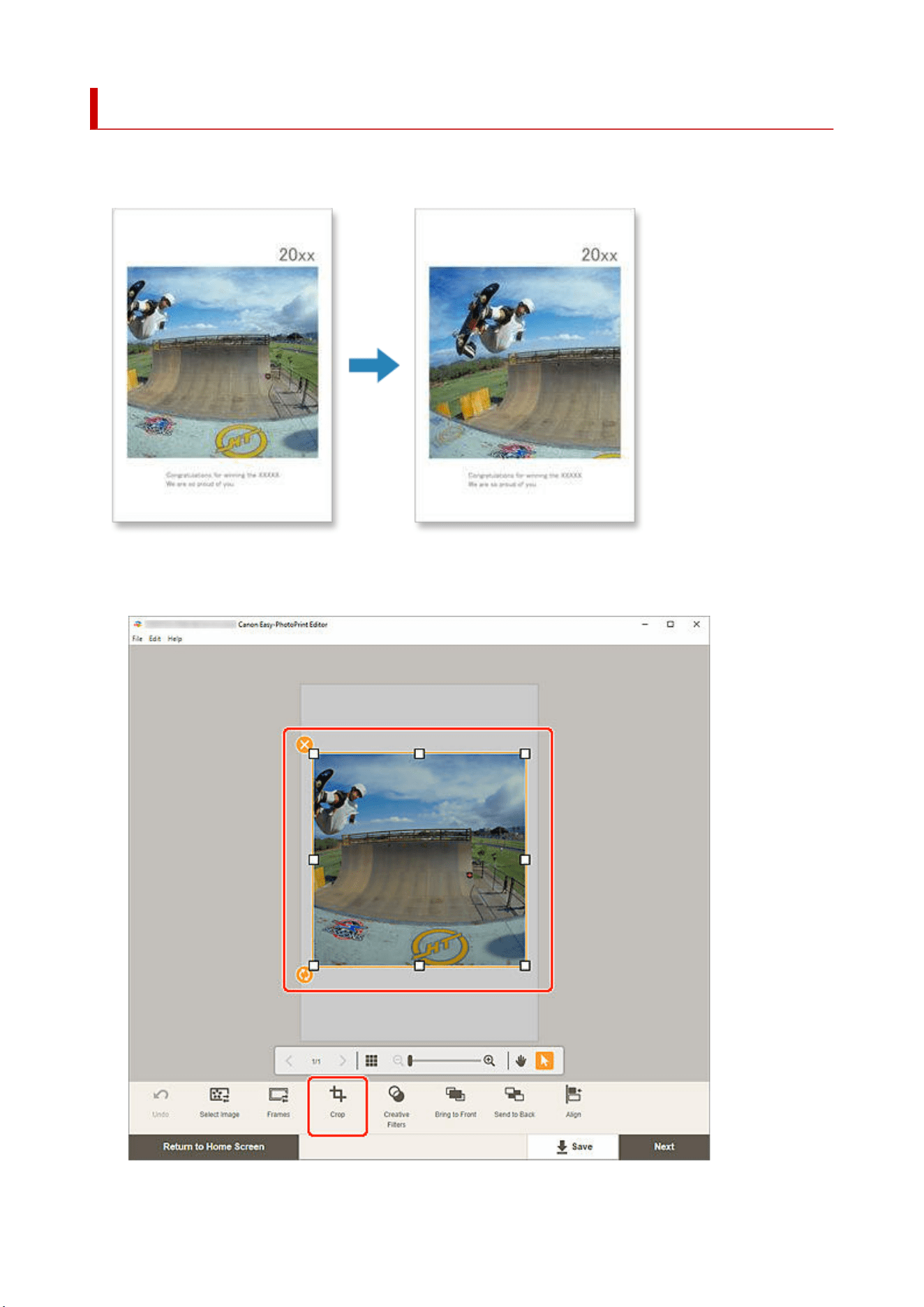
Cropping Images (for Items)
In the Item edit screen, crop images to select only the areas you want to keep.
1. In Item edit screen, select the image you want to crop, and then click Crop.1.
146
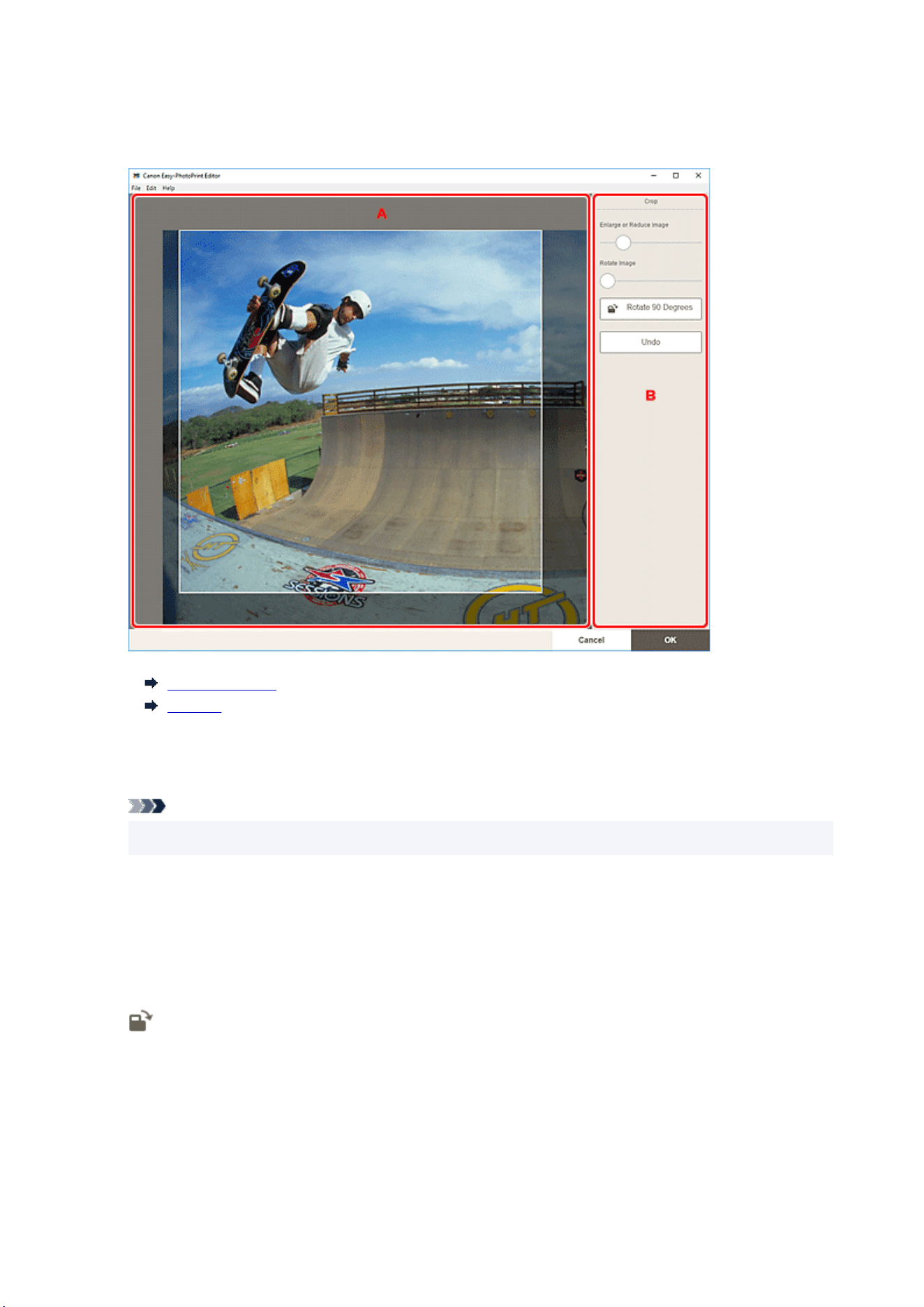
The view switches to the Crop screen.
2. Enlarge/reduce or rotate image while previewing the result.2.
A: Preview Area
B: Crop
A: Preview Area
Displays the preview of the image being cropped.
Note
• You can specify the area to crop by dragging the image.
B: Crop
Enlarge or Reduce Image
Drag the slider to enlarge or reduce the image freely.
Rotate Image
Drag the slider to rotate the image.
Rotate 90 Degrees
Rotates the image 90 degrees clockwise with each click.
Undo
Restores the image to the state before it was cropped.
3. Click OK.3.
147

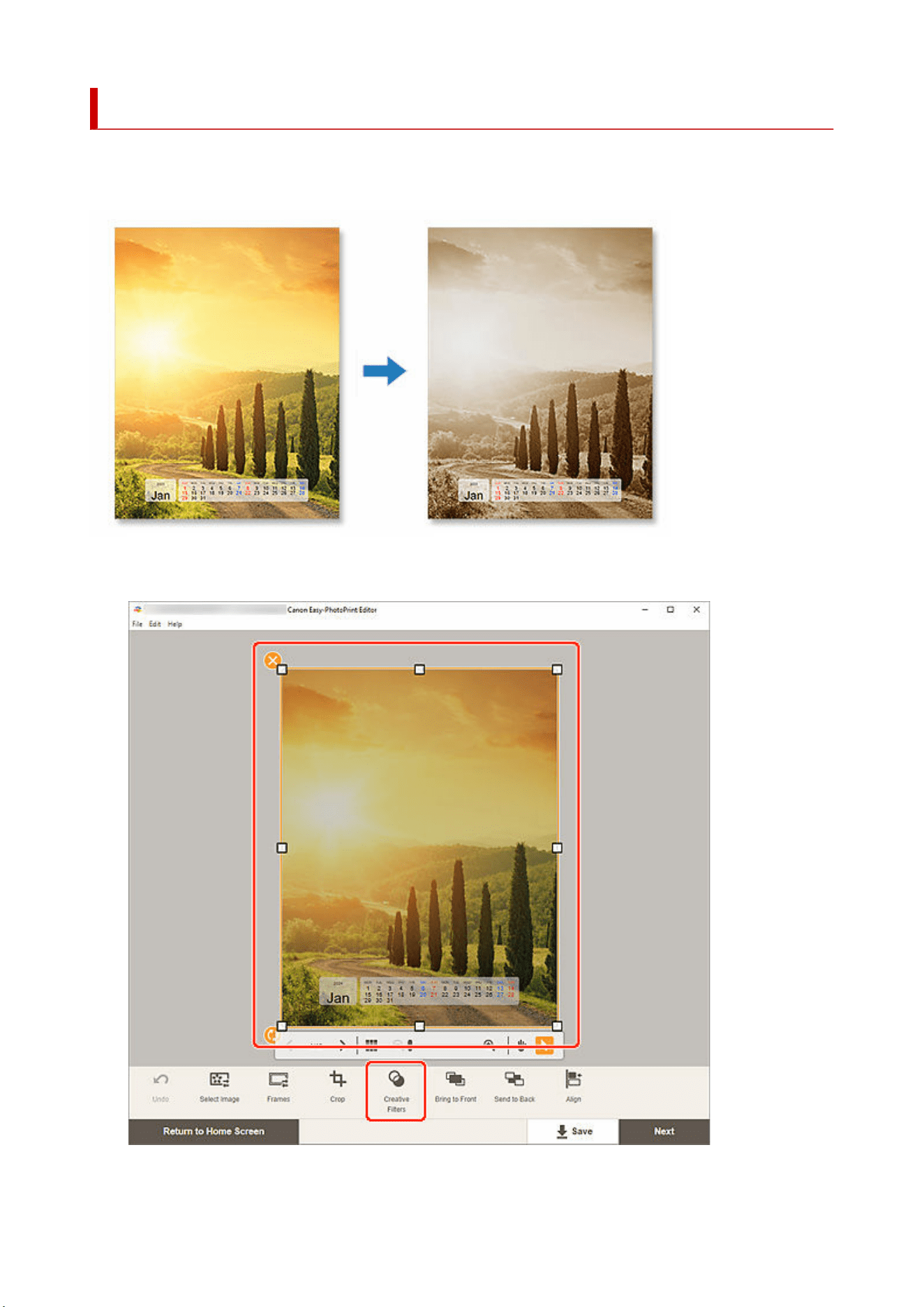
Enhancing Images with Creative Filters (for Items)
In the Item edit screen, use Creative filters to make your images attractive by enhancing them with effects
such as black and white tone and antique tone.
1. In Item edit screen, select the image you want to enhance, and then click Creative Filters.1.
The Creative Filters palette appears on the Sidebar of the Item edit screen.
149
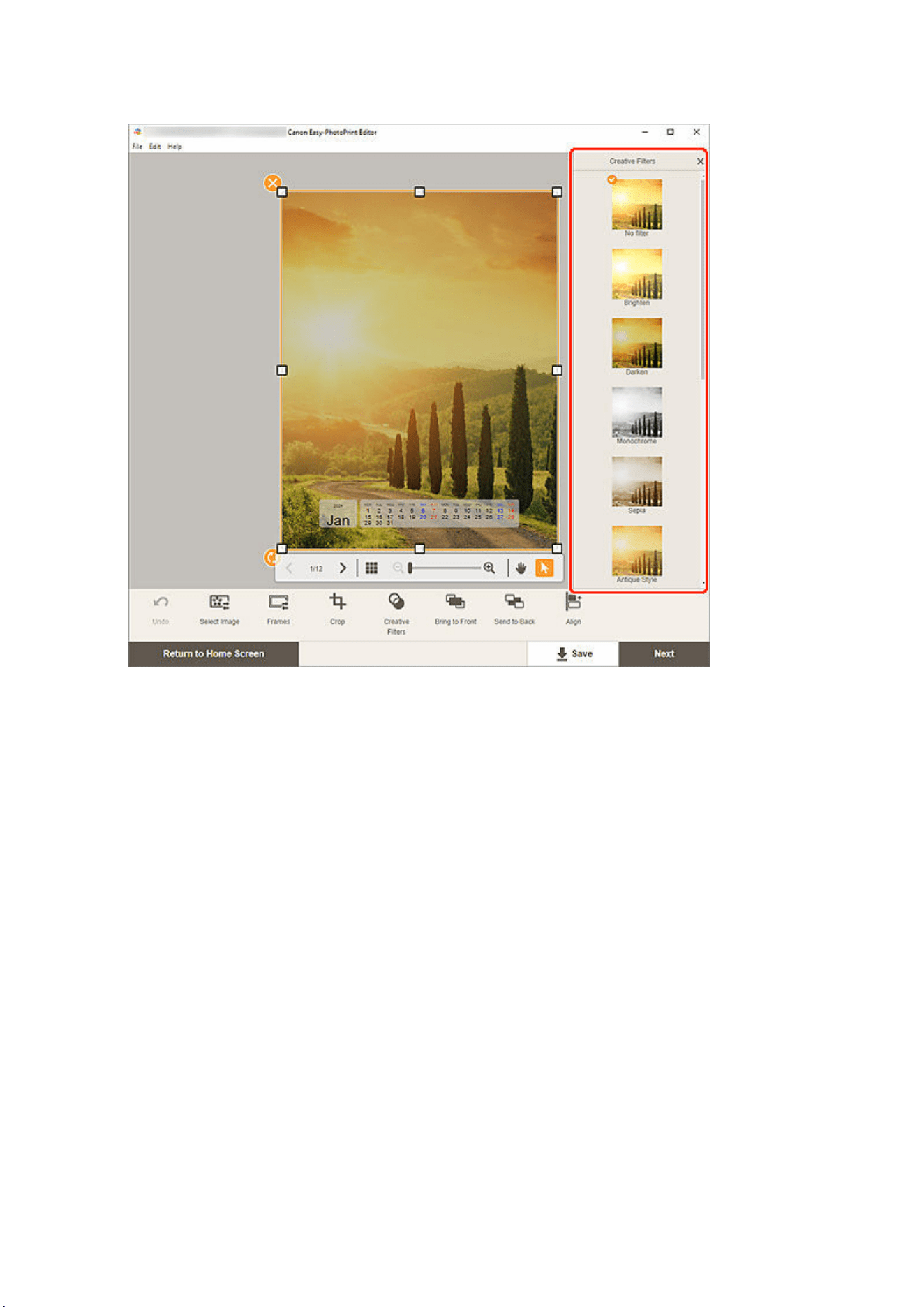
2. In Creative Filters palette, select filter.2.
The selected Creative filter is applied to the image.
150
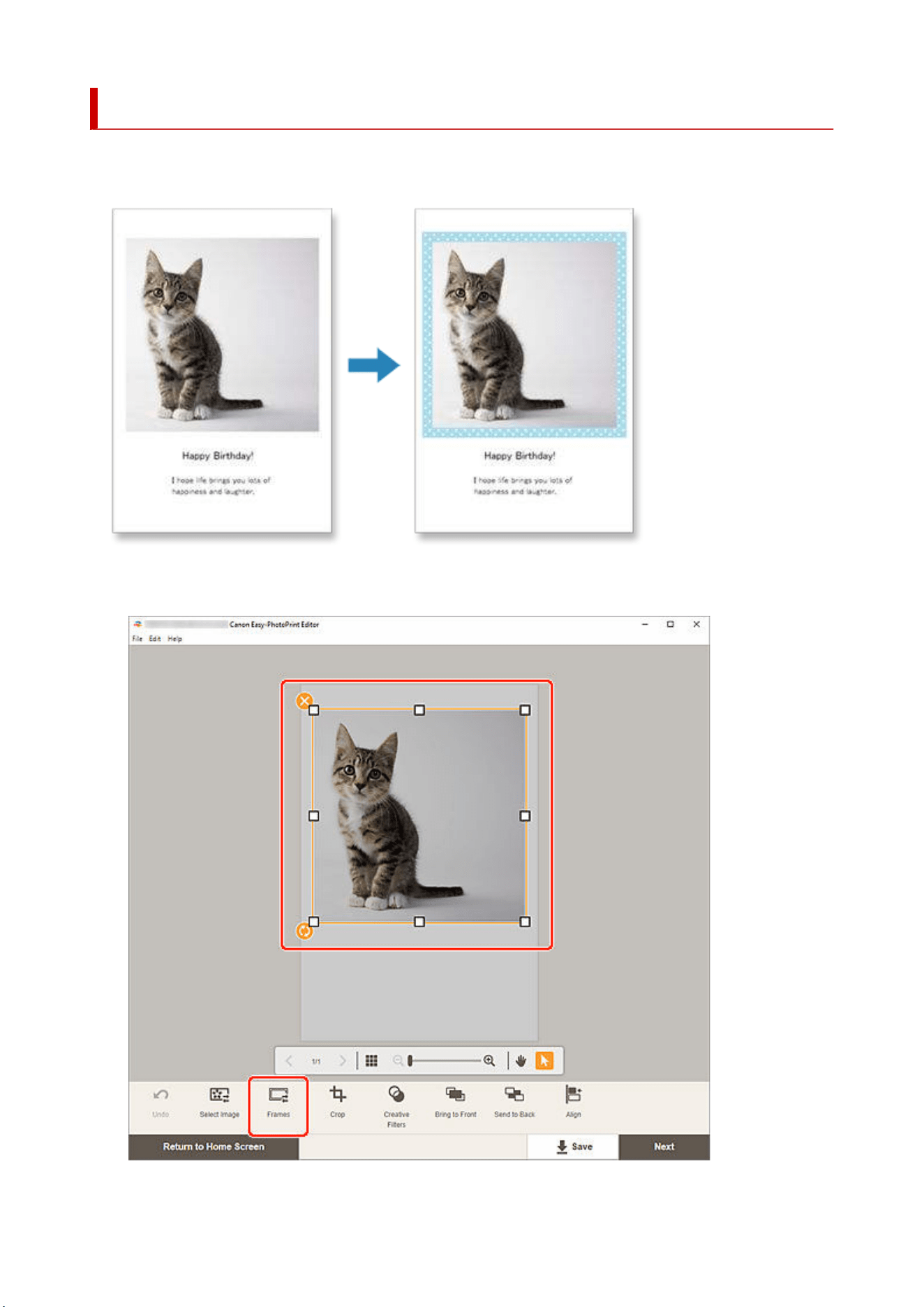
Changing Image Frames
Add a stylish feel to your items by decorating images with various frames.
1. In Item edit screen, select the image you want to enhance, and then click Frames.1.
151
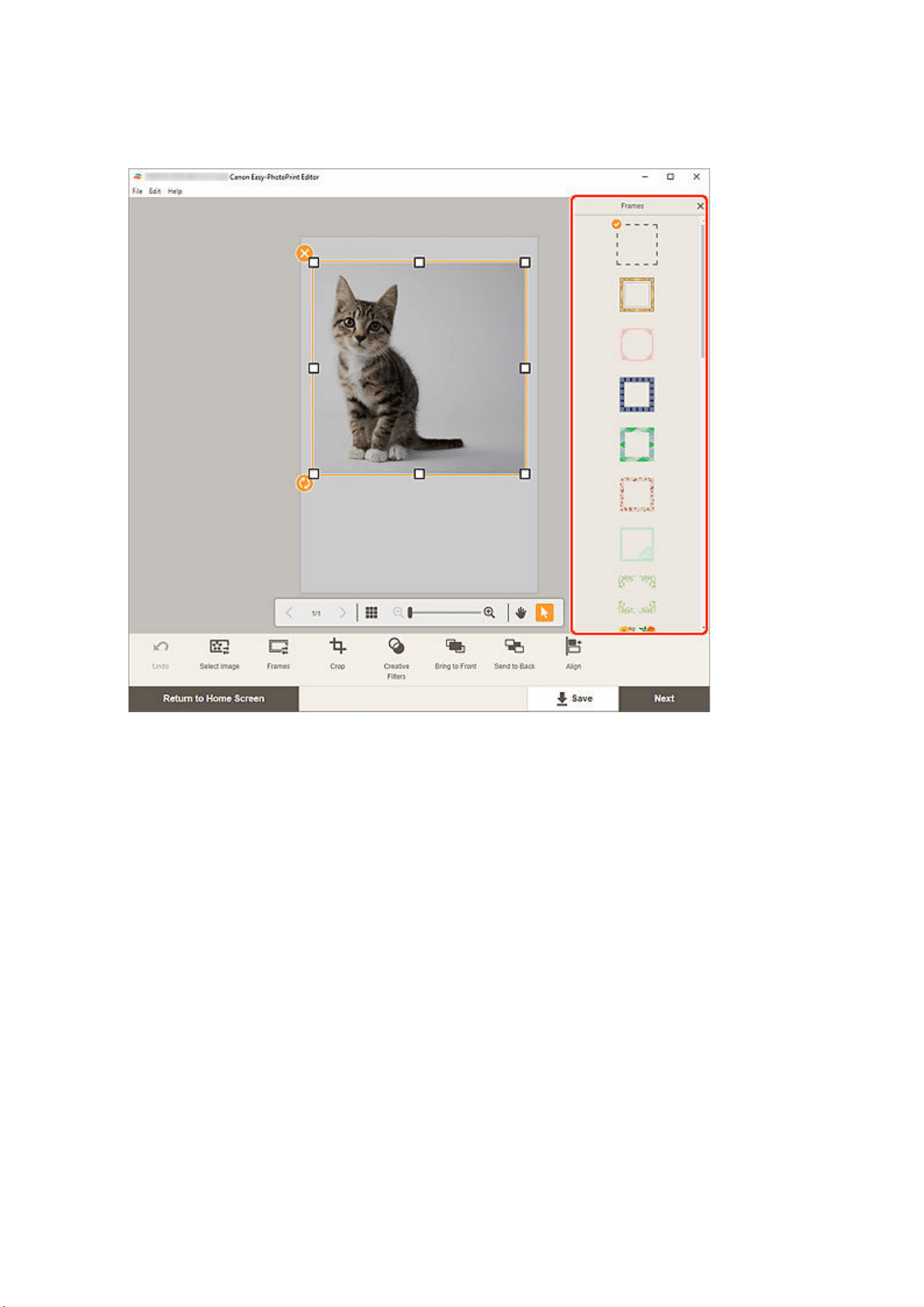
The Frames palette appears on the Sidebar of the Item edit screen.
2. In Frames palette, select frame.2.
The selected frame is applied to the image.
152
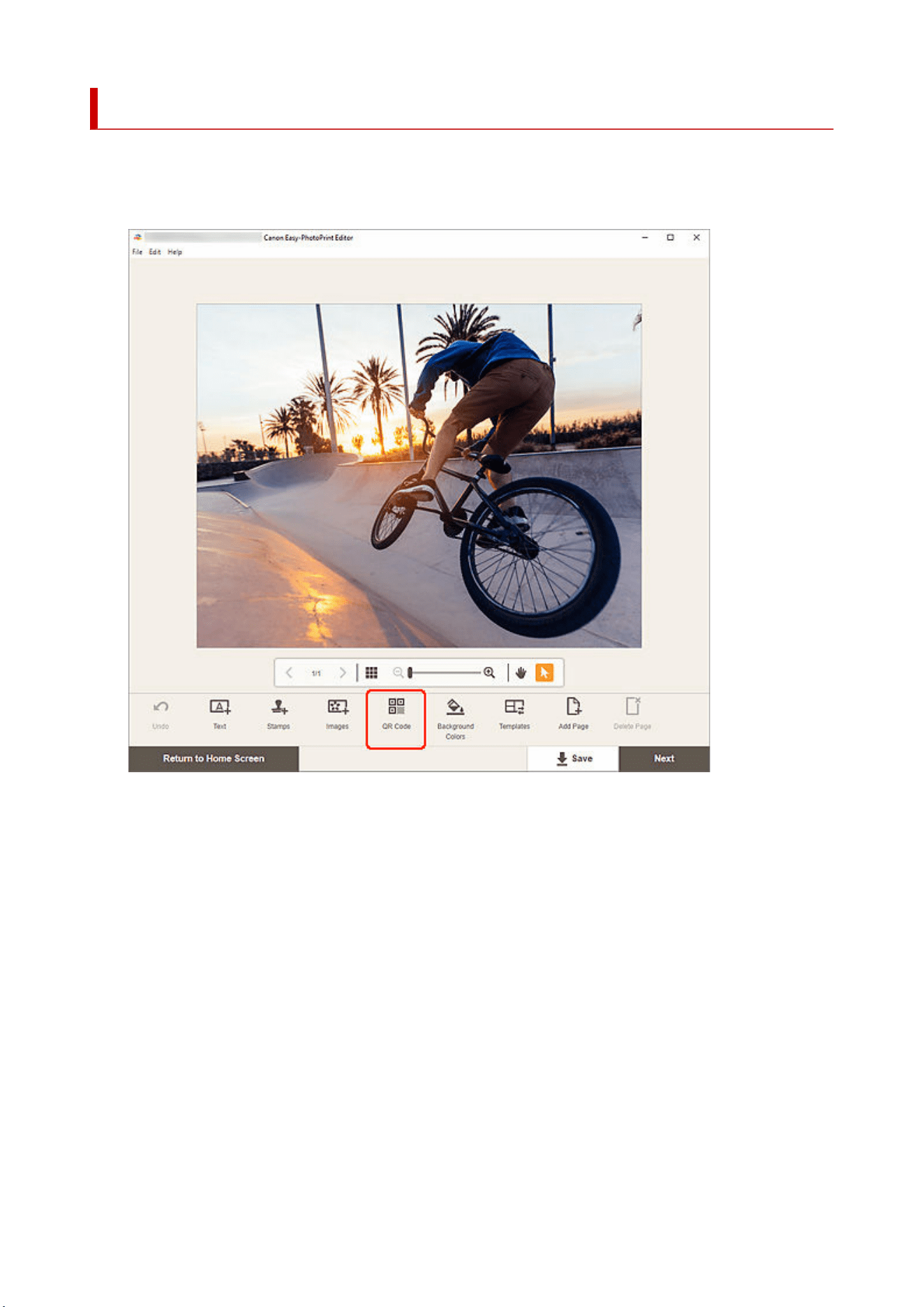
Adding QR Codes
In the Item edit screen, you can add QR codes to items..
1. In Item edit screen, click QR Code.1.
The QR code palette appears on the Sidebar of the Item edit screen.
2. Enter text or a URL in the QR code settings palette, and then click Generate QR Code.2.
153
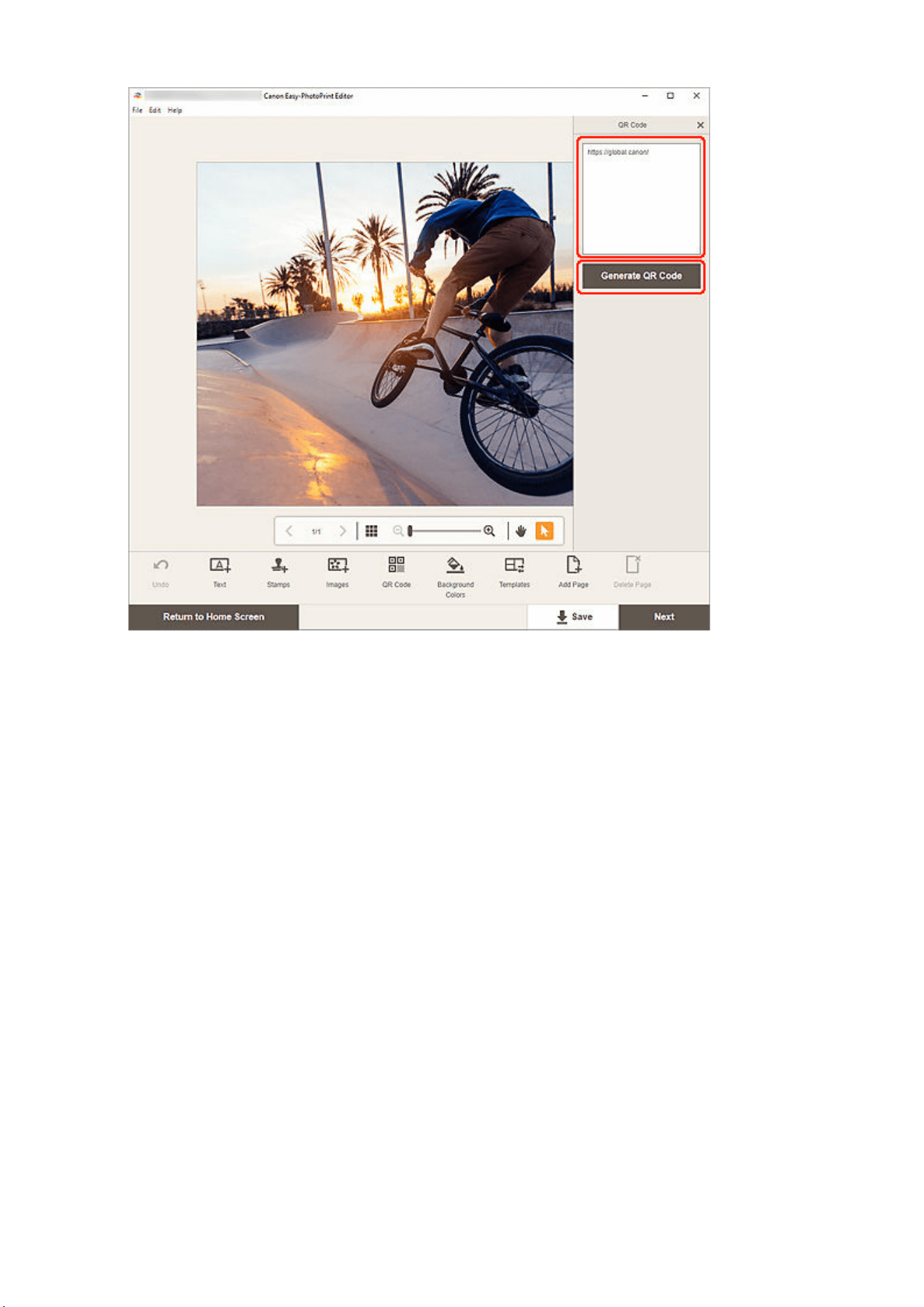
3. Adjust QR code (move, reduce, enlarge, etc.).3.
154
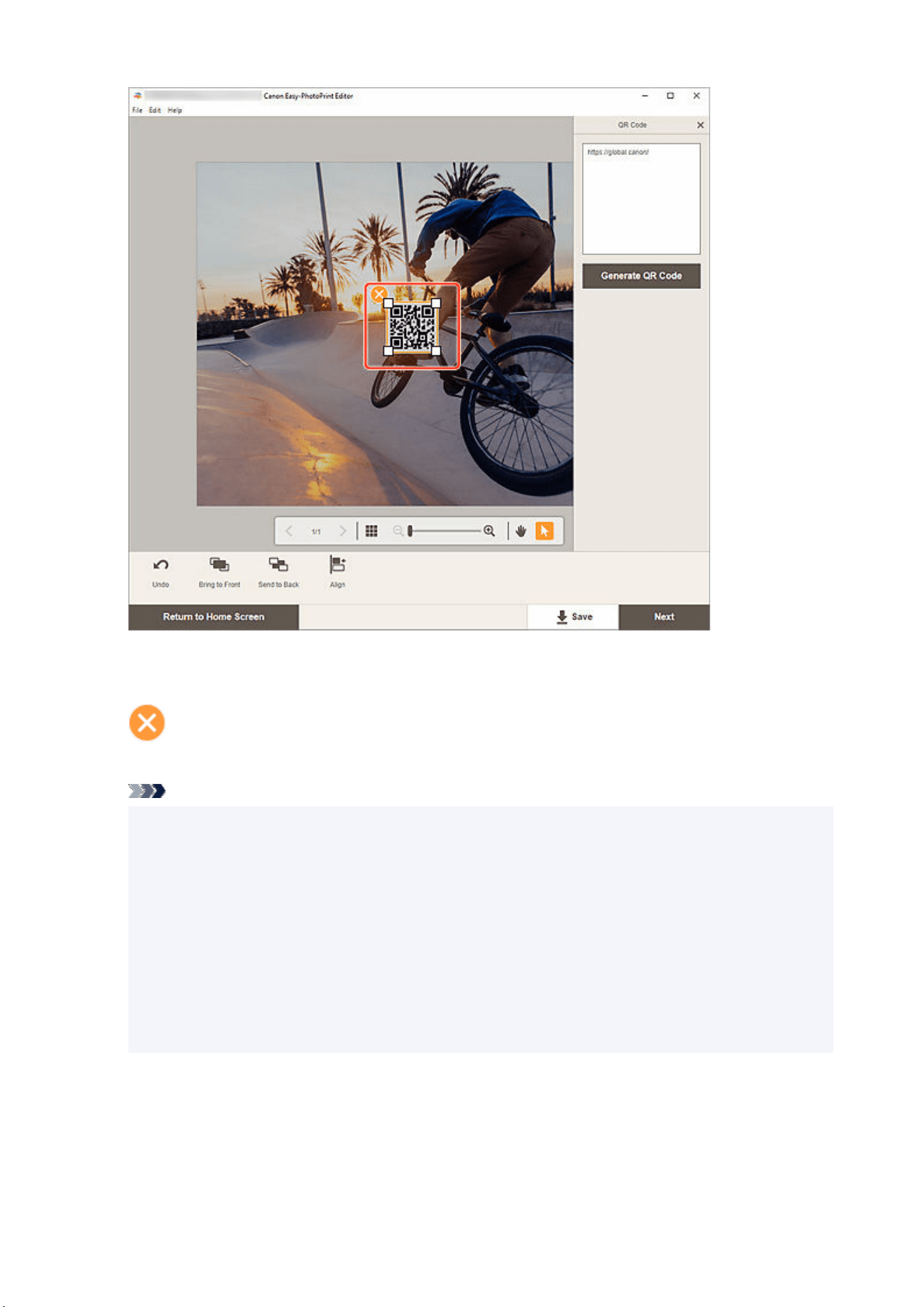
Size
Drag the four white corners of the QR code to adjust its size.
(Delete)
Deletes the QR code.
Note
• Drag the QR code to adjust its position.
• Windows•
From the menu displayed by right-clicking a QR code, you can cut or copy the QR code, or
change the display order or alignment/distribution of QR codes. The cut or copied QR code can
be pasted from the menu displayed by right-clicking the page.
• macOS•
From the menu displayed by control-clicking a QR code, you can cut or copy the QR code, or
change the display order or alignment/distribution of QR codes. The cut or copied QR code can
be pasted from the menu displayed by control-clicking the page.
4. In Editing tools area, adjust QR codes (change display order, align/distribute, etc.).4.
155
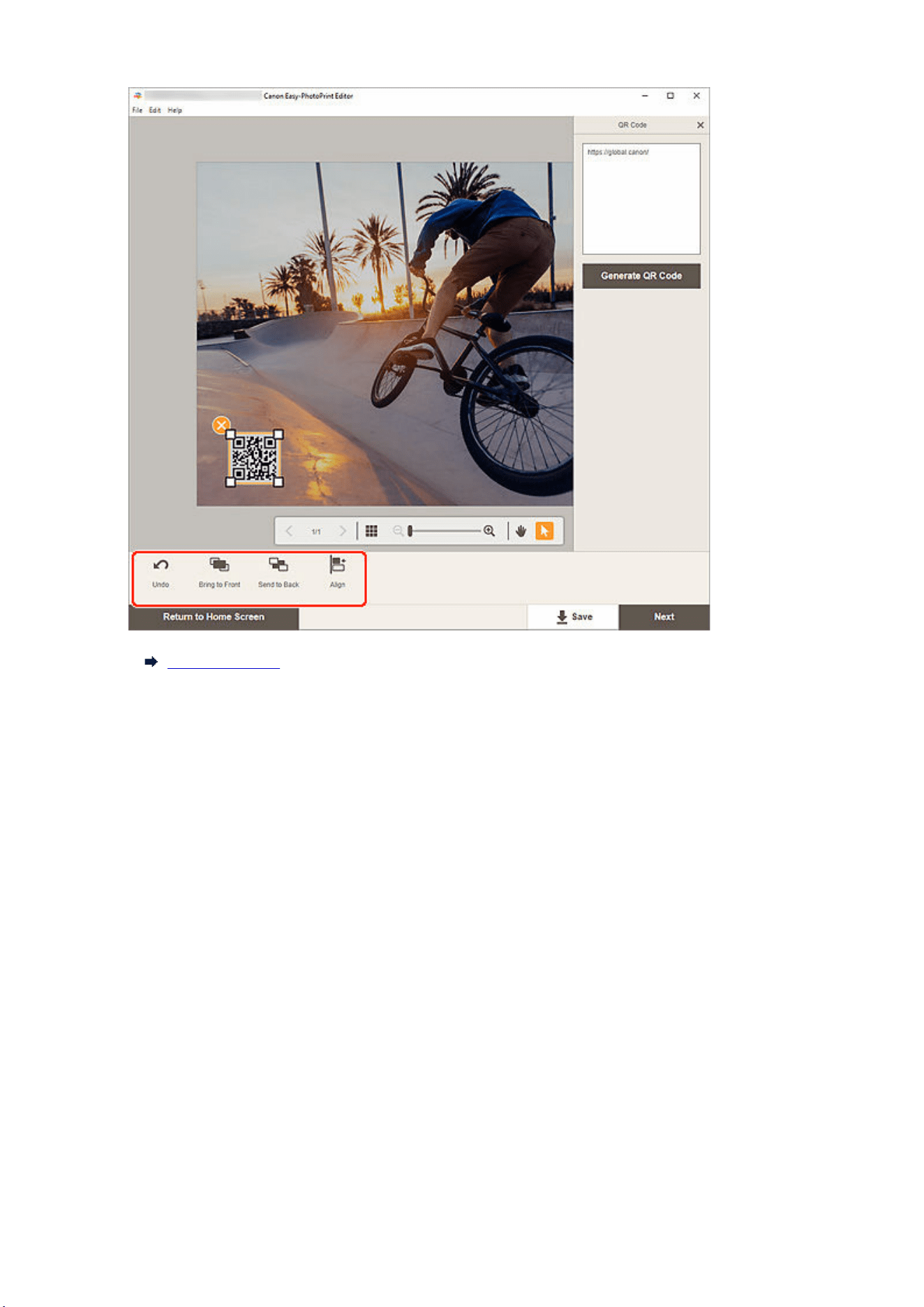
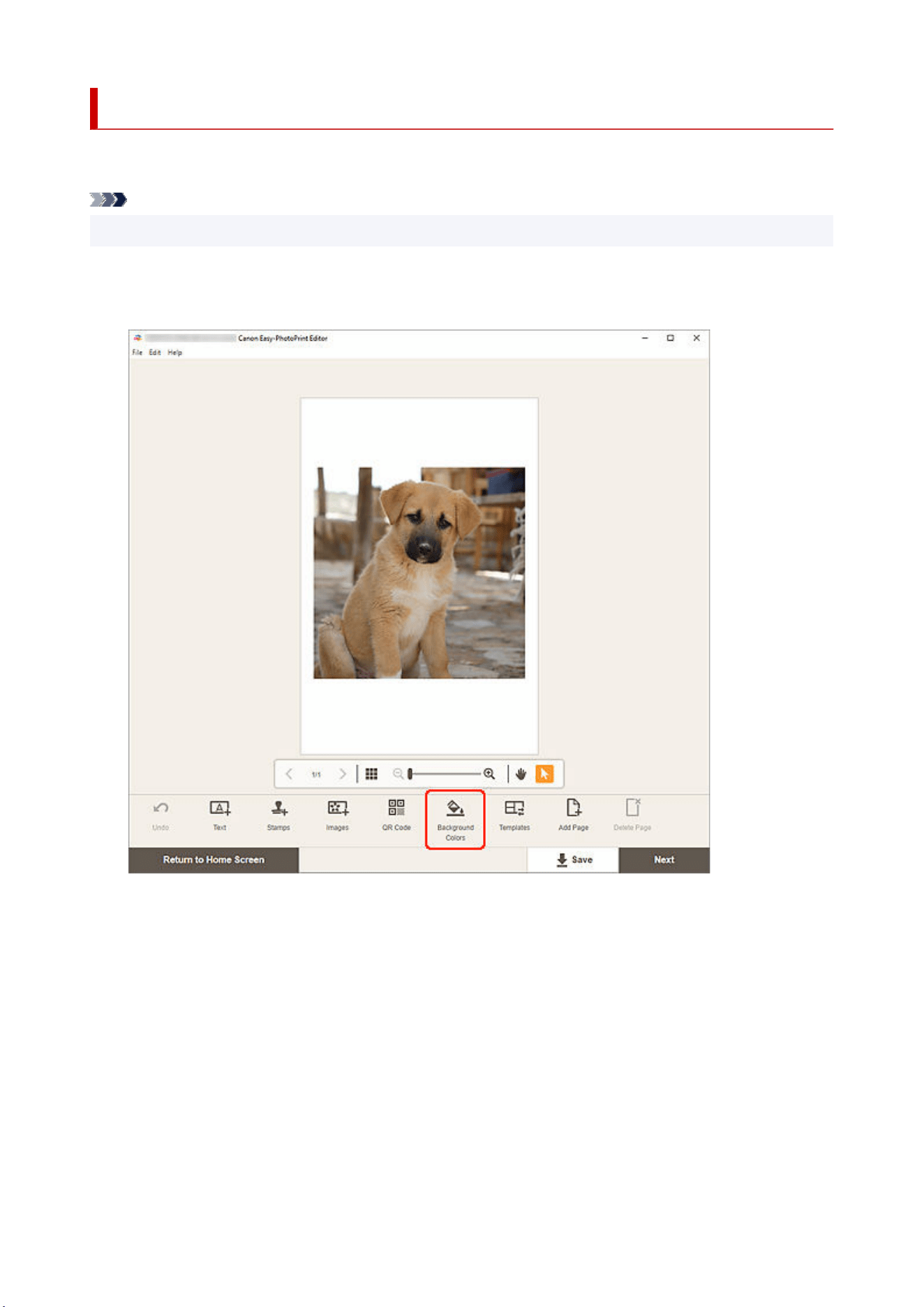
Changing Background Colors
In the Item edit screen, you can change the background color of your items by page.
Note
• Available when a white template is selected for a photo layout or disc label.
1. In Item edit screen, select the page whose background you want to change, and then click1.
Background Colors.
The Background Colors palette appears on the Sidebar of the Item edit screen.
2. In Background Colors palette, select color.2.
157
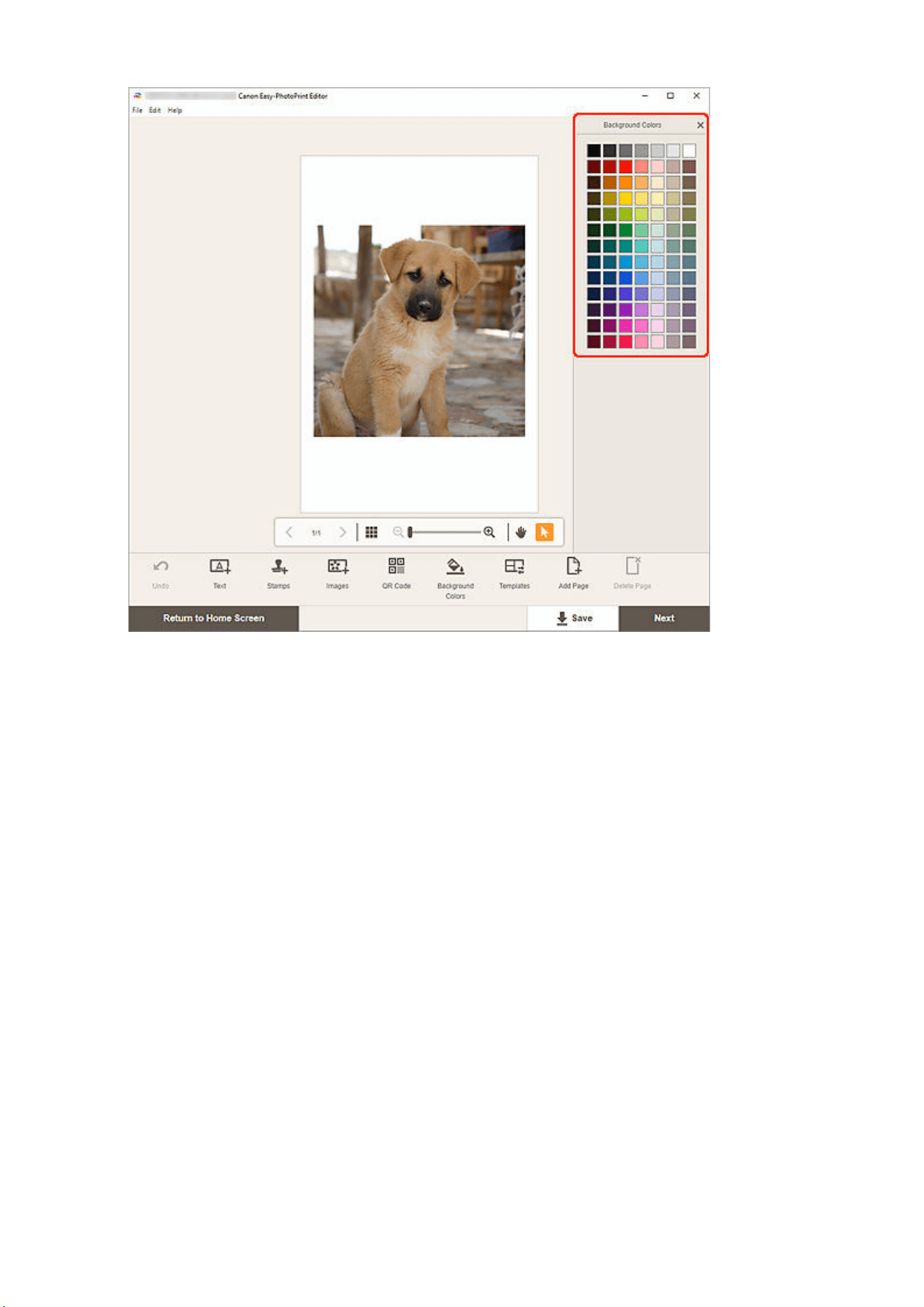
The selected background color is applied to the item.
158
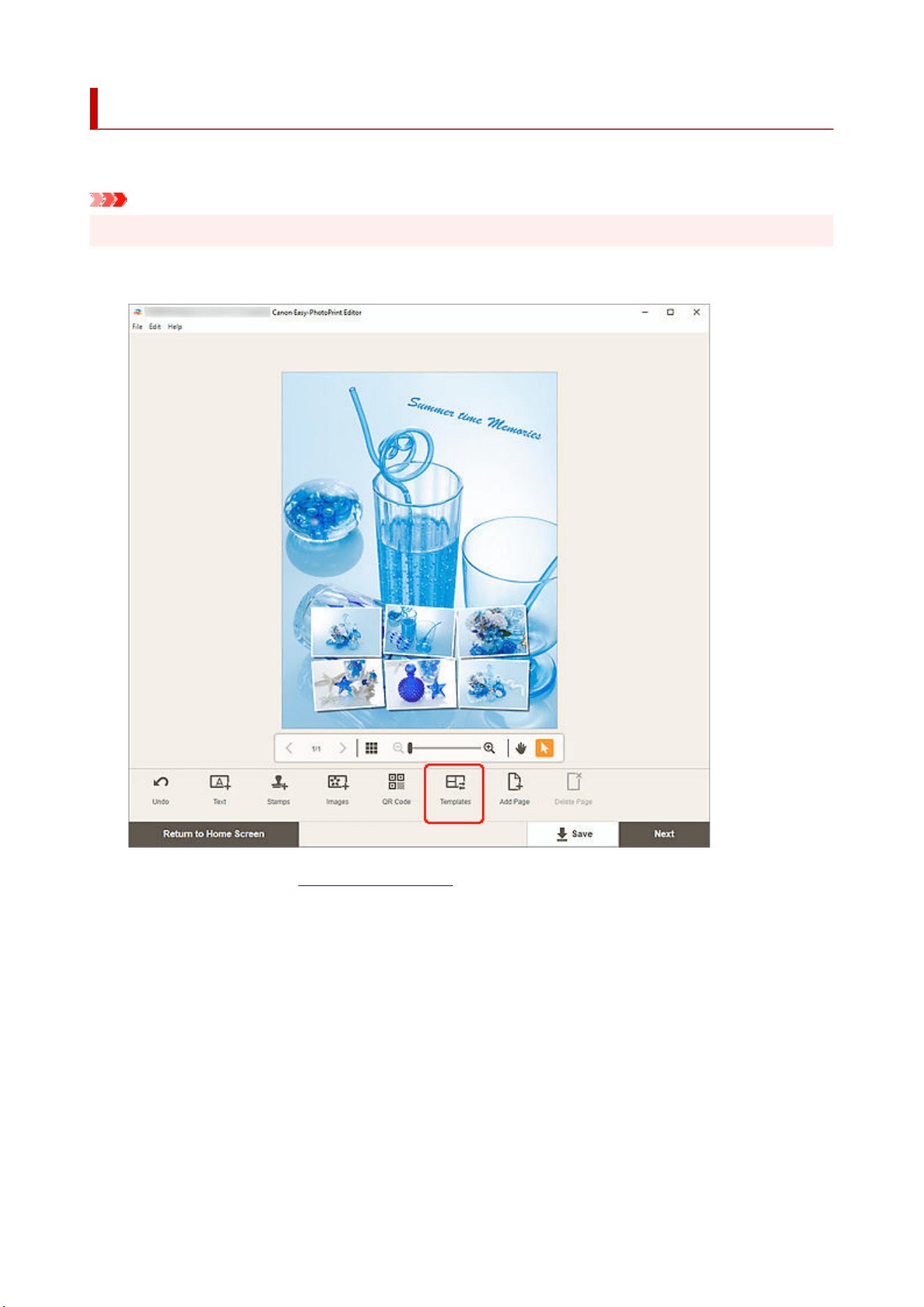
Changing Template
In the Item edit screen, you can change the template of items.
Important
• When you change the template, your edits up to this point will be discarded.
1. In Item edit screen, click Templates.1.
The view switches to the Select template screen.
2. Select the template you want to use.2.
159
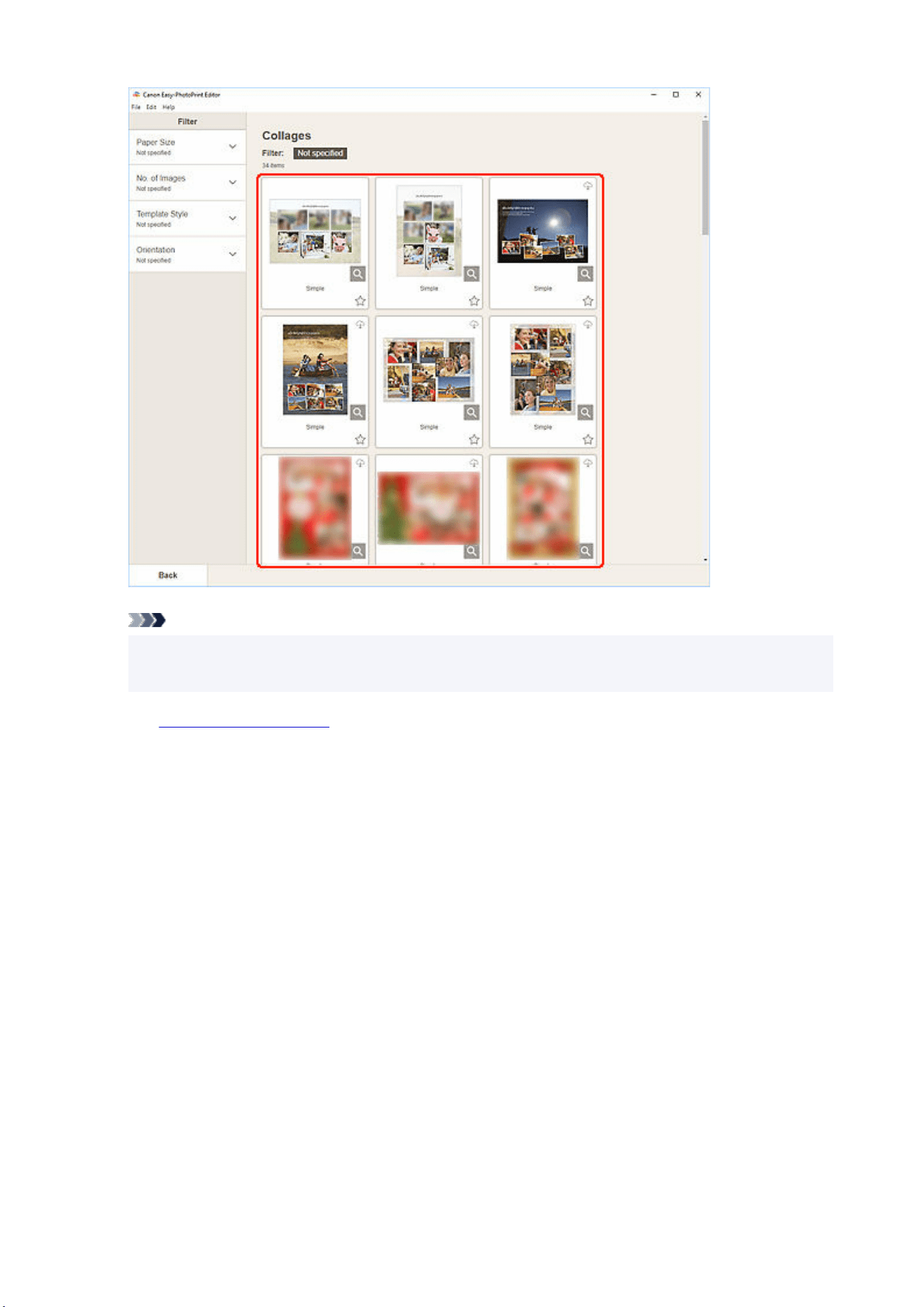
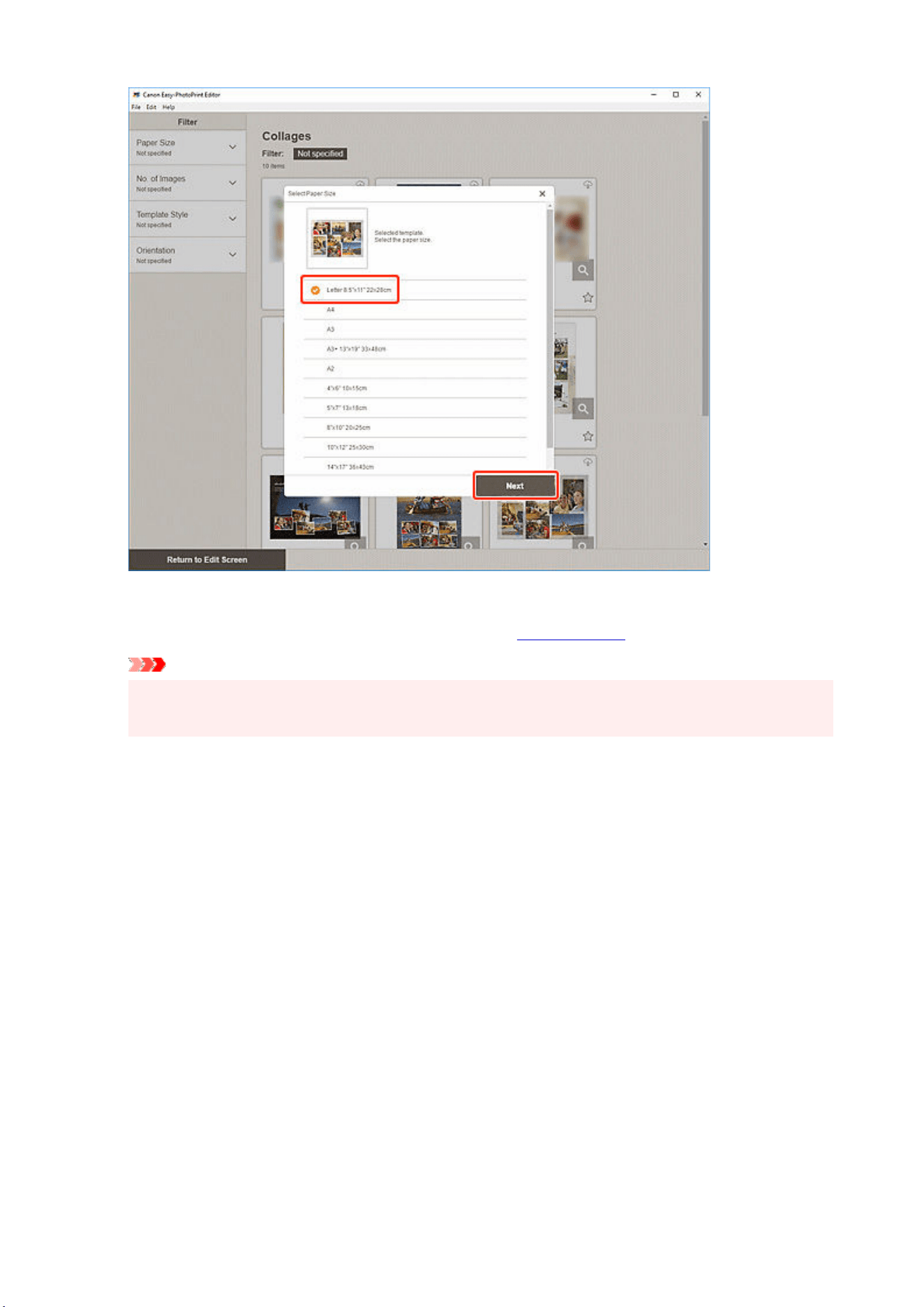
Adding, Deleting, or Rearranging Pages
In the Item edit screen, you can add pages to items, or duplicate/delete pages. You can also rearrange
pages.
Adding/Duplicating Pages
Deleting Pages
Rearranging Pages
Important
• This function is not available for calendars or disc labels.
Note
• To display the thumbnails of pages in an item, click (Thumbnail List View) in the Item edit screen.
• To preview an item page by page, click
(Single Image View) in the Item edit screen.
Adding/Duplicating Pages
You can add pages of the same layout as that of the page displayed in the Item edit/Pages area. In
thumbnail list view, you can also duplicate a selected page.
When Item is Displayed in Single Image View:
1. Select page in Item edit screen, and then click Add Page.1.
162
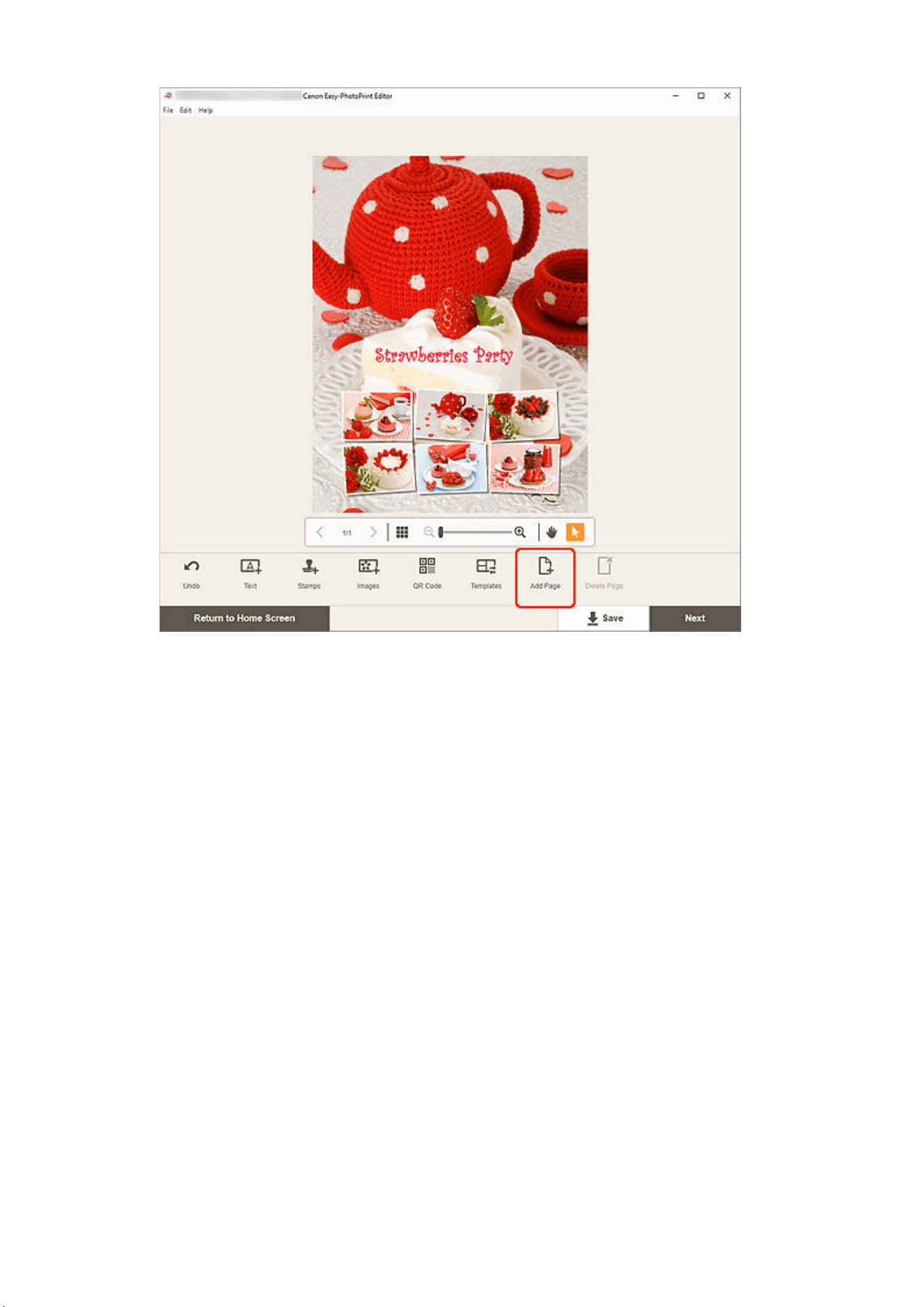
A new page is added after the selected page.
When Item is Displayed in Thumbnail List View:
1. Select page in Item edit screen, and then click Add Page or Duplicate Page.1.
163
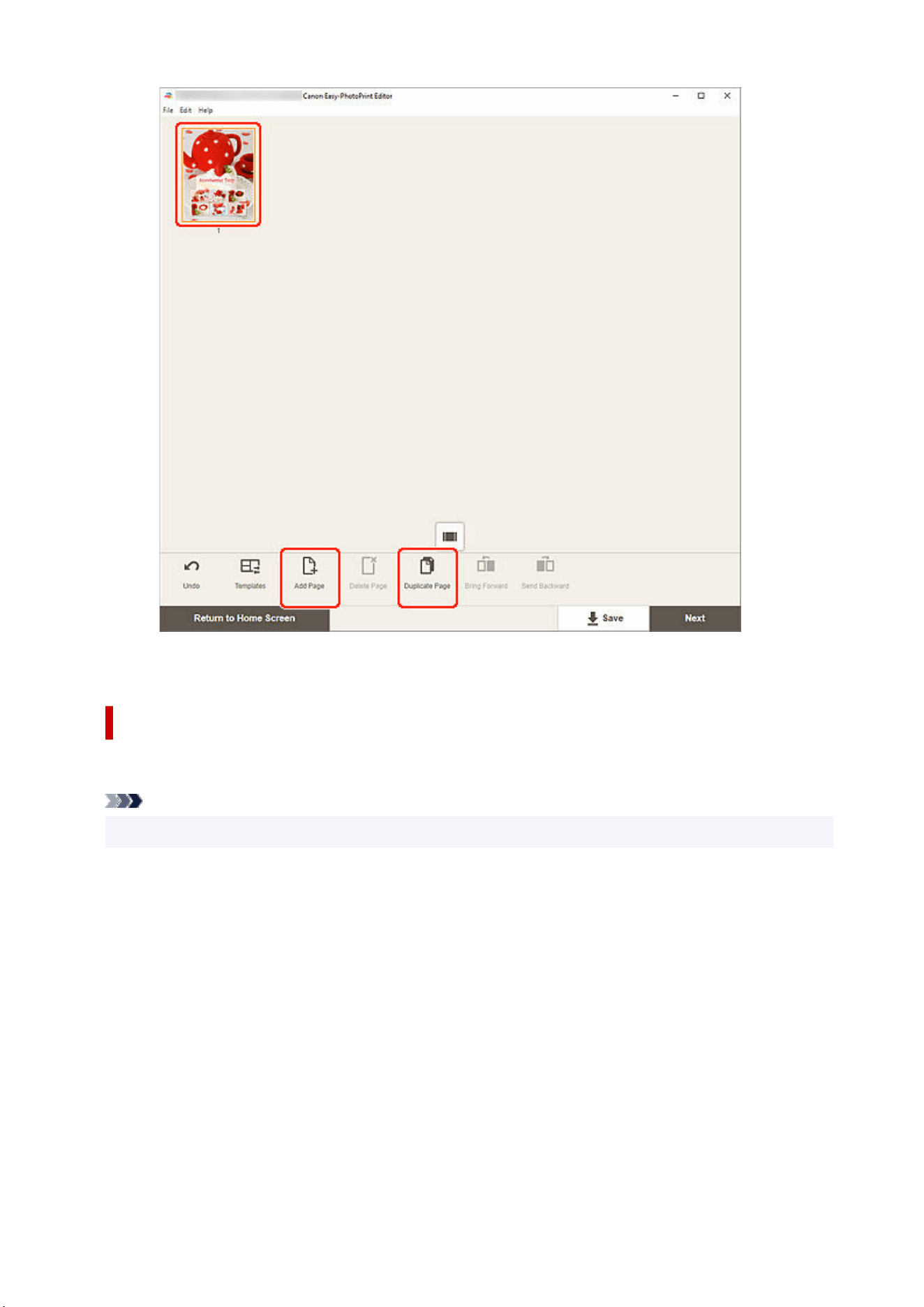
A new or duplicate page is added after the selected page.
Deleting Pages
Delete unwanted pages displayed in the Item display/Pages area.
Note
• Pages can be deleted only when there are multiple pages.
When Item is Displayed in Single Image View:
1. Select page in Item edit screen, and then click Delete Page.1.
164
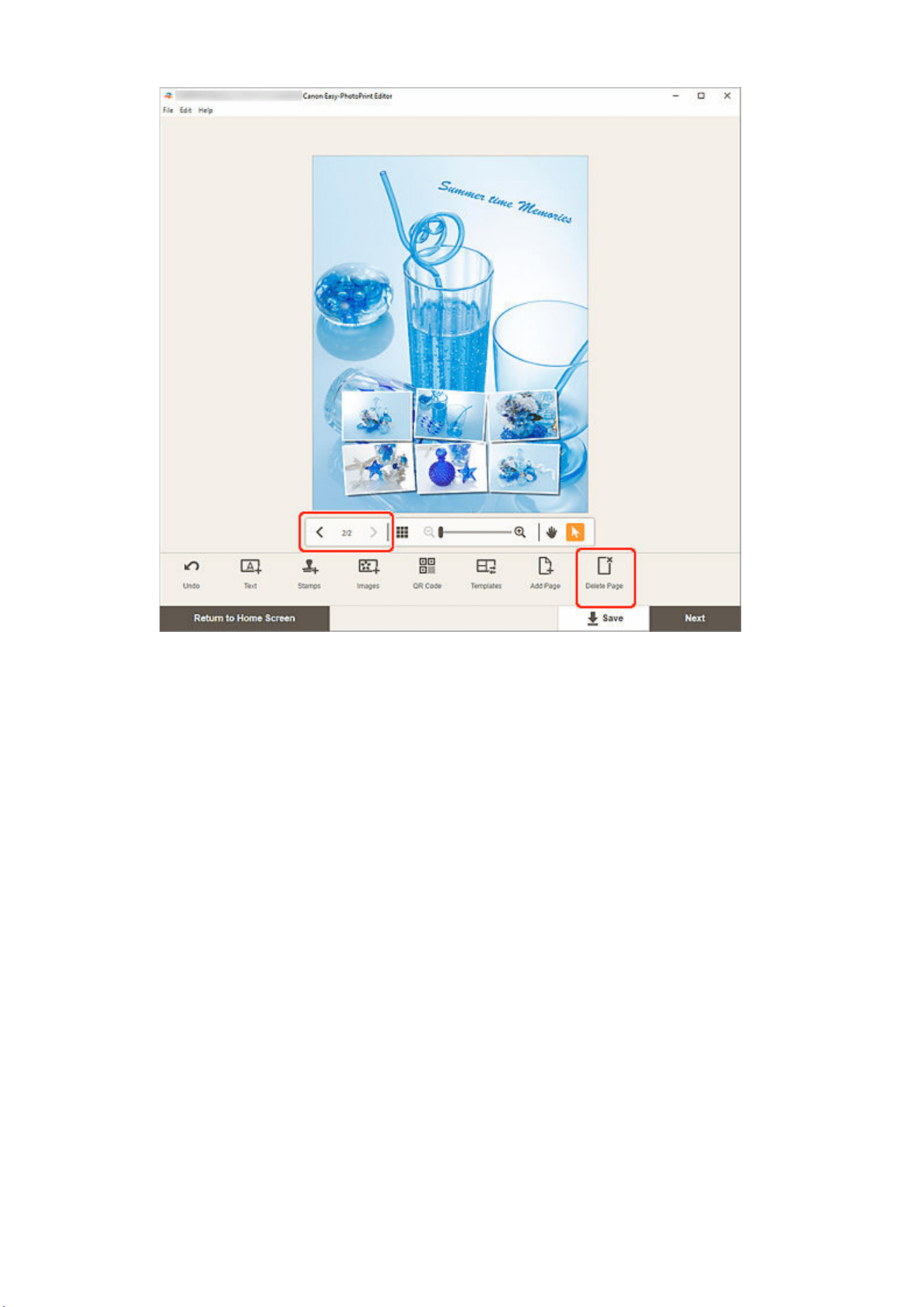
The Delete Page screen appears. Click OK to delete the selected page.
When Item is Displayed in Thumbnail List View:
1. Select page in Item edit screen, and then click Delete Page.1.
165
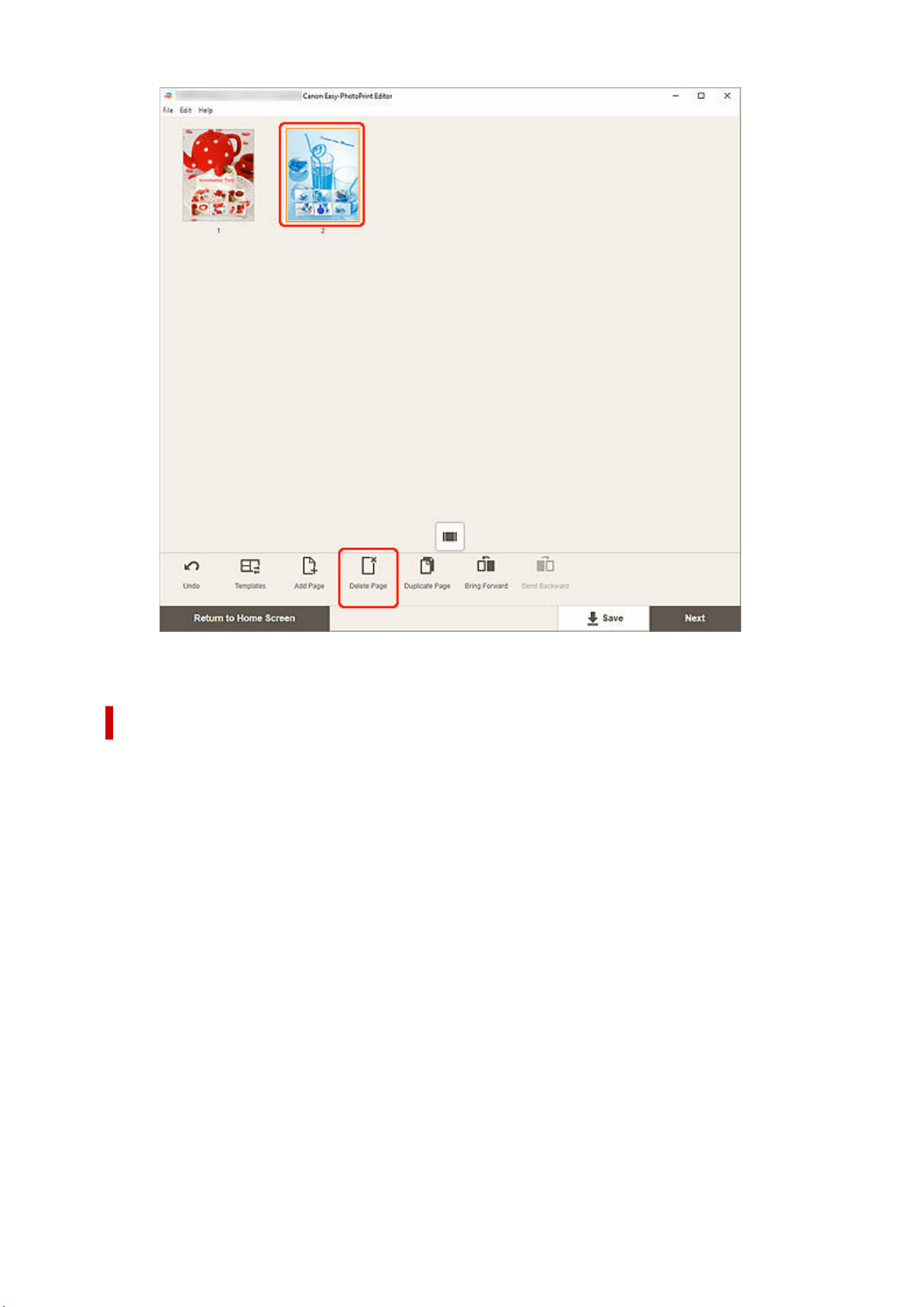
The Delete Page screen appears. Click OK to delete the selected page.
Rearranging Pages
To rearrange the page order, display the item in thumbnail list view in the Item edit screen.
1. Select page in Item edit screen, and then click Bring Forward or Send Backward.1.
166
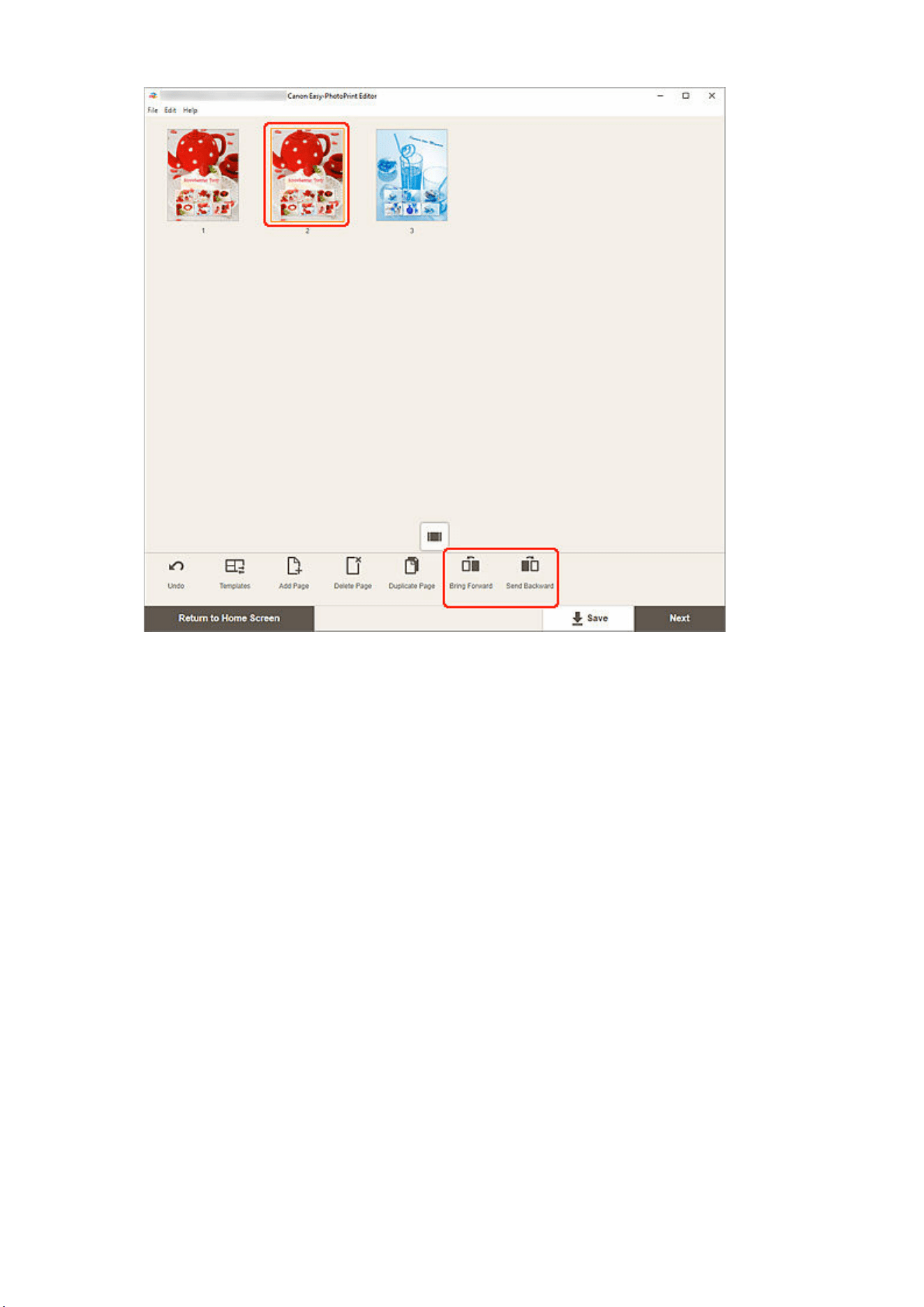
167

Easy-PhotoPrint Editor Screens
Home Screen
New Screen
Template Details Screen (Featured)
Your Items Screen
Item Details Screen
Favorites Screen
Template Details Screen (Favorites)
Select Template Screen
Template Details Screen (Select Template)
Import Locations Screen
Select Data Screen (Cloud Service)
Custom Frame Size Screen
Select Paper Size Screen
Photo Locations Screen
Select Photo Screen (Cloud Service)
Item Edit Screen
Item Edit Screen (Thumbnail List View)
Calendar Settings Screen
Advanced Settings Screen (Disc Labels)
Advanced Settings Screen (Business Cards, Stickers, and ID Photos)
Print Settings Screen (Windows)
Print Settings Screen (macOS)
Paper Size List
168
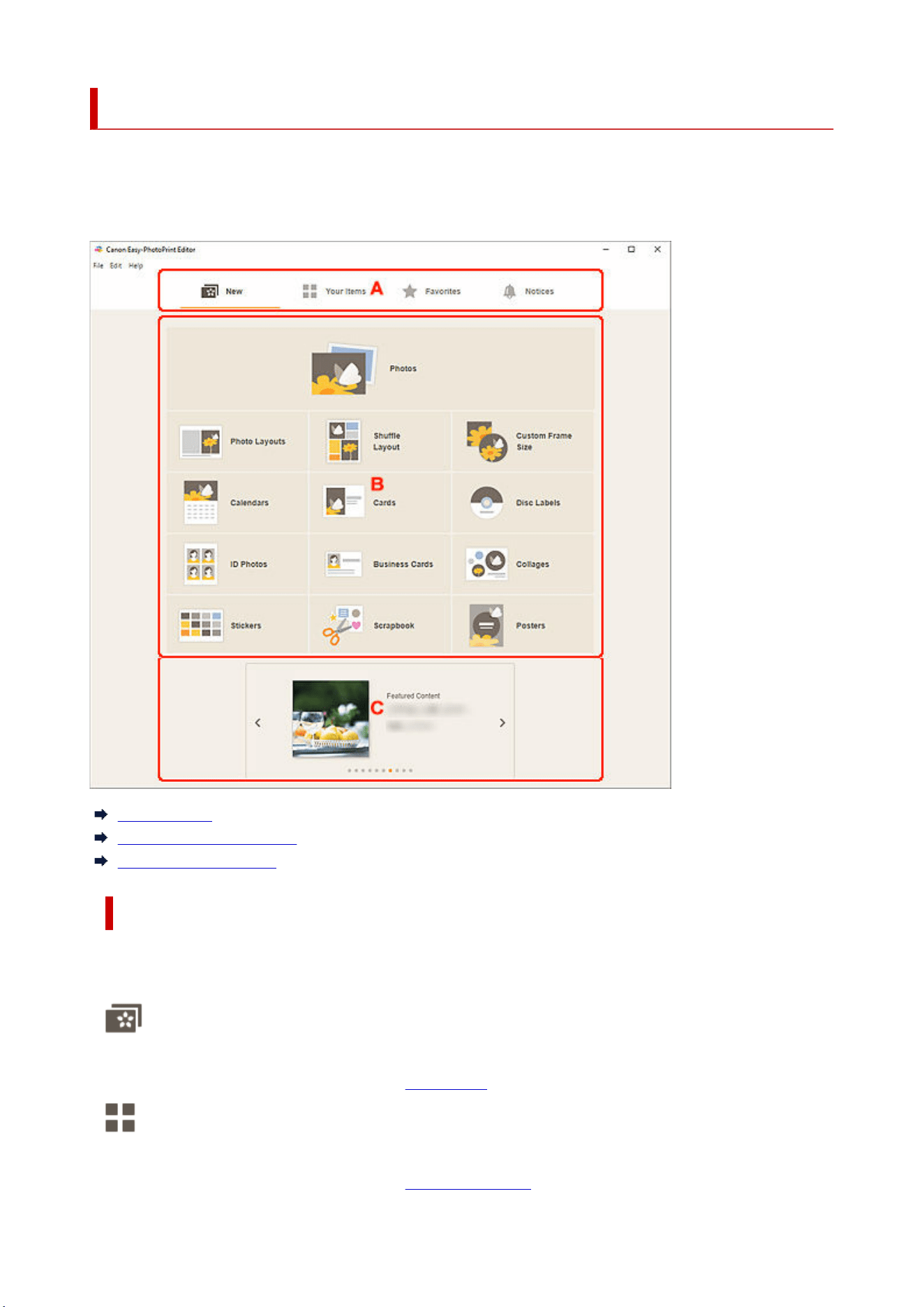
Home Screen
This is the Home screen of Easy-PhotoPrint Editor.
Select the item you want to create or browse saved items, favorites, notices, recommended templates, and
other information.
A: Menu Area
B: Operation/Display Area
C: Featured Templates
A: Menu Area
Displays the categories of functions available in Easy-PhotoPrint Editor. When you click a menu, the
contents of the Operation/Display area will change accordingly.
New
Click this to create items.
When clicked, the view switches to the New screen.
Your Items
Displays a list of saved items. Click this to edit items, copy and edit items, and more.
When clicked, the view switches to the
Your Items screen.
169

Favorites
Displays a list of templates saved as favorites.
Click to switch to the Favorites screen.
Notices
Check server maintenance notices.
New notices are shown by the
icon.
Click to switch to the Notices screen.
B: Operation/Display Area
You can start printing photos or creating new items.
You can also create items from saved items or templates saved as favorites.
Notices and other information will also appear.
C: Featured Templates
These appear only in the New screen.
Displays recommended templates.
170
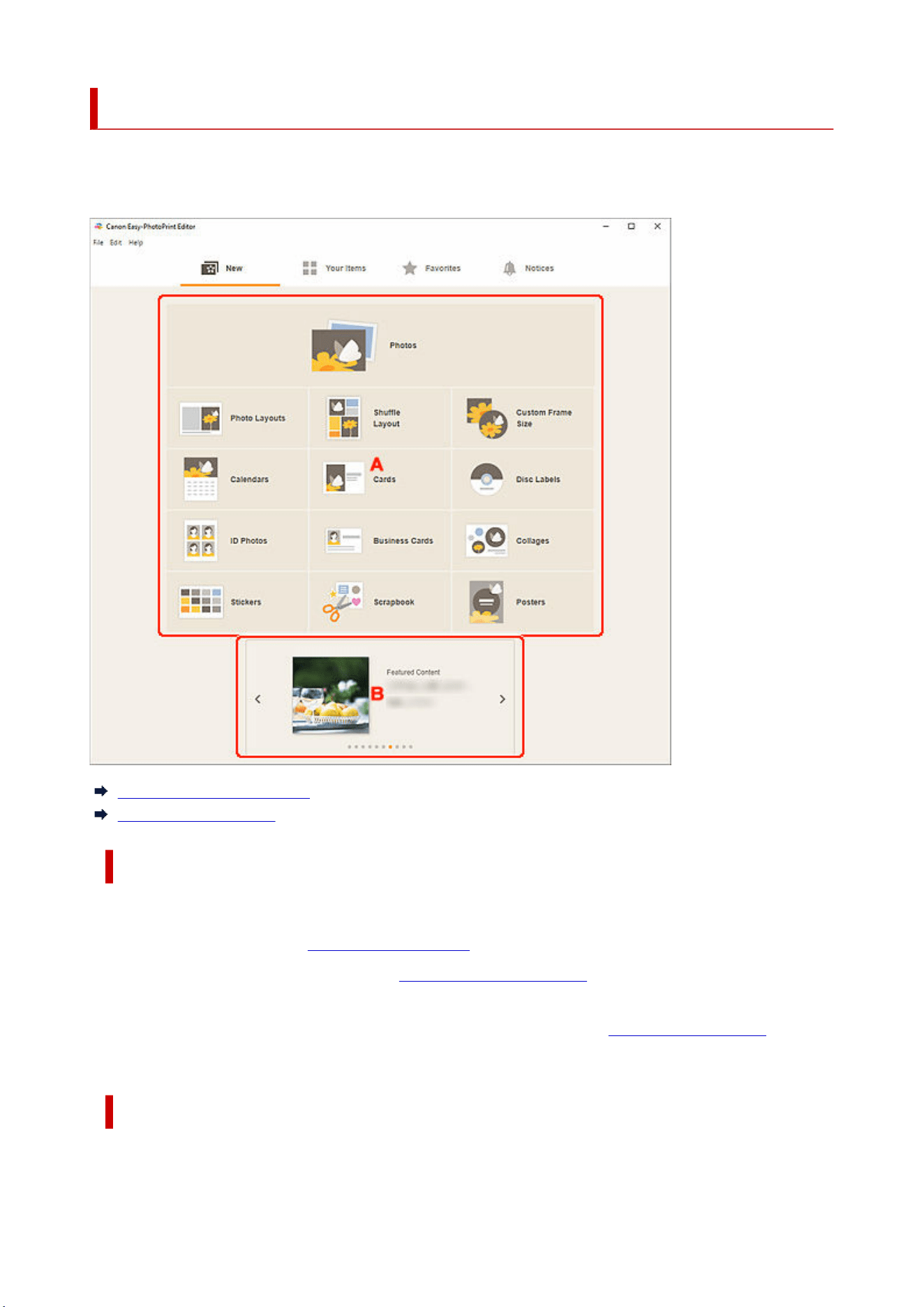
New Screen
Select the item you want to create or browse recommended templates.
In the Menu area of the Home screen, click New to switch to the New screen.
A: Create New Item Buttons
B: Featured Templates
A: Create New Item Buttons
Displays a list of the types of items that can be created.
Click Photos to switch to the
Photo Locations screen for printing photos.
Click Custom Frame Size to switch to the Custom Frame Size screen for printing by specifying the photo
size.
Click a button other than Photos or Custom Frame Size to switch to the Select template screen for
creating items.
B: Featured Templates
Showcases recommended templates.
171

When your computer is connected to the Internet, recommended templates for seasonal activities and
events also appear.
Click a template to display the Template Details screen (featured) from which you can start creating an
item or save the template as a favorite.
(Back/Next)
Click to display the previous or next template.
172
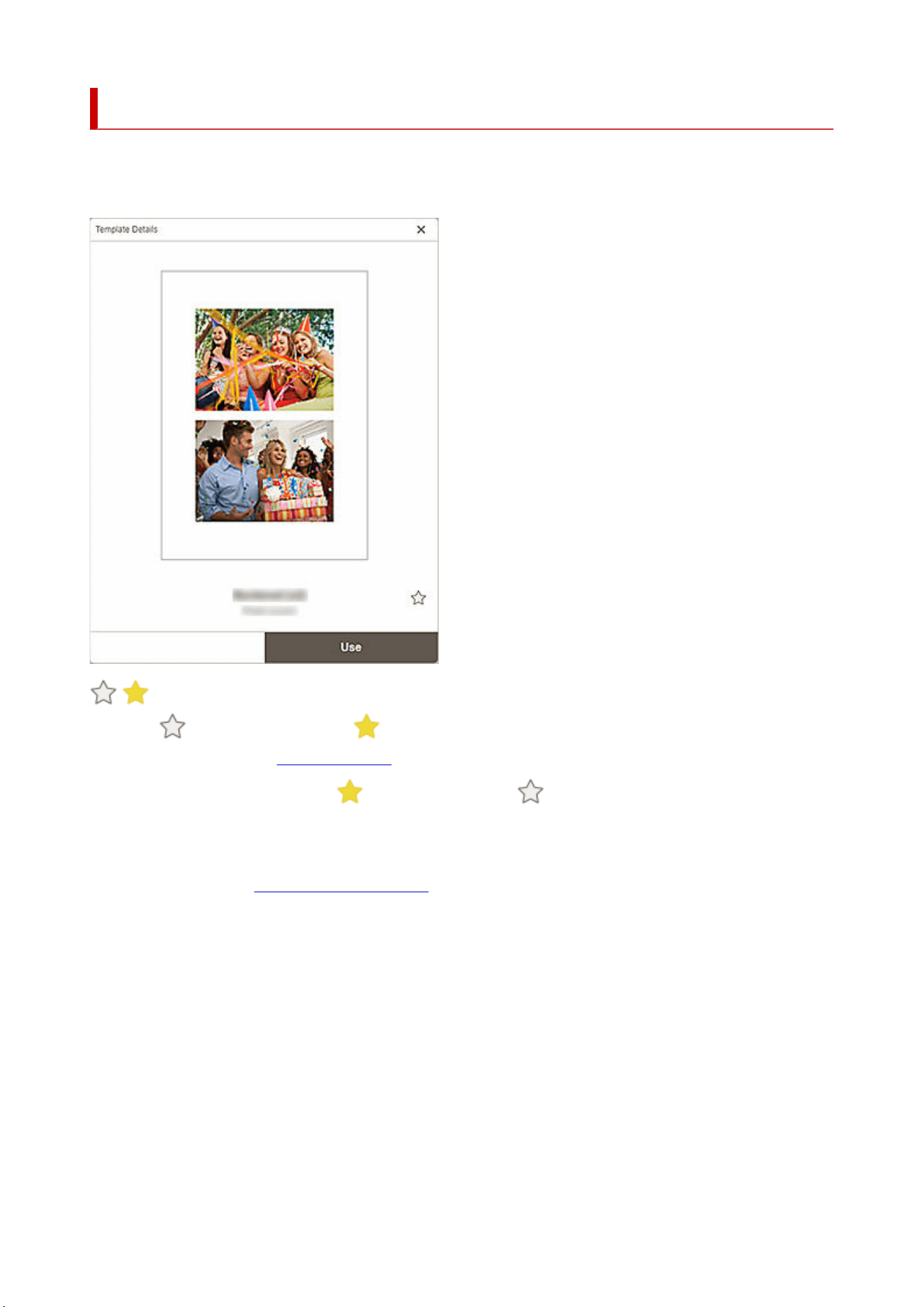
Template Details Screen (Featured)
You can preview a template and its type, and then create the item as needed.
Click a featured template in the New screen to display the Template Details screen.
(Unlabeled/Favorite)
Click
(Unlabeled) to turn it to (Favorite); the template is saved as a favorite. Saved templates
can be browsed in the Favorites screen and can also be used to start creating items.
To remove from favorites, click
(Favorite) to turn it to (Unlabeled).
Use
You can start creating the item.
Click to display the Select Paper Size screen.
173
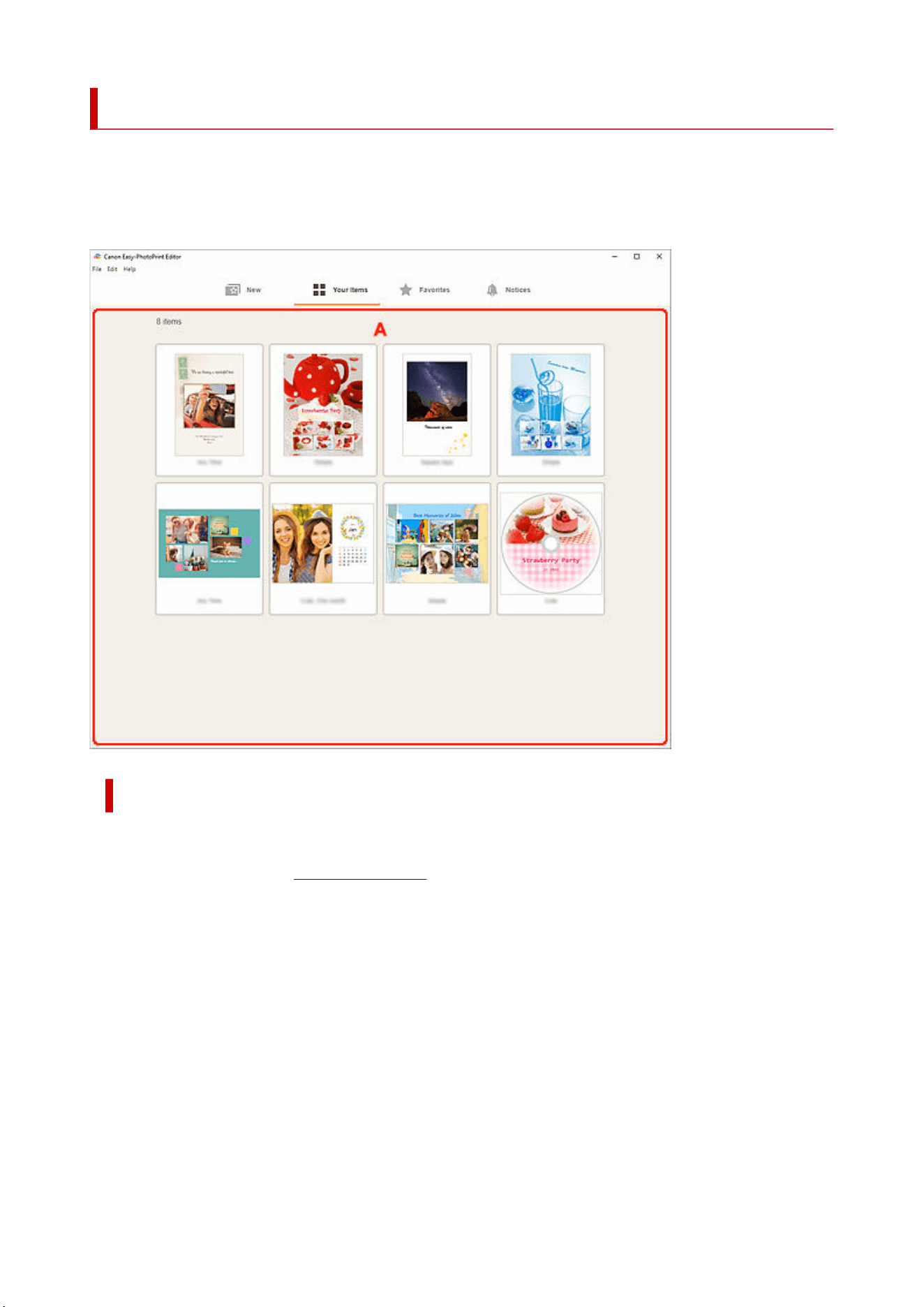
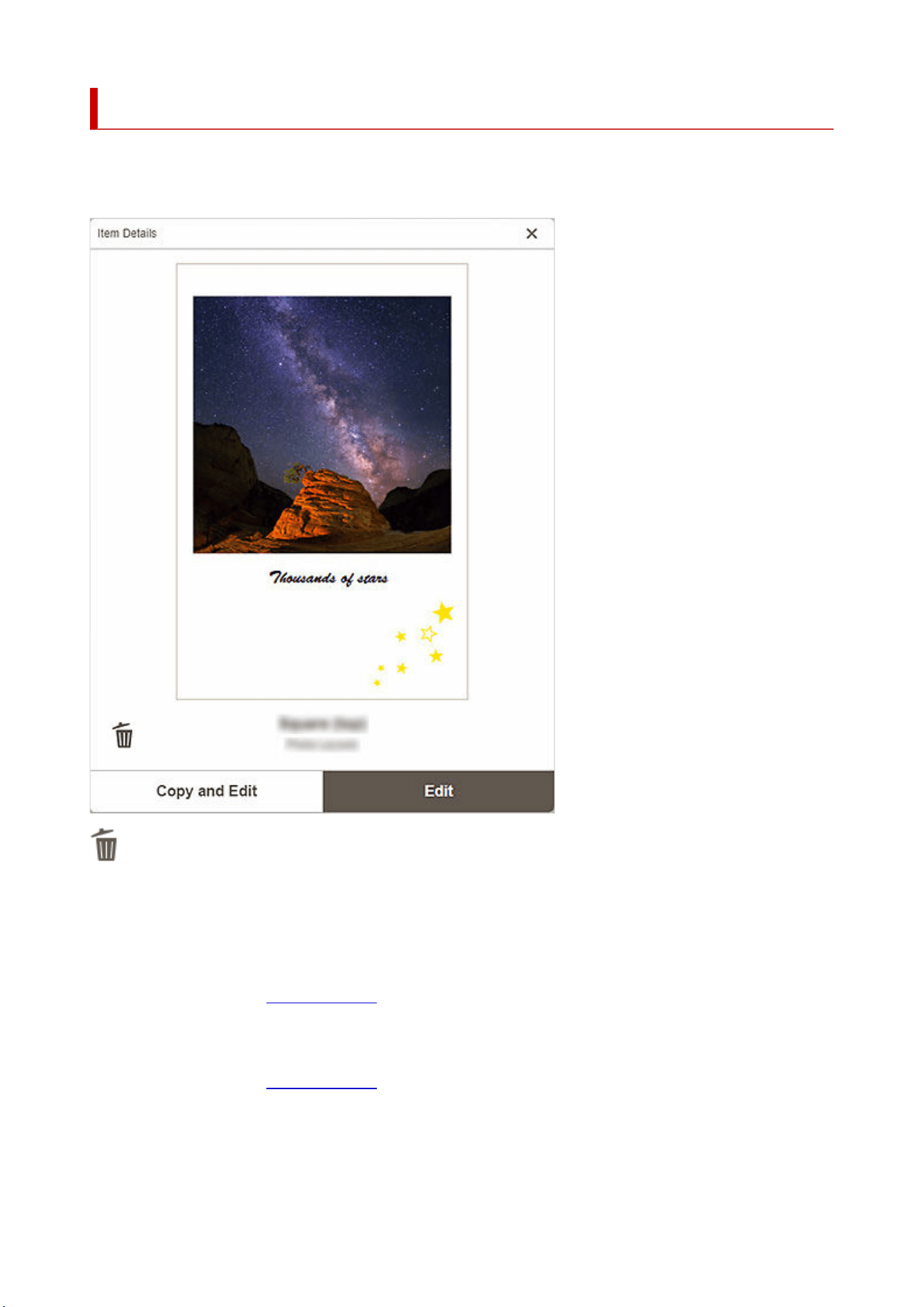
Item Details Screen
You can preview a saved item, and then edit it or copy and edit it as needed, and more.
Click an item in the Your Items screen to display the Item Details screen.
(Delete)
Click to display the Delete Item screen.
Click OK to delete the item.
Copy and Edit
You can copy and edit the saved item.
Click to switch to the Item edit screen.
Edit
You can edit the saved item.
Click to switch to the Item edit screen.
175
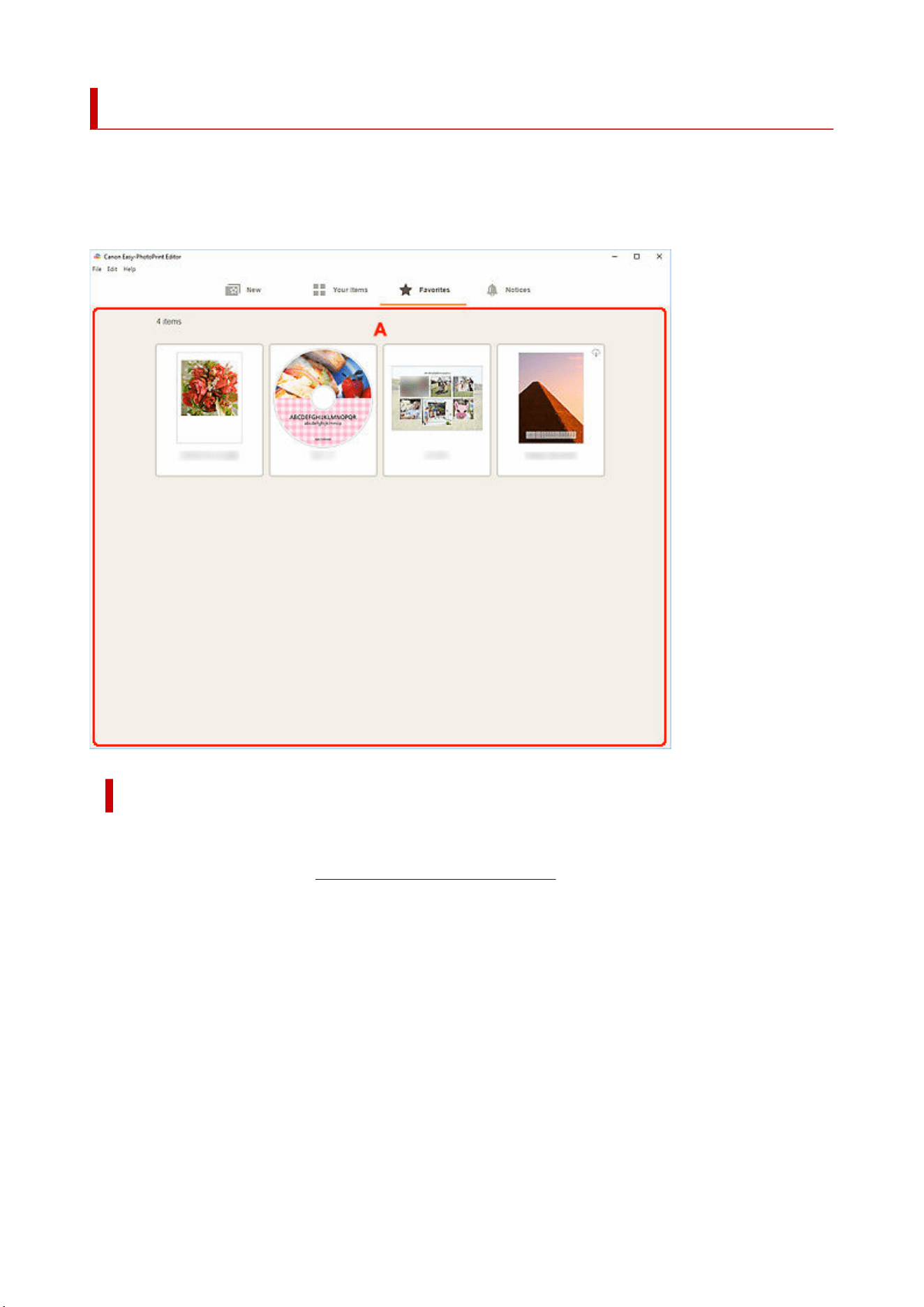
Favorites Screen
Displays a list of templates saved as favorites.
You can start creating items or remove templates from favorites.
In the Menu area of the Home screen, click Favorites to switch to the Favorites screen.
A: Favorites List Area
Displays a list of templates saved as favorites.
Click a template to display the
Template Details screen (favorites).
176
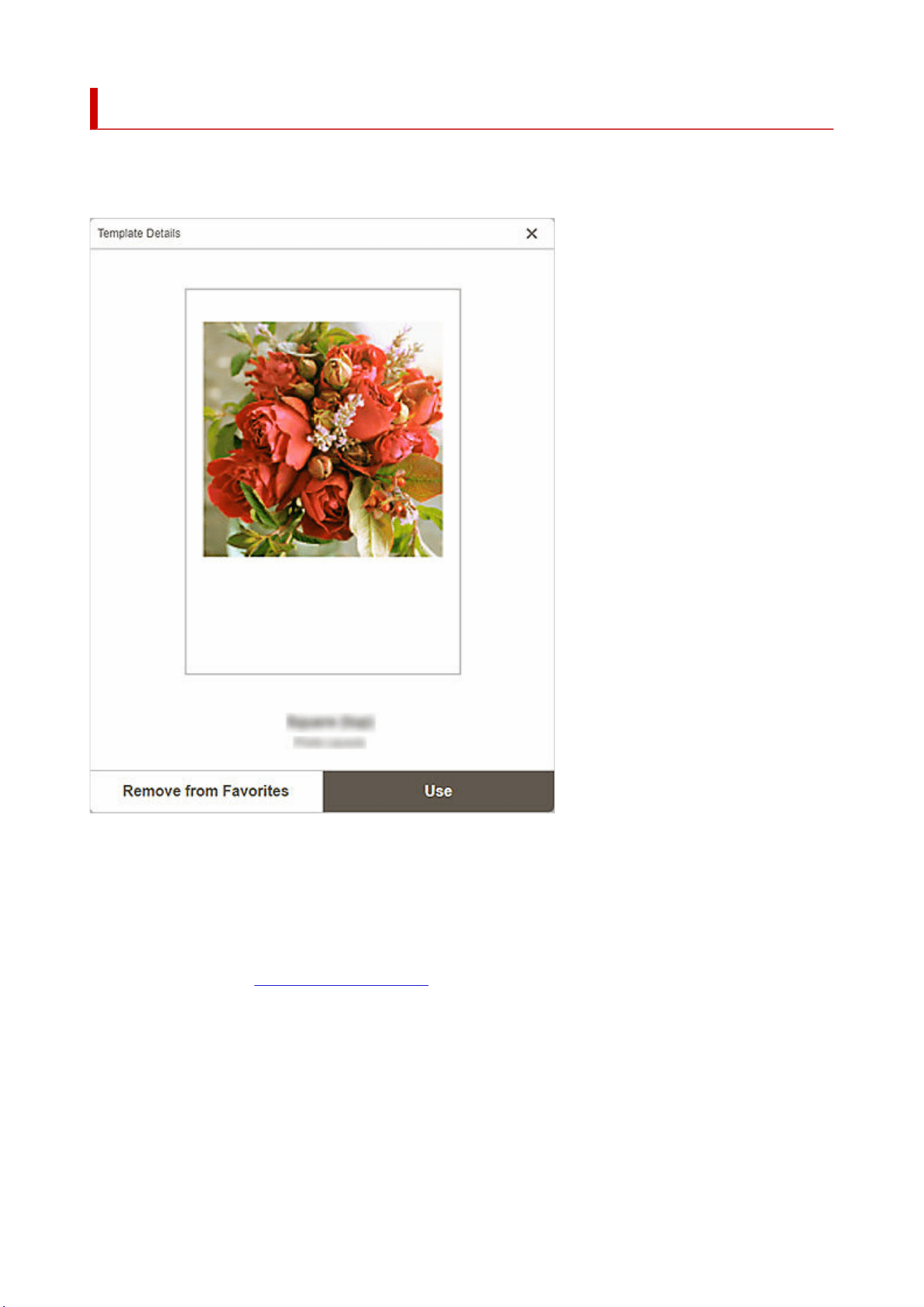
Template Details Screen (Favorites)
You can preview the templates saved as favorites, create items, or remove templates from favorites.
Click a template in the Favorites screen to display the Template Details screen.
Remove from Favorites
Click to display the Remove from Favorites screen.
Click OK to remove from favorites.
Use
You can start creating the item.
Click to display the Select Paper Size screen.
177
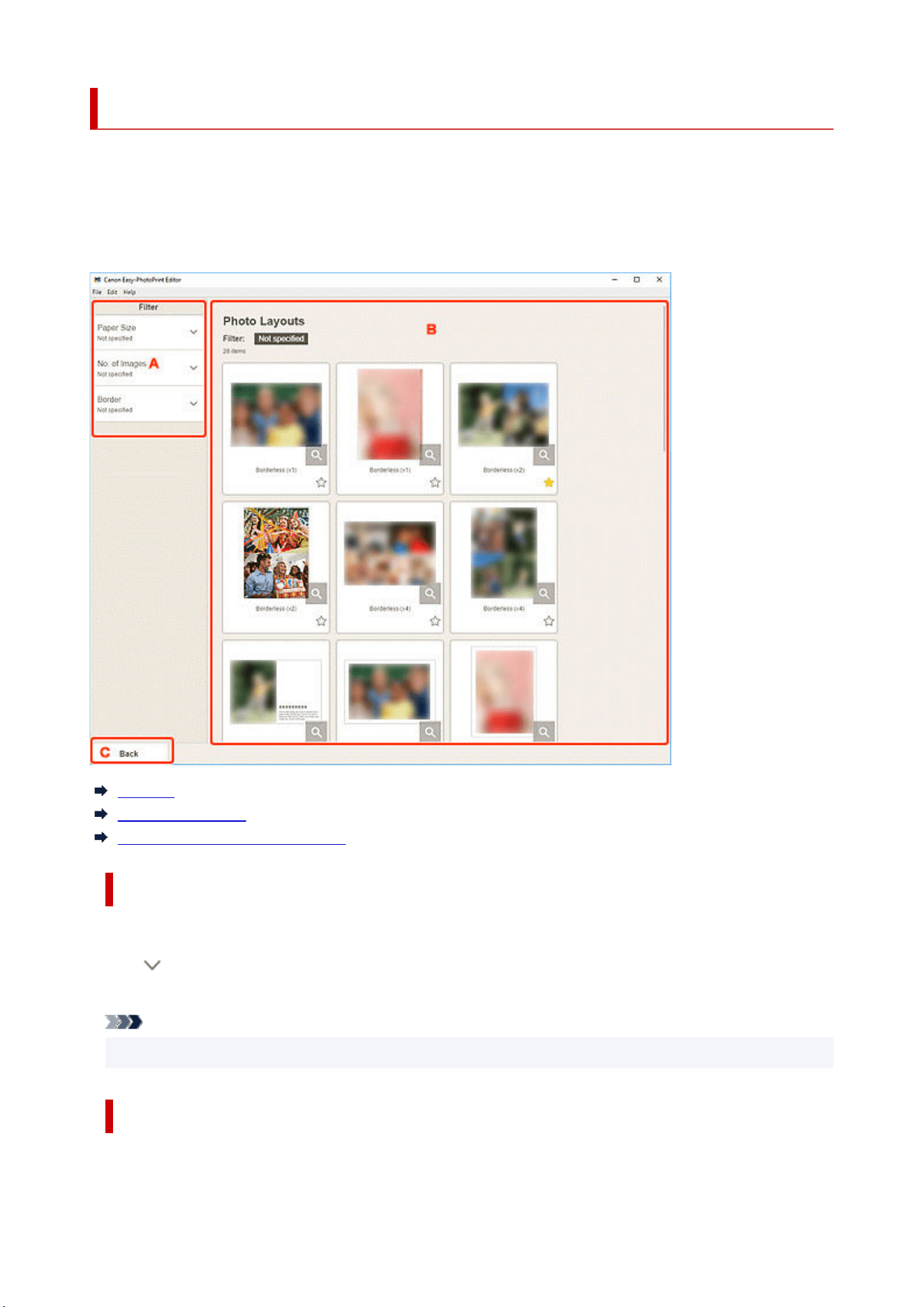
Select Template Screen
Displays a list of templates for items. For posters, you can also select items exported from PosterArtist.
Switch to the Select template screen by one of the following operations.
• Select an item type in the Home screen
• Click Templates in the Item edit screen
A: Filter
B: Templates Area
C: Back / Return to Edit Screen
A: Filter
Combine various criteria to narrow down the templates.
Click
(Down Arrow) of each criterion, and then select the filter you want to apply; the filtered templates
will appear in the Templates area.
Note
• The displayed filters vary depending on the item.
B: Templates Area
Displays a list of templates. Select a template or save templates as favorites.
178
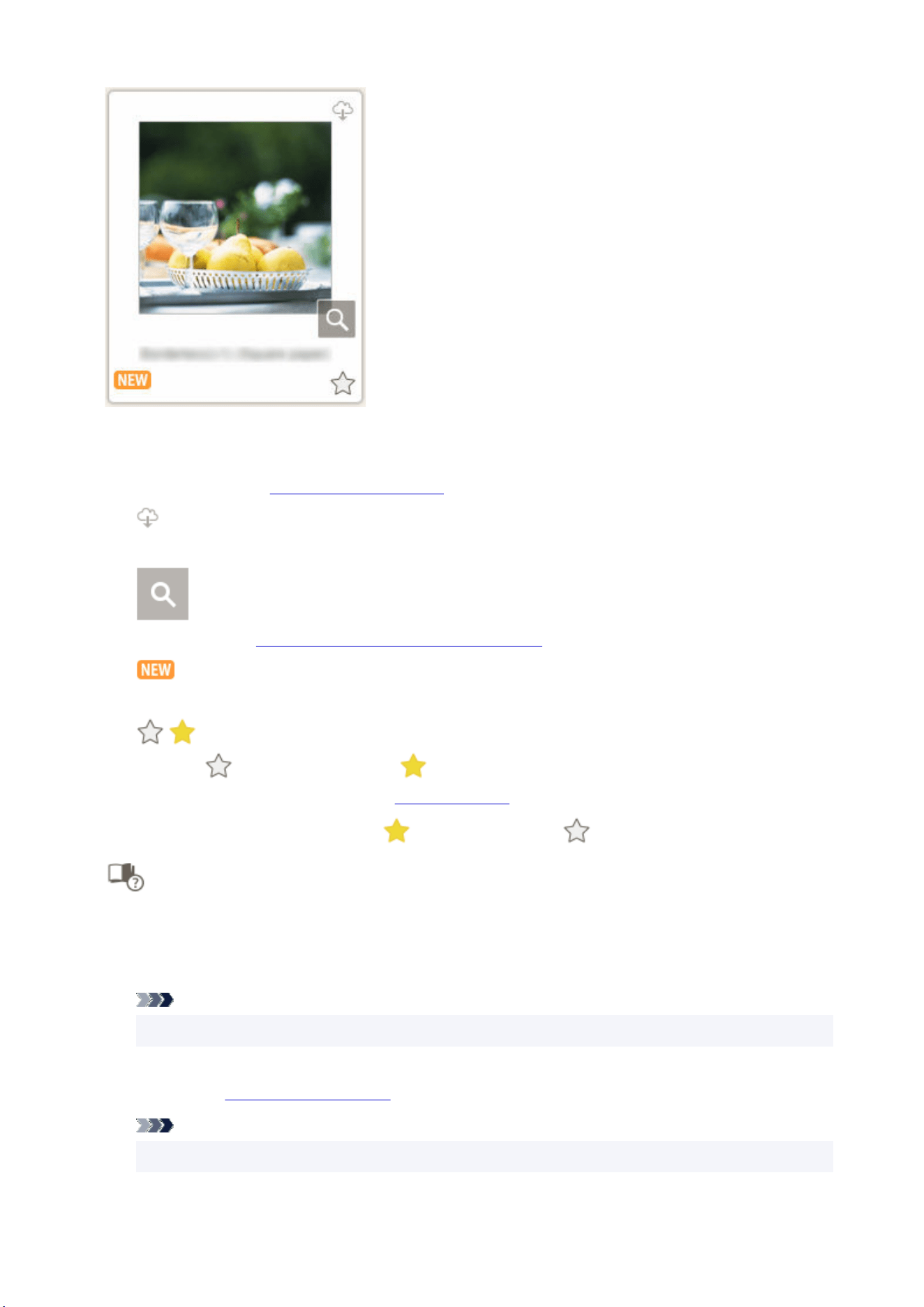
Thumbnails
Displays the thumbnails of templates.
Click to display the Select Paper Size screen.
(Downloadable)
Indicates a template downloadable via the Internet.
(Details)
Displays the Template Details screen (select template).
(New)
Indicates a new template.
(Unlabeled/Favorite)
Click
(Unlabeled) to turn it to (Favorite); the template is saved as a favorite. Saved
templates can be browsed in the Favorites screen and can also be used to start creating items.
To remove from favorites, click
(Favorite) to turn it to (Unlabeled).
List of Compatible Printers
Displays a list of models that support the corresponding item.
Only supported models can print disc labels and ID photos. Check your printer before creating an
item.
Note
• This appears only for disc labels and ID photos.
Import from PosterArtist
Displays the
Import Locations screen and you can select an item exported from PosterArtist.
Note
• This appears only for posters.
179

C: Back / Return to Edit Screen
Return to the previous screen.
180
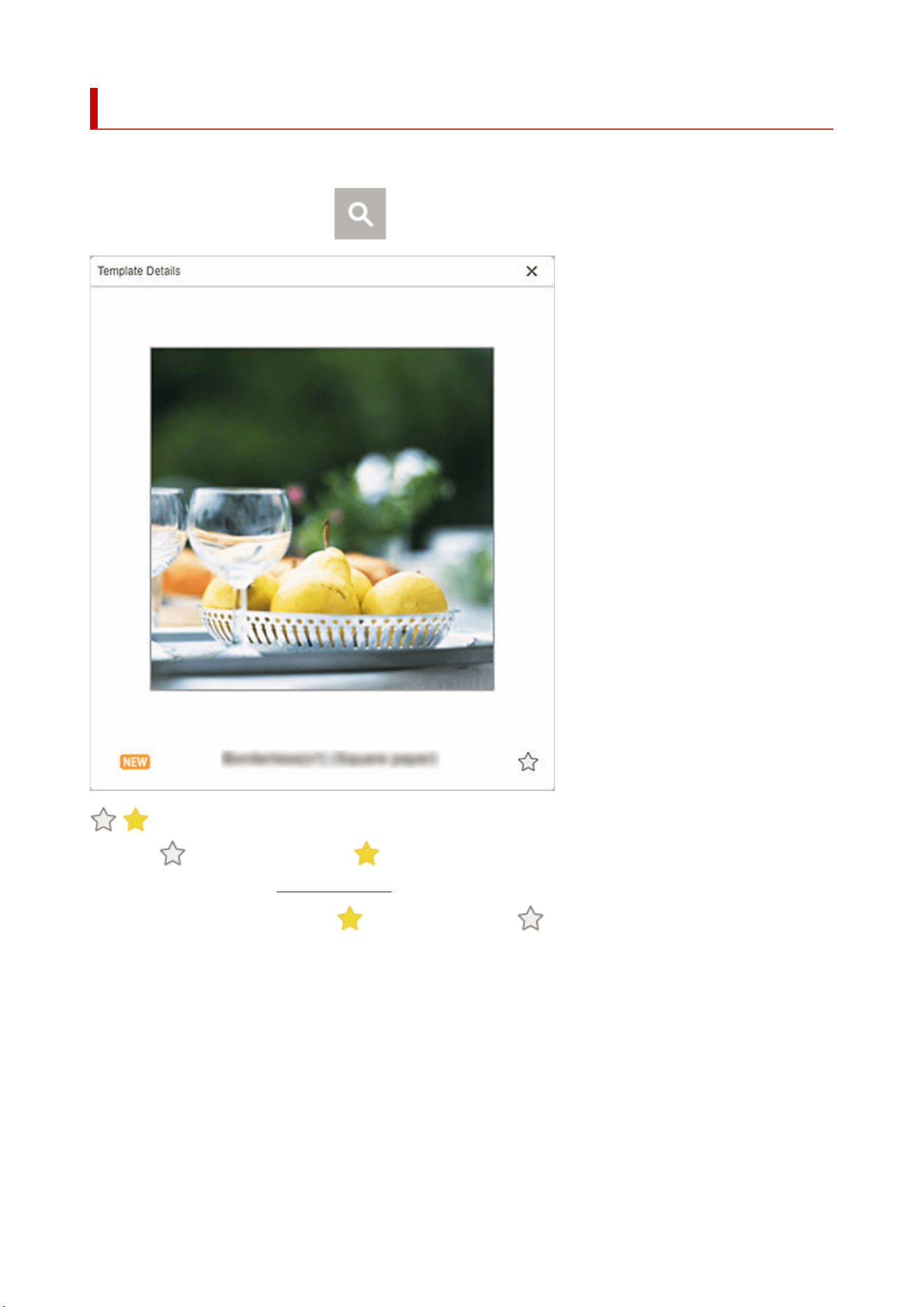
Template Details Screen (Select Template)
You can preview a template and its type, and then save it as a favorite.
In the Select template screen, click
(Details) to display the Template Details screen.
(Unlabeled/Favorite)
Click
(Unlabeled) to turn it to (Favorite); the template is saved as a favorite. Saved templates
can be browsed in the Favorites screen and can also be used to start creating items.
To remove from favorites, click
(Favorite) to turn it to (Unlabeled).
181
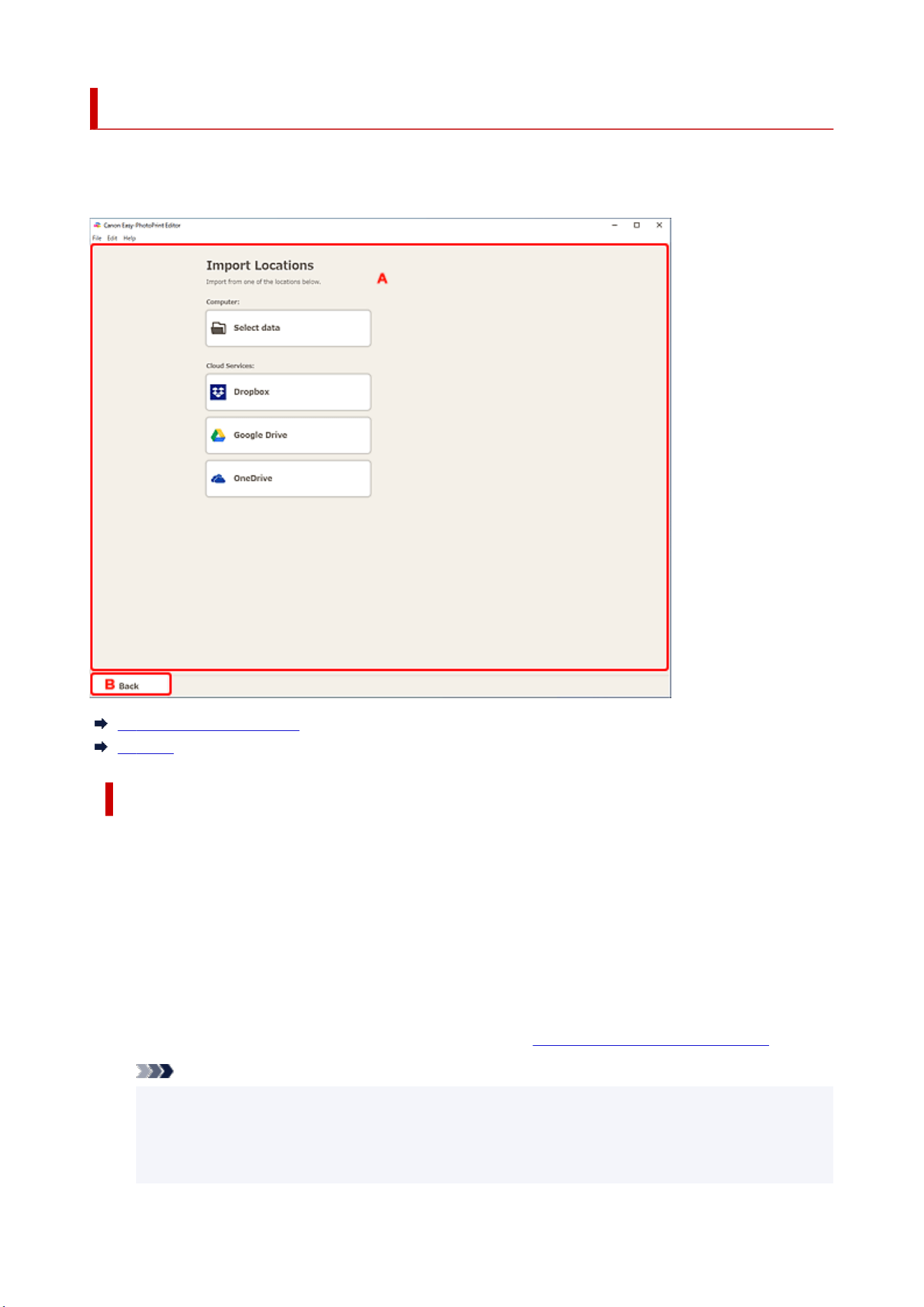
Import Locations Screen
Select the import source of PosterArtist export data.
In the Select template screen, click Import from PosterArtist to switch to the Import Locations screen.
A: Import Locations Area
B: Back
A: Import Locations Area
Select the import source of the PosterArtist data you want to print or edit.
Computer
Click Select data to display the Select Data screen.
Select the data you want to use, and then click Open.
Cloud Services
Click a cloud service to start a Web browser and display the authentication screen of the cloud
service.
Complete a connection to the cloud service to display the
Select Data screen (cloud service).
Note
• In Windows 7, cloud services are not available.
• The displayed cloud services vary depending on the country or region.
• Internet connection is required to use a cloud service. Internet connection fees apply.
• To use a cloud service, preparation such as account creation is required beforehand.
182

• To disconnect from cloud services, from the Help menu of the Home screen, click Cloud
Services > Disconnect. Click OK in the Disconnect screen to disconnect from all cloud
services.
• To connect to the cloud service with a different account, disconnect from it, and then reconnect.
B: Back
Return to the previous screen.
183
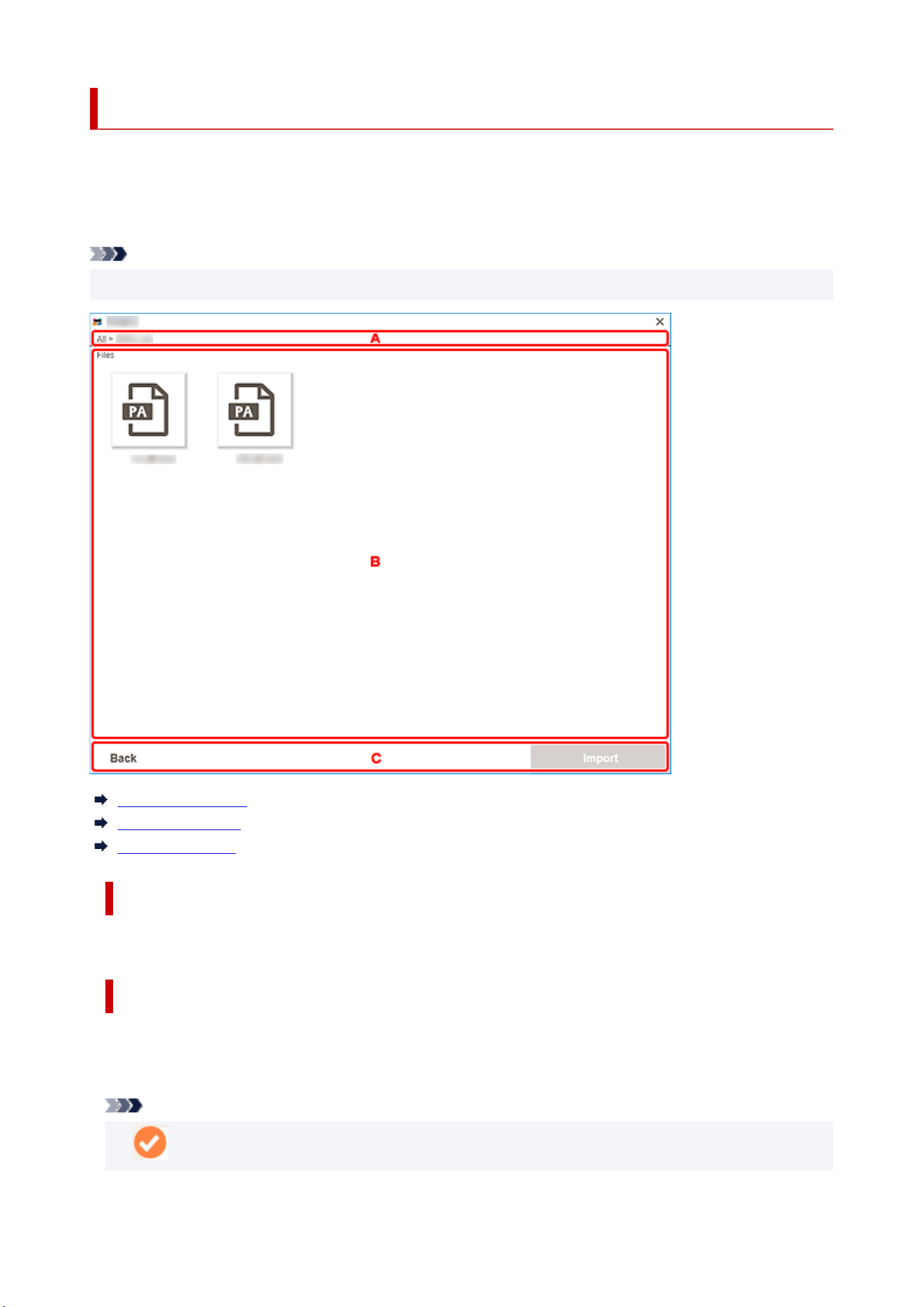
Select Data Screen (Cloud Service)
Select the item data you want to print.
Select a cloud service in the Import Locations screen, and then complete connection to the cloud service
to display the Select Data screen.
Note
• For authentication to the cloud service, follow the on-screen instructions.
A: Navigation Area
B: Item Data Area
C: Back / Import
A: Navigation Area
Displays the folder hierarchy.
B: Item Data Area
Select the item data you want to print.
If there are folders, click one, and then select item data in the displayed screen.
Note
•
(Checkmark) appears on the selected item data.
184

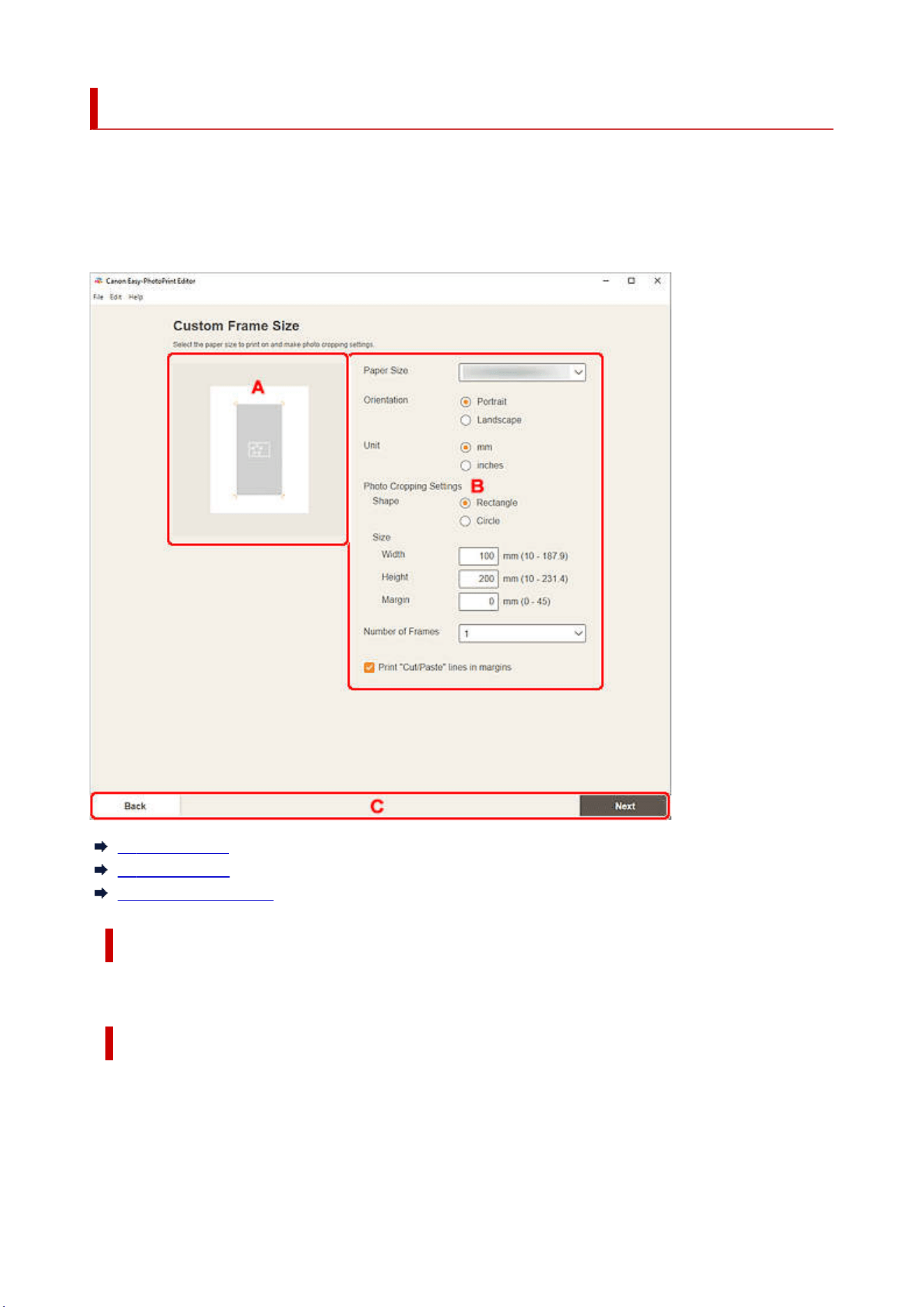
Custom Frame Size Screen
Specify the size of the photo(s) to print.
Switch to the Custom Frame Size screen by one of the following operations.
• Click Custom Frame Size in the Home screen
• Click Advanced... when editing Custom Frame Size in the Item edit screen
A: Preview Area
B: Settings Area
C: Switch Screen Area
A: Preview Area
Check the print image.
B: Settings Area
Specify the paper size, photo size, and other settings.
Paper Size
Select the size of the paper to use.
186

Orientation
Select Portrait or Landscape.
Unit
Select mm or inches.
Photo Cropping Settings
Shape
Select Rectangle or Circle.
Size
Width/Height
These appear when Rectangle is selected.
Specify the Width and Height of the photo(s) to print.
Diameter
This appears when Circle is selected.
Specify the Diameter of the photo(s) to print.
Margin
Set the Margin (amount of space that remains around the printed photo after cutting it along
the crop marks).
Note
• If the photo(s) do not fit on the paper, appears. Change Size.
Number of Frames
Set the number of photo(s) to place on the paper.
Print "Cut/Paste" lines in margins
Select this checkbox to print crop marks on the paper.
Note
• An error message appears if the photo(s) do not fit on the paper and printing is not possible. Change
Size in Photo Cropping Settings, or change Number of Frames accordingly.
C: Switch Screen Area
Back
Return to the previous screen.
Next
The view switches to the
Photo Locations screen or Item edit screen.
187
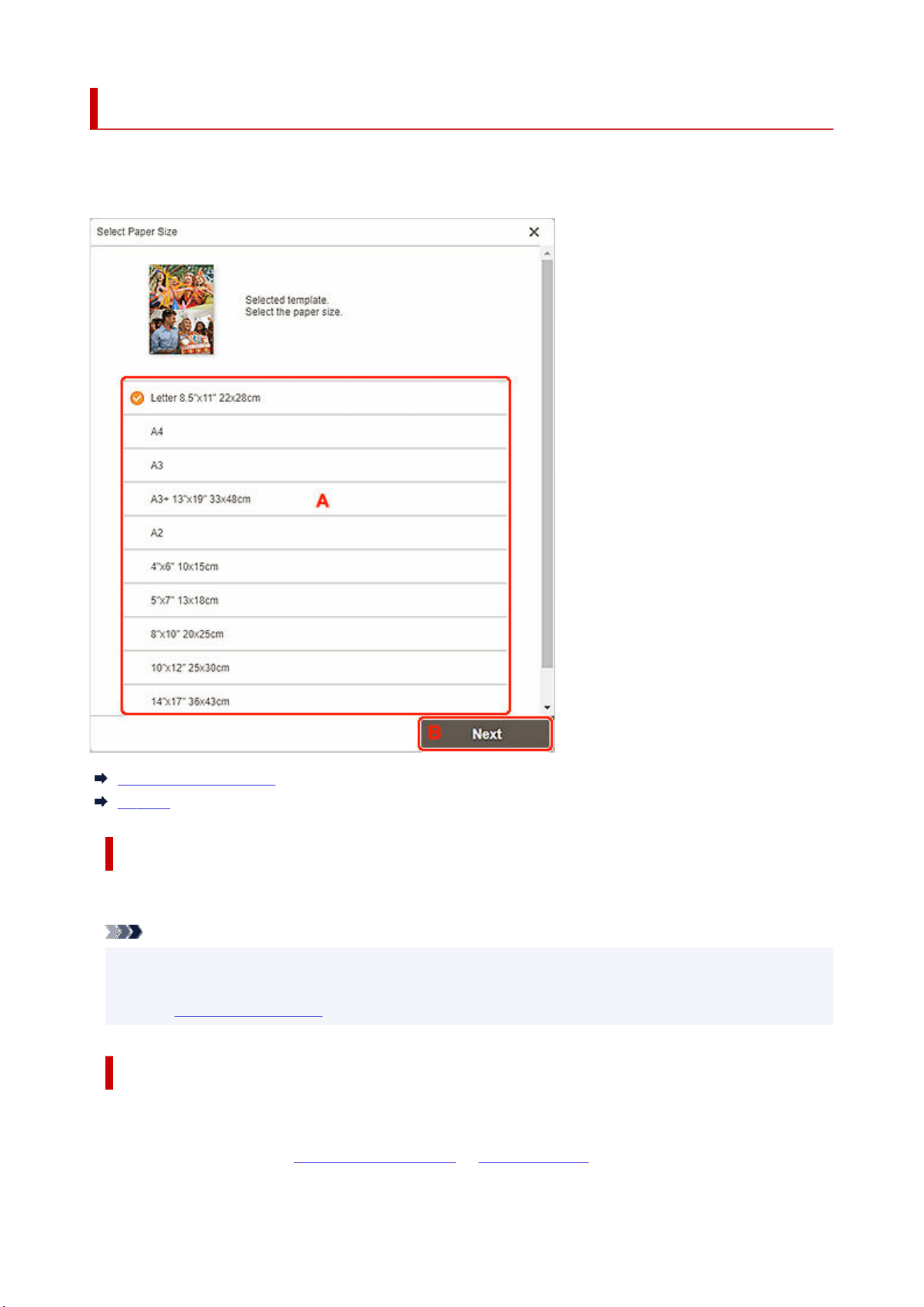
Select Paper Size Screen
Select the size of the paper to use for your item.
In the Select template screen, click the thumbnail of a template to display the Select Paper Size screen.
A: Paper Settings Area
B: Next
A: Paper Settings Area
Select the paper size. Click to place a checkmark on the size of the paper you want to use.
Note
• The displayed paper sizes vary depending on the template.
• You can also print photos by enlarging/reducing them to the roll paper width. In Windows, it can be
set in
B: Print Settings Area in the Print Settings screen.
B: Next
When creating new item:
The view switches to the
Photo Locations screen or Item edit screen.
188

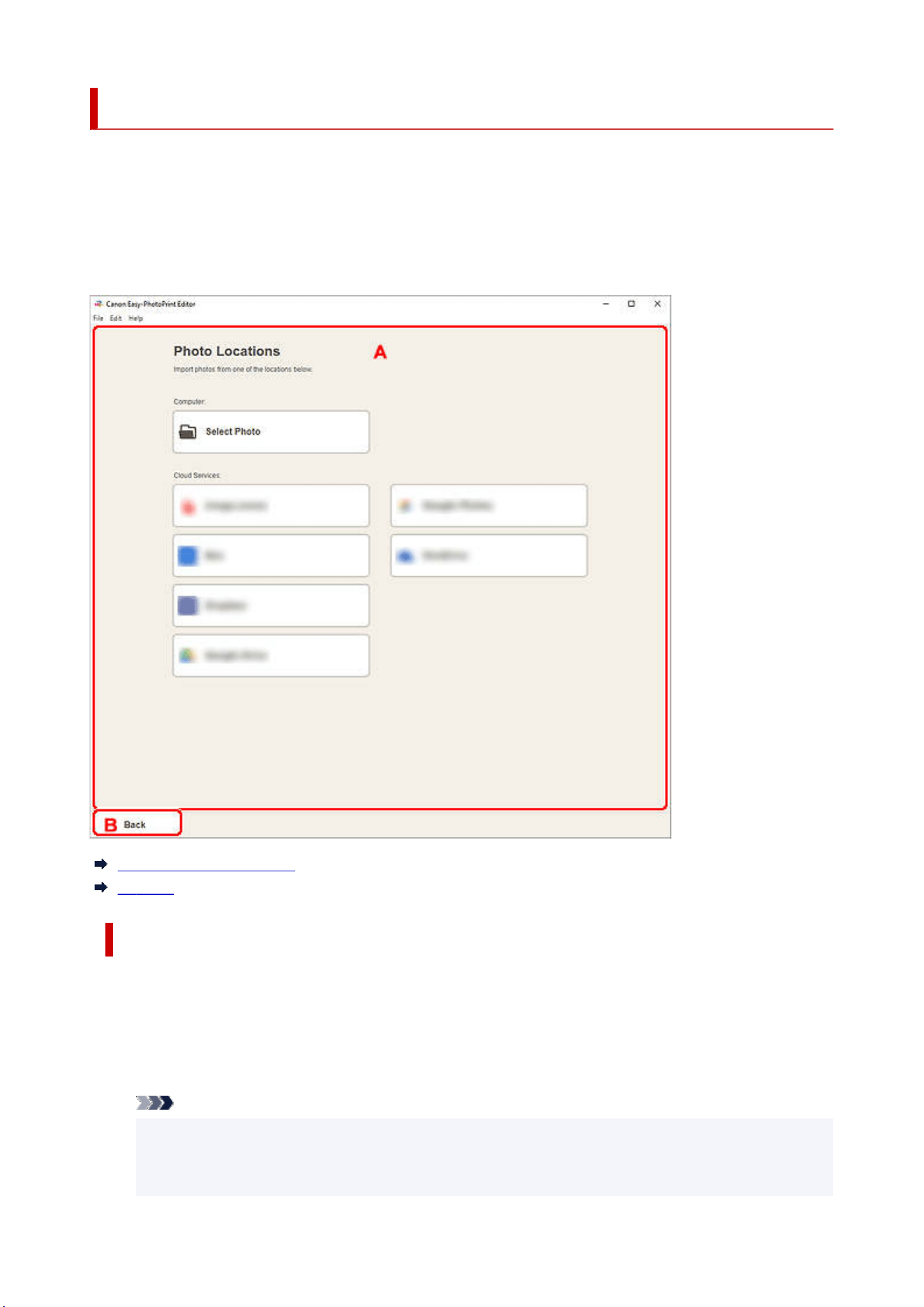
Photo Locations Screen
Select the import source of the photos you want to print or to use for your item.
Switch to the Photo Locations screen by one of the following operations.
• Click Photos in the New screen
• While creating a new item, click Next in the Select Paper Size screen
• Click Images, Select Image, or Select Photos in the Item edit screen
A: Photo Locations Area
B: Back
A: Photo Locations Area
Select the import source of the photos you want to use.
Add the same image to all frames/Use the same image in all the default frames.
You can use the same image in all image layout frames within the page.
To place multiple copies of the same image such as when creating an ID photo, select this checkbox.
Note
• This appears when importing photos while creating a new business card, sticker, or ID photo,
or when you select an image layout frame in a template in the Item edit screen and then click
Select Image.
190

Computer
Click Select Photo to display the Select Photo screen.
Select the photo(s) you want to use, and then click Open.
Cloud Services
Click a cloud service to start a Web browser and display the authentication screen of the cloud
service.
Complete a connection to the cloud service to display the Select photo screen (cloud service).
Note
• In Windows 7, cloud services are not available.
• The displayed cloud services vary depending on the country or region.
• Internet connection is required to use a cloud service. Internet connection fees apply.
• To use a cloud service, preparation such as account creation is required beforehand.
• To disconnect from cloud services, from the Help menu of the Home screen, click Cloud
Services > Disconnect. Click OK in the Disconnect screen to disconnect from all cloud
services.
• To connect to the cloud service with a different account, disconnect from it, and then reconnect.
B: Back
Return to the previous screen.
191
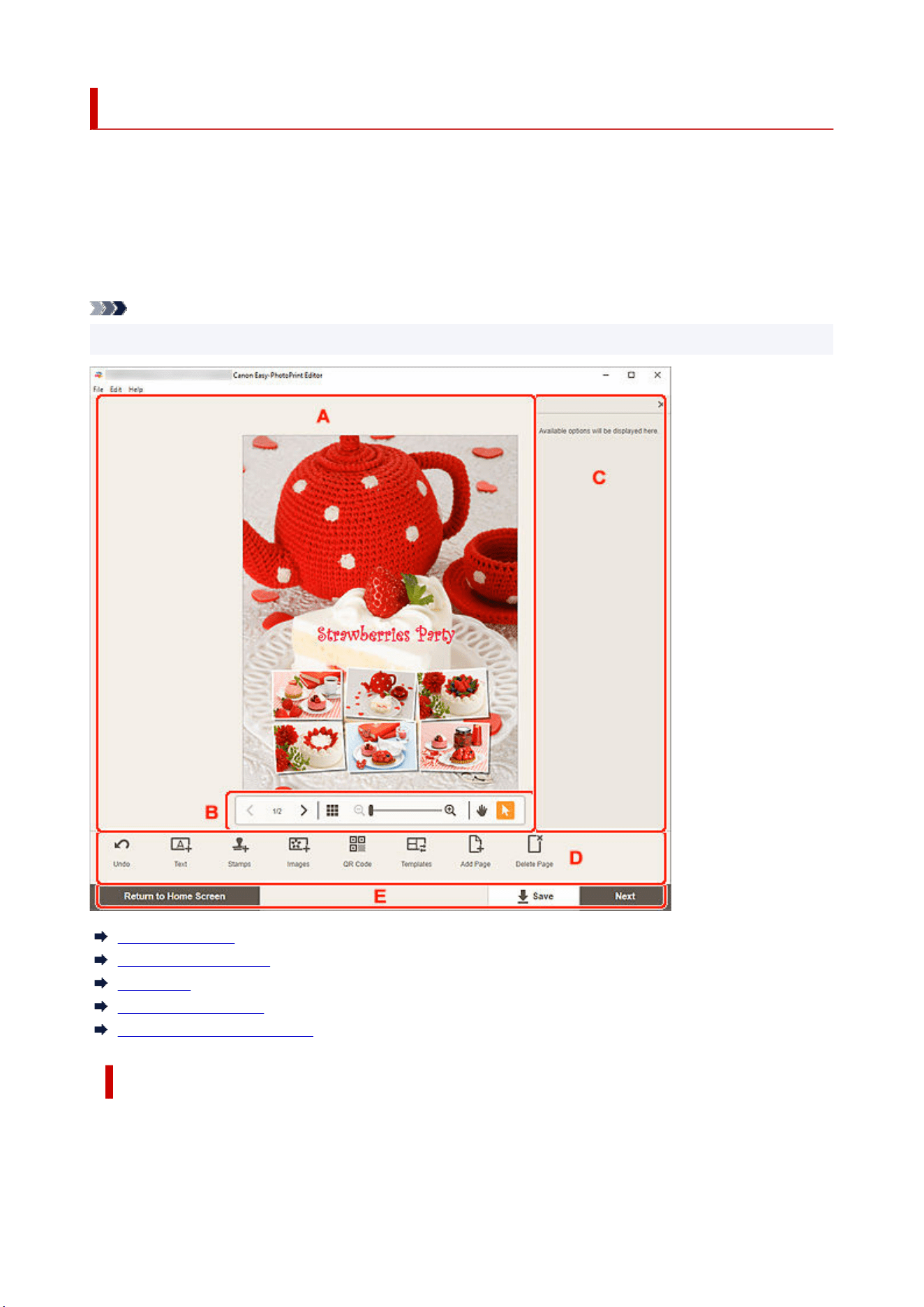
Item Edit Screen
You can import photos to image layout frames in your item or add stamps and text boxes.
Switch to the Item edit screen by one of the following operations.
• While creating a new item, select the photo you want to use in the Photo Locations screen
• In the Your Items screen, click the thumbnail of a saved item, and then click Edit or Copy and Edit in
the displayed screen
Note
• The displayed settings vary depending on your printer and item.
A: Item Edit Area
B: Viewing Tools Area
C: Sidebar
D: Editing Tools Area
E: Switch Screen/Save Area
A: Item Edit Area
Displays your item's preview.
Enter text or change the orientation and position of images.
192
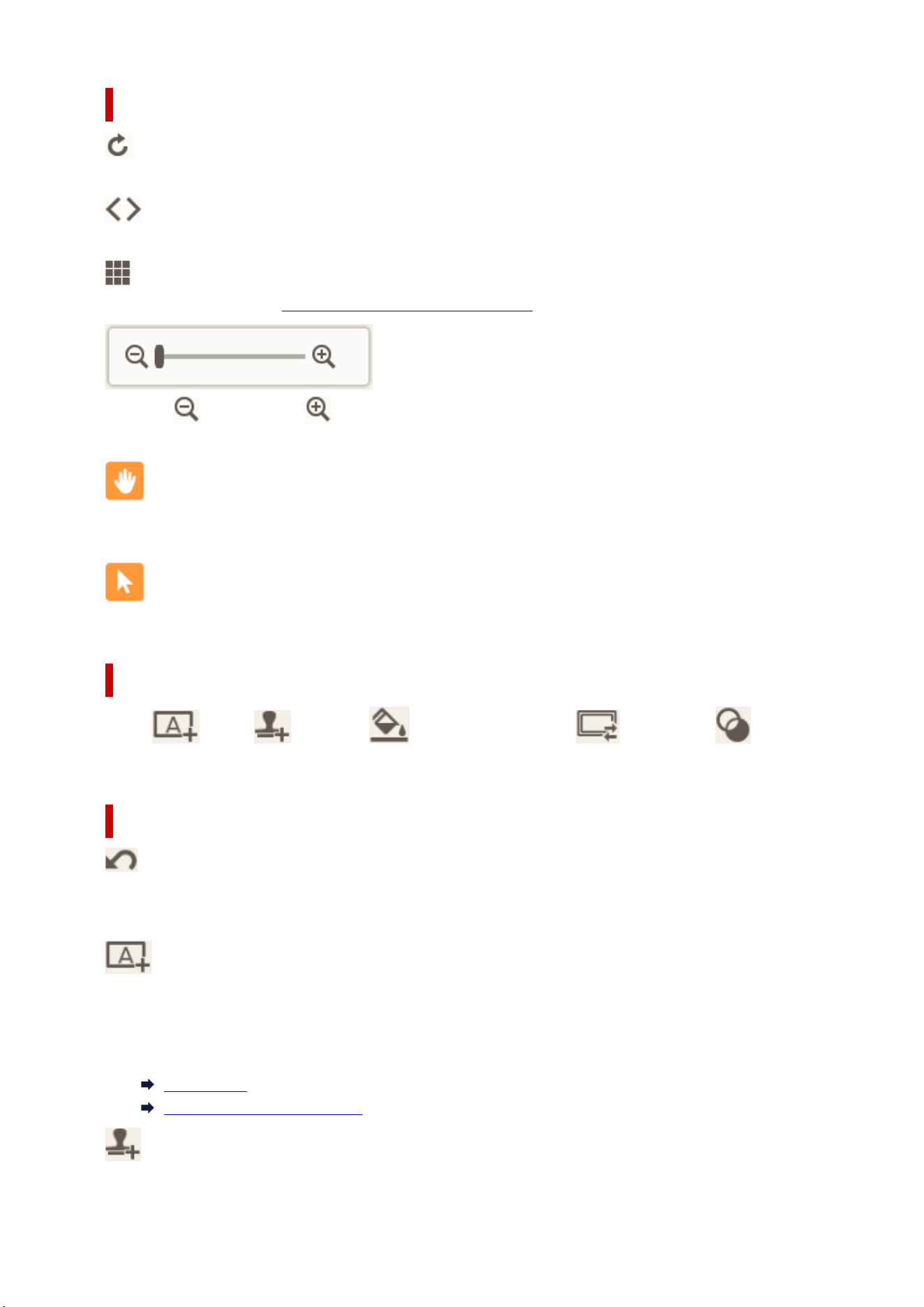
B: Viewing Tools Area
(Shuffle)
Changes the layout and placement of images.
(Previous Page/Next Page)
Switches the displayed page when there are multiple pages in the item.
(Thumbnail List View)
Click to switch to the Item edit screen (thumbnail list view).
(Zoom Out/Zoom In)
Click
(Zoom Out) or (Zoom In) to reduce or enlarge the display size. You can also freely
change the display size by dragging the slider.
(Hand Tool)
Drag the item until the area you want to see is displayed (for example, when an enlarged item does
not fit in the screen).
(Select Object Tool)
Select an image, text, or stamp.
C: Sidebar
Select
(Text), (Stamps), (Background Colors), (Frames), or (Creative
Filters) in the Editing tools area to display the corresponding settings or list.
D: Editing Tools Area
Undo
Undoes the last operation.
Each click restores the previous state.
Text
Add text boxes.
Select from Vertical, Horizontal, Arch Up, and Arch Down.
When you enter text, the Text palette appears on the Sidebar of the Item edit area.
Adding Text
Adding/Adjusting Text Boxes
Stamps
Displays the Stamps palette on the Sidebar of the Item edit area and you can add stamps.
193
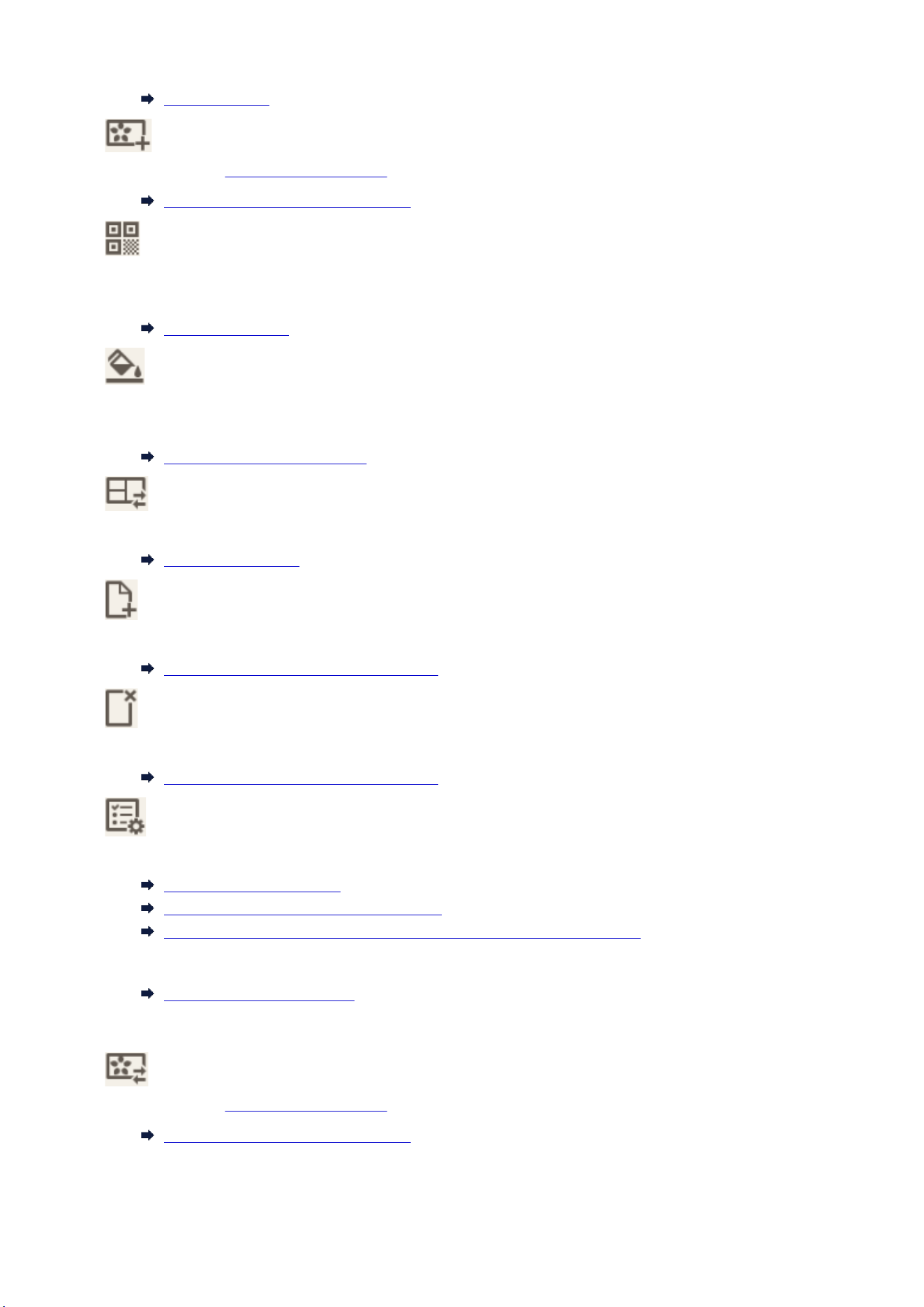
Adding Stamps
Images
Displays the Photo Locations screen and you can add or change photos.
Adding/Changing/Swapping Images
QR Code
The QR code settings palette will be shown in the sidebar of the Item edit screen, allowing you to add
or edit QR codes.
Adding QR Codes
Background Colors
Displays the Background Colors palette on the Sidebar of the Item edit area and you can change the
background color of your item.
Changing Background Colors
Templates
You can change the template.
Changing Template
Add Page
Adds a new page after the selected page.
Adding, Deleting, or Rearranging Pages
Delete Page
Deletes the selected page.
Adding, Deleting, or Rearranging Pages
Advanced...
Specify the settings for calendars, disc labels, business cards, stickers, or ID photos.
Calendar Settings Screen
Advanced Settings Screen (Disc Labels)
Advanced Settings Screen (Business Cards, Stickers, and ID Photos)
Change the paper size and photo size for Custom Frame Size.
Custom Frame Size Screen
When image, text, or stamp is selected:
Select Image
Displays the Photo Locations screen and you can change photos.
Adding/Changing/Swapping Images
194
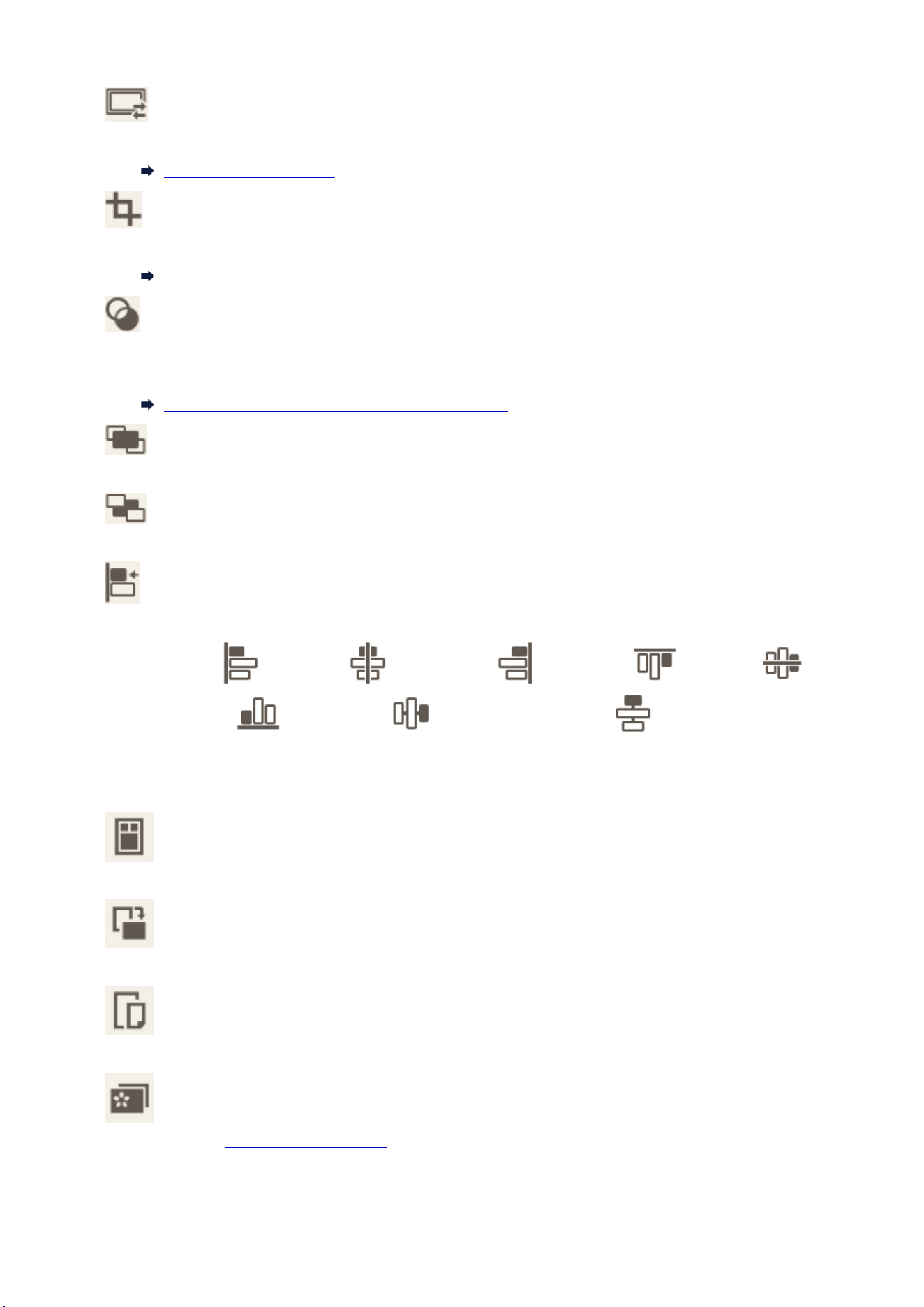
Frames
Displays the Frames palette on the Sidebar of the Item edit area and you can add frames to images.
Changing Image Frames
Crop
Switches to the Crop screen and you can crop images.
Cropping Images (for Items)
Creative Filters
Displays the Creative Filters palette on the Sidebar of the Item edit area and you can turn images
black and white, enhance them to resemble retro images, and more.
Enhancing Images with Creative Filters (for Items)
Bring to Front
Moves an image, text box, or stamp to the front.
Send to Back
Moves an image, text box, or stamp to the back.
Align
Align images, text boxes, or stamps.
Select from
Align Left, Align Center, Align Right, Align Top,
Align Middle, Align Bottom, Distribute Horizontally, Distribute Vertically,
Align Selected Objects, and Align to Page Edge.
When shuffled layout is selected:
Layout
Select the number of images to place in a page.
Orientation
Select the photo orientation.
Paper Size
Change the paper size.
Select Photos
Displays the Photo Locations screen and you can change photos.
195

E: Switch Screen/Save Area
Return to Home Screen
Return to the
Home screen.
If clicked before saving the item, the Discard Changes screen appears.
Click OK to return to the Home screen without saving the item. To save the item, click Cancel, and
then click Save in the Item edit screen.
Save
Save the item.
Saved items are added to the Your Items screen.
Next
The view switches to the Print Settings screen.
Print Settings Screen (Windows)
Print Settings Screen (macOS)
196
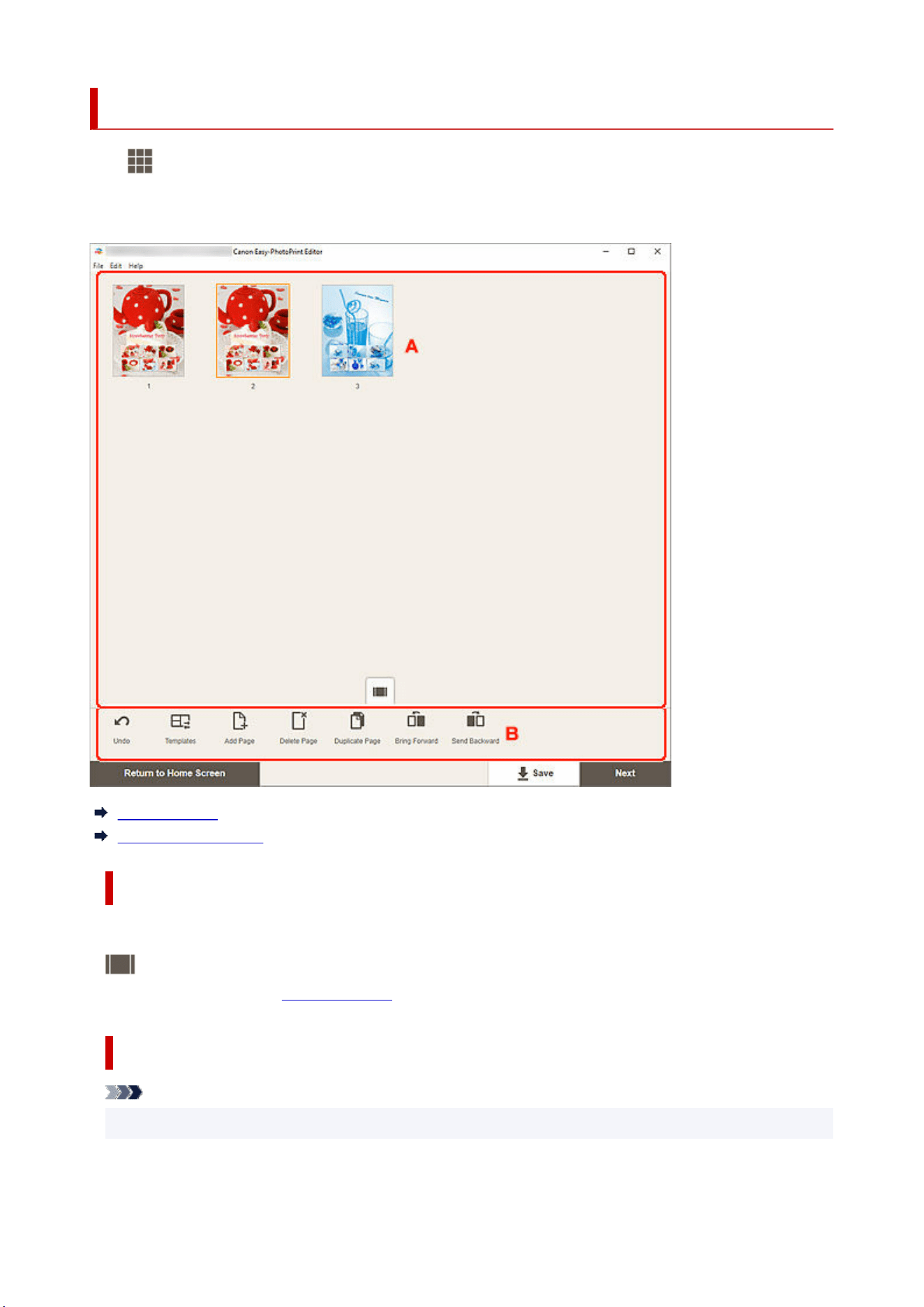
Item Edit Screen (Thumbnail List View)
Click
(Thumbnail List View) in the Item edit screen to display a list of thumbnails of all pages in the
item being edited; add, delete, or duplicate pages or use other functions as needed. You can also rearrange
pages.
A: Pages Area
B: Editing Tools Area
A: Pages Area
Displays a list of thumbnails of all pages in the item.
(Single Image View)
Click to switch to the Item edit screen.
B: Editing Tools Area
Note
• The displayed contents vary depending on the item.
197
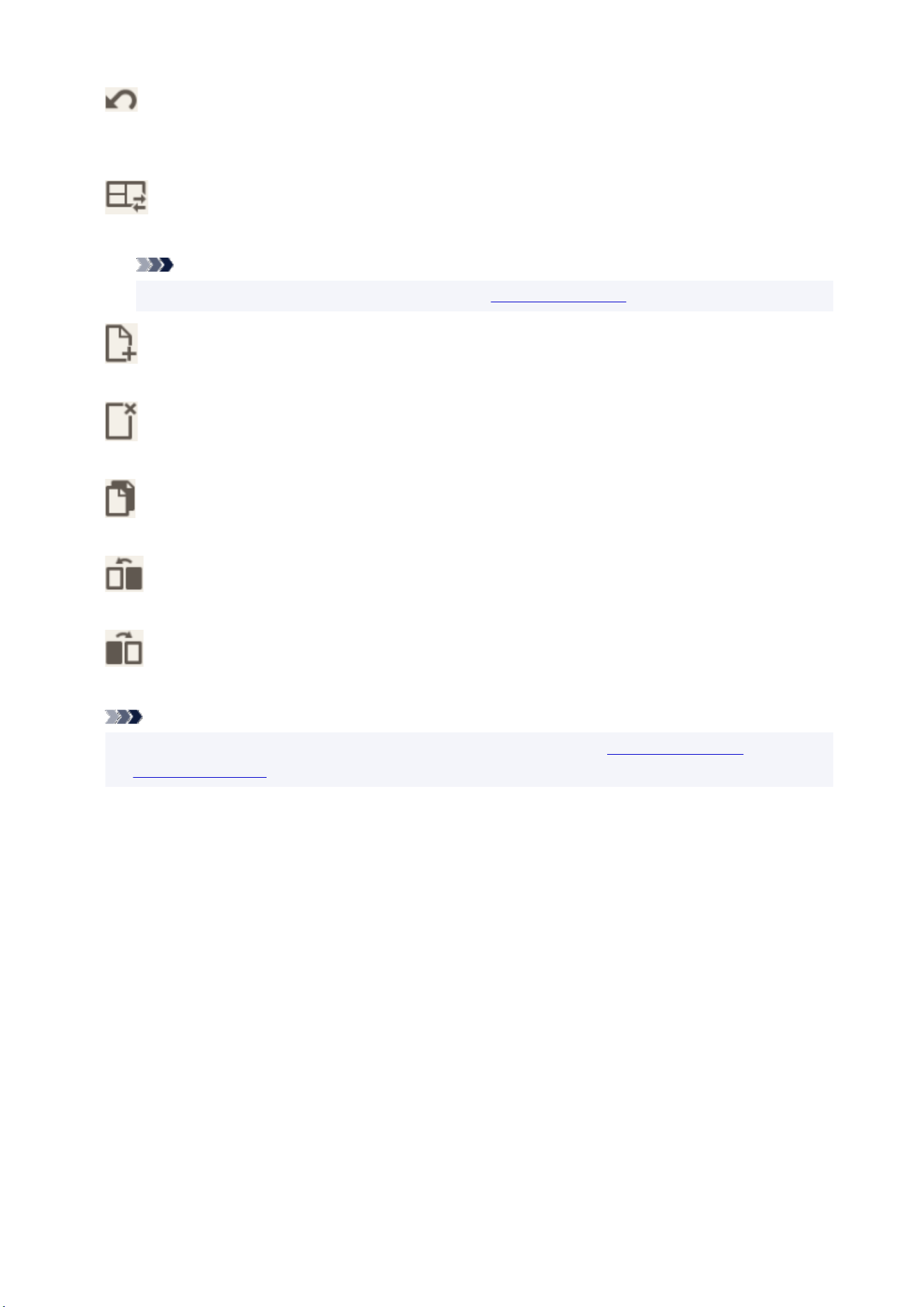
Undo
Undoes the last operation.
Each click restores the previous state.
Templates
You can change the template.
Note
• For details on how to change the template, see
Changing Template.
Add Page
Adds a new page after the selected page.
Delete Page
Deletes the selected page.
Duplicate Page
Duplicates the selected page.
Bring Forward
Moves the selected page up one page.
Send Backward
Moves the selected page down one page.
Note
• For details on how to add, delete, duplicate, or rearrange pages, see
Adding, Deleting, or
Rearranging Pages.
198
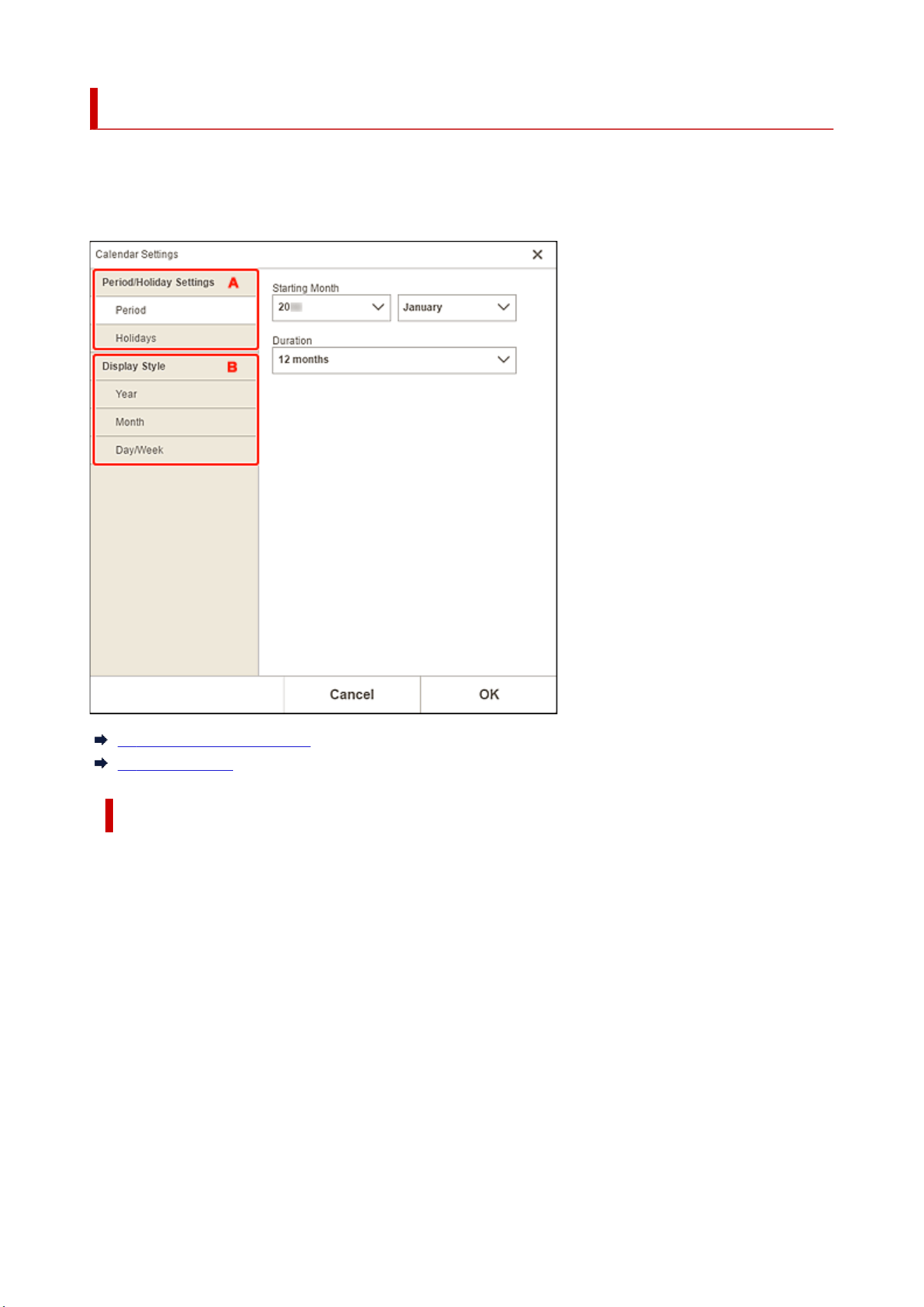
Calendar Settings Screen
Specify basic settings, font, font color, display format of the month, etc. for the calendar.
When editing a calendar in the Item edit screen, click Advanced... in the Editing tools area to display the
Calendar Settings screen.
A: Period/Holiday Settings
B: Display Style
A: Period/Holiday Settings
Set the start year and month, period, and holidays for the calendar.
199
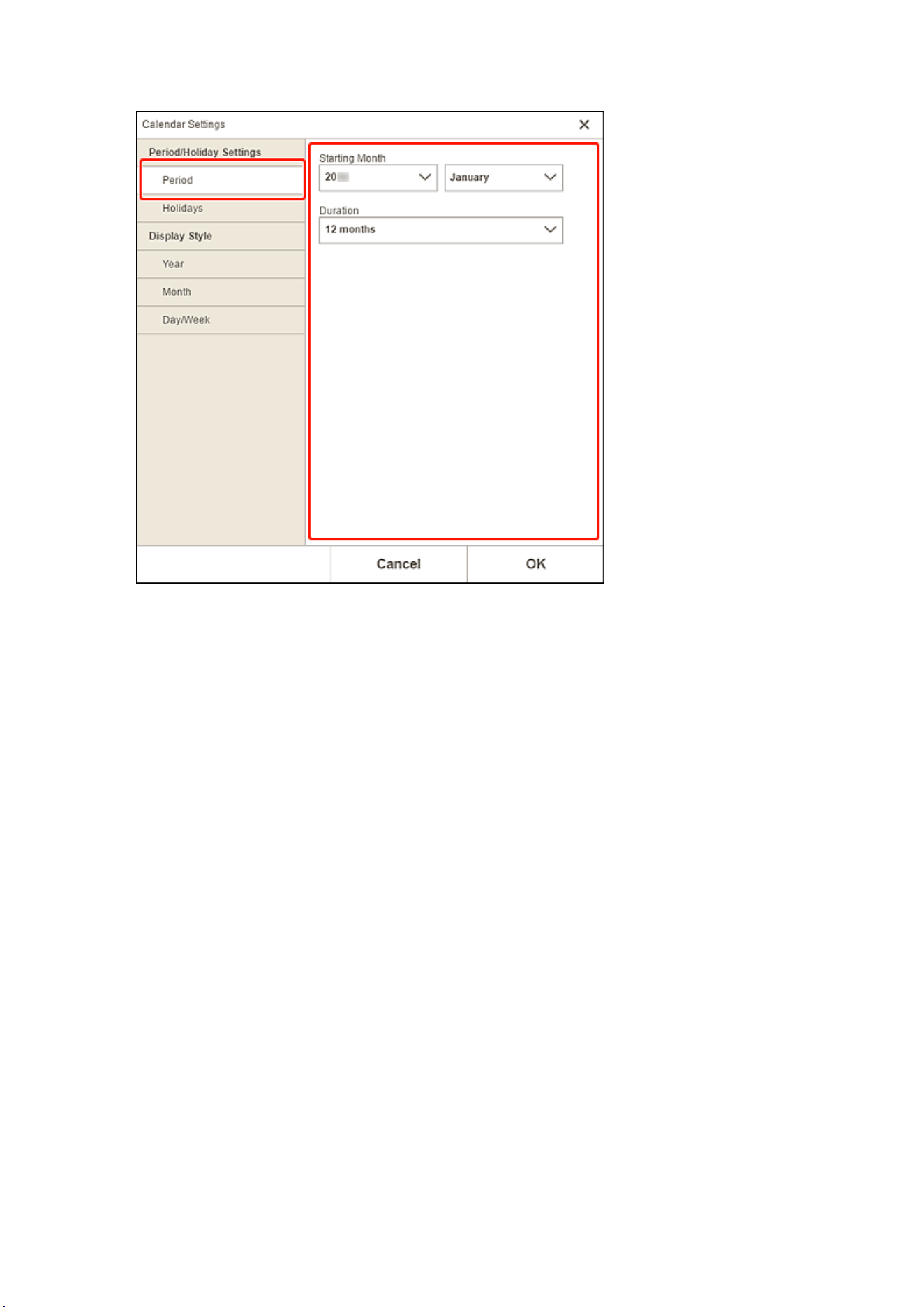
Period
Starting Month
Select the start year and month for the calendar.
Duration
Select the number of months for the calendar.
200
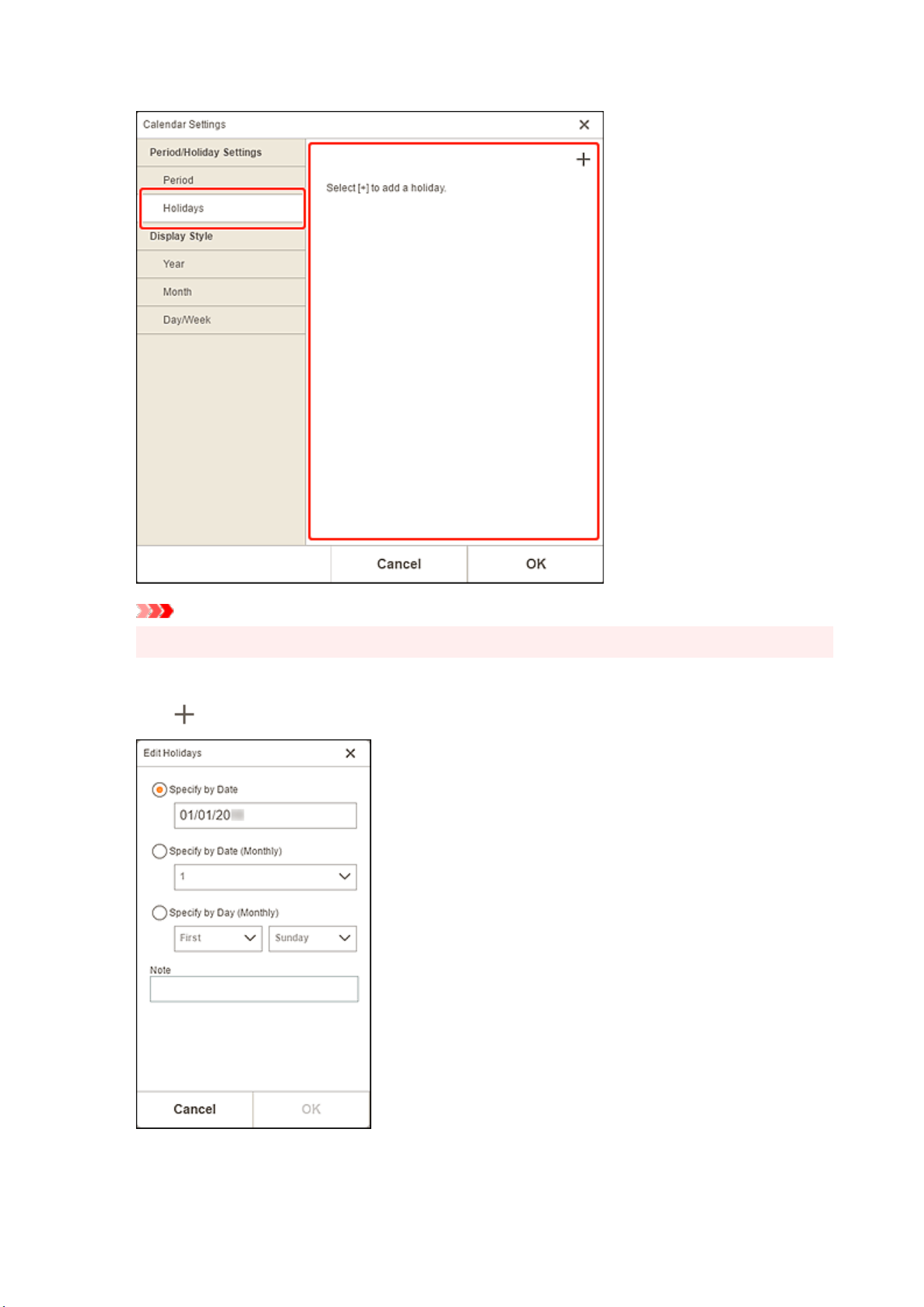
Holidays
Important
• When you add, edit, or delete holidays, the result applies to all calendars you create.
When adding holidays:
Click
(Add) to display the Edit Holidays screen.
Specify by Date
Specify the holiday to add by date.
201
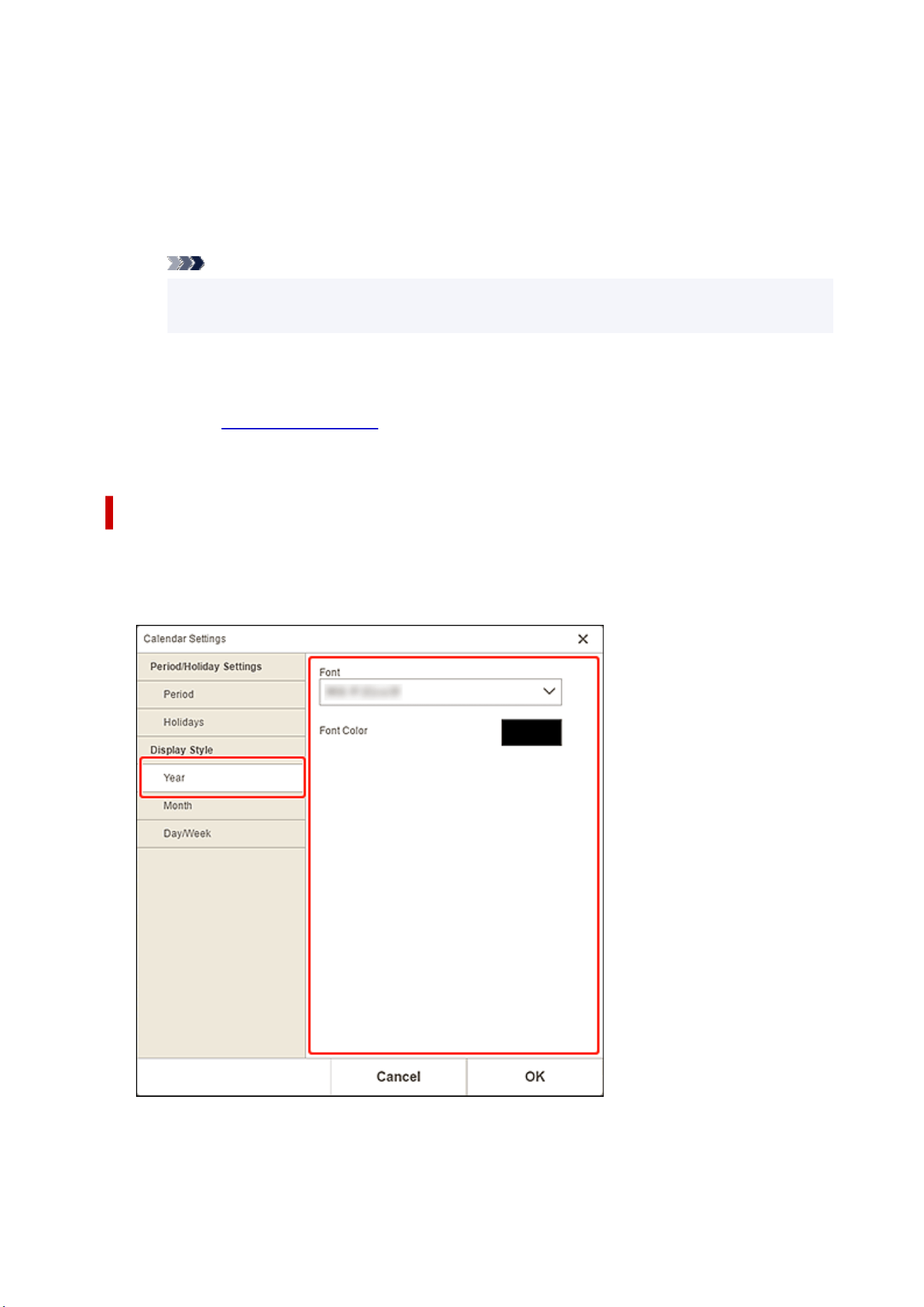
Specify by Date (Monthly)
Specify the holiday to add by day of the month.
Specify by Day (Monthly)
Specify the holiday to add by week number and the day of the week.
Note
Enter a comment or remark for the holiday you want to add.
Note
• Note is a required field.
• The entered note does not appear in items.
When editing or deleting holidays:
Click an added holiday to display the Edit Holidays screen for editing or deleting holidays.
To edit, see
When adding holidays:.
To delete, click Delete.
B: Display Style
Set the font and font color to be applied to the year, month, days of the week, and days of the month, and
the display format of the month for the calendar.
Year
Font
Select the font type to be applied to the year.
202
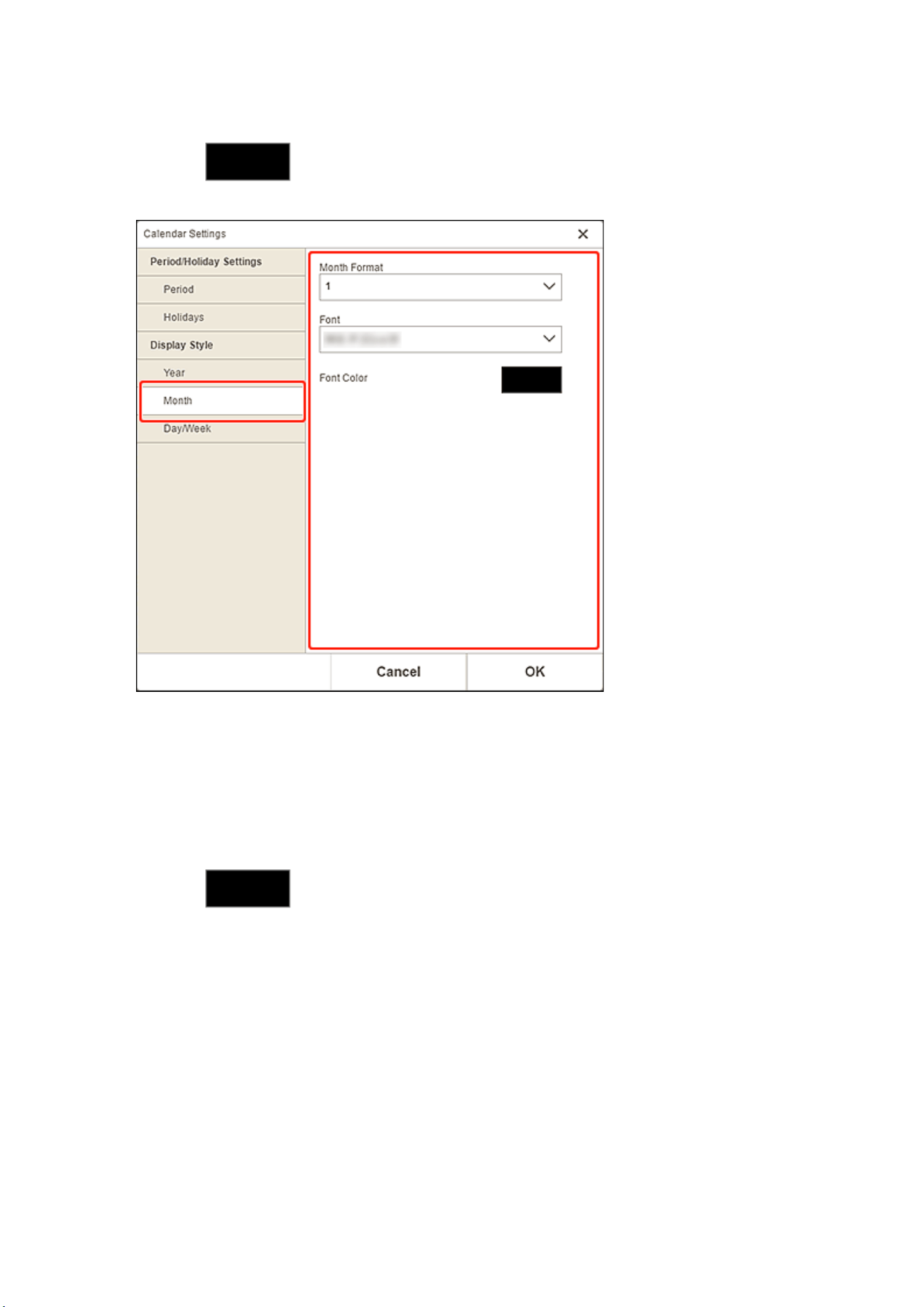
Font Color
Select the font color of the year.
Click
(Colors), and then select the color you want to set.
Month
Month Format
Select the display format of the month.
Font
Select the font type to be applied to the month name.
Font Color
Select the font color of the month name.
Click
(Colors), and then select the color you want to set.
203
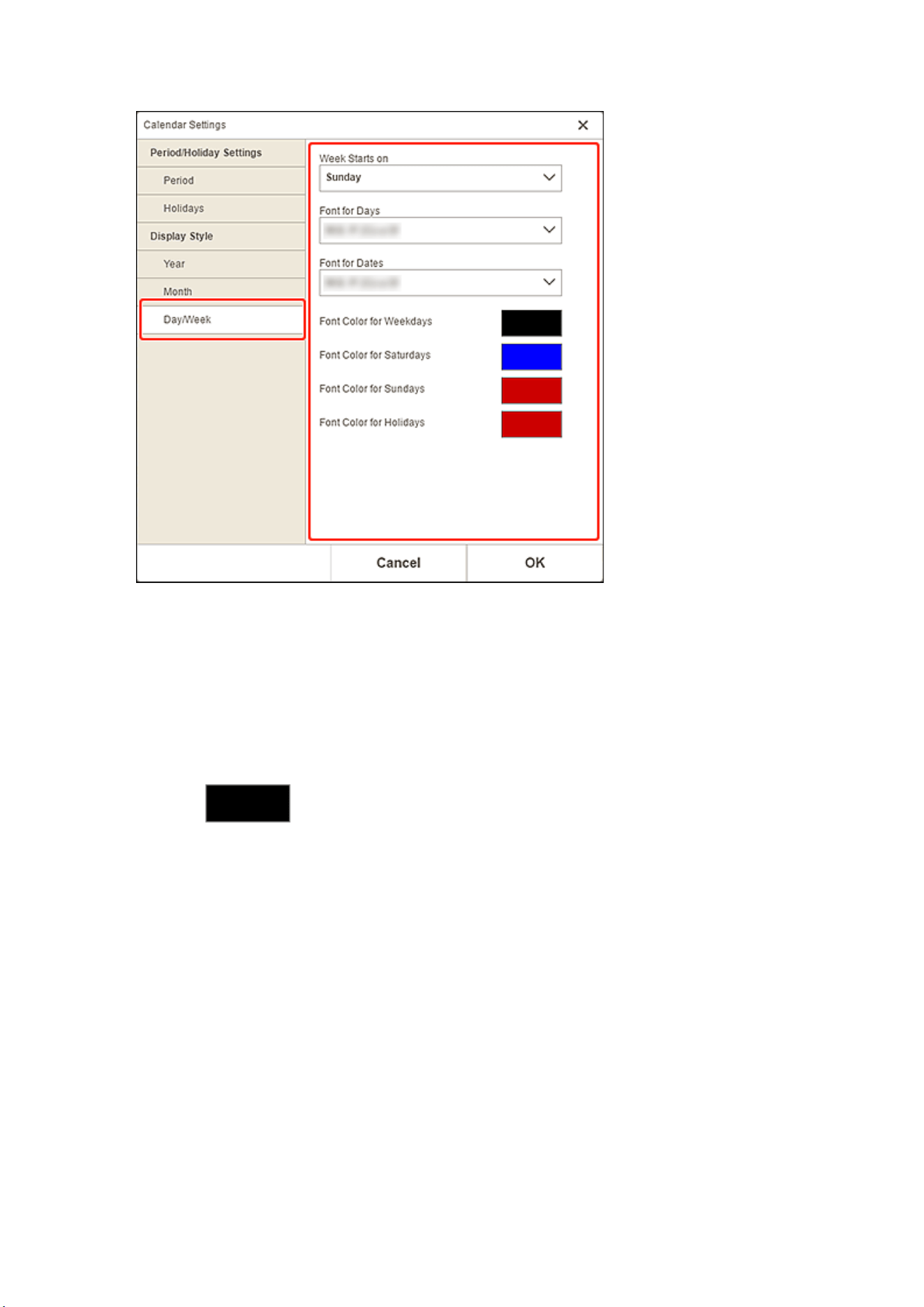
Day/Week
Week Starts on
Select the start day of the week.
Font for Days/Font for Dates
Select the font to be applied to the days of the week and dates.
Font Color for Weekdays/Font Color for Saturdays/Font Color for Sundays/Font Color for
Holidays
Select the font color of the days of the week and dates.
Click
(Colors), and then select the color you want to set.
204
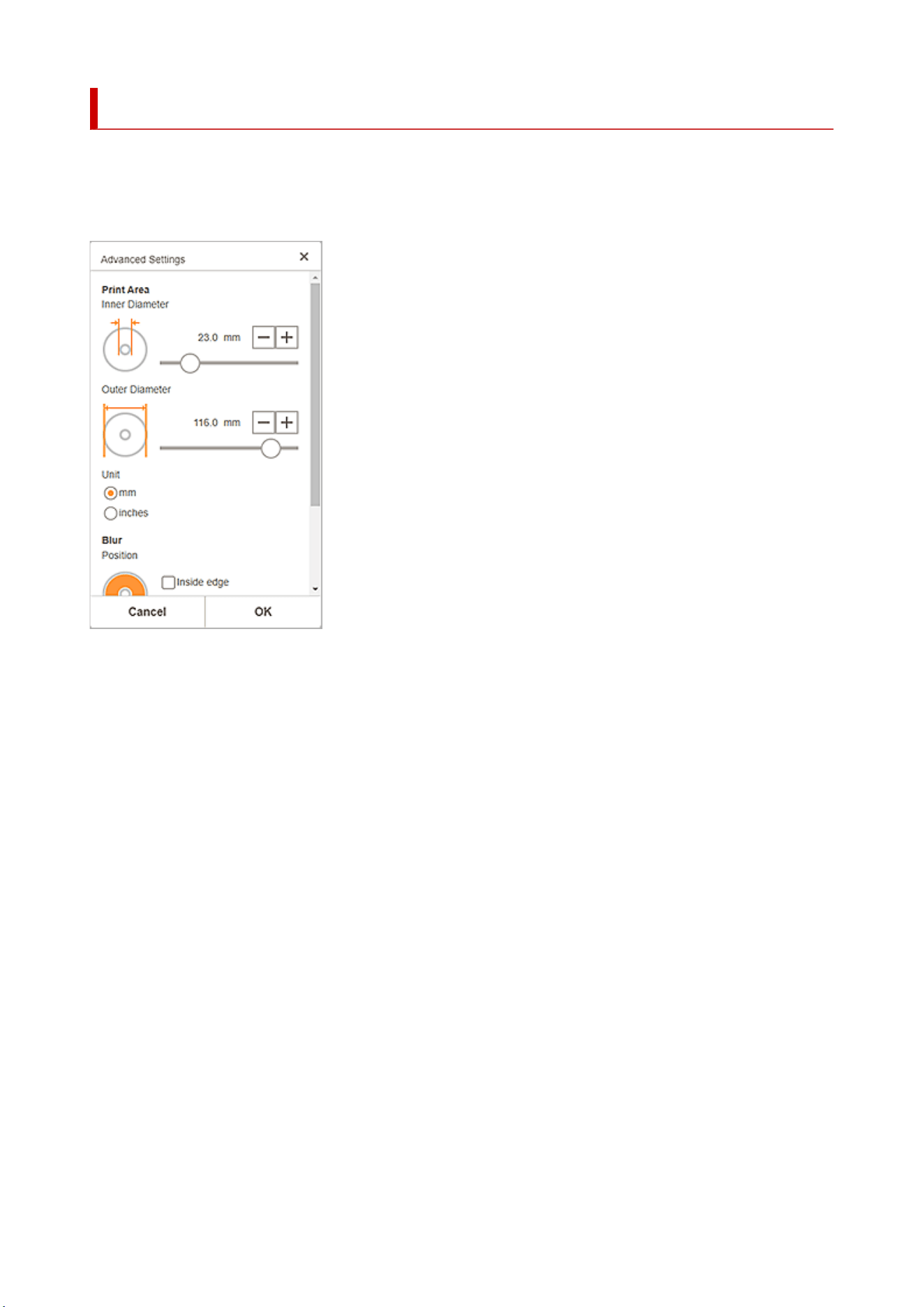
Advanced Settings Screen (Disc Labels)
Set the print area for the disc label and blur for the disc edges.
When editing a disc label in the Item edit screen, click Advanced... in the Editing tools area to display the
Advanced Settings screen.
Print Area
Inner Diameter
Adjust the inner diameter of the print area.
Outer Diameter
Adjust the outer diameter of the print area.
Unit
Select mm or inches.
Blur
Position
Select from Inside edge and Outside edge.
Strength
Adjust the area of blur for the disc edge.
205

Advanced Settings Screen (Business Cards, Stickers, and ID
Photos)
When editing a business card, sticker, or ID photo in the Item edit screen, click Advanced... in the Editing
tools area to display the Advanced Settings screen.
Apply the following to all identical images in default frames
Select this checkbox to apply the same cropping and Creative filter settings to all copies of the same
image within the page.
206
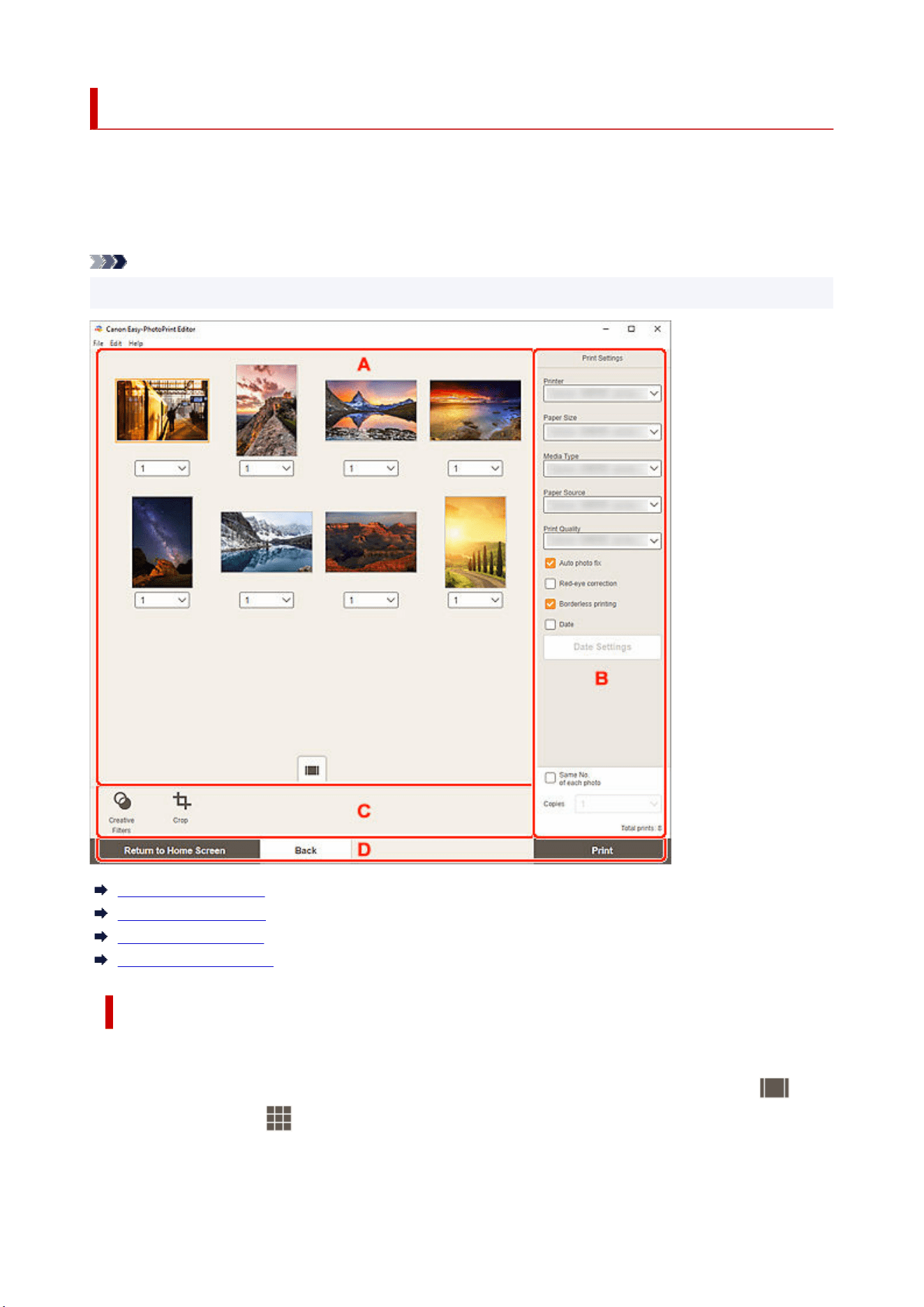
Print Settings Screen (Windows)
Specify the print settings and start printing.
To print a photo, select it in the Photo Locations screen to switch to the Print Settings screen.
To print an item, click Next in the Item edit screen to switch to the Print Settings screen.
Note
• The displayed settings vary depending on your printer and item.
A: Print Preview Area
B: Print Settings Area
C: Editing Tools Area
D: Switch Screen Area
A: Print Preview Area
Check the print preview or set the number of copies to print.
To switch the view for preview images between single image view and thumbnail list view, click
(Single Image View) or (Thumbnail List View) in the Print preview area.
207
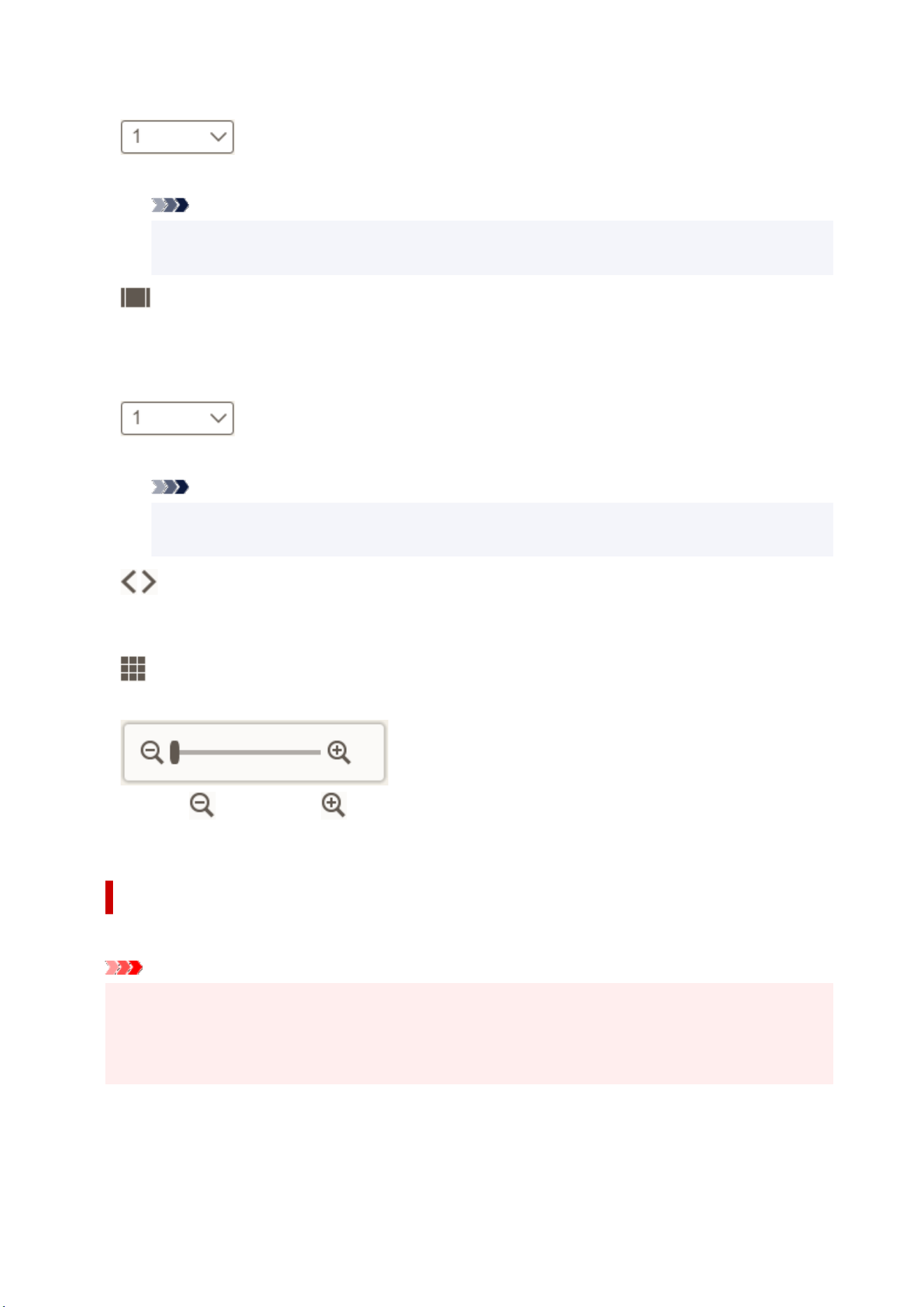
In Thumbnail List View:
(Copies)
Set the number of print copies.
Note
• To set the number of copies to print for all the photos at once, select the Same No. of each
photo checkbox in "B: Print Settings Area."
(Single Image View)
Click to switch to single image view.
In Single Image View:
(Copies)
Set the number of print copies.
Note
• To set the number of copies to print for all the photos at once, select the Same No. of each
photo checkbox in "B: Print Settings Area."
(Previous Page/Next Page)
Switches the displayed page when there are multiple photos or when there are multiple pages in
the item.
(Thumbnail List View)
Click to switch to thumbnail list view.
(Zoom Out/Zoom In)
Click
(Zoom Out) or (Zoom In) to reduce or enlarge the display size. You can also freely
change the display size by dragging the slider.
B: Print Settings Area
Specify the printer to use, printing method, and other settings.
Important
• In photo printing, if you change Printer, Paper Size, or Borderless printing after cropping an image,
the cropping settings will be canceled.
In photo printing, changing Media Type or Paper Source may also cancel the cropping settings,
depending on the selected media type and paper source.
Printer
Select the printer to use.
208
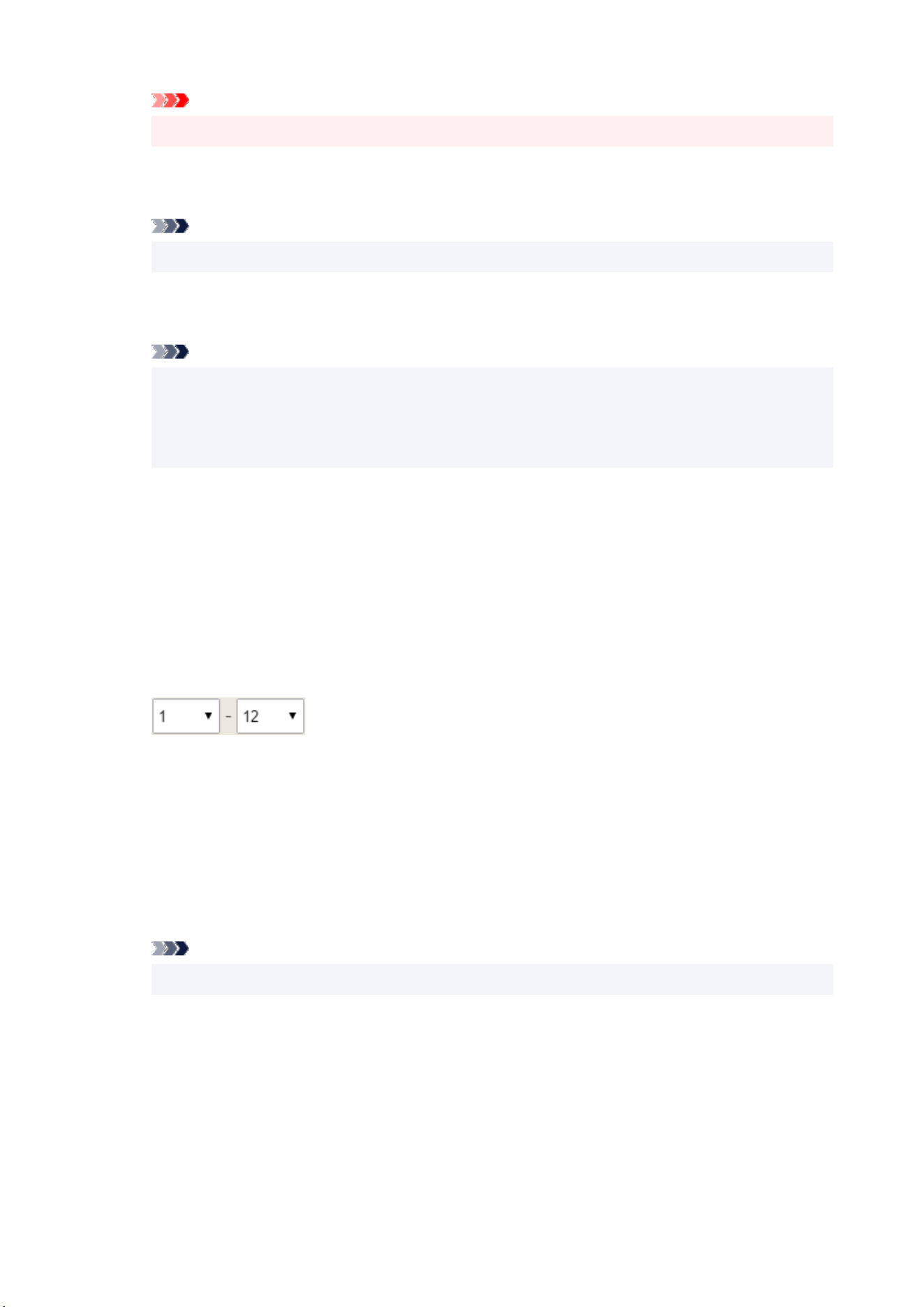
Important
• If you change the printer, the settings in "B: Print Settings Area" may change.
Paper Size
Select the size of the paper to use.
Note
• To print to fit the roll paper width, select Fit to Roll Paper Width.
Media Type
Select the type of the paper to use.
Note
• When Auto is selected, printing is performed with the media type set on the printer.
• When Premium Fine Art Rough is selected, the paper may become stained or the print quality
may deteriorate depending on your environment. Printing in a layout with wide margins is
recommended.
Paper Source
Select the paper source.
Print Quality
Select the print quality suitable for the data to be printed.
Print Area
Specify which pages to print.
All
Print all pages.
(Pages)
Select a range of pages to print.
Auto photo fix
Select this checkbox to correct photos automatically.
Red-eye correction
Select this checkbox to correct red eyes caused by a camera flash.
Borderless printing
Select this checkbox to print the photos or item on an entire sheet of paper without borders.
Note
• For models supporting roll paper, this is available only when printing on roll paper.
Date
Select this checkbox to add dates to the photos before printing.
Date Settings
Select the Date checkbox to print the date.
Size
Select the size for the date text.
209
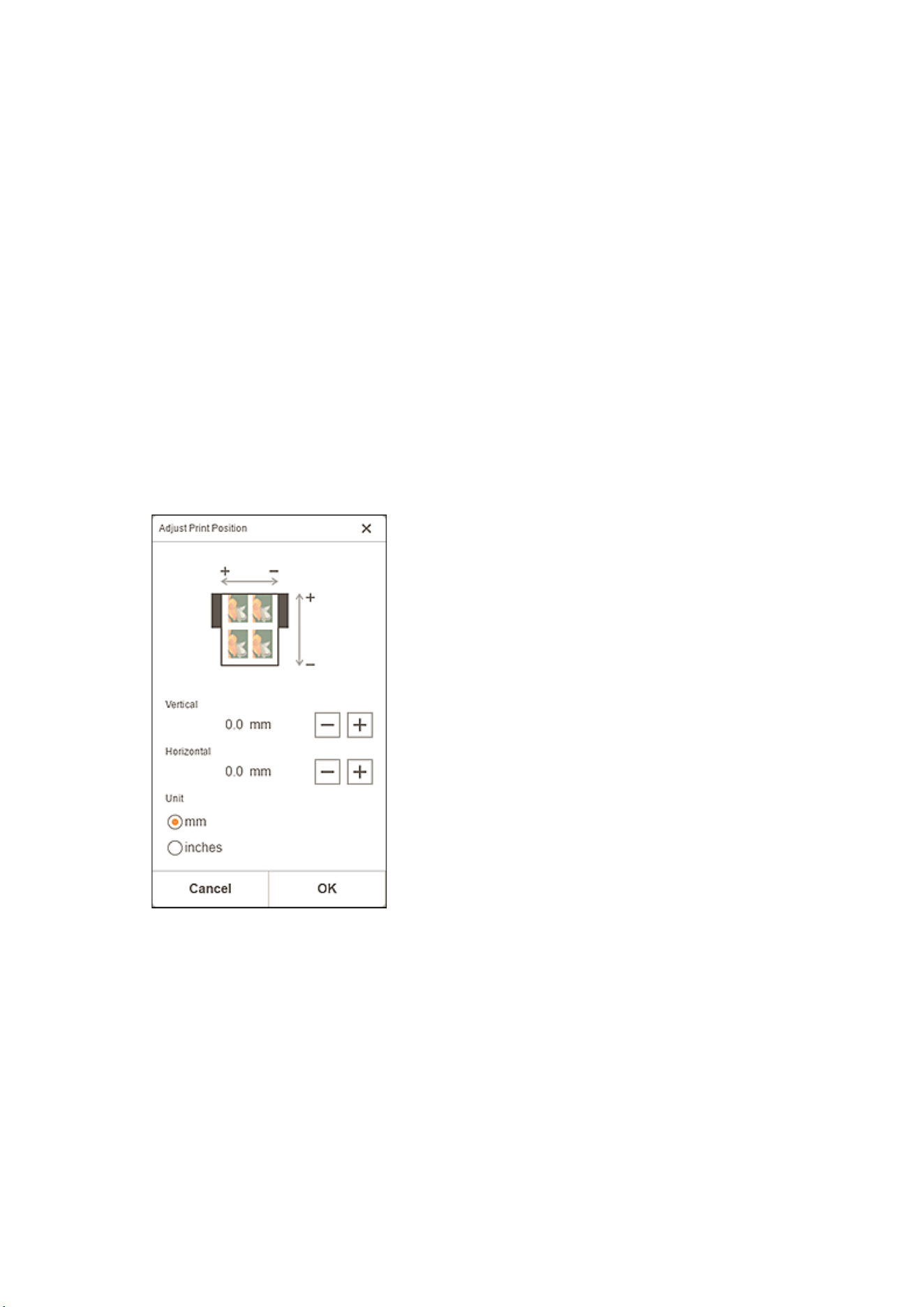
Color
Text
Select the color for the date text.
Outline
Select the color for the text outline.
Save Paper (Rotate 90 Degrees)
Available when printing on roll paper.
Select this checkbox to rotate the print orientation 90 degrees.
Rotating the print orientation can in some cases help conserve paper.
Adjust Print Position
Displays the Adjust Print Position screen.
If the printed image is out of position, adjust the print position in the Adjust Print Position screen.
Business card and sticker:
Adjust the vertical and horizontal print positions separately based on the print direction in 0.01 in. or
0.1 mm increments within the range of -0.08 in. (-2.0 mm) to +0.08 in. (+2.0 mm).
Disc label:
Adjust the vertical and horizontal print positions separately based on the print direction in 0.01 in. or
0.1 mm increments within the range of -0.04 in. (-0.9 mm) to +0.04 in. (+0.9 mm).
210
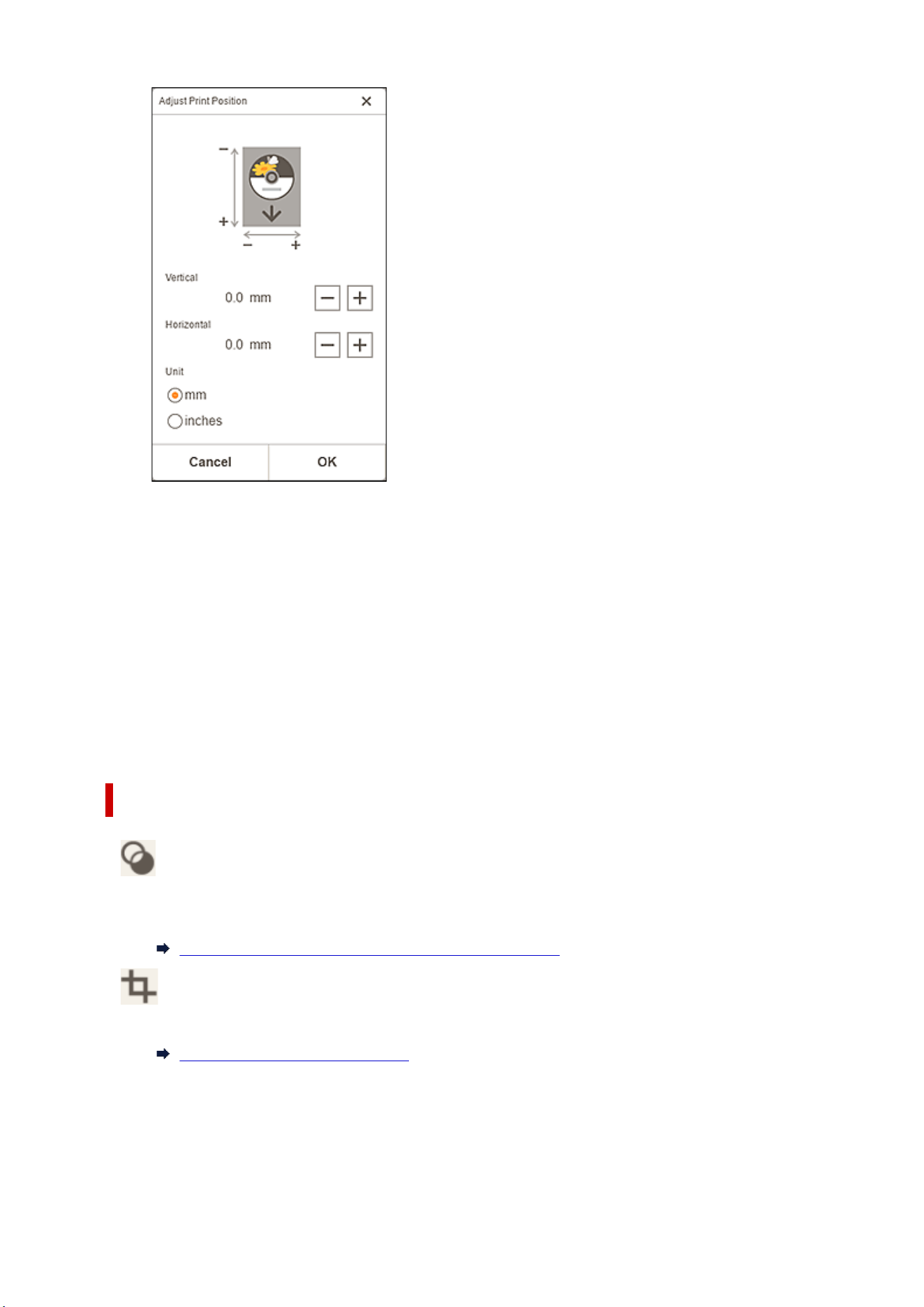
Create Tiling/Poster
Starts Easy-Layout Editor with which you can print over multiple sheets of paper and combine them
to create a large poster. If Easy-Layout Editor is not installed, follow the on-screen instructions to
download and install it from the web page.
Same No. of each photo
Select this checkbox to set the number of copies to print for all the photos at once.
Copies
Set the number of copies to print.
Total prints
Displays the total number of print copies.
C: Editing Tools Area
Creative Filters
Switches to the Creative Filters screen and you can turn photos black and white, enhance them to
resemble retro photos, and more.
Enhancing Photos with Creative Filters (for Photo Print)
Crop
Switches to the Crop screen and you can crop photos.
Cropping Photos (for Photo Print)
211

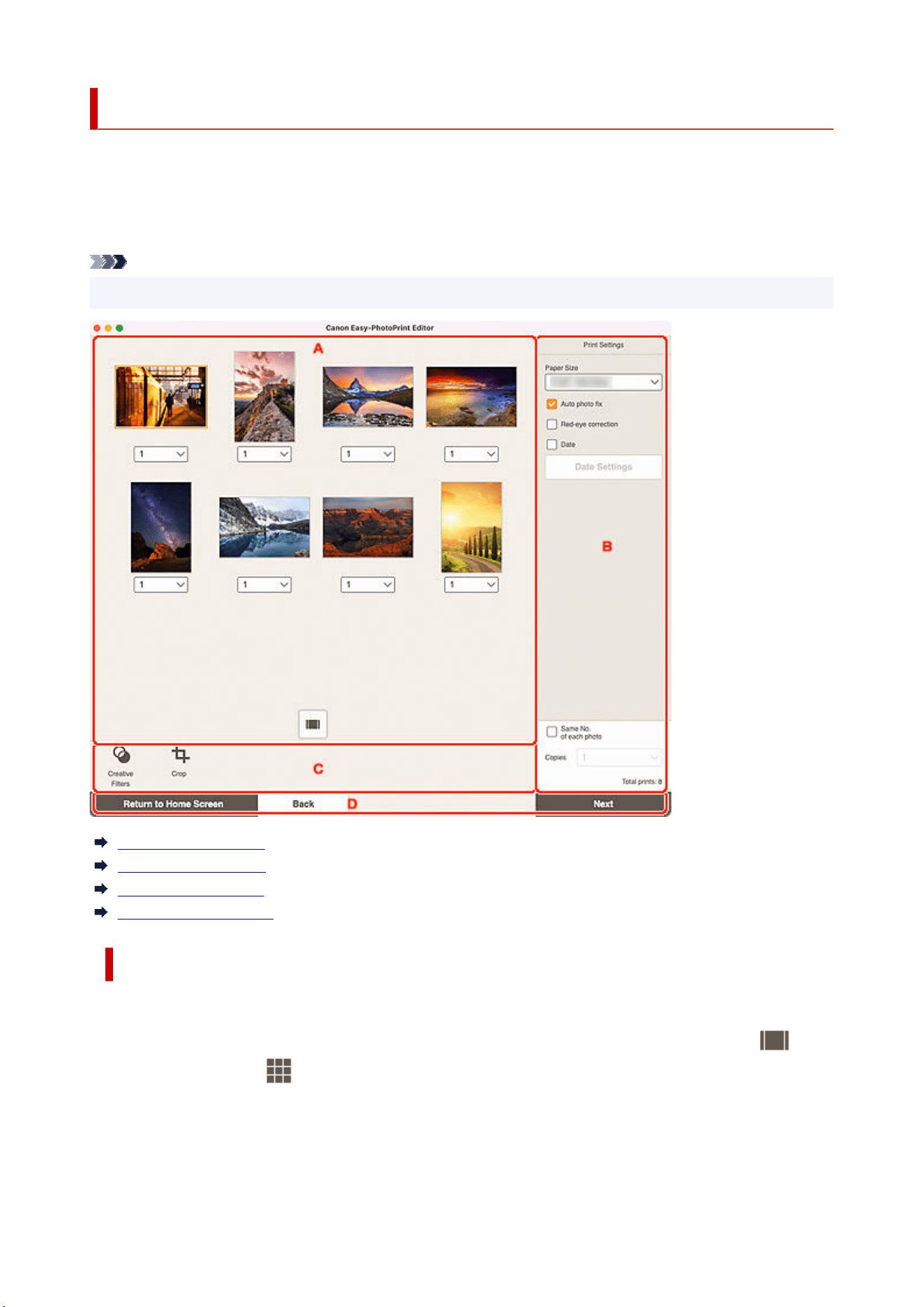
Print Settings Screen (macOS)
Specify the print settings and start printing.
To print a photo, select it in the Photo Locations screen to switch to the Print Settings screen.
To print an item, click Next in the Item edit screen to switch to the Print Settings screen.
Note
• The displayed settings vary depending on your printer and item.
A: Print Preview Area
B: Print Settings Area
C: Editing Tools Area
D: Switch Screen Area
A: Print Preview Area
Check the print preview or set the number of copies to print.
To switch the view for preview images between single image view and thumbnail list view, click
(Single Image View) or (Thumbnail List View) in the Print preview area.
213
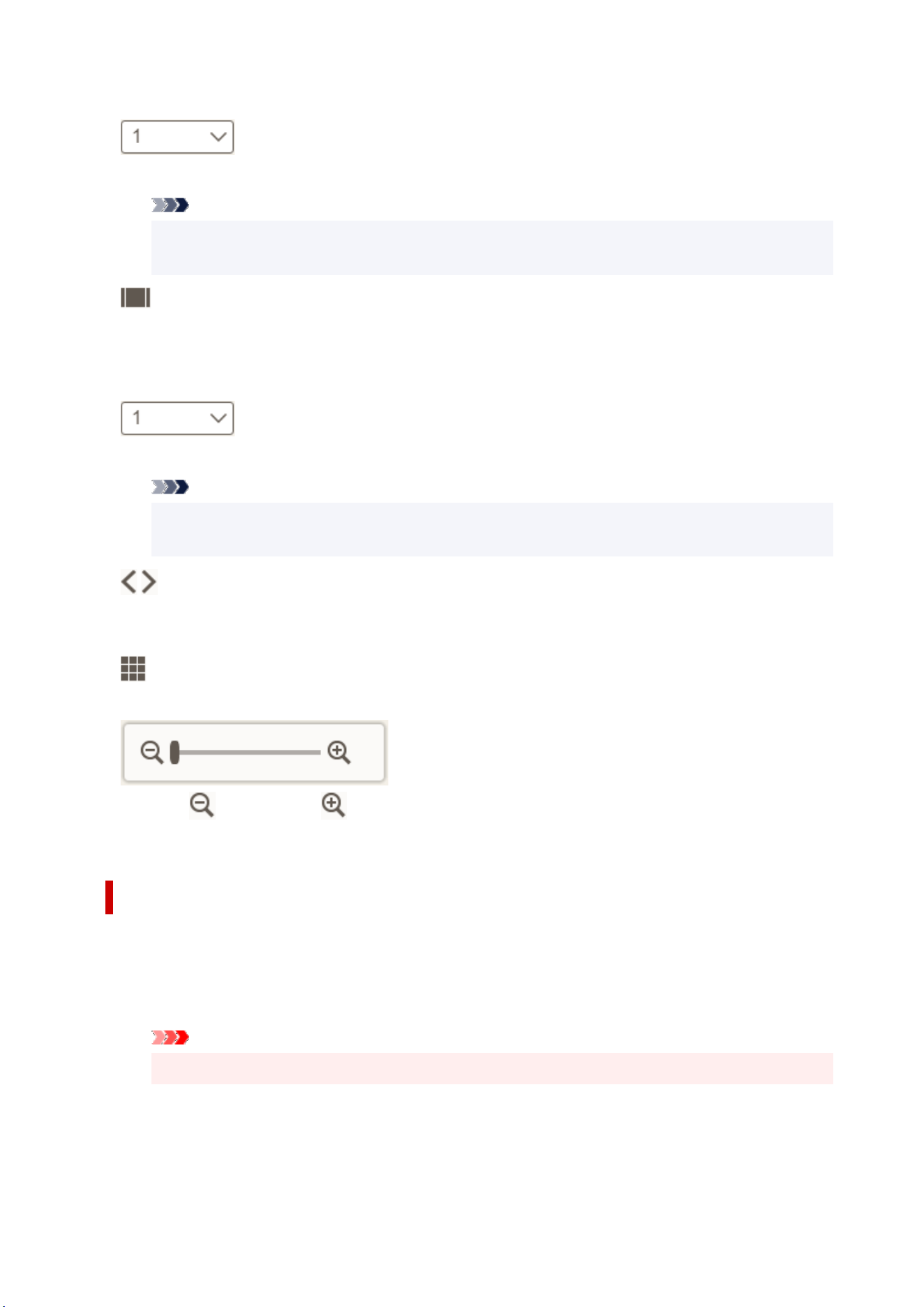
In Thumbnail List View:
(Copies)
Set the number of print copies.
Note
• To set the number of copies to print for all the photos at once, select the Same No. of each
photo checkbox in "B: Print Settings Area."
(Single Image View)
Click to switch to single image view.
In Single Image View:
(Copies)
Set the number of print copies.
Note
• To set the number of copies to print for all the photos at once, select the Same No. of each
photo checkbox in "B: Print Settings Area."
(Previous Page/Next Page)
Switches the displayed page when there are multiple photos or when there are multiple pages in
the item.
(Thumbnail List View)
Click to switch to thumbnail list view.
(Zoom Out/Zoom In)
Click
(Zoom Out) or (Zoom In) to reduce or enlarge the display size. You can also freely
change the display size by dragging the slider.
B: Print Settings Area
Set the number of copies to print, Red-eye correction, and other settings.
Paper Size
Select the size of the paper to use.
Important
• If you change the paper size after cropping an image, the cropping settings will be canceled.
Auto photo fix
Select this checkbox to correct photos automatically.
214
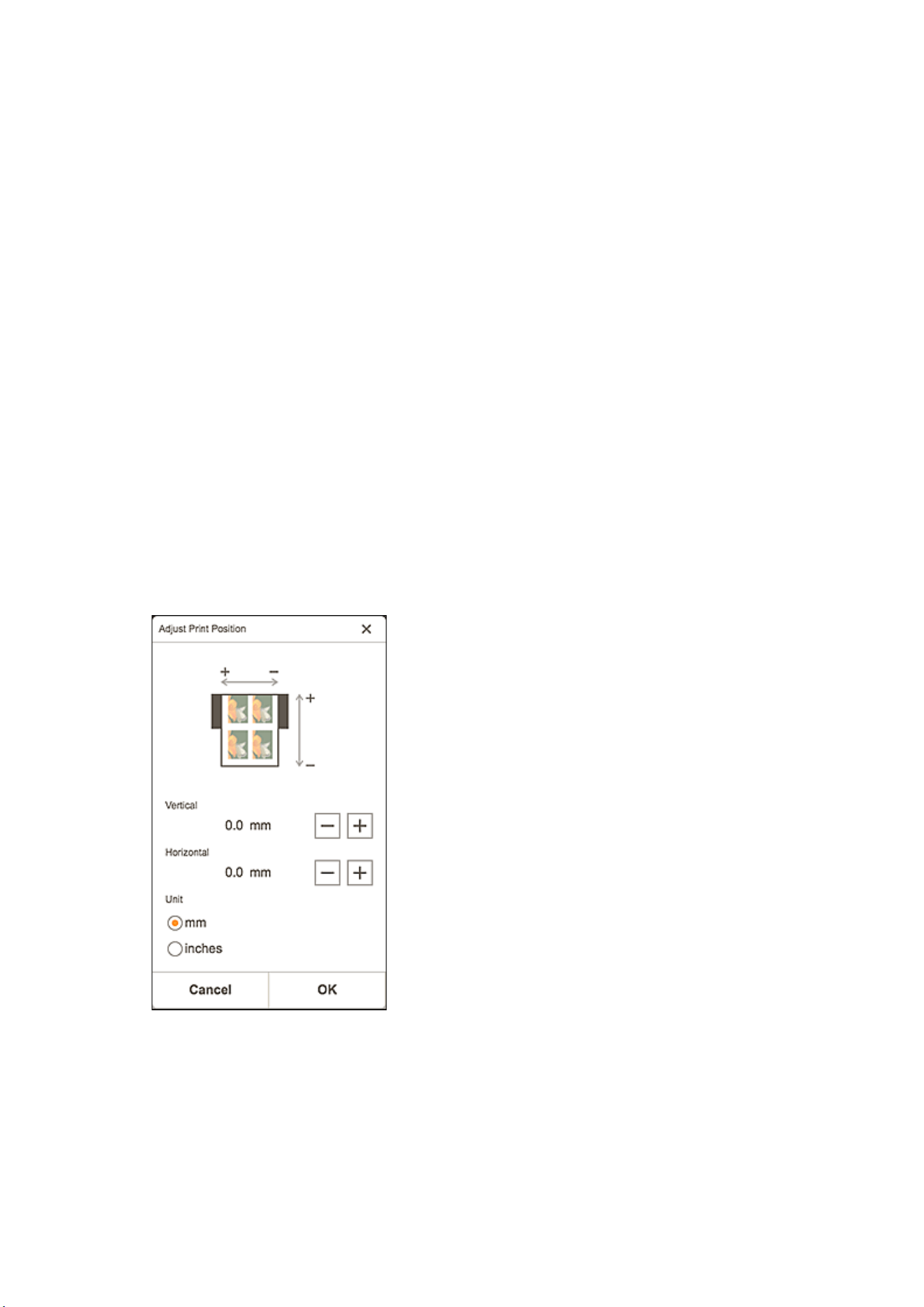
Red-eye correction
Select this checkbox to correct red eyes caused by a camera flash.
Date
Select this checkbox to add dates to the photos before printing.
Date Settings
Select the Date checkbox to print the date.
Size
Select the size for the date text.
Color
Text
Select the color for the date text.
Outline
Select the color for the text outline.
Adjust Print Position
Displays the Adjust Print Position screen.
If the printed image is out of position, adjust the print position in the Adjust Print Position screen.
Business card and sticker:
Adjust the vertical and horizontal print positions separately based on the print direction in 0.01 in. or
0.1 mm increments within the range of -0.08 in. (-2.0 mm) to +0.08 in. (+2.0 mm).
Disc label:
Adjust the vertical and horizontal print positions separately based on the print direction in 0.01 in. or
0.1 mm increments within the range of -0.04 in. (-0.9 mm) to +0.04 in. (+0.9 mm).
215
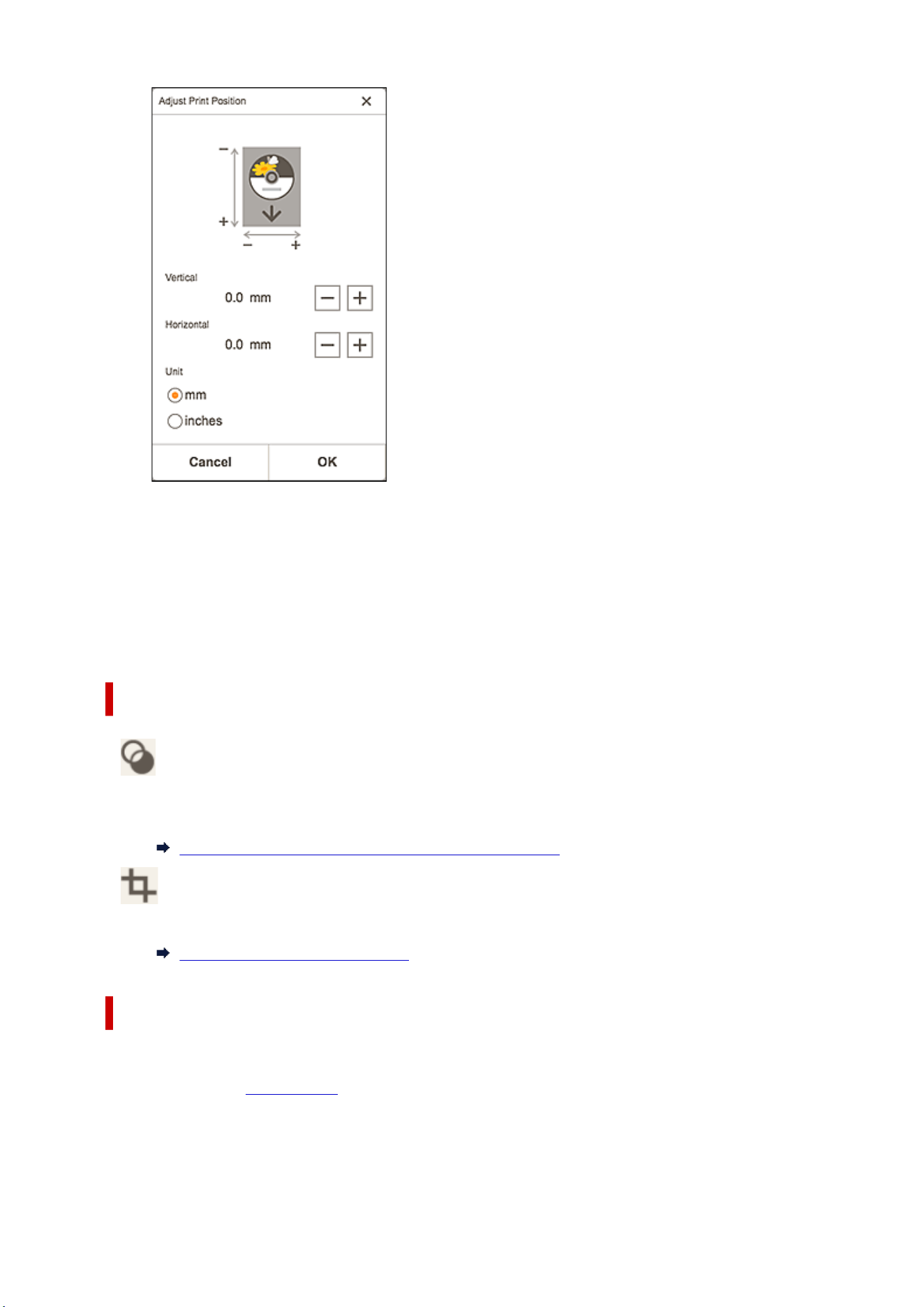
Same No. of each photo
Select this checkbox to set the number of copies to print for all the photos at once.
Copies
Set the number of copies to print.
Total prints
Displays the total number of print copies.
C: Editing Tools Area
Creative Filters
Switches to the Creative Filters screen and you can turn photos black and white, enhance them to
resemble retro photos, and more.
Enhancing Photos with Creative Filters (for Photo Print)
Crop
Switches to the Crop screen and you can crop photos.
Cropping Photos (for Photo Print)
D: Switch Screen Area
Return to Home Screen
Return to the
Home screen.
Back
Return to the previous screen.
216

Paper Size List
Paper sizes available for printing with Easy-PhotoPrint Editor are as follows. Check the paper to use before
printing.
Note
• Paper sizes available for printing vary depending on your printer, your operating system, the country/
region setting, and the application version.
Paper Size Size
A4 8.27 x 11.69 in. (21.0 x 29.7 cm)
Letter 8.5"x11" 22x28cm 8.50 x 11.00 in. (21.59 x 27.94 cm)
Hagaki 100x148mm 3.94 x 5.83 in. (10.0 x 14.8 cm)
L 89x127mm 3.50 x 5.00 in. (8.9 x 12.7 cm)
2L 127x178mm 5.00 x 7.01 in. (12.7 x 17.8 cm)
4"x6" 10x15cm 4.00 x 6.00 in. (10.16 x 15.24 cm)
Card 2.17"x3.58" 55x91mm 2.17 x 3.58 in. (5.5 x 9.1 cm)
5"x7" 13x18cm 5.00 x 7.00 in. (12.7 x 17.78 cm)
8"x10" 20x25cm 8.00 x 10.00 in. (20.32 x 25.4 cm)
10"x12" 25x30cm 10.00 x 12.00 in. (25.4 x 30.48 cm)
10"x15" 10.00 x 15.00 in. (25.4 x 38.10 cm)
12"x16" 12.00 x 16.00 in. (30.48 x 40.64 cm)
14"x17" 36x43cm 14.00 x 17.00 in. (35.56 x 43.18 cm)
18"x22" 18.00 x 22.00 in. (45.72 x 55.88 cm)
20"x24" 20.00 x 24.00 in. (50.80 x 60.96 cm)
A3 11.69 x 16.54 in. (29.7 x 42.0 cm)
A3+ 13"x19" 33x48cm 12.95 x 19.02 in. (32.9 x 48.3 cm)
A2 16.54 x 23.39 in. (42.0 x 59.4 cm)
A2+ 17.00 x 24.02 in. (43.2 x 61.0 cm)
A1 23.39 x 33.11 in. (59.4 x 84.1 cm)
A0 33.11 x 46.81 in. (84.1 x 118.9 cm)
B4 10.12 x 14.33 in. (25.7 x 36.4 cm)
B3 14.33 x 20.28 in. (36.4 x 51.5 cm)
B2 20.28 x 28.66 in. (51.5 x 72.8 cm)
B1 28.66 x 40.55 in. (72.8 x 103.0 cm)
B0 40.55 x 57.32 in. (103.0 x 145.6 cm)
ISO B4 9.84 x 13.90 in. (25.0 x 35.3 cm)
ISO B3 13.90 x 19.67 in. (35.3 x 50.0 cm)
218
ISO B2 19.67 x 27.83 in. (50.0 x 70.7 cm)
ISO B1 27.83 x 39.36 in. (70.7 x 100.0 cm)
ISO B0 39.36 x 55.67 in. (100.0 x 141.4 cm)
7"x10" 18x25cm 7.00 x 10.00 in. (17.8 x 25.4 cm)
9"x12" (ARCH A) 9.00 x 12.00 in. (11.54 x 30.48 cm)
Legal (8.5"x14") 8.50 x 14.00 in. (21.59 x 35.56 cm)
11"x17" (Ledger) 11.00 x 17.00 in. (27.94 x 43.18 cm)
12"x18" (ARCH B) 12.00 x 18.00 in. (30.48 x 45.72 cm)
13"x19" (Super B) 13.00 x 19.00 in. (33.02 x 48.26 cm)
US Photo 16"x20" 16.00 x 20.00 in. (40.64 x 50.80 cm)
13"x22" 13.00 x 22.00 in. (33.02 x 55.88 cm)
17"x22" 43x56cm 17.00 x 22.00 in. (43.18 x 55.88 cm)
18"x24" (ARCH C) 18.00 x 24.00 in. (45.72 x 60.96 cm)
22"x34" (ANSI D) 22.00 x 34.00 in. (55.88 x 86.36 cm)
24"x36" (ARCH D) 24.00 x 36.00 in. (60.96 x 91.44 cm)
26"x38" (ARCH E2) 26.00 x 38.00 in. (66.04 x 96.52 cm)
27"x39" (ARCH E3) 27.00 x 39.00 in. (68.58 x 99.06 cm)
28"x40" (ANSI F) 28.00 x 40.00 in. (71.12 x 101.60 cm)
30"x42" (ARCH E1) 30.00 x 42.00 in. (76.20 x 106.68 cm)
34"x44" (ANSI E) 34.00 x 44.00 in. (86.36 x 111.76 cm)
36"x48" (ARCH E) 36.00 x 48.00 in. (91.44 x 121.92 cm)
Poster 300x900mm 11.81 x 35.43 in. (30.0 x 90.0 cm)
Poster 20"x30" 20.00 x 30.00 in. (50.80 x 76.20 cm)
Poster 30"x40" 30.00 x 40.00 in. (76.20 x 101.60 cm)
Poster 42"x60" 42.00 x 60.00 in. (106.68 x 152.40 cm)
Poster 44"x62" 44.00 x 62.00 in. (111.76 x 157.48 cm)
Poster 50"x70" 50.00 x 70.00 in. (127.00 x 177.80 cm)
Poster 54"x76" 54.00 x 76.00 in. (137.16 x 193.04 cm)
Poster 60"x84" 60.00 x 84.00 in. (152.40 x 213.36 cm)
Photo Stickers (Variety) 3.94 x 5.83 in. (10.0 x 14.8 cm)
Photo Stickers 3.94 x 5.83 in. (10.0 x 14.8 cm)
Photo Stickers (Free Cut) 3.94 x 5.83 in. (10.0 x 14.8 cm)
Square 3.5"x3.5" 9x9cm 3.50 x 3.50 in. (8.9 x 8.9 cm)
Square 4"x4" 10x10cm 4.00 x 4.00 in. (10.2 x 10.2 cm)
Square 5"x5" 13x13cm 5.00 x 5.00 in. (12.7 x 12.7 cm)
Square 12"x12" 30x30cm 12.00 x 12.00 in. (30.5 x 30.5 cm)
219

Standard disc 4.7" 120mm 4.72 x 4.72 in. (12.0 x 12.0 cm)
Standard disc 4.7" 120mm (small inner circle) 4.72 x 4.72 in. (12.0 x 12.0 cm)
DIN C4 9.02 x 12.76 in. (22.9 x 32.4 cm)
DIN C3 12.76 x 18.03 in. (32.4 x 45.8 cm)
DIN C2 18.03 x 25.51 in. (45.8 x 64.8 cm)
DIN C1 25.51 x 36.10 in. (64.8 x 91.7 cm)
DIN C0 36.10 x 51.02 in. (91.7 x 129.6 cm)
8.27"x26.61" / 210x676 mm* 8.27 x 26.61 in. (21.0 x 67.6 cm)
* For Windows.
220


