
Elgato Stream Deck – Quick Start Guide
Step 1 - Connect Stream Deck
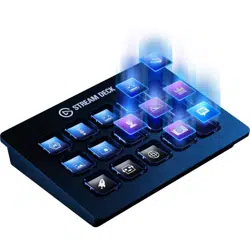
Connect Stream Deck directly to a USB port on your PC or Mac – do not use a USB hub.
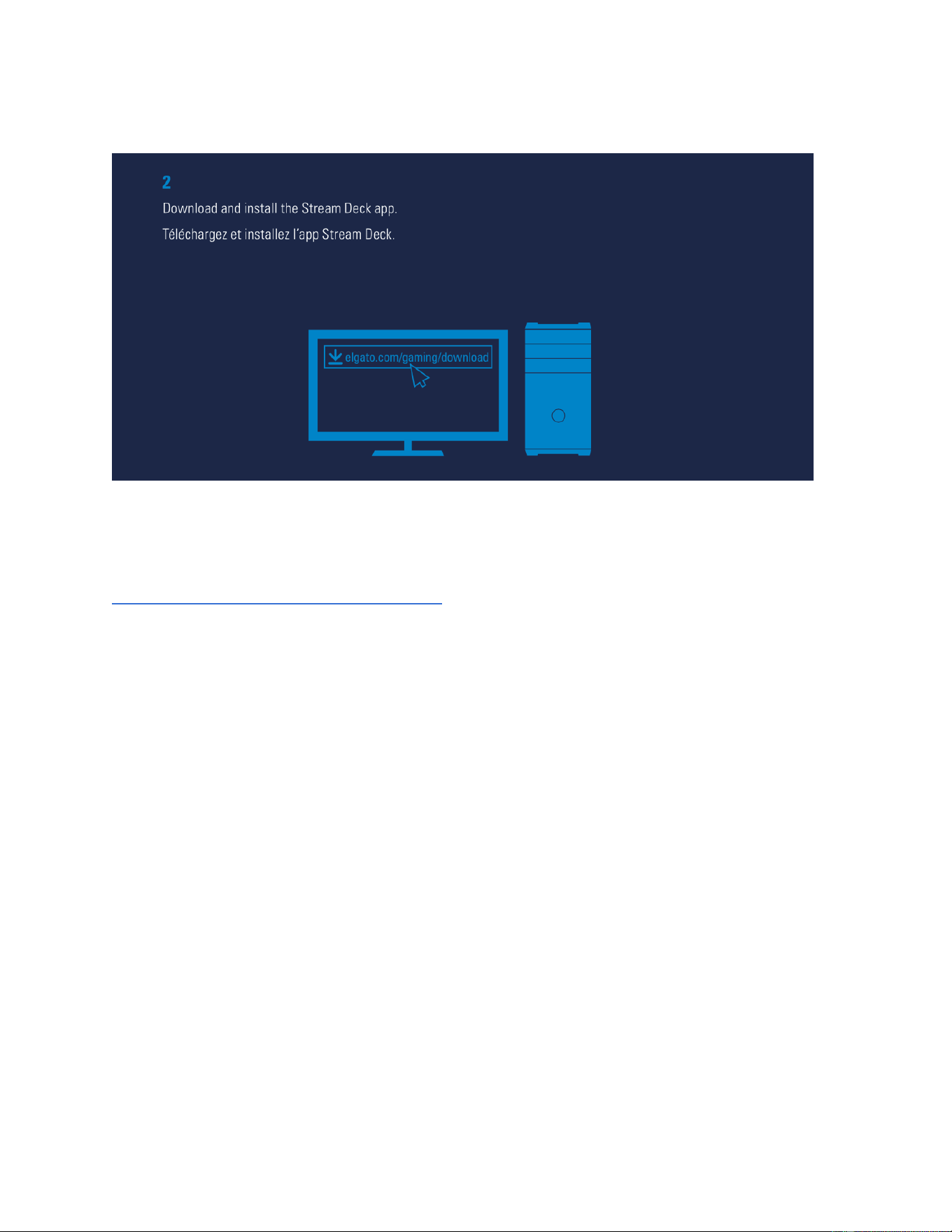
Step 2 - Download Stream Deck app
Elgato Stream Deck – Quick Start Guide
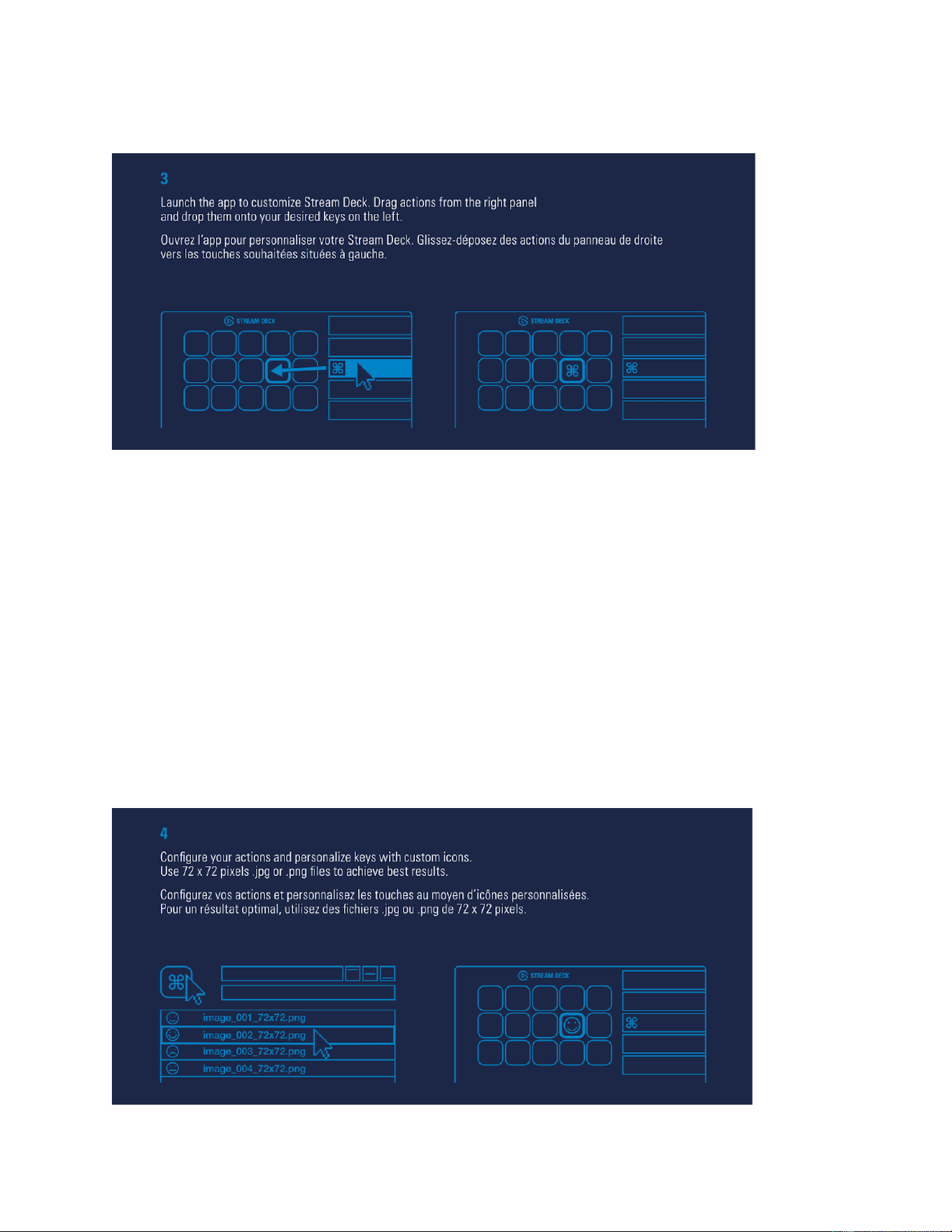
Launch the app to customize Stream Deck.
Drag action from the right panel and drop them onto your desired keys on the left.
Step 4 - Use Custom Icons
Elgato Stream Deck – Quick Start Guide
Configure your actions and personalize keys with custom icons.
Use 72 x 72 pixels .jpg or .png files to achieve best results.
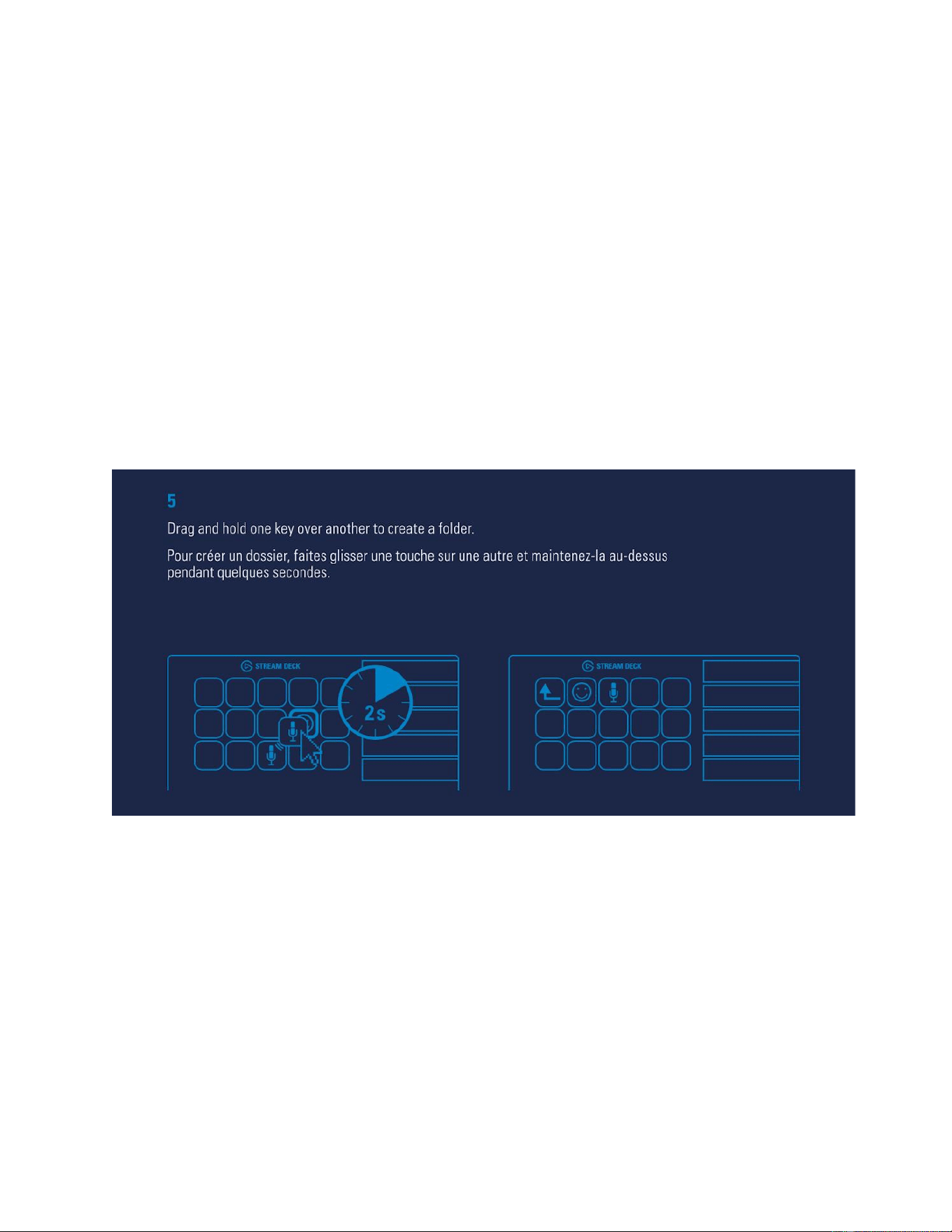
Step 5 - Create Folders
Drag and hold one key over another to create a folder.
Elgato Stream Deck – Quick Start Guide
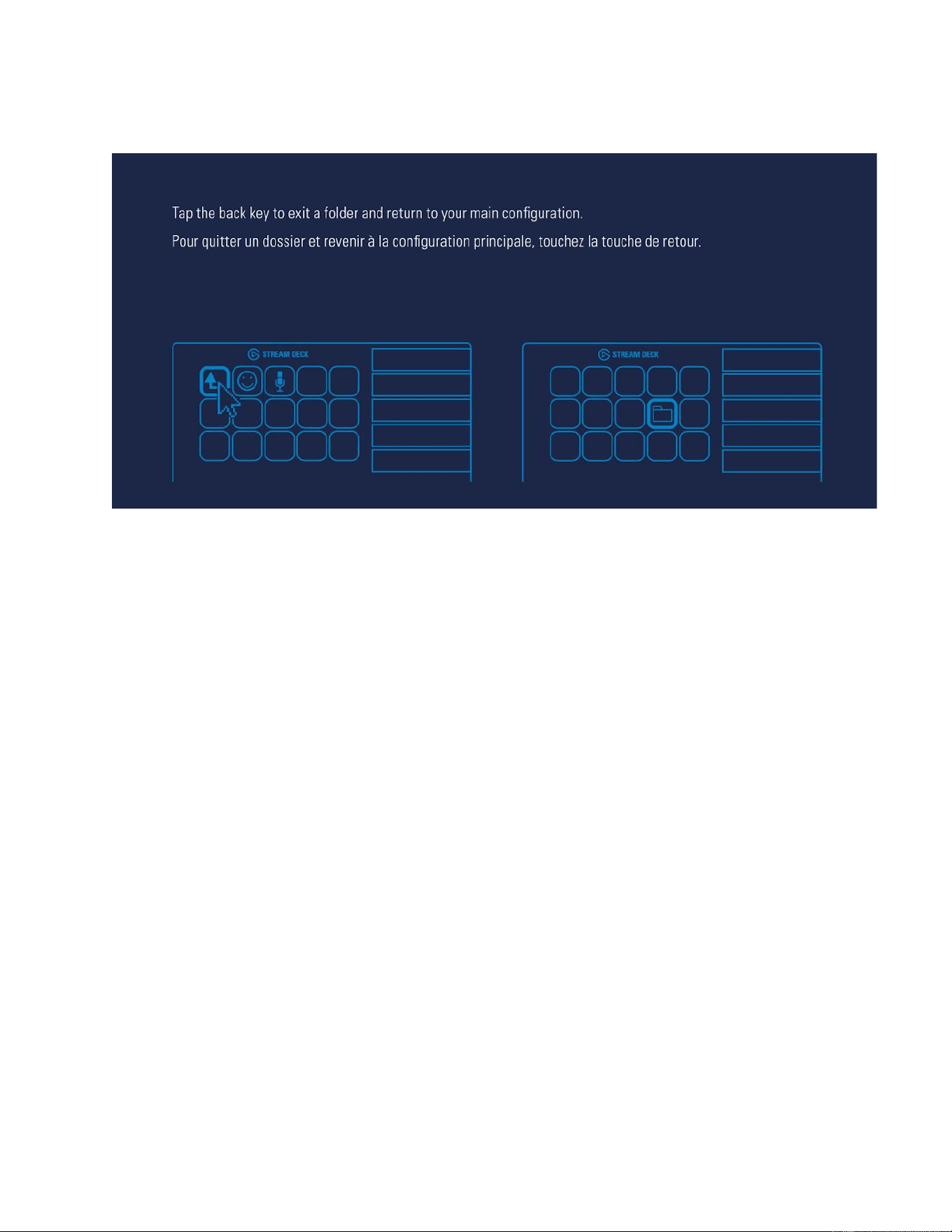
Tap the back key to exit a folder and return to your main configuration.
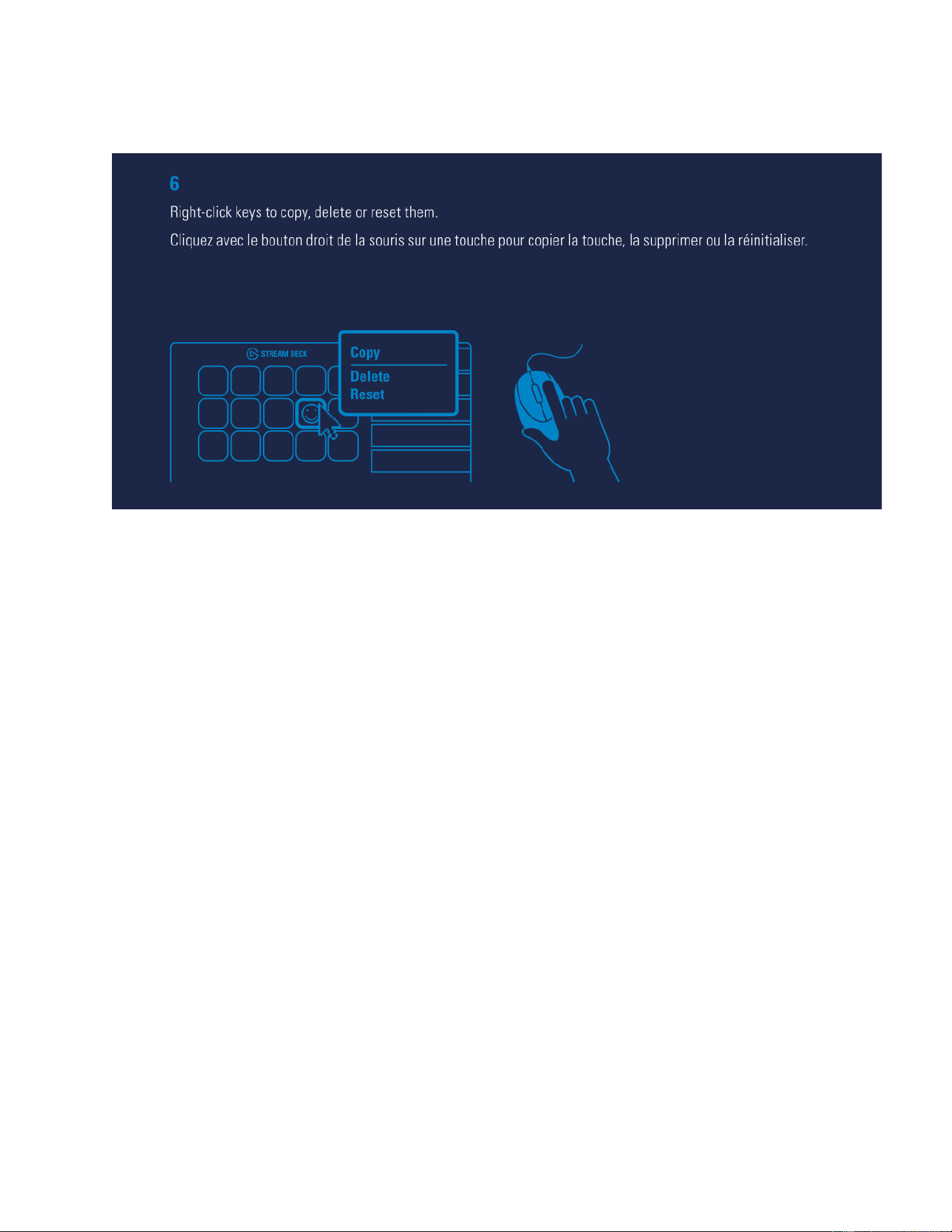
Step 6 - Right-Click Keys to Modify
Elgato Stream Deck – Quick Start Guide
Right-click keys to Copy, Delete, or Reset them.
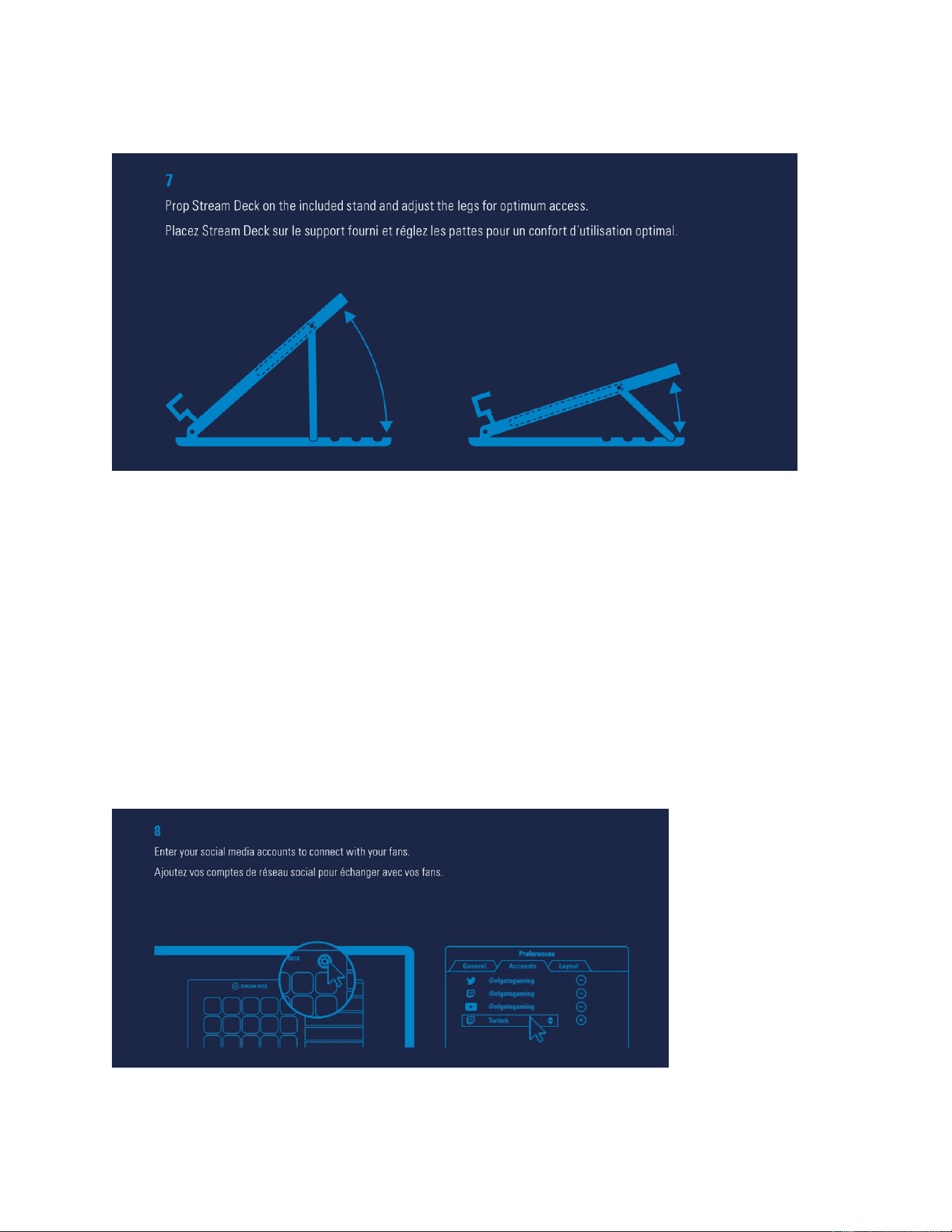
Step 7 - Use Stream Deck's Stand
Elgato Stream Deck – Quick Start Guide
Prop Stream Deck on the included stand and adjust the legs for optimum access.
Step 8 - Use Social Media Accounts