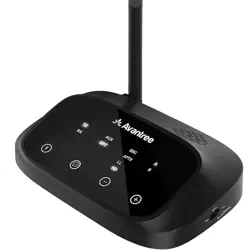
Avantree Oasis Plus
Model No.: BTTC-500P-GRY
User Manual


EN
User Manual
DE
Bedienungsanleitung
FR
Guide de démarrage rapide
ES
Guía de inicio rápido
IT
Guida di avvio rapido
2
24
46
68
44
JP
取扱説明書
55
1
User Manual
OASIS PLUS

2
User Manual
OASIS PLUS
Video Guide
Book an Appointment
Prefer to watch a video tutorial? Scan the QR code below or
visit avantree.com/oasis-plus/video for a step-by-step guide.
You can also book a 1-on-1 setup appointment with
one of our support agents at avantree.com/book-a-call
VIDEO GUIDE
EN

Table of Contents
Box Contents
Product Introduction
Product Overview
Button Functions
LED Indicators
Use for TV Watching (Transmitter Mode)
Connecting to TV
OPTION 1: Optical port (recommended)
OPTION 2: AUX 3.5mm port
OPTION 3: RCA port
Connecting Your Headphones
Setting Up Your TV
Adding a Second Pair of Headphones
Reconnecting Your Headphones
Listening with a Soundbar
(bypass function)
Use as Wireless Audio Receiver (Receiver Mode)
Specications
FAQ
Contact Us
3
User Manual
OASIS PLUS
4
5
5
6
7
8
8
9
10
11
12
14
15
16
17
18
20
21
23
4
User Manual
OASIS PLUS
EN
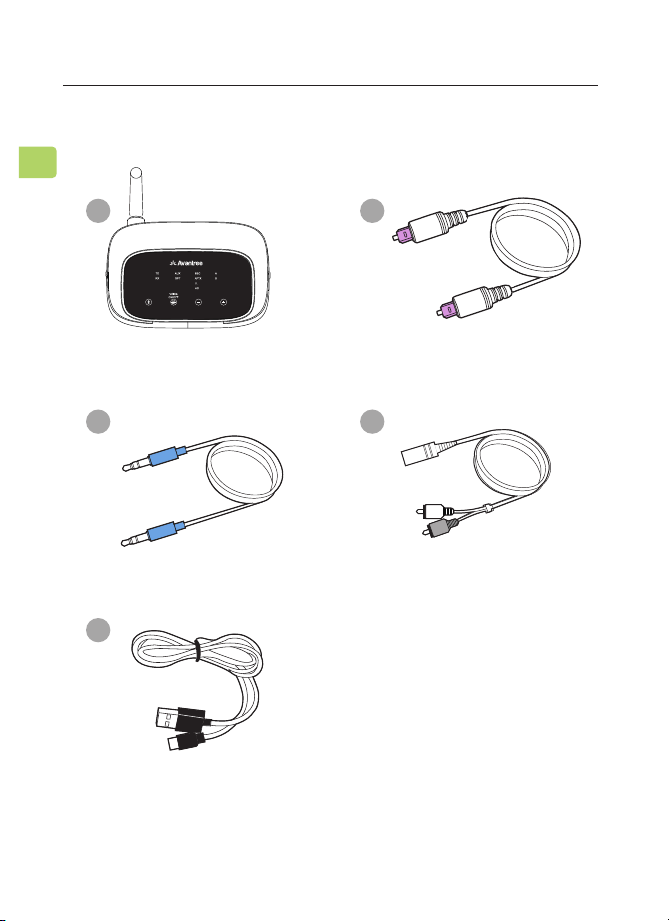
Box Contents
Oasis Plus - Bluetooth
transmitter
Digital Optical Audio Cable
AUX 3.5mm Audio Cable AUX 3.5mm to RCA Adapter
Micro USB Power Cable
A B
C
E
D
5
User Manual
OASIS PLUS
EN
Product Introduction
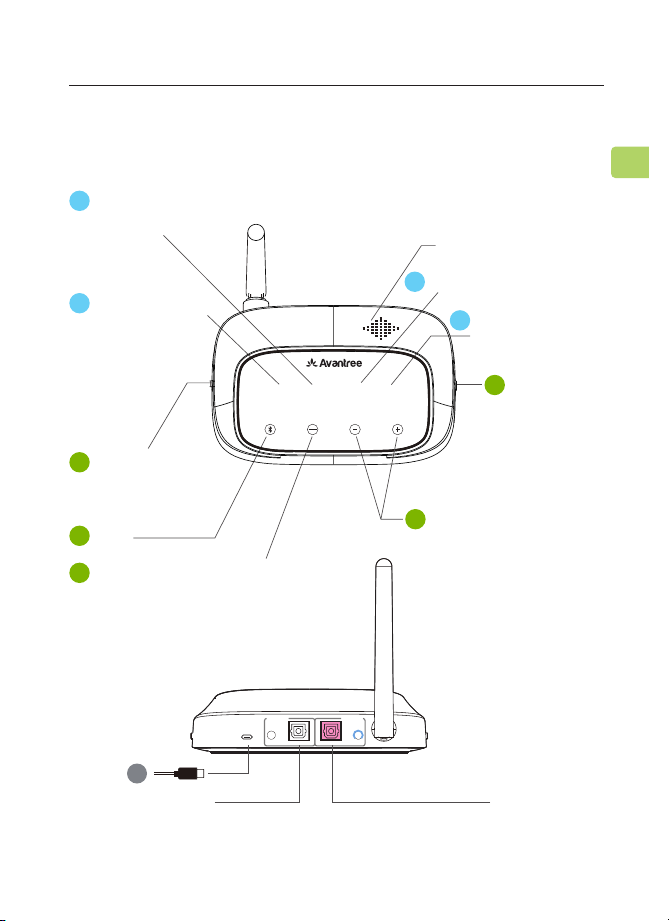
Output To Speaker Input From TV
E
Mode indicators
Volume control buttons
Audio input swap / Voice
prompt ON / OFF
PAIR
Mode switch
Audio signal
indicators
Low latency (LL) /
High-def (HD)
priority switch
Device connection
indicators
Voice prompt speaker
Audio codec indicators
Product Overview
5
2
3
4
DC IN AUX AUX
OPTICAL OPTICAL
RX Output
To Speaker
TX Input
From TV
AUX
OPT
SBC
APTX
LL
HD
RX
TX A
B
AUX
VOICE
ON/OFF
OPT
1
A
C
D
B
6
EN
Button Functions
User Manual
OASIS PLUS
1
2
5
3
4
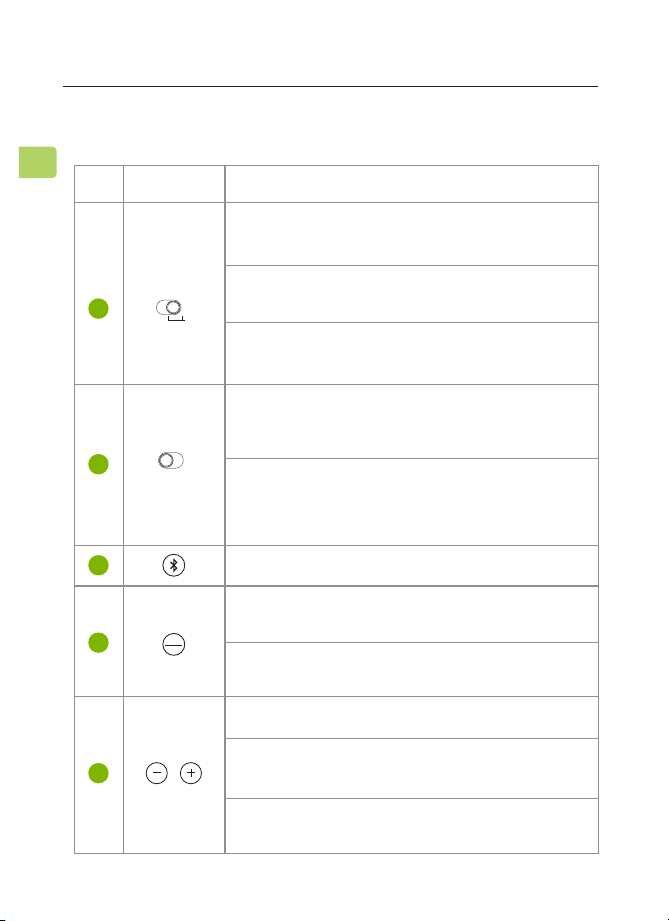
Switch to “TX” position to turn the Oasis Plus on
& place it into transmitter mode
Switch to “RX” position to turn the Oasis Plus on
& place it into receiver mode
Switch to "OFF" or "TX" position to bypass
audio to speakers
AUX
OPT
Switch to “LL PRIORITY” position to enter low
latency mode (only with aptX-LL supported
devices)
Switch to “HD PRIORITY” position to enter
high-denition audio mode (only with aptX-HD
supported devices)
Press & hold for 2 seconds to enter pairing mode
Press once to switch between AUX / RCA and
OPT audio inputs
Press & hold for 7 seconds to turn voice prompt
ON / OFF
Press once to adjust volume
Press & hold both buttons for 7 seconds to clear
pairing history
Press & hold for 3 seconds to replay / skip tracks
(RX mode only)
HD Priority
LL Priority
RX
Bypass
TX
OFF
No. Button Functions

7
EN
LED Indicators
User Manual
OASIS PLUS
Solid white light by "TX" /
"RX"
Alternate green & white
ashes by "TX" / "RX"
Flashing white light by
"TX" / "RX"
Solid white light by "SBC,"
"APTX," "LL," or "HD"
Pairing
Flashing or solid white light
by "OPT" / "AUX"
Flashing white light by
"OPT" / "AUX"
Solid white light by "OPT" /
"AUX"
Solid white light by "A" /
"A" & "B"
Reconnecting to last-used
device
OPT / AUX audio input
selected
TX: Transmitter mode;
RX: Receiver mode
Audio streaming in the
SBC, aptX, aptX LL, or aptX
HD audio codec
Successfully connected to
your device(s)
Valid audio signal
Invalid audio signal
A
B
C
D
No. Indicator Status

8
EN
The Oasis Plus must be connected to a power source via the
provided power cable in order to function. Plug the transmitter
into either:
1. A TV’s USB power port (we recommend this so that they
auto power ON / OFF in tandem with your TV), OR
2. A nearby wall outlet - 5V/500mA-2A rated USB adapter
(any phone charger should work. Please contact
[email protected] if you'd like us to send you a
free adapter)
Once the Oasis Plus is connected to its power source, switch
to the "TX" position. You can then connect it to your
TV's audio ports. You can choose one of 3 dierent ways to do
this.
RX
Bypass
TX
OFF
User Manual
OASIS PLUS
Use for TV Watching
Connecting to TV
TRANSMITTER MODE
9
EN
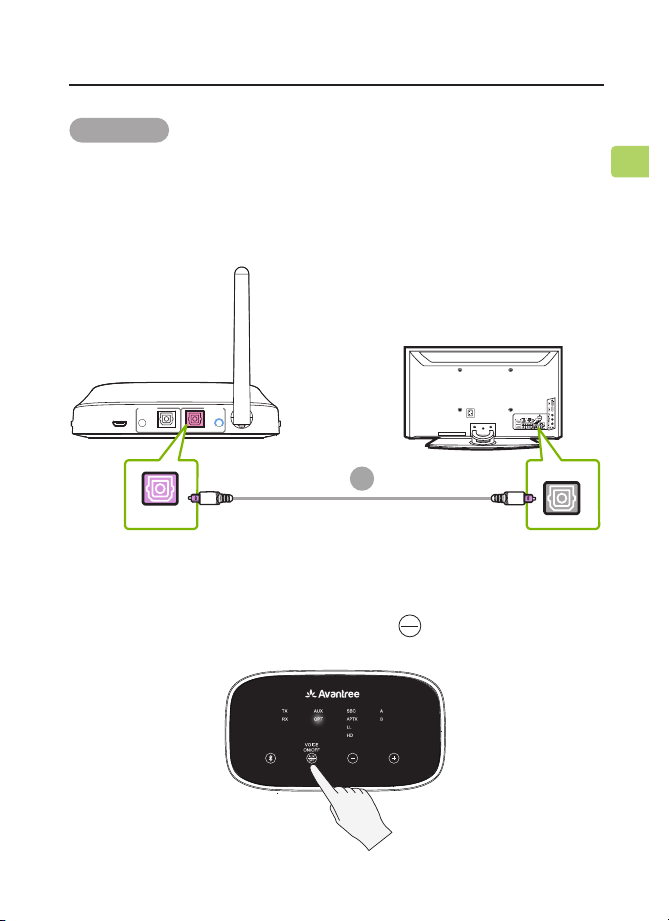
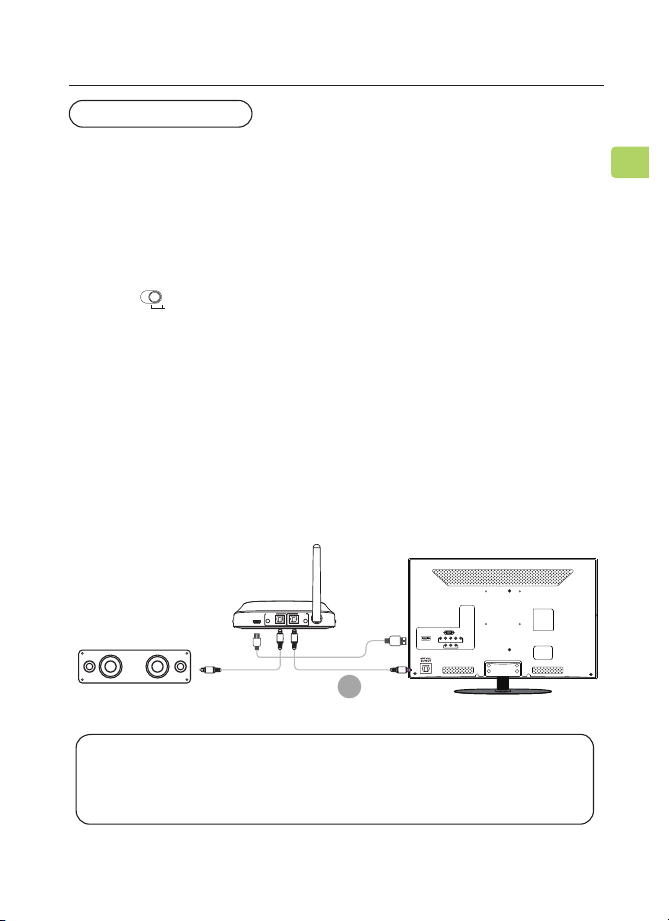
OPTION 1 Optical port (recommended)
TV
DC IN AUX AUX
OPTICAL OPTICAL
RX Output
To Speaker
TX Input
From TV
OPT OUT
OPTICAL
STEP 1
Plug the provided optical audio cable into the TV’s “optical OUT”
or “OPT OUT” port, then plug the other end into the transmitter’s
optical port in the “TX INPUT FROM TV” section.
STEP 2
Check the transmitter’s audio signal indicators and ensure
that “OPT” is lit up. If it isn’t, press the button once.
AUX
OPT
B
User Manual
OASIS PLUS
10
EN
AUX
OPT
User Manual
OASIS PLUS
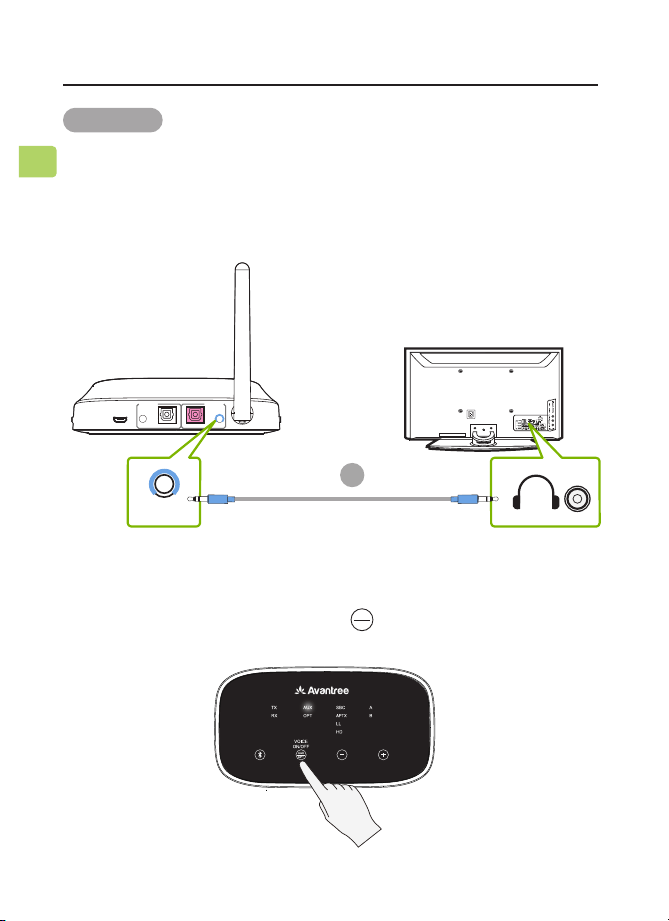
OPTION 2 AUX 3.5mm port
STEP 1
Plug the provided AUX 3.5mm audio cable into the TV’s AUX
3.5mm output port, then plug the other end into the transmit-
ter’s AUX 3.5mm port in the “TX INPUT FROM TV” section.
DC IN AUX AUX
OPTICAL OPTICAL
RX Output
To Speaker
TX Input
From TV
TV
AUX
STEP 2
Check the transmitter’s audio signal indicators and ensure that
“AUX” is lit up. If it isn’t, press the button once.
C
11
EN
User Manual
OASIS PLUS
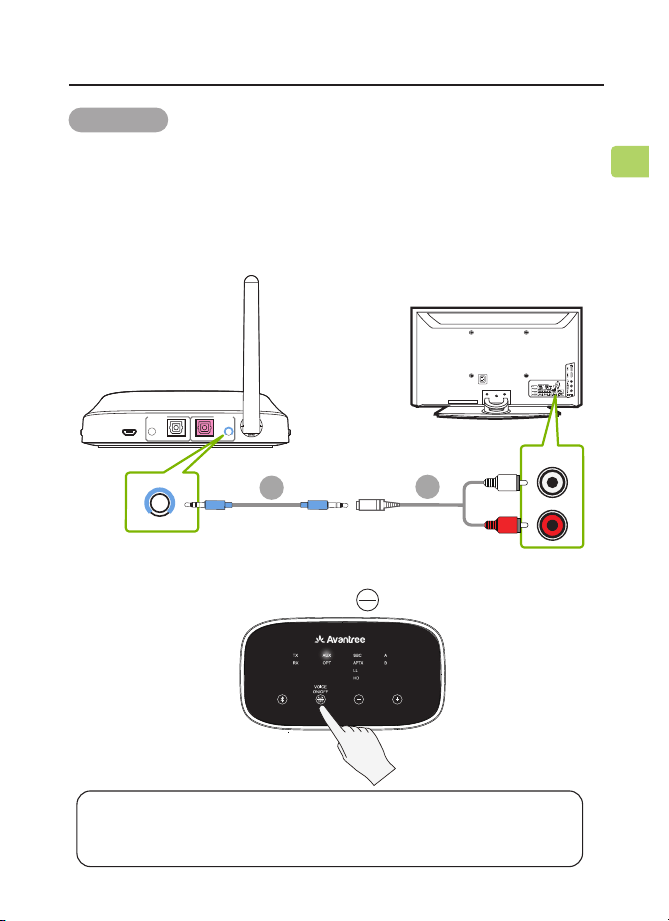
STEP 2
Check the transmitter’s audio signal indicators and ensure that
“AUX” is lit up. If it isn’t, press the button once.
AUX
OPT
NOTE: Double check to ensure that optical / RCA cables are plugged
into the TV’s audio OUT ports and not the AUDIO IN / COMPONENT
IN ports.
DC IN AUX AUX
OPTICAL OPTICAL
RX Output
To Speaker
TX Input
From TV
AUDIO OUT
TV
AUX
STEP 1
Plug the red & white RCA connectors into the TV’s “AUDIO
OUT” ports, then use the provided RCA to AUX adapter to
plug the other end into the transmitter’s AUX 3.5mm port in
the “TX INPUT FROM TV” section.
OPTION 3 RCA port
C
D

12
EN
User Manual
OASIS PLUS
Now that your Oasis Plus is all set up, you can connect your
headphones to the transmitter.
STEP 1
First, power everything on.
STEP 2
For rst time use, the Oasis Plus will enter PAIRING MODE
automatically. For subsequent use, put your Oasis Plus into
PAIRING MODE by pressing & holding the button until the
"TX" LED ashes green and white alternately.
STEP 3
Put your Bluetooth headphones / speakers into PAIRING mode.
STEP 4
Keep the Oasis Plus & your device close together and wait for
5-10s until they connect. Once connected, the “TX ” indicator
and the device connection indicator’s “A” will turn a solid white.
NOTE 1: Most cases where your device & the transmitter fail to connect
happen because the device is not properly placed into PAIRING MODE.
Double check that your device is successfully in PAIRING MODE (typically
indicated by an LED indicator's alternate red & blue ashes). For more
details, please refer to your device's online user manual.
Connecting Your Headphones
TRANSMITTER MODE
13
EN
User Manual
OASIS PLUS
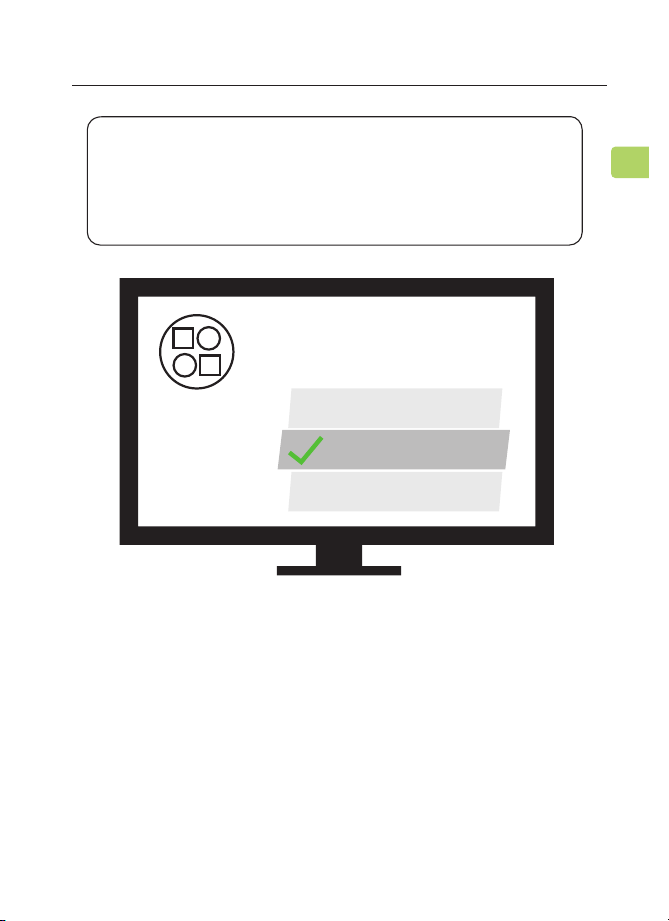
NOTE 2: Some smart TVs will automatically scan for and try to pair
with any Bluetooth devices in its vicinity. If your TV prompts you to
connect your Bluetooth headphones or the Oasis Plus, please
"DENY" the request so that your device can properly pair with the
transmitter.
Avantree Oasis Plus
Your permission is required
to connect your device to TV.
Allow
Deny
Close
User Manual
OASIS PLUS
14
EN
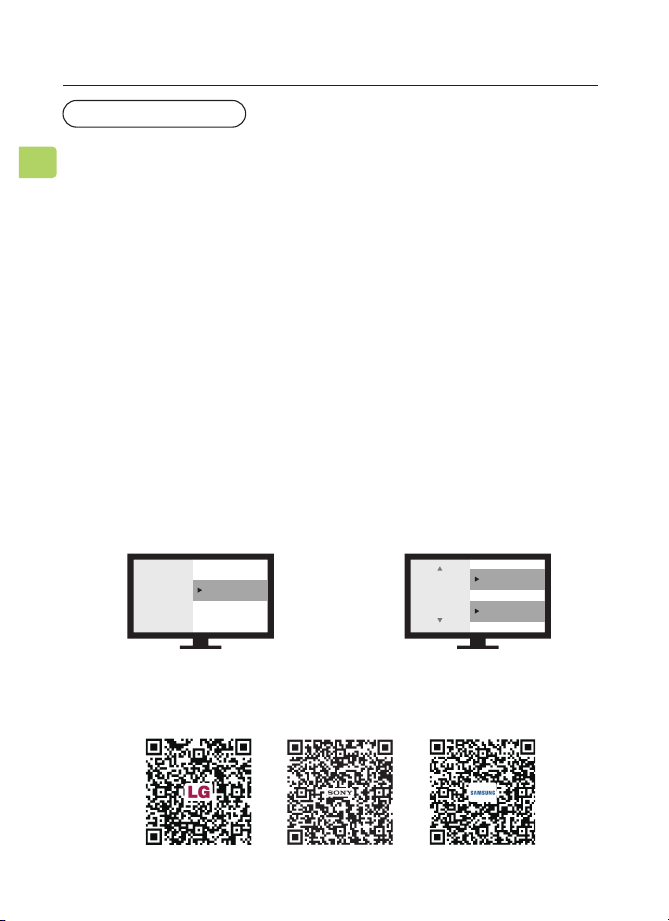
If you connected to your TV via the optical OUT or “OPT OUT”
port, you’ll need to congure your TV settings before you’ll
receive audio.
STEP 1
Using your TV’s remote control, press the SETTINGS button and
navigate to the AUDIO tab within the settings menu. (Please
note that there may be dierences in the setting names
depending on your brand of TV).
STEP 2
Proceed to AUDIO OUTPUT and select “OPTICAL OUT / DIGITAL
OUT”. Many TVs will do this automatically; skip this step as
needed.
STEP 3
Set Audio Output format to “PCM / STEREO” ON or “DOLBY” OFF.
If you’re having trouble nding these settings, you can scan the
QR code correlating to your TV’s brand OR visit avantree.com/oa-
sis-plus/tv-audio-settings for a more detailed guide.
Sound
Audio Out Optical Out
Digital
Audio
Format
or
PCM/Stereo
Dolby - OFF
LG SONY SAMSUNG
Setting Up Your TV
( FOR OPTICAL CONNECTIONS ONLY )
F
TRANSMITTER MODE

Adding a Second Pair of Headphones
You can connect and simultaneously listen through two pairs
of headphones if desired. Visit avantree.com/oasis-plus/video if
you’d prefer to watch a video guide on this process.
STEP 1
Pair your rst pair of headphones to the Oasis Plus by
following the steps in the “Connecting Your Headphones”
section(Page 12).
STEP 2
Once your rst device is successfully connected, put your
Oasis Plus into PAIRING MODE once again by pressing &
holding the button untill the "TX" LED ashes GREEN and
WHITE alternately.
STEP 3
Put your second pair of Bluetooth headphones / speakers
into PAIRING mode. Please refer to your headphones’ /
speaker’s user manual for more details if necessary.
STEP 4
Keep the Oasis Plus & your second device close together and
wait for 5-10s until they connect. Once connected, the “TX”
indicator and the device connection indicator’s “B” will turn a
solid white.
User Manual
OASIS PLUS
15
EN
NOTE: The dual headphones support function works with most
headphones but not all. Certain true wireless earbuds in particular
do not work well with Bluetooth transmitters' dual headphones
mode.
TRANSMITTER MODE
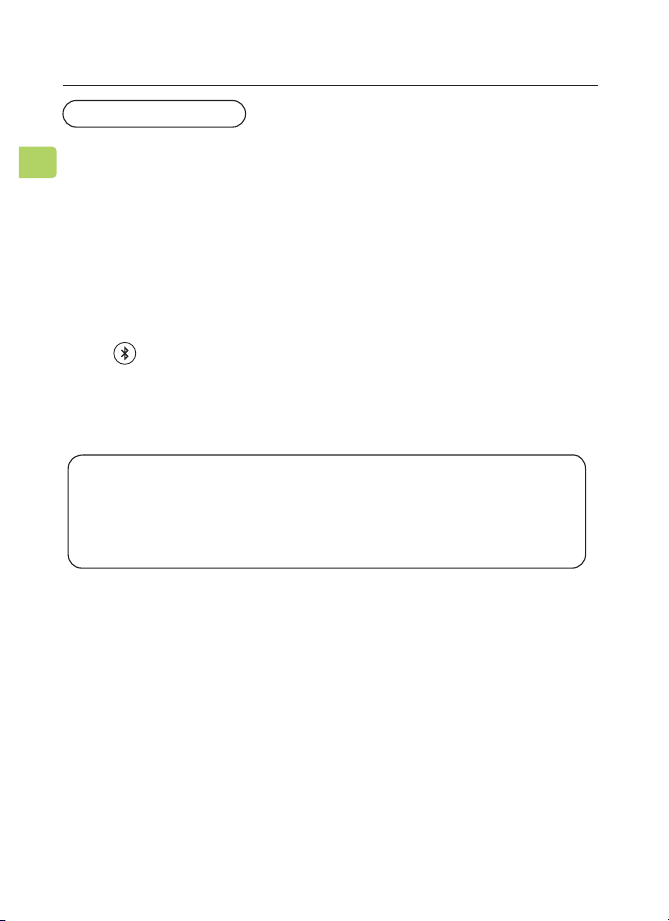
You typically do NOT need to re-pair your Bluetooth headphones /
speakers with the Oasis Plus every time. Once successfully
paired, they should automatically reconnect when both devices
are turned on (this may take a few seconds).
If your device does not automatically reconnect after 5-10 seconds,
you can manually initiate reconnection by pressing the Oasis
Plus’s button once and waiting for 5-10 seconds. If this still
doesn't work, try initiating reconnection on your audio device
as well (typically done by pressing the main Bluetooth PLAY
button on your headphones once).
NOTE: If you paired your headphones with a dierent Bluetooth device,
turn Bluetooth OFF on said device(s). Airpods in particular will always
prioritize iPhones for automatic pairing, so you'll need to turn your
iPhone's Bluetooth OFF when pairing your Airpods with the Oasis Plus.
Reconnecting Your Headphones
EN
User Manual
OASIS PLUS
16
TRANSMITTER MODE
EN
17
RX
Bypass
TX
OFF
User Manual
OASIS PLUS
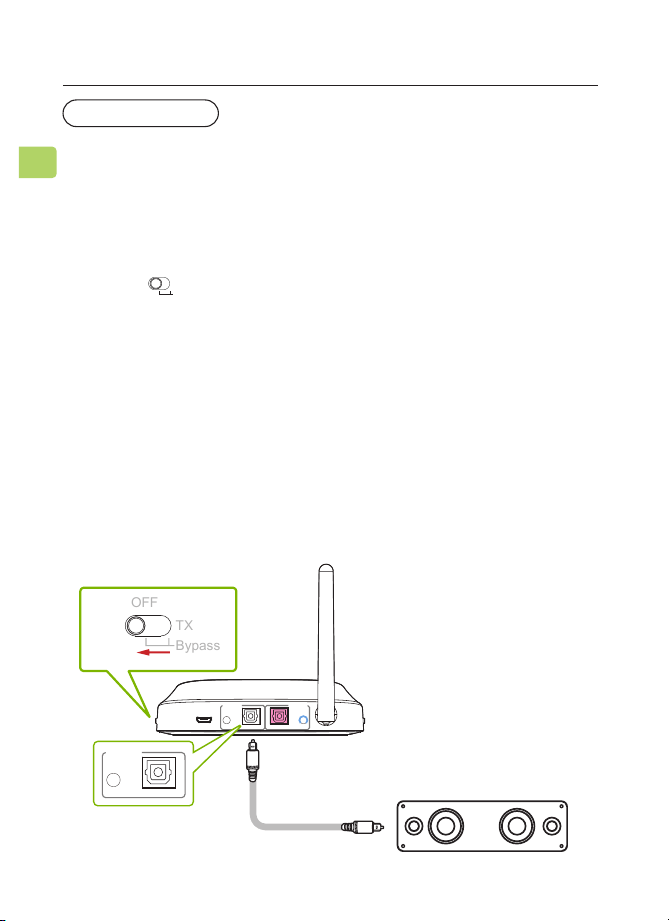
STEP 1
Slide to the “TX / BYPASS” or "OFF" position.
STEP 2
Plug an additional optical or 3.5mm AUX cable into the
correlating audio port in the transmitter’s “RX OUTPUT TO
SPEAKER” section.
STEP 3
Plug the other end into your external sound system, then
you’re good to go.
Listening with a Soundbar
The Oasis Plus’s pass-through function allows you to listen
through both headphones and an external soundbar / stereo
AVR simultaneously.
NOTE: Bypass only works with the same type of input / output, i.e.
if you connect to your TV via OPT, you’ll need to connect to your speaker
via OPT as well.
B
DC IN
AUX AUX
OPTICAL OPTICAL
RX Output TX Input
TV/Audio Source
Sound System
Oasis Plus
TRANSMITTER MODE
EN
18
User Manual
OASIS PLUS
STEP 1
Switch to the “RX” position.
STEP 2
Using the provided power cable, plug the Oasis Plus into
either your speaker’s USB port or a wall outlet via 5V/500-
mA-2A rated USB adapter (any phone charger should work.
Please contact [email protected] if you'd like us to send
you a free adapter)
STEP 3
Connect to your speaker / soundbar via the included AUX,
RCA, or OPT cables. Plug the other end into the transmitter’s
“RX OUTPUT TO SPEAKER” section.
The Oasis Plus’s receiver (RX) mode allows you to receive audio
from a Bluetooth enabled source (such as a phone) and output
it through a non Bluetooth compatible speaker or similar.
Use as Wireless Audio Receiver
RECEIVER MODE
Sound System
DC IN AUX AUX
OPTICAL OPTICAL
RX Output
To Speaker
TX Input
From TV
AUX
OPTICAL
RX Output
To Speaker
RX
Bypass
TX
OFF
RX
Bypass
TX
OFF
User Manual
OASIS PLUS
EN
19
STEP 4
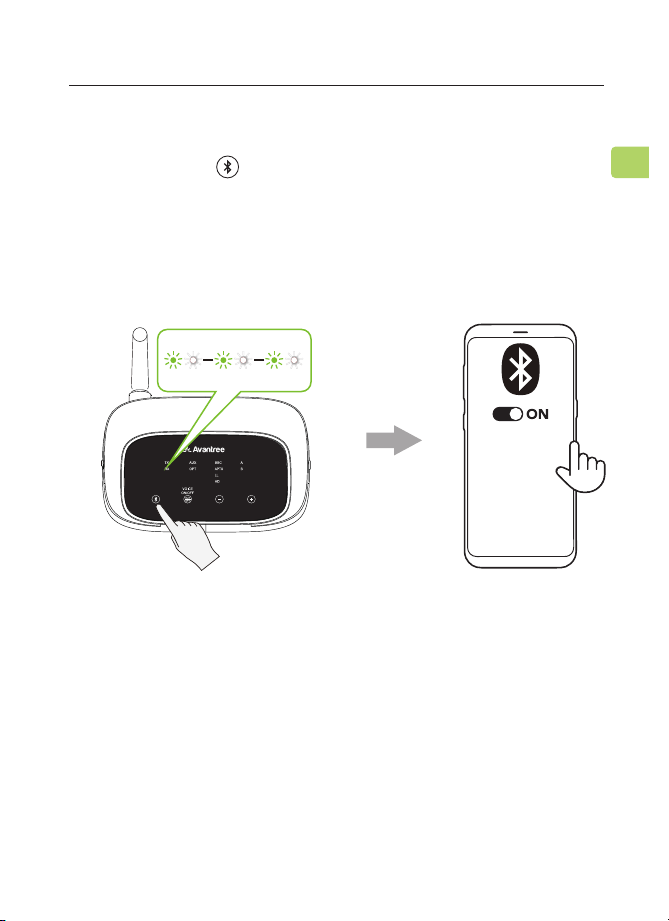
The Oasis Plus should enter PAIRING MODE automatically. If not,
press & hold the button till the "RX" LED ashes GREEN and
WHITE alternately.
STEP 5
On your audio source device, turn on Bluetooth and select
“Avantree Oasis Plus” from the Bluetooth menu.
F
STEP 6
Keep the Oasis Plus & your device close together and wait for
5-10s. Once connected, the “RX” indicator and the device
connection indicator’s “A” will turn a solid white.
Avantree Oasis Plus Ⅱ
MY DEVICES

User Manual
OASIS PLUS
EN
20
Specications
Bluetooth version
Supported proles
Audio codecs
Operating range
Input voltage / current
Supported sampling rate in
optical mode
Supported audio format in
optical mode
Net weight
v5.0
A2DP, AVRCP
aptX-HD, aptX-LL, FastStream,
aptX, SBC
Up to 164ft / 50m
DC5.0V / 500Ma-2A
≤48KHz, 16bit
PCM / LPCM
90g
F

FAQ
Below are some of the most common questions people have
during setup.
Can I have audio through both my TV speakers and my
wireless headphones at the same time?
This completely depends on whether or not your TV supports
the ability to output audio to 2 sources simultaneously. You
can try a few dierent methods to test if your TV is capable of
this or not -- please refer to avantree.com/oasis-plus/sound
for more details.
Why am I getting audio delay?
Both the sender (i.e. the Oasis Plus) and the receiver (i.e. your
Bluetooth headphones) must support either aptX Low Latency
or FastStream in order to eliminate audio latency. You can
check your device's specs to ensure it supports either of these
audio codecs. Please note that most true wireless earbuds do
not currently support aptX Low Latency or FastStream audio
codecs.
Other Tips
If your TV’s HDMI ARC port is in use, your optical audio output
might not work. Try connecting the transmitter via RCA / AUX
or unplugging the HDMI ARC.
User Manual
OASIS PLUS
EN
21

User Manual
OASIS PLUS
EN
22
Why aren't I getting sound from my headphones?
How do I connect my Oasis Plus to my Samsung / LG smart
TV?
......
For answers to questions like these and for a full FAQ list, you
can visit avantree.com/support/oasis-plus, or you can contact
us directly for additional assistance.
User Manual
OASIS PLUS
EN
23
Contact Us
Support Tickets avantree.com/submit-a-ticket
Support Email [email protected]
FAQ avantree.com/support/oasis-plus
USA / CA +1800 232 2078 (9am-6pm PST, Mon-Fri )
UK +44 20 8068 2023 (9am-6pm, GMT, Mon-Sat)
DE +49 32221097297 (11am-9pm, CET, Mon-Sat )
FR + 33 176340312 (11am-9pm, CET, Mon-Sat )
IT +39 06 9480 3330 (9am-6pm, CET, Mon-Sat )
ES + 34 931786261 (9am-6pm, CET, Mon-Sat )
AU + 61 2 8310 9897 (11am-7pm, AEST, Mon-Fri)
Video Guide avantree.com/oasis-plus/video
Product Registration avantree.com/product-registration
Manufacturer: Avantronics Limited
Address: Luohu District, Shenzhen 518000 China
US Importer:
Avantree Corporation
San Jose, California 95119 USA
UK Importer:
Avantree Limited
Watford, WD180 0HQ UK
Servicer in Europe:
GizmexGmbH,
Sternstr.67,40479Dusseldorf,Germany
Tel:01–4083348648 support@avantree.com
Model No:BTTC-500P-GRY
Dispose of the packaging and this product in accordance with the latest provisions.
Z-PKQG-TC500P-V7
EC REP