
TC1560M-G510
15.6" POS Panel PC
User's Manual
Version 0.1
2025.09

i
Revision History
Version Release Time Description
0.1 2025.09 Draft
1.0 2026.06 Initial release

ii
Copyright
Copyright © 2025 AMobile Solutions Corp. All rights reserved.
This document contains proprietary information protected by copyright law. No part
of this publication may be reproduced, transmitted, transcribed, stored in a retrieval
system, or translated into any language, in any form or by any means, without prior
written permission of AMobile Solutions Corp.
AMobile reserves the right to revise this documentation and to make changes in
content without obligation to notify any person or organization of such revision or
change. The information in this document is provided "as is" without warranty of any
kind.
Disclaimer
The information in this manual is believed to be accurate at the time of publication.
However, AMobile assumes no responsibility for any errors that may appear in this
document. Product design and specifications are subject to change without notice.
In no event shall AMobile be liable for any direct, indirect, incidental, special, or
consequential damages resulting from the use or misuse of this product or its
documentation.
About This Manual
This user manual provides operational guidelines, regulatory compliance notices,
safety information, and technical specifications for the TC1560M-G510 POS Panel PC.
It is intended for system integrators, technical personnel, and end users with a basic
understanding of the systems.
Please retain this manual for future reference. For further assistance, contact your
AMobile representative or visit our official website.
Website: https://www.amobile-solutions.com/

iii
Content
Revision History ............................................................................................................... i
Copyright ........................................................................................................................ ii
Disclaimer ....................................................................................................................... ii
About This Manual .......................................................................................................... ii
Declaration of Conformity .............................................................................................. iv
Safety Symbols ............................................................................................................. vii
Important Safety Instructions ...................................................................................... vii
Charging & Handling Guidelines: ................................................................................. vii
Storage & Maintenance Instructions: .......................................................................... vii
Cleaning and Maintenance Guidelines ......................................................................... viii
Equipment Disposal and WEEE Compliance ................................................................. viii
Technical Support .......................................................................................................... ix
Chapter1 1 ......................................................................................................................... 1
1.1 Product Highlights .................................................................................. 2
1.2 Package Contents ................................................................................... 2
1.3 Parts of the Device ................................................................................. 4
1.4 Specifications.......................................................................................... 5
Chapter 22 ......................................................................................................................... 7
2.1 System Power on .................................................................................... 8
Chapter 33 ......................................................................................................................... 9
3.1 Using Touch Screen .............................................................................. 10
3.2 Home Screen ........................................................................................ 13
3.3 Configurations ...................................................................................... 15
3.4 Use the Wi-Fi Feature ........................................................................... 16
3.5 Bluetooth Settings and Configuration .................................................. 19
3.6 Using the NFC Feature .......................................................................... 21
Chapter 44 ....................................................................................................................... 22
4.1 Warranty Terms ................................................................................... 23
4.2 Contact Information ............................................................................. 25
iv
Declaration of Conformity
This product complies with the essential requirements and relevant provisions of the
following EU directives:
• EMC Directive 2014/30/EU
• Low Voltage Directive 2014/35/EU
• Radio Equipment Directive (RED) 2014/53/EU
• RoHS Directive 2011/65/EU, including amendment 2015/863/EU
* Wireless Frequency Bands and Maximum Power is listed below.
WLAN
Maximum Tune
-
up (dBm)
2.4 GHz
19.181 dBm
5 GHz
22.826 dBm
Bluetooth
Maximum Tune
-
up (dBm)
BT/BLE
8.870 dBm
NFC
Maximum Tune
-
up
NFC
0.0017mW
* WLAN 5 GHz Band 1 Usage Restriction
The WiFi operating in the band 5150–5350 MHz shall be restricted to indoor use for
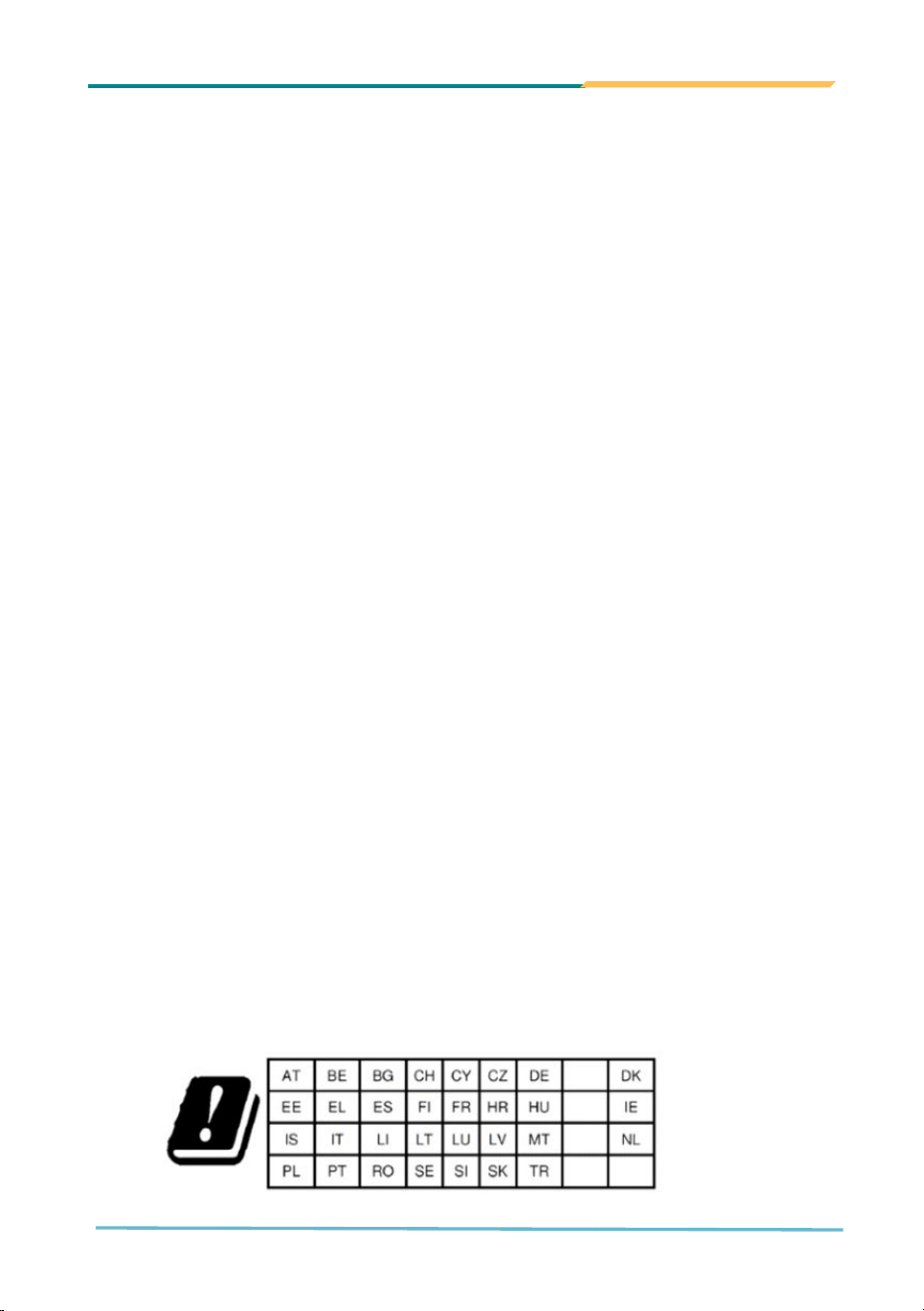
countries listed in the table below:
Applicable EU/EEA countries:
Austria, Belgium, Bulgaria, Croatia, Cyprus, Czech Republic, Denmark, Estonia,
Finland, France, Germany, Greece, Hungary, Ireland, Italy, Latvia, Lithuania,
Luxembourg, Malta, Netherlands, Poland, Portugal, Romania, Slovakia, Slovenia,
Spain, Sweden.
Other applicable regions:
Iceland, Liechtenstein, Norway, Switzerland, Türkiye, United Kingdom

v
FCC Compliance
This device complies with Part 15 of the FCC Rules. Operation is subject to the following
two conditions:
1. This device may not cause harmful interference
2. This device must accept any interference received, including interference that may
cause undesired operation.
FCC ID: [2AQ5W-TC1560M-G510] FCC Contain ID :2AQ5W-SOM510-700
RF Exposure warning
This equipment must be installed and operated in accordance with provided
instructions and the antenna(s) used for this transmitter must be installed to provide
a separation distance of at least 20 cm from all persons and must not be co-located or
operating in conjunction with any other antenna or transmitter. End-users and
installers must be provide with antenna installation instructions and transmitter
operating conditions for satisfying RF exposure compliance.
Important Notice:
Unauthorized modifications to this equipment may void the user's authority to
operate the device under FCC regulations.
Note: This equipment has been tested and found to comply with the limits for a
Class B digital device, pursuant to part 15 of the FCC Rules. These limits are designed
to provide reasonable protection against harmful interference in a residential
installation. This equipment generates, uses and can radiate radio frequency energy
and, if not installed and used in accordance with the instructions, may cause harmful
interference to radio communications. However, there is no guarantee that interference
will not occur in a particular installation. If this equipment does cause harmful
interference to radio or television reception, which can be determined by turning the
equipment off and on, the user is encouraged to try to correct the interference by
one or more of the following measures:
vi
• Reorient or relocate the receiving antenna.
• Increase the separation between the equipment and receiver.
• Connect the equipment into an outlet on a circuit different from that to which the
receiver is connected.
• Consult the dealer or an experienced radio/TV technician for help.
RoHS / REACH / SVHC Compliance
This product complies fully with the following environmental regulations:
• RoHS Directive 2011/65/EU, including Amendment 2015/863/EU, which restricts the
use of hazardous substances such as Lead (Pb), Cadmium (Cd), Hexavalent Chromium
(Cr⁶+), PBB, PBDE, and four phthalates (DEHP, BBP, DBP, DIBP)
• REACH Regulation (EC) No. 1907/2006, including compliance with Substances of Very
High Concern (SVHC) reporting requirements.
• All components used in this device have been verified to contain no restricted
substances in concentrations exceeding 0.1% weight by weight (w/w), as defined by
the above regulations.
• In addition, the product is manufactured using lead-free soldering technology, with a
solder alloy composition of 96–96.5% Tin (Sn), 3.0–3.5% Silver (Ag), and 0.5% Copper
(Cu)..
RF Exposure warning
This device meets the EU requirements (2014/53/EU) on the limitation of exposure of
the general public to electromagnetic fields by way of health protection.
The device complies with RF specifications when the device used at 20 cm from your
body.
The device is restricted to indoor use only when operating in the 5150 to 5350 MHz
frequency range.
The adapter shall be installed near the equipment and shall be easily accessible.
vii
Safety Symbols
The following symbols are used throughout this manual to indicate safety-related
information:
CAUTION
Indicates a potentially hazardous condition that could result in minor
personal injury or product damage if not observed.
Electrical Warning
Warms of potential electric shock. Do not attempt to disassemble the device or
touch exposed electronic components.
Important Safety Instructions
To ensure safe operation and avoid damage to the equipment, please adhere to the
following precautions:
• Operate the device only within specified temperature and humidity limits.
• Use only the power adapter and accessories provided by Amobile.
• Keep the device away from water, high heat, and direct sunlight.
• Always disconnect the power supply before cleaning or performing maintenance.
• Do not place heavy objects on the display panel or interface connectors.
• Avoid dropping, crushing, or applying excessive mechanical force to the unit.
• If the device becomes damaged or malfunctions, consult authorized service personnel.
Charging & Handling Guidelines:
• Use only the supplied USB Type-C charger.
• Keep away from open flames, sharp objects, or potential short-circuit conditions.
Storage & Maintenance Instructions:
• Store the device in a temperatures-controlled environment between -10°C and 50°C

viii
Cleaning and Maintenance Guidelines
To maintain the appearance and performance of the device, follow these cleaning
instructions:
General Cleaning Instructions:
• Power off the device and disconnect it from any power source before cleaning
• Use a soft, lint-free cloth dampened with isopropyl alcohol (70–90%) for wiping
surfaces.
• Avoid using paper towels, hard solvents, or any liquids cleaners near ports or circuit
components.
Recommended Cleaning Tools:
• Cotton swabs or anti-static foam swabs for cleaning small or recessed areas.
• Compressed air (in short bursts) or a mini vacuum cleaner for removing dust from
vents and connectors.
Cautionary Notes:
• Do not allow moisture to enter the device interior.
• Never immerse, submerge, or spray the device with liquids.
Equipment Disposal and WEEE Compliance
This product is designed in accordance with the EU Waste Electrical and Electronic
Equipment (WEEE) Directive 2012/19/EU. Electronic products must not be
disposed of with general household waste.
Electronic Waste Disposal:
• Contact certified e-waste collection centers or authorized recyclers in your local area.
• Outside the EU, follow applicable national or regional environmental regulations.

ix
Technical Support
For the latest product documentation, drivers, firmware updates, and technical
resources, please visit the official Amobile support page:
https://www.amobile-solutions.com/
If you require additional assistance, our customer support team is available via the
contact information provided on the website. We are committed to providing timely
and effective support for all inquiries.

1
Chapter1 1
Introduction
1.1
Product Highlights
The
TC1560M
functionality.
High-
performance
A55 2.0GHz)
Operating
Device Licensing Agreement
Display:
Support 2nd Guest
Ultra Slim design (thickness: <12mm) with VESA mount
Easy to configure & Expandable design
1.2
Package Contents
Upon opening the package, carefully inspect the contents. If any of the items is missing or appears
damaged, contact your local
Product Highlights
TC1560M
-G510 is a 15.6"
functionality.
Notable feature
performance
SoC:
MediaTek Genio
A55 2.0GHz)
Operating
System:
Support Android™ 14
Device Licensing Agreement
Display:
15.6" 1920 x 1080 (FHD)
Support 2nd Guest
-F
acing
Ultra Slim design (thickness: <12mm) with VESA mount
Easy to configure & Expandable design
Package Contents
Upon opening the package, carefully inspect the contents. If any of the items is missing or appears
damaged, contact your local
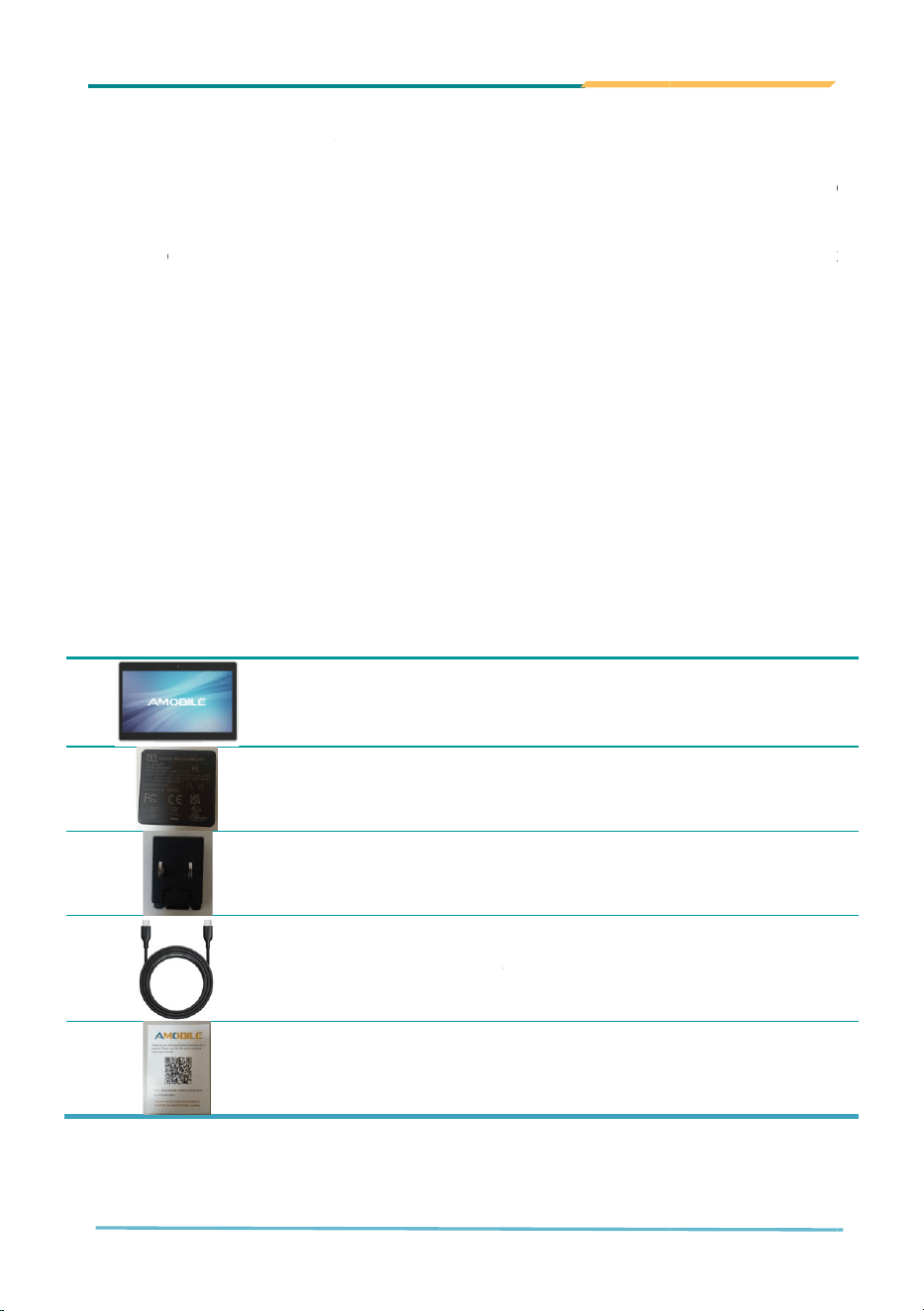
dealer or distributor. The package should contain the following items:
1 x
TC1560M
1 x
Charger
1x Plug
1 ×
USB
1 x
Product Information Access QR Code Sheet
2
Product Highlights
Android™ POS
oriented
include:
MediaTek Genio
510 (2x Cortex A78 2.0GHz / 4x Cortex
Support Android™ 14
, fully certified for Google
Device Licensing Agreement
(EDLA)
15.6" 1920 x 1080 (FHD)
, with
capacitive
acing
Display as optiona
Ultra Slim design (thickness: <12mm) with VESA mount
Easy to configure & Expandable design
Package Contents
Upon opening the package, carefully inspect the contents. If any of the items is missing or appears
dealer or distributor. The package should contain the following items:
TC1560M
-
G510 POS Panel Computer
Charger
(65W)
1x Plug
USB
Type-C
to Type C
Product Information Access QR Code Sheet
oriented
Panel PC built
510 (2x Cortex A78 2.0GHz / 4x Cortex
, fully certified for Google
capacitive
multi-touch
panel.
Display as optiona
l
Ultra Slim design (thickness: <12mm) with VESA mount
Upon opening the package, carefully inspect the contents. If any of the items is missing or appears
dealer or distributor. The package should contain the following items:
G510 POS Panel Computer
to Type C
cable (1 meter
length)
Product Information Access QR Code Sheet
for enterprise-
grade
510 (2x Cortex A78 2.0GHz / 4x Cortex
, fully certified for Google
Enterprise
panel.
Upon opening the package, carefully inspect the contents. If any of the items is missing or appears
dealer or distributor. The package should contain the following items:
length)
Product Information Access QR Code Sheet
grade
510 (2x Cortex A78 2.0GHz / 4x Cortex
Enterprise
Upon opening the package, carefully inspect the contents. If any of the items is missing or appears
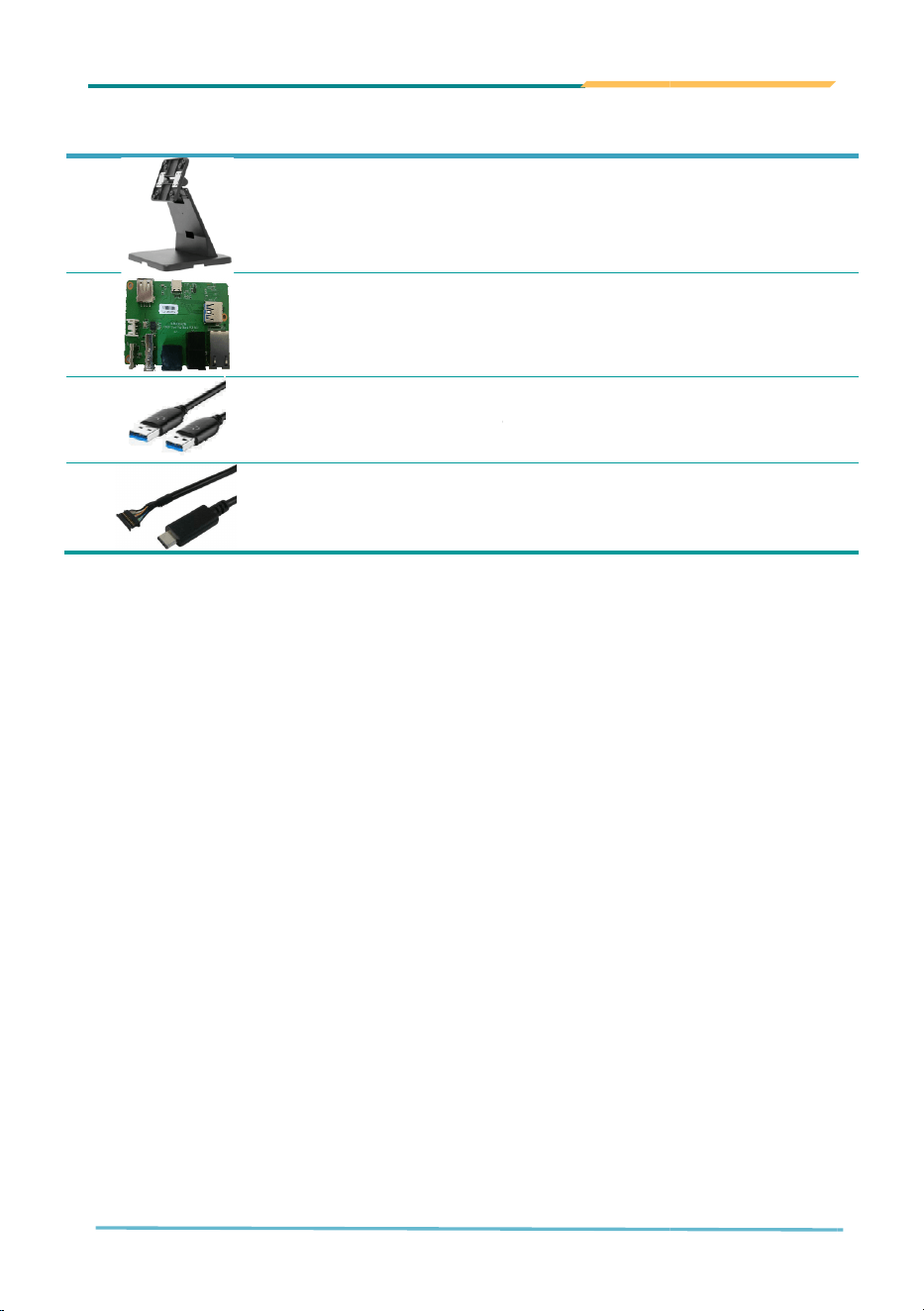
1x Stand
1x Stand Hub PCBA
1x USB A to Type A cable
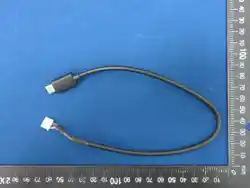
1x USB C to Wire to board cable
3
1x Stand
1x Stand Hub PCBA
1x USB A to Type A cable
1x USB C to Wire to board cable
1x USB A to Type A cable
1x USB C to Wire to board cable
4
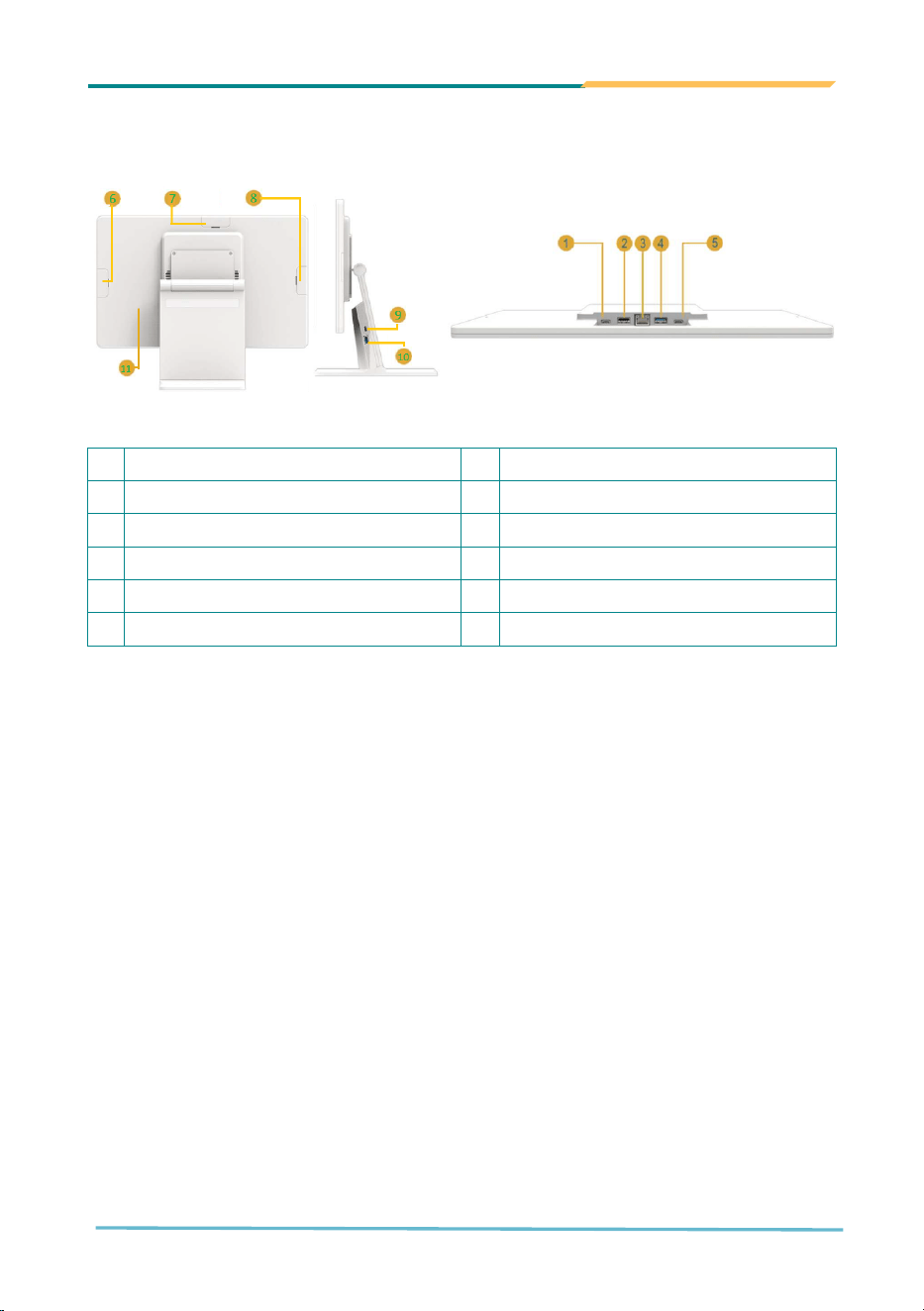
1.3 Parts of the Device
1
USB Type C (Power) 7
USB Micro B
2
USB2.0 Type C 8 USB Micro B
3
RJ45 9
USB Type C
4
USB3.1 Type A 10
USB2.0 Type A
5
USB Type C 11
Power Button
6
USB Micro B
5
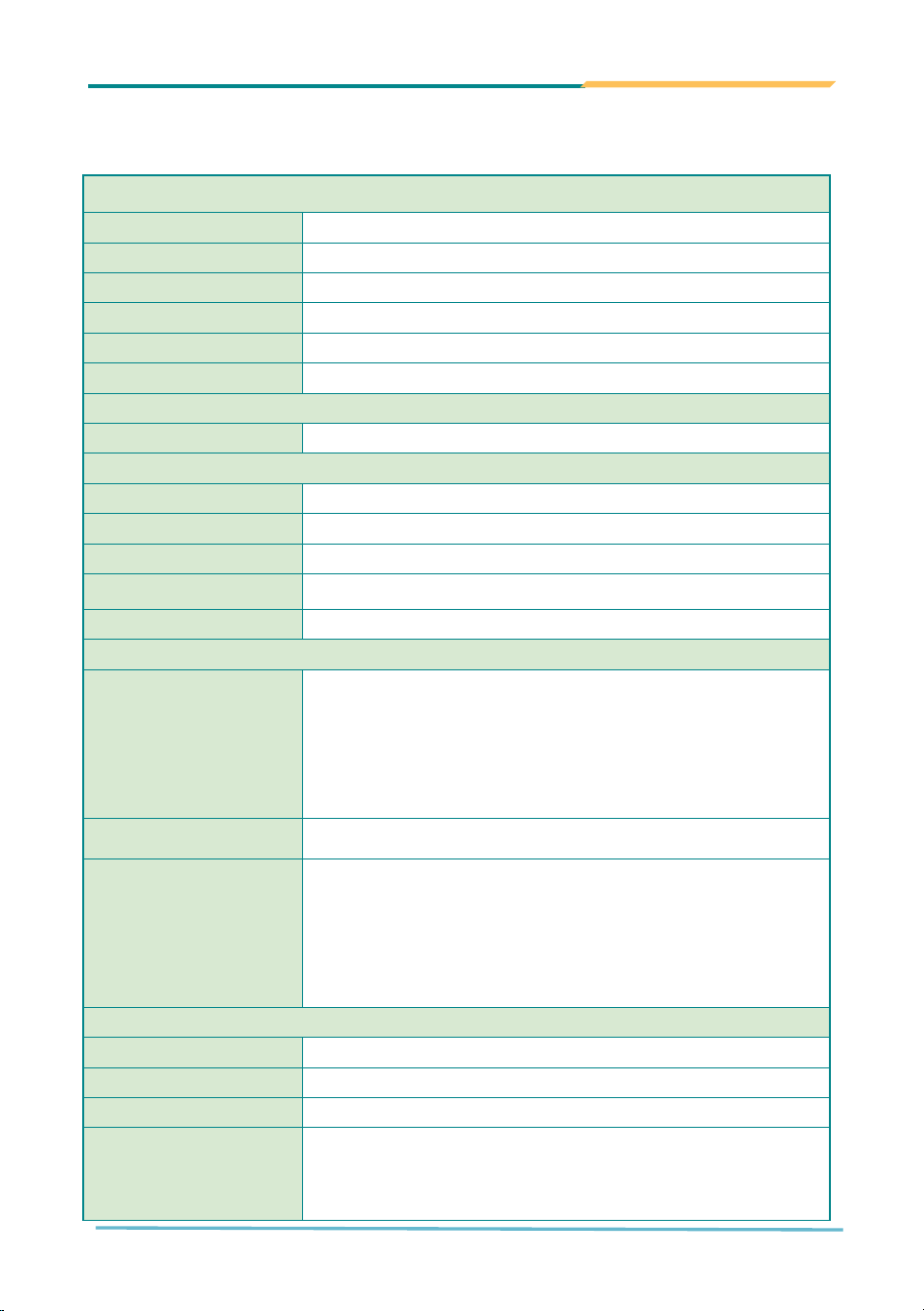
1.4 Specifications
System
Processor
MediaTek® G510
CPU
CPU 2x CA78(2.0G)+4x CA55(2.0G)
GPU
GPU Mali
-
G57 MC2.2
APU
APU 1x MLDA3.0 + 1x VP6, 3.2TOPS
Memory
LPDDR4X 4GB
Storage
eMMC 5.1 / 64GB
Operating System
Android
Android 14
LCD
Display
Size
15.6” IPS TFT LCD W/TP
Brightness
Brightness 300 cd/m²(Typ.)
Resolution
Resolution 1920 x 1080 pixel
Touch Screen True-Flat Projected Capacitive Touch
Tilt Angle
0 ~ 120 degree
External I/O Port
Rear
1x
Gigabit Ethernet, RJ45
1 x USB2.0/3.1, Type C, support DP output
1 x USB3.1, Type A
1 x USB 2.0, Type-C
1x USB2.0 OTG x1, Type-C (Power Input)
Top, Left, Right 3x USB Micro B
Extended Stand
1x RJ50
1x RJ11
1x RJ45 (cannot use 2 RJ45 at the same time)
2x USB2.0, Type –A
1x USB Type-C
Wireless
WLAN
2.4GHz/5GHz (Dual Bands)
Wi
-
Fi
WiFi 5 / 802.11 a/b/g/n/ac
Bluetooth
BT 5.1
NFC
NXP PN7220
-
Support ISO/IEC 14443 A/B
、
MIFARE
、
FeliCa 、NFC Forum T2/T3/T4/T5、ISO/IEC 15693; I²C
interface
6
Others
Buttons
Power key
Speaker
2 x 2W speaker
Power Input
Power
Supply
20VDC, USB
-
C adapter
Qualification
Certification
CE, FCC
, BSMI, NCC
Mechanical &
Environment
al
Operating Temp. -10°C ~ 45°C
Storage Temp. -20°C ~ 70°C
Operating %RH
5%
-
90% RH non
condensing
Dimension(WxDxH)
375 x 220 x 305 mm
Weight
(N.G/G.W)
1.2 kgs(N.W.) / 3 kgs(G.W.)
Peripherals
Peripherals
Stand

7
Chapter
2
Installation
Chapter 22
Getting Started

8
2.1 System Power on
When the power cable is connected, the device will power on automatically. The
first image will appear on the screen after approximately 9 seconds, and the
system will be fully loaded in about 31 seconds.
When you power off the system by long pressing the power button, power cable
id still on the device. In such case, you can start the system either by pressing the
Power button or unplug the power cable and plug it again onto the device.
.

9
Chapter
3
Using
the
Device
Chapter 33
Using the Panel PC

10
3.1 Using Touch Screen
The TC1560M-G510 is equipped with 15.6-inch capacitive multi-touch panel, allowing
intuitive interaction using your fingertips.
3.1.1 Basic Operations
The following table summarizes the most common touch screen gestures supported by
the TC1560M-G510:
Operation Description
Tap
Select an item, launch an app, or confirm an option
Double Tap
Zoom in (e.g., in browser or photo viewer)
Long Press
Move your finger vertically across the screen to
scroll through the
screen, App menu, pages, lists and so on.
Swipe
Scroll through content, dismiss notifications, or switch between
screens.
Drag
Move items across the screen (e.g., rearrange app icons)
Pinch/Spread
Zoom in or out on images, maps, or web content
Tip: The touch screen may not respond accurately if used with gloves, unless they are
capacitive touch screen-compatible.
3.1.2 Text Input
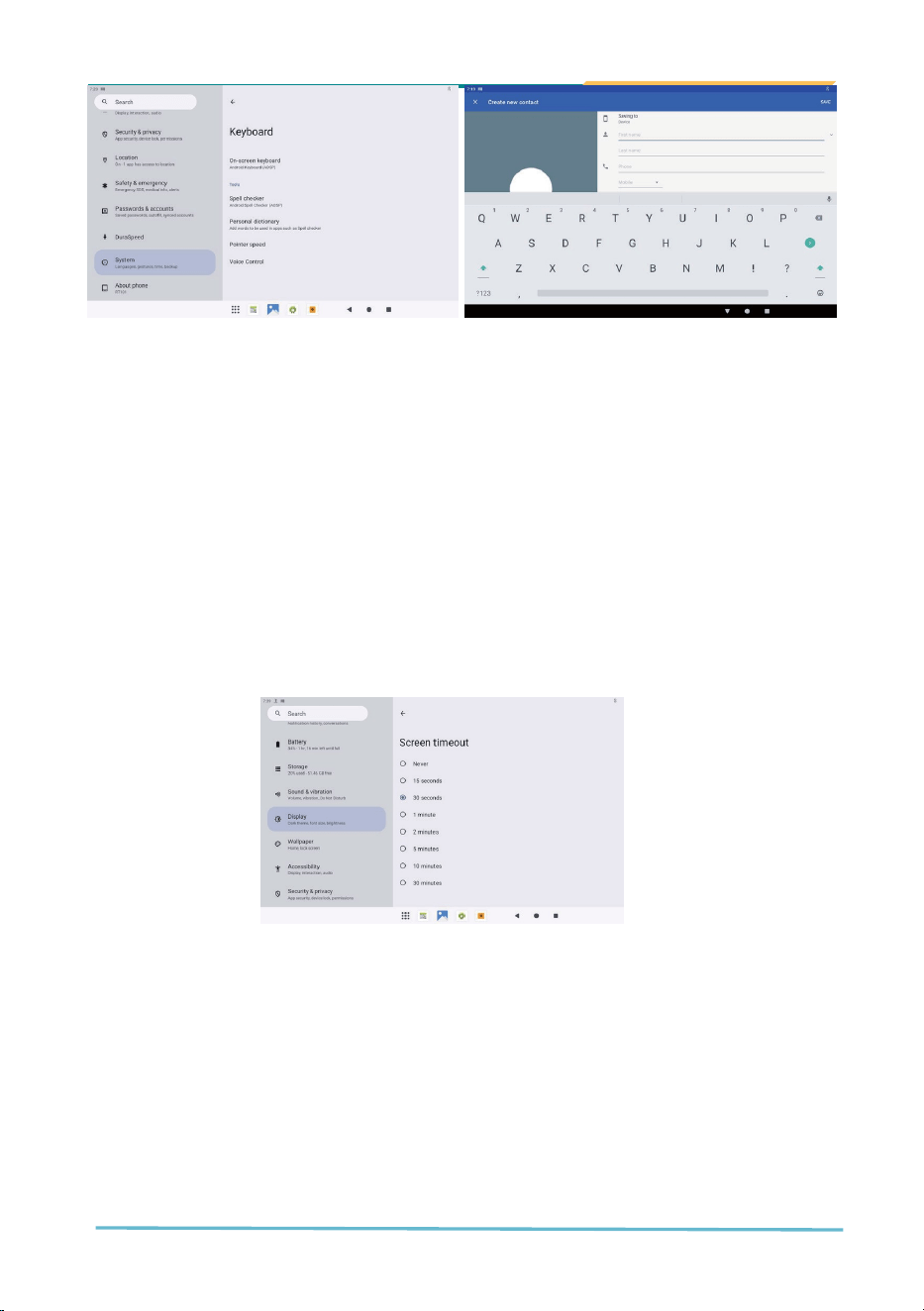
The TC1560M-G510 uses an on-screen virtual keyboard for text entry. It will
automatically appear when you tap on a text field in any app.
The layout and input method may vary depending on your selected language, keyboard
app, or IME (Input Method Editor).
To switch languages or input modes:
Tap the globe icon (if available) on the keyboard.
Or go to Sengs→System→Keyboard→On-screen keyboard.
11
3.1.3 Sleep Mode
TC1560M-G510 automatically enters sleep mode after a preset period of inactivity
(Default is “Never”).
Manual operation to make system sleep and wake:
To enter sleep mode: Press the Power button briefly.
To wake the device: Press the Power button again. You can adjust the screen
timeout duration via: Sengs→Display→Screen meout
Note: The device continues running in the background while in sleep mode. Wireless
connections and background apps remain active unless disabled separately.

12
3.1.4 Put the Device into sleep mode
The system can enter Sleep Mode in the following ways:
If the device is left idle beyond the preset sleep time, it will automatically enter
Sleep Mode (Default screen time out is “Never”).
Press the Power button briefly to put the device into Sleep Mode manually.
3.1.5 Wake up the system
The system can be woken up using one of the following methods:
Tap the touch screen.
Press the Power button briefly.
3.1.6 Turn off the system
The system can be turned off using the following methods:
Disconnect the power cable from the device.
Press and hold the Power button, a menu with “Power off” and “Restart ” would
pop out, then choose “Power off”.
Press and hold the Power button, after about 8 seconds, system would
automatically turn off.
13
3.2 Home Screen
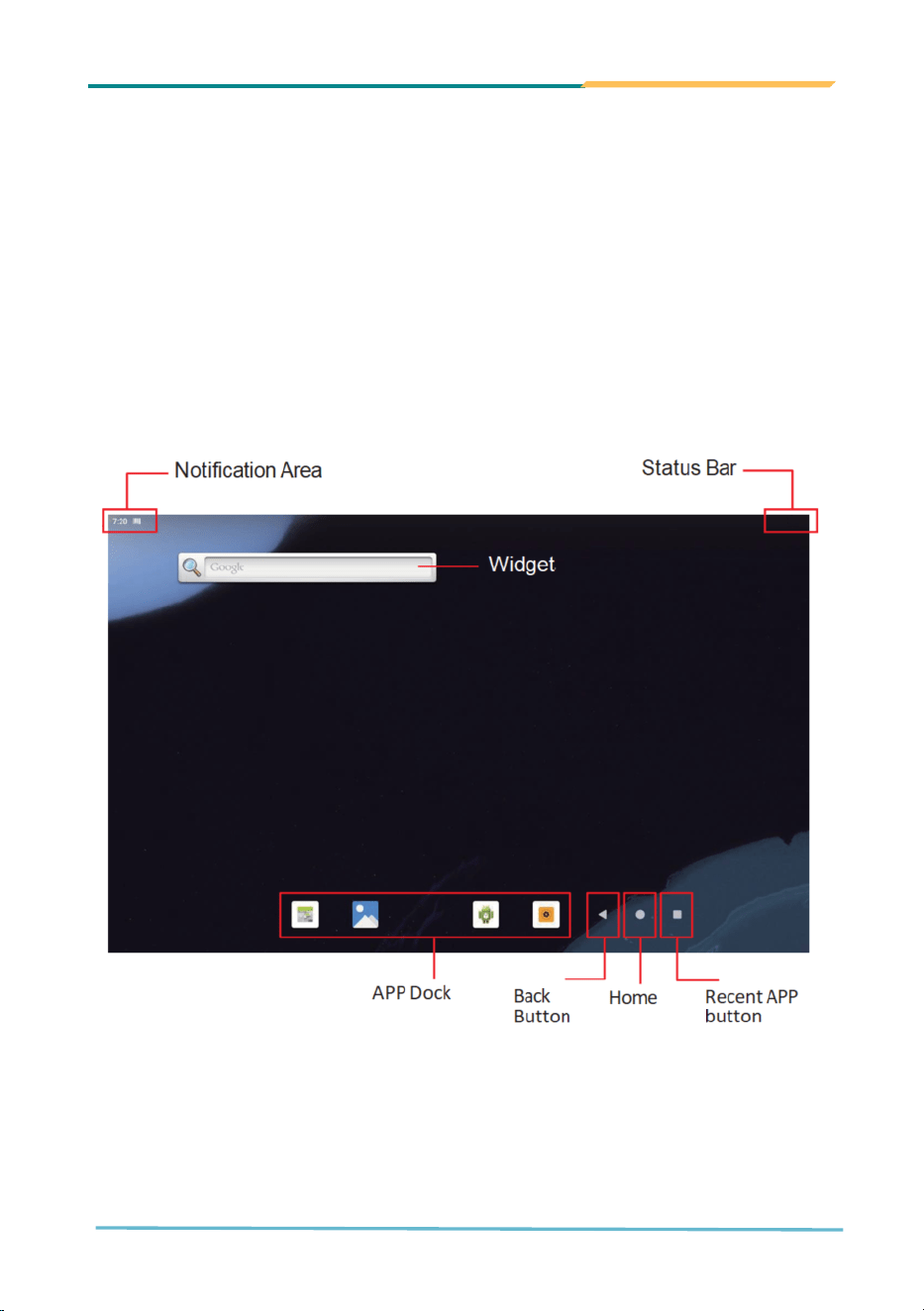
The Home Screen is the primary user interface displayed after the device powers on or
wakes from sleep. It provides access to frequently used apps, notifications, and system
navigation. It also provides you with an instant access to device status, notifications,
application shortcuts, folders and widgets. Simply tap an item and you can launch the
associated application. You can also add desired items to the Home screen, extend the
Home screen or personalize the wallpaper to tailor it to your personal needs.
When you power on the device for the first time, a typical Home screen looks like the
example below.
14
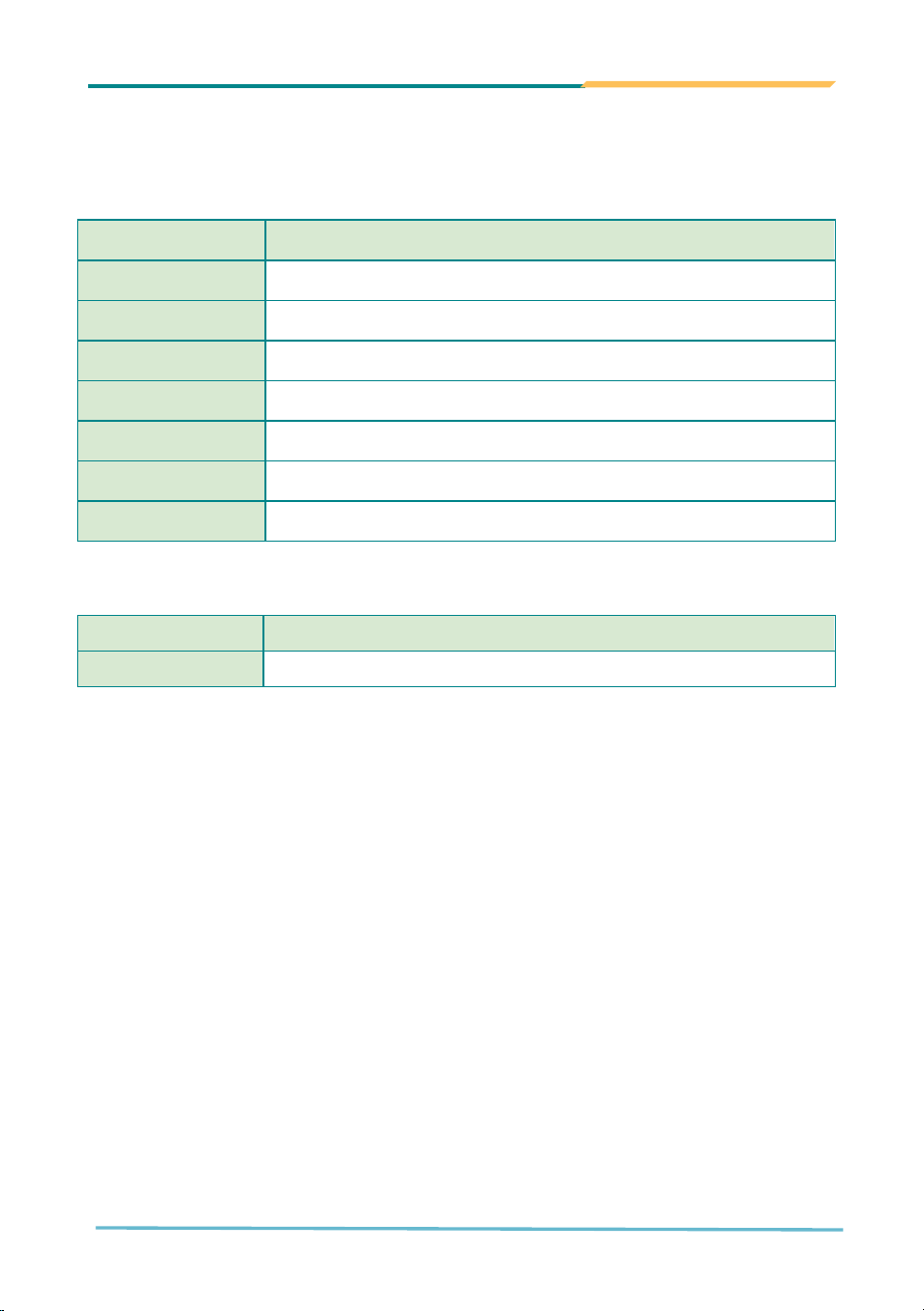
The following elements are part of the TC1560M-G510’s Android Home interface:
Table 1 On-Screen Interface Components
Element Descriptions
Status Bar Time, signal strength, and system indicators.
Notification Area Swipe down to view messages, alerts, or system notifications
Widget Interactive items such as weather, clock, or calendar widgets.
App Icons/Launcher
Tap to open app; arranged on home screen or within app drawer.
App Drawer Access all installed apps by swiping up from the bottom.
App Dock Persistent shortcut bar at the bottom of the screen.
Navigation Bar Includes Back, Home, and Recent Apps buttons.
Table 2 Physical Buttons and Controls
Element Descriptions
Power button
Turns the screen on/off or powers the device up/down.
15
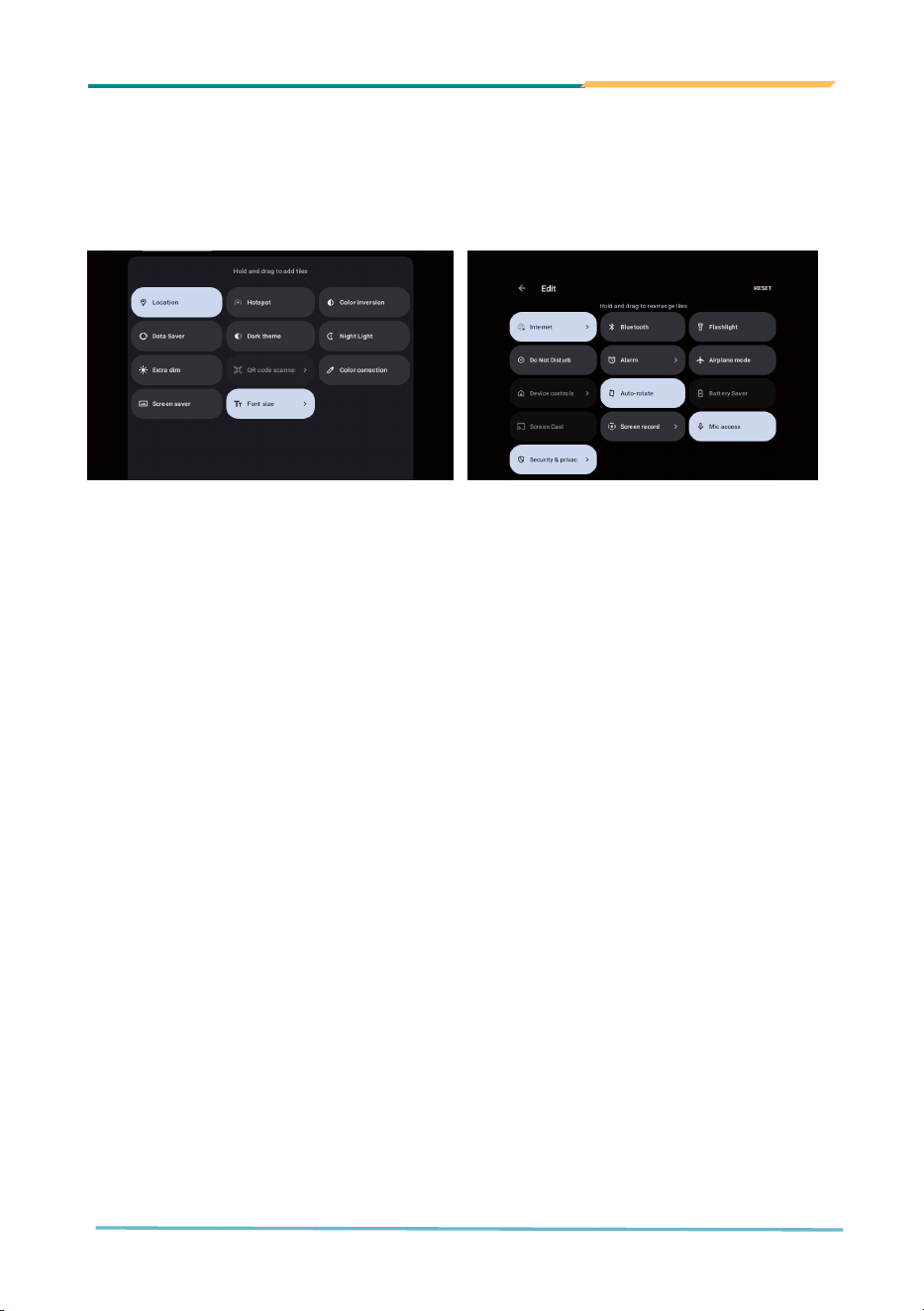
3.2.1 Using the Quick Settings Panel
The Quick Settings panel provides fast access to frequently used system functions. It
allows users to view status and toggle features such as below.
How to access:
Swipe down from the top of the screen to open the compact Quick Settings.
How to interact:
Tap an icon to enable/disable the feature.
Long-press an icon to open its full settings page.
Tap the pencil icon to customize which tiles appear.
Note: The available shortcuts may vary depending on your system version, or device
configuration.
3.3 Configurations
The TC1560M-G510 provides centralized access to various device features through the
Settings menu.
To access Settings: Tap the Settings icon from the Home Screen or App Drawer.
Within the Settings interface, you can manage:
Wi-Fi and Mobile network connectivity.
Bluetooth pairing and configuration.
Sound, Display, and Notification preferences.
Security, Accounts, and System updates
Tip: Some configuration options may vary depending on the Android version, Google
Mobile Service (GMS) certification status, or system customization by the manufacturer
16
3.4 Use the Wi-Fi Feature
TC1560M-G510 is equipped with Wi-Fi 5 (802.11 ac) wireless technology via the
MediaTek MT7663 chipset, supporting operation across 2.4GHz and 5GHz frequency
bands.
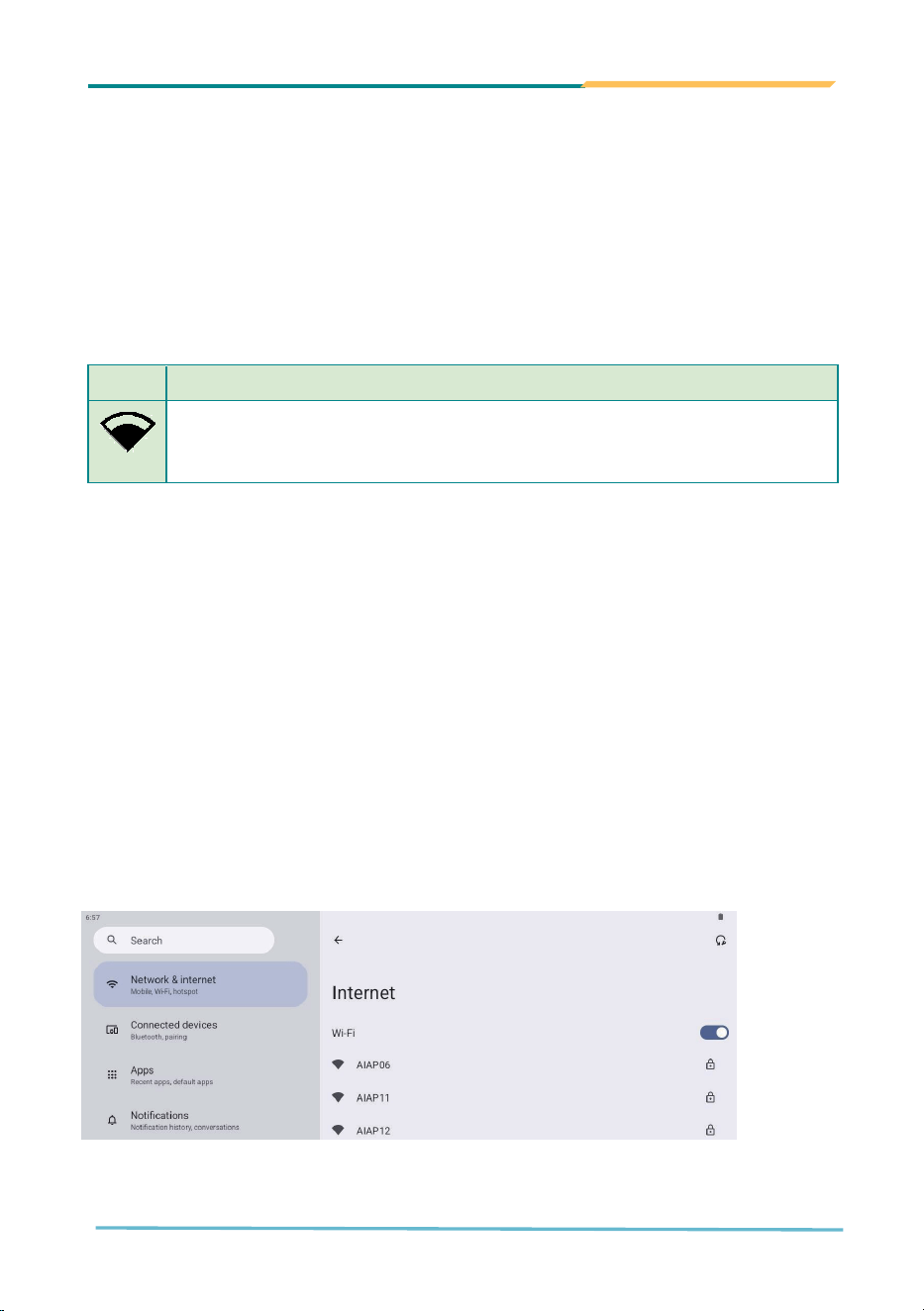
The Status Bar displays the following icons that shows Wi-Fi status.
Icon Descriptions
Notifies that a Wi-Fi network is connected. Black portion indicates signal
strength.
Operation of transmitters in the 5.925-7.125 GHz band is prohibited for control of or
communications with unmanned aircraft systems
3.4.1 Enable Wi-Fi and Connecting to a WLAN
To enable Wi-Fi and connect to a network:
1.
Go to Sengs→Network & Internet→Internet
2.
Tap the Wi-Fi Toggle to enable the wireless connectivity
3.
Select a network from the list
4.
Enter the password (if required), then tap check.
Once connected, the Wi-Fi icon will appear in the status bar.
17
3.4.2 Add a Wi-Fi Network
If the SSID (network name) is hidden or does not appear:
1.
Go to Sengs→Network & Internet→Internet
2.
Tap the Wi-Fi Toggle to enable the wireless connectivity
3.
Tap Add network
4.
Enter
• Network name (SSID)
• Security type
• Password (if required)
5.
Tap Save
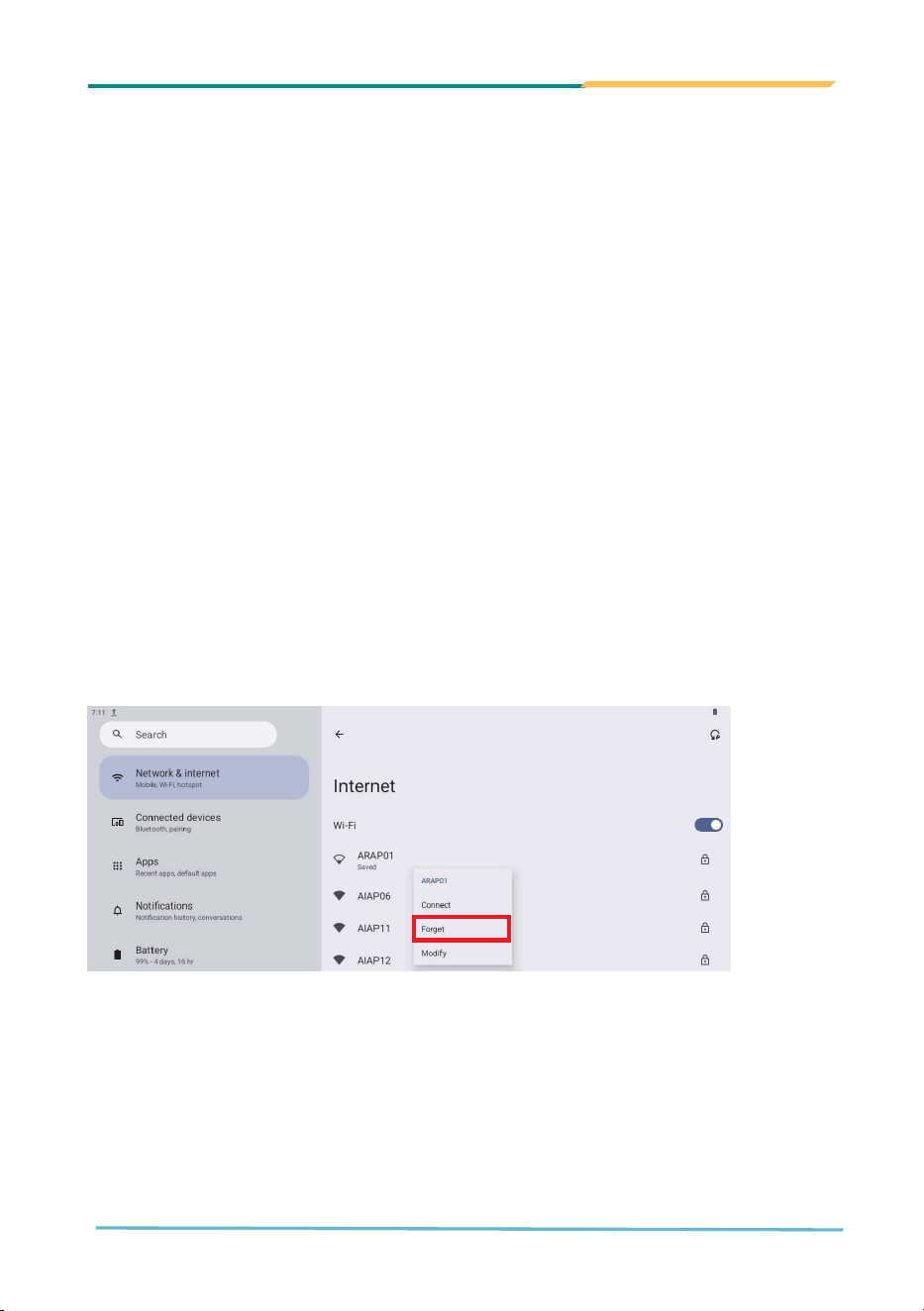
3.4.3 Forget/Modify a Wi-Fi Network
To disconnect and remove a save network:
1.
Go to Sengs→Network & Internet→Internet
2.
Long press the saved network
3.
Select Forget
18
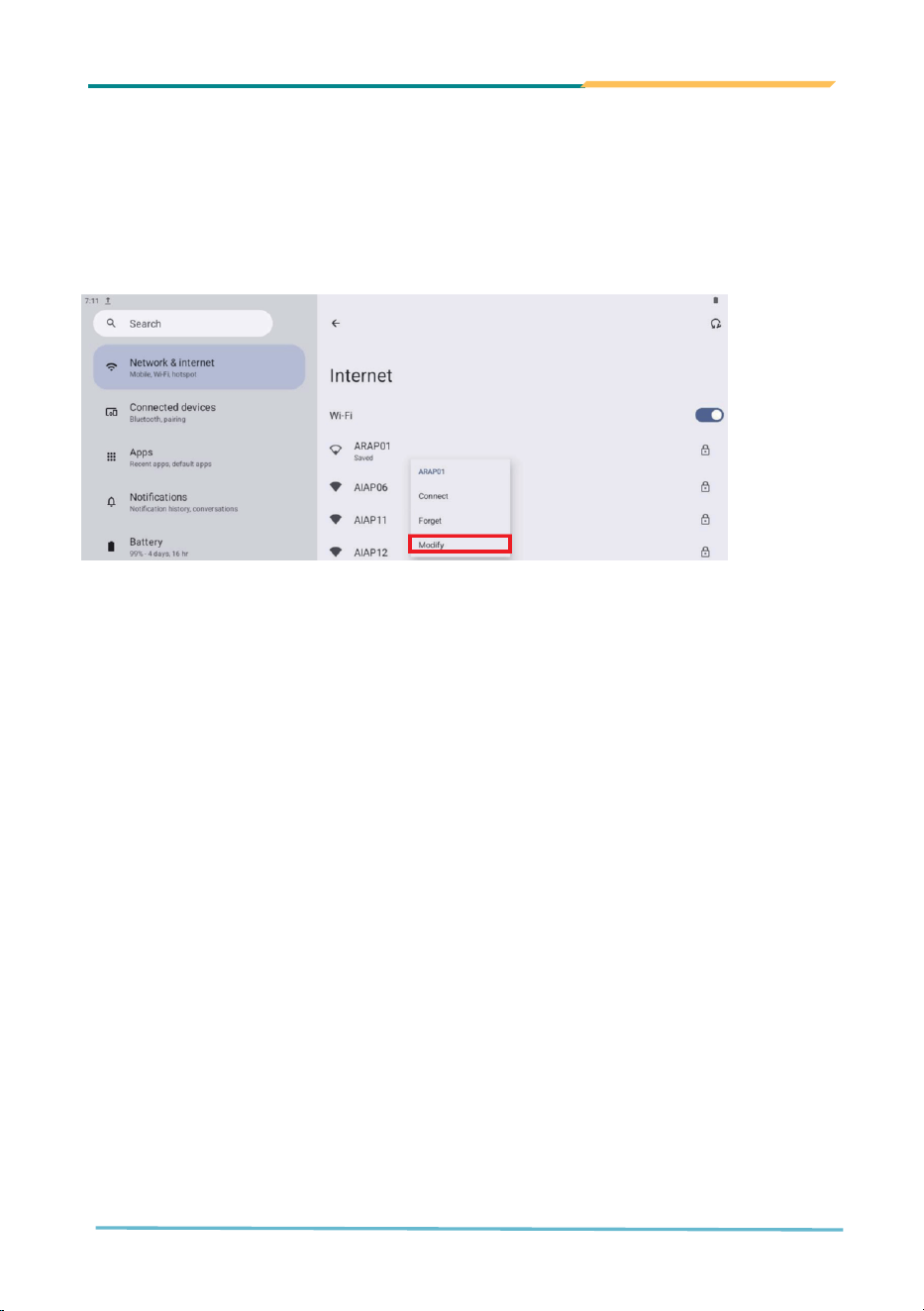
To changes stored credentials (e.g., Wi-Fi password)
1.
Go to Sengs→Network & Internet→Internet
2.
Long press the saved network
3.
Select Modify
3.4.4 Making Your Device a Wi-Fi Hotspot
TC1560M-G510 can share its mobile data connection via Wi-Fi hotspot:
1.
Go to Sengs→Network & Internet→Hotspot & tethering
2.
Tap the toggle to enable the hotspot
3.
Tap Hotspot name, Security, or Hotspot password to customize.
4.
Nearby devices can connect using the shown SSID and password.
Tip: For security, always use WPA2 or WPA2 encryption with a strong password.
19
3.5 Bluetooth Settings and Configuration
TC1560M-G510 is equipped with the MediaTek MT7663 wireless chipset, supporting
Bluetooth 5.1, and operating in the 2.402 GHz – 2.480 GHz ISM band. It provides dual-
mode support to both Classic Bluetooth (BDR/EDR) and Bluetooth Low Energy (BLE)
communication.
Supported Bluetooth profiles include:
A2DP SRC – Advanced Audio Distribution Profile (Source)
A2DP SINK – Advanced Audio Distribution Profile (Sink)
AVRCP CT – Audio/Video Remote Control Profile Controller (Control Target)
AVRCP TG – Audio/Video Remote Control Profile Controller (Target Device)
HFP HF – Hands-Free Profile (Hands-Free Unit)
HID Host –Human Interface Device Host
HOGP Host – HID over GATT Host
LE Audio (UMS) –Low Energy Audio (Universal Musical Sound)
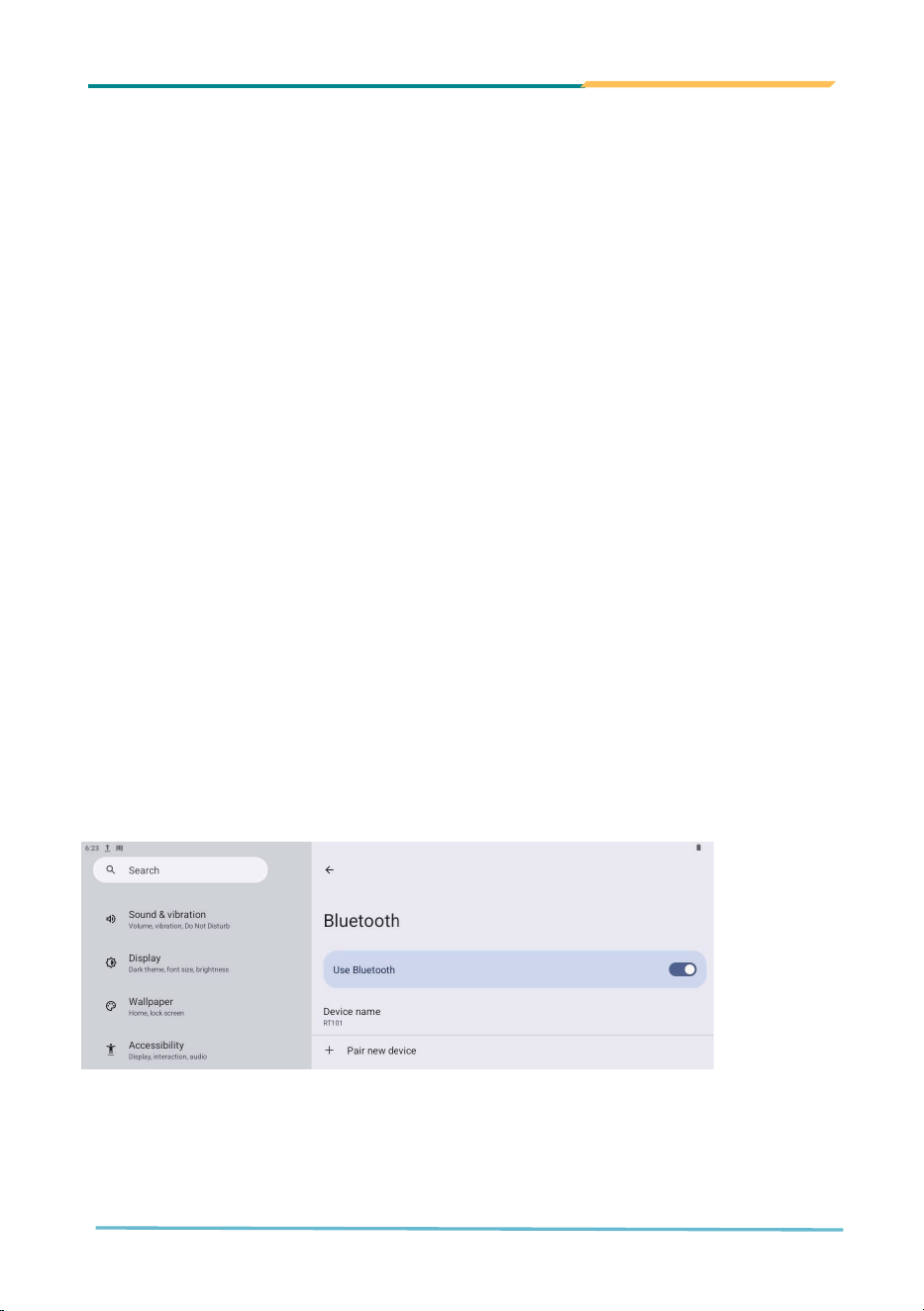
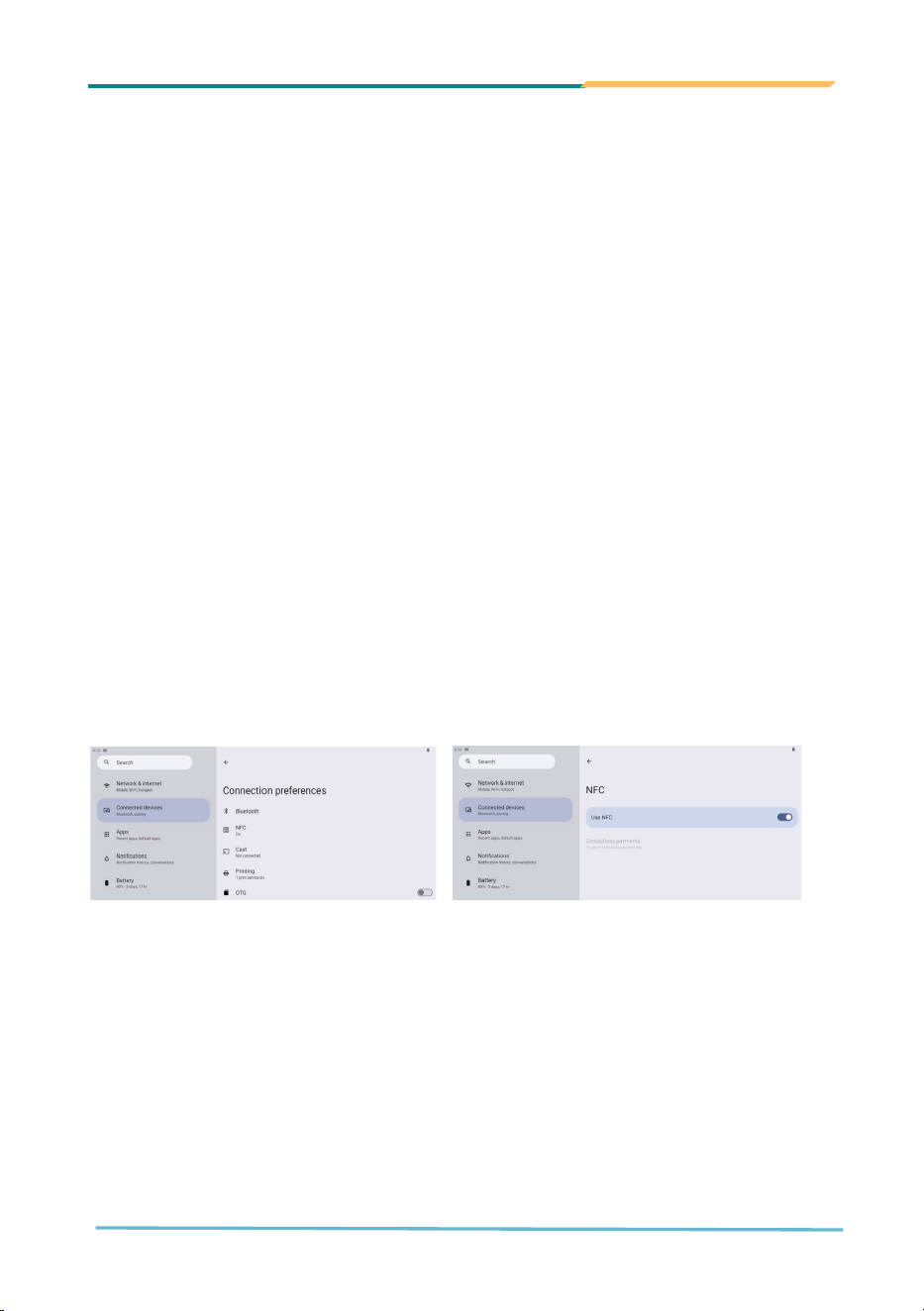
3.5.1 Managing Paired Devices and Profiles Turning On Bluetooth
You can enable Bluetooth following the below operation:
1.
Go to Sengs→Connected devices
2.
Tap Connecon preferences →Bluetooth
3.
Toggle the Bluetooth switch to turn it on.
Alternatively, you can also swipe down from the top of the screen and tap on Bluetooth
icon in the Quick Settings panel.
20
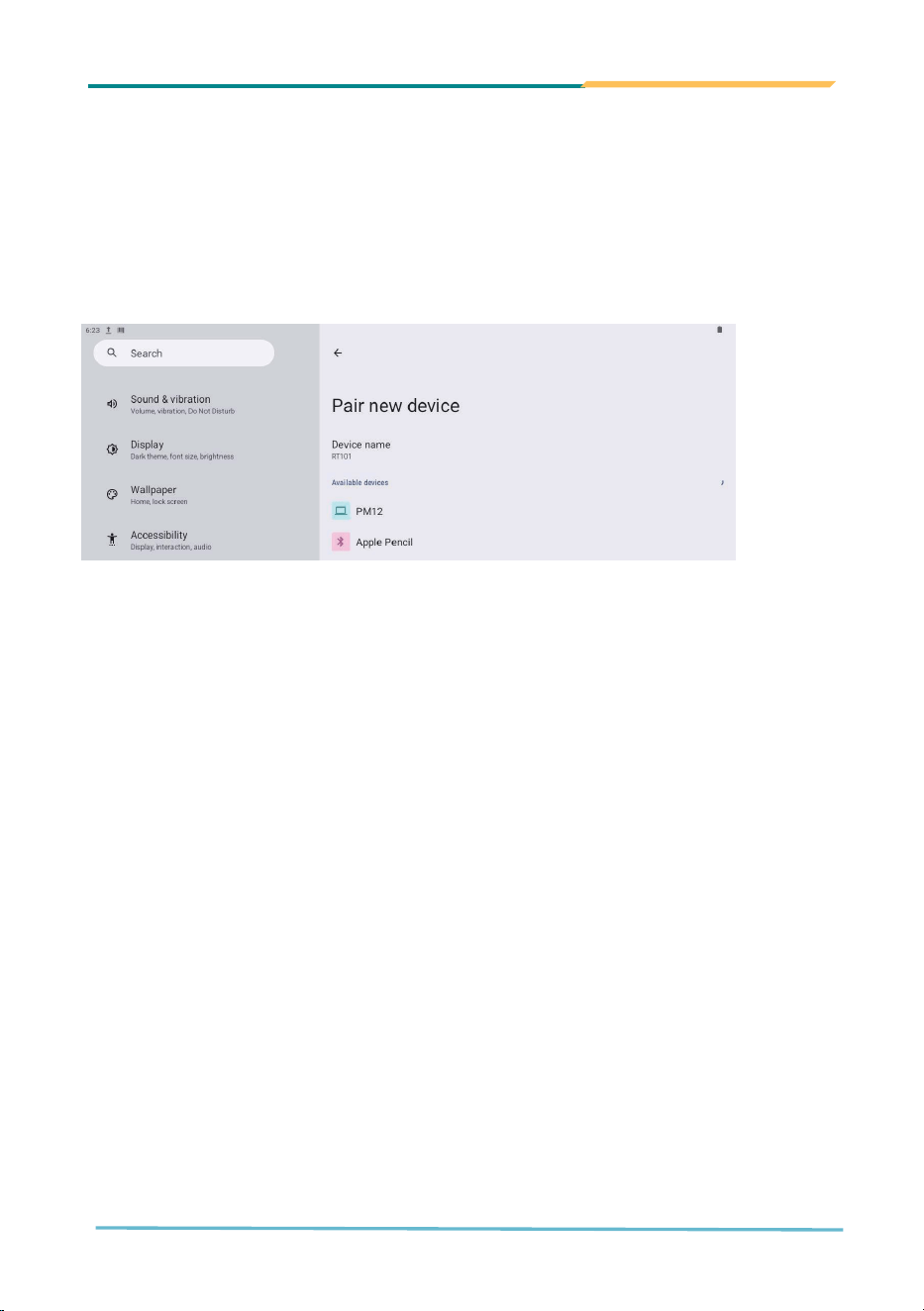
3.5.2 Pairing with a Bluetooth Device
1.
Ensure the external device is in pairing mode.
2.
On the TC1560M-G510, go to Sengs→Connected devices→Pair new device
3.
Select the device from the list
4.
Confirm the pairing code if prompted, then tap Pair.
Tip: Certain enterprise-grade accessories may require custom pairing workflow or PIN
entry. Refer to the accessory’s manual for pairing instructions.
3.5.3 Disconnect from a Bluetooth Device
1.
To disconnect: Tap the device’s gear icon, then tap Disconnect.
2.
To un-pair: Tap Forget to remove it from the paired list.
3.5.4 Additional Bluetooth Settings
To rename a paired device: Tap the pencil icon on the top right of the device
settings screen, then enter a custom name.
Rename this TCV1560M-G510 device: Settings→Connected device → Connecon
preferences → Bluetooth → Device name, enter a custom name.
21
3.6 Using the NFC Feature
TC1560M-G510 is equipped with Near Field Communication (NFC) capability, enabling
Short-range contactless data exchange for identification, access control, tag reading,
and mobile transactions.
3.6.1 NFC Antenna Placement
The NFC antenna is integrated behind the upper-right corner of LCD panel, allowing
interaction through the front and back surface of screen.
To ensure successful detection:
Place the NFC card or device directly against the top-right of the screen
Maintain the distance within 2 cm
Align the antenna region of the card with the screen’s upper-right area.
3.6.2 Enabling or Disabling NFC
To activate or deactivate the NFC feature:
Go to Sengs→Connected devices→Connecon preferences→NFC
Toggle the NFC switch ON or OFF

22
Chapter 44
Technical Support
and Warranty

23
4.1 Warranty Terms
4.1.1 Warranty Period
AMobile branded off-the-shelf product are entitled to a 12 months complete and
prompt global warranty service. Product defect in materials and workmanship , are
covered from the date of shipment. (Accessories warranty is 6 months)
4.1.2 Repairs under Warranty
It is possible to obtain a replacement (Cross-Shipment) during the first 30 days of
the purchase, through your original supplier to arrange DOA replacement if the
product is DOA (Dead-on-Arrival). The DOA Cross-Shipment excludes any shipping
damage, and/or customized products.
The DOA agreement signed by customers is required for initiating/releasing cross-
shipment with AMobile confirmation and verification. The only conditions for
Cross-Shipment are:
○ The return must not be damaged, altered or marked
○ All parts and accessories must be included as originally shipped
○ Proof of purchase must be included
Any returns that do not meet the above requirements, or any wrong user
settings/configurations will be denied, or subject to additional handling/service
charges as determined by the Customer Service Department.
For those products which are not DOA, AMobile’s obligation shall be limited to
repair or replace (at AMobile’s sole option) the defective product free of charge in
case AMobile determines the product failed due to defects in materials and
workmanship. The return fee to an authorized repair facility/or AMobile HQ will
be at the customers' expense. The shipping fee for reconstructive products from
an authorized repair facility/or AMobile HQ back to customers' sites will be at
AMobile's expense.
In the event of AMobile determines there is no defect (“No Defect Found”) or is
not qualified for warranty repair, AMobile shall charge Customer from return
shipment and a minimum diagnosing fee.

24
4.1.3 Exclusions from Warranty
The product is excluded from warranty if:
The product has been found to be defective after expiry of the warranty period, or
the warranty was voided by removal or of or part identification labels.
The product has been misused, abused, or subjected to unauthorized
disassembly/modification; placed in an unsuitable physical or operating
environment; improperly maintained by the customer; or failure caused which is
not responsible whether by accident or other cause. Such conditions will be
determined by at its sole unfettered discretion.
The product is damaged beyond repair due to a natural disaster such as a lighting
strike, flood, earthquake, etc.
Cosmetic wear from normal usage over time.
Product updates/upgrades and tests upon the request of customers who are
without warranty.
4.1.4 Return and RMA Process:
• An official Return Merchandise Authorization (RMA) number must be obtained prior
to returning any product.
• The returned product must include the RMA number and a clearly written description
of the issue or fault.
For complete warranty details and return procedures, please consult the warranty
section on our website or contact your designated AMobile representative.

25
4.2 Contact Information
Headquarters:
AMobile Solutions Corp.
8F.-3 No.700, Zhongzheng Rd.,
Zhonghe Dist.,
New Taipei City 235,
Taiwan
Tel:+886 2 8226 8558
Fax:+886 2 8226 8568
Sales: [email protected].tw
Technical Support: support@amobile.com.tw
Corporate Website: https://www.amobile-solutions.com/