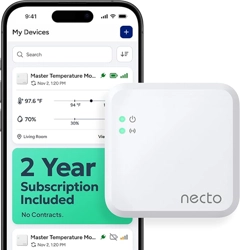
4G Cellular Multisensor
QUICK START GUIDE
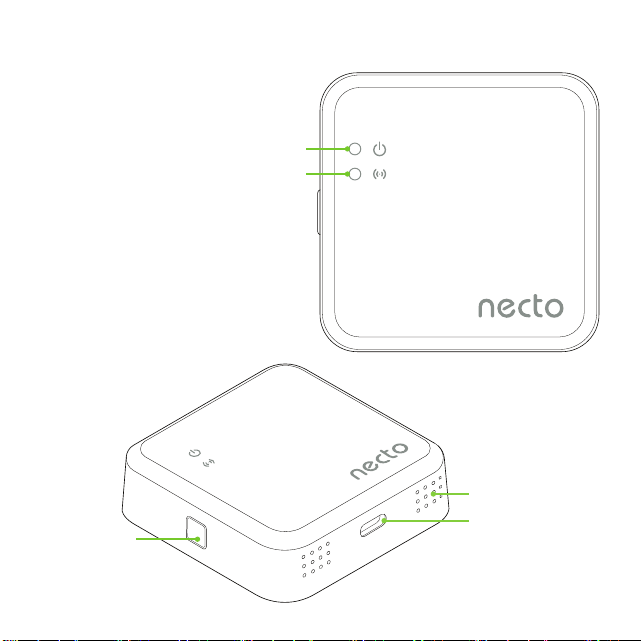
Know Your Device
USB-C Port
Air Vent Holes
Power Button
Power Indicator LED
Signal Indicator LED
3-Step Easy Set Up
Step 1: power Up Device
1. Connect the device to wall power using the supplied cable and
power adapter.
2. Press and hold the power button on the side of the device for
3seconds to turn it on.
3. Once the device successfully connects to the cellular network,
the signal indicator LED will turn solid green (this can take up to
3minutes).
Step 2: create an accoUnt
1. Go to app.getnecto.com or scan the
QRcode on the right.
2. Enter the on-screen information to create
an account.
Step 3: regiSter Device
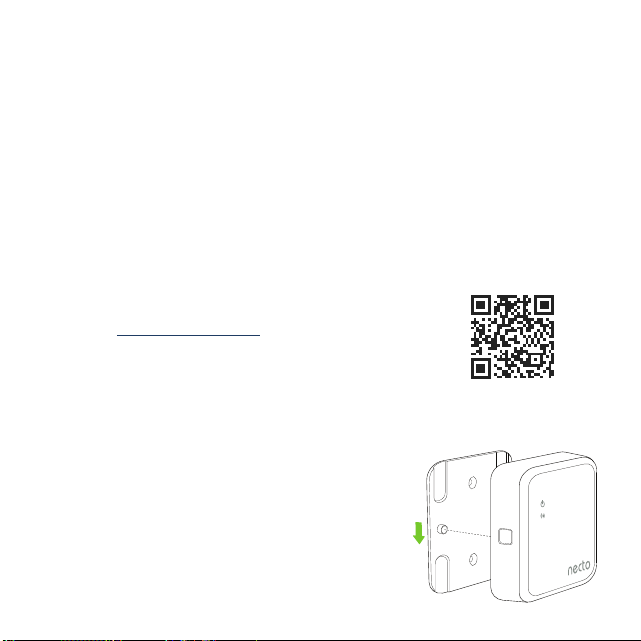
1. Enter the Device ID located on the back
of the device. To access the Device ID,
remove the wall mount from the device
by gently sliding it downwards.
2. Set the desired temperature/humidity
thresholds and alert settings.
https://app.getnecto.com

Device Placement
The device can be placed on a at surface or mounted to the wall.
To ensure accurate readings:
• Place the device out of direct sunlight and away from any heat
sources or vents.
• Keep the small air holes on the bottom of the device away from any
obstructions to allow proper airow.
• After the device is rst plugged in or moved to a new location, allow
up to 30 minutes for the sensors to adjust to their new environment.
Mounting the Device (Optional)
1. Remove the paper backing from the self-adhesive tape on the back of
the wall mount.
2. Place the mount in position and press rmly to secure it to the wall.
3. Slide the device onto the two mounting pegs on the front of the mount.
Battery Information
• To maintain good battery health: (1) If your device is in use, let the
battery drain for 24 hours at least once every 3 months. (2) If your
device is not in use, charge it at least once every 3 months.
• The device can take up to 24 hours to fully charge. The slow charge
rate minimizes the heating of the battery, ensuring no impact on the
accuracy of the temperature readings.
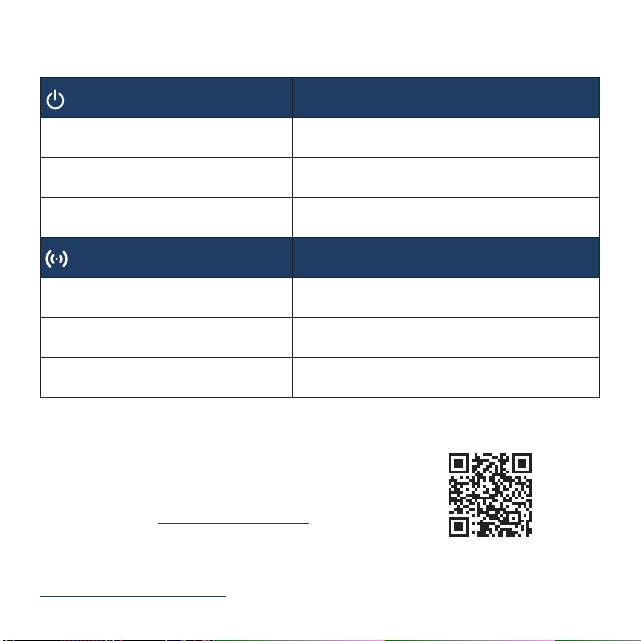
LED Indicator Guide
Power LED
Status
Solid Green Connected to power outlet
Flashing Green No power at the outlet; running on battery
Flashing Red No power at the outlet; battery below 10%
Signal LED
Status
Solid Green Connected to the cellular network
Red/Green Alternating Flash
Searching for network connection
Solid Red No network connection
Need Help?
For answers to frequently asked
questions visit getnecto.com/faqs.
If you are having diculties with setup
please email our friendly support team at
[email protected] for assistance.
https://getnecto.com/support

Troubleshooting
the Signal inDicator leD on my Device iS reD
This means your device couldn’t successfully connect to the network. First,
try powering your device off and then on again by holding down the power
button for 3 seconds.
If the device still can’t connect to the network, try moving to a new location
and restarting the device again. Typically, higher oors will have better
reception than basements.
i’m not receiving my alertS
Go into your alert settings for the alert in question and verify that the alert is
turned on. Make sure a valid email and/or phone number is entered for the
alert. Also, check your spam folder to see if the email alerts are being routed
there.
i’m not able to aDD my Device to my accoUnt
To register your device, you must power up the device and wait for it to
connect to the cellular network. The device can take several minutes to
connect to the network for the rst time. The signal indicator LED will turn
green once the device connects to the network.
i UnplUggeD my Device bUt i DiDn’t receive a power oUtage alert.
In order for the power outage alert to be triggered, there has to be no outlet
power being detected for 1 complete minute. This is to avoid alerts being
sent out if small power glitches occur.
If you need additional assistance please email our friendly support team at
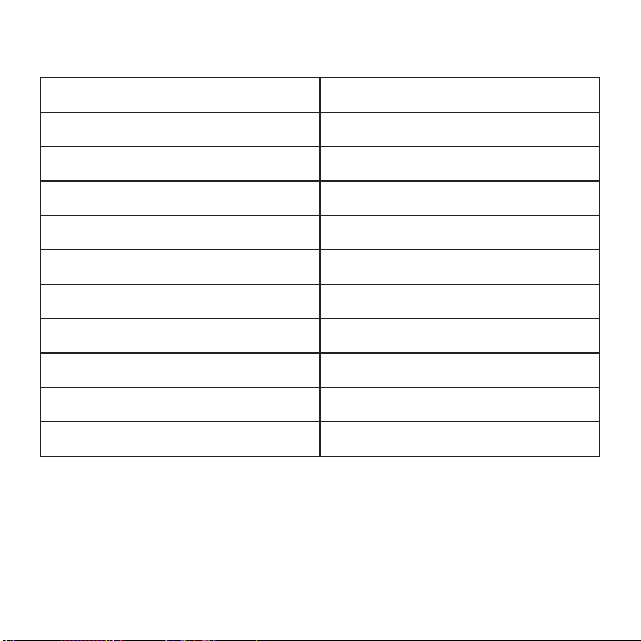
Specications
Battery Type Lithium-ion rechargeable
Battery Duration 60–72 hours (from 100 to 0%)
Charge Time 24 hours (from 0 to 100%)
Operating Temperature Range -4 to 140 °F
Operating Humidity Range 0 to 95 % (relative humidity)
Temperature Accuracy ±0.5 °F typical, ±2 °F maximum
Humidity Accuracy ±2% typical, ±5% maximum
Cellular Technology 4G LTE-M
Cellular Network Compatibility AT&T, T-Mobile, Cellular One
Data-upload Frequency Every 10 minutes
Check-in Frequency Every 10 seconds
Warranty
The Necto Cellular Multisensor comes with a 1-Year Limited Warranty
from the date of shipment.

FCC Compliance
This device complies with part 15 of the FCC Rules. Operation is subject to the
following two conditions: (1) This device may not cause harmful interference, and (2)
this device must accept any interference received, including interference that may
cause undesired operation.
Caution: Changes or modications not expressly approved by the party responsible for
compliance could void the user‘s authority to operate the equipment.
This equipment has been tested and found to comply with the limits for a Class B
digital Device, pursuant to part 15 of the FCC Rules. These limits are designed to
provide reasonable protection against harmful interference in a residential installation.
This equipment generates, uses and can radiate radio frequency energy and, if not
installed and used in accordance with the instructions, may cause harmful interference
to radio communications. However, there is no guarantee that interference will not
occur in a particular installation.
If this equipment does cause harmful interference to radio or television reception,
which can be determined by turning the equipment off and on, the user is encouraged
to try to correct the interference by one or more of the following measures:
• Reorient or relocate the receiving antenna.
• Increase the separation between the equipment and receiver.
• Connect the equipment into an outlet on a circuit different from that to which the
receiver is connected.
• Consult the dealer or an experienced radio/TV technician for help.
This device complies with radio frequency (RF) exposure limits adopted by the Federal
Communications Commission for an uncontrolled environment. This device should be
installed and operated with minimum distance 20cm between the radiator and your body.