Digital Camera User Manual

1
Catalogue
Catalogue ........................................................................................................... 1
Preface .............................................................................................................. 3
Came ra feat ure s ...... . ............ . . ............ . ....... ............. . ............ . . ............ . ...... 3
Camera usage tips ....... .... .... .... ...................... .... .... .......................... .... .... .... 4
Storage card usage tips ........................................................................................ 5
Preparations before use ......................................................................................6
Camera components .......................................................................................... 12
Turning the camera on and off ....................................................................... 16
For mat the storage ca r d ............ . . .. .... ........ . ... . . . . ............ .... . . . . ................ 16
Camera settings ..................................................................... ... ........... ... .... 18
Camera screen icon .......................................................................................... 20
Take photos and videos .................................................................................... 24

2
Sel f i e Mode ... ... . . ..... . . ..... . .. ....... . . ..... . . . .... . .. ....... ....... . . . ..... . . ..... .. ........ . . .. 31
Fl as h Mo de .. . . .. . . . . .. . . .. . . .. .. . . .. . . .. . . .. .. . . .. . . .. . . . . .. . . .. . .. . . . . . . . . .. . . .. . . .. .. . . .. . . .. . 32
Fil l li g ht Mode ... ..... . . ..... . . ..... . . ....... ....... . . ..... . . ..... . . ..... .. ....... . . . .... . . . .... . .. 33
Set date and time, and add a watermark .......................... ............................ 34
Replay Mod e ............... . ... . . . . ................. . . .. ................. . ... . . . . ................. . . . 35
Co n n e c t to c am e r a Wi- F i .. . . . . . . . .. . .. . . . . . . . . .. . . . . . . . . . . . . . .. . . . . . . . . .. . .. . . . . . . . . . . . . 3 7
Down load camera pho tos and videos to the comp uter .......... . ............ ........ 39
We b c a m ... . .. . .. .. . .. .. . .. .. . ... .. . .. . . . .. . . . .. . . . .. . . .. .. . .. .. . .. .. . .. .. . .. .. . . .. . . . .. . . . .. . . . .. . . 40
Camera parameters ... ... ... ... ... ... ... ... ... ... ... .................................. ... ... ... ... ... .. 41
Frequently Asked Que stions ....................................................................... 43
FCC War n i ng St a t ement .. . ...... . .. ......... . . . ......... . . . ......... . . . ...... ... . . . ...... . .. .. 45

3
Preface
Thank you for purchasing our digital camera. Before using the camera, please be sure to read
and understand the relevant content of "Safety Matters". Please keep this manual properly for
future reference.
It is recommended to take a few non-essential images before capturing important ones to ensure
that you are operating the camera correctly.
The interface illustrations and camera schematics in this manual are examples from the product
development stage. If some functions are supplemented or modified through camera firmware
upgrades, the content of the manual may differ from the actual functions. Please refer to the
actual camera information.
Camera features
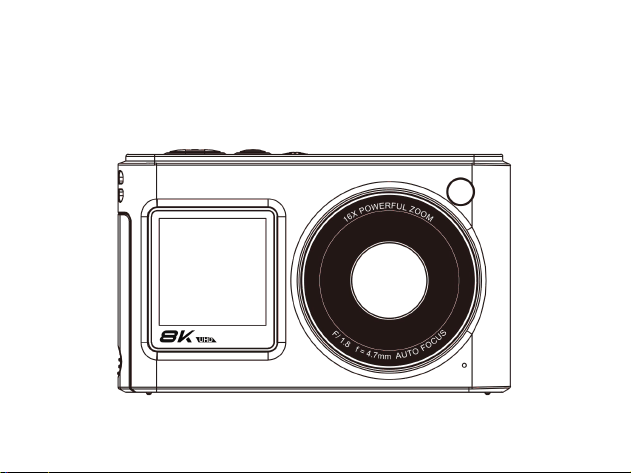
Front & Rear Displays
96 million pixels
8K high-definition video recording
480M pixels/second color processing
High-speed continuous shooting
HDR high dynamic imaging
Wi-Fi image transmission
Webcam

4
Camera usage tips
Camera safety and operation
Please do not disassemble or repair the camera yourself.
Avoid exposing the camera to extreme temperatures or humid environments.
When transitioning from a cold environment to a warm one, one must adapt gradually to
prevent condensation.
Do not press the lens hard or expose it to direct sunlight for extended periods.
Clean with a slightly damp soft cloth only, and avoid using chemical solvents.
Handle with care to avoid impacting the camera's display screen.
Camera usage warning
Do not point the flash directly at people's eyes at close range, as it may cause discomfort or
injury.
Do not operate the camera while walking or driving to prevent accidents.
Do not allow the camera strap to entangle around a child's neck, as it poses a risk of
suffocation.
Camera maintenance tips
When the camera is not in use, please store it in a cool and dry place and remove the
battery.
Please wear a lanyard when using the camera to prevent it from accidentally falling.
Using a camera bag can prevent scratches on the lens and screen.

5
When cleaning the lens, please gently blow away the dust first, and then wipe it with a cloth
specifically designed for optical equipment. If necessary, Lens cleaning solution can be used.
Do not use organic solvents to clean the camera.
Avoid touching the lens directly with your hands, as dirt on the lens can affect the imaging
quality.
Storage card usage tips
Formatting and compatibility
The new card needs to be formatted before its first use, and cards previously used in other
devices also need to be reformatted.
Do not directly use a memory card that has been formatted by another camera, video
recorder, or card reader.
Operational precautions
Before inserting or removing the memory card, turn off the camera power.
Avoid bending, dropping, or squeezing the memory card, and keep it away from strong
magnetic/electric fields.
It is normal for the memory card to become slightly warm after prolonged use.
Data protection
Do not power off or remove the card when recording, deleting, formatting, or reading data.
Regularly back up important data to other storage devices.
6
Preparations before use
Inspect the items inside the package
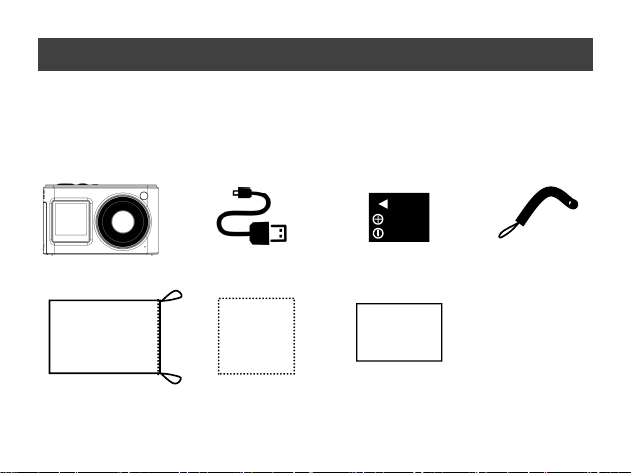
1. Upon purchase, the package includes the following camera and standard accessories.
2. If you find any missing or damaged parts, please contact the dealer where you purchased the
camera.
Camera, USB cable, Lithium battery, Lanyard,
Camera bag, Lens cloth, User manual
+
User Manual
7
Install the lanyard
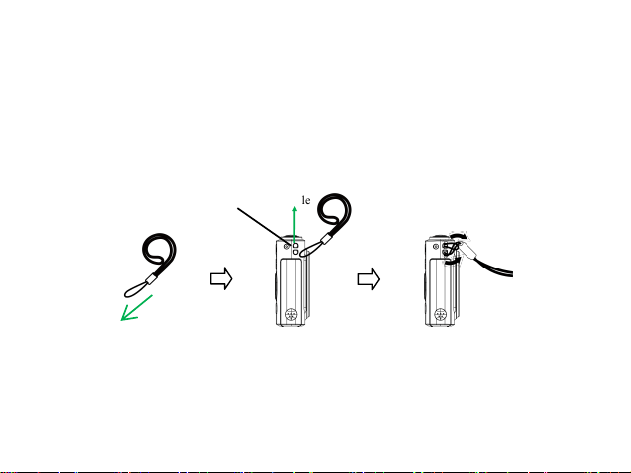
1. Before installing the lanyard, as shown in the picture, first straighten the end of the lanyard.
2. Then locate the lanyard hole on the camera, thread the lanyard through the hole, and tie it
securely.
3. If installation is not easy, you can use tweezers or a toothpick to assist in securing the
lanyard.
4. After installing the lanyard, tighten it to ensure it doesn't loosen.
Insert storage card
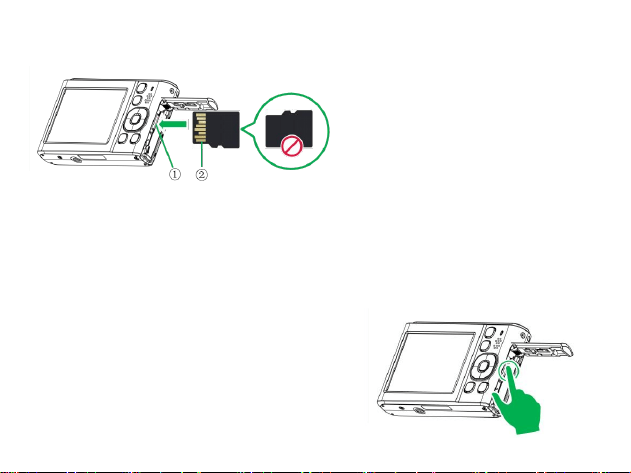
1. This camera supports Micro SD cards (4-1TB) and SDHC Class 6 cards.
2. Turn off the camera, open the battery compartment cover, follow the icon prompt next to the
card slot, ensure that the metal terminal surface of the memory card is facing the same direction
Lanyard hole
8
as the screen, insert the memory card into the card slot until it locks into place, and finally close
the battery compartment cover.
Remove the memory card
Press and release the memory card, it will automatically eject, and then pull out the memory
card.
① Card slot ② Metal terminal
⚠ Please insert the memory card in the
correct orientation to avoid damaging
the card or the camera.
⚠ Please do not insert a damaged or
deformed memory card into the card slot
with force, as this may damage the card
slot.
⚠ New memory cards or memory cards
that have been used in other devices
must be formatted on this camera.
⚠ Before replacing the memory card, please
turn off the camera power first.
⚠ Do not remove the memory card when it is
in a read-write state.
9
Insert the battery
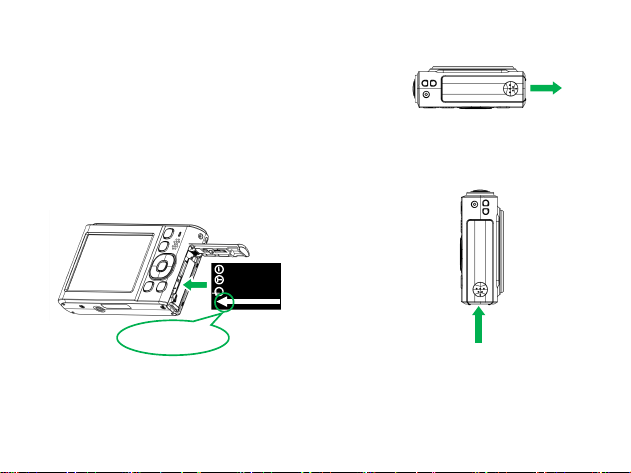
1. Slide the battery compartment cover outwards to unlock
and open it.
3. Close the battery compartment cover and
slide it inward to secure it.
⚠ Please ensure that the battery
compartment cover is closed before using
the camera.
2. Insert one end of the battery's metal electronic
contact. Enter the battery compartment and push
inward until you reach the battery. It is locked in
place by the battery latch.
Battery direction
+
10
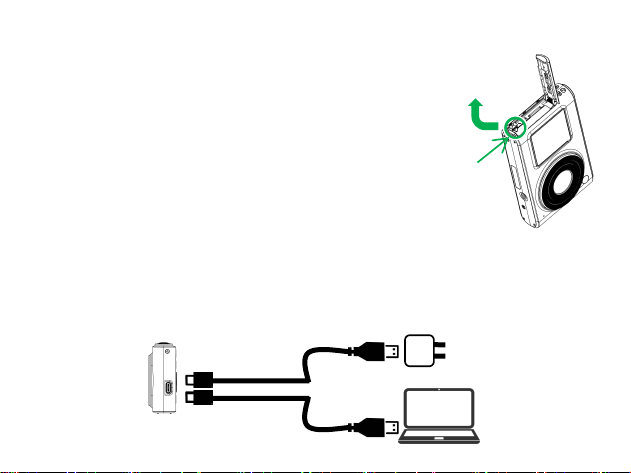
Remove the battery
Please turn off the camera before opening or closing the battery
compartment cover. To remove the battery, slide the battery latch
clockwise in the direction of the arrow, and the battery will
automatically pop out. The battery will automatically pop out,
and then you can remove it.
⚠ If you are unable to remove the battery yourself, please contact
an officially authorized dealer for assistance. Do not apply excessive
force during the operation.
⚠ Do not remove the battery when the memory card is in read-write mode.
Battery charging
1. The camera battery is low. The following methods can be used to charge the camera:
① Use a Type-C/USB cable paired with a 5V charger to charge the camera;
② Connect the camera to the computer using a Type-C/USB cable.
Battery
latch
①
②
11
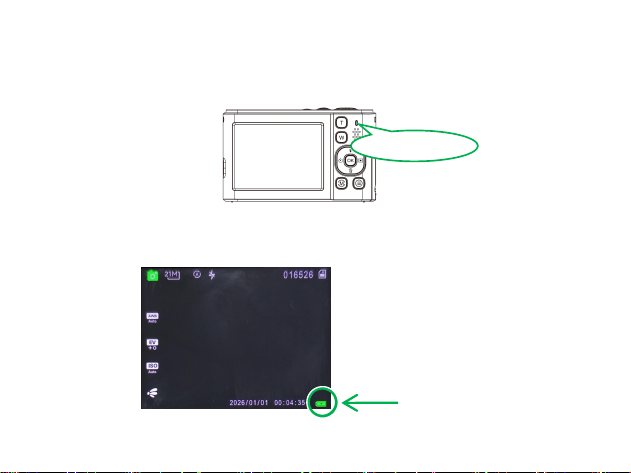
2. When charging the camera, the indicator light will remain red. It is recommended to charge
while the camera is powered off. It is recommended to charge the camera when it is turned off.
3. When the battery is fully charged, the indicator light will turn off. Please unplug the USB
cable from the camera.
4.The camera battery icon displays the battery level currently in use, with the battery level
indicated by battery bars. When the battery level drops below 10%, the battery bar icon turns
red.
Indicator light
Battery level indicator
12
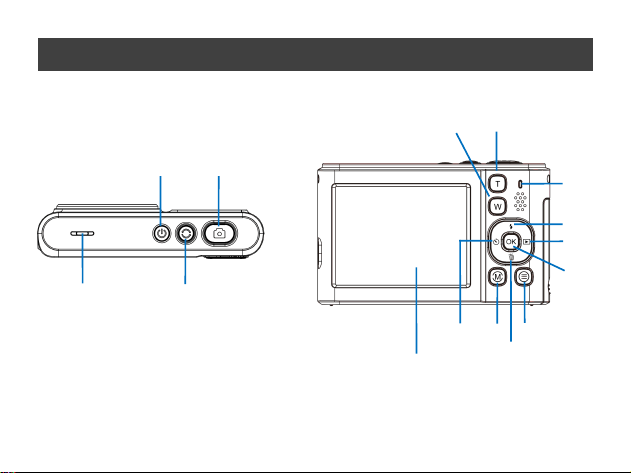
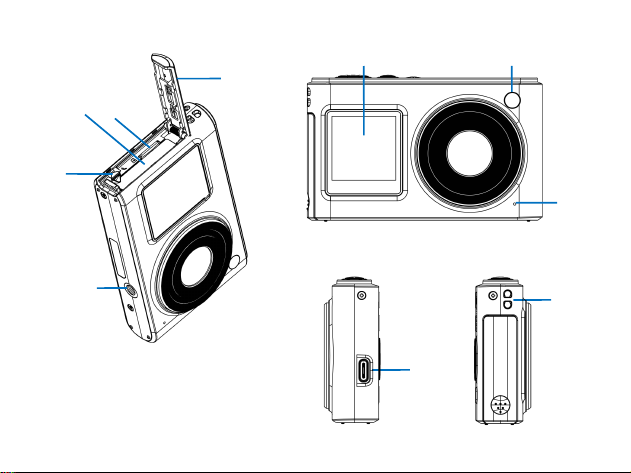
Camera components
*The image is for reference only, please refer to the actual product
3
4
2
1
5
13
12
14
6
10
11
15
7
9
8
13
24
25
21
22
23
16
17
18
19
20
14
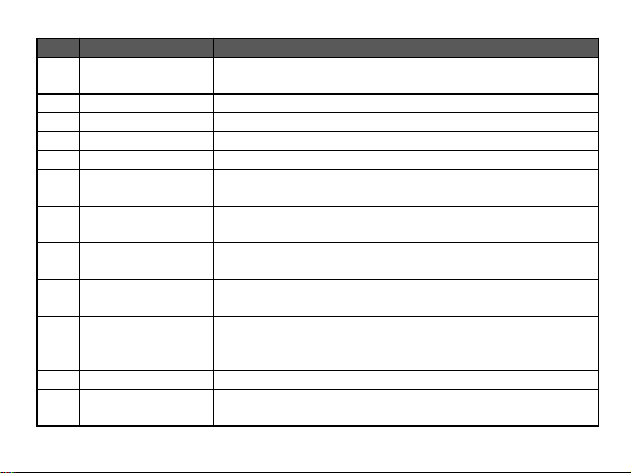
No.
Name
Function
1
Power button
Long press for 1 second to turn on /
Long press for 2 seconds to turn off
2
Shutter button
The shutter button for taking photos and recording videos
3
Front function key
Toggles front screen display and activates selfie mode
4
Speaker holes
/
5
OK button
Confirm button; pause/resume video playback.
6
Up key/
Flash button
Menu selection; Switch flash mode (for photography); switch
fill light mode (for video recording).
7
Down key/
Delete key
Menu selection; After taking a photo/video, pressing this button
can quickly delete it.
8
Left button/
Timed photo button
Menu selection; Timed photo button (with adjustable timed
photo countdown: 2s/5s/10s).
9
Right-click/
Replay button
Menu selection;
Turn on playback mode to view photos and videos
10
Mode key
Switch shooting modes: Photo Mode, Video Mode, Slow
Motion Mode, Scene Mode, Filter Mode, Night Scenery Mode,
Lardscape Mode,Portrait Mode
11
Menu key
Open menu or exit menu
12
T key
Adjust the focal length (for taking photos or recording videos);
Zoom in on the photo (to view it); Adjust the volume up (when
15
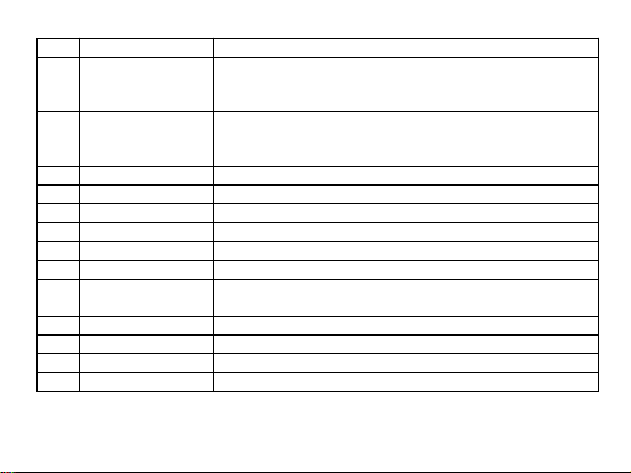
playing video).
13
W key
Adjust the focal length (for taking photos or recording videos);
Zoom out on the photo (to view it); Adjust the volume down
(when playing video).
14
Indicator light
Red light on: The camera is charging; Green light on: The
camera is in standby mode; Blue light flash: Taking a photo;
Blue light slow flash: Recording a video.
15
Rear Main Screen
2.8-inch IPS LCD screen
16
Battery cover
Battery and memory card locations
17
Memory card slot
Install the memory card
18
Battery compartment
Install the batteries
19
Battery latch
Fixed battery
20
Tripod mount
Install the tripod (with 1/4 inch standard screw hole)
21
Front Secondary
Screen
1.54-inch TFT LCD display
22
LED light
/
23
MIC hole
Sound pickup
24
USB
Type-C port
25
Lanyard hole
Install the camera strap
16
Turning the camera on and off
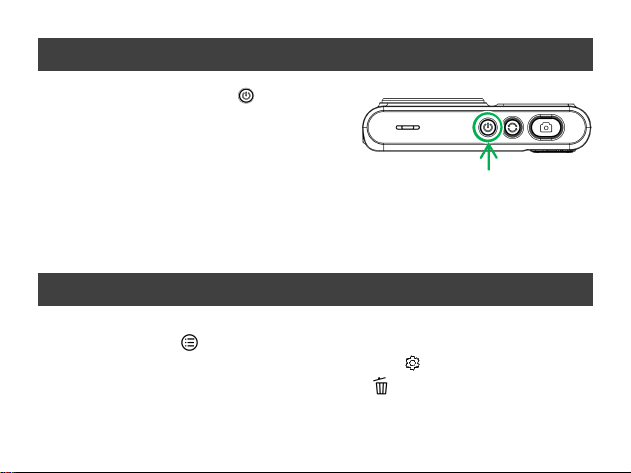
1. Long press the power button " "
for 1 second to turn on the camera.
2. Power off: When the camera is turned on,
press and hold the power button for 2 seconds
to turn it off.
(Automatic shutdown: When the camera's standby time reaches the set automatic shutdown
time, the camera will automatically shut down to save power.)
Format the storage card
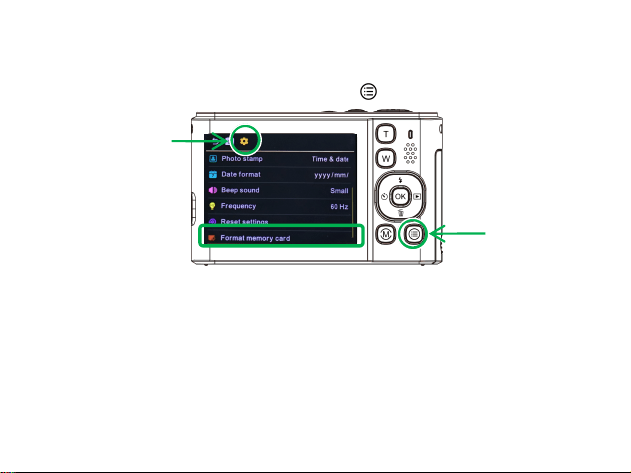
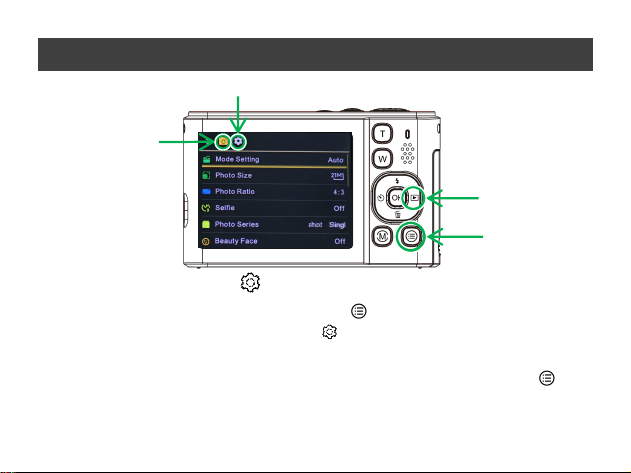
1. After installing the memory card, press the power button to turn on the device, and then
press the menu button " " to enter the menu page.
2. On the menu page, right-click and select System Settings " " .
3. In the system settings interface, press the Down key " ", locate the "Format Memory
Card" option, and press OK to proceed.
Power button
17
4. In the formatting page, press the up or down arrow key to select Yes, then press OK to
format.
5. After formatting is complete, press the menu button " " again to exit the menu mode.
⚠ Please do not accidentally click the storage card formatting option during use.
⚠ After formatting the storage card once, you do not need to format it again. (The first
formatting is only to match the camera settings)
⚠ It is recommended that you regularly back up your photos to your computer.
⚠ If you want to reformat the storage card, please make sure to back up important data, as
reformatting will erase all data on the storage card, including photos, videos, documents, etc. Once formatted,
these data cannot be recovered.
System Settings
Menu key
18
Camera Settings
Camera system settings " "
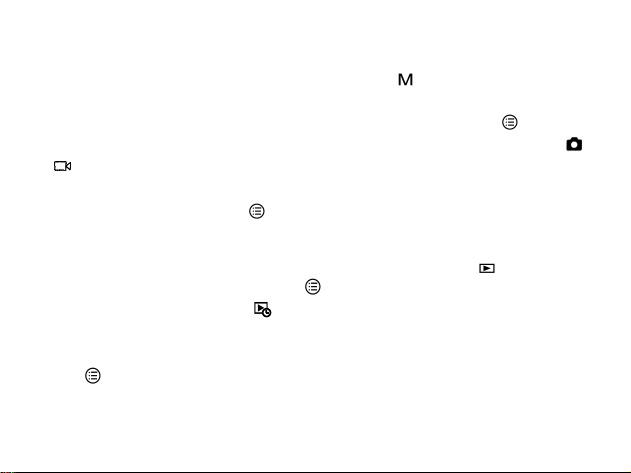
After turning on the camera, press the Menu button " " to enter the menu page. Press the
Right button to select the system settings icon " "and open system settings. Press the
Up/Down buttons to select a submenu, then press the OK button to enter the submenu for
configuration. Press the OK button to save the settings. Then press the Menu button " " to
exit system settings.
Menu button
Replay button
System Settings
Shooting mode
setting
19
Photo Settings and Video Settings
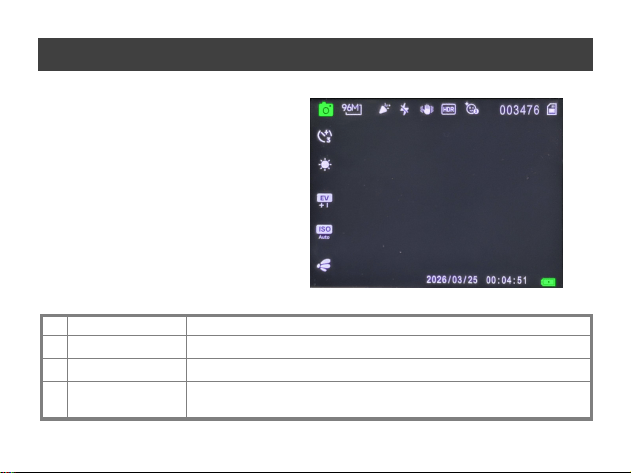
On the photo/video preview interface, press the Mode button " " to open the mode selection
page. In the mode selection page, press the Left/Right buttons to select any mode, then press
the OK button to confirm and open that shooting mode. Press the Menu button " " to enter
the menu page. Press the Left/Right buttons to select the shooting mode setting icon (e.g.,「 」
/「 」) to open the corresponding shooting mode settings. Then press the Up/Down buttons to
select a submenu, and press the OK button to enter the submenu for configuration and saving.
Afterwards, press the Menu button " " to exit the shooting mode settings.
Shooting mode settings.
Playback Settings In photo/video preview mode, press the Playback button " " to enter
playback mode. Then press the Menu button " " to open the playback menu page. Press the
Left/Right buttons to select the icon " " to open playback settings. Photo files can be deleted,
write-protected, printed, cropped, or played in a slideshow. Video files can be deleted or
write-protected. Select a submenu to configure and save the settings, then press the Menu
button " " to exit playback settings.
20
Camera screen icon
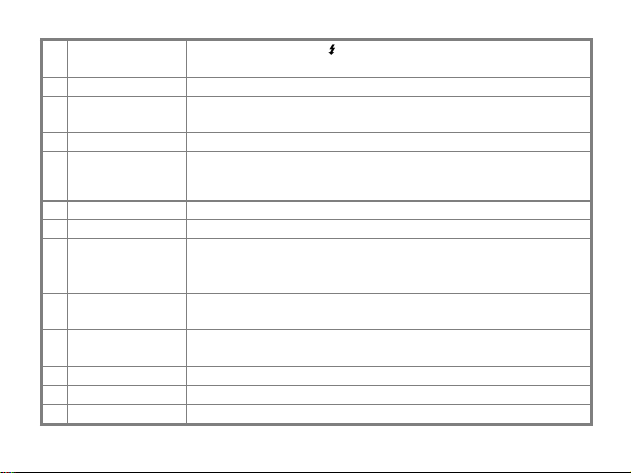
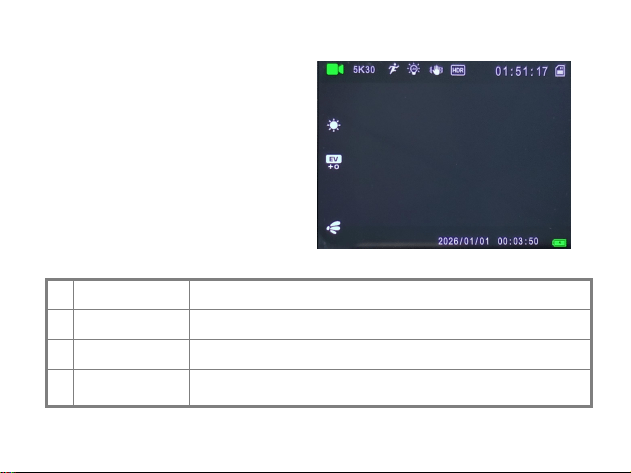
Photo Mode screen icon
No.
Icon name
Instructions
1
Shooting Mode
Photography mode icon
2
Image size
The photo pixel set in the current camera settings
3
Mode Setting
Select the corresponding scene, and the camera will automatically
match the more suitable settings
16
15
2 3
10
5
1
4
6
7
12
11
8
9
13
14
21
4
Flash mode
Press the flash button " " to switch between flash modes:
Turn off flash/ Auto flash/ Force flash
5
Image Stabilization
Prevents camera shake from affecting image clarity.
6
High Dynamic
Range (HDR)
Expand the recordable and presentable brightness range to fully
present the true shading levels
7
Beauty
It can beautify portraits
8
Number of photos
that can be taken
The number of photos that can be taken with the current camera
memory
9
Memory card
Is the storage card installed
10
Self-timer
You can set the countdown for timed photos: 3s / 5s / 10s.
11
WB ( White
Balance)
Under different color temperatures of light sources, the white in the
image is restored to neutral white, ensuring that the overall color is
not skewed
12
EV exposure
compensation
Adjust the screen brightness (increase if it's too dark, decrease if it's
too bright)
13
ISO sensitivity
The higher the ISO value, the stronger the light sensitivity and the
brighter the image
14
Shooting Effects
A wide variety of filters available for selection
15
Time & Date
Timestamp watermark
16
Battery status
The battery is charging or the battery level
22
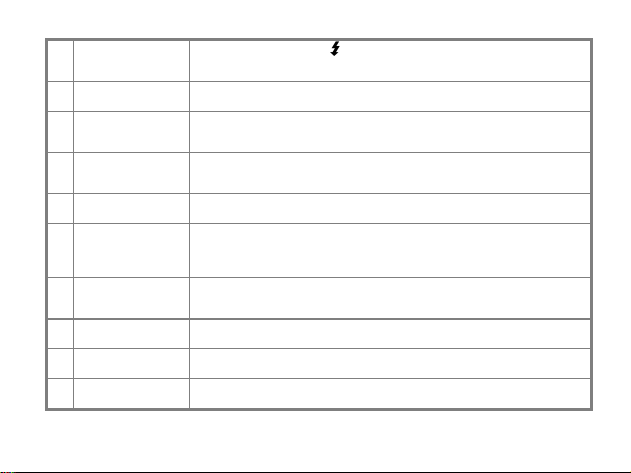
Video Mode screen icon
No.
Icon name
Instructions
1
Shooting Mode
Video recording mode icon
2
Video size
Video resolution set for current recording
3
Mode Setting
Select the corresponding scene, and the camera will automatically
match the more suitable settings
1
7
2
5
3
8
6
9
10
11
12
13
4
23
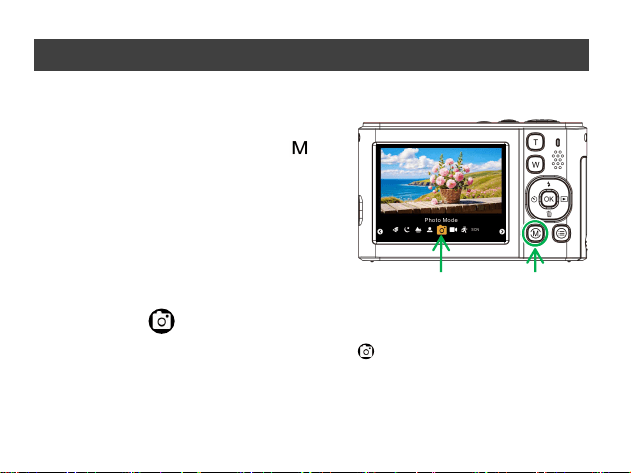
4
Fill light mode
Press the flash button " " to switch between fill light modes: Turn
off the fill light / Turn on the fill light
5
Image Stabilization
Prevents camera shake from affecting image clarity.
6
High Dynamic
Range (HDR)
Expand the range of brightness that can be recorded and presented,
striving to fully depict the authentic shades and tones
7
Video recording
time
Remaining recording time in the camera's current memory
8
Memory card
Is the storage card installed
9
WB ( White
Balance)
Under different color temperatures of light sources, the white in the
image is restored to neutral white, ensuring that the overall color is
not skewed
10
EV exposure
compensation
Adjust the screen brightness (increase if it's too dark, decrease if it's
too bright)
11
Shooting Effects
A wide variety of filters available for selection
12
Time & Date
Timestamp watermark
13
Battery status
The battery is charging or the battery level
24
Take photos and videos
Switch between 8 shooting modes
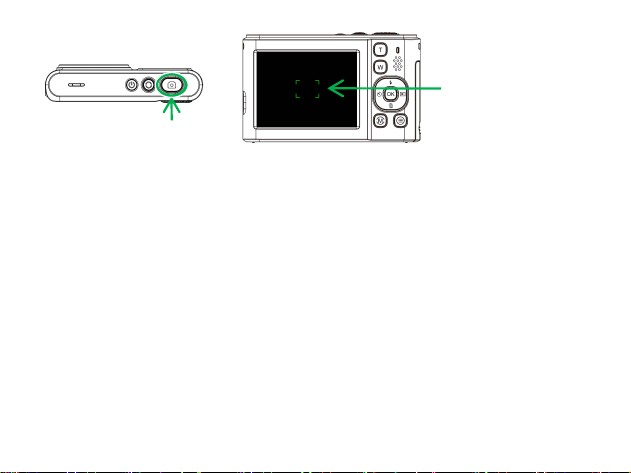
After turning on the camera, on the shooting
preview interface, press the Mode button " " to
open the mode selection page. You can switch
between eight modes: Photo Mode, Video Mode,
Slow Motion Mode, Scene Mode, Filter Mode,
Night Scenery Mode, Lardscape Mode, Portrait
Mode. Press the Left or Right button to select any
mode icon to open that mode.
Photo Mode 「 」
1. On the mode selection page, select the Photo icon「 」to enter photo mode.
2. In the photo preview interface, half-press the shutter button to focus. After focus is achieved,
fully press the shutter button to take the photo.
Mode selection
page
Mode key
25
● Manual Focus Mode
During photo/video preview, half‑press the shutter button until the camera screen displays a
green focus frame accompanied by a beep tone, indicating autofocus is complete. Then fully
press the shutter button to take the shot. (During this process, keep the camera still and do not
release the shutter button.)
● Continuous Auto Focus (C‑AF)
When C‑AF is turned on in the settings, the camera continuously tracks and focuses on the
selected subject. Even if the subject moves, the camera constantly adjusts the focus to keep it
sharp. This is ideal for shooting moving subjects, such as athletes, running pets, or playing
children.
⚠ The shooting range of this camera is from 18CM to infinity. Please keep an appropriate distance for shooting
(too close and the camera will not be able to focus).
⚠ When taking photos, it is necessary to hold the camera steadily to avoid shaking. It is recommended to fix the
camera on a support such as a tripod.
The appearance of a green
focus frame indicates that
autofocus has been
completed
Shutter button
EV
0.
0
1/
13
IS
O
28
22
26
Video Mode 「 」
1. Select the recording icon「 」on the mode selection page to enter recording mode.
2. On the video preview interface, half-press the shutter button to focus. After focus is
achieved, fully press the shutter button to start recording video, then fully press the shutter
button again to end recording.
Slow Motion Mode 「 」
1.On the mode selection screen, tap the slow motion icon 「 」 to enter slow motion mode.
2.In slow motion recording mode, press the menu key 「 」 to open the menu page → select
Slow Motion Settings → choose the desired “Video Size” and press the OK key to save the
settings, then press the menu key「 」to exit the menu page.
3.On the slow motion recording preview interface, use the left/right keys to select the desired
speed multiplier. Then half-press the shutter button to focus. After focus is achieved, fully press
the shutter button to start recording. The camera will capture footage at a high frame rate. Fully
press the shutter button again to stop recording. The final slow motion video file will be 1/N
times the actual recording duration (where N is the selected slow motion multiplier).

27
Scene Mode 「 」
Scene mode is an intelligent shooting mode of the camera. Based on the selected scene type,
the camera automatically optimizes key parameters such as exposure and white balance,
enabling the capture of high-quality photos/videos in corresponding environments. It is suitable
for beginners to shoot quickly and can also meet daily shooting needs in various scenarios.
1.On the mode selection screen, select the SCN icon「 」. The camera will automatically enter
the scene mode selection page. Use the left/right keys to switch between different scene options.
After selecting a scene, press the OK button to confirm, and the camera will switch to the
corresponding scene mode. The screen will display the exclusive icon for that scene.
2.In the scene mode shooting preview interface, half-press the shutter button to focus. After
focus is achieved, fully press the shutter button to take the photo.
Scene mode can also be used in other shooting modes: While in the shooting preview, press the
menu button, select Shooting Mode Settings, and then find Mode Selection to choose scene
mode for shooting.

28
Filter Mode 「 」
Filter mode is a built-in image style optimization feature that allows you to directly apply color,
lighting, and shadow effects to photos/videos during shooting, eliminating the need for
post-processing. It enhances the artistic quality of the image, making it ideal for scenarios like
daily check-ins, atmospheric photography, and creative projects. The operation is simple, and
the effects can be previewed in real-time.
1.On the mode selection screen, select the filter mode icon「 」to enter the shooting effect
selection page. Use the left/right keys to switch between different filter options. After selecting
a filter, press the OK button to confirm. The camera will switch to the corresponding filter
mode, and the screen will display the exclusive icon for the selected filter.
2.In the filter mode shooting preview interface, half-press the shutter button to focus. After
focus is achieved, fully press the shutter button to capture the photo.
3.Filter mode is compatible with the other 7 shooting modes: During shooting preview, press
the OK button to open the shooting effect selection page, where you can choose any filter for
shooting.

29
Night Scenery Mode 「 」
Night Scenery Mode is a specialized shooting function designed for low-light environments.
By optimizing exposure and noise reduction techniques, it enables the camera to capture clear
and bright photos under nighttime or dim lighting conditions. It is suitable for use in scenarios
such as streetlights, city lights, and indoor low-light settings.
1.On the mode selection screen, select the night mode icon「 」to enter Night Scenery Mode.
2.In the night scenery mode preview interface, half-press the shutter button to focus. After
focus is achieved, fully press the shutter button to capture the photo.
3.If the use of night mode results in loss of detail in high-contrast scenes, it is recommended to
enable the High Dynamic Range (HDR) function.
⚠ Night Scenery Mode consumes more power. It is recommended to ensure the battery is fully
charged and to have a backup power source available. Extended shooting or continuous
shooting in this mode will reduce battery life, which is a normal occurrence.
Landscape Mode 「 」
Landscape mode is an intelligent shooting mode specifically optimized for outdoor landscape
photography. The camera will automatically adjust key parameters such as depth of field, color,
and exposure to achieve full clarity from foreground to background, while enhancing the color
saturation and tonal contrast of elements like the sky, mountains, and architecture. Without the
need for manual parameter adjustments, even beginners can easily capture clear and

30
three-dimensional landscape photos. This mode is suitable for photography.
1.On the mode selection screen, select the landscape icon 「 」 to enter landscape mode.
2.In the landscape mode preview interface, half-press the shutter button to focus. After focus is
achieved, fully press the shutter button to capture the photo.
3.In landscape mode, slight manual adjustments can be made. Exposure compensation (±1.0
EV) can be adjusted as needed: if the image is too dark, increase to +0.5 to +1.0; if too bright,
decrease to -0.5 to -1.0 to preserve more details.
Portrait Mode 「 」
Portrait mode is an intelligent shooting mode specially optimized for photographing people.
The camera automatically adjusts key parameters such as aperture and color to achieve a
background blur effect, highlighting the subject. It also intelligently enhances skin tone
restoration and facial sharpness, making facial features appear more delicate and
three-dimensional, all without the need for manual adjustments.
1.On the mode selection screen, select the portrait mode icon「 」to enter portrait mode.
2.In the portrait mode preview interface, half-press the shutter button to precisely align the
focus frame with the subject’s eyes (the core focus point for portrait photography). Once the
focus frame turns green (indicating successful focus), fully press the shutter button to capture
the photo, ensuring facial features remain sharp.
3.Portrait mode yields even better results when combined with features like Beauty
Enhancement, Face Shaping, and Face Detection.
31
Selfie Mode
1. While in the photo preview interface, press the menu key to open the menu page. Then, use
the left/right keys to select Photo Mode Settings「 」, press the down key to locate "Self-timer",
and press the OK key to enable it. After choosing the desired timer duration, press the OK key
to save the settings.
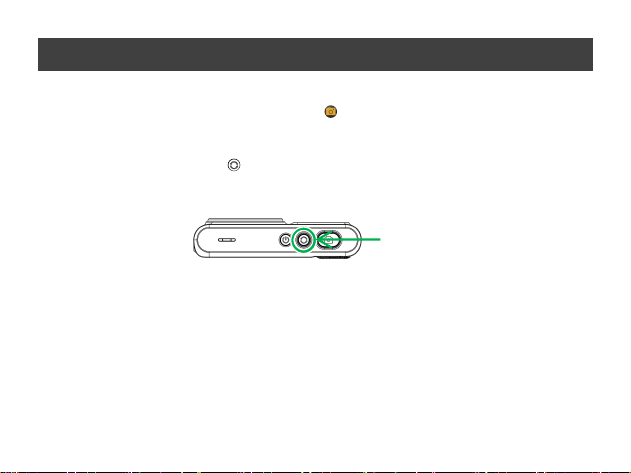
2. Press the front function key「 」to switch to the front display for selfie mode. Once ready,
press the shutter button to take the photo.
3.To switch back to the rear main screen, press the front function key again.
⚠ Single-Screen Mode:
Only the rear main screen or the front secondary screen can be active at a time.
⚠ Focus Guidance:
The camera supports a shooting distance range of 18 cm to infinity. Ensure that the subject is
within this range for proper focus (focus cannot be activated if the subject is too close). When
the shutter button is half-pressed, a green focus frame will appear along with an audible prompt.
It is recommended to adjust the shooting distance flexibly based on the framing effect to ensure
image clarity.
Front function key
32
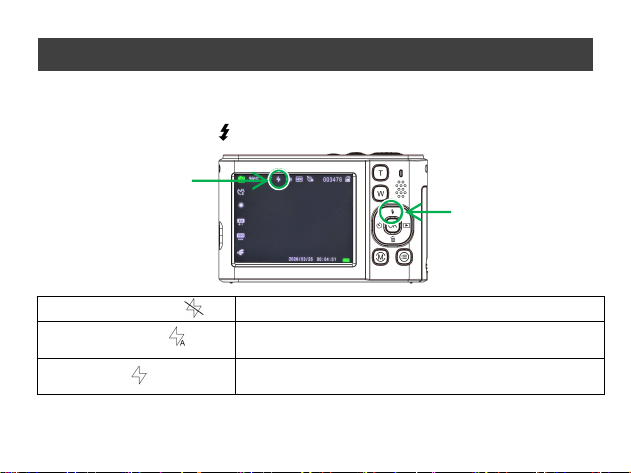
Flash Mode
In the preview interface of Photo Mode, Timed Photo Mode, Time-lapse Photo Mode, or Night
Mode, press the flash button " " to switch between flash modes.
Turn off the flashlight
There was no flash when taking photos in any situation.
Automatic flashing
Under low-light conditions, the flash will automatically
illuminate when taking a photo.
Forced Flash
Whether in a bright or dim environment, the flash is
activated during photo taking.
⚠ The flash function cannot be enabled in burst photo mode.
Flash button
Flash icon
33
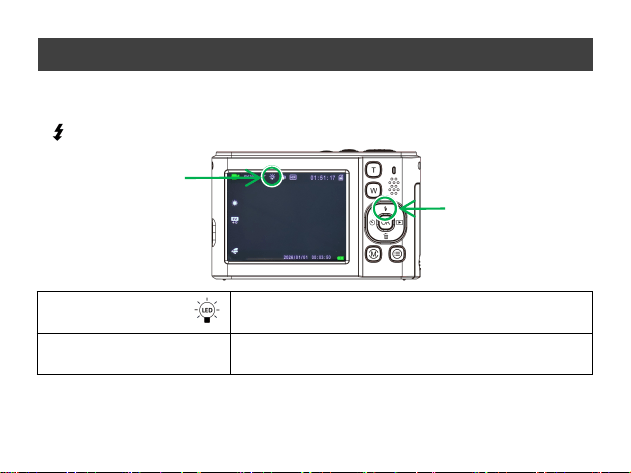
Fill light mode
In the preview interface of video mode/ slow motion mode, press the flash button
" " to turn on/off the fill light.
Turn on the fill light
The LED light remains continuously on.
Turn off the fill light
/
Flash button
Fill light icon

34
Set date and time and watermark
1. Set Time and Date
① In the shooting preview interface, press the menu button「 」to enter the menu page, open
System Settings「 」, scroll down to find the submenu "Set Time and Date", and press the OK
button to enter.
② Then, use the left/right keys to select "Year/Month/Day/Hour/Minute", and use the
up/down keys to adjust the numbers. After selecting, press the OK button to save the settings.
2. Date Format
In the system settings, locate the submenu "Date Format" and click to enter. Then, choose and
select the display style of the date (e.g., Year/Month/Day, Month/Day/Year, Day/Month/Year).
3. Photo Stamp
① In the system settings, open the submenu "Photo Stamp" and enter. Select "Date" or "Time
& Date", then press the OK button to save the settings. Photos and videos taken by the camera
will be stamped with either a date watermark or a date and time watermark.
② After completing the settings, press the menu button again to exit the menu.
35
Replay Mode
1.Enter Playback Mode
After taking a photo or recording a video, press the playback button「 」to enter playback
mode, where you can view photos and videos.
2.Playback Functions
① Browse Photos/Videos:
● Switch images: Press the left/right keys to view the previous/next photo or video.
● Thumbnail mode: Press the「 」key repeatedly until the camera screen displays multiple
photos and videos in a grid layout for quick navigation.
② Zoom In/Out on Photos:
● Zoom in: Press the「 」key to enlarge the photo, and use the directional keys or swipe the
screen to move the zoomed area.
● Zoom out: Press the「 」key to reduce the photo size and return to the original proportion.
③ Video Playback:
● After selecting a video file, press the OK button to start playback. Press the OK button again
to pause.
● During video playback, press the left key to rewind and the right key to fast forward.
● Adjust the volume during playback by pressing「 」to increase or「 」to decrease the sound.
● During video playback, press the mode button「 」to stop it.
3.Delete and Protect Files
● Delete: After selecting and opening a file, press the delete button「 」and confirm to delete

36
the file.
● Protect: After selecting and opening a file, press the menu button「 」to enter playback
settings, then click "Write Protection" to lock important photos/videos and prevent accidental
deletion.
4.Slideshow Playback
In playback settings, click "Slideshow", then select the playback interval (e.g., 2 seconds). The
camera will automatically display all photos in a full-screen slideshow loop. During the
slideshow, press the menu button to stop playback, and press it again to exit slideshow mode.
5.Exit Playback Mode
Press the playback button to exit playback mode and return to shooting mode.
37
Connect to camera Wi-Fi
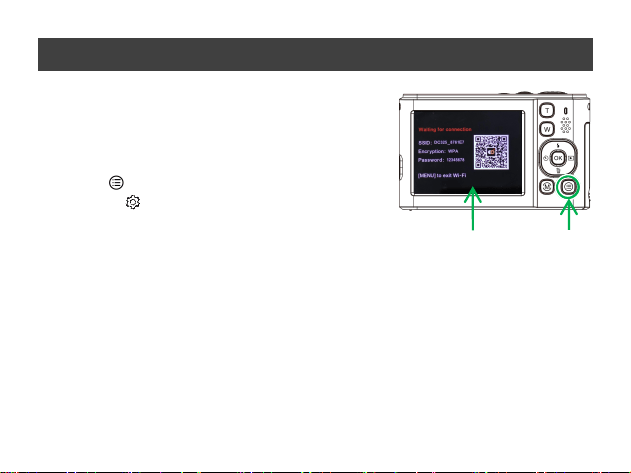
1.Enable Camera Wi-Fi
Method 1: After powering on, long-press the menu key
in the shooting preview interface to enable Wi-Fi mode
on the camera.
Method 2: In the shooting preview interface, press the
menu key「 」to enter the menu page, select the system
settings icon「 」→ select "Wi-Fi" and press the OK
key to turn it on → choose "Enable" and press the OK key
to save the settings. The camera will then activate Wi-Fi
mode.
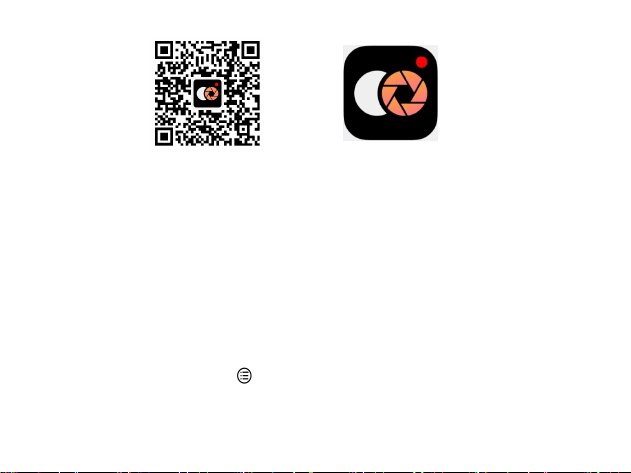
2.Install the "Weiyi One Shot" App
① For Android users, search for "Weiyi One Shot" in the app store or via a third-party
browser to install the app.
② For iPhone users, search for "Weiyi One Shot" in the App Store to install the app.
③ Both Android and iPhone users can also scan the QR code below (or the QR code displayed
on the camera’s Wi-Fi mode page) with their phone browser to download and install the "Weiyi
One Shot" app.
Wi-Fi mode
Menu key
38
3. Connect the phone to the camera's Wi-Fi
Open the Wi-Fi settings on your phone, find the Wi-Fi name (SSID) of the camera:
DC325-XXXXXX, click on it and enter the Wi-Fi password (Password) of the camera:
XXXXXXXX.
4. Use the " Viipulse " APP
1. Open the " Viipulse " app on your phone and add a camera.
2. The APP allows remote control of the camera for taking photos and videos, and also enables
users to browse the camera's photos and videos through the APP, as well as download files
from the camera to their mobile phones or tablets for sharing.
5. Turn off camera Wi-Fi
Press the camera's menu button " " to exit the camera's Wi-Fi mode, and the camera will
disconnect from the mobile app.
Viipulse
39
Download camera photos and videos to the computer
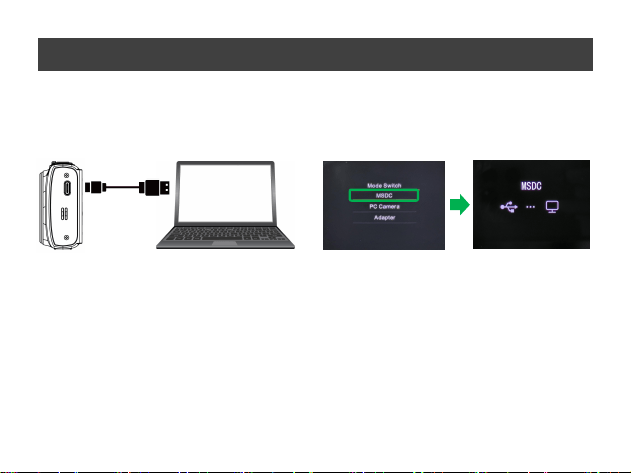
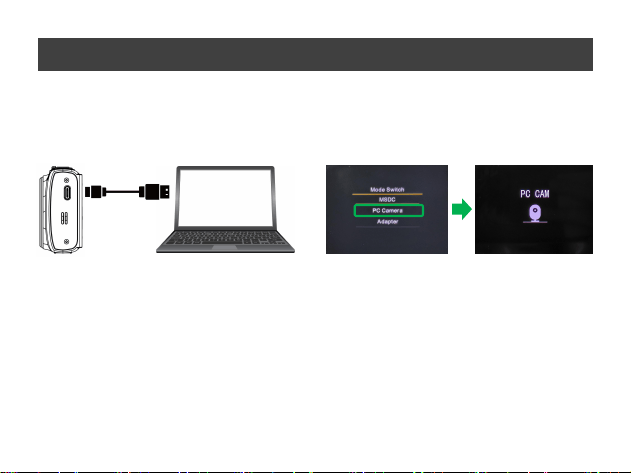
1. Connect the camera to the computer using a USB cable, and then turn on the camera.
2. After successful connection, the "USB" dialog box will pop up on the camera screen. Please
select " MSDC ".
3. Then, check for new removable disks in "My Computer". Photos or videos taken by the
camera will be saved under DCIM. Users can copy the photos and videos from the camera
folder to their computer.
4. After the download is complete, please press and hold the camera power button until it shuts
down,or simply unplug the USB cable. The camera will exit the mobile hard disk mode.
⚠ Do not disconnect the camera from the computer while downloading files.
⚠ During the process of transmitting data from the camera to the computer, please do not
insert or remove the memory card inside the camera to avoid data loss.
40
Webcam
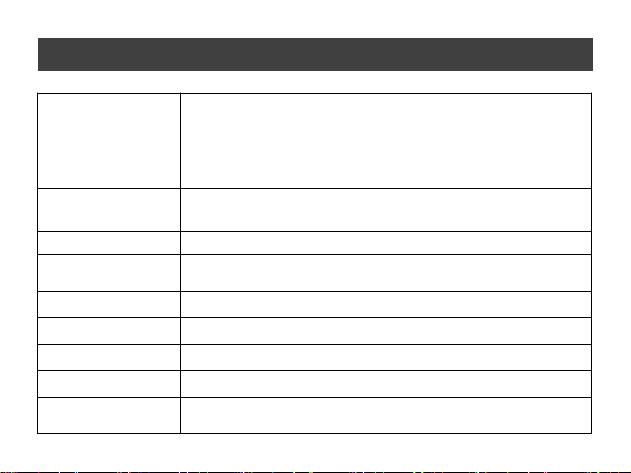
1. Connect the camera to the computer using a USB cable, and then turn on the camera.
2. After successful connection, a "USB" dialog box will pop up on the camera screen. Please
select " PC Camera ".
3. Please select "USB CAMERA" in the external camera settings of your social media
software.
4. To exit webcam mode, long-press the camera’s power button until it powers off, or simply
unplug the USB cable.
41
Camera parameters
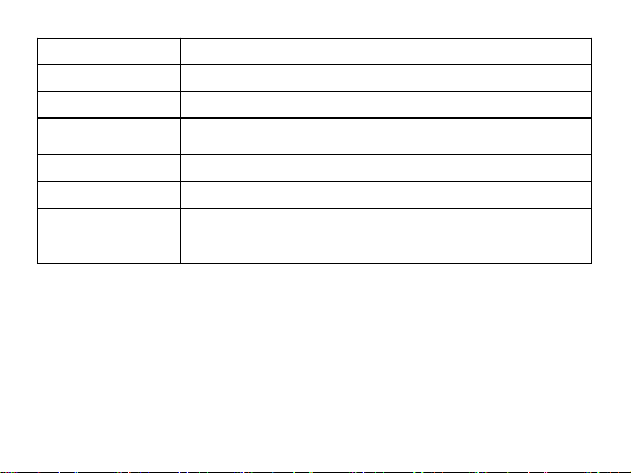
Image resolution
96M(13056×7344); 64M(10752×6048); 48M(9344×5248);
36M(8064×4536); 24M(6528×3672); 21M(6144×3456);
14M(5120×2880); 12M(4096×3072) etc.
(Photo resolution is calculated by default based on the 4:3 photo
ratio. If you switch to other ratios, the photo resolution will vary.)
Video resolution
8K 15FPS, 5K 30FPS; 4K 30FPS; 2.7K 60FPS; 2.7K 30FPS;
FHD 60FPS; FHD 30FPS; HD 60FPS; HD 30FPS etc.
File format
Photos: JPG; Videos: MP4(H.264 codec)
Memory card
Supports Micro SD memory cards (4GB to 1TB),
Supports SDHC Class 6
Focal length
f = 4.7mm
Aperture
F/ 1.8
Shutter speed
1/10 second ~ 1/2650 second
Rear Main Screen
2.8-inch IPS LCD display, 4:3 aspect ratio (640×480)
Front Secondary
Screen
1.54-inch TFT LCD display, 1:1 aspect ratio (240×240)
42
Note: The product specifications provided are the latest information available at the time of
writing this manual. If there are any changes to the specifications, no further notice will be
given. Please refer to the actual camera for accuracy!
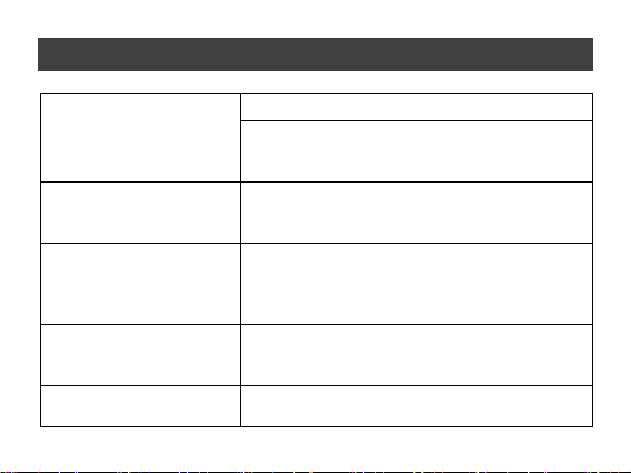
USB Port
Type-C
Power input
DC 5V⎓ 1A,5W
Battery
Rechargeable lithium-ion battery, 3.7V
Tripod
Mounting hole
1/4 inch standard screw thread
Camera size
102 × 63 × 24 mm
Camera weight
123g (including battery)
Operating system
demand
Win7/Win8/Win 10/Win 11
43
Frequently Asked Questions
The camera cannot be started
after the battery is installed
The battery is low, please replace it with a new one.
The battery is installed upside down or not in place.
Please confirm that the battery installation method is
correct.
Pressing the shutter button
cannot take photos or record
videos
The built-in memory is full. Please save the captured
files to another storage device.
The photo taken is blurry
Your hands are shaking when taking photos. Please hold
the camera steadily with both hands, or use a tripod or
other objects to stabilize the camera body. Avoid
shaking the camera when taking photos.
The photos or videos taken
appear dim
The lighting in the shooting environment is insufficient.
Please shoot in a well-lit place, or use lighting to
increase the brightness.
The camera automatically
shuts down
The battery is low on power. Please charge or replace
the battery.
44
To conserve energy, if there is no operation on the
camera for more than 1 minute (3 minutes or 5 minutes,
depending on the setting), it will automatically shut
down according to the setting.
Camera freeze or blurry
screen
The Micro SD card is in the wrong format. Please
format the Micro SD card in the camera or on a
computer before using it.

45
FCC Warning Statement
Changes or modifications not expressly approved by the party responsible for compliance
could void the user’s authority to operate the equipment. This equipment has been tested and
found to comply with the limits for a Class B digital device, pursuant to Part 15 of the FCC
Rules. These limits are designed to provide reasonable protection against harmful interference
in a residential installation. This equipment generates uses and can radiate radio frequency
energy and, if not installed and used in accordance with the instructions, may cause harmful
interference to radio communications. However, there is no guarantee that interference will not
occur in a particular installation. If this equipment does cause harmful interference to radio or
television reception, which can be determined by turning the equipment off and on, the user is
encouraged to try to correct the interference by one or more of the following measures:
‐‐ Reorient or relocate the receiving antenna.
‐‐ Increase the separation between the equipment and receiver.
‐‐Connect the equipment into an outlet on a circuit different from that to which the receiver is
connected.
‐‐ Consult the dealer or an experienced radio/TV technician for help.
This device complies with part 15 of the FCC Rules. Operation is subject to the following two

46
conditions:
(1) This device may not cause harmful interference, and
(2) this device must accept any interference received, including interference that may cause
undesired operation.
The device has been evaluated to meet general RF exposure requirement. The device can be
used in portable exposure condition without restriction.
No. DC325W 260402