/ / /
privacy-detector manual-v7 manual
Multi-Function Privacy Security Detection Device · User Manual
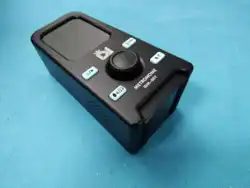
This device is a 2.4G wireless signal detection device designed for critical venues. Its detection band is
2400-
2483.5MHz
. By detecting Wi-Fi hotspots and online terminal devices in the environment, it helps inspectors find
and locate hidden wireless eavesdropping and covert surveillance devices.
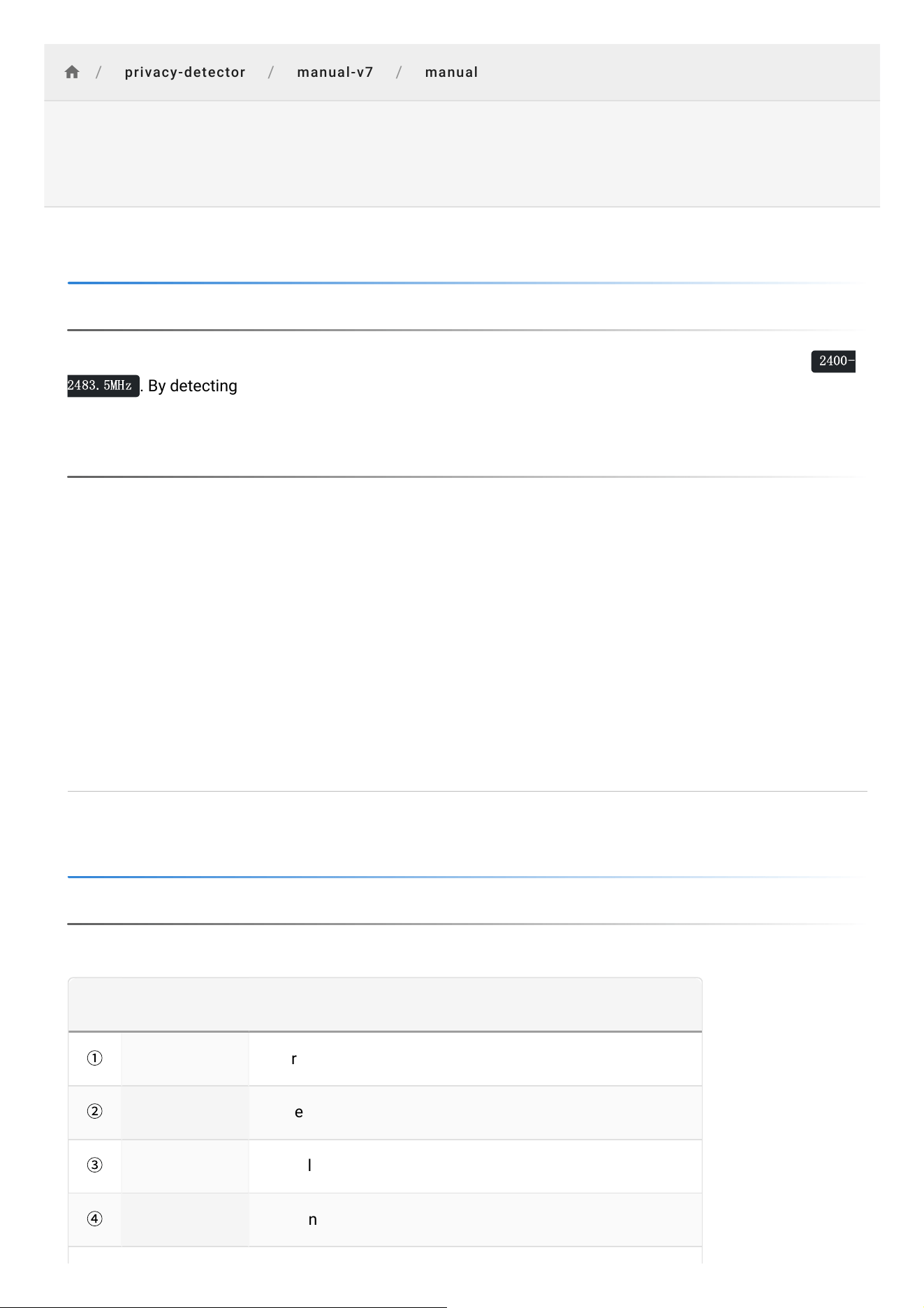
Interface description is as follows:
No. Name Function
①
TYPE-C Port Charging and report export via USB drive
②
Power Button Power on/off
③
Volume Key For volume adjustment
④
Wrist Strap For handheld operation, preventing accidental device drops
Product Overview
Product Introduction
Main Functions
Quick Scan: one-tap screening for 2.4G Wi-Fi hotspots and connected terminals in the environment▸
Professional Detection Task: complete venue 2.4G signal detection following a standardized workflow and
generate an integrated analysis report
▸
Wi-Fi Signal Detection: parses SSID, MAC address, estimated distance, channel, signal power and device
vendor
▸
Terminal Signal Detection: detects online terminal devices attached to Wi-Fi hotspots▸
Approaching-Assisted Locating: gradually approach the signal source based on signal strength variation▸
Whitelist Management: add verified-safe signals to the whitelist so they no longer trigger alarms▸
Integrated Analysis Report: aggregate detection data and generate an exportable analysis report▸
Operating Instructions
Panel Function Introduction
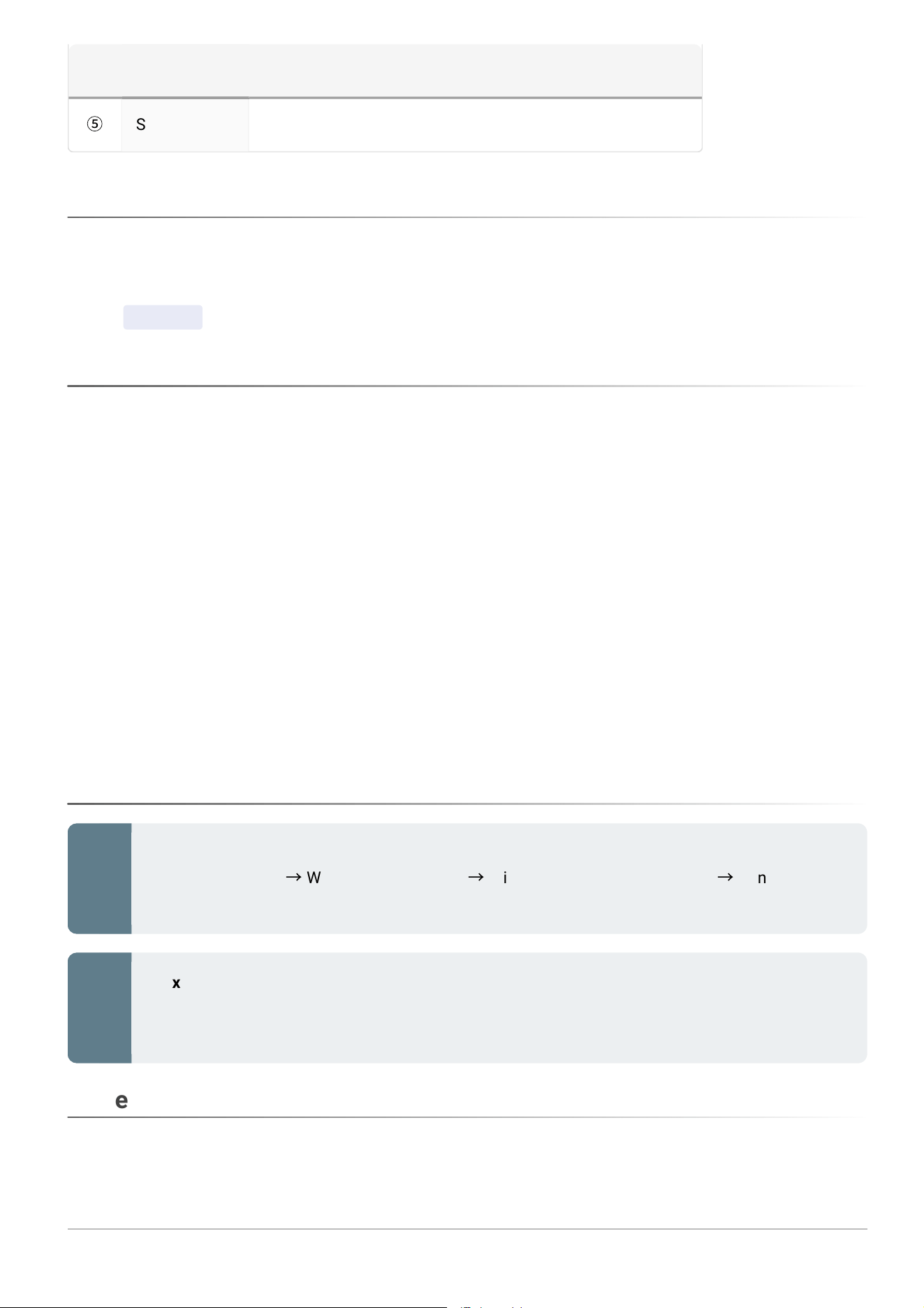
No. Name Function
⑤
S/N Device serial number identifier
Long-press the Power Button on top of the device to power on.
The login screen provides two operator roles, Administrator and Auditor. The initial login password for both
roles is 123456 .
After logging in, you enter the Home screen. The Home screen integrates the 2.4G signal detection functions in
a grid layout, allowing quick launch of specialized detections.
Interface layout:
The Settings Center supports configuring alarm thresholds for Wi-Fi signals and terminals (indoor/outdoor
grouping and the alarm field strength for each level) to reduce false positives, and allows changing the login
password, configuring Quick Scan parameters, adjusting alert tones and vibration, and viewing device local
parameters.
Long-press the Power Button on top of the device and select Power Off / Restart in the on-screen dialog.
Connect the charging cable to the Type-C Charging Port on top of the device. When using an external power
supply, use the supplied adapter or a compliant adapter with CCC certification.
Power On and Login
Home
Top Status Bar: logged-in account, system time, remaining battery, current operating mode▸
Function Menu Area: entries for 2.4G signal detection such as Quick Scan and Professional Detection
Task, shown as colored circular icons with text labels
▸
Operation Navigation Area: Back, Home, Gallery, Wizard, Settings Center, Report Management, Screenshot▸
Detection Sequence
Standard fixed detection sequence:
Quick Scan survey
→
Wi-Fi Signal Detection
→
Wi-Fi Terminal Signal Detection
→
Generate and
export the detection report
Flexible detection note: During actual inspection, operators may adjust the detection items and
their order according to the site environment and detection requirements. A fixed sequence is
not mandatory.
Power Off and Charging
①
On the Home screen, tap Quick Scan to enter one-tap environmental electromagnetic security detection. It
quickly detects 2.4G Wi-Fi hotspots and connected terminals in the space.
②
Tap Start. The system automatically begins detection and performs intelligent analysis and risk assessment
based on signal risk levels.
③
Results are displayed on the device in real time. You can trace and locate the risky signal source by
approaching it.
Based on the Professional Detection Task module, standardized 2.4G wireless signal inspections of a venue
can be carried out.
On the Home screen, tap Professional Detection Task to enter the standardized inspection page, and enter the
inspection location (format examples: Floor - Meeting Room, Room No., etc.).
Follow the preset workflow to inspect Wi-Fi hotspots and terminal signals in turn, and register detection points
and abnormalities item by item.
①
Tap Generate Report; the system automatically generates an integrated data analysis document;
②
Preview the full report and manually add remarks based on the actual site conditions;
③
After verification, tap Export to save the report to the local device;
④
All historical reports are reviewed and managed under Integrated Analysis Report.
To move to the next venue, tap Reset to clear all detection data of the current round and create a new detection
task.
On the Home screen, tap WiFi / Terminal Detection to enter this function, which detects Wi-Fi hotspots and
online terminal devices in the environment over a detection band of
2400-2483.5MHz
.
Quick Scan
Tap Not Now to exit the one-tap detection screen▸
Tap Rescan to clear the current data and start a new round of full-area detection▸
Tap Trust for known devices, or Locate for unknown ones to perform assisted locating and inspection▸
Professional Detection Task Mode
Entering the Function
Conducting On-Site Detection Item by Item
Generating and Handling the Detection Report
2.4G Signal Detection
On the Home screen, tap WiFi / Terminal Detection to enter the function, which detects 2.4G Wi-Fi hotspots
and online terminal devices in the environment.
①
The list displays the Wi-Fi information found in the area, including SSID name, MAC address, estimated
distance, channel, signal power and device vendor.
②
The list can be sorted by distance, channel or signal power.
③
Check the Suspected Indoor Signal list; signals whose source is closer require priority inspection.
Distance column color legend:
Tap Details to view complete hotspot information, including Wi-Fi name, MAC address, encryption method,
channel, operating band, connected terminals and topology.
Tap Locate to enable approaching-assisted locating and quickly find the suspicious signal source.
You can view the hotspot name, MAC address, channel and signal power, and use approaching-assisted
locating to find the signal source. Tap the edit button to set a custom alias for the Wi-Fi hotspot; tap Enable
Jamming to block the Wi-Fi.
The jamming function must be used in compliance with local laws and regulations. It is strictly prohibited
to interfere with other users' normal network communications.
Approaching-assisted locating color legend:
Keep observing the color change on the mobile device and move in the direction where the red signal
strengthens, gradually approaching the signal source.
①
Tap Trust to add the hotspot to the Wi-Fi Signal Whitelist; the signal is grouped under the whitelist page and
no longer triggers an alarm;
Wi-Fi Signal Detection
Red: closest (priority inspection)▸
Yellow: medium distance▸
Green: farther away▸
Wi-Fi Signal Detection - Details
Central node: Wi-Fi wireless router (AP hotspot)▸
Branch nodes: wireless terminals connected to the hotspot, such as phones, cameras and recording
devices
▸
Wi-Fi Signal Detection - Locating
Red: strong signal, signal source close by▸
Yellow: medium signal, signal source at moderate distance▸
Green: weak signal, signal source farther away▸
Wi-Fi Signal Detection - Whitelist
②
Tap Wi-Fi Signal Whitelist to view the whitelist; whitelisted signals are shown in green;
③
Tap Untrust to remove the hotspot. The signal reappears on the detection page and triggers an alarm when
it exceeds the alarm threshold.
①
On the Home screen, tap WiFi / Terminal Detection - Terminal Signal Detection to detect terminal devices
attached to Wi-Fi hotspots;
②
The list shows the topology between the Wi-Fi SSID and the terminal, distance, channel number, power and
terminal vendor;
③
The list can be sorted by distance, channel or signal power;
④
Tap Locate to enable approaching-assisted locating for terminals and to view locating history.
In the approaching-assisted locating interface, you can view the device MAC address, the currently connected
Wi-Fi name, the corresponding Wi-Fi MAC address, device vendor, center frequency and channel number.
①
Tap Trust to add the terminal signal to the whitelist; it no longer triggers an alarm;
②
Tap Terminal Signal Whitelist to view the list; whitelisted terminals are shown in green;
③
Tap Untrust to remove it.
On the Home screen, tap Integrated Analysis Report to view all completed historical reports.
①
Tap Details in report management to open the report preview;
②
Tick the risk points to keep as records and export them. For devices found during inspection, enter remarks
in the remarks field and note the device type, such as camera or router;
③
After selecting the required report content, tap Export to save the report locally. Saved reports can later be
viewed via the Integrated Analysis Report entry on the Home screen.
On the Home screen, tap System Settings to enter the system settings page. The settings center supports
setting the alarm thresholds of Wi-Fi signals and terminals to reduce false positives, and also provides Change
Password, Quick Scan Configuration, Sound & Haptics and About Device.
Wi-Fi Terminal Signal Detection
Wi-Fi Terminal Signal Detection - Locating
Wi-Fi Terminal Signal Detection - Whitelist
Integrated Analysis Report
Viewing Reports
Generating a Report
System Settings
Alarm Threshold
Alarm Threshold Setting supports configuring indoor/outdoor grouping rules and alarm field strength for Wi-Fi
signals and terminals.
Change Password allows changing the login passwords of the Administrator and Auditor accounts.
Quick Scan Configuration allows customizing the duration of the Quick Scan mode.
Sound & Haptics allows enabling or disabling the sound alarm and vibration alarm.
About Device shows the device hardware and software configuration parameters, and supports firmware
upgrade and detection data backup.
Log in with the Auditor account and tap Audit Log on the Home screen to view the system audit log list.
Tap All to filter the audit log time range. Available ranges include all periods, 3 months, 6 months, 9 months
and 1 year.
Threshold
①
: marks suspected indoor field strength signals. For example, in a Wi-Fi scenario, set the Wi-Fi
threshold to -50dBm for a venue of about 40 m²; hotspot signals with power above -50dBm are
grouped into the Suspected Indoor Signal list. Adjust the threshold flexibly according to the site area.
▸
Threshold
②
: for close-range hotspot monitoring; a sound alarm is triggered when the signal field strength
exceeds the set value.
▸
Threshold
③
: the signal monitoring threshold. If set to -50dBm , bands with field strength above this
value are recorded in the Signal List for later locating.
▸
Change Password
Quick Scan Configuration
Sound & Haptics
About Device
Audit Log
User Notice
Dear user, thank you for purchasing this product! To ensure safe use, stable performance and a
long service life, please read and strictly follow the notices below.
💡
Important Note
This document is updated continuously along with product software and hardware iterations,
without separate notice. Due to factors such as model configuration, firmware version and
regional compliance requirements, the actual interface, function layout and operation path of
your device may differ from the screenshots in this document. In case of any discrepancy, please
refer to the latest on-screen prompts of your device and the latest document on the official Wiki.
Operating Environment
1. The standard operating temperature of this device is
-15
℃
~ +45
℃
; please use it within this temperature
range;
2. Keep the device away from water and oil, and avoid drops and impacts, so that foreign matter
contamination or physical damage does not affect overall performance;
3. Do not operate in strong magnetic
fields or high-vibration environments, to avoid external interference with
signal identification and detection accuracy, and to prevent damage to internal components.
Usage Precautions
1. Operate the device strictly according to this manual. Do not disassemble or modify the internal structure or
accessories without authorization; improper operation will cause device failure and void after-sales service;
2. Before charging the device, switch off all function modules. Never use the device while charging, to avoid
electrical safety hazards and protect the battery and circuitry;
3. Do not operate the device with a depleted battery or under overload, and keep it away from
flammable,
explosive and high-temperature environments to avoid accidents and device damage.
Maintenance
1. Clean and maintain the device body and external accessories regularly to keep the device tidy and ensure
stable operation of all functions;
2. Use dedicated cleaning tools. Never wipe the device with corrosive chemical reagents;
3. If the device is left unused for a long time, store it in a dry, dark and ventilated place to prevent moisture,
direct sunlight and dust, extending the device's service life.
FCC Warming:
This device complies with part 15 of the FCC Rules. Operation is
subject to the following two conditions:
(1)This device may not cause harmful interference, and
(2)this device must accept any interference received, including interference that may cause undesired operation.
Any Changes or modifications not expressly approved by the party responsible for compliance could void the
user's authority to operate the equipment.
Note: This equipment has been tested and found to comply with
the limits for a Class B digital device, pursuant to part 15 of the FCC
Rules. These limits are designed to provide reasonable protection against harmful interference in a residential
installation. This equipment generates uses and can radiate radio frequency energy and, if not installed and used
in accordance with the instructions,may cause harmful interference to radio communications. However, there is no
guarantee that interference will not occur in a particular installation. lf this equipment does cause harmful
interference to radio or television reception, which can be determined by turning the equipment off and on, the user
is encouraged to try to correct the interference by one or more of the following measures:-Reorient or relocate the
receiving antenna.
-Increase the separation between the equipment and receiver.
-Connect the equipment into an outlet on a circuit different from that to which the receiver is connected.
-Consult the dealer or an experienced radio/TV technician for help.
RF warning for Portable device:
The device has been evaluated to meet general RF exposure requirement.
The device can be used in portable exposure condition without restriction.