USER S MANUAL
Diagnostic Tablet
-Advisor
35
i
WELCOME TO THE INNOVA FAMILY!
Hello...
On behalf of everyone at INNOVA, we want to welcome you and thank you for purchasing the
INNOVA
®
SD-Advisor! Every automotive diagnostic scan tool we make includes tons of pro-
level features designed to help maximize, and simplify, your OBD2 diagnostic routine. In this
manual, we will guide you on how to access your tablet’s intuitive functions including:
Plus, gain the benet of having unlimited access to real world solutions on your mobile device:
Enjoy using your INNOVA SD Tablet!
Yours sincerely,
The Innova Technical Team
P.S: See what’s new, connect with us on social...
RepairSolutions2® seamlessly pairs with your INNOVA OBD2
diagnostic tool to deliver the most complete automotive
repair database with veried xes from ASE Certied
Master Technicians. Find the right x and the right parts
instantly on your mobile device.
; Check Engine Light Diagnostics
; Read & Clear OEM Engine and
Transmission Codes
; Smog Check / Emissions
Readiness
; Code Severity Level Identier
; TPMS/Tire Pressure Readings
; Battery / Charging System Test
; Supports All 10 OBD2 Modes
; All Systems Network Scan
; Oil Life / Oil Level / Transmission
Fluid Temperature
; Trip Cycle Procedures
; Read & Erase ABS / SRS Codes
; Oil Maintenance Reset
; BMS / Battery Reset &
Initialization
; Read Hybrid Battery Cell Voltage
; TPMS Relearn
; And Much More..

ii
LEGAL INFORMATION � � � � � � � � � � � � � � � � � � � � � � � � � � � � � � � � � � � � � � � 1
SAFETY PRECAUTIONS � � � � � � � � � � � � � � � � � � � � � � � � � � � � � � � � � � � � � 3
INTRODUCTION � � � � � � � � � � � � � � � � � � � � � � � � � � � � � � � � � � � � � � � � � 5
Tablet Controls and Indicators � � � � � � � � � � � � � � � � � � � � � � � � � � � � � � � � � �5
Home Screen � � � � � � � � � � � � � � � � � � � � � � � � � � � � � � � � � � � � � � � � � � �6
Tablet Display Functions � � � � � � � � � � � � � � � � � � � � � � � � � � � � � � � � � � � � �6
Technical Specications � � � � � � � � � � � � � � � � � � � � � � � � � � � � � � � � � � � � �8
The RepairSolutions2
®
App � � � � � � � � � � � � � � � � � � � � � � � � � � � � � � � � � � � �8
Initial Setup (Personal Settings) � � � � � � � � � � � � � � � � � � � � � � � � � � � � � � � � 10
USING THE TABLET � � � � � � � � � � � � � � � � � � � � � � � � � � � � � � � � � � � � � � � 11
Getting Started � � � � � � � � � � � � � � � � � � � � � � � � � � � � � � � � � � � � � � � � � �11
Connecting The Tablet � � � � � � � � � � � � � � � � � � � � � � � � � � � � � � � � � � � � � � � � � � � 11
AutoLink Connection � � � � � � � � � � � � � � � � � � � � � � � � � � � � � � � � � � � � � � � � � � � � 11
OBD2 Diagnostics � � � � � � � � � � � � � � � � � � � � � � � � � � � � � � � � � � � � � � � � 12
I/M Readiness Status - $01, $41 � � � � � � � � � � � � � � � � � � � � � � � � � � � � � � � � � � � � � � � 12
Read DTCs – Modes $03, $07, & $0A � � � � � � � � � � � � � � � � � � � � � � � � � � � � � � � � � � � � 13
Erasing Diagnostic Trouble Codes (DTCs) - $04 � � � � � � � � � � � � � � � � � � � � � � � � � � � � � � 16
Freeze Frame - $02 � � � � � � � � � � � � � � � � � � � � � � � � � � � � � � � � � � � � � � � � � � � � � 17
Live Data- $01 � � � � � � � � � � � � � � � � � � � � � � � � � � � � � � � � � � � � � � � � � � � � � � � � 17
Record Live Data � � � � � � � � � � � � � � � � � � � � � � � � � � � � � � � � � � � � � � � � � � � � � � �20
O2 Sensor Monitor - $05 � � � � � � � � � � � � � � � � � � � � � � � � � � � � � � � � � � � � � � � � � � �23
OBD Monitor Test - $06 � � � � � � � � � � � � � � � � � � � � � � � � � � � � � � � � � � � � � � � � � � �24
Request Control On-Board System - $08 � � � � � � � � � � � � � � � � � � � � � � � � � � � � � � � � � �25
Drive Cycle Procedures � � � � � � � � � � � � � � � � � � � � � � � � � � � � � � � � � � � � � � � � � � �25
Viewing Vehicle Information - $09 � � � � � � � � � � � � � � � � � � � � � � � � � � � � � � � � � � � � �26
OEM Diagnostics � � � � � � � � � � � � � � � � � � � � � � � � � � � � � � � � � � � � � � � � 28
Perform a Scan - Select System � � � � � � � � � � � � � � � � � � � � � � � � � � � � � � � � � � � � � �28
Perform a Scan - Scan All Systems � � � � � � � � � � � � � � � � � � � � � � � � � � � � � � � � � � � � �29
Perform a Scan for Individual Modules � � � � � � � � � � � � � � � � � � � � � � � � � � � � � � � � � � �29
Vehicle Inspection � � � � � � � � � � � � � � � � � � � � � � � � � � � � � � � � � � � � � � � � � � � � � �30
Workshop Tools � � � � � � � � � � � � � � � � � � � � � � � � � � � � � � � � � � � � � � � � � 32
TABLE OF CONTENTS

iii
Vehicle Inspection � � � � � � � � � � � � � � � � � � � � � � � � � � � � � � � � � � � � � � � � � � � � � �32
Oil Maintenance Reset � � � � � � � � � � � � � � � � � � � � � � � � � � � � � � � � � � � � � � � � � � � �32
Battery Reset � � � � � � � � � � � � � � � � � � � � � � � � � � � � � � � � � � � � � � � � � � � � � � � 33
Battery Initialization � � � � � � � � � � � � � � � � � � � � � � � � � � � � � � � � � � � � � � � � � � � � 33
TPMS Relearn � � � � � � � � � � � � � � � � � � � � � � � � � � � � � � � � � � � � � � � � � � � � � � � �34
EV/HEV/PHEV Battery Health � � � � � � � � � � � � � � � � � � � � � � � � � � � � � � � � � � � � � � � �35
Battery / Alternator Test � � � � � � � � � � � � � � � � � � � � � � � � � � � � � � � � � � � � � � � � � �35
Previous Vehicles � � � � � � � � � � � � � � � � � � � � � � � � � � � � � � � � � � � � � � � � 37
Settings � � � � � � � � � � � � � � � � � � � � � � � � � � � � � � � � � � � � � � � � � � � � � 38
Vehicle Inspection Setup � � � � � � � � � � � � � � � � � � � � � � � � � � � � � � � � � � � � � � � � � 38
AutoLink Setting � � � � � � � � � � � � � � � � � � � � � � � � � � � � � � � � � � � � � � � � � � � � � � �39
Adjusting Display Brightness � � � � � � � � � � � � � � � � � � � � � � � � � � � � � � � � � � � � � � � �39
Enabling / Disabling the Audible Tone � � � � � � � � � � � � � � � � � � � � � � � � � � � � � � � � � � �39
Selecting the Display Language � � � � � � � � � � � � � � � � � � � � � � � � � � � � � � � � � � � � � � �39
Setting the Unit of Measurement � � � � � � � � � � � � � � � � � � � � � � � � � � � � � � � � � � � � � �39
Viewing the RepairSolutions2
®
App QR Code � � � � � � � � � � � � � � � � � � � � � � � � � � � � � � � �40
Setting the QR RepairSolutions2 App Mode� � � � � � � � � � � � � � � � � � � � � � � � � � � � � � � � �40
Viewing the Version Information � � � � � � � � � � � � � � � � � � � � � � � � � � � � � � � � � � � � � �40
Tool Library � � � � � � � � � � � � � � � � � � � � � � � � � � � � � � � � � � � � � � � � � � � 41
Icon Denition � � � � � � � � � � � � � � � � � � � � � � � � � � � � � � � � � � � � � � � � � � � � � � � � 41
DTC Library � � � � � � � � � � � � � � � � � � � � � � � � � � � � � � � � � � � � � � � � � � � � � � � � � � 41
Smog Check or I/M Program LED Denitions � � � � � � � � � � � � � � � � � � � � � � � � � � � � � � �42
Using the DLC Locator � � � � � � � � � � � � � � � � � � � � � � � � � � � � � � � � � � � � � � � � � � � �42
Monitor Icon Status � � � � � � � � � � � � � � � � � � � � � � � � � � � � � � � � � � � � � � � � � � � � �43
WARRANTY+ CUSTOMER SERVICE � � � � � � � � � � � � � � � � � � � � � � � � � � � � � � � 44
GLOSSARY � � � � � � � � � � � � � � � � � � � � � � � � � � � � � � � � � � � � � � � � � � � 45
OBD2 Terminology � � � � � � � � � � � � � � � � � � � � � � � � � � � � � � � � � � � � � � � � 45
OBD2 Monitors � � � � � � � � � � � � � � � � � � � � � � � � � � � � � � � � � � � � � � � � � � 46
Continuous Monitors � � � � � � � � � � � � � � � � � � � � � � � � � � � � � � � � � � � � � � � � � � � � �46
Non-Continuous Monitors � � � � � � � � � � � � � � � � � � � � � � � � � � � � � � � � � � � � � � � � � �46
Additional Terminology + Acronyms � � � � � � � � � � � � � � � � � � � � � � � � � � � � � � 47
TABLE OF CONTENTS

LEGAL INFORMATION
FCC Compliance Statement
1
LEGAL INFORMATION
FCC Compliance Statement
This equipment has been tested and found to comply with the limits for a Class B digital device, pursuant to part 15 of
the FCC Rules. These limits are designed to provide reasonable protection against harmful interference in a residential
installation. This equipment generates, uses and can radiate radio frequency energy and, if not installed and used in
accordance with the instructions, may cause harmful interference to radio communications. However, there is no guarantee
that interference will not occur in a particular installation. If this equipment does cause harmful interference to radio or
television reception, which can be determined by turning the equipment off and on, the user is encouraged to try to correct
the interference by one or more of the following measures:
n Reorient or relocate the receiving antenna.
n Increase the separation between the equipment and receiver.
n Connect the equipment into an outlet on a circuit different from that to which the receiver is
connected.
n Consult the dealer or an experienced radio/TV technician for help.
Changes or modications not expressly approved by the party responsible for compliance could void the user’s authority
to operate the equipment.
FCC RF Radiation Exposure Statement
n The transmitters within this device must not be co-located or operating in conjunction with any other
antenna or transmitter.
n This equipment complies with IC radiation exposure limits set forth for an uncontrolled environment.
End users must follow the specic operating instructions for satisfying RF exposure compliance.
To maintain with IC RF exposure compliance requirements please follow operation instruction as
documented in this manual.
Trademarks
Title, ownership rights, and intellectual property rights in the Products and Services shall remain in Innova and/or its
licensors and other suppliers. Licensee and End Users acknowledge such ownership, condential information, and
intellectual property rights and will not take any action to jeopardize, limit or interfere in any manner with Innova’s or its
licensors’ or other suppliers’ ownership of or rights with respect to the Products and Services. The Products and Services
may be protected by Patent, Trademark, Copyright and/or other intellectual property laws and by international treaties. All
trademarks used in connection with the Products and Services are owned by Innova, its afliates or its licensors and other
suppliers, and no license to use any such trademarks is provided hereunder. Licensee and End Users agree that Innova
may use in any manner and without limitation all comments, suggestions, complaints and other feedback Licensee and End
Users provide relating to the Products and Services. For more information and current listing of trademarks, please visit
https://www.innova.com/pages/trademarks.
2
LEGAL INFORMATION
Patents
Patents
Innova Electronics Corp. protects its intellectual property with numerous U.S. patents, which were used to research, design
and manufacture this product. Please visit https://www.innova.com/pages/patents for additional information.
Firmware Version
Please note that the images and functions on this manual may differ based on the current Firmware Version (FW) you
have. To check your tablet’s current version and to check for updates, please see the SETTINGS tab under the Version
Information section. [See page 40]
California Product Warnings

SAFETY PRECAUTIONS
Safety First!
3
SAFETY PRECAUTIONS
Safety First!
It is important that every user utilizing this product read all instructions and warnings included within this manual to ensure
your safety, the safety of others, and to prevent damage to this product & vehicles being diagnosed and repaired. This
manual describes common test procedures used by experienced service technicians. It is inferred that the user has a good
understanding of vehicle systems before using this product.
Many test procedures require precautions to avoid accidents that can result in personal injury, and/or damage to your
vehicle or test equipment. At a minimum, the following safety standards should be followed whenever using this product,
or whenever working on a vehicle.
When an engine is running, it produces carbon monoxide, a toxic and poisonous gas. To prevent
serious injury or death from carbon monoxide poisoning, operate the vehicle ONLY in a well-
ventilated area.
To protect your eyes from propelled objects as well as hot or caustic liquids, always wear approved
safety eye protection.
When an engine is running, many parts (such as the coolant fan, pulleys, fan belt etc.) turn at high
speed. To avoid serious injury, always be aware of moving parts. Keep a safe distance from these
parts as well as other potentially moving objects.
Engine parts become very hot when the engine is running. To prevent severe burns, avoid contact
with hot engine parts.
Before starting an engine for testing or troubleshooting, make sure the parking brake is engaged.
Put the transmission in park (for automatic transmission) or neutral (for manual transmission).
Block the drive wheels with suitable tire blocks.
Connecting or disconnecting test equipment when the ignition is ON can damage test equipment
and the vehicle’s electronic components. Turn the ignition OFF before connecting the tablet to
or disconnecting the tablet from the vehicle’s Data Link Connector (DLC).
To prevent damage to the on-board computer when taking vehicle electrical measurements,
always use a digital multimeter with at least 10 Megohms of impedance.
Fuel and battery vapors are highly ammable. To prevent an explosion, keep all sparks, heated
items, and open ames away from the battery and fuel vapors. DO NOT SMOKE NEAR THE
VEHICLE DURING TESTING.
Don’t wear loose clothing or jewelry when working on an engine. Loose clothing can become
caught in the fan, pulleys, belts, etc. Jewelry is highly conductive and can cause a severe burn if it
makes contact between a power source and ground.
4
SAFETY PRECAUTIONS
Safety Alert Icons
Safety Alert Icons
As you read this manual, color-coded icons are used throughout to identify safety alerts and warnings. These are provided
to help prevent serious injury to you, injury to bystanders, and damage to property or equipment. They are characterized
as follows:
Yellow Icon – Provides a ”NOTE:“ statement to offer special information or tip
on what is being instructed.
Orange Icon – Potential hazardous situation. Provides a “WARNING:“
statement on how to proceed to avoid serious injury to the user, bystanders,
and/or equipment.
Red Icon – Imminent hazardous situation. Provides an immediate “DANGER:“
alert on what must be done to prevent serious injury or death to the user or
bystanders.
INTRODUCTION
Tablet Controls and Indicators
5
INTRODUCTION
Tablet Controls and Indicators
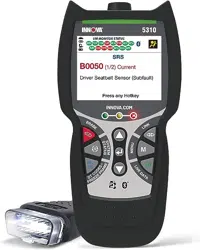
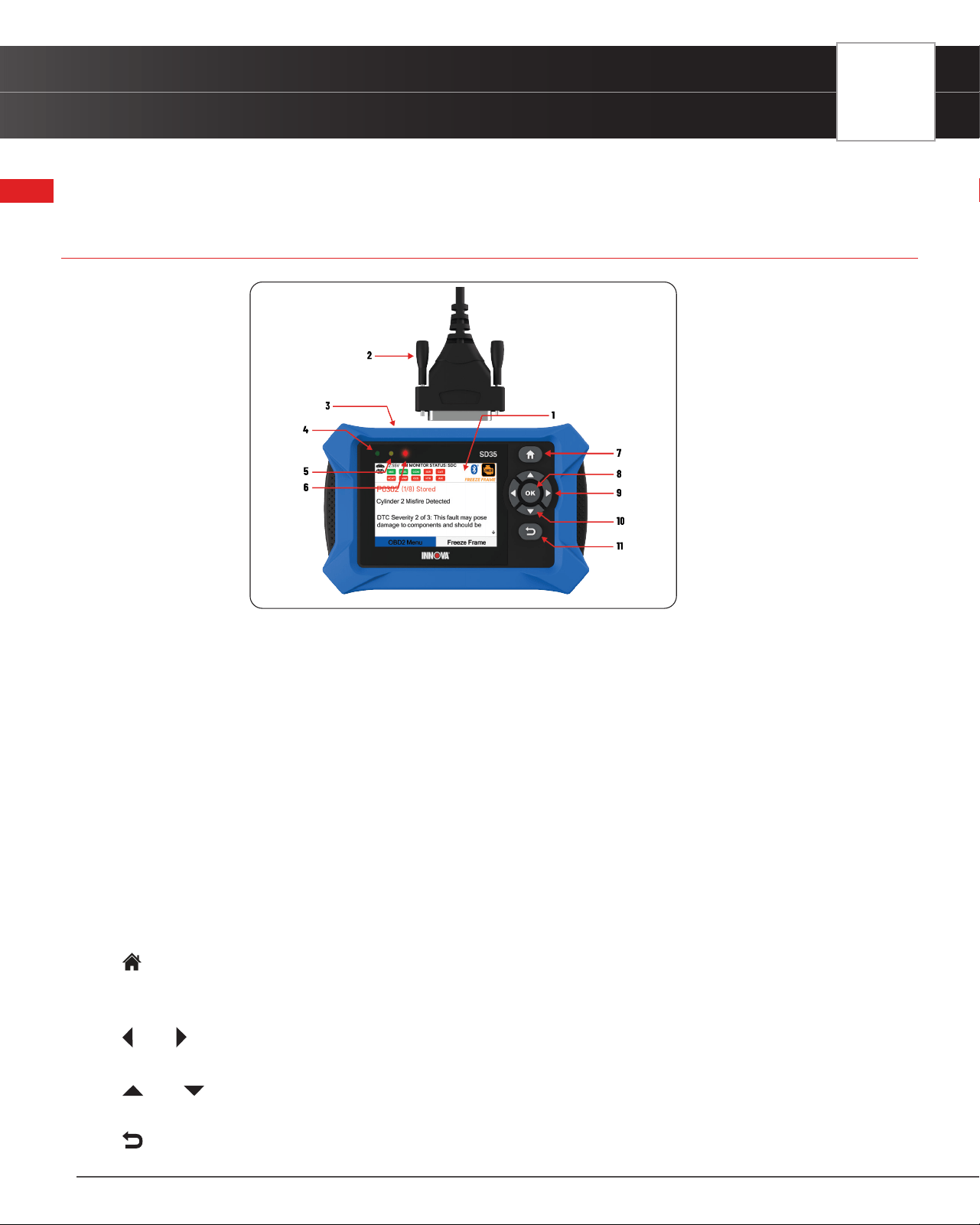
See Figure 1 for the locations of items 1 through 11, below.
1. 3.5-inch LCD Screen - Color LCD display shows menus and sub-menus, test results, Tablet Scan Tool functions and
vehicle status information.
2. Diagnostic Port - Connects the Tablet Scan Tool to the vehicle’s Data Link Connector (DLC).
3. USB Port - Allows connection to a PC using a standard USB cable.
4. GREEN LED - Indicates that all engine systems are running normally, and all emission monitors are active and
performing their diagnostic testing. The Malfunction Indicator “Check Engine” Lamp on the vehicle’s instrument panel
is off.
5. YELLOW LED - Indicates there is a possible problem in one or more of the vehicle’s systems. Either a “Pending” DTC
is present and/or some of the vehicle’s emission monitors have not run their diagnostic testing.
6. RED LED - Indicates there is a problem in one or more of the vehicle’s systems. The Malfunction Indicator “Check
Engine” Lamp on the vehicle’s instrument panel is on.
7. Home Button - Press from any screen to return back to the Home screen (except the screen in services reset
function).
8. OK Button - Conrms the selected option or value.
9. Left / Right Button - Moves selection cursor left or right, or helps scroll through pages when more than one page
is displayed.
10. Up / Down Button - When in MENU mode, scrolls Up/Down through the menu options. When LINKED to a
vehicle, scrolls Up/Down through the current display screen to display additional data.
11. Back Button - Exits the current function or returns to the previous screen.
Figure 1� Controls and Indicators
6
INTRODUCTION
Home Screen
Home Screen
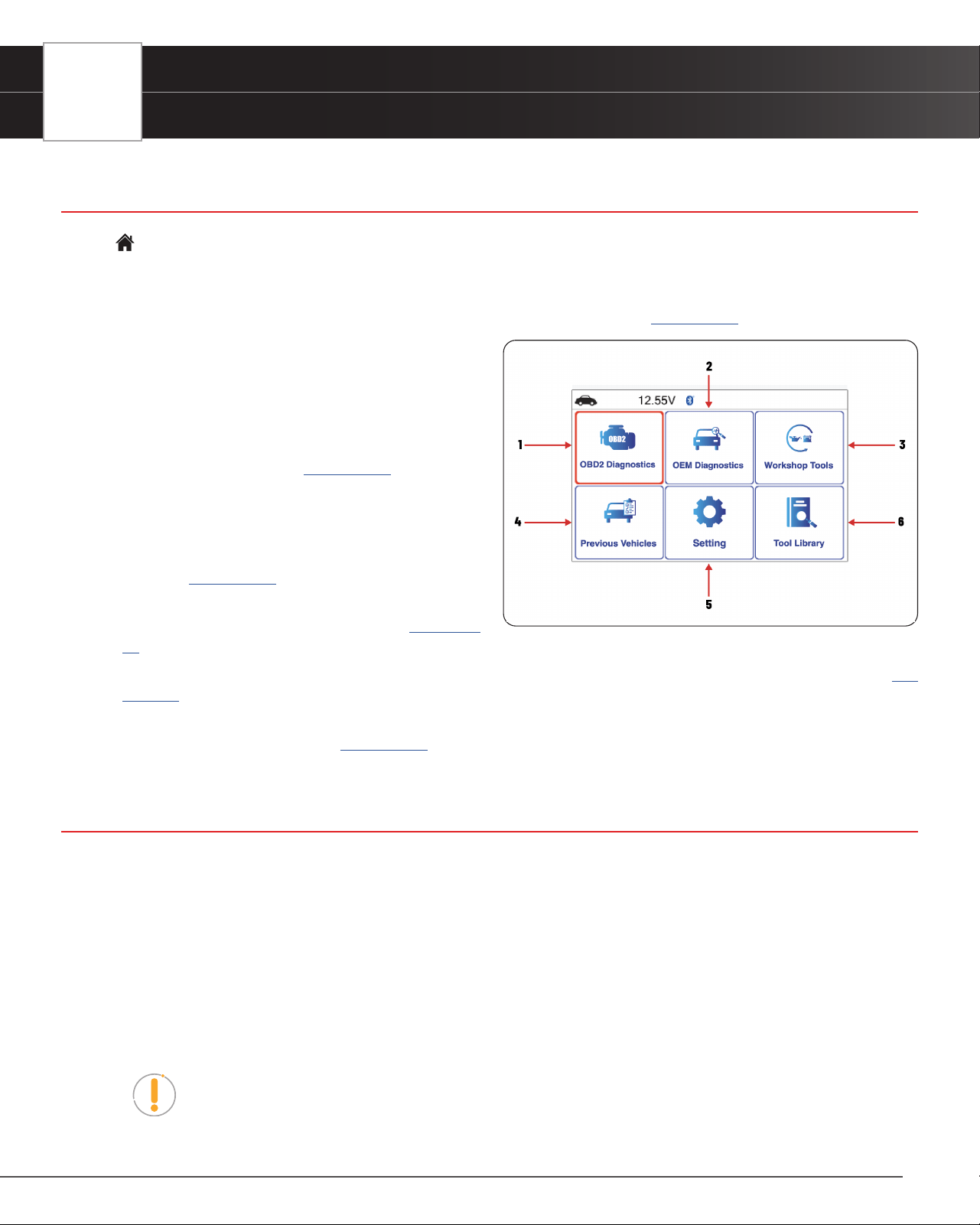
The Home Screen provides access to all the Tablet Scan Tool’s primary functions.
See Figure 3 for the explanation of items 1 through 6, below:
1. OBD2 Diagnostics Tab – Perform OBD2 menu, display 10 modes of OBD2. [See page 12]
2. OEM Diagnostics Tab – Provide enhanced OEM
level diagnostics that are not available over generic
OBD2. Access ABS, Airbag, Transmission, Tire
Pressure, Battery, and all modules to view and erase
their DTCs. Also provides a Vehicle Inspection that
shows Diagnostic Report, Customer Report and
Collision Industry Report. [See page 28]
3. Workshop Tools Tab – Perform several OEM services,
including Vehicle Inspection, Oil Maintenance Reset,
Battery Reset, Battery Initialization, EV/HEV/PHEV
Battery Health, Battery/Alternator Test and TPMS
Relearn. [See page 32]
4. Previous Vehicles Tab – Access and view reports
for the 30 previously tested vehicles. [See page
37]
5. Settings Tab – Displays the Tool Settings menu, which lets you congure the Tablet to your particular needs. [See
page 38]
6. Tool Library Tab – Access the tablet’s tool library for DTC and tool icon denitions, Smog Check or I/M Program LED
Denition, Monitor Icon Status. [See page 41]
Tablet Display Functions
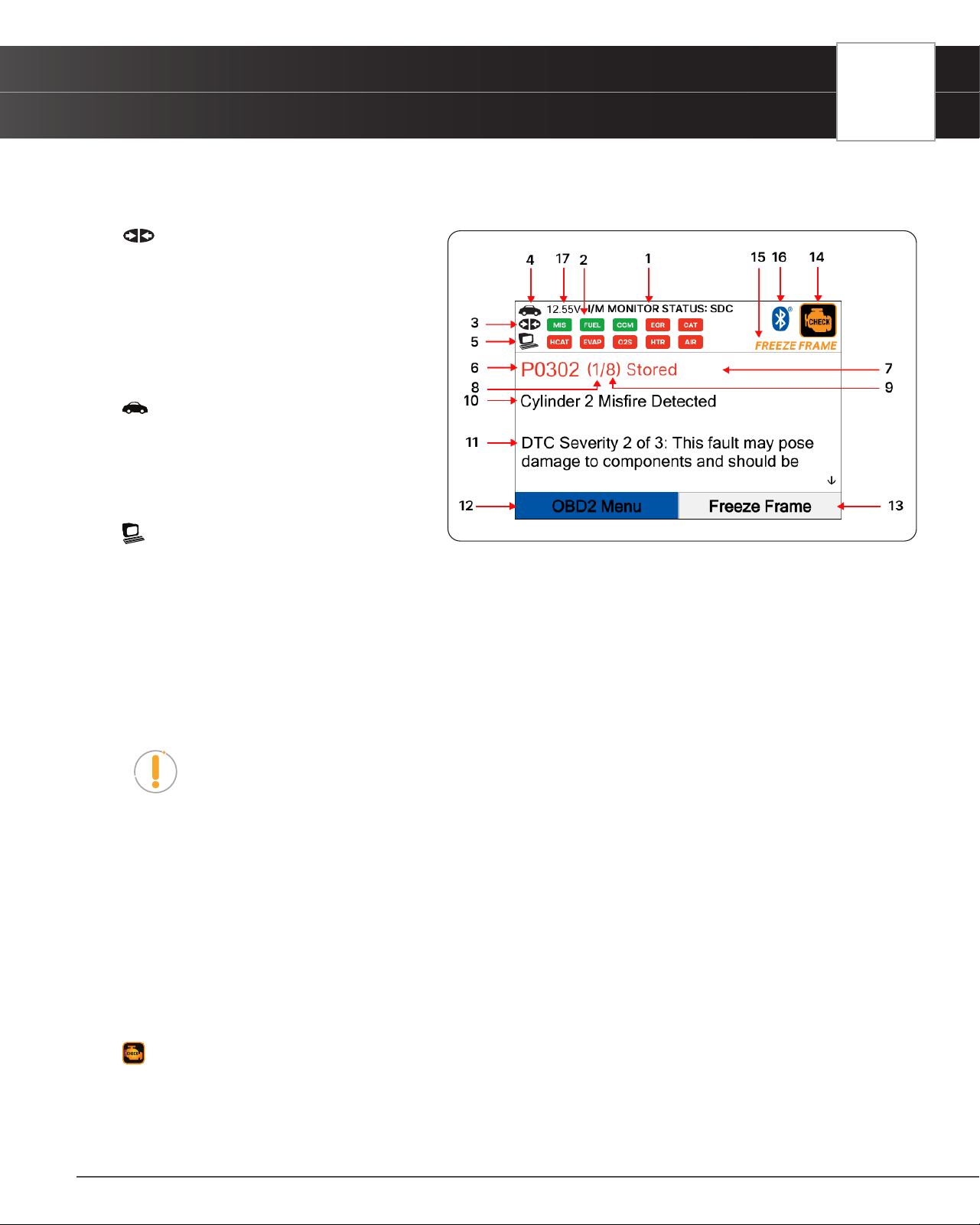
See Figure 2 for the locations of items 1 through 17 below.
1. I/M MONITOR STATUS: SINCE DTCs CLEARED (SDC) or THIS DRIVE CYCLE (TDC) eld - Identies the I/M
Monitor status area.
2. Monitor icons - Indicate which Monitors are supported by the vehicle under test, and whether or not the associated
Monitor has completed its diagnostic testing (Monitor status). When a Monitor icon is solid green, it indicates that
the Monitor has completed both Since DTCs Cleared and This Drive Cycle. When a Monitor icon is ashing red, it
indicates that the Monitor has not completed testing Since DTCs Cleared. When a Monitor is Green-Gray, it indicates
that the monitor has not completed testing This Drive Cycle. When a Monitor is Red-Gray, it indicates that the monitor
has been disabled This Drive Cycle.
NOTE: The I/M Monitor Status icons are associated with INSPECTION and MAINTENANCE
(I/M) READINESS STATUS. Some states require that all vehicle Monitors have run and
completed their diagnostic testing before a vehicle can be tested for Emissions (Smog
Check). A maximum of fteen Monitors are used on OBD2 systems. Not all vehicles support
Figure 3� Home Screen
INTRODUCTION
Tablet Display Functions
7
all fteen Monitors. When the Tablet Scan Tool is linked to a vehicle, only the icons for
Monitors that are supported by the vehicle under test are visible on the display.
3. Link Icon - Indicates whether or not
the Tablet Scan Tool is communicating
(linked) with the vehicle’s on-board
computers. When visible, the Tablet Scan
Tool is communicating with the computers.
If the Link icon is not visible, the Tablet
Scan Tool is not communicating with the
vehicle’s computers.
4. Vehicle Icon - Indicates whether or not
the Tablet Scan Tool is being properly
powered through the vehicle’s Data Link
Connector (DLC). A visible icon indicates
that the Tablet Scan Tool is being powered
through the vehicle’s DLC connector.
5. Computer Icon – When visible,
indicates the Tablet Scan Tool is linked to a
personal computer.
6. DTC Display Area - Displays the Diagnostic Trouble Code (DTC) number. Each fault is assigned a code number that
is specic to that fault.
7. Code Type – Indicates the type of code being displayed: Stored, Pending, Permanent.
8. Code Number Sequence - The Tablet Scan Tool assigns a sequence number to each DTC that is present in the
computer’s memory, starting with “1”. This helps keep track of the number of DTCs present in the computer’s memory.
Code number ”1” is always the highest priority code and the one for which “Freeze Frame” data has been stored.
NOTE: If “1” is a “Pending” code, there may or may not be “Freeze Frame” data stored in
memory.
9. Code Enumerator - Indicates the total number of codes retrieved from the vehicle’s computer.
10. Test Data Display Area – Displays DTC denitions, Freeze Frame data and other pertinent test information messages.
11. Severity – Indicates the level of severity for the priority code (code number “1”), as follows:
[1] This fault typically does not cause damage to components and should be serviced when convenient.
[2] This fault may pose damage to components and should be repaired as soon as possible.
[3] This fault will cause damage to components and should be repaired immediately.
12. OBD2 Menu button – Displays menu to perform the 10 modes of OBD2 functions.
13. Freeze Frame button – Quick access to Freeze Frame data.
14. MIL Icon - Indicates the status of the Malfunction Indicator Lamp (MIL). The MIL icon is visible only when a DTC
has commanded the MIL on the vehicle’s dashboard to light.
15. FREEZE FRAME Icon - Indicates that there is Freeze Frame data stored in the vehicle’s computer memory (Captured
when Priority Code was set / Code #1).
Figure 2� Tablet Display Functions
8
INTRODUCTION
Technical Specications
16. Bluetooth Icon – Indicates communication status with a compatible mobile application. A solid blue icon indicates
an active Bluetooth connection has been established.
17. 12.55V – Displays the vehicle’s current battery voltage.
Technical Specications
The following table provides the Tablet Scan Tool Scan Tool’s current technical specications*:
Display Type
3.5 Inch Panel
J1962 DLC Cable
6-foot Detachable 16-pin OBDII Compliant Connector
Operating Temperature
23ºF to 113ºF (-5ºC to 45ºC)
Memory
4GB Memory
Tablet Scan Tool Scan Tool Case
Rugged ABS Shock & Drop Resistant
Included Accessories
Quick Start Guide, USB Cable
*Manufacturer reserves the right to change technical specications at any time.
The RepairSolutions2
®
App
The RepairSolutions2
®
(RS2 App) is a web-based service created to assist Do-it-Yourselfers and Professional technicians
simplify their vehicle diagnostic process.
In essence, RS2 helps you decode the diagnostic data collected by your OBD2 Tablet to
arrive at a most likely x. At its core, RS2 uses a database of millions of real-world veried
xes–collected over the last 25 years by ASE Master Technicians across the U.S.– that is
cross-referenced to your specic vehicle’s problem to instantly arrive at a veried x. Think
of it as your personalized technician to help diagnose, repair, and maintain your vehicle(s).
The RS2 App Offers…
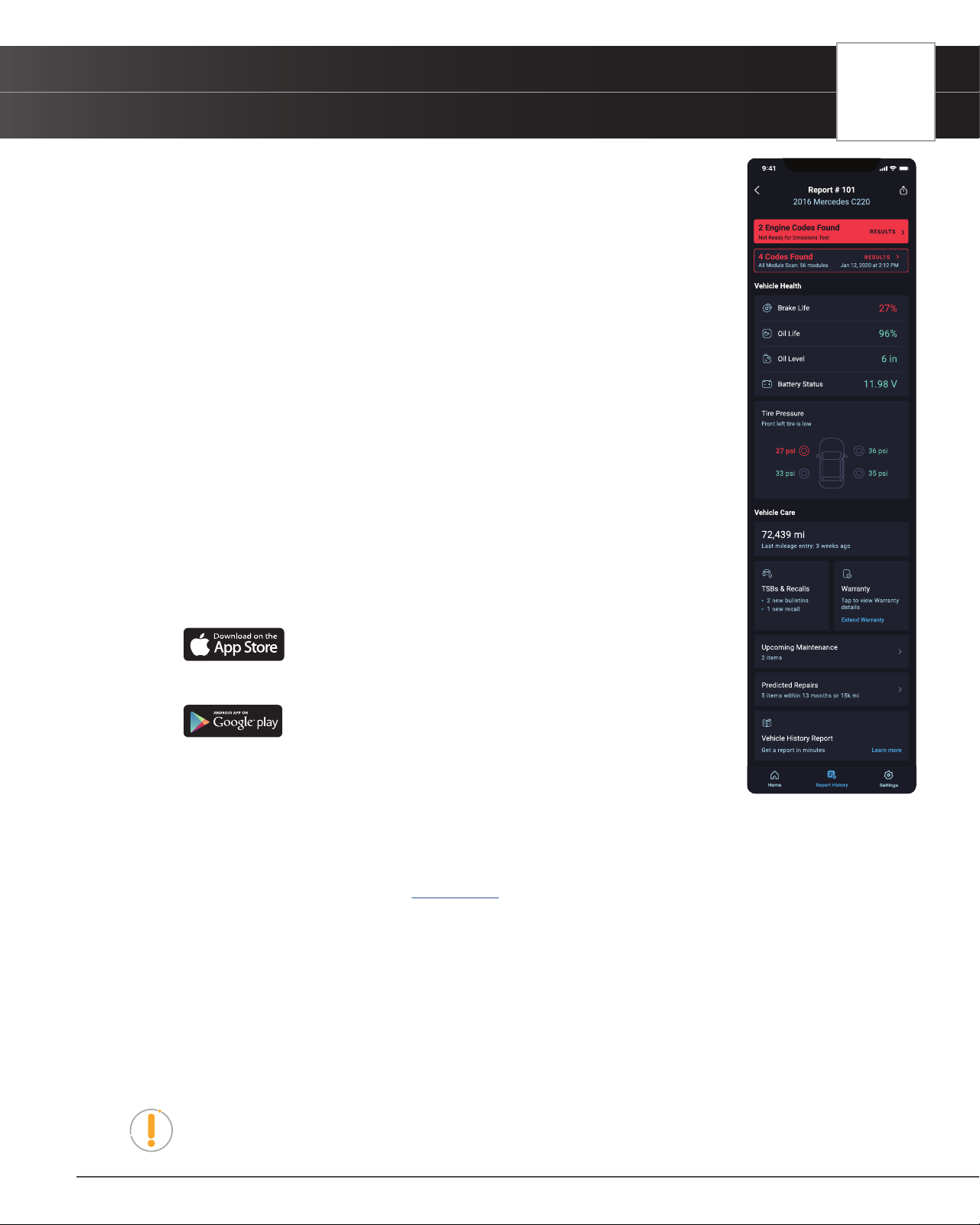
n Veried Fixes – Find the most likely xes reported and veried by ASE Technicians for the retrieved
DTCs. Plus, quickly purchase the exact parts you need right from the app.
INTRODUCTION
The RepairSolutions2® App
9
16. Bluetooth Icon – Indicates communication status with a compatible mobile application. A solid blue icon indicates
an active Bluetooth connection has been established.
17. 12.55V – Displays the vehicle’s current battery voltage.
Technical Specications
The following table provides the Tablet Scan Tool Scan Tool’s current technical specications*:
Display Type
3.5 Inch Panel
J1962 DLC Cable
6-foot Detachable 16-pin OBDII Compliant Connector
Operating Temperature
23ºF to 113ºF (-5ºC to 45ºC)
Memory
4GB Memory
Tablet Scan Tool Scan Tool Case
Rugged ABS Shock & Drop Resistant
Included Accessories
Quick Start Guide, USB Cable
*Manufacturer reserves the right to change technical specications at any time.
The RepairSolutions2
®
App
The RepairSolutions2
®
(RS2 App) is a web-based service created to assist Do-it-Yourselfers and Professional technicians
simplify their vehicle diagnostic process.
In essence, RS2 helps you decode the diagnostic data collected by your OBD2 Tablet to
arrive at a most likely x. At its core, RS2 uses a database of millions of real-world veried
xes–collected over the last 25 years by ASE Master Technicians across the U.S.– that is
cross-referenced to your specic vehicle’s problem to instantly arrive at a veried x. Think
of it as your personalized technician to help diagnose, repair, and maintain your vehicle(s).
The RS2 App Offers…
n Veried Fixes – Find the most likely xes reported and veried by ASE Technicians for the retrieved
DTCs. Plus, quickly purchase the exact parts you need right from the app.
n Predicted Repairs – With millions of veried repair solutions, get a statistical
probability of what repairs you may need within the next 12 months.
n TSBs & Recalls – Learn if there are any special NHTSA safety recalls or
Technical Service Bulletins (TSBs) issued by your vehicle’s manufacturer.
n Vehicle Health Reports - Get a quick insight on how your vehicle’s vitals are
currently performing (tire pressure, battery status, etc.) and get alerts to potential
problems.
n Upcoming Maintenance – View your vehicle manufacturer’s recommended
maintenance intervals. Plus, conveniently purchase the correct maintenance
parts right from the app.
n And much more...
Hardware Requirements
n Certied RS2 Tablet with Bluetooth
®
connectivity
n Android or iOS Mobile Device
Download the RS2 App
n Apple iOS Devices (click on the link)
n Android Devices (click on the link)
n From a Tablet Scan Tool
━ Scan the QR Code displayed on the tablet’s screen when pairing app with
the tablet.
Using RS2 App
1. Retrieve your vehicle’s diagnostic data [See page 13]
2. Download and install the RepairSolutions2
®
app (see above)
3. Launch the RS2 app and log in to your account.
n If you have not yet established an account, you must register for a FREE RS2 account before
proceeding.
4. Follow the screen prompts to pair your Tablet Scan Tool.
n Begin the pairing process by selecting your handheld tool from the list.
5. Once paired, the data from your tool is automatically transferred to the RS2 app to create a report.
NOTE: If the data does not automatically transfer, simply keep the app and tool paired
and scan your vehicle again.
10
INTRODUCTION
Initial Setup (Personal Settings)
Initial Setup (Personal Settings)
The rst time the Tablet Scan Tool is connected to a vehicle, it is necessary to complete your setup by performing the
following steps:
1. Select the desired display language (English, Spanish, French) and press OK.
2. Select the desired unit of measurement (U.S. Standard or Metric) and press OK.
3. The screen displays the Smog Check or I/M Program LED Denition. Press OK to continue.
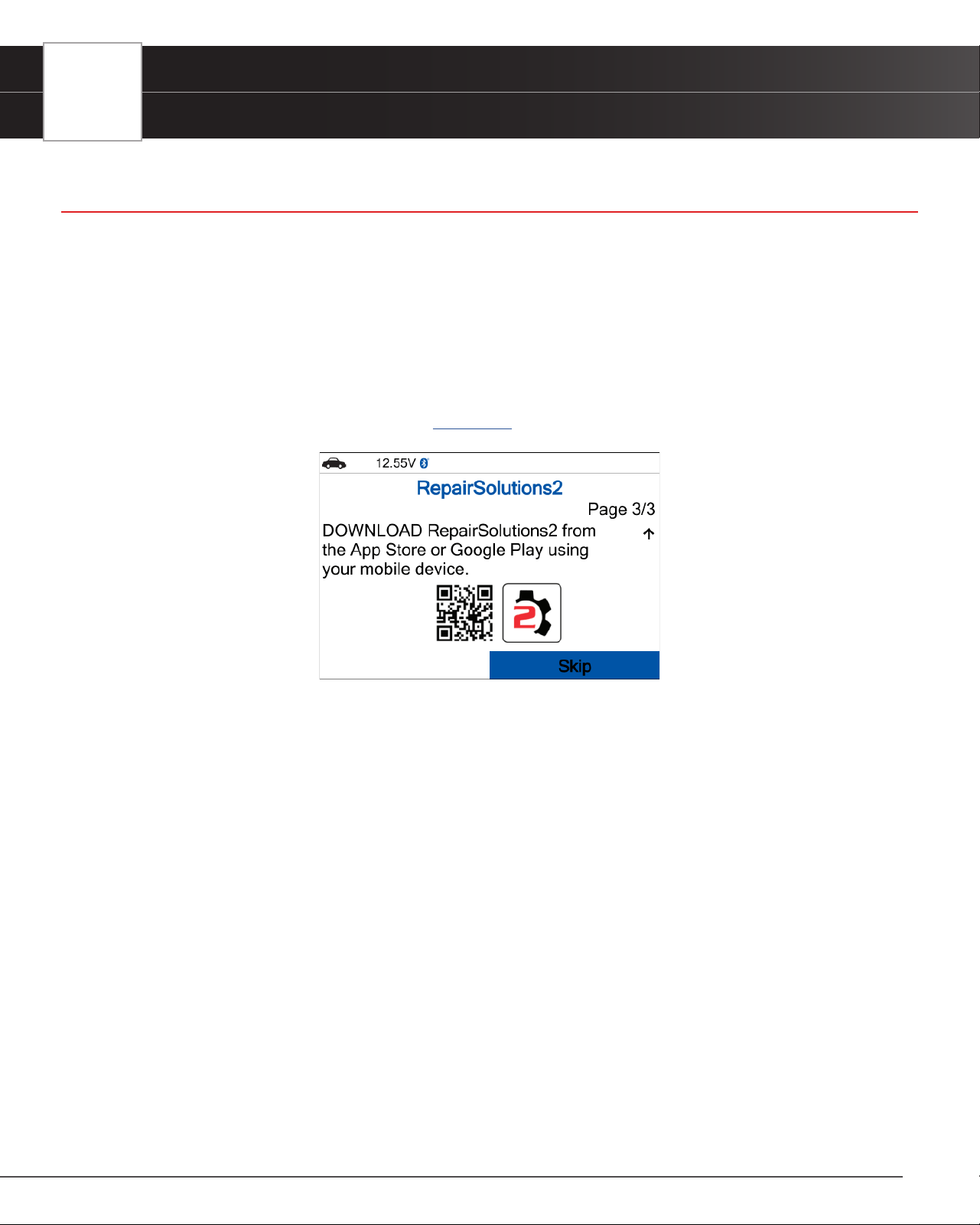
4. On the next screen, a QR code to RepairSolutions2 (RS2) is provided. Using any mobile device, scan the code to
download and install the free RS2 app. The app offers additional information including Most Likely Component/System
Cause for DTC, Repair Tip, and much more. [See page 8].
USING THE TABLET
Getting Started
11
USING THE TABLET
Getting Started
Connecting The Tablet
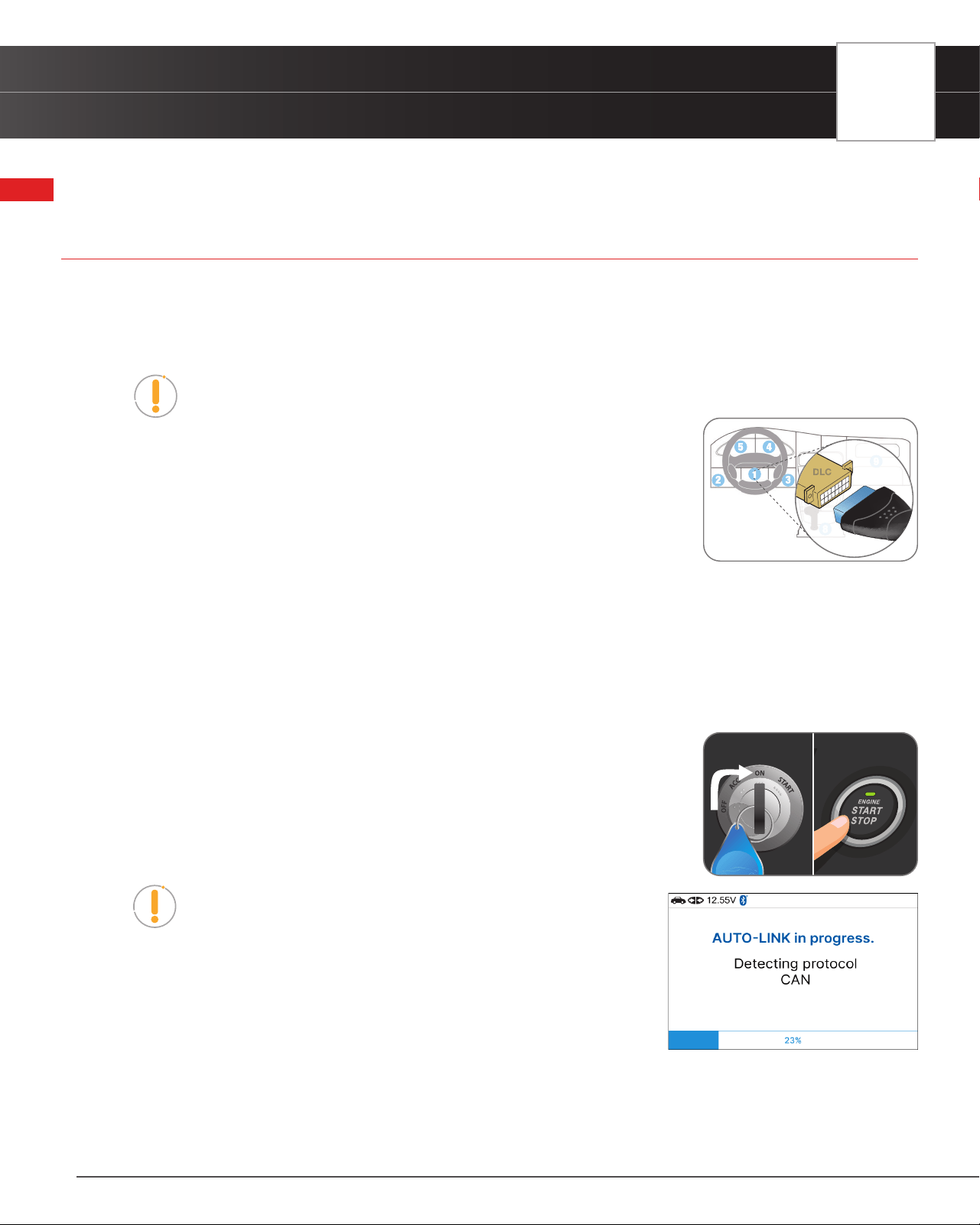
1. Turn the vehicle’s ignition OFF.
2. Locate the vehicle’s 16-pin Data Link Connector (DLC).
NOTE: Some DLCs have a plastic cover that must be removed before connecting to the
Tablet Scan Tool.
3. Connect the tablet to the vehicle’s DLC. The cable connector is keyed and will only
t one way.
n If you have problems connecting the cable to the DLC, rotate the
connector 180°.
n If you still have problems, check the DLC on the vehicle and on the tablet.
AutoLink Connection
The tablet features an “AutoLink Connection” function, which automatically retrieves vehicle information and diagnostics
from OBD2 system upon plugging the tablet into the vehicle’s Data Link Connector (DLC) port.
The AutoLink function automatically sets up when connected with the Tablet and can turn off in the Settings tab.
1. Verify that the tablet is connected as indicated above (Connecting The Tablet).
2. Turn the ignition ON. DO NOT start the engine.
n The tablet automatically starts a check of the vehicle’s computer to
determine which communication protocol it is using. When the tablet
identies the computer’s communication protocol, a communication link
is established.
NOTE: A PROTOCOL is a set of rules and procedures for
regulating data transmission between computers, and between
testing equipment and computers. As of this writing, ve different
types of protocols (ISO 9141, Keyword 2000, J1850 PWM, J1850
VPW and CAN) are in use by vehicle manufacturers.
n If the Tablet Scan Tool fails to link to the vehicle’s computer, a
“Communication Error” message shows.
━ Ensure your vehicle is OBD2 compliant.
━ Verify the connection at the DLC, and verify the ignition is ON.
━ Turn the ignition OFF, wait 5 seconds, then back ON to reset the computer.
NO Brake Pedal
Tap Button 2 Times
12
USING THE TABLET
OBD2 Diagnostics
━ Choose Relink to try again or select OBD2 Menu to return to the OBD2 Menu.
3. Once complete, the tablet displays the OBD2 Diagnostics screen.
OBD2 Diagnostics
OBD2 Diagnostics provides access to all 10 modes of OBD2. The following functions are available:
I/M Readiness Status – $01, $41 [See page 12]
Read DTCs - $03, $07, & $0A [See page 13]
Erase DTCs - $04 [See page 16]
Freeze Frame - $02 [See page 17]
Live Data - $01 [See page 17]
O2 Sensor Monitor - $05 [See page 23]
OBD Monitor Test - $06 [See page 24]
Request Control On-Board System - $08 [See page 25]
Drive Cycle Procedures [See page 25]
Vehicle Information - $09 [See page 26]
I/M Readiness Status - $01, $41
The vehicle’s computer stores a record of monitor status upon completion of a full diagnostic check of all monitored
components and systems since the computer’s memory was last cleared.
The I/M Readiness Status - $01, $41 feature displays which vehicle particular Monitor has or has not run and completed
testing of their designated sections within the vehicle’s emissions control system. Additionally, it also provides the
descriptions for each monitor.
1. From the OBD2 Menu, select I/M Readiness Status - $01, $41, then press OK button.
2. A “One moment please. . .” message displays, followed by a selection dialog. Select Since DTCs Cleared - $01 or
This Drive Cycle - $41 as appropriate. Press OK to continue.
n If the vehicle under test does not support Since DTCs Cleared - $01 or This Drive Cycle - $41, a
USING THE TABLET
OBD2 Diagnostics
13
warning message displays “This vehicle does not support this monitor type.” Press the Back
button to return to the previous dialog.
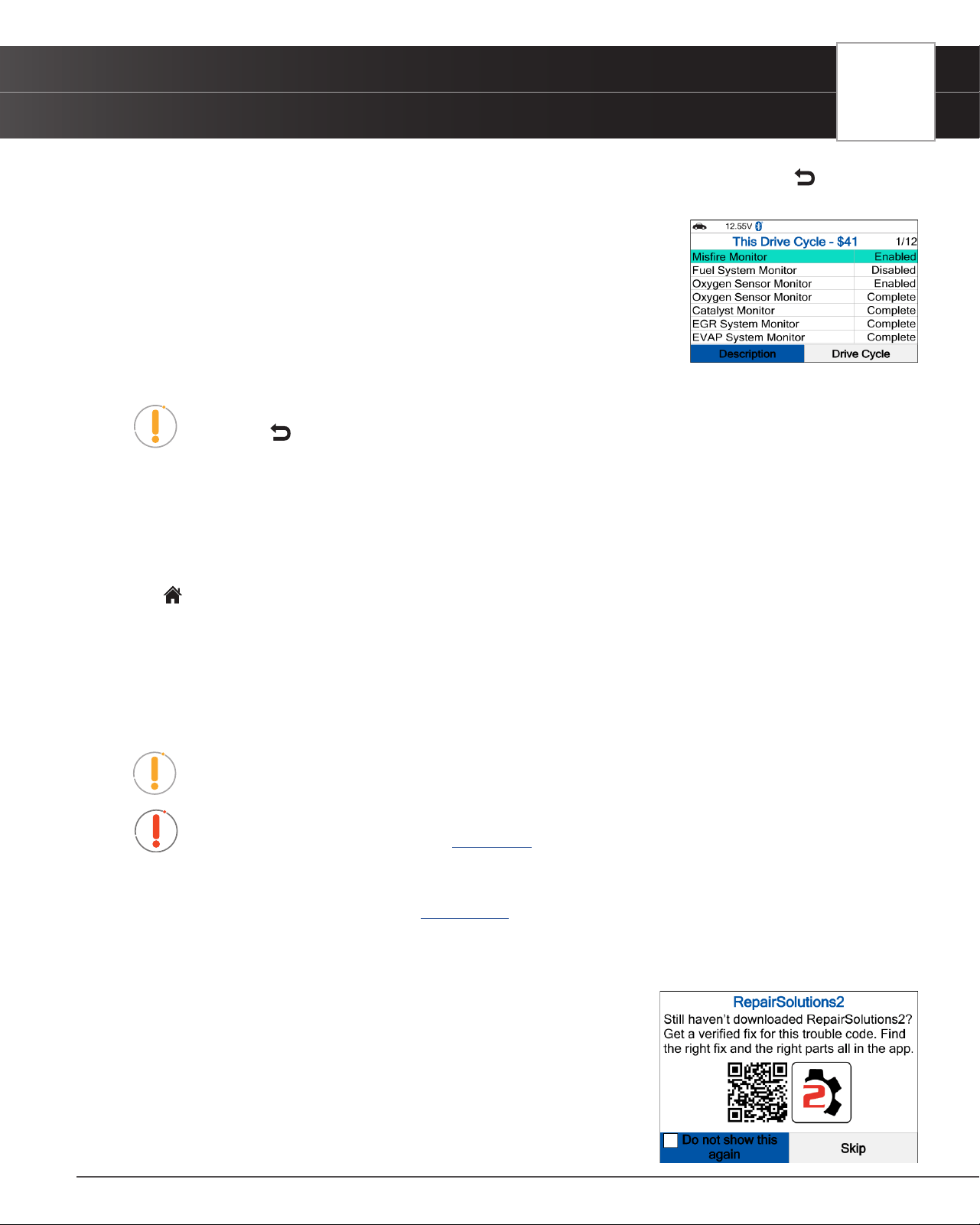
3. The Select Monitor screen displays listing all Monitors supported by the
vehicle.
4. To view a Monitor description, select the desired Monitor, then choose
Description.
n A description for the selected Monitor displays.
5. To view Drive Cycle Procedures for a Monitor, select the desired Monitor, then
choose Drive Cycle.
NOTE: If Drive Cycle Procedures are not available for the vehicle, an advisory message
show. Press Back to return to the OBD2 Menu.
n The Drive Cycle Procedures screen for the Monitor display.
6. The Drive Cycle Procedure screen shows the specic set of operating procedures that ensure the vehicle is driven
in such a way that all the required “Enabling Criteria” for the Monitor to run and complete its diagnostic testing are
met.
7. When you are nished viewing the Drive Cycle Procedures, choose Other Monitors to view other monitors or press
the Home button to return to the Home Screen.
Read DTCs – $03, $07, & $0A
Never replace a part based only on the DTC denition. Each DTC has a set of testing procedures, instructions and
ow charts that must be followed to conrm the location of the problem. Always refer to the vehicle service manual
for detailed testing instructions.
NOTE: Check your vehicle thoroughly before performing any test.
WARNING: ALWAYS observe safety precautions whenever working on a vehicle. See
IMPORTANT SAFETY INFORMATION. [See page 3]
1. From the OBD2 Menu, select Read DTCs - $03, $07, & $0A, then press OK button.
2. Follow the AutoLink Connection steps. [See page 11]
3. If the Tablet can decode the Vehicle Identication Number (VIN) for the vehicle under test, the OBD2 results screen
displays. Proceed to step 5.
4. If the Tablet cannot decode the Vehicle Identication Number (VIN) for the
vehicle under test, the Vehicle Selection screen displays.
n Select your vehicle information then press Yes to continue.
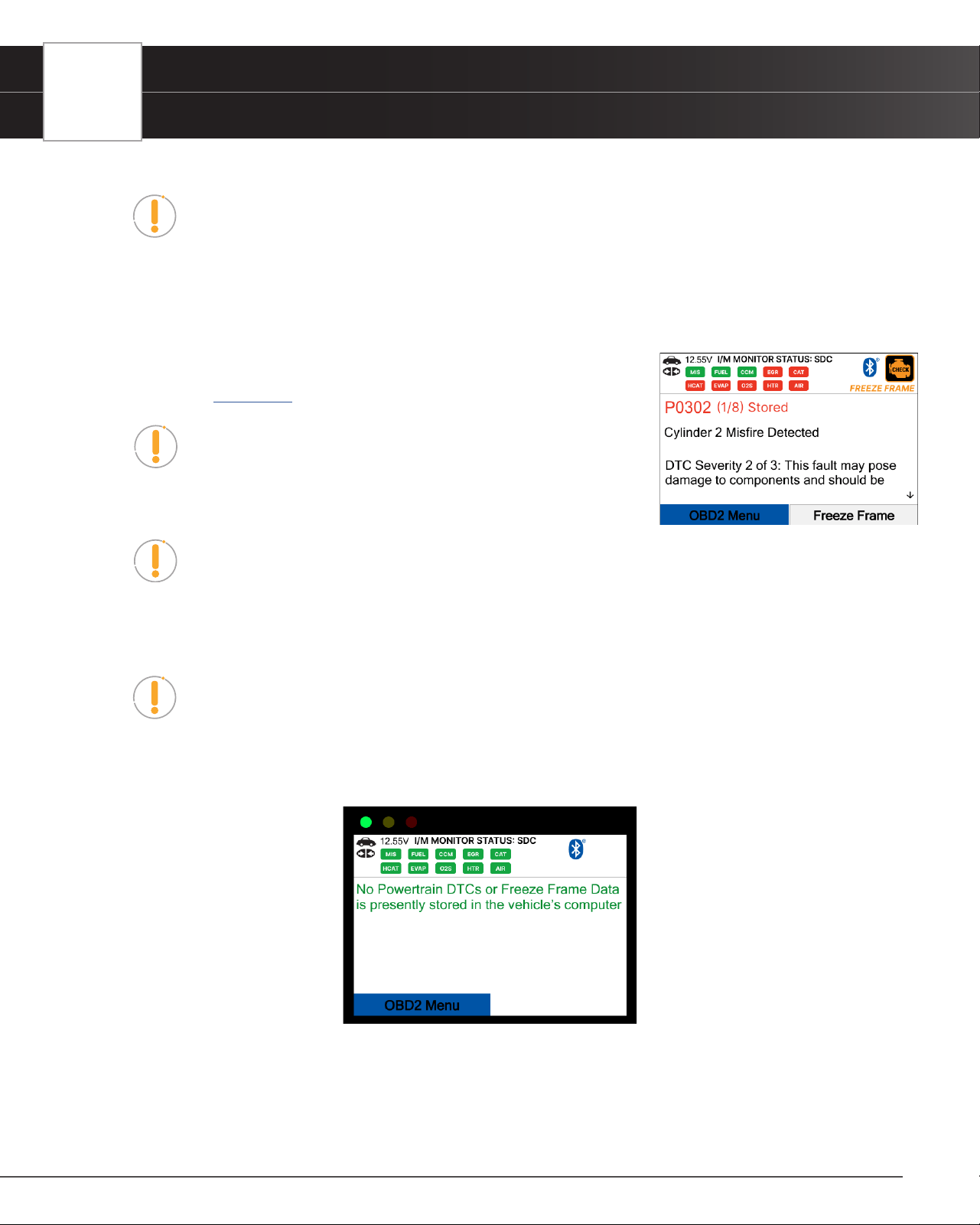
5. The screen displays the RS2 QR code. Using any mobile device, scan the
code to download and install the free RS2 app.
n Select the Skip button to continue. Proceed to step 5.
n Press the OK button to tick the checkbox, then select the Skip
14
USING THE TABLET
OBD2 Diagnostics
button to disable this screen in the next Auto-Link function.
NOTE: User can enable or disable this screen in the Settings.
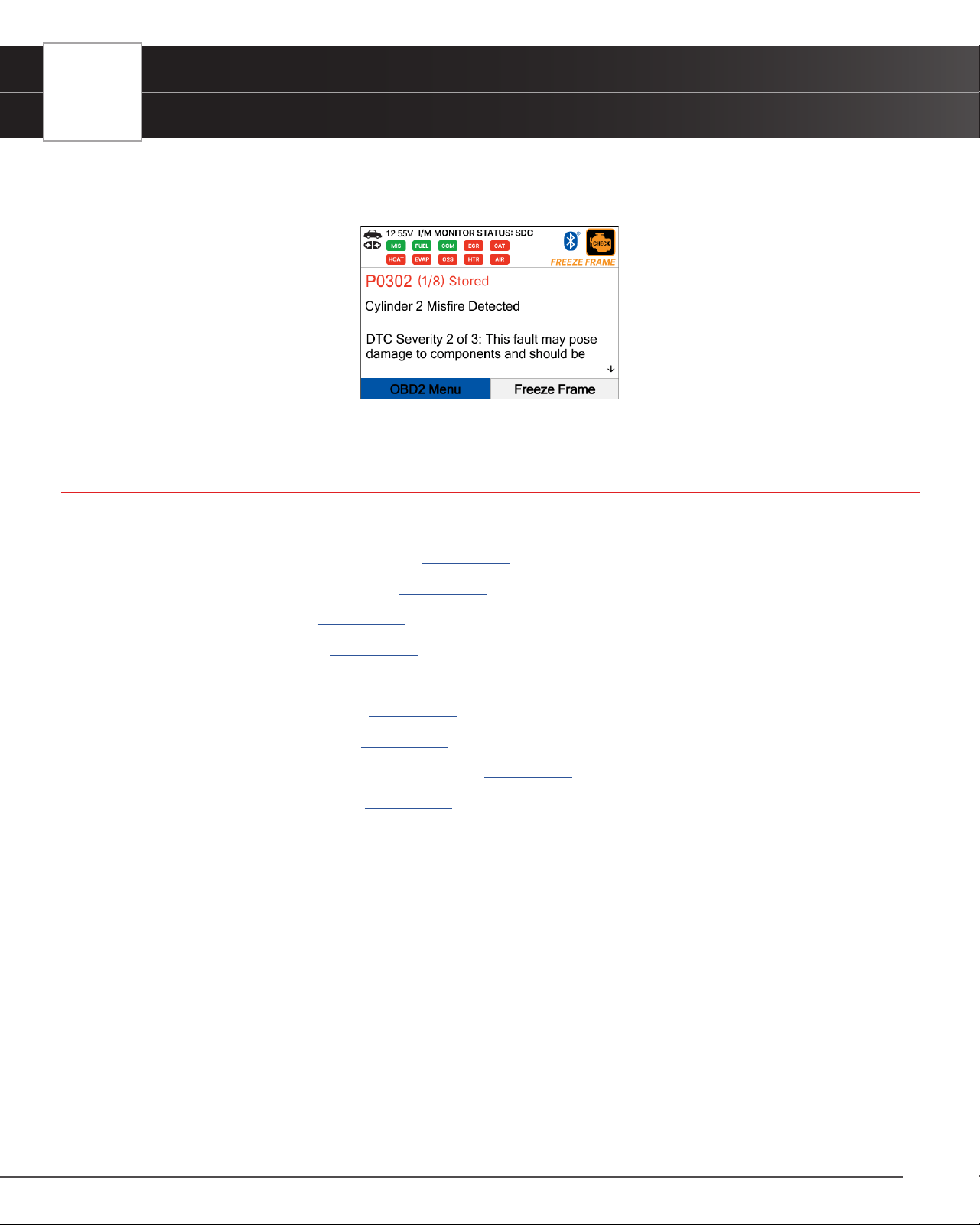
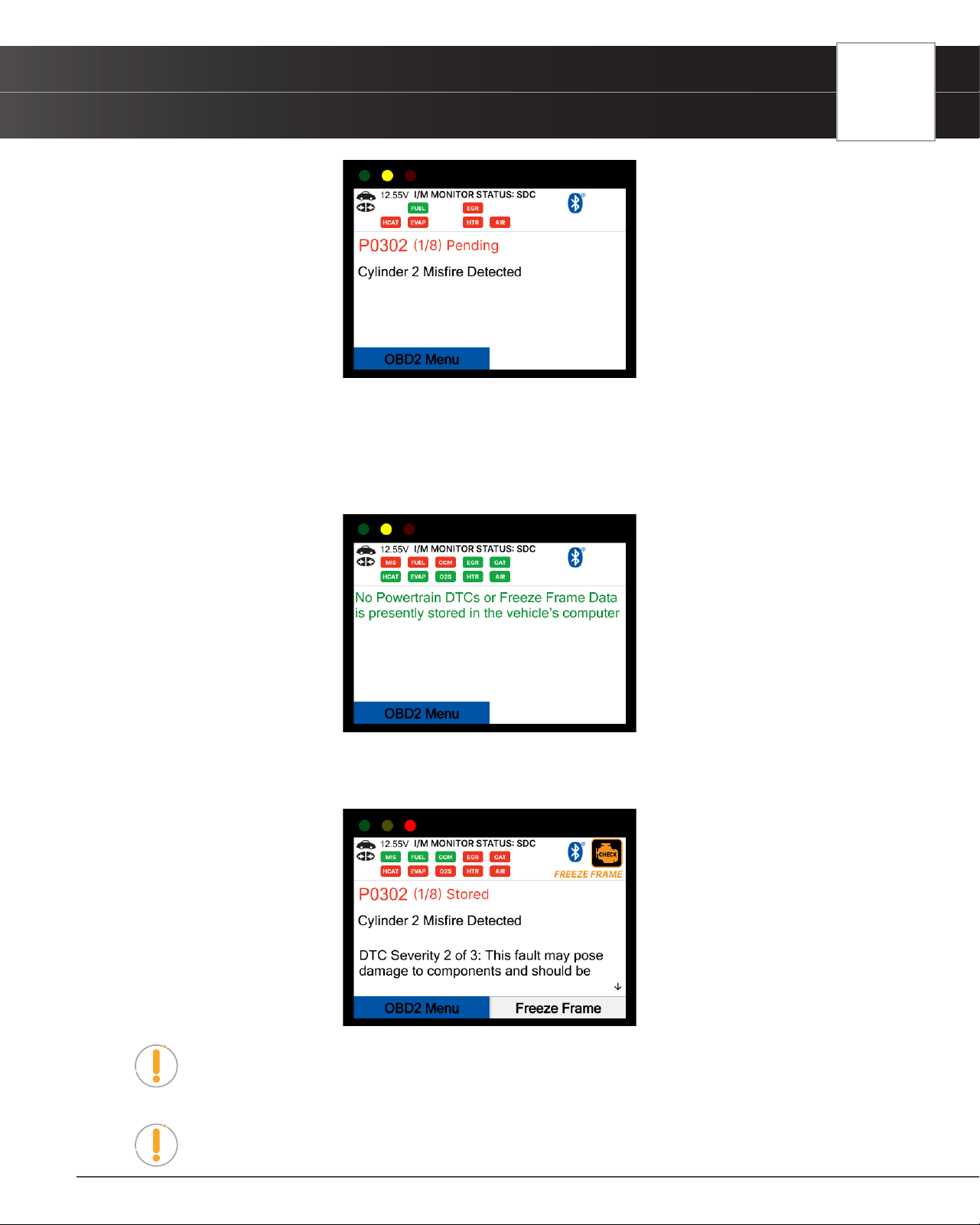
6. The Tablet Scan Tool will retrieve and display any Diagnostic Trouble Codes (DTCs), I/M Monitor Status and Freeze
Frame Data retrieved from the vehicle’s computer memory.
n The Tablet Scan Tool will display a code only if codes are present. If no codes are present, the
message “No Powertrain DTCs or Freeze Frame Data is presently stored in the vehicle’s computer”
displays.
7. Refer to TABLET DISPLAY FUNCTIONS for a description of display
elements. [See page 6]
NOTE: In the case of long code denitions, a small arrow
is shown in the upper/lower right-hand corner of the display
area to indicate the presence of additional information. Use
arrow keys as necessary to scroll through the denition.
NOTE: If a denition for the currently displayed code is not available, an advisory
message shows “The denition for this trouble code is not available. Please connect your
Tablet Scan Tool to the update software quarterly to see if a new update is available.”
8. Read and interpret Diagnostic Trouble Codes/system condition using the display and the green, yellow, and red
LEDs.
NOTE: The green, yellow, and red LEDs are used (with the display) as visual aids to
make it easier to determine engine system conditions.
n Green LED – Indicates that all engine systems are running normally, and all emission monitors are
active and performing their diagnostic testing. The Malfunction Indicator “Check Engine” Lamp on
the vehicle’s instrument panel is off.
n Yellow LED – Indicates one of the following conditions:
[A] A PENDING CODE IS PRESENT – If the yellow LED is illuminated, it may indicate a Pending code is
present. Check the display for conrmation. A Pending code is conrmed by the presence of a numeric code
and the word Pending.
USING THE TABLET
OBD2 Diagnostics
15
button to disable this screen in the next Auto-Link function.
NOTE: User can enable or disable this screen in the Settings.
6. The Tablet Scan Tool will retrieve and display any Diagnostic Trouble Codes (DTCs), I/M Monitor Status and Freeze
Frame Data retrieved from the vehicle’s computer memory.
n The Tablet Scan Tool will display a code only if codes are present. If no codes are present, the
message “No Powertrain DTCs or Freeze Frame Data is presently stored in the vehicle’s computer”
displays.
7. Refer to TABLET DISPLAY FUNCTIONS for a description of display
elements. [See page 6]
NOTE: In the case of long code denitions, a small arrow
is shown in the upper/lower right-hand corner of the display
area to indicate the presence of additional information. Use
arrow keys as necessary to scroll through the denition.
NOTE: If a denition for the currently displayed code is not available, an advisory
message shows “The denition for this trouble code is not available. Please connect your
Tablet Scan Tool to the update software quarterly to see if a new update is available.”
8. Read and interpret Diagnostic Trouble Codes/system condition using the display and the green, yellow, and red
LEDs.
NOTE: The green, yellow, and red LEDs are used (with the display) as visual aids to
make it easier to determine engine system conditions.
n Green LED – Indicates that all engine systems are running normally, and all emission monitors are
active and performing their diagnostic testing. The Malfunction Indicator “Check Engine” Lamp on
the vehicle’s instrument panel is off.
n Yellow LED – Indicates one of the following conditions:
[A] A PENDING CODE IS PRESENT – If the yellow LED is illuminated, it may indicate a Pending code is
present. Check the display for conrmation. A Pending code is conrmed by the presence of a numeric code
and the word Pending.
[B] MONITOR NOT RUN STATUS – If the display shows a zero (indicating there are no DTCs present in the
vehicle’s computer memory), but the yellow LED is that some of the Monitors supported by the vehicle have
not yet run and completed their diagnostic testing. Check the display for conrmation. All Monitor icons that
are blinking have not yet run and completed their diagnostic testing; all Monitor icons that are solid have run
and completed their diagnostic testing.
n Red LED – Indicates there is a problem in one or more of the vehicle’s systems. The Malfunction
Indicator “Check Engine” Lamp on the vehicle’s instrument panel is on.
NOTE: DTC’s that start with “P0”, “P2” and some “P3” are considered Generic (Universal).
All Generic DTC denitions are the same on all OBD2 equipped vehicles. The Tablet
Scan Tool automatically displays the code denitions (if available) for Generic DTC’s.
NOTE: DTC’s that start with “P1” and some “P3” are Manufacturer specic codes – their
code denitions will vary with each vehicle manufacturer.
16
USING THE TABLET
OBD2 Diagnostics
Erasing Diagnostic Trouble Codes (DTCs) - $04
NOTE: When the Tablet’s ERASE function is used to erase the DTCs from the vehicle’s
on-board computer, “Freeze Frame” data and manufacturer-specic enhanced data are
also erased.
If you plan to take the vehicle to a Service Center for repair, DO NOT erase the codes from the vehicle’s computer. If the
codes are erased, valuable information that might help the technician troubleshoot the problem will also be erased.
Erase DTCs from the computer’s memory as follows:
NOTE: When DTCs are erased from the vehicle’s computer memory, the I/M Readiness
Monitor Status program resets status of all the Monitors to a not run “ashing” condition.
To set all the Monitors to a DONE status, an OBD2 Drive Cycle must be performed. Refer
to your vehicle’s service manual for information on how to perform an OBD2 Drive Cycle
for the vehicle under test.
1. Refer to the Connecting Tablet to connect and retrieve codes [See page 11].
n Wait until the codes are displayed.
n Press the OK button to access to OBD2 Menu.
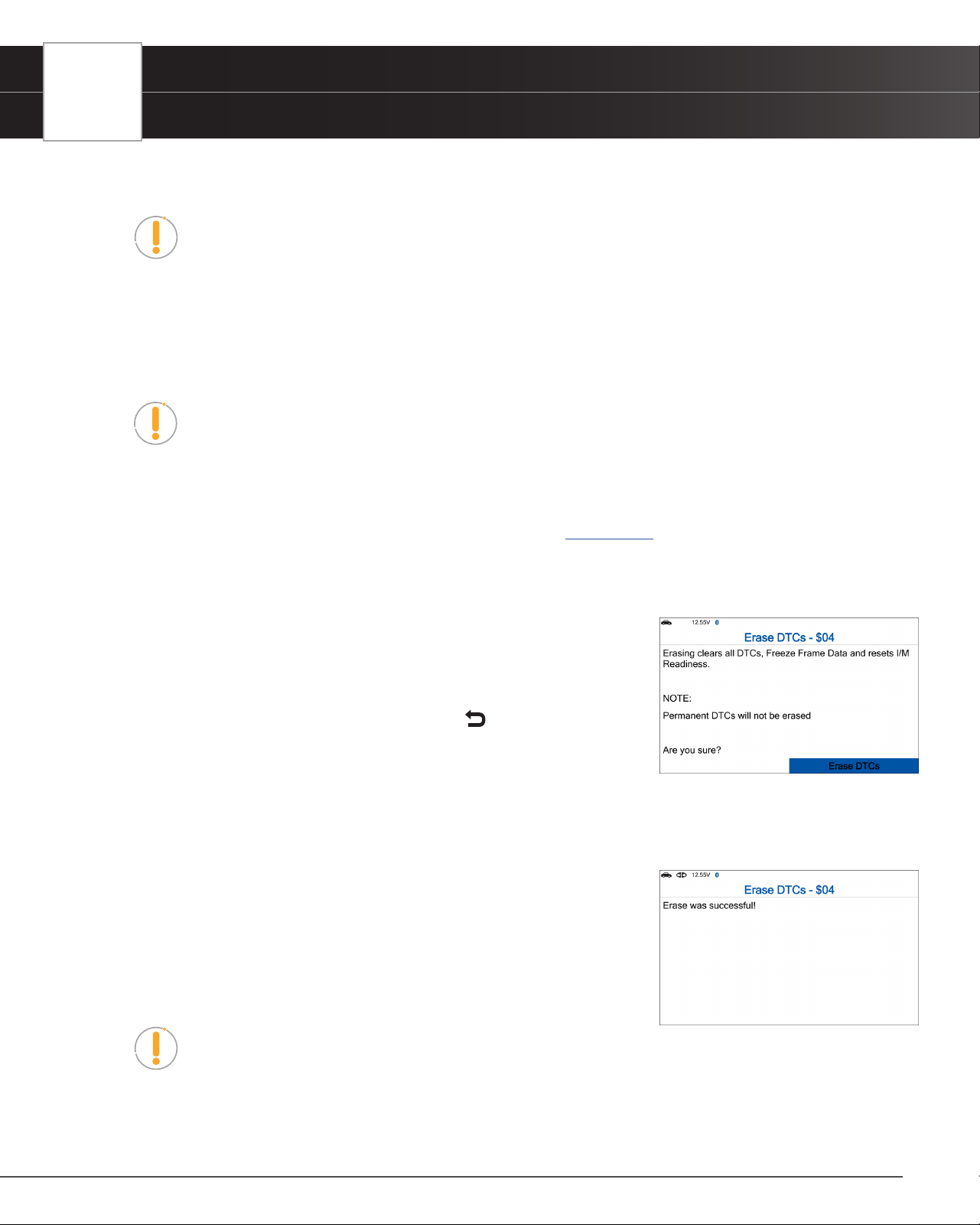
2. From OBD2 Menu, select Erase DTCs - $04, then press the OK button. A
conrmation message displays.
n If you are sure you want to proceed, choose Erase DTCs to
continue.
n If you do not want to proceed, press the Back button to return
to the OBD2 Menu.
3. Select Erase DTCs then press the OK button.
n If the vehicle’s engine is running, an advisory message shows: “Please stop the vehicle and place
transmission in Park or Neutral then press “OK” to continue.
n A “One moment please…” message displays while the erase function is in progress.
4. If the erase was successful, a conrmation message displays. After 3
seconds, the tablet automatically re-links to the vehicle’s computer.
n If the erase was not successful, an advisory message shows
indicating the erase request was sent to the vehicle’s computer.
After 3 seconds, the tablet automatically re-links to the vehicle’s
computer.
NOTE: If the erase was not successful and ECU error code $22 is
present, an advisory message display. Start the engine and maintain vehicle speed at 0.
Press the OK button to try again.
USING THE TABLET
OBD2 Diagnostics
17
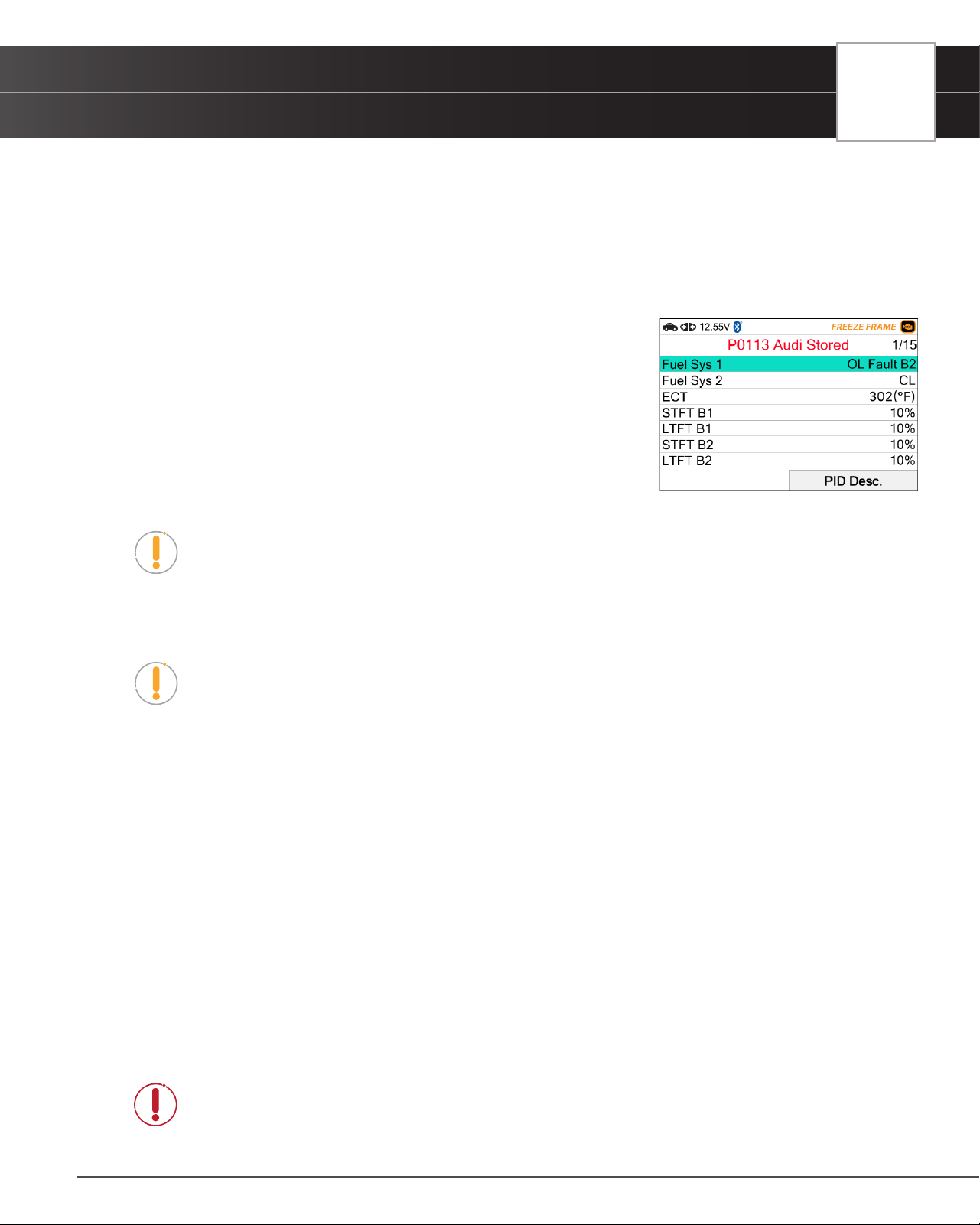
Freeze Frame - $02
If more than one Diagnostic Trouble Code (DTC) was retrieved and to view Freeze Frame Data, following procedures
bellow:
1. From OBD2 Menu, select Freeze Frame - $02 and press the OK button.
n The Freeze Frame data displays.
n In OBD2 systems, when an emissions-related engine malfunction
occurs that causes a DTC to set, a record or snapshot of engine
conditions at the time that the malfunction occurred is also saved
in the vehicle’s computer memory. The record saved is called
Freeze Frame data. Saved engine conditions include, but are
not limited to: engine speed, open or closed loop operation, fuel
system commands, coolant temperature, calculated load value,
fuel pressure, vehicle speed, air ow rate, and intake manifold
pressure.
NOTE: If more than one malfunction is present that causes more than one DTC to
be set, only the code with the highest priority will contain Freeze Frame data. The
code designated “01” on the Tablet display is referred to as the PRIORITY code and
Freeze Frame data always refers to this code. The priority code is also the one that has
commanded the MIL (Check Engine) lamp on.
NOTE: Retrieved information can be uploaded to a Personal Computer (PC) with the use
of optional software (see instructions included with the software for more information).
n To view a description of the displayed PID, select and press PID Desc.
Live Data- $01
The Tablet lets you view “real-time” Live Data. This information includes values (volts, rpm, temperature, speed etc.) and
system status information (open loop, closed loop, fuel system status, etc.) generated by the various vehicle sensors,
switches, and actuators. These are the same signal values generated by the sensors, actuators, switches and/or vehicle
system status information used by the vehicle’s computer when calculating and conducting system adjustments and
corrections.
The real time (Live Data) vehicle operating information (values/status) that the computer supplies to the Tablet for each
sensor, actuator, switch, etc. is called Parameter Identication Data (PID).
Each PID (sensor, actuator switch, status, etc.) has a set of operating characteristics and features (parameters) that serve
to identify it. The Tablet displays this information for each sensor, actuator, switch, or status that is supported by the vehicle
under test.
DANGER: If the vehicle must be driven in order to perform a troubleshooting procedure,
ALWAYS have a second person help you. One person should drive the vehicle while the
other person observes the Tablet data. Trying to drive and operate the Tablet at the same
time is dangerous and could cause a serious trafc accident.
18
USING THE TABLET
OBD2 Diagnostics
Viewing Live Data
1. From OBD2 Menu, select Live Data - $01, then press the OK button.
2. A “One moment please . . .” message displays while the Tablet Scan Tool establishes communication with the
vehicle.
n If the Scan Tool fails to establish communication with the vehicle, a “Communication Error” message
displays.
━ Ensure the vehicle is OBD2 compliant.
━ Verify the connection at the DLC, and verify the ignition is ON.
━ Turn the ignition OFF, wait 5 seconds, then back ON to reset the computer.
━ Press Relink to continue.
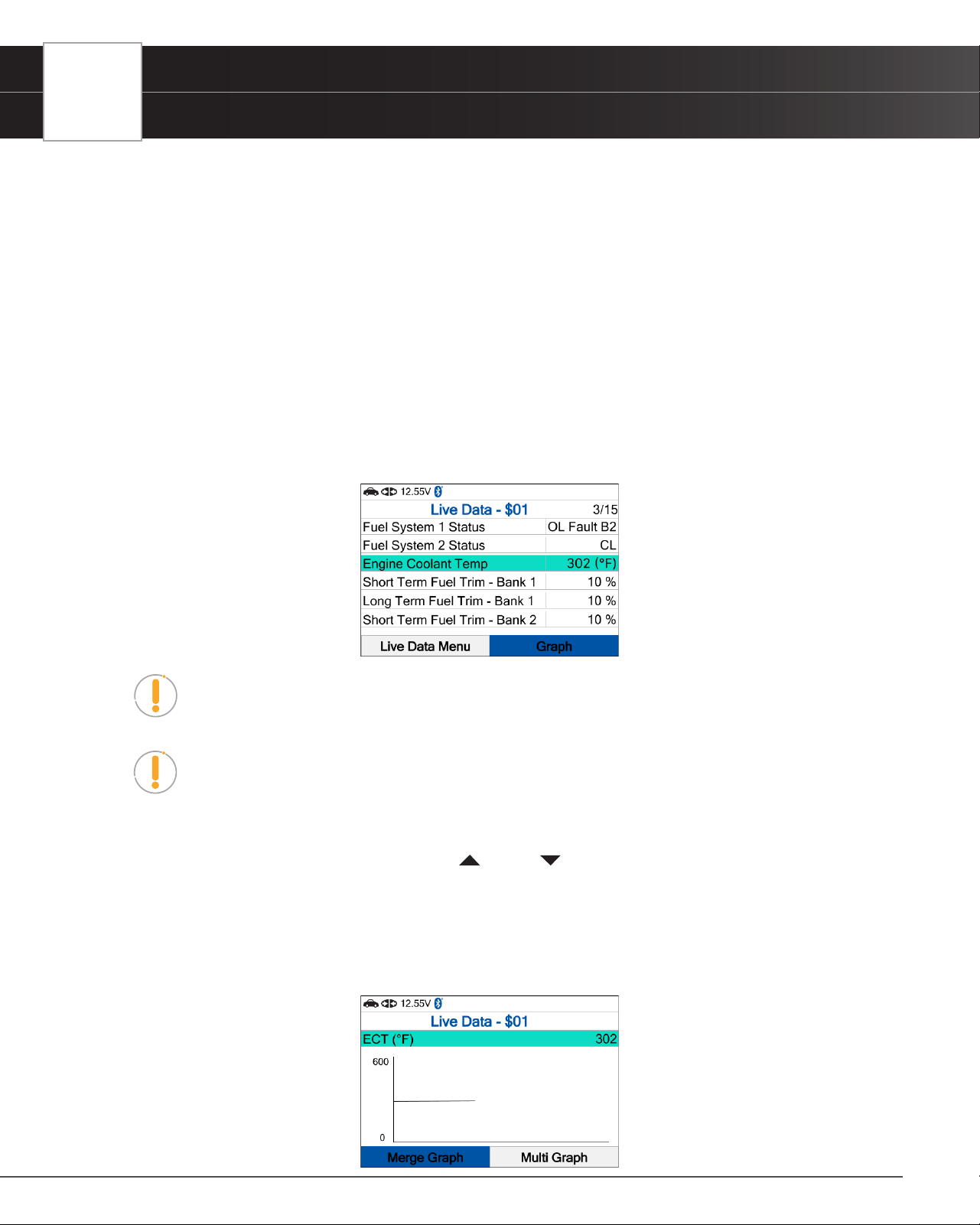
3. Real-time Live Data (PID) information supported by the vehicle under test displays.
NOTE: The values for the various PIDs displayed may change as the vehicle’s operating
conditions change.
NOTE: The Graph function button will stay inactive if the selected PID does not report a
numerical value. An example is the Fuel System Status PID, which reports either Open
Loop (OL) or Close Loop (CL).
4. Only a limited amount of PID data can be displayed on the screen at one time. If additional PID data is available,
a small arrow is shown on the display. Press UP and DOWN, as necessary, to view available PID data.
n If communication with the vehicle is lost while viewing Live Data, an advisory message is displayed.
5. Press OK to view expanded denition and description for the currently selected PID.
n Press the Back button to return to the Live Data – $01 screen after you have nished viewing.
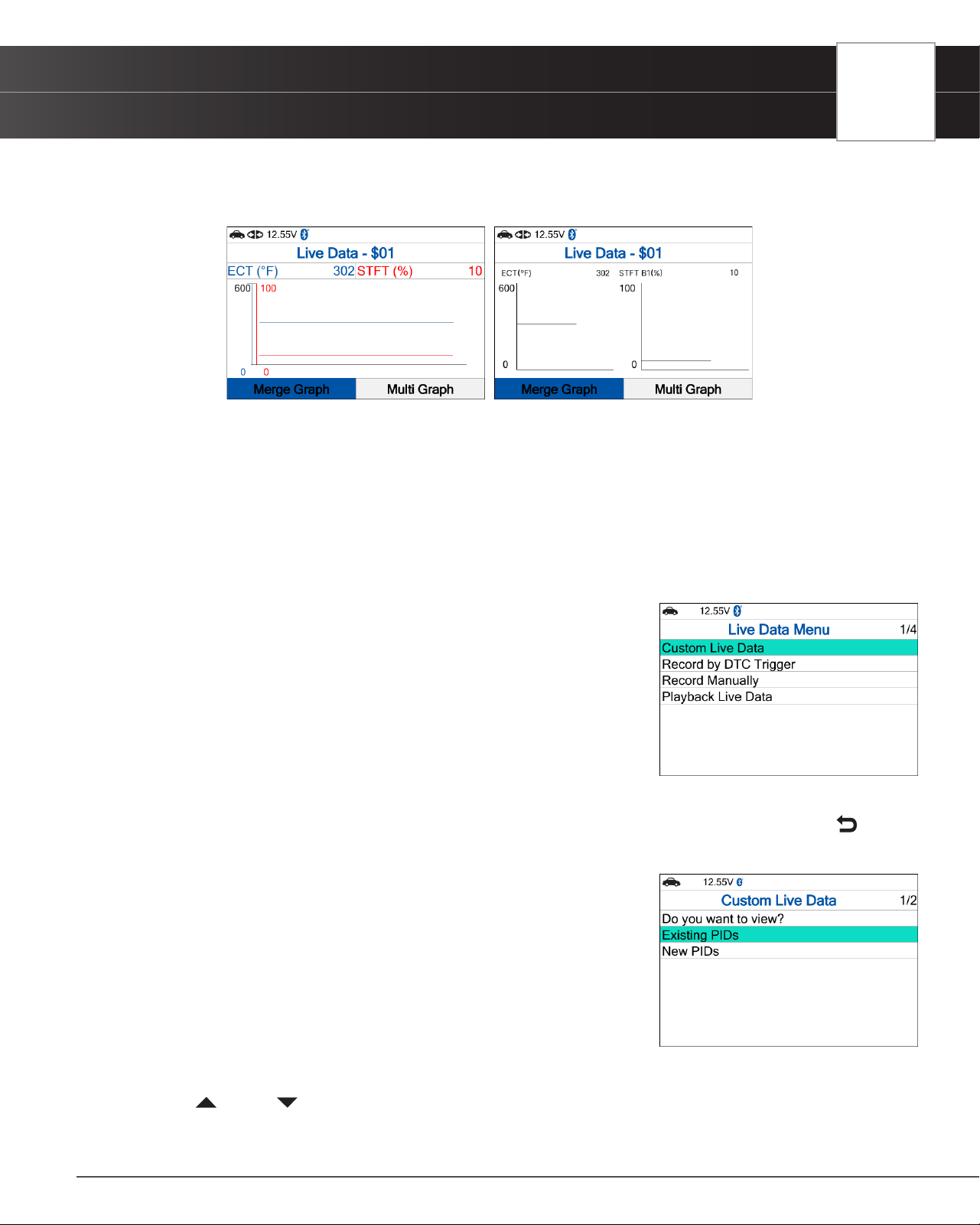
6. Select Graph and press OK to view the currently selected PID in “graph” mode.
USING THE TABLET
OBD2 Diagnostics
19
n Choose Merge Graph to view more PID results on one graph.
n Choose Multi Graph to view more Graphs in one screen.
7. Troubleshoot any diagnostic issues by referencing your vehicle’s repair manual to view and/or compare Live Data
(PID) information displayed on the Tablet Scan Tool against recommended vehicle specications.
Customizing Live Data (PIDs)
You can customize the Live Data display by placing the Tablet Scan Tool in “Custom Live Data” mode and selecting
only the PIDs that you wish to display.
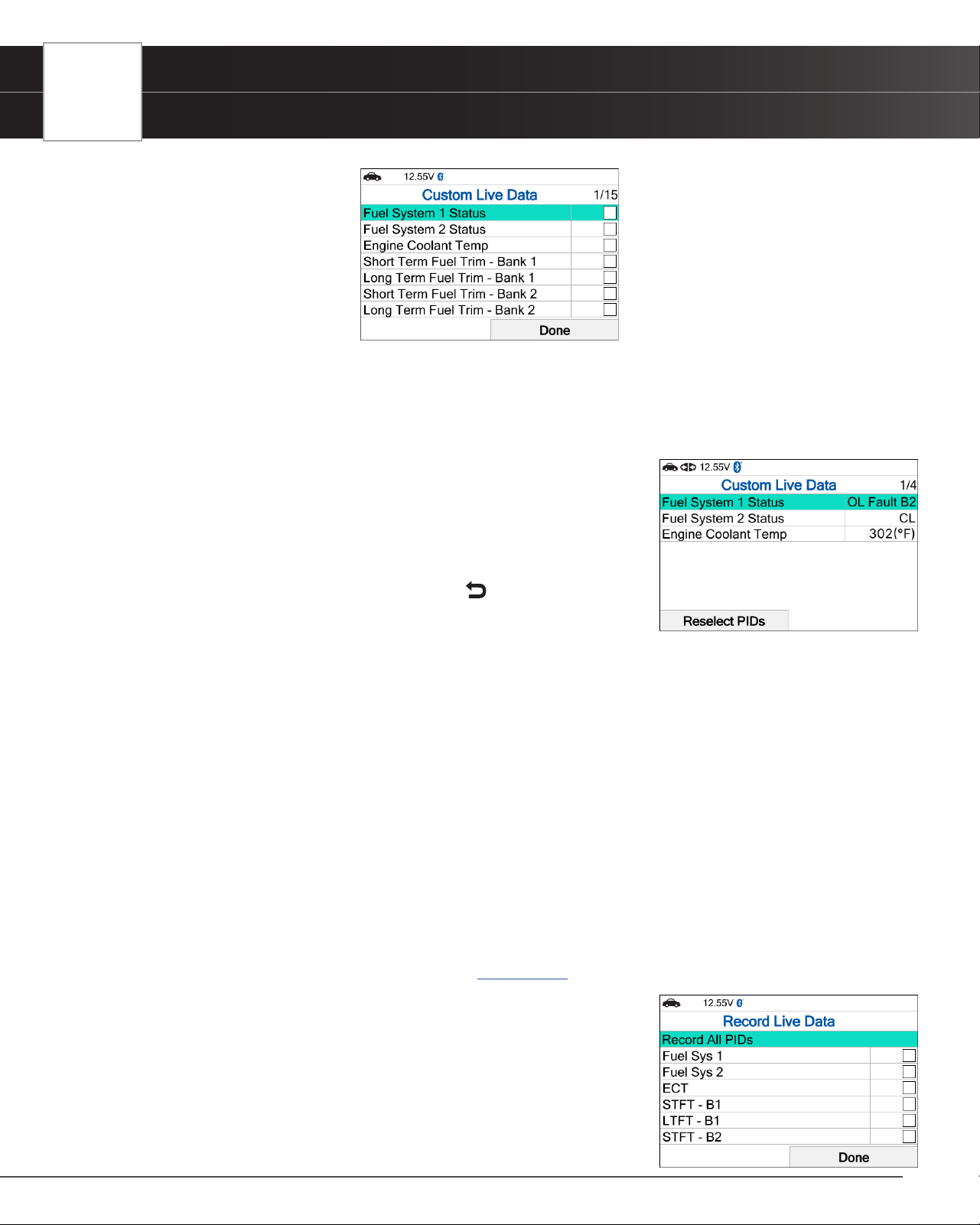
1. With the Tablet Scan Tool in Live Data mode, select Live Data Menu to access the Live Data menu, then select
Custom Live Data and press the OK button.
n If the Tablet Scan Tool fails to establish communication with the
vehicle, a “Communication Error” message displays.
━ Ensure the vehicle is OBD2 compliant.
━ Verify the connection at the DLC, and verify the ignition is ON.
━ Turn the ignition OFF, wait 5 seconds, then back ON to reset
the computer.
━ Press Relink to continue.
n If Live Data is not supported by the vehicle under test, an advisory message displays. Press
Back to return to the OBD2 Menu.
n If custom Live Data was previously congured, the Select PIDs to
Use screen displays.
━ To use the existing custom Live Data selections, select
Existing PIDs, then press OK. Proceed to step 5.
━ To congure new custom Live Data, select New PIDs, then
press OK. The Custom Live Data menu displays. Proceed to
step 2.
n If custom Live Data was not previously selected, the Custom Live
Data menu displays. Proceed to step 2.
2. Press UP and DOWN to scroll through the available PIDs. When a PID you wish to display is highlighted,
press OK (a “check-mark” shows to conrm your selection). Repeat until only the PIDs you want to display are
selected.
20
USING THE TABLET
OBD2 Diagnostics
n To deselect a PID, highlight the PID, then press OK. The check-mark is removed.
3. When you are nished making your selection(s), choose Done to continue.
n If no PIDs have been selected, an advisory message displays. Press OK to return to the Custom
Live Data menu.
4. The Scan Tool is now in “Custom Live Data” mode. Only the PIDs you
selected are shown.
n To change the current custom Live Data selections, select
Reselect PIDs, then press OK to return to the Custom Live Data
menu. Repeat step 2.
5. To exit the “Custom Live Data” mode, press Back to return to the
Live Data Menu.
Record Live Data
You can record and save several frames of Live Data information for each PID supported by the vehicle in the Tablet Scan
Tool’s memory. Once recorded, each session can be played back for further analysis.
There are two ways that the Tablet Scan Tool can record Live Data:
Record by DTC Trigger
Record Manually
Record by DTC Trigger
This function automatically records Live Data information when a DTC sets and saves it in the Tablet Scan Tool’s
memory. The recorded data can be a valuable troubleshooting aid, particularly if you are experiencing a fault that is
causing a DTC to set. The Tablet Scan Tool can record approximately 100 frames of Live Data.
1. With the Tablet Scan Tool in Live Data mode [See page 17] select Live Data Menu and press OK to display
the Live Data Menu.
2. Select Record by DTC Trigger, then press OK.
n The Select PIDs to Record screen displays.
n If the Tablet Scan Tool fails to establish communication with the
vehicle, a “Communication Error” message displays.
━ Ensure the vehicle is OBD2 compliant.
━ Verify the connection at the DLC, and verify the ignition is ON.
USING THE TABLET
OBD2 Diagnostics
21
━ Turn the ignition OFF, wait 5 seconds, then back ON to reset the computer.
━ Press Relink to continue.
3. Press UP and DOWN to scroll through the available PIDs. When a PID you wish to display is highlighted,
press OK (a “check-mark” shows to conrm your selection). Repeat until only the PIDs you want to record are
selected.
n To select all PIDs, choose Record All PIDs.
n To deselect a PID, highlight the PID, then press OK. The check-mark is removed.
4. When you are nished making your selections, choose Done to continue.
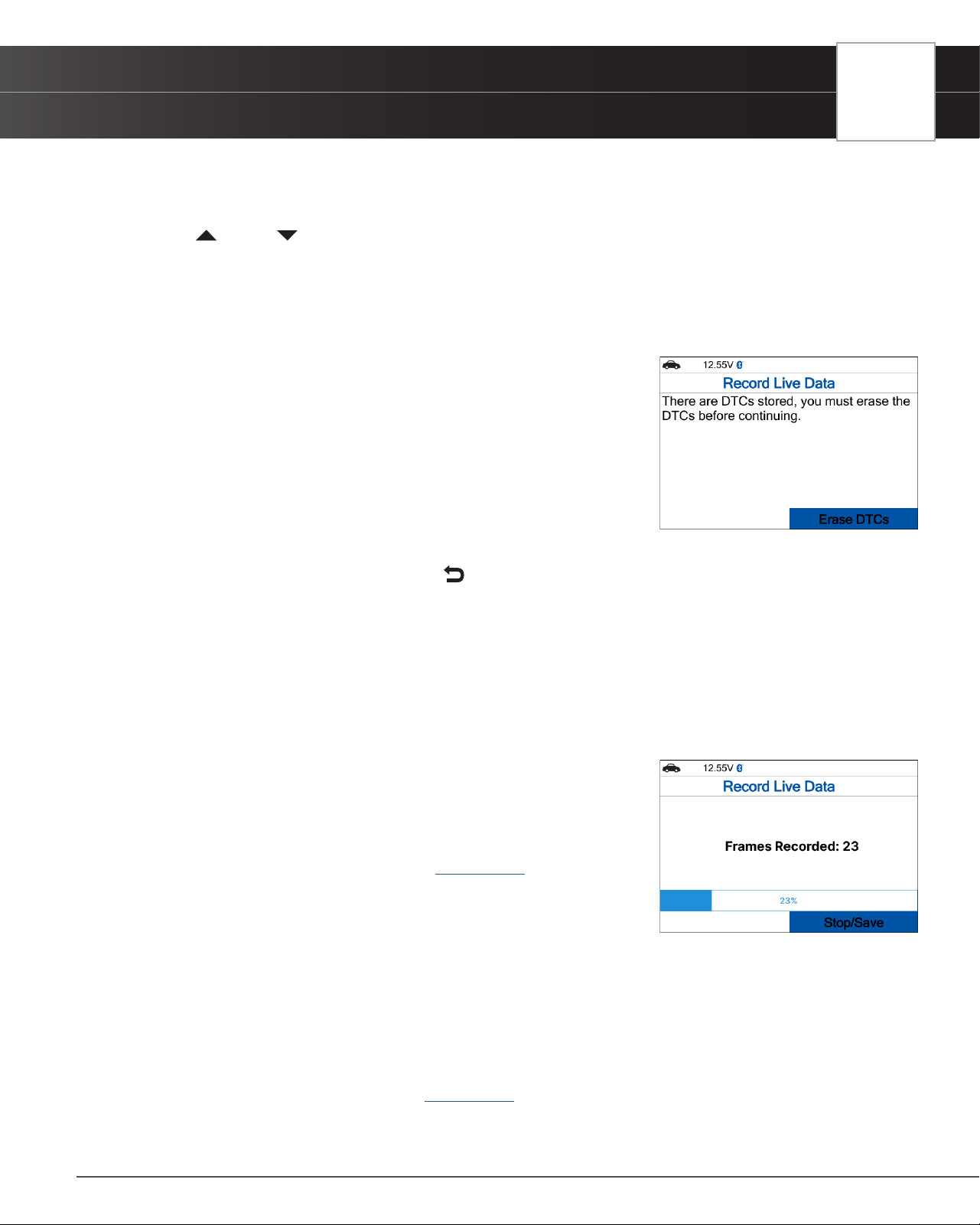
n If DTCs are presently stored in the vehicle’s computer, an advisory
message displays.
━ Choose Erase DTCs. A “One moment please…” message
displays while DTCs are erased from the vehicle’s computer.
n If the erase is not successful, an advisory message displays.
━ To retry the erase process, verify that the Scan Tool is properly
connected to the vehicle’s DLC, and that the ignition is on. Select Erase DTCs.
━ To exit the record function, press Back to return to the Record Live Data menu.
n When the Erase process is complete, the Record Live Data screen displays the message “Ready
to record. Waiting for DTCs.”
5. Put the engine in the operating condition that causes the DTC to set.
n If necessary, drive the vehicle until you reach the vehicle speed at which the problem occurs.
6. When the Scan Tool detects a fault that causes a DTC to set, it automatically records and saves approximately
100 frames of Live Data information in its memory for each PID selected.
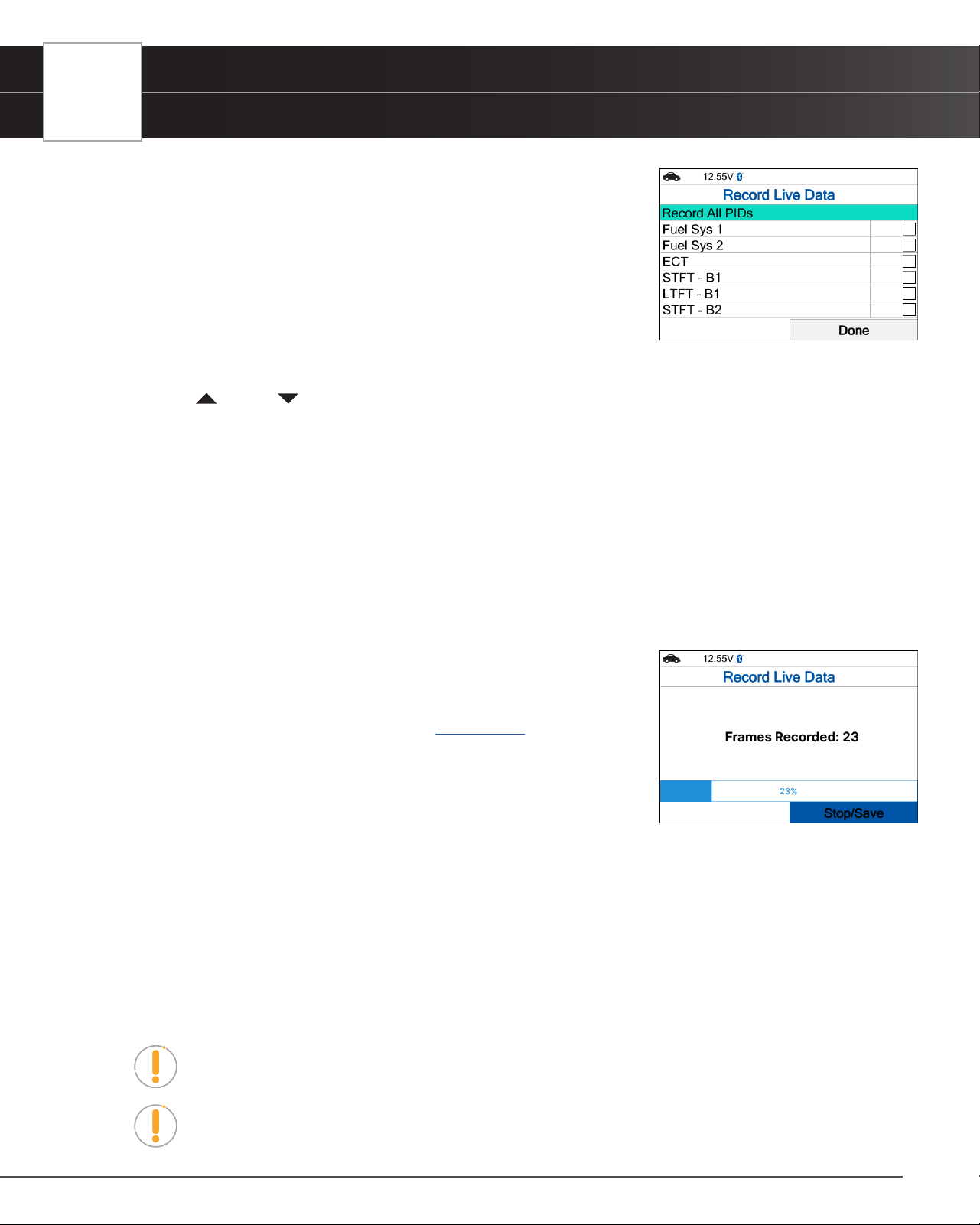
n A progress message shows on the display.
━ You can stop and save recorded Live Data at any time by
choosing Stop/Save.
n When the recording is complete, a conrmation screen displays.
Choose Yes to Playback Live Data [See page 22] or No to return
to the Live Data menu, as desired.
n If recording was not successful, an advisory message displays.
Choose Continue to return to the Live Data menu.
Record Manually
This option lets you select the precise time at which the Live Data recording will occur. Recording by Manually can be
a very valuable tool when troubleshooting intermittent problems that do not meet the requirements for a DTC to set. The
Tablet Scan Tool is capable of recording approximately 100 frames of Live Data.
1. With the Scan Tool in Live Data mode [See page 17] select Live Data Menu and press OK to display the Live
Data Menu.
2. Select Record Manually, then press OK.
22
USING THE TABLET
OBD2 Diagnostics
n The Select PIDs to Record screen displays.
n If the Scan Tool fails to establish communication with the vehicle, a
“Communication Error” message displays.
━ Ensure your vehicle is OBD2 compliant.
━ Verify the connection at the DLC, and verify the ignition is ON.
━ Turn the ignition OFF, wait 5 seconds, then back ON to reset
the computer.
━ The Tablet Scan Tool should power up once the ignition is in the ON position.
3. Press UP and DOWN to scroll through the available PIDs. When a PID you wish to record is highlighted,
press OK (a “check-mark” shows to conrm your selection). Repeat until only the PIDs you want to record are
selected.
n To select all PIDs, choose Record All PIDs.
n To deselect a PID, highlight the PID, then press OK. The check-mark is removed.
4. When you are nished making your selections, select Done to continue.
n The Record Live Data screen displays.
n Put the engine in the operating condition where the problem manifests itself.
━ If necessary, drive the vehicle until you reach the vehicle speed at which the problem occurs.
5. When the problem occurs, choose Record.
n A progress message shows on the display.
n When recording is complete, a conrmation screen displays.
Choose Yes to Playback Live Data [See page 22] or No to return
to the Live Data menu, as desired.
n If recording was not successful, an advisory message displays.
Choose Continue to return to the Live Data menu.
Playback Live Data
Once Live Data has been recorded, it is saved in the Tablet Scan Tool’s memory. You can view recorded Live Data
immediately after recording by selecting Yes from the Record Live Data conrmation screen, or you can view it later
using the “Playback” function.
1. From Live Data Mode, select Live Data Menu and press OK.
2. Select Playback Live Data, then press OK.
n The Playback Live Data menu displays.
NOTE: If there is no Live Data currently stored in the Tablet Scan Tool’s memory, an
advisory message shows on the display. Press View LD to return to Live Data mode.
NOTE: When you select Yes from the Record Live Data conrmation screen, the Tablet
Scan Tool enters the “Live Data Playback” mode, and the Playback Live Data menu
displays.
USING THE TABLET
OBD2 Diagnostics
23
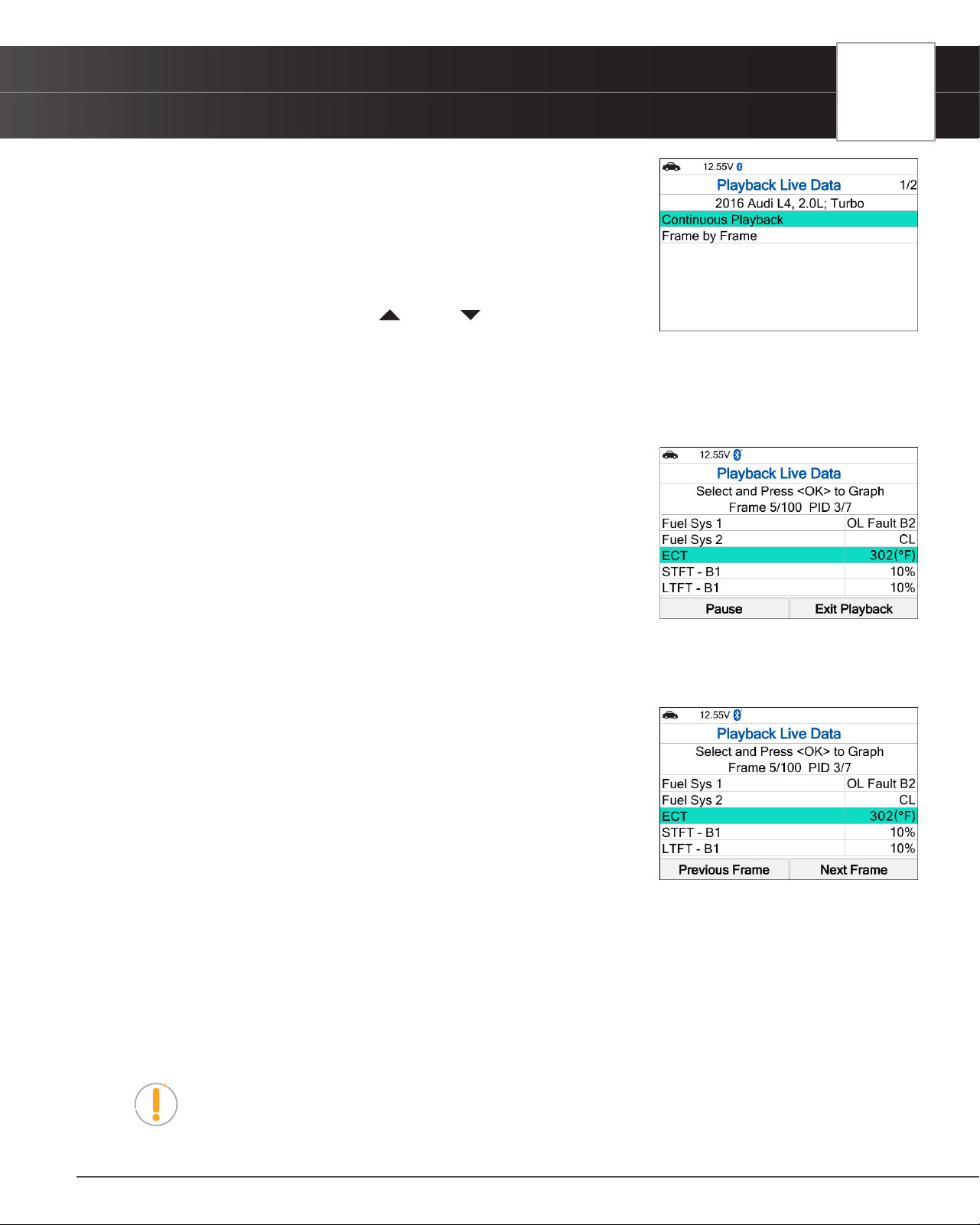
3. Select Continuous Playback or Frame by Frame, as desired, then
press OK.
n The display shows the recorded Live Data, beginning with the
“trigger” frame.
n Only a limited amount of PID data can be displayed on the screen
at one time. If additional PID data is available, a small arrow is
shown on the display. Press UP and DOWN, as necessary,
to view all available PID data.
n When viewing recorded Live Data, look for any irregularities in any of the PID values/signal
information (LTFT %, RPM, MAP, TEMP, etc.). If any PIDs are not within specication, or irregularities
are detected, follow the procedures in the vehicle’s service repair manual to perform additional
troubleshooting and repair.
4. When you select Continuous Playback, the Tablet Scan Tool plays
recorded data at a rate of one frame per 2 seconds.
n Press OK on any selected PID to open a graph view for that PID.
n Select Pause, to “pause” the Live Data playback. Select Play to
resume the playback mode.
n Select Exit Playback to exit the Live Data Playback mode and
return to the Playback Live Data menu.
n Once playback nishes, the Tablet Scan Tool automatically returns to the Playback Live Data menu.
━ To replay the data again, select Continuous Playback or Frame by Frame, as desired, then
press OK.
5. When Frame by Frame is selected, you must scroll the individual
frames manually.
n When you have viewed all PID information for the current frame of
Live Data, choose Next Frame or Previous Frame, as desired.
n Press OK on any PID to open a graph view for that PID.
n To exit Live Data Playback mode, select Exit Playback at the
bottom of the list, then press OK.
O2 Sensor Monitor - $05
The O2 Sensor Monitor lets you view the test results of the vehicle’s two or more O2 sensors. These sensors are designed
to help identify problems that can reduce fuel efciency or increase emissions. Each O2 sensor has a unique name that
identies its location in the exhaust system – cylinder bank location (bank 1 or bank 2) and its location in relation to the
catalytic converter (upstream or downstream). Please reference the vehicle’s service manual for further information.
NOTE: Service Mode $05 is not supported in ISO 15765-4 (CAN) applications – it
includes the majority of 2008 and older vehicles. For CAN applications, the functionality
of Service Mode $05 was revised and implemented in Service Mode $06.
24
USING THE TABLET
OBD2 Diagnostics
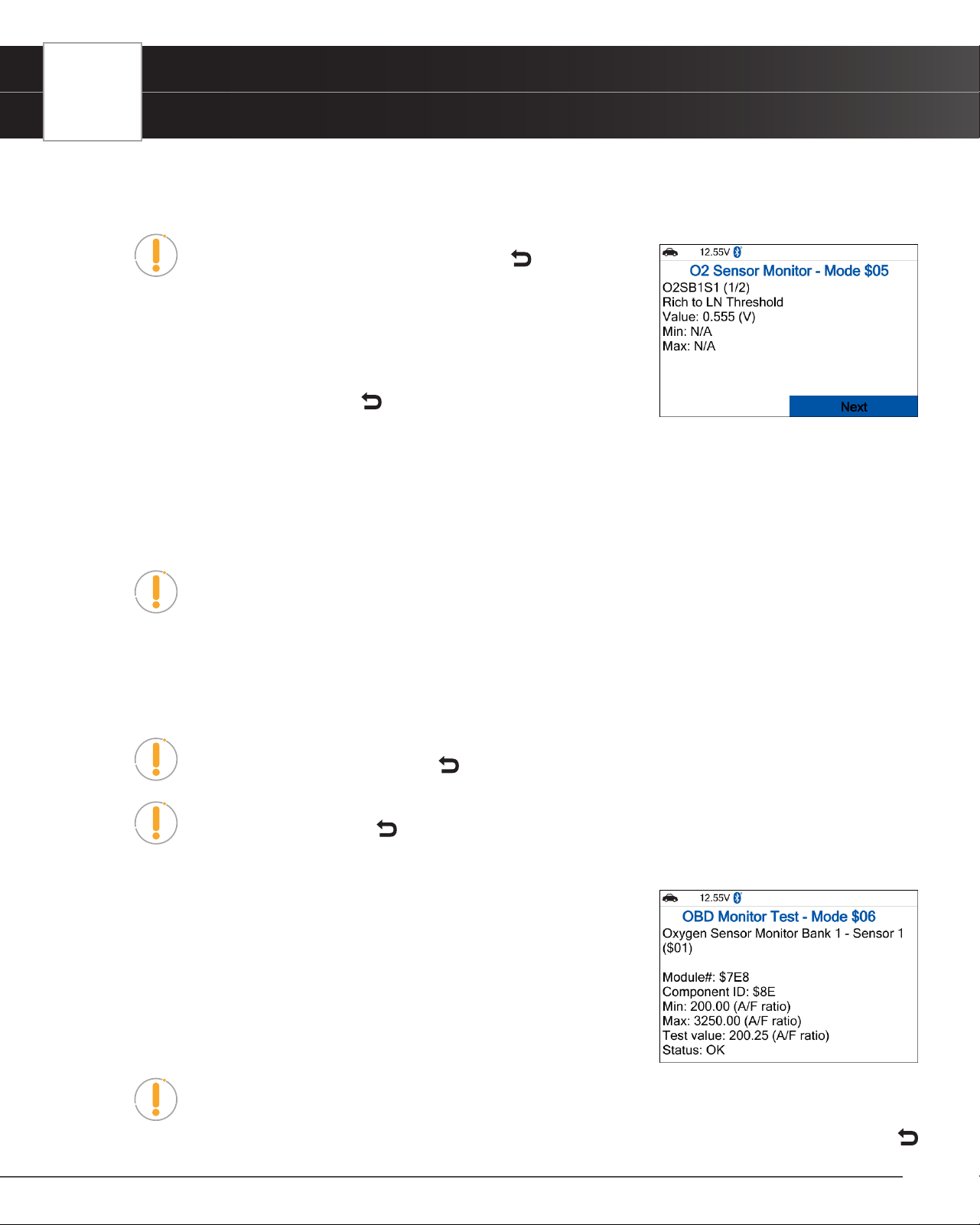
1. From OBD2 Menu, select O2 Sensor Monitor - $05, then press the OK button.
n The O2 Sensor Monitor - $05 screen displays.
NOTE: If the O2 Sensor Monitor is not supported by the vehicle
under test, a notication is displayed. Press the Back button to
return to the OBD2 menu.
2. Choose the item you wish to view, then press OK.
n The screen displays test result.
3. When you have nished viewing the retrieved test data, press Next to view
results for the next test, or press Back to return to Select Test menu.
OBD Monitor Test - $06
The OBD Monitor Test function retrieves and displays test results for emission-related powertrain components and systems
that are not continuously monitored. The tests available are determined by the vehicle’s manufacturer.
NOTE: The diagnostic tablet does not perform the OBD monitor test but retrieves results
from the most recently performed tests from the on-board computer’s memory. You may
retrieve OBD monitor test results for only one test at any given time.
1. From the OBD2 Menu, select OBD Monitor Test - $06, then press the OK button.
2. A “One moment please…” message displays, followed by the Select Test menu screen. (Refer to the vehicle’s
service repair manual for information related to non-continuous tests.)
NOTE: If OBD Monitor Test data is not presently stored in the vehicle’s computer, an
advisory message display. Press the Back button to return to the OBD2 Menu.
NOTE: If the OBD Monitor Test is not supported by the vehicle under test, an advisory
message display. Press the Back button to return to the OBD2 Menu.
3. Select the desired test, then press OK to display the test results. The display shows the following information:
n Test ID number
n Module ID number
n Component ID number
n Min or Max test limit (Only one test limit, either Min or Max, is shown
for any given test.)
n Test Value and status.
NOTE: Status is calculated by the diagnostic tablet by comparing the Test Value against
the displayed test limit (either Min or Max). Status is shown as either Low, High, or OK.
4. When you have nished viewing the retrieved test data, press Next to view results for the next test, or press
Back to return to Select Test menu.
USING THE TABLET
OBD2 Diagnostics
25
5. When you have nished viewing test data for all desired tests, press Back from Select Test menu to return to
OBD2 Menu, or press the Home button to return to Home screen.
Request Control On-Board System - $08
The Request Control On-Board System - $08 allows you perform an EVAP Test or Particulate Filter Regeneration and
Inducement System Reinitialization.
n EVAP Test - lets you initiate a leak test for the vehicle’s EVAP system.
n Particulate Filter Regeneration – this service requests the vehicle to initiate a PF regeneration. The
vehicle manufacturer is responsible to determine the criteria to enable, start and stop the test, such
as engine running, vehicle speed, or engine rpm.
n Inducement System Reinitialization - This service requests the vehicle to initiate a reinitialize the
inducement system. The vehicle manufacturer is responsible to determine the criteria to enable,
start and stop the test, such as engine running, vehicle speed, or engine rpm.
NOTE: The Tablet does not perform the leak test, but signals to vehicle’s on-board computer to
initiate the test. The vehicle manufacturer determines the criteria and method for stopping the
test once it has been started. BEFORE using the Request Control On-Board System function,
refer to the vehicle’s service manual to determine the procedures necessary to stop the test.
NOTE: Some vehicle manufacturers do not allow Tablets or other external devices to
control vehicle systems. If the Request Control On-Board System is not supported by the
vehicle under test, an advisory message displays. Press Back to return to the OBD2
Menu.
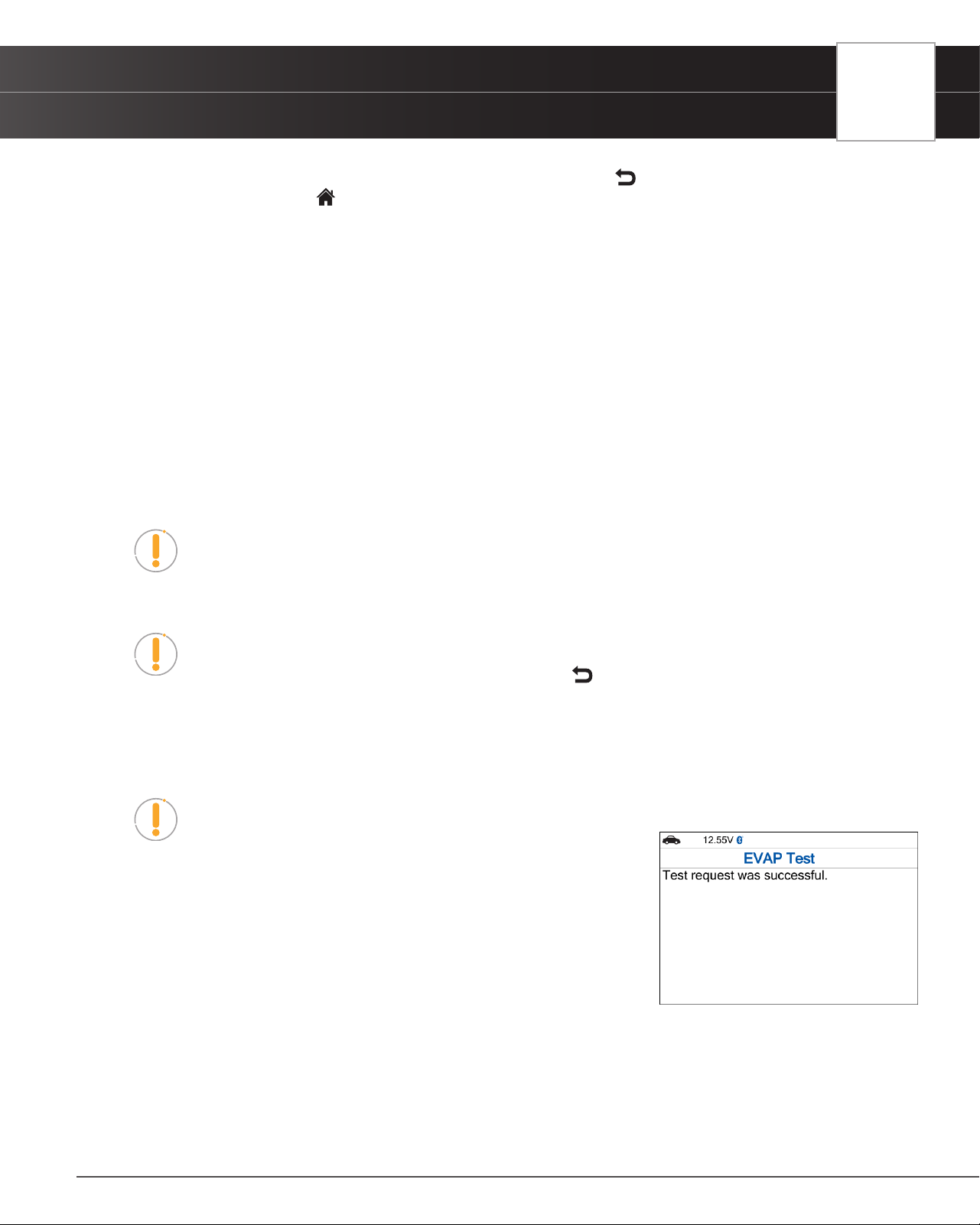
1. From the OBD2 Menu, select Request Control On-Board System - $08, then press the OK button.
n A Request Control On-Board System - $08 screen displays.
NOTE: The EVAP Test is used for Spark Ignition, and the Particulate Filter Regeneration
and Inducement System Reinitialization is used for Compression
Ignition.
2. Select the test that displays on screen, then press OK.
3. A “One moment please…” message displays while the tablet performs
the test.
4. When the test has been initiated by the vehicle’s on-board computer, a
conrmation message displays.
Drive Cycle Procedures
A Drive Cycle for a Monitor requires that the vehicle is driven in such a way that all the required “Enabling Criteria” for the
Monitor to run and complete its diagnostic testing are met. You can use the Tablet to view the Drive Cycle Procedures for
a selected Monitor.
1. From OBD2 Menu, select Drive Cycle Procedures, then press the OK button. A “One moment please…” message
26
USING THE TABLET
OBD2 Diagnostics
displays while the Tablet retrieves Monitor status.
NOTE: If the Tablet retrieves Permanent DTCs only, MIL Off and California state is
selected, Drive Cycle Procedures can be viewed from the OBD2 Diagnostic screen.
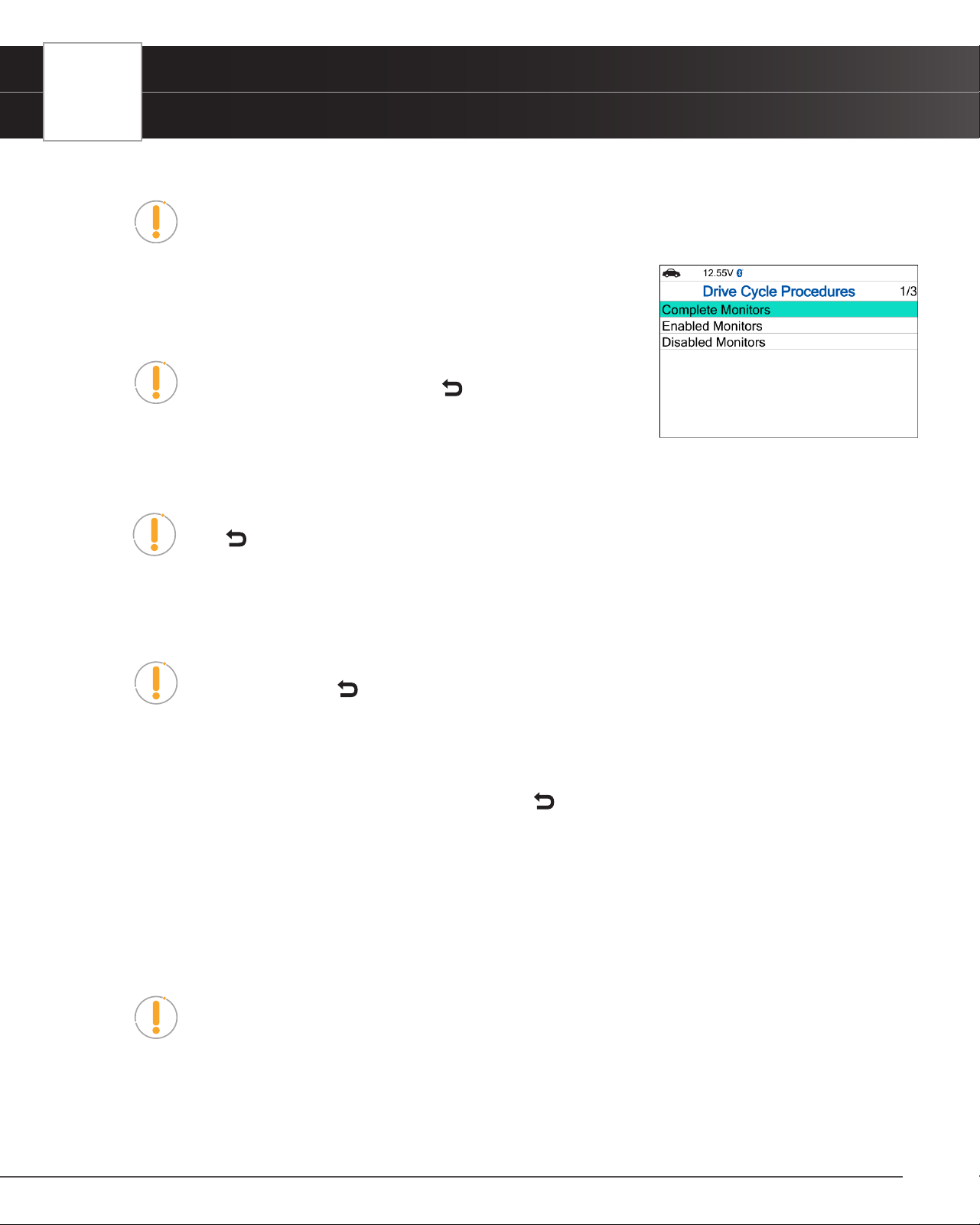
2. When Monitor status has been retrieved, the Drive Cycle Procedures menu
displays. Depending on the Monitor status, you can view Drive Cycle
Procedures for Complete Monitors, Incomplete/Enabled Monitors or
Disable Monitors.
NOTE: If Drive Cycle Procedures are not available for the vehicle,
an advisory message displays. Press Back to return to the
OBD2 Menu.
3. Select Complete Monitors, Incomplete / Enabled Monitors or Disable Monitors, as desired, then press OK.
n A list of the available Monitors for the selected status displays.
NOTE: If no Monitors for the selected status are detected, an advisory message displays.
Press Back to return to the OBD2 Menu.
4. Select the Monitor for which you wish to view Drive Cycle Procedures, then press OK button.
n A “One moment please…” message displays while the Tablet retrieves the requested Drive Cycle
Procedure. Once retrieved, the Drive Cycle Procedures screen displays.
NOTE: If a Drive Cycle Procedure for the selected Monitor is not available, an advisory
message show. Press Back to return to the OBD2 Menu.
5. The Drive Cycle Procedure screen shows the specic set of operating procedures that ensure the vehicle is driven
in such a way that all the required “Enabling Criteria” for the Monitor to properly run and complete its diagnostic
testing.
6. When nished viewing the Drive Cycle Procedures, press Back to return to the Drive Cycle Procedures menu.
Viewing Vehicle Information - $09
The Tablet offers three options for retrieving reference information for the vehicle under test: Vehicle ID, Available Modules
and In-use Performance Tracking.
Viewing Vehicle ID
NOTE: The Vehicle ID function is applicable to model year 2000 and newer OBD2-
compliant vehicles.
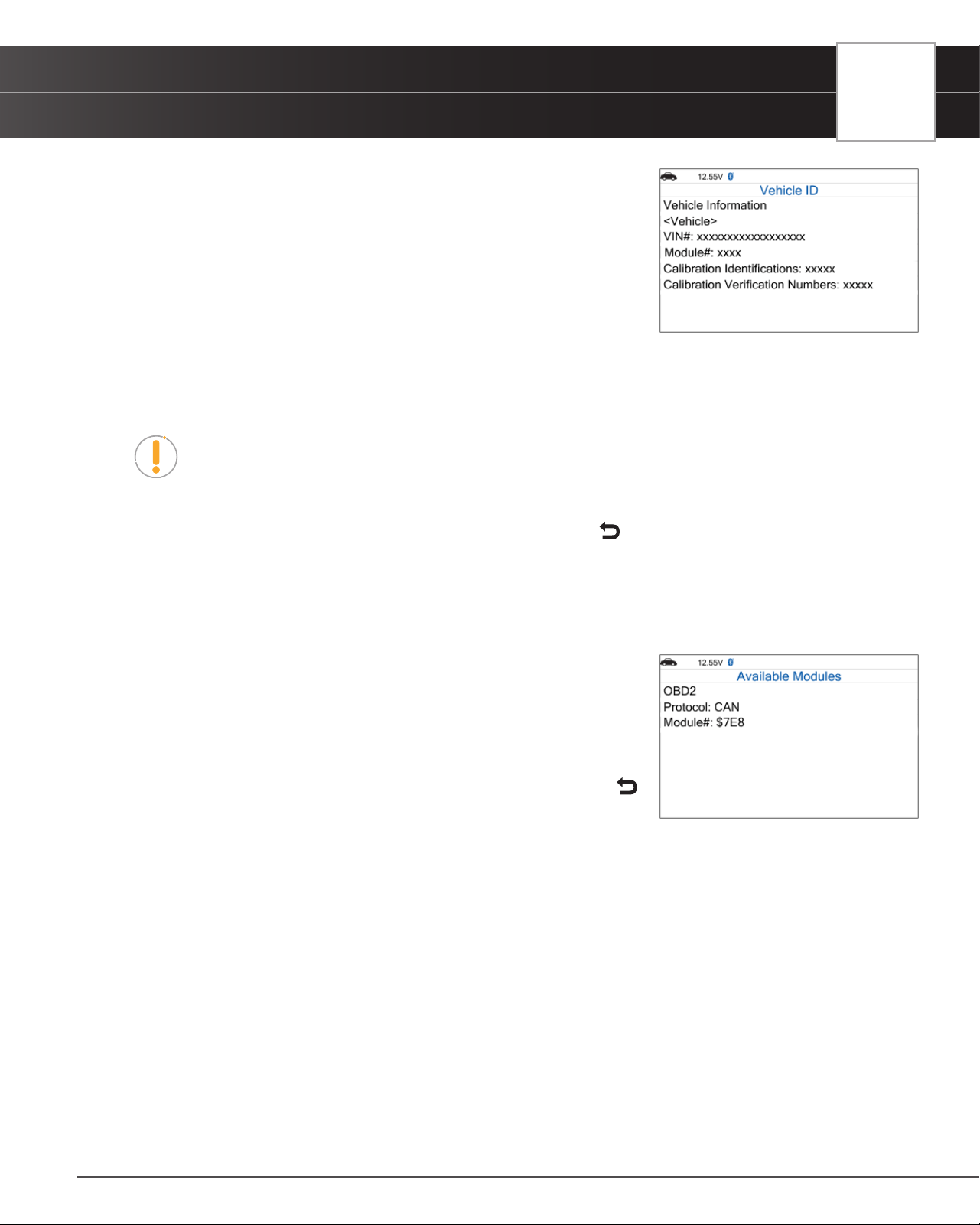
The Tablet can retrieve a list of information (provided by the vehicle’s manufacturer), unique to the vehicle under test,
from its on-board computer. This information may include:
n The vehicle’s VIN number.
USING THE TABLET
OBD2 Diagnostics
27
n The control module identication number.
n The vehicle’s calibration ID(s). These IDs uniquely identify the
software version(s) for the vehicle’s control module(s).
n The Vehicle’s Calibration Verication Number(s) (CVNs) required
by ODB2 regulations. CVNs are used to determine if emission-
related calibrations for the vehicle under test have been changed.
One or more CVNs may be provided by the vehicle’s computer.
1. From OBD2 Menu, select Vehicle Information - $09, then press OK.
n The Vehicle Information menu displays.
2. Select Vehicle ID, then press OK.
NOTE: The rst time the Vehicle ID function is used, it may take several minutes to
retrieve the information from the vehicle’s computer.
3. When the retrieval process is completed, the vehicle ID information displays.
4. When nished viewing the retrieved vehicle ID information, press Back to Vehicle Information menu.
Viewing Available Modules
The Tablet can retrieve a list of modules supported by the vehicle under test.
1. From OBD2 Menu, select Vehicle Information - $09, then press OK.
n The Vehicle Information menu displays.
2. Select Available Modules, then press OK.
3. When the retrieval process is completed, a complete list of modules
supported by the vehicle under test displays.
4. When you have nished viewing the list of available modules, press
Back to return to the Vehicle Information menu.
Viewing In-Use Performance Tracking
The Tablet can retrieve In-use Performance Tracking (IPT) statistics for monitors supported by the vehicle under test.
Two values are returned for each monitor; the number of times that all conditions necessary for a specic monitor to
detect a malfunction have been encountered (XXXCOND), and the number of times that the vehicle has been operated
under the specic conditions for the monitor (XXXCOMP). Statistics are also provided for the number of times the vehicle
has been operated in OBD monitoring conditions (OBDCOND), and the number of times the vehicle’s engine has been
started (IGNCNTR).
1. From OBD2 Menu, select Vehicle Information - $09, then press OK.
n The Vehicle Information menu displays.
2. Select In-Use Performance Tracking then press OK.
3. When the retrieval process is completed, the In-use Performance Tracking statistics for the vehicle are under test
display.
28
USING THE TABLET
OEM Diagnostics
n If In-use Performance Tracking is not available for your vehicle, an advisory message shows on the
diagnostic tablet’s display. Press Back to return to the Vehicle Information Menu.
4. When you have nished viewing the list of available modules, press Back to return to the Vehicle Information
menu.
OEM Diagnostics
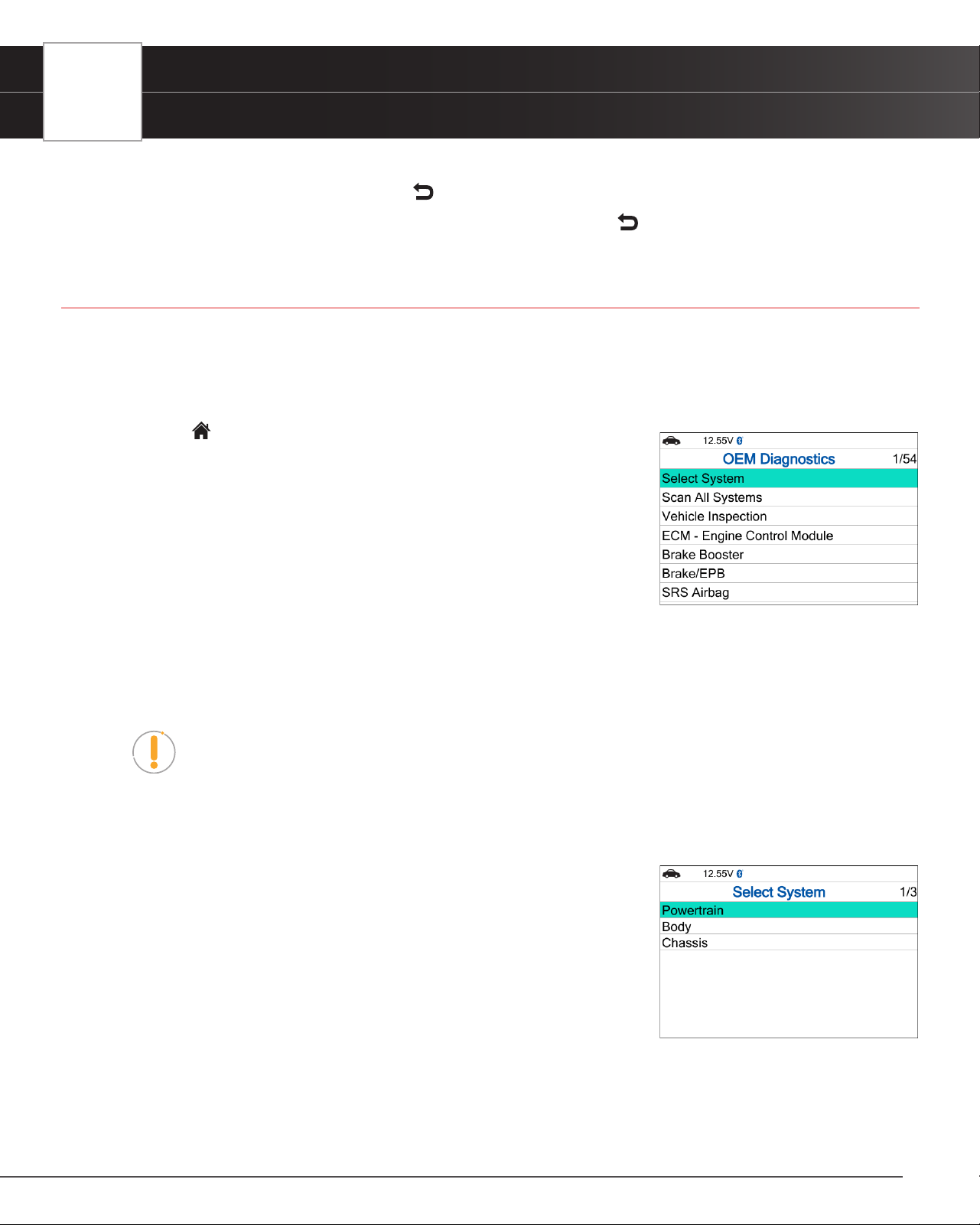
The OEM DIAGNOSTICS function allows you to perform enhanced, OEM level diagnostics not available over generic
OBD2. It provides the ability to retrieve “enhanced” DTCs for ABS, Transmission, and Engine Control Module. You can even
provide a comprehensive Vehicle Inspection report that shows the complete Diagnostic Report, Customer Report, and the
Collision Industry Report – offering a complete overview of the vehicle’s current health status.
1. From the Home Screen, select OEM Diagnostics and press the OK
button.
2. A selection dialog is provided.
3. Choose the type of test you wish to perform:
n Select the Select System to perform a comprehensive module
scan in each Powertrain, Body, or Chassis group.
n Select the Scan All Systems to perform a comprehensive vehicle
scan of all available network modules.
n Select the “individual” listed control module name to perform a diagnostic check on that single
module.
n Select Vehicle Inspection to perform a complete vehicle health status report, including: OBD2
check, all Network system scans, service check, tire pressures, and more.
NOTE: The available modules may vary depending on the specic vehicle being tested.
Perform a Scan - Select System
1. Select Select System from the OEM Diagnostics screen, then press OK.
n The Module Selection screen displays.
2. Choose either Powertrain, Body, or Chassis modules you wish to scan,
then press OK.
n A “Linking…” message displays while the Scan Tool scans all
available modules.
n When the scan is complete, the <Module> scan screen displays.
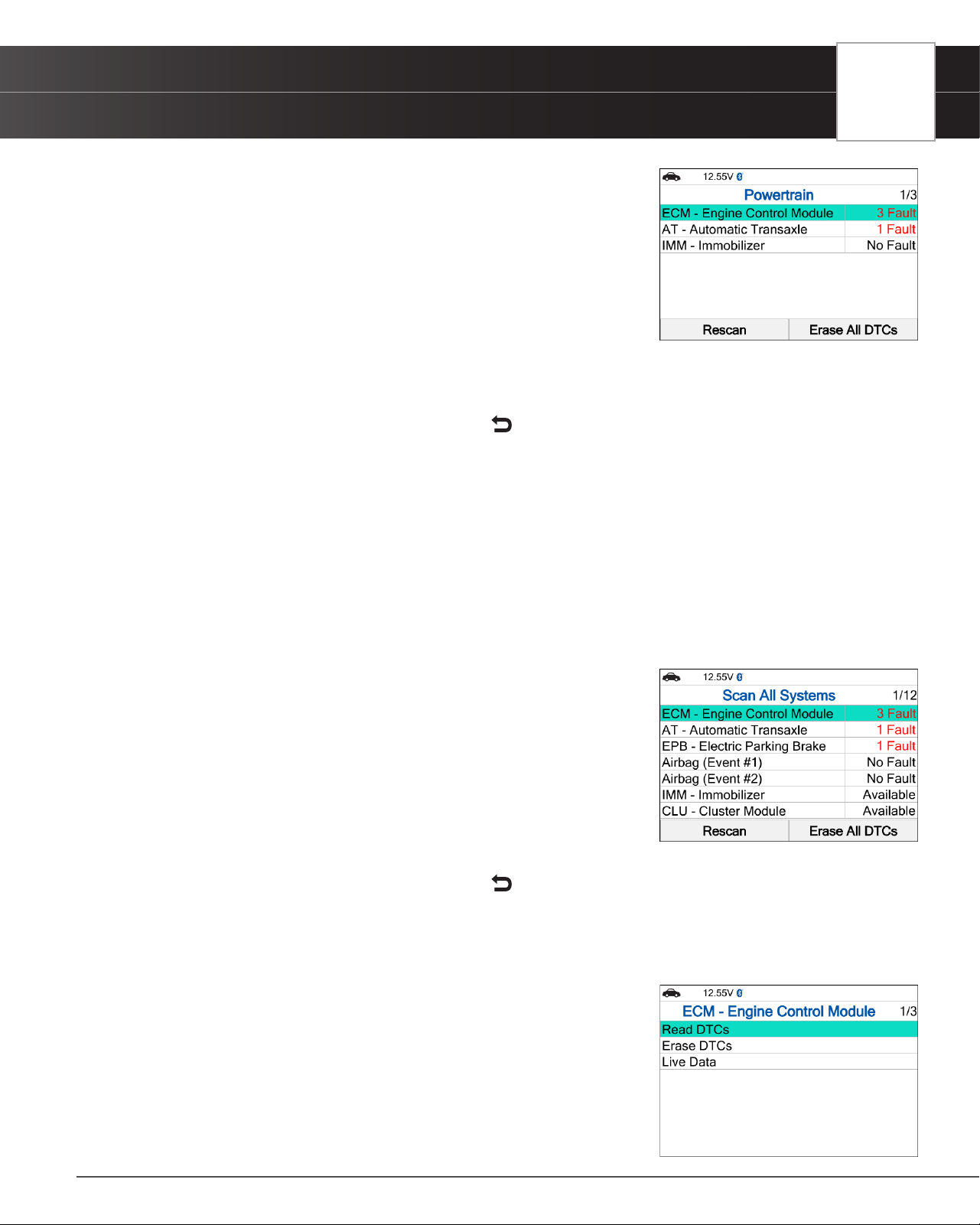
The screen shows the number of DTCs recorded for each available
module.
n The results window lists all tested control modules with its corresponding result:
━ Fault – Indicates the number of reported DTCs.
━ No Fault – Indicates that no DTCs were found.
USING THE TABLET
OEM Diagnostics
29
n If In-use Performance Tracking is not available for your vehicle, an advisory message shows on the
diagnostic tablet’s display. Press Back to return to the Vehicle Information Menu.
4. When you have nished viewing the list of available modules, press Back to return to the Vehicle Information
menu.
OEM Diagnostics
The OEM DIAGNOSTICS function allows you to perform enhanced, OEM level diagnostics not available over generic
OBD2. It provides the ability to retrieve “enhanced” DTCs for ABS, Transmission, and Engine Control Module. You can even
provide a comprehensive Vehicle Inspection report that shows the complete Diagnostic Report, Customer Report, and the
Collision Industry Report – offering a complete overview of the vehicle’s current health status.
1. From the Home Screen, select OEM Diagnostics and press the OK
button.
2. A selection dialog is provided.
3. Choose the type of test you wish to perform:
n Select the Select System to perform a comprehensive module
scan in each Powertrain, Body, or Chassis group.
n Select the Scan All Systems to perform a comprehensive vehicle
scan of all available network modules.
n Select the “individual” listed control module name to perform a diagnostic check on that single
module.
n Select Vehicle Inspection to perform a complete vehicle health status report, including: OBD2
check, all Network system scans, service check, tire pressures, and more.
NOTE: The available modules may vary depending on the specic vehicle being tested.
Perform a Scan - Select System
1. Select Select System from the OEM Diagnostics screen, then press OK.
n The Module Selection screen displays.
2. Choose either Powertrain, Body, or Chassis modules you wish to scan,
then press OK.
n A “Linking…” message displays while the Scan Tool scans all
available modules.
n When the scan is complete, the <Module> scan screen displays.
The screen shows the number of DTCs recorded for each available
module.
n The results window lists all tested control modules with its corresponding result:
━ Fault – Indicates the number of reported DTCs.
━ No Fault – Indicates that no DTCs were found.
━ Available – Indicates that the module is part of the system but
does not report DTCs.
n The results screen also allows too either:
━ Erase All DTCs - Erases all the module’s retrieved Diagnostic
Trouble Codes (DTCs).
━ Rescan - Performs scanning all systems again.
3. Select the desired system, then press OK.
n The menu for each module displays a list of options.
n Depending on the module selected, you can read DTCs, erase DTCs and view Live Data.
4. Choose the function you would like to run. Or press Back to return to the selected module screen.
n Read DTCs
n Erase DTCs
n Live Data
Perform a Scan - Scan All Systems
1. Select Scan All Systems from the OEM Diagnostics screen, then press OK.
n A “Linking…” message displays while the Tablet Scan Tool scans all available modules.
n When the scan is complete, the Scan All Systems screen displays.
The screen shows the number of DTCs recorded for each available
module.
n Select the desired system, then press OK.
2. Select the desired system, then press OK.
n The menu for each module displays a list of options.
n Depending on the module selected, you can Read DTCs, Erase
DTCs and view Live Data.
3. Choose the function you would like to run. Or press Back to return to the selected module screen.
Perform a Scan for Individual Modules
1. From the OEM Diagnostics screen, select a module from the available list
of modules, then press OK.
2. Depending on the modules selected, you can Read DTCs, Erase DTCs,
and view Live Data.
n Read DTCs
n Erase DTCs
n Live Data
30
USING THE TABLET
OEM Diagnostics
Reading DTCs
1. Select the module for which you wish to read DTCs.
n Select Read DTCs in the selected module screen.
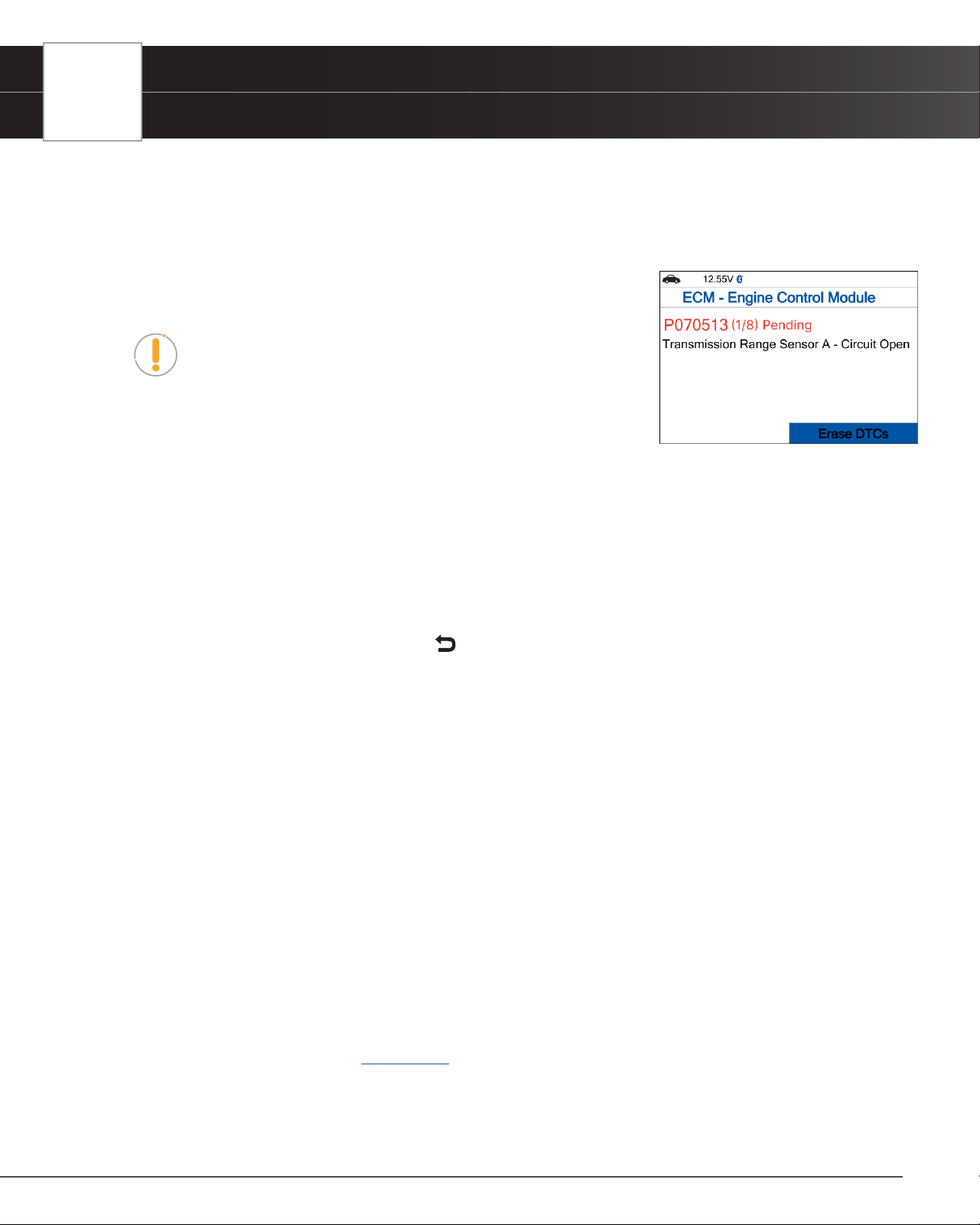
2. The Tablet Scan Tool retrieves and displays DTCs stored in the vehicle’s
computer for the currently selected module.
NOTE: If no DTCs for the selected module are currently stored
in the vehicle’s computer, the message “No ‘modules’ DTCs are
presently stored in the vehicle’s computer” displays.
3. Select Erase DTCs to erase ALL retrieved Diagnostic Trouble Codes
(DTCs).
Erasing DTCs
1. Select the module for which you wish to erase its DTCs.
2. Choose Erase DTCs. A conrmation message shows.
n Ensure that the ignition in the Key ON, Engine OFF position.
n If you are sure you want to proceed, choose Erase DTCs for a second time.
n If you do not want to proceed, press Back to cancel the erase procedure.
3. If you selected to erase its DTCs, a “One moment please…” message displays while the erase function is in
progress.
n If the erase was successful, a conrmation message displays. After 3 seconds, the Tablet Scan Tool
will automatically re-scan the currently selected module.
n If the erase was not successful, an advisory message displays indicating the erase request was
sent to the vehicle’s computer. After 3 seconds, the Tablet Scan Tool will automatically re-scan the
currently selected module.
Live Data
Follow these steps to view Live Data for the currently selected module.
1. Select the module for which you wish to view Live Data, then press OK.
n The individual module menu screen displays.
2. Choose Live Data, then press OK.
n The results screen displays all the vehicle’s available PIDs with reported values.
n Refer to OBD2 Live Data [See page 17] on how to use Live Data mode.
Vehicle Inspection
Performing a full vehicle scan ensures peace of mind for you and your customers. Many systems do not turn on a light
USING THE TABLET
OEM Diagnostics
31
or places a message on the vehicle’s Diagnostic Information Center, so following this process can help uncover hidden
issues.
A good practice is to perform a pre-scan before any work is done to uncover all issues, then a post-scan once repairs are
complete to conrm the repairs were completed properly. Furthermore, several manufacturers mandate a pre- and post-
scan for all warranty work and insurance carriers require it for pre- and post-collision work.
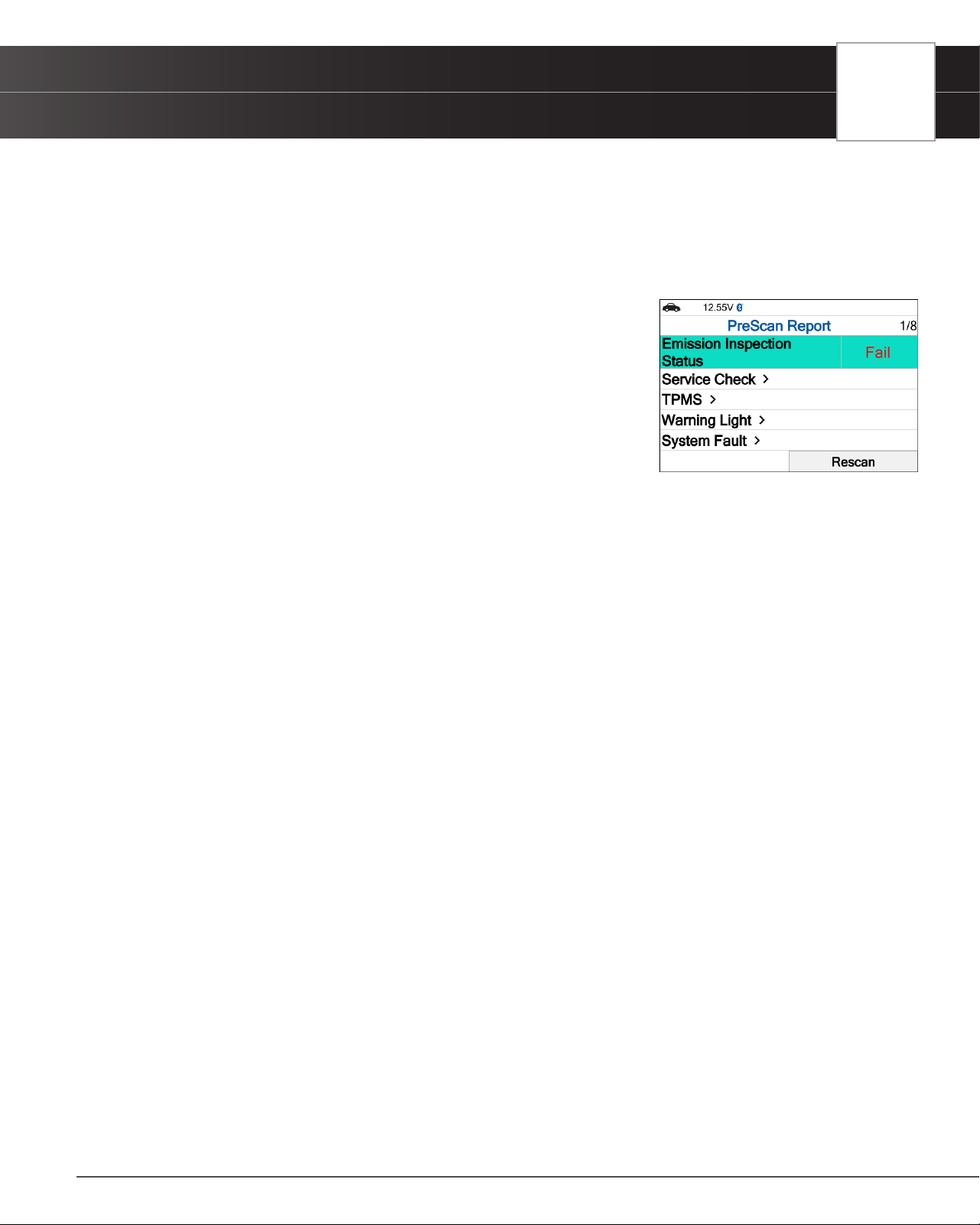
Emission Inspection Status - Indicates whether the vehicle
is ready for an Emissions Test (Smog Check) based on DTCs
present, Freeze Frame data, Monitor Status, MIL (Check Engine
Light) status, and Engine Type. Results are shown as “Pass”, “Fail”
or “Warning”.
Service Check – Provides values for Odometer, Engine Oil Level,
Oil Life Remaining, Transmission Fluid Temperature.
TPMS - Shows the status of the vehicle’s Tire Pressure Monitoring
System (TPMS) and the individual tire pressures for all tires.
Warning Light - Conrms the ON or OFF status for the vehicle’s ABS Dash Indicator and Airbag
Dash Indicator.
System Fault – Ahows number of DTCs retrieved for all of the vehicle’s systems.
System No Fault/Available – Provides information on which vehicle systems are not reporting any
DTCs and/or it does not support reading DTCs.
System No Response – shows the systems that the vehicle does not support.
1. From the OEM Diagnostics screen, select the Vehicle Inspection button.
n The Select Business Report screen displays.
2. Choose the Business Report you wish to retrieve, then press OK.
n Diagnostic Report – Provides a report for OBD2 Data, MIL DTC additional Information, Scan All
Systems Data, and Vehicle Care.
n Customer Report – Provides a report for OBD2 Data, Scan All Systems Data, Service Check, and
Vehicle Care.
n Collision Industry Report – Provides a report for OBD2 Data, Scan All Systems Data, and Service
Check.
3. Choose the report type you wish to view, then press OK.
n The PreScan – View the vehicle’s diagnostic report before making any repairs.
n The PostScan - View the vehicle’s diagnostic report after completing the repairs.
4. A “One moment please...” message displays, while the Tablet Scan Tool scans all the vehicle’s equipped modules.
n It can take several minutes depending on the number of available systems available on the vehicle
being tested.
5. A “Submitting data…” message displays while this function is in progress.
6. Select Rescan, to get the most current diagnostic status for vehicle under test – particularly as you continue to
troubleshoot each individual control module.
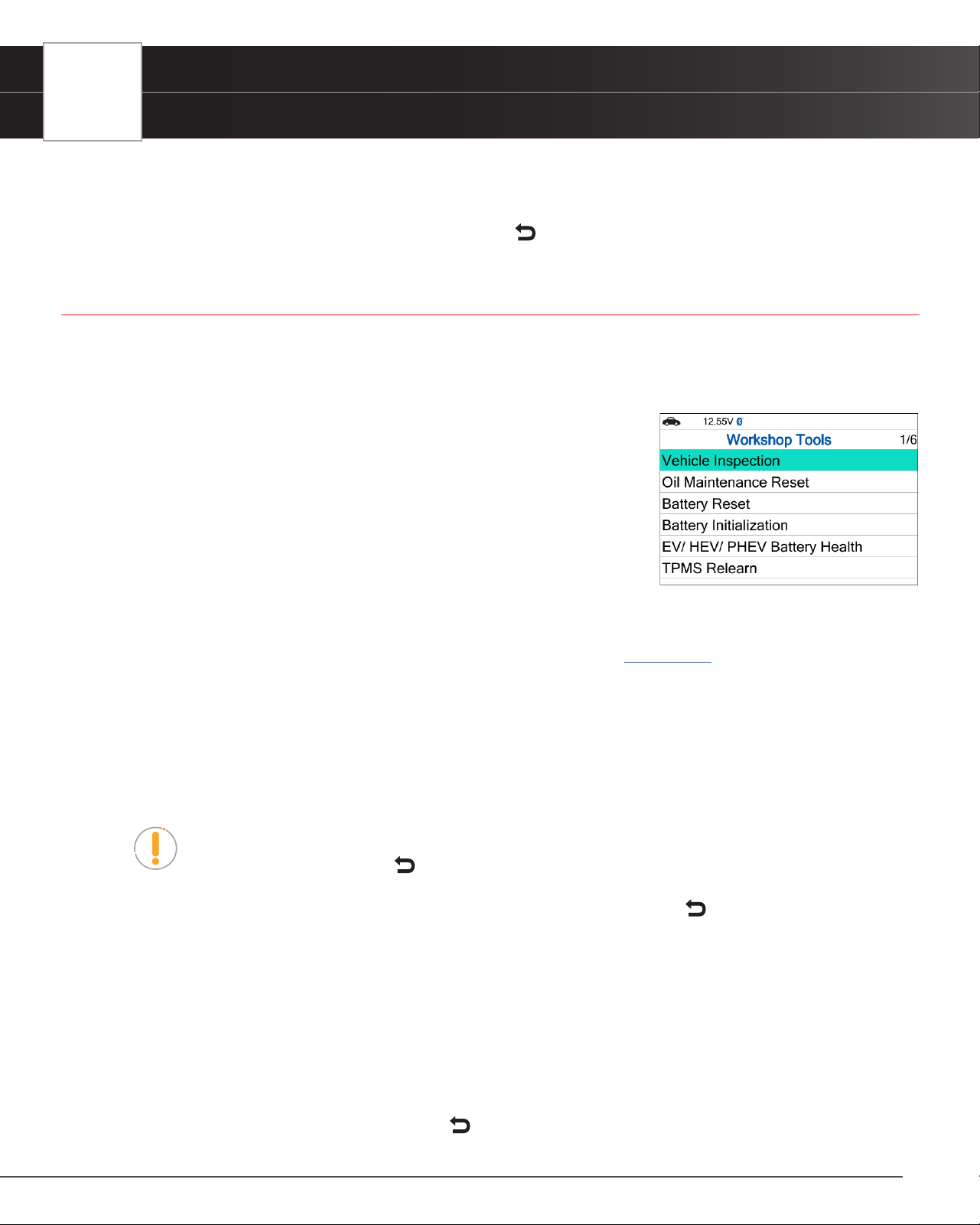
32
USING THE TABLET
Workshop Tools
n An “instructional” dialog displays to conrm selection.
n Select Yes to rescan the vehicle. Or, No to cancel.
7. When nished viewing all desired information, select Back to return to the OEM Diagnostics menu.
Workshop Tools
The WORKSHOP TOOLS function allows you to perform several OEM / dealership services, including Vehicle Inspection,
Oil Maintenance Reset, Battery Reset, Battery Initialization, EV/HEV/PHEV Battery Health, Battery/Alternator Test,
TPMS Relearn. Access dealership level relearn procedures to complete repairs or maintenance and much more.
Vehicle Inspection
Oil Maintenance Reset
Battery Reset
Battery Initialization
EV/HEV/PHEV Battery Health, Battery/Alternator Test
TPMS Relearn
Vehicle Inspection
Refer to the Vehicle Inspection section under OEM Diagnostics to learn more. [See page 30]
Oil Maintenance Reset
1. Select Oil Maintenance Reset on the Workshop Tools screen.
n An “instructional” dialog displays to conrm selection.
n Select Yes to continue. Or, No to cancel.
NOTE: If the Tablet cannot reset the Oil Maintenance Light, an “instructional” dialog
displays, showing the manual procedures for resetting the indicator light. When nished
viewing the instructions, press Back to return to the Workshop Tools screen.
2. When the reset process has completed, a conrmation message displays. Select Back to return to the Workshop
Tools screen.
n If the Oil Maintenance Reset was not successful, an advisory message displays.
3. To perform the Oil Maintenance Reset by procedure, choose View Procedure.
n An “instructional” dialog displays, showing the manual procedures for resetting the indicator light.
4. If you do not wish to perform the Oil Maintenance Reset by procedure, choose Exit to return to the Workshop Tools
screen.
n A “status” message displays while the Oil Maintenance Reset is in progress.
5. When nished viewing the instructions, press Back to return to the Workshop Tools.
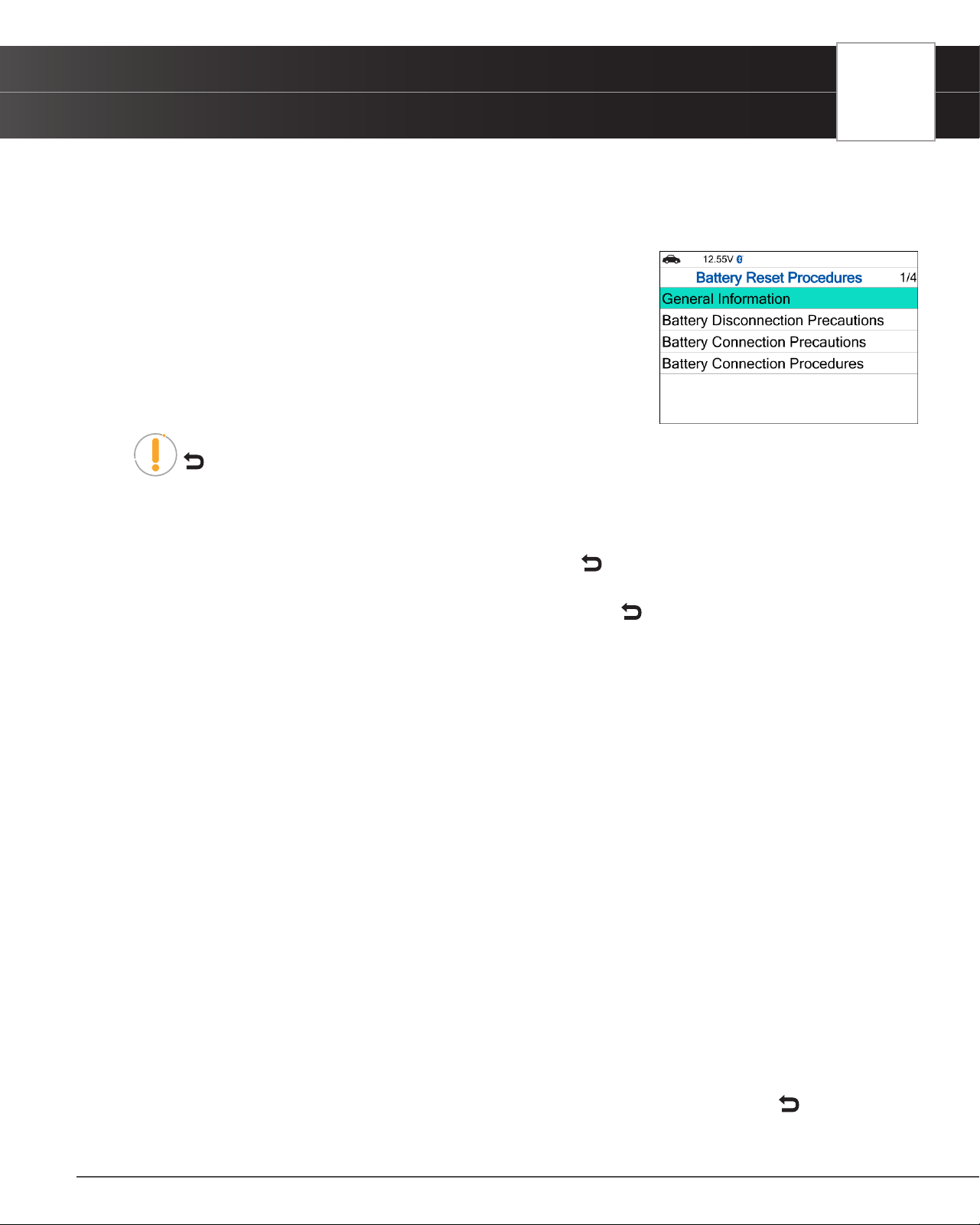
USING THE TABLET
Workshop Tools
33
Battery Reset
You can use the Tablet to view the procedures for resetting the battery monitor system following a battery replacement.
1. Select Battery Reset on the Workshop Tools screen.
n The Battery Reset Procedures screen displays.
2. Select OK to continue.
n The Battery Reset Procedures menu displays. The menu provides
access to General Information, and procedures to be followed:
Battery Disconnection Precautions, Battery Connection
Precautions, and Battery Connection Procedures.
NOTE: If battery reset procedures are not available, an advisory message show. Choose
Back to return to the Workshop Tools screen.
3. Choose the procedure you wish to view, then press the OK button.
n The selected procedure displays.
4. When you have nished viewing the retrieved information, choose Back to return to the Battery Reset Procedures
menu. Repeat step 3 to view additional procedures.
n When you have nished viewing all desired procedures, choose Back to return to the Workshop
Tools.
Battery Initialization
Follow these steps to perform a battery OBD reset service for Audi/Volkswagen, BMW, Ford, and Volvo models.
To perform battery reset OBD service (BMW / Ford / Volvo):
1. Select Battery Initialization on Workshop Tools screen.
n The Battery Reset OBD Service displays.
2. Select Next, then press OK.
n An “instructional” message display.
3. Follow the instructions provided to prepare the vehicle for battery reset OBD service. When all necessary
procedures have been performed, choose Next to continue.
n A “Live Data” screen displays, if applicable.
4. Choose Next to continue.
n A “One moment please…” message displays while battery reset is in process.
5. If the battery reset process is successful, a “Reset Complete” message displays.
n Choose Exit to return to the Workshop Tools screen.
n If the battery reset process is not successful, a “Reset Fail” message displays. Choose Back to
return to the Workshop Tools screen.
34
USING THE TABLET
Workshop Tools
To perform battery reset OBD service (Audi / Volkswagen):
1. Select Battery Initialization on Workshop Tools screen.
n The Battery Reset OBD Service displays.
2. Select Battery Reset OBD Service, then press OK.
n An “informational” screen display.
3. Choose Next to continue.
n A series of “instructional” screens display, directing you to enter reference information for the battery
(part number, manufacturer, serial number).
4. Choose Next as necessary to scroll the screen and enter the necessary information.
n A “conrmation” screen displays.
n The screen shows the previously entered Battery Part Number, Battery Manufacturer and Battery
Serial Number.
5. Select the desired option:
n To proceed with coding, select Carry Out Coding and press OK. Proceed to step 6.
n To re-enter battery reference information, select Repeat Input and press OK. Repeat steps 3 and 4.
n To cancel the battery reset process, select Cancel and press OK.
6. If battery coding was successful, a “conrmation” screen displays. Choose Back to return to the Workshop
Tools screen.
n If battery coding was not successful, an “advisory” screen display. Choose Exit to return to the
Workshop Tools screen.
TPMS Relearn
Use this to initialize/ relearn the Tire Pressure Monitoring System, or TPMS, and turn off a TPMS light/ message on the
dashboard. Also, use this function to write the ID of new sensor to the control module whenever the TPMS sensor is
replaced.
1. From the Workshop Tools screen, select TPMS Relearn, then press OK.
n The TPMS Relearn Menu displays.
NOTE: If the TPMS Relearn is not supported by the vehicle under test, an “advisory”
message display. Choose Back to return to the Workshop Tools screen.
2. To view TPMS Relearn Procedures, select TPMS Relearn Procedures, then press OK.
n The TPMS Relearn Procedures displays.
n If the TPMS Relearn Procedures is not available, an advisory message shows.
3. To perform TPMS Relearn OBD, select TPMS Relearn OBD, then press OK.
n A “One moment please…” message may display.
n One or more sub-menus will be displayed. Select the desired options, then proceed to step 4.
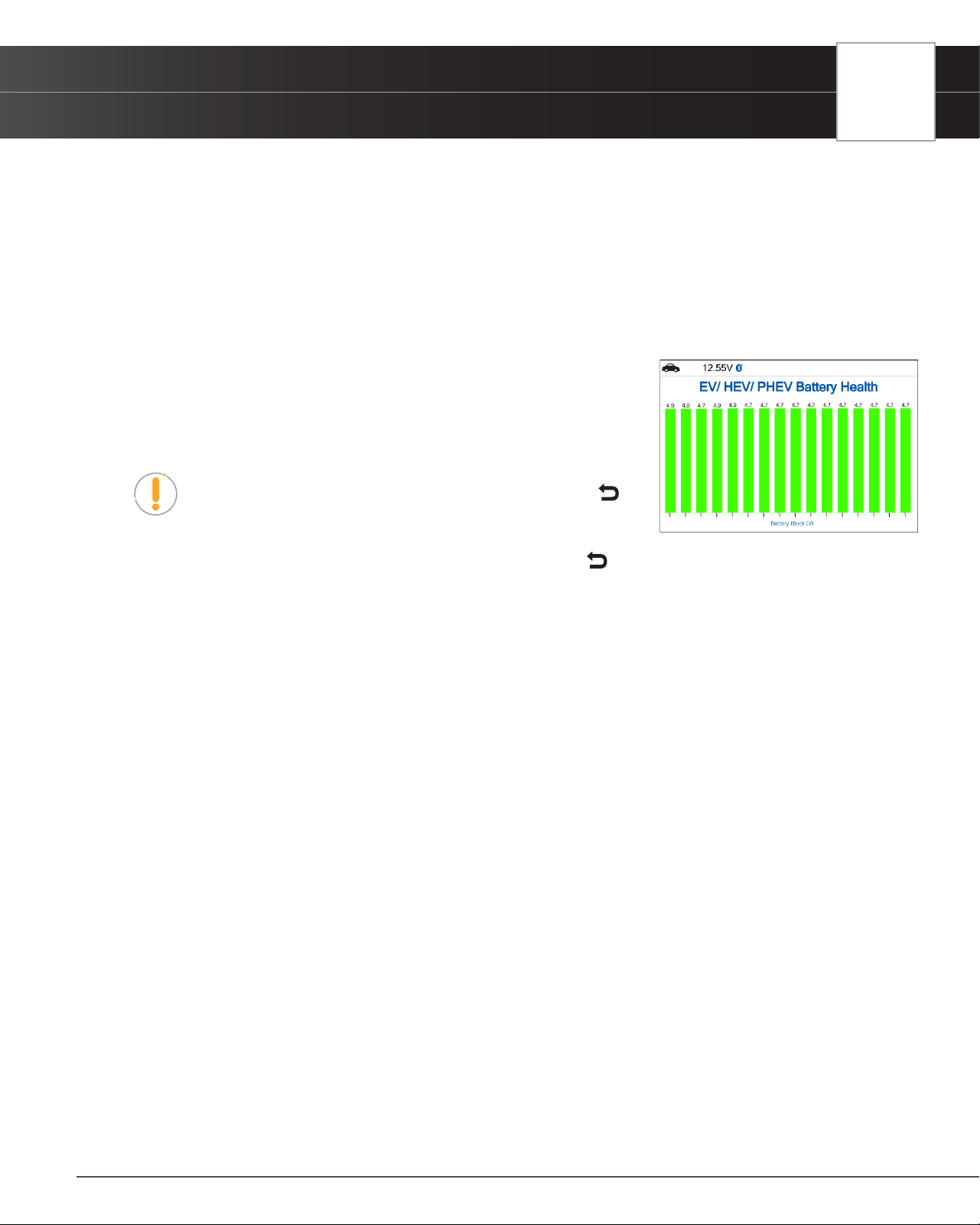
USING THE TABLET
Workshop Tools
35
4. A “results” screen displays when the reset procedure has been completed. Select End, then press OK to terminate
the test.
EV/HEV/PHEV Battery Health
Follow these steps to check the vehicle’s battery and alternator system (or hybrid/EV battery system) to ensure the system
is operating within acceptable limits.
1. Select EV/HEV/PHEV Battery Health in the Workshop Tools screen, then press OK.
n The EV/HEV/PHEV Battery Health displays.
n If the vehicle is an electric or hybrid vehicle, the EV/ HEV/PHEV
Battery Health screen shows a graphic representation of the
vehicle’s current state of charge for all battery pack cells.
NOTE: If the Hybrid/EV Battery Test is not supported by the
vehicle under test, an “advisory” message displays. Choose
Back to return to the Workshop Tools screen.
2. When you have nished viewing the retrieved information, choose Back to return to the Workshop Tools screen.
Battery / Alternator Test
The Tablet can perform a check of the vehicle’s battery and alternator system to ensure the system is operating within
acceptable limits. Follow these steps to perform a battery check only, or an alternator system (battery and alternator) check.
Perform a Battery Check Only
If the vehicle is not an electric or hybrid vehicle, the Workshop Tools displays the Battery/Alternator Test function.
1. Select Battery/Alternator Test, then press the OK button.
n The Battery/Alternator Test menu displays.
2. Select Battery Test, then press OK.
n An “instructional” message displays, showing the procedures to prepare the vehicle for the battery
check.
3. Prepare the vehicle for the battery check:
n Turn the engine OFF.
n Place the transmission in PARK or NEUTRAL and set the parking brake.
n Make a visual check of the battery’s condition. If the battery terminals are corroded or other damage
is present, clean or replace the battery as appropriate.
n For “unsealed” batteries, make sure the water level in each cell is above the battery plates.
n Turn the ignition on. DO NOT start the engine.
4. Press the Continue to proceed.
36
USING THE TABLET
Workshop Tools
NOTE: If the engine is running, an advisory message will show. Turn the engine off, then
turn the ignition on. DO NOT start the engine. Press OK to continue.
n An “instructional” message displays.
5. Turn the vehicle’s headlights on, then choose Continue to proceed.
n A “countdown” message shows while the battery check is in process.
6. Turn the vehicle’s headlights off, then choose Continue to proceed.
n An “instructional” message displays.
n If battery voltage is less than 11.8 volts, an advisory message shows. Choose Home to return to
the Home Screen. Turn the ignition off and disconnect the Scan Tool from the vehicle. Fully charge
the battery, then repeat the battery check.
n If the battery voltage is between 11.8 and 12.1 volts, a “Battery voltage is low, this may affect the
accuracy of the test results.” message displays.
n If battery voltage is greater than 12.1 volts, an “instructional” message displays.
7. Start the vehicle’s engine.
NOTE: If the Scan Tool did not detect signal start of vehicle’s engine, an advisory
message show. Choose Retest to repeat the battery check or choose Back to return
to the Battery/Alternator Test menu.
8. When the battery check is complete, a results screen displays with the battery’s status.
9. Choose Back to return to the Battery/Alternator Test menu.
View Battery Live Data
If the EV/HEV/PHEV Battery Health, Battery/Alternator Test is selected from the Workshop Tools screen and the vehicle
is not an electric or hybrid vehicle, the Battery/Alternator Monitor menu displays. Proceed to step 2.
1. Select Battery/Alternator Test, then press OK.
n The Battery/Alternator Test menu displays.
2. Select Battery Live Data (12 Volts), then press OK.
n The Battery Live Data (12 Volts) screen displays.
3. When you are nished viewing the Battery Live Data (12 Volts), choose Back to return to the Battery/Alternator
Test menu.
Perform a Charging System Check
If the EV/HEV/PHEV Battery Health, Battery/Alternator Test is selected from the Workshop Tools screen and the vehicle
is not an electric or hybrid vehicle, the Battery/Alternator Monitor menu displays. Proceed to step 2.
1. Select Battery/Alternator Test, then press OK.
n The Battery/Alternator Test menu displays.
2. Select Alternator Test, then press OK.
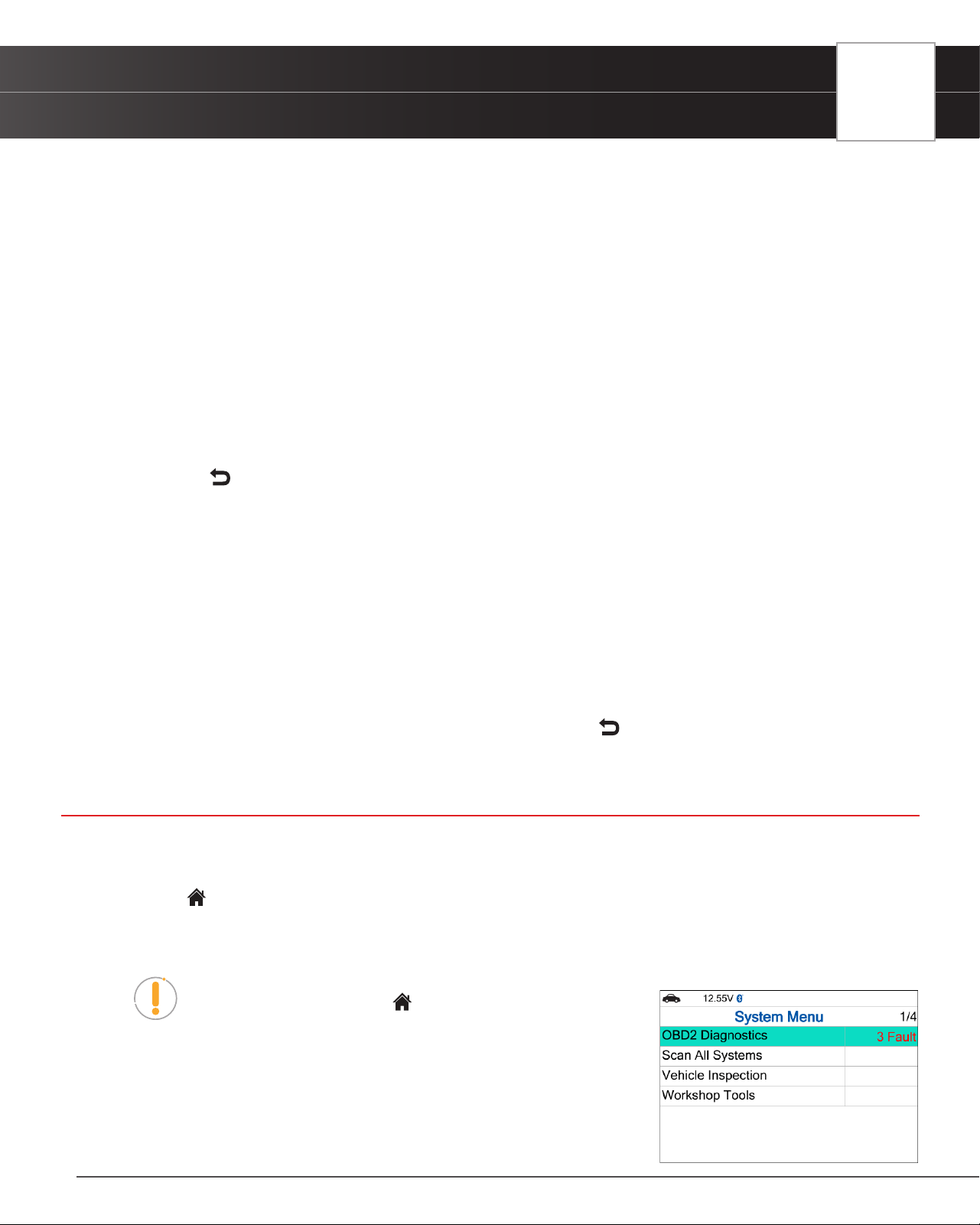
USING THE TABLET
Previous Vehicles
37
n An “instructional” message show.
3. Start and warm the engine to normal operating temperature. Turn on the headlights. Choose Continue to proceed.
n An “instructional” message show.
4. Press the accelerator pedal to raise engine speed to 2000 RPM and maintain the engine speed.
n When engine speed is within the required range, the alternator test begins. A progress screen
shows.
n When the “countdown” timer expires, an “instructional” message displays.
5. Turn the vehicle’s headlights off and return the engine to idle speed.
n A “One moment please…” message displays while the test results are retrieved.
6. When the alternator check is complete, a results screen shows charging system voltage and indicates whether
the charging system is within acceptable limits.
7. Choose Back to return to the Battery/Alternator Test menu.
View Alternator Live Data
If the EV/HEV/PHEV Battery Health, Battery/Alternator Test is selected from the Workshop Tools screen and the vehicle
is not an electric or hybrid vehicle, the Battery/Alternator Monitor menu displays. Proceed to step 2.
1. Select Battery/Alternator Test, then press OK.
n The Battery/Alternator Test menu displays.
2. Select Alternator Live Data, then press OK.
n The Alternator Live Data, screen displays.
3. When you’ve concluded viewing the Alternator Live Data, choose Back to return to the Battery/Alternator Test
menu.
Previous Vehicles
The Tablet stores the results of the most recent vehicle scans you have performed. The Previous Vehicles function allows
you to retrieve these historical scan records and view them as needed.
1. From the Home screen, select the Previous Vehicle tab and press OK.
2. If more than one vehicle is stored in the Tablet’s memory, the Vehicle Selection menu displays. Select the desired
vehicle, then press OK.
NOTE: If there are no vehicles currently stored, an advisory
message is displayed. Press Home to return to the Home
Screen.
n OBD2 Diagnostics – The Memory OBD2 Diagnostic test result
allows you to review the available 10 modes of OBD2.
n Scan All Systems – The Scan All Systems Memory displays
previously saved systems.
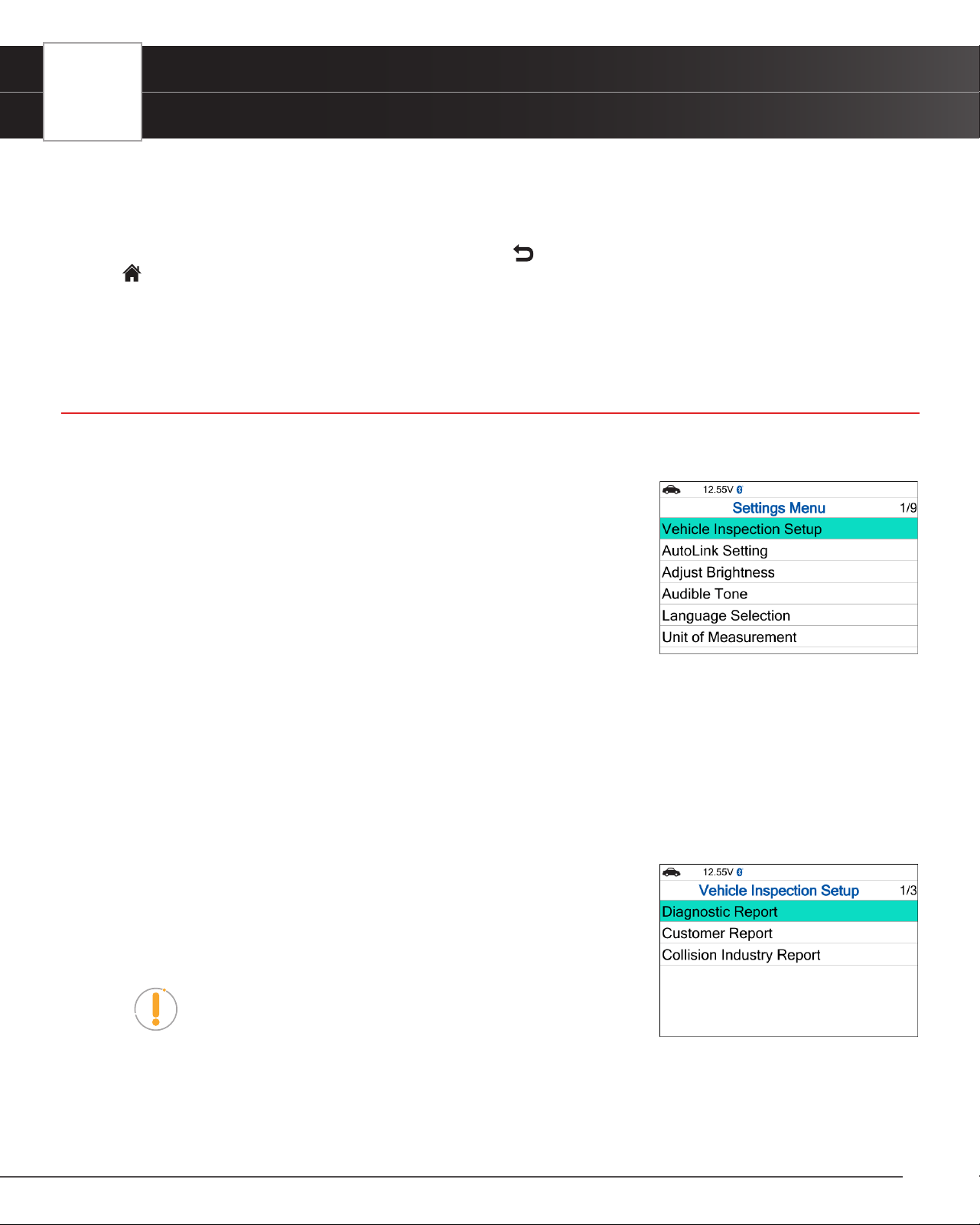
38
USING THE TABLET
Settings
n Vehicle Inspection – The Vehicle Inspection Report test results will be displayed.
n Workshop Tools – The Memory Workshop Tools allows you to review Oil Maintenance Reset
procedures and Battery Reset procedures.
3. When you have nished viewing the information, choose Back to return to the Previous Vehicles screen or press
Home to exit to the Home Screen.
n An “advisory” conrmation message displays.
n Select Yes to exit and return to the Home Screen. Or select No to proceed.
Settings
The Tablet lets you make several adjustments and settings to congure it to your particular needs. The following functions
can be performed:
Vehicle Inspection Setup
AutoLink Setting
Adjust Brightness
Audible Tone
Language Selection
Unit of Measurement
QR RS2 App
QR RS2 App Setting
Version Information
Vehicle Inspection Setup
1. Select Vehicle Inspection Setup in the Settings menu, then press the OK button.
n The Vehicle Inspection Setup screen displays.
2. Select the type of report you wish to set up, then press the OK button.
n The Report Selection screen displays.
n Select or unselect functions as desired, then press the OK button.
NOTE: The OBD2 Diagnostics (DTCs, Monitor, Freeze Frame
Data) status is always ON; this function cannot be turned OFF.
3. Select Save to save your changes and auto-return to the Report Selection screen.
n To exit without proceeding, select Cancel to return to the Report Selection screen.
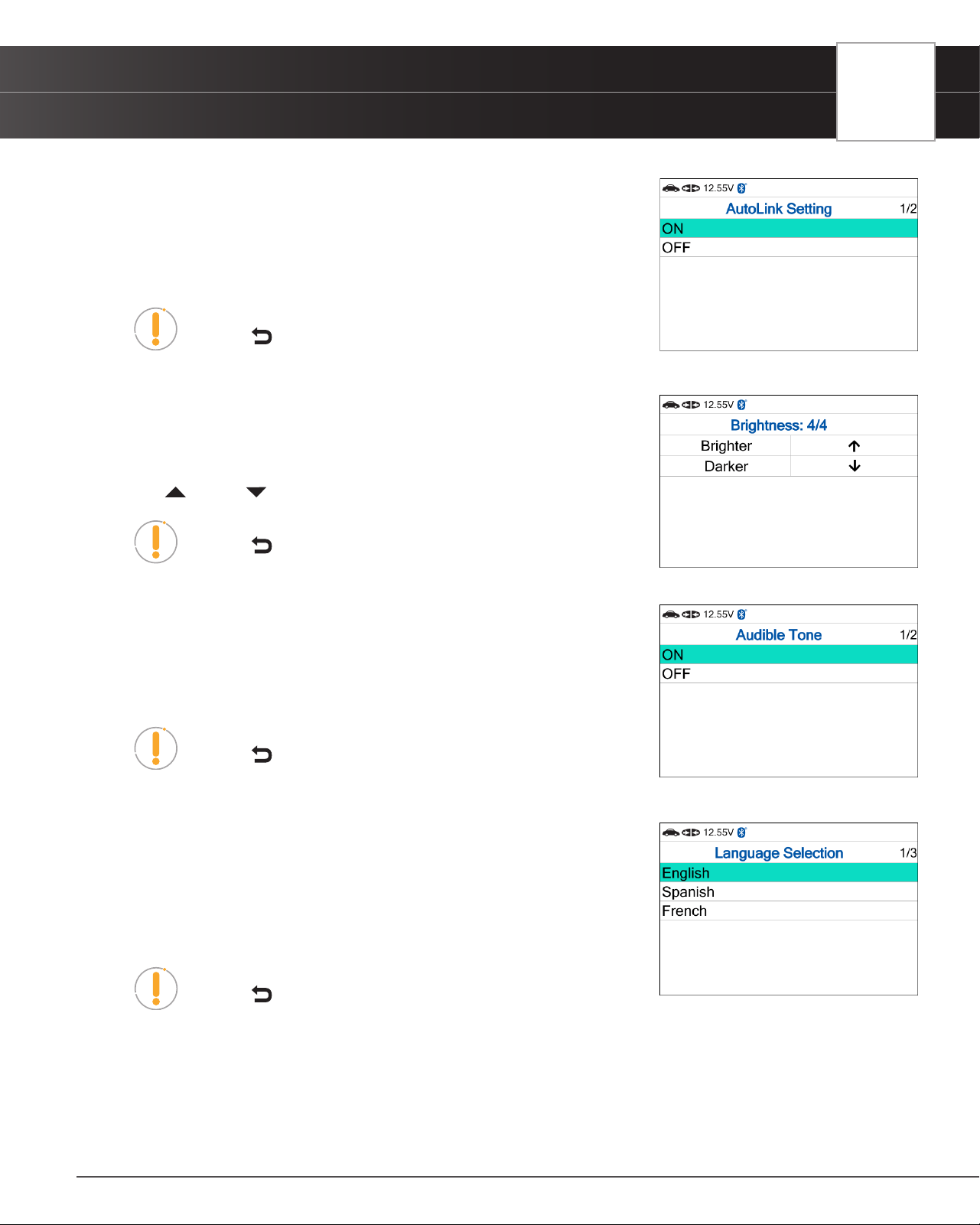
USING THE TABLET
Settings
39
AutoLink Setting
1. Select AutoLink Setting in the Settings menu, then press OK.
n The AutoLink Setting screen displays.
2. Select ON or OFF as desired.
NOTE: To return to the Settings menu without making changes,
press the Back button.
Adjusting Display Brightness
1. Select Adjust Brightness in the Settings menu, then press the OK button.
n The Adjust Brightness screen displays.
2. Press UP and DOWN to make the display lighter or darker.
NOTE: To return to the Settings menu without making changes,
press the Back button.
Enabling / Disabling the Audible Tone
1. Select Audible Tone in the Settings menu, then press the OK button.
n The Audible Tone screen displays.
2. Select ON or OFF as desired.
NOTE: To return to the Settings menu without making changes,
press the Back button.
Selecting the Display Language
1. Select Language Selection in the Settings menu, then press the OK button.
n The Language Selection screen displays.
2. Select the desired display language (English, Spanish, French).
n The tablet automatically saves the change.
NOTE: To return to the Settings menu without making changes,
press the Back button.
Setting the Unit of Measurement
1. Select Unit of Measurement in the Settings menu, then press the OK button.
n The Unit of Measurement screen displays.
2. Select the desired unit of measurement (U.S. Standard or Metric).
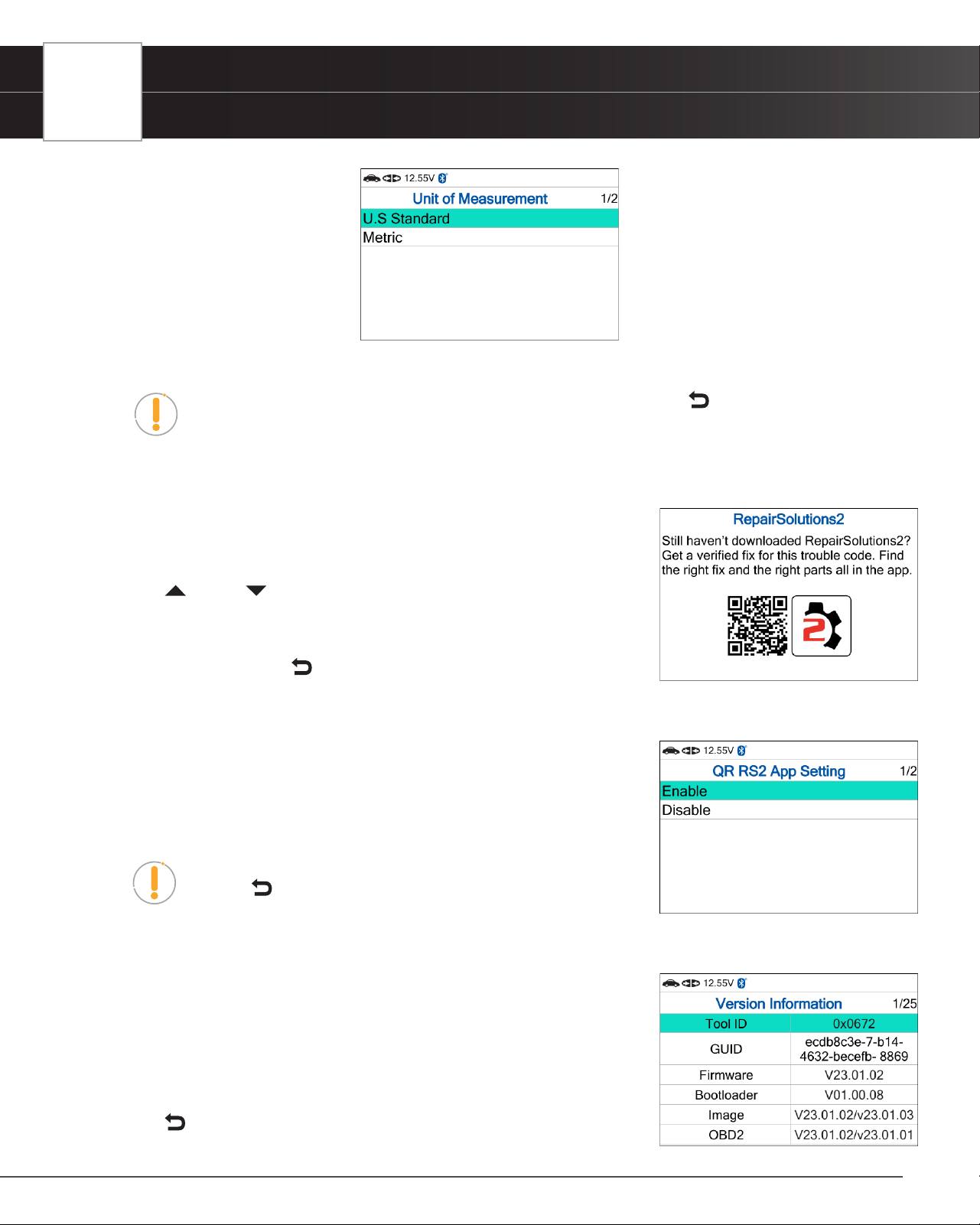
40
USING THE TABLET
Settings
n The tablet automatically saves the change.
NOTE: To return to the Settings menu without making changes, press the Back
button.
Viewing the RepairSolutions2
®
App QR Code
1. Select QR RS2 App in the Settings menu, then press the OK button.
n The QR RS2 App screen displays.
2. Press UP and DOWN to navigate through the options.
n Using a mobile device, scan the QR Code to download the
RepairSolutions2 App.
n To exit, choose Back to return to the Settings menu.
Setting the QR RepairSolutions2 App Mode
1. Select QR RS2 App Setting in the Settings menu, then press the OK button.
n The QR RS2 App Setting screen displays.
2. Select Enable or Disable as desired.
NOTE: To return to the Settings menu without making changes,
press the Back button.
Viewing the Version Information
1. Select Version Information in the Settings menu, then press the OK button.
n The Version Information screen displays.
n The screen shows the tablet’s Tool ID, GUID, current Firmware
version, Bootloader version and database (DB) version for the
specic make.
2. Press Back to return to the Settings menu.
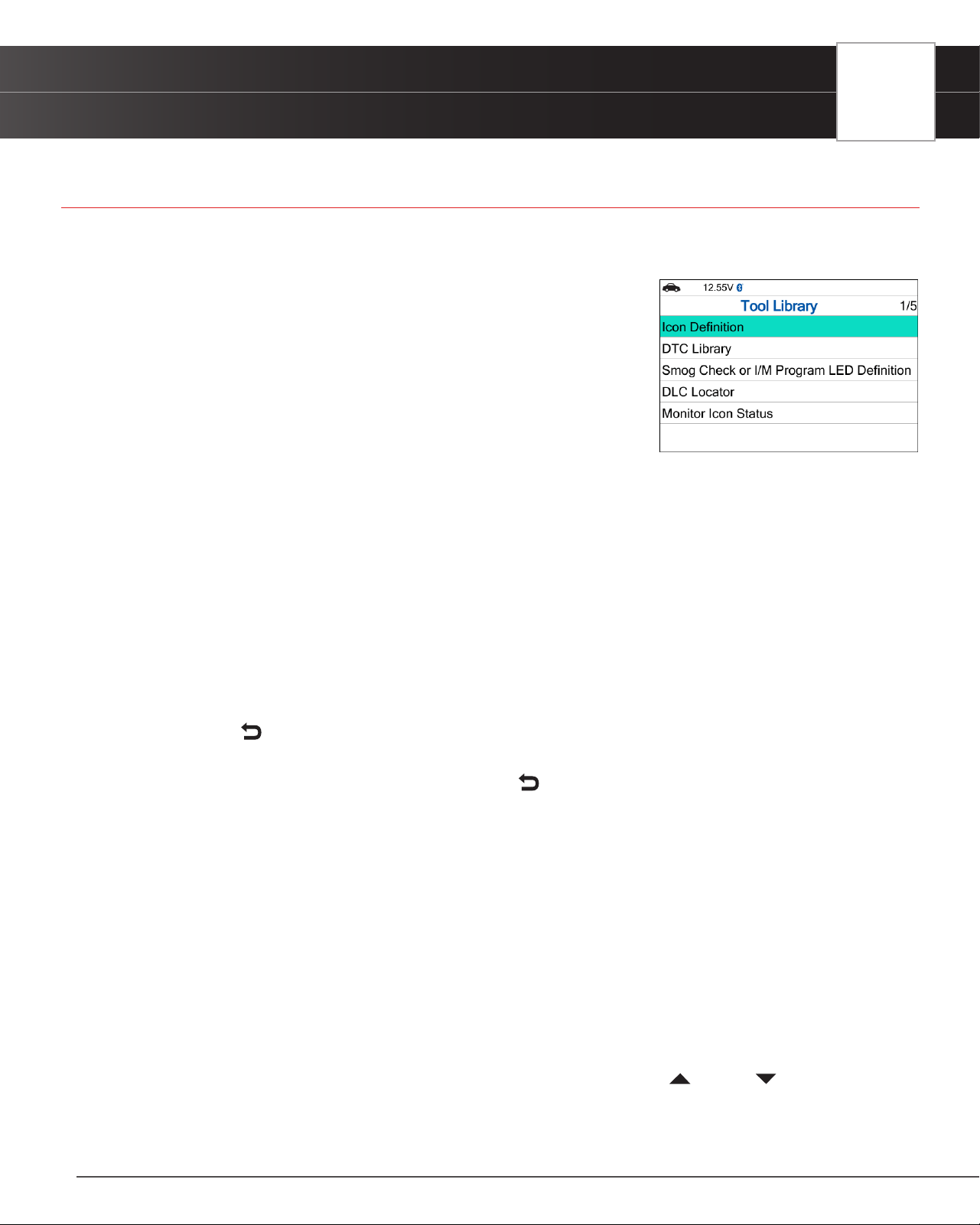
USING THE TABLET
Tool Library
41
Tool Library
The Tool Library includes valuable reference information for the your tablet. The following functions are available:
Icon Denition – Shows the full names for the I/M Monitor Status
icons shown and descriptions of informational icons on the Tablet’s
display.
DTC Library – Provides access to a library of OBD2 DTC denitions.
Smog Check or I/M Program LED Denition - Provides
descriptions of the meaning of the Tablet System Status LEDs.
DLC Locator - Use this search function to quickly nd the location
of the Data Link Connector (DLC) for a specied vehicle.
Monitor Icon Status - Denes the icon monitor status’ color coding and provides tips on how to
proceed.
Icon Denition
1. Select Icon Denition in the Tool Library menu, then press the OK button.
n The Icon Denition screen displays.
2. Select the type of icons you wish to view – Spark Ignition Monitors, Compression Ignition Monitors, or Tool Icons,
then press the OK button.
n The screen shows a list of Monitor for the selected category.
n Choose Back to return to the Icon Denition menu. If desired, repeat step 2 to view additional
icon denitions.
3. When you have nished viewing the descriptions, choose Back to return to the Icon Denition menu.
DTC Library
1. From the Tool Library menu, select DTC Library, then press OK.
n The Select Manufacturer screen displays.
2. Select the desired vehicle manufacturer, then press OK.
n A conrmation message shows.
━ If the correct manufacturer is not shown, choose No to return to the list of vehicle manufacturers.
━ If the correct manufacturer is shown, choose Yes.
3. The Enter DTC screen displays.
n The screen shows the code “P0001,” with the “P” highlighted. Press UP and DOWN, as
necessary, to scroll to the desired DTC type (P=Powertrain, U=Network, B=Body, C=Chassis), then
choose Next Digit.
n The selected character displays solid, and the next character is highlighted.
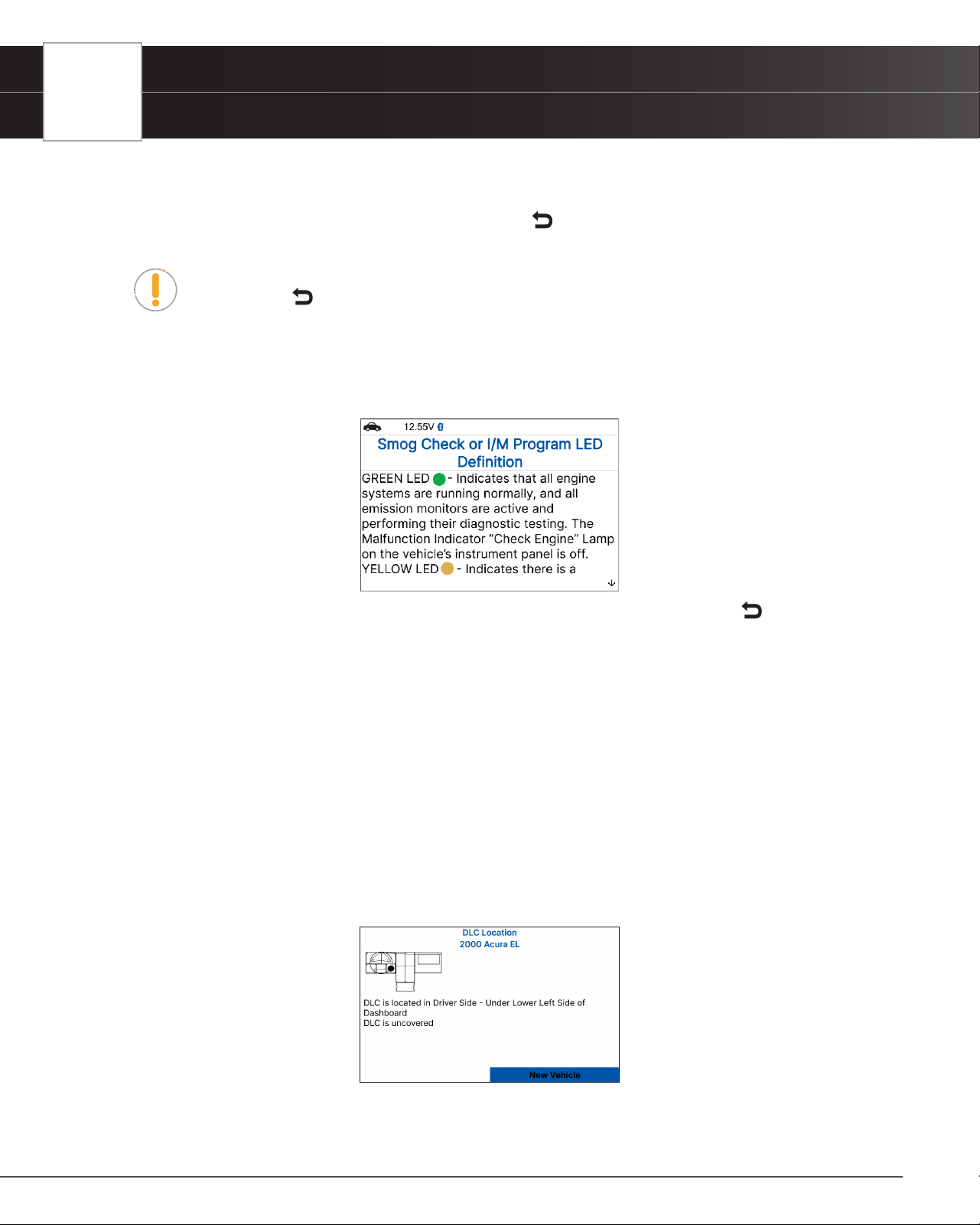
42
USING THE TABLET
Tool Library
4. Select the remaining digits in the DTC in the same way. When you have selected all the DTC digits, press OK to view
the DTC denition.
5. When you have nished viewing the DTC denition, choose Back, to return to the Enter DTC screen to search for
additional DTCs.
NOTE: If a denition for the DTC you entered is not available, an advisory message
shows. Choose Back to return to the Enter DTC screen and enter additional DTCs.
Smog Check or I/M Program LED Denitions
1. From the Tool Library menu, select Smog Check or I/M Program LED Denition, then press the OK button.
n The Smog Check or I/M Program LED Denition screen displays.
2. When you have nished viewing the Smog Check or I/M Program LED Denition, choose Back to return to Tool
Library menu.
Using the DLC Locator
1. From the Tool Library menu, select DLC Locator, then press OK.
n The Select Vehicle Model Year screen displays.
2. Select the desired vehicle model year, then press OK.
n The Select Vehicle Manufacturer screen displays.
3. Select the desired vehicle manufacturer, then press OK.
n The Select Vehicle Model screen displays.
4. Select the desired model, then press OK.
n The DLC Location screen for the selected vehicle displays.
n The DLC Location screen shows the selected vehicle make and model, a description of the DLC
location and whether the DLC is “covered” or “uncovered,” and includes a picture of the DLC
location.
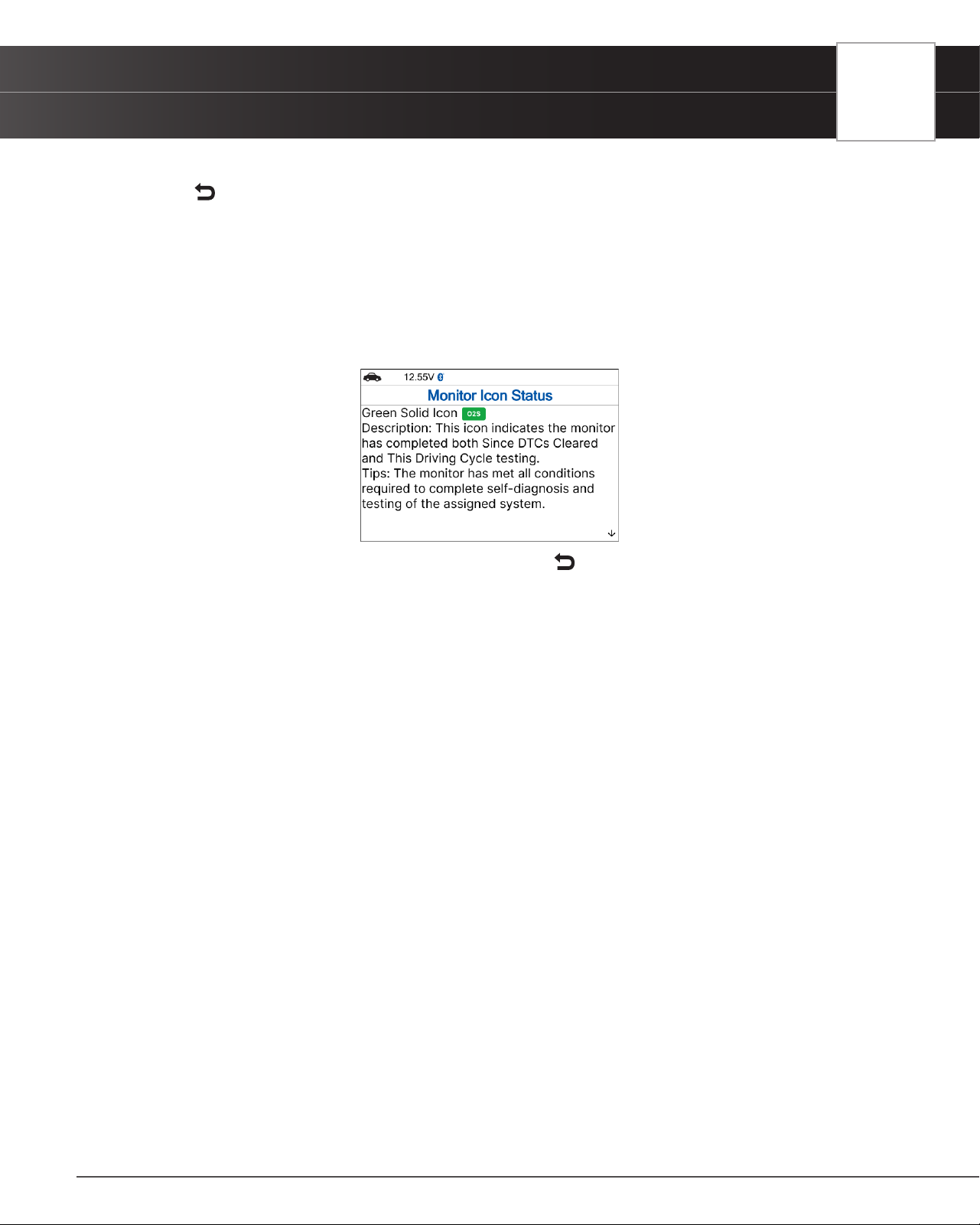
USING THE TABLET
Tool Library
43
5. When you have nished viewing the DLC location, choose New Vehicle (to view the DLC location for another vehicle)
or choose Back to return to the Tool Library menu.
Monitor Icon Status
Denes the icon monitor status color coding and provides tips on how to proceed.
1. Select Monitor Icon Status in the Library menu, then press the OK button.
n The Monitor Icon Status dialog displays.
2. When you have nished viewing the Monitor Icon Status, press Back to return to Tool Library menu.

44
WARRANTY+ CUSTOMER SERVICE
Limited Warranty
WARRANTY+ CUSTOMER SERVICE
Limited Warranty
The Manufacturer warrants to the original purchaser that this unit is free of defects in materials and workmanship under
normal use and maintenance for a period of one (1) year from the date of original purchase.
If the unit fails within the one (1) year period, it will be repaired or replaced, at the Manufacturer’s option, at no charge, when
returned prepaid to the Service Center with Proof of Purchase. The sales receipt may be used for this purpose. Installation
labor is not covered under this warranty. All replacement parts, whether new or remanufactured, assume as their warranty
period only the remaining time of this warranty.
This warranty does not apply to damage caused by improper use, accident, abuse, improper voltage, service, re, ood,
lightning, or other acts of God, or if the product was altered or repaired by anyone other than the Manufacturer’s Service
Center.
The Manufacturer, under no circumstances shall be liable for any consequential damages for breach of any written warranty
of this unit. This warranty gives you specic legal rights, and you may also have rights, which vary from state to state. This
manual is copyrighted with all rights reserved. No portion of this document may be copied or reproduced by any means
without the express written permission of the Manufacturer. THIS WARRANTY IS NOT TRANSFERABLE. For service, send
via U.P.S. (if possible) prepaid to Manufacturer. Allow 3-4 weeks for service/repair.
Customer Service
Our ASE Certied technical staff is here to help if you have any questions or require service. For information on UPDATES
and OPTIONAL ACCESSORIES, please contact your local store, distributor or Innova’s Service Center.
USA & Canada: (800) 544-4124
Monday through Friday: 6:00 AM to 6:00 PM PST
All others: (714) 241-6802
Monday through Friday: 6:00 AM to 6:00 PM PST
Web: www.innova.com
GLOSSARY
OBD2 Terminology
45
GLOSSARY
OBD2 Terminology
The following terms and their denitions are related to OBD2 systems.
n Powertrain Control Module (PCM) - The PCM is the OBD2 accepted term for the vehicle’s “on-board
computer.” In addition to controlling the engine management and emissions systems, the PCM also
participates in controlling the powertrain (transmission) operation. Most PCMs also have the ability to
communicate with other computers on the vehicle (ABS, ride control, body, etc.).
n Monitor - Monitors are “diagnostic routines” programmed into the PCM. The PCM utilizes these programs
to run diagnostic tests, and to monitor operation of the vehicle’s emissions-related components or systems
to ensure they are operating correctly and within the vehicle’s manufacturer specications. Currently, up to
fteen Monitors are used in OBD2 systems. Additional Monitors will be added as the OBD2 system is further
developed.
NOTE: Not all vehicles support all fteen Monitors
n Enabling Criteria - Each Monitor is designed to test and monitor the operation of a specic part of the vehicle’s
emissions system (EGR system, oxygen sensor, catalytic converter, etc.). A specic set of “conditions” or
“driving procedures” must be met before the computer can command a Monitor to run tests on its related
system. These “conditions” are known as “Enabling Criteria.” The requirements and procedures vary for
each Monitor. Some Monitors only require the ignition key to be turned “On” for them to run and complete
their diagnostic testing. Others may require a set of complex procedures, such as, starting the vehicle
when cold, bringing it to operating temperature, and driving the vehicle under specic conditions before the
Monitor can run and complete its diagnostic testing.
n Complete / Incomplete - The terms “Complete” or “Incomplete” are used throughout this manual.
“Complete,” means the PCM has commanded a particular Monitor to perform the required diagnostic testing
on a system to ensure the system is operating correctly (within factory specications). The term “Incomplete”
means the PCM has not yet commanded a particular Monitor to perform diagnostic testing on its associated
part of the emissions system.
n Trip - A Trip for a particular Monitor requires that the vehicle is being driven in such a way that all the required
“Enabling Criteria” for the Monitor to run and complete its diagnostic testing are met. The “Trip Drive Cycle”
for a particular Monitor begins when the ignition key is turned “On.” It is successfully completed when all the
“Enabling Criteria” for the Monitor to run and complete its diagnostic testing are met by the time the ignition
key is turned “Off.” Since each of the fteen monitors is designed to run diagnostics and testing on a different
part of the engine or emissions system, the “Trip Drive Cycle” needed for each individual Monitor to run and
complete varies.
n OBD2 Drive Cycle - An OBD2 Drive Cycle is an extended set of driving procedures that takes into
consideration the various types of driving conditions encountered in real life. These conditions may include
starting the vehicle when it is cold, driving the vehicle at a steady speed (cruising), accelerating, etc. An
OBD2 Drive Cycle begins when the ignition key is turned “On” (when cold) and ends when the vehicle has
been driven in such a way as to have all the “Enabling Criteria” met for all its applicable Monitors. Only those
trips that provide the Enabling Criteria for all Monitors applicable to the vehicle to run and complete their
individual diagnostic tests qualify as an OBD2 Drive Cycle. OBD2 Drive Cycle requirements vary from one
46
GLOSSARY
OBD2 Monitors
model of vehicle to another. Vehicle manufacturers set these procedures. Consult your vehicle’s service
manual for OBD2 Drive Cycle procedures.
NOTE: Do not confuse a “Trip” Drive Cycle with an OBD2 Drive Cycle. A “Trip” Drive Cycle
provides the “Enabling Criteria” for one specic Monitor to run and complete its diagnostic
testing. An OBD2 Drive Cycle must meet the “Enabling Criteria” for all Monitors on a
particular vehicle to run and complete their diagnostic testing.
n Warm-up Cycle - Vehicle operation after an engine off period where engine temperature rises at least 40°F
(22°C) from its temperature before starting, and reaches at least 160°F (70°C). The PCM uses warm-up
cycles as a counter to automatically erase a specic code and related data from its memory. When no faults
related to the original problem are detected within a specied number of warm-up cycles, the code is erased
automatically.
OBD2 Monitors
To ensure the correct operation of the various emissions-related components and systems, a diagnostic program was
developed and installed in the vehicle’s on-board computer. The program has several procedures and diagnostic
strategies. Each procedure or diagnostic strategy is made to monitor the operation of, and run diagnostic tests on, a
specic emissions-related component or system. These tests ensure the system is running correctly and is within the
manufacturer’s specications. On OBD2 systems, these procedures and diagnostic strategies are called “Monitors.”
Currently, fteen Monitors are supported by OBD2 systems. Additional monitors may be added because of Government
regulations as the OBD2 system grows and matures. Not all vehicles support all fteen Monitors. Additionally, some Monitors
are supported by “spark ignition” vehicles only, while others are supported by “compression ignition” vehicles only.
Monitor operation is either “Continuous” or “Non-Continuous,” depending on the specic monitor.
Continuous Monitors
Three of these Monitors are designed to constantly monitor their associated components and/or systems for proper
operation. Continuous Monitors run constantly when the engine is running.
= Comprehensive Component Monitor
= Misre Monitor
= Fuel System Monitor
Non-Continuous Monitors
The other twelve Monitors are “non-continuous” Monitors. “Non-continuous” Monitors perform and complete their testing
once per trip.
GLOSSARY
Additional Terminology + Acronyms
47
= Oxygen Sensor Monitor
= Oxygen Sensor Heater Monitor
= Catalyst Monitor
= Heated Catalyst Monitor
= EGR (Exhaust Gas Recirculation) System Monitor
= EVAP System Monitor
= Secondary Air System Monitor
NOTE: The following Monitors became standard beginning in 2010. The majority of
vehicles produced before this time will not support these Monitors.
= NMHC (Non-Methane Hydrocarbon Converting) Catalyst Monitor
= NOx/SCR Aftertreatment Monitor
= Boost Pressure System Monitor
= Exhaust Gas Sensor Monitor
= PM (Particulate Matter) Filter Monitor
Additional Terminology + Acronyms
n ABS = Anti-Lock Brakes
n DLC = Data Link Connector (vehicle’s data port)
n DTC = Diagnostic Trouble Codes
n KOEO = Key On, Engine Off
n KOER = Key On, Engine Running
n MIL = Malfunction Indicator Lamp (Check Engine Light)
n OBD = On Board Diagnostics
n OBD2 / OBD II = On Board Diagnostics, Second Generation
n OEM = Original Equipment Manufacturer
n PID = Parameter Identication Data
n TPMS = Tire Pressure Monitoring System
n TSBs = Technical Service Bulletins

Copyright © 2024 IEC. All Rights Reserved.
v.1.00 / SD35
Innova Electronics Corp.
17352 Von Karman Ave.
Irvine, CA 92614