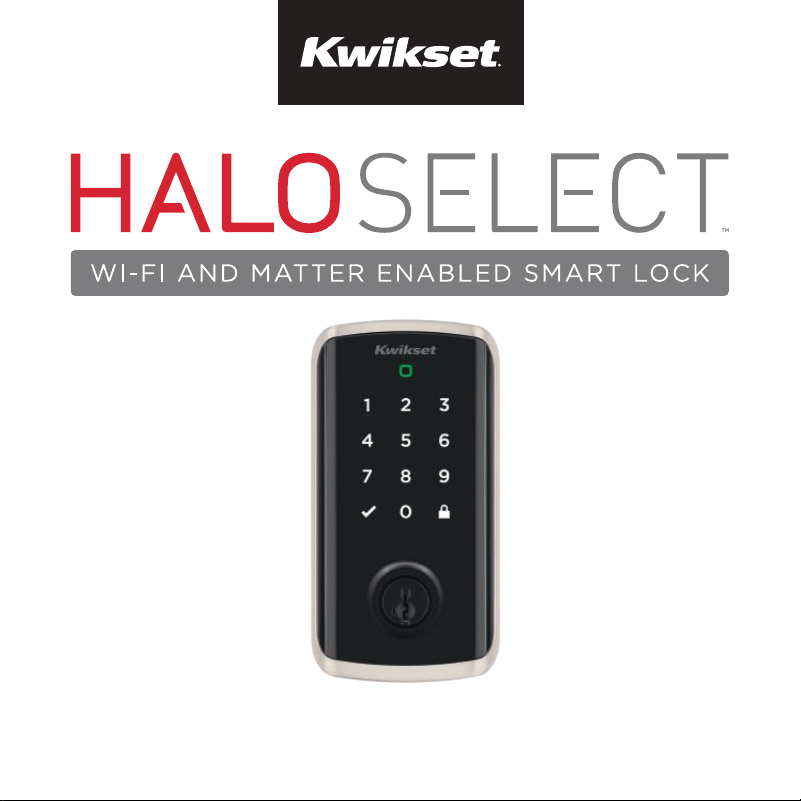
Installation and Reference Guide
53861-001
Rev 01
English



Parts in the box ..............................................4
Required tools ................................................5
Installation ........................................................7
Download the app .......................................17
Reference guide ............................................19
Table of contents
3
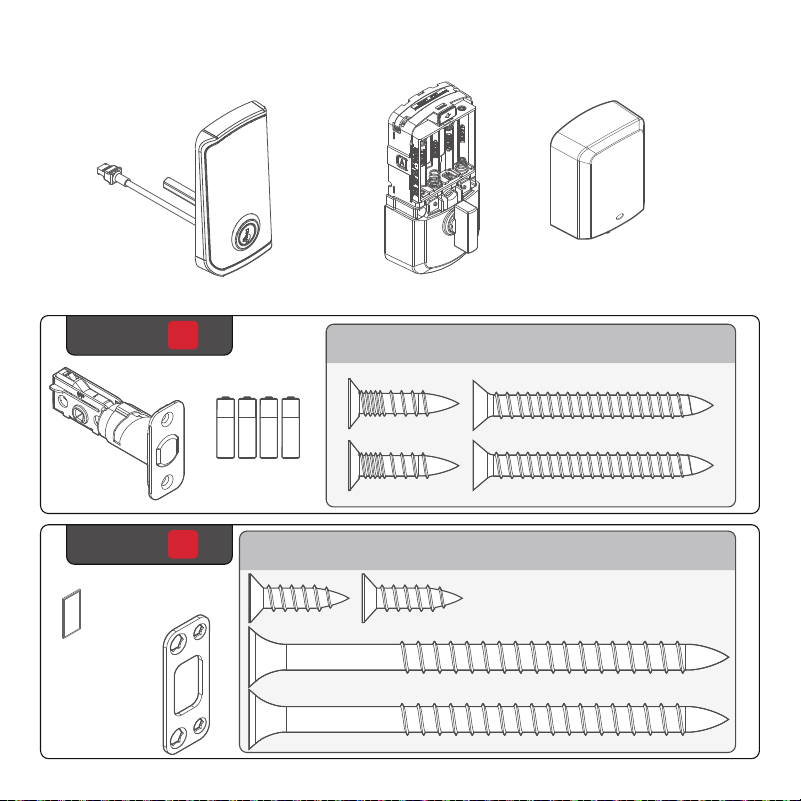
Parts in the box
Exterior assembly
Latch
Strike
Interior assembly
Interior cover
1
Box
2
Box
03809
46780
4
Door sensor
magnet
Batteries
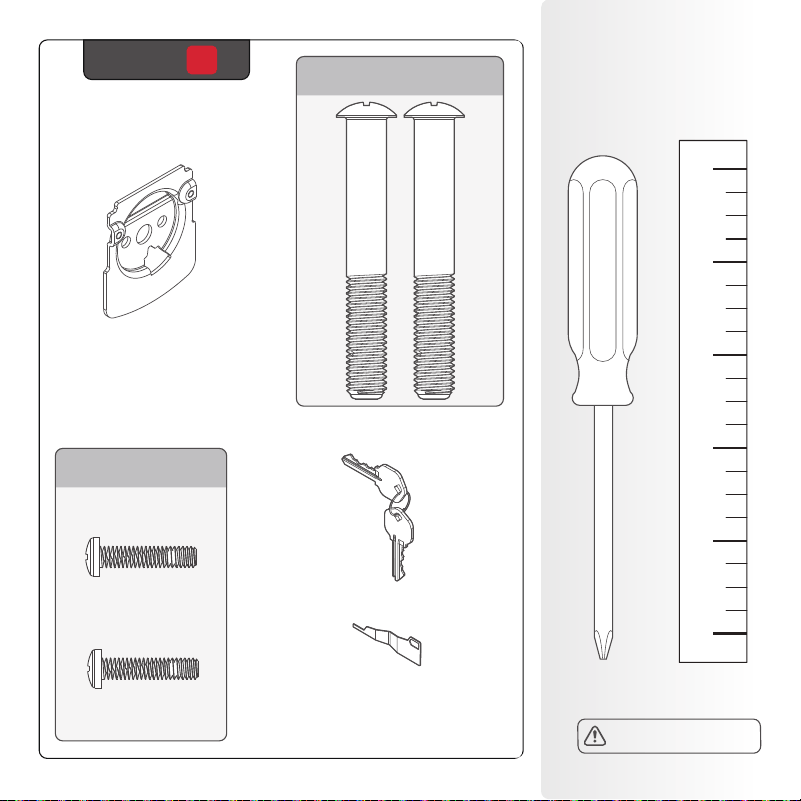
Required
tools
Mounting
plate
Keys
Phillips head
screwdriver
3
Box
64844
No electric drills
5
Ruler
SmartKey™
tool
52502

Installation
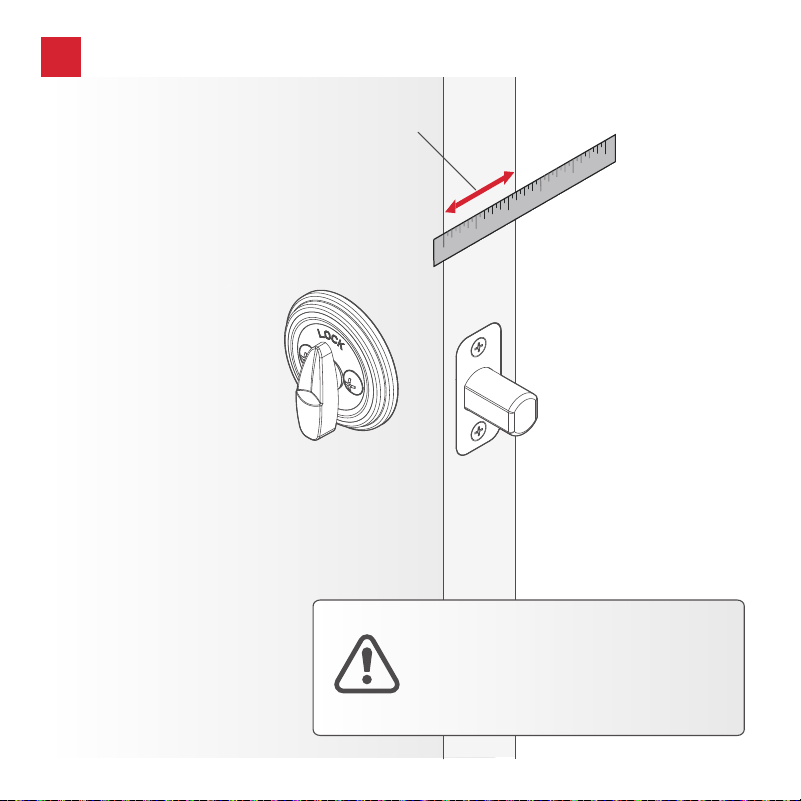
7
If door thickness is greater than 2”
(51mm) contact Kwikset customer
service at 1-800-327-5625. Your
installation will require a thick door
installation kit.
Measure door thickness
!
1-3/4” to 2”
(44mm - 51mm)
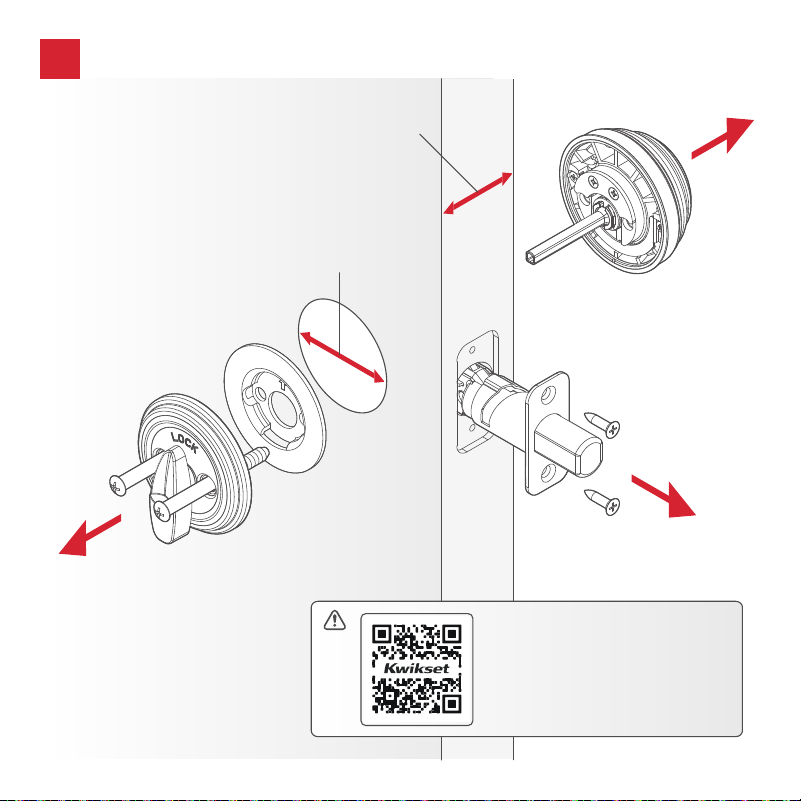
9
C
B
A
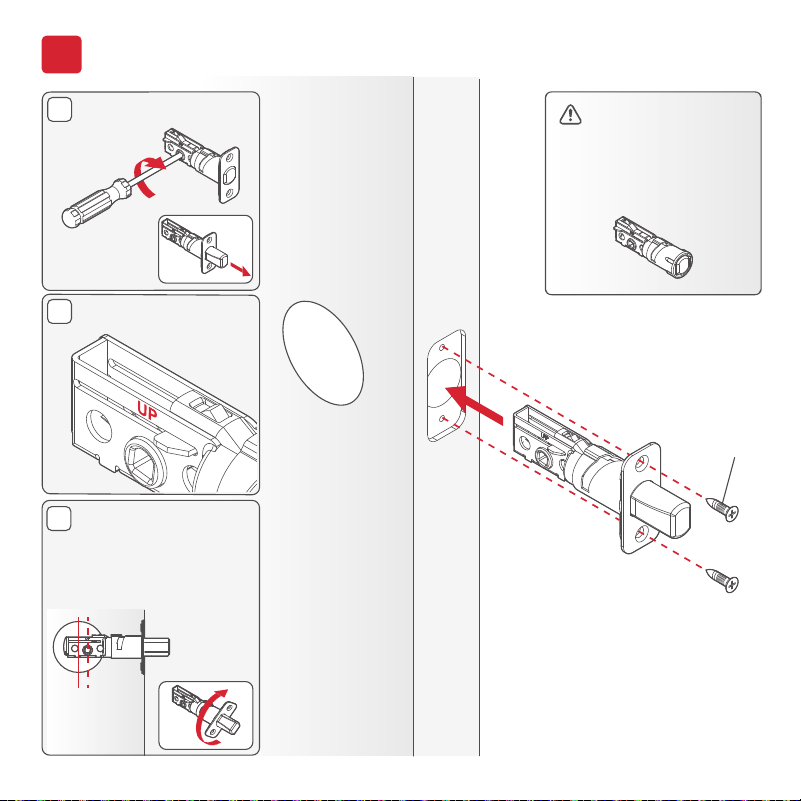
*Use the longer
screws if the holes
are worn out.
You will have two
extra screws.
Extend the latch bolt.
UP is on top.
If the D-shaped hole
is not centered in the
bore hole, rotate the
latch face to extend
the latch.
03809*
(2X)
If your door requires
a drive-in latch,
please contact
Kwikset at
1-800-327-5625.
1
Install the latch
[OUTSIDE]
10
DOOR
JAMB
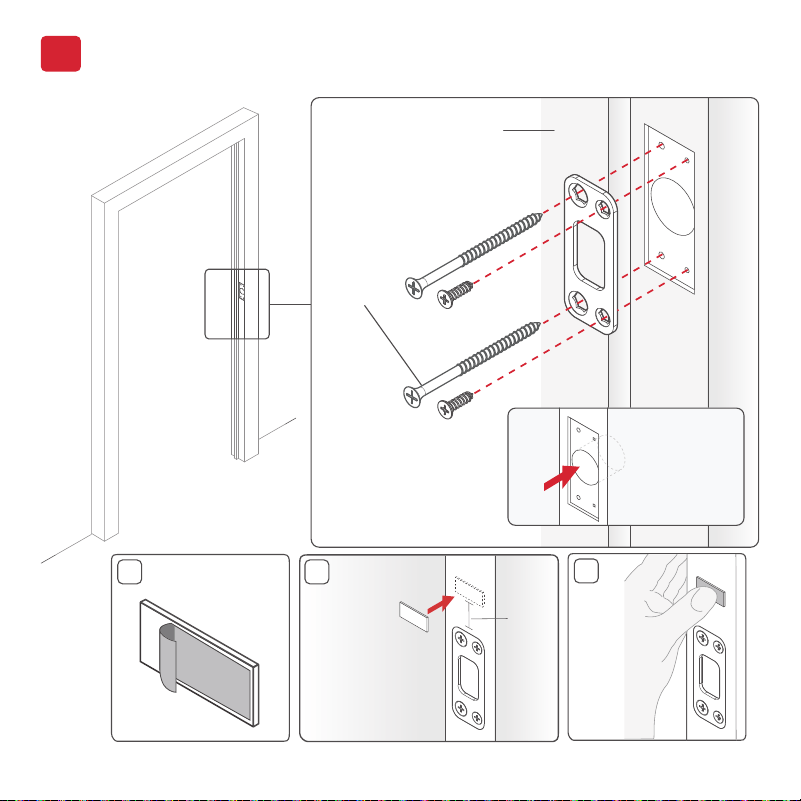
*Install the longer
screws closest to
the door jamb.
46780*
(4X)
2
Install the strike and sensor magnet
1" (25 mm)
hole depth
A
Peel the liner
from magnet.
B
Place magnet
above the
strike.
Ensure
surface is
clean and
flat.
3/4”
(20mm)
A
A
C
Press
firmly
for 10
seconds.
11
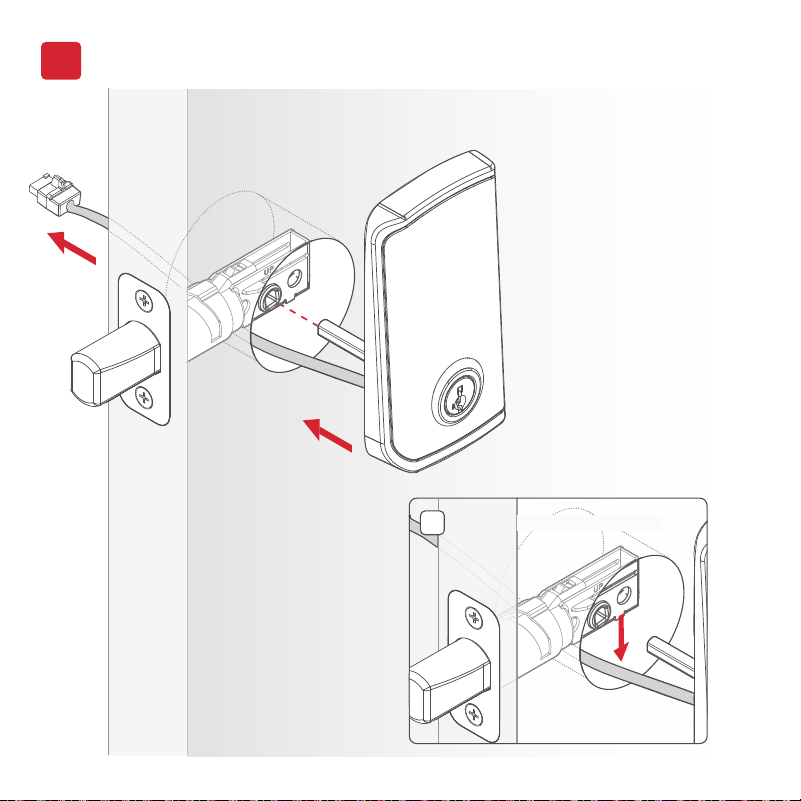
Install the exterior assembly
3
[OUTSIDE]
Cable goes under the latch.
A
12
[INSIDE]
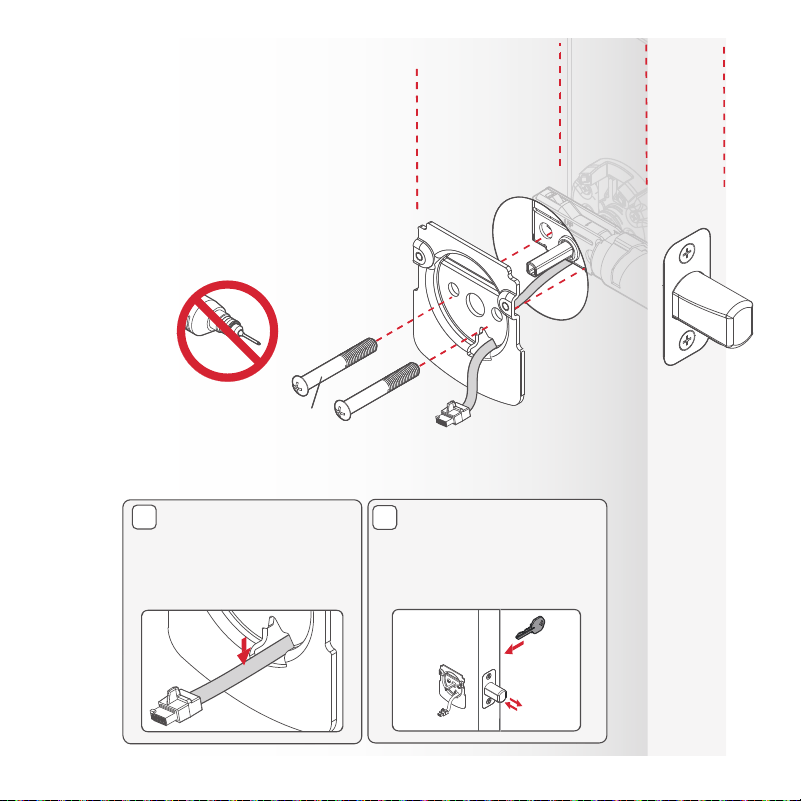
Tighten the screws evenly.
64844
(2X)
C
Insert the key and
test the latch. If the
latch does not extend
or retract smoothly,
adjust the screws.
B
Route the cable
through the bottom
hole of the mounting
plate.
[INSIDE]
Tighten the screws evenly.
DO NOT over-tighten.
Keep parallel to
the door edge
64844
(2X)
[OUTSIDE]
13
A
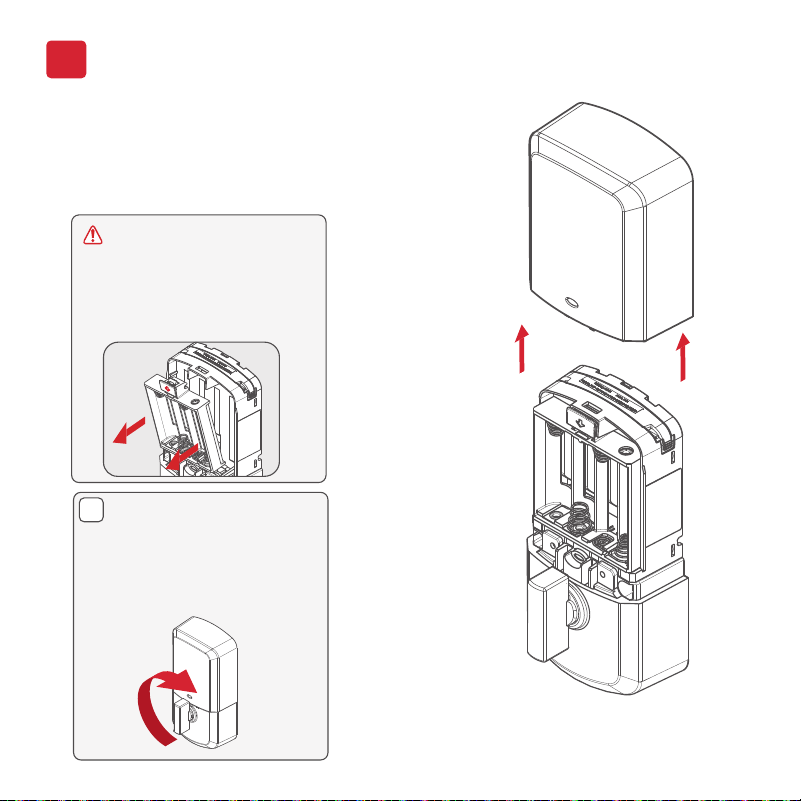
Install the interior assembly
4
Remove the interior
cover from the
interior assembly.
Make sure to remove the
battery pack before
installing interior assembly.
Press down on tab to
release the battery pack,
and pull out.
If the turnpiece is not
pointing up, rotate the
turnpiece until it’s in a
vertical position.
14
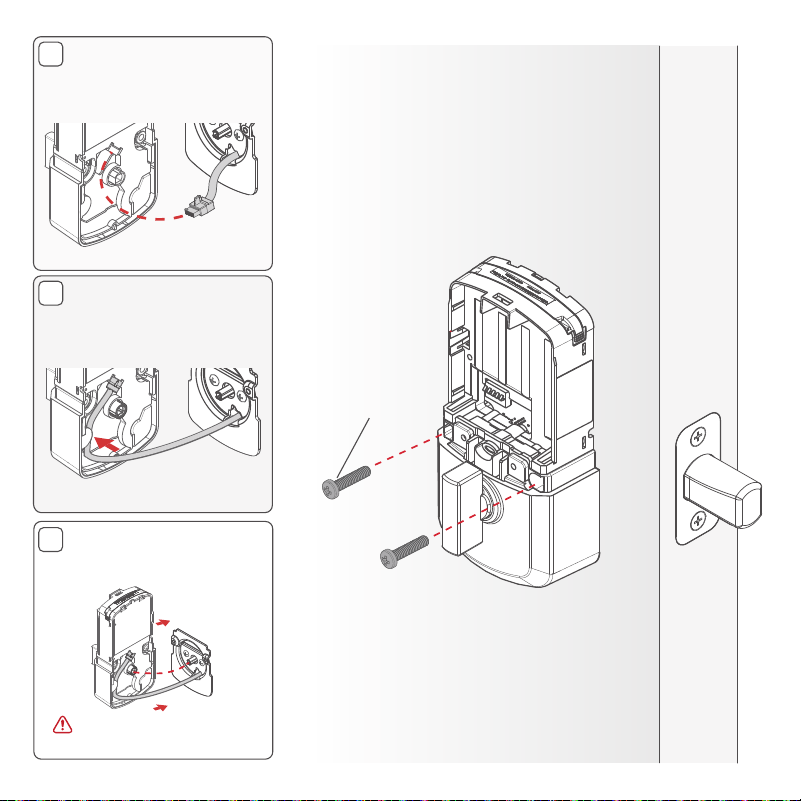
Secure the interior
assembly onto the
mounting plate.
[INSIDE]
D
Ensure the spindle
fully engages with the
turnpiece shaft.
C
B
Connect the cable.
Ensure a tight cable
connection.
Lay cable flat inside the
bottom of the interior
housing.
(2X)
52502
Ensure cable remains
connected.
15
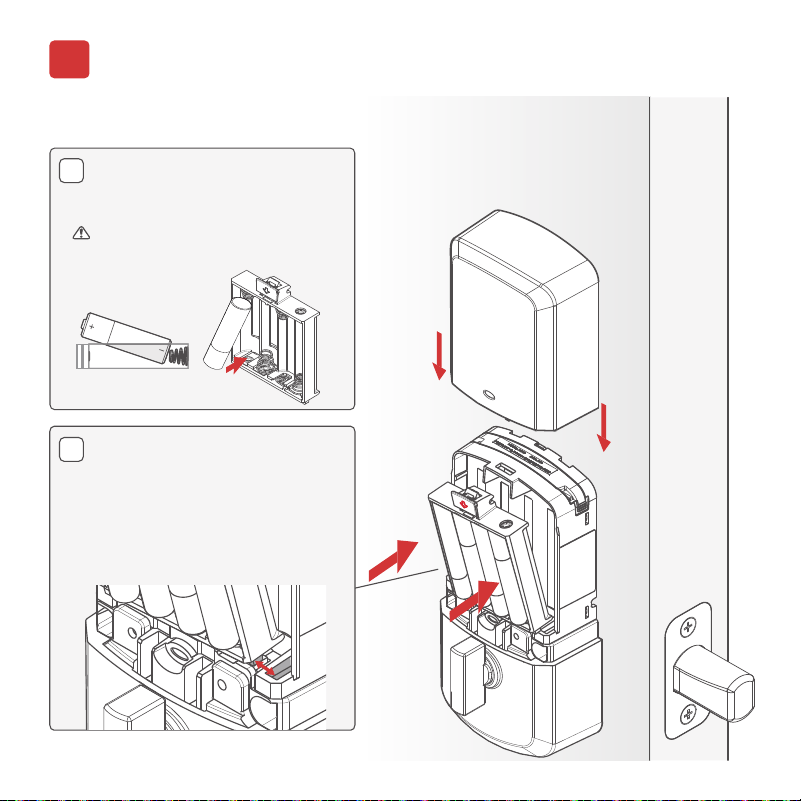
Install batteries and battery pack
5
With the door open, install
the battery pack.
NOTE: Lock
must be installed on the door
before inserting the batteries.
Insert (4) AA batteries (included)
into the battery tray.
[INSIDE]
Ensure correct polarity. Use new,
non-rechargeable alkaline
batteries only.
A
B
Ensure bottom tabs of the
battery pack are placed in the
slots of the interior assembly
before fully inserting battery
pack. Battery pack should be
flush after installation if inserted
properly.

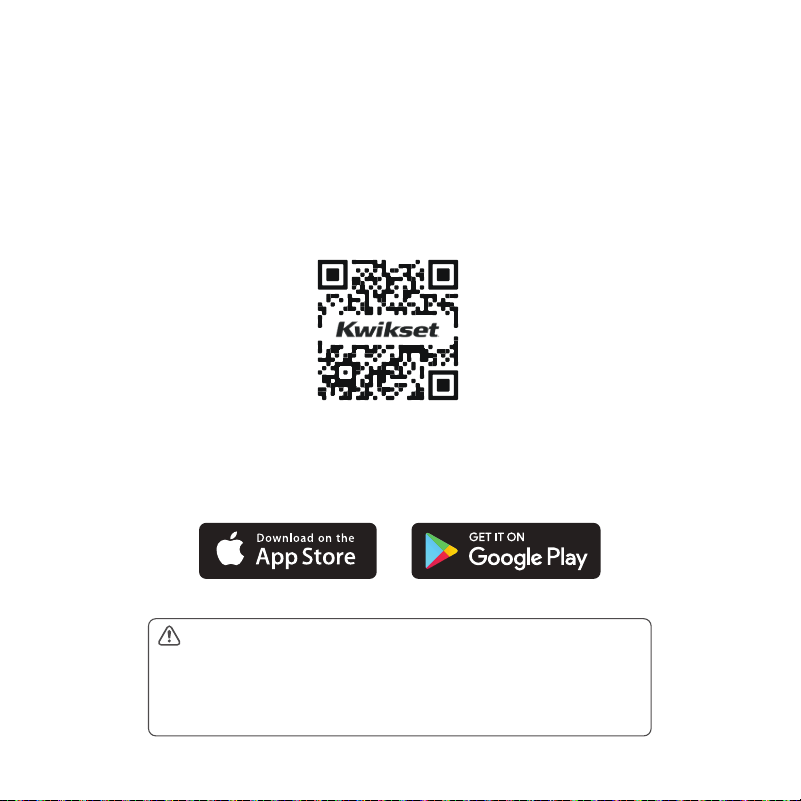
Download the Kwikset
app & create an account
to complete set up
17
Complete your lock set up
kwikset.com/app
The Kwikset app is needed to use this lock. If this
lock was professionally installed (or installed by
someone other than the homeowner), make sure
this step is performed by the homeowner.
Follow the set up instructions in the Kwikset app
to complete your lock set up.

Reference Guide
19
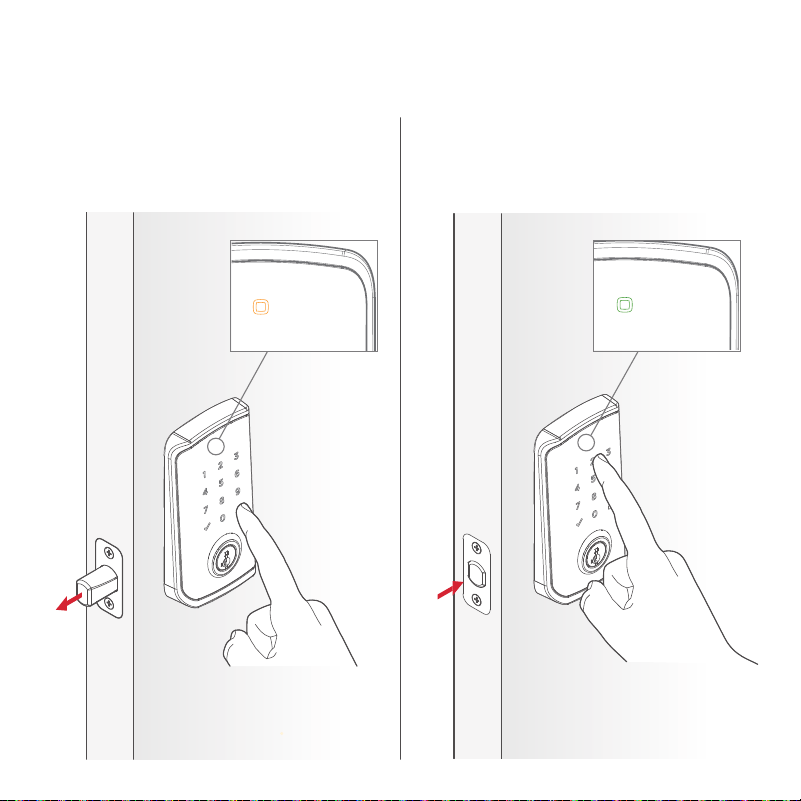
To lock your door, press the lock icon.
The bolt will extend, then the screen
will display the Locked LED Indicator
and play the locked tone.
Locked Unlocked
Amber connectivity
icon will remain on
for 1.5 seconds.
To unlock your door, enter your access
code. The bolt will retract, then the
screen will display the Unlocked LED
Indicator and play the unlocked tone.
Green connectivity
icon will remain on
for 1.5 seconds.
21
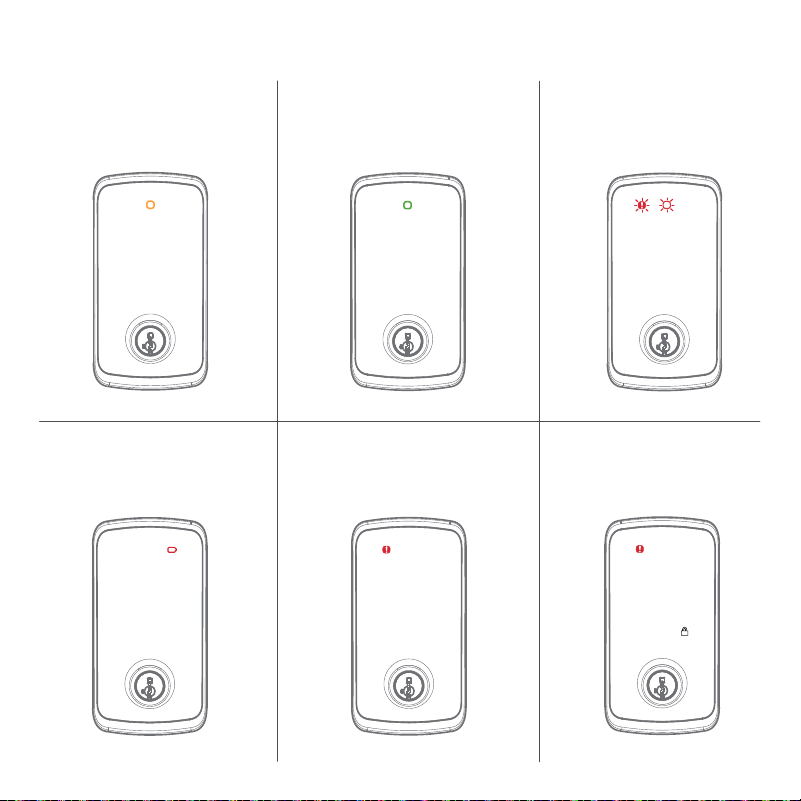
Amber:
Locked
Red:
Low Battery
Red:
Invalid Credentials
Green:
Unlocked
Exterior LED Indicators
Red:
Lockout
Alternating
Red flashing:
Lock Jammed
22
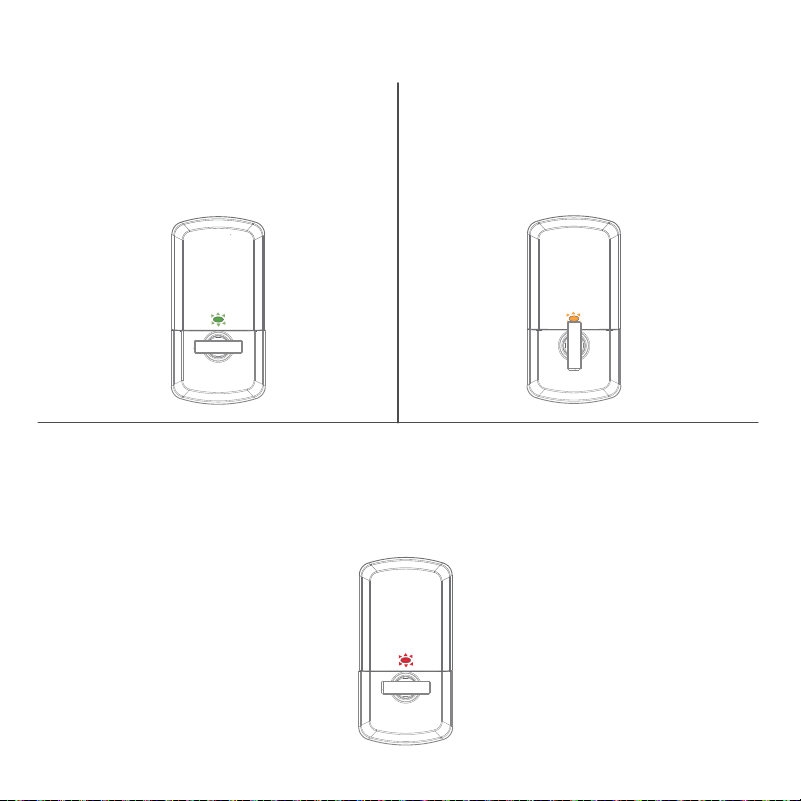
Green
Amber
Slow Blinking:
Unlocked
Blinking:
Low Battery
Slow Blinking:
Locked
Red
Interior Status LED Indicators
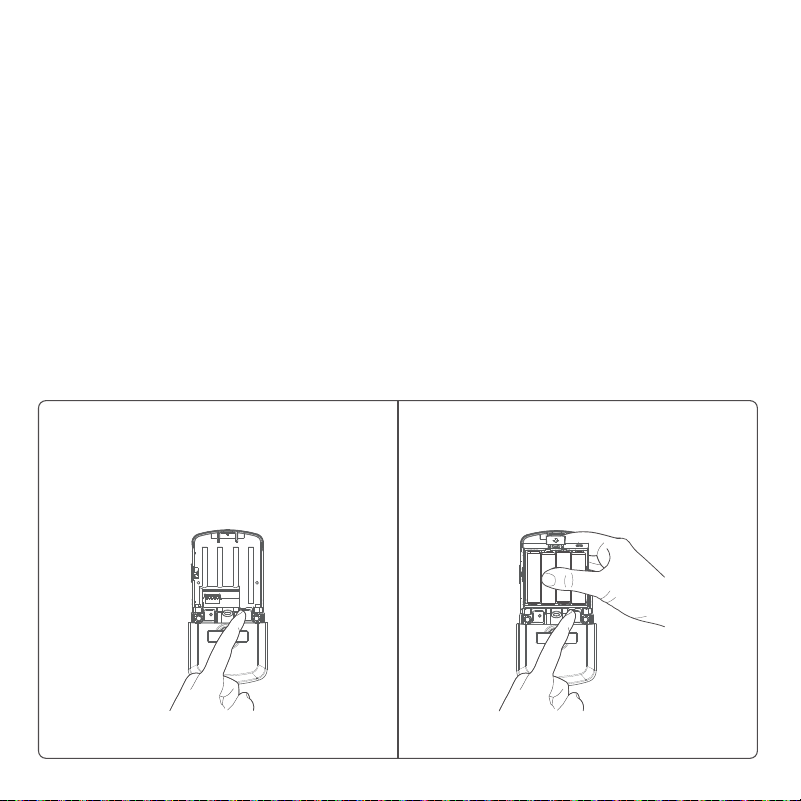
23
Factory Reset will:
• delete all access codes and
associated schedule
• reset lock settings to default
• lock will show as oine in the
Kwikset App
• lock will be deactivated and
will need to be set up as new
Factory Reset should be
used when:
• you want to change the
lock owner
• you have lost your phone
• you are troubleshooting the
lock
Factory Reset
1. Remove the battery pack, then
press and hold the Programming
Button.
2. While still holding the Programming
Button, insert the battery pack.
Continue holding the Programming
Button for 30 seconds.
Continue to the next page for additional steps.
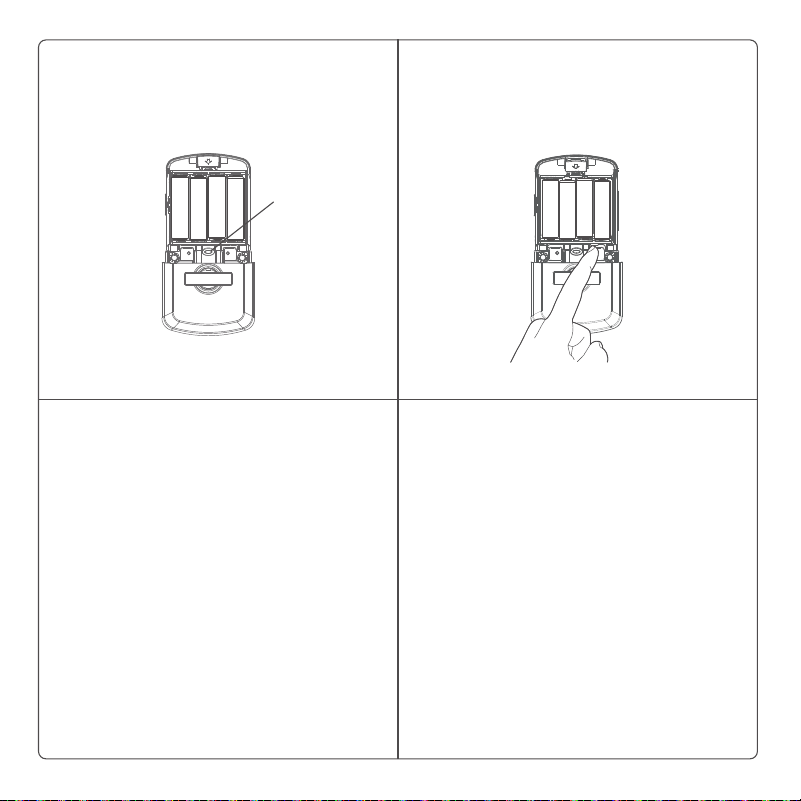
24
3. After 30 seconds, the Status LED
light will flash RED and lock will
beep. Release the Programming
Button.
5. SUCCESS: Lock will play a series of
beeps, Status LED will flash GREEN,
then pulsing BLUE.
UNSUCCESSFUL: Lock will play a
single-tone sound, Status LED light
will flash RED.
4. Press the Programming Button
once within 5 seconds of the
Status LED light displaying RED to
confirm factory reset.
Status
LED
25
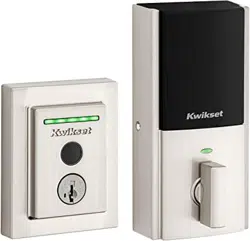
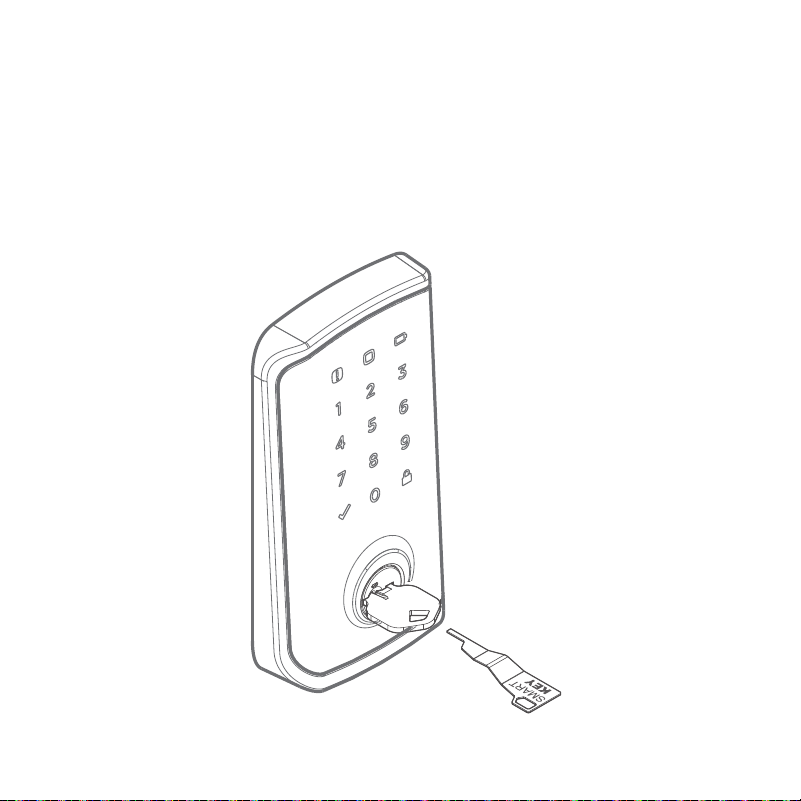
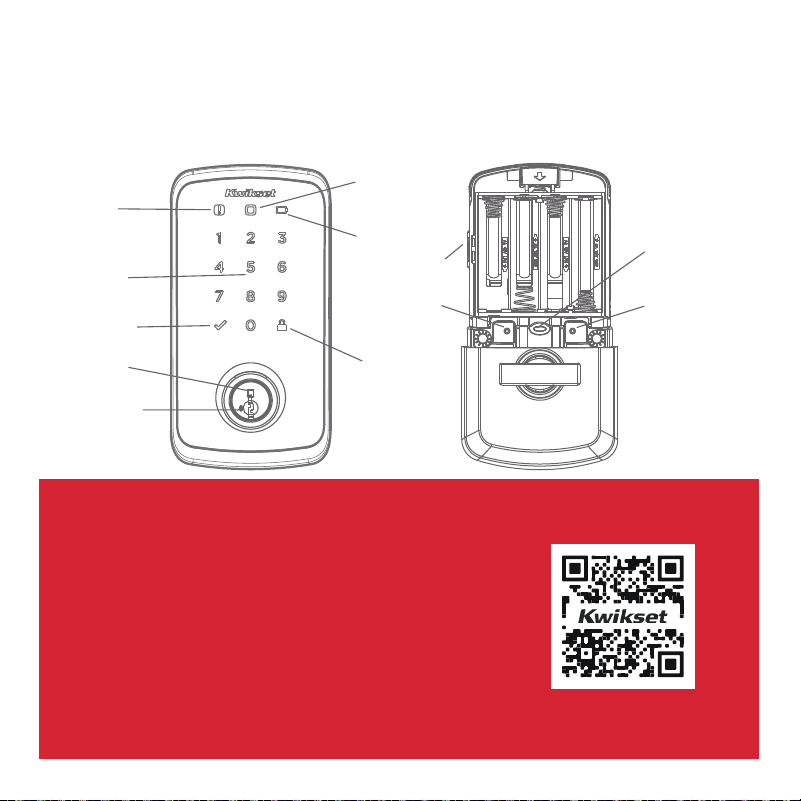
Halo Select at a Glance
Exterior Interior
(cover removed)
SmartKey™
tool access
Keyway
Lock
Icon
Troubleshooting
If you have any issues, please visit our
support center: kwikset.com/support
or call us at
1-800-327-5625.
Warning
Icon
Connectivity
Icon
Battery
Icon
Keypad
Checkmark
Icon
Programming
Button
Pairing
Button
Button A
Status
LED

26
Important Safeguards
Regulatory Compliance
1.. Read all instructions in their entirety.
2. Familiarize yourself with all warning and
caution statements.
3. Remind all family members of
safety precautions.
4. Always have access to your lock’s
standard key.
5. If using the Auto-Lock features, make sure you
have your smartphone or standard key with you
to prevent locking yourself out.
6. Familiarize yourself with all light bar error
notifications.
7. Replace low batteries immediately.
8. Dispose of used batteries according to local
laws and regulations.
WARNING: This Manufacturer advises that no lock can provide complete security by itself. This lock may be defeated by
forcible or technical means, or evaded by entry elsewhere on the property. No lock can substitute for caution, awareness of
your environment, and common sense. Builder’s hardware is available in multiple performance grades to suit the application. In
order to enhance security and reduce risk, you should consult a qualified locksmith or other security professional.
This product complies with
standards established by the
following regulatory bodies:
Federal Communications
Commission (FCC)
• Industry Canada
FCC
This device complies with Part
15 of the FCC Rules. Operation
is subject to the following two
conditions: (1) this device may
not cause harmful interference,
and (2) this device must accept
any interference received,
including interference that
may cause undesired operation.
This equipment has been tested
and found to comply with the
limits for a Class B digital device,
pursuant to Part 15 of the FCC
Rules. These limits are designed
to provide reasonable protection
against harmful interference in a
residential installation. This
equipment generates, uses, and can
radiate radio frequency energy and,
if not installed and used in
accordance with the instructions,
may cause harmful interference to
radio communications. However, t
here is no guarantee that
interference will not occur in a
particular installation. If this
equipment does cause harmful
interference to radio or television
reception, which can be determined
by turning the equipment o and on,
the user is encouraged to try to
correct the interference by
one or more of the following
measures:
• Reorient or relocate the receiving
antenna.
• Increase the separation between
the equipment and receiver.
IMPORTANT! Changes or
modifications not expressly
approved by the manufacturer
could void the user’s authority to
operate the equipment.
Industry Canada
This devices contains licence-
exempt transmitter(s)/receiver(s)
that comply with Innovation,
Science and Economic Development
Canada’s licence-exempt RSS(s).
Operation is subject to the following
two conditions: (1) This device may
not cause interference. (2) This
device must accept any interference,
including interference that may
cause undesired operation of the
device.
•
• Connect the equipment into an
outlet on a circuit dierent from
that to which the receiver is
connected.
• Consult the dealer or an
experienced radio/TV technician
for help.
FCC ID: NUL-HAL3S
IC: 3022A-HAL3S