©2020 Spectrum Brands, Inc.
66450 Rev 02
2 / 14
Technical Support
1-800-327-5625
www.kwikset.com
Door Preparation
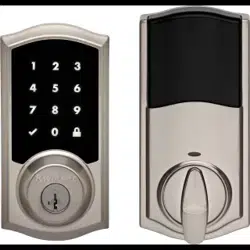
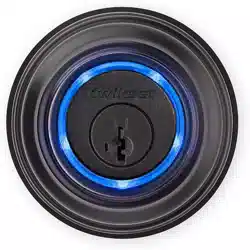
Halo Keypad, Halo Touchscreen, and Aura support 1-3/8” to 2” (35mm - 51mm) door thickness.
Halo Touch supports 1-3/4” to 2” (44mm - 51mm) door thickness.
Yes, a kit (83033) is available to install Halo and Aura locks on doors with a thickness between 2” (51mm) and 2-1/4”
(57mm). Call our support center at 1-800-327-5625 to order a thick door kit.
Halo Keypad, Halo Touchscreen, and Aura locks are compatible with 1-1/2” (38mm) and 2-1/8” (54mm) door holes.
Halo Touch ngerprint locks require 2-1/8” (54mm) door holes.
Please refer to the Warped Door Installation Guide for the necessary
adjustments to properly prepare your door for a smart lock installation.
1
A
B
C
D
What is the door thickness requirement for Halo and Aura locks?
Is there a door thickness kit for Halo and Aura locks to support
doors thicker than 2” (51mm)?
What door hole diameter is required to install Halo
and Aura locks?
What do I need to correct a door that is warped or has been
aected by weather?
©2020 Spectrum Brands, Inc.
66450 Rev 02
3 / 14
Technical Support
1-800-327-5625
www.kwikset.com
Installation
To install your Halo or Aura lock, refer to the following instructions:
• Halo / Aura Interactive Guide
• Halo Touch Installation Guide PDF
• Halo Touchscreen Installation Guide PDF
• Halo Keypad Installation Guide PDF
• Aura Installation Guide PDF
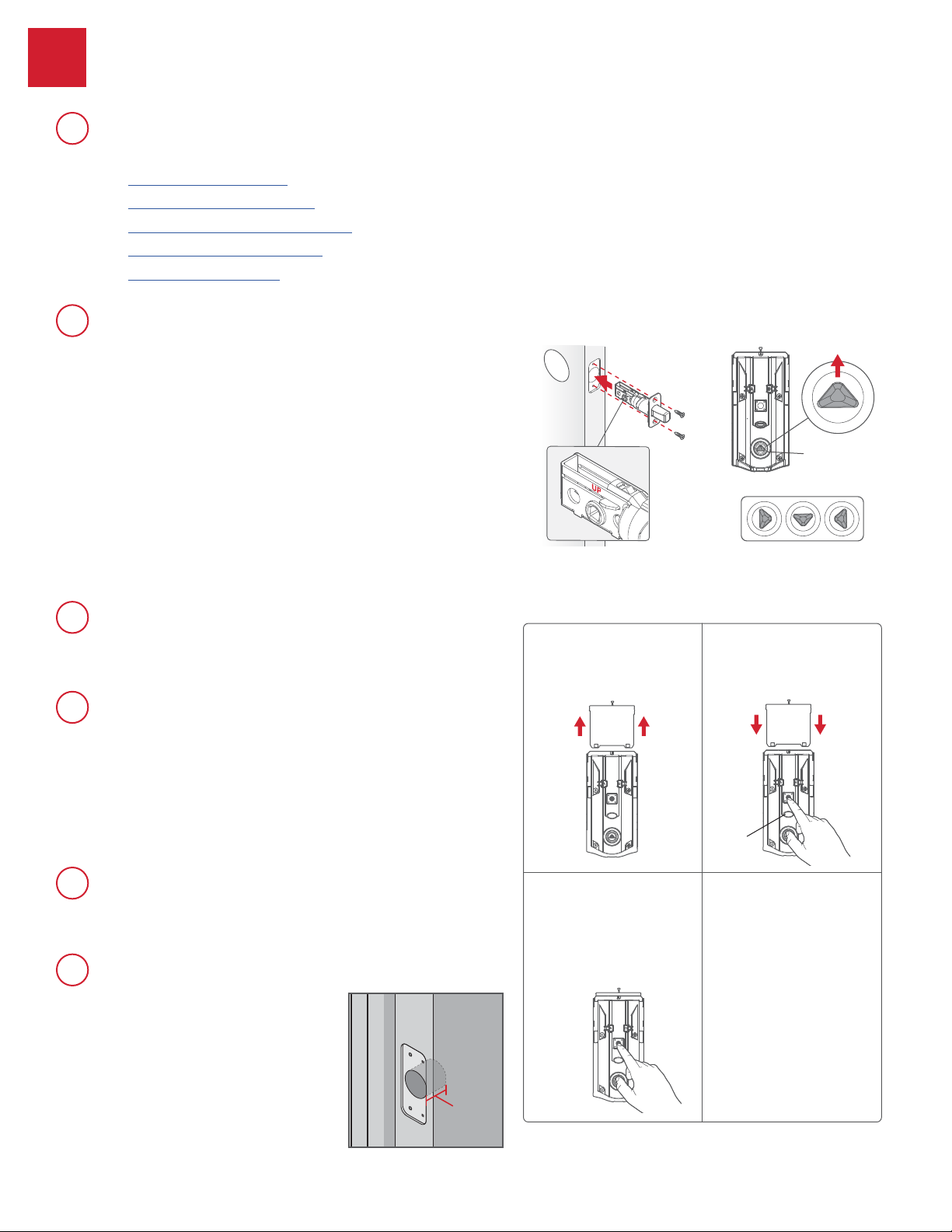
Perform the following steps to correct the issue:
1. Check that the lock orientation is correct. Note: “UP” on latch should be
facing up (Fig. 1).
2. If incorrect, reinstall the lock to correct orientation. Installation Guide links
can be found in Question 2A.
During installation, ensure that turnpiece shaft is pointing up (Fig. 2). To
rotate turnpiece shaft, put the cover back on the interior and rotate the
turnpiece until it is pointing up. You may hear a click.
3. Perform Manual Door Handing steps.
4. If the above steps do not x the issue, call our support center at
1-800-327-5625 to order a new latch.
Handing, or latch calibration, is the way that the smart lock learns the
orientation of your door (left- or right-handed).
A1: The rst time the battery is inserted, the lock will perform automatic
calibration, or “handing.” You will know the handing is taking place
when the latch bolt retracts and extends on its own.
A2: The rst time that lock or unlock is performed using the Kwikset app
or access code, the lock will automatically perform latch calibration.
A3: Perform Manual Door Handing steps.
Perform Manual Door Handing steps.
A1: With the door open, press the lock button.
If you do not get a jam error with the door
open, the strike pocket on your door frame
may not be deep enough. Ensure that the
strike pocket is at least 1” (25mm) deep.
A2: Perform Manual Door Handing steps.
Manual Door Handing
2
A
B
C
D
E
F
How do I install Halo or Aura lock on my door?
Why is the lock performing the opposite when I’m locking or
unlocking the door using the Kwikset app?
What is “handing” or latch calibration?
How do I “hand” or calibrate my lock?
The turnpiece is dicult to turn by hand.
My lock is giving me a jam error.
Incorrect:
Turnpiece
shaft
1. Remove battery pack.
3. Press the Program button
once more.
2. Press and HOLD the Program button
while reinserting the battery pack.
Release the Program button after 3
seconds. The status LED will ash
red and green.
4. The latch bolt will extend and retract
to learn the orientation of the door.
The LED will ash green if handing
is successful or red if handing is
unsuccessful.
Status LED
Fig. 2Fig. 1
1”
(25mm)
©2020 Spectrum Brands, Inc.
66450 Rev 02
4 / 14
Technical Support
1-800-327-5625
www.kwikset.com
Batteries
Complete the following steps:
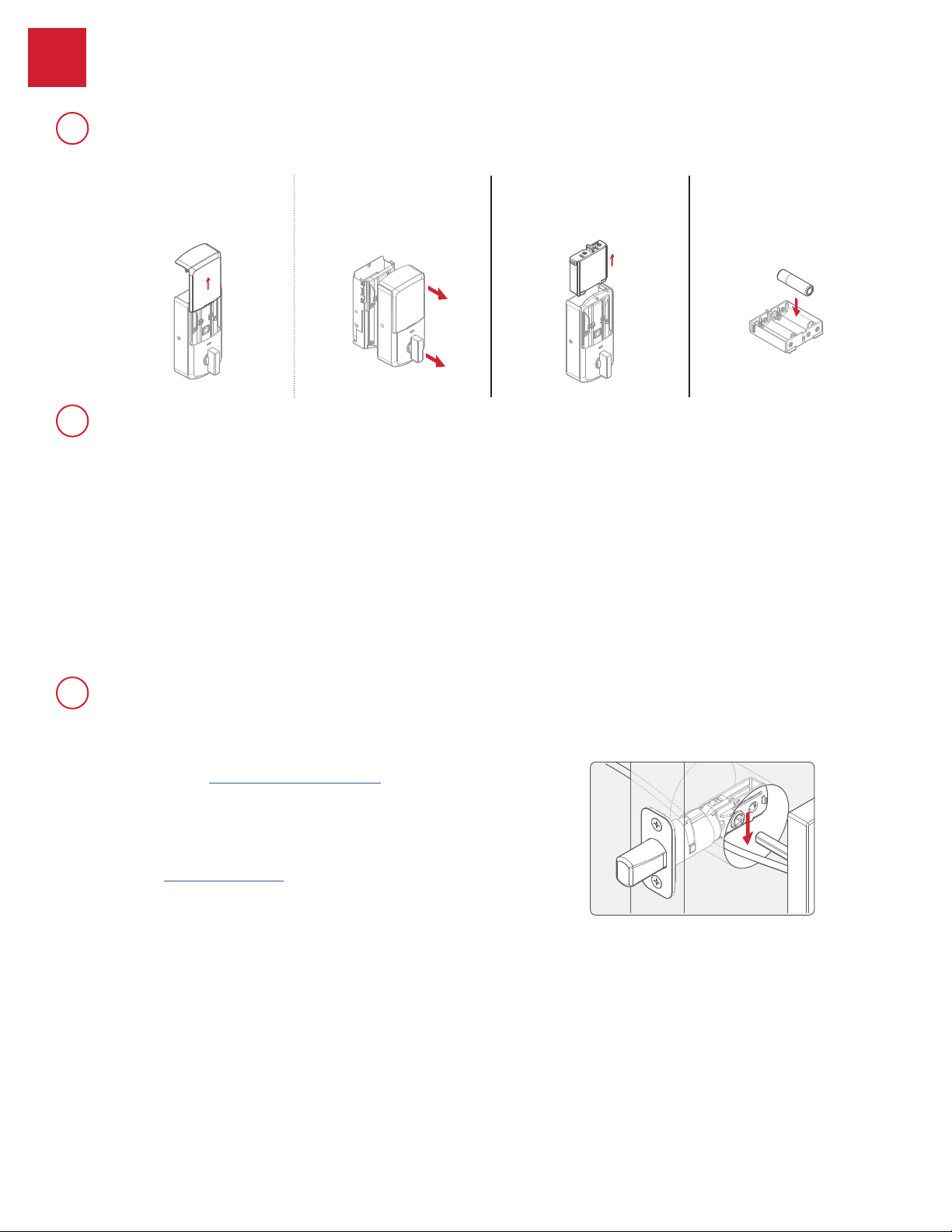
1. If the security screw is not
installed, slide the interior
cover window up.
If the security screw is
installed, remove the entire
interior cover.
2. Remove the battery pack.
3. Replace the batteries.
A1: For Aura and Halo Keypad, the keypad ashes red with fast beeping sound for three to four
seconds after a motorized operation, such as locking or unlocking with an access code.
For Halo Touchscreen, the checkmark and lock symbols ash simultaneously ve times with
ve beeps after a motorized operation, such as locking or unlocking with an access code.
For Halo Touch, the exterior LED ashes red and beeps after a motorized operation, such as locking
or unlocking with a ngerprint.
A2: A battery level indicator is also available in the Kwikset app, along with a
notication when the battery level is low. In addition, the interior status LED will
blink red.
A1: Check that the Kwikset app is updated to the latest version and that your lock’s
rmware does not need to be updated.
A2: Check that the door is properly aligned. For helpful tips on getting the door to
align, refer to the Warped Door Installation Guide. Resistance to both
locking and unlocking because of door misalignment will reduce both motor
and battery life.
A3: Check that the lock is properly installed, and the cable is routed and
stored correctly (Fig. 3).
A4: Perform Manual Door Handing to make sure that the lock knows the correct
direction for locking and unlocking.
A5: Make sure that the lock has a strong Wi-Fi connection with the router. For
better Wi-Fi coverage within the home, please investigate using a mesh
Wi-Fi network where several endpoints are deployed to provide the best
Wi-Fi coverage.
A6: Call our support center at 1-800-327-5625 for additional help and product
replacement if needed.
3
A
B
C
How do I replace the (4) AA batteries?
How can I tell if the batteries need to be replaced?
What can I do if I frequently need to replace batteries?
Fig. 3
©2020 Spectrum Brands, Inc.
66450 Rev 02
5 / 14
Technical Support
1-800-327-5625
www.kwikset.com
Kwikset App
Kwikset App is used to manage Halo Touch, Halo Touchscreen, Halo Keypad, and
Aura locks.
The Kwikset App is available for free download from Google Play or the App Store
by searching for “Kwikset” and installing the “Kwikset Smart Lock App.”
The Kwikset App Support page can help answer any questions you have about
the Kwikset app.
A Kwikset account is required to maintain secure access and management of Halo
and Aura locks. Please refer to the app tutorial for Creating Your Account.
Please refer to the app tutorial for Creating Your First Home.
Please refer to the app tutorial for Adding Your First Lock.
Please refer to the app tutorial for Adding Your First Lock.
Please refer to the app tutorial for Adding Your First Lock.
4
A
B
C
D
E
F
G
H
What app do I use to manage my Halo or Aura lock?
Where can I download the Kwikset app?
Where can I get help with the Kwikset app?
How do I create an account to be able to manage my Halo or
Aura lock using the Kwikset app?
How do I create a “Home” within the Kwikset app?
How do I add a lock within a “Home” in the Kwikset app?
How do I discover or pair the lock in the Kwikset app?
How do I connect to a Wi-Fi network with my lock?
kwikset.com/app
This is a requirement of the smartphone and the iOS and Android operating
systems, and not specically a requirement of the Kwikset App.
I
Why does the app ask for permissions to media files, photos,
and location?
©2020 Spectrum Brands, Inc.
66450 Rev 02
6 / 14
Technical Support
1-800-327-5625
www.kwikset.com
Kwikset App (continued)
A1: If you know your current password, complete the following steps:
1. Open the Kwikset app.
2. Tap the icon.
3. Select Account Settings.
4. Select Account.
5. Select Change Password.
6. You will be prompted to enter your old password, then the New
Password elds must be lled out.
A2: If you do not remember your password, complete the following steps:
1. Open the Kwikset app.
2. Tap the icon.
3. Select Log Out.
4. Select Forgot Password to initiate the recovery process.
Complete the following steps:
1. Open the Kwikset app.
2. Select the lock.
3. Tap on the icon.
4. Add a user ngerprint by following the instructions.
Complete the following steps:
1. Open the Kwikset app.
2. Select the lock.
3. Tap on the icon.
4. Select the user you would like to delete.
5. Select Delete.
Complete the following steps:
1. Open the Kwikset app.
2. Select the lock.
3. Tap on the icon.
4. Select the user.
5. Select Schedule Type.
6. Select your desired schedule type and specify the desired access times.
J
K
L
M
How do I reset my password for my Kwikset account?
How do I enroll the fingerprint of another person that I want to
be able to use the lock?
How do I delete a user?
How do I limit the access times for a user?
©2020 Spectrum Brands, Inc.
66450 Rev 02
7 / 14
Technical Support
1-800-327-5625
www.kwikset.com
Kwikset App (continued)
A1: Complete the following steps:
1. Open the Kwikset app.
2. Select the icon.
3. Select Account Settings.
4. Select Accounts.
5. Select Change Security Questions.
A2: Complete the following steps:
1. Go to GoConcourse.com
2. Enter your email and password.
3. Select the icon.
4. Select Change Security Questions.
5. Follow the steps to update your security question and answer.
NOTE: If prompted, select Kwikset (US) or Weiser (Canada).
Complete the following steps:
1. Go to GoConcourse.com
2. Enter your email and password.
3. Select the icon.
4. Select Enable/Disable My Account
5. Tap Disable.
A1: Complete the following steps:
1. Open the Kwikset app.
2. Select the lock.
3. Tap on the icon.
4. Select the user you would like to disable.
5. Toggle the option to Disable. This will disable the user from unlocking
the door with their access code or enrolled ngerprint.
A2: Another option is to enable Secure Mode which disables all access codes
or enrolled ngerprints. The only way to unlock is to use the physical key or an
authorized smartphone. Complete the following steps:
1. Open the Kwikset app.
2. Select the lock.
3. Tap on the icon.
4. Toggle the option on Secure Mode.
N
O
P
How do I change my security question for my account?
How do I disable my account?
How do I temporarily disable a user?
Perform Manual Door Handing steps to x the jam.
Q
The app is reporting a “jammed” message.
©2020 Spectrum Brands, Inc.
66450 Rev 02
8 / 14
Technical Support
1-800-327-5625
www.kwikset.com
Kwikset App (continued)
Complete the following steps:
1. Manually lock and unlock the door lock with your phone in Bluetooth
range (30ft) and with Bluetooth turned on.
2. Refresh the app by pulling down on the main screen.
3. Close the app.
4. Relaunch the app.
Aura is a Bluetooth lock so the smartphone needs to be within 30’ of the lock to
receive lock event notications.
First, check that your Kwikset app is updated to the latest version. If the time stamp is still not correct, complete the following steps:
1. Open the Kwikset app.
2. Tap History.
3. Tap Clear History.
4. Bring your phone within Bluetooth range of the door lock with the app running in the foreground.
First, check that your Kwikset app is updated to the latest version. If the time stamp is still not visible, complete the following steps:
1. Open the Kwikset app.
2. Tap History.
3. Tap Clear History.
4. Bring your phone within Bluetooth range of the door lock with the app running in the foreground.
Note: You may still see events without a time stamp if those events occurred when the lock’s time was not set.
The app will attempt to program the access code for 5 minutes, during which the
text will be yellow. If the app is unsuccessful after 5 minutes, tap on the yellow code
and choose Retry, or Cancel the attempt.
A1: Make sure you correctly entered your mobile phone number.
Do not enter the country code.
A2: Verication code may be sent from these phone numbers. Check that these numbers are not in
your phone’s block contact list.
iOS:
Settings > Phone > Blocked Contacts > Swipe left on the phone number then tap Unblock.
Android:
Settings > Messages > Blocked Contacts > Swipe left on the phone number then tap Unblock.
R
S
T
U
V
W
The app is reporting the incorrect lock status.
Why isn’t my Aura lock sending lock event notifications?
My history is not reflecting the correct time. How do I fix this?
I don’t see a time stamp in my history.
My access codes are staying yellow.
I haven’t received my text verification code.
Verication Code Phone Numbers
• +1-226-216-5215
• +1-205-479-5187
• +1-867-9 92-0317
• +1-226-400-4790
• +1-760-642-5521
• +1-985-805-8320
©2020 Spectrum Brands, Inc.
66450 Rev 02
9 / 14
Technical Support
1-800-327-5625
www.kwikset.com
Kwikset App (continued)
X
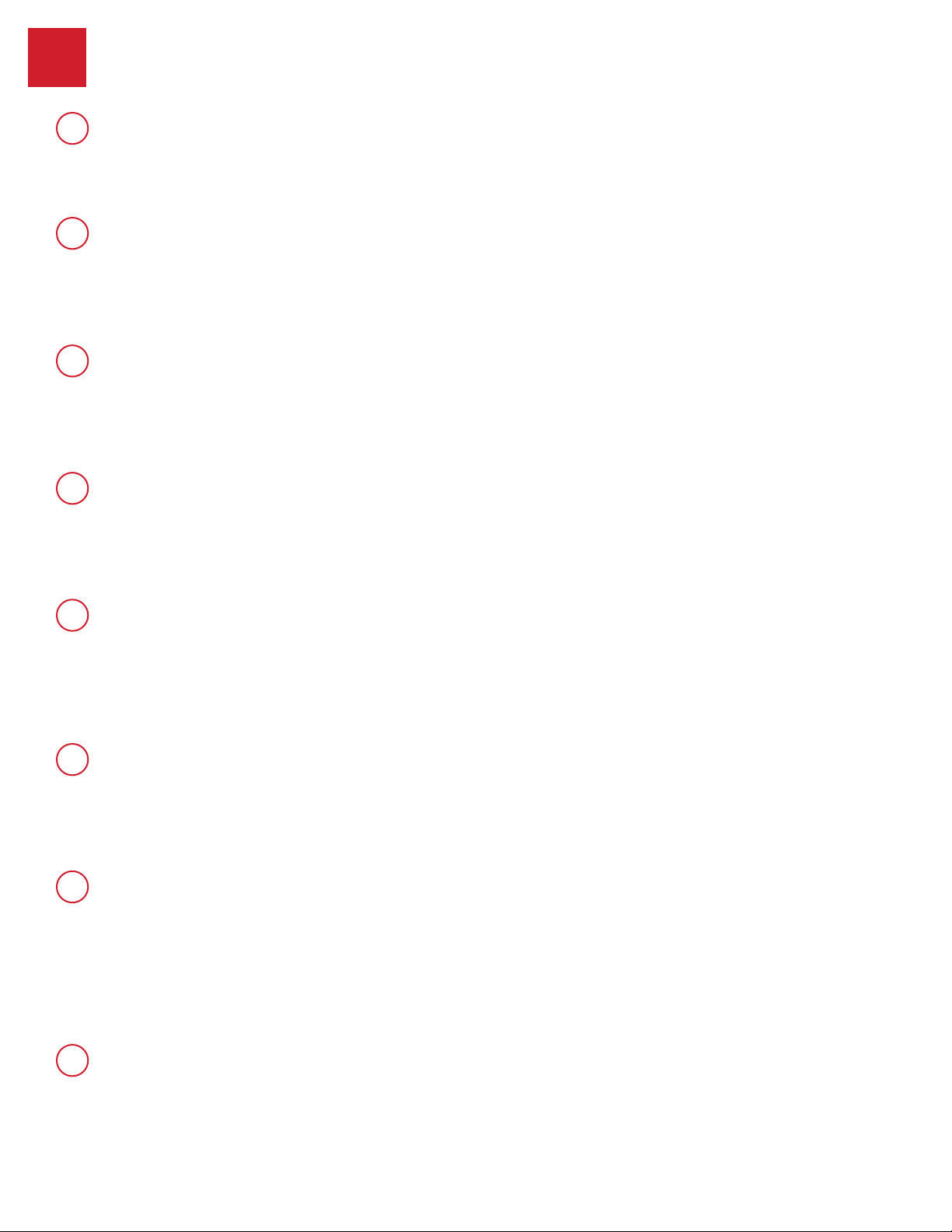
What is the dierence between an Owner, an Admin, and a Member?
Owner Admin Member
Home
Create a virtual Home
•
Delete a virtual Home
•
Add a lock to Owner’s virtual Home
•
Delete a lock from Owner’s virtual Home
•
Share virtual Home to other Admins
• •
Share virtual Home to other Members
• •
See other locks in the same virtual Home
• • •
Manage other locks in the same virtual Home.
• •
Edit virtual Home name
• •
Promote a Member to Admin
• •
Demote an Admin to Member
• •
Remove Owner from their virtual Home
•
Remove Admin from Owner’s virtual Home
• •
Remove Member from Owner’s virtual Home
• •
Access
Lock / Unlock with Key
• • •
Lock / Unlock with Code
• • •
Lock / Unlock Remotely with App
• • •
Code
Add an Access Code / Schedule
• •
Delete an Access Code / Schedule
• •
Edit an Access Code / Schedule
• •
See all Access Codes on a lock
• •
Lock
Edit lock audio settings
• •
Edit lock LED settings
• •
Edit lock Auto Lock settings
• •
Edit lock SecureScreen settings
• •
Edit lock Secure Mode settings
• •
View lock status
• • •
View lock event history
• •
Clear lock event history (for everyone)
•
Clear lock event history (for self)
• •
Edit lock name
• •
Manage paired smartphones
• •
Notifications
Locked, unlocked, jammed
• •
Low lock batteries
• •
New user added/removed by Admin (email)
•
Lock tampering
•
New lock rmware ready (in-app, in Bluetooth range)
•
Lock ofine
• •
Other
Update lock rmware (in-app, in Bluetooth range)
•
©2020 Spectrum Brands, Inc.
66450 Rev 02
10 / 14
Technical Support
1-800-327-5625
www.kwikset.com
Bluetooth
A1: After deleting the lock from the app.
A2: When trying to re-pair or re-activate the lock after a failed attempt.
1. Remove the lock from your smartphone’s Bluetooth device list (if it exists).
2. Turn off and on the Bluetooth services on your smartphone.
3. Try again.
1. Remove the lock from your smartphone’s Bluetooth device list (if it exists).
2. Turn off and on the Bluetooth services on your smartphone.
3. Try again.
1. Remove the lock from your smartphone’s Bluetooth device list (if it exists).
2. Turn off and on the Bluetooth services on your smartphone.
3. Try again. If you are the Owner of the lock, you may also perform a Factory Reset.
1. Turn off and on the Bluetooth services on your smartphone.
2. Power cycle your lock: remove the battery pack, press and hold the program button
for 5 seconds, press and hold button A for 5 seconds, then replace the battery.
3. Try again. You may need to reboot your phone.
1. Remove the lock from your smartphone’s Bluetooth device list (if it exists).
2. Turn off and on the Bluetooth services on your smartphone.
3. Try again. If you are the Owner of the lock, you may also perform a Factory Reset.
1. Remove the lock from your smartphone’s Bluetooth device list (if it exists).
2. Turn off and on the Bluetooth services on your smartphone.
3. Bluetooth pair the lock with your smartphone.
4. Try again.
On the search results screen, tap on the lock you wish to pair.
5
A
B
C
D
E
F
G
H
When should I delete the lock from my smartphone’s Bluetooth list?
Bluetooth pairing is not working.
My lock will not pair after the first pairing attempt failed.
The lock flashes red when I try Bluetooth pairing.
I cannot connect to my lock via Bluetooth after successful pairing.
When trying to pair Bluetooth, my lock beeps 3 times.
I deleted the app and then reinstalled it but now the app is
reporting a “No lock paired” error.
I see my lock during the Bluetooth pairing process, what do I do now?
©2020 Spectrum Brands, Inc.
66450 Rev 02
11 / 14
Technical Support
1-800-327-5625
www.kwikset.com
Wi-Fi
The home Wi-Fi network needs to be 2.4GHz and password protected with WPA2 encryption.
Your app is controlling via Wi-Fi. Complete the Bluetooth pairing process for the
optimal experience. Some features are only available via Bluetooth.
Please refer to the app tutorial for Adding Your First Lock.
6
A
B
C
What type of Wi-Fi network do Halo locks require?
I am able to lock and unlock my Halo lock remotely and receive
notifications, but my app says “No Lock Paired.”
I don’t see my Wi-Fi network on the search results screen.
A1: Complete the following steps:
1. Wait until the Wi-Fi scan is complete (circle stops spinning).
2. Tap Manual Settings.
3. Manually enter your Wi-Fi name (SSID) and password.
A2: Complete the following steps:
1. Unhide the network or set it to broadcast.
2. Complete the lock activation.
3. Re-hide the network.
A3: If MAC address ltering is enable, complete the following steps:
1. Disable the router’s MAC address ltering. Refer to the router manufacturer’s instructions for specic steps.
2. Activate your Halo lock.
3. After the lock has been successfully added to the Wi-Fi network, go to the router’s administrative dashboard. Find Halo’s MAC
address and add it to the router’s list of authorized devices. Refer to the router manufacturer’s instructions for specic steps.
4. Re-enable MAC address ltering.
To change the Wi-Fi network of a lock that has already been activated, Factory Reset the lock then re-activate the lock with the new Wi-Fi network settings:
1. Follow the steps below to perform a Factory Reset to delete the current Wi-Fi settings on the lock. Please note, a Factory Reset will delete all
access codes, smartphone pairings, and lock settings.
2. Be sure to delete the lock from the app and remove the lock from the smartphone’s Bluetooth device list per the steps below.
3. Re-activate your lock with the new Wi-Fi network settings. Follow the steps in the app tutorial for Adding Your First Lock.
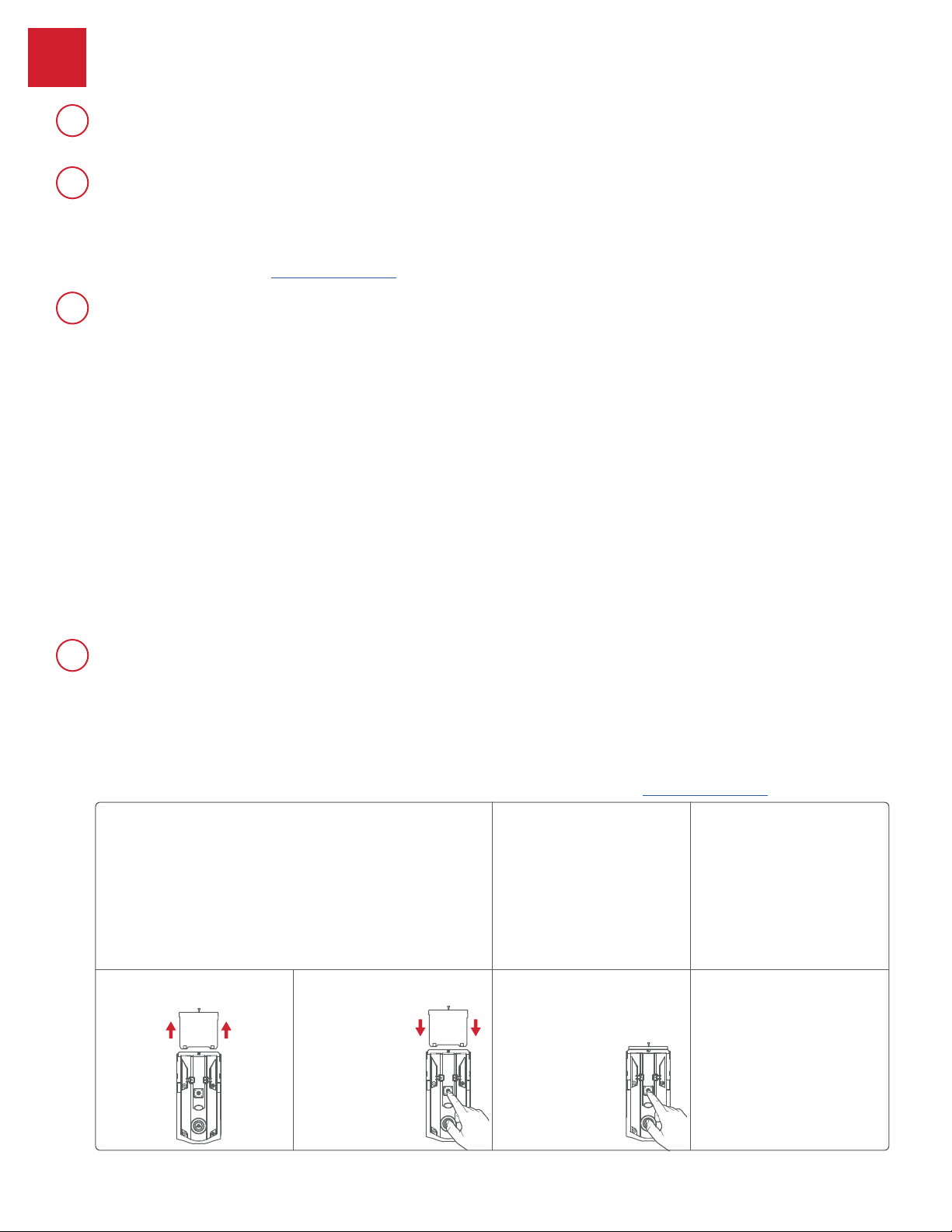
1. Delete the lock from the
Kwikset app.
Factory Reset
Factory Reset will delete all Wi-Fi settings, delete user associations,
reset all lock settings including handing, and delete access codes and
event history from the lock. Note: Access codes and event history will
still appear in the app and cloud until the lock is deleted from the app.
Factory Reset should be used when you want to change the
lock owner, you have lost your phone, or you are troubleshooting
on a new installation.
3. Remove the battery pack. 5. After the beeping stops, press and
release the Program button once
more. The LED will ash green and
red, and the auto-handing process
will begin.
Note: It can
take a few
seconds for
the handing
to start.
2. Remove the lock from the
Bluetooth list on your device by
tapping “Forget Device” in the
Bluetooth settings.
4. Press and HOLD the Program button
while reinserting the battery pack.
Keep holding the
button for 30
seconds or until the
lock beeps and the
status LED ashes red.
Then release the
Program button.
6. The latch will retract and extend to
learn the orientation of the door.
This conrms the Factory Reset
has been completed.
The LED will ash green if auto-
handing is successful or red if
auto-handing is unsuccessful.
If the Factory Reset is not
successful, perform the steps again
until the LED ashes green and red.
D
How do I change my Wi-Fi network settings after I have already
activated my Halo lock?
©2020 Spectrum Brands, Inc.
66450 Rev 02
13 / 14
Technical Support
1-800-327-5625
www.kwikset.com
Device Compatibility
Router Compatibility
Please see the Device Compatibility list to see if your device is compatible.
Please see the Router Compatibility list to see if your router is compatible.
NOTE: Halo locks implement a standard based Wi-Fi radio and should work
with majority of the routers available in the market that are Wi-Fi certied.
8
9
©2020 Spectrum Brands, Inc.
66450 Rev 02
14 / 14
Technical Support
1-800-327-5625
www.kwikset.com
1. Open the Kwikset app with your phone in Bluetooth range (30ft) and with Bluetooth turned on.
2. Select the icon.
3. Select the icon.
4. Enter Name.
5. Select Schedule Type then click Submit.
6. Follow the instructions on the app to enroll your ngerprint.
a. Make sure that the ngers are dry.
b. Adjust the nger to cover the sensor with the middle portion of the nger, especially when enrolling a child’s nger.
c. Make sure to lift the nger after each successful ngerprint scan until the app shows 100% enrollment.
NOTE: If you are unable to enroll a specic ngerprint because of ngerprint damage, dry skin, etc.,
please use a different nger.
A
How do I enroll a fingerprint for the lock?
If your registered ngerprints are unable to unlock the door, you will need to delete the existing
ngerprints and re-enroll the ngerprint into the lock. NOTE: If you are unable to enroll a specic
ngerprint because of ngerprint damage, dry skin, etc., please use a different nger.
1. Select the icon.
2. Select the Name of the person whose ngerprints you need to delete.
3. Tap the icon next to the registered ngerprints to delete them.
4. Select Schedule Type then click Submit.
5. Follow the instructions on the app to enroll your ngerprint.
a. Make sure that the ngers are dry.
b. Adjust the nger to cover the sensor with the middle portion of the nger, especially
when enrolling a child’s nger.
c. Make sure to lift the nger after each successful ngerprint scan until the app shows
100% enrollment.
B
My registered fingerprints are unable to unlock the door?
Halo Touch
10