DIGITAL CAMERA
User’s Manual
Introduction ii
Table of Contents xi
Parts of the Camera 1
Getting Started 2
Using the Camera 6
Using SnapBridge 360/170 13
Changing the Settings
25
Connecting the Camera to External Devices 28
Technical Notes 31
• Read this manual thoroughly before using the camera.
•
To ensure proper use of the camera, be sure to read the For Your
Safety leaflet, “<Important> Notes About Shockproof, Waterproof,
and Dustproof Performance and Condensation” (page vii), and
“Notes About Wireless Communication Functions” (page 33).
• After reading this manual, keep it in a readily accessible
place for future reference.
ii
Introduction
Introduction
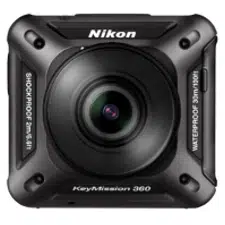
Thank you for purchasing the Nikon KeyMission 360 digital camera.
• This manual uses KeyMission 360 (firmware version 1.5) and SnapBridge 360/170
(version 1.1) in the examples. If you are using older versions, update the camera
firmware and SnapBridge 360/170.
• The operating procedures may vary depending on the versions of the camera
firmware, SnapBridge 360/170, and OS of the smart device.
To Learn More
See the information below to learn more about the camera and related software.
* The Online Manual is available in the following languages.
Chinese (Simplified and Traditional), Danish, Dutch, English, Finnish, French, German,
Italian, Japanese, Korean, Norwegian, Portuguese, Russian, Spanish, Swedish
Nikon Download Center
http://downloadcenter.nikonimglib.com
Visit our website to download manuals for Nikon imaging
products, computer software, or firmware.
Read This First
KeyMission 360/
SnapBridge 360/170
Online Manual*
Describes details on how to use the camera and “SnapBridge
360/170”, the app for smartphones/tablets.
https://nikonimglib.com/snbrkm/onlinehelp/en/index.html
• You can also open it by selecting SnapBridge 360/170 M
Other tab M Help.
KeyMission 360/170
Utility Help
Describes details on how to use “KeyMission 360/170 Utility”,
software for computers.
https://nikonimglib.com/kmutil/onlinehelp/en/index.html
SnapBridge 360/170
Tutorial Videos
Videos easily explain how to use SnapBridge 360/170 for pairing
and basic operations.
http://imaging.nikon.com/lineup/action/keymission_360/
KeyMission 360 Model Name: N1529

iii
Introduction
Nikon User Support
Should you need technical support, we offer a number of options.
Internet
For customers in the United States: www.nikonusa.com
For customers in Canada: www.nikon.ca (English), fr.nikon.ca (Français)
For customers in Mexico: www.nikon.com.mx
For customers in Brazil: www.nikon.com.br
Telephone
For customers in the United States: 1-800-NIKON-US (1-800-645-6687)
For customers in Canada: 1-877-534-9910
For customers in Mexico: 001-888-565-5452
For customers in Brazil: 0800-886-4566 (0800-88 NIKON)
iv
Introduction
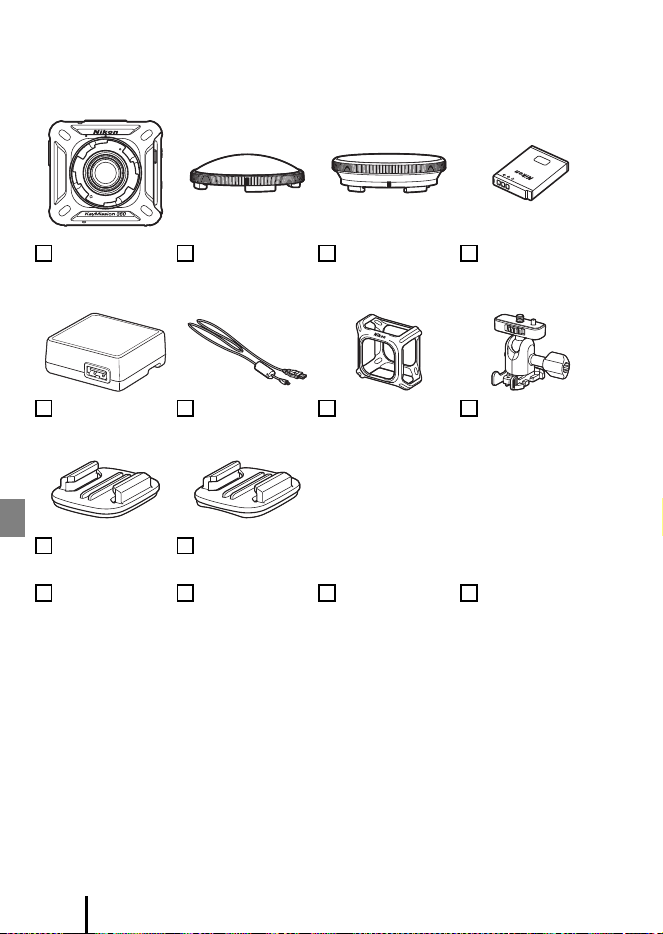
Confirming the Package Contents
In the event that any items are missing, please contact the store where you purchased
the camera.
1
Attached to the camera at time of factory shipment.
2
A plug adapter is included if the camera was purchased in a country or region that
requires a plug adapter. The shape of the plug adapter varies with the country or region
of purchase (A4).
NOTE: A memory card is not included with the camera. microSD, microSDHC, and
microSDXC memory cards are referred to as “memory cards” in this manual.
KeyMission 360
Digital Camera
Two AA-14A Lens
Protectors
1
Two AA-15A
Underwater Lens
Protectors
EN-EL12
Rechargeable
Li-ion Battery
EH-73P Charging
AC Adapter
2
UC-E21 USB Cable CF-AA1 BK Silicone
Jacket
AA-1A Base
Adapter
AA-2 Base Mount
(Flat)
AA-3 Base Mount
(Curved)
User’s Manual
(this manual)
KeyMission 360
Getting Started
Warranty For Your Safety

v
Introduction
Information and Precautions
Life-Long Learning
As part of Nikon’s “Life-Long Learning” commitment to ongoing product support and
education, continually updated information is available online at the following websites:
• For users in the U.S.A.: http://www.nikonusa.com/
• For users in Europe: http://www.europe-nikon.com/support/
• For users in Asia, Oceania, the Middle East, and Africa: http://www.nikon-asia.com/
Visit these websites to keep up-to-date with the latest product information, tips, answers to
frequently asked questions (FAQs), and general advice on digital imaging and photography.
Additional information may be available from the Nikon representative in your area. Visit the
website below for contact information.
http://imaging.nikon.com/
Use Only Nikon Brand Electronic Accessories
Nikon digital cameras are designed to the highest standards and include complex electronic
circuitry. Only Nikon brand electronic accessories (including battery chargers, batteries, AC
adapters, and USB cables) certified by Nikon specifically for use with this Nikon digital
camera are engineered and proven to operate within the operational and safety
requirements of this electronic circuitry.
THE USE OF NON-NIKON ELECTRONIC ACCESSORIES COULD DAMAGE THE CAMERA AND
MAY VOID YOUR
NIKON WARRANTY.
The use of third-party rechargeable Li-ion batteries not bearing the Nikon holographic seal
could interfere with normal operation of the camera or result in the batteries overheating,
igniting, rupturing, or leaking.
For more information about Nikon brand accessories, contact a local authorized Nikon
dealer.
Before Taking Important Pictures
Before taking pictures on important occasions (such as at weddings or before taking the
camera on a trip), take a test shot to ensure that the camera is functioning normally. Nikon
will not be held liable for damages or lost profits that may result from product malfunction.
Holographic seal: Identifies this
device as an authentic Nikon product.

vi
Introduction
About the Manuals
• No part of the manuals included with this product may be reproduced, transmitted,
transcribed, stored in a retrieval system, or translated into any language in any form, by
any means, without Nikon’s prior written permission.
• Illustrations and screen content shown in this manual may differ from the actual product.
• Nikon reserves the right to change the specifications of the hardware and software
described in these manuals at any time and without prior notice.
• Nikon will not be held liable for any damages resulting from the use of this product.
• While every effort was made to ensure that the information in these manuals is accurate
and complete, we would appreciate it were you to bring any errors or omissions to the
attention of the Nikon representative in your area (address provided separately).
Comply with Copyright Notices
Under copyright law, photographs or recordings of copyrighted works made with the
camera can not be used without the permission of the copyright holder. Exceptions apply
to personal use, but note that even personal use may be restricted in the case of
photographs or recordings of exhibits or live performances.
Disposing of Data Storage Devices
Please note that deleting images or formatting data storage devices such as memory cards
does not completely erase the original image data. Deleted files can sometimes be
recovered from discarded storage devices using commercially available software, potentially
resulting in the malicious use of personal image data. Ensuring the privacy of such data is
the user’s responsibility.
Before discarding a data storage device or transferring ownership to another person, erase
all data in the device using commercial deletion software, or format the device by selecting
SnapBridge 360/170 (A25) M c Camera tab M Camera settings M Format card, and
then completely refill it with images containing no private information such as images of
empty sky (c Camera tab M Camera settings M Location data M turn off Download
from device and then take pictures).
Next, reset all of the camera’s settings by selecting SnapBridge 360/170 M c Camera tab
M Camera settings M Reset all.
Care should be taken to avoid injury or damage to property when physically destroying
memory cards.

vii
Introduction
• The shockproof, waterproof, and dustproof performance described here do not
guarantee that the camera will remain completely waterproof or free from damage
and trouble under all conditions.
• Waterproof and dustproof performance is lost when the battery-chamber/memory
card slot cover is open.
• Do not subject the camera to excessive shock, vibration or pressure by dropping it,
hitting it, or placing a heavy object on it. Failure to observe this precaution could
deform the camera, cause water to seep inside, or damage the airtight seals,
resulting in camera malfunction.
• Your Nikon warranty may not cover troubles caused by water seeping inside the
camera due to improper handling of the camera.
Notes About Shockproof Performance
This camera has passed Nikon’s in-house test (drop test from a height of 200 cm (6 ft
6 in.) on a 5 cm (2 in.) thick plywood panel) compliant with the MIL-STD 810F Method
516.5-Shock
1
standard.
2
Changes in appearance, such as paint peeling off and deformation of the camera, are
not measured in Nikon’s in-house test.
1
U.S. Department of Defense test method standard.
This test is defined by preparing 5 cameras and making sure that the test is passed within
5 cameras by dropping in 26 directions (8 corners, 12 edges, and 6 faces) from a height of
122 cm (4 ft).
2
When the lens protectors or underwater lens protectors are attached.
Notes About Waterproof and Dustproof Performance
The camera is rated equivalent to JIS/IEC waterproof class 8 (IPX8) and JIS/IEC
dustproof class 6 (IP6X) and can shoot images underwater at a depth of 30 m (100 ft)
for up to 60 minutes.
1, 2
1
This rating indicates that the camera has been designed to withstand the specified water
pressure for the specified period of time when the camera is used according to the
methods defined by Nikon.
2
The camera can be used up to a water depth of about 20 m (65 ft) when the lens
protectors are attached.
- The waterproof performance of this camera was tested in fresh water (swimming
pools, rivers, and lakes) and salt water only.
- The inner portion of this camera is not waterproof. Water seeping inside the camera
could cause the components to rust, resulting in high repair costs or irreparable damage.
B Precautions When Cleaning
• Do not puncture the microphone or speaker openings with a sharp implement. If the
inside of the camera is damaged, the waterproof performance will deteriorate.
• Do not use soap, neutral detergents, or chemicals such as benzene for cleaning.
<Important> Notes About Shockproof, Waterproof,
and Dustproof Performance and Condensation
viii
Introduction
Notes About Shockproof, Waterproof, and Dustproof
Performance
• Do not drop the camera, strike it against a hard object such as a rock, or throw it
against a water surface.
• Do not subject the camera to shock when using it underwater.
- Do not subject the camera to water pressure by exposing it to rapids or waterfalls.
- Do not expose to depths greater than 30 m (100 ft) underwater.
- Make sure not to drop the camera underwater. This camera does not float in
water.
• Do not continuously use the camera underwater for 60 minutes or more.
• Do not insert a wet memory card or battery in the camera.
- Do not open the battery-chamber/memory card slot cover when the camera or
your hands are wet. Doing so may cause water to seep inside the camera or
result in camera malfunction.
• Do not open the battery-chamber/memory card slot cover underwater.
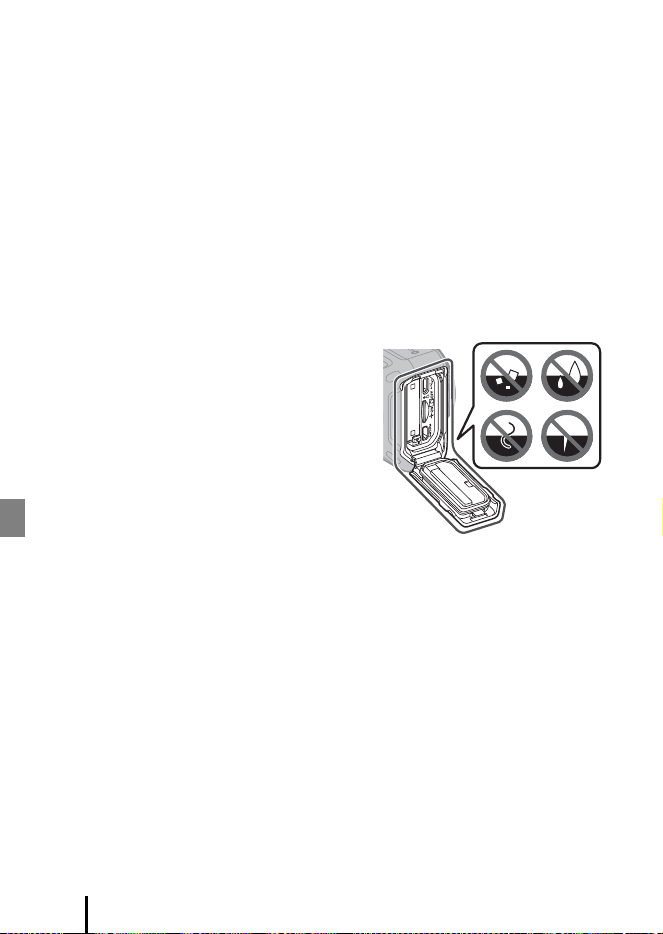
• If moisture such as water droplets adheres to
the outside of the camera or inside of the
battery-chamber/memory card slot cover,
immediately wipe it off with a soft dry cloth.
- If a foreign substance adheres to the
outside of the camera or inside of the
battery-chamber/memory card slot cover,
immediately remove it with a blower or a
soft cloth.
• Do not leave the camera in cold conditions or
in hot conditions of 40°C (104°F) or more for a
long period of time.
- Doing so could cause deterioration of the waterproof performance.
- When using the camera underwater, make sure the water temperature is from
0°C to 40°C (32°F to 104°F).
• Do not use the camera at hot springs.
Before Using the Camera Underwater
Check the items below before using the camera underwater.
• Make sure that there are no foreign substances inside the battery-chamber/
memory card slot cover.
• Make sure that the waterproofing packing of the battery-chamber/memory card
slot cover is not cracked or deformed.
- Make sure that the waterproofing packing is not detached from the camera.
• Make sure that the battery-chamber/memory card slot cover is firmly closed.
- Make sure that the battery-chamber/memory card slot cover latch is in the LOCK
position (A2).

ix
Introduction
Notes About Operating Temperature, Humidity, and
Condensation
The operation of this camera has been tested at temperatures from −10°C to +40°C
(14°F to 104°F).
When you use the camera in cold climate regions or at high altitudes, observe the
following precautions.
• Battery performance deteriorates temporarily when cold. Keep the camera and
batteries warm under your clothing before use.
● Environmental conditions that are likely to cause condensation
Fogging (condensation) may occur on the inside of the lenses, lens protectors, or
underwater lens protectors depending on environments of sharp temperature
changes or high humidity, or the condition of the camera, such as described below.
This is not a malfunction or defect.
• The camera is suddenly immersed in cold water after being in a hot place on land.
• The camera is brought to a warm place such as inside a building after being in the
cold outdoors.
• The battery-chamber/memory card slot cover is opened or closed in a high-
humidity environment.
• The camera, lens protector, or underwater lens protector are still wet when they are
attached to each other.
• The camera is used for an extended period of time in a low-temperature
environment.
● Reducing condensation
• Open the battery-chamber/memory card slot cover, put the camera and a
commercially-available desiccant in a container such as a plastic bag, and seal the
container.
Condensation is less likely to occur if the humidity inside the camera is reduced.
• Avoid storing the camera in places where the camera may become hot (such as
places exposed to direct sunlight) before using it underwater.
Taking the camera underwater while it is hot causes condensation due to sudden
changes in temperature.
● Clearing the fogging
• Turn off the camera and open the battery-chamber/memory card slot cover while
in a place where the ambient temperature is stable (avoid places with high
temperature, high humidity, sand, or dust).
To clear the fogging on the lens, remove the battery and memory card, and leave
the battery-chamber/memory card slot cover open to allow the camera to adjust
to the ambient temperature. When a lens protector or underwater lens protector is
fogged, remove the protector, and attach it to the camera again after the fogging
has cleared.

x
Introduction
Inspection and Repair
• If the camera is exposed to shock, it is recommended to consult your retailer or
Nikon-authorized service representative to confirm the waterproof performance
(charged service).
• If the waterproofing packing begins to deteriorate, consult your retailer or Nikon-
authorized service representative. The waterproof performance of the
waterproofing packing may start to deteriorate after one year.
• If water seeps inside the camera, immediately stop using it and take it to your
Nikon-authorized service representative.

xi
Table of Contents
Table of Contents
Introduction............................................................................................................................. ii
Read This First .......................................................................................................................................... ii
To Learn More................................................................................................................................................................. ii
Nikon Download Center .......................................................................................................................................... ii
Nikon User Support.................................................................................................................................................... iii
Confirming the Package Contents .................................................................................................................. iv
Information and Precautions................................................................................................................................. v
<Important> Notes About Shockproof, Waterproof, and Dustproof Performance
and Condensation ................................................................................................................................ vii
Notes About Shockproof Performance ....................................................................................................... vii
Notes About Waterproof and Dustproof Performance ..................................................................... vii
Notes About Shockproof, Waterproof, and Dustproof Performance....................................... viii
Before Using the Camera Underwater ........................................................................................................ viii
Notes About Operating Temperature, Humidity, and Condensation........................................ ix
Inspection and Repair................................................................................................................................................ x
Parts of the Camera.............................................................................................................. 1
The Camera Body.................................................................................................................................... 1
Getting Started ...................................................................................................................... 2
Inserting the Battery and Memory Card......................................................................................... 2
Removing the Battery or Memory Card......................................................................................................... 3
Memory Cards That Can Be Used...................................................................................................................... 3
Charging the Battery ............................................................................................................................. 4
Turning the Camera On or Off ........................................................................................................... 5
Turning On the Camera........................................................................................................................................... 5
Turning Off the Camera........................................................................................................................................... 5

xii
Table of Contents
Using the Camera .................................................................................................................. 6
Recording Movies or Shooting Still Images.................................................................................. 6
Attaching the Silicone Jacket............................................................................................................. 8
Attaching the Lens Protectors/Underwater Lens Protectors ................................................. 9
Using the Base Adapter and Base Mount .................................................................................... 10
Base Mount................................................................................................................................................................... 12
Using SnapBridge 360/170.............................................................................................. 13
Preparing for Pairing ........................................................................................................................... 13
Camera ............................................................................................................................................................................ 13
Smart Device................................................................................................................................................................ 13
Pairing with a Smart Device.............................................................................................................. 14
When Not Using NFC ............................................................................................................................................. 14
When Using NFC....................................................................................................................................................... 16
Tips on Pairing ....................................................................................................................................... 18
When You Cannot Pair with a Smart Device ........................................................................................... 18
Unpairing a Smart Device.................................................................................................................................... 19
Operating the Camera from a Smart Device .............................................................................. 20
Playing Back Images Saved in the Camera/Transferring Images to a Smart Device.... 22
Playing Back Images Transferred to a Smart Device................................................................ 24
Changing the Settings ...................................................................................................... 25
Settings List ............................................................................................................................................ 25
Camera Settings......................................................................................................................................................... 25
Remote Options ........................................................................................................................................................ 27
Connecting the Camera to External Devices............................................................ 28
Outputting Live Images ..................................................................................................................... 28

xiii
Table of Contents
Technical Notes ................................................................................................................... 31
Notices..................................................................................................................................................... 31
Notes About Wireless Communication Functions................................................................... 33
Caring for the Product ....................................................................................................................... 35
The Camera ................................................................................................................................................................... 35
The Battery..................................................................................................................................................................... 36
The Charging AC Adapter .................................................................................................................................... 37
Cleaning and Storage......................................................................................................................... 38
Cleaning after Using the Camera Underwater........................................................................................ 38
Cleaning after Using the Camera in Conditions Other than Underwater.............................. 39
Storage............................................................................................................................................................................. 39
Lamp Display......................................................................................................................................... 40
Power-On Lamp ......................................................................................................................................................... 40
Status Lamp .................................................................................................................................................................. 41
Troubleshooting .................................................................................................................................. 42

xiv
Table of Contents
1
Parts of the Camera
Parts of the Camera
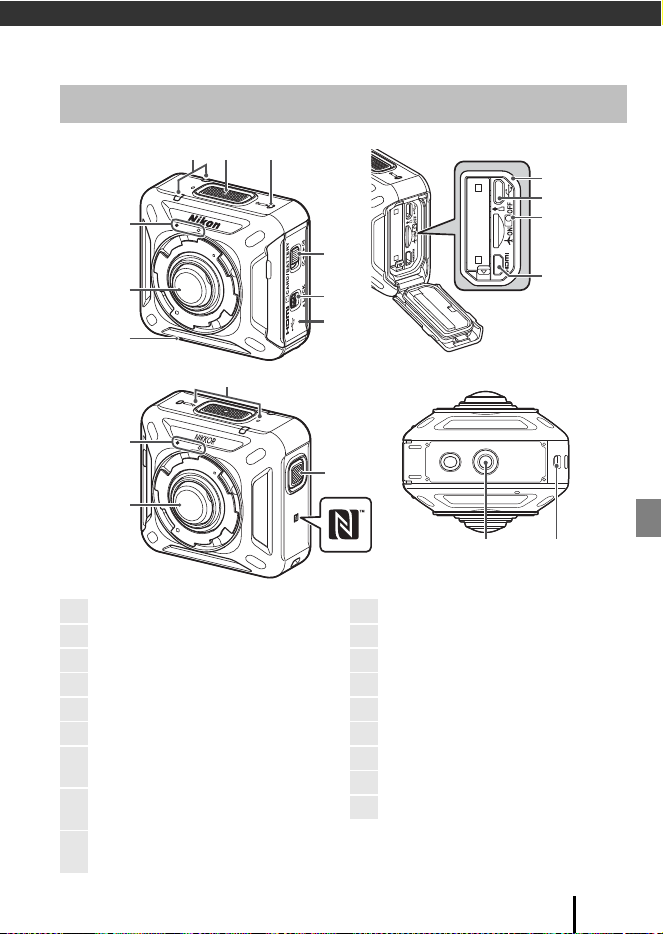
The Camera Body
1
2
1817
16
15
45
13
12
11
10
3
9
8
7
6
14
2
1
Front
Back Bottom
1
Lens protector mounting mark
2
Lens
3
Speaker
4
Status lamp
5
Movie button
6
Power-on lamp
7
Battery-chamber/memory card slot
cover latch release
8
Battery-chamber/memory card slot
cover latch
9
Battery-chamber/memory card slot
cover
10
Waterproofing packing
11
Micro-USB connector
12
Airplane mode switch
13
HDMI micro connector (Type D)
14
Microphone (stereo)
15
Photo button
16
N-Mark (NFC antenna)
17
Tripod socket
18
Eyelet for fall prevention cord
2
Getting Started
Getting Started
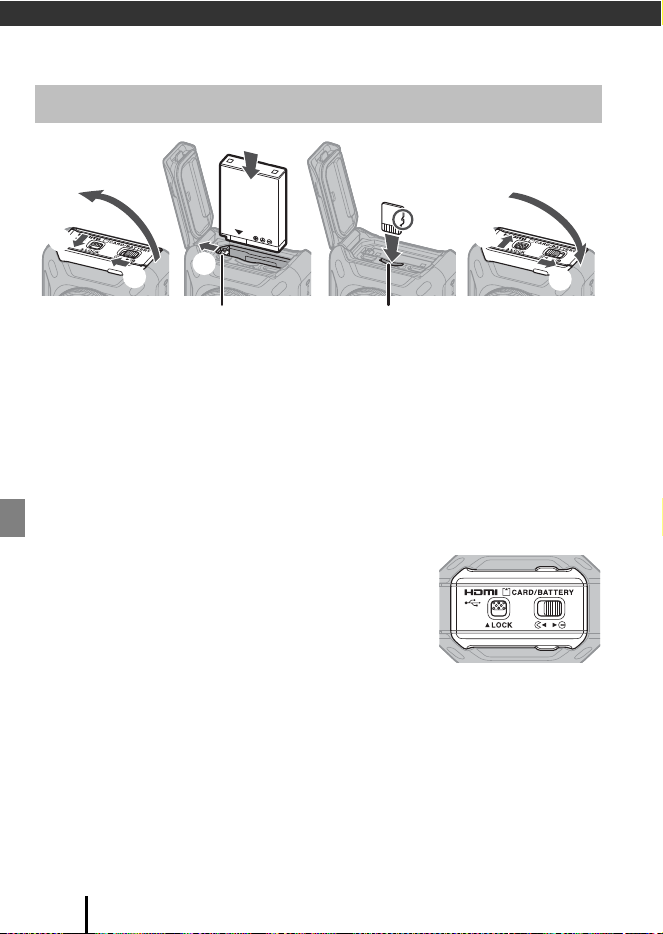
• Unlock the battery-chamber/memory card slot cover latch (1), move the battery-
chamber/memory card slot cover latch release to the y position (2), and then
open the battery-chamber/memory card slot cover (3).
• With the battery’s positive and negative terminals oriented correctly, move the
orange battery latch (4), and fully insert the battery (5).
• Slide the memory card in until it clicks into place (6).
• Be careful not to insert the battery or memory card upside-down or backward, as
this could cause malfunction or damage to the camera or memory card.
• Close the cover (7), move the battery-chamber/memory card slot cover latch
release to the z position (8), and then move the battery-chamber/memory
card slot cover latch to the LOCK position (9).
• Check that the battery-chamber/memory card slot
cover latch and battery-chamber/memory card slot
cover latch release are positioned as shown in the
figure on the right, and that their orange indicator
marks are not visible.
B Notes About Waterproof and Dustproof Performance
See “Notes About Shockproof, Waterproof, and Dustproof Performance” (Aviii) for more
information.
Inserting the Battery and Memory Card
1
2
3
4
5
6
7
8
9
Battery latch Memory card slot

3
Getting Started
B Formatting a Memory Card
The first time you insert a memory card that has been used in another device into this
camera, insert the memory card into the camera, and make sure to format it using
SnapBridge 360/170.
• Note that formatting a memory card permanently deletes all images and other
data on the memory card. Be sure to make copies of any images you wish to keep
before formatting the memory card.
• Insert the memory card into the camera, and select SnapBridge 360/170 (A25) M
c Camera tab M Camera settings M Format card.
Removing the Battery or Memory Card
Turn the camera off and make sure that the power-on lamp and status lamps have
turned off, and then open the battery-chamber/memory card slot cover.
• Move the battery latch to eject the battery.
• Gently push the memory card into the camera to partially eject the memory card.
• Be careful when handling the camera, battery, and memory card immediately after
using the camera, as they may be hot.
• To prevent yourself from accidentally pressing the movie button or photo button
and unintentionally shooting, we recommend that you take out the battery when
carrying the camera.
Memory Cards That Can Be Used
The camera supports microSD, microSDHC, and microSDXC memory cards.
• UHS-I is supported.
• Use microSDXC memory cards with an SD Speed Class rating of 6 or faster for
recording movies.
- Use memory cards with a UHS Speed Class rating of 3 or faster when the image
size/frame rate is 2160/24p (4K UHD) or 1920/24p.
- When using a memory card with a lower Speed Class rating, movie recording
may stop unexpectedly.
• If you use a card reader, make sure that it is compatible with your memory card.
• Contact the manufacturer for information on features, operation, and limitations
on use.
4
Getting Started
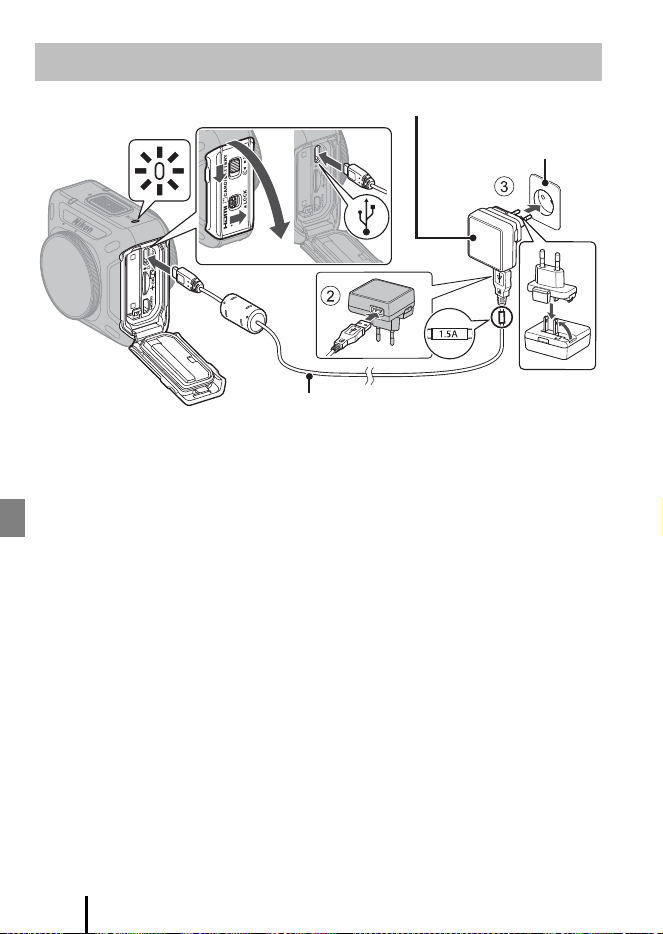
If a plug adapter* is included with your camera, securely connect it to the Charging AC
Adapter. Once the two are connected, attempting to forcibly remove the plug adapter
could damage the product.
* The shape of the plug adapter varies according to the country or region in which the
camera was purchased.
This step can be omitted if the plug adapter comes permanently bonded to the
Charging AC Adapter.
• Charging starts when the camera is connected to an electrical outlet while the
battery is inserted, as shown in the illustration. The power-on lamp slowly flashes
green while the battery is charging.
• When charging is complete, the power-on lamp turns off. Unplug the Charging AC
Adapter from the electrical outlet, and disconnect the USB cable.
Charging time is about 2 hours and 20 minutes for a fully exhausted battery.
• The battery cannot be charged when the power-on lamp quickly flashes green,
possibly due to one of the reasons described below.
- The ambient temperature is not suited to charging.
- The USB cable or Charging AC Adapter is not properly connected.
- The battery is damaged.
B Notes About the USB Cable
• Do not use a USB cable other than the UC-E21. Using a USB cable other than the UC-E21
could result in overheating, fire or electric shock.
• Check the shape and direction of the plugs and do not insert or remove the plugs at an angle.
B Notes About Charging with the Charging AC Adapter
The camera can be operated while the battery is charging, but the charging time increases.
Charging the Battery
1
Power-on lamp
Electrical outlet
USB cable (included)
Charging AC Adapter
5
Getting Started
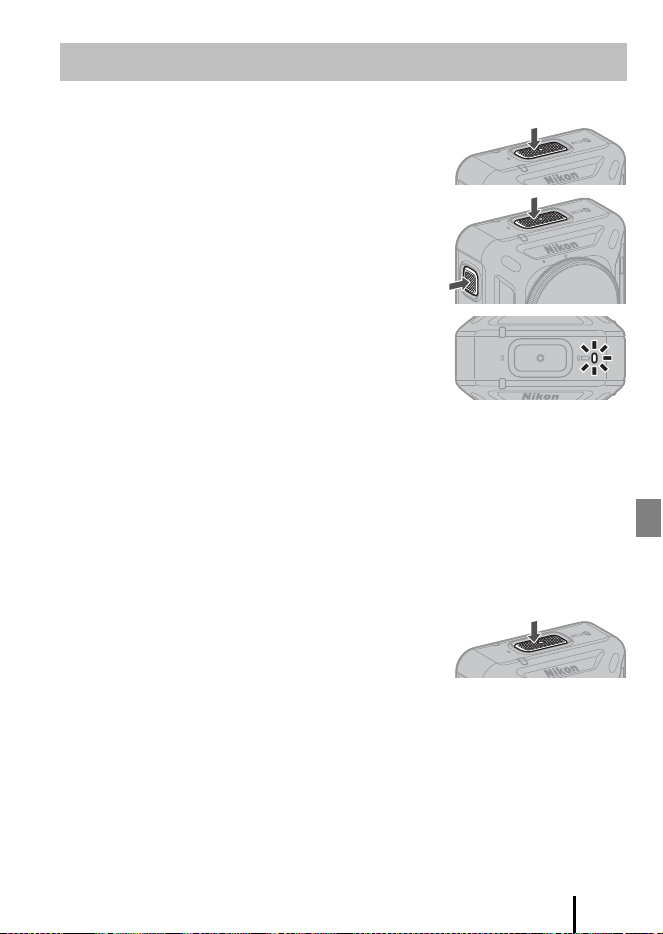
Turning On the Camera
• Press and hold down the movie button (about 3
seconds) to turn on the camera.
• Shooting starts when the camera turns on by
pressing the movie button or photo button.
• When the camera turns on, the power-on lamp
turns on.
• You can check the battery level by looking at the
power-on lamp (A40) or the SnapBridge 360/170
screen.
C Standby for Connection
When you turn on the camera while it is paired with a smart device or remote control, the
camera enters standby for connection with the smart device or remote control.
When the camera is on standby for connection, the status lamps on the camera flash green
at the same time (A41).
You can also use the camera as-is while on standby for connection.
Turning Off the Camera
• If you press and hold down the movie button
(about 3 seconds) when the camera is on, the
camera turns off. When the camera turns off, the
power-on lamp turns off.
• By default, if the camera is not operated for about
1 minute after shooting, the camera turns off automatically (auto off). You can
change the setting by selecting SnapBridge 360/170 (A25) M c Camera tab M
Camera settings M Auto off.
B Turning Off the Camera During Remote Photography
The buttons of the camera are disabled during remote photography with SnapBridge 360/
170 (A20). To turn off the camera, exit remote photography.
Turning the Camera On or Off
6
Using the Camera
Using the Camera
1 Press the movie button or photo
button.
• Pressing the movie button or photo button when
the camera is off automatically turns on the
camera and shooting begins.
• The status lamps light red at the same time while
recording movies. To end movie recording, press
the movie button again. The status lamps flash red
at the same time while the movie is being saved.
• When the photo button is pressed, the shutter
sound is produced. When Self-timer is set to 2 s
or 10 s, the camera beeps to indicate that the self-timer is activated, and then the
shutter sound is produced. The status lamps flash green at the same time while the
still image is being saved.
Notes About Shooting
B Notes About Shooting
• Before shooting, check the orientation of the camera. The side with the Nikon and
KeyMission 360 logos is the front. Subjects appearing at the front are displayed in the
center of the frame during playback.
• Your hands will appear in images during hand-held photography because this camera
captures 360° content. Use the following methods to reduce their appearance.
- Attach the base adapter (A10) to use accessories
- Perform remote photography with SnapBridge 360/170 (A20)
- Use the ML-L6 Remote Control (available separately)
• The camera may be unable to capture subjects within about 60 cm (2 ft) from the
camera’s top, bottom, or sides because the subjects are outside the angle of view (i.e., the
area visible in the frame). Point the lens toward important subjects when shooting.
• If stains such as fingerprints are on the lens protector or underwater lens protector, they
will appear in the images or make images look fogged. Wipe off the stains with a soft dry
cloth before shooting.
Recording Movies or Shooting Still Images

7
Using the Camera
• When the contrast is high between subjects in the front lens and back lens, the camera
cannot obtain the appropriate exposure. Adjust the brightness by selecting SnapBridge
360/170 (A25) M c Camera tab M Camera settings M Shooting options M
Shooting options M Exposure compensation.
• Under some shooting conditions, the composite boundaries may be noticeable or images
may not match perfectly at the composite boundaries.
B Using the Camera Underwater
• Attach the underwater lens protectors when using the camera underwater (A9).
Although the lens protectors can be used underwater, captured images may be blurred.
• Select SnapBridge 360/170 (A25) M c Camera tab M Camera settings M Shooting
options M Still images M set Underwater to Yes.
• Wireless communication is not available when the camera is underwater. Also, the remote
control cannot be used.
• There are shooting ranges that cannot be captured underwater because the images are
magnified compared to images captured on land. Therefore you cannot capture 360°
content.
B Notes About Saving Movies or Still Images
The status lamps flash red at the same time or flash green at the same time while movies or
still images are being saved. Do not open the battery-chamber/memory card slot
cover or remove the battery or memory card. Doing this could result in loss of data, or
in damage to the camera or the memory card.
C Movies Over 4 GB in Size
When a movie with a file size of more than 4 GB is recorded, the movie is divided into files
with a maximum size of 4 GB each.
8
Using the Camera
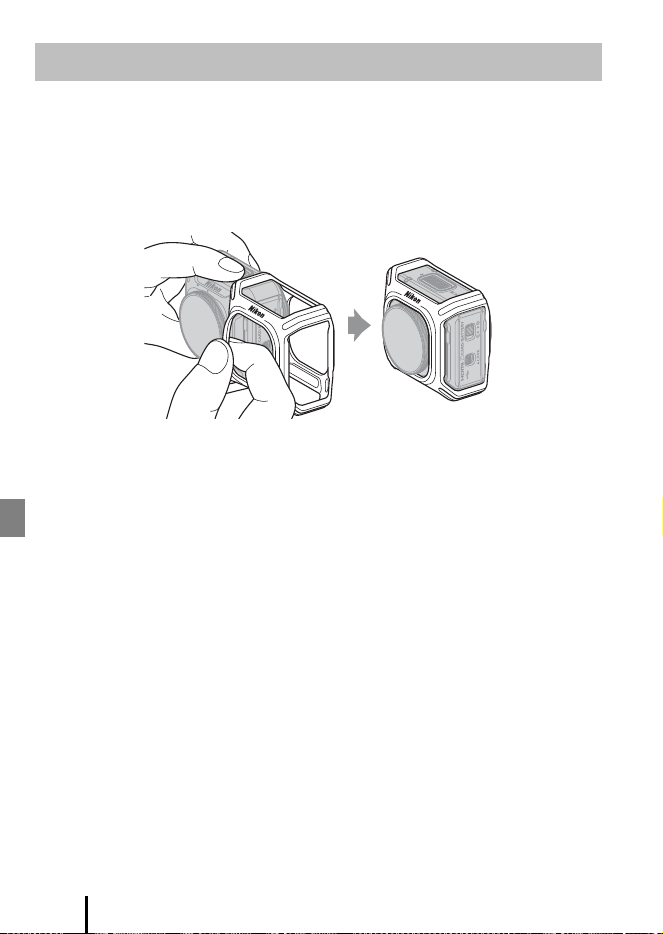
We recommend attaching the silicone jacket to soften physical impacts to the
camera.
Attach by inserting the camera from the side of the silicone jacket so that the Nikon
logos of the camera and silicone jacket overlap.
• If the Nikon logos do not overlap, the silicone jacket may appear in the images.
• When using the camera underwater, remove the silicone jacket because it may
shift out of place and appear in the images.
B Notes About the Silicone Jacket
• The silicone jacket is made of silicone. Cracking may occur from areas that are damaged.
• The silicone jacket may stretch or break if subjected to excessive force.
• Do not store in locations exposed to direct sunlight or high temperatures or humidity.
• Wash in fresh water only.
• Do not clean with hard brushes or with alcohol, thinner, or other volatile substances.
• This silicone jacket cannot completely protect the camera or lenses from falls or other
physical shocks.
Attaching the Silicone Jacket
9
Using the Camera
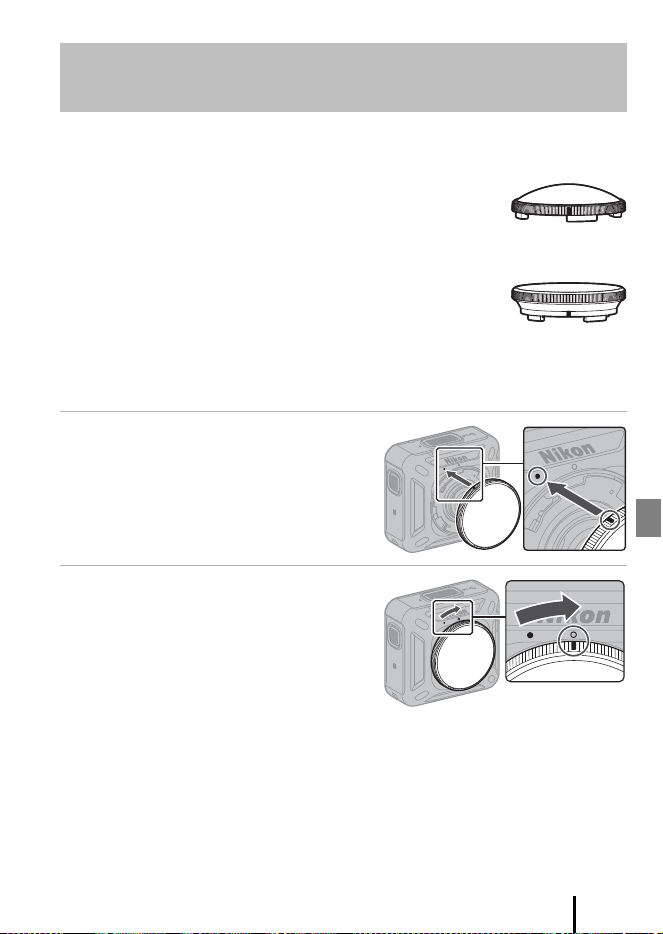
Make sure to attach the lens protectors or underwater lens protectors to protect the
lenses because they are made of glass.
• Lens protector:
Used to protect the lens (attached to the camera at time of
factory shipment). The lens protectors can be used up to a
water depth of about 20 m (65 ft).
• Underwater lens protector:
Used for shooting underwater. The underwater lens
protectors can be used up to a water depth of 30 m (100 ft).
The lens protectors are used here as an example. Turn off the camera before
attachment or removal.
1 Align the marks of the lens
protector and camera (R).
2 Rotate the lens protector in the
direction of the arrow until it
clicks to align the mark of the
lens protector and mark at the
center of the camera (S).
• Check that the protectors are securely
attached.
• Attach the same type of protector to both lenses.
• For removal, follow the procedure for attachment in reverse order.
Attaching the Lens Protectors/Underwater
Lens Protectors
10
Using the Camera
B Notes About the Lens Protectors and Underwater Lens Protectors
• Be careful not to subject the protectors to physical impacts or rubbing. Doing so could
cause scratches or damage.
• When the underwater lens protectors are attached, there are black borders or bands in the
images because the protectors appear in the images.
• When you are not using the camera, insert it into a case made of soft cloth material with
the lens protectors or underwater lens protectors attached.
B Notes About Attaching the Lens Protector or Underwater Lens Protector
Use a soft cloth or air duster to remove foreign substances such as water or dust from the
camera, lens protector, or underwater lens protector. If the camera, lens protector, or
underwater lens protector is still wet when they are attached to each other, this could cause
condensation.
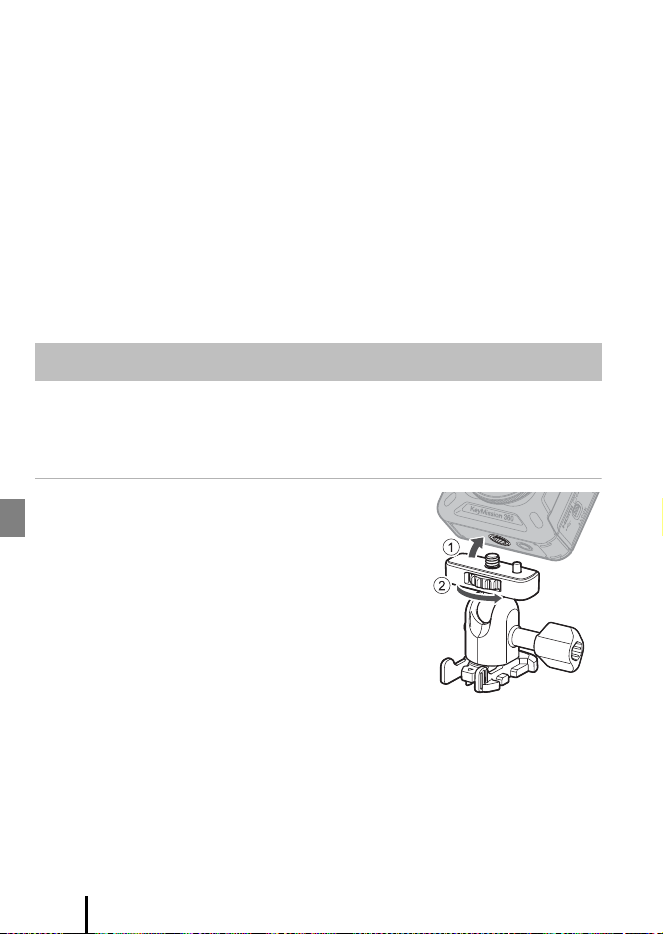
Attaching the base adapter to the camera allows you to use special accessories such
as a base mount.
• To increase the adhesive strength, attach the base mount for 24 hours or longer
before using the camera.
1 Align the camera screw with the
tripod socket of the camera (1), and
tighten the screw knob (2).
Using the Base Adapter and Base Mount
11
Using the Camera
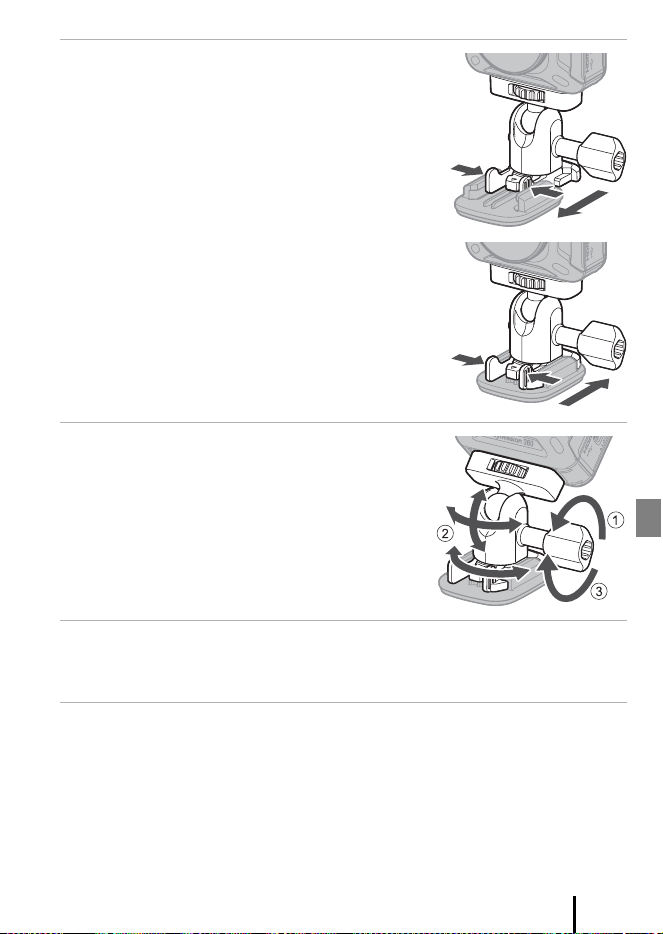
2 Attach the buckle of the base adapter
to the base mount.
• While holding the two protrusions of the buckle
at the same time, slide the buckle until it clicks
into place.
• When removing the buckle, hold the two
protrusions at the same time, and slide them in
the direction opposite of that for attachment.
3 Adjust the camera angle.
• Loosen the plate lock (1), set the camera angle
(2), and then tighten the lock (3).
4 Make sure that there are no foreign substances on the surface to
which the base mount will be attached.
• If there are foreign substances such as dust or water, remove them.
5 Peel off the release liner from the back of the base mount, and
firmly press the base mount so that the entire surface is
attached.
12
Using the Camera
Base Mount
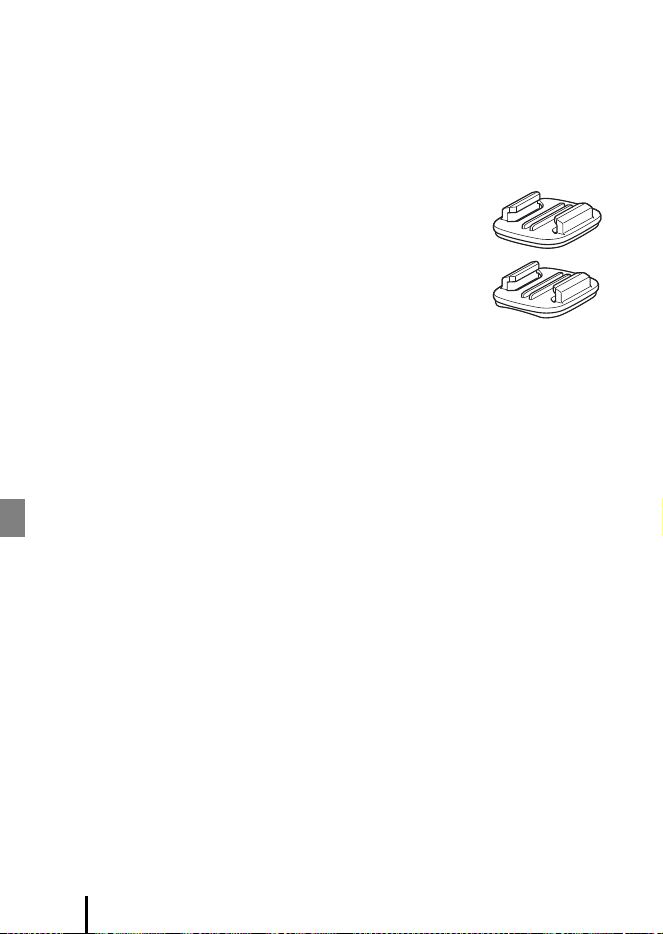
The base mount is an accessory that is used to easily attach and detach a base adapter
mounted with the camera.
Attach the base mount to places where you want to mount the camera.
Use the flat or curved type depending on the surface to which the base mount will be
attached.
The base mount is not designed for use on vehicles. Do not attach it on vehicles.
• Base mount (flat):
Use to attach to flat surfaces.
• Base mount (curved):
Use to attach to curved surfaces such as helmets.
B Notes About Using the Base Adapter and Base Mount
• Do not use the base adapter and base mount so that they are subjected to sudden loads,
such as directly attaching them to skis or snowboards. Subjecting them to sudden loads
will damage the accessories or detach the base mount.
• You cannot reuse a base mount after it has been attached and then removed.
• The surface may be damaged or the paint may peel off depending on the material to
which the base mount is attached. Care should be taken when attaching the base mount.
• The base mount is not suited for attachment to surfaces made of rough material such as
wood or concrete.
13
Using SnapBridge 360/170
Using SnapBridge 360/170
You can do the following when you pair the camera and a smart device
installed with the dedicated app, “SnapBridge 360/170”.
• Upload captured still images and movies to the smart device
• Use the smart device to perform remote photography or play back
images
• Change the camera settings
Camera
• Turn off the camera (A5). The camera cannot enter pairing standby mode when
the camera is on.
• Turn off the airplane mode switch (A1). You cannot pair when it is on.
• Use a sufficiently charged battery so that the camera does not turn off during the
procedure.
• Insert a memory card with sufficient free space.
• Disconnect the HDMI cable or USB cable.
Smart Device
• Enable Bluetooth and Wi-Fi on the smart device. If you will use NFC, enable NFC.
• Download and install the dedicated app, “SnapBridge 360/170,” from the Apple
App Store® for iOS or from Google Play™ for Android™.
- “SnapBridge” cannot be used with this camera.
- You can check the OS versions that SnapBridge
360/170 supports by visiting the download sites
above.
Preparing for Pairing
14
Using SnapBridge 360/170
C SnapBridge 360/170
• The display language is automatically set according to the display language of the smart
device. If the display language of the smart device is not supported by SnapBridge 360/
170, it is set to English.
• See the online manual for more information on use (Aii).
• For an overview, you can also visit the dedicated Nikon website.
http://snapbridge.nikon.com
When Not Using NFC
1 Prepare for pairing (A13).
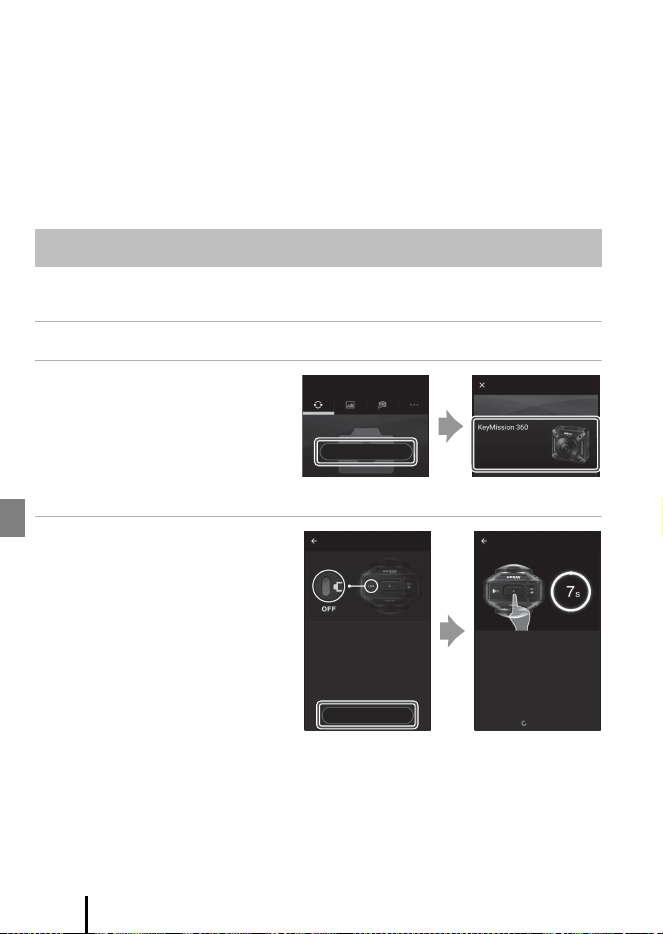
2 Launch SnapBridge 360/
170, tap Connect to
camera in the
a Connect tab, and
then tap KeyMission
360.
3 Check that the camera is
off, and then tap Next.
Pairing with a Smart Device
Connect to camera
Pairing with the Camera
Select a camera for pairing.
Connect
Next
Searching…
Turn the camera o
Hold the movie button for 7 seconds
If the camera is on, hold the movie button for
about 3 seconds until the camera power lamp
turns o.
Note: Be sure a memory card is inserted.
After 3 seconds, the camera will play the
power-on sound.
Keep the button pressed.
The camera is ready for pairing when the
indicator lamps start to ash alternately.
Pairing with the Camera Pairing with the Camera
15
Using SnapBridge 360/170
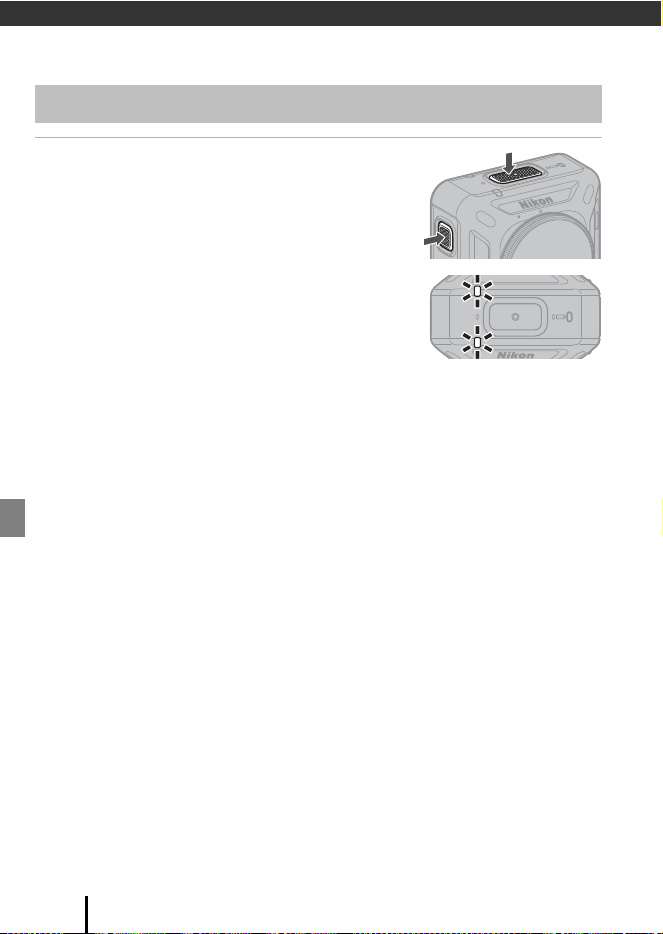
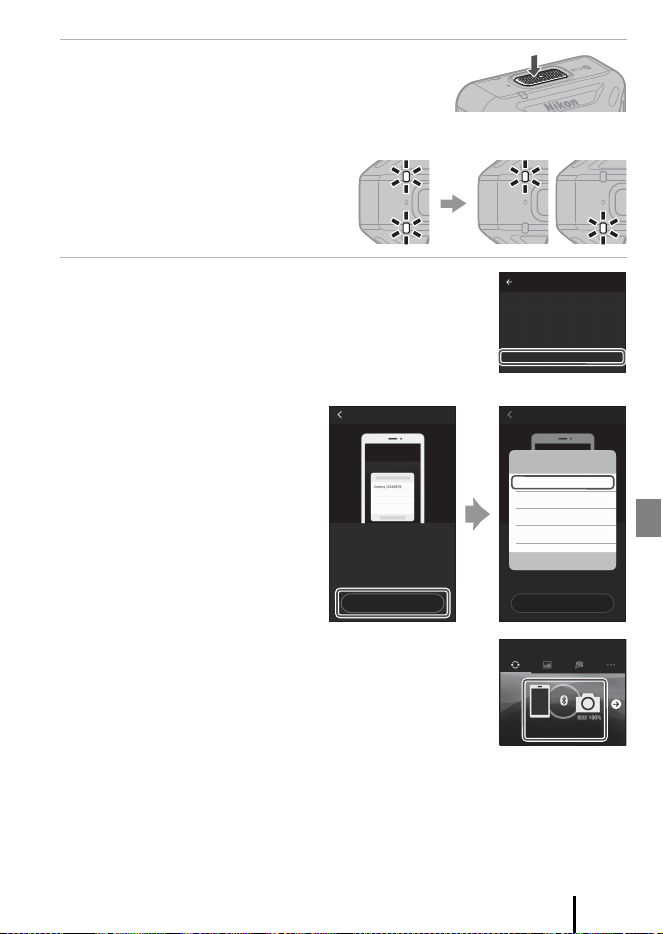
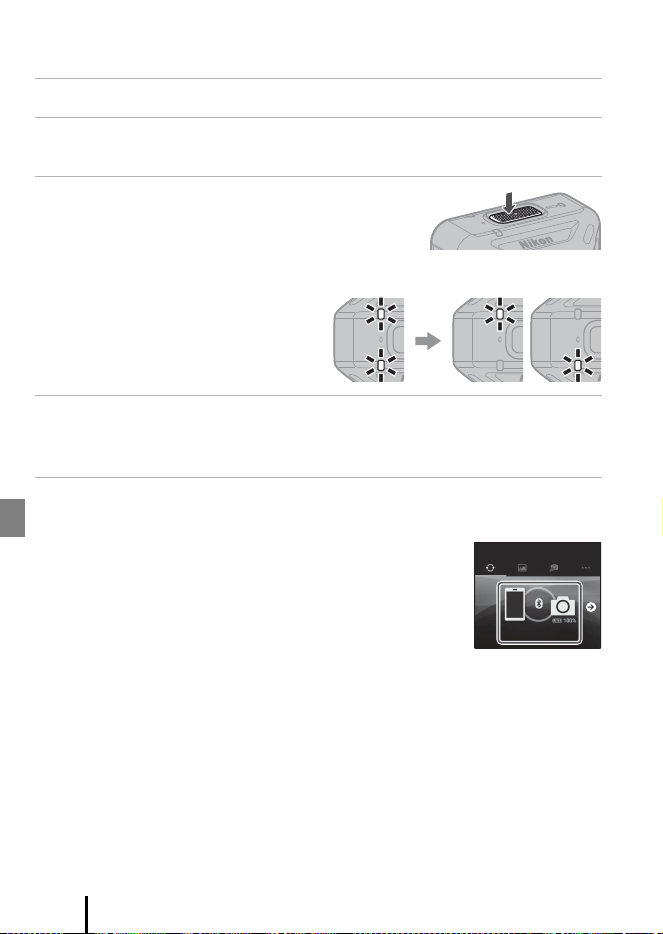
4 Press and hold down the movie button
(about 7 seconds) on the camera.
• Press and hold down the movie button until the
status lamps flash green at the same time, even if
you hear the startup sound.
• The status lamps flash green at the
same time for a while and then
alternately flash green (the camera is
in pairing standby mode).
5 Tap the camera name when it is displayed on
the screen.
• For iOS:
When you tap the camera
name, a dialog explaining the
procedure is displayed.
Confirm the details and tap
Understood.
When the accessory selection
screen is displayed, wait for the
Bluetooth icon at the top right
corner of the screen to change
from white to gray, and then
tap the camera name again. It
may take a while before the
camera name is displayed.
• If pairing is successful, the
screen shown on the right is displayed.
• If pairing fails, the status lamps flash red six times at the
same time. When a message indicating that pairing has
failed is displayed on the screen, tap OK and repeat the
pairing procedure by following “When You Cannot Pair
with a Smart Device” (A18).
KeyMission 360_XXXXXXXX
Select the camera name from the list.
The camera consists of the model name
followed by an underscore and the serial
number. The serial number is printed on a label
on the camera.
Choose a camera for pairing
Pairing with the Camera
Pairing with the Camera
Select An Accessory
• Following the on-screen instructions, select
the camera name.
Cancel
UnderstoodUnderstood
KeyMission 360_XXXXXXXX
Pairing with the Camera
KeyMission 360
Connect
16
Using SnapBridge 360/170
When Using NFC
1 Prepare for pairing (A13).
2 Close all apps that use NFC (including SnapBridge 360/170).
• Pairing may fail if apps that use NFC are running.
3 Press and hold down the movie button
(about 7 seconds) on the camera.
• Press and hold down the movie button until the
status lamps flash green at the same time, even if
you hear the startup sound.
• The status lamps flash green at the
same time for a while and then
alternately flash green (the camera is
in pairing standby mode).
4 Touch the NFC antenna of the smart device to the Y (N-Mark)
(A1) on the camera.
• SnapBridge 360/170 launches.
5 When Switch pairing to the camera you just touched? is
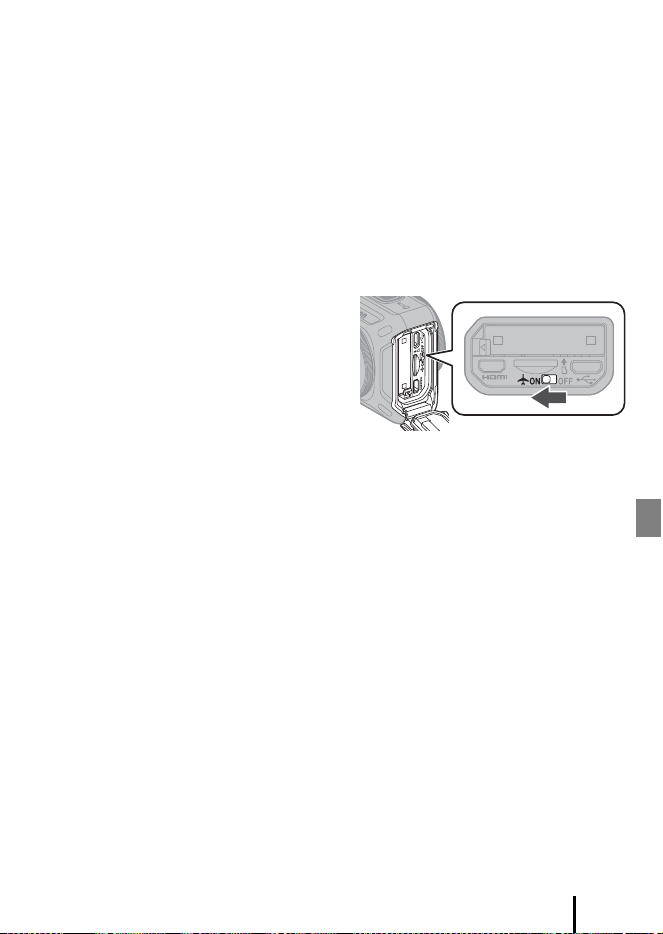
displayed, tap OK.
• If pairing is successful, the screen shown on the right is
displayed.
• If pairing fails, the status lamps flash red six times at the
same time. When a message indicating that pairing has
failed is displayed on the screen, tap OK and repeat the
pairing procedure by following “When You Cannot Pair
with a Smart Device” (A18).
KeyMission 360
Connect
17
Using SnapBridge 360/170
C Connecting after Pairing Is Successful
If pairing is successful, the smart device is automatically connected simply by
launching SnapBridge 360/170 when the camera is turned on next time.
However, the smart device is not automatically connected in the following situations:
• When the connection is switched to the remote control
• When the smart device is unpaired (A19)
• When the settings are reset using the following menus in SnapBridge 360/170
- c Camera tab M Camera settings M Reset all
- c Camera tab M Camera settings M Network menu M Restore default settings
• When the camera’s firmware is updated
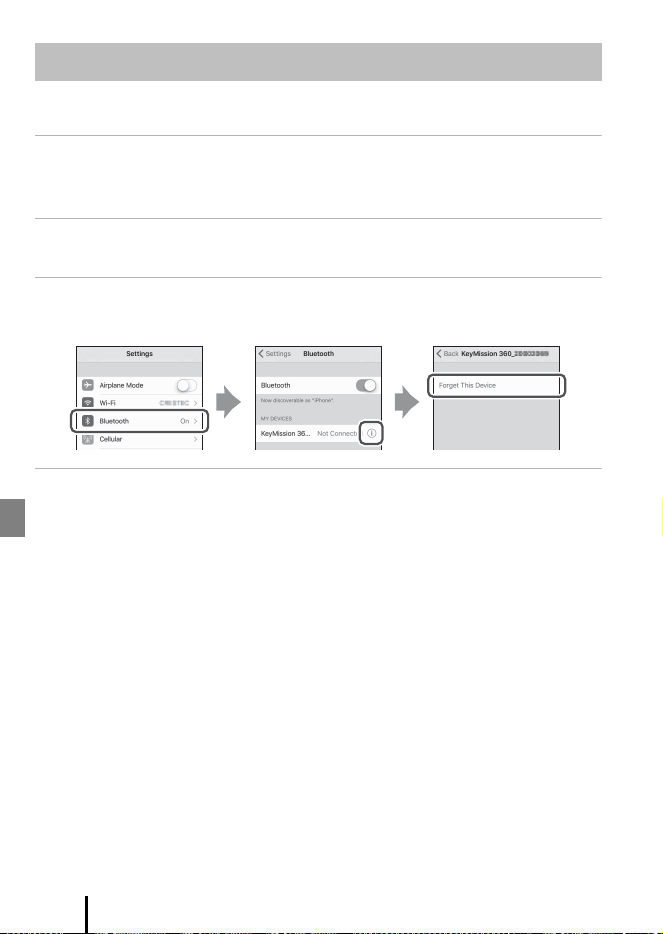
C Where the Use of Wireless Devices Is Prohibited
Turn on the airplane mode switch on the
camera. This will temporarily interrupt the
constant connection with the smart device,
but the connection is automatically re-
established when airplane mode is turned
off.
18
Using SnapBridge 360/170
When You Cannot Pair with a Smart Device
1 Press and hold down the movie button (about 3 seconds) on the
camera to turn it off.
• When the camera turns off, the power-on lamp turns off.
2 Close SnapBridge 360/170.
• Close SnapBridge 360/170 even if it is running in the background.
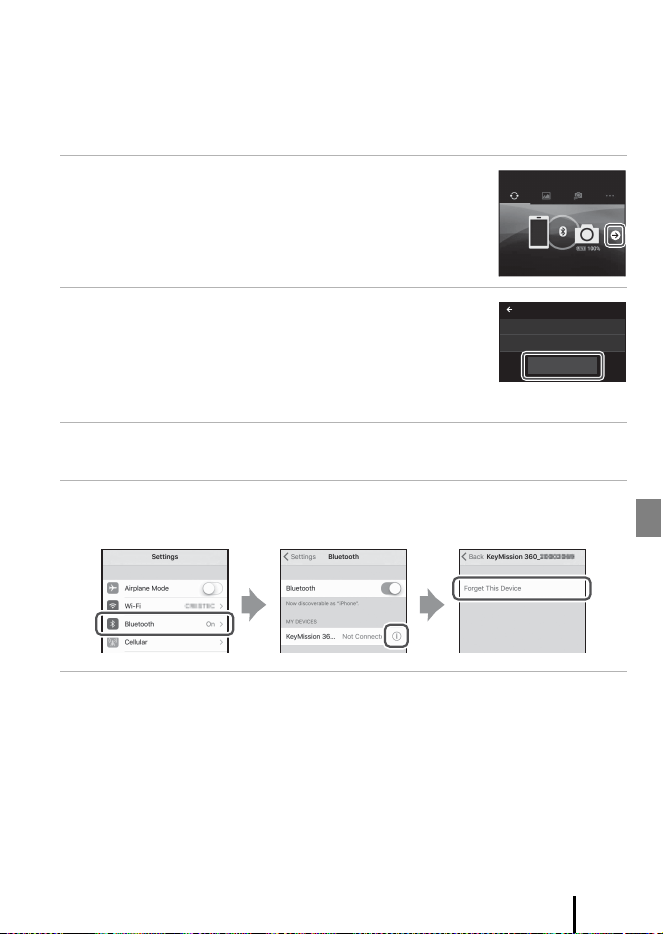
3 For iOS, remove the device (registered as the camera name) using
the Bluetooth settings screen on the smart device.
4 Follow “Pairing with a Smart Device” (A14) and repeat the
pairing procedure.
Tips on Pairing
19
Using SnapBridge 360/170
Unpairing a Smart Device
When pairing with another camera that supports SnapBridge 360/170, unpair in
advance.
• If images cannot be uploaded to a smart device successfully such as due to long
upload times, unpairing and then re-pairing may solve the problem.
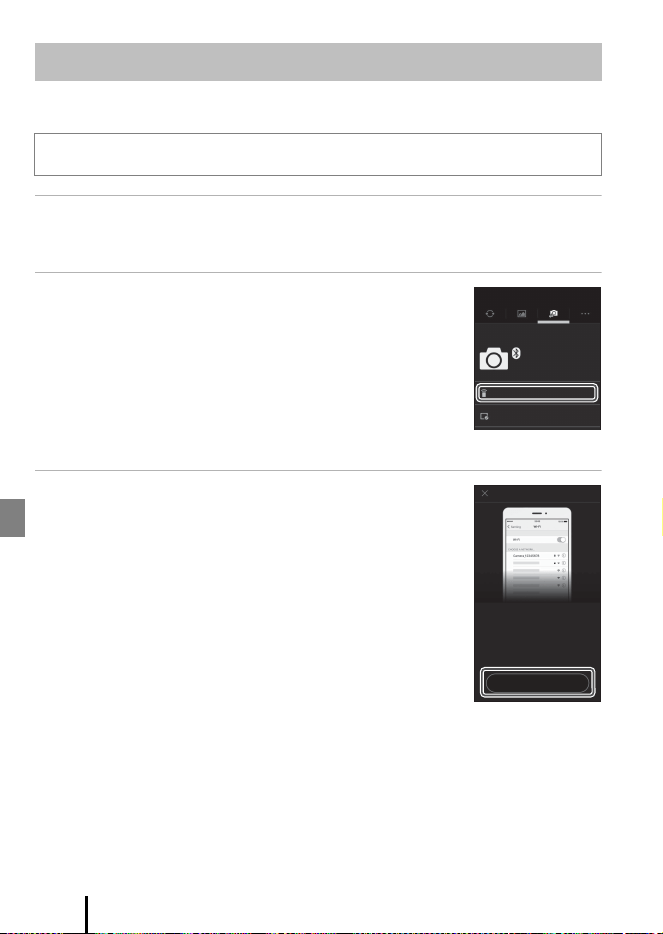
1 Tap e in the a Connect tab.
2 Tap End pairing M Yes.
• You can also unpair using the SnapBridge 360/170 menus
below:
- c Camera tab M Camera settings M Network
menu M Restore default settings
- c Camera tab M Camera settings M Reset all
3 Close SnapBridge 360/170.
• Close SnapBridge 360/170 even if it is running in the background.
4 For iOS, remove the device (registered as the camera name)
using the Bluetooth settings screen on the smart device.
5 To re-pair, follow the instruction in “Pairing with a Smart Device”
(A14).
KeyMission 360
Connect
KeyMission 360_XXXXXXXX
Connection options
End pairing
Paired cameras
20
Using SnapBridge 360/170
You can use Remote photography to check the composition on a smart device
screen before shooting.
1 Pair the camera and the smart device (A14).
• If they are already paired successfully, turn on the camera and launch SnapBridge
360/170.
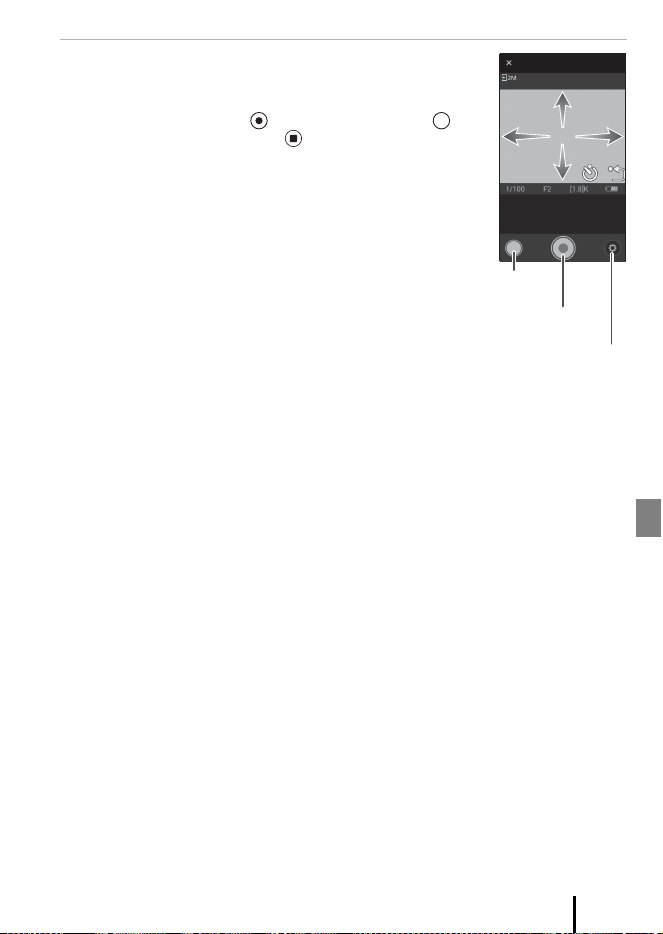
2 Tap SnapBridge 360/170 M c Camera tab M
Remote photography.
• When a confirmation dialog for the Wi-Fi connection is
displayed, tap OK.
• For Android: Proceed to step 4.
• For iOS:
-Proceed to step 3.
- If the Wi-Fi connection is already established, the
shooting screen is displayed. Proceed to step 4.
3 For iOS, confirm the details of the dialog and
tap View settings.
• Select the camera SSID on the Wi-Fi settings screen of the
smart device. If prompted for a password, input
“NikonKeyMission” (default) while capitalizing the “N”,
“K”, and “M”.
• When you select the camera SSID and return to SnapBridge
360/170, the shooting screen is displayed.
Operating the Camera from a Smart Device
The default password for the Wi-Fi connection is “NikonKeyMission”.
KeyMission 360
Paired cameras
Remote photography
Camera
Download pictures
Connecting via Wi-Fi
1. Select “Wi-Fi” in the iOS “Settings” app.
2. Select “KM360_XXXXXXXX” and enter the
password “NikonKeyMission” .
3. Once a connection is established, return to
the SnapBridge 360/170 app.
View settings
21
Using SnapBridge 360/170
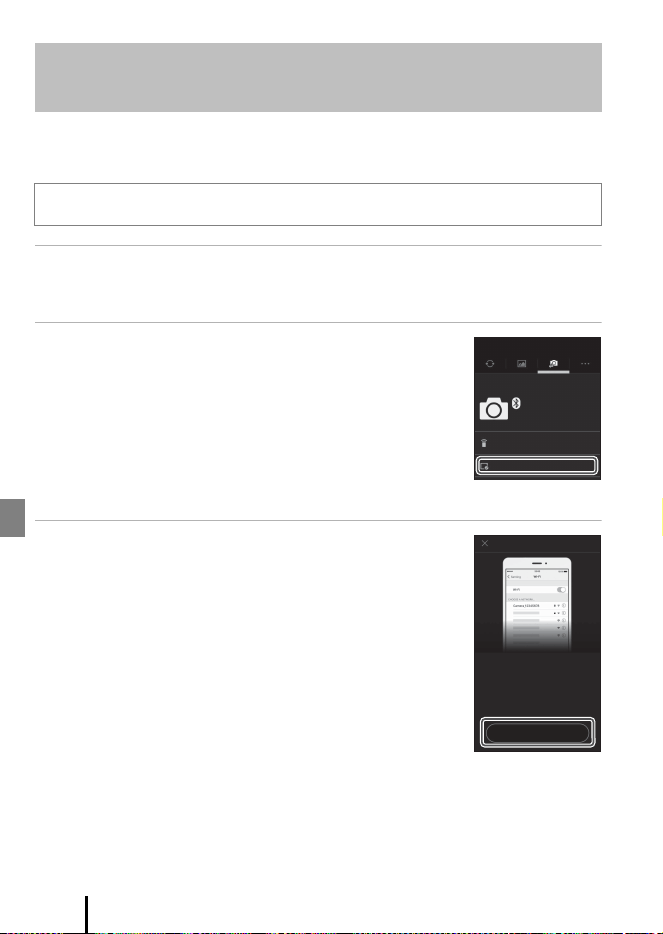
4 Check the composition and then shoot.
• Drag the screen to move the point of view. Tap q to
return to the original point of view.
• To record a movie, tap . To shoot a still image, tap . To
stop recording a movie, tap .
• The subject is not displayed while recording movies.
• The connection with the smart device is disabled
temporarily while recording time-lapse movies.
B Changing the SSID and Password
You can change the SSID and password by selecting SnapBridge 360/170 M c Camera
tab M Camera settings M Network menu M Wi-Fi M Network settings. To protect
your privacy, we recommend that you change the password regularly.
C Downloading Images During Remote Photography
When g M Download in the shooting screen is on, still images captured are automatically
sent to the smart device. Movies cannot be sent automatically. You can use Download
pictures (A22) to send movies to the smart device.
Remote photography
Standard movie
Still
image
Movie
Shooting
options
22
Using SnapBridge 360/170
You can use Download pictures to play back or delete images saved in the camera
while a wireless connection is established. You can also download only selected
images to the smart device.
1 Pair the camera and the smart device (A14).
• If they are already paired successfully, turn on the camera and launch SnapBridge
360/170.
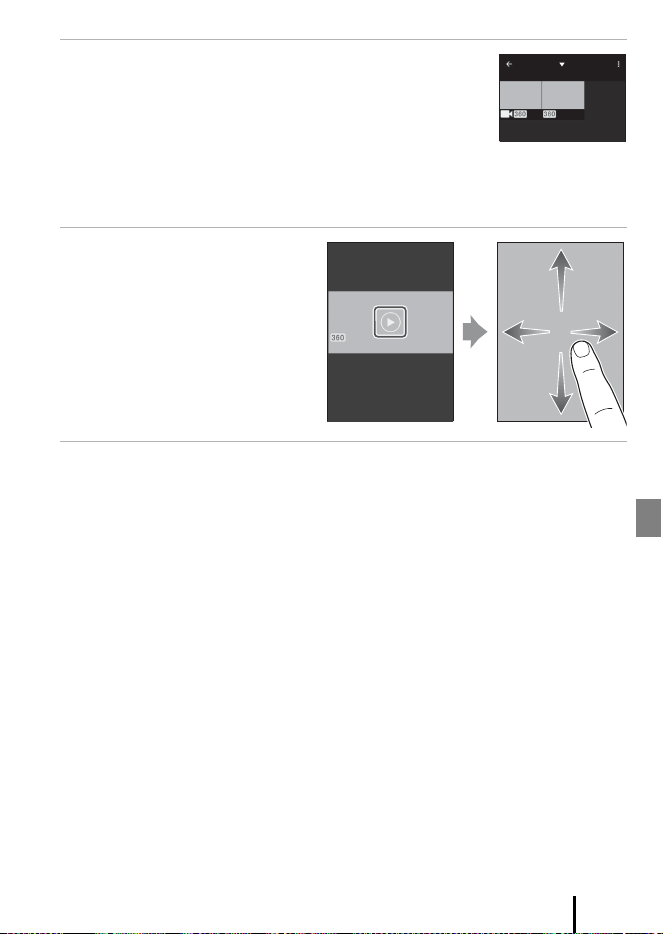
2 Tap SnapBridge 360/170 M c Camera tab M
Download pictures.
• When a confirmation dialog for the Wi-Fi connection is
displayed, tap OK.
• For Android: Proceed to step 4.
• For iOS:
-Proceed to step 3.
- If the Wi-Fi connection is already established, thumbnails
of images in the camera are displayed. Proceed to step 4.
3 For iOS, confirm the details of the dialog and
tap View settings.
• Select the camera SSID on the Wi-Fi settings screen of the
smart device. If prompted for a password, input
“NikonKeyMission” (default) while capitalizing the “N”,
“K”, and “M”.
• When you select the camera SSID and return to SnapBridge
360/170, the thumbnails of images in the camera are
displayed.
Playing Back Images Saved in the Camera/
Transferring Images to a Smart Device
The default password for the Wi-Fi connection is “NikonKeyMission”.
KeyMission 360
Paired cameras
Remote photography
Camera
Download pictures
Connecting via Wi-Fi
1. Select “Wi-Fi” in the iOS “Settings” app.
2. Select “KM360_XXXXXXXX” and enter the
password “NikonKeyMission” .
3. Once a connection is established, return to
the SnapBridge 360/170 app.
View settings
23
Using SnapBridge 360/170
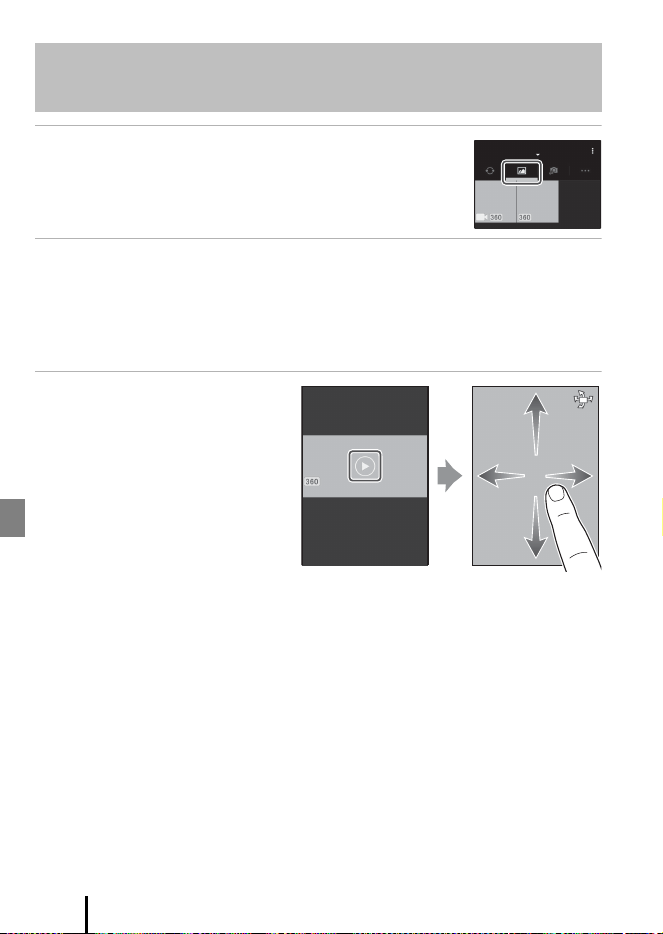
4 Tap a thumbnail.
• Perform the operations below while thumbnails are
displayed to select multiple images and transfer them to
the smart device.
- For Android: Tap i M Select, and then tap all of the
images that you want to transfer. Tap i M Download
selected pictures, and then follow the on-screen instructions.
-For iOS: Tap Select, and then tap all of the images that you want to transfer. Tap
Download selected pictures, and then follow the on-screen instructions.
5 Tap h.
• Part of the single image that
was processed in the camera is
displayed.
• Drag the image to move the
point of view during playback.
Tap q to return to the original
point of view.
6 To transfer images to the smart device, perform the procedures
below during playback.
• For Android: Tap i M Download, and then follow the on-screen instructions.
• For iOS: Tap Download, and then follow the on-screen instructions.
B Changing the SSID and Password
You can change the SSID and password by selecting SnapBridge 360/170 M c Camera
tab M Camera settings M Network menu M Wi-Fi M Network settings. To protect
your privacy, we recommend that you change the password regularly.
All pictures
24
Using SnapBridge 360/170
1 Tap SnapBridge 360/170 M b Gallery tab.
2 Select a type of gallery and tap a thumbnail.
• Latest download: Multiple new images automatically downloaded from the
camera are displayed. Images captured using Remote photography or images
transferred using Download pictures are not displayed in Latest download.
• Pictures on device (for Android) / All (for iOS): All images transferred from the
camera are displayed.
3 Tap h.
• Part of the single image that
was processed in the camera is
displayed.
• Drag the image to move the
point of view during playback.
Tap q to return to the original
point of view.
• Tap p to move the point of
view according to the
movement of the smart device.
Playing Back Images Transferred to a Smart
Device
Gallery
Pictures on device

25
Changing the Settings
Changing the Settings
You can change the camera settings by using Camera settings and Remote
options in SnapBridge 360/170 M c Camera tab.
• Pair the camera and smart device in advance (A14).
• You can also change the camera settings (except some settings) by using the
computer software “KeyMission 360/170 Utility”. Pairing with a smart device is not
required to change settings by using KeyMission 360/170 Utility.
• Certain menu options cannot be set depending on the state of the camera.
Camera Settings
Settings List
Option Description
Date and time Set the camera clock.
Sound settings
Set the volume of sounds during operation.
• Default setting: Normal
Auto off
Set the amount of time that elapses after shooting until
the camera turns off.
• Default setting: 1 min
LED brightness
Set the brightness of the status lamps.
• Default setting: Normal
Charge by computer
Set whether or not the battery in the camera is charged
when the camera is connected to a computer.
• Default setting: Auto
Image Comment
A comment registered with Input comment is attached
to images.
Copyright information
Copyright information registered with Artist and
Copyright is attached to images.
Location data
Set whether or not to add shooting location information
to the images that you take.
Firmware version View the current camera firmware version.

26
Changing the Settings
Network
menu
Send while
shooting
When SnapBridge 360/170 M a Connect tab M Auto
download is on, still images captured after setting Send
while shooting M Still images to Yes are
automatically sent to the paired smart device.
• Movies cannot be sent automatically. Movies can be
sent using Download pictures (A22).
Wi-Fi Configure Wi-Fi connection settings.
Bluetooth
If Send while off is set to Yes, the camera
communicates with the smart device even when the
camera is off. If it is set to No, communication stops
when the camera turns off.
Restore
default
settings
Restore all Network menu settings to their default
values.
• The connection with the smart device is disconnected.
• The camera is paired with the most recently paired
remote control.
Shooting
options
Movies
Movie mode: Select a movie mode.
• Standard movie (default setting): Record normal
movies.
• Superlapse movie: Record movies and save them in
fast motion.
• Loop recording: If the camera exceeds the specified
time when recording a movie, the camera continues
recording while deleting the recorded movie data
from the beginning.
• Time-lapse movie: Automatically capture still images
at a specified interval to create time-lapse movies.
Movie options: Select the movie image size/frame rate.
• Default setting: 1920/24p
NTSC/PAL: Select the frame rate used when recording
movies.
Wind noise reduction: Set whether or not to reduce
wind noise during movie recording.
• Default setting: No
Still images
Image size: Set the still image size.
•
Default setting: 774
4
×3872
Self-timer: Automatically capture still images when a
preset time has elapsed.
• Default setting: 2 s
Option Description

27
Changing the Settings
Remote Options
Shooting
options
Shooting
options
Underwater: Set to Yes when shooting underwater.
• Default setting: No
Active D-Lighting: Reduce the loss of details in
highlights and shadows.
• Default setting: No
White balance: Adjust white balance to suit the light
source in order to make the colors in images match what
you see with your eyes.
• Default setting: Auto
Color options: Change the color tone of images that
will be saved.
• Default setting: Standard
Exposure compensation: Adjust overall image
brightness.
• Default setting: 0.0
Restore default settings: Restore all the settings in
Shooting options M Shooting options to their
default values.
Format card Format a memory card.
Reset all
Reset the camera’s settings to their default values.
• The connection with the smart device is disconnected.
• The camera is paired with the most recently paired
remote control.
Option Description
Choose connection
Use to switch the connection from a smart device to a
paired remote control.
Pair remote
Use to pair the camera and the ML-L6 Remote Control
(available separately).
Option Description
28
Connecting the Camera to External Devices
Connecting the Camera to External
Devices
You can output the live image appearing through the lens and the audio obtained
from the microphone to an HDMI-supported device.
Use to record images from the camera with a commercially available external
recorder.
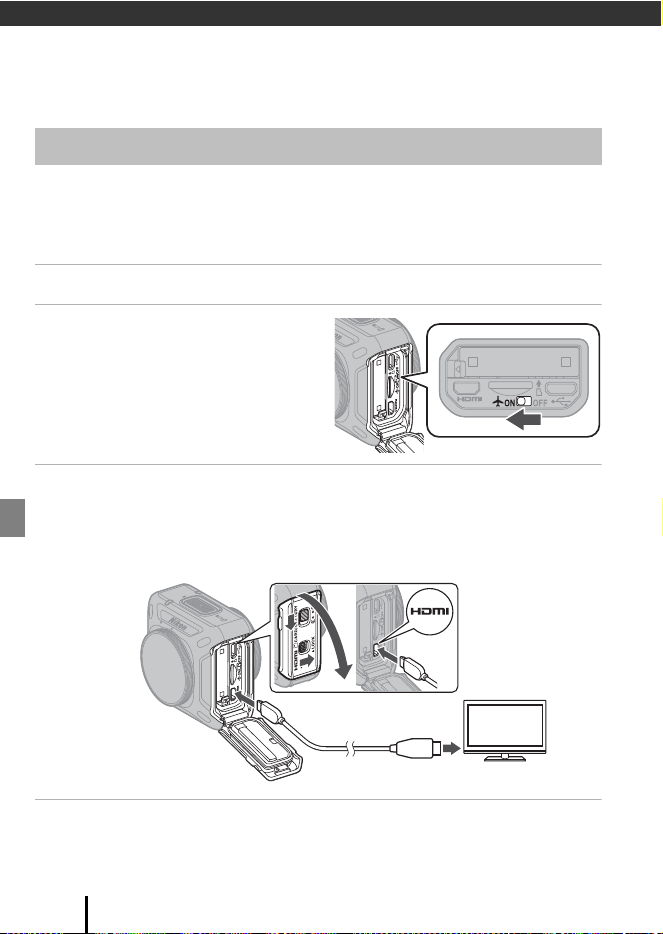
1 Turn off the camera.
2 Turn on the airplane mode
switch on the camera.
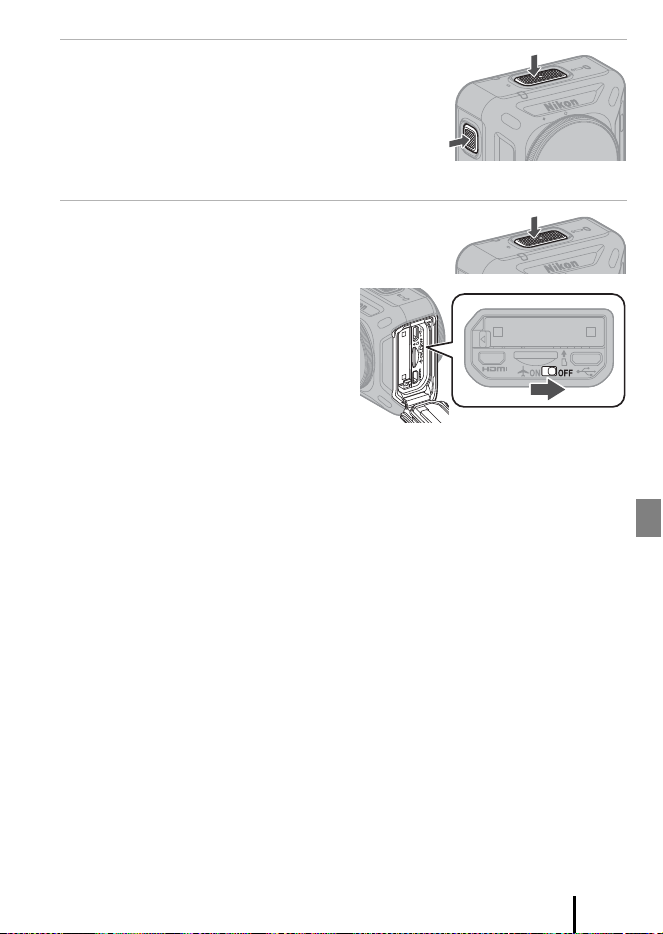
3 Connect the camera to an HDMI-supported device.
• Connect a commercially available HDMI cable to the HDMI-supported device's
HDMI input jack.
• Check the shape and direction of the plugs and do not insert or remove the plugs at
an angle.
4 Set the HDMI-supported device's input to external input.
• See the documentation provided with your HDMI-supported device for details.
Outputting Live Images
HDMI micro connector
(Type D)
To HDMI jack
29
Connecting the Camera to External Devices
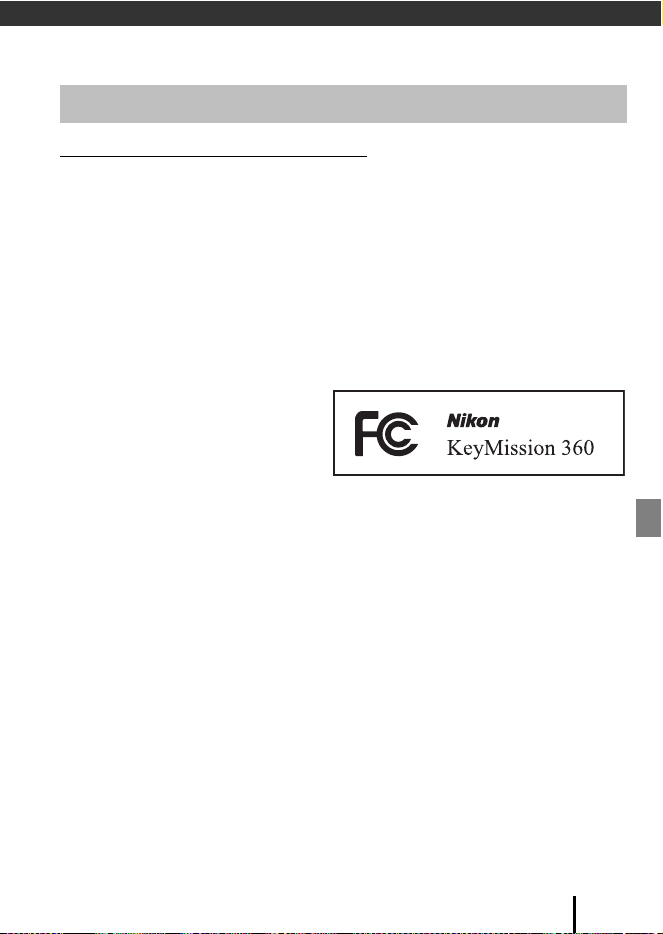
5 Press and hold down the movie button
and photo button at the same time
(about 3 seconds).
• The camera turns on and the live image is
displayed.
• The status lamps light green at the same time
while the live image is output.
6 To stop output, press and hold down the
movie button (about 3 seconds) to turn
off the camera.
• Return the airplane mode switch to
OFF.
B Notes About Connecting Cables to the Camera
• Make sure that the camera battery is sufficiently charged. If the EH-62F AC Adapter
(available separately) is used, this camera can be powered from an electrical outlet. Do
not, under any circumstances, use an AC adapter other than the EH-62F. Failure to observe
this precaution could result in overheating or damage to the camera.
• For information about the connection methods and subsequent operations, refer to the
documentation included with the HDMI-supported device in addition to this document.

30
Connecting the Camera to External Devices
B Notes About Outputting Live Images
• Note the following while outputting live images:
- Waterproof and dustproof performance is lost because the battery-chamber/memory
card slot cover is open.
- Buttons can be operated only to turn off the camera.
- The camera cannot be connected to a smart device or remote control.
- Camera settings M Shooting options M Movies M Movie mode is fixed to
Standard movie.
- If the inside of the camera becomes hot, output stops automatically and the status lamps
quickly flash red at the same time. When the camera has cooled, output resumes
automatically.
• The single image that was processed in the camera is displayed. You cannot move the
point of view.
• The following settings are applied to the output image:
- Camera settings M Shooting options M Movies M NTSC/PAL
- Camera settings M Shooting options M Shooting options
• The image size of the output image is fixed to 1920×1080 pixels regardless of the Movie
options setting.
• The frame rate of the output image varies depending on the NTSC/PAL setting.
-For NTSC: 29.97 fps
-For PAL: 25 fps
31
Technical Notes
Technical Notes
Notices for Customers in the U.S.A.
IMPORTANT SAFETY INSTRUCTIONS -
SAVE THESE INSTRUCTIONS.
DANGER - TO REDUCE THE RISK OF FIRE OR ELECTRIC SHOCK, CAREFULLY
FOLLOW THESE INSTRUCTIONS
For connection to a supply not in the U.S.A., use an attachment plug adapter of the
proper configuration for the power outlet if needed.
The power supply unit is intended to be correctly orientated in a vertical or floor
mount position.
Federal Communications Commission (FCC) Radio Frequency Interference
Statement
This equipment has been tested and
found to comply with the limits for a
Class B digital device, pursuant to Part
15 of the FCC rules. These limits are
designed to provide reasonable
protection against harmful
interference in a residential installation. This equipment generates, uses, and can
radiate radio frequency energy and, if not installed and used in accordance with the
instructions, may cause harmful interference to radio communications. However,
there is no guarantee that interference will not occur in a particular installation. If this
equipment does cause harmful interference to radio or television reception, which
can be determined by turning the equipment off and on, the user is encouraged to
try to correct the interference by one or more of the following measures:
• Reorient or relocate the receiving antenna.
• Increase the separation between the equipment and receiver.
• Connect the equipment into an outlet on a circuit different from that to which the
receiver is connected.
• Consult the dealer or an experienced radio/television technician for help.
CAUTIONS
Modifications
The FCC requires the user to be notified that any changes or modifications made to
this device that are not expressly approved by Nikon Corporation may void the user’s
authority to operate the equipment.
Notices

32
Technical Notes
Interface Cables
Use the interface cables sold or provided by Nikon for your equipment. Using other
interface cables may exceed the limits of Class B Part 15 of the FCC rules.
Notice for Customers in the State of California
WARNING
Handling the cord on this product will expose you to lead, a chemical known to the
State of California to cause birth defects or other reproductive harm.
Wash hands after handling.
Nikon Inc.,
1300 Walt Whitman Road, Melville, New York 11747-3064, U.S.A.
Tel: 631-547-4200
Notice for Customers in Canada
CAN ICES-3 B / NMB-3 B

33
Technical Notes
Restrictions on Wireless Devices
The wireless transceiver included in this product conforms to wireless regulations in
the country of sale and is not for use in other countries (products purchased in the EU
or EFTA can be used anywhere within the EU and EFTA). Nikon does not accept
liability for use in other countries. Users who are unsure as to the original country of
sale should consult with their local Nikon service center or Nikon-authorized service
representative. This restriction applies to wireless operation only and not to any other
use of the product.
Security
Although one of the benefits of this product is that it allows others to freely connect
for the wireless exchange of data anywhere within its range, the following may occur
if security is not enabled:
• Data theft: Malicious third-parties may intercept wireless transmissions to steal user
IDs, passwords, and other personal information.
• Unauthorized access: Unauthorized users may gain access to the network and alter
data or perform other malicious actions. Note that due to the design of wireless
networks, specialized attacks may allow unauthorized access even when security is
enabled. Nikon is not responsible for data or information leaks that may occur
during data transfer.
• Do not access networks that you are not permitted to use, even if they are
displayed on your smartphone or tablet. Doing so may be regarded as
unauthorized access. Only access networks that you are permitted to use.
Personal Information Management and Disclaimer
• User information registered and configured on the product, including wireless LAN
connection settings and other personal information, is susceptible to alteration
and loss resulting from operational error, static electricity, accident, malfunction,
repair or other handling. Always keep separate copies of important information.
Nikon is not responsible for any direct or indirect damages or lost profits resulting
from alteration or loss of content that is not attributable to Nikon.
• Before discarding this product or transferring it to another owner, select
SnapBridge 360/170 (A25) M c Camera tab M Camera settings M Reset all
to delete all user information registered and configured with the product,
including wireless LAN connection settings and other personal information.
• Nikon is not responsible for any damages resulting from unauthorized use of this
product by third parties in the event that the product is stolen or lost.
Notes About Wireless Communication
Functions

34
Technical Notes
Precautions When Exporting or Carrying This Product Abroad
This product is controlled by the United States Export Administration Regulations
(EAR). The permission of the United States government is not required for export to
countries other than the following, which as of this writing are subject to embargo or
special controls: Cuba, Iran, North Korea, Sudan, and Syria (list subject to change).
Notice for Customers in the U.S.A. and Canada
Federal Communications Commission (FCC) and Industry of Canada (IC)
Declaration of Conformity
This device complies with Part 15 of FCC Rules and Industry Canada licence-exempt
RSS standard(s). Operation is subject to the following two conditions: (1) this device
may not cause interference, and (2) this device must accept any interference,
including interference that may cause undesired operation of this device.
FCC/IC RF Exposure Statement
This transmitter must not be co-located or operated in conjunction with any other
antenna or transmitter.
The available scientific evidence does not show that any health problems are
associated with using low power wireless devices. There is no proof, however, that
these low power wireless devices are absolutely safe. Low power wireless devices
emit low levels of radio frequency energy (RF) in the microwave range while being
used. Whereas high levels of RF can produce health effects (by heating tissue),
exposure of low-level RF that does not produce heating effects causes no known
adverse health effects. Many studies of low-level RF exposures have not found any
biological effects. Some studies have suggested that some biological effects might
occur, but such findings have not been confirmed by additional research.
KeyMission 360, which is equipped with a TYPE1FJ (FCC ID:VPYLB1FJ / IC ID:772C-
LB1FJ) Wireless LAN Module, has been tested and found to comply with FCC/IC
radiation exposure limits set forth for an uncontrolled environment and meets the
FCC radio frequency (RF) Exposure Guidelines in Supplement C to OET65 and RSS-102
of the IC radio frequency (RF) Exposure rules. Please refer to the SAR test report that
was uploaded to FCC website.

35
Technical Notes
Observe the precautions described below in addition to the warnings in the For Your
Safety leaflet, “<Important> Notes About Shockproof, Waterproof, and Dustproof
Performance and Condensation” (Avii), and “Notes About Wireless Communication
Functions” (A33) when using or storing the device.
The Camera
Do Not Apply Strong Impact to the Camera
The product may malfunction if subjected to strong shock or vibration. In addition, do not
touch or apply force to the lens.
Avoid Sudden Changes in Temperature
Sudden changes in temperature, such as when entering or leaving a heated building
on a cold day, can cause condensation to form inside the device. To prevent condensation,
place the device in a carrying case or a plastic bag before exposing it to sudden changes in
temperature.
Keep Away from Strong Magnetic Fields
Do not use or store this device in the vicinity of equipment that generates strong
electromagnetic radiation or magnetic fields. Doing so could result in loss of data or camera
malfunction.
Do Not Point the Lens at Strong Light Sources for Extended
Periods
Avoid pointing the lens at the sun or other strong light sources for extended periods when
using or storing the camera. Intense light may cause the image sensor to deteriorate or
produce a white blur effect in photographs.
Turn the Product Off Before Removing or Disconnecting the
Power Source or Memory Card
Do not remove the battery while the product is on, or while images are being saved or
deleted. Forcibly cutting power in these circumstances could result in loss of data or in
damage to the memory card or internal circuitry.
Caring for the Product

36
Technical Notes
The Battery
Precautions for Use
• Note that the battery may become hot after use.
• Do not use the battery at ambient temperatures below 0°C (32°F) or above 40°C (104°F) as
this could cause damage or malfunction.
• If you notice any abnormalities such as excessive heat, smoke, or an unusual smell coming
from the battery, immediately discontinue use and consult your retailer or Nikon-
authorized service representative.
• After removing the battery from the camera or optional battery charger, put the battery in
a plastic bag, etc. in order to insulate it.
Charging the Battery
Check the battery level before using the camera and replace or charge the battery if
necessary.
• Charge the battery indoors with an ambient temperature of 5°C to 35°C (41°F to 95°F)
before use.
• A high battery temperature may prevent the battery from charging properly or
completely, and may reduce battery performance. Note that the battery may become hot
after use; wait for the battery to cool before charging.
When charging the battery inserted into this camera using the Charging AC Adapter or a
computer, the battery is not charged at battery temperatures below 0°C (32°F) or above
50°C (122°F).
• Do not continue charging once the battery is fully charged as this will result in reduced
battery performance.
• The battery temperature may increase during charging. However, this is not a
malfunction.
Carrying Spare Batteries
Whenever possible, carry fully charged spare batteries when taking pictures on important
occasions.
Using the Battery When Cold
On cold days, the capacity of batteries tends to decrease. If an exhausted battery is used at a low
temperature, the camera may not turn on. Keep spare batteries in a warm place and exchange as
necessary. Once warmed, a cold battery may recover some of its charge.
Battery Terminals
Dirt on the battery terminals may prevent the camera from functioning. Should the battery
terminals become dirty, wipe them off with a clean, dry cloth before use.

37
Technical Notes
Charging an Exhausted Battery
Turning the camera on or off while an exhausted battery is inserted in the camera may result
in reduced battery life. Charge the exhausted battery before use.
Storing the Battery
• Always remove the battery from the camera or optional battery charger when it is not
being used. Minute amounts of current are drawn from the battery while it is in the
camera, even when not in use. This may result in excessive battery drain and complete
loss of function.
• Recharge the battery at least once every six months and completely exhaust it before
returning it to storage.
• Put the battery in a plastic bag, etc. in order to insulate it and store it in a cool place. The
battery should be stored in a dry location with an ambient temperature of 15°C to 25°C (59°F
to 77°F). Do not store the battery in hot or extremely cold locations.
Battery Life
A marked drop in the time a fully charged battery retains its charge, when used at room
temperature, indicates that the battery needs to be replaced. Purchase a new battery.
Recycling Used Batteries
Replace the battery when it no longer holds a charge. Used batteries are a valuable resource.
Please recycle used batteries in accordance with local regulations.
The Charging AC Adapter
• The EH-73P Charging AC Adapter is for use only with compatible devices. Do not use with
another make or model of device.
• Do not use any USB cable other than the UC-E21. Using a USB cable other than the UC-E21
could result in overheating, fire or electric shock.
• Do not, under any circumstances, use another make or model of charging AC adapter
other than the EH-73P Charging AC Adapter, and do not use a commercially available
USB-AC adapter or a battery charger for a mobile phone. Failure to observe this precaution
could result in overheating or in damage to the camera.
• The EH-73P is compatible with AC 100–240 V, 50/60 Hz electrical outlets. When using in
other countries, use a plug adapter (commercially available) as necessary. For more
information about plug adapters, consult your travel agency.
• The symbols on this product represent the following:
D AC, E DC, F Class II equipment (The construction of the product is double-insulated.)
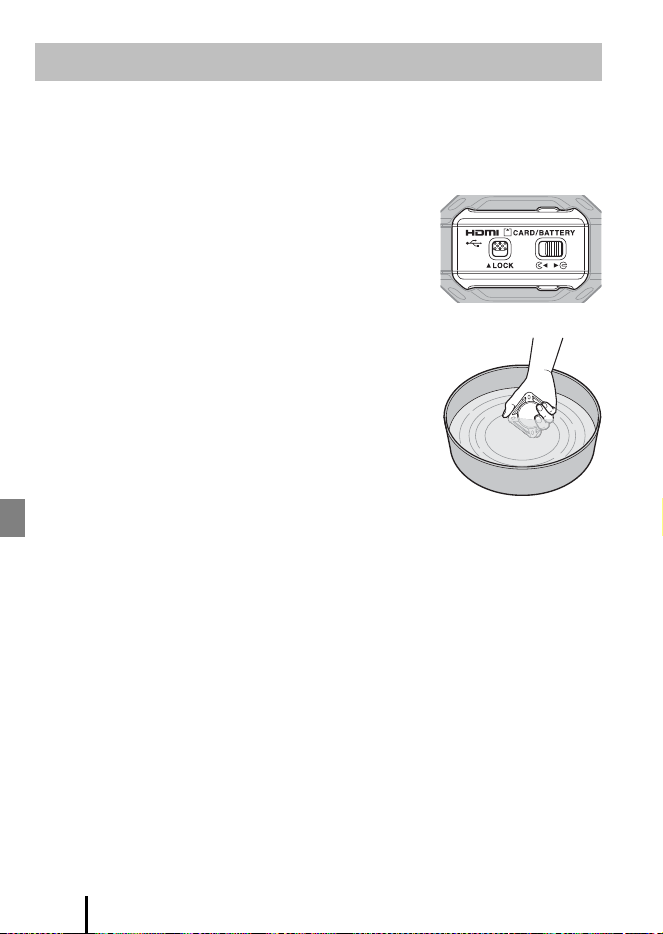
38
Technical Notes
Cleaning after Using the Camera Underwater
Follow the procedure below to rinse the camera with fresh water within 60 minutes after
using it underwater or at the beach. The underwater lens protectors are used here as an
example.
1. Check that the battery-chamber/memory card
slot cover is securely closed (locked).
• Check that the battery-chamber/memory card slot
cover latch and battery-chamber/memory card slot
cover latch release are positioned as shown in the
figure on the right, and that their orange indicator
marks are not visible.
2. Wash with fresh water while the underwater lens
protectors are attached.
Immerse the camera in a shallow basin filled with fresh
water for 10 minutes.
• Immerse the camera in fresh water and shake it
sufficiently in the water to remove any foreign
substances from the camera. If foreign substances
still remain, remove them with a cotton swab, etc.
• When the camera is immersed in the water, a few air
bubbles may come out from the water drain holes
of the camera such as openings in the microphone or speakers. This is not a
malfunction.
3. Wrap the camera with a soft dry cloth to wipe off water droplets, and dry
the camera in a well-ventilated and shady place.
• Place the camera on a dry cloth to dry it.
• Do not dry the camera with hot air from a hair dryer or clothes dryer.
4. Check that there are no water droplets, remove the underwater lens
protectors, and then remove any water droplets or sand remaining on the
inner side of the underwater lens protectors with a soft dry cloth.
• Attaching an underwater lens protector while the inner side is still wet could
cause condensation or a malfunction.
5. After making sure that there are no water droplets on the camera, open
the battery-chamber/memory card slot cover and use a soft dry cloth to
gently wipe off any water or sand remaining on the waterproofing packing
or inside the camera.
• If the cover is closed when the inside is wet, this could cause condensation or a
malfunction.
Cleaning and Storage

39
Technical Notes
Cleaning after Using the Camera in Conditions Other
than Underwater
Use a blower or air duster to remove any dust or lint that adheres to the lenses, lens
protectors, silicone jacket, camera body, special accessories, etc. To remove fingerprints or
other stains, gently wipe the parts with a soft dry cloth. If you wipe with too much pressure
or with a rough cloth, it may damage the camera or cause a malfunction.
Storage
If you do not intend to use the camera for an extended period, remove the battery and
avoid storing the camera in any of the following types of locations:
• Places that are poorly ventilated or subject to humidity of over 60%
• Places exposed to temperatures above 50°C (122°F) or below –10°C (14°F)
• Places next to equipment that produces strong electromagnetic fields, such as
televisions or radios
To prevent mold or mildew, take the camera out of storage at least once a month,
and turn it on and release the shutter a few times before putting it away again.
Completely exhaust the battery before storing it, and recharge it at least once every
six months. Also, place the battery in a container such as plastic bag in order to
insulate it, and store it in a cool place.
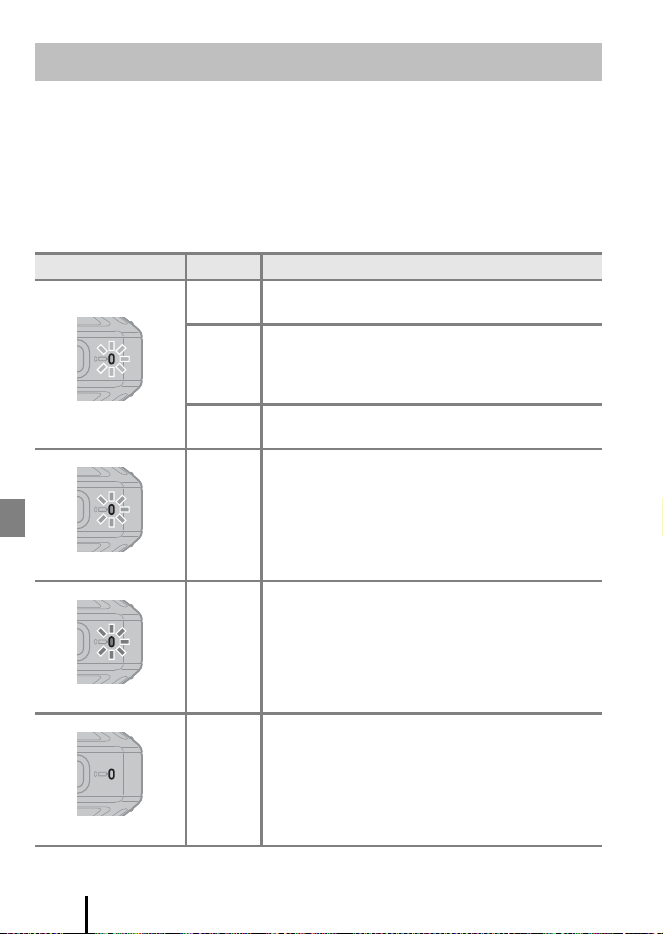
40
Technical Notes
You can check the status of the camera by looking at the lamps.
C Lamp Display
The KeyMission 360/SnapBridge 360/170 Online Manual (Aii) easily explains the lamp
display through animations.
Power-On Lamp
Lamp Display
Color Status Description
Green
On
• The battery level is within 30% to 100%.
• The camera is detecting a computer.
Flashing
• The battery is charging. Turns off when charging is
complete.
• The camera is connected to a computer with a
USB cable.
Quick
flashing
The battery cannot be charged (A4).
Orange
On The battery level is within 10% to 30%.
Red
Flashing
The battery is exhausted. Charge or replace the
battery (A4).
Off
–The camera is off.
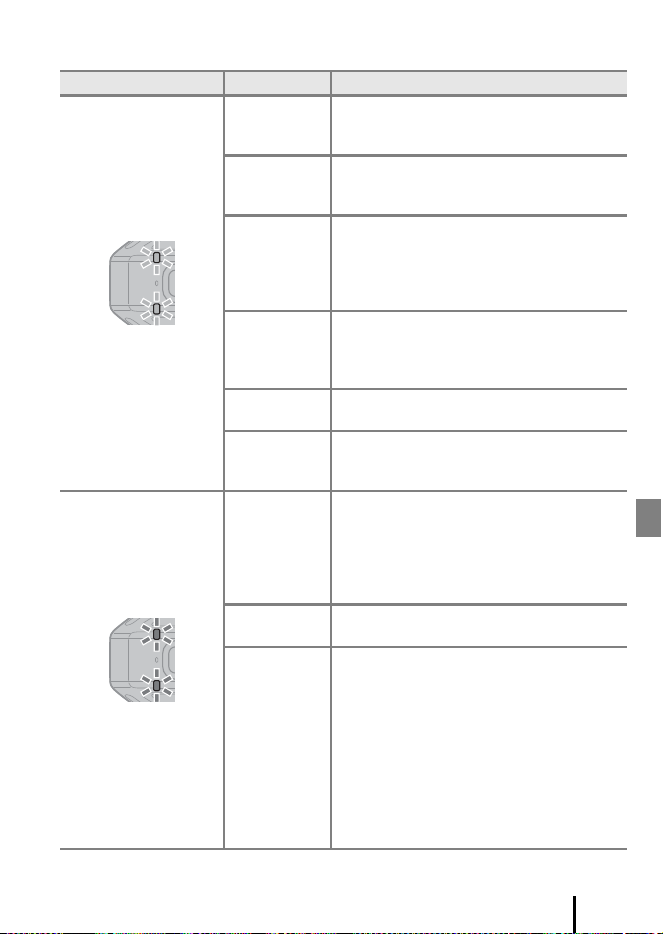
41
Technical Notes
Status Lamp
Color Status Description
Green
On at the same
time
• Live images are being output.
• The camera is connected to a TV with an
HDMI cable.
Flashing at the
same time
• The camera is capturing a still image.
• The self-timer is counting down.
• Pairing is complete.
Flashing at the
same time
(once in 5
seconds)
The camera is on standby for connection with
a smart device (you can also use the camera
as-is). When you launch SnapBridge 360/170
on a paired smart device, the camera is
reconnected.
Flashing at the
same time
(twice in 5
seconds)
The camera is on standby for connection with
a remote control (you can also use the
camera as-is). When you turn on a paired
remote control, the camera is reconnected.
Alternately
flashing
The camera is in pairing standby mode for a
smart device.
Alternately
flashing
quickly
The camera is in pairing standby mode for a
remote control.
Red
On at the same
time
• The camera is recording a movie in
Standard movie mode.
• The camera is recording a movie in
Superlapse movie, Loop recording, or
Time-lapse movie mode (changes from
flashing 3 times to on).
Flashing at the
same time
• The camera is saving a movie.
• Pairing failed.
Quick flashing
at the same
time
• A memory card is not inserted.
• Out of memory.
• Output of live images is stopped because
the inside of the camera became hot
during output. When the camera has
cooled, output resumes automatically.
• The inside of the camera has become hot.
The camera turns off automatically. Wait
until the camera or battery temperature
has cooled before resuming use.
• The firmware version update failed.
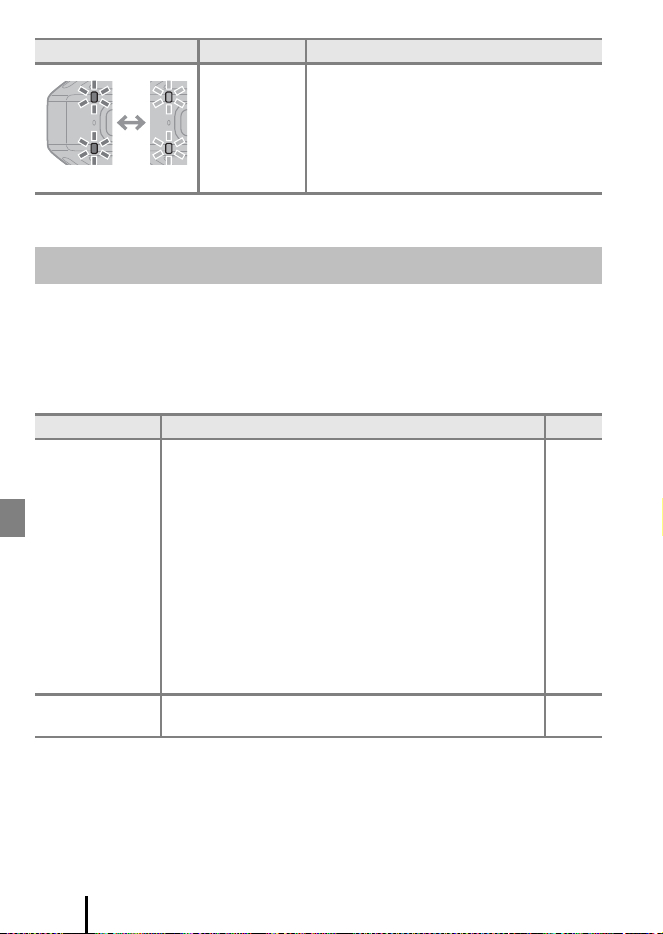
42
Technical Notes
If the camera fails to function as expected, check the list of common problems below
before consulting your retailer or Nikon-authorized service representative.
See the KeyMission 360/SnapBridge 360/170 Online Manual for more information
(Aii).
Power and Setting Issues
Red/Green
Flashing at the
same time
The firmware is being updated.
Troubleshooting
Problem Cause/Solution
A
The camera is on
but does not
respond.
• Wait for recording to end.
• If the problem persists, turn the camera off.
If the camera does not turn off, remove and reinsert the
battery or batteries or, if you are using an AC adapter,
disconnect and reconnect the AC adapter.
Note that although any data currently being recorded will
be lost, data that have already been recorded will not be
affected by removing or disconnecting the power source.
• Check the lamp display.
• The buttons of the camera are disabled during remote
photography. To operate the buttons of the camera, exit
remote photography.
• Buttons can be operated only to turn off the camera while
a live image is output.
–
5
40
–
–
The camera does
not turn on.
The battery is exhausted. 4, 36
Color Status Description

43
Technical Notes
Shooting Issues
The camera turns
off without
warning.
• The camera automatically turns off to save power (auto off
function).
• Depending on the status of the camera, it turns off after a
specific time regardless of the auto off setting.
• The camera and battery may not work properly at low
temperatures.
• The inside of the camera has become hot. Leave the
camera off until the inside of the camera has cooled, and
then try turning it on again.
5
–
36
–
The camera
becomes hot.
The camera may become hot when used for an extended
period of time such as to shoot movies, or when used in a hot
environment; this is not a malfunction.
–
The camera beeps
three times.
• The battery is exhausted.
• Out of memory. Insert a memory card with sufficient free
space.
• The camera has run out of file numbers. Change the
memory card, or format the memory card.
• An error occurred while accessing the memory card.
- Use an approved memory card.
- Check that the terminals are clean.
- Confirm that the memory card is correctly inserted.
4, 36
2
2
2, 3
Date and time of
recording are not
correct.
• When the camera is turned on for the first time, the camera
clock is set to “01/01/2017 00:00”. Set the date and time of
the camera clock by selecting SnapBridge 360/170 M
c Camera tab M Camera settings M Date and time.
• The camera clock is not as accurate as ordinary watches or
clocks. Periodically compare the time of the camera clock
with that of a more accurate timepiece and reset as required.
25
Problem Cause/Solution
A
Cannot take
pictures or record
movies.
• Check the lamp display.
• Insert a memory card with sufficient free space.
• Disconnect the HDMI cable or USB cable.
• During remote photography, images cannot be captured
only with the camera. Exit remote photography.
• Buttons can be operated only to turn off the camera while
a live image is output.
40
2
–
–
–
Problem Cause/Solution
A

44
Technical Notes
SnapBridge 360/170 Issues
Problem Cause/Solution
A
The camera
cannot be paired
with a smart
device.
• Enable Bluetooth and Wi-Fi on the smart device. If you will
use NFC, enable NFC.
• Turn off the camera. The camera cannot enter pairing
standby mode when the camera is on.
• Turn off the airplane mode switch on the camera.
• Insert a memory card with sufficient free space into the
camera.
• Disconnect the HDMI cable or USB cable.
• Use a sufficiently charged battery.
• Follow “When You Cannot Pair with a Smart Device”
(A18) and repeat the pairing procedure.
• If the devices are paired, unpair and then re-pair.
• The camera cannot be paired with multiple devices at the
same time.
• If SnapBridge is running, close it.
–
5
1
2
–
4, 36
–
19
–
–
The camera
cannot be
operated via the
smart device.
• Perform pairing.
• If SnapBridge 360/170 M c Camera tab M Camera
settings M Network menu M Bluetooth M Send
while off is set to No, turn on the camera or set it to Ye s .
• Check that the B icon is displayed in SnapBridge 360/170
M a Connect screen. The B icon is not displayed when
the camera is off or immediately after it is turned on.
• If the camera is connected to a remote control, switch the
connection to the smart device.
13
–
–
–
Cannot upload
images to a smart
device that has a
wireless
connection
established.
• Perform the operations described below when uploading
automatically.
-
S
elect SnapBridge 360/170 M a Connect tab M turn
on Auto download.
- Select SnapBridge 360/170 M c Camera tab M
Camera settings M Network menu M Send while
shooting M set Still images to Yes.
• To automatically send images captured using remote
photography, tap g on the shooting screen, and then
turn on Download on the screen that is displayed.
–

45
Technical Notes
Cannot perform
Remote
photography or
Download
pictures.
• Enable Wi-Fi on the smart device.
• If you cannot perform Remote photography or
Download pictures even after pairing and establishing a
Wi-Fi connection, you may be able to solve the problem
with the operations below:
- Switch the tabs in SnapBridge 360/170.
- Exit and launch SnapBridge 360/170 again.
- Unpair, remove the device, and then re-pair.
–
–
–
19
Wi-Fi is
disconnected and
the Wi-Fi
connection
prompt is
displayed again.
Wi-Fi may get disconnected in the situations below. Follow
the on-screen instructions to establish a Wi-Fi connection
again.
• Switching to a tab other than the c Camera tab.
• Being nearby a device that generates strong
electromagnetic radiation.
–
File cannot be
played back.
• This app may not be able to play back images saved with
another make or model of digital camera.
• This app cannot play back movies recorded with another
make or model of digital camera.
• This app may not be able to play back data edited on a
computer.
–
Cannot edit
image.
• Some images cannot be edited.
• This app is unable to edit images captured with other
cameras.
–
Problem Cause/Solution
A
46
Technical Notes
Trademark Information
• Windows is either a registered trademark or trademark of Microsoft
Corporation in the United States and/or other countries.
• The Bluetooth® word mark and logos are registered trademarks owned by
Bluetooth SIG, Inc. and any use of such marks by Nikon Corporation is under
license.
• Apple®, App Store®, the Apple logos, Mac, OS X, macOS, iPhone®, iPad®, iPod
touch® and iBooks are trademarks or registered trademarks of Apple Inc., in the
U.S. and other countries.
• Android and Google Play are trademarks or registered trademarks of Google
Inc. The Android robot is reproduced or modified from work created and
shared by Google and used according to terms described in the Creative
Commons 3.0 Attribution License.
• iOS is a trademark or registered trademark of Cisco Systems, Inc., in the United
States and/or other countries and is used under license.
• Adobe, the Adobe logo, Acrobat, and Reader are either trademarks or
registered trademarks of Adobe Systems Incorporated in the United States
and/or other countries.
• The microSD, microSDHC, and microSDXC logos are trademarks of SD-3C, LLC.
• HDMI, HDMI logo and High-Definition Multimedia Interface are trademarks or
registered trademarks of HDMI Licensing, LLC.
• Wi-Fi and the Wi-Fi logo are trademarks or registered trademarks of the Wi-Fi
Alliance.
• The N-Mark is a trademark or registered trademark of NFC Forum, Inc. in the
United States and in other countries.
• All other trade names mentioned in this manual or the other documentation
provided with your Nikon product are the trademarks or registered trademarks
of their respective holders.

47
Technical Notes
AVC Patent Portfolio License
This product is licensed under the AVC Patent Portfolio License for the personal and
non-commercial use of a consumer to (i) encode video in compliance with the AVC
standard (“AVC video”) and/or (ii) decode AVC video that was encoded by a consumer
engaged in a personal and non-commercial activity and/or was obtained from a video
provider licensed to provide AVC video. No license is granted or shall be implied for
any other use. Additional information may be obtained from MPEG LA, L.L.C.
See http://www.mpegla.com.
“Made for iPod,” “Made for iPhone,” and “Made for iPad” mean that an electronic
accessory has been designed to connect specifically to iPod, iPhone, or iPad,
respectively, and has been certified by the developer to meet Apple performance
standards. Apple is not responsible for the operation of this device or its
compliance with safety and regulatory standards. Please note that the use of this
accessory with iPod, iPhone, or iPad may affect wireless performance.

48
Technical Notes

49
Technical Notes

CT7K01(11)
6MQA9011-01
No reproduction in any form of this manual, in whole or in part
(except for brief quotation in critical articles or reviews), may be
made without written authorization from NIKON CORPORATION.