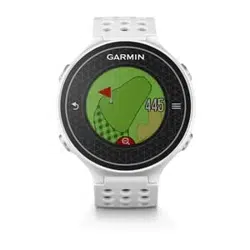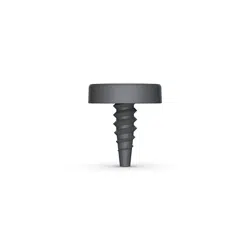
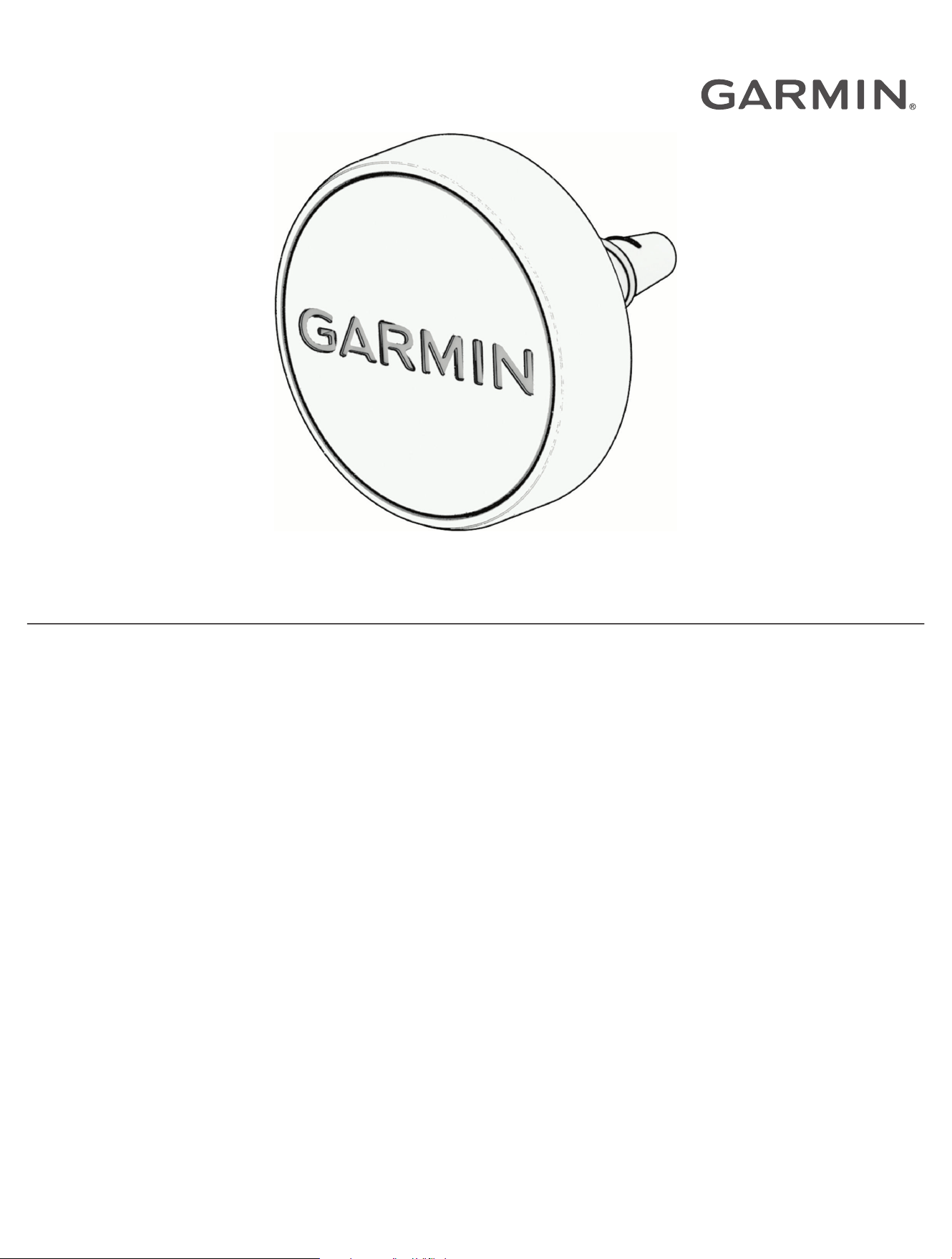
APPROACH
®
CT1
Owner’s Manual

© 2025 Garmin Ltd. or its subsidiaries
All rights reserved. Under the copyright laws, this manual may not be copied, in whole or in part, without the written consent of Garmin. Garmin reserves the right to change
or improve its products and to make changes in the content of this manual without obligation to notify any person or organization of such changes or improvements. Go to
www.garmin.com for current updates and supplemental information concerning the use of this product.
Garmin
®
, Approach
®
, and the Garmin logo are trademarks of Garmin Ltd. or its subsidiaries, registered in the USA and other countries. Garmin Connect
™
, Garmin Express
™
, and
Garmin Golf
™
are trademarks of Garmin Ltd. or its subsidiaries. These trademarks may not be used without the express permission of Garmin. Other trademarks and trade names are
those of their respective owners.


Introduction
WARNING
See the Important Safety and Product Information guide in the product box for product warnings and other
important information.
Attaching a Club Tracking Tag to a Club
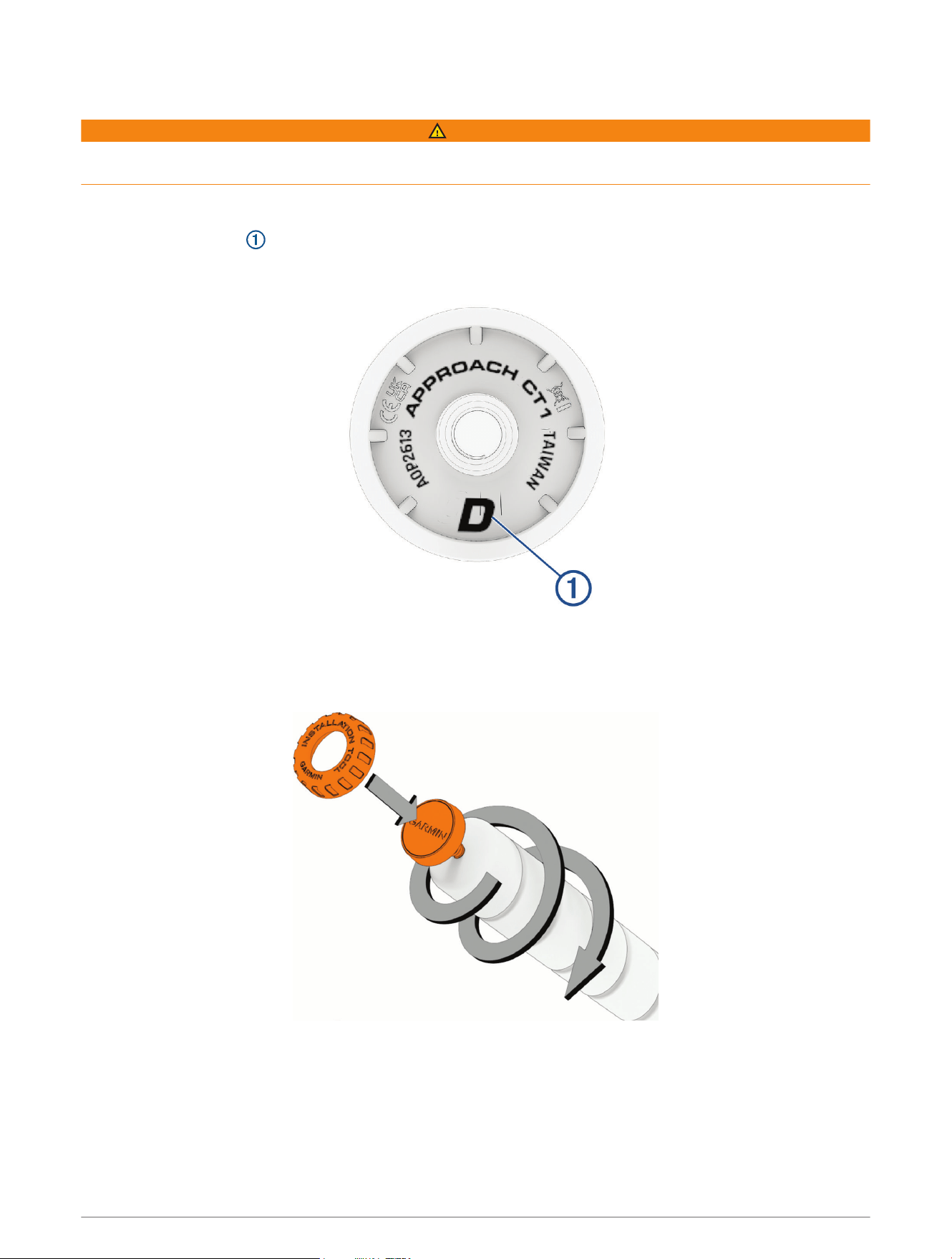
1 Locate the tag label on the underside of the tag.
Your set comes with 16 tags, each labeled and programed with one of 16 club types. The tag label identifies
the club type.
2 Locate your club that matches the tag label.
3 Screw the tag into the hole at the end of the grip.
TIP: You can use the installation tool included in the box to improve your hold on the tag when screwing it
into the grip. Holding the tag and twisting the grip may make installation easier.
4 Tighten the tag so it does not move during use.
5 Repeat steps 1-4 for each remaining tag in your set.
NOTE: If you have a club type that does not match one of the 16 tag labels, you will have an option to
manually assign the tag when you enable club tracking on your watch (Enabling Club Tracking, page2).
Introduction 1
Enabling Club Tracking
Before you can record shots, you must enable club tracking and set up your tags with your compatible Garmin
®
golf watch.
1 Attach tags to your clubs (Attaching a Club Tracking Tag to a Club, page1).
2 From the golf settings menu on your watch, select Club Tracking > Approach CT1.
3 Select the toggle switch to enable club tracking.
If you are using the default golf club list in the Garmin Golf
™
app, a message appears indicating your clubs
are compatible and the tags are assigned. If you have customized your golf club list and one or more of
your clubs do not match the tag labels, they may not be automatically assigned, and a message appears
indicating which clubs require manual setup (Customizing Your Golf Club List, page3).
4 If necessary, select Manage Tags to manually assign the tags.
5 Tap a tag as prompted by your watch.
A message appears indicating if the tag is assigned to a club.
6 If necessary, select to add or change the club assignment, and follow the on-screen instructions.
7 Repeat steps 4 through 6 until all of the tags have been assigned to your clubs.
Recording Your Shot
1 On your compatible Garmin golf watch, start a round.
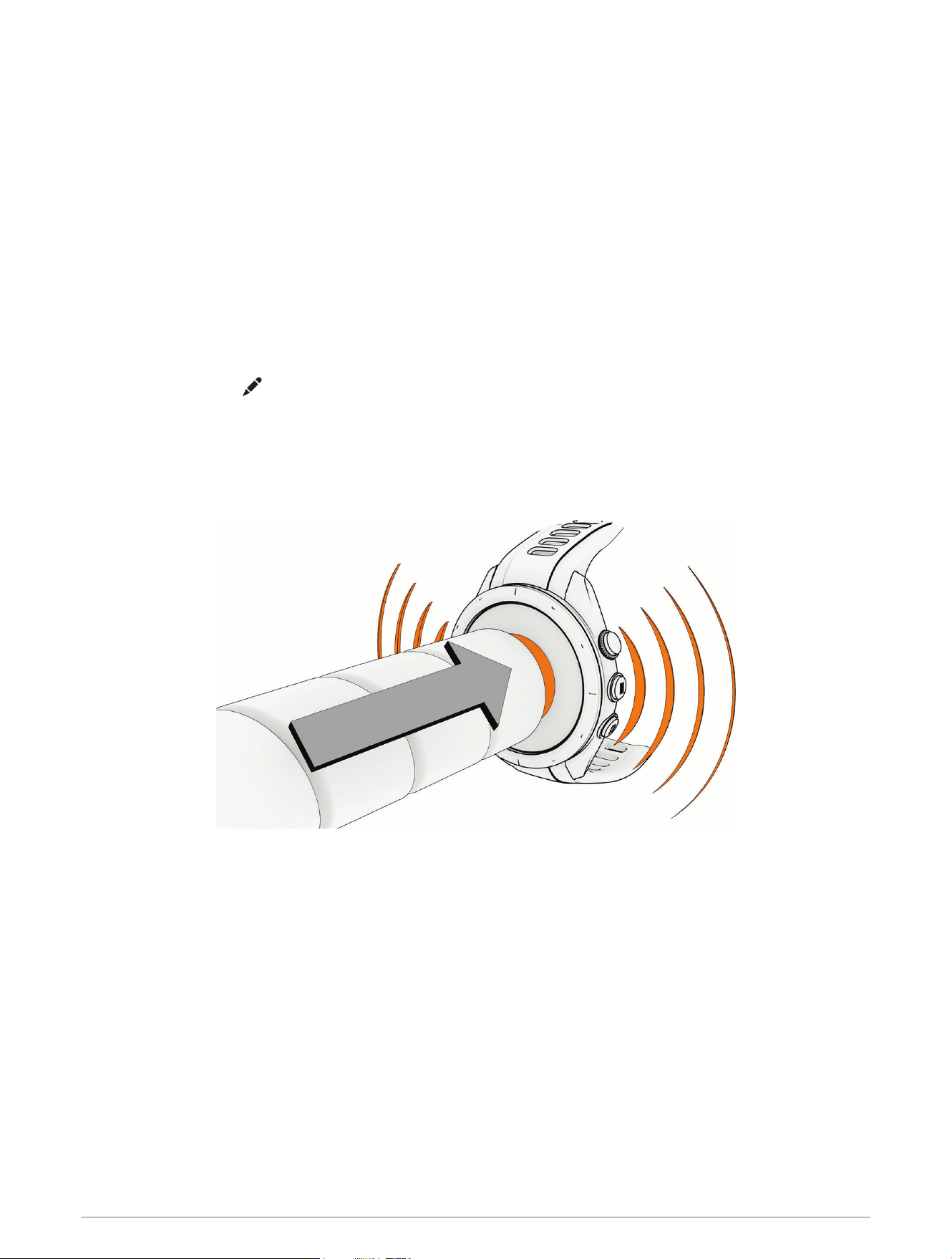
2 Take a club out of your golf bag, and tap the tag with the watch.
Your watch vibrates and displays the name of the scanned club.
3 Hit a shot.
Your watch records the shot data, including location, and labels it with the scanned club.
TIP: If you forget to tap the tag before hitting a shot, the watch will prompt you to tap the tag or select your
club from the list. The shot data will then be recorded for the selected club.
NOTE: The watch may not detect putts, so you may not be prompted to tag the shot when putting. Garmin
recommends tapping the tag with your watch as part of your pre-shot routine.
Upload scorecards to the Garmin Golf app from your watch after each round to view your updated statistics.
Review an analysis of your game to determine areas for improvement and where to focus your practice. You can
view detailed statistics in the app.
2 Introduction
Garmin Golf App
The Garmin Golf app allows you to upload scorecards from your compatible Garmin golf watch to view detailed
statistics and shot analyses. Golfers can compete with each other at different courses using the Garmin Golf
app. More than 43,000 courses have leaderboards that anyone can join. You can set up a tournament event and
invite players to compete. With a Garmin Golf membership, you can view green contour data on your phone.
The Garmin Golf app syncs your data with your Garmin Connect
™
account. You can download the Garmin Golf
app from the app store on your phone (garmin.com/golfapp).
Customizing Your Golf Club List
After you pair your compatible golf watch with your phone using the Garmin Golf app, you can use the app to
customize the default golf club list.
1 Open the Garmin Golf app on your phone.
2 Select Profile > My Bag.
3 Select an option to add, edit, delete, or mark a club inactive.
4 Sync your compatible Garmin golf watch with the Garmin Golf app.
The updated golf club list appears on your golf watch.
Using Garmin Connect on Your Computer
The Garmin Express
™
application connects your compatible Garmin golf device to your Garmin Connect account
using a computer.
1 Connect your Garmin golf device to your computer using the USB cable.
2 Go to garmin.com/express.
3 Download and install the Garmin Express application.
4 Open the Garmin Express application, and select Add Device.
5 Follow the on-screen instructions.
Device Information
Device Care
NOTICE
Avoid extreme shock and harsh treatment, because it can degrade the life of the product.
Do not use a sharp object to clean the device.
Avoid chemical cleaners, solvents, and insect repellents that can damage plastic components and finishes.
Do not store the device where prolonged exposure to extreme temperatures can occur, because it can cause
permanent damage.
Specifications
Operating temperature range From -25° to 70°C (from -13° to 158°F)
Water resistance IEC 60529 IPX7
1
Troubleshooting
Is my watch compatible with my club tracking tags?
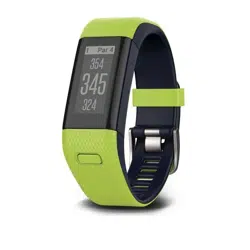
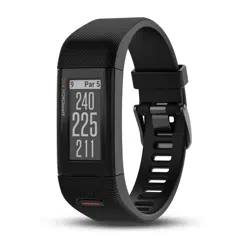
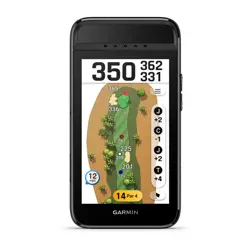
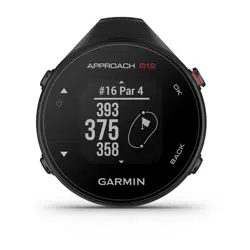
The Approach CT1 club tracking tags are compatible with some Garmin golf watches.
Go to garmin.com/ct1compatibility for compatibility information.
1
The device withstands incidental exposure to water of up to 1m for up to 30min. For more information, go to www.garmin.com/waterrating.
Garmin Golf App 3

Reassigning or Removing Your Club Tracking Tags
1 From the golf settings menu on your watch, select Club Tracking > Approach CT1 > Manage Tags.
2 Tap a tag as prompted by your watch.
3 Select .
4 Select an option:
• To assign a tag to a different club in the set, select the club name.
• To remove a tag, select Remove Club.
Getting More Information
• Go to support.garmin.com for additional manuals, articles, and software updates.
• Go to garmin.com/golf.
• Go to buy.garmin.com, or contact your Garmin dealer for information about optional accessories and
replacement parts.


support.garmin.com
GUID-2BCAC91E-41CF-41DF-A619-BD3C1679A46D v2March 2025