APPROACH
®
S6
Owner’s Manual

© 2014 Garmin Ltd. or its subsidiaries
All rights reserved. Under the copyright laws, this manual may not be copied, in whole or in part, without the written consent of Garmin. Garmin reserves the right to change
or improve its products and to make changes in the content of this manual without obligation to notify any person or organization of such changes or improvements. Go to
www.garmin.com for current updates and supplemental information concerning the use of this product.
Garmin
®
, the Garmin logo, and Approach
®
are trademarks of Garmin Ltd. or its subsidiaries, registered in the USA and other countries. Garmin Connect
™
, Garmin Express
™
,
SwingStrength
™
, and TruSwing
™
are trademarks of Garmin Ltd. or its subsidiaries. These trademarks may not be used without the express permission of Garmin.
The Bluetooth
®
word mark and logos are owned by Bluetooth SIG, Inc. and any use of such marks by Garmin is under license. Swing analysis technology is provided by Noitom
SM
Ltd.,
www.noitom.com. Other trademarks and trade names are those of their respective owners.

Table of Contents
Getting Started................................. 1
Keys..........................................................1
Turning on the Device............................. 2
Status Icons......................................... 2
Charging the Device................................ 2
Unlocking the Device...............................3
Playing Golf...................................... 3
Hole Information..................................... 4
Using CourseView................................... 5
Viewing the Green................................... 5
Using PinPointer...................................... 5
Viewing Layup and Dogleg Distances
and Saved Locations...............................5
Keeping Score......................................... 6
Setting the Scoring Method................ 6
About Stableford Scoring....................6
Enabling Handicap Scoring.................7
Saving a Location.................................... 7
Measuring a Shot.................................... 7
Using the Odometer................................ 7
Training............................................7
SwingStrength™....................................... 7
Setting Up SwingStrength................... 8
Analyzing Your Swing Using
SwingStrength..................................... 8
Changing Your Club.............................8
TempoTraining........................................ 8
The Ideal Swing Tempo...................... 9
Changing the Tempo Timing............ 10
Analyzing Your Swing Using
TempoTraining.................................. 10
Setting the TempoTraining Tones....10
TruSwing™............................................. 10
TruSwing Metrics.............................. 10
Recording and Viewing TruSwing
Metrics on Your Approach Device....11
Changing Your Club.......................... 11
Changing Handedness...................... 11
Disconnecting Your TruSwing
Device.................................................11
Customizing Your Device................11
Tracking Statistics................................ 11
Recording Statistics.......................... 11
Garmin Connect.................................... 12
Phone Notifications.............................. 12
Enabling Bluetooth Notifications..... 12
Viewing Notifications........................ 12
System Settings.................................... 13
Setting the Time Manually................ 13
Changing the Display Color.............. 13
Changing the Accent Color............... 13
Setting the Alarm.................................. 13
Device Information......................... 14
Specifications........................................14
Device Care............................................14
Cleaning the Device...........................14
Troubleshooting............................. 15
Touchscreen Tips................................. 15
Getting More Information..................... 15
Calibrating the Compass...................... 15
Resetting the Device............................. 15
Clearing User Data................................ 15
Support and Updates............................ 15
Updating Software and Courses...... 16
Table of Contents i

Getting Started
WARNING
See the Important Safety and Product Information guide in the product box for product warnings and other
important information.
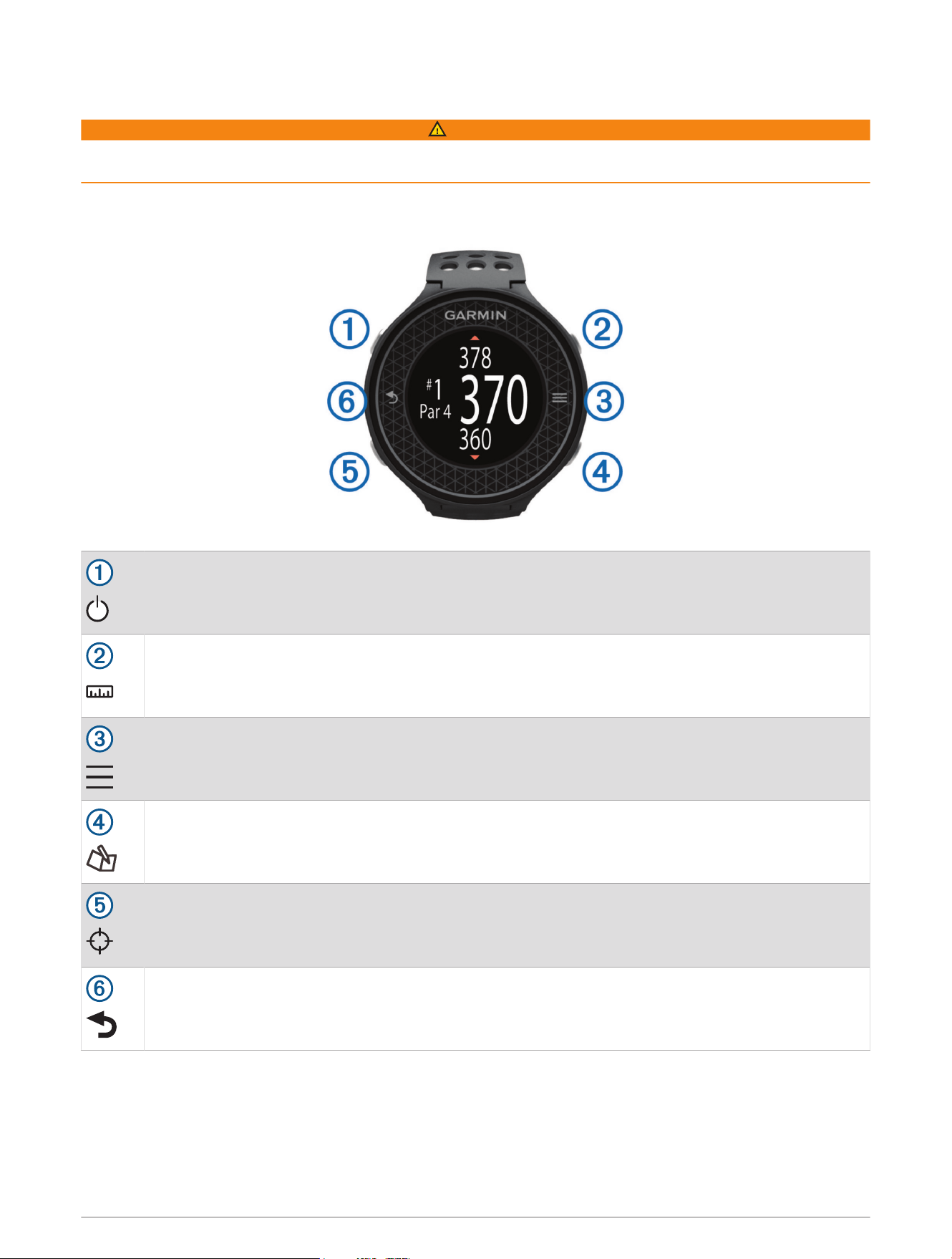
Keys
Select to turn on the backlight.
Hold to turn the device on and off.
Select to measure a shot (Measuring a Shot, page7).
Hold to reset the measurement.
Select to open the menu for the current screen.
Select to enter your score for the hole (Keeping Score, page6).
Hold to view scores for all holes.
Select to use CourseView (Using CourseView, page5).
Select to return to the previous screen.
Getting Started 1
Turning on the Device
The device comes partially charged. You may need to charge the device before playing golf (Charging the
Device, page2).
NOTE: The time of day and date are set automatically when you go outdoors and the device locates satellites.
1 Hold , and follow the on-screen instructions.
2 Select Start Round.
3 Wait while the device locates satellites.
Status Icons
Battery level
GPS status
Alarm
Bluetooth
®
technology status
Charging the Device
WARNING
This device contains a lithium-ion battery. See the Important Safety and Product Information guide in the product
box for product warnings and other important information.
NOTICE
To prevent corrosion, thoroughly clean and dry the contacts and the surrounding area before charging or
connecting to a computer. Refer to the cleaning instructions in the appendix.
1 Plug the USB cable into a USB port on your computer.
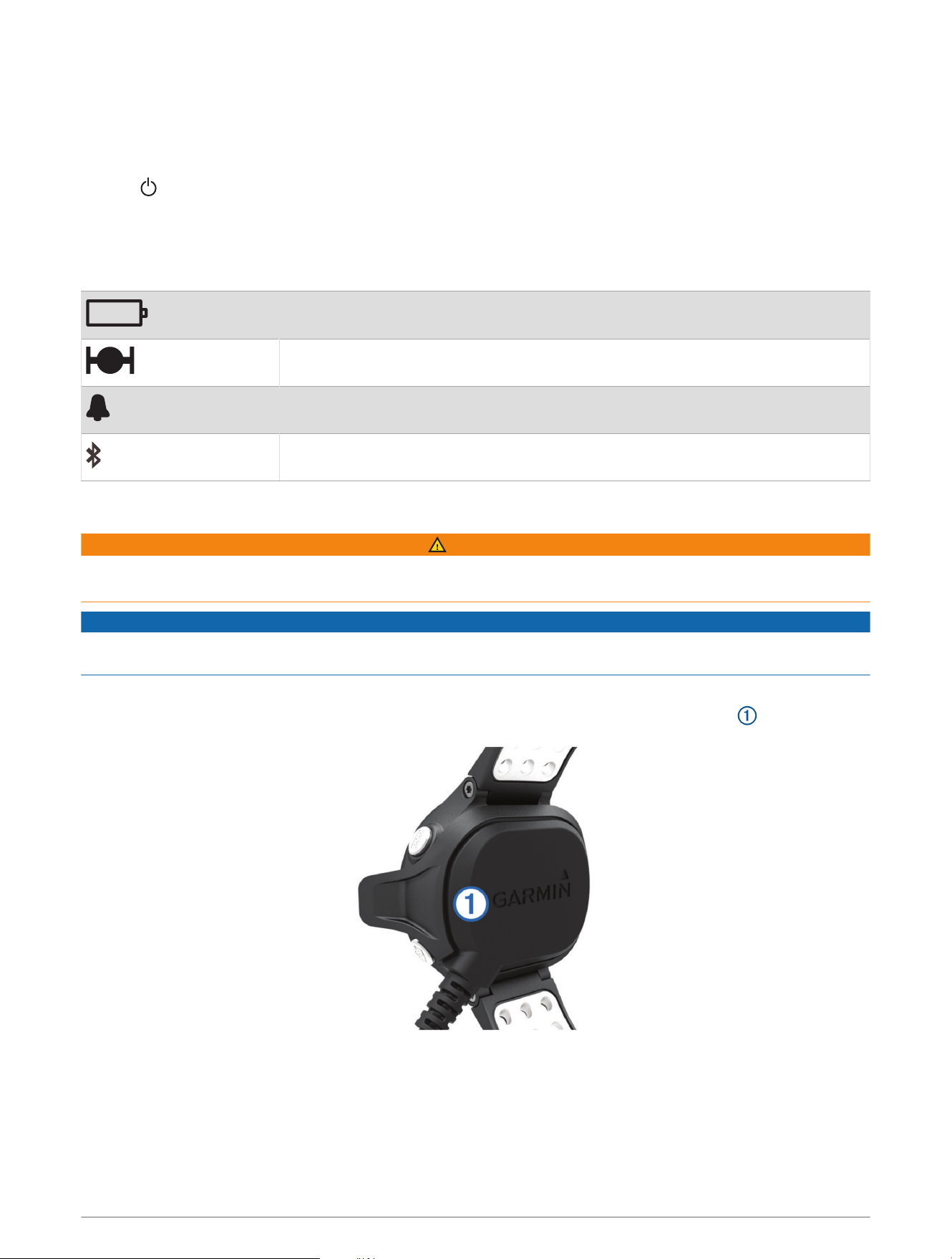
2 Align the charger posts with the contacts on the back of the device, and press the charger until it clicks.
3 Charge the device completely.
2 Getting Started
Unlocking the Device
After a period of inactivity, the device goes into watch mode and the screen is locked. The device displays the
time and date, but does not use GPS.
Select any key except to unlock the device.
Playing Golf
Before you can play golf, the device must locate satellite signals. This may take 30–60 seconds.
1 Select > Start Round.
2 Select a course from the list of nearby courses.
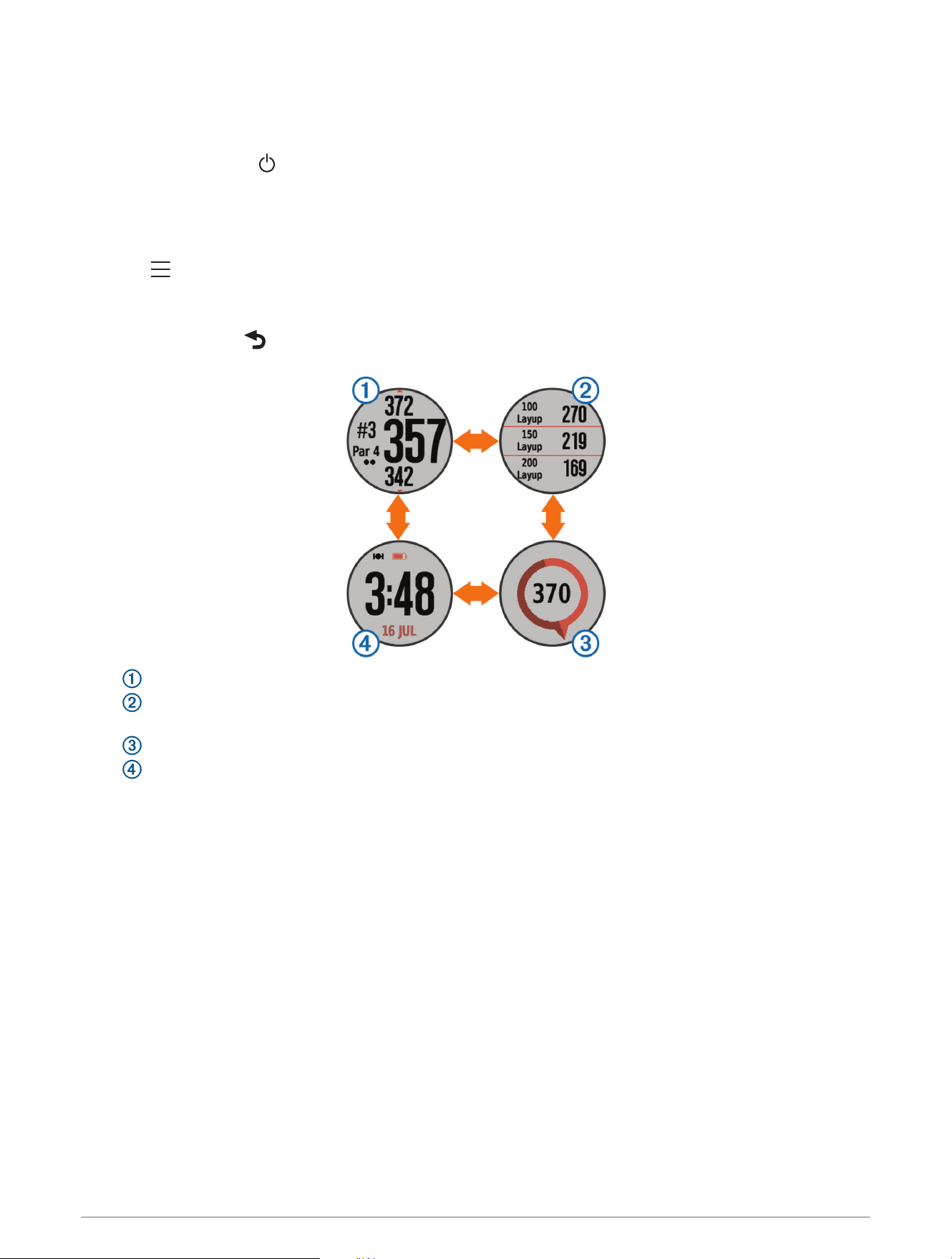
3 Tap the screen to scroll through the data screens for each hole.
TIP: You can select to return to the previous screen.
• displays the hole information (Hole Information, page4).
• displays the layup and dogleg information (Viewing Layup and Dogleg Distances and Saved Locations,
page5).
• displays the PinPointer feature (Using PinPointer, page5).
• displays the time of day.
The device automatically transitions when you move to the next hole.
Playing Golf 3
Hole Information
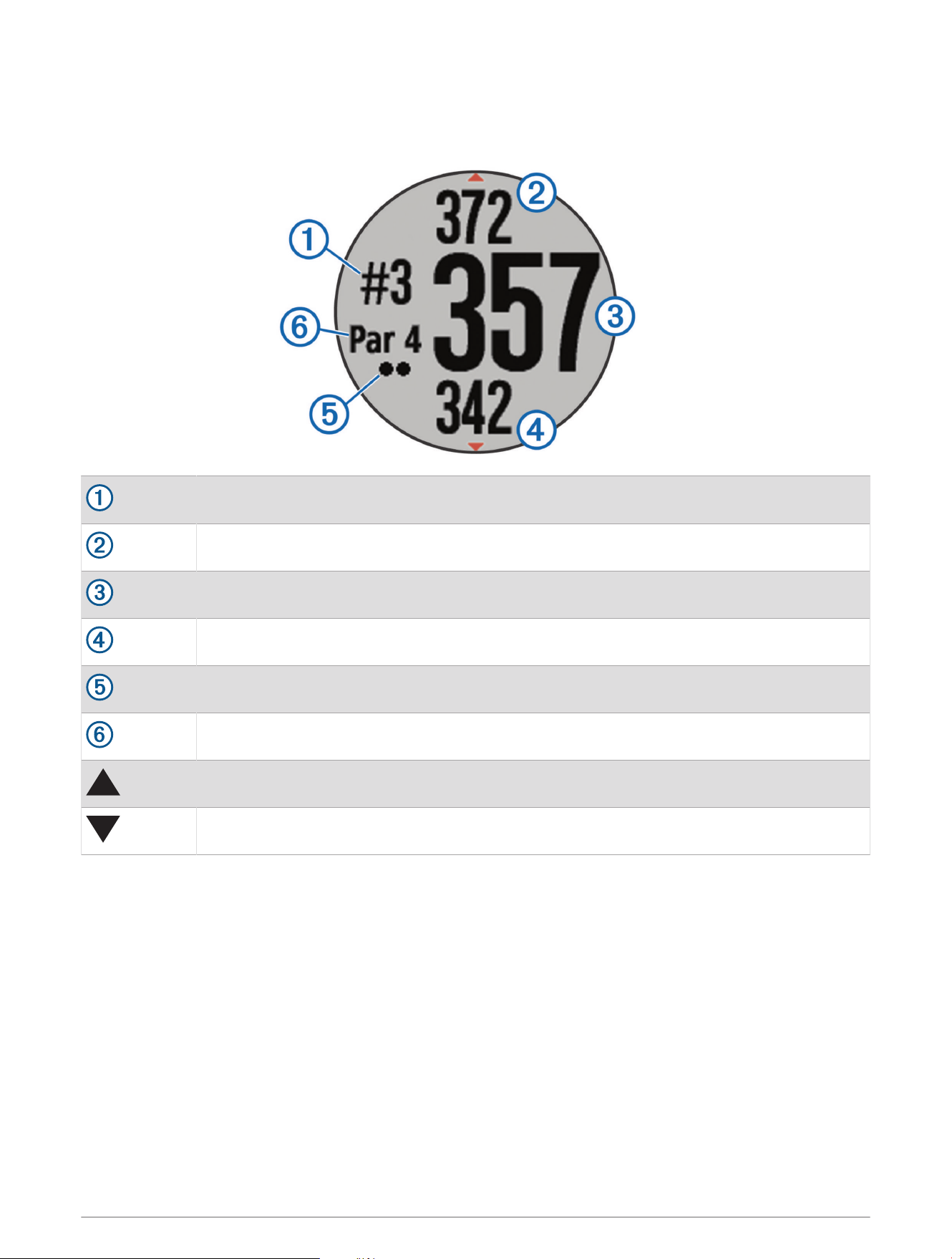
By default, the device calculates the distance to the front, middle, and back of the green. If you know the
location of the pin, you can set it more precisely using the green view (Viewing the Green, page5).
Current hole number
Distance to the back of the green
Distance to the middle of the green
Distance to the front of the green
Handicap strokes (optional)
Par for the hole
Next hole
Previous hole
4 Playing Golf
Using CourseView
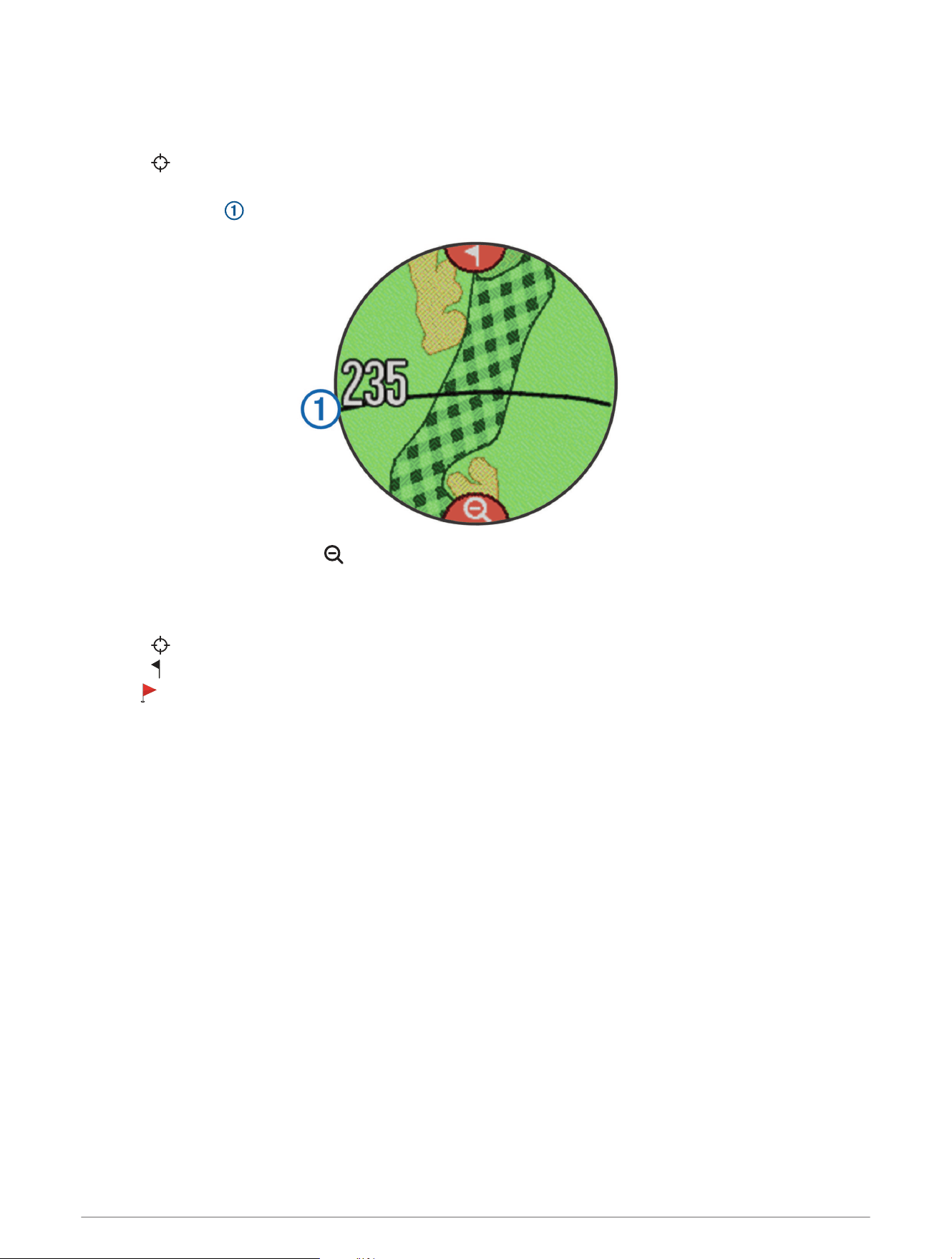
While playing a game, you can take a closer look at the course and view any location and distance on the course
map.
1 Select .
2 Touch or drag your finger to any location on the screen.
The distance arc displays the distance to the new location.
3 To see more of the hole, select .
Viewing the Green
While playing a game, you can take a closer look at the green and move the pin location.
1 Select .
2 Select at the top of the screen.
3 Drag to move the pin location.
The distances on the hole information screen are updated to reflect the new pin location. The pin location is
saved for only the current round.
Using PinPointer
The PinPointer feature is a compass that provides directional assistance when you are unable to see the green.
This feature can help you line up a shot even if you are in the woods or in a deep sand trap.
NOTE: Do not use the PinPointer feature while in a golf cart. Interference from the golf cart can affect the
accuracy of the compass.
Tap the screen until the compass screen appears.
The arrow points to the pin location.
Viewing Layup and Dogleg Distances and Saved Locations
You can view a list of layup and dogleg distances for par 4 and 5 holes. Saved locations also appear on this list.
Tap the screen until the layup and dogleg information appears.
NOTE: Distances and locations are removed from the list as you pass them.
Playing Golf 5
Keeping Score
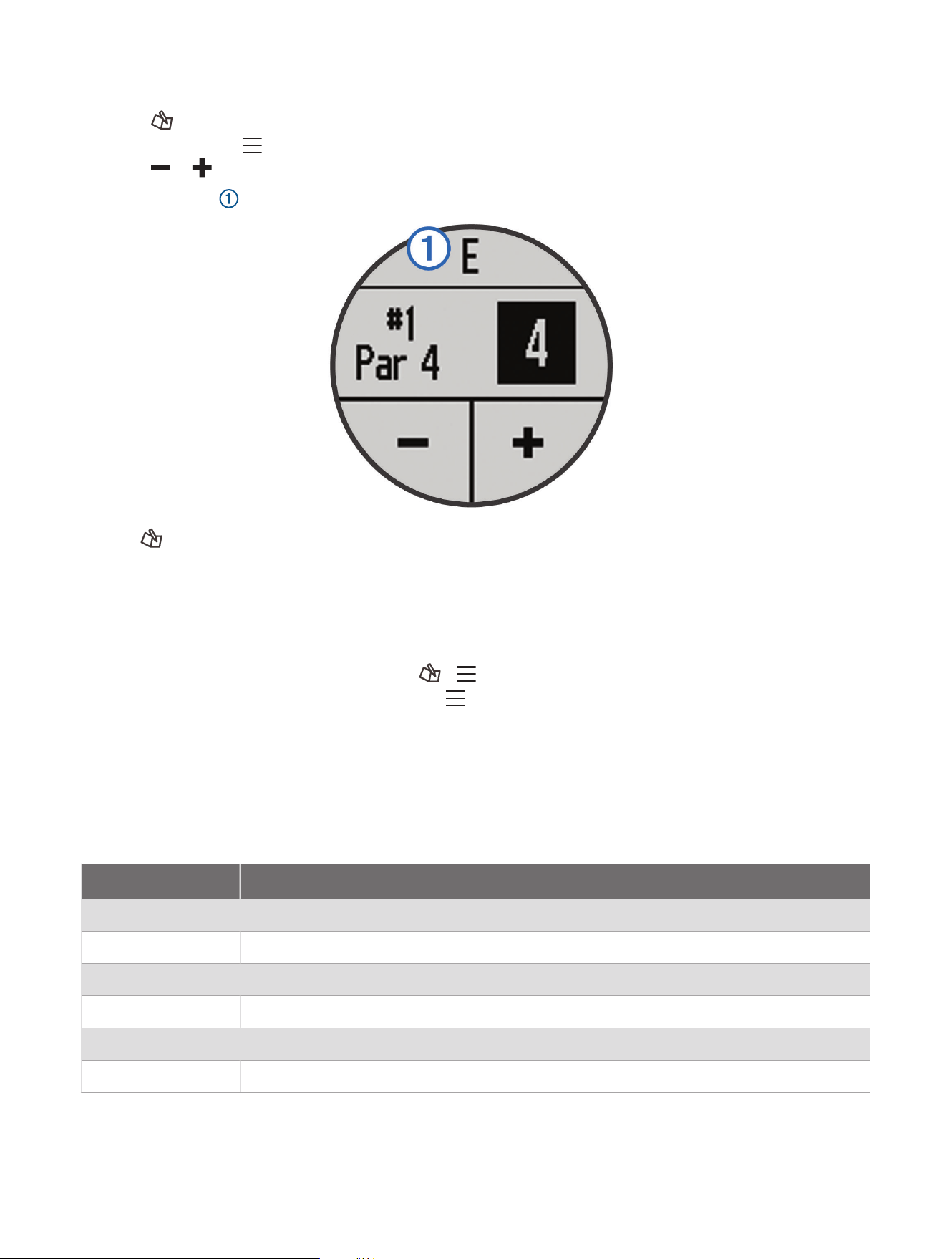
1 Select .
2 If necessary, select to set up scoring or change par for the hole.
3 Select or to set the score.
Your total score is updated.
4 Hold to view a list of the scores for all holes.
5 If necessary, select a hole to change the score for that hole.
Setting the Scoring Method
You can change the method the device uses to keep score.
1 Select an option:
• If you are currently playing a round, select > > Setup Scoring.
• If you are not currently playing a round, select > Setup > Scoring.
2 Select a scoring method.
About Stableford Scoring
When you select the Stableford scoring method (Setting the Scoring Method, page6), points are awarded based
on the number of strokes taken relative to par. At the end of a round, the highest score wins. The device awards
points as specified by the United States Golf Association.
The scorecard for a Stableford scored game shows points instead of strokes.
Points Strokes Taken Relative to Par
0 2 or more over
1 1 over
2 Par
3 1 under
4 2 under
5 3 under
6 Playing Golf

Enabling Handicap Scoring
1 Select > > Setup Scoring > Handicap Scoring.
2 Select an option:
• Select Local Handicap to enter the number of strokes to be subtracted from the player's total score.
The number of handicap strokes appear as dots on the hole information screen. The scorecard screen
displays your handicap-adjusted score for each hole.
• Select Index\Slope to enter the player's handicap index and the course slope rating to calculate a course
handicap for the player.
Saving a Location
While playing a round, you can save up to five locations on each hole. Saving a location is useful for recording
objects or obstacles that are not shown on the map. You can view the distance to these locations from the
layup and dogleg screen (Viewing Layup and Dogleg Distances and Saved Locations, page5).
1 Stand in the location you want to save.
NOTE: You cannot save a location that is far from the currently selected hole.
2 Select > Save Location.
3 Select a label for the location.
Measuring a Shot
1 Take a shot, and watch where your ball lands.
2 Select .
3 Walk directly to your ball.
The distance automatically resets when you move to the next hole.
4 If necessary, hold to reset the distance at any time.
Using the Odometer
You can use the odometer to record the time and distance traveled. The odometer automatically starts and
stops when you start or end a round, but you can also start and stop it manually.
1 Select > Odometer to view or start the odometer.
2 Select an option:
• Select > Turn Off to stop the odometer.
• Select > Reset to reset the time and distance to zero.
Training
SwingStrength
™
The SwingStrength feature estimates how hard you swing the club by measuring acceleration and angular rate
and comparing that with a known, normal swing. The SwingStrength value represents a percentage of your “full
power swing” that is determined through a calibration process.
Training 7

Setting Up SwingStrength
Before you can calibrate the SwingStrength feature, you must wear the device on your leading wrist to ensure
the SwingStrength calibration is accurate. For example, right-handed golfers must wear the device on their left
wrist.
The club types include three groups: woods, long irons, and short irons. A 6-iron or lower is considered a long
iron. A 7-iron or higher is considered a short iron.
TIP: Your SwingStrength levels can change over time. You can recalibrate anytime you feel like your
SwingStrength level is no longer accurate.
1 Warm up, and take a few practice swings.
2 Select > SwingStrength.
3 Select a club type.
4 Complete a normal, full swing.
5 Select an option:
• To save a good swing, select .
• To delete a bad swing and try again, select .
6 Repeat steps 3-5 for each club type.
Analyzing Your Swing Using SwingStrength
You can use the SwingStrength feature while practicing or during a round. You can use it when practicing at the
driving range to improve consistency for your normal, full swing. You can also use this feature when you are
trying to use a less-than-full swing. For example, you can swing your 9-iron at 50% and see how that affects the
distance. During a round, when you need that distance, you can turn on the SwingStrength feature and take a
couple practice swings at 50% before hitting your shot.
TIP: The SwingStrength feature works best when you make good contact with the ball.
1 Select > SwingStrength.
2 Select a club.
3 Complete a swing.
Changing Your Club
1 From the SwingStrength screen, select > Change Club.
2 Select a club.
3 If the club has not been calibrated, calibrate it now (Setting Up SwingStrength, page8).
TempoTraining
The TempoTraining feature helps you perform a more consistent swing. The device measures and displays
your backswing time and downswing time. The device also displays your swing tempo. Swing tempo is the
backswing time divided by the downswing time, expressed in a ratio. A 3 to 1 ratio, or 3.0, is the ideal swing
tempo based on studies of professional golfers.
8 Training
The Ideal Swing Tempo
You can achieve the ideal 3.0 tempo using different swing timings, for example, 0.7 sec./0.23 sec. or 1.2 sec./
0.4 sec. Each golfer may have a unique swing tempo based on their ability and experience. Garmin
®
provides six
different timings.
The device uses three audible tones that continuously repeat the correct tempo. The first tone indicates when
you should start your backswing. The second tone indicates when you should start your downswing. The third
tone indicates when you should hit the ball.
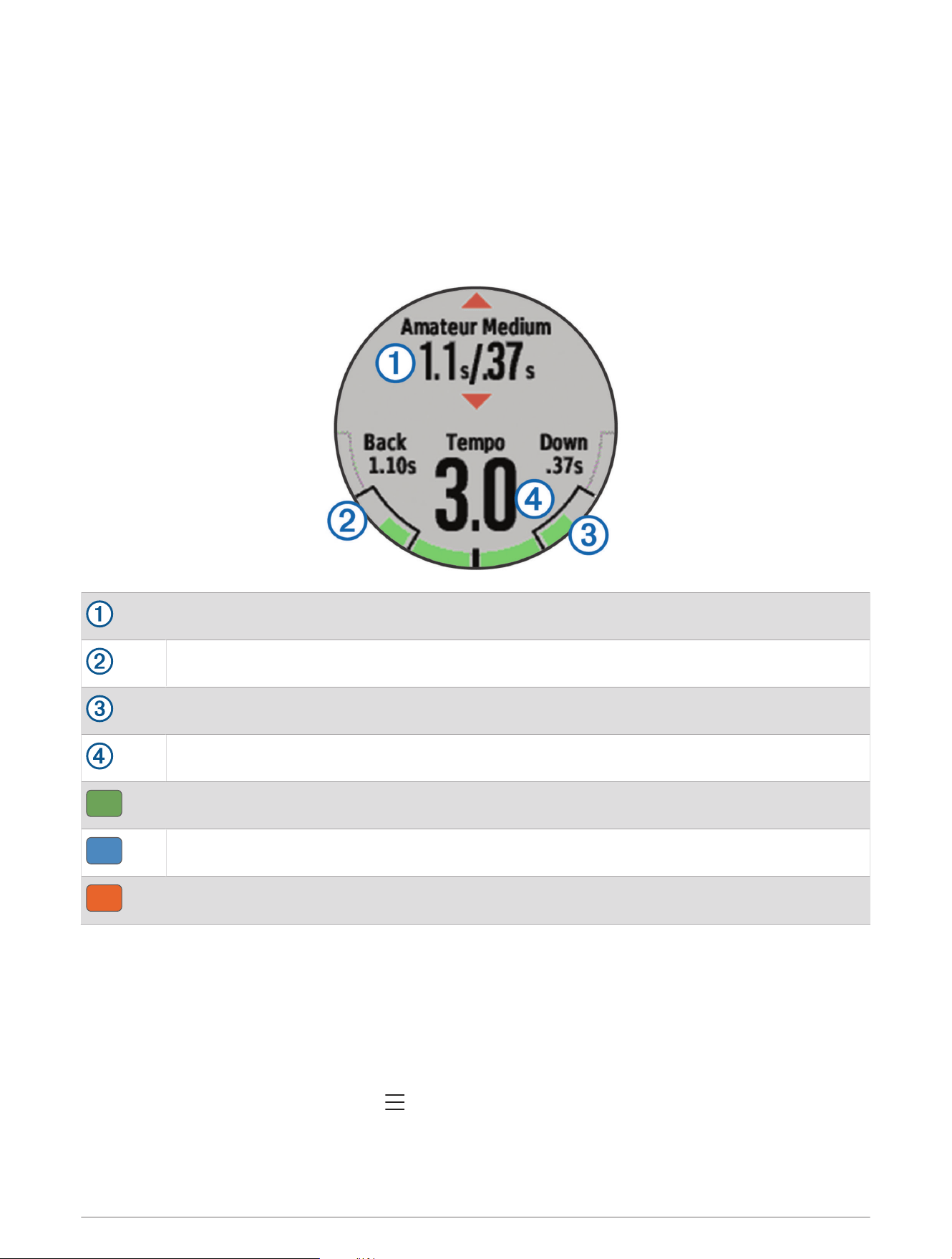
The device also displays a graph that indicates if your backswing or downswing times are too fast, too slow, or
just right for the selected timing.
Timing choices (backswing to downswing time ratio)
Backswing time
Downswing time
Your tempo
Good timing
Too slow
Too fast
To find your ideal swing timing, you should start with the slowest timing and try it for a few swings. When
the tempo graph is consistently green for both your backswing and downswing times, you can move up to the
next timing. When you find a timing that is comfortable, you can use it to achieve more consistent swings and
performance.
Viewing the Tip Sequence
The first time you use the TempoTraining feature, the device displays a tip sequence to explain how your swing
is analyzed.
From the TempoTraining screen, select > Tips.
Training 9
Changing the Tempo Timing
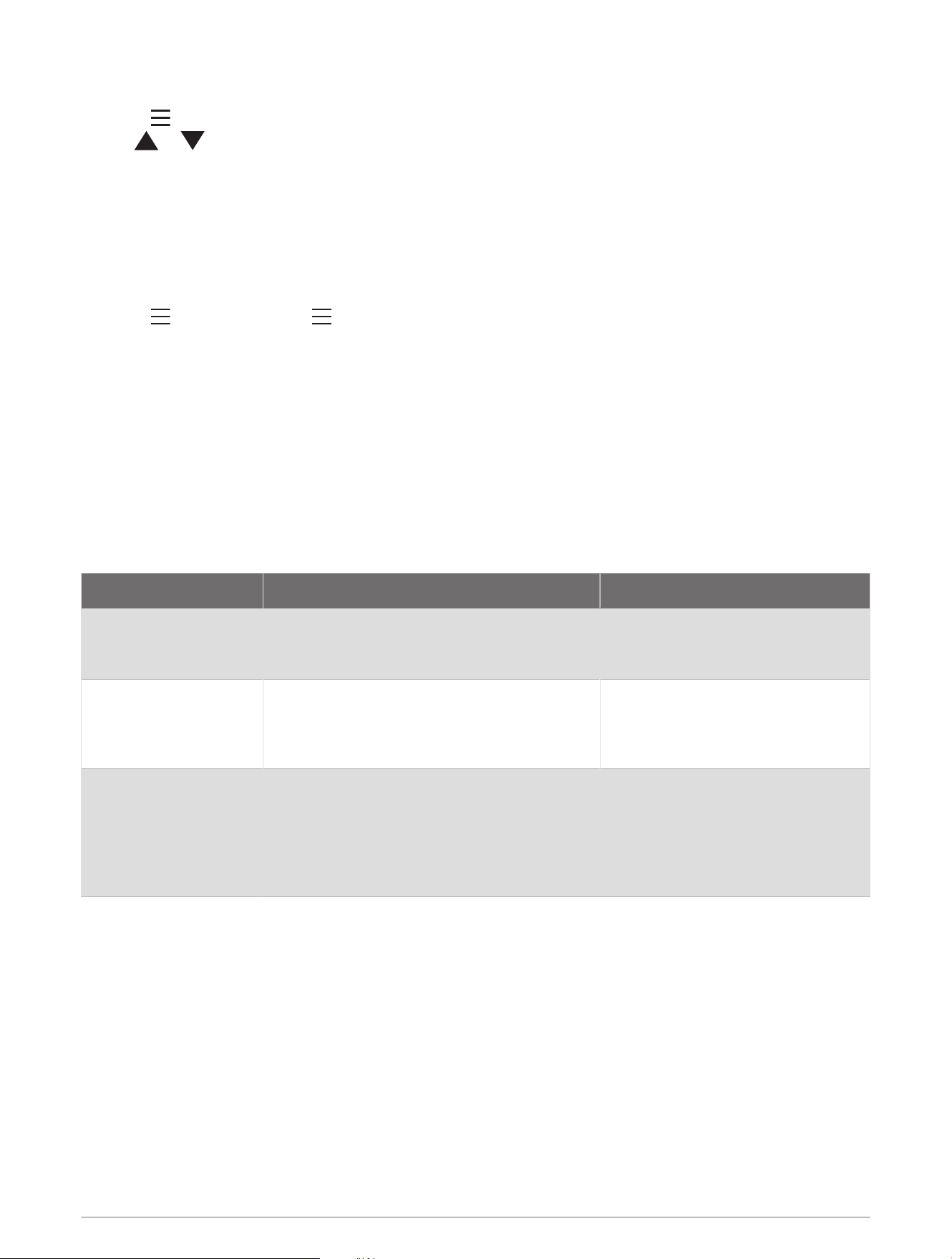
1 Select > TempoTraining.
2 Use or to select a tempo.
Analyzing Your Swing Using TempoTraining
1 Select TempoTraining.
2 Complete a full swing.
The device displays your swing analysis.
Setting the TempoTraining Tones
1 Select > TempoTraining > > Tones.
2 Select an option:
• To turn the tones on, select On.
• To turn the tones off, select Off.
TruSwing
™
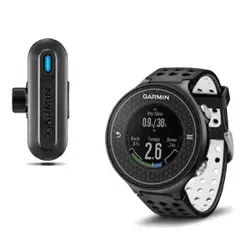
The TruSwing feature allows you to view swing metrics recorded from your TruSwing device. Go to www.garmin
.com/golf to purchase a TruSwing device.
TruSwing Metrics
You can view swing metrics on your Approach device, on Garmin Connect
™
, or on the Garmin Connect Mobile
app. See the owner's manual for your TruSwing device for more information.
Feature Description Requirements
Swing metrics on your
Approach device only
The available metrics include your swing
tempo, speed, club-path measurements,
critical club angles, and more.
The TruSwing device must be paired
with the Approach device.
Swing metrics on your
Approach device and
on the Garmin Connect
Mobile app
The available metrics include your swing
tempo, speed, club-path measurements,
critical club angles, and more.
Both the TruSwing and Approach
devices must be paired with the
Garmin Connect Mobile app on your
smartphone.
Advanced swing
metrics with wrist
animations
Additional wrist animations, including wrist
path data recorded and displayed in 3-D
animations on the Garmin Connect Mobile
app. The animations illustrate how your wrist
travels throughout the swing in relation to the
club path.
Both the TruSwing and Approach
S6 devices must be paired with the
Garmin Connect Mobile app on your
smartphone.
10 Training
Recording and Viewing TruSwing Metrics on Your Approach Device
Before you can view TruSwing settings on your Approach S6 device, you may need to update the software
(Updating Software and Courses, page16).
1 Verify your TruSwing device is securely mounted to your club.
See the owner's manual for your TruSwing device for more information.
2 Turn on your TruSwing device.
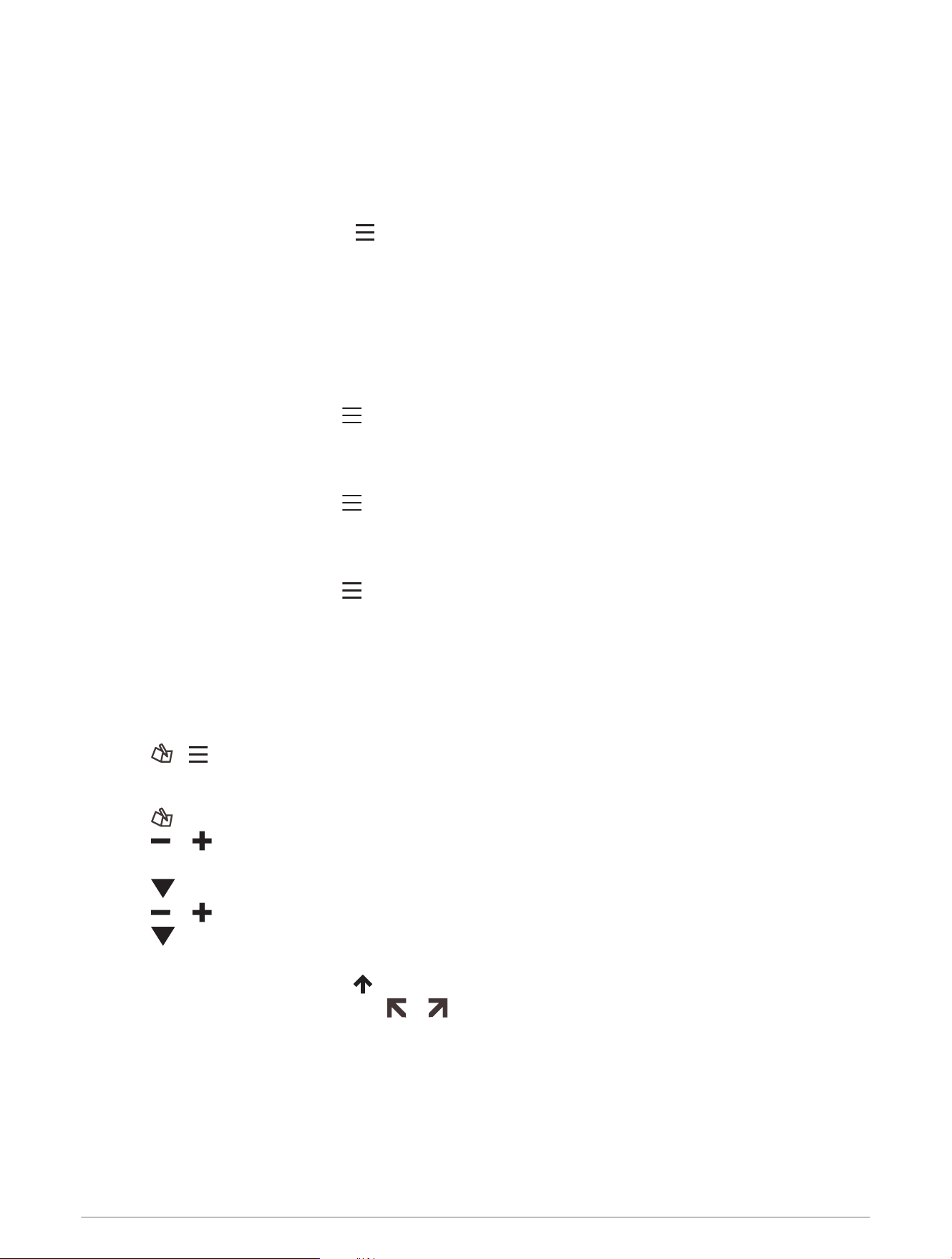
3 On your Approach S6 device, select > TruSwing.
Your Approach S6 device pairs with the TruSwing device.
4 Select a club.
5 Hit a shot.
Your Approach S6 device displays swing measurements after each swing.
You can tap the screen to scroll through the recorded swing metrics.
Changing Your Club
1 From the TruSwing screen, select > Change Club.
2 Select a club.
Changing Handedness
1 From the TruSwing screen, select > Handedness.
2 Select an option.
Disconnecting Your TruSwing Device
From the TruSwing screen, select > End TruSwing.
Customizing Your Device
Tracking Statistics
You can enable statistics tracking on the device. You can view statistics, compare rounds, and track
improvements using your Garmin Connect account (Garmin Connect, page12).
Select > > Setup Scoring > Stat Tracking > On.
Recording Statistics
1 Select .
2 Select or to set the number of strokes taken.
Your total score updates.
3 Select .
4 Select or to set the number of putts taken.
5 Select .
6 Select an option:
• If your ball hit the fairway, select .
• If your ball missed the fairway, select or .
Customizing Your Device 11

Garmin Connect
Garmin Connect gives you the tools to track your swing through advanced analytics and 3D swing animations.
You can also compare swings, view historical data, and manage your golf gear. You can connect with your
friends on the Garmin Connect site or mobile app. To sign up for a free account, go to www.garminconnect.com
/golf.
Store your sessions: After you complete and save a session with your device, you can upload that session to
Garmin Connect and keep it as long as you want.
Analyze your data: You can view more detailed information about your swing, including swing speed, swing
tempo, and many other detailed metrics.
Share your activities: You can connect with friends to follow each other's activities or post links to your
activities on your favorite social networking sites.
Phone Notifications
Phone notifications require a compatible smartphone to be paired with the Approach S6 device. When your
phone receives messages, it sends notifications to your device.
Enabling Bluetooth Notifications
NOTE: Your smartphone must support Bluetooth Smart in order to pair with your Approach S6 device and
synchronize data. See the application store for compatibility information.
NOTE: Enabling Bluetooth notifications reduces battery life while in watch mode (Specifications, page14).
1 On your smartphone, enable Bluetooth wireless technology.
2 Bring your smartphone within 10m (33ft.) of your Approach S6 device.
3 Go to garmin.com/apps or the application store for your smartphone, and download the Garmin Connect
Mobile app.
4 Open the Garmin Connect Mobile app, and follow the on-screen instructions to connect a device.
5 On your Approach S6 device, select > Setup > Bluetooth > Pair Mobile Device.
6 Follow the on-screen instructions.
When your Approach S6 device receives a notification, it displays a message. You can select the message to
open the notification.
Viewing Notifications
1 Select > Notifications.
2 Select a notification.
3 Select or to scroll through the contents of the notification.
12 Customizing Your Device
System Settings
Select > Setup.
Bluetooth: Enables Bluetooth wireless technology (Phone Notifications, page12).
Tones: Turns audible tones on or off.
Display: Sets the background color (Changing the Display Color, page13) and the accent color.
Scoring: Sets the scoring method, enables or disables handicap scoring, and turns statistics tracking on or off
(Keeping Score, page6).
Time: Sets the time to automatic or manual (Setting the Time Manually, page13).
Format: Sets the time format to 12- or 24-hour.
Language: Sets the text language on the device.
NOTE: Changing the text language does not change the language of user-entered data or map data.
Units: Sets the unit of measure for distance.
Driver Dist.: Sets your saved driver distance from the tee box. This distance appears as an arc on the
CourseView screen.
Handedness: Sets the device for a right-handed or left-handed player. This setting is important for the
TempoTraining and SwingStrength features.
Lock Screen: Allows you to choose if the device times out and locks the touchscreen while you are playing golf
or using the golf features. When you are not playing golf or using the golf features, the watch automatically
times out after a period of inactivity (Unlocking the Device, page3).
Setting the Time Manually
By default, the time is set automatically when the device acquires satellite signals.
1 Select > Setup > Time > Manual.
2 Select and to set the hour and minute.
3 Select AM or PM.
Changing the Display Color
You can change the background color on the device.
1 Select > Setup > Display.
2 Select an option:
• Select White to display black text on a white background.
• Select Black to display white text on a black background.
Changing the Accent Color
You can change the accent color on the device.
1 Select > Setup > Display > Accent.
2 Select an accent color.
Setting the Alarm
1 Select > Alarm > Setup Alarm.
2 Select and to set the hour and minute.
3 Select AM or PM.
4 Select Once, Daily, or Weekdays.
Customizing Your Device 13
Device Information
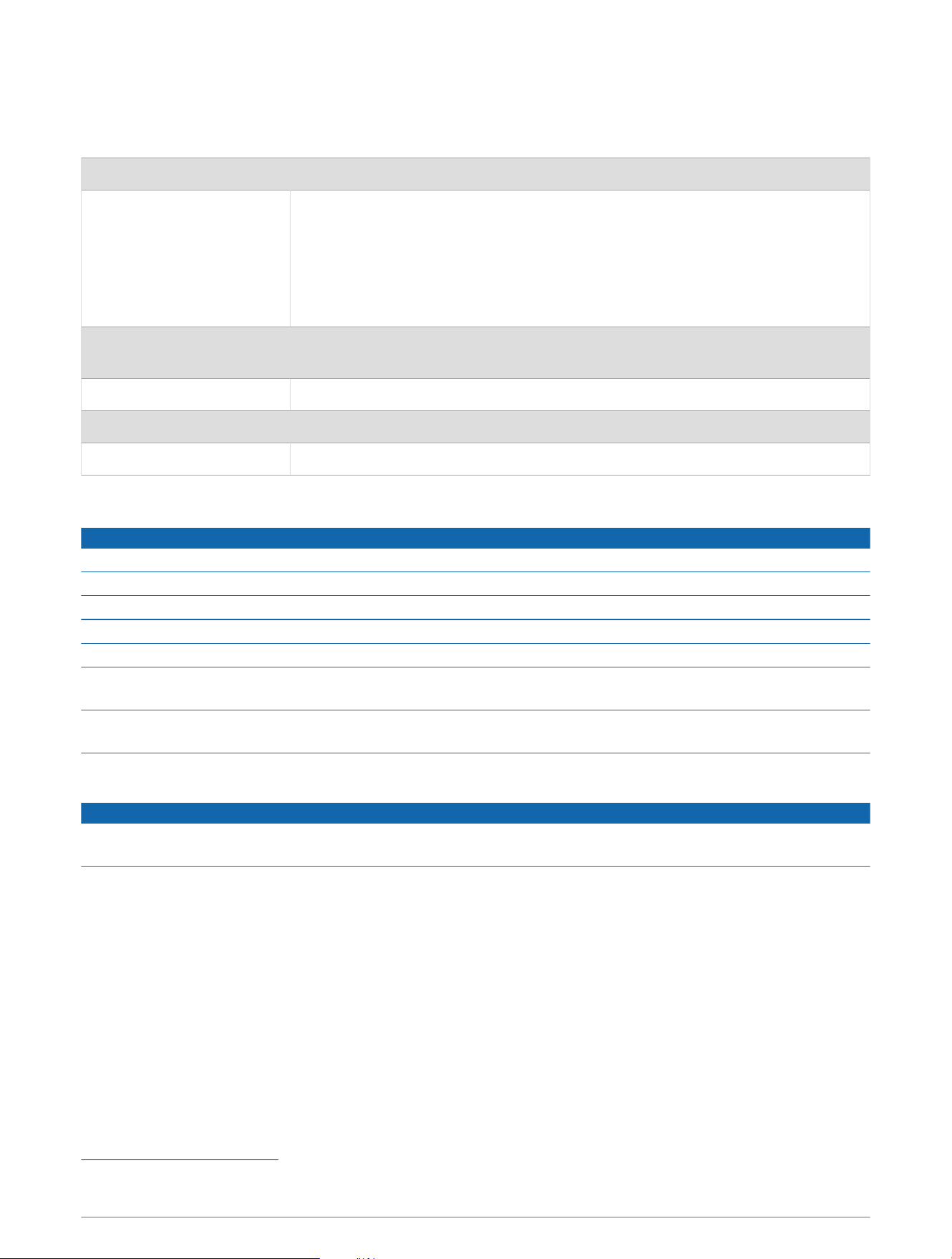
Specifications
Battery type Lithium-ion
Battery life
Watch only: 20 weeks
Watch with Bluetooth notifications: 15hours
Playing golf: 10 hours
NOTE: The actual battery life of a fully charged battery depends on how much
time you use GPS, the backlight, and power save mode. Exposure to extremely
cold temperatures also reduces battery life.
Operating temperature
range
From -20º to 60ºC (from -4º to 140ºF)
Charging temperature range From 5º to 40ºC (from 40º to 104ºF)
Water rating 5ATM
1
Radio frequency/protocol Bluetooth Smart wireless technology
Device Care
NOTICE
Avoid extreme shock and harsh treatment, because it can degrade the life of the product.
Avoid pressing the keys under water.
Do not use a sharp object to clean the device.
Never use a hard or sharp object to operate the touchscreen, or damage may result.
Avoid chemical cleaners, solvents, and insect repellents that can damage plastic components and finishes.
Thoroughly rinse the device with fresh water after exposure to chlorine, salt water, sunscreen, cosmetics,
alcohol, or other harsh chemicals. Prolonged exposure to these substances can damage the case.
Do not store the device where prolonged exposure to extreme temperatures can occur, because it can cause
permanent damage.
Cleaning the Device
NOTICE
Even small amounts of sweat or moisture can cause corrosion of the electrical contacts when connected to a
charger. Corrosion can prevent charging and data transfer.
1 Wipe the device using a cloth dampened with a mild detergent solution.
2 Wipe it dry.
After cleaning, allow the device to dry completely.
1
The device withstands pressure equivalent to a depth of 50m. For more information, go to www.garmin.com/waterrating.
14 Device Information
Troubleshooting
Touchscreen Tips
The touchscreen on this device is different than most mobile devices. You can operate the touchscreen with
your finger tip or while wearing gloves. The touchscreen is optimized to prevent accidental touches while you
play.
NOTE: You must press firmly in order to select items and change pages. You should practice using the
touchscreen before you play golf.
• Tap the touchscreen to scroll through the pages.
• Tap the touchscreen to confirm messages.
• Make each touchscreen selection a separate action.
Getting More Information
• Go to www.garmin.com/intosports.
• Go to www.garmin.com/learningcenter.
• Go to http://buy.garmin.com, or contact your Garmin dealer for information about optional accessories and
replacement parts.
Calibrating the Compass
NOTE: You must calibrate the electronic compass outdoors. Do not stand near objects that influence magnetic
fields, such as cars, golf carts, buildings, or overhead power lines.
Your device was calibrated at the factory, and the device uses automatic calibration by default. If you
experience irregular compass behavior, for example, after moving long distances or after extreme temperature
changes, you can manually calibrate the compass.
1 While playing a round of golf, tap the screen until the compass screen appears.
2 Select > Calibrate.
3 Follow the on-screen instructions.
Resetting the Device
If the device stops responding, you may need to reset it.
NOTE: Resetting the device may erase your data or settings.
1 Hold for 15 seconds.
The device turns off.
2 Hold for one second to turn on the device.
Clearing User Data
NOTE: This deletes all user-entered data.
1 Hold to turn off the device.
2 Hold , and select .
3 Select Yes.
Support and Updates
Garmin Express
™
(garmin.com/express) provides easy access to these services for Garmin devices.
• Product registration
• Product manuals
• Software updates
• Map, chart, or course updates
Troubleshooting 15


support.garmin.com
GUID-338708BA-9BA3-45A7-BFF4-3BAC7F2CBF48 v8August 2022