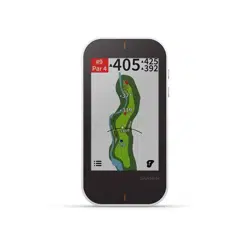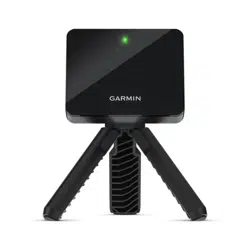
APPROACH
®
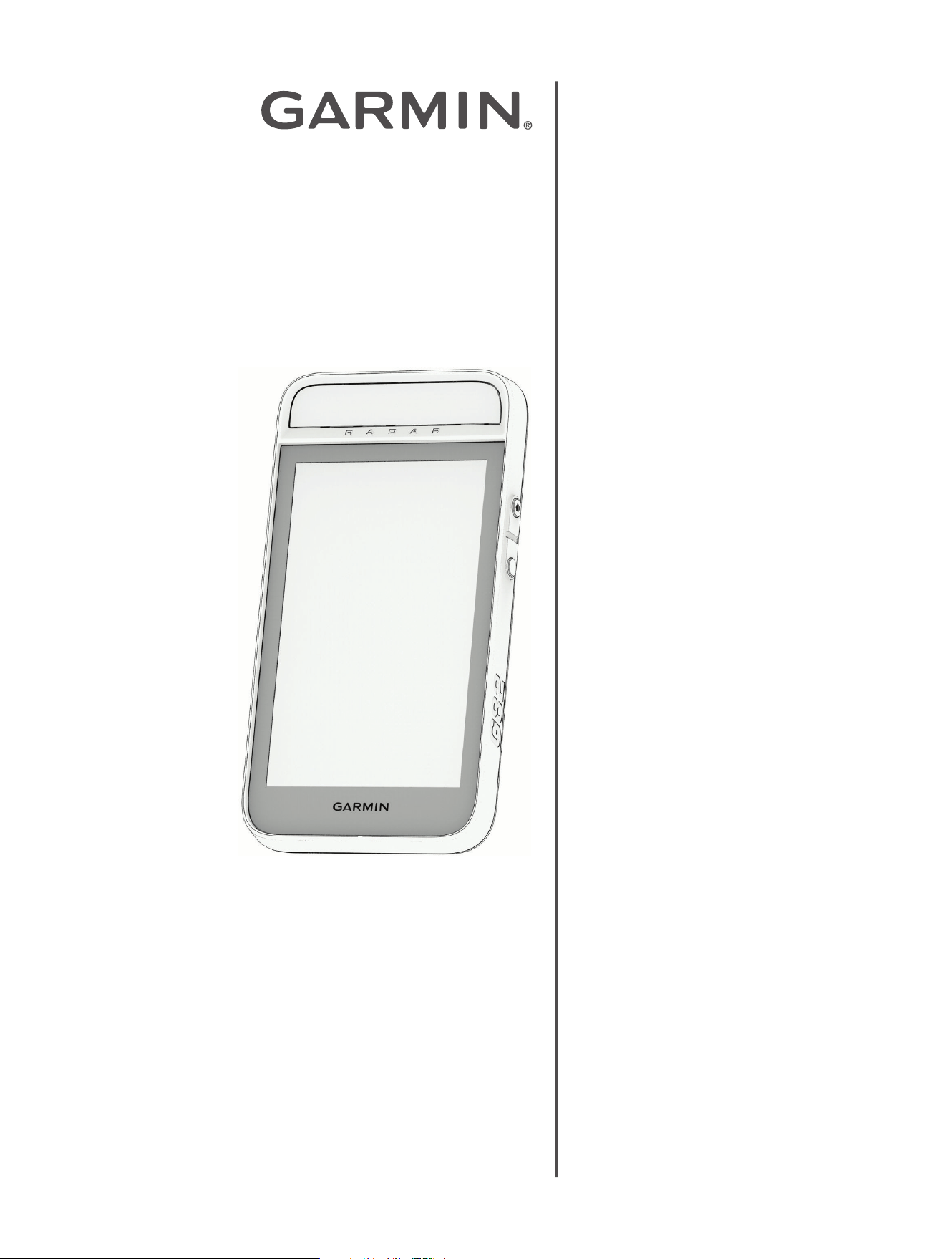
G82
Premium GPS Golf Handheld
Owner's
Manual

Table of Contents
Introduction......................................4
Device Overview.............................. 4
Home Screen Overview.................. 4
Getting Started................................ 4
Turning On and Off the Device............ 5
Locking and Unlocking the
Touchscreen...................................5
Playing Golf......................................6
Hole View.......................................6
Big Numbers Mode....................... 7
Changing Holes............................ 7
Golf Menu...................................... 7
Viewing the Green............................ 8
Measuring Distance with Touch
Targeting....................................... 8
Viewing PlaysLike Distance................9
Viewing the Direction to the Pin.......... 9
Viewing the Wind Speed and
Direction........................................ 9
Measuring a Shot........................... 10
Saving Custom Targets................... 10
Clearing Custom Targets.............. 10
Virtual Caddie................................10
Enabling Tournament Mode............. 11
Keeping Score............................... 11
About the Scorecard.................... 11
Setting the Scoring Method........... 12
Setting a Player Handicap............. 13
Enabling Statistics Tracking.......... 13
History...................................... 13
Ending a Round..............................13
Radar Training Features................. 14
Training with the Driving Range
Feature........................................ 14
Tempo Training.......................... 15
Target Practice........................... 16
Using the Putting Training Feature..... 17
Putting Overview......................... 19
Mapping Your Bag.......................... 19
Radar Training Settings................... 21
Setting the Roll Factor.................. 21
Connected Features....................... 22
Pairing Your Phone......................... 22
Garmin Golf
™
App........................... 22
Automatic Course Updates........... 22
Customizing Your Golf Club List..... 22
Connecting to a Paired Phone........... 22
Turning Off the Bluetooth
®
Phone
Connection................................ 22
Connecting to a Wireless Network..... 23
Club Sensors.................................23
Pairing Your Sensors with Your
Device...................................... 23
Pairing a Rangefinder......................23
Settings..........................................24
Scoring Settings.............................24
PlaysLike Settings.......................... 24
System Settings.............................24
Phone Connectivity Settings.......... 25
Backlight Settings....................... 25
Changing the Units of Measure...... 25
Setting Your Device Passcode....... 25
Device Information......................... 27
Using the Magnetic Clip................... 27
Charging the Device........................28
Device Care...................................29
Cleaning the Device..................... 29
Cleaning the USB Port.................. 29
Long-Term Storage......................29
Using the Backlight.........................29
Specifications............................... 30
Viewing E-label Regulatory and
Compliance Information.................. 30
Product Updates............................ 30
Updating the Software Using the
Garmin Golf
™
App........................ 30
Connecting the Device to Your
Computer.................................. 30
Setting Up Garmin Express
™
.......... 31
Updating the Software Using Garmin
Express
™
................................... 31
Getting More Information.................31
Troubleshooting............................. 32
My device cannot find nearby golf
courses........................................32

My phone will not connect to the
device..........................................32
My device is in the wrong language....32
My device displays the wrong units of
measure.......................................32
Restarting Your Device.................... 32
Restoring All Default Settings........... 32
Acquiring Satellite Signals................33
Improving GPS Satellite Reception.. 33
Exiting Demo Mode........................ 33
Introduction
WARNING
See the Important Safety and Product Information guide in the product box for product warnings and other
important information.
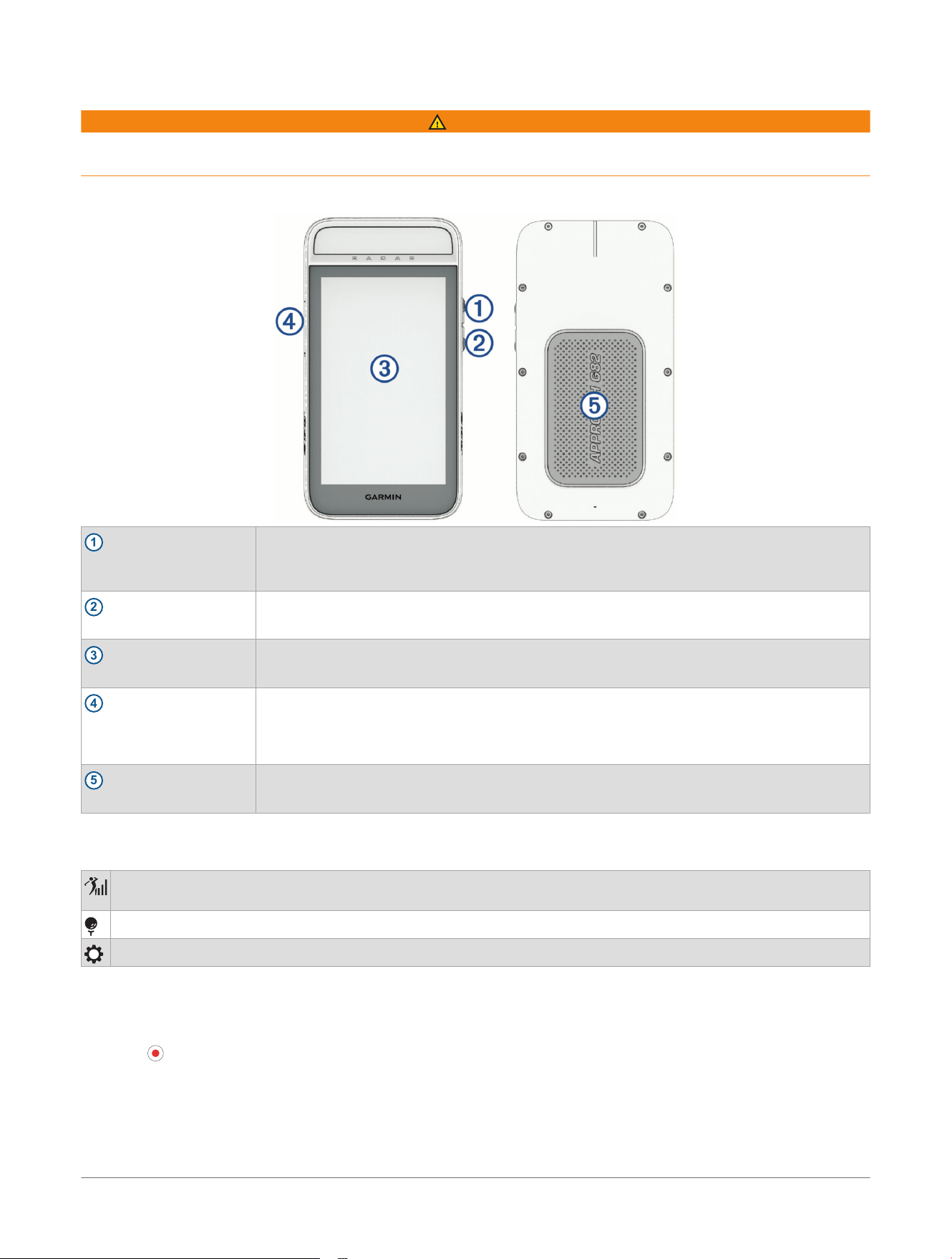
Device Overview
1
Power button
Press to turn on the device.
Press to lock or unlock the screen during a round.
Hold to turn off the device.
2
Radar button
Press to turn the radar on and off (Radar Training Features, page14).
3
Touchscreen
Swipe to scroll through menus, options, and settings (Home Screen Overview, page4).
Tap to select.
4
USB port (under weather
cap)
Lift the weather cap to connect a compatible USB cable to charge the device or transfer
data using your computer (Charging the Device, page28).
Replace the weather cap to prevent damage to the USB port (Cleaning the USB Port,
page29).
5
Magnet
Place the back of the device onto the magnetic clip or a metal surface on a golf cart (Using
the Magnetic Clip, page27).
Home Screen Overview
The home screen gives you quick access to all the features of the Approach
®
golf handheld.
Select to use the radar for driving range and putting practice, and evaluate available clubs in your golf bag for
distance (Radar Training Features, page14).
Select to find a nearby golf course and start a round of golf (Playing Golf, page6).
Select to set golf and system settings, connect to a rangefinder or Wi‑Fi
®
network, and more (Settings, page24).
Getting Started
When using your device the first time, you should complete these tasks to set it up and get to know the basic
features.
1 Press to turn on the device (Device Overview, page4).
2 Tap the touchscreen to select your preferred language and answer the device prompts.
3 Pair your phone (Pairing Your Phone, page22).
Pairing your phone gives you access to scorecard syncing, course updates, live scoring on the Garmin Golf
™
app, software updates, and more.
4 If necessary, create a passcode to secure your device (Setting Your Device Passcode, page25).
4
Approach® G82 Premium GPS Golf Handheld
Owner's Manual
Introduction

5 Check for software and map updates (Garmin Golf
™
App, page22).
For the best experience, you should keep the software on your device up to date. Software updates provide
changes and improvements to privacy, security, and features.
6 Charge the device completely so that you have enough charge for a round of golf (Charging the Device,
page28).
Turning On and Off the Device
The first time you use the device, you are prompted to choose a language, select a unit of measure, and set your
driver distance.
Press the power button.
NOTE: To turn off the device, hold the power button, and select Yes.
Locking and Unlocking the Touchscreen
You can lock the touchscreen while playing a round to prevent inadvertent screen touches.
1 Press the power button.
2 Press the power button again to unlock the touchscreen.
Introduction
Approach® G82 Premium GPS Golf Handheld
Owner's Manual
5
Playing Golf
Before you can play golf, you must wait until the device acquires satellite signals, which may take 30 to 60
seconds.
1 Select .
The device locates satellites, calculates your location, and selects a course if there is only one course
nearby.
2 If the course list appears, select a course from the list.
3 Select a tee box.
4 Select your scoring method and add players (Setting the Scoring Method, page12).
5 Select Start.
TIP: Open your Garmin Golf
™
app with subscription to view the GreenZoom green contours for each hole
(Garmin Golf
™
App, page22).
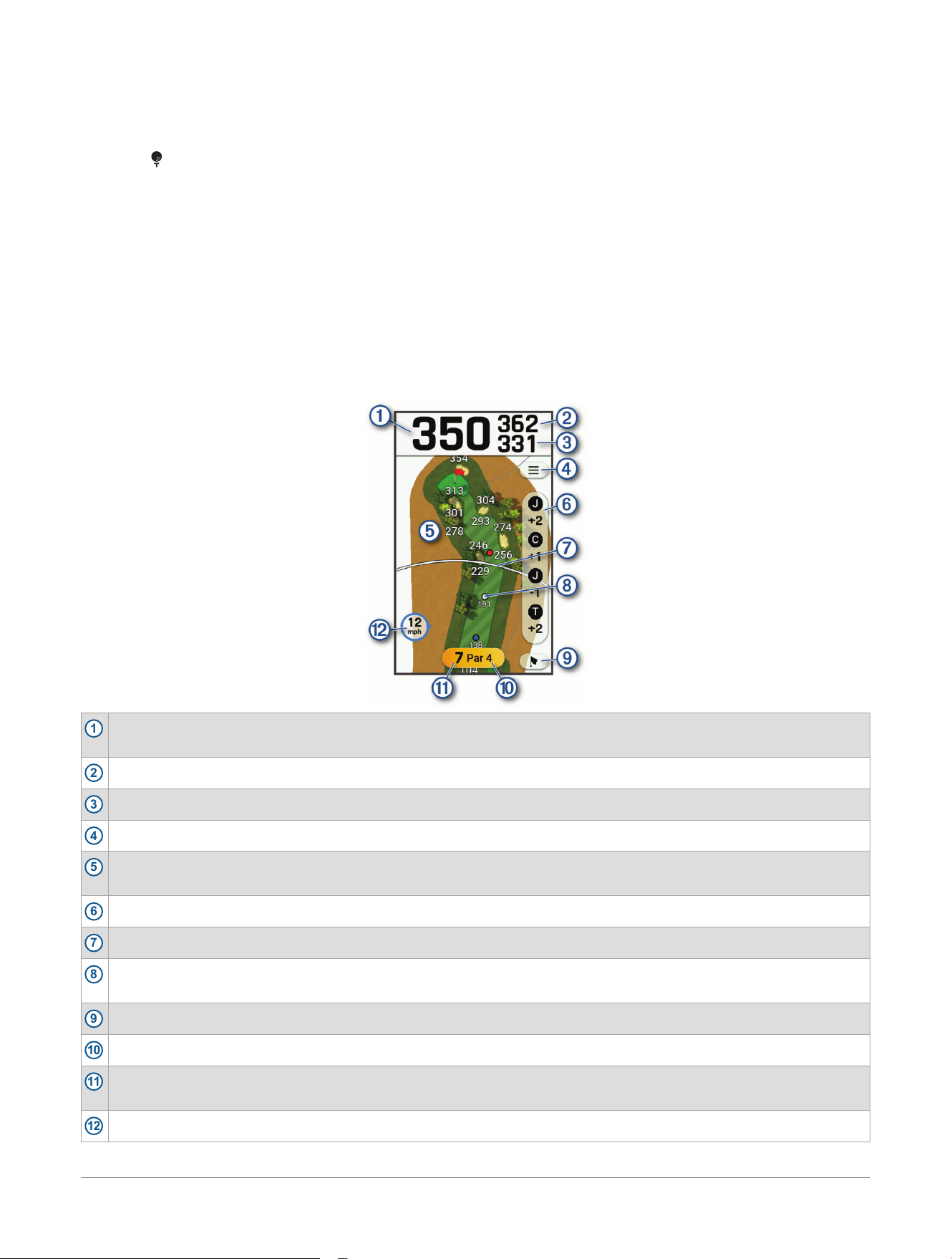
Hole View
The device shows the current hole you are playing.
1
Displays the distance to the middle of the green or selected pin position.
Tap a distance to the green to view the PlaysLike distance (Viewing PlaysLike Distance, page9).
2
Displays the distance to the back of the green.
3
Displays the distance to the front of the green.
4
Select to view and update golf options and settings (Golf Menu, page7).
5
Displays a map of the hole.
Tap the map to measure distance with touch targeting (Measuring Distance with Touch Targeting, page8).
6
Select to view and update the scorecard (Keeping Score, page11).
7
Displays your driver distance from the tee box (Settings, page24).
8
Displays layup distances to the pin.
The colors indicate distance in meters or yards: redis100, whiteis150, blueis200, and yellowis250.
9
Select to display a close view of the green for adjusting the pin location (Viewing the Green, page8).
10
Displays the par for the current hole.
11
Displays the current hole number.
Select to change the hole number (Changing Holes, page7).
12
Displays the wind speed and direction (Viewing the Wind Speed and Direction, page9).
6 Approach® G82 Premium GPS Golf Handheld
Owner's Manual
Playing Golf
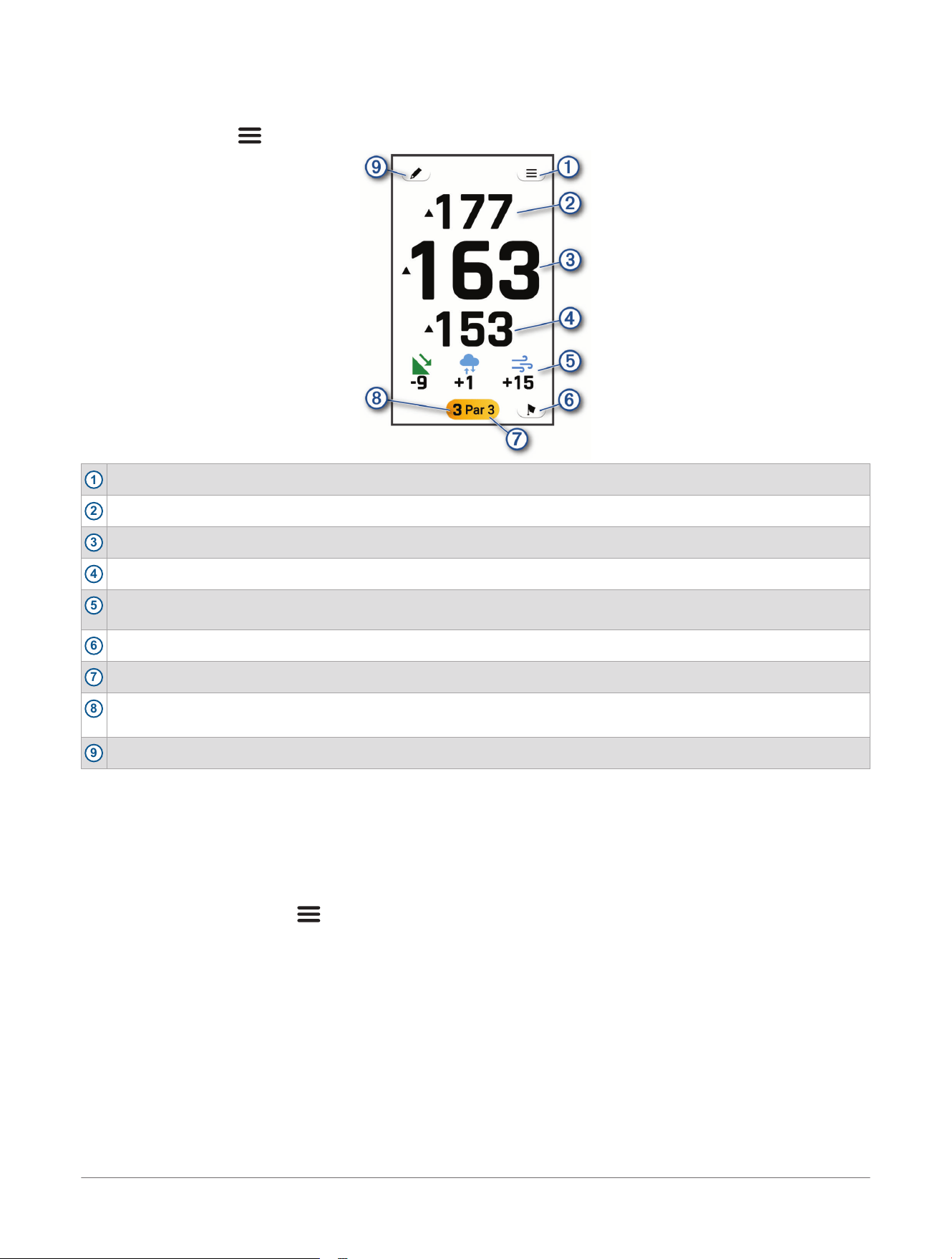
Big Numbers Mode
You can change the size of the numbers on the hole view screen.
During a round, select > Settings> Big Numbers.
1
Select to view and update golf options and settings (Golf Menu, page7).
2
Displays the distance to the back of the green.
3
Displays the distance to the middle of the green or selected pin position.
4
Displays the distance to the front of the green.
5
Displays the PlaysLike distance and icons when you tap a distance to the green (Viewing PlaysLike Distance,
page9).
6
Select to display a close view of the green for adjusting the pin location (Viewing the Green, page8).
7
Displays the par for the current hole.
8
Displays the current hole number.
Select to change the hole number (Changing Holes, page7).
9
Select to view and update the scorecard (Keeping Score, page11).
Changing Holes
You can change holes manually from the hole view screen.
1 While viewing hole information, tap the current hole number.
2 Select a hole.
Golf Menu
During a round, you can select to access additional features in the golf menu.
Virtual Caddie: Requests a club recommendation from the virtual caddie (Virtual Caddie, page10).
Scorecard: Opens the scorecard for the round (Keeping Score, page11).
PinPointer: The PinPointer feature is a compass that points to the pin location when you are unable to see the
green. This feature can help you line up a shot even if you are in the woods or in a deep sand trap (Viewing
the Direction to the Pin, page9).
NOTE: Do not use the PinPointer feature while the device is mounted to a bag or golf cart. Magnetic
interference from the bag or cart can affect the accuracy of the compass.
Wind: Opens a pointer that shows the wind direction and speed relative to the pin (Viewing the Wind Speed and
Direction, page9).
Measure Shot: Allows you to measure the distance to your ball (Measuring a Shot, page10).
Custom Targets: Allows you to save a location, such as an object or obstacle, for the current hole (Saving
Custom Targets, page10).
Playing Golf
Approach® G82 Premium GPS Golf Handheld
Owner's Manual
7
Add Back Nine: Allows you to add the back nine holes to play in the second half of a golf round.
NOTE: This setting only appears when you are playing a 9-hole course.
Change Green: Allows you to change the green when more than one green is available for a hole.
Settings: Allows you to customize the device settings and features (Settings, page24).
End Round: Ends the current round (Ending a Round, page13).
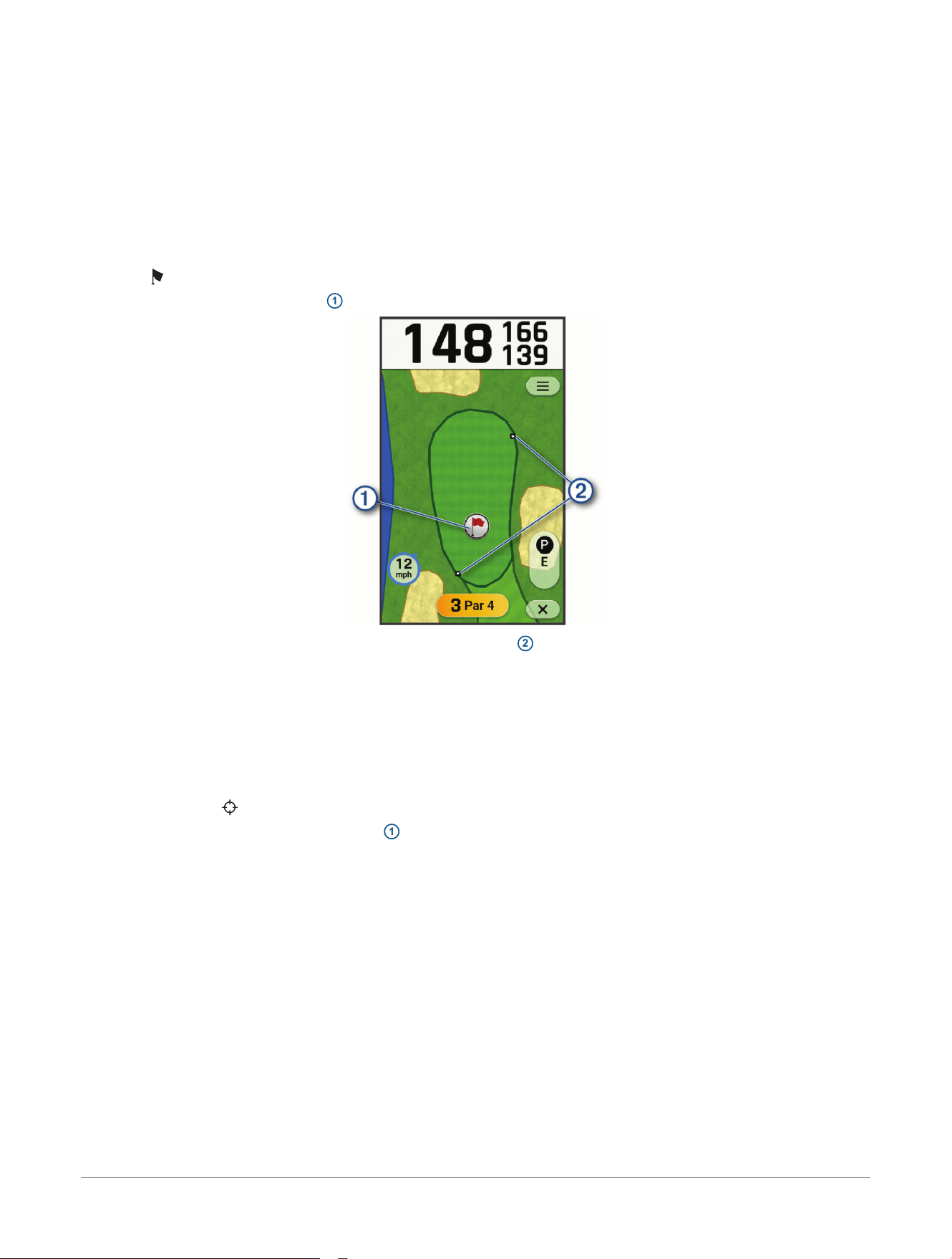
Viewing the Green
While playing a round, you can take a closer look at the green and move the pin location.
1 Begin playing a round (Playing Golf, page6).
2 Select .
3 Tap the screen, or drag the flag
1
to move the pin location.
As you move the flag, the front and back distance markers
2
adjust to the new distance measurements.
The distances on the hole view screen are updated based on the new pin location. The pin location is saved for
only the current round.
Measuring Distance with Touch Targeting
While playing a round, you can use touch targeting to measure the distance to any point on the map.
1 Begin playing a round (Playing Golf, page6).
2 Tap anywhere on the map.
The target circle appears on the map.
3 Tap the screen, or drag the target circle
1
to position the target.
You can view the distance from your current position to the target circle, and from the target circle to the pin
location.
8
Approach® G82 Premium GPS Golf Handheld
Owner's Manual
Playing Golf
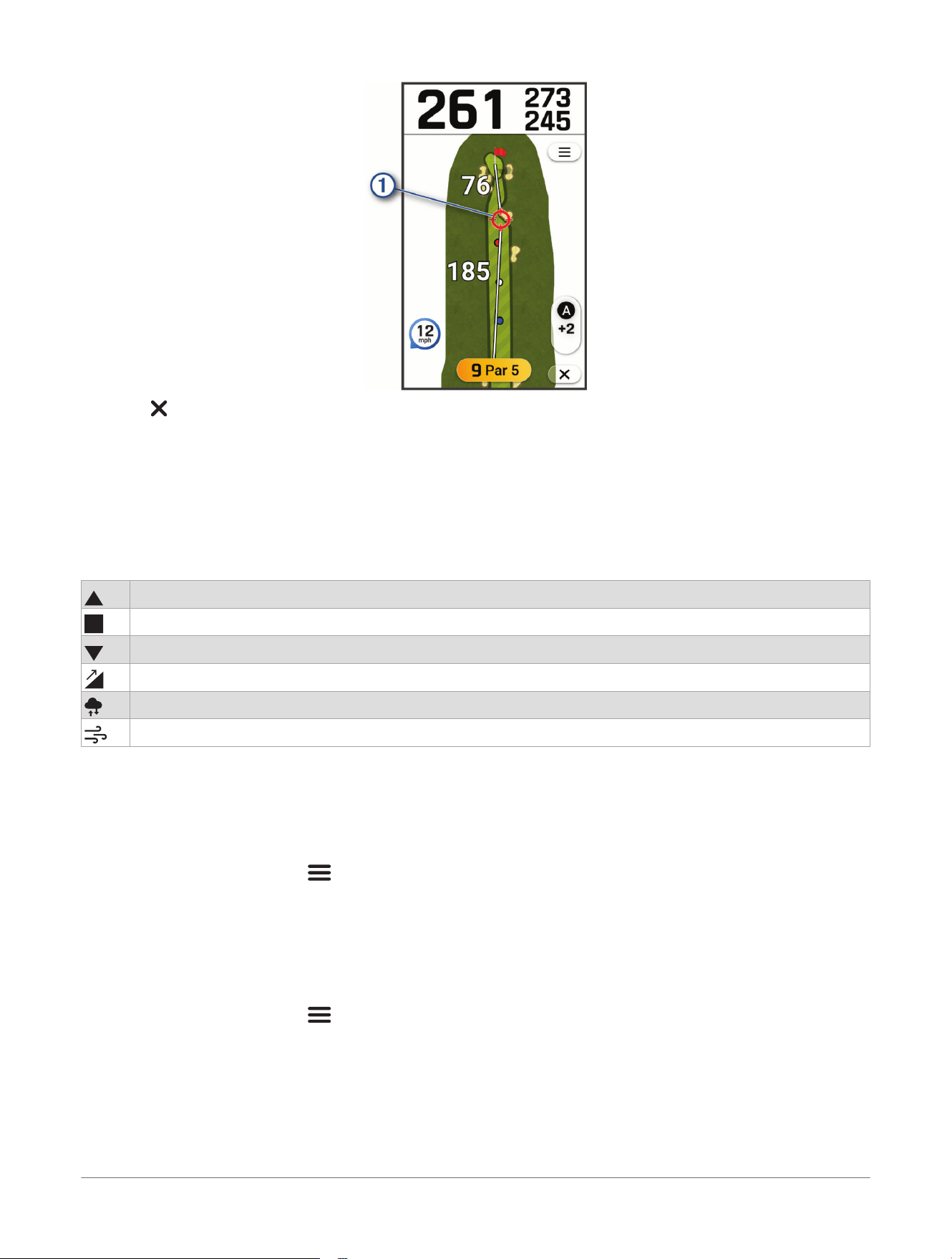
4 Select to return to the map of the hole.
Viewing PlaysLike Distance
The PlaysLike distance feature accounts for elevation changes on the course, wind speed, wind direction, and
air density by showing the adjusted distance to the green.
TIP: You can configure what data is factored into the PlaysLike adjustments in the device settings (PlaysLike
Settings, page24).
During a round, tap a distance to the green.
An icon appears next to each distance indicating the PlaysLike distance.
Distance plays longer than expected.
Distance plays as expected.
Distance plays shorter than expected.
The difference in the distance due to elevation changes.
The difference in the distance due to the air density.
The difference in the distance due to the wind speed and direction.
Viewing the Direction to the Pin
The PinPointer feature is a compass that provides directional assistance when you are unable to see the green.
This feature can help you line up a shot even if you are in the woods or in a deep sand trap.
NOTE: Do not use the PinPointer feature while the device is mounted to a bag or golf cart. Magnetic interference
from the bag or cart can affect the accuracy of the compass.
1 While playing a round, select .
2 Select PinPointer.
The arrow points to the pin location.
Viewing the Wind Speed and Direction
The wind feature is a pointer that shows the wind speed and direction relative to the pin. The wind feature
requires a connection with the Garmin Golf
™
app.
1 While playing a round, select .
2 Select Wind.
Playing Golf
Approach® G82 Premium GPS Golf Handheld
Owner's Manual
9
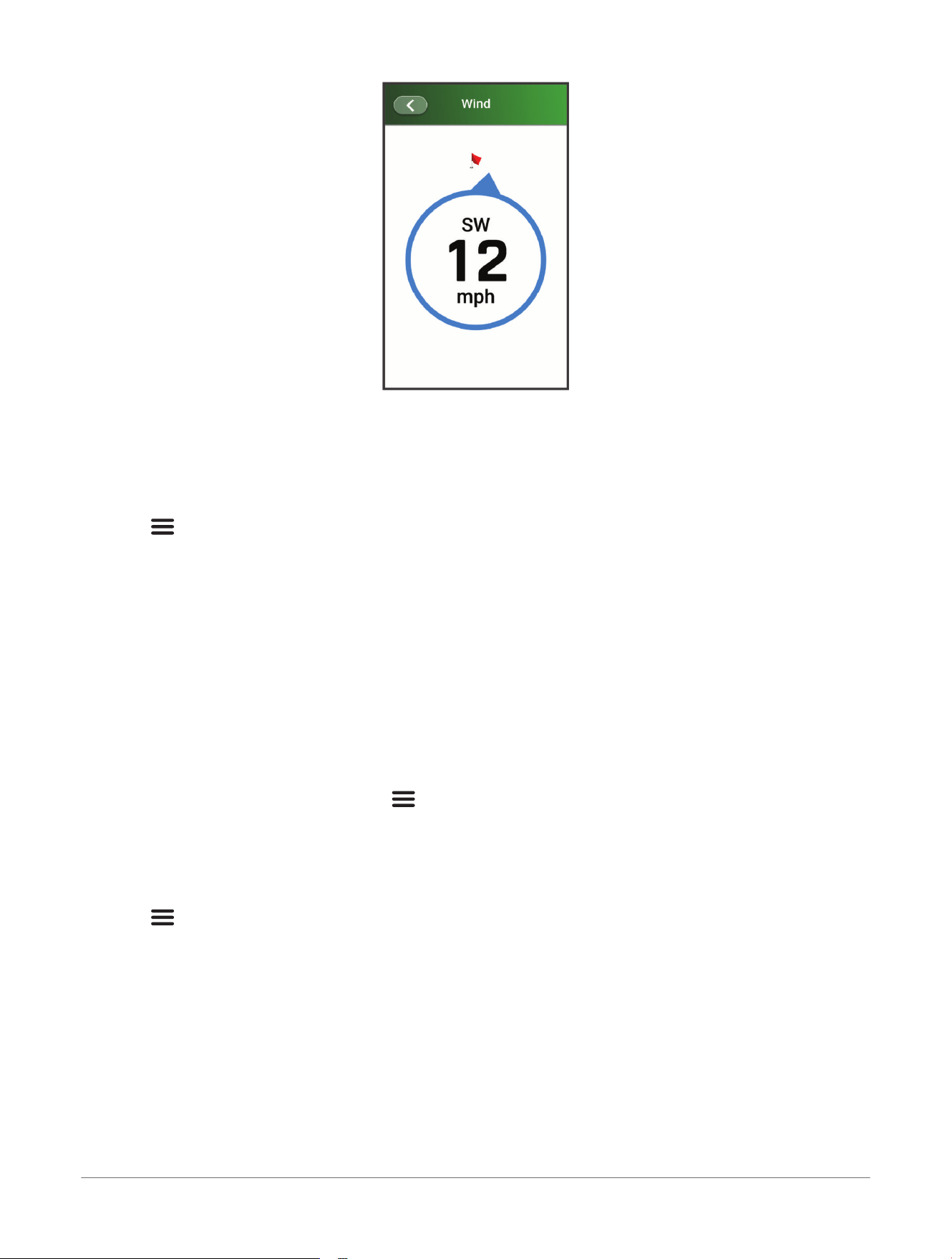
The arrow points to the wind direction relative to the pin.
TIP: You can also view the wind speed and direction from the wind icon on the hole view screen (Hole View,
page6).
Measuring a Shot
1 Take a shot, and watch where your ball lands.
2 Select > Measure Shot> Start.
3 Walk or drive to your ball.
4 Select Save.
NOTE: If necessary, you can select Reset to reset the distance.
5 Select your club.
Your measured shots are saved in the scorecard for the round. Sync your golf handheld to the Garmin Golf
™
app
to view your shots and scorecard in the app
(Garmin Golf
™
App, page22).
Saving Custom Targets
While playing a round, you can save up to five custom targets for each hole. Saving a target is useful for
recording objects or obstacles that are not shown on the map.
1 Stand near the target you want to save.
NOTE: You cannot save a target that is far from the currently selected hole.
2 From the hole information screen, select > Custom Targets.
3 Select a target type.
4 If necessary, select Add New to add additional targets.
Clearing Custom Targets
You can clear all saved targets for the current hole.
Select > Custom Targets> Clear Targets> OK.
Virtual Caddie
The Virtual Caddie feature provides club recommendations based on the hole, wind data, and your past
performance with each club. You can use the radar bag mapping feature to evaluate your clubs and use the club
data when playing with the Virtual Caddie feature (Mapping Your Bag, page19). Before you can use the Virtual
Caddie feature, you must play five rounds, track your clubs, and upload your scorecards to the Garmin Golf
™
app
using your paired phone.
TIP: You can also use Approach
®
club tracking sensors with the Virtual Caddie feature.
10
Approach® G82 Premium GPS Golf Handheld
Owner's Manual
Playing Golf
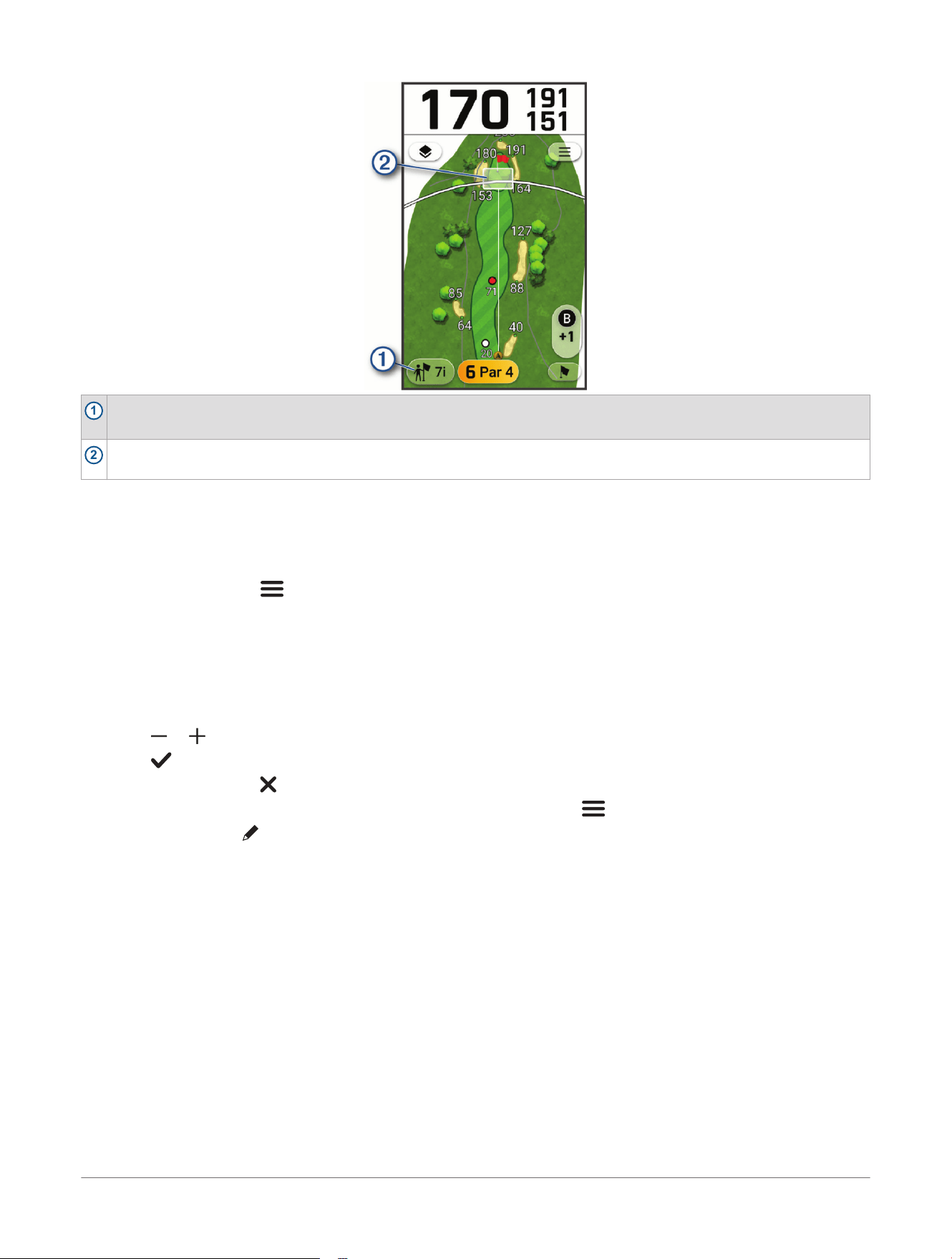
1
Displays the club or club combination recommendation for the hole.
Select to view other club options.
2
Displays the shot dispersion area for your next shot with the club recommendation, based on your shot history
with the club.
Enabling Tournament Mode
The tournament mode setting disables the PinPointer, PlaysLike, Virtual Caddie, and GreenZoom features.
These features are not allowed during sanctioned tournaments or handicap calculation rounds.
The GreenZoom green contours feature requires a Garmin Golf
™
app subscription (Garmin Golf
™
App, page22).
During a round, select > Settings> Tournament Mode> Status> On.
Keeping Score
You can keep score for up to four players.
1 Begin playing a round (Playing Golf, page6).
2 Select the scorecard.
3 Select a hole to enter the number of strokes.
4 Select or to set the score.
5 Select to save the score.
NOTE: You can select to cancel.
TIP: To adjust the score manually at any time during a round, select > Scorecard.
6 If necessary, select to edit the scoring settings, including each player's name, or to add or delete players.
About the Scorecard
You can view and change each player's name and score during a round using the scorecard.
Playing Golf
Approach® G82 Premium GPS Golf Handheld
Owner's Manual
11
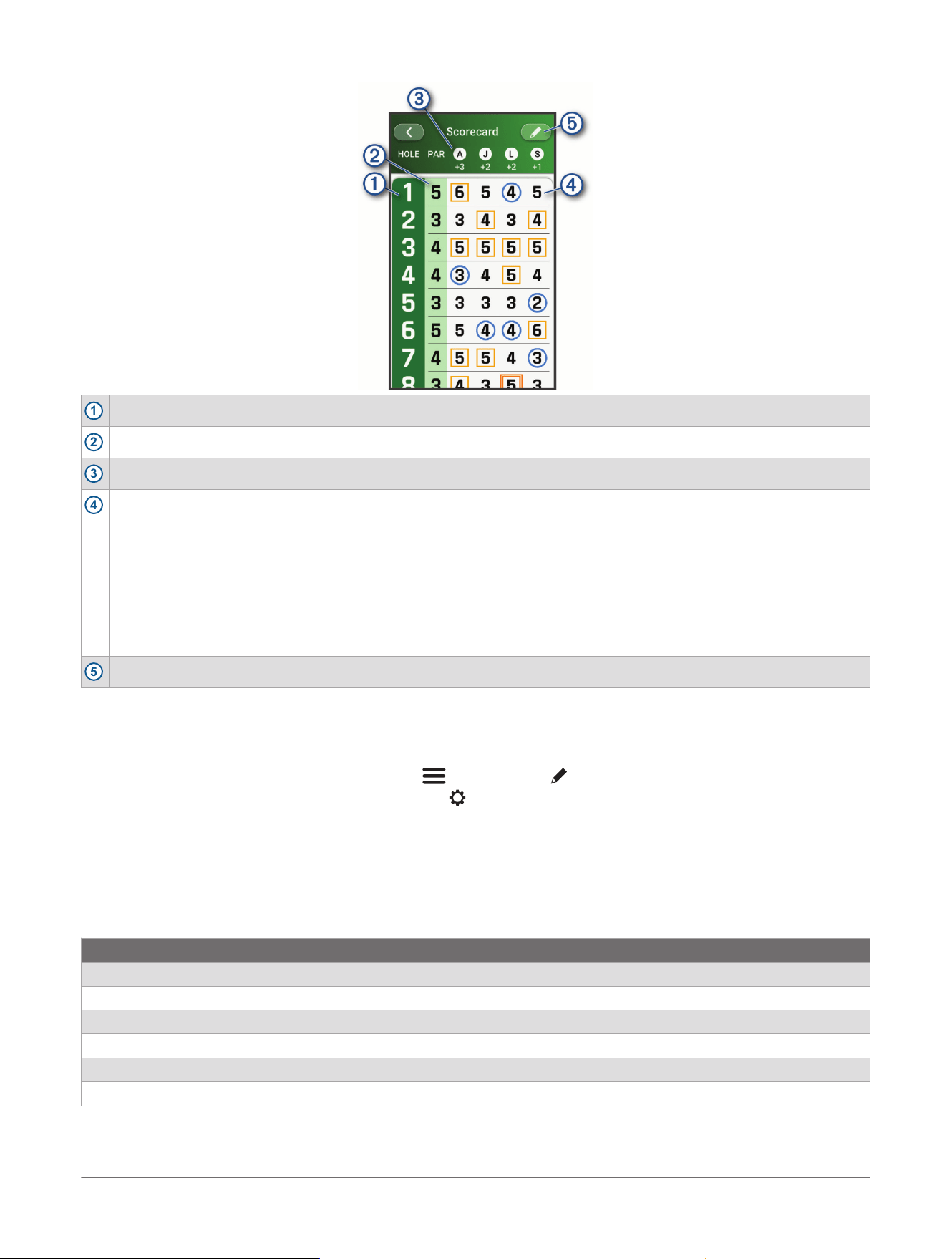
1
Displays the hole number.
2
Displays the par for the hole.
3
Displays the first initial of the player's name.
4
Displays the strokes for the hole.
Select to enter or update the number of strokes for the hole, or view the hole information for each player.
NOTE: Your score may be highlighted to indicate how close you are to par for the hole.
One light blue circle: One under par
Two dark blue circles: Two or more under par
Light orange square: One over par
Other colored square: Two or more over par, with different colors marking how many over
No highlight: Par
5
Select to view and update scoring settings.
Setting the Scoring Method
You can change the method the device uses to keep score.
1 Select an option:
● If you are currently playing a round, select > Scorecard> > Scoring Method.
● If you are not currently playing a round, select > Scoring> Scoring Method.
2 Select a scoring method.
About Stableford Scoring
When you select the Stableford scoring method (Setting the Scoring Method, page12), points are awarded
based on the number of strokes taken relative to par. At the end of a round, the highest score wins. The device
awards points as specified by the United States Golf Association.
The scorecard for a Stableford scored game shows points instead of strokes.
Points Strokes Taken Relative to Par
0 2 or more over
1 1 over
2 Par
3 1 under
4 2 under
5 3 under
About Match Scoring
When you select the match scoring method (Setting the Scoring Method, page12), one point is awarded at each
hole to the player who has the fewest strokes. At the end of a round, the player who won the most holes wins.
12
Approach® G82 Premium GPS Golf Handheld
Owner's Manual
Playing Golf
NOTE: Match scoring is available only for two players.
When you set the device to count strokes, the device determines the winner of each round. Otherwise, at the end
of each hole, select the player who had the fewest strokes, or if the number of strokes was equal, select Halved.
About Skins Scoring
When you select the skins scoring method (Setting the Scoring Method, page12), players compete for a prize on
each hole.
When you set the device to count strokes, the device determines the winner of each hole. Otherwise, at the end
of each hole, select the player who had the fewest strokes. You can select multiple players if there is a tie for the
win.
Setting a Player Handicap
1 While playing a round, select > Settings> Scoring> Handicap Scoring.
2 Select an option:
● To use the Garmin Golf
™
app for a player's handicap instead of setting one on the device, select Use
Garmin Golf.
● To enter the number of strokes that will be subtracted from the player's total score, select Local
Handicap.
● To enter the player's handicap index and the course slope rating to calculate a course handicap for the
player, select Index/Slope.
3 If necessary, to disable handicap scoring, select Off.
Enabling Statistics Tracking
While playing a round, select > Settings> Scoring> Stat Tracking> On.
Recording Statistics
Before you can record statistics, you must enable statistics tracking (Enabling Statistics Tracking, page13).
1 If necessary, from the scorecard, select the hole.
2 Select and to set the total number of strokes taken.
3 Set the number of putts taken.
NOTE: The number of putts taken is used for statistics tracking only and does not increase your score.
4 Select the arrow to indicate where your ball landed on the fairway.
5 Set the number of penalties.
6 Select .
History
You can use your paired phone to upload scorecards to the Garmin Golf
™
app. You can use the app to view
saved rounds and player statistics (Garmin Golf
™
App, page22).
Ending a Round
1 Select > End Round.
2 Select an option:
● To view your statistics and round information on the scorecard, select .
● To save the round, select Save.
● To discard the round, select Discard.
Playing Golf
Approach® G82 Premium GPS Golf Handheld
Owner's Manual
13
Radar Training Features
The device provides training modes and practice to test your driving and putting skills, improve your golf game,
and evaluate your clubs for bag mapping. These features use the internal device radar to take measurements
that help you analyze your golf practice. You can customize the training settings, such as target distance, roll
factor, and units, before or during your training sessions (Radar Training Settings, page21).
NOTE: You can also press the radar button to practice your swing during a round of golf (Device Overview,
page4). If you do not hit a ball with your swing during this mode, only the club head speed and swing tempo
metrics display.
Driving Range: Provides radar ball and swing metrics, including estimated carry and roll, club head speed, ball
speed, smash factor, and swing tempo (Training with the Driving Range Feature, page14).
Putting Training: Provides putting metrics, including stroke length, ball and club speed, and tempo (Using the
Putting Training Feature, page17).
Bag Mapping: Lets you measure the average carry or total distance for each club in your bag (Mapping Your
Bag, page19).
Training with the Driving Range Feature
1 Select > Driving Range> Start.
The radar turns on.
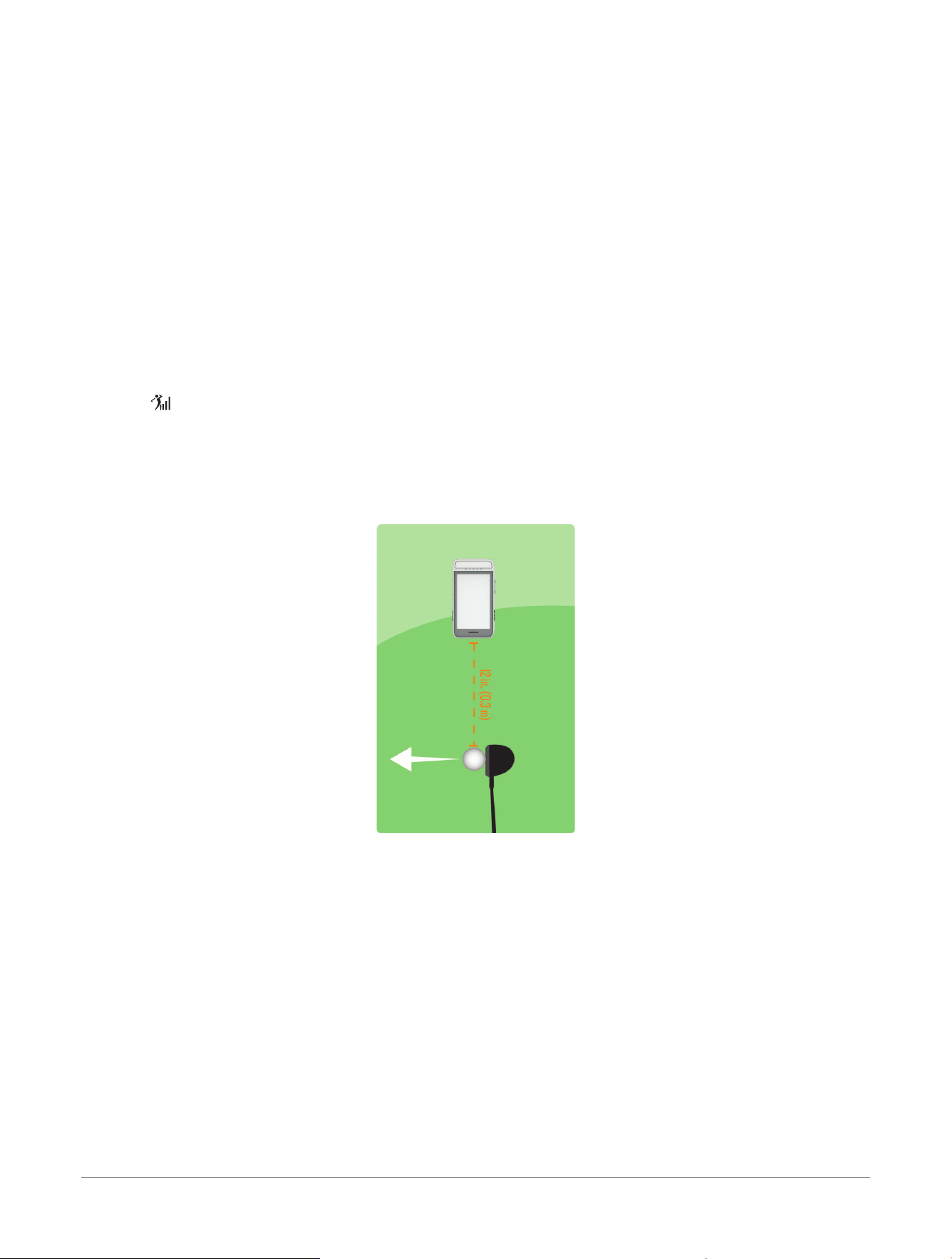
2 Attach the magnetic clip to the back of the device (Using the Magnetic Clip, page27).
3 Place the device on the ground within 0.3 m (1 ft.) of the driving ball, in line with and on the same level as you
and the ball.
4 Prop the device on a golf ball using the divot on the back of the magnetic clip.
5 Hit a shot.
14
Approach® G82 Premium GPS Golf Handheld
Owner's Manual
Radar Training Features
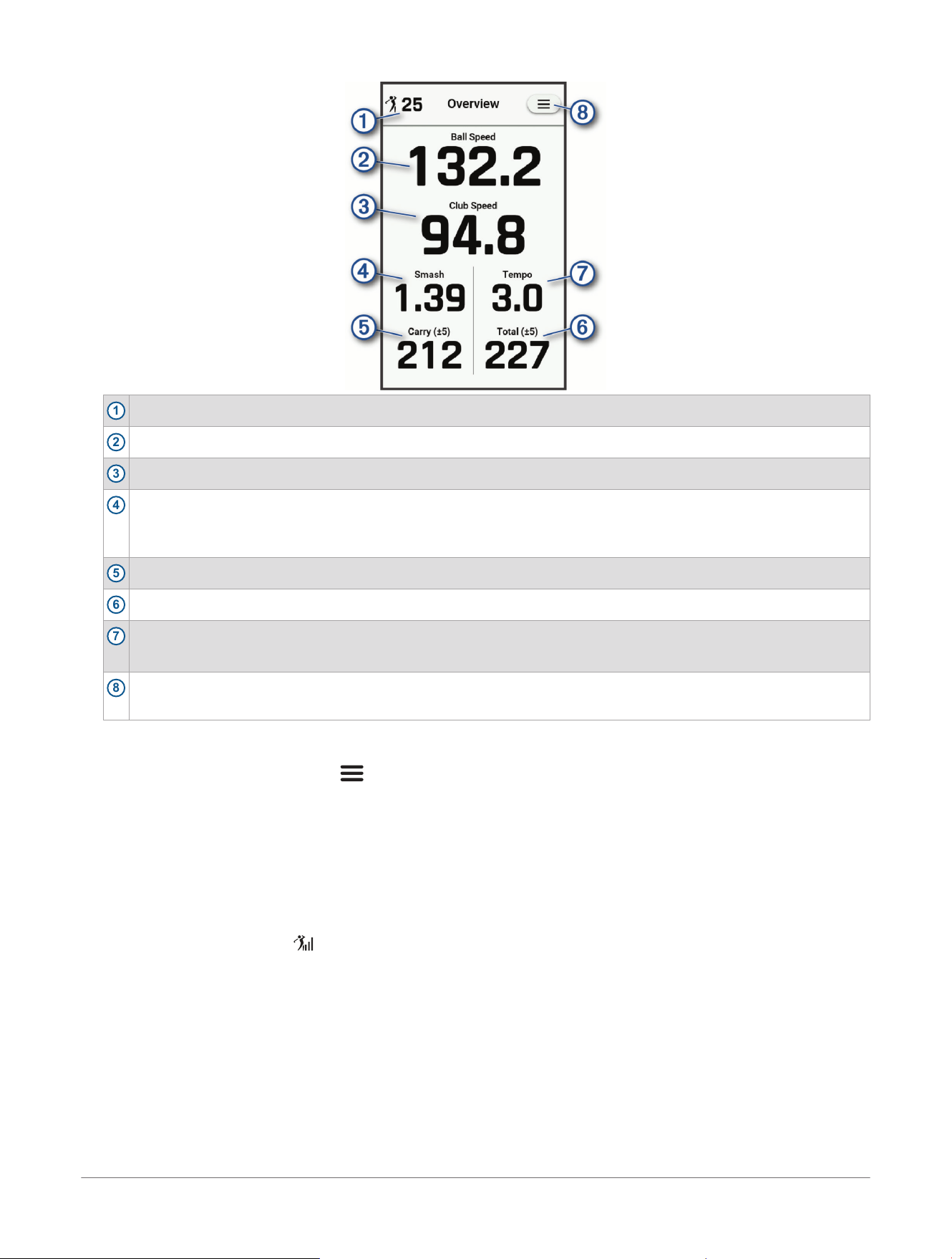
1
Displays the number of shots taken.
2
Displays the ball speed.
3
Displays the club head speed.
4
Displays the smash factor.
NOTE: The smash factor is the ball speed divided by the club head speed, and is used to indicate the efficiency
of the club hitting the ball. A higher number is more efficient.
5
Displays the estimated carry distance.
6
Displays the estimated total distance.
7
Displays the swing tempo (Tempo Training, page15).
NOTE: The swing tempo is the backswing time divided by the downswing time, expressed in a ratio.
8
Select to update driving range settings, view instructional tips, or end a driving range training session (Radar
Training Settings, page21).
6 If necessary, swipe left or right to view the tempo training (Tempo Training, page15) and target practice
(Target Practice, page16) data screens.
7 When training is complete, select > End Session.
8 Select Yes to save the training session.
You can view saved training sessions in your Garmin Golf
™
account (Garmin Golf
™
App, page22).
Tempo Training
The device measures and displays your backswing time and downswing time. The device also displays your
swing tempo. Swing tempo is the backswing time divided by the downswing time, expressed in a ratio. A 3
to 1 ratio, or 3.0, is the ideal swing tempo based on studies of professional golfers (The Ideal Swing Tempo,
page16).
From the home screen, select , start a driving range or putting training session, and then swipe left or right to
view the Tempo Training data screen.
Radar Training Features
Approach® G82 Premium GPS Golf Handheld
Owner's Manual
15
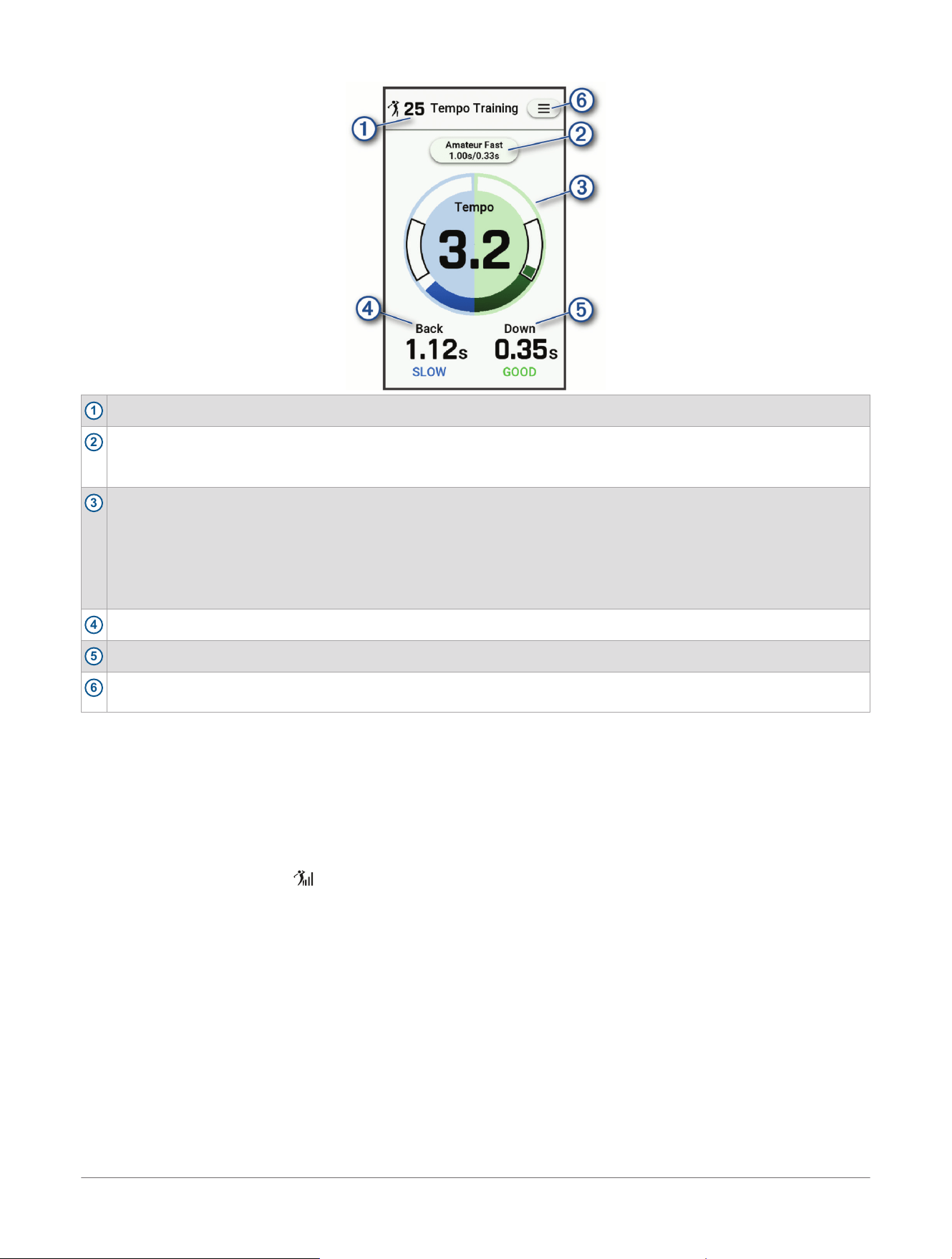
1
Displays the number of drives or putts taken.
2
Displays the tempo timing (backswing to downswing time ratio for driving sessions) or tempo goal (for putting
sessions).
Select to update the tempo times.
3
Displays your swing tempo.
NOTE: Your swing tempo and swing times are highlighted in different colors to indicate how close you are to the
target timing.
Green: Within 25% of the target time
Red: Faster than the target time
Blue: Slower than the target time
4
Displays your backswing time.
5
Displays your downswing time.
6
Select to update training settings, view instructional tips, or end a training session (Radar Training Settings,
page21).
The Ideal Swing Tempo
You can achieve the ideal 3.0 swing tempo by using different swing timings. For example, 0.7 sec./0.23 sec. or
1.2 sec./0.4 sec. Each golfer may have a unique swing tempo based on their ability and experience.
To find your ideal swing tempo, you should start with the slowest timing and try it for a few swings. When your
swing tempo is consistent with the tempo goal, you can move up to the next timing. When you find a timing that
is comfortable, you can use it to achieve more consistent swings and performance.
Target Practice
From the home screen, select , start a driving range session, and then swipe left or right to view the Target
Practice data screen.
NOTE: Before you can view the target practice data, you must set the Target Distance setting (Radar Training
Settings, page21). You can update this setting anytime during a training session.
16
Approach® G82 Premium GPS Golf Handheld
Owner's Manual
Radar Training Features
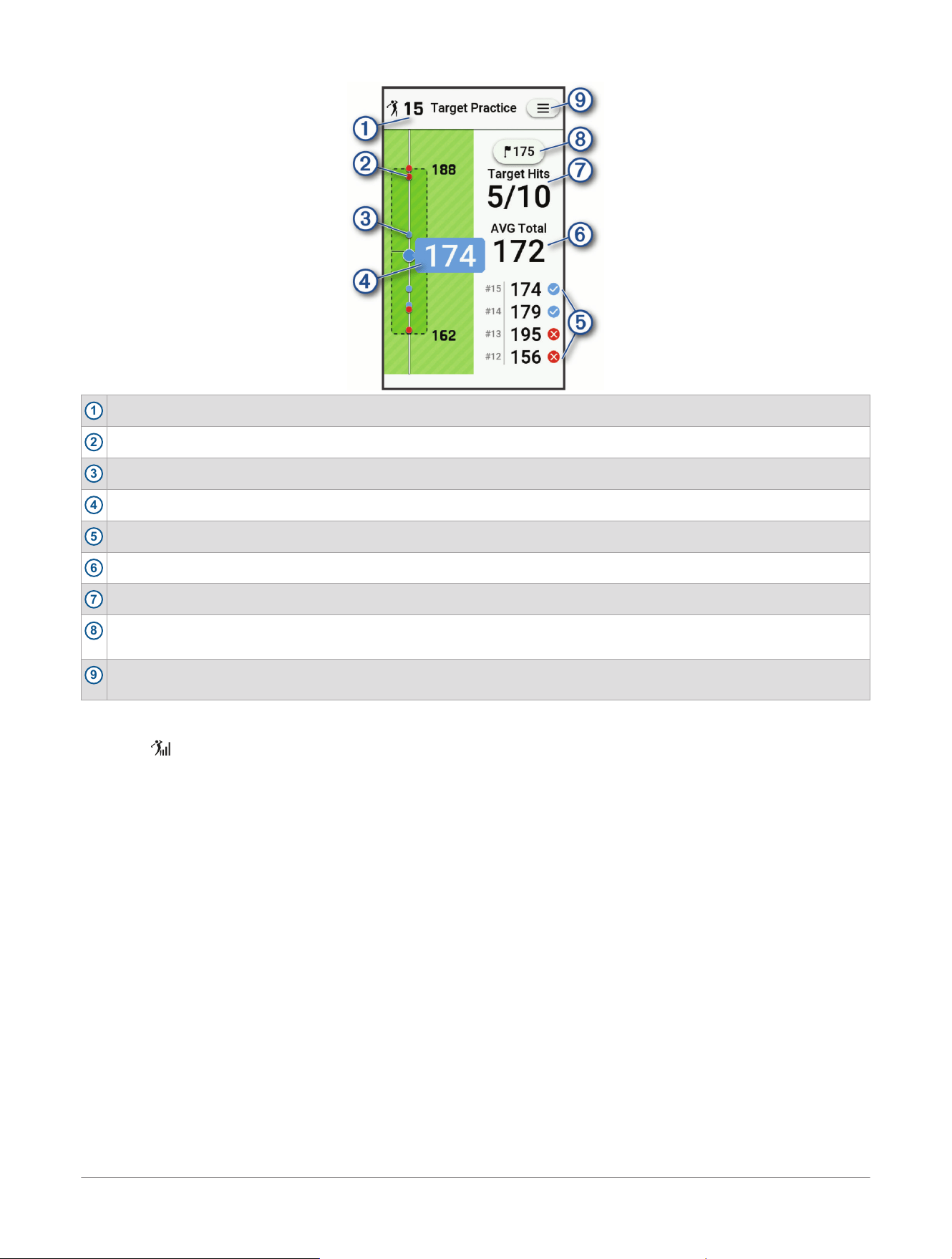
1
Displays the number of shots taken.
2
Previous shots hit outside the target area, indicated by a red dot.
3
Previous shots hit inside the target area, indicated by a blue dot.
4
Displays the current distance target.
5
The distance of the previous shots.
6
The average target distance over all shots taken during the training session.
7
Displays the number of target hits, over the number of shots attempted.
8
Displays the target distance.
Select to update the target distance for the driving range training session.
9
Select to update driving range settings, view instructional tips, or end a driving range training session (Radar
Training Settings, page21).
Using the Putting Training Feature
1 Select > Putting Training> Start.
The radar turns on.
2 Attach the magnetic clip to the back of the device (Using the Magnetic Clip, page27).
3 Place the device on the ground within 0.85 to 1.15 m (35 to 45 in.) of the putting ball.
4 Move the putting ball forward or back 0.15 to 0.25 m (6 to 10 in.) from the device line.
5 Prop the device on a golf ball using the divot on the back of the magnetic clip.
Radar Training Features
Approach® G82 Premium GPS Golf Handheld
Owner's Manual
17
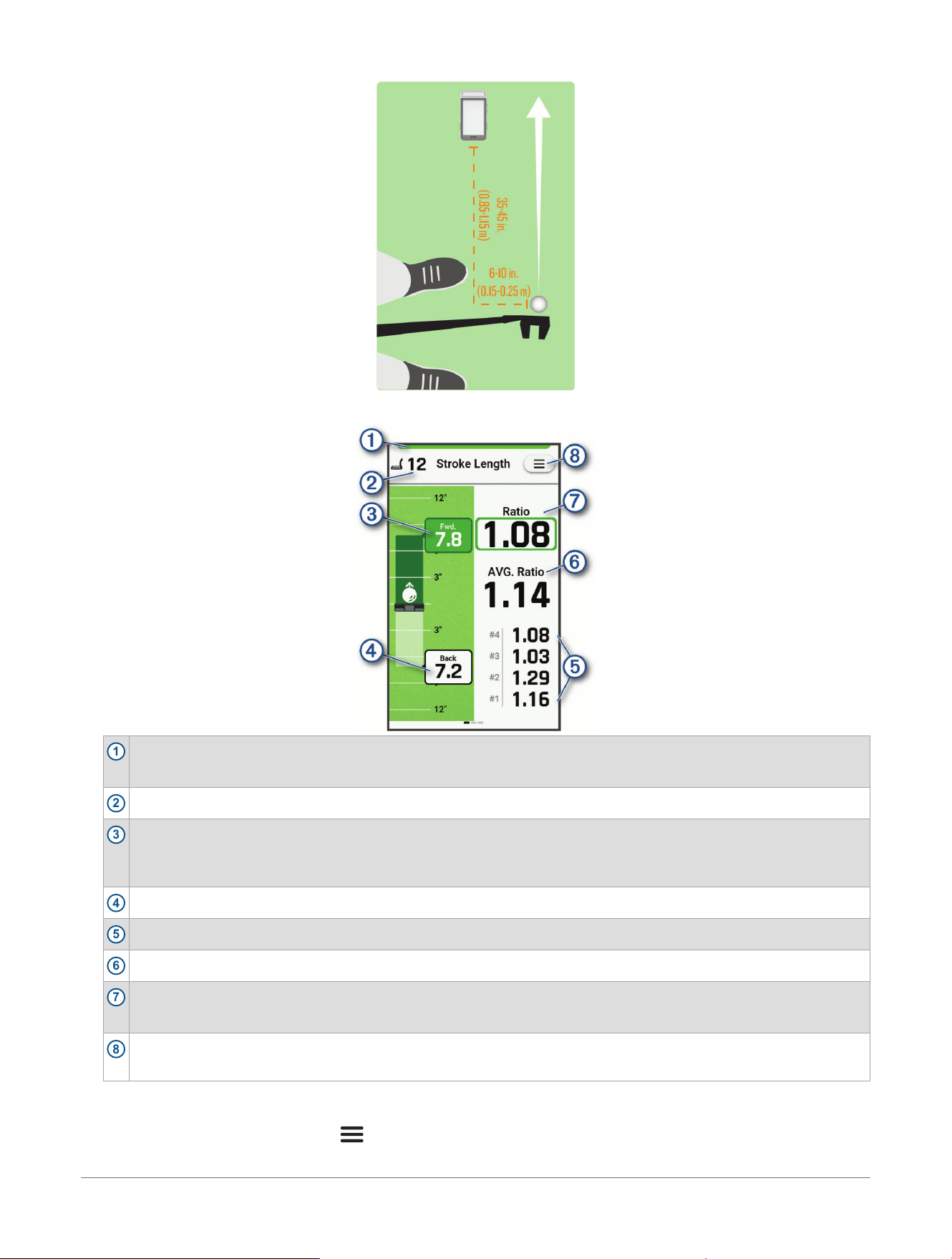
6 Hit a putt.
1
Indicates the radar status.
Green indicates the radar is ready. Red indicates that the device is unable to measure.
2
Displays the number of putts taken.
3
Displays your follow through stroke length.
Green indicates the stroke length is 0.95-1.5 times the back stroke length. Red indicates the stroke length is not
within that ideal range.
4
Displays your back stroke length.
5
Displays the ratio for the previous four putts.
6
Displays the average ratio.
7
Displays your putting stroke length ratio.
NOTE: The stroke length ratio is the follow through stroke length divided by the back stroke length.
8
Select to update your putting speed units, view instructional tips, or end a putting training session (Radar
Training Settings, page21).
7 If necessary, swipe left or right to view the tempo training (Tempo Training, page15) and putting overview
(Putting Overview, page19) data screens.
8 When training is complete, select > End Session.
9 Select Yes to save the training session.
18
Approach® G82 Premium GPS Golf Handheld
Owner's Manual
Radar Training Features
You can view saved training sessions in your Garmin Golf
™
account (Garmin Golf
™
App, page22).
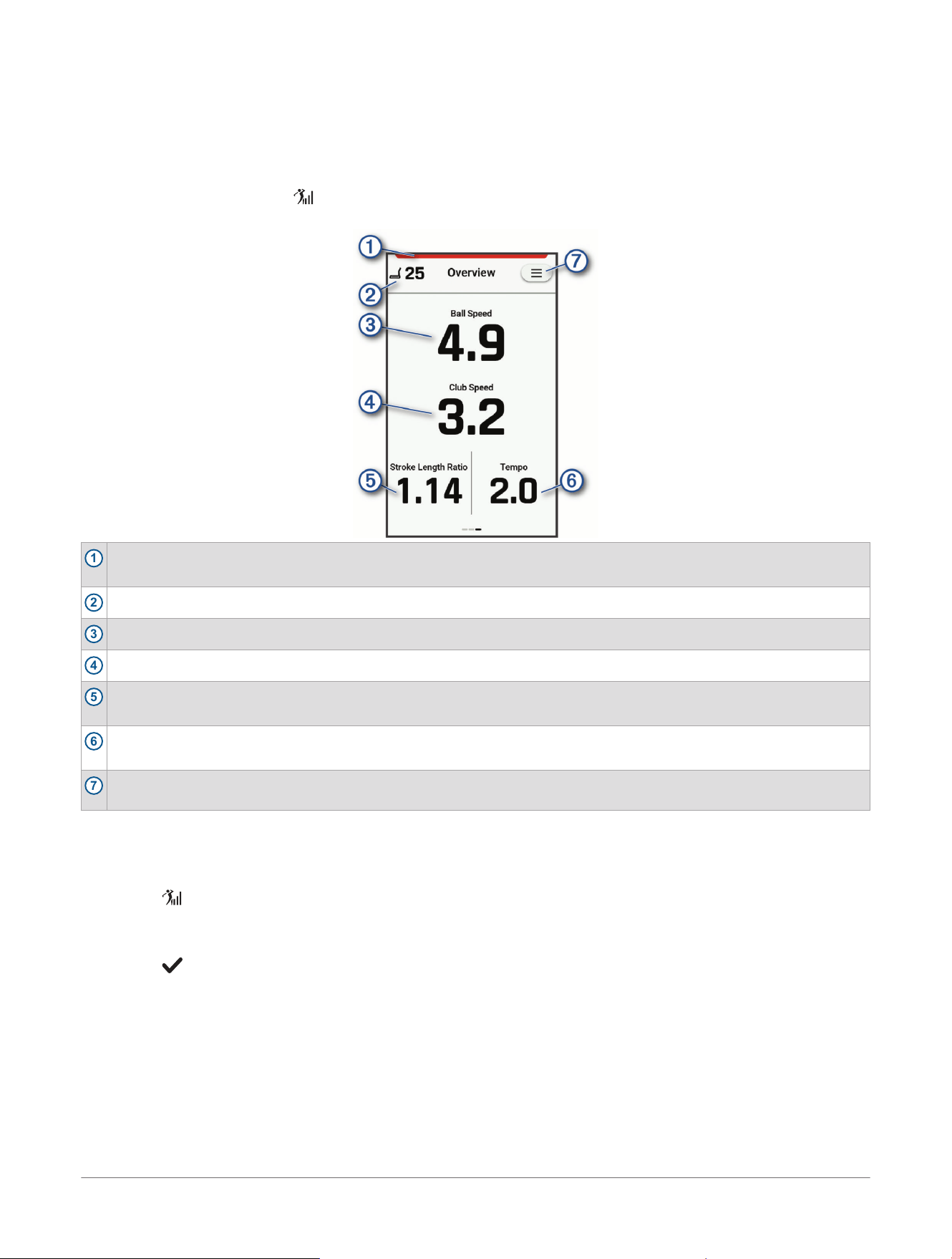
Putting Overview
The device measures and displays your putting stroke length ratio, which is the ratio of the follow through
stroke and back stroke lengths when hitting a putt. The ideal putting stroke length ratio is 1 to 1.5 based on
studies of professional golfers. This helps with natural acceleration through impact.
From the home screen, select , start a putting training session, and then swipe left or right to view the
Overview data screen.
1
Indicates the radar status.
Green indicates the radar is ready. Red indicates that the device is unable to measure.
2
Displays the number of putts in the training session.
3
Displays the ball speed.
4
Displays the club head speed.
5
Displays the putting stroke length ratio.
NOTE: The stroke length ratio is the follow through stroke length divided by the back stroke length.
6
Displays the swing tempo (Tempo Training, page15).
NOTE: The swing tempo is the backswing time divided by the downswing time, expressed in a ratio.
7
Select to update your putting speed units, view instructional tips, or end the putting training session (Radar
Training Settings, page21).
Mapping Your Bag
You can use the bag mapping feature to measure the average carry or total distance for each club in your bag
(Radar Training Settings, page21).
1 Select > Bag Mapping> Start.
The radar turns on.
2 Select the club or clubs you want to measure, in order of high to low or low to high.
3 Select > Start.
NOTE: You have the option to warm up with swing metrics before starting your session.
4 Attach the magnetic clip to the back of the device (Using the Magnetic Clip, page27).
5 Place the device on the ground within 0.3 m (1 ft.) of the driving ball, in line with and on the same level as
you and the ball.
6 Prop the device on a golf ball using the divot on the back of the magnetic clip.
Radar Training Features
Approach® G82 Premium GPS Golf Handheld
Owner's Manual
19
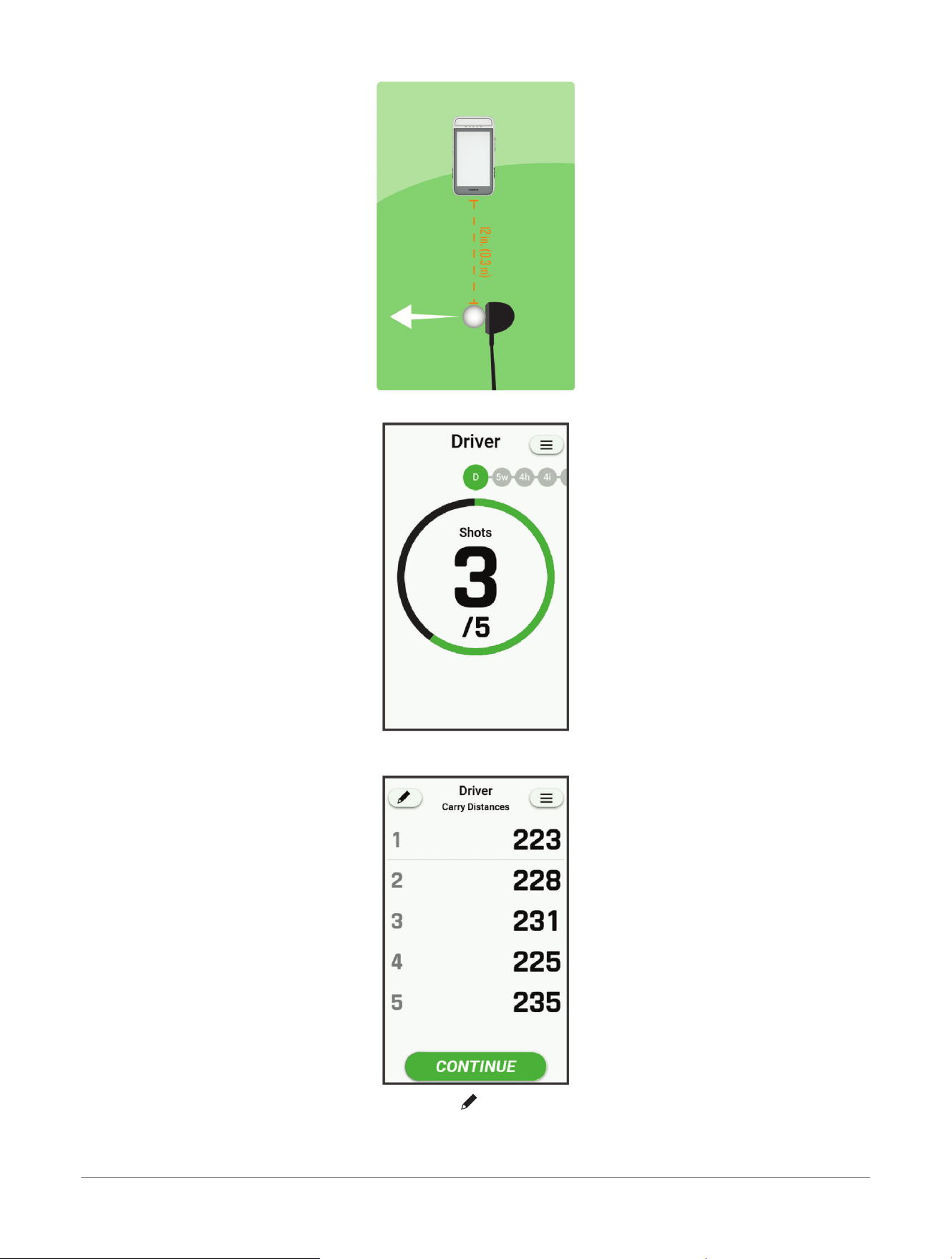
7 Hit a shot.
8 Continue hitting shots until you complete five shots with the selected club.
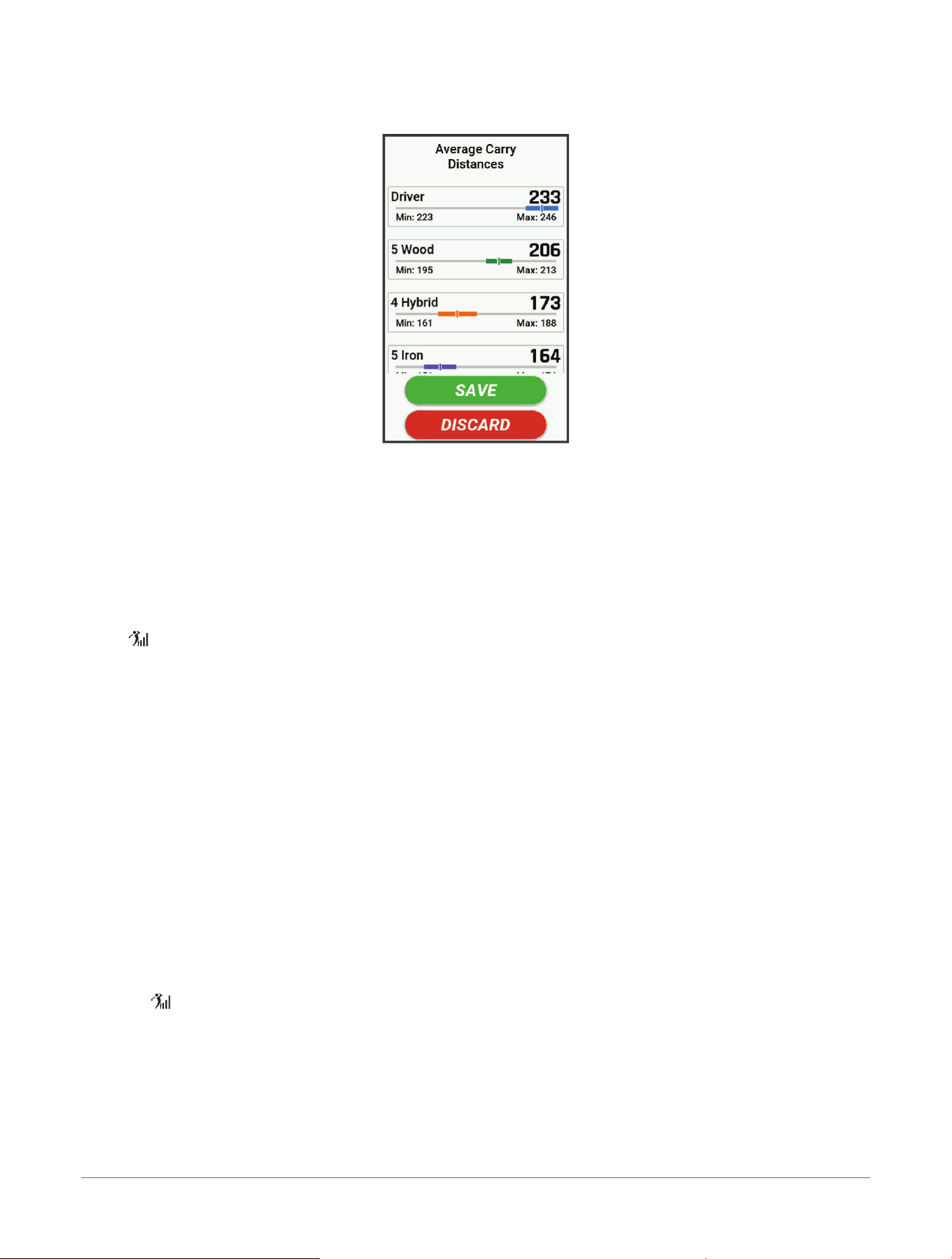
After five shots, a summary appears with the distance for each swing.
NOTE: You can delete a shot if necessary. Select , select the shot or shots, select Delete> Finish Club,
and hit again until there are five shots for that club.
9 Select Continue.
NOTE: The device automatically advances to the next club after 10 seconds of inactivity.
20
Approach® G82 Premium GPS Golf Handheld
Owner's Manual
Radar Training Features
10 Repeat steps 7-9 for each selected club.
When you complete all shots for the bag mapping session, a summary appears with the average distance
for each club.
11 Select Save.
12 Select an option:
● Select Use Club Data> Confirm to enable the Virtual Caddie feature to use bag mapping data (Virtual
Caddie, page10).
● Select Skip to continue using in-round data for the Virtual Caddie feature.
13 Sync with the Garmin Golf
™
app to view the updated club data in your Garmin Golf account (Garmin Golf
™
App, page22).
Radar Training Settings
Select , select the training option, and select Settings to customize radar training settings and features.
NOTE: Not all settings are available for all radar training and practice modes.
Distance Metric: Sets the distance option to measure the golf ball travel for a bag mapping session.
End Session: Ends the current training session.
Placement Help: Opens a tutorial on where to place the device relative to the ball for optimal radar performance.
Select Club: Sets the club for the current shot.
Set Roll Factor: Adjusts the roll factor (Setting the Roll Factor, page21).
Speed Units: Sets the units of measure for the travel speed of the golf ball.
Swing Speed: Sets the speed of the club head when it hits the ball. This can affect your swing tempo. Select
Custom to customize the swing tempo ratio (The Ideal Swing Tempo, page16).
Target Distance: Sets the target distance traveled by the golf ball.
Tips: Provides best practice tips for your golf swing.
Units: Sets the units of measure, such as golf distance, speed, and elevation.
Setting the Roll Factor
The device estimates your total distance using the carry estimate plus roll. The roll factor varies due to
differences in balls, clubs, and surface conditions, as well as ball spin and launch angle. These factors cannot
be detected by the device. If you are not getting the distance result you expect, you can adjust the roll factor.
1 Select > Driving Range> Settings> Set Roll Factor.
2 Use the slider to increase or decrease your roll.
Radar Training Features
Approach® G82 Premium GPS Golf Handheld
Owner's Manual
21

Connected Features
Connected features are available for your Approach
®
golf device when you connect it to a compatible phone
using Bluetooth
®
technology and install the Garmin Golf
™
app on the connected phone. Go to www.garmin.com/
apps for more information. Some features are also available when you connect your device to a Wi‑Fi
®
network.
Scorecard uploads to Garmin Golf: Automatically sends scorecards to the Garmin Golf app when you sync your
device. This allows you to view detailed statistics and participate in online leaderboards.
Software updates: Allows you to receive updates for your device software using the Garmin Golf app.
Course updates: Allows you to receive the latest course updates using the Garmin Golf app.
Bluetooth sensors: Allows you to connect Bluetooth compatible sensors, such as the Approach club tracking
sensors and rangefinders.
Find My Garmin: Allows you to use the Garmin Golf app to locate your device using its last known location.
Pairing Your Phone
To use the connected features of the Approach
®
golf device, it must be paired directly through the Garmin Golf
™
app, instead of from the Bluetooth
®
settings on your phone.
1 During the initial setup on your device, select OK when you are prompted to pair with your phone.
NOTE: If you previously skipped the pairing process, you can select > System> Connectivity> Pair Phone.
2 Scan the QR code with your phone.
NOTE: If you have not installed the Garmin Golf app on your phone, you are prompted to install it from the
app store.
3 Open the Garmin Golf app.
4 Select Add Device.
5 Follow the instructions in the app to complete the pairing process.
Garmin Golf
™
App
The Garmin Golf app allows you to upload scorecards from your Approach
®
G82 device to view detailed
statistics and shot analyses. Golfers can compete with each other at different courses using the Garmin Golf
app. More than 43,000 courses have leaderboards that anyone can join. You can set up a tournament event and
invite players to compete. With a Garmin Golf membership, you can access additional features, such as green
contour data and more.
The Garmin Golf app syncs your data with your Garmin Connect
™
account. You can download the Garmin Golf
app from the app store on your phone (garmin.com/golfapp).
Automatic Course Updates
Your Approach
®
golf device features automatic course updates with the Garmin Golf
™
app. When you connect
your golf device to your phone, the golf courses you use most frequently are updated automatically.
Customizing Your Golf Club List
After you pair your golf handheld with your phone using the Garmin Golf
™
app, you can use the app to customize
the default golf club list.
1 Open the Garmin Golf app on your phone.
2 Select Profile> My Bag.
3 Select an option to add, edit, delete, or mark a club inactive.
4 Sync your compatible Garmin
®
golf device with the Garmin Golf app.
The updated golf club list appears on your golf device.
Connecting to a Paired Phone
Before you can connect to your phone, you must pair your phone to your device (Pairing Your Phone, page22).
When you connect to your phone using Bluetooth
®
technology, you can share scores and other data with the
Garmin Golf
™
app.
1 On your phone, enable Bluetooth technology.
2 On your device, select > System> Connectivity> Phone> Status to enable Bluetooth technology.
Turning Off the Bluetooth
®
Phone Connection
1 Select > System> Connectivity> Phone.
22
Approach® G82 Premium GPS Golf Handheld
Owner's Manual
Connected Features

2 Select the Status toggle switch to turn off the Bluetooth phone connection on your Approach
®
golf device.
3 Open the Bluetooth settings on your phone to disconnect the Approach golf device.
Refer to the owner's manual for your phone to turn off Bluetooth technology on your phone.
Connecting to a Wireless Network
You can set up the Wi‑Fi
®
network connection using the Approach
®
golf handheld.
NOTE: You can also set up the Wi‑Fi network connection using the Garmin Express
™
application (Setting Up
Garmin Express
™
, page31). Some wireless features are only available through Garmin Express.
1 On the device, select > System> Connectivity> Wi-Fi.
2 If necessary, select Status to enable Wi‑Fi technology.
3 Select My Networks> Add Network.
4 Select a wireless network from the list.
5 If necessary, enter the password.
The golf handheld stores the network information and connects automatically when you turn on the device.
TIP: You can also select Wi-Fi Sync to manually sync your Wi‑Fi connection.
Club Sensors
Your device is compatible with Approach
®
golf club sensors. When paired with a full set of club sensors installed
on all your golf clubs, you can automatically track your golf shots, including location, distance, and club type.
See the owner's manual for your club sensors for more information (garmin.com/manuals/ApproachCT10).
Pairing Your Sensors with Your Device
Before you can record shots, you must pair your Approach
®
sensors with your Approach G82 device, and assign
sensors to your clubs.
1 Attach all sensors to your clubs.
2 Take a club out of your golf bag.
You should keep all of the other clubs in your golf bag while pairing.
TIP: You should complete the pairing process in a well-lit room. The sensors automatically wake up based
on the ambient light.
3 Bring the club within 1 m (3 ft.) of your device.
NOTE: The grip should be pointed up.
4 From the device settings, select Club Sensors> Add New.
The device begins searching for the sensor. A message appears when the sensor is detected.
5 Follow the on-screen instructions to pair your device with the club you removed from the bag.
A message appears when the sensor is assigned.
6 Return the club to your golf bag.
7 Take out the next club from your golf bag.
8 Repeat steps 5 through 7 until all of the sensors have been assigned to your clubs.
Pairing a Rangefinder
You can pair your Approach
®
golf handheld with a compatible Garmin
®
rangefinder. When paired, the measured
distance from the rangefinder appears on your golf handheld.
1 Bring the compatible rangefinder within 10m (33ft.) of your golf handheld.
2 Select > Pair Rangefinder.
3 On your rangefinder, press to wake up the device and initiate pairing.
For more information, see the owner's manual for your compatible rangefinder.
Connected Features
Approach® G82 Premium GPS Golf Handheld
Owner's Manual
23

Settings
Select to customize device settings and features.
Scoring: Sets the scoring method, enables handicap scoring and statistics tracking, and more (Scoring Settings,
page24).
Driver Distance: Sets the average distance the ball travels on your drive. This distance appears as an arc on the
hole view screen when you are on the tee box (Hole View, page6).
PlaysLike: Sets preferences for the "plays like" distance feature, which shows adjusted distances to the green
while playing golf (PlaysLike Settings, page24).
Virtual Caddie: Sets preferences for the club recommendation mode and data source. You can use the
radar bag mapping feature to evaluate your clubs and use the club data when playing with the Virtual
Caddie feature (Mapping Your Bag, page19).The Virtual Caddie feature allows you to select virtual caddie
club recommendations, and appears after you play five rounds of golf, track your clubs, and upload your
scorecards to the
Garmin Golf
™
app (Virtual Caddie, page10).
TIP: You can also use Approach
®
club tracking sensors with the Virtual Caddie feature.
Big Numbers: Turn on or off to change the size of the numbers on the hole view screen (Big Numbers Mode,
page7).
Tournament Mode: Turn on or off to disable the PinPointer and PlaysLike distance features, Virtual Caddie, and
the GreenZoom green contours feature. These features are not allowed during sanctioned tournaments or
handicap calculation rounds.
The GreenZoom feature requires a Garmin Golf app subscription (Garmin Golf
™
App, page22).
Course Manager: Select to view internal storage information for the device, view downloaded courses, and
update course maps.
TIP: You can also manage downloaded courses through Garmin Express
™
(garmin.com/express).
Club Sensors: Set up your compatible Approach club tracking sensors (Pairing Your Sensors with Your Device,
page23).
Pair Rangefinder: Pairs the device to your compatible rangefinder (Pairing a Rangefinder, page23).
System: Sets the system settings, such as backlight timeout, units of measure, and more (System Settings,
page24).
Scoring Settings
Select > Scoring.
Scoring Method: Changes the method the device uses to keep score (Setting the Scoring Method, page12).
Handicap Scoring: Enables handicap scoring (Setting a Player Handicap, page13).
Show Score: Displays your total score for the round at the top of the scorecard (Keeping Score, page11).
Stat Tracking: Enables statistics tracking for the number of putts, greens in regulation, and fairways hit while
playing golf (Enabling Statistics Tracking, page13).
Penalties: Enables penalty stroke tracking while playing golf (Recording Statistics, page13).
Prompt: Enables the prompt at the start of a round asking if you want to keep score.
PlaysLike Settings
Select > PlaysLike.
Wind: Enables wind speed and direction to be included in the PlaysLike distance adjustments.
Weather: Enables air density to be included in the PlaysLike distance adjustments.
Home Conditions: Allows you to manually change the altitude, temperature, and humidity settings used for the
air density comparison.
NOTE: It can be helpful to set weather conditions that match where you typically play. If they do not match
the conditions at your normal course locations, the air density adjustments may seem inaccurate.
System Settings
Select > System to customize the system settings.
Connectivity: Pairs your golf handheld to a phone or wireless network, and turns Wi‑Fi
®
technology on or
off (Connected Features, page22). You can also check your phone connection status (Phone Connectivity
Settings, page25).
Language: Sets the language displayed on the device.
24
Approach® G82 Premium GPS Golf Handheld
Owner's Manual
Settings
NOTE: Changing the text language does not change the language of user-entered data or map data.
Time Format: Sets the device to show time in a 12-hour or a 24-hour format.
Backlight: Sets the backlight timeout and the screen brightness (Backlight Settings, page25).
Units: Sets the units of measure used on the device (Changing the Units of Measure, page25).
Passcode: Sets or changes a four-digit passcode to secure your personal information (Setting Your Device
Passcode, page25).
USB Mode: Sets the device to use MTP (media transfer protocol) mode or Garmin
®
mode when connected to
a computer (Connecting the Device to Your Computer, page30). Garmin mode allows you to continue using
the device while it is plugged in to a power source.
Screenshot: Turns on or off the ability to hold the radar button to capture a screenshot of the device screen
(Device Overview, page4). Screenshots are saved in the screenshot folder of the device's internal storage
(Connecting the Device to Your Computer, page30).
Reset: Resets user data and settings (Restoring All Default Settings, page32).
About: Displays device information, such as the unit ID, software version, regulatory information, and license
agreement (Viewing E-label Regulatory and Compliance Information, page30).
Phone Connectivity Settings
Phone connectivity features are available for your device when you pair it using the Garmin Golf
™
app (Pairing
Your Phone, page22).
Select > System> Connectivity> Phone.
Status: Turns Bluetooth
®
technology on and off, and shows the current connection status (Connecting to a
Paired Phone, page22).
Pair Phone: Pairs your device with a compatible Bluetooth enabled phone. This setting allows you to use
Bluetooth connected features using the Garmin Golf app, including notifications and scorecard uploads.
Backlight Settings
Select > System> Backlight.
NOTE: Extensive use of screen backlighting can significantly reduce battery life. You can adjust the backlight
brightness to maximize the battery life.
Timeout: Sets the length of time before the backlight turns off.
Brightness: Sets the brightness level of the backlight.
Changing the Units of Measure
You can customize the units of measure for the device.
1 Select > System> Units.
2 Select a unit of measure.
Setting Your Device Passcode
NOTICE
If you enter your passcode incorrectly five times, the golf handheld locks. To unlock the device, you must
perform a factory reset or reset it in the Garmin Golf
™
app.
You can set up a device passcode to prevent unauthorized users from logging into your device.
1 Select an option:
● During the initial setup, select Yes when prompted to create a passcode.
● Select > System> Passcode> Set Passcode.
2 If you are not paired with the Garmin Golf app, select Enable when you are prompted to confirm passcode
setup.
3 Enter a four-digit passcode.
4 Re-enter the passcode.
5 Select Done.
The next time you turn on the golf handheld, you must enter the passcode before you can view any information.
Changing Your Device Passcode
You must know your existing device passcode to change it. If you forget your passcode or make too many
incorrect passcode attempts, you must you must reset it in the Garmin Golf
™
app.
1 Select > System> Passcode> Change Passcode.
Settings
Approach® G82 Premium GPS Golf Handheld
Owner's Manual
25

2 Enter your existing four-digit passcode.
3 Enter a new four-digit passcode.
4 Re-enter the new passcode.
5 Select Done.
The next time you turn on the device, you must enter the passcode before you can view any information.
26 Approach® G82 Premium GPS Golf Handheld
Owner's Manual
Settings
Device Information
Using the Magnetic Clip
WARNING
Both the device and its clip contain magnets. Under certain circumstances, magnets may cause interference
with some medical devices, including pacemakers and insulin pumps. Devices and accessories that contain
magnets should be kept away from such medical devices.
NOTICE
Both the device and its clip contain magnets. Under certain circumstances, magnets may cause damage to
some electronic devices, including hard drives in laptop computers. Use caution when devices and accessories
that contain magnets are near electronic devices.
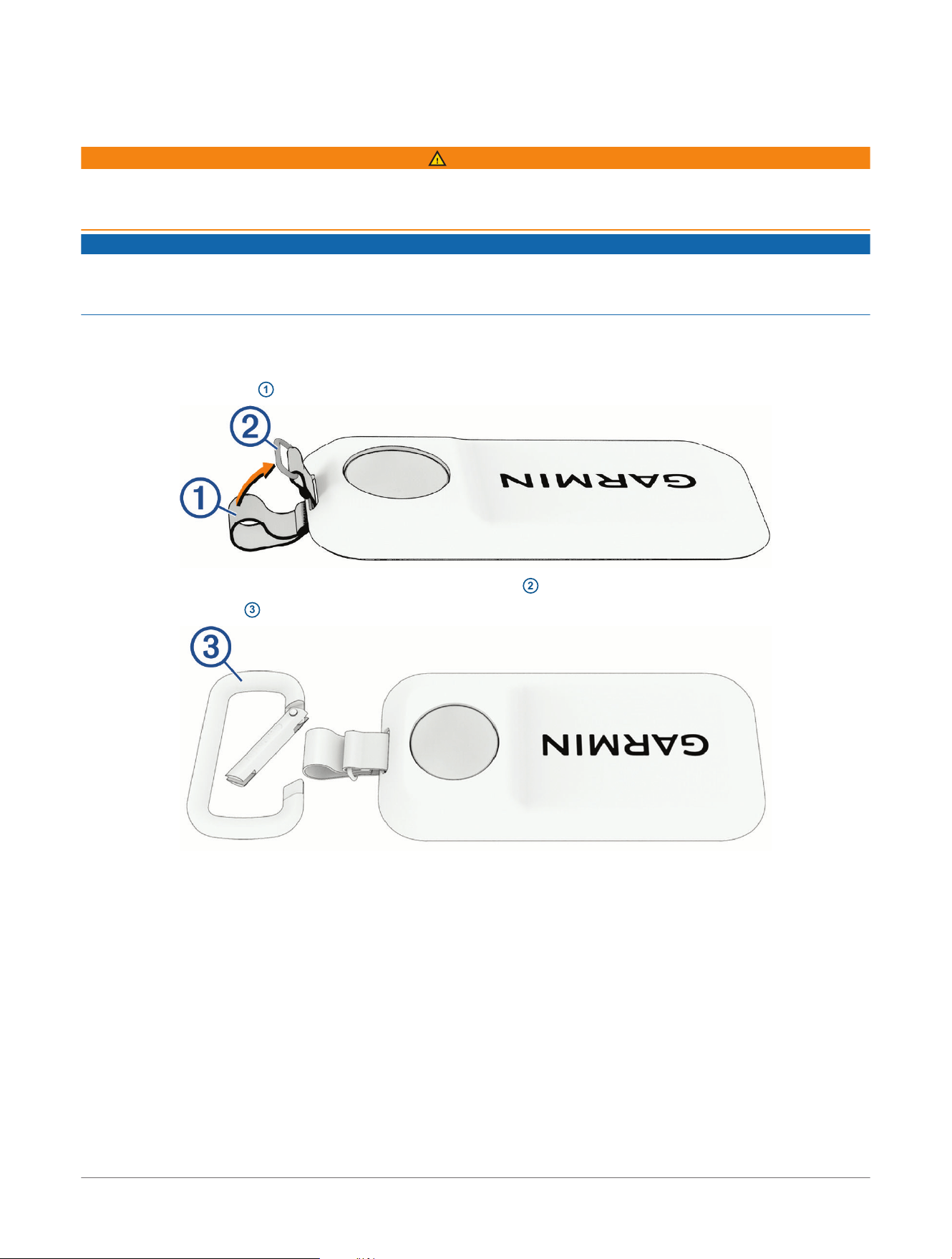
You can use the lanyard carabiner on the magnetic clip to attach the device to your belt, pocket, or bag. You can
also use the magnetic clip as a stand for radar training.
NOTE: Go to www.garmin.com/golf to purchase accessories for your device.
1 Thread the fabric end
1
of the lanyard through the slots on the back of the magnetic clip.
2 Thread the fabric end of the lanyard through the metal loop
2
on the opposite end of the lanyard.
3 Insert the carabiner
3
through the fabric loop on the end of the lanyard.
4 Snap the magnetic back of the device into the clip until it locks into place.
Device Information
Approach® G82 Premium GPS Golf Handheld
Owner's Manual
27
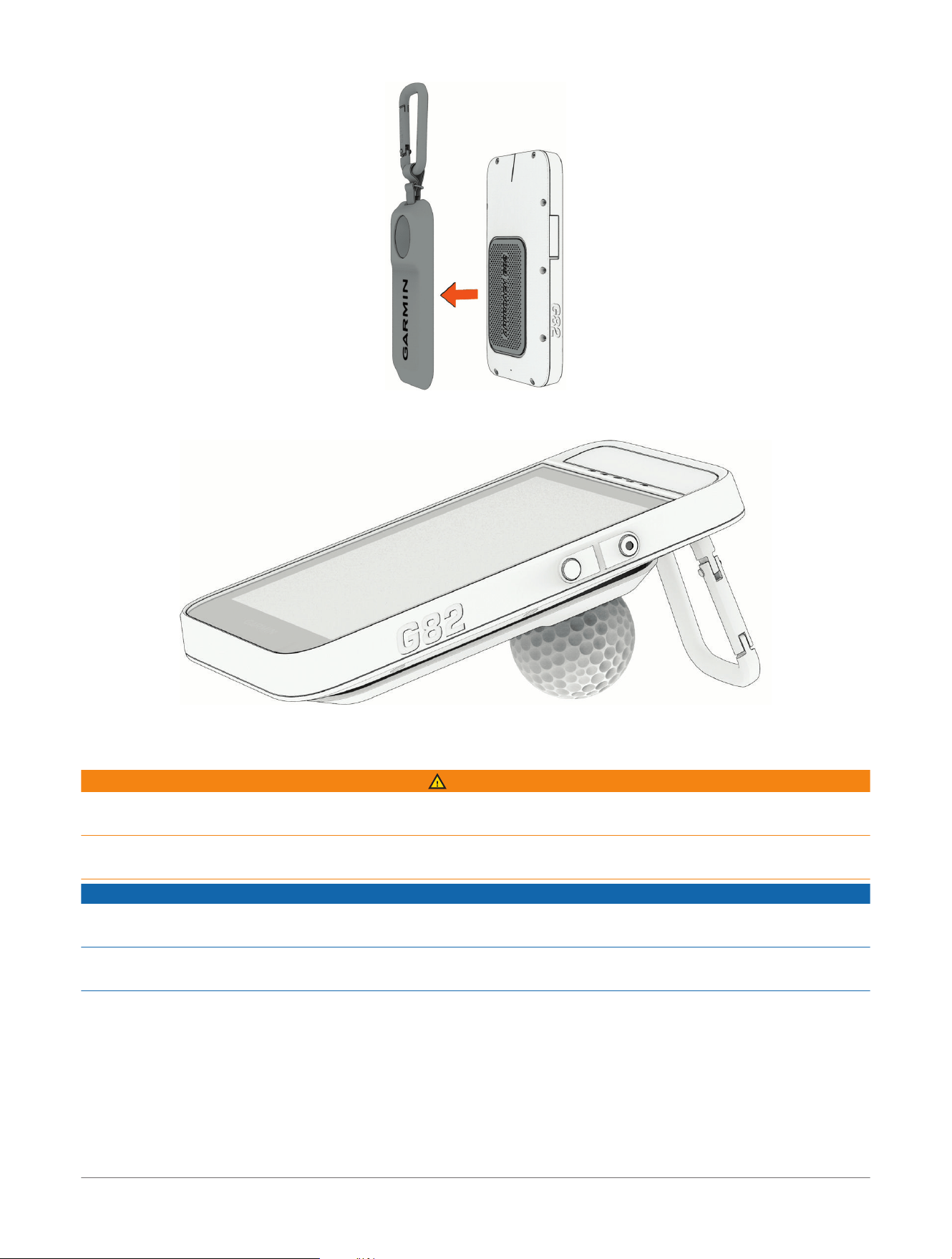
5 During radar training, rest the device with the magnetic clip attached on a golf ball, using the divot at the rear
of the clip as a stand.
6 To remove the magnetic clip, gently pull the clip off the device.
Charging the Device
WARNING
This device contains a lithium-ion battery. See the Important Safety and Product Information guide in the product
box for product warnings and other important information.
The device contains a magnet. Under certain circumstances, magnets may cause interference with some
medical devices, including pacemakers and insulin pumps. Keep the device away from such medical devices.
NOTICE
To prevent corrosion, thoroughly dry the USB port, the weather cap, and the surrounding area before charging or
connecting to a computer.
The device contains a magnet. Under certain circumstances, magnets may cause damage to some electronic
devices, including hard drives in laptop computers. Use caution when the device is near electronic devices.
The device is powered by a lithium-ion battery that you can charge using a standard wall outlet or a USB port on
your computer. For optional accessories and replacement parts, go to buy.garmin.com, or contact your Garmin
®
dealer.
1 Pull up the weather cap from the USB port.
2 Plug the USB cable into the USB port on your device.
28
Approach® G82 Premium GPS Golf Handheld
Owner's Manual
Device Information
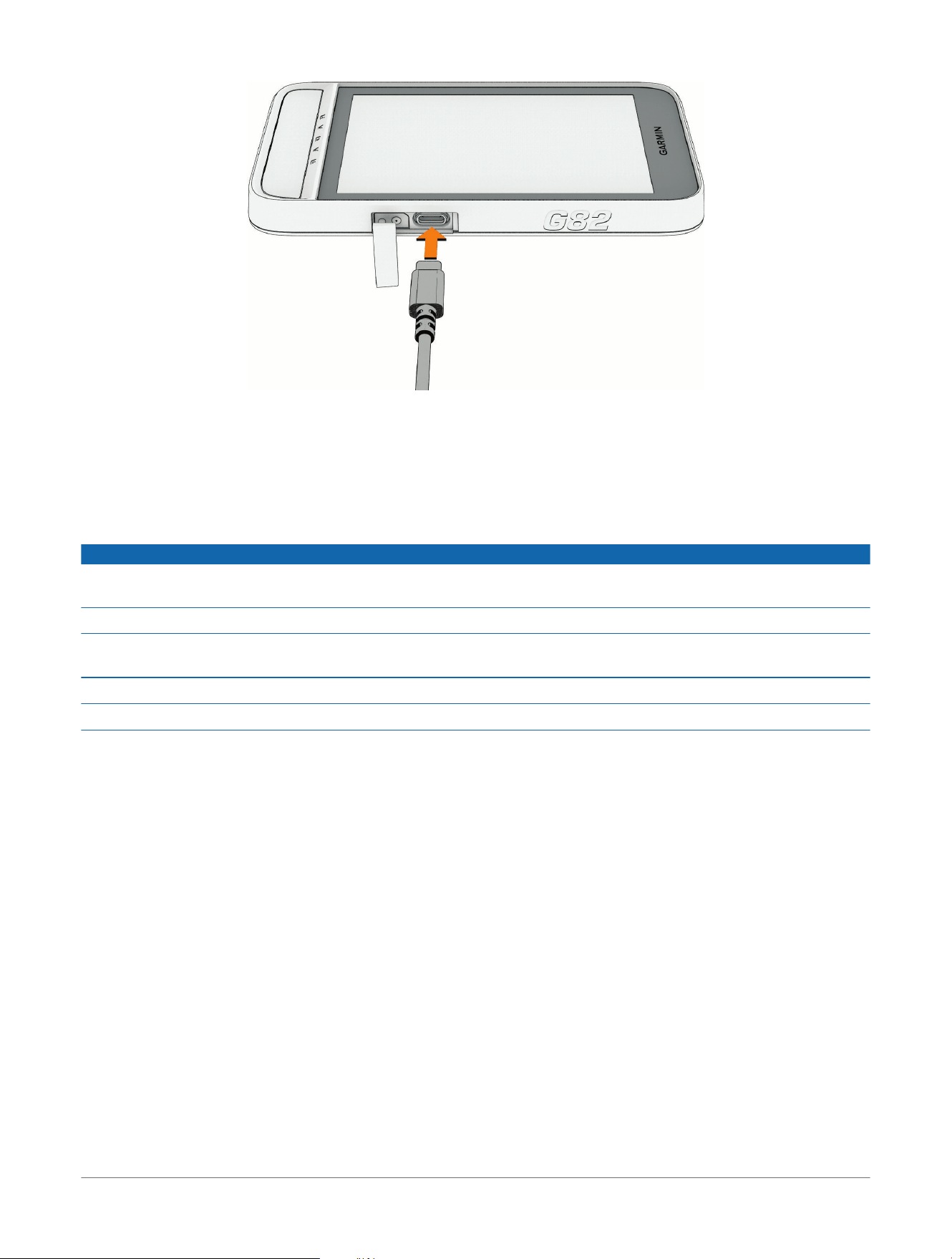
3 Plug the other end of the USB cable into an AC adapter (5V minimum output power) or a computer USB port.
4 If necessary, plug the AC adapter into a standard wall outlet
When you connect the device to a power source, the device turns on.
5 Charge the battery completely.
After you charge the device, close the weather cap.
Device Care
NOTICE
Do not store the device where prolonged exposure to extreme temperatures can occur, because it can cause
permanent damage.
Never use a hard or sharp object to operate the touchscreen, or damage may result.
Avoid chemical cleaners, solvents, sunscreen, and insect repellents that can damage plastic components and
finishes.
Secure the weather cap tightly to prevent damage to the USB port.
Avoid extreme shock and harsh treatment, because it can degrade the life of the product.
Cleaning the Device
1 Wipe the device using a cloth dampened with a mild detergent solution.
2 Wipe it dry.
After cleaning, allow the device to dry completely.
Cleaning the USB Port
1 Turn off the device and disconnect the device from power.
2 Clean the USB port using a soft, clean, lint-free cloth or cotton swab.
NOTE: If necessary, you can lightly dampen the cloth or cotton swab with isopropyl alcohol.
3 Allow the device to dry completely before you connect it to power.
Long-Term Storage
When you do not plan to use the Approach
®
G82 device for several months, you should charge the battery to at
least 50% before you store the device. You should store the device in a cool, dry place with temperatures around
the typical household level. After storage, you should fully recharge the device before using it.
Using the Backlight
● At any time, tap the touchscreen to turn on the backlight.
NOTE: Alerts and messages also activate the backlight.
● Change the backlight timeout and brightness (Backlight Settings, page25).
Device Information
Approach® G82 Premium GPS Golf Handheld
Owner's Manual
29
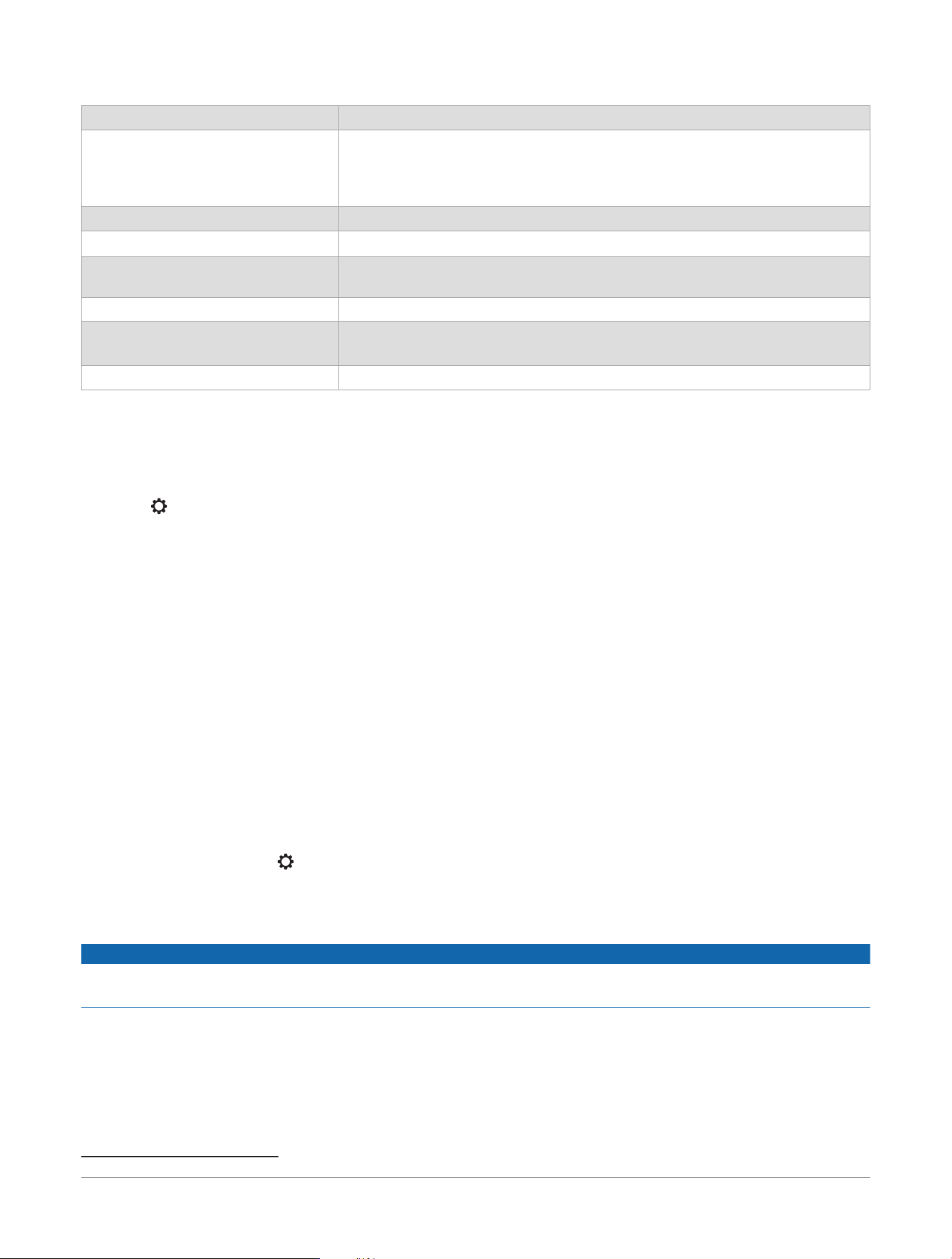
Specifications
Battery type Rechargeable, built-in lithium-ion battery
Battery life, GPS mode Up to 25 hr.
NOTE: The actual battery life of a fully charged battery depends on how much
time you use GPS. Exposure to extremely cold temperatures also reduces
battery life.
Battery life, radar mode Up to 8 hr.
Water rating
IEC 60529 IPX7
1
Operating and storage temperature
range
From -20º to 60ºC (from -4º to 140ºF)
USB charging temperature range From 0º to 45ºC (from 32º to 113ºF)
EU wireless frequencies and transmit
power
2400 - 2483,5 MHz < 20 dBm
24,15 - 24,25 GHz < 20 dBm
EU SAR values 0,33 W/kg limb, 0,33 W/kg torso
Viewing E-label Regulatory and Compliance Information
The label for this device is provided electronically. The e-label may provide regulatory information, such as
identification numbers provided by the FCC or regional compliance markings, as well as applicable product and
licensing information.
1 Select .
2 Select System.
3 Select About.
Product Updates
On your computer, install Garmin Express
™
(www.garmin.com/express). On your phone, install the Garmin Golf
™
app.
This provides easy access to these services for Garmin
®
devices:
● Software updates
● Map updates
● Course updates
● Data uploads to Garmin Golf
● Product registration
Updating the Software Using the Garmin Golf
™
App
After you pair your device with your phone, you can use the Garmin Golf app to update your device software
(Pairing Your Phone, page22).
Sync your device with the Garmin Golf app (Connecting to a Paired Phone, page22).
TIP: You can also select > System> Connectivity> Wi-Fi> Wi-Fi Sync to manually sync your Wi‑Fi
®
connection.
When new software is available, the app automatically sends the update to your device.
Connecting the Device to Your Computer
NOTICE
To prevent corrosion, thoroughly dry the USB port, the weather cap, and the surrounding area before charging or
connecting to a computer.
1 Pull up the weather cap from the USB port.
2 Plug one end of the cable into the USB port on the device.
3 Plug the other end of the cable into a computer USB port.
Your device appears as a removable drive in This PC on Windows
®
computers. Because Mac
®
operating
systems provide limited support for MTP (media transfer protocol) file transfer mode, you should use the
Garmin Express
™
application to view your device on a Mac computer.
1
The device withstands incidental exposure to water of up to 1m for up to 30min. For more information, go to www.garmin.com/waterrating.
30 Approach® G82 Premium GPS Golf Handheld
Owner's Manual
Device Information

Setting Up Garmin Express
™
1 Connect the device to your computer using a USBcable.
2 Go to garmin.com/express.
3 Follow the on-screen instructions.
Updating the Software Using Garmin Express
™
Before you can update your device software, you must download and install the Garmin Express application and
add your device (Setting Up Garmin Express
™
, page31).
1 Connect the device to your computer using the USB cable.
When new software is available, the Garmin Express application sends it to your device.
2 After the Garmin Express application finishes sending the update, disconnect the device from your
computer.
Your device installs the update.
Getting More Information
You can find more information about this product on the Garmin
®
website.
● Go to support.garmin.com for additional manuals, articles, and software updates.
● Go to buy.garmin.com, or contact your Garmin dealer for information about optional accessories and
replacement parts.
Device Information
Approach® G82 Premium GPS Golf Handheld
Owner's Manual
31
Troubleshooting
My device cannot find nearby golf courses
If a course update is interrupted or canceled before it completes, your device may be missing course data. To
repair missing course data, you must update the courses again.
1 Download and install course updates from the Garmin Express
™
application (Updating the Software Using
Garmin Express
™
, page31).
2 Safely disconnect your device.
3 Go outside, and start a test round of golf to verify the device finds nearby courses.
My phone will not connect to the device
If you have previously paired your device to your phone and your phone will not connect to the device, you can
try these tips.
● Turn off your phone and your device, and turn them back on again.
● Enable Bluetooth
®
technology on your phone.
● Update the Garmin Golf
™
app to the latest version.
● Remove your device from the Garmin Golf app and the Bluetooth settings on your phone to retry the pairing
process.
● If you bought a new phone, remove your device from the Garmin Golf app on the phone you intend to stop
using.
● Bring your phone within 10m (33ft.) of the device.
● On your phone, open the Garmin Golf app, and select Profile> My Devices> Add Device to enter pairing
mode.
● Select > System> Connectivity> Phone> Pair Phone.
My device is in the wrong language
You can change the device language selection if you have accidentally selected the wrong language.
1 From the home screen, select .
2 Scroll down to the last item in the list, and select it.
3 Select the second item in the list.
4 Select your language.
My device displays the wrong units of measure
● Verify you selected the correct units of measure setting on the device (Changing the Units of Measure,
page25).
● Verify you selected the correct units of measure setting on your Garmin Golf
™
account.
If the units of measure on the device do not match your Garmin Golf account, your device settings may be
overwritten when you sync your device.
Restarting Your Device
1 Press and hold until the device turns off.
2 Hold to turn on the device.
Restoring All Default Settings
Before you reset the golf device, you should sync it with the Garmin Golf
™
app to upload your scorecards.
You can reset all of the device settings to the factory default values.
1 Select > System> Reset.
2 Select an option:
● To reset all of the device settings to the factory default values and save all user-entered information and
scorecards, select Reset All Settings.
● To reset all of the device settings to the factory default values and delete all user-entered information and
scorecards, select Delete All.
3 Select Yes.
32
Approach® G82 Premium GPS Golf Handheld
Owner's Manual
Troubleshooting

Acquiring Satellite Signals
The device may need a clear view of the sky to acquire satellite signals. The time and date are set automatically
based on the GPS position.
TIP: For more information about GPS, go to www.garmin.com/aboutGPS.
1 Go outdoors to an open area.
The front of the device should be oriented toward the sky.
2 Wait while the device locates satellites.
It may take 30–60 seconds to locate satellite signals.
Improving GPS Satellite Reception
● Frequently sync the device to your Garmin
®
account:
● Connect your device to a computer using the USB cable and the Garmin Express
™
application.
● Sync your device to the Garmin Golf
™
app using your Bluetooth
®
enabled phone.
● Connect your device to your Garmin account using a Wi‑Fi
®
wireless network.
While connected to your Garmin account, the device downloads several days of satellite data, allowing it to
quickly locate satellite signals.
● Take your device outside to an open area away from tall buildings and trees.
● Remain stationary for a few minutes.
Exiting Demo Mode
Demo mode shows a preview of features on your Approach
®
golf device.
Press to restart the device.
Troubleshooting
Approach® G82 Premium GPS Golf Handheld
Owner's Manual
33

support.garmin.com
© 2026 Garmin Ltd. or its subsidiaries
Garmin
®
, the Garmin logo, and Approach
®
are trademarks of Garmin Ltd. or its subsidiaries, registered in the USA and other countries. Garmin Connect
™
,
Garmin Express
™
, and Garmin Golf
™
are trademarks of Garmin Ltd. or its subsidiaries. These trademarks may not be used without the express permission of
Garmin.
The Bluetooth
®
word mark and logos are owned by Bluetooth SIG, Inc. and any use of such marks by Garmin is under license. Mac
®
is a trademark of Apple
Inc., registered in the U.S. and other countries. Wi‑Fi
®
is a registered mark of Wi-Fi Alliance Corporation. Windows
®
is a registered trademark of Microsoft
Corporation in the United States and other countries. Other trademarks and trade names are those of their respective owners.
M/N: A04873
January 2026 GUID-39C10EC9-3CDF-406D-9BC9-8F490036536A v1