1
SAINLOGIC WS-0835 Plus Professional
WIFI Wireless Weather Station User Manual
1.Introduction
Thank you for your purchase of the WS-0835 Plus Professional WIFI
Wireless Weather station. The following user guide provides step by
step instructions for installation, operation and troubleshooting.
2.Warnings
Warning: Any metal object may attract a lightning strike, including
your weather station mounting pole. Never install the weather station in
a storm.
Warning: Installing your weather station in an elevated location
may result in injury or death. Safety goes first. Make sure your setup
and preparation is secure, and take no risks.
3.Getting Started
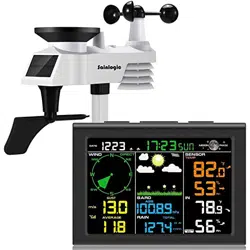
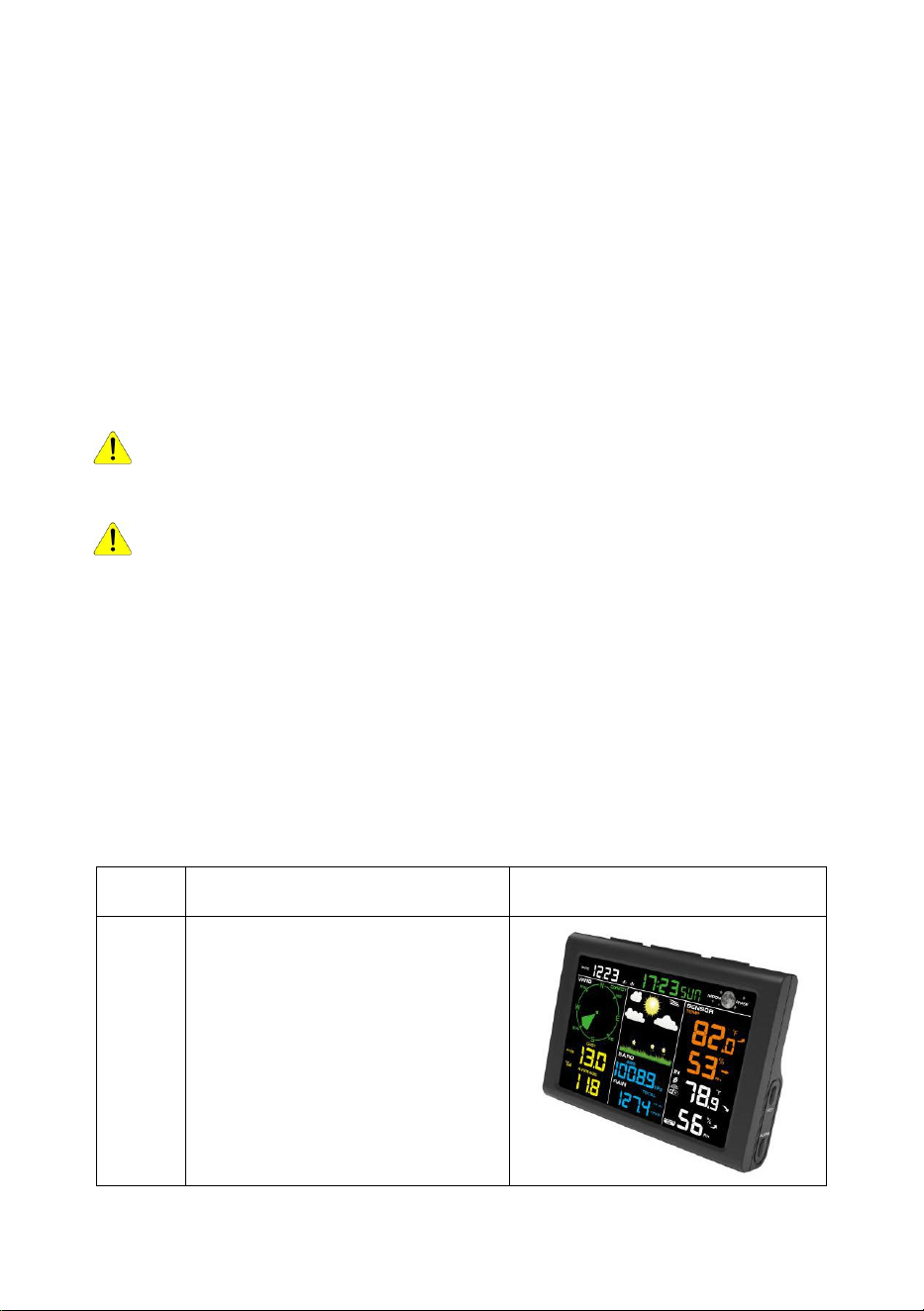
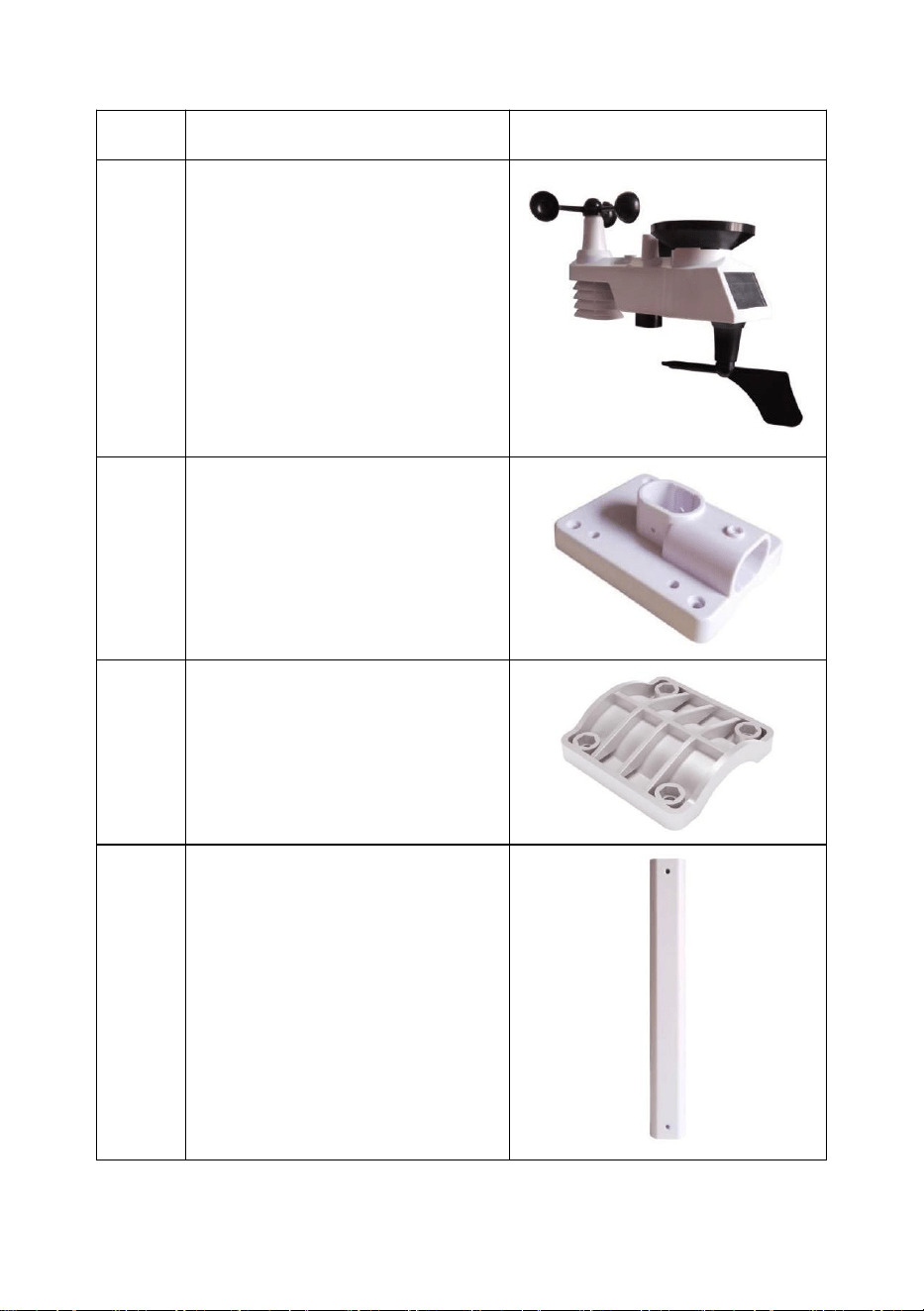
The WS-0835 Plus weather station consists of a display console
(receiver), a sensor array with Integrated Outdoor Transmitter and
mounting hardware
Parts List
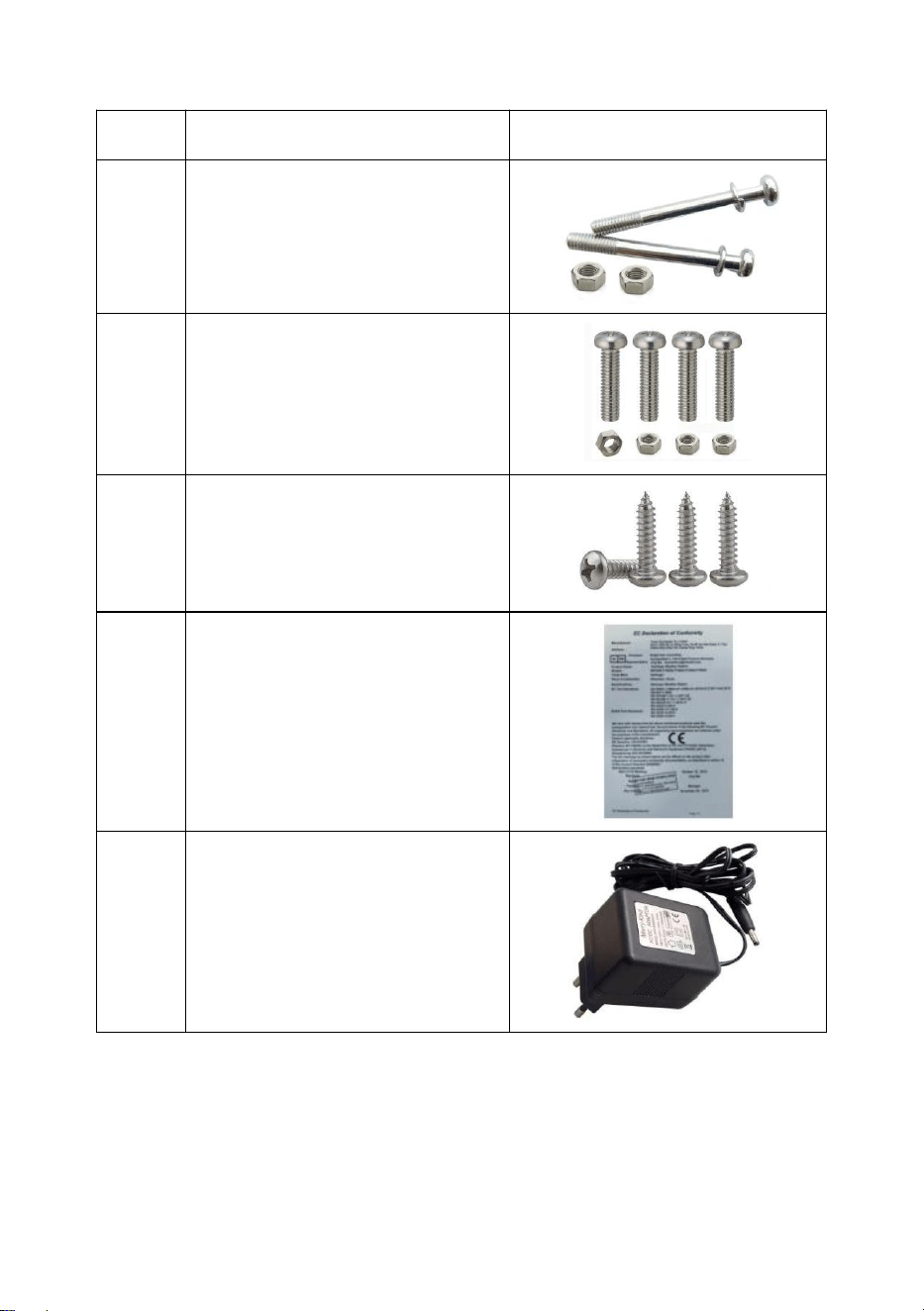
The weather station consists of the following parts (as referenced in
Figure 1 ).
QTY
Item
Image
1
Display Console
Frame Dimensions (LxHxW):
5.3X 1 X 3.7in
LCD Dimensions (LxW):
4.3 x 3in
2
QTY
Item
Image
1
Integrated Outdoor
Transmitter
Dimensions (LxHxW):
13 x 6 x 11in
1
Foot Mounting (with pole
insert)
Dimensions: 3 x 4 x 1 ½”
1
Mounting Bracket Back Plate
(pole mount)
Dimensions:3 x 3 x 1 ”
1
Mounting Pole
Dimensions: 12 x 1½ x 1”
3
QTY
Item
Image
2
Pole mounting nuts (M3) /
bolts Ø3)
4
Pole mounting nuts (M5) /
bolts ( Ø5)
4
Tapping screws
1
Manual
1
Power Adapter
Figure 1
3.2 Recommend Tools
● Precision screwdriver (for small Phillips screws)
● Compass or GPS (for wind direction calibration)
4
● Adjustable Wrench
● Hammer and nail for Foot Mounting.
3.3 Sensor Assembly Set Up
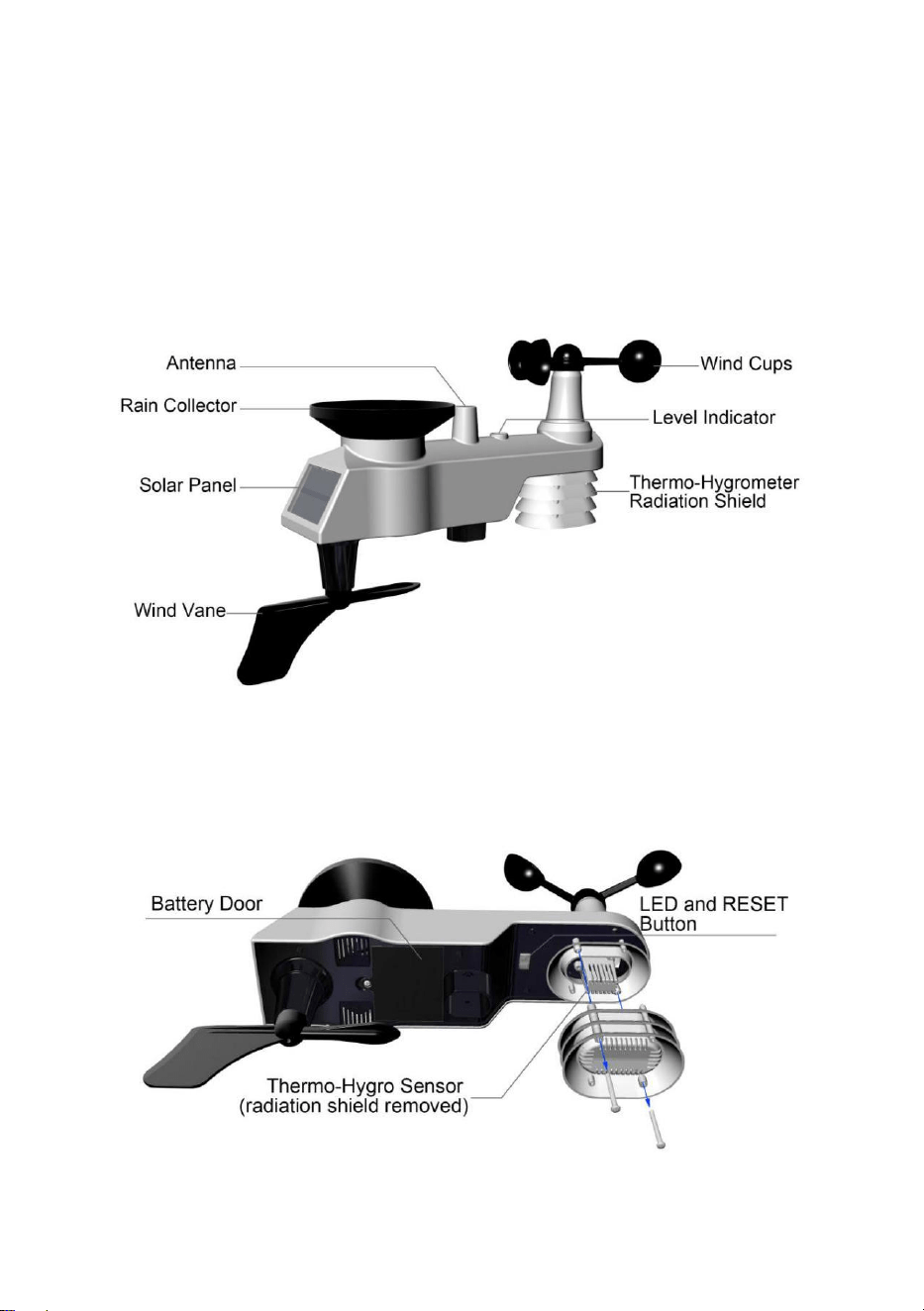
The following illustration shows the full segment for Thermo-
Hygrometer ,WIND and RAIN transmitter .purposes only ,as shown in
Figure 2.
Figure 2
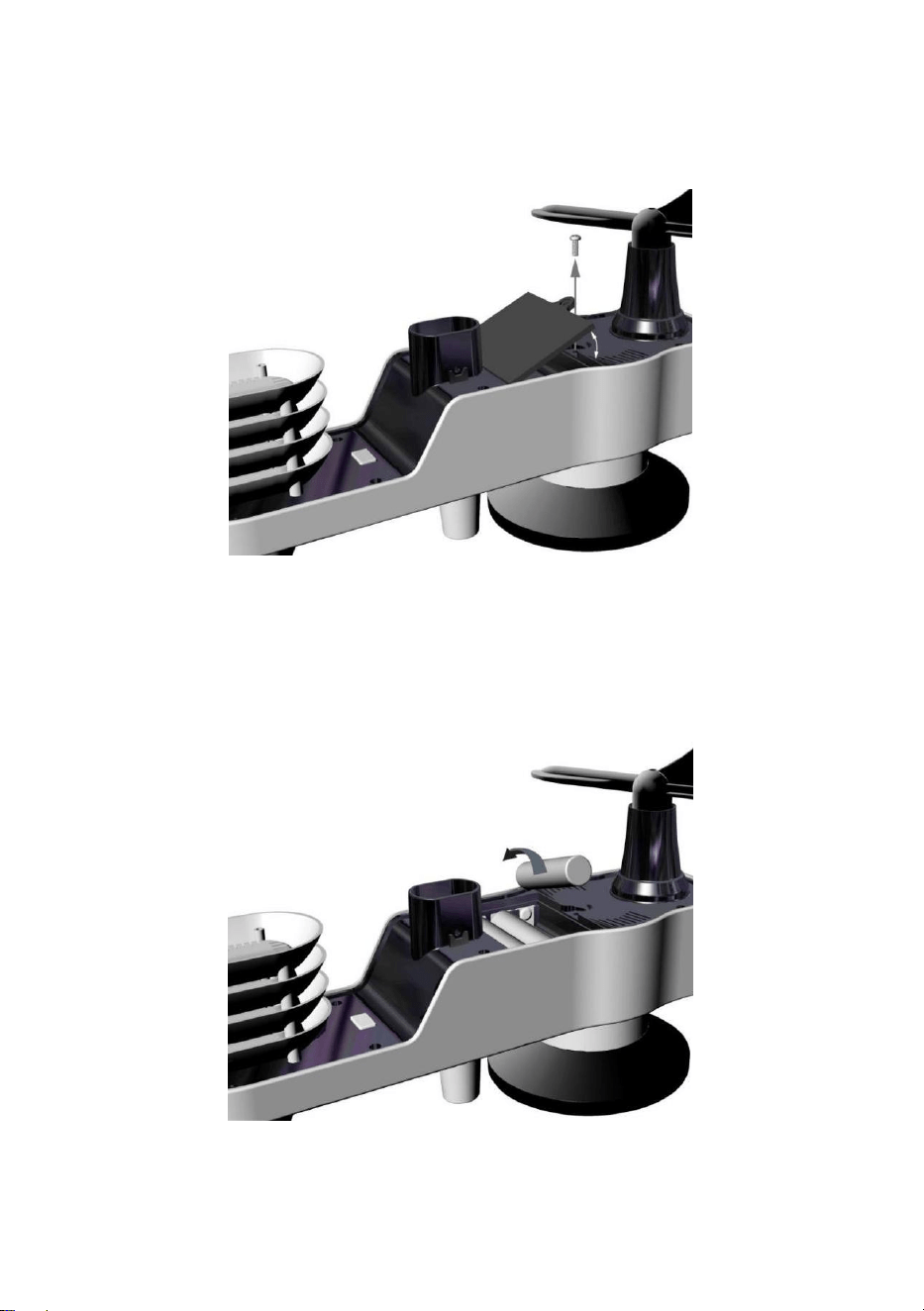
3.3.1 Insert batteries into the transmitter. Locate the battery door on
the transmitter, push and open the battery compartment, as show in
Figure 3.
Figure 3
5
Remove the battery door on the back of the sensor by removing the set
screw, as shown in Figure 4.
Figure 4
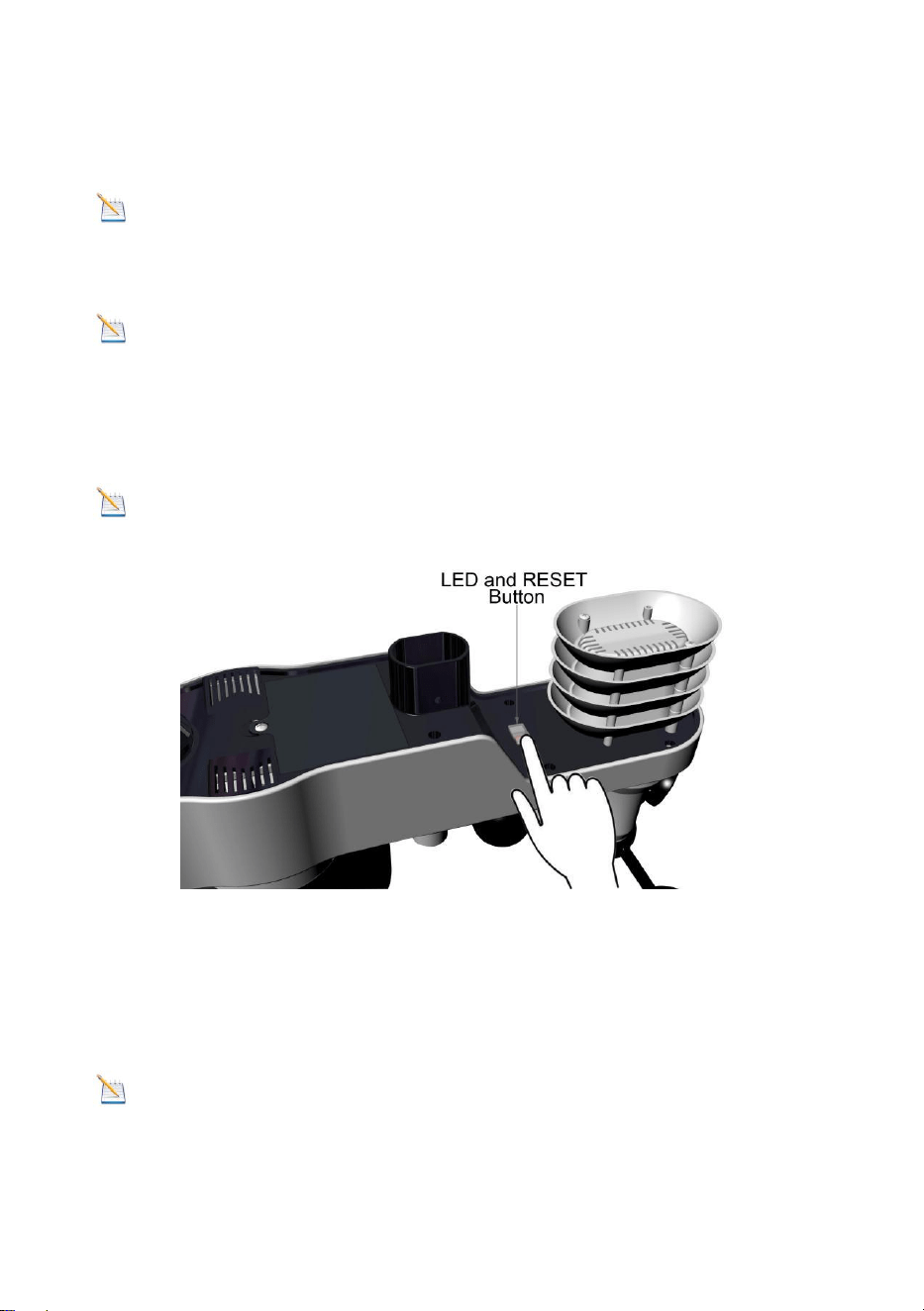
Inserting 3xAA batteries in the battery compartment, as show in Figure
5.
Figure 5
6
Close the battery cover. Make sure the gasket (around the battery
compartment) is properly seated in its place prior to closing the door.
Tighten the set screw.
Note: Do not install the batteries backwards. You can permanently
damage the sensors. The solar panel does not charge the batteries, so
rechargeable batteries are not needed or recommended.
Note: We recommend installing Lithium AA batteries for sensors.
The sensor LED indicator will light for 3 seconds, and then flash once
per 16 seconds thereafter. Each time it flashes, the sensor is
transmitting data.
Place the battery cover and push it to close the compartment.
Note: If the sensor does not power up after inserting the batteries,
press the reset button shown in Figure 6.
Figure 6
3.4. Display Console
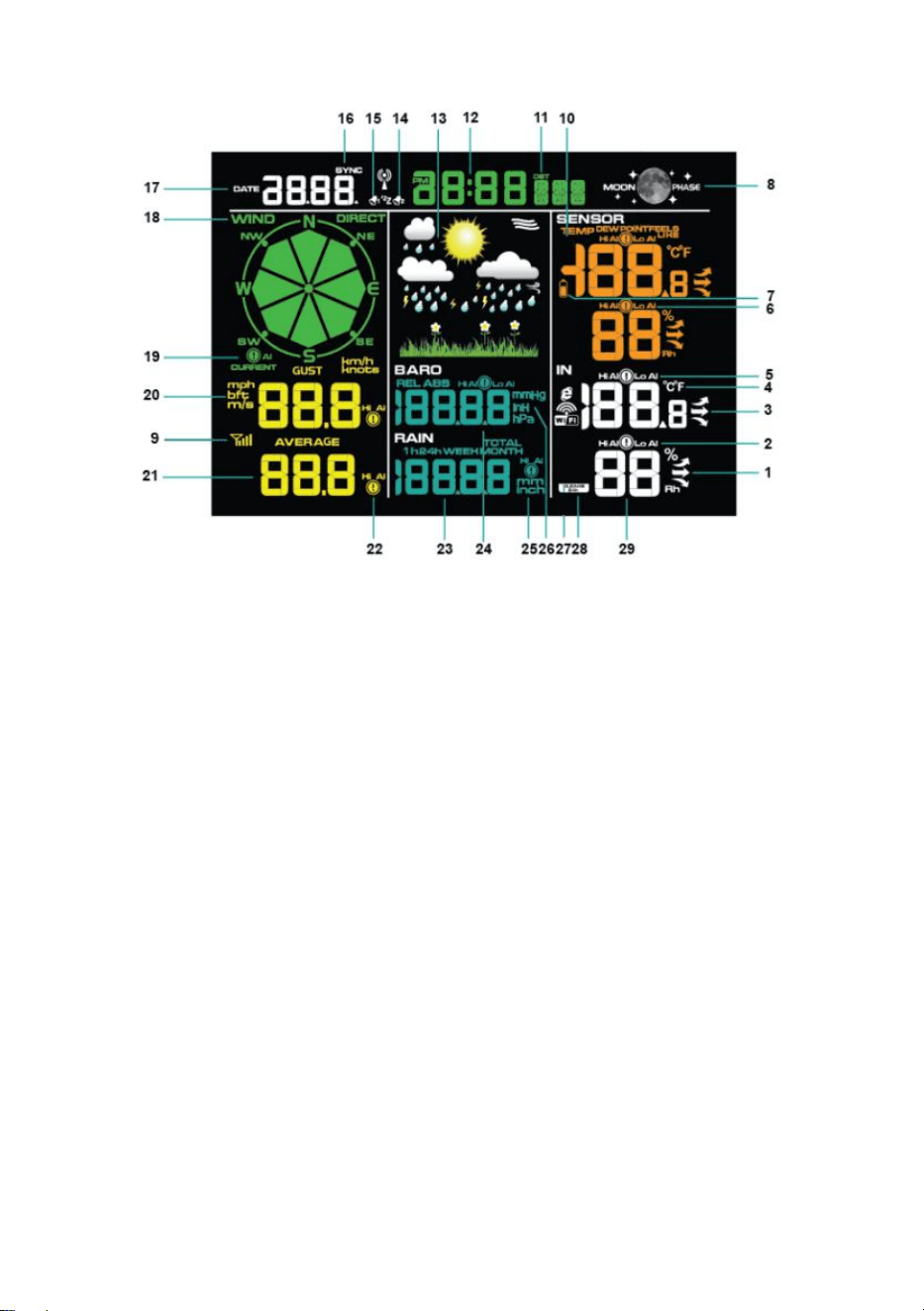
3.4.1. Display Console Layout
The display console layout is shown in Figure 7
Note: The following illustration shows the full segment LCD display
for description purposes only and will not appear like this during normal
operation.
7
Figure 7
1.Indoor humidity change indication
2.Indoor humidity HI/LO alarm icon
3.Indoor temperature change
indication
4.Temperature units (°F or °C)
5.Indoor temperature HI/LO alarm
icon
6.Outdoor humidity HI/LO alarm icon
7.Battery low voltage prompt
8.Moon phase
9.Reception icon
10.Outdoor temperature mode
11.Daylight Saving Time
12.Time
13.Weather tendency indicator
14.Time Alarm 1
15. Time Alarm 2
16. 16. Time SYNC
17. DATE
18. Wind direction
19. Wind speed units of measure
20.Wind speed Gust display
21.Wind speed average display
22.Wind speed average HI alarm icon
23. Rainfall display (1h, 24h, week,
month, total)
24.Pressure (REL and ABS) display
25. Rainfall units of measure
26.Pressure units of measure
27.WIFI network
28.24hour for clear
29.Indoor humidity display
8
3.4.2. Display Console Set Up
It is recommended to plug in the power supply to reduce the
battery consumption and extend the service life.
Note: The sensor array must be powered and updating before
powering up the console, or the
console will time out searching for the sensors. Power the console last.
Make certain the weather station sensor array is at least 10’ away from
the console and within
100’ of the console. If the weather station is too close or too far away, it
may not receive a proper signal.
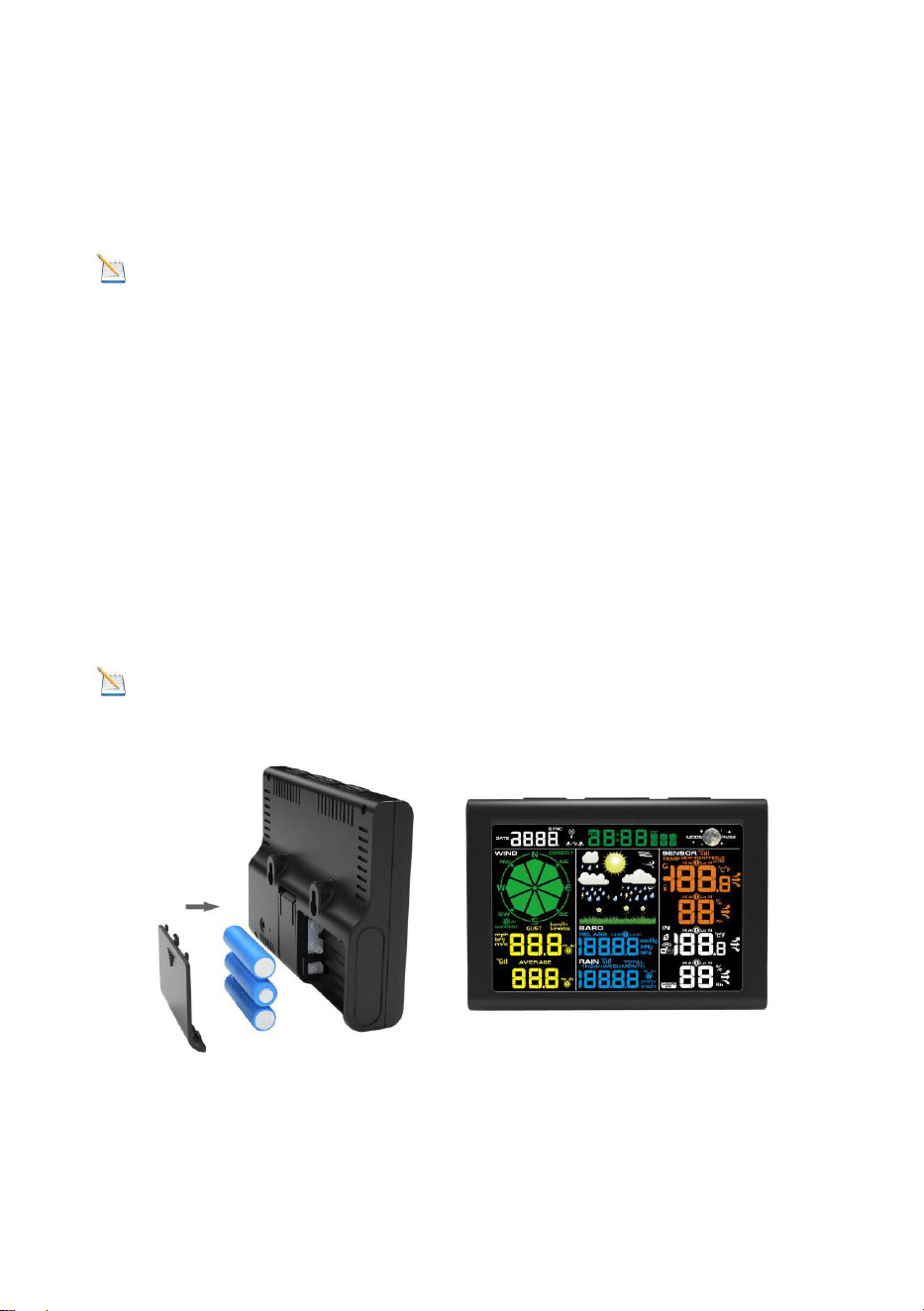
Remove the battery door on the back of the display, as shown in Figure
8. Insert three AAA (alkaline or lithium) batteries in the back of the
display console. The display will beep once and all of the LCD
segments will light up for a few seconds to verify all segments are
operating properly.
Note: The character contrast is best from a slightly elevated viewing
angle.
Figure 8
Replace the battery door, and fold out the desk stand and place the
console in the upright position.
9
The unit will instantly display indoor temperature, humidity, pressure,
tendency, moon phase, and time. The wind speed, wind gust, wind
direction, rain, outdoor temperature and humidity will update on the
display within a few minutes. Do not Press any menu buttons until the
outside transmitter report in, otherwise the outdoor sensor search mode
will be terminated. When the outdoor transmitter data has been
received, the console will automatically switch to the normal mode from
which all further settings can be performed.
While in the search mode, the remote search icon will be constantly
displayed.
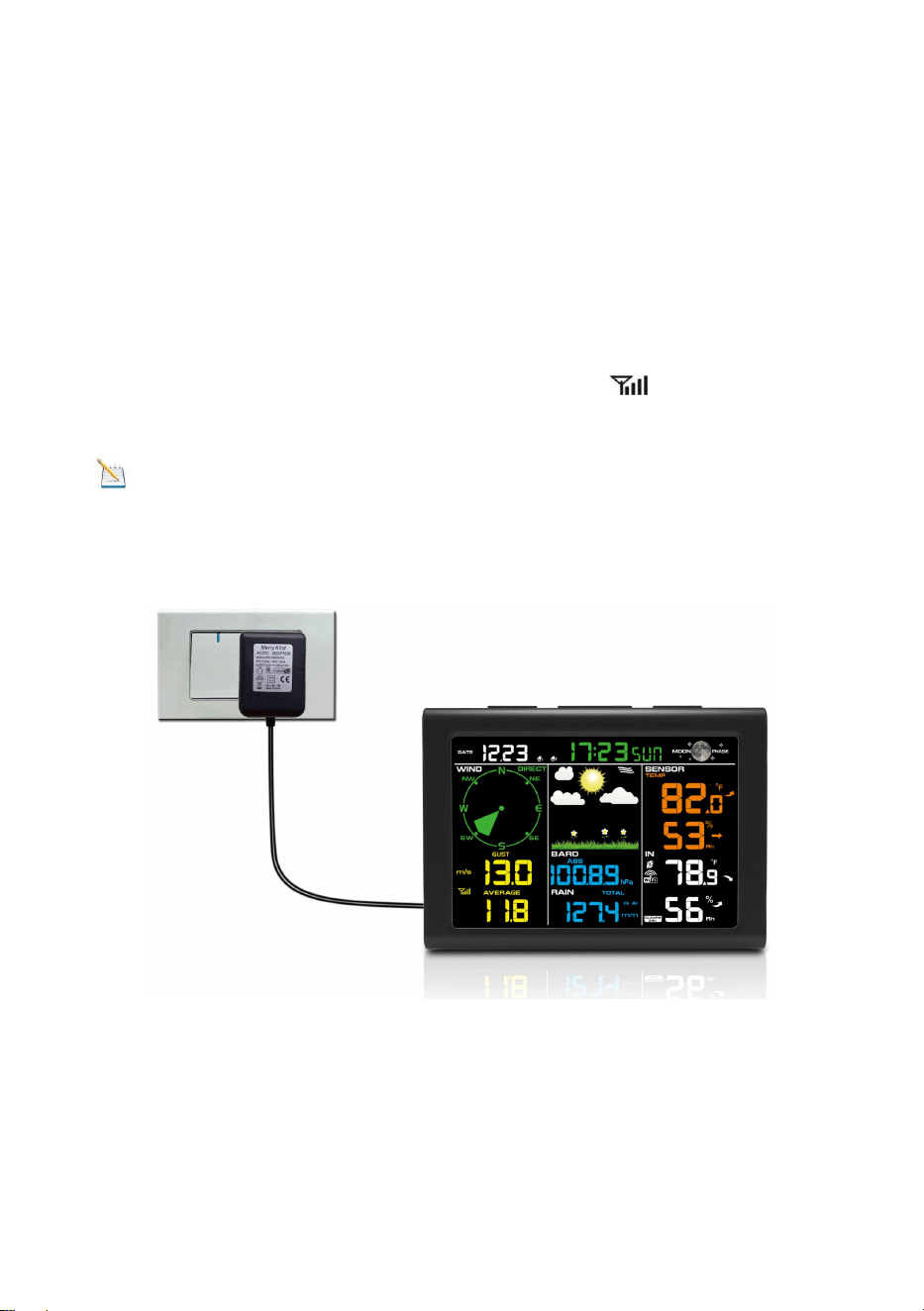
Note: The power adapter is intended to be correctly oriented in a
vertical or floor mounted position. The prongs are not designed to hold
the plug in place if it is plugged into a ceiling, under-the-table or cabinet
outlet.
Figure 9
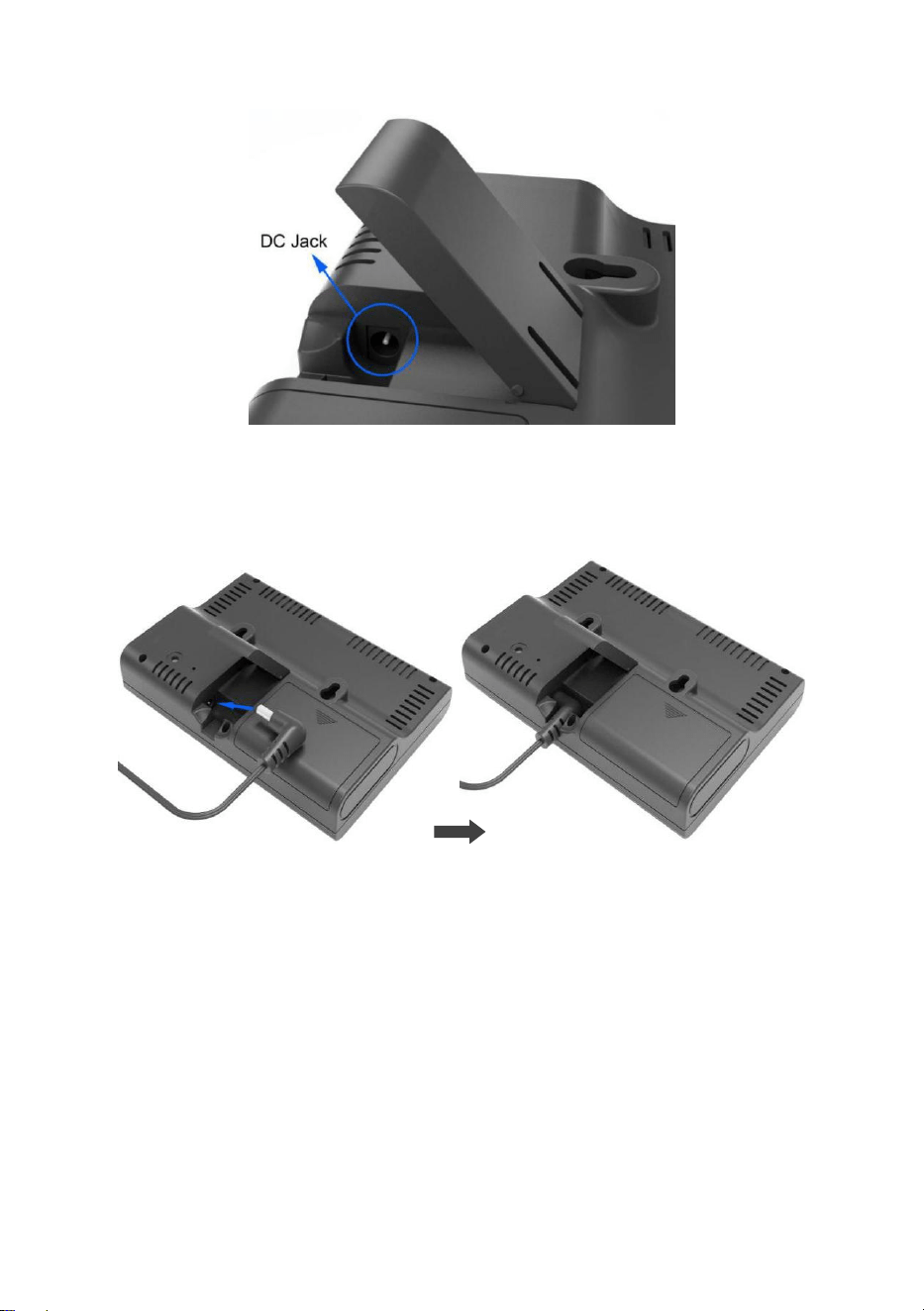
1: Fold out the desk stand and see DC jack on the left ; as shown in
Figure 10
10
Figure 10
2: Insert the DC plug correctly ; as shown in Figure 11
Figure 11
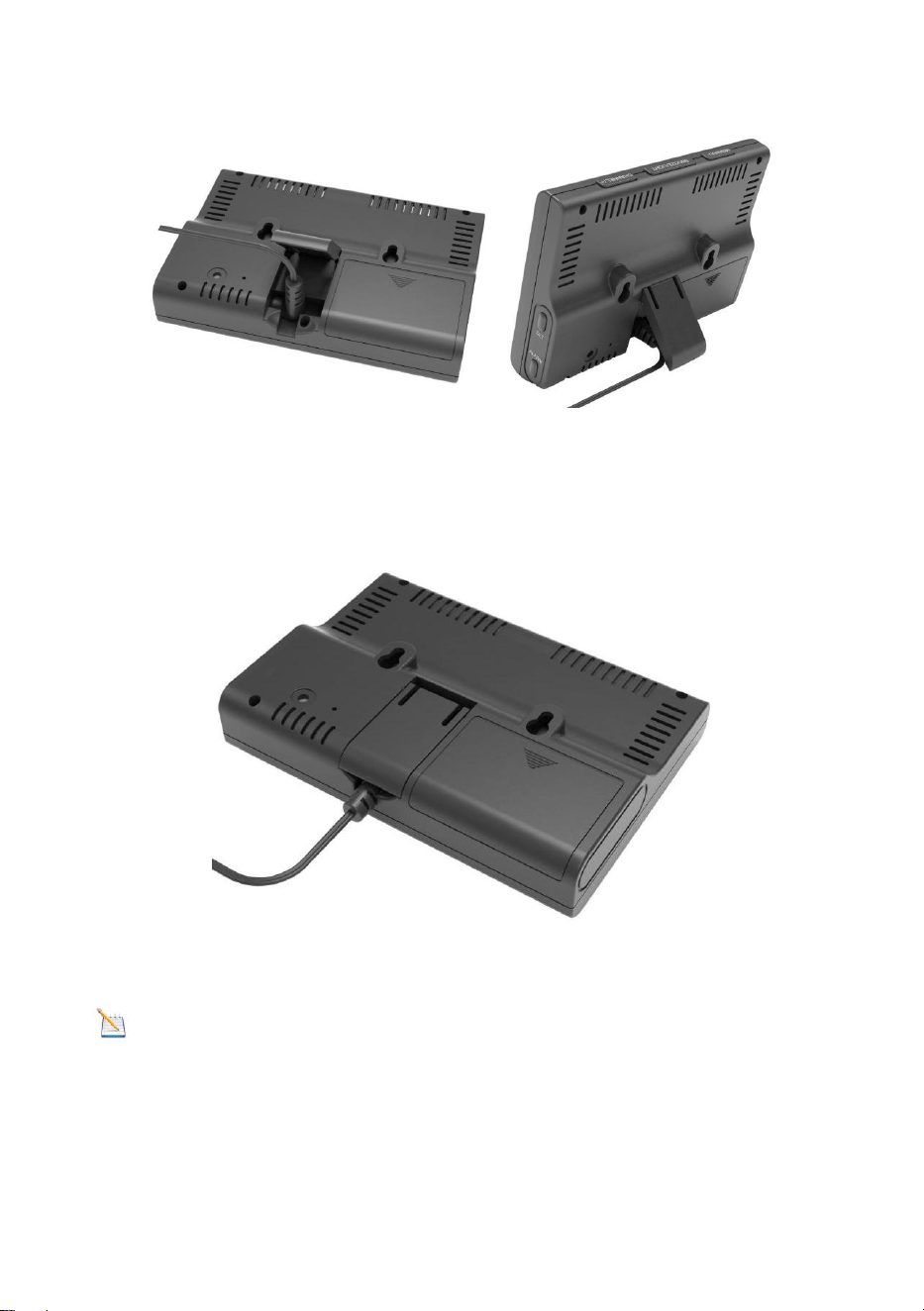
3: If you want to put it on a table or cabinet, opened the desk stand and
turn the DC plug up until 90 degrees; as shown in Figure 12
11
Figure 12
4: If you want to hang on the wall, turn the DC plug down until 0
degrees and closed the desk stand; as shown in Figure 13
Figure 13
Note: If the power adapter is plugged in, BL ON will display in the
time area for three seconds when powered up. Conversely, if the power
adapter is not plugged in, BL OFF will be displayed.

12
3.4.3. Sensor Operation Verification
The following steps verify proper operation of the sensors prior to
installing the sensor array.
1. Verify proper operation of the rain gauge. Tip the sensor array back
and forth several times. You should hear a “clicking”sound within the
rain gauge. Verify the rain reading on the display console is not reading
0.00. Each “click”represents 0.01in of rainfall.
2. Verify proper operating of the wind speed. Rotate the wind cups
manually or with a constant speed fan. Verify the wind speed is not
reading 0.0.
3. Verify proper operation of the indoor and outdoor temperature. Verify
the indoor and outdoor temperature match closely with the console and
sensor array in the same location
(about 9.8 ft apart). The sensors should be within 4°F(the accuracy is
±2°F). Allow about 30 minutes for both sensors to stabilize.
4. Verify proper operation of the indoor and outdoor humidity. Verify the
indoor and outdoor humidity match closely with the console and sensor
array in the same location (about 9.8 ft apart). The sensors should be
within 10% (the accuracy is ± 5%). Allow about 30 minutes for both
sensors to stabilize.
4. Weather Station Installation
4.1. Pre Installation Check. Before installing your weather station
in the permanent location, we recommend operating the weather
station for one week in a temporary location with easy access. This
will allow you to check out all of the functions, insure proper operation,
and familiarize you with the weather station and calibration procedures.
This will also allow you to test the wireless range of the weather station.
4.2. Location Survey
Perform a site survey before installing the weather station. Consider the
following:
1. You must clean the rain gauge once per year and change the
batteries every year. Provide easy access to the weather station.
2. Avoid radiant heat transfer from buildings and structures. In general,
install the sensor array at least 5’ from any building, structure, ground,
or roof top.
3. Avoid wind and rain obstructions. The rule of thumb is to install the
sensor array at least four times the distance of the height of the tallest
13
obstruction. For example, if the building is 20’ tall, install 4 x (20 – 6)’
=56’ away. Use common sense. If the weather station is installed next
to a tall building, the wind and rain will not be accurate.
4. Wireless Range. The radio communication between receiver and
transmitter in an open field can reach a distance of up to 300 ft,
providing there are no interfering obstacles such as buildings, trees,
vehicles, high voltage lines. Wireless signals will not penetrate metal
buildings. Most applications will only reach 100 ft due to building
obstructions, walls and interference.
5. Radio interference such as PCs, radios or TV sets can, in the worst
case, entirely cut off radio communication. Please take this into
consideration when choosing console or mounting locations.
4.3. Best Practices for Wireless Communication
Wireless communication is susceptible to interference, distance, walls
and metal barriers. We recommend the following best practices for
trouble free wireless communication.
1. Electro-Magnetic Interference (EMI). Keep the console several feet
away from computer monitors and TVs.
2. Radio Frequency Interference (RFI). If you have other 433 MHz
devices and communication is intermittent, try turning off these other
devices for troubleshooting purposes. You may need to relocate the
transmitters or receivers to avoid intermittent communication.
3. Line of Sight Rating. This device is rated at 300 ft line of sight (no
interference, barriers or walls) but typically you will get 100 ft maximum
under most real-world installations, which include passing through
barriers or walls.
4. Metal Barriers. Radio frequency will not pass through metal barriers
such as aluminum siding. If you have metal siding, align the remote and
console through a window to get a clear line of sight.
The following is a table of reception loss vs. the transmission medium.
Each “wall”or obstruction decreases the transmission range by the
factor shown below.
Medium
RF Signal Strength Reduction
Glass (untreated)
5-15%
Plastics
10-15%
14
Wood
10-40%
Brick
10-40%
Concrete
40-80%
Metal
90-100%
5. Final Installation of Sensor
Integrated outdoor transmitter installation.
Professional Wireless Weather Station can be used in both the
Northern and Southern Hemispheres.
Prior to installation, you will need to calibrate the wind direction.
5.1. Northern Hemispheres (NOR).
The cardinal directions (N, S, E, W) molded on the body of the outdoor
sensor are indicators for the Northern Hemisphere only.
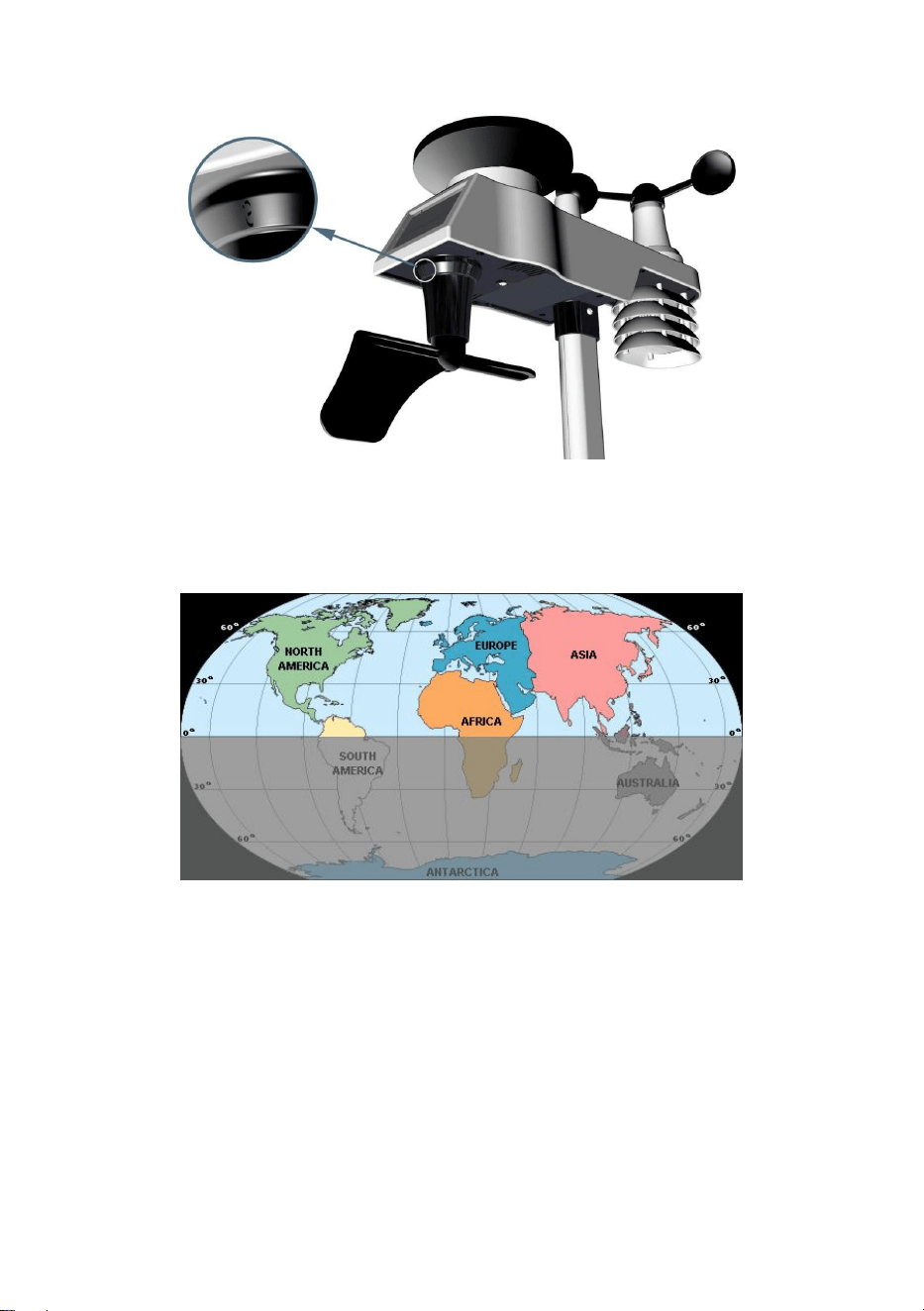
Step 1:There is a “S” indicator on the wind vane that indicates South,
as shown in Figure 14. Align this “S” marker in the direction of South.
Step 2: Console operation is set to Northern Hemispheres ( NORin the
time area) in Location division.
Note: There are four alphabet letter of “N”,”E”,”S”and “W” around
the wind direction, representing for the direction of North, East, South
and West. Wind direction sensor has to be adjusted so that the
directions on the sensor are matching with your real location.
Permanent wind direction error will be introduced when the wind
direction sensor is not positioned correctly during installation.
15
Northern Hemispheres
Figure 14
Southern Hemispheres
5.2. Southern Hemispheres (SOU).
For Southern Hemisphere installations, ignore these(N, S, E, W) and
face the solar panel to the North (and in a sunny position) when
installing the Integrated outdoor transmitter.
Step 1: Install the Integrated outdoor transmitter and face the solar
panel North.
Step 2: Console operation is set to Southern Hemispheres ( SOU in
the time area) in Location division.
16
Note: Console has to be location division setting so that the
directions on the sensor are matching with your real location.
Permanent wind direction error(read approximately 180º)will be
introduced when the wind direction sensor is not positioned correctly
during installation.
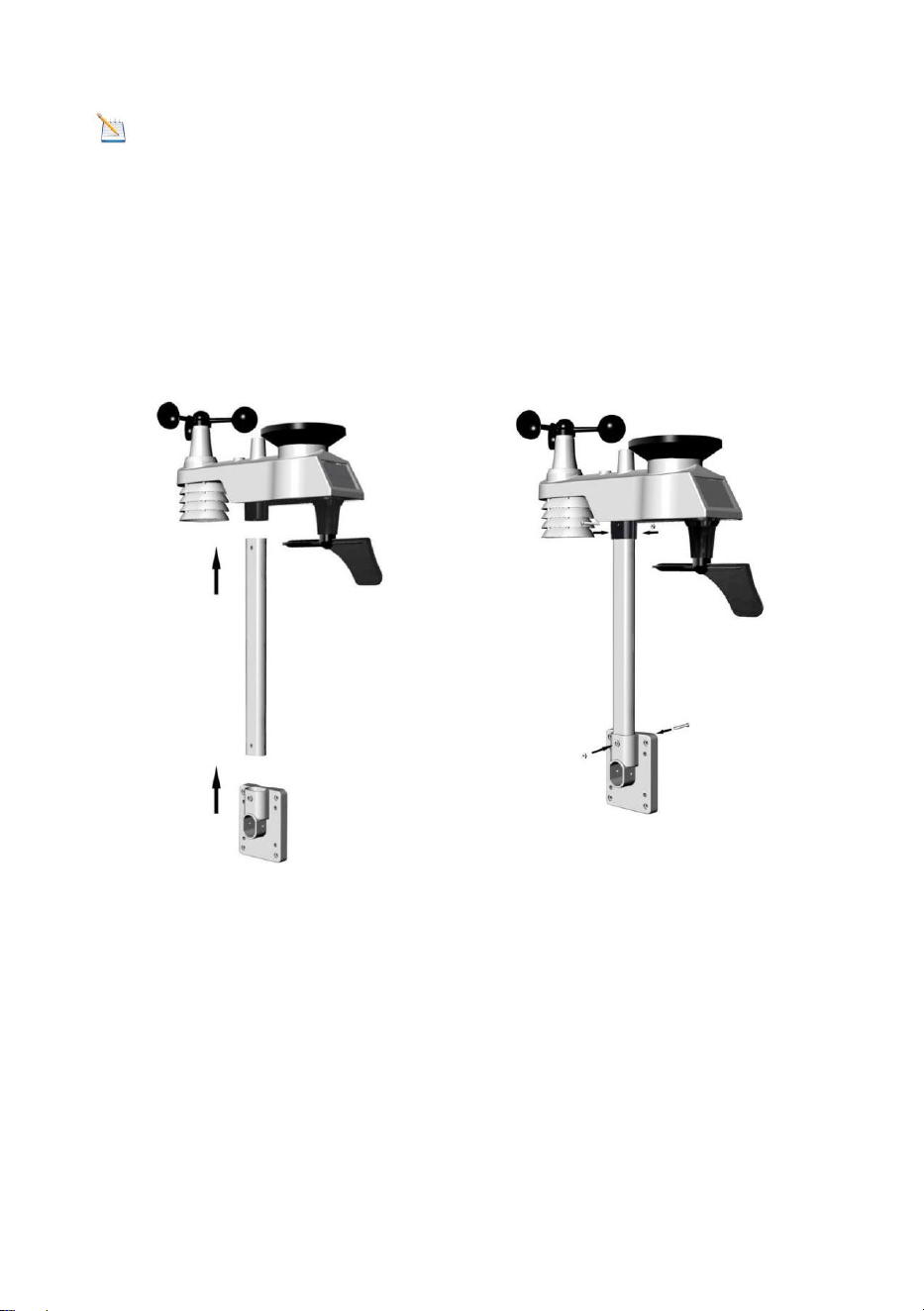
Fasten the integrated transmitter to mounting pole brackets with foot-
mounting, two ¢3 bolts and M3 nuts , as shown in Figure 15
Figure 15
Tighten the mounting pole to your mounting pole(purchased separately)
with the four¢5 Bolts and M5 Nuts assembly, or fix on the wall with four
tapping screw, as shown in Figure16.
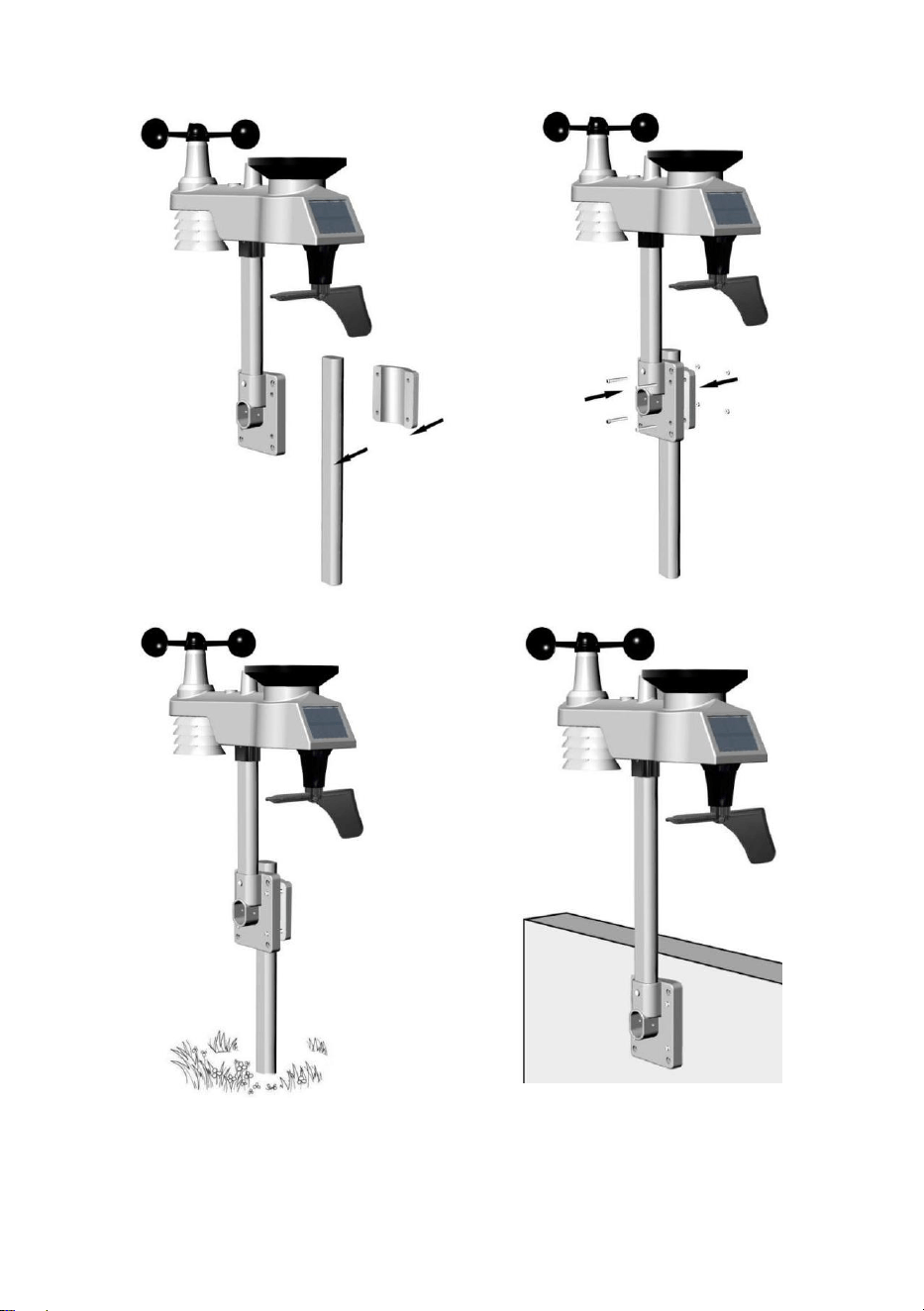
17
Figure 16
18
6. Low Battery Icon
A low battery indicator icon is shown in the display window for
Integrated outdoor transmitter. When the low battery icon appears (the
battery voltage is lower than 3.6V), replace the batteries in the sensor
with fresh batteries. Be sure to never mix old and new batteries, and
never mix battery types such as alkaline and lithium together.
7. Console Operation
Note:The console has five keys for easy operation: SET key and
ALARM key on the right side, MIN/MAX/-key, SNOOZE/LIGHT and
CHANNEL/+ key on the top.
7.1. Quick Display Mode
Note: To exit the Quick Display Mode at any time, press the
SNOOZE button of the display console.
While in Normal Mode, press (do not hold) the SET key to enter the
Quick Display Mode as follows:
once for time/second/date, time/week/date and time/week/year
twice for rainfall.
three for pressure
four for outdoor dew point temperature
1.Time, Time/Week and Date. Press the CHANNEL/+ or MIN/MAX/-
key to toggle between time/second/date, time/week/date and
time/week/year.
2.Rainfall. Press the CHANNEL/+ or MIN/MAX/- key to toggle between
1h, 24h, week, month and total.
To clear the total rain, press the CHANNEL/+ or MIN/MAX/- button
until total rain is displayed. The total rain will flash. Press and hold the
SET button for three seconds until total rain reads 0.0.
3.Absolute Pressure and Relative Pressure. Press the CHANNEL/+
or MIN/MAX/- key to toggle between absolute pressure and relative
pressure.
4.Outdoor dew point .Press the CHANNEL/+ or MIN/MAX/- key to
toggle between temperature, dew point and feels like
19
7.2. Set (Program) Mode
While in Normal Mode, Press and hold the SET key for at least three
seconds to enter the Set Mode. The first setting will begin flashing. You
can press the SET key again to skip any step, as defined below.
Note: In the Set mode, press the [+] key or [-] key to change or
scroll the value. Hold the [+] key or [-] key for three seconds to
increase/decrease rapidly.
Note: To exit the Set mode at any time, press the SNOOZE button
of the display console.
1. 12/24 Hour Format (default: 12h):.Press the SET key again to
adjust the 12/24 hour format setting (FMT). Press the [+] key or [-]
key to change between 12 hour and 24 hour format.
2. Change Hour. press the SET key again to set the hour. Press the
[+] key or [-]key to adjust the hour up or down. Note the PM icon is
present during afternoon hours.
3. Change Minute. Press the SET key again to set the minute. Press
the [+] key or [-] key to adjust the minute up or down.
4. Date Format (default: MM-DD): Press the SET key again to enter
the day/month format mode. Press the [+] key to switch between M-
D, D-M.
5. Change Month. Press the SET key again to set the calendar month.
Press the [+] key or [-] key to adjust the calendar month.
6. Change Day. Press the SET key again to set the calendar day.
Press the [+] key or [-] key to adjust the calendar day.
7. Change Year. Press the SET key again to set the calendar year.
Press the [+] key or [-] key to adjust the calendar year.
8. Max/Min Clearing (default: ON). Press the SET key again to set
the max/min clearing mode (CLR). The Max/Min can be
programmed to clear daily (at midnight) or manually. Press the [+]
key or [-] key to switch between “Clears 24h” and Clears Manually.
9. Temperature Units of Measure (default: °F):. Press the SET key
again to change the temperature units of measure (the UNITSET
icon will be displayed). Press the [+] key or [-] key to switch
between °F and °C units of measure.
10. Wind Speed Units of Measure (default: mph). Touch the SET key
again to change the wind speed units of measure . Touch the [+]
key or [-] key to toggle the wind speed units between
m/s,bft,knots,mph or bft.

20
11. Rainfall Units of Measure (default: in). Touch the SET key again
to change the Rainfall units of measure. Touch [+] key or [-] key to
toggle the rainfall units between mm and in.
12. Barometric Pressure Display Units(default: inHg). Press the
SETkey again to change the pressure units of measure. Press the
[+] key or [-] key to toggle the pressure units between mmHg, inHg
or hPa.
13. Pressure Threshold Setting (default level 2). Press the SET key
again adjust the Pressure threshold setting. Press [+] key or [-] key
to adjust the pressure threshold setting up or down.
14. Weather Forecast Icon Setting (default: partly cloudy). Press
the SET key again to set the weather forecast icon initial conditions
(based on the current weather conditions). Press the [+] key or [-]
key to toggle weather icons between sunny, partly cloudy, cloudy,
or rainy.
15. Time SYNC(default:ON).Press the SET key again to set the
network time sync. Press the [+] key or [-] key to switch between
SYNCtime ON and SYNCtime OFF of measure.
16. Location division.(default: Northern Hemisphere) Press the SET
key again to change the location division. Press the [+] key or [-]
key to toggle the sunlight units Northern Hemisphere (NOR)or
Southern Hemisphere(SOU).(refer to 5.0 Final Installation of
Integrated outdoor transmitter)
7.3. Sensor Search Mode
If Outdoor sensor loses communication, dashes (--.-) will be displayed.
To reacquire the lost signal, press and hold the CH/+ button for 3
seconds to enter the sensor search mode.
7.4. Reset Min/Max record
Note: The minimum and maximum value of all channels will be
cleared in the reset mode.
In normal mode, Press (do not hold) the MIN/MAX/-key, and the MAX
icon will be displayed. Press the SET key to view rainfall (1h, 24h, week
or month) , pressure (ABS or REL) max value ,outdoor temperature
(temperature, dew point or feels like).

21
Next, press and hold the MIN/MAX/- key for three seconds(and the
CLR character is flashing in time area) to clear the rainfall, wind speed,
wind gust, pressure, temperature and humidity maximum values. The
maximum values will now display the current values.
Press the MIN/MAX/- key again (do not hold), and the MIN icon will be
displayed. Press the SET key to view pressure (ABS or REL) min value,
pressure (ABS or REL) min value ,outdoor temperature (temperature,
dew point or feels like).
Next, Press and hold the MIN/MAX/- key for three seconds(and the
CLR character is flashing in time area) to clear the pressure,
temperature and humidity minimum values. The minimum values will
now display the current values.
Press the SNOOZE key to exit the min/max checking and cleaning
mode, return to normal display mode.
7.5. Snooze Mode
If the alarm sounds, and you wish to silence the alarm, press the
SNOOZE key, the backlight will turn on. The alarm icon will continue to
flash and the alarm will silence for five minute. press any key
(MIN/MAX/+ ,SET, ALARM,CHANNEL/+) to permanently exit the
Snooze mode.
7.6. Back light Mode
If the LED is off, Press the SNOOZE button once. The backlight will turn
on for five seconds, and if no operation is performed for three seconds,
the backlight will turn off.
The backlight operation is different when operating on batteries to save
power.
ADJUSTABLE BACKLIGHT BRIGHTNESS
There are 3 levels of brightness of backlight. When the backlight is on
press SNOOZE key to switch between the 3 levels.
22
Press and hold the LIGHT key for two seconds, and the backlight will
turn on permanently, and display BL ON icon will be displayed for three
seconds in the time field.
To turn off the backlight at any time, Press and hold the
SNOOZE/LIGHT key for two seconds, and BL OFF icon will be
displayed for three seconds in the date field.
Note: If plugged into AC power, the backlight will remain on. It is not
recommended leaving the backlight on for a long period of time when
operating on batteries only, or the batteries will run down quickly.
8. Alarm Mode
The weather station includes the following alarms:
Time(Alarm1 and Alarm2)
Wind Gust
Wind Average
Outdoor Temperature
Outdoor Humidity
Outdoor Feels Like Temperature
Outdoor Dew Point
Hourly Rainfall
24 Hour Rainfall
Absolute Pressure
Relative Pressure
Indoor Temperature
Indoor Humidity
8.1. Alarm Operation
When an alarm condition is exceeded, the alarm icon will flash
(visual) and the alarm beeper will sound (audible). To silence the
beeper, press any key.
8.2. Viewing the High and Low Alarms
To view the current alarm settings, press the ALARM key to enter the
alarm mode. HI will be displayed in the time area. At the same time
Alarm time parameters of out/indoor temperature/humidity, rain, feels
like, wind gust, wind average, and dew point are displayed.

23
Press ALARM key again to view the LOW alarms along with the alarm
clock time the same way HI alarms.
Press the SNOOZE key at any time to return to the normal mode.
8.3. Setting the Alarms
Press ALARM key to enter the alarm mode.
Next, Press and hold the SET key for three seconds. The first alarm
parameter will begin flashing (alarm hour).
To save the alarm setting and proceed to the next alarm parameter,
press(do not hold) the SET key.
To adjust the alarm parameter, Touch the [+] or [-] key to increase or
decrease the alarm settings, or Touch and hold the [+] or [-] key for
three seconds to increase or decrease the alarm settings rapidly.
Press the ALARM key to turn on (the alarm icon will appear ) and off the
alarm.
Press the SNOOZE key once at any time to return to the normal mode.
After 30 seconds of inactivity, the alarm mode will time out and return to
normal mode.
The following is a list of the individual alarm parameters that are set (in
order):
1. Alarm hour(alarm 1)
2. Alarm minute(alarm 1)
3. Alarm hour(alarm 2)
4. Alarm minute(alarm 2)
5. Wind Gust high alarm
6. Wind Average high alarm
7. Outdoor temperature high alarm
8. Outdoor temperature low alarm
9. Outdoor humidity high alarm
10. Outdoor humidity low alarm
11. Outdoor feels like high alarm
12. Outdoor feels like low alarm
13. Outdoor dew point high alarm
14. Outdoor dew point low alarm
24
15. Rainfall (1h) high alarm
16. Rainfall (24h) high alarm
17. Absolute pressure high alarm(ABS)
18. Absolute pressure low alarm(ABS)
19. Absolute pressure high alarm(REL)
20. Absolute pressure low alarm(REL)
21. Indoor temperature high alarm
22. Indoor temperature low alarm
23. Indoor humidity high alarm
24. Indoor humidity low alarm
Note: To prevent repetitive alarming of humidity, there is a 4%
tolerance band. For example, if you set the high alarm to 60% and
silence the alarm, the alarm icon will continue to flash until the humidity
falls below 56%, at which point, the alarm will reset and must increase
above 60% to activate again.
8.4. Alarm and Command Key Beeper ON/OFF Mode
The beeper can be silenced for both alarms and key strokes.
In normal mode, press and hold the ALARM key for three seconds to
toggle the beeper on or off (depending on the current setting).
The BZ ON (beeper on) or BZ OFF (beeper off) icon will appear in the
time area for three seconds. Press and hold the ALARM key again for
three seconds to toggle the BZ ON or BZ OFF command.
9. WiFi Connection Status
When the console successfully connects to your Wi-Fi router, the Wi-Fi
signal icon will appear on the LCD display(In front of the Indoor
Temperature). If the Wi-Fi signal is not stable or the console is trying to
connect to the router, the icon will flash. If the icon disappears, it means
the console is not connected to the Wi-Fi router.
Note: If you own a dual band router (2.4 GHz and 5.0 GHz),
make sure you connect to the 2.4 GHz band, otherwise it will fail to
connect the weather station to WiFi.
10. Time Server Sync Status
25
After the console has connected to the internet, it will attempt to
connect to the internet time server to obtain the time. Once the
connection succeeds and the console’s time has updated, the SYNC
icon will appear on the LCD. The time will automatically
synchronize to the internet per an hour.
Note: Time synchronize method: Synchronized through
internet UTC time server.
11. Register with WeatherCloud.net
Note: This is best done on a computer desktop or laptop.
Visit : https://weathercloud.net/ and enter a Username, Email and
Password(It is your Login password of the website, It not your
email password. So no privacy will be exposed).
11.1. Sign Up
1) Click Sign up as below
Figure 17
2) As shown below, enter a Username, Email and Password then Click
Sign up.
Figure 18
26
3) As shown below, an email will be received in your registered mailbox .
Figure 19
4) As shown below, open your mail and log in to the Web address in the
mail.
Figure 20
5) As shown below, click “here” to enter the homepage of the
weathercloud website.
Figure 21
6) As shown below, enter the email address and password you just
registered to enter the weathercloud website.
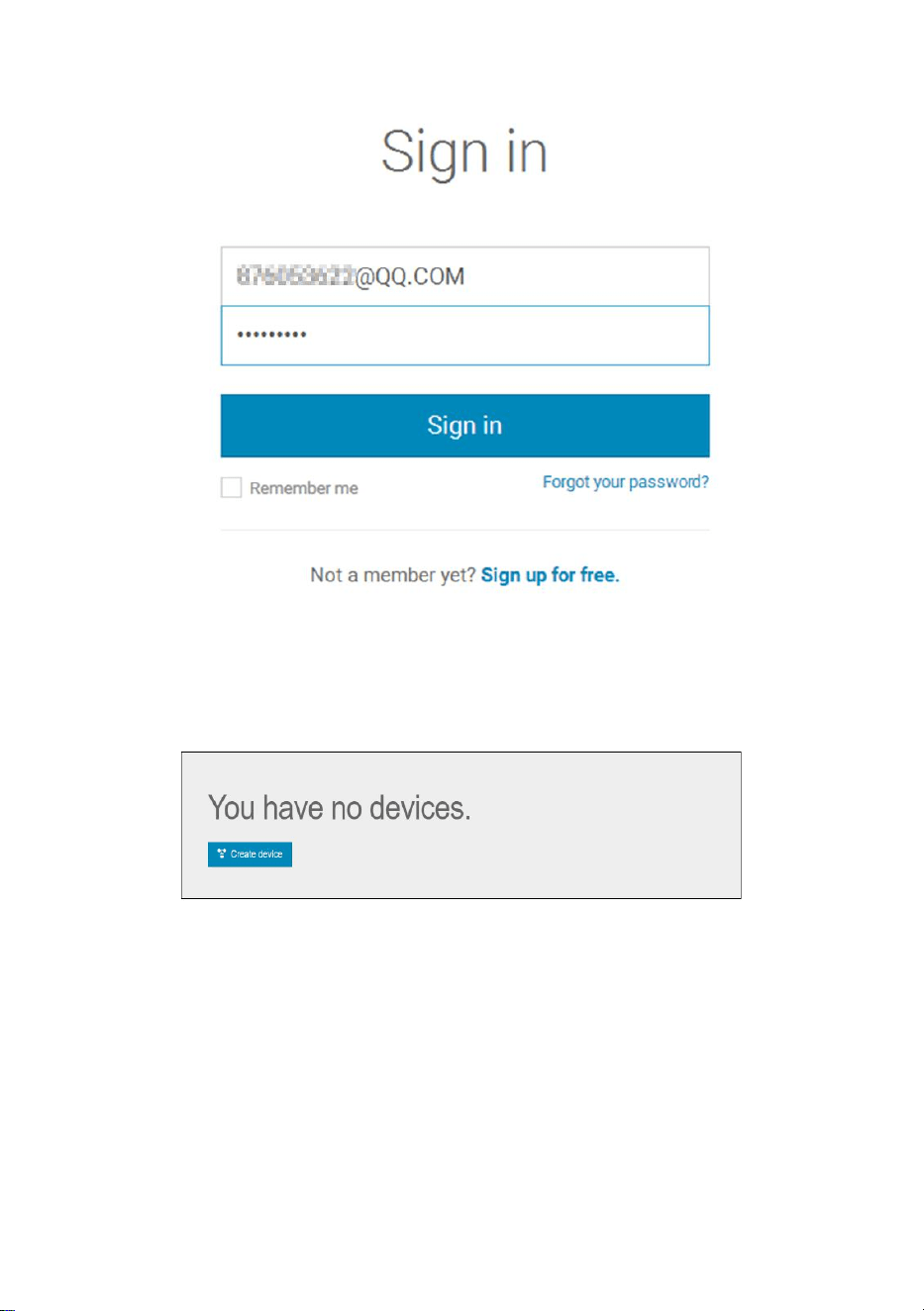
27
Figure 22
11.2. Add a weather station device (it may take a few
minutes).
Figure 23
1) After sign up you will be prompted to add a device/ Select “Create
device” and enter your station’s information:
Blanks with red * must be filled in.
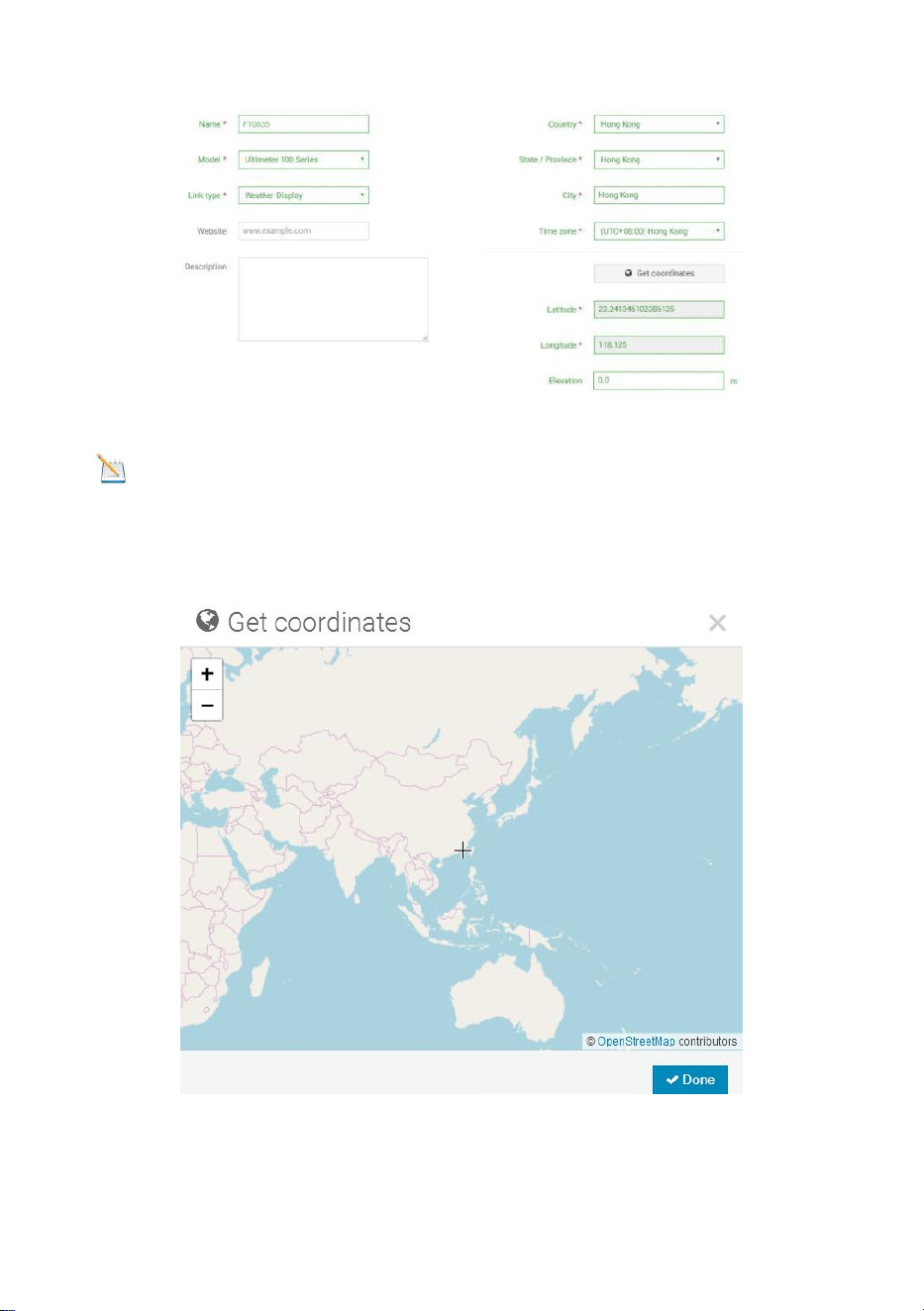
28
Figure 24
Note: You can select any Model number and Link type in the above
blanks.
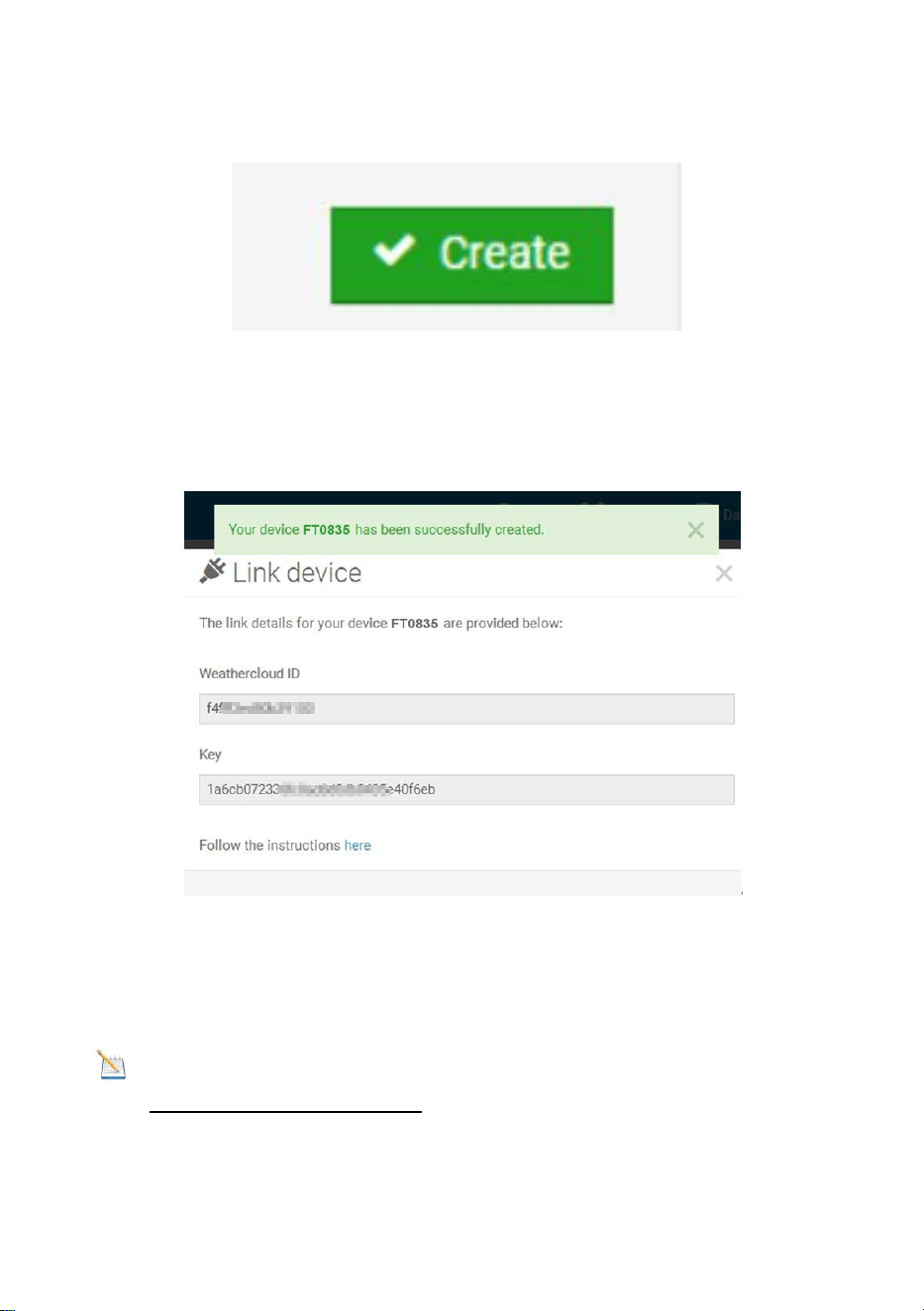
2) As shown below, click Get coordinates to identify your location of on
the map, then click Done to confirm..
Figure 25
29
3) As shown below, click Create.
Figure 26
4) As shown below, after registering successfully, please record the
Weathercloud ID and Key information for later use. (Refer to 13.6)
Figure 27
12. Register at Wunderground.com (Weather
Underground)
Note: The Weather Underground website is subject to change.
Visit: https://Wunderground.com , and select the Join link in the upper
right and corner and create a Free Account.
1) as shown below,Click Join
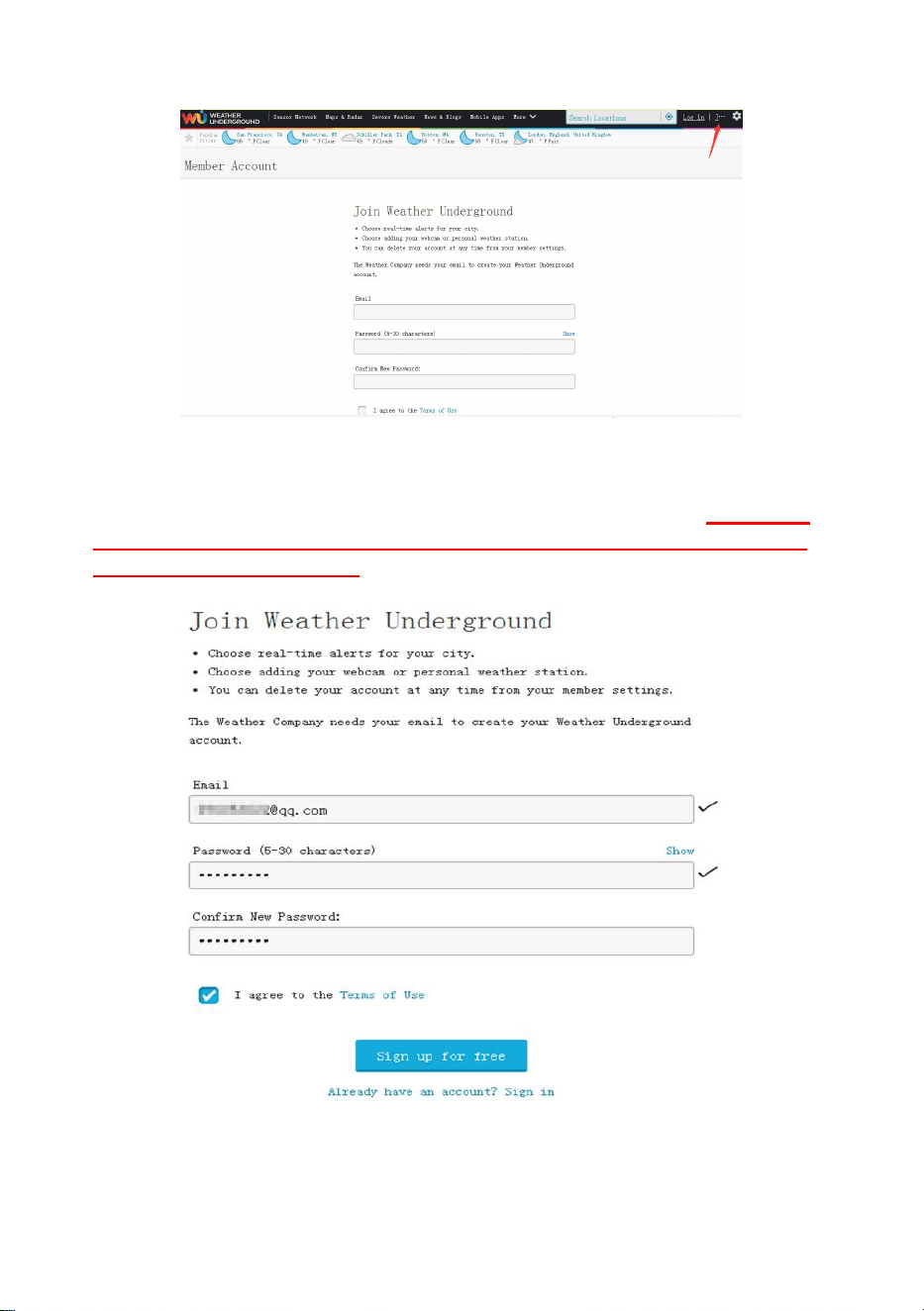
30
Figure 28
2) As shown below, enter a Username, Email and Password(It is your
Login password of the website, It not your email password.So no
privacy will be exposed). Click Sign up for free.
Figure 29
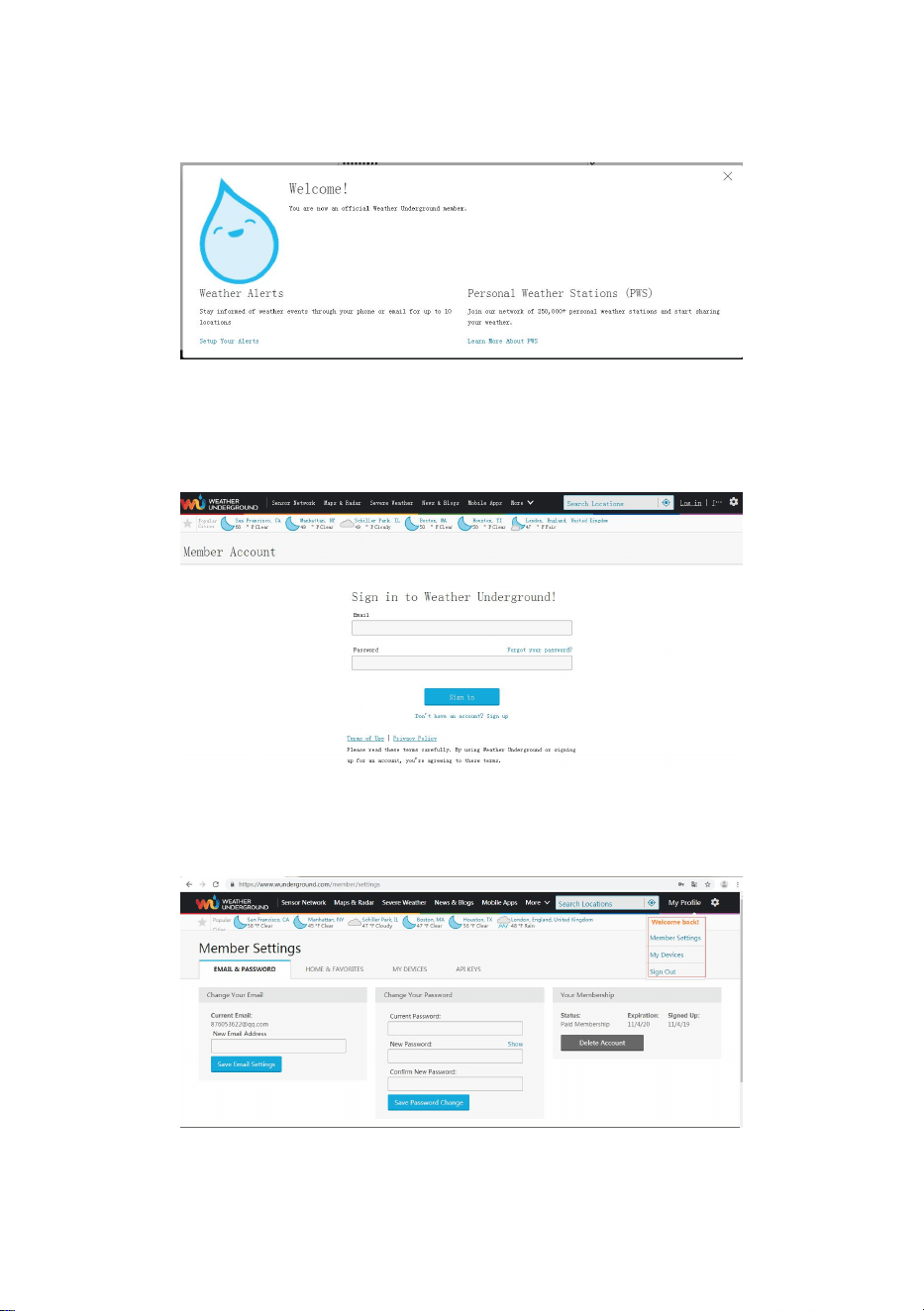
31
3) As shown below, registration is done successfully.
Figure 30
4) As shown below, click Log in and enter the email address and
password you just registered.
Figure 31
5) As shown in the below, click My Profile. Then enter Member Settings.
Figure 32
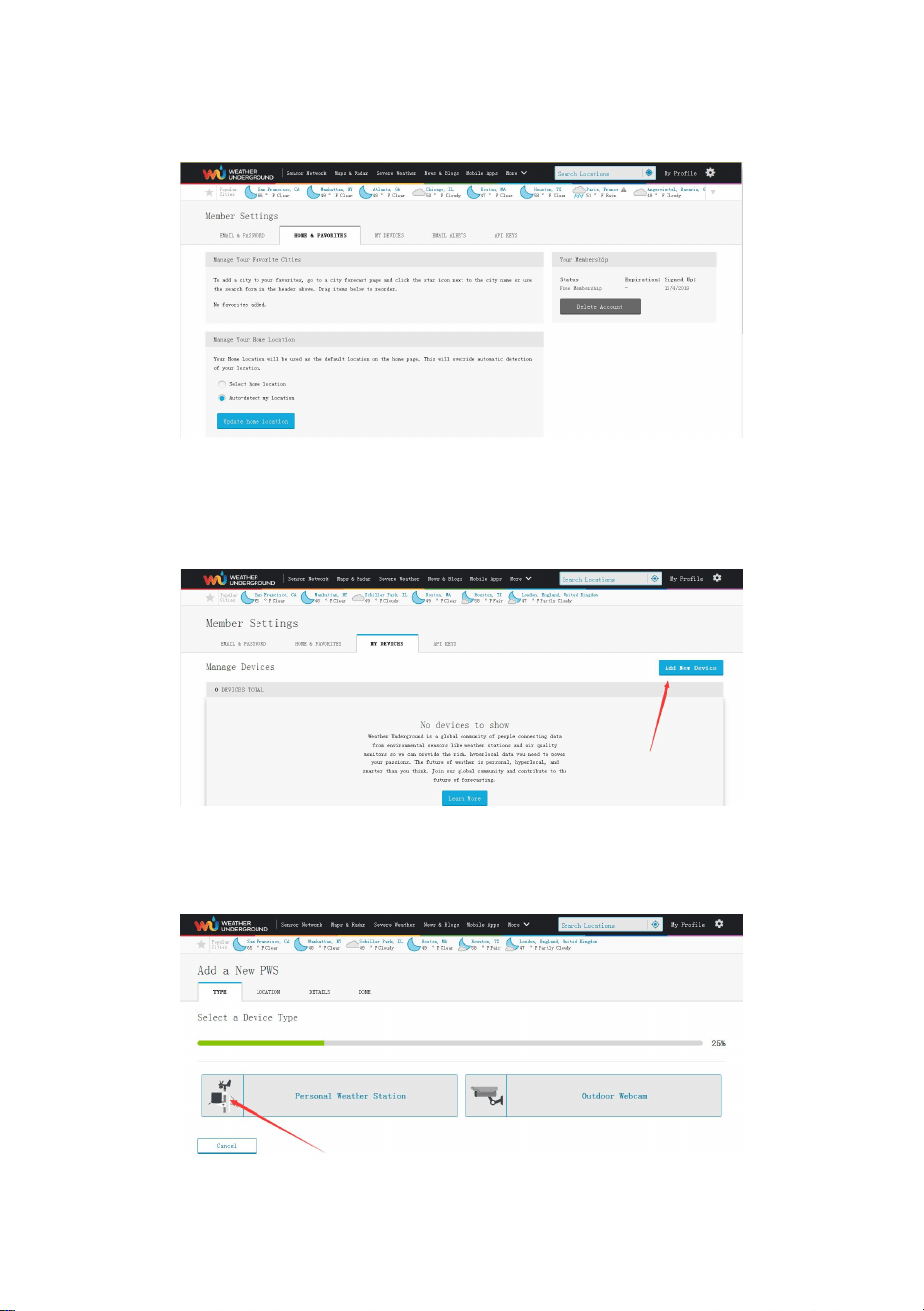
32
6) As shown below, click Update home location.
Figure 33
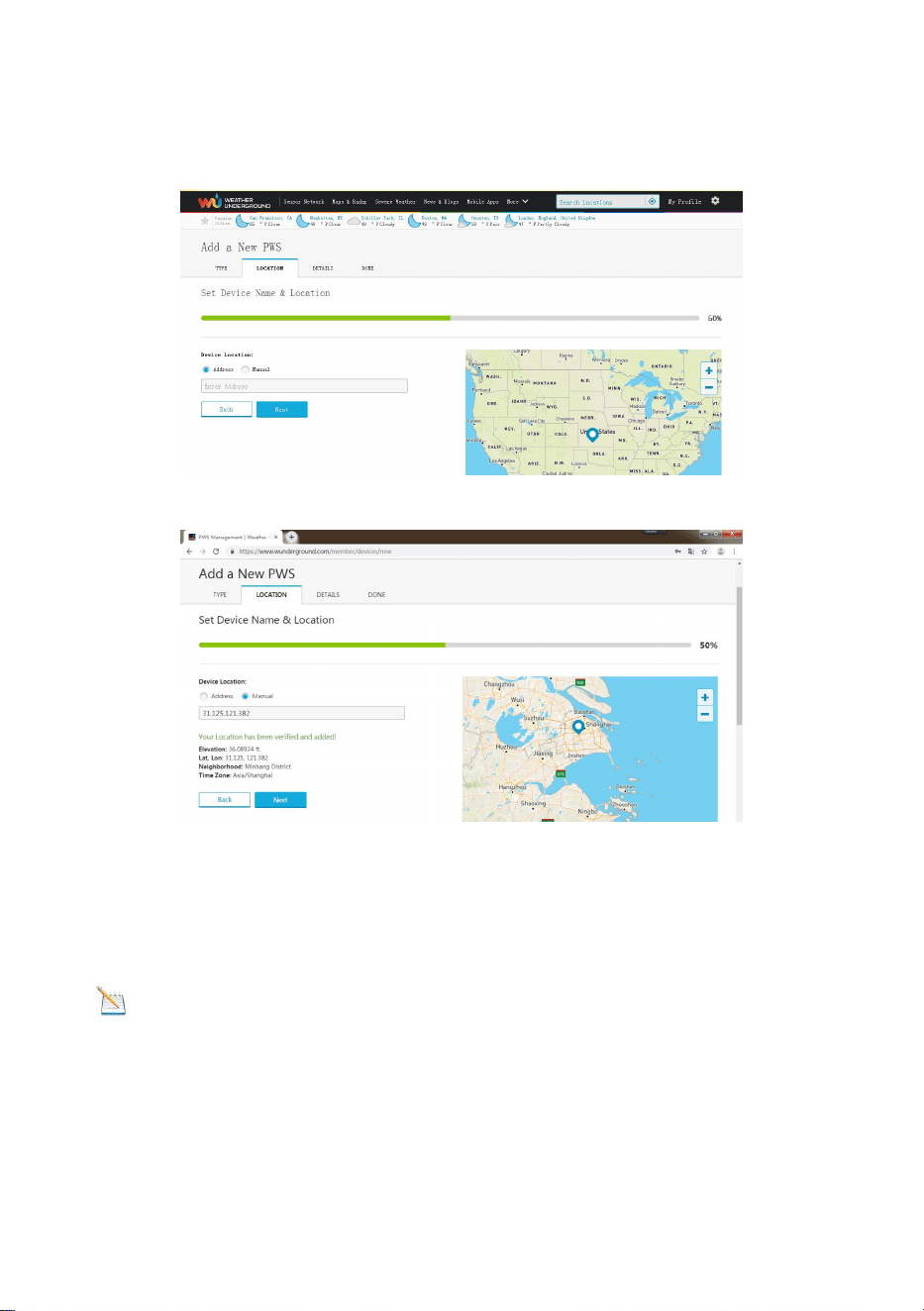
7) As shown below, you will then be prompted to add a device/ Select
“Add New Device
Figure 34
8) As shown below, click Personal Weather Station.
Figure 35
33
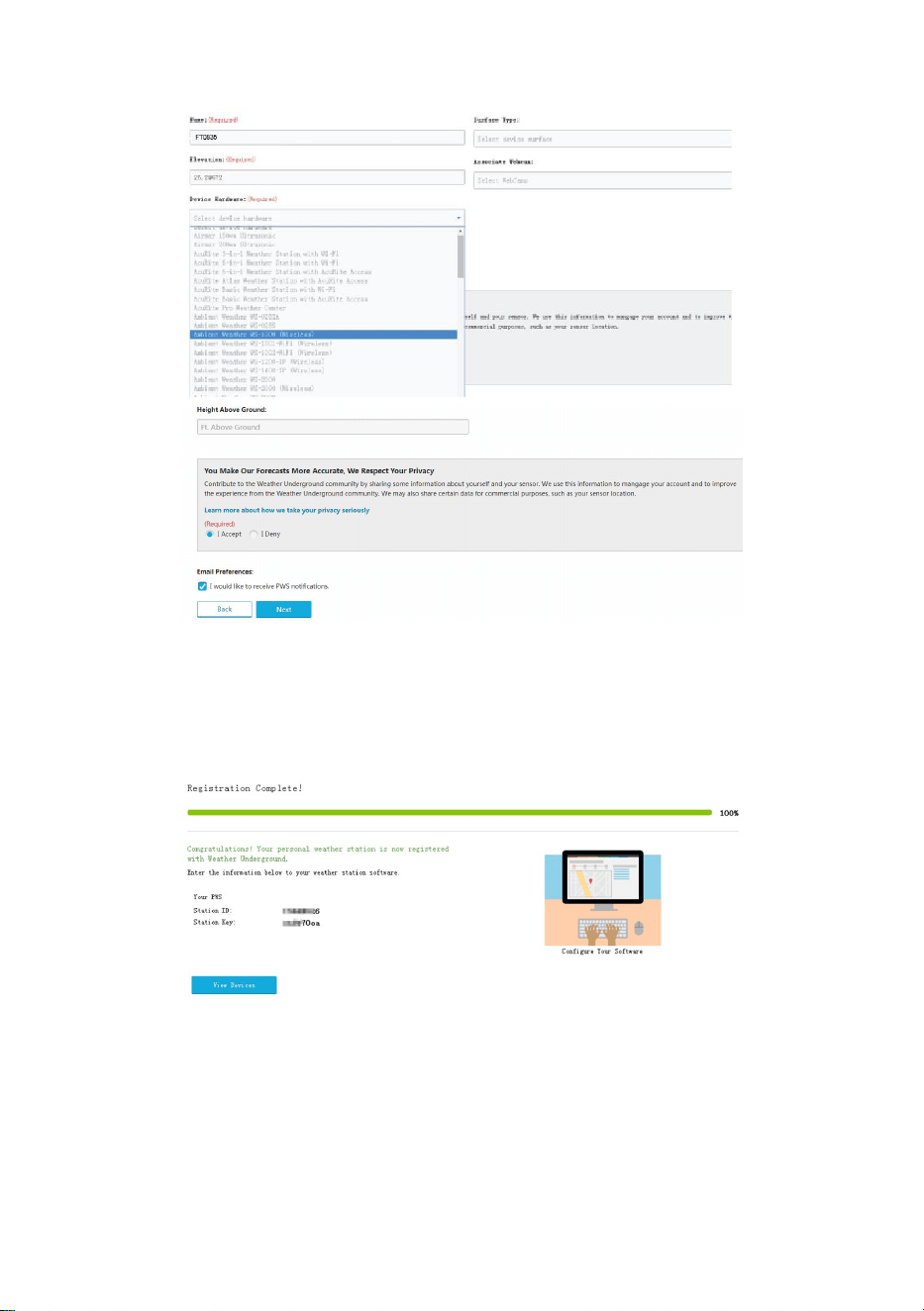
9) As shown below, select Address by inputting an address or select
Manual to position your address automatically. Then click Next:
Figure 36
10) As shown below, you will then be prompted to add a device/ Select
“Create device” , then click I Accept and Next:
Blanks with red (Required) must be filled in.
Note: You can select any wifi weather station model in Device
Hardware blank.
34
Figure 37
11) As shown below, after registering the host successfully, please
record Station ID and Station Key information for later use (refer to
13.6).
Figure 38
12) As shown below, registration is done successfully.
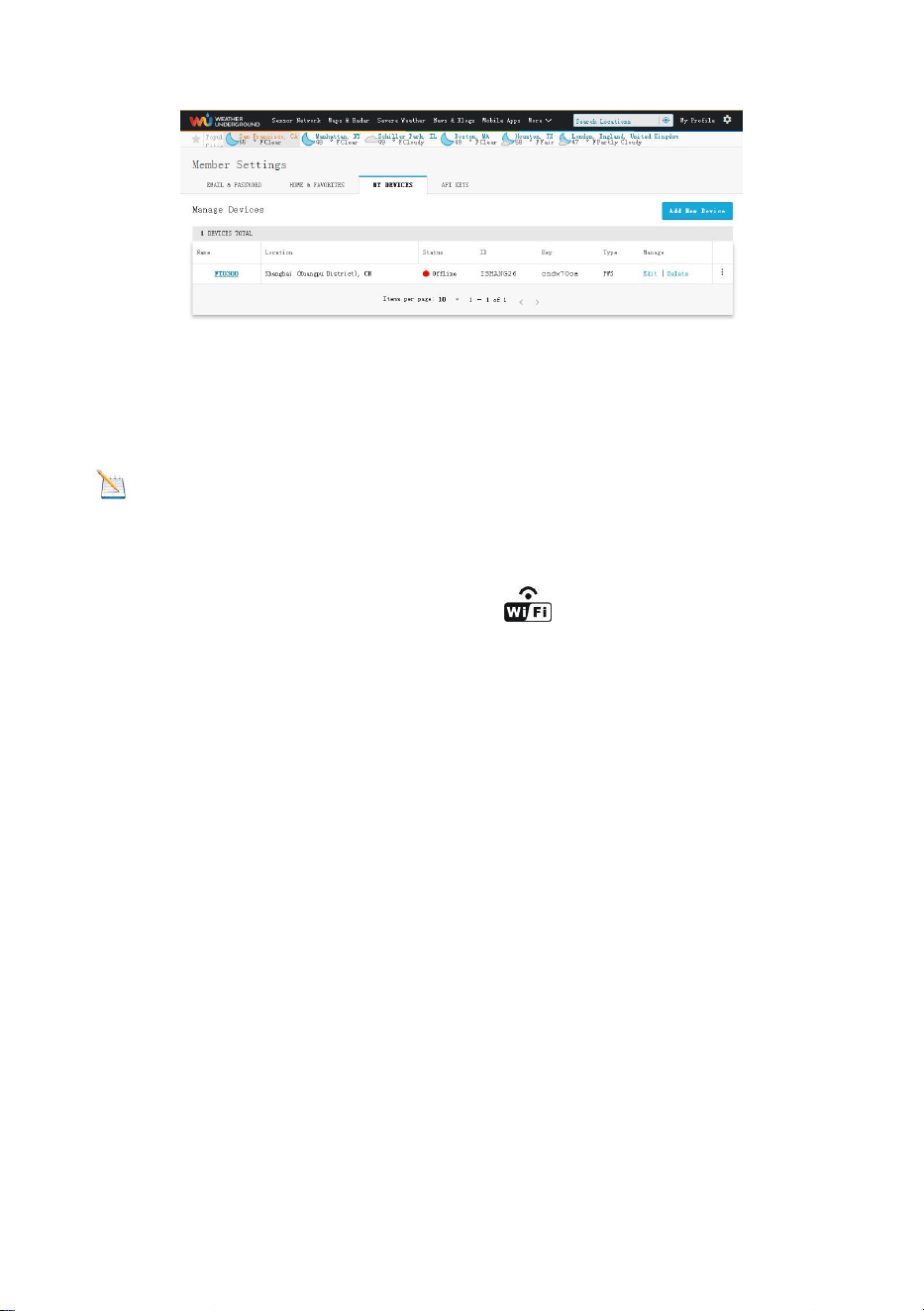
35
Figure 39
13. WiFi Setup(Connect your Device to the Console’s
WiFi)
Note:WIFI connection must use adapter
When you first power up(AC) the console, or press and hold the
MIN/MAX/- button for three seconds in normal mode, the console
icon(In front of the Indoor Temperature) will flash to signify that it
has entered WAP (wireless access point) mode, and is ready to enter
for WIFI settings.
You can use your desktop, laptop, tablet, or smart phone to connect to
the console’s WiFi. The console’s network name begins with
WeatherHome, followed by a unique code.
Note that when the console programming is complete, you will
resume your default WiFi connection.
Note that you cannot connect two or more devices at the same
time when WAP mode.
13.1:Example 1: Connect to the console WiFi server with a PC.
Choose WiFi network settings from Windows (or search “Change Wi-Fi
Settings” from Windows), and Connect to the WeatherHome WiFi
network, as shown in Figure 40 (your WiFi network name may be
slightly different, but will always begin with WeatherHome).
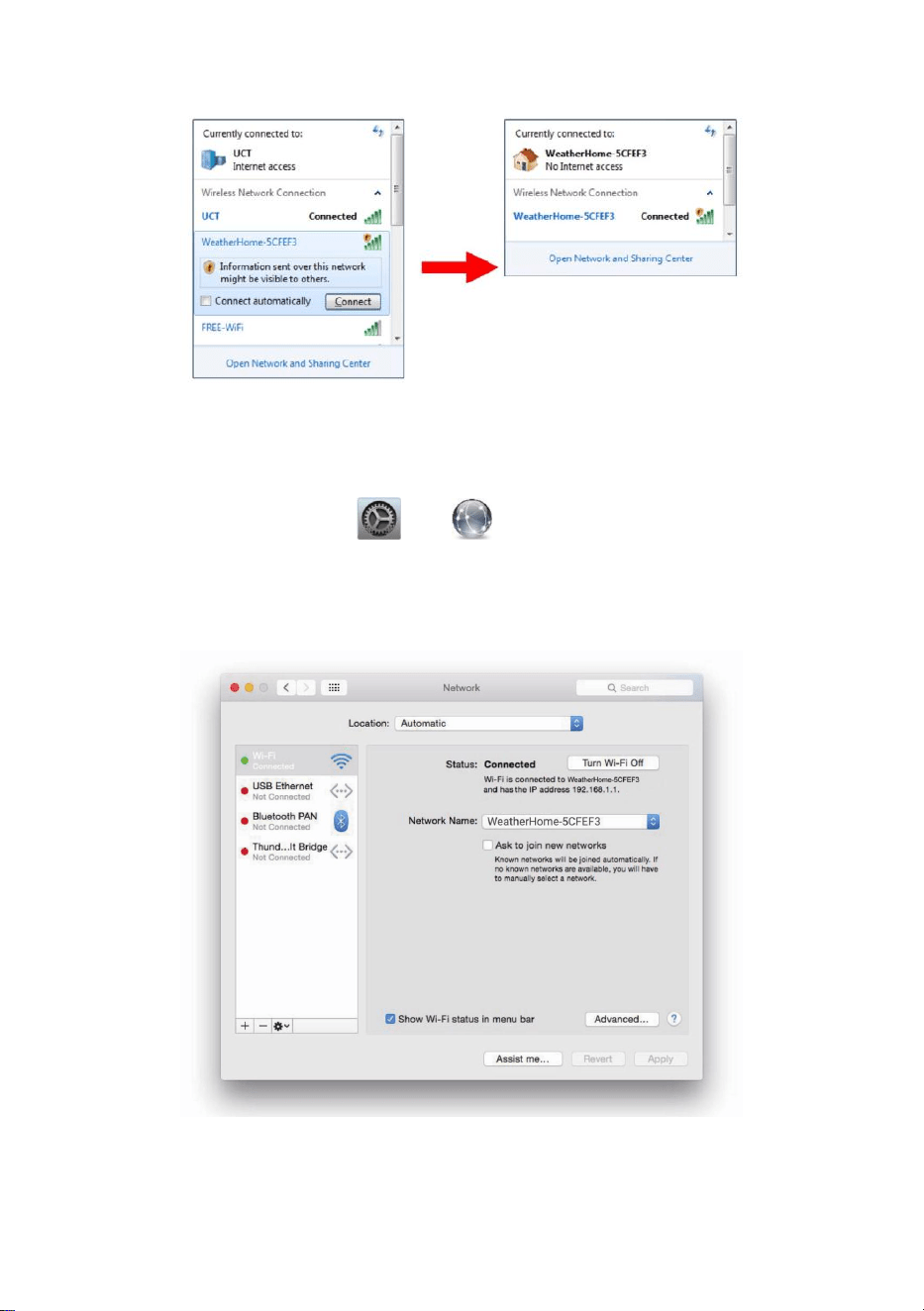
36
Figure 40
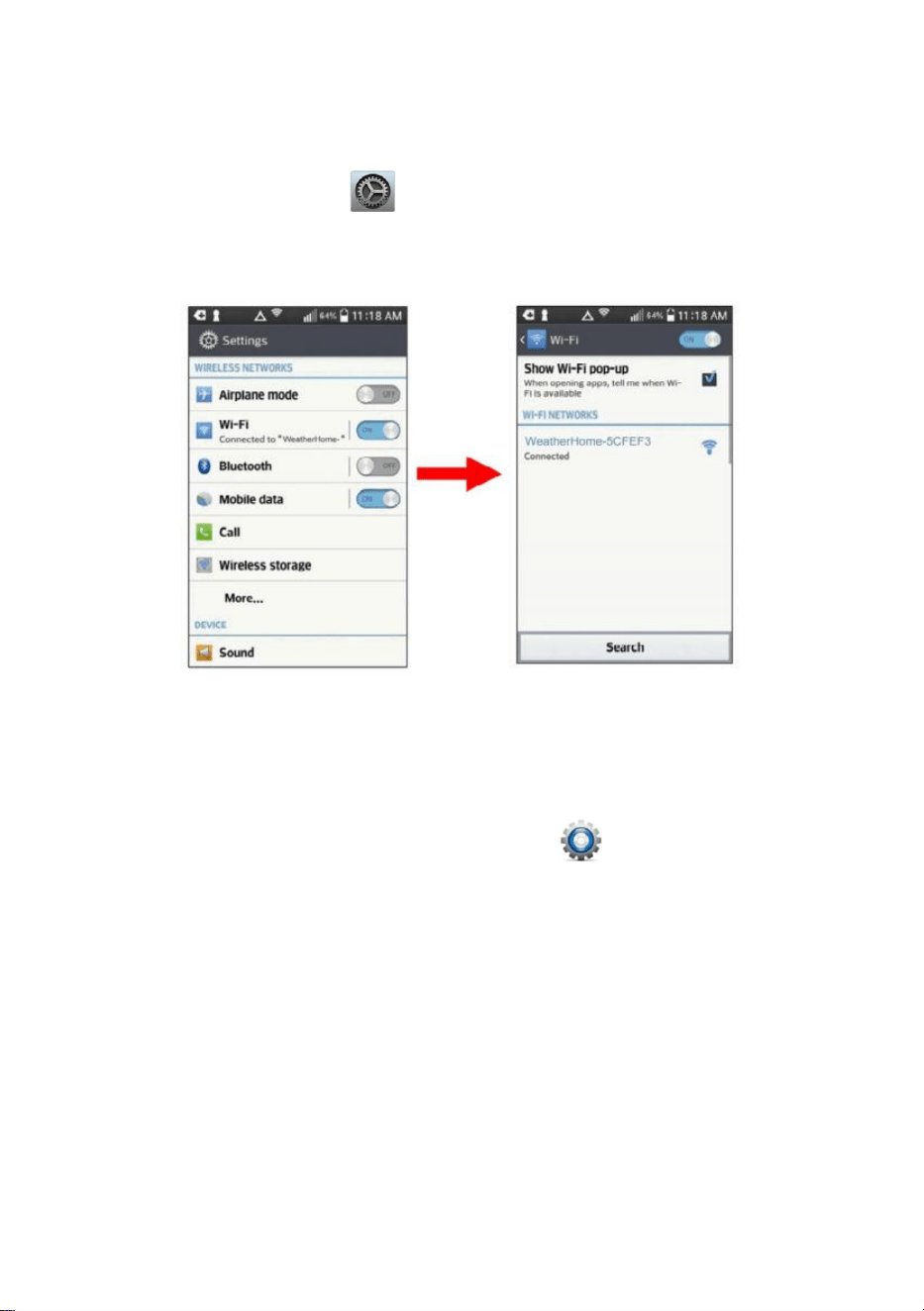
13.2: Example 2. Connect to the console WiFi server with a Mac.
Choose the Settings icon and Network . Connect to the
WeatherHome WiFi network, as shown in Figure 41 (your WiFi network
name may be slightly different, but will always begin with
WeatherHome).
Figure 41
37
13.3: Example 3. Connect to the console WiFi server with an
iPhone or iPad.
Choose the Settings icon and Wi-Fi. Connect to the WeatherHome
WiFi network, as shown in Figure 42 (your WiFi network name may be
slightly different, but will always begin with WeatherHome).
Figure 42
13.4: Example 4. Connect to the console WiFi server with an
Android device.
From the Apps icon, choose the Settings icon and Wi-Fi. Connect
to the WeatherHome WiFi network, as shown in Figure 43 (your WiFi
network name may be slightly different, but will always begin with
WeatherHome).
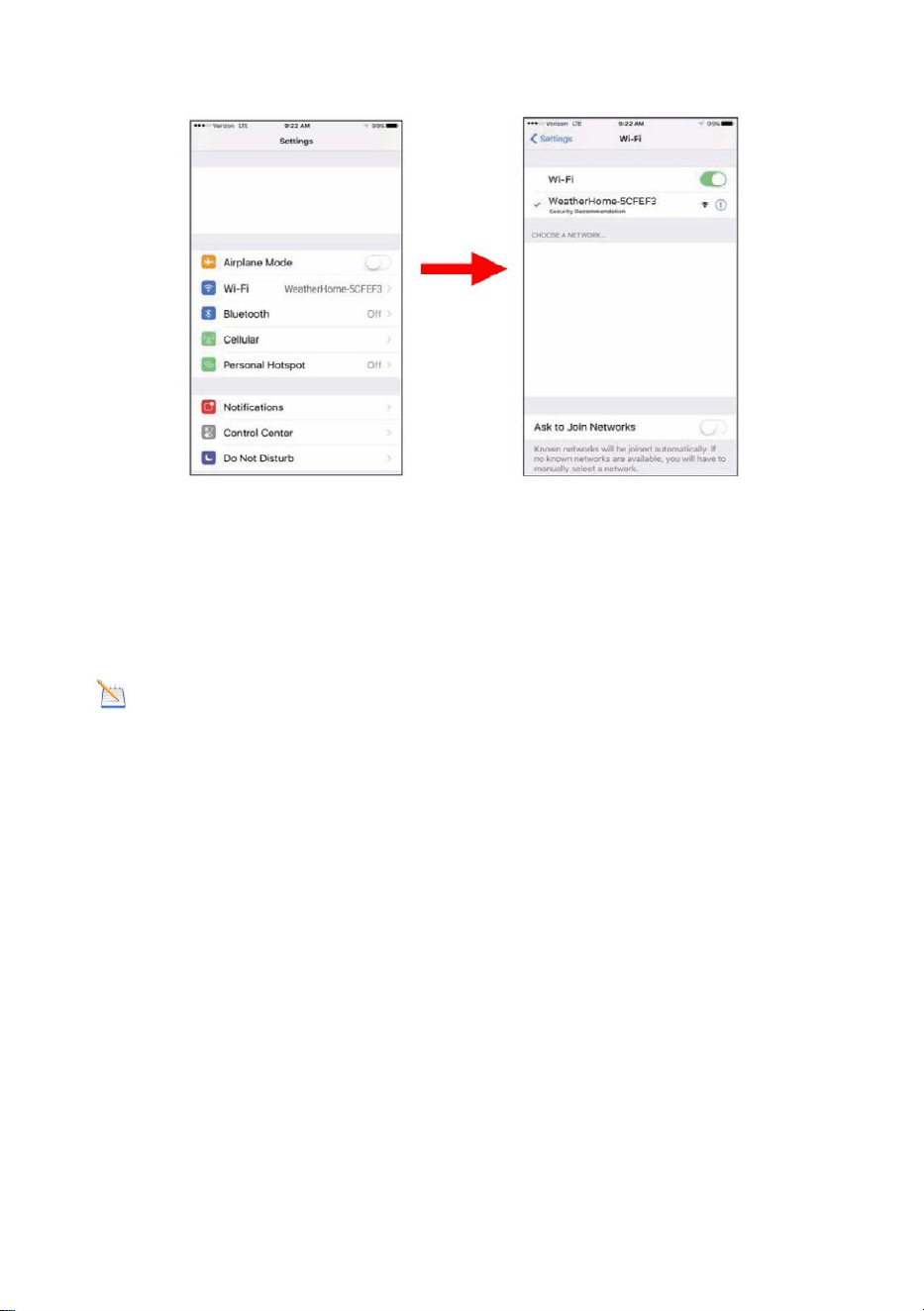
38
Figure 43
13.5. Once connected, enter the following IP address into any
browser’s address bar:http://192.168.5.1to access the console’s web
interface.
Note: Some browsers will treat 192.168.5.1 as a search, so
make sure you include the header http://,or:
http://192.168.5.1 not 192.168.5.1
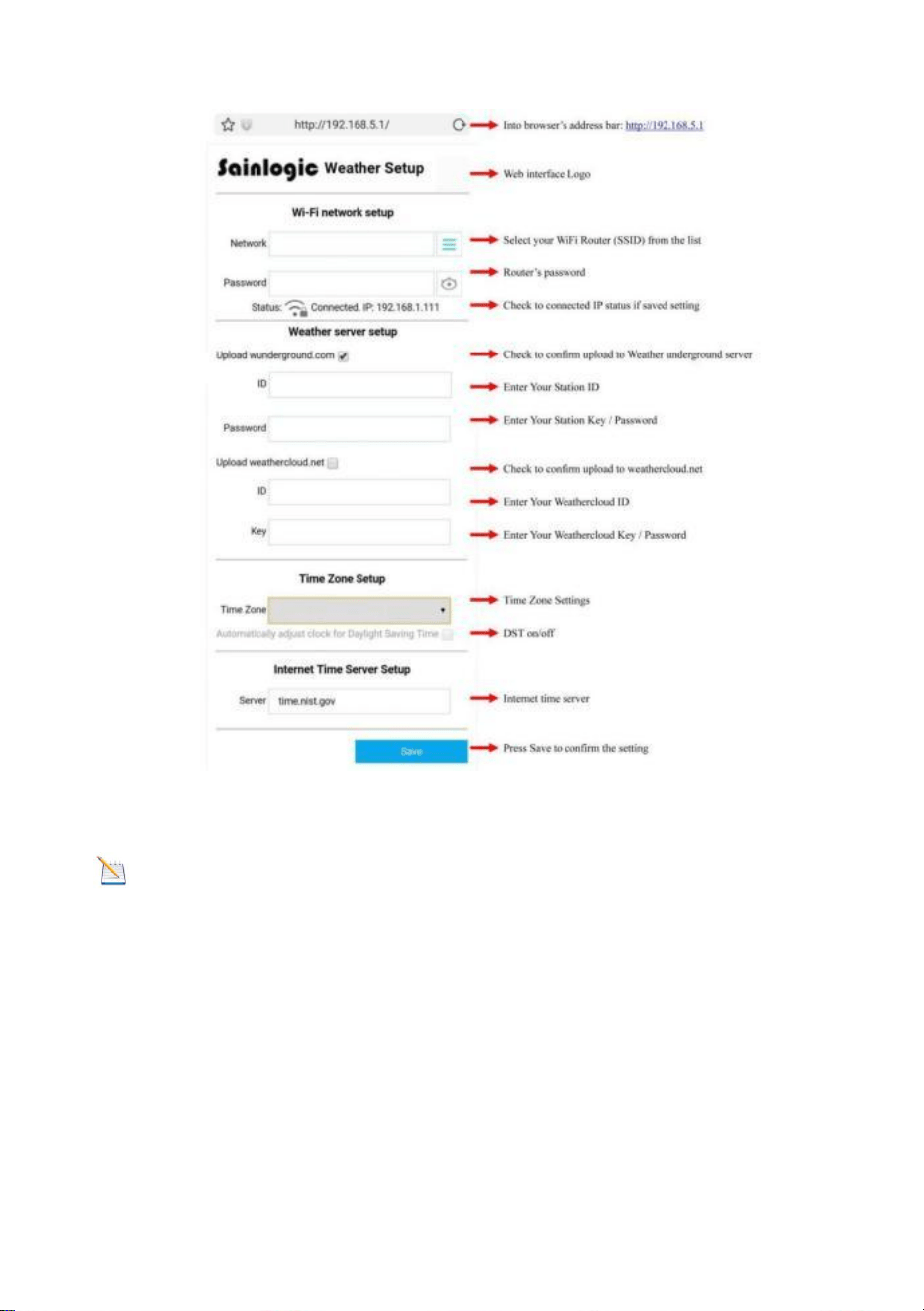
13.6. Enter the following information into the web interface (Figure 44).
Make sure all of the information is entered prior to selecting Save. If you
choose not to upload Wunderground.com, or upload weathercloud.net,
leave the check boxes unchecked.
39
Figure 44
Note: Hidden SSIDs. If you have a hidden SSID, enter the SSID
manually.
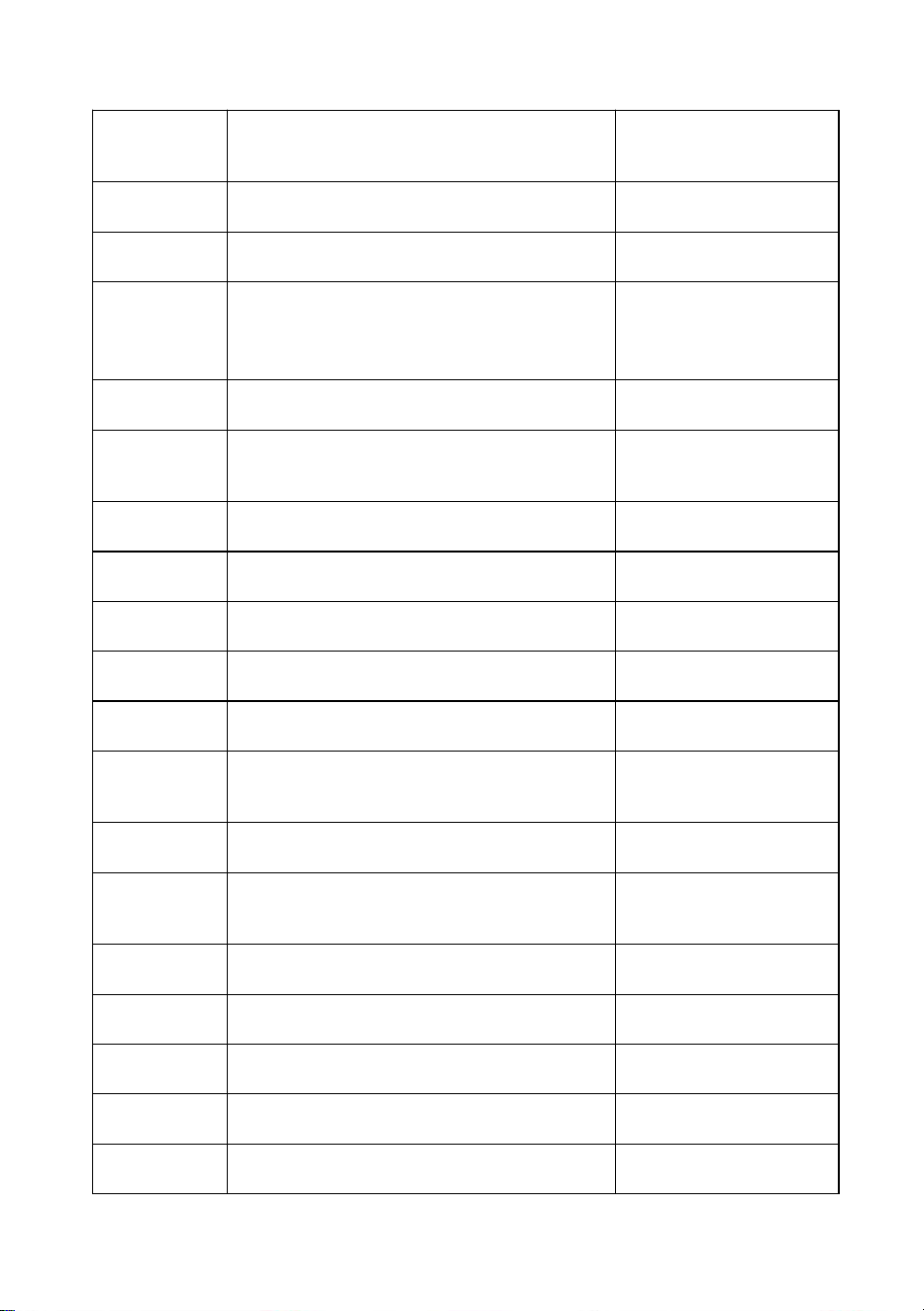
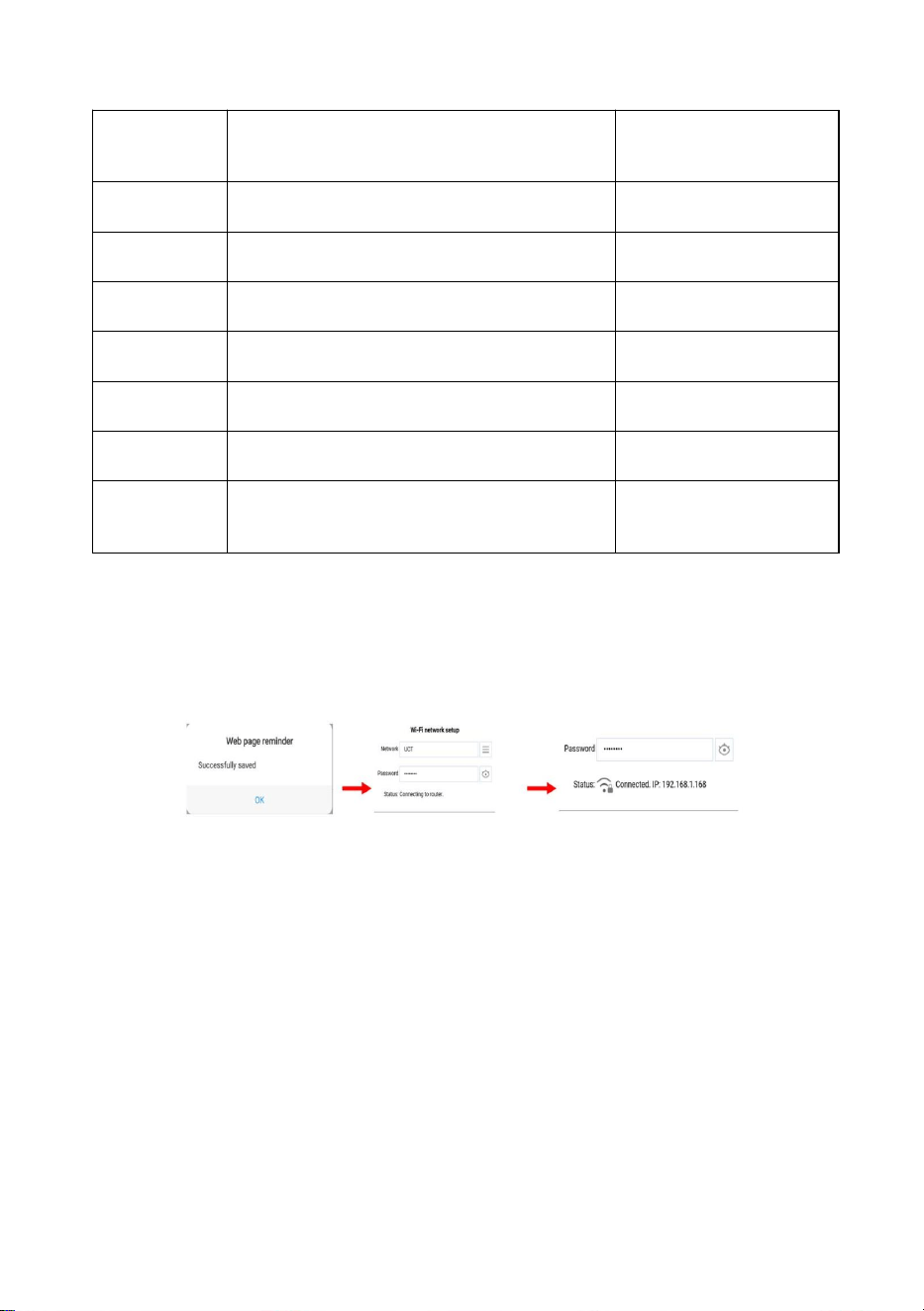
Time Zone Settings(default: 0h). based on the number of hours from
Coordinated Universal Time, or Greenwich Mean Time (GMT).
The following table provides times zones throughout the world.
Locations in the eastern hemisphere are positive, and locations in the
western hemisphere are negative.
40
Hours
from GMT
Time Zone
Cities
-12
IDLW: International Date Line West
---
-11
NT: Nome
Nome, AK
-10
AHST: Alaska-Hawaii Standard
CAT: Central Alaska
HST: Hawaii Standard
Honolulu, HI
-9
YST: Yukon Standard
Yukon Territory
-8
PST: Pacific Standard
Los Angeles, CA,
USA
-7
MST: Mountain Standard
Denver, CO, USA
-6
CST: Central Standard
Chicago, IL, USA
-5
EST: Eastern Standard
New York, NY, USA
-4
AST: Atlantic Standard
Caracas
-3
---
São Paulo, Brazil
-2
AT: Azores
Azores, Cape
Verde Islands
-1
WAT: West Africa
---
0
GMT: Greenwich Mean
WET: Western European
London, England
1
CET: Central European
Paris, France
2
EET: Eastern European
Athens, Greece
3
BT: Baghdad
Moscow, Russia
4
---
Abu Dhabi, UAE
5
---
Tashkent
41
Hours
from GMT
Time Zone
Cities
6
---
Astana
7
---
Bangkok
8
CCT: China Coast
Bejing
9
JST: Japan Standard
Tokyo
10
GST: Guam Standard
Sydney
11
---
Magadan
12
IDLE: International Date Line East
NZST: New Zealand Standard
Wellington, New
Zealand
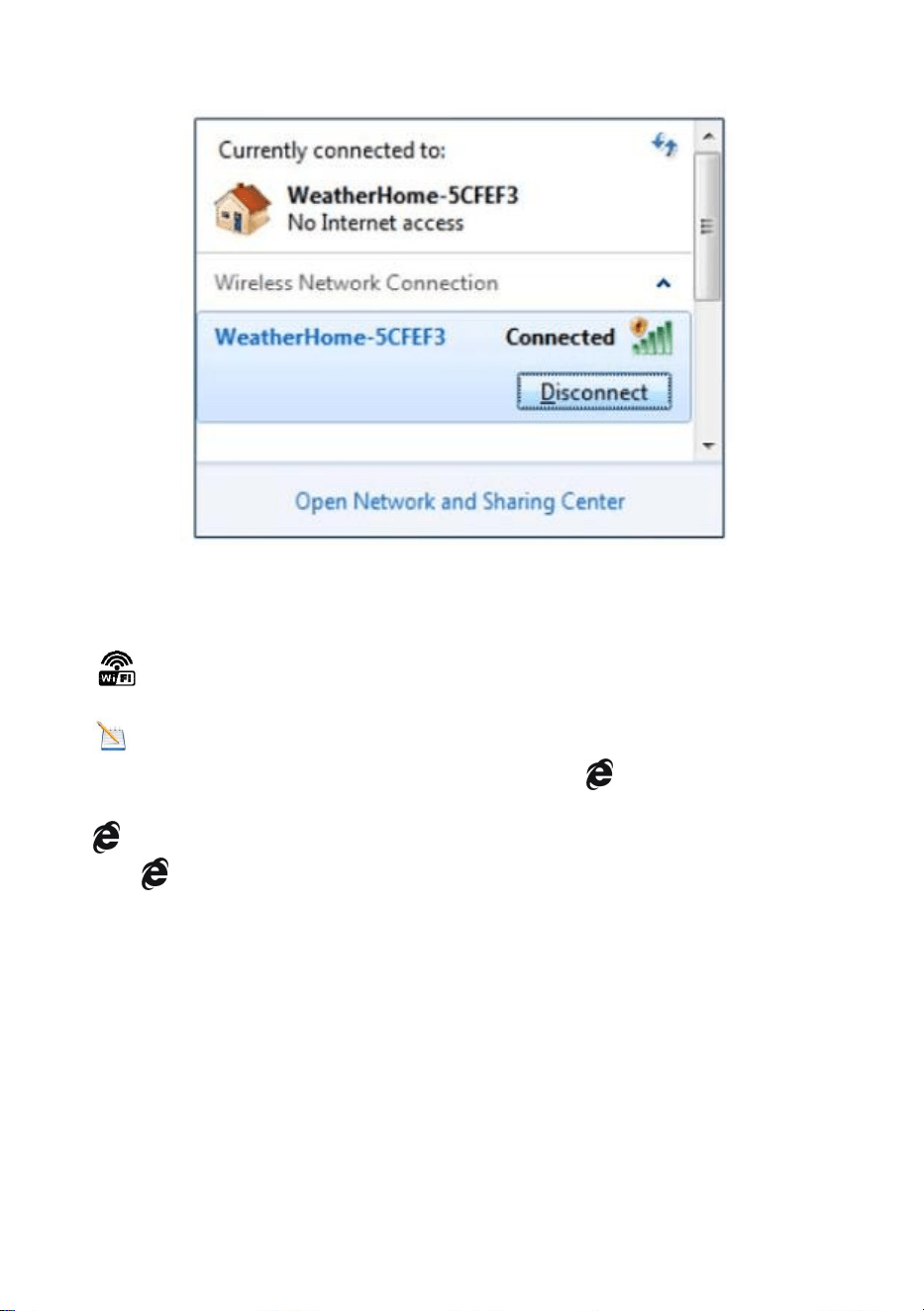
13.7. If all of the information you entered is correct press save to
confirm(Figure 45). If it does not, check your web interface information
again.
Figure 45
13.8. Once the setup is completed, disconnect your device from the
console WiFi. Otherwise, the console will automatically exit WAP mode.
(Figure 46)
42
Figure 46
If the connection is successful, the Wi-Fi console’s status Wi-Fi icon
will stop flashing and remain on.
NOTE: When the console successfully connects to your any
website of weather servers, the data signal icon will appear on the
LCD display(In front of the Indoor Temperature). If the data signal icon
is flashing, the console is currently uploading to the server. If the
icon disappears, the console is not connected to the weather server
for more than 30 minutes.
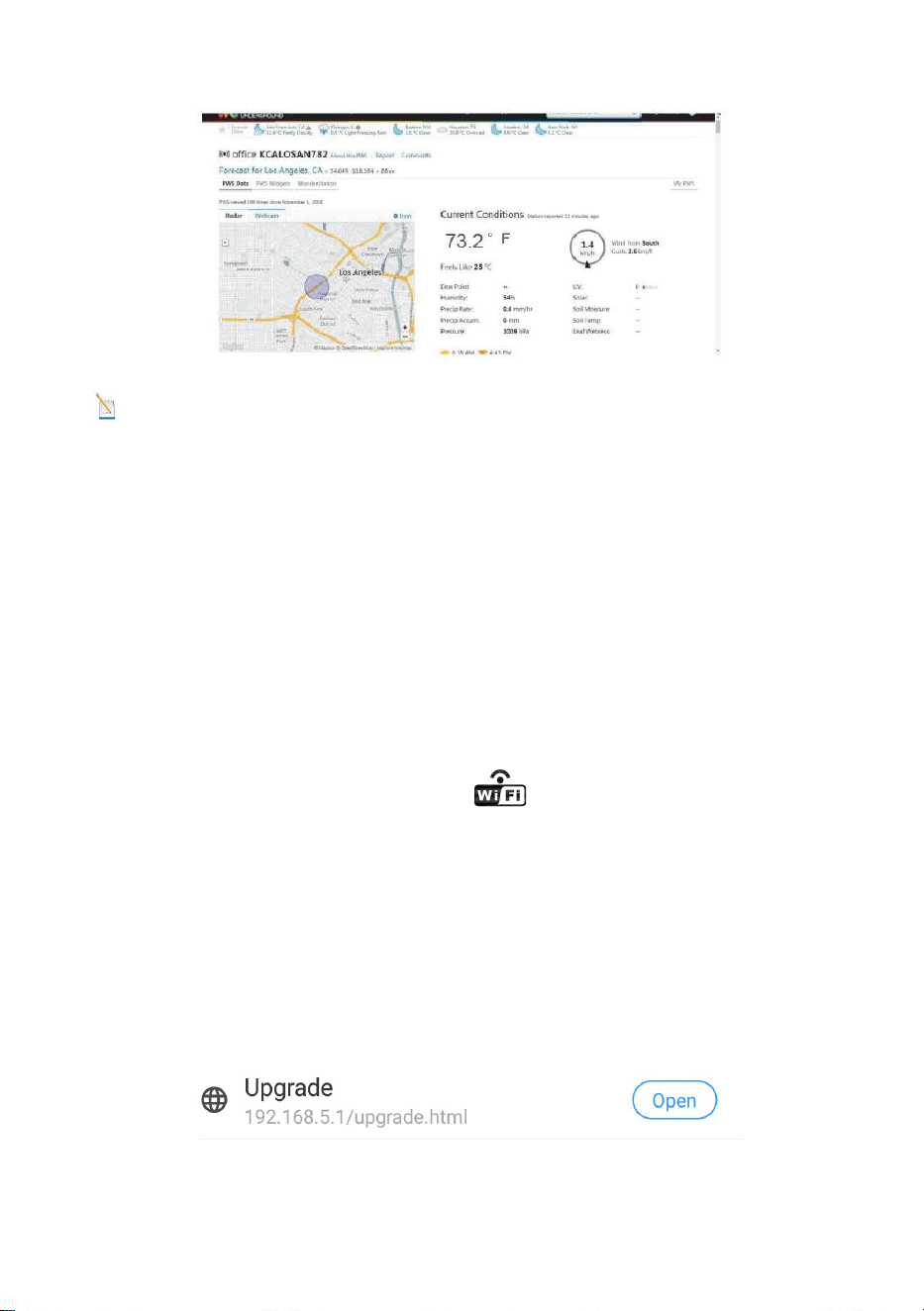
13.9. Viewing your Data on Weather Underground
Visit:http://www.wunderground.com/personal-weather-
station/dashboard?ID=STATIONID
where STATIONID is your personal station ID (example,
KCALOSAN782).
43
Figure 47
Note: The current temperature and humidity data is the Integrated
Outdoor Transmitter.
13.10. View your data on Weathercloud.
Visit the website www.weathercloud.net and sign in with your e-mail
address and password. Then you will go to the weather data of your
weather station automatically.
14. Upgrade firmware
You may get the latest firmware of the console as below
14.1. When you first power up(AC) the console, or press and hold the
MIN/MAX/-(WiFi) button for three seconds in normal mode, the console
icon(behind the In/Outdoor humidity) will flash to signify that it has
entered WAP (wireless access point) mode, and is ready to enter for
WIFI settings.
14.2. Use your smart phone, tablet, or computer to connect to the
console through WiFi(reference: Example 1-4 of WiFi Setting ).
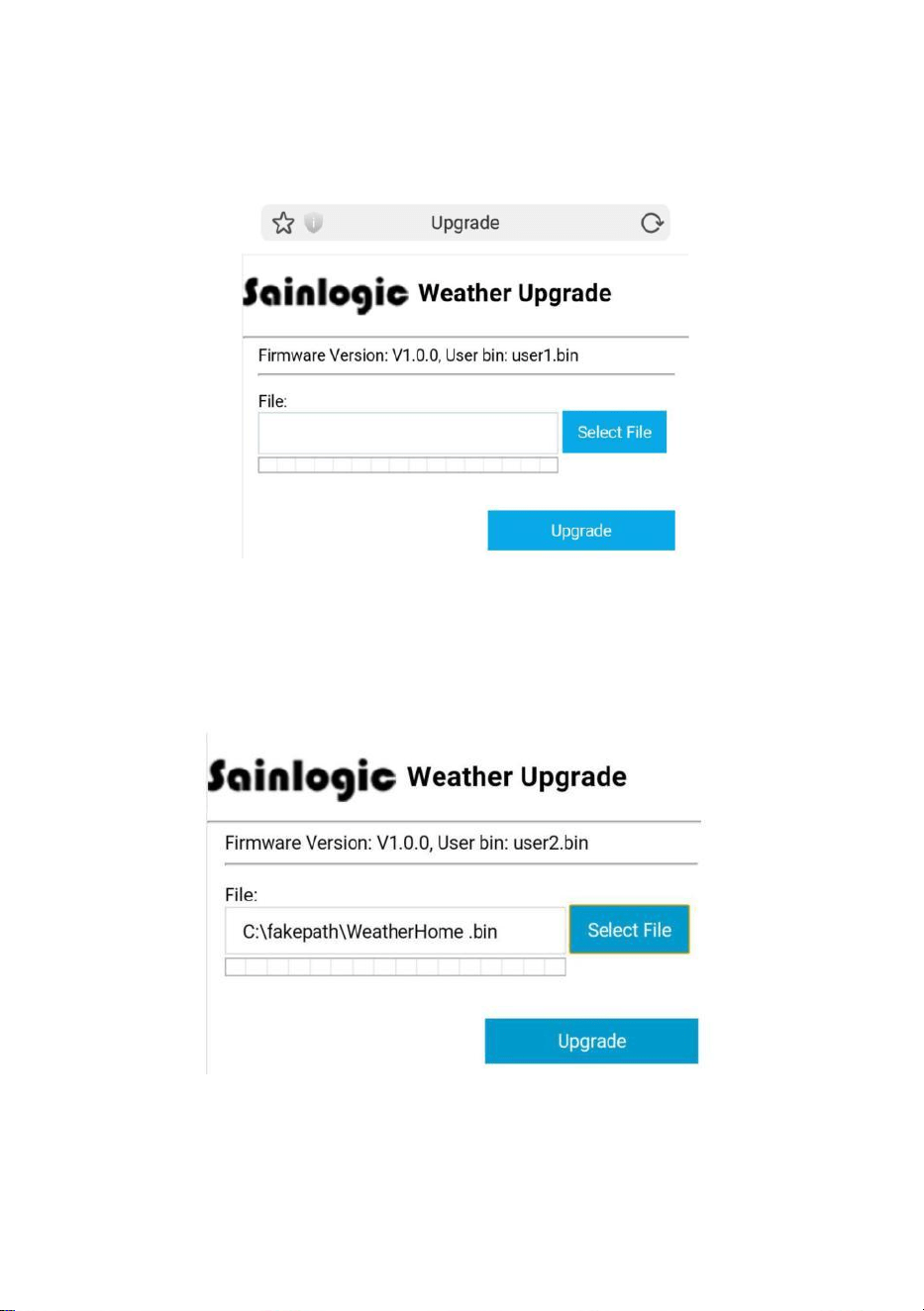
14.3. Once connected, enter the following IP address into the
browser’s address bar: http://192.168.5.1/upgrade.html
Figure 48
44
14.4. Once connection succeeds, it will jump to “Upload Setting”
screen automatically.
Figure 49
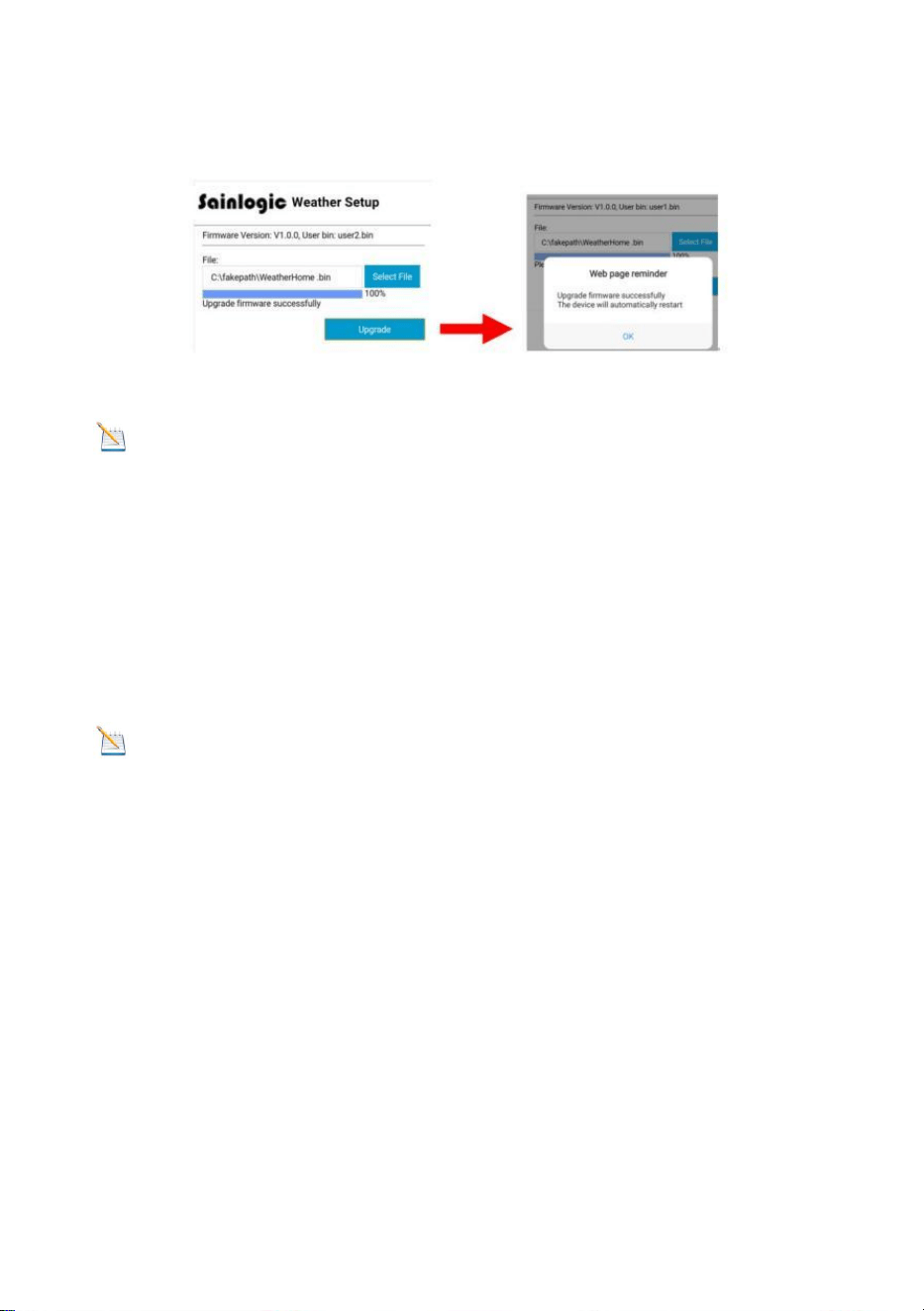
14.5. Press Select File key to select the upgraded firmware as figure
50.
Figure 50
45
14.6. If update successfully when press Upgrade key. Then you will
see the following.
Figure 51
Note: In this upgrade only Wifi firmware is updated. The console
does not reset.
14.7. Once the upgrade is completed, the console will automatically
exit WAP mode.
15. Other Console Features
The following section describes additional features and display icons.
15.1. Weather Forecasting
Note: The weather forecast or pressure tendency is based on the
rate of change of barometric pressure. In general, when the pressure
increases, the weather improves (sunny to partly cloudy) and when the
pressure decreases, the weather degrades (cloudy to rain).
The weather forecast is an estimation or generalization of weather
changes in the next 24 to 48 hours, and varies from location to location.
The tendency is simply a tool for projecting weather conditions and is
never to be relied upon as an accurate method to predict the weather.
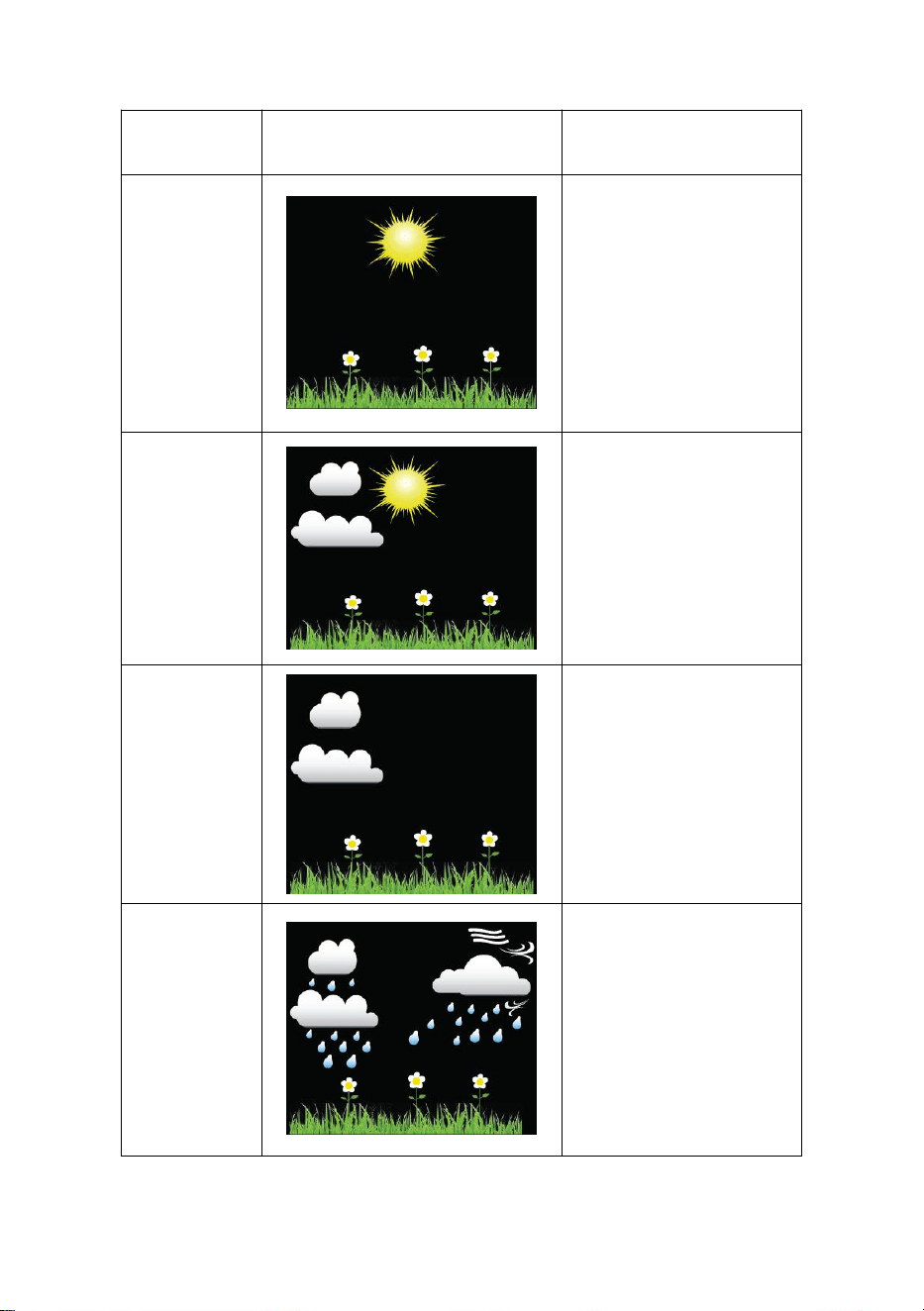
15.2. Weather Icons
46
Condition
Icon
Description
Sunny
Pressure is rising
and the previous
condition is partly
cloudy.
Partly
Cloudy
Pressure is falling
and the previous
condition is sunny or
Pressure is rising
and the previous
condition is cloudy.
Cloudy
Pressure is falling
and the previous
condition is partly
cloudy or
Pressure is rising
and the previous
condition is rainy.
Rainy
Pressure is falling
and the previous
condition is cloudy.
47
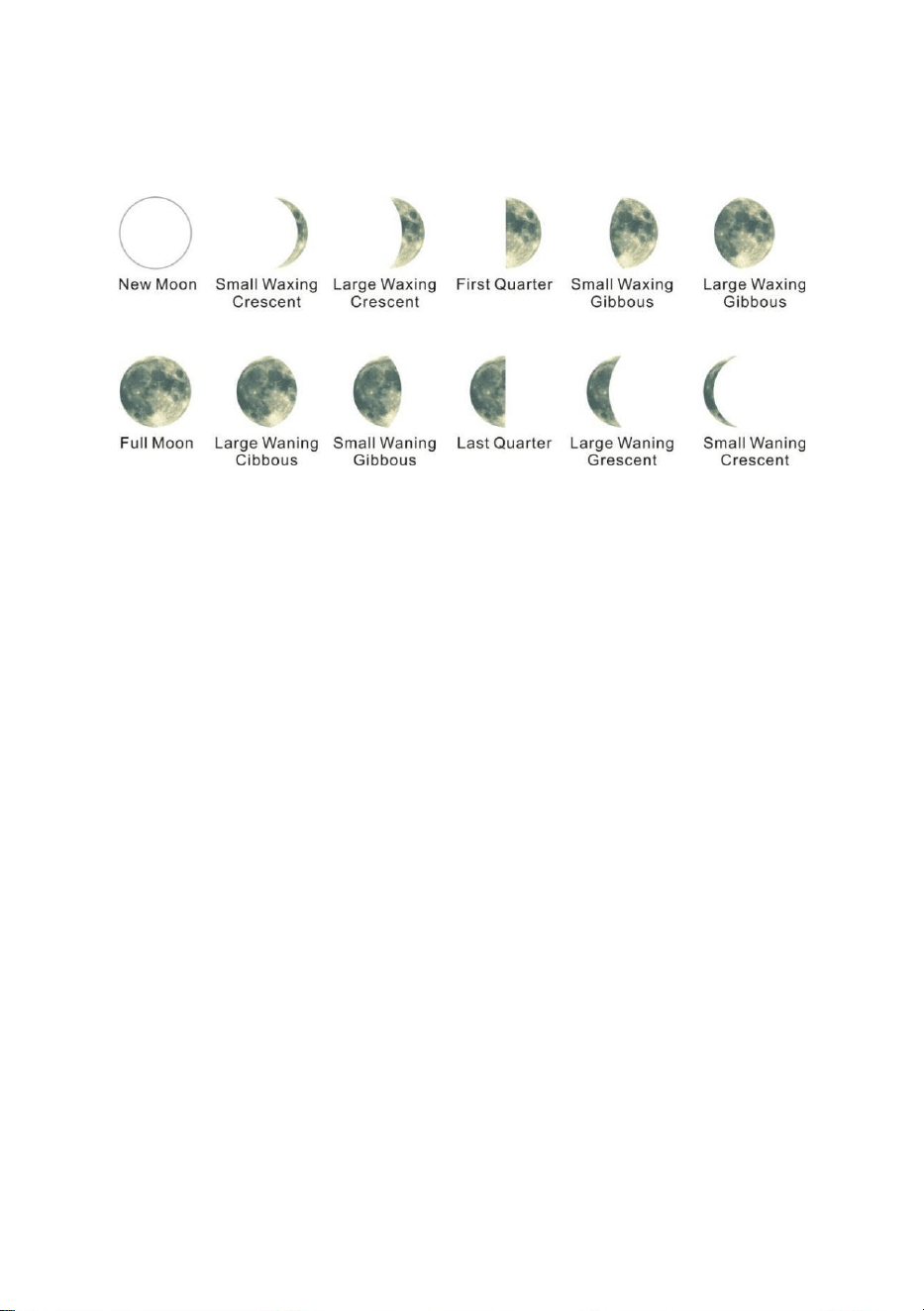
15.3. Moon Phase
The following moon phases are displayed based on the calendar date.
Figure 52
15.4. Pressure Threshold Setting
The pressure threshold (the negative or positive rate of change of
pressure signifying a change in the weather) can be adjusted from 2
mbar/hour to 4 mbar/hour (default level 2 mbar/hour).
The lower the level pressure threshold setting, the higher sensitivity for
weather forecast changes. Locations that experience frequent changes
in air pressure require a higher setting compared to locations where the
air pressure is typically stagnant.
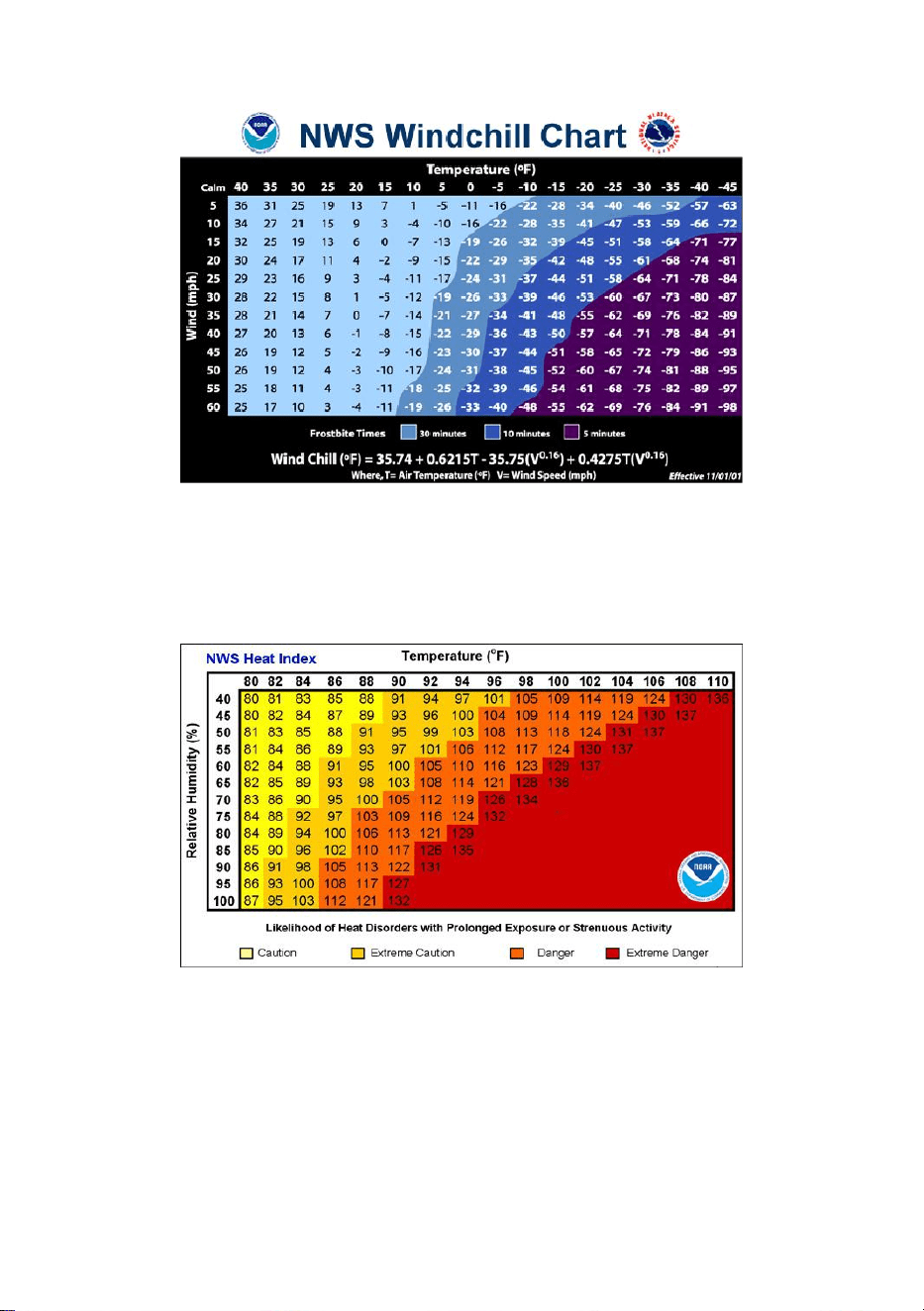
15.5. Feels Like Temperature
Feels like temperature is a combination of Heat Index and Wind Chill.
At temperatures less than 40°F, the wind chill is displayed, as shown in
the National Weather Service Wind Chill Table below:
48
Figure 53
At temperatures greater than 80°F, the heat index is displayed, as
shown in the National Weather Service Heat Index Table below:
Figure 54
When the temperature is between 40°F and 80°F, the OUT temperature
is displayed (Feels Like temperature is the same as OUT temperature).
49
16.Specifications
16.1. Wireless Specifications
Line of sight wireless transmission (in open air): 300 ft.
Frequency: 433 MHz
Integrated Outdoor transmitter interval: 16 seconds
16.2. Measurement Specifications
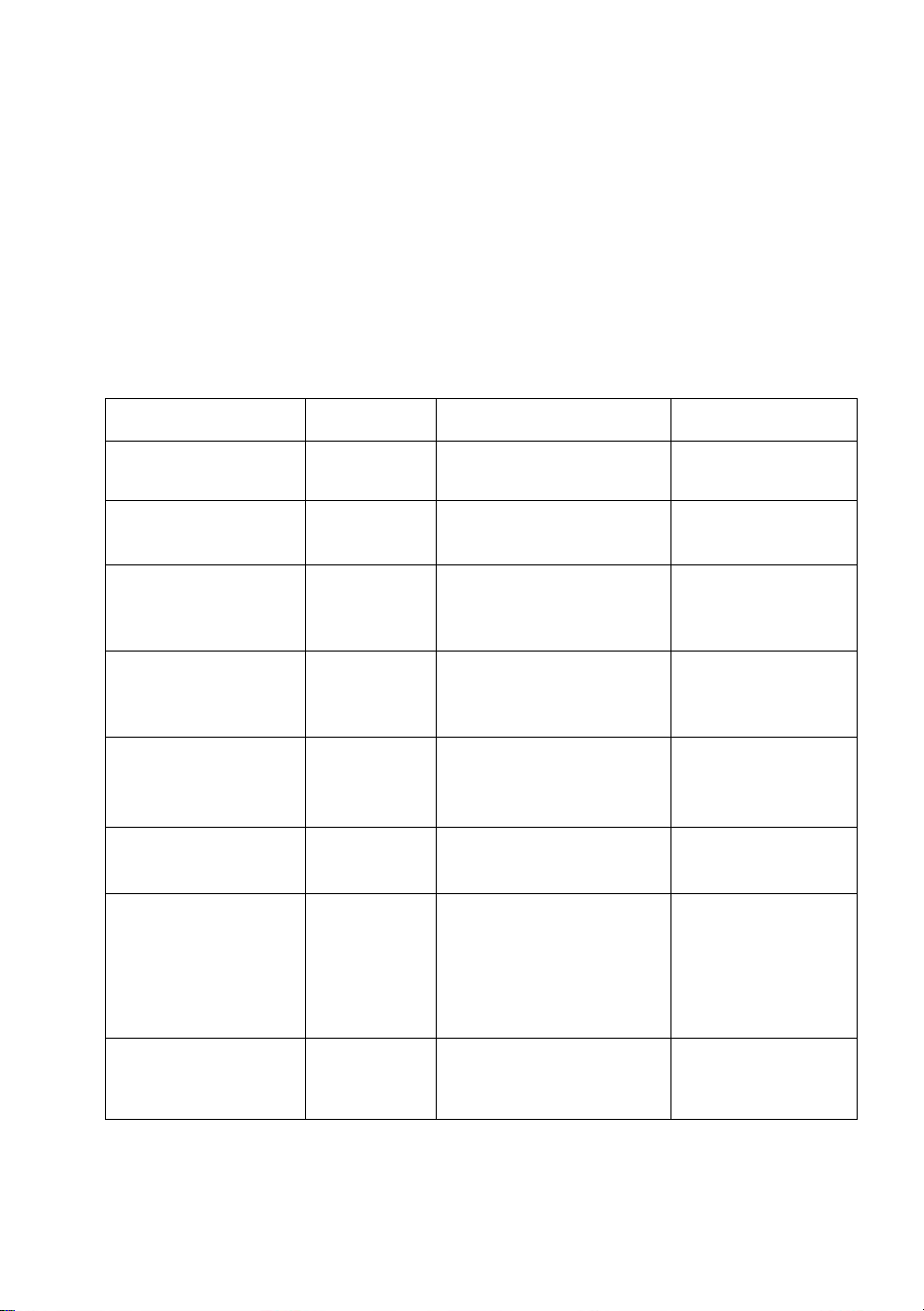
The following table provides specifications for the measured parameters.
Measurement
Range
Accuracy
Resolution
Indoor
Temperature
32 to
140 °F
± 2 °F
0.1 °F
Outdoor
Temperature
-40 to
140 °F
± 2°F
0.1 °F
Indoor Humidity
10 to
99 %
± 5% (only
guaranteed between
20 to 90%)
1 %
Outdoor
Humidity
10 to 99%
± 5% (only
guaranteed between
20 to 90%)
1 %
Rain
0 to 396in
<0.6in: ±0.04in,
0.6in to 396in: ±7%
<39.4in
(0.012in)
>39.4in (0.04in)
Wind Direction
0 - 360 º
± 10º (16 point
compass)
± 1º (16 point
compass)
Wind Speed
0 to
112mph
4.5 mph ~22.4mph:
±6.7mph, 22.4mph
~112mph: ±10%
(whichever is
greater)
0.1mph
Barometric
Pressure:
8.85 to
32.50
inHg
± 0.08 inHg
0.01 inHg

50
16.3. Power Consumption
Base station (display console) : 3 x AAA 1.5V Alkaline or
Lithium batteries (not included)
Adaptor: 6V~ 500mA (included)
Integrated Outdoor Transmitter: 3xAA alkaline batteries or
Lithium batteries (not included)
Minimum 12 months for Integrated Outdoor Transmitter. The
primary power source is the solar panel. The batteries provide
backup power when there is limited solar energy
16.4. WiFi Specifications
1. WIFI Standard: 802.11 b/g/n
2. WiFi Console RF Frequency: 2.4 GHz
3. Setup User Interface (UI) support setup device: Build-in WiFi with
WAP mode smart device, including laptops, computers, smart phones
and smart pads.
4. Recommend web browser for setup UI: Web browser support of
HTML 5, such as the latest versions of Chrome, Safari, IE, Edge,
Firefox or Opera.
5. Line of sight WiFi RF transmission (in open air): 80 feet
17. Maintenance
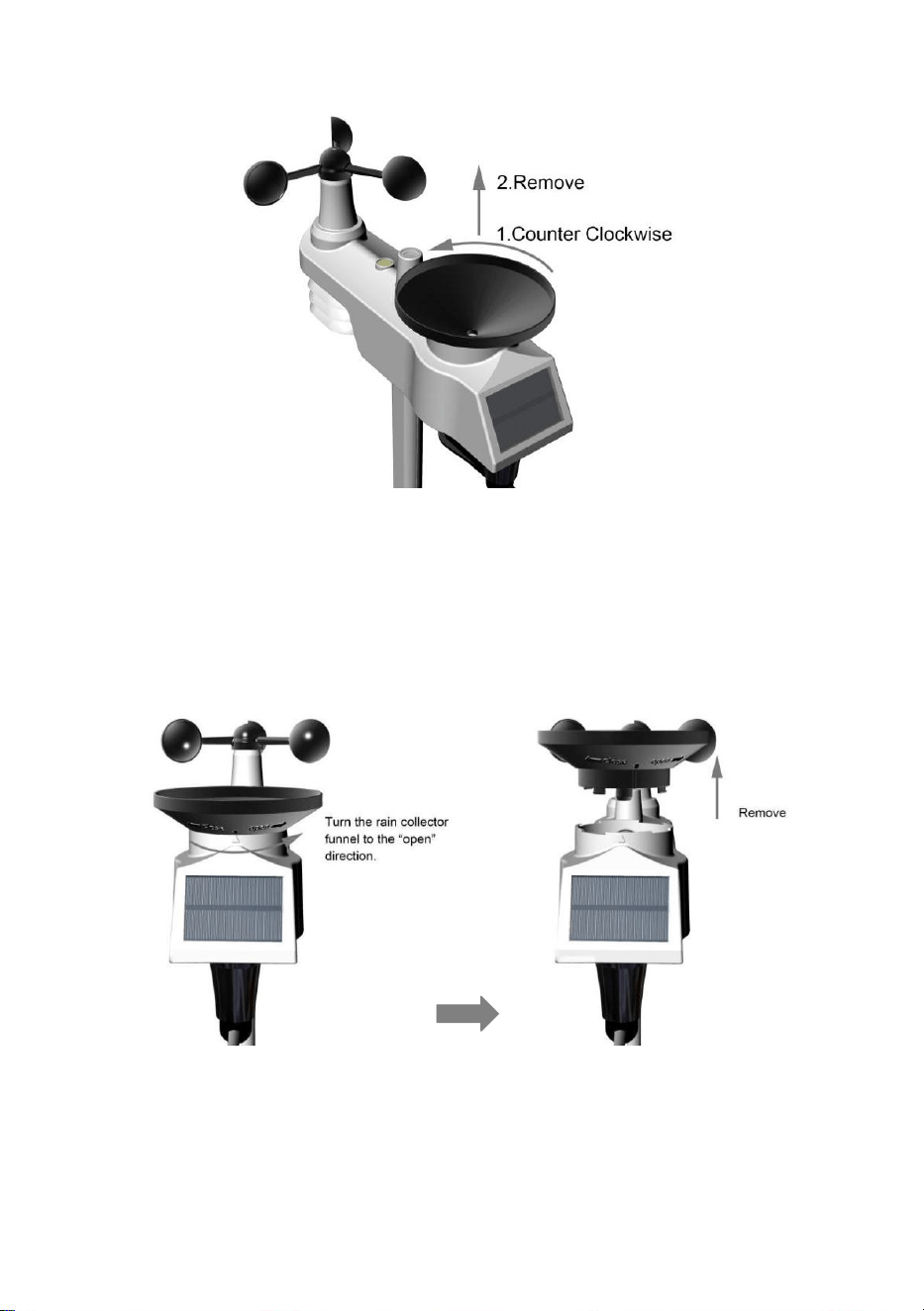
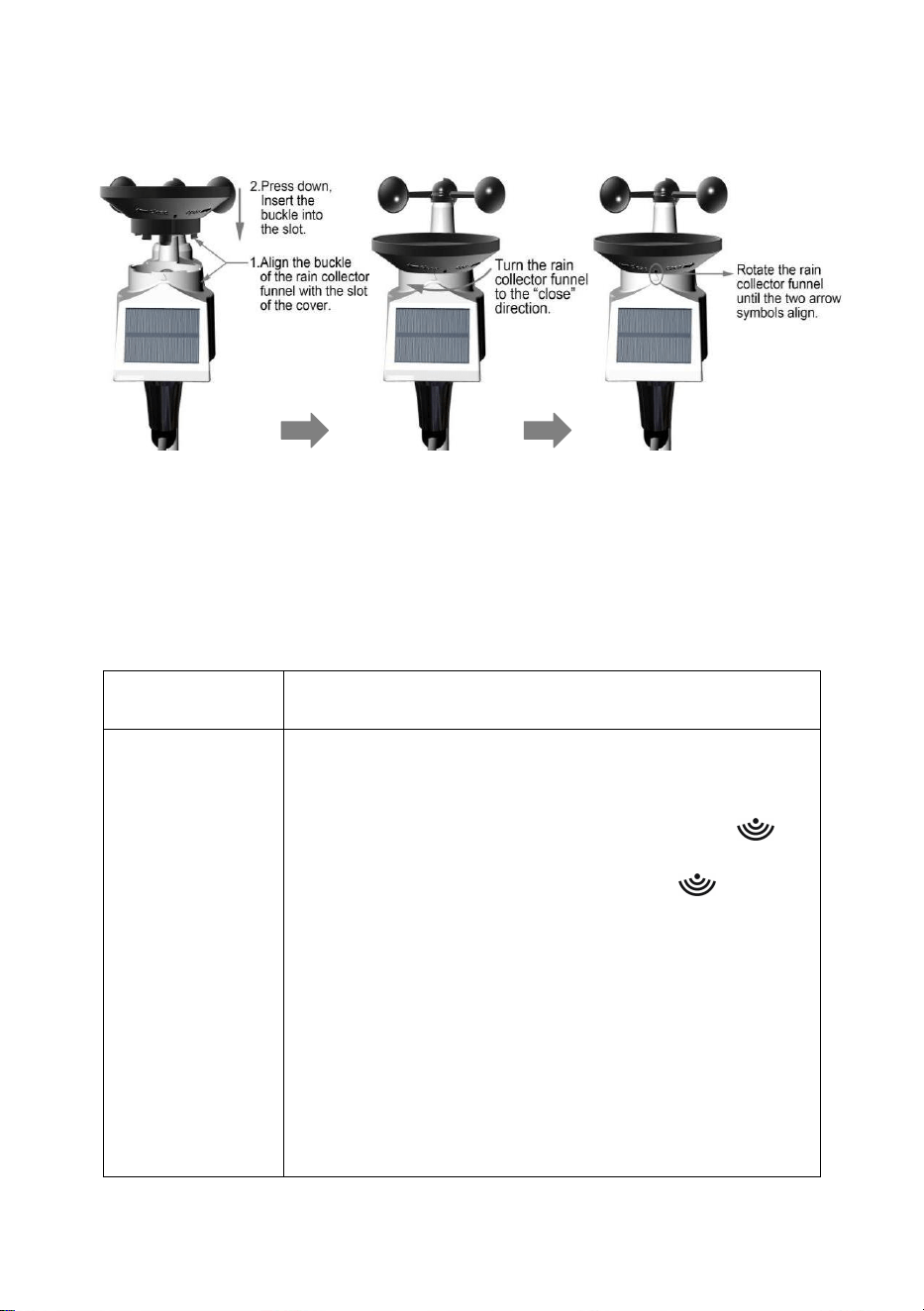
1.Clean the rain gauge and wind transmitter once every 3 months.
Unscrew the rain collector funnel by turning it 30°counter
clockwise.
Gently remove the rain collector funnel.
Clean and remove any debris or insects.
Install the collector funnel after it has been cleaned and
completely dried.
51
Figure 55
A: Remove the rain collector funnel.
Figure 56
52
B: Install the collector funnel.
Figure 57
2. Replace the wind, rain and thermo-hygrometer transmitter batteries
once every 1-2 years
18. Troubleshooting Guide.
Problem
Solution
Wireless
remote not
reporting in to
console.
There are
dashes (--.-) on
the display
console.
If any of the sensor communication is lost, dashes
(--.-) will be displayed on the screen. To reacquire
the signal, press and hold the CHANNEL/+ button
for 3 seconds, and the remote search icon will
be constantly displayed. Once the signal is
reacquired, the remote search icon will turn
off, and the current values will be displayed.
The maximum line of sight communication range
is 300 ft and 100ft under most conditions. Move
the sensor assembly closer to the display console.
If the sensor assembly is too close (less than
4.9ft), move the sensor assembly away from the
display console.
53
Make sure the remote sensor LCD display is
working and the transmitter light is flashing once
per 60 seconds.
Install a fresh set of batteries in the remote
thermo-hygrometer. For cold weather
environments, install lithium batteries.
Make sure the remote sensors are not transmitting
through solid metal (acts as an RF shield), or
earth barrier (down a hill).
Move the display console around electrical noise
generating devices, such as computers, TVs and
other wireless transmitters or receivers.
Move the remote sensor to a higher location.
Move the remote sensor to a closer location.
Indoor and
Outdoor
Temperature do
not agree
Allow up to one hour for the sensors to stabilize
due to signal filtering. The indoor and outdoor
temperature sensors should agree within 4 °F (the
sensor accuracy is ± 2 °F).
Use the calibration feature to match the indoor
and outdoor temperature to a known source.
Indoor and
Outdoor
Humidity do not
agree
Allow up to one hour for the sensors to stabilize
due to signal filtering. The indoor and outdoor
humidity sensors should agree within 10 % (the
sensor accuracy is ± 5 %).
Use the calibration feature to match the indoor
and outdoor humidity to a known source.
Display console
contrast is
weak
Replace console batteries with a fresh set of
batteries.
54
WiFi does not
display on
console.
Check your router for problems.
1. Check WiFi symbol on the display. If
wireless connectivity is successful the WiFi icon
will be displayed in the time field.
2. Make sure your modem WiFi settings are
correct (network name, and password).
3. Make sure the console is plugged into AC
power. The console will not connect to WiFi when
powered by batteries only.
4. The console only supports and connects to 2.4
GHz routers. If you own a 5 GHz router, and it is a
dual band router, you will need to disable the 5
GHz band, and enable the 2.4 GHz band.
The console does not support guest networks.
Data not
reporting to
www.wundergr
ound.
com
or
www.weathercl
oud.net
1. Confirm your password or key is correct. It
is the password you registered on
Wunderground.com. Your Wunderground.com
password cannot begin with a non-alphanumeric
character (a limitation of Wundeground.com, not
the station). Example, $worknet is not a valid
password, but worknet$ is valid.
2. Confirm your station ID is correct.
3. Make sure the date and time is correct on the
console. If incorrect, you may be reporting old
data, not real time data.
4. Make sure your time zone is set properly. If
incorrect, you may be reporting old data, not real
time data.
Check your router firewall settings. The console
sends data via Port 80.

55
Manufacturer:
Sainlogic High Tech Innovation Co.,LTD
F9,De Zhong Industrial Park,
Li Pu Street,Shenzhen,China
Post:518001
www.sainlogic.com
Email:inf[email protected]m
FCC ID :2ALHJ-WS0835