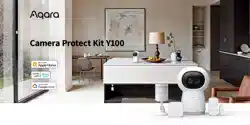

Welcome to Aqara HomeGuardian Protect Plan:
Product Introduction
Quick connection of the device
1.Download the App
Product Specifications
Schematic diagram of product installation location
Camera Hub G3 Installation
Protect Mode
Motion Sensor P1 Installation
Door and Window Sensor Battery Replacement
Vibration Sensor Battery Replacement
[Camera Hub G3] The core device for video surveillance and home security alerts, and serves as a Zigbee Hub
for other Aqara zigbee devices. Home monitoring can be viewed at all times through the app, and the Hub can
securely control connected home devices.
[Motion Sensor P1]Alerts you to abnormal movement inside your home. The sensor should be adjusted to the
appropriate monitoring angle and attached with the 3M adhesive tape.
[Door and Window sensor] Alerts you when a door or window is opened abnormally. The sensor can be
attached with the 3M adhesive tape.
[Vibration Sensor T1] Alerts you when abnormal vibrations are detected. The sensor can be attached with the
3M adhesive tape.
This house diagram shows you where Aqara HomeGuardian Protect devices can be installed
Search for "Aqara Home" in the Apple App Store, Google Play, Xiaomi GetApps,
HuaweiApp Gallery, or scan the following QR code to download the Aqara Home app.
2. Binding the Devices
4. Device Installation
Using the Aqara HomeGuardian Service
Remove the device from the kit box and power it on. First, bind the Camera Hub G3 and wait for it to enter the
network binding process. Use the Aqara Home App to scan the binding QR code on the packaging box to start
binding the device.
3. Follow the Instructions in the App to Proceed
Follow the instructions on the Aqara Home App to complete the binding
process of the Kit.
Direct Installation
Installation with Holder
1. This kit does not include a camera bracket, but the camera include a 1/4-inch threaded screw. If wall
mounting or liing is required, the bracket or any other threaded screw-compatible mount should be
purchased separately.
2. Please ensure that the camera is successfully added to the app before mounting it on the wall.
3. The camera can be placed on a desk, dining room table, bookcase, coffee table or other horizontal surfaces.
4. Aer mounting the camera upside-down, the image needs to be flipped in the Aqara Home app to be viewed
normally.
1.Avoid installing on tile, glass, marble, or other smooth, moisture-prone surfaces to prevent the adhesive
from loosening.
2.Avoid installing on lights or other high-temperature surfaces to prevent the adhesive from loosening.
3.Avoid installing on the surface of wall coverings and other rough and uneven objects to prevent the adhesive
from loosening.
4.Avoid positioning it toward electrical appliances or other heat sources to prevent infrared interference and
false triggers.
1.Place it directly in the desired location.
2.Remove the protective film, and stick it to the desired position.
1. Remove the protective film
2. During installation, try to align the marker line of the sensor unit and the magnet
3. Stick onto the door or window (It is recommended to install the sensor unit on an unmovable surface, and
the magnet on a movable surface. Make sure the installation gap is less than 22 mm when doors or windows
are closed).
Installation gap less than 22 mm
Door and Window Sensor Installation
Vibration Sensor Installation
Effective Range Test: Single press the reset button on the accessory at the desired installation location. If the
Hub emits a voice prompt, that indicates that the accessory can communicate effectively with the Hub.
1.Rotate counterclockwise and unscrew the battery cover on the sensor
2.Remove the original battery and replace it with a brand-new CR2032 button battery
3.Rotate clockwise to reinstall the battery cover
1.Use a pry bar to pry open the sensor's buckle
2.Remove the original battery and replace it with
a brand-new CR1632 battery
3.Reconnect the sensor
1.Choose an appropriate installation position and make sure the installation surface is clean and flat.
2.Put the adhesive on the bottom of the battery cover, determine the detection direction, stick it in the
desired installation position, and press hard and evenly for 30 seconds to make sure its firmly installed.
1.Choose an appropriate installation position and make sure the installation surface is clean and flat.
2.Stick the sensor to the installation pedestal, and press hard and evenly for 30 seconds to make sure its firmly
installed.
3.Stick holder pedestal in the required area, and press hard and evenly for 30 s to make
sure it sticks firmly. In the case of installing on a wall surface, it is recommended that
the holder gap faces upward to facilitate adjusting detection direction.
*Once binding is complete, you can view the character code at the end of the device
2.Stick the sensor to the installation pedestal, and press hard and evenly for 30 s to
make sure it sticks firmly. name in the product list on the app. This character code
will match the last 4 digits of the MAC address sticker on the device body.
*When the products in the kit are first bound, they are pre-bound together by default. Users only need to bind the Camera Hub G3
to complete the binding of all products in the kit. If the sensors do not have a battery installed aer binding, the app will display
the sensors status as offline by default. Replace and install new batteries, and the sensor will return to online status.
*The pre-binding status only takes effect during the first binding. If you unbind aer completing the binding, you cannot bind again
in the pre binding status. However, you can still manually bind the products in the package.
*You can purchase other Aqara Zigbee sub devices and bind them to the Camera Hub G3.
*When binding for the first time, do not perform a factory reset operation on the Camera Hub G3 to avoid unbinding the products in
the set. If you accidentally factory reset, you will need to manually bind the sensors aer binding the Camera Hub G3.
* The camera should be placed within range of the Wi-Fi signal.
* Do not place it near a strong electromagnetic interference source.
* Keep direct light sources away from the camera lens at close range.
* Make sure there are no obstructions around the device.
* This product is only for indoor use.
*Recommended installation height is 1.2-2 m. The detection scope gets smaller if it is lower than 1.2 m. There will be a blind zone
at the bottom of the motion sensor if it is installed higher than 2 m.
*Avoid metal surfaces to maximize signal strength
Effective Range Test: Single press the reset button on the accessory at the desired installation location. If the
Hub emits a voice prompt, that indicates that the accessory can communicate effectively with the Hub.
Keep the surface clean and dry.
*Keep the surface clean and dry.
*The Aqara HomeGuardian Protection plan requires an additional subscription on the Aqara Home app. Subscription sold
separately. Users who purchase the kit receive a free subscription for 31 days. For details, please refer to the Aqara Home app.
Try to align the marker line
Wall mounting
Upside-down
Flatwise
Effective Detection Area: Lateral View
Effective Detection Area: Top View
Aqara HomeGuardian Protect Plan has 5 modes: Home Guard, Away Guard, Night Guard, Basic Guard and
Disarm. Subscription users can enjoy exclusive Aqara HomeGuardian Protect plan services, including longer
video storage, more comprehensive family protection services, and diversified intelligent scene linking.
Model: CH-H03, MS-S02, MCCGQ11LM, VB-S01D
Wireless Protocols: Wi-Fi IEEE 802.11b/g/n/a/ac 2.4/5GHz, Zigbee IEEE 802.15.4
Input Power: 5V
⎓2A (Camera Hub G3)
Battery: 2 × CR2450 (Motion Sensor P1), CR1632 (Door and Window Sensor), CR2032 (Vibration Sensor T1)
Operating Temperature: -10℃ ~ 40℃ (14°F ~ 104°F)
Operating Humidity: 0 ~ 95%RH, no condensation
What's in the Box: Camera Hub G3 × 1, Motion Sensor P1 × 1, Door and Window Sensor × 1, Vibration Sensor
T1 × 1, User Manual × 1, USB Cable × 1, Warning Label × 1, Sticker × 4
Online Customer Service: www.aqara.com/support
Manufacturer: Lumi United Technology Co., Ltd.
Address: Room 801-804, Building 1, Chongwen Park, Nanshan iPark, No. 3370, Liuxian
Avenue, Fuguang Community, Taoyuan Residential District, Nanshan District,
Shenzhen, China.
Email: [email protected]
Made in China
1 2
3 4
1.2-2 m
7m
12 m
7 m
Basic Guard
Always-on, fundamental security feature that automatically activates and runs continuously.
It requires no manual intervention and is ideal for devices that need 24/7 monitoring, such as
smoke detectors. While in this mode, other security modes like Home, Away, and Night can
still be armed and will work together to protect your home.
Home guard
Use when the family is at home,
securing the outdoor environment
without interrupting indoor activities.
Away guard
Activated when the home is
unoccupied or the family is away
for an extended period.
Night guard
Activated during nighttime for
enhanced protection of the home’s
interior and surroundings while resting.
Disarm
Disable all event alarms when the
user prefers not to be disturbed.
1 2 3
Motion Sensor P1 Battery Replacement
1. Use a screwdriver to remove the battery cover through the gap on the top of the device.
2. Insert a flathead screwdriver into the battery gap and use it as a lever to detach the battery compartment cover.
3. Install two brand-new CR2450 button batteries into the battery compartment, Install the top battery with the
positive pole facing up, and install the bottom mattery with the positive pole facing down.
4. Align to and install the battery compartment based on arrow directions.
1
2
3
4
4
Camera Protect Kit Y100 User Manual
The above diagram shows the installation methods. If using a bracket/mount purchased separately, please
refer to its installation guide.
1 2
3
4 5
Camera Hub G3 ×1
Motion Sensor T1 ×1
Door and Window Sensor×1
Vibration Sensor T1×1
User manual×4
Warning Label×1
Sticker×4
Power Cable×1
The recommended installation height is 1.2-2 m. The detection scope gets smaller if it is lower than 1.2 m.
There will be a blind zone at the bottom of the motion sensor if it is installed higher than 2 m.