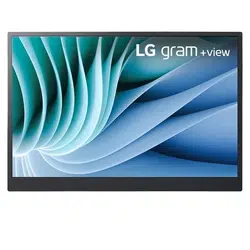
OWNER’S MANUAL
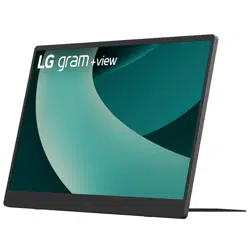
PORTABLE MONITOR
For safe and convenient use, please read this owner’s manual carefully before starting to use the product.
MFL05762702
www.lg.com
Copyright © 2025 LG Electronics Inc. All Rights Reserved
1
ENGLISH
Important Safety Precautions
Important Safety Precautions ���������������������������������������������������1
Checking the Components ���������������������������������������������������������2
Product Tour�����������������������������������������������������������������������������������2
Using Stand ������������������������������������������������������������������������������������3
Connecting Monitor ���������������������������������������������������������������������3
Using the Monitor OSD Menu ���������������������������������������������������5
Installing SW ����������������������������������������������������������������������������������5
Pre-Tech Support Checklist ��������������������������������������������������������6
Appendix �����������������������������������������������������������������������������������������7
Product Specifications�������������������������������������������������������������������������������������������������������7
Factory Default Mode��������������������������������������������������������������������������������������������������������7
Manufacturer and Copyright �������������������������������������������������������������������������������������������8
Open Source Software Notice Information ������������������������������������������������������������������ 8
Symbols ��������������������������������������������������������������������������������������������������������������������������������� 8
Important Safety Precautions
Check the following ‘Important Safety Precautions’ to prevent unexpected
danger or damage in advance.
‘Important Safety Precautions’ is divided into ‘WARNING’ and ‘CAUTION.’
!
WARNING: Noncompliance with the instruction may cause serious
physical damage or fatal injuries.
!
CAUTION: Noncompliance with the instruction may cause minor
damage to the body or the machine.
While using product
!
WARNING
• Use the product in a safe place where there is no
danger of the product falling.
• Do not use the product in a dusty or humid place.
• Do not use the product in a high or low-temperature
environment.
• Do not touch the power cord with your hands wet.
• Keep the power cable port free of foreign substances.
• Clean the product with a proper agent and dry it
completely before using it again.
!
CAUTION
• Do not press the monitor screen with fingers or put
objects on it.
• Do not tap or scratch the screen with a sharp object.
• If the screen is damaged, do not touch it with your
hands.
• Keeping a paused image on the screen for an extended
period of time may result in screen burn-in.
• Use a screensaver, etc.
• When its temperature is low, turning on the monitor
may cause momentary blinking of the screen.
• If this is the case, you may see some red, green, and
blue spots on the screen but it is normal.
Contents
2Checking the Components
ENGLISH
Checking the Components
•
Monitor body
•
Owner’s Manual
•
Pouch
•
USB-C®
Cable
•
mini HDMI cable
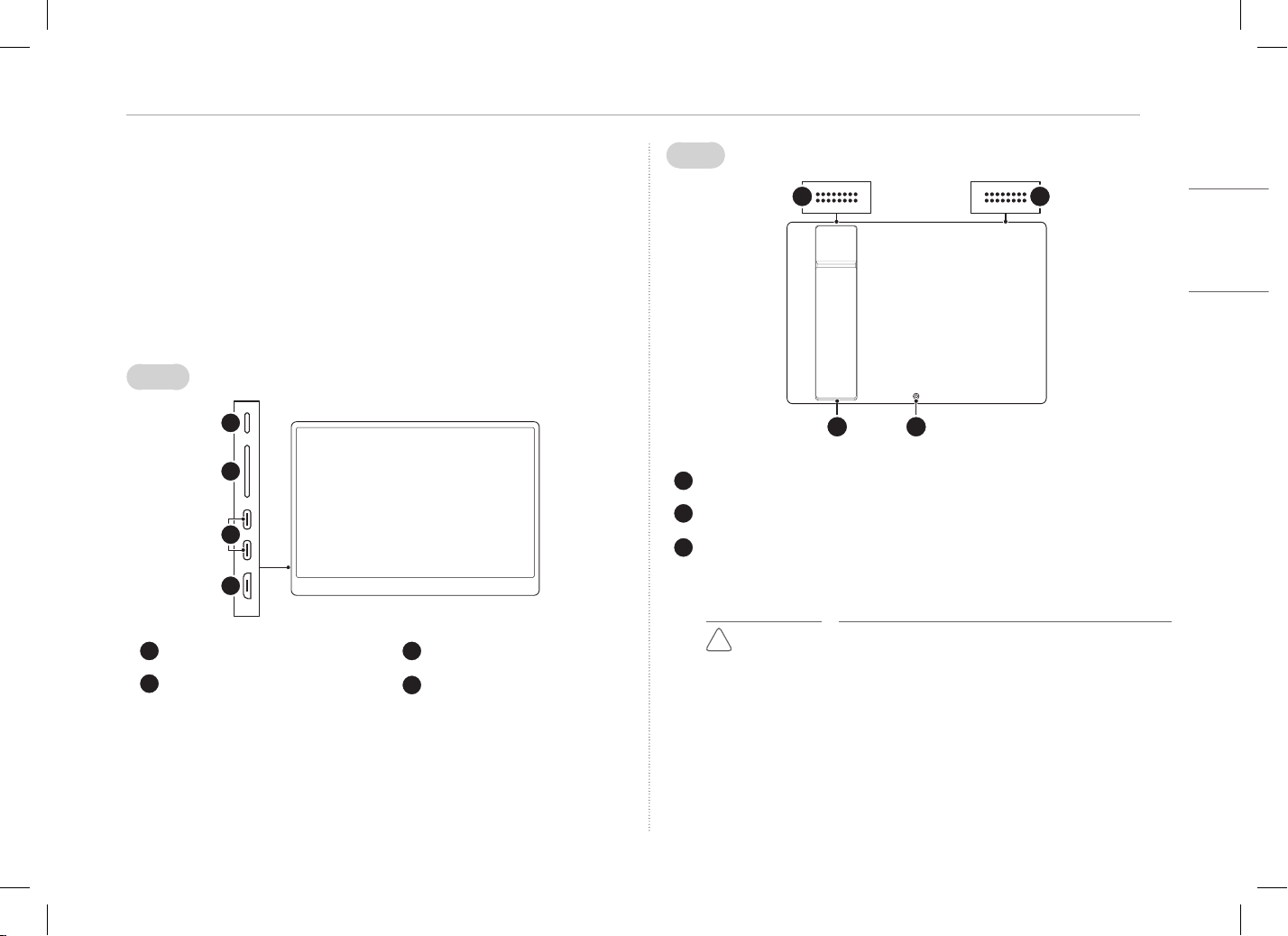
Product Tour
The product may differ in shape and color from the product images
included in this Owner’s manual.
Front
1
2
4
3
Power / Menu Button
1
USB-C
®
Port
2
Up / Down Button
mini HDMI Port
1 Allows you to turn on or off power.
(When turning off, press and hold for more than 2 seconds.)
2 The USB-C
®
port only supports PD (Power Delivery)* and connection to
external display screens.
* Supported when connecting the PD charger
Back
1 1
32
Built-in Speakers
Stand
Tripod Mount Nut
1
1 Use a camera-dedicated tripod.
Tighten tripod fixing screws to prevent the monitor from moving.
!
CAUTION
• Using a product other than a camera-dedicated
tripod may cause damage to the monitor.
• If the tripod fixing screws are tightened with
excessive force, the monitor may fall due to
damage in the screw holes.
3
ENGLISH
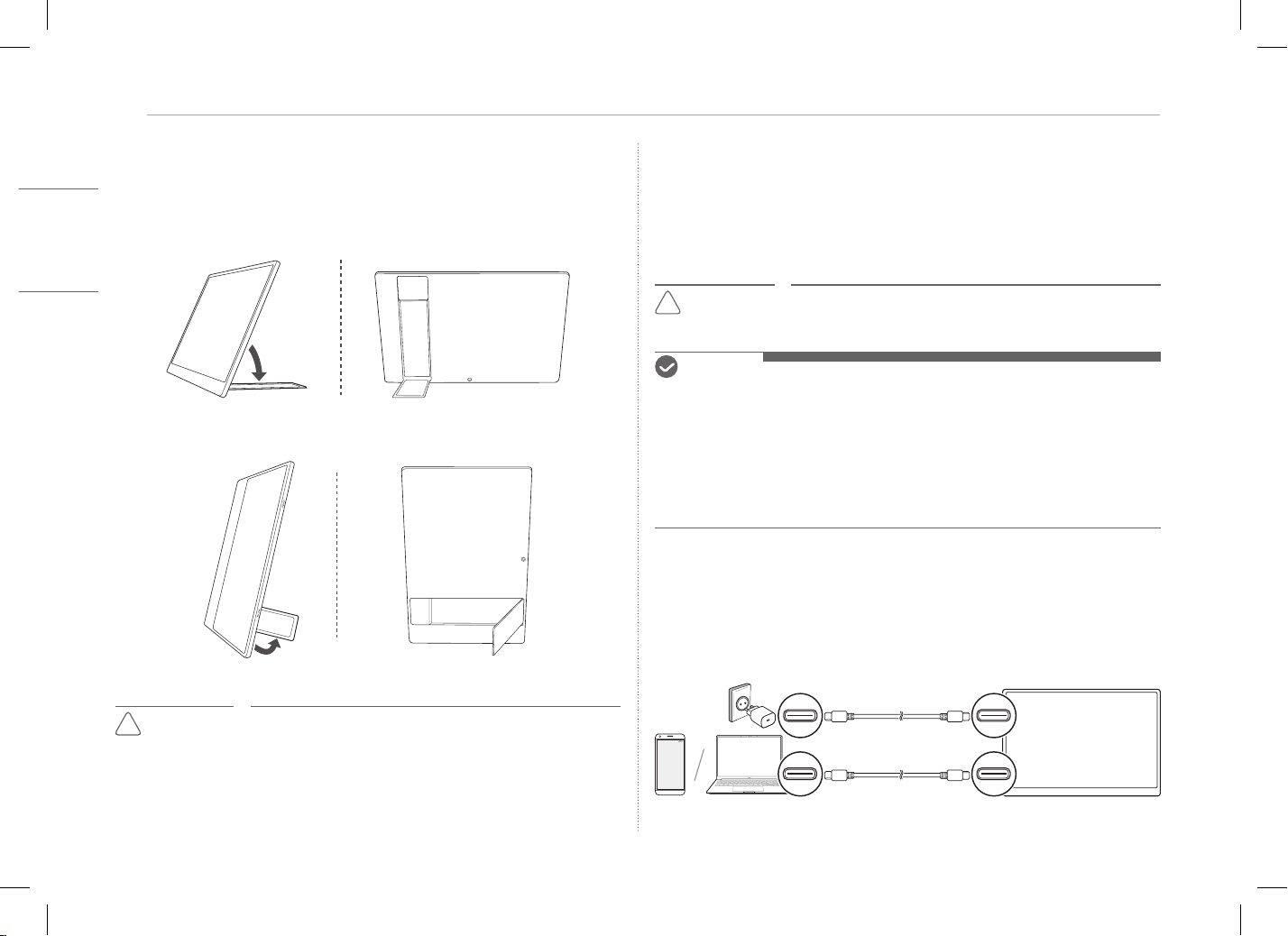
Using Stand
Using Stand
You can use the stand at the rear of the monitor to use in Horizontal
Mode or Vertical Mode.
[Horizontal Mode]
[Vertical Mode]
!
CAUTION
• When adjusting the stand angle, do not forcibly spread
it for more than 80 °. It may cause product damage.
• Your fingers may get stuck in the stand.
Connecting Monitor
Connect the cable that fits the display port of the device to be connected
with the monitor.
For stable use of the monitor, it is recommended to connect and use the
PD charger.
!
CAUTION
• If a cable incompatible for the monitor port is
connected, a connector or port may be damaged.
NOTE
• The PD charger is sold separately and is not provided with the product.
• The build-in speaker of the monitor operates only if the PD charger with
more than 25 W is connected.
• Some PCs may not support monitor connection.
• Use the cable provided with the monitor or a cable certified
by LG Electronics. The monitor may not operate when other cables are
used.
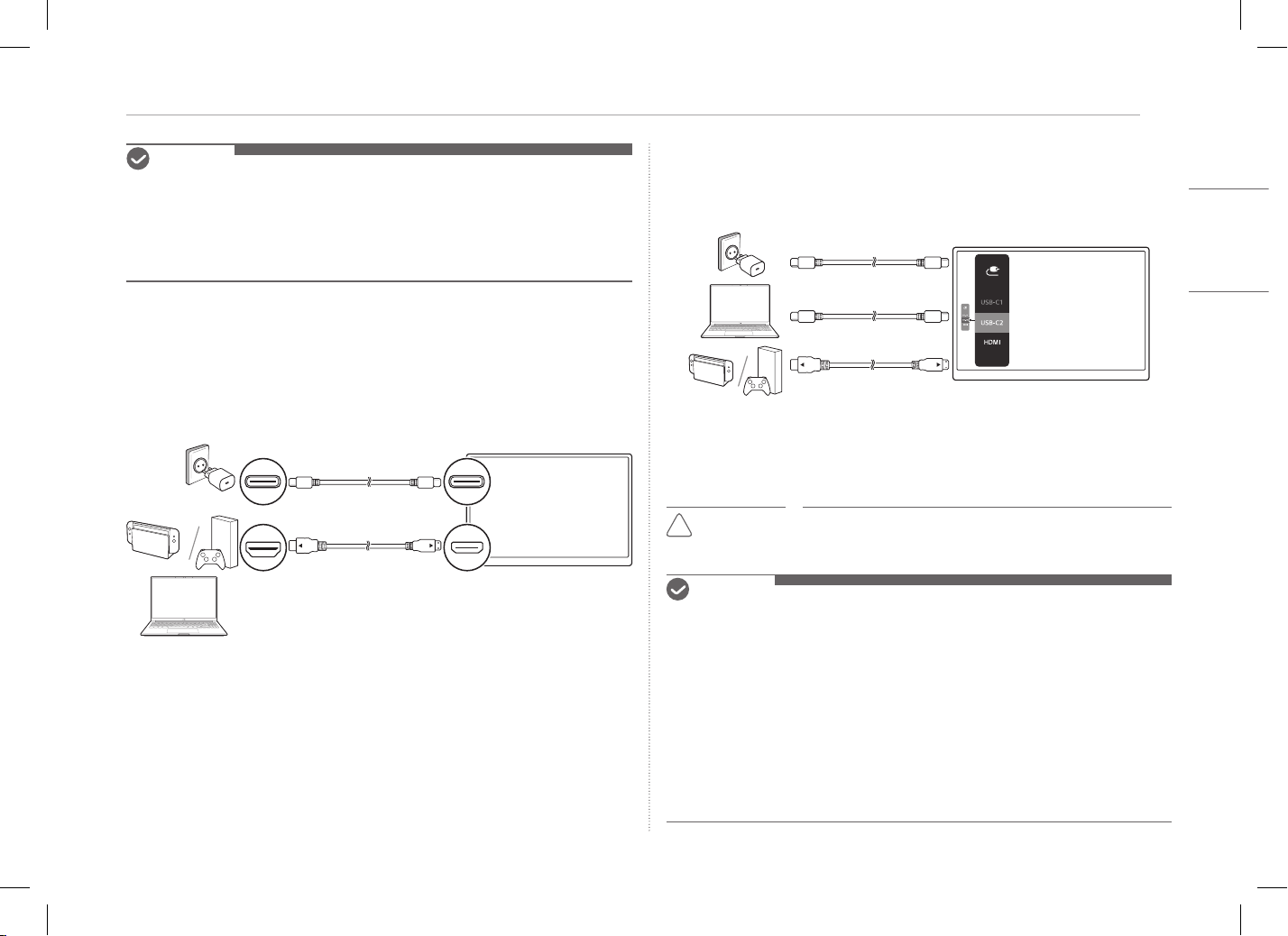
Connecting with USB-C® to USB-C® Cable
1 Connect the PD charger to the monitor.
2 Use the provided cable to connect the laptop or smartphone with the
monitor.
4Connecting Monitor
ENGLISH
NOTE
• A device you want to connect to the monitor must support power output
(USB PD) with more than 10 W (5 V / 2 A) and DisplayPort Alternate
Mode (DP Alt Mode).
• If the power consumption provided by the PD charger is low, the battery
level of the device connected to the monitor may decrease.
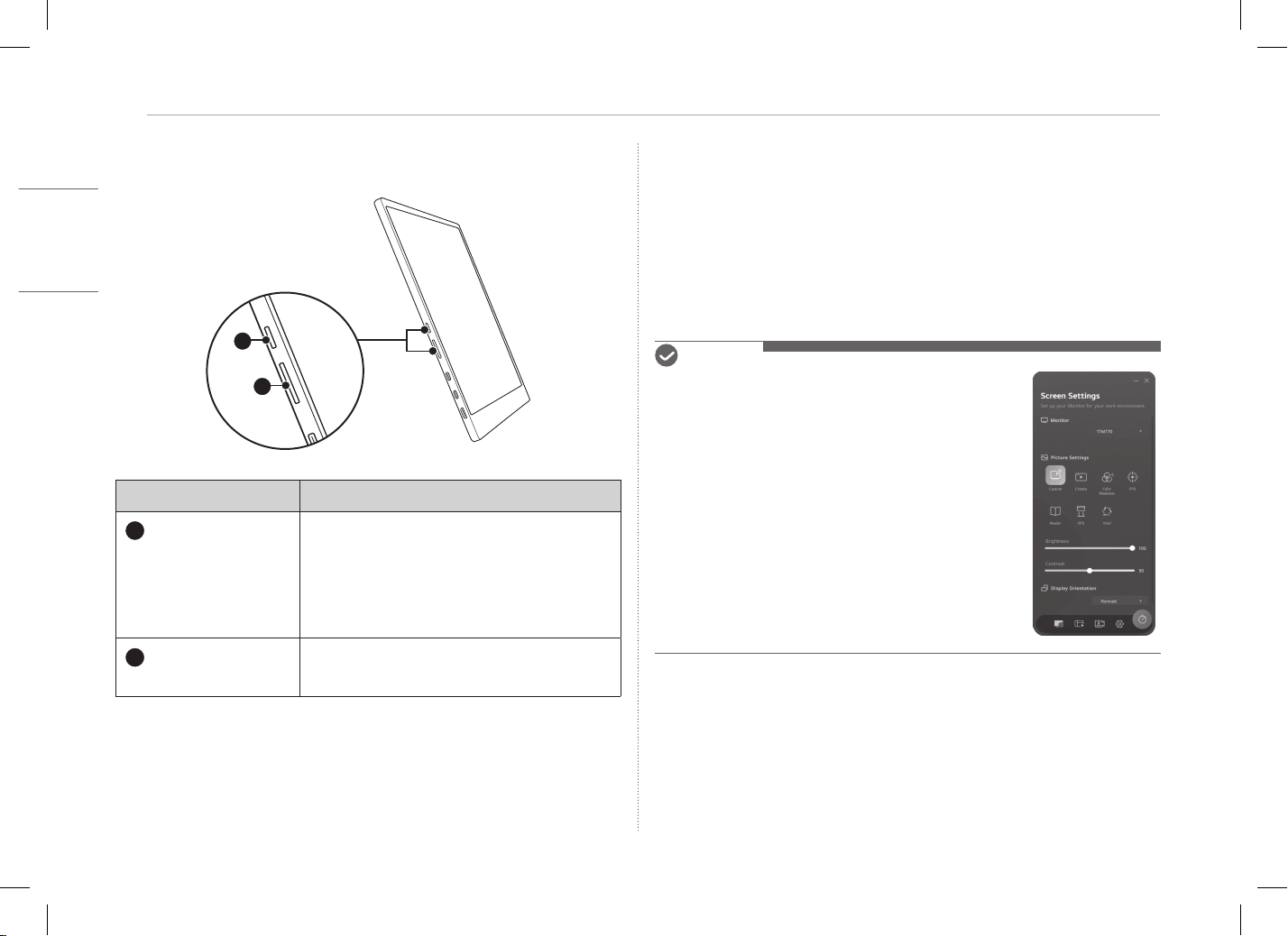
Connecting with mini HDMI to HDMI Cable
1 Connect the PD charger to the monitor.
2 Use the provided cable to connect the laptop and game console/other
devices with the monitor.
Switching Input Screen
When multiple devices are connected to the monitor, you can switch the input
screen with a desired device for use.
1 Press the [Power / Menu] button multiple times to switch to the [Input
Selection] menu.
2 Press the [Up / Down] button to select a connected device.
3 Press the [Power / Menu] button to switch the input screen.
!
CAUTION
• If the PD charger is not connected, the monitor may
not operate normally.
NOTE
• The PD charger is sold separately and is not provided as a component.
• To use the USB PD (Power Delivery) function, you need a PD charger with
25 W or higher. (It is recommended to use a PD charger with 45 W or
higher.)
• Connecting a 65 W PD charger supports the maximum 45 W of PD output.
Connecting a 45 W PD charger supports the maximum 27 W of PD output.
Connecting a 25 W PD charger supports the maximum 5 W of PD output.
• The PD function does not operate while the Sleep mode or power is
turned off. When not used for a long time, remove the cable.
• Some smartphone chargers and PCs may not support the PD or Sink
function.
5
ENGLISH
Using the Monitor OSD Menu
Using the Monitor OSD Menu
1
2
Button Description
Power / Menu
Press the [Power / Menu] button to turn the
power on or off. (When turning off, press and
hold for more than 2 seconds.) Each time the
[Power / Menu] button is pressed, it switches
in the order of [Screen Brightness] > [Volume]
> [Input Selection].
Up / Down button
Screen brightness (bright / dark) and volume
(low / high) are adjusted.
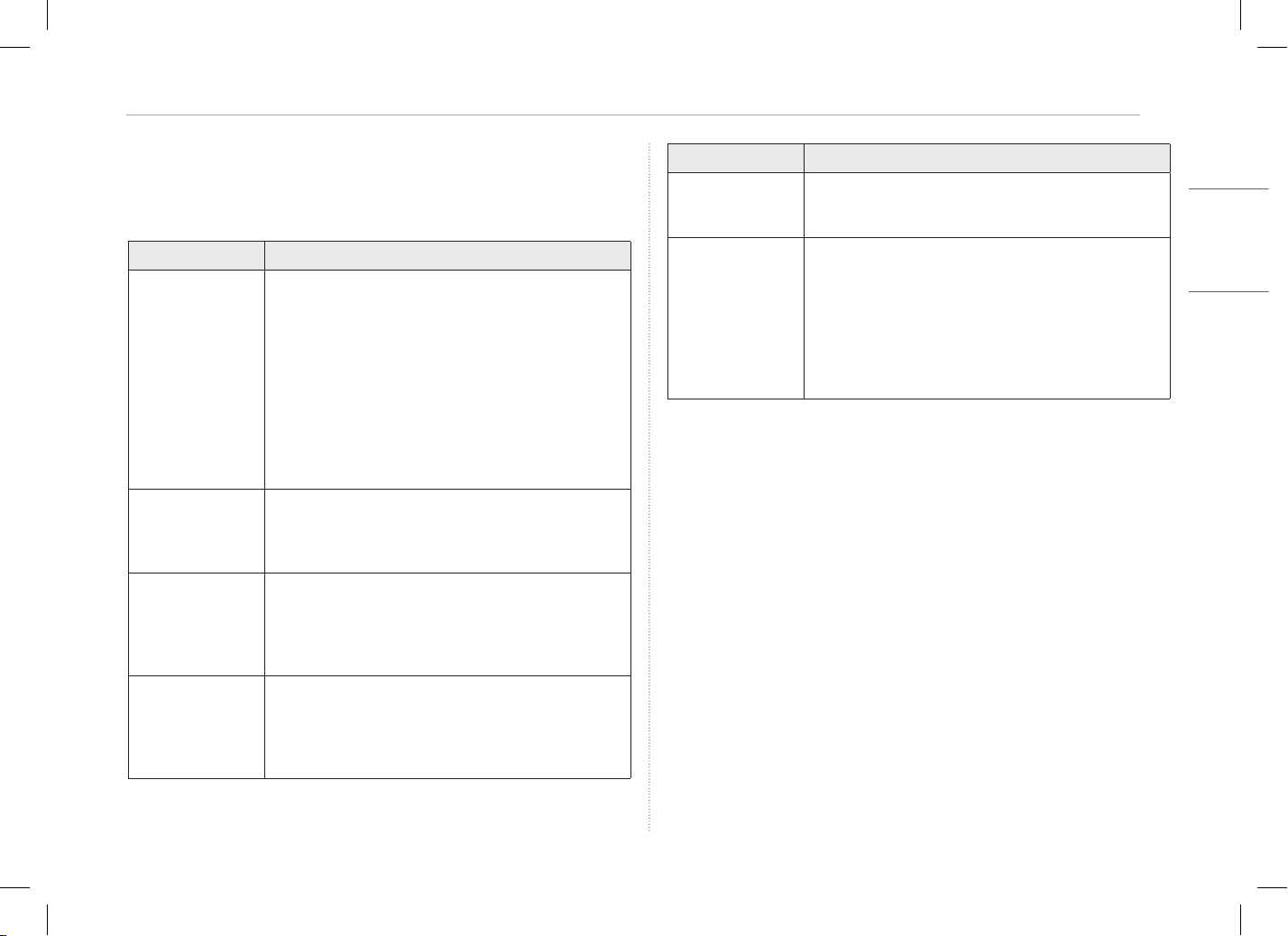
Installing SW
Install LG Switch and use various functions such as screen split, monitor
settings, and screen switch easily and conveniently.
1 Visit the LG Electronics website.
2 Press [Support] > [Downloading] and then search
“Product Model Name (17MT70)”
3 Select “LG Switch” and start installing the software.
NOTE
• After LG Switch is installed, you can see how to
use it from the Help menu provided inside the app.
• The Auto Screen Rotation function is available
only while LG Switch is enabled.
6Pre-Tech Support Checklist
ENGLISH
Pre-Tech Support Checklist
If the following symptoms appear while using the product, check again.
It may not be a malfunction.
Symptom Cause and Solution
The screen stays
blank or the power
does not turn on.
• Check if the device connected to the monitor
supports DisplayPort Alternate Mode (DP Alt Mode)
and USB Power Delivery (USB PD).
• Use the cable provided with the monitor to check if
the monitor and device are connected properly.
• If the PD charger is not connected to the monitor,
connect the PD charger.
• If the smartphone is not connected, connect the
USB-C
®
cable to the monitor first, and then connect
the smartphone.
The monitor’s
supported
frequency range
has been exceeded.
• This phenomenon occurs when the signal sent from
the PC exceeds the horizontal or vertical frequency
range. Refer to the Factory Mode settings and reset
the frequency.
The screen looks
unclear.
• Setting the screen resolution to any other than the
recommended (optimal) resolution may result in
blurry text or dimming, cropping, or tilting of the
screen. Use the recommended screen resolution
setting.
There are spots on
the screen.
• You may see a few pixel spots (red, green, blue,
white, black) on the screen while using the monitor.
This is a normal phenomenon of an LCD screen. This
is unrelated to the monitor performance and is not
an abnormality.
Symptom Cause and Solution
I can't charge. • Check if the adapter supports PD charging.
It is recommended to use a PD charger with 45 W or
higher.
I don't hear any
sound.
• Connect the PD charger to the monitor.
• The built-in speaker of the monitor operates only
when the PD charger is connected.
• Change the speaker output of the device connected
to the monitor to the monitor.
• For details, refer to the Owner’s manual of the device
connected to the monitor.
7
ENGLISH
Appendix
Appendix
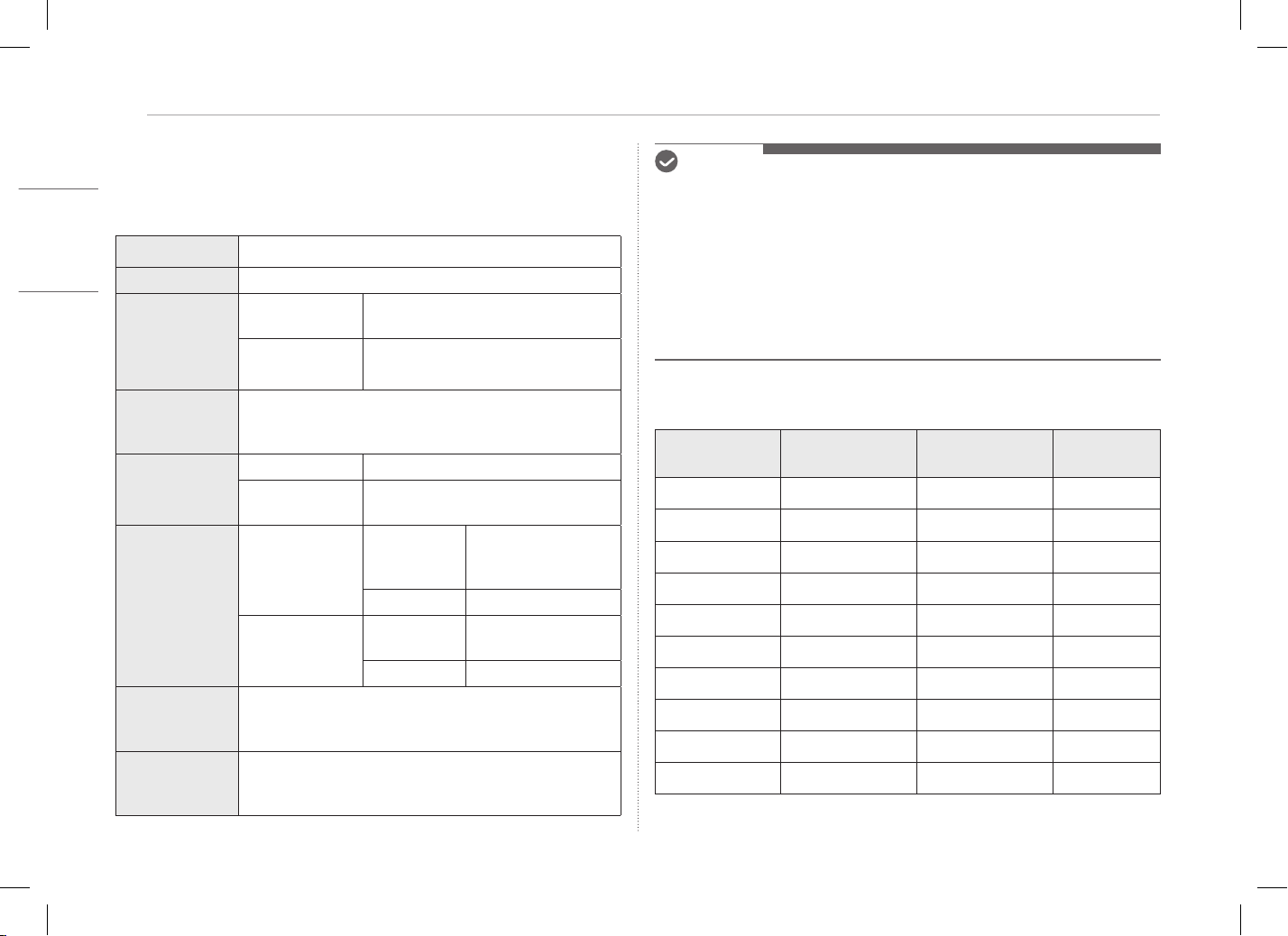
Product Specications
Display 17 inch (43.2 cm) IPS LCD
Color Depth 16.7 million colors (8 bits)
Resolution
Maximum
Resolution
2560 x 1600 @ 60 Hz
Recommended
Resolution
2560 x 1600 @ 60 Hz
Display
Standard
Supported
DisplayPort Alternate Mode (DP Alt Mode),
mini HDMI
Power
Rated 5 - 20 V
0
3.25 A
Power
Consumption
Operation mode: 10 W general
Environment
Operation
Temperature
+32 °F to +104 °F
(0 °C to 40 °C)
Humidity Lower than 80 %
Storage
Temperature
-4 °F to +140 °F
(-20 °C to 60 °C)
Humidity 85 % or lower
Dimensions
(not including
package)
14.9 (width) x 10.5 (height) x 0.35 inch (thickness) /
(379.7 (width) x 264.9 (height) x 8.9 mm (thickness) )
Weight
(not including
package)
Approx. 27.5 oz (780 g)
NOTE
• Power consumption in On Mode was measured under LGE’s standard
testing conditions (full white pattern, maximum resolution, maximum
brightness).
• The product specifications are subject to change without notice for
product improvement.
• Power consumption level may differ depending on the operating
conditions and monitor settings.
• Power consumtion is based on the factory default settings and may vary
depending on usage conditions.
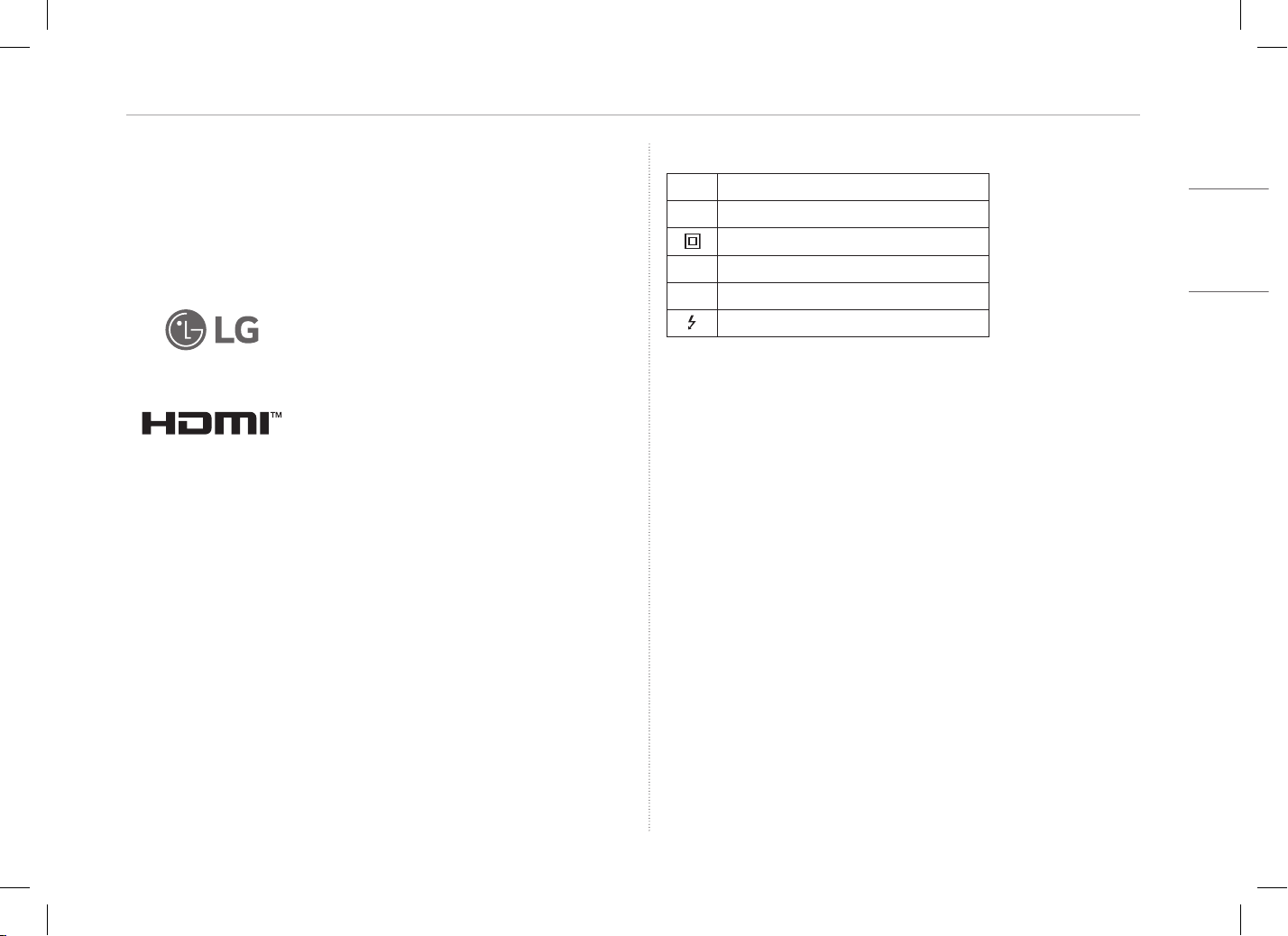
Factory Default Mode
Preset Mode
Horizontal
Frequency (kHz)
Vertical
Frequency (Hz)
Polarity (H/V)
640 x 480 29.38 59.46 +/-
800 x 600 36.98 59.84 +/-
1024 x 768 47.30 59.87 +/-
1152 x 720 44.40 59.92 +/-
1280 x 800 49.31 59.91 +/-
1600 x 1000 61.65 59.91 +/-
1680 x 1050 64.67 59.88 +/-
1920 x 1200 74.04 59.95 +/-
2560 x 1440 88.79 59.95 +/-
2560 x 1600 98.71 59.97 +/-
8Appendix
ENGLISH
Manufacturer and Copyright
Manufacturer and Copyright represent the logo and trademark of the
manufacturer, and bear no relationship to the functions supported by the
product.
USB Type-C® and USB-C® areregistered trademarks of USB Implementers
Forum. USB 2.0 Type-C™ is a trademark of USB Implementers Forum.
LG logo is a registered trademark
of LG Electronics Inc.
The terms HDMI, HDMI High-Definition
Multimedia Interface, HDMI Trade Dress and
the HDMI Logos are trademarks or registered
trademarks of HDMI Licensing Administrator,
Inc.
Open Source Software Notice Information
To obtain the source code under GPL, LGPL, MPL, and other open
source licenses that have the obligations to disclose source code, that
is contained in this product, and to access all referred license terms,
copyright notices and other relevant documents please visit
https://opensource.lge.com.
LG Electronics will also provide open source code to you on CD-ROM for a
charge covering the cost of performing such distribution (such as the cost
of media, shipping, and handling) upon email request to
opensourc[email protected].
This offer is valid to anyone in receipt of this information for a period of
three yearsafter our last shipment of this product.
Symbols
~
Refers to alternating current (AC).
0
Refers to direct current (DC).
Refers to class II equipment.
1
Refers to stand-by.
!
Refers to “ON” (power).
Refers to dangerous voltage.


MFL05762702