
Contents
About This Manual
Introduction to the Manuals...................7
Marks and Symbols.........................7
Descriptions Used in this Manual...............7
Operating System References..................8
Copyright................................8
Trademarks...............................9
Important Instructions
Safety Instructions.........................11
Restrictions on Copying.....................12
Advisories and Warnings for Using the
Touchscreen............................. 12
Advisories and Warnings for Connecting to the
Internet.................................13
Protecting Your Personal Information...........13
Notes on the Administrator Password...........13
Initial Administrator Password..............13
Operations that Require the Administrator
Password..............................13
Changing the Administrator Password........14
Resetting the Administrator Password.........14
Product Features
Auto Cropping for Multiple Originals...........16
Capable of Scanning Various Types of Originals. . . 16
Sending Scanned Images Simply by Operating
the Touch Screen (Scan to Features)............17
Paper Protection to Reduce Damage to the
Originals................................19
Notication of Dirt on the ADF...............19
Scanner Basics
Part Names and Functions...................22
Inserting and Removing a USB Drive...........24
Inserting a USB Drive.................... 24
Removing a USB Drive....................24
Control Panel............................ 25
Buttons and Lights.......................25
Guide to the LCD Screen..................25
Registering Presets.......................29
Administrator Password for the Device..........32
Initial Administrator Password..............32
Operations that Require the Administrator
Password..............................32
Changing the Administrator Password........32
Resetting the Administrator Password.........32
Information on Applications..................33
Application for Scanning Documents
(Document Capture Pro / Document Capture). . 33
Application for Controlling the Scanner
(Epson Scan 2)..........................33
Application for Scanning from Smart Devices
(Epson Smart Panel)......................34
Application for Updating Soware and
Firmware (EPSON Soware Updater).........34
Application for
Conguring
Scanner
Operations (Web Cong)..................35
Application for Setting up the Device on a
Network (EpsonNet Cong)................37
Soware for Managing Devices on the
Network (Epson Device Admin).............37
Application for Creating Driver Packages
(EpsonNet SetupManager).................37
Option Items and Consumables Information. . . . . . 38
Cleaning Kit Codes......................38
Specications and Placing of
Originals
Placing Originals into the ADF................40
General
Specications
for Originals being
Scanned (ADF).........................40
Types of Originals that Require Attention
(ADF)................................40
Types of Originals that Must Not be Scanned
(ADF)................................41
Specications and Placing of Originals (ADF). . . 42
Placing Originals on the Scanner Glass. . . . . . . . . . 53
Placing an Original...................... 54
Placing ick Originals................... 55
Placing Multiple Originals at Once...........57
Placing an ID Card.......................59
Using the ADF and Scanner Glass Together in a
Single Scan..............................62
Scanning
Scanning Using the Control Panel..............67
Save to Computer........................67
Save to Network Folder................... 69
Send by Email..........................75
2

Send to the Cloud....................... 83
Save to USB Drive.......................89
Use WSD Functions......................94
Combination of Features and Settings.........96
Scanning Using the Registered Contents in Presets. .98
Scanning from a Computer...................98
Scanning Using Document Capture Pro
(Windows)............................ 98
Scanning Using Document Capture (Mac OS). . 105
Scanning Using Epson Scan 2..............111
Soware Image Quality Adjustment Features. . . 116
Using AirPrint.........................116
Scanning Using Chromebook..............116
Setting a Job.............................117
Creating a Job and Assigning a Job to the
Control Panel (Windows).................117
Creating and Registering a Job (Mac OS). . . . . . 117
Assigning a Job to the Control Panel (Mac OS). 118
Scanning from a Smart Device...............118
Scanning Using Epson Smart Panel..........118
Scanning Using Mopria Scan.............. 119
Required Settings for Scanning
Connecting the Scanner to the Network........ 121
Making Wi-Fi Settings from the Control Panel. . . .121
Setting Up Scanning from the Control Panel
(the Scan to Features)......................121
Creating a Network Folder..................122
Registering an Email Server.................128
Checking an Email Server Connection....... 130
Registering Destinations to Contacts...........131
Function Comparison by Registration Tool. . . . 132
Registering a Destination to Contacts........132
Registering Destinations as a Group Using
Web
Cong
...........................136
Exporting and Importing Your Contacts......137
Setting Up AirPrint....................... 140
Registering User-dened Sizes in Web Cong. . . . 140
Menu Options for Settings
Start-up Screen.......................... 142
Basic Settings............................142
LCD Brightness........................142
Sounds.............................. 142
Sleep Timer...........................142
Power O Settings......................142
Date/Time Settings......................143
Language.............................143
Keyboard.............................143
Operation Time Out.....................143
PC Connection via USB..................143
USB Drive............................143
Scanner Settings..........................143
User Settings............................144
Network Settings.........................144
Wi-Fi Setup...........................144
Wired LAN Setup:......................145
Network Status.........................145
Advanced............................ 145
Web Service Settings...................... 146
Contacts Manager........................146
System Administration.....................146
Contacts Manager......................146
Admin Settings........................ 146
Password Encryption....................147
Program Verication on Start Up:...........147
Customer Research..................... 147
WSD Settings..........................147
Restore Default Settings..................147
Firmware Update:...................... 147
Device Information.......................147
Scanner Maintenance......................148
Regular Cleaning Alert Settings.............. 148
Useful Features
Setting the Glass Surface Stain Detection Feature. . 150
Setting the Document Protection Feature....... 151
Maintenance
Cleaning Outside the Scanner................154
Cleaning the ADF........................ 154
Resetting the Number of Scans Aer
Cleaning the ADF (Regular Cleaning)........158
Cleaning the Scanner Glass..................159
Energy Saving...........................161
Transporting the Scanner...................161
Updating Applications and Firmware..........162
Updating the Scanner's Firmware using the
Control Panel..........................163
Updating Firmware Using Web Cong.......163
Updating Firmware without Connecting to
the Internet...........................163
Solving Problems
Problems with the Scanner..................166
3

Checking Error Messages on the Control Panel. 166
A Message Prompting You to Perform
Cleaning (Regular Cleaning) is Displayed. . . . . 167
e Scanner Does Not Turn On............ 167
e Scanner Turns O Unexpectedly.........167
Forgot Your Administrator's Password........168
Problems when Preparing Network Scanning. . . . 168
Hints to Solving Problems.................168
Cannot Access Web Cong................169
Problems Starting Scanning.................170
Cannot Start Scanning from Computer.......170
Cannot Start Scanning from Smart Device. . . . .176
Cannot Save Scanned Images to the Shared
Folder...............................178
Cannot Send Scanned Images to the Cloud. . . . 180
Cannot Send Scanned Images to an Email. . . . . 180
Paper Feeding Problems. . . . . . . . . . . . . . . . . . . . 180
Multiple Originals Are Fed (Double Feed). . . . . 180
Removing Jammed Originals from the Scanner. 180
Paper Jams, Paper Feed Errors, and
Document Protection Issues Occur Frequently. 185
Paper Protection Does not Work Correctly. . . . 187
Originals are not Ejected Neatly............187
e Originals Get Dirty..................187
Scanning Speed Slows Down when Scanning
Continuously..........................187
Scanning Takes a Long Time...............188
Scanned Image Problems...................188
Uneven Colors, Dirt, Spots, and so on Appear
when Scanning from the Scanner Glass.......188
Lines (Streaks) Appear when Scanning from
ADF................................ 188
Alert About Stains Inside the Scanner Still
Appears..............................189
Colors Are Uneven in Images Scanned Using
the ADF..............................189
Text Scanned from the ADF Appears
Distorted, Blurred, or Misaligned...........189
Expanding or Contracting the Scanned
Image Using the ADF....................189
An Image on the Back of Your Original
Appears in Your Scanned Image............190
Scanned Text or Images are Missing or Blurred. 191
Moiré Patterns (Web-Like Shadows) Appear. . . 191
Cannot Scan the Correct Area on the
Scanner Glass..........................192
Cannot Scan Multiple Originals at the Same
Time................................193
e Edge of the Original is Not Scanned
when Automatically Detecting the Size of the
Original..............................193
Character is not Recognized Correctly........194
Binding Margins of a Booklet are Distorted
or Blurred............................194
Cannot Solve Problems in the Scanned Image. . 195
Document Capture Pro Problems.............195
Uninstalling and Installing Applications. . . . . . . . 195
Uninstalling Your Applications.............195
Installing Your Applications...............197
Adding or Replacing the Computer or
Devices
Connecting to a Scanner that has been
Connected to the Network..................199
Using a Network Scanner from a Second
Computer............................199
Using a Network Scanner from a Smart Device. 200
Connecting a Smart Device and Scanner
Directly (Wi-Fi Direct).....................200
About Wi-Fi Direct..................... 200
Connecting to a Smart Device using Wi-Fi
Direct...............................201
Disconnecting Wi-Fi Direct (Simple AP)
Connection...........................201
Changing the Wi-Fi Direct (Simple AP)
Settings Such as the SSID.................201
Re-setting the Network Connection........... 202
When Replacing the Wireless Router.........202
When Changing the Computer.............203
Changing the Connection Method to the
Computer............................204
Making Wi-Fi Settings from the Control Panel. .205
Checking the Network Connection Status.......205
Checking the Network Connection Status
from the Control Panel...................205
Checking the Network of the Computer
(Windows only)........................207
Administrator Information
Connecting the Scanner to the Network........ 209
Before Making Network Connection.........209
Assigning the IP Address.................211
Connecting to Ethernet.................. 212
Connecting to the Wireless LAN (Wi-Fi). . . . . .213
Setting up the IEEE802.11k/v or IEEE802.11r
Features..............................215
Introduction of Product Security Features. . . . . . . 215
Administrator Settings.....................216
Conguring the Administrator Password......216
4

Using Lock Setting for the Control Panel. . . . . . 218
Logging in to the Scanner's Web Cong from
a Computer...........................220
Restricting USB Drive and Computer USB
Connections............................ 221
Enabling Program Verication on Start Up......221
Disabling Network Scanning from your Computer 222
Enabling or Disabling WSD Scan............. 222
Monitoring a Remote Scanner................223
Checking Information for a Remote Scanner. . . 223
Receiving Email
Notications
When Events
Occur...............................223
Using Web Cong to Control the Scanner's
Power Supply..........................224
Backing Up the Settings....................224
Export the settings......................225
Import the settings......................225
Restoring the Default Settings................226
Advanced Security Settings..................226
Security Settings and Prevention of Danger. . . . 226
Controlling Using Protocols...............227
Using a Digital Certicate.................230
SSL/TLS Communication with the Scanner. . . . 235
Encrypted Communication Using IPsec/IP
Filtering..............................236
Connecting the Scanner to an IEEE802.1X
Network............................. 247
Solving Problems for Advanced Security......249
Technical Specications
General Scanner Specications...............258
Network Specications.....................259
Wi-Fi Specications.....................259
Ethernet Specications...................260
Network Features and IPv4/IPv6 Support. . . . . 260
Security Protocol.......................261
Supported ird Party Services...............261
USB Drive Specications................... 261
Using Port for the Scanner..................261
Dimensions and Weight Specications......... 263
Electrical
Specications
....................264
Environmental Specications................265
System Requirements......................265
Standards and Approvals
Standards and Approvals for European Models. . . 268
Standards and Approvals for the U.S. and
Canadian Models.........................268
Standards and Approvals for Latin American
Models................................ 268
Aviso para Argentina....................268
Aviso para México......................269
Aviso para Paraguay.....................269
Aviso para Perú........................269
Where to Get Help
Technical Support Web Site..................271
Contacting Epson Support..................271
Before Contacting Epson................. 271
Help for Users in the U.S. and Canada........271
Help for Users in Latin America............272
Help for Users in Europe..................273
Help for Users in Taiwan..................273
Help for Users in Singapore............... 274
Help for Users in
ailand
................ 274
Help for Users in Vietnam................ 275
Help for Users in Indonesia................275
Help for Users in Malaysia................ 275
Help for Users in India...................276
Help for Users in the Philippines............276
5

About This Manual
Introduction to the Manuals...........................................7
Marks and Symbols..................................................7
Descriptions Used in this Manual....................................... 7
Operating System References...........................................8
Copyright.........................................................8
Trademarks....................................................... 9
Introduction to the Manuals
e latest versions of the following manuals are available from the Epson support website.
To view user manuals, visit the following website and search for your model:
https://epson.com/support (U.S.)
https://epson.ca/support (Canada)
https://latin.epson.com/support (Latin America)
http://www.epson.eu/support (Europe)
http://support.epson.net/ (Other Regions)
O Start Here (paper manual)
Provides information on setting up the scanner.
O is guide "User's Guide" (digital manual)
Provides instructions on using the product, maintenance, and solving problems.
As well as the manuals above, various manuals and help are included in the applications.
Marks and Symbols
!
Caution:
Instructions that must be followed carefully to avoid bodily injury.
c
Important:
Instructions that must be observed to avoid damage to your equipment.
Note:
Provides complementary and reference information.
Related Information
&
Links to related sections.
Descriptions Used in this Manual
O Screenshots for the applications are from Windows 10 or macOS High Sierra. e content displayed on the
screens varies depending on the model and situation.
O Illustrations used in this manual are for reference only. Although they may dier slightly from the actual
product, the operating methods are the same.
About This Manual
>
Descriptions Used in this Manual
7

Operating System References
Windows
In this manual, terms such as "Windows 11", "Windows 10", "Windows 8.1", "Windows 8", "Windows 7",
"Windows Server 2022", "Windows Server 2019", "Windows Server 2016", "Windows Server 2012 R2", "Windows
Server 2012", "Windows Server 2008 R2", and "Windows Server 2008" refer to the following operating systems.
Additionally, "Windows" is used to refer to all versions.
O Microso
®
Windows
®
11 operating system
O Microso
®
Windows
®
10 operating system
O Microso
®
Windows
®
8.1 operating system
O Microso
®
Windows
®
8 operating system
O Microso
®
Windows
®
7 operating system
O
Microso
®
Windows Server
®
2022 operating system
O Microso
®
Windows Server
®
2019 operating system
O Microso
®
Windows Server
®
2016 operating system
O
Microso
®
Windows Server
®
2012 R2 operating system
O Microso
®
Windows Server
®
2012 operating system
O Microso
®
Windows Server
®
2008 R2 operating system
O Microso
®
Windows Server
®
2008 operating system
Mac OS
In this manual, "Mac OS" is used to refer to Mac OS X 10.9 or later as well as macOS 11 or later.
Copyright
No part of this publication may be reproduced, stored in a retrieval system, or transmitted in any form or by
any means, electronic, mechanical, photocopying, recording, or otherwise, without the prior written permission
of Seiko Epson Corporation. No patent liability is assumed with respect to the use of the information contained
herein. Neither is any liability assumed for damages resulting from the use of the information herein. e
information contained herein is designed only for use with this Epson product. Epson is not responsible for any
use of this information as applied to other products.
Neither Seiko Epson Corporation nor its aliates shall be liable to the purchaser of this product or third parties
for damages, losses, costs, or expenses incurred by the purchaser or third parties as a result of accident, misuse, or
abuse of this product or unauthorized modications, repairs, or alterations to this product, or (excluding the U.S.)
failure to strictly comply with Seiko Epson Corporation's operating and maintenance instructions.
Seiko Epson Corporation and its aliates shall not be liable for any damages or problems arising from the use
of any options or any consumable products other than those designated as Original Epson Products or Epson
Approved Products by Seiko Epson Corporation.
Seiko Epson Corporation shall not be held liable for any damage resulting from electromagnetic interference that
occurs from the use of any interface cables other than those designated as Epson Approved Products by Seiko
Epson Corporation.
© 2025 Seiko Epson Corporation
About This Manual
>
Copyright
8

e contents of this manual and the specications of this product are subject to change without notice.
Trademarks
O
Microso,
Windows, Windows Server,
Microso
Edge, and SharePoint are trademarks of the
Microso
group
of companies.
O Apple, Mac, macOS, OS X, Bonjour, Safari, App Store, and AirPrint are trademarks of Apple Inc., registered in
the U.S. and other countries.
O Use of the Works with Apple badge means that an accessory has been designed to work specically with
the technology identied in the badge and has been certied by the developer to meet Apple performance
standards.
O Chrome, Chromebook, Google Play and Android are trademarks of Google LLC.
O Wi-Fi
®
and Wi-Fi Direct
®
are registered trademarks of Wi-Fi Alliance
®
. Wi-Fi Protected Setup™, WPA™,
WPA2™, WPA3™ are trademarks of Wi-Fi Alliance
®
.
O e Mopria™ word mark and the Mopria™ Logo are registered and/or unregistered trademarks of Mopria
Alliance, Inc. in the United States and other countries. Unauthorized use is strictly prohibited.
O Firefox is a trademark of the Mozilla Foundation in the U.S. and other countries.
O QR Code is a registered trademark of DENSO WAVE INCORPORATED in Japan and other countries.
O Evernote is a registered trademark or trademark of the Evernote Corporation in the United States.
O General Notice: All other trademarks are the property of their respective owners and used for identication
purposes only.
About This Manual
>
Trademarks
9

Important Instructions
Safety Instructions................................................. 11
Restrictions on Copying............................................. 12
Advisories and Warnings for Using the Touchscreen.........................12
Advisories and Warnings for Connecting to the Internet......................13
Protecting Your Personal Information................................... 13
Notes on the Administrator Password................................... 13

Safety Instructions
Read and follow these instructions to ensure safe use of this product. Make sure you keep this manual for future
reference. Also, be sure to follow all warnings and instructions marked on the product.
O Some of the symbols used on your product are to ensure safety and proper use of the product. Visit the
following Web site to learn the meaning of the symbols.
http://support.epson.net/symbols
O Place the product on a at, stable surface that extends beyond the base of the product in all directions. If you
place the product by the wall, leave more than 10 cm (3.94 in.) between the back of the product and the wall.
O Avoid places subject to dust, shocks, or vibrations.
O Place the product close enough to the computer for the interface cable to reach it easily. Do not place or store
the product or the power cord outdoors, near excessive dirt or dust, water, heat sources, or in locations subject
to shocks, vibrations, high temperature or humidity, direct sunlight, strong light sources, or rapid changes in
temperature or humidity.
O Do not use the product with wet hands.
O Place the product near an electrical outlet where the power cord plug can be easily unplugged.
O
e
power cord should be placed to avoid abrasions, cuts, fraying, crimping, and kinking. Do not place objects
on top of the cord and do not allow the power cord to be stepped on or run over. Be particularly careful to keep
the cord straight at the end.
O Use only the power cord supplied with the product and do not use the cord with any other equipment. Use of
other cords with this product or the use of the supplied power cord with other equipment may result in re or
electric shock.
O Use only the type of power source indicated on the product’s label, and always supply power directly from a
standard domestic electrical outlet.
O When connecting this product to a computer or other device with a cable, ensure the correct orientation of the
connectors. Each connector has only one correct orientation. Inserting a connector in the wrong orientation
may damage both devices connected by the cable.
O Avoid using outlets on the same circuit as photocopiers or air control systems that regularly switch on and o.
O If you use an extension cord with the product, make sure the total ampere rating of the devices plugged into the
extension cord does not exceed the cord’s ampere rating. Also, make sure the total ampere rating of all devices
plugged into the wall outlet does not exceed the wall outlet’s ampere rating.
O Never disassemble, modify, or attempt to repair the product, or product option by yourself except as specically
explained in the product’s guides.
O Do not insert objects into any opening as they may touch dangerous voltage points or short out parts. Beware of
electrical shock hazards.
O If damage occurs to the plug, replace the cord set or consult a qualied electrician. If there are fuses in the plug,
make sure you replace them with fuses of the correct size and rating.
O Unplug the product and the power cord, and refer servicing to
qualied
service personnel under the following
conditions: e power cord or plug is damaged; liquid has entered the product; the product or the power cord
has been dropped or the case has been damaged; the product or the power cord does not operate normally
or exhibits a distinct change in performance. (Do not adjust controls that are not covered by the operating
instructions.)
O Unplug the product and the power cord before cleaning. Clean with a damp cloth only. Do not use liquid or
aerosol cleaners.
O If you are not going to use the product or options for a long period, be sure to unplug the power cord from the
electrical outlet.
Important Instructions
>
Safety Instructions
11

O If the power cord that comes with your product has a grounding pin, connect the scanner to a grounded outlet.
Failure to follow this instruction may result in
re
or electric shock.
O Keep this product at least 22 cm (8.66 in.) away from cardiac pacemakers. Radio waves from this product may
adversely aect the operation of cardiac pacemakers.
O Do not use this product inside medical facilities or near medical equipment. Radio waves from this product
may adversely
aect
the operation of electrical medical equipment.
O Do not use this product near automatically controlled devices such as automatic doors or re alarms. Radio
waves from this product may adversely aect these devices, and could lead to accidents due to malfunction.
O If the LCD screen is damaged, contact your dealer. In the U.S., Canada, and Latin America, contact Epson
Support. If the liquid crystal solution gets on your hands, wash them thoroughly with soap and water. If the
liquid crystal solution gets into your eyes, ush them immediately with water. If discomfort or vision problems
remain
aer
a thorough
ushing,
see a doctor immediately.
O Do not place heavy objects on the scanner glass and do not press the glass with too much force.
Restrictions on Copying
Observe the following restrictions to ensure the responsible and legal use of your product.
Copying of the following items is prohibited by law:
O Bank bills, coins, government-issued marketable securities, government bond securities, and municipal
securities
O Unused postage stamps, pre-stamped postcards, and other ocial postal items bearing valid postage
O Government-issued revenue stamps, and securities issued according to legal procedure
Exercise caution when copying the following items:
O Private marketable securities (stock
certicates,
negotiable notes, checks, etc.), monthly passes, concession
tickets, etc.
O Passports, driver’s licenses, warrants of tness, road passes, food stamps, tickets, etc.
Note:
Copying these items may also be prohibited by law.
Responsible use of copyrighted materials:
Products can be misused by improperly copying copyrighted materials. Unless acting on the advice of a
knowledgeable attorney, be responsible and respectful by obtaining the permission of the copyright holder before
copying published material.
Advisories and Warnings for Using the Touchscreen
O e LCD screen may contain a few small bright or dark spots, and because of its features it may have an uneven
brightness. ese are normal and do not indicate that it is damaged in any way.
O Only use a dry, so cloth for cleaning. Do not use liquid or chemical cleaners.
O e exterior cover of the touchscreen could break if it receives a heavy impact. Contact your dealer if the panel
surface chips or cracks, and do not touch or attempt to remove the broken pieces. In the U.S., Canada, and Latin
America, contact Epson Support.
Important Instructions
>
Advisories and Warnings for Using the Touchscreen
12

O Press the touchscreen gently with your nger.
O Do not use a pointy or sharp object, such as a pen or your ngernail, to operate the LCD screen.
O Condensation inside the touchscreen due to abrupt changes in temperature or humidity may cause
performance to deteriorate.
Advisories and Warnings for Connecting to the
Internet
Do not connect this product to the Internet directly. Connect it in a network protected by a router or
rewall.
Protecting Your Personal Information
When you give the scanner to someone else or dispose of it, erase all the personal information stored in the
scanner’s memory by selecting the menus on the control panel as described below.
Settings > System Administration > Restore Default Settings > All Settings
Notes on the Administrator Password
is device allows you to set an administrator password to prevent unauthorized third parties from accessing or
changing the device settings or the network settings stored in the device when it is connected to a network.
If you set an administrator password, you need to enter the password when changing settings in conguration
soware
such as Web
Cong
.
e initial administrator password is set on the scanner, but you can change it to any password.
Initial Administrator Password
e
initial administrator password varies depending on the label attached to the product. If there is a
"PASSWORD" label attached to the back, enter the 8-digit number shown on the label. If there is no "PASSWORD"
label attached, enter the serial number on the label attached to the back of the product for the initial administrator
password.
We recommend changing the initial administrator password from the default setting.
Note:
No user name is set as default.
Operations that Require the Administrator Password
If you are prompted to enter the administrator password during the following operations, enter the administrator
password set on the product.
O When logging on to the advanced settings for Web Cong
O When operating a menu on the control panel that has been locked by the administrator
Important Instructions
>
Notes on the Administrator Password
>
Operations that Require the Administrator P
…
13

O When changing the device settings in the application
O When updating the rmware for the device
O When changing or resetting the administrator password
Changing the Administrator Password
You can change from the product’s control panel or in Web Cong.
When changing the password, the new password must be 8 to 20 characters long and only contain single-byte
alphanumeric characters and symbols.
Related Information
&
“Conguring the Administrator Password” on page 216
Resetting the Administrator Password
You can reset the administrator password to the initial setting from the product's control panel or in Web Cong.
If you have forgotten the password and cannot reset it to the default settings, the product needs to be repaired.
Contact your local dealer. In the U.S., Canada, and Latin America, contact Epson Support.
Note:
Resetting the administrator password also resets the user name.
Important Instructions
>
Notes on the Administrator Password
>
Resetting the Administrator Password
14

Product Features
Auto Cropping for Multiple Originals....................................16
Capable of Scanning Various Types of Originals............................16
Sending Scanned Images Simply by Operating the Touch Screen (Scan to Features). . 17
Paper Protection to Reduce Damage to the Originals........................ 19
Notication of Dirt on the ADF........................................19
Auto Cropping for Multiple Originals
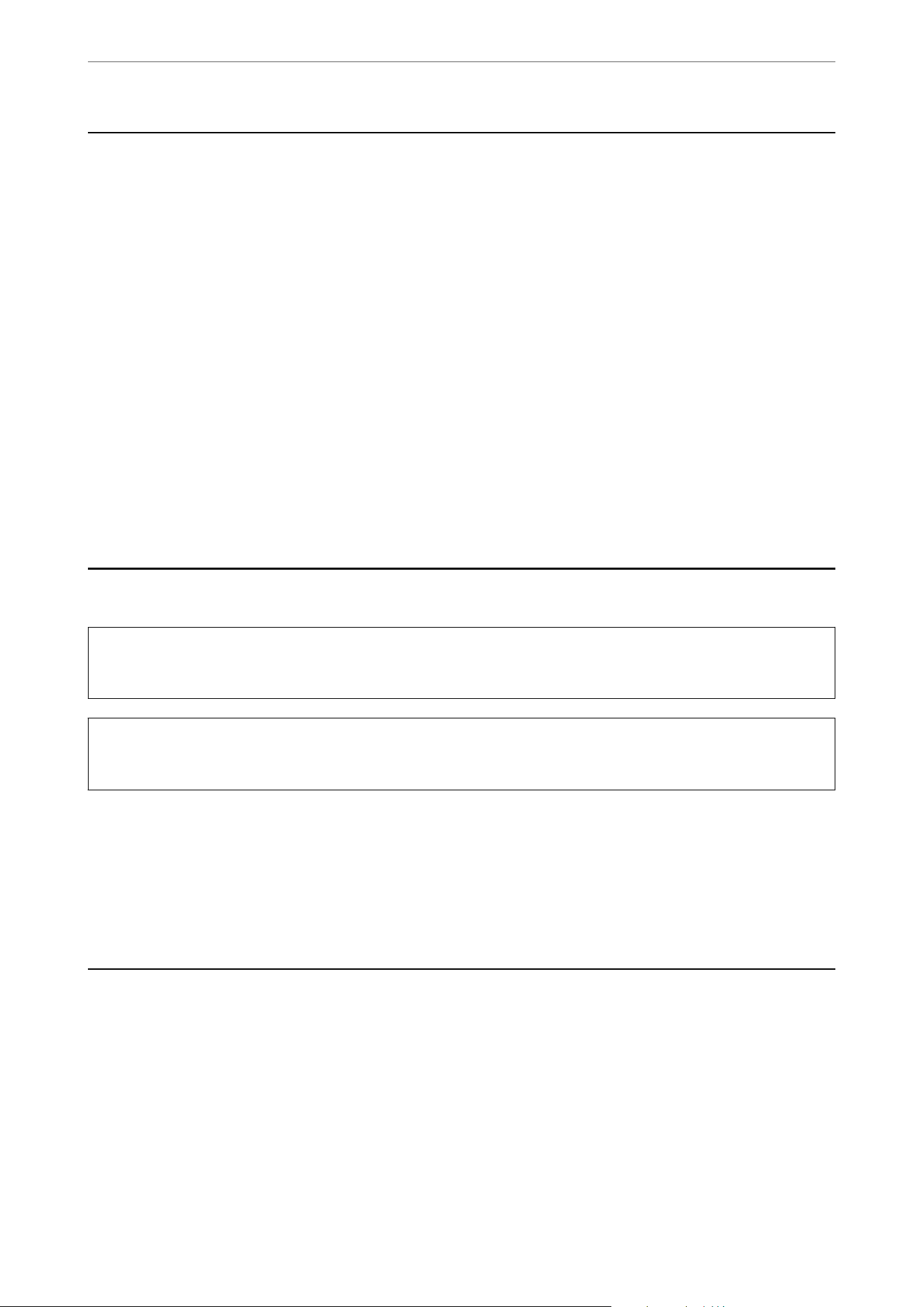
When scanning from the scanner glass, you can scan multiple originals at once without having to scan them one
by one. ey are automatically cropped into separate images and saved.
is feature supports not only standard-sized originals but also irregularly shaped items such as receipts, invoices,
and photos of various sizes.
Related Information
&
“Placing Multiple Originals at Once” on page 57
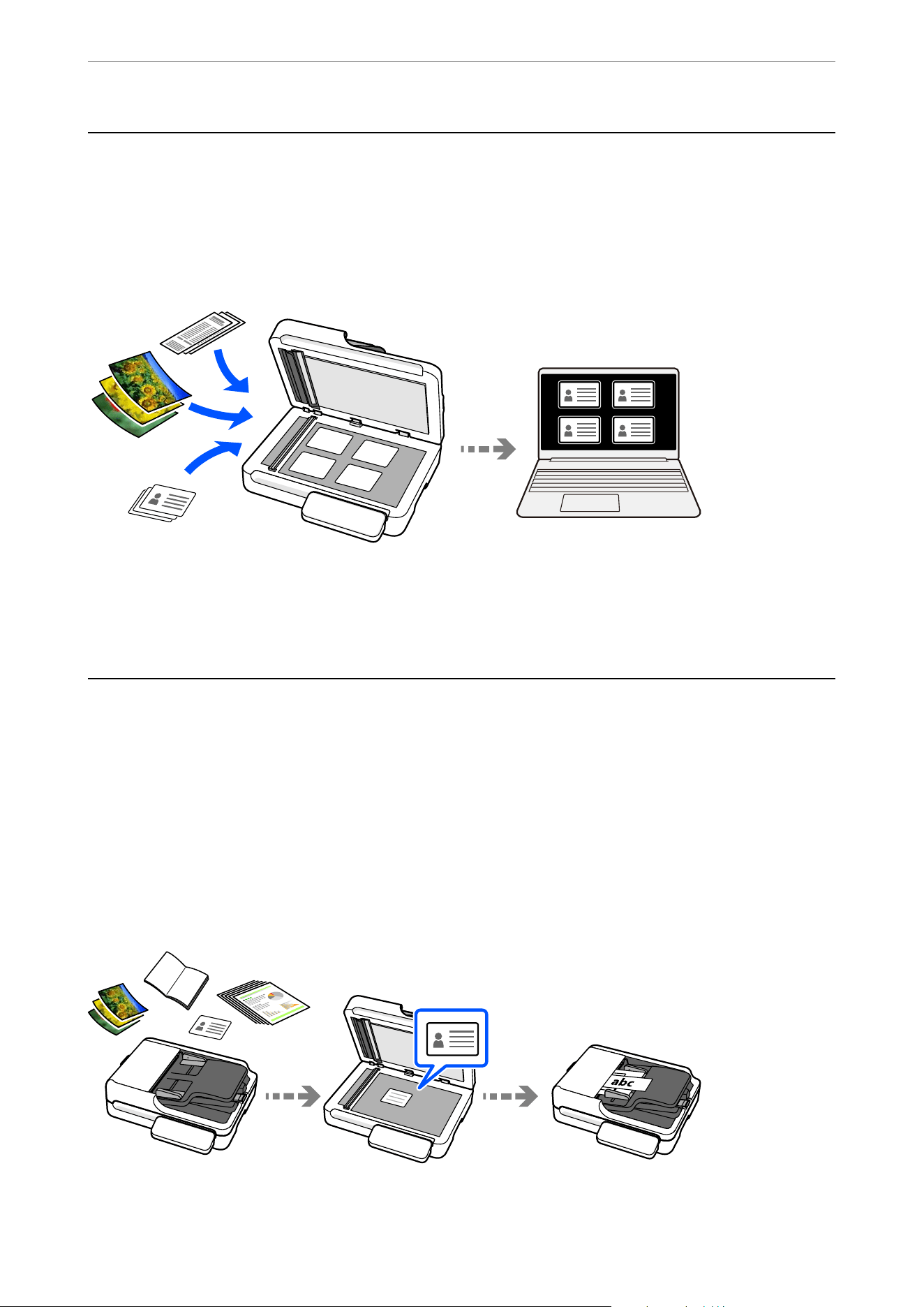
Capable of Scanning Various Types of Originals
Two methods are available for scanning various types of originals: the ADF (Automatic Document Feeder) and the
scanner glass.
O ADF: Suitable for scanning large volumes of originals or long paper.
O Scanner glass: Suitable for delicate documents, photos, ID cards, booklets, and other items that cannot be
scanned using the ADF.
You can also perform continuous scanning by combining the ADF and the scanner glass.
e
auto size detection
feature saves originals as a single le at the appropriate size, allowing you to eciently select the optimal scanning
method for each original.
Product Features
>
Capable of Scanning Various Types of Originals
16
Related Information
&
“Specications and Placing of Originals” on page 39
& “Using the ADF and Scanner Glass Together in a Single Scan” on page 62
Sending Scanned Images Simply by Operating the
Touch Screen (Scan to Features)
You can scan by simply operating the touch screen on the product without having to use a computer. is removes
the need to operate a computer, simplifying the digitization workow. is also improves security since no data is
stored on the computer.
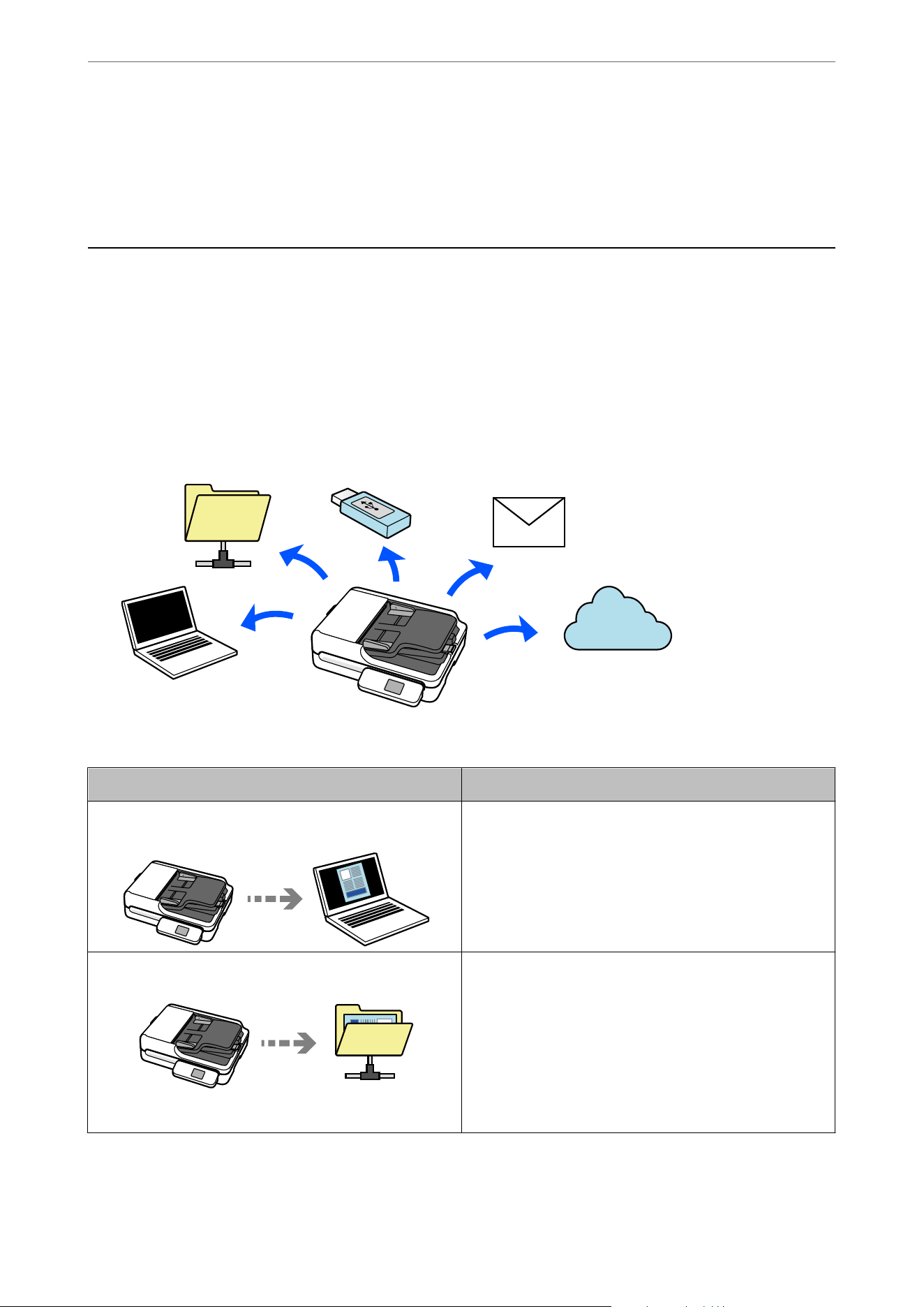
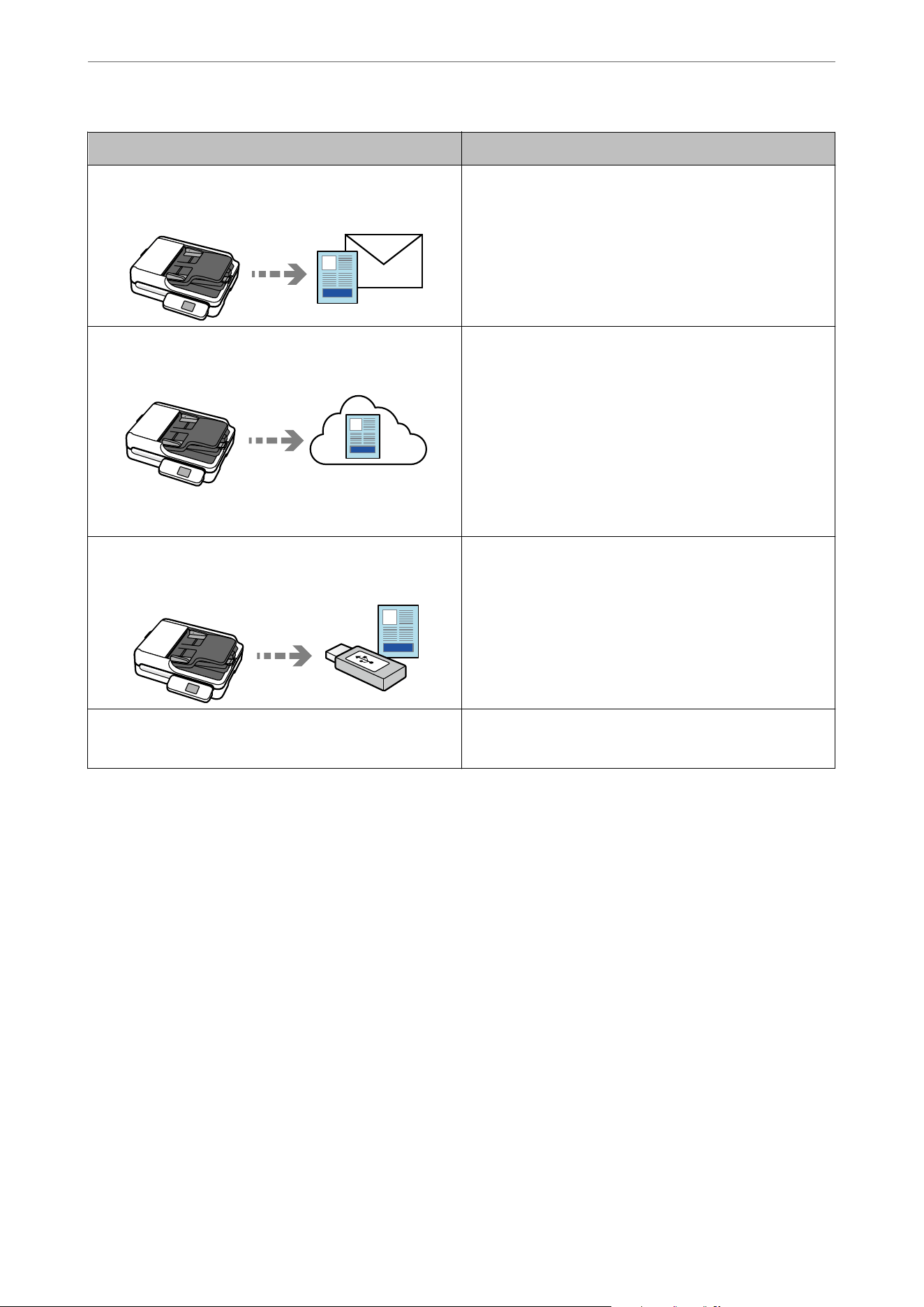
You can send the scanned image to a selected destination (such as a network folder, email, cloud service, or USB
drive) by using the Scan to features.
e feature you use depends on the destination of the scanned image.
Destination of Scanned Images Feature to Use
If you want to save images to a connected computer Scan to Computer Feature
Scan by starting the software (Document Capture Pro)
installed on your computer from the control panel.
“Scan to Computer Feature Work Flow” on page 67
If you want to save images to a folder on the network
Scan to Network Folder/FTP Feature
You need to create a shared folder on the same network as
the scanner.
As well as Network Folder (SMB), you can also set FTP/FTPS
and WebDAV (HTTPS/HTTP) as the destination for scanned
images.
“Scan to Network Folder/FTP Feature Work Flow” on
page 69
Product Features
>
Sending Scanned Images Simply by Operating the Touch Screen (Scan to Features)
17
Destination of Scanned Images Feature to Use
If you want to send images by email directly from the
scanner
There are two features that allow you to send scanned
images as email attachments. See the following for more
details.
“To Send by Email” on page 75
If you want to send images directly from the scanner to a
cloud service
Scan to Cloud Feature
Using Epson's cloud service, Epson Connect, you can send
scanned images to an email address and another company's
cloud service.
You can send images to cloud services such as Evernote,
Google Drive, and Dropbox, as well as to an email address.
“Scan to Cloud Feature Work Flow” on page 83
Note:
Available services are subject to change without notice.
If you want to save images to a USB drive connected to the
scanner
Scan to USB Drive Feature
“Scan to USB Drive Feature Work Flow” on page 89
If you want to save images to a computer connected to the
scanner using the WSD feature
Scan to WSD
“Scan to WSD Work Flow” on page 94
Related Information
&
“Scanning Using the Control Panel” on page 67
Product Features
>
Sending Scanned Images Simply by Operating the Touch Screen (Scan to Features)
18
Paper Protection to Reduce Damage to the Originals
is scanner comes with a paper protection feature. If the sensor detects an error, such as when scanning a
document in the ADF that has been stapled, it will stop scanning to prevent damage to the document that could be
caused by a paper jam.
Related Information
&
“Scanner Settings” on page 143
& “Setting the Document Protection Feature” on page 151
Notication
of Dirt on the ADF
is
scanner can detect dirt on the glass surface of the ADF (the scanning sensor), and notify you that you need to
clean the glass surface before dirt can cause lines (streaks) in the scanned images.
e location of any dirt is displayed on the scanner's touch screen, making it easy to identify where cleaning is
needed.
You can easily keep the glass surface clean, and avoid a decline in image quality.
is
feature is
o
by default.
You can make settings from the scanner's touch screen or from a computer.
Related Information
&
“Scanner Settings” on page 143
& “Setting the Glass Surface Stain Detection Feature” on page 150
Product Features
>
Notication of Dirt on the ADF
19


Scanner Basics
Part Names and Functions............................................22
Inserting and Removing a USB Drive....................................24
Control Panel.....................................................25
Administrator Password for the Device.................................. 32
Information on Applications..........................................33
Option Items and Consumables Information..............................38
Part Names and Functions
Note:
e label is attached to the top or side of the product. Under special conditions permitted by regulations, the label is attached
to the bottom of the product or under the cover.
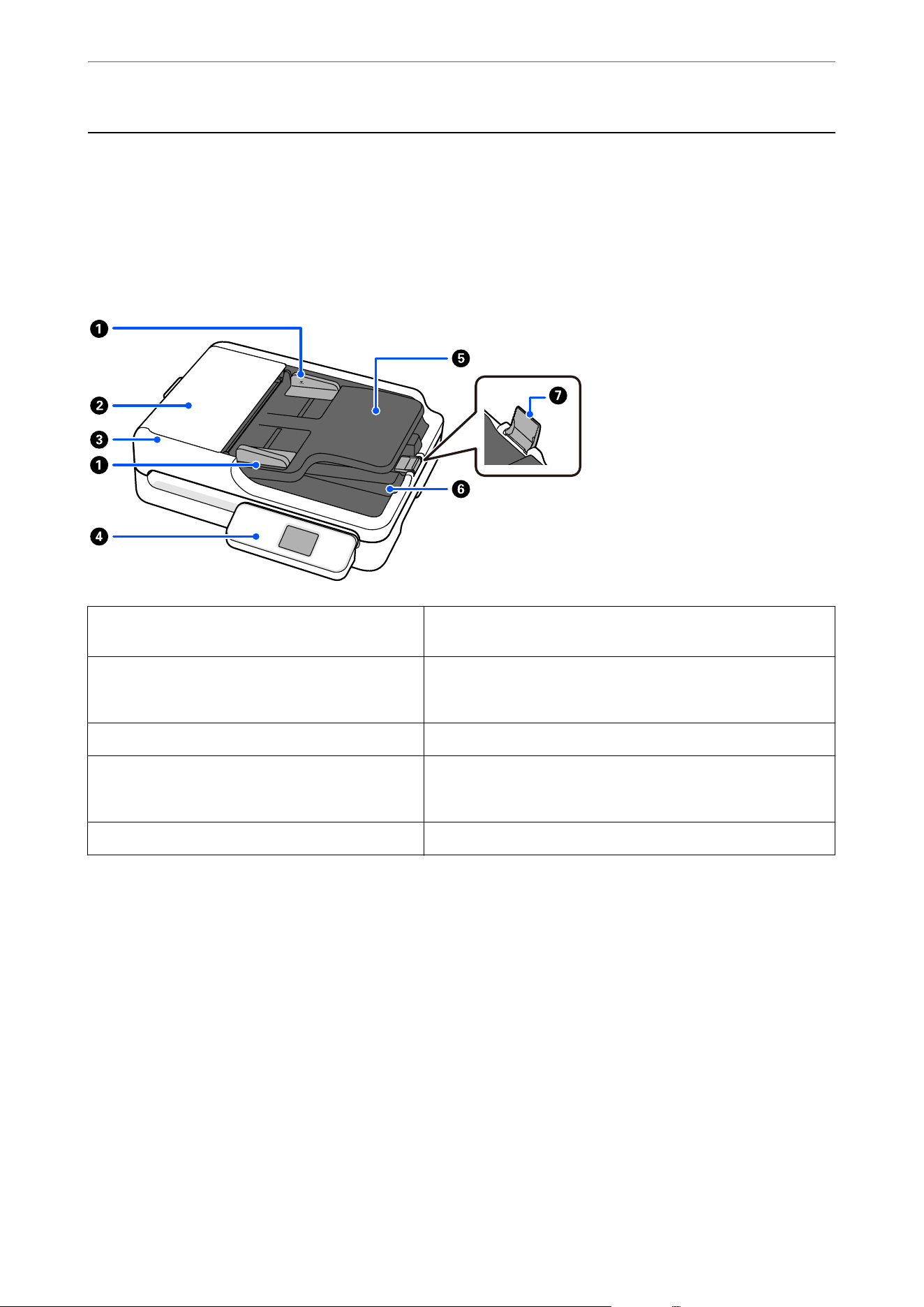
Front
A
Edge guides Use guides to support the original in the input tray to facilitate
smooth feeding. Slide to the edges of the originals.
B
ADF cover Open it when cleaning the ADF or removing jammed paper.
C
ADF (Automatic Document Feeder) Feeds loaded originals automatically.
D
Control panel Displays the scanner’s status and performs scanner operations.
E
Input tray Loads originals.
F
Output tray Holds originals ejected from the scanner.
G
Stopper Prevents ejected originals from falling from the output tray.
Scanner Basics
>
Part Names and Functions
22
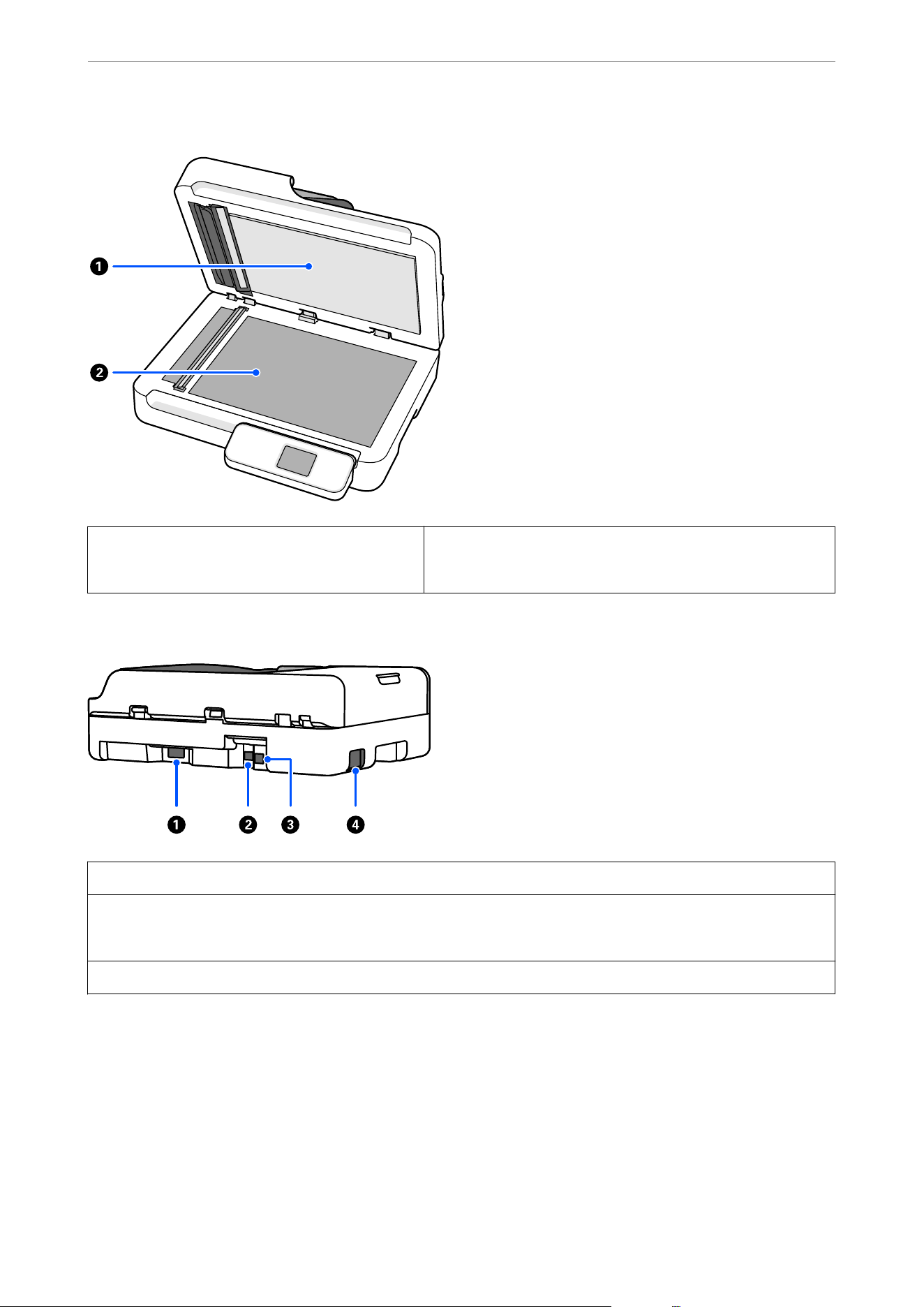
A
Document cover Blocks external light while scanning.
B
Scanner glass Place originals that you cannot feed using the ADF.
Side / Rear
A
AC inlet Connect the power cord.
B
LAN port Connect a LAN cable.
C
USB port Connect a USB cable.
D
External interface USB port Connect a USB drive.
Related Information
&
“Cleaning the Scanner Glass” on page 159
Scanner Basics
>
Part Names and Functions
23
Inserting and Removing a USB Drive
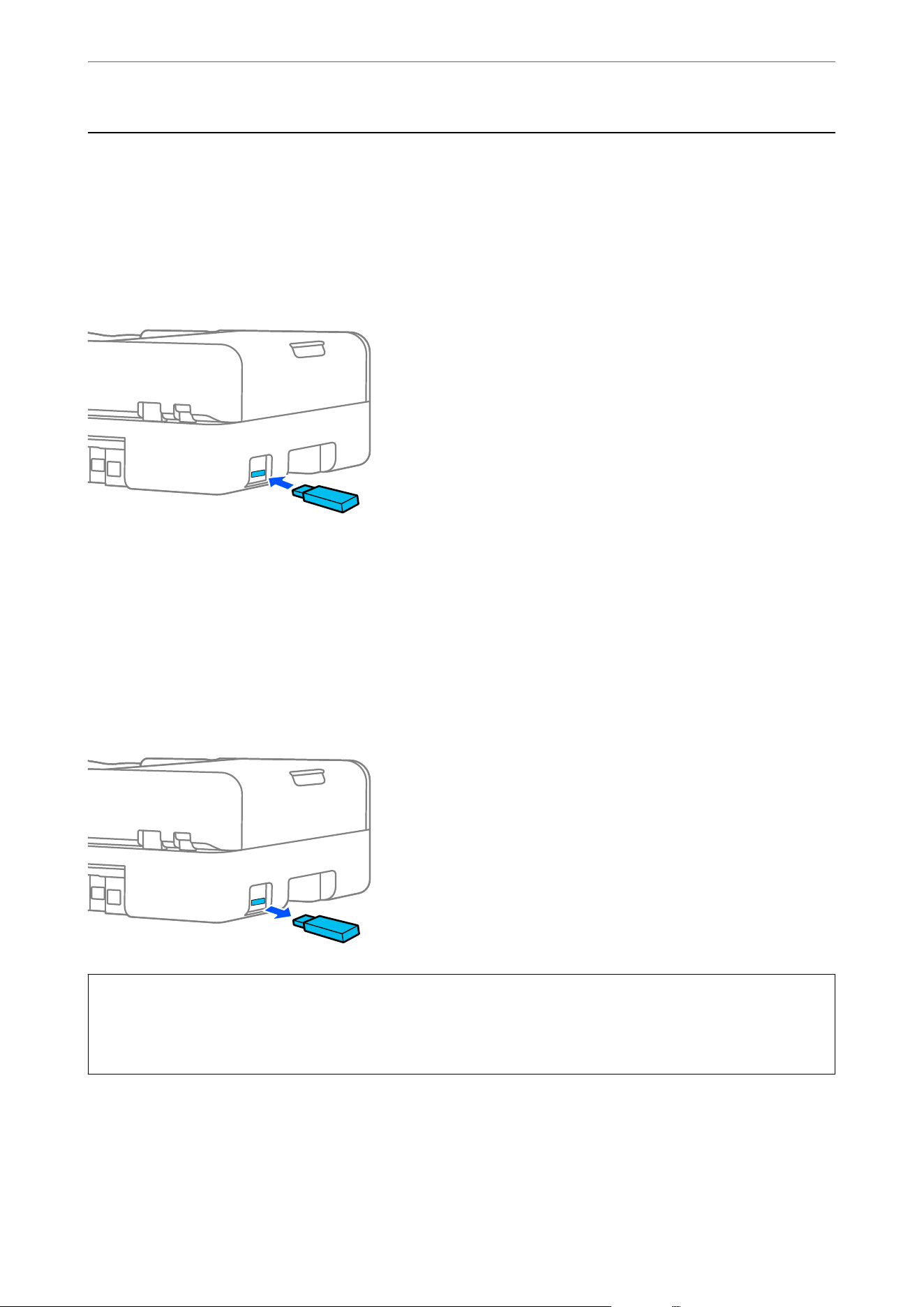
Inserting a USB Drive
Insert a USB drive into the external interface USB port.
Related Information
&
“Scan to USB Drive Feature Work Flow” on page 89
Removing a USB Drive
Remove a USB drive.
c
Important:
O If you remove the USB drive device while transferring data to the scanner, the data on the USB drive may be lost.
O While transferring data, a message is displayed on the control panel.
Also, backup the data in external storage device to another media as necessary.
e data may be lost or corrupted in the following situations:
O When
aected
by static electricity or electrical noise
O When used incorrectly
Scanner Basics
>
Inserting and Removing a USB Drive
>
Removing a USB Drive
24
O When broken or repaired
O When damaged by natural disaster
Control Panel
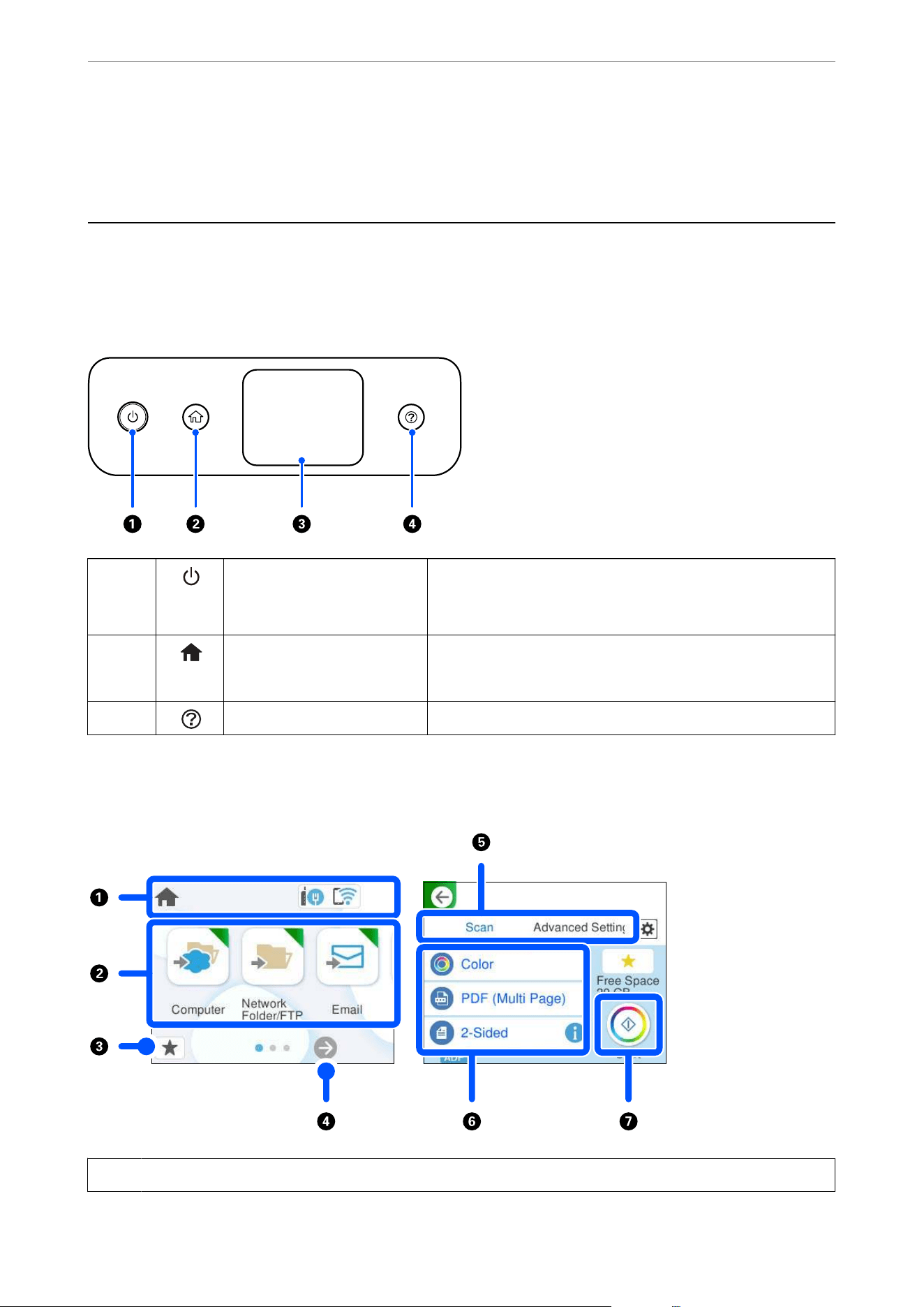
Buttons and Lights
A
Power button/ light Turns the scanner on or o.
Do not turn o the scanner while the light is ashing because the
scanner is operating or processing a data.
B
Home button Displays the home screen.
C
– LCD Screen Tap the screen to select menus or make settings.
D
Help button Displays help screen.
Guide to the LCD Screen
A
Indicates the scanner status as icons. Select the icon to check the current settings or access each setting menu.
Scanner Basics
>
Control Panel
>
Guide to the LCD Screen
25
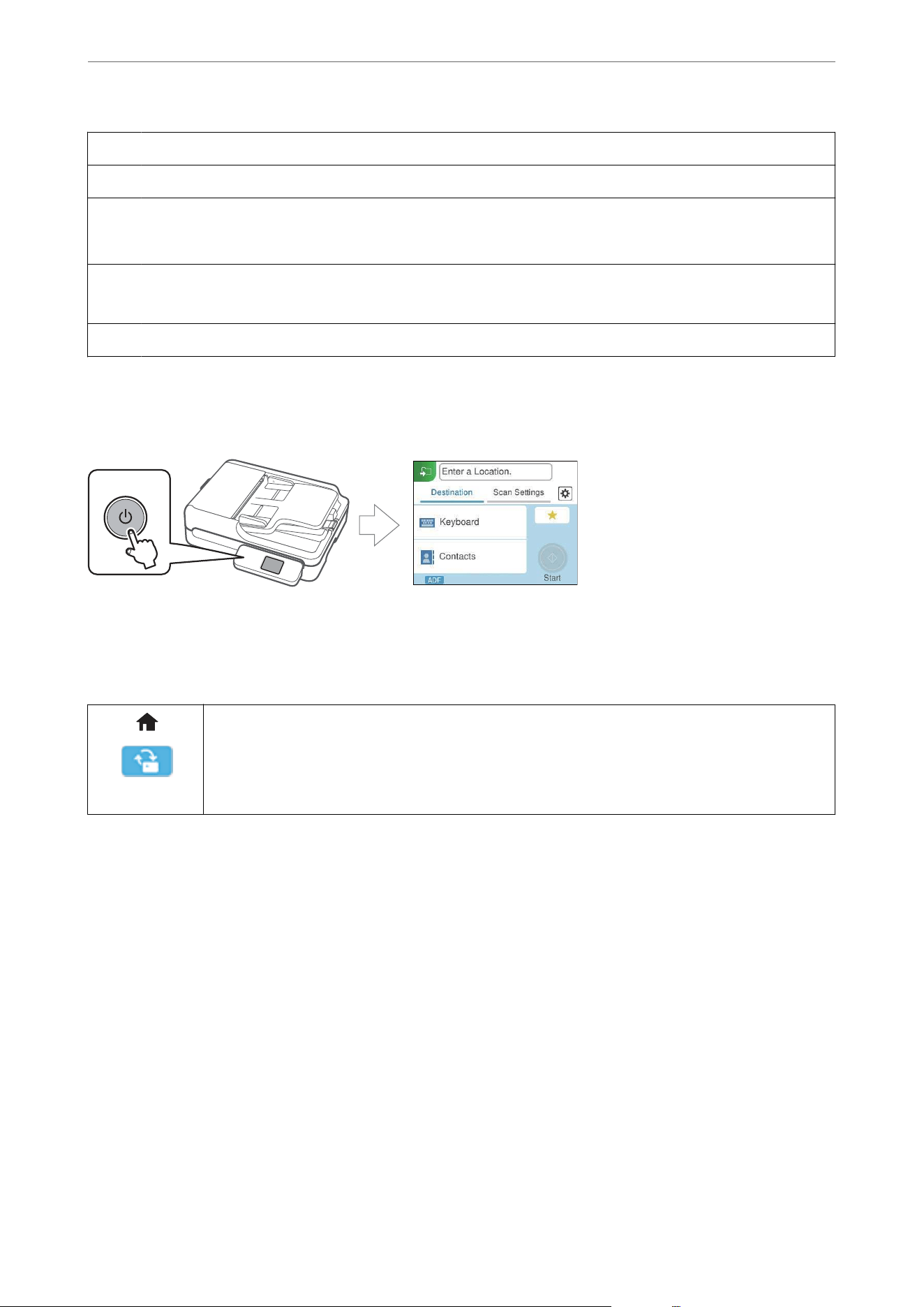
B
Displays each menu.
C
Displays a list of your presets. You can load your presets and register new presets.
D
Switch screens.
E
Switch tabs.
F
Displays the list of setting items. Select an item to change the settings.
Grayed out items are not available.
G
Starts scanning using current settings.
Note:
You can change the initial screen displayed when the scanner is turned on. Select the Settings menu on the home screen and
make the settings in Start-up Screen.
Icons Displayed on the LCD Screen
e following icons are displayed on depending on the scanner’s status.
This icon indicates that you are on the home screen.
This is displayed when a rmware update is available.
Select it to update the rmware to improve the scanner's features. We recommend using the scanner
with the latest version of the rmware.
Scanner Basics
>
Control Panel
>
Guide to the LCD Screen
26
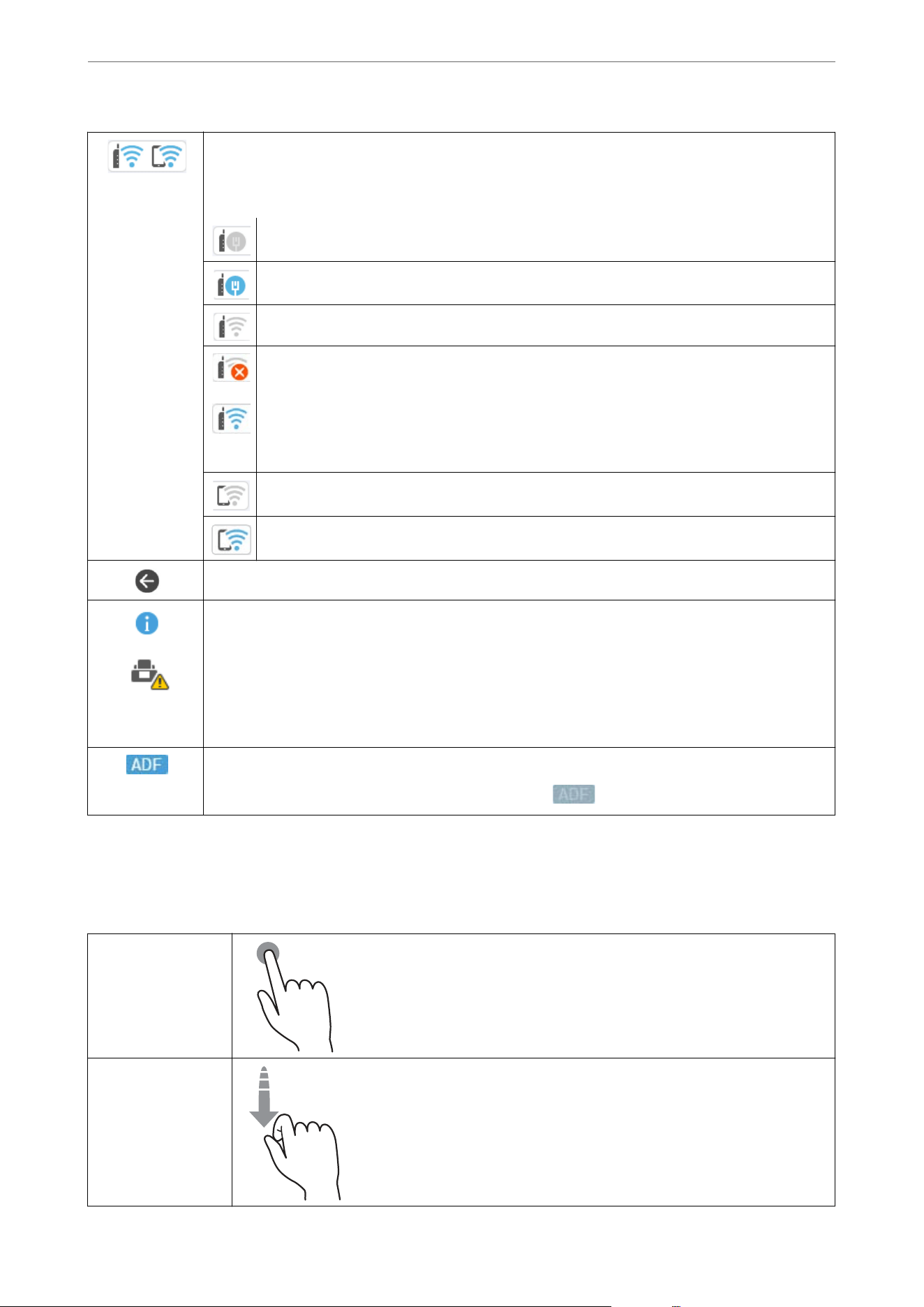
Displays the network connection status.
Select the icon to check and change the current settings. This is the shortcut for the following menu.
Settings > Network Settings > Wi-Fi Setup
The scanner is not connected to a wired (Ethernet) network or unset it.
The scanner is connected to a wired (Ethernet) network.
The scanner is not connected to a wireless (Wi-Fi) network.
The scanner is searching for SSID, unset IP address, or having a problem with a wireless (Wi-Fi)
network.
The scanner is connected to a wireless (Wi-Fi) network.
The number of bars indicates the signal strength of the connection. The more bars there are, the
stronger the connection.
The scanner is not connected to a wireless (Wi-Fi) network in Wi-Fi Direct (Simple AP) mode.
The scanner is connected to a wireless (Wi-Fi) network in Wi-Fi Direct (Simple AP) mode.
Returns to the previous screen.
Indicates that there is additional information. Select the icon to display the message.
Indicates a problem with the items. Select the icon to check how to solve the problem.
O Glass Cleaning: Dirt has been detected on the glass surface inside the scanner (the ADF scanning
sensor). Clean the ADF. When cleaning is complete, reload the original in the ADF.
O Regular Cleaning: It is time to clean inside the scanner (ADF).
Indicates that an original is loaded in the ADF.
When there is no original in the ADF, it will be grayed out (
).
Touch Screen Operations
e
touchscreen is compatible with the following operations.
Tap Press or select the items or the icons.
Flick
Scroll the screen swiftly.
Scanner Basics
>
Control Panel
>
Guide to the LCD Screen
27
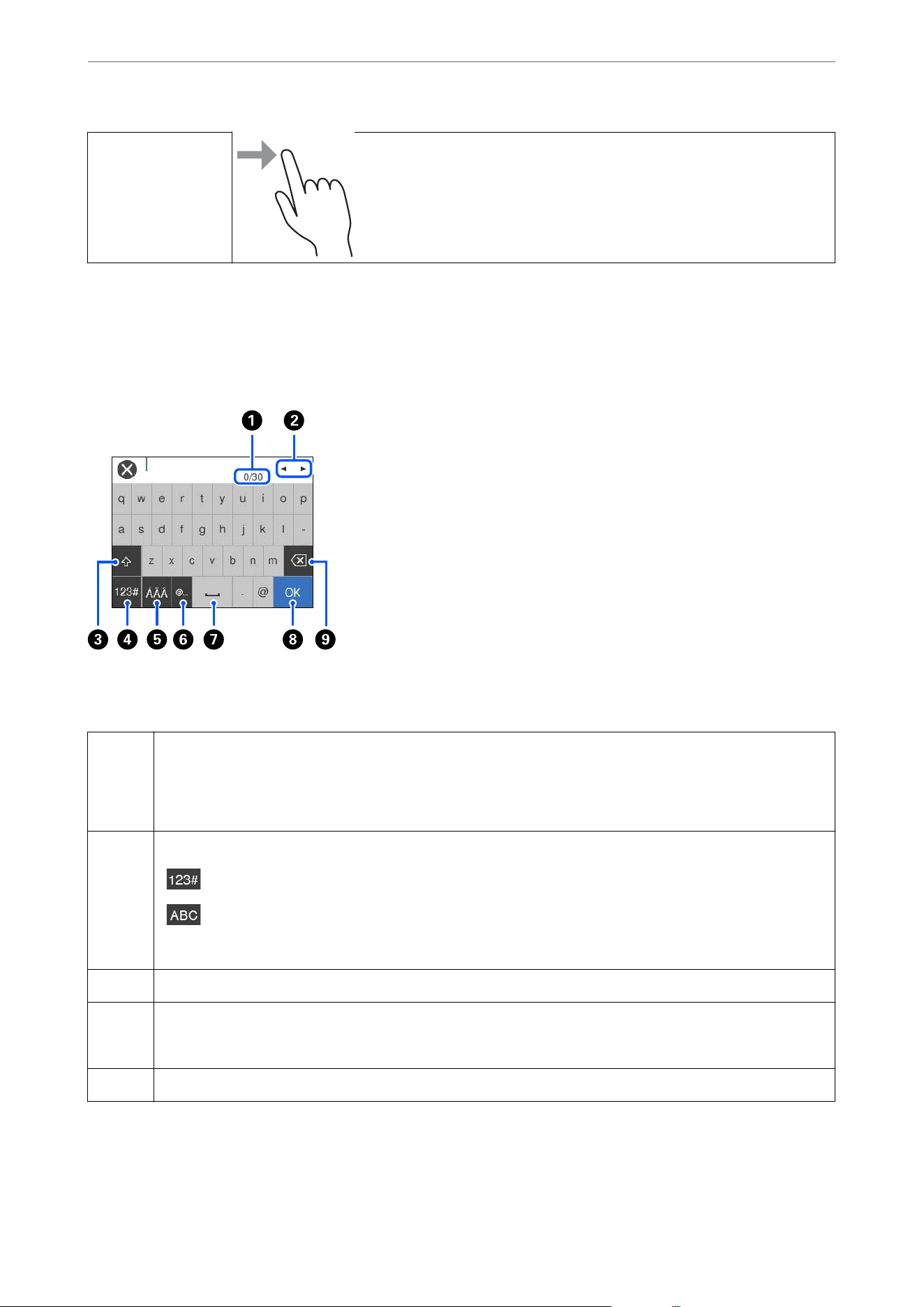
Slide Hold and move the items around.
Entering Characters
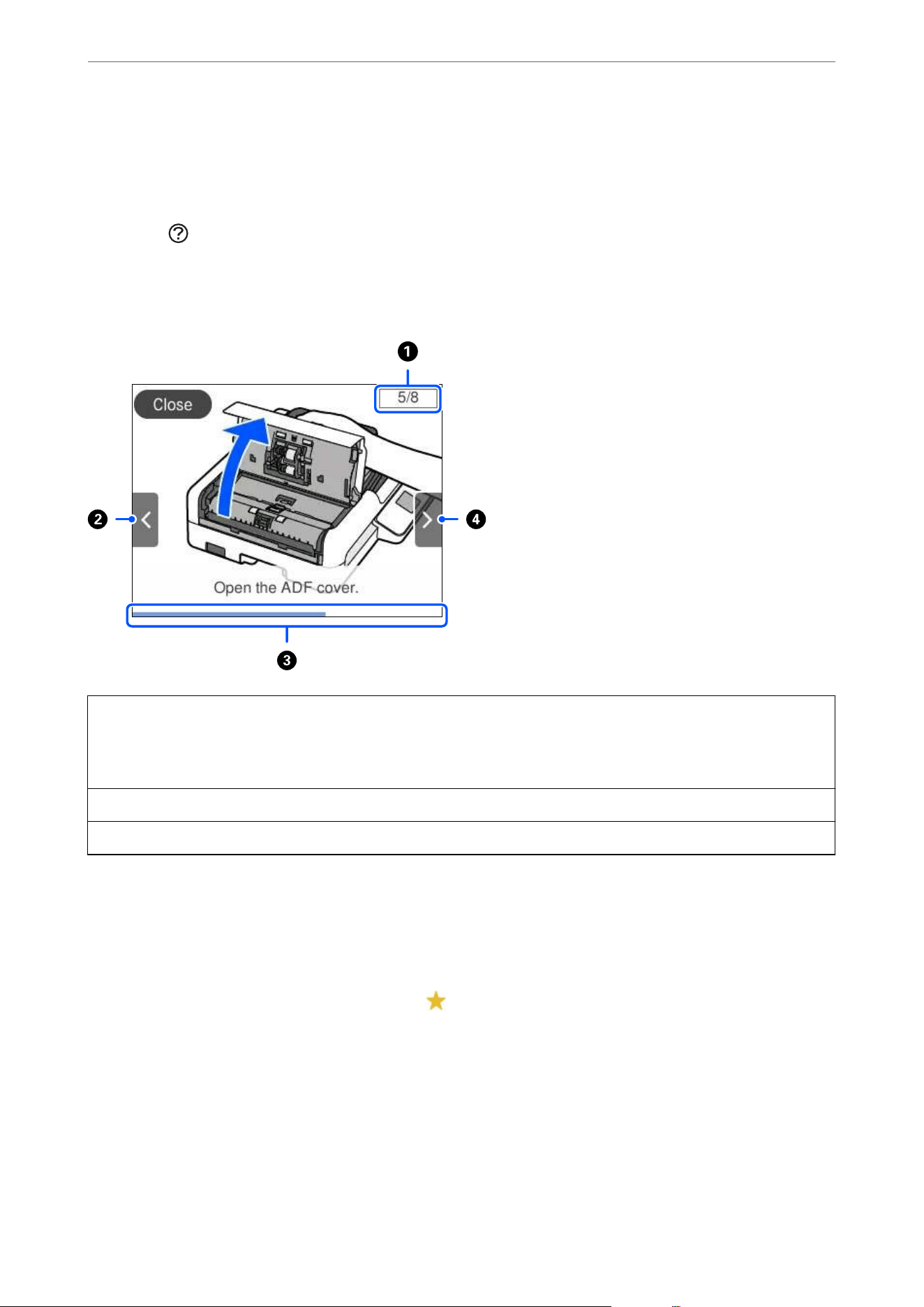
You can enter characters and symbols by using on-screen keyboard when you register a contact, make network
settings, and so on.
Note:
Available icons vary depending on the setting item.
A
Displays the number of characters.
B
Moves the cursor to the input position.
C
Switches between upper case and lower case or numbers and symbols.
D
Switches the character type.
: You can enter numbers and symbols.
: You can enter letters.
E
Switches the character type. You can enter alphanumerics and special characters such as umlauts and accents.
F
Enters frequently used email domain addresses or URLs by simply selecting the item.
G
Enters a space.
H
Fixes the entered characters.
I
Deletes the entered characters.
Scanner Basics
>
Control Panel
>
Guide to the LCD Screen
28
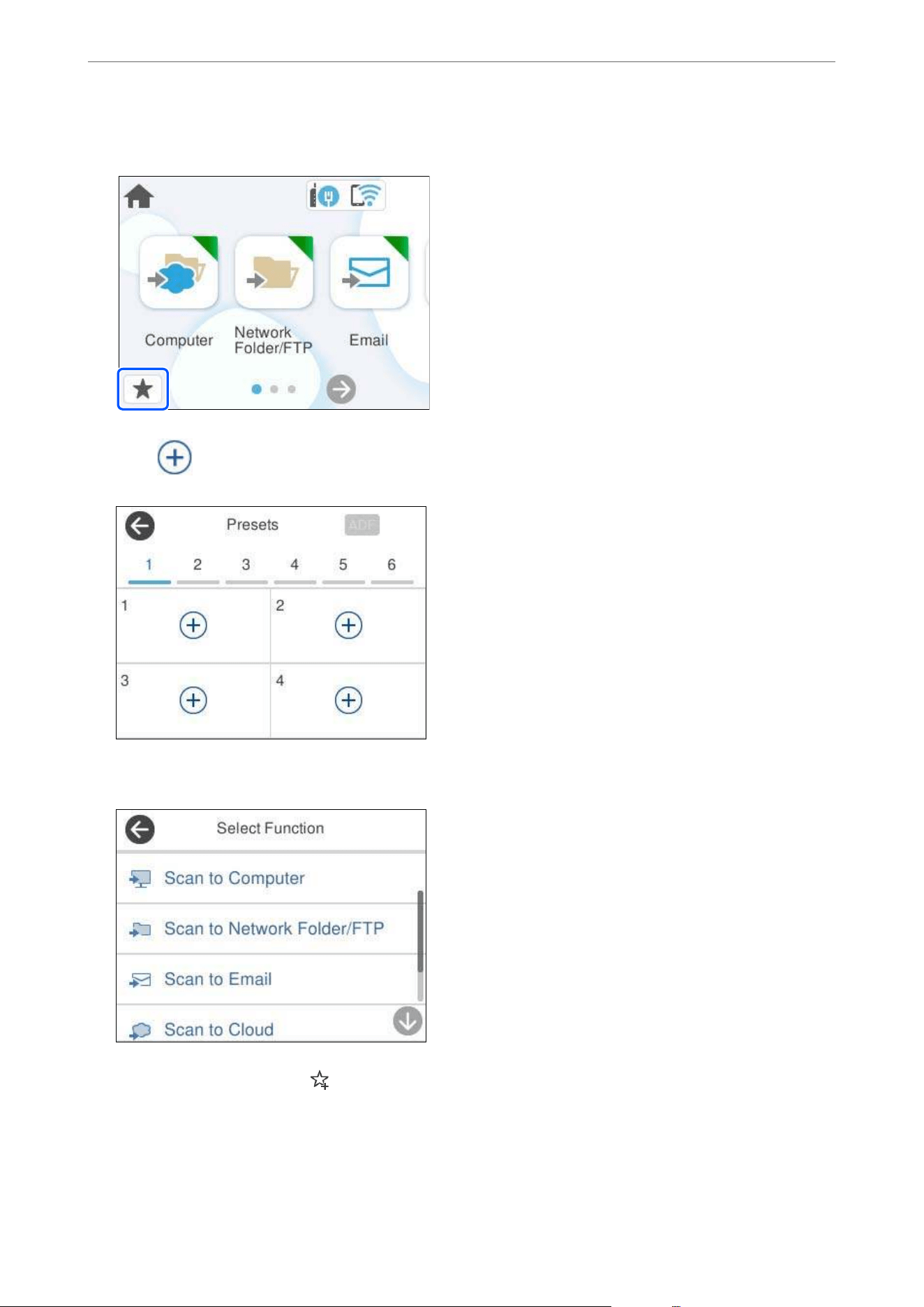
Viewing Animations
e control panel screen allows you to view animations of how to perform operations such as placing originals and
performing maintenance.
O Press the
button on the control panel: Help screen is displayed. Select How To, and then select the items that
you want to view.
O Select Scanner Maintenance on the control panel's home screen, and then select How to Clean for each
cleaning method: A video demonstrating the cleaning procedure is displayed.
A
Indicates the total number of steps and the current step number.
The example shows step 5 of 8.
B
Back to the previous step.
C
Indicates your progress through the current step. The animation repeats when the progress bar reaches the end.
D
Moves to next step.
Registering Presets
You can register frequently used scanning setting as Presets. You can register up to 24 presets.
Note:
O You can register the current scan settings by selecting
on the start scanning screen.
O You can also register Presets in Web Cong.
Select the Scan tab > Presets.
O If you select Scan to Computer when registering, you can register the job created in Document Capture Pro as Presets.
is is available only for computers connected over a network. Register the job in Document Capture Pro in advance.
Scanner Basics
>
Control Panel
>
Registering Presets
29
1. Select Presets on the home screen on the control panel.
2. Select .
3. Select the menu you want to use to register a preset.
4.
Set each item, and then select
.
Note:
When you select Scan to Computer, select the computer on which Document Capture Pro is installed, and then select a
registered job. is is available only for computers connected over a network.
Scanner Basics
>
Control Panel
>
Registering Presets
30
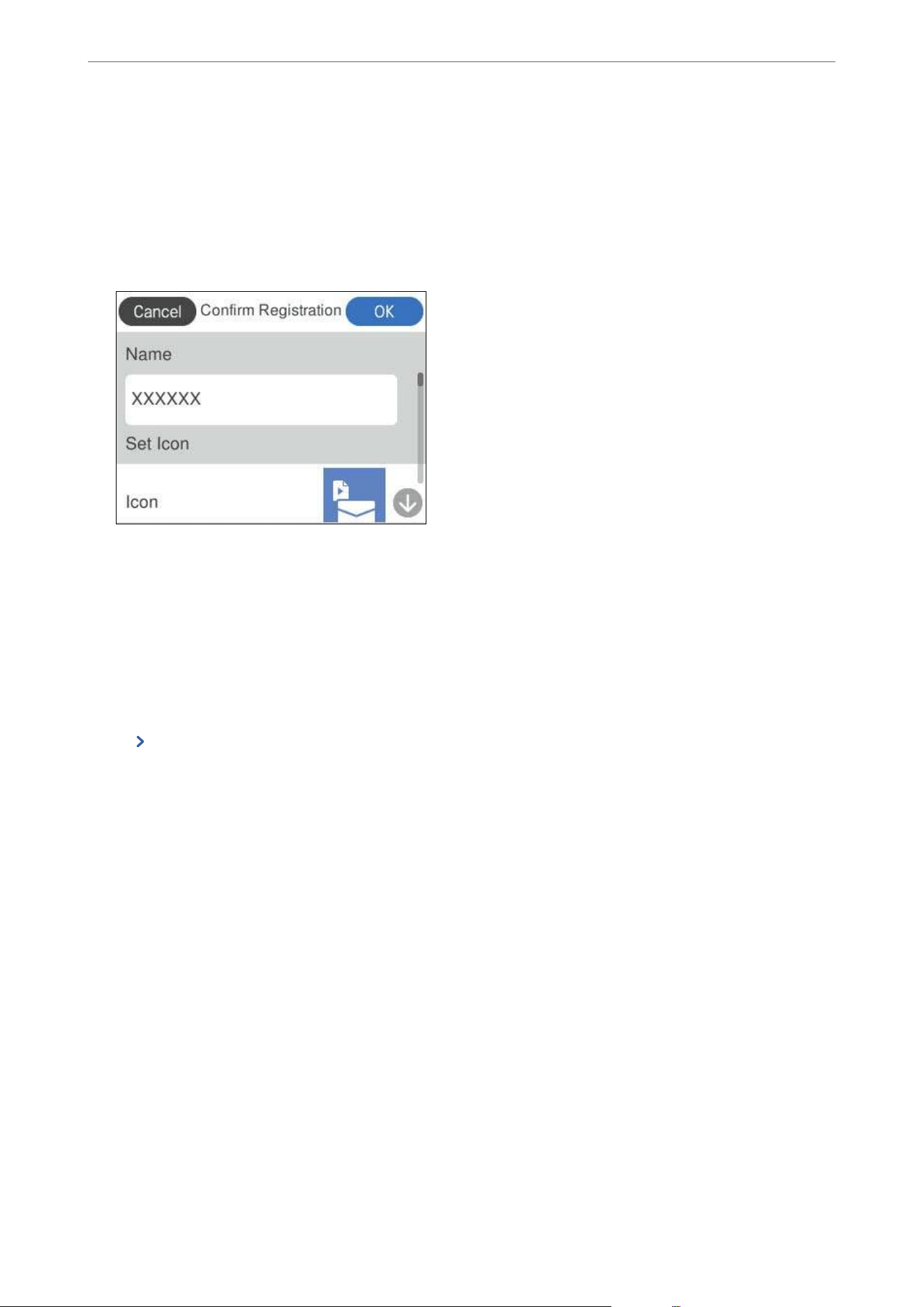
5. Register a preset.
O Name: Set the name.
O Set Icon: Set the image and color of the icon to display.
O Quick Send Setting: Immediately starts scanning without conrmation when a preset is selected.
O Contents: Check scan settings.
6. Select OK.
Related Information
&
“Setting a Job” on page 117
Descriptions of the Presets Menu
Select for each preset to change the registered contents of the preset, or to display the scan settings.
Change Name:
Changes the preset name.
Change Icon:
Changes the icon image and color of the preset.
Quick Send Setting:
Immediately starts scanning without conrmation when the preset is selected.
Change Position:
Changes the display order of the presets.
Delete:
Deletes the preset.
Conrm Details:
Displays the preset scan settings. You can load the preset by selecting Use
is
Setting.
Scanner Basics
>
Control Panel
>
Registering Presets
31

Administrator Password for the Device
is device allows you to set an administrator password to prevent unauthorized third parties from accessing or
changing the device settings or the network settings stored in the device when it is connected to a network.
If you set an administrator password, you need to enter the password when changing settings in conguration
soware such as Web Cong.
e initial administrator password is set on the scanner, but you can change it to any password.
Initial Administrator Password
e initial administrator password varies depending on the label attached to the product. If there is a
"PASSWORD" label attached to the back, enter the 8-digit number shown on the label. If there is no "PASSWORD"
label attached, enter the serial number on the label attached to the back of the product for the initial administrator
password.
We recommend changing the initial administrator password from the default setting.
Note:
No user name is set as default.
Operations that Require the Administrator Password
If you are prompted to enter the administrator password during the following operations, enter the administrator
password set on the product.
O When logging on to the advanced settings for Web Cong
O When operating a menu on the control panel that has been locked by the administrator
O When changing the device settings in the application
O When updating the rmware for the device
O When changing or resetting the administrator password
Changing the Administrator Password
You can change from the product’s control panel or in Web Cong.
When changing the password, the new password must be 8 to 20 characters long and only contain single-byte
alphanumeric characters and symbols.
Related Information
&
“Conguring the Administrator Password” on page 216
Resetting the Administrator Password
You can reset the administrator password to the initial setting from the product's control panel or in Web Cong.
If you have forgotten the password and cannot reset it to the default settings, the product needs to be repaired.
Contact your local dealer. In the U.S., Canada, and Latin America, contact Epson Support.
Scanner Basics
>
Administrator Password for the Device
>
Resetting the Administrator Password
32

Note:
Resetting the administrator password also resets the user name.
Information on Applications
is section introduces the application products available for your scanner. e latest application can be installed
at the Epson Web site.
Application for Scanning Documents (Document Capture Pro /
Document Capture)
Document Capture Pro
*
is an application that allows you to eciently scan originals such as documents.
You can register a set of operations, such as Scan-Save-Send, as a “job”. By registering a series of operations in
advance as a job, you can perform all of the operations by simply selecting the job. By assigning a job to the
scanner's control panel, you can start a job from the control panel (Button Assignment).
See the Document Capture Pro help (Windows) or Document Capture (Mac OS) for details on using the
application.
* is name is for Windows. For Mac OS, the name is Document Capture.
Starting on Windows
O Windows 11
Click the start button, and then select All apps > Epson
Soware
> Document Capture Pro.
O Windows 10
Click the start button, and then select Epson Soware > Document Capture Pro.
O Windows 8.1/Windows 8
Enter the application name in the search charm, and then select the displayed icon.
O Windows 7
Click the start button, and then select All Programs > Epson Soware > Document Capture Pro.
Starting on Mac OS
Select Go > Applications > Epson Soware > Document Capture.
Application for Controlling the Scanner (Epson Scan 2)
Epson Scan 2 is a scanner driver that allows you to control the scanner. You can adjust the size, resolution,
brightness, contrast, and quality of the scanned image. You can also start this application from a TWAIN-
compliant scanning application.
See the Epson Scan 2 help for details on using the application.
Starting on Windows
Note:
For Windows Server operating systems, make sure the Desktop Experience feature is installed.
Scanner Basics
>
Information on Applications
>
Application for Controlling the Scanner (Epson Scan 2)
33

O Windows 11/Windows Server 2022
Click the start button, and then select All apps > EPSON > Epson Scan 2.
O Windows 10/Windows Server 2016/Windows Server 2019
Click the start button, and then select EPSON > Epson Scan 2.
O Windows 8.1/Windows 8/Windows Server 2012 R2/Windows Server 2012
Enter the application name in the search charm, and then select the displayed icon.
O Windows 7/Windows Server 2008 R2/Windows Server 2008
Click the start button, and then select All Programs or Programs > EPSON > Epson Scan 2 > Epson Scan 2.
Starting on Mac OS
Select Go > Application > Epson Soware > Epson Scan 2.
Application for Scanning from Smart Devices (Epson Smart Panel)
Epson Smart Panel is an application that allows you to scan documents using smart devices such as smart phones
and tablet devices. You can save the scanned data in smart devices or cloud services, and send by e-mail.
Even if you do not have a wireless router, you can automatically connect Wi-Fi enabled smart devices to the
scanner by using Wi-Fi Direct.
You can download and install Epson Smart Panel from the App Store or Google Play.
Application for Updating Software and Firmware (EPSON Software
Updater)
EPSON Soware Updater is an application that installs new soware, and updates rmware over the Internet. If
you want to check for update information regularly, you can set the interval for checking for updates in EPSON
Soware Updater's auto update settings.
Note:
Windows Server operating systems are not supported.
Starting on Windows
O Windows 11
Click the start button, and then select All apps > Epson Soware > EPSON Soware Updater.
O Windows 10
Click the start button, and then select Epson Soware > EPSON Soware Updater.
O Windows 8.1/Windows 8
Enter the application name in the search charm, and then select the displayed icon.
O Windows 7
Click the start button, and then select All Programs > Epson Soware > EPSON Soware Updater.
Starting on Mac OS
Select Go > Applications > Epson Soware > EPSON Soware Updater.
Scanner Basics
>
Information on Applications
>
Application for Updating Software and Firmware (EPSON Software
…
34

Application for Conguring Scanner Operations (Web Cong)
Web Cong is an application that runs in web browsers, such as Microso Edge and Safari, on a computer or a
smart device. You can
conrm
the scanner status or change the network service and scanner settings. To use Web
Cong, connect the scanner and the computer or device to the same network.
e following browsers are supported. Use the latest version.
Microso
Edge, Firefox, Chrome, Safari
Note:
You may be prompted to enter the administrator password while using this device. See the following for details on the
administrator password.
“Notes on the Administrator Password” on page 13
Related Information
&
“Cannot Access Web Cong” on page 169
How to Run Web Cong in a Web Browser
e scanner comes with built-in soware called Web Cong (a Web page where you can make settings). To access
Web Cong, simply enter the IP address of a network-connected scanner in your browser.
1. Check the scanner's IP address.
Select Settings > Network Settings > Network Status on the scanner's control panel. en select the active
connection method (Wired LAN/Wi-Fi Status or Wi-Fi Direct Status) to
conrm
the scanner's IP address.
Example IP address: 192.168.100.201
2. Launch a browser from a computer or a smart device, and then enter the scanner's IP address in the address
bar.
Format: http://scanner’s IP address/
Example: http://192.168.100.201/
If a warning screen is displayed in your browser, you can safely ignore the warning and display the Web page
(Web Cong). Since the scanner uses a self-signed certicate when accessing HTTPS, a warning is displayed
on the browser when you start Web Cong; this does not indicate a problem and can be safely ignored.
Depending on your browser, you may need to click on Advanced Settings to view the Web page.
Scanner Basics
>
Information on Applications
>
Application for Conguring Scanner Operations (Web Cong)
35
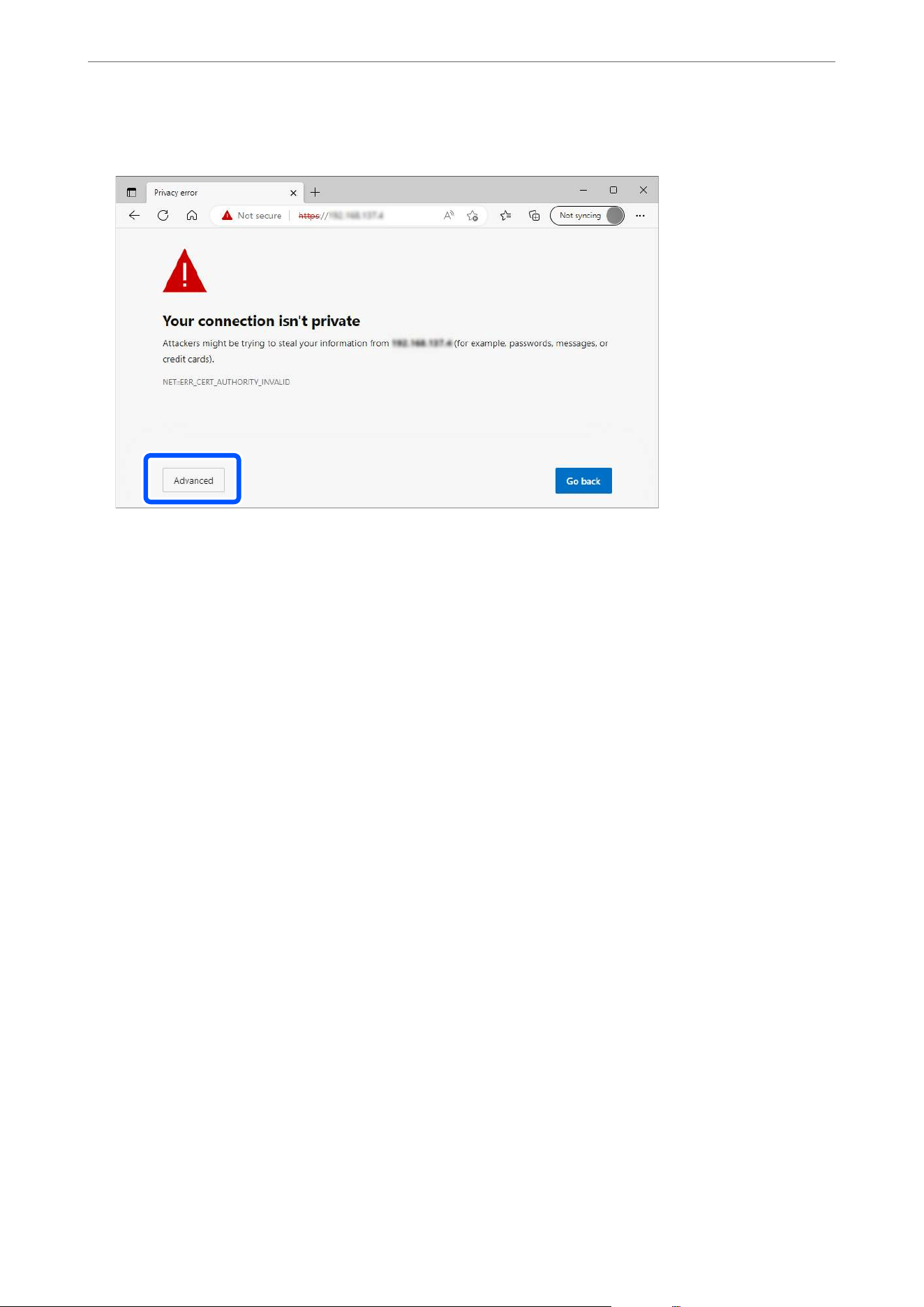
Example: For Microso Edge
Note:
O If a warning screen is not displayed, go to the next step.
O For IPv6 addresses, use the following format.
Format: http://[scanner’s IP address]/
Example: http://[2001:db8::1000:1]/
3. To change scanner settings, you need to log in as a Web Cong administrator.
Click Log in at the top-right of the screen. Enter the User Name and Current password, and then click OK.
e following provides the initial values for the Web Cong administrator information.
·User name: none (blank)
·Password: Depends on the label attached to product.
If there is a "PASSWORD" label attached to the back, enter the 8-digit number shown on the label. If there is
no "PASSWORD" label attached, enter the serial number on the label attached to the back of the product for
the initial administrator password.
Note:
O If Log out is displayed at the top-right of the screen, you are already logged in as an administrator.
O You will be logged out automatically aer approximately 20 minutes of inactivity.
Related Information
&
“Registering a Destination (Email)” on page 132
& “Registering a Destination (Network Folder (SMB))” on page 133
& “Registering a Destination (FTP)” on page 134
& “Registering a Destination (SharePoint(WebDAV))” on page 135
Scanner Basics
>
Information on Applications
>
Application for Conguring Scanner Operations (Web Cong)
36

Application for Setting up the Device on a Network (EpsonNet
Cong)
EpsonNet Cong is an application that allows you to set network interface addresses and protocols. See the
operations guide for EpsonNet Cong or the application's help for more details.
Starting on Windows
O Windows 11/Windows Server 2022
Click the start button, and then select All apps > EpsonNet > EpsonNet Cong.
O Windows 10/Windows Server 2019/Windows Server 2016
Click the start button, and then select EpsonNet > EpsonNet Cong.
O Windows 8.1/Windows 8/Windows Server 2012 R2/Windows Server 2012
Enter the application name in the search charm, and then select the displayed icon.
O Windows 7/Windows Server 2008 R2/Windows Server 2008
Click the start button, and select All Programs or Programs > EpsonNet > EpsonNet Cong SE > EpsonNet
Cong.
Starting on Mac OS
Go > Applications > Epson
Soware
> EpsonNet > EpsonNet
Cong
SE > EpsonNet
Cong
.
Software for Managing Devices on the Network (Epson Device
Admin)
Epson Device Admin is a multifunctional application soware that manages the device on the network.
e following functions are available.
O Monitor or manage up to 2,000 printers or scanners over the segment
O Make a detailed report, such as for the consumable or product status
O Update the rmware of the product
O Introduce the device to the network
O Apply the unied settings to multiple devices.
You can download Epson Device Admin from Epson support website. For more information, see the
documentation or help of Epson Device Admin.
Application for Creating Driver Packages (EpsonNet SetupManager)
EpsonNet SetupManager is a soware to create a package for a simple scanner installation, such as installing the
scanner driver and so on.
is
soware
allows the administrator to create unique
soware
packages and distribute
them among groups.
For more information, visit your regional Epson website.
http://www.epson.com
Scanner Basics
>
Information on Applications
>
Application for Creating Driver Packages (EpsonNet SetupManager)
37

Option Items and Consumables Information
Cleaning Kit Codes
Use this when cleaning inside the ADF. is kit is composed of cleaning liquid and a cleaning cloth.
Part name Codes
Cleaning Kit B12B819291
Related Information
&
“Cleaning the ADF” on page 154
Scanner Basics
>
Option Items and Consumables Information
>
Cleaning Kit Codes
38

Placing Originals into the ADF
General
Specications
for Originals being Scanned (ADF)
O Plain paper
O Fine paper
O Recycled paper
O ermal paper
e loadable size varies depending on the type of the originals, the scanning resolution, and the scanning method.
Note:
O All originals must be at at the leading edge.
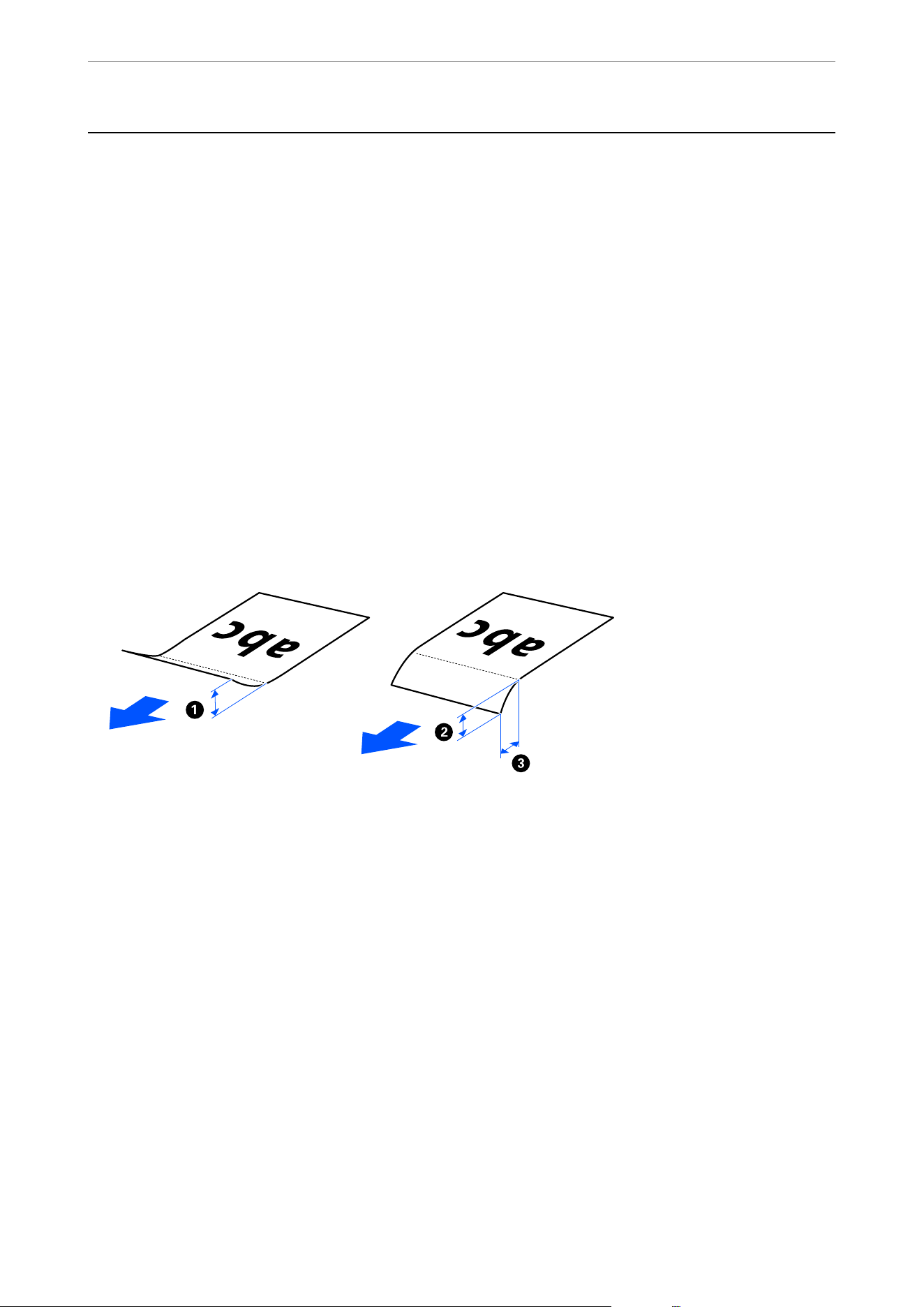
O Make sure that curls on the leading edge of the originals are kept within the following range.
A
must be 5 mm (0.2 in.) or less.
B
must be 3 mm (0.12 in.) or less.
C
must be equal to or greater than
B
if
A
or
B
is 1 mm (0.04 in.) or less. If
A
or
B
is greater than 1 mm (0.04 in.), it
should be at least 10 times the size of
B
.
O Even when the original meets the specications for originals that can be placed in the ADF, it may not feed from the ADF
depending on the paper properties or quality. Additionally, some originals may decrease the scan quality.
For these types of originals, use the scanner glass.
Related Information
&
“Standard Size Originals” on page 42
& “Long Paper” on page 45
& “Mixture of Originals” on page 49
Types of Originals that Require Attention (ADF)
e following types of originals may not be successfully scanned using the ADF. If you cannot scan using the ADF,
use the scanner glass.
O Originals with an uneven surface such as letter head paper
O Originals with wrinkles or fold lines
O Perforated originals
Specications and Placing of Originals
>
Placing Originals into the ADF
>
Types of Originals that Requ
…
40

O Original with labels or stickers
O Carbon-less papers
O Curled originals
O Coated paper
c
Important:
Carbon-less paper contains chemical substances that may damage the rollers inside the scanner. If you scan
carbon-less paper, clean the ADF regularly.
Note:
O Wrinkled originals may scan better if you smooth out the wrinkles before scanning.
O To scan delicate originals or originals that are easily crinkled, use the scanner glass.
O Labels or stickers must be rmly stuck to the originals with no glue protruding. When scanning an original with labels or
stickers that look like they might come o easily, use the scanner glass.
O Try to atten the curled originals before scanning.
Related Information
&
“Placing Originals on the Scanner Glass” on page 53
Types of Originals that Must Not be Scanned (ADF)
To prevent damage to the originals or the scanner, do not load the following originals in the ADF. For these types
of originals, use the scanner glass.
O Photos
O Booklets
O Non-paper originals (such as clear
les,
fabric, and metal foil)
O Originals with glue attached
O Heavily wrinkled or curled originals
O Transparent originals such as OHP lm
O Originals with carbon paper on the back
O Originals with wet ink
O Originals with sticky notes attached
O Originals with staples or paper clips
Note:
O Do not feed valuable original artwork or important documents that you do not want to damage or deface into the ADF.
Misfeeding may wrinkle or damage the original. For these types of originals, use the scanner glass.
O Scan photos or originals with tears, severe wrinkles, or signicant curling from the scanner glass.
Related Information
&
“Placing Originals on the Scanner Glass” on page 53
Specications and Placing of Originals
>
Placing Originals into the ADF
>
Types of Originals that Must
…
41
Specications and Placing of Originals (ADF)
If the original is not placed correctly, it cannot be detected.
Note:
You cannot scan long paper using the Epson Smart Panel.
Standard Size Originals
Specications
of Standard Size Originals
ese are the specications for standard size originals that you can scan using the ADF.
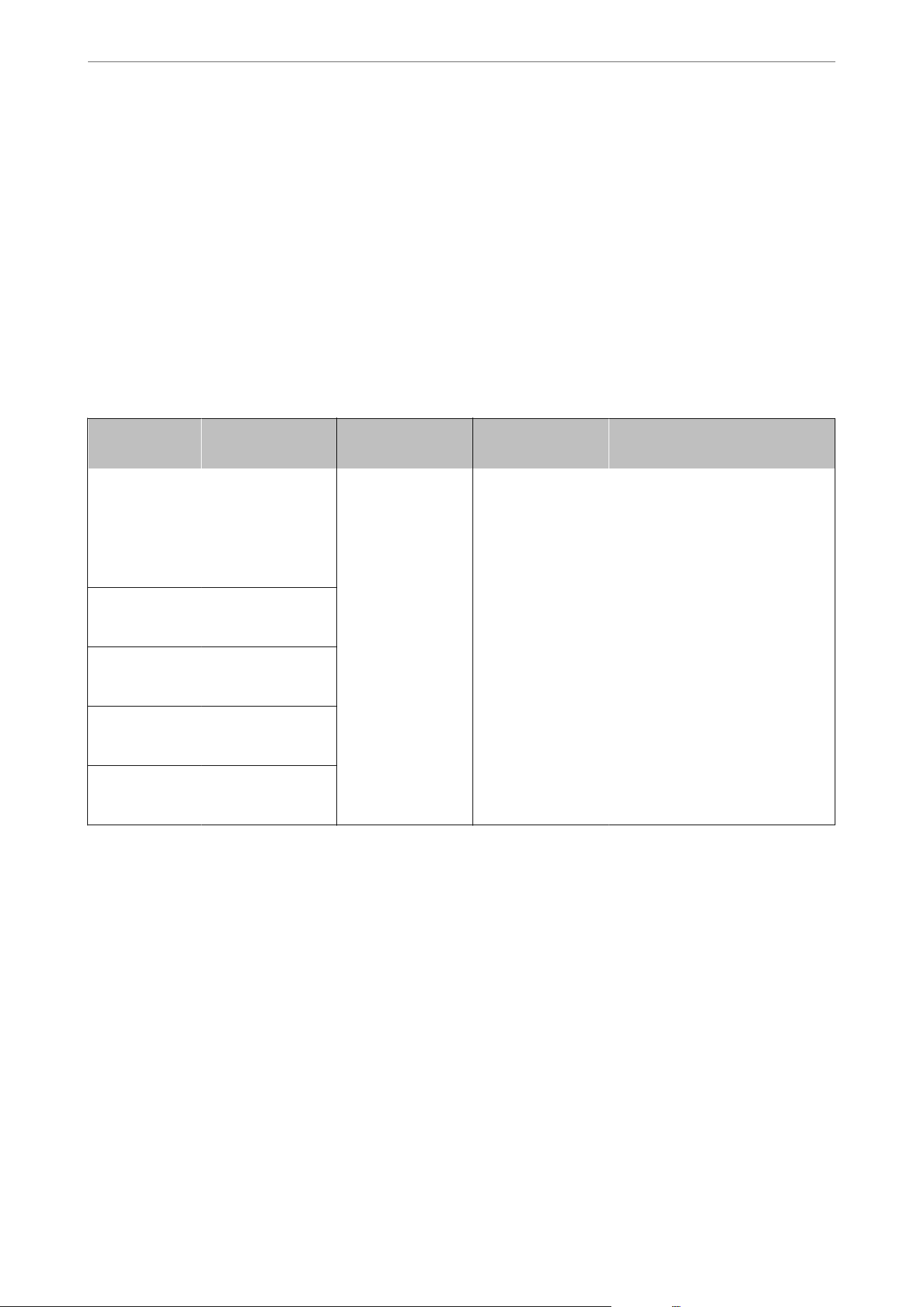
Specication
s
Size Thickness
(Weight)
Paper Type Loading Capacity and Thickness
Legal 215.9×355.6 mm
(8.5×14 in.)
50 to 120 g/m2 Plain paper
Fine paper
Recycled paper
Thickness of the stack of originals:
under 6.6 mm (0.26 in.)
(80 g/m2: 60 sheets)
The loading capacity varies
depending on the paper type.
Letter 215.9×279.4 mm
(8.5×11 in.)
A4 210×297 mm
(8.27×11.7 in.)
B5 182×257 mm
(7.17×10.12 in.)
A5 148×210 mm
(5.83×8.27 in.)
A6 105×148 mm
(4.13×5.83 in.)
Note:
If no paper size matches a standard size, you can set a custom paper size as a user-dened size.
e total thickness that you can set is up to 6.6 mm (0.26 in.), the same as for standard-size paper.
“Registering User-dened Sizes in Epson Scan 2” on page 114
“Registering User-dened Sizes in Web Cong” on page 140
Specications and Placing of Originals
>
Placing Originals into the ADF
>
Specications and Placing o
…
42
Placing Standard Size Originals
Note:
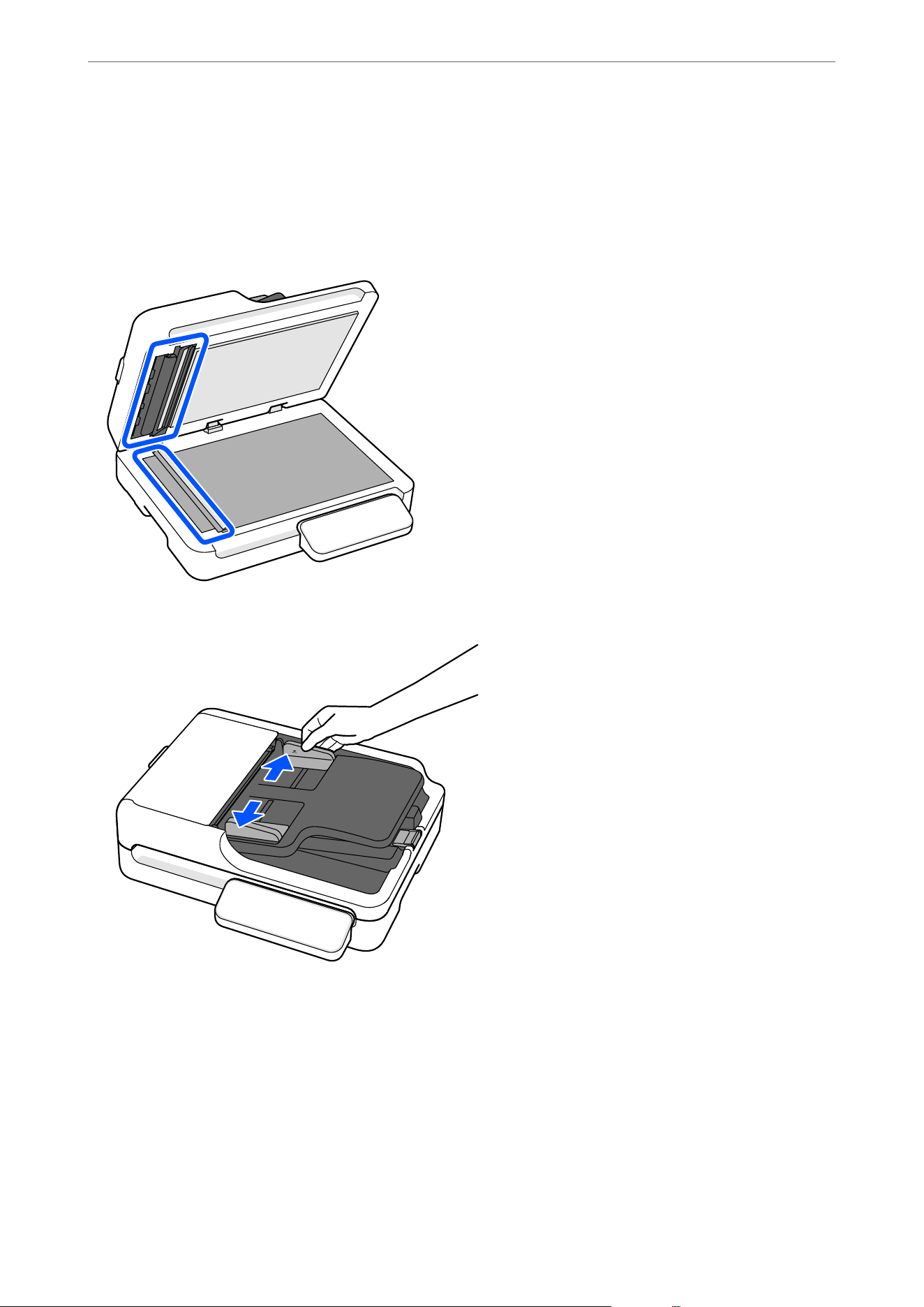
Check the following before scanning.
O Make sure there are no originals on the scanner glass.
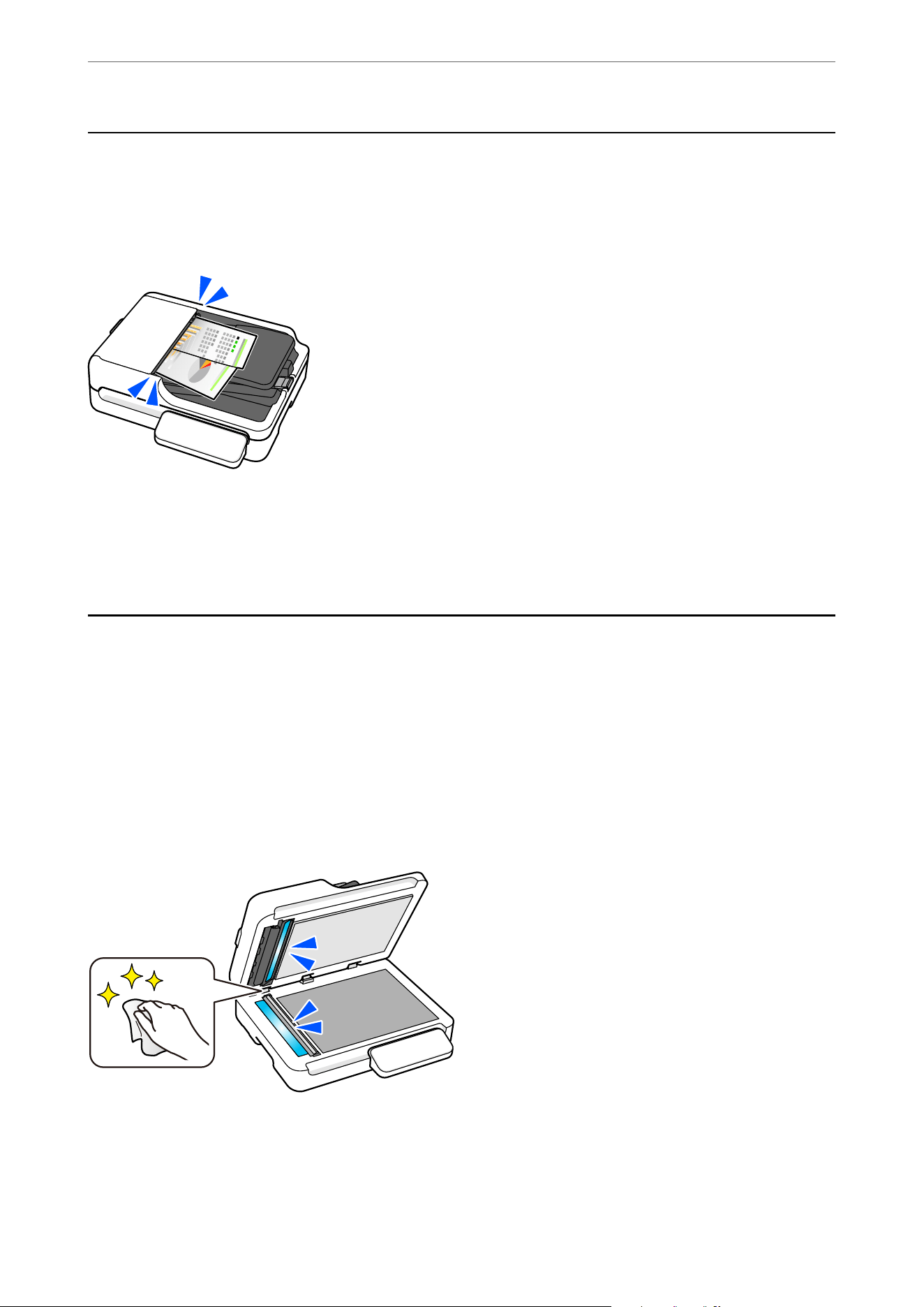
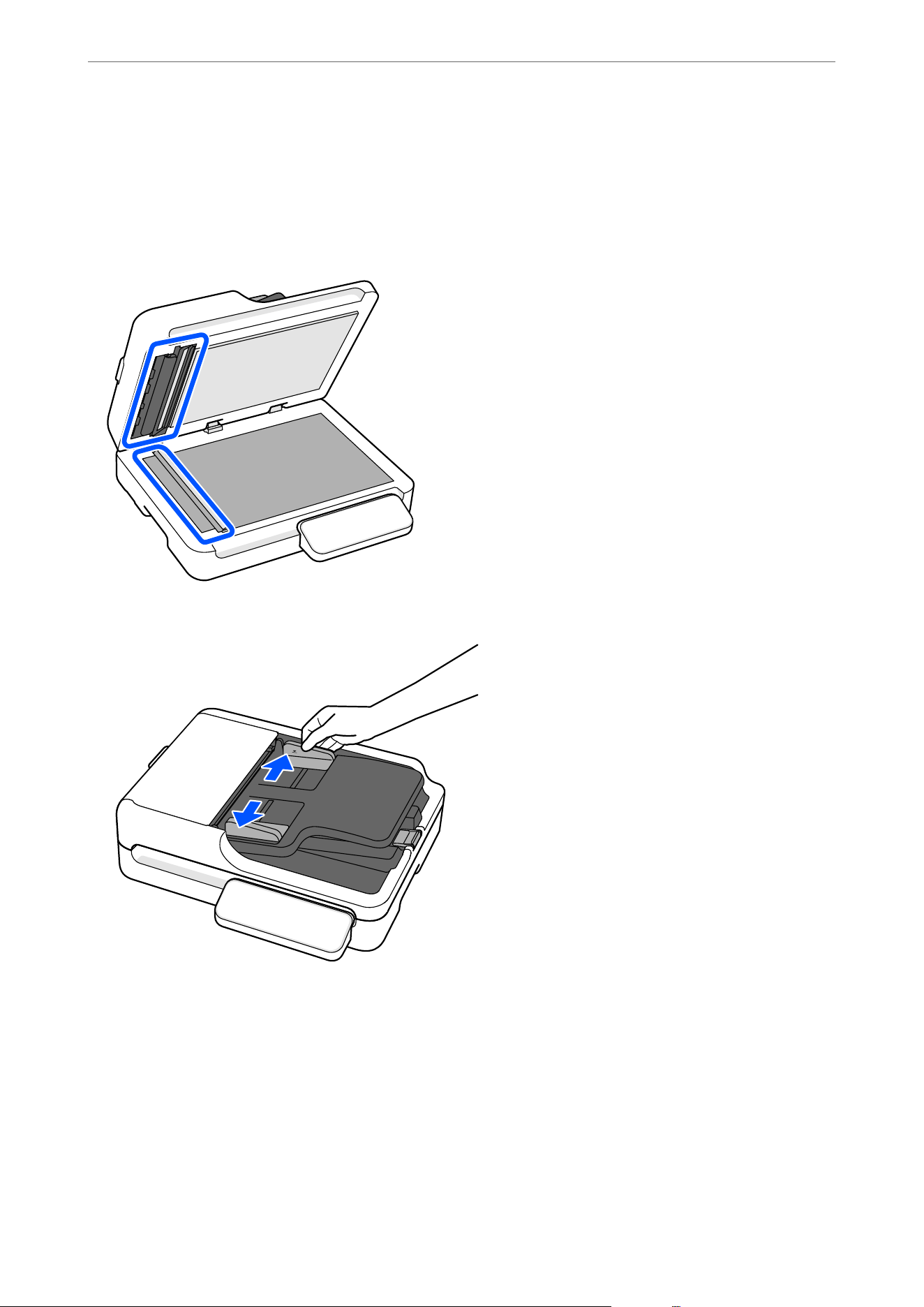
O Make sure there is no dust or dirt in the areas indicated in the following illustration.
1. Slide the edge guides on the input tray all the way out.
Specications and Placing of Originals
>
Placing Originals into the ADF
>
Specications and Placing o
…
43
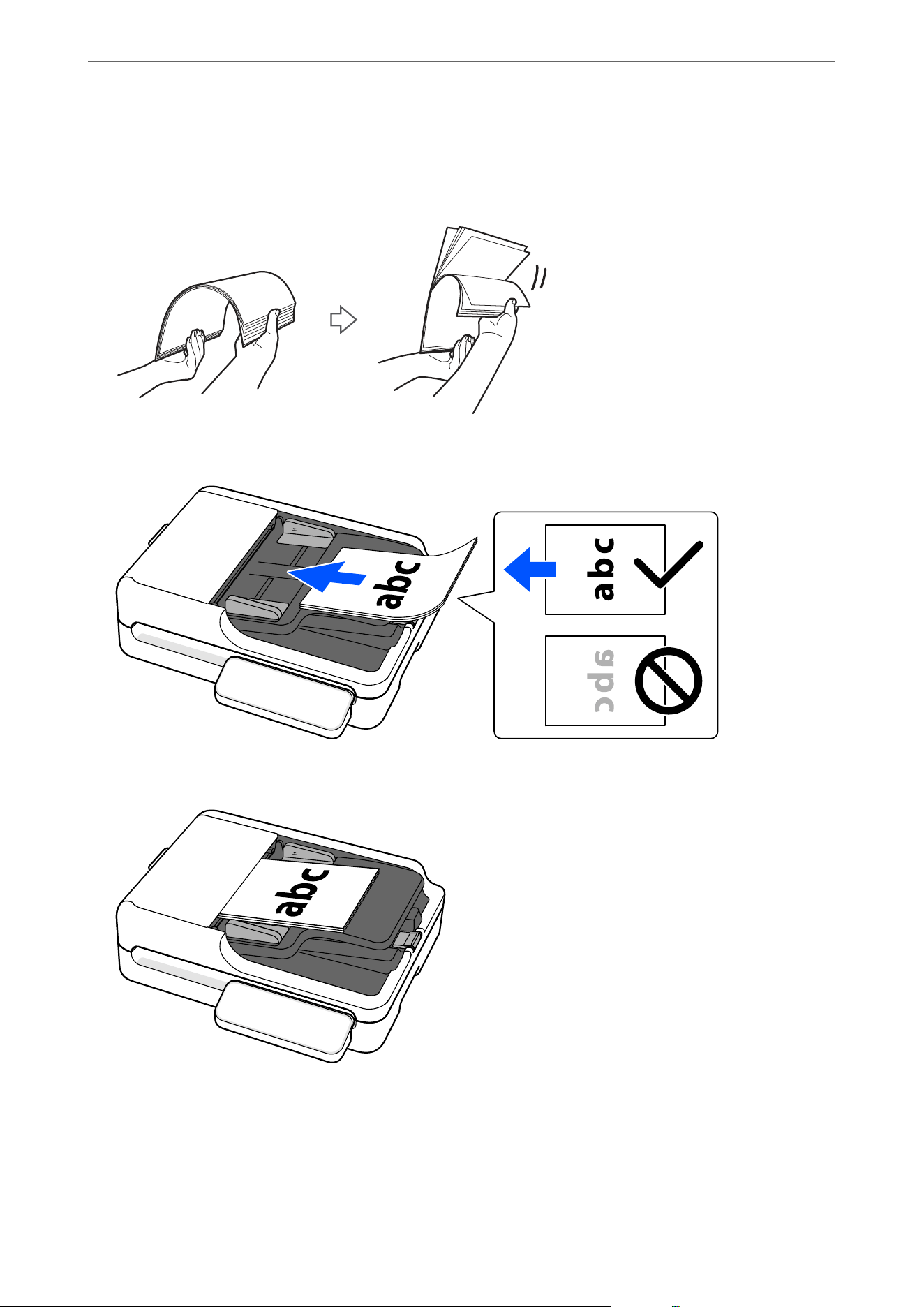
2. Fan the originals.
Hold both ends of the originals and fan them a few times, and then tap the top edges of the paper on a at
surface to align the sheets.
3. Place the originals into the input tray facing up with the top edge facing into the ADF.
Slide the original into the ADF until it meets resistance.
Note:
Check the following when loading originals with punch holes, such as loose-leaf paper.
O ere are no holes within 15 mm (0.59 in.) to the le and right of the center of the original (a width of 30 mm (1.18
in.)).
O ere are no burrs or curls at the edges of the punch holes.
Specications and Placing of Originals
>
Placing Originals into the ADF
>
Specications and Placing o
…
44
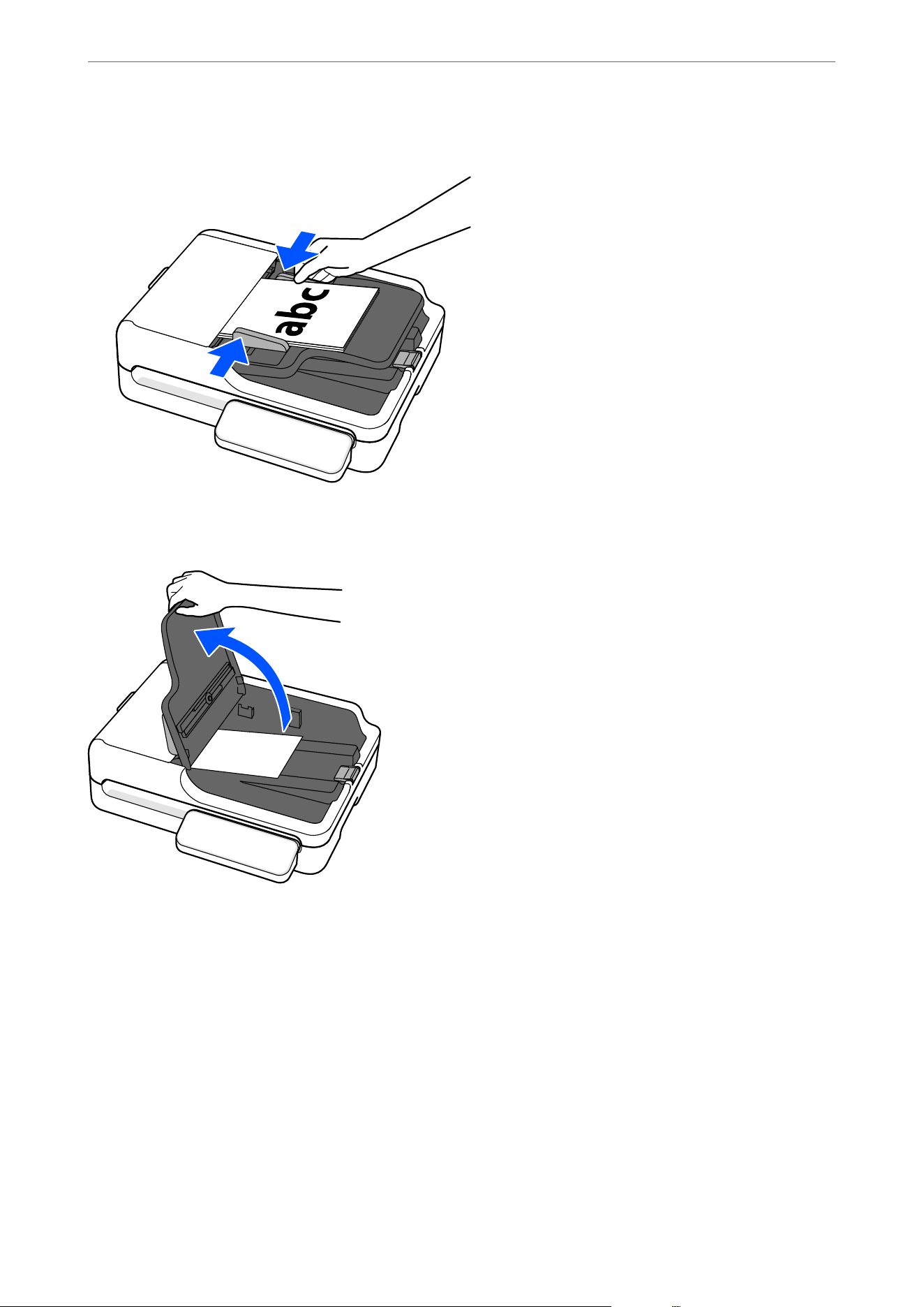
4. Adjust the edge guides to t the original without any gap. Otherwise, the originals may be fed skewed.
Note:
When scanning small originals or scanning with the stopper raised, li the input tray to remove the scanned originals.
Long Paper
Specications of Long Paper
is section provides the specications for long paper that you can load into the ADF.
Note:
O Long paper means originals with a length of 393.8 mm (15.5 in.) or more.
O When scanning long paper, scanning speed is reduced.
Specications and Placing of Originals
>
Placing Originals into the ADF
>
Specications and Placing o
…
45
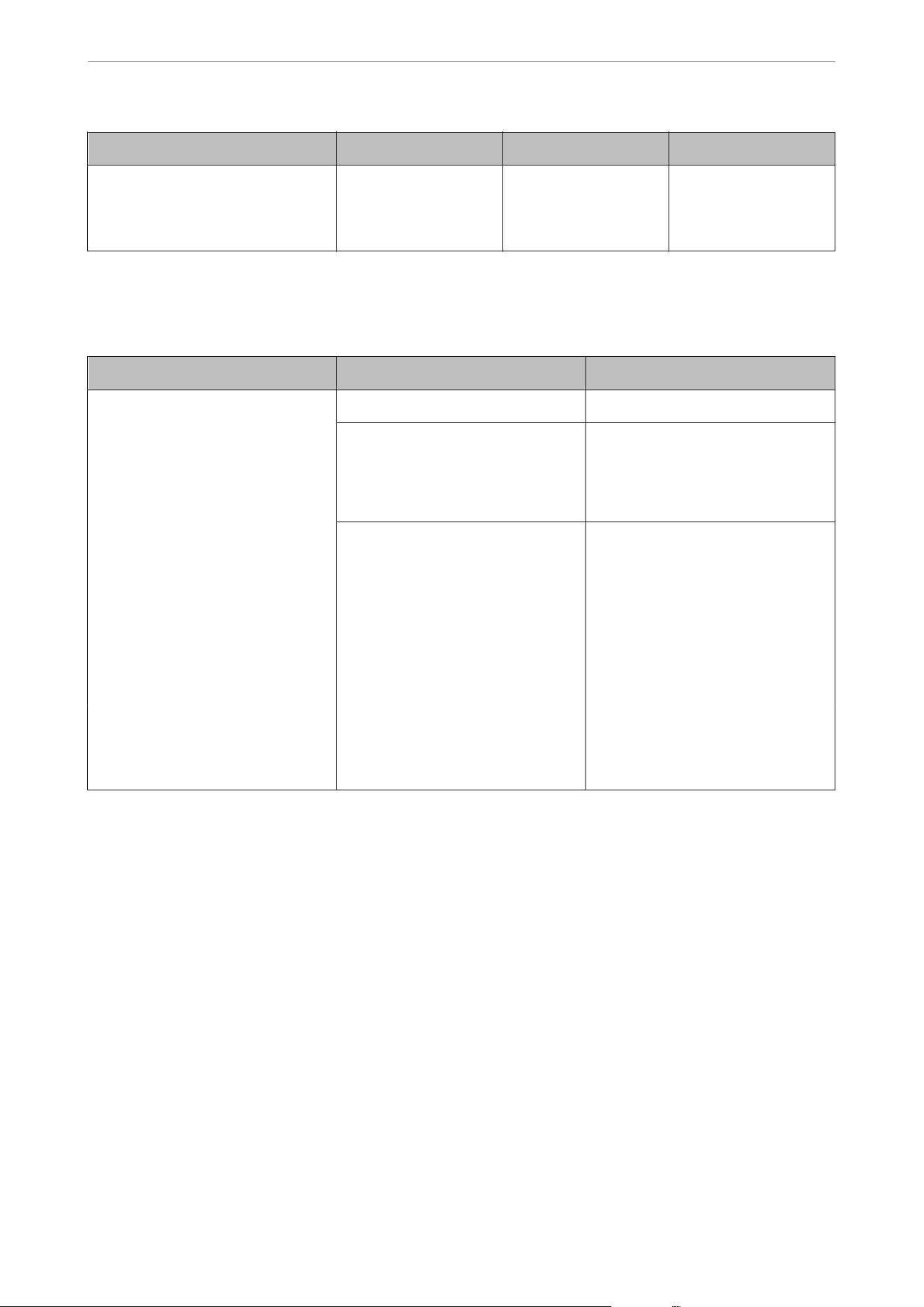
Size Thickness (Weight) Paper Type Loading Capacity
Width: 105.0 mm (4.13 in.) to 215.9 mm
(8.5 in.)
Maximum length: 5,588.0 mm (220 in.)
50 to 120 g/m2 Plain paper
Fine paper
Recycled paper
1 sheet
Maximum Length for Long Paper
e following shows the maximum length according to the scanning resolution and the scanning method.
Scanning Method Scanning Resolution Maximum Length
O Scanning from a computer
O Scanning from the scanner's
control panel using the Computer
feature
50 to 200 dpi 5,588.0 mm (220 in.)
201 to 300 dpi 5,461.0 mm (215 in.)
301 to 600 dpi 1,346.2 mm (53 in.)
Scanning from the scanner's control
panel using the following features:
O Network Folder/FTP
O Email
O Cloud
O USB Drive
50 to 300 dpi 914.4 mm (36 in.)
301 to 600 dpi Long paper is not supported
Scanning from the scanner's control
panel using the WSD feature
100 dpi
300 dpi
Long paper is not supported
Scan with Epson Smart Panel 200 dpi
300 dpi
600 dpi
Long paper is not supported
Specications and Placing of Originals
>
Placing Originals into the ADF
>
Specications and Placing o
…
46
Placing Long Paper
Note:
Check the following before scanning.
O Make sure there are no originals on the scanner glass.
O Make sure there is no dust or dirt in the areas indicated in the following illustration.
1. Slide the edge guides on the input tray all the way out.
Specications and Placing of Originals
>
Placing Originals into the ADF
>
Specications and Placing o
…
47
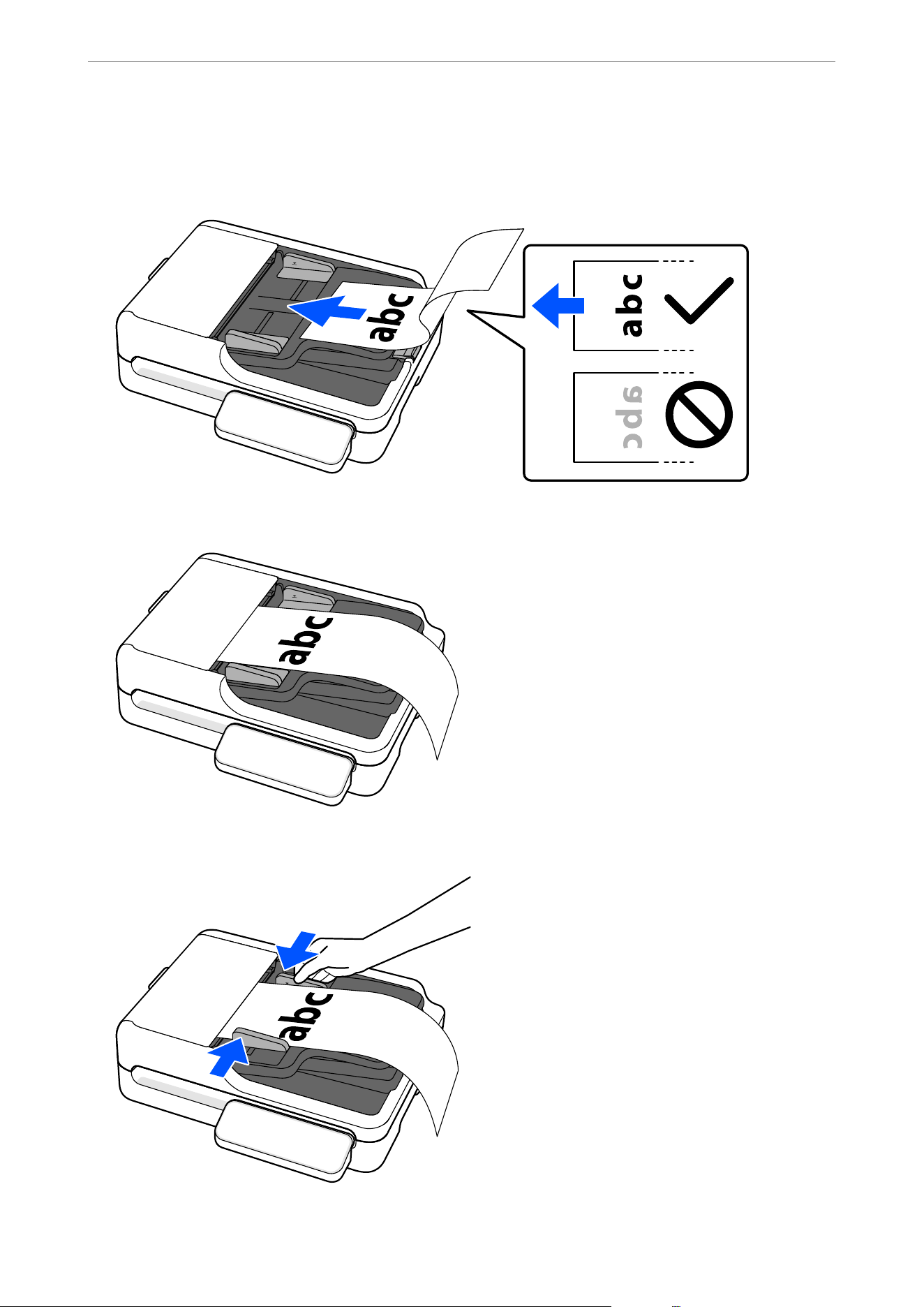
2. Load the original into the input tray straight, facing up and with the top edge facing into the ADF.
Slide the original into the ADF until it meets resistance.
3. Adjust the edge guides to t the original without any gap. Otherwise, the originals may be fed skewed.
Specications and Placing of Originals
>
Placing Originals into the ADF
>
Specications and Placing o
…
48
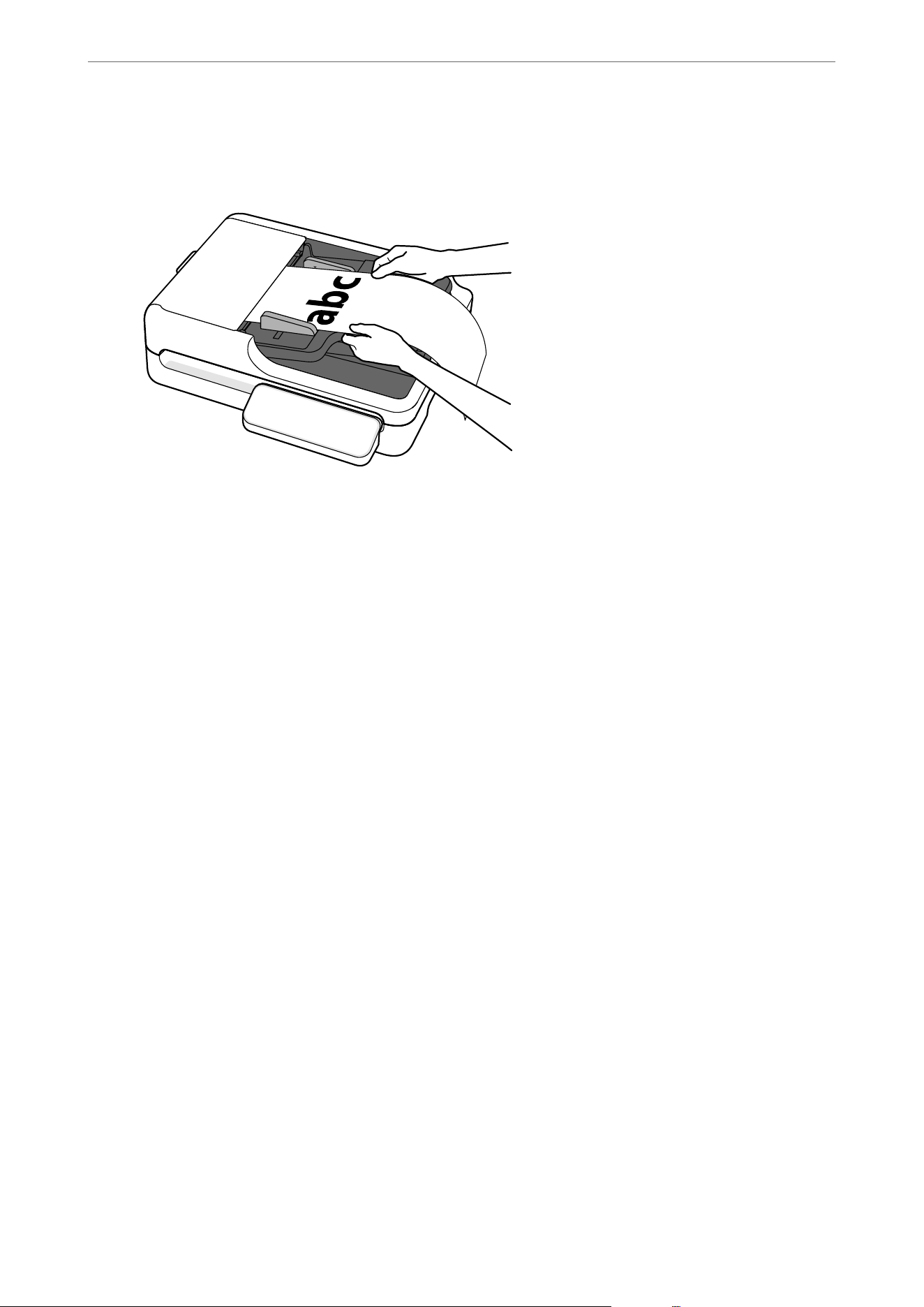
Note:
Support long paper at the input side so that it does not drop out of the ADF, and on the output side so that the ejected
paper does not fall from the output tray.
When scanning, set the Document Size according to the length of the original.
When scanning from a computer or using the Computer feature on the control panel
Select Customize from Document Size and set the length of the original. If the original is up to 3,048.0 mm (120
in.) long, you can scan it by setting Document Size to Auto Detect (Long Paper).
O When using Document Capture Pro/Document Capture: Press the Detailed Settings button on the scan
settings screen to open the Epson Scan 2 screen. In Main Settings, set Document Size to Auto Detect (Long
Paper) or Customize.
O When using Epson Scan 2: In Main Settings, set Document Size to Auto Detect (Long Paper) or Customize.
“Registering User-dened Sizes in Epson Scan 2” on page 114
When using Network Folder/FTP, Email, Cloud, or USB Drive from the scanner's control panel
In Scan Settings, select User Dened from Original Size and set the size of the original.
Note:
You can also register user-dened sizes in Web Cong.
You can use these registered user-dened sizes in Presets or User Default Settings in Web Cong. In Scan Area, select User
dened and click Get from User-Dened Paper Size List(Original) to load the settings.
“Registering User-dened Sizes in Web Cong” on page 140
Mixture of Originals
Placing a Mixture of Originals at Dierent Sizes
You can place and scan batches of dierent size originals (105.0×148.0 mm (4.13×5.83 in.) to A4 or letter size) up
to a total thickness of 6.6 mm (0.26 in.). You can also load a mixture of paper types or thickness.
Specications and Placing of Originals
>
Placing Originals into the ADF
>
Specications and Placing o
…
49
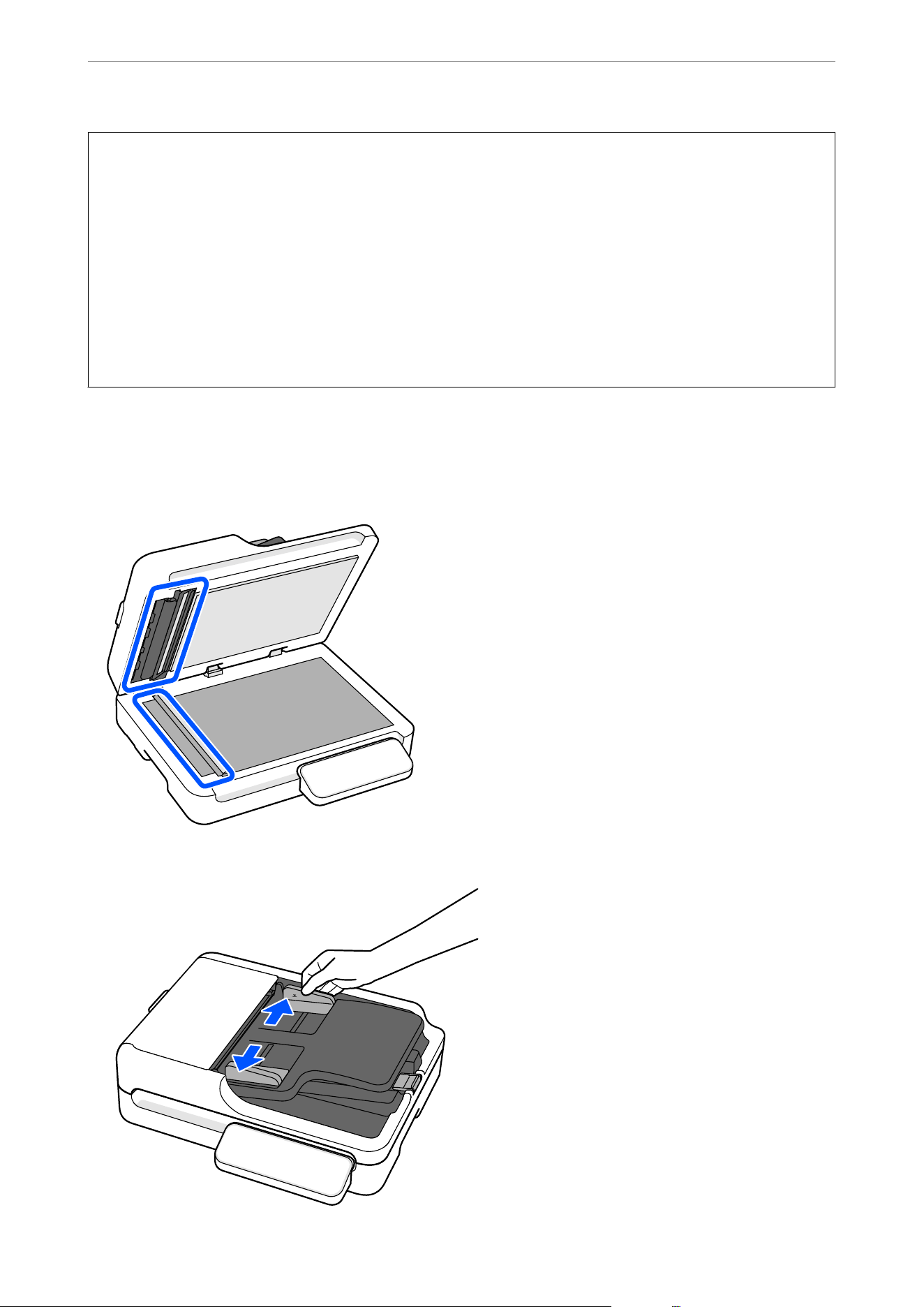
c
Important:
O When placing and scanning originals that are a mixture of
dierent
sizes, originals may be fed askew because
not all of the originals are supported by the edge guides.
O Originals may be jammed or fed askew if you set dierent types or very dierent sizes of originals, such as in the
following cases.
·in paper and thick paper
·A4 size paper and small size paper
·Combinations of folded or wrinkled paper
If originals are fed askew, check the scanned images. If the image is skewed, reduce the number of originals
loaded and scan again.
Note:
Check the following before scanning.
O Make sure there are no originals on the scanner glass.
O Make sure there is no dust or dirt in the areas indicated in the following illustration.
1. Slide the edge guides on the input tray all the way out.
Specications and Placing of Originals
>
Placing Originals into the ADF
>
Specications and Placing o
…
50
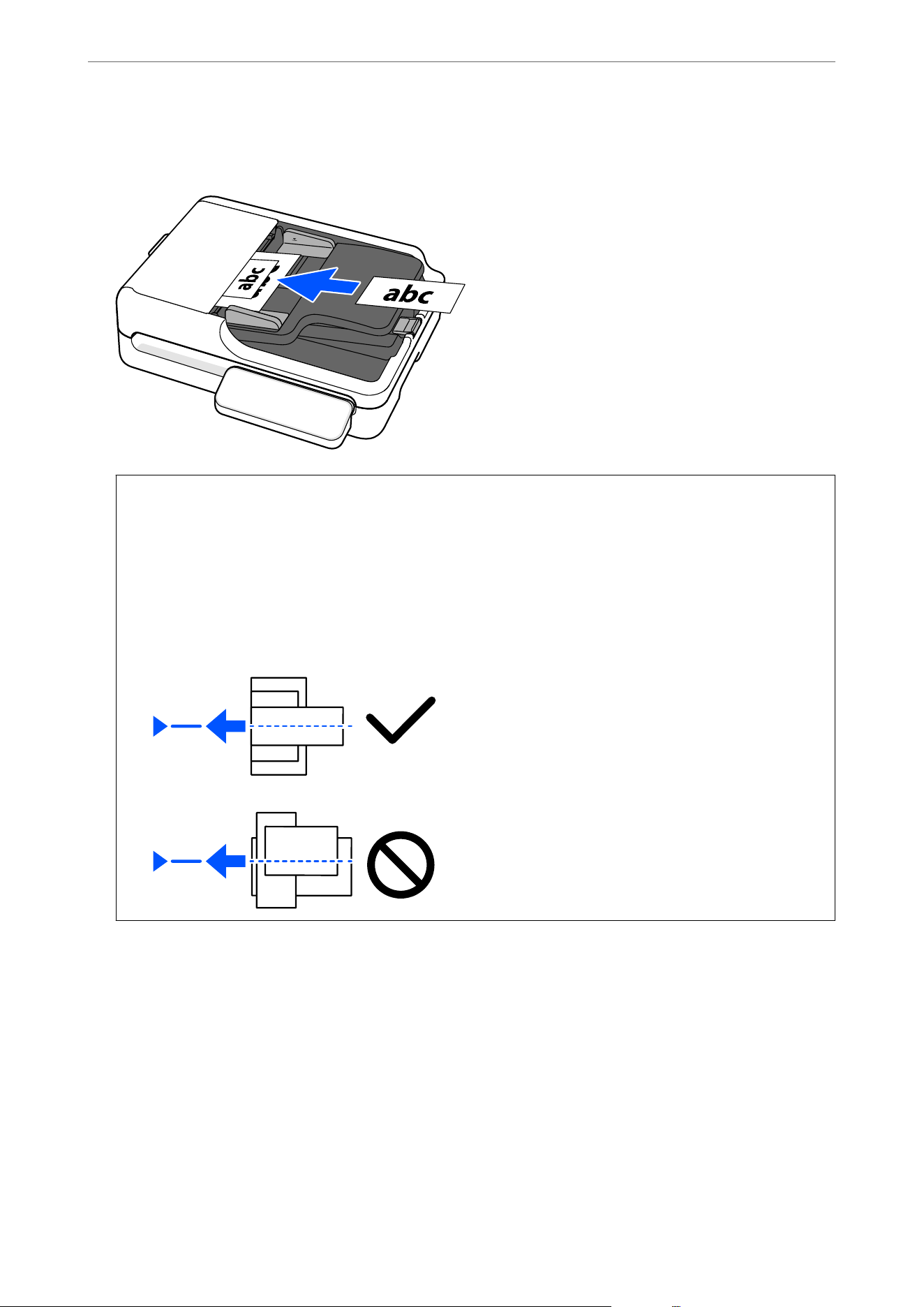
2. Load the originals with the side to be scanned facing up at the center of the input tray in descending order of
paper size with the widest at the back and the narrowest at the front.
c
Important:
Check the following points when setting
dierent
sizes of originals.
O Slide the originals with their leading edges aligned, until they meet resistance in the ADF.
O Set the originals at the center of the input tray.
O Set the originals straight.
If not, originals may be fed askew or jammed.
Specications and Placing of Originals
>
Placing Originals into the ADF
>
Specications and Placing o
…
51
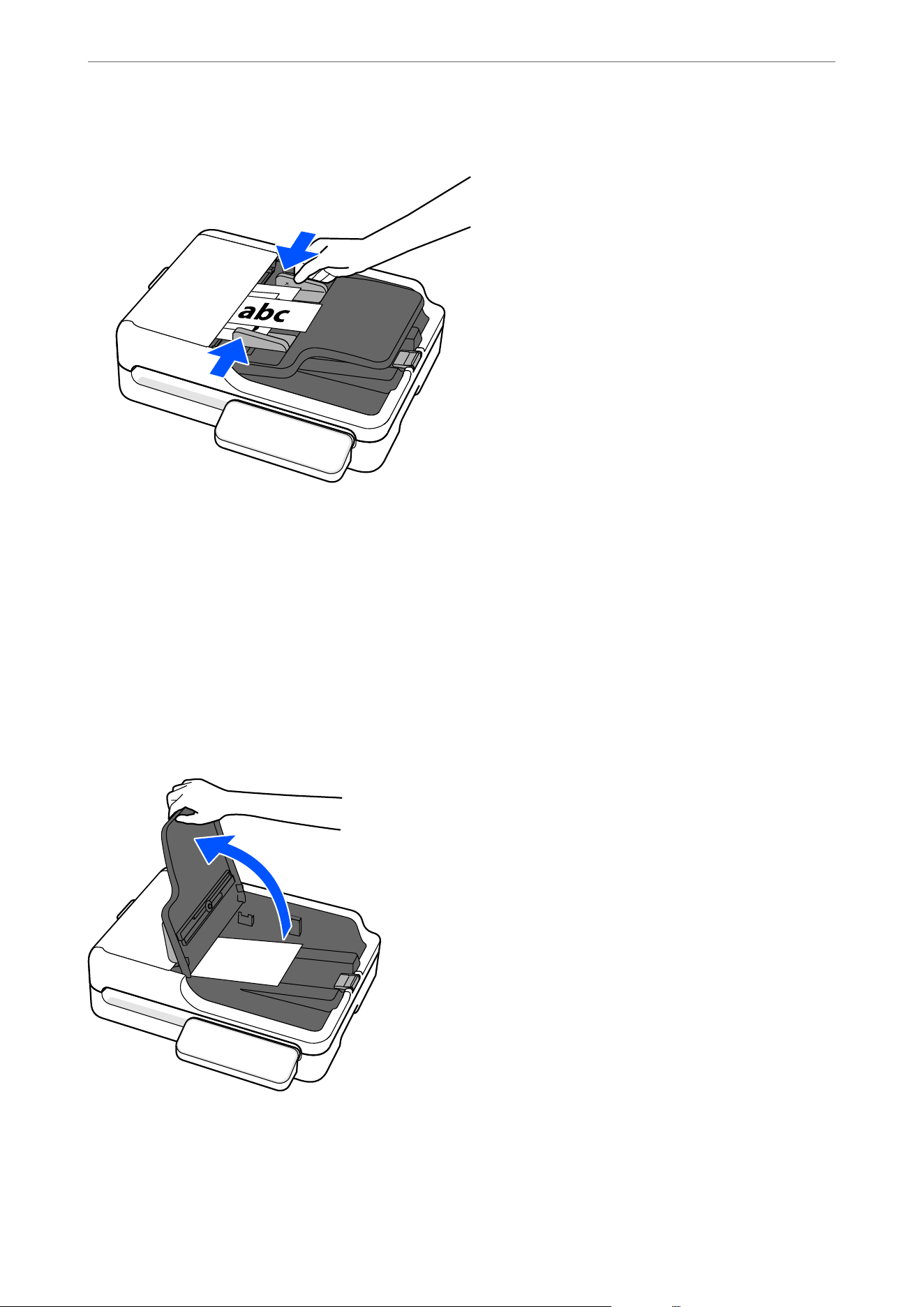
3. Align the edge guides with the widest original.
When scanning, set Document Size to Auto Detect in the Scan Settings.
O When using Document Capture Pro/Document Capture: Set Document Size to Auto Detect on the Scan
Settings screen.
O When using Epson Scan 2: In Main Settings, set Document Size to Auto Detect.
O When using Computer on the scanner's control panel: When editing jobs in Document Capture Pro/Document
Capture, set Document Size to Auto Detect on the Scan Settings screen.
O When using Network Folder/FTP, Email, Cloud, or USB Drive on the scanner's control panel: Set Original
Size to Auto Detect in the settings.
Note:
When scanning small originals or scanning with the stopper raised, li the input tray to remove the scanned originals.
Specications and Placing of Originals
>
Placing Originals into the ADF
>
Specications and Placing o
…
52
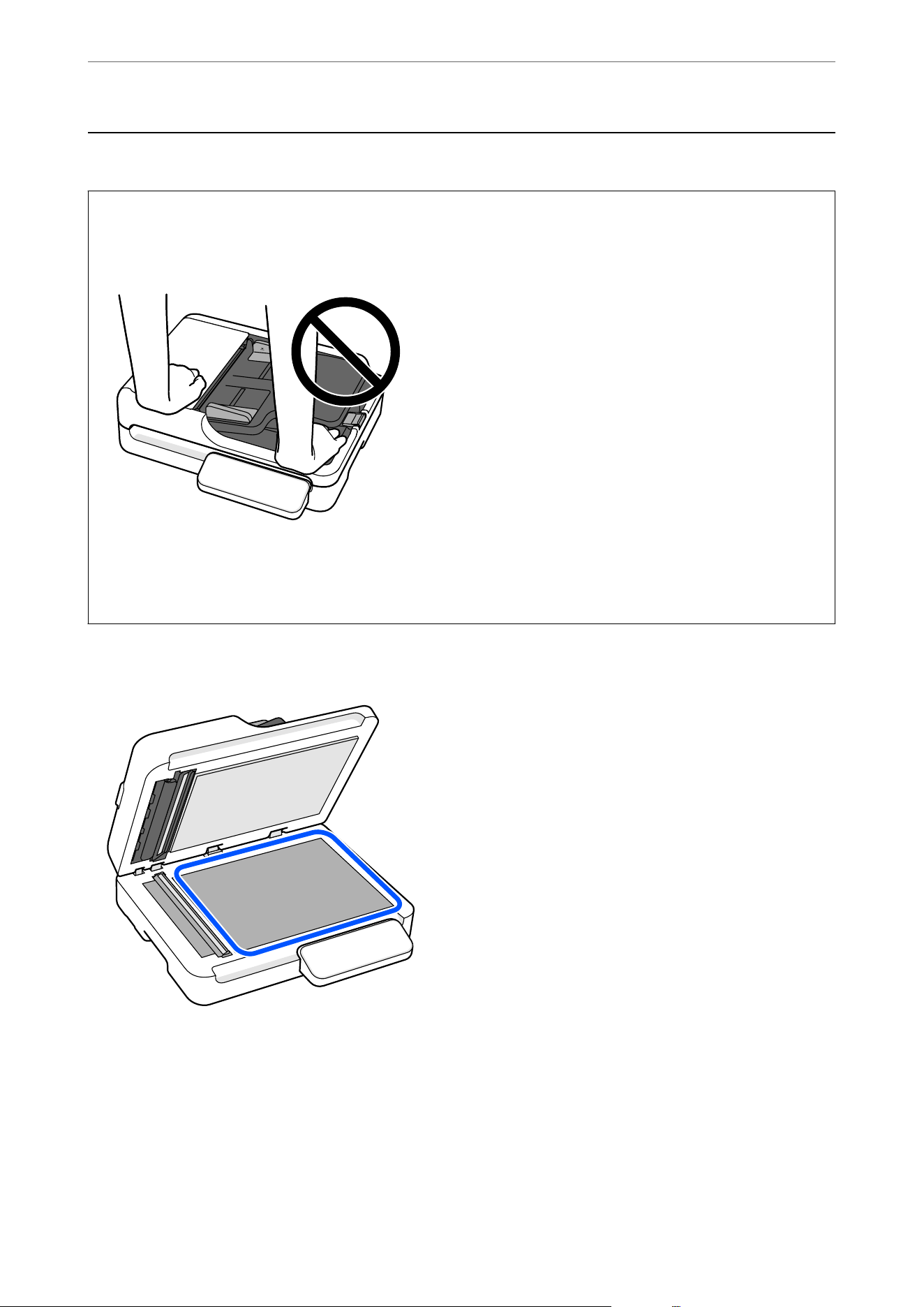
Placing Originals on the Scanner Glass
c
Important:
O Do not place heavy objects on the scanner glass and do not press the glass with too much force. Otherwise, the
scanner may be damaged.
O Do not open the document cover wider than an angle of 70 degrees.
is
could damage the hinge.
O Remove the original when scanning is complete. If you leave the originals on the scanner glass for a long time,
they may stick to the surface of the glass.
Note:
O Always keep the scanner glass clean.
O When there are originals in both the ADF and on the scanner glass, scanning from the ADF takes priority.
is
applies when Document Source is set to Auto Detect if you are using Document Capture Pro/Document Capture or
Epson Scan 2.
Specications and Placing of Originals
>
Placing Originals on the Scanner Glass
53
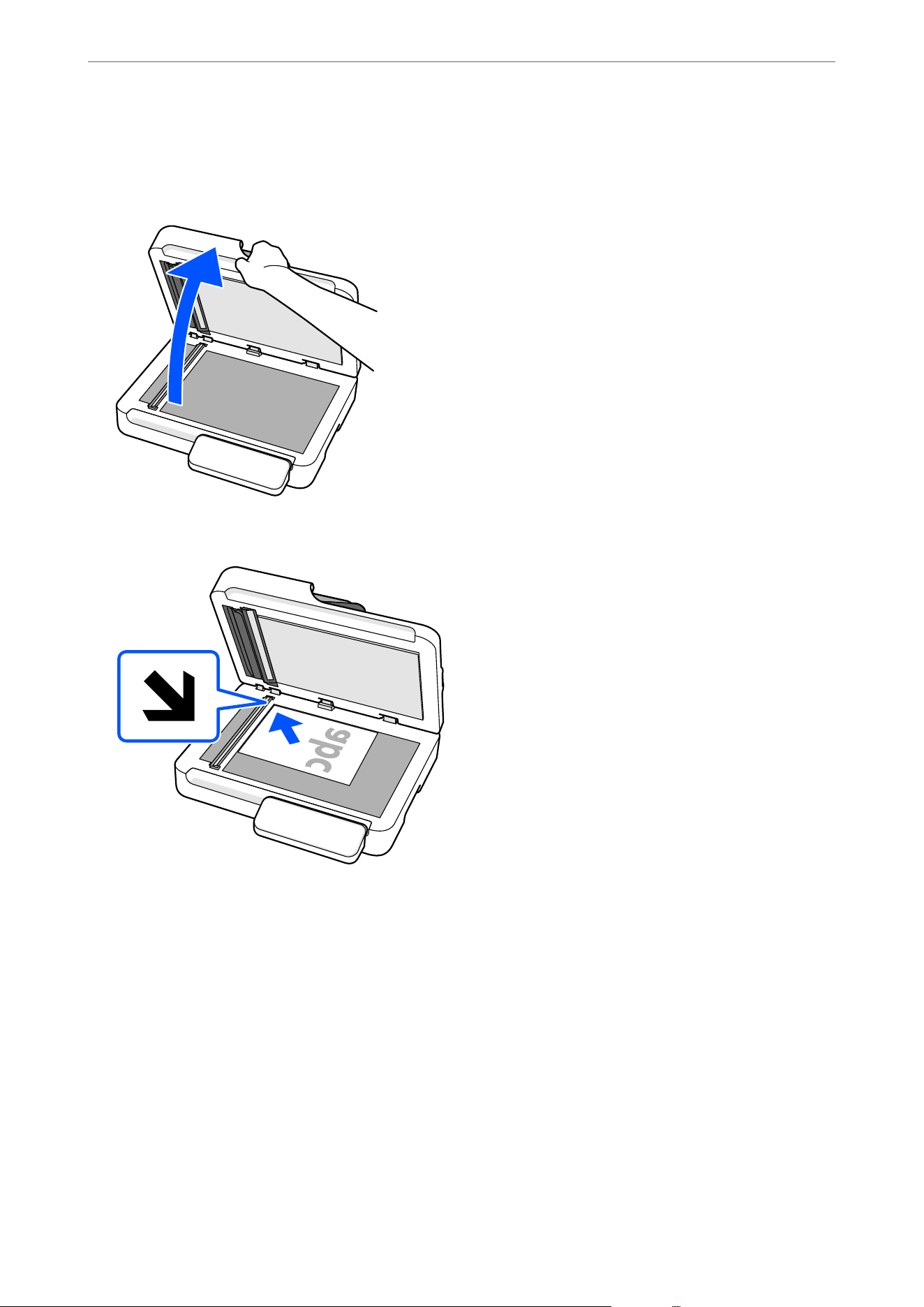
Placing an Original
1. Open the document cover.
2. Place the original face-down and align it with the corner.
Note:
O e maximum size of the original you can scan is 215.9×297.1 mm (8.5×11.7 in.).
O ere are areas at the top, bottom, le, and right edges of the scanner glass that cannot be scanned.
O Top: 1.5 mm (0.06 in.)
O
Le:
1.5 mm (0.06 in.)
O Right: 8 mm (0.31 in.)
O Bottom: 15 mm (0.59 in.)
Specications and Placing of Originals
>
Placing Originals on the Scanner Glass
>
Placing an Original
54
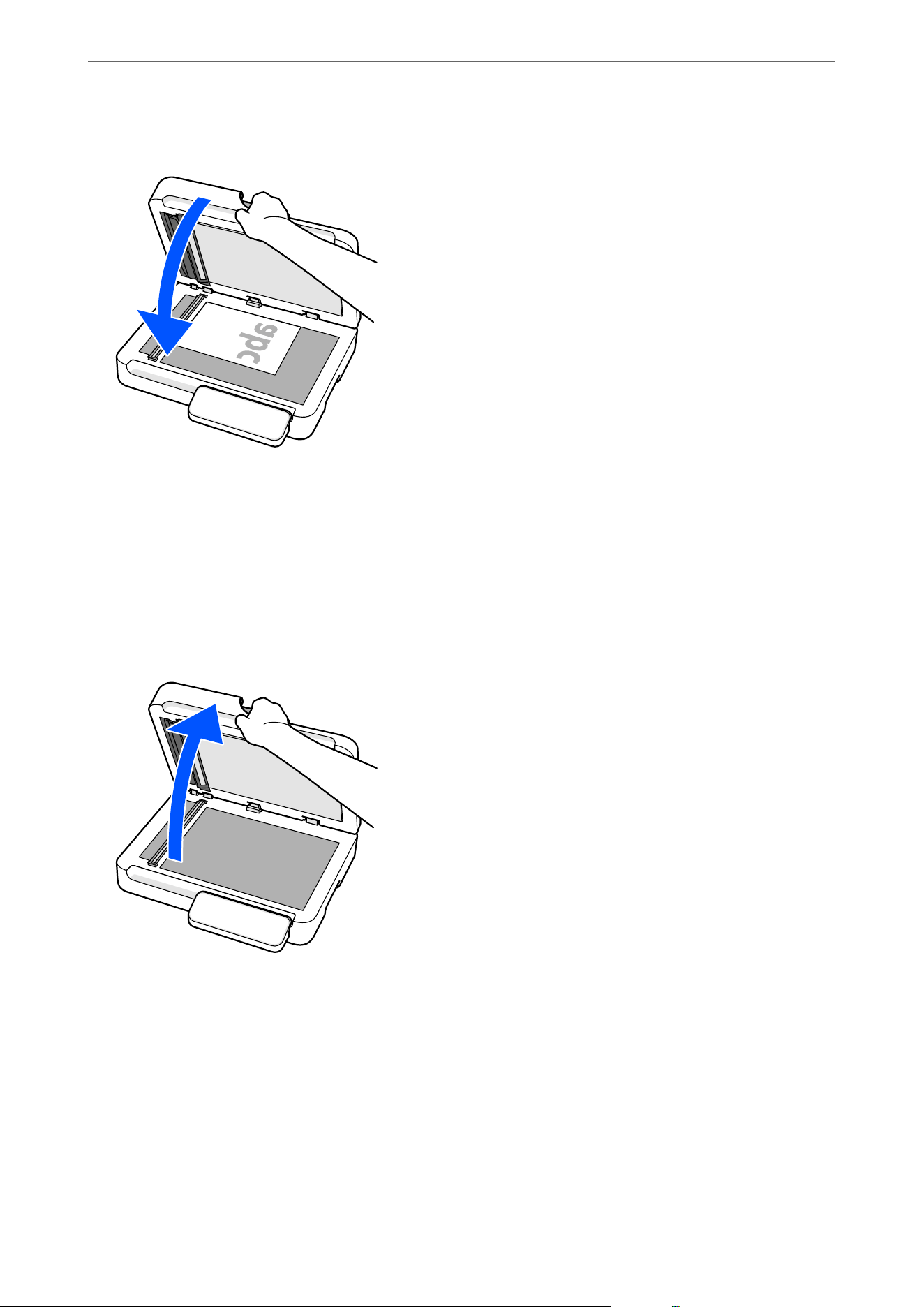
3. Close the document cover gently so that your original does not move.
Placing Thick Originals
e scanner glass can accommodate originals up to 30 mm (1.18 in.) thick.
Note:
When scanning thick originals such as books, make sure that exterior light, such as from lamps or other sources, does not
shine directly onto the scanner glass. Scanned images may contain noise or automatic document size detection may fail.
1.
Open the document cover.
Specications and Placing of Originals
>
Placing Originals on the Scanner Glass
>
Placing Thick Originals
55
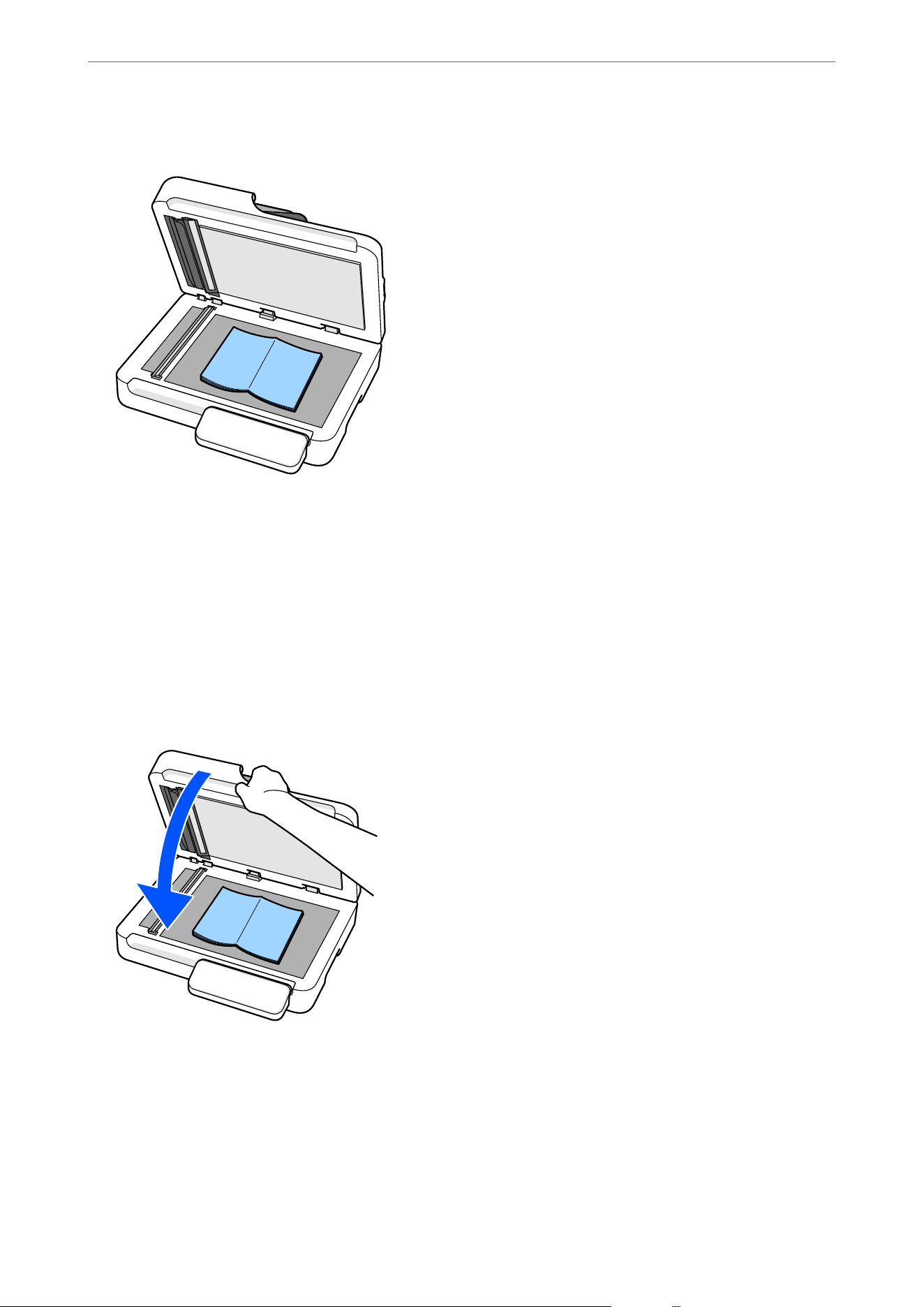
2. Place the original face down in the center of the scanner glass.
Note:
O e maximum size of the original you can scan is 215.9×297.1 mm (8.5×11.7 in.).
O ere are areas at the top, bottom, le, and right edges of the scanner glass that cannot be scanned.
O Top: 1.5 mm (0.06 in.)
O
Le:
1.5 mm (0.06 in.)
O Right: 8 mm (0.31 in.)
O Bottom: 15 mm (0.59 in.)
3. Close the document cover gently so that your original does not move.
Specications and Placing of Originals
>
Placing Originals on the Scanner Glass
>
Placing Thick Originals
56
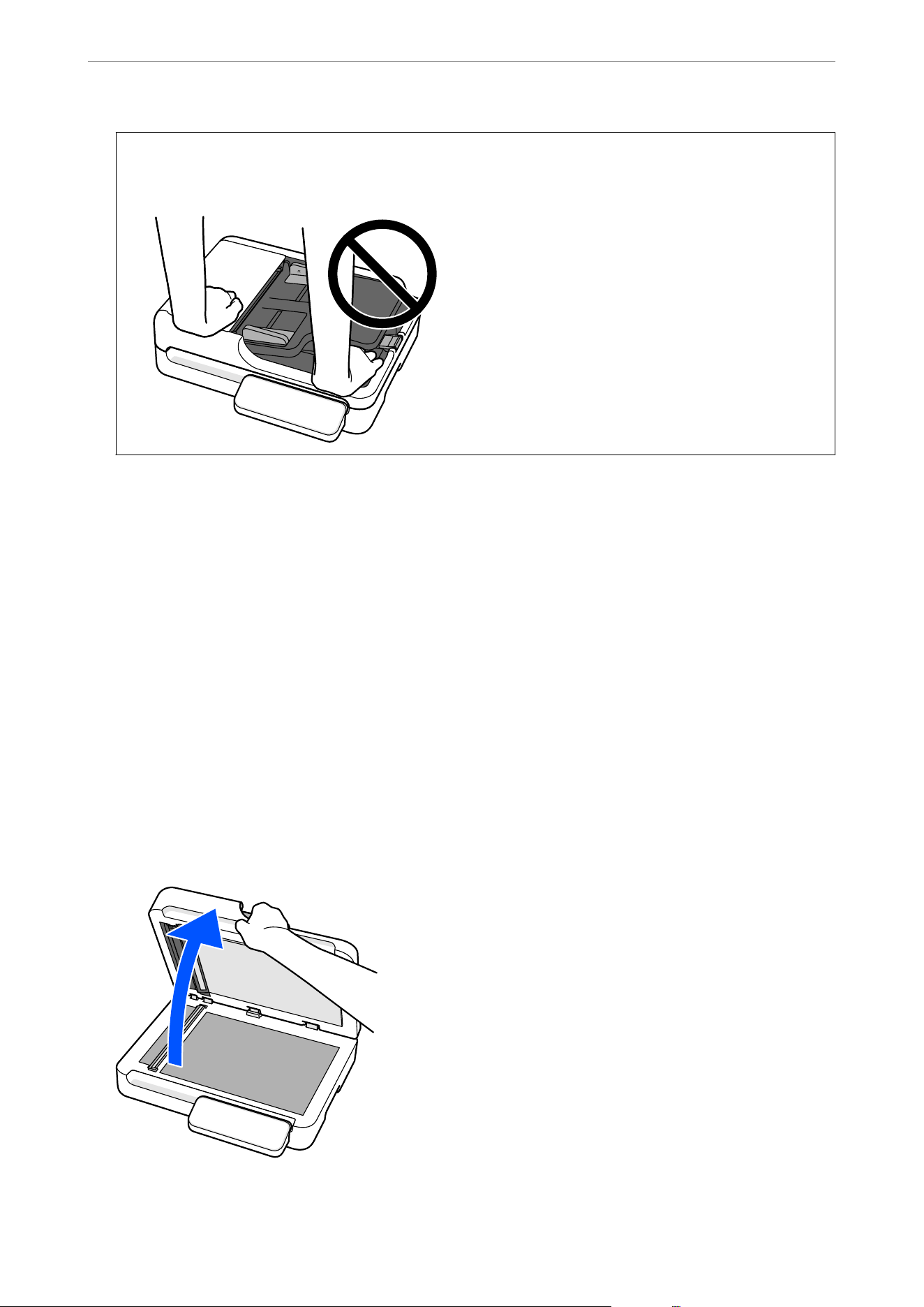
c
Important:
Do not press too hard on the scanner glass. Otherwise, the scanner may be damaged.
Placing Multiple Originals at Once
When scanning from the scanner glass, you can scan multiple originals at once without having to scan them
one by one.
ey
are automatically cropped into separate images and saved.
is
feature supports not only
standard-sized originals but also irregularly shaped items such as receipts, invoices, and photos of various sizes.
is feature is available in the following cases (when scanning while connected to a computer).
O When scanning using Document Capture Pro (Windows) / Document Capture (Mac OS X) or Epson Scan 2 on
your computer
O When scanning by selecting Computer on the scanner's control panel
Note:
O is feature cannot be used when Network Folder/FTP, Email, Cloud, or USB Drive is selected on the scanner's control
panel.
O When scanning thick originals, make sure that exterior light, such as from lamps or other sources, does not shine directly
onto the scanner glass. Auto image cropping may fail.
1. Open the document cover.
Specications and Placing of Originals
>
Placing Originals on the Scanner Glass
>
Placing Multiple Ori
…
57
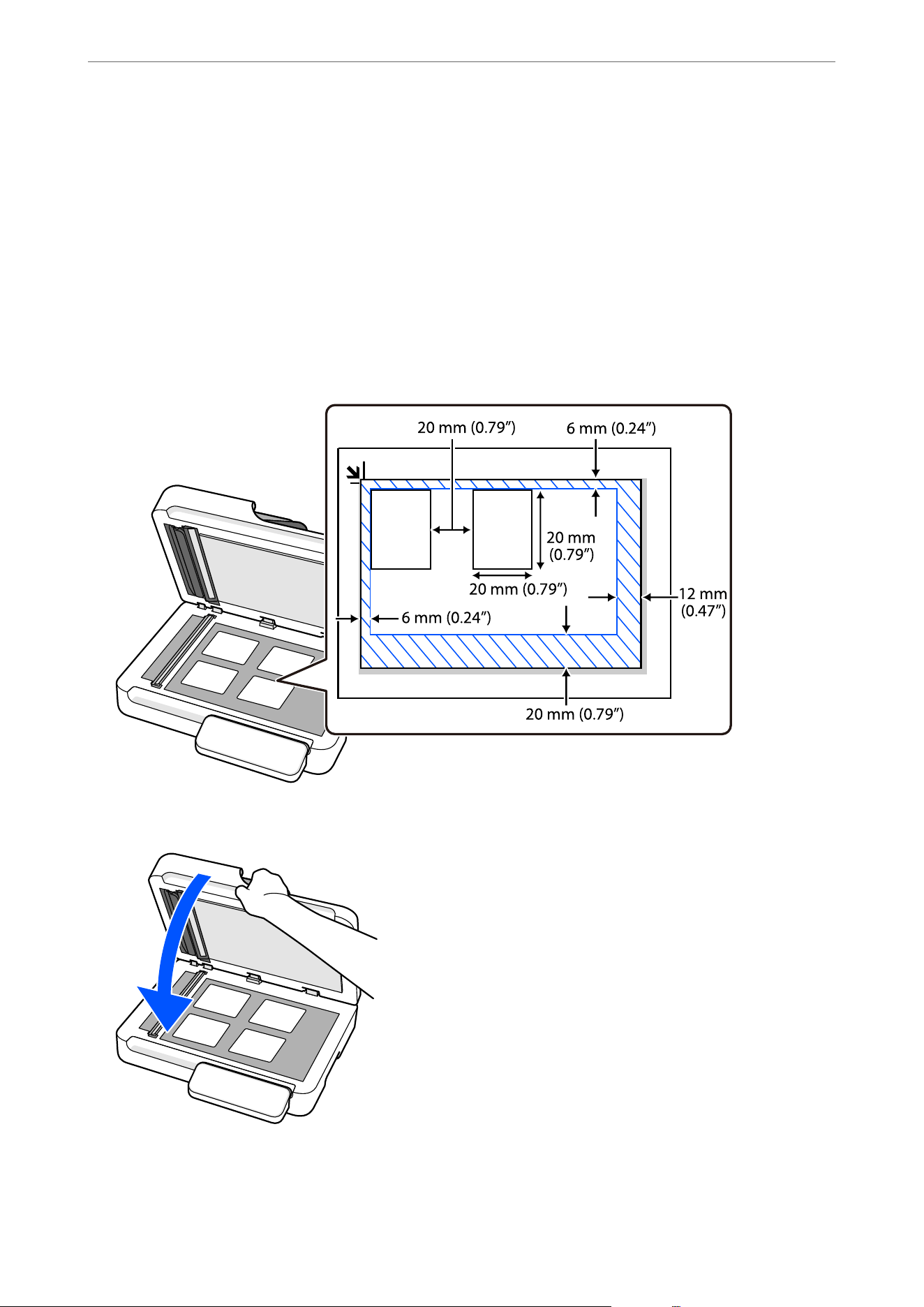
2. Place each original face down on the scanner glass. Place the originals so that they meet the following
requirements.
O Keep each original away from the edges of the scanner glass by the following distances:
O Top: 6 mm (0.24 in.)
O Le: 6 mm (0.24 in.)
O Right: 12 mm (0.47 in.)
O Bottom: 20 mm (0.79 in.)
O Leave a gap of at least 20 mm (0.79 in.) between each original.
O e originals must be at least 20×20 mm (0.79×0.79 in.) in size.
3. Close the document cover gently so that your original does not move.
When scanning, set Document Size to Auto Detect in the Scan Settings.
O When using Document Capture Pro/Document Capture: Set Document Size to Auto Detect on the Scan
Settings screen.
Specications and Placing of Originals
>
Placing Originals on the Scanner Glass
>
Placing Multiple Ori
…
58
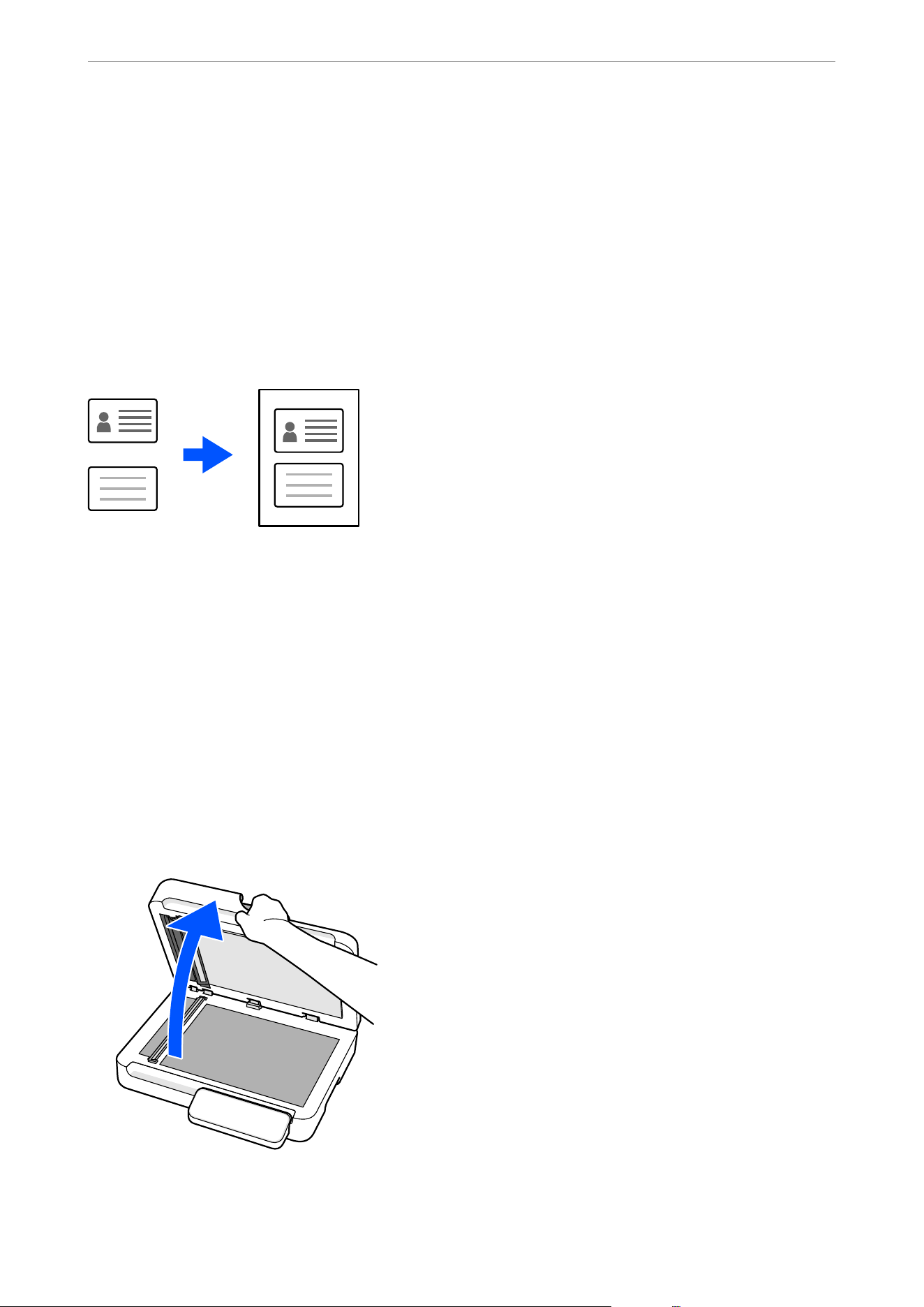
O When using Epson Scan 2: In Main Settings, set Document Size to Auto Detect. When previewing, the entire
scannable area is displayed. We recommend scanning with Add or edit pages
aer
scanning selected and
checking the scanned image on the editing screen before saving.
O When using Computer on the scanner's control panel: When editing jobs in Document Capture Pro/Document
Capture, set Document Size to Auto Detect on the Scan Settings screen.
Placing an ID Card
You can scan the front and back of an ID card separately and save them as a single image with both sides displayed
side by side.
is feature is available from the scanner's control panel. Set ID Card to On in the Scan Settings of the following
menu.
O Network Folder/FTP
O Email
O Cloud
O USB Drive
Note:
is feature cannot be used in the following cases:
O When scanning from a computer
O When Computer is selected on the scanner's control panel
1. Open the document cover.
Specications and Placing of Originals
>
Placing Originals on the Scanner Glass
>
Placing an ID Card
59
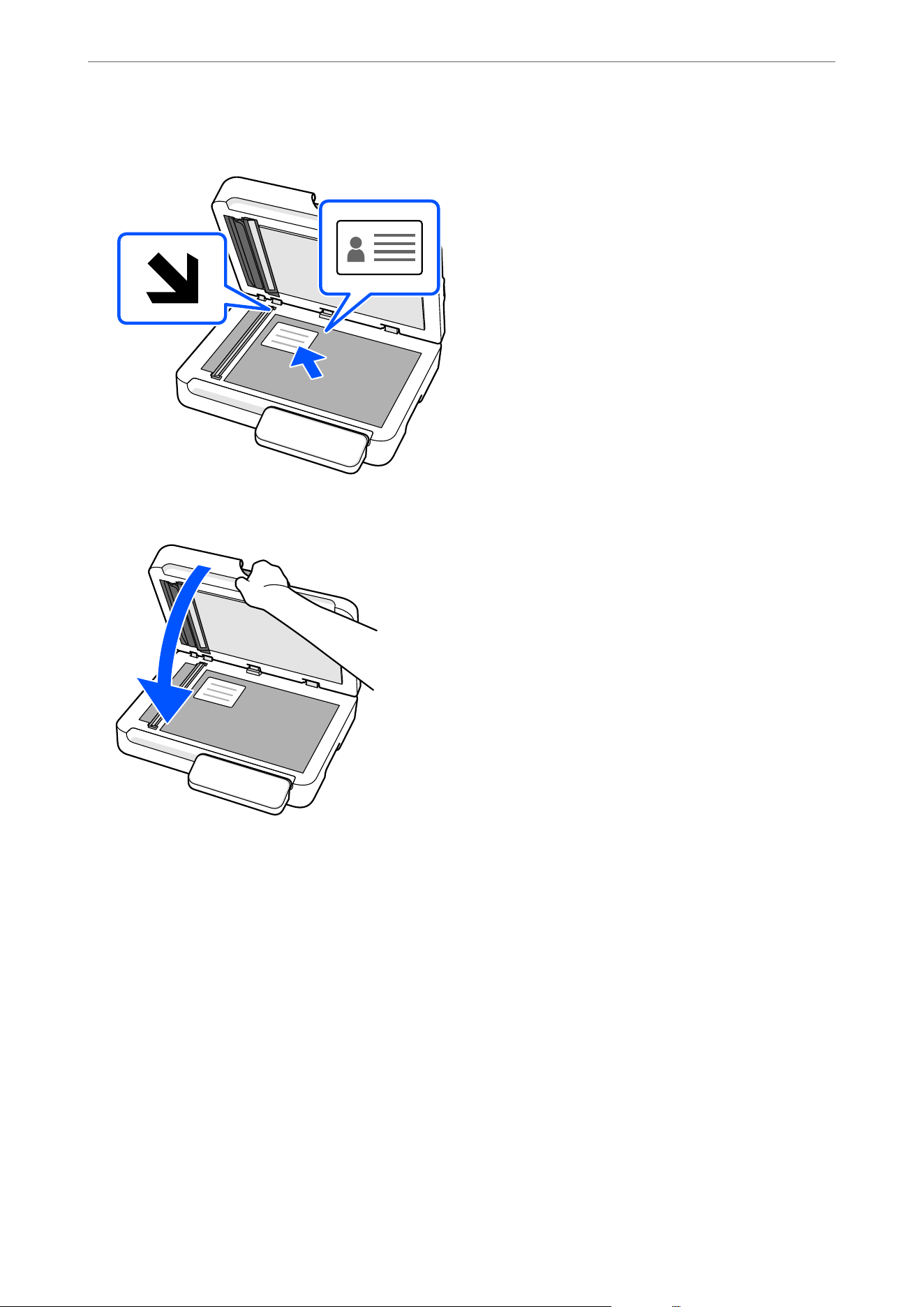
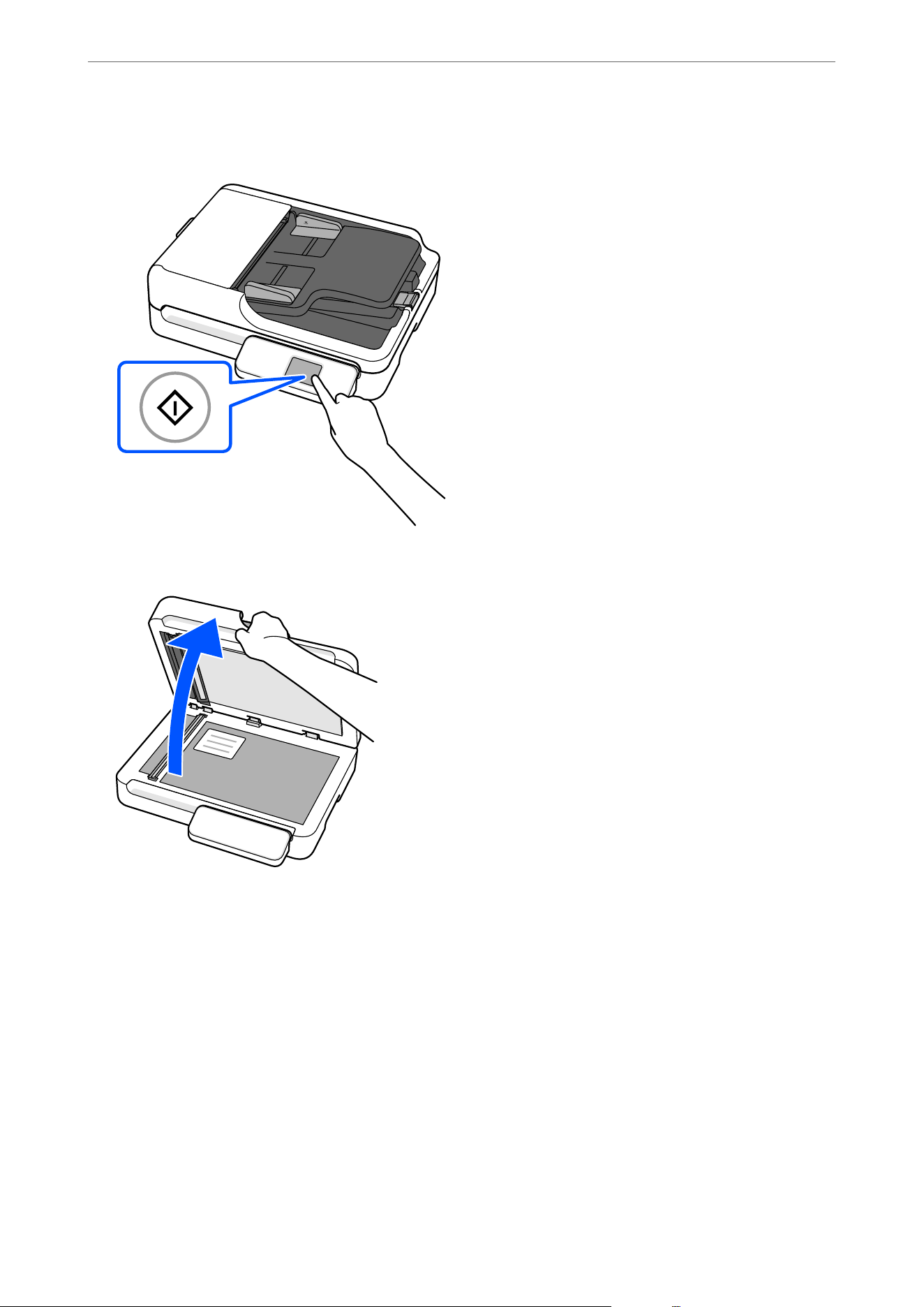
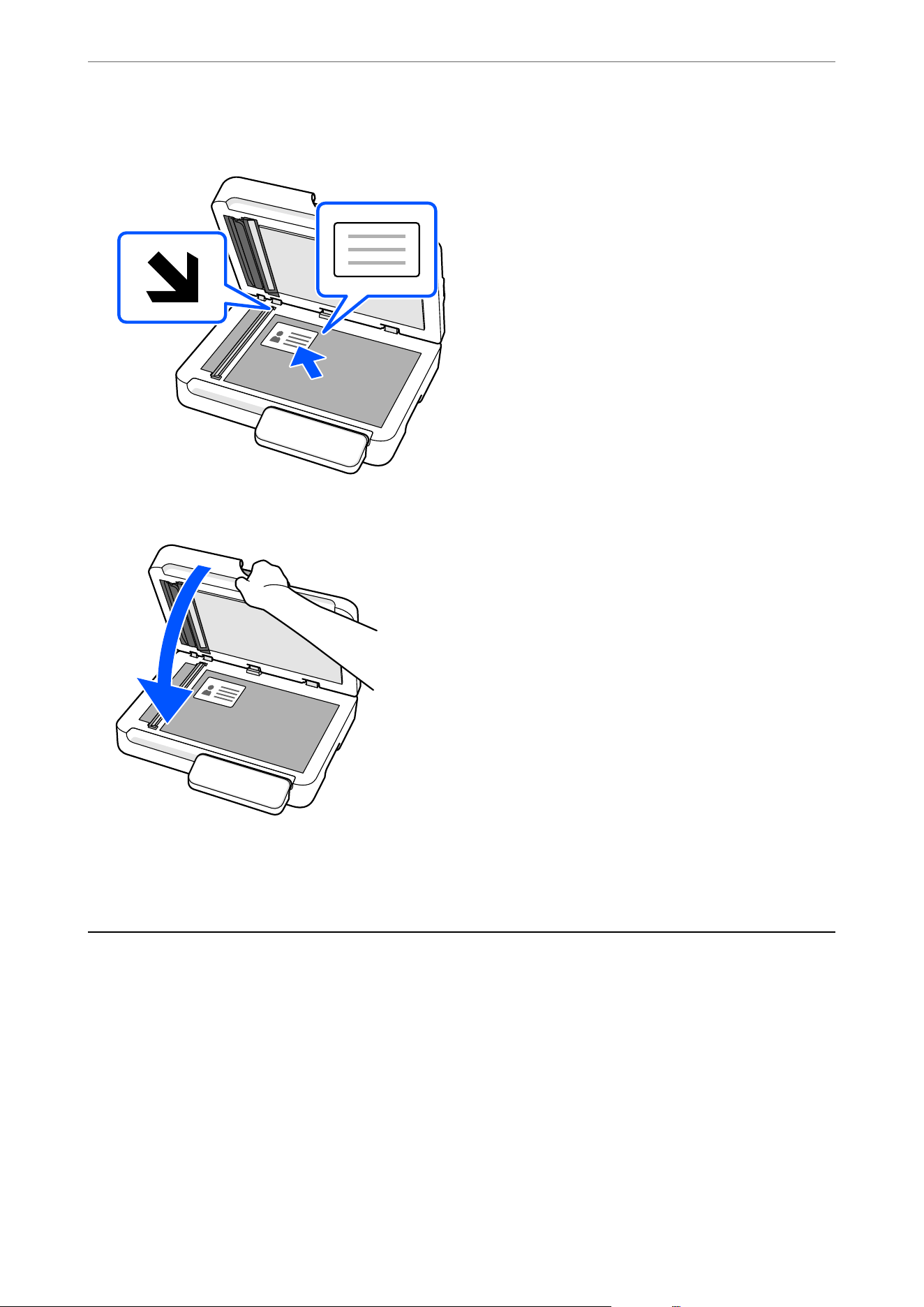
6. Scan the back side. Place the original face-down at least 6 mm (0.24 in.) away from the corner.
7. Close the document cover gently so that your original does not move.
8.
Tap Start Scanning to start scanning the back.
Aer scanning the back, tap Last Original to save the image.
Using the ADF and Scanner Glass Together in a Single
Scan
When scanning from the ADF and the scanner glass in a single scan, complete the rst scan, and then scan the
additional originals from another document source.
Specications and Placing of Originals
>
Using the ADF and Scanner Glass Together in a Single Scan
62
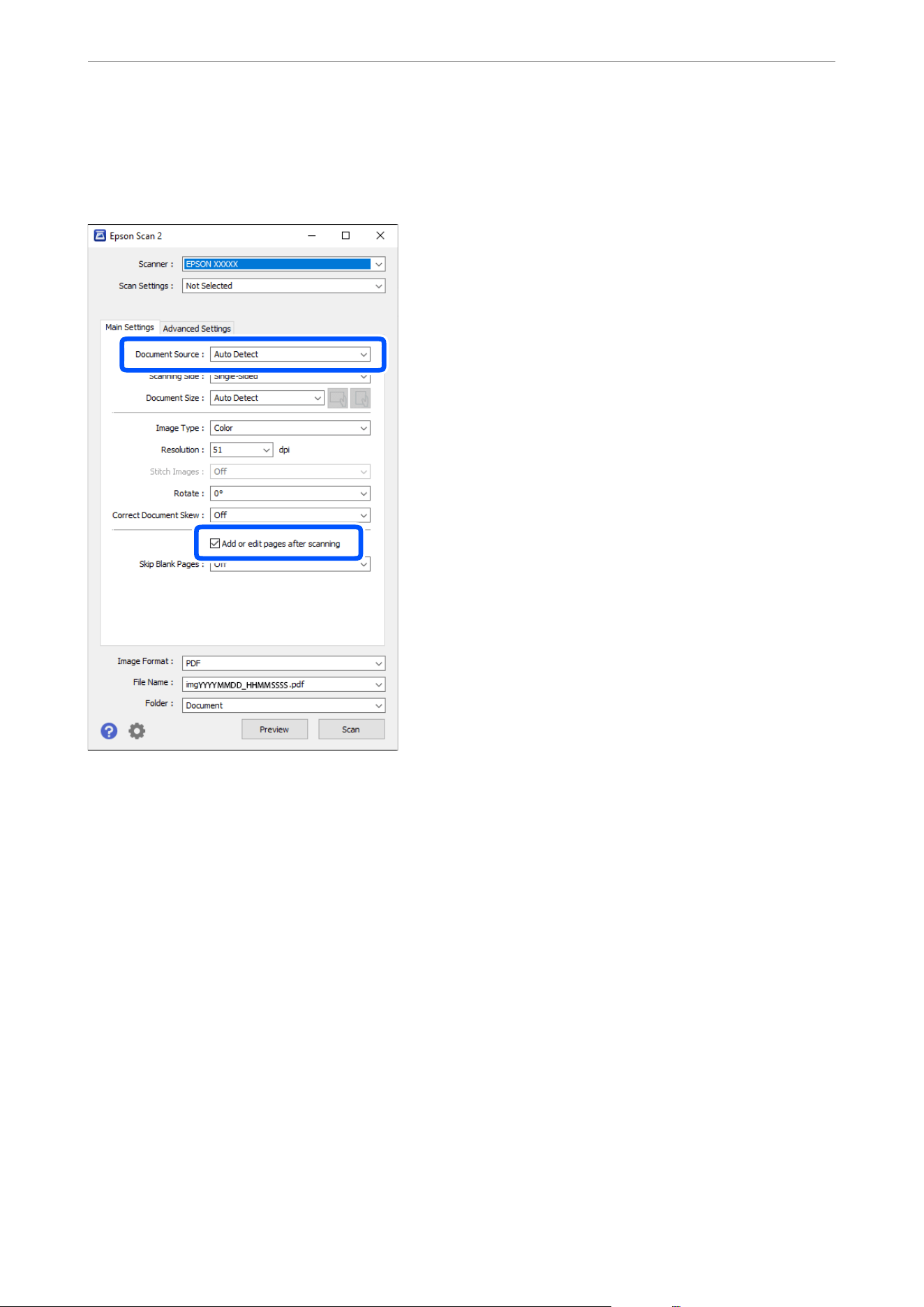
When Using Epson Scan 2
Select Auto Detect from Document Source, and then select Add or edit pages aer scanning before starting the
scan.
When scanning is complete, the Add page screen is displayed. Place the next original and click Add to scan.
Note:
When there are originals in both the ADF and on the scanner glass, scanning from the ADF takes priority.
Specications and Placing of Originals
>
Using the ADF and Scanner Glass Together in a Single Scan
63
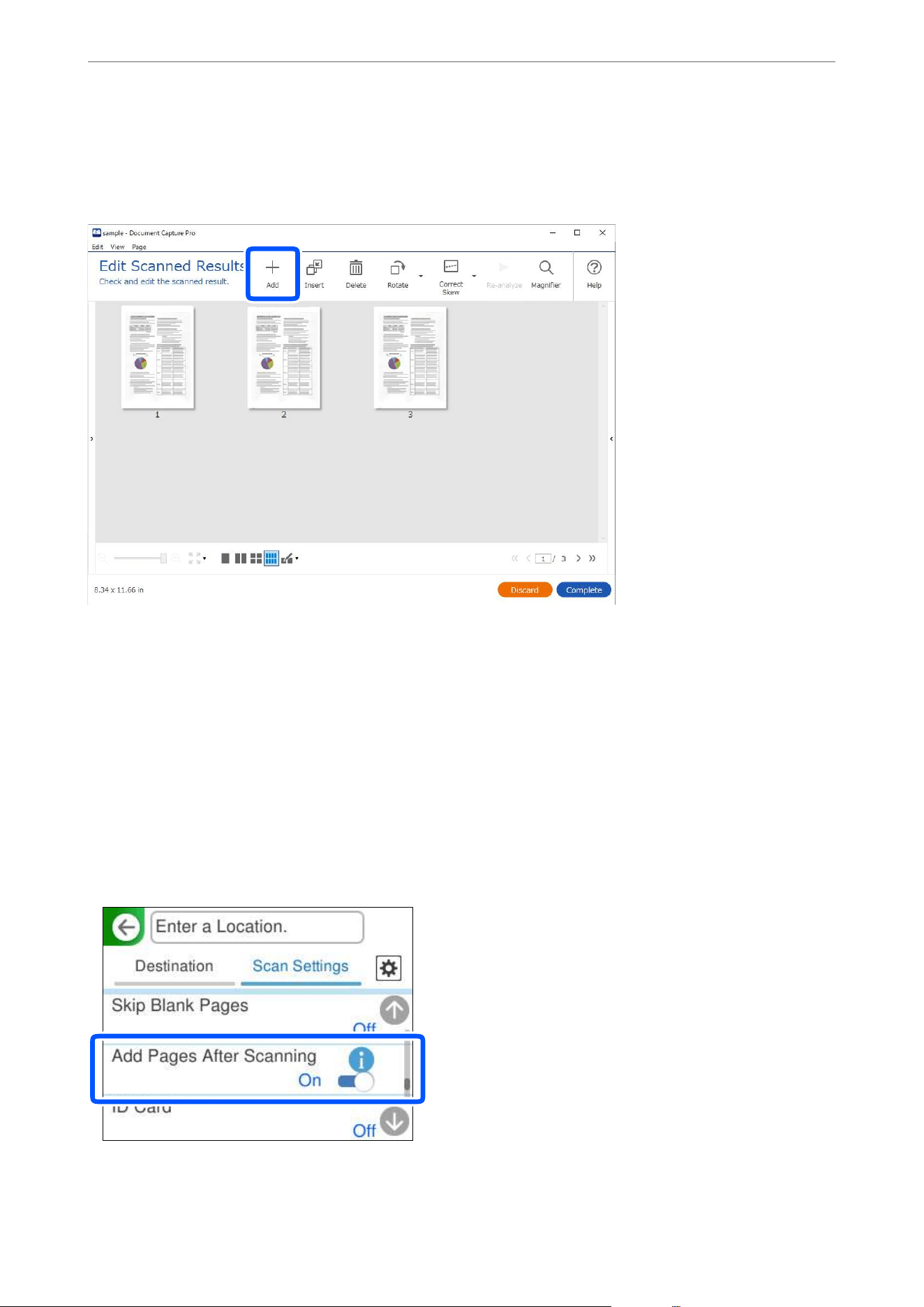
When Using Document Capture Pro
When scanning is complete and the Edit Scanned Results screen is displayed, place the next original and then
click the +Add button.
On the Scan Settings screen, select Source, and then click OK to start scanning.
Note:
O If the Edit Scanned Results screen is not displayed when scanning a job, select Show Edit Page dialog before saving on
the Save Settings screen from the job settings.
O You can also skip the Edit Scanned Results screen. On the Scan Settings screen, select Auto Detect from Source, and
then select Show the
conrmation
dialog
aer
scanning before starting the scan.
O When Auto Detect is selected and there are originals in both the ADF and on the scanner glass, scanning from the ADF
takes priority.
When Scanning from the Control Panel (the Scan to Features)
In Scan Settings, set Add Pages Aer Scanning to On, and then scan.
When scanning is complete, the Scanning Complete screen is displayed. Place the next original and tap Start
Scanning to scan.
Specications and Placing of Originals
>
Using the ADF and Scanner Glass Together in a Single Scan
64
Note:
O When using the Scan to Computer feature, see "When Using Document Capture Pro" to make the job settings.
O When there are originals in both the ADF and on the scanner glass, scanning from the ADF takes priority.
When Using Epson Smart Panel
In Scan Settings, set Document Source to Auto Detect, and then scan.
When the scan results screen is displayed, place the next original and tap +Scan to continue scanning.
Note:
When there are originals in both the ADF and on the scanner glass, scanning from the ADF takes priority.
Specications and Placing of Originals
>
Using the ADF and Scanner Glass Together in a Single Scan
65

Scanning
Scanning Using the Control Panel......................................67
Scanning Using the Registered Contents in Presets..........................98
Scanning from a Computer...........................................98
Setting a Job.....................................................117
Scanning from a Smart Device........................................118
Scanning Using the Control Panel
You can send scanned images from the scanner’s control panel to the following destinations.
Computer
You can save the scanned image to a computer connected to the scanner.
Network Folder/FTP
You can save the scanned image to a pre-congured network folder.
Email
You can send the scanned image by email directly from the scanner through a pre-congured email server.
Cloud
You can send the scanned image directly to cloud services that have been registered in advance.
USB Drive
You can save the scanned image directly to a USB drive connected to the scanner.
WSD
You can save the scanned image to a computer connected to the scanner using the WSD feature.
Save to Computer
Scan to Computer Feature Work Flow
is section explains how to save scanned images to a connected computer.
Necessary Operations Operation
Location
Explanations
1. Install the software on your
computer and connect the scanner to
your computer
(This is unnecessary if you installed the
software connected during setup)
Scanner and
computer
Perform the following operations using the installer.
O Install the necessary software on your computer
O Connect the scanner to the computer
Visit the following website and search for your model to
access the installer.
https://epson.com/support (U.S.)
https://epson.ca/support (Canada)
https://latin.epson.com/support (Latin America)
https://epson.sn > Setup (Other regions)
Scanning
>
Scanning Using the Control Panel
>
Save to Computer
67

Necessary Operations Operation
Location
Explanations
2. Create a job in Document Capture
Pro and assign it to the control panel
Computer There is a preset job that saves scanned images as PDFs. See
the following if you want to register additional jobs.
Windows:
Access the latest Document Capture Pro manual from the
following URL.
https://support.epson.net/dcp/
Mac OS:
“Creating and Registering a Job (Mac OS)” on page 117
“Assigning a Job to the Control Panel (Mac OS)” on page 118
3. Scan from the control panel Scanner’s control
panel
Perform scanning from the control panel.
“Saving to a Computer” on page 68
Saving to a Computer
Saves the scanned image to a computer connected to the scanner.
You need to make settings in advance. See the following link for details on the work
ow
for making settings.
“Scan to Computer Feature Work Flow” on page 67
1. Place the original.
Example: For standard paper
“Placing Standard Size Originals” on page 43
2. Select Computer on the home screen on the control panel.
3.
Select
to select a computer.
Note:
O e scanner’s control panel displays up to 111 computers on which Document Capture Pro is installed.
O If the computer you want to use is not displayed on the control panel or takes a long time to appear, you can make
priority display settings in Document Capture Pro. Start Document Capture Pro, click the
(Display on Panel)
button at the top-right, and then select Display your computer on the scanner.
4. If the Select Job screen is displayed, select the job.
Note:
If you have set only one job, you do not need to select the job. Proceed to the next step.
5. Conrm the computer and the job you selected.
Note:
Select
to save your settings as a preset.
6. Select , check the Scanner Settings, and then change them if necessary.
You can change the settings such as Paper Protection.
Scanning
>
Scanning Using the Control Panel
>
Save to Computer
68

7. Tap
x
.
Document Capture Pro starts on your computer, and scanning starts.
Save to Network Folder
Scan to Network Folder/FTP Feature Work Flow
is section uses making settings for Network Folder (SMB) as an example.
Necessary Operations Operation
Location
Explanation
1. Connect the scanner to the network
(This is unnecessary if you connected
to the network during setup)
Scanner and
computer
Connect the scanner to the network using the installer.
Visit the following website and search for your model to
access the installer.
https://epson.com/support (U.S.)
https://epson.ca/support (Canada)
https://latin.epson.com/support (Latin America)
https://epson.sn > Setup (Other regions)
When the connection method selection screen is displayed,
select wireless LAN (Wi-Fi) or wired LAN (Ethernet) and
follow the on-screen instructions to connect to the network.
Note:
O When you use the installer, the soware is installed at
the same time.
O You can also set this manually. (for administrators)
“Connecting the Scanner to the Network” on page 209
2. Create a network folder Computer Create a folder to save the scanned image. Create a folder on
a computer on your network, and then set the folder to be
shared.
“Creating a Network Folder” on page 122
3. Register the folder in Contacts Computer (Web
Cong) or the
scanner’s control
panel
Register the created network folder in the scanner's
Contacts. This allows you to select the destination from
Contacts without having to enter the destination folder path
when scanning.
“Registering a Destination (Network Folder (SMB))” on
page 133
Note:
See the following for FTP and SharePoint (WebDAV)
setting items.
“Registering a Destination (FTP)” on page 134
“Registering a Destination (SharePoint(WebDAV))” on
page 135
4. Scan from the control panel Scanner’s control
panel
Perform scanning from the control panel.
“Saving to a Network Folder” on page 70
Scanning
>
Scanning Using the Control Panel
>
Save to Network Folder
69
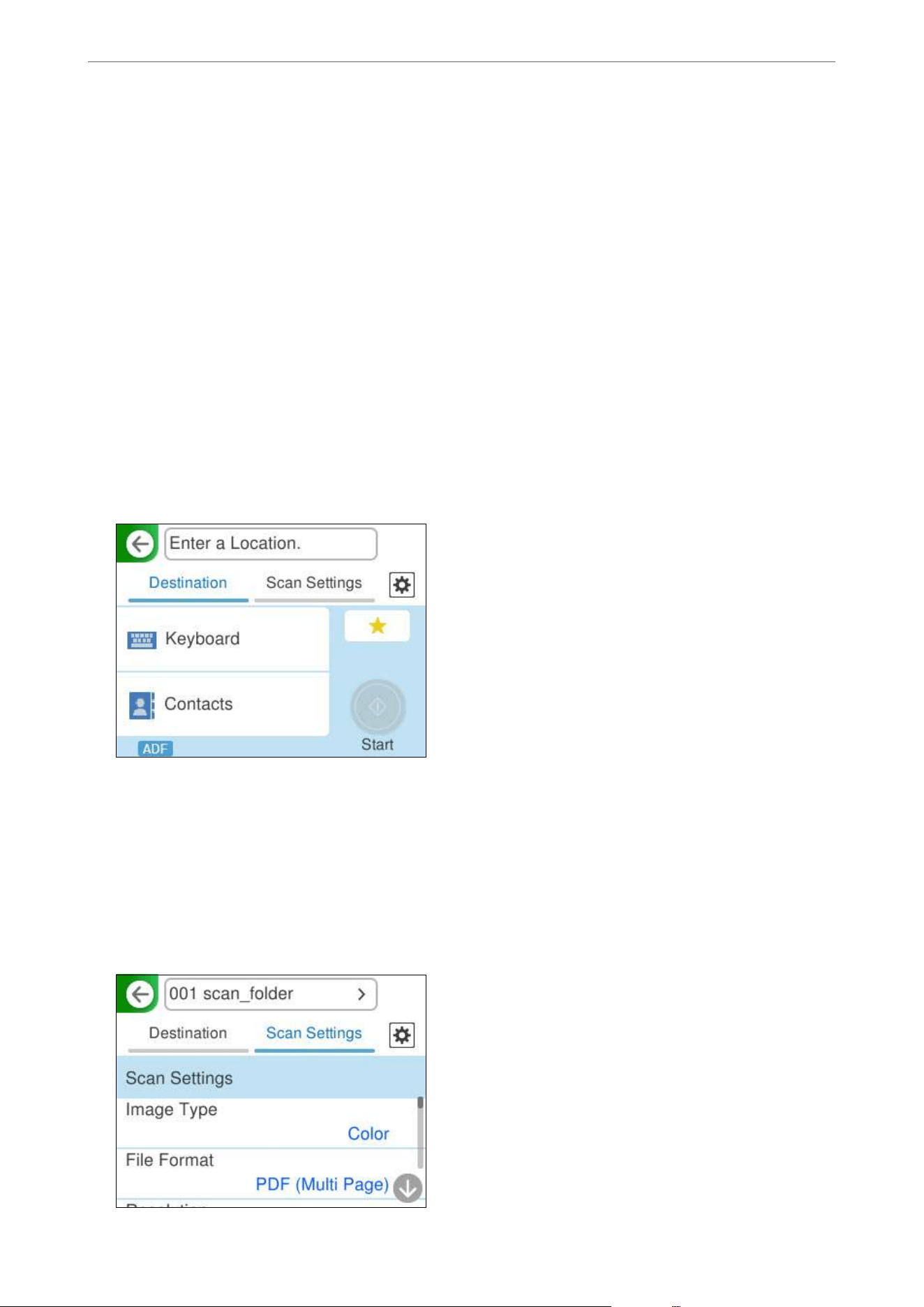
Saving to a Network Folder
Save the scanned image to a specied folder on a network.
You need to make settings in advance. See the following link for details on the work ow for making settings.
“Scan to Network Folder/FTP Feature Work Flow” on page 69
Note:
Before scanning, make sure the scanner’s Date/Time and Time Dierence settings are correct.
If you need to make changes, select Settings > Basic Settings > Date/Time Settings on the control panel.
1. Place the original.
Example: For standard paper
“Placing Standard Size Originals” on page 43
2. Select Network Folder/FTP on the home screen on the control panel.
3. Specify the destination on the Destination tab.
O To enter by keyboard: Select Keyboard. See the following for the setting items for the destination.
“Setting Items for Editing the Destination” on page 71
O To select from the contacts list: Select Contacts, select a contact, and then select Close.
You can also search for registered folders in the search box at the top of the Contacts screen.
4. Select the Scan Settings tab, check settings such as the save format, and then change them if necessary.
“Scan Menu Options for Scanning to a Folder” on page 72
Scanning
>
Scanning Using the Control Panel
>
Save to Network Folder
70

5. Select , check the Scanner Settings, and then change them if necessary.
You can change the settings such as Paper Protection.
6. Select the Destination tab again, and then tap
x
.
Note:
Select
to save your settings as a preset.
Scanned images are saved in the destination network folder.
Setting Items for Editing the Destination
Communication Mode:
Select the communication mode for the folder.
Location (Required):
Enter the network path for the destination folder in an appropriate format for the Communication
Mode selected.
O Network Folder (SMB):\\host name (computer name)\folder name
O FTP: p://host name (server name)/folder name
O FTPS: ps://host name (server name)/folder name
O WebDAV (HTTPS): https://host name/folder name
O WebDAV (HTTP): http://host name/folder name
Note:
Scanning to Network Folder/FTP from the scanner's control panel does not support SharePoint Online.
If you want to save scanned images to SharePoint Online, install the SharePoint Online Connector in
Document Capture Pro. See the Document Capture Pro manual for details.
https://support.epson.net/dcp/
User Name:
Enter the login user name for the computer on which the destination folder was created.
Password:
Enter the login password for the computer on which the destination folder was created.
Connection Mode:
Select the connection mode for the folder.
Port Number:
Enter a port number for the folder.
Proxy Server Settings:
Select whether or not to use a proxy server.
Scanning
>
Scanning Using the Control Panel
>
Save to Network Folder
71

Scan Menu Options for Scanning to a Folder
Note:
e items may not be available depending on other settings you made.
Image Type:
Select the color of the output image.
When you select the following, the scanner detects the color of the originals automatically and saves
the images using the detected colors.
O Color/Grayscale/B&W
Converts the scanned image into 24-bit color, 8-bit gray, or monochrome (black and white
binary). When this is selected, set the sensitivity to determine whether the original is grayscale or
monochrome when scanning a non-color original.
O Color/Black & White:
Converts the scanned image into 24-bit color or monochrome (black and white binary).
O Color/Grayscale:
Converts the scanned image into 24-bit color or 8-bit gray.
e available image types may vary depending on the File Format you selected. See the following for
more details.
“Combinations for Available File Format and Image Type” on page 96
File Format:
Select the format in which to save the scanned image.
When you want to save as PDF, PDF/A, or TIFF, select whether to save all originals as one le
(multi-page) or save each original separately (single page).
O Compression Ratio:
Select how much to compress the scanned image.
O PDF Settings:
When you have selected PDF as the save format setting, use these settings to protect PDF les.
To create a PDF le that requires a password when opening, set Document Open Password. To
create a PDF
le
that requires a password when printing or editing, set Permissions Password.
Resolution:
Select the scanning resolution.
See the following for details on the
le
resolutions that can be selected.
“Available Resolutions” on page 98
Scanning Side:
Select the side of the original you want to scan when scanning from the ADF.
O Document Direction:
Select the orientation of the original.
O Binding(Original):
Select the binding direction of the original.
Scanning
>
Scanning Using the Control Panel
>
Save to Network Folder
72
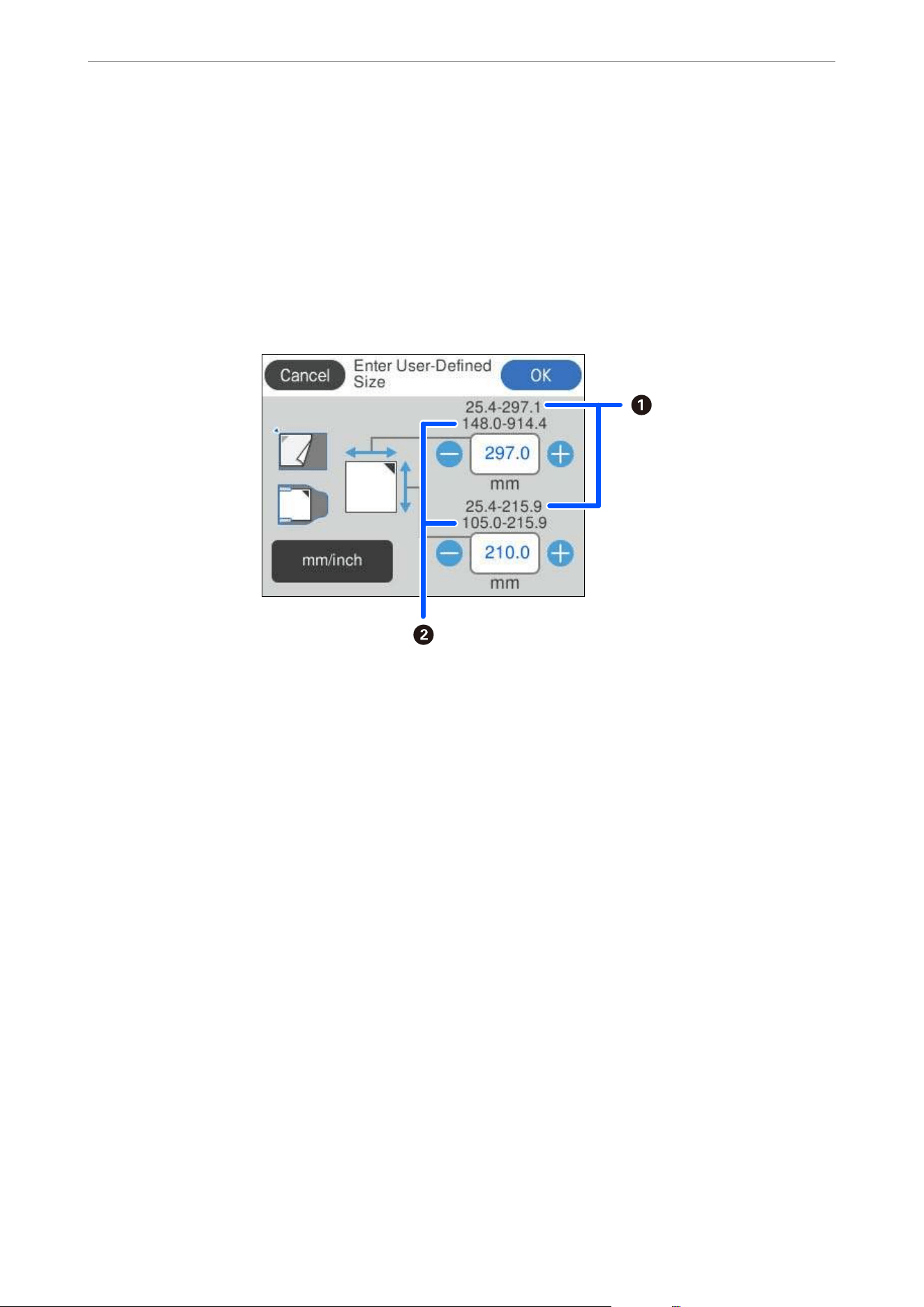
Original Size:
Select the size of the original you placed.
Note:
You can set a custom original size in User Dened.
e size of the original that you can dene varies depending on the document source used to place the
original. Enter the values based on the numbers displayed on the screen.
A
: When the original is placed on the scanner glass
B
: When the original is placed in the ADF
O Document Direction:
Select the orientation of the original.
O Crop Margins for Size "Auto":
Adjust the cropping area when selecting Auto Detect.
Document Direction:
Select the orientation of the original.
Note:
e Document Direction setting is synced with the Scanning Side and Original Size settings. If you change
the setting in any of them, the change is applied to all of them.
Text Enhancement:
You can make blurred letters in the original clear and sharp. You can also reduce the oset or
unevenness of the background.
O Emphasize light letters / Remove background:
You can set the level of correction between text and background. When you move the slider closer
to Emphasize light letters, the light letters in the scanned image are emphasized. When you move
the slider closer to Remove background, the background color, pattern, wrinkles, or oset in the
scanned image is removed.
O Remove spot noise:
You can remove black dots in the background of the original that cannot be removed by lightening
the background. You can adjust the level of the eect.
Scanning
>
Scanning Using the Control Panel
>
Save to Network Folder
73

Note:
When you select this feature, it may also remove small dots as well as the black dots in the background.
Rotation:
Rotate the scanned image clockwise. Select the rotation angle depending on the original you want to
scan.
Density:
Select the contrast of the scanned image.
Remove Background:
Remove the background color of the originals from the scanned image.
To use this feature, the background color of the originals should be the lightest color in the originals,
and should be uniform.
is
feature is not applied correctly if there are patterns in the background,
or there are text or illustrations which are a lighter color than the background.
Remove Shadow:
Remove the shadows of the original that appear in the scanned image.
O Frame:
Remove the shadows at the edge of the original.
Correct Document Skew:
Correct skew in the scanned image.
is feature may not be able to correct documents that have been over skewed.
Skip Blank Pages:
Select to skip any blank pages in the originals when scanning from the ADF.
If the result is not what you expected, adjust detection level.
Note:
Some pages may be incorrectly skipped as blank pages.
Add Pages After Scanning:
Aer scanning once, you can scan additional originals using the same scan settings. If you have
selected a multi-page le format, you can save all scanned images as a single le.
When scanning is complete, place the next original in the ADF or on the scanner glass, and then tap
Start Scanning.
Aer scanning all of the originals, tap Last Original to save the image.
Scanning
>
Scanning Using the Control Panel
>
Save to Network Folder
74
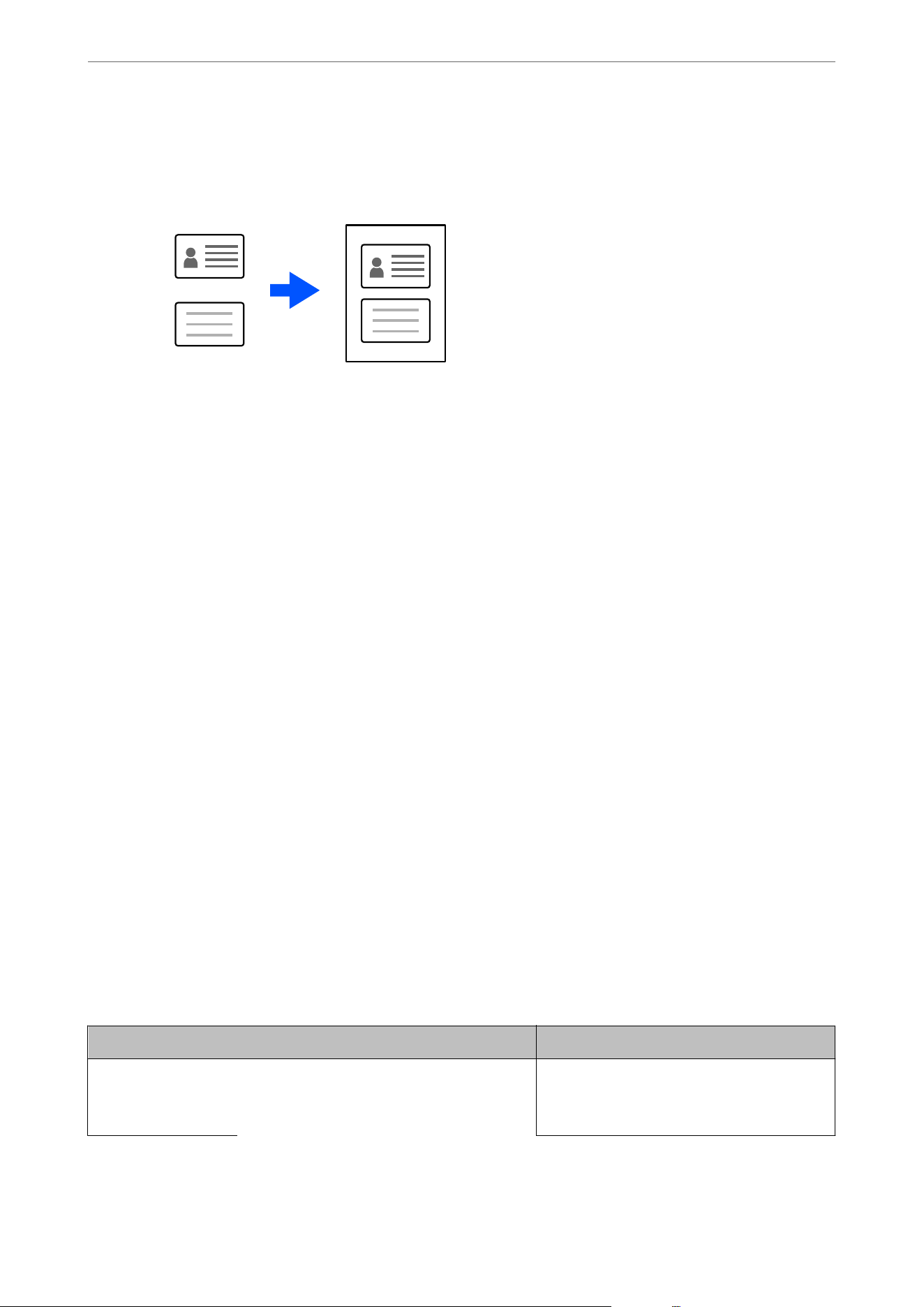
ID Card:
Use the scanner glass to scan the front and back of the ID card separately, then save them side by side
as a single image.
Note:
e scanned image is automatically cropped with a margin of approximately 3 mm (0.12 in.).
Follow the steps below to scan the front and back sides in order.
“Placing an ID Card” on page 59
O Layout:
Select the layout to be used for the front and back sides when saving the image.
File Name:
O Filename
Prex
:
Enter a
prex
for the name of the images in alphanumeric characters and symbols.
O Add Date:
Add the date to the le name.
O Add Time:
Add the time to the le name.
Clear All Settings
Resets the scan settings to their defaults.
Send by Email
To Send by Email
Simply by operating the scanner's touch panel, you can send scanned images as email attachments without using a
computer. You can use either of the following methods.
Method Send easily using Epson's service Send by setting up an email server
What do you want to
do?
I want to send emails easily using simple
settings.
O I want to send emails to multiple addresses
at once.
O I want to select the sender's email address.
Scanning
>
Scanning Using the Control Panel
>
Send by Email
75
Method Send easily using Epson's service Send by setting up an email server
Setup guide “Scan to Cloud Feature Work Flow” on page 83
1. Register your scanner with Epson Connect
*
,
an Epson service.
2. Add email addresses to the destination list.
“Scan to Email Feature Work Flow” on page 76
1. Check the email server information.
2. Register server addresses and other email
server information to the scanner.
3. Register the email addresses to your Contacts
(optional).
* Epson Connect is a service that allows you to use the Internet to connect to your scanners. By simply registering the scanner
and user information, you can send scanned data to a
specied
email address or a third-party cloud service. Epson Connect
services are subject to change without notice.
Dierences in Available Features
Method Send easily using Epson's service Send by setting up an email server
Sender Epson Connect send-only address (cannot be
changed)
Set any address
Destination settings Register in advance (Epson Connect destination
list)
O Register in advance (Contacts on the
scanner)
O Enter the destination directly when
scanning without registering in advance
Select multiple
destinations
-Available
You can also register destinations as a group in
Contacts.
Attachment name - Available (edit on the control panel)
Email subject Available (edit by destination) Available (edit on the control panel)
Email body Available (edit by destination) -
Maximum
attachment size
- Available (edit on the control panel)
Scan to Email Feature Work Flow
ere are two ways you can send scanned images to a specied email address; by setting up an email server or by
using the Epson Connect cloud service.
“To Send by Email” on page 75
e following explains how to setup an email server to send scanned images by email.
Scanning
>
Scanning Using the Control Panel
>
Send by Email
76

Necessary Operations Operation
Location
Explanation
1. Connect the scanner to the network
(This is unnecessary if you connected
to the network during setup)
Scanner and
computer
Connect the scanner to the network using the installer.
Visit the following website and search for your model to
access the installer.
https://epson.com/support (U.S.)
https://epson.ca/support (Canada)
https://latin.epson.com/support (Latin America)
https://epson.sn > Setup (Other regions)
When the connection method selection screen is displayed,
select wireless LAN (Wi-Fi) or wired LAN (Ethernet) and
follow the on-screen instructions to connect to the network.
Note:
O When you use the installer, the soware is installed at
the same time.
O You can also set this manually. (for administrators)
“Connecting the Scanner to the Network” on page 209
2. Register your email server
information to the scanner
Computer (Web
Cong) or the
scanner’s control
panel
The Scan to Email feature allows you to send scanned
images through an email server. Register the email server
information to the scanner.
“Registering an Email Server” on page 128
3. Check the email server connection Computer (Web
Cong) or the
scanner’s control
panel
Test the email server connection.
“Checking an Email Server Connection” on page 130
4. Register the recipient's email
address in Contacts
Computer (Web
Cong) or the
scanner’s control
panel
Register the recipient's email address in the scanner’s
Contacts. This allows you to select the recipient from
Contacts without having to enter their email address when
scanning.
“Registering a Destination (Email)” on page 132
5. Scan from the control panel Scanner’s control
panel
Perform scanning from the control panel.
“Scanning Originals to an Email” on page 77
Scanning Originals to an Email
ere are two ways you can send scanned images to a specied email address. See the following for more
information on the two methods.
“To Send by Email” on page 75
You need to make settings in advance to perform scanning. See the following link for details on the work
ow
for
making settings.
“Scan to Email Feature Work Flow” on page 76
e
following explains how to scan using an email server.
Scanning
>
Scanning Using the Control Panel
>
Send by Email
77
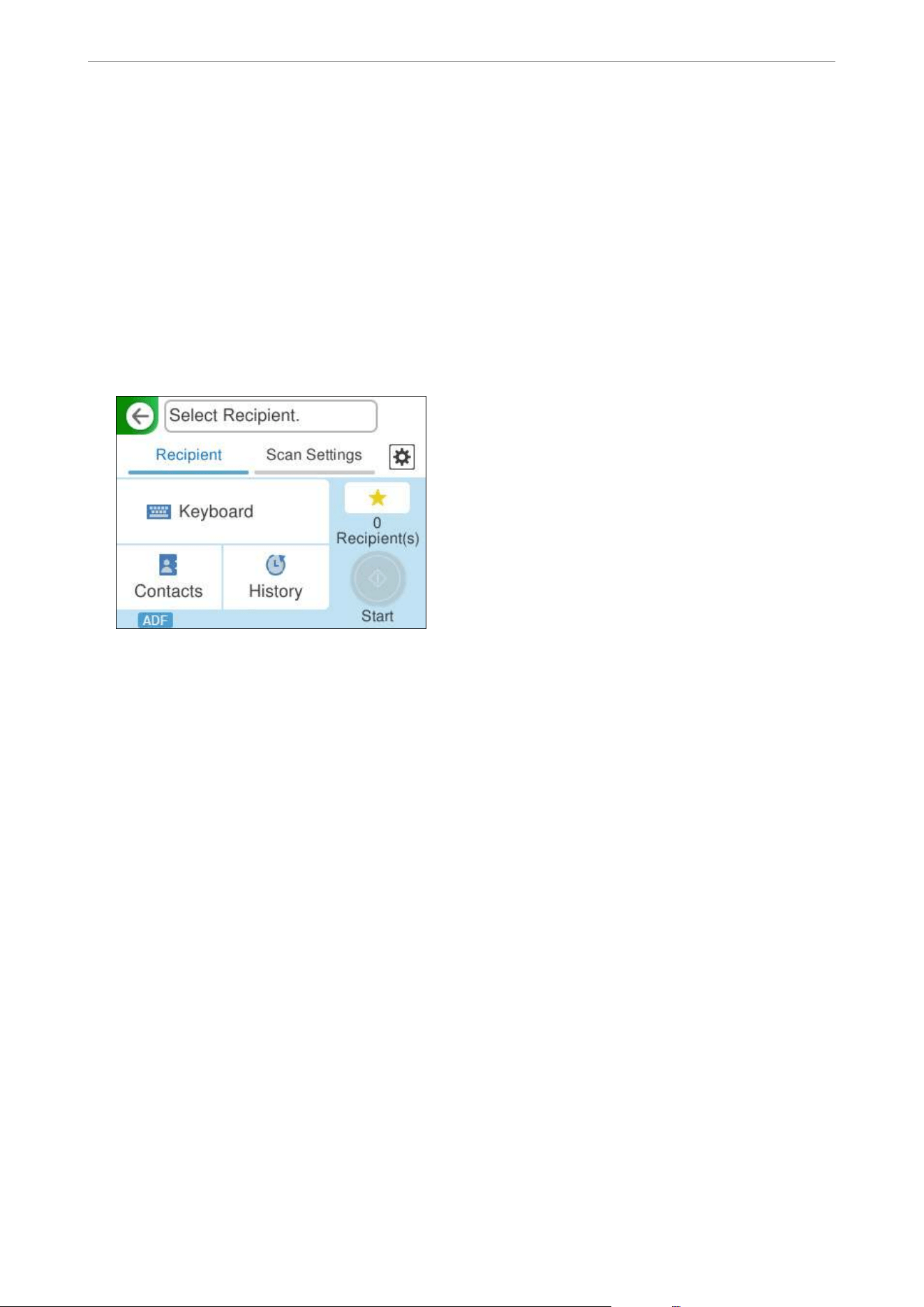
Note:
Before scanning, make sure the scanner’s Date/Time and Time Dierence settings are correct.
If you need to make changes, select Settings > Basic Settings > Date/Time Settings on the control panel.
1. Place the original.
Example: For standard paper
“Placing Standard Size Originals” on page 43
2. Select Email on the home screen on the control panel.
3. Specify the destination on the Recipient tab.
O To enter by keyboard: Select Keyboard, type in the destination, and then select OK.
O To select from the contacts list: Select Contacts, select a contact, and then select Close.
You can also search for registered addresses in the search box at the top of the Contacts screen.
O To select from the history list: Select History, select a contact, and then select Close.
Note:
O e number of recipients you selected is displayed on the right of the screen. You can send emails to up to 10
addresses and groups.
If groups is included in recipients, you can select up to 200 individual addresses in total, taking addresses in the
groups into account.
O Select the address box at the top of the screen to display the list of selected addresses.
Scanning
>
Scanning Using the Control Panel
>
Send by Email
78
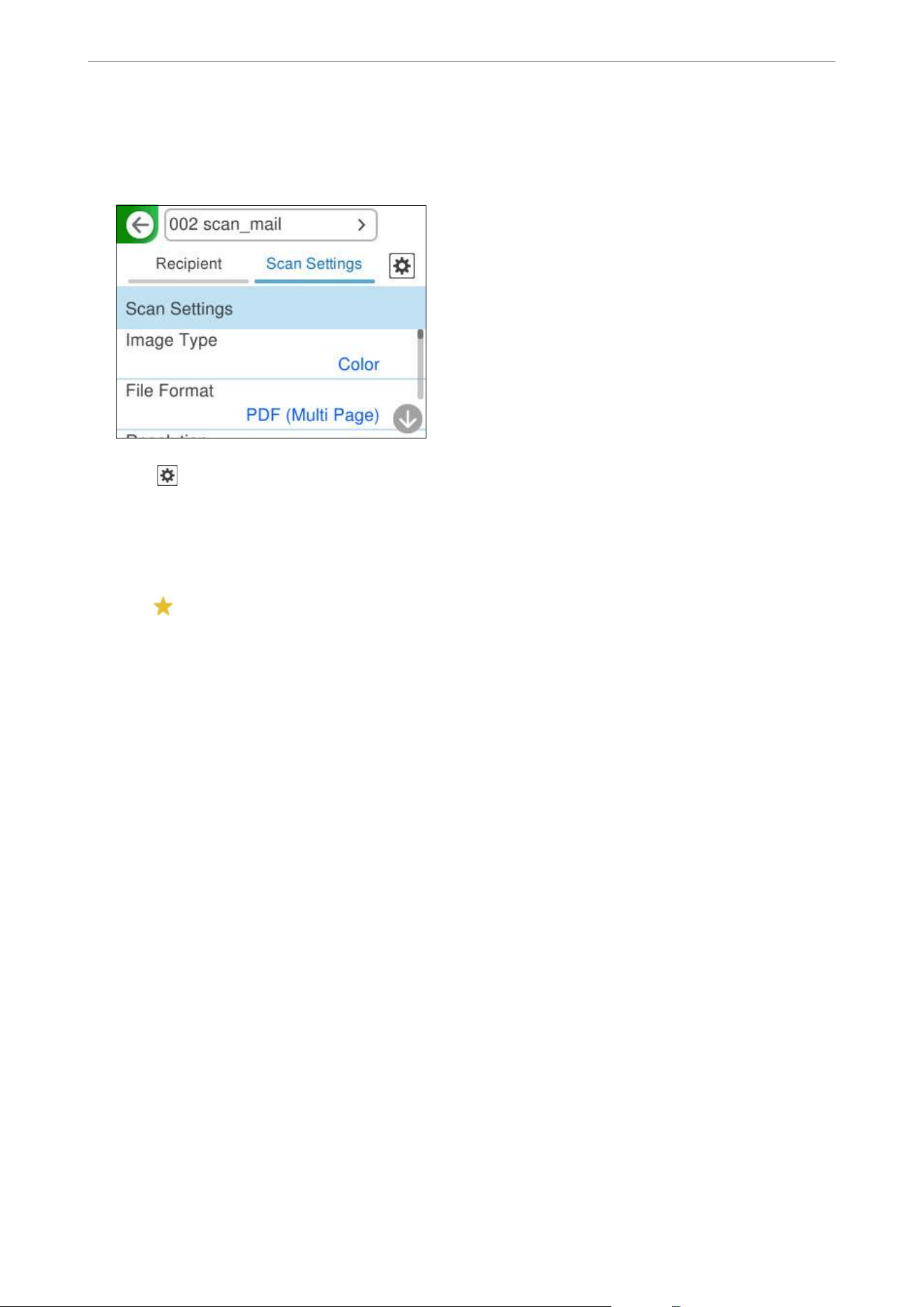
4. Select Scan Settings, check settings such as the save format, and then change them if necessary.
“Scan Menu Options for Scanning to an Email” on page 79
5. Select , check the Scanner Settings, and then change them if necessary.
You can change the settings such as Paper Protection.
6. Select the Recipient tab again, and then tap
x
.
Note:
Select
to save your settings as a preset.
e scanned image is sent to the recipient's email address.
Scan Menu Options for Scanning to an Email
Note:
e items may not be available depending on other settings you made.
Image Type:
Select the color of the output image.
When you select the following, the scanner detects the color of the originals automatically and saves
the images using the detected colors.
O Color/Grayscale/B&W
Converts the scanned image into 24-bit color, 8-bit gray, or monochrome (black and white
binary). When this is selected, set the sensitivity to determine whether the original is grayscale or
monochrome when scanning a non-color original.
O Color/Black & White:
Converts the scanned image into 24-bit color or monochrome (black and white binary).
O Color/Grayscale:
Converts the scanned image into 24-bit color or 8-bit gray.
e available image types may vary depending on the File Format you selected. See the following for
more details.
“Combinations for Available File Format and Image Type” on page 96
Scanning
>
Scanning Using the Control Panel
>
Send by Email
79
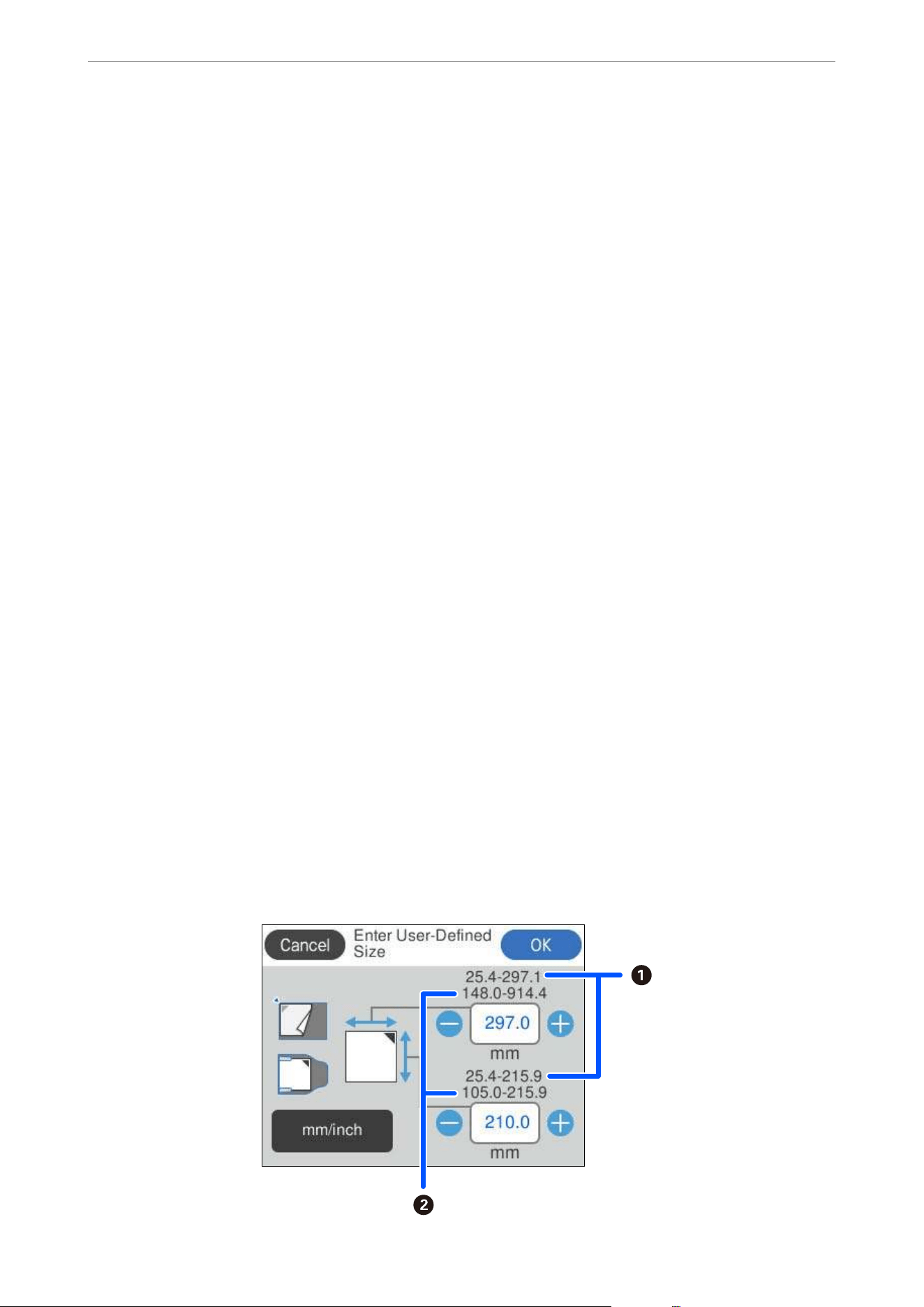
File Format:
Select the format in which to save the scanned image.
When you want to save as PDF, PDF/A, or TIFF, select whether to save all originals as one
le
(multi-page) or save each original separately (single page).
O Compression Ratio:
Select how much to compress the scanned image.
O PDF Settings:
When you have selected PDF as the save format setting, use these settings to protect PDF les.
To create a PDF le that requires a password when opening, set Document Open Password. To
create a PDF le that requires a password when printing or editing, set Permissions Password.
Resolution:
Select the scanning resolution.
See the following for details on the
le
resolutions that can be selected.
“Available Resolutions” on page 98
Scanning Side:
Select the side of the original you want to scan when scanning from the ADF.
O Document Direction:
Select the orientation of the original.
O Binding(Original):
Select the binding direction of the original.
Original Size:
Select the size of the original you placed.
Note:
You can set a custom original size in User Dened.
e size of the original that you can dene varies depending on the document source used to place the
original. Enter the values based on the numbers displayed on the screen.
A
: When the original is placed on the scanner glass
B
: When the original is placed in the ADF
Scanning
>
Scanning Using the Control Panel
>
Send by Email
80

O Document Direction:
Select the orientation of the original.
O Crop Margins for Size "Auto":
Adjust the cropping area when selecting Auto Detect.
Document Direction:
Select the orientation of the original.
Note:
e Document Direction setting is synced with the Scanning Side and Original Size settings. If you change
the setting in any of them, the change is applied to all of them.
Text Enhancement:
You can make blurred letters in the original clear and sharp. You can also reduce the oset or
unevenness of the background.
O Emphasize light letters / Remove background:
You can set the level of correction between text and background. When you move the slider closer
to Emphasize light letters, the light letters in the scanned image are emphasized. When you move
the slider closer to Remove background, the background color, pattern, wrinkles, or
oset
in the
scanned image is removed.
O Remove spot noise:
You can remove black dots in the background of the original that cannot be removed by lightening
the background. You can adjust the level of the
eect.
Note:
When you select this feature, it may also remove small dots as well as the black dots in the background.
Rotation:
Rotate the scanned image clockwise. Select the rotation angle depending on the original you want to
scan.
Density:
Select the contrast of the scanned image.
Remove Background:
Remove the background color of the originals from the scanned image.
To use this feature, the background color of the originals should be the lightest color in the originals,
and should be uniform. is feature is not applied correctly if there are patterns in the background,
or there are text or illustrations which are a lighter color than the background.
Remove Shadow:
Remove the shadows of the original that appear in the scanned image.
O Frame:
Remove the shadows at the edge of the original.
Correct Document Skew:
Correct skew in the scanned image.
is feature may not be able to correct documents that have been over skewed.
Scanning
>
Scanning Using the Control Panel
>
Send by Email
81
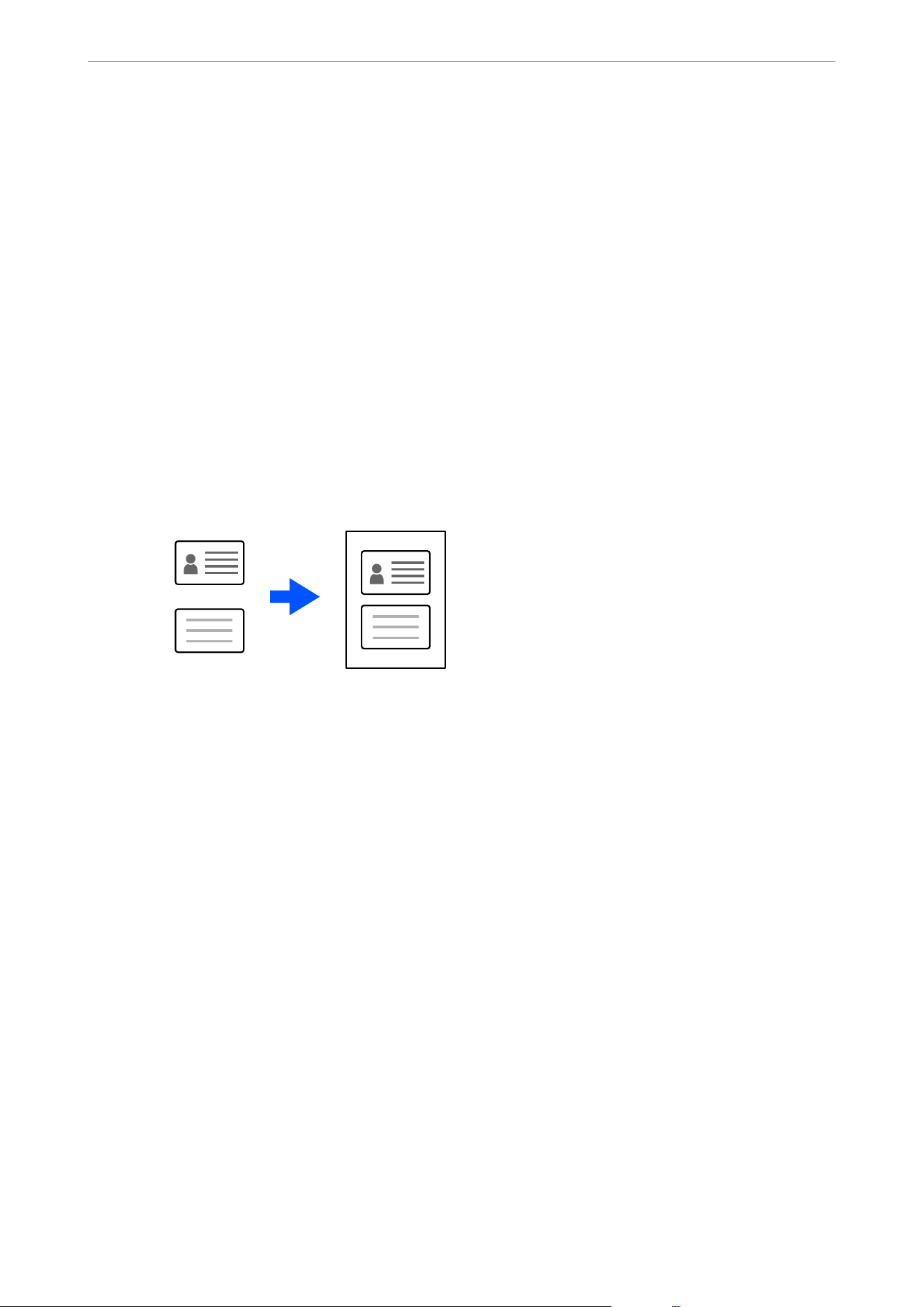
Skip Blank Pages:
Select to skip any blank pages in the originals when scanning from the ADF.
If the result is not what you expected, adjust detection level.
Note:
Some pages may be incorrectly skipped as blank pages.
Add Pages After Scanning:
Aer
scanning once, you can scan additional originals using the same scan settings. If you have
selected a multi-page le format, you can save all scanned images as a single le.
When scanning is complete, place the next original in the ADF or on the scanner glass, and then tap
Start Scanning.
Aer scanning all of the originals, tap Last Original to save the image.
ID Card:
Use the scanner glass to scan the front and back of the ID card separately, then save them side by side
as a single image.
Note:
e scanned image is automatically cropped with a margin of approximately 3 mm (0.12 in.).
Follow the steps below to scan the front and back sides in order.
“Placing an ID Card” on page 59
O Layout:
Select the layout to be used for the front and back sides when saving the image.
Subject:
Enter a subject for the email in alphanumeric characters and symbols.
Attached File Max Size:
Select the maximum
le
size that can be attached to the email.
See the following for details on the le sizes that can be saved.
“File Sizes that can be Saved” on page 97
File Name:
O Filename Prex:
Enter a prex for the name of the images in alphanumeric characters and symbols.
O Add Date:
Add the date to the le name.
Scanning
>
Scanning Using the Control Panel
>
Send by Email
82

O Add Time:
Add the time to the le name.
Clear All Settings
Resets the scan settings to their defaults.
Send to the Cloud
Scan to Cloud Feature Work Flow
Use Epson's cloud service, Epson Connect to send scanned images to registered destinations.
O You can easily send scanned images by email by registering an email address as the destination.
O You can send scanned images to third-party online storage services (Evernote, Google Drive, Dropbox, and so
on) by registering them as the destination. For details on how to register an account, see the website for each
service. Available services are subject to change without notice.
Note:
For more details about Epson Connect services, visit the following portal website.
https://www.epsonconnect.com/
http://www.epsonconnect.eu
(Europe only)
Necessary Operations Operation
Location
Explanation
1. Connect the scanner to the network
(This is unnecessary if you connected
to the network during setup)
Scanner and
computer
Connect the scanner to the network using the installer.
Visit the following website and search for your model to
access the installer.
https://epson.com/support (U.S.)
https://epson.ca/support (Canada)
https://latin.epson.com/support (Latin America)
https://epson.sn > Setup (Other regions)
When the connection method selection screen is displayed,
select wireless LAN (Wi-Fi) or wired LAN (Ethernet) and
follow the on-screen instructions to connect to the network.
Note:
O When you use the installer, the soware is installed at
the same time.
O You can also set this manually. (for administrators)
“Connecting the Scanner to the Network” on page 209
Scanning
>
Scanning Using the Control Panel
>
Send to the Cloud
83
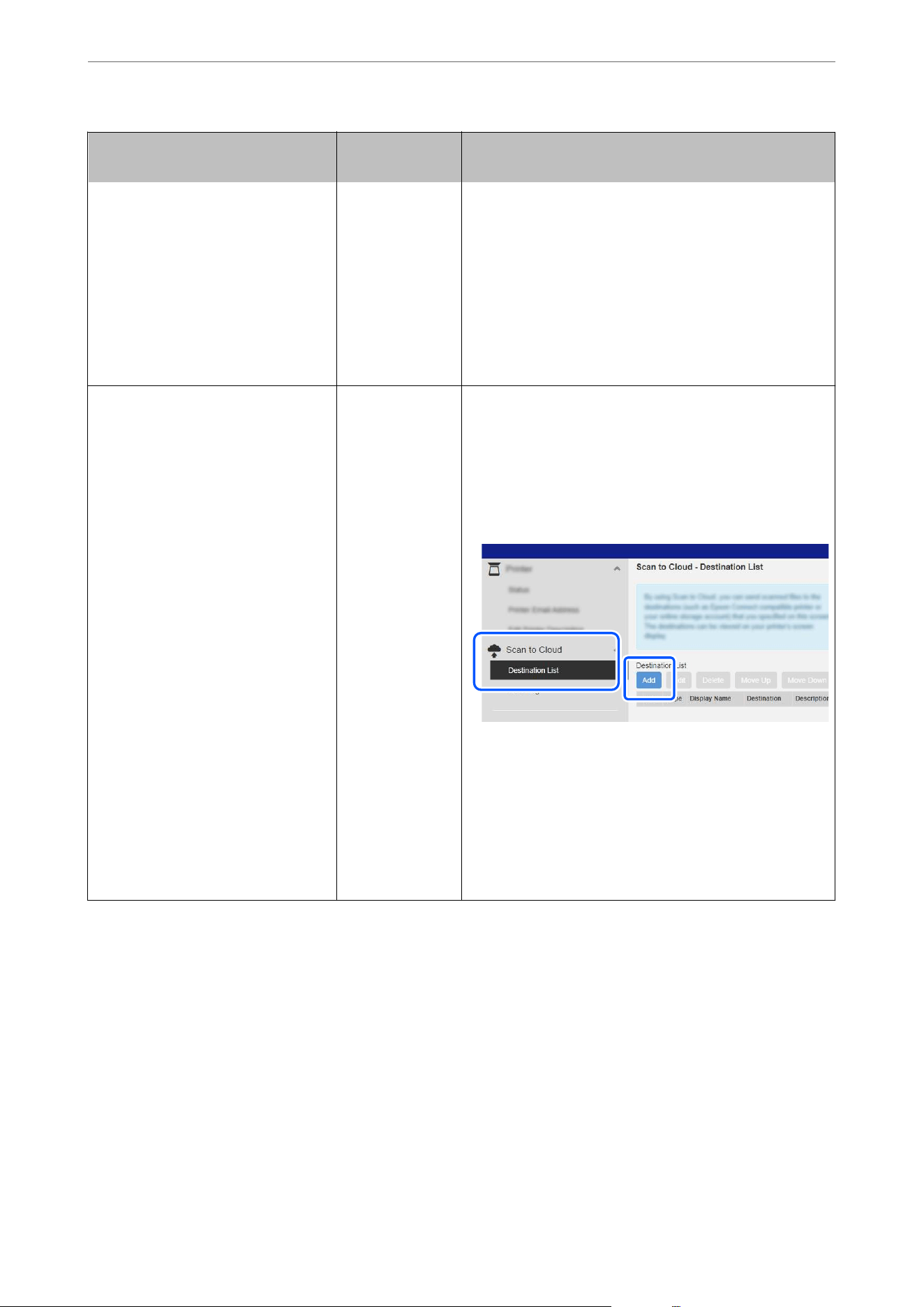
Necessary Operations Operation
Location
Explanation
2. Register the product with Epson
Connect
Scanner’s control
panel and
computer
(Epson Connect
website)
Register your product with Epson Connect and enable the
service.
On the scanner's control panel, select Settings > Web
Service Settings > Epson Connect Services > Register,
and then follow the on-screen instructions to register.
Note:
If you are prompted to enter a
verication
code, access the
following URL and enter the code.
https://www.epsonconnect.com/activation
3. Register a destination list on the
Epson Connect user page
Computer
(Epson Connect
website)
Register the destinations you want to send to in the
destination list on the Epson Connect user page.
Access the user page from the following URL, click the Scan
to Cloud > Destination List > Add
*
, and then follow the
on-screen instructions to add a destination.
https://www.epsonconnect.com/user
Note:
When registering an email address, select Email Address
as the destination type.
4. Scan from the control panel Scanner’s control
panel
Perform scanning from the control panel.
“Sending to the Cloud” on page 84
*Epson Connect services are subject to change without notice.
Sending to the Cloud
Send scanned images to destinations registered in Epson Connect.
You need to make settings in advance. See the following link for details on the work ow for making settings.
“Scan to Cloud Feature Work Flow” on page 83
1. Place the original.
Example: For standard paper
“Placing Standard Size Originals” on page 43
Scanning
>
Scanning Using the Control Panel
>
Send to the Cloud
84
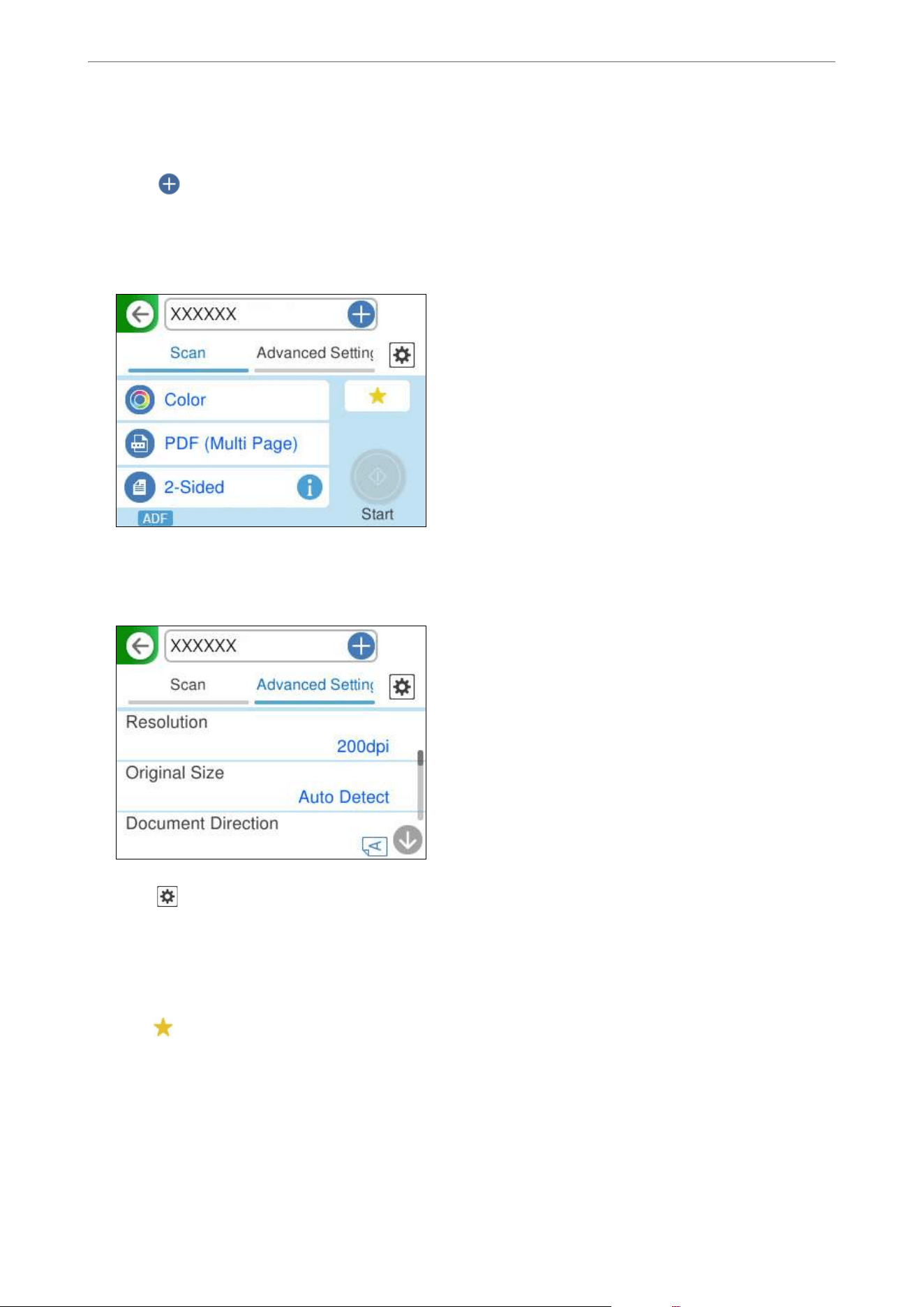
2. Select Cloud on the home screen on the control panel.
3. Select
on the top of the screen, and then select a destination.
4. Set items on Scan tab, such as the save format.
“Cloud Storage Scan Setting Items” on page 85
5. Select the Advanced Settings tab, check the settings, and then change them if necessary.
“Advanced Menu Options for Scanning to the Cloud” on page 86
6. Select , check the Scanner Settings, and then change them if necessary.
You can change the settings such as Paper Protection.
7. Select the Scan tab again, and then tap
x
.
Note:
Select
to save your settings as a preset.
Scanned images are sent to the registered destination.
Cloud Storage Scan Setting Items
Image Type:
Select the color of the output image.
Scanning
>
Scanning Using the Control Panel
>
Send to the Cloud
85

When you select the following, the scanner detects the color of the originals automatically and saves
the images using the detected colors.
O Color/Grayscale:
Converts the scanned image into 24-bit color or 8-bit gray.
e available image types may vary depending on the File Format you selected. See the following for
more details.
“Combinations for Available File Format and Image Type” on page 96
File Format:
Select the format in which to save the scanned image.
When you want to save as PDF, select whether to save all originals as one
le
(multi-page) or save
each original separately (single page).
O Compression Ratio:
Select how much to compress the scanned image.
Scanning Side:
Select the side of the original you want to scan when scanning from the ADF.
O Document Direction:
Select the orientation of the original.
O Binding(Original):
Select the binding direction of the original.
Advanced Menu Options for Scanning to the Cloud
Note:
e items may not be available depending on other settings you made.
Resolution:
Select the scanning resolution.
See the following for details on the le resolutions that can be selected.
“Available Resolutions” on page 98
Original Size:
Select the size of the original you placed.
Scanning
>
Scanning Using the Control Panel
>
Send to the Cloud
86
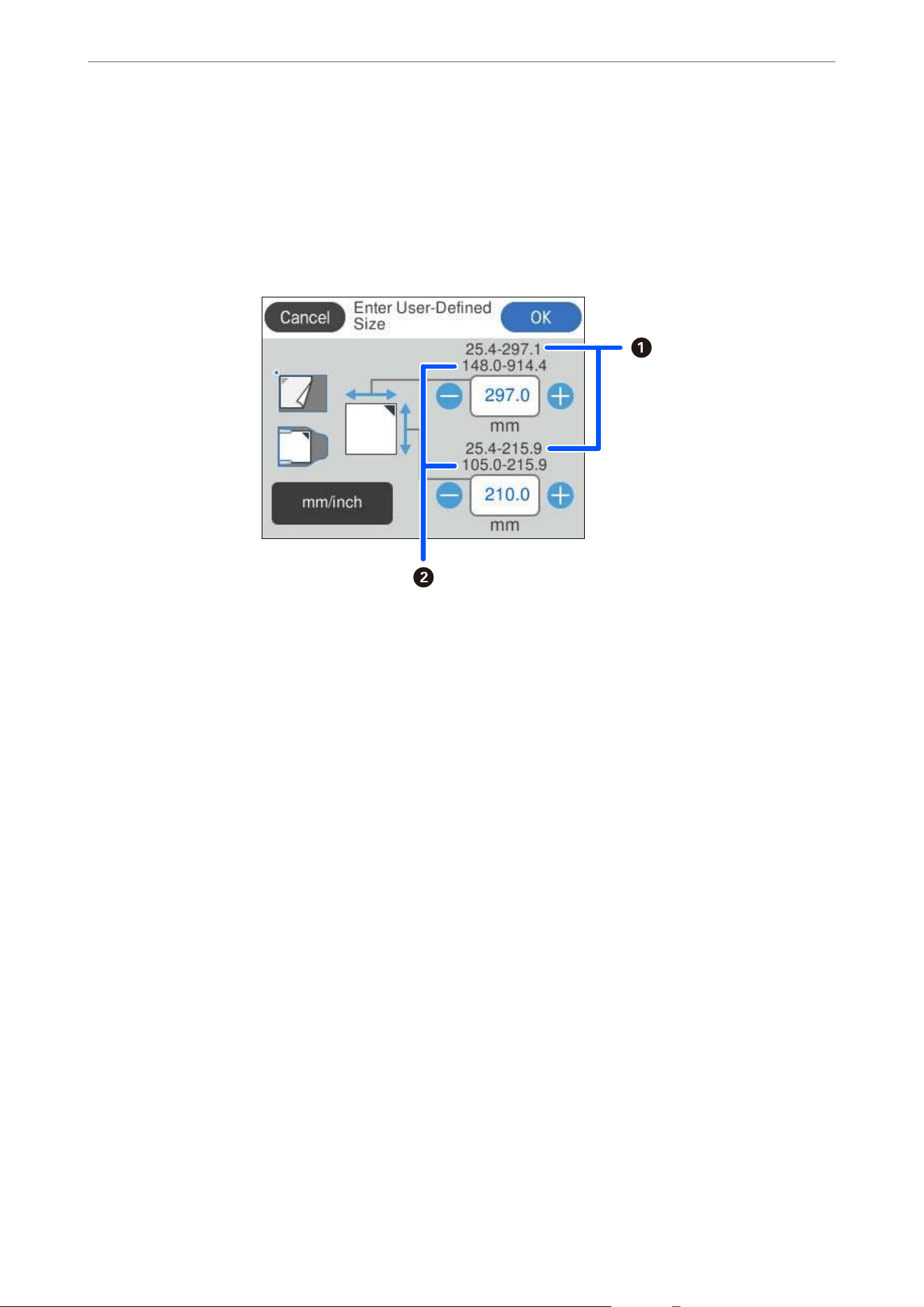
Note:
You can set a custom original size in User Dened.
e size of the original that you can dene varies depending on the document source used to place the
original. Enter the values based on the numbers displayed on the screen.
A
: When the original is placed on the scanner glass
B
: When the original is placed in the ADF
O Document Direction:
Select the orientation of the original.
O Crop Margins for Size "Auto":
Adjust the cropping area when selecting Auto Detect.
Document Direction:
Select the orientation of the original.
Note:
e Document Direction setting is synced with the Scanning Side and Original Size settings. If you change
the setting in any of them, the change is applied to all of them.
Text Enhancement:
You can make blurred letters in the original clear and sharp. You can also reduce the oset or
unevenness of the background.
O Emphasize light letters / Remove background:
You can set the level of correction between text and background. When you move the slider closer
to Emphasize light letters, the light letters in the scanned image are emphasized. When you move
the slider closer to Remove background, the background color, pattern, wrinkles, or
oset
in the
scanned image is removed.
O Remove spot noise:
You can remove black dots in the background of the original that cannot be removed by lightening
the background. You can adjust the level of the
eect.
Note:
When you select this feature, it may also remove small dots as well as the black dots in the background.
Scanning
>
Scanning Using the Control Panel
>
Send to the Cloud
87

Rotation:
Rotate the scanned image clockwise. Select the rotation angle depending on the original you want to
scan.
Density:
Select the contrast of the scanned image.
Remove Background:
Remove the background color of the originals from the scanned image.
To use this feature, the background color of the originals should be the lightest color in the originals,
and should be uniform. is feature is not applied correctly if there are patterns in the background,
or there are text or illustrations which are a lighter color than the background.
Remove Shadow:
Remove the shadows of the original that appear in the scanned image.
O Frame:
Remove the shadows at the edge of the original.
Correct Document Skew:
Correct skew in the scanned image.
is feature may not be able to correct documents that have been over skewed.
Skip Blank Pages:
Select to skip any blank pages in the originals when scanning from the ADF.
If the result is not what you expected, adjust detection level.
Note:
Some pages may be incorrectly skipped as blank pages.
Add Pages After Scanning:
Aer
scanning once, you can scan additional originals using the same scan settings. If you have
selected a multi-page le format, you can save all scanned images as a single le.
When scanning is complete, place the next original in the ADF or on the scanner glass, and then tap
Start Scanning.
Aer scanning all of the originals, tap Last Original to save the image.
ID Card:
Use the scanner glass to scan the front and back of the ID card separately, then save them side by side
as a single image.
Scanning
>
Scanning Using the Control Panel
>
Send to the Cloud
88
Note:
e scanned image is automatically cropped with a margin of approximately 3 mm (0.12 in.).
Follow the steps below to scan the front and back sides in order.
“Placing an ID Card” on page 59
O Layout:
Select the layout to be used for the front and back sides when saving the image.
Clear All Settings
Resets the scan settings to their defaults.
Save to USB Drive
Scan to USB Drive Feature Work Flow
is section explains how to save scanned images to a USB drive connected to the scanner.
Necessary Operations Operation
Location
Explanations
1. Connect the USB drive to the
scanner
Scanner Insert a USB drive into the scanner's external interface USB
port.
“Inserting a USB Drive” on page 24
2. Scan from the control panel Scanner’s control
panel
Perform scanning from the control panel.
“Saving to a USB Drive” on page 89
Saving to a USB Drive
You can save the scanned image to a USB drive.
1. Place the original.
Example: For standard paper
“Placing Standard Size Originals” on page 43
2. Insert a USB drive into the scanner's external interface USB port.
“Inserting a USB Drive” on page 24
3. Select USB Drive on the home screen on the control panel.
If the scanning menu screen is already displayed, go to the next step.
Scanning
>
Scanning Using the Control Panel
>
Save to USB Drive
89
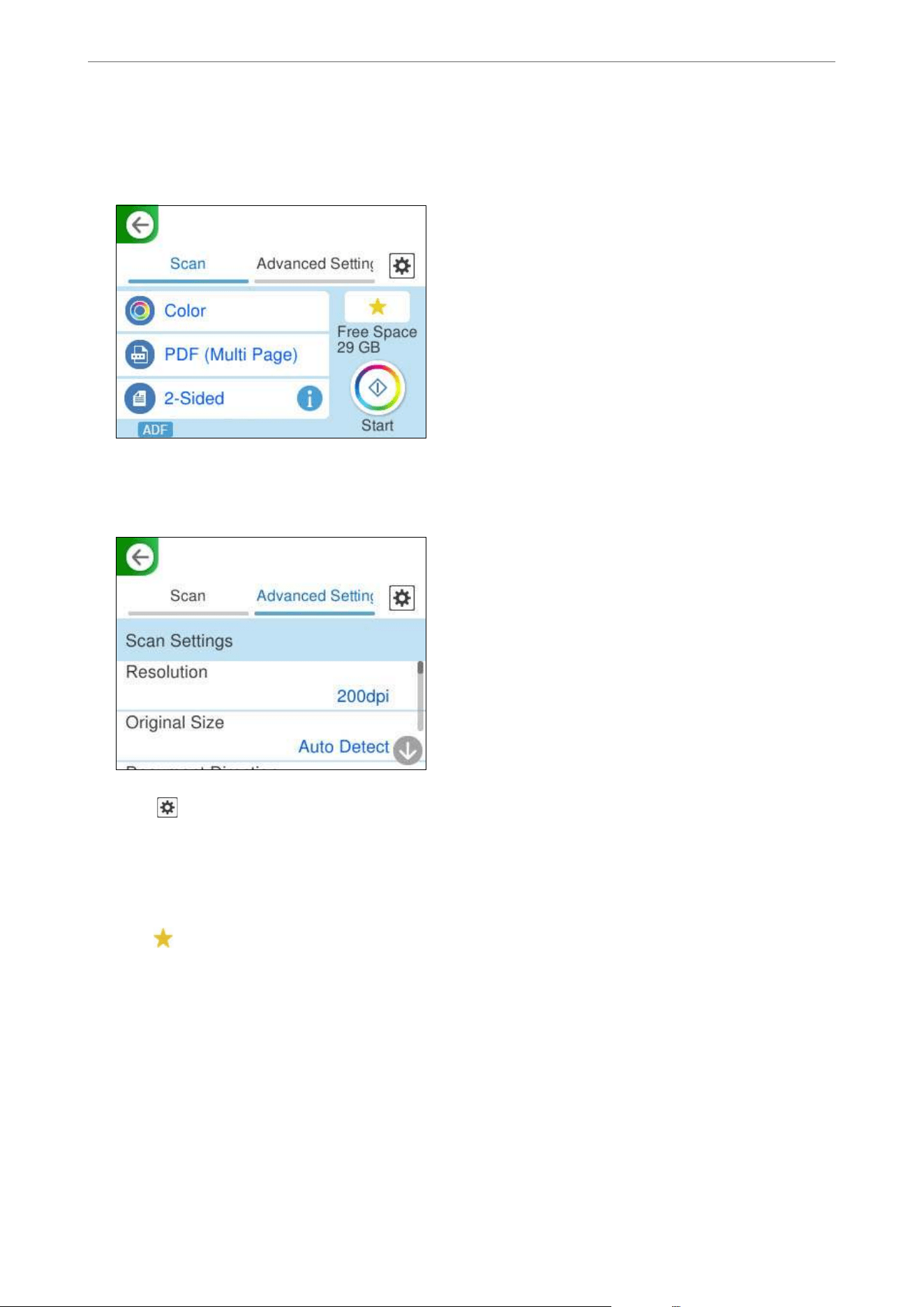
4. Set items on Scan tab, such as the save format.
“Setting Items for Scanning to a USB Drive” on page 90
5. Select the Advanced Settings tab, check the settings, and then change them if necessary.
“Advanced Menu Options for Scanning to a USB Drive” on page 91
6. Select , check the Scanner Settings, and then change them if necessary.
You can change the settings such as Paper Protection.
7. Select the Scan tab again, and then tap
x
.
Note:
Select
to save your settings as a preset.
Scanned images are saved in the destination USB drive.
Setting Items for Scanning to a USB Drive
Note:
Some items may not be available depending on other settings you made.
Image Type:
Select the color of the output image.
When you select the following, the scanner detects the color of the originals automatically and saves
the images using the detected colors.
Scanning
>
Scanning Using the Control Panel
>
Save to USB Drive
90

O Color/Grayscale/B&W
Converts the scanned image into 24-bit color, 8-bit gray, or monochrome (black and white
binary). When this is selected, set the sensitivity to determine whether the original is grayscale or
monochrome when scanning a non-color original.
O Color/Black & White:
Converts the scanned image into 24-bit color or monochrome (black and white binary).
O Color/Grayscale:
Converts the scanned image into 24-bit color or 8-bit gray.
e available image types may vary depending on the File Format you selected. See the following for
more details.
“Combinations for Available File Format and Image Type” on page 96
File Format:
Select the format in which to save the scanned image.
When you want to save as PDF, PDF/A, or TIFF, select whether to save all originals as one
le
(multi-page) or save each original separately (single page).
O Compression Ratio:
Select how much to compress the scanned image.
O PDF Settings:
When you have selected PDF as the save format setting, use these settings to protect PDF les.
To create a PDF le that requires a password when opening, set Document Open Password. To
create a PDF le that requires a password when printing or editing, set Permissions Password.
Scanning Side:
Select the side of the original you want to scan when scanning from the ADF.
O Document Direction:
Select the orientation of the original.
O Binding(Original):
Select the binding direction of the original.
Advanced Menu Options for Scanning to a USB Drive
Note:
e items may not be available depending on other settings you made.
Resolution:
Select the scanning resolution.
See the following for details on the le resolutions that can be selected.
“Available Resolutions” on page 98
Original Size:
Select the size of the original you placed.
Scanning
>
Scanning Using the Control Panel
>
Save to USB Drive
91
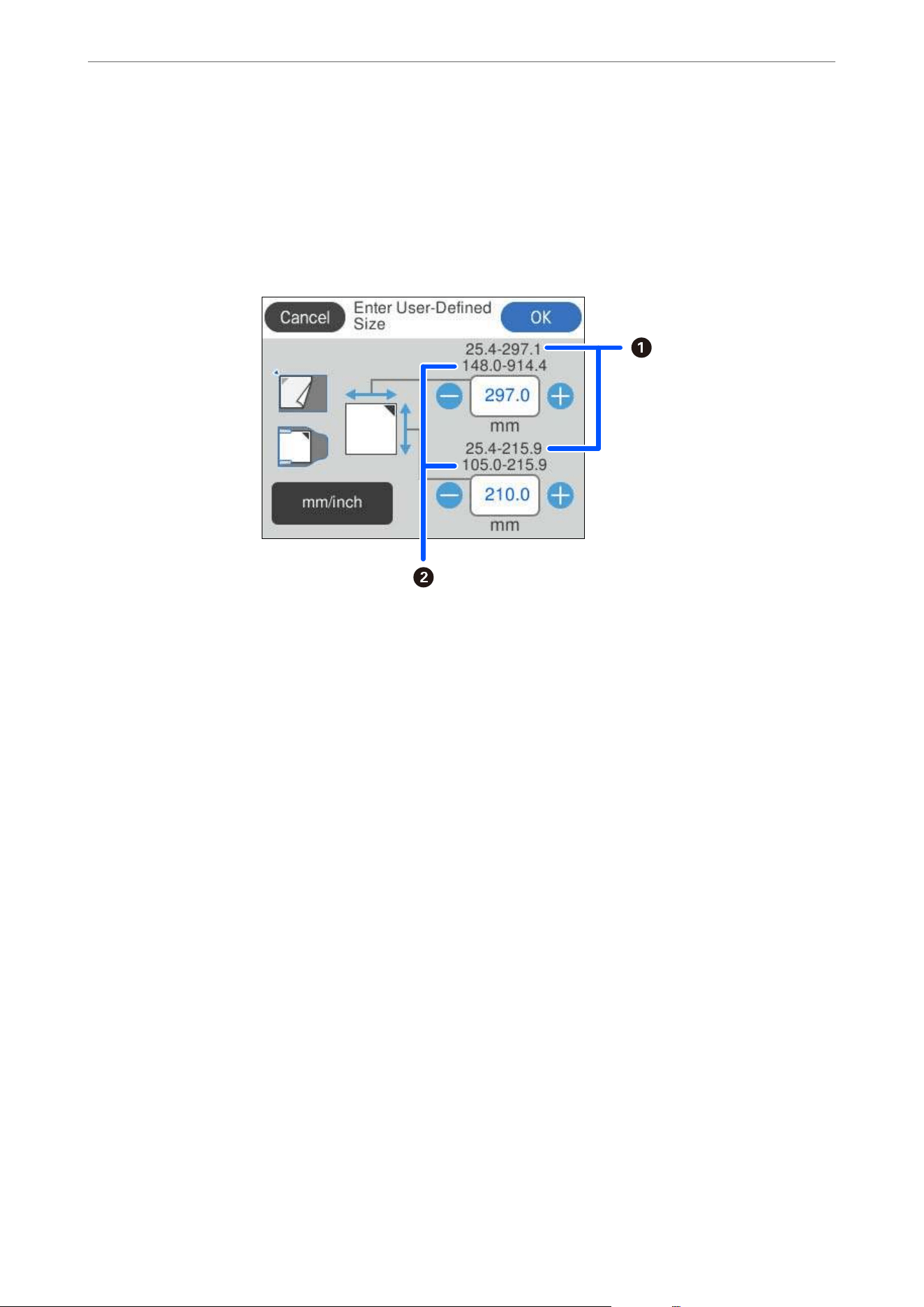
Note:
You can set a custom original size in User Dened.
e size of the original that you can dene varies depending on the document source used to place the
original. Enter the values based on the numbers displayed on the screen.
A
: When the original is placed on the scanner glass
B
: When the original is placed in the ADF
O Document Direction:
Select the orientation of the original.
O Crop Margins for Size "Auto":
Adjust the cropping area when selecting Auto Detect.
Document Direction:
Select the orientation of the original.
Note:
e Document Direction setting is synced with the Scanning Side and Original Size settings. If you change
the setting in any of them, the change is applied to all of them.
Text Enhancement:
You can make blurred letters in the original clear and sharp. You can also reduce the oset or
unevenness of the background.
O Emphasize light letters / Remove background:
You can set the level of correction between text and background. When you move the slider closer
to Emphasize light letters, the light letters in the scanned image are emphasized. When you move
the slider closer to Remove background, the background color, pattern, wrinkles, or
oset
in the
scanned image is removed.
O Remove spot noise:
You can remove black dots in the background of the original that cannot be removed by lightening
the background. You can adjust the level of the
eect.
Note:
When you select this feature, it may also remove small dots as well as the black dots in the background.
Scanning
>
Scanning Using the Control Panel
>
Save to USB Drive
92

Rotation:
Rotate the scanned image clockwise. Select the rotation angle depending on the original you want to
scan.
Density:
Select the contrast of the scanned image.
Remove Background:
Remove the background color of the originals from the scanned image.
To use this feature, the background color of the originals should be the lightest color in the originals,
and should be uniform. is feature is not applied correctly if there are patterns in the background,
or there are text or illustrations which are a lighter color than the background.
Remove Shadow:
Remove the shadows of the original that appear in the scanned image.
O Frame:
Remove the shadows at the edge of the original.
Correct Document Skew:
Correct skew in the scanned image.
is feature may not be able to correct documents that have been over skewed.
Skip Blank Pages:
Select to skip any blank pages in the originals when scanning from the ADF.
If the result is not what you expected, adjust detection level.
Note:
Some pages may be incorrectly skipped as blank pages.
Add Pages After Scanning:
Aer
scanning once, you can scan additional originals using the same scan settings. If you have
selected a multi-page le format, you can save all scanned images as a single le.
When scanning is complete, place the next original in the ADF or on the scanner glass, and then tap
Start Scanning.
Aer scanning all of the originals, tap Last Original to save the image.
ID Card:
Use the scanner glass to scan the front and back of the ID card separately, then save them side by side
as a single image.
Scanning
>
Scanning Using the Control Panel
>
Save to USB Drive
93

Note:
e scanned image is automatically cropped with a margin of approximately 3 mm (0.12 in.).
Follow the steps below to scan the front and back sides in order.
“Placing an ID Card” on page 59
O Layout:
Select the layout to be used for the front and back sides when saving the image.
File Name:
O Filename Prex:
Enter a prex for the name of the images in alphanumeric characters and symbols.
O Add Date:
Add the date to the le name.
O Add Time:
Add the time to the
le
name.
Clear All Settings
Resets the scan settings to their defaults.
Use WSD Functions
Scan to WSD Work Flow
Necessary Operations Operation
Location
Explanation
1. Connect the scanner and the
computer to the network
(This is unnecessary if you connected
to the network during setup)
Scanner and
computer
Connect the scanner to the network using the installer.
Visit the following website and search for your model to
access the installer.
https://epson.com/support (U.S.)
https://epson.ca/support (Canada)
https://latin.epson.com/support (Latin America)
https://epson.sn > Setup (Other regions)
When the connection method selection screen is displayed,
select wireless LAN (Wi-Fi) or wired LAN (Ethernet) and
follow the on-screen instructions to connect to the network.
Note:
O When you use the installer, the soware is installed at
the same time.
O You can also set this manually. (for administrators)
“Connecting the Scanner to the Network” on page 209
Scanning
>
Scanning Using the Control Panel
>
Use WSD Functions
94

Necessary Operations Operation
Location
Explanation
2. Scan from the control panel Scanner’s control
panel
Perform scanning from the control panel.
“Scanning Using WSD” on page 95
Note:
If the destination computer is not displayed, follow the
steps below to add a WSD scanning device.
“Adding a WSD Scan Device” on page 95
Adding a WSD Scan Device
Depending on your environment, you may need to add a WSD scan device on your computer.
e following procedure is an example for Windows 10. e procedure may dier depending on your
environment.
1. Display the device list.
Click the start button, and then select Settings > Devices > Printers & scanners.
2. Click Add a printer or scanner.
3. Select your scanner, and then click Add device.
Note:
If you do not know the device name of your scanner, you can check the name on the scanner's control panel.
Select Settings > Network Settings > Network Status on the scanner's control panel, and then select the active
connection method status to check the Device Name.
e procedure is complete when the scanner is added to the list.
Note:
O You can change the WSD scan event. Click the scanner you added, and then click Manage > Scanner properties >
Properties > Events.
O You can add a WSD scan device from the Windows Control Panel.
Select Control Panel > Hardware and Sound > View devices and printers, and then click Add a device.
Scanning Using WSD
Note:
If a destination computer is not displayed, follow the steps below to add a WSD scan device.
“Adding a WSD Scan Device” on page 95
1. Place the originals.
2.
Select WSD on the home screen of the scanner’s control panel.
3. Select a destination.
4. Tap
x
.
Scanning
>
Scanning Using the Control Panel
>
Use WSD Functions
95
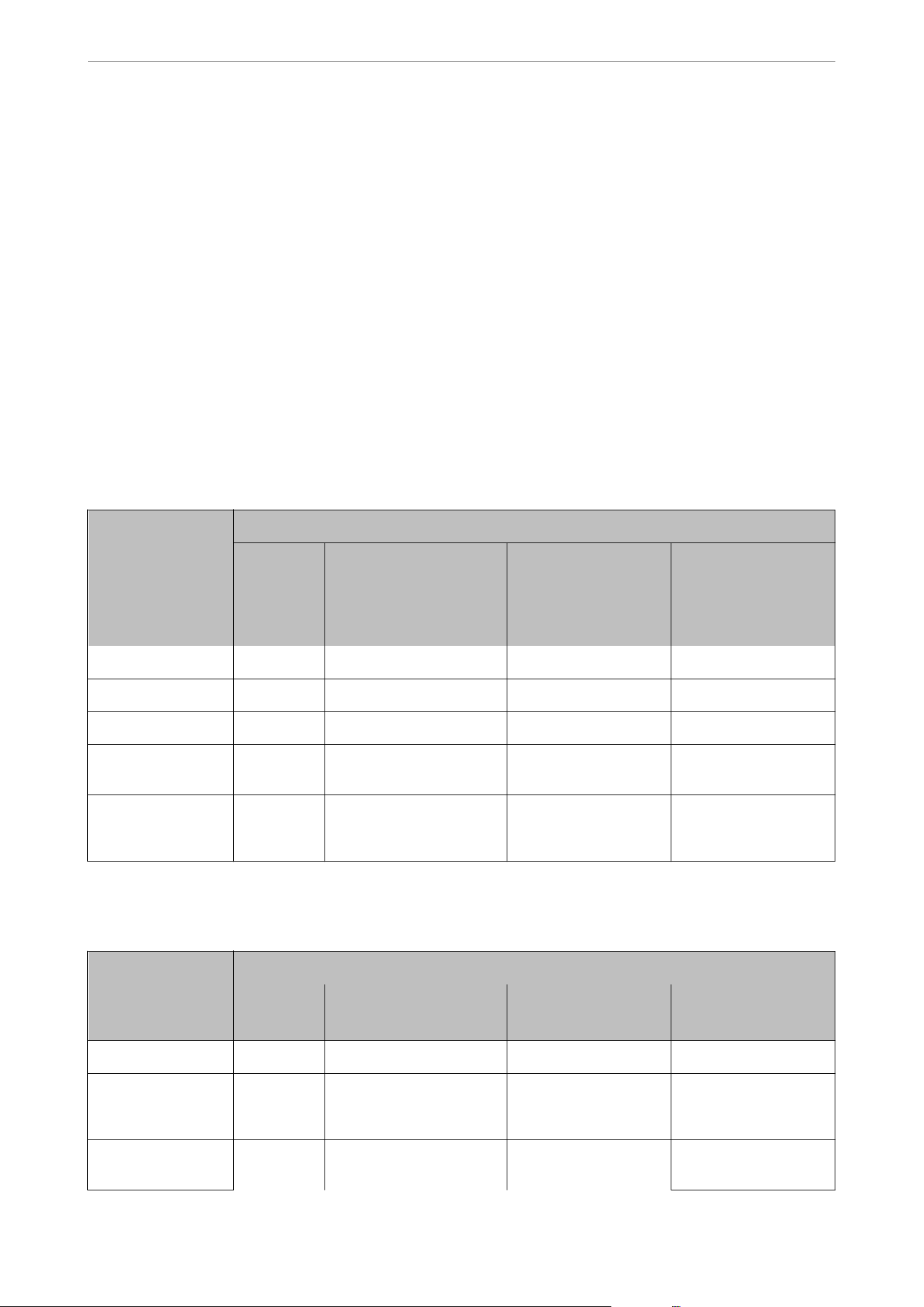
5. Follow the on-screen instructions when the WSD Scan Device screen is displayed on your computer.
Combination of Features and Settings
Combinations for Available File Format and Image Type
You can select the following image types according to the feature being used and the File Format in which they will
be saved.
Scan to Computer Feature
Depends on the Document Capture Pro settings.
Scan to USB Drive Feature, Scan to Network Folder/FTP Feature
✓ : Can be selected. - : Cannot be selected.
Image Type
File Format
JPEG PDF (Single Page)
PDF (Multi Page)
PDF/A (Single Page)
PDF/A (Multi Page)
TIFF (Single Page) TIFF (Multi Page)
Color
✓✓ ✓
-
B&W -
✓✓✓
Gray
✓✓ ✓
-
Color/
Grayscale/B&W
-
✓✓
-
Color/Black & White -
✓✓
-
Color/Grayscale
✓✓ ✓
-
Scan to Cloud Feature
✓ : Can be selected. - : Cannot be selected.
Image Type
File Format
JPEG PDF (Single Page)
PDF (Multi Page)
TIFF (Single Page) TIFF (Multi Page)
Color
✓✓
--
B&W -
✓
--
Gray
✓✓
--
Color/
Grayscale/B&W
-- - -
Scanning
>
Scanning Using the Control Panel
>
Combination of Features and Settings
96
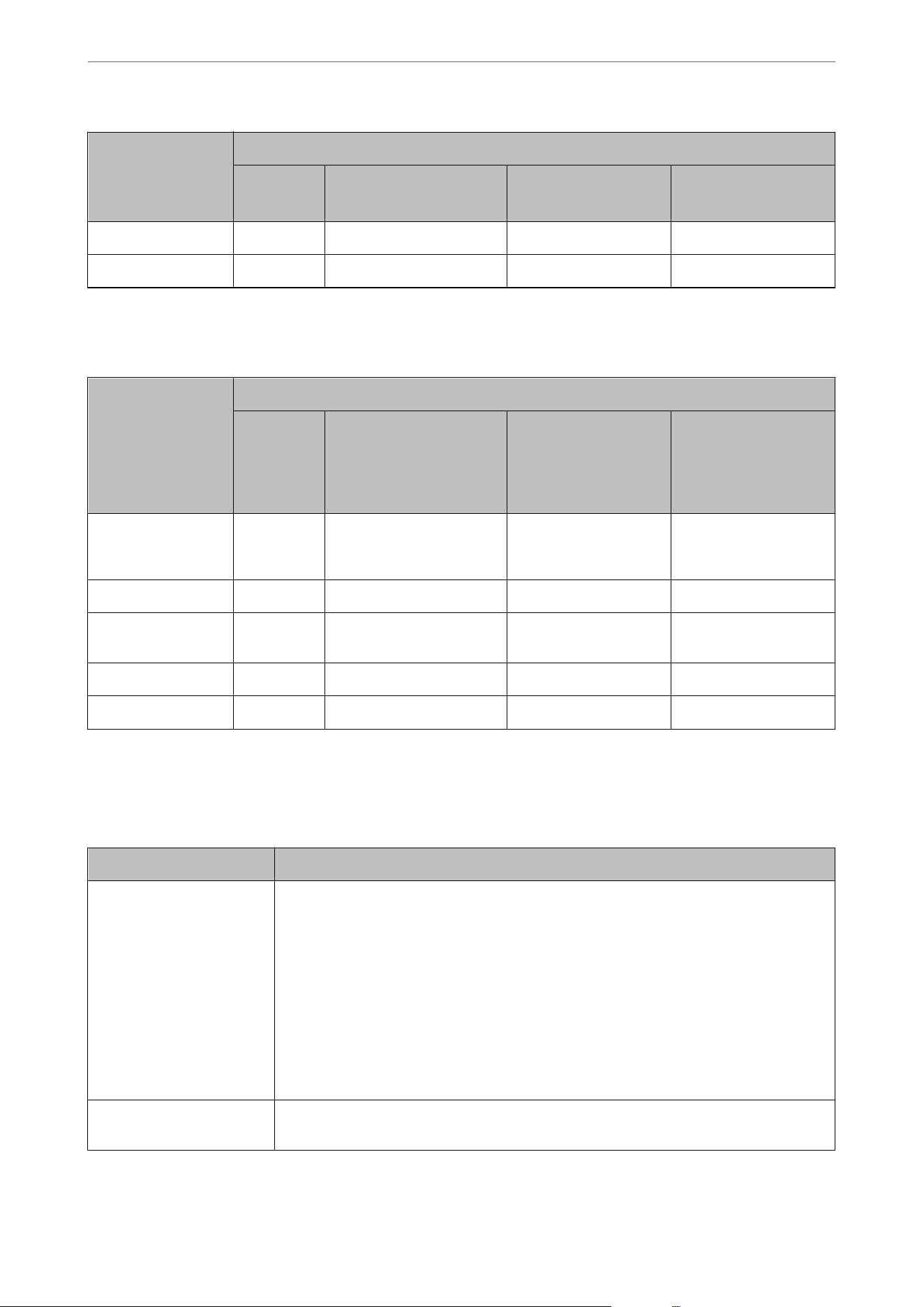
Image Type
File Format
JPEG PDF (Single Page)
PDF (Multi Page)
TIFF (Single Page) TIFF (Multi Page)
Color/Black & White - - - -
Color/Grayscale
✓✓
--
Scan to Email Feature
✓ : Can be selected. - : Cannot be selected.
Image Type
File Format
JPEG PDF (Single Page)
PDF (Multi Page)
PDF/A (Single Page)
PDF/A (Multi Page)
TIFF (Single Page) TIFF (Multi Page)
Color
✓✓
--
B&W -
✓✓✓
Gray
✓✓
--
Color/
Grayscale/B&W
-
✓
--
Color/Black & White -
✓
--
Color/Grayscale
✓✓
--
File Sizes that can be Saved
e following le sizes can be saved.
Features Maximum Capacity
Scan to Computer Feature Depends on the amount of free space in the destination.
Scan to USB Drive Feature Depends on the amount of free space in the destination.
“USB Drive Specications” on page 261
Scan to Cloud Feature Depends on the amount of free storage space in the online service, or the maximum
attachment le size that can be received by the email server.
Scan to Email Feature Depends on the amount of free space in the destination server.
You can set the maximum size for les attached to emails from 1 MB/2 MB/5 MB/10 MB/20
MB/30 MB.
Scan to Network Folder/FTP
Feature
Depends on the amount of free space in the destination.
Scanning
>
Scanning Using the Control Panel
>
Combination of Features and Settings
97
Available Resolutions
Depending on the feature being used, the following resolutions are available.
e Scan to Computer feature depends on the Document Capture Pro settings.
✓ : Can be selected. - : Cannot be selected.
Features
Available Resolutions
200 dpi 300 dpi 600 dpi
Scan to USB Drive Feature
✓✓✓
Scan to Cloud Feature
✓✓
-
Scan to Email Feature
✓✓✓
Scan to Network Folder/FTP
Feature
✓✓✓
Scanning Using the Registered Contents in Presets
Scan using the contents registered in advance to your Presets.
1. Use one of the following methods to load the Presets.
O Select
on the Home screen on the control panel, and then select the registered preset from the list.
O Select
on the Scan menu screen, select Load Presets, and then select the registered preset from the list.
Note:
If you have enabled Quick Send, scanning starts in immediately and the rest of the steps are skipped.
2. e name of the loaded preset is displayed. Check the name, and then select Close.
3. Check the preset destinations and scan settings.
4. Tap
x
.
Related Information
&
“Registering Presets” on page 29
Scanning from a Computer
Scanning Using Document Capture Pro (Windows)
Document Capture Pro allows you to easily and
eciently
digitize originals and forms to suit your needs.
e following functions are available with Document Capture Pro.
O You can manage and perform a set of operations, such as scanning and saving, as a "job".
Scanning
>
Scanning from a Computer
>
Scanning Using Document Capture Pro (Windows)
98

O You can congure a "job" to save scanned images in various formats (PDF/BMP/JPEG/JPEG2000/TIFF/Multi-
TIFF/PNG/DOCX/XLSX/PPTX).
O You can sort jobs automatically by inserting dividing paper between the originals or by using barcode
information on the originals.
O You can output scanning information or items necessary for the scanned content as index data.
O You can set multiple destinations.
O You can scan using simple operations without having to create a job.
By using these functions, you can digitize paper documents more eciently, such as scanning a large number of
documents or using them over a network.
Note:
O For detailed information on how to use Document Capture Pro, refer to the following URL:
https://support.epson.net/dcp/
O Document Capture Pro does not support Windows Server.
What is a Job Scan?
By registering a series of frequently used operations as a job, you can execute these operations by simply selecting
the job.
By assigning a job to the control panel of a scanner, you can also execute the job from the control panel.
Related Information
&
“Setting a Job” on page 117
Performing a Job Scan
is section explains the workow of scanning using an existing job.
Scanning
>
Scanning from a Computer
>
Scanning Using Document Capture Pro (Windows)
99
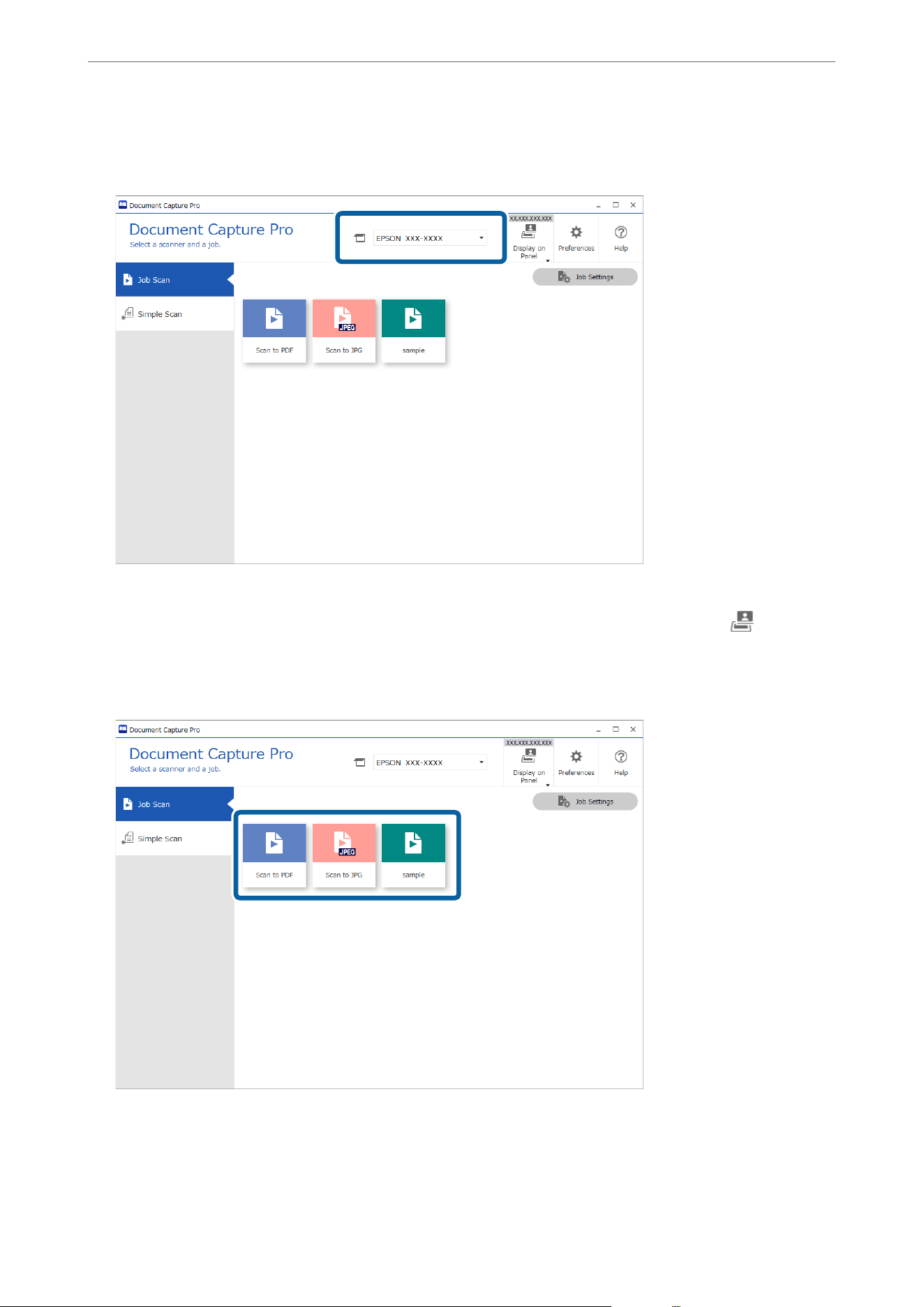
1. Select the scanner you want to use from the Document Capture Pro top screen. When you start the soware it
automatically connects to the last scanner you used.
Note:
If this computer is not displayed on the scanner's control panel or takes a long time to appear, press the
(Display on
Panel) button at the top right, and then select Display your computer on the scanner.
2. Click the Job Scan tab, and then click the icon of the job you want to perform.
e selected job is performed.
When you perform a job for which Show the preview while scanning has been selected in the Scan Settings, a
preview screen is displayed while scanning.
Scanning
>
Scanning from a Computer
>
Scanning Using Document Capture Pro (Windows)
100
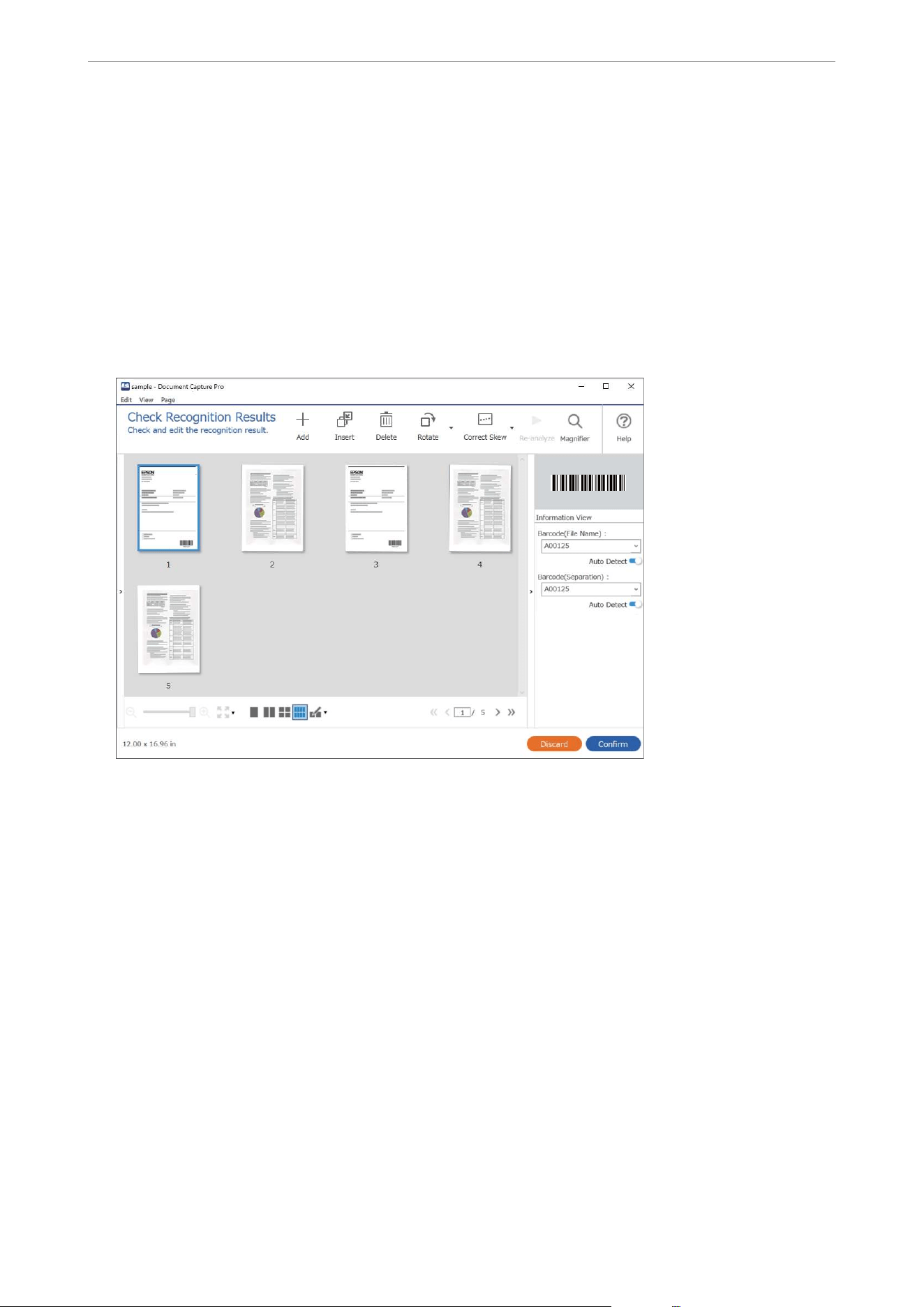
3. If you execute a job that contains the following elements in the File Name Settings, Separation Settings, or
User-dened
Index from Save Settings, and the elements are detected in the scanned page, the detection area is
displayed on the image as a marquee. Correct the recognition results manually if necessary, or change the area
and run the recognition again.
O OCR
O Barcode
O Form
O MRZ of a passport
O MRZ of a travel document
4. For jobs for which Show Edit Page dialog before saving has been selected in the Scan Settings, check the scan
results on the Edit Scanned Results screen
aer
scanning, and then make edits as necessary.
You can check and edit the following on the Edit Scanned Results screen.
O Results of separation
O Scanned images
Scanning
>
Scanning from a Computer
>
Scanning Using Document Capture Pro (Windows)
101
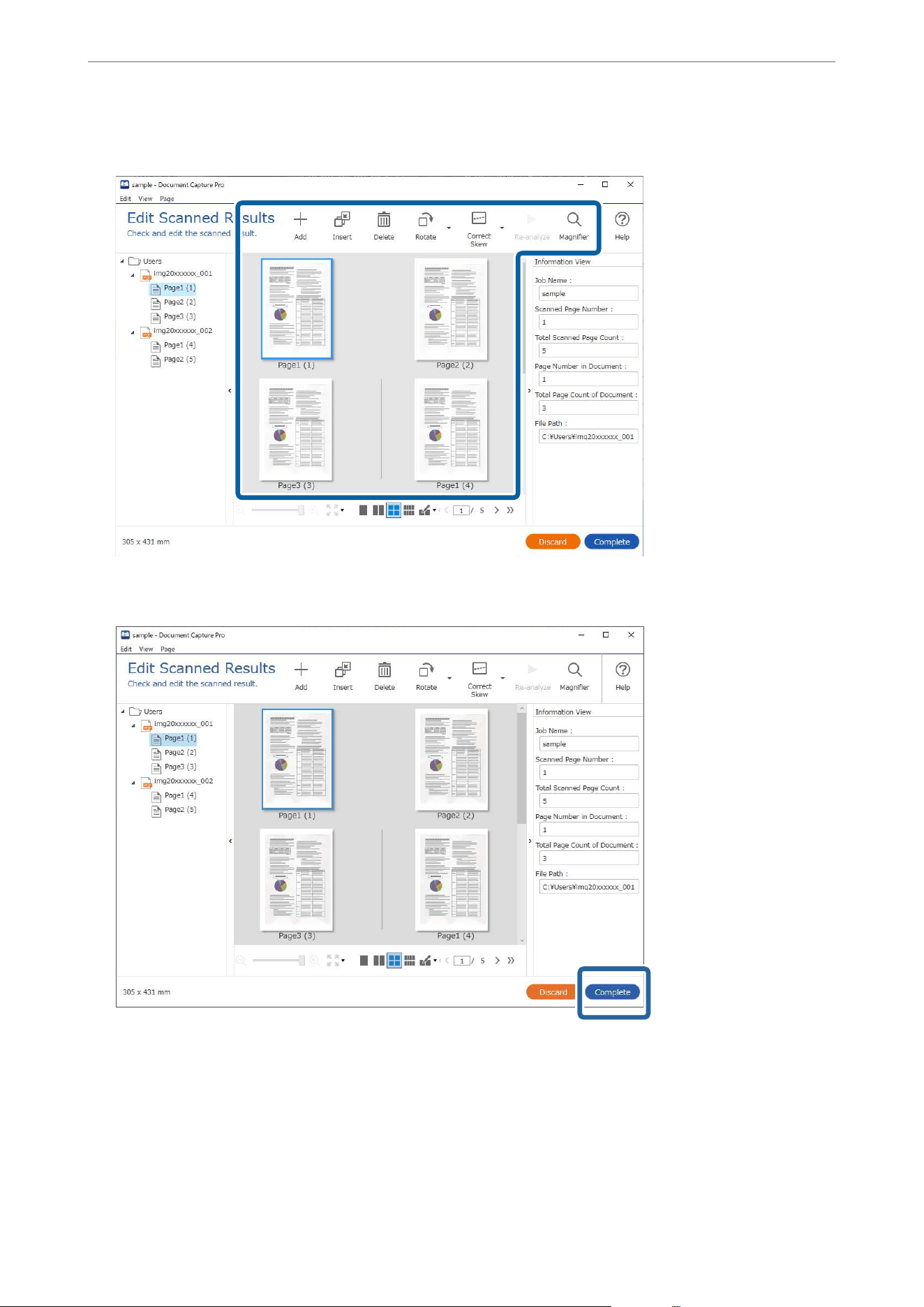
O Index data
5. Click Complete to nish performing the Job Scan.
What is a Simple Scan?
You can scan documents without creating a job. Check the results aer scanning, and then save or set the
destination.
By assigning Simple Scan Settings to the control panel of a scanner, you can also execute the Simple Scan from the
control panel.
Scanning
>
Scanning from a Computer
>
Scanning Using Document Capture Pro (Windows)
102
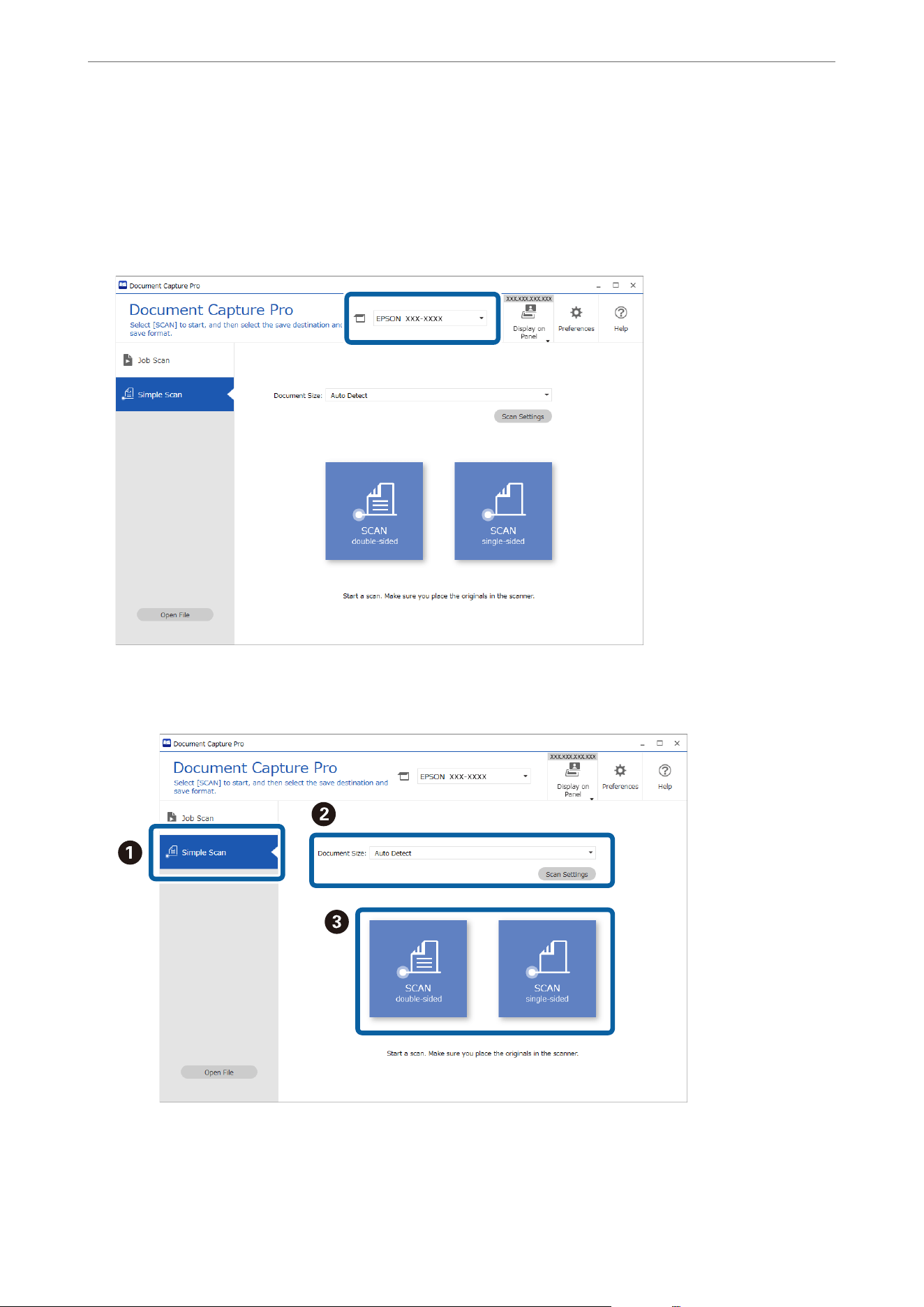
Performing a Simple Scan
is section explains the workow of scanning without using a job.
1.
Select the scanner you want to use from the Document Capture Pro top screen. When you start the soware it
automatically connects to the last scanner you used.
2. Click the Simple Scan tab, select Document Size, and then click the SCANdouble-sided or SCANsingle-
sided icon.
Note:
Click Scan Settings to set the resolution. You can make more detailed settings from Epson Scan 2.
e
image being scanned is displayed.
Scanning
>
Scanning from a Computer
>
Scanning Using Document Capture Pro (Windows)
103
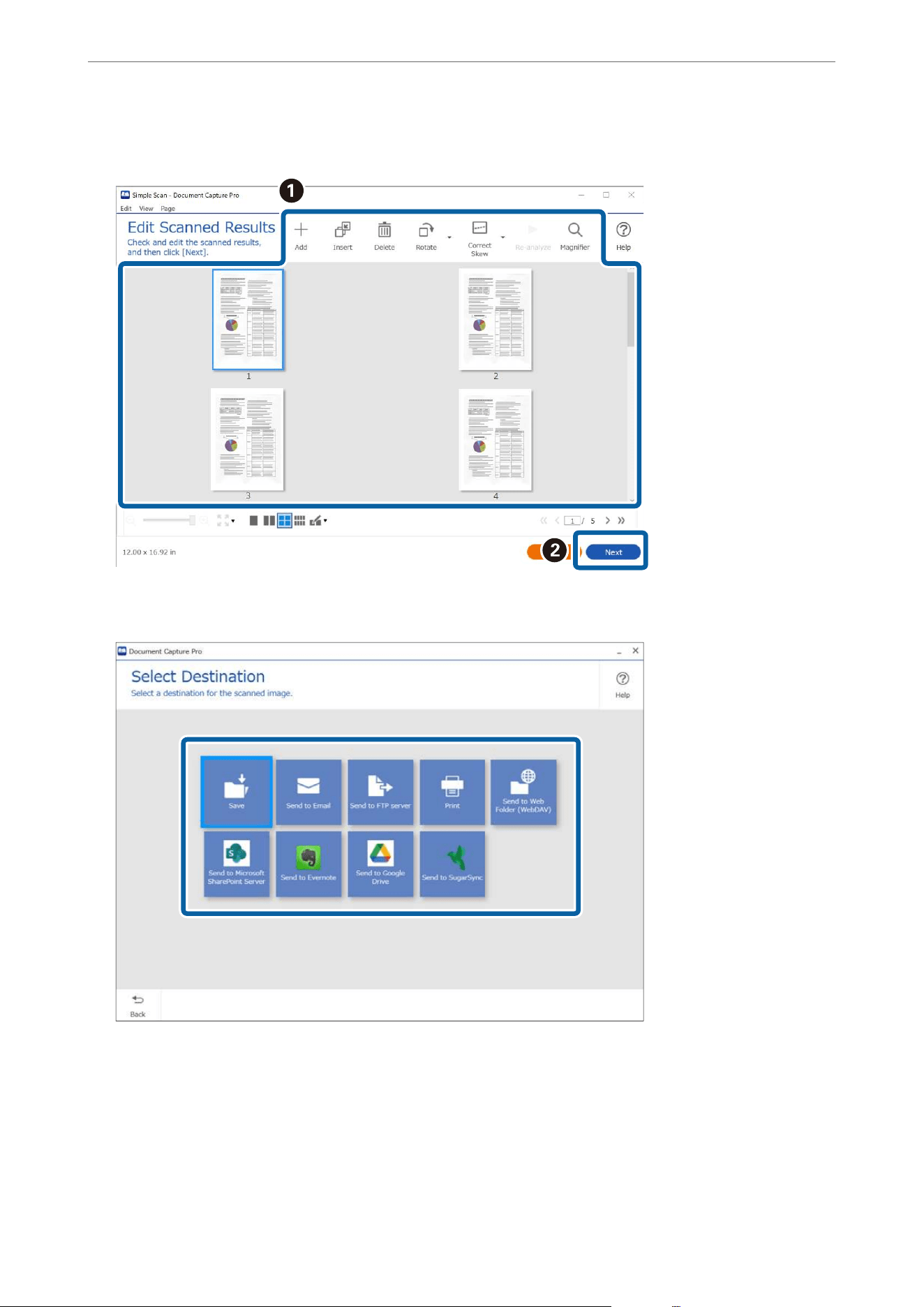
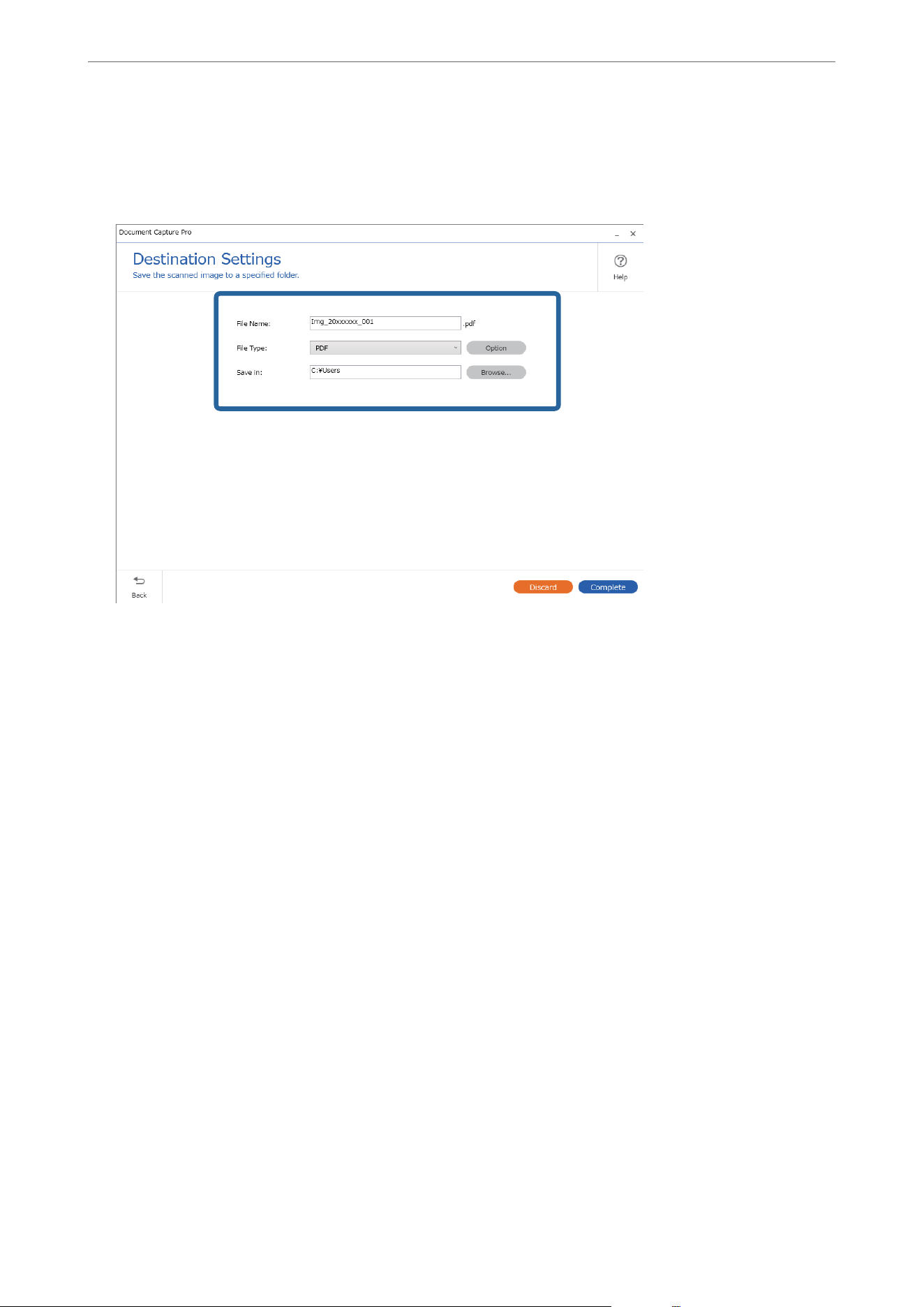
5. Set the le you want to save and the save format on the Destination Settings screen. You can also make more
detailed settings according to the destination.
Displayed items depend on the destination. e following screen is displayed when Save is selected.
6. Click Complete to
nish
performing the Simple Scan.
Scanning Using Document Capture (Mac OS)
is application allows you to perform various tasks such as saving the image to your computer, sending it by
email, printing, and uploading to a server or a cloud service. You can also register scanning settings for a job to
simplify scanning operations.
See the Document Capture help for details on the features.
Note:
Do not use the Fast User Switching function while using your scanner.
Scanning
>
Scanning from a Computer
>
Scanning Using Document Capture (Mac OS)
105
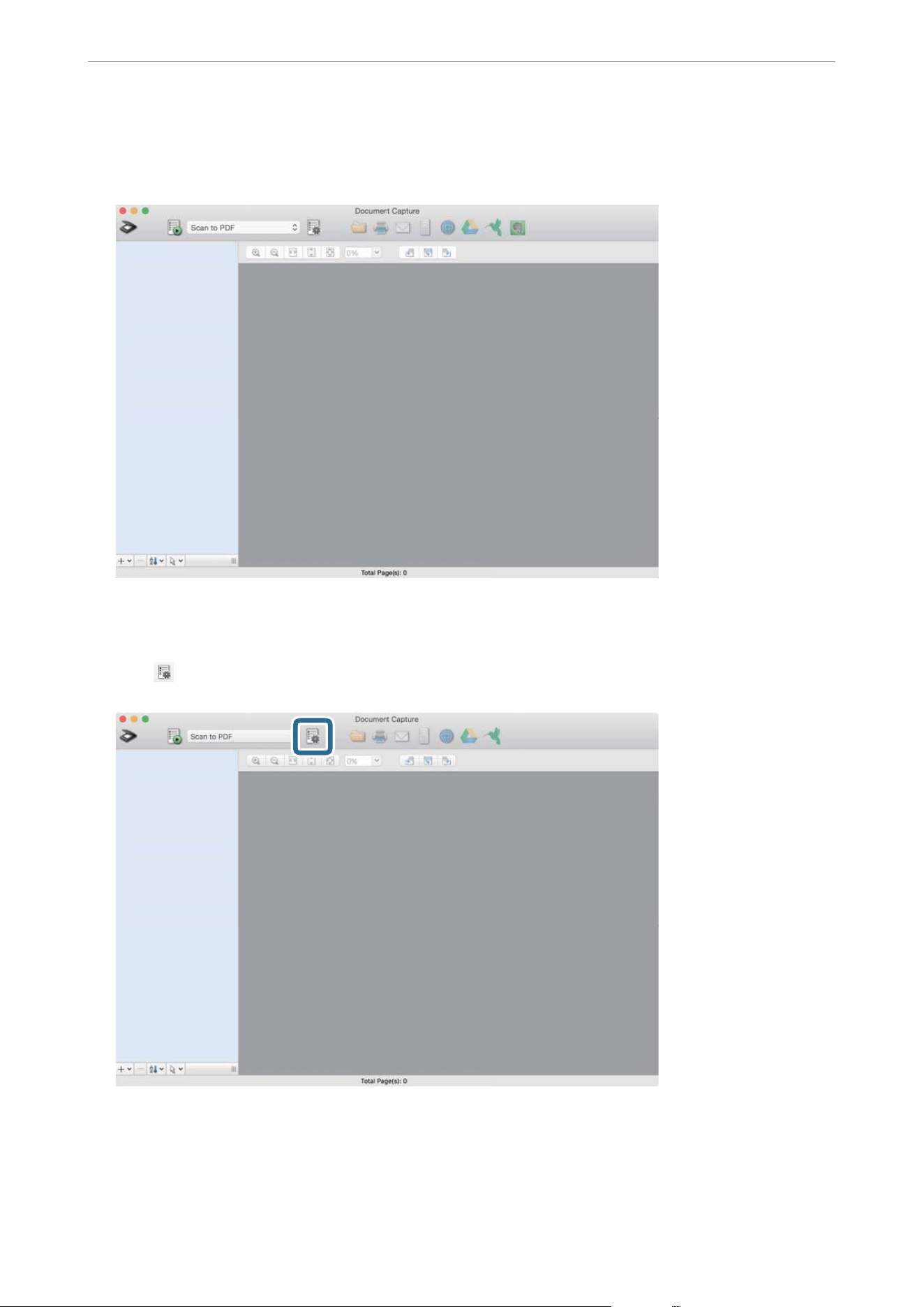
1. Start Document Capture.
Select Finder > Go > Applications > Epson Soware > Document Capture.
Note:
You may need to select the scanner you want to use from the scanners list.
2. Click .
e Job List screen is displayed.
Note:
A preset job is available that allows you to save scanned images as a PDF. When using this job, skip this procedure and
go to procedure 10.
Scanning
>
Scanning from a Computer
>
Scanning Using Document Capture (Mac OS)
106
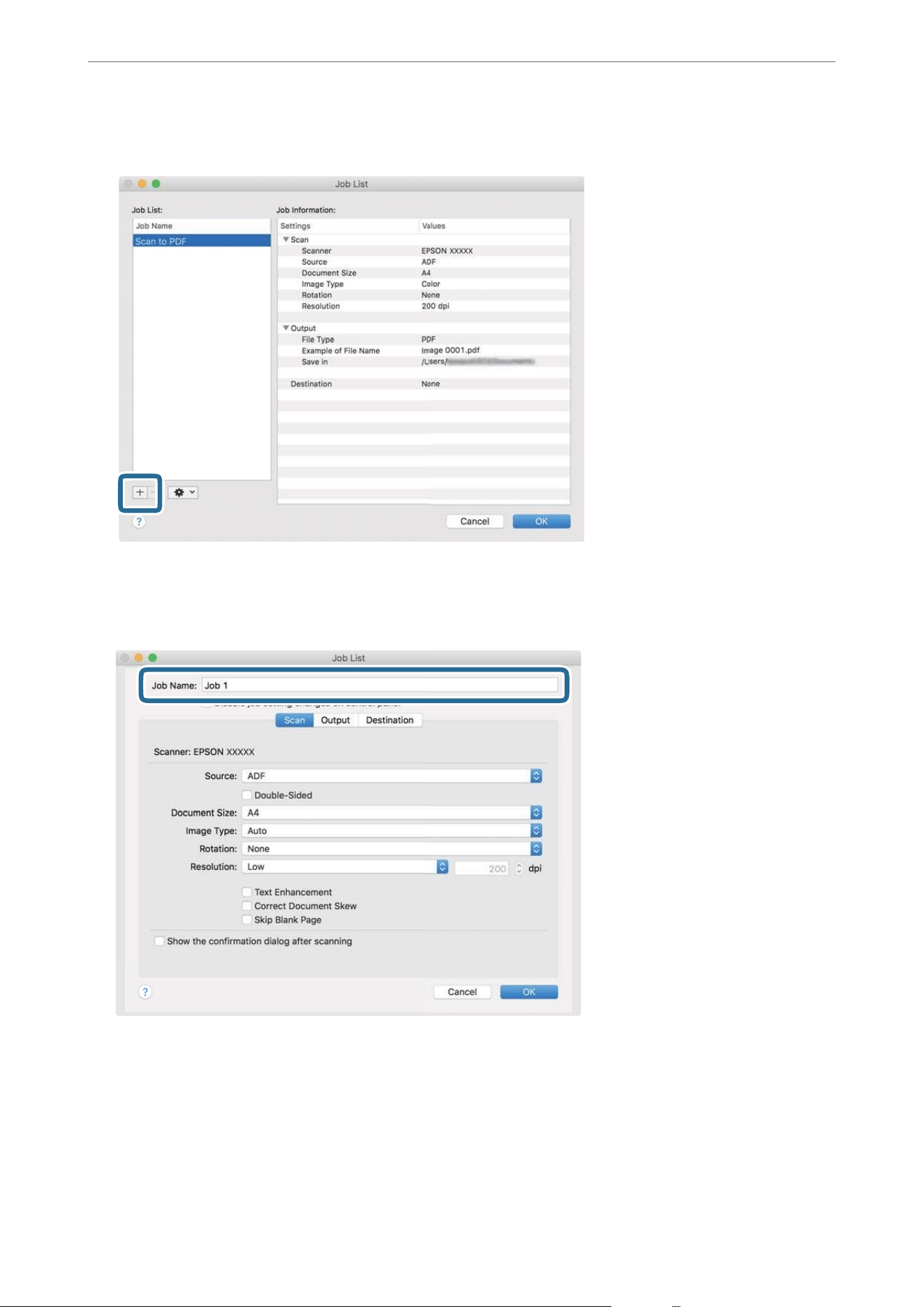
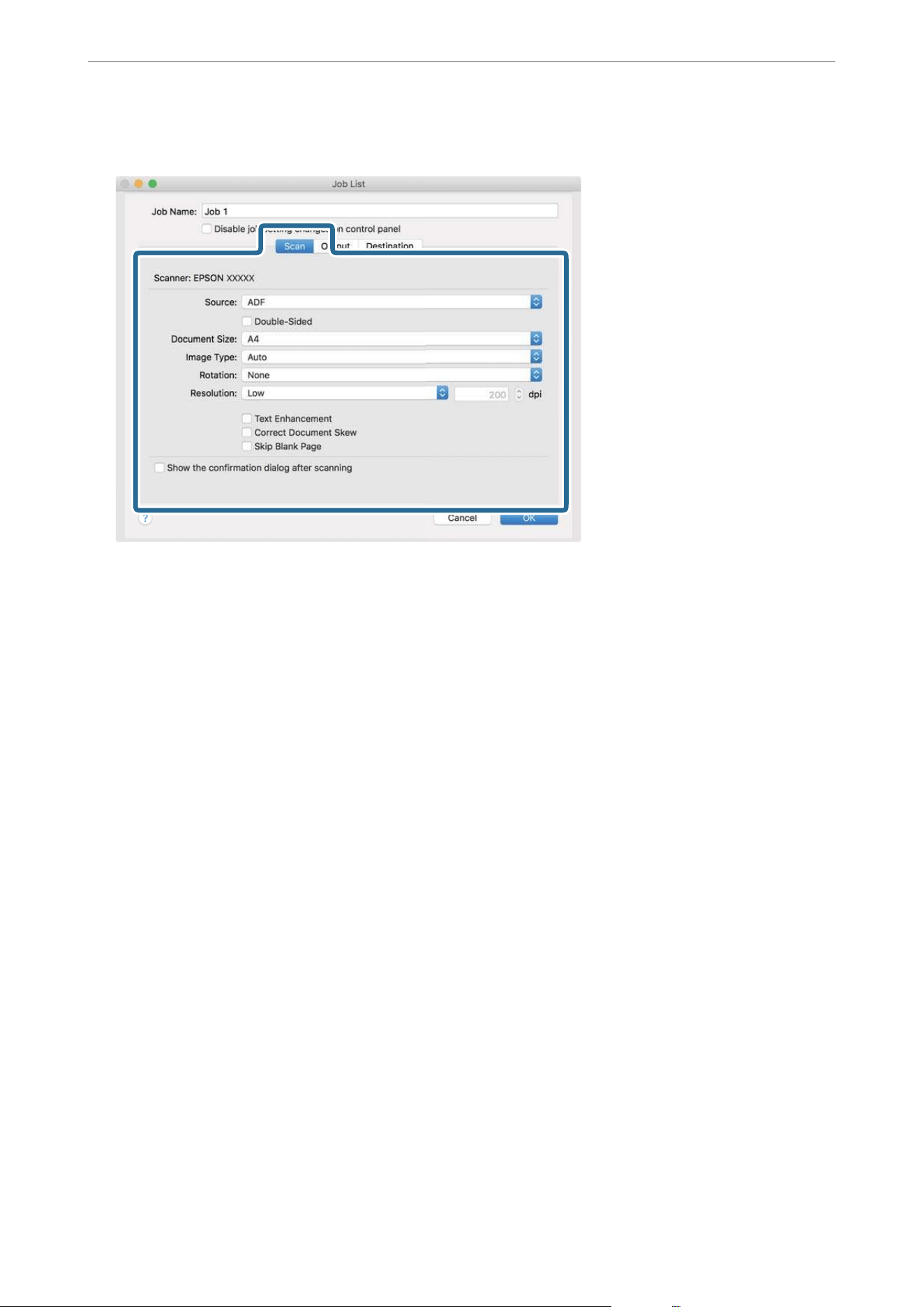
5. Make scanning settings on the Scan tab.
O Source: Select the source where the original is placed. Select double-sided to scan both sides of the
originals.
O Document Size: Select the size of the original you placed.
O Image Type: Select the color you want to use to save the scanned image.
O Rotation: Select the rotation angle depending on the original you want to scan.
O Resolution: Select the resolution.
Note:
You can also adjust the image using following items.
O Text Enhancement: Select to make blurred letters in the original clear and sharp.
O Correct Document Skew: Select to correct the slant of the original.
O Skip Blank Page: Select to skip blank pages if there are any in the originals.
Scanning
>
Scanning from a Computer
>
Scanning Using Document Capture (Mac OS)
108
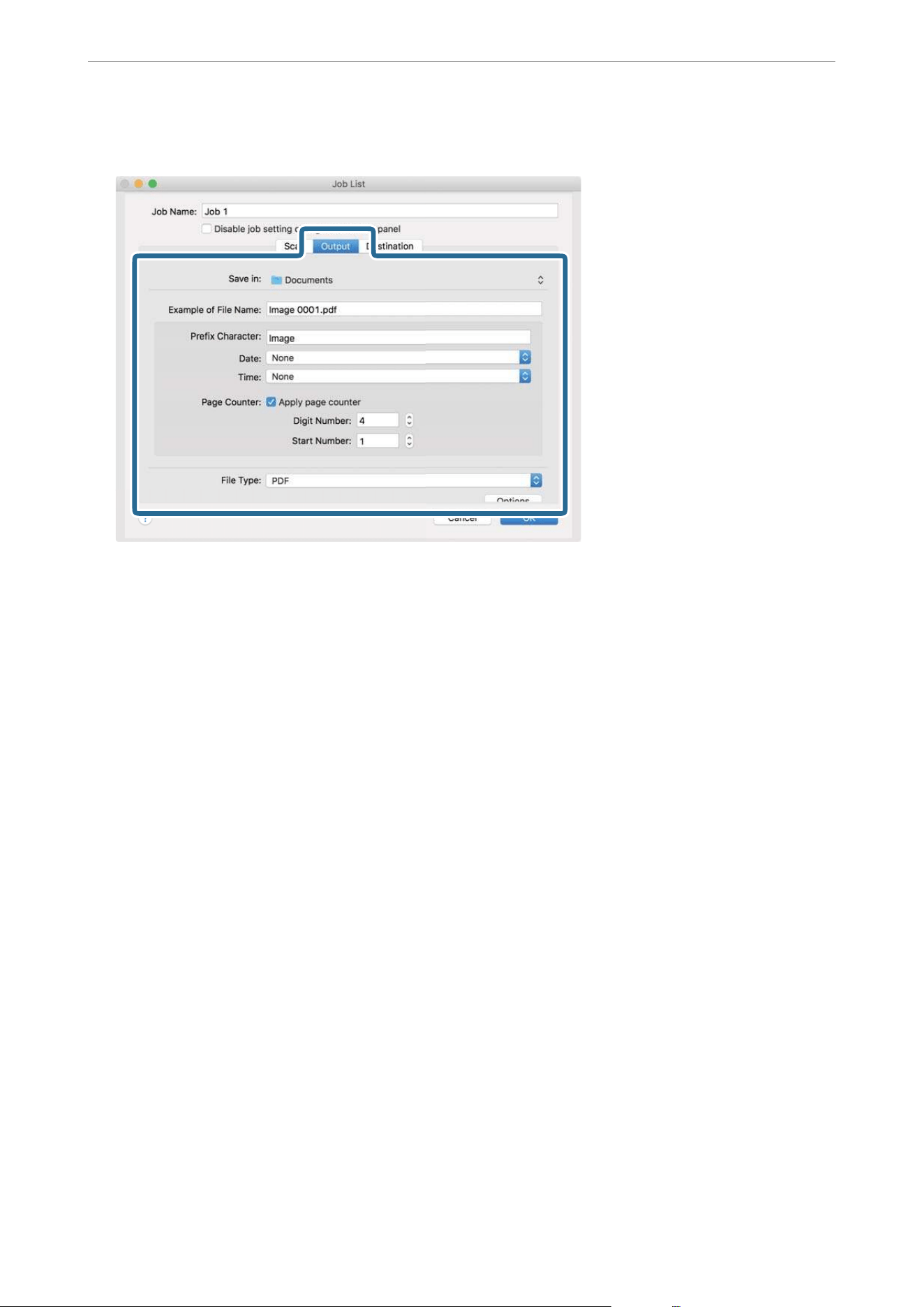
6. Click Output, and then make the output settings.
O Save in: Select the save folder for the scanned image.
O Example of File Name: Display an example of the
le
name for the current settings.
O Prex Character: Set a prex for the le name.
O Date: Add the date to the le name.
O Time: Add the time to the
le
name.
O Page Counter: Add the page counter to the le name.
O File Type: Select the save format from the list. Click Options to make detailed settings for the le.
Scanning
>
Scanning from a Computer
>
Scanning Using Document Capture (Mac OS)
109
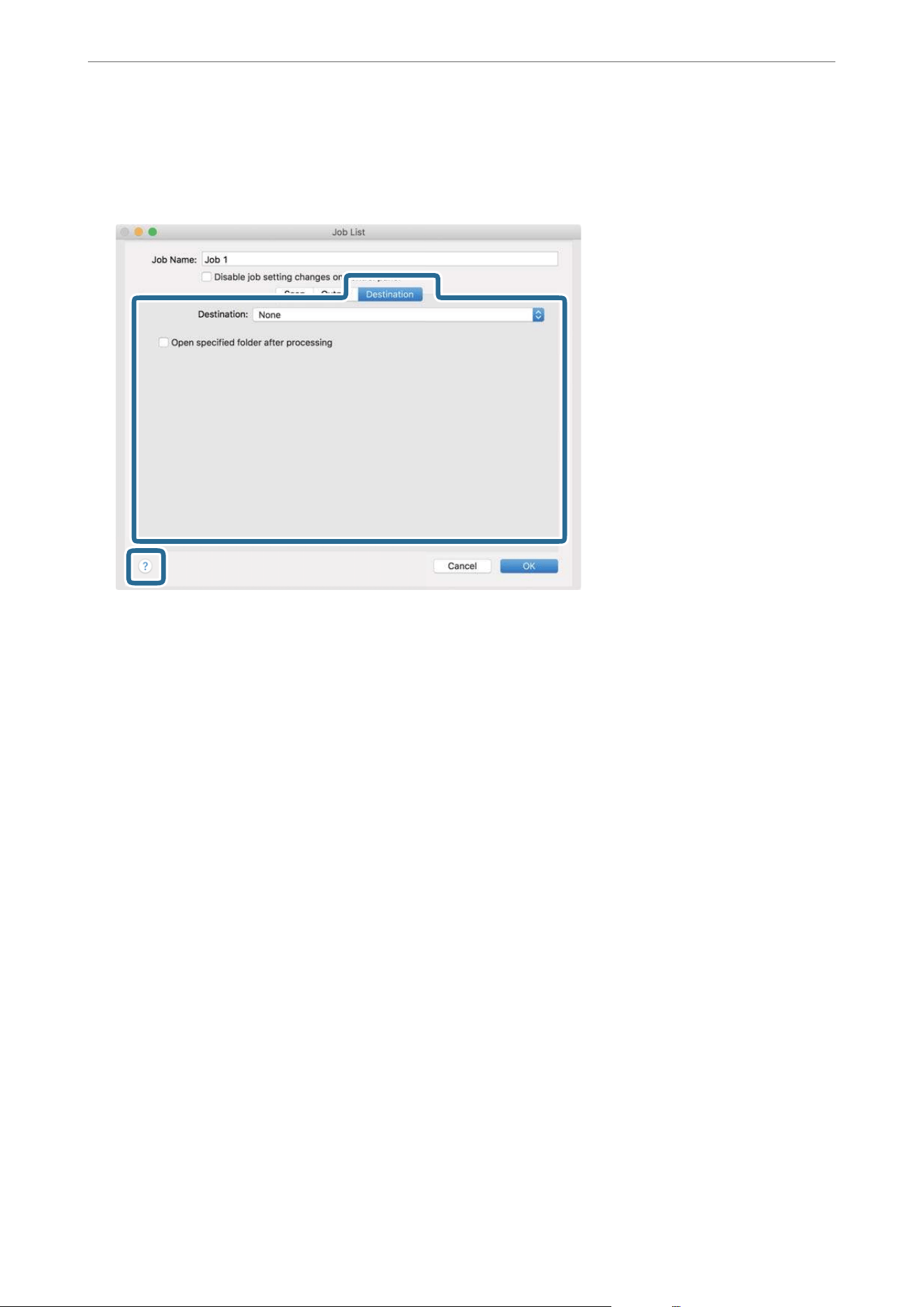
7. Click Destination, and then select the Destination.
Destination setting items are displayed according to the destination you selected. Make detailed settings as
necessary. Click the ? (Help) icon for details on each item.
Note:
O If you want to upload to a cloud service, you need to set up your account with the cloud service in advance.
O If you want to use Evernote as the destination, download the Evernote application from the Evernote Corporation
Website and install it before using this feature.
8. Click OK to close the job settings screen.
9.
Click OK to close the Job List screen.
10. Place the original.
Scanning
>
Scanning from a Computer
>
Scanning Using Document Capture (Mac OS)
110
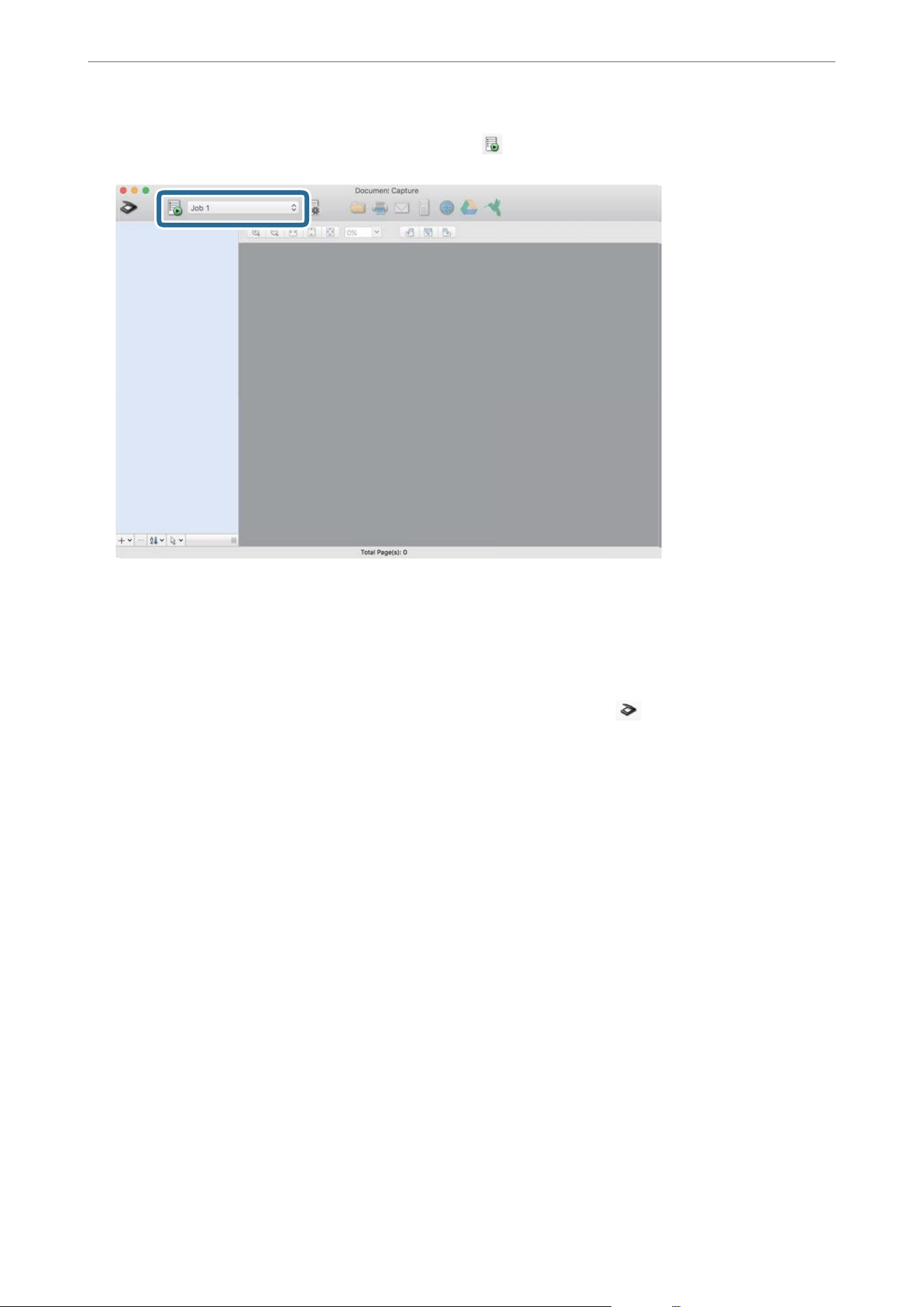
11. Select the job from the pull down list, and then click the icon.
e
selected job is performed.
12. Follow the on-screen instructions.
e scanned image is saved using the settings you made for the job.
Note:
You can scan the originals and send the scanned image without using the job. Click
and make scanning settings,
and then click Preview Scan. Next, click the destination to which you want to send the scanned image.
Scanning Using Epson Scan 2
You can scan the originals using detailed settings that are suitable for text documents.
1. Place the original.
2. Start Epson Scan 2.
O Windows 11
Click the start button, and then select All apps > EPSON > Epson Scan 2.
O Windows 10/Windows Server 2022/Windows Server 2019/Windows Server 2016
Click the start button, and then select EPSON > Epson Scan 2.
O Windows 8.1/Windows 8/Windows Server 2012 R2/Windows Server 2012
Enter the application name in the search charm, and then select the displayed icon.
O Windows 7/Windows Server 2008 R2/Windows Server 2008
Click the start button, and select All Programs or Programs > EPSON > Epson Scan 2 > Epson Scan 2.
O Mac OS
Select Go > Applications > Epson Soware > Epson Scan 2.
Scanning
>
Scanning from a Computer
>
Scanning Using Epson Scan 2
111
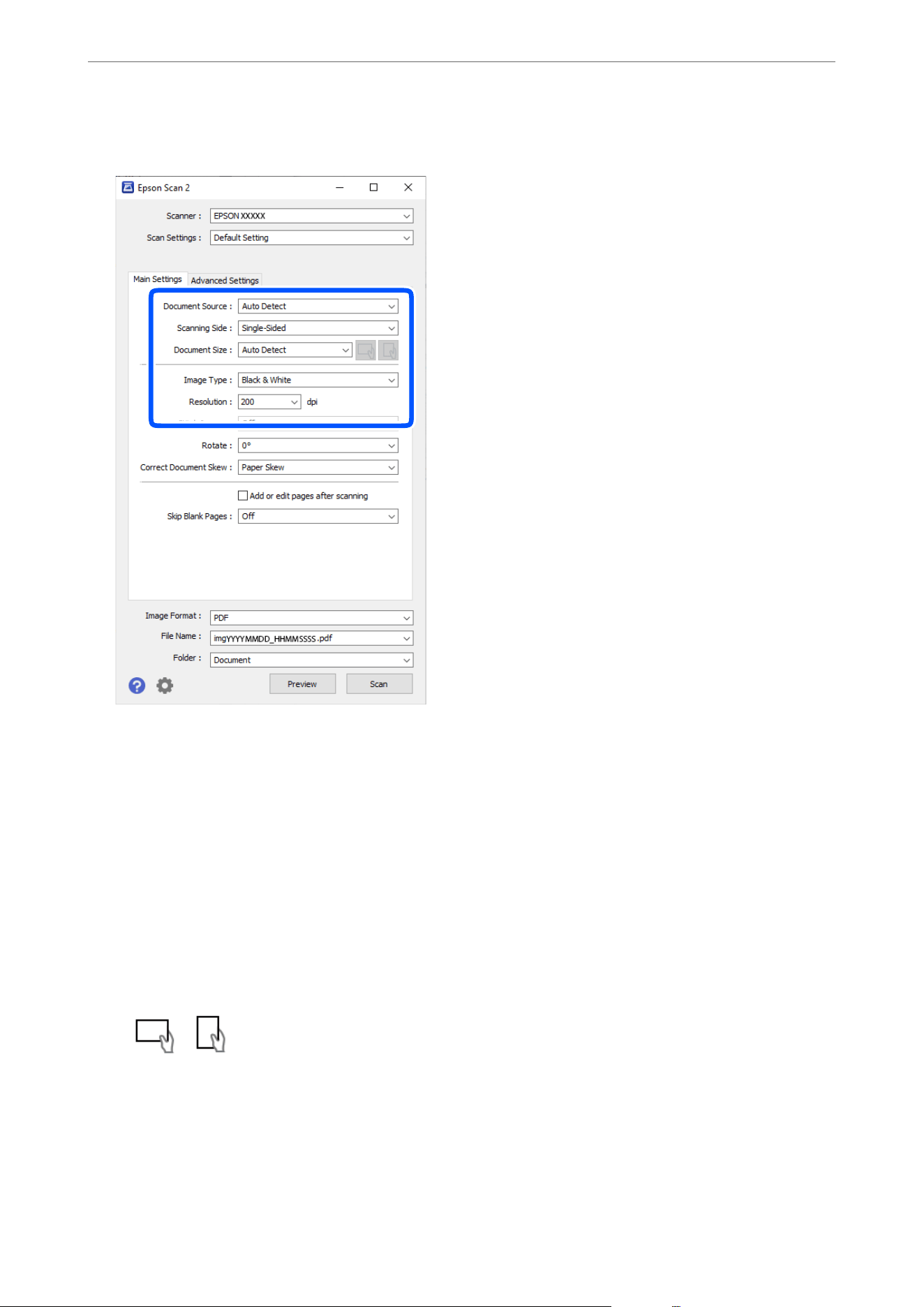
3. Make the following settings on the Main Settings tab.
O Document Source: Select the source where the original is placed. When Auto Detect is selected and there
are originals in both the ADF and on the scanner glass, scanning from the ADF takes priority.
O Scanning Side: Select the side of the original you want to scan when scanning from the ADF. Select
Double-Sided to scan both sides of the originals.
O Document Size: Select the size of the original you placed.
When loading originals with unconventional sizes, see the following to make the settings.
O When placing multiple originals on the scanner glass at once: Select Auto Detect.
O When loading long paper into the ADF: Select Auto Detect (Long Paper) or select Customize to create
a custom size.
O If the size of the original you want to scan is not on the list: Select Auto Detect or select Customize to
create a custom size.
O
/ (Original orientation) buttons: Select the set orientation of the original you placed.
Depending on the size of the original, this item may be set automatically and cannot be changed.
O Image Type: Select the color you want to use to save the scanned image.
O Resolution: Set the resolution.
Scanning
>
Scanning from a Computer
>
Scanning Using Epson Scan 2
112

Note:
On the Main Settings tab, you can also make the following settings.
O Stitch Images: Select to stitch the images on the front and back when scanning both sides of the original.
O Rotate: Select to rotate the original clockwise and scan it.
O Correct Document Skew: Select to correct the slant of the original.
O Add or edit pages aer scanning: Select to add dierent originals or edit (rotate, move, and delete) the scanned
pages aer scanning.
O Skip Blank Pages: Select to skip any blank pages in the originals when scanning from the ADF.
Some items may not be available depending on other settings you made.
4. Make other scan settings if necessary.
O You can preview the scanned image by clicking the Preview button. e preview window opens, and the
previewed image is displayed.
When you perform a preview using the ADF, the original is ejected from the ADF. Place the ejected
original again.
O On the Advanced Settings tab, you can make image adjustments using detailed settings which are suitable
for text documents, such as the following.
O Remove Background: Removes the background of the originals.
O Text Enhancement: You can make blurred letters in the original clear and sharp.
O Auto Area Segmentation: You can make letters clear and images smooth when performing black and
white scanning for a document that contains images.
O Dropout: You can remove the color specied for the scanned image, and then save it in grayscale or
black and white. For example, you can erase marks or notes you wrote in the margins with color pen
when scanning.
O Color Enhance: You can enhance the color specied for the scanned image, and then save it in grayscale
or black and white. For example, you can enhance letters or lines that are in light colors.
Note:
Some items may not be available depending on other settings you made.
Scanning
>
Scanning from a Computer
>
Scanning Using Epson Scan 2
113
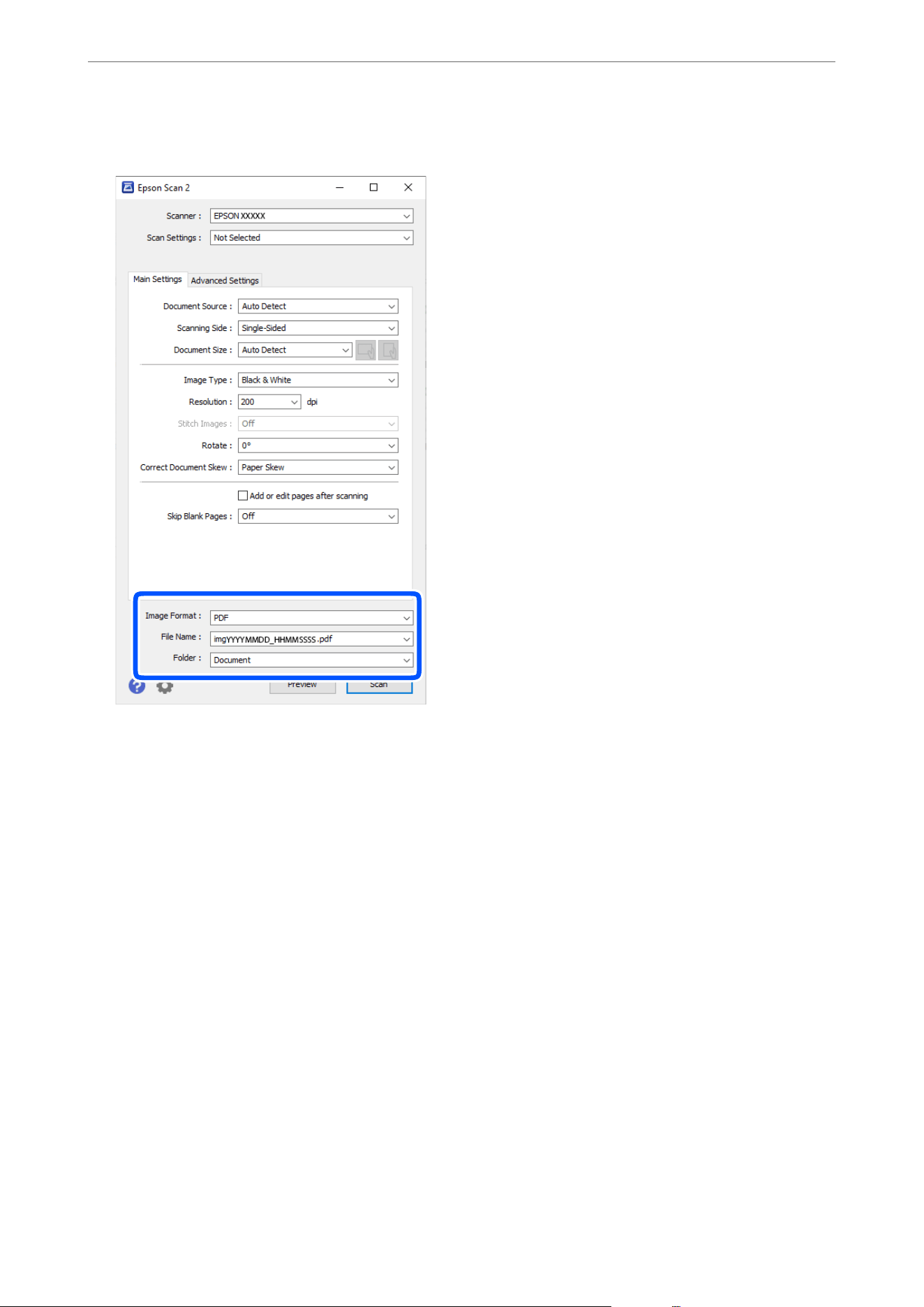
5. Set the le saving settings.
O Image Format: Select the
le
format for saving the scanned image from the list.
You can make detailed s e ttings for e ac h
le
format except BITMAP and PNG.
Aer
selecting the save
format, select Options from the list.
O File Name: Conrm the displayed le name.
You can change settings for the le name by selecting Settings from the list.
O Folder: Select the save folder for the scanned image from the list.
You can select another folder or create a new folder by selecting Select from the list.
6. Click Scan.
Note:
You can also start scanning by tapping
x
on the scanner’s control panel.
e scanned image is saved to the folder you specied.
Registering
User-dened
Sizes in Epson Scan 2
In Epson Scan 2, you can register
user-dened
sizes for the originals you want to scan.
When you are using Document Capture Pro, you can open the window by pressing the Detailed Settings button
on the Scan Settings screen.
Scanning
>
Scanning from a Computer
>
Scanning Using Epson Scan 2
114

1. In Epson Scan 2, select the Main Settings, and then select Document Size > Customize.
2. Click the + button on the Document Size screen.
3. Enter a name to save the user-dened size.
4. Enter the Width and Length of the size you want to register.
When you select Detect paper length, the scanner automatically detects the length of the original. When
using this feature, you cannot enter a Length.
Note:
Using Detect paper length may slow down the scanning speed.
5. Click OK.
e
registered
user-dened
size is added to the Document Size list.
Setting a Resolution That Suits the Scanning Purpose
Advantages and Disadvantages of Increasing the Resolution
Resolution indicates the number of pixels (smallest area of an image) for each inch (25.4 mm), and is measured
in dpi (dots per inch).
e
advantage of increasing the resolution is that the details in the image become
ne.
e
disadvantage is that the le size becomes large.
O File size becomes large
(When you double the resolution, the le size becomes about four times larger.)
O Scanning, saving, and reading the image takes a long time
O Sending and receiving emails or faxes takes a long time
O e image becomes too large to t the display or print on the paper
List of Recommended Resolutions to Suit Your Purpose
See the table and set the appropriate resolution for the purpose of your scanned image.
Purpose Resolution (Reference)
Displaying on a screen
Sending by email
Up to 200 dpi
Using Optical Character Recognition (OCR)
Creating a text searchable PDF
200 to 300 dpi
Printing using a printer
Sending by fax
200 to 300 dpi
Scanning
>
Scanning from a Computer
>
Scanning Using Epson Scan 2
115

Software Image Quality Adjustment Features
e Epson Scan 2 (scanner driver) feature allows you to adjust the image quality when scanning. When you are
using Document Capture Pro, you can open the Epson Scan 2 window by clicking the Detailed Settings button on
the scan settings screen.
You can adjust the image quality of the scanned images using the features on the Advanced Settings tab. For more
details on each feature, see the help on the screen displayed.
Note:
Some items may not be available depending on other settings you made.
Using AirPrint
AirPrint enables instant scanning from a Mac without the need to install drivers or download soware.
1. Load your originals.
2. Connect the product to the same network that your Mac is connected to, or connect the product to your Mac
with a USB cable.
3. On the System Preferences screen on your Mac, click Printers & Scanners.
4. Select your scanner from the list, then click Open Scanner.
5. Select scan settings as needed, then start scanning.
Note:
For details, see the macOS User Guide.
Scanning Using Chromebook
You can scan using a Chromebook.
1. Place the originals.
2. Connect the scanner to the network that your Chromebook is connected to, or connect the scanner to your
Chromebook using a USB cable.
3. Open the Scan app on your Chromebook.
Select the time in the bottom-right of the screen > Settings button > Advanced > Print and scan > Scan.
4. Select your scanner, and then set other items if necessary.
5. Scan from your Chromebook with your scanner.
Note:
For more details, check
https://www.google.com/chromebook/.
Scanning
>
Scanning from a Computer
>
Scanning Using Chromebook
116
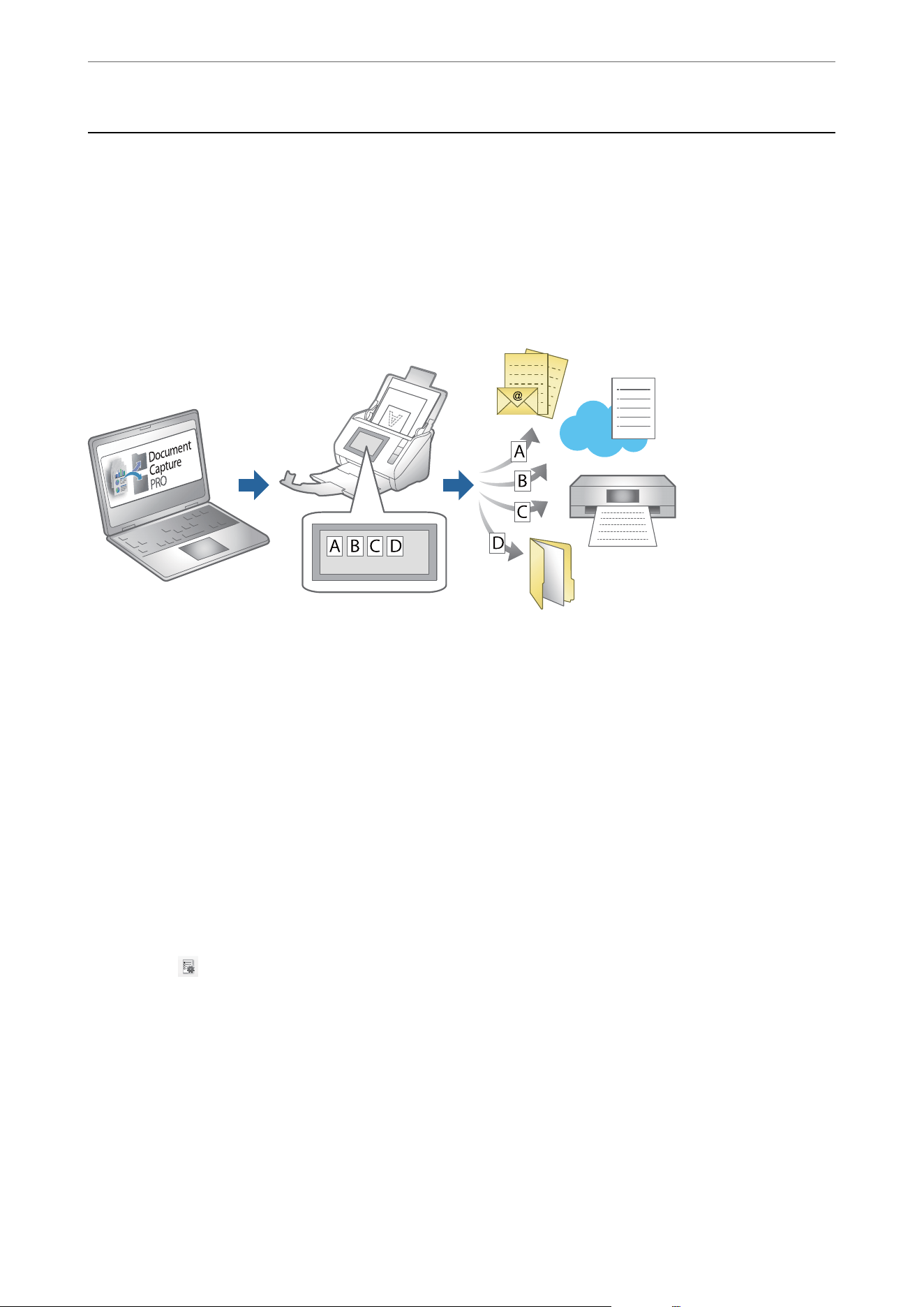
Setting a Job
You can register a set of operations, such as Scan-Save-Send, as a "job".
By registering a series of operations in advance as a job using Document Capture Pro (Windows) or Document
Capture (Mac OS), you can perform all of the operations by simply selecting the job.
Note:
You can set the registered job as Presets on the scanner's control panel. is is available only for computers connected over a
network.
Creating a Job and Assigning a Job to the Control Panel (Windows)
See the Document Capture Pro manual for details. Access the URL below to view the latest manual.
https://support.epson.net/dcp/
Note:
ere is a preset job that saves scanned images as PDFs.
Creating and Registering a Job (Mac OS)
Explains how to set a job in Document Capture. See the Document Capture help for details on the features.
1. Start Document Capture.
2. Click the
icon on the main window.
e
Job List window is displayed.
3. Click the + icon.
e Job Settings window is displayed.
4. Make the job settings on the Job Settings window.
O Job Name: Enter the name of the job you want to register.
O Scan: Make scan settings such as the size of the originals or the resolution.
O Output: Set the saving destination, the saving format, the naming rules of the les, and so on.
Scanning
>
Setting a Job
>
Creating and Registering a Job (Mac OS)
117

O Destination: Select the destination of the scanned images. You can send them by email or forward them to
an FTP server or Web server.
5. Click OK to return to the Job List window.
e created job is registered in the Job List.
6. Click OK to return to the main window.
Assigning a Job to the Control Panel (Mac OS)
Explains how to assign a job to the scanner’s control panel in Document Capture. See the Document Capture help
for details on the features.
1. Start Document Capture.
2.
Click the
icon on the main window.
e Job List window is displayed.
3. Click the
icon and select Event Settings.
4. Select the job you want to run on the control panel from the pull-down menu.
5. Click OK to return to the Job List window.
e job is assigned to the scanner’s control panel.
6.
Click OK to return to the main window.
Scanning from a Smart Device
Scanning Using Epson Smart Panel
To scan from your smart device, search for and install Epson Smart Panel from App Store or Google Play.
Note:
Connect the scanner to the smart device before scanning.
1. Place the original.
2. Start Epson Smart Panel.
3. Follow the on-screen instructions to scan.
Note:
If the size of your original does not appear in the list, select Auto.
e
scanned image is saved to your smart device, send to cloud service, or send to email.
Scanning
>
Scanning from a Smart Device
>
Scanning Using Epson Smart Panel
118

Scanning Using Mopria Scan
Mopria Scan enables instant network scanning from Android smart phones or tablets.
1. Install Mopria Scan from Google Play.
2. Place the originals.
3. Set up your scanner for network scanning. See the link below.
“Connecting the Scanner to the Network” on page 209
4. Connect your Android device over a wireless connection (Wi-Fi) to the same network that your scanner is
using.
5. Scan from your device with your scanner.
Note:
For more details, access the Mopria Web site at
https://mopria.org.
Scanning
>
Scanning from a Smart Device
>
Scanning Using Mopria Scan
119

Required Settings for Scanning
Connecting the Scanner to the Network.................................121
Making Wi-Fi Settings from the Control Panel............................121
Setting Up Scanning from the Control Panel (the Scan to Features).............121
Creating a Network Folder...........................................122
Registering an Email Server..........................................128
Registering Destinations to Contacts...................................131
Setting Up AirPrint................................................140
Registering
User-dened
Sizes in Web
Cong
.............................140

Connecting the Scanner to the Network
If the scanner is not connected to the network, use the installer to connect the scanner to the network.
Visit the following website and search for your model to access the installer.
https://epson.com/support (U.S.)
https://epson.ca/support (Canada)
https://latin.epson.com/support (Latin America)
https://epson.sn > Setup (Other regions)
*
*
You can view the operating instructions in the Web Video Manuals. Access the following URL.
https://support.epson.net/publist/vlink.php?code=NPD7509
You can make network settings manually from the control panel without using the installer. See the following.
“Before Making Network Connection” on page 209
“Assigning the IP Address” on page 211
“Connecting to Ethernet” on page 212
“Connecting to the Wireless LAN (Wi-Fi)” on page 213
Related Information
&
“Checking the Network Connection Status” on page 205
Making Wi-Fi Settings from the Control Panel
You can make network settings from the scanner's control panel in several ways. Choose the connection method
that matches the environment and conditions that you are using.
If you know the information for the wireless router such as SSID and password, you can make settings manually.
If the wireless router supports WPS, you can make settings by using push button setup.
Aer connecting the scanner to the network, connect to the scanner from the device that you want to use
(computer, smart device, tablet, and so on.)
Related Information
&
“Making Wi-Fi Settings by Entering the SSID and Password” on page 213
& “Making Wi-Fi Settings by Push Button Setup (WPS)” on page 214
& “Making Wi-Fi Settings by PIN Code Setup (WPS)” on page 215
Setting Up Scanning from the Control Panel (the Scan
to Features)
You need to make several settings in advance to use the Scan to features.
See the following for the work ow to set up each feature.
Required Settings for Scanning
>
Setting Up Scanning from the Control Panel (the Scan to Features)
121

“Scan to Computer Feature Work Flow” on page 67
“Scan to USB Drive Feature Work Flow” on page 89
“Scan to Cloud Feature Work Flow” on page 83
“Scan to Email Feature Work Flow” on page 76
“Scan to Network Folder/FTP Feature Work Flow” on page 69
“Scan to WSD Work Flow” on page 94
Creating a Network Folder
Create a network folder on your computer. e computer must be connected to the same network as the scanner.
e method to set the network folder varies depending on the environment. is is an example of creating a
network folder on the desktop of a computer under the following environment.
O Operating system: Windows 10
O Location for creating shared folder: Desktop
O Folder path: C:\Users\xxxx\Desktop\scan_folder (create a network folder called "scan_folder" on the desktop)
1.
Log in to the computer on which you want to create the network folder with a user account that has
administrator authority.
Note:
If you do not know which user account has administrator authority, check with your computer administrator.
2.
Make sure that the device name (computer name) does not contain double-byte characters. Click the Windows
Start button, and then select
Settings > System > About.
Note:
If there are double-byte characters in the device name, le saving may fail.
3. Check that the string displayed in Device
Specications
> Device Name does not contain any double-byte
characters.
ere should be no issues if the device name contains only single-byte characters. Close the screen.
Required Settings for Scanning
>
Creating a Network Folder
122
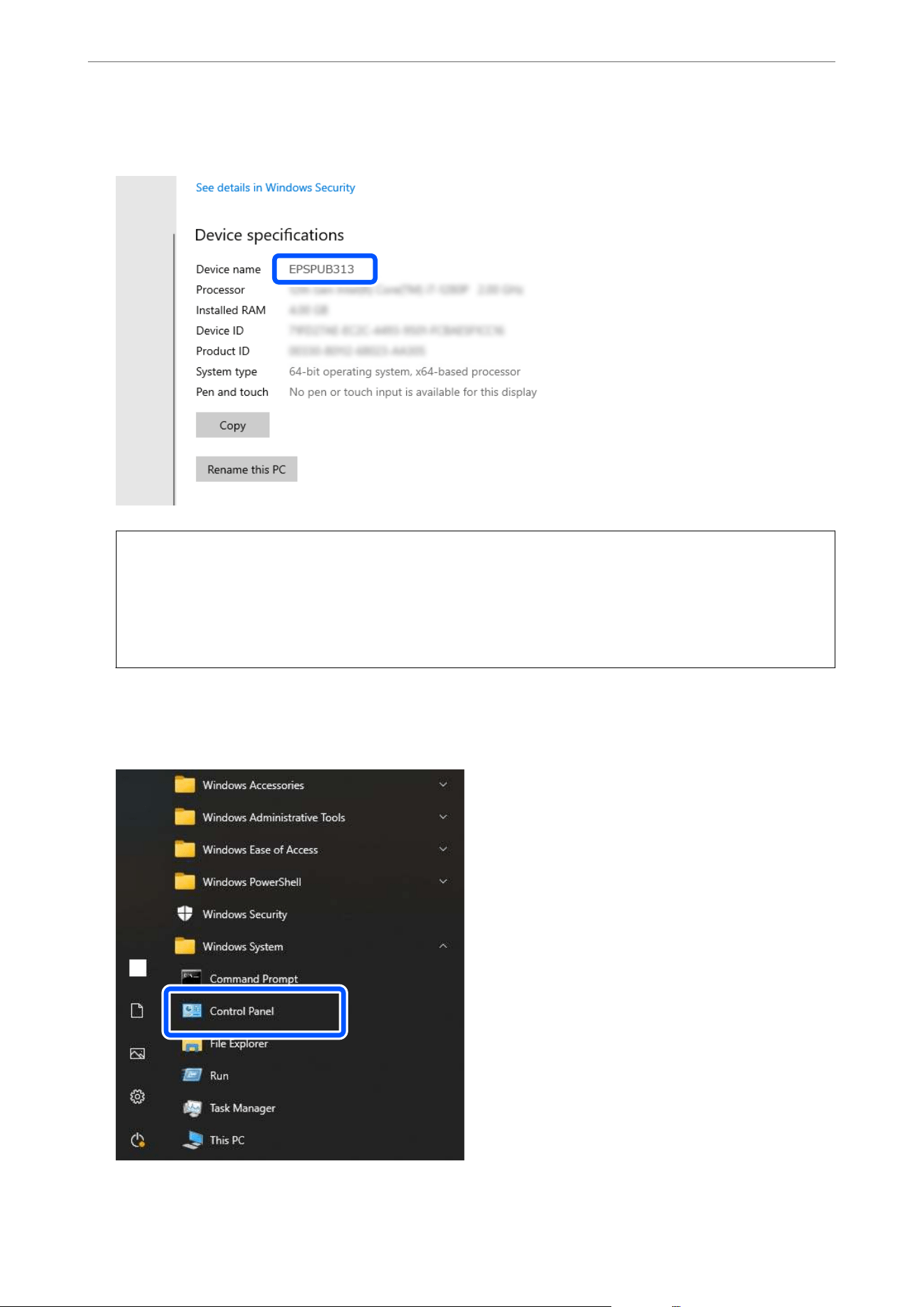
Example: EPSPUB313
c
Important:
If the device name contains double-byte characters, use a computer that does not use double-byte characters or
rename the device.
If you need to change the device name, make sure you check with your computer administrator in advance as it
may aect computer management and access to resources.
Next, check your computer settings.
4. Click the Windows start button, and then select Windows System > Control Panel.
Required Settings for Scanning
>
Creating a Network Folder
123
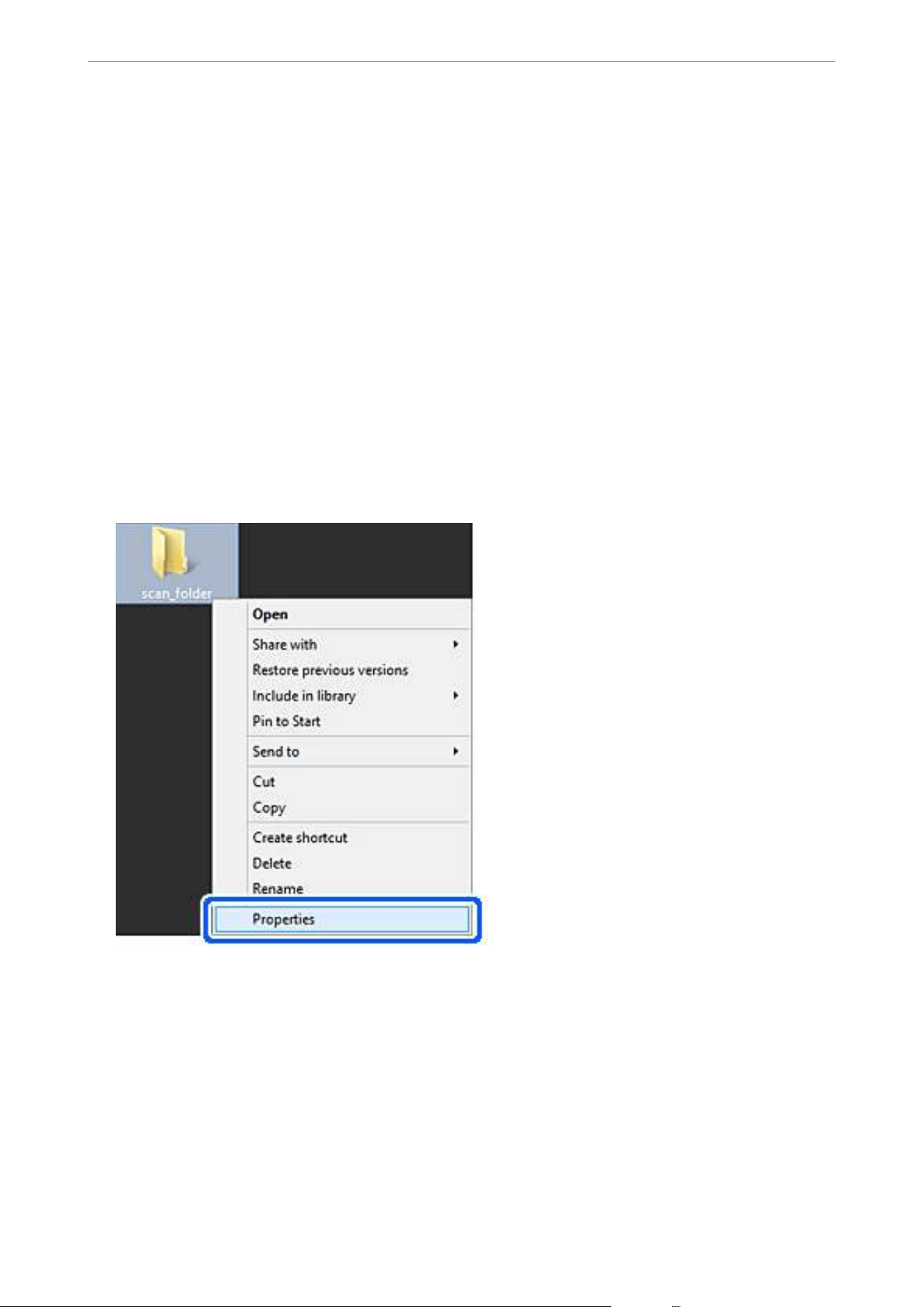
5. On the Control Panel, click Network and Internet > Network and Sharing Center > Change advanced
sharing settings.
e network prole is displayed.
6. Make sure that Turn on le and printer sharing is selected under File and Printer Sharing for the network
prole (current prole).
If already selected, click Cancel and close the window.
When you change the settings, click Save Changes and close the window.
Next, create a network folder.
7. Create and name a folder on your desktop.
For the folder name, enter within 1 to 12 alphanumeric characters. If the name exceeds 12 characters, you may
not be able to access the folder depending on your environment.
Example: scan_folder
8. Right click the folder, and then select Properties.
Required Settings for Scanning
>
Creating a Network Folder
124
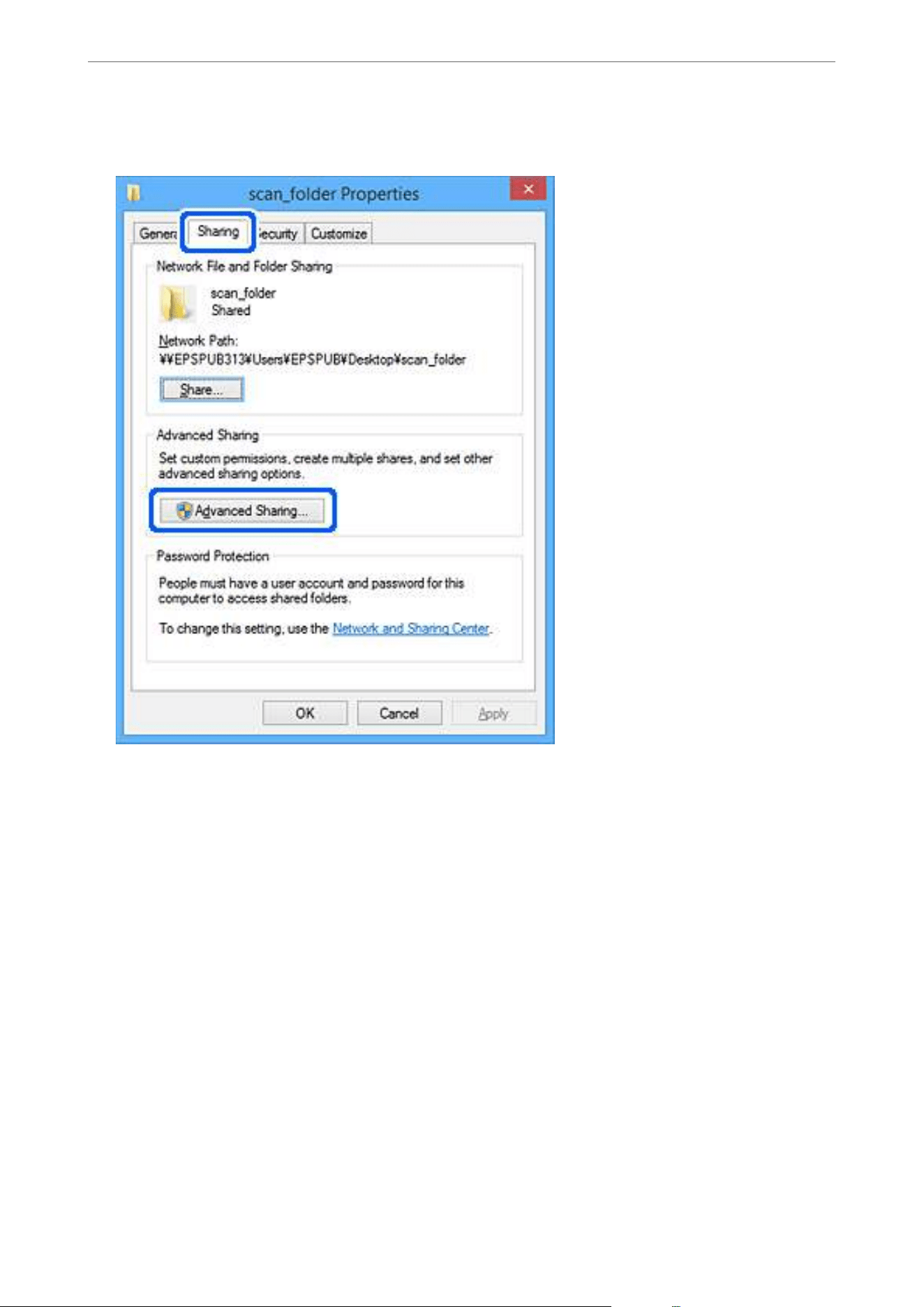
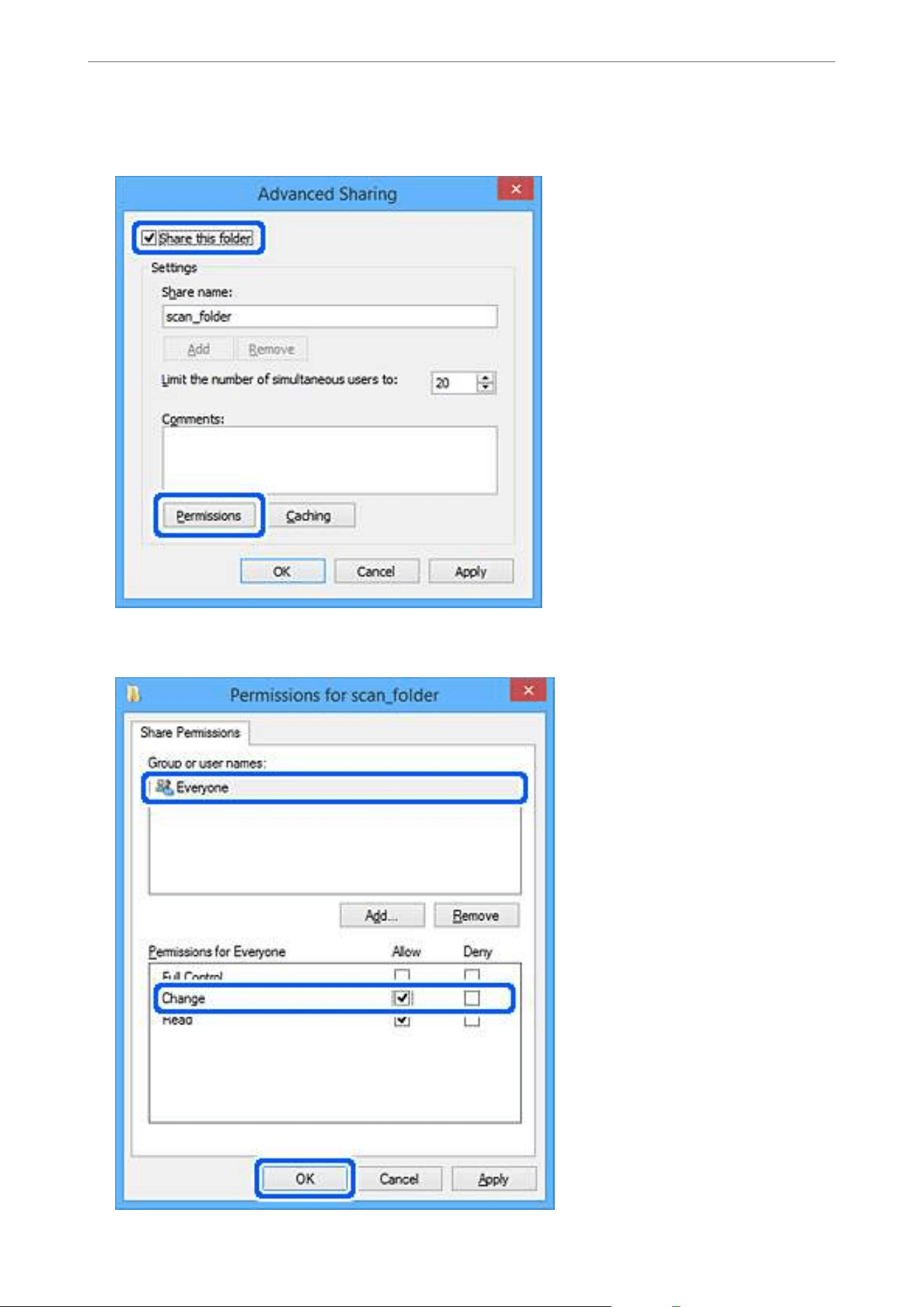
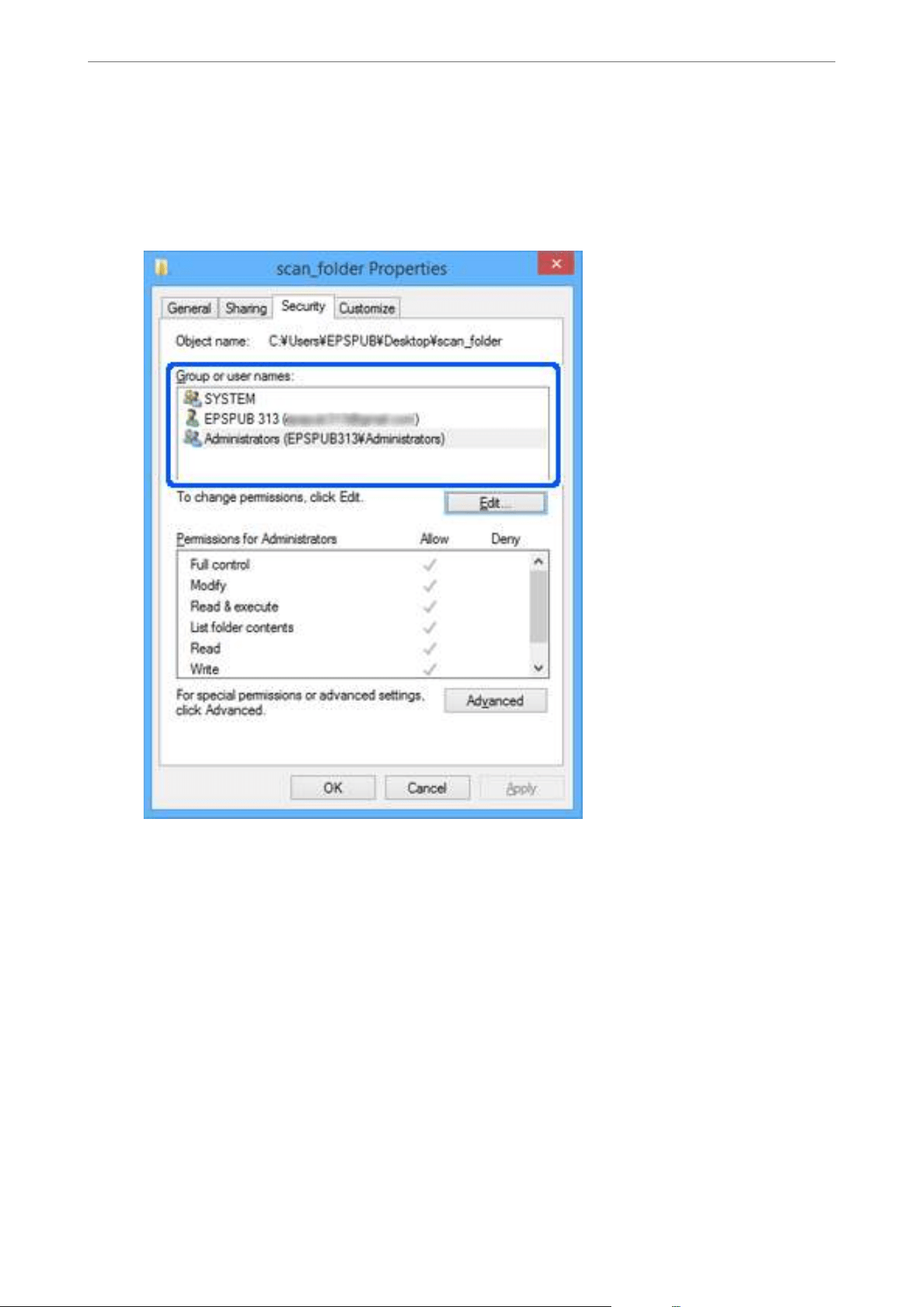
12. Click OK to close the screen and return to the Properties window.
Note:
You can check which groups or users have access to the network folder on the Security tab > Group or user names.
Example: When the user logged on to the computer as well as Administrators can access the network folder
13.
Select the Sharing tab.
e network path for the network folder is displayed. is is used when registering to your contacts for the
scanner. Please write it down.
Required Settings for Scanning
>
Creating a Network Folder
127
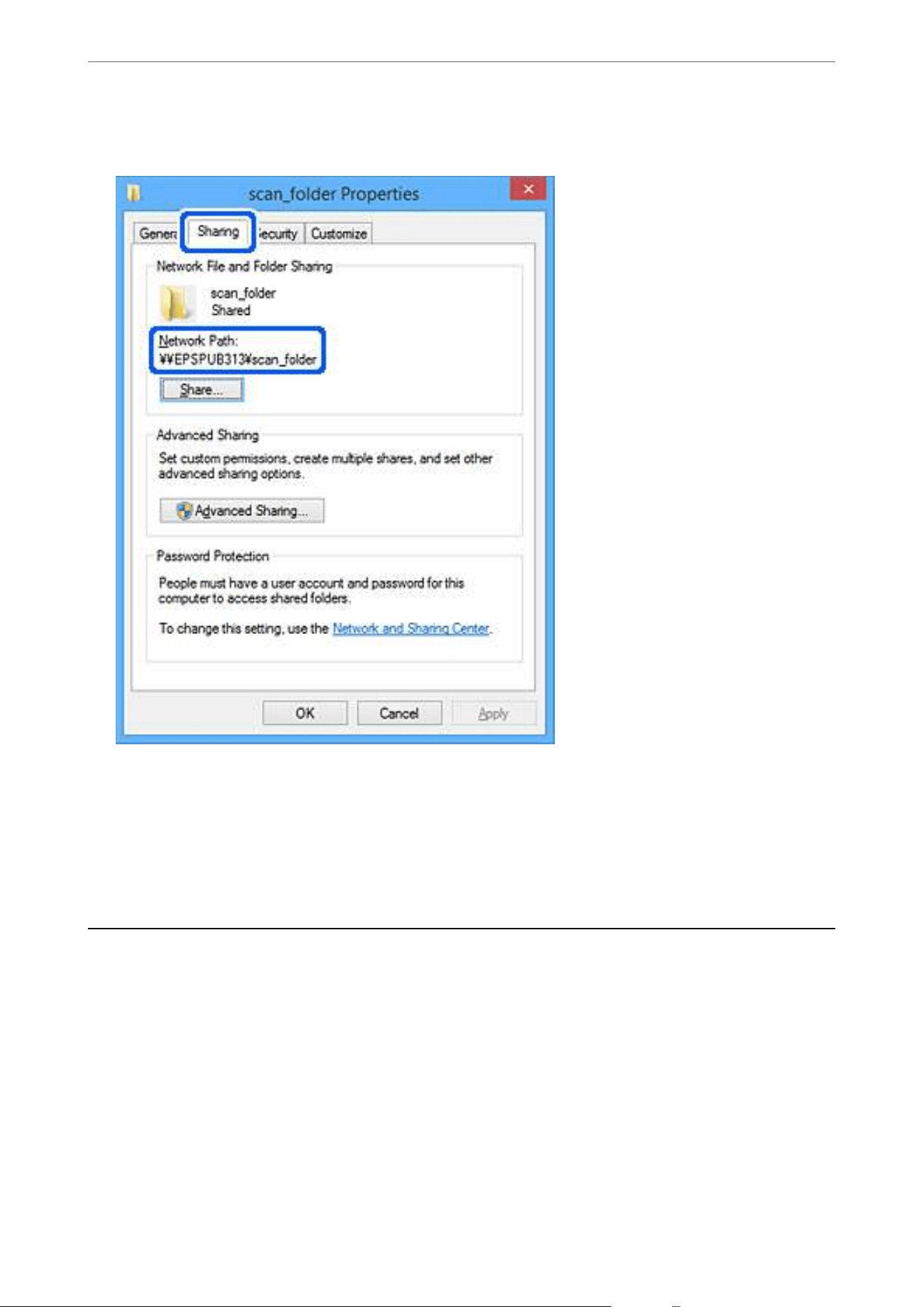
Example: \\EPSPUB313\scan_folder
14. Click Close or OK to close the window.
is completes creating a network folder.
Click the link below for more details on using the "Scan to Network Folder/FTP" feature.
“Scan to Network Folder/FTP Feature Work Flow” on page 69
Registering an Email Server
Check the following before conguring the email server.
O
e
scanner is connected to the network
O Setup information for email server
When you are using an Internet based email server, check the setting information from the provider or website.
Note:
You can send scanned images by email through Epson's cloud service, Epson Connect, without having to setup an email
server. For more details, see the Scan to Cloud feature.
“Scan to Cloud Feature Work Flow” on page 83
Required Settings for Scanning
>
Registering an Email Server
128

How to Register
Access Web Cong, select the Network tab > Email Server > Basic.
“How to Run Web
Cong
in a Web Browser” on page 35
You can also make settings on the scanner's control panel. Select Settings > Network Settings > Advanced >
Email Server > Server Settings.
Email Server Setting Items
Item Settings and Explanation
Authentication Method Specify the authentication method for the scanner to access the mail server.
O Authentication is disabled when communicating with a mail
server.
SMTP AUTH The email server needs to support SMTP authentication.
POP before SMTP When you select this item, set a POP3 server.
Authenticated Account If you select SMTP AUTH or POP before SMTP as the Authentication Method, enter the
authenticated account name. Enter within 0 to 255 characters in ASCII (0x20 - 0x7E).
Authenticated Password If you select SMTP AUTH or POP before SMTP as the Authentication Method, enter the
authenticated password. Enter between 0 and 20 characters in ASCII (0x20-0x7E).
Sender's Email Address Set the email address that will be used to send emails from the scanner. Although you can
use an existing email address, we recommend that you acquire and set up a dedicated email
address so that it can be distinguished from emails sent from the scanner.
Enter within 0 to 255 characters in ASCII (0x20 - 0x7E) except for : ( ) < > [ ] ; ¥. A period "."
cannot be the rst character.
SMTP Server Address Enter between 0 and 255 characters using A-Z a-z 0-9 . - . You can use IPv4 or FQDN format.
SMTP Server Port Number Enter a number between 1 and 65535.
Secure Connection Specify the secure connection method for the email server.
None If you select POP before SMTP in Authentication Method,
the connection method is set to None.
SSL/TLS This is available when Authentication Method is set to O
or SMTP AUTH.
STARTTLS This is available when Authentication Method is set to O
or SMTP AUTH.
Certicate Validation (Web
Cong only)
The certicate is validated when this is enabled. We recommend setting this to Enable when
Secure Connection is set to anything other than None.
POP3 Server Address If you select POP before SMTP as the Authentication Method, enter the server address of
the POP3 server. You can enter between 0 and 255 characters using A-Z a-z 0-9. You can use
IPv4 or FQDN format.
POP3 Server Port Number Set when you select POP before SMTP in Authentication Method. Enter a number
between 1 and 65535.
Click the link below for more details on using the "Scan to Email" feature.
“Scan to Email Feature Work Flow” on page 76
Required Settings for Scanning
>
Registering an Email Server
129

Checking an Email Server Connection
1. Select the connection test menu.
O When setting up from Web Cong:
Select the Network tab > Email Server > Connection Test > Start.
O When setting from the control panel:
Select Settings > Network Settings >Advanced > Email Server > Connection Check.
e connection test to the mail server is started.
2. Check the test results.
O
e
test is successful when the message Connection test was successful. is displayed.
O If an error is displayed, follow the instructions in the message to clear the error.
“Mail Server Connection Test References” on page 130
Click the link below for more details on using the "Scan to Email" feature.
“Scan to Email Feature Work Flow” on page 76
Mail Server Connection Test References
Message Cause
SMTP server communication error.
Check the following. - Network
Settings
This message appears when
O The scanner is not connected to a network
O SMTP server is down
O Network connection is disconnected while communicating
O Received incomplete data
POP3 server communication error.
Check the following. - Network
Settings
This message appears when
O The scanner is not connected to a network
O POP3 server is down
O Network connection is disconnected while communicating
O Received incomplete data
An error occurred while connecting to
SMTP server. Check the followings. -
SMTP Server Address - DNS Server
This message appears when
O Connecting to a DNS server failed
O Name resolution for an SMTP server failed
An error occurred while connecting to
POP3 server. Check the followings. -
POP3 Server Address - DNS Server
This message appears when
O Connecting to a DNS server failed
O Name resolution for a POP3 server failed
SMTP server authentication error.
Check the followings. - Authentication
Method - Authenticated Account -
Authenticated Password
This message appears when SMTP server authentication failed.
Required Settings for Scanning
>
Registering an Email Server
>
Checking an Email Server Connection
130
Message Cause
POP3 server authentication error.
Check the followings. - Authentication
Method - Authenticated Account -
Authenticated Password
This message appears when POP3 server authentication failed.
Unsupported communication method.
Check the followings. - SMTP Server
Address - SMTP Server Port Number
This message appears when you try to communicate with unsupported protocols.
Connection to SMTP server failed.
Change Secure Connection to None.
This message appears when an SMTP mismatch occurs between a server and
a client, or when the server does not support SMTP secure connection (SSL
connection).
Connection to SMTP server failed.
Change Secure Connection to SSL/TLS.
This message appears when an SMTP mismatch occurs between a server and a
client, or when the server requests to use an SSL/TLS connection for an SMTP
secure connection.
Connection to SMTP server failed.
Change Secure Connection to
STARTTLS.
This message appears when an SMTP mismatch occurs between a server and a
client, or when the server requests to use a STARTTLS connection for an SMTP
secure connection.
The connection is untrusted. Check the
following. - Date and Time
This message appears when the scanner’s date and time setting is incorrect or the
certicate has expired.
The connection is untrusted. Check the
following. - CA Certicate
This message appears when the scanner does not have a root certicate
corresponding to the server or a CA Certicate has not been imported.
The connection is not secured. This message appears when the obtained certicate is damaged.
SMTP server authentication failed.
Change Authentication Method to
SMTP-AUTH.
This message appears when an authentication method mismatch occurs between
a server and a client. The server supports SMTP AUTH.
SMTP server authentication failed.
Change Authentication Method to
POP before SMTP.
This message appears when an authentication method mismatch occurs between
a server and a client. The server does not support SMTP AUTH.
Sender's Email Address is incorrect.
Change to the email address for your
email service.
This message appears when the specied sender’s Email address is wrong.
Cannot access the product until
processing is complete.
This message appears when the scanner is busy.
Registering Destinations to Contacts
Registering destinations in the scanner's contacts list allows you to easily enter the destination when scanning.
You can register the following types of destinations in the contacts list. You can register up to 300 entries in total.
Email Destination for email.
You need to congure the email server settings beforehand.
Network Folder Destination for scan data.
You need to prepare the network folder beforehand.
Required Settings for Scanning
>
Registering Destinations to Contacts
131
Function Comparison by Registration Tool
ere are three functions available for conguring the scanner's Contacts: Web Cong, Epson Device Admin, and
the control panel.
e
dierences
between three tools are listed in the table below.
✓ : You can make this setting. - : You cannot make this setting.
Functions
Web Cong
*
Epson Device Admin Scanner’s control panel
Registering a destination
✓✓✓
Editing a destination
✓✓✓
Adding a group
✓✓✓
Editing a group
✓✓✓
Deleting a destination or
groups
✓✓✓
Deleting all destinations
✓✓
–
Importing a le
✓✓
–
Exporting to a le
✓✓
–
* Log on as an administrator to make settings.
Registering a Destination to Contacts
e setting items dier depending on the Type of destination you want to register.
Registering a Destination (Email)
How to Register
Access Web
Cong
, and then select the Scan tab > Contacts. Select the number you want to register to your
contacts, and then click Edit.
“How to Run Web Cong in a Web Browser” on page 35
You can also make settings on the scanner's control panel. Select Settings > Contacts Manager > Register/Delete
> Add Entry > Add Contact > Email.
Contacts Setting Items
Item Settings and Explanation
Number (Registry Number) Sets the number of the destination to be registered in your contacts.
Name Enter the name to be displayed in Contacts within 30 characters in Unicode
(UTF-16). If you do not specify this, leave it blank.
Index Word Enter the name to be used for indexing and searching Contacts within 30
characters in Unicode (UTF-16). If you do not specify this, leave it blank.
Type (Web Cong only) Select Email.
Required Settings for Scanning
>
Registering Destinations to Contacts
>
Registering a Destination to Con
…
132
Item Settings and Explanation
Email Address Enter the destination email addresses.
Use half-width characters A-Z a-z 0-9 ! # $ % & ' * + - . /= ? ^ _ { | } ~ @, and enter
between 1 and 255 characters.
Apply button (Web Cong only) The destination is registered using the information you entered.
OK button (control panel only)
Click the link below for more details on using the "Scan to Email" feature.
“Scan to Email Feature Work Flow” on page 76
Registering a Destination (Network Folder (SMB))
How to Register
Access Web Cong, and then select the Scan tab > Contacts. Select the number you want to register to your
contacts, and then click Edit.
“How to Run Web Cong in a Web Browser” on page 35
You can also make settings on the scanner's control panel. Select Settings > Contacts Manager > Register/Delete
> Add Entry > Add Contact > Network Folder/FTP.
Contacts Setting Items
Item Settings and Explanation
Number (Registry Number) Sets the number of the destination to be registered in your contacts.
Name Enter the name to be displayed in Contacts within 30 characters in Unicode
(UTF-16). When this is entered, you can also enter an Index Word.
If you do not specify this, leave it blank.
Index Word Enter the name to be used for indexing and searching Contacts within 30
characters in Unicode (UTF-16).
If you do not specify this, leave it blank.
Type (Web Cong only) Select Network Folder (SMB).
Communication Mode (control panel
only)
Required Settings for Scanning
>
Registering Destinations to Contacts
>
Registering a Destination to Con
…
133
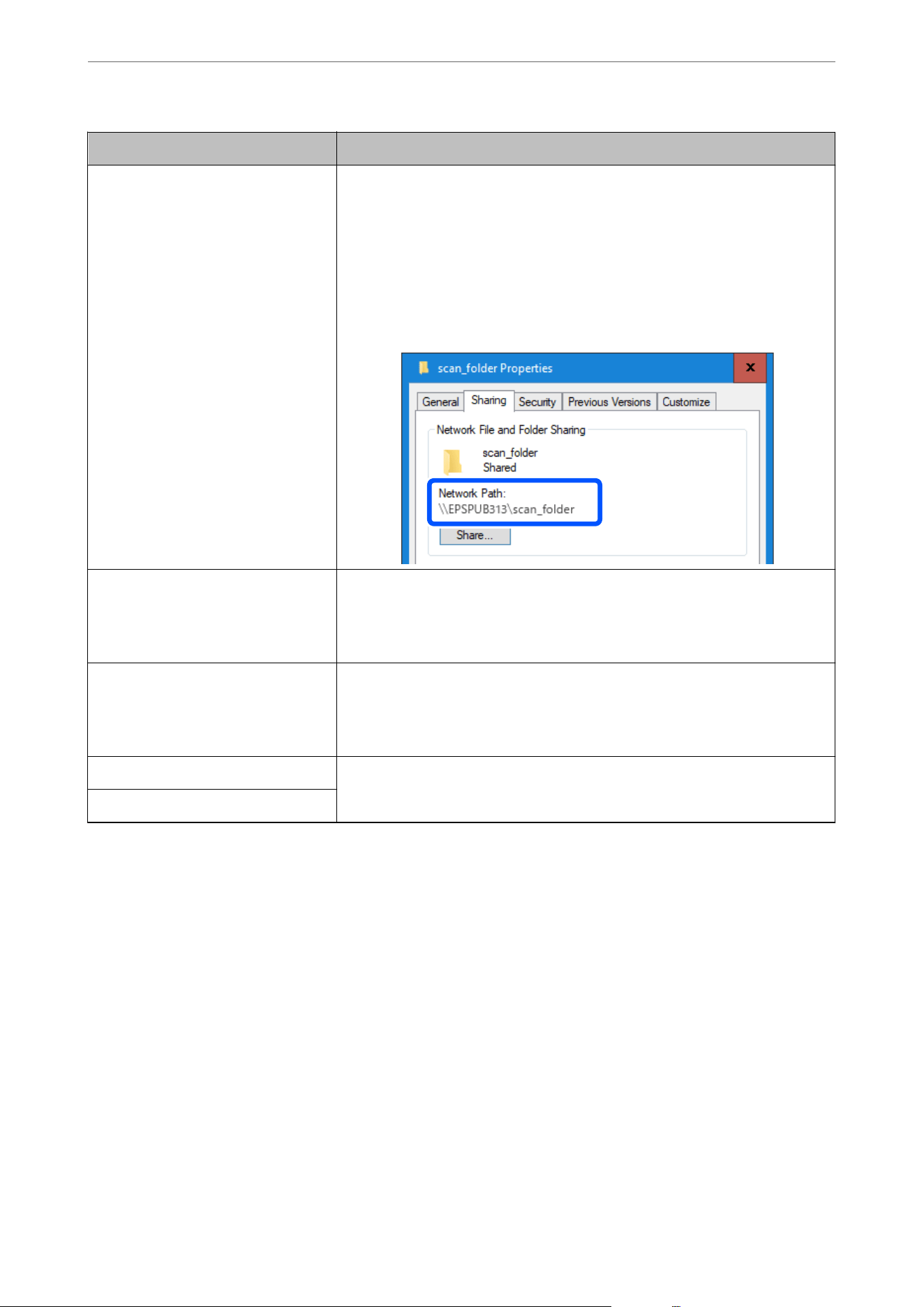
Item Settings and Explanation
Save to Enter the path to the destination network folder within 1 to 253 characters in
Unicode (UTF-16).
The "\\" at the start of the path has already been entered.
Note:
Open the properties for the network folder and enter the network path as it
appears on the Sharing tab.
Example: \\EPSPUB313\scan_folder
User Name Enter the login user name (user account) for the computer on which the
destination folder was created.
Enter the user name within 30 characters in Unicode (UTF-16). However, avoid
using control characters (0x00 to 0x1f, 0x7F).
Password Enter the login password (user account password) for the computer on which the
destination folder was created.
Enter the password within 0 to 20 characters in Unicode (UTF-16). However, avoid
using control characters (0x00 to 0x1f, 0x7F).
Apply button (Web Cong only) The destination is registered using the information you entered.
OK button (control panel only)
Click the link below for more details on using the "Scan to Network Folder/FTP" feature.
“Scan to Network Folder/FTP Feature Work Flow” on page 69
Registering a Destination (FTP)
How to Register
Access Web Cong, and then select the Scan tab > Contacts. Select the number you want to register to your
contacts, and then click Edit.
“How to Run Web Cong in a Web Browser” on page 35
You can also make settings on the scanner's control panel. Select Settings > Contacts Manager > Register/Delete
> Add Entry > Add Contact > Network Folder/FTP.
Contacts Setting Items
Required Settings for Scanning
>
Registering Destinations to Contacts
>
Registering a Destination to Con
…
134
Item Settings and Explanation
Number (Registry Number) Sets the number of the destination to be registered in your contacts.
Name Enter the name to be displayed in Contacts within 30 characters in Unicode
(UTF-16). If you do not specify this, leave it blank.
Index Word Enter the name to be used for indexing and searching Contacts within 30
characters in Unicode (UTF-16). If you do not specify this, leave it blank.
Type (Web Cong only) Select FTP.
Secure Connection (Web Cong only) Select FTP or FTPS according to the le transfer protocol the FTP server supports.
Select FTPS to allow the scanner to communicate with security measures.
Communication Mode (control panel
only)
Save to Enter the name of the destination server within 1 to 253 characters (excluding
"ftp://" and "ftps://") in Unicode (UTF-16).
User Name Enter a user name to access an FTP server in 30 characters or less in Unicode
(UTF-16). However, avoid using control characters (0x00 to 0x1f, 0x7F). If the server
allows anonymous connections, enter a user name such as Anonymous and FTP. If
you do not specify this, leave it blank.
Password Enter a password to access the FTP server within 0 to 20 characters or less in
Unicode (UTF-16). However, avoid using control characters (0x00 to 0x1f, 0x7F). If
you do not specify this, leave it blank.
Connection Mode Select the connection mode from the menu. If a rewall is set between the
scanner and the FTP server, select Passive Mode.
Port Number Enter the FTP server port number between 1 and 65535.
Certicate Validation (Web Cong
only)
The FTP server's certicate is validated when this is enabled. This is available when
FTPS is selected for Secure Connection.
Before setting up, you need to import the CA Certicate to the scanner.
Apply button (Web Cong only) The destination is registered using the information you entered.
OK button (control panel only)
Click the link below for more details on using the "Scan to Network Folder/FTP" feature.
“Scan to Network Folder/FTP Feature Work Flow” on page 69
Registering a Destination (SharePoint(WebDAV))
How to Register
Access Web Cong, and then select the Scan tab > Contacts. Select the number you want to register to your
contacts, and then click Edit.
“How to Run Web
Cong
in a Web Browser” on page 35
You can also make settings on the scanner's control panel. Select Settings > Contacts Manager > Register/Delete
> Add Entry > Add Contact > Network Folder/FTP.
Contacts Setting Items
Required Settings for Scanning
>
Registering Destinations to Contacts
>
Registering a Destination to Con
…
135
Item Settings and Explanation
Number (Registry Number) Sets the number of the destination to be registered in your contacts.
Name Enter the name to be displayed in Contacts within 30 characters in Unicode
(UTF-16). If you do not specify this, leave it blank.
Index Word Enter the name to be used for indexing and searching Contacts within 30
characters in Unicode (UTF-16). If you do not specify this, leave it blank.
Type (Web Cong only) Select SharePoint(WebDAV).
Secure Connection (Web Cong only) Select the HTTPS (WebDAV (HTTPS)) or HTTP (WebDAV (HTTP)) according to the
le transfer protocol the server supports. Select HTTPS to allow the scanner to
communicate with security measures.
Communication Mode (control panel
only)
Save to Enter the name of the destination server within 1 to 253 characters (excluding
"http://" and "https://") in Unicode (UTF-16).
User Name Enter a user name to access a server in 30 characters or less in Unicode (UTF-16).
However, avoid using control characters (0x00 to 0x1f, 0x7F). If you do not specify
this, leave it blank.
Password Enter a password to access the server within 0 to 20 characters or less in Unicode
(UTF-16). However, avoid using control characters (0x00 to 0x1f, 0x7F). If you do
not specify this, leave it blank.
Certicate Validation (Web Cong
only)
The server's certicate is validated when this is enabled. This is available when
HTTPS is selected for Secure Connection.
Before setting up, you need to import the CA Certicate to the scanner.
Proxy Server Settings Select whether or not to use a proxy server.
Apply button (Web Cong only) The destination is registered using the information you entered.
OK button (control panel only)
Note:
Scanning to Network Folder/FTP from the scanner's control panel does not support SharePoint Online.
If you want to save scanned images to SharePoint Online, install the SharePoint Online Connector in Document Capture
Pro. See the Document Capture Pro manual for details.
https://support.epson.net/dcp/
Click the link below for more details on using the "Scan to Network Folder/FTP" feature.
“Scan to Network Folder/FTP Feature Work Flow” on page 69
Registering Destinations as a Group Using Web
Cong
If the destination type is set to Email, you can register the destinations as a group.
1. Access Web Cong, and then select the Scan tab > Contacts.
“How to Run Web
Cong
in a Web Browser” on page 35
2. Select the number that you want to register, and then click Edit.
Required Settings for Scanning
>
Registering Destinations to Contacts
>
Registering Destinations as a Gro
…
136

3. Select a group from Type.
4. Click Select on Contact(s) for Group.
e available destinations are displayed.
5.
Select the destination that you want to register to the group, and then click Select.
Note:
Destinations can be registered to multiple groups.
6. Enter Name and Index Word.
7. Click Apply.
Exporting and Importing Your Contacts
You can export or import your contacts using Web
Cong
or other tools.
For Web Cong
You can back up the scanner settings, including your contacts, by exporting them. e exported le is a binary le
and cannot be edited.
When you import scanner settings that include a contacts list, the contacts are overwritten.
For Epson Device Admin
You can export only your contacts from the device’s property screen.
If you do not export the security-related items, you can edit the exported contacts and import them because this
can be saved as a SYLK
le
or csv
le.
You can register settings to multiple scanners at once. It is useful if you want to back up only the contacts or when
you replace the scanner and you want to transfer the contacts from the old one to new one.
For details, see the manual or help for Epson Device Admin.
Exporting or Importing Contacts Using Web Cong
Exporting Contacts from Web
Cong
Contacts data may be lost due to a scanner malfunction. We recommend that you make a backup of the data
whenever you update the data. Epson shall not be responsible for the loss or damage of any data, for backing up or
recovering data and/or settings, even during the warranty period.
You can back up your contacts stored in the scanner by exporting them to a computer using Web Cong.
1. Access Web Cong, and then select the Device Management tab > Export and Import Setting Value >
Export.
2.
Select the Contacts checkbox under the Scan category.
3. Enter a password to encrypt the exported le.
You need the password to import the
le.
Leave this blank if you do not want to encrypt the
le.
4. Click Export.
Required Settings for Scanning
>
Registering Destinations to Contacts
>
Exporting and Importing Your C
…
137

Importing Contacts Using Web
Cong
If you have a scanner that allows you to backup contacts and is compatible with this scanner, you can register
contacts easily by importing the backup le.
Note:
For instructions on how to back up the scanner contacts, see the manual provided with the scanner.
Follow the steps below to import backup data.
1. Access Web
Cong
, select Device Management tab > Export and Import Setting Value > Import.
2. Select the backup
le
you created in File, enter the password, and then click Next.
3. Select Contacts, and then click Next.
Using Epson Device Admin to Export or Import Your Contacts
Exporting Contacts from Epson Device Admin
Save the contacts information to the le.
You can edit les saved in SYLK format or csv format by using a spreadsheet application or text editor. You can
register all at once aer deleting or adding the information.
You can save information that includes security items such as passwords and personal information in binary
format with a password. You cannot edit the le. is can be used as the backup le of the information including
the security items.
1. Start Epson Device Admin.
2. Select Devices on the side bar task menu.
3. Select the device you want to congure from the device list.
4. Click Home on the Device Conguration tab on the ribbon menu.
When the administrator password has been set, enter the password and click OK.
5. Click Common > Contacts.
6.
Select the export format from Export > Export items.
O All Items
Export the encrypted binary le. Select when you want to include the security items such as password
and personal information. You cannot edit the le. If you select this, you have to set a password. Click
Conguration and set a password between 8 and 63 characters long in ASCII. is password is required
when importing the binary le.
O Items except Security Information
Export the SYLK format or csv format les. Select when you want to edit the information of the exported
le.
7. Click Export.
Required Settings for Scanning
>
Registering Destinations to Contacts
>
Exporting and Importing Your C
…
138

8. Specify the place to save the le, select the le type, and then click Save.
e completion message of password change is displayed.
9. Click OK.
Check that the le is saved to the specied place.
Importing Contacts from Epson Device Admin
Import the contacts information from the le.
You can import les saved in SYLK format, csv format, or the backed-up binary le that includes the security
items.
1. Start Epson Device Admin.
2. Select Devices on the side bar task menu.
3. Select the device you want to
congure
from the device list.
4. Click Home on the Device Conguration tab on the ribbon menu.
When the administrator password has been set, enter the password and click OK.
5. Click Common > Contacts.
6. Click Browse from Import.
7. Select the le you want to import, and then click Open.
When you select the binary
le,
in Password enter the password you set when exporting the
le.
8. Click Import.
e setting conrmation screen is displayed.
9. Click OK.
e
validation result is displayed.
O Edit the information read
Click when you want to edit the information individually.
O Read more le
Click when you want to import multiple les.
10. Click Import, and then click OK on the import completion screen.
Return to the device's property screen.
11. Click Transmit.
12.
Click OK on the
conrmation
message.
e settings are sent to the scanner.
13. On the sending completion screen, click OK.
e scanner's information is updated.
Required Settings for Scanning
>
Registering Destinations to Contacts
>
Exporting and Importing Your C
…
139
Open your contacts from Web Cong or the scanner's control panel, and then check that the contacts have
been updated.
Setting Up AirPrint
Access Web Cong, select the Network tab, then select AirPrint Setup.
Items Explanation
Bonjour Service Name Enter a Bonjour service name, using ASCII text (0x20-0x7E) and up to 41
characters.
Bonjour Location Enter a description of the scanner's location, using Unicode (UTF-8) text and up to
127 bytes.
Wide-Area Bonjour Set whether or not to use Wide-Area Bonjour. If you use it, the scanner must be
registered on the DNS server in order to search for the scanner over the segment.
Enable AirPrint Enables Bonjour and AirPrint (Scan service). This button is available only when
AirPrint is disabled.
Note:
If AirPrint is disabled, Mopria scanning from Chromebooks, Windows, and the
Mopria Scan app is also disabled.
Registering
User-dened
Sizes in Web
Cong
In Web Cong, you can register user-dened sizes for the originals you want to scan.
You can load these registered user-dened sizes by clicking Get from User-Dened Paper Size List(Original) in
Presets or User Default Settings in Web
Cong
.
1. Access Web Cong, and then select the Scan tab > User-Dened Paper Size List(Original).
2. Select the number that you want to register, and then click Edit.
3. Set each item.
O Registered name: Set a name within 10 characters in Unicode (UTF-8).
O Units: Select the unit of measurement.
O X: Specify the width of the original.
O Y: Specify the length of the original.
4.
Click Apply.
Required Settings for Scanning
>
Registering User-dened Sizes in Web Cong
140

Menu Options for Settings
Start-up Screen...................................................142
Basic Settings....................................................142
Scanner Settings..................................................143
User Settings.....................................................144
Network Settings..................................................144
Web Service Settings...............................................146
Contacts Manager.................................................146
System Administration.............................................146
Device Information................................................147
Scanner Maintenance.............................................. 148
Regular Cleaning Alert Settings.......................................148

Start-up Screen
Set the initial items displayed on the LCD screen when the scanner turns on or when Operation Time Out is
enabled.
O Home
O Presets
O Scan to Network Folder/FTP
O Scan to Email
O Scan to Cloud
O Scan to USB Drive
O Scan to Computer
Basic Settings
LCD Brightness
Adjust the brightness of the LCD screen.
Sounds
O Button Press: Set the volume for tapping sounds on the control panel.
O Error Tone: Set the volume for when an error occurs.
Sleep Timer
Adjust the time period for entering sleep mode (energy saving mode) when the scanner has not
performed any operations. e LCD screen turns black when the set time has passed.
Note:
You can also set from Web Cong. Select Device Management >Power Saving > Sleep Timer.
Power O Settings
Your product may have this feature or the Power
O
Timer feature depending on the location of
purchase.
Tur n
o
the scanner automatically.
O Power O If Inactive
Select this setting to turn the scanner o automatically if it is not used for a specied period
of time. Any increase will aect the product’s energy eciency. Please consider the environment
before making any change.
O Power
O
If Disconnected
Select this setting to turn the scanner
o
aer
a
specied
period of time when all ports including
the USB port are disconnected. is feature may not be available depending on your region.
See the following website for the specied period of time.
https://www.epson.eu/energy-consumption
Note:
You can also set from Web Cong. Select Device Management - Power Saving > Power O Timer.
Menu Options for Settings
>
Basic Settings
142

Date/Time Settings
O Date/Time: Enter the current date and time.
O Daylight Saving Time: Select the summer time setting that applies to your area.
O Time Dierence: Enter the time dierence between your local time and UTC (Coordinated
Universal Time).
Language
Select the country or region in which you are using your scanner.
Keyboard
Change the layout of the keyboard on the LCD screen.
Operation Time Out
When set Operation Time Out to On, you are returned to the Home screen when no operations have
been performed for the specied time. is setting is applied when any screen other than the Home
screen is displayed.
PC Connection via USB
You can restrict the usage of the USB connection from the computer. If you want to restrict it, select
Disable.
USB Drive
When this is set to "Disable", the USB drive will not be recognized even if it is connected to the
scanner. Set this to "Disable" to restrict saving data to USB drives.
Scanner Settings
Paper Protection
When scanning using the ADF and the following conditions occur, the scanner detects an excessive
load on the ADF and immediately stops scanning to reduce damage to the original.
O A paper feed error has occurred
O An original is fed at an angle
To enable this feature, select the level of detection you want to use. See the following table for details on
each level.
Level Explanation
On-Low Lower the sensitivity to detect the skew of the originals.
On-Medium Detect the skew of the stapled originals and the skew that On-Low could
not detect.
On-High Increase the sensitivity to detect the skew of the originals.
Menu Options for Settings
>
Scanner Settings
143

c
Important:
O
is
feature does not prevent all originals from being damaged.
O Paper feed errors may not be detected depending on the condition of the originals being fed.
Note:
is feature may not work correctly depending on the original, the paper feeding conditions, and the level set.
O If false positives occur frequently, try lowering the level.
O If the original is an irregular shape or is scanned at an angle, it may be mistakenly detected as a paper feed error.
O When loading multiple originals, make sure to align the leading edge of the originals. Originals may be misdetected as
feeding errors if the edges of the originals are not aligned, even if they are scanned correctly.
O Make sure you align the edge guides with the original to avoid scanning it at an angle.
Glass Dirt Detection
When scanning using the ADF, detects dirt on the glass surface inside the scanner (the ADF reading
sensor). You can select the level of the detection.
Depending on the dirt, this feature may not work correctly.
Add Pages After Scanning Timeout
Set the timeout when using Add Pages Aer Scanning.
is
setting is only available when scanning from "Network Folder/FTP", "Email", "Cloud", or "USB
drive". You can set the time to
nish
scanning automatically when "Add Pages
Aer
Scanning" is set to
"On".
Conrm Recipient
You can check destination before scanning.
User Settings
You can change the initial scanning settings for the following items.
O Scan to Network Folder/FTP
O Scan to Email
O Scan to Cloud
O Scan to USB Drive
Network Settings
Wi-Fi Setup
Set up or change wireless network settings. Choose the connection method from following and then
follow the instructions on the control panel.
Router
O Wi-Fi Setup Wizard
Menu Options for Settings
>
Network Settings
144

O Push Button Setup (WPS)
O Others
O PIN Code Setup (WPS)
O Wi-Fi Auto Connect
O Disable Wi-Fi
You may be able to resolve network problems by disabling the Wi-Fi settings or making
the Wi-Fi settings again. Tap
Router > Change Settings > Others > Disable
Wi-Fi > Start Setup.
Wi-Fi Direct
Displays the information to connect to the smartphone.
Tap Start Setup to make the settings.
Tap
to make the following settings.
O Change Network Name
O Change Password
O Change Frequency Range
is setting may not be displayed depending on the region.
O Disable Wi-Fi Direct
O Restore Default Settings
Wired LAN Setup:
Set up or change a network connection that uses a LAN cable and router. When this is being used,
Wi-Fi connections are disabled.
Network Status
Displays the current network settings for the following items.
O Wired LAN/Wi-Fi Status
O Wi-Fi Direct Status
O Email Server Status
Advanced
Make the following detailed settings.
O Device Name
O TCP/IP
O Proxy Server
O Email Server
O Server Settings
O Connection Check
O IPv6 Address
O Link Speed & Duplex
Menu Options for Settings
>
Network Settings
145

O Redirect HTTP to HTTPS
O Disable IPsec/IP Filtering
O Disable IEEE802.1X
Web Service Settings
Epson Connect Services:
Displays whether the scanner is registered and connected to Epson Connect.
You can register to the service by selecting Register and follow the instructions.
When you have registered, you can change the following settings.
O Suspend/Resume
O Unregister
For details, see the following web site.
https://www.epsonconnect.com/
http://www.epsonconnect.eu (Europe only)
Contacts Manager
Register/Delete:
Register and/or delete contacts for the Scan to Email and Scan to Network Folder/FTP features.
Search Options:
Change the method for searching contacts.
System Administration
Contacts Manager
Register/Delete:
Register and/or delete contacts for the Scan to Email and Scan to Network Folder/FTP
features.
Search Options:
Change the method for searching contacts.
Admin Settings
O Admin Password: Register an administrator password that allows only an administrator to change
the settings. Your password must be 8 to 20 characters long.
O Lock Setting: Lock the scanner settings to protect them from being changed by other users.
Menu Options for Settings
>
System Administration
146
Password Encryption
Encrypt your password.
If you turn the power
o
while restart is in progress, data may be damaged and the scanner settings
are restores to defaults. In that case, set password information again.
Program
Verication
on Start Up:
Veries the scanner’s program when starting up.
When this feature is turned on, the scanner may take some time to start up.
Customer Research
Select Approve to provide product usage information such as the number of scans to Seiko Epson
Corporation.
WSD Settings
Enable or disable the WSD (Web Service for Devices) feature.
When this is disabled, the WSD icon is hidden on the Home screen.
Restore Default Settings
O Network Settings: Restore network related settings to their initial status.
O All Except Network Settings: Restore other settings to their initial status except for network related
settings.
O All Settings: Restore all settings to their initial status when purchased.
c
Important:
If you select All Settings, all setting data registered to the scanner including the contacts will be
deleted. You cannot restore deleted settings.
Firmware Update:
You can acquire scanner rmware information such as your current version and information on
available updates.
Update:
Check if the latest version of the
rmware
has been uploaded to the network server. If an
update is available, you can select whether or not to start updating.
Notication
:
Select On to receive a notication if a rmware update is available.
Device Information
Serial Number
Displays the serial number of the scanner.
Current Version
Displays the current rmware version.
Menu Options for Settings
>
Device Information
147

Total Number of Scans (Scanner Glass)
Displays the total number of scans performed using the scanner glass.
Total Number of Scans (ADF)
Displays the total number of scans performed using the ADF.
Number of 1-Sided Scans (ADF)
Displays the total number of single-sided scans performed using the ADF.
Number of 2-Sided Scans (ADF)
Displays the total number of double-sided scans performed using the ADF.
Number of Scans After Regular Cleaning
Displays the total number of scans performed
aer
the last regular cleaning of the ADF.
(Reset the Number of Scans)
Resets the scan count
aer
the last regular cleaning of the ADF.
Scanner Maintenance
Regular Cleaning
Displays how to perform regular cleaning for inside the scanner (ADF). You can also reset the number
of scans aer performing regular cleaning.
Glass Cleaning
Displays how to perform cleaning for the glass surface inside the scanner (the ADF scanning sensor).
Regular Cleaning Alert Settings
Warning Alert Setting
Noties you when it is time to clean the inside of the scanner (ADF).
Count Alert Setting
Changes the scanning number when the cleaning notication will be displayed.
Menu Options for Settings
>
Regular Cleaning Alert Settings
148

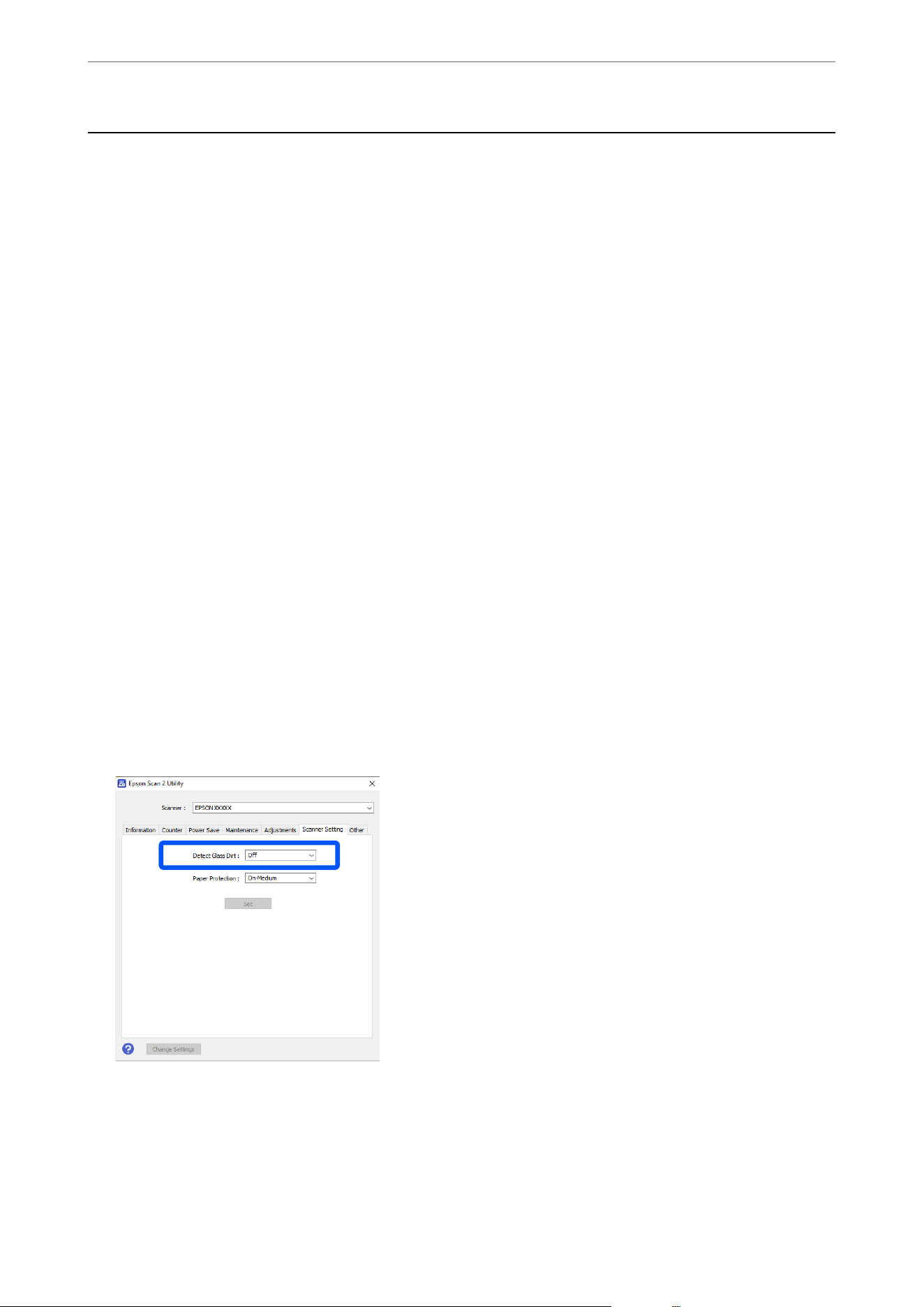
Setting the Glass Surface Stain Detection Feature
Vertical lines (streaks) may appear in the image due to dust or dirt on the glass surface inside the scanner (the ADF
scanning sensor).
When Detect Glass Dirt is set to On, the scanner detects any stains on the glass surface inside the scanner and
displays a notication on your computer screen.
When this notication is displayed, clean the glass surface inside the scanner with the dedicated cleaning kit or a
so cloth.
e default setting is O.
1. Start the Epson Scan 2 Utility.
O Windows 11/Windows Server 2022
Click the start button, and then select All apps > EPSON > Epson Scan 2 Utility.
O Windows 10/Windows Server 2016
Click the start button, and then select EPSON > Epson Scan 2 Utility.
O Windows 8.1/Windows 8/Windows Server 2012 R2/Windows Server 2012
Enter the application name in the search charm, and then select the displayed icon.
O Windows 7/Windows Server 2008 R2/Windows Server 2008
Click the start button, and then select All Programs or Programs > EPSON > Epson Scan 2 > Epson Scan
2 Utility.
O Mac OS
Select Go > Applications > Epson Soware > Epson Scan 2 Utility.
2.
Make the following settings on the Scanner Setting tab.
Set Detect Glass Dirt to On-Low or On-High.
Note:
O Some stains may not be detected correctly.
O If detection does not work correctly, try changing the settings.
If no stains are detected, select On-High. If stains are detected incorrectly, select On-Low or O.
3. Click Set to apply the settings to the scanner.
Useful Features
>
Setting the Glass Surface Stain Detection Feature
150
Note:
When using the control panel, tap Settings > Scanner Settings > Glass Dirt Detection, and then select the detection level.
Related Information
&
“Scanner Settings” on page 143
Setting the Document Protection Feature
When scanning using the ADF and the following conditions occur, the scanner detects an excessive load on the
ADF and immediately stops scanning to reduce damage to the original.
O A paper feed error has occurred
O An original is fed at an angle
e default setting is On-Medium.
c
Important:
O is feature does not prevent all originals from being damaged.
O Paper feed errors may not be detected depending on the condition of the originals being fed.
1. Start the Epson Scan 2 Utility.
O Windows 11/Windows Server 2022
Click the start button, and then select All apps > EPSON > Epson Scan 2 Utility.
O Windows 10/Windows Server 2016
Click the start button, and then select EPSON > Epson Scan 2 Utility.
O Windows 8.1/Windows 8/Windows Server 2012 R2/Windows Server 2012
Enter the application name in the search charm, and then select the displayed icon.
O Windows 7/Windows Server 2008 R2/Windows Server 2008
Click the start button, and then select All Programs or Programs > EPSON > Epson Scan 2 > Epson Scan
2 Utility.
O Mac OS
Select Go > Applications > Epson Soware > Epson Scan 2 Utility.
2. Make the following settings on the Scanner Setting tab.
Set Paper Protection to On-Low, On-Medium or On-High.
To enable this feature, select the level of detection you want to use. See the following table for details on each
level.
Level Explanation
On-Low Lower the sensitivity to detect the skew of the originals.
On-Medium Detect the skew of the stapled originals and the skew that On-Low could not detect.
On-High Increase the sensitivity to detect the skew of the originals.
Useful Features
>
Setting the Document Protection Feature
151
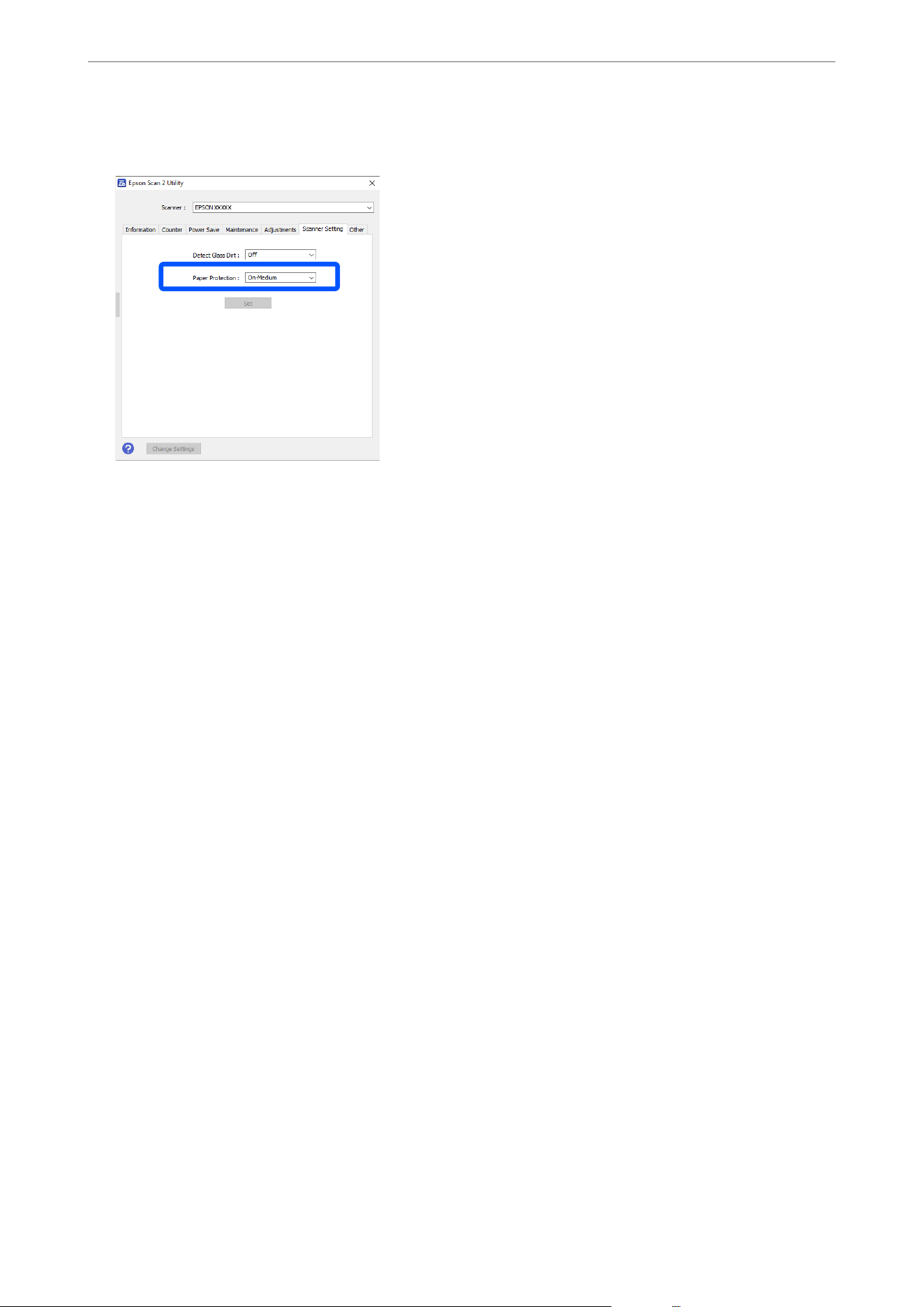
You can also turn o this feature.
Note:
O is feature may not work correctly depending on the original, the paper feeding conditions, and the level set.
O If false positives occur frequently, try lowering the level.
O If the original is an irregular shape or is scanned at an angle, it may be mistakenly detected as a paper feed error.
O When loading multiple originals, make sure to align the leading edge of the originals. Originals may be misdetected
as feeding errors if the edges of the originals are not aligned, even if they are scanned correctly.
O Make sure you align the edge guides with the original to avoid scanning it at an angle.
3. Click Set to apply the settings to the scanner.
Note:
When using the control panel, tap Settings > Scanner Settings > Paper Protection, and then select the protection level.
Related Information
&
“Scanner Settings” on page 143
Useful Features
>
Setting the Document Protection Feature
152

Maintenance
Cleaning Outside the Scanner........................................154
Cleaning the ADF.................................................154
Cleaning the Scanner Glass..........................................159
Energy Saving....................................................161
Transporting the Scanner............................................161
Updating Applications and Firmware...................................162
Cleaning Outside the Scanner
Wipe o any stains on the outer case with a dry cloth or a cloth dampened with mild detergent and water.
c
Important:
O Never use alcohol, thinner, or any corrosive solvent to clean the scanner. Doing so could cause deformation or
discoloration to occur.
O Do not let water get inside the product. is could cause a malfunction to occur.
O Never open the scanner case.
1. Press the
P
button to turn o the scanner.
2. Unplug the power cord from the scanner.
3. Clean the outer case with a cloth dampened with mild detergent and water.
Note:
Wipe the touchscreen by using a so, dry cloth.
Cleaning the ADF
Aer using the scanner for a while, paper powder and room dust in the ADF paper path and glass sections may
cause problems with paper feed or scanned image quality. Clean the ADF aer every 5,000 scans.
You can check the latest number of scans on the control panel or in the Epson Scan 2 Utility.
If a surface is stained with a hard-to-remove material, use a genuine Epson cleaning kit to remove the stains. Use a
small amount of cleaner on the cleaning cloth to remove the stains.
!
Caution:
Be careful not to get your hands or hair caught in the gears or rollers when cleaning the ADF.
is
could cause an
injury.
c
Important:
O Never use alcohol, thinner, or any corrosive solvent to clean the scanner. Doing so could cause deformation or
discoloration to occur.
O Never spray any liquid or lubricant on the scanner. Damage to equipment or circuits may cause abnormal
operations.
O Never open the scanner case.
Note:
You can set cleaning time notications and alerts aer making a certain number of scans on the control panel or in the
Epson Scan 2 Utility. By default, a notication is sent aer every 5,000 scans.
Maintenance
>
Cleaning the ADF
154
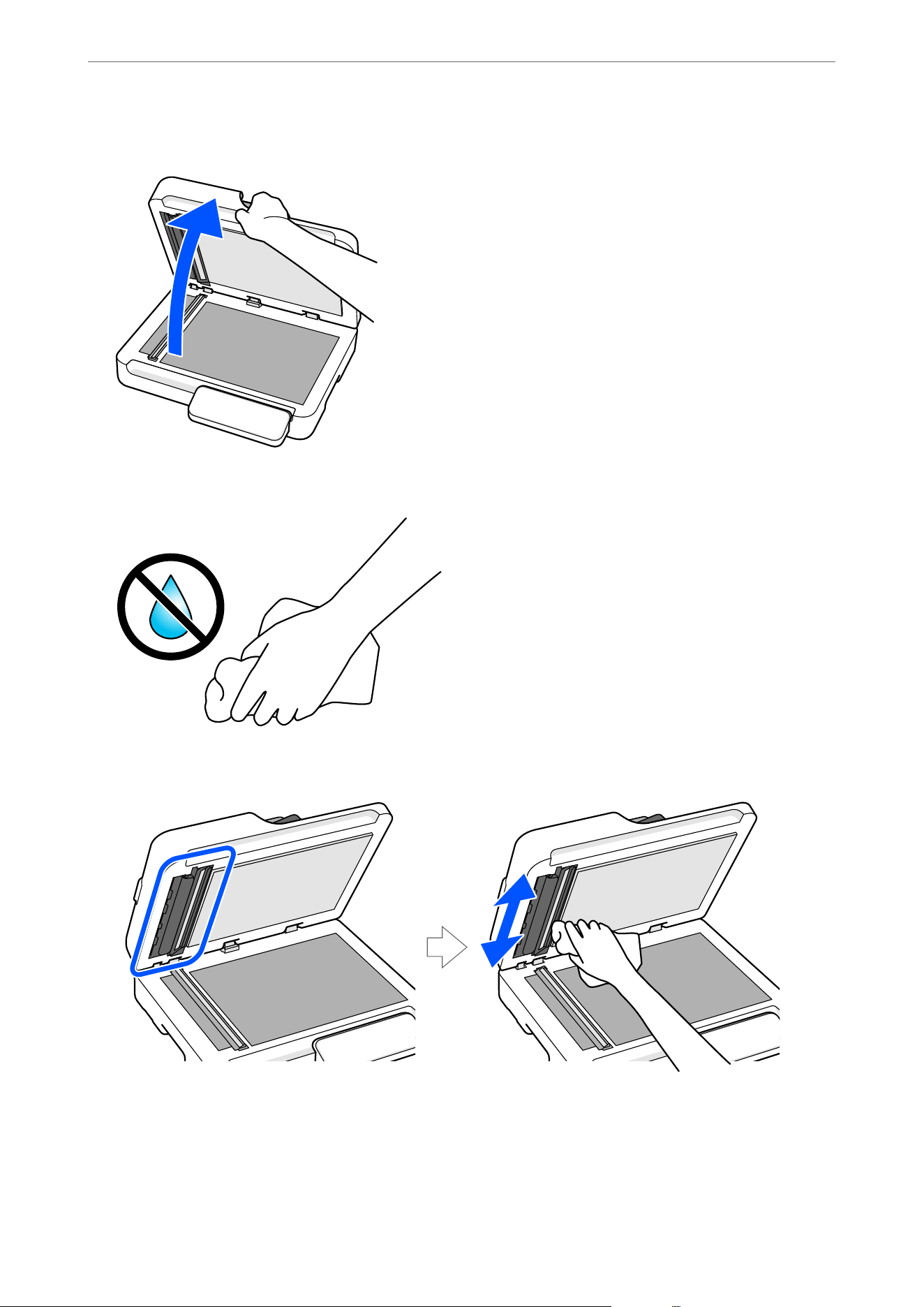
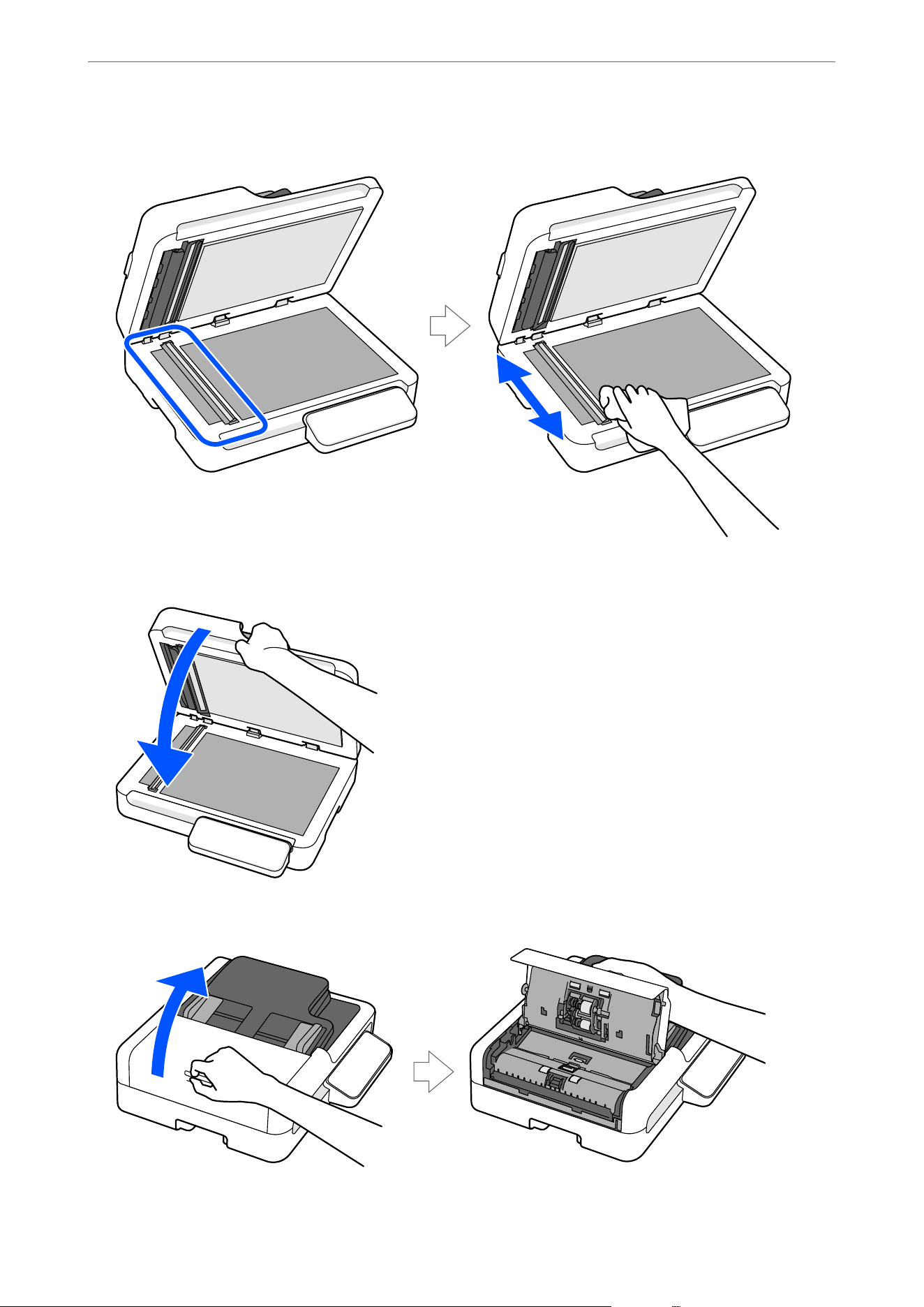
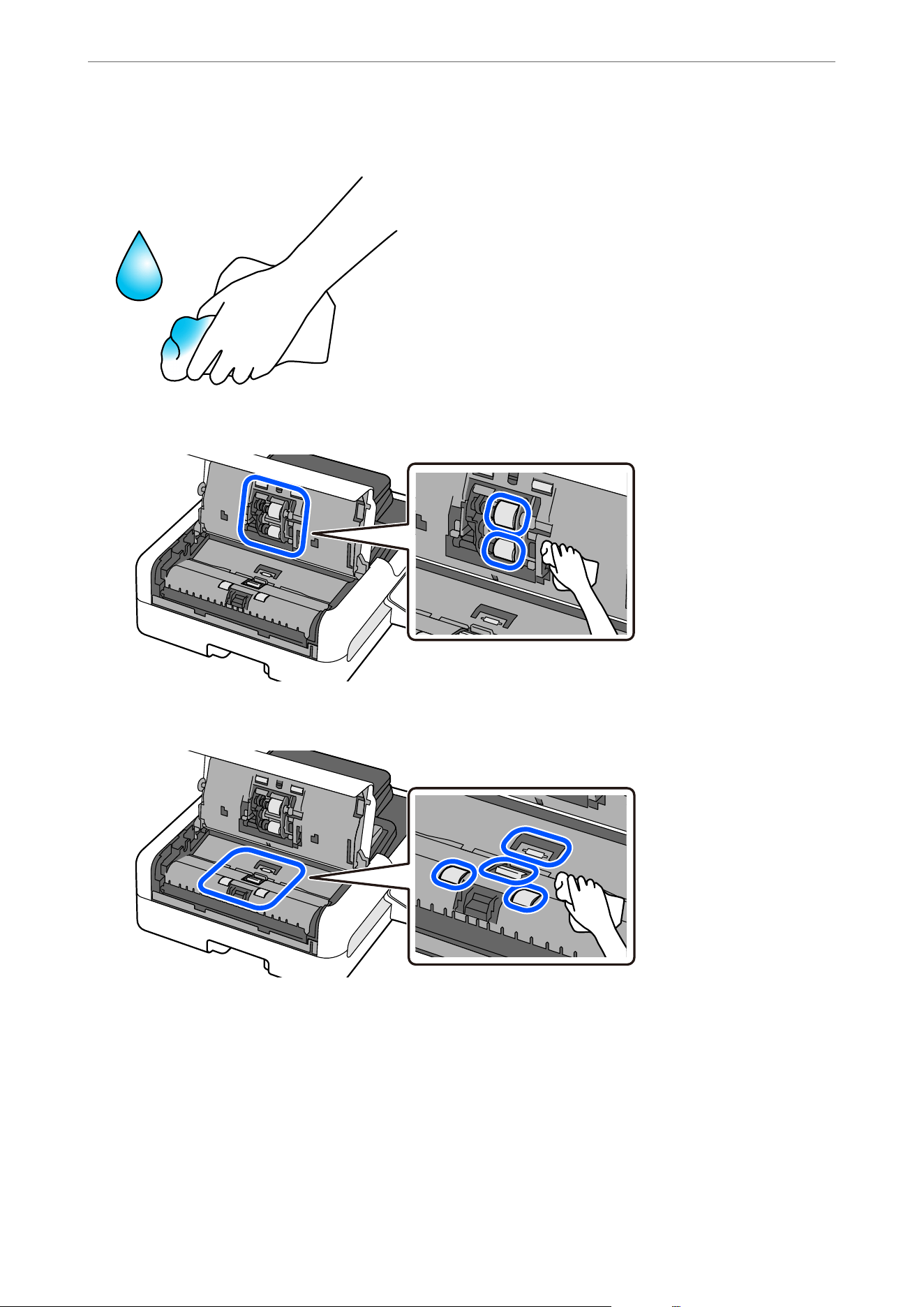
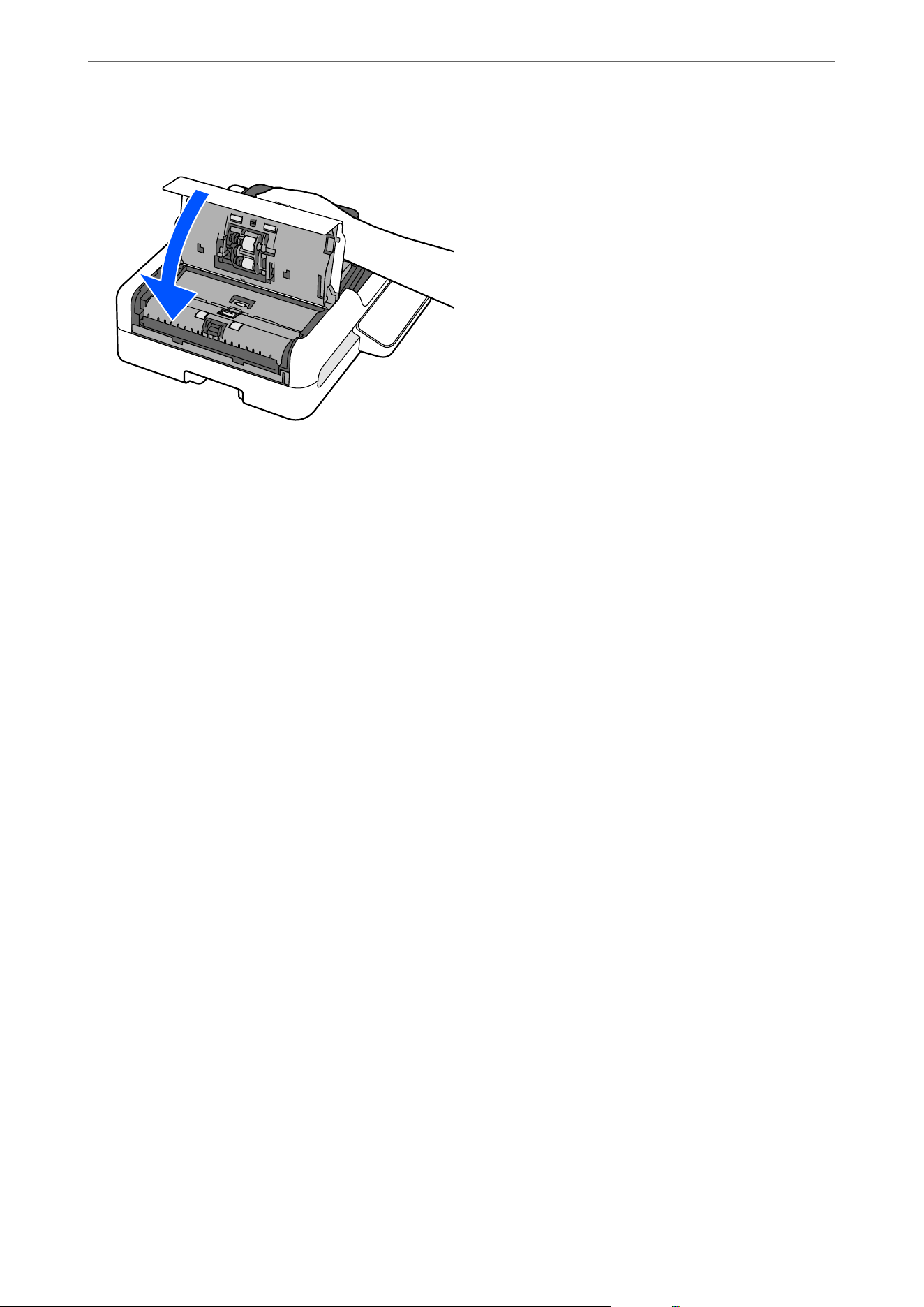
10. Close the ADF cover.
11. Reset the scan number on the control panel or in the Epson Scan 2 Utility.
Resetting the Number of Scans After Cleaning the ADF (Regular
Cleaning)
Aer cleaning the ADF (Regular Cleaning), reset the scan number using the control panel or the Epson Scan 2
Utility.
is
section explains how to reset using the control panel.
1. Tap Scanner Maintenance on the home screen.
2.
Tap Regular Cleaning.
3. Tap Reset the Number of Scans.
4. Tap Ye s .
Maintenance
>
Cleaning the ADF
>
Resetting the Number of Scans After Cleaning the ADF (Regular Cleaning)
158
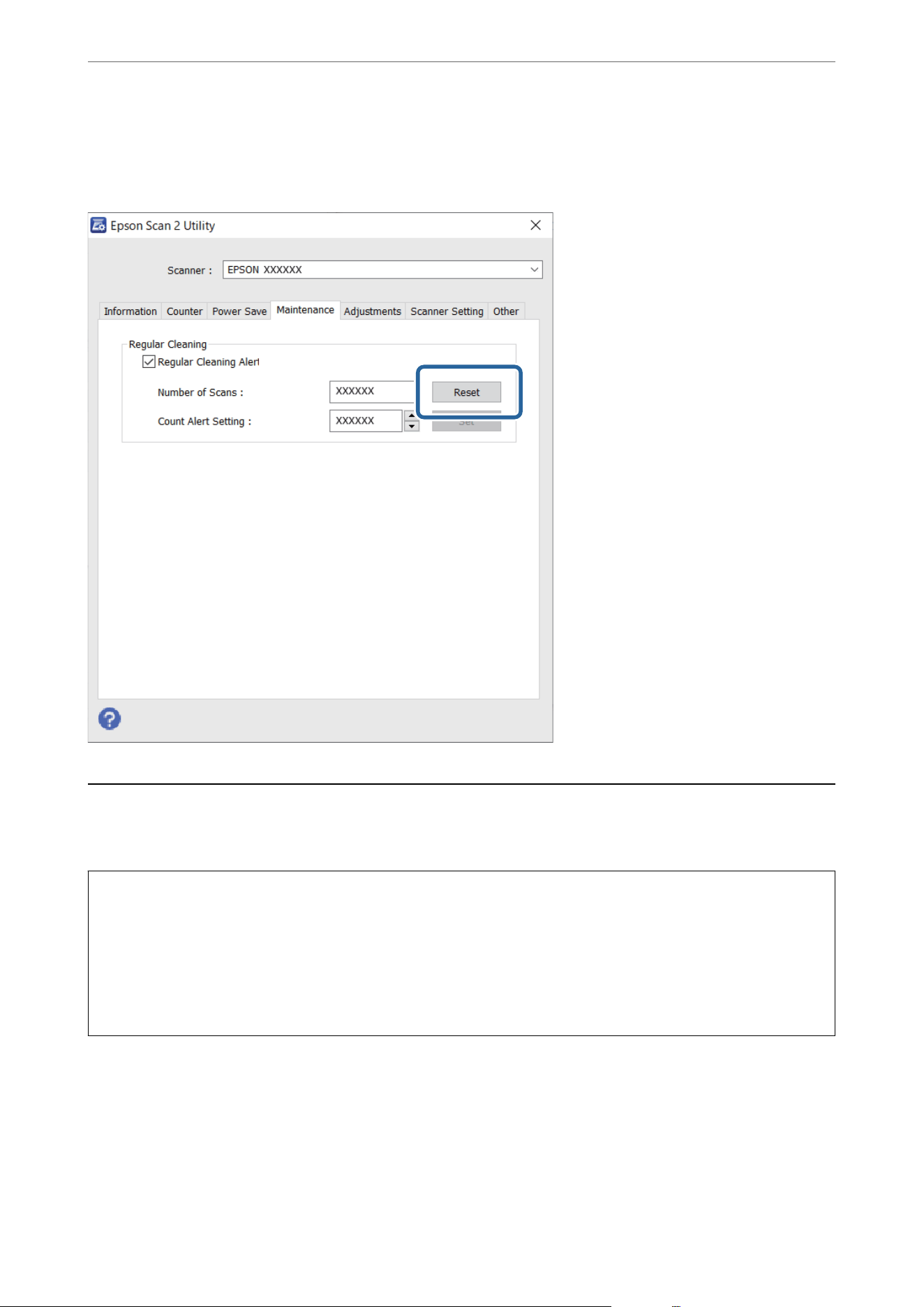
Note:
To reset using Epson Scan 2 Utility, start Epson Scan 2 Utility, click the Maintenance tab, and then click Reset from Regular
Cleaning. If you cannot click Reset, select Regular Cleaning Alert.
Cleaning the Scanner Glass
When the scanned images are smeared or scued, clean the scanner glass.
c
Important:
O Never use alcohol, thinner, or any corrosive solvent to clean the scanner. Doing so could cause deformation or
discoloration to occur.
O Never spray any liquid or lubricant on the scanner. Damage to equipment or circuits may cause abnormal
operations.
O Never open the scanner case.
Maintenance
>
Cleaning the Scanner Glass
159
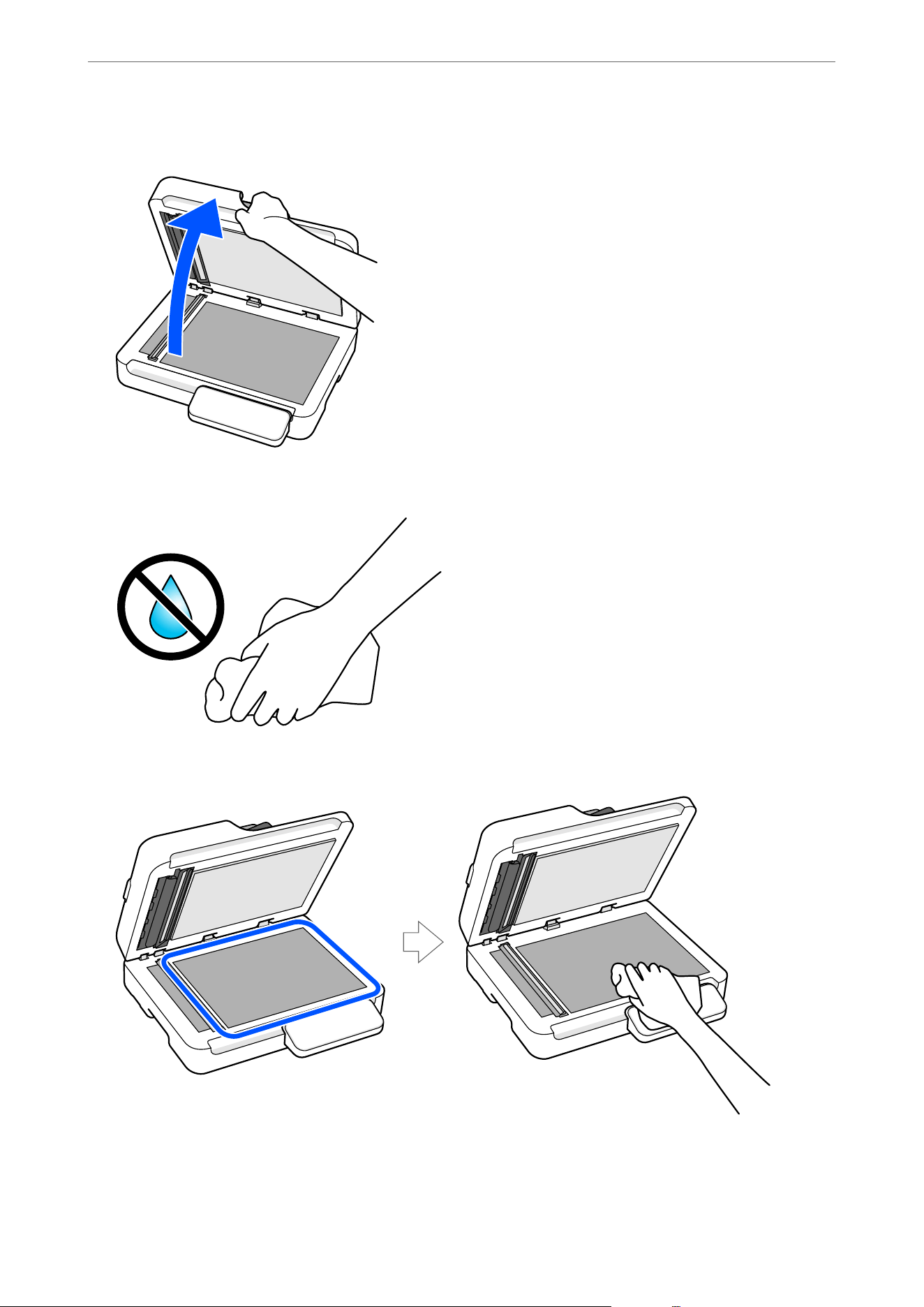
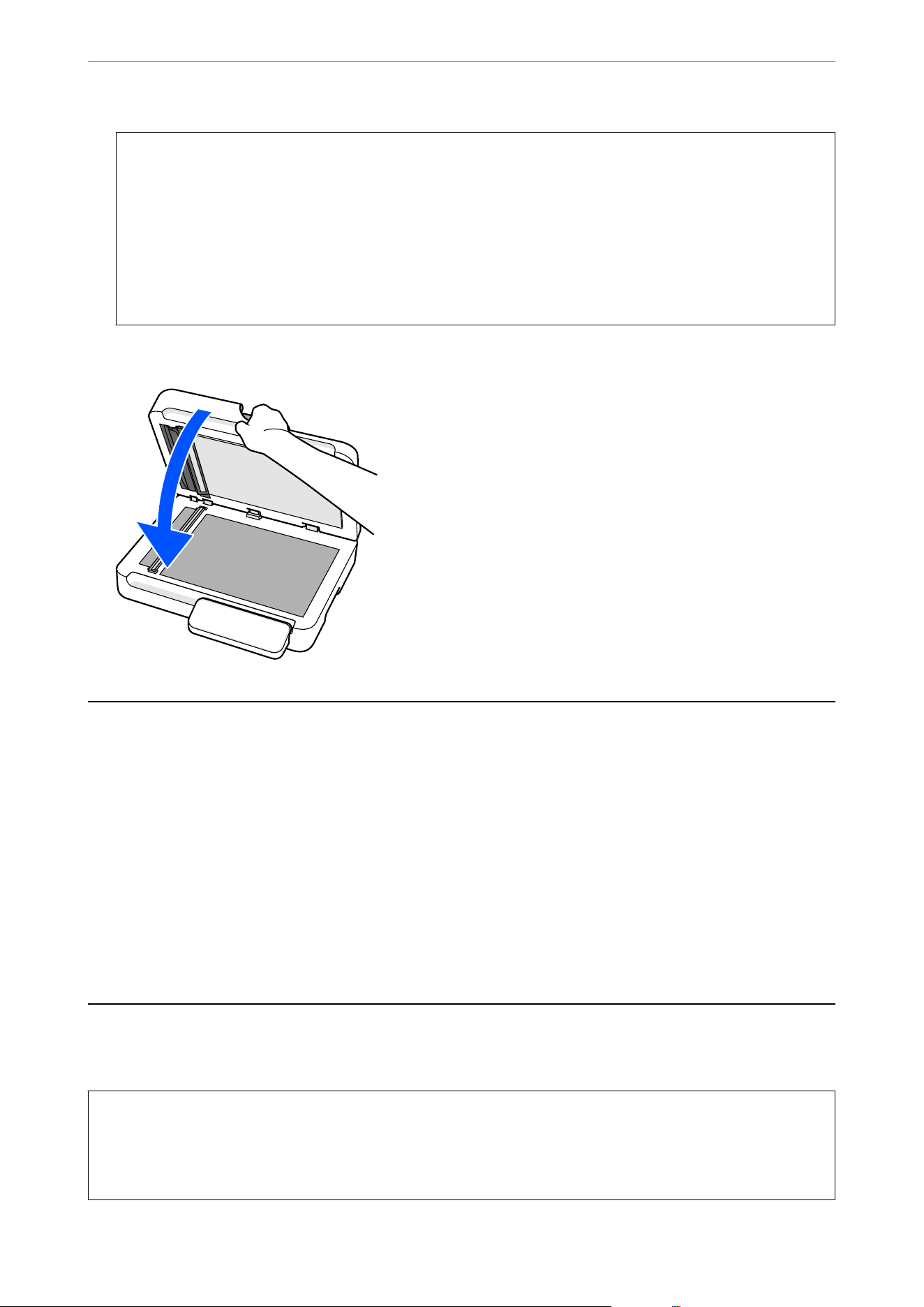
c
Important:
O Do not place too much force on the glass surface.
O Do not use a brush or a hard tool. Any scratches on the glass may
aect
the scan quality.
O If the glass surface is stained with grease or some other hard-to-remove material, use a small amount of
glass cleaner on a so cloth to remove it. Aer removing the stains, wipe thoroughly to ensure no moisture
remains.
O Do not use the Epson cleaning kit to clean the scanner glass.
4.
Close the document cover.
Energy Saving
You can adjust the time before power management is applied. Any increase will
aect
the product's energy
eciency. Please consider the environment before making any changes.
1.
Select Settings on the home screen.
2. Select Basic Settings.
3. Select Sleep Timer or Power O Settings, and then make settings.
Note:
Available features may vary depending on the location of purchase.
Transporting the Scanner
When you need to transport the scanner to move or for repairs, follow the steps below to pack the scanner.
!
Caution:
When carrying the scanner, place your hands at the bottom on both sides of the scanner, and then keep it in a
horizontal position. If the scanner is tilted or placed vertically while carrying, the ADF may open. is could cause
an injury.
Maintenance
>
Transporting the Scanner
161
1. Press the
P
button to turn o the scanner.
2. Unplug the power cord from the scanner.
3. Remove the USB cable.
4. Make sure that there is no original inside the scanner.
5.
Attach the packing materials that came with the scanner, and then repack the scanner in its original box or a
sturdy box.
Updating Applications and Firmware
You may be able to clear certain problems and improve or add functions by updating the applications and the
rmware. Make sure you use the latest version of the applications and rmware.
c
Important:
O Do not turn o the computer or the scanner while updating.
Note:
When the scanner can connect to the Internet, you can update the rmware from Web Cong. Select the Device
Management tab > Firmware Update, check the displayed message, and then click Start.
1. Make sure that the scanner and the computer are connected, and the computer is connected to the internet.
2. Start EPSON Soware Updater, and update the applications or the rmware.
Note:
Windows Server operating systems are not supported.
O Windows 11
Click the start button, and then select All apps > Epson Soware > EPSON Soware Updater.
O Windows 10
Click the start button, and then select Epson Soware > EPSON Soware Updater.
O Windows 8.1/Windows 8
Enter the application name in the search charm, and then select the displayed icon.
O Windows 7
Click the start button, and then select All Programs or Programs > Epson Soware > EPSON Soware
Updater.
O Mac OS
Select Finder > Go > Applications > Epson Soware > EPSON Soware Updater.
Note:
If you cannot nd the application you want to update in the list, you cannot update using the EPSON Soware Updater.
Check for the latest versions of the applications on your local Epson website.
http://www.epson.com
Maintenance
>
Updating Applications and Firmware
162

Updating the Scanner's Firmware using the Control Panel
If the scanner can be connected to the Internet, you can update the scanner's rmware using the control panel. You
can also set the scanner to regularly check for
rmware
updates and notify you if any are available.
1. Select Settings on the home screen.
2. Select System Administration > Firmware Update > Update.
Note:
Select Notication > On to set the scanner to regularly check for available rmware updates.
3. Check the message displayed on the screen and start searching for available updates.
4. If a message is displayed on the LCD screen informing you that a rmware update is available, follow the
on-screen instructions to start the update.
c
Important:
O Do not turn
o
or unplug the scanner until the update is complete; otherwise, the scanner may malfunction.
O If the
rmware
update is not completed or is unsuccessful, the scanner does not start up normally and
"Recovery Mode" is displayed on the LCD screen the next time the scanner is turned on. In this situation,
you need to update the rmware again using a computer. Connect the scanner to the computer with a
USB cable. While "Recovery Mode" is displayed on the scanner, you cannot update the
rmware
over
a network connection. On the computer, access your local Epson website, and then download the latest
scanner rmware. See the instructions on the website for the next steps.
Updating Firmware Using Web
Cong
When the scanner can connect to the Internet, you can update the rmware from Web Cong.
1. Access Web Cong and select the Device Management tab > Firmware Update.
2. Click Start, and then follow the on-screen instructions.
e rmware conrmation starts, and the rmware information is displayed if the updated rmware exists.
Note:
You can also update the rmware using Epson Device Admin. You can visually conrm the rmware information on the
device list. It is useful when you want to update multiple devices' rmware. See the Epson Device Admin guide or help for
more details.
Related Information
&
“Application for Conguring Scanner Operations (Web Cong)” on page 35
Updating Firmware without Connecting to the Internet
You can download the device's rmware from Epson website on the computer, and then connect the device and the
computer by USB cable to update the rmware.
If you cannot update over the network, try this method.
Maintenance
>
Updating Applications and Firmware
>
Updating Firmware without Connecting to the Internet
163

Note:
Before updating, make sure that the scanner driver Epson Scan 2 is installed on your computer. If Epson Scan 2 is not
installed, install it again.
1. Check the Epson website for the latest
rmware
update releases.
http://www.epson.com
O If there is the rmware for your scanner, download it and go to the next step.
O If there is no rmware information on the website, you are already using the latest rmware.
2. Connect the computer that contains the downloaded rmware to the scanner by USB cable.
3.
Double-click the downloaded .exe le.
Epson Firmware Updater starts.
4. Follow the on-screen instructions.
Maintenance
>
Updating Applications and Firmware
>
Updating Firmware without Connecting to the Internet
164

Solving Problems
Problems with the Scanner...........................................166
Problems when Preparing Network Scanning.............................168
Problems Starting Scanning..........................................170
Paper Feeding Problems............................................ 180
Scanned Image Problems............................................188
Document Capture Pro Problems......................................195
Uninstalling and Installing Applications.................................195

Problems with the Scanner
Checking Error Messages on the Control Panel
If an error message is displayed on the control panel, follow the on-screen instructions or the solutions below to
solve the problem.
Note:
See the following if an error message is displayed when scanning to a network folder.
“Messages are Displayed on the Control Panel when Scanning to a Network Folder” on page 178
Error Messages Solutions
Feeding stopped to protect originals. Open the scanner
cover and remove them.
Remove the original from the ADF and check the condition
of the original.
“Removing Jammed Originals from the Scanner” on
page 180
The original jammed. Open the scanner cover to remove the
original.
Remove the original from the ADF.
“Removing Jammed Originals from the Scanner” on
page 180
Check the following if a computer is not found. - Connection
between the scanner and the computer (USB or network) -
Installation of the necessary software - Power supply to the
computer - Firewall and security software settings - Search
again See your documentation for more details.
O Make sure the scanner is connected to your computer
properly.
O Install Epson Scan 2 and Document Capture Pro (or
Document Capture) on your computer.
O Install the latest version of the application.
O Make sure the power cord is securely connected to the
scanner and an electrical outlet.
Check that the electrical outlet is working. Plug another
device into the electrical outlet and check that you can
turn the power on.
O Check the rewall settings for Epson software.
O Set the same group for the scanner and the computer.
O Search for the computer again.
Inside the scanner may have some stains. Please clean the
scanner.
See the following section to clean inside the scanner (ADF).
“Cleaning the ADF” on page 154
When cleaning is complete, reload the original in the ADF.
If the problem continues to occur after you have performed
cleaning, contact your local dealer. In the U.S., Canada, and
Latin America, contact Epson Support.
The original may be smeared or inside the scanner may have
some stains. Remove smears on the original, and then clean
inside the scanner.
The combination of the IP address and the subnet mask is
invalid. See your documentation for more details.
Enter the correct IP address or default gateway. Contact the
person who setup the network for assistance.
Solving Problems
>
Problems with the Scanner
>
Checking Error Messages on the Control Panel
166

Error Messages Solutions
Recovery Mode The scanner has started in recovery mode because the
rmware update failed. Follow the steps below to try to
update the rmware again.
1. Connect the computer and the scanner with a USB cable.
(During recovery mode, you cannot update the rmware
over a network connection.)
2. Visit your local Epson website for further instructions.
Related Information
&
“Updating Applications and Firmware” on page 162
& “Removing Jammed Originals from the Scanner” on page 180
& “Installing Your Applications” on page 197
A Message Prompting You to Perform Cleaning (Regular Cleaning) is
Displayed
is
message is displayed when the Regular Cleaning
notication
setting is enabled, and the set number of scans
has been reached.
Clean the ADF, and then use the control panel or Epson Scan 2 Utility to reset the scan count aer cleaning.
Related Information
&
“Cleaning the ADF” on page 154
& “Resetting the Number of Scans Aer Cleaning the ADF (Regular Cleaning)” on page 158
The Scanner Does Not Turn On
O Make sure the power cord is securely connected to the scanner and an electrical outlet.
O Check that the electrical outlet is working. Plug another device into the electrical outlet and check that you can
turn the power on.
The Scanner Turns
O
Unexpectedly
Check the settings in Power O Settings. If Power O Settings is enabled, the scanner turns o automatically
aer a set time.
Related Information
&
“Energy Saving” on page 161
Solving Problems
>
Problems with the Scanner
>
The Scanner Turns O Unexpectedly
167

Forgot Your Administrator's Password
You need help from service personnel. Contact your local dealer. In the U.S., Canada, and Latin America, contact
Epson Support.
Note:
e following provides the initial values for the Web Cong administrator.
O User name: none (blank)
O Password: Depends on the label attached to product.
If there is a "PASSWORD" label attached to the back, enter the 8-digit number shown on the label.
If there is no "PASSWORD" label attached, enter the serial number on the label attached to the back of the product for
the initial administrator password.
If you restore the administrator password, it is reset to the initial value at the time of purchase.
Problems when Preparing Network Scanning
Hints to Solving Problems
O Checking the error message
When trouble has occurred, rst check whether there are any messages on the scanner's control panel or driver
screen. If you have the notication email set when the events occur, you can promptly learn the status.
O Checking the communication status
Check the communication status of server computer or client computer by using the command such as ping
and ipcong.
O Connection test
For checking the connection between the scanner to the mail server, perform the connection test from the
scanner. Also, check the connection from the client computer to the server to check the communication status.
O Initializing the settings
If the settings and communication status show no problem, the problems may be solved by disabling or
initializing the network settings of the scanner, and then setting up again.
Related Information
&
“Registering an Email Server” on page 128
& “Checking Error Messages on the Control Panel” on page 166
& “Receiving Email Notications When Events Occur” on page 223
Solving Problems
>
Problems when Preparing Network Scanning
>
Hints to Solving Problems
168

Cannot Access Web Cong
The IP address is not assigned to the scanner.
Solutions
A valid IP address may not be assigned to the scanner. Congure the IP address using the scanner’s
control panel. You can conrm the current setting information from the scanner’s control panel.
&
“Assigning the IP Address” on page 211
Web browser does not support the Encryption Strength for SSL/TLS.
Solutions
SSL/TLS has the Encryption Strength. You can open Web Cong by using a web browser that supports
bulk encryptions as indicated below. Check you are using the a supported browser.
O 80bit: AES256/AES128/3DES
O 112bit: AES256/AES128/3DES
O 128bit: AES256/AES128
O 192bit: AES256
O 256bit: AES256
CA-signed Certicate is expired.
Solutions
If there is a problem with the expiration date of the certicate, "e certicate has expired" is displayed
when connecting to Web Cong with SSL/TLS communication (https). If the message appears before its
expiration date, make sure that the scanner's date is congured correctly.
The common name of the certicate and the scanner do not match.
Solutions
If the common name of the certicate and the scanner do not match, the message "e name of
the security
certicate
does not match···" is displayed when accessing Web
Cong
using SSL/TLS
communication (https). is happens because the following IP addresses do not match.
O e scanner's IP address entered to common name for creating a Self-signed Certicate or CSR
O IP address entered to web browser when running Web Cong
For Self-signed
Certicate
, update the
certicate.
For CA-signed Certicate, take the certicate again for the scanner.
The proxy server setting of local address is not set to web browser.
Solutions
When the scanner is set to use a proxy server, congure the web browser not to connect to the local
address via the proxy server.
O Windows:
Select Control Panel > Network and Internet > Internet Options > Connections > LAN settings >
Proxy server, and then
congure
not to use the proxy server for LAN (local addresses).
Solving Problems
>
Problems when Preparing Network Scanning
>
Hints to Solving Problems
169

O Mac OS:
Select System Preferences (or System Settings) > Network > Advanced > Proxies, and then register
the local address for Bypass proxy settings for these Hosts & Domains.
Example:
192.168.1.*: Local address 192.168.1.XXX, subnet mask 255.255.255.0
192.168.*.*: Local address 192.168.XXX.XXX, subnet mask 255.255.0.0
DHCP is disabled in the computer's settings.
Solutions
If the DHCP for obtaining an IP address automatically is disabled on the computer, you may not be able
to access Web Cong. Enable DHCP.
Example for Windows 10:
Open the Control Panel and then click Network and Internet > Network and Sharing Center >
Change adapter settings. Open the Properties screen of the connection you are using, and then open
the properties screen forInternet Protocol Version 4 (TCP/IPv4) or Internet Protocol Version 6 (TCP/
IPv6). Check that Obtain an IP address automatically is selected on the displayed screen.
Problems Starting Scanning
Cannot Start Scanning from Computer
Make sure the computer and the scanner are connected correctly.
e cause and solution to the problem dier depending on whether or not they are connected.
Checking the Connection Status (Windows)
Use the Epson Scan 2 Utility to check the connection status.
Note:
Epson Scan 2 Utility is an application supplied with the scanner soware.
1.
Start the Epson Scan 2 Utility.
O Windows 11
Click the start button, and then select All apps > EPSON > Epson Scan 2 Utility.
O Windows 10
Click the start button, and then select EPSON > Epson Scan 2 Utility.
O Windows 8.1/Windows 8
Enter the application name in the search charm, and then select the displayed icon.
O Windows 7
Click the start button, and then select All Programs or Programs > EPSON > Epson Scan 2 > Epson Scan
2 Utility.
Solving Problems
>
Problems Starting Scanning
>
Cannot Start Scanning from Computer
170

2. On the Epson Scan 2 Utility screen, open the Scanner list, and then click Settings to open the Scanner
Settings screen.
If the Scanner Settings screen is already displayed, go to the next step.
3. If the scanner is not displayed on the Scanner Settings screen, your scanner is not detected.
Click Enable Editing to allow changes to the settings.
4. Click Add, and then add your scanner on the Add Network Scanner screen.
If your scanner is not displayed in Search for Network, enter the scanner's IP address in Enter address. In a
network environment with wireless and wired connections, the scanner may not be displayed in the search if it
is on a dierent segment.
If you cannot search for the scanner or cannot scan even if the correct scanner is selected, see the related
information.
Related Information
&
“Cannot connect to a Network” on page 172
& “e Scanner Cannot Connect by USB” on page 174
& “Cannot Scan Even ough a Connection has been Correctly Established” on page 175
Checking the Connection Status (Mac OS)
Use the Epson Scan 2 Utility to check the connection status.
Note:
Epson Scan 2 Utility is an application supplied with the scanner soware.
1. Start the Epson Scan 2 Utility.
Select Go > Applications > Epson Soware > Epson Scan 2 Utility.
2. On the Epson Scan 2 Utility screen, open the Scanner list, and then click Settings to open the Scanner
Settings screen.
If the Scanner Settings screen is already displayed, go to the next step.
3. If the scanner is not displayed on the Scanner Settings screen, your scanner is not detected.
Click the
icon, and then allow the
soware
to make changes.
4. Click the
icon, and then add your scanner on the Add Network Scanner screen.
If your scanner is not displayed in Search for Network, enter the scanner's IP address in Enter address. In a
network environment with wireless and wired connections, the scanner may not be displayed in the search if it
is on a dierent segment.
If you cannot search for the scanner or cannot scan even if the correct scanner is selected, see the related
information.
Related Information
&
“Cannot connect to a Network” on page 172
Solving Problems
>
Problems Starting Scanning
>
Cannot Start Scanning from Computer
171
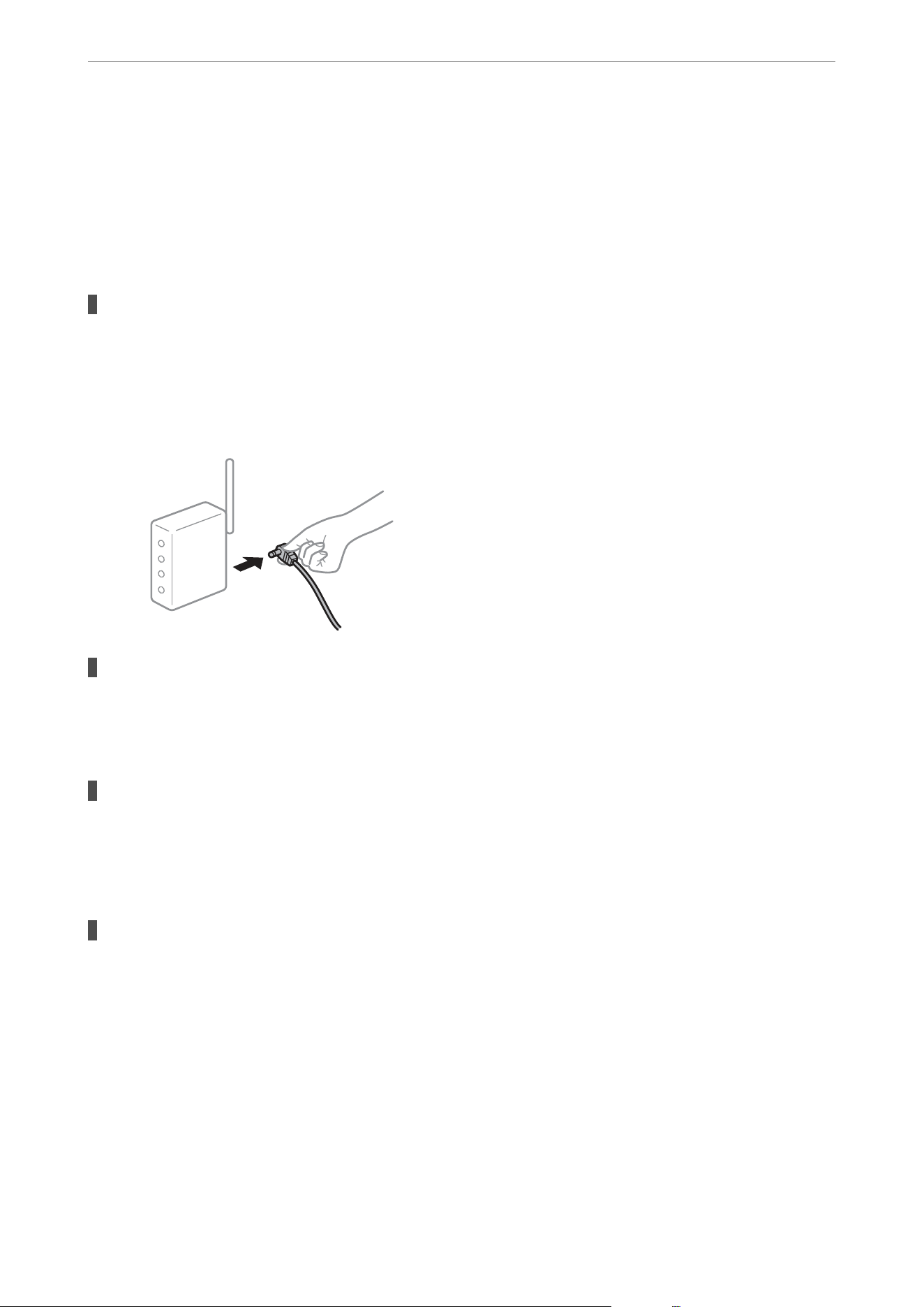
& “e Scanner Cannot Connect by USB” on page 174
& “Cannot Scan Even ough a Connection has been Correctly Established” on page 175
Cannot connect to a Network
e problem could be one of the following issues.
Something is wrong with the network devices for Wi-Fi connection.
Solutions
Turn o the devices you want to connect to the network. Wait for about 10 seconds, and then turn
on the devices in the following order; wireless router, computer or smart device, and then scanner.
Move the scanner and computer or smart device closer to the wireless router to help with radio wave
communication, and then try to make network settings again.
Devices cannot receive signals from the wireless router because they are too far apart.
Solutions
Aer
moving the computer or the smart device and the scanner closer to the wireless router, turn
o
the
wireless router, and then turn it back on.
When changing the wireless router, the settings do not match the new router.
Solutions
Recongure the settings so that they match the new wireless router.
&
“When Replacing the Wireless Router” on page 202
The SSIDs connected from the computer or smart device and computer are
dierent.
Solutions
When you are using multiple wireless routers at the same time or the wireless router has multiple SSIDs
and devices are connected to
dierent
SSIDs, you cannot connect to the wireless router.
Solving Problems
>
Problems Starting Scanning
>
Cannot Start Scanning from Computer
172
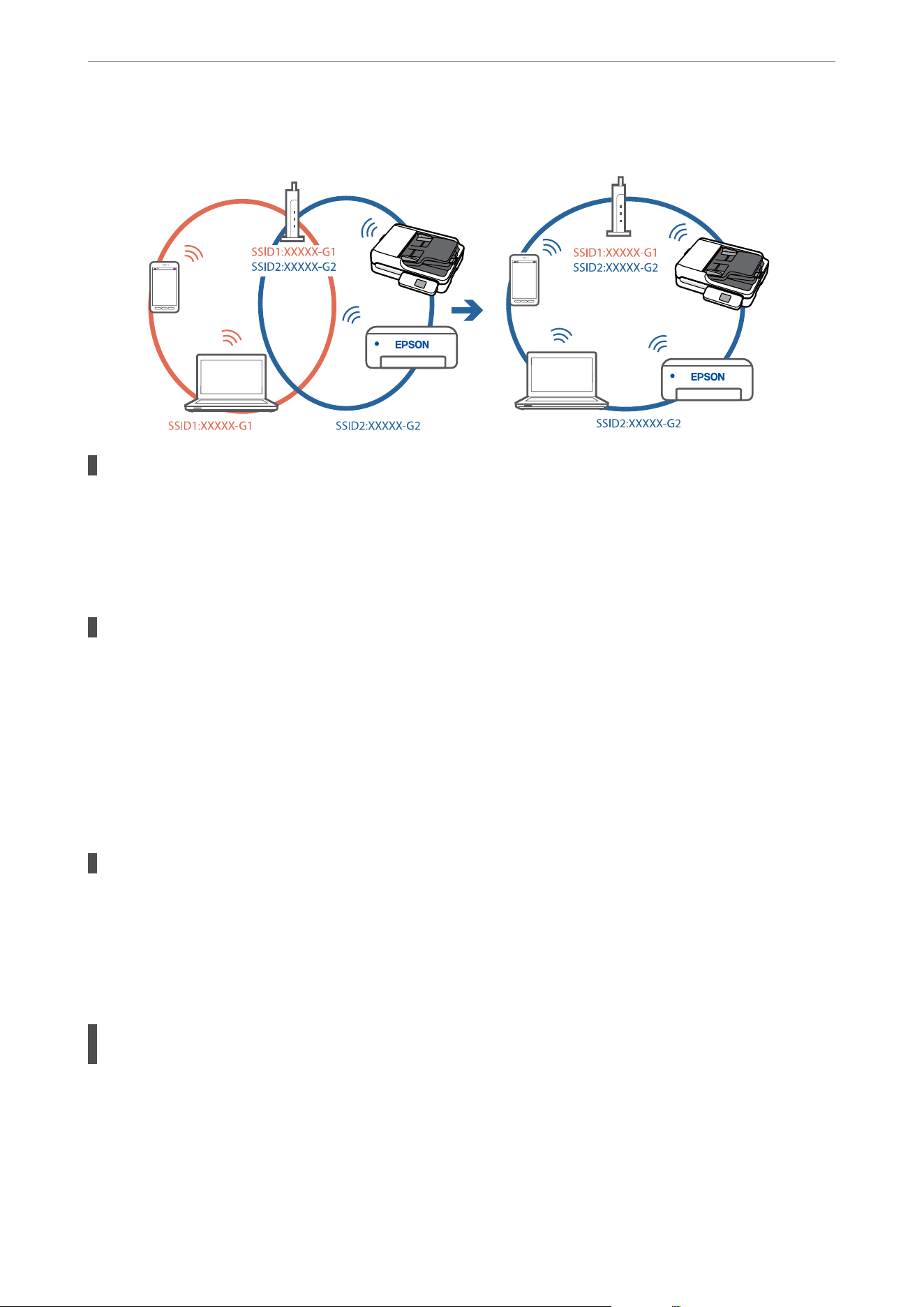
Connect the computer or smart device to the same SSID as the scanner.
A privacy separator on the wireless router is available.
Solutions
Most wireless routers have a privacy separator feature that blocks communication between connected
devices. If you cannot communicate between the scanner and the computer or smart device even if they
are connected to the same network, disable the privacy separator on the wireless router. See the manual
provided with the wireless router for details.
The IP address is incorrectly assigned.
Solutions
If the IP address assigned to the scanner is 169.254.XXX.XXX, and the subnet mask is 255.255.0.0, the IP
address may not be assigned correctly.
Select Settings - Network Settings - Advanced - TCP/IP on the scanner’s control panel, and then check
the IP address and the subnet mask assigned to the scanner.
Restart the wireless router or reset the network settings for the scanner.
&
“Re-setting the Network Connection” on page 202
There is a problem with the network settings on the computer.
Solutions
Try accessing any website from your computer to make sure that your computer's network settings are
correct. If you cannot access any website, there is a problem on the computer.
Check the network connection of the computer. See the documentation provided with the computer for
details.
The scanner has been connected by Ethernet using devices that support IEEE802.3az
(Energy Ecient Ethernet).
Solutions
When you connect the scanner by Ethernet using devices that support IEEE802.3az (Energy Ecient
Ethernet), the following problems may occur depending on the hub or router that you are using.
O Connection becomes unstable, the scanner is connected and disconnected again and again.
O Cannot connect to the scanner.
Solving Problems
>
Problems Starting Scanning
>
Cannot Start Scanning from Computer
173

O e communication speed becomes slow.
Follow the steps below to disable IEEE802.3az for the scanner and then connect.
1.
Remove the Ethernet cable connected to the computer and the scanner.
2. When IEEE802.3az for the computer is enabled, disable it.
See the documentation provided with the computer for details.
3. Connect the computer and the scanner with an Ethernet cable directly.
4. On the scanner, check the network settings.
Select Settings > Network Settings > Network Status > Wired LAN/Wi-Fi Status.
5. Check the scanner's IP address.
6.
On the computer, access Web Cong.
Launch a Web browser, and then enter the scanner's IP address.
“How to Run Web
Cong
in a Web Browser” on page 35
7. Select the Network tab > Wired LAN.
8. Select OFF for IEEE 802.3az.
9. Click Next.
10. Click OK.
11. Remove the Ethernet cable connected to the computer and the scanner.
12. If you disabled IEEE802.3az for the computer in step 2, enable it.
13. Connect the Ethernet cables that you removed in step 1 to the computer and the scanner.
If the problem still occurs, devices other than the scanner may be causing the problem.
The scanner is o.
Solutions
Make sure the scanner is turned on.
Also, wait until the status light stops ashing indicating that the scanner is ready to scan.
The Scanner Cannot Connect by USB
e following causes can be considered.
The USB cable is not plugged into the electrical outlet correctly.
Solutions
Connect the USB cable securely to the scanner and the computer.
Solving Problems
>
Problems Starting Scanning
>
Cannot Start Scanning from Computer
174

There is a problem with the USB hub.
Solutions
If you are using a USB hub, try to connect the scanner directly to the computer.
There is a problem with the USB cable or the USB inlet.
Solutions
If the USB cable cannot be recognized, change the port, or change the USB cable.
The scanner is o.
Solutions
Make sure the scanner is turned on.
Also, wait until the status light stops ashing indicating that the scanner is ready to scan.
Cannot Scan Even Though a Connection has been Correctly Established
Required applications are not installed on your computer.
Solutions
Make sure the following applications are installed:
O Document Capture Pro (Windows) or Document Capture (Mac OS)
O Epson Scan 2
If the applications are not installed, install them again.
&
“Installing Your Applications” on page 197
Job is not assigned to the scanner's control panel.
Solutions
Check that the job is correctly assigned to the scanner's control panel in Document Capture Pro
(Windows) or Document Capture (Mac OS).
&
“Creating a Job and Assigning a Job to the Control Panel (Windows)” on page 117
If you are using any TWAIN-compliant programs, the correct scanner is not selected as the
source setting. (Windows)
Solutions
Make sure that you select the correct scanner from your programs list.
Network Scanning Settings are Disabled
Solutions
In Web Cong, select the Scan tab > Network Scan, and then select Enable scanning in Epson Scan 2.
Solving Problems
>
Problems Starting Scanning
>
Cannot Start Scanning from Computer
175
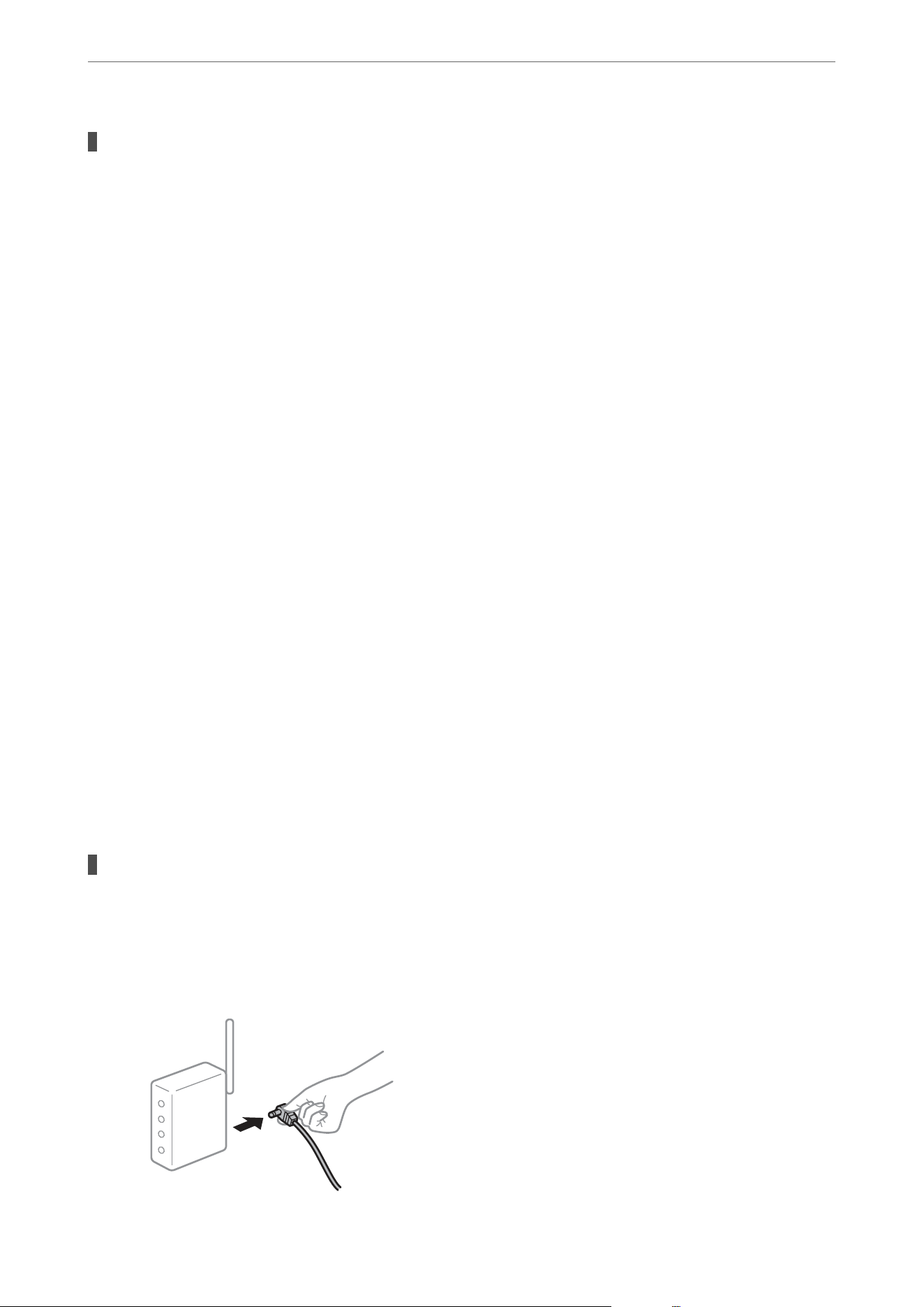
AirPrint is disabled.
Solutions
Enable the AirPrint setting in Web Cong.
Cannot Start Scanning from Smart Device
Make sure the smart device and the scanner are connected correctly.
e cause and solution to the problem dier depending on whether or not they are connected.
Checking the Connection Status (Smart Device)
You can use Epson Smart Panel to check the connection status for the smart device and the scanner.
1. Start Epson Smart Panel on your smart device.
2. Check whether or not the scanner name is displayed in Epson Smart Panel.
If the scanner name is displayed, a connection has been successfully established between the smart device and
the scanner.
If a message is displayed saying that the scanner is not selected, a connection has not been established between
the smart device and the scanner. Follow the instructions on the Epson Smart Panel to connect to the scanner.
If you cannot connect to the scanner over a network, check the Related Information.
Related Information
& “Cannot connect to a Network” on page 176
Cannot connect to a Network
e problem could be one of the following issues.
Something is wrong with the network devices for Wi-Fi connection.
Solutions
Turn o the devices you want to connect to the network. Wait for about 10 seconds, and then turn
on the devices in the following order; wireless router, computer or smart device, and then scanner.
Move the scanner and computer or smart device closer to the wireless router to help with radio wave
communication, and then try to make network settings again.
Solving Problems
>
Problems Starting Scanning
>
Cannot Start Scanning from Smart Device
176
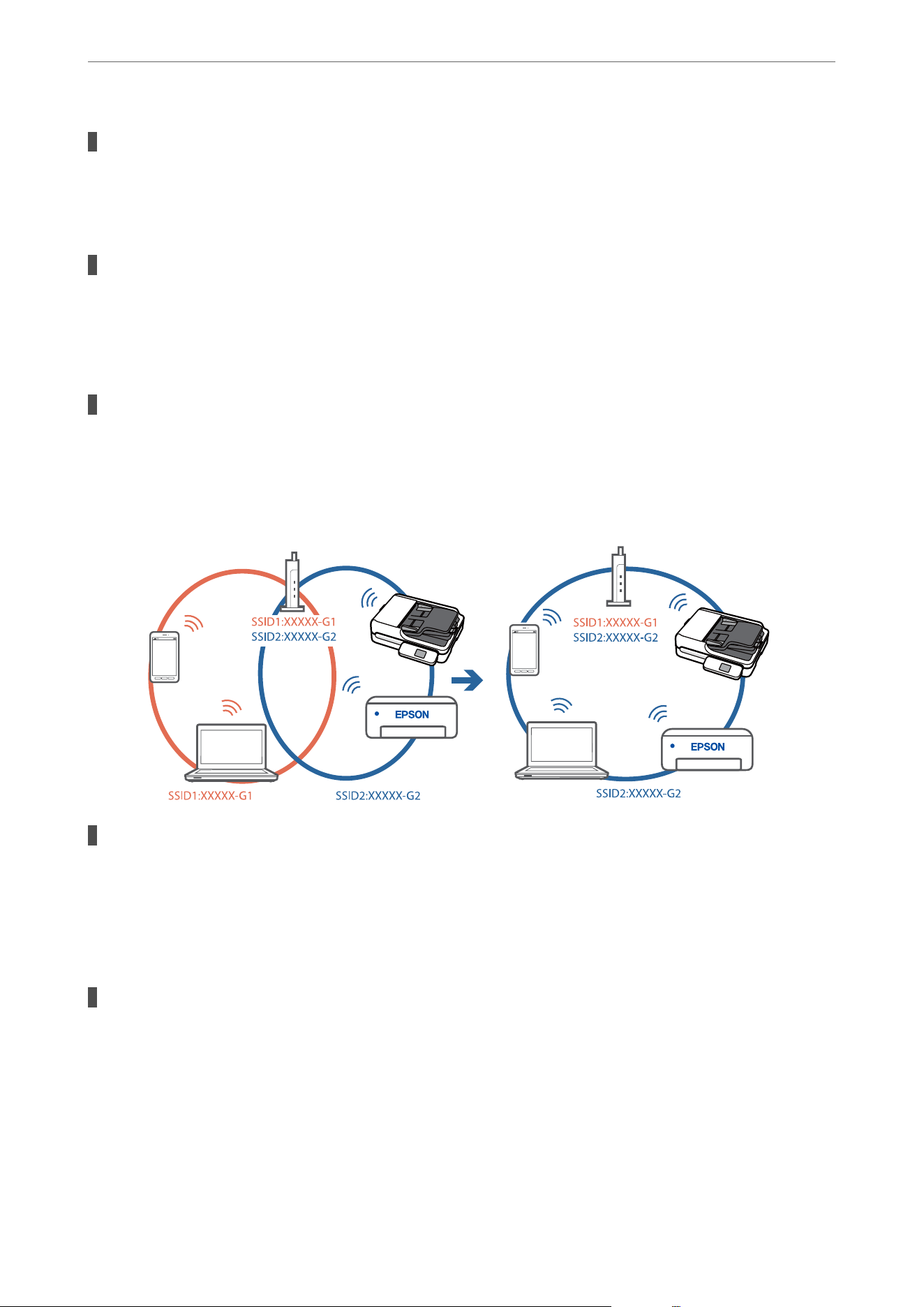
Devices cannot receive signals from the wireless router because they are too far apart.
Solutions
Aer moving the computer or the smart device and the scanner closer to the wireless router, turn o the
wireless router, and then turn it back on.
When changing the wireless router, the settings do not match the new router.
Solutions
Recongure the settings so that they match the new wireless router.
&
“When Replacing the Wireless Router” on page 202
The SSIDs connected from the computer or smart device and computer are dierent.
Solutions
When you are using multiple wireless routers at the same time or the wireless router has multiple SSIDs
and devices are connected to dierent SSIDs, you cannot connect to the wireless router.
Connect the computer or smart device to the same SSID as the scanner.
A privacy separator on the wireless router is available.
Solutions
Most wireless routers have a privacy separator feature that blocks communication between connected
devices. If you cannot communicate between the scanner and the computer or smart device even if they
are connected to the same network, disable the privacy separator on the wireless router. See the manual
provided with the wireless router for details.
The IP address is incorrectly assigned.
Solutions
If the IP address assigned to the scanner is 169.254.XXX.XXX, and the subnet mask is 255.255.0.0, the IP
address may not be assigned correctly.
Select Settings - Network Settings - Advanced - TCP/IP on the scanner’s control panel, and then check
the IP address and the subnet mask assigned to the scanner.
Restart the wireless router or reset the network settings for the scanner.
&
“Re-setting the Network Connection” on page 202
Solving Problems
>
Problems Starting Scanning
>
Cannot Start Scanning from Smart Device
177

There is a problem with the network settings on the smart device.
Solutions
Try accessing any website from your smart device to make sure that your smart device's network settings
are correct. If you cannot access any website, there is a problem on the smart device.
Check the network connection of the computer. See the documentation provided with the smart device
for details.
The scanner is o.
Solutions
Make sure the scanner is turned on.
Also, wait until the status light stops ashing indicating that the scanner is ready to scan.
Cannot Save Scanned Images to the Shared Folder
Messages are Displayed on the Control Panel when Scanning to a Network
Folder
When error messages are displayed on the control panel, check the message itself or the following list to solve the
problems.
Messages Solutions
DNS error. Check DNS settings. Cannot connect to the computer. Check the following.
O Make sure that the address in the contacts list on the scanner and the address
of the shared folder are the same.
O If the IP address of the computer is static and is set manually, change the
computer name in the network path to the IP address.
Example: \\EPSON02\SCAN to \\192.168.xxx.xxx\SCAN
O Make sure that the computer is turned on and does not sleep. If the computer
sleeps, you cannot save scanned images to the shared folder.
O Temporarily disable the computer's Firewall and security software. If this clears
the error, check the settings in the security software.
O If Public network is selected as the network place, you cannot save the
scanned images to the shared folder. Set the forward settings for each port.
O If you are using a laptop computer and the IP address is set as DHCP, the IP
address may change when reconnecting to the network. Obtain the IP address
again.
O Make sure the DNS setting is correct. Contact your network administrator
about the DNS settings.
O The computer name and the IP address may
dier
when the management
table of the DNS server is not updated. Contact your DNS server administrator.
Authentication error. Check the
location, user name and password.
Make sure the user name and the password are correct on the computer and the
contacts on the scanner. Also, make sure that the password has not expired.
Solving Problems
>
Problems Starting Scanning
>
Cannot Save Scanned Images to the Shared Folder
178
Messages Solutions
Communication error. Check the Wi-Fi/
network connection.
Cannot communicate with a network folder that is registered on the contacts list.
Check the following.
O Make sure that the address in the contacts list on the scanner and the address
of the shared folder are the same.
O Access rights for the user in the contacts list should be added on the
Sharing tab and the Security tab of the shared folder's properties. Also, the
permissions for the user should be set to Allow.
The le name is already in use. Rename
the le and scan again.
Change the le name settings. Otherwise, move or delete the les, or change the
le name on the shared folder.
Scanned le(s) are too large. Only XX
page(s) have been sent. Check if the
destination has enough space.
There is not enough disk space on the computer. Increase the free space on the
computer.
Checking the Point where the Error Occurred
When saving scanned images to the shared folder, saving process proceeds as following. You can then check the
point where the error occurred.
Items Operation Error Messages
Connecting Connect to the computer from the scanner. DNS error. Check DNS settings.
Logging on to the
computer
Log on to the computer with the user name and
the password.
Authentication error. Check the location,
user name and password.
Checking the folder to
save
Check the network path of the shared folder. Communication error. Check the Wi-Fi/
network connection.
Checking the le name Check if there is a le with the same name as the
le you want to save in the folder.
The le name is already in use. Rename
the le and scan again.
Writing the le Write a new le. Scanned le(s) are too large. Only XX
page(s) have been sent. Check if the
destination has enough space.
Saving the Scanned Images Takes a Long Time
It takes a long time for the name resolution to correspond to the "Domain Name" and the "IP
Address".
Solutions
Check the following points.
O Make sure the DNS setting is correct.
O Make sure each DNS setting is correct when checking the Web
Cong
.
O Make sure the DNS domain name is correct.
Solving Problems
>
Problems Starting Scanning
>
Cannot Save Scanned Images to the Shared Folder
179

Cannot Send Scanned Images to the Cloud
O When using the Scan to Cloud feature, see the troubleshooting page on the Epson Connect website for details.
https://www.epsonconnect.com/ > Learn More on the Scan to Cloud feature > Contents pull down list >
Troubleshooting for Epson Connect Services > Scan to Cloud feature
O Make sure you enter the correct information when you login.
O Make sure the service is running. e service may be down due to system maintenance. Check the accounting
service website for more detailed information.
Cannot Send Scanned Images to an Email
O Make sure that the entered email address is working.
O Make sure that the email server settings are correct.
O Contact the email server administrator to make sure the server is running.
Related Information
&
“Checking an Email Server Connection” on page 130
Paper Feeding Problems
Multiple Originals Are Fed (Double Feed)
Check the following when a double feed occurs.
O If an original gets jammed, open the ADF cover and remove the original.
O Check the scanned image, and then scan the originals again if necessary.
If multiple originals are fed frequently, try the following.
O If you load unsupported originals, the scanner may feed multiple originals at a time.
O Reduce the number of originals being placed at a time.
O Clean the ADF.
“Cleaning the ADF” on page 154
Related Information
&
“Cleaning the ADF” on page 154
& “Removing Jammed Originals from the Scanner” on page 180
Removing Jammed Originals from the Scanner
If an original gets jammed in the ADF, follow the steps below to remove it.
Solving Problems
>
Paper Feeding Problems
>
Removing Jammed Originals from the Scanner
180
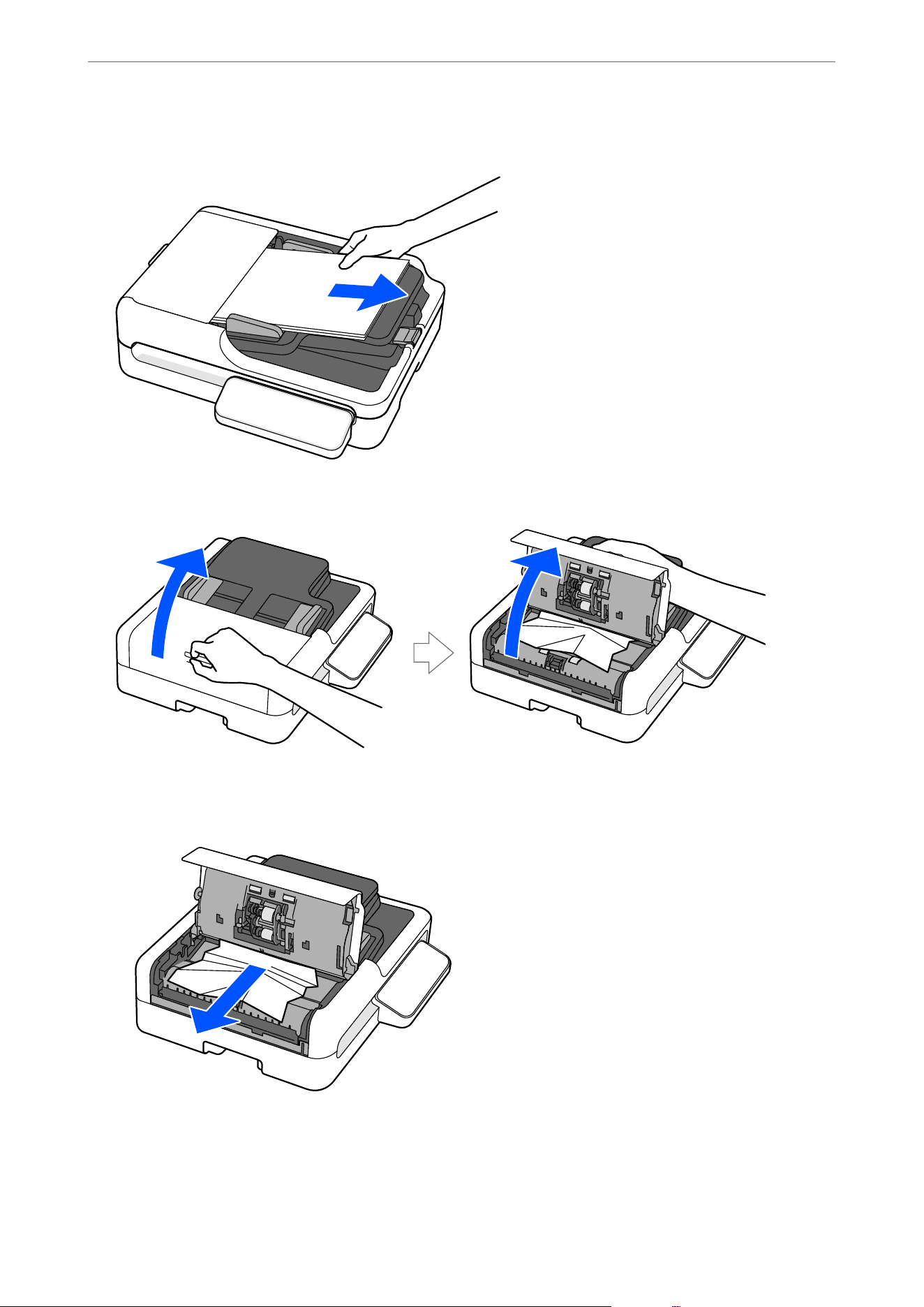
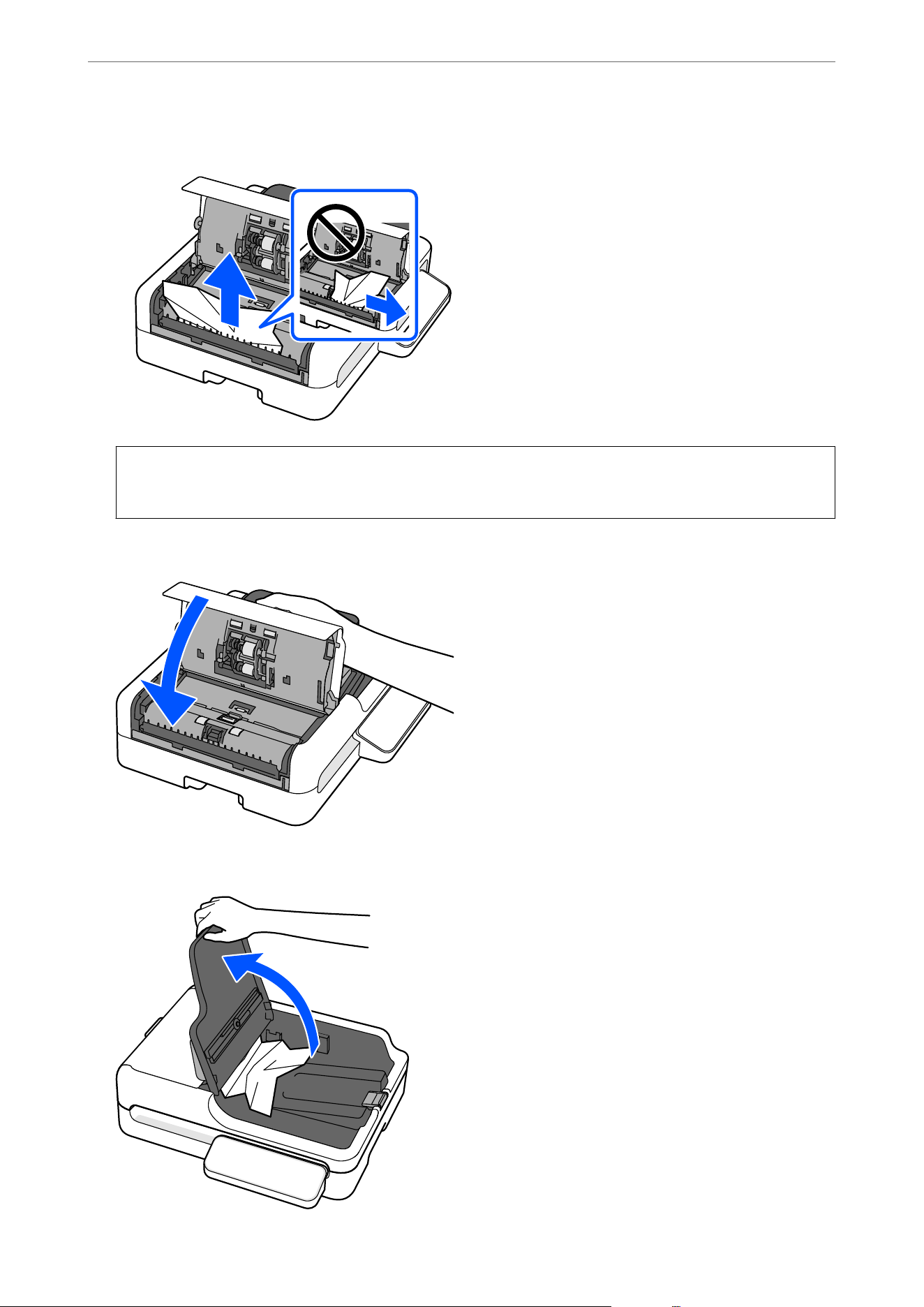
O If there are originals on the output tray side, pull them out as shown in the illustration.
c
Important:
Do not pull the originals out sideways. Otherwise, the original or the ADF may be damaged.
4. Close the ADF cover.
5. Raise the input tray.
Solving Problems
>
Paper Feeding Problems
>
Removing Jammed Originals from the Scanner
182
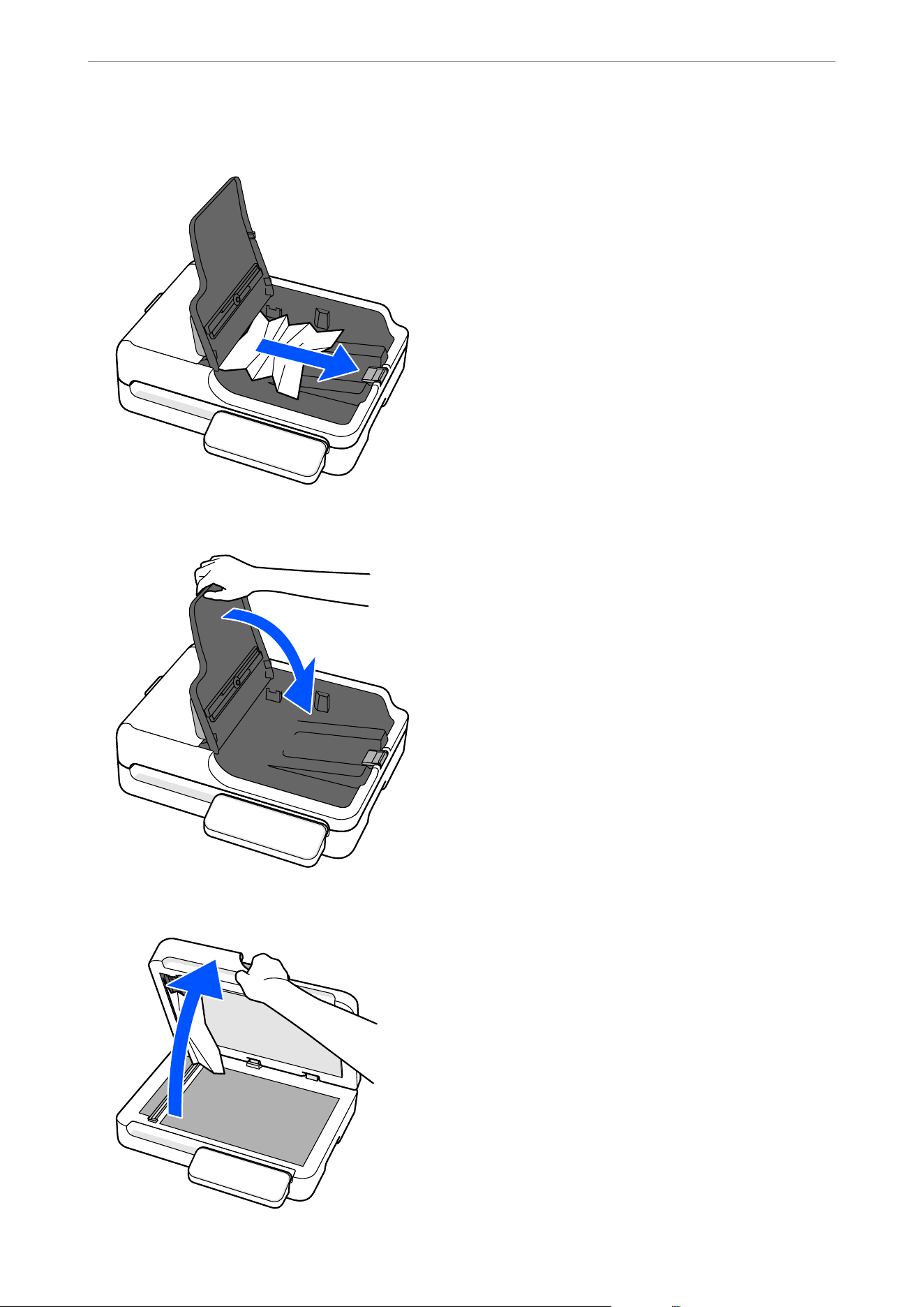
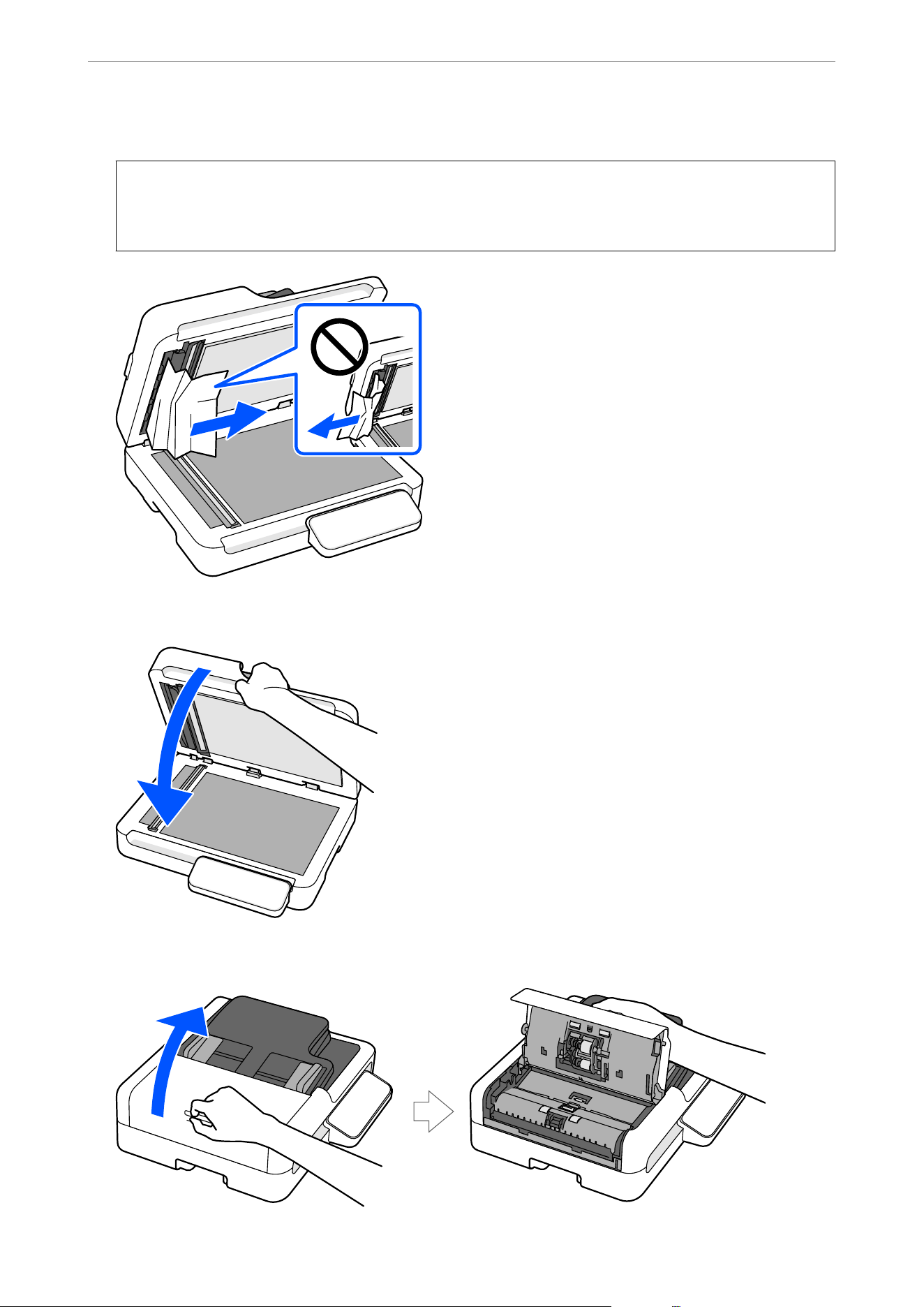
9. Remove any jammed originals.
c
Important:
Remove the jammed originals in the direction shown in the illustration. Otherwise, the original or the ADF
may be damaged.
10. Close the document cover.
11. Open the ADF cover.
Solving Problems
>
Paper Feeding Problems
>
Removing Jammed Originals from the Scanner
184
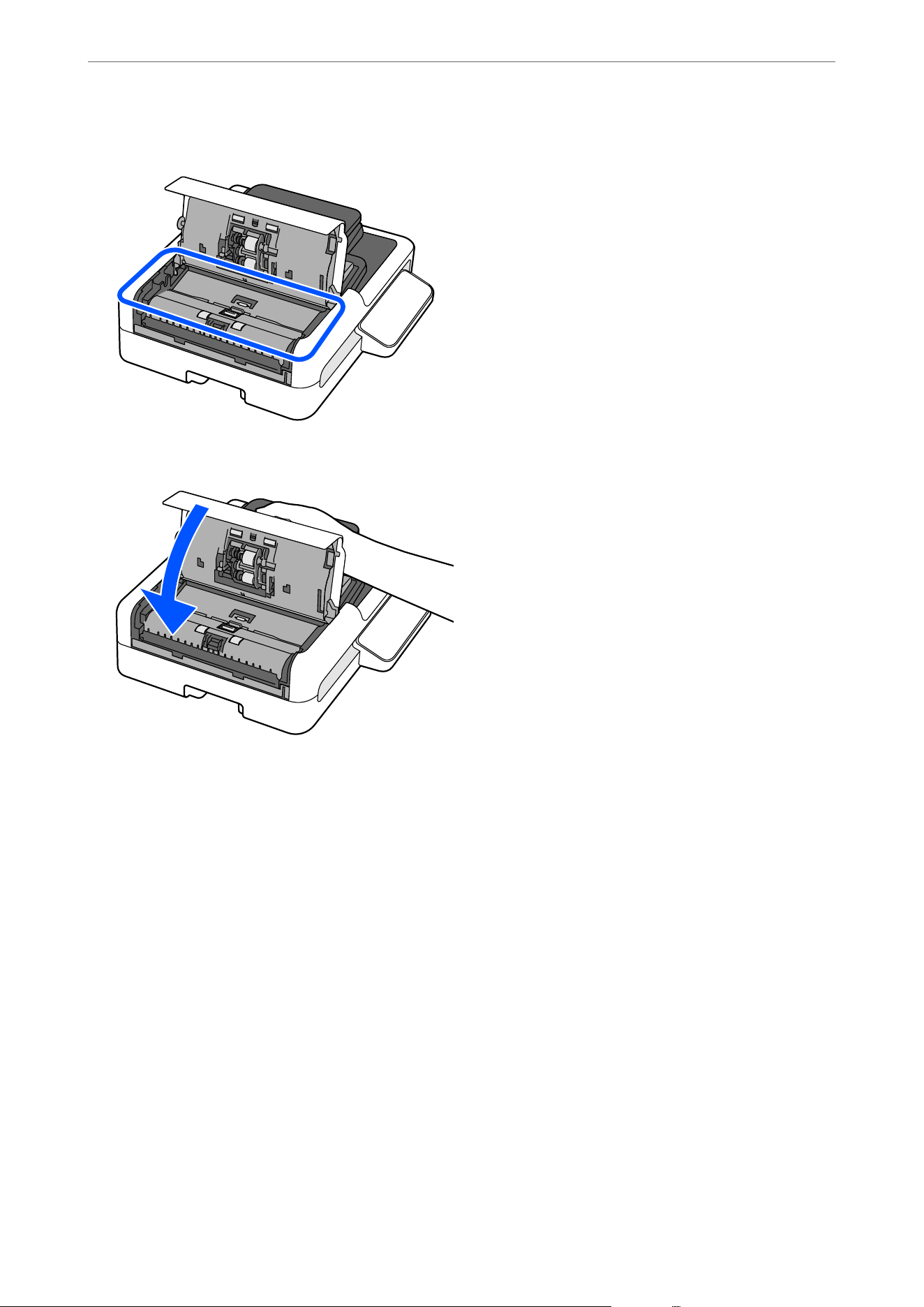
12. Make sure that no paper (or pieces of paper) remain in the areas shown in the illustration.
13. Close the ADF cover.
Note:
O If the error continues to occur aer removing the jammed original, open the ADF cover and check again to make sure no
pieces of paper remain.
O When scanning using the ADF, make sure that the originals are placed correctly. Also, make sure that the originals meet
the conditions and type required to scan using the ADF.
Related Information
&
“Multiple Originals Are Fed (Double Feed)” on page 180
& “Paper Jams, Paper Feed Errors, and Document Protection Issues Occur Frequently” on page 185
& “Paper Protection Does not Work Correctly” on page 187
& “Types of Originals that Require Attention (ADF)” on page 40
& “Types of Originals that Must Not be Scanned (ADF)” on page 41
& “
Specications
and Placing of Originals (ADF)” on page 42
Paper Jams, Paper Feed Errors, and Document Protection Issues
Occur Frequently
If the following problems occur, check the original and the status of the scanner.
Solving Problems
>
Paper Feeding Problems
>
Paper Jams, Paper Feed Errors, and Document Protection Issues O
…
185
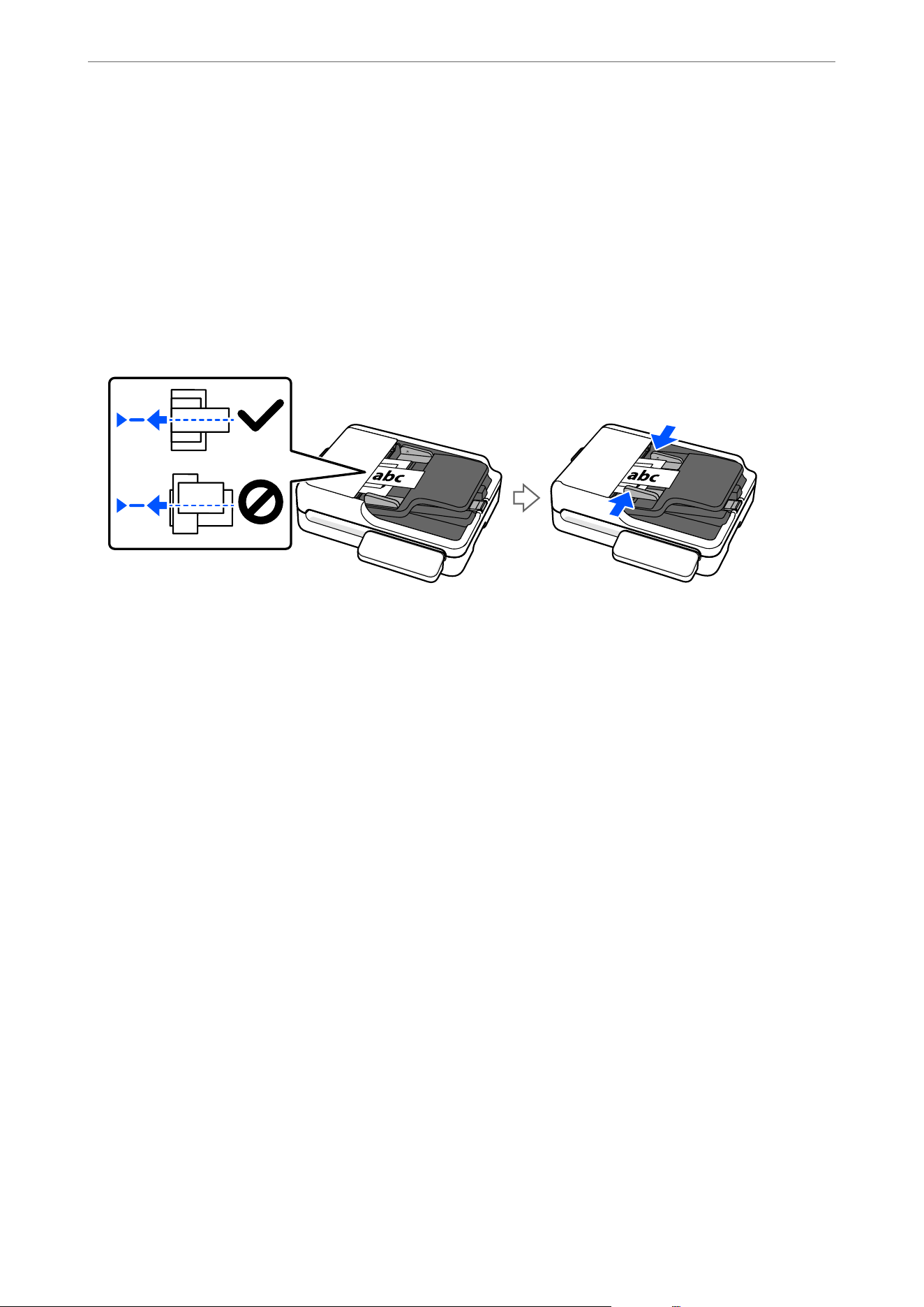
O Originals jam frequently
O Paper feed errors occur frequently
O Document protection issues occur frequently
Points to check when loading originals
O For originals with folds or that are curled, atten the original before loading.
O When loading originals with a mixture of dierent sizes, load the originals with the side to be scanned facing up
and in descending order of paper size with the widest at the back and the narrowest at the center of the input
tray. Next, slide the edge guides to align them with the widest originals.
“Placing a Mixture of Originals at
Dierent
Sizes” on page 49
If the problem is not solved, try scanning the originals at each size separately, or scan the originals one by one.
Align the edge guides to the width of the originals each time you load them.
Note:
You can use the following methods to scan the originals multiple times separately and then save them to one le.
O When you are using Epson Scan 2, select Add or edit pages aer scanning checkbox, and then scan the original. You can
add dierent originals or edit (rotate, move, and delete) the scanned pages aer scanning. See the Epson Scan 2 help for
details.
O When using Document Capture Pro, you can add originals for scanning or edit scanned pages (rotate, move, or delete) on
the Edit Scanned Results screen. Alternatively, you can quickly perform additional scans without changing the settings
by selecting Show the conrmation dialog aer scanning on the Scan Settings screen.
See the Document Capture Pro help for details.
O When scanning from the control panel (Scan to Features), setting Add Pages Aer Scanning to On allows you to add
and scan other originals aer the initial scan is complete.
O When you are using Epson Smart Panel, load the next original, and then tap +Scan aer scanning the rst page to
display the Edit screen. You can rotate, move, and delete pages on the Edit screen.
O
Aer
scanning, remove the original from the output tray.
Points to check on the scanner
Clean the ADF.
“Cleaning the ADF” on page 154
Related Information
& “Types of Originals that Require Attention (ADF)” on page 40
Solving Problems
>
Paper Feeding Problems
>
Paper Jams, Paper Feed Errors, and Document Protection Issues O
…
186
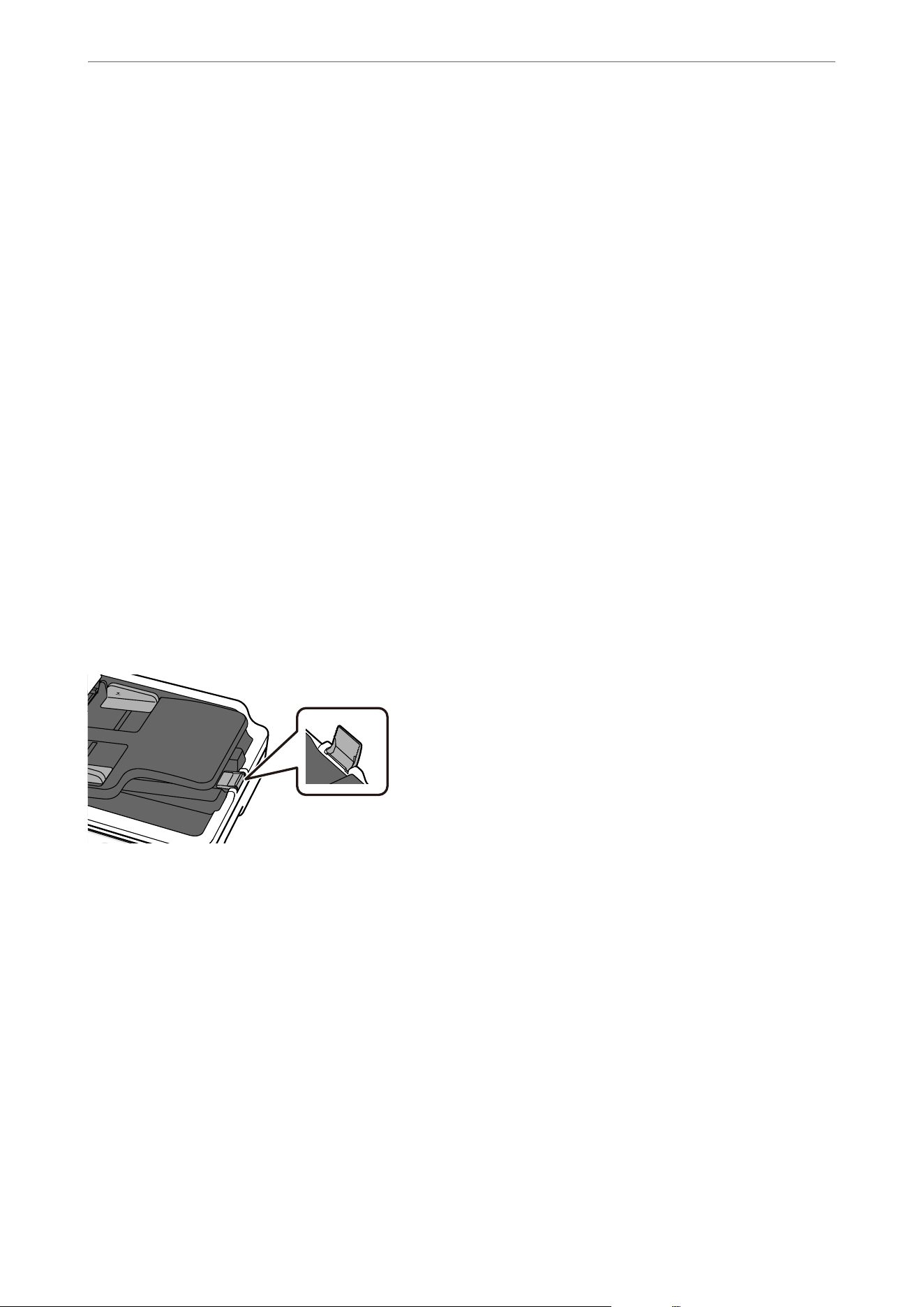
& “Placing a Mixture of Originals at Dierent Sizes” on page 49
& “Cleaning the ADF” on page 154
& “Multiple Originals Are Fed (Double Feed)” on page 180
& “Paper Protection Does not Work Correctly” on page 187
Paper Protection Does not Work Correctly
Depending on the original and the level you set, this feature may not work correctly.
O If false positives occur frequently, try lowering the level.
O If your original is damaged, check that this feature is enabled. If it is already enabled, increase the level of
protection for the feature.
Related Information
&
“Scanner Settings” on page 143
& “Setting the Document Protection Feature” on page 151
& “Removing Jammed Originals from the Scanner” on page 180
Originals are not Ejected Neatly
If scanned originals become misaligned or scattered, or if they fall out of the output tray, raise the stopper.
The Originals Get Dirty
Clean the inside of the scanner.
Related Information
&
“Cleaning the ADF” on page 154
Scanning Speed Slows Down when Scanning Continuously
When scanning continuously using the ADF, scanning slows down to prevent the scanner mechanism from
overheating and being damaged. However, you can continue scanning.
To regain normal scanning speed, leave the scanner idle for at least 30 minutes. Scanning speed does not recover
even if the power is o.
Solving Problems
>
Paper Feeding Problems
>
Scanning Speed Slows Down when Scanning Continuously
187
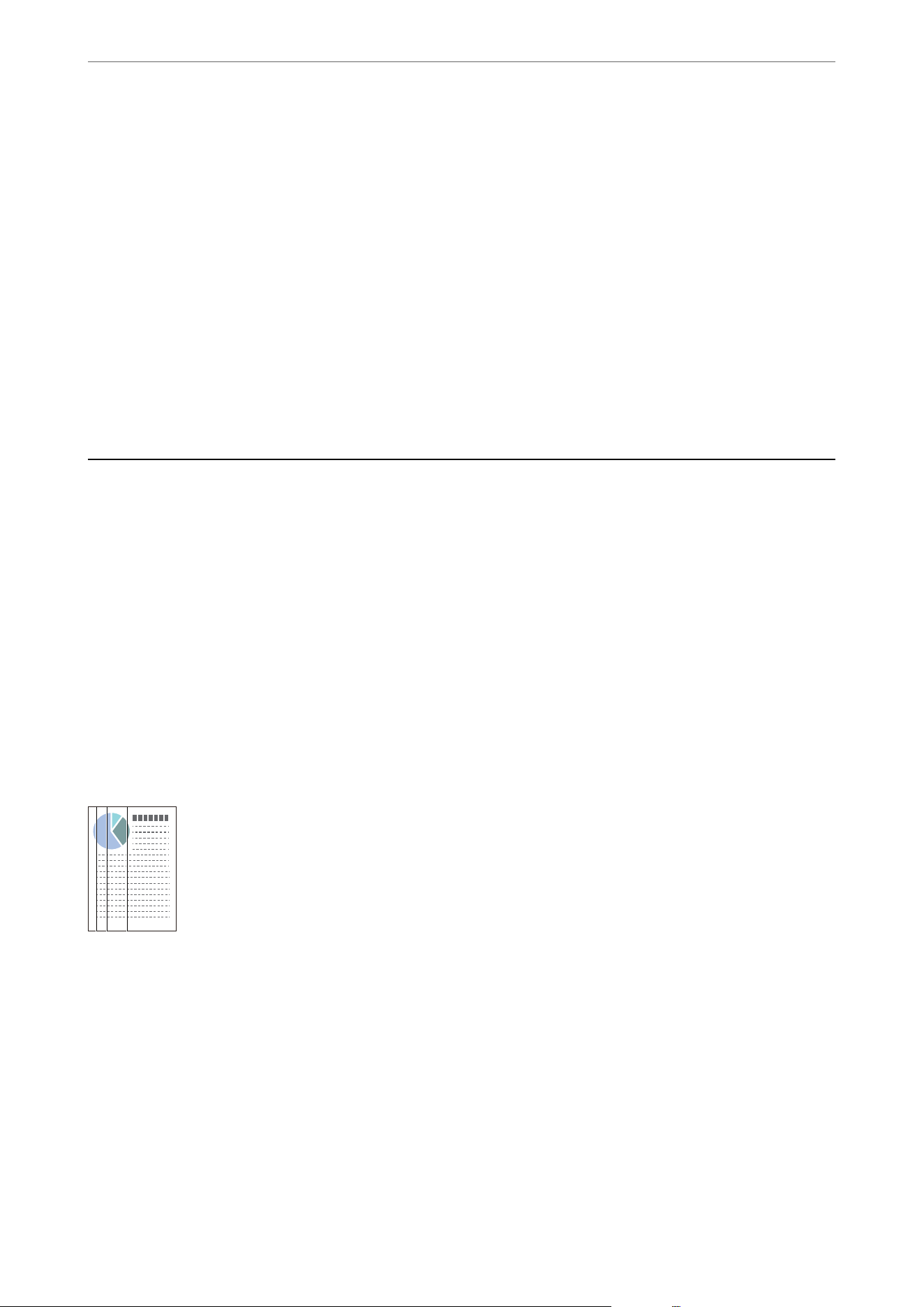
Scanning Takes a Long Time
O e scanning speed may slow down depending on the scanning conditions, such as high resolution, image
adjustment features,
le
format, communication mode, and so on.
O If you are using a USB hub, try to connect the scanner directly to the computer.
O When using security soware, exclude the TWAIN.log le from monitoring, or set the TWAIN.log as a
read-only
le.
For more information on your security
soware’s
functions, see the help and so on supplied with
the soware. e TWAIN.log le is saved in the following locations.
C:\Users\(user name)\AppData\Local\Temp
Related Information
&
“Setting a Resolution at Suits the Scanning Purpose” on page 115
Scanned Image Problems
Uneven Colors, Dirt, Spots, and so on Appear when Scanning from
the Scanner Glass
O Clean the scanner glass.
O Remove any trash or dirt that adheres to the original.
O Do not press with too much force on the original or the document cover. If you press with too much force,
blurring, smudges, and spots may occur.
Lines (Streaks) Appear when Scanning from ADF
O Clean the ADF.
Straight lines (streaks) may appear in the image when debris or dirt gets into the ADF.
O Remove any debris or dirt that adheres to the original.
O Using Glass Dirt Detection feature, a notication is displayed when dirt is detected on the scanner glass inside
the scanner (the ADF scanning sensor).
Select Settings on the home screen > Scanner Settings > Glass Dirt Detection, and then select On-Low or
On-High.
When an alert is displayed, clean the glass surfaces inside your scanner using a genuine Epson cleaning kit or a
so cloth.
“Cleaning the ADF” on page 154
Solving Problems
>
Scanned Image Problems
>
Lines (Streaks) Appear when Scanning from ADF
188
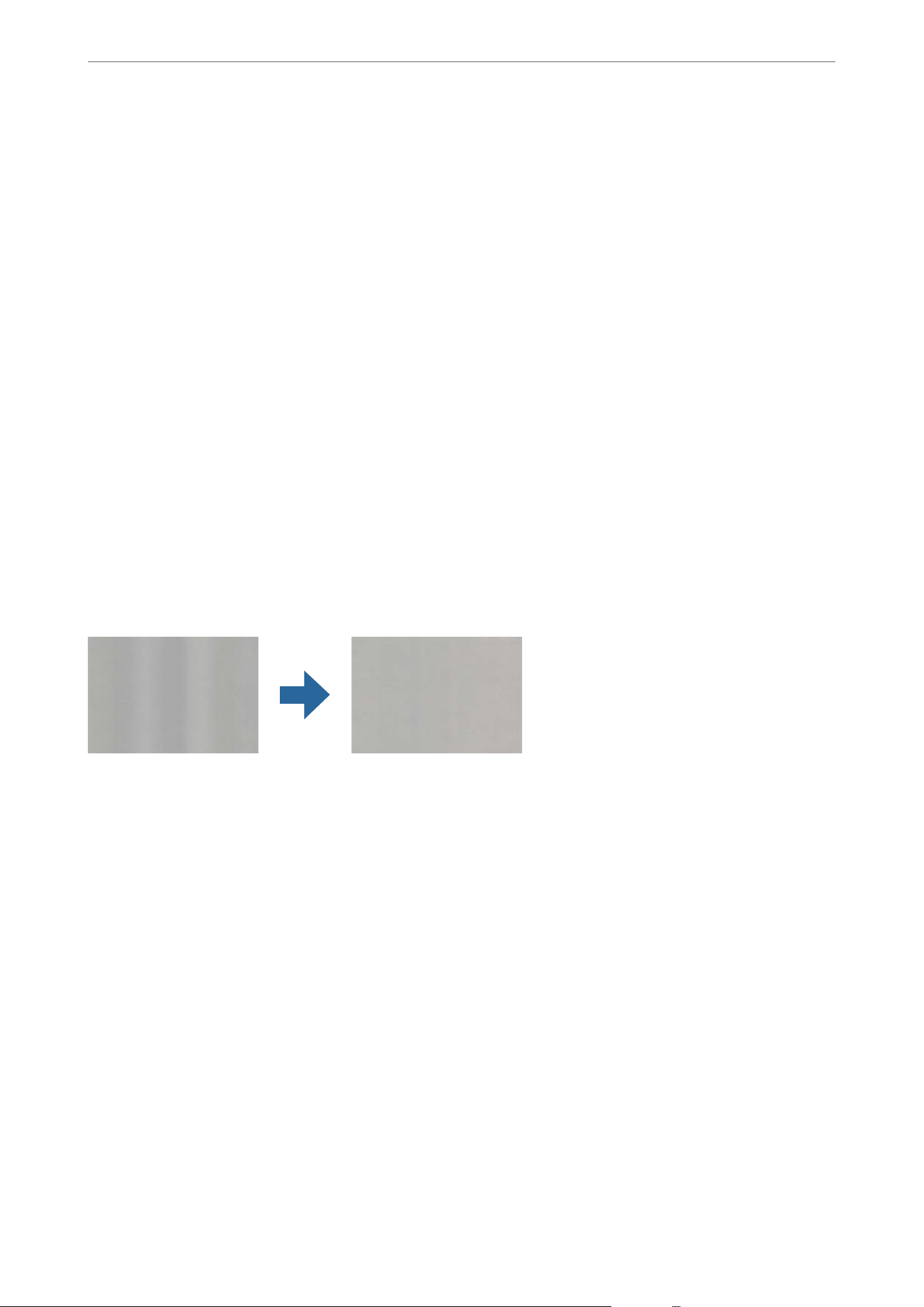
Note:
O Some stains may not be detected correctly.
O If the detection does not work correctly, change the setting.
If no stains are detected, select On-High. If stains are detected incorrectly, select On-Low or
O
.
Related Information
&
“Cleaning the ADF” on page 154
& “Setting the Glass Surface Stain Detection Feature” on page 150
Alert About Stains Inside the Scanner Still Appears
If the alert screen appears
aer
cleaning the inside of the scanner, glass part will be required to replace.
Contact your local dealer to repair. In the U.S., Canada, and Latin America, contact Epson Support.
Related Information
& “Cleaning the ADF” on page 154
Colors Are Uneven in Images Scanned Using the ADF
If the scanner is subject to strong light such as direct sunlight, the sensor inside the scanner misdetects the light
and colors in the scanned image become uneven.
O Change the orientation of the scanner so that no strong light is shining into the ADF.
O Move the scanner to a location where it will not be subjected to strong light.
Text Scanned from the ADF Appears Distorted, Blurred, or
Misaligned
O Try placing the original upside down with the side to be scanned facing up.
is
might improve the results.
O Depending on the original, it may not be scanned clearly from the ADF. Place the original on the scanner glass.
Expanding or Contracting the Scanned Image Using the ADF
When expanding or contracting the scanned image using the ADF, you can adjust the expansion ratio by using the
Adjustments feature in Epson Scan 2 Utility. is feature is only available for Windows.
Note:
Epson Scan 2 Utility is one of the applications supplied with the scanner soware.
Solving Problems
>
Scanned Image Problems
>
Expanding or Contracting the Scanned Image Using the ADF
189

1. Start Epson Scan 2 Utility.
O Windows 11/Windows Server 2019/Windows Server 2022
Click the start button, and then select All apps > EPSON > Epson Scan 2 Utility.
O Windows 10/Windows Server 2016
Click the start button, and then select EPSON > Epson Scan 2 Utility.
O Windows 8.1/Windows 8/Windows Server 2012 R2/Windows Server 2012
Enter the application name in the search charm, and then select the displayed icon.
O Windows 7/Windows Server 2008 R2
Click the start button, and then select All Programs or Programs > EPSON > Epson Scan 2 > Epson Scan
2 Utility.
2. Select the Adjustments tab.
3. Use Expansion/Contraction to adjust the expansion ratio for scanned images.
4.
Click Set to apply the settings to the scanner.
An Image on the Back of Your Original Appears in Your Scanned
Image
Images on the back of the original may appear in the scanned image.
O When scanning thin originals on the scanner glass, place black paper over the original.
O When Auto, Color, or Grayscale is selected as the Image Type:
O Check that Remove Background is selected.
Control panel: Enable Remove Background in Scan Settings.
Document Capture Pro (Windows)/Document Capture (Mac OS X): Press the Detailed Settings button on
the Scan Settings screen to open the Epson Scan 2 screen. On the Advanced Settings tab, select Remove
Background.
Epson Scan 2: On the Advanced Settings tab, select Remove Background.
O Adjust the brightness and density.
Control panel: Adjust the Density of the scan settings.
Epson Scan 2: Adjust the Brightness on the Advanced Settings tab.
O When you select Black & White from Image Type:
Check that Text Enhancement is selected.
Control panel: Enable Text Enhancement in Scan Settings.
Document Capture Pro (Windows)/Document Capture (Mac OS X): On the Scan Settings screen, select Tex t
Enhancement.
Epson Scan 2: On the Advanced Settings tab, select Text Enhancement.
Depending on the condition of your scanned image, click Settings, and then move the slider towards Remove
background.
Solving Problems
>
Scanned Image Problems
>
An Image on the Back of Your Original Appears in Your Scanned I
…
190
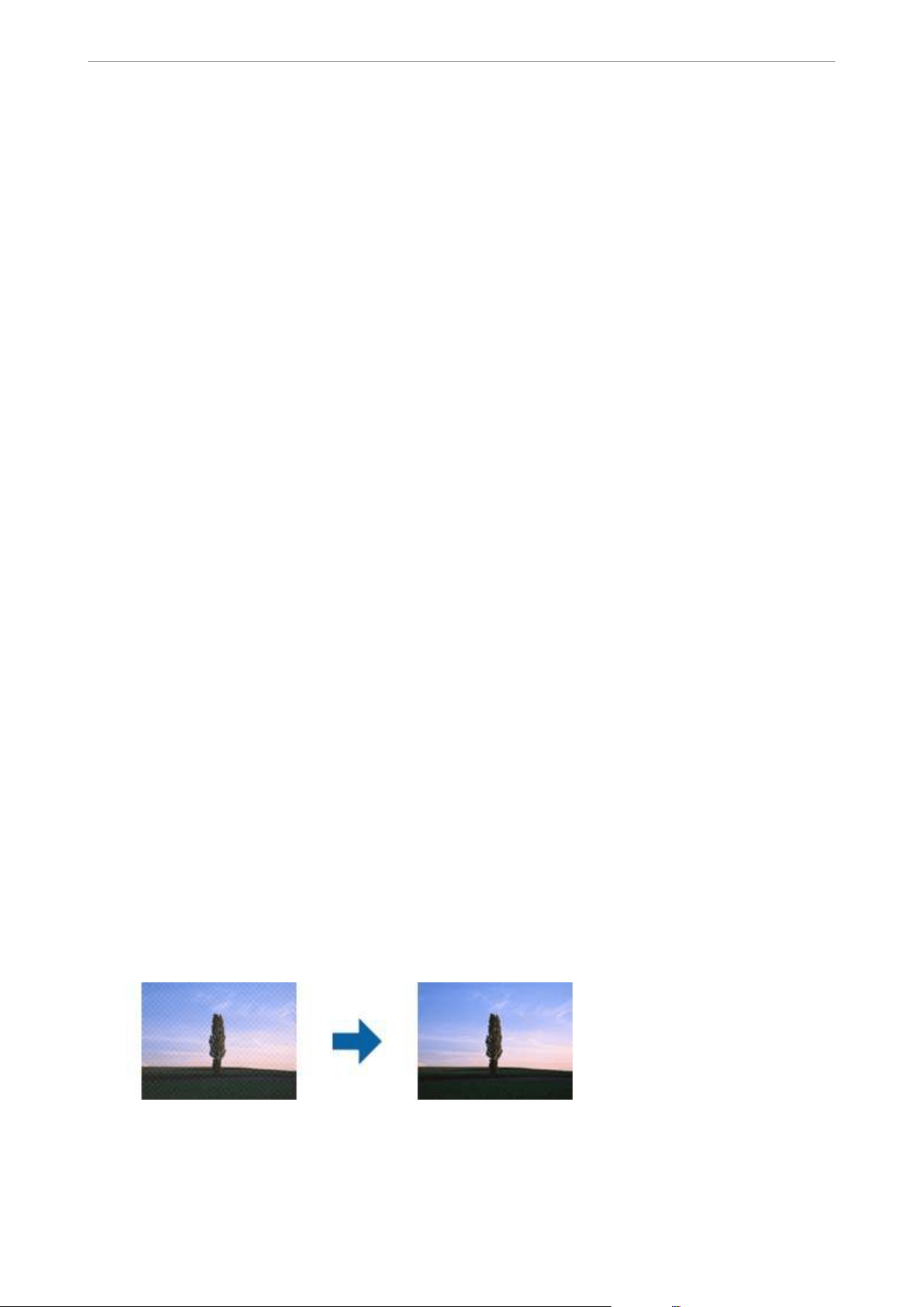
Scanned Text or Images are Missing or Blurred
You can adjust the appearance of the scanned image or text by increasing the resolution or adjusting the image
quality.
O Change the resolution, and then scan again.
Set the appropriate resolution for the purpose of your scanned image.
O Check that Text Enhancement is selected.
Control panel: Enable Text Enhancement in Scan Settings.
Document Capture Pro (Windows)/Document Capture (Mac OS X): On the Scan Settings screen, select Tex t
Enhancement.
Epson Scan 2: On the Advanced Settings tab, select Text Enhancement.
When you select Black & White as the Image Type, depending on the condition of the scanned image, click
Settings and adjust the slider for Emphasize light letters / Remove background, turn o Remove spot noise,
or set the level to Low.
O If you are scanning in JPEG format, try changing the compression level.
Document Capture Pro (Windows)/Document Capture (Mac OS X): Click Option on the Save Settings screen
to change the JPEG quality.
Epson Scan 2: Click Image Format > Options, and then change the Image Quality.
Also, check the following when scanning from the scanner glass.
O Make sure the original is placed at on the scanner glass. Also make sure your original is not wrinkled or
warped.
O Make sure you do not move the original or the scanner while scanning.
O Make sure the scanner is placed on a
at
and stable surface.
Related Information
&
“Setting a Resolution at Suits the Scanning Purpose” on page 115
Moiré Patterns (Web-Like Shadows) Appear
If the original is a printed document, moiré patterns (web-like shadows) may appear in the scanned image.
O Select Descreening on the Advanced Settings tab in Epson Scan 2 screen.
When you are using Document Capture Pro, you can open the Epson Scan 2 screen by pressing the Detailed
Settings button on the Scan Settings screen. Select Descreening on the Advanced Settings tab.
O Change the resolution, and then scan again.
Solving Problems
>
Scanned Image Problems
>
Moiré Patterns (Web-Like Shadows) Appear
191

Cannot Scan the Correct Area on the Scanner Glass
O Make sure the original is placed correctly against the alignment marks.
O If the edges of the scanned image are cut o, move the original slightly away from the edges of the scanner glass.
O If the original is thick, place it in the center of the scanner glass. Make sure that exterior light, such as from
lamps or other sources, does not shine directly onto the scanner glass.
O
e
maximum size of the original you can scan is 215.9×297.1 mm (8.5×11.7 in.).
O ere are areas at the top, bottom, le, and right edges of the scanner glass that cannot be scanned.
O Top: 1.5 mm (0.06 in.)
O Le: 1.5 mm (0.06 in.)
O Right: 8 mm (0.31 in.)
O Bottom: 15 mm (0.59 in.)
O Check the settings in Edge Correction. When enabled, the edges of the image are corrected. Try changing the
setting.
Document Capture Pro (Windows)/Document Capture (Mac OS X): Press the Detailed Settings button on the
Scan Settings screen to open the Epson Scan 2 screen. On the Advanced Settings tab, select None from Edge
Correction.
Epson Scan 2: On the Advanced Settings tab, select None from Edge Correction.
Related Information
&
“Placing an Original” on page 54
Solving Problems
>
Scanned Image Problems
>
Cannot Scan the Correct Area on the Scanner Glass
192
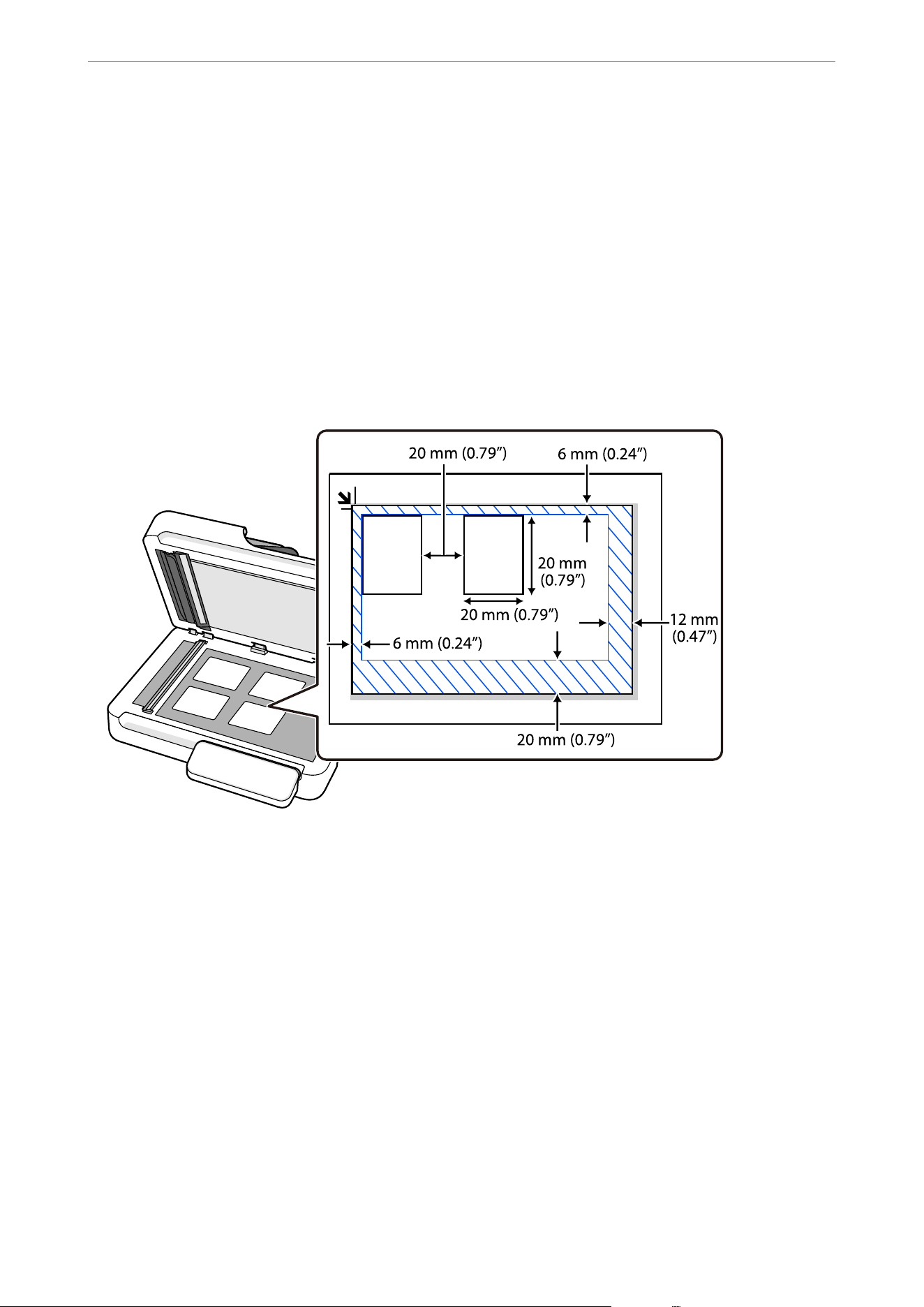
Cannot Scan Multiple Originals at the Same Time
O When placing multiple originals on the scanner glass, make sure they meet the following requirements.
O Keep each original away from the edges of the scanner glass by the following distances:
O Top: 6 mm (0.24 in.)
O
Le:
6 mm (0.24 in.)
O Right: 12 mm (0.47 in.)
O Bottom: 20 mm (0.79 in.)
O Leave a gap of at least 20 mm (0.79 in.) between each original.
O e originals must be at least 20×20 mm (0.79×0.79 in.) in size.
O Check that the originals are placed straight.
O You can only save multiple originals as separate images when scanning from a computer.
When scanning, set Document Size to Auto Detect on the Scan Settings screen.
O Depending on the originals, you may not be able to scan multiple originals at the same time. Scan such originals
one by one.
Related Information
&
“Placing Multiple Originals at Once” on page 57
The Edge of the Original is Not Scanned when Automatically
Detecting the Size of the Original
Depending on the original, the edge of the original may not scanned when automatically detecting the size of the
original.
Solving Problems
>
Scanned Image Problems
>
The Edge of the Original is Not Scanned when Automatically Det
…
193

O Adjust Crop Margins for Size "Auto" in the Epson Scan 2 screen. When you are using Document Capture Pro,
you can open the Epson Scan 2 screen by pressing the Detailed Settings button on the Scan Settings screen.
Click the Main Settings tab > Document Size > Settings. On the Document Size Settings screen, adjust Crop
Margins for Size "Auto".
O Depending on the original, the area of the original may not be detected correctly when using the Auto Detect
feature. Select the appropriate size of the original from the Document Size list.
Note:
If the size of the original you want to scan is not on the list, create the size manually on the Epson Scan 2 screen. When you
are using Document Capture Pro, you can open the Epson Scan 2 screen by pressing the Detailed Settings button on the
Scan Settings screen.
Click the Main Settings tab > Document Size, and then select Customize.
Character is not Recognized Correctly
Check the following to increase the recognition rate of OCR (Optical Character Recognition).
O Check that the original is placed straight.
O Use an original with clear text. Text recognition may decline for the following types of originals.
O Originals that have been copied many times
O Originals received by fax (at low resolutions)
O Originals with tightly spaced characters or line spacing
O Originals with ruled lines or underlined text
O Originals with hand-written text
O Originals with creases or wrinkles
O Paper type made of thermal paper such as receipts may deteriorate due to age or friction. Scan them as soon as
possible.
O When saving to Microso® Oce or Searchable PDF les, check that the correct languages are selected.
O If you have set Image Type to Color or Grayscale in Epson Scan 2, try adjusting the Text Enhancement setting.
Click the Advanced Settings tab > Text Enhancement > Settings, and then select Emphasize light letters for
OCR as the Mode.
Note:
You need the EPSON Scan OCR component to save as a Searchable PDF. is is installed automatically when you set up
the scanner using the installer.
Binding Margins of a Booklet are Distorted or Blurred
When scanning a booklet on the scanner glass, characters may appear distorted or blurred on the binding margin.
If this problem occurs, text is not recognized correctly when you save the scanned image as a Searchable PDF.
To decrease distortion or blurring on the binding margin, gently press down the document cover and hold it down
while scanning to atten the booklet. Make sure you do not move the booklet while scanning.
c
Important:
Do not press the document cover with too much force. Otherwise, the booklet or the scanner may be damaged.
Solving Problems
>
Scanned Image Problems
>
Binding Margins of a Booklet are Distorted or Blurred
194

Cannot Solve Problems in the Scanned Image
If you have tried all of the solutions and have not solved the problem, initialize the scanner driver (Epson Scan 2)
settings using Epson Scan 2 Utility.
Note:
Epson Scan 2 Utility is one of the applications supplied with the scanner soware.
1. Start Epson Scan 2 Utility.
O Windows 11/Windows Server 2019/Windows Server 2022
Click the start button, and then select All apps > EPSON > Epson Scan 2 Utility.
O Windows 10/Windows Server 2016
Click the start button, and then select EPSON > Epson Scan 2 Utility.
O Windows 8.1/Windows 8/Windows Server 2012 R2/Windows Server 2012
Enter the application name in the search charm, and then select the displayed icon.
O Windows 7/Windows Server 2008 R2/Windows Server 2008
Click the start button, and then select All Programs or Programs > EPSON > Epson Scan 2 > Epson Scan
2 Utility.
O Mac OS
Select Go > Applications > Epson Soware > Epson Scan 2 Utility.
2. Select the Other tab.
3. Click Reset.
Note:
If initialization does not solve the problem, uninstall and re-install the scanner driver (Epson Scan 2).
Document Capture Pro Problems
For problems that occur when scanning using Document Capture Pro, access the following URL to check the
Document Capture Pro manual.
https://support.epson.net/dcp/
Uninstalling and Installing Applications
Uninstalling Your Applications
You may need to uninstall and then reinstall your applications to solve certain problems or if you upgrade your
operating system. Log on to your computer as an administrator. Enter the administrator password if the computer
prompts you.
Uninstalling Your Applications for Windows
1. Quit all running applications.
Solving Problems
>
Uninstalling and Installing Applications
>
Uninstalling Your Applications
195

2. Disconnect the scanner from your computer.
3. Open the Control Panel:
O Windows 11/Windows Server 2022
Click the start button, and then select All apps > Windows Tools > Control Panel.
O Windows 10/Windows Server 2016/Windows Server 2019
Click the start button, and then select Windows System > Control Panel.
O Windows 8.1/Windows 8/Windows Server 2012 R2/Windows Server 2012
Select Desktop > Settings > Control Panel.
O Windows 7/Windows Server 2008 R2
Click the start button, and then select Control Panel.
4.
Select Uninstall a program in Programs.
5. Select the application you want to uninstall.
6. Click Uninstall/Change or Uninstall.
Note:
If the User Account Control window is displayed, click Continue.
7. Follow the on-screen instructions.
Note:
A message may be displayed prompting you to restart your computer. If it is displayed, make sure I want to restart my
computer now is selected, and then click Finish.
Uninstalling Your Applications for Mac OS
Note:
Make sure you installed EPSON Soware Updater.
1. Download the Uninstaller using EPSON Soware Updater.
Once you have downloaded the Uninstaller, you do not need to download it again each time you uninstall the
application.
2. Disconnect the scanner from your computer.
3. To uninstall the scanner driver, select System Preferences from the Apple menu > Printers & Scanners (or
Print & Scan, Print & Fax), and then remove the scanner from the enabled scanner list.
4. Quit all running applications.
5. Select Go > Applications > Epson Soware > Uninstaller.
6. Select the application you want to uninstall, and then click Uninstall.
c
Important:
e
Uninstaller removes all drivers for Epson scanners on the computer. If you use multiple Epson scanners
and you only want to delete some of the drivers, delete all of them rst, and then install the necessary scanner
drivers again.
Solving Problems
>
Uninstalling and Installing Applications
>
Uninstalling Your Applications
196

Note:
If you cannot nd the application you want to uninstall in the application list, you cannot uninstall using the
Uninstaller. In this situation, select Go > Applications > Epson Soware, select the application you want to uninstall,
and then drag it to the trash icon.
Installing Your Applications
Follow the steps below to install the necessary applications.
Note:
O Log on to your computer as an administrator. Enter the administrator password if the computer prompts you.
O When reinstalling applications, you need to uninstall them rst.
1. Quit all running applications.
2. When installing scanner driver (Epson Scan 2), disconnect the scanner and the computer temporarily.
Note:
Do not connect the scanner and the computer until you are instructed to do so.
3. Visit the following website and search for your model to access the installer.
https://epson.com/support (U.S.)
https://epson.ca/support (Canada)
https://latin.epson.com/support (Latin America)
https://epson.sn > Setup (Other regions)
Solving Problems
>
Uninstalling and Installing Applications
>
Installing Your Applications
197

Adding or Replacing the Computer or
Devices
Connecting to a Scanner that has been Connected to the Network..............199
Connecting a Smart Device and Scanner Directly (Wi-Fi Direct)...............200
Re-setting the Network Connection....................................202
Checking the Network Connection Status................................205
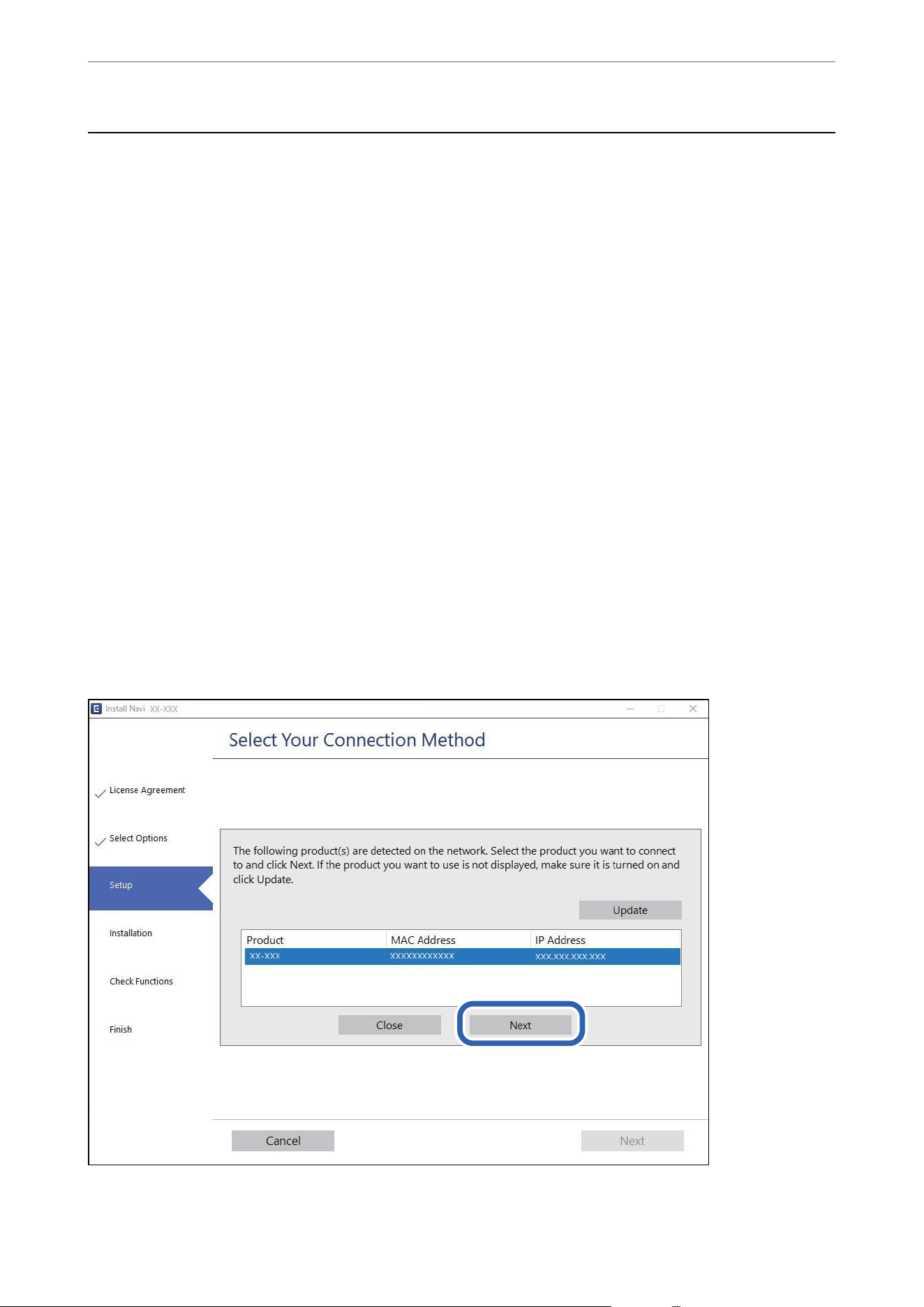
Connecting to a Scanner that has been Connected to
the Network
When the scanner has already been connected to the network, you can connect a computer or a smart device to the
scanner over the network.
Using a Network Scanner from a Second Computer
We recommend using the installer to connect the scanner to a computer.
Visit the following website and search for your model to access the installer.
https://epson.com/support (U.S.)
https://epson.ca/support (Canada)
https://latin.epson.com/support (Latin America)
https://epson.sn > Setup (Other regions)
*
*
You can view the operating instructions in the Web Video Manuals. Access the following URL.
https://support.epson.net/publist/vlink.php?code=NPD7509
Selecting the Scanner
Follow the on-screen instructions until the following screen is displayed, select the scanner name you want to
connect to, and then click Next.
Follow the on-screen instructions.
Adding or Replacing the Computer or Devices
>
Connecting to a Scanner that has been Connected
…
199
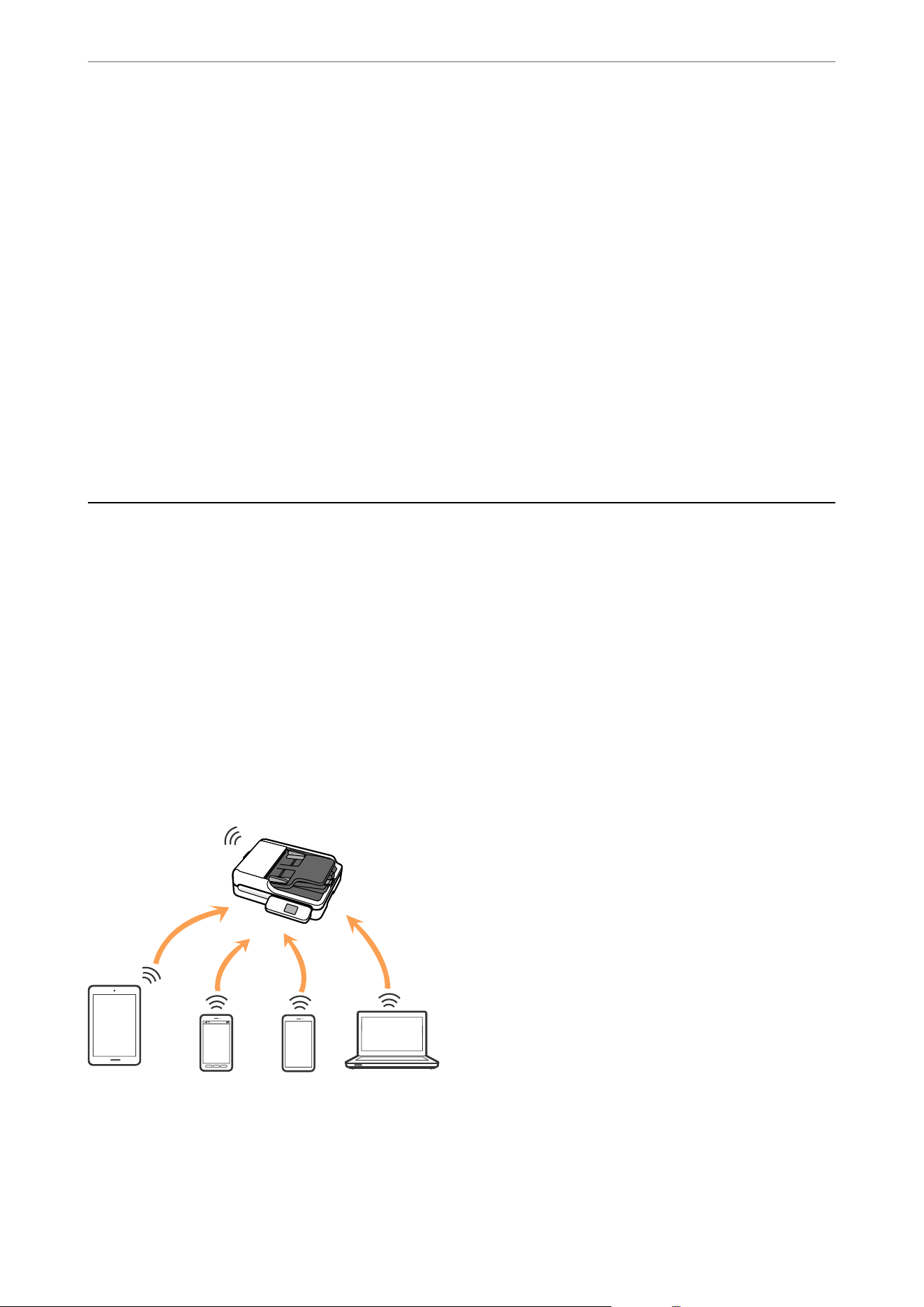
Using a Network Scanner from a Smart Device
You can connect a smart device to the scanner using one of the following methods.
Connecting over a wireless router
Connect the smart device to the same Wi-Fi network (SSID) as the scanner.
See the following for more details.
“Making Settings for Connecting to the Smart Device” on page 203
Connecting by Wi-Fi Direct
Connect the smart device to the scanner directly without a wireless router.
See the following for more details.
“Connecting a Smart Device and Scanner Directly (Wi-Fi Direct)” on page 200
Connecting a Smart Device and Scanner Directly (Wi-
Fi Direct)
Wi-Fi Direct (Simple AP) allows you to connect a smart device directly to the scanner without a wireless router
and scan from the smart device.
About Wi-Fi Direct
Use this connection method when you are not using Wi-Fi at home or at the oce, or when you want to connect
the scanner and the computer or smart device directly. In this mode, the scanner acts as an wireless router and
you can connect up to 8 devices to the scanner without having to use a standard wireless router. However, devices
directly connected to the scanner cannot communicate with each other through the scanner.
e scanner can be connected by Wi-Fi or Ethernet, and Wi-Fi Direct (Simple AP) connection simultaneously.
However, if you start a network connection in Wi-Fi Direct (Simple AP) connection when the scanner is
connected by Wi-Fi, the Wi-Fi is temporarily disconnected.
Adding or Replacing the Computer or Devices
>
Connecting a Smart Device and Scanner Directly (
…
200
Connecting to a Smart Device using Wi-Fi Direct
is method allows you to connect the scanner directly to smart devices without a wireless router.
1. Select
on the home screen.
2. Select Wi-Fi Direct.
3.
Select Start Setup.
4. Start Epson Smart Panel on your smart device.
5. Follow the instructions displayed on the Epson Smart Panel to connect to your scanner.
When your smart device is connected to the scanner, go to the next step.
6. On the scanner's control panel, select Complete.
Disconnecting Wi-Fi Direct (Simple AP) Connection
ere are two methods available to disable a Wi-Fi Direct (Simple AP) connection; you can disable all connections
by using the control panel, or disable each connection from the computer or the smart device.
When you want to disable all connections, select
> Wi-Fi Direct > Start Setup > Disable Wi-Fi
Direct.
c
Important:
When Wi-Fi Direct (Simple AP) connection disabled, all computers and smart devices connected to the scanner in
Wi-Fi Direct (Simple AP) connection are disconnected.
Note:
If you want to disconnect a specic device, disconnect from the device itself instead of the product. Use one of the following
methods to disconnect the Wi-Fi Direct (Simple AP) connection from the device.
O Disconnect the Wi-Fi connection to the scanner's network name (SSID).
O Connect to another network name (SSID).
Changing the Wi-Fi Direct (Simple AP) Settings Such as the SSID
When Wi-Fi Direct (simple AP) connection is enabled, you can change the settings from > Wi-Fi
Direct > Start Setup >
, and then the following menu items are displayed.
Change Network Name
Change the Wi-Fi Direct (simple AP) network name (SSID) used for connecting to the scanner to your arbitrary
name. You can set the network name (SSID) in ASCII characters that is displayed on the
soware
keyboard on the
control panel. You can enter up to 22 characters.
Adding or Replacing the Computer or Devices
>
Connecting a Smart Device and Scanner Directly (
…
201

When changing the network name (SSID), all connected devices are disconnected. Use the new network name
(SSID) if you want to re-connect the device.
Change Password
Change the Wi-Fi Direct (simple AP) password for connecting to the scanner to your arbitrary value. You can set
the password in ASCII characters that is displayed on the
soware
keyboard on the control panel. You can enter 8
to 22 characters.
When changing the password, all connected devices are disconnected. Use the new password if you want to
re-connect the device.
Change Frequency Range
Change the frequency range of Wi-Fi Direct used for connecting to the scanner. You can select 2.4 GHz or 5 GHz.
When changing the frequency range, all connected devices are disconnected. Re-connect the device.
Note that you cannot re-connect from devices that do not support 5 GHz frequency range when changing to 5
GHz.
is setting may not be displayed depending on your region or country.
Disable Wi-Fi Direct
Disable Wi-Fi Direct (simple AP). When this is disabled, all connected devices are disconnected.
Restore Default Settings
Restore all Wi-Fi Direct (simple AP) settings to their defaults.
e Wi-Fi Direct (simple AP) connection information of the smart device saved to the scanner is deleted.
Note:
You can also set up from the Network tab > Wi-Fi Direct on Web Cong for the following settings.
O Enabling or disabling Wi-Fi Direct (simple AP)
O Changing network name (SSID)
O Changing the Password
O Changing the frequency range
is
setting may not be displayed depending on your region or country.
O Restoring the Wi-Fi Direct (simple AP) settings
Re-setting the Network Connection
is
section explains how to make the network connection settings and change the connection method when
replacing the wireless router or the computer.
When Replacing the Wireless Router
When you replace the wireless router, make settings for the connection between the computer or the smart device
and the scanner.
You need to make these settings if you change your Internet service provider and so on.
Adding or Replacing the Computer or Devices
>
Re-setting the Network Connection
>
When Repl
…
202
Making Settings for Connecting to the Computer
We recommend using the installer to connect the scanner to a computer.
Visit the following website and search for your model to access the installer.
https://epson.com/support (U.S.)
https://epson.ca/support (Canada)
https://latin.epson.com/support (Latin America)
https://epson.sn > Setup (Other regions)
*
*
You can view the operating instructions in the Web Video Manuals. Access the following URL.
https://support.epson.net/publist/vlink.php?code=NPD7509
Follow the on-screen instructions.
Making Settings for Connecting to the Smart Device
You can use the scanner from a smart device when you connect the scanner to the same Wi-Fi network (SSID) as
the smart device.
Install Epson Smart Panel from the following URL or QR code.
U.S., Canada, and Latin America
Other Regions
https://support.epson.net/smpdl/
Start Epson Smart Panel, and then follow the on-screen instructions to set up the scanner.
When Changing the Computer
When changing the computer, make connection settings between the computer and the scanner.
Adding or Replacing the Computer or Devices
>
Re-setting the Network Connection
>
When Chan
…
203

Making Settings for Connecting to the Computer
We recommend using the installer to connect the scanner to a computer.
Visit the following website and search for your model to access the installer.
https://epson.com/support (U.S.)
https://epson.ca/support (Canada)
https://latin.epson.com/support (Latin America)
https://epson.sn > Setup (Other regions)
*
*
You can view the operating instructions in the Web Video Manuals. Access the following URL.
https://support.epson.net/publist/vlink.php?code=NPD7509
Follow the on-screen instructions.
Changing the Connection Method to the Computer
is section explains how to change the connection method when the computer and the scanner have been
connected.
Changing from USB to a Network Connection
Use the installer to set up in a
dierent
connection method.
Visit the following website and search for your model to access the installer.
https://epson.com/support (U.S.)
https://epson.ca/support (Canada)
https://latin.epson.com/support (Latin America)
https://epson.sn > Setup (Other regions)
Selecting Change the Connection Methods
Follow the on-screen instructions.
Select the network connection that you want to use, Connect via wireless network (Wi-Fi) or Connect via wired
LAN (Ethernet), and then click Next.
Follow the on-screen instructions to
nish
setup.
Changing the Network Connection from Ethernet to Wi-Fi
Change the Ethernet connection to Wi-Fi connection from the scanner's control panel. e changing connection
method is basically the same as the Wi-Fi connection settings.
Related Information
&
“Making Wi-Fi Settings from the Control Panel” on page 121
Adding or Replacing the Computer or Devices
>
Re-setting the Network Connection
>
Changing t
…
204

Changing the Network Connection from Wi-Fi to Ethernet
Follow the steps below to change from a Wi-Fi connection to an Ethernet connection.
1.
Check the setting information required to connect.
“Before Making Network Connection” on page 209
2. Select Settings > Network Settings > Advanced on the scanner's control panel, and then set the required
information.
“Assigning the IP Address” on page 211
“Setting the Proxy Server” on page 212
3. Select Network Settings > Wired LAN Setup, and then follow the on-screen instructions to disable the
wireless LAN connection.
4. Connect the scanner to the network by using a LAN cable, and then check the connection.
“Connecting to Ethernet” on page 212
Making Wi-Fi Settings from the Control Panel
You can make network settings from the scanner's control panel in several ways. Choose the connection method
that matches the environment and conditions that you are using.
If you know the information for the wireless router such as SSID and password, you can make settings manually.
If the wireless router supports WPS, you can make settings by using push button setup.
Aer
connecting the scanner to the network, connect to the scanner from the device that you want to use
(computer, smart device, tablet, and so on.)
Related Information
&
“Making Wi-Fi Settings by Entering the SSID and Password” on page 213
& “Making Wi-Fi Settings by Push Button Setup (WPS)” on page 214
& “Making Wi-Fi Settings by PIN Code Setup (WPS)” on page 215
Checking the Network Connection Status
You can check the network connection status in the following way.
Checking the Network Connection Status from the Control Panel
You can check the network connection status using the network icon or the network information on the scanner’s
control panel.
Adding or Replacing the Computer or Devices
>
Checking the Network Connection Status
>
Chec
…
205
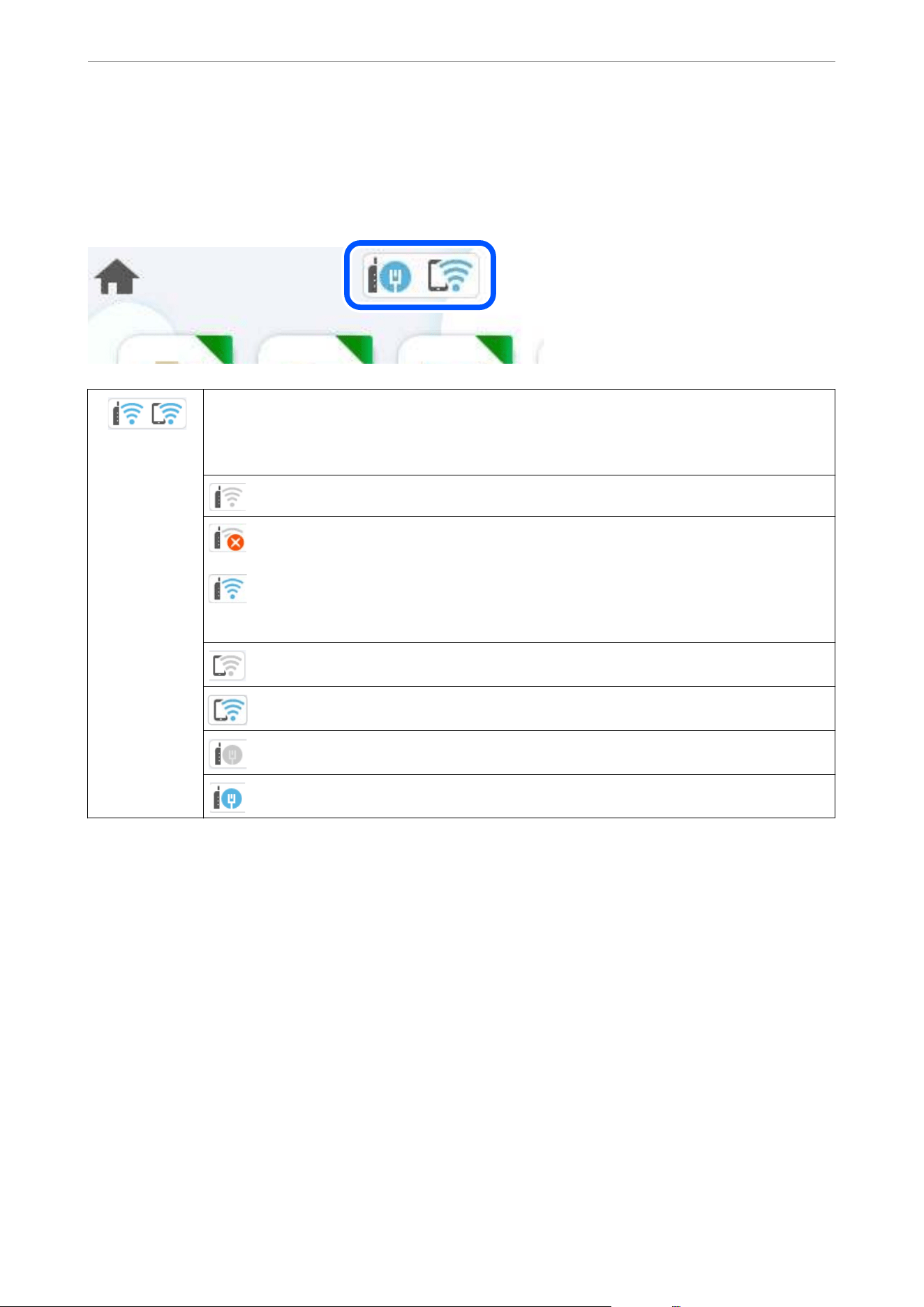
Checking the Network Connection Status using the Network Icon
You can check the network connection status and strength of the radio wave using the network icon on the
scanner's home screen.
Displays the network connection status.
Select the icon to check and change the current settings. This is the shortcut for the following menu.
Settings > Network Settings > Wi-Fi Setup
The scanner is not connected to a wireless (Wi-Fi) network.
The scanner is searching for SSID, unset IP address, or having a problem with a wireless (Wi-Fi)
network.
The scanner is connected to a wireless (Wi-Fi) network.
The number of bars indicates the signal strength of the connection. The more bars there are, the
stronger the connection.
The scanner is not connected to a wireless (Wi-Fi) network in Wi-Fi Direct (Simple AP) mode.
The scanner is connected to a wireless (Wi-Fi) network in Wi-Fi Direct (Simple AP) mode.
The scanner is not connected to a wired (Ethernet) network or unset it.
The scanner is connected to a wired (Ethernet) network.
Displaying Detailed Network Information on the Control Panel
When your scanner is connected to the network, you can also view other network-related information by selecting
the network menus you want to check.
1. Select Settings on the home screen.
2. Select Network Settings > Network Status.
3. To check the information, select the menus that you want to check.
O Wired LAN/Wi-Fi Status
Displays the network information (device name, connection, signal strength, and so on) for Ethernet or
Wi-Fi connections.
O Wi-Fi Direct Status
Displays whether Wi-Fi Direct is enabled or disabled, and the SSID, password and so on for Wi-Fi Direct
connections.
Adding or Replacing the Computer or Devices
>
Checking the Network Connection Status
>
Chec
…
206
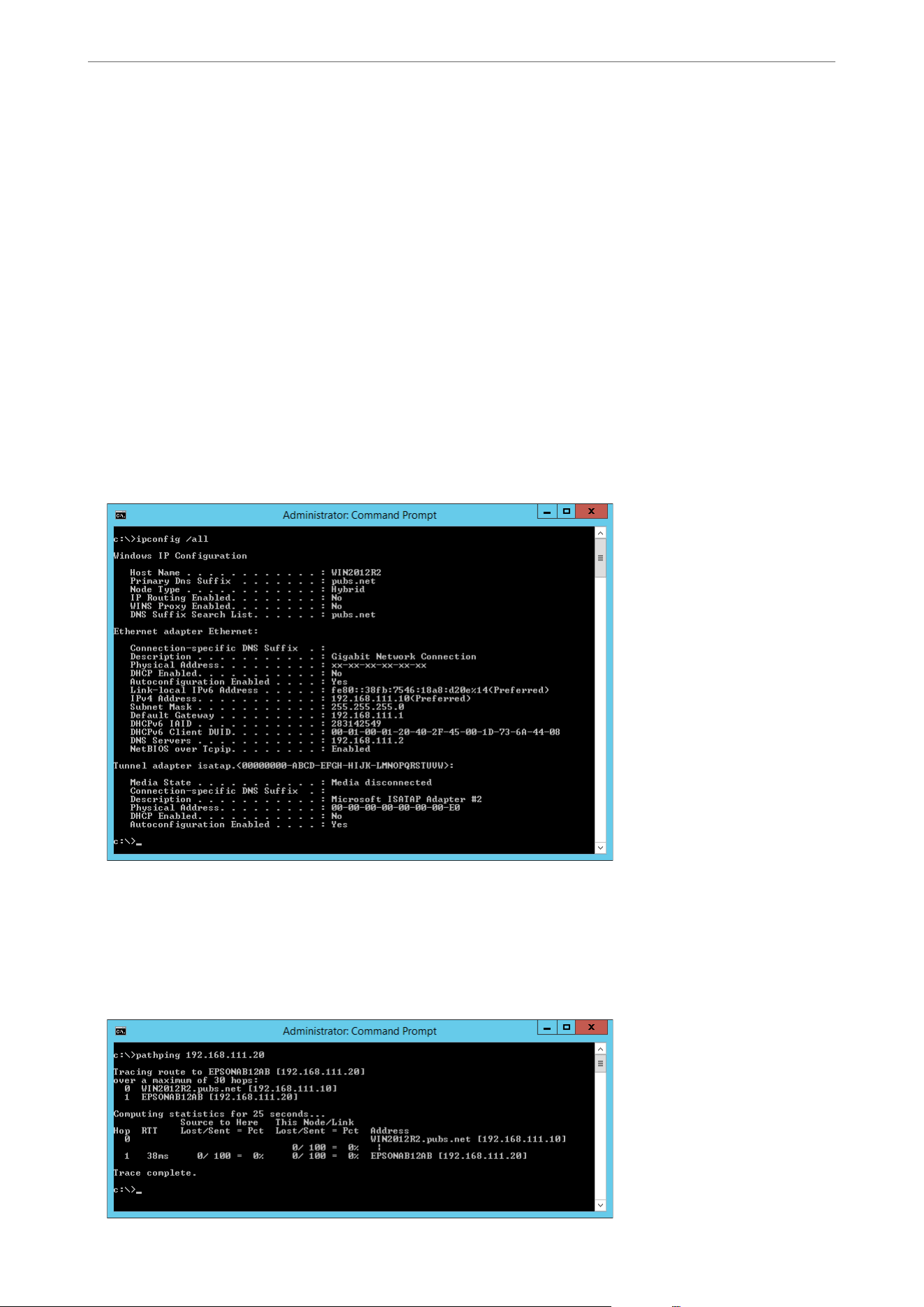
O Email Server Status
Displays the network information for email server.
Checking the Network of the Computer (Windows only)
By using the command prompt, check the connection status of the computer and the connection path to the
scanner. is will lead you to solve the problems.
O ipcong command
Display the connection status of the network interface that is currently used by the computer.
By comparing the setting information with actual communication, you can check whether the connection is
correct. In case there are multiple DHCP servers on the same network, you can
nd
out the actual address
assigned to the computer, the referred DNS server, etc.
O Format :
ipcong
/all
O Examples :
O pathping command
You c a n
conrm
the list of routers passing through the destination host and the routing of communication.
O Format : pathping xxx.xxx.xxx.xxx
O Examples : pathping 192.0.2.222
Adding or Replacing the Computer or Devices
>
Checking the Network Connection Status
>
Chec
…
207

Administrator Information
Connecting the Scanner to the Network.................................209
Introduction of Product Security Features............................... 215
Administrator Settings..............................................216
Restricting USB Drive and Computer USB Connections.....................221
Enabling Program Verication on Start Up...............................221
Disabling Network Scanning from your Computer.........................222
Enabling or Disabling WSD Scan......................................222
Monitoring a Remote Scanner........................................223
Backing Up the Settings.............................................224
Restoring the Default Settings........................................226
Advanced Security Settings..........................................226

Connecting the Scanner to the Network
is section explains how to connect the scanner to the network using the scanner's control panel.
Note:
If your scanner and computer are in the same segment, you can also connect using the installer.
Visit the following website and search for your model to access the installer.
https://epson.com/support (U.S.)
https://epson.ca/support (Canada)
https://latin.epson.com/support (Latin America)
https://epson.sn > Setup (Other regions)
*
*
You can view the operating instructions in the Web Video Manuals. Access the following URL.
https://support.epson.net/publist/vlink.php?code=NPD7509
Before Making Network Connection
To connect to the network, check the connection method and setting information for connection in advance.
Gathering Information on the Connection Setting
Prepare the necessary setting information to connect. Check the following information in advance.
Divisions Items Note
Device connection
method
O Ethernet
O Wi-Fi
Decide how to connect the scanner to the network.
For Wired LAN, connects to the LAN switch.
For Wi-Fi, connects to the network (SSID) of the access point.
LAN connection
information
O IP address
O Subnet mask
O Default gateway
Decide the IP address to assign to the scanner.
When you assign the IP address statically, all values are required.
When you assign the IP address dynamically using the DHCP function,
this information is not required because it is set automatically.
Wi-Fi connection
information
O SSID
O Password
These are the SSID (network name) and the password of the access
point that the scanner connects to.
If MAC address ltering has been set, register the MAC address of the
scanner in advance to register the scanner.
See the following for the supported standards.
“Network Specications” on page 259
DNS server information O IP address for
primary DNS
O IP address for
secondary DNS
These are required when specifying DNS servers. The secondary DNS
is set when the system has a redundant conguration and there is a
secondary DNS server.
If you are in a small organization and do not set the DNS server, set
the IP address of the router.
Administrator Information
>
Connecting the Scanner to the Network
>
Before Making Network Connection
209
Divisions Items Note
Proxy server
information
O Proxy server name Set this when your network environment uses the proxy server to
access the internet from the intranet, and you use the function that
the scanner directly accesses to the internet.
For the following functions, the scanner directly connects to the
internet .
O Epson Connect Services
O Cloud services of other companies
O Firmware updating
O Sending scanned images to SharePoint(WebDAV)
Port number
information
O Port number to
release
Check the port number used by the scanner and computer, then
release the port that is blocked by a rewall, if necessary.
See the following for the port number used by the scanner.
“Using Port for the Scanner” on page 261
IP Address Assignment
ese are the following types of IP address assignment.
Static IP address:
Assign the predetermined IP address to the scanner (host) manually.
e
information to connect to the network (subnet mask, default gateway, DNS server and so on) need to be set
manually.
e
IP address does not change even when the device is turned
o,
so this is useful when you want to manage
devices with an environment where you cannot change the IP address or you want to manage devices using the IP
address. We recommend settings to the scanner, server, etc. that many computers access. Also, when using security
features such as IPsec / IP ltering, assign a xed IP address so that the IP address does not change.
Automatic assignment by using DHCP function (dynamic IP address):
Assign the IP address automatically to the scanner (host) by using the DHCP function of the DHCP server or
router.
e information to connect to the network (subnet mask, default gateway, DNS server and so on) is set
automatically, so you can easily connect the device to the network.
If the device or the router is turned o, or depending on the DHCP server settings, IP address may change when
re-connecting.
We recommend managing devices other than the IP address and communicating with protocols that can follow
the IP address.
Note:
When you use the IP address reservation function of the DHCP, you can assign the same IP address to the devices at any
time.
Administrator Information
>
Connecting the Scanner to the Network
>
Before Making Network Connection
210

DNS Server and Proxy Server
e DNS server has a host name, domain name of the email address, etc. in association with the IP address
information.
Communication is impossible if the other party is described by host name, domain name, etc. when the computer
or the scanner performs IP communication.
Queries the DNS server for that information and gets the IP address of the other party. is process is called name
resolution.
erefore, the devices such as computers and scanners can communicate using the IP address.
Name resolution is necessary for the scanner to communicate using the email function or Internet connection
function.
When you use those functions, make the DNS server settings.
When you assign the scanner's IP address by using the DHCP function of the DHCP server or router, it is
automatically set.
e proxy server is placed at the gateway between the network and the Internet, and it communicates to the
computer, scanner, and Internet (opposite server) on behalf of each of them. e opposite server communicates
only to the proxy server. erefore, scanner information such as the IP address and port number cannot be read
and increased security is expected.
When you connect to the Internet via a proxy server, congure the proxy server on the scanner.
Assigning the IP Address
Set up the basic items such as Host Address, Subnet Mask, Default Gateway.
is section explains the procedure for setting a static IP address.
1. Turn on the scanner.
2. Select Settings on the home screen on the scanner's control panel.
3. Select Network Settings > Advanced > TCP/IP.
4. Select Manual for Obtain IP Address.
When you set the IP address automatically by using the DHCP function of router, select Auto. In that case, the
IP Address, Subnet Mask, and Default Gateway on step 5 to 6 are also set automatically, so go to step 7.
5. Enter the IP address.
Focus moves to the forward segment or the back segment separated by a period if you select
l
and
r
.
Conrm the value reected on the previous screen.
6. Set up the Subnet Mask and Default Gateway.
Conrm the value reected on the previous screen.
c
Important:
If the combination of the IP Address, Subnet Mask and Default Gateway is incorrect, Start Setup is inactive
and cannot proceed with the settings. Conrm that there is no error in the entry.
Administrator Information
>
Connecting the Scanner to the Network
>
Assigning the IP Address
211

7. Enter the IP address for the primary DNS server.
Conrm the value reected on the previous screen.
Note:
When you select Auto for the IP address assignment settings, you can select the DNS server settings from Manual or
Auto. If you cannot obtain the DNS server address automatically, select Manual and enter the DNS server address.
en,
enter the secondary DNS server address directly. If you select Auto, go to step 9.
8. Enter the IP address for the secondary DNS server.
Conrm the value reected on the previous screen.
9. Tap Start Setup.
Setting the Proxy Server
Set up the proxy server if both of the following are true.
O e proxy server is built for Internet connection.
O When using a function in which a scanner directly connects to the Internet, such as Epson Connect service or
another company's cloud services.
1. Select Settings on the home screen.
When making settings
aer
IP address setting, the Advanced screen is displayed. Go to step 3.
2. Select Network Settings > Advanced.
3.
Select Proxy Server.
4. Select Use for Proxy Server Settings.
5. Enter the address for the proxy server by IPv4 or FQDN format.
Conrm the value reected on the previous screen.
6. Enter the port number for the proxy server.
Conrm
the value
reected
on the previous screen.
7. Tap Start Setup.
Connecting to Ethernet
Connect the scanner to the network by using a LAN cable, and then check the connection.
1. Connect the scanner and hub (LAN switch) by using a LAN cable.
2. Select
on the home screen.
3. Select Router.
4. Make sure that the Connection and IP Address settings are correct.
Administrator Information
>
Connecting the Scanner to the Network
>
Connecting to Ethernet
212
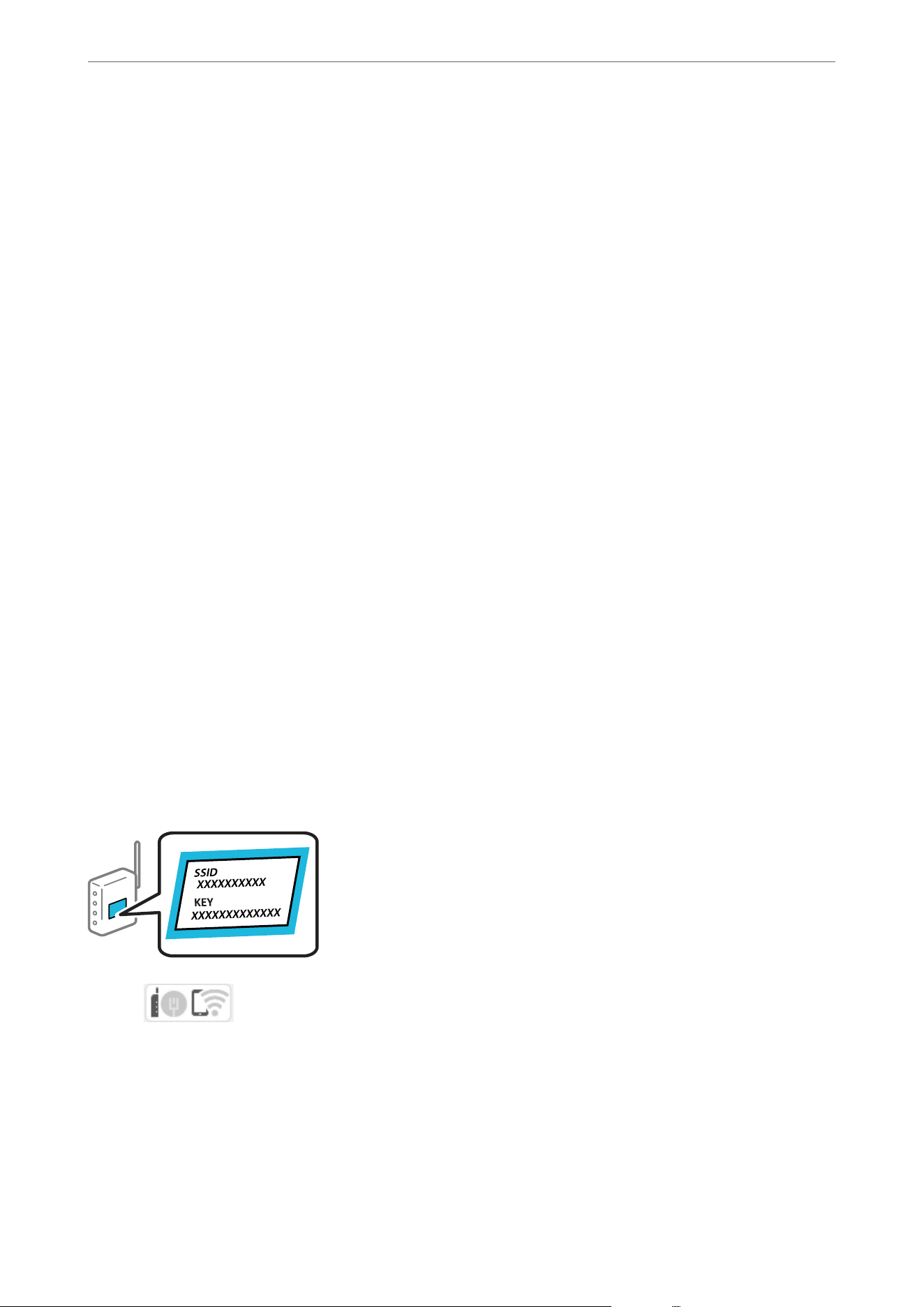
5. Tap Close.
Connecting to the Wireless LAN (Wi-Fi)
You can connect the scanner to the wireless LAN (Wi-Fi) in several ways. Choose the connection method that
matches the environment and conditions that you are using.
If you know the information for the wireless router such as SSID and password, you can make settings manually.
If the wireless router supports WPS, you can make settings by using push button setup.
Aer connecting the scanner to the network, connect to the scanner from the device that you want to use
(computer, smart device, tablet, and so on.)
Note when Using a Wi-Fi 5 GHz Connection
is
product normally uses W52 (36ch) as the channel when connecting to Wi-Fi Direct (Simple AP). Since the
channel for wireless LAN (Wi-Fi) connection is selected automatically, the channel used may dier when used at
the same time as a Wi-Fi Direct connection. If the channels dier, data communication with the scanner may be
slow. If it does not interfere with use, connect to the SSID in the 2.4 GHz band. In the 2.4 GHz frequency band, the
channels used will match.
When setting the wireless LAN to 5 GHz, we recommend disabling Wi-Fi Direct.
Making Wi-Fi Settings by Entering the SSID and Password
You can set up a Wi-Fi network by entering the information necessary to connect to a wireless router from the
scanner's control panel. To set up using this method, you need the SSID and password for a wireless router.
Note:
If you are using a wireless router with its default settings, the SSID and password are on the label. If you do not know the
SSID and password, contact the person who set up the wireless router, or see the documentation provided with the wireless
router.
1. Tap on the home screen.
2. Select Router.
3. Tap Start Setup.
If the network connection is already set up, the connection details are displayed. Tap Change to Wi-Fi
connection. or Change Settings to change the settings.
4. Select Wi-Fi Setup Wizard.
Administrator Information
>
Connecting the Scanner to the Network
>
Connecting to the Wireless LAN (Wi-Fi)
213

5. Follow the on-screen instructions to select the SSID, enter the password for the wireless router, and start setup.
If you want to check the network connection status for the scanner aer setup is complete, see the related
information link below for details.
Note:
O If you do not know the SSID, check if it is written on the label of the wireless router. If you are using the wireless
router with its default settings, use the SSID written on the label. If you cannot nd any information, see the
documentation provided with the wireless router.
O e password is case-sensitive.
O If you do not know the password, check if the information is written on the label of the wireless router. On the label,
the password may be written "Network Key", "Wireless Password", and so on. If you are using the wireless router
with its default settings, use the password written on the label.
O If you cannot see the SSID you want to connect to, use soware or an app to set up the Wi-Fi from your computer or
smart device, such as a smartphone or tablet.
Related Information
&
“Checking the Network Connection Status” on page 205
Making Wi-Fi Settings by Push Button Setup (WPS)
You can automatically set up a Wi-Fi network by pressing a button on the wireless router. If the following
conditions are met, you can set up by using this method.
O
e
wireless router is compatible with WPS (Wi-Fi Protected Setup).
O e current Wi-Fi connection was established by pressing a button on the wireless router.
Note:
If you cannot nd the button or you are setting up using the soware, see the documentation provided with the wireless
router.
1. Tap on the home screen.
2. Select Router.
3. Tap Start Setup.
If the network connection is already set up, the connection details are displayed. Tap Change to Wi-Fi
connection. or Change Settings to change the settings.
4.
Select Push Button Setup (WPS).
5. Follow the on-screen instructions.
If you want to check the network connection status for the scanner aer setup is complete, see the related
information link below for details.
Note:
If connection fails, restart the wireless router, move it closer to the scanner, and try again.
Related Information
& “Checking the Network Connection Status” on page 205
Administrator Information
>
Connecting the Scanner to the Network
>
Connecting to the Wireless LAN (Wi-Fi)
214

Making Wi-Fi Settings by PIN Code Setup (WPS)
You can automatically connect to a wireless router by using a PIN code. You can use this method to set up if an
wireless router is capable of WPS (Wi-Fi Protected Setup). Use a computer to enter a PIN code into the wireless
router.
1. Tap
on the home screen.
2. Select Router.
3. Tap Start Setup.
If the network connection is already set up, the connection details are displayed. Tap Change to Wi-Fi
connection. or Change Settings to change the settings.
4. Select Others > PIN Code Setup (WPS).
5. Follow the on-screen instructions.
If you want to check the network connection status for the scanner aer setup is complete, see the related
information link below for details.
Note:
See the documentation provided with your wireless router for details on entering a PIN code.
Related Information
&
“Checking the Network Connection Status” on page 205
Setting up the IEEE802.11k/v or IEEE802.11r Features
1. Access Web Cong, and then select the Network tab > Basic.
2. Set IEEE802.11k/v or IEEE802.11r to enabled or disabled.
3.
Click Next.
e setting conrmation screen is displayed.
4.
Click OK.
Related Information
&
“How to Run Web Cong in a Web Browser” on page 35
Introduction of Product Security Features
is section introduces the security function of the Epson Devices.
Administrator Information
>
Introduction of Product Security Features
215

Feature name Feature type What to set What to prevent
Conguring the
Administrator
Password
Locks the system settings,
such as connection setup for
network or USB.
An administrator sets a
password to the device.
You can set or change from
both Web Cong and the
scanner's control panel.
Prevent from illegally
reading and changing the
information stored in the
device such as ID, password,
network settings, and so on.
Also, reduce a wide range
of security risks such as
leakage of information for
the network environment or
security policy.
Setup for external
interface
Controls the interface that
connects to the device.
Enable or disable the
following connections.
O Connect a USB drive to
the external interface USB
port
O PC connection via USB
Prevents unauthorized use
of the device by prohibiting
scanning without going
through the network.
Administrator Settings
Conguring the Administrator Password
When you set an administrator password, you can prevent users from changing system management settings.
e
default values are set at the time of purchase. Change them as necessary.
Note:
e following provides the default values for the administrator information.
O User name (used for Web Cong only): None (blank)
O Password: Depends on the label attached to product.
If there is a "PASSWORD" label attached to the back, enter the 8-digit number shown on the label. If there is no
"PASSWORD" label attached, enter the serial number on the label attached to the back of the product for the initial
administrator password.
You can change the administrator password using either Web Cong, the scanner's control panel, or Epson Device
Admin. When using Epson Device Admin, see the Epson Device Admin guide or help.
Changing the Administrator Password Using Web Cong
Change the administrator password in Web Cong.
1. Access Web Cong and select the Product Security tab > Change Administrator Password.
2. Enter the necessary information in Current password, User Name, New Password, and Conrm New
Password.
e new password must be 8 to 20 characters long and only contain single-byte alphanumeric characters and
symbols.
Administrator Information
>
Administrator Settings
>
Conguring the Administrator Password
216
Note:
e following provides the default values for the administrator information.
O User name: none (blank)
O Password: Depends on the label attached to product.
If there is a "PASSWORD" label attached to the back, enter the 8-digit number shown on the label. If there is no
"PASSWORD" label attached, enter the serial number on the label attached to the back of the product for the initial
administrator password.
c
Important:
Be sure to remember the administrator password you set. If you forget your password, you will not be able to
reset it and you will need to request help from service personnel.
3. Select OK.
Related Information
&
“Notes on the Administrator Password” on page 13
& “How to Run Web
Cong
in a Web Browser” on page 35
Changing the Administrator Password from the Scanner's Control Panel
You can change the administrator password from the scanner's control panel.
1. Select Settings on the scanner's control panel.
2. Select System Administration > Admin Settings.
3. Select Admin Password > Change.
4. Enter your current password.
Note:
e initial administrator password (default) at the time of purchase varies depending on the label attached to the
product. If there is a "PASSWORD" label attached to the back, enter the 8-digit number shown on the label. If there is
no "PASSWORD" label attached, enter the serial number on the label attached to the back of the product for the initial
administrator password.
5. Enter your new password.
e
new password must be 8 to 20 characters long and only contain single-byte alphanumeric characters and
symbols.
c
Important:
Be sure to remember the administrator password you set. If you forget your password, you will not be able to
reset it and you will need to request help from service personnel.
6. Enter the new password again for conrmation.
A completion message is displayed.
Administrator Information
>
Administrator Settings
>
Conguring the Administrator Password
217
Using Lock Setting for the Control Panel
You can use Lock Setting to lock the control panel to prevent users from changing items related to system settings.
Setting Lock Setting from the Control Panel
1. Select Settings.
2. Select System Administration > Admin Settings.
When Lock Setting is set, you will be prompted to enter the password.
3. Select On or O as the Lock Setting.
Setting Lock Setting from Web
Cong
1. Select the Device Management tab > Control Panel.
2. Select ON or OFF for Panel Lock.
3. Click OK.
Related Information
&
“How to Run Web Cong in a Web Browser” on page 35
Lock Setting items on the Settings Menu
is is a list of items that are locked in the Settings menu on the control panel by Lock Setting.
✓ : To be locked. - : Not to be locked.
Settings menu Lock Setting
Start-up Screen
✓
Basic Settings -
Administrator Information
>
Administrator Settings
>
Using Lock Setting for the Control Panel
218
Settings menu Lock Setting
LCD Brightness -
Sounds -
Sleep Timer
✓
Power O Timer
✓
Date/Time Settings
✓
Language
✓
Keyboard
(This feature may not be available depending on your region.)
-
Operation Time Out
✓
PC Connection via USB
✓
USB Drive
✓
Scanner Settings -
Paper Protection
✓
Glass Dirt Detection
✓
Add Pages After Scanning Timeout
✓
Conrm Recipient -
User Settings
✓
Network Settings
✓
Web Service Settings
✓
Contacts Manager -
Register/Delete
✓
Search Options -
System Administration
✓
Device Information -
Administrator Information
>
Administrator Settings
>
Using Lock Setting for the Control Panel
219
Settings menu Lock Setting
Serial Number -
Current Version -
Total Number of Scans (Scanner Glass) -
Total Number of Scans (ADF) -
Number of 1-Sided Scans (ADF) -
Number of 2-Sided Scans (ADF) -
Number of Scans After Regular Cleaning -
Reset the Number of Scans
✓
Scanner Maintenance -
Regular Cleaning -
Reset the Number of Scans
✓
Glass Cleaning -
Regular Cleaning Alert Settings
✓
Logging in to the Scanner's Web Cong from a Computer
To change scanner settings, you need to log in to Web Cong as an administrator.
1. Enter the scanner's IP address into a browser to run Web Cong.
2. Click Log in at the top-right of the screen. Enter the User Name and Current password, and then click OK.
e following provides the initial values for the Web Cong administrator information.
·User name: none (blank)
·Password: Depends on the label attached to product.
If there is a "PASSWORD" label attached to the back, enter the 8-digit number shown on the label. If there is
no "PASSWORD" label attached, enter the serial number on the label attached to the back of the product for
the initial administrator password.
e setting items are displayed when you log in as an administrator.
Click Log out at the top-right of the screen to log out.
Related Information
&
“Notes on the Administrator Password” on page 13
& “How to Run Web Cong in a Web Browser” on page 35
Administrator Information
>
Administrator Settings
>
Logging in to the Scanner's Web Cong from a Comp
…
220

Restricting USB Drive and Computer USB Connections
You can disable the interface that is used to connect the device to the scanner. Make the restriction settings to
restrict scanning other than via network.
Note:
You can also make settings on the scanner's control panel.
O Memory Device: Settings > Basic Settings > USB Drive
O PC Connection via USB: Settings > Basic Settings > PC Connection via USB
1. Access Web Cong, and then select the Product Security tab > External Interface.
2. Select Disable on the functions you want to set.
Select Enable to remove the restriction.
O Memory Device
Restricts scanning to USB drives via the external interface USB port.
O PC connection via USB
Restricts USB connections to computers.
3.
Click OK.
4. Check that the disabled port cannot be used.
O Memory Device
Conrm that there is no response when connecting a USB drive to the external interface USB port.
O PC connection via USB
If the driver was installed on the computer
Connect the scanner to the computer using a USB cable, and then conrm that the scanner does not scan.
If the driver was not installed on the computer
Windows:
Open the device manager and keep it, connect the scanner to the computer using a USB cable, and then
conrm that the device manager's display contents stays unchanged.
Mac OS:
Connect the scanner to the computer using a USB cable, and then conrm that you cannot add the scanner
from Printers & Scanners.
Related Information
&
“How to Run Web
Cong
in a Web Browser” on page 35
Enabling Program Verication on Start Up
If you enable the Program Verication feature, the scanner performs verication at start up to check if
unauthorized third parties have tampered with the program. If any issues are detected, the scanner does not
start.
Note:
Enabling this function increases the scanner's startup time.
Administrator Information
>
Enabling Program Verication on Start Up
221

1. Access Web Cong, and then select the Product Security tab > Program Verication on Start Up.
Note:
You can also make settings on the scanner's control panel.
Settings > System Administration > Program Verication on Start Up
2. Select ON to enable Program
Ver i ca ti on
on Start Up.
3. Click OK.
Disabling Network Scanning from your Computer
You can make the following settings in Web Cong to disable network scanning using Epson Scan 2 from your
computer.
1. Access Web Cong, and then select the Scan tab > Network Scan.
2. In Epson Scan 2, clear the Enable scanning check box.
3. Click Next.
e setting conrmation screen is displayed.
4. Click OK.
Related Information
&
“How to Run Web Cong in a Web Browser” on page 35
Enabling or Disabling WSD Scan
Note:
You can also make settings on the scanner's control panel. Select Settings >System Administration > WSD Settings.
You can enable or disable WSD scan.
If you do not want your computer to congure the scanner as a WSD scanning device, disable the WSD settings.
1. Access Web Cong, and then select the Network Security tab > Protocol.
2. In WSD Settings, change the Enable WSD check box.
3.
Click Next.
e setting conrmation screen is displayed.
4. Click OK.
Note:
If your computer still congures the scanner as a WSD scanning device, select the Scan tab > Network Scan, and then clear
the Enable scanning check box in AirPrint.
If AirPrint is disabled, Mopria scanning from Chromebooks, Windows, and the Mopria Scan app is also disabled.
Administrator Information
>
Enabling or Disabling WSD Scan
222

Related Information
&
“How to Run Web Cong in a Web Browser” on page 35
Monitoring a Remote Scanner
Checking Information for a Remote Scanner
You can check the following information of the operating scanner from Status by using Web
Cong
.
O Product Status
Check the status, product number, MAC address, etc.
O Network Status
Check the information of the network connection status, IP address, DNS server, etc.
O Usage Status
Check the
rst
day of scanning, scanning count, and so on.
O Hardware Status
Check the status of each function of the scanner.
O Panel Snapshot
Displays a snapshot of the screen displayed on the scanner's control panel.
Receiving Email
Notications
When Events Occur
About Email Notications
is is the notication function that, when events such as scanning stop and scanner error occur, send the email to
the specied address.
You can register up to ve destinations and set the notication settings for each destination.
To use this function, you need to set up the mail server before setting up notications.
Conguring
Email
Notication
Congure email notication by using Web Cong.
1. Access Web Cong and select the Device Management tab > Email Notication.
2. Set the subject of email notication.
Select the contents displayed on the subject from the two pull-down menus.
O
e
selected contents are displayed next to Subject.
O e same contents cannot be set on le and right.
O When the number of characters in Location exceeds 32 bytes, characters exceeding 32 bytes are omitted.
Administrator Information
>
Monitoring a Remote Scanner
>
Receiving Email Notications When Events Occur
223
3. Enter the email address for sending the notication email.
Use A-Z a-z 0-9 ! # $ % & ' * + - . /= ? ^ _ { | } ~ @, and enter between 1 and 255 characters.
4. Select the language for the email notications.
5.
Select the check box on the event for which you want to receive a notication.
e number of Notication Settings is linked to the destination number of Email Address Settings.
Example :
If you want to send a notication to the email address set for number 1 in Email Address Settings when the
admin password is changed, select the check box for column 1 on the line Administrator password changed.
6. Click OK.
Conrm that an email notication will be sent by causing an event.
Example : e administrator password has been changed.
Related Information
&
“How to Run Web Cong in a Web Browser” on page 35
Items for Email Notication
Items Settings and Explanation
Administrator password changed Notice when administrator password has been changed.
Scanner error Notice when the scanner error has occurred.
Wi-Fi failure Notice when the error of the wireless LAN interface has occurred.
Using Web Cong to Control the Scanner's Power Supply
If your computer is remote from the scanner, you can still use Web Cong to turn o or restart the scanner.
1.
Access Web
Cong
, and then select the Device Management tab > Power.
2. Select Power O or Reboot.
3. Click Execute.
Backing Up the Settings
You can export the setting value set from Web
Cong
to the
le.
You can use it for backing up the setting values,
replacing the scanner, etc.
e exported le cannot be edited because it is exported as a binary le.
Administrator Information
>
Backing Up the Settings
224
Export the settings
Export the setting for the scanner.
1. Access Web Cong, and then select the Device Management tab > Export and Import Setting Value >
Export.
2. Select the settings that you want to export.
Select the settings you want to export. If you select the parent category, subcategories are also selected.
However, subcategories that cause errors by duplicating within the same network (such as IP addresses and so
on) cannot be selected.
3.
Enter a password to encrypt the exported le.
You need the password to import the le. Leave this blank if you do not want to encrypt the le.
4. Click Export.
c
Important:
If you want to export the scanner’s network settings such as the device name and IPv6 address, select Enable to
select the individual settings of device and select more items. Only use the selected values for the replacement
scanner.
Related Information
&
“How to Run Web Cong in a Web Browser” on page 35
Import the settings
Import the exported Web Cong le to the scanner.
c
Important:
When importing values that include individual information such as a scanner name or IP address, make sure the
same IP address does not exist on the same network.
1. Access Web
Cong
, and then select the Device Management tab > Export and Import Setting Value >
Import.
2.
Select the exported
le,
and then enter the encrypted password.
3. Click Next.
4. Select the settings that you want to import, and then click Next.
5.
Click OK.
e settings are applied to the scanner.
Related Information
&
“How to Run Web Cong in a Web Browser” on page 35
Administrator Information
>
Backing Up the Settings
>
Import the settings
225

Restoring the Default Settings
You can select network settings or other settings stored on the scanner to restore them to their defaults.
1. Access Web Cong, and then select the Device Management tab > Restore Default Settings.
Note:
You can also make settings on the scanner's control panel.
Settings > System Administration > Restore Default Settings
2.
Select the items you want to restore.
3. Click Execute.
Finally, follow the on-screen instructions.
Advanced Security Settings
is section explains advanced security features.
Security Settings and Prevention of Danger
When a scanner is connected to a network, you can access it from a remote location. In addition, many people
can share the scanner, which is helpful in improving operational eciency and convenience. However, risks such
as illegal access, illegal use, and tampering with data are increased. If you use the scanner in an environment where
you can access the Internet, the risks are even higher.
For scanners that do not have access protection from the outside, it will be possible to read the contacts that are
stored in the scanner from the Internet.
In order to avoid this risk, Epson scanners have a variety of security technologies.
Set the scanner as necessary according to the environmental conditions that have been built with the customer's
environment information.
Name Feature type What to set What to prevent
Control of protocol Controls the protocols and
services to be used for
communication between
scanners and computers,
and it enables and disables
features.
A protocol or service that is
applied to features allowed or
prohibited separately.
Reducing security risks
that may occur through
unintended use by
preventing users from using
unnecessary functions.
SSL/TLS
communications
The communication content
is encrypted with SSL/TLS
communications when
accessing to the Epson
server on the Internet
from the scanner, such
as communicating to the
computer via web browser,
using Epson Connect, and
updating rmware.
Obtain a CA-signed
certicate, and then import it
to the scanner.
Clearing an identication
of the scanner by
the CA-signed certication
prevents impersonation and
unauthorized access. In
addition, communication
contents of SSL/TLS are
protected, and it prevents
the leakage of contents for
scanning data and setup
information.
Administrator Information
>
Advanced Security Settings
>
Security Settings and Prevention of Danger
226
Name Feature type What to set What to prevent
IPsec/IP ltering You can set to allow severing
and cutting o of data that
is from a certain client or
is a particular type. Since
IPsec protects the data by
IP packet unit (encryption
and authentication), you
can safely communicate
unsecured protocol.
Create a basic policy and
individual policy to set the
client or type of data that can
access the scanner.
Protect unauthorized
access, and tampering
and interception of
communication data to the
scanner.
IEEE802.1X Only allows authenticated
users to connect to the
network. Allows only a
permitted user to use the
scanner.
Authentication setting
to the RADIUS server
(authentication sever).
Protect unauthorized access
and use to the scanner.
Security Feature Settings
When setting IPsec/IP ltering or IEEE802.1X, it is recommended that you access Web Cong using SSL/TLS to
communicate settings information in order to reduce security risks such as tampering or interception.
Make sure you congure the administrator password before setting IPsec/IP ltering or IEEE802.1X.
Controlling Using Protocols
You can scan using a variety of pathways and protocols. Also, you can use network scanning from an unspecied
number of network computers.
You can lower unintended security risks by restricting scanning from specic pathways or by controlling the
available functions.
Controlling protocols
Congure the protocol settings supported by the scanner.
1. Access Web Cong and then select the Network Security tab > Protocol.
2. Congure
each item.
3. Click Next.
4. Click OK.
e settings are applied to the scanner.
Related Information
&
“How to Run Web Cong in a Web Browser” on page 35
Administrator Information
>
Advanced Security Settings
>
Controlling Using Protocols
227
Protocols you can Enable or Disable
Protocol Description
Bonjour Settings You can specify whether to use Bonjour. Bonjour is used to search for devices, scan, and so on.
SLP Settings You can enable or disable the SLP function. SLP is used for push scanning and network
searching in EpsonNet Cong.
WSD Settings You can enable or disable the WSD function. When this is enabled, you can add WSD devices,
and scan from the WSD port.
LLTD Settings You can enable or disable the LLTD function. When this is enabled, it is displayed on the
Windows network map.
LLMNR Settings You can enable or disable the LLMNR function. When this is enabled, you can use name
resolution without NetBIOS even if you cannot use DNS.
SNMPv1/v2c Settings You can specify whether or not to enable SNMPv1/v2c. This is used to set up devices,
monitoring, and so on.
SNMPv3 Settings You can specify whether or not to enable SNMPv3. This is used to set up encrypted devices,
monitoring, etc.
Protocol Setting Items
Bonjour Settings
Item Settings and Explanation
Use Bonjour Select this to search for or use devices through Bonjour.
Bonjour Name Displays the Bonjour name.
Bonjour Service Name Displays the Bonjour service name.
Location Displays the Bonjour location name.
Wide-Area Bonjour Set whether to use Wide-Area Bonjour.
SLP Settings
Item Settings and Explanation
Enable SLP Select this to enable the SLP function.
This is used with network searching in EpsonNet Cong.
WSD Settings
Item Settings and Explanation
Enable WSD Select this to enable adding devices using WSD and scan
from the WSD port.
Scanning Timeout (sec) Enter the communication timeout value for WSD scanning
between 3 to 3,600 seconds.
Administrator Information
>
Advanced Security Settings
>
Controlling Using Protocols
228
Item Settings and Explanation
Device Name Displays the WSD device name.
Location Displays the WSD location name.
LLTD Settings
Item Settings and Explanation
Enable LLTD Select this to enable LLTD. The scanner is displayed in the
Windows network map.
Device Name Displays the LLTD device name.
LLMNR Settings
Item Settings and Explanation
Enable LLMNR Select this to enable LLMNR. When this is enabled, you can
use name resolution without NetBIOS even if you cannot use
DNS.
SNMPv1/v2c Settings
Item Settings and Explanation
Enable SNMPv1/v2c Select to enable SNMPv1/v2c.
Access Authority Set the access authority when SNMPv1/v2c is enabled. Se-
lect Read Only or Read/Write.
Community Name (Read Only) Enter within 32 characters in ASCII (0x20-0x7E). If you do not
specify this, leave it blank.
Community Name (Read/Write) Enter within 32 characters in ASCII (0x20-0x7E). If you do not
specify this, leave it blank.
Allow access from Epson tools Set whether to allow writing from Epson tools such as Epson
Device Admin.
SNMPv3 Settings
Item Settings and Explanation
Enable SNMPv3 SNMPv3 is enabled when the box is checked.
User Name Enter between 1 and 32 characters using 1 byte characters.
Authentication Settings
Algorithm Select an algorithm for an authentication for SNMPv3.
Password Enter the password for an authentication for SNMPv3.
Enter between 8 and 32 characters in ASCII (0x20-0x7E). If
you do not specify this, leave it blank.
Conrm Password Enter the password you congured for conrmation.
Administrator Information
>
Advanced Security Settings
>
Controlling Using Protocols
229
Item Settings and Explanation
Encryption Settings
Algorithm Select an algorithm for an encryption.
Password Enter the password for an encryption.
Enter between 8 and 32 characters in ASCII (0x20-0x7E). If
you do not specify this, leave it blank.
Conrm Password Enter the password you congured for conrmation.
Context Name Enter within 32 characters in Unicode (UTF-8). If you do not
specify this, leave it blank. The number of characters that can
be entered varies depending on the language.
Using a Digital Certicate
About Digital Certication
O CA-signed Certicate
is is a certicate signed by the CA (Certicate Authority.) You can obtain it to apply to the Certicate
Authority. is certicate certies the existence of the scanner is and used for SSL/TLS communication so that
you can ensure the safety of data communication.
When it is used for SSL/TLS communication, it is used as a server
certicate.
When it is set to IPsec/IP Filtering or IEEE802.1x communication, it is used as a client certicate.
O CA Certicate
is is a certicate that is in chain of the CA-signed Certicate, also called the intermediate CA certicate. It is
used by the web browser to validate the path of the scanner's certicate when accessing the server of the other
party or Web
Cong.
For the CA
Certicate,
set when to validate the path of server
certicate
accessing from the scanner. For the
scanner, set to certify the path of the CA-signed Certicate for SSL/TLS connection.
You can obtain the CA certicate of the scanner from the Certication Authority where the CA certicate is
issued.
Also, you can obtain the CA certicate used to validate the server of the other party from the Certication
Authority that issued the CA-signed
Certicate
of the other server.
O Self-signed Certicate
is is a certicate that the scanner signs and issues itself. It is also called the root certicate. Because the issuer
certies
itself, it is not reliable and cannot prevent impersonation.
Use it when making the security setting and performing simple SSL/TLS communication without the CA-
signed
Certicate
.
If you use this
certicate
for an SSL/TLS communication, a security alert may be displayed on a web browser
because the certicate is not registered on a web browser. You can use the Self-signed Certicate only for an
SSL/TLS communication.
Administrator Information
>
Advanced Security Settings
>
Using a Digital Certicate
230
Conguring a CA-signed Certicate
Obtaining a CA-signed
Certicate
To obtain a CA-signed certicate, create a CSR (Certicate Signing Request) and apply it to certicate authority.
You can create a CSR using Web
Cong
and a computer.
Follow the steps to create a CSR and obtain a CA-signed certicate using Web Cong. When creating a CSR using
Web Cong, a certicate is the PEM/DER format.
1. Access Web Cong, and then select the Network Security tab. Next, select SSL/TLS > Certicate or IPsec/IP
Filtering > Client Certicate or IEEE802.1X > Client Certicate.
Whatever you choose, you can obtain the same
certicate
and use it in common.
2. Click Generate of CSR.
A CSR creating page is opened.
3. Enter a value for each item.
Note:
Available key length and abbreviations vary by a certicate authority. Create a request according to rules of each
certicate authority.
4. Click OK.
A completion message is displayed.
5. Select the Network Security tab. Next, select SSL/TLS > Certicate, or IPsec/IP Filtering > Client
Certicate
or IEEE802.1X > Client
Certicate
.
6. Click one of the download buttons of CSR according to a specied format by each certicate authority to
download a CSR to a computer.
c
Important:
Do not generate a CSR again. If you do so, you may not be able to import an issued CA-signed Certicate.
7. Send the CSR to a certicate authority and obtain a CA-signed Certicate.
Follow the rules of each certicate authority on sending method and form.
8. Save the issued CA-signed Certicate to a computer connected to the scanner.
Obtaining a CA-signed Certicate is complete when you save a certicate to a destination.
Related Information
&
“How to Run Web
Cong
in a Web Browser” on page 35
CSR Setting Items
Items Settings and Explanation
Key Length Select a key length for a CSR.
Administrator Information
>
Advanced Security Settings
>
Using a Digital Certicate
231
Items Settings and Explanation
Common Name You can enter between 1 and 128 characters. If this is an IP address, it should be a
static IP address. You can enter 1 to 5 IPv4 addresses, IPv6 addresses, host names,
FQDNs by separating them with commas.
The rst element is stored to the common name, and other elements are stored to
the alias eld of the certicate subject.
Example:
Scanner's IP address : 192.0.2.123, Scanner name : EPSONA1B2C3
Common Name : EPSONA1B2C3,EPSONA1B2C3.local,192.0.2.123
Organization/ Organizational Unit/
Locality/ State/Province
You can enter between 0 and 64 characters in ASCII (0x20-0x7E). You can divide
distinguished names with commas.
Country Enter a country code in two-digit number specied by ISO-3166.
Sender's Email Address You can enter the sender's email address for the mail server setting. Enter the
same email address as the Sender's Email Address for the Network tab > Email
Server > Basic.
Importing a CA-signed Certicate
Import the obtained CA-signed Certicate to the scanner.
c
Important:
O Make sure that the scanner’s date and time is set correctly.
Certicate
may be invalid.
O If you obtain a
certicate
using a CSR created from Web
Cong
, you can import a
certicate
one time.
1. Access Web Cong and then select the Network Security tab. Next, select SSL/TLS > Certicate, or IPsec/IP
Filtering > Client Certicate or IEEE802.1X > Client Certicate.
2.
Click Import
A certicate importing page is opened.
3. Enter a value for each item. Set CA
Certicate
1 and CA
Certicate
2 when verifying the path of the
certicate on the web browser that accesses the scanner.
Depending on where you create a CSR and the
le
format of the
certicate,
required settings may vary. Enter
values to required items according to the following.
O A certicate of the PEM/DER format obtained from Web Cong
O Private Key: Do not congure because the scanner contains a private key.
O Password: Do not congure.
O CA Certicate 1/CA Certicate 2: Optional
O A certicate of the PEM/DER format obtained from a computer
O Private Key: You need to set.
O Password: Do not congure.
O CA Certicate 1/CA Certicate 2: Optional
Administrator Information
>
Advanced Security Settings
>
Using a Digital Certicate
232
O A certicate of the PKCS#12 format obtained from a computer
O Private Key: Do not congure.
O Password: Optional
O CA
Certicate
1/CA
Certicate
2: Do not
congure.
4. Click OK.
A completion message is displayed.
Note:
Click Conrm to verify the certicate information.
Related Information
&
“How to Run Web Cong in a Web Browser” on page 35
CA-signed Certicate Importing Setting Items
Items Settings and Explanation
Server Certicate or Client Certicate Select a certicate’s format.
For SSL/TLS connection, the Server Certicate is displayed.
For IPsec/IP Filtering or IEEE802.1x, the Client
Certicate
is displayed.
Private Key If you obtain a certicate of the PEM/DER format by using a CSR created from a
computer, specify a private key le that is match a certicate.
Password If the le format is Certicate with Private Key (PKCS#12), enter the password
for encrypting the private key that is set when you obtain the certicate.
CA Certicate 1 If your certicate’s format is Certicate (PEM/DER), import a certicate of a
certicate authority that issues a CA-signed Certicate used as server certicate.
Specify a le if you need.
CA Certicate 2 If your certicate’s format is Certicate (PEM/DER), import a certicate of a
certicate authority that issues CA Certicate 1. Specify a le if you need.
Deleting a CA-signed Certicate
You can delete an imported certicate when the certicate has expired or when an encrypted connection is no
longer necessary.
c
Important:
If you obtain a
certicate
using a CSR created from Web
Cong
, you cannot import a deleted
certicate
again. In
this case, create a CSR and obtain a certicate again.
1. Access Web
Cong,
and then select the Network Security tab. Next, select SSL/TLS >
Certicate
or IPsec/IP
Filtering > Client
Certicate
or IEEE802.1X > Client
Certicate
.
2. Click Delete.
3. Conrm that you want to delete the certicate in the message displayed.
Administrator Information
>
Advanced Security Settings
>
Using a Digital Certicate
233

Related Information
&
“How to Run Web Cong in a Web Browser” on page 35
Updating a Self-signed Certicate
Because the Self-signed
Certicate
is issued by the scanner, you can update it when it has expired or when the
content described changes.
1. Access Web
Cong
and select the Network Security tab > SSL/TLS >
Certicate
.
2. Click Update.
3. Enter Common Name.
You can enter up to 5 IPv4 addresses, IPv6 addresses, host names, FQDNs between 1 to 128 characters and
separating them with commas. e rst parameter is stored to the common name, and the others are stored to
the alias eld for the subject of the certicate.
Example:
Scanner's IP address : 192.0.2.123, Scanner name : EPSONA1B2C3
Common name : EPSONA1B2C3,EPSONA1B2C3.local,192.0.2.123
4.
Specify a validity period for the certicate.
5. Click Next.
A
conrmation
message is displayed.
6. Click OK.
e scanner is updated.
Note:
You can check the certicate information from Network Security tab > SSL/TLS > Certicate > Self-signed Certicate
and click Conrm.
Related Information
&
“How to Run Web
Cong
in a Web Browser” on page 35
Conguring
a CA
Certicate
When you set the CA
Certicate
, you can validate the path to the CA
certicate
of the server that the scanner
accesses. is can prevent impersonation.
You can obtain the CA Certicate from the Certication Authority where the CA-signed Certicate is issued.
Importing a CA Certicate
Import the CA
Certicate
to the scanner.
1. Access Web
Cong
and then select the Network Security tab > CA
Certicate
.
2. Click Import.
Administrator Information
>
Advanced Security Settings
>
Using a Digital Certicate
234

3. Specify the CA Certicate you want to import.
4. Click OK.
When importing is complete, you are returned to the CA Certicate screen, and the imported CA Certicate is
displayed.
Related Information
&
“How to Run Web Cong in a Web Browser” on page 35
Deleting a CA
Certicate
You can delete the imported CA Certicate.
1. Access Web
Cong
and then select the Network Security tab > CA
Certicate
.
2. Click Delete next to the CA Certicate that you want to delete.
3. Conrm that you want to delete the certicate in the message displayed.
4. Click Reboot Network, and then check that the deleted CA Certicate is not listed on the updated screen.
Related Information
&
“How to Run Web Cong in a Web Browser” on page 35
SSL/TLS Communication with the Scanner
When the server certicate is set using SSL/TLS (Secure Sockets Layer/Transport Layer Security) communication
to the scanner, you can encrypt the communication path between computers. Do this if you want to prevent
remote and unauthorized access.
Conguring Basic SSL/TLS Settings
If the scanner supports the HTTPS server feature, you can use an SSL/TLS communication to encrypt
communications. You can
congure
and manage the scanner using Web
Cong
while ensuring security.
Congure encryption strength and redirect feature.
1. Access Web Cong, select the Network Security tab > SSL/TLS > Basic.
2. Set each item.
O Encryption Strength
Select the level of encryption strength.
O Redirect HTTP to HTTPS
Redirect to HTTPS when HTTP is accessed.
O TLS1.0/TLS1.1/TLS1.2
Select whether to enable or disable each version.
Administrator Information
>
Advanced Security Settings
>
SSL/TLS Communication with the Scanner
235

3. Click Next.
e setting conrmation screen is displayed.
4. Click OK.
e settings are applied to the scanner.
Related Information
&
“How to Run Web Cong in a Web Browser” on page 35
Conguring
a Server
Certicate
for the Scanner
1. Access Web Cong and select the Network Security tab > SSL/TLS > Certicate.
2. Specify a certicate to use on Server Certicate.
O Self-signed Certicate
A self-signed certicate has been generated by the scanner. If you do not obtain a CA-signed certicate,
select this.
O CA-signed Certicate
If you obtain and import a CA-signed certicate in advance, you can specify this.
3.
Click Next.
A conrmation message is displayed.
4. Click OK.
e scanner is updated.
Related Information
&
“How to Run Web Cong in a Web Browser” on page 35
Encrypted Communication Using IPsec/IP Filtering
About IPsec/IP Filtering
You can
lter
trac
based on IP addresses, services, and port by using IPsec/IP Filtering function. By combining of
the ltering, you can congure the scanner to accept or block specied clients and specied data. Additionally, you
can improve security level by using an IPsec.
Note:
Computers that run Windows Vista or later or Windows Server 2008 or later support IPsec.
Conguring Default Policy
To lter trac, congure the default policy. e default policy applies to every user or group connecting to the
scanner. For more ne-grained control over users and groups of users, congure group policies.
Administrator Information
>
Advanced Security Settings
>
Encrypted Communication Using IPsec/IP Filtering
236
1. Access Web Cong and then select the Network Security tab > IPsec/IP Filtering > Basic.
2. Enter a value for each item.
3. Click Next.
A conrmation message is displayed.
4. Click OK.
e
scanner is updated.
Related Information
&
“How to Run Web Cong in a Web Browser” on page 35
Default Policy Setting Items
Default Policy
Items Settings and Explanation
IPsec/IP Filtering You can enable or disable an IPsec/IP Filtering feature.
O Access Control
Congure a control method for trac of IP packets.
Items Settings and Explanation
Permit Access Select this to permit congured IP packets to pass through.
Refuse Access Select this to refuse congured IP packets to pass through.
IPsec Select this to permit congured IPsec packets to pass through.
Administrator Information
>
Advanced Security Settings
>
Encrypted Communication Using IPsec/IP Filtering
237
O IKE Version
Select IKEv1 or IKEv2 for IKE Version. Select one of them according to the device that the scanner is
connected to.
O IKEv1
e following items are displayed when you select IKEv1 for IKE Version.
Items Settings and Explanation
Authentication Method To select Certicate, you need to obtain and import a CA-signed certicate in advance.
Pre-Shared Key If you select Pre-Shared Key for Authentication Method, enter a pre-shared key
between 1 and 127 characters.
Conrm Pre-Shared Key Enter the key you congured for conrmation.
O IKEv2
e following items are displayed when you select IKEv2 for IKE Version.
Items Settings and Explanation
Local Authentication Method To select Certicate, you need to obtain and import a CA-signed certicate in
advance.
ID Type If you select Pre-Shared Key for Authentication Method, select the type of
ID for the scanner.
ID Enter the scanner's ID that matches the type of ID.
You cannot use "@", "#", and "=" for the rst character.
Distinguished Name : Enter 1 to 255 1-byte ASCII (0x20 to 0x7E) characters.
You need to include "=".
IP Address : Enter IPv4 or IPv6 format.
FQDN : Enter a combination of between 1 and 255 characters using A-Z, a-z,
0-9, "-", and period (.).
Email Address : Enter 1 to 255 1-byte ASCII (0x20 to 0x7E) characters. You
need to include "@".
Arbitrary String : Enter 1 to 255 1-byte ASCII (0x20 to 0x7E) characters.
Pre-Shared Key If you select Pre-Shared Key for Authentication Method, enter a pre-shared
key between 1 and 127 characters.
Conrm Pre-Shared
Key
Enter the key you congured for conrmation.
Administrator Information
>
Advanced Security Settings
>
Encrypted Communication Using IPsec/IP Filtering
238

Items Settings and Explanation
Remote Authentication Method To select Certicate, you need to obtain and import a CA-signed certicate in
advance.
ID Type If you select Pre-Shared Key for Authentication Method, select the type of
ID for the device that you want to authenticate.
ID Enter the scanner's ID that matches to the type of ID.
You cannot use "@", "#", and "=" for the rst character.
Distinguished Name : Enter 1 to 255 1-byte ASCII (0x20 to 0x7E) characters.
You need to include "=".
IP Address : Enter IPv4 or IPv6 format.
FQDN : Enter a combination of between 1 and 255 characters using A-Z, a-z,
0-9, "-", and period (.).
Email Address : Enter 1 to 255 1-byte ASCII (0x20 to 0x7E) characters. You
need to include "@".
Arbitrary String : Enter 1 to 255 1-byte ASCII (0x20 to 0x7E) characters.
Pre-Shared Key If you select Pre-Shared Key for Authentication Method, enter a pre-shared
key between 1 and 127 characters.
Conrm Pre-Shared
Key
Enter the key you congured for conrmation.
O Encapsulation
If you select IPsec for Access Control, you need to
congure
an encapsulation mode.
Items Settings and Explanation
Transport Mode If you only use the scanner on the same LAN, select this. IP packets of layer 4 or later are
encrypted.
Tunnel Mode If you use the scanner on the Internet-capable network such as IPsec-VPN, select this
option. The header and data of the IP packets are encrypted.
Remote Gateway(Tunnel Mode): If you select Tunnel Mode for Encapsulation, enter a
gateway address between 1 and 39 characters.
O Security Protocol
If you select IPsec for Access Control, select an option.
Items Settings and Explanation
ESP Select this to ensure the integrity of an authentication and data, and encrypt data.
AH Select this to ensure the integrity of an authentication and data. Even if encrypting data is
prohibited, you can use IPsec.
Administrator Information
>
Advanced Security Settings
>
Encrypted Communication Using IPsec/IP Filtering
239
O Algorithm Settings
It is recommended that you select Any for all settings or select an item other than Any for each setting. If you
select Any for some of the settings and select an item other than Any for the other settings, the device may not
communicate depending on the other device that you want to authenticate.
Items Settings and Explanation
IKE Encryption Select the encryption algorithm for IKE.
The items vary depending on the version of IKE.
Authentication Select the authentication algorithm for IKE.
Key Exchange Select the key exchange algorithm for IKE.
The items vary depending on the version of IKE.
ESP Encryption Select the encryption algorithm for ESP.
This is available when ESP is selected for Security Protocol.
Authentication Select the authentication algorithm for ESP.
This is available when ESP is selected for Security Protocol.
AH Authentication Select the encryption algorithm for AH.
This is available when AH is selected for Security Protocol.
Conguring Group Policy
A group policy is one or more rules applied to a user or user group. e scanner controls IP packets that match
with congured policies. IP packets are authenticated in the order of a group policy 1 to 10 then a default policy.
1. Access Web Cong and then select the Network Security tab > IPsec/IP Filtering > Basic.
2. Click a numbered tab you want to congure.
3. Enter a value for each item.
4. Click Next.
A conrmation message is displayed.
5. Click OK.
e scanner is updated.
Group Policy Setting Items
Items Settings and Explanation
Enable this Group Policy You can enable or disable a group policy.
Access Control
Congure a control method for trac of IP packets.
Administrator Information
>
Advanced Security Settings
>
Encrypted Communication Using IPsec/IP Filtering
240
Items Settings and Explanation
Permit Access Select this to permit congured IP packets to pass through.
Refuse Access Select this to refuse congured IP packets to pass through.
IPsec Select this to permit congured IPsec packets to pass through.
Local Address (Scanner)
Select an IPv4 address or IPv6 address that matches your network environment. If an IP address is assigned
automatically, you can select Use auto-obtained IPv4 address.
Note:
If an IPv6 address is assigned automatically, the connection may be unavailable. Congure a static IPv6 address.
Remote Address(Host)
Enter a device's IP address to control access.
e
IP address must be 43 characters or less. If you do not enter an IP
address, all addresses are controlled.
Note:
If an IP address is assigned automatically (e.g. assigned by DHCP), the connection may be unavailable. Congure a static IP
address.
Method of Choosing Port
Select a method to specify ports.
O Service Name
If you select Service Name for Method of Choosing Port, select an option.
O Transport Protocol
If you select Port Number for Method of Choosing Port, you need to
congure
an encapsulation mode.
Items Settings and Explanation
Any Protocol Select this to control all protocol types.
TCP Select this to control data for unicast.
UDP Select this to control data for broadcast and multicast.
ICMPv4 Select this to control ping command.
O Local Port
If you select Port Number for Method of Choosing Port and if you select TCP or UDP for Transport
Protocol, enter port numbers to control receiving packets, separating them with commas. You can enter 10 port
numbers at the maximum.
Example: 20,80,119,5220
If you do not enter a port number, all ports are controlled.
O Remote Port
If you select Port Number for Method of Choosing Port and if you select TCP or UDP for Transport
Protocol, enter port numbers to control sending packets, separating them with commas. You can enter 10 port
numbers at the maximum.
Example: 25,80,143,5220
If you do not enter a port number, all ports are controlled.
Administrator Information
>
Advanced Security Settings
>
Encrypted Communication Using IPsec/IP Filtering
241
IKE Version
Select IKEv1 or IKEv2 for IKE Version. Select one of them according to the device that the scanner is connected
to.
O IKEv1
e following items are displayed when you select IKEv1 for IKE Version.
Items Settings and Explanation
Authentication Method If you select IPsec for Access Control, select an option. Used certicate is common with a
default policy.
Pre-Shared Key If you select Pre-Shared Key for Authentication Method, enter a pre-shared key
between 1 and 127 characters.
Conrm Pre-Shared Key Enter the key you congured for conrmation.
Administrator Information
>
Advanced Security Settings
>
Encrypted Communication Using IPsec/IP Filtering
242

O IKEv2
e following items are displayed when you select IKEv2 for IKE Version.
Items Settings and Explanation
Local Authentication Method If you select IPsec for Access Control, select an option. Used certicate is
common with a default policy.
ID Type If you select Pre-Shared Key for Authentication Method, select the type of
ID for the scanner.
ID Enter the scanner's ID that matches the type of ID.
You cannot use "@", "#", and "=" for the rst character.
Distinguished Name : Enter 1 to 255 1-byte ASCII (0x20 to 0x7E) characters.
You need to include "=".
IP Address : Enter IPv4 or IPv6 format.
FQDN : Enter a combination of between 1 and 255 characters using A-Z, a-z,
0-9, "-", and period (.).
Email Address : Enter 1 to 255 1-byte ASCII (0x20 to 0x7E) characters. You
need to include "@".
Arbitrary String : Enter 1 to 255 1-byte ASCII (0x20 to 0x7E) characters.
Pre-Shared Key If you select Pre-Shared Key for Authentication Method, enter a pre-shared
key between 1 and 127 characters.
Conrm Pre-Shared
Key
Enter the key you congured for conrmation.
Remote Authentication Method If you select IPsec for Access Control, select an option. Used certicate is
common with a default policy.
ID Type If you select Pre-Shared Key for Authentication Method, select the type of
ID for the device that you want to authenticate.
ID Enter the scanner's ID that matches to the type of ID.
You cannot use "@", "#", and "=" for the rst character.
Distinguished Name : Enter 1 to 255 1-byte ASCII (0x20 to 0x7E) characters.
You need to include "=".
IP Address : Enter IPv4 or IPv6 format.
FQDN : Enter a combination of between 1 and 255 characters using A-Z, a-z,
0-9, "-", and period (.).
Email Address : Enter 1 to 255 1-byte ASCII (0x20 to 0x7E) characters. You
need to include "@".
Arbitrary String : Enter 1 to 255 1-byte ASCII (0x20 to 0x7E) characters.
Pre-Shared Key If you select Pre-Shared Key for Authentication Method, enter a pre-shared
key between 1 and 127 characters.
Conrm Pre-Shared
Key
Enter the key you congured for conrmation.
Encapsulation
If you select IPsec for Access Control, you need to congure an encapsulation mode.
Administrator Information
>
Advanced Security Settings
>
Encrypted Communication Using IPsec/IP Filtering
243
Items Settings and Explanation
Transport Mode If you only use the scanner on the same LAN, select this. IP packets of layer 4 or later are
encrypted.
Tunnel Mode If you use the scanner on the Internet-capable network such as IPsec-VPN, select this
option. The header and data of the IP packets are encrypted.
Remote Gateway(Tunnel Mode): If you select Tunnel Mode for Encapsulation, enter a
gateway address between 1 and 39 characters.
Security Protocol
If you select IPsec for Access Control, select an option.
Items Settings and Explanation
ESP Select this to ensure the integrity of an authentication and data, and encrypt data.
AH Select this to ensure the integrity of an authentication and data. Even if encrypting data is
prohibited, you can use IPsec.
Algorithm Settings
It is recommended that you select Any for all settings or select an item other than Any for each setting. If you
select Any for some of the settings and select an item other than Any for the other settings, the device may not
communicate depending on the other device that you want to authenticate.
Items Settings and Explanation
IKE Encryption Select the encryption algorithm for IKE.
The items vary depending on the version of IKE.
Authentication Select the authentication algorithm for IKE.
Key Exchange Select the key exchange algorithm for IKE.
The items vary depending on the version of IKE.
ESP Encryption Select the encryption algorithm for ESP.
This is available when ESP is selected for Security Protocol.
Authentication Select the authentication algorithm for ESP.
This is available when ESP is selected for Security Protocol.
AH Authentication Select the encryption algorithm for AH.
This is available when AH is selected for Security Protocol.
Combination of Local Address (Scanner) and Remote Address(Host) on Group Policy
Setting of Local Address (Scanner)
IPv4 IPv6*2 Any addresses*3
Administrator Information
>
Advanced Security Settings
>
Encrypted Communication Using IPsec/IP Filtering
244
Setting of Remote
Address(Host)
IPv4*1
✓
–
✓
IPv6*1*2 –
✓✓
Blank
✓✓✓
*1If IPsec is selected for Access Control, you cannot specify in a
prex
length.
*2If IPsec is selected for Access Control, you can select a link-local address (fe80::) but group policy will be disabled.
*3Except IPv6 link local addresses.
Related Information
&
“How to Run Web Cong in a Web Browser” on page 35
References of Service Name on Group Policy
Note:
Unavailable services are displayed but cannot be selected.
Service Name Protocol type Local port
number
Remote port
number
Features controlled
Any – – – All services
ENPC UDP 3289 Any port Searching for a scanner from
applications such as Epson Device
Admin and the a scanner driver
SNMP UDP 161 Any port Acquiring and conguring MIB from
applications such as Epson Device
Admin and the Epson scanner driver
WSD TCP Any port 5357 Controlling WSD
WS-Discovery UDP 3702 Any port Searching for WSD scanners
Network Scan TCP 1865 Any port Forwarding scanned data from
Document Capture Pro
Network Push
Scan
TCP Any port 2968 Acquiring job information for push
scanning from Document Capture Pro
Network Push
Scan Discovery
UDP 2968 Any port Searching for a computer from scanner
FTP Data
(Remote)
TCP Any port 20 FTP client (forwarding scanned data)
However this can control only an FTP
server that uses remote port number
20.
FTP Control
(Remote)
TCP Any port 21 FTP client (controlling forwarded
scanned data)
CIFS (Remote) TCP Any port 445 CIFS client (forwarding scanned data
to a folder)
Administrator Information
>
Advanced Security Settings
>
Encrypted Communication Using IPsec/IP Filtering
245
Service Name Protocol type Local port
number
Remote port
number
Features controlled
NetBIOS Name
Service (Remote)
UDP Any port 137 CIFS client (forwarding scanned data
to a folder)
NetBIOS
Datagram
Service (Remote)
UDP Any port 138
NetBIOS Session
Service (Remote)
TCP Any port 139
HTTP (Local) TCP 80 Any port HTTP(S) server (forwarding data of
Web Cong and WSD)
HTTPS (Local) TCP 443 Any port
HTTP (Remote) TCP Any port 80 HTTP(S) client (updating the rmware
and the root certicate)
HTTPS (Remote) TCP Any port 443
Conguration Examples of IPsec/IP Filtering
Receiving IPsec packets only
is example is to congure a default policy only.
Default Policy:
O IPsec/IP Filtering: Enable
O Access Control: IPsec
O Authentication Method: Pre-Shared Key
O Pre-Shared Key: Enter up to 127 characters.
Group Policy: Do not
congure.
Receiving scanning data and scanner settings
is example allows communications of scanning data and scanner conguration from specied services.
Default Policy:
O IPsec/IP Filtering: Enable
O Access Control: Refuse Access
Group Policy:
O Enable this Group Policy: Check the box.
O Access Control: Permit Access
O Remote Address(Host): IP address of a client
O Method of Choosing Port: Service Name
O Service Name: Check the box of ENPC, SNMP, HTTP (Local), HTTPS (Local) and Network Scan.
Receiving access from a specied IP address only
is example allows a specied IP address to access the scanner.
Administrator Information
>
Advanced Security Settings
>
Encrypted Communication Using IPsec/IP Filtering
246

Default Policy:
O IPsec/IP Filtering: Enable
O Access Control:Refuse Access
Group Policy:
O Enable this Group Policy: Check the box.
O Access Control: Permit Access
O Remote Address(Host): IP address of an administrator’s client
Note:
Regardless of policy conguration, the client will be able to access and congure the scanner.
Conguring a Certicate for IPsec/IP Filtering
Congure
the Client
Certicate
for IPsec/IP Filtering. When you set it, you can use the
certicate
as an
authentication method for IPsec/IP Filtering. If you want to congure the certication authority, go to CA
Certicate.
1. Access Web Cong and then select the Network Security tab > IPsec/IP Filtering > Client Certicate.
2. Import the
certicate
in Client
Certicate
.
If you have already imported a certicate published by a Certication Authority, you can copy the certicate
and use it in IPsec/IP Filtering. To copy, select the certicate from Copy From, and then click Copy.
Related Information
&
“How to Run Web Cong in a Web Browser” on page 35
Connecting the Scanner to an IEEE802.1X Network
Conguring an IEEE802.1X Network
When you set IEEE802.1X to the scanner, you can use it on the network connected to a RADIUS server, a LAN
switch with authentication function, or an access point.
1. Access Web Cong and then select the Network Security tab > IEEE802.1X > Basic.
2. Enter a value for each item.
If you want to use the scanner on a Wi-Fi network, click Wi-Fi Setup and select or enter an SSID.
Note:
You can share settings between Ethernet and Wi-Fi.
3. Click Next.
A conrmation message is displayed.
4. Click OK.
e scanner is updated.
Administrator Information
>
Advanced Security Settings
>
Connecting the Scanner to an IEEE802.1X Network
247
IEEE802.1X Network Setting Items
Items Settings and Explanation
IEEE802.1X (Wired LAN) You can enable or disable settings of the page (IEEE802.1X > Basic) for IEEE802.1X (Wired
LAN).
IEEE802.1X (Wi-Fi) The connection status of IEEE802.1X (Wi-Fi) is displayed.
Connection Method The connection method of a current network is displayed.
EAP Type Select an option for an authentication method between the scanner and a RADIUS server.
EAP-TLS You need to obtain and import a CA-signed certicate.
PEAP-TLS
PEAP/MSCHAPv2 You need to congure a password.
EAP-TTLS
User ID Congure an ID to use for an authentication of a RADIUS server.
Enter 1 to 128 1-byte ASCII (0x20 to 0x7E) characters.
Password Congure a password to authenticate the scanner.
Enter 1 to 128 1-byte ASCII (0x20 to 0x7E) characters. If you are using a Windows server as a
RADIUS server, you can enter up to 127 characters.
Conrm Password Enter the password you congured for conrmation.
Server ID You can congure a server ID to authenticate with a specied RADIUS server. Authenticator
veries whether a server ID is contained in the subject/subjectAltName eld of a server
certicate that is sent from a RADIUS server or not.
Enter 0 to 128 1-byte ASCII (0x20 to 0x7E) characters.
Certicate Validation (Wired
LAN)
If you want to perform Certicate Validation using IEEE802.1X (Wired LAN), select Enable.
If you select Enable, see the related information and import the CA Certicate.
Note that Certicate Validation is always enabled in IEEE802.1X (Wi-Fi). Be sure to import the
CA Certicate.
Anonymous Name If you select PEAP-TLS or PEAP/MSCHAPv2 for EAP Type, you can congure an anonymous
name instead of a user ID for a phase 1 of a PEAP authentication.
Enter 0 to 128 1-byte ASCII (0x20 to 0x7E) characters.
Encryption Strength You can select one of the followings.
High AES256/3DES
Middle AES256/3DES/AES128/RC4
Conguring
a
Certicate
for IEEE802.1X
Congure the Client Certicate for IEEE802.1X. When you set it, you can use EAP-TLS and PEAP-TLS as an
authentication method of IEEE802.1x. If you want to congure the certication authority certicate, go to CA
Certicate.
1. Access Web Cong and then select the Network Security tab > IEEE802.1X > Client Certicate.
Administrator Information
>
Advanced Security Settings
>
Connecting the Scanner to an IEEE802.1X Network
248

2. Enter a certicate in the Client Certicate.
If you have already imported a certicate published by a Certication Authority, you can copy the certicate
and use it in IEEE802.1X. To copy, select the certicate from Copy From, and then click Copy.
Solving Problems for Advanced Security
Hints to Solving Problems
O Checking the error message
When trouble has occurred, rst check whether there are any messages on the scanner's control panel or driver
screen. If you have the notication email set when the events occur, you can promptly learn the status.
O Checking the communication status
Check the communication status of server computer or client computer by using the command such as ping
and
ipcong.
O Connection test
For checking the connection between the scanner to the mail server, perform the connection test from the
scanner. Also, check the connection from the client computer to the server to check the communication status.
O Initializing the settings
If the settings and communication status show no problem, the problems may be solved by disabling or
initializing the network settings of the scanner, and then setting up again.
Related Information
&
“Registering an Email Server” on page 128
& “Checking Error Messages on the Control Panel” on page 166
& “Receiving Email Notications When Events Occur” on page 223
Cannot Access Web Cong
The IP address is not assigned to the scanner.
Solutions
A valid IP address may not be assigned to the scanner. Congure the IP address using the scanner’s
control panel. You can conrm the current setting information from the scanner’s control panel.
&
“Assigning the IP Address” on page 211
Web browser does not support the Encryption Strength for SSL/TLS.
Solutions
SSL/TLS has the Encryption Strength. You can open Web Cong by using a web browser that supports
bulk encryptions as indicated below. Check you are using the a supported browser.
O 80bit: AES256/AES128/3DES
O 112bit: AES256/AES128/3DES
O 128bit: AES256/AES128
Administrator Information
>
Advanced Security Settings
>
Solving Problems for Advanced Security
249

O 192bit: AES256
O 256bit: AES256
CA-signed Certicate is expired.
Solutions
If there is a problem with the expiration date of the certicate, "e certicate has expired" is displayed
when connecting to Web Cong with SSL/TLS communication (https). If the message appears before its
expiration date, make sure that the scanner's date is
congured
correctly.
The common name of the certicate and the scanner do not match.
Solutions
If the common name of the certicate and the scanner do not match, the message "e name of
the security certicate does not match···" is displayed when accessing Web Cong using SSL/TLS
communication (https). is happens because the following IP addresses do not match.
O e scanner's IP address entered to common name for creating a Self-signed Certicate or CSR
O IP address entered to web browser when running Web
Cong
For Self-signed Certicate, update the certicate.
For CA-signed Certicate, take the certicate again for the scanner.
The proxy server setting of local address is not set to web browser.
Solutions
When the scanner is set to use a proxy server,
congure
the web browser not to connect to the local
address via the proxy server.
O Windows:
Select Control Panel > Network and Internet > Internet Options > Connections > LAN settings >
Proxy server, and then congure not to use the proxy server for LAN (local addresses).
O Mac OS:
Select System Preferences (or System Settings) > Network > Advanced > Proxies, and then register
the local address for Bypass proxy settings for these Hosts & Domains.
Example:
192.168.1.*: Local address 192.168.1.XXX, subnet mask 255.255.255.0
192.168.*.*: Local address 192.168.XXX.XXX, subnet mask 255.255.0.0
DHCP is disabled in the computer's settings.
Solutions
If the DHCP for obtaining an IP address automatically is disabled on the computer, you may not be able
to access Web Cong. Enable DHCP.
Example for Windows 10:
Open the Control Panel and then click Network and Internet > Network and Sharing Center >
Change adapter settings. Open the Properties screen of the connection you are using, and then open
the properties screen forInternet Protocol Version 4 (TCP/IPv4) or Internet Protocol Version 6 (TCP/
IPv6). Check that Obtain an IP address automatically is selected on the displayed screen.
Administrator Information
>
Advanced Security Settings
>
Solving Problems for Advanced Security
250
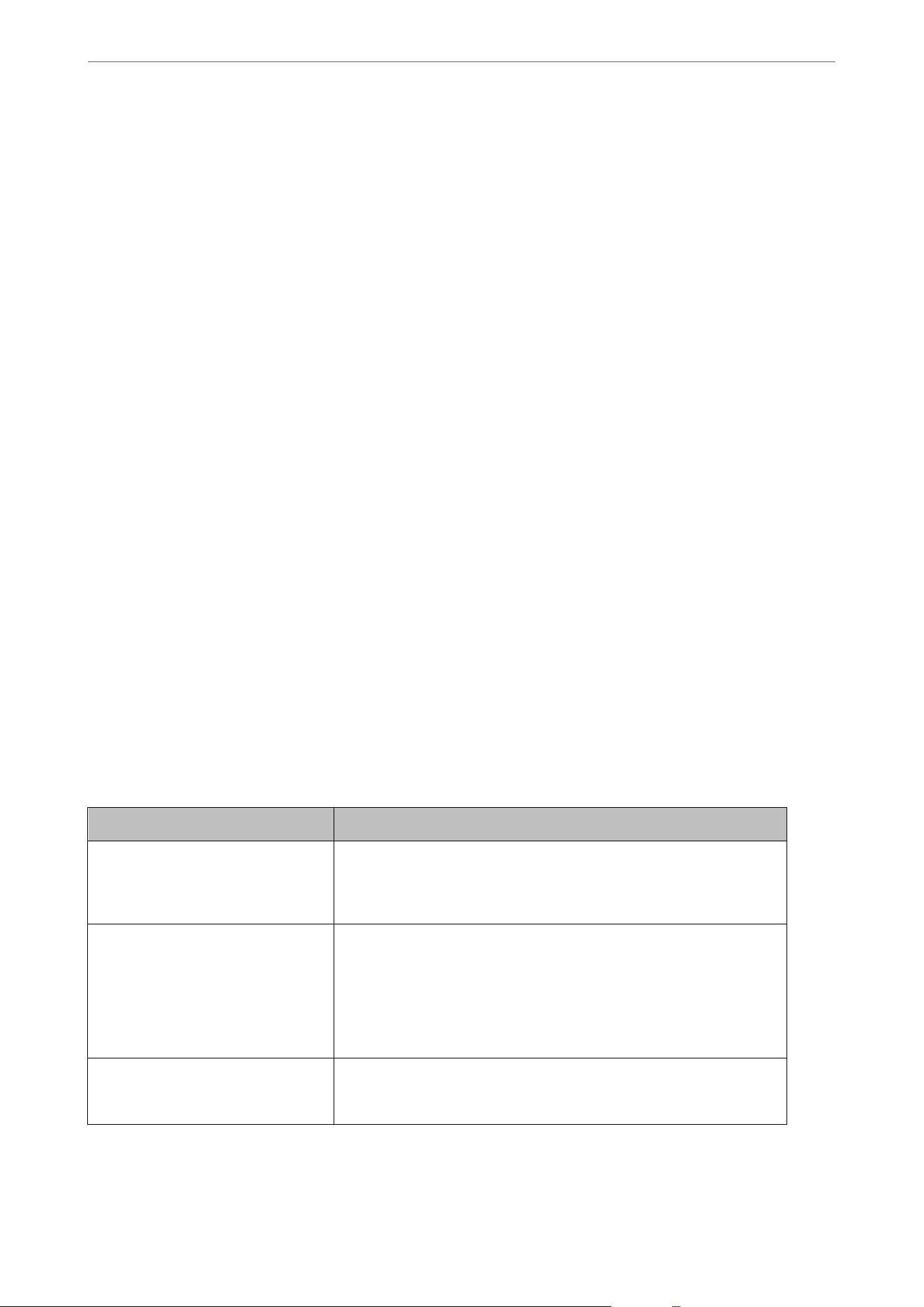
Restoring the Security Settings
When you establish a highly secure environment such as IPsec/IP Filtering or IEEE802.1X, you may not be able to
communicate with devices because of incorrect settings or trouble with the device or server. In this case, restore
the security settings in order to make settings for the device again or to allow you temporary use.
Disabling the Security Function Using Web Cong
You can disable IPsec/IP Filtering using Web Cong.
1.
Access Web Cong and select the Network Security tab > IPsec/IP Filtering > Basic.
2. Disable the IPsec/IP Filtering.
Problems Using Network Security Features
Forgot a Pre–shared Key
Re-congure a pre-shared key.
To change the key, access Web
Cong
and select the Network Security tab > IPsec/IP Filtering > Basic > Default
Policy or Group Policy.
When you change the pre-shared key, congure the pre-shared key for computers.
Cannot Communicate with IPsec Communication
Specify the algorithm that the scanner or the computer does not support.
e scanner supports the following algorithms. Check the settings of the computer.
Security Methods Algorithms
IKE encryption algorithm AES-CBC-128, AES-CBC-192, AES-CBC-256, AES-GCM-128*, AES-GCM-192*,
AES-GCM-256*, 3DES
IKE authentication algorithm SHA-1, SHA-256, SHA-384, SHA-512, MD5
IKE key exchange algorithm DH Group1, DH Group2, DH Group5, DH Group14, DH Group15, DH
Group16, DH Group17, DH Group18, DH Group19, DH Group20, DH
Group21, DH Group22, DH Group23, DH Group24, DH Group25, DH
Group26, DH Group27*, DH Group28*, DH Group29*, DH Group30*
ESP encryption algorithm AES-CBC-128, AES-CBC-192, AES-CBC-256, AES-GCM-128, AES-GCM-192,
AES-GCM-256, 3DES
ESP authentication algorithm SHA-1, SHA-256, SHA-384, SHA-512, MD5
AH authentication algorithm SHA-1, SHA-256, SHA-384, SHA-512, MD5
*available for IKEv2 only
Administrator Information
>
Advanced Security Settings
>
Solving Problems for Advanced Security
251

Cannot Communicate Suddenly
There is an error in the certicate.
e scanner's date and time settings may be incorrect if power has not been supplied to the scanner for a long
time.
When the scanner is connected using a client certicate for IPsec/IP ltering or IEEE802.1X, an error is indicated
if a time lag occurs between the scanner's date and time and the validity period for the
certicate.
Because the
scanner recognizes that the certicate is unavailable.
You can solve this problem by correcting the scanner's date and time settings. Connect the scanner and the
computer using a USB cable, turn the scanner on, and then perform scanning over USB using Epson Scan 2. e
scanner is synchronized with the computer and the date and time settings are corrected. e scanner indicates
normal status.
If you cannot solve the problem, restore all network settings using the scanner's control panel. Connect the scanner
and computer, make the network settings again, and then make the settings for client certication, IPsec/IP
ltering, or IEEE802.1X.
The IP address of the scanner has been changed or cannot be used.
When the IP address registered to the local address on Group Policy has been changed or cannot be used, IPsec
communication cannot be performed.
Disable IPsec using the scanner's control panel.
If the DHCP is out of date, rebooting or the IPv6 address is out of date or has not been obtained, then the IP
address registered for the scanner's Web Cong (Network Security tab > IPsec/IP Filtering > Basic > Group
Policy > Local Address (Scanner)) may not be found.
Use a static IP address.
The IP address of the computer has been changed or cannot be used.
When the IP address registered to the remote address on Group Policy has been changed or cannot be used, IPsec
communication cannot be performed.
Disable IPsec using the scanner's control panel.
If the DHCP is out of date, rebooting or the IPv6 address is out of date or has not been obtained, then the IP
address registered for the scanner's Web
Cong
(Network Security tab > IPsec/IP Filtering > Basic > Group
Policy > Remote Address(Host)) may not be found.
Use a static IP address.
Cannot Connect After Conguring IPsec/IP Filtering
The set value may be incorrect.
Access the scanner according to its MAC address using EpsonNet Cong or Epson Device Admin from another
computer, such as administrator's. You can nd the MAC address on the label pasted on the scanner.
If you can access, make the IPsec/IP ltering settings using EpsonNet Cong or Epson Device Admin.
If you cannot access, restore all network settings using the scanner's control panel. Connect the scanner and
computer, make the network settings again, and then make the IPsec/IP
ltering
settings.
Administrator Information
>
Advanced Security Settings
>
Solving Problems for Advanced Security
252

Cannot Access the Device after
Conguring
IEEE802.1X
The settings of IEEE802.1X are incorrect.
Disable IEEE802.1X and Wi-Fi from the scanner’s control panel. Connect the scanner and a computer, and then
congure IEEE802.1X again.
Problems on Using a Digital Certicate
Cannot Import a CA-signed Certicate
CA-signed Certicate and the information on the CSR do not match.
If the CA-signed Certicate and CSR do not have the same information, the CSR cannot be imported. Check the
following:
O Are you trying to import the certicate to a device that does not have the same information?
Check the information of the CSR and then import the certicate to a device that has the same information.
O Did you overwrite the CSR saved into the scanner aer sending the CSR to a certicate authority?
Obtain the CA-signed certicate again with the CSR.
CA-signed Certicate is more than 5KB.
You cannot import a CA-signed Certicate that is more than 5KB.
The password for importing the certicate is incorrect.
Enter the correct password. If you forget the password, you cannot import the
certicate.
Re-obtain the CA-signed
Certicate
.
Cannot Update a Self-Signed
Certicate
The Common Name has not been entered.
Common Name must be entered.
Unsupported characters have been entered to Common Name.
Enter between 1 and 128 characters of either IPv4, IPv6, host name, or FQDN format in ASCII (0x20-0x7E).
A comma or space is included in the common name.
If a comma is entered, the Common Name is divided at that point. If only a space is entered before or aer a
comma, an error occurs.
Cannot Create a CSR
The Common Name has not been entered.
e Common Name must be entered.
Administrator Information
>
Advanced Security Settings
>
Solving Problems for Advanced Security
253
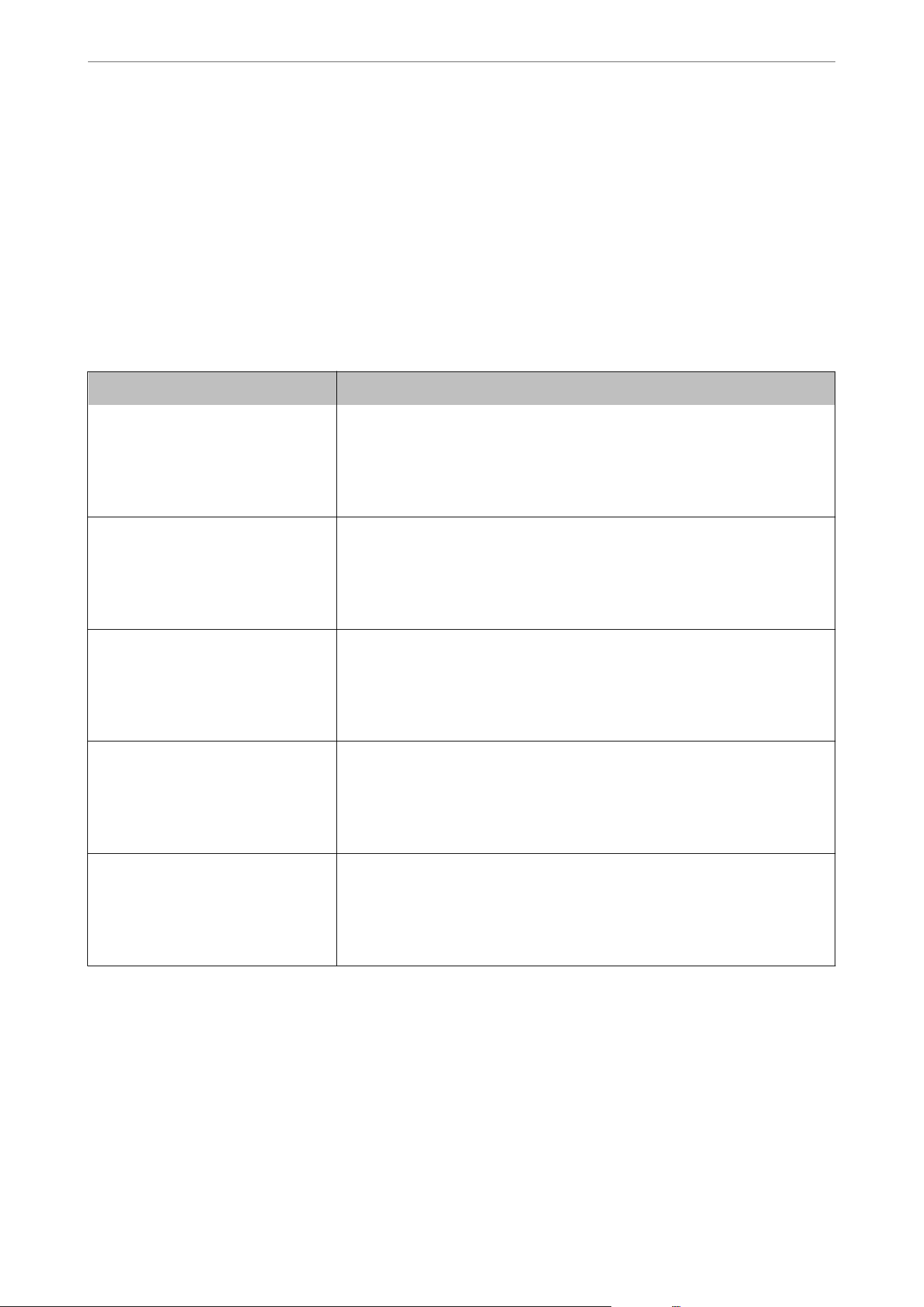
Unsupported characters have been entered to Common Name, Organization, Organizational Unit,
Locality, and State/Province.
Enter characters of either IPv4, IPv6, host name, or FQDN format in ASCII (0x20-0x7E).
A comma or space is included in the Common Name.
If a comma is entered, the Common Name is divided at that point. If only a space is entered before or
aer
a
comma, an error occurs.
Warning Relating to a Digital
Certicate
Appears
Messages Cause/What to do
Enter a Server Certicate. Cause:
You have not selected a le to import.
What to do:
Select a le and click Import.
CA Certicate 1 is not entered. Cause:
CA certicate 1 is not entered and only CA certicate 2 is entered.
What to do:
Import CA certicate 1 rst.
Invalid value below. Cause:
Unsupported characters are contained in the le path and/or password.
What to do:
Make sure that the characters are entered correctly for the item.
Invalid date and time. Cause:
Date and time for the scanner have not been set.
What to do:
Set date and time using Web
Cong
or EpsonNet
Cong
.
Invalid password. Cause:
The password set for CA certicate and entered password do not match.
What to do:
Enter the correct password.
Administrator Information
>
Advanced Security Settings
>
Solving Problems for Advanced Security
254

Messages Cause/What to do
Invalid le. Cause:
You are not importing a certicate le in X509 format.
What to do:
Make sure that you are selecting the correct certicate sent by a trusted certicate
authority.
Cause:
The le you have imported is too large. The maximum le size is 5KB.
What to do:
If you select the correct le, the certicate might be corrupted or fabricated.
Cause:
The chain contained in the certicate is invalid.
What to do:
For more information on the certicate, see the website of the certicate
authority.
Cannot use the Server Certicates
that include more than three CA
certicates.
Cause:
The certicate le in PKCS#12 format contains more than 3 CA certicates.
What to do:
Import each certicate as converting from PKCS#12 format to PEM format, or
import the
certicate
le
in PKCS#12 format that contains up to 2 CA
certicates.
The certicate has expired. Check if the
certicate is valid, or check the date
and time on the product.
Cause:
The certicate is out of date.
What to do:
O If the certicate is out of date, obtain and import the new certicate.
O If the certicate is not out of date, make sure the scanner's date and time are
set correctly.
Private key is required. Cause:
There is no paired private key with the certicate.
What to do:
O If the
certicate
is the PEM/DER format and it is obtained from a CSR using a
computer, specify the private key
le.
O If the certicate is the PKCS#12 format and it is obtained from a CSR using a
computer, create a le that contains the private key.
Cause:
You have re-imported the PEM/DER certicate obtained from a CSR using Web
Cong.
What to do:
If the
certicate
is the PEM/DER format and it is obtained from a CSR using Web
Cong, you can only import it once.
Administrator Information
>
Advanced Security Settings
>
Solving Problems for Advanced Security
255

Messages Cause/What to do
Setup failed. Cause:
Cannot nish the conguration because the communication between the scanner
and computer failed or the le cannot be read by some errors.
What to do:
After checking the
specied
le
and communication, import the
le
again.
Delete a CA-signed Certicate by Mistake
There is no backup le for the CA-signed certicate.
If you have the backup le, import the certicate again.
If you obtain a certicate using a CSR created from Web Cong, you cannot import a deleted certicate again.
Create a CSR and obtain a new
certicate.
Administrator Information
>
Advanced Security Settings
>
Solving Problems for Advanced Security
256

Technical Specications
General Scanner
Specications
........................................258
Network Specications............................................. 259
Supported ird Party Services....................................... 261
USB Drive Specications............................................261
Using Port for the Scanner...........................................261
Dimensions and Weight
Specications
..................................263
Electrical Specications.............................................264
Environmental
Specications
.........................................265
System Requirements.............................................. 265

General Scanner Specications
Note:
Specications are subject to change without notice.
Scanner type Flatbed color scanner with ADF
Photoelectric device CIS
Eective pixels (scanner glass) 10,200×14,040 at 1,200 dpi
Light source RGB LED
Optical resolution ADF: 600 dpi (main scan), 600 dpi (sub scan)
Scanner glass: 1,200 dpi (main scan), 1,200 dpi (sub scan)
Scanning resolution
50 to 1,200 dpi (in 1 dpi increments)
*1
Document Size ADF:
O Max: 215.9×5,588.0 mm (8.5×220 inches)
*2
O Min: 105.0×148.0 mm (4.13×5.83 inches)
Scanner glass:
O Max 215.9×297.1 mm (8.5×11.7 inches)
Paper input (ADF) Face-up loading
Paper output (ADF) Face-down ejection
Paper capacity (ADF) 60 sheets of paper at a thickness of 80 g/m2
Color depth Color
O 30 bits per pixel internal (10 bits per pixel per color internal)
O 24 bits per pixel external (8 bits per pixel per color external)
Grayscale
O 10 bits per pixel internal
O 8 bits per pixel external
Black and white
O 10 bits per pixel internal
O 1 bit per pixel external
Interface Hi-Speed USB
Hi-Speed USB (Host)
IEEE802.11b/g/n or IEEE802.11a/b/g/n/ac
*3
Ethernet 1000BASE-T/100BASE-TX/10BASE-T
*1 is value is when scanning with a computer. Available resolutions may vary depending on the scanning
method.
*2 Maximum length may vary depending on the scanning method and the resolution. See the following for more
details.
Technical Specications
>
General Scanner Specications
258
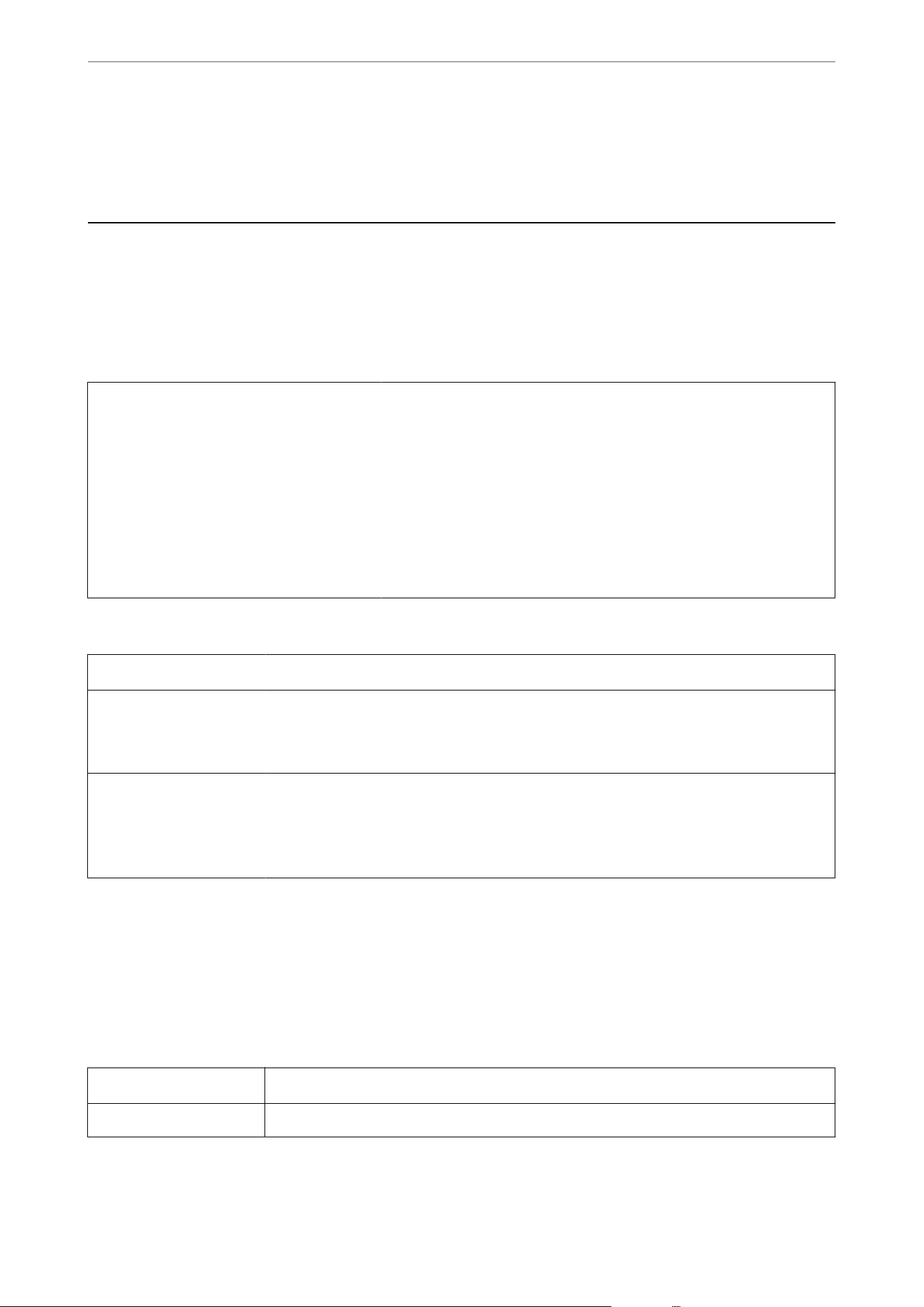
“Maximum Length for Long Paper” on page 46
*3 Available Wi-Fi interfaces vary depending on your region.
Network Specications
Wi-Fi
Specications
See the following table for Wi-Fi specications.
Countries or regions except for those listed
below
Table A
China
Taiwan
South Korea
U.S.
Canada
Latin America
Table B
Table A
Standards
IEEE802.11b/g/n
*1
Frequency Range 2400-2483.5 MHz
Maximum radio-frequency
power transmitted
20 dBm (EIRP)
Channels 1/2/3/4/5/6/7/8/9/10/11/12/13
Connection Modes
Infrastructure, Wi-Fi Direct (Simple AP)
*2*3
Security Protocols
*4
WEP (64/128bit), WPA2-PSK (AES)
*5
, WPA3-SAE (AES), WPA2/WPA3-Enterprise
*1 Only available for the HT20
*2 Not supported for IEEE 802.11b
*3 Infrastructure and Wi-Fi Direct modes or an Ethernet connection can be used simultaneously.
*4 Wi-Fi Direct supports WPA2-PSK (AES) only.
*5 Complies with WPA2 standards with support for WPA/WPA2 Personal.
Table B
Standards
IEEE802.11a/b/g/n
*1
/ac
Frequency Ranges IEEE802.11b/g/n: 2.4 GHz, IEEE802.11a/n/ac: 5 GHz
Technical Specications
>
Network Specications
>
Wi-Fi Specications
259
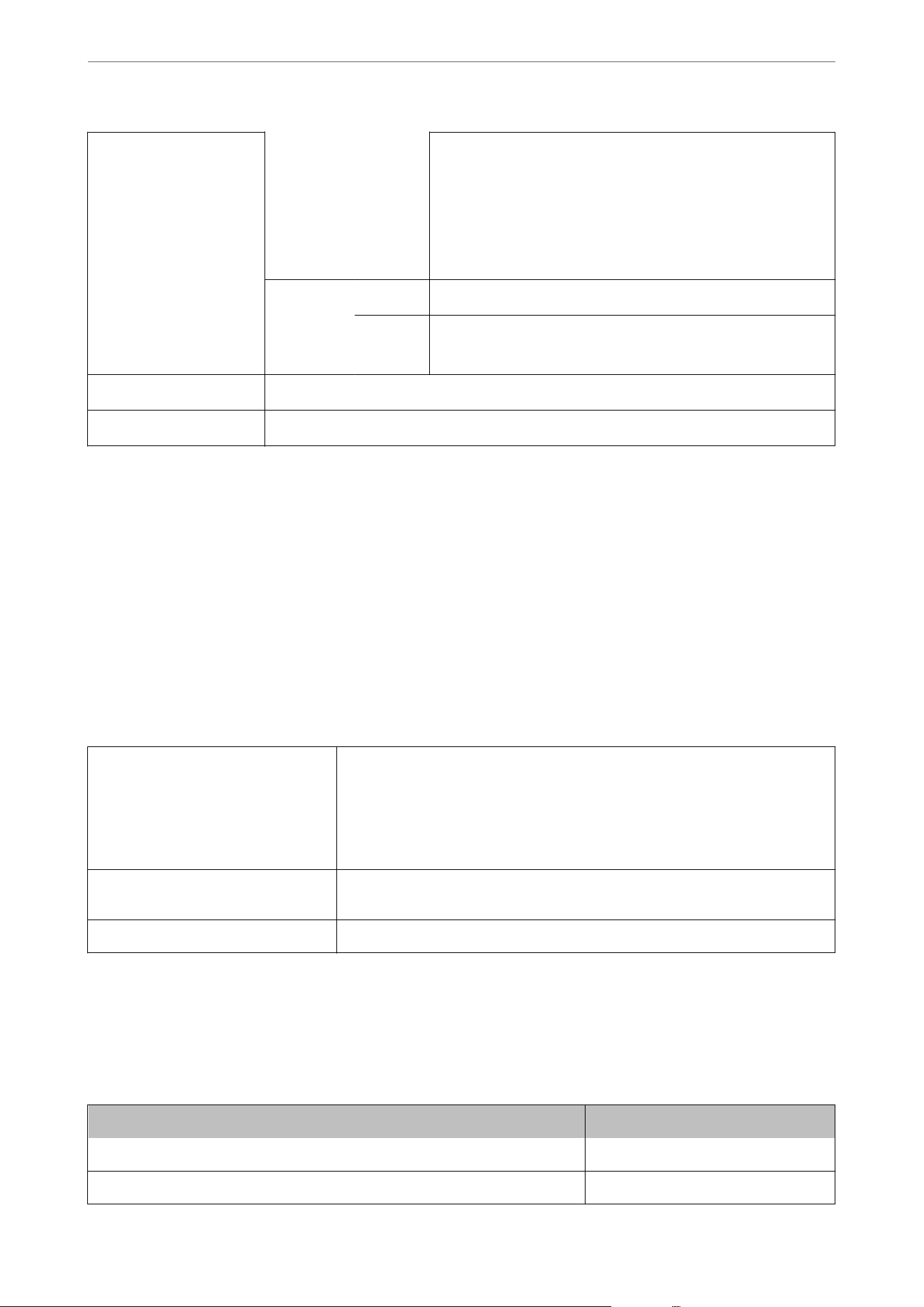
Channels Wi-Fi 2.4 GHz
1/2/3/4/5/6/7/8/9/10/11/12
*2
/13
*2
5 GHz
*3
W52 (36/40/44/48),
W53 (52/56/60/64),
W56 (100/104/108/112/116/120/124/128/132/136/140/144),
W58 (149/153/157/161/165)
Wi-Fi Direct 2.4 GHz
1/2/3/4/5/6/7/8/9/10/11/12
*2
/13
*2
5 GHz
*3
W52 (36/40/44/48)
W58 (149/153/157/161/165)
Connection Modes
Infrastructure, Wi-Fi Direct (Simple AP)
*4*5
Security Protocols
*6
WEP (64/128bit), WPA2-PSK (AES)
*7
, WPA3-SAE (AES), WPA2/WPA3-Enterprise
*1 Only available for the HT20
*2 Not available in Taiwan
*3 The availability of these channels and use of the product outdoors over these channels varies by location. For more
information, see
http://support.epson.net/wi5ghz/
*4 Not supported for IEEE 802.11b
*5 Infrastructure and Wi-Fi Direct modes or an Ethernet connection can be used simultaneously.
*6 Wi-Fi Direct only supports WPA2-PSK (AES) .
*7 Complies with WPA2 standards with support for WPA/WPA2 Personal.
Ethernet
Specications
Standards
IEEE802.3i (10BASE-T)
*1
IEEE802.3u (100BASE-TX)
*1
IEEE802.3ab (1000BASE-T)
*1
IEEE802.3az (Energy Ecient Ethernet)
*2
Communication Mode Auto, 10 Mbps Full duplex, 10 Mbps Half duplex, 100 Mbps Full duplex, 100 Mbps
Half duplex
Connector RJ-45
*1 Use a category 5e or higher STP (Shielded twisted pair) cable to prevent risk of radio interference.
*2 The connected device should comply with IEEE802.3az standards.
Network Features and IPv4/IPv6 Support
Features Supported
Epson Scan 2 IPv4, IPv6
Document Capture Pro/Document Capture IPv4
Technical Specications
>
Network Specications
>
Network Features and IPv4/IPv6 Support
260
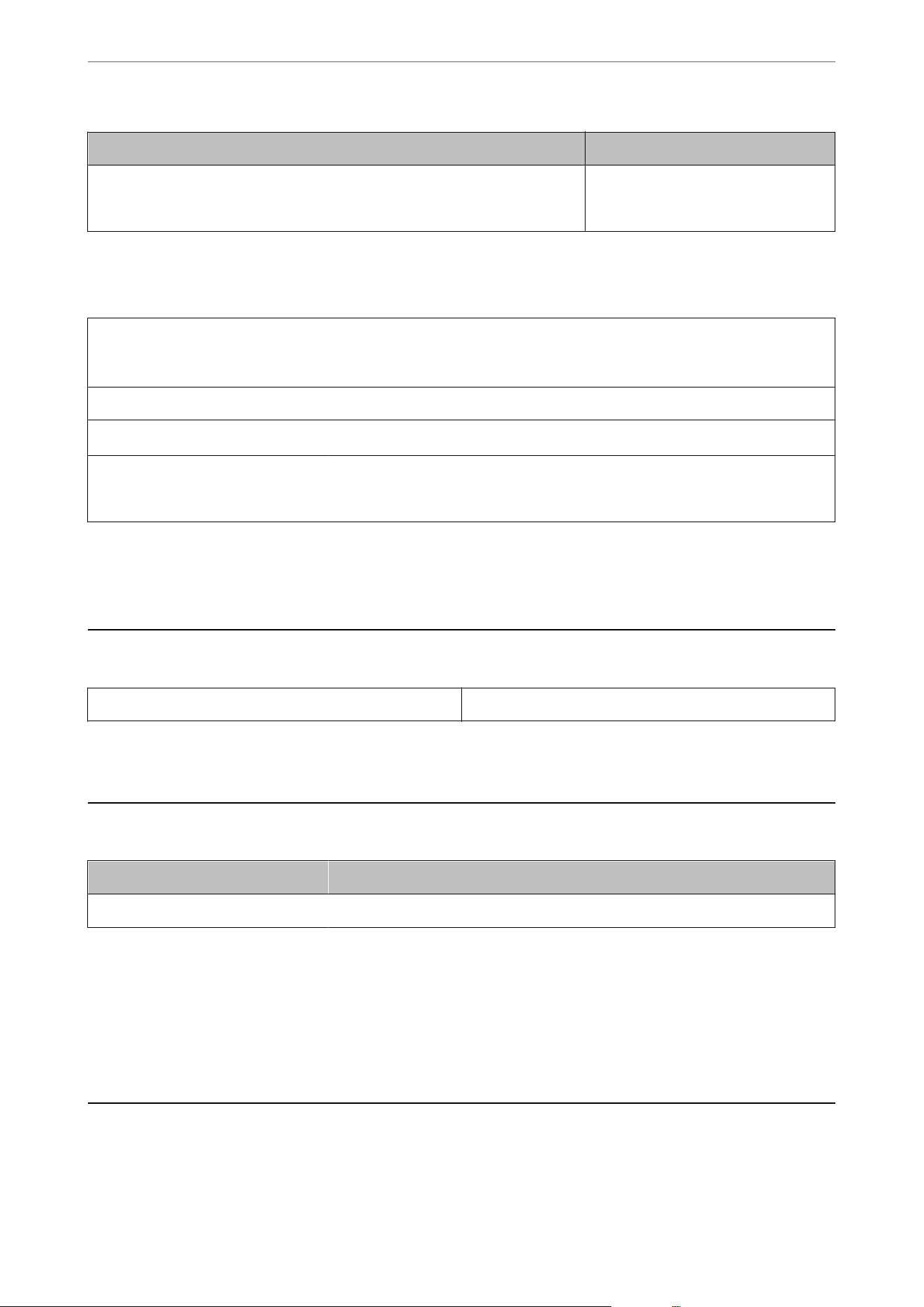
Features Supported
Epson Connect (Scan to Cloud) IPv4
AirPrint IPv4, IPv6
Security Protocol
IEEE802.1X
*1
IPsec/IP Filtering
SSL/TLS HTTPS Server/Client
TLS Version
1.3, 1.2, 1.1
*2
, 1.0
*2
SMTPS (STARTTLS, SSL/TLS)
SNMPv3
*1 : You need to use a connection device that complies with IEEE802.1X.
*2 : Disabled by default.
Supported Third Party Services
AirPrint OS X Mavericks (10.9.5) or later
* We recommend using the latest Mac OS.
USB Drive Specications
Devices Maximum Capacities
USB Memory Device 2 TB (formatted in FAT, FAT32, or exFAT.)
You cannot use the following drives:
O A drive that requires a dedicated driver
O A drive with security settings (password, encryption, and so on)
Epson cannot guarantee all operations of externally connected drives.
Using Port for the Scanner
e
scanner uses the following port.
ese
ports should be allowed to become available by the network
administrator as necessary.
Technical Specications
>
Using Port for the Scanner
261
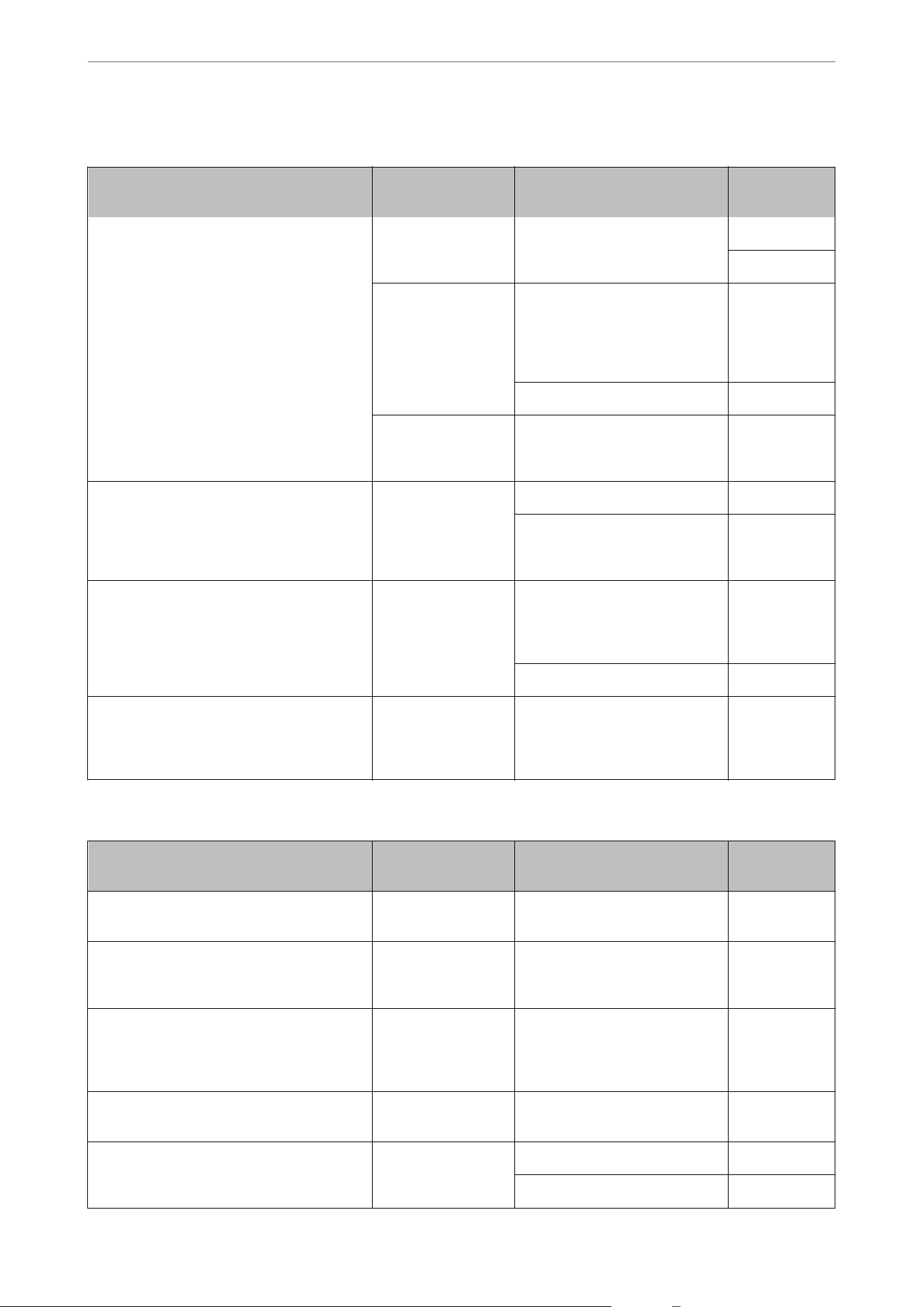
When the Sender (Client) is the Scanner
Usage Target (Server) Protocol Port
Number
File sending (When scan to network folder is
used from the scanner)
FTP/FTPS server FTP/FTPS (TCP) 20
21
File server SMB (TCP) 445
NetBIOS (UDP) 137
138
NetBIOS (TCP) 139
WebDAV server Protocol HTTP(TCP) 80
Protocol HTTPS(TCP) 443
Email sending (When scan to mail is used
from the scanner)
SMTP server SMTP (TCP) 25
SMTP SSL/TLS (TCP) 465
SMTP STARTTLS (TCP) 587
POP before SMTP connection (When scan to
mail is used from the scanner)
POP server POP3 (TCP) 110
When Epson Connect is used Epson Connect
Server
HTTPS 443
XMPP 5222
Controlling WSD Client computer WSD (TCP) 5357
Search the computer when push scanning
from an application
Client computer Network Push Scan Discovery 2968
When the Sender (Client) is the Client Computer
Usage Target (Server) Protocol Port
Number
Discover the scanner from an application
such as EpsonNet Cong and scanner driver.
Scanner ENPC (UDP) 3289
Collect and set up the MIB information from
an application such as EpsonNet Cong and
scanner driver.
Scanner SNMP (UDP) 161
Searching for WSD scanners Scanner WS-Discovery (UDP) 3702
Forwarding the scan data from an
application
Scanner Network Scan (TCP) 1865
Collecting the job information when push
scanning from an application
Scanner Network Push Scan 2968
Web Cong Scanner HTTP(TCP) 80
HTTPS(TCP) 443
Technical Specications
>
Using Port for the Scanner
262
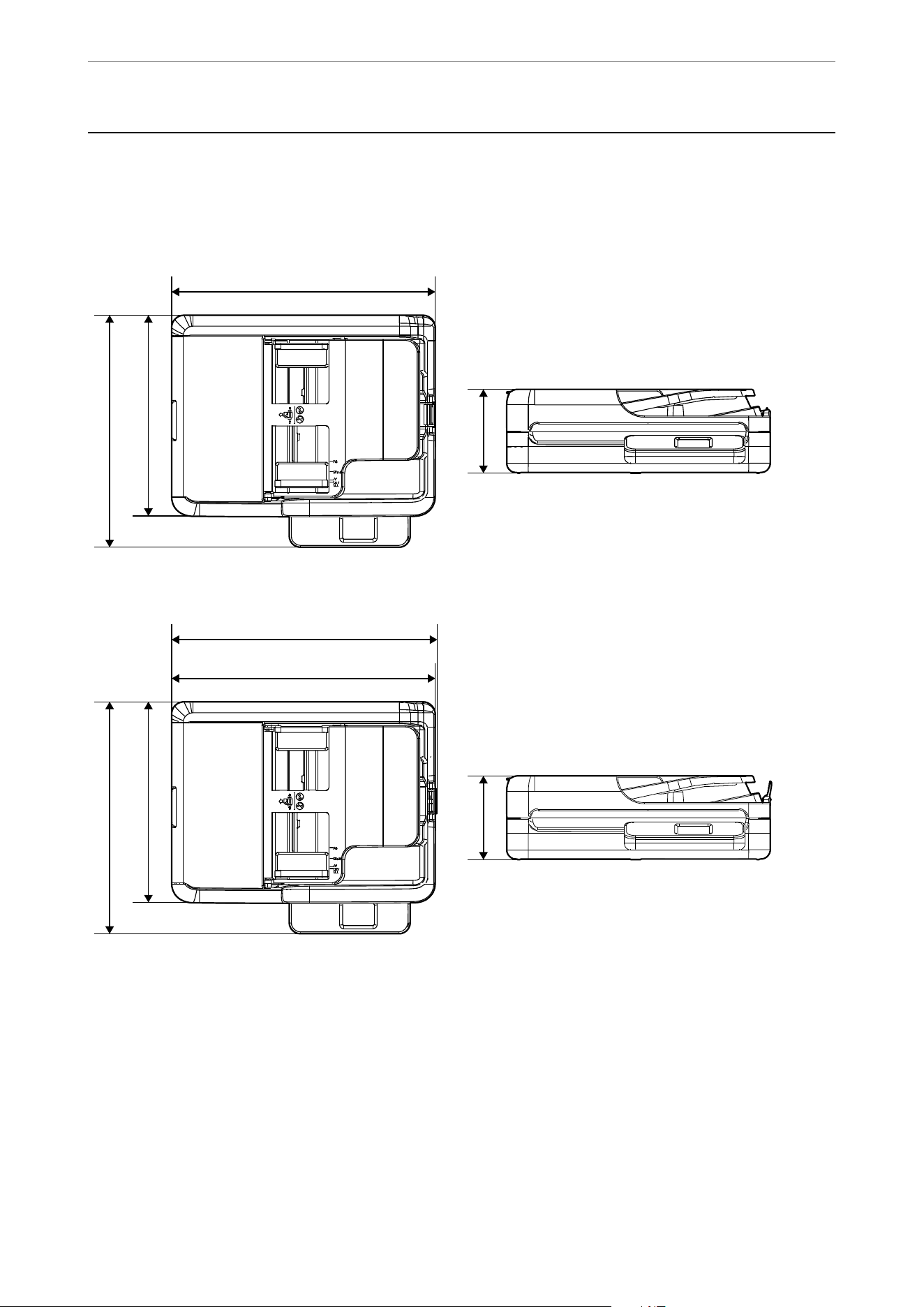
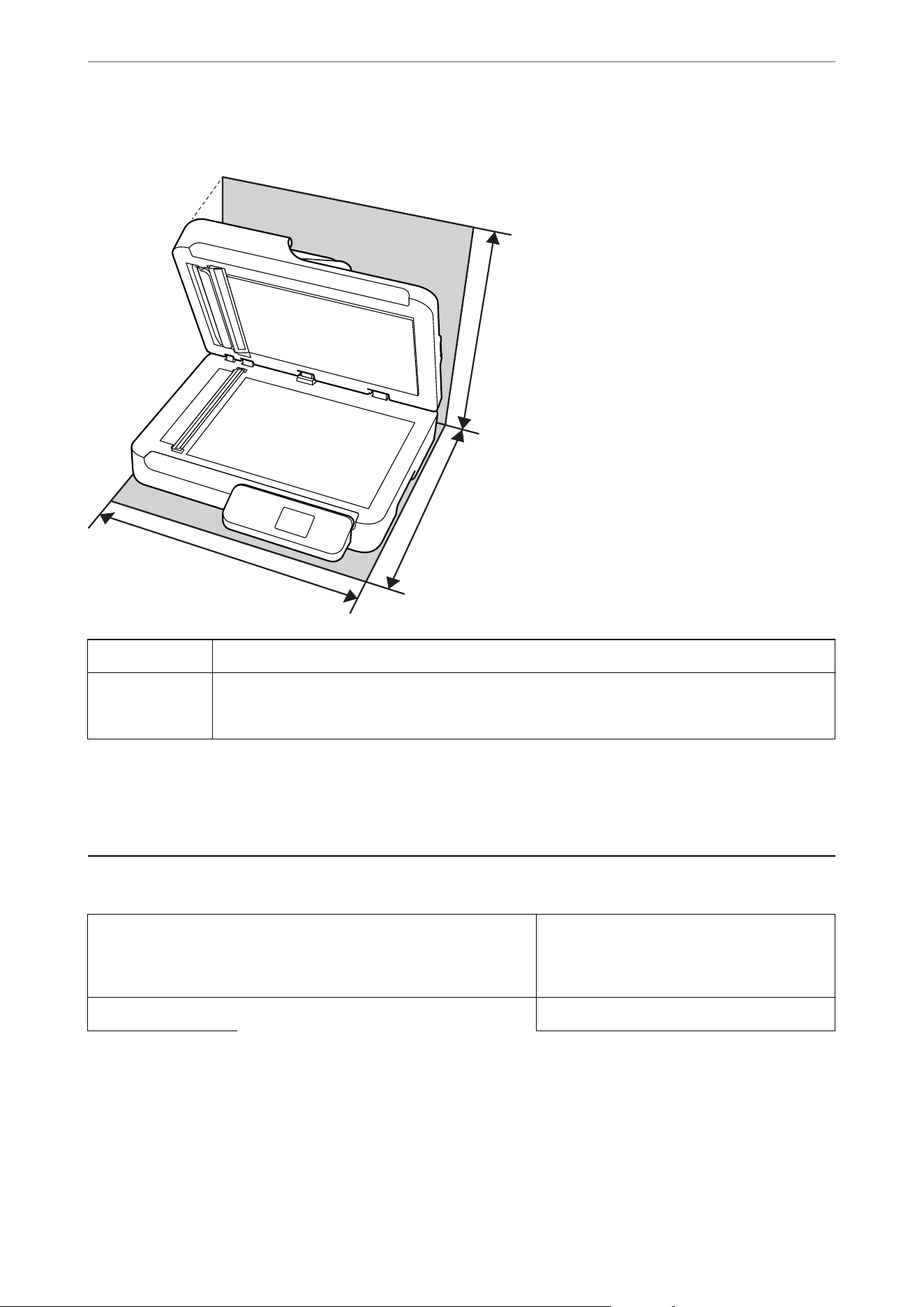
Installation space (unit: mm (inches))
C
B
A
A 388 mm (15.3 in.)
B 416 mm (16.4 in.)
C 428 mm (16.9 in.)
Weight
Approx. 5.1 kg (11.2 lb)
Electrical Specications
Model AC 100-240 V Model AC 220-240 V Model
Rated Frequency
Range
50-60 Hz 50-60 Hz
Rated Current 0.3 A 0.15 A
Technical Specications
>
Electrical Specications
264

Power Consumption USB Connection
O Operating: Approx. 10.0 W
O Ready mode: Approx. 4.7 W
O Sleep mode: Approx. 1.0 W
O Power o: Approx. 0.1 W
Wi-Fi Connection
O Operating: Approx. 11.0 W
O Ready mode: Approx. 4.7 W
O Sleep mode: Approx. 1.3 W
O Power o: Approx. 0.1 W
Ethernet Connection
O Operating: Approx. 11.0 W
O Ready mode: Approx. 4.6 W
O Sleep mode: Approx. 1.1 W
O Power
o:
Approx. 0.1 W
USB Connection
O Operating: Approx. 10.0 W
O Ready mode: Approx. 4.7 W
O Sleep mode: Approx. 1.0 W
O Power o: Approx. 0.1 W
Wi-Fi Connection
O Operating: Approx. 11.0 W
O Ready mode: Approx. 4.7 W
O Sleep mode: Approx. 1.3 W
O Power o: Approx. 0.1 W
Ethernet Connection
O Operating: Approx. 11.0 W
O Ready mode: Approx. 4.6 W
O Sleep mode: Approx. 1.1 W
O Power
o:
Approx. 0.1 W
Note:
O Check the label on the scanner for its voltage.
O For European users, see the following Website for details on power consumption.
https://www.epson.eu/energy-consumption
Environmental Specications
Temperature When operating 5 to 35 °C (41 to 95 °F)
When stored –25 to 60 °C (–13 to 140 °F)
Humidity When operating 15 to 80% (without condensation)
When stored 15 to 85% (without condensation)
Operating conditions Ordinary oce or home conditions. Avoid operating the scanner
in direct sunlight, near a strong light source, or in extremely dusty
conditions.
System Requirements
Supported operating systems may vary depending on the application.
Technical Specications
>
System Requirements
265

Windows Windows 11 or later
Windows 10
Windows 8/8.1
Windows 7
Windows Server 2008 or later
*2
Mac OS
*1
Mac OS X 10.9.5 or later, macOS 11 or later
*1 Fast User Switching on Mac OS or later is not supported.
*2 Document Capture Pro does not support Windows Server.
Technical Specications
>
System Requirements
266

Standards and Approvals for European Models
e following model is CE/UKCA marked and in compliance with the relevant statutory requirements.
e
full text of the declaration of conformity is available at the following website:
https://www.epson.eu/conformity
J451B
Standards and Approvals for the U.S. and Canadian
Models
Safety UL60950-1
CAN/CSA-C22.2 No.60950-1-07
EMC FCC Part 15 Subpart B Class B
CAN ICES (B)/NMB (B)
is equipment contains the following wireless module.
Manufacturer: Seiko Epson Corporation
Type: J26H005
is product conforms to Part 15 of the FCC Rules and RSS of the IC Rules. Epson cannot accept responsibility for
any failure to satisfy the protection requirements resulting from a non-recommended modication of the product.
Operation is subject to the following two conditions: (1) this device may not cause harmful interference, and (2)
this device must accept any interference received, including interference that may cause undesired operation of the
device.
To prevent radio interference to the licensed service, this device is intended to be operated indoors and away from
windows to provide maximum shielding. Equipment (or its transmit antenna) that is installed outdoors is subject
to licensing.
is equipment complies with FCC/IC radiation exposure limits set forth for an uncontrolled environment and
meets the FCC radio frequency (RF) Exposure Guidelines in Supplement C to OET65 and RSS of the IC radio
frequency (RF) Exposure rules. is equipment should be installed and operated so that the radiator is kept at least
7.9 inches (20 cm) or more away from a person's body (excluding extremities: hands, wrists, feet and ankles).
Standards and Approvals for Latin American Models
Aviso para Argentina
Modelo del producto: DS-1760WN (J451C)
Modelo del módulo WLAN: J26H005
Marca: EPSON
®
Standards and Approvals
>
Standards and Approvals for Latin American Models
>
Aviso para Argentina
268

CONTIENE C-23964
Aviso para México
La operación de este equipo está sujeta a las siguientes dos condiciones: (1) es posible que este equipo o dispositivo
no cause interferencia perjudicial y (2) este equipo o dispositivo debe aceptar cualquier interferencia, incluyendo la
que pueda causar su operación no deseada.
Modelo del producto: J451C (DS-1760WN)
Modelo del módulo WLAN: J26H005
Marca: EPSON
Nº de homologación IFT: EPEPJ424-38301
Aviso para Paraguay
Importado por:
Fastrax, S.A.
Avenida, Avda. Perú c/Río de Janeiro Casa #791, Asunción, Paraguay
Sol Control S.R.L.
Av. Gral. Bernardino Caballero 810 esq. Celsa Speratti Asunción, Paraguay
Aviso para Perú
Modelo del producto: DS-1760WN (J451C)
Marca: EPSON
Este producto contiene el siguiente módulo WLAN:
Modelo del módulo WLAN: J26H005
ID de FCC: BKMFBJ26H005
Fabricante del producto: Seiko Epson Corporation
Dirección: 3-3-5 Owa Suwa-shi, Nagano-Ken 392-8502, Japón
Standards and Approvals
>
Standards and Approvals for Latin American Models
>
Aviso para Perú
269


Technical Support Web Site
If you need further help, visit the Epson support website shown below. Select your country or region and go to the
support section of your local Epson website. e latest drivers, FAQs, manuals, or other downloadables are also
available from the site.
https://support.epson.net
https://www.epson.eu/support
(Europe)
If your Epson product is not operating properly and you cannot solve the problem, contact Epson support services
for assistance.
Contacting Epson Support
Before Contacting Epson
If your Epson product is not operating properly and you cannot solve the problem using the troubleshooting
information in your product manuals, contact Epson support services for assistance. If Epson support for your area
is not listed below, contact the dealer where you purchased your product.
Epson support will be able to help you much more quickly if you give them the following information:
O Product serial number
(e serial number label is usually on the back of the product.)
O Product model
O Product
soware
version
(Click About, Version Info, or a similar button in the product
soware.)
O Brand and model of your computer
O Your computer operating system name and version
O Names and versions of the
soware
applications you normally use with your product
Note:
Depending on the product, the dial list data for fax and/or network settings may be stored in the product’s memory. Due to
breakdown or repair of a product, data and/or settings may be lost. Epson shall not be responsible for the loss of any data,
for backing up or recovering data and/or settings even during a warranty period. We recommend that you make your own
backup data or take notes.
Help for Users in the U.S. and Canada
If you need to contact Epson for technical support services, use the following support options.
Internet Support
Visit Epson's support website at
https://epson.com/support (U.S.) or https://epson.ca/support (Canada) and select
your product for solutions to common problems. You can download drivers and documentation, get FAQs and
troubleshooting advice, or e-mail Epson with your questions.
Where to Get Help
>
Contacting Epson Support
>
Help for Users in the U.S. and Canada
271

Speak to a Support Representative
Before you call Epson for support, please have the following information ready:
O Product name
O Product serial number (located on a label on the product)
O Proof of purchase (such as a store receipt) and date of purchase
O Computer
conguration
O Description of the problem
en call:
O U.S.: (562) 276-4300, 7 a.m. to 4 p.m., Pacic Time, Monday through Friday
O Canada: (905) 709-3839, 7 a.m. to 4 p.m., Pacic Time, Monday through Friday
Days and hours of support are subject to change without notice. Toll or long distance charges may apply.
Purchase Supplies and Accessories
You can purchase genuine Epson accessories at
https://epson.com (U.S. sales) or https://epson.ca (Canadian sales).
You can also purchase supplies from an Epson authorized reseller. To nd the nearest one, call 800-GO-EPSON
(800-463-7766) in the U.S. or 800-807-7766 in Canada.
Help for Users in Latin America
If you need to contact Epson for technical support services, use the following support options.
Internet Support
Visit
https://latin.epson.com/support and select your product for solutions to common problems. You can
download drivers and documentation, get troubleshooting advice, or e-mail Epson with your questions.
Speak to a Support Representative
Before you call Epson for support, please have the following information ready:
O Product name
O Product serial number (located on a label on the product)
O Proof of purchase (such as a store receipt) and date of purchase
O Computer conguration
O Description of the problem
en call:
Country Telephone
Argentina 0800-288-37766
Bolivia* 800-100-116
Brazil State capitals and metropolitan areas: 3004-6627
Other areas: 0800-377-6627 / 0800-EPSONBR
Where to Get Help
>
Contacting Epson Support
>
Help for Users in Latin America
272
Country Telephone
Chile (56 2) 2484-3400
Colombia Bogota: 601 602 4751
Other cities: 01-8000-915235
Costa Rica 800-377-6627
Dominican Republic* 1-888-760-0068
Ecuador* 1-800-000-044
El Salvador* 800-6570
Guatemala* 1-800-835-0358
Mexico Mexico City: (52 55) 1323-2052
Other cities: 800-087-1080
Nicaragua* 00-1-800-226-0368
Panama* 00-800-052-1376
Paraguay 009-800-521-0019
Peru Lima: (51 1) 418-0210
Other cities: 0800-10126
Uruguay 00040-5210067
* Contact your local phone company to call this toll-free number from a mobile phone.
If your country does not appear in the list, contact the sales oce in the nearest country. Toll or long distance
charges may apply.
Purchase Supplies and Accessories
You can purchase genuine Epson accessories from an Epson authorized reseller. To nd the nearest reseller, visit
https://latin.epson.com or call your nearest Epson sales oce.
Help for Users in Europe
Check your Pan-European Warranty Document for information on how to contact Epson support.
Help for Users in Taiwan
Contacts for information, support, and services are:
World Wide Web
http://www.epson.com.tw
Information on product specications, drivers for download, and products enquiry are available.
Where to Get Help
>
Contacting Epson Support
>
Help for Users in Taiwan
273

Epson HelpDesk
Phone: +886-2-2165-3138
Our HelpDesk team can help you with the following over the phone:
O Sales enquiries and product information
O Product usage questions or problems
O Enquiries on repair service and warranty
Repair service center:
http://www.tekcare.com.tw/branchMap.page
TekCare corporation is an authorized service center for Epson Taiwan Technology & Trading Ltd.
Help for Users in Singapore
Sources of information, support, and services available from Epson Singapore are:
World Wide Web
http://www.epson.com.sg
Information on product specications, drivers for download, Frequently Asked Questions (FAQ), Sales Enquiries,
and Technical Support via e-mail are available.
Epson HelpDesk
Toll Free: 800-120-5564
Our HelpDesk team can help you with the following over the phone:
O Sales enquiries and product information
O Product usage questions or problem troubleshooting
O Enquiries on repair service and warranty
Help for Users in Thailand
Contacts for information, support, and services are:
World Wide Web
http://www.epson.co.th
Information on product
specications,
drivers for download, Frequently Asked Questions (FAQ), and e-mail are
available.
Epson Call Centre
Phone: 66-2460-9699
Email: [email protected]
Our Call Centre team can help you with the following over the phone:
O Sales enquiries and product information
Where to Get Help
>
Contacting Epson Support
>
Help for Users in Thailand
274

O Product usage questions or problems
O Enquiries on repair service and warranty
Help for Users in Vietnam
Contacts for information, support, and services are:
Epson Service Center
27 Yen Lang, Trung Liet Ward, Dong Da District, Ha Noi City. Tel: +84 24 7300 0911
38 Le Dinh Ly, ac Gian Ward, anh Khe District, Da Nang. Tel: +84 23 6356 2666
194/3 Nguyen Trong Tuyen, Ward 8, Phu Nhuan Dist., HCMC. Tel: +84 28 7300 0911
31 Phan Boi Chau, Ward 14, Binh anh District, HCMC. Tel: +84 28 35100818
Help for Users in Indonesia
Contacts for information, support, and services are:
World Wide Web
http://www.epson.co.id
O Information on product specications, drivers for download
O Frequently Asked Questions (FAQ), Sales Enquiries, questions through e-mail
Epson Hotline
Phone: 1500-766 (Indonesia Only)
Email: customer[email protected].id
Our Hotline team can help you with the following over the phone or email:
O Sales enquiries and product information
O Te ch nical support
Help for Users in Malaysia
Contacts for information, support, and services are:
World Wide Web
http://www.epson.com.my
O Information on product
specications,
drivers for download
O Frequently Asked Questions (FAQ), Sales Enquiries, questions through e-mail
Epson Call Centre
Phone: 1800-81-7349 (Toll Free)
Email: websupport@emsb.epson.com.my
Where to Get Help
>
Contacting Epson Support
>
Help for Users in Malaysia
275

O Sales enquiries and product information
O Product usage questions or problems
O Enquiries on repair services and warranty
Epson Malaysia Sdn Bhd (Head Oce)
Phone: 603-56288288
Fax: 603-5628 8388/603-5621 2088
Help for Users in India
Contacts for information, support, and services are:
World Wide Web
http://www.epson.co.in
Information on product specications, drivers for download, and products enquiry are available.
Toll Free Helpline
For Service, Product information or to order consumables -
18004250011 / 186030001600 / 1800123001600 (9AM – 6PM)
Email
calllog@epson–india.in
WhatsApp
+91 96400 00333
Help for Users in the Philippines
To obtain technical support as well as other aer sales services, users are welcome to contact the Epson Philippines
Corporation at the telephone, fax numbers and e-mail address below:
World Wide Web
http://www.epson.com.ph
Information on product specications, drivers for download, Frequently Asked Questions (FAQ), and E-mail
Enquiries are available.
Epson Philippines Customer Care
Toll Free: (PLDT) 1-800-1069-37766
Toll Free: (Digitel) 1-800-3-0037766
Metro Manila: +632-8441-9030
Web Site:
https://www.epson.com.ph/contact
E-mail: customercare@epc.epson.com.ph
Where to Get Help
>
Contacting Epson Support
>
Help for Users in the Philippines
276

Accessible 9am to 6pm, Monday through Saturday (Except public holidays)
Our Customer Care team can help you with the following over the phone:
O Sales enquiries and product information
O Product usage questions or problems
O Enquiries on repair service and warranty
Epson Philippines Corporation
Trunk Line: +632-8706-2609
Fax: +632-8706-2663 / +632-8706-2665
Where to Get Help
>
Contacting Epson Support
>
Help for Users in the Philippines
277