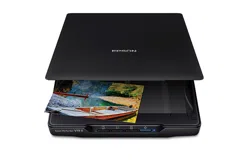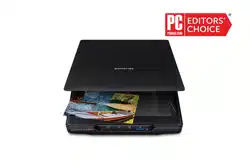

Perfection V19 II/V39 II User's Guide


3
Contents
Perfection V19 II/V39 II User's Guide ......................................................................................................... 7
Product Basics ............................................................................................................................................ 8
Scanner Parts ...................................................................................................................................... 8
Scanner Buttons and Lights ............................................................................................................... 11
Using the Scanner Stand ................................................................................................................... 11
Placing Originals on the Scanner ............................................................................................................ 16
Placing Originals on the Scanner Glass ............................................................................................. 16
Placing Originals While Using the Scanner Stand.............................................................................. 19
Placing Thick Documents................................................................................................................... 23
Scanning .................................................................................................................................................... 24
Scanning Using Epson ScanSmart .................................................................................................... 24
Starting a Scan from a Scanner Button.......................................................................................... 25
Selecting the Scan Mode............................................................................................................... 26
Scanning Documents and Photos in Epson ScanSmart..................................................................... 26
Saving a Scan ............................................................................................................................... 30
Sending a Scan to a Cloud Service ............................................................................................... 30
Attaching a Scan to E-mail ............................................................................................................ 31
Printing a Scan .............................................................................................................................. 33
Stitching Photos ................................................................................................................................. 34
Selecting Epson ScanSmart Settings................................................................................................. 35
Changing the Epson Product......................................................................................................... 35
Changing the Scan Settings .......................................................................................................... 36
Photo Enhancements Settings ...................................................................................................... 39
Changing the File Name Settings .................................................................................................. 40
Available Image Adjustments - Document Mode ........................................................................... 43
Available Image Adjustments - Photo Mode .................................................................................. 44
Changing the Save Settings .......................................................................................................... 47
Save Settings ................................................................................................................................ 49
Customizing Action Icons .............................................................................................................. 50
Scan Resolution Guidelines ............................................................................................................... 52

4
Cleaning and Transporting Your Product ............................................................................................... 54
Cleaning Your Scanner ...................................................................................................................... 54
Transporting Your Scanner ................................................................................................................ 54
Solving Problems ...................................................................................................................................... 56
Scanner Light Status .......................................................................................................................... 56
Solving Scanning Problems ............................................................................................................... 57
Scanner Does Not Turn On or Turns Off Unexpectedly................................................................. 57
Scanner Buttons Do Not Work as Expected .................................................................................. 58
Cannot Start Epson ScanSmart..................................................................................................... 58
Scanning is Slow ........................................................................................................................... 58
Solving Scanned Image Quality Problems ......................................................................................... 59
Uneven Colors, Dirt and Spots Appear in Your Scanned Image.................................................... 59
The Image Quality is Rough .......................................................................................................... 60
Spots or Lines Appear in All Scanned Images............................................................................... 60
Straight Lines in an Image Appear Crooked .................................................................................. 60
Text or Images are Blurry .............................................................................................................. 60
Image Colors are Patchy at the Edges .......................................................................................... 61
Back of Original Image Appears in Scanned Image ...................................................................... 61
Ripple Patterns Appear in an Image .............................................................................................. 61
Cannot Scan the Correct Area....................................................................................................... 61
Cannot Scan Multiple Photos at the Same Time ........................................................................... 62
Image is Scanned Upside-Down ................................................................................................... 62
Characters are not Recognized Correctly...................................................................................... 62
Binding Margins of a Booklet are Distorted or Blurred ................................................................... 63
Cannot Solve Problems in the Scanned Image ............................................................................. 63
Checking Your Applications........................................................................................................... 64
Checking Your Applications for Windows ................................................................................. 64
Checking Your Applications for Mac OS ................................................................................... 65
Updating Applications and Firmware ........................................................................................ 65
Uninstall Your Product Software.................................................................................................... 65
Uninstalling Product Software - Windows ................................................................................. 66
Uninstalling Product Software - Mac ......................................................................................... 66
Where to Get Help (U.S. and Canada) ............................................................................................... 67

5
Where to Get Help (Latin America)..................................................................................................... 68
Technical Specifications .......................................................................................................................... 71
Windows System Requirements ........................................................................................................ 71
Mac System Requirements ................................................................................................................ 71
General Specifications ....................................................................................................................... 72
Dimension Specifications ................................................................................................................... 72
Electrical Specifications ..................................................................................................................... 72
Environmental Specifications ............................................................................................................. 73
USB Interface Specifications.............................................................................................................. 73
Safety and Approvals Specifications .................................................................................................. 74
Notices ....................................................................................................................................................... 75
Important Safety Instructions.............................................................................................................. 75
Default Delay Times for Power Management for Epson Products...................................................... 76
Restrictions on Copying ..................................................................................................................... 76
Trademarks........................................................................................................................................ 77
Copyright Notice................................................................................................................................. 77
libTIFF Software Acknowledgment................................................................................................ 78
A Note Concerning Responsible Use of Copyrighted Materials..................................................... 79
Copyright Attribution...................................................................................................................... 79


7
Perfection V19 II/V39 II User's Guide
Welcome to the Perfection V19 II/V39 II User's Guide.
For a printable PDF copy of this guide, click here.
Note: Availability of products in this guide varies by country.
Note: The Perfection V39 II is shown in most illustrations in this manual, unless noted otherwise.

9
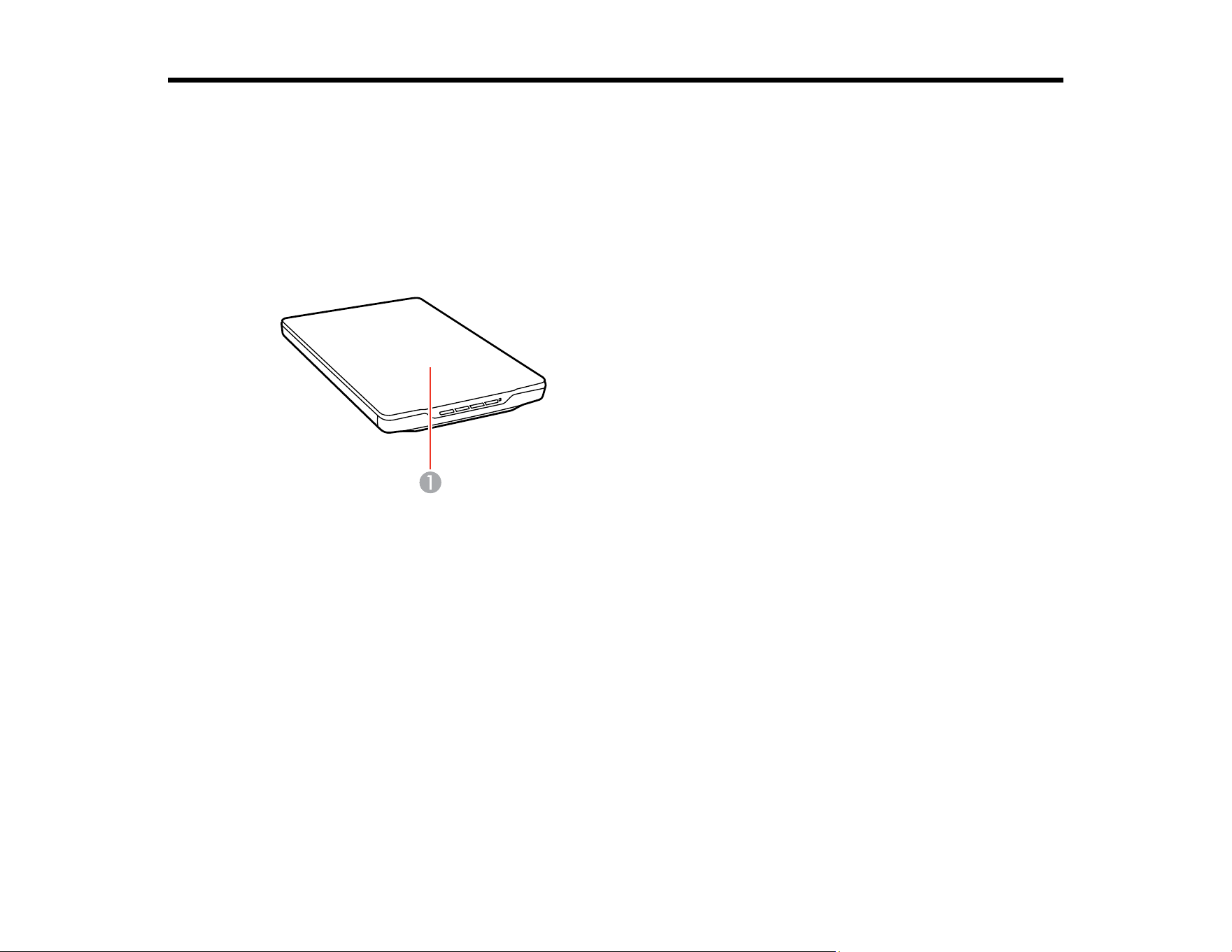
1 Scanner cover
1 Document mat
2 Scanner glass
3 Carriage (beneath scanner glass)

12
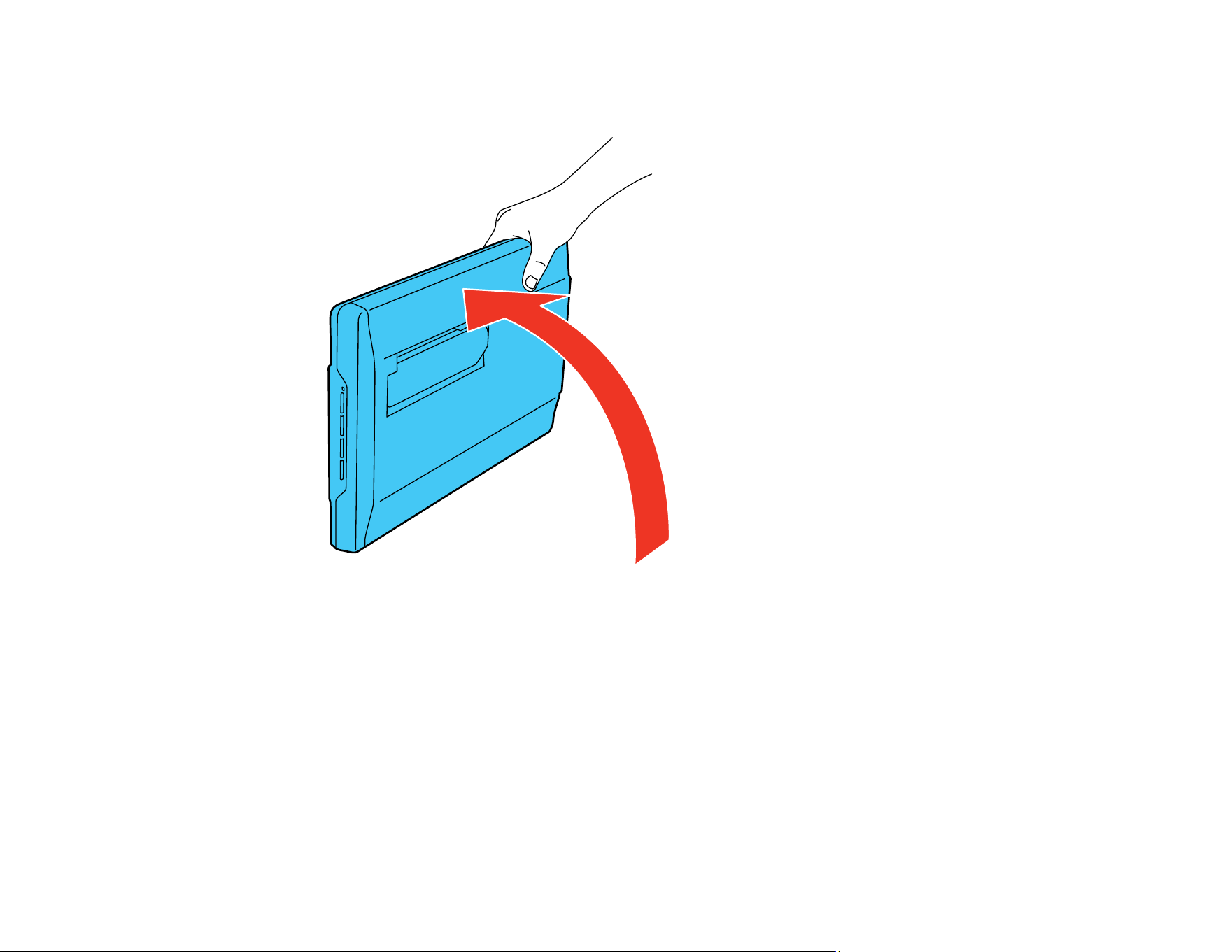
1. Stand the scanner upright.

13
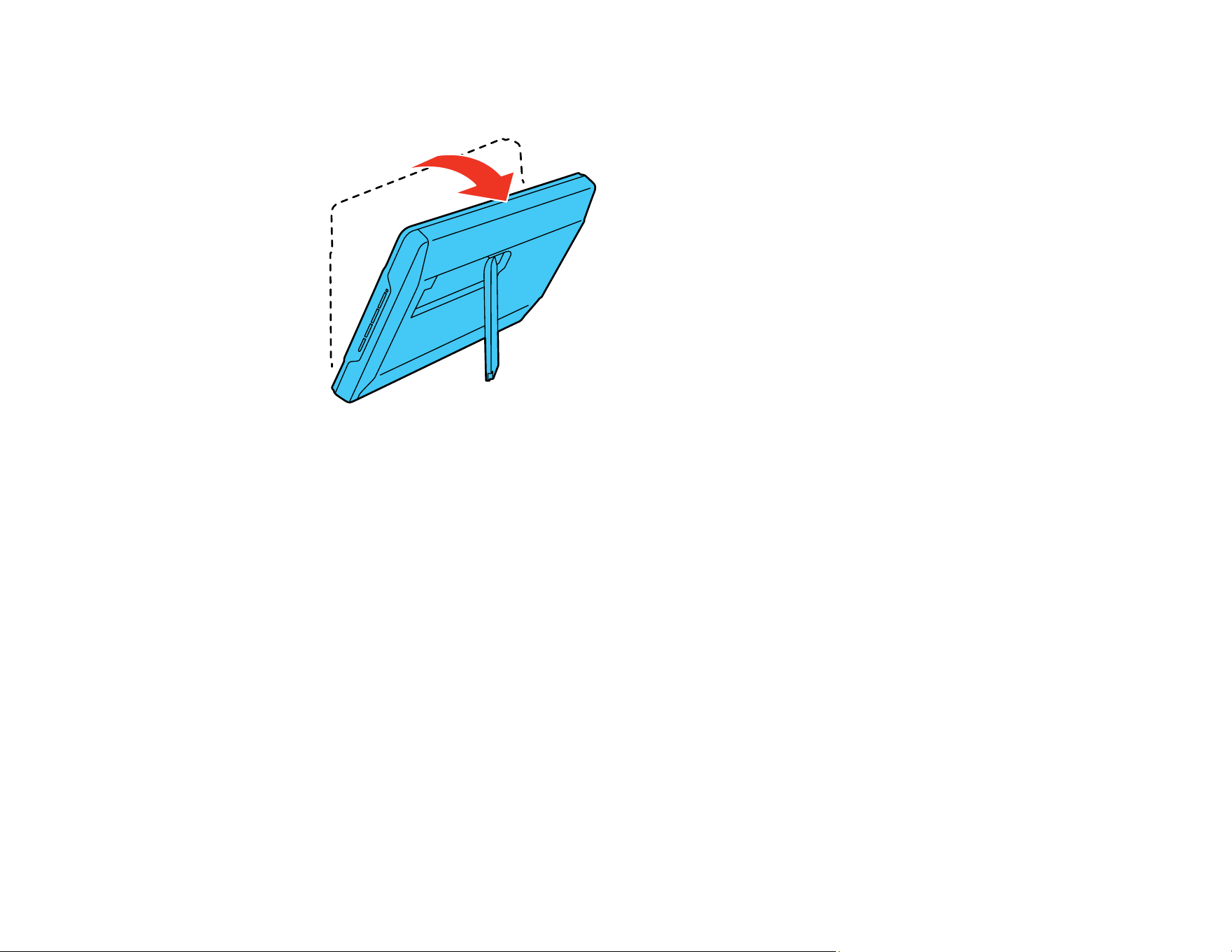
2. Extend the scanner stand from the back of the scanner until it clicks into place.
14
3. Tilt the scanner until it rests on the scanner stand.


16
Placing Originals on the Scanner
Follow the instructions here to place your originals on the scanner.
Caution: Do not place anything on top of your scanner or use its cover as a writing surface to avoid
damaging it.
Placing Originals on the Scanner Glass
Placing Originals While Using the Scanner Stand
Placing Thick Documents
Placing Originals on the Scanner Glass
You can place originals directly on the scanner glass.
Caution: Do not place heavy objects on the scanner glass and do not press on the glass with too much
force, or it may damage the scanner. Do not leave photos on the scanner glass for an extended period,
or they may stick to the glass.

17
1. Open the scanner cover.
Caution: Be careful not to open the scanner cover beyond its stop point (about 100°), or you may
damage it.

18
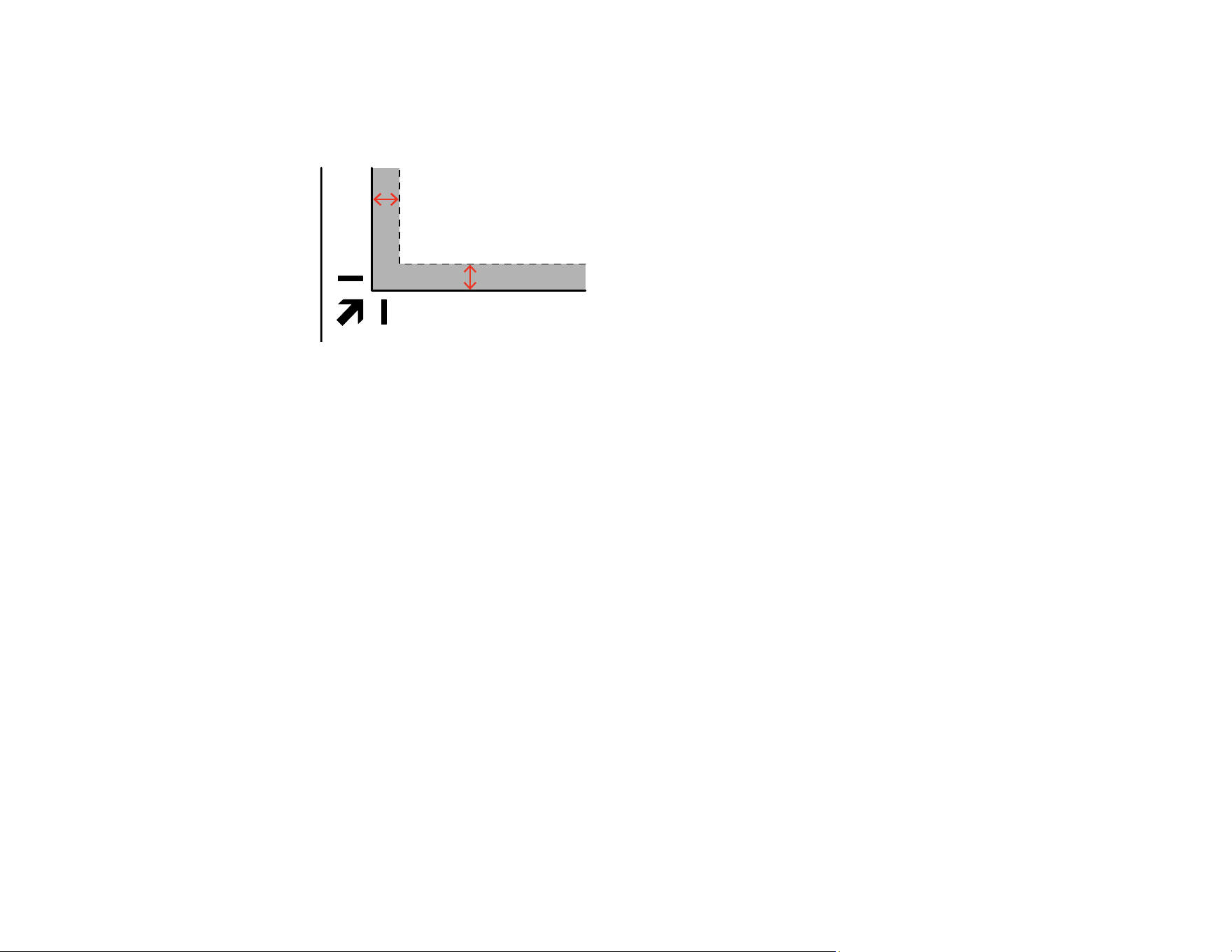
2. Place your original facedown on the scanner glass with the top edge facing as shown. Slide the
original to the edges of the indicated corner.
Note: When scanning documents (using Auto Mode or Document Mode): You can avoid cropping by
moving your original by 0.1 inch (2.5 mm) from the top and side edges.
19
Note: When scanning photos (using Auto Mode or Photo Mode): Place each photo about 0.24 inch
(6 mm) away from the edges of the scanner glass. You can scan multiple photos at the same time.
Make sure they are at least 0.8 inch (20 mm) away from each other.
3. Close the scanner cover gently to keep your original in place.
Note: Always keep the scanner glass clean.
Parent topic: Placing Originals on the Scanner
Related tasks
Placing Originals While Using the Scanner Stand
Placing Originals While Using the Scanner Stand
You can place originals directly on the scanner glass while the scanner stand is extended.
Caution: Do not place heavy objects on the scanner glass and do not press on the glass with too much
force, or it may damage the scanner. Do not leave photos on the scanner glass for an extended period,
or they may stick to the glass.
Note: You cannot place large or thick documents when the scanner is in a standing position.
20
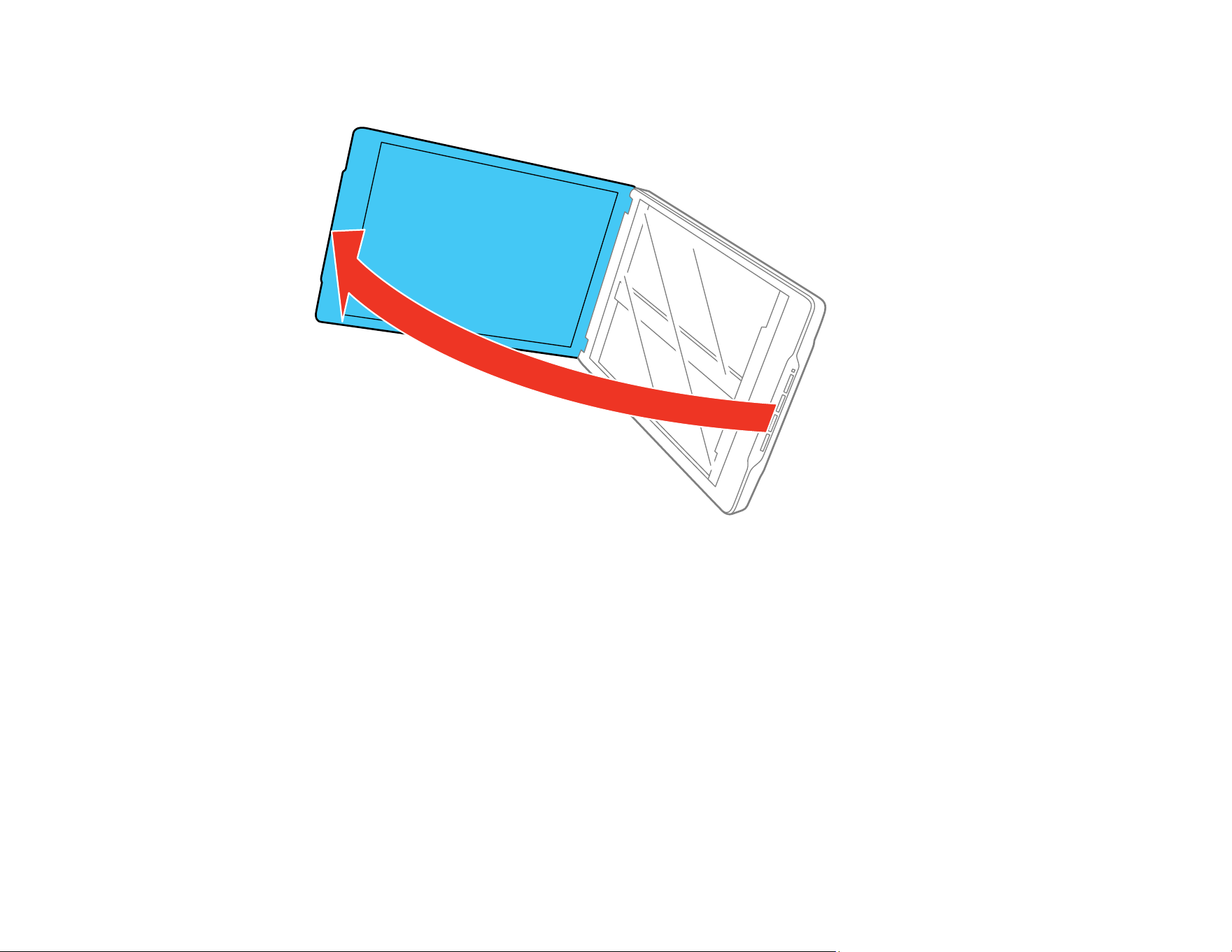
1. Open the scanner cover.
21
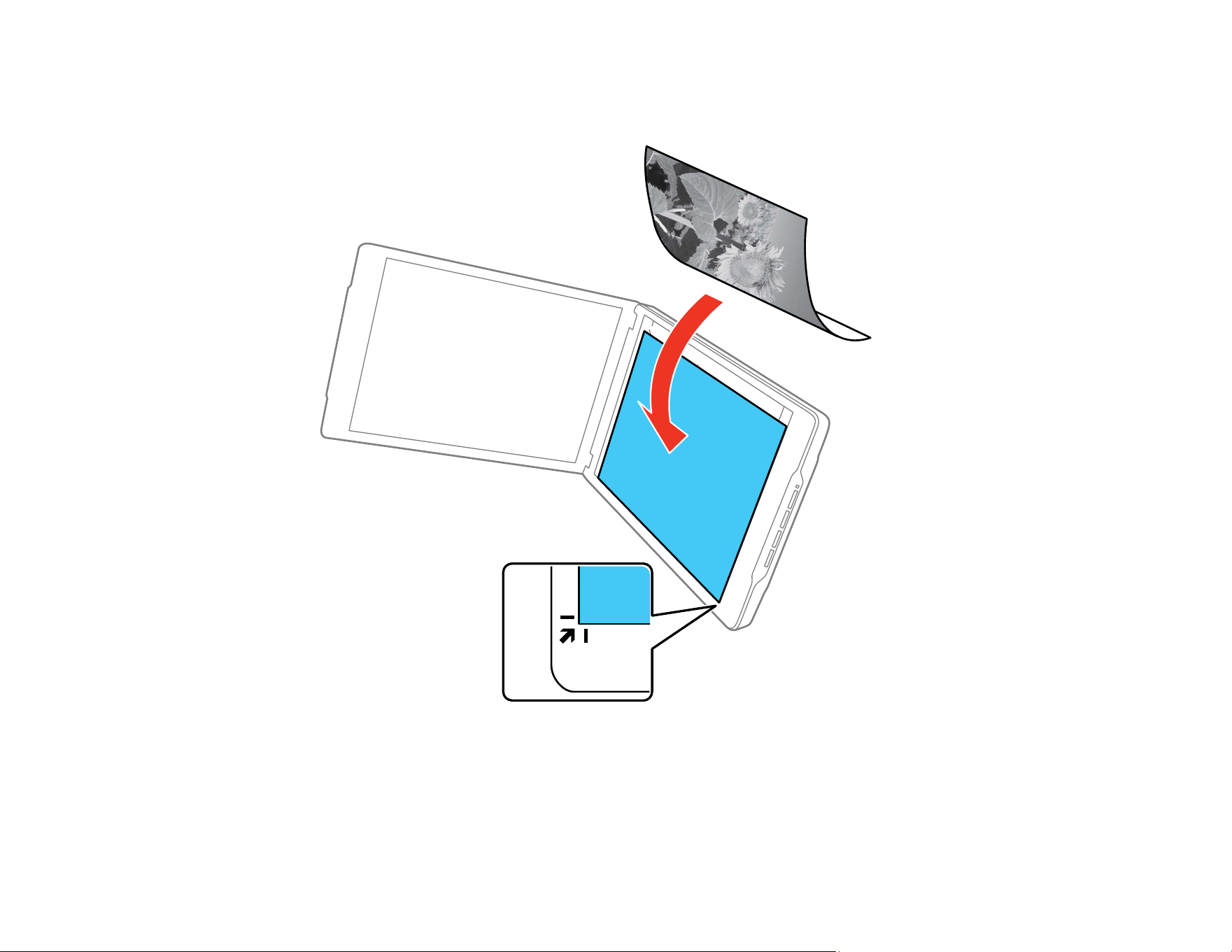
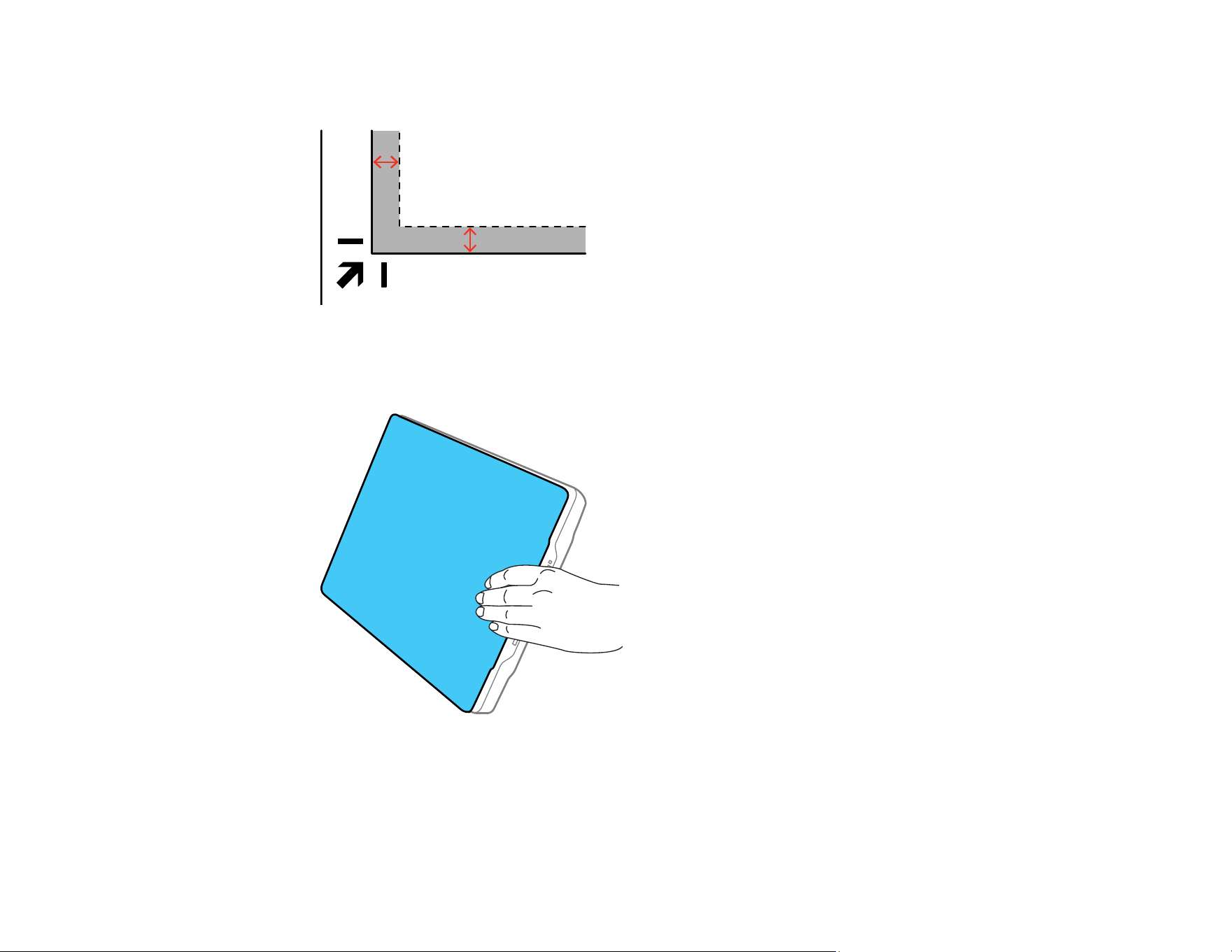
2. Place your original facedown on the scanner glass with the top edge facing as shown. Slide the
original to the edges of the indicated corner.
22
Note: The edges of your original may be cropped by 0.1 inch (2.5 mm) from the top and side edges.
3. Close the scanner cover gently and hold it to keep your original in place while scanning so that the
scanner cover does not open.
Parent topic: Placing Originals on the Scanner
Related tasks
Placing Originals on the Scanner Glass

23
Using the Scanner Stand
Placing Thick Documents
If you are scanning a book or other thick document, you can remove the scanner cover.
1. Hold the scanner cover near the hinges and pull straight up, keeping the cover horizontal.
2. Place your document facedown on the scanner glass.
Note: Press down on your document gently to flatten it and hold the document down as you scan.
3. When you are finished scanning, replace the scanner cover in the reverse order that you removed it.
Parent topic: Placing Originals on the Scanner

24
Scanning
You can scan your originals and save them as digital files.
Scanning Using Epson ScanSmart
Scanning Documents and Photos in Epson ScanSmart
Stitching Photos
Selecting Epson ScanSmart Settings
Scan Resolution Guidelines
Scanning Using Epson ScanSmart
Epson ScanSmart has three modes for easy scanning. Select the option that suits your originals:
• Auto Mode: Scans by automatically detecting the type of original.
• Document Mode: Scans by using adjustment features suitable for the document.
• Photo Mode: Scans by using the image quality adjustment features suitable for photos.
Automatic cropping according to the originals
You can scan and save your originals without setting the size. The originals will be cropped to the correct
size automatically, based on the size of the originals. Automatic cropping supports not only standard size
originals but also irregular shaped documents, such as receipts or slips, and photos of various sizes.
When scanning photos, you can save multiple photos at once by cropping each one individually without
having to scan them one by one.
• Select Auto Mode or the mode that best suits the original. Go into Settings > Scan Settings to select
the mode.
• When scanning documents: Use Auto Mode or Document Mode.
• When scanning photos: Use Auto Mode or Photo Mode.
• When using Document Mode, set Custom Settings > Document Size to Auto Detect.
Note: Depending on the scanner and application version you are using, the operating procedures and
available features may differ.
Starting a Scan from a Scanner Button
Selecting the Scan Mode
Parent topic: Scanning
25
Related tasks
Placing Originals on the Scanner Glass
Placing Originals While Using the Scanner Stand
Scanning Documents and Photos in Epson ScanSmart
Starting a Scan from a Scanner Button
You can scan using a button on your scanner. Your product automatically selects suitable default scan
settings, but you can view or change them as necessary.
1. Make sure you installed the scanner software and connected the scanner to your computer
2. Place the original on your scanner.
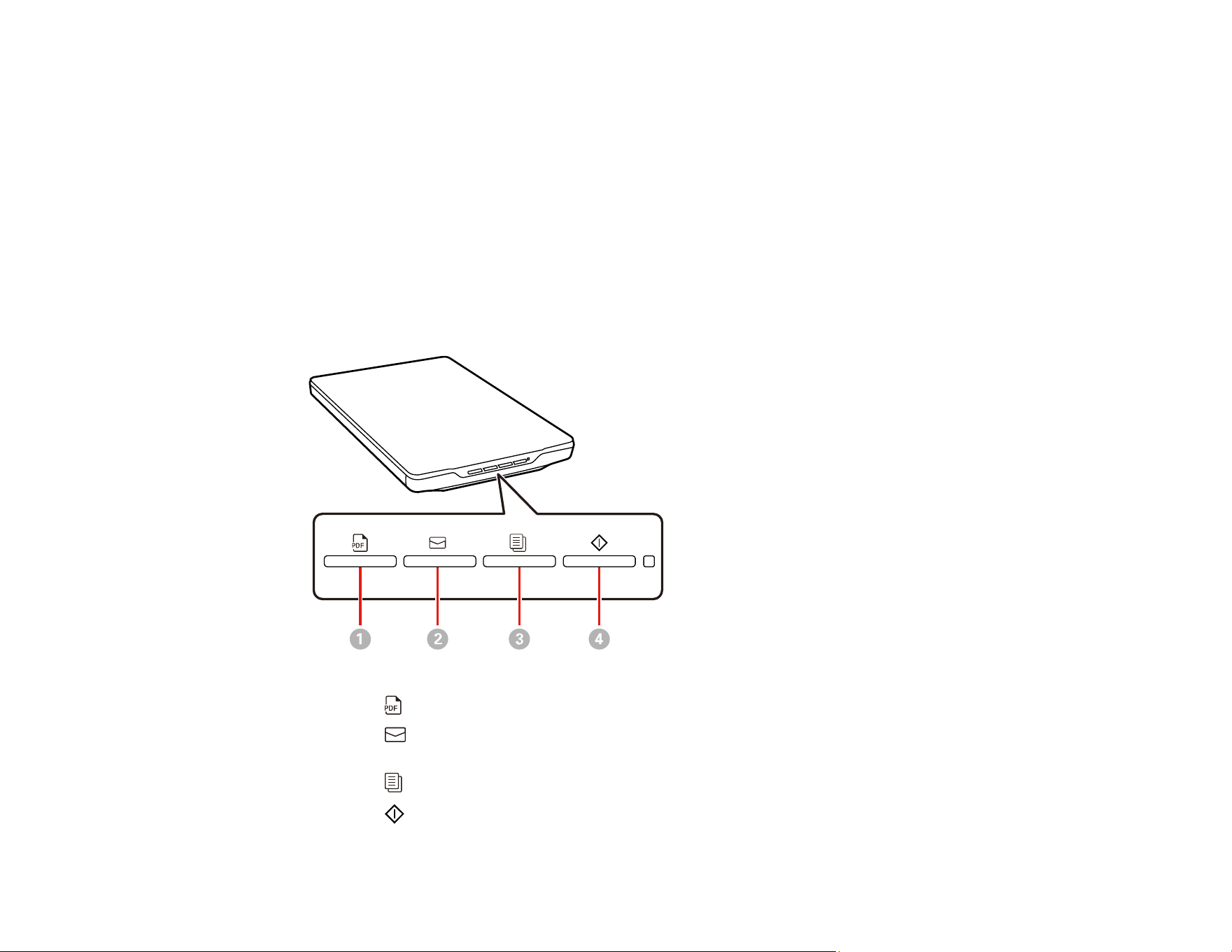
3. Press one of the following buttons on your scanner:
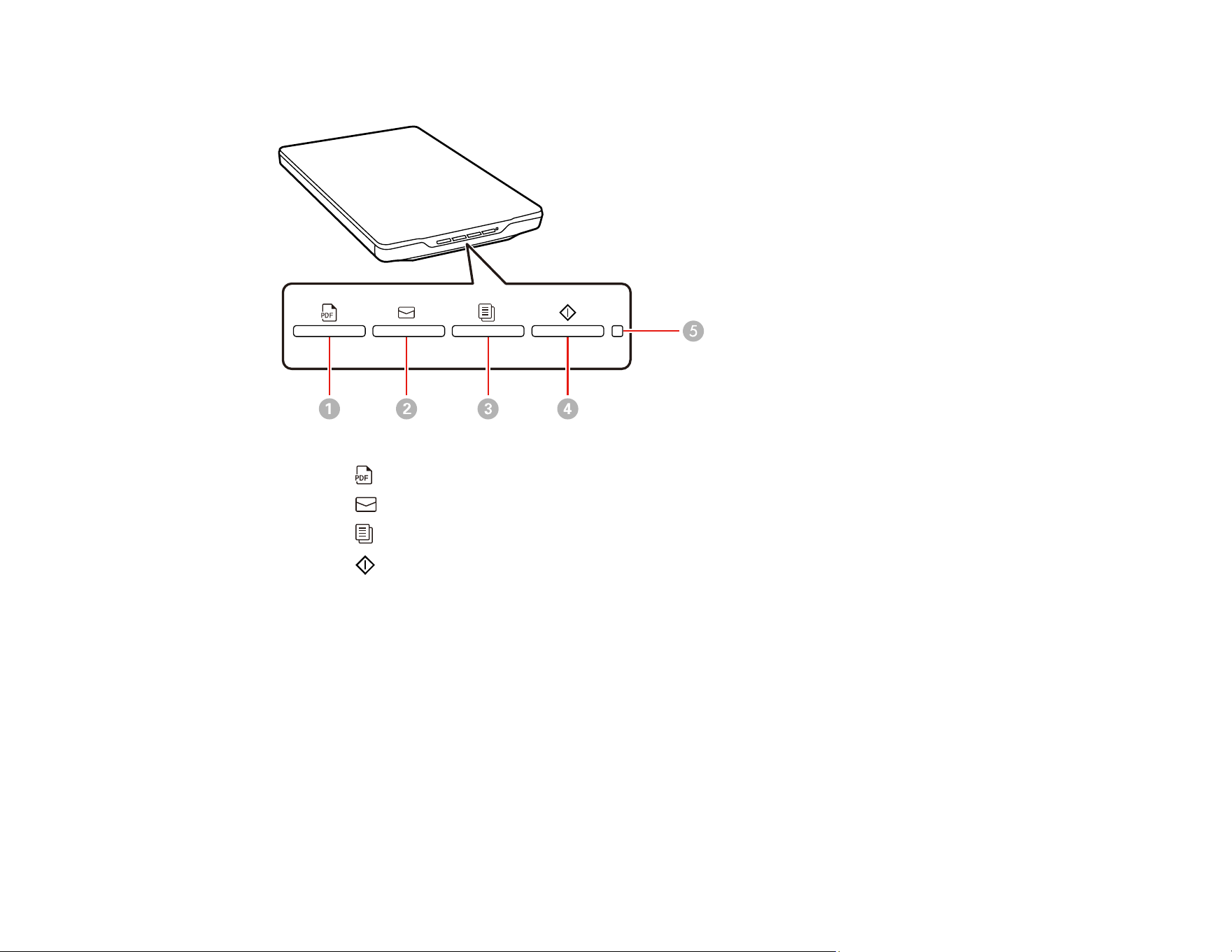
1
The PDF button saves the scanned image in PDF format.
2 The Email button starts a scan, then opens the email client on your computer and attaches
the scanned images to an email.
3
The Copy button will scan your originals and print on a printer connected to the computer.
4
The Start button starts Epson ScanSmart so you can select the your scan mode, settings
and action.

26
4. Follow the on-screen instructions to save the scanned image.
Parent topic: Scanning Using Epson ScanSmart
Related tasks
Placing Originals on the Scanner Glass
Placing Originals While Using the Scanner Stand
Scanning Documents and Photos in Epson ScanSmart
Sending a Scan to a Cloud Service
Attaching a Scan to E-mail
Printing a Scan
Selecting the Scan Mode
You can select the scanning mode according to the type of originals you are scanning.
1. Click Settings in the Epson ScanSmart window.
2. Select the scanning mode on the Scan Settings window.
• Auto Mode: This mode automatically detects the type of content you are scanning and selects
settings for it.
• Document Mode: Select this mode when scanning documents. You can also select various
image adjustment options, and preview and size your scanned image.
• Photo Mode: Select this mode when scanning photos. You can manually customize all available
settings, and preview and size your scanned image.
3. Check the scanned images and edit them if necessary.
Parent topic: Scanning Using Epson ScanSmart
Scanning Documents and Photos in Epson ScanSmart
You can scan and review documents and photos in Epson ScanSmart.
Note: The images in this guide show Windows screens. Mac screens may be slightly different.
Depending on your product model and software version, not all options may be available.
1. Load your original into the product.
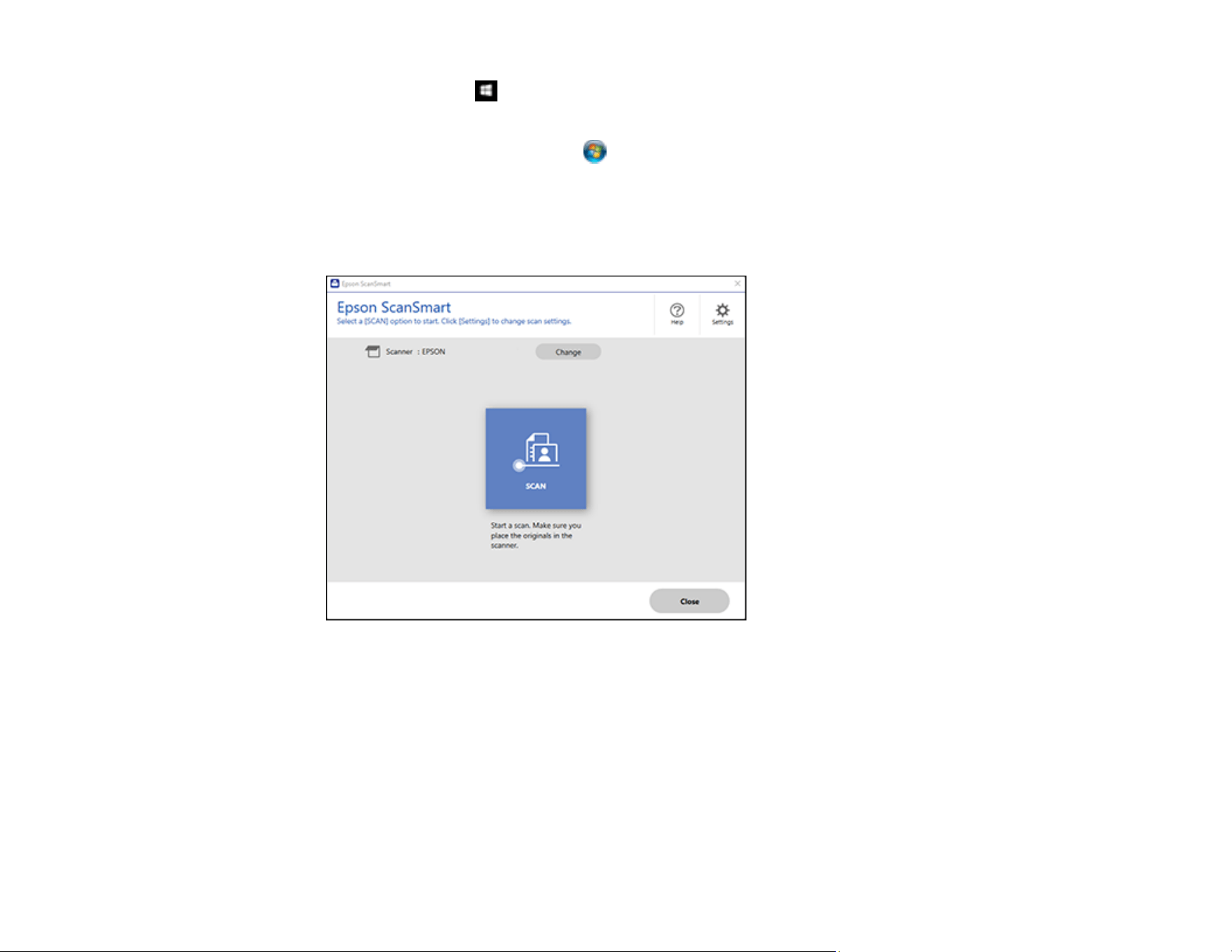
2. Open Epson ScanSmart on your computer. Do one of the following:
• Windows 11: Click , then search for Epson ScanSmart and select it.
27
• Windows 10: Click > Epson Software > Epson ScanSmart.
• Windows 8.x: Navigate to the Apps screen and select Epson ScanSmart.
• Windows (other versions): Click or Start, and select All Programs or Programs. Select
Epson Software > Epson ScanSmart.
• Mac: Open the Applications folder, open the Epson Software folder, and select Epson
ScanSmart.
You see a screen like this:
3. Select SCAN.
28
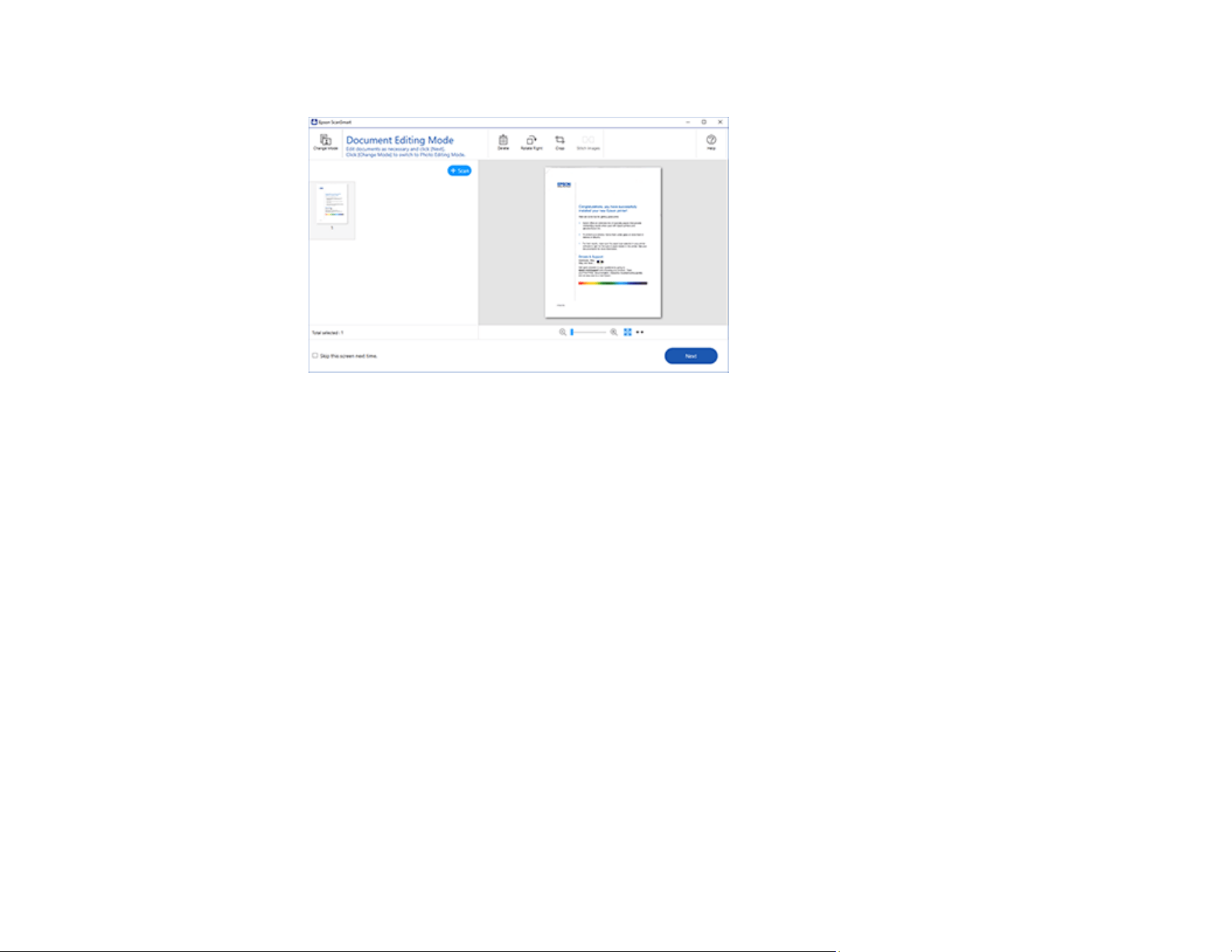
The original is scanned. When scanning is complete, you see a screen like this:
4. You can review, edit, or reorder the scanned images as follows:
• Select + Scan to scan more originals.
• Select Delete to delete selected scanned images.
• Select Rotate Right to rotate each scanned image.
• Select Crop to crop the selected image.
• Control-click two images, select Stitch Images, and follow the on-screen instructions to combine
them into a single image.
5. If Photo Mode is automatically detected, the following enhancement options are available:
• Auto Color Enhancement: automatically adjusts the brightness, contrast, and saturation of your
photos
• Restore Faded Colors: restores the colors in faded photos automatically
• Remove Red Eye: automatically removes the red-eye effect from your photos
• Auto Cropping: automatically crops the scanned image edges
Note:
You can scan multiple photos at the same time. Make sure there is a gap of at least 0.80 inches
(20 mm) between the photos. Also, place each photo about 0.24 inches (6 mm) away from the
edges of the scanner glass.
29
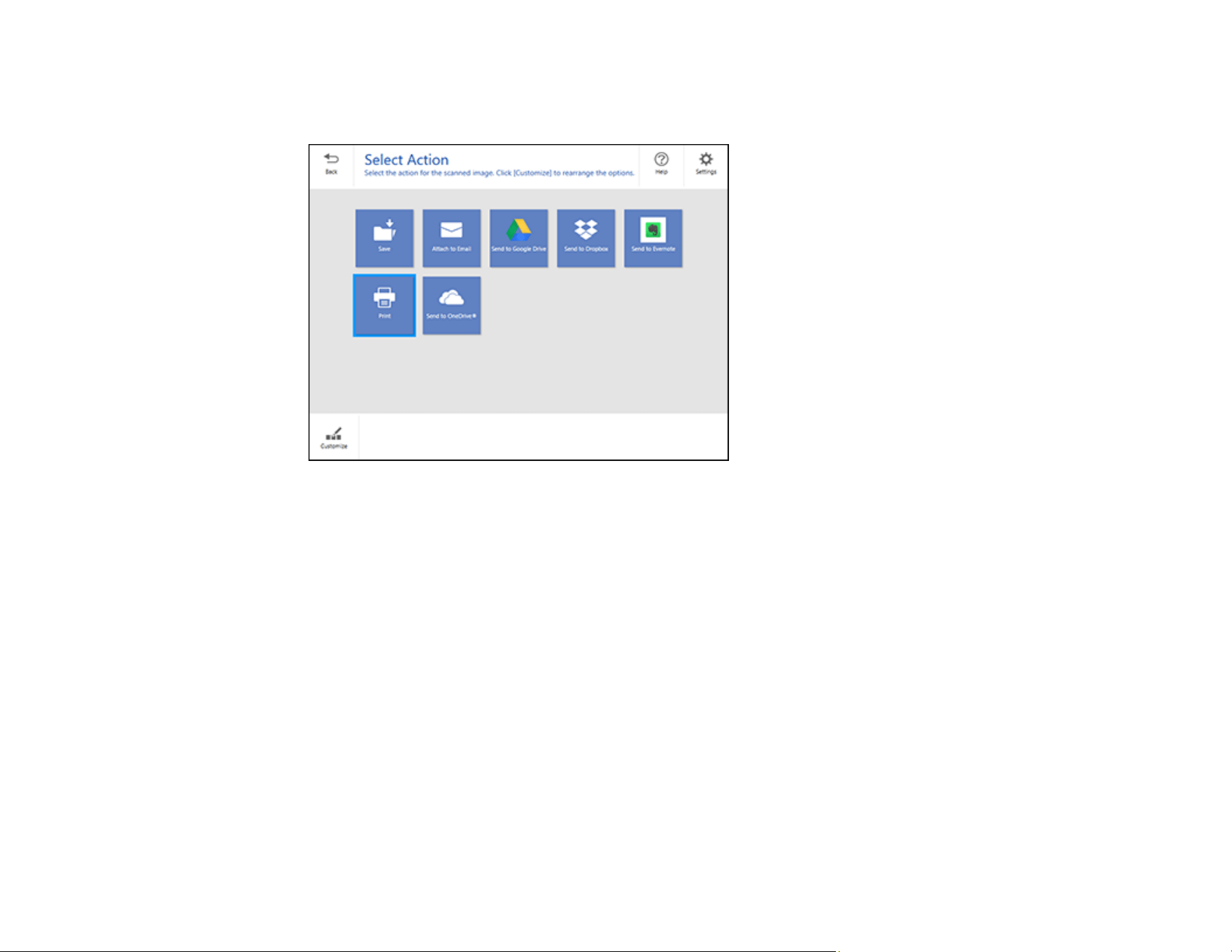
6. When you finish reviewing and editing the scanned images, click Next.
You see a screen like this:
7. Select an option to save, send, or print the scanned images. See the links below.
Saving a Scan
Sending a Scan to a Cloud Service
Attaching a Scan to E-mail
Printing a Scan
Parent topic: Scanning
Related references
Available Image Adjustments - Document Mode
Available Image Adjustments - Photo Mode
Related tasks
Changing the Epson Product
Changing the Scan Settings
Photo Enhancements Settings
Changing the File Name Settings
30
Saving a Scan
You can save a scanned image to your computer in a variety of formats.
1. Make sure your originals are scanned and reviewed. See the link below.
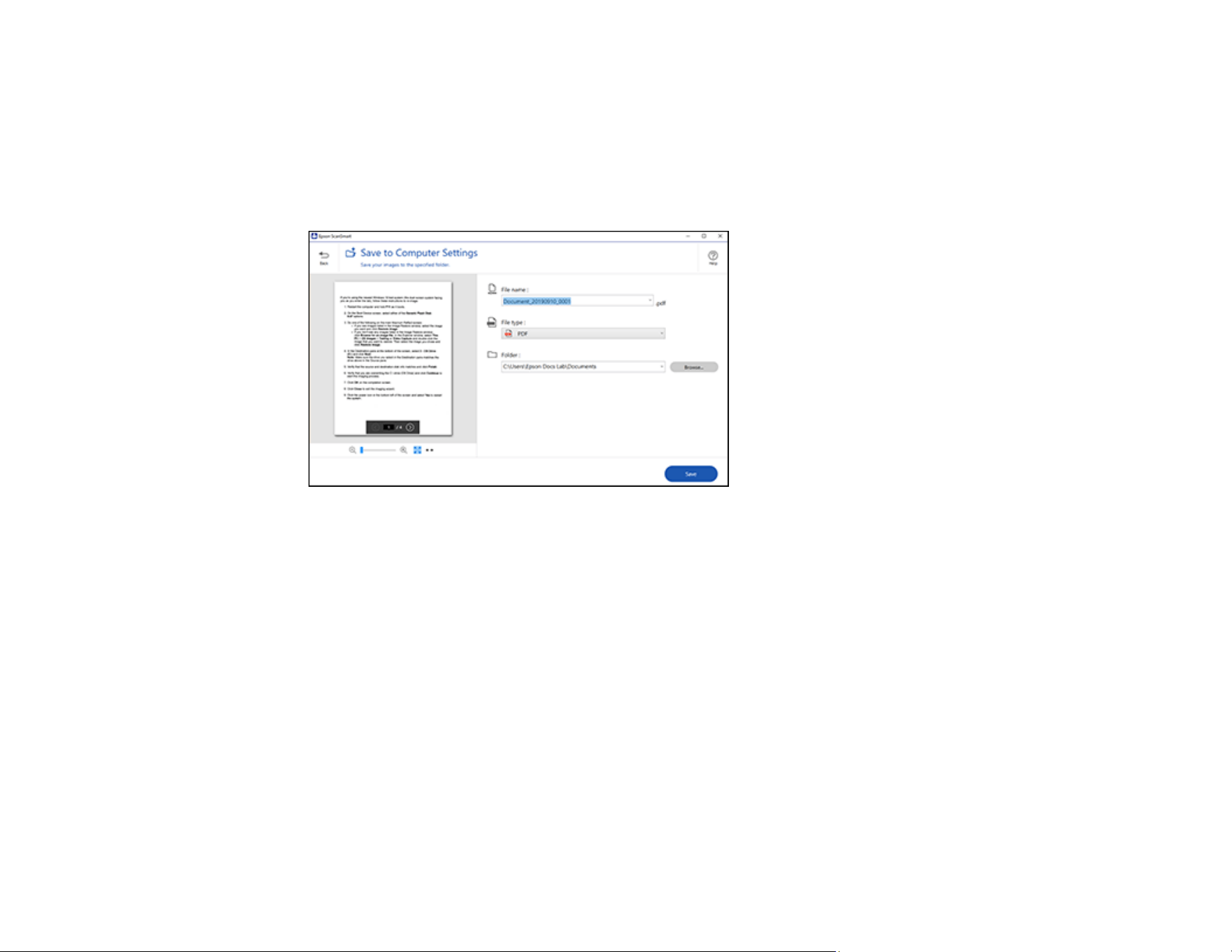
2. In the Select Action window, click Save.
You see a screen like this:
3. Change the settings as follows:
• The document type and scan date for the file name are automatically detected. You can change
them as necessary.
• You can save the scanned image in a variety of formats.
• Select the folder on your computer in which to save the file.
4. Click Save.
Parent topic: Scanning Documents and Photos in Epson ScanSmart
Sending a Scan to a Cloud Service
You can upload scanned images to a cloud service.Internet access is required.
1. Make sure your originals are scanned and reviewed. See the link below.
2. In the Select Action window, click one of the cloud service send options.

31
You see a screen like this:
3. Log in to your account.
Note: You may need to allow Epson ScanSmart access to your account. The first time you log in,
you may be prompted to enter an authentication code. You can only save to top-level folders, you
cannot save to a nested folders.
4. Change the settings as follows:
• Select the folder in your account where you want to send the document.
• The document type and scan date for the file name are automatically detected. You can change
them as necessary.
• You can save the scanned image in a variety of formats.
• If you also want to save a copy of the scanned image to your computer, click the checkbox.
5. Click Send.
Parent topic: Scanning Documents and Photos in Epson ScanSmart
Attaching a Scan to E-mail
You can attach a scanned image to an e-mail as a file attachment.

32
Note: Epson ScanSmart supports only Outlook or e-mail software that supports MAPI. The following
Outlook versions are supported by Epson ScanSmart: Microsoft Outlook
2003/2007/2010/2013/2016/2019/2021 (32-bit). Check the help for your e-mail software to confirm if
your software supports MAPI.
Note: Your e-mail app and account settings should be configured before scanning. You must install a
MAPI-type e-mail program such as Outlook Express, Windows Live Mail, Entourage, or Mac Mail. Attach
to E-mail only supports 32-bit MAPI-compatible mail apps. Web-based e-mail services such as Gmail
are not supported. If you see an error message, your e-mail app may not be compatible and you will
need to save the scans and manually attach the file to an e-mail.
1. Make sure your originals are scanned and reviewed. See the link below.
2. In the Select Action window, click Attach to E-mail.
You see a screen like this:
3. Change the settings as follows:
• The document type and scan date for the file name are automatically detected. You can change
them as necessary.
• You can save the scanned image in a variety of formats.
• If you also want to save a copy of the scanned image to your computer, make sure the checkbox
is selected and select the folder on your computer in which to save the file.
4. Click Attach to E-mail.
33
Your e-mail program opens with the file attached to a new e-mail.
Parent topic: Scanning Documents and Photos in Epson ScanSmart
Printing a Scan
You can print your scanned image and save the scanned file to your computer.
1. Make sure your originals are scanned and reviewed. See the link below.
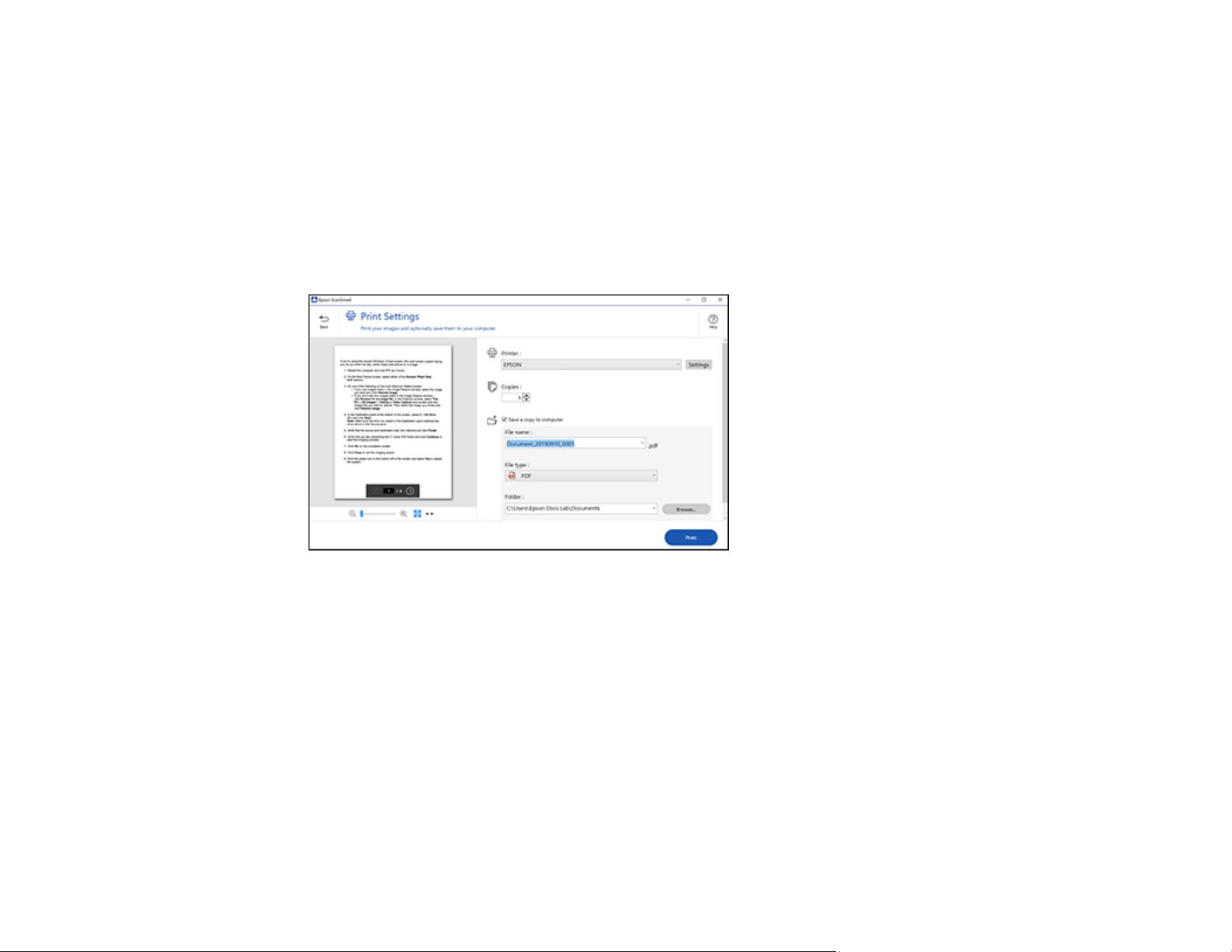
2. In the Select Action window, click Print.
You see a screen like this:
3. Change the settings as follows:
• Select the Epson printer and change the print settings, if necessary.
• Select the number of copies you want to print.
• If you also want to save a copy of the scanned image to your computer, click the checkbox.
• The document type and scan date for the file name are automatically detected. You can change
them as necessary.
• You can save the scanned image in a variety of formats. If you select Searchable PDF as the File
type setting, you can select the OCR (Optical Character Recognition) language.
• Select the folder on your computer in which to save the file.
4. Click Print.

34
Parent topic: Scanning Documents and Photos in Epson ScanSmart
Stitching Photos
You can combine scanned photos to create a single image. You can use either of the following methods.
• Basic Stitching: Combines two images into one; images can be positioned side-by-side or top-to-
bottom.
• Advanced Stitching: Combines images into one by automatically detecting overlapping areas in the
images (Perfection V39 II).
Note: Images that are too large cannot be stitched together. The longest edge of the photo must not
exceed the following:
• Basic Stitching: 65,535 pixels (Windows) or 39,686 pixels (Mac)
• Advanced Stitching: 25,000 pixels
• This feature cannot be used with all images, including monotone images and charts.
1. Place the originals on your scanner.
2. Open Epson ScanSmart. Do one of the following:
• To scan from the scanner, press the button on the scanner. Epson ScanSmart opens and
scanning starts.
• To scan from your computer, start Epson ScanSmart, and then click SCAN.
When using Advanced Stitching, you can scan the originals multiple times while shifting them
slightly each time to ensure that the resulting scans overlap.
3. Select photos you want to combine, and then click Stitch Images. To select multiple images, hold
down the Ctrl or Shift key while clicking on the images.
4. Select Basic Stitching or Advanced Stitching.

35
5. On the Stitch Images screen, check the stitched image. When you have selected Basic Stitching,
you can edit the image using the buttons at the top of the screen to rotate and change the position of
the images.
6. Click OK, and then follow the on-screen instructions to save the image.
Parent topic: Scanning
Related references
Available Image Adjustments - Photo Mode
Selecting Epson ScanSmart Settings
After starting Epson ScanSmart, you can change various scanning settings.
Changing the Epson Product
Changing the Scan Settings
Photo Enhancements Settings
Changing the File Name Settings
Available Image Adjustments - Document Mode
Available Image Adjustments - Photo Mode
Changing the Save Settings
Save Settings
Customizing Action Icons
Parent topic: Scanning
Changing the Epson Product
If you are using more than one Epson product with Epson ScanSmart, you can change the product that
you are using with your computer.
1. On the main screen, click Change.


37
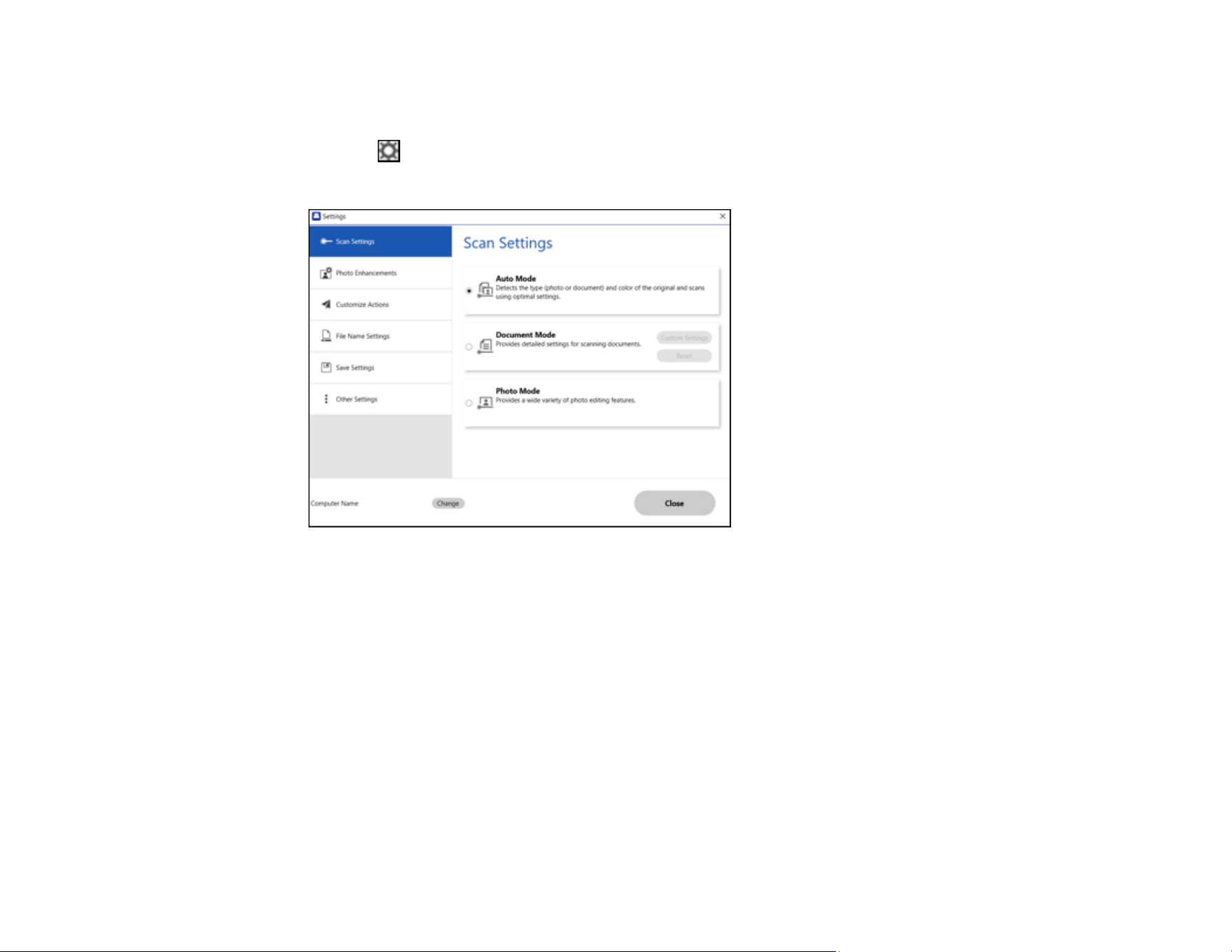
You see a screen like this:
2. Do one of the following:
• To change Document Mode settings, select Document Mode > Custom Settings.
• To change Photo Mode settings, select Photo Mode and click Close. When you start a scan, you
will be prompted to select scan settings.

39
Photo Enhancements Settings
You can change the photo enhancements options.
1. Click the Settings button.
You see a screen like this:
2. Click the Photo Enhancements tab.

40
You see a screen like this:
3. Change the settings as necessary:
• Auto Color Enhancement: automatically adjusts the brightness, contrast, and saturation of your
photos.
• Restore Faded Colors: restores the colors in faded photos automatically.
• Remove Red Eye: automatically removes the red-eye effect from your photos.
4. Click Close.
Parent topic: Selecting Epson ScanSmart Settings
Changing the File Name Settings
You can change the default file naming method for your scans.
1. Click the Settings button.
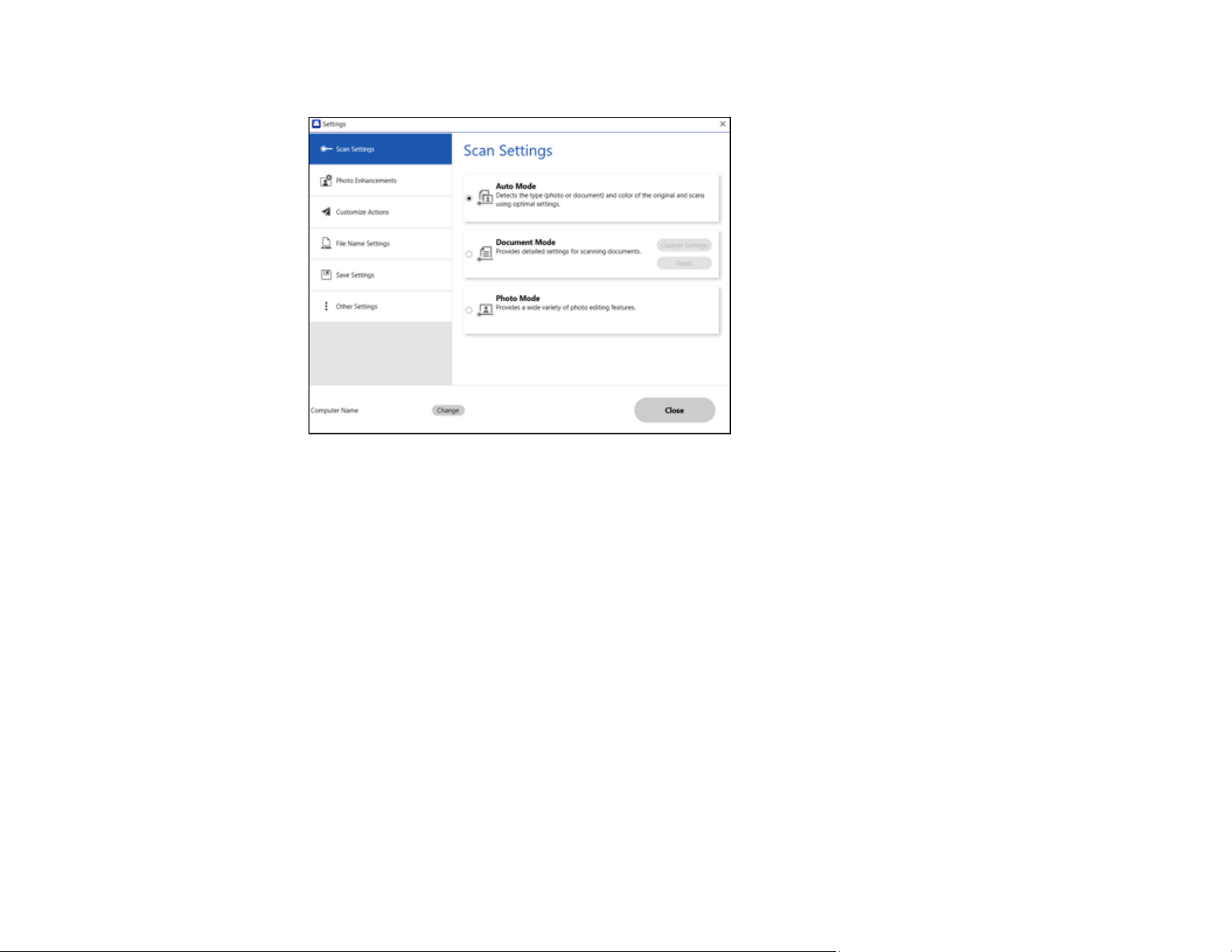
41
You see a screen like this:
2. Click the File Name Settings tab.

42
You see a screen like this:
3. Change the settings as necessary:
• If you want OCR to automatically detect the subject and date and add them to the file name, click
the Automatic file naming checkbox. You can also enter a default file name if OCR cannot detect
a subject.
• Enter a prefix for the file name.

43
• Select the date format.
• Select a number format as the counter format.
4. Click Close.
Parent topic: Selecting Epson ScanSmart Settings
Available Image Adjustments - Document Mode
Select Custom Settings on the Settings > Scan Settings tab to display the Scan Settings. You can
adjust scanned images using the features on the Advanced Settings tab. For Document Mode, you
can use image adjustment features that are suitable for text documents.
Note: Some items may not be available depending on other settings you made.
Image Option
Remove Background
Removes the background of the originals.
Text Enhancement
Sharpens the appearance of letters in text documents.
Auto Area Segmentation
Makes black and white images clearer and text recognition more accurate by separating the text from
the graphics.
Dropout
You can remove the color specified from the scanned image, and then save it in grayscale or black
and white. For example, you can erase marks or notes you wrote in the margins with color pen when
scanning.
Color Enhance
Enhances the shades of the color you select in the scanned image.
Brightness
Adjusts the overall lightness and darkness of the scanned image.
Contrast
Adjusts the difference between the light and dark areas of the overall scanned image.

44
Gamma
Adjusts the midtone density of the scanned image.
Threshold
Adjusts the level at which black areas in text and line art are delineated, improving text recognition in
OCR (Optical Character Recognition) programs.
Unsharp Mask
Makes the edges of certain image areas clearer. Turn off this option to leave softer edges.
Descreening
Removes the ripple pattern that might appear in subtly shaded image areas, such as skin tones. This
option improves results when scanning magazines or newspapers. (The results of descreening do not
appear in the preview image, only in your scanned image.)
Edge Fill
Corrects shadowing around the edges of the image by filling the shadows with black or white.
Dual Image Output (For Windows Only)
Scans the original image twice using different output settings.
Watermark (For Windows Only)
Adds a watermark to the scanned image.
Parent topic: Selecting Epson ScanSmart Settings
Related references
Available Image Adjustments - Photo Mode
Related tasks
Photo Enhancements Settings
Available Image Adjustments - Photo Mode
In Photo Mode, the Scan Settings screen opens when scanning. You can adjust scanned images using
the features on the Advanced Settings tab. For Photo Mode, you can use image adjustment features
that are suitable for photos or pictures. For most features, you can check the adjustment results in the
preview window.
Note: Some features cannot be set without previewing. Some items may not be available depending on
other settings you made.
Brightness
Adjusts the overall lightness and darkness of the scanned image.

45
Contrast
Adjusts the difference between the light and dark areas of the overall scanned image.
Saturation
Adjusts the density of colors in the overall image.
Detailed Adjustments
You can adjust the image quality for the scanned image by using a histogram or tone curve. This
allows you to output high-quality images while keeping image degradation to a minimum.
Reset
Returns adjustments made on the Detailed Adjustments screen to their defaults.
Image Adjustment
You can adjust the color balance and gray balance of the image.
Color Balance
Adjusts the color balance of the image. You can adjust the tint when photos are tinted with red and
green due to the weather or the lighting where the photo was shot.
Gray Balance Intensity
Adjusts the gray balance of the image. It is useful when certain colors are too dominant due to lighting
or other factors, as it enables you to remove them. Operations are available once you select the parts
you want to make black and white or gray (neutral) with the button.
Button
Use the eyedropper displayed on the preview image, and select the parts you want to make black and
white or gray (neutral).
Note: You can change the measurement range for the eyedropper by clicking the
(Configuration) button, and then selecting Configuration > Preview > Eyedropper Sampling
Area.
Tone Correction Tab
You can use the tone curve to adjust the brightness and contrast of the image.
46
Tone Correction
By adjusting the shape of the tone curve, you can adjust the brightness and contrast of the image.
You can add up to 16 points along the line of the tone curve to control the shape.
Channel
Select the color (RGB) to be adjusted using the tone curve.
Preset
Standard tone curves that have already been registered.
Histogram Adjustment
You can use the histogram to adjust the brightness of the image.
Histogram
To adjust the brightness of an image, you can check its histogram, which is a graph that shows the
distribution of light and shade. You can then use different methods to adjust the shadow for the
darkest parts, gamma for the medium light and shade parts, and highlight for the lightest parts.
Choose one of the following methods to make the necessary adjustments.
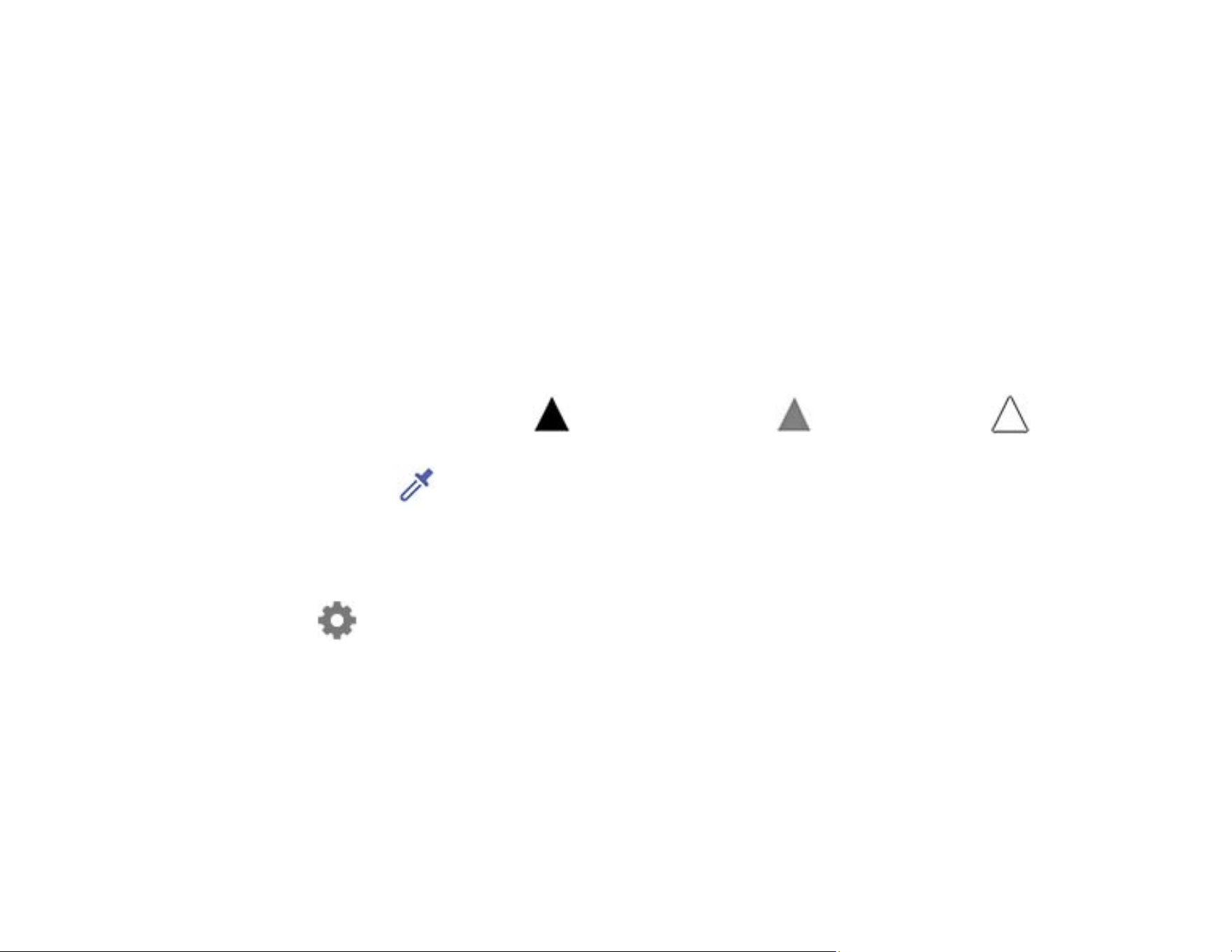
• Move the triangle mark. The symbol indicates shadow, indicates gamma, and
indicates highlights.
• Select the button. To shadow, gamma, or highlight a color, simply use the eyedropper tool
shown on the preview image to select the color.
• Enter values directly. Adjust the values in Output for shadow and highlight. When the highlight is
set to 255, the light parts will be white. When the shadow is set to 0, the dark parts will be black.
• Note: You can change the measurement range for the eyedropper by clicking the
(Configuration) button, and then selecting Configuration > Preview > Eyedropper
Sampling Area.
Channel
Select the color (RGB) to be adjusted using the histogram.
Input
Displays the values for shadow, gamma, and highlight when scanning an original.
Output
Displays the values for the previous shadow and highlight adjustments.

47
Tone Curve
The density of the output value for the given image input value is displayed. Adjusts the density
outside of the shadow or highlight parts set in Histogram.
Unsharp Mask
Makes the edges of certain image areas clearer. Turn off this option to leave softer edges.
Color Restoration
Corrects color in faded images.
Backlight Correction
Lightens darkly backlit images.
Descreening
Removes the ripple pattern that might appear in subtly shaded image areas, such as skin tones. This
option improves results when scanning magazines or newspapers. (The results of descreening do not
appear in the preview image, only in your scanned image.)
Dust Removal
Removes dust on scanned images.
Parent topic: Selecting Epson ScanSmart Settings
Related references
Available Image Adjustments - Document Mode
Related tasks
Photo Enhancements Settings
Changing the Save Settings
You can change the file type options for saving your scans.
1. Click the Settings button.
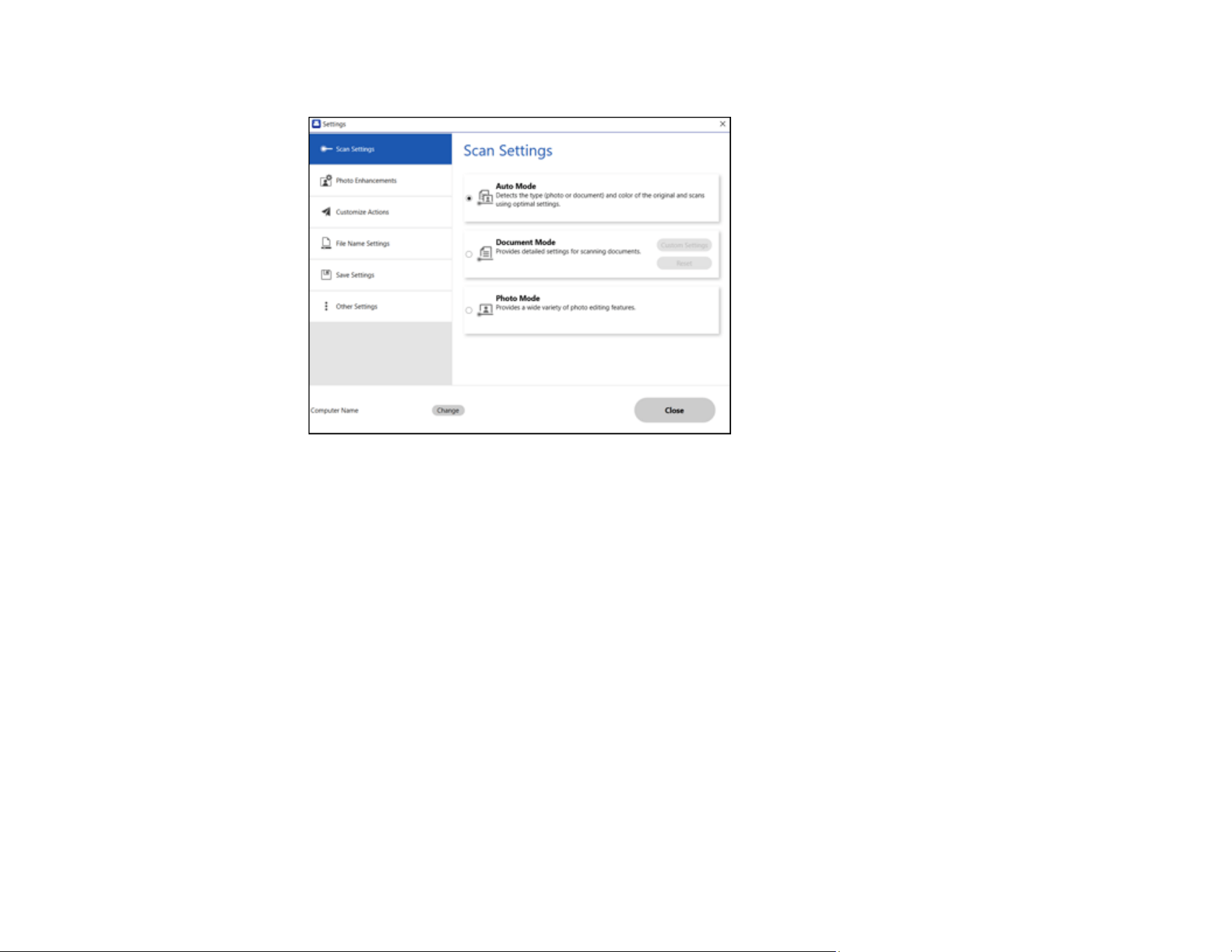
48
You see a screen like this:
2. Click the Save Settings tab.
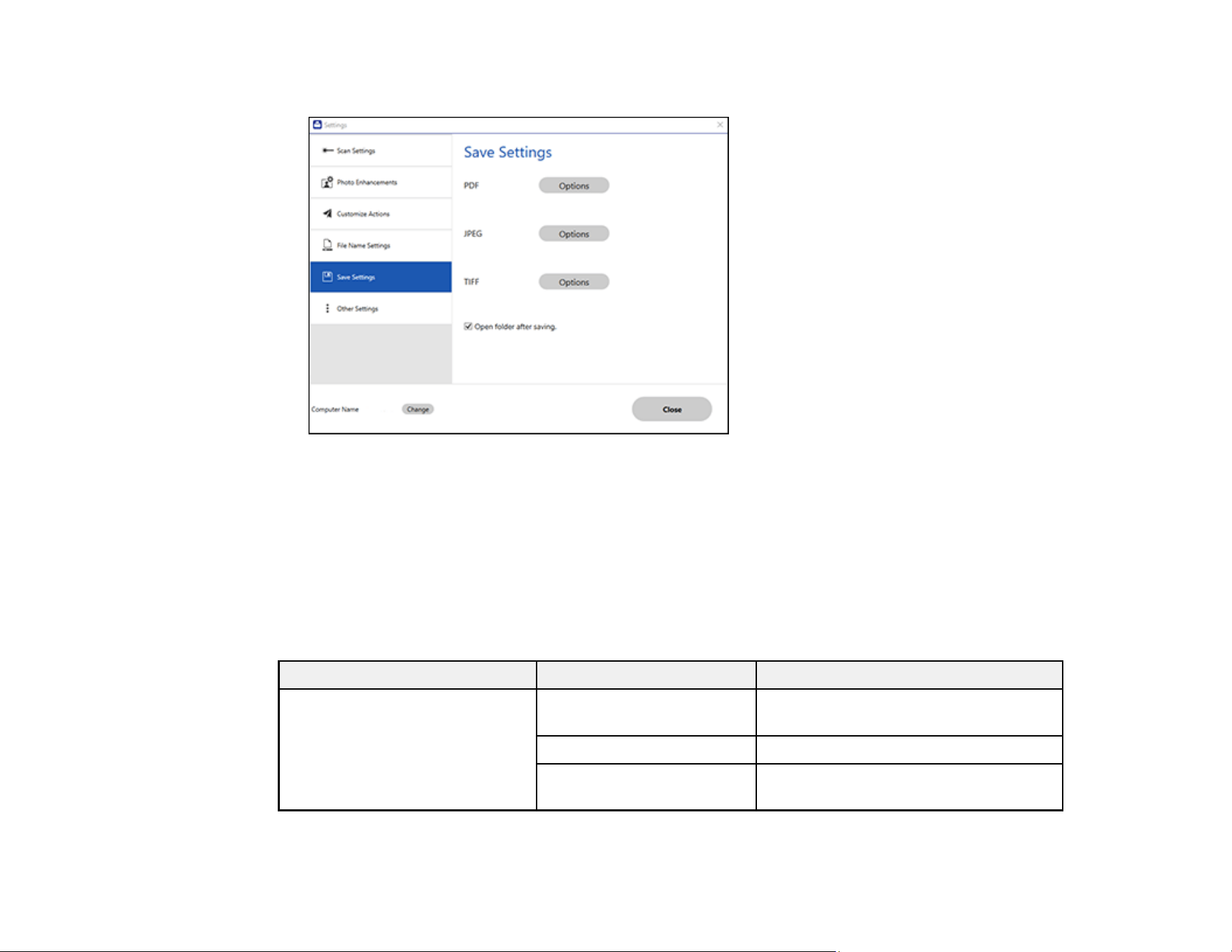
49
You see a screen like this:
3. Click Options for a file format and change the settings as necessary.
4. Click Open folder after saving to open the file folder after a file is saved.
Parent topic: Selecting Epson ScanSmart Settings
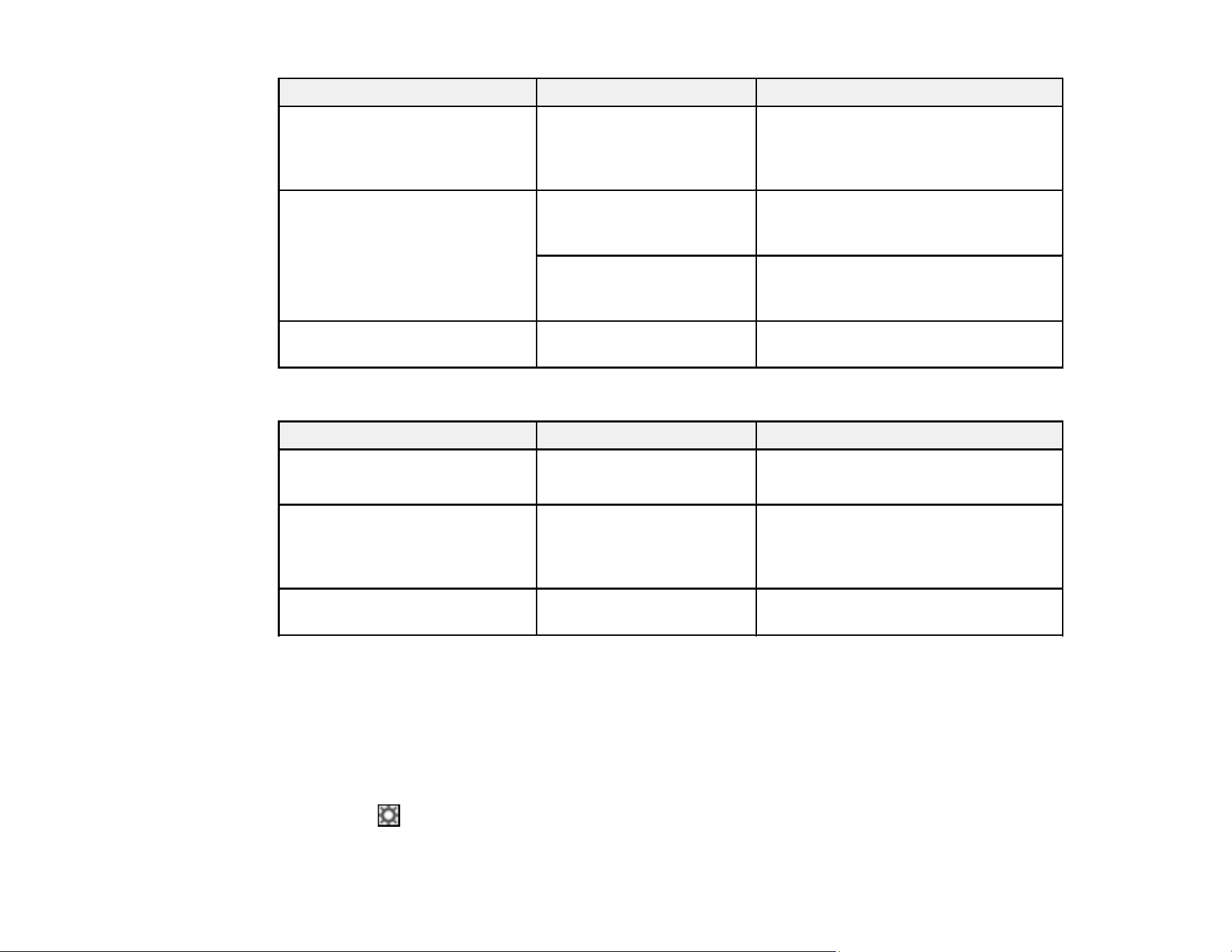
Save Settings
You can change the settings for how scanned images are saved as PDFs, JPEGs or TIFF.
PDF Options
Setting Options Description
General Generate PDF/A File Creates a PDF that conforms to
PDF/A-1 standards
Create file with all pages Saves all pages as one file
Compression Level Selects the compression level for color
or grayscale images
JPEG Options
50
Setting Options Description
Image Quality Options — Sets a compression level by moving a
slider or entering a value. File size
increases when high resolution is
selected.
Encoding (Windows only) Standard Images load from top to bottom in a
web browser. It takes longer to load the
entire image.
Progressive Images first load completely at low
resolution and then adjust to high
resolution in a web browser
Embed ICC Profile (Windows
only)
— Allows you to add ICC profiles to the
image
TIFF Options
Setting Options Description
Byte Order Windows
Macintosh
Specifies the operating system format
in which the scanned image is saved
Compression (Windows only) — Specifies the compression format and
level for Color/Grayscale and B&W
images. File size increases with higher
quality.
Embed ICC Profile (Windows
only)
— Allows you to add ICC profiles to the
image
Parent topic: Selecting Epson ScanSmart Settings
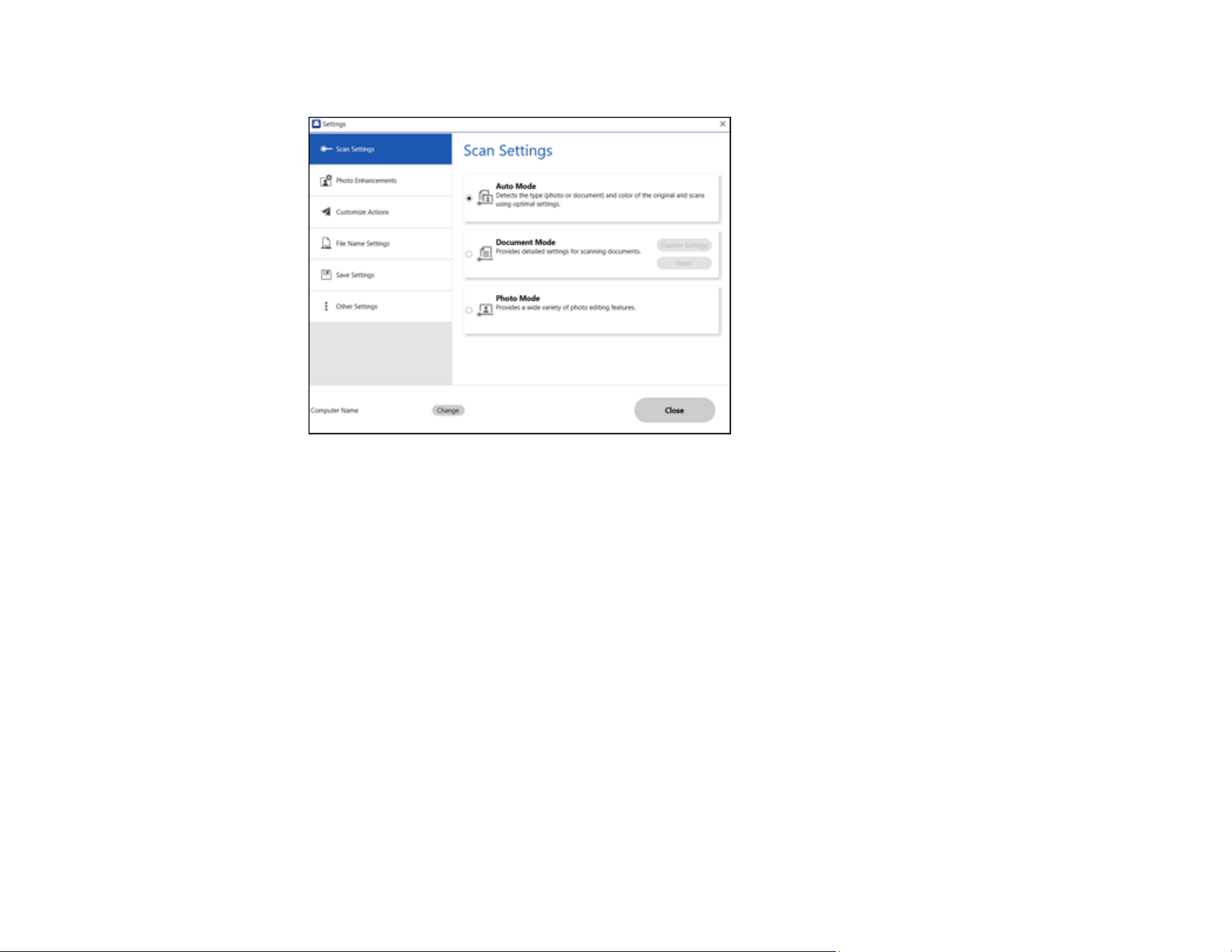
Customizing Action Icons
You can customize how the scan action icons are displayed on the Select Action screen.
Note: You can also customize them by clicking the Customize icon on the Select Action screen.
1. Click the Settings button.
51
You see a screen like this:
2. Click the Customize Actions tab.
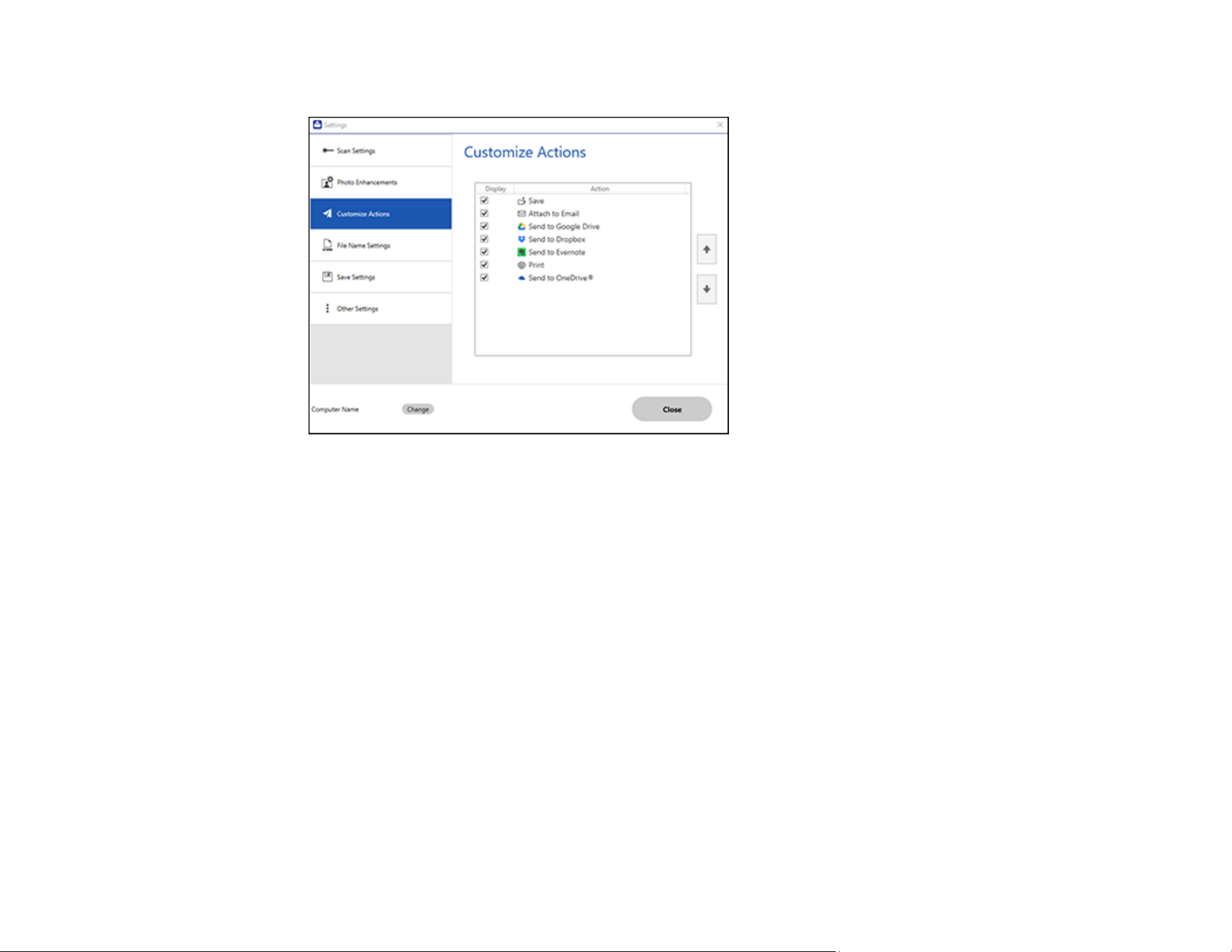
52
You see a screen like this:
3. Choose which action icons to display by selecting or deselecting each checkbox. Click the arrow
icons to move the icons up or down in the display order you want.
4. Click Close.
Parent topic: Selecting Epson ScanSmart Settings
Scan Resolution Guidelines
The resolution setting in your scanning software, measured in dpi (dots per inch), controls the amount of
detail captured in your scans. Increasing the resolution raises the amount of detail captured but comes
with the following disadvantages:
• Larger file sizes
• It takes longer to scan your originals, send/receive your scans by email or fax, and to print your scans
• The image may become too large to fit on your display or print on paper
If you plan to enlarge a scanned image so you can print it at a larger size, you may need to increase the
resolution from the default resolution set by the software. Follow these guidelines to determine the
resolution setting you need:
• You will scan the image at its original size but enlarge it later in an image-editing program.

53
Increase the resolution setting in your scanning software. Increase the resolution by the same amount
you will increase the image size to retain a high image quality. For example, if the resolution is 300 dpi
(dots per inch) and you will double the image size later, change the resolution setting to 600 dpi.
• You will scan the image at 100% or smaller size.
Select the resolution setting based on how you will use the scanned image:
• Email/view on a computer screen/post on the web: 96 to 200 dpi
• Print/fax/convert to editable text (OCR)/create searchable PDF: 200 to 300 dpi
Parent topic: Scanning
Related topics
Selecting Epson ScanSmart Settings

54
Cleaning and Transporting Your Product
See these sections if you need to clean or transport your product.
Cleaning Your Scanner
Transporting Your Scanner
Cleaning Your Scanner
To keep your product working at its best, you should clean it several times a year.
Caution: Do not use a hard brush, alcohol, or paint thinner to clean the product or you may damage it.
Do not use oil or other lubricants inside the product or let water get inside it. Do not open the product
case. Do not press the surface of the scanner glass with any force and be careful not to scratch or
damage the scanner glass. A damaged glass surface can decrease the scan quality.
1. Disconnect the USB cable.
2. Clean the outer case with a cloth dampened with mild detergent and water.
3. If the scanner glass gets dirty, clean it with a soft, dry cloth. If the glass surface is stained with grease
or some other hard-to-remove material, use a small amount of glass cleaner on a soft cloth to
remove it. Wipe off all remaining liquid.
Note: Do not spray glass cleaner directly on the scanner glass. Make sure that no dust builds up on
the surface of the scanner glass. Dust can cause spots in your scanned images.
4. If the document mat is dirty, dampen a soft cloth with mild detergent and water, wring it out
thoroughly, and then wipe off any remaining stains. After that, use a soft dry cloth to wipe the mat.
Parent topic: Cleaning and Transporting Your Product
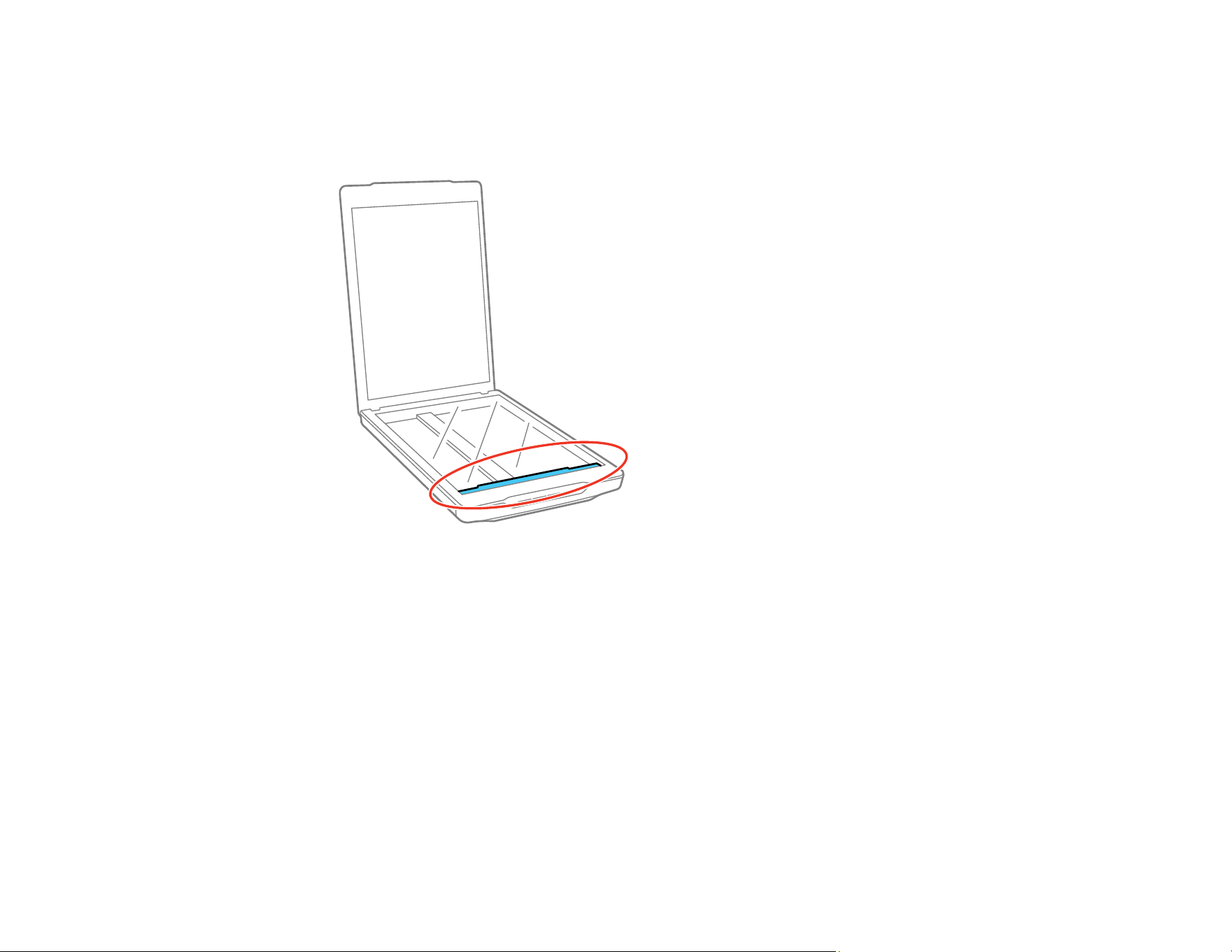
Transporting Your Scanner
If you need to ship your product, transport it a long distance, or store it for an extended period, prepare it
for transportation as described here.
55
1. Make sure the carriage is in the home position on the upper side of the scanner. If the carriage is not
in the home position, turn on the scanner by opening the scanner software and wait until the carriage
moves to the home position.
2. Disconnect the USB cable.
3. Place the scanner in its original packing materials if possible, or use equivalent materials with
cushioning around the scanner.
Caution: Avoid turning the scanner upside down when transporting. If the scanner is not packed
correctly, vibrations and shocks during transport may damage the scanner.
Parent topic: Cleaning and Transporting Your Product

56
Solving Problems
Check these sections for solutions to problems you may have using your product.
Scanner Light Status
Solving Scanning Problems
Solving Scanned Image Quality Problems
Where to Get Help (U.S. and Canada)
Where to Get Help (Latin America)
Scanner Light Status
You can often diagnose problems with your scanner by checking the status light.
1 The status light
Light status Condition/solution
On The scanner is turned on and ready to scan.

57
Light status Condition/solution
Flashing (1 second intervals) The scanner is scanning or initializing. Wait for the status light to stop
flashing before turning off the scanner.
Flashing rapidly (0.5 second
intervals)
An error has occurred. Try the following:
• Check the scanner connection to your computer to make sure it is
secure.
• Make sure your scanning software is installed correctly.
• If the status light is still flashing, close any scanner software and
unplug the scanner from the computer's USB port. Plug the scanner
into the USB port again and open the scanning software.
Off The scanner is turned off.
Parent topic: Solving Problems
Solving Scanning Problems
Check these solutions if you have problems scanning with your product.
Scanner Does Not Turn On or Turns Off Unexpectedly
Scanner Buttons Do Not Work as Expected
Cannot Start Epson ScanSmart
Scanning is Slow
Parent topic: Solving Problems
Scanner Does Not Turn On or Turns Off Unexpectedly
If the scanner does not turn on or if it turns off unexpectedly, try these solutions:
• Make sure the USB cable is securely connected to the computer.
• Connect the scanner directly to the computer. The scanner may not work properly when connected
through a USB hub.
• Use the USB cable that came with the scanner.
• Wait a few seconds for the scanner to turn on and the status light to stop flashing. When the status
light stops flashing, it indicates that the scanner is ready to scan.
• Make sure Epson ScanSmart and Epson Scan 2 are installed correctly.

58
• If you are using any TWAIN-complaint applications, make sure that the correct product is selected as
the Scanner or Source setting.
• If the scanner continues to not turn on or turns off unexpectedly, uninstall and then re-install Epson
Scan 2.
Parent topic: Solving Scanning Problems
Related tasks
Uninstalling Product Software - Windows
Uninstalling Product Software - Mac
Scanner Buttons Do Not Work as Expected
If the scanner buttons do not start the correct program or perform the correct action, try these solutions:
• Make sure Epson ScanSmart and Epson Scan 2 are installed correctly. If necessary, uninstall and
reinstall the software.
Parent topic: Solving Scanning Problems
Related tasks
Uninstalling Product Software - Windows
Uninstalling Product Software - Mac
Cannot Start Epson ScanSmart
If you cannot start Epson ScanSmart, try these solutions:
• Make sure your scanner is turned on and any interface cables are securely connected at both ends.
• Use the USB cable that came with the scanner.
• Wait until the status light stops flashing, indicating that the scanner is ready to scan.
• If you connected the scanner using a USB cable, make sure it is connected directly to your computer
or through only one USB hub.
• If you are using a TWAIN-compliant program, make sure that the correct product is selected as the
Scanner or Source setting.
Parent topic: Solving Scanning Problems
Scanning is Slow
If scanning becomes slow, try these solutions:
• Scan your original at a lower resolution, if possible.

59
• Make sure your system meets the requirements for your operating system. If you are scanning a high-
resolution image, you may need more than the minimum requirements. If necessary, increase your
system's memory or reduce the resolution.
• Make sure the scanner is plugged into a USB 2.0 or higher port.
Parent topic: Solving Scanning Problems
Solving Scanned Image Quality Problems
Check these sections if a scanned image on your computer screen has a quality problem.
Uneven Colors, Dirt and Spots Appear in Your Scanned Image
The Image Quality is Rough
Spots or Lines Appear in All Scanned Images
Straight Lines in an Image Appear Crooked
Text or Images are Blurry
Image Colors are Patchy at the Edges
Back of Original Image Appears in Scanned Image
Ripple Patterns Appear in an Image
Cannot Scan the Correct Area
Cannot Scan Multiple Photos at the Same Time
Image is Scanned Upside-Down
Characters are not Recognized Correctly
Binding Margins of a Booklet are Distorted or Blurred
Cannot Solve Problems in the Scanned Image
Checking Your Applications
Uninstall Your Product Software
Parent topic: Solving Problems
Uneven Colors, Dirt and Spots Appear in Your Scanned Image
• Clean the scanner glass.
• Remove any trash or dirt that adheres to the original.
• Do not press on the glass or the document cover with too much force or it may damage the scanner. If
you press with too much force, blurring, smudges, and spots may occur.
Parent topic: Solving Scanned Image Quality Problems

60
The Image Quality is Rough
• Set the Epson ScanSmart mode according to the original you want to scan. To scan documents, use
the Document Mode settings. For scanning photos, use the Photo Mode settings.
• When you are using Document Mode or Photo Mode in Epson ScanSmart, use the image quality
adjustment features on the Advanced Settings tab on the Scan Settings screen.
• If the resolution is low, try increasing the resolution and then scanning.
• The scanned image quality may differ from the original you scanned.
Parent topic: Solving Scanned Image Quality Problems
Spots or Lines Appear in All Scanned Images
If spots or lines appear in all your scanned images, try these solutions:
• Clean the scanner glass and document mat.
• Remove any dust from the scanned image.
• If lines or spots continue, contact Epson Support.
Parent topic: Solving Scanned Image Quality Problems
Straight Lines in an Image Appear Crooked
If straight lines in an original appear crooked in a scanned image, try these solutions:
• Make sure to place your original straight when you scan it.
Parent topic: Solving Scanned Image Quality Problems
Text or Images are Blurry
If a scanned image appears distorted or blurry, try these solutions:
• Make sure your original is not wrinkled or warped. This may prevent the original from laying flat when
passing over the scanner sensors.
• Do not move your original or your scanner during scanning.
• Your product will not operate properly while tilted at an angle. Place your product on a flat, stable
surface that extends beyond its base in all directions.
• When using Document Mode or Photo Mode in Epson ScanSmart, change the Resolution on the
Main Settings tab on the Scan Settings screen, and then scan again.

61
• When using Document Mode in Epson ScanSmart, select Text Enhancement under Image Option
on the Advanced Settings tab on the Scan Settings screen.
• Depending on the condition of your scanned image, click Settings and try setting a lower level for
Edge Enhancement or a higher level for Noise Reduction Level.
• If scanning in JPEG format, try changing the compression level.
Parent topic: Solving Scanned Image Quality Problems
Image Colors are Patchy at the Edges
If you are scanning a thick or warped original, cover its edges with paper to block external light as you
scan it.
Parent topic: Solving Scanned Image Quality Problems
Back of Original Image Appears in Scanned Image
• For thin originals, place the original on the scanner glass and then cover it with a piece of black paper.
• When using Document Mode or Photo Mode in Epson ScanSmart, adjust the Brightness on the
Advanced Settings tab on the Scan Settings screen.
• This feature may not be available depending on the settings on the Main Settings > Image Type or
the settings on the Advanced Settings tab.
• When using Document Mode in Epson ScanSmart, select Text Enhancement underImage Option
on the Advanced Settings tab on the Scan Settings screen.
Parent topic: Solving Scanned Image Quality Problems
Ripple Patterns Appear in an Image
You may see a ripple pattern (called a moiré) in scanned images. Try adjusting these settings and
scanning again:
• When using Document mode or Photo Mode in Epson ScanSmart, enable Descreening on the
Advanced Settings tab on the Scan Settings screen.
• When using Document mode or Photo Mode in Epson ScanSmart, change the Resolution on the
Main Settings tab on the Scan Settings screen, and scan again.
Parent topic: Solving Scanned Image Quality Problems
Cannot Scan the Correct Area
• Make sure the original is placed correctly against the arrow marks in the corners.

62
• Move the originals about 0.1 in (2.5 mm) away from the horizontal and vertical edges of the scanner
glass to avoid cropping.
• Do not use the scanner stand, and place the base of the scanner directly on a flat, stable surface.
• Depending on the original, automatic cropping according to the size may not work correctly. Set the
original size manually using Document Mode in Epson ScanSmart. Select Settings > Scan Settings
> Document Mode. Click Custom Settings, and then select the size of the original in Main Settings
> Document Size.
Parent topic: Solving Scanned Image Quality Problems
Cannot Scan Multiple Photos at the Same Time
• When placing multiple originals on the scanner glass, make sure there is a gap of at least 0.80 inch
(20 mm) between the originals. Also, place the original approximately 0.24 inch (6 mm) away from the
edges of the scanner glass.
• Check that the original is placed straight.
• Depending on the originals, you may not be able to scan multiple originals at the same time. Scan
each original one at a time.
Parent topic: Solving Scanned Image Quality Problems
Image is Scanned Upside-Down
• Small photos are not rotated automatically.
• Photos for which the top and bottom cannot be detected are not rotated automatically. Rotate them
manually by using the Rotate Rightfeature in Epson ScanSmart.
Parent topic: Solving Scanned Image Quality Problems
Characters are not Recognized Correctly
Check the following to increase the recognition rate of OCR (Optical Character Recognition).
• Check that the original is placed straight.
• Use an original with clear text. Text recognition may decline for the following types of originals:
• Originals that have been copied several times.
• Originals received by fax (low resolution).
• Originals where the letter spacing or line spacing is too small.
• Originals with ruled lines or underlined text.

63
• Originals with handwritten text.
• Originals with creases or wrinkles.
• Paper types made of thermal paper, such as receipts, may deteriorate due to age or friction. Scan
them as soon as possible.
• When saving as Searchable PDF files, check that the correct languages are selected. Check the
Language in each Save Setting window.
Note: You need the Epson Scan OCR Component to save as a Searchable PDF. When you set up the
scanner using the installer, this is installed automatically.
Parent topic: Solving Scanned Image Quality Problems
Binding Margins of a Booklet are Distorted or Blurred
When scanning a booklet on the scanner glass, characters may appear distorted or blurred on the
binding margin. If this problem occurs, text is not recognized correctly when you save the scanned image
as a Searchable PDF. To decrease distortion or blurring on the binding margin, gently press down the
document cover and hold it down while scanning to flatten the booklet. Make sure you do not move the
booklet while scanning.
Caution: Do not press the document cover with too much force. Otherwise, the booklet or the scanner
may be damaged.
Parent topic: Solving Scanned Image Quality Problems
Cannot Solve Problems in the Scanned Image
If you have tried all of the solutions and have not solved the problem, initialize the scanner driver (Epson
Scan 2) settings using Epson Scan 2 Utility.
Note: Epson Scan 2 Utility is one of the applications supplied with the scanner software.
1. Start Epson Scan 2 Utility
• Windows 11: Click , then select All apps > EPSON > Epson Scan 2 Utility.
• Windows 10: Click , and select EPSON > Epson Scan 2 Utility.
• Windows 8.x: Enter the application name in the search charm, and then select the displayed icon.

64
• Windows 7: Click the start button, and then select All Programs or Programs > EPSON > Epson
Scan 2 > Epson Scan 2 Utility.
• Mac OS: Select Go > Applications > Epson Software > Epson Scan 2 Utility.
2. Select the Other tab.
3. Click Reset.
Note: If initialization does not solve the problem, uninstall and re-install the scanner driver (Epson
Scan 2).
Parent topic: Solving Scanned Image Quality Problems
Checking Your Applications
To use the functions described in this User's Guide, you need to install the following applications.
• Epson ScanSmart
• Scanner driver (Epson Scan 2)
• EPSON Software Updater
• Note: When you set up the scanner using the installer, the scanner driver (Epson Scan 2) is
automatically installed.
Checking Your Applications for Windows
Checking Your Applications for Mac OS
Updating Applications and Firmware
Parent topic: Solving Scanned Image Quality Problems
Checking Your Applications for Windows
1. Open the Control Panel:
• Windows 11: Click , then select All apps > Windows Tools > Control Panel.
• Windows 10: Click , then select Windows System > Control Panel.
• Windows 8.x: Select Desktop > Settings > Control Panel.
• Windows 7: Click the start button, and then select Control Panel.
2. Select Uninstall a program in Programs.
3. Check the list of currently installed applications.

65
Parent topic: Checking Your Applications
Checking Your Applications for Mac OS
1. Select Go > Applications > Epson Software.
2. Check the list of currently installed applications.
Parent topic: Checking Your Applications
Updating Applications and Firmware
You may be able to clear certain problems and improve or add functions by updating the applications
and the firmware. Make sure you use the latest version of the applications and firmware.
Caution: Do not turn off the computer or the scanner while updating.
1. Make sure that the scanner and the computer are connected, and that the computer is connected to
the internet.
2. Start EPSON Software Updater and update the applications or the firmware.
• Windows 11: Click , then select All apps > Epson Software > EPSON Software Updater.
• Windows 10: Click , then select Epson Software > EPSON Software Updater.
• Windows 8.x: Enter the application name in the search charm, and then select the displayed icon.
• Windows 7: Click the start button, and then select All Programs or Programs > Epson Software >
EPSON Software Updater.
• Mac OS: Select Finder > Go > Applications > Epson Software > EPSON Software Updater.
Note: If you cannot find the application you want to update in the list, you cannot update the application
using the EPSON Software Updater. Check for the latest versions of the applications on the Epson
support website.
Parent topic: Checking Your Applications
Uninstall Your Product Software
If you have a problem that requires you to uninstall and re-install your software, follow the instructions for
your operating system.
Uninstalling Product Software - Windows
Uninstalling Product Software - Mac

66
Parent topic: Solving Scanned Image Quality Problems
Uninstalling Product Software - Windows
You can uninstall and then re-install your product software to solve certain problems.
1. Exit all applications currently running on your computer.
2. Turn off the product.
3. Disconnect any interface cables.
4. Do the following to uninstall each of your scanning software programs and follow any on-screen
instructions:
• Windows 11: Click , then search for Settings and select it. Select Apps or System > Apps &
features. Then select the program you want to uninstall and select Uninstall.
• Windows 10: Click and select (Settings) > Apps > Apps & features. Select the product
software program and click Uninstall.
• Windows 8.x: Navigate to the Apps screen and select Control Panel > Programs > Programs
and Features. Select the product software program and click Uninstall/Change.
• Windows 7: Open the Windows Control Panel utility. Select Programs and Features. (In
Classic view, select Programs and click Uninstall a program.) Select the product software
program and click Uninstall/Change.
5. Restart your computer, then see the Start Here sheet to re-install your software.
Note: If you find that re-installing your product software does not solve a problem, contact Epson.
Parent topic: Uninstall Your Product Software
Uninstalling Product Software - Mac
In most cases, you do not need to uninstall your product software before re-installing it. However, you
can download the Uninstaller utility from the Epson support website to uninstall your product software as
described here.
1. To download the Uninstaller utility, visit epson.com/support (U.S.), epson.ca/support (Canada), or
latin.epson.com/support (Caribbean) and select your product.
2. Follow the instructions on the screen to install the Uninstaller utility.
3. Quit all applications currently running on your Mac.
4. Double-click the Uninstaller icon.

67
5. In the Epson Uninstaller screen, select the checkbox for each software program you want to
uninstall.
6. Click Uninstall.
7. Follow the on-screen instructions to uninstall the software.
8. To reinstall your product software, see the Start Here sheet for instructions.
Note: The Uninstaller removes all drivers for Epson scanners on the computer. If you use multiple Epson
scanners and you only want to delete some of the drivers, delete all of them first, and then install the
necessary scanner drivers again.
Note: If you find that re-installing your product software does not solve a problem, contact Epson. If you
cannot find the application you want to uninstall in the application list, you cannot uninstall using the
Uninstaller. In this situation, select Go > Applications > Epson Software, select the application you
want to uninstall, and then drag it to the trash icon.
Parent topic: Uninstall Your Product Software
Where to Get Help (U.S. and Canada)
If you need to contact Epson for technical support services, use the following support options.
Internet Support
Visit Epson's support website at epson.com/support (U.S.) or epson.ca/support (Canada) and select
your product for solutions to common problems with your product. You can download utilities and
documentation, get FAQs and troubleshooting advice, or e-mail Epson with your questions.
Speak to a Support Representative
Before you call Epson for support, please have the following information ready:
• Product name
• Product serial number (located on a label on the product)
• Proof of purchase (such as a store receipt) and date of purchase
• Computer configuration
• Description of the problem
Then call:
• U.S.: (562) 276-4382, 7 AM to 4 PM, Pacific Time, Monday through Friday

68
• Canada: (905) 709-3839, 7 AM to 4 PM, Pacific Time, Monday through Friday
Days and hours of support are subject to change without notice. Toll or long distance charges may
apply.
Note: For help using any other software on your system, see the documentation for that software for
technical support.
Purchase Supplies and Accessories
You can purchase genuine Epson accessories at epson.com (U.S. sales) or epson.ca (Canadian sales).
You can also purchase accessories from an Epson authorized reseller. To find the nearest one, call 800-
GO-EPSON (800-463-7766) in the U.S. or 800-807-7766 in Canada.
Parent topic: Solving Problems
Where to Get Help (Latin America)
If you need to contact Epson for technical support services, use the following support options.
Internet Support
Visit Epson's support website at latin.epson.com/support and select your product for solutions to
common problems with your product. You can download utilities and documentation, get FAQs and
troubleshooting advice, or e-mail Epson with your questions.
Speak to a Support Representative
Before you call Epson for support, please have the following information ready:
• Product name
• Product serial number (located on a label on the product)
• Proof of purchase (such as a store receipt) and date of purchase
• Computer configuration
• Description of the problem
Then call:
Country Telephone
Argentina (54 11) 5167-0300
0800-288-37766
69
Country Telephone
Bolivia* 800-100-116
Brazil State capitals and metropolitan areas: 3004-6627
Other areas: 0800-377-6627 / 0800-EPSONBR
Chile (56 2) 2484-3400
Colombia Bogota: (57 1) 602-4751
Other cities: 01-8000-915235
Costa Rica 800-377-6627
Dominican Republic* 1-888-760-0068
Ecuador* 1-800-000-044
El Salvador* 800-6570
Guatemala* 1-800-835-0358
Mexico Mexico City: (52 55) 1323-2052
Other cities: 01-800-087-1080
Nicaragua* 00-1-800-226-0368
Panama* 00-800-052-1376
Paraguay 009-800-521-0019
Peru Lima: (51 1) 418-0210
Other cities: 0800-10126
Uruguay 00040-5210067
Venezuela (58 212) 240-1111
* Contact your local phone company to call this toll-free number from a mobile phone.
If your country does not appear in the list, contact the sales office in the nearest country. Toll or long
distance charges may apply.
Note: For help using any other software on your system, see the documentation for that software for
technical support.


71
Technical Specifications
These sections list the technical specifications for your product.
Note: Epson offers a recycling program for end of life Epson products. Please go to this site (U.S.) or
this site (Canada) for information on how to return your Epson products for proper disposal.
Windows System Requirements
Mac System Requirements
General Specifications
Dimension Specifications
Electrical Specifications
Environmental Specifications
USB Interface Specifications
Safety and Approvals Specifications
Windows System Requirements
Make sure your system meets these requirements before using it with your scanner.
System Microsoft Windows 11, Windows 10, Windows 8.x, Windows 7
Interface USB 2.0 (Type-B standard connector)
Parent topic: Technical Specifications
Mac System Requirements
Make sure your system meets these requirements before using it with your scanner.
System OS X 10.11 or later, macOS 11 or later
(Fast user switching on OS X is not supported.)
Interface Macintosh USB
Note: Epson Scan does not support the UNIX File System (UFS) for OS X. Install Epson Scan on a disk
or in a partition that does not use UFS.

72
Parent topic: Technical Specifications
General Specifications
Scanner type Flatbed, color
Photoelectric device CIS
Effective pixels 40800 × 56160 pixels at 4800 dpi
Scanning area may be restricted if resolution setting is large.
Document size Maximum: 8.5 × 11.7 inches (216 × 297 mm); US letter or A4
Scanning resolution 4800 dpi (main scan)
4800 dpi (sub scan)
Output resolution 50 to 4800, 7200, and 9600 dpi
(50 to 4800 dpi in 1 dpi increments)
Image data 16 bits per pixel per color internal
8 bits per pixel per color external
Interface One Hi-Speed USB port
Light source LED
Parent topic: Technical Specifications
Dimension Specifications
Height 1.6 inches (39 mm)
Width 9.9 inches (249 mm)
Depth 14.4 inches (364 mm)
Weight 3.1 lb (1.4 kg)
Parent topic: Technical Specifications
Electrical Specifications
Note: Check the label on the scanner for voltage information.

73
Power supply USB bus power
Rated input voltage DC 5 V
Rated input current 0.5 A
Power consumption Operating: 2.5 W
Ready mode: 1.1 W
Power off mode: 0.0125 W
Parent topic: Technical Specifications
Environmental Specifications
Temperature Operating: 50 to 95 °F (10 to 35 °C)
Storage: –4 to 140 °F (–20 to 60 °C)
Humidity
(non-condensing)
Operating: 20 to 80% RH
Storage: 20 to 80% RH
Operating conditions Ordinary office or home conditions
Note: Avoid operating the scanner in direct sunlight, near a strong light source, or in extremely dusty
conditions.
Parent topic: Technical Specifications
USB Interface Specifications
Interface type Universal Serial Bus Specifications Revision 2.0
Electrical standard Full Speed mode (12 Mbits per second) and Hi-Speed mode (480
Mbits per second) of Universal Serial Bus Specifications Revision
2.0
Connector type One Micro-B port
Parent topic: Technical Specifications


75
Notices
Check these sections for important notices about your product.
Note: Epson offers a recycling program for end of life Epson products. Please go to this site (U.S.) or
this site (Canada) for information on how to return your Epson products for proper disposal.
Important Safety Instructions
Default Delay Times for Power Management for Epson Products
Restrictions on Copying
Trademarks
Copyright Notice
Important Safety Instructions
Follow these safety instructions when setting up and using the product.
• Read all these instructions, and follow all warnings and instructions marked on the product.
• Place the product close enough to the computer for the interface cable to reach it easily. Do not place
or store the product outdoors, near excessive dirt or dust, water, heat sources, or in locations subject
to shocks, vibrations, high temperature or humidity, direct sunlight, strong light sources, or rapid
changes in temperature or humidity.
• Do not use with wet hands.
• When connecting this product to a computer or other device with a cable, ensure the correct
orientation of the connectors. Each connector has only one correct orientation. Inserting a connector
in the wrong orientation may damage both devices connected by the cable.
• Do not insert objects into any opening as they may touch dangerous voltage points or short out parts.
Beware of electrical shock hazards.
• Place the product on a flat, stable surface that extends beyond the base of the product in all directions.
If you place the product by the wall, leave at least 3.9 inches (10 cm) between the back of the product
and the wall.
• After replacing consumable parts, dispose of them correctly following the rules of your local authority.
Do not disassemble them.
• Do not place or store the product outdoors, in a car, near excessive dirt or dust, water, heat sources,
or in locations subject to shocks, vibrations, condensation, high temperature or humidity, direct
sunlight, strong light sources, or rapid changes in temperature or humidity.

76
• Never disassemble, modify, or attempt to repair the product or a product option by yourself except as
specifically explained in this guide.
Warning: The cords included with this product contain chemicals, including lead, known to the State of
California to cause birth defects or other reproductive harm. Wash hands after handling. (This notice is
provided in accordance with Proposition 65 in Cal. Health & Safety Code § 25249.5 and following.)
USB
• The USB cable should be placed to avoid abrasions, cuts, fraying, crimping, and kinking.
• Do not place objects on top of the USB cable and do not allow the cable to be stepped on or run over.
Be particularly careful to keep the USB cable straight at the end.
• If you are not going to use the product for a long period, unplug the USB cable from the computer.
• Unplug the product and the USB cable, and refer servicing to qualified service personnel under the
following conditions: Liquid has entered the product; the product has been dropped or the case has
been damaged; the product does not operate normally or exhibits a distinct change in performance.
(Do not adjust controls that are not covered by the operating instructions.)
Parent topic: Notices
Default Delay Times for Power Management for Epson Products
This product will enter sleep mode after a period of nonuse. The time interval has been set at the factory
to ensure that the product meets Energy Star standards of energy efficiency, and cannot be modified by
the consumer.
Parent topic: Notices
Restrictions on Copying
Observe the following restrictions to ensure responsible and legal use of your scanner.
Copying of the following items is prohibited by law:
• Bank bills, coins, government-issued marketable securities, government bond securities, and
municipal securities
• Unused postage stamps, pre-stamped postcards, and other official postal items bearing valid postage
• Government-issued revenue stamps, and securities issued according to legal procedure

77
Exercise caution when copying the following items:
• Private marketable securities (stock certificates, negotiable notes, checks, etc.), monthly passes,
concession tickets, etc.
• Passports, driver's licenses, warrants of fitness, road passes, food stamps, tickets, etc.
Note: Copying these items may also be prohibited by law.
Responsible use of Copyright Materials
Products can be misused by improperly copying copyrighted materials. Unless acting on the advice of a
knowledgeable attorney, be responsible and respectful by obtaining the permission of the copyright
holder before copying published material.
Parent topic: Notices
Trademarks
EPSON
®
and Perfection
®
are registered trademarks and the EPSON logo is a registered logomark of
Seiko Epson Corporation.
Mac, macOS, and OS X are trademarks of Apple Inc., registered in the U.S. and other countries.
Google Drive is a trademarks of Google LLC.
Microsoft and Windows are trademarks of the Microsoft group of companies..
General Notice: Other product names used herein are for identification purposes only and may be
trademarks of their respective owners. Epson disclaims any and all rights in those marks.
Parent topic: Notices
Copyright Notice
All rights reserved. No part of this publication may be reproduced, stored in a retrieval system, or
transmitted in any form or by any means, electronic, mechanical, photocopying, recording, or otherwise,
without the prior written permission of Seiko Epson Corporation. The information contained herein is
designed only for use with this Epson product. Epson is not responsible for any use of this information as
applied to other products.
Neither Seiko Epson Corporation nor its affiliates shall be liable to the purchaser of this product or third
parties for damages, losses, costs, or expenses incurred by purchaser or third parties as a result of:

78
accident, misuse, or abuse of this product or unauthorized modifications, repairs, or alterations to this
product, or (excluding the U.S.) failure to strictly comply with Seiko Epson Corporation's operating and
maintenance instructions.
Seiko Epson Corporation shall not be liable for any damages or problems arising from the use of any
options or any consumable products other than those designated as Original Epson Products or Epson
Approved Products by Seiko Epson Corporation.
Seiko Epson Corporation shall not be held liable for any damage resulting from electromagnetic
interference that occurs from the use of any interface cables other than those designated as Epson
approved Products by Seiko Epson Corporation.
This information is subject to change without notice.
libTIFF Software Acknowledgment
A Note Concerning Responsible Use of Copyrighted Materials
Copyright Attribution
Parent topic: Notices
libTIFF Software Acknowledgment
Copyright © 1988-1997 Sam Leffler
Copyright © 1991-1997 Silicon Graphics, Inc.
Permission to use, copy, modify, distribute, and sell this software and its documentation for any purpose
is hereby granted without fee, provided that (I) the above copyright notices and this permission notice
appear in all copies of the software and related documentation, and (ii) the names of Sam Leffler and
Silicon Graphics may not be used in any advertising or publicity relating to the software without the
specific, prior written permission of Sam Leffler and Silicon Graphics.
THE SOFTWARE IS PROVIDED "AS-IS" AND WITHOUT WARRANTY OF ANY KIND, EXPRESS,
IMPLIED OR OTHERWISE, INCLUDING WITHOUT LIMITATION, ANY WARRANTY OF
MERCHANTABILITY OR FITNESS FOR A PARTICULAR PURPOSE.
IN NO EVENT SHALL SAM LEFFLER OR SILICON GRAPHICS BE LIABLE FOR ANY SPECIAL,
INCIDENTAL, INDIRECT OR CONSEQUENTIAL DAMAGES OF ANY KIND, OR ANY DAMAGES
WHATSOEVER RESULTING FROM LOSS OF USE, DATA OR PROFITS, WHETHER OR NOT
ADVISED OF THE POSSIBILITY OF DAMAGE, AND ON ANY THEORY OF LIABILITY, ARISING OUT
OF OR IN CONNECTION WITH THE USE OR PERFORMANCE OF THIS SOFTWARE.
Parent topic: Copyright Notice

79
A Note Concerning Responsible Use of Copyrighted Materials
Epson encourages each user to be responsible and respectful of the copyright laws when using any
Epson product. While some countries' laws permit limited copying or reuse of copyrighted material in
certain circumstances, those circumstances may not be as broad as some people assume. Contact your
legal advisor for any questions regarding copyright law.
Parent topic: Copyright Notice
Copyright Attribution
© 2023 Epson America, Inc.
5/23
CPD-62790
Parent topic: Copyright Notice