
Contents
About This Manual
Introduction to the Manuals...................5
Marks and Symbols.........................5
Descriptions Used in this Manual...............5
Operating System References..................6
Copyright................................6
Trademarks...............................7
Important Instructions
Safety Instructions..........................9
Restrictions on Copying.....................10
Product Features
Auto Cropping for Multiple Originals...........12
Capable of Scanning Various Types of Originals. . . 12
Paper Protection to Reduce Damage to the
Originals................................13
Notication
of Dirt on the ADF...............13
Scanner Basics
Part Names and Functions...................15
Buttons and Lights on the Control Panel.........17
Buttons and Lights.......................17
Error Indicators.........................17
Information on Applications..................18
Application for Scanning Documents
(Document Capture Pro / Document Capture). . 18
Application for Controlling the Scanner
(Epson Scan 2)..........................18
Application for Updating Soware and
Firmware (EPSON Soware Updater). . . . . . . . . 19
Soware for Managing Devices on the
Network (Epson Device Admin).............19
Application for Creating Driver Packages
(EpsonNet SetupManager).................20
Option Items and Consumables Information. . . . . . 20
Cleaning Kit Codes...................... 20
Specications and Placing of
Originals
Placing Originals into the ADF. . . . . . . . . . . . . . . . 22
General Specications for Originals being
Scanned (ADF).........................22
Types of Originals that Require Attention
(ADF)................................22
Types of Originals that Must Not be Scanned
(ADF)................................23
Specications and Placing of Originals (ADF). . . 24
Placing Originals on the Scanner Glass. . . . . . . . . . 34
Placing an Original...................... 35
Placing
ick
Originals................... 36
Placing Multiple Originals at Once...........38
Using the ADF and Scanner Glass Together in a
Single Scan..............................40
Scanning
Scanning Using a Scanner Button..............43
Scanning from a Computer...................43
Scanning Using Document Capture Pro
(Windows)............................ 43
Scanning Using Document Capture (Mac OS). . . 50
Scanning Using Epson Scan 2...............56
Soware
Image Quality Adjustment Features. . . .61
Setting a Job..............................61
Creating a Job and Assigning a Job to the
Control Panel (Windows)..................61
Creating and Registering a Job (Mac OS). . . . . . .61
Assigning a Job to the Control Panel (Mac OS). . 62
Useful Features
Setting the Glass Surface Stain Detection Feature. . .64
Setting the Document Protection Feature........ 65
Maintenance
Cleaning Outside the Scanner.................68
Cleaning the ADF......................... 68
Resetting the Number of Scans Aer
Cleaning the ADF (Regular Cleaning).........72
Cleaning the Scanner Glass...................73
Energy Saving............................75
Transporting the Scanner....................76
Updating Applications and Firmware...........77
Updating Firmware without Connecting to
the Internet............................77
Solving Problems
Problems with the Scanner...................80
2

Scanner Lights Indicate an Error.............80
A Message Prompting You to Perform
Cleaning (Regular Cleaning) is Displayed. . . . . . 80
e Scanner Does Not Turn On.............80
e Scanner Turns O Unexpectedly......... 80
Problems Starting Scanning..................81
Cannot Start Scanning from Computer........81
Paper Feeding Problems. . . . . . . . . . . . . . . . . . . . . 83
Multiple Originals Are Fed (Double Feed). . . . . . 83
Removing Jammed Originals from the Scanner. . 83
Paper Jams, Paper Feed Errors, and
Document Protection Issues Occur Frequently. . 88
Paper Protection Does not Work Correctly. . . . . 90
Originals are not Ejected Neatly.............90
e Originals Get Dirty...................90
Scanning Speed Slows Down when Scanning
Continuously...........................90
Scanning Takes a Long Time................90
Scanned Image Problems....................91
Uneven Colors, Dirt, Spots, and so on Appear
when Scanning from the Scanner Glass........91
Lines (Streaks) Appear when Scanning from
ADF.................................91
Alert About Stains Inside the Scanner Still
Appears...............................92
Colors Are Uneven in Images Scanned Using
the ADF.............................. 92
Text Scanned from the ADF Appears
Distorted, Blurred, or Misaligned............92
Expanding or Contracting the Scanned
Image Using the ADF.....................92
An Image on the Back of Your Original
Appears in Your Scanned Image.............93
Scanned Text or Images are Missing or Blurred. . 93
Moiré Patterns (Web-Like Shadows) Appear. . . . 94
Cannot Scan the Correct Area on the
Scanner Glass.......................... 94
Cannot Scan Multiple Originals at the Same
Time.................................95
e Edge of the Original is Not Scanned
when Automatically Detecting the Size of the
Original...............................96
Character is not Recognized Correctly........ 96
Binding Margins of a Booklet are Distorted
or Blurred.............................97
Cannot Solve Problems in the Scanned Image. . . 97
Document Capture Pro Problems..............97
Uninstalling and Installing Applications.........98
Uninstalling Your Applications..............98
Installing Your Applications................99
Technical Specications
General Scanner Specications...............101
Dimensions and Weight Specications......... 102
Electrical Specications.................... 103
Environmental Specications................104
System Requirements......................104
OSS License.............................104
Standards and Approvals
Standards and Approvals for European Models. . . 106
Standards and Approvals for Australian Model. . . 106
Standards and Approvals for the U.S. and
Canadian Models.........................106
Where to Get Help
Technical Support Web Site..................108
Contacting Epson Support..................108
Before Contacting Epson................. 108
Help for Users in the U.S. and Canada........108
Help for Users in Latin America............109
Help for Users in Europe..................110
Help for Users in Taiwan..................110
Help for Users in Australia................111
Help for Users in New Zealand.............111
Help for Users in Singapore............... 112
Help for Users in
ailand
................ 112
Help for Users in Vietnam................ 113
Help for Users in Indonesia................113
Help for Users in Hong Kong.............. 113
Help for Users in Malaysia................ 114
Help for Users in India...................114
Help for Users in the Philippines............115
3

About This Manual
Introduction to the Manuals...........................................5
Marks and Symbols..................................................5
Descriptions Used in this Manual....................................... 5
Operating System References...........................................6
Copyright.........................................................6
Trademarks....................................................... 7

Introduction to the Manuals
e latest versions of the following manuals are available from the Epson support website.
To view user manuals, visit the following website and search for your model:
https://epson.com/support (U.S.)
https://epson.ca/support (Canada)
https://latin.epson.com/support (Latin America)
http://www.epson.eu/support (Europe)
http://support.epson.net/ (Other Regions)
O Start Here (paper manual)
Provides information on setting up the scanner.
O is guide "User's Guide" (digital manual)
Provides instructions on using the product, maintenance, and solving problems.
As well as the manuals above, various manuals and help are included in the applications.
Marks and Symbols
!
Caution:
Instructions that must be followed carefully to avoid bodily injury.
c
Important:
Instructions that must be observed to avoid damage to your equipment.
Note:
Provides complementary and reference information.
Related Information
&
Links to related sections.
Descriptions Used in this Manual
O Screenshots for the applications are from Windows 10 or macOS High Sierra. e content displayed on the
screens varies depending on the model and situation.
O Illustrations used in this manual are for reference only. Although they may dier slightly from the actual
product, the operating methods are the same.
About This Manual
>
Descriptions Used in this Manual
5

Operating System References
Windows
In this manual, terms such as "Windows 11", "Windows 10", "Windows 8.1", "Windows 8", "Windows 7",
"Windows Server 2022", "Windows Server 2019", "Windows Server 2016", "Windows Server 2012 R2", "Windows
Server 2012", "Windows Server 2008 R2", and "Windows Server 2008" refer to the following operating systems.
Additionally, "Windows" is used to refer to all versions.
O Microso
®
Windows
®
11 operating system
O Microso
®
Windows
®
10 operating system
O Microso
®
Windows
®
8.1 operating system
O Microso
®
Windows
®
8 operating system
O Microso
®
Windows
®
7 operating system
O
Microso
®
Windows Server
®
2022 operating system
O Microso
®
Windows Server
®
2019 operating system
O Microso
®
Windows Server
®
2016 operating system
O
Microso
®
Windows Server
®
2012 R2 operating system
O Microso
®
Windows Server
®
2012 operating system
O Microso
®
Windows Server
®
2008 R2 operating system
O Microso
®
Windows Server
®
2008 operating system
Mac OS
In this manual, "Mac OS" is used to refer to Mac OS X 10.9 or later as well as macOS 11 or later.
Copyright
No part of this publication may be reproduced, stored in a retrieval system, or transmitted in any form or by
any means, electronic, mechanical, photocopying, recording, or otherwise, without the prior written permission
of Seiko Epson Corporation. No patent liability is assumed with respect to the use of the information contained
herein. Neither is any liability assumed for damages resulting from the use of the information herein. e
information contained herein is designed only for use with this Epson product. Epson is not responsible for any
use of this information as applied to other products.
Neither Seiko Epson Corporation nor its aliates shall be liable to the purchaser of this product or third parties
for damages, losses, costs, or expenses incurred by the purchaser or third parties as a result of accident, misuse, or
abuse of this product or unauthorized modications, repairs, or alterations to this product, or (excluding the U.S.)
failure to strictly comply with Seiko Epson Corporation's operating and maintenance instructions.
Seiko Epson Corporation and its aliates shall not be liable for any damages or problems arising from the use
of any options or any consumable products other than those designated as Original Epson Products or Epson
Approved Products by Seiko Epson Corporation.
Seiko Epson Corporation shall not be held liable for any damage resulting from electromagnetic interference that
occurs from the use of any interface cables other than those designated as Epson Approved Products by Seiko
Epson Corporation.
© 2025 Seiko Epson Corporation
About This Manual
>
Copyright
6

e contents of this manual and the specications of this product are subject to change without notice.
Trademarks
O
Microso,
Windows, and Windows Server are trademarks of the
Microso
group of companies.
O Apple, Mac, macOS, and OS X are trademarks of Apple Inc., registered in the U.S. and other countries.
O Evernote is a registered trademark or trademark of the Evernote Corporation in the United States.
O General Notice: All other trademarks are the property of their respective owners and used for
identication
purposes only.
About This Manual
>
Trademarks
7


Safety Instructions
Read and follow these instructions to ensure safe use of this product. Make sure you keep this manual for future
reference. Also, be sure to follow all warnings and instructions marked on the product.
O Some of the symbols used on your product are to ensure safety and proper use of the product. Visit the
following Web site to learn the meaning of the symbols.
http://support.epson.net/symbols
O Place the product on a at, stable surface that extends beyond the base of the product in all directions. If you
place the product by the wall, leave more than 10 cm (3.94 in.) between the back of the product and the wall.
O Avoid places subject to dust, shocks, or vibrations.
O Place the product close enough to the computer for the interface cable to reach it easily. Do not place or store
the product or the power cord outdoors, near excessive dirt or dust, water, heat sources, or in locations subject
to shocks, vibrations, high temperature or humidity, direct sunlight, strong light sources, or rapid changes in
temperature or humidity.
O Do not use the product with wet hands.
O Place the product near an electrical outlet where the power cord plug can be easily unplugged.
O
e
power cord should be placed to avoid abrasions, cuts, fraying, crimping, and kinking. Do not place objects
on top of the cord and do not allow the power cord to be stepped on or run over. Be particularly careful to keep
the cord straight at the end.
O Use only the power cord supplied with the product and do not use the cord with any other equipment. Use of
other cords with this product or the use of the supplied power cord with other equipment may result in re or
electric shock.
O Use only the type of power source indicated on the product’s label, and always supply power directly from a
standard domestic electrical outlet.
O When connecting this product to a computer or other device with a cable, ensure the correct orientation of the
connectors. Each connector has only one correct orientation. Inserting a connector in the wrong orientation
may damage both devices connected by the cable.
O Avoid using outlets on the same circuit as photocopiers or air control systems that regularly switch on and o.
O If you use an extension cord with the product, make sure the total ampere rating of the devices plugged into the
extension cord does not exceed the cord’s ampere rating. Also, make sure the total ampere rating of all devices
plugged into the wall outlet does not exceed the wall outlet’s ampere rating.
O Never disassemble, modify, or attempt to repair the product, or product option by yourself except as specically
explained in the product’s guides.
O Do not insert objects into any opening as they may touch dangerous voltage points or short out parts. Beware of
electrical shock hazards.
O If damage occurs to the plug, replace the cord set or consult a qualied electrician. If there are fuses in the plug,
make sure you replace them with fuses of the correct size and rating.
O Unplug the product and the power cord, and refer servicing to
qualied
service personnel under the following
conditions: e power cord or plug is damaged; liquid has entered the product; the product or the power cord
has been dropped or the case has been damaged; the product or the power cord does not operate normally
or exhibits a distinct change in performance. (Do not adjust controls that are not covered by the operating
instructions.)
O Unplug the product and the power cord before cleaning. Clean with a damp cloth only. Do not use liquid or
aerosol cleaners.
O If you are not going to use the product or options for a long period, be sure to unplug the power cord from the
electrical outlet.
Important Instructions
>
Safety Instructions
9

O If the power cord that comes with your product has a grounding pin, connect the scanner to a grounded outlet.
Failure to follow this instruction may result in
re
or electric shock.
O Do not place heavy objects on the scanner glass and do not press the glass with too much force.
Restrictions on Copying
Observe the following restrictions to ensure the responsible and legal use of your product.
Copying of the following items is prohibited by law:
O Bank bills, coins, government-issued marketable securities, government bond securities, and municipal
securities
O Unused postage stamps, pre-stamped postcards, and other ocial postal items bearing valid postage
O Government-issued revenue stamps, and securities issued according to legal procedure
Exercise caution when copying the following items:
O Private marketable securities (stock certicates, negotiable notes, checks, etc.), monthly passes, concession
tickets, etc.
O Passports, driver’s licenses, warrants of tness, road passes, food stamps, tickets, etc.
Note:
Copying these items may also be prohibited by law.
Responsible use of copyrighted materials:
Products can be misused by improperly copying copyrighted materials. Unless acting on the advice of a
knowledgeable attorney, be responsible and respectful by obtaining the permission of the copyright holder before
copying published material.
Important Instructions
>
Restrictions on Copying
10

Product Features
Auto Cropping for Multiple Originals....................................12
Capable of Scanning Various Types of Originals............................12
Paper Protection to Reduce Damage to the Originals........................ 13
Notication of Dirt on the ADF........................................13
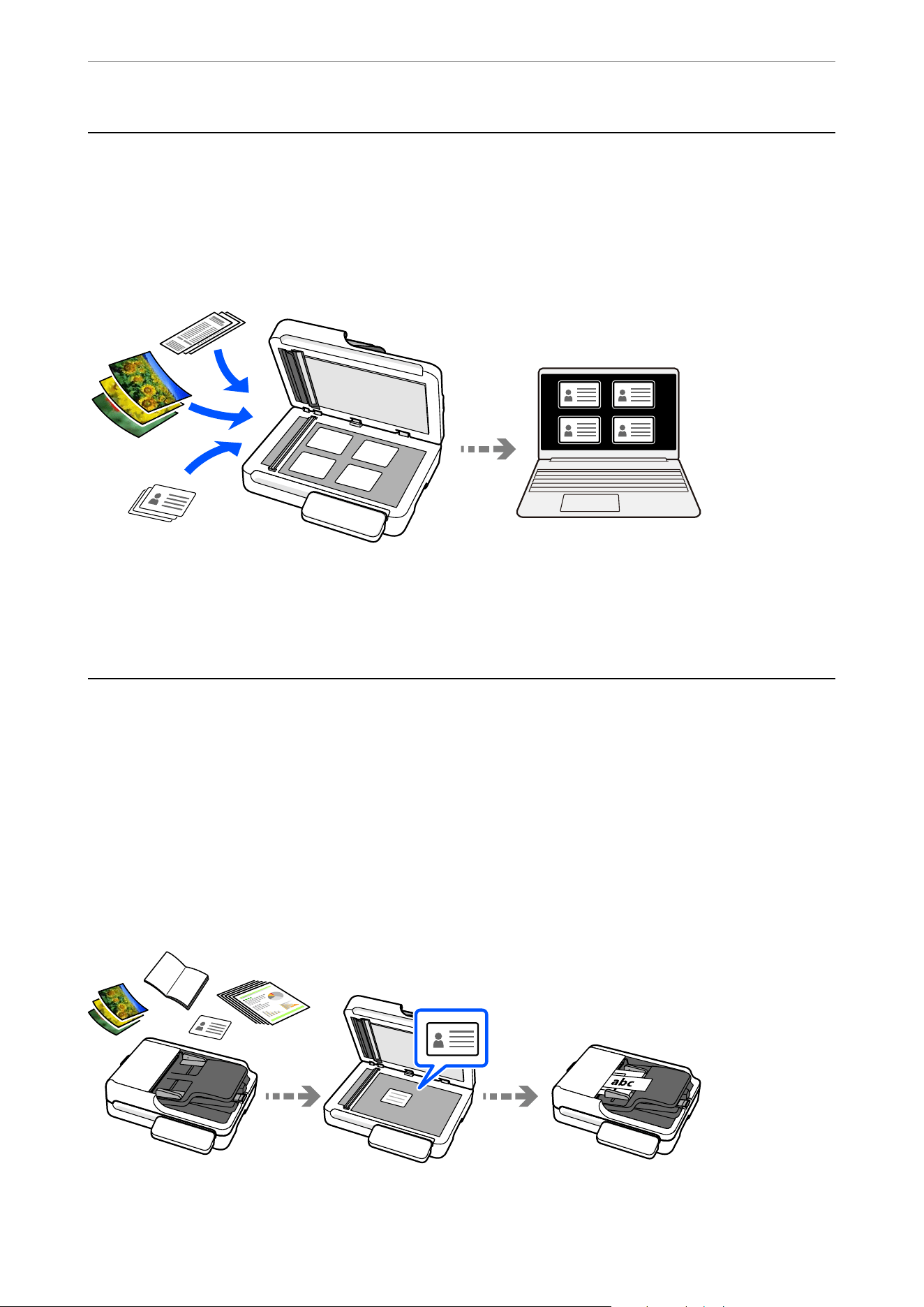
Auto Cropping for Multiple Originals
When scanning from the scanner glass, you can scan multiple originals at once without having to scan them one
by one. ey are automatically cropped into separate images and saved.
is feature supports not only standard-sized originals but also irregularly shaped items such as receipts, invoices,
and photos of various sizes.
Related Information
&
“Placing Multiple Originals at Once” on page 38
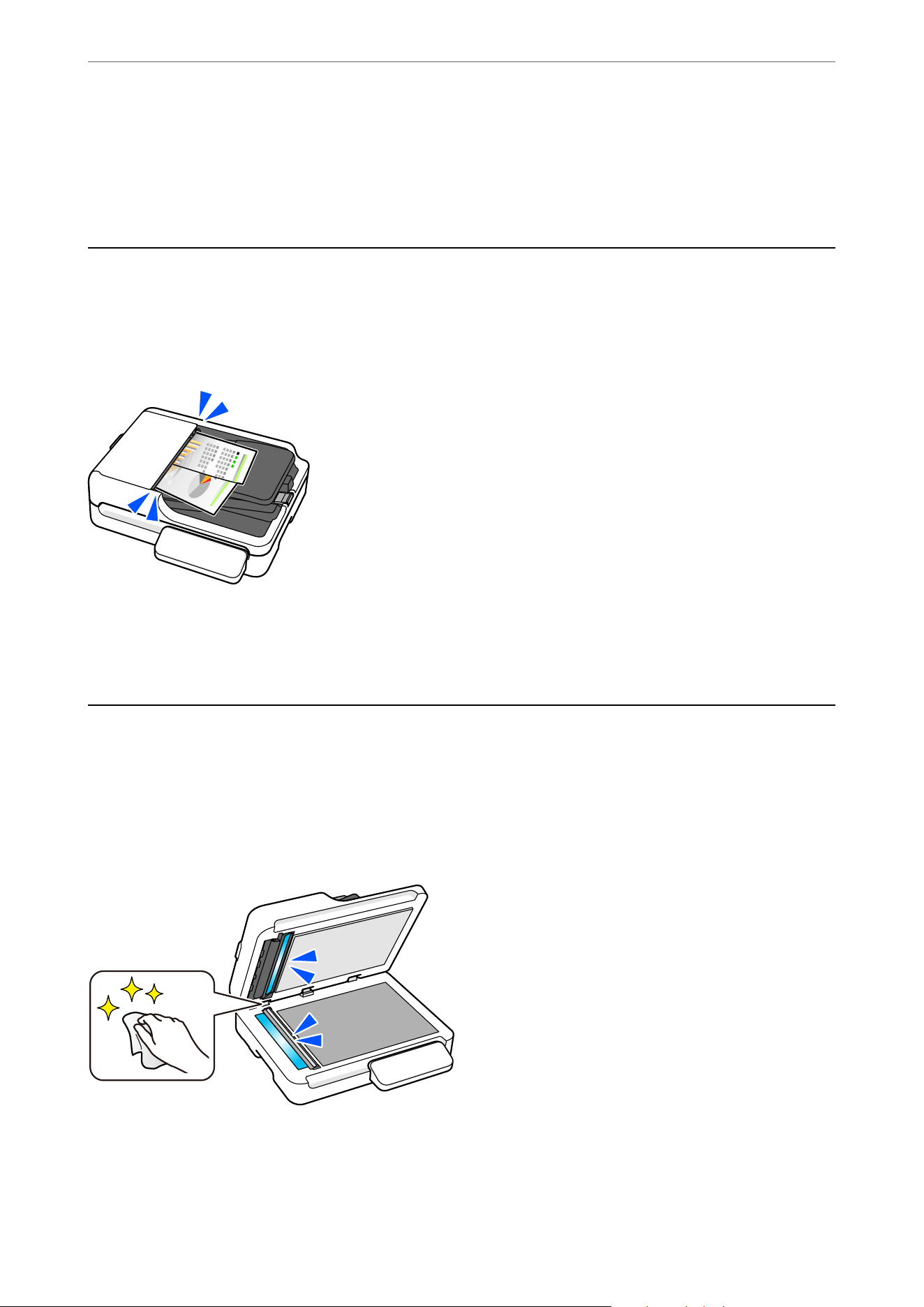
Capable of Scanning Various Types of Originals
Two methods are available for scanning various types of originals: the ADF (Automatic Document Feeder) and the
scanner glass.
O ADF: Suitable for scanning large volumes of originals or long paper.
O Scanner glass: Suitable for delicate documents, photos, ID cards, booklets, and other items that cannot be
scanned using the ADF.
You can also perform continuous scanning by combining the ADF and the scanner glass.
e
auto size detection
feature saves originals as a single le at the appropriate size, allowing you to eciently select the optimal scanning
method for each original.
Product Features
>
Capable of Scanning Various Types of Originals
12
Related Information
&
“Specications and Placing of Originals” on page 21
& “Using the ADF and Scanner Glass Together in a Single Scan” on page 40
Paper Protection to Reduce Damage to the Originals
is
scanner comes with a paper protection feature. If the sensor detects an error, such as when scanning a
document in the ADF that has been stapled, it will stop scanning to prevent damage to the document that could be
caused by a paper jam.
Related Information
&
“Setting the Document Protection Feature” on page 65
Notication of Dirt on the ADF
is scanner can detect dirt on the glass surface of the ADF (the scanning sensor), and notify you that you need to
clean the glass surface before dirt can cause lines (streaks) in the scanned images.
You can easily keep the glass surface clean, and avoid a decline in image quality.
is feature is o by default.
Related Information
&
“Setting the Glass Surface Stain Detection Feature” on page 64
& “Cleaning the ADF” on page 68
Product Features
>
Notication of Dirt on the ADF
13

Scanner Basics
Part Names and Functions............................................15
Buttons and Lights on the Control Panel..................................17
Information on Applications..........................................18
Option Items and Consumables Information..............................20
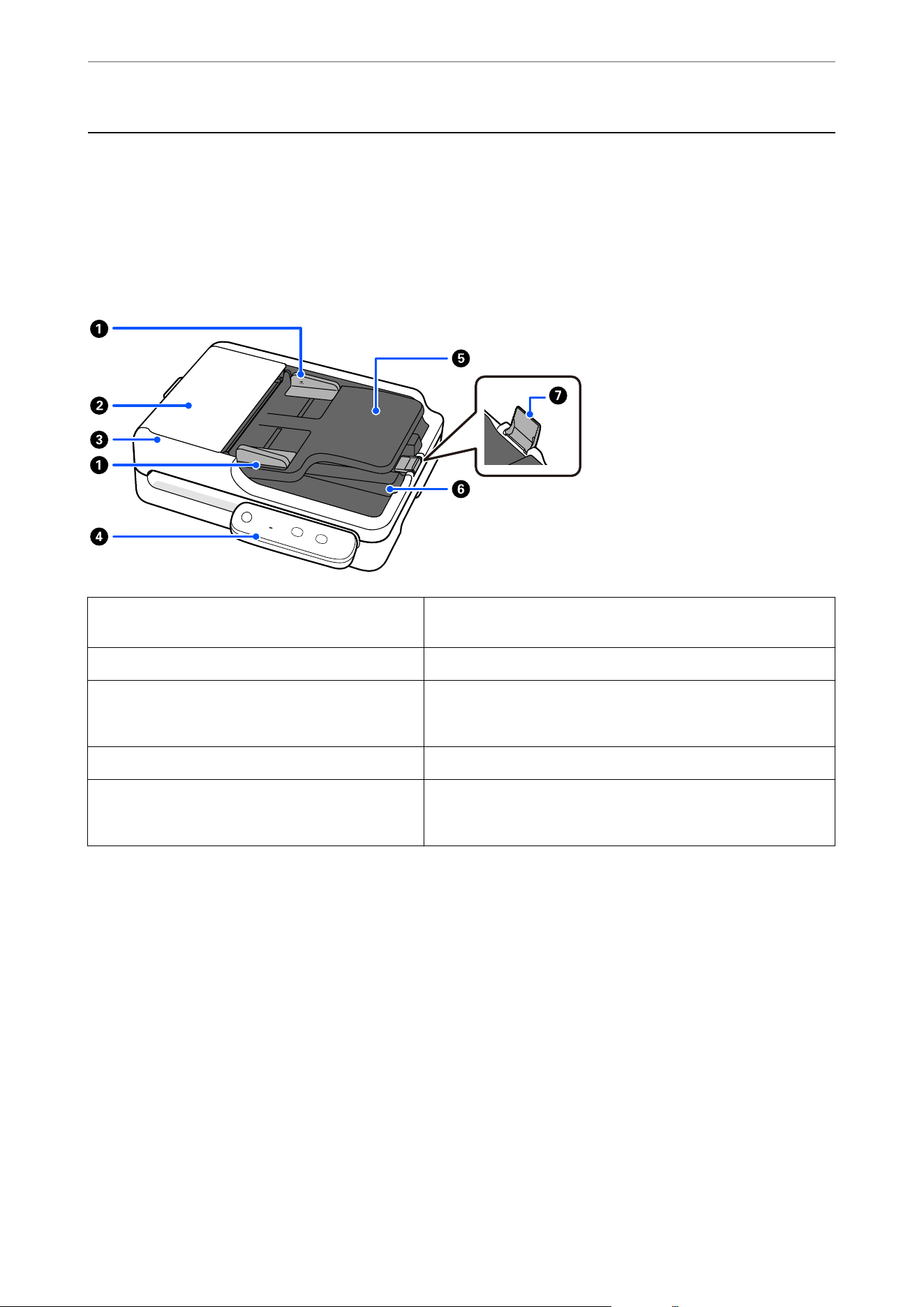
Part Names and Functions
Note:
e label is attached to the top or side of the product. Under special conditions permitted by regulations, the label is attached
to the bottom of the product or under the cover.
Front
A
Edge guides Use guides to support the original in the input tray to facilitate
smooth feeding. Slide to the edges of the originals.
B
ADF cover Open it when cleaning the ADF or removing jammed paper.
C
ADF (Automatic Document Feeder) Feeds loaded originals automatically.
D
Control panel Displays the scanner’s status and performs scanner operations.
E
Input tray Loads originals.
F
Output tray Holds originals ejected from the scanner.
G
Stopper Prevents ejected originals from falling from the output tray.
Scanner Basics
>
Part Names and Functions
15
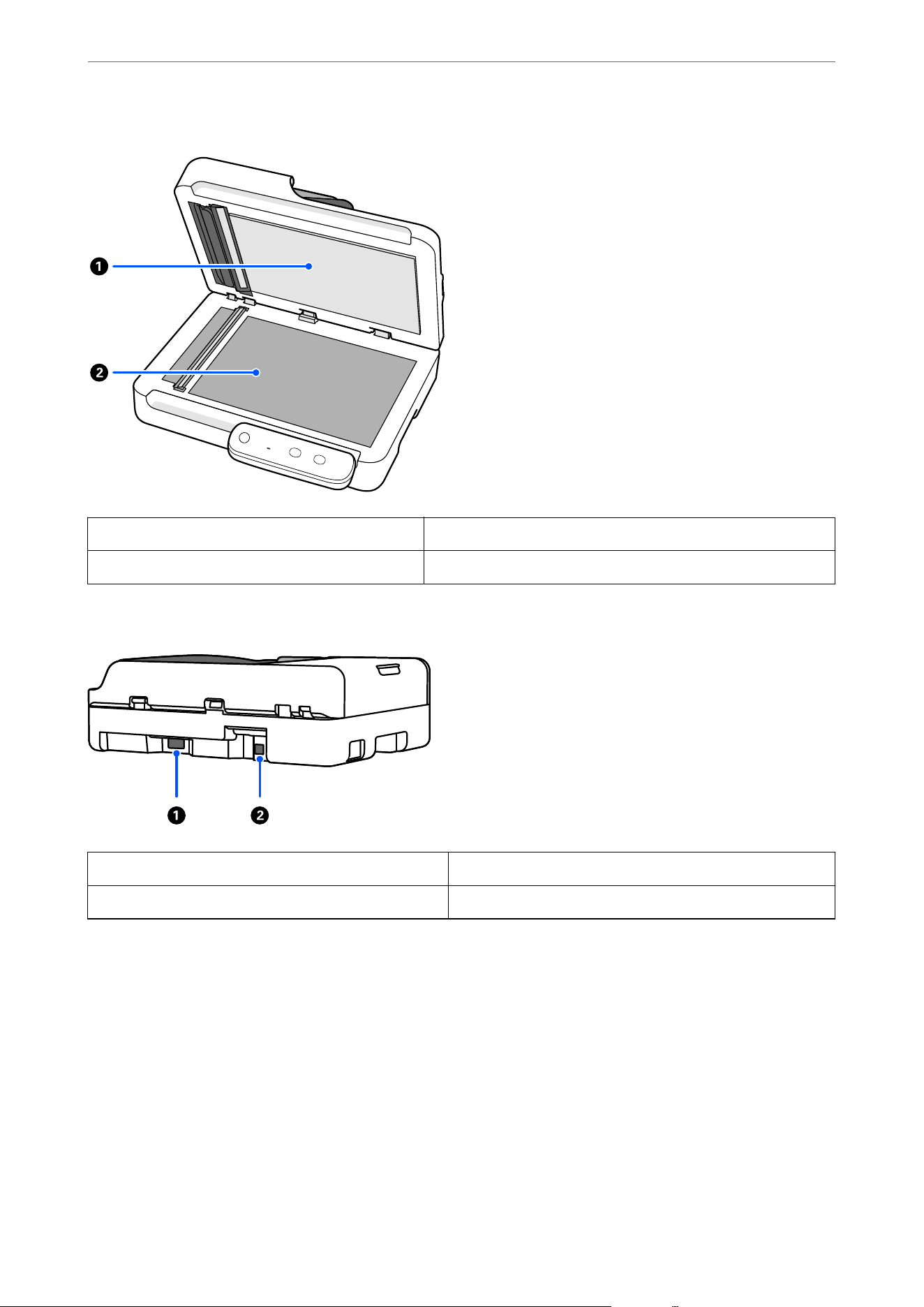
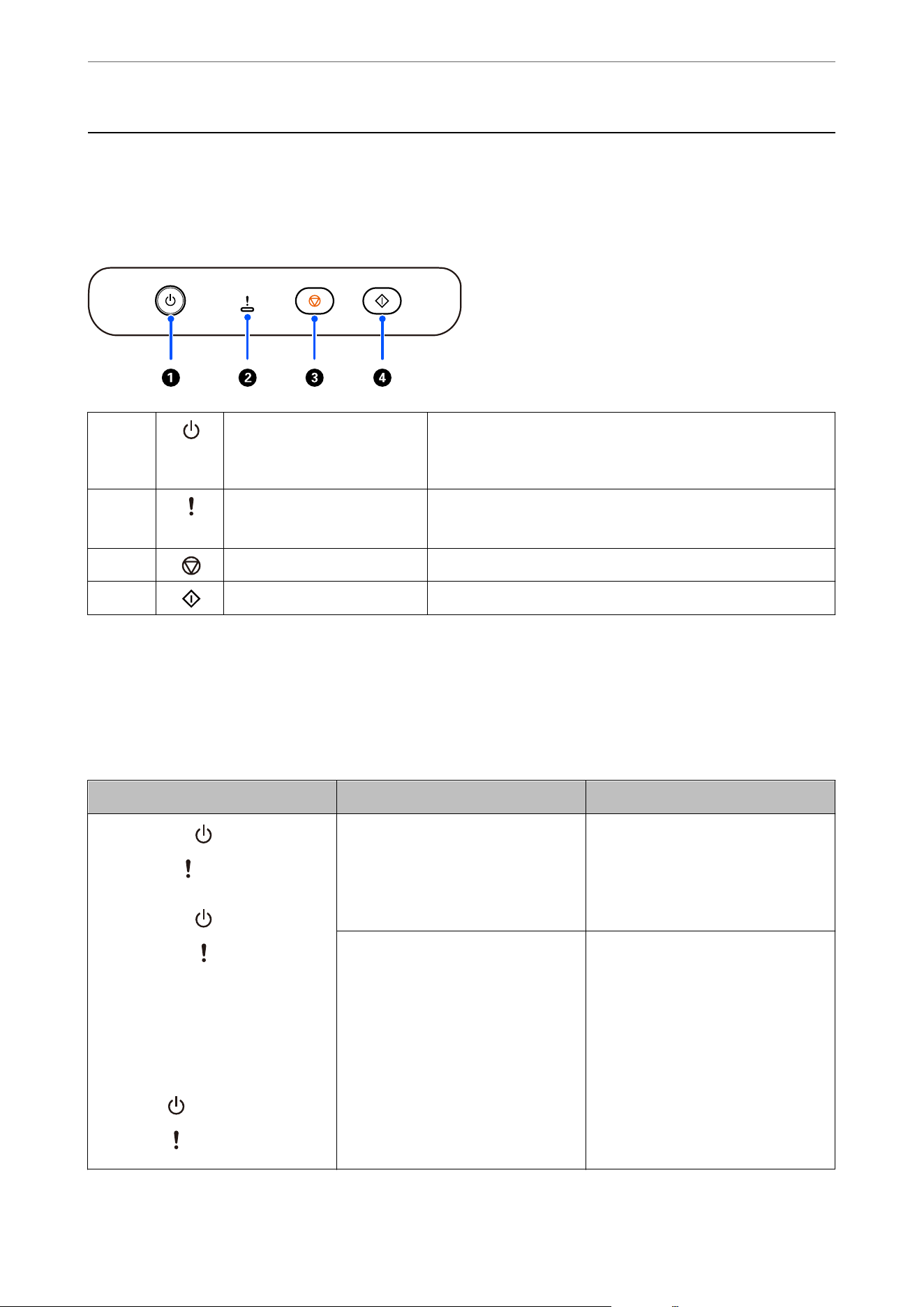
Buttons and Lights on the Control Panel
Buttons and Lights
A
Power button/ light Turns the scanner on or o.
Do not turn o the scanner while the light is ashing because the
scanner is operating or processing a data.
B
Error light Indicates an error has occurred.
See “Error Indicators” for more details.
C
Stop button Cancels scanning.
D
Start button Starts scanning.
Related Information
&
“Error Indicators” on page 17
Error Indicators
Indicator Status Solutions
O
Flashing
Originals are jammed in the ADF. Open the ADF cover and remove the
jammed originals. Close the ADF cover
to clear the error. Load the originals
again.
O
On
The ADF cover is open. Close the ADF cover.
The scanner has started in recovery
mode because the rmware update
failed.
Follow the steps below to try to up-
date the rmware again.
1. Connect the computer and the scan-
ner with a USB.
2. Download the latest rmware from
the Epson home page, and then start
the update.
Flashing fast
Flashing fast
A fatal error has occurred. Turn the power o and on again. If the
error continues to occur, contact your
local dealer. In the U.S., Canada, and
Latin America, contact Epson Support.
Scanner Basics
>
Buttons and Lights on the Control Panel
>
Error Indicators
17

Related Information
&
“Removing Jammed Originals from the Scanner” on page 83
Information on Applications
is
section introduces the application products available for your scanner.
e
latest application can be installed
at the Epson Web site.
Application for Scanning Documents (Document Capture Pro /
Document Capture)
Document Capture Pro
*
is an application that allows you to eciently scan originals such as documents.
You can register a set of operations, such as Scan-Save-Send, as a “job”. By registering a series of operations in
advance as a job, you can perform all of the operations by simply selecting the job. By assigning a job to the button
on scanner's control panel, you can start a job by pressing the button.
See the Document Capture Pro help (Windows) or Document Capture (Mac OS) for details on using the
application.
* is name is for Windows. For Mac OS, the name is Document Capture.
Starting on Windows
O Windows 11
Click the start button, and then select All apps > Epson Soware > Document Capture Pro.
O Windows 10
Click the start button, and then select Epson Soware > Document Capture Pro.
O Windows 8.1/Windows 8
Enter the application name in the search charm, and then select the displayed icon.
O Windows 7
Click the start button, and then select All Programs > Epson
Soware
> Document Capture Pro.
Starting on Mac OS
Select Go > Applications > Epson Soware > Document Capture.
Application for Controlling the Scanner (Epson Scan 2)
Epson Scan 2 is a scanner driver that allows you to control the scanner. You can adjust the size, resolution,
brightness, contrast, and quality of the scanned image. You can also start this application from a TWAIN-
compliant scanning application.
See the Epson Scan 2 help for details on using the application.
Starting on Windows
Note:
For Windows Server operating systems, make sure the Desktop Experience feature is installed.
Scanner Basics
>
Information on Applications
>
Application for Controlling the Scanner (Epson Scan 2)
18

O Windows 11/Windows Server 2022
Click the start button, and then select All apps > EPSON > Epson Scan 2.
O Windows 10/Windows Server 2016/Windows Server 2019
Click the start button, and then select EPSON > Epson Scan 2.
O Windows 8.1/Windows 8/Windows Server 2012 R2/Windows Server 2012
Enter the application name in the search charm, and then select the displayed icon.
O Windows 7/Windows Server 2008 R2/Windows Server 2008
Click the start button, and then select All Programs or Programs > EPSON > Epson Scan 2 > Epson Scan 2.
Starting on Mac OS
Select Go > Application > Epson Soware > Epson Scan 2.
Application for Updating Software and Firmware (EPSON Software
Updater)
EPSON Soware Updater is an application that installs new soware, and updates rmware over the Internet. If
you want to check for update information regularly, you can set the interval for checking for updates in EPSON
Soware Updater's auto update settings.
Note:
Windows Server operating systems are not supported.
Starting on Windows
O Windows 11
Click the start button, and then select All apps > Epson Soware > EPSON Soware Updater.
O Windows 10
Click the start button, and then select Epson Soware > EPSON Soware Updater.
O Windows 8.1/Windows 8
Enter the application name in the search charm, and then select the displayed icon.
O Windows 7
Click the start button, and then select All Programs > Epson Soware > EPSON Soware Updater.
Starting on Mac OS
Select Go > Applications > Epson Soware > EPSON Soware Updater.
Software for Managing Devices on the Network (Epson Device
Admin)
Epson Device Admin is a multifunctional application soware that manages the device on the network.
e
following functions are available.
O Monitor or manage up to 2,000 printers or scanners over the segment
O Make a detailed report, such as for the consumable or product status
Scanner Basics
>
Information on Applications
>
Software for Managing Devices on the Network (Epson Device Ad
…
19

O Update the rmware of the product
O Introduce the device to the network
O Apply the
unied
settings to multiple devices.
You can download Epson Device Admin from Epson support website. For more information, see the
documentation or help of Epson Device Admin.
Application for Creating Driver Packages (EpsonNet SetupManager)
EpsonNet SetupManager is a soware to create a package for a simple scanner installation, such as installing the
scanner driver and so on. is soware allows the administrator to create unique soware packages and distribute
them among groups.
For more information, visit your regional Epson website.
http://www.epson.com
Option Items and Consumables Information
Cleaning Kit Codes
Use this when cleaning inside the ADF. is kit is composed of cleaning liquid and a cleaning cloth.
Part name Codes
Cleaning Kit B12B819291
Related Information
&
“Cleaning the ADF” on page 68
Scanner Basics
>
Option Items and Consumables Information
>
Cleaning Kit Codes
20

Placing Originals into the ADF
General
Specications
for Originals being Scanned (ADF)
O Plain paper
O Fine paper
O Recycled paper
O ermal paper
e loadable size varies depending on the type of the originals, the scanning resolution, and the scanning method.
Note:
O All originals must be at at the leading edge.
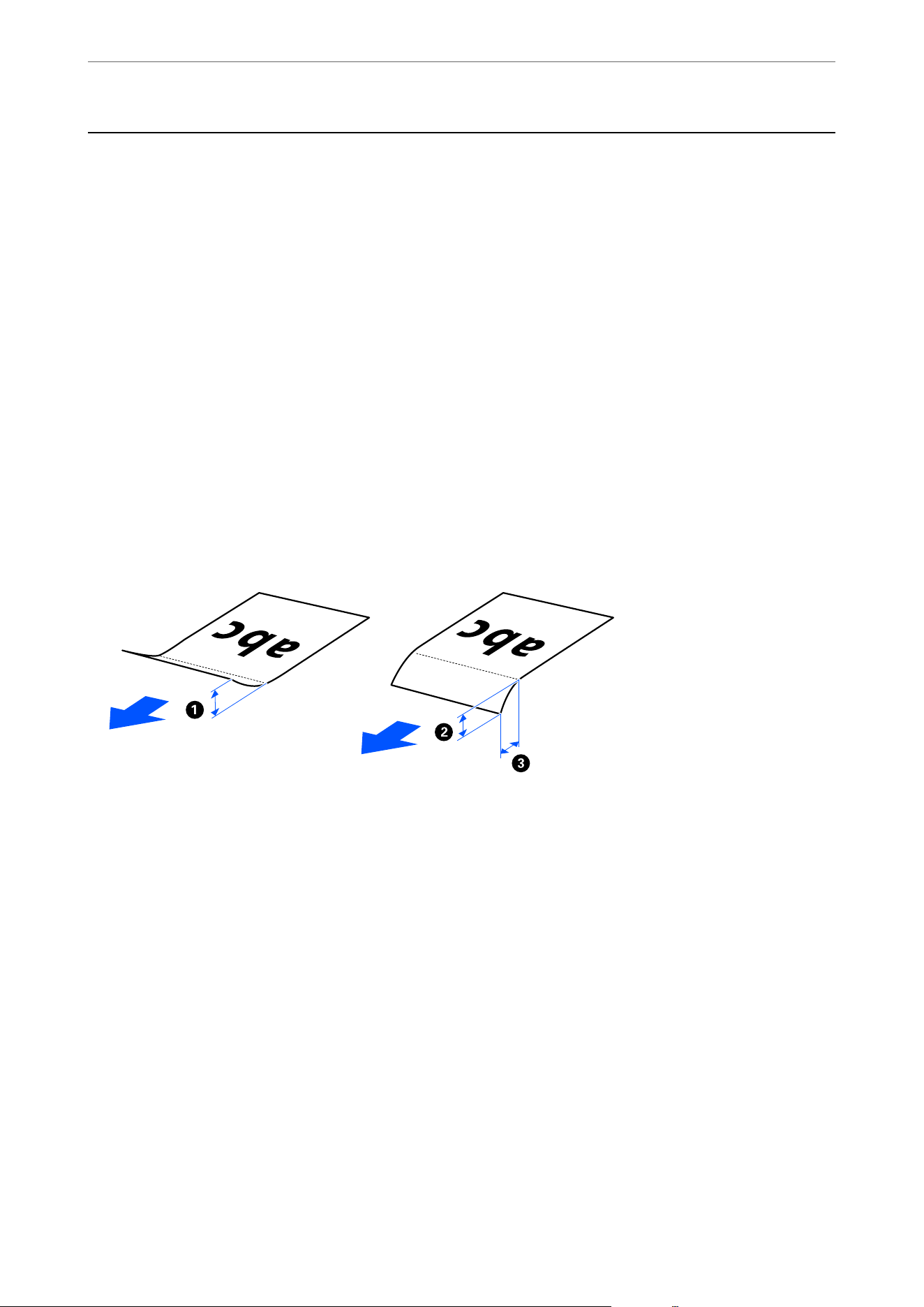
O Make sure that curls on the leading edge of the originals are kept within the following range.
A
must be 5 mm (0.2 in.) or less.
B
must be 3 mm (0.12 in.) or less.
C
must be equal to or greater than
B
if
A
or
B
is 1 mm (0.04 in.) or less. If
A
or
B
is greater than 1 mm (0.04 in.), it
should be at least 10 times the size of
B
.
O Even when the original meets the specications for originals that can be placed in the ADF, it may not feed from the ADF
depending on the paper properties or quality. Additionally, some originals may decrease the scan quality.
For these types of originals, use the scanner glass.
Related Information
&
“Standard Size Originals” on page 24
& “Long Paper” on page 27
& “Mixture of Originals” on page 30
Types of Originals that Require Attention (ADF)
e following types of originals may not be successfully scanned using the ADF. If you cannot scan using the ADF,
use the scanner glass.
O Originals with an uneven surface such as letter head paper
O Originals with wrinkles or fold lines
O Perforated originals
Specications and Placing of Originals
>
Placing Originals into the ADF
>
Types of Originals that Requ
…
22

O Original with labels or stickers
O Carbon-less papers
O Curled originals
O Coated paper
c
Important:
Carbon-less paper contains chemical substances that may damage the rollers inside the scanner. If you scan
carbon-less paper, clean the ADF regularly.
Note:
O Wrinkled originals may scan better if you smooth out the wrinkles before scanning.
O To scan delicate originals or originals that are easily crinkled, use the scanner glass.
O Labels or stickers must be rmly stuck to the originals with no glue protruding. When scanning an original with labels or
stickers that look like they might come o easily, use the scanner glass.
O Try to atten the curled originals before scanning.
Related Information
&
“Placing Originals on the Scanner Glass” on page 34
Types of Originals that Must Not be Scanned (ADF)
To prevent damage to the originals or the scanner, do not load the following originals in the ADF. For these types
of originals, use the scanner glass.
O Photos
O Booklets
O Non-paper originals (such as clear
les,
fabric, and metal foil)
O Originals with glue attached
O Heavily wrinkled or curled originals
O Transparent originals such as OHP lm
O Originals with carbon paper on the back
O Originals with wet ink
O Originals with sticky notes attached
O Originals with staples or paper clips
Note:
O Do not feed valuable original artwork or important documents that you do not want to damage or deface into the ADF.
Misfeeding may wrinkle or damage the original. For these types of originals, use the scanner glass.
O Scan photos or originals with tears, severe wrinkles, or signicant curling from the scanner glass.
Related Information
&
“Placing Originals on the Scanner Glass” on page 34
Specications and Placing of Originals
>
Placing Originals into the ADF
>
Types of Originals that Must
…
23

Specications and Placing of Originals (ADF)
If the original is not placed correctly, it cannot be detected.
Standard Size Originals
Specications of Standard Size Originals
ese are the specications for standard size originals that you can scan using the ADF.
Specication
s
Size Thickness
(Weight)
Paper Type Loading Capacity and Thickness
Legal 215.9×355.6 mm
(8.5×14 in.)
50 to 120 g/m2 Plain paper
Fine paper
Recycled paper
Thickness of the stack of originals:
under 6.6 mm (0.26 in.)
(80 g/m2: 60 sheets)
The loading capacity varies
depending on the paper type.
Letter 215.9×279.4 mm
(8.5×11 in.)
A4 210×297 mm
(8.27×11.7 in.)
B5 182×257 mm
(7.17×10.12 in.)
A5 148×210 mm
(5.83×8.27 in.)
A6 105×148 mm
(4.13×5.83 in.)
Note:
If no paper size matches a standard size, you can set a custom paper size as a user-dened size.
e total thickness that you can set is up to 6.6 mm (0.26 in.), the same as for standard-size paper.
“Registering User-dened Sizes in Epson Scan 2” on page 59
Specications and Placing of Originals
>
Placing Originals into the ADF
>
Specications and Placing o
…
24
Placing Standard Size Originals
Note:
Check the following before scanning.
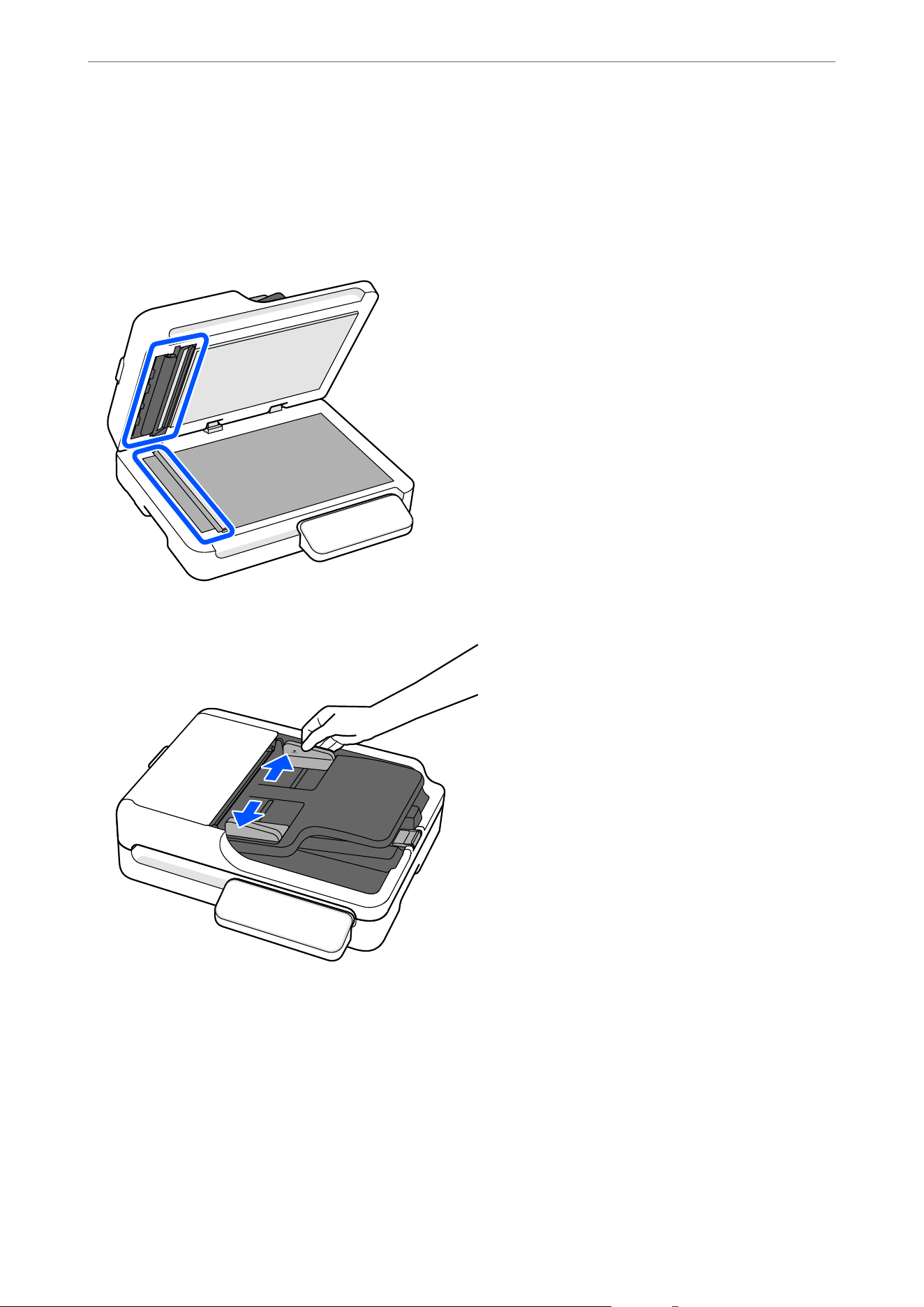
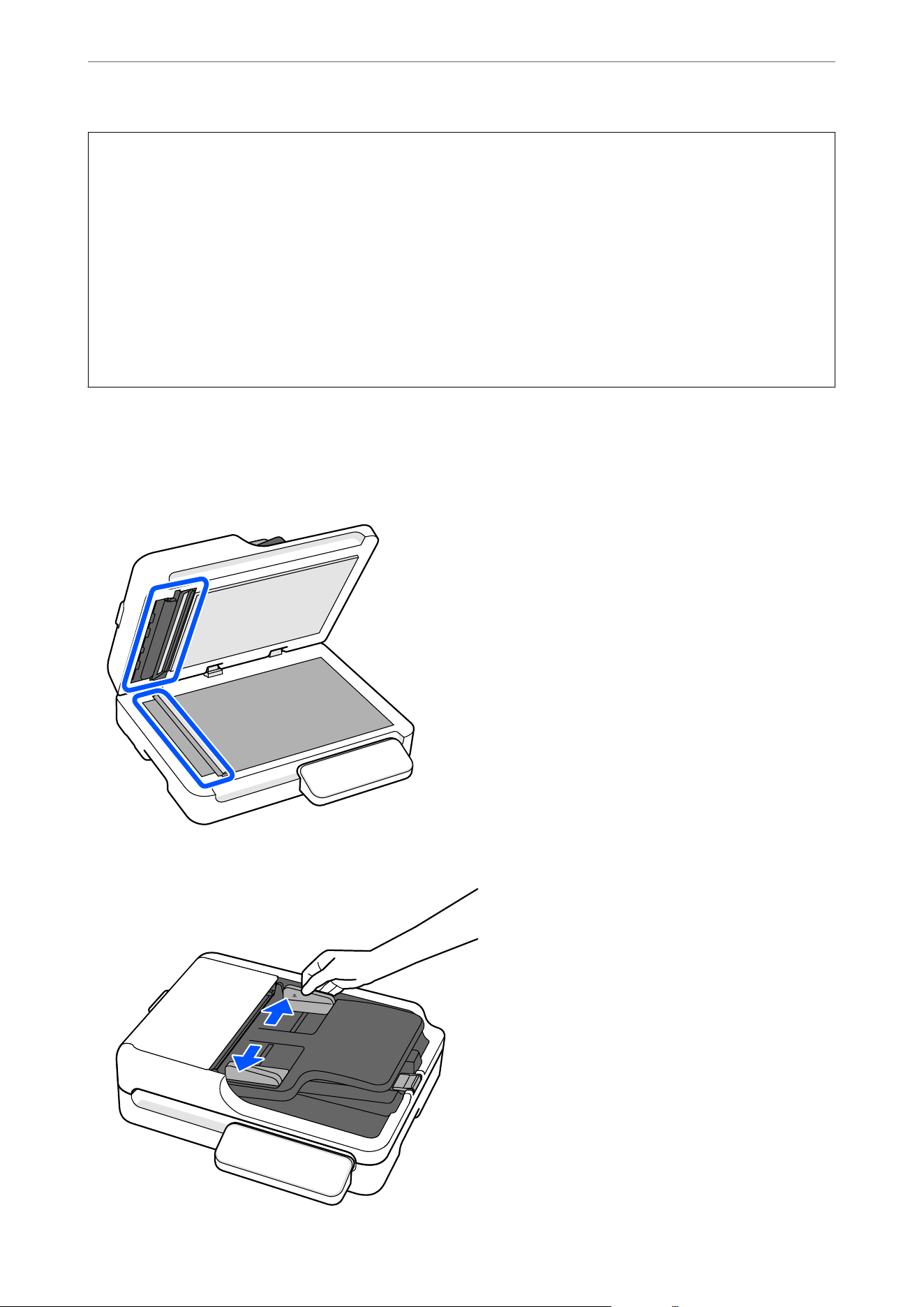
O Make sure there are no originals on the scanner glass.
O Make sure there is no dust or dirt in the areas indicated in the following illustration.
1. Slide the edge guides on the input tray all the way out.
Specications and Placing of Originals
>
Placing Originals into the ADF
>
Specications and Placing o
…
25
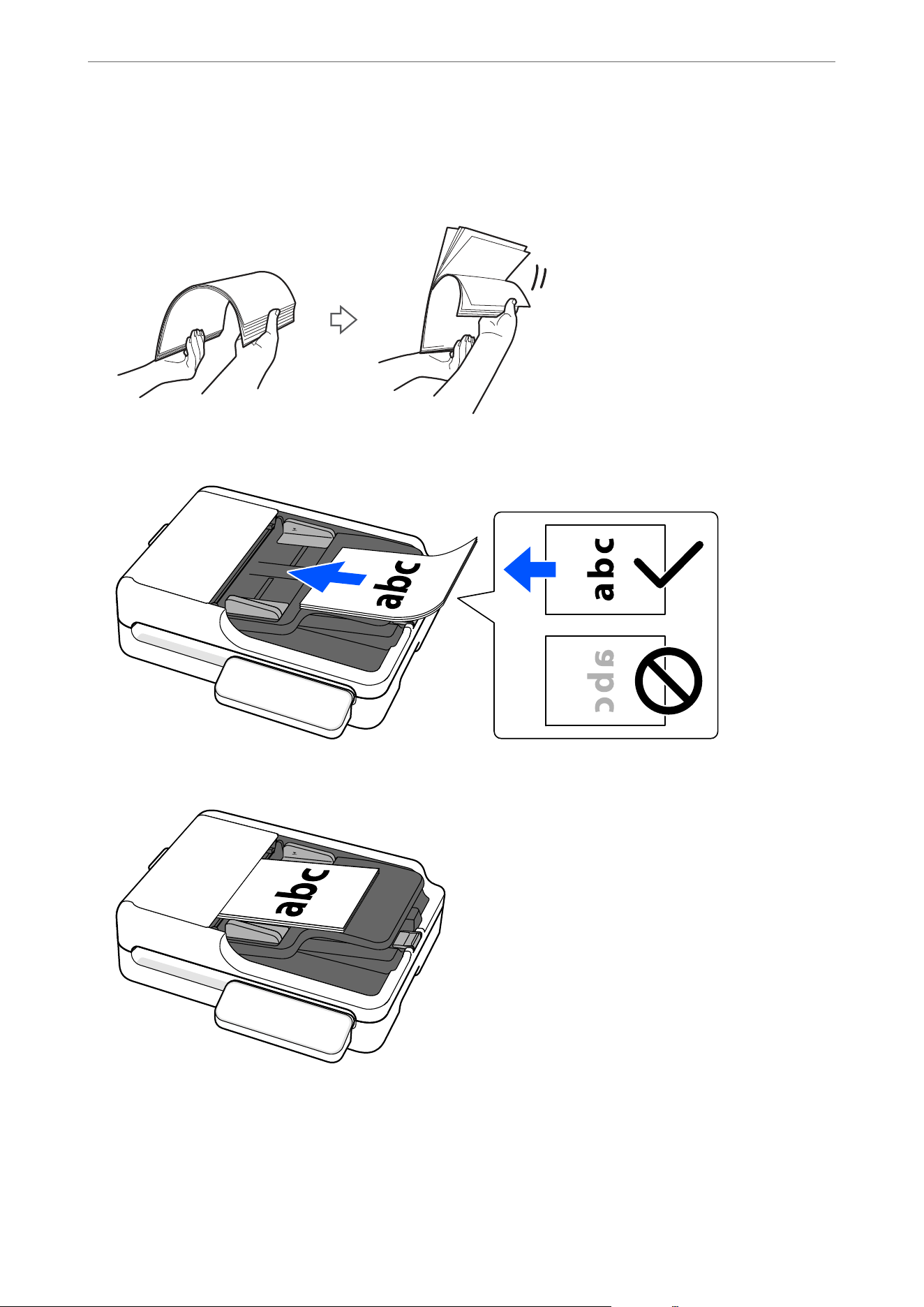
2. Fan the originals.
Hold both ends of the originals and fan them a few times, and then tap the top edges of the paper on a at
surface to align the sheets.
3. Place the originals into the input tray facing up with the top edge facing into the ADF.
Slide the original into the ADF until it meets resistance.
Note:
Check the following when loading originals with punch holes, such as loose-leaf paper.
O ere are no holes within 15 mm (0.59 in.) to the le and right of the center of the original (a width of 30 mm (1.18
in.)).
O ere are no burrs or curls at the edges of the punch holes.
Specications and Placing of Originals
>
Placing Originals into the ADF
>
Specications and Placing o
…
26
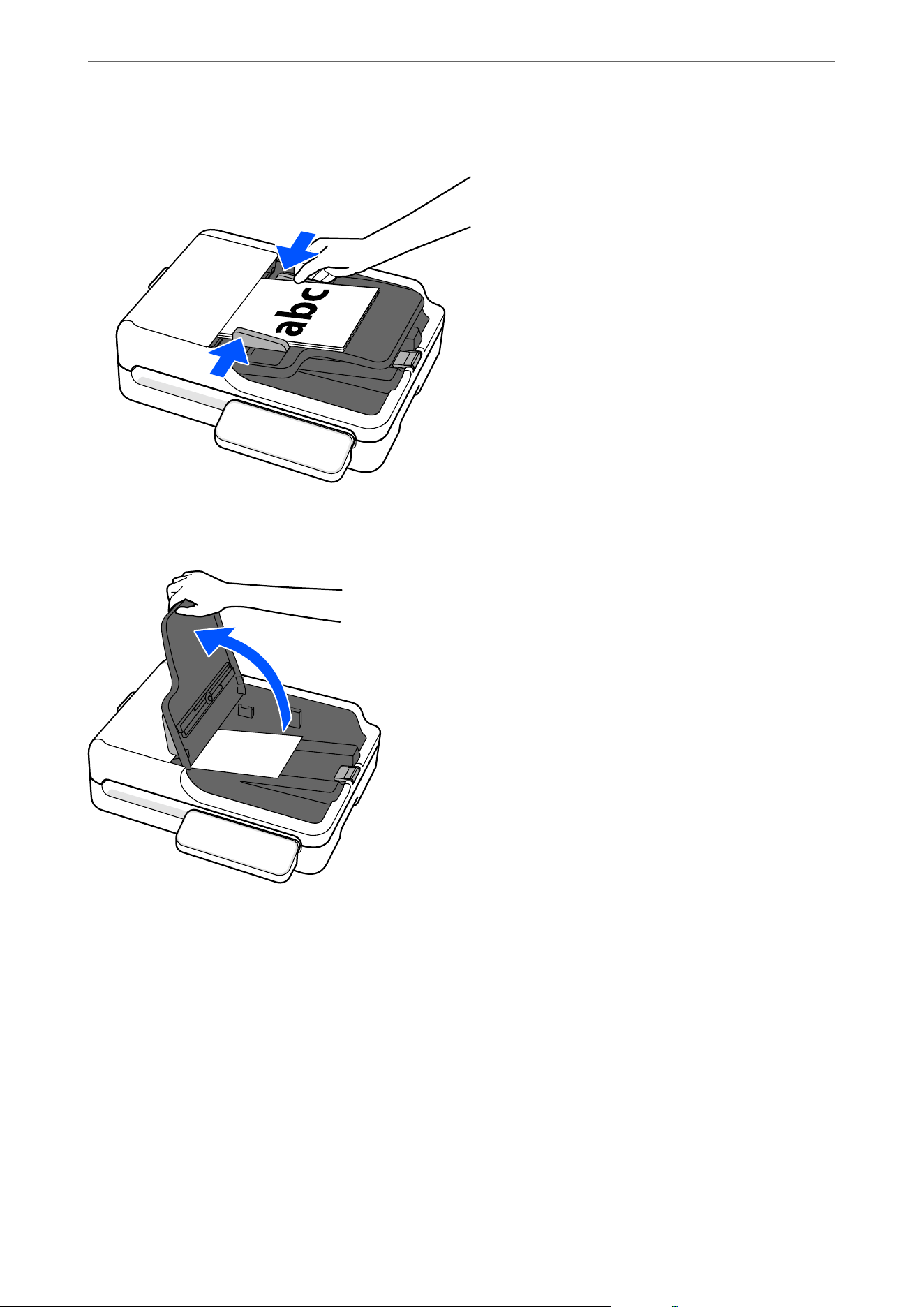
4. Adjust the edge guides to t the original without any gap. Otherwise, the originals may be fed skewed.
Note:
When scanning small originals or scanning with the stopper raised, li the input tray to remove the scanned originals.
Long Paper
Specications of Long Paper
is section provides the specications for long paper that you can load into the ADF.
Note:
O Long paper means originals with a length of 393.8 mm (15.5 in.) or more.
O When scanning long paper, scanning speed is reduced.
Specications and Placing of Originals
>
Placing Originals into the ADF
>
Specications and Placing o
…
27
Size Thickness (Weight) Paper Type Loading Capacity
Width: 105.0 mm (4.13 in.) to 215.9 mm
(8.5 in.)
Maximum length: 3,048.0 mm (120
in.)
*
50 to 120 g/m2 Plain paper
Fine paper
Recycled paper
1 sheet
* The following shows the maximum lengths according to the scanning resolution.
O 50 to 300 dpi: 3,048.0 mm (120 in.)
O 301 to 600 dpi: 762.0 mm (30 in.)
Placing Long Paper
Note:
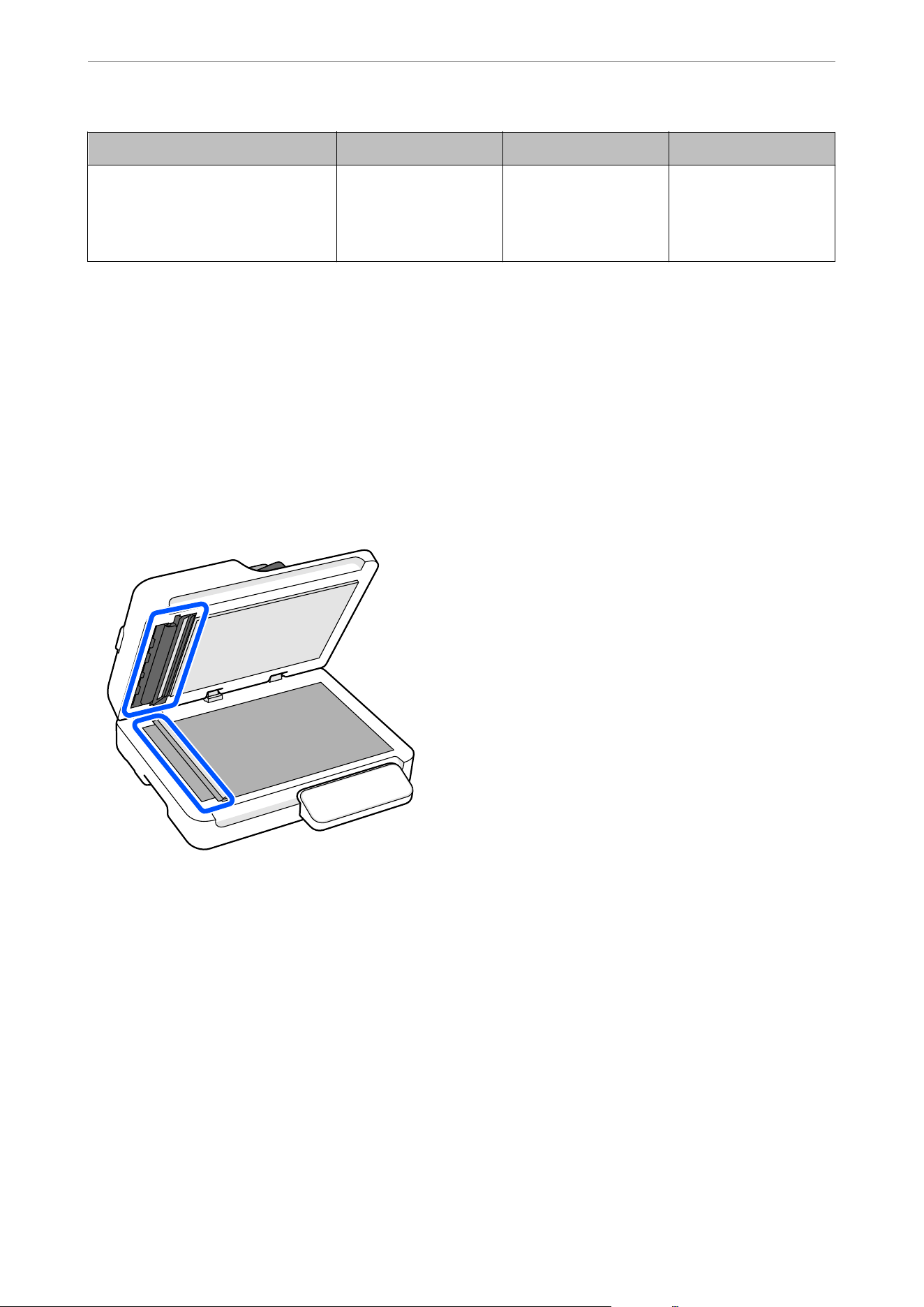
Check the following before scanning.
O Make sure there are no originals on the scanner glass.
O Make sure there is no dust or dirt in the areas indicated in the following illustration.
Specications and Placing of Originals
>
Placing Originals into the ADF
>
Specications and Placing o
…
28
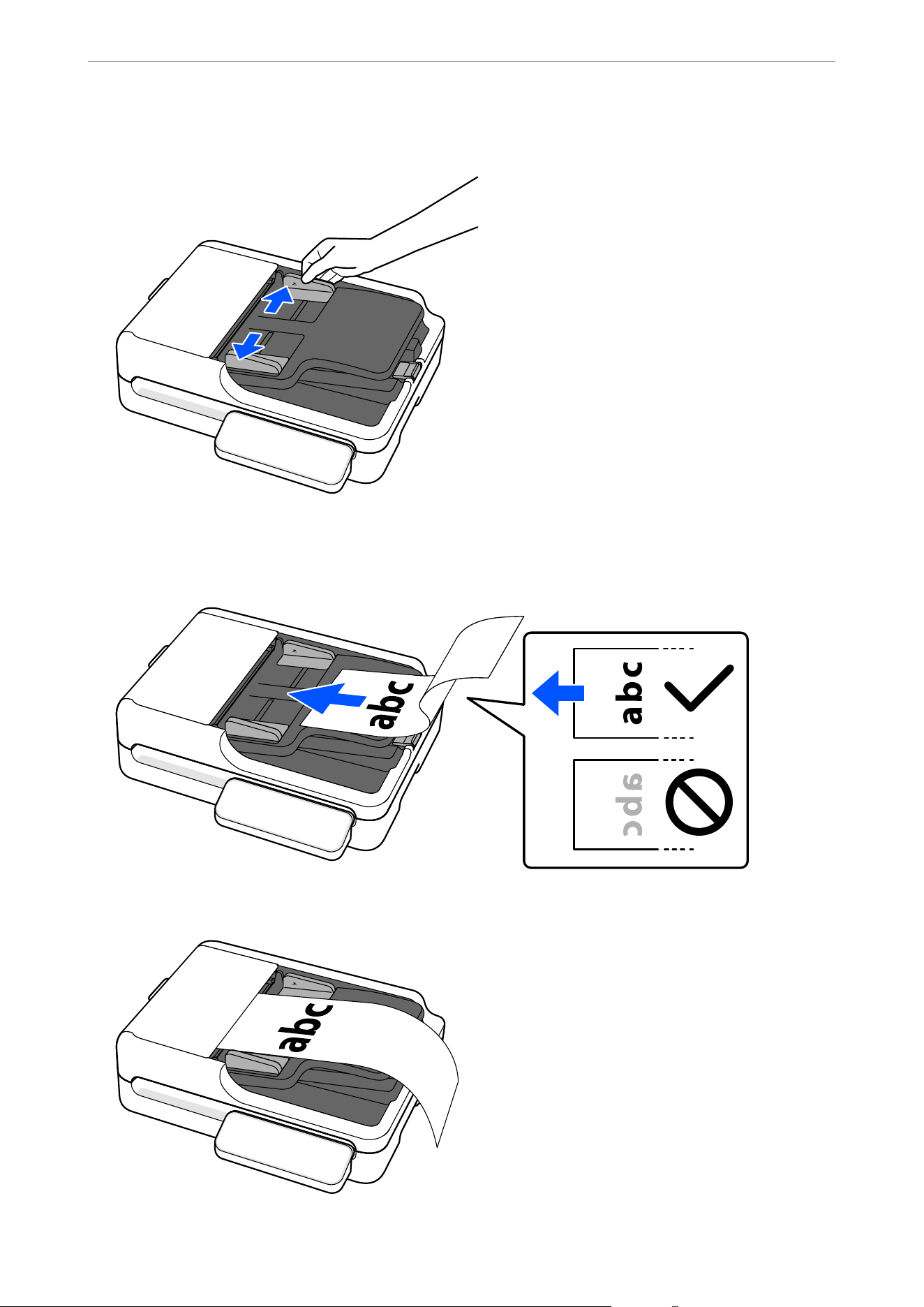
1. Slide the edge guides on the input tray all the way out.
2.
Load the original into the input tray straight, facing up and with the top edge facing into the ADF.
Slide the original into the ADF until it meets resistance.
Specications and Placing of Originals
>
Placing Originals into the ADF
>
Specications and Placing o
…
29
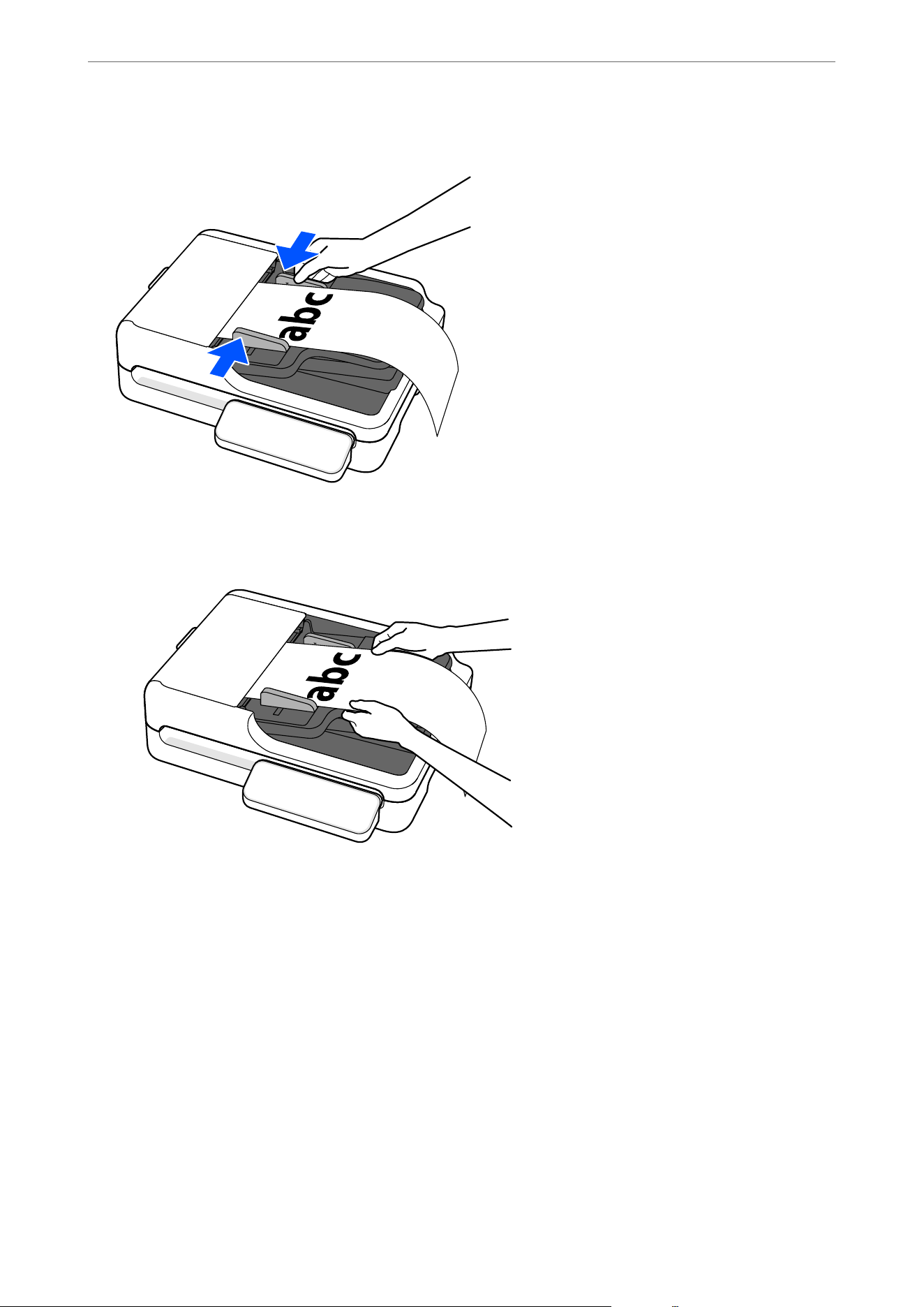
3. Adjust the edge guides to t the original without any gap. Otherwise, the originals may be fed skewed.
Note:
Support long paper at the input side so that it does not drop out of the ADF, and on the output side so that the ejected
paper does not fall from the output tray.
When scanning, set the Document Size according to the length of the original.
O When using Document Capture Pro/Document Capture: Press the Detailed Settings button on the scan
settings screen to open the Epson Scan 2 screen. In Main Settings, set Document Size to Auto Detect (Long
Paper) or Customize.
O When using Epson Scan 2: In Main Settings, set Document Size to Auto Detect (Long Paper) or Customize.
“Registering User-dened Sizes in Epson Scan 2” on page 59
Mixture of Originals
Placing a Mixture of Originals at Dierent Sizes
You can place and scan batches of dierent size originals (105.0×148.0 mm (4.13×5.83 in.) to A4 or letter size) up
to a total thickness of 6.6 mm (0.26 in.). You can also load a mixture of paper types or thickness.
Specications and Placing of Originals
>
Placing Originals into the ADF
>
Specications and Placing o
…
30
c
Important:
O When placing and scanning originals that are a mixture of
dierent
sizes, originals may be fed askew because
not all of the originals are supported by the edge guides.
O Originals may be jammed or fed askew if you set dierent types or very dierent sizes of originals, such as in the
following cases.
·in paper and thick paper
·A4 size paper and small size paper
·Combinations of folded or wrinkled paper
If originals are fed askew, check the scanned images. If the image is skewed, reduce the number of originals
loaded and scan again.
Note:
Check the following before scanning.
O Make sure there are no originals on the scanner glass.
O Make sure there is no dust or dirt in the areas indicated in the following illustration.
1. Slide the edge guides on the input tray all the way out.
Specications and Placing of Originals
>
Placing Originals into the ADF
>
Specications and Placing o
…
31
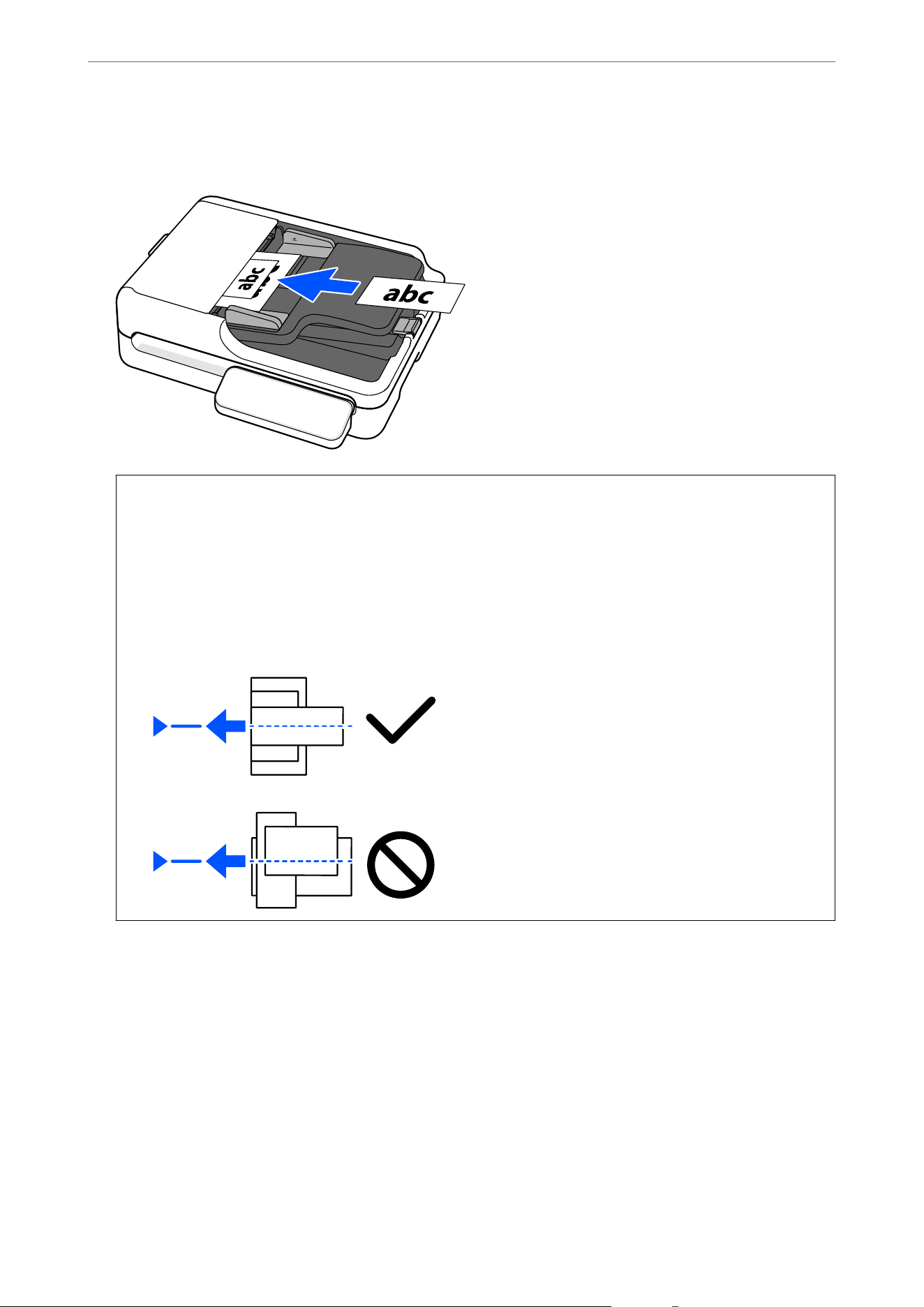
2. Load the originals with the side to be scanned facing up at the center of the input tray in descending order of
paper size with the widest at the back and the narrowest at the front.
c
Important:
Check the following points when setting
dierent
sizes of originals.
O Slide the originals with their leading edges aligned, until they meet resistance in the ADF.
O Set the originals at the center of the input tray.
O Set the originals straight.
If not, originals may be fed askew or jammed.
Specications and Placing of Originals
>
Placing Originals into the ADF
>
Specications and Placing o
…
32
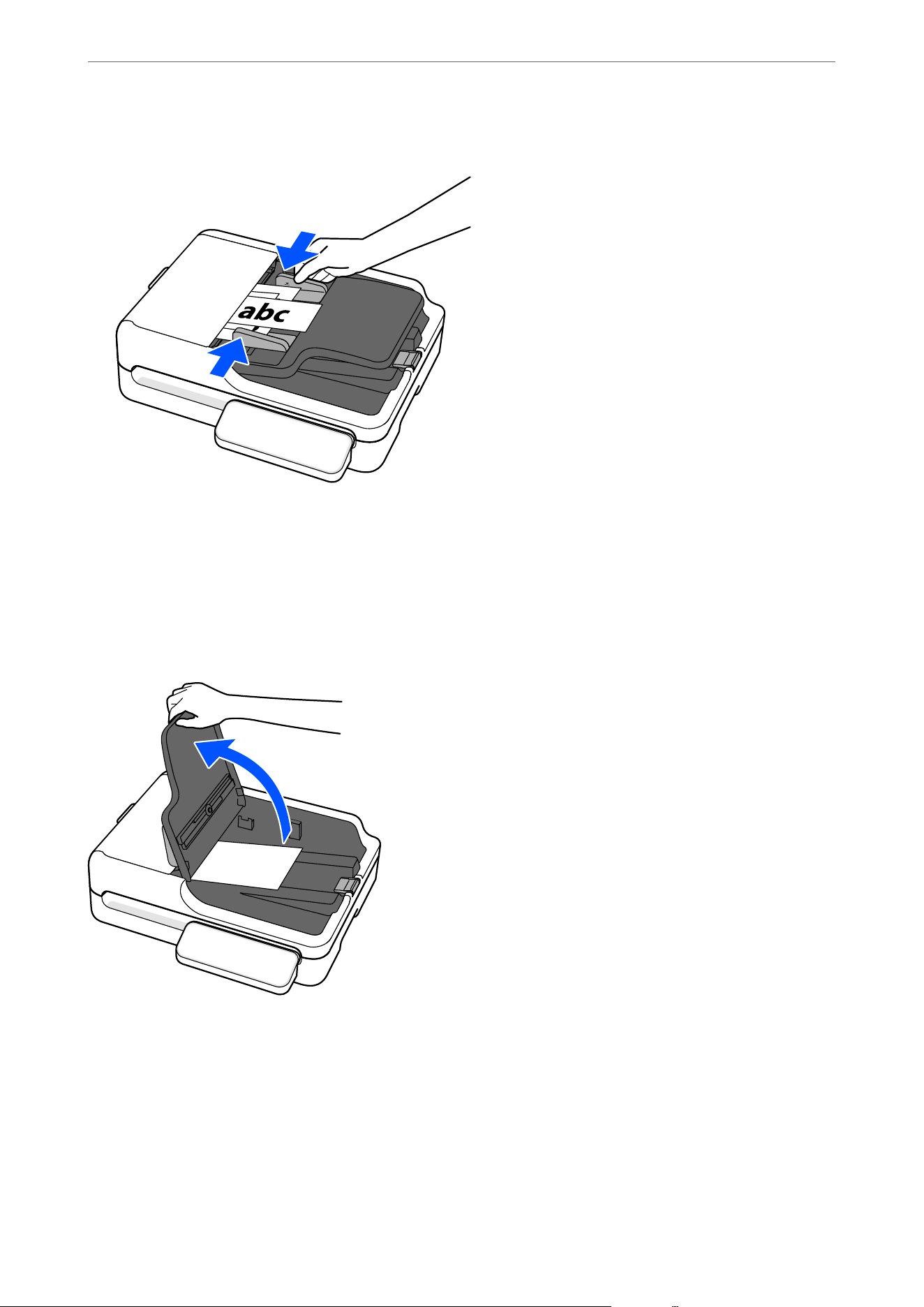
3. Align the edge guides with the widest original.
When scanning, set Document Size to Auto Detect in the Scan Settings.
O When using Document Capture Pro/Document Capture: Set Document Size to Auto Detect on the Scan
Settings screen.
O When using Epson Scan 2: In Main Settings, set Document Size to Auto Detect.
Note:
When scanning small originals or scanning with the stopper raised, li the input tray to remove the scanned originals.
Specications and Placing of Originals
>
Placing Originals into the ADF
>
Specications and Placing o
…
33
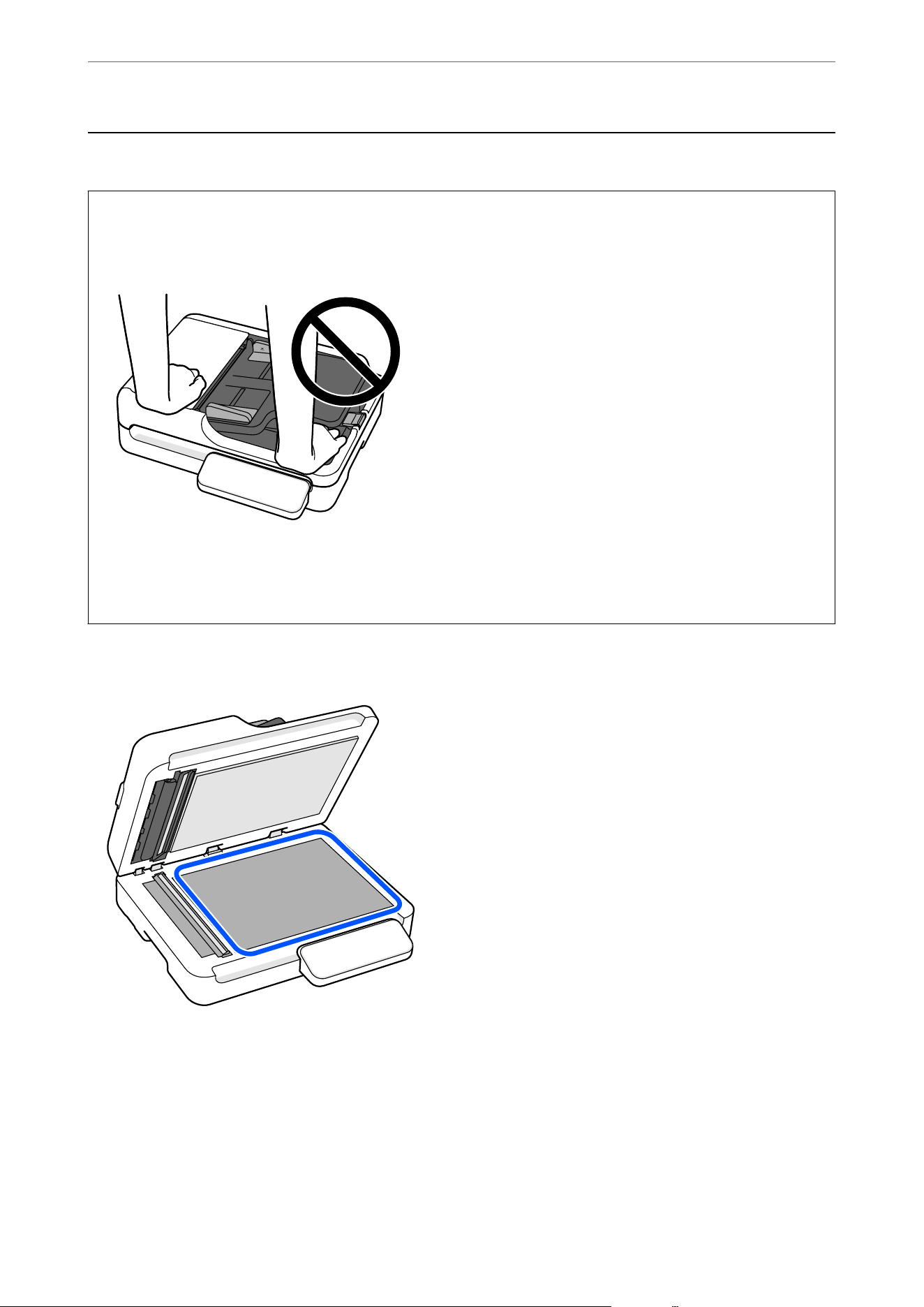
Placing Originals on the Scanner Glass
c
Important:
O Do not place heavy objects on the scanner glass and do not press the glass with too much force. Otherwise, the
scanner may be damaged.
O Do not open the document cover wider than an angle of 70 degrees.
is
could damage the hinge.
O Remove the original when scanning is complete. If you leave the originals on the scanner glass for a long time,
they may stick to the surface of the glass.
Note:
O Always keep the scanner glass clean.
O When there are originals in both the ADF and on the scanner glass, scanning from the ADF takes priority.
is
applies when Document Source is set to Auto Detect in Document Capture Pro/Document Capture or Epson Scan
2.
Specications and Placing of Originals
>
Placing Originals on the Scanner Glass
34
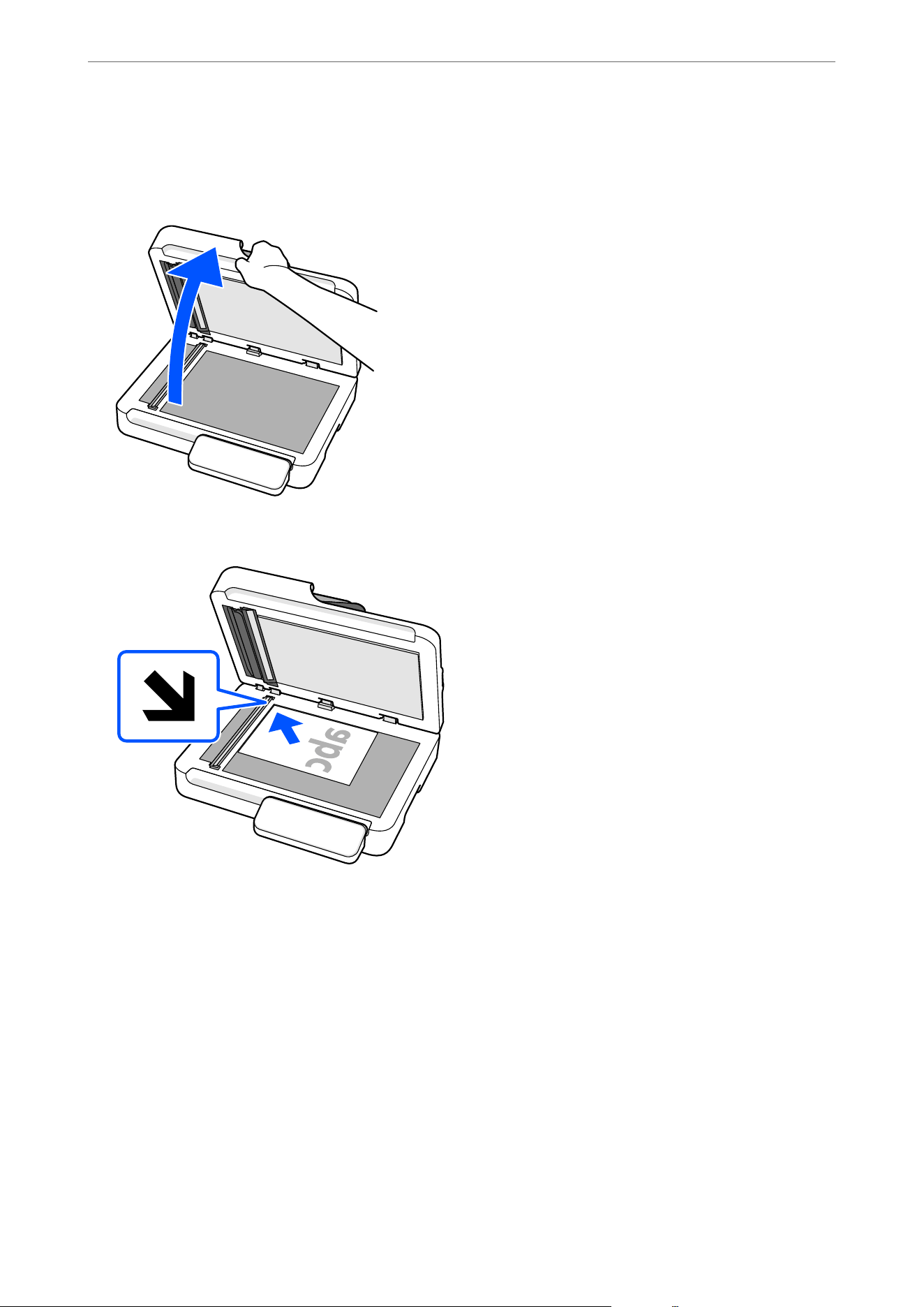
Placing an Original
1. Open the document cover.
2. Place the original face-down and align it with the corner.
Note:
O e maximum size of the original you can scan is 215.9×297.1 mm (8.5×11.7 in.).
O ere are areas at the top, bottom, le, and right edges of the scanner glass that cannot be scanned.
O Top: 1.5 mm (0.06 in.)
O
Le:
1.5 mm (0.06 in.)
O Right: 8 mm (0.31 in.)
O Bottom: 15 mm (0.59 in.)
Specications and Placing of Originals
>
Placing Originals on the Scanner Glass
>
Placing an Original
35
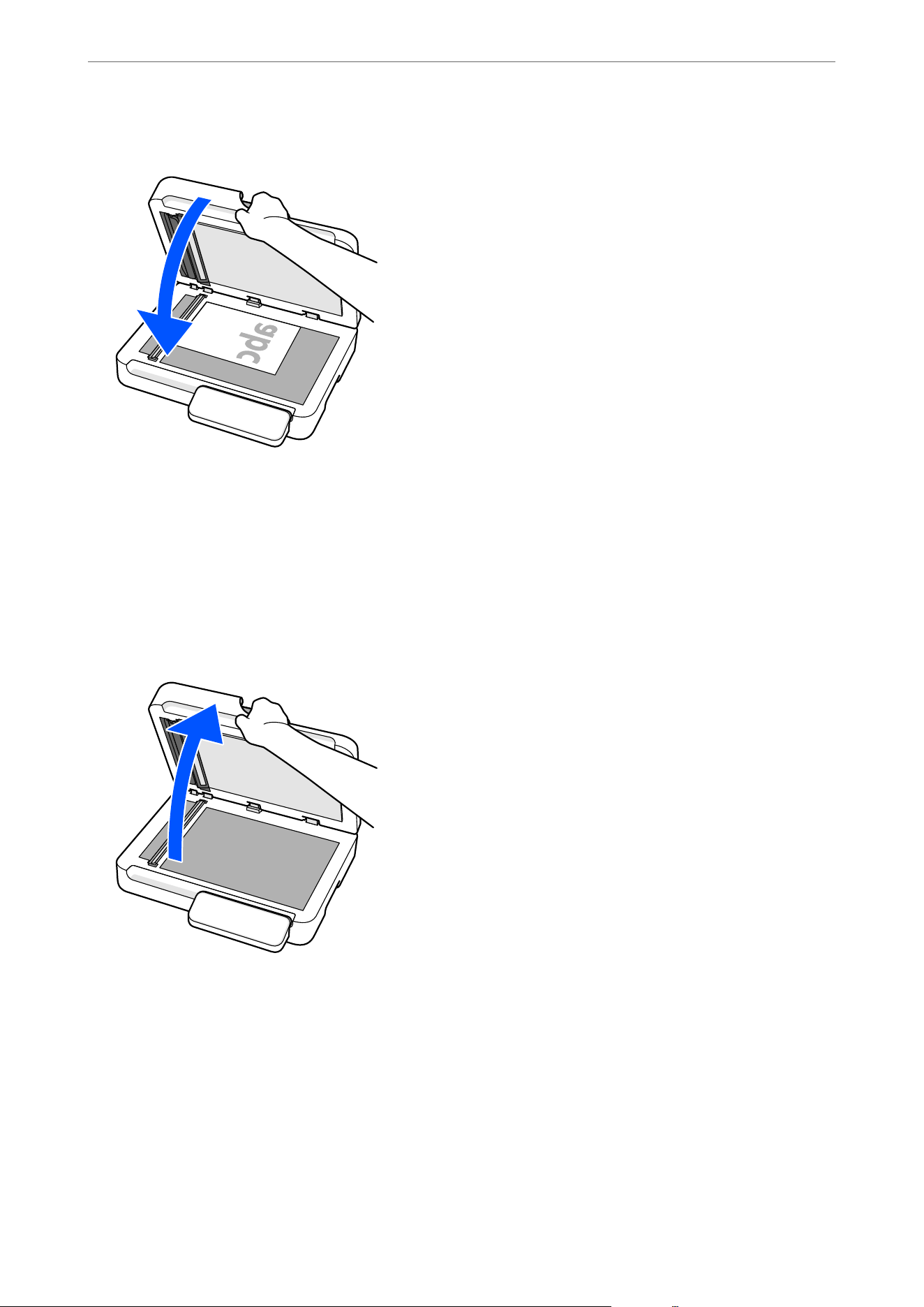
3. Close the document cover gently so that your original does not move.
Placing Thick Originals
e scanner glass can accommodate originals up to 30 mm (1.18 in.) thick.
Note:
When scanning thick originals such as books, make sure that exterior light, such as from lamps or other sources, does not
shine directly onto the scanner glass. Scanned images may contain noise or automatic document size detection may fail.
1.
Open the document cover.
Specications and Placing of Originals
>
Placing Originals on the Scanner Glass
>
Placing Thick Originals
36
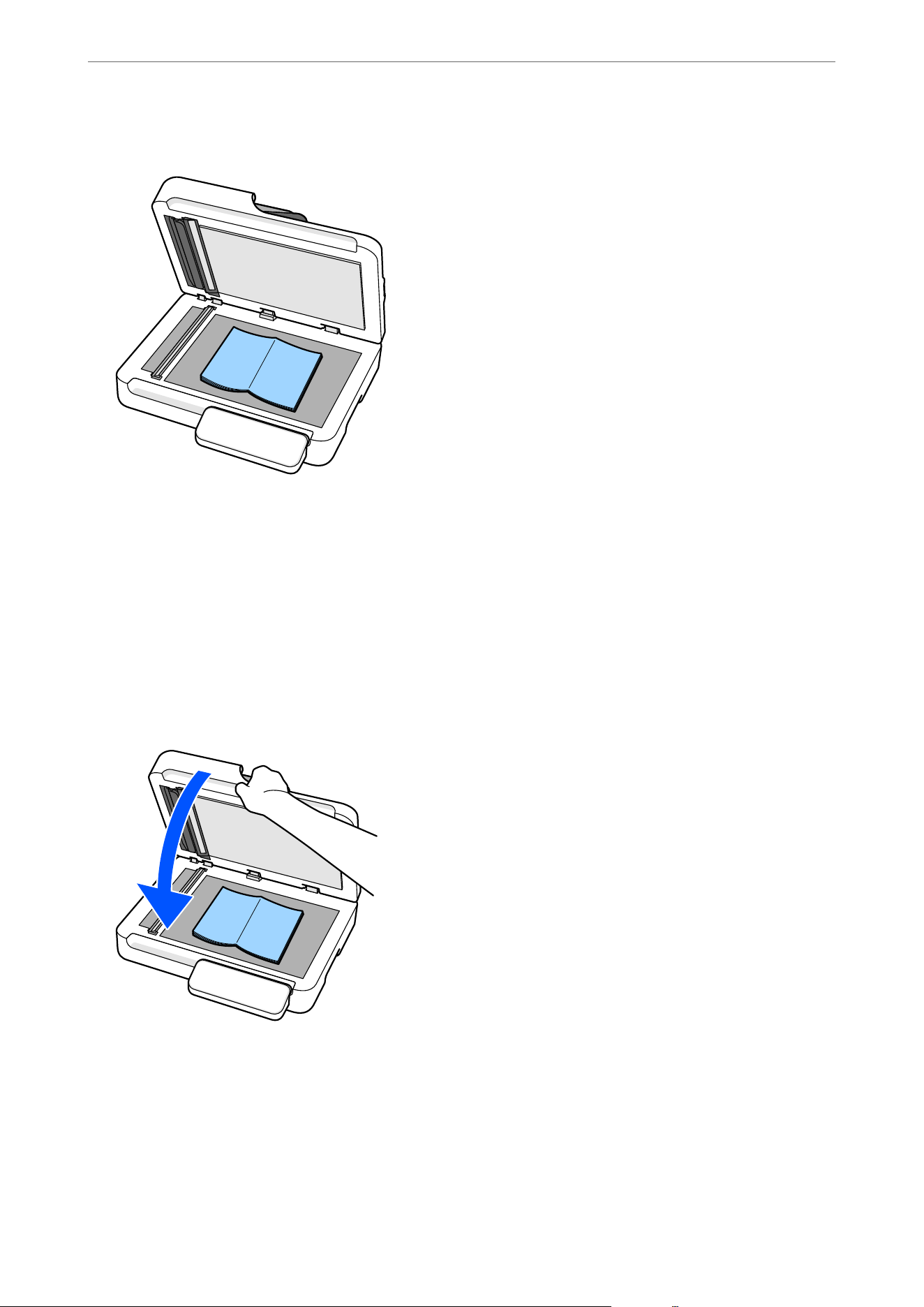
2. Place the original face down in the center of the scanner glass.
Note:
O e maximum size of the original you can scan is 215.9×297.1 mm (8.5×11.7 in.).
O ere are areas at the top, bottom, le, and right edges of the scanner glass that cannot be scanned.
O Top: 1.5 mm (0.06 in.)
O
Le:
1.5 mm (0.06 in.)
O Right: 8 mm (0.31 in.)
O Bottom: 15 mm (0.59 in.)
3. Close the document cover gently so that your original does not move.
Specications and Placing of Originals
>
Placing Originals on the Scanner Glass
>
Placing Thick Originals
37
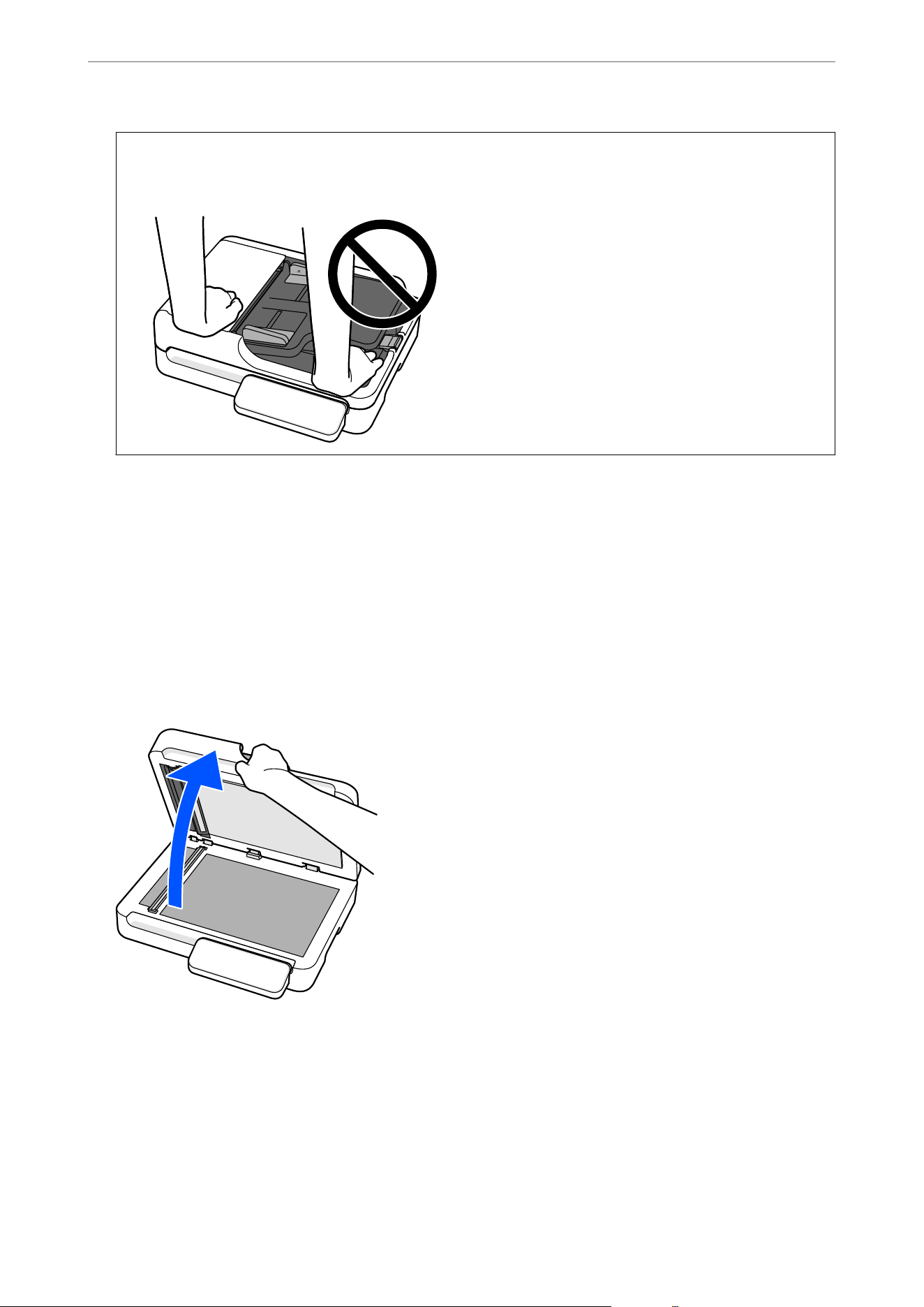
c
Important:
Do not press too hard on the scanner glass. Otherwise, the scanner may be damaged.
Placing Multiple Originals at Once
When scanning from the scanner glass, you can scan multiple originals at once without having to scan them
one by one.
ey
are automatically cropped into separate images and saved.
is
feature supports not only
standard-sized originals but also irregularly shaped items such as receipts, invoices, and photos of various sizes.
Note:
When scanning thick originals, make sure that exterior light, such as from lamps or other sources, does not shine directly
onto the scanner glass. Auto image cropping may fail.
1. Open the document cover.
2. Place each original face down on the scanner glass. Place the originals so that they meet the following
requirements.
O Keep each original away from the edges of the scanner glass by the following distances:
O Top: 6 mm (0.24 in.)
O
Le:
6 mm (0.24 in.)
O Right: 12 mm (0.47 in.)
O Bottom: 20 mm (0.79 in.)
Specications and Placing of Originals
>
Placing Originals on the Scanner Glass
>
Placing Multiple Ori
…
38
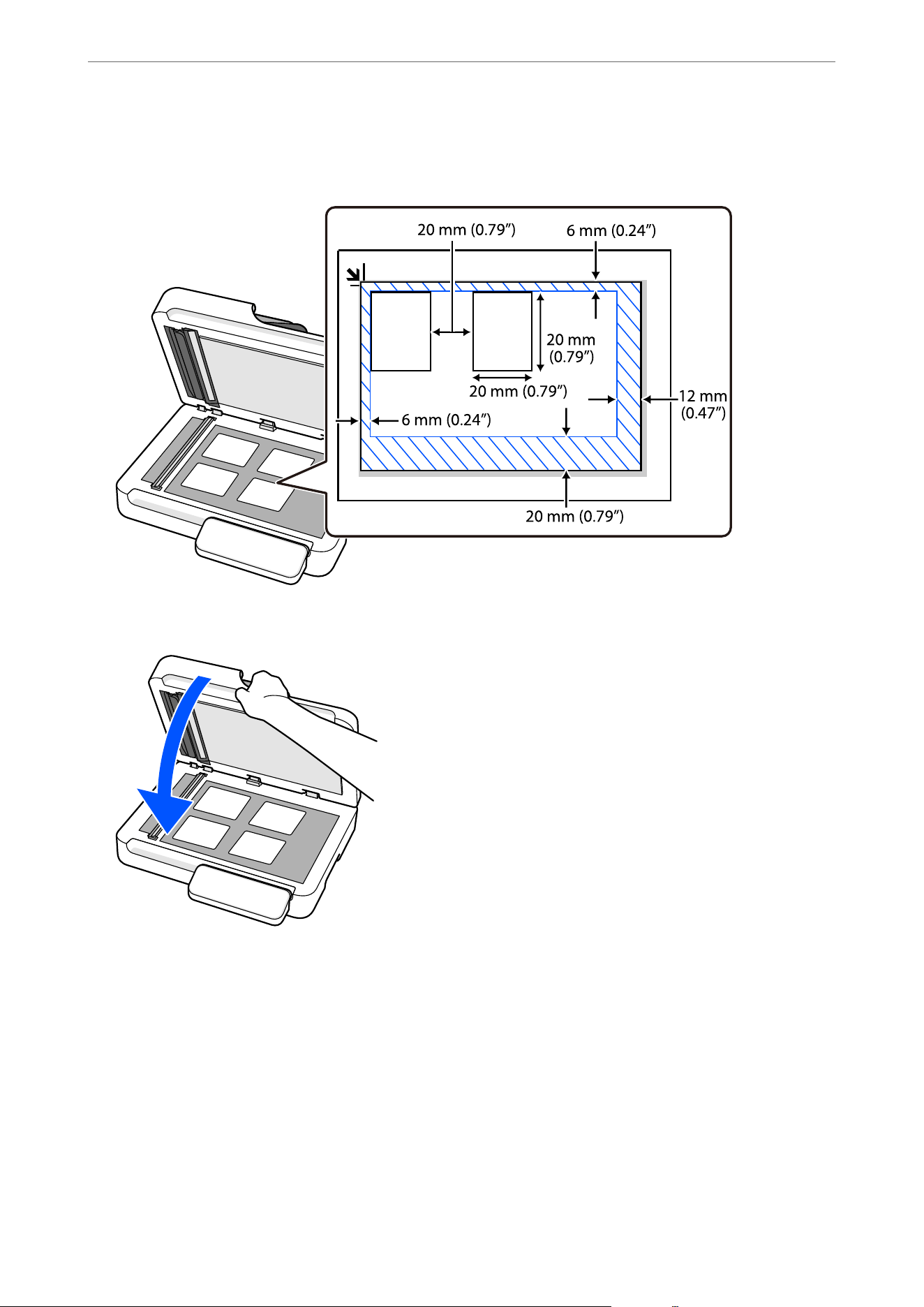
O Leave a gap of at least 20 mm (0.79 in.) between each original.
O e originals must be at least 20×20 mm (0.79×0.79 in.) in size.
3. Close the document cover gently so that your original does not move.
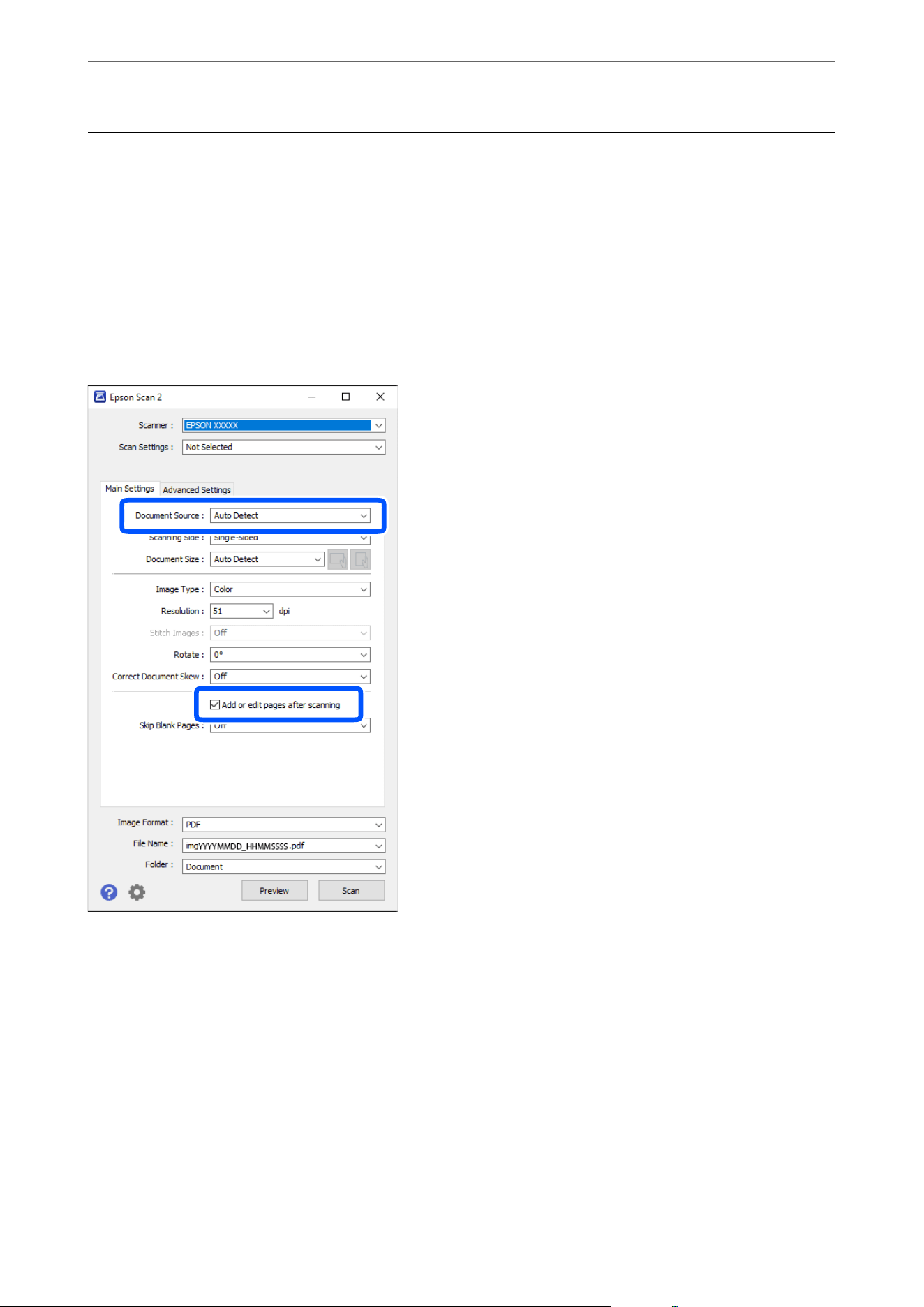
When scanning, set Document Size to Auto Detect in the Scan Settings.
O When using Document Capture Pro/Document Capture: Set Document Size to Auto Detect on the Scan
Settings screen.
O When using Epson Scan 2: In Main Settings, set Document Size to Auto Detect. When previewing, the entire
scannable area is displayed. We recommend scanning with Add or edit pages aer scanning selected and
checking the scanned image on the editing screen before saving.
Specications and Placing of Originals
>
Placing Originals on the Scanner Glass
>
Placing Multiple Ori
…
39
Using the ADF and Scanner Glass Together in a Single
Scan
When scanning from the ADF and the scanner glass in a single scan, complete the rst scan, and then scan the
additional originals from another document source.
When Using Epson Scan 2
Select Auto Detect from Document Source, and then select Add or edit pages aer scanning before starting the
scan.
When scanning is complete, the Add page screen is displayed. Place the next original and click Add to scan.
Note:
When there are originals in both the ADF and on the scanner glass, scanning from the ADF takes priority.
Specications and Placing of Originals
>
Using the ADF and Scanner Glass Together in a Single Scan
40
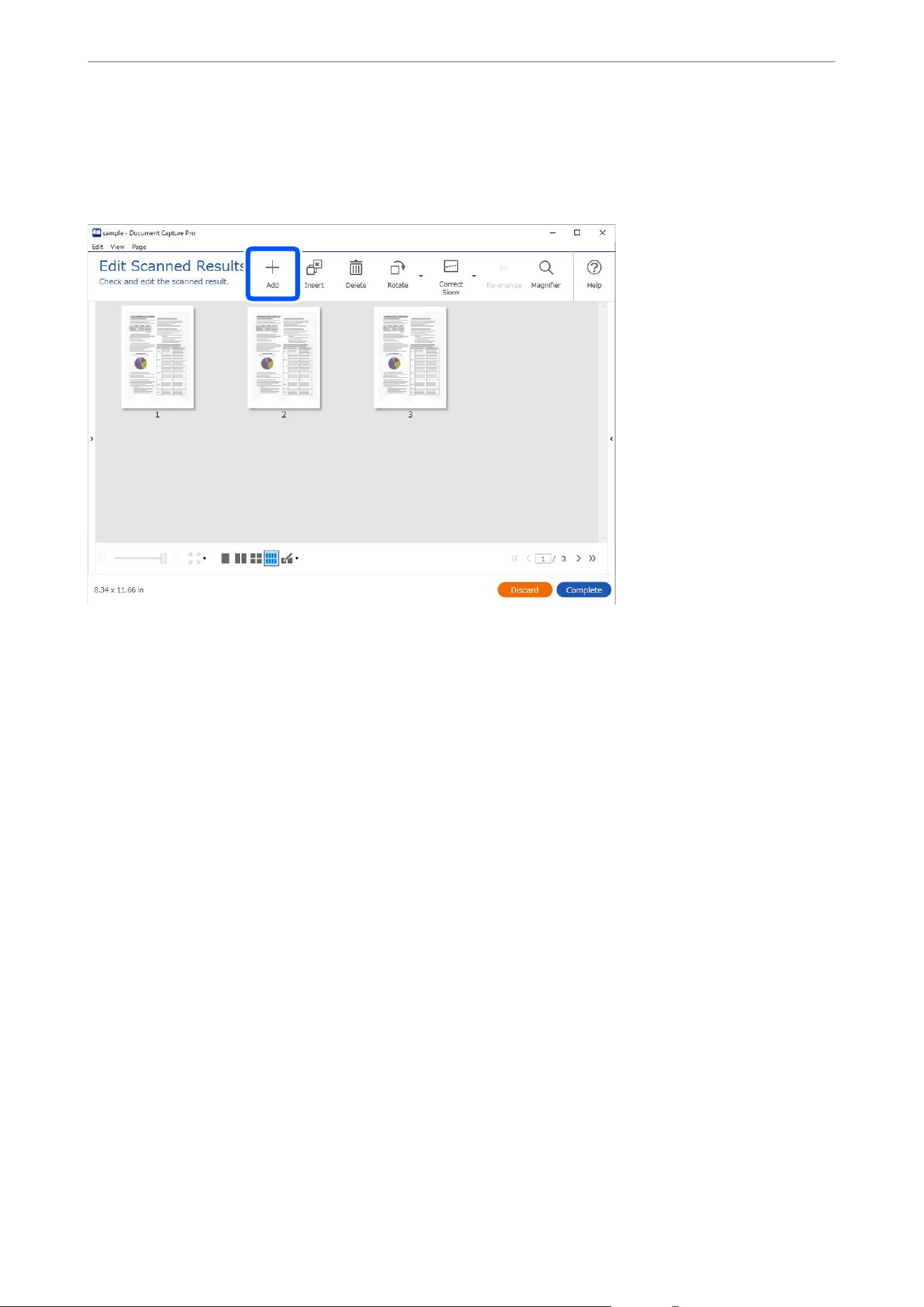
When Using Document Capture Pro
When scanning is complete and the Edit Scanned Results screen is displayed, place the next original and then
click the +Add button.
On the Scan Settings screen, select Source, and then click OK to start scanning.
Note:
O If the Edit Scanned Results screen is not displayed when scanning a job, select Show Edit Page dialog before saving on
the Save Settings screen from the job settings.
O You can also skip the Edit Scanned Results screen. On the Scan Settings screen, select Auto Detect from Source, and
then select Show the
conrmation
dialog
aer
scanning before starting the scan.
O When Auto Detect is selected and there are originals in both the ADF and on the scanner glass, scanning from the ADF
takes priority.
Specications and Placing of Originals
>
Using the ADF and Scanner Glass Together in a Single Scan
41


Scanning Using a Scanner Button
You can scan using the button on your scanner.
Note:
O Make sure that Epson Scan 2 is installed on your computer and the scanner is connected to your computer correctly.
O When Document Capture Pro (Windows) or Document Capture (Mac OS) is installed on your computer, you can assign
the job to a button on the scanner and run the job by pressing it.
1. Place the original.
2. Press the
x
button.
Note:
See the Document Capture Pro (Windows) or Document Capture (Mac OS) help for details on button assignments.
Related Information
&
“Setting a Job” on page 61
Scanning from a Computer
Scanning Using Document Capture Pro (Windows)
Document Capture Pro allows you to easily and eciently digitize originals and forms to suit your needs.
e following functions are available with Document Capture Pro.
O You can manage and perform a set of operations, such as scanning and saving, as a "job".
O You can congure a "job" to save scanned images in various formats (PDF/BMP/JPEG/JPEG2000/TIFF/Multi-
TIFF/PNG/DOCX/XLSX/PPTX).
O You can sort jobs automatically by inserting dividing paper between the originals or by using barcode
information on the originals.
O You can output scanning information or items necessary for the scanned content as index data.
O You can set multiple destinations.
O You can scan using simple operations without having to create a job.
By using these functions, you can digitize paper documents more eciently, such as scanning a large number of
documents or using them over a network.
Note:
O For detailed information on how to use Document Capture Pro, refer to the following URL:
https://support.epson.net/dcp/
O Document Capture Pro does not support Windows Server.
What is a Job Scan?
By registering a series of frequently used operations as a job, you can execute these operations by simply selecting
the job.
Scanning
>
Scanning from a Computer
>
Scanning Using Document Capture Pro (Windows)
43
By assigning a job to the scanner's button, you can also execute the job from the control panel.
Related Information
&
“Setting a Job” on page 61
Performing a Job Scan
is section explains the workow of scanning using an existing job.
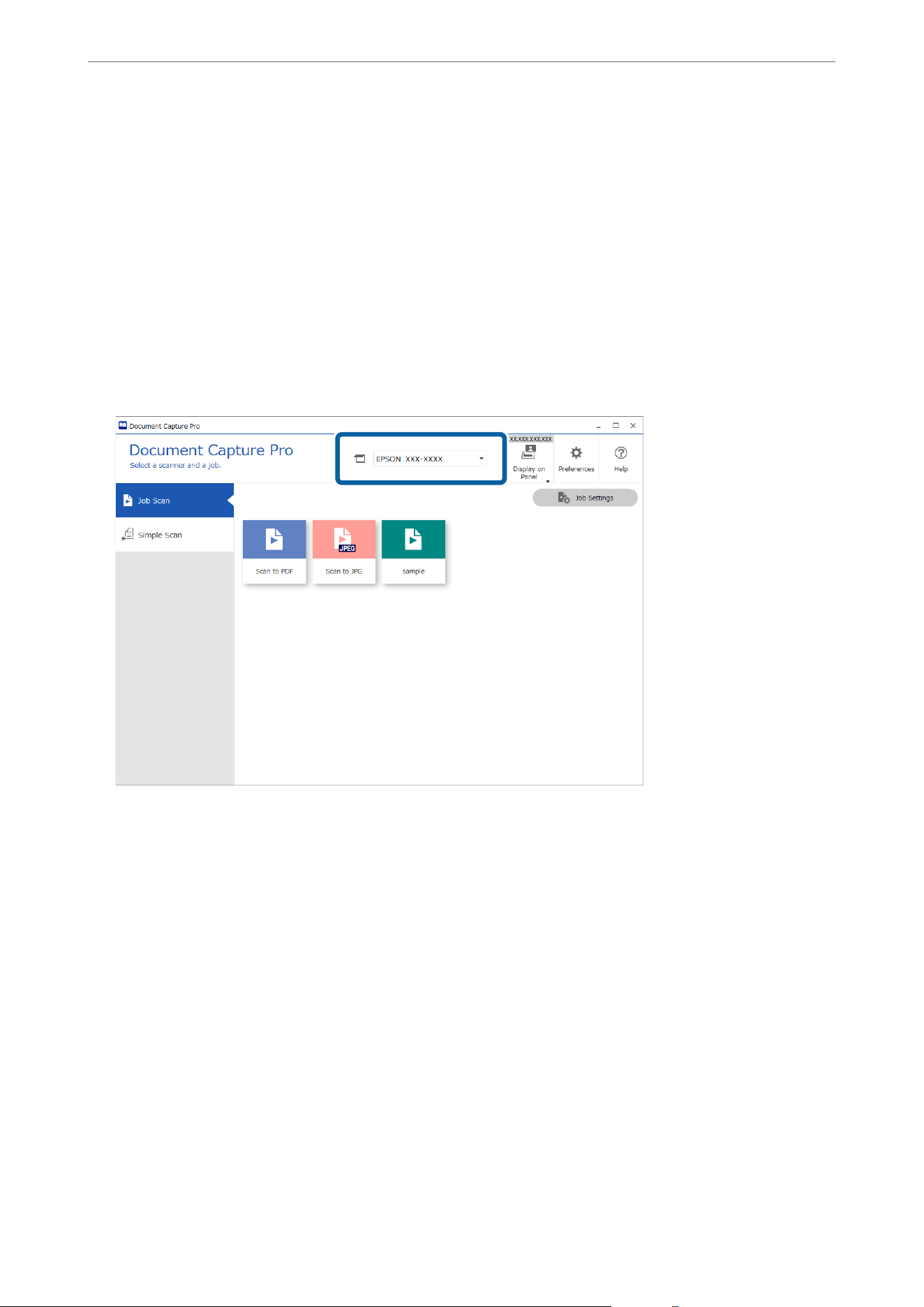
1. Select the scanner you want to use from the Document Capture Pro top screen. When you start the soware it
automatically connects to the last scanner you used.
Scanning
>
Scanning from a Computer
>
Scanning Using Document Capture Pro (Windows)
44
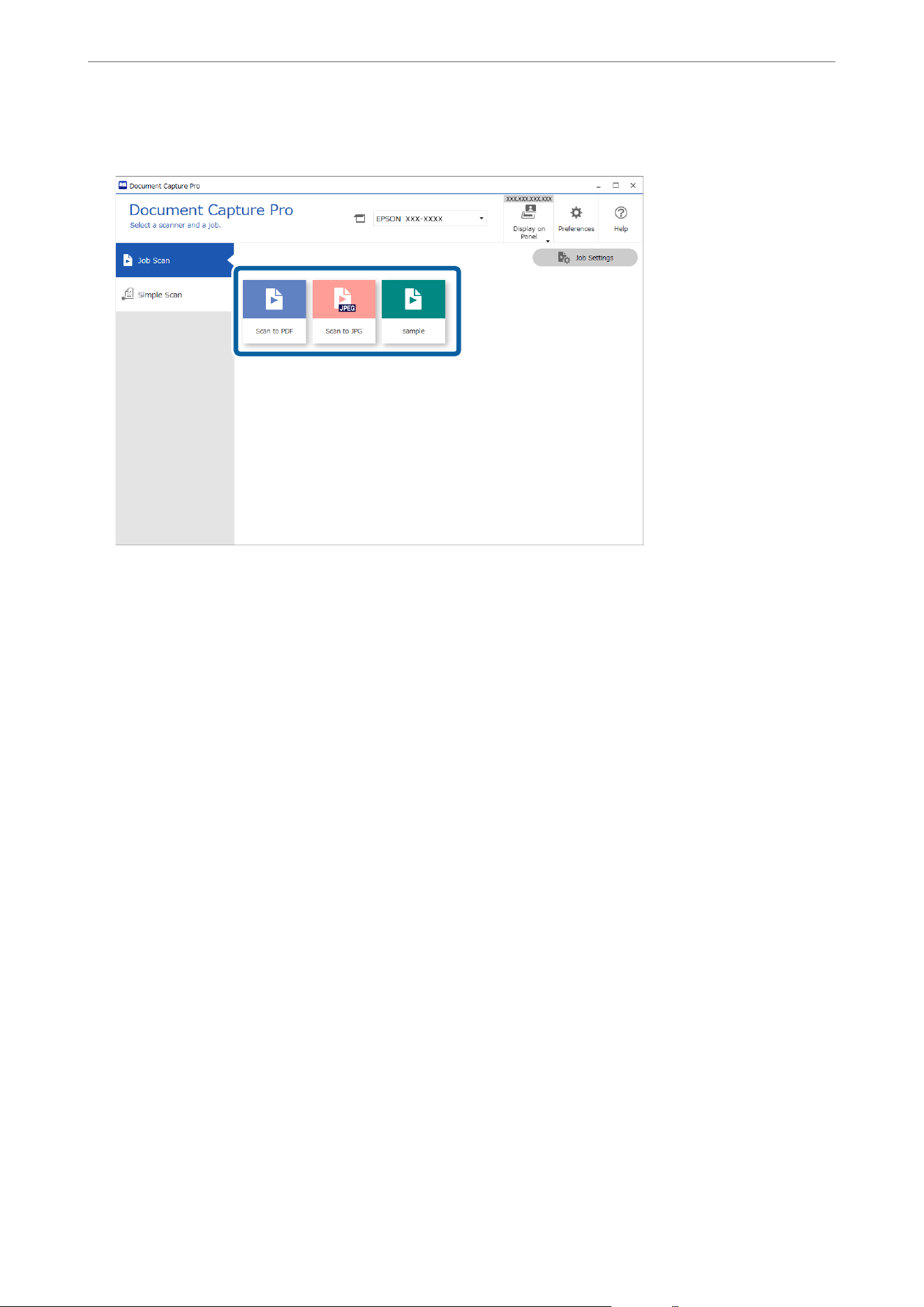
2. Click the Job Scan tab, and then click the icon of the job you want to perform.
e
selected job is performed.
When you perform a job for which Show the preview while scanning has been selected in the Scan Settings, a
preview screen is displayed while scanning.
3. If you execute a job that contains the following elements in the File Name Settings, Separation Settings, or
User-dened Index from Save Settings, and the elements are detected in the scanned page, the detection area is
displayed on the image as a marquee. Correct the recognition results manually if necessary, or change the area
and run the recognition again.
O OCR
O Barcode
O Form
O MRZ of a passport
Scanning
>
Scanning from a Computer
>
Scanning Using Document Capture Pro (Windows)
45
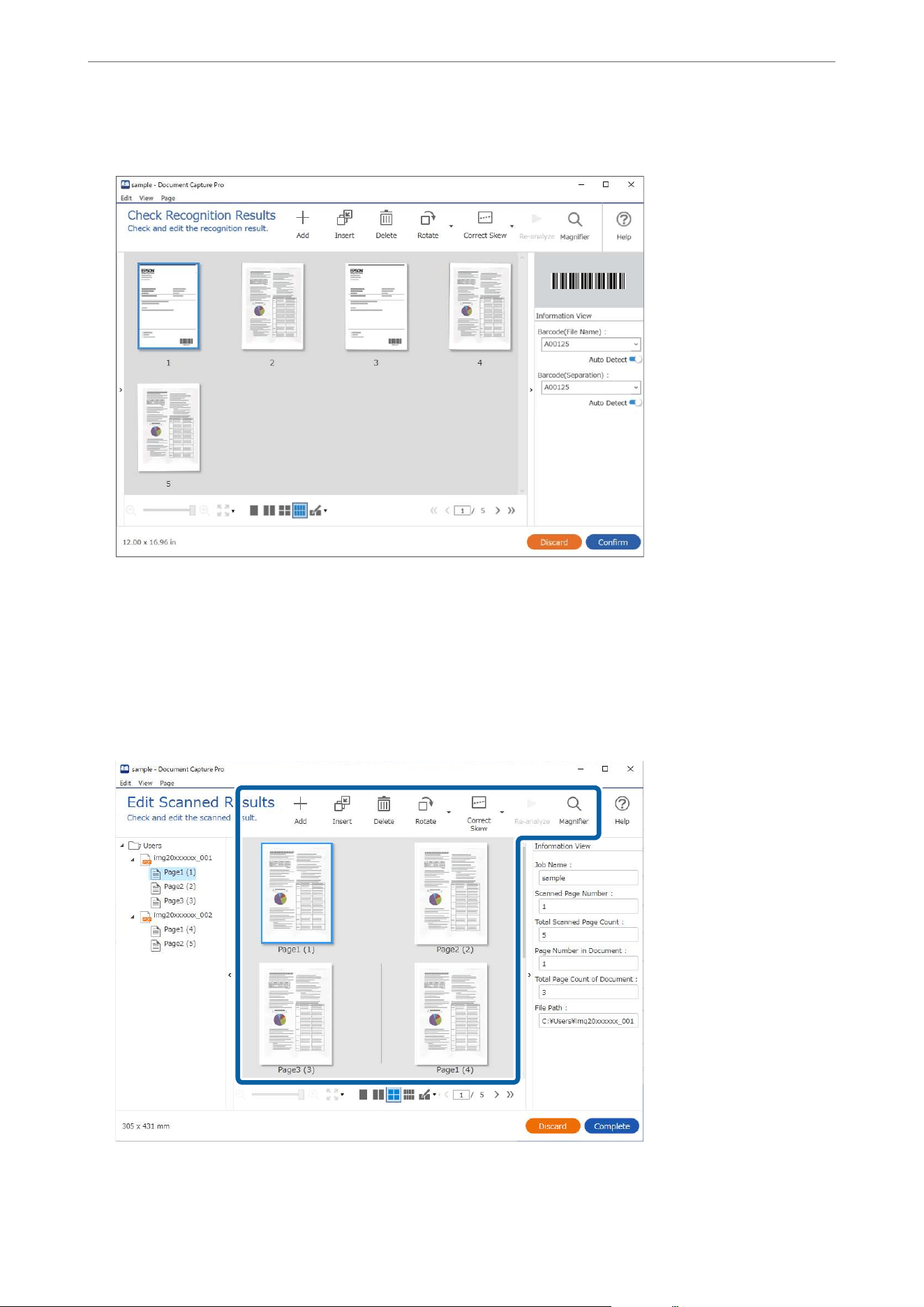
O MRZ of a travel document
4. For jobs for which Show Edit Page dialog before saving has been selected in the Scan Settings, check the scan
results on the Edit Scanned Results screen aer scanning, and then make edits as necessary.
You can check and edit the following on the Edit Scanned Results screen.
O Results of separation
O Scanned images
O Index data
Scanning
>
Scanning from a Computer
>
Scanning Using Document Capture Pro (Windows)
46
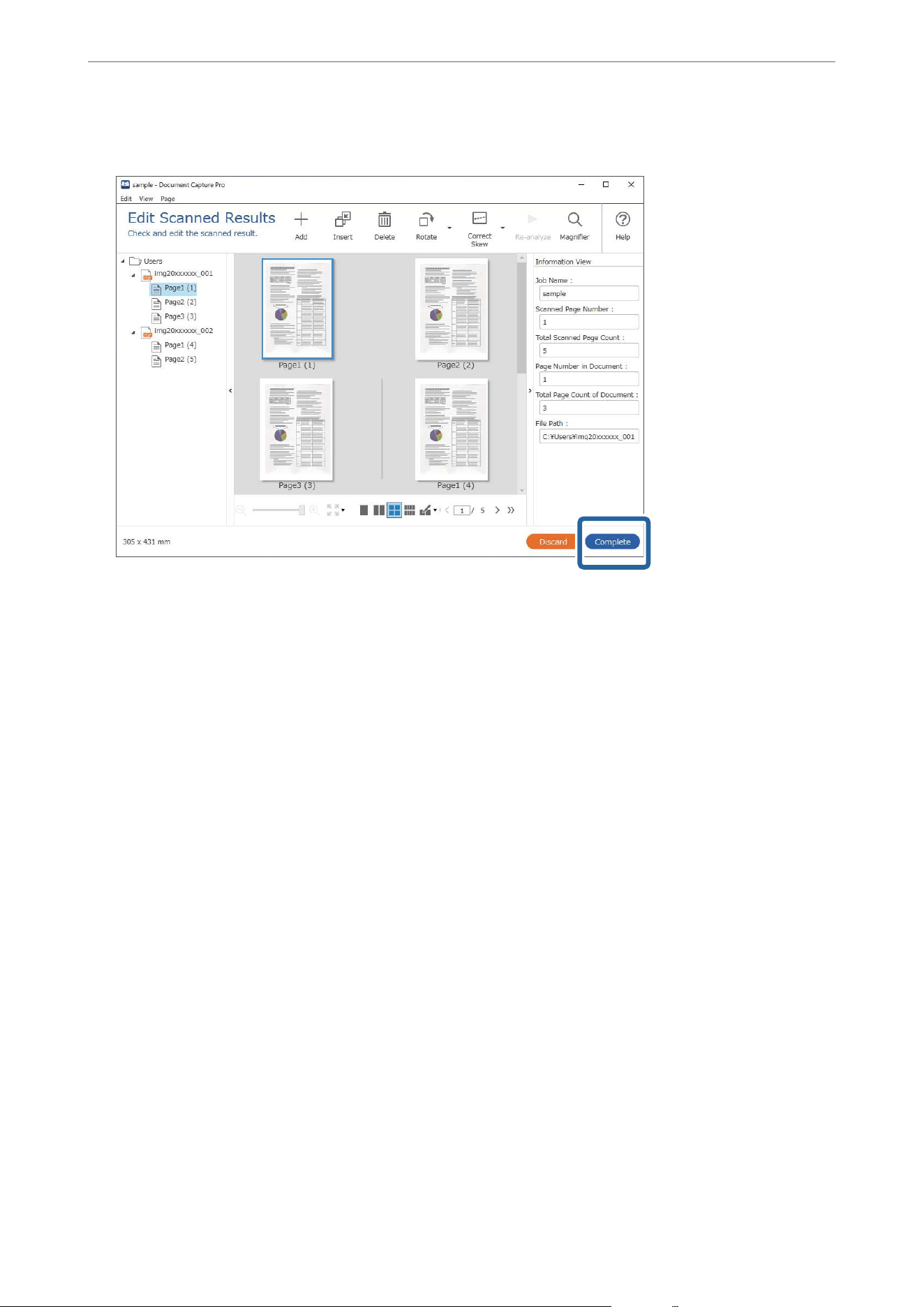
5. Click Complete to nish performing the Job Scan.
What is a Simple Scan?
You can scan documents without creating a job. Check the results aer scanning, and then save or set the
destination.
By assigning Simple Scan Settings to the scanner's button, you can also execute the Simple Scan from the control
panel.
Performing a Simple Scan
is section explains the workow of scanning without using a job.
Scanning
>
Scanning from a Computer
>
Scanning Using Document Capture Pro (Windows)
47
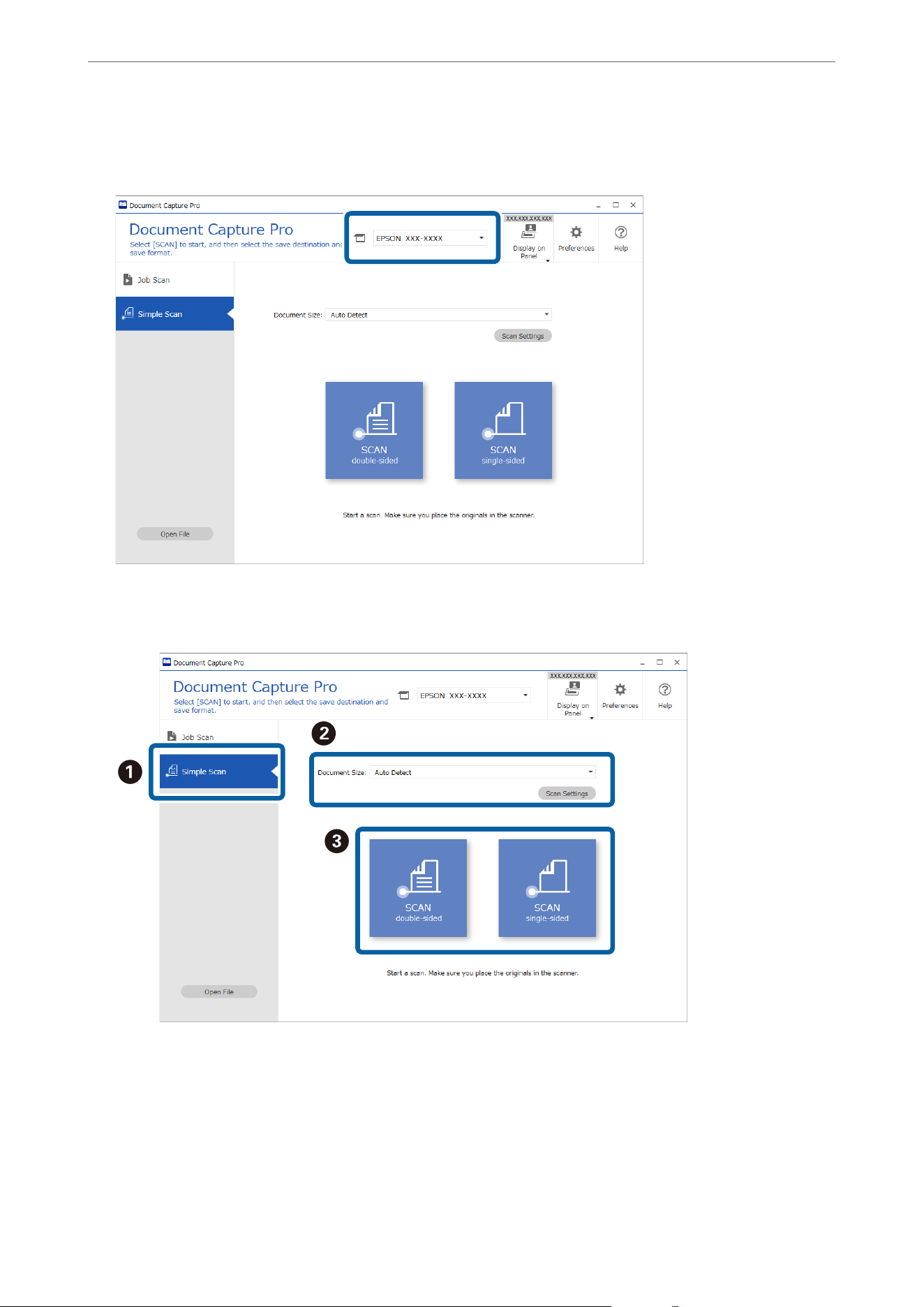
1. Select the scanner you want to use from the Document Capture Pro top screen. When you start the soware it
automatically connects to the last scanner you used.
2.
Click the Simple Scan tab, select Document Size, and then click the SCANdouble-sided or SCANsingle-
sided icon.
Note:
Click Scan Settings to set the resolution. You can make more detailed settings from Epson Scan 2.
e image being scanned is displayed.
Scanning
>
Scanning from a Computer
>
Scanning Using Document Capture Pro (Windows)
48
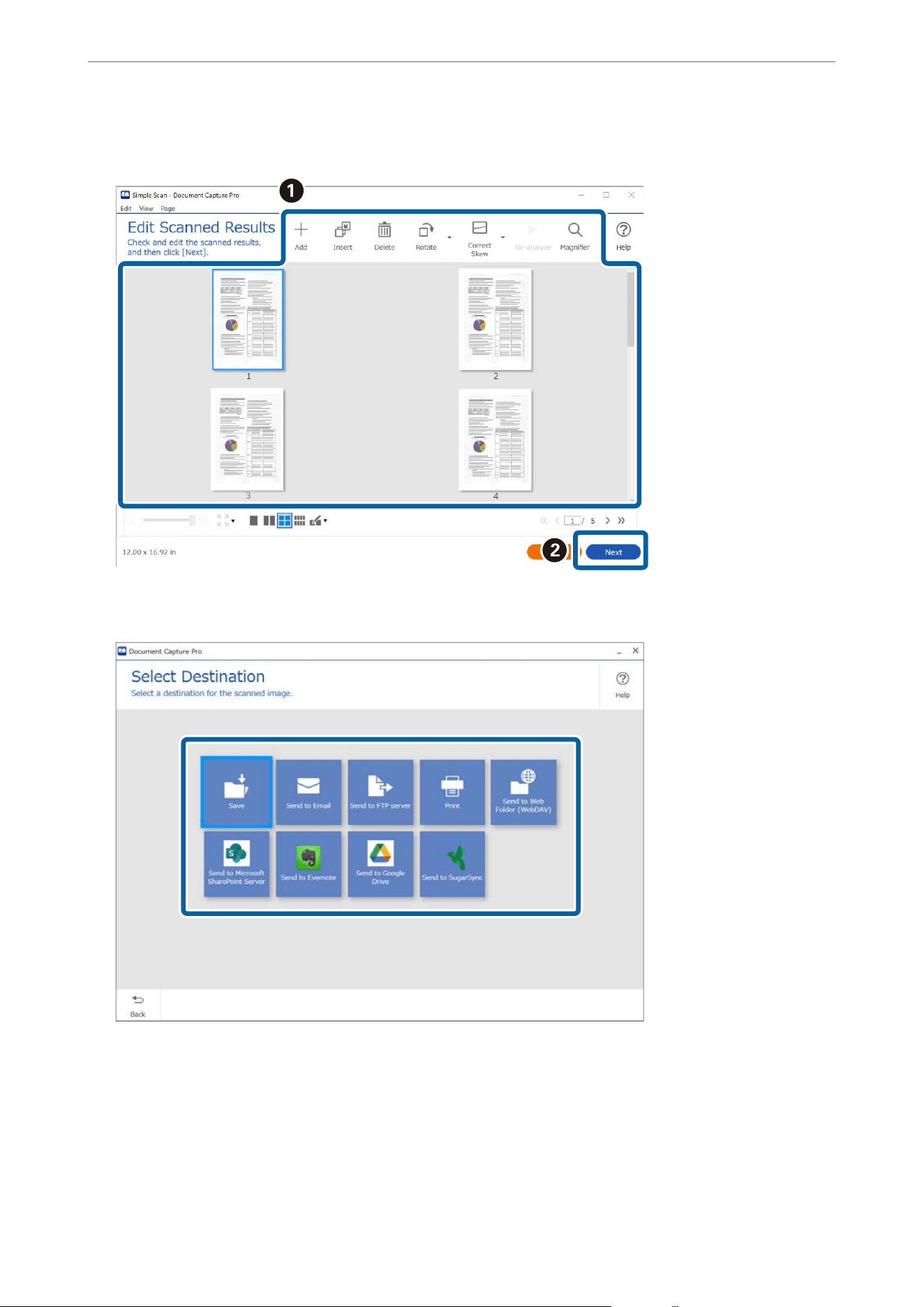
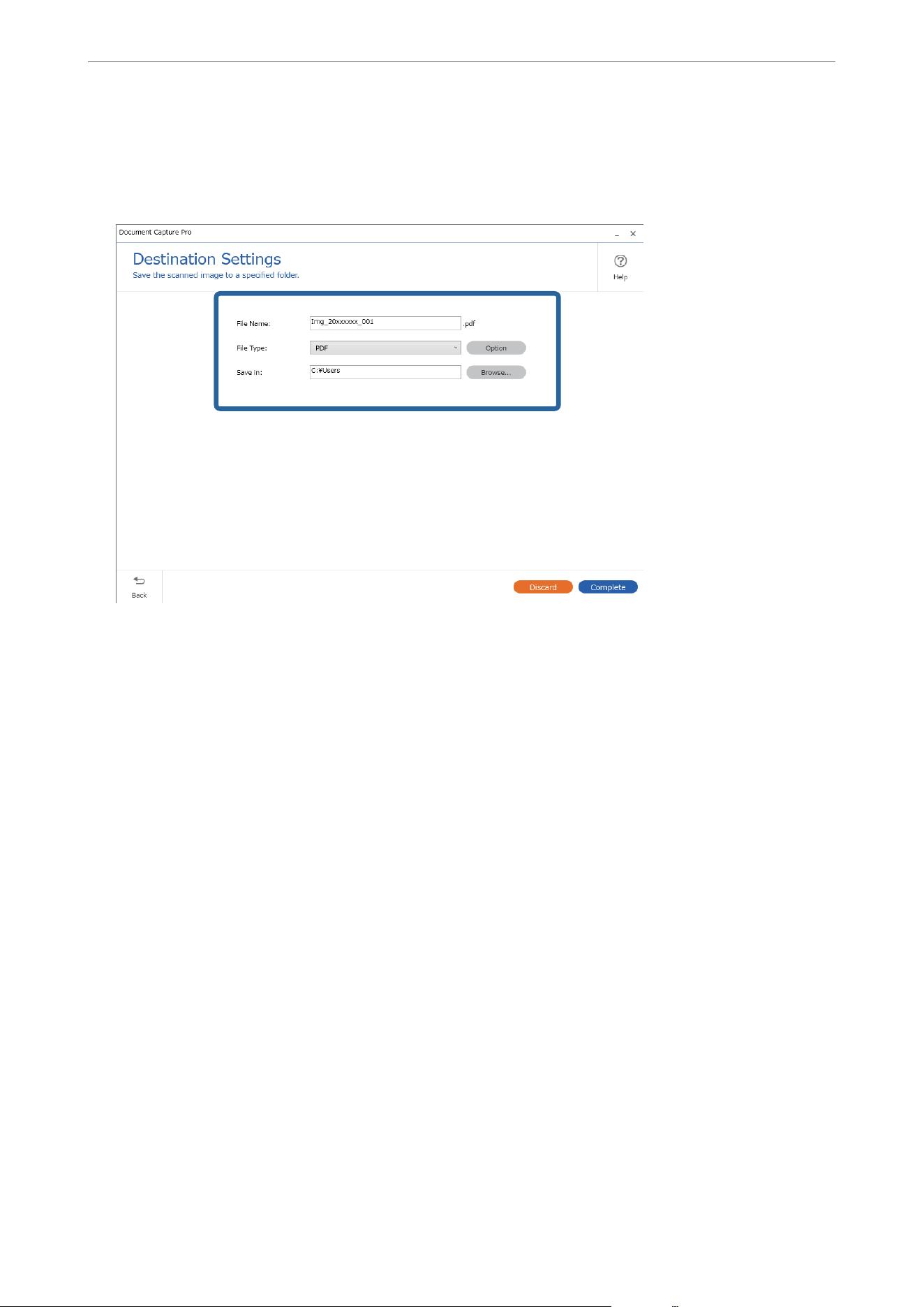
5. Set the le you want to save and the save format on the Destination Settings screen. You can also make more
detailed settings according to the destination.
Displayed items depend on the destination. e following screen is displayed when Save is selected.
6. Click Complete to
nish
performing the Simple Scan.
Scanning Using Document Capture (Mac OS)
is application allows you to perform various tasks such as saving the image to your computer, sending it by
email, printing, and uploading to a server or a cloud service. You can also register scanning settings for a job to
simplify scanning operations.
See the Document Capture help for details on the features.
Note:
Do not use the Fast User Switching function while using your scanner.
Scanning
>
Scanning from a Computer
>
Scanning Using Document Capture (Mac OS)
50
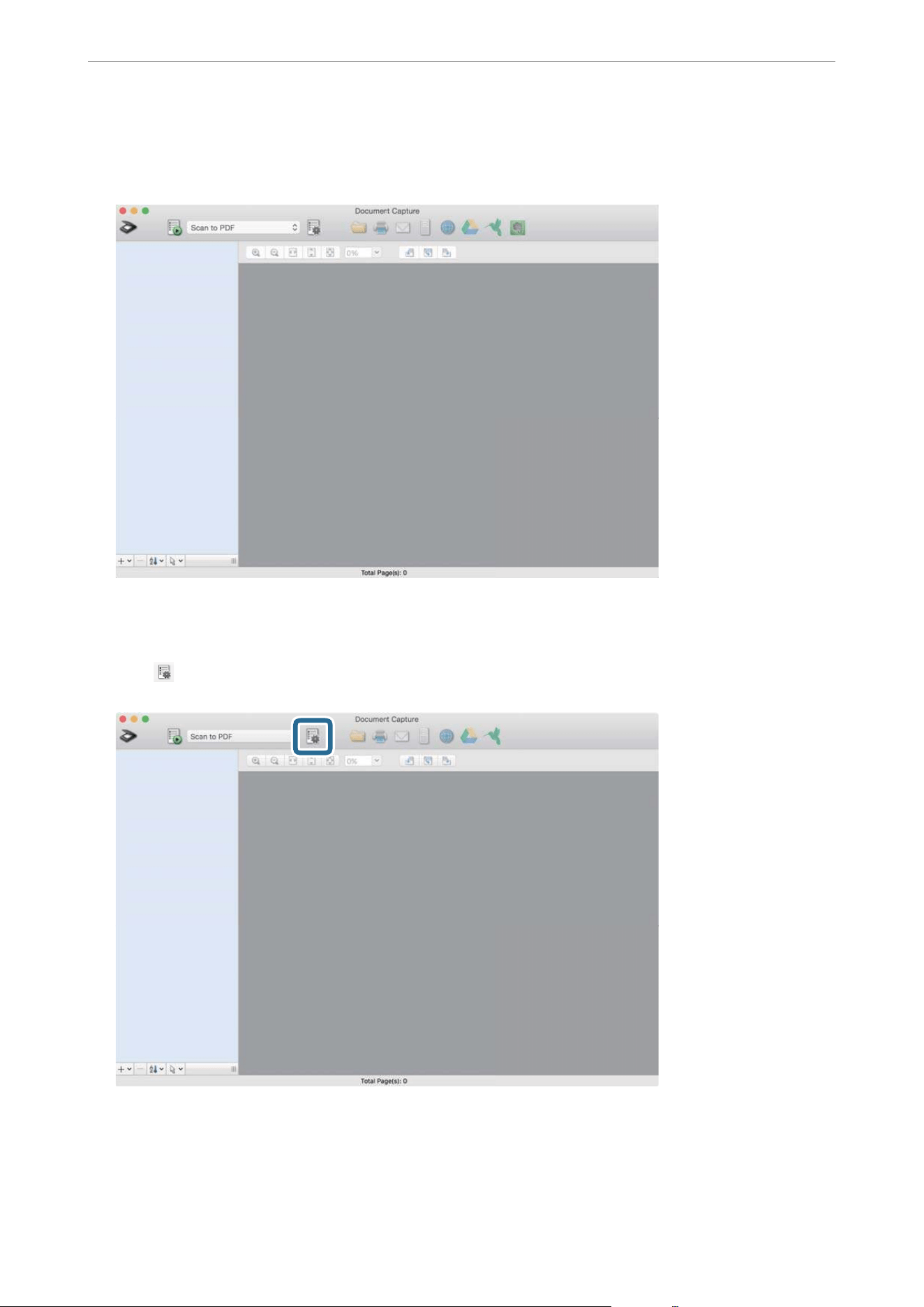
1. Start Document Capture.
Select Finder > Go > Applications > Epson Soware > Document Capture.
Note:
You may need to select the scanner you want to use from the scanners list.
2. Click .
e Job List screen is displayed.
Note:
A preset job is available that allows you to save scanned images as a PDF. When using this job, skip this procedure and
go to procedure 10.
Scanning
>
Scanning from a Computer
>
Scanning Using Document Capture (Mac OS)
51
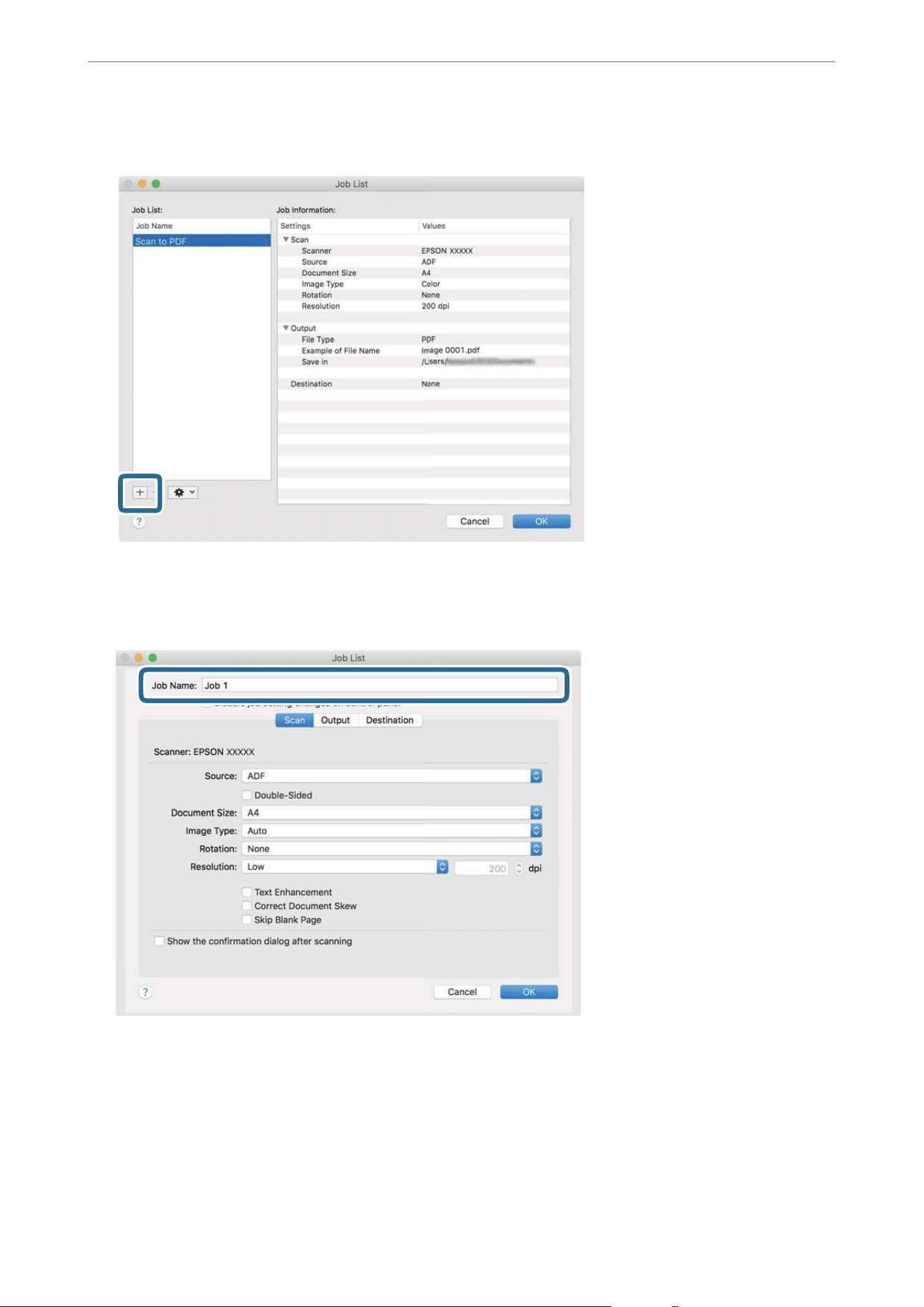
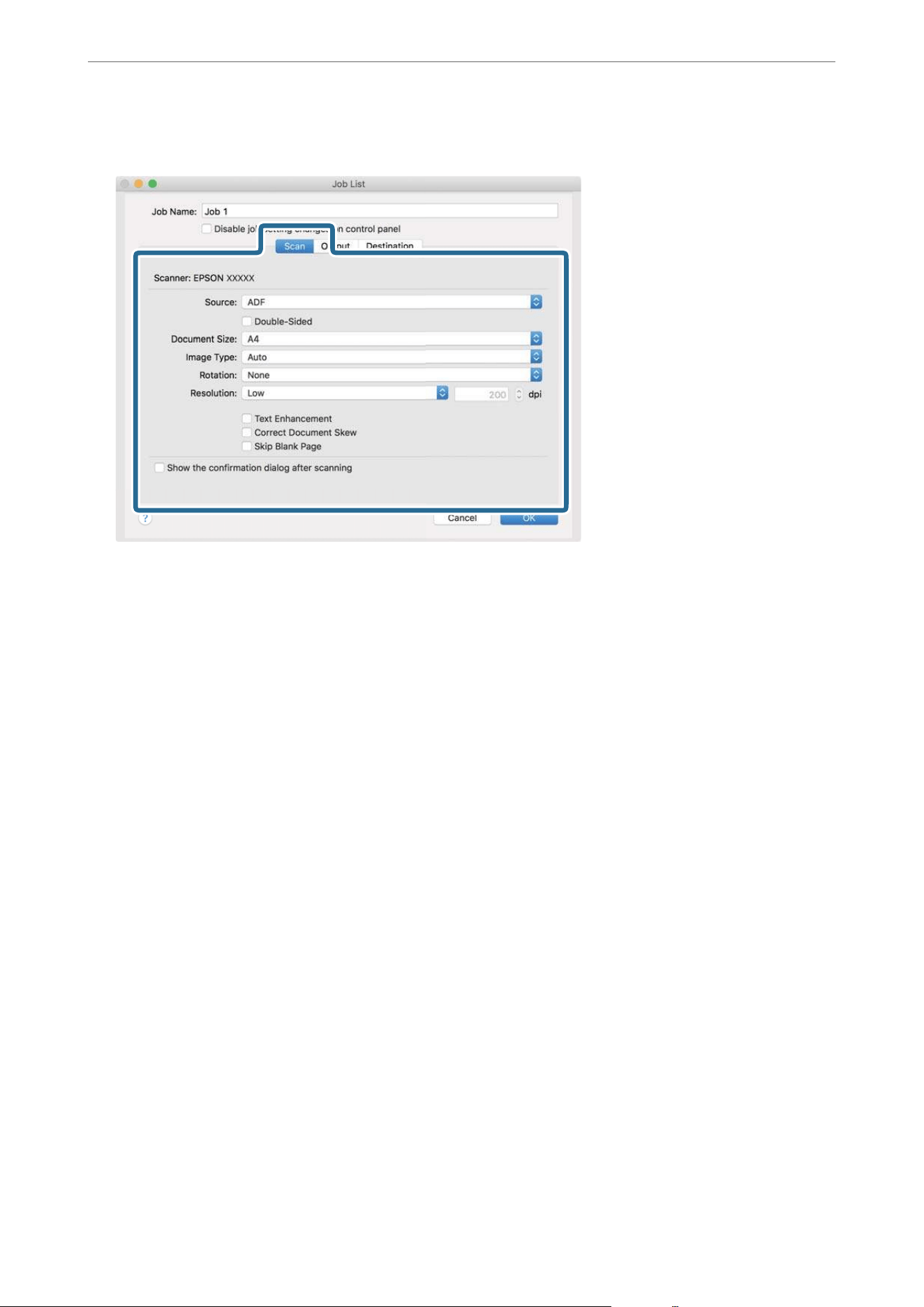
5. Make scanning settings on the Scan tab.
O Source: Select the source where the original is placed. Select double-sided to scan both sides of the
originals.
O Document Size: Select the size of the original you placed.
O Image Type: Select the color you want to use to save the scanned image.
O Rotation: Select the rotation angle depending on the original you want to scan.
O Resolution: Select the resolution.
Note:
You can also adjust the image using following items.
O Text Enhancement: Select to make blurred letters in the original clear and sharp.
O Correct Document Skew: Select to correct the slant of the original.
O Skip Blank Page: Select to skip blank pages if there are any in the originals.
Scanning
>
Scanning from a Computer
>
Scanning Using Document Capture (Mac OS)
53
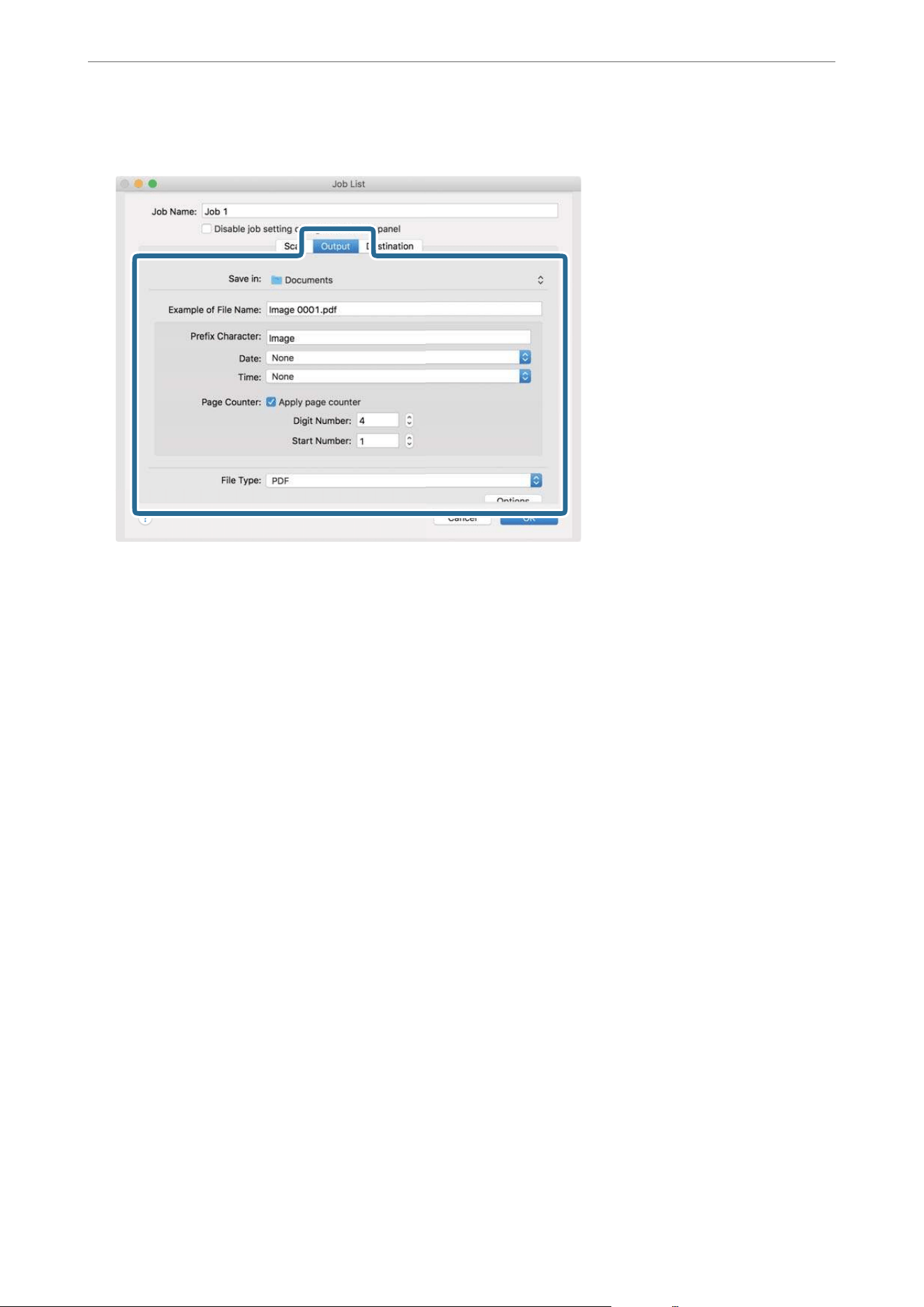
6. Click Output, and then make the output settings.
O Save in: Select the save folder for the scanned image.
O Example of File Name: Display an example of the
le
name for the current settings.
O Prex Character: Set a prex for the le name.
O Date: Add the date to the le name.
O Time: Add the time to the
le
name.
O Page Counter: Add the page counter to the le name.
O File Type: Select the save format from the list. Click Options to make detailed settings for the le.
Scanning
>
Scanning from a Computer
>
Scanning Using Document Capture (Mac OS)
54
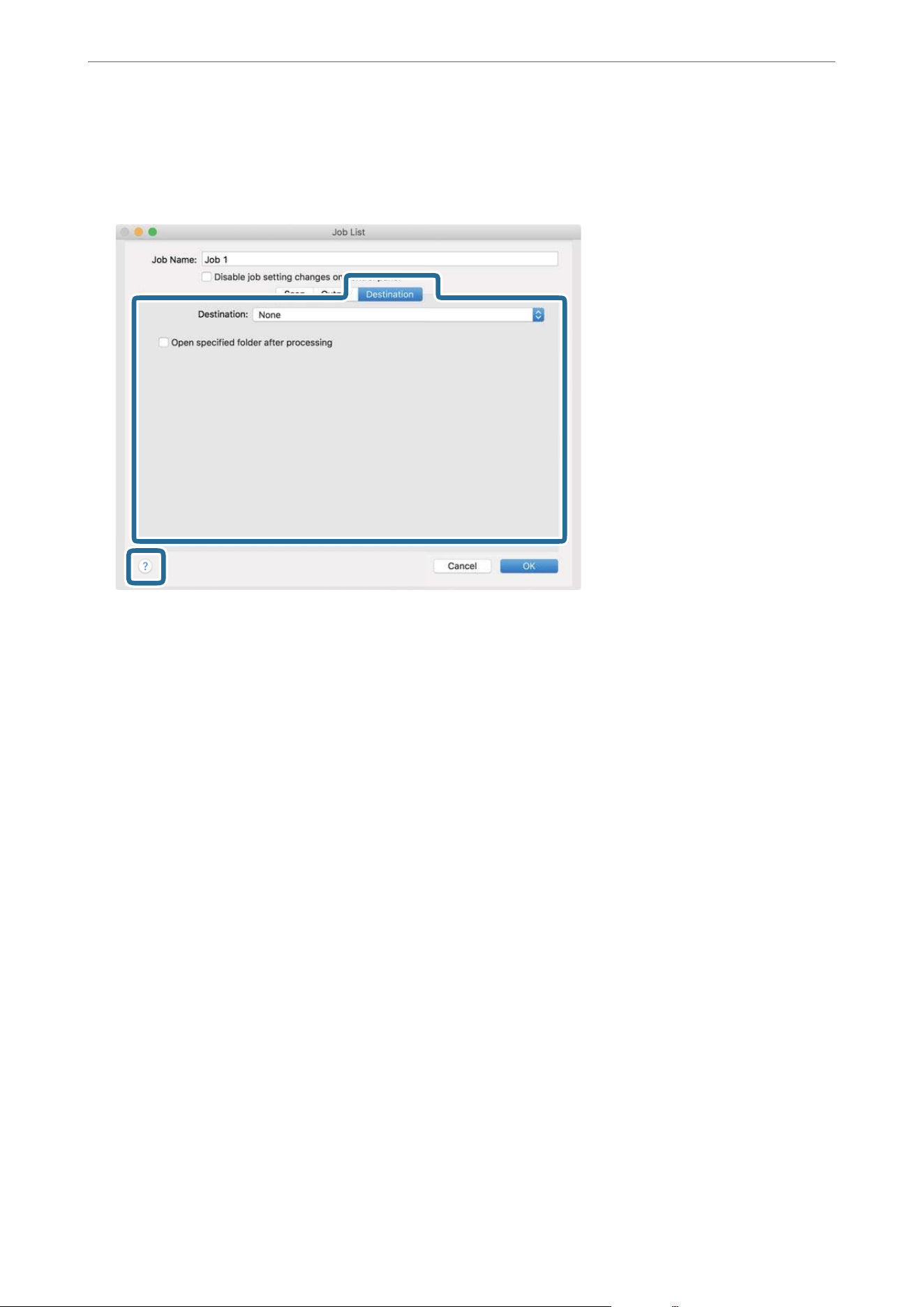
7. Click Destination, and then select the Destination.
Destination setting items are displayed according to the destination you selected. Make detailed settings as
necessary. Click the ? (Help) icon for details on each item.
Note:
O If you want to upload to a cloud service, you need to set up your account with the cloud service in advance.
O If you want to use Evernote as the destination, download the Evernote application from the Evernote Corporation
Website and install it before using this feature.
8. Click OK to close the job settings screen.
9.
Click OK to close the Job List screen.
10. Place the original.
Scanning
>
Scanning from a Computer
>
Scanning Using Document Capture (Mac OS)
55
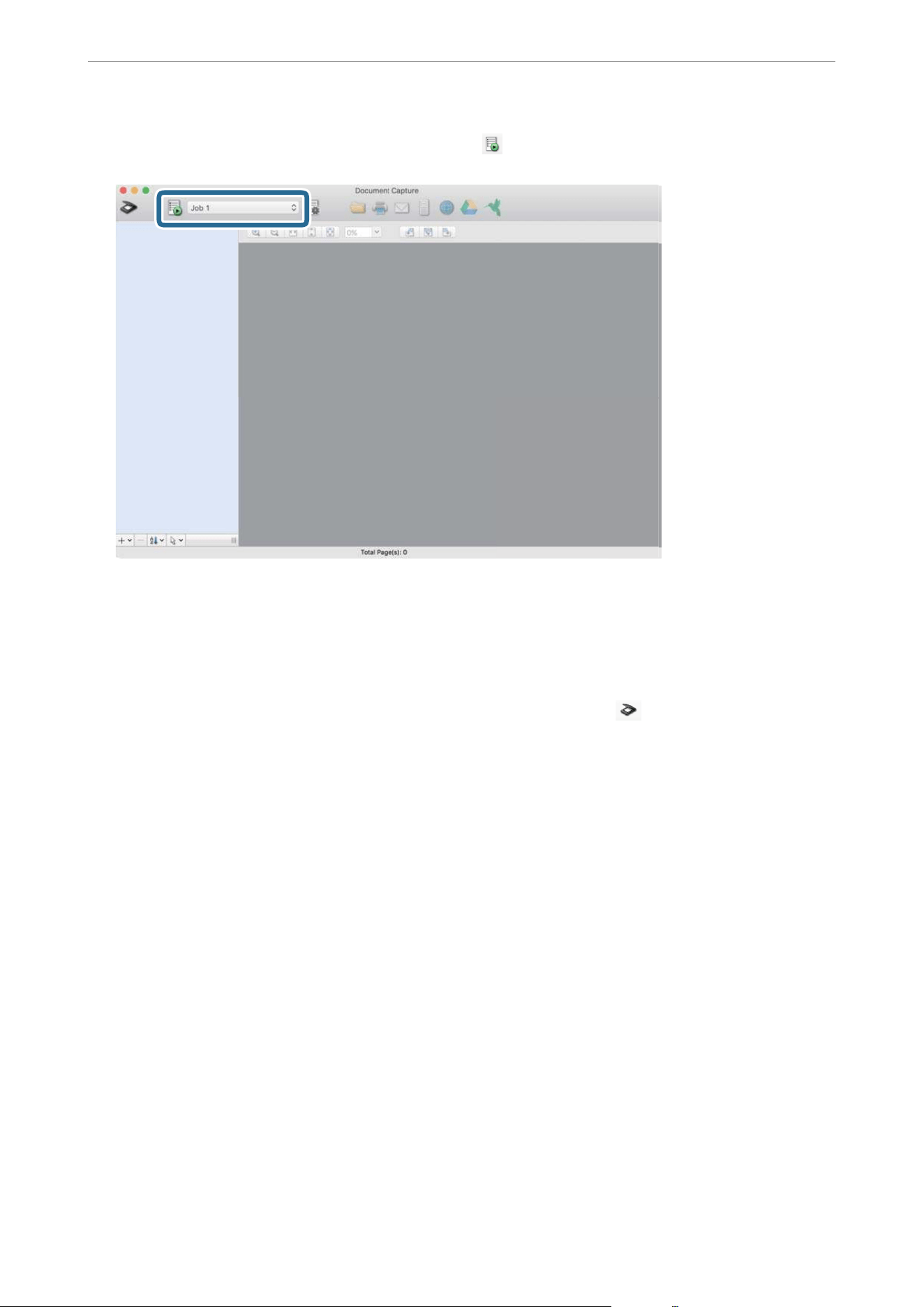
11. Select the job from the pull down list, and then click the icon.
e
selected job is performed.
12. Follow the on-screen instructions.
e scanned image is saved using the settings you made for the job.
Note:
You can scan the originals and send the scanned image without using the job. Click
and make scanning settings,
and then click Preview Scan. Next, click the destination to which you want to send the scanned image.
Scanning Using Epson Scan 2
You can scan the originals using detailed settings that are suitable for text documents.
1. Place the original.
2. Start Epson Scan 2.
O Windows 11
Click the start button, and then select All apps > EPSON > Epson Scan 2.
O Windows 10/Windows Server 2022/Windows Server 2019/Windows Server 2016
Click the start button, and then select EPSON > Epson Scan 2.
O Windows 8.1/Windows 8/Windows Server 2012 R2/Windows Server 2012
Enter the application name in the search charm, and then select the displayed icon.
O Windows 7/Windows Server 2008 R2/Windows Server 2008
Click the start button, and select All Programs or Programs > EPSON > Epson Scan 2 > Epson Scan 2.
O Mac OS
Select Go > Applications > Epson Soware > Epson Scan 2.
Scanning
>
Scanning from a Computer
>
Scanning Using Epson Scan 2
56
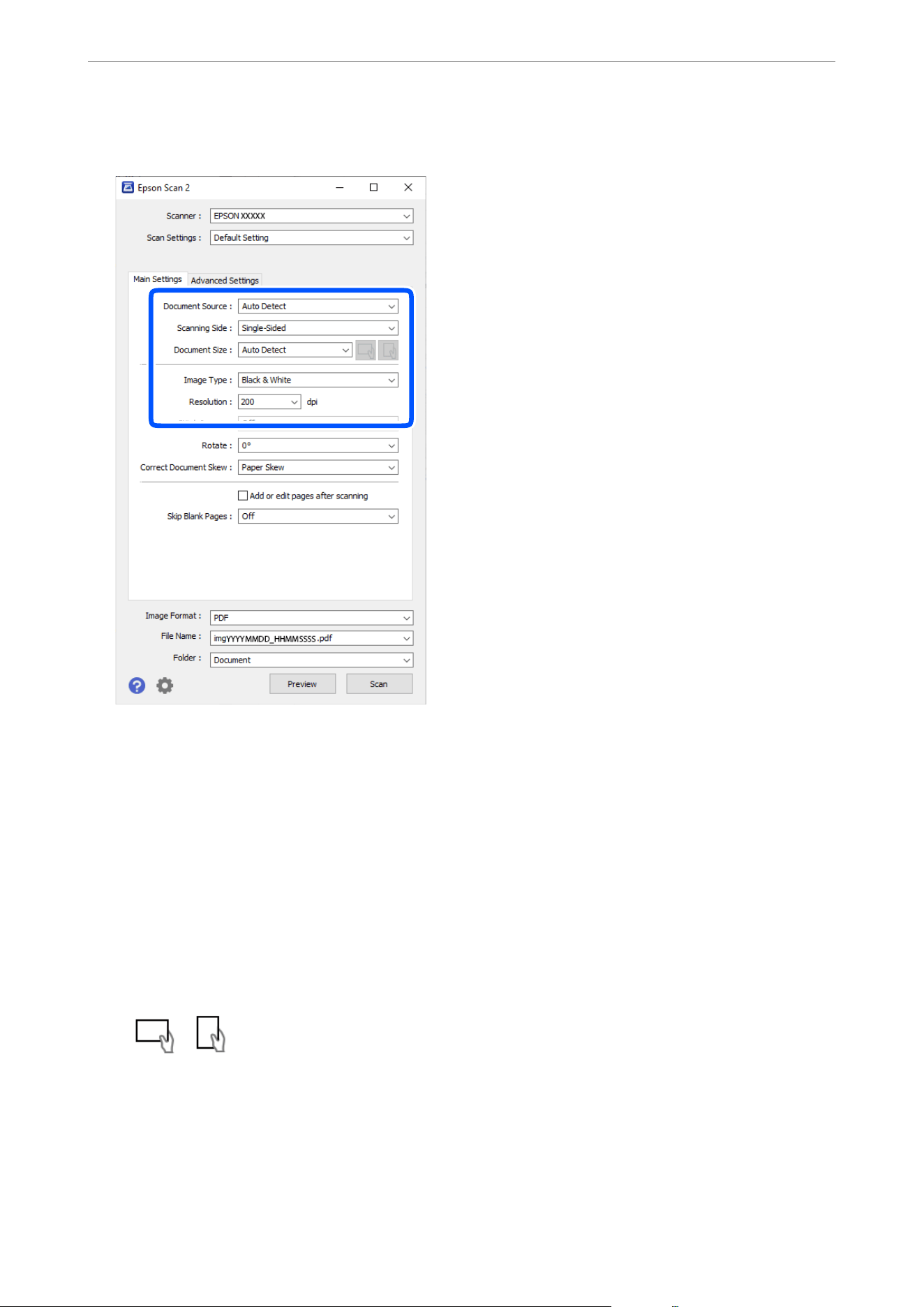
3. Make the following settings on the Main Settings tab.
O Document Source: Select the source where the original is placed. When Auto Detect is selected and there
are originals in both the ADF and on the scanner glass, scanning from the ADF takes priority.
O Scanning Side: Select the side of the original you want to scan when scanning from the ADF. Select
Double-Sided to scan both sides of the originals.
O Document Size: Select the size of the original you placed.
When loading originals with unconventional sizes, see the following to make the settings.
O When placing multiple originals on the scanner glass at once: Select Auto Detect.
O When loading long paper into the ADF: Select Auto Detect (Long Paper) or select Customize to create
a custom size.
O If the size of the original you want to scan is not on the list: Select Auto Detect or select Customize to
create a custom size.
O
/ (Original orientation) buttons: Select the set orientation of the original you placed.
Depending on the size of the original, this item may be set automatically and cannot be changed.
O Image Type: Select the color you want to use to save the scanned image.
O Resolution: Set the resolution.
Scanning
>
Scanning from a Computer
>
Scanning Using Epson Scan 2
57

Note:
On the Main Settings tab, you can also make the following settings.
O Stitch Images: Select to stitch the images on the front and back when scanning both sides of the original.
O Rotate: Select to rotate the original clockwise and scan it.
O Correct Document Skew: Select to correct the slant of the original.
O Add or edit pages aer scanning: Select to add dierent originals or edit (rotate, move, and delete) the scanned
pages aer scanning.
O Skip Blank Pages: Select to skip any blank pages in the originals when scanning from the ADF.
Some items may not be available depending on other settings you made.
4. Make other scan settings if necessary.
O You can preview the scanned image by clicking the Preview button. e preview window opens, and the
previewed image is displayed.
When you perform a preview using the ADF, the original is ejected from the ADF. Place the ejected
original again.
O On the Advanced Settings tab, you can make image adjustments using detailed settings which are suitable
for text documents, such as the following.
O Remove Background: Removes the background of the originals.
O Text Enhancement: You can make blurred letters in the original clear and sharp.
O Auto Area Segmentation: You can make letters clear and images smooth when performing black and
white scanning for a document that contains images.
O Dropout: You can remove the color specied for the scanned image, and then save it in grayscale or
black and white. For example, you can erase marks or notes you wrote in the margins with color pen
when scanning.
O Color Enhance: You can enhance the color specied for the scanned image, and then save it in grayscale
or black and white. For example, you can enhance letters or lines that are in light colors.
Note:
Some items may not be available depending on other settings you made.
Scanning
>
Scanning from a Computer
>
Scanning Using Epson Scan 2
58
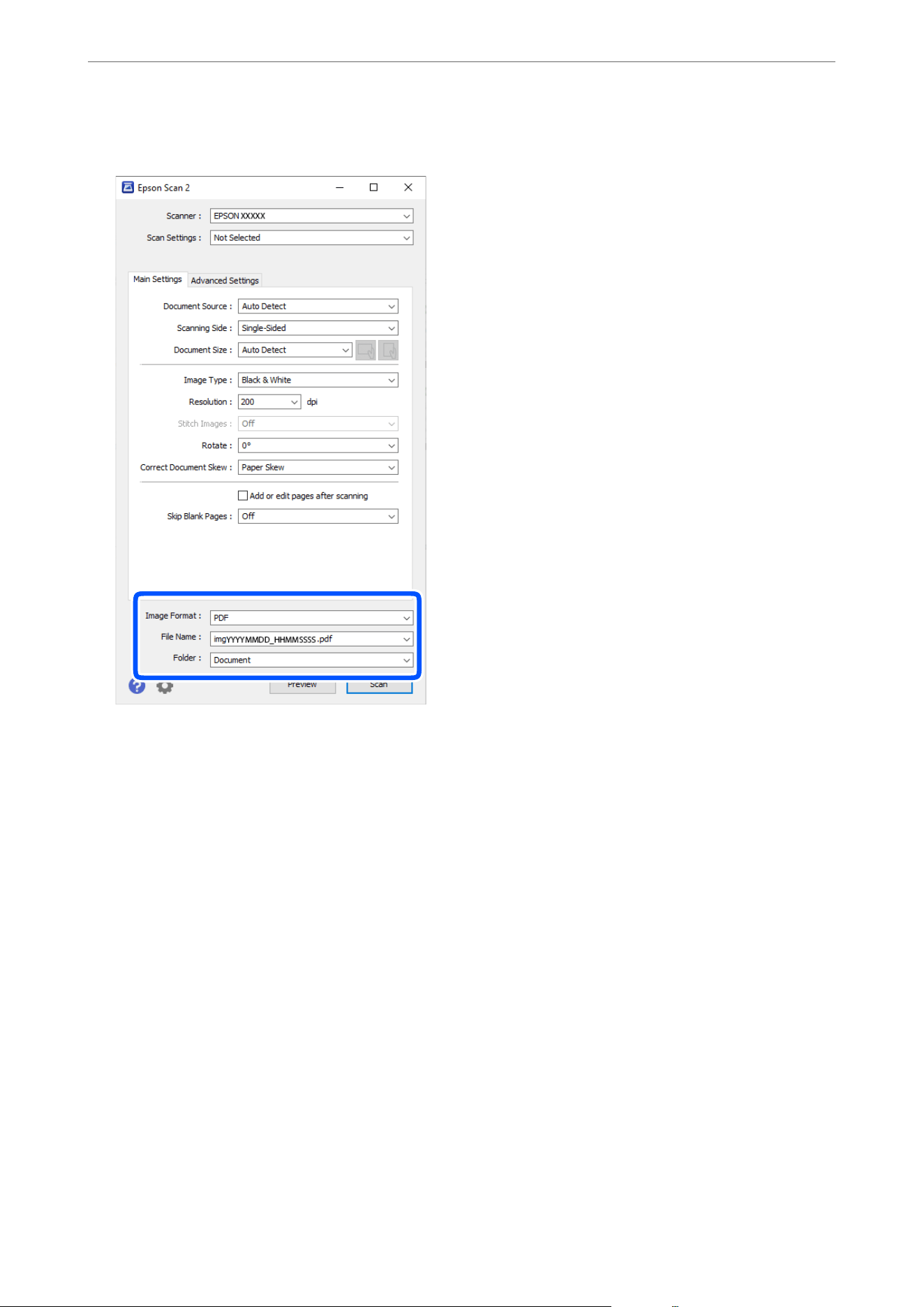
5. Set the le saving settings.
O Image Format: Select the
le
format for saving the scanned image from the list.
You c a n mak e d et a i l e d s e tt i ng s f or e a c h
le
format except BITMAP and PNG.
Aer
selecting the save
format, select Options from the list.
O File Name: Conrm the displayed le name.
You can change settings for the le name by selecting Settings from the list.
O Folder: Select the save folder for the scanned image from the list.
You can select another folder or create a new folder by selecting Select from the list.
6. Click Scan.
Note:
You can also start scanning by pressing the
x
button on the scanner’s control panel.
e scanned image is saved to the folder you specied.
Registering
User-dened
Sizes in Epson Scan 2
In Epson Scan 2, you can register
user-dened
sizes for the originals you want to scan.
When you are using Document Capture Pro, you can open the window by pressing the Detailed Settings button
on the Scan Settings screen.
Scanning
>
Scanning from a Computer
>
Scanning Using Epson Scan 2
59

1. In Epson Scan 2, select the Main Settings, and then select Document Size > Customize.
2. Click the + button on the Document Size screen.
3. Enter a name to save the user-dened size.
4. Enter the Width and Length of the size you want to register.
When you select Detect paper length, the scanner automatically detects the length of the original. When
using this feature, you cannot enter a Length.
Note:
Using Detect paper length may slow down the scanning speed.
5. Click OK.
e
registered
user-dened
size is added to the Document Size list.
Setting a Resolution That Suits the Scanning Purpose
Advantages and Disadvantages of Increasing the Resolution
Resolution indicates the number of pixels (smallest area of an image) for each inch (25.4 mm), and is measured
in dpi (dots per inch).
e
advantage of increasing the resolution is that the details in the image become
ne.
e
disadvantage is that the le size becomes large.
O File size becomes large
(When you double the resolution, the le size becomes about four times larger.)
O Scanning, saving, and reading the image takes a long time
O Sending and receiving emails or faxes takes a long time
O e image becomes too large to t the display or print on the paper
List of Recommended Resolutions to Suit Your Purpose
See the table and set the appropriate resolution for the purpose of your scanned image.
Purpose Resolution (Reference)
Displaying on a screen
Sending by email
Up to 200 dpi
Using Optical Character Recognition (OCR)
Creating a text searchable PDF
200 to 300 dpi
Printing using a printer
Sending by fax
200 to 300 dpi
Scanning
>
Scanning from a Computer
>
Scanning Using Epson Scan 2
60
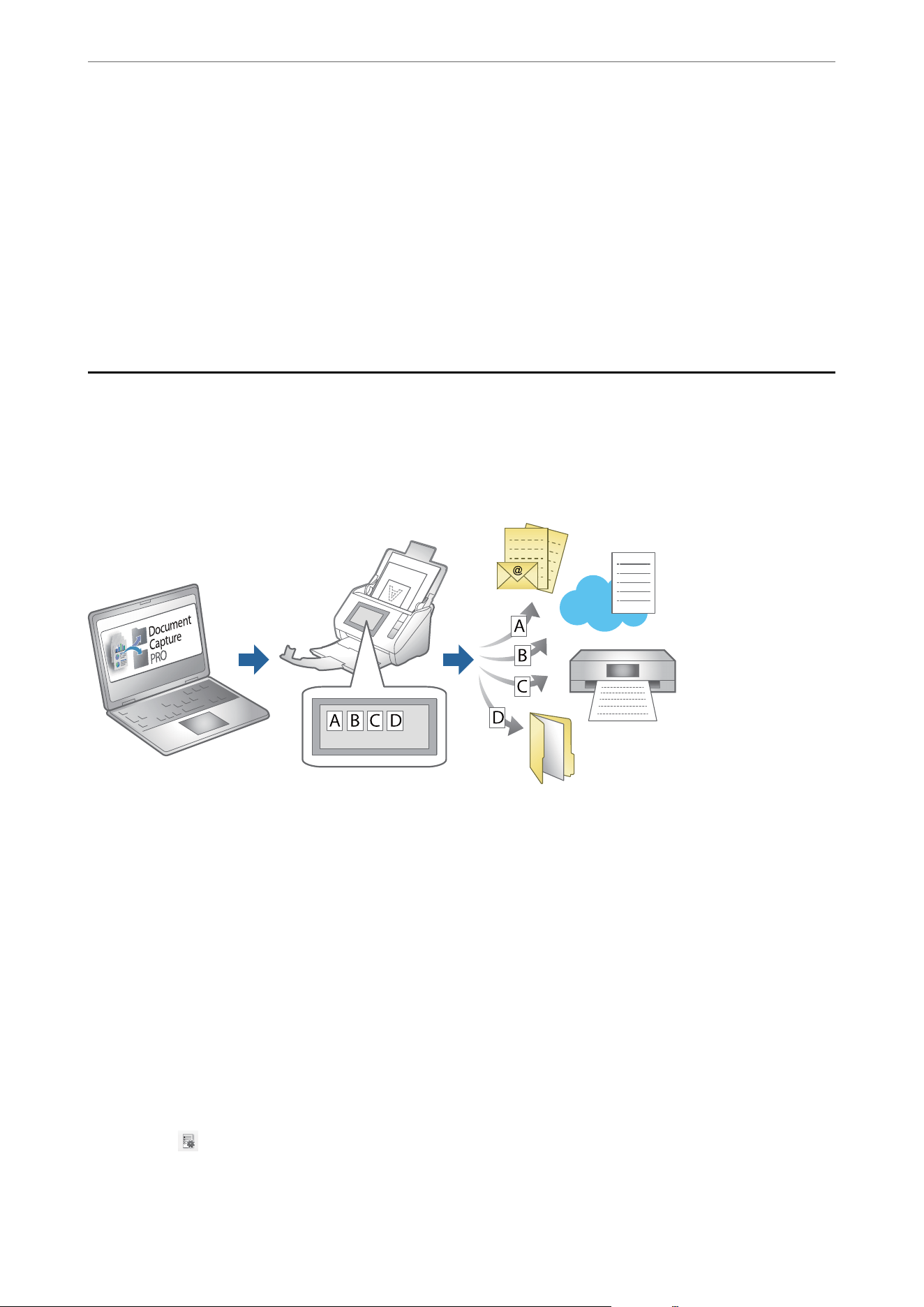
Software Image Quality Adjustment Features
e Epson Scan 2 (scanner driver) feature allows you to adjust the image quality when scanning. When you are
using Document Capture Pro, you can open the Epson Scan 2 window by clicking the Detailed Settings button on
the scan settings screen.
You can adjust the image quality of the scanned images using the features on the Advanced Settings tab. For more
details on each feature, see the help on the screen displayed.
Note:
Some items may not be available depending on other settings you made.
Setting a Job
You can register a set of operations, such as Scan-Save-Send, as a "job".
By registering a series of operations in advance as a job using Document Capture Pro (Windows) or Document
Capture (Mac OS), you can perform all of the operations by simply selecting the job.
Creating a Job and Assigning a Job to the Control Panel (Windows)
See the Document Capture Pro manual for details. Access the URL below to view the latest manual.
https://support.epson.net/dcp/
Note:
ere is a preset job that saves scanned images as PDFs.
Creating and Registering a Job (Mac OS)
Explains how to set a job in Document Capture. See the Document Capture help for details on the features.
1. Start Document Capture.
2.
Click the
icon on the main window.
e Job List window is displayed.
Scanning
>
Setting a Job
>
Creating and Registering a Job (Mac OS)
61

3. Click the + icon.
e Job Settings window is displayed.
4. Make the job settings on the Job Settings window.
O Job Name: Enter the name of the job you want to register.
O Scan: Make scan settings such as the size of the originals or the resolution.
O Output: Set the saving destination, the saving format, the naming rules of the les, and so on.
O Destination: Select the destination of the scanned images. You can send them by email or forward them to
an FTP server or Web server.
5. Click OK to return to the Job List window.
e created job is registered in the Job List.
6. Click OK to return to the main window.
Assigning a Job to the Control Panel (Mac OS)
Explains how to assign a job to the scanner’s control panel in Document Capture. See the Document Capture help
for details on the features.
1. Start Document Capture.
2. Click the
icon on the main window.
e
Job List window is displayed.
3. Click the
icon and select Event Settings.
4. Select the job you want to run on the control panel from the pull-down menu.
5. Click OK to return to the Job List window.
e job is assigned to the scanner’s control panel.
6. Click OK to return to the main window.
Scanning
>
Setting a Job
>
Assigning a Job to the Control Panel (Mac OS)
62

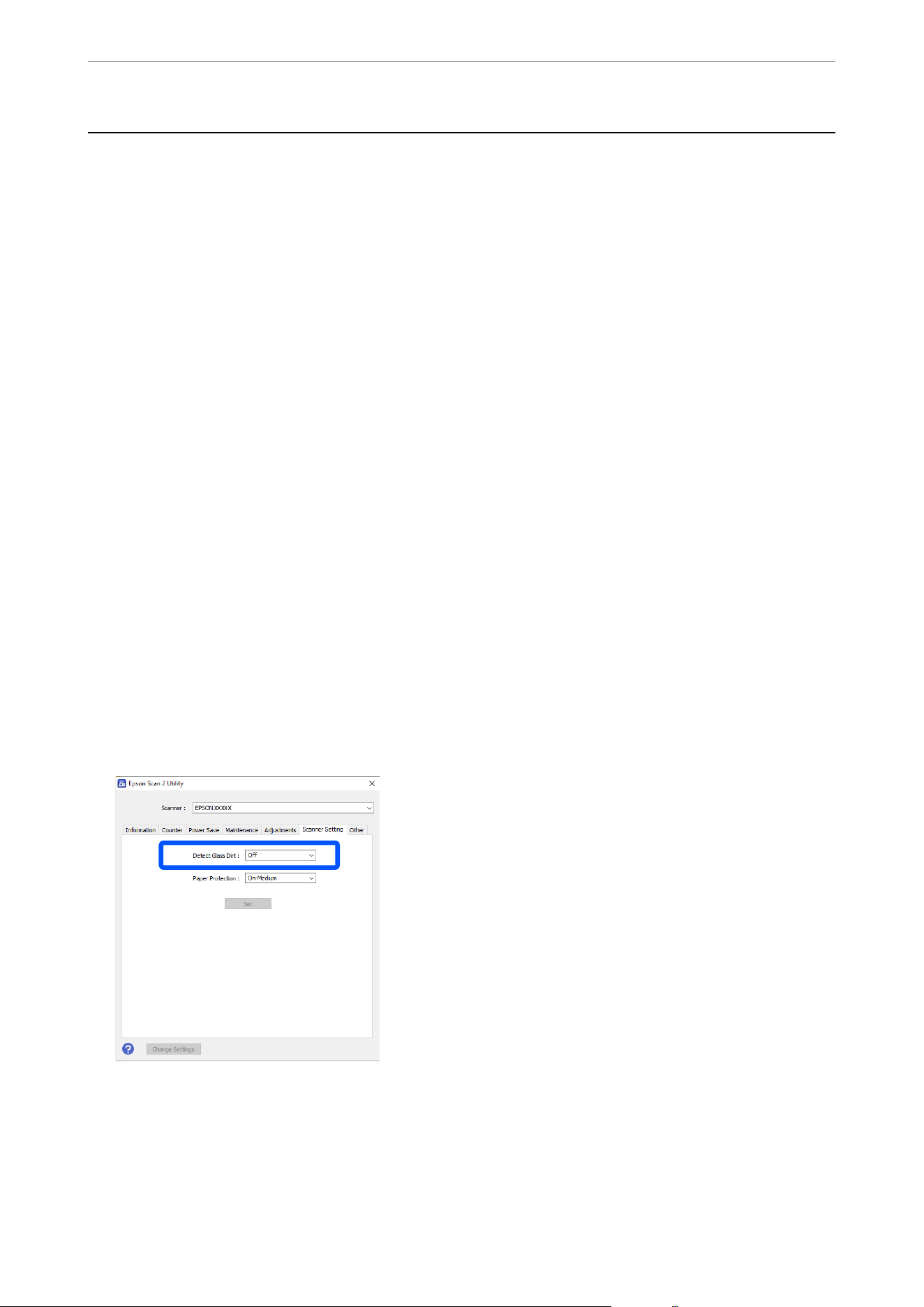
Setting the Glass Surface Stain Detection Feature
Vertical lines (streaks) may appear in the image due to dust or dirt on the glass surface inside the scanner (the ADF
scanning sensor).
When Detect Glass Dirt is set to On, the scanner detects any stains on the glass surface inside the scanner and
displays a notication on your computer screen.
When this notication is displayed, clean the glass surface inside the scanner with the dedicated cleaning kit or a
so cloth.
e default setting is O.
1. Start the Epson Scan 2 Utility.
O Windows 11/Windows Server 2022
Click the start button, and then select All apps > EPSON > Epson Scan 2 Utility.
O Windows 10/Windows Server 2016
Click the start button, and then select EPSON > Epson Scan 2 Utility.
O Windows 8.1/Windows 8/Windows Server 2012 R2/Windows Server 2012
Enter the application name in the search charm, and then select the displayed icon.
O Windows 7/Windows Server 2008 R2/Windows Server 2008
Click the start button, and then select All Programs or Programs > EPSON > Epson Scan 2 > Epson Scan
2 Utility.
O Mac OS
Select Go > Applications > Epson Soware > Epson Scan 2 Utility.
2.
Make the following settings on the Scanner Setting tab.
Set Detect Glass Dirt to On-Low or On-High.
Note:
O Some stains may not be detected correctly.
O If detection does not work correctly, try changing the settings.
If no stains are detected, select On-High. If stains are detected incorrectly, select On-Low or O.
3. Click Set to apply the settings to the scanner.
Useful Features
>
Setting the Glass Surface Stain Detection Feature
64
Setting the Document Protection Feature
When scanning using the ADF and the following conditions occur, the scanner detects an excessive load on the
ADF and immediately stops scanning to reduce damage to the original.
O A paper feed error has occurred
O An original is fed at an angle
e default setting is On-Medium.
c
Important:
O is feature does not prevent all originals from being damaged.
O Paper feed errors may not be detected depending on the condition of the originals being fed.
1. Start the Epson Scan 2 Utility.
O Windows 11/Windows Server 2022
Click the start button, and then select All apps > EPSON > Epson Scan 2 Utility.
O Windows 10/Windows Server 2016
Click the start button, and then select EPSON > Epson Scan 2 Utility.
O Windows 8.1/Windows 8/Windows Server 2012 R2/Windows Server 2012
Enter the application name in the search charm, and then select the displayed icon.
O Windows 7/Windows Server 2008 R2/Windows Server 2008
Click the start button, and then select All Programs or Programs > EPSON > Epson Scan 2 > Epson Scan
2 Utility.
O Mac OS
Select Go > Applications > Epson Soware > Epson Scan 2 Utility.
2. Make the following settings on the Scanner Setting tab.
Set Paper Protection to On-Low, On-Medium or On-High.
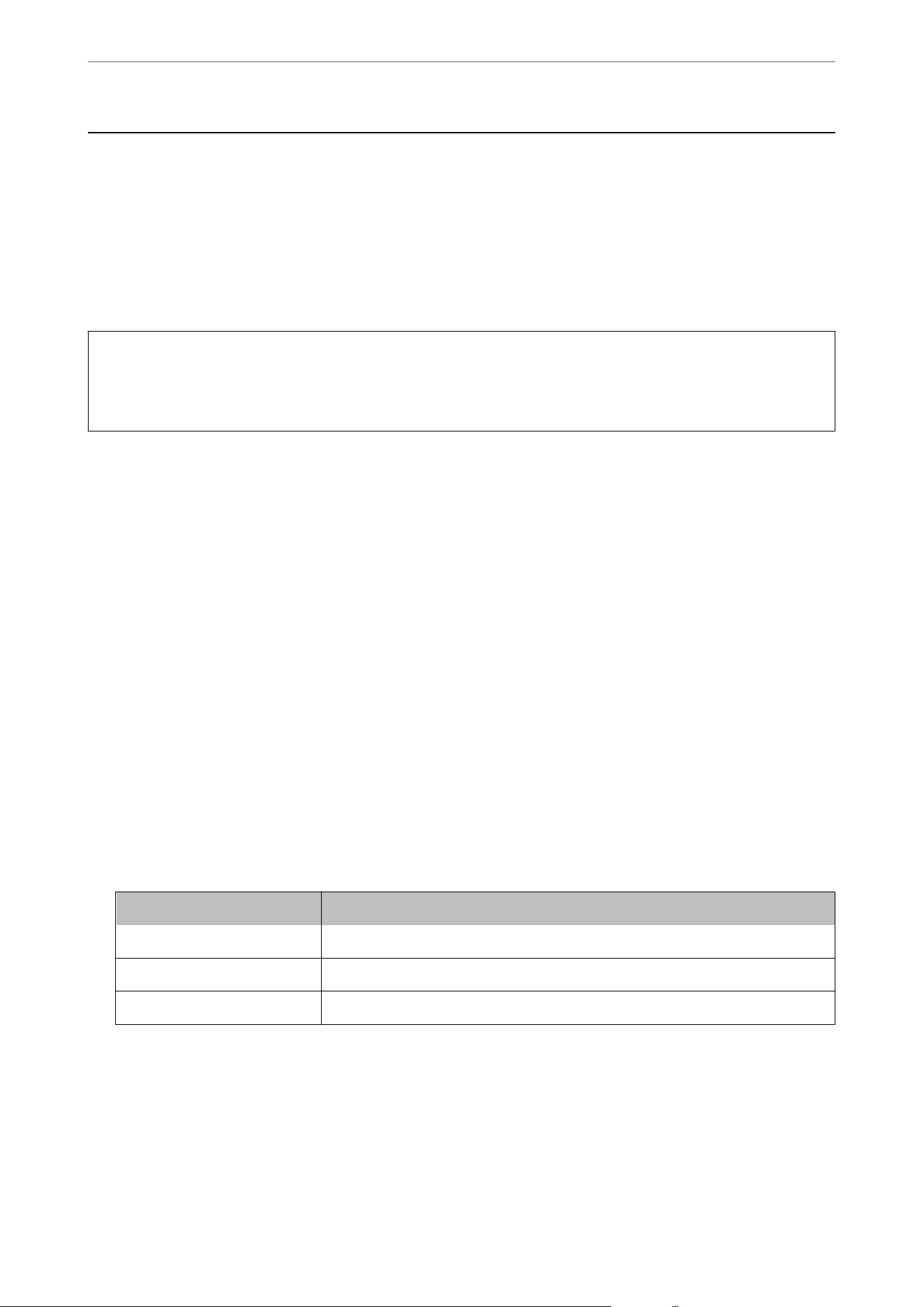
To enable this feature, select the level of detection you want to use. See the following table for details on each
level.
Level Explanation
On-Low Lower the sensitivity to detect the skew of the originals.
On-Medium Detect the skew of the stapled originals and the skew that On-Low could not detect.
On-High Increase the sensitivity to detect the skew of the originals.
Useful Features
>
Setting the Document Protection Feature
65
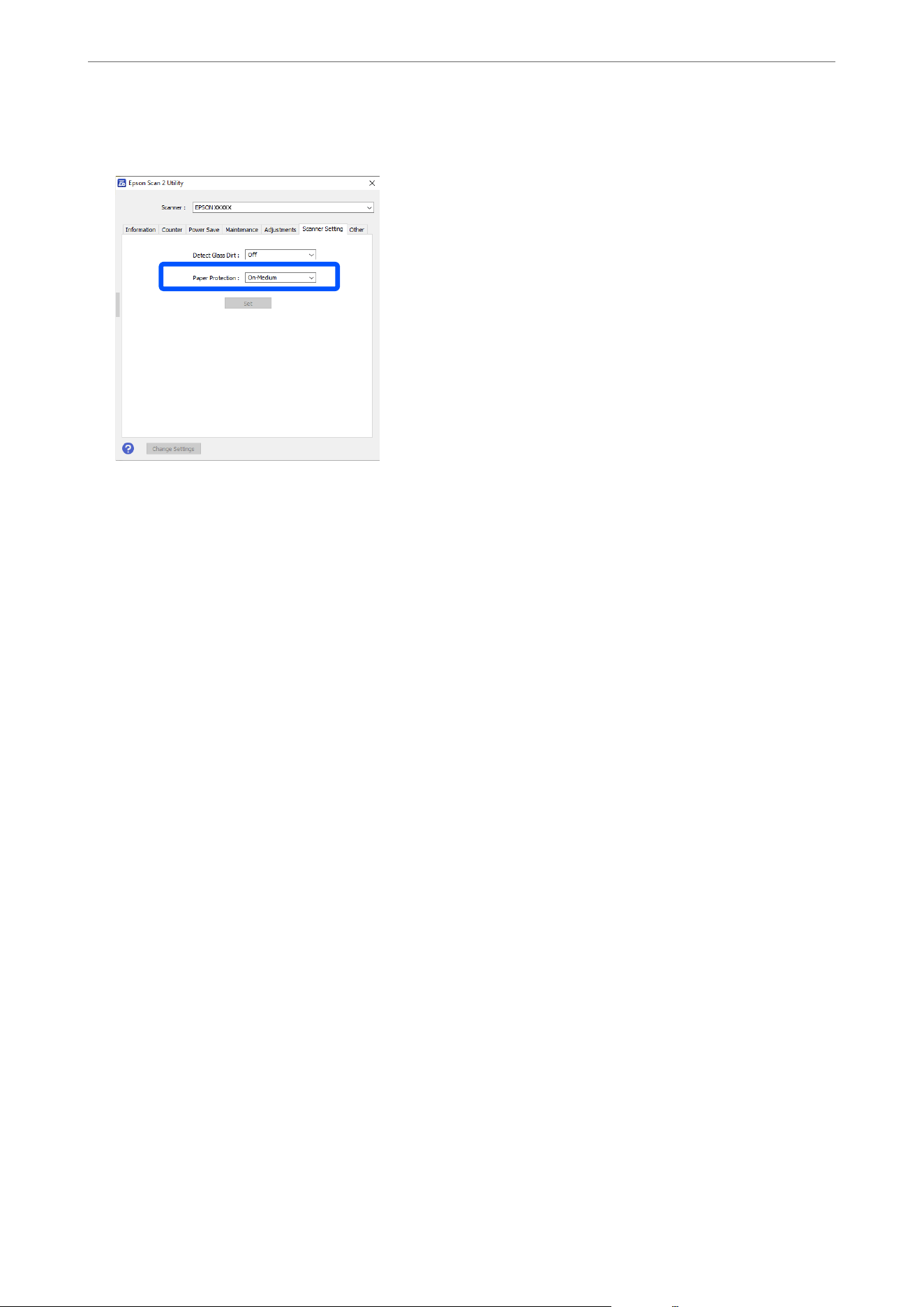
You can also turn o this feature.
Note:
O is feature may not work correctly depending on the original, the paper feeding conditions, and the level set.
O If false positives occur frequently, try lowering the level.
O If the original is an irregular shape or is scanned at an angle, it may be mistakenly detected as a paper feed error.
O When loading multiple originals, make sure to align the leading edge of the originals. Originals may be misdetected
as feeding errors if the edges of the originals are not aligned, even if they are scanned correctly.
O Make sure you align the edge guides with the original to avoid scanning it at an angle.
3. Click Set to apply the settings to the scanner.
Useful Features
>
Setting the Document Protection Feature
66

Maintenance
Cleaning Outside the Scanner.........................................68
Cleaning the ADF..................................................68
Cleaning the Scanner Glass...........................................73
Energy Saving.....................................................75
Transporting the Scanner............................................ 76
Updating Applications and Firmware....................................77

Cleaning Outside the Scanner
Wipe o any stains on the outer case with a dry cloth or a cloth dampened with mild detergent and water.
c
Important:
O Never use alcohol, thinner, or any corrosive solvent to clean the scanner. Doing so could cause deformation or
discoloration to occur.
O Do not let water get inside the product. is could cause a malfunction to occur.
O Never open the scanner case.
1. Press the
P
button to turn o the scanner.
2. Unplug the power cord from the scanner.
3. Clean the outer case with a cloth dampened with mild detergent and water.
Cleaning the ADF
Aer using the scanner for a while, paper powder and room dust in the ADF paper path and glass sections may
cause problems with paper feed or scanned image quality. Clean the ADF aer every 5,000 scans.
You can check the latest number of scans in the Epson Scan 2 Utility.
If a surface is stained with a hard-to-remove material, use a genuine Epson cleaning kit to remove the stains. Use a
small amount of cleaner on the cleaning cloth to remove the stains.
!
Caution:
Be careful not to get your hands or hair caught in the gears or rollers when cleaning the ADF.
is
could cause an
injury.
c
Important:
O Never use alcohol, thinner, or any corrosive solvent to clean the scanner. Doing so could cause deformation or
discoloration to occur.
O Never spray any liquid or lubricant on the scanner. Damage to equipment or circuits may cause abnormal
operations.
O Never open the scanner case.
Note:
You can set cleaning time notications and alerts aer making a certain number of scans in the Epson Scan 2 Utility. By
default, a notication is sent aer every 5,000 scans.
Maintenance
>
Cleaning the ADF
68
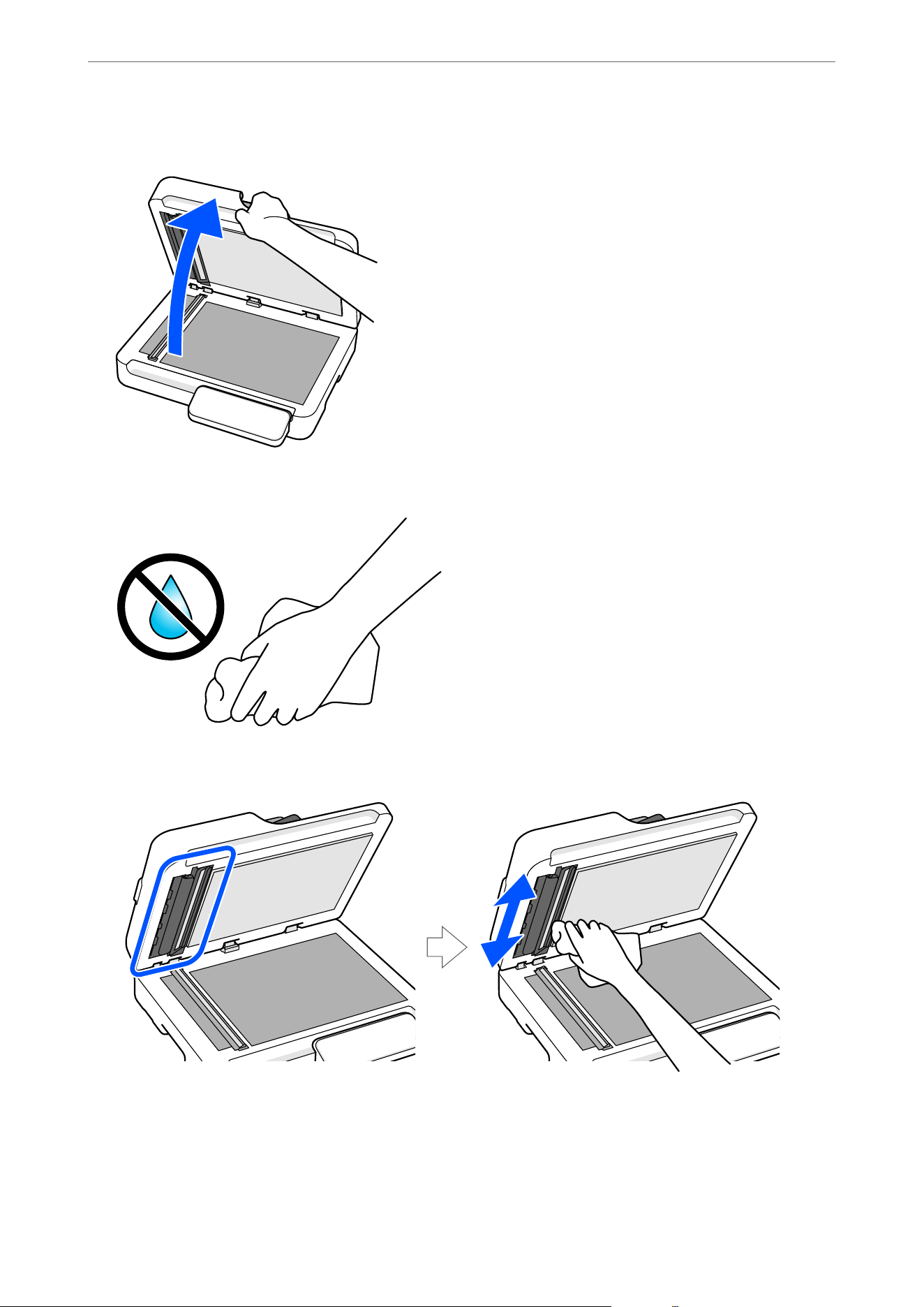
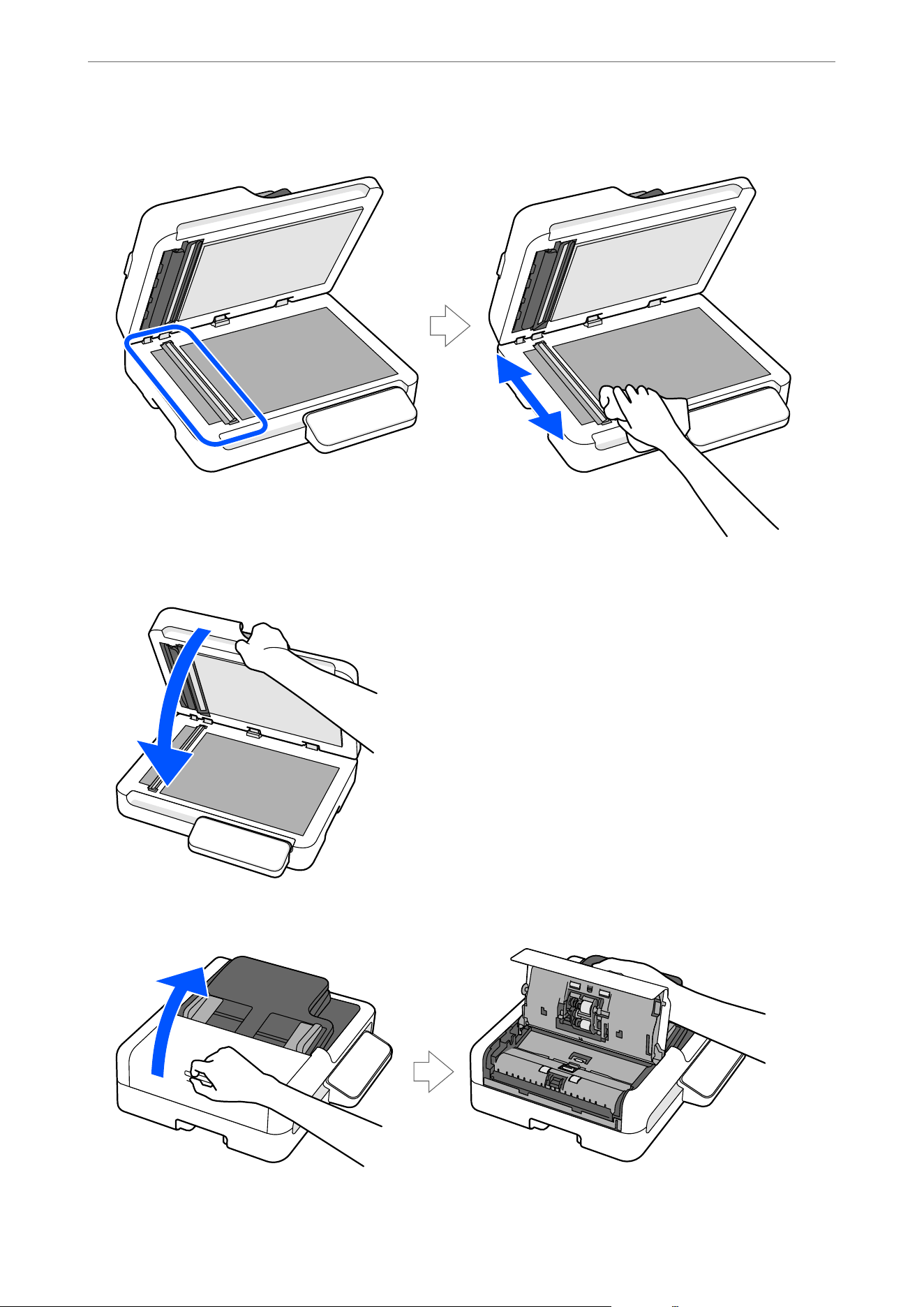
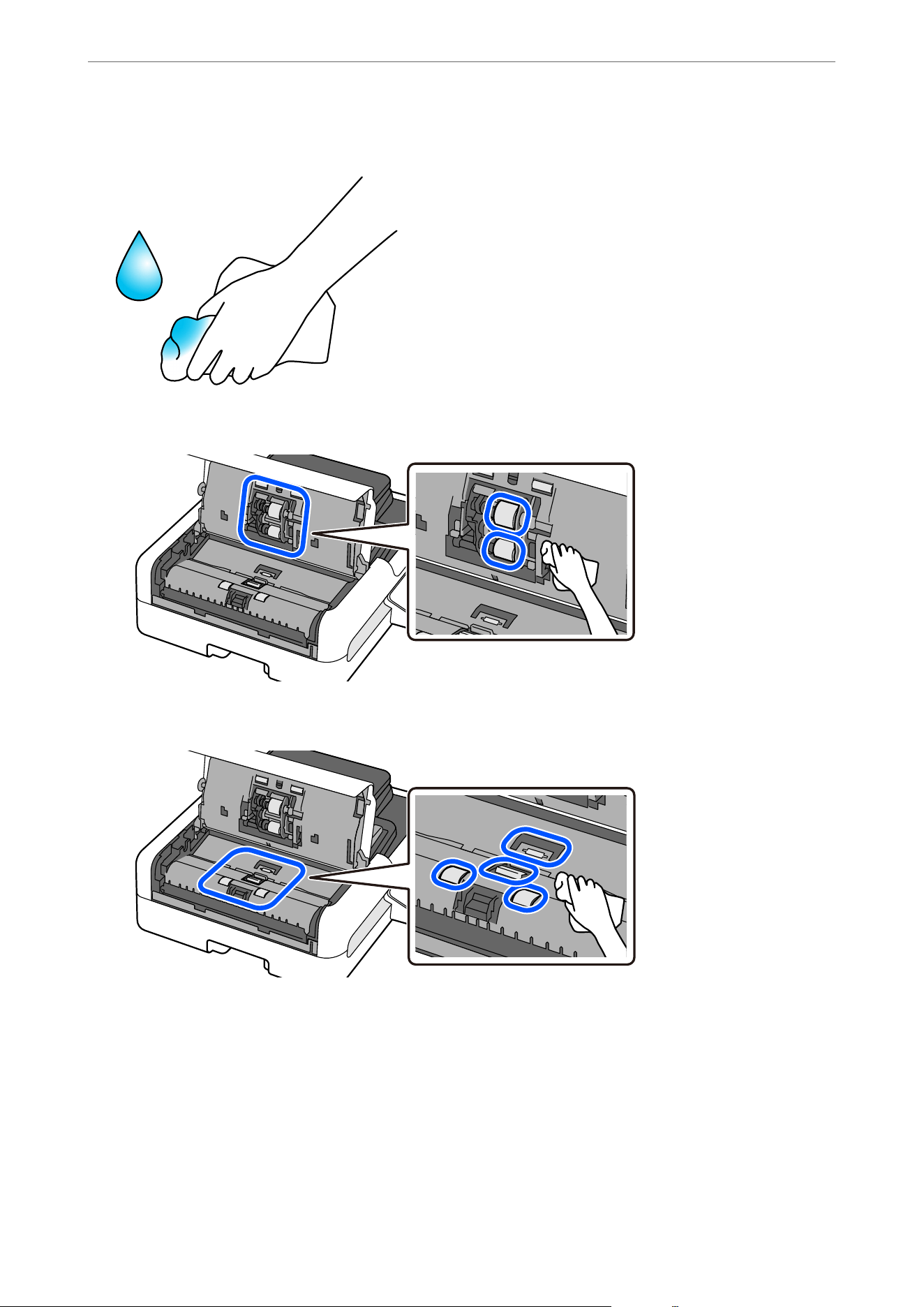
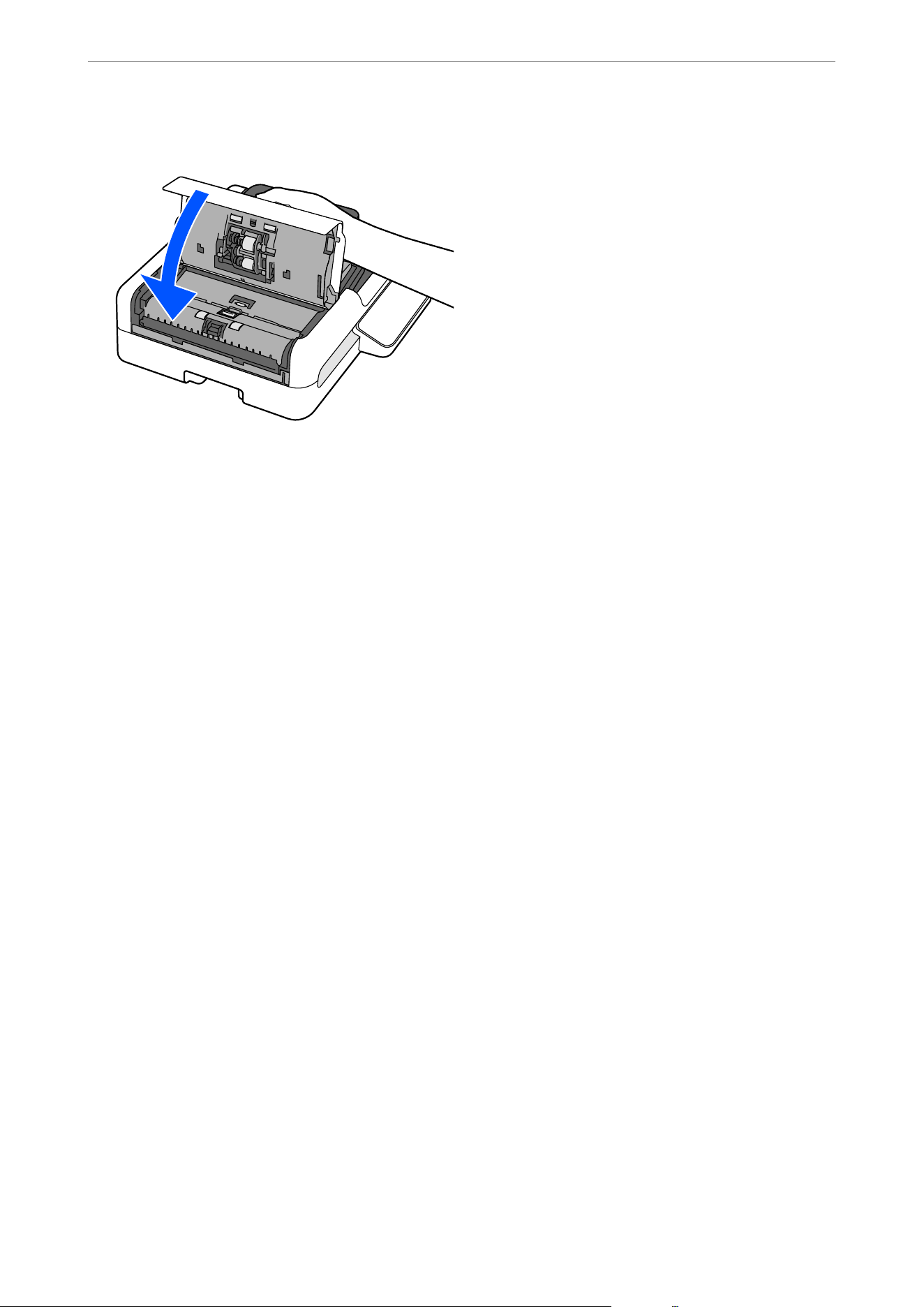
10. Close the ADF cover.
11. Reset the scan number on the Epson Scan 2 Utility.
Resetting the Number of Scans After Cleaning the ADF (Regular
Cleaning)
Aer cleaning the ADF (Regular Cleaning), reset the scan number using the Epson Scan 2 Utility.
1. Turn on the scanner.
2. Start the Epson Scan 2 Utility.
O Windows 11/Windows Server 2022
Click the start button, and then select All apps > EPSON > Epson Scan 2 Utility.
O Windows 10/Windows Server 2016
Click the start button, and then select EPSON > Epson Scan 2 Utility.
O Windows 8.1/Windows 8/Windows Server 2012 R2/Windows Server 2012
Enter the application name in the search charm, and then select the displayed icon.
O Windows 7/Windows Server 2008 R2/Windows Server 2008
Click the start button, and then select All Programs or Programs > EPSON > Epson Scan 2 > Epson Scan
2 Utility.
O Mac OS
Select Go > Applications > Epson Soware > Epson Scan 2 Utility.
3. Click the Maintenance tab.
Maintenance
>
Cleaning the ADF
>
Resetting the Number of Scans After Cleaning the ADF (Regular Cleaning)
72
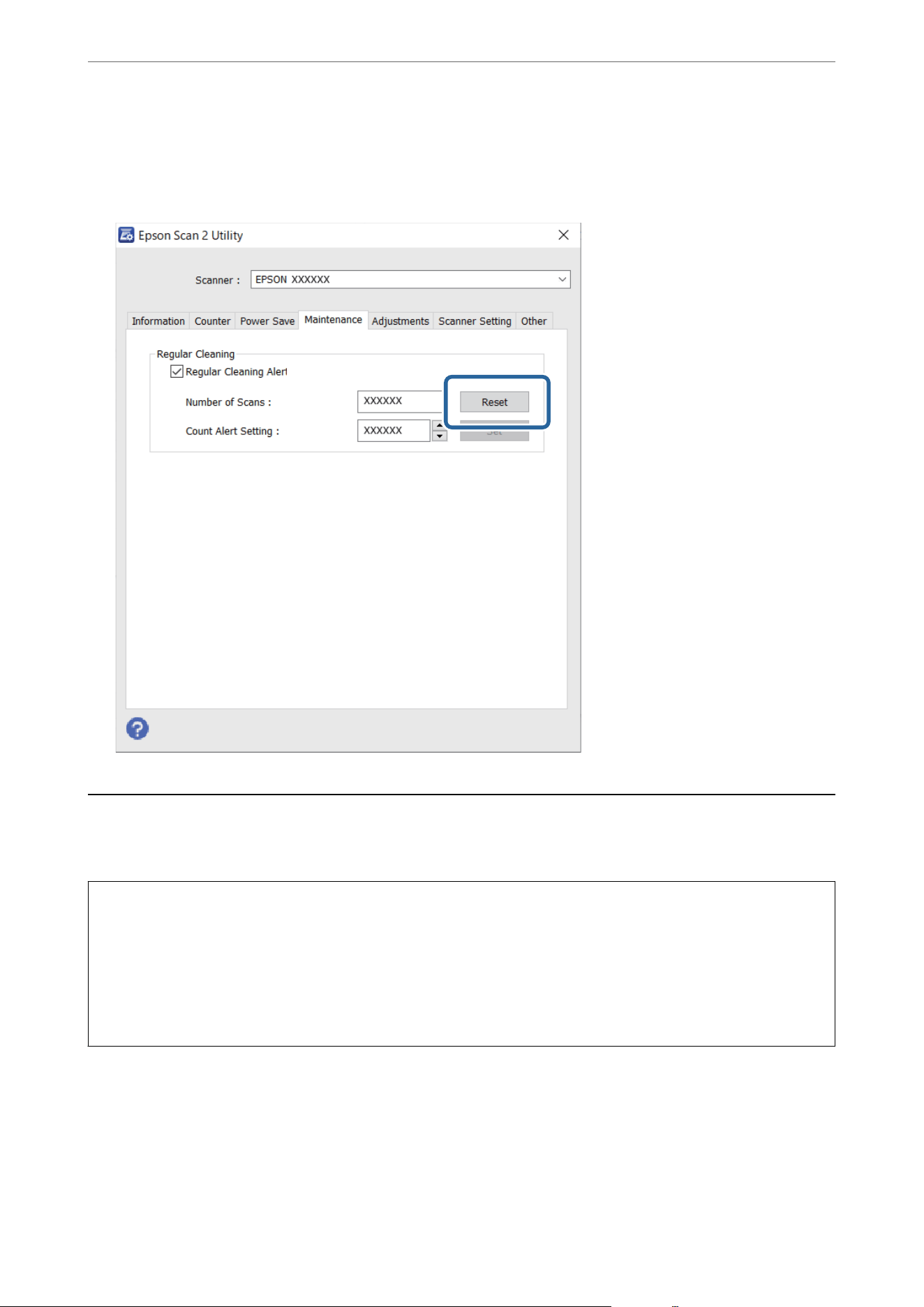
4. Click Reset from Regular Cleaning.
Note:
You cannot reset when Regular Cleaning Alert is not selected.
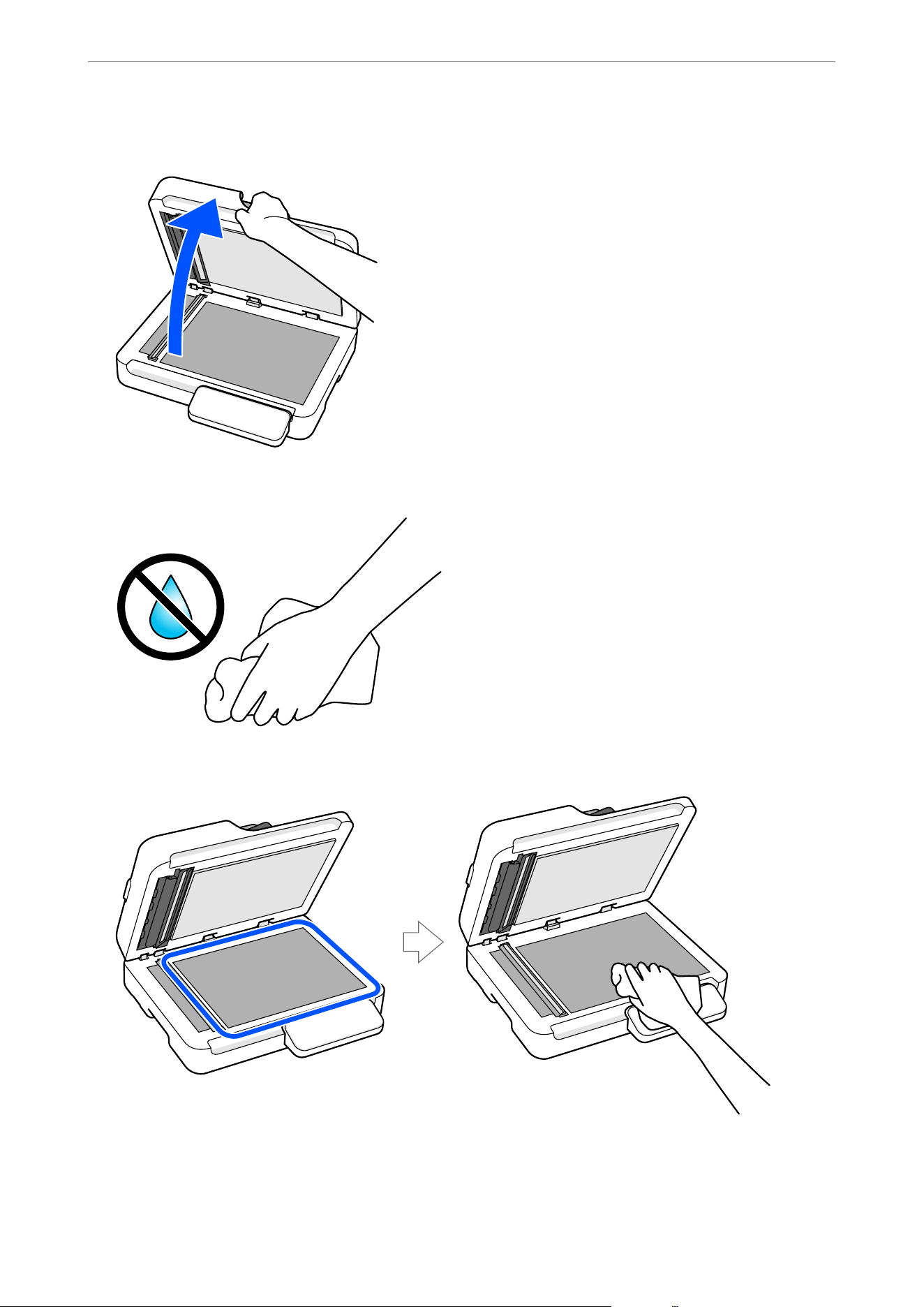
Cleaning the Scanner Glass
When the scanned images are smeared or scued, clean the scanner glass.
c
Important:
O Never use alcohol, thinner, or any corrosive solvent to clean the scanner. Doing so could cause deformation or
discoloration to occur.
O Never spray any liquid or lubricant on the scanner. Damage to equipment or circuits may cause abnormal
operations.
O Never open the scanner case.
Maintenance
>
Cleaning the Scanner Glass
73
c
Important:
O Do not place too much force on the glass surface.
O Do not use a brush or a hard tool. Any scratches on the glass may
aect
the scan quality.
O If the glass surface is stained with grease or some other hard-to-remove material, use a small amount of
glass cleaner on a so cloth to remove it. Aer removing the stains, wipe thoroughly to ensure no moisture
remains.
O Do not use the Epson cleaning kit to clean the scanner glass.
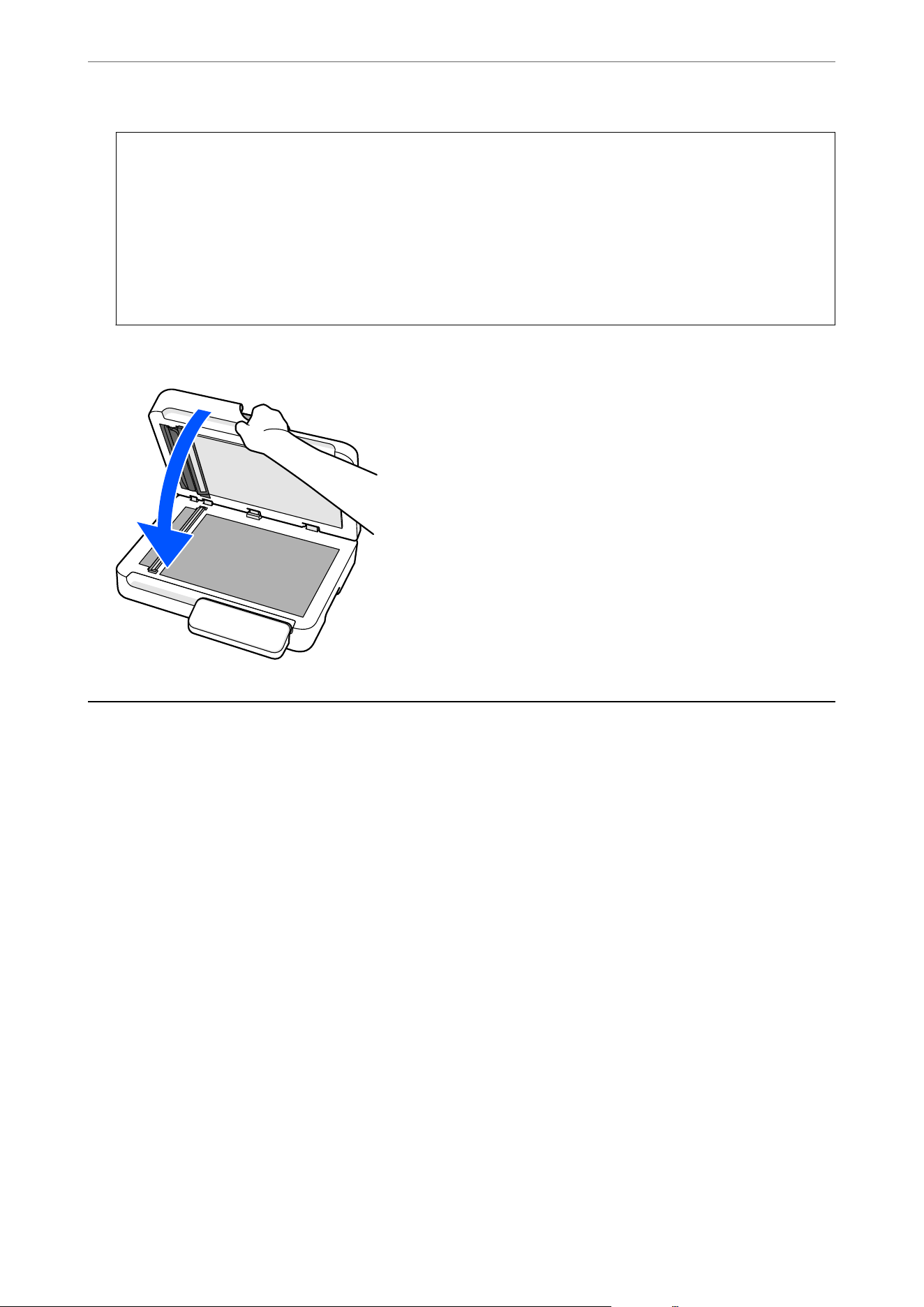
4.
Close the document cover.
Energy Saving
You can adjust the time before power management is applied. Any increase will
aect
the product's energy
eciency. Please consider the environment before making any changes.
1.
Start Epson Scan 2 Utility.
O Windows 11/Windows Server 2022
Click the start button, and then select All apps > EPSON > Epson Scan 2 Utility.
O Windows 10/Windows Server 2016
Click the start button, and then select EPSON > Epson Scan 2 Utility.
O Windows 8.1/Windows 8/Windows Server 2012 R2/Windows Server 2012
Enter the application name in the search charm, and then select the displayed icon.
O Windows 7/Windows Server 2008 R2/Windows Server 2008
Click the start button, and then select All Programs or Programs > EPSON > Epson Scan 2 > Epson Scan
2 Utility.
O Mac OS
Select Go > Applications > Epson Soware > Epson Scan 2 Utility.
2. Click the Power Save tab.
Maintenance
>
Energy Saving
75
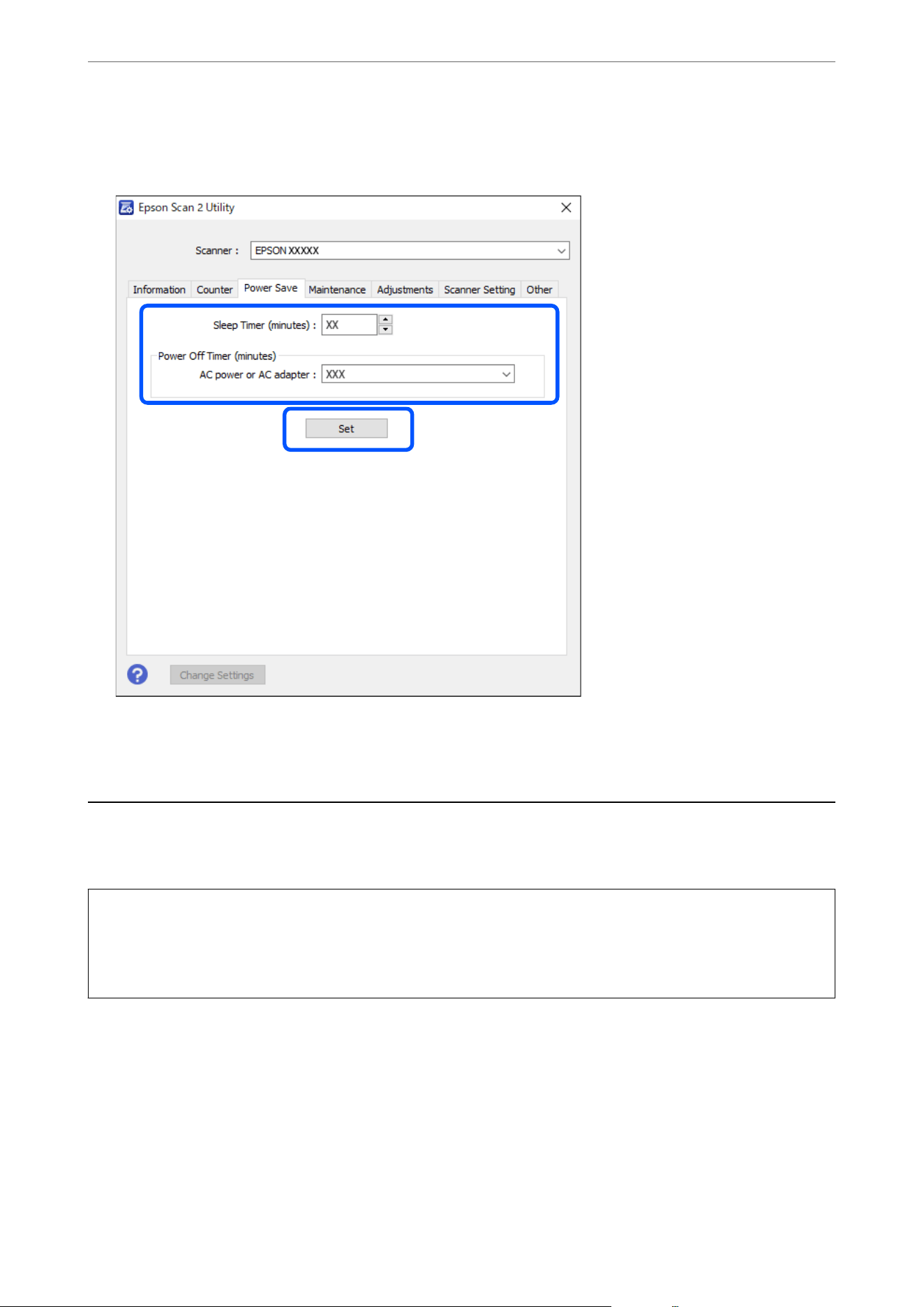
3. Set the Sleep Timer (minutes), Power O Timer (minutes), or Power O If Disconnected, and then click
Set.
Note:
Available features may vary depending on the location of purchase.
Transporting the Scanner
When you need to transport the scanner to move or for repairs, follow the steps below to pack the scanner.
!
Caution:
When carrying the scanner, place your hands at the bottom on both sides of the scanner, and then keep it in a
horizontal position. If the scanner is tilted or placed vertically while carrying, the ADF may open. is could cause
an injury.
1. Press the
P
button to turn o the scanner.
2. Unplug the power cord from the scanner.
3.
Remove the USB cable.
4. Make sure that there is no original inside the scanner.
Maintenance
>
Transporting the Scanner
76

5. Attach the packing materials that came with the scanner, and then repack the scanner in its original box or a
sturdy box.
Updating Applications and Firmware
You may be able to clear certain problems and improve or add functions by updating the applications and the
rmware.
Make sure you use the latest version of the applications and
rmware.
c
Important:
O Do not turn o the computer or the scanner while updating.
1. Make sure that the scanner and the computer are connected, and the computer is connected to the internet.
2. Start EPSON Soware Updater, and update the applications or the rmware.
Note:
Windows Server operating systems are not supported.
O Windows 11
Click the start button, and then select All apps > Epson Soware > EPSON Soware Updater.
O Windows 10
Click the start button, and then select Epson Soware > EPSON Soware Updater.
O Windows 8.1/Windows 8
Enter the application name in the search charm, and then select the displayed icon.
O Windows 7
Click the start button, and then select All Programs or Programs > Epson Soware > EPSON Soware
Updater.
O Mac OS
Select Finder > Go > Applications > Epson Soware > EPSON Soware Updater.
Note:
If you cannot nd the application you want to update in the list, you cannot update using the EPSON Soware Updater.
Check for the latest versions of the applications on your local Epson website.
http://www.epson.com
Updating Firmware without Connecting to the Internet
You can download the device's rmware from Epson website on the computer, and then connect the device and the
computer by USB cable to update the rmware.
Note:
Before updating, make sure that the scanner driver Epson Scan 2 is installed on your computer. If Epson Scan 2 is not
installed, install it again.
1.
Check the Epson website for the latest
rmware
update releases.
http://www.epson.com
O If there is the rmware for your scanner, download it and go to the next step.
Maintenance
>
Updating Applications and Firmware
>
Updating Firmware without Connecting to the Internet
77

O If there is no rmware information on the website, you are already using the latest rmware.
2. Connect the computer that contains the downloaded
rmware
to the scanner by USB cable.
3. Double-click the downloaded .exe le.
Epson Firmware Updater starts.
4. Follow the on-screen instructions.
Maintenance
>
Updating Applications and Firmware
>
Updating Firmware without Connecting to the Internet
78

Solving Problems
Problems with the Scanner........................................... 80
Problems Starting Scanning...........................................81
Paper Feeding Problems............................................. 83
Scanned Image Problems.............................................91
Document Capture Pro Problems...................................... 97
Uninstalling and Installing Applications..................................98

Problems with the Scanner
Scanner Lights Indicate an Error
Check the following if the scanner lights indicate an error.
O Make sure there are no originals jammed in the ADF.
O Make sure the ADF cover is closed.
O Make sure the scanner is connected to your computer properly.
O Make sure Epson Scan 2 is installed correctly.
O If the rmware update fails and the scanner enters recovery mode, update the rmware again using a USB
connection.
O Restart the scanner. If the problem is not solved, the product may be malfunctioning. Also, the light source in
the scanner unit may need to be replaced. Contact your dealer. In the U.S., Canada, and Latin America, contact
Epson Support.
Related Information
&
“Error Indicators” on page 17
& “Paper Jams, Paper Feed Errors, and Document Protection Issues Occur Frequently” on page 88
A Message Prompting You to Perform Cleaning (Regular Cleaning) is
Displayed
is message is displayed when the Regular Cleaning notication setting is enabled, and the set number of scans
has been reached.
Clean the ADF, and then use Epson Scan 2 Utility to reset the scan count
aer
cleaning.
Related Information
&
“Cleaning the ADF” on page 68
& “Resetting the Number of Scans Aer Cleaning the ADF (Regular Cleaning)” on page 72
The Scanner Does Not Turn On
O Make sure the power cord is securely connected to the scanner and an electrical outlet.
O Check that the electrical outlet is working. Plug another device into the electrical outlet and check that you can
turn the power on.
The Scanner Turns O Unexpectedly
Check the auto power
o
setting in Epson Scan 2 Utility. If the auto power
o
setting is enabled, the scanner turns
o
automatically
aer
a set time.
Solving Problems
>
Problems with the Scanner
>
The Scanner Turns O Unexpectedly
80

Related Information
&
“Energy Saving” on page 75
Problems Starting Scanning
Cannot Start Scanning from Computer
Checking the Connection Status (Windows)
Use the Epson Scan 2 Utility to check the connection status.
Note:
Epson Scan 2 Utility is an application supplied with the scanner soware.
1. Start the Epson Scan 2 Utility.
O Windows 11
Click the start button, and then select All apps > EPSON > Epson Scan 2 Utility.
O Windows 10
Click the start button, and then select EPSON > Epson Scan 2 Utility.
O Windows 8.1/Windows 8
Enter the application name in the search charm, and then select the displayed icon.
O Windows 7
Click the start button, and then select All Programs or Programs > EPSON > Epson Scan 2 > Epson Scan
2 Utility.
2. On the Epson Scan 2 Utility screen, open the Scanner list, and then click Settings to open the Scanner
Settings screen.
If the Scanner Settings screen is already displayed, go to the next step.
3. If the scanner is not displayed on the Scanner Settings screen, your scanner is not detected.
Make sure the scanner is connected to the computer with a USB cable.
Check the related information if you cannot scan even aer connecting a USB cable.
Related Information
&
“e Scanner Cannot Connect by USB” on page 82
& “Cannot Scan Even ough a Connection has been Correctly Established” on page 82
Checking the Connection Status (Mac OS)
Use the Epson Scan 2 Utility to check the connection status.
Note:
Epson Scan 2 Utility is an application supplied with the scanner soware.
Solving Problems
>
Problems Starting Scanning
>
Cannot Start Scanning from Computer
81

1. Start the Epson Scan 2 Utility.
Select Go > Applications > Epson Soware > Epson Scan 2 Utility.
2. On the Epson Scan 2 Utility screen, open the Scanner list, and then click Settings to open the Scanner
Settings screen.
If the Scanner Settings screen is already displayed, go to the next step.
3. If the scanner is not displayed on the Scanner Settings screen, your scanner is not detected.
Make sure the scanner is connected to the computer with a USB cable.
Check the related information if you cannot scan even aer connecting a USB cable.
Related Information
&
“e Scanner Cannot Connect by USB” on page 82
& “Cannot Scan Even ough a Connection has been Correctly Established” on page 82
The Scanner Cannot Connect by USB
e following causes can be considered.
The USB cable is not plugged into the electrical outlet correctly.
Solutions
Connect the USB cable securely to the scanner and the computer.
There is a problem with the USB hub.
Solutions
If you are using a USB hub, try to connect the scanner directly to the computer.
There is a problem with the USB cable or the USB inlet.
Solutions
If the USB cable cannot be recognized, change the port, or change the USB cable.
The scanner is o.
Solutions
Make sure the scanner is turned on.
Also, wait until the status light stops ashing indicating that the scanner is ready to scan.
Cannot Scan Even Though a Connection has been Correctly Established
Required applications are not installed on your computer.
Solutions
Make sure the following applications are installed:
O Document Capture Pro (Windows) or Document Capture (Mac OS)
Solving Problems
>
Problems Starting Scanning
>
Cannot Start Scanning from Computer
82

O Epson Scan 2
If the applications are not installed, install them again.
Job is not assigned to the scanner button.
Solutions
Check that the job is correctly assigned to the scanner button in Document Capture Pro (Windows) or
Document Capture (Mac OS).
If you are using any TWAIN-compliant programs, the correct scanner is not selected as the
source setting. (Windows)
Solutions
Make sure that you select the correct scanner from your programs list.
Paper Feeding Problems
Multiple Originals Are Fed (Double Feed)
Check the following when a double feed occurs.
O If an original gets jammed, open the ADF cover and remove the original.
O Check the scanned image, and then scan the originals again if necessary.
If multiple originals are fed frequently, try the following.
O If you load unsupported originals, the scanner may feed multiple originals at a time.
O Reduce the number of originals being placed at a time.
O Clean the ADF.
“Cleaning the ADF” on page 68
Related Information
&
“Cleaning the ADF” on page 68
& “Removing Jammed Originals from the Scanner” on page 83
Removing Jammed Originals from the Scanner
If an original gets jammed in the ADF, follow the steps below to remove it.
Solving Problems
>
Paper Feeding Problems
>
Removing Jammed Originals from the Scanner
83
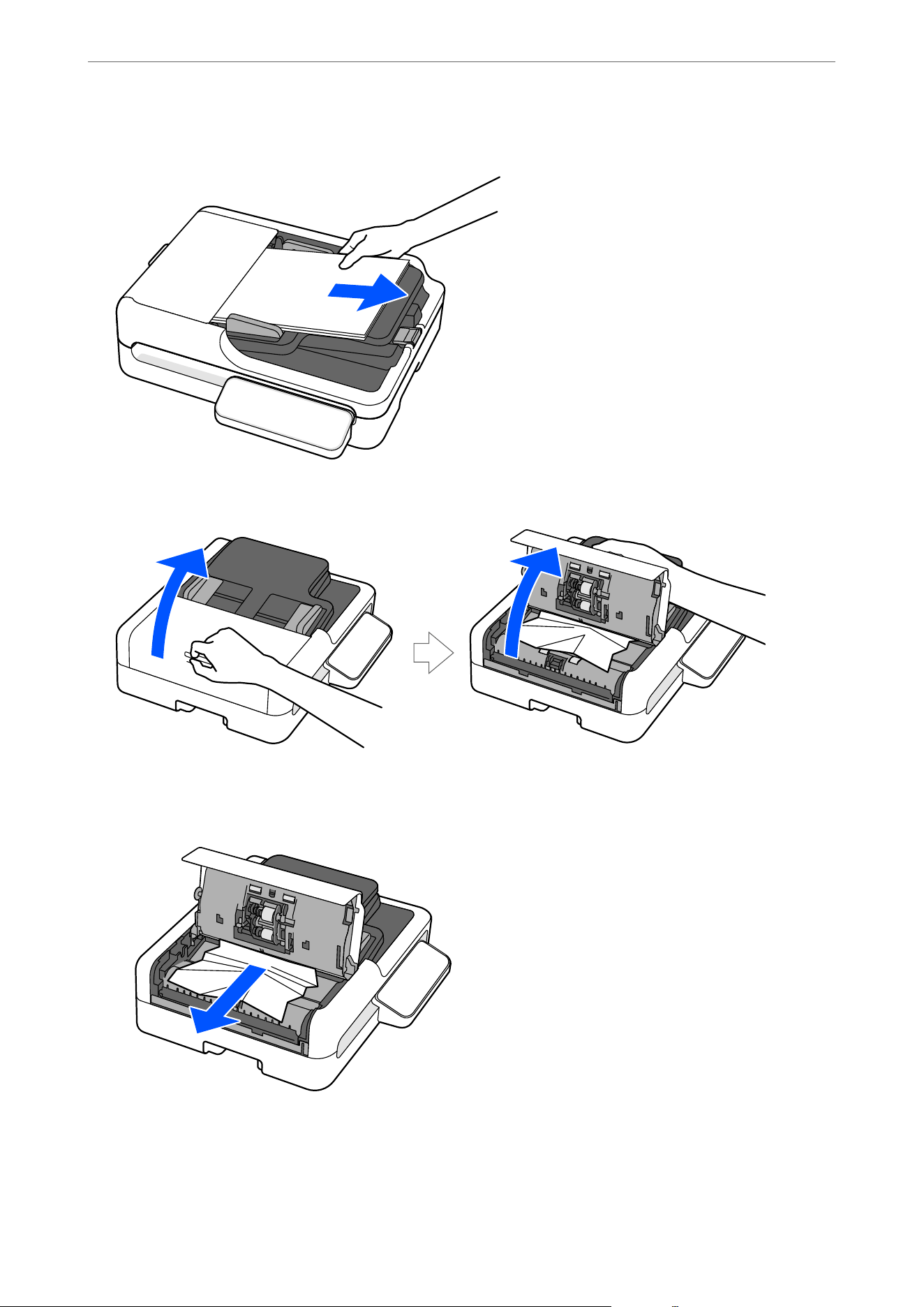
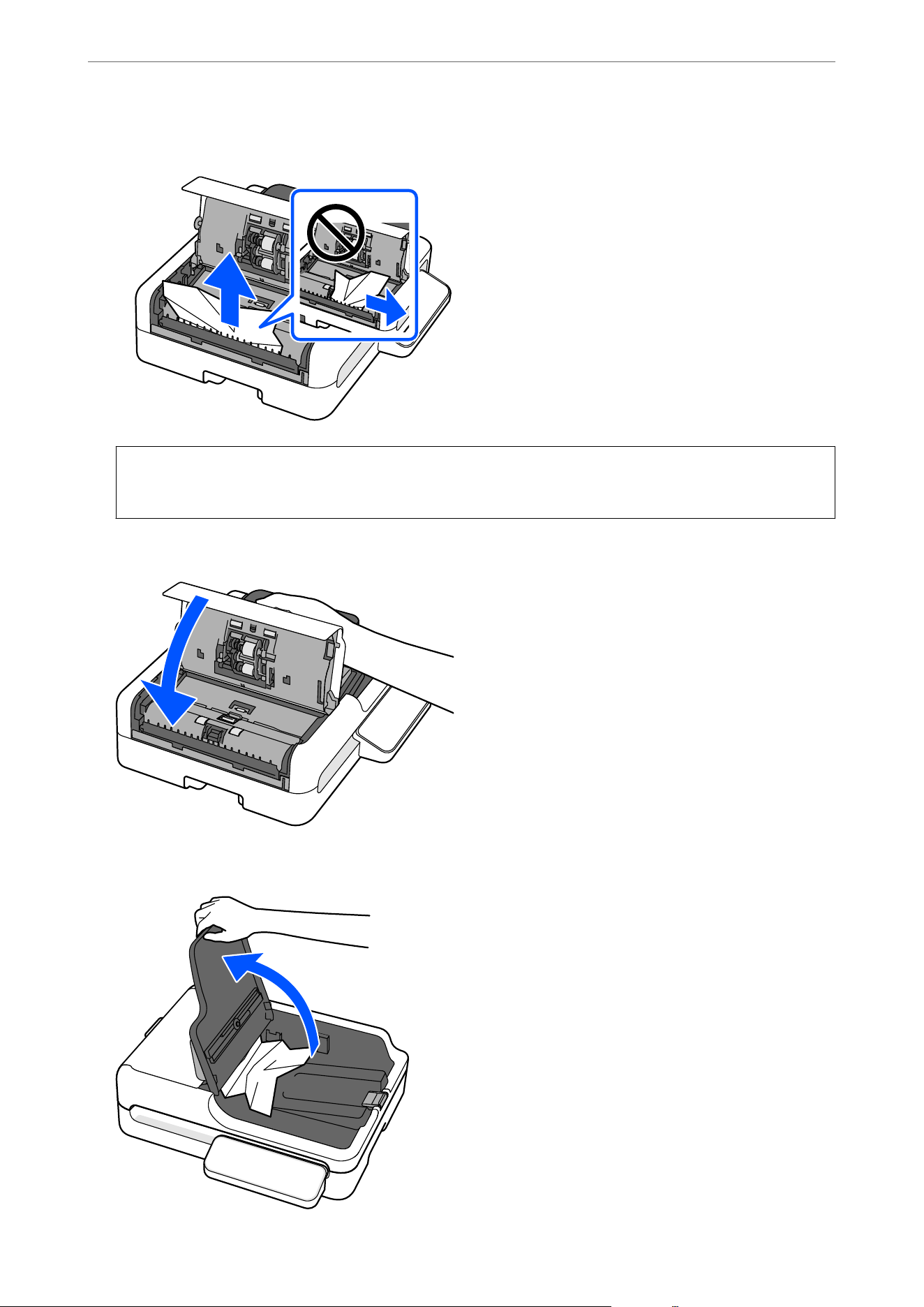
O If there are originals on the output tray side, pull them out as shown in the illustration.
c
Important:
Do not pull the originals out sideways. Otherwise, the original or the ADF may be damaged.
4. Close the ADF cover.
5. Raise the input tray.
Solving Problems
>
Paper Feeding Problems
>
Removing Jammed Originals from the Scanner
85
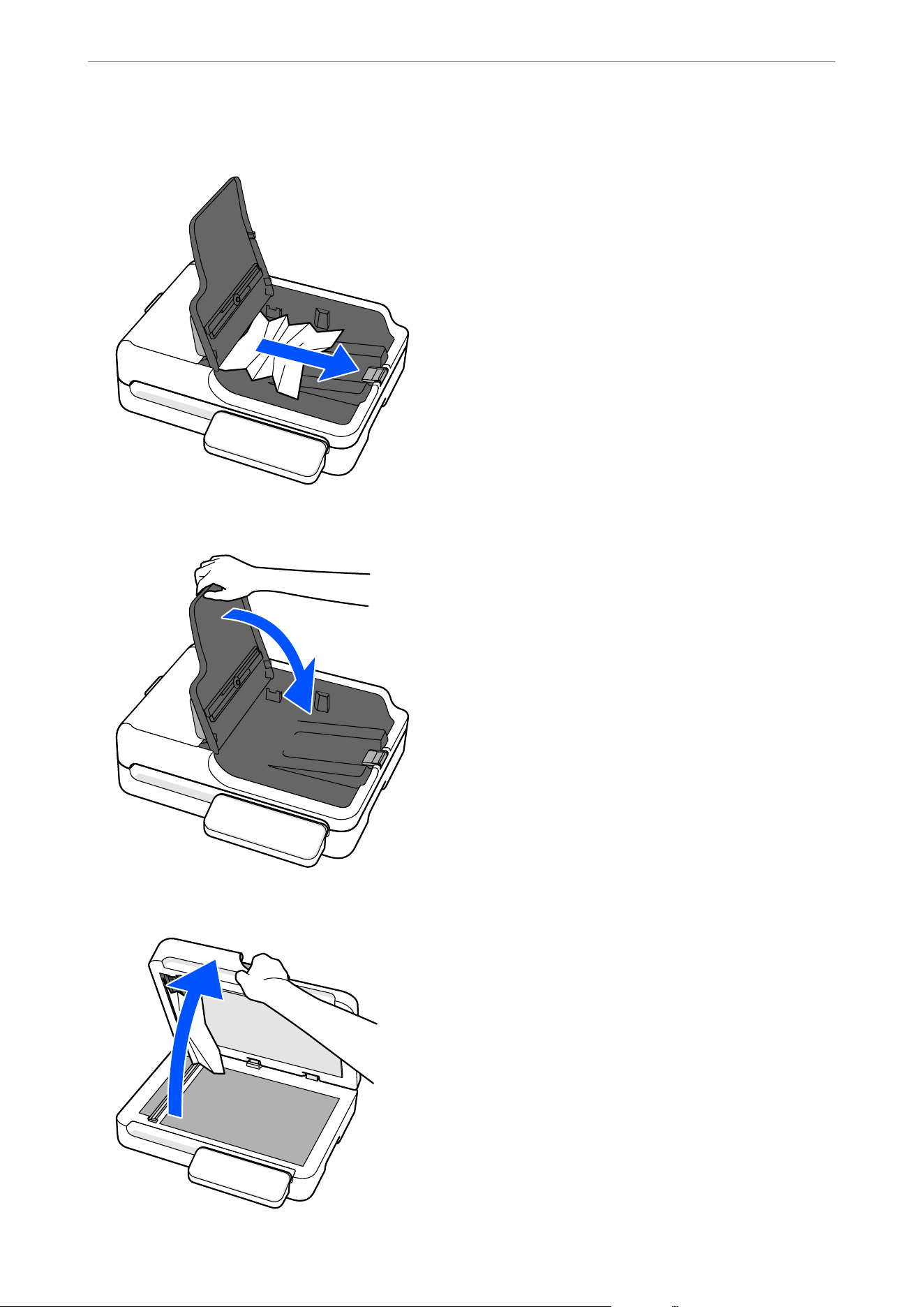
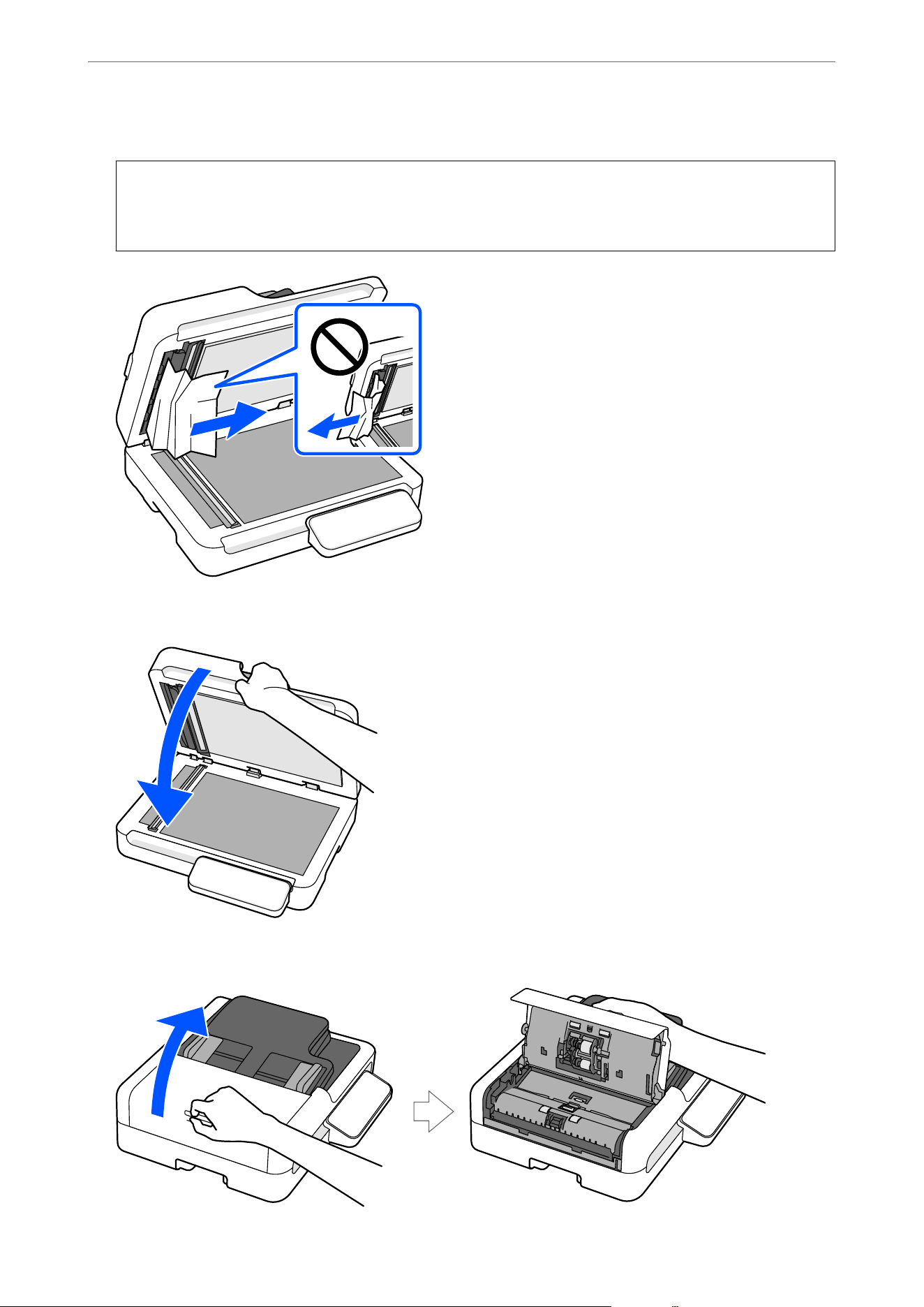
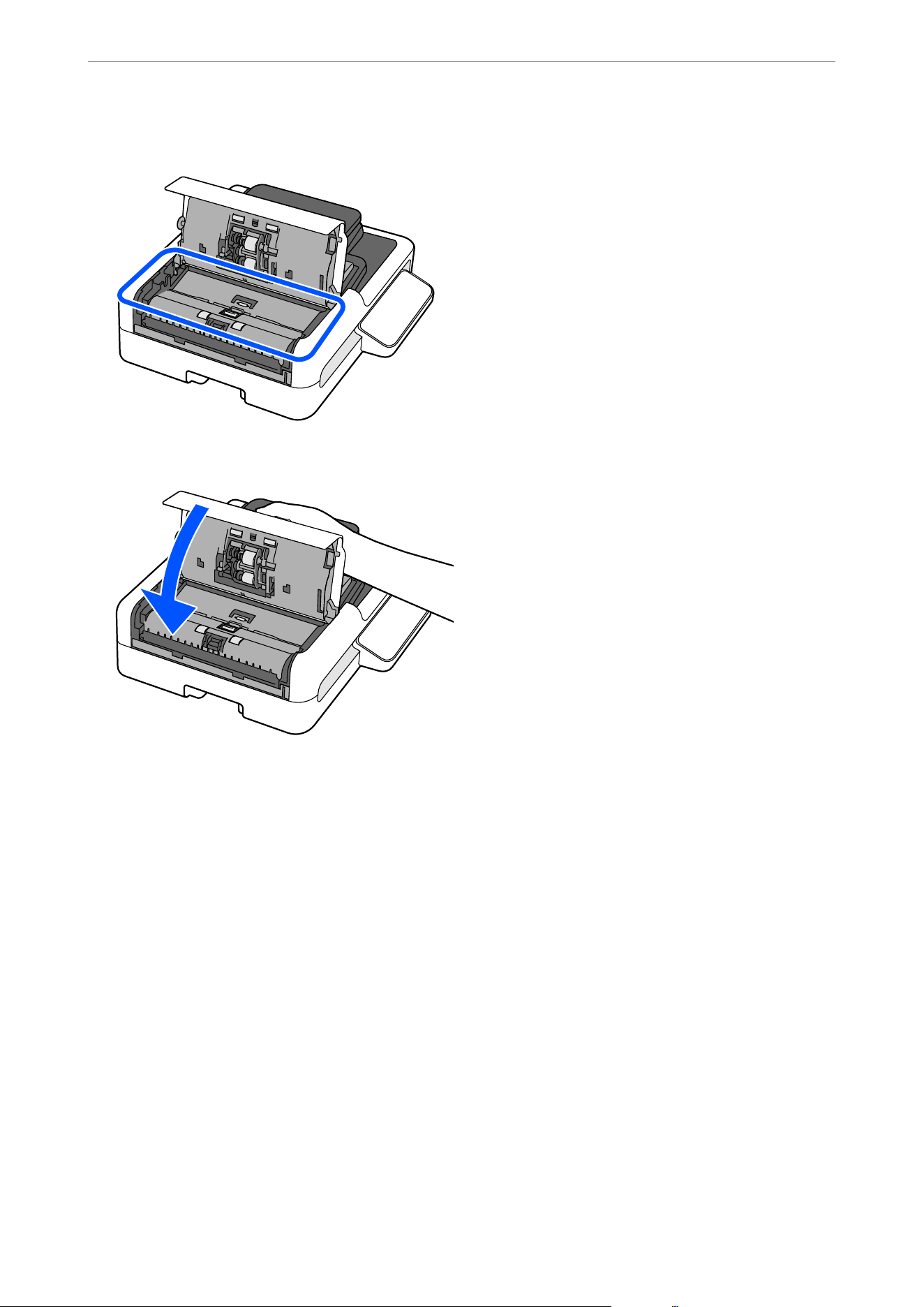
12. Make sure that no paper (or pieces of paper) remain in the areas shown in the illustration.
13. Close the ADF cover.
Note:
O If the error continues to occur aer removing the jammed original, open the ADF cover and check again to make sure no
pieces of paper remain.
O When scanning using the ADF, make sure that the originals are placed correctly. Also, make sure that the originals meet
the conditions and type required to scan using the ADF.
Related Information
&
“Multiple Originals Are Fed (Double Feed)” on page 83
& “Paper Jams, Paper Feed Errors, and Document Protection Issues Occur Frequently” on page 88
& “Paper Protection Does not Work Correctly” on page 90
& “Types of Originals that Require Attention (ADF)” on page 22
& “Types of Originals that Must Not be Scanned (ADF)” on page 23
& “
Specications
and Placing of Originals (ADF)” on page 24
Paper Jams, Paper Feed Errors, and Document Protection Issues
Occur Frequently
If the following problems occur, check the original and the status of the scanner.
Solving Problems
>
Paper Feeding Problems
>
Paper Jams, Paper Feed Errors, and Document Protection Issues O
…
88
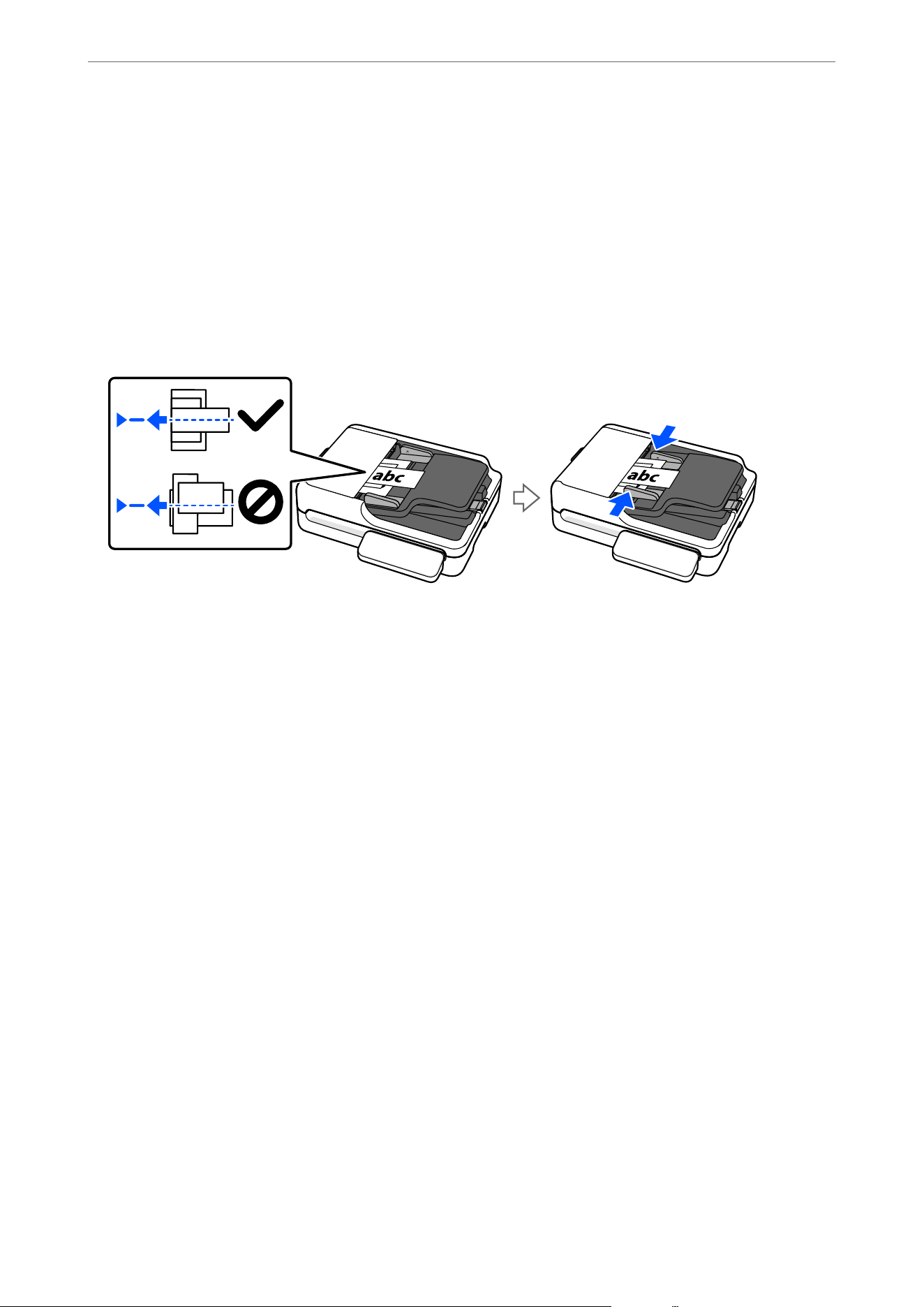
O Originals jam frequently
O Paper feed errors occur frequently
O Document protection issues occur frequently
Points to check when loading originals
O For originals with folds or that are curled, atten the original before loading.
O When loading originals with a mixture of dierent sizes, load the originals with the side to be scanned facing up
and in descending order of paper size with the widest at the back and the narrowest at the center of the input
tray. Next, slide the edge guides to align them with the widest originals.
“Placing a Mixture of Originals at
Dierent
Sizes” on page 30
If the problem is not solved, try scanning the originals at each size separately, or scan the originals one by one.
Align the edge guides to the width of the originals each time you load them.
Note:
You can use the following methods to scan the originals multiple times separately and then save them to one le.
O When you are using Epson Scan 2, select Add or edit pages aer scanning checkbox, and then scan the original. You can
add dierent originals or edit (rotate, move, and delete) the scanned pages aer scanning. See the Epson Scan 2 help for
details.
O When using Document Capture Pro, you can add originals for scanning or edit scanned pages (rotate, move, or delete) on
the Edit Scanned Results screen. Alternatively, you can quickly perform additional scans without changing the settings
by selecting Show the conrmation dialog aer scanning on the Scan Settings screen.
See the Document Capture Pro help for details.
O Aer scanning, remove the original from the output tray.
Points to check on the scanner
Clean the ADF.
“Cleaning the ADF” on page 68
Related Information
&
“Types of Originals that Require Attention (ADF)” on page 22
& “Placing a Mixture of Originals at Dierent Sizes” on page 30
& “Cleaning the ADF” on page 68
& “Multiple Originals Are Fed (Double Feed)” on page 83
& “Paper Protection Does not Work Correctly” on page 90
Solving Problems
>
Paper Feeding Problems
>
Paper Jams, Paper Feed Errors, and Document Protection Issues O
…
89
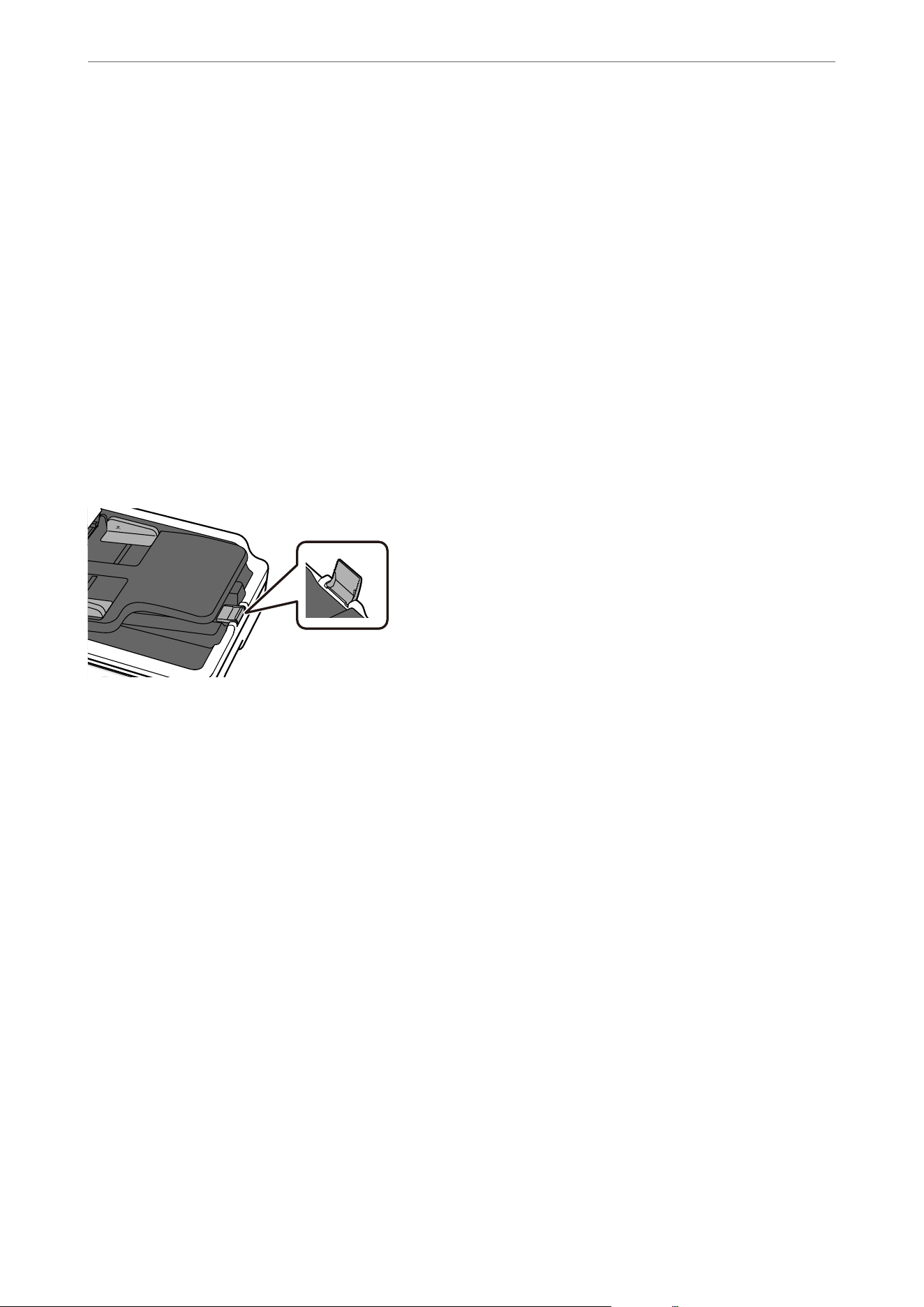
Paper Protection Does not Work Correctly
Depending on the original and the level you set, this feature may not work correctly.
O If false positives occur frequently, try lowering the level.
O If your original is damaged, check that this feature is enabled. If it is already enabled, increase the level of
protection for the feature.
Related Information
&
“Setting the Document Protection Feature” on page 65
& “Removing Jammed Originals from the Scanner” on page 83
Originals are not Ejected Neatly
If scanned originals become misaligned or scattered, or if they fall out of the output tray, raise the stopper.
The Originals Get Dirty
Clean the inside of the scanner.
Related Information
&
“Cleaning the ADF” on page 68
Scanning Speed Slows Down when Scanning Continuously
When scanning continuously using the ADF, scanning slows down to prevent the scanner mechanism from
overheating and being damaged. However, you can continue scanning.
To regain normal scanning speed, leave the scanner idle for at least 30 minutes. Scanning speed does not recover
even if the power is o.
Scanning Takes a Long Time
O e scanning speed may slow down depending on the scanning conditions, such as high resolution, image
adjustment features, le format, and so on.
O If you are using a USB hub, try to connect the scanner directly to the computer.
Solving Problems
>
Paper Feeding Problems
>
Scanning Takes a Long Time
90

O When using security soware, exclude the TWAIN.log le from monitoring, or set the TWAIN.log as a
read-only
le.
For more information on your security
soware’s
functions, see the help and so on supplied with
the
soware.
e
TWAIN.log
le
is saved in the following locations.
C:\Users\(user name)\AppData\Local\Temp
Related Information
&
“Setting a Resolution at Suits the Scanning Purpose” on page 60
Scanned Image Problems
Uneven Colors, Dirt, Spots, and so on Appear when Scanning from
the Scanner Glass
O Clean the scanner glass.
O Remove any trash or dirt that adheres to the original.
O Do not press with too much force on the original or the document cover. If you press with too much force,
blurring, smudges, and spots may occur.
Lines (Streaks) Appear when Scanning from ADF
O Clean the ADF.
Straight lines (streaks) may appear in the image when debris or dirt gets into the ADF.
O Remove any debris or dirt that adheres to the original.
O Using Glass Dirt Detection feature, a notication is displayed when dirt is detected on the scanner glass inside
the scanner (the ADF scanning sensor).
Select Scanner Setting tab and then select On-High or On-Low from Detect Glass Dirt in Epson Scan 2
Utility .
When an alert is displayed, clean the glass surfaces inside your scanner using a genuine Epson cleaning kit or a
so cloth.
“Cleaning the ADF” on page 68
Note:
O Some stains may not be detected correctly.
O If the detection does not work correctly, change the setting.
If no stains are detected, select On-High. If stains are detected incorrectly, select On-Low or O.
Solving Problems
>
Scanned Image Problems
>
Lines (Streaks) Appear when Scanning from ADF
91
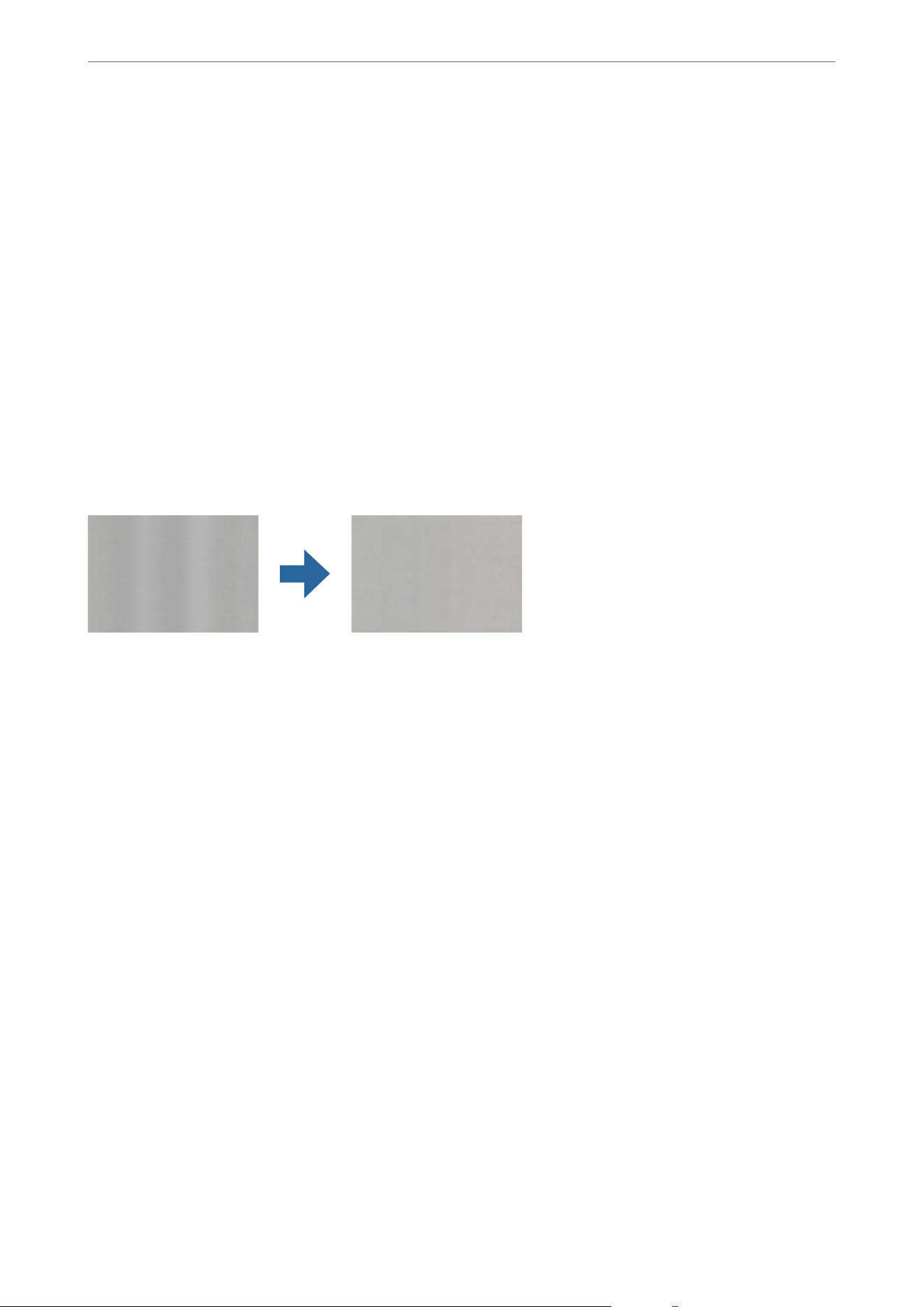
Related Information
&
“Cleaning the ADF” on page 68
& “Setting the Glass Surface Stain Detection Feature” on page 64
Alert About Stains Inside the Scanner Still Appears
If the alert screen appears aer cleaning the inside of the scanner, glass part will be required to replace.
Contact your local dealer to repair. In the U.S., Canada, and Latin America, contact Epson Support.
Related Information
&
“Cleaning the ADF” on page 68
Colors Are Uneven in Images Scanned Using the ADF
If the scanner is subject to strong light such as direct sunlight, the sensor inside the scanner misdetects the light
and colors in the scanned image become uneven.
O Change the orientation of the scanner so that no strong light is shining into the ADF.
O Move the scanner to a location where it will not be subjected to strong light.
Text Scanned from the ADF Appears Distorted, Blurred, or
Misaligned
O Try placing the original upside down with the side to be scanned facing up. is might improve the results.
O Depending on the original, it may not be scanned clearly from the ADF. Place the original on the scanner glass.
Expanding or Contracting the Scanned Image Using the ADF
When expanding or contracting the scanned image using the ADF, you can adjust the expansion ratio by using the
Adjustments feature in Epson Scan 2 Utility. is feature is only available for Windows.
Note:
Epson Scan 2 Utility is one of the applications supplied with the scanner soware.
1.
Start Epson Scan 2 Utility.
O Windows 11/Windows Server 2019/Windows Server 2022
Click the start button, and then select All apps > EPSON > Epson Scan 2 Utility.
Solving Problems
>
Scanned Image Problems
>
Expanding or Contracting the Scanned Image Using the ADF
92

O Windows 10/Windows Server 2016
Click the start button, and then select EPSON > Epson Scan 2 Utility.
O Windows 8.1/Windows 8/Windows Server 2012 R2/Windows Server 2012
Enter the application name in the search charm, and then select the displayed icon.
O Windows 7/Windows Server 2008 R2
Click the start button, and then select All Programs or Programs > EPSON > Epson Scan 2 > Epson Scan
2 Utility.
2.
Select the Adjustments tab.
3. Use Expansion/Contraction to adjust the expansion ratio for scanned images.
4. Click Set to apply the settings to the scanner.
An Image on the Back of Your Original Appears in Your Scanned
Image
Images on the back of the original may appear in the scanned image.
O When scanning thin originals on the scanner glass, place black paper over the original.
O When Auto, Color, or Grayscale is selected as the Image Type:
O Check that Remove Background is selected.
Document Capture Pro (Windows)/Document Capture (Mac OS X): Press the Detailed Settings button on
the Scan Settings screen to open the Epson Scan 2 screen. On the Advanced Settings tab, select Remove
Background.
Epson Scan 2: On the Advanced Settings tab, select Remove Background.
O Adjust the brightness and density.
Epson Scan 2: Adjust the Brightness on the Advanced Settings tab.
O When you select Black & White from Image Type:
Check that Text Enhancement is selected.
Document Capture Pro (Windows)/Document Capture (Mac OS X): On the Scan Settings screen, select Text
Enhancement.
Epson Scan 2: On the Advanced Settings tab, select Text Enhancement.
Depending on the condition of your scanned image, click Settings, and then move the slider towards Remove
background.
Scanned Text or Images are Missing or Blurred
You can adjust the appearance of the scanned image or text by increasing the resolution or adjusting the image
quality.
O Change the resolution, and then scan again.
Set the appropriate resolution for the purpose of your scanned image.
Solving Problems
>
Scanned Image Problems
>
Scanned Text or Images are Missing or Blurred
93
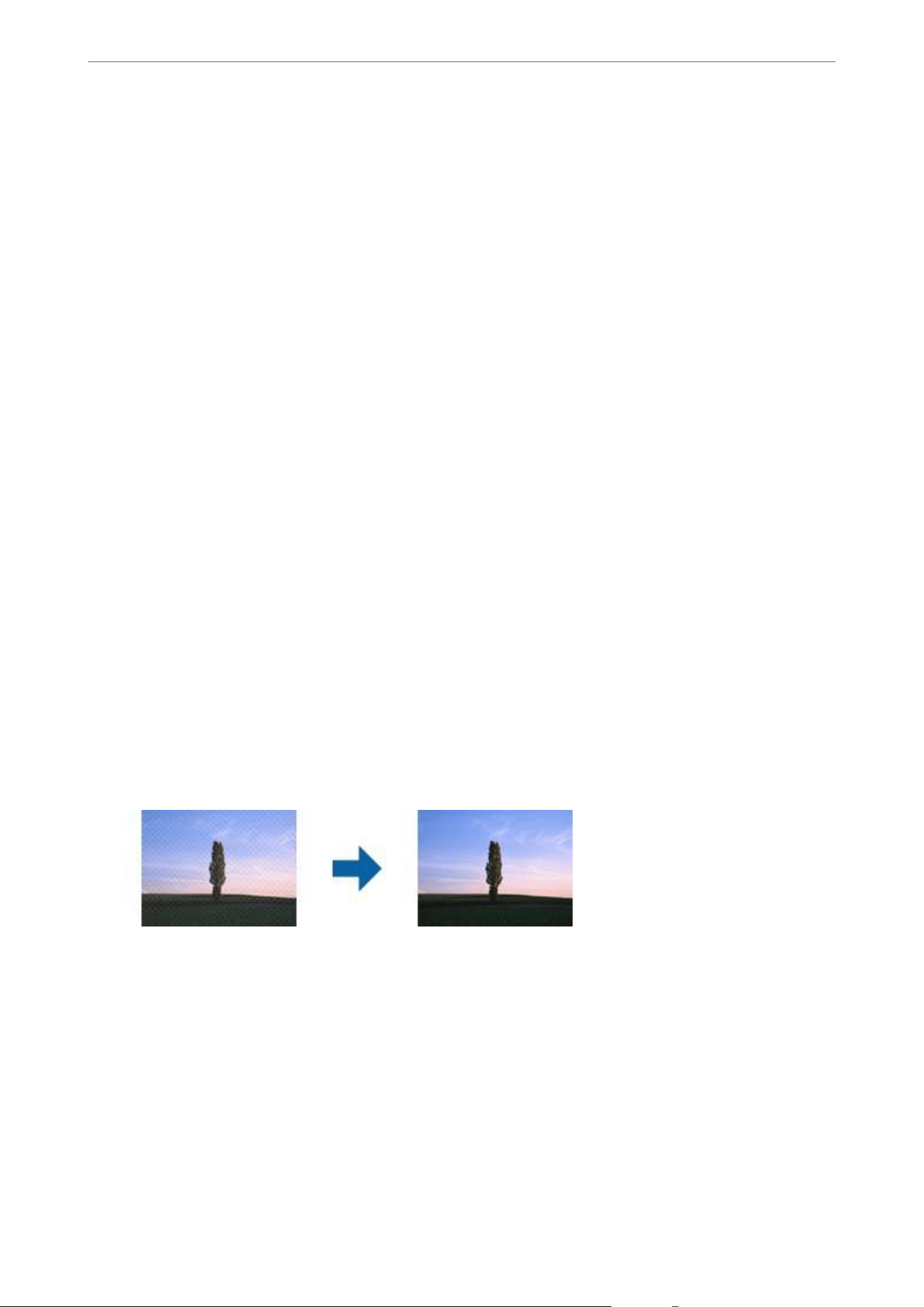
O Check that Text Enhancement is selected.
Document Capture Pro (Windows)/Document Capture (Mac OS X): On the Scan Settings screen, select Text
Enhancement.
Epson Scan 2: On the Advanced Settings tab, select Text Enhancement.
When you select Black & White as the Image Type, depending on the condition of the scanned image, click
Settings and adjust the slider for Emphasize light letters / Remove background, turn
o
Remove spot noise,
or set the level to Low.
O If you are scanning in JPEG format, try changing the compression level.
Document Capture Pro (Windows)/Document Capture (Mac OS X): Click Option on the Save Settings screen
to change the JPEG quality.
Epson Scan 2: Click Image Format > Options, and then change the Image Quality.
Also, check the following when scanning from the scanner glass.
O Make sure the original is placed at on the scanner glass. Also make sure your original is not wrinkled or
warped.
O Make sure you do not move the original or the scanner while scanning.
O Make sure the scanner is placed on a at and stable surface.
Related Information
&
“Setting a Resolution
at
Suits the Scanning Purpose” on page 60
Moiré Patterns (Web-Like Shadows) Appear
If the original is a printed document, moiré patterns (web-like shadows) may appear in the scanned image.
O Select Descreening on the Advanced Settings tab in Epson Scan 2 screen.
When you are using Document Capture Pro, you can open the Epson Scan 2 screen by pressing the Detailed
Settings button on the Scan Settings screen. Select Descreening on the Advanced Settings tab.
O Change the resolution, and then scan again.
Cannot Scan the Correct Area on the Scanner Glass
O Make sure the original is placed correctly against the alignment marks.
O If the edges of the scanned image are cut o, move the original slightly away from the edges of the scanner glass.
O If the original is thick, place it in the center of the scanner glass. Make sure that exterior light, such as from
lamps or other sources, does not shine directly onto the scanner glass.
O e maximum size of the original you can scan is 215.9×297.1 mm (8.5×11.7 in.).
Solving Problems
>
Scanned Image Problems
>
Cannot Scan the Correct Area on the Scanner Glass
94
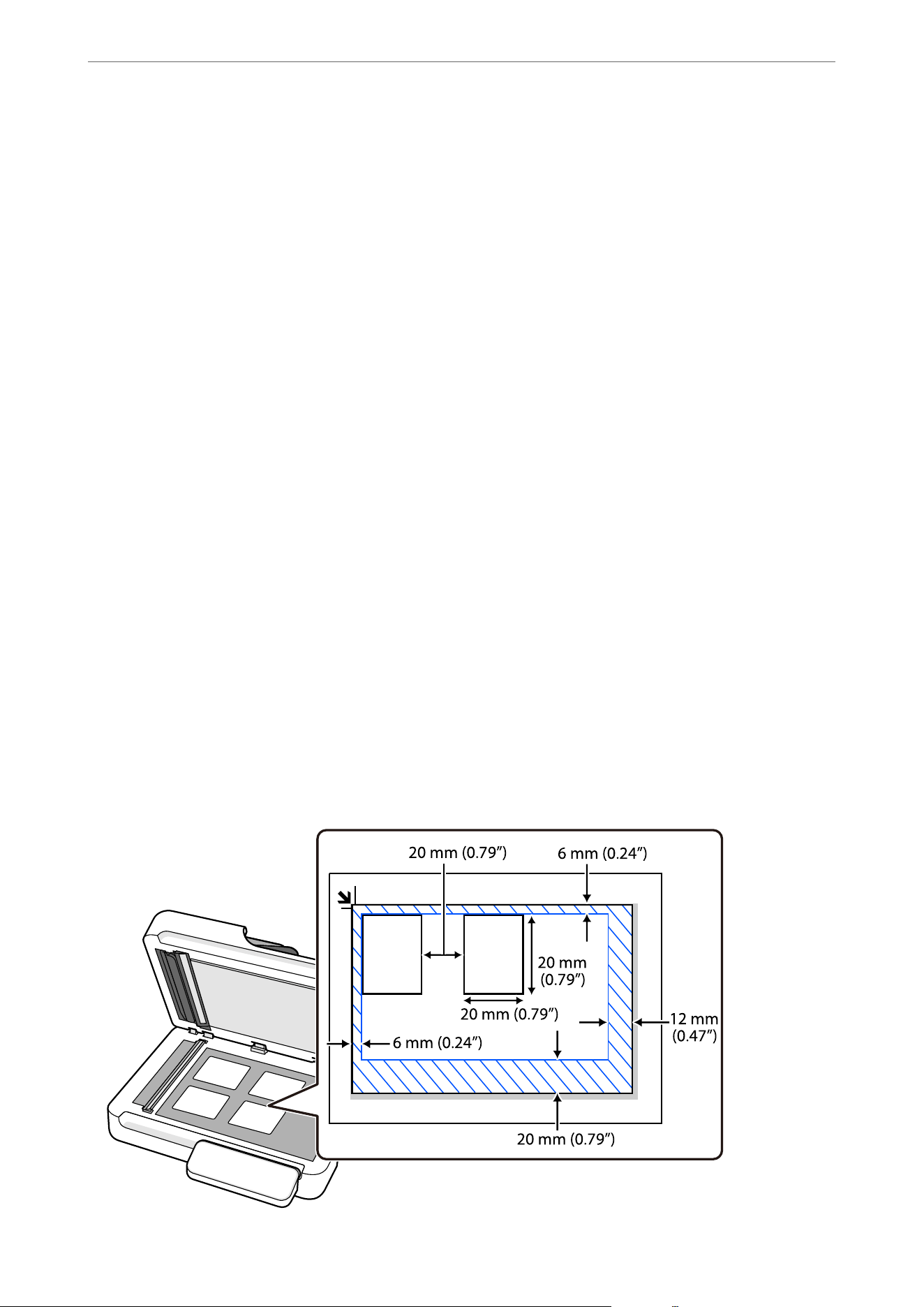
O ere are areas at the top, bottom, le, and right edges of the scanner glass that cannot be scanned.
O Top: 1.5 mm (0.06 in.)
O
Le:
1.5 mm (0.06 in.)
O Right: 8 mm (0.31 in.)
O Bottom: 15 mm (0.59 in.)
O Check the settings in Edge Correction. When enabled, the edges of the image are corrected. Try changing the
setting.
Document Capture Pro (Windows)/Document Capture (Mac OS X): Press the Detailed Settings button on the
Scan Settings screen to open the Epson Scan 2 screen. On the Advanced Settings tab, select None from Edge
Correction.
Epson Scan 2: On the Advanced Settings tab, select None from Edge Correction.
Related Information
&
“Placing an Original” on page 35
Cannot Scan Multiple Originals at the Same Time
O When placing multiple originals on the scanner glass, make sure they meet the following requirements.
O Keep each original away from the edges of the scanner glass by the following distances:
O Top: 6 mm (0.24 in.)
O Le: 6 mm (0.24 in.)
O Right: 12 mm (0.47 in.)
O Bottom: 20 mm (0.79 in.)
O Leave a gap of at least 20 mm (0.79 in.) between each original.
O e originals must be at least 20×20 mm (0.79×0.79 in.) in size.
Solving Problems
>
Scanned Image Problems
>
Cannot Scan Multiple Originals at the Same Time
95

O Check that the originals are placed straight.
O When scanning, set Document Size to Auto Detect on the Scan Settings screen.
O Depending on the originals, you may not be able to scan multiple originals at the same time. Scan such originals
one by one.
Related Information
&
“Placing Multiple Originals at Once” on page 38
The Edge of the Original is Not Scanned when Automatically
Detecting the Size of the Original
Depending on the original, the edge of the original may not scanned when automatically detecting the size of the
original.
O Adjust Crop Margins for Size "Auto" in the Epson Scan 2 screen. When you are using Document Capture Pro,
you can open the Epson Scan 2 screen by pressing the Detailed Settings button on the Scan Settings screen.
Click the Main Settings tab > Document Size > Settings. On the Document Size Settings screen, adjust Crop
Margins for Size "Auto".
O Depending on the original, the area of the original may not be detected correctly when using the Auto Detect
feature. Select the appropriate size of the original from the Document Size list.
Note:
If the size of the original you want to scan is not on the list, create the size manually on the Epson Scan 2 screen. When you
are using Document Capture Pro, you can open the Epson Scan 2 screen by pressing the Detailed Settings button on the
Scan Settings screen.
Click the Main Settings tab > Document Size, and then select Customize.
Character is not Recognized Correctly
Check the following to increase the recognition rate of OCR (Optical Character Recognition).
O Check that the original is placed straight.
O Use an original with clear text. Text recognition may decline for the following types of originals.
O Originals that have been copied many times
O Originals received by fax (at low resolutions)
O Originals with tightly spaced characters or line spacing
O Originals with ruled lines or underlined text
O Originals with hand-written text
O Originals with creases or wrinkles
O Paper type made of thermal paper such as receipts may deteriorate due to age or friction. Scan them as soon as
possible.
O When saving to Microso® Oce or Searchable PDF les, check that the correct languages are selected.
O If you have set Image Type to Color or Grayscale in Epson Scan 2, try adjusting the Text Enhancement setting.
Click the Advanced Settings tab > Text Enhancement > Settings, and then select Emphasize light letters for
OCR as the Mode.
Solving Problems
>
Scanned Image Problems
>
Character is not Recognized Correctly
96

Note:
You need the EPSON Scan OCR component to save as a Searchable PDF. is is installed automatically when you set up
the scanner using the installer.
Binding Margins of a Booklet are Distorted or Blurred
When scanning a booklet on the scanner glass, characters may appear distorted or blurred on the binding margin.
If this problem occurs, text is not recognized correctly when you save the scanned image as a Searchable PDF.
To decrease distortion or blurring on the binding margin, gently press down the document cover and hold it down
while scanning to atten the booklet. Make sure you do not move the booklet while scanning.
c
Important:
Do not press the document cover with too much force. Otherwise, the booklet or the scanner may be damaged.
Cannot Solve Problems in the Scanned Image
If you have tried all of the solutions and have not solved the problem, initialize the scanner driver (Epson Scan 2)
settings using Epson Scan 2 Utility.
Note:
Epson Scan 2 Utility is one of the applications supplied with the scanner soware.
1. Start Epson Scan 2 Utility.
O Windows 11/Windows Server 2019/Windows Server 2022
Click the start button, and then select All apps > EPSON > Epson Scan 2 Utility.
O Windows 10/Windows Server 2016
Click the start button, and then select EPSON > Epson Scan 2 Utility.
O Windows 8.1/Windows 8/Windows Server 2012 R2/Windows Server 2012
Enter the application name in the search charm, and then select the displayed icon.
O Windows 7/Windows Server 2008 R2/Windows Server 2008
Click the start button, and then select All Programs or Programs > EPSON > Epson Scan 2 > Epson Scan
2 Utility.
O Mac OS
Select Go > Applications > Epson
Soware
> Epson Scan 2 Utility.
2. Select the Other tab.
3. Click Reset.
Note:
If initialization does not solve the problem, uninstall and re-install the scanner driver (Epson Scan 2).
Document Capture Pro Problems
For problems that occur when scanning using Document Capture Pro, access the following URL to check the
Document Capture Pro manual.
Solving Problems
>
Document Capture Pro Problems
97

https://support.epson.net/dcp/
Uninstalling and Installing Applications
Uninstalling Your Applications
You may need to uninstall and then reinstall your applications to solve certain problems or if you upgrade your
operating system. Log on to your computer as an administrator. Enter the administrator password if the computer
prompts you.
Uninstalling Your Applications for Windows
1. Quit all running applications.
2. Disconnect the scanner from your computer.
3. Open the Control Panel:
O Windows 11/Windows Server 2022
Click the start button, and then select All apps > Windows Tools > Control Panel.
O Windows 10/Windows Server 2016/Windows Server 2019
Click the start button, and then select Windows System > Control Panel.
O Windows 8.1/Windows 8/Windows Server 2012 R2/Windows Server 2012
Select Desktop > Settings > Control Panel.
O Windows 7/Windows Server 2008 R2
Click the start button, and then select Control Panel.
4. Select Uninstall a program in Programs.
5. Select the application you want to uninstall.
6. Click Uninstall/Change or Uninstall.
Note:
If the User Account Control window is displayed, click Continue.
7. Follow the on-screen instructions.
Note:
A message may be displayed prompting you to restart your computer. If it is displayed, make sure I want to restart my
computer now is selected, and then click Finish.
Uninstalling Your Applications for Mac OS
Note:
Make sure you installed EPSON Soware Updater.
Solving Problems
>
Uninstalling and Installing Applications
>
Uninstalling Your Applications
98

1. Download the Uninstaller using EPSON Soware Updater.
Once you have downloaded the Uninstaller, you do not need to download it again each time you uninstall the
application.
2. Disconnect the scanner from your computer.
3. To uninstall the scanner driver, select System Preferences from the Apple menu > Printers & Scanners (or
Print & Scan, Print & Fax), and then remove the scanner from the enabled scanner list.
4. Quit all running applications.
5. Select Go > Applications > Epson
Soware
> Uninstaller.
6. Select the application you want to uninstall, and then click Uninstall.
c
Important:
e Uninstaller removes all drivers for Epson scanners on the computer. If you use multiple Epson scanners
and you only want to delete some of the drivers, delete all of them rst, and then install the necessary scanner
drivers again.
Note:
If you cannot nd the application you want to uninstall in the application list, you cannot uninstall using the
Uninstaller. In this situation, select Go > Applications > Epson Soware, select the application you want to uninstall,
and then drag it to the trash icon.
Installing Your Applications
Follow the steps below to install the necessary applications.
Note:
O Log on to your computer as an administrator. Enter the administrator password if the computer prompts you.
O When reinstalling applications, you need to uninstall them rst.
1. Quit all running applications.
2. When installing scanner driver (Epson Scan 2), disconnect the scanner and the computer temporarily.
Note:
Do not connect the scanner and the computer until you are instructed to do so.
3. Visit the following website and search for your model to access the installer.
https://epson.com/support (U.S.)
https://epson.ca/support (Canada)
https://latin.epson.com/support (Latin America)
https://epson.sn > Setup (Other regions)
Solving Problems
>
Uninstalling and Installing Applications
>
Installing Your Applications
99

Technical Specications
General Scanner
Specications
........................................101
Dimensions and Weight Specications..................................102
Electrical Specications.............................................103
Environmental Specications.........................................104
System Requirements.............................................. 104
OSS License..................................................... 104

General Scanner Specications
Note:
Specications are subject to change without notice.
Scanner type Flatbed color scanner with ADF
Photoelectric device CIS
Eective pixels (scanner glass) 10,200×14,040 at 1,200 dpi
Light source RGB LED
Optical resolution ADF: 600 dpi (main scan), 600 dpi (sub scan)
Scanner glass: 1,200 dpi (main scan), 1,200 dpi (sub scan)
Scanning resolution 50 to 1,200 dpi (in 1 dpi increments)
Document Size ADF:
O Max: 215.9×3,048.0 mm (8.5×120 inches)
O Min: 105.0×148.0 mm (4.13×5.83 inches)
Scanner glass:
O Max 215.9×297.1 mm (8.5×11.7 inches)
Paper input (ADF) Face-up loading
Paper output (ADF) Face-down ejection
Paper capacity (ADF) 60 sheets of paper at a thickness of 80 g/m2
Color depth Color
O 30 bits per pixel internal (10 bits per pixel per color internal)
O 24 bits per pixel external (8 bits per pixel per color external)
Grayscale
O 10 bits per pixel internal
O 8 bits per pixel external
Black and white
O 10 bits per pixel internal
O 1 bit per pixel external
Interface Hi-Speed USB
Technical Specications
>
General Scanner Specications
101
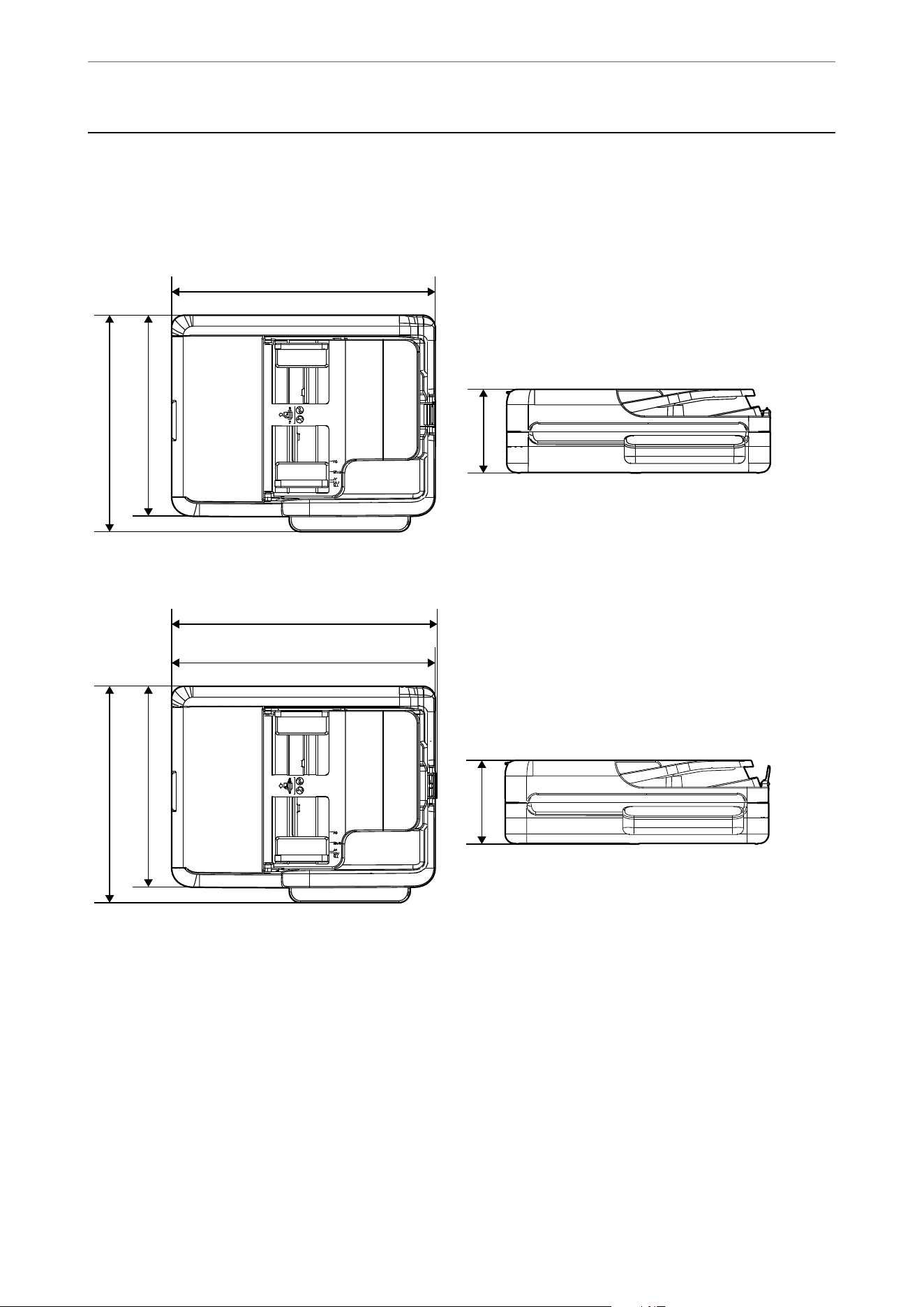
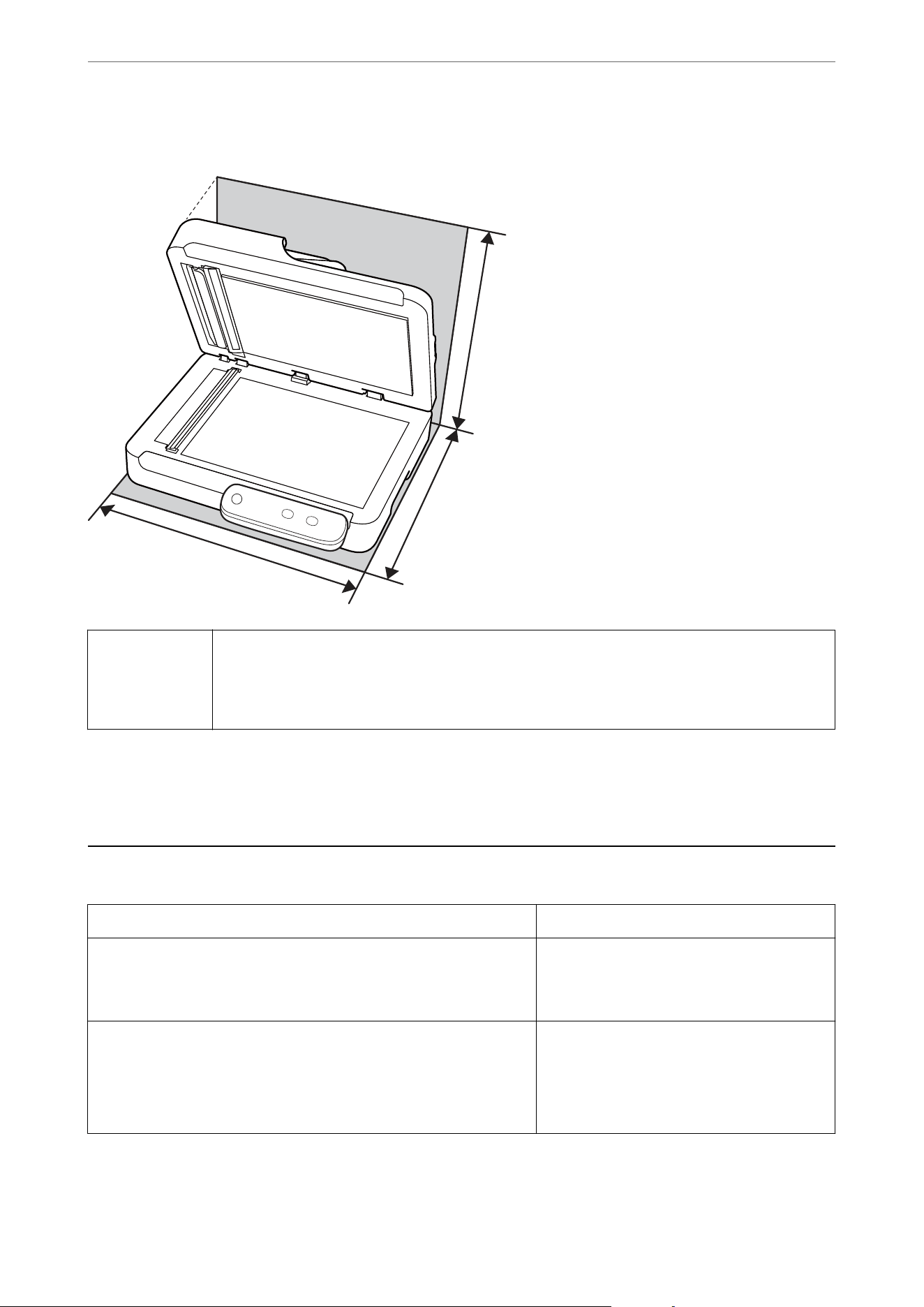
Installation space (unit: mm (inches))
C
B
A
A 388 mm (15.3 in.)
B 392 mm (15.5 in.)
C 428 mm (16.9 in.)
Weight
Approx. 4.9 kg (10.8 lb)
Electrical Specications
Model AC 100-240 V Model AC 220-240 V Model
Rated Frequency
Range
50-60 Hz 50-60 Hz
Rated Current 0.3 A 0.15 A
Power Consumption O Operating: Approx. 9.0 W
O Ready mode: Approx. 3.8 W
O Sleep mode: Approx. 0.9 W
O Power
o:
Approx. 0.1 W
O Operating: Approx. 9.0 W
O Ready mode: Approx. 3.8 W
O Sleep mode: Approx. 0.9 W
O Power
o:
Approx. 0.1 W
Technical Specications
>
Electrical Specications
103
Note:
O Check the label on the scanner for its voltage.
O For European users, see the following Website for details on power consumption.
https://www.epson.eu/energy-consumption
Environmental
Specications
Temperature When operating 5 to 35 °C (41 to 95 °F)
When stored –25 to 60 °C (–13 to 140 °F)
Humidity When operating 15 to 80% (without condensation)
When stored 15 to 85% (without condensation)
Operating conditions Ordinary oce or home conditions. Avoid operating the scanner
in direct sunlight, near a strong light source, or in extremely dusty
conditions.
System Requirements
Supported operating systems may vary depending on the application.
Windows Windows 11 or later
Windows 10
Windows 8/8.1
Windows 7
Windows Server 2008 or later
*2
Mac OS
*1
Mac OS X 10.9.5 or later, macOS 11 or later
*1 Fast User Switching on Mac OS or later is not supported.
*2 Document Capture Pro does not support Windows Server.
OSS License
You can check the OSS licenses included with this product from the following URL.
https://support.epson.net/sec_pubs/redirect2.php?model=ds-1730&type=othg&lang=en&lename=oss.pdf
Technical Specications
>
OSS License
104

Standards and Approvals for European Models
e following model is CE/UKCA marked and in compliance with the relevant statutory requirements.
e
full text of the declaration of conformity is available at the following website:
https://www.epson.eu/conformity
J451A
Standards and Approvals for Australian Model
EMC AS/NZS CISPR32 Class B
Epson hereby declares that the following equipment Models are in compliance with the essential requirements and
other relevant provisions of AS/NZS4268:
J451A
Epson cannot accept responsibility for any failure to satisfy the protection requirements resulting from a non-
recommended modication of the product.
Standards and Approvals for the U.S. and Canadian
Models
Safety UL60950-1
CAN/CSA-C22.2 No.60950-1-07
EMC FCC Part 15 Subpart B Class B
CAN ICES (B)/NMB (B)
Standards and Approvals
>
Standards and Approvals for the U.S. and Canadian Models
106


Technical Support Web Site
If you need further help, visit the Epson support website shown below. Select your country or region and go to the
support section of your local Epson website. e latest drivers, FAQs, manuals, or other downloadables are also
available from the site.
https://support.epson.net
https://www.epson.eu/support
(Europe)
If your Epson product is not operating properly and you cannot solve the problem, contact Epson support services
for assistance.
Contacting Epson Support
Before Contacting Epson
If your Epson product is not operating properly and you cannot solve the problem using the troubleshooting
information in your product manuals, contact Epson support services for assistance. If Epson support for your area
is not listed below, contact the dealer where you purchased your product.
Epson support will be able to help you much more quickly if you give them the following information:
O Product serial number
(e serial number label is usually on the back of the product.)
O Product model
O Product
soware
version
(Click About, Version Info, or a similar button in the product
soware.)
O Brand and model of your computer
O Your computer operating system name and version
O Names and versions of the
soware
applications you normally use with your product
Note:
Depending on the product, the dial list data for fax and/or network settings may be stored in the product’s memory. Due to
breakdown or repair of a product, data and/or settings may be lost. Epson shall not be responsible for the loss of any data,
for backing up or recovering data and/or settings even during a warranty period. We recommend that you make your own
backup data or take notes.
Help for Users in the U.S. and Canada
If you need to contact Epson for technical support services, use the following support options.
Internet Support
Visit Epson's support website at
https://epson.com/support (U.S.) or https://epson.ca/support (Canada) and select
your product for solutions to common problems. You can download drivers and documentation, get FAQs and
troubleshooting advice, or e-mail Epson with your questions.
Where to Get Help
>
Contacting Epson Support
>
Help for Users in the U.S. and Canada
108

Speak to a Support Representative
Before you call Epson for support, please have the following information ready:
O Product name
O Product serial number (located on a label on the product)
O Proof of purchase (such as a store receipt) and date of purchase
O Computer
conguration
O Description of the problem
en call:
O U.S.: (562) 276-4300, 7 a.m. to 4 p.m., Pacic Time, Monday through Friday
O Canada: (905) 709-3839, 7 a.m. to 4 p.m., Pacic Time, Monday through Friday
Days and hours of support are subject to change without notice. Toll or long distance charges may apply.
Purchase Supplies and Accessories
You can purchase genuine Epson accessories at
https://epson.com (U.S. sales) or https://epson.ca (Canadian sales).
You can also purchase supplies from an Epson authorized reseller. To nd the nearest one, call 800-GO-EPSON
(800-463-7766) in the U.S. or 800-807-7766 in Canada.
Help for Users in Latin America
If you need to contact Epson for technical support services, use the following support options.
Internet Support
Visit
https://latin.epson.com/support and select your product for solutions to common problems. You can
download drivers and documentation, get troubleshooting advice, or e-mail Epson with your questions.
Speak to a Support Representative
Before you call Epson for support, please have the following information ready:
O Product name
O Product serial number (located on a label on the product)
O Proof of purchase (such as a store receipt) and date of purchase
O Computer conguration
O Description of the problem
en call:
Country Telephone
Argentina 0800-288-37766
Bolivia* 800-100-116
Brazil State capitals and metropolitan areas: 3004-6627
Other areas: 0800-377-6627 / 0800-EPSONBR
Where to Get Help
>
Contacting Epson Support
>
Help for Users in Latin America
109
Country Telephone
Chile (56 2) 2484-3400
Colombia Bogota: 601 602 4751
Other cities: 01-8000-915235
Costa Rica 800-377-6627
Dominican Republic* 1-888-760-0068
Ecuador* 1-800-000-044
El Salvador* 800-6570
Guatemala* 1-800-835-0358
Mexico Mexico City: (52 55) 1323-2052
Other cities: 800-087-1080
Nicaragua* 00-1-800-226-0368
Panama* 00-800-052-1376
Paraguay 009-800-521-0019
Peru Lima: (51 1) 418-0210
Other cities: 0800-10126
Uruguay 00040-5210067
* Contact your local phone company to call this toll-free number from a mobile phone.
If your country does not appear in the list, contact the sales oce in the nearest country. Toll or long distance
charges may apply.
Purchase Supplies and Accessories
You can purchase genuine Epson accessories from an Epson authorized reseller. To nd the nearest reseller, visit
https://latin.epson.com or call your nearest Epson sales oce.
Help for Users in Europe
Check your Pan-European Warranty Document for information on how to contact Epson support.
Help for Users in Taiwan
Contacts for information, support, and services are:
World Wide Web
http://www.epson.com.tw
Information on product specications, drivers for download, and products enquiry are available.
Where to Get Help
>
Contacting Epson Support
>
Help for Users in Taiwan
110

Epson HelpDesk
Phone: +886-2-2165-3138
Our HelpDesk team can help you with the following over the phone:
O Sales enquiries and product information
O Product usage questions or problems
O Enquiries on repair service and warranty
Repair service center:
http://www.tekcare.com.tw/branchMap.page
TekCare corporation is an authorized service center for Epson Taiwan Technology & Trading Ltd.
Help for Users in Australia
Epson Australia wishes to provide you with a high level of customer service. In addition to your product manuals,
we provide the following sources for obtaining information:
Internet URL
http://www.epson.com.au
Access the Epson Australia World Wide Web pages. Worth taking your modem here for the occasional surf! e
site provides a download area for drivers, Epson contact points, new product information and technical support
(e-mail).
Epson Helpdesk
Phone: 1300-361-054
Epson Helpdesk is provided as a nal backup to make sure our clients have access to advice. Operators on the
Helpdesk can aid you in installing, conguring and operating your Epson product. Our Pre-sales Helpdesk sta
can provide literature on new Epson products and advise where the nearest dealer or service agent is located. Many
types of queries are answered here.
We encourage you to have all the relevant information on hand when you ring.
e
more information you
prepare, the faster we can help solve the problem. is information includes your Epson product manuals, type of
computer, operating system, application programs, and any information you feel is required.
Transportation of Product
Epson recommends retaining product packaging for future transportation.
Help for Users in New Zealand
Epson New Zealand wishes to provide you with a high level of customer service. In addition to your product
documentation, we provide the following sources for obtaining information:
Internet URL
http://www.epson.co.nz
Where to Get Help
>
Contacting Epson Support
>
Help for Users in New Zealand
111

Access the Epson New Zealand World Wide Web pages. Worth taking your modem here for the occasional surf!
e
site provides a download area for drivers, Epson contact points, new product information and technical
support (e-mail).
Epson Helpdesk
Phone: 0800 237 766
Epson Helpdesk is provided as a nal backup to make sure our clients have access to advice. Operators on the
Helpdesk can aid you in installing, conguring and operating your Epson product. Our Pre-sales Helpdesk sta
can provide literature on new Epson products and advise where the nearest dealer or service agent is located. Many
types of queries are answered here.
We encourage you to have all the relevant information on hand when you ring. e more information you prepare,
the faster we can help solve the problem. is information includes your Epson product documentation, type of
computer, operating system, application programs, and any information you feel is required.
Transportation of Product
Epson recommends retaining product packaging for future transportation.
Help for Users in Singapore
Sources of information, support, and services available from Epson Singapore are:
World Wide Web
http://www.epson.com.sg
Information on product specications, drivers for download, Frequently Asked Questions (FAQ), Sales Enquiries,
and Technical Support via e-mail are available.
Epson HelpDesk
Toll Free: 800-120-5564
Our HelpDesk team can help you with the following over the phone:
O Sales enquiries and product information
O Product usage questions or problem troubleshooting
O Enquiries on repair service and warranty
Help for Users in Thailand
Contacts for information, support, and services are:
World Wide Web
http://www.epson.co.th
Information on product specications, drivers for download, Frequently Asked Questions (FAQ), and e-mail are
available.
Epson Call Centre
Phone: 66-2460-9699
Where to Get Help
>
Contacting Epson Support
>
Help for Users in Thailand
112

Email: [email protected]
Our Call Centre team can help you with the following over the phone:
O Sales enquiries and product information
O Product usage questions or problems
O Enquiries on repair service and warranty
Help for Users in Vietnam
Contacts for information, support, and services are:
Epson Service Center
27 Yen Lang, Trung Liet Ward, Dong Da District, Ha Noi City. Tel: +84 24 7300 0911
38 Le Dinh Ly,
ac
Gian Ward,
anh
Khe District, Da Nang. Tel: +84 23 6356 2666
194/3 Nguyen Trong Tuyen, Ward 8, Phu Nhuan Dist., HCMC. Tel: +84 28 7300 0911
31 Phan Boi Chau, Ward 14, Binh anh District, HCMC. Tel: +84 28 35100818
Help for Users in Indonesia
Contacts for information, support, and services are:
World Wide Web
http://www.epson.co.id
O Information on product specications, drivers for download
O Frequently Asked Questions (FAQ), Sales Enquiries, questions through e-mail
Epson Hotline
Phone: 1500-766 (Indonesia Only)
Email: customer[email protected].id
Our Hotline team can help you with the following over the phone or email:
O Sales enquiries and product information
O Techni cal support
Help for Users in Hong Kong
To obtain technical support as well as other aer-sales services, users are welcome to contact Epson Hong Kong
Limited.
Internet Home Page
http://www.epson.com.hk
Epson Hong Kong has established a local home page in both Chinese and English on the Internet to provide users
with the following information:
Where to Get Help
>
Contacting Epson Support
>
Help for Users in Hong Kong
113

O Product information
O Answers to Frequently Asked Questions (FAQs)
O Latest versions of Epson product drivers
Technical Support Hotline
You can also contact our technical sta at the following telephone and fax numbers:
Phone: 852-2827-8911
Fax: 852-2827-4383
Help for Users in Malaysia
Contacts for information, support, and services are:
World Wide Web
http://www.epson.com.my
O Information on product specications, drivers for download
O Frequently Asked Questions (FAQ), Sales Enquiries, questions through e-mail
Epson Call Centre
Phone: 1800-81-7349 (Toll Free)
Email: websupport@emsb.epson.com.my
O Sales enquiries and product information
O Product usage questions or problems
O Enquiries on repair services and warranty
Epson Malaysia Sdn Bhd (Head
Oce)
Phone: 603-56288288
Fax: 603-5628 8388/603-5621 2088
Help for Users in India
Contacts for information, support, and services are:
World Wide Web
http://www.epson.co.in
Information on product specications, drivers for download, and products enquiry are available.
Toll Free Helpline
For Service, Product information or to order consumables -
18004250011 / 186030001600 / 1800123001600 (9AM – 6PM)
Where to Get Help
>
Contacting Epson Support
>
Help for Users in India
114

Email
calllog@epson–india.in
WhatsApp
+91 96400 00333
Help for Users in the Philippines
To obtain technical support as well as other aer sales services, users are welcome to contact the Epson Philippines
Corporation at the telephone, fax numbers and e-mail address below:
World Wide Web
http://www.epson.com.ph
Information on product specications, drivers for download, Frequently Asked Questions (FAQ), and E-mail
Enquiries are available.
Epson Philippines Customer Care
Toll Free: (PLDT) 1-800-1069-37766
Toll Free: (Digitel) 1-800-3-0037766
Metro Manila: +632-8441-9030
Web Site: https://www.epson.com.ph/contact
E-mail: customercare@epc.epson.com.ph
Accessible 9am to 6pm, Monday through Saturday (Except public holidays)
Our Customer Care team can help you with the following over the phone:
O Sales enquiries and product information
O Product usage questions or problems
O Enquiries on repair service and warranty
Epson Philippines Corporation
Trunk Line: +632-8706-2609
Fax: +632-8706-2663 / +632-8706-2665
Where to Get Help
>
Contacting Epson Support
>
Help for Users in the Philippines
115