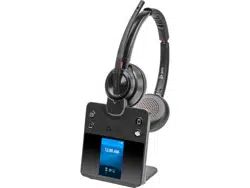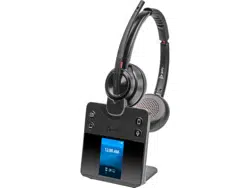

Savi 8445 Office
DECT Wireless Headset System
User Guide

Contents
DECT Information 4
DECT Enhanced Security 4
Overview 5
Your headset system 5
Headset Basics 5
Base overview 5
Accessories 6
Connect your headset system 7
Desk phone setup details 7
Position Your Base 9
Fit 10
Customize Your Headset 10
Charge 15
Charge your headset and spare battery 15
Talk time 15
Headset battery status 15
Replace rechargeable battery 16
Load software 17
Update your Poly device 17
Pair to your mobile phone 18
Auto connect feature 18
Transfer mobile audio 18
Disconnect your mobile phone 18
The basics 19
Headset Basics 19
Power on your headset 19
Adjust volume 19
Launch Microsoft Teams (Teams model only) 19
Change your default line 20
Get a dial tone 20
Stream audio 20
Make, answer, end calls 21
Make a call 21
End/take a call 21
Mute 21
Answer a second call 21
Reject a Mobile Call 21
Merge a call from 2 sources 21
Set up a conference call 22
More Features 23
Change voice prompt language 23
Optimize audio quality 23
Limit office noise 23
Remove or connect a headset charge cradle 23
Set the range 23
Automatic secure subscription 24
Troubleshooting 25
Headset 25
Desk Phone 26
Mobile 26
Softphone 27
Safety warnings 29
Safety Instructions 29
ii


DECT Information
DECT products should never be used outside the region in which they were originally
purchased and intended to be used.
The enclosed DECT 6.0 wireless product uses restricted wireless radio frequencies which
vary by country. DECT 6.0 devices are generally authorized for use in the US/Canada/
Mexico. Use of this DECT 6.0 product in unauthorized countries is a violation of law, may
disrupt telecommunications networks and devices, and can subject you to fines and
penalties by regulatory agencies.
DECT Enhanced Security
Poly is a member of the DECT Forum and has fully adopted their recommendations for
enhancements to security within all DECT products.
Poly DECT-based products now fully incorporate the latest recommendations on
Enhanced Security from the DECT Forum and ETSI. These improvements cover
registration, authentication, authorization and encryption procedures. Poly DECT
products are now secure against known vulnerabilities that were highlighted by the
public announcements of the Chaos Communication Congress in 2009.
Poly DECT products have been tested against and passed the DECT Forum security
certification requirements and consequently have been granted 'DECT Forum security'
logo certification.
Poly DECT products using the new enhanced version of DECT that includes these
security improvements are marked on the base with the DECT Forum security logo.
4
Overview
Your headset system
Your DECT
™
headset system has 3-way connectivity to computer, desk phone and
mobile phone.
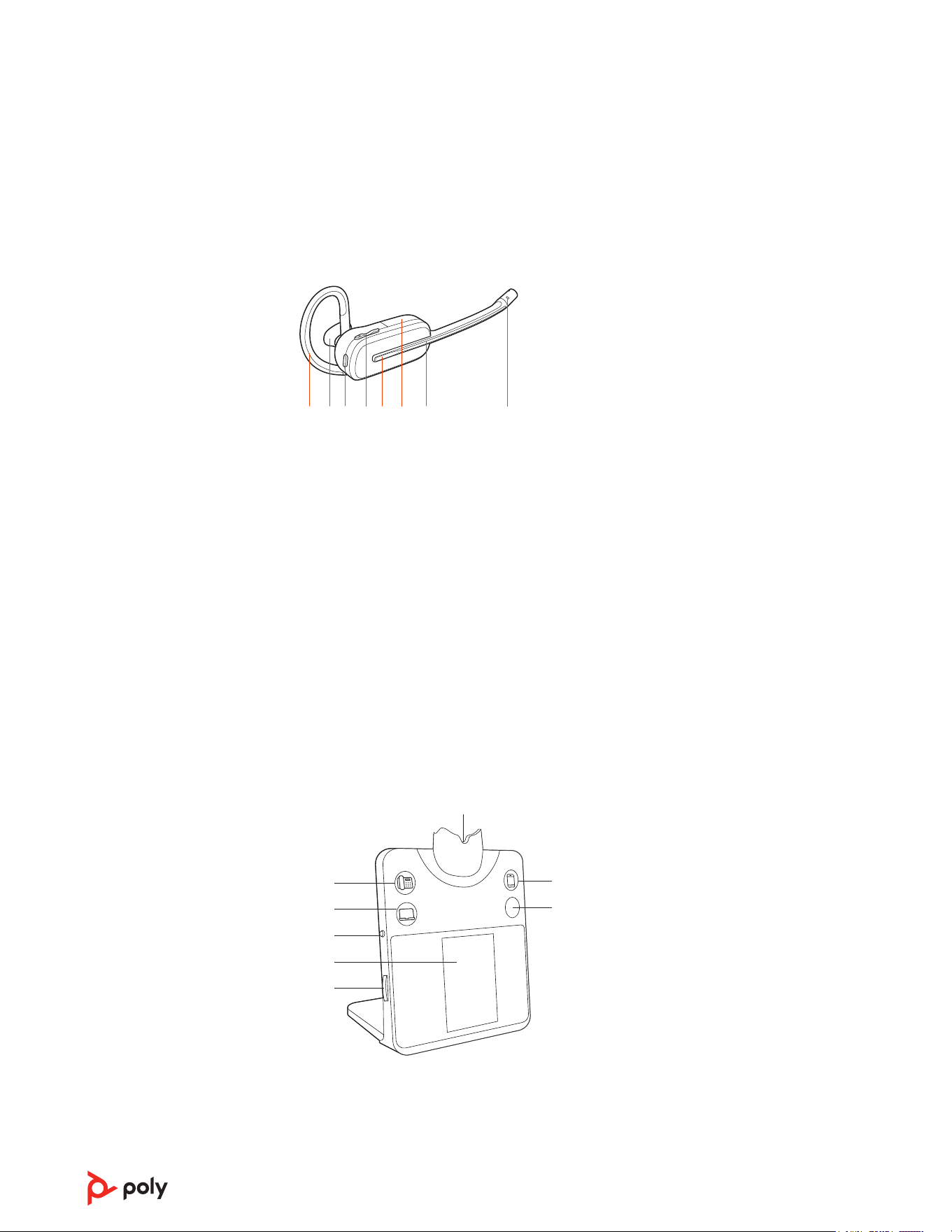
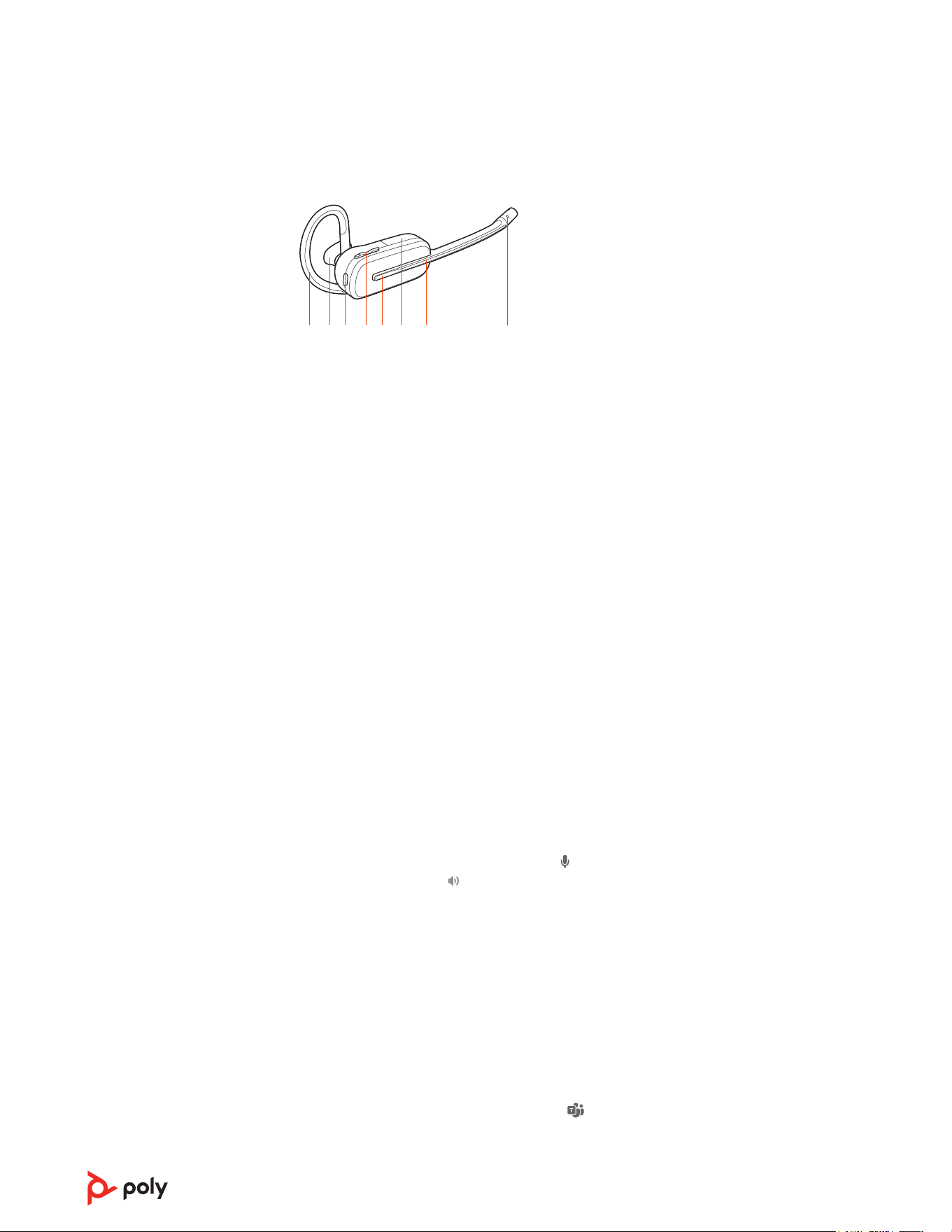
Headset Basics
1 2 3 4 5 6 7 8
1 Earloop
2 Eartip
3 Mute button
4 Volume button
5 Call button/Press to interact with Microsoft Teams (app required)
6 Battery
7 Headset LED
8 Microphone
Be safe
Please read the safety guide for important safety and regulatory information before
using your new device.
Base overview
Front view
5
4
3
2
1
6
7
8
1 Desk phone button
2 Computer button
3 Back button
4 Base screen
5
5 Navigation wheel (scroll/press)
6 Headset charge cradle
7 Mobile phone button
8 Mute button or Microsoft Teams button (varies by model)
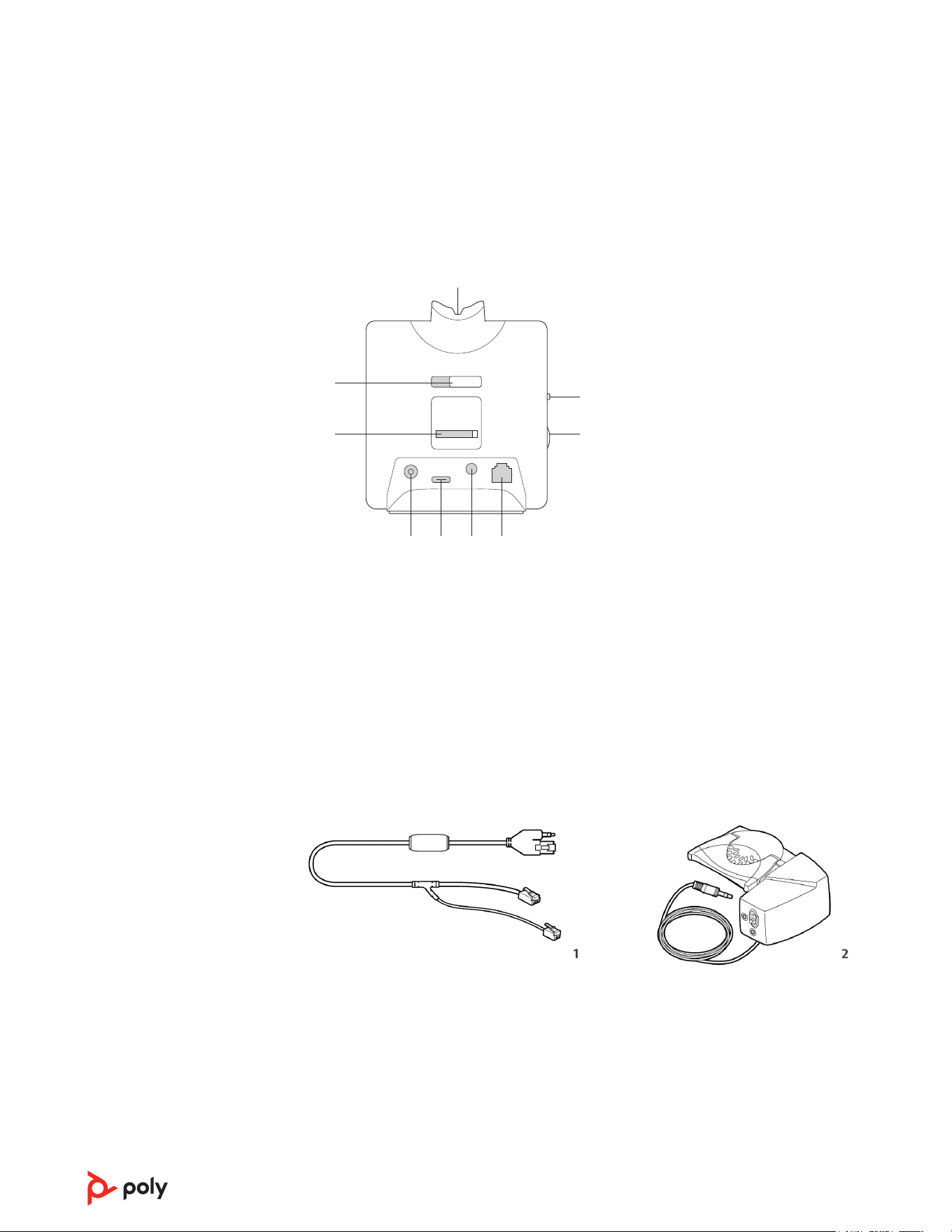
Back view
FEDCBA
8
9
1
2
3
4567
1 Headset charge cradle
2 Back button
3 Navigation wheel (scroll/press)
4 Telephone interface cable jack
5 Handset lifter jack
6 Computer cable USB-C port
7 Power jack
8 Desk phone configuration switch
9 Cradle release slider
Accessories
1 Electronic hookswitch cable (EHS cable) Electronically and automatically answers/
ends a desk phone call. Enables remote call control with your headset.
2 HL10 lifter Automatically lifts handset and returns it to the cradle. Enables remote
call control with your headset.
6
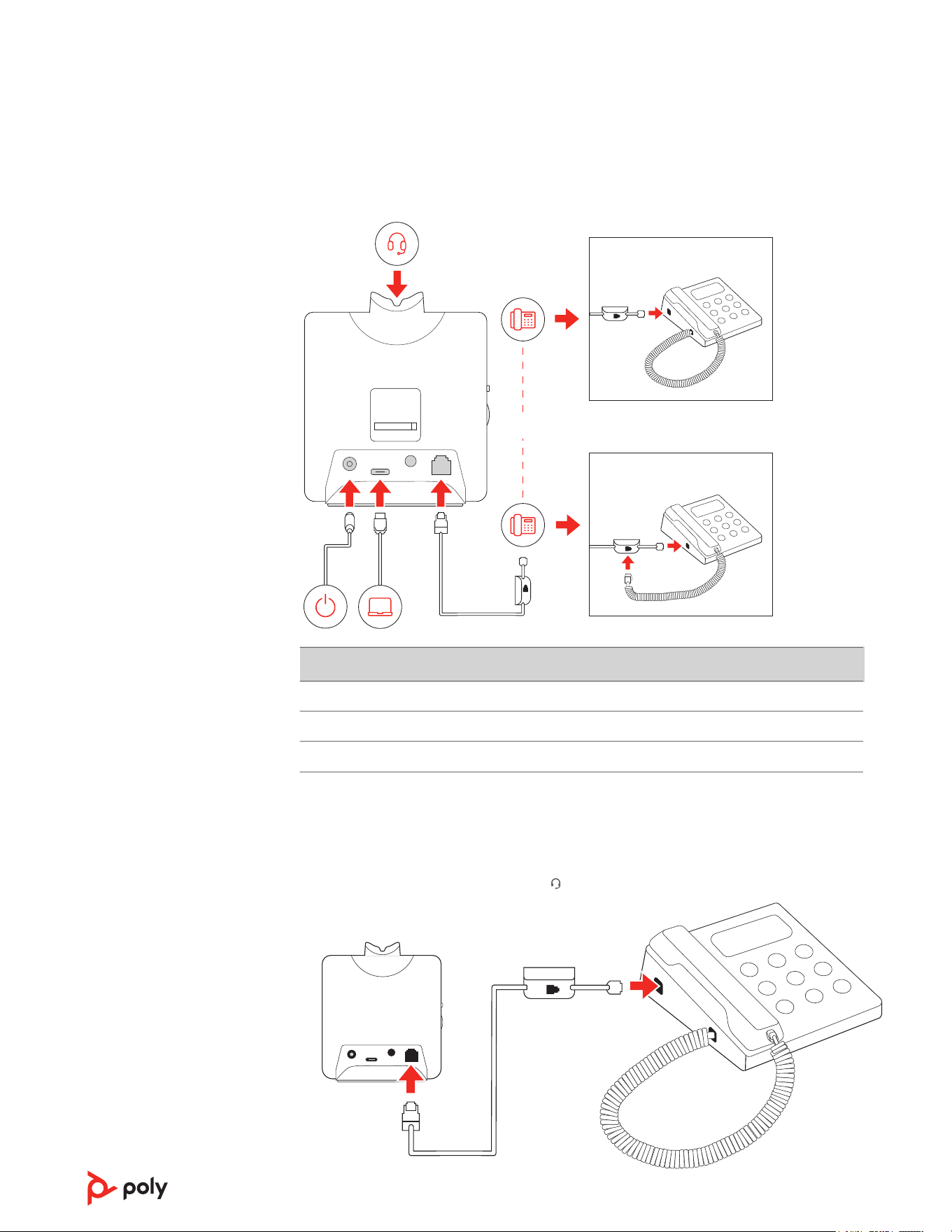
Connect your headset system
Using the diagram, connect the base to your computer, power outlet and desk phone's
headset port, if available. Otherwise, connect the base to your handset port.
FEDCBA
OR
NO HEADSET PORT
HEADSET PORT
Desk phone Base configuration setting (on back of base)
Most phones A
Cisco phones D
Cisco phones with EHS cable A
Desk phone setup details
Your desk phone setup method varies by desk phone and connection accessories.
Choose a desk phone setup A, B, C or D and connect cables.
A Desk phone with dedicated headset port
7
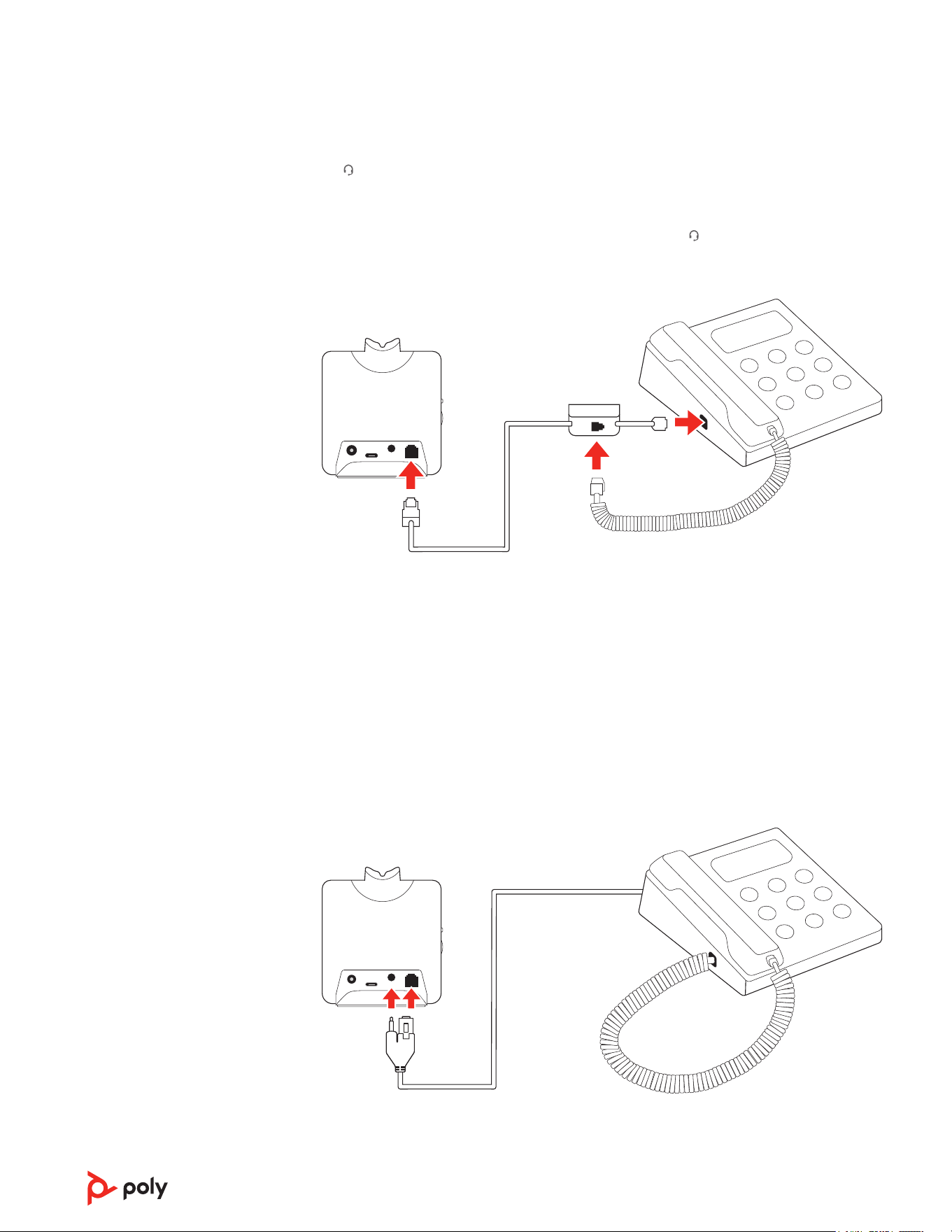
• Connect one end of the telephone interface cable to the back of the base
• Connect the other end of the telephone interface cable into the dedicated headset
port on the desk phone
Important: Cisco phones use configuration D on the back of the base. Most other
phones use default configuration A. Use this setup if you are not using the HL10 lifter
or EHS cable. In this configuration, press both the headset button on your desk
phone and the call control button on the headset to answer or end calls.
B Desk phone (standard)
• Connect one end of the telephone interface cable to the back of the base
• Disconnect the handset coil cord from the base of the desk phone and re-connect
it to the telephone interface cable junction box
• Finally connect the remaining end of the telephone interface cable into the open
handset port on the desk phone
Important: Cisco phones use configuration D on the back of the base. Most other
phones use default configuration A.
Note: Use this setup if you are not using the HL10 lifter or EHS cable and your desk
phone does not have a dedicated headset port. In this configuration, manually remove
the handset on your desk phone and press the call control button on the headset to
answer or end calls.
C Desk phone + EHS cable (sold separately)
Important: Use configuration A on the back of the base, which works for most
phones including Cisco phones.
D Desk phone + HL10 lifter (sold separately)
8
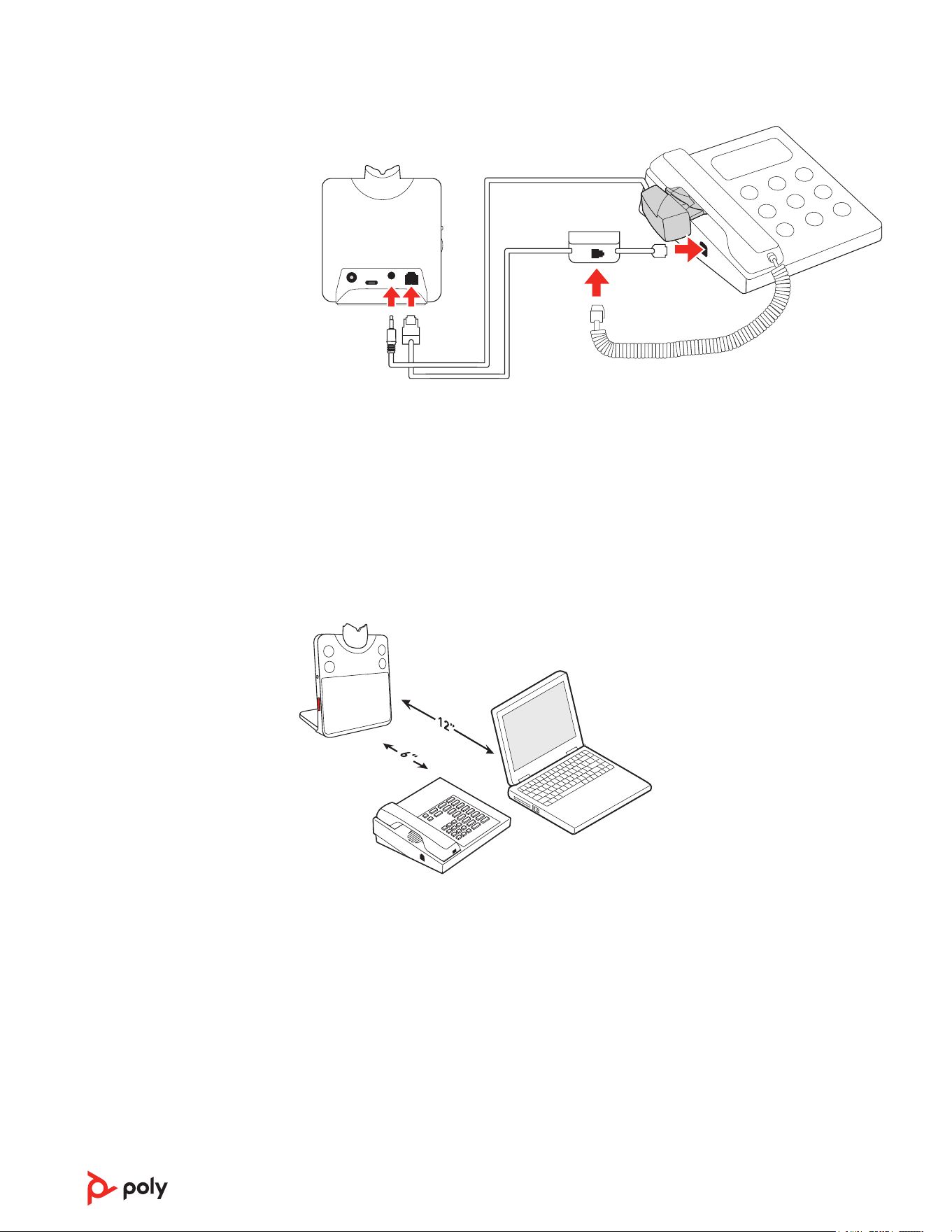
Important: Cisco phones use configuration D on the back of the base. Most other
phones use default configuration A.
Position Your Base
The minimum recommended separation between your desk phone and the base is 6
inches.
The minimum recommended separation between the base and computer is 12 inches.
Incorrect position can cause noise and interference problems.
Note: Headset cradle may vary, but function is the same.
9
Fit
Customize Your Headset
After you install the headset battery, choose one of the three headset wearing styles,
over-the-ear, over-the-head or behind-the-head. Use the fit kit to assemble it and
optimize the position of the microphone.
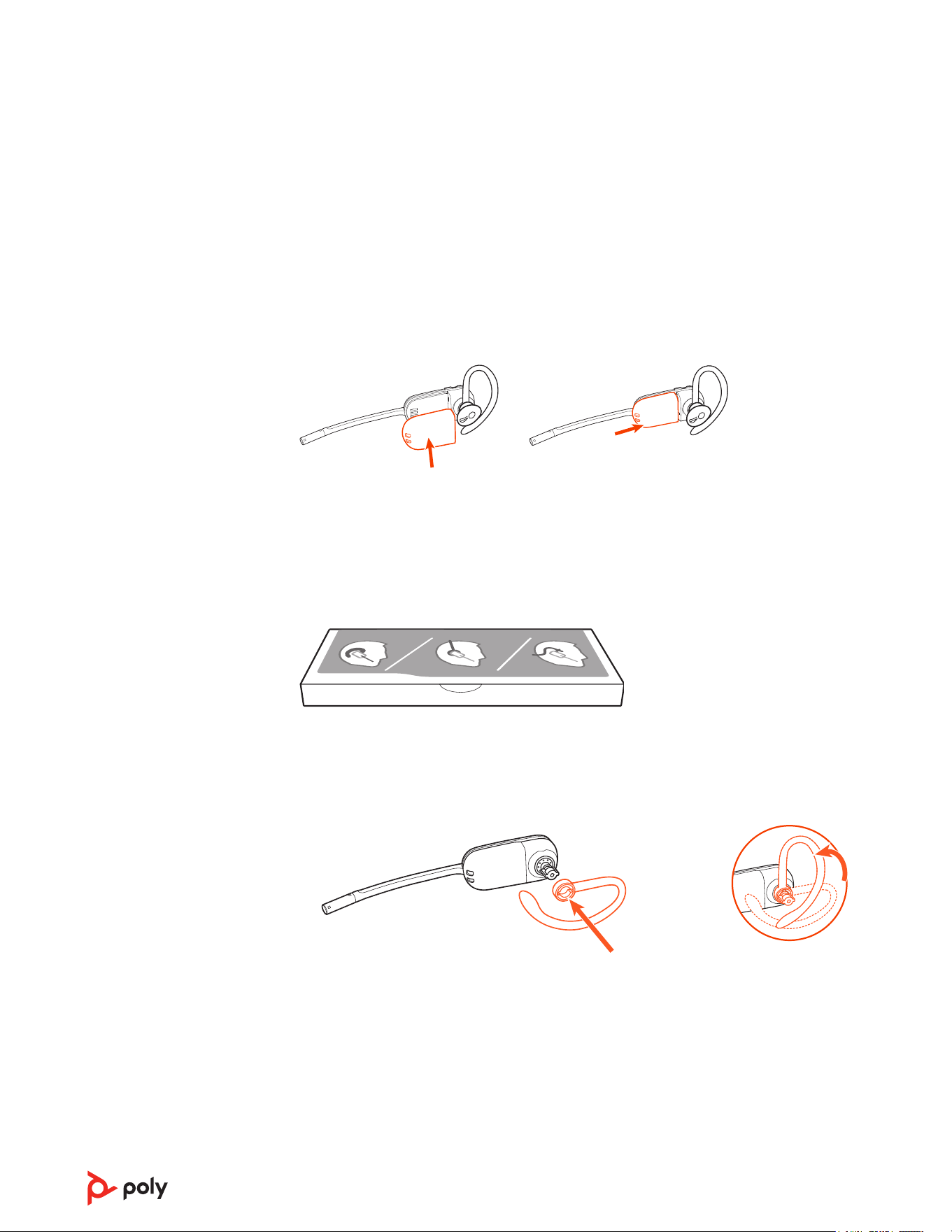
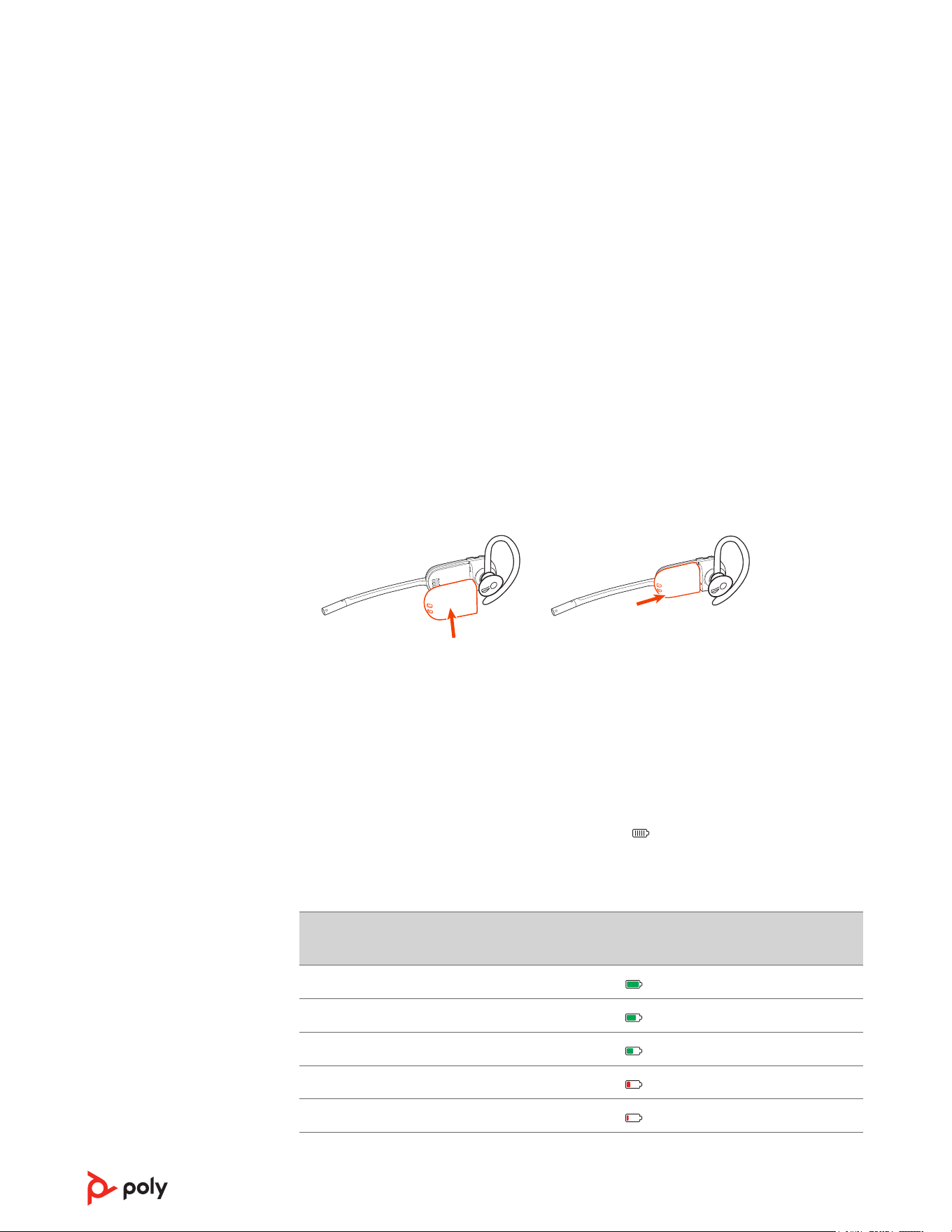
Install the headset battery
Position the battery as shown on the headset and slide into position until the battery
snaps into place.
Note: This product has a replaceable battery. Use only the battery type supplied by
Poly.
Use the fit kit to assemble your headset
Choose a headset wearing style and use the fit kit to assemble it over-the-ear, over-the-
head or behind-the-head.
Right over-the-ear assembly
1 Choose the size of earloop that fits most comfortably. Align the earloop as shown and
insert it onto the headset. Rotate the earloop up 90°.
90º
Note: Ensure the earloop is flat against the headset before rotating.
2 Choose the size and style of eartip that fits most comfortably. Align the eartip with
the notch facing the microphone as shown. Press on to attach.
10
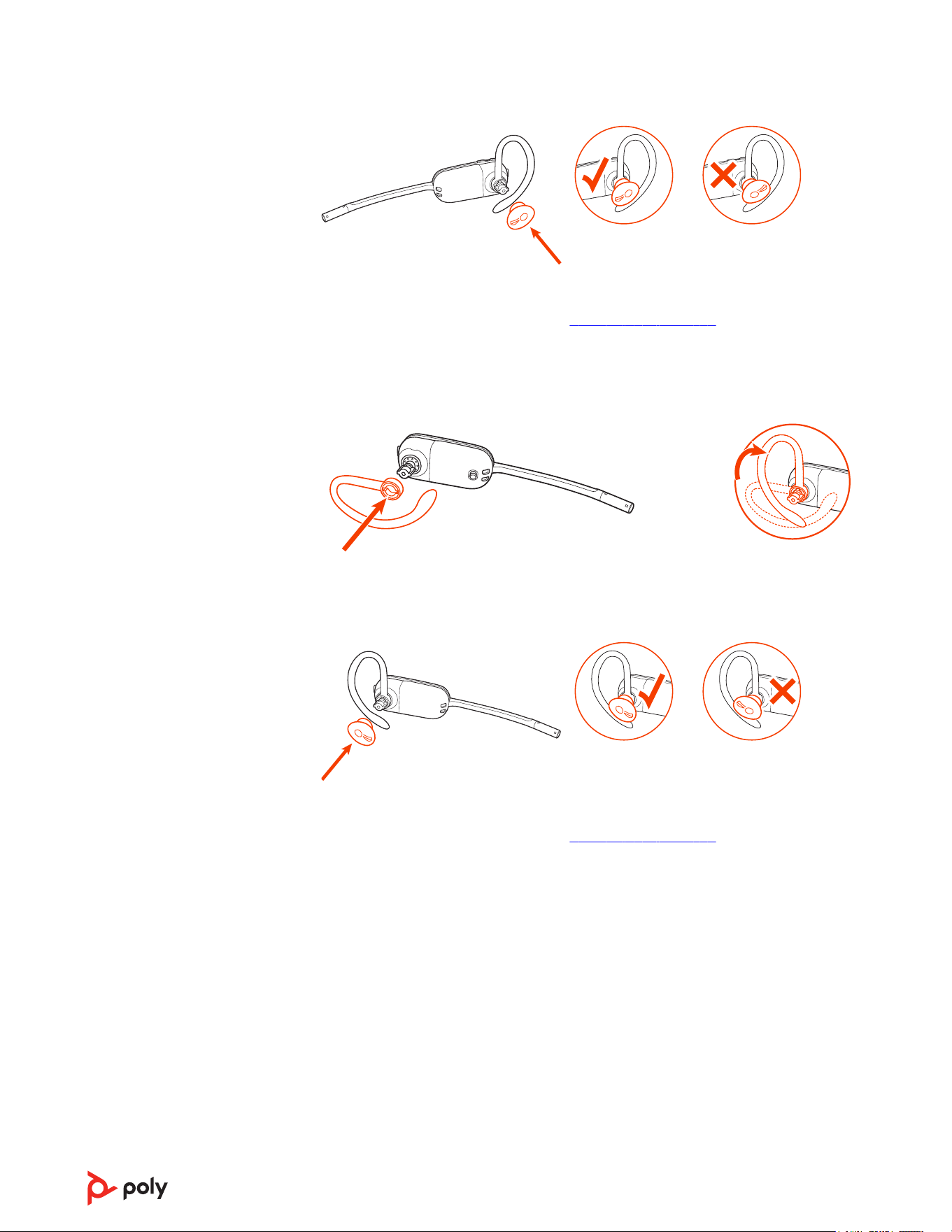
Note: Ensure the large end of the eartip points to the microphone.
3 To correctly position your headset, see Position Your Headset.
Left over-the-ear assembly
1 Choose the size of earloop that fits most comfortably. Align the earloop as shown and
insert it onto the headset. Rotate the earloop up 90°.
90º
Note: Ensure the earloop is flat against the headset before rotating.
2 Choose the size and style of eartip that fits most comfortably. Align the eartip with
the notch facing the microphone as shown. Press on to attach.
Note: Ensure the large end of the eartip points to the microphone.
3 To correctly position your headset, see Position Your Headset.
Position your headset
When you wear the headset, the microphone should rest as close to your cheek as
possible without touching. The microphone can be adjusted inward by the pivoting
earpiece to optimize the position of the headset.
1 Slide the headset over and behind your ear and fit the eartip into your ear.
2 Holding the base of the headset, push it in and back towards your ear to allow the
pivoting earpiece to bring the microphone close to your mouth. As the base of the
headset moves backwards, you will feel soft clicks until the microphone rests close to
your cheek.
11
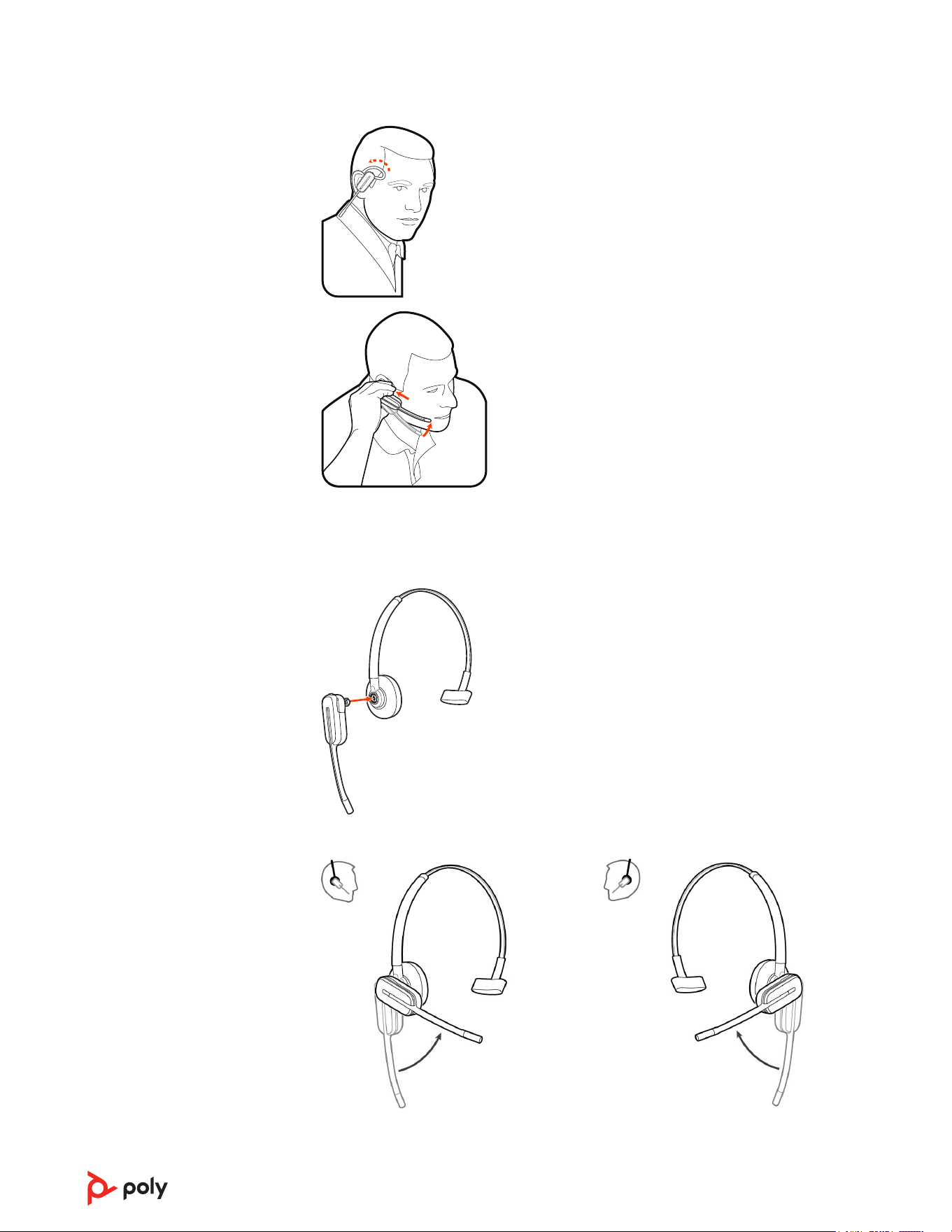
Over-the-head assembly
1 Hold the headband so it is aligned to receive the headset as shown and insert the
headset into the headband.
2 Rotate the headset up. The headband can be worn on the right or left side.
3 To optimize the position of the headset, push the headset in so the microphone is
close to your mouth.
12
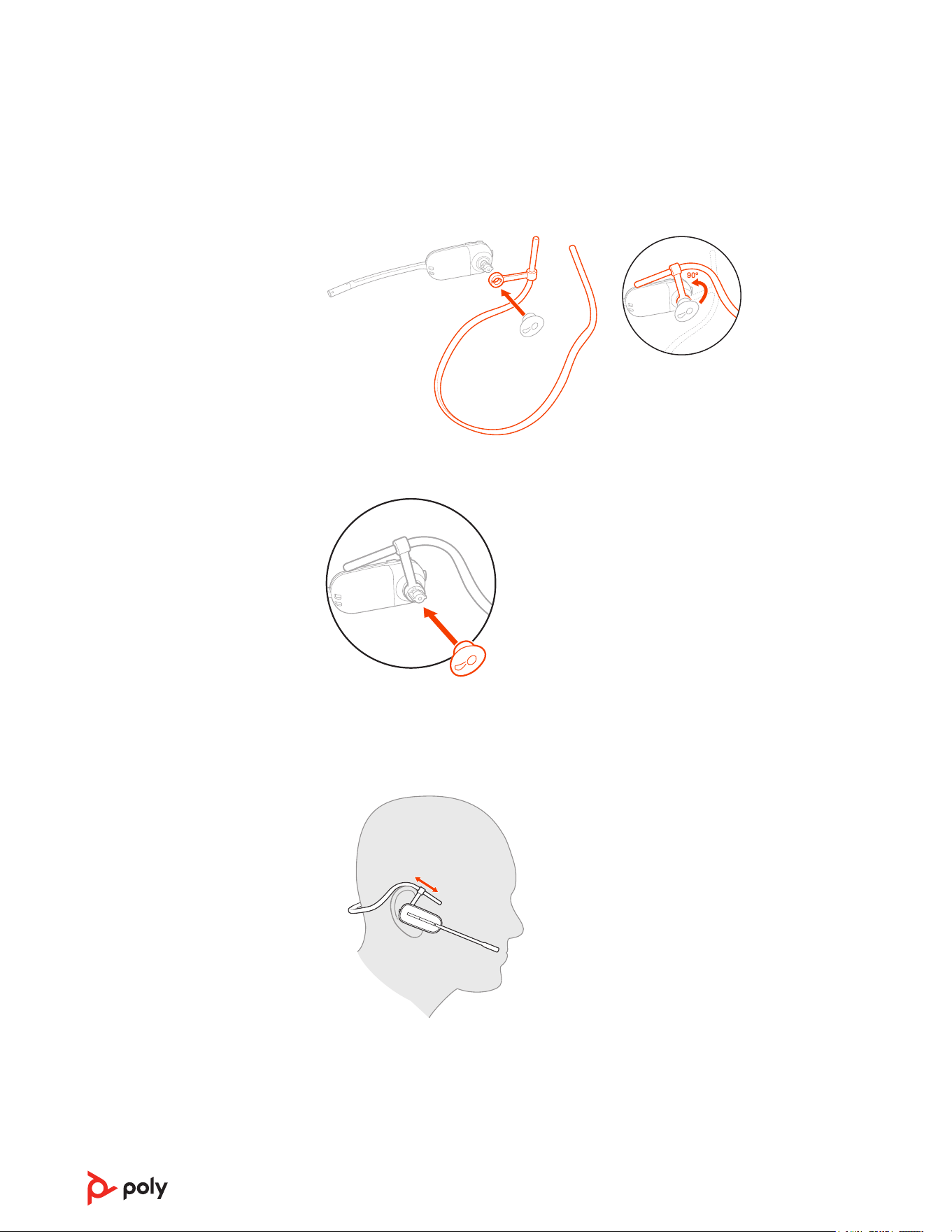
Behind-the-head assembly
1 Align the headband as shown. Ensure the headband sits flat against the headset, then
rotate it up 90°. If you want to wear it on the left, switch the stem to the left side of
the headband.
2 Choose the size and style of the eartip that fits most comfortably. Align the eartip
with the notch facing the microphone as shown. Press on to attach.
Note: Ensure the large end of the eartip points to the microphone.
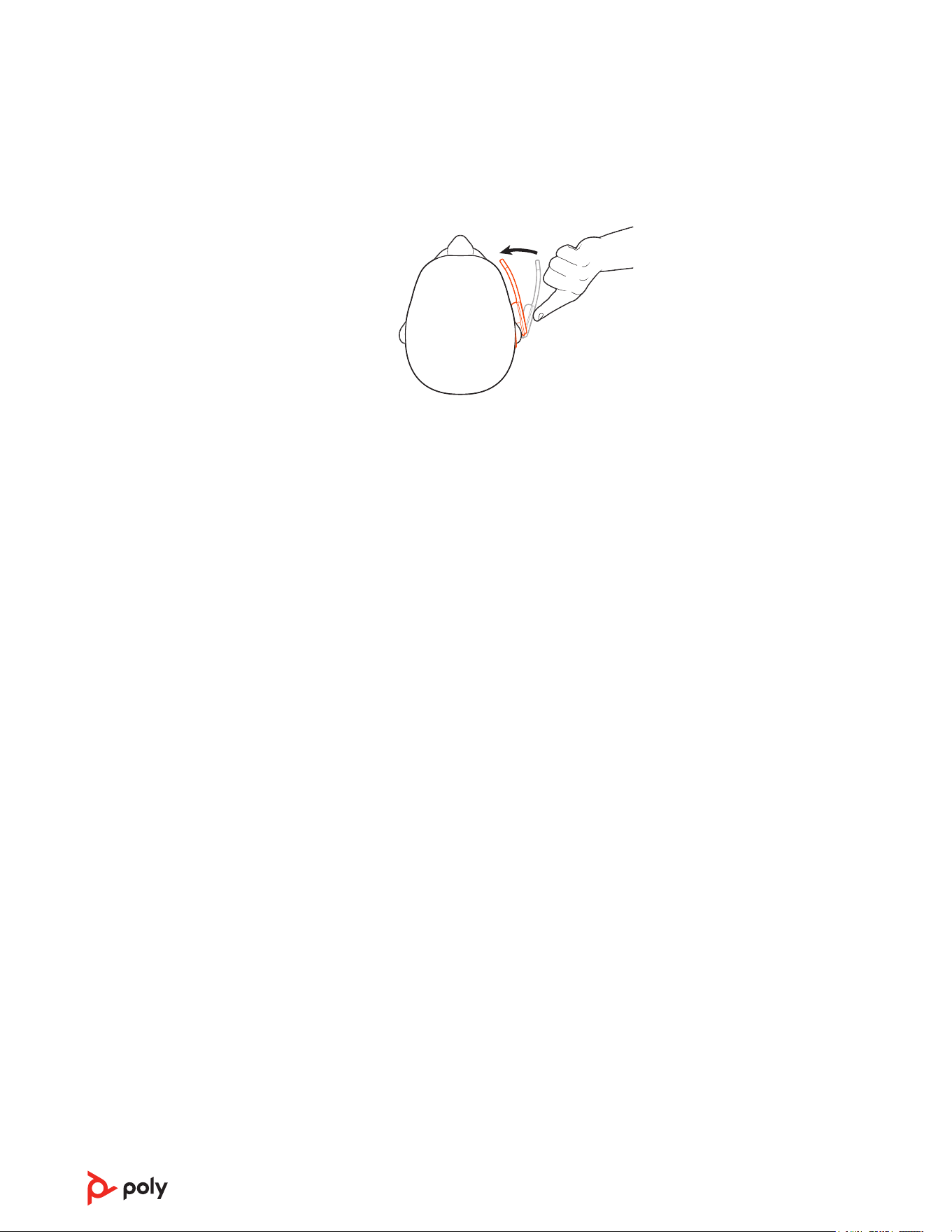
3 To position your headset correctly, first slide the stem of the headband so the headset
fits comfortably.
4 With a finger on the headset indicator light, push in until the microphone rests as
close to your cheek as possible without touching.
13
14
Charge
Charge your headset and spare battery
Charge your headset
Place the headset in the charge cradle. The headset charging LED flashes when charging
the headset and turns off when the headset is fully charged. Charge for at least 20
minutes prior to the first use. A full charge takes up to 3 hours.
Charge spare battery
Charge spare battery, if applicable, by placing in the battery compartment of your charge
stand or charge accessory and connecting to USB power source.
Replace battery during a call
You can replace your headset battery even during active calls.
1 While on a call, remove your headset battery. Your headset mutes.
2 Replace with a charged spare battery.
3 You hear "base connected" and "mute off" when the battery is replaced and you are
reconnected to your call.
Talk time
With a full charge, the headset provides up to 5 hours of continual talk time. Changing
batteries provides unlimited talk time.
Headset battery status
Determine your headset battery status:
• Listen to the voice prompts after powering on the headset
• With your headset idle, view the headset battery level on your base display's
homescreen
• View in Poly Lens Desktop App
Headset battery status
Base display homescreen or Poly
Lens Desktop App
Battery full
Battery high
Battery medium
Battery low
Battery critical
15

Tip: To reset the accuracy of the talk time alert, deplete the headset battery then charge
fully.
Replace rechargeable battery
Replace your rechargeable battery after 3 years or 500 charge cycles, whichever occurs
first.
To ensure replacement batteries meet high quality standards and for optimal
performance, use only Poly batteries.
16

Load software
Download Poly Lens App to get the most out of your device. Some softphones require the
installation of Poly software to enable device call control (answer/end and mute)
functionality. Download:
poly.com/lens.
• Enable features
• Change settings
• Configure call control for softphones
• Update device firmware
• Manage notifications and alerts
• Schedule health and wellness reminders
Update your Poly device
Keep your firmware and software up-to-date to improve performance and add new
features to your Poly device.
Update your device using Poly Lens App. Download at poly.com/lens.
17

Pair to your mobile phone
To take mobile calls or stream mobile audio through your headset, pair your mobile
phone and base.
1 Press the base navigation wheel on the left side of your base to go to your settings
menu and add a mobile phone. Scroll and press to select: Devices > Add Device >
Mobile.
Note: To exit a menu, press the Back button on the left side of your base.
2 Go to Bluetooth settings on your mobile phone and select Poly Savi x400.
Once successfully paired, you see "Connected" on the base's mobile menu and your
base home screen displays the mobile phone icon.
Auto connect feature
Once you have paired and connected your mobile phone to the base, the headset system
automatically connects to it when your paired mobile phone in range of your base.
Manage this feature in Poly Lens Desktop App by going to Settings > Wireless > Auto-
connect to Mobile Phone.
Transfer mobile audio
When you answer a call, the audio stays with that device (if you answer with the headset,
the audio stays on the headset; answer with your mobile phone, the audio stays on your
mobile).
1 To transfer a mobile call from your headset to your mobile phone, press the base
mobile phone button for 3 seconds. The green LED turns off.
2 To transfer a mobile call from your mobile phone to your headset, press the base
mobile phone once. The green LED turns on.
Disconnect your mobile phone
To disconnect your mobile phone from the headset system, do one of the following:
• From your mobile phone, disconnect from your headset system by selecting
Bluetooth settings > Poly Savi x400 > Disconnect.
Note: Menus vary by mobile phone.
• Disable Bluetooth using your base. Scroll and press the navigation wheel to select:
Advanced > Base > Bluetooth > Off.
Note: To exit a menu, press the Back button on the left side of your base.
• Disable Bluetooth using Poly Lens Desktop App on your computer. From Poly Lens
Desktop App, disable Bluetooth by selecting Settings > Wireless > Bluetooth > Off .
18
The basics
Headset Basics
1 2 3 4 5 6 7 8
1 Earloop
2 Eartip
3 Mute button
4 Volume button
5 Call button/Press to interact with Microsoft Teams (app required)
6 Battery
7 Headset LED
8 Microphone
Be safe
Please read the safety guide for important safety and regulatory information before
using your new device.
Power on your headset
To turn on the headset, slide the Power button to reveal green.
Note: Headset design may vary.
Adjust volume
• Headset volume Fine-tune your headset volume by adjusting the headset's volume
up (+) and down (-) controls.
• Desk phone volume Adjust your base's volume settings when your voice or your
caller's voice is too quiet/loud during a desk phone call. Press and scroll the base
navigation wheel:
Advanced > Desk phone > Speaker or Mic > Adjust level. If your
voice is too quiet/loud, adjust the Mic volume. If your caller's voice is too loud/quiet,
adjust the Speaking
volume.
Note: To exit a menu, press the Back button on the left side of your base.
Adjust headset microphone volume (desk phone/softphone)
Place a test softphone call and adjust desk phone, softphone volume and PC sound
volume accordingly.
Launch Microsoft Teams (Teams model only)
You can easily open and use your Teams desktop application with your Microsoft Teams-
certified headset system.
Your base and headset each have a Teams button to quickly open and use the
Microsoft Teams desktop app. The base Teams button illuminates when you have a
meeting or notification.
19

Tip: Your headset's Call button is also a Teams button.
• When not on a call, tap the Teams button to view Microsoft Teams app on your
computer.
• When the base's Teams button LED pulses purple, tap to join your meeting.
• When the base's Teams button LED is solid purple, tap to view your Teams
notifications.
Note: Teams model and Teams desktop application required. Teams mobile
application is not supported.
Change your default line
Change the default outbound phone line/audio channel.
With the system idle, do one of the following:
• On your base, press the desired audio button for 4 seconds until it flashes 4 times.
• Download and open Poly Lens Desktop App on your computer, go to Device Name >
Settings > General > Default Phone Line and choose the desired audio line.
Get a dial tone
To open an audio channel or get a dial tone, press the headset Call button for 1 second
while the system is idle; the default base Audio button turns green.
Stream audio
Listen to streaming media on your headset.
To stream audio from your computer or mobile phone, first press the computer or
mobile base Audio button and then play the audio.
20

Make, answer, end calls
On the base there are 3 Audio source buttons: desk phone , computer , and mobile .
These buttons allow you to switch to a different audio source.
Make a call
Make a call using your headset system.
1 Tap an Audio button on the base.
: Desk phone only: Press the desk phone's Headset button or manually remove the
handset if you don't have an HL10 lifter or EHS cable.
2 Dial from your softphone/mobile phone/desk phone.
End/take a call
To answer/end a call, tap the corresponding Audio button or tap the headset call button.
: Desk phone only: If you don't have an HL10 lifter or EHS cable, press the desk phone's
Headset button or remove the handset when answering a call and hang up when ending
a call.
Tip: Headset call control for the computer requires Poly software and softphone
compatibility. See “Download software.”
Mute
1 To mute your headset during on a call, do one of the following:
• Press the headset Mute button. You hear "Mute on."
• Standard model only: press the base Mute button. When muted, you hear "Mute
on" and your base Audio button and Mute button LEDs turn red.
Note: Teams model base does not include a Mute button.
2 To unmute your headset, do one of the following:
• Press your headset Mute button. You hear "Mute off" and your base Audio button
LED turns green.
• Press your base's active Audio button. You hear "Mute off" and your base Audio
button turns green.
• Standard model only: to unmute, press the base Mute button. You hear "Mute off"
and your base Mute button LED turns off.
Answer a second call
1 While on a call, press the headset Call button for 2 seconds to answer the second call.
This will place the first call on hold.
2 To switch between the calls, press the headset Call button for 2 seconds.
Reject a Mobile Call
To reject an incoming call, hold the base mobile button down for 3 seconds.
Merge a call from 2 sources
Merge call audio from 2 sources to create a mini conference call.
21

Simultaneously hold the base buttons of any two of the three audio sources (desk phone
, computer , or mobile phone ) until the LEDs become solid green to combine the
audio into a merged call.
Set up a conference call
You can set up a conference call with 3 additional headsets.
Join Savi headsets automatically
1 While on a call, place the guest headset into the primary user's charge cradle.
2 The primary user will hear a request "Conference requested." To accept the request,
press the primary user's headset Call button. View conference call status on your
base's screen or in
Poly Lens Desktop App.
Join Savi headsets manually
3 While on a call, press and scroll the base navigation wheel to select Conference > Add
Headset.
4 On guest headset, press and hold the Volume up button or turn the Volume wheel up
until the headset LED lights up. Method varies by model.
5 The primary user will hear "Conference requested." To accept the request, press the
primary user's headset Call button. View conference call status on your base's screen
or in
Poly Lens Desktop App.
Exit a conference call
6 Guest headsets can remain as guests through multiple calls. To remove a guest
headset, either press the guest headset's Call button or dock the primary user's
headset in the charge cradle.
22
More Features
Change voice prompt language
Change the voice prompt language on your headset in Poly Lens Desktop App.
Optimize audio quality
There are 3 audio modes: wideband stereo (hybrid), wideband (conversation) and
multimedia (music).
To optimize your audio quality for your activity, with the system idle, do one of the
following:
• Press the headset Mute button for 4 seconds. The headset cycles through the modes
with each 4 second press.
• Configure in Poly Lens Desktop App: Select Product name > Settings > Wireless >
Audio quality and select from 3 audio modes.
Limit office noise
You can limit the amount of nearby conversation that is transmitted during your calls.
There are 3 modes: No Limiting, Best Audio, and Open Office.
Customize feature in Poly Lens Desktop App by going to Product name > Settings >
General > Close conversation limiting. Select from 3 modes.
Note: For best performance, bend the microphone boom so it is approximately two
finger widths from the corner of your mouth.
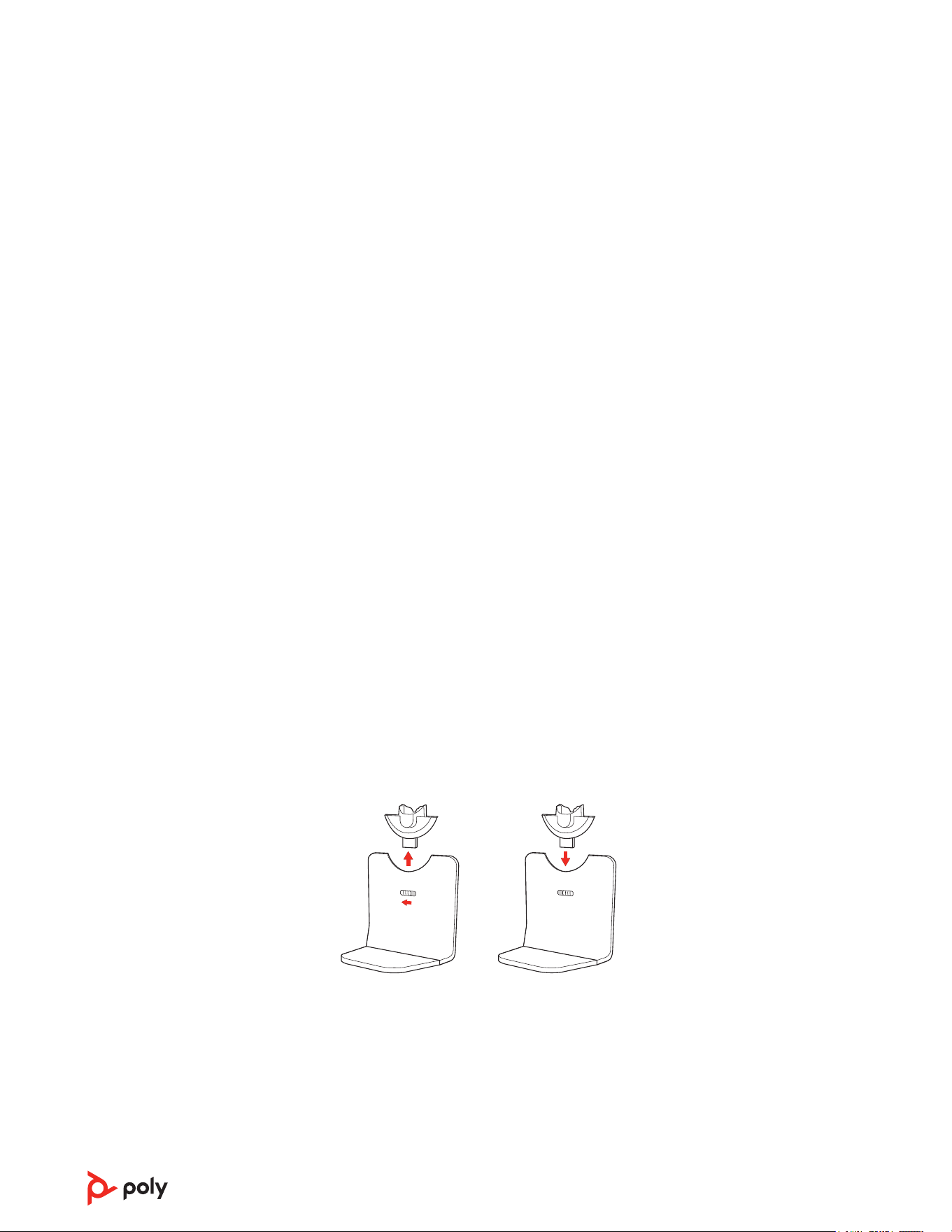
Remove or connect a headset charge cradle
Remove a headset charge cradle from the base or connect a new charge cradle.
1 Locate the cradle release slider below the cradle on the back of your base and slide
and hold it to the left to unlock the cradle.
2 Pull the cradle up to remove it from the base.
3 To connect the headset charge cradle to the base, align the cradle pins with the base
and press firmly. You hear it click into place.
Set the range
Changing the range can help with PC audio quality, improve user density or restrict range
of users.
You can adjust the range setting in Poly Lens Desktop App.
23

Setting Range
High (Default) up to 300 ft.
Medium up to 150 ft.
Low up to 50 ft.
Automatic secure subscription
With your system idle, placing a new headset in the headset charge cradle automatically
subscribes it to the base, making it the primary headset.
24

Troubleshooting
Headset
I can’t hear a dial tone in the
headset.
• Make sure your headset is charged.
• Make sure your headset is subscribed to base by placing
it in the charge cradle.
• Adjust the configuration switch (F-A) on the back of the
base until a dial tone is heard. The default A works for
most phones.
Attention: Use configuration D for Cisco phones. Cisco
phones connected with EHS cable use configuration A.
• Make sure your desk phone is connected correctly to
your base. See Desk phone setup details on page 7.
• If your base is connected to your desk phone's dedicated
headset port, press the desk phone's headset button to
hear a dial tone.
• If your base is connected to your desk phone's dedicated
headset port, press the desk phone's headset button
and base's desk phone button to hear a dial tone.
• If your base is connected to your handset port, manually
remove the handset to hear a dial tone (if you do not have
an EHS cable or HL10 lifter).
• Make sure your HL10 lifter is lifting the handset high
enough to operate the hookswitch; set to a higher setting
if necessary.
• Adjust the headset's listening volume. See Adjust volume
on page 19.
• If the volume is still too low, adjust the desk phone
listening volume on the base. See Adjust volume on page
19.
I hear static.
• Make sure there is at least 12 inches between your base
and your computer, and 6 inches between your base and
your telephone. If adjusting the distance doesn’t help,
your headset is going out of range, move closer to the
base. See Position Your Base
.
The sound is distorted.
• Lower the desk phone speaking volume and/or desk
phone listening volume on the base. For most telephones
the correct setting is position 2. See Adjust volume.
• If your desk phone has a volume control, lower until the
distortion disappears.
• If the distortion is still present, adjust the headset volume
control to lower the headset speaker volume. See Adjust
volume on page 19.
• Make sure there is 12 inches between your base and
your computer, and 6 inches between your base and your
telephone. See Position Your Base.
25

I hear echo in the headset.
• Lower the desk phone speaking volume and/or desk
phone listening volume on the base. For most telephones
the correct setting is position 2. See Adjust volume on
page 19.
• If the audio level is too low in this position, increase the
headset volume. See Adjust volume on page 19.
• If your speaking volume is too low for your listener in this
position, adjust the position of the headset to make sure
the microphone is as close as possible to your mouth.
People I talk to can hear a buzz in
the background.
• Move the base further away from your phone. See
Position Your Base.
• If the base power supply is plugged into a power strip,
plug it into the wall directly.
Desk Phone
The handset lifter is installed but
does not lift the handset.
Be sure the handset lifter power cord is firmly pushed into
the handset lifter jack on the base.
When I use an EHS cable with a
Poly VVX phone and I answer a
call with my headset, the call
fails.
This is a known issue. Press one of the base audio buttons
(computer/mobile/desk phone) to answer the incoming call.
Mobile
Pairing problems
• Ensure your mobile phone is paired to the base. See Pair
to your mobile phone on page 18.
• Ensure Bluetooth is activated on your mobile phone.
• Once successfully paired, you see "Connected" on the
base's mobile menu and your base home screen displays
the mobile phone icon.
Why doesn’t the base
automatically reconnect with my
mobile phone?
• Ensure Poly Lens Desktop App has been installed.
• Enable feature in Poly Lens Desktop App:Settings >
Wireless > Auto-connect to mobile phone.
26

Softphone
When I dial from my softphone
application, nothing happens.
• Ensure your headset is powered on.
• Press the headset Call button.
• Make sure your headset is charged.
• Fine tune the headset volume.
• Press the Computer audio button on your base.
• Ensure your base is connected to your computer with the
included USB cable.
• Ensure that your headset is the default sound device by
going to your Sound Control Panel (Windows) or your
Sound System Preferences (Mac).
• Ensure that Poly Lens App software is installed. To
download, visit poly.com/software.
• Ensure that you are using a compatible softphone
application. For a list of compatible softphones, visit
poly.com/SoftphoneCompatibility .
• If Poly Lens App is not installed and you do not have a
compatible softphone, you must first press the headset
Call button and then use the softphone interface to
place/answer/end calls.
• Restart your computer.
How do I interact with Microsoft
Teams on my Teams-certified
headset system?
• Tap your headset's Call button to interact.
• Tap your base's Teams button to interact with
Microsoft Teams or to view notifications.
Note: Teams model and app required.
Does my Microsoft Teams-
certified headset system work
with other softphones?
Yes, while your headset is optimized for Microsoft Teams, it
can be configured to use with other supported softphones.
Set your target phone by going to Poly Lens Desktop App >
Softphones > Software Settings > Target Softphone
When you configure another softphone, the Call button:
• doesn't interact with Teams
• doesn't go to Teams notifications
• will not launch Cortana
Speaking and/or listening volume
is too low or too high.
• Adjust headset listening volume.
• Adjust listening/speaking volumes in the computer’s
sound control panel/system preferences.
• Adjust listening/speaking volumes in the softphone
application.
The sound is distorted or I hear
an echo in the headset.
• Reduce speaking and/or listening volume on the
computer using your softphone application.
• Point microphone towards your mouth.
• If the distortion is still present, lower the volume on the
headset.
I can no longer hear any audio
through my PC Speakers.
• Change the default sound device by going to your Sound
Control Panel (Windows) or your Sound System
Preferences (Mac) and selecting your PC speakers or
internal speakers.
27

There is no audio connection
between my headset and
computer.
• Press the Computer audio button on your base.
• Ensure that your headset is the default sound device by
going to your Sound Control Panel (Windows) or your
Sound System Preferences (Mac).
• Fine tune the headset volume.
• Unplug the USB cable and then reconnect it.
• Quit and then re-start your PC or softphone application.
28

Safety warnings
Safety Instructions
To reduce the risk of fire, electric shock, injury to persons and damage to property, read
all operating instructions and the following safety instructions before using your Poly
product. Operating, storage and charging temperature is 10˚C to 40˚C (50˚F to 104˚F).
• Only use those Poly products and accessories designed for use with this product.
• If you experience a skin irritation after using this product, discontinue use and contact
Poly.
• CHILDREN. Never allow children to play with the product-small parts may be a
choking hazard.
• Do not disassemble the product as this may expose you to dangerous voltages or
other risks. Incorrect reassembly can cause electric shock or fire when the product is
subsequently used.
• Unplug, discontinue use and contact Poly if the product overheats or has a damaged
outer casing, cord or plug.
• Exposure to high volume sound levels or excessive sound pressure may cause
temporary or permanent damage to your hearing. Although there is no single volume
setting that is appropriate for everyone, you should always use your headset/
headphones with the volume set at moderate levels and avoid prolonged exposure to
high volume sound levels. The louder the volume, the less time is required before your
hearing could be affected. You may experience different sound levels when using
your headset/headphones with different devices. The device you use and its settings
affect the level of sound you hear. If you experience hearing discomfort, you should
stop listening to the device through your headset/headphones and have your hearing
checked by your doctor. To protect your hearing, some hearing experts suggest that
you:
1 Set the volume control in a low position before putting your headset/headphones on
your ears and use as low a volume as possible.
2 Avoid turning up the volume to block out noisy surroundings. Whenever possible, use
your headset/headphones in a quiet environment with low background noise.
3 Limit the amount of time you use headsets/headphones at high volume levels.
4 Turn the volume down if the sound from the headset/headphones prevent you from
hearing people speaking near you.
See poly.com/healthandsafety for more information on headsets/headphones and
hearing.
• If you use your headset/headphones while driving, check local laws regarding use of a
mobile phone and headset, and ensure your attention and focus remain on driving
safely. Use of a headset/headphones that covers both ears will impair your ability to
hear other sounds and in most regions is illegal to use while operating a motor vehicle
or riding a bicycle and may be a serious hazard for you and others.
• If this product includes earbuds/eartips, install and use them in accordance with the
instructions provided. Do not force earbuds/eartips down the ear canal. Consult a
doctor if they become lodged in the ear canal.
• Plug the mains adapter or charger into a socket-outlet that is near to the equipment
and will be easily accessible.
Battery Warnings for Wireless Products
• If your product has an embedded, non-replaceable battery, do not attempt to open
the product or remove the battery as this may cause injury and/or damage the
29

product. If your product has a replaceable battery, use only the battery type supplied
by Poly. Remove a spent battery promptly.
• Replace rechargeable batteries after three years or 300 charge cycles, whichever
occurs first.
• Do not dispose of the product or battery in a fire or heat above 40°C (104°F).
• Do not expose the battery to extremely high temperatures. It may result in an
explosion or the leakage of flammable liquid or gas.
• Do not open, deform or mutilate the battery. There may be corrosive materials which
can cause damage to eyes or skin and may be toxic if swallowed.
• Never put batteries in mouth. If swallowed, contact a physician or poison control
center.
• Swallowing may lead to burns, perforation of soft tissue, and death. Severe burns can
occur within 2 hours of ingestion.
• Always store batteries where children cannot reach them.
• Do not allow any battery or its holder to contact metal objects such as keys or coins.
• RECYCLING: The product battery must be recycled or disposed of properly. Contact
your local recycling center for battery removal and proper disposal.
• Use only the charger supplied by Poly to charge the product and follow the charging
instructions provided. Alternatively, if your headset is designed to be charged with
your cell phone charger, use only cell phone chargers approved and provided by your
cell phone manufacturer. Do not use the charger for any other purpose. Ensure that
the voltage rating corresponds to the power supply you intend to use.
30

Support
NEED MORE HELP?
poly.com/support
HP Inc.
1501 Page Mill Road
Palo Alto 94304, U.S.A.
650-857-1501
HP Deutschland GmbH
HP HQ-TRE
71025 Boeblingen, Germany
HP Inc UK Ltd
Regulatory Enquiries, Earley West
300 Thames Valley Park Drive
Reading, RG6 1PT
United Kingdom
©
2023 Poly. DECT is a trademark of ETSI. All trademarks are the property of their
respective owners. HP Inc.
Model ID: CB8421 (may be followed by /A, /J or /P), S8240T (may be followed by /A
or /P). System sentence: Savi 8445 Office has a CB8421 base (may be followed by /A, /J
or /P) and a S8240T headset (may be followed by /A or /P).
222052-06 04.23
31