Need help?
Setup
videos
Common
questions
Tips and
tricks
Visit go.roku.com/cameras
© 2024 Roku, Inc. All rights reserved. Roku, the Roku logo, Roku Smart Home,
and the Roku Smart Home logo are the trademarks or registered trademarks
of Roku, Inc.
Quick Start
Guide
Indoor
Camera
More features are waiting
Unlock the full potential
of your camera with a
Roku Smart Home Subscription.
Learn more at
go.roku.com/rokusmarthome
What’s that light mean?
Before setup Status
BLUE - Pulsing Ready to connect
YELLOW - Slow blinking Booting up / Updating firmware
WHITE - Fast blinking Connecting to network
STEP 2: Install your camera
In the Roku Smart Home app, tap the “+”
button, “Add Device”, then “Cameras &
doorbells” to find “Indoor Camera.” Follow
the instructions to finish setup.
After setup Status
RED - Blink (3 times) Error
4100001091_04

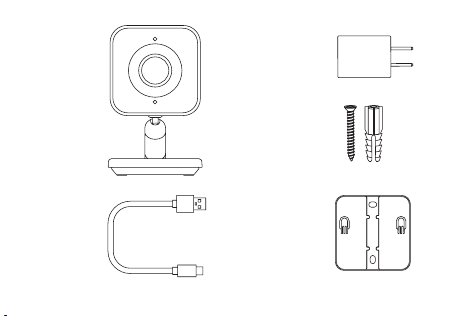
What’s included
A
Roku Indoor Camera*
D
Mounting screws
and anchors
B
USB-C charging cable
E
Mounting plate
C
Power adaptor
• Phillips screwdriver (if mounting)
• Your smartphone
• 2.4 GHz WiFi network
What you’ll need
* For indoor use only.
B
A
E
D
C
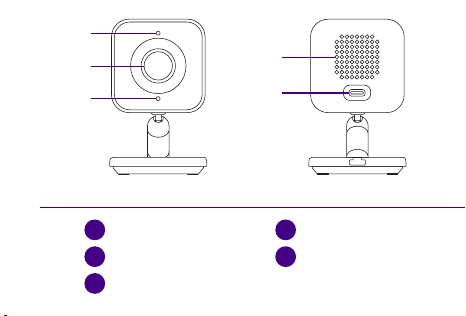
1
Status light
4
Speaker
2
Lens
5
USB-C port
3
Microphone
6
1
3
2
FRONT
4
BACK
5
Setup button
7
Mounting holes
(attach to
E
mounting plate)
6
7
BOTTOM
Let’s get started
STEP 1: Download the Roku Smart Home app
Scan the QR code below to download the Roku Smart
Home app on your smartphone. Sign in with your
Roku account or create one.
You’ll need
Smartphone & app
Data rates may apply.
Continue on back
What’s included
A
Roku Indoor Camera*
D
Mounting screws
and anchors
B
USB-C charging cable
E
Mounting plate
C
Power adaptor
• Phillips screwdriver (if mounting)
• Your smartphone
• 2.4 GHz WiFi network
What you’ll need
* For indoor use only.
B
A
E
D
C
1
Status light
4
Speaker
2
Lens
5
USB-C port
3
Microphone
6
1
3
2
FRONT
4
BACK
5
Setup button
7
Mounting holes
(attach to
E
mounting plate)
6
7
BOTTOM
Let’s get started
STEP 1: Download the Roku Smart Home app
Scan the QR code below to download the Roku Smart
Home app on your smartphone. Sign in with your
Roku account or create one.
You’ll need
Smartphone & app
Data rates may apply.
Continue on back
What’s included
A
Roku Indoor Camera*
D
Mounting screws
and anchors
B
USB-C charging cable
E
Mounting plate
C
Power adaptor
• Phillips screwdriver (if mounting)
• Your smartphone
• 2.4 GHz WiFi network
What you’ll need
* For indoor use only.
B
A
E
D
C
1
Status light
4
Speaker
2
Lens
5
USB-C port
3
Microphone
6
1
3
2
FRONT
4
BACK
5
Setup button
7
Mounting holes
(attach to
E
mounting plate)
6
7
BOTTOM
Let’s get started
STEP 1: Download the Roku Smart Home app
Scan the QR code below to download the Roku Smart
Home app on your smartphone. Sign in with your
Roku account or create one.
You’ll need
Smartphone & app
Data rates may apply.
Continue on back
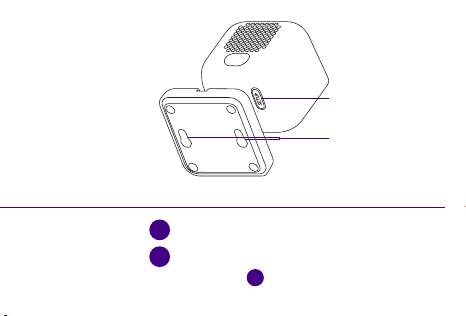
What’s included
A
Roku Indoor Camera*
D
Mounting screws
and anchors
B
USB-C charging cable
E
Mounting plate
C
Power adaptor
• Phillips screwdriver (if mounting)
• Your smartphone
• 2.4 GHz WiFi network
What you’ll need
* For indoor use only.
B
A
E
D
C
1
Status light
4
Speaker
2
Lens
5
USB-C port
3
Microphone
6
1
3
2
FRONT
4
BACK
5
Setup button
7
Mounting holes
(attach to
E
mounting plate)
6
7
BOTTOM
Let’s get started
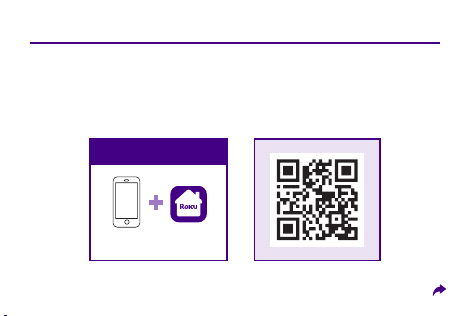
STEP 1: Download the Roku Smart Home app
Scan the QR code below to download the Roku Smart
Home app on your smartphone. Sign in with your
Roku account or create one.
You’ll need
Smartphone & app
Data rates may apply.
Continue on back
What’s included
A
Roku Indoor Camera*
D
Mounting screws
and anchors
B
USB-C charging cable
E
Mounting plate
C
Power adaptor
• Phillips screwdriver (if mounting)
• Your smartphone
• 2.4 GHz WiFi network
What you’ll need
* For indoor use only.
B
A
E
D
C
1
Status light
4
Speaker
2
Lens
5
USB-C port
3
Microphone
6
1
3
2
FRONT
4
BACK
5
Setup button
7
Mounting holes
(attach to
E
mounting plate)
6
7
BOTTOM
Let’s get started
STEP 1: Download the Roku Smart Home app
Scan the QR code below to download the Roku Smart
Home app on your smartphone. Sign in with your
Roku account or create one.
You’ll need
Smartphone & app
Data rates may apply.
Continue on back

Need help?
Setup
videos
Common
questions
Tips and
tricks
Visit go.roku.com/cameras
© 2024 Roku, Inc. All rights reserved. Roku, the Roku logo, Roku Smart Home,
and the Roku Smart Home logo are the trademarks or registered trademarks
of Roku, Inc.
Quick Start
Guide
Indoor
Camera
More features are waiting
Unlock the full potential
of your camera with a
Roku Smart Home Subscription.
Learn more at
go.roku.com/rokusmarthome
What’s that light mean?
Before setup Status
BLUE - Pulsing Ready to connect
YELLOW - Slow blinking Booting up / Updating firmware
WHITE - Fast blinking Connecting to network
STEP 2: Install your camera
In the Roku Smart Home app, tap the “+”
button, “Add Device”, then “Cameras &
doorbells” to find “Indoor Camera.” Follow
the instructions to finish setup.
After setup Status
RED - Blink (3 times) Error
4100001091_04
Need help?
Setup
videos
Common
questions
Tips and
tricks
Visit go.roku.com/cameras
© 2024 Roku, Inc. All rights reserved. Roku, the Roku logo, Roku Smart Home,
and the Roku Smart Home logo are the trademarks or registered trademarks
of Roku, Inc.
Quick Start
Guide
Indoor
Camera
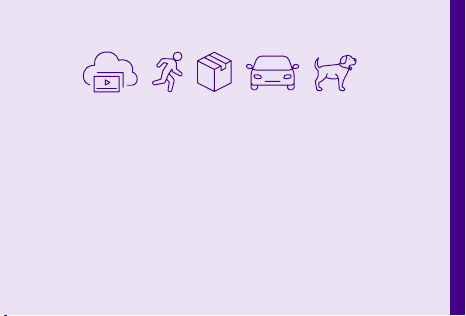
More features are waiting
Unlock the full potential
of your camera with a
Roku Smart Home Subscription.
Learn more at
go.roku.com/rokusmarthome
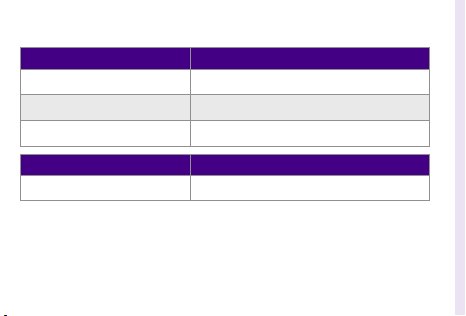
What’s that light mean?
Before setup Status
BLUE - Pulsing Ready to connect
YELLOW - Slow blinking Booting up / Updating firmware
WHITE - Fast blinking Connecting to network
STEP 2: Install your camera
In the Roku Smart Home app, tap the “+”
button, “Add Device”, then “Cameras &
doorbells” to find “Indoor Camera.” Follow
the instructions to finish setup.
After setup Status
RED - Blink (3 times) Error
4100001091_04
Need help?
Setup
videos
Common
questions
Tips and
tricks
Visit go.roku.com/cameras
© 2024 Roku, Inc. All rights reserved. Roku, the Roku logo, Roku Smart Home,
and the Roku Smart Home logo are the trademarks or registered trademarks
of Roku, Inc.
Quick Start
Guide
Indoor
Camera
More features are waiting
Unlock the full potential
of your camera with a
Roku Smart Home Subscription.
Learn more at
go.roku.com/rokusmarthome
What’s that light mean?
Before setup Status
BLUE - Pulsing Ready to connect
YELLOW - Slow blinking Booting up / Updating firmware
WHITE - Fast blinking Connecting to network
STEP 2: Install your camera
In the Roku Smart Home app, tap the “+”
button, “Add Device”, then “Cameras &
doorbells” to find “Indoor Camera.” Follow
the instructions to finish setup.
After setup Status
RED - Blink (3 times) Error
4100001091_04
Need help?
Setup
videos
Common
questions
Tips and
tricks
Visit go.roku.com/cameras
© 2024 Roku, Inc. All rights reserved. Roku, the Roku logo, Roku Smart Home,
and the Roku Smart Home logo are the trademarks or registered trademarks
of Roku, Inc.
Quick Start
Guide
Indoor
Camera
More features are waiting
Unlock the full potential
of your camera with a
Roku Smart Home Subscription.
Learn more at
go.roku.com/rokusmarthome
What’s that light mean?
Before setup Status
BLUE - Pulsing Ready to connect
YELLOW - Slow blinking Booting up / Updating firmware
WHITE - Fast blinking Connecting to network
STEP 2: Install your camera
In the Roku Smart Home app, tap the “+”
button, “Add Device”, then “Cameras &
doorbells” to find “Indoor Camera.” Follow
the instructions to finish setup.
After setup Status
RED - Blink (3 times) Error
4100001091_04
