1
XHUD1000
OWNER’S MANUAL
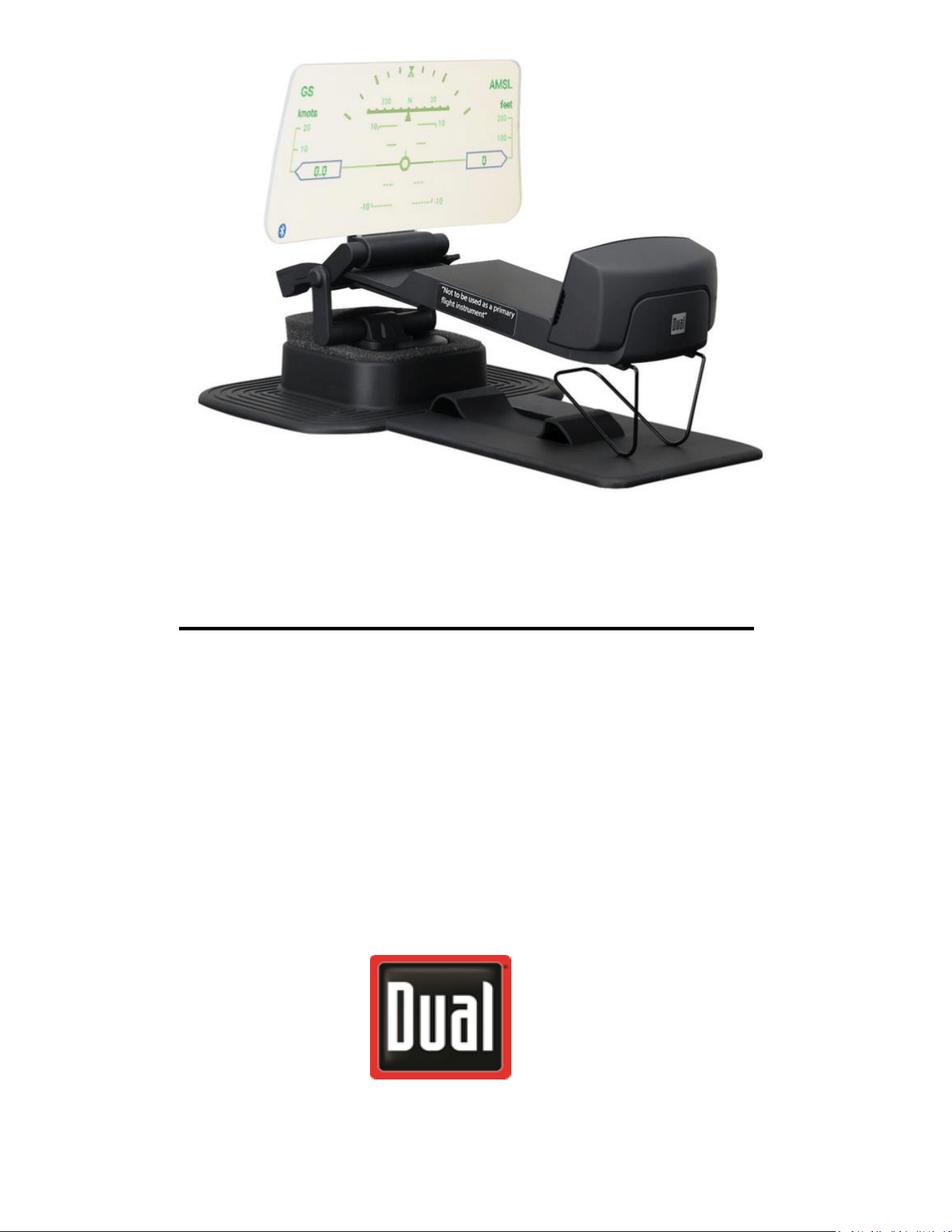
Head Up Display (HUD)
XHUD1000 IS NOT TO BE USED AS A PRIMARY FLIGHT INSTRUMENT

2
Introduction
The Dual XHUD1000 is a high performance Head Up Display for General
Aviation and Light Sport Aircraft. The device allows pilots to continuously
monitor critical flight data while keeping their head up and eyes forward.
Dual developed the XHUD1000 in collaboration with pilots to ensure it
provides the right mix of features for enhanced situational awareness.
With the XHUD1000, GA pilots can now benefit from modern features
previously only available in large advanced aircraft.
Set up and installation of the XHUD1000 is simple. After making the
wireless connections using Dual’s free ADS-B Status Tool app, the app
runs in the background and the mobile device is available for running
other apps. The XHUD1000 includes accessories for easy installation on
most aircraft. The unit is lightweight and ultra-compact, and has a folding
screen with adjustable viewing distance & angle.
The Dual XHUD1000 gives pilots the option to display data from portable
ADS-B receivers using the XHUD1000’s built-in graphics, or to display
external graphics from tablets and smartphones running 3
rd
party EFB
apps.
The XHUD1000’s built-in graphics include AHRS and Traffic modes. AHRS
mode displays altitude, ground speed, attitude, bank angle, and compass
heading in a classic HUD AHRS graphic for convenient monitoring of
flights. Traffic mode displays ADS-B traffic on a radar style graphic using
standard TCAS symbology, and has a selectable coverage range. For both
of these modes, the information displayed is based on data from portable
ADS-B GPS receivers.
As an alternative, pilots can operate the XHUD1000 in Mirroring mode to
display external graphics from their tablet or smartphone running EFB
apps. This allows the XHUD1000 to display AHRS, synthetic vision, or
3
moving maps for navigation, which are features available on most EFB
apps. In this mode, several brands of portable GPS receivers can be used
to provide source data for EFB apps.
For best HUD performance, it is recommended to operate the XHUD1000
using its built-in graphics (AHRS and Traffic modes).
4
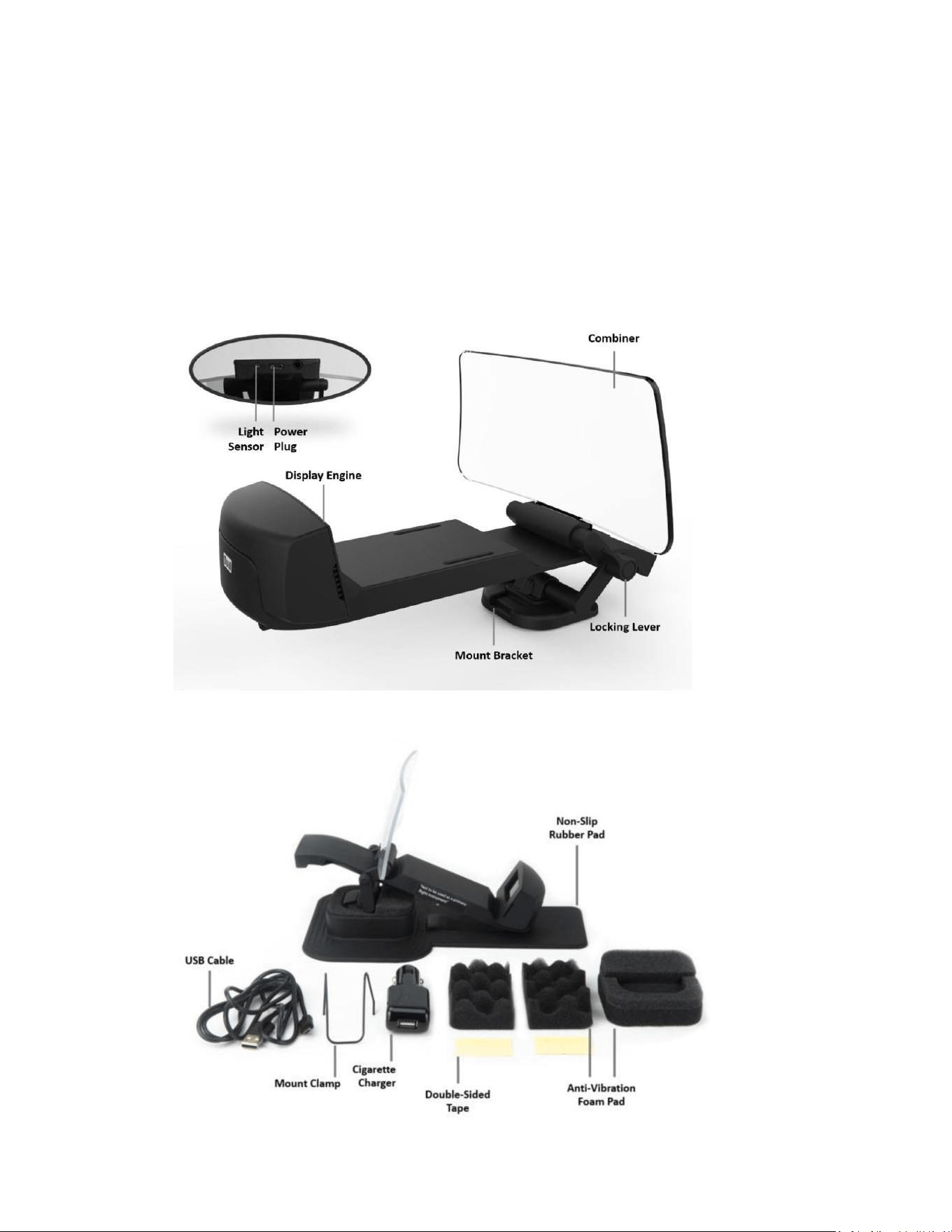
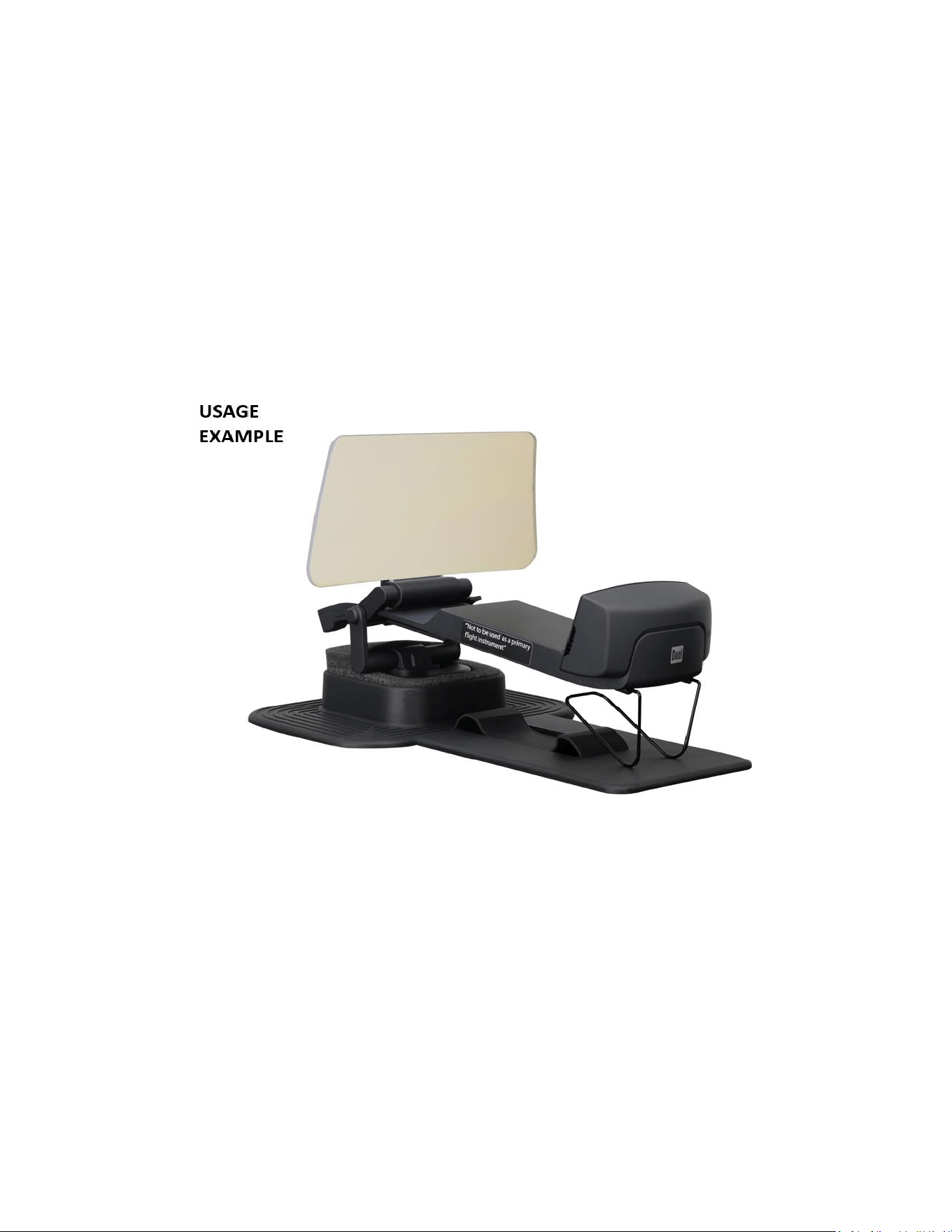
To achieve largest size image on HUD, the distance from Combiner to
Display Engine should be set to the maximum distance by adjusting the
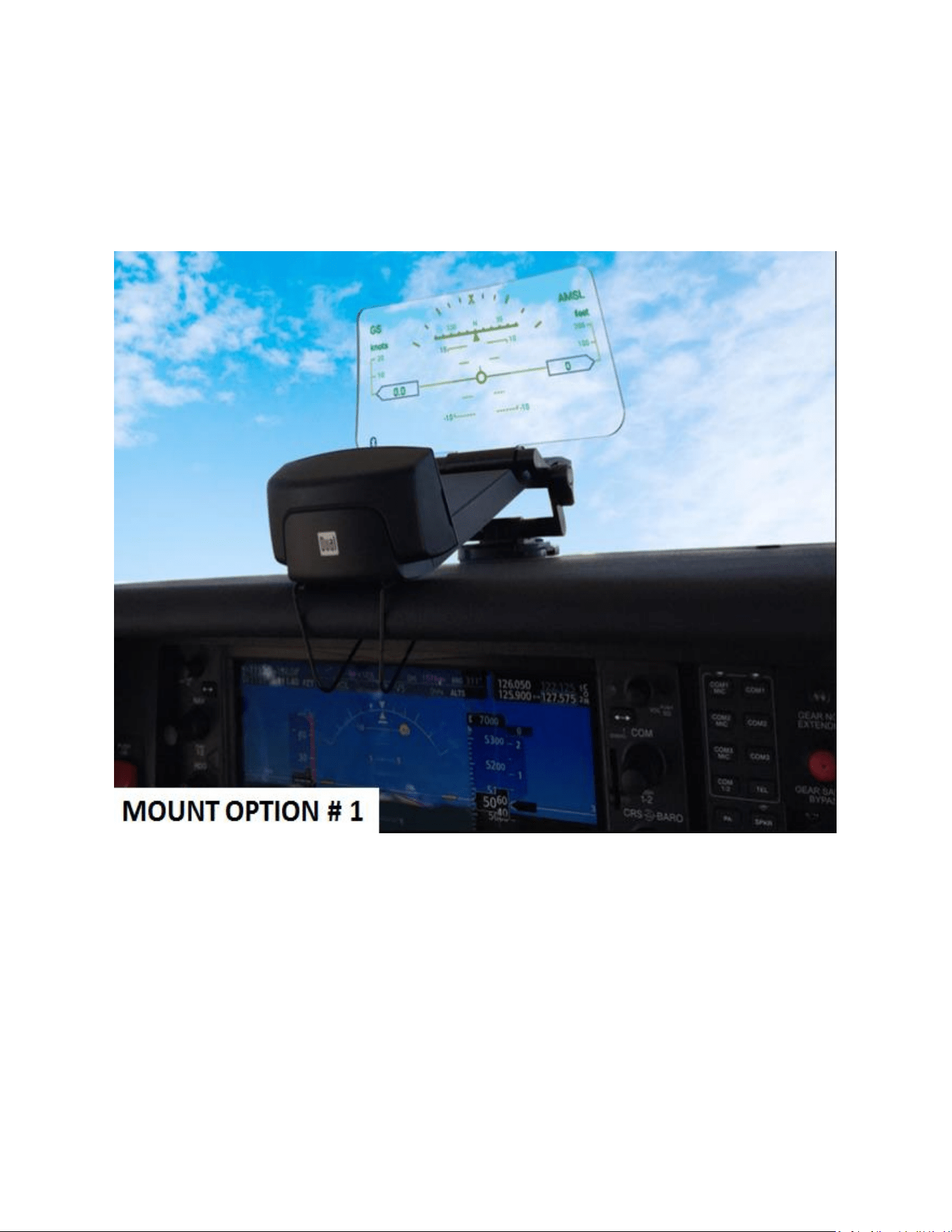
locking lever. Since cockpit configurations and dimensions can vary
considerably among different airplane types, pilots should use their best
judgement on how to mount the XHUD1000 in their airplane. The
included mounting accessories can be used as needed.
5
Installation
The XHUD1000 has flexible mounting options to accommodate
installation in most small aircraft.
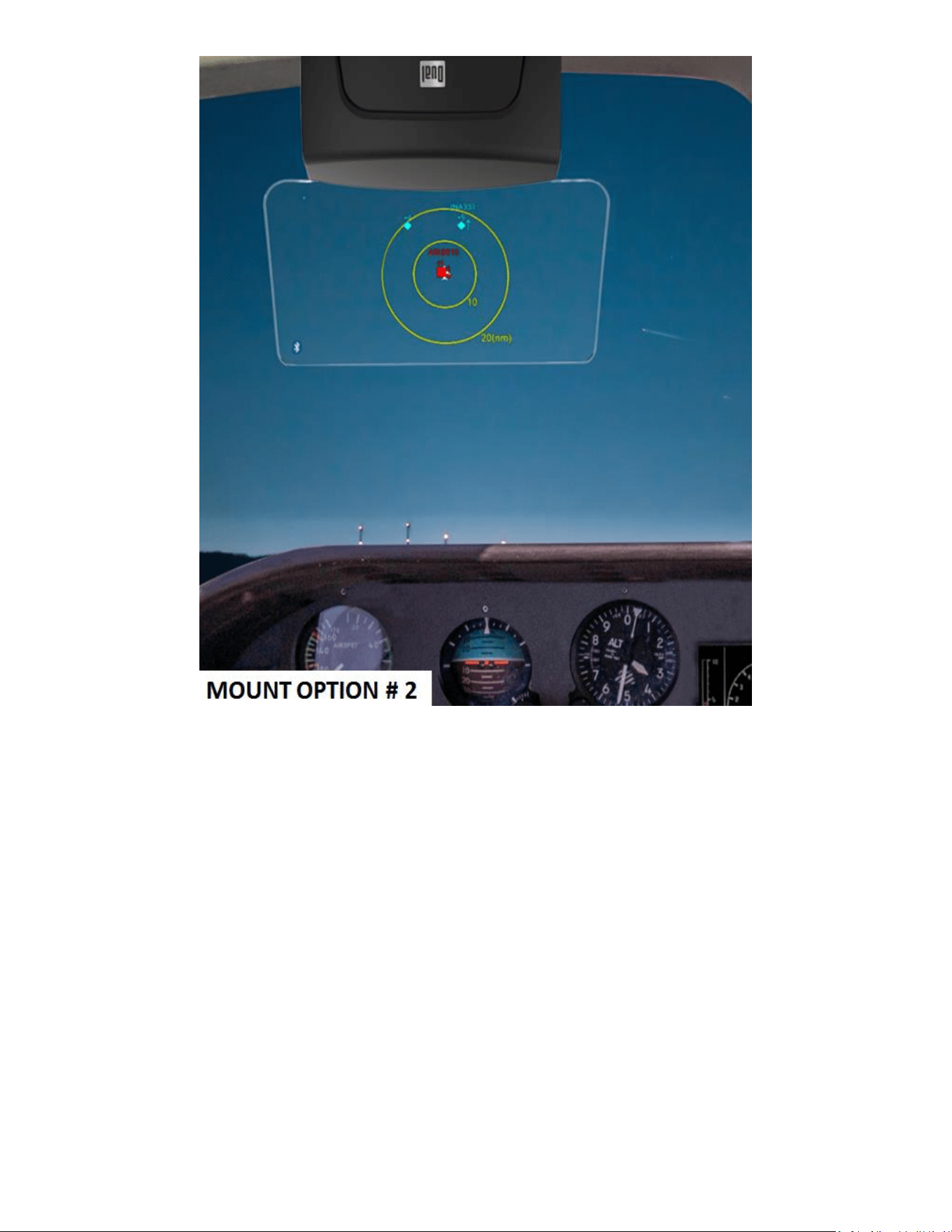
6
Setup
All XHUD1000 / mobile device settings should be made while the
aircraft is on the ground, and should be left unchanged during flight.
7
Setup with Dual ADS-B Receivers & Apple Device
1) ADS-B Status Tool App for HUD Control
• Download the ADS-B Status Tool app from App Store. The HUD
Control tab from the ADS-B Status Tool app enables multiple
features that control the XHUD1000.
2) Bluetooth Connection for AHRS & Traffic modes
• Prior to this step, it’s important to make sure the XGPS190 (or one of
the other Dual ADS-B receivers) and your Apple device are powered
on, and the XHUD1000 is still left powered off.
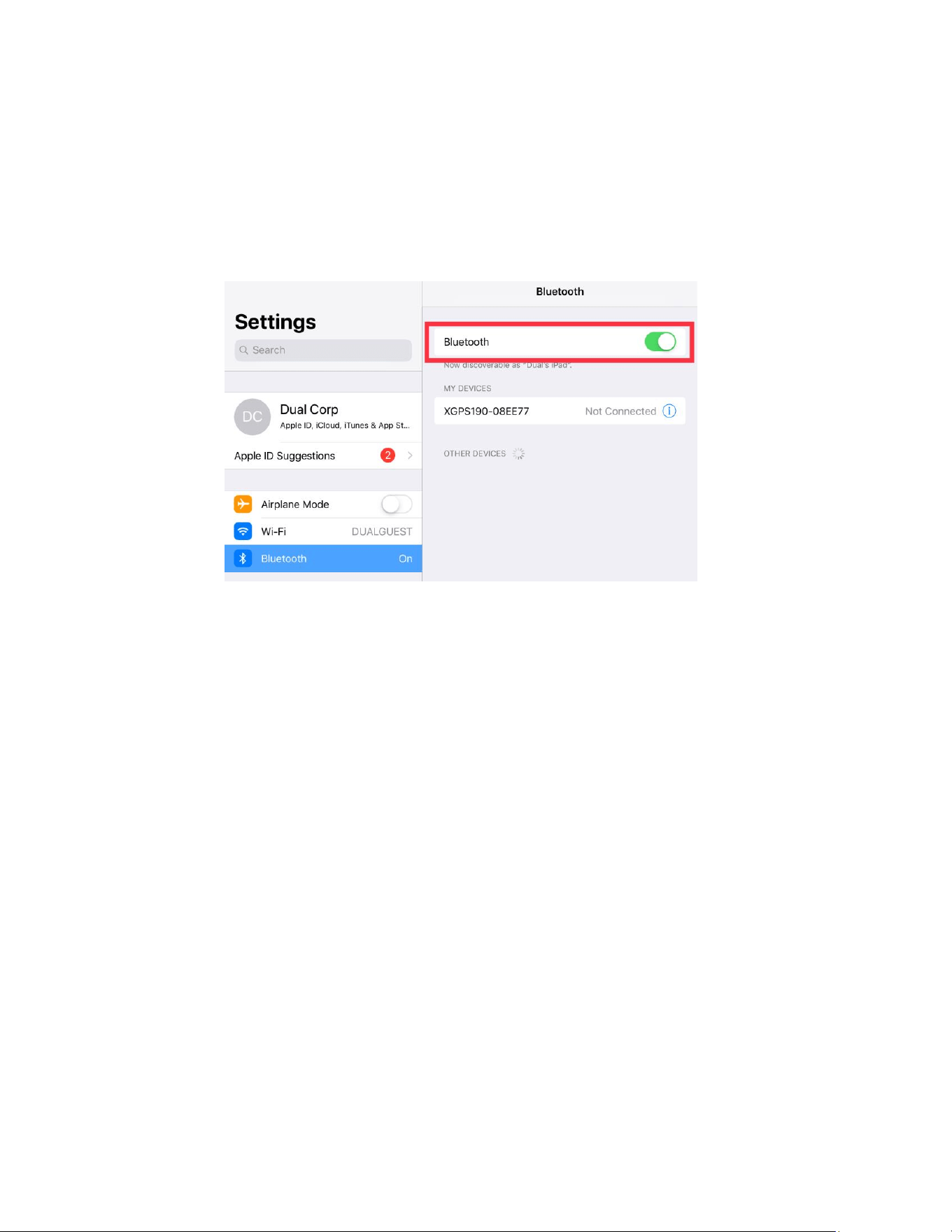
• Turn on Bluetooth under Settings from your Apple device.
• Choose the XGPS190 under the Bluetooth device list to connect to
your Apple device.
• Once the XGPS190 and your Apple device are connected, power on
the XHUD1000 by plugging in the supplied USB cable.
• Open the ADS-B Status Tool app, and then go to the HUDControl tab.
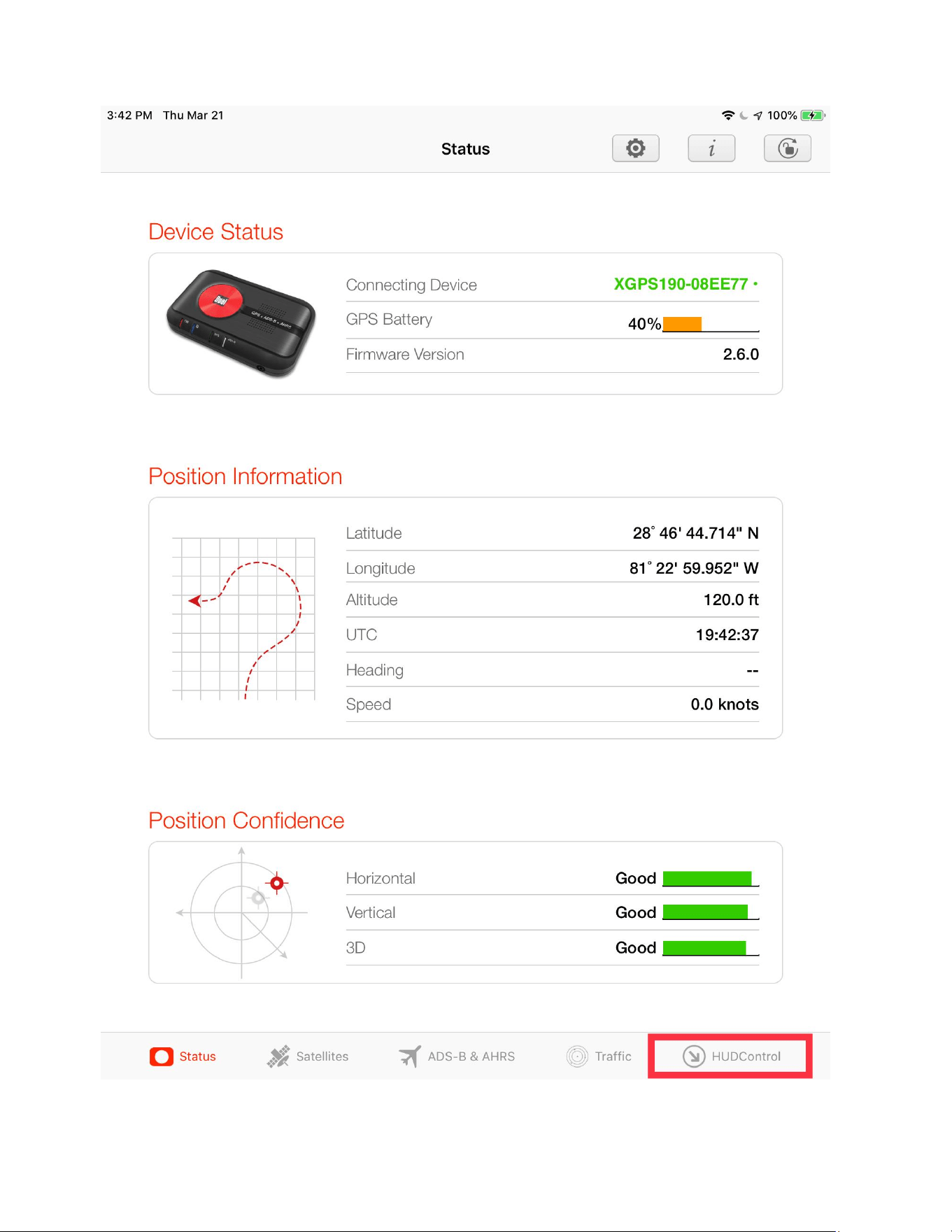
8
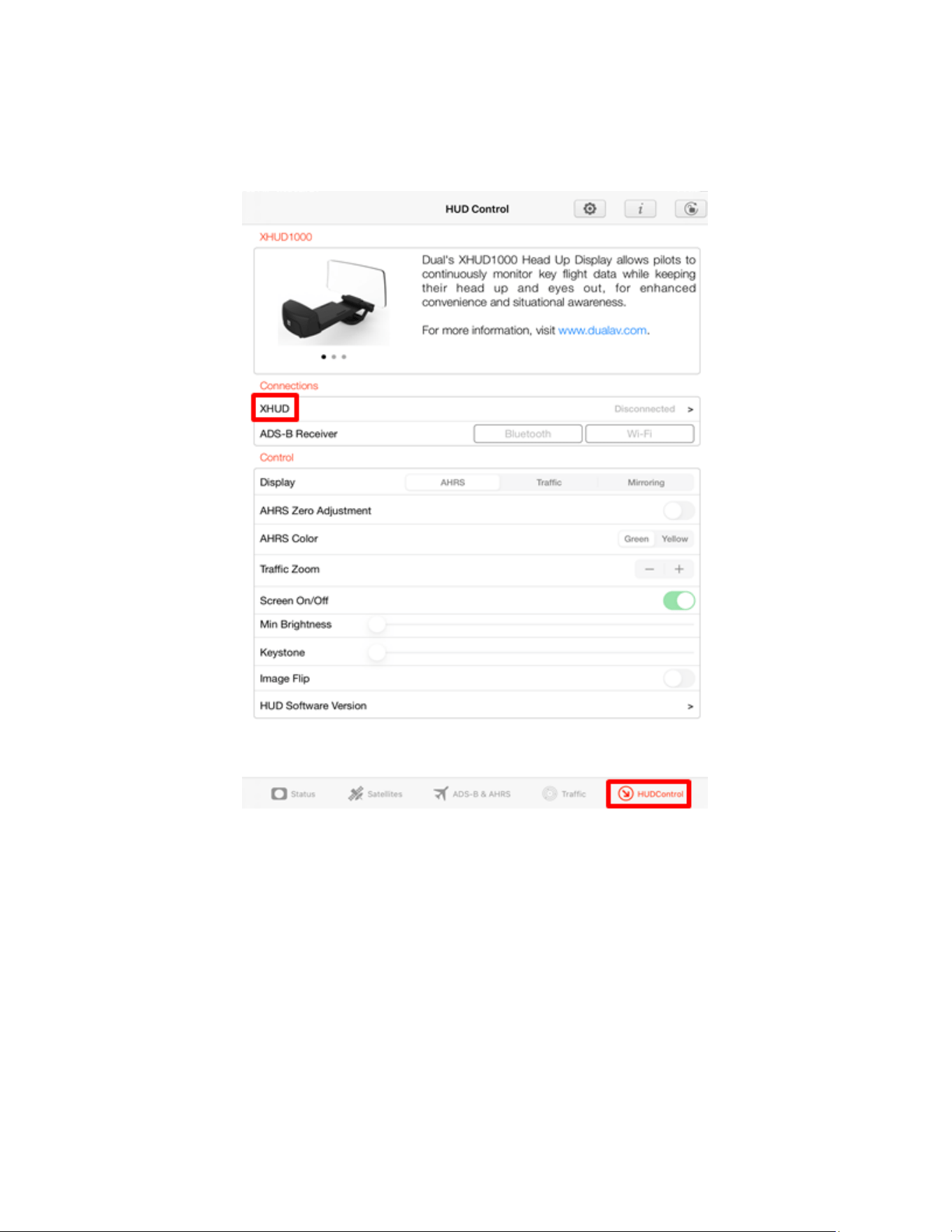
9
• Tap the XHUD, and choose the XHUD(****) to connect HUD to your
Apple device.

10
11
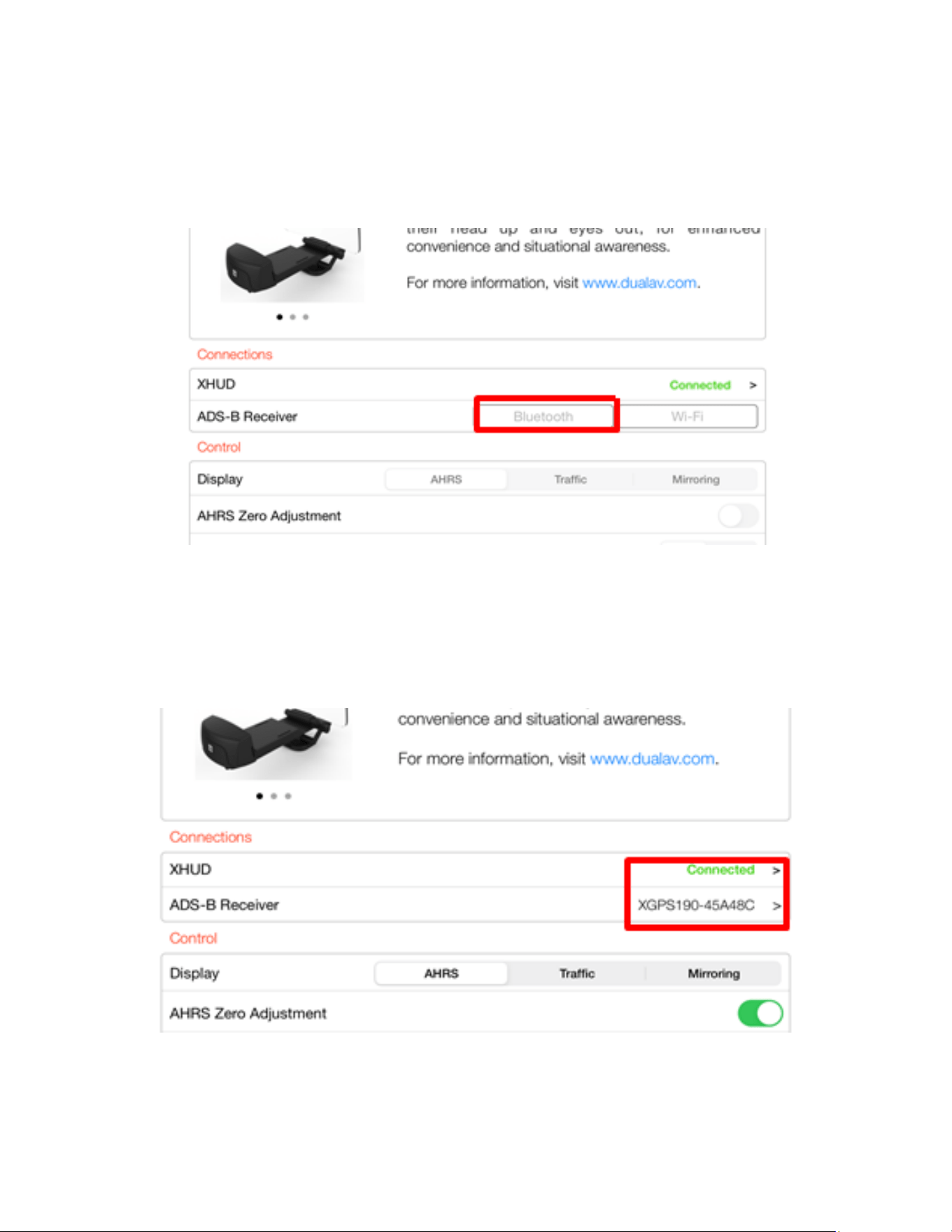
• Tap the Bluetooth box and choose the XGPS190. Once connection is
successfully made, Bluetooth logo on the left side corner of the
XHUD1000 screen will stop blinking.

12
• To confirm connection between the XHUD1000 and the XGPS190,
try switching between AHRS and Traffic modes, or try different
controls from the HUDControl tab. The XHUD1000 display should
respond to the controls of your choice accordingly.
• You have now successfully made Bluetooth connection between the
XHUD1000, the XGPS190, and your Apple device.
Note: Once connection is made between XHUD1000, XGPS190, and
Apple device, there are several choices of EFB apps that can run on your
Apple device, including Foreflight. See Dual’s web site for a complete list
of apps compatible with XGPS190.
13
Setup with Stratus 3 & Apple Device
1) Connect Stratus 3 to mobile device per Stratus 3 instruction manual,
and download the Stratus Horizon Pro app from App Store.
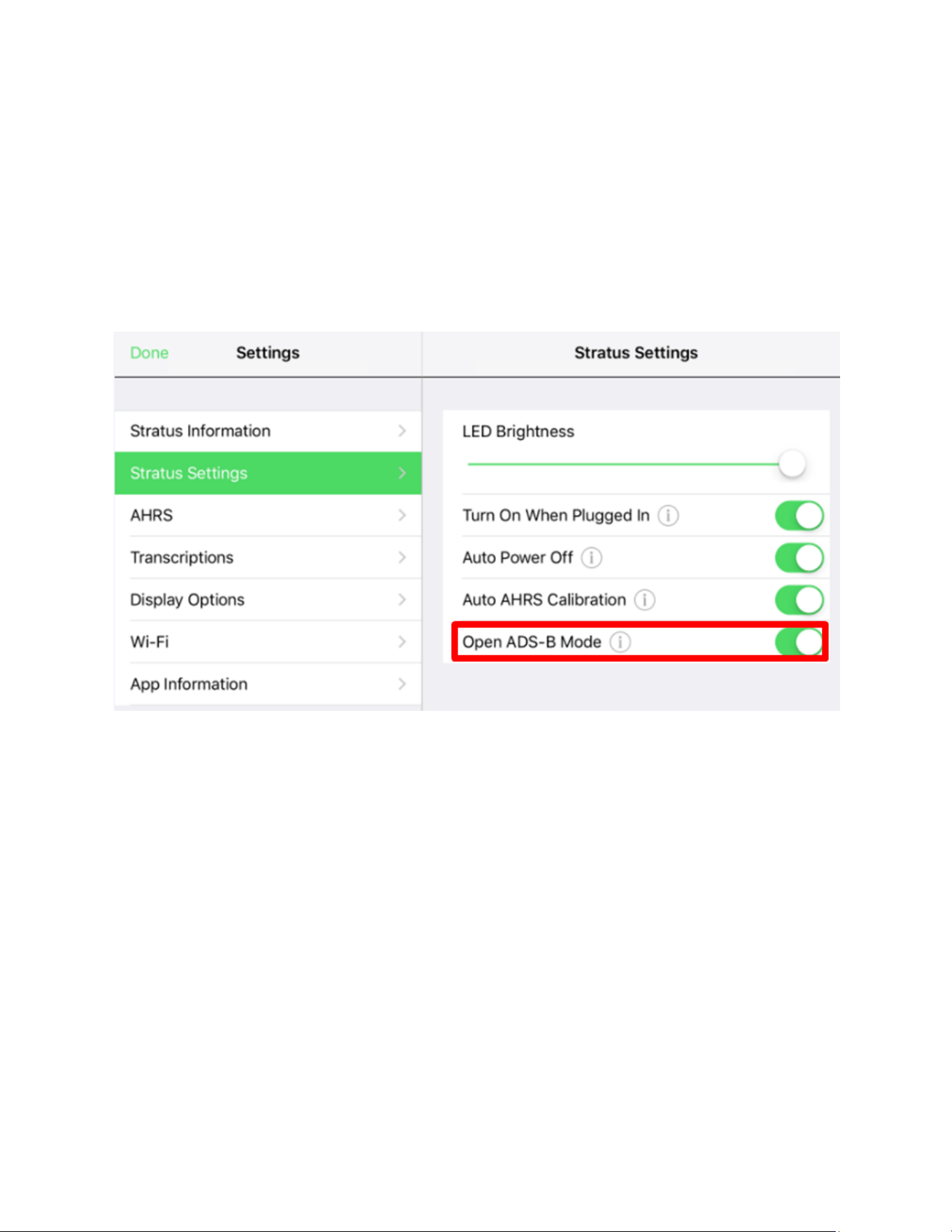
2) In the Stratus Horizon Pro app, go to Stratus Setting, and enable ‘Open
ADS-B Mode’
14
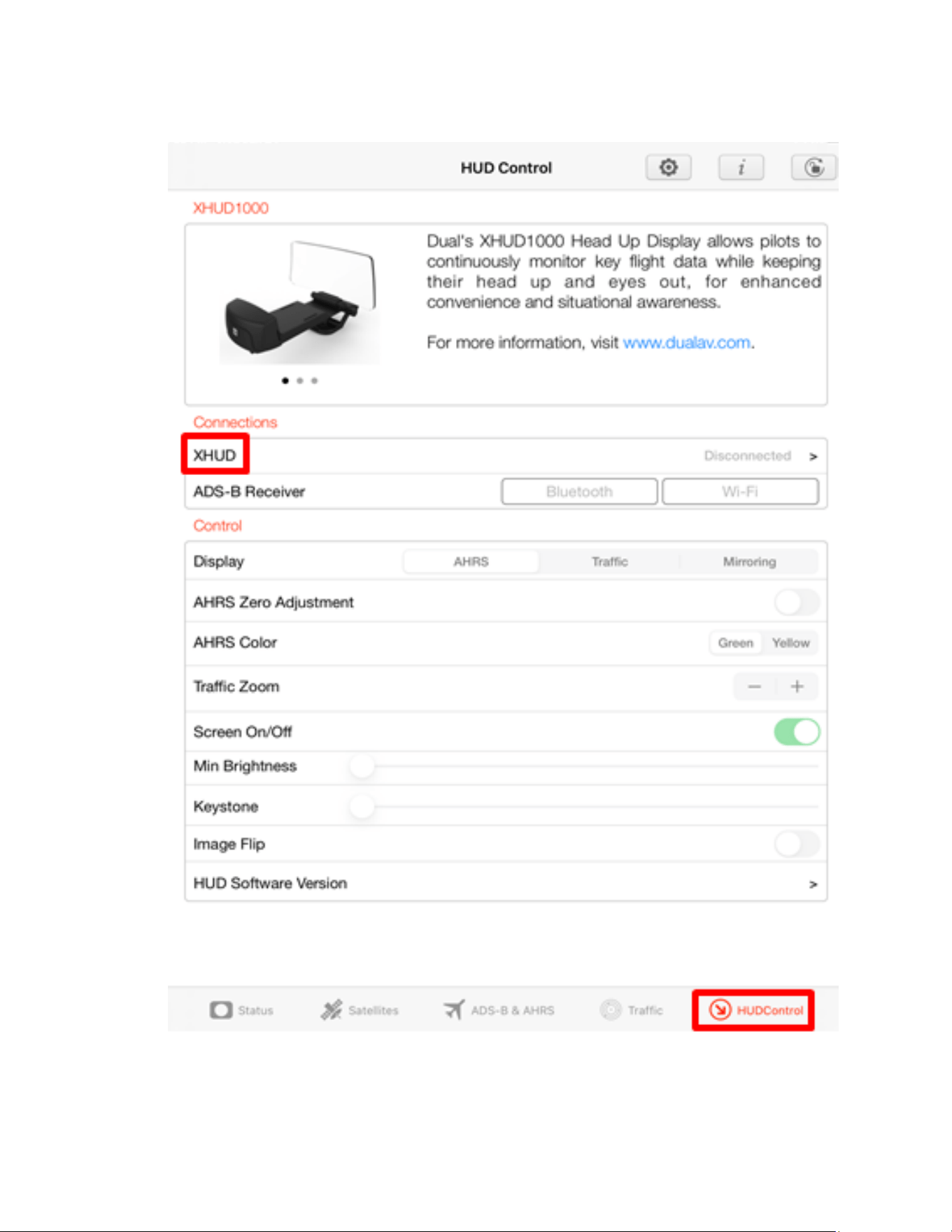
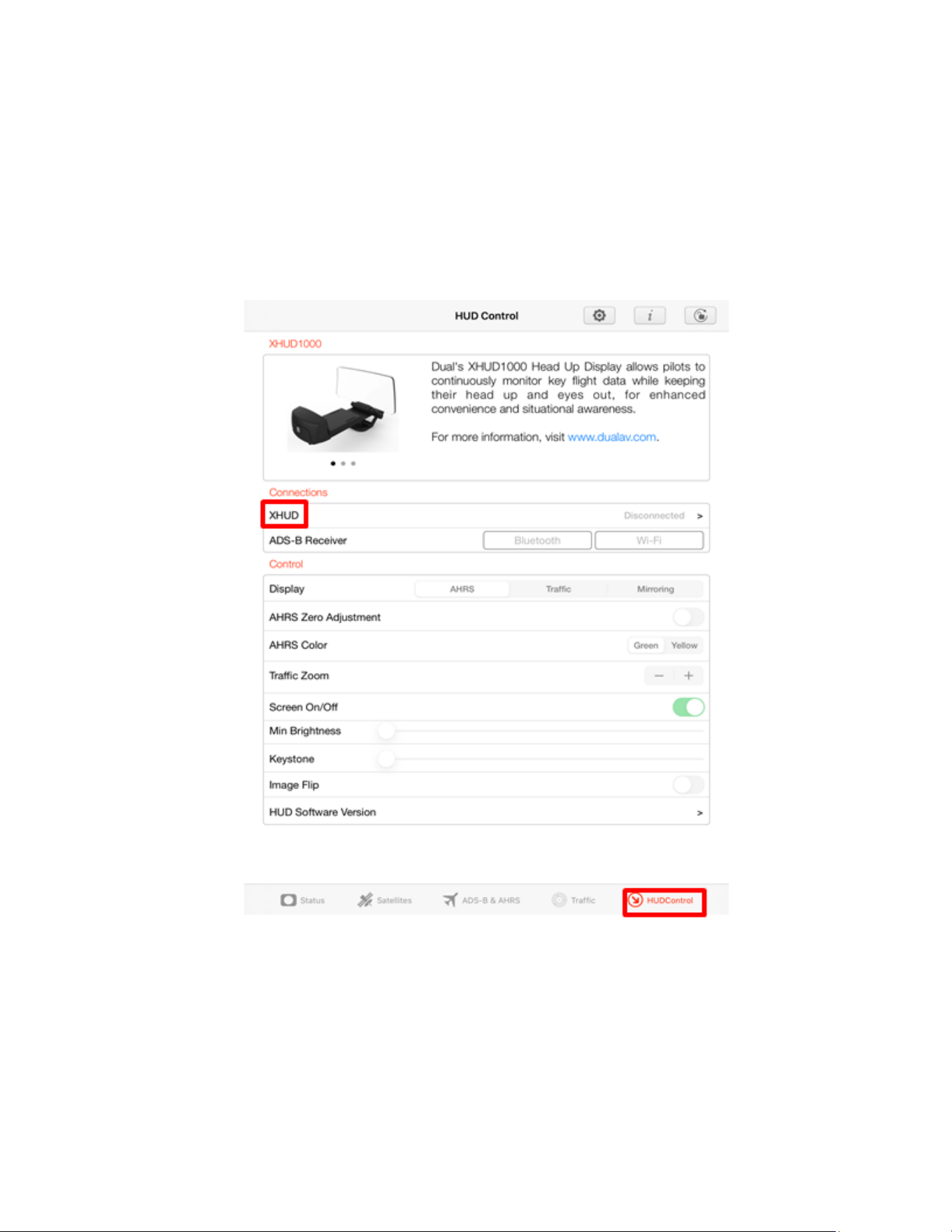
• In the Dual ADS-B Status Tool App, HUD Control Tab, Tap on’ XHUD’,
and choose the XHUD(****) to connect HUD to your Apple device.

15
16
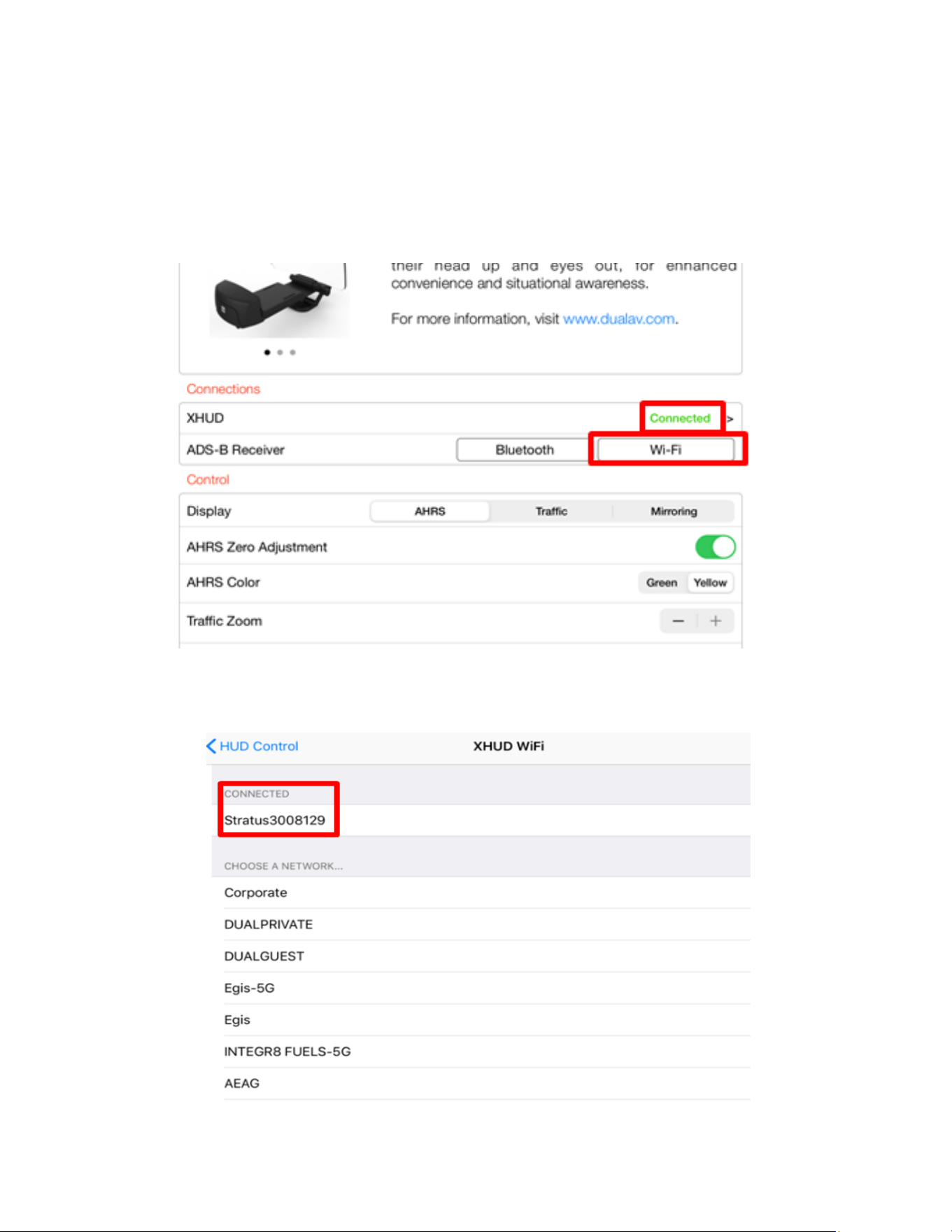
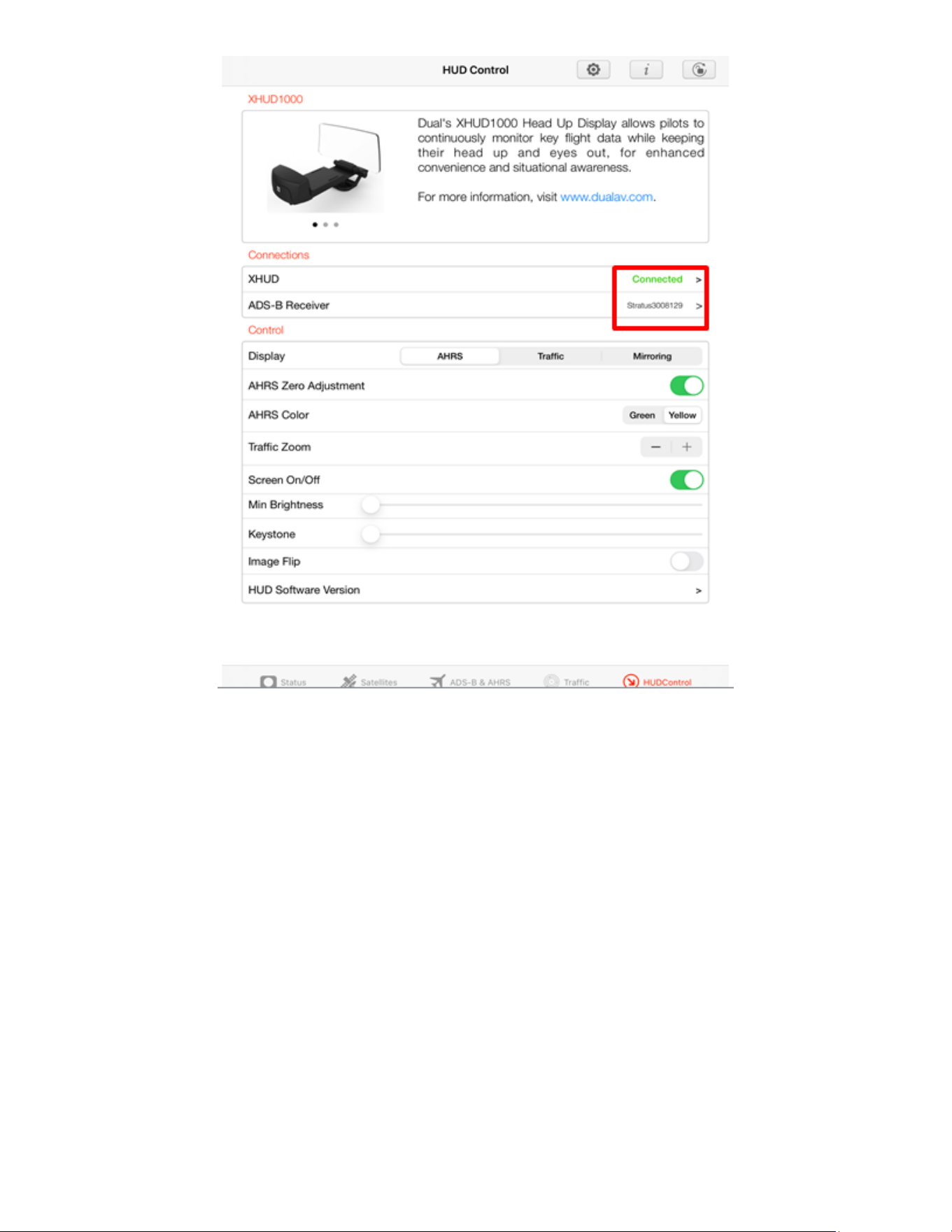
• Tap the Wi-Fi box and choose the Stratus. Once connection is
successfully made, Wi-Fi logo on the left side corner of the
XHUD1000 screen will stop blinking.
17
• To confirm connection between the XHUD1000 and Stratus 3, try
switching between AHRS and Traffic modes, or try different controls
from the HUD Control tab. The XHUD1000 display should respond to
the controls of your choice accordingly.
• You have now successfully made connection between the
XHUD1000, the Stratus 3, and your Apple device.
Note: Once connection is made between XHUD1000, Stratus 3, and
Apple device, there are several choices of EFB apps that can run on your
Apple device. However Foreflight cannot be used unless XHUD1000 is in
Tablet Graphics mode.
18
Setup with Stratux & Apple Device
1) Connect Stratux to mobile device per Stratux instruction manual.
In the Dual ADS-B Status Tool App, HUD Control Tab, tap XHUD, and
choose the XHUD(****) to connect HUD to your Apple device.

19
20
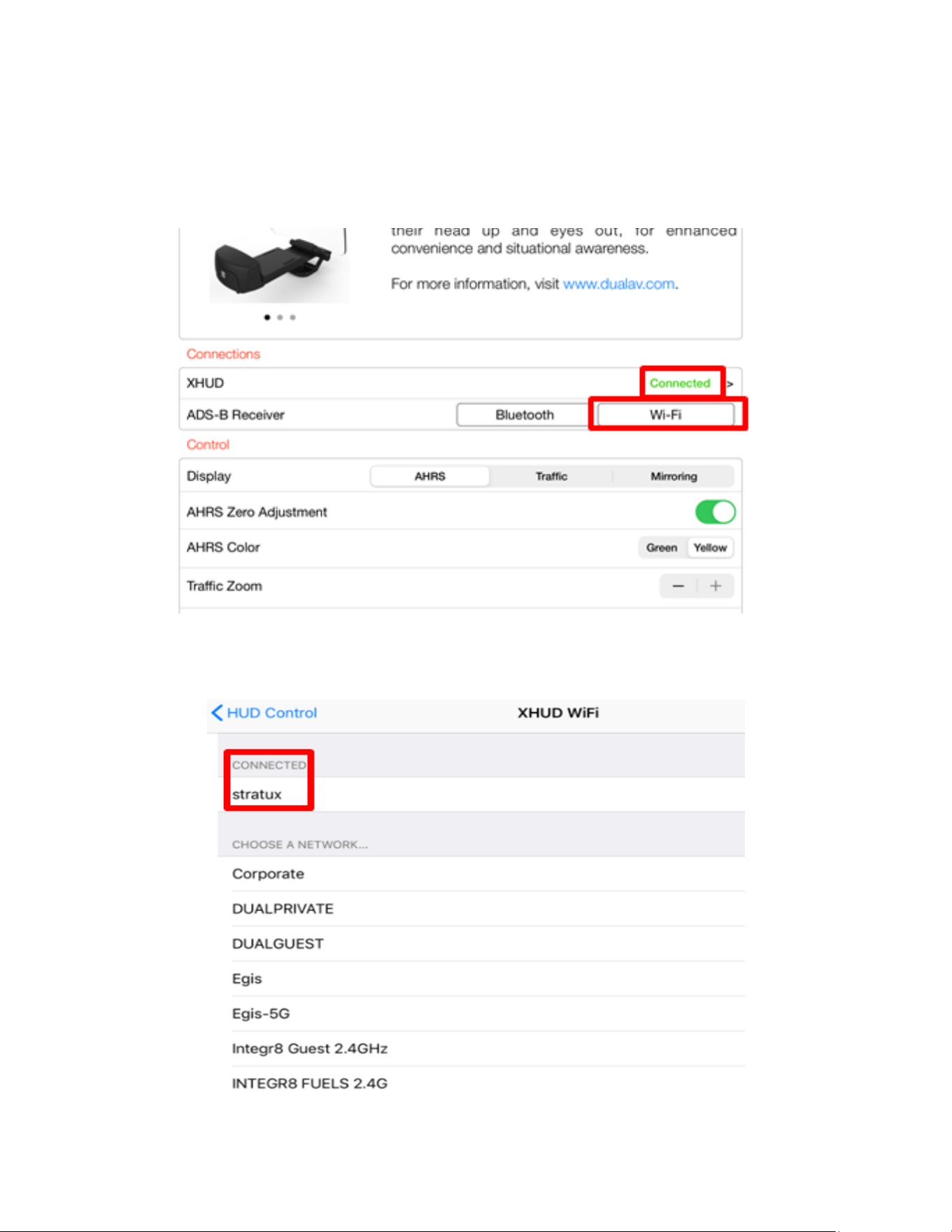
• Tap the Wi-Fi box and choose the Stratux. Once connection is
successfully made, Wi-Fi logo on the left side corner of the
XHUD1000 screen will stop blinking.
21
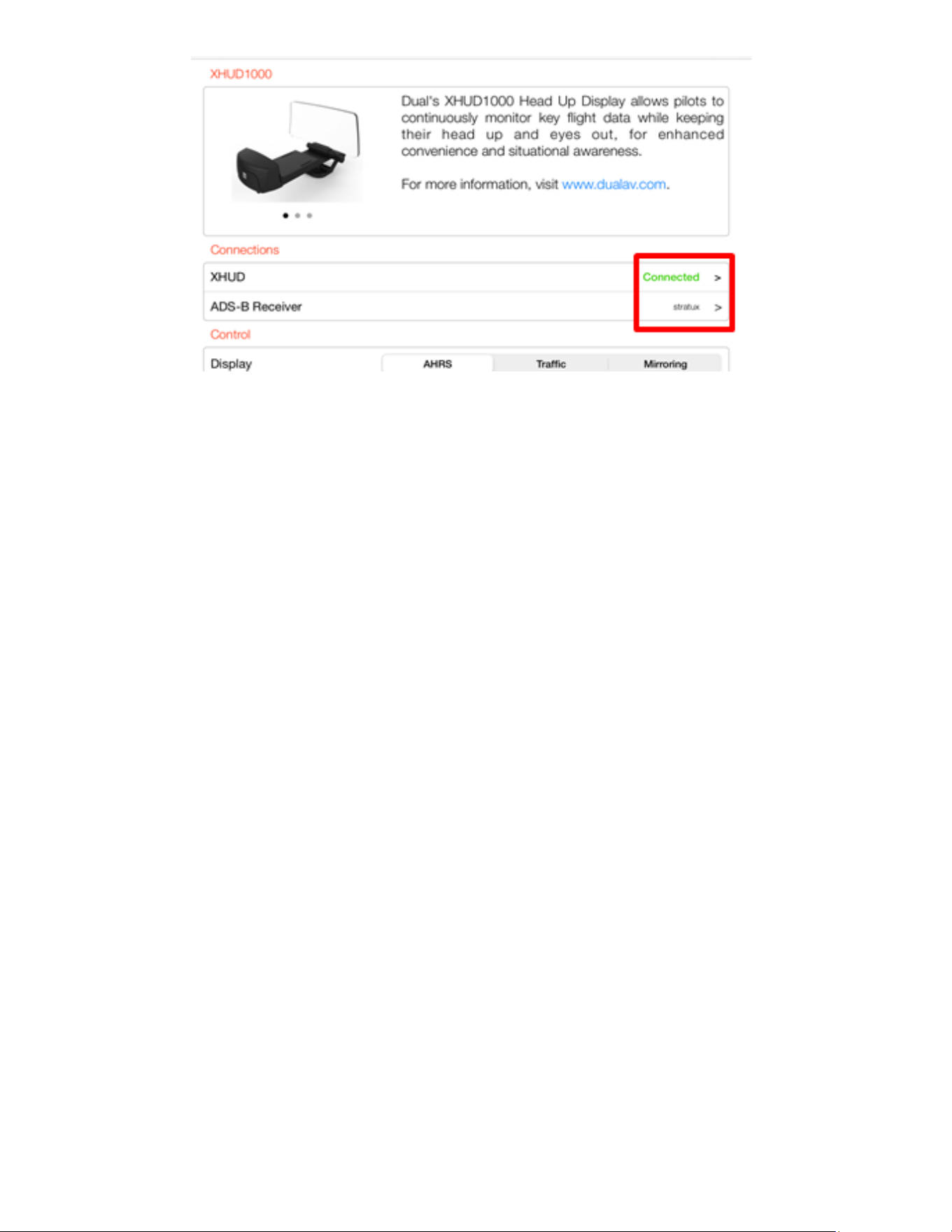
• To confirm connection between the XHUD1000 and Stratux, try
switching between AHRS and Traffic modes, or try different controls
from the HUD Control tab. The XHUD1000 display should respond to
the controls of your choice accordingly.
• You have now successfully made connection between the
XHUD1000, the Stratux, and your Apple device.
Note: Once connection is made between XHUD1000, Stratux, and Apple
device, there are several choices of EFB apps that can run on your Apple
device. However Foreflight cannot be used unless XHUD1000 is in Tablet
Graphics mode.

22
Mirroring with Apple devices
Mirroring of EFB app image from your Apple device to your HUD requires
both a Bluetooth and a WiFi connection. There are 2 options for WiFi
connection, depending on your particular set up.
OPTION A) Mirroring with XHUD1000 as Wi-Fi Hotspot
• Mirroring with this option can be enabled if your Apple device’s WiFi
is unused. XGPS190 is not required for mirroring.
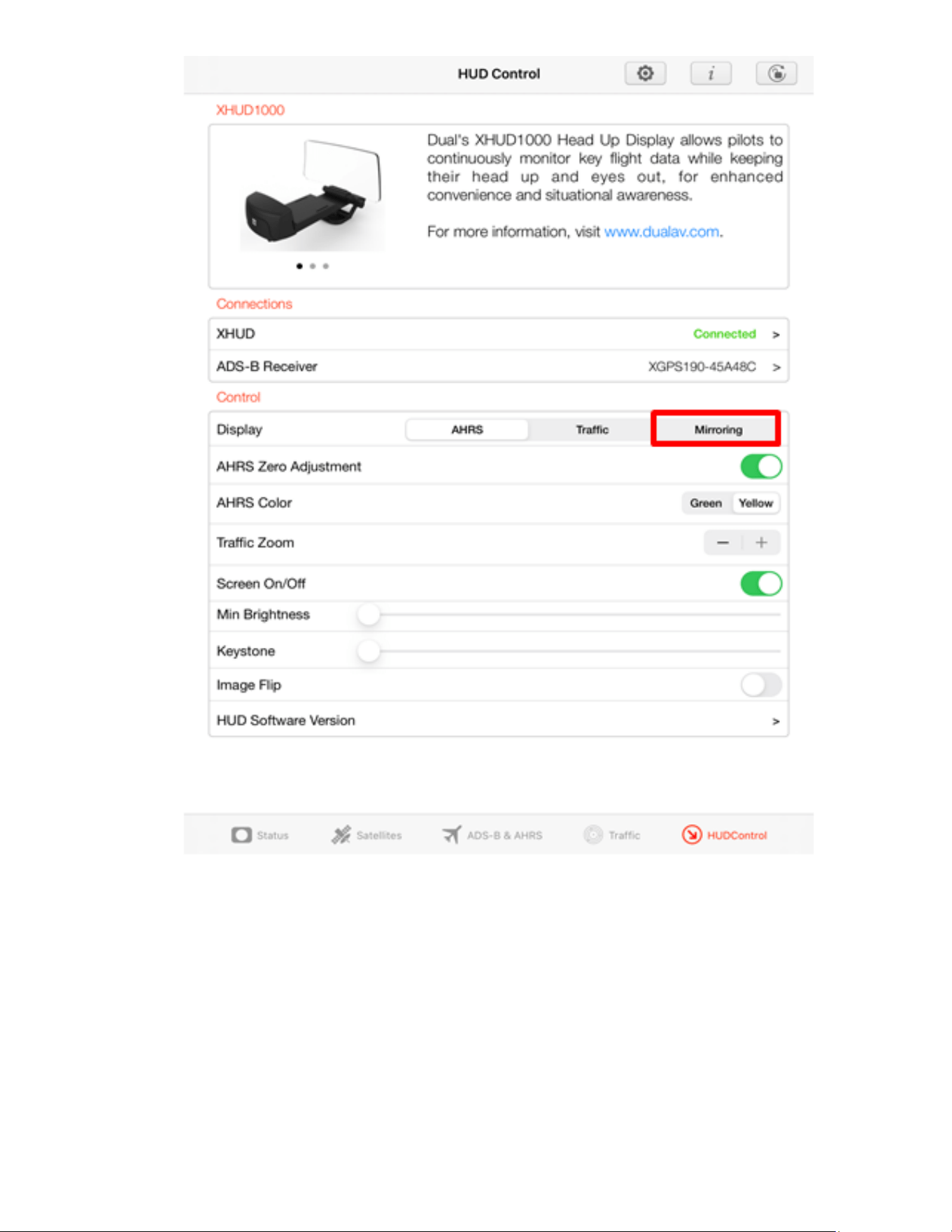
• Tap XHUD, and choose the XHUD(****) to connect HUD to your
Apple device via Bluetooth.
23
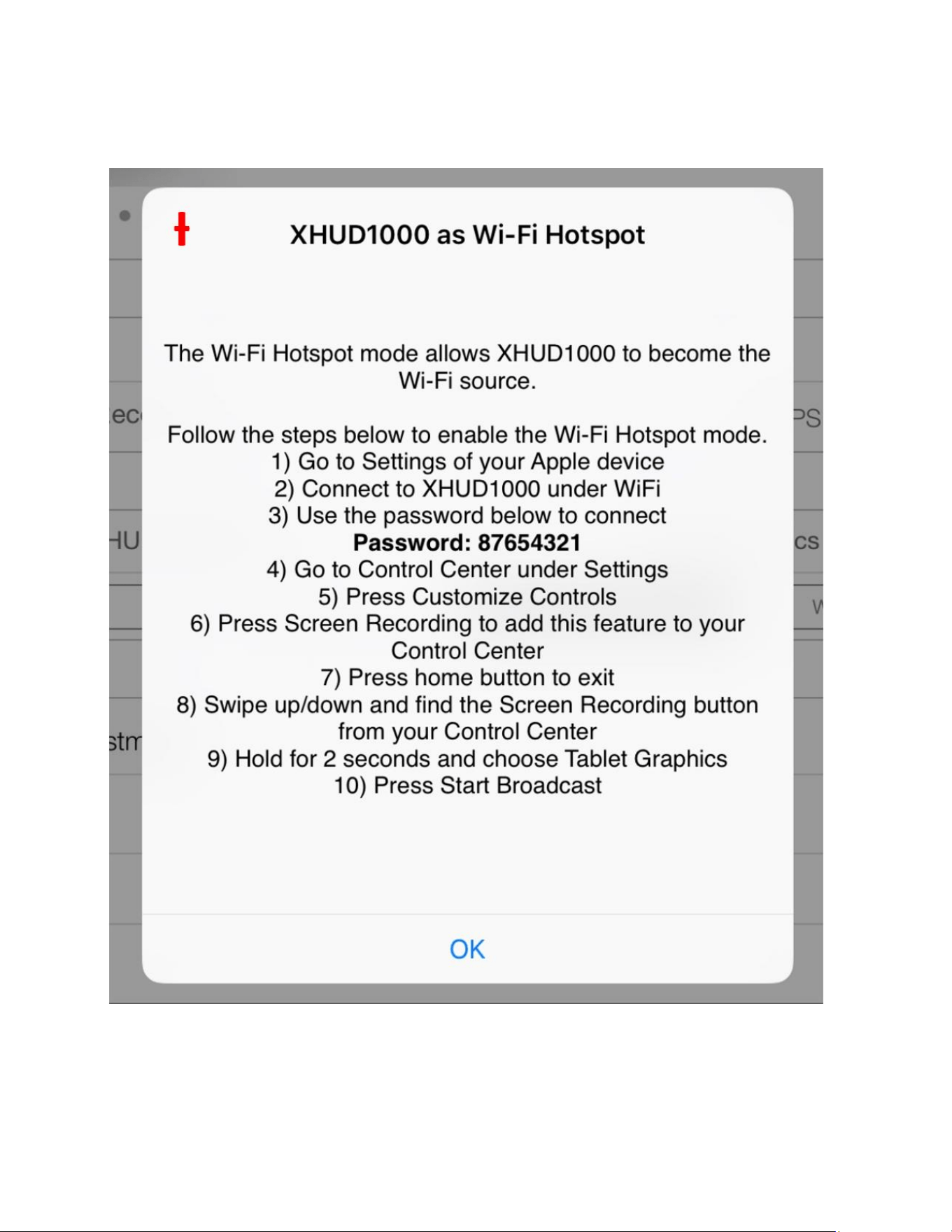
• Once the XHUD1000 is connected to your Apple device, tap
Mirroring, and follow steps in pop up screen.
24
-------------------------------------------------------------------------------------------------------------------------------------------------------------
25
Ɨ XHUD1000 as Wi-Fi Hotspot
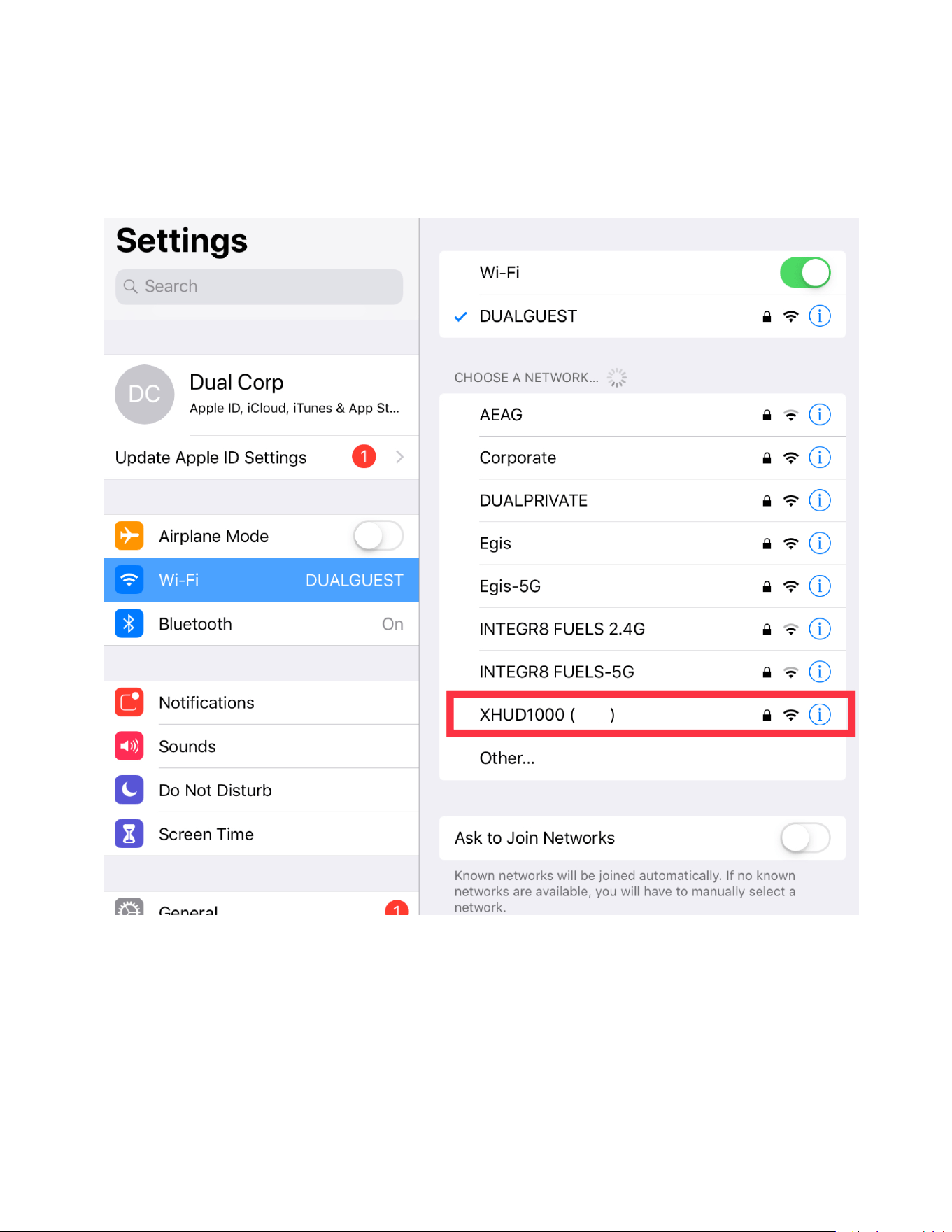
① Go to Settings of your Apple device.
② Connect to XHUD1000 under Wi-Fi.
26
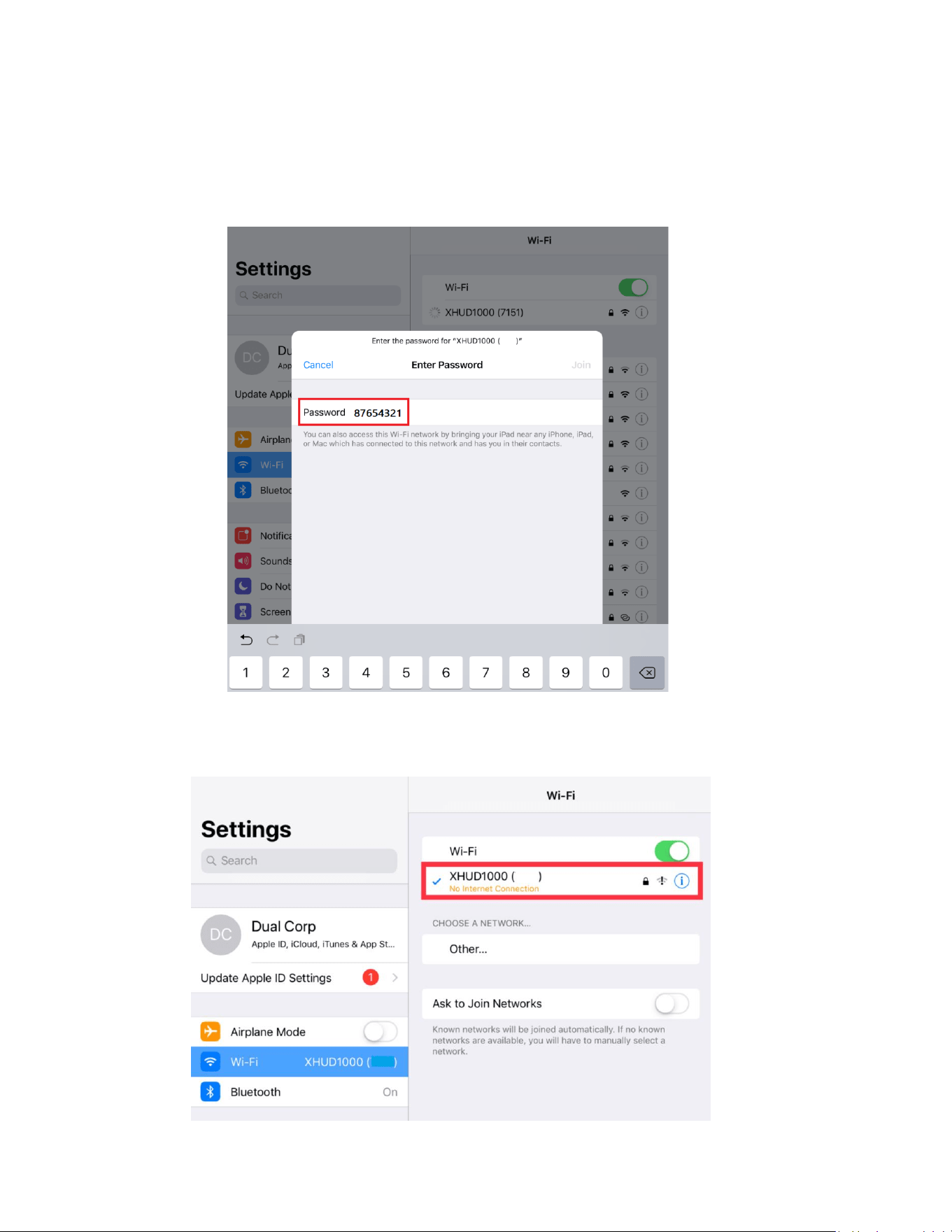
③ Use the password below to connect.
Password: 87654321
27
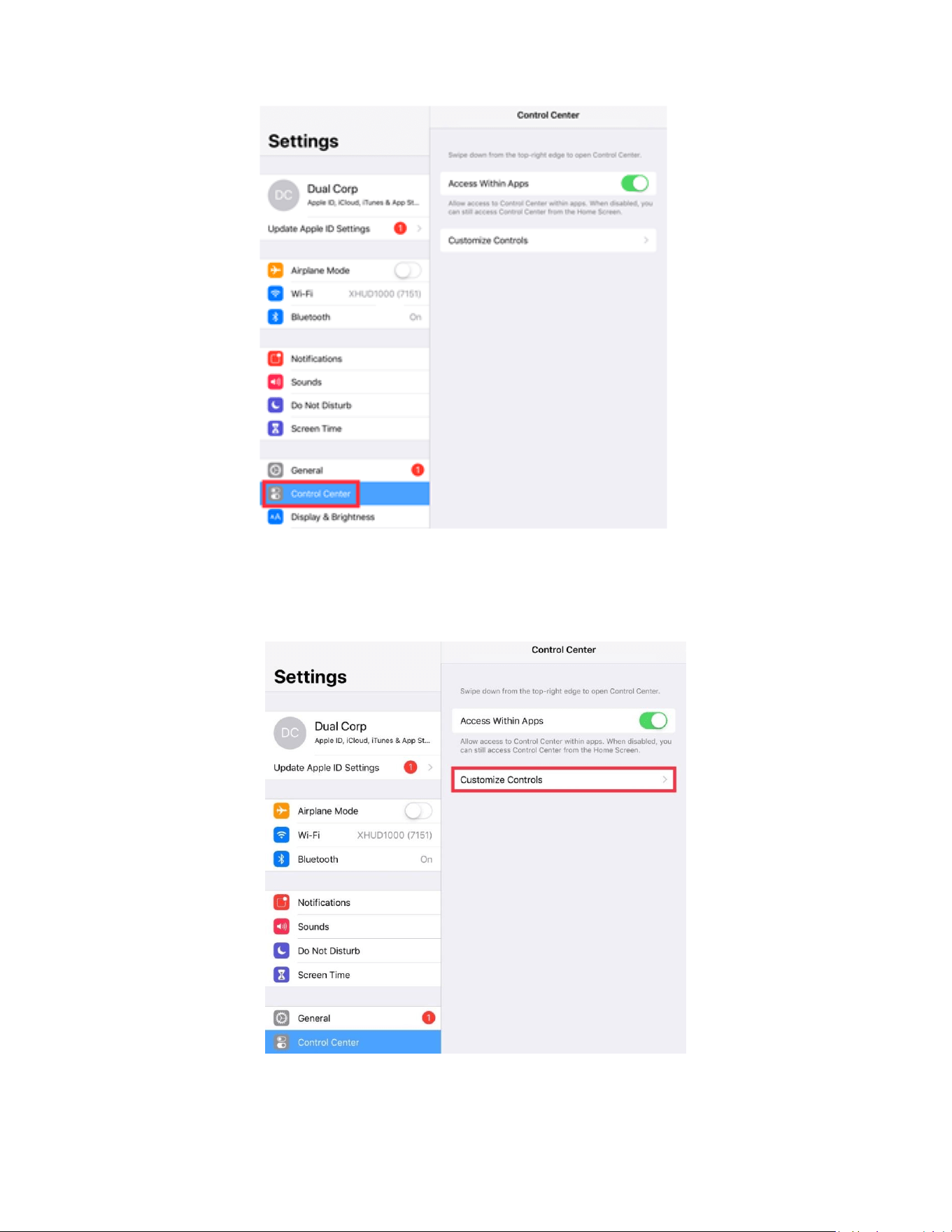
④ Go to Control Center under Settings.
⑤ Press Customize Controls.
28
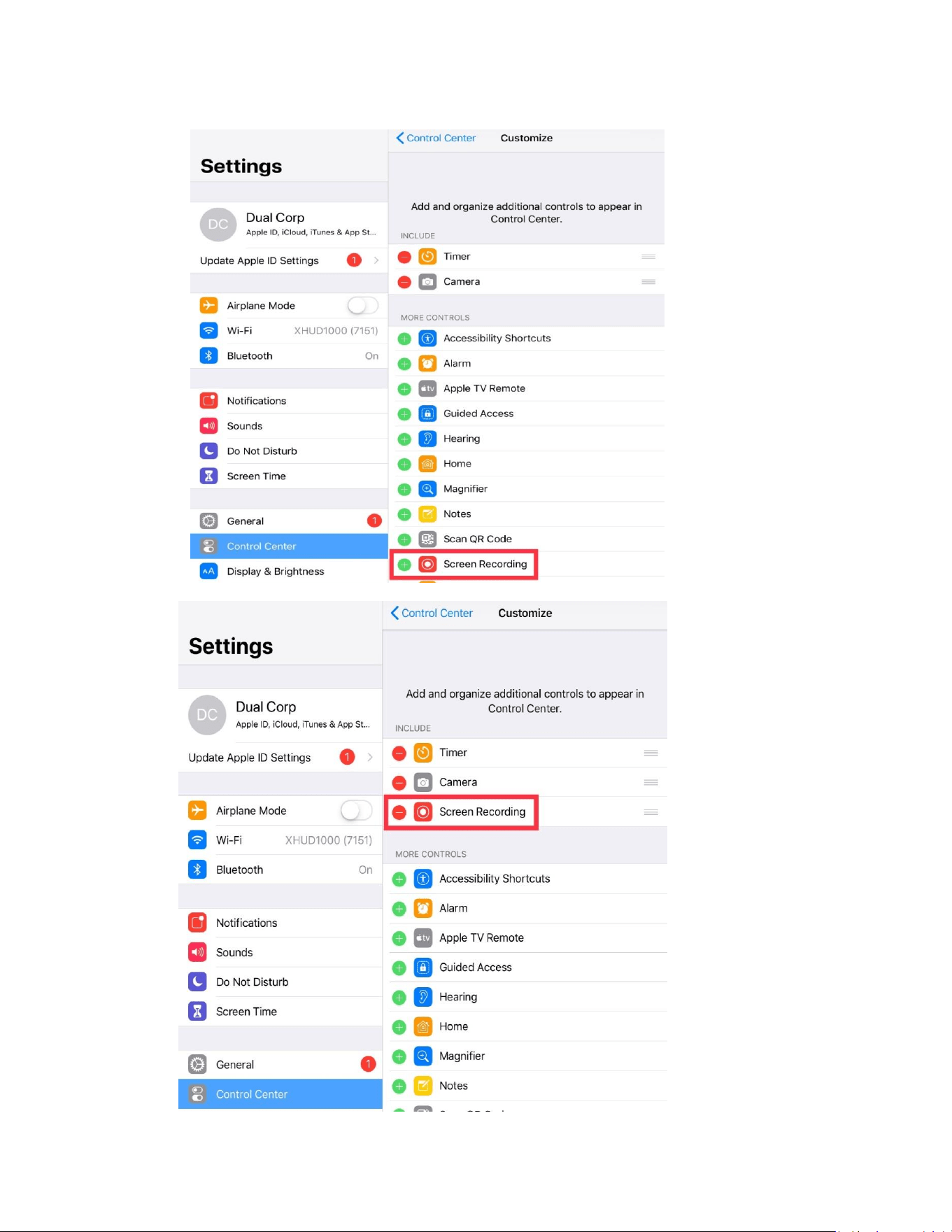
⑥ Press Screen Recording to add this feature to your Control Center.
29
⑦ Press the home button to exit.
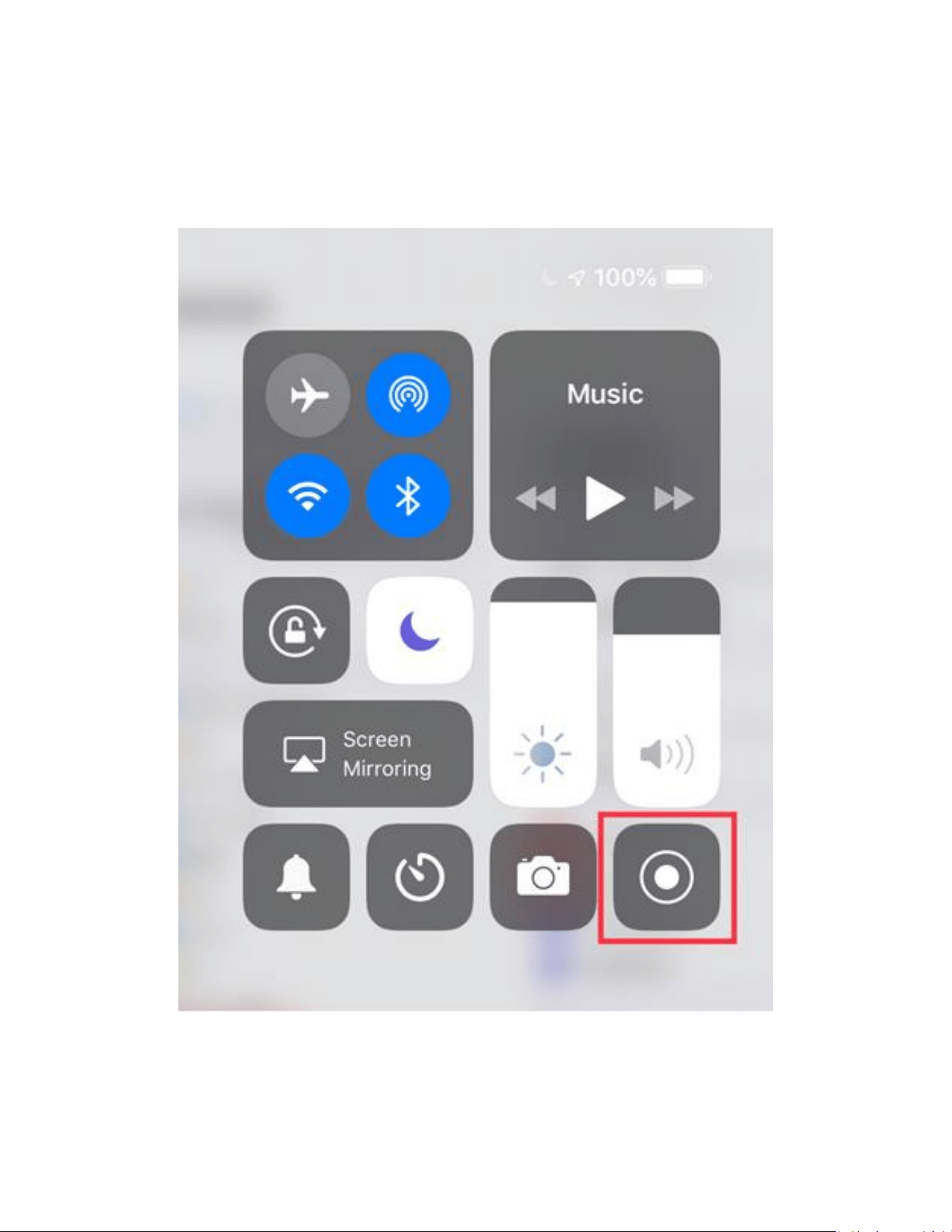
⑧ On iPad, swipe from upper right corner to lower left corner of screen,
and find the Screen Recording button from your Control Center. If using
iPhone, swipe from bottom to top of screen to do the same.
30
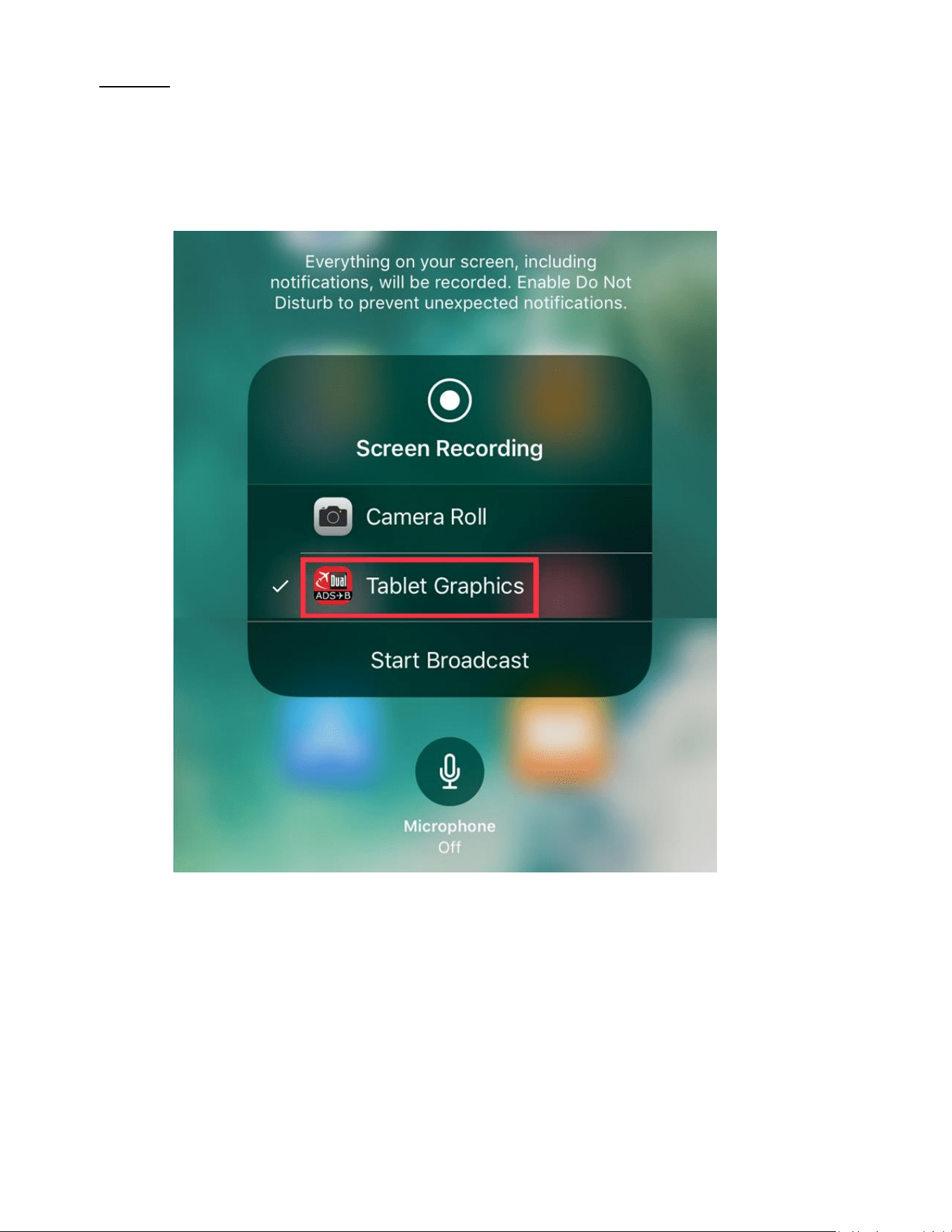
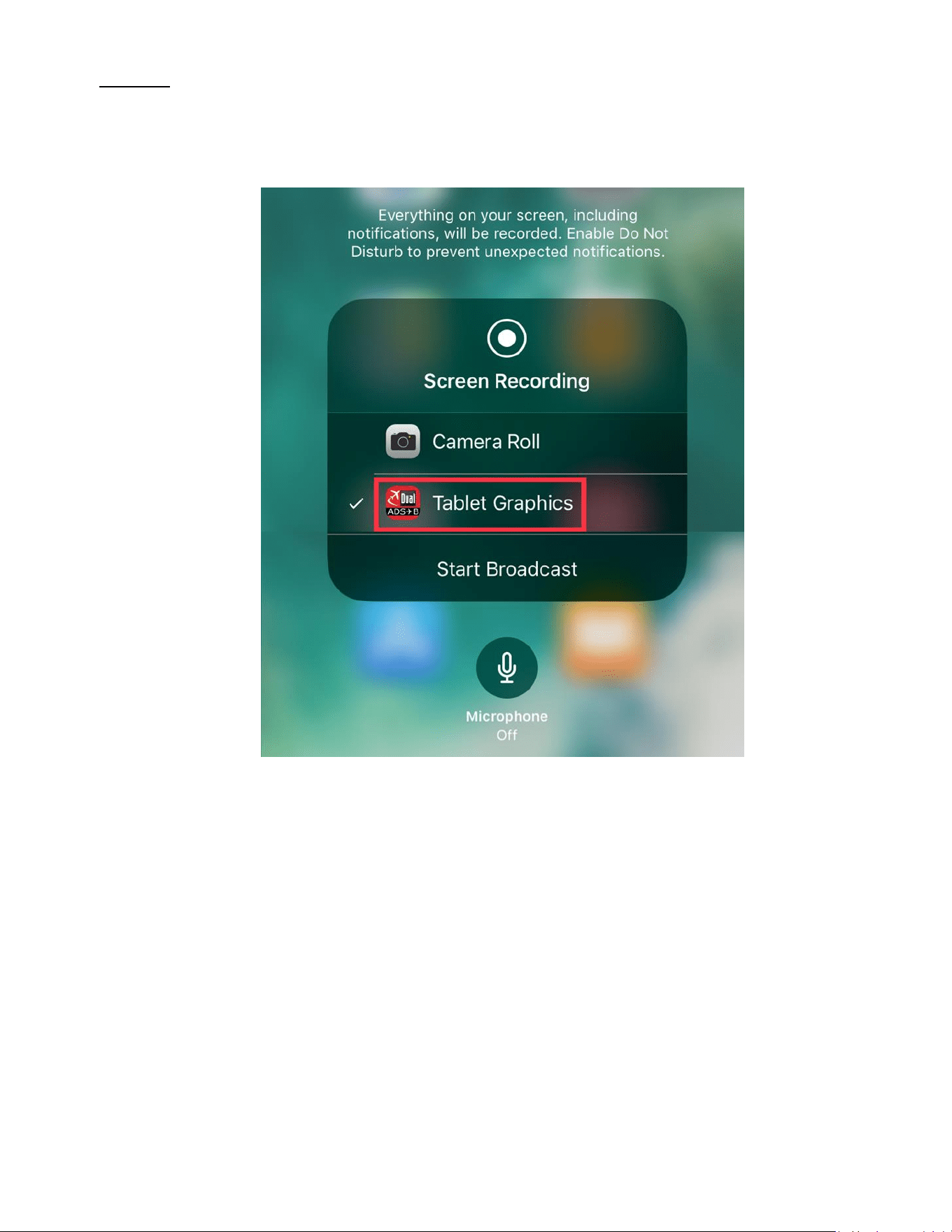
⑨ Firmly press and hold the screen recording button for 2 seconds and
choose Tablet Graphics.
⑩ Select Tablet Graphics and Press Start Broadcast.
-------------------------------------------------------------------------------------------------
• Once you have completed these steps, you should be able to
confirm that the screen from your Apple device is being mirrored to
the XHUD1000.
31
OPTION B) Mirroring with XHUD1000 as Wi-Fi Client
• Allows the XHUD1000 to connect to the Wi-Fi hotspot of your device
(e.g. WiFi portable receivers such as Stratus, or panel avionics that
transmits its data on Wi-Fi).
• Make sure your Apple device is already connected to the Wi-Fi
hotspot of your device before you move onto the next steps.
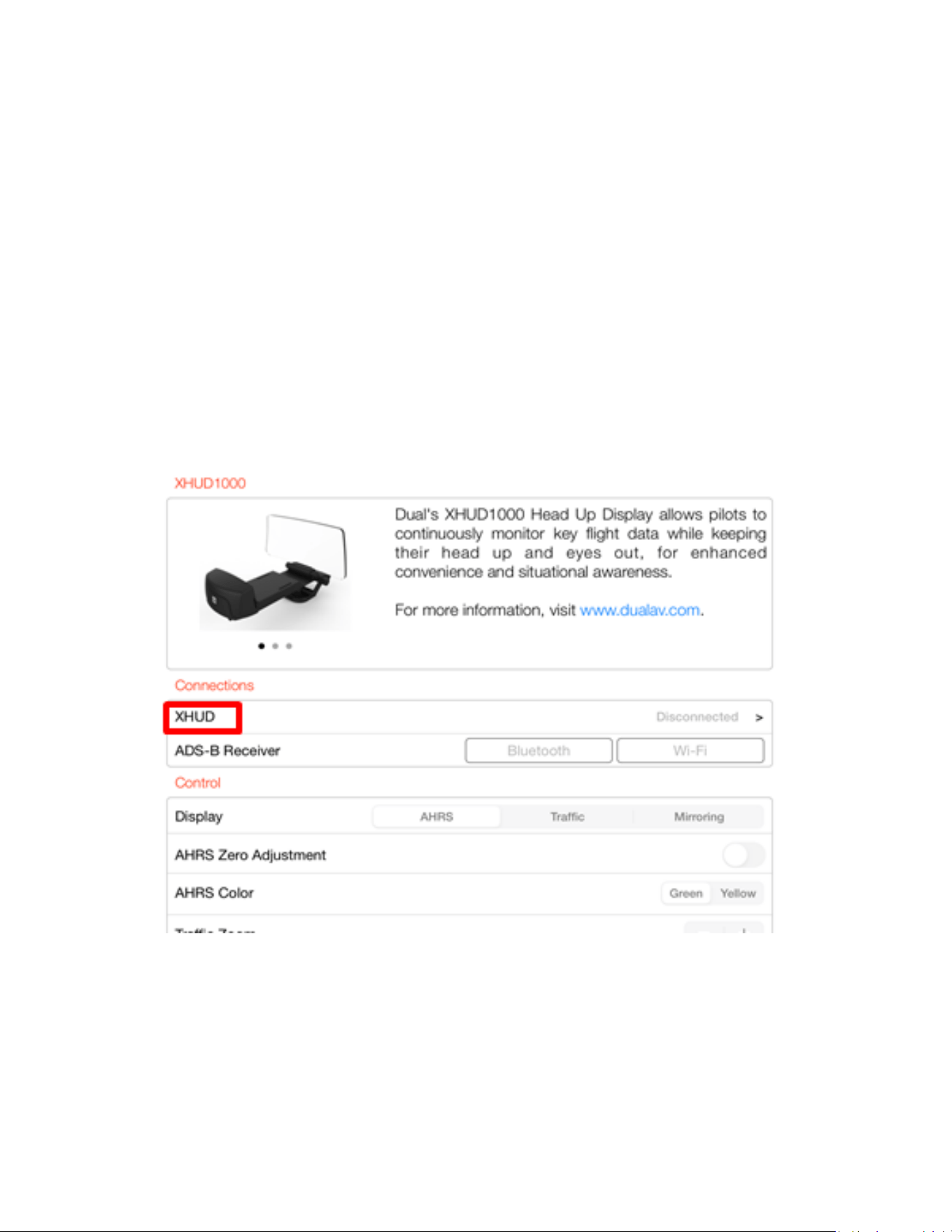
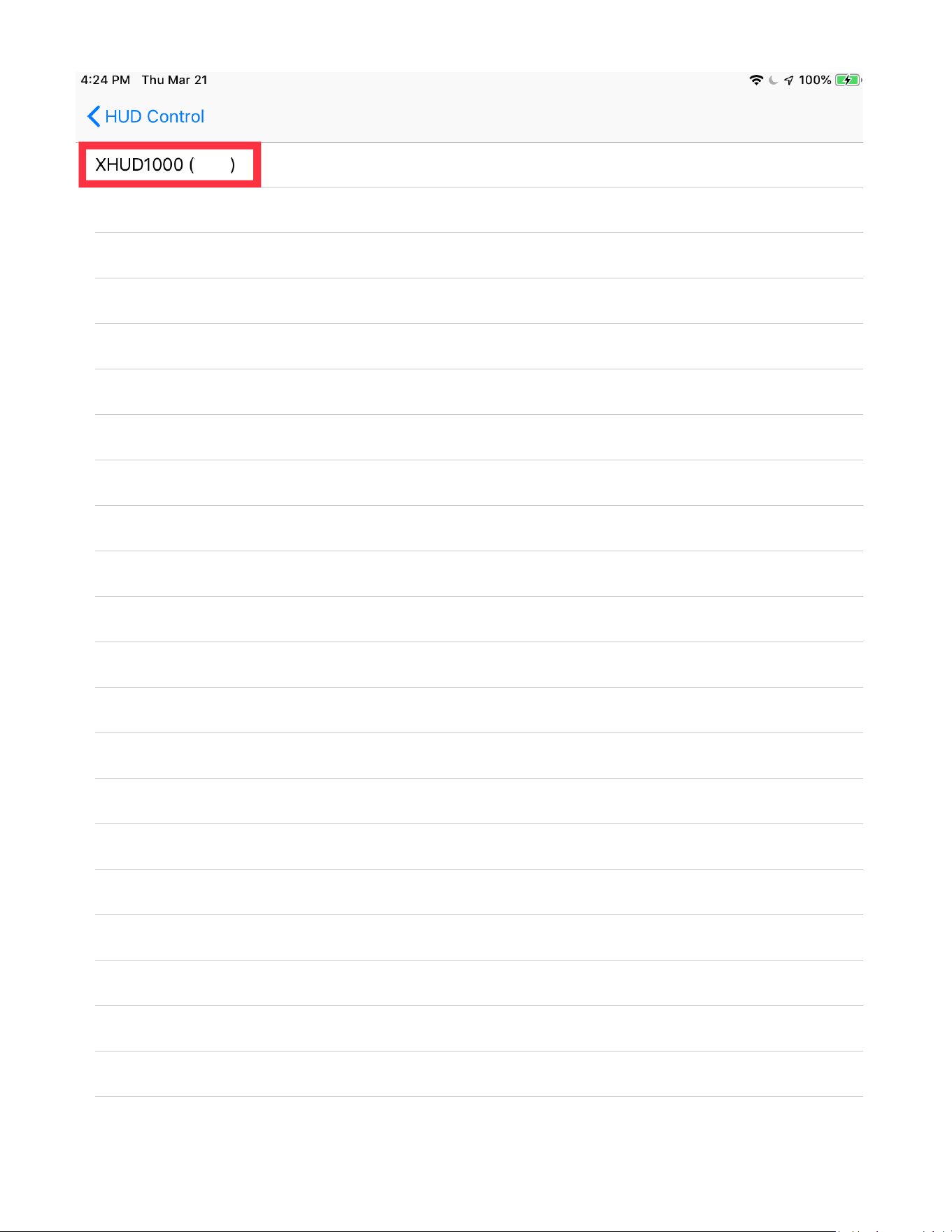
• Tap XHUD, and choose the XHUD(****) to connect HUD to your
Apple device via Bluetooth.
32
33
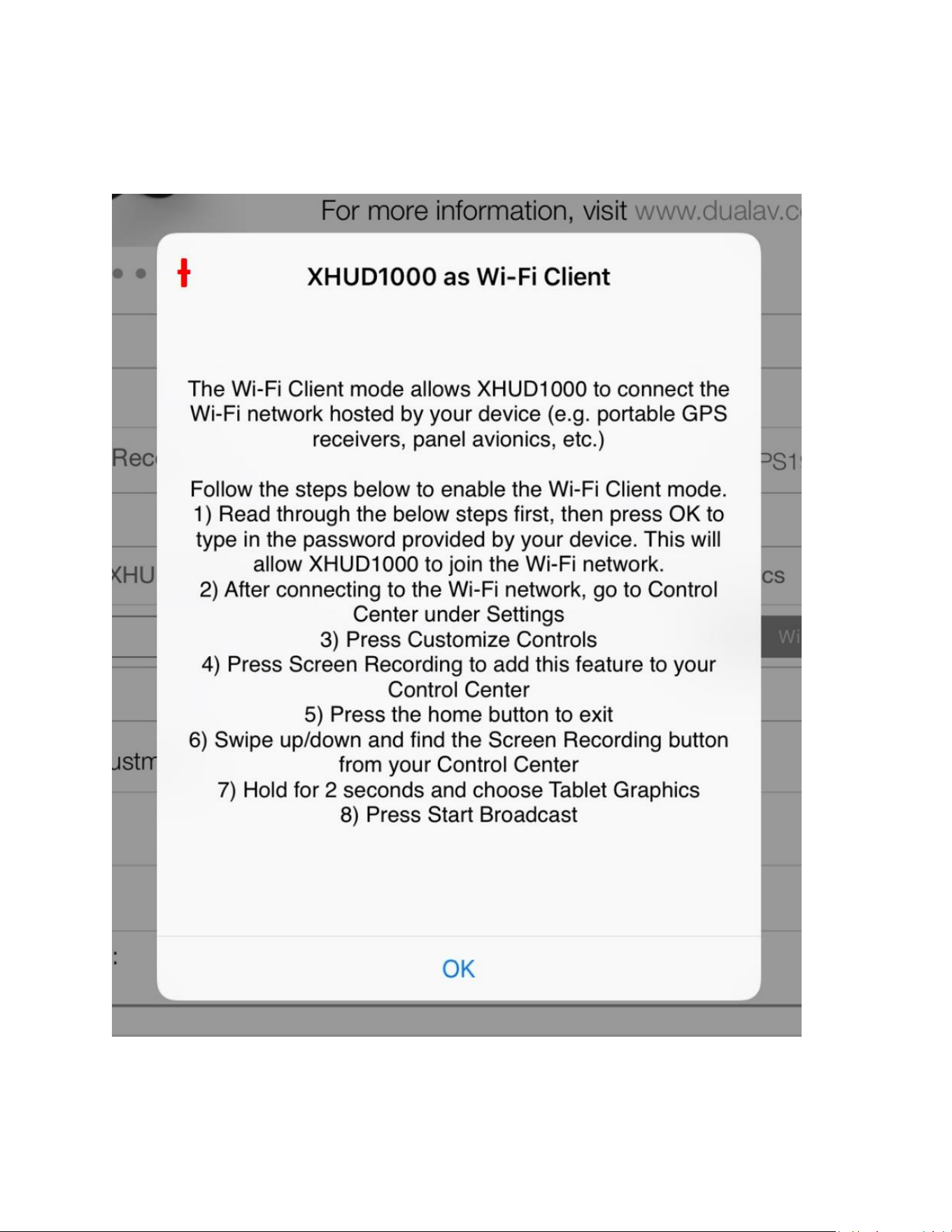
• Once the XHUD1000 is connected to your Apple device, tap
Mirroring, and follow steps in pop up screen.
-------------------------------------------------------------------------------------------------
34
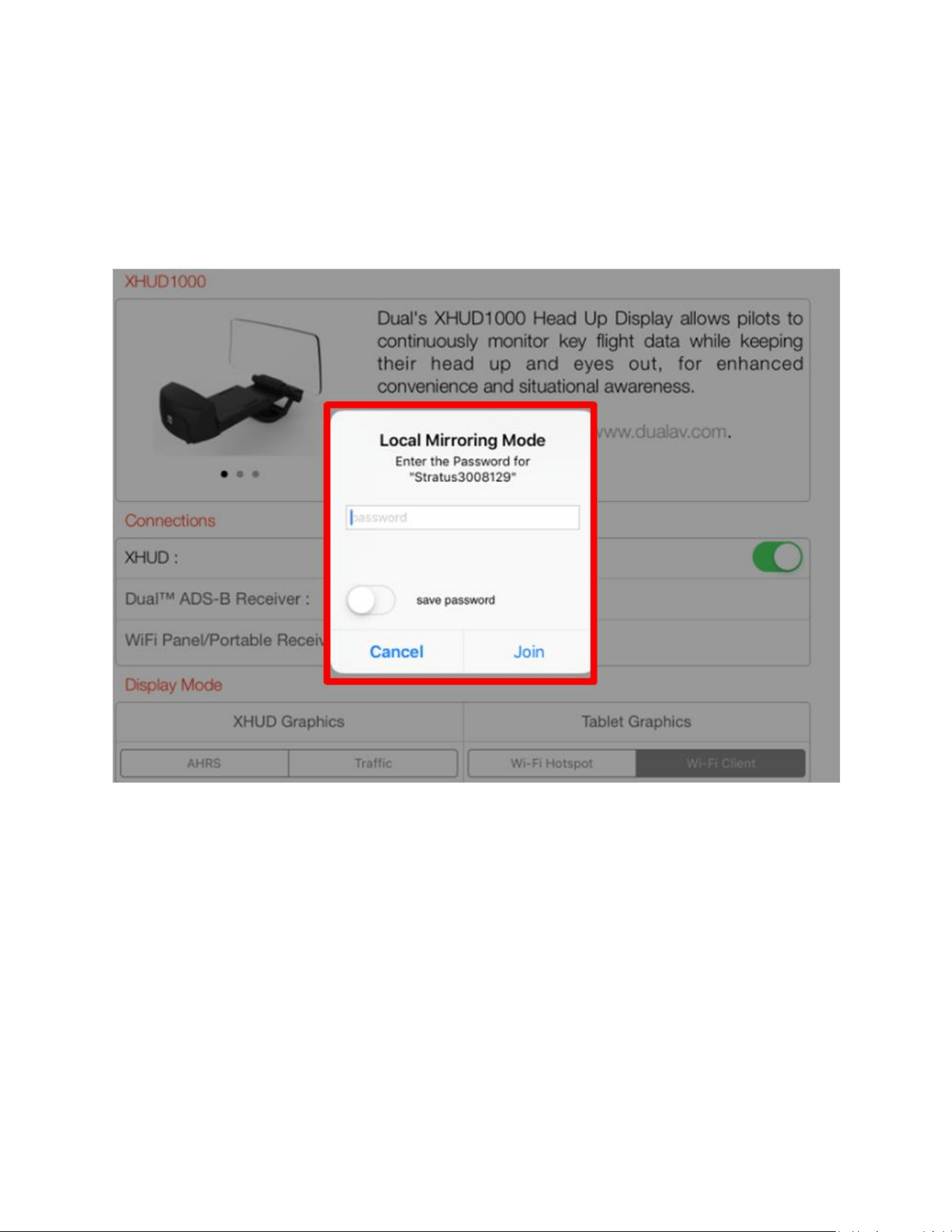
① If your device requires a password, enter it, then press Join to allow
XHUD1000 to join the Wi-Fi network. If your device is a Stratus 3 or
Stratux, no password is required, and you can simply press Join.
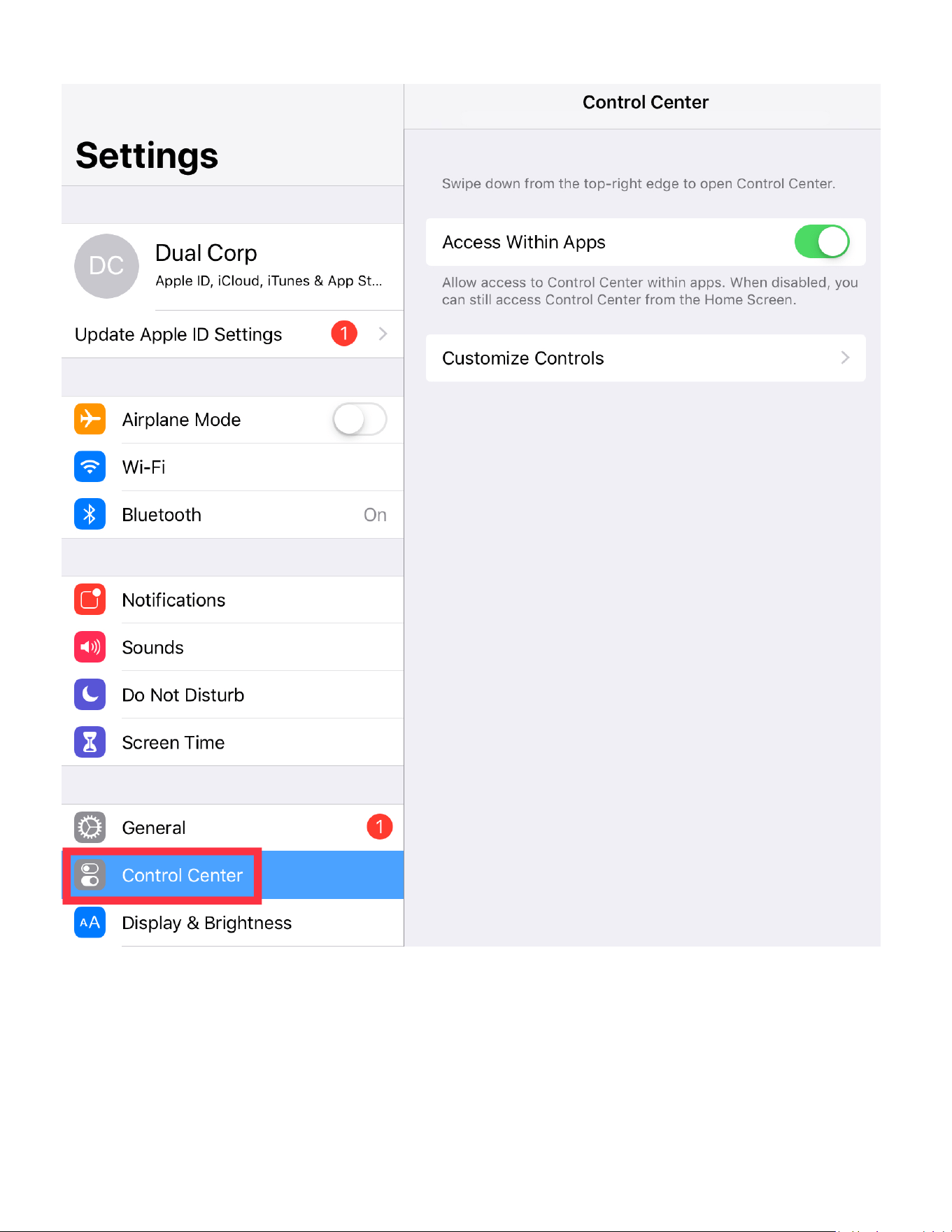
② After connecting to the Wi-Fi network, go to Control Center under
Settings.
35
36
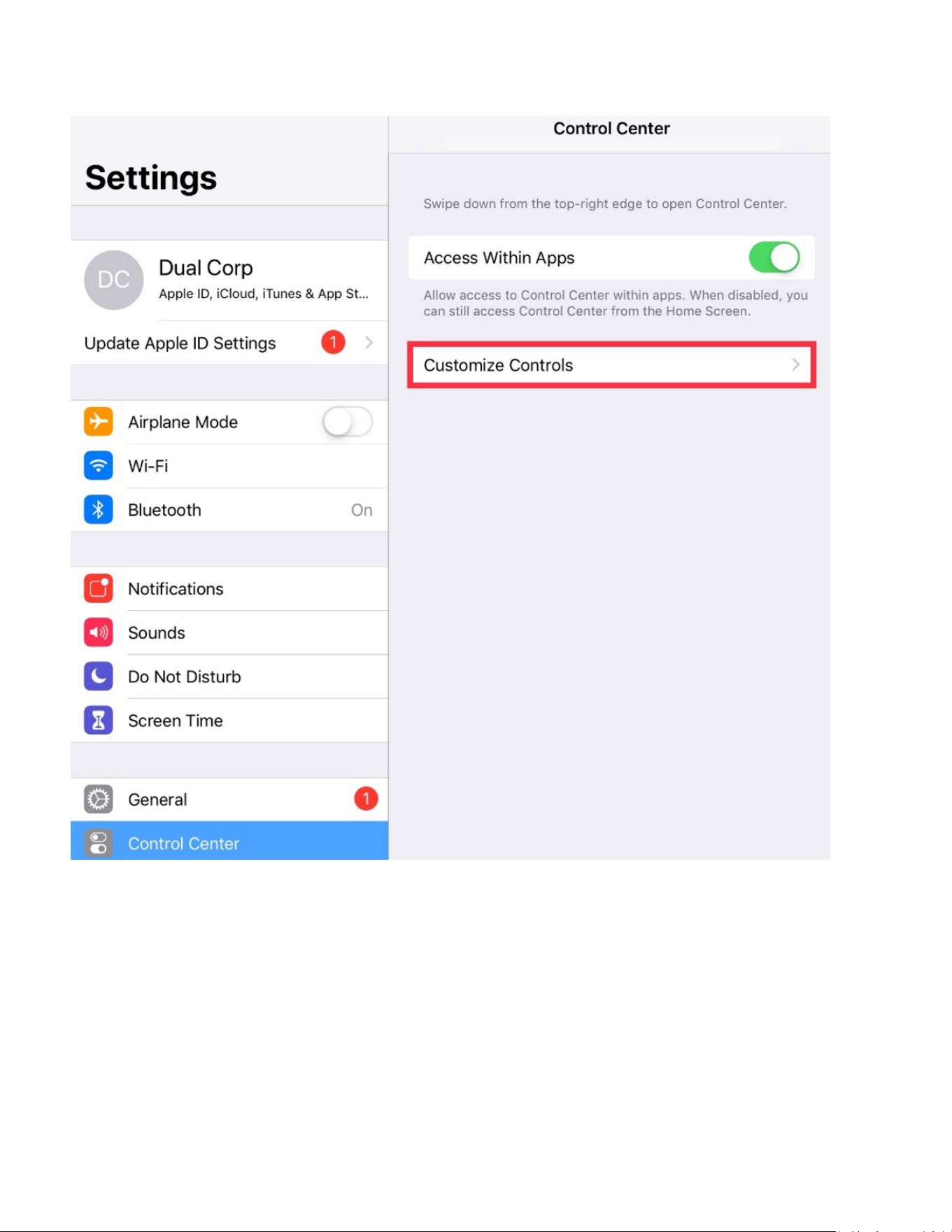
③ Press Customize Controls.
37
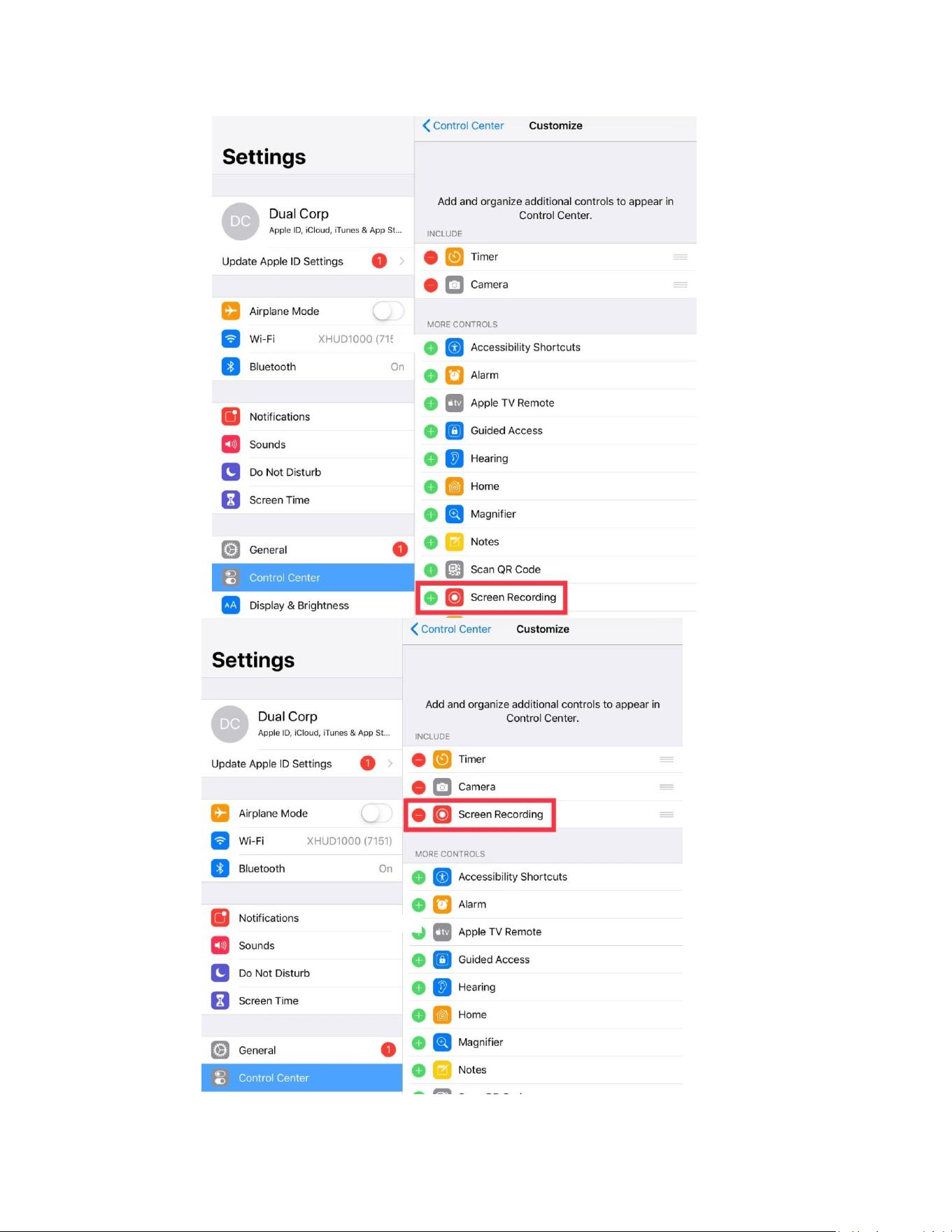
④ Press Screen Recording to add this feature to your Control Center.
38
⑤ Press the home button to exit.
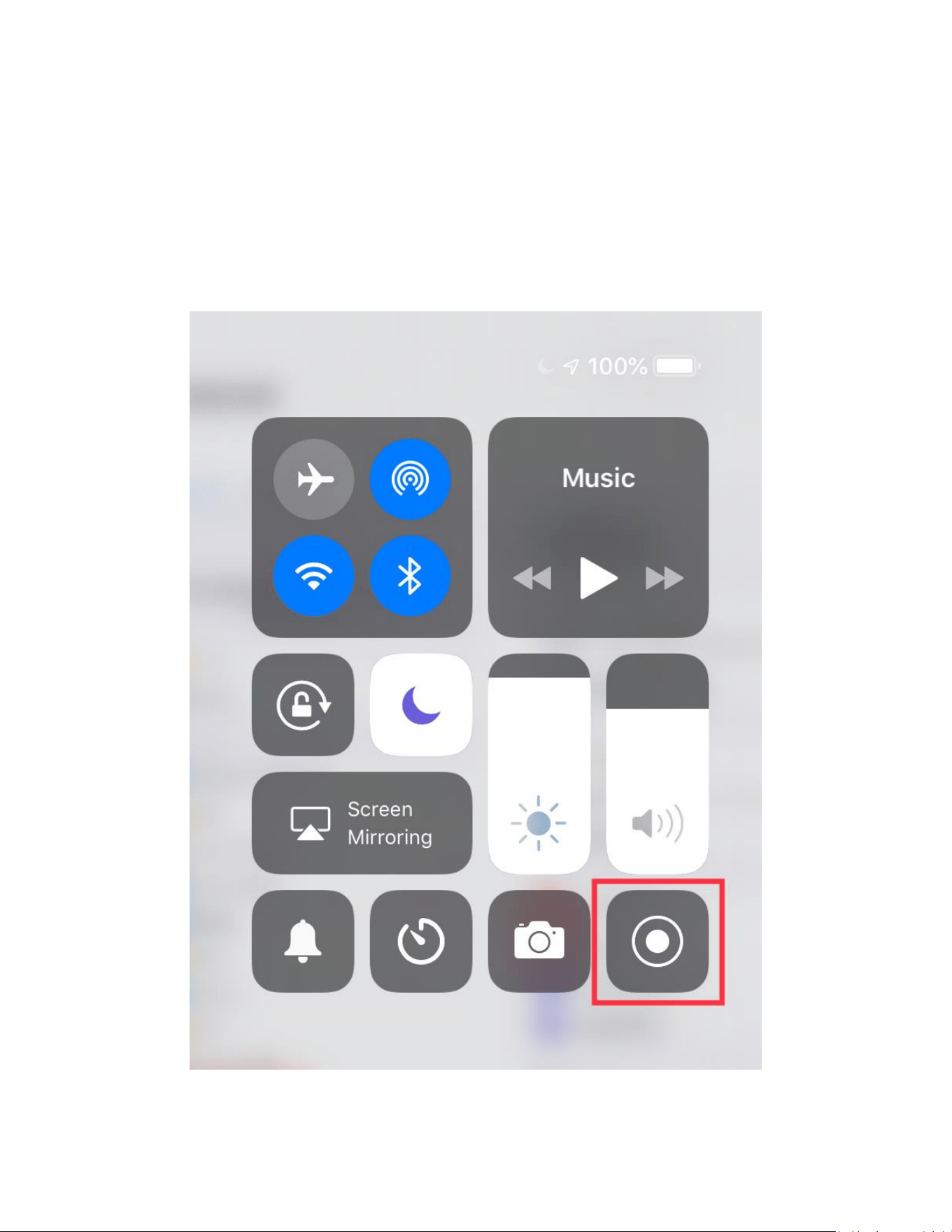
⑥ On iPad, swipe from upper right corner to lower left corner of screen,
and find the Screen Recording button from your Control Center. If
using iPhone, swipe from bottom to top of screen to do the same.
39
⑦ Firmly press and hold the screen recording button for 2 seconds and
choose Tablet Graphics.
⑧ Select Tablet Graphics and Press Start Broadcast.
-------------------------------------------------------------------------------------------------
• Once you have completed these steps, you should be able to
confirm that the screen from your Apple device is being mirrored to
the XHUD1000.
40
Firmware Update with Apple Devices
• Connect the HUD with Apple device running ADS-B Status Tool.
• DO NOT connect portable GPS receiver when updating HUD
firmware.
• DO NOT unplug HUD during firmware update process.
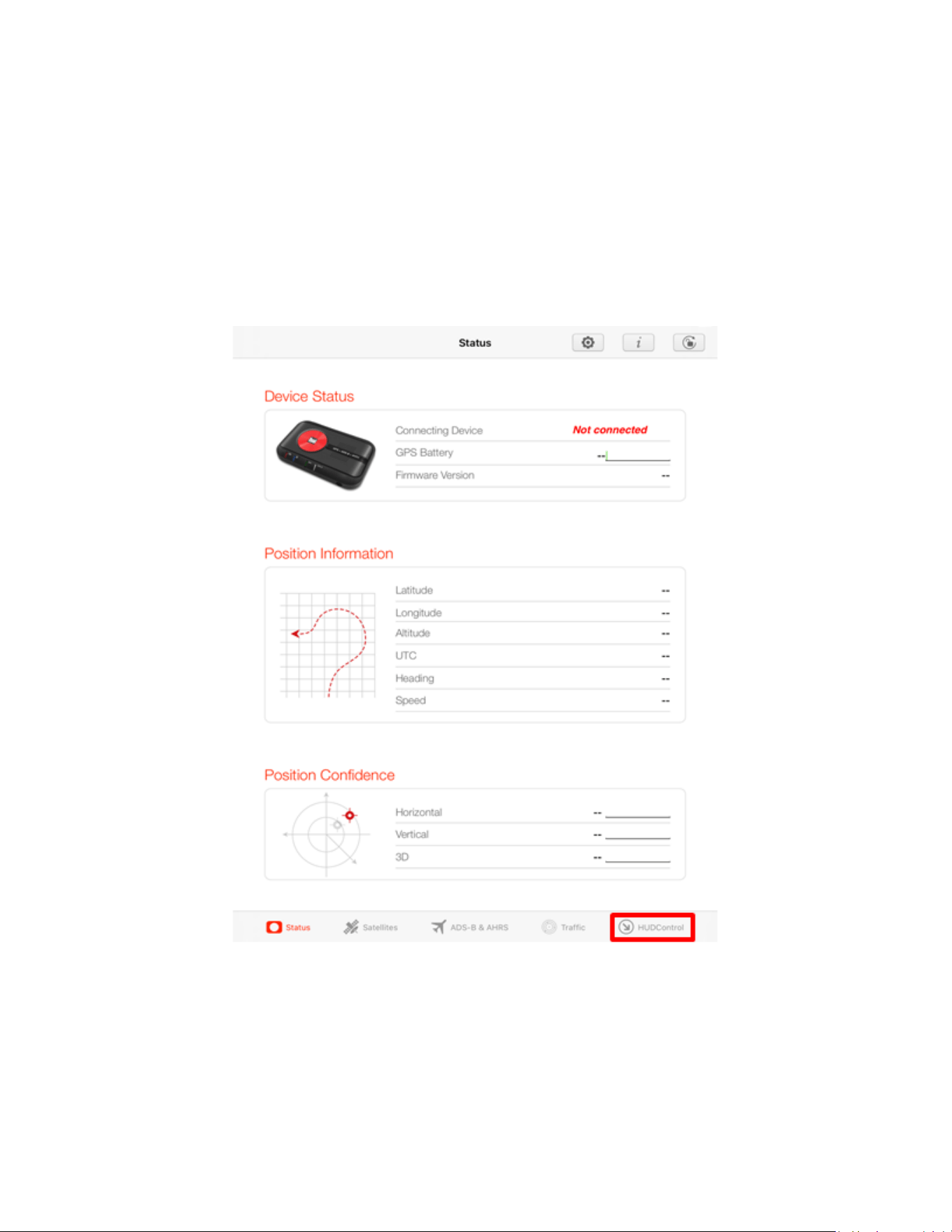
• On ADS-B Status tool, press ‘HUD Control’ tab in lower right.
41
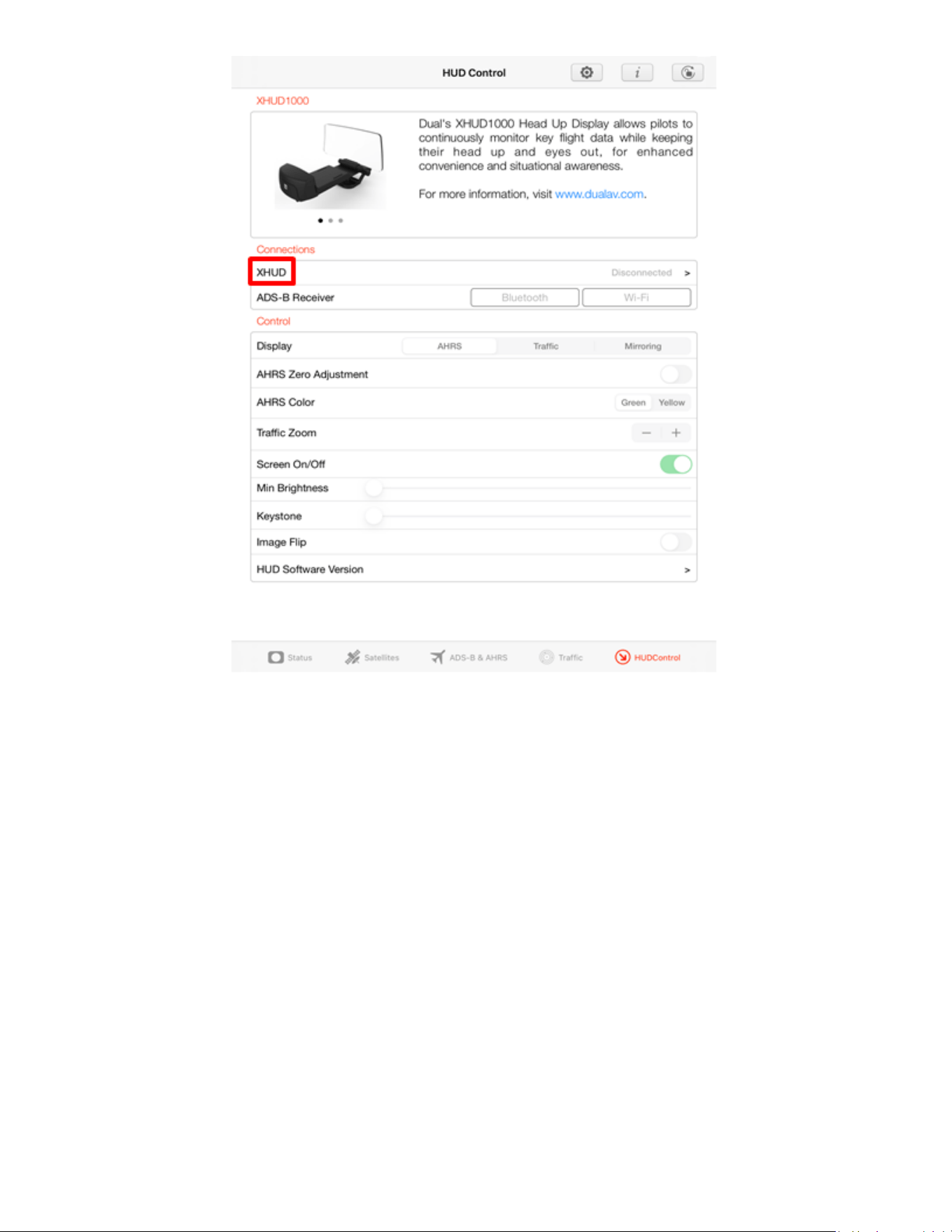
Tap XHUD, and choose the XHUD(****) to connect HUD to your Apple
device.
42
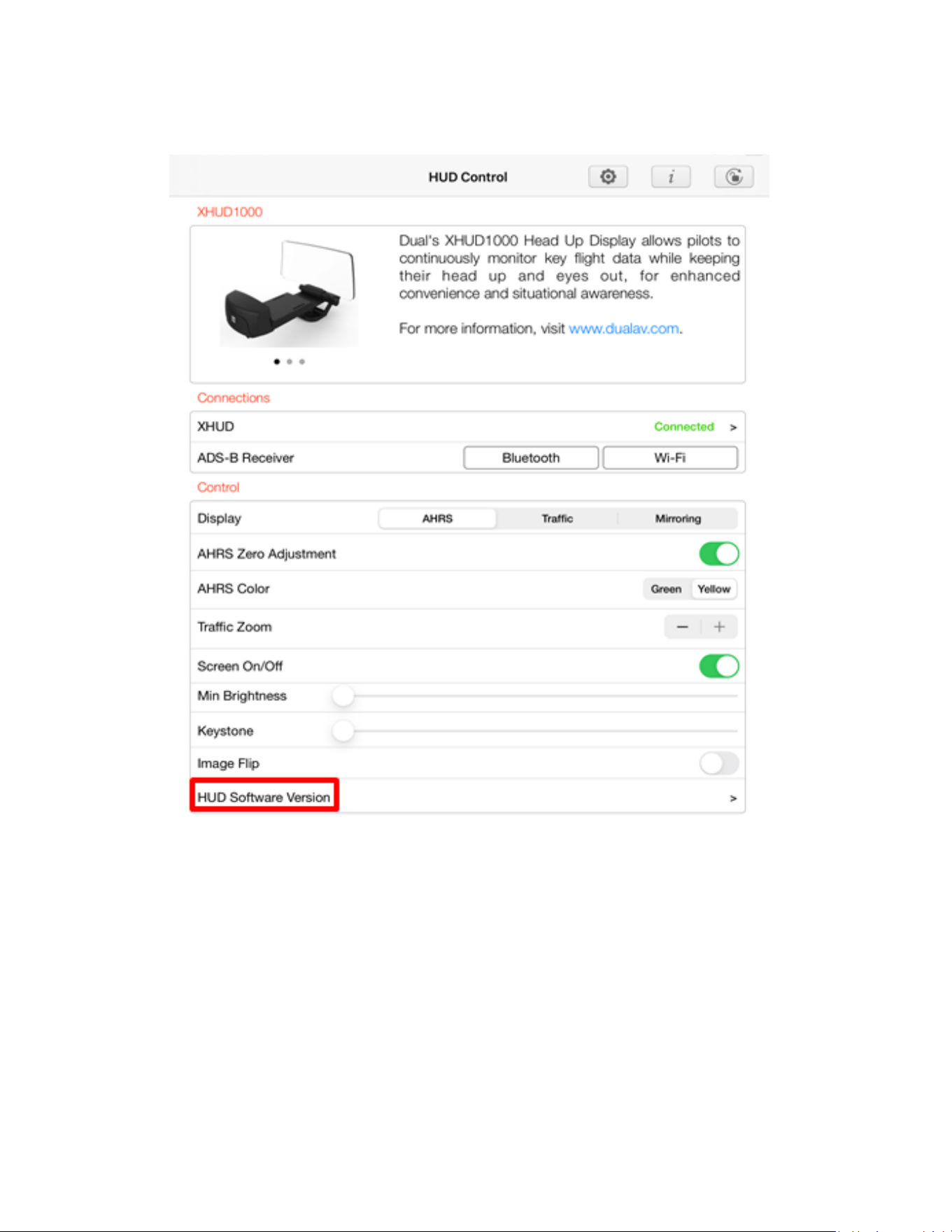
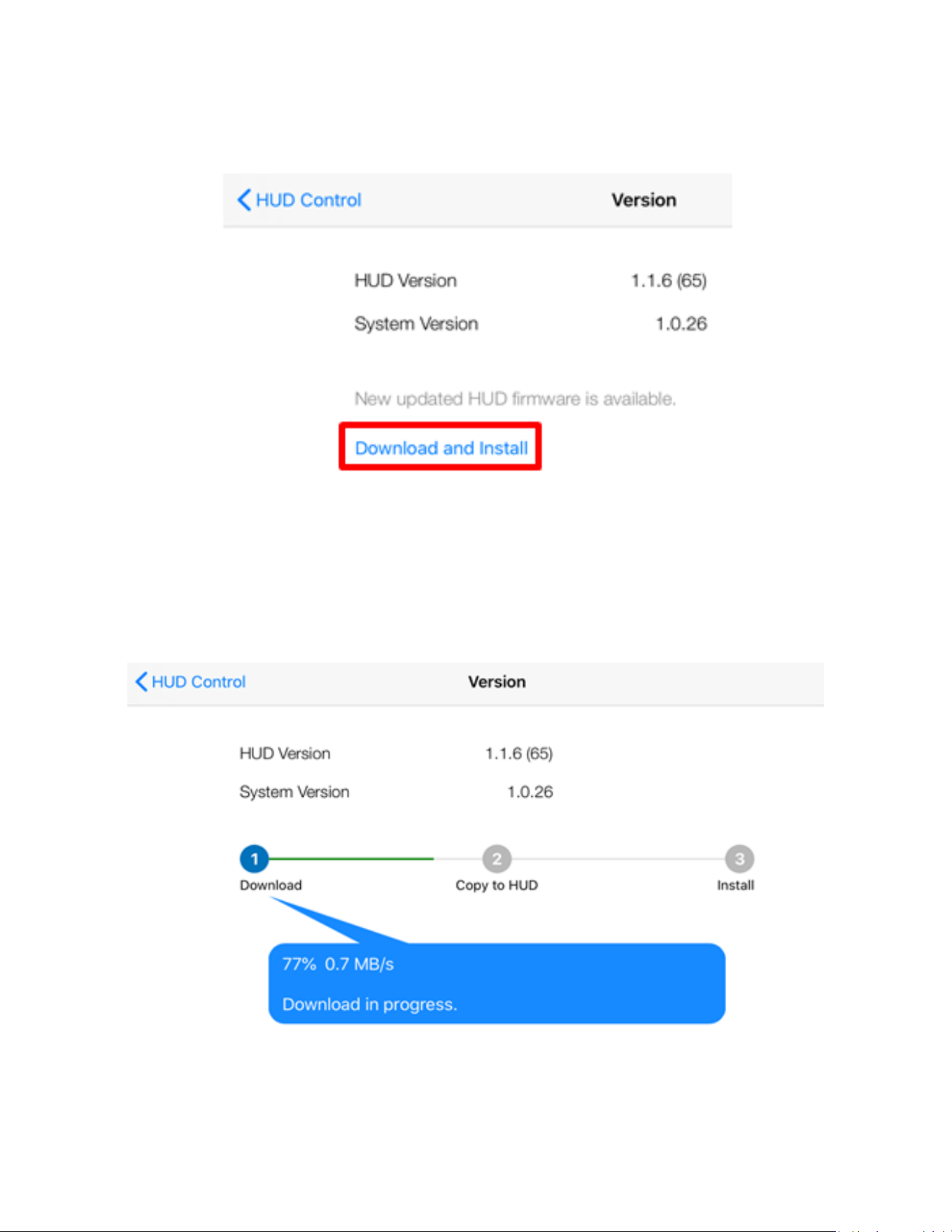
Check the current version by pressing ‘HUD Software Version’
43
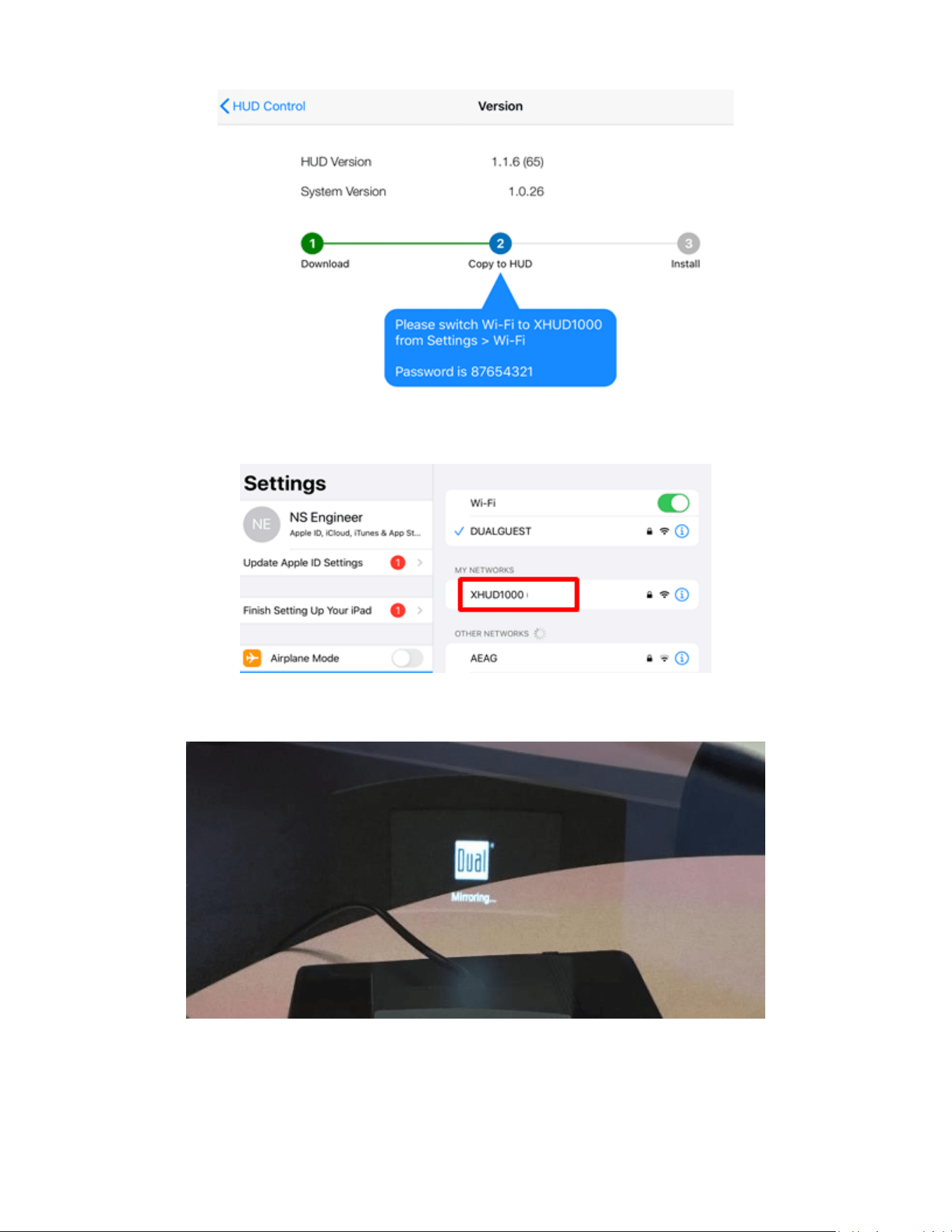
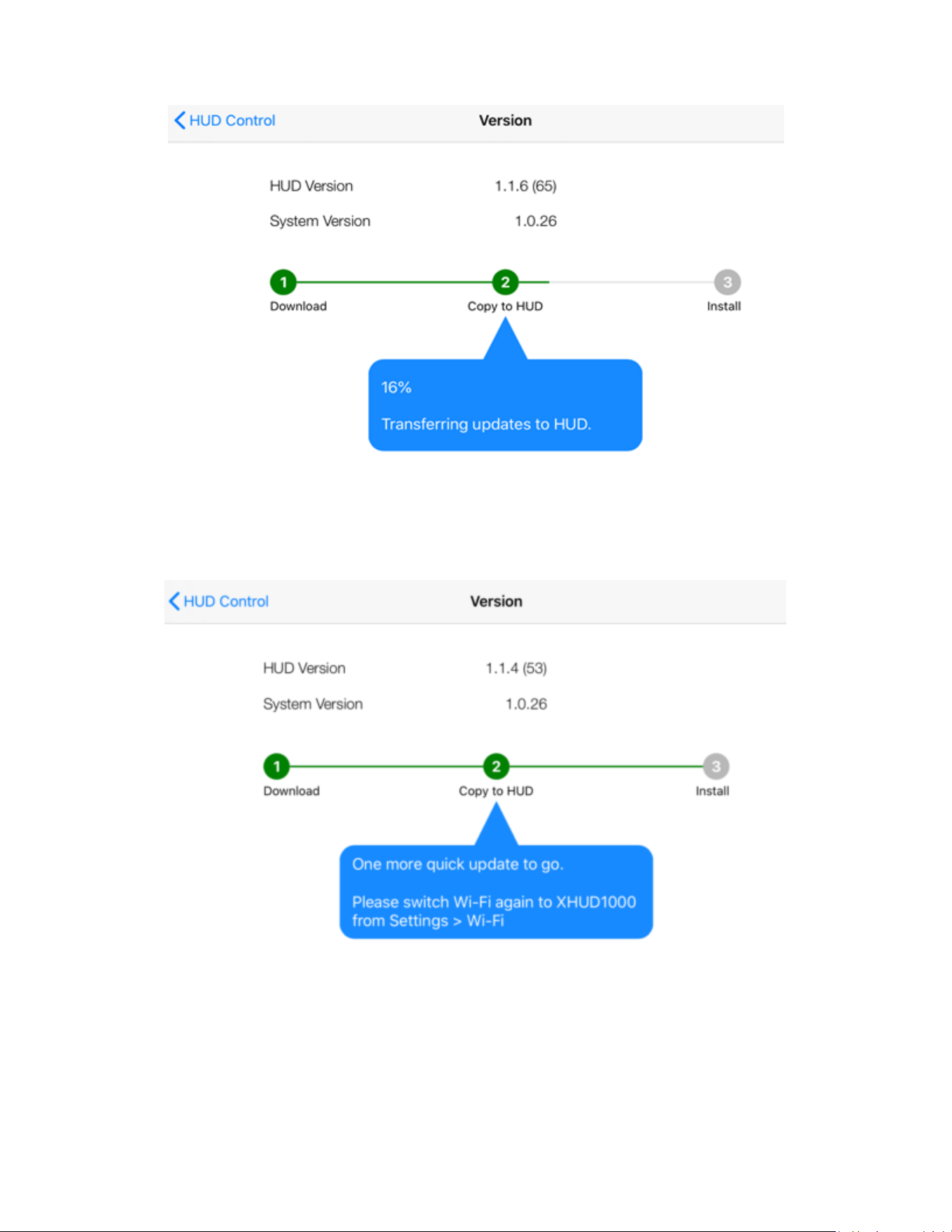
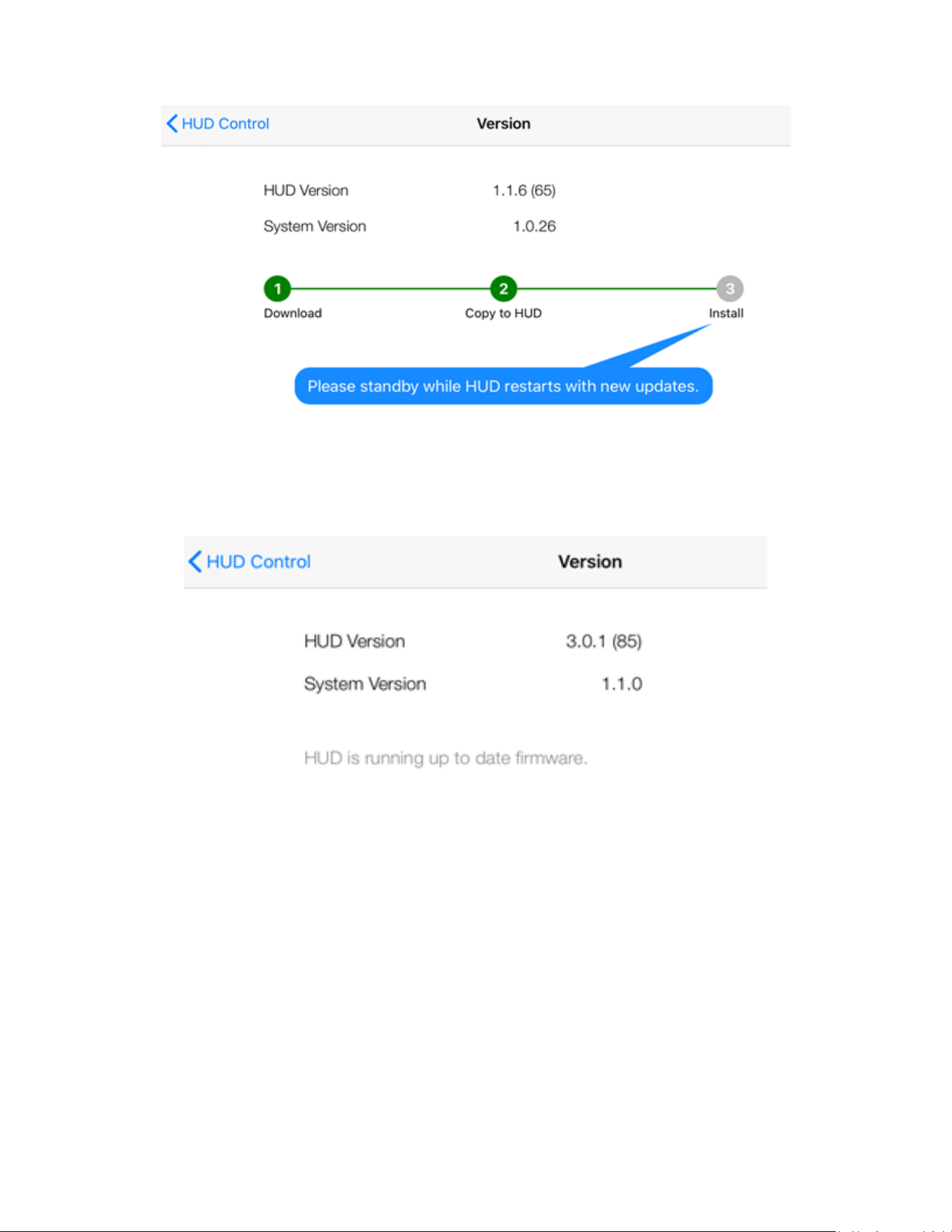
Tap ‘Download and Install’, if there is a new version available. Follow the
instructions on your mobile device. Process may take several minutes.
44
HUD screen changes to Mirroring status.
45
46
47
Setup with Dual ADS-B Receivers & Android
Device
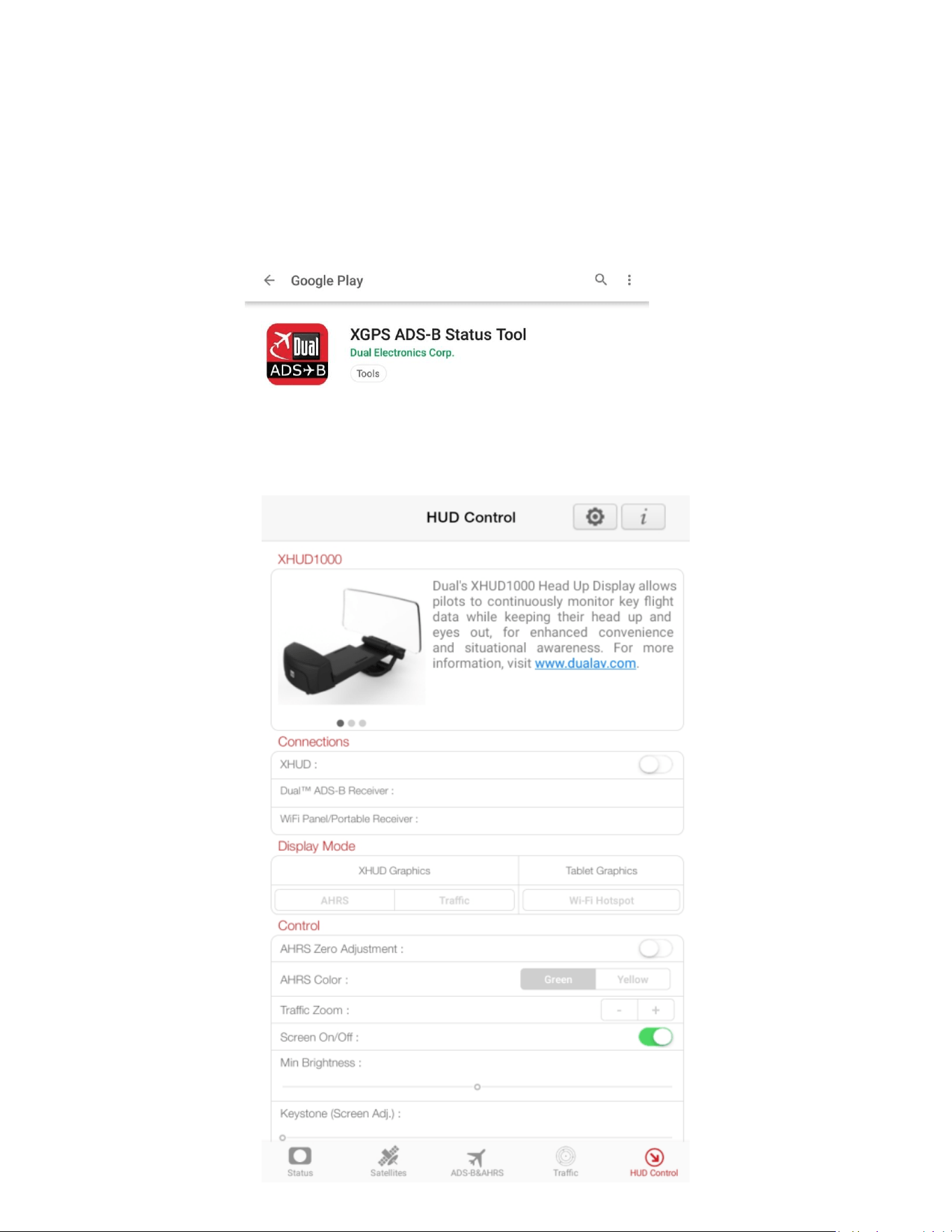
1) XGPS ADS-B Status Tool App for HUD Control
• Download the XGPS ADS-B Status Tool app from Google Play Store.
• The HUD Control tab from the XGPS ADS-B Status Tool app enables
multiple features that control the XHUD1000.
48
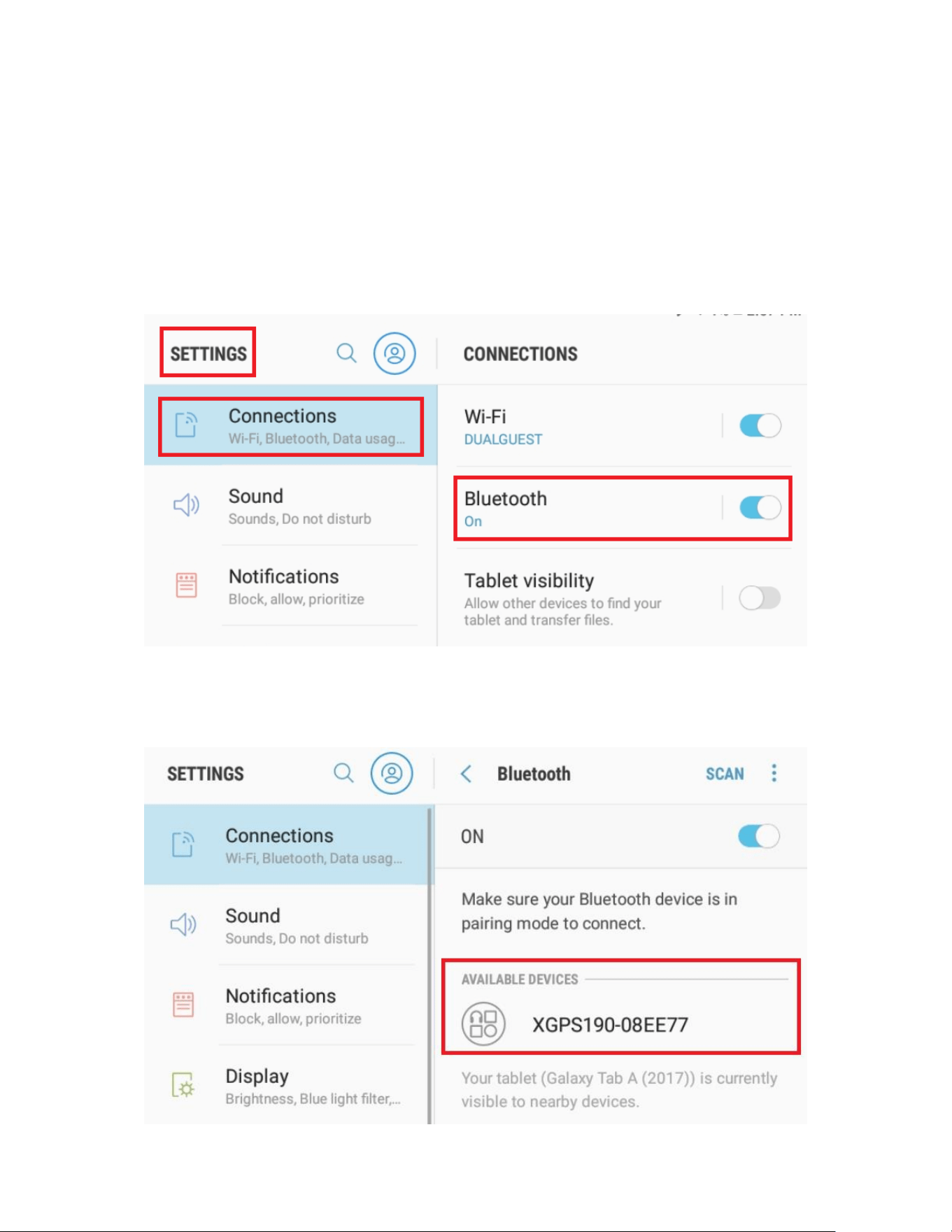
2) Bluetooth Connection for XHUD Graphics Modes (AHRS & Traffic)
• Prior to this step, it’s important to make sure the XGPS190 (or one of
the other Dual ADS-B receivers) and your Android device are
powered on, and the XHUD1000 is still left powered off.
• Go to Settings Connections from your Android device, and turn
on Bluetooth.
• Choose the XGPS190 under the Bluetooth available devices list to
pair the XGPS190 with your Android device.
49
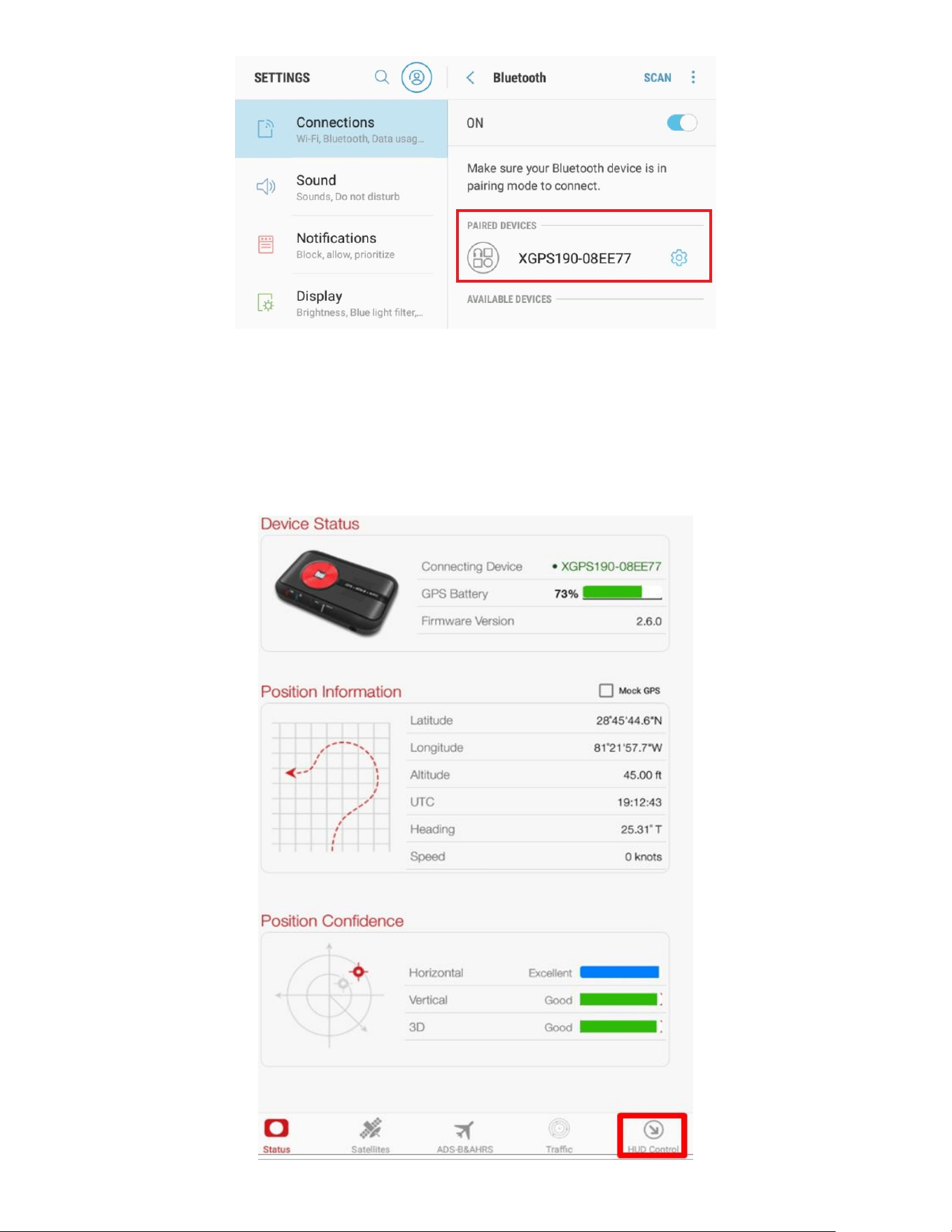
• Once the XGPS190 and your Android device are paired, power on
the XHUD1000 by plugging in the supplied USB cable.
• Open the XGPS ADS-B Status Tool app, and go to the HUD Control
tab.
50
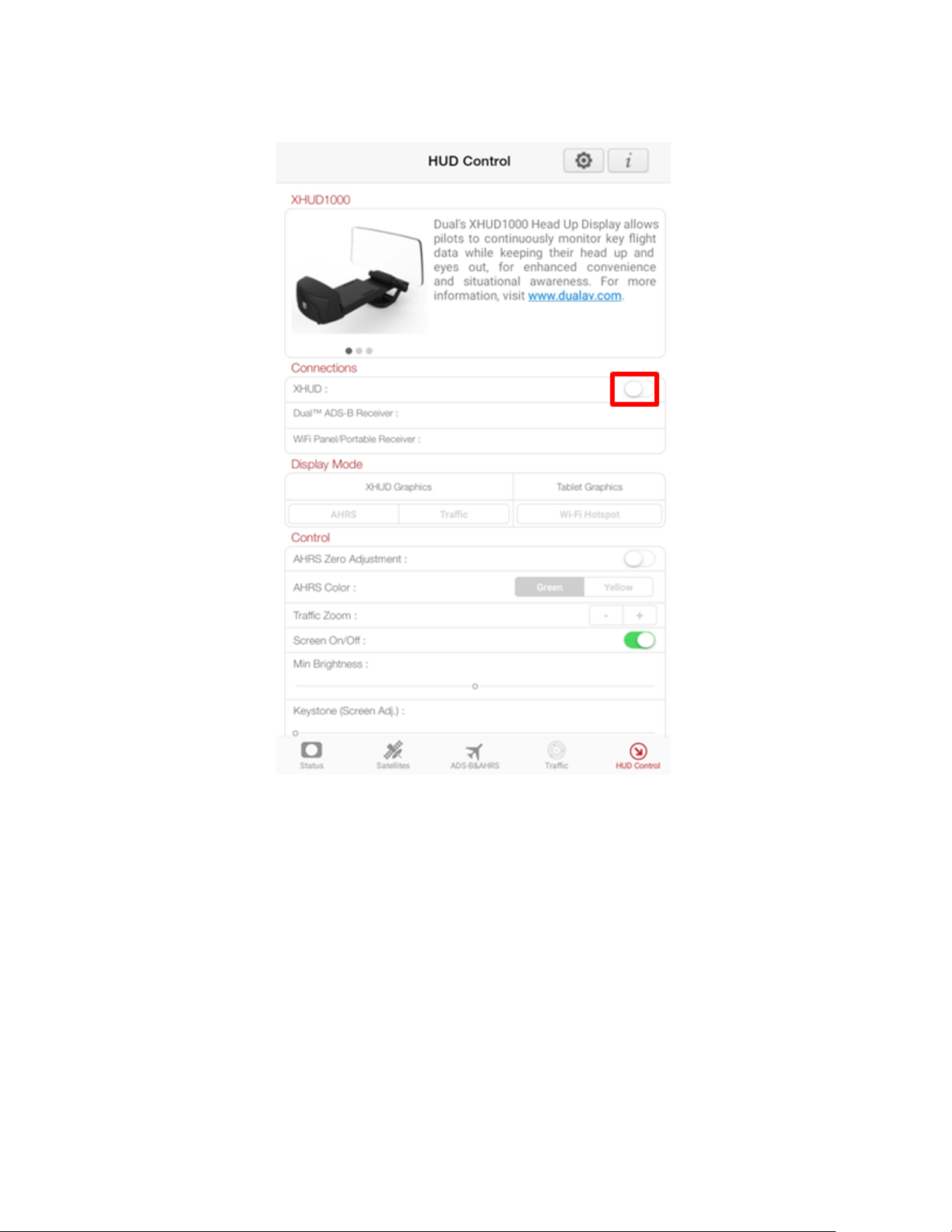
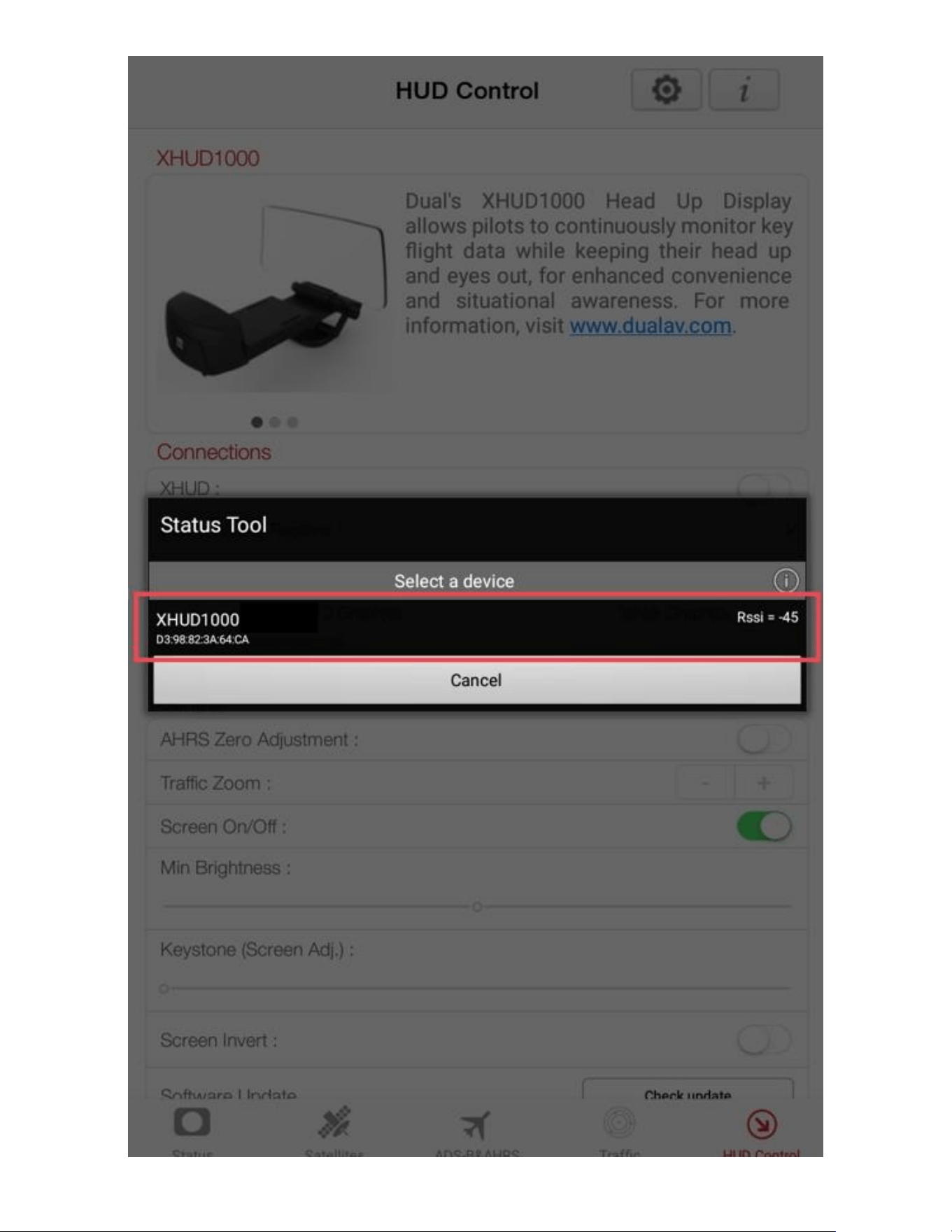
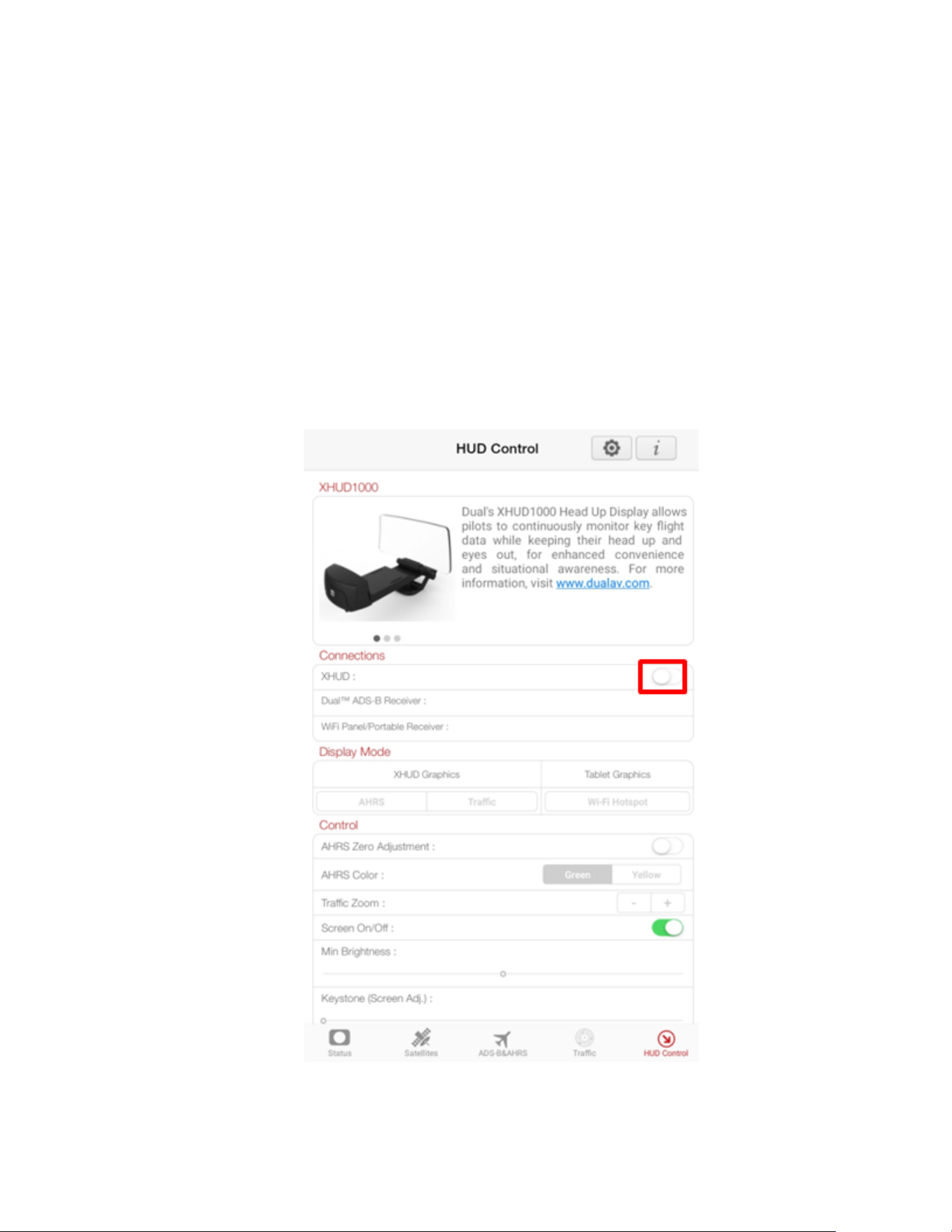
• Tap XHUD and choose the XHUD(****) to pair the XHUD1000 with
your Android device.
51
52
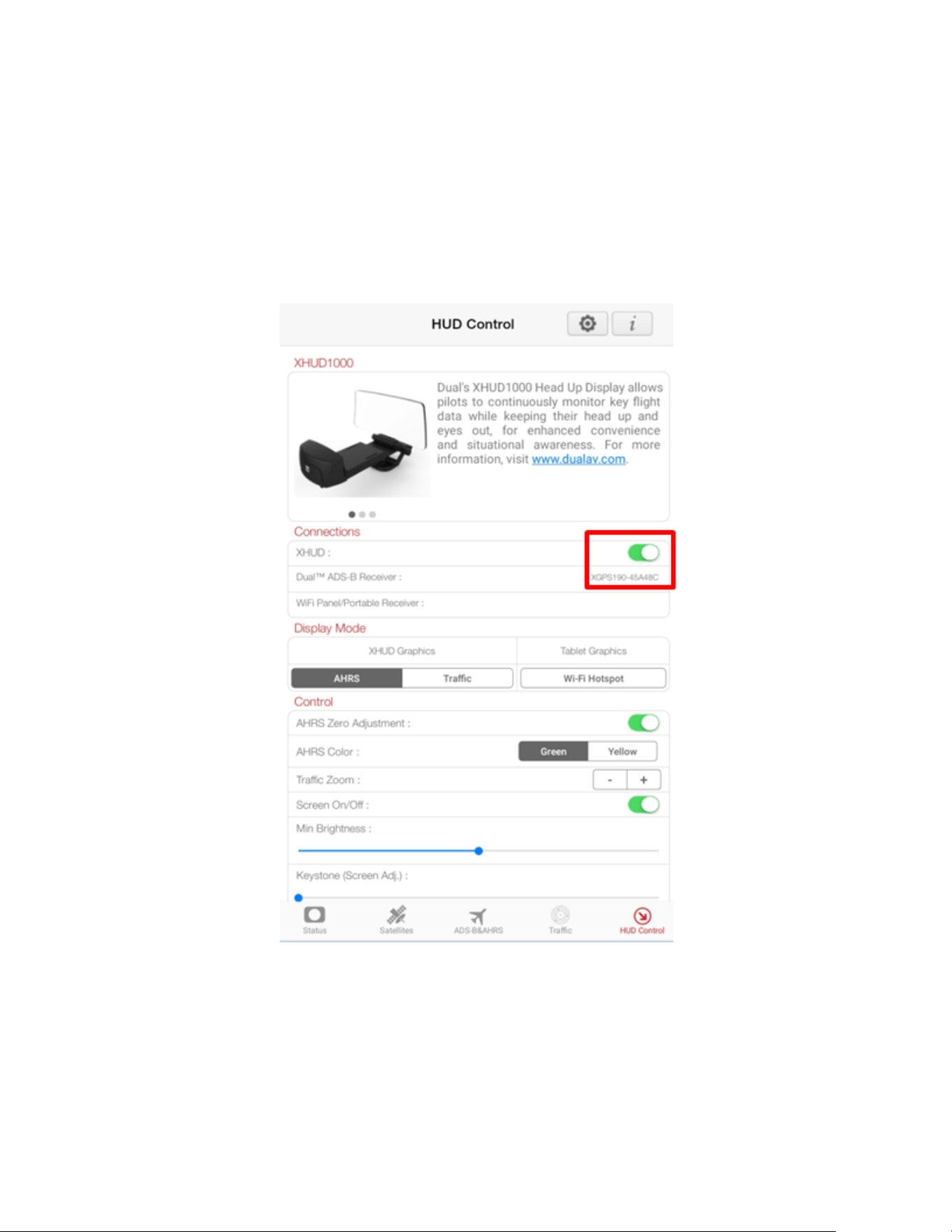
• Tap the Dual ADS-B Receiver box and choose the XGPS190. Once
connection is successfully made, Bluetooth logo on the left side
corner of the XHUD1000 screen will stop blinking.

53
• To confirm connection between the XHUD1000 and the XGPS190,
try switching between AHRS and Traffic modes, or try different
controls from the HUD Control tab. The XHUD1000 display should
respond to the controls of your choice accordingly.
• You have now successfully made Bluetooth connection between the
XHUD1000, the XGPS190, and your Android device.
Note: Once connection is made between XHUD1000, XGPS190, and
Android device, there are several choices of EFB apps that can run on
your Android device. See Dual’s web site for a complete list of apps
compatible with XGPS190.
54
Setup with Stratus 3 & Android Device
1) Connect Stratus 3 to mobile device per Stratus 3 instruction manual.
2) ADS-B Status Tool App for HUD Control
• Download the XGPS ADS-B Status Tool app from Google Play Store.
• Open the XGPS ADS-B Status Tool app, and go to the HUD Control
tab.
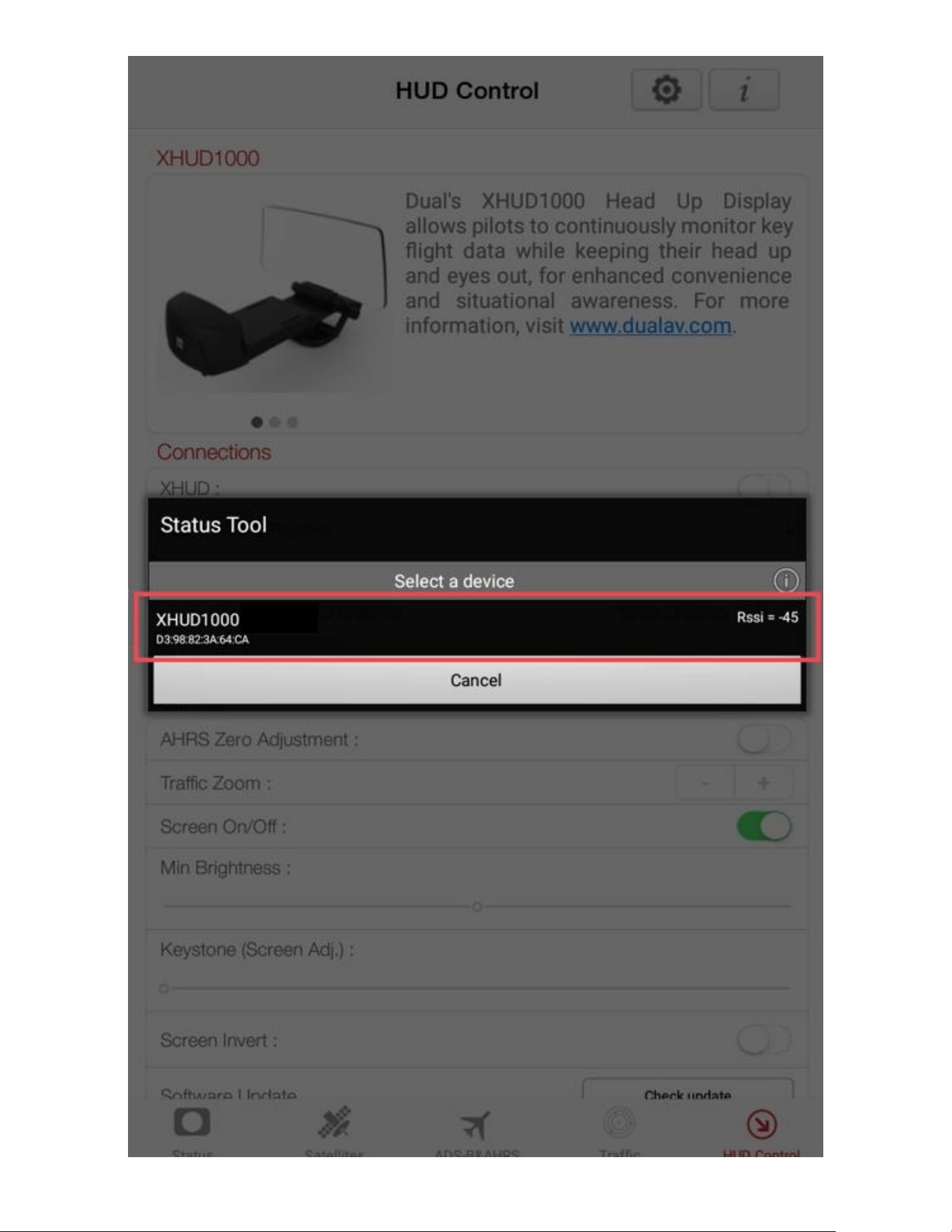
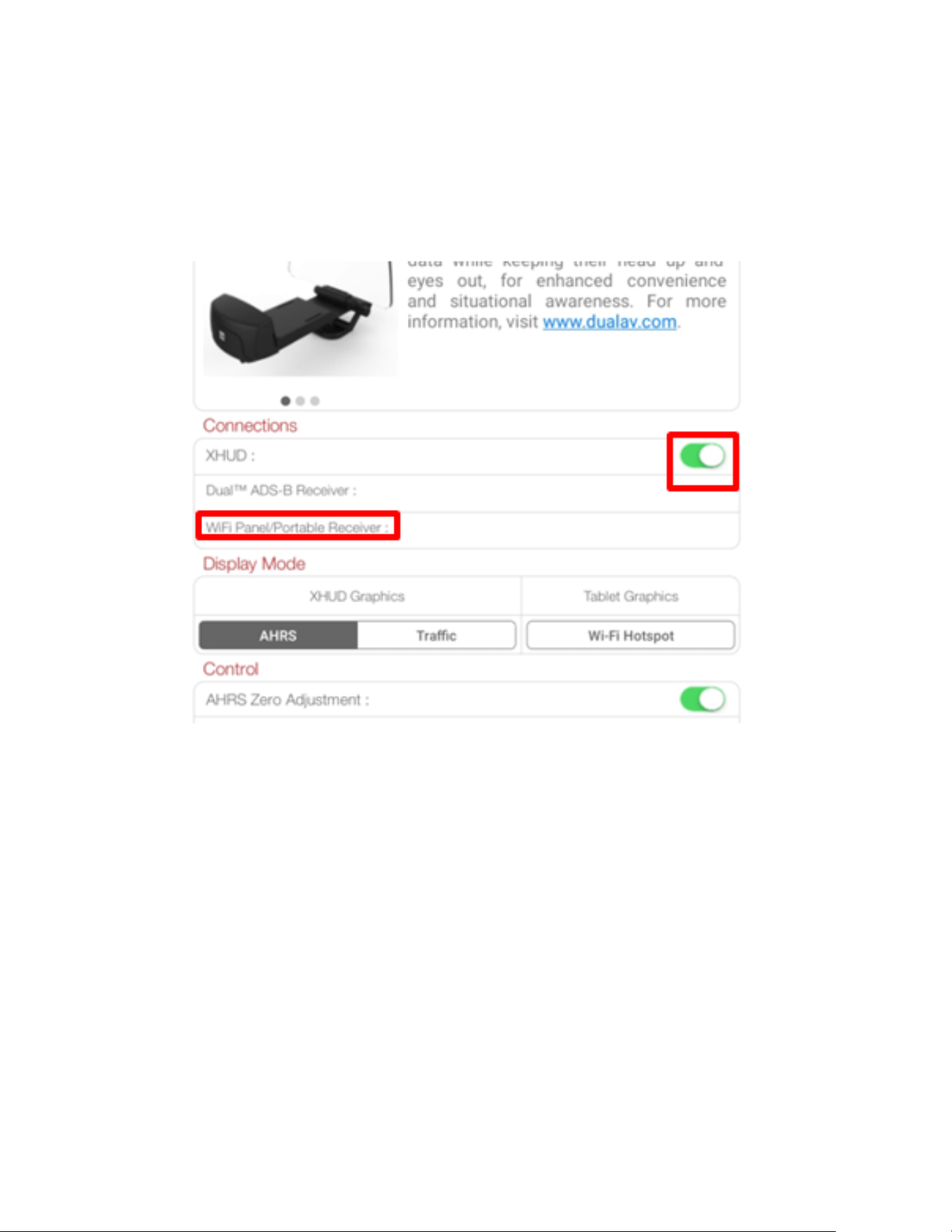
• Tap the XHUD toggle button and choose the XHUD1000(****) to
pair the XHUD1000 with your Android device.
55
56
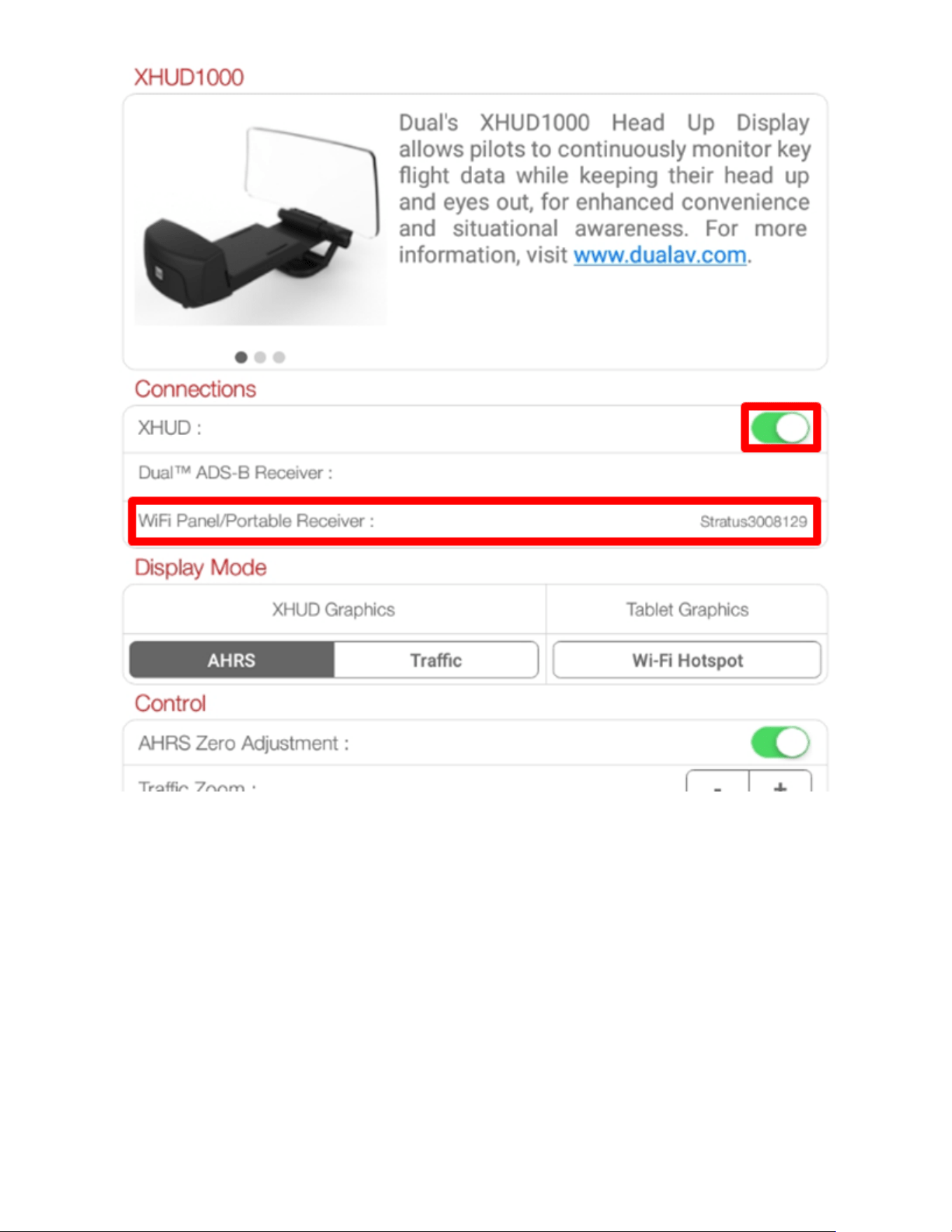
• Tap the WiFi Panel/Portable Device box and choose the Stratus.
Once connection is successfully made, WiFi logo on the left side
corner of the XHUD1000 screen will appear.
57

58
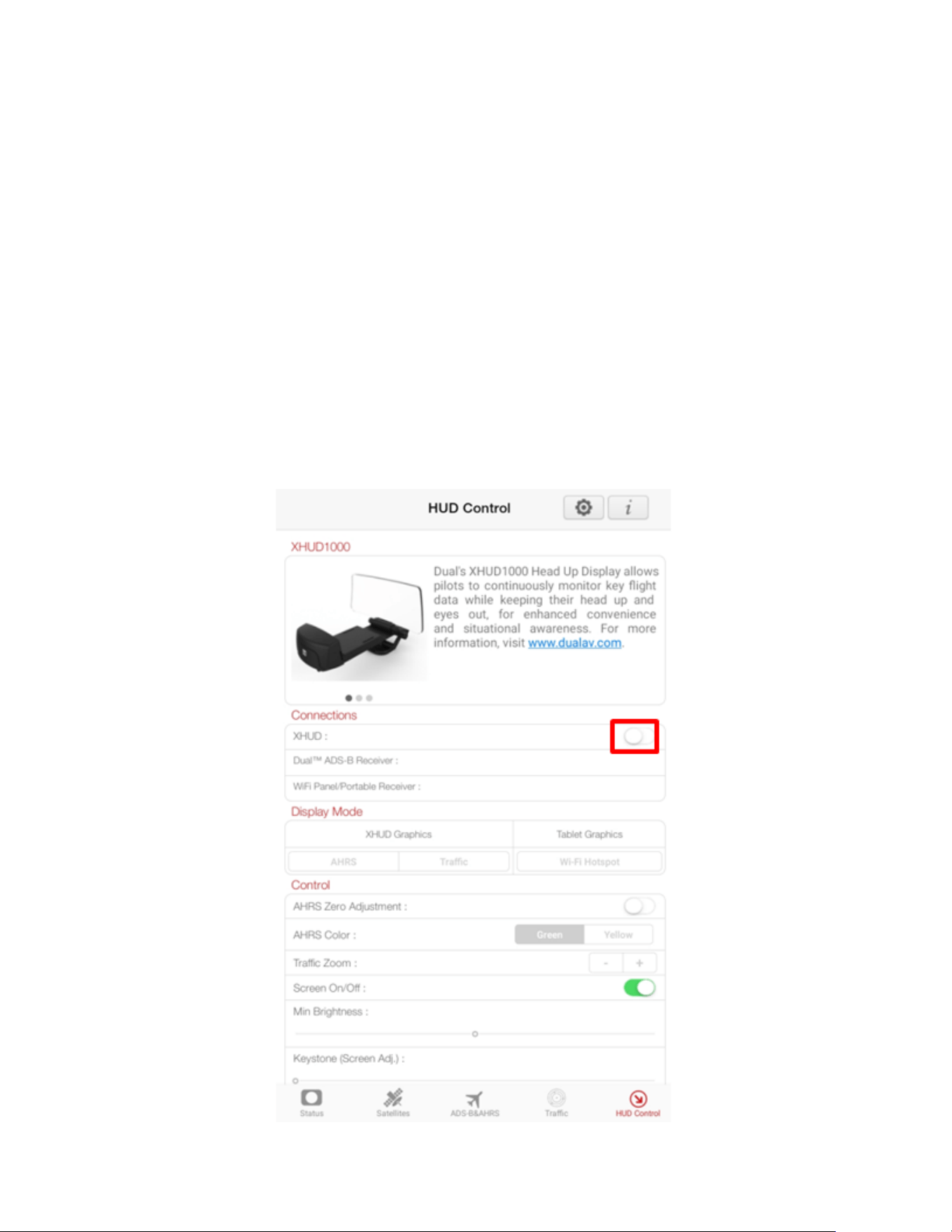
• To confirm connection between the XHUD1000 and the Stratus, try
switching between AHRS and Traffic modes, or try different controls
from the HUD Control tab. The XHUD1000 display should respond to
the controls of your choice accordingly.
• You have now successfully made connection between the
XHUD1000, the Stratus, and your Android device.
Note: Once connection is made between XHUD1000, Stratus 3, and
Android device, there are several choices of EFB apps that can run on
your Android device.
59
Setup with Stratux & Android Device
1) Connect Stratux to mobile device per Stratux instruction manual.
2) ADS-B Status Tool App for HUD Control
• Download the XGPS ADS-B Status Tool app from Google Play Store.
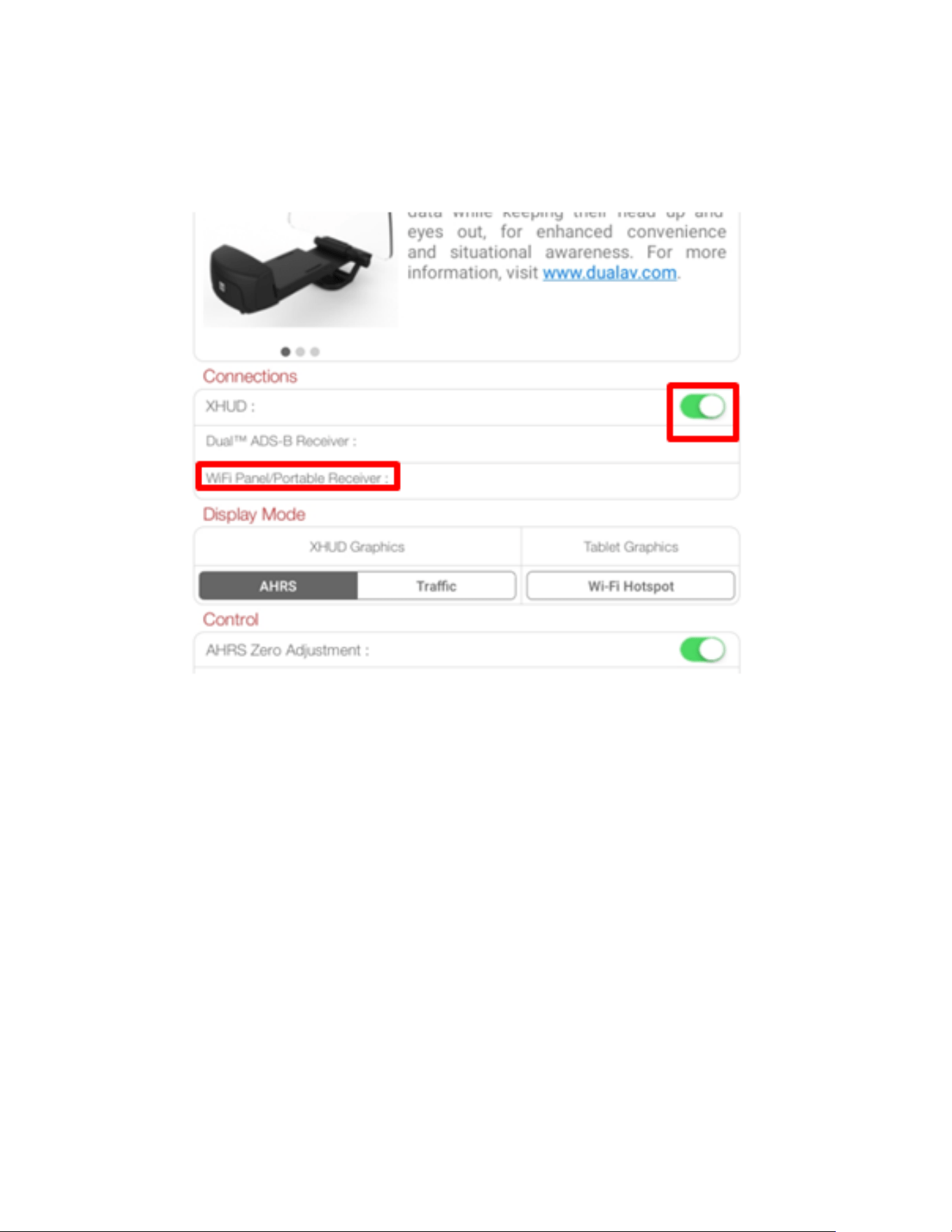
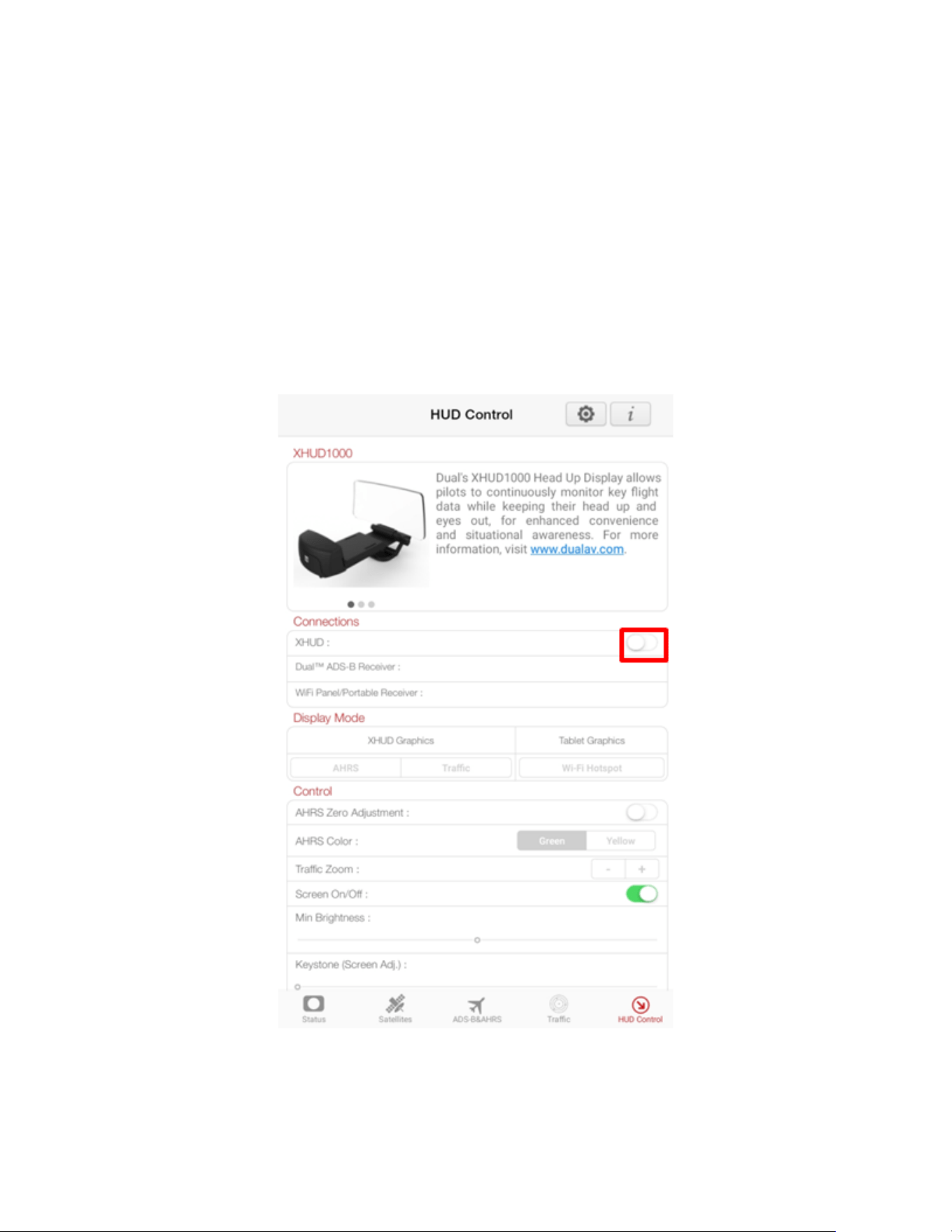
• Open the XGPS ADS-B Status Tool app, and go to the HUD Control
tab.
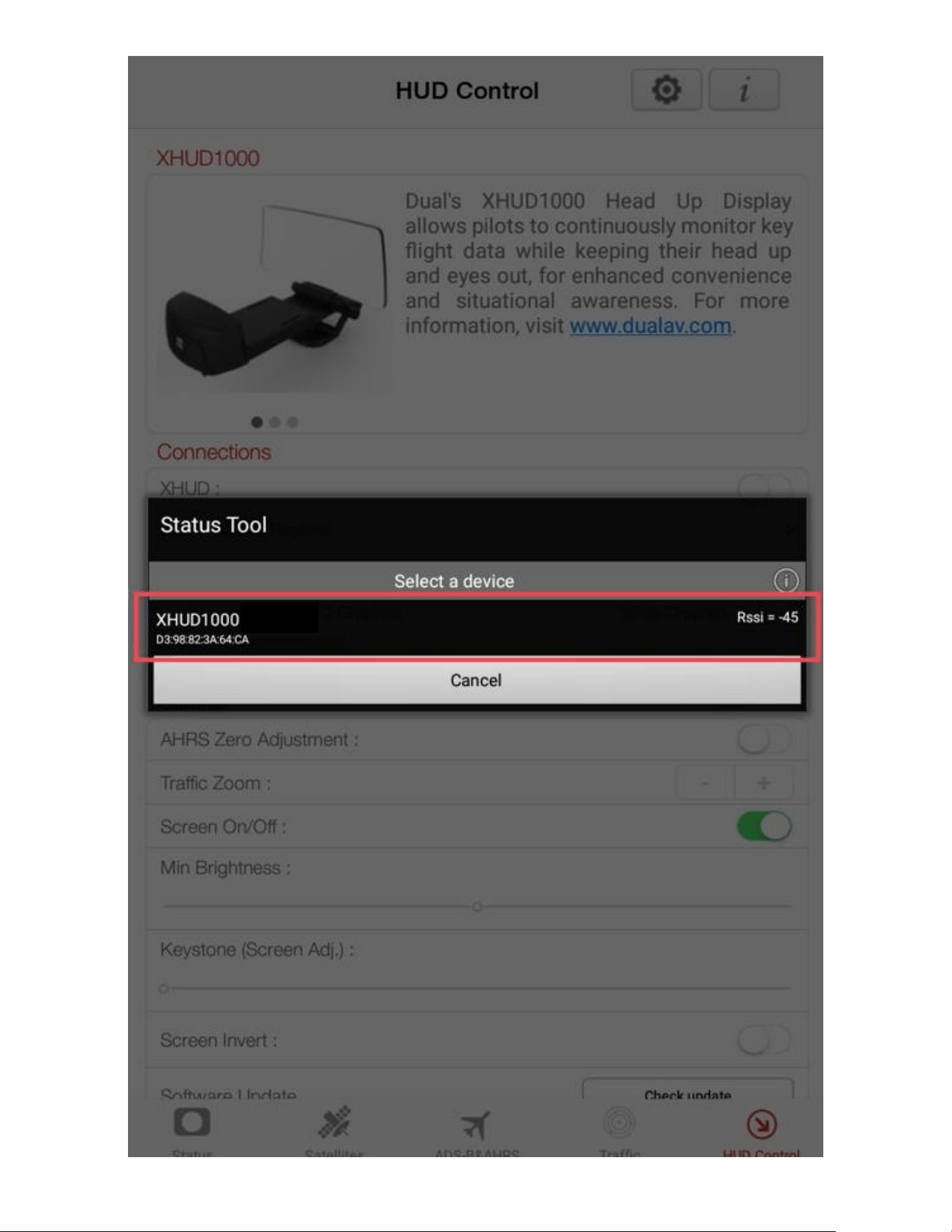
• Tap the XHUD toggle button and choose the XHUD1000(****) to
pair the XHUD1000 with your Android device.
60
61
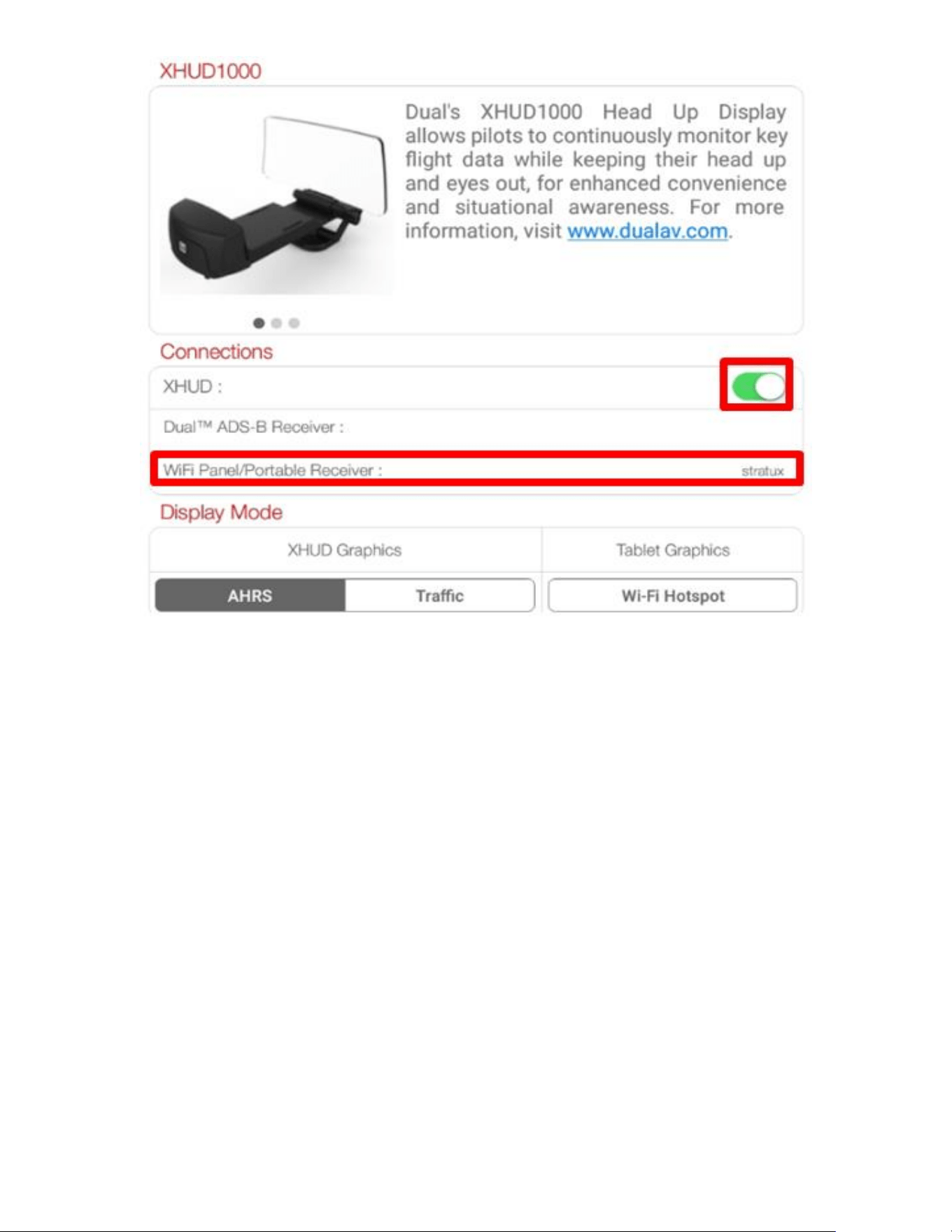
• Tap the WiFi Panel/Portable Device box and choose the Stratux.
Once connection is successfully made, WiFi logo on the left side
corner of the XHUD1000 screen will appear.
62
• To confirm connection between the XHUD1000 and the Stratux, try
switching between AHRS and Traffic modes, or try different controls
from the HUD Control tab. The XHUD1000 display should respond to
the controls of your choice accordingly.
• You have now successfully made connection between the
XHUD1000, the Stratux, and your Android device.
Note: Once connection is made between XHUD1000, Stratux, and
Android device, there are several choices of EFB apps that can run on
your Android device.
63
Mirroring with Android Device
• To enable image mirroring of EFB apps from Android device to the
XHUD1000 screen, HUD must be setup as a WiFi Hotspot.
• The XGPS190 is not required for mirroring. Your Android device
must have its WiFi available to connect to XHUD1000 Hotspot.
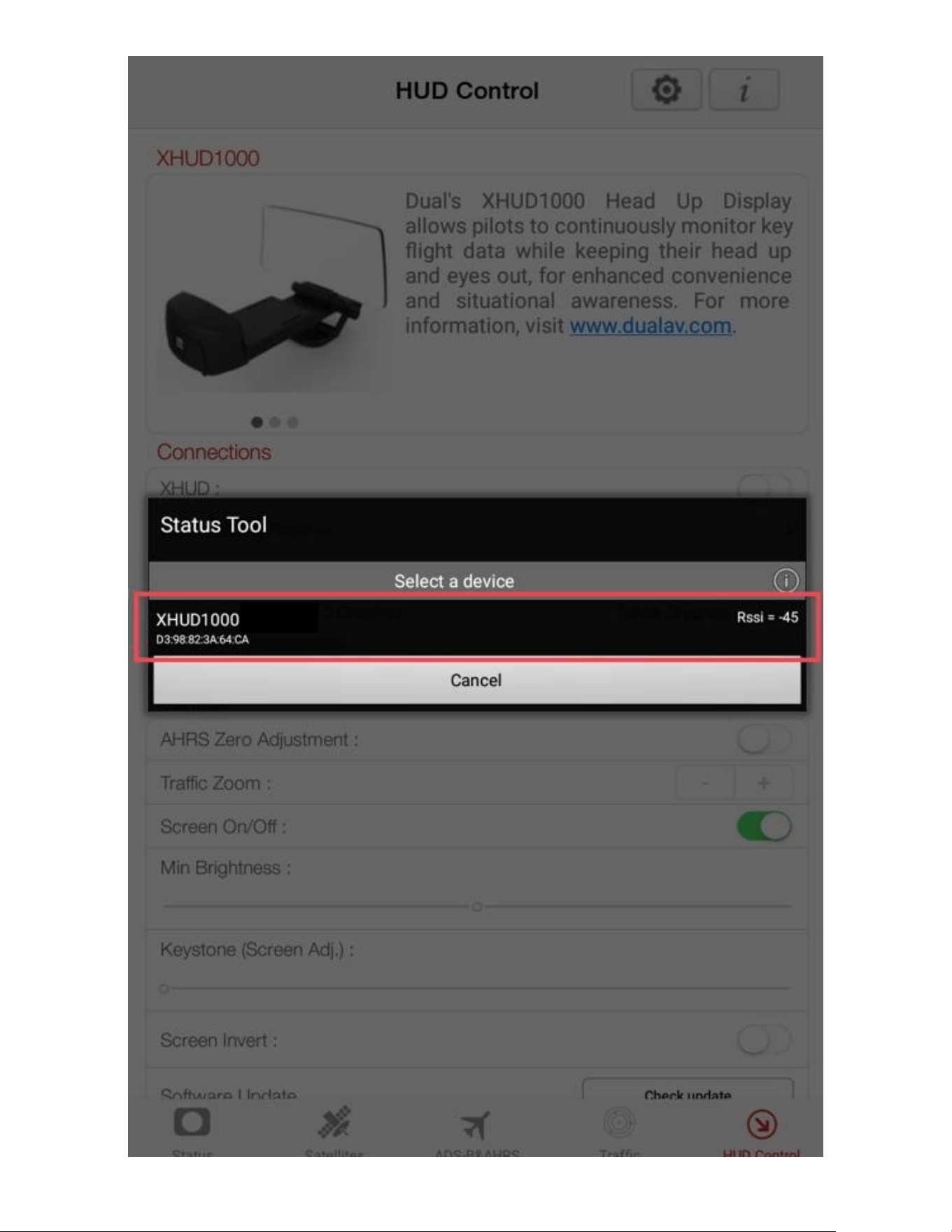
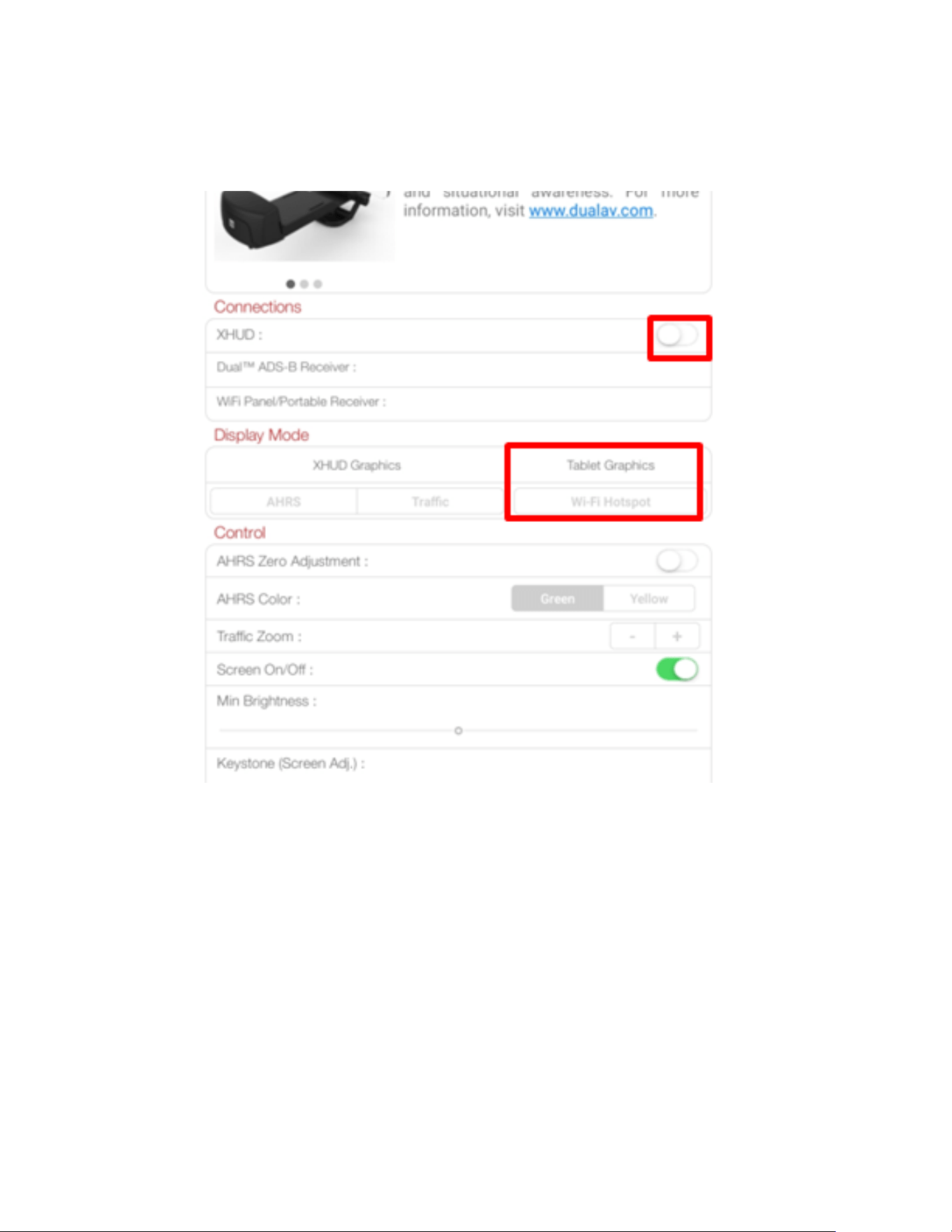
• Tap the XHUD toggle button and choose the XHUD1000 to pair the
XHUD1000 with your Android device.
64
65
• Once the XHUD1000 is paired with your Android device, press Wi-Fi
Hotspot from the HUD Control tab.
66
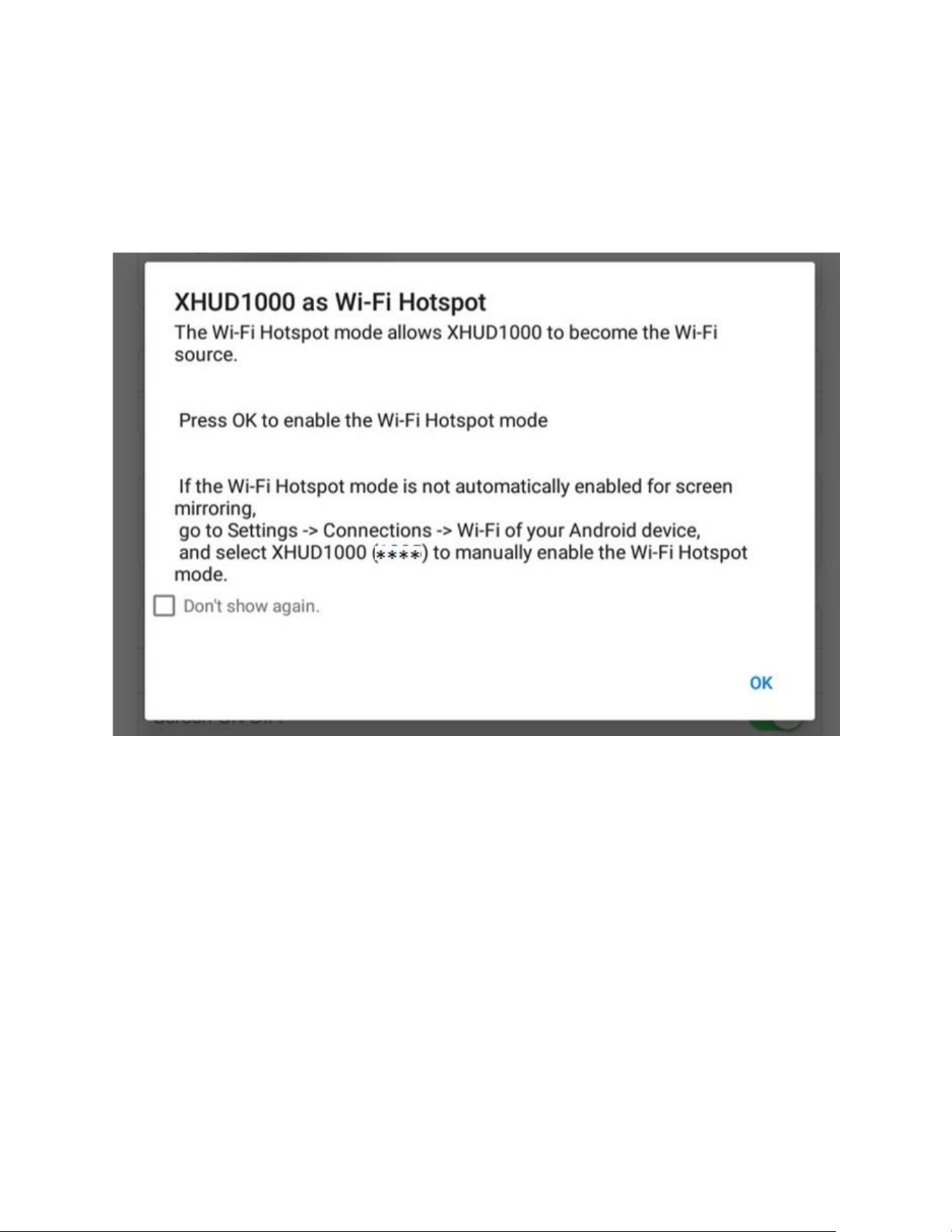
• When you press the Wi-Fi Hotspot button, the pop-up screen will
appear. Press the OK button to automatically enable Wi-Fi Hotspot
mode. If Wi-Fi Hotspot mode is not enabled even after pressing the
OK button, follow the steps from the pop-up screen to manually
enable Wi-Fi Hotspot mode.
• Once you have completed these steps, you should be able to
confirm that the screen from your Android device is being mirrored
to the XHUD1000.
67
Firmware Update with Android Device
Connect the HUD with Android device running ADS-B Status Tool.
DO NOT connect portable GPS receiver when updating HUD
firmware.
DO NOT unplug HUD during firmware update process.
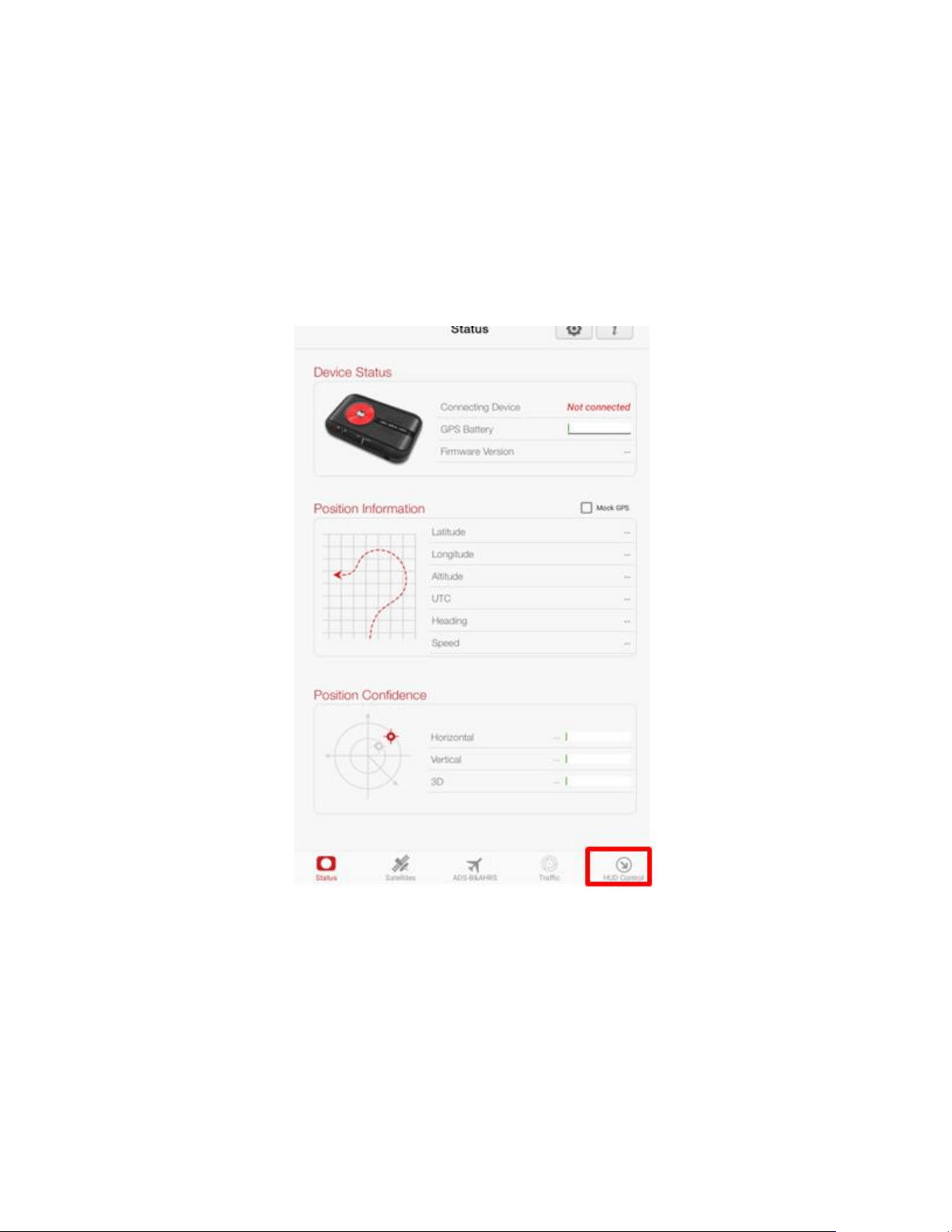
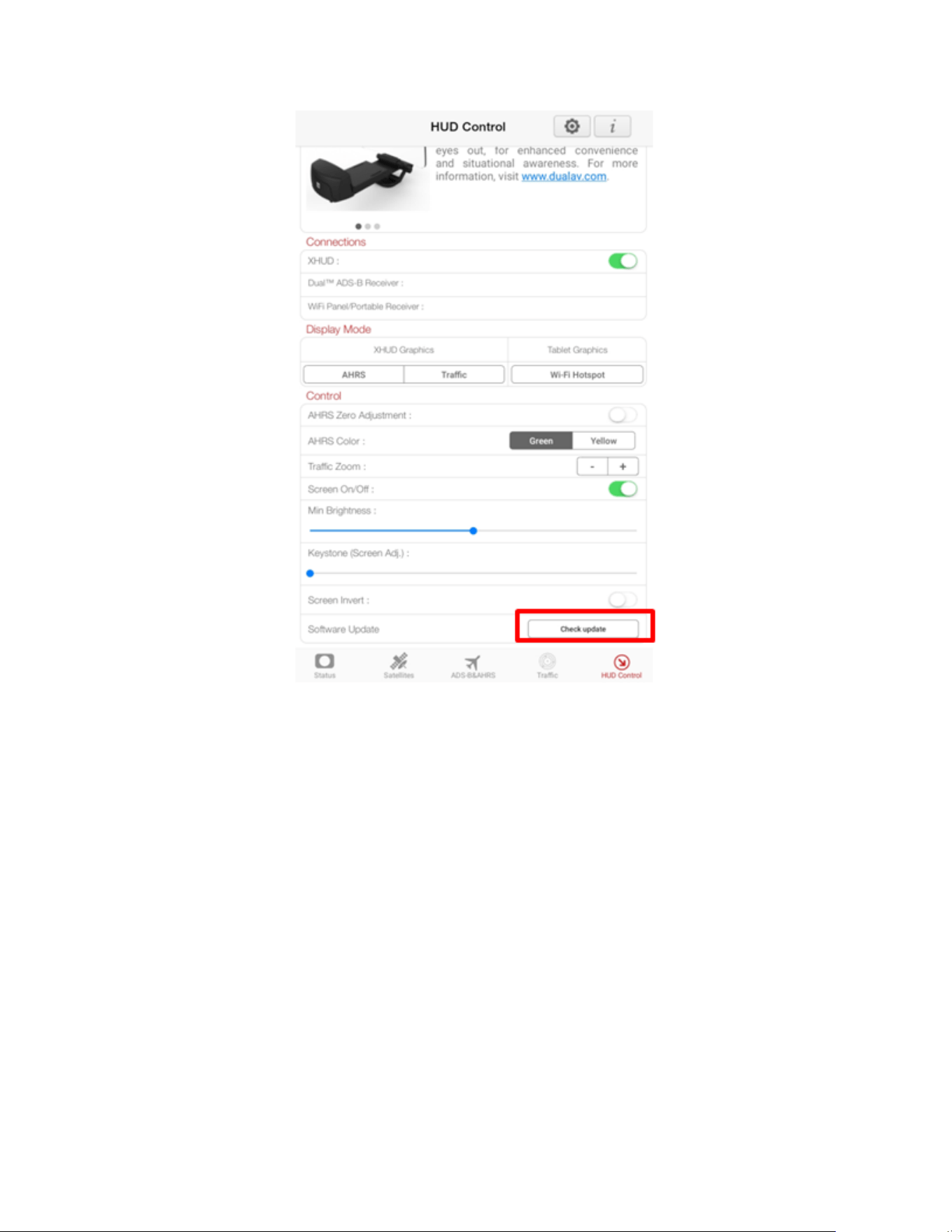
On ADS-B Status tool, press ‘HUD Control’ tab in lower right.
68
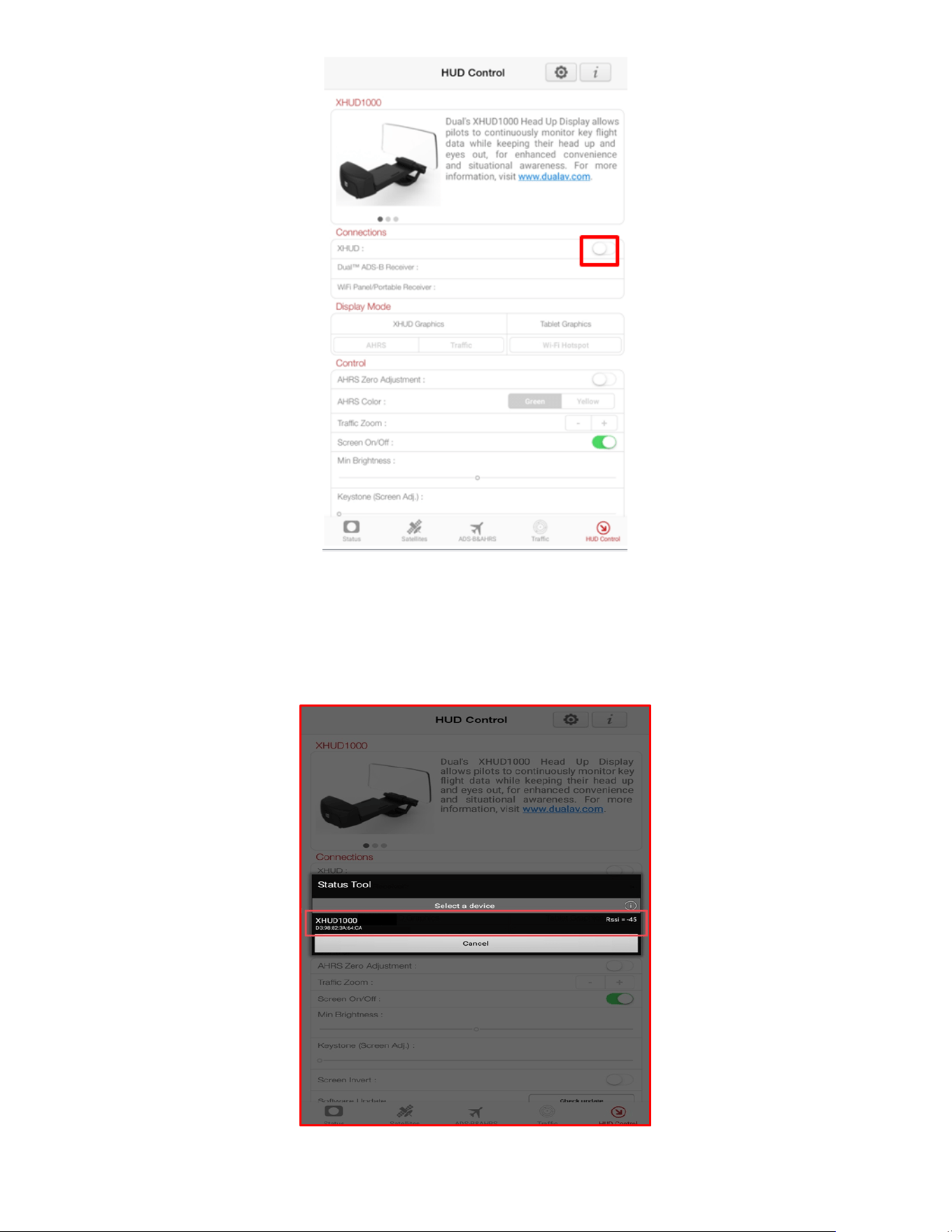
Tap the XHUD toggle, and choose the XHUD(****) to connect the XHUD
to your Android device.
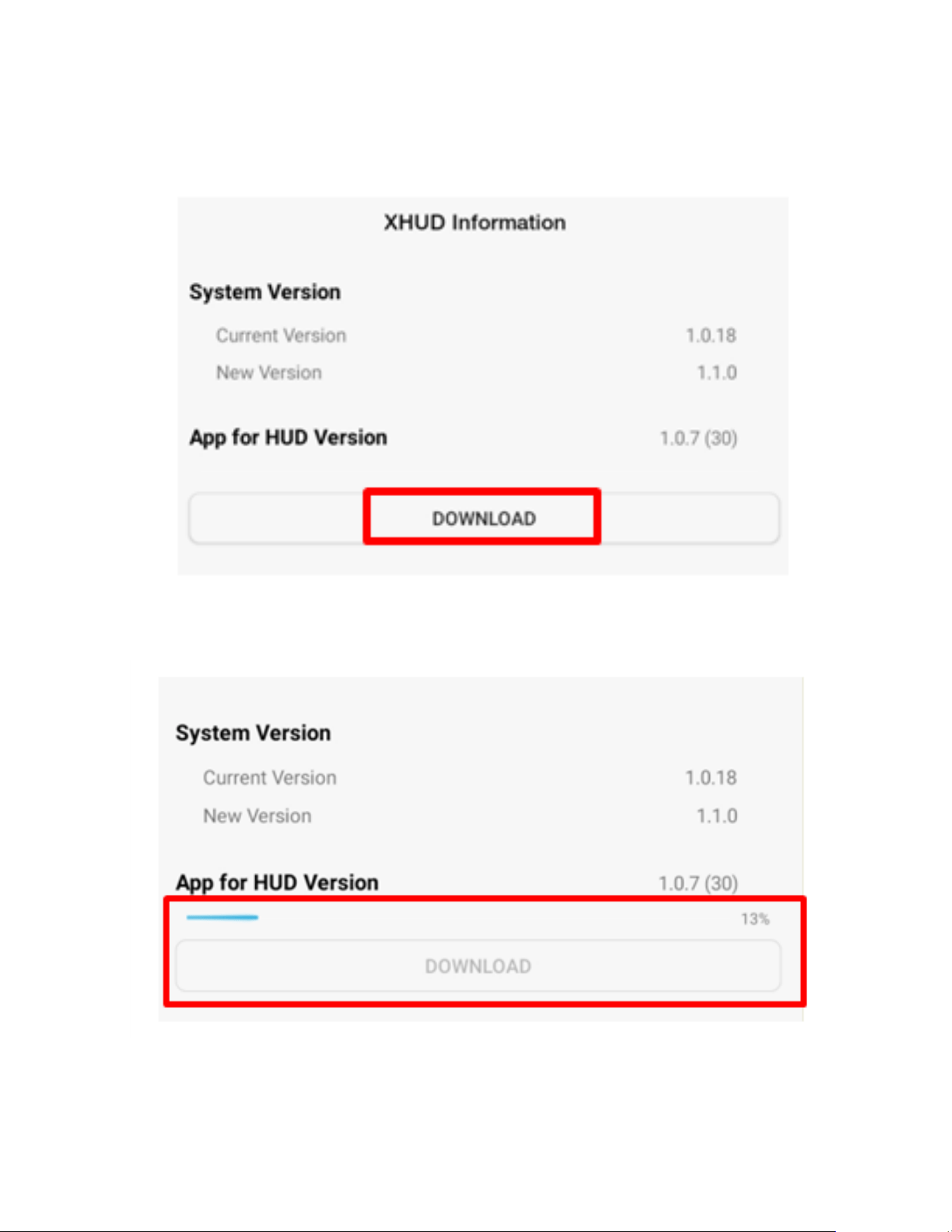
Check the current version by pressing ‘Check Update’
69
70
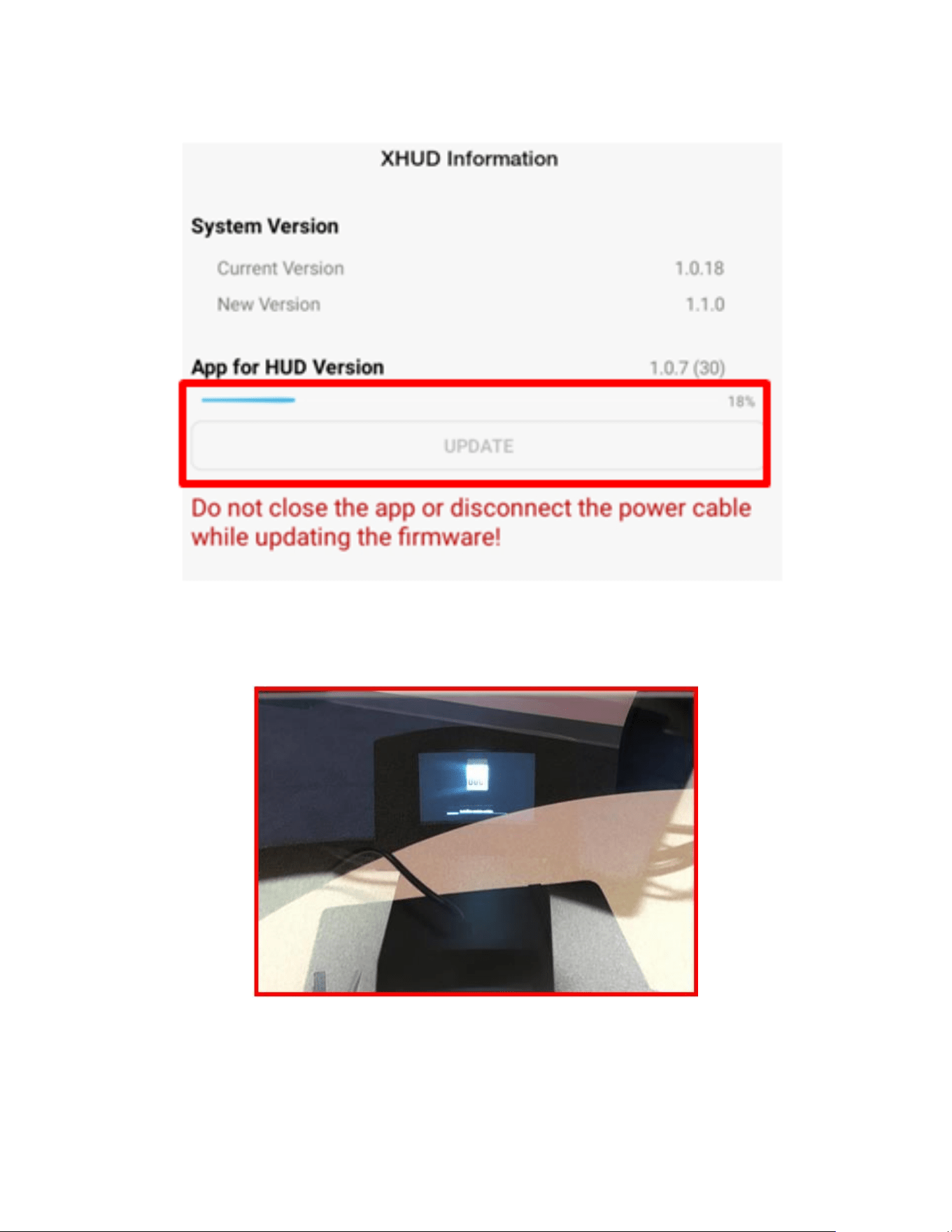
Tap ‘Download’, if there is new version available. Follow the instructions
on your mobile device. Process may take several minutes.
71
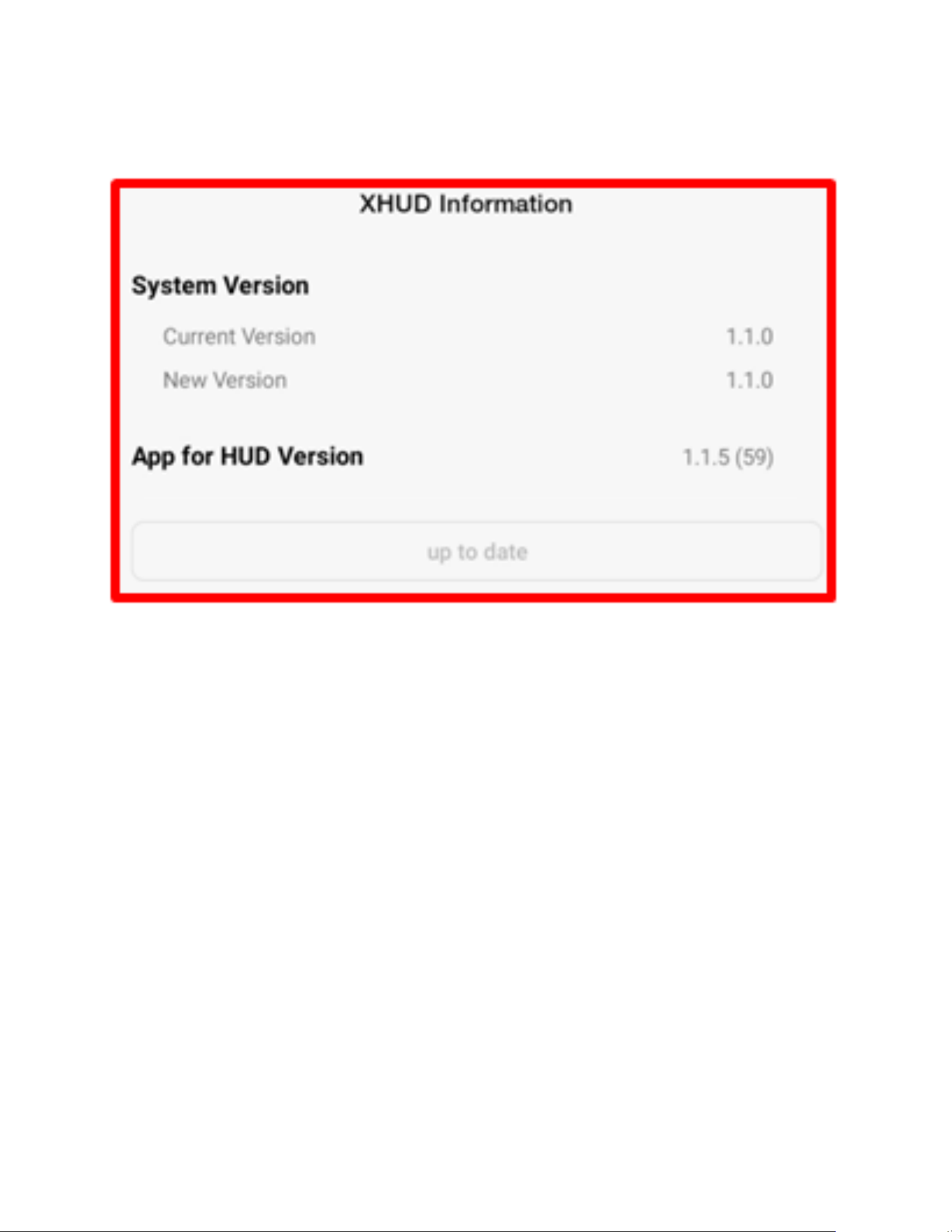
HUD screen shows the installation being done.
72

73
HUD Control Settings
• AHRS Zero Adjustment: calibrates the AHRS horizon on a level, flat
surface.
• AHRS Color: allows choice of either green or yellow AHRS image.
Green is more suitable for dim / dark conditions, while yellow is
more suitable for bright / daylight.
• Traffic Zoom: adjusts range of the radar-style traffic display from
the XHUD1000.
• Screen On/Off: turns on and off the XHUD1000 screen, respectively.
• Min Brightness: sets the minimum brightness level of the
XHUD1000 screen. The light sensor on the XHUD1000 automatically
adjusts the overall brightness level of the XHUD1000 screen.
• Keystone (Screen Adj.): allows the display engine to skew the image
if necessary to make it more rectangular.
• Image Flip: projects image upside down to allow use of XHUD1000
in ceiling mount position.

74
Tips for Best Performance
The XHUD1000 and its system perform at their best when there are
no other Wi-Fi or Bluetooth devices nearby. If you attempt to use
the XHUD1000 where there could be signal interference (e.g. house,
office, etc.), you may experience connection delay or latency.
To clean the combiner, it is recommended to use a non-abrasive
micro fiber cloth. Please refrain yourself from rinsing the combiner
with water since liquid and moisture can cause serious damage to
the device.
You can renew the stickiness on the bottom of the non-slip pad by
washing the pad with warm water and mild soap. Let the pad air dry
or dry it with a lint-free cloth.
For best HUD performance, it is recommended to operate the
XHUD1000 in either AHRS mode or Traffic mode. These modes
utilize Dual’s built-in HUD graphics. Operating the XHUD1000 in
Tablet Graphics mode may result lower image quality due to the
graphics coming from external apps that were designed for tablets &
smartphones.

75
Troubleshooting
• Activating Airplane Mode on your mobile device will automatically
turn Bluetooth off. If you are using Airplane Mode, you will need to
manually turn Bluetooth on form your mobile device in order to use
the XHUD1000.
• The XHUD1000 will automatically connect to any mobile devices that
have previously been connected. Therefore, it is important to
perform “Forget This Device” for Apple or “Unpair” for Android from
any devices that have been used before in order to make connection
with a new mobile device.
• Not correctly following the setup steps may cause issues when
making wireless connections to use the XHUD1000. It is important to
follow the steps provided in this owner’s manual.
• For other questions or additional help, contact Customer Support via

76
Specifications
• Connectivity
o Wi-Fi for Tablet Graphics mode (Wi-Fi Hotspot & Wi-Fi Client)
o BT Classic for data receiving from Dual’s ADS-B receivers
o BLE for HUD Control
• Software Requirements
o Android
OS: Above Android 5.0
Wi-Fi: Supports 2.4 GHz 5GHz Dual Band
o iOS
OS: Above iOS 11
Wi-Fi: Supports Dual Band
• Device
o iPhone 5 & Up
o iPad 5
th
Generation & Up
o iPad Mini 2 & Up
• Input Power
o Input: DC 5V (1.5A)
• Operating Temperature
o 20 ~ 60 °C

77
Compliance
This product is CE marked according to the provision of the R&TTE
Directive (99/5/EC). We declare that this product is in compliance with
the essential requirements and other relevant provision of Directive
1999/5/EC. For further information, please refer to website.
FCC / Industry Canada Notice:
This device complies with Part 15 of the FCC rules. Operation is subject to
the following two conditions:
(1) This device may not cause harmful interference.
(2) This device must accept any interference received, including
interference that may cause undesired operation.
In compliance with Industry Canada regulations, technical specifications
have been provided in a declaration of conformity. This does not imply
that Industry Canada approved the equipment. This device complies with
Industry Canada licence-exempt RSS standard(s). Operation is subject to
the following two conditions:
(1) This device may not cause interference.
(2) This device must accept any interference, including
interference that may cause undesired operation of the device.

78
Warranty
This warranty gives you specific legal rights. You may also have other
rights, which vary from state to state. Dual Electronics Corp. warrants this
product to the original purchaser to be free from defects in material and
workmanship for a period of one year from the date of the original
purchase.
Dual Electronics Corp. agrees, at our option, during the warranty period,
to repair any defect in material or workmanship or to furnish an equal
new, renewed or comparable product (whichever is deemed necessary)
in exchange without charges, subject to verification of the defect or
malfunction and proof of the date of purchase. Subsequent replacement
products are warranted for the balance of the original warranty period.
Who is covered?
This warranty is extended to the original retail purchaser for products
purchased from an authorized dealer of Dual Electronics Corp. and used
in the U.S.A.
What is covered?
This warranty covers all defects in material and workmanship in this
product. The followings are not covered: software, installation/removal
costs, damage resulting from accident, misuse, abuse, neglect, product
modification, improper installation, incorrect line voltage, unauthorized
repair or failure to follow instructions supplied with the product, or
damage occurring during return shipment of the product. Specific license
conditions and copyright notices for the software can be found via
http://www.dualav.com.

79
What to do?
1. Before you call for service, check the appropriate section in this
manual. A simple adjustment may save you a service call.
2. If you require service during the warranty period, you must carefully
pack the product (preferably in the original package) and ship it by
prepaid transportation with a copy of the original receipt from the
retailer to an authorized service center.
3. Please describe your problem in writing and include your name, a
return shipping address, and a daytime phone number with your
shipment.
4. For more information and for the location of the nearest authorized
service center, please contact us by one of the following methods:
• Call us toll-free at 1-855-936-0129
• E-mail us at [email protected]
Exclusion of Certain Damages: This warranty is exclusive and in lieu of any
and all other warranties, expressed or implied, including without
limitation the implied warranties of merchantability and fitness for a
particular purpose and any obligation, liability, right, claim, or remedy in
contract or tort, whether or not arising from the company’s negligence,
actual or imputed. No person or representative is authorized to assume
for the company any other liability in connection with the sale of this
product. In no event shall the company be liable for indirect, incidental or
consequential damages.
Unghee Na