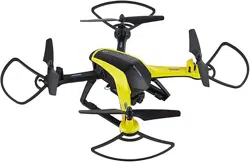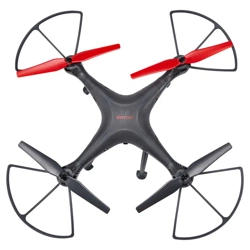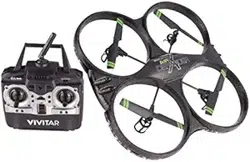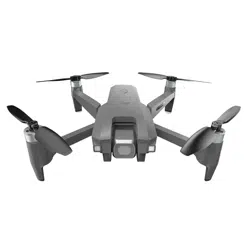
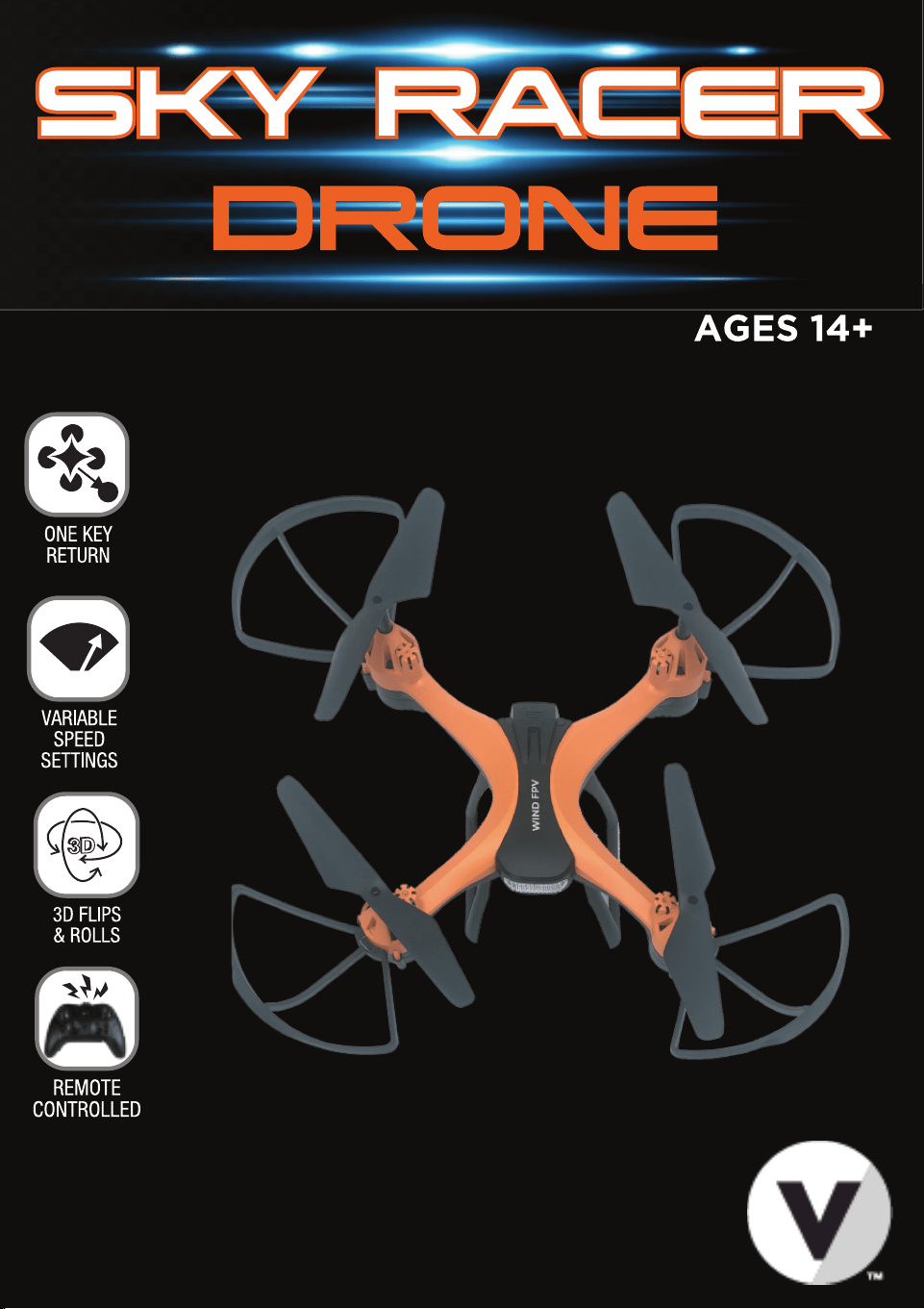
USER’S MANUAL I ITEM: DRC090
1
1. Introduction
Thank you for purchasing the Vivitar Sky Racer Drone, item DRC090. The included remote
controlled aircraft is designed specifically for outdoor flying. In order to get the best possible
results, please read this user’s manual carefully before using. In addition, be sure to keep this
manual in a safe place for future reference.
2. Important Safety Precautions
When using your Vivitar Sky Racer Drone, basic safety precautions should always be followed,
including the following:
1. Do not allow children or the infirm to operate your drone without adult supervision. For safety
purposes, only allow experienced pilots aged 14 and up fly your drone.
Register your drone.
2. Fly your drone at or below 400 feet.
3. Keep your drone within your line of sight.
4. Be aware of FAA Airspace Restrictions.
5. Respect privacy.
6. Never fly near other aircraft, especially near airports.
7. Never fly over groups of people, public events, or stadiums full of people.
8. Never fly near emergencies such as fires or hurricane recovery efforts.
9. Never fly under the influence of drugs or alcohol.
10. To avoid choking hazards, keep all small parts and pieces away from children.
11. Your drone is not a toy. Makes sure that it is properly assembled before use, and operated safely.
12. Keep your drone away from obstacles, crowds, power lines, trees, and bodies of water while it is in
flight. Always fly your drone in a wide open spacious environment. Avoid flying your drone directly
above people or animals. Maintain a 7 ft. (2m) distance from the aircraft when taking off and
landing.
13. Only use your drone in a dry environment. Your drone is composed of sophisticated electronic
components and parts. To avoid damage to your drone, please keep your drone away from water
and moisture. Use a soft dry cloth to wipe the surface of your drone and keep it clean.
14. Beginner and novice level pilots should practice flying with experienced pilots until suitably
experienced in flight.
15. To ensure safety, only use the included parts when using your drones.
16. Make sure to keep your ears and eyes protected when using your drone. When your drone’s
blades are spinning, make sure to keep people and objects at a distance from rotating parts.
17. Keep your drone away from excessive heat or flames, especially while charging the battery.
18. Please recycle or dispose of your drone properly based on the laws and rules of your municipality.
Contact local recycling facilities and/or the manufacturer of your drone for further information.
IMPORTANT NOTE: FAA REGISTRATION
Owners of a drone that weighs more than 0.55 lbs. (250 g) and less than 55 lbs. (25 kg) must
register their UAS online at the FAA website, https://www.faa.gov/uas/registration.
After receiving the certificate of registration, a unique FAA registration number will be provided
and it must be marked on the Drone by any means, such as permanent marker, label, engraving,
or other means, as long as the number is readily accessible and maintained in a condition that is
readable and legible upon close visual inspection.
2
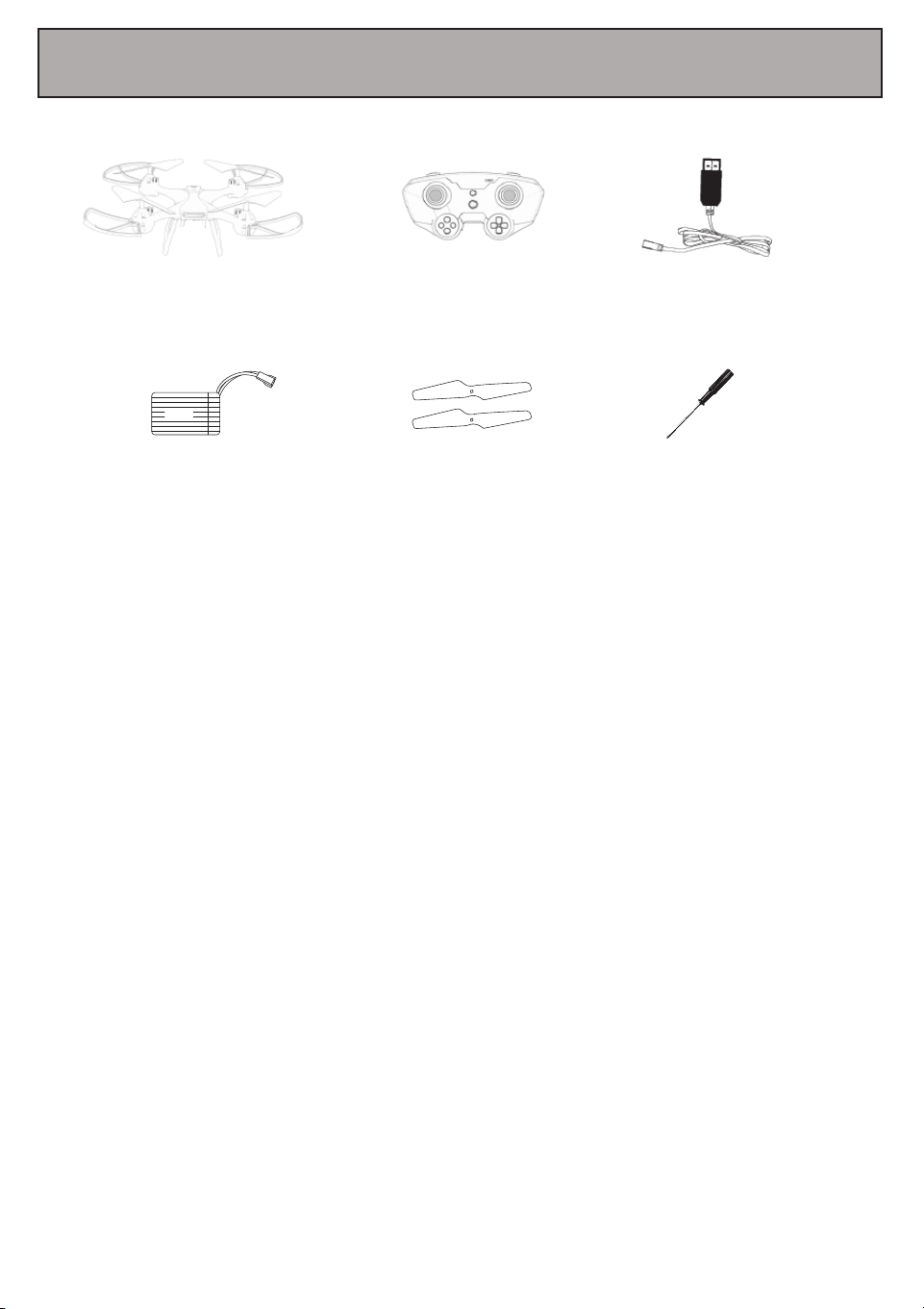
3. Package Contents
DRC-088
SkyRacer Drone
Remote Control Charger
Li-Polymer
Battery
Replacement
Propellers
Screwdriver
3.7V
Ax1
Bx1
3
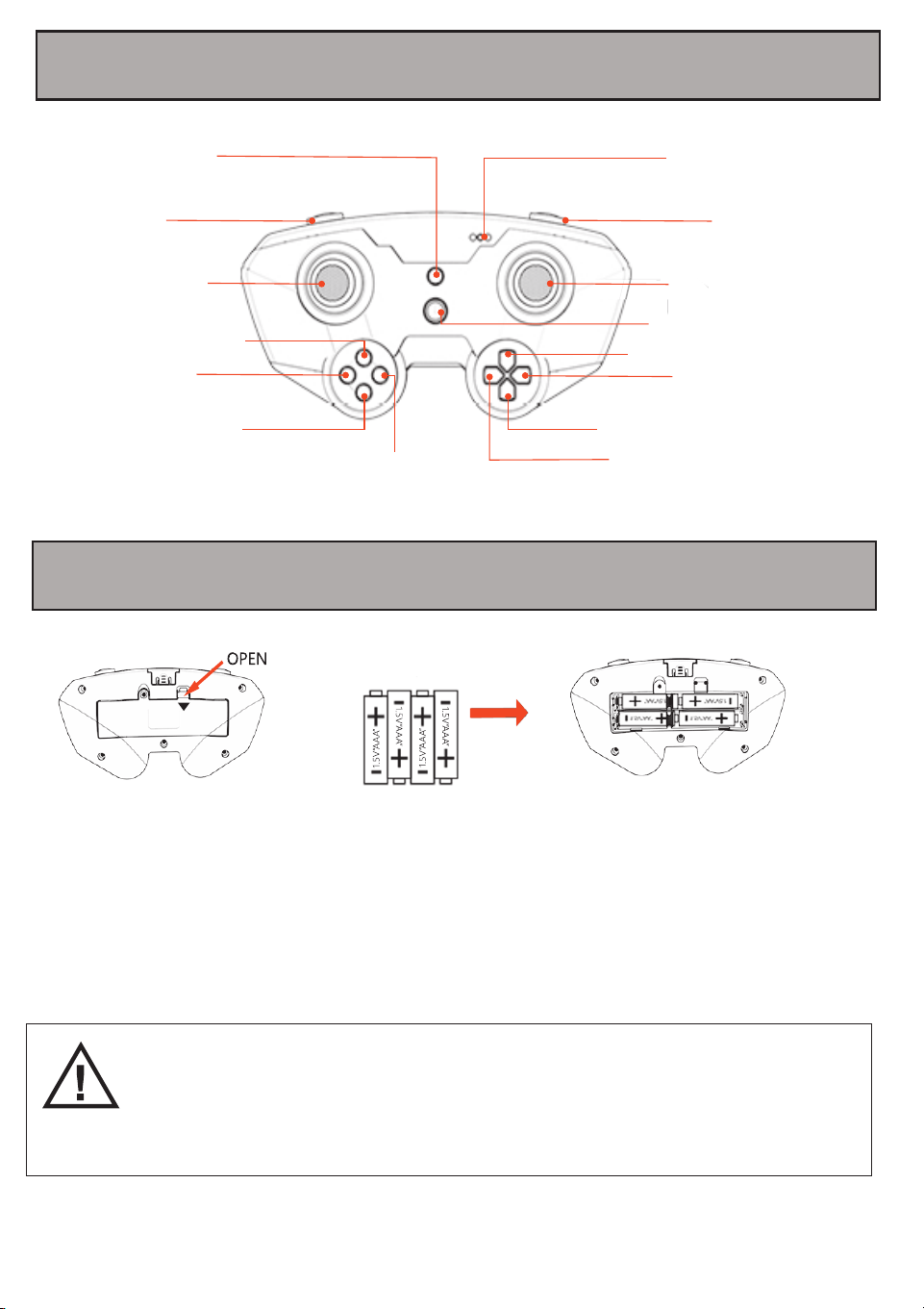
Use the included screwdriver to unscrew the battery compartment located on the rear of your
remote control, then press down on the tab to open .
Insert 4 AAA 1.5V batteries, making sure that the batteries are inserted with the correct polarity
(+,-) as displayed in the battery compartment.
Once the batteries are inserted, put the battery compartment cover back on the battery
compartment, and use a screwdriver to close it securely.
-Do not mix rechargeable and non-rechargeable batteries.
-Do not mix old and new batteries or different types of batteries.
-Remove exhausted batteries and dispose of them based on the rules of your local
municipality.
-Remove the batteries from your remote control if it will not be in use for an extended
period of time.
4. A Quick Look at Your Remote Control
5. Inserting Batteries Into Your Remote Control
Speed Switch
(3 speed modes)
One Key Return
Headless Mode
Calibration
Take O/Landing
Emergency Stop
Indicator lights
Rollover Mode/
Obstacle Avoidance
Directional Control Stick
(forward, back/shift left,
shift right)
Power Button
Right Trim
Forward Trim
Left Trim
Backward Trim
Throttle Stick
(ascend/descend/turn
left/turn right)
4
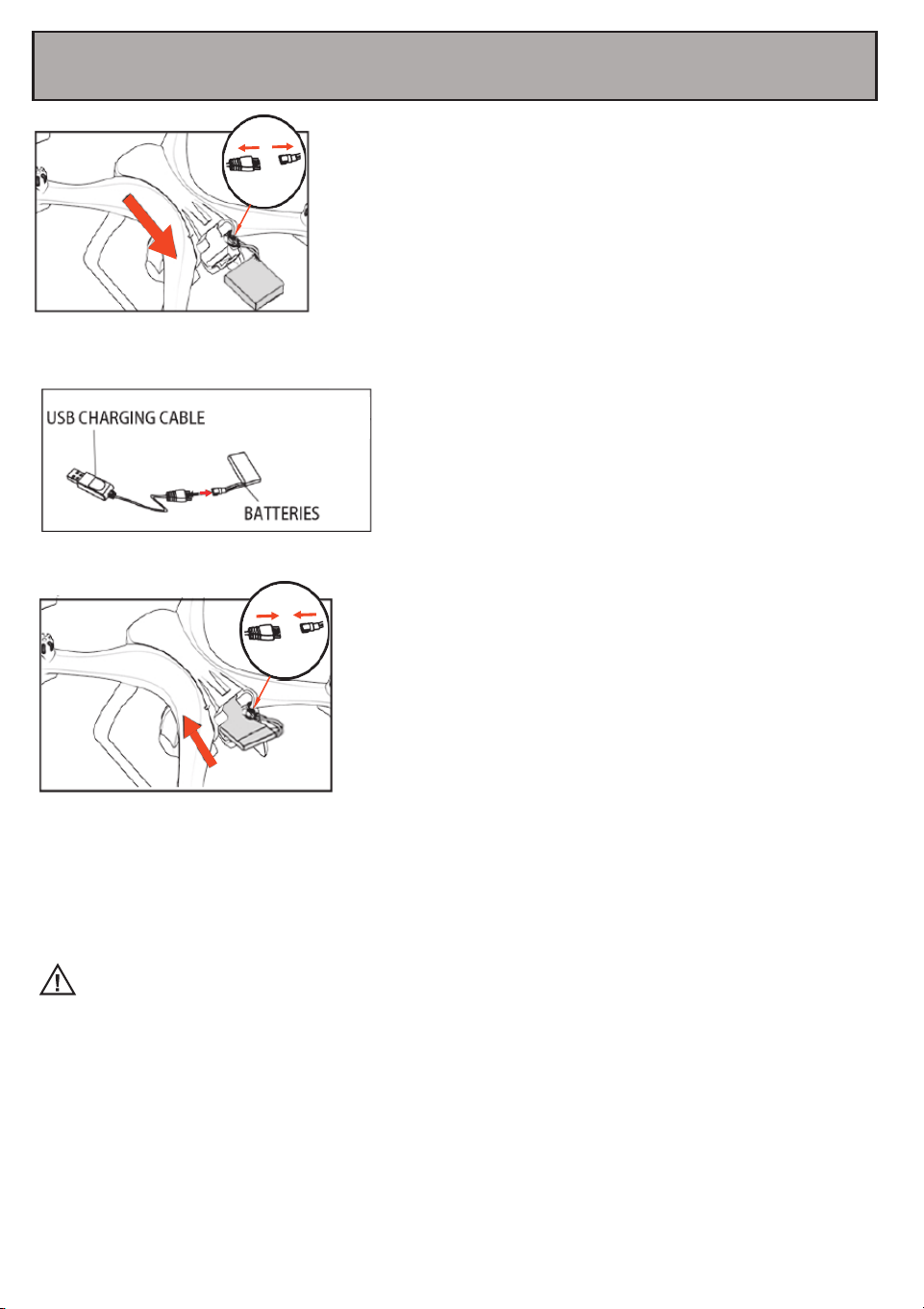
6. Charging Your Drone’s Battery
WARNING:
Open the drone’s rear battery module, unplug the battery and
drone cable and then pull the lithium battery out of the
drone’s battery compartment.
Connect the battery plug to the included USB
charging head. Then plug the charger into a USB
charging adapter (not included). For best results,
use a 5V, 1-2A charger to charge the battery.
While charging, an LED light on the charger will
illuminate. This light will turn off once charging is
complete. Charging typically takes approximately
130 minutes.
Once fully charged, insert the battery back into the battery
compartment and connect the battery plug to the drone
cable, then close the battery compartment door.
NOTE: When the drone’s battery is close to being exhausted, a light on the body of the drone
will flash slowly. When you see this light land your drone as soon as possible.
1. The charging plug can overheat if overcharged. If this occurs unplug the charger immediately to
avoid damaging the battery.
2. Do not leave the battery unattended when charging.
3. Do not use other chargers other than the one supplied.
4. Wait at least 30 minutes after using your drone before charging the battery. The battery’s
temperature can become elevated during use and charging it immediately could damage the
battery.
5. Remove the drone’s battery when the drone is not in use. Store it in a cool dry place.
6. Do not leave the battery exposed to excessive heat, flame or fire.
7. Do not short circuit the battery. Do not leave the battery in contact with any metal parts.
5
7. Pre-flight Preparation
If you have never piloted an aircraft before and you are not an experienced pilot, make sure to read
these instructions carefully before flying. Get familiar with all of the controls. If necessary, read
through these instructions many times and practice handling the remote control until you feel
completely comfortable and ready.
1. Place your drone in a clear, open field. Make sure that it is resting on a secure, flat surface.
2. Practice using the throttle stick and the directional control stick.
3. By simulating the use of the remote and both sticks, you will grow more comfortable with the
natural motions required during flight and you will learn to react more rapidly to unexpected
circumstances.
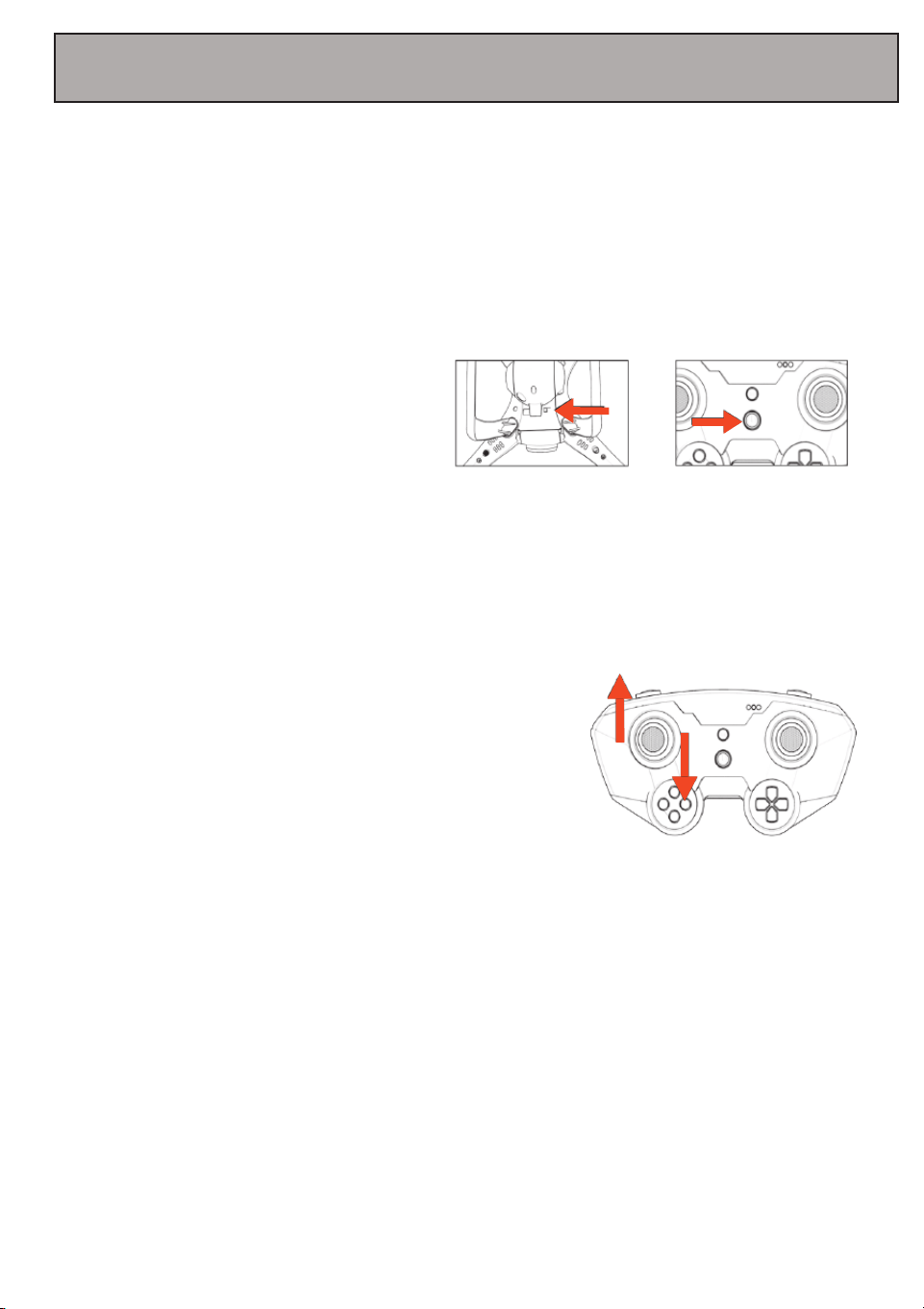
Powering ON
Press the power button located on the
bottom of your drone in order to power it on.
Press and hold the power button again for
approximately 3 seconds to power it off.
When first powered on, the drone’s indicator
lights will flash.
Then press and hold the Power Button on
your remote control.
Synchronizing Your Remote with Your Aircraft
1. Be certain that both the remote and drone are powered
on, with your drone placed securely on a flat surface. Your
remote control will not connect properly if you are holding
your aircraft in your hand.
2. Push the throttle stick on your remote control to its
highest point, then pull it down to its lowest point.
3. You may need to repeat step two a few times until a
connection is formed between your remote control and
your drone.
4. Follow the previous three steps each time you fly. If you
fail to do so, your remote control will not properly connect
with your drone.
NOTES:
--When first powered on, the drone’s indicator lights will
flash. They will stop flashing and shine steadily one the
drone is synchronized with the remote.
--The head of the aircraft must face forward during
remote control synchronization.
6
8. Flying Your Drone
Calibrating Your Drone’s Internal Gyroscope
Calibrate your drone’s internal gyroscope to ensure smooth and
balanced flight. Before you start, make sure your drone is placed
on a flat, stable surface.
-Press the calibration button on your remote control. The LED
lights on the drone will flash quickly. Calibration will be complete
once the drone lights shine steadily.
NOTE: If your drone is not calibrated before takeoff, it will fly in a
disoriented manner.
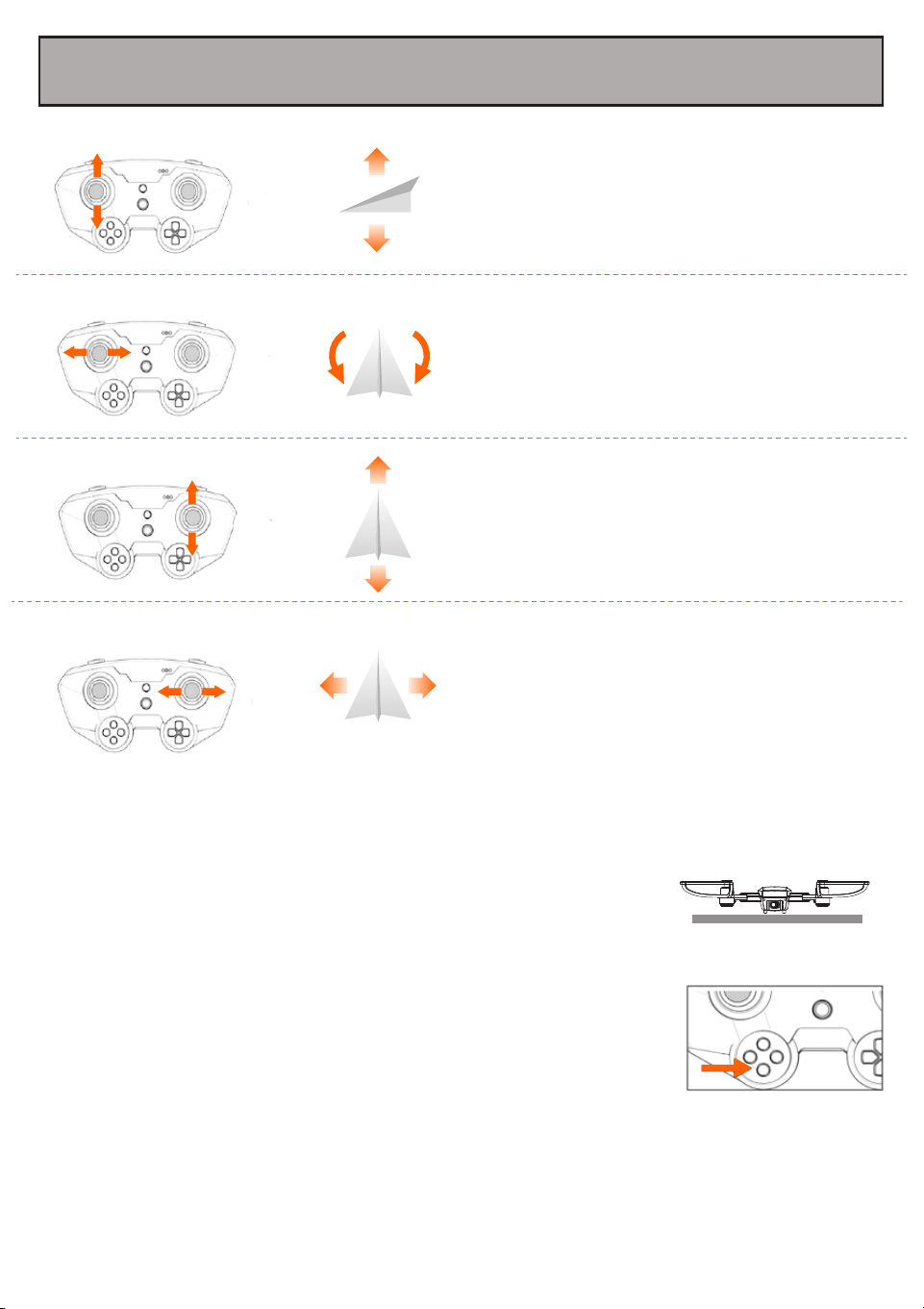
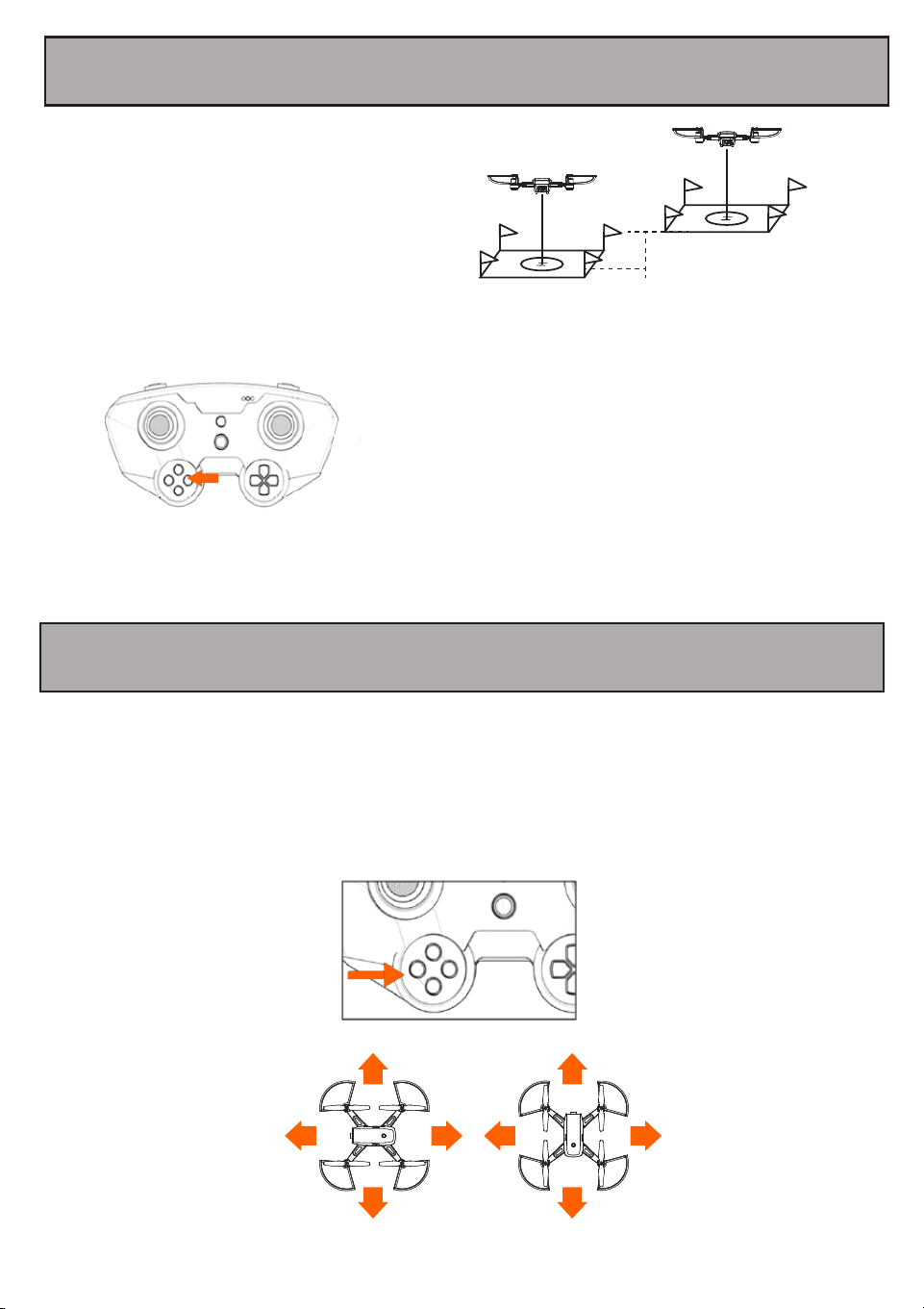
Push the throttle stick upwards
and the drone will ascend.
Pull the throttle stick downwards
and the drone will descend.
Push the directional control stick
upwards and the drone will tilt
downwards, causing it to move
forward. Push the directional
control stick downwards and the
drone will tilt upwards, causing it
to move backwards.
Slide the directional control stick
to the left and the entire body of
the drone will slide to the left.
Slide the directional control stick
to the right and the entire body
of the drone will slide to the
right.
Slide the throttle stick to the left
to turn the nose of the drone,
turning it to the left. Slide the
throttle stick to the right and the
nose of the drone will turn to the
right.
7
9. One Key Takeoff & Landing
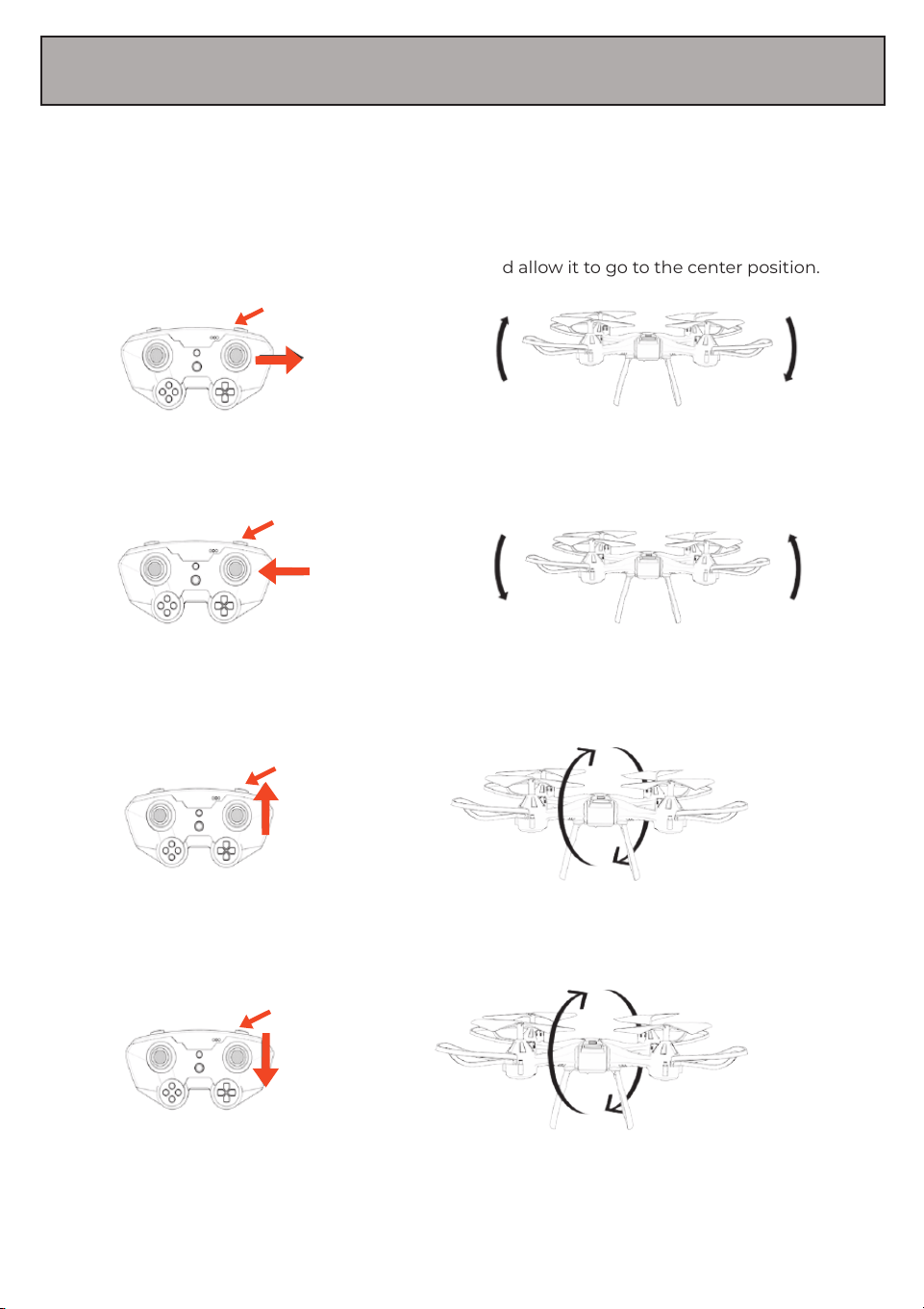
Once your drone is unlocked, you can press
the One Key Takeoff button and the drone
will automatically hover 1 meters above the
ground.
By pressing the One Key Landing button, your
drone will automatically land on the ground.
NOTE: Make sure your drone is properly
calibrated before attempting to fly.
10. Headless Mode
Headless mode allows you to fly your drone without worrying about the drone’s orientation.
Regardless of which way the drone is facing, this function ensures that the drone will always
follow controls from your perspective all the time.
To enter Headless mode, before your drone takes off, stand in front of your drone and press
the Headless mode button on your remote control.
1M
1M
The drone will ascend to
about 1 meter in any take-off
point at any altitude.
F
B
R
L
F
B
R
L
8
WARNING: Do Not use Rollover Mode while camera is attached to the drone.
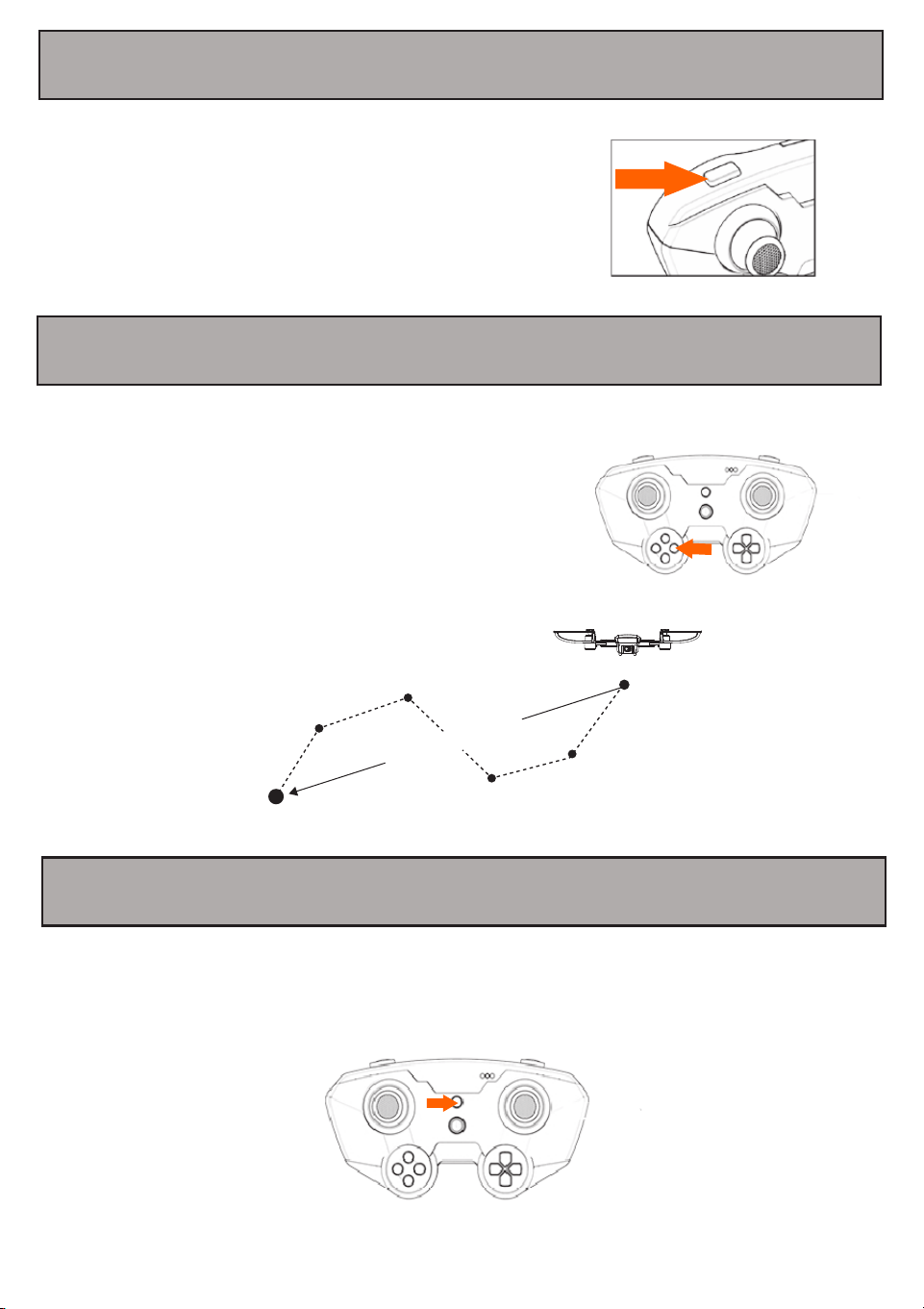
Your drone can accomplish a 360° roll while flying by following the Rollover Mode operation below:
Before performing a 360° roll, make sure that your drone is at least 5 meters above the ground.
To roll right, press the Rollover Mode button, then push the directional lever to the farthest right.
After the aircraft rolls, let go of the directional lever and allow it to go to the center position.
To roll left, press the Rollover Mode button, and then push the directional leveler to the
farthest left. After the aircraft rolls, let go of the directional lever and allow it to go to the
center position.
To roll forward, press the Rollover Mode button, and then push the directional leveler to the
farthest it can go up. After the aircraft rolls, let go of the directional lever and allow it to go to
the center position.
To roll forward, press the Rollover Mode button, and then push the directional leveler to the
farthest it can go up. After the aircraft rolls, let go of the directional lever and allow it to go to the
center position.
11. Rollover Mode
9
13. One Key Return
12. Speed Adjustment
14. Emergency Stop Function
If your drone is flying abnormally, crashes, or otherwise cannot be controlled, press the
Emergency Stop button on your remote control to trigger an emergency stop. The drone
will immediately descend from the air.
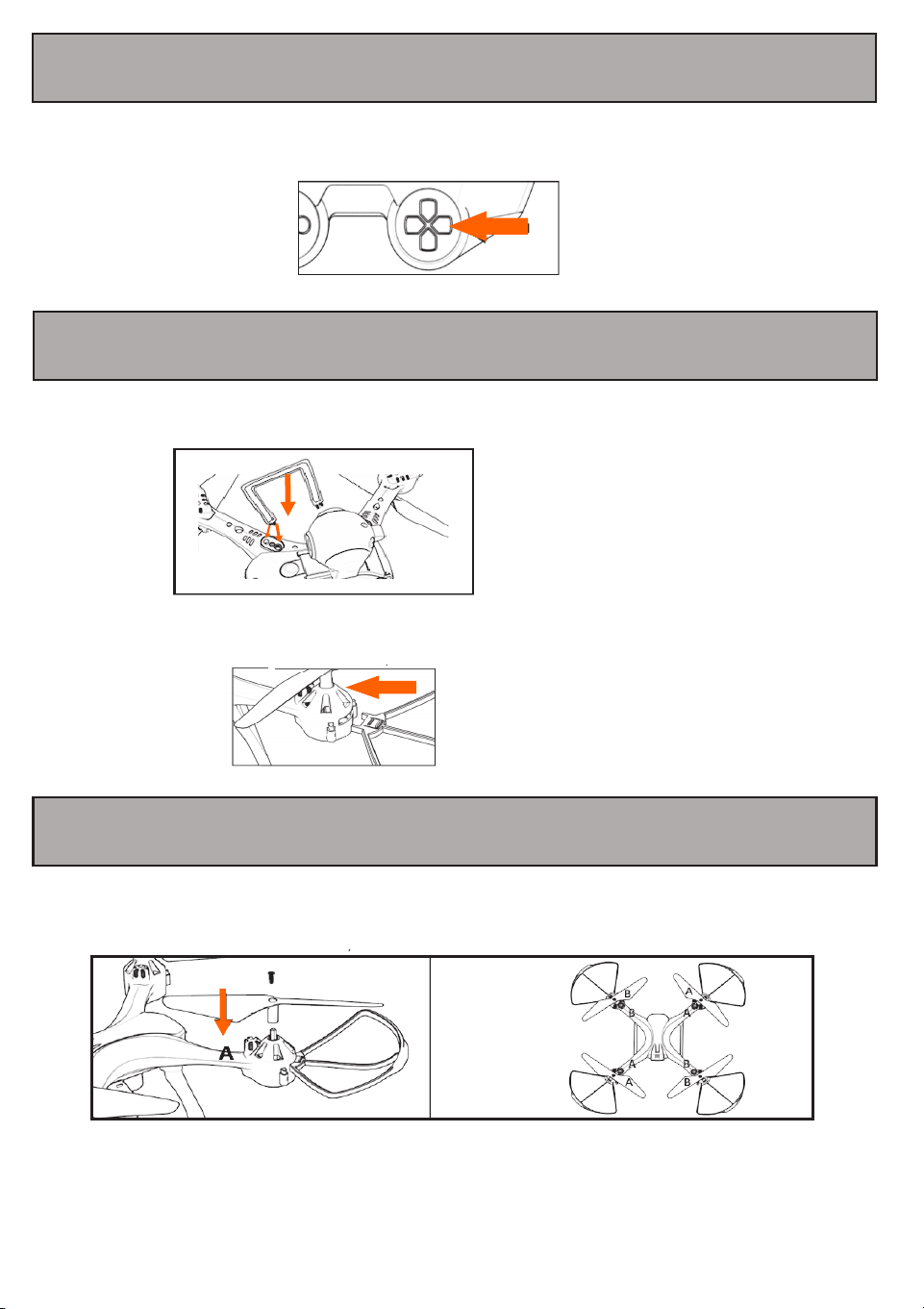
Press the Speed Control button repeatedly to switch between
high, medium and low speed settings. A series of beeps will
indicate the speed setting of your drone:
-One Beep: Low Speed Mode
-Two Beeps: Medium Speed Mode
-Three Beeps: High Speed Mode
While flying your drone, press the One Key Return
button to start a return flight. The drone will travel
directly back in the direction it took off.
You can manually control the direction of the aircraft
during One Key Return mode.
Push the directional lever forward to exit One Key
Return mode.
End
Start
One-key return
10
16. Landing Feet & Propeller Guard Installation
17. Propeller Blade Installation
15. Adjusting Trim
Press the trim buttons to make minor adjustments in the direction the drone is tilted. Adjust the
trim accordingly to make compensations so that the drone straightens out.
To install the landing feet, insert the four ends of the landing feet into the holes on the bottom of
the drone as shown on the diagram below:
When replacing the drone’s propeller blades, make sure to attach the blades in the correct
position and correct blade (A,B) as displayed in the graphic below:
NOTE: If blades are not properly installed, the drone
will not be able to take off, or roll over or fall.
To install the propeller guard feet, insert the propeller guard into the drone as shown on the
diagram below:
FCC Compliance Statement
Changes or modifications not expressly approved by the party responsible for compliance could
void the user’s authority to operate the equipment.
This device complies with Part 15 of the FCC Rules. Operation is subject to the following two
conditions: (1) this device may not cause harmful interference, and (2) this device must accept
any interference received, including interference that may cause undesired operation.
This equipment has been tested and found to comply with the limits for a Class B digital device,
pursuant to Part 15 of the FCC Rules. These limits are designed to provide reasonable protection
against harmful interference in a residential installation. This equipment generates, uses and can
radiate radio frequency energy and, if not installed and used in accordance with the instructions,
may cause harmful interference to radio communications. However, there is no guarantee that
interference will not occur in a particular installation.
If this equipment does cause harmful interference to radio or television reception, which can be
determined by turning the equipment off and on, the user is encouraged to try to correct the
interference by one or more of the following measures:
-- Reorient or relocate the receiving antenna.
-- Increase the separation between the equipment and receiver.
-- Connect the equipment into an outlet on a circuit different from that to which the receiver is
connected.
-- Consult the dealer or an experienced radio/TV technician for help.
This warranty covers the original consumer purchaser only and is not transferable.
This warranty covers products that fail to function properly UNDER NORMAL USAGE, due to
defects in material or workmanship. Your product will be repaired or replaced at no charge for
parts or labor for a period of one year.
What Is Not Covered by Warranty
Damages or malfunctions not resulting from defects in material or workmanship and damages or
malfunctions from other than normal use, including but limited to, repair by unauthorized parties,
tampering, modification or accident.
To Obtain Warranty Service and Troubleshooting Information:
Call 1-800-592-9541 in the U.S. or visit our website at www.vivitar.com.
To receive Warranty service along with the name and address of an authorized product service
center, the original consumer purchaser must contact us for problem determination and service
procedures. Proof of purchase in the form of a bill of sale or receipted invoice, evidencing that the
product is within the applicable Warranty period(s), MUST be presented in order to obtain the
requested service. It is your responsibility to properly package and send any defective products
along with a dated copy of proof of purchase, a written explanation of the problem, and a valid
return address to the authorized service center at your expense. Do not include any other items or
accessories with the defective product. Any products received by the authorized service center
that are not covered by warranty will be returned unrepaired.
Vivitar One Year Warranty