Operating Manual
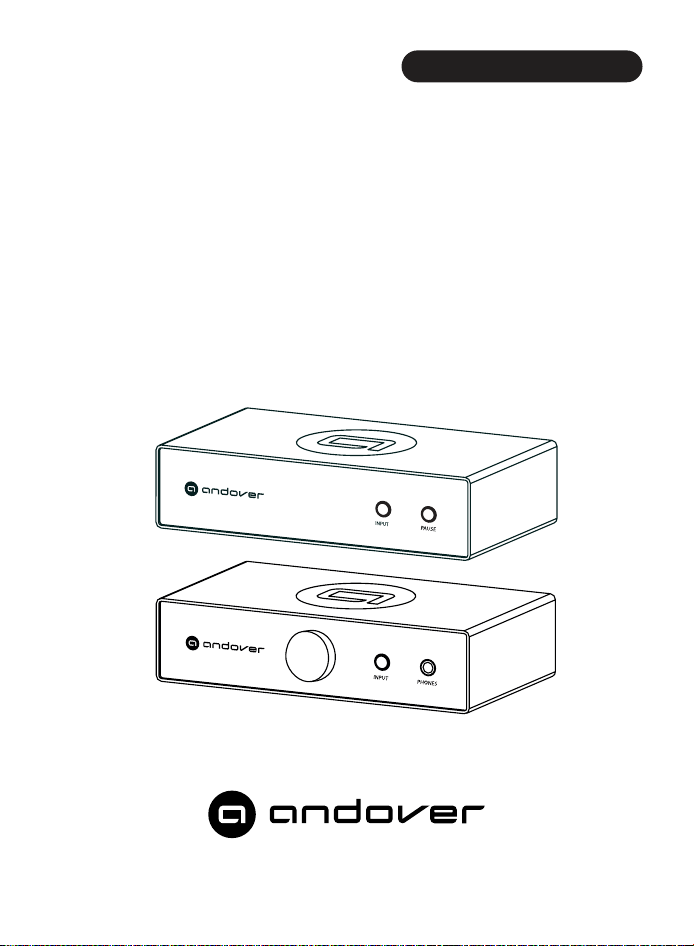
SONGBIRD HRA
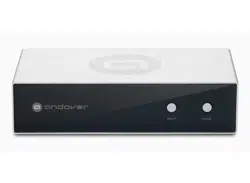
INTERNET MUSIC STREAMER-AMPLIFIER
SONGBIRD HR
INTERNET MUSIC STREAMER

IMPORTANT NOTE:
At this time, unexpected delays in the certication
process of Songbird HR and Songbird HRA have
postponed the rollout of some features and services in
the nal app.
As soon as the certication process is complete, the
Songbird HR and HRA devices will be automatically
updated over the air, the Apps will be updated in the App
Store and Google Play, and this manual will be updated
to reect the nal status.
There is no performance degradation in the current
conguration, but additional services and new features
will add to your satisfaction and operating convenience
when updated.
We are sorry for this inconvenience and are working to
resolve this as soon as possible.
Use these QR codes to Download Songbird Control
from the App Store or Google Play.
Apple - iOS Google - Android

Introduction
Thank you for choosing your Songbird HR or HRA.
Your Songbird will deliver bit-perfect High Resolution output from AirPlay
2, Spotify Connect, TIDAL Connect, DLNA, MQA (Beta), Alexa Cast for
Amazon Music, and features gapless playback of Hi-Res lossless audio
up to 24Bit/192kHz. It streams music directly from the cloud or your local
music library. Songbird delivers high-resolution audio streams from some
of the best Internet music sources such as Qobuz, Tidal, Amazon Music,
and Spotify. As more services become available, they will be added through
Over-the-Air updates. In addition, thousands of Internet radio stations may
be enjoyed via v-Tuner, I-Heart Radio and Tune-in. The Songbirds can also
play les on a thumb drive and will receive or transmit Bluetooth content to
or from any Bluetooth devices within range.
Control your Songbird using the free Songbird Control app on the App Store
or Google Play. You can also use your favorite music apps such as Spotify,
TIDAL, Amazon Music, or any Chromecast-enabled app. You may also use,
HomePod, compatible Echo devices, or Apple Home App.
Songbird HR and HRA can be grouped with Homepod, Echo, AirPlay 2-en-
abled devices, other Alexa-compatible devices, or another Songbird device
to stream music throughout your home. You may group units to play the
same music throughout, or listen to separate programs on each. The Song-
birds feature analog and digital outputs that allow you to connect a local
source such as a turntable or CD player, and share that source wirelessly
with other Songbirds.
Although some content is free, you will be required to purchase a subscrip-
tion from the content supplier for specic premium services or advanced
features. Conguration of your DLNA device to allow sharing may also be
required in some instances.
Both Songbird models will accept analog and digital source inputs from
local components, in addition to les on a thumb drive and will also receive
Bluetooth content from any devices within range.
The Songbirds are capable of bit-perfect output from their digital outputs,
or superb analog output via their high quality ESS Sabre DAC.

Songbird HRA adds a 75W/Ch amplier powerful enough to drive virtually
any home loudspeaker to room-lling volume levels. A mono subwoofer
output replaces the coaxial digital output of the HR. It's built-in high quality
headphone output will deliver powerful output for private listening.
System Requirements
• A WiFi router supporting the 2.4GHz or 5GHz dual/mode
802.11b/g/n/ac protocols. (5GHz recommended.
• A Smartphone or Tablet connected to the same WiFi network running
iOS 9.0 or Android 6.0 or newer.
Setup
1. Download the Songbird Control app from the App Store or Google
Play.
2. For Songbird HR, connect its output to your audio system and switch
that system to the input used for Songbird HR. Songbird HRA may be
connected directly to a pair of speakers via its speaker outputs.
3. Apply power. After a few seconds a voice will say, "entering setup
mode", and the status LED will begin ashing orange. If it does not,
press and hold the input switch until the LED ashes orange.
4. Make sure Bluetooth and WiFi are both is turned on in your phone
settings.
5. Open the Songbird Control app. After a few moments the app should
display a list of all the new devices and ask if you want to setup the
device. If it does not, press the + at the top right corner of the device
screen to search again. The app will walk you through the next steps.
Setup with Apple Home
1. Tap the Apple Home app on your iOS device.
2. Press the + in the upper right corner. Then select "Add Accessory"
3. Press "More options..."
4. Select the device you wish to add.
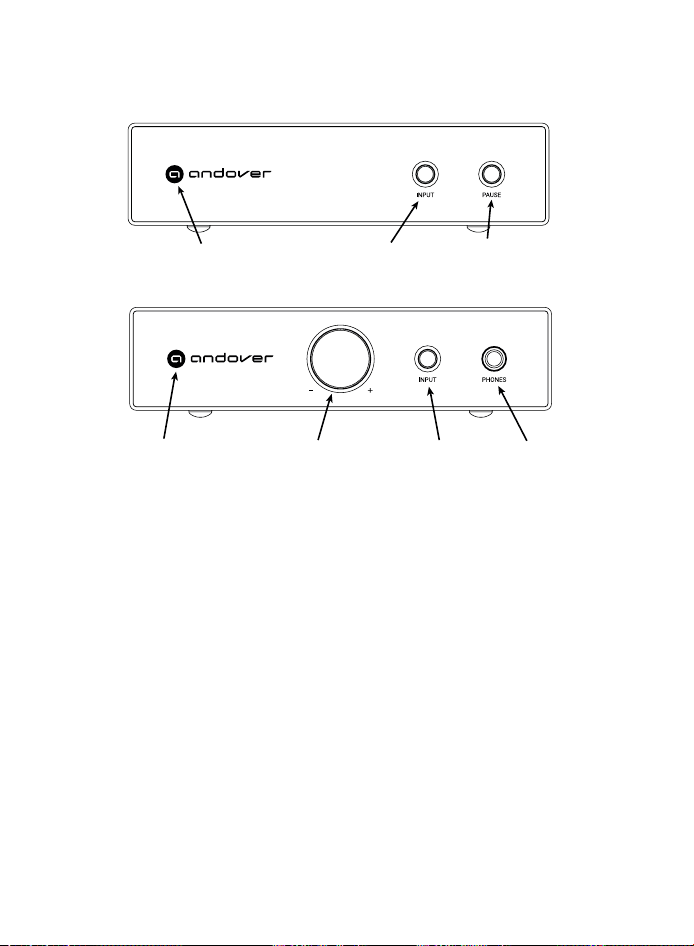
Front Panel and Controls
Volume/Play/Pause/Mute
Headphones
Status indicator
Input/Mode Switch Play/PauseStatus Indicator
Songbird HR
Songbird HRA
Status Indicator - Colors indicate input source and status.
White - Network Streaming mode
Blue - Bluetooth (Flashes in pairing mode)
Green - Analog Input
Teal - USB device (If no USB device is present, this will not show)
Red - Optical
Yellow - Coaxial
Flashing White - System is Booting, please wait.
Flashing Orange - Setup Mode
Flashing White/Blue - Software is updating. Please wait.
Flashing Amber - Alexa notication
Input/Mode Switch - A short press toggles to the next source.
A long press >5 seconds enters setup mode
Volume/Play/Pause/Mute (HRA)- Rotate to adjust output volume. Each
press toggles between Play and Pause mode when Network streaming, or
Mute and Unmute for other sources.
Play/Pause (HR) - Toggles between Play and Pause
Input/Mode Switch
Analog Output - This is the main output to connect Songbird HR to your
amplier or powered speakers for playback.
Digital Output - Digital output is used to connect to an amplier or separate
component DAC. Songbird HR has both optical or wired (coaxial) choices.
Both outputs are identical quality. Songbird HRA has replaces the coaxial
digital output with an analog subwoofer output.
Speaker Connections (HRA ONLY)- Use to connect passive Stereo
speakers from 2-8 Ohm impedance. The speaker terminals will accept bare
wire, spade lugs, or banana plugs.
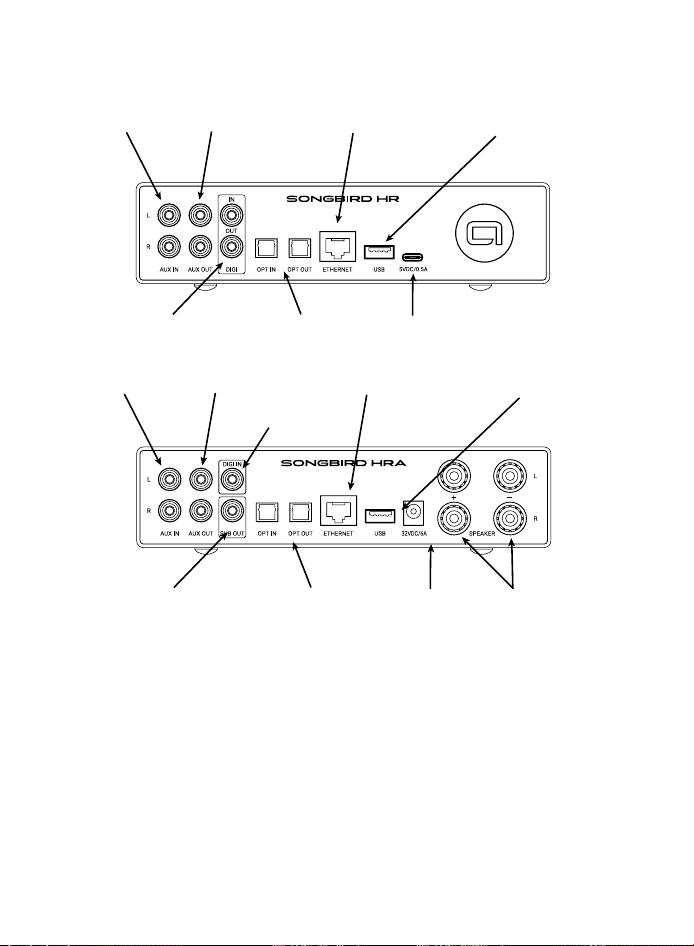
Rear Panel and Output Connections
Songbird HRA
Analog Input Analog Output
Coaxial Digital In
Optical Digital In/Out
Wired Network Connection USB Thumb Drive Input
Power InputSubwoofer Output Speaker Outputs
Analog Input
Analog Output
Coaxial Digital In/Out
Optical Digital In/Out
Wired Network Connection
USB Thumb Drive Input
Power Input
Songbird HR

Analog Input - Connect any Stereo Line-Level source that you wish to cast
to other Songbirds in Multiroom mode, or to playback locally. You may use
the app or front panel pushbutton for input selection.
Digital Inputs - Connect any digital source you wish to listen to locally or
cast to other Songbirds in Multiroom mode. All Songbirds will convert
Digital inputs to analog output.
Wired Network Connection - Gigabit Ethernet connection may be used for
higher network reliability when WiFi is weak or susceptable to interference.
USB - Connect a USB Thumb Drive here for music playback.
Power Input (HR) - USB-C 5V/1A power input. Connect a USB-C cable from
the supplied power adapter here. Then plug the adapter into the wall outlet.
Power Input (HRA) - 32V/6A power input. IMPORTANT: Connect the power
adapter to the Songbird HRA rst, then plug the adapter into the wall outlet.
Plugging the adapter into the wall rst will cause a spark when the live
adapter plugged into the HRA. This is not dangerous or damaging, but can
be disconcerting if you're not expecting it.
Rear Panel and Input Connections
Remote Operation
The Songbirds are usually operated from the Songbird Control app you
used to connect your Songbird to the network.
Once your Songbird or Songbirds have been installed on the network, the
app will open to the DEVICE page, which will show a volume slider for each
Songbird, or other compatible product, on your network.
Touch the volume control for the device you wish to control, then touch
the BROWSE icon at the bottom of the page. This will bring you to the page
where you may select the music from all of the available sources. Select
the source you want, and the app will guide you through the song selection
process. Please note that each provider has a different set of features, so
operation may differ for various providers.
Scroll to the bottom of the page to switch inputs from WiFi to local or
Bluetooth sources.

Local Operation
Typically you will operate your Songbird from the app installed on your
phone. However, there are some limited controls on the front panel for
convenient operation when you are near your Songbird.
On Songbird HR, press the input button to scroll through the various inputs.
Press the pause button to pause a streaming source, or mute a local
source. Press it again to return to play mode. Press and hold this button to
enter standby mode for minimum power.
The functions work the same way on Songbird HRA except that a manual
volume control is added. Pressing the volume knob duplicates the play/
pause function of Songbird HR.
Bluetooth
Songbird HR and HRA may receive Bluetooth from local devices for
playback, or may transmit to Bluetooth speakers or headphones for
convenient playback.
To Receive: Select the Bluetooth input from either the app or the front panel
pushbutton. The Blue Flashing LED indicates pairing mode. Open your
phone setup screen and select the Songbird.
To Transmit: Tap the Output mode icon below the volume slider in the
Now-Playing screen in the app. Make sure the Bluetooth device you wish
to pair to is discoverable, and select "Connect". After a few moments you
should see a list of available devices. Tap that device to initiate pairing.
Note: When playing music les from your phone library, we recommend
playing from the My Music tab within the app for the best uncompressed
delity over WiFi, instead of using Bluetooth.
Multiroom / Multizone setup.
Multiple Songbird devices may be used around the home and linked
together for synchronized audio playback of either local sources, or
streamed internet content.
Make sure all the Songbirds you wish to link are on the same network, then
tap the "chain link" icon on the volume slider on the device page of the app.
Select the various Songbirds you wish to link, and tap done.
Note: When mixing Songbird HR and HRA with original Songbird on the
same network, the Songbird HR or HRA should be the originating device
for a local source such as Bluetooth, a turntable, or auxiliary source. Any
original Songbird devices should be used as the "receivers" for content
"transmitted" from an HR or HRA. Sources sent from an original Songbird
to other rooms will be delayed in the remote room, resulting in an echo.
Sources sent from a Songbird HR or Songbird HRA will be in sync, avoiding
echo.
There is inevetable delay sending signal over WiFi, therefore audio will not
remain in sync with video sources.
Spotify Connect
Listen out loud with Spotify Connect
1. Connect your Songbird to your wi network.
2. Open up the Spotify app on your phone, tablet or laptop using the same
wi network.
3. Play a song and select Devices Available.
4. Select your Songbird and start listening.
Tidal Connect
1. Open the Tidal app on your phone, tablet or laptop using the same wi
network.
2. Play a song and select Sound Output.
4. Select your Songbird and start listening.

In Case of Difculty
Unlike typical audio devices, some operating problems that may occur can
be the result of WiFi or internet connection issues, and are not a hardware
problem with your Songbird.
Symptoms such as pauses in the sound, and signal dropouts are often
the result of a weak WiFi signal, it interference from other electrical noise
sources. If you experience these symptoms, rst check the WiFi signal
strength from within the app by selecting the SETUP icon on the device
page, then Network Status. If WiFi strength shows less than "Good",
try relocating or reorienting your Songbird for a stronger signal. The
WiFi antenna is directly behind the Andover logo on the front panel, so
please make sure there is no metal directly in front of this area. If you
cannot get adequate signal strength, then a direct Ethernet connection
is recommended. You may also try a WiFi repeater connected closer to
Songbird than your router.
If you are experiencing dropouts with a strong signal, try forcing an I.P
address update by disconnecting Songbird, rebooting your router, then
reconnecting Songbird.
If these suggestions do not work, contact us at www.andoveraudio.com/
support for additional assistance.
If you have any issues with app operation, or suggestions for future
improvements, please contact the app team directly by selecting
Settings, then Feedback. This will send the app team an error log to better
understand your issue.

Two-Year Limited Warranty
Andover Audio warrants your product against manufacturing defects and
workmanship to the initial purchaser for a period of two (2) years from the date
of delivery to customer. Andover Audio will repair or replace the unit as necessary
at our discretion to restore proper operation. This warranty covers both parts and
labor for the warranty period. For the rst 60-days, during the in-home trial period,
Andover will pay shipping both ways for warranty repairs or returns. After the initial
60-day period, you will pay to ship the unit to us and we will pay the return shipping
back to you. The warranty excludes physical damage caused by accident or abuse
outside of our control, or if the unit is damaged due to incorrect packing. The
warranty also excludes normal wear items such as the turntable stylii and belts. If
you think you need warranty service, please contact us to obtain an RMA (Return
Merchandise Authorization) by e-mailing [email protected]. For more
information on returns and exchanges, please visit www.andoveraudio.com/pages/
returns-and-exchanges.
If your unit was purchased from a local dealer, contact them rst. They may be able to
resolve some issues without requiring a return.
Service
Should you encounter a problem that you are unable to solve, please contact
customer service at www.andoveraudio.com/support, or the dealer that sold you your
unit.
If you must return your unit for any reason, it must be safely packed and shipped in its
original carton and packing material. Damage that is the result of improper packaging is
not covered by the warranty.
If you do not have the original packing material, please contact us to purchase
replacement packing material. Returns will not be accepted if authorized shipping
cartons and packaging is not used.
For turntable products, remember to t the cartridge protection cap and the transport
lock-tie for the tonearm tube, prior to carefully packaging your unit. Also remember
to remove the platter and place it under the turntable or in the place provided in the
packaging prior to shiping.

Compliance Statements
FCC Statement
This equipment has been tested and found to comply with the limits for a Class B digital
device, pursuant to Part 15 of the FCC Rules. These limits are designed to provide
reasonable protection against harmful interference in a residential installation. This
equipment generates uses and can radiate radio frequency energy and, if not installed
and used in accordance with the instructions, may cause harmful interference to radio
communications.
However, there is no guarantee that interference will not occur in a particular installation. If
this equipment does cause harmful interference to radio or television reception, which can
be determined by turning the equipment off and on, the user is encouraged to try to correct
the interference by one or more of the following measures:
-- Reorient or relocate the receiving antenna.
-- Increase the separation between the equipment and receiver.
-- Connect the equipment into an outlet on a circuit different from that to which the receiver
is connected.
-- Consult the dealer or an experienced radio/TV technician for help.
This device complies with part 15 of the FCC Rules. Operation is subject to
the following two conditions:
(1) This device may not cause harmful interference, and
(2) This device must accept any interference received, including interference that may cause
undesired operation.
Changes or modications not expressly approved by the party responsible for compliance
could void the user's authority to operate the equipment.
This equipment complies with FCC radiation exposure limits set forth for an uncontrolled
environment. This equipment should be installed and operated with minimum distance 20cm
between the radiator & your body.
This device complies with Industry Canada licence-exempt RSS standard(s). Operation is
subject to the following two conditions:
(1) This device may not cause interference, and
(2) This device must accept any interference, including interference that may cause
undesired operation of the device.
IC Warning:
Le présent appareil est conforme aux CNR d'Industrie Canada applicables aux appareils
radio exempts de licence. L'exploitation est autorisée auxappareils radio exempts de licence.
L'exploitation est autorisée aux deux conditions suivantes:
(1) l'appareil ne doit pas produire de brouillage, et
(2) l'utilisateur de l'appareil doit accepter tout brouillage radioélectrique s ubi, même si le
brouillage est susceptible d'en compromettre le fonctionnement.
Cet équipement est conforme aux limites d’exposition aux rayonnements FCC établies
pour un environnement non contrôlé. Cet équipement doit être installé et exploité avec une
distance minimale de 20cm entre le radiateur et votre corps.

Specications
Local Network DLNA, Airplay 2
Streaming Sources Spotify, Qobuz, iHeartRadio, Tidal, Amazon Prime Music, Napster, Deezer,
& more to come as available.
Internet Radio iHeartRadio, vTuner, TuneIn
Other "My Music" local les, USB Thumb Drive, DLNA compatible NAS or Server
Input Bitrate up to 24bit/192kHz from compatble sources
Output bitrate Streaming/Network - same as source. Auxiliary, 16Bit/48kHz
Audio Codecs MP3, AAC, ALAC, APE, FLAC, WAV, WMA, OGG
WiFi Dual band Wi-Fi supports 802.11 a/b/g/n/ac 2.4 GHz and 5 GHz network
Ethernet 10/100BT
BT Bluetooth 5.0, SBC and AAC codecs, BT receiver and transmitter
Inputs Aux(Line), Optical SPDIF, Coaxial SPDIF
Outputs Aux(Line), Optical SPDIF, Coaxial SPDIF (HR Only), Subwoofer (HRA Only),
Speakers (HRA Only)
Line Output voltage 2Vrms max
THD+N Ratio 0.01%
S/N Ratio 102dB
Crosstalk 106dB
Dynamic Range 96dB
SPDIF Output -3dBFS
THD+N Ratio 0.005%
S/N Ratio 102dB
Crosstalk 103dB
Dynamic Range 97dB
Voice Control Works With Alexa (from a separate Alexa device), Siri via Airplay 2
Mulltiroom Yes, with compatible devices
HRA amplier Specications
RMS Power Output 75W / Ch into 4-Ohms < 1% THD (Typ <0.1%)
THD @ 1W <0.005%
S/N ratio 111dB A-Wtd
Power Supply HR: 15V/1A, HRA: 32V/6A
Features Over-the-air updates
ESS Sabre 32-bit DAC on Analog Output
ESS Sabre 32-bit ADC on Analog Input
IR remote control (HRA only)
Convenient front panel Play/Pause
10 Programmable presets
Selectable Analog, Optical and Coaxial digital inputs
Synchronized multiroom with additional Songbird HR or HRA units
Bluetooth receive and transmit
Use with SpinStage or SpinDeck 2 to transmit Phono around the house to
other Songbirds on the same network

Andover Audio, L.L.C.
15 High Street North Andover, Massachusetts 01845
www.andoveraudio.com
www.andoveraudio.com/support
Copyright 2023, Andover Audio L.L.C.
The Spotify Software is subject to third party licenses found here: www.spotify.com/
connect/third-party-licenses.
Andover Audio subscribes to a program of continuous improvement. As a result, some
product features and characteristics may change without prior notice.
2312RA