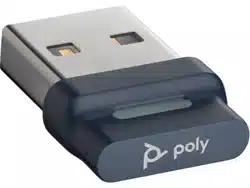

BT700
Bluetooth USB adapter
User Guide

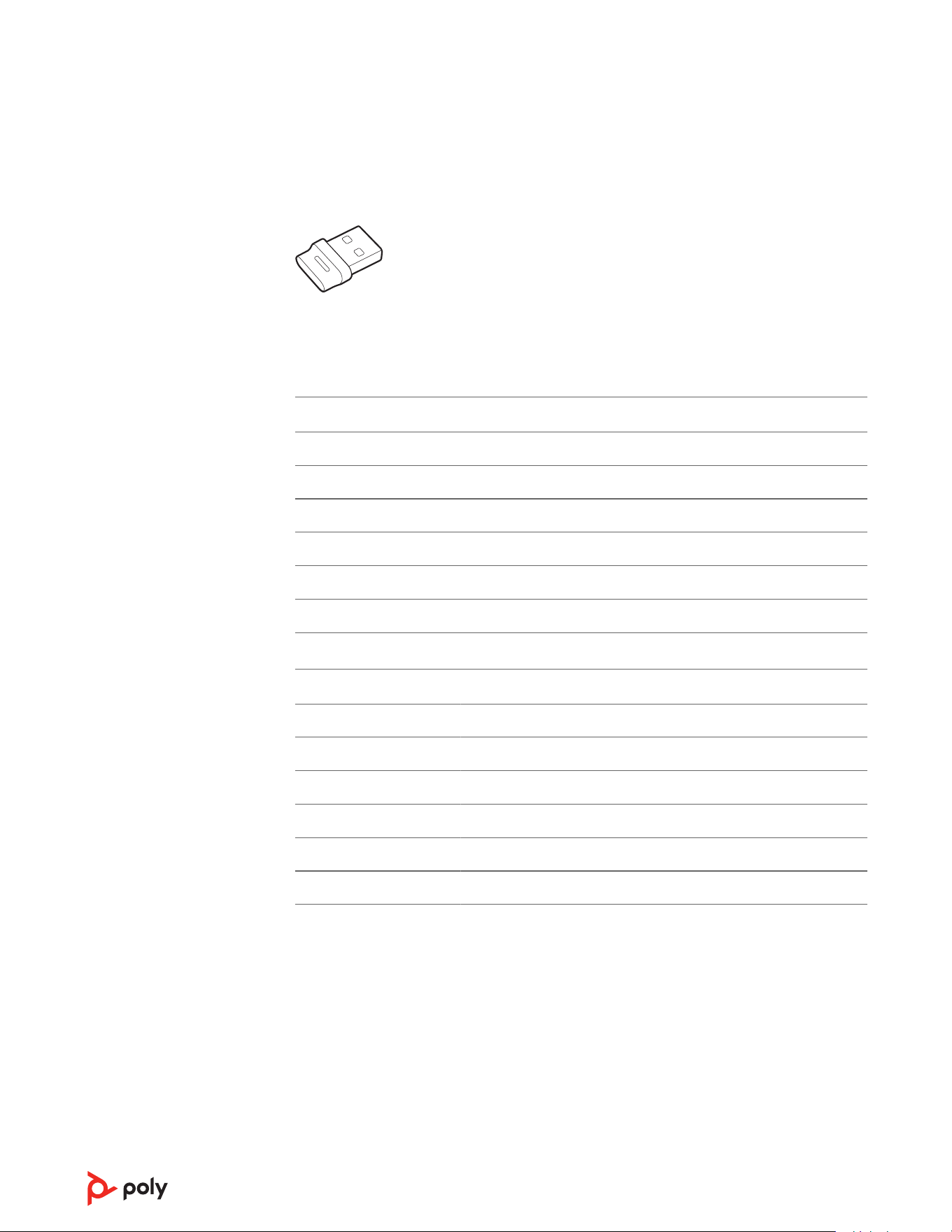
When paired to your Poly audio device and plugged into your computer, the Bluetooth
adapter LEDs indicate your audio status.
NOTE Adapter's USB connection and design may vary, but function is the same.
Standard LEDs
USB LEDs What they mean
Flashing red and blue Pairing
Solid blue Device connected
Flashing blue On a call
Solid red Mute active
Flashing purple Streaming media from computer
LEDs when Microsoft Teams* is detected
USB LEDs What they mean
Flashing red and blue Pairing
Solid purple Microsoft Teams connected
Flashing blue On a call
Solid red Mute active
Pulsing purple Microsoft Teams notification
NOTE *Requires Microsoft Teams desktop application.
USB Bluetooth adapter
3

Typically, your high-fidelity Bluetooth USB adapter is pre-paired to your headset. In the
event that your adapter is disconnected or bought separately, pair the adapter to your
headset.
1 Insert the high-fidelity Bluetooth USB adapter into your laptop or computer and wait for
your computer to recognize it.
2 Put your headset in pair mode (refer to your headset's user guide).
3 Put your Bluetooth USB adapter into pair mode by selecting "Pair" in Poly Lens Desktop
App. Your adapter LED flashes red and blue.
Pairing is successful when you hear "pairing successful" and "PC connected" and the
Bluetooth USB adapter LED is solid.
Pair your USB adapter
4
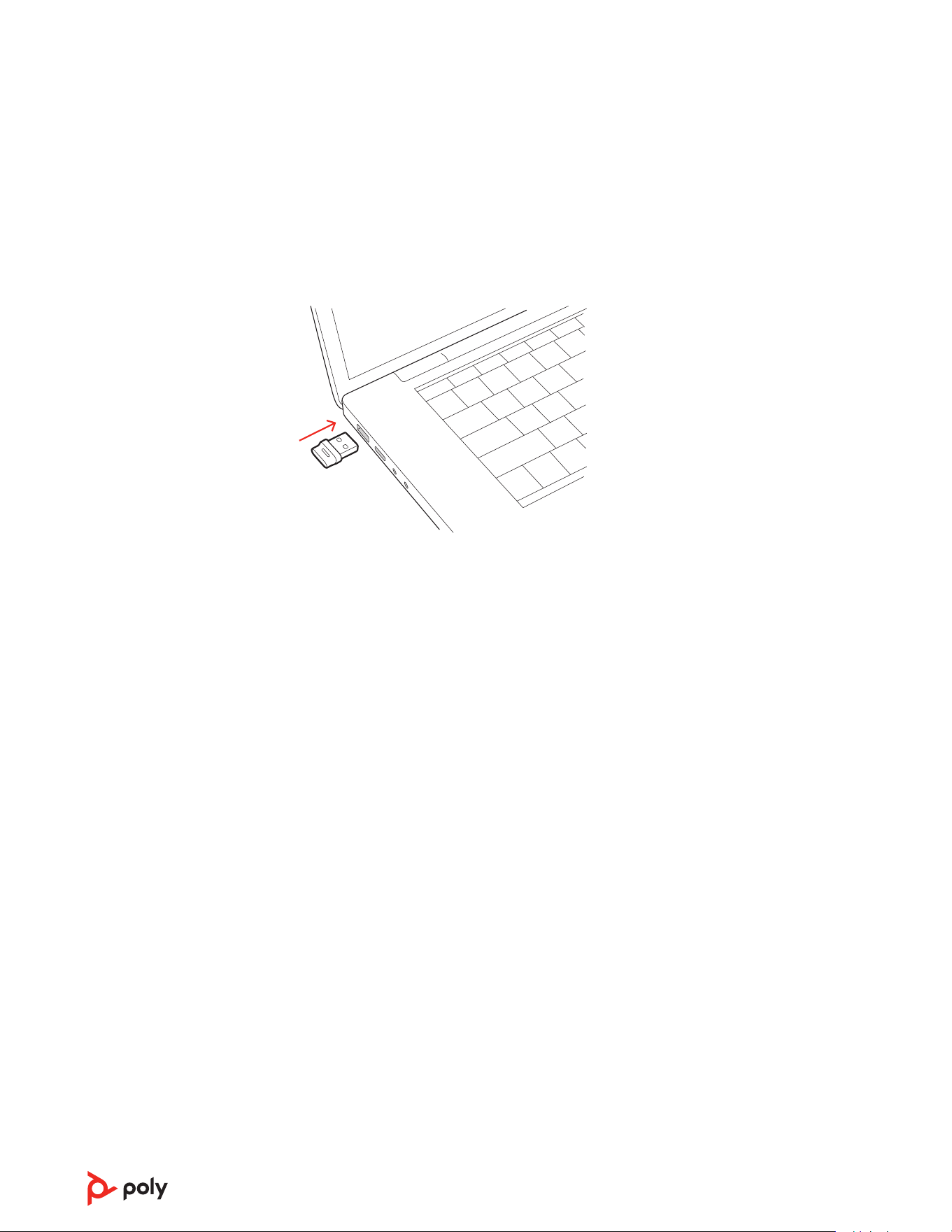
Your Bluetooth USB adapter provides the best connection, softphone functionality and
acoustic sound quality through your headset.
1 Turn on your headset and insert the Bluetooth USB adapter into your laptop or PC.
2 The USB adapter LED flashes and then turns solid to indicate the headset is connected to
the USB adapter. If you are wearing your headset you hear “PC connected” to indicate the
connection has been established. When on a call, the LED on the USB adapter flashes blue.
When not on a call the LED is solid.
3 Load Poly Lens Desktop App by visiting poly.com/lens. This allows you to customize your
headset behavior through advanced settings and options.
Your high-fidelity Bluetooth USB adapter comes ready to take calls. To stream media,
configure your Bluetooth USB adapter.
Windows
1 To configure your Bluetooth USB adapter for streaming media in your PC, go to Start menu
> Control Panel > Sound > Playback tab. Select Poly BT700 set it as the Default Device and
click OK.
2 To pause music when you place or receive calls, go to Start menu > Control Panel > Sound >
Communications tab and select the desired parameter.
Mac
1 To configure your Bluetooth USB adapter for streaming media on your Mac, go to System
Preferences > Sound. On both the Input and Output tabs, select Poly BT700.
Connect to PC
Configure USB adapter
for streaming media
5
Download Poly Lens App to get the most out of your device. Some softphones require the
installation of Poly software to enable device call control (answer/end and mute)
functionality.
• Download Poly Lens Desktop App at poly.com/lens.
• Download Poly Lens Mobile App at poly.com/lens, the App Store or Google Play.
Poly Lens Mobile App Poly Lens Desktop App
Configure call control for
softphones
available for some
softphones
✓
Change headset language ✓ ✓
Enable features ✓ ✓
Battery meter ✓ ✓
Update device firmware ✓ ✓
Manage notifications and
alerts
✓ ✓
Schedule health and wellness
reminders
✓ ✓
View user guide ✓ ✓
Find MyHeadset ✓
Keep your firmware and software up-to-date to improve performance and add new
features to your Poly device.
Update your device using Poly Lens App. Download at poly.com/lens.
Load software
Update your Poly
device
6

Support
NEED MORE HELP?
poly.com/support
HP Inc.
1501 Page Mill Road
Palo Alto, CA 94304, U.S.A.
650-857-1501
HP REG 23010, 08028
Barcelona, Spain
HP Inc UK Ltd
Regulatory Enquiries, Earley West
300 Thames Valley Park Drive
Reading, RG6 1PT
United Kingdom
台灣惠普資訊科技股份有限公司
臺北市南港區經貿二路 66 號 10 樓
電話:02-37899900
©
2023 Poly. Bluetooth is a registered trademark of Bluetooth SIG, Inc. All trademarks are
the property of their respective owners.
RMN (Regulatory Model Number): BT700, BT700C
221599-06 09.23
7