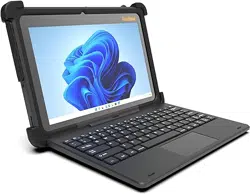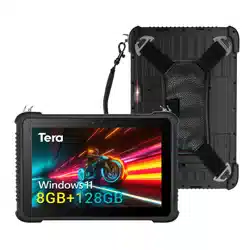

Model: T02W
Rugged Windows Tablet
Quick Start Guide

Please do not hesitate to contact us if you have
any questions.
Official Customer Service
Email: [email protected]
Cell: +1 (626)438-1404
Note:
When contacting Tera support, please have the following
information available
1. Order number
2. Model number
Follow us:
Instagram: tera_digital
Youtube: Tera Digital
Twitter: Tera Digital
Facebook: Tera
You can visit our official website using the link below or
by scanning the QR code provided:
https://www.tera-digital.com
Report missing or damaged items?
+1(626)438-1404
https://www.tera-digital.com
Unpack Your Device
Getting Started
After you open the shipping carton containing the product, take
the following steps:
1.Check for damage during shipment. Report damage
immediately to us.
2.Make sure the items in the carton match your order.
3.Save the shipping container for later storage or shipping
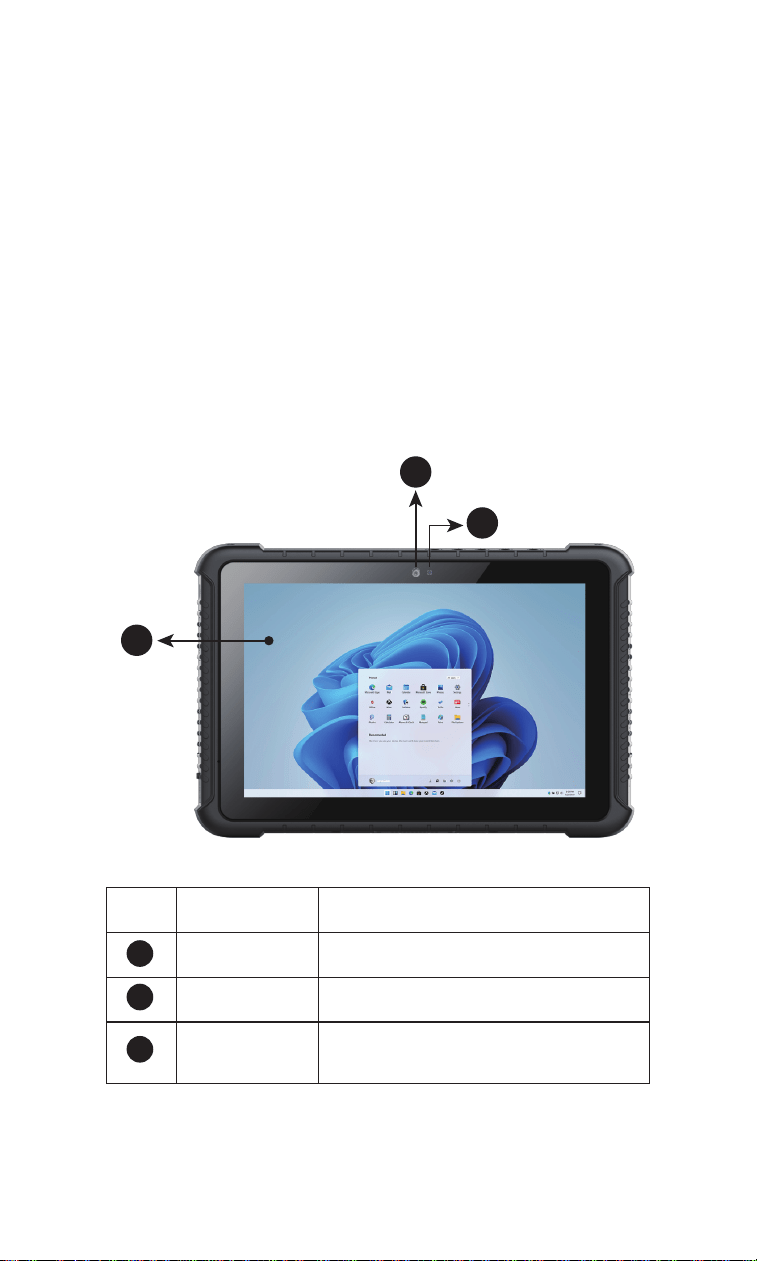
Features (Front)
Computer Features
No.
1
2
3
Feature
Touch Panel
Front Camera
Description
Corning gorilla glass touch screen
5 Megapixel
LED Indicator
Solid red when the device is starting
Blinks red when the battery is charging
1
3
2
1
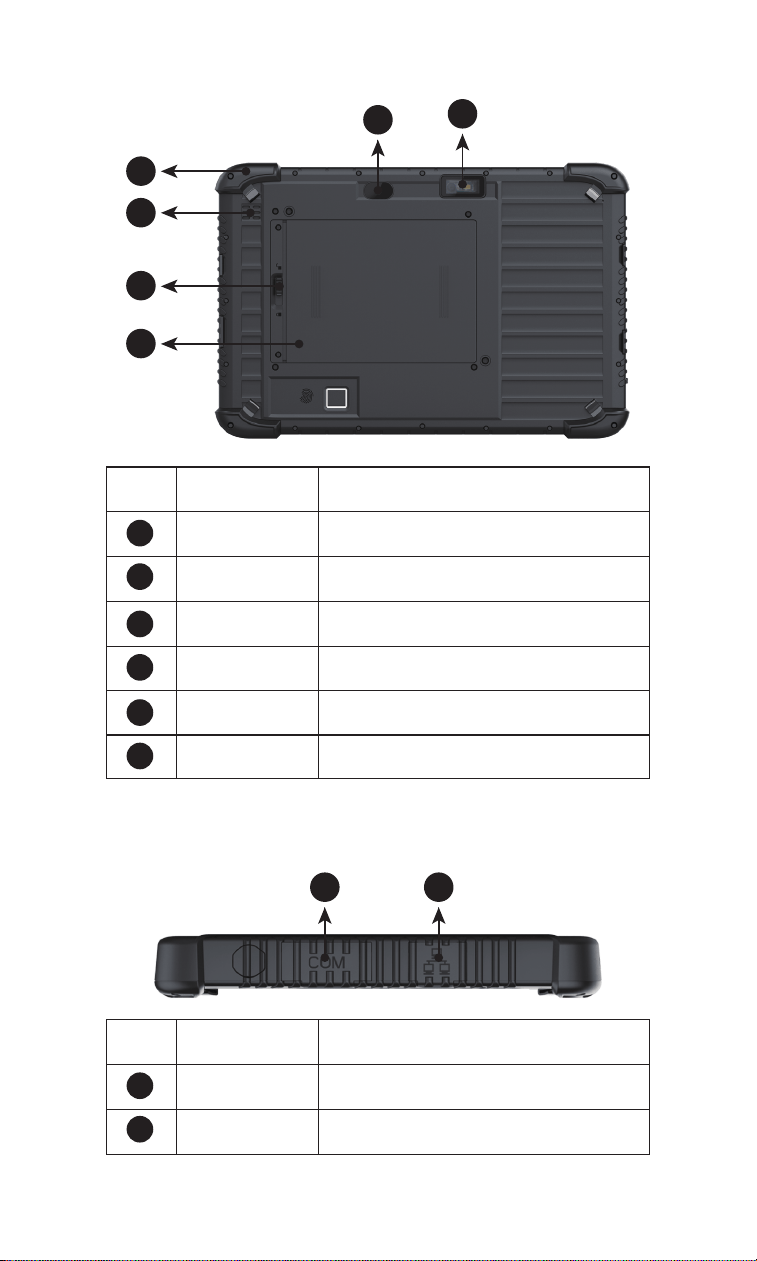
Features (Rear)
Features (Right Side)
No.
1
2
3
4
Feature
Anti Wrestling
Speaker
Description
Protect the device
Waterproof
Removable
Battery
8 MegapixelRear Camera
5
6
Capture barcodes
Scan Engine
Secure the batteryRelease Latch
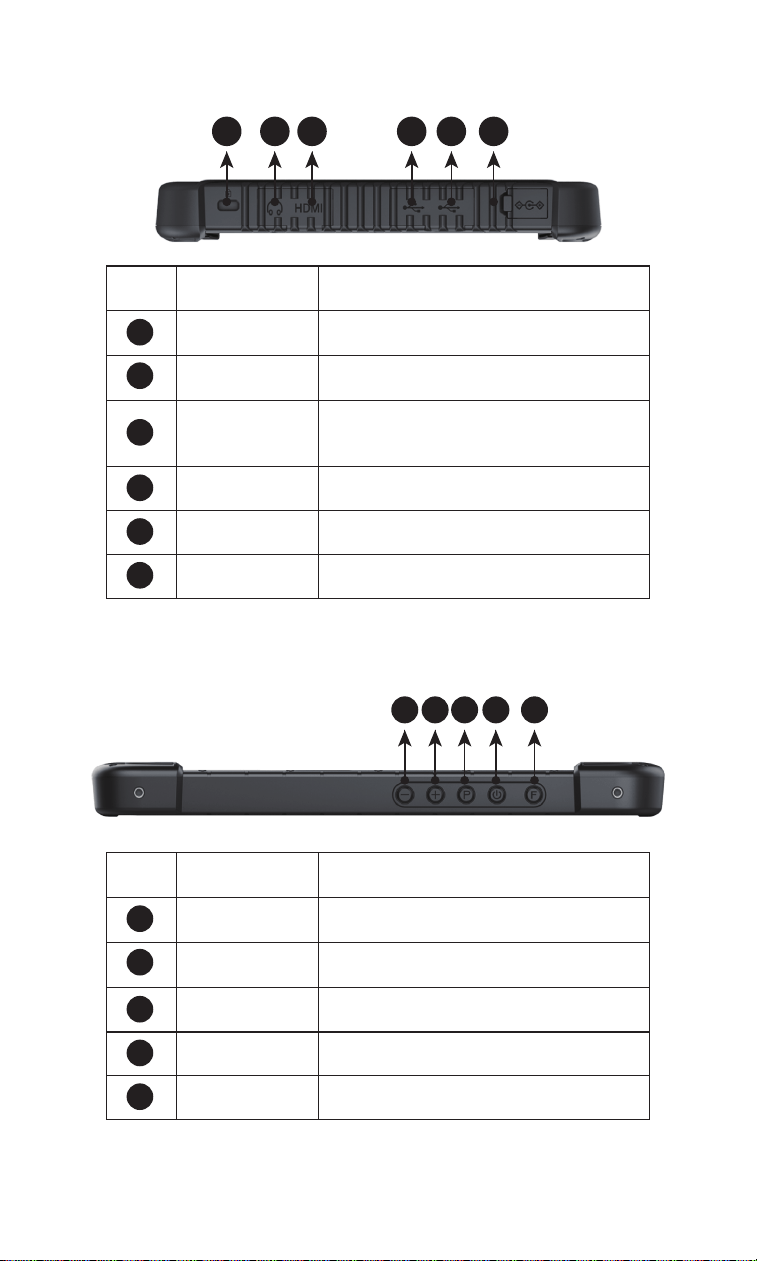
No.
1
2
Feature
RS232 Port
RJ45 Port
Description
Serial communication
Network cabling
2
3
2
1
4
5
6
1 2
Features (Left Side)
No.
1
2
3
4
Feature
DC Power Jack
USB-A Port
Description
Connect the power adapter
Connect USB device
Can connect devices that support
thunderbolt or USB-C
USB-C Port
Connect HDMI monitor or projectorHDMI Port
5
Connect the audio deviceAudio Jack
6
Secure the plate on an fixed objectSafety Lock
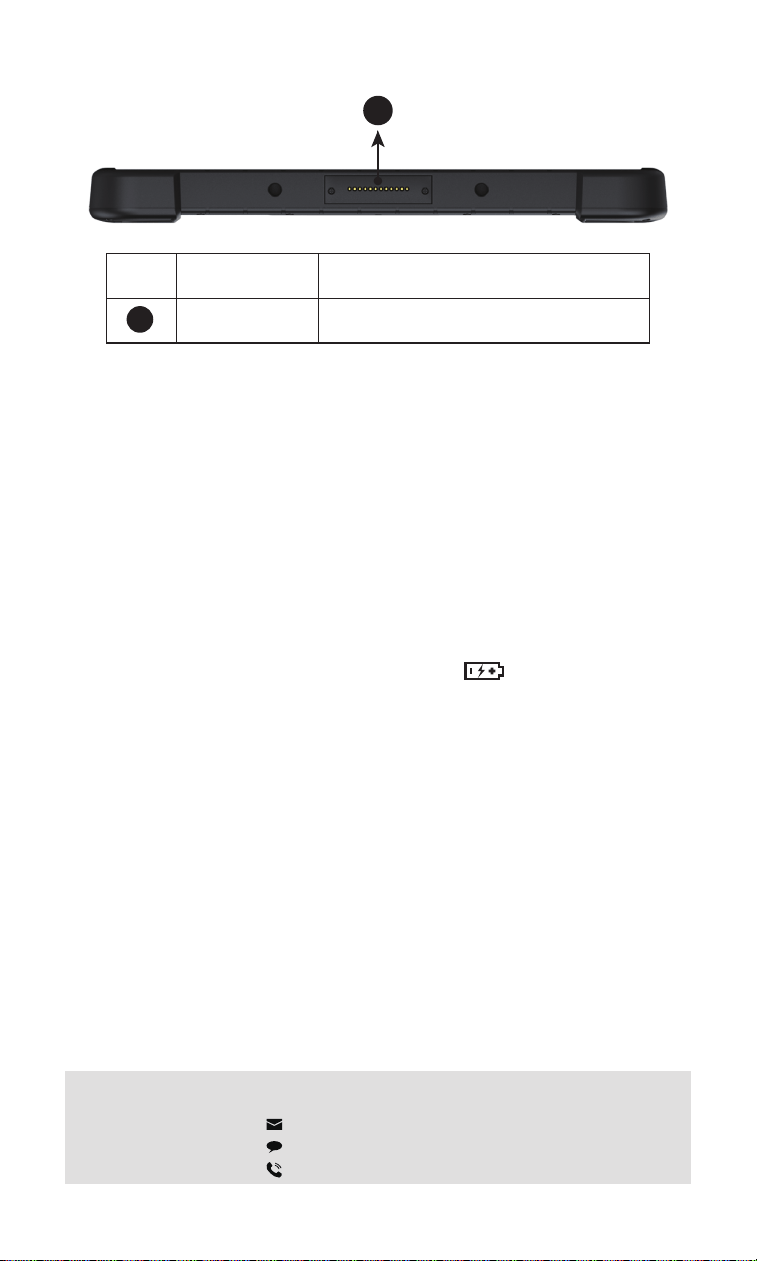
Features (Top)
No.
1
2
3
Feature
F key
Power Key
Description
Trigger the scan engine
Turn the device on and off
Custom keyP Key
4
Increase the volumeVolume + Key
5
Decrease the volumeVolume - Key
12345
3
6 45 3 2 1
Need Support?
+1(626)438-1404
https://www.tera-digital.com
The tablet uses a rechargeable Li-polymer battery as its power
source. Several factors determine the life of your battery, such as
display brightness, display timeout, input device, extreme
temperature, and usage. We recommend that you keep the
battery charged at all times to prevent data loss.
About the Battery
The battery life largely depends on how the tablet is used. If the
software you use requires frequent interaction with peripheral
devices, the battery may deplete quickly.
You can find the battery icon on the Windows taskbar (in the
lower-right corner). It shows the battery level or charging status.
Check the Battery Level
Charge the Battery
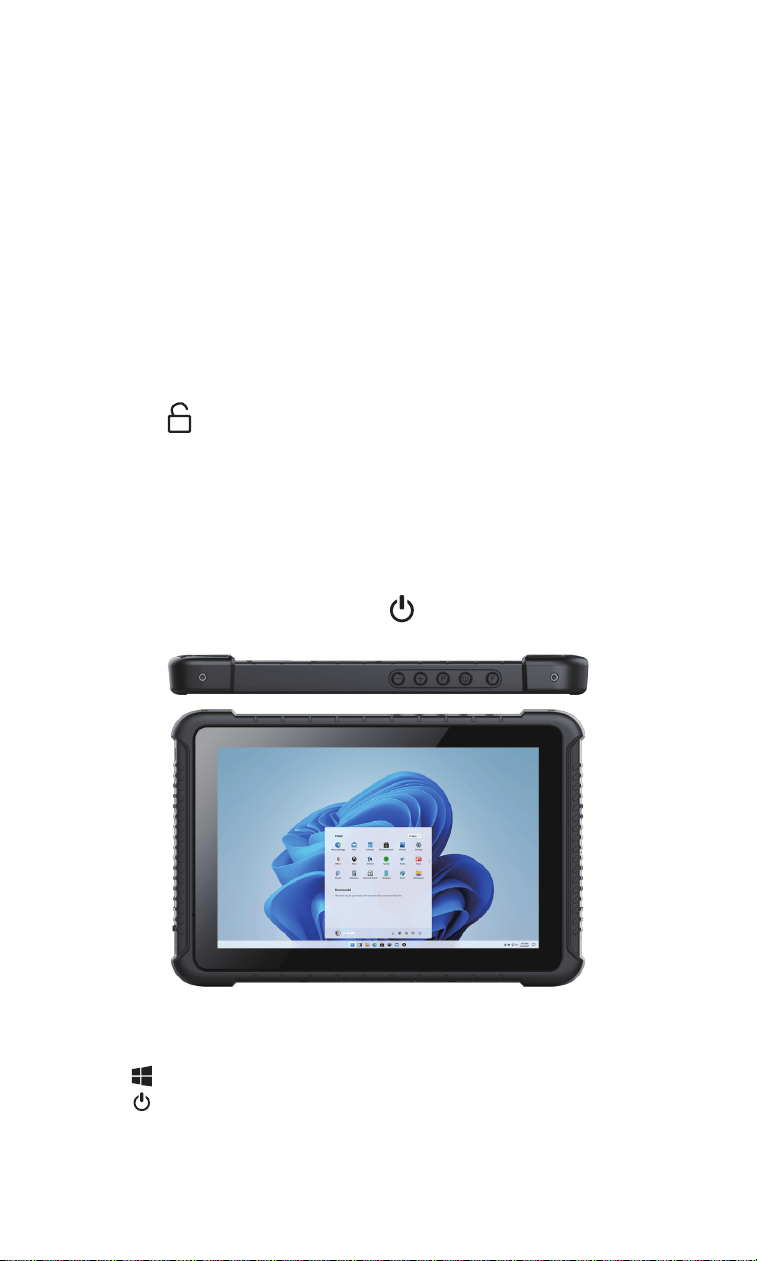
Features (Bottom)
No.
1
Feature
Pogo PIN
Description
Connect docking charger
4
1
To charge the battery pack, connect the AC adapter to the tablet
and an electrical outlet. The battery icon ( ) in the status bar
indicates charging status. When the battery is fully charged, the
icon shows green.
Press and hold the power button ( ) until the red LED lights up.
1.Tap
2.Tap
3.Tap Shut Down
Turning the Power On or Off
To turn the tablet off:
To turn the tablet on:
Caution:
- Do not attempt to disassemble the battery pack.
- The battery pack may become hot during prolonged use. Avoid
touching it with bare hands. After removing the battery pack,
place it in a well-ventilated area.
Note: Before replacing the battery, ensure the device is turned off
to save any work in progress.
1. Carefully turn the tablet over so that the bottom is facing
upward.
2. Locate the battery compartment.
3. Press and push the battery release latch to the unlocking
position ( ). Once the latch is in the unlocked position, push
the battery cover toward the door latch slightly.
4. Remove the battery pack.
Replace the Battery
5

Environmental
TPM SLB9670VQ2.0 FW7.85
Security
6
Specifications
Mechanical
Dimensions (WxLxH):
280.4x187x26.6mm/11.04x7.36 x 1.05 in
Weight:
1014g/35.76oz without battery
Display:
10.1 in, 400 nits brightness; aspect ratio:16:10;
1920 x 1200 resolution
Camera:
Rear: 8 MP with flash; Front: 5 MP
Sensors:
G-sensor
Audio:
Integrated Waterproof 1W speaker
Battery:
Removable Li-polyment Battery
5000mAh/7.4V, battery life 6.5 hours
(50% volume, 50% brightness 1080P HD video playback )
System Architecture
Intel JASPER LAKE N5100 processor 1.10 GHz,
Burst Frequency 2.8 GHz
Processor:
Windows 11 Home
Operating System:
RAM 8GB DDR; ROM 128GB EMMC
Memory:
Up to 512GB
Storage Expansion:
Environmental Sealing:
IP65
Operating Temperature: -20°C to 60°C (-4°F to 140°F)
Storage Temperature: -30°C to 70°C (-22°F to 158°F)
Humidity: 95% RH, non-condensing
Transit Drop: 1.2 m (4 ft), MIL-STD-810G
Vibration: MIL-STD-810G
ESD:
+/-8 kV direct; +/-15 kV air

Need Support?
+1(626)438-1404
https://www.tera-digital.com
7
Data Capture
Scan Engine:
Honeywell N3680
Wireless Connectivity
WLAN:
WIFI 802.11(a/b/g/n/ac); Dual-band 2.4G+5.8G
WIFI Intel 9461
LTE (FDD):
Bands B1, B3, B5, B7, B8, B20
LTE (TDD):
Bands 40
Bluetooth: 5.1 (BLE) class1, transmission range:
10 m/32.81 ft
GPS:
GSP, Glonass
NFC:
NXP300, ISO/IEC
14443A/14443B/15693/18092/mifare,
read range 4 cm/1.57 in
Keys
Power *1 F Key (Trigger the scan engine)*1
Volume Up *1
Volume Down *1
P Key (Home) *1
I/O Ports:
USB 3.0 (Type A) *1 USB 3.0 (Type C) *1
Power Jack (12V 4A) *1
12-pin Pogo Pin *1
HDMI 2.0a mini *1
(RS232) TTL *1
RJ45 *1
TF Card Slot *1
Audio Jack *1
SIM Card Slot *1