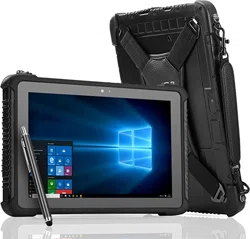

xTablet Flex 10B
2
User Manual
xTablet Flex 10B
Contents
1 Introduction
3
Acknowledgments 3
Safety Notice 3
2 xTablet Diagrams
4-5
Use of xTablet and Keyboard 6
3 Introduction to Desktop
7
Image Slide Applications 7
Cortana 7
Introduction to App Interface 8
Start Menu 10
Multitasking Operating Interface 12
Sleep, Shut Down, Restart 13
VIEW
VIEW
VIEW
VIEW
VIEW
VIEW
VIEW
VIEW
VIEW
VIEW
VIEW
VIEW
xTablet Flex 10B
3
1 Introduction
Acknowledgments
Congratulations on the purchase of MobileDemand’s xTablet
®
Flex 10B. Designed and
tested to meet our exacting standards ensures dependability and customer satisfaction.
Refer to this manual to guide you through the basic functions and features.
Safety Notice
Read the safety instructions carefully and thoroughly. All cautions and warnings on the equipment and
user’s manual should be noted.
Keep this equipment away from humidity, high temperature and ammable liquids.
Adhere to hospital protocol as it pertains to mobile devices to avoid interference with medical equipment
• To avoid damage do not leave the equipment in an unconditioned environment with a
storage temperature above 160ºF or below -22ºF (-30ºC to 71ºC).
• Operating temperature of 32ºF to 120ºF (0ºC to 49ºC) for light loading applications.
When using the USB data line, observe the guidelines provided in this manual to avoid damage.
Do not store near magnetic storage equipment.
Never pour liquid into the opening. Damage to the equipment or electrical shock could result.
xTablet Flex 10B
4
2 xTablet Diagrams
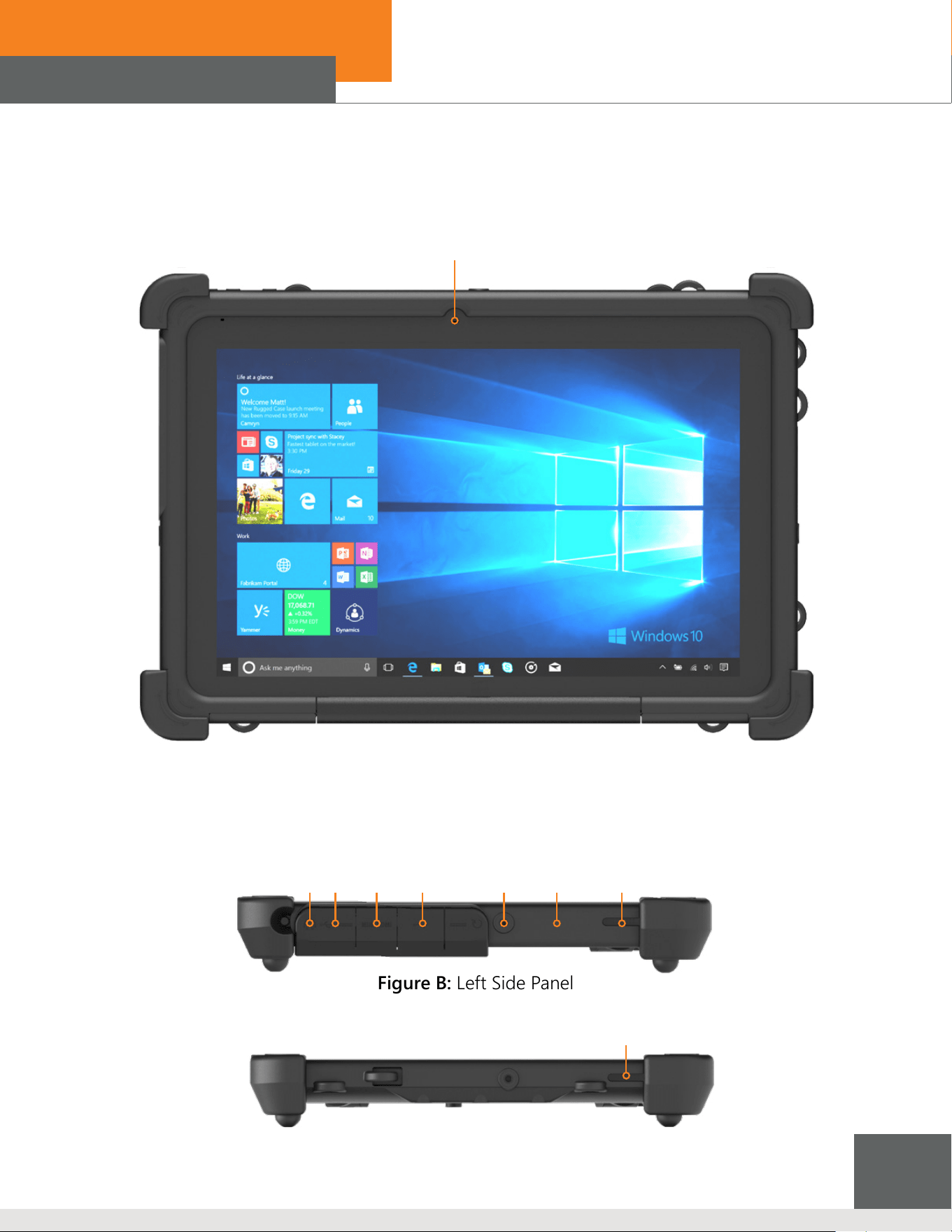
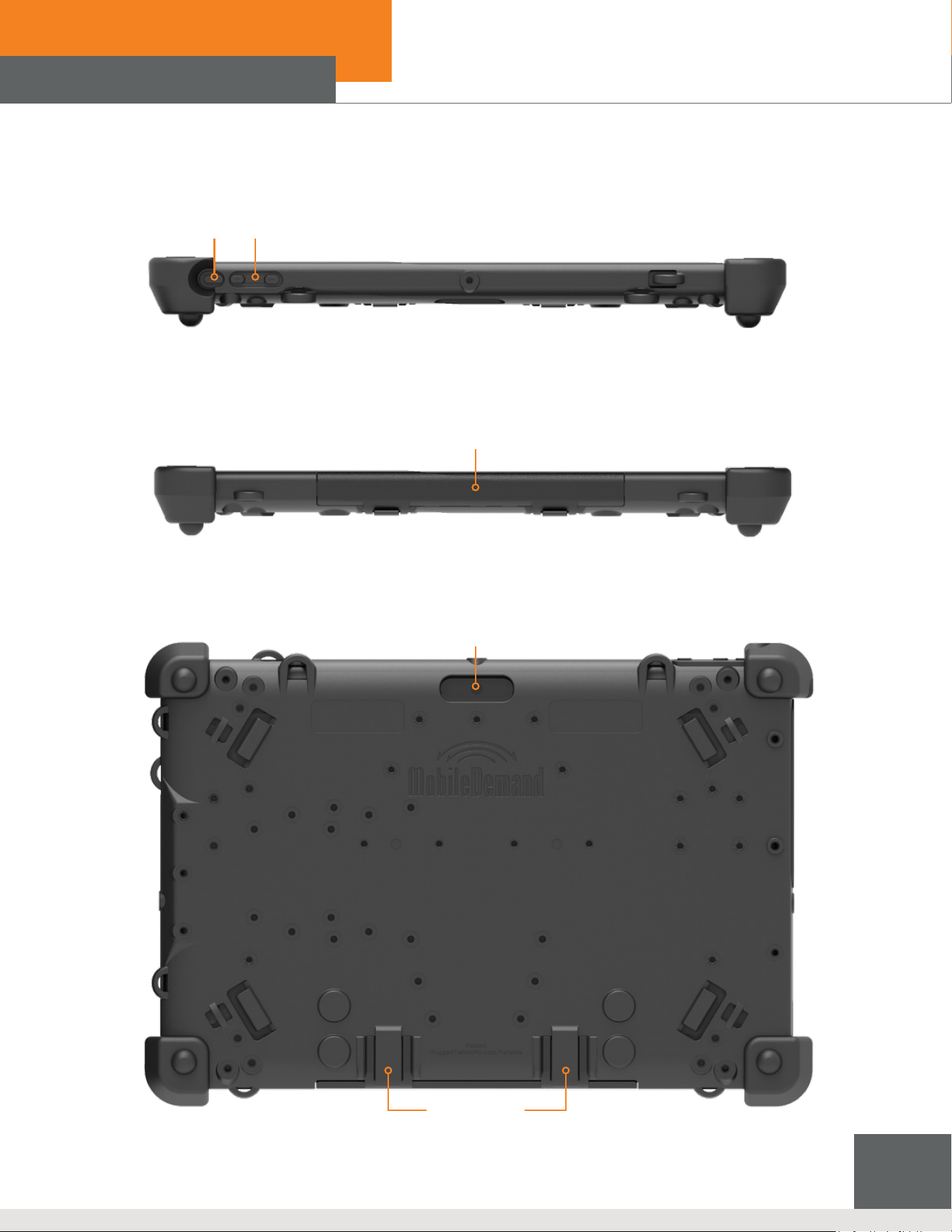
FRONT CAMERA
Figure A: Front Panel
Figure B: Left Side Panel
TYPE-C
DC
MINI HDMI
USB 3.0
EARPHONE
SD CARD
SPEAKER
Figure C: Right Side Panel
SPEAKER
xTablet Flex 10B
5
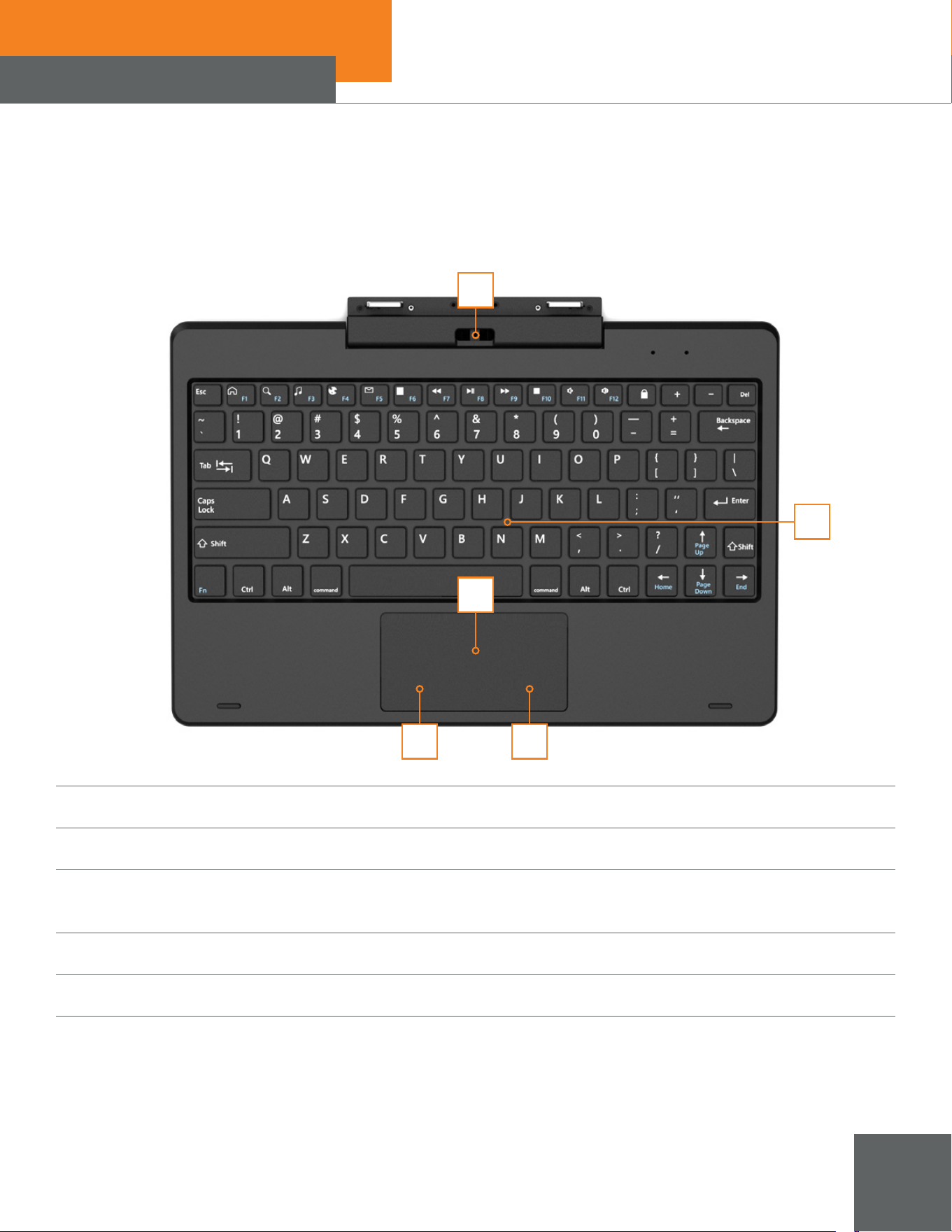
Figure D: Top Side Panel
VOLUME KEYPOWER
Figure E: Bottom Side Panel
REMOVABLE SNAP WALL
POGO PIN
REAR CAMERA
Figure E: Back Panel
REMOVABLE
SNAP WALL
xTablet Flex 10B
6
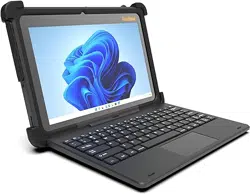
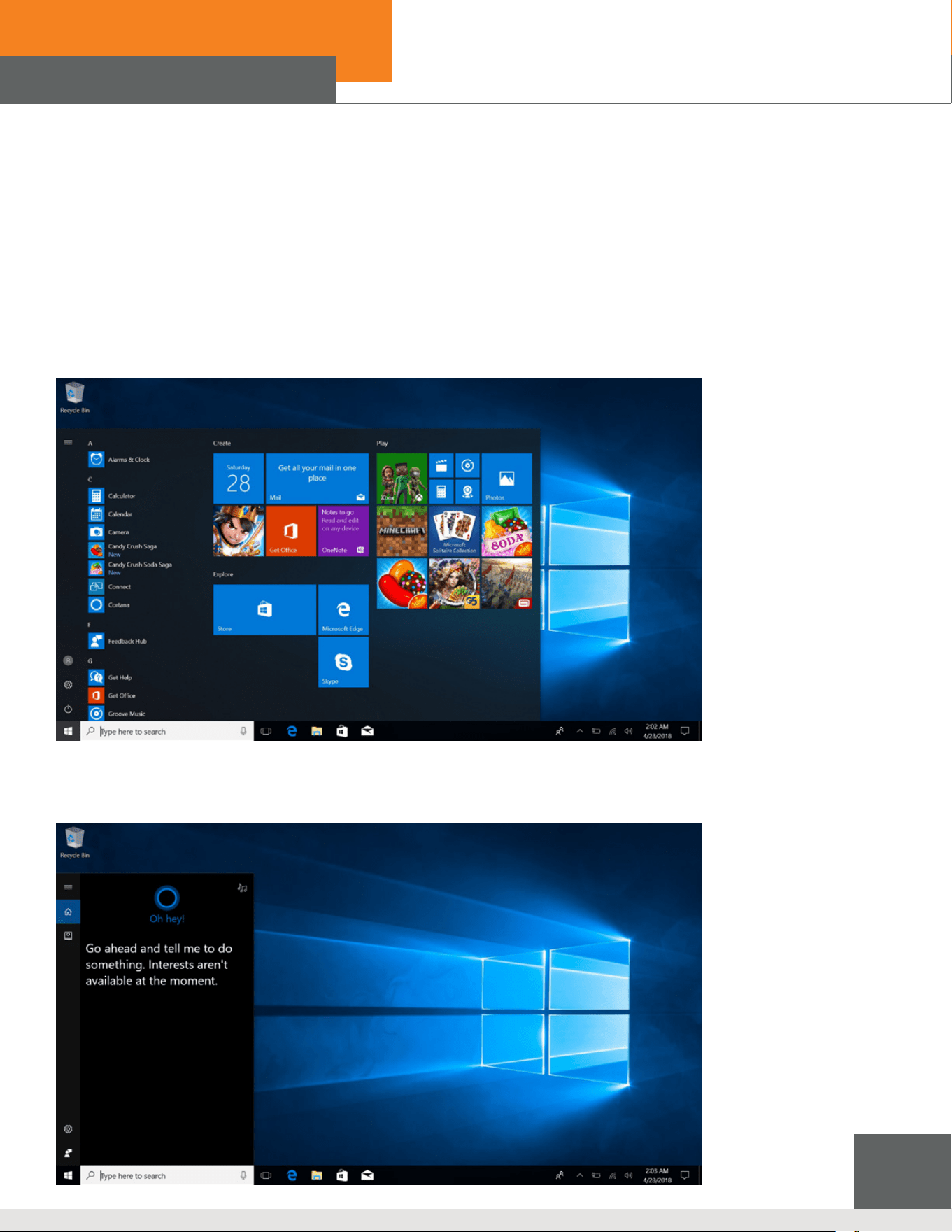
Optional Keyboard
2
1
3
4 5
1. Flexible Base Keyboard Interface: Magnetic attachment holds keyboard rmly in place
2. Keyboard Group: Full size QWERTY key.
3. Touch Tablet: Cursor control similar to mouse
4. Left Key
5. Right Key
xTablet Flex 10B
7
3 Desktop
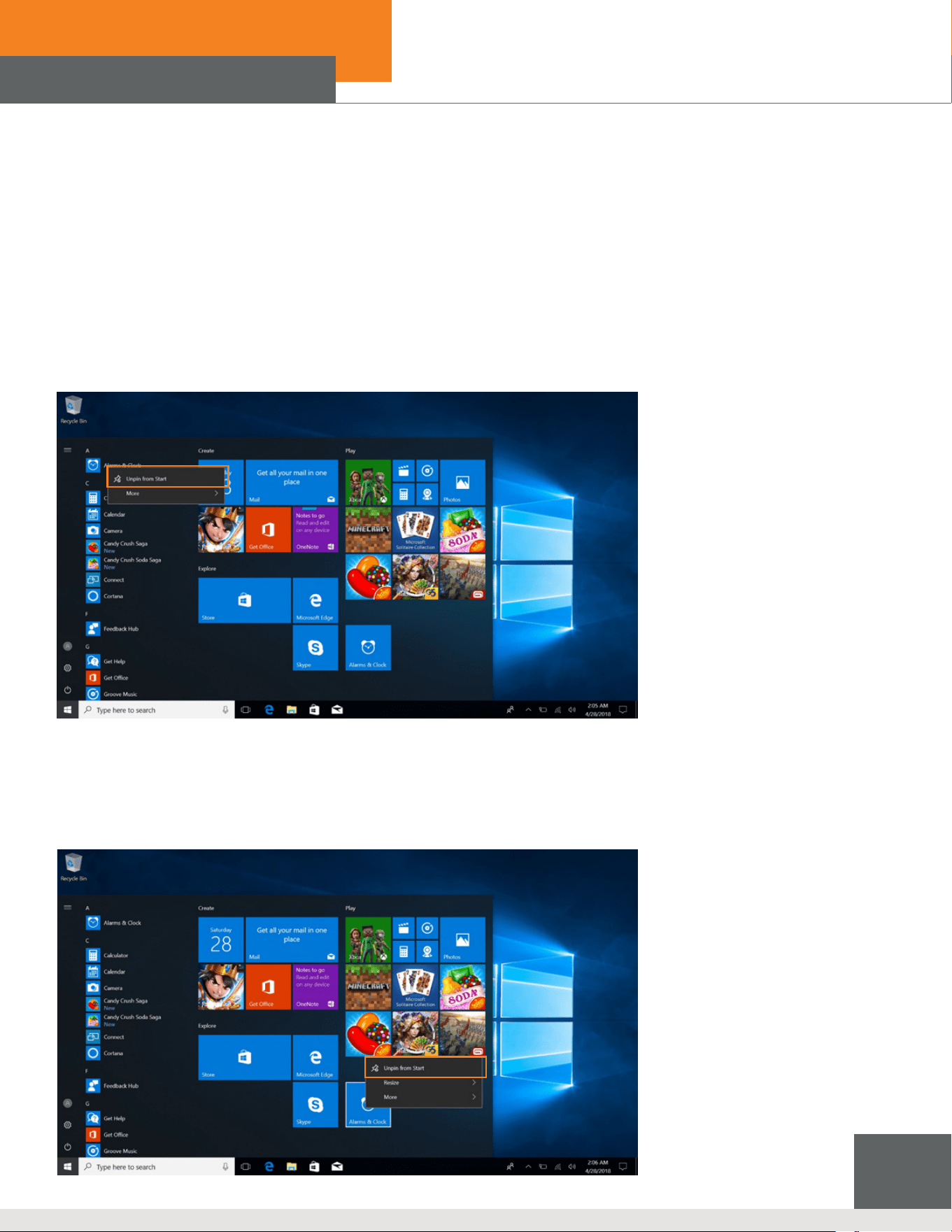
Windows 10 start image: On the start screen, you can see many programs xed in the image.
These application programs are displayed in the form of “magnet”.
Use Cortana for fast smart searching.
You need to log on your Microsoft account before the application program completely runs
Cortana
Image Slide Application
xTablet Flex 10B
8
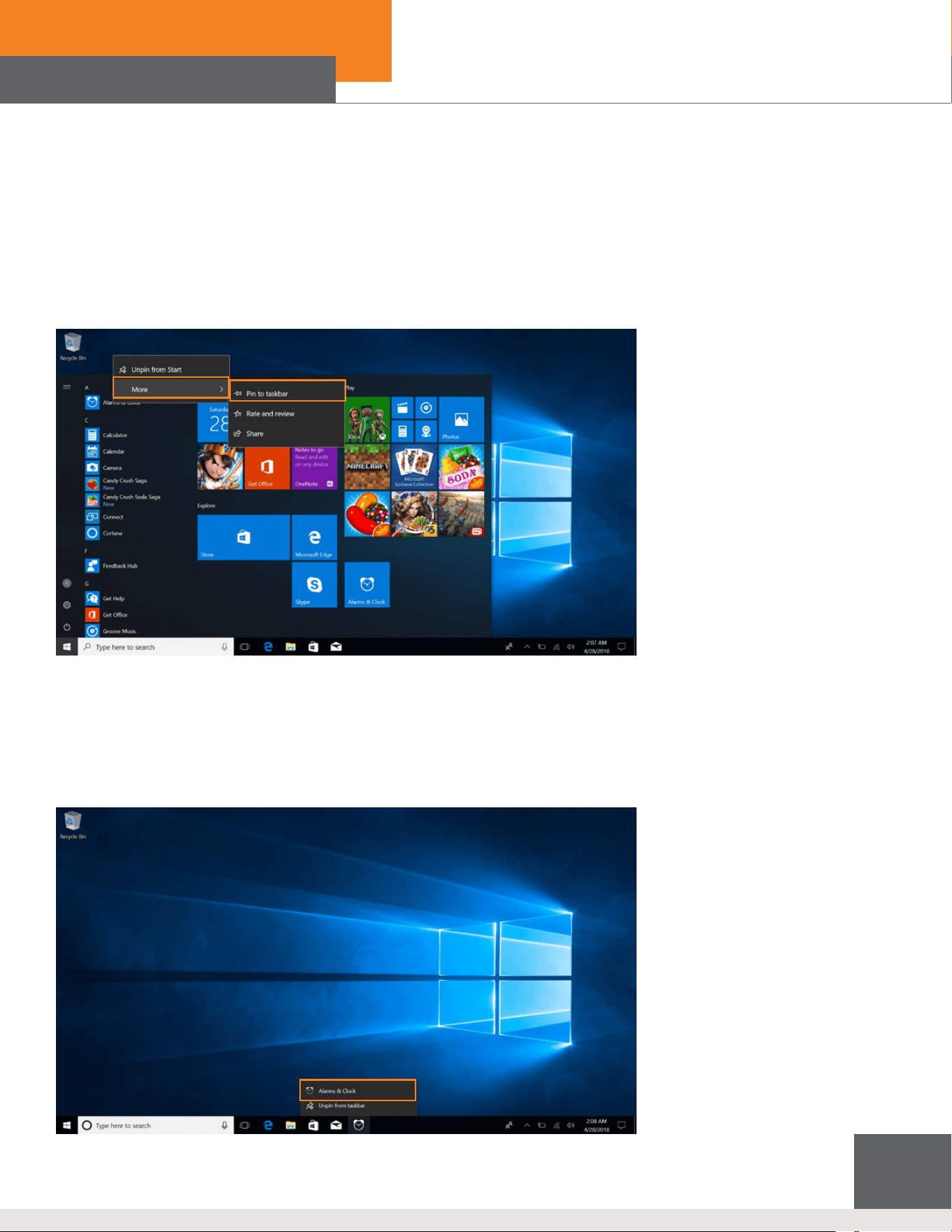
Besides the application programs already xed on the “start” screen, you can also x other applications,
programs, folders, etc to the “start” screen.
If you want to x more application programs on the start interface, see the operation in the gure below.
In the start menu, right-click the application you want to x and select “Pin to Star”.
You can also drag the application onto the “start” screen, as follows:
Conversely, if you want to cancel or delete a certain application in the start screen:
(1) Right-Clicking the application
(2) Click the “Unpin from Start”.
Introduction to App Interface
xTablet Flex 10B
9
If you want to x more application programs on the taskbar, see the operation in the gure below.
In the start menu, right-click the application you want to x and select “More”, and then select
“Pin to Taskbar”. You can also drag the application onto the “start” screen, as follows:
Conversely, if you want to cancel or delete a certain application in the taskbar:
(1) Right-Clicking the application
(2) Click the “Unpin this program from taskbar”.

xTablet Flex 10B
10
3.6 Start Menu
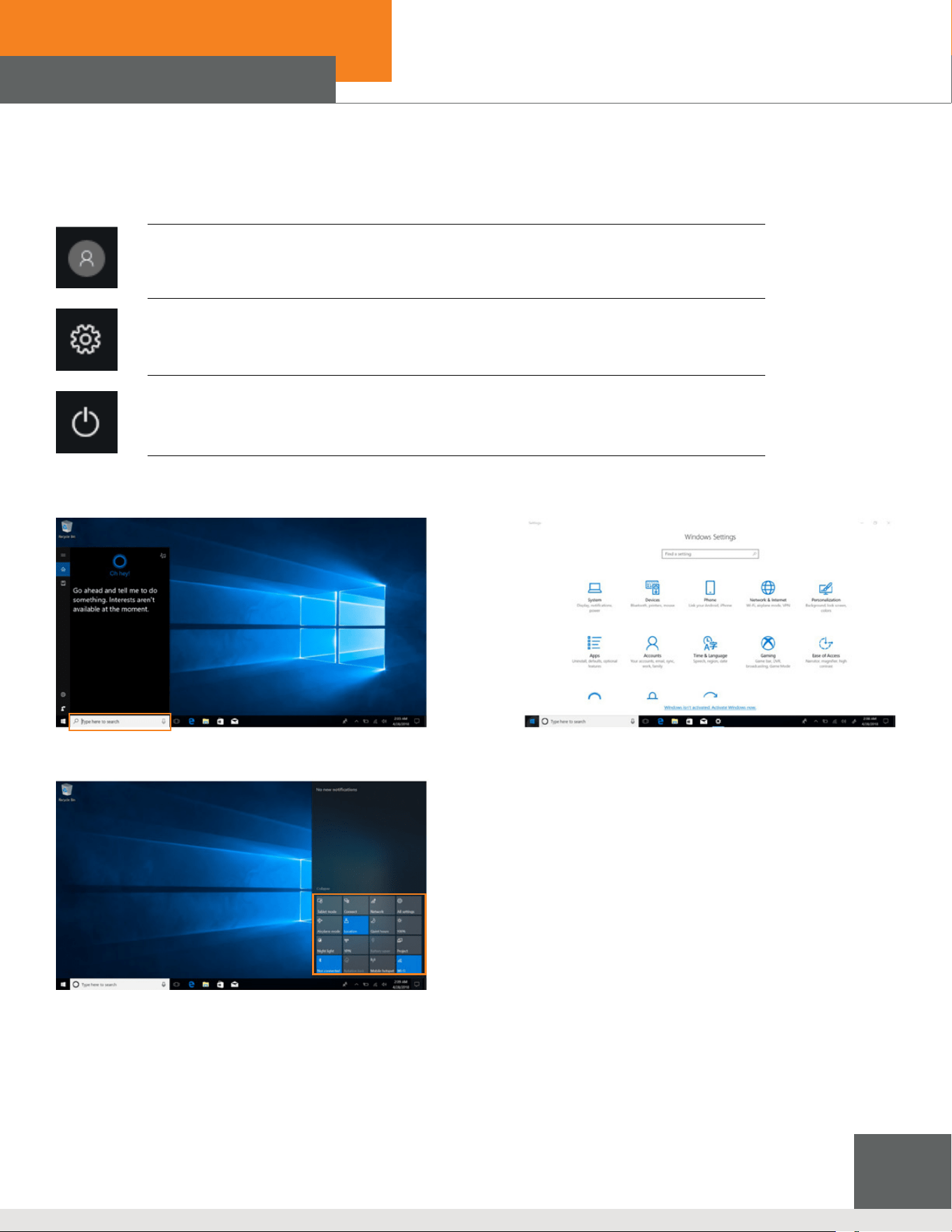
Under PC mode, press Start icon, Start Menu will display including:
Start, Device, Setup, Share, and Search Program.
xTablet Flex 10B
11
Setup Menu
Search Menu
Power, Settings, Account
Account Settings, Lock, Sign Out
Sleep, Shut Down, Restart
Action Center
Action Center is a notication center also allows for quick settings like Tablet / PC mode, Wi-Fi, Bluetooth etc.

xTablet Flex 10B
12
Multitasking Operating Interface
If you Click the Task View(or press the icon ), the running applications will be display. We can enter
the application, also can be deleted.

xTablet Flex 10B
13
Sleep, Shut Down, Restart

Contact our sales team today | [email protected] | 319.363.4121
1501 Boyson Square Drive | Suite 101 | Hiawatha, Iowa 52233 | 319.363.4121 |
©2021 MobileDemand, LC | All trademarks are property of their respective owners.
VERSION 09.28.21