INREACH
®
MESSENGER PLUS
Owner’s Manual

© 2024 Garmin Ltd. or its subsidiaries
All rights reserved. Under the copyright laws, this manual may not be copied, in whole or in part, without the written consent of Garmin. Garmin reserves the right to change
or improve its products and to make changes in the content of this manual without obligation to notify any person or organization of such changes or improvements. Go to
www.garmin.com for current updates and supplemental information concerning the use of this product.
Garmin
®
, the Garmin logo, ANT+
®
, fēnix
®
, inReach
®
, and TracBack
®
are trademarks of Garmin Ltd. or its subsidiaries, registered in the USA and other countries. Garmin Express
™
,
Garmin Messenger
™
, and Garmin Response
SM
are trademarks of Garmin Ltd. or its subsidiaries. These trademarks may not be used without the express permission of Garmin.
The BLUETOOTH
®
word mark and logos are owned by the Bluetooth SIG, Inc. and any use of such marks by Garmin is under license. Iridium
®
is a registered trademark of Iridium
Satellite LLC. Other trademarks and trade names are those of their respective owners.

Table of Contents
Introduction......................................1
Getting Started........................................ 1
Device Overview...................................... 1
Buttons.....................................................2
Turning On the Device......................... 2
Power Menu......................................... 2
Home Page Actions............................ 2
Status Icons......................................... 3
Pairing Your Phone and Activating the
Device...................................................... 3
Garmin Messenger App...................... 4
inReach Plus Services......................... 4
Iridium Satellite Network.....................4
Syncing inReach Data......................... 4
Main Menu............................................... 5
inReach Device Features.................. 5
Testing the Device...................................5
Messages................................................ 5
Sending a Check-In Message............. 5
Sending a Text Message.....................6
Replying to a Message........................ 6
Checking for Messages...................... 6
Viewing Message Details....................6
Deleting Messages.............................. 6
inReach Tracking.....................................7
Starting Tracking................................. 7
Stopping Tracking............................... 7
Sharing Your Tracking Page............... 7
SOS........................................................... 7
Initiating an SOS Rescue..................... 8
Sending a Custom SOS Message.......8
Canceling an SOS Request................. 8
Weather............................................9
Requesting an inReach Weather
Forecast................................................... 9
Updating an inReach Weather
Forecast................................................... 9
Changing the Weather Location............. 9
Navigating Using TracBack®.......... 10
Data Use and History...................... 10
Viewing Plan Details............................. 10
Viewing Data Use.................................. 10
Customizing the Device.................. 11
Tracking Settings.................................. 11
Sounds Settings.................................... 11
Phone Settings...................................... 11
inReach Remote Settings..................... 11
System Settings.................................... 12
Calibrating the Compass.................. 12
Time Settings.................................... 12
Units Settings.................................... 13
Using Reverse Charging.................... 13
Device Information......................... 13
Product Updates................................... 13
Setting Up Garmin Express............... 13
Getting More Information................. 14
Viewing E-Label Regulatory and
Compliance Information....................... 14
Locking and Unlocking the Buttons..... 14
Device Care............................................14
Cleaning the Device...........................14
Troubleshooting.................................... 14
Maximizing Battery Life.................... 14
Resetting All Default Settings........... 15
My device is in the wrong
language............................................ 15
Charging the inReach Device............... 15
Saving Energy While Charging the
Device.................................................16
Specifications........................................16
Battery Information........................... 16
Table of Contents i

Introduction
WARNING
See the Important Safety and Product Information guide in the product box for product warnings and other
important information.
Getting Started
When using your inReach satellite communicator the first time, you should complete these tasks to set it up and
get to know the basic features.
1 Press to turn on the satellite communicator.
2 Select your language.
3 Download the Garmin Messenger
™
app to your smartphone, and follow the on-screen instructions to pair and
activate your satellite communicator (Pairing Your Phone and Activating the Device, page3).
4 Sync your satellite communicator with the Garmin Messenger app (Syncing inReach Data, page4).
5 Test your satellite communicator before you begin your trip (Testing the Device, page5).
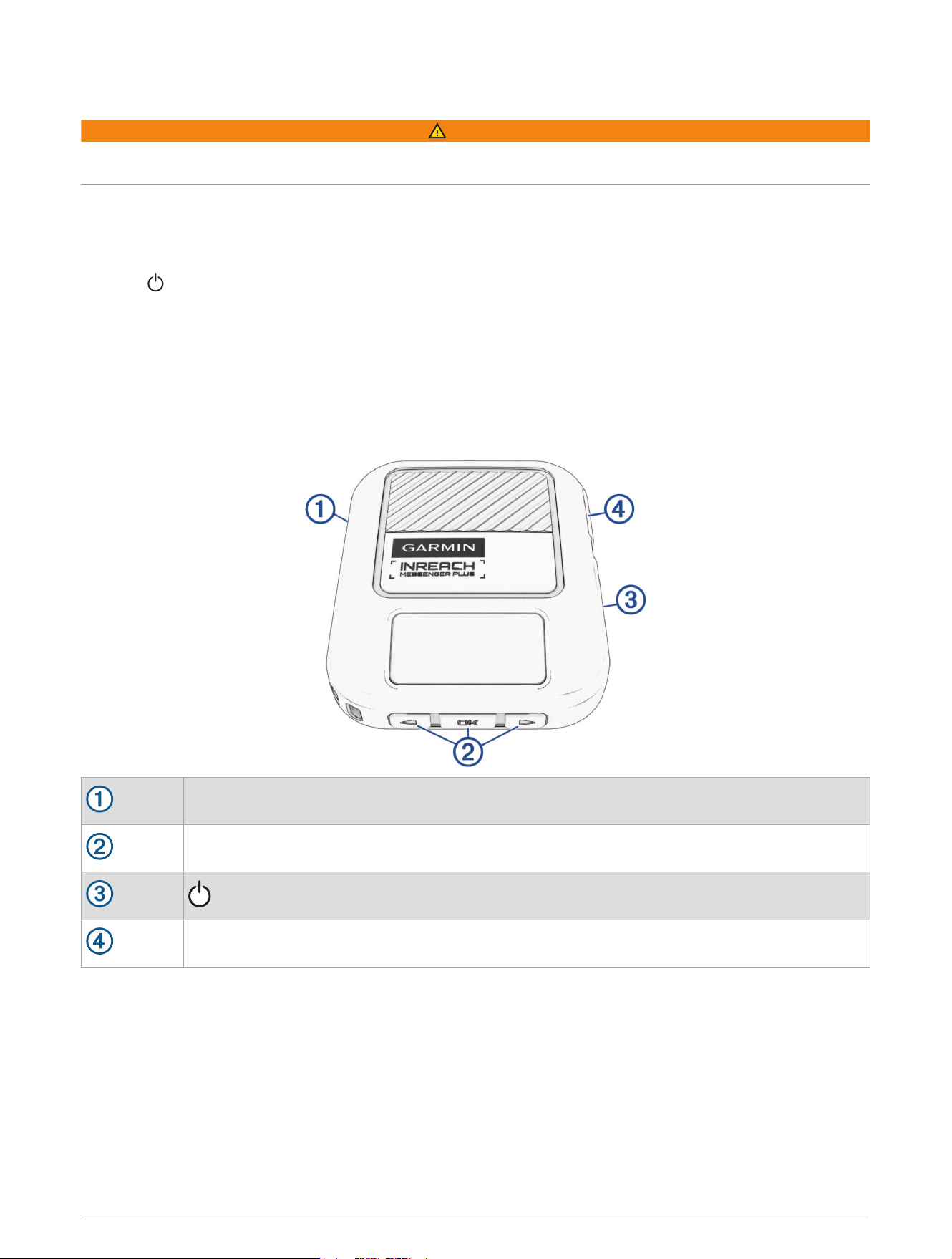
Device Overview
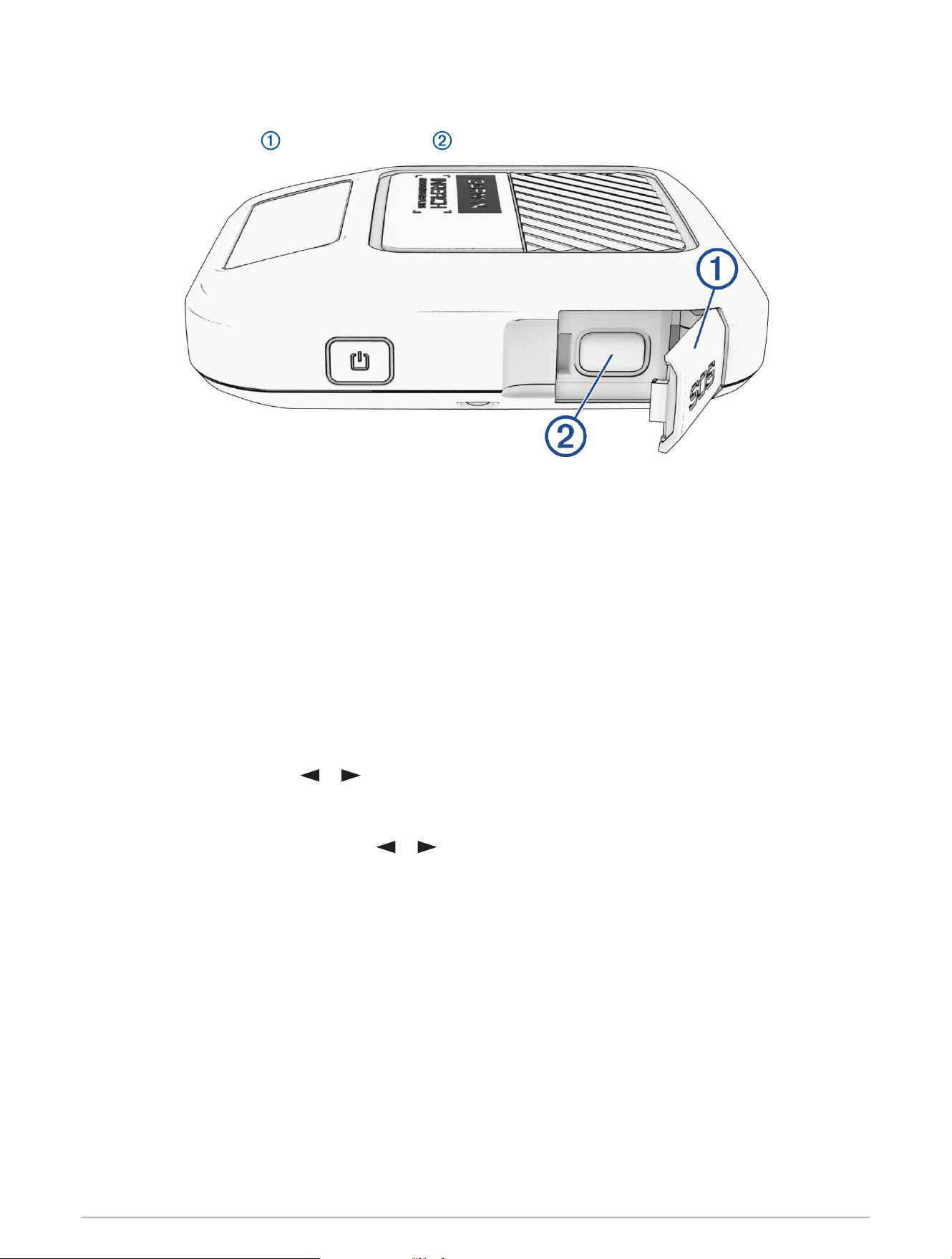
USB port (under weather cap)
Buttons
Power button
SOS button (under protective cap)
Introduction 1
Buttons
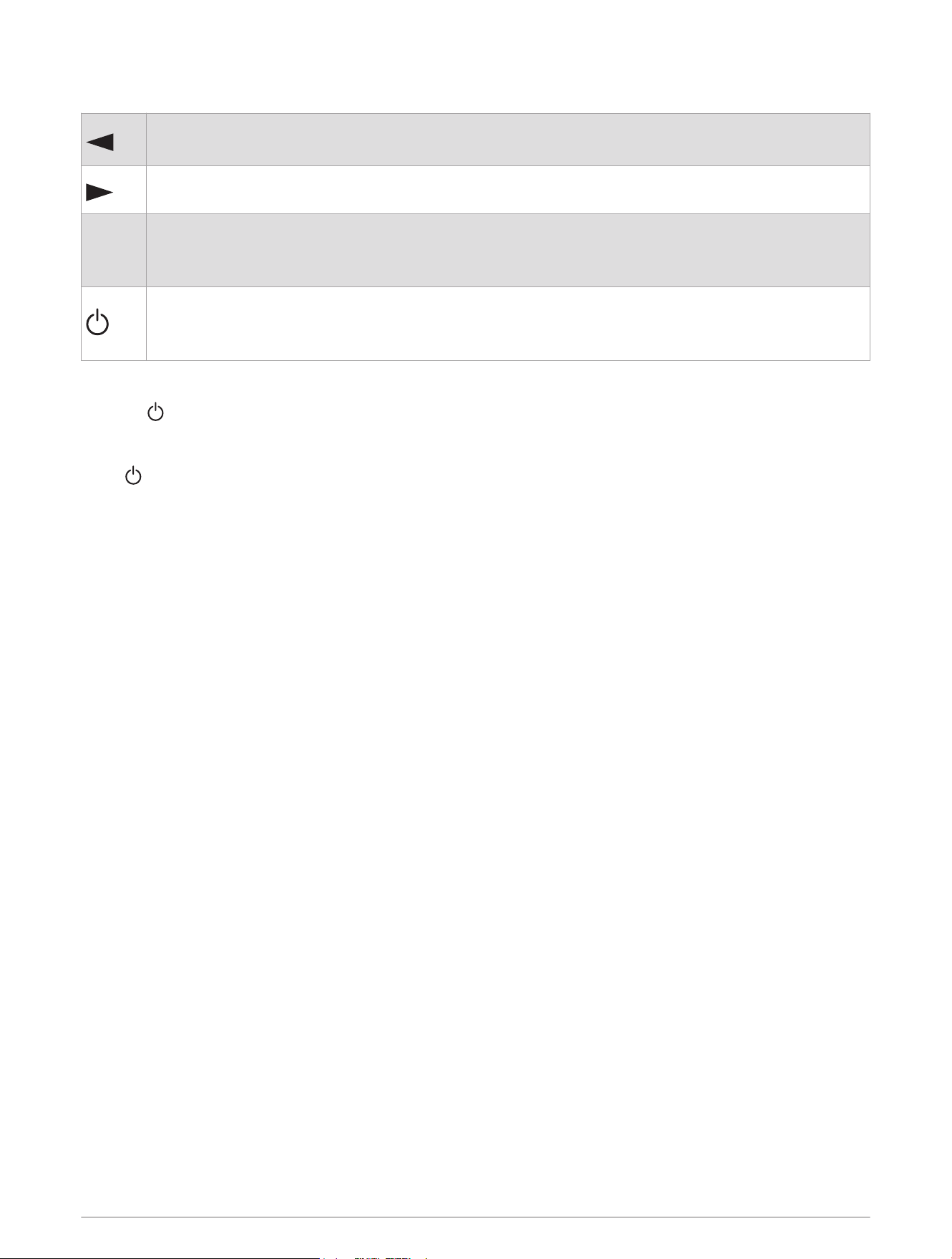
Press to scroll through menus, options, and settings.
Press and hold to return to the previous page.
Press to scroll through menus, options, and settings.
OK
Press to choose an option or to acknowledge a message.
Press and hold to return to the home page.
From the home page, press to open home page actions.
Press to turn the device on.
Press to open the power menu.
Press and hold to turn the device off.
Turning On the Device
Press .
Power Menu
Press to open the power menu.
Lock Buttons: Locks the device buttons to prevent inadvertent button presses.
Mute Sounds: Mutes all device tones.
Brightness: Adjusts the brightness of the screen.
Messaging Mode: Performance mode listens continuously for incoming messages, which reduces battery life.
Low Power mode extends battery life by checking for incoming messages less frequently.
Reverse Charging: Charge other devices with your inReach device (Using Reverse Charging, page13).
Power Off: Turns off the device.
Home Page Actions
From the home page, press OK to open the home page actions.
Activate Device: Activates your device if you skipped activation during the initial setup (Pairing Your Phone and
Activating the Device, page3).
Check-In: Sends a check-in message (Sending a Check-In Message, page5).
Start Tracking: Starts the tracking feature (Starting Tracking, page7).
Message Check: Checks for new messages (Checking for Messages, page6).
View Coordinates: View your GPS coordinates.
2 Introduction
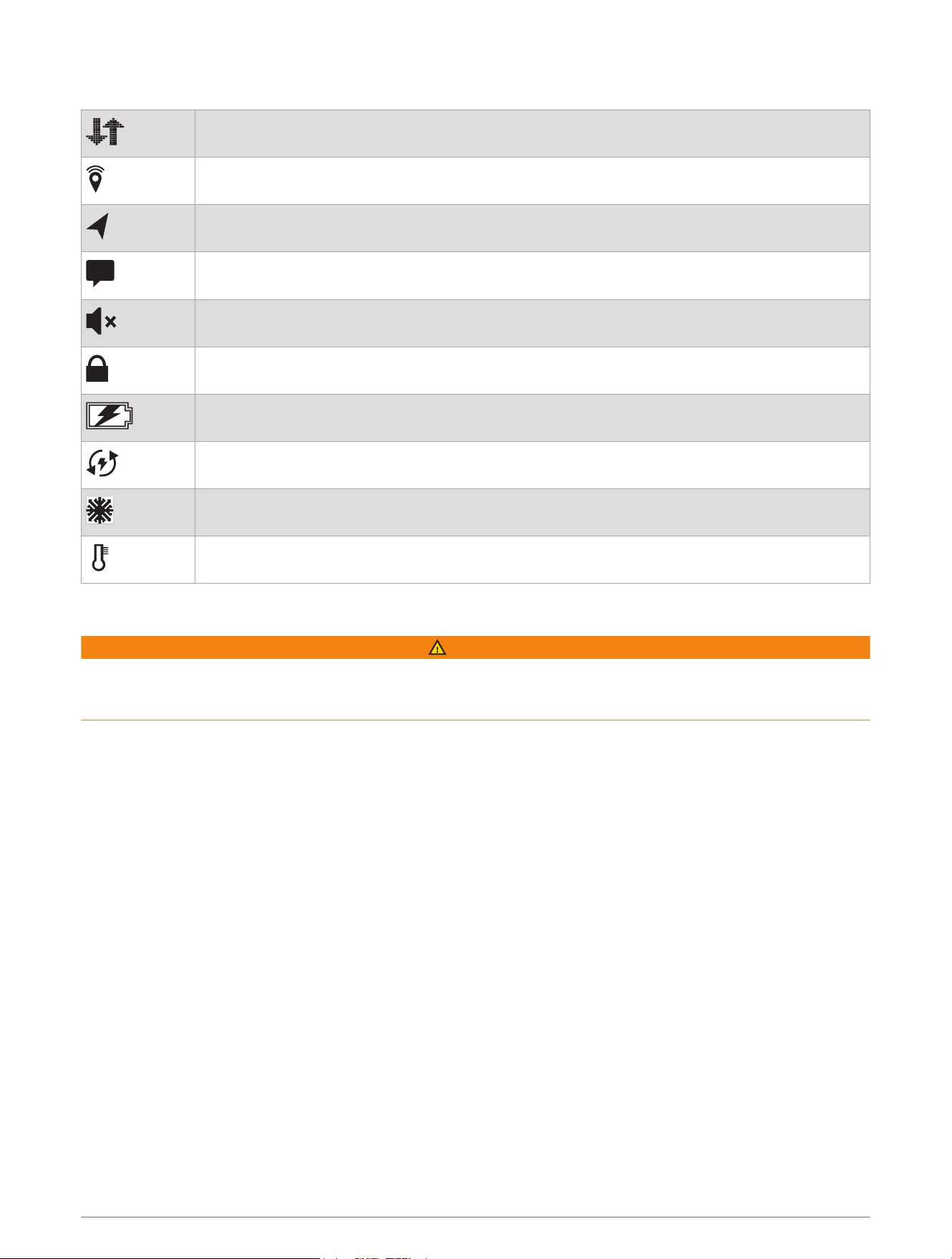
Status Icons
Transmitting data
Tracking enabled
Navigating
Unread messages
Sounds muted
Buttons locked
Charging battery
Reverse charging
Approaching minimum operating temperature
Approaching maximum operating temperature
Pairing Your Phone and Activating the Device
WARNING
Before you can use the inReach features of your satellite communicator, including messaging, SOS, tracking,
and inReach Weather, you must have an active satellite subscription. Always test your satellite communicator
outdoors before using it on a trip.
The inReach satellite communicator works best when it is paired with the Garmin Messenger app. The app
allows you to compose and send messages using your phone, and to sync contacts and check-in messages
with your satellite communicator.
1 Turn on the inReach satellite communicator.
2 Bring your compatible phone within 10m (33ft.) of your satellite communicator.
3 From the app store on your phone, download the Garmin Messenger app, and follow the on-screen
instructions to complete the pairing process.
4 Follow the on-screen instructions to activate a subscription service plan.
After the phone and inReach satellite communicator are paired, they connect automatically when they are
turned on and within Bluetooth
®
range.
Introduction 3

Garmin Messenger App
WARNING
The inReach features of the Garmin Messenger app, including SOS, tracking, and inReach Weather, are not
available without a connected inReach satellite communicator and an active satellite subscription. Always test
the app outdoors before using it on a trip.
CAUTION
The non-satellite messaging features of the Garmin Messenger app alone should not be relied on as a primary
method to obtain emergency assistance.
NOTICE
The app works over both the internet (using a wireless connection or cellular data on your phone) and the
Iridium
®
satellite network. If you are using cellular data, your paired phone must be equipped with a data plan
and be in an area of network coverage where data is available. If you are in an area without network coverage,
you must have an active satellite subscription for your inReach satellite communicator to use the Iridium
satellite network.
You can use the app to message other Garmin Messenger app users, including friends and family without
Garmin
®
devices. Anyone can download the app and connect their phone, allowing them to communicate with
other app users over the internet (no login is required). App users can also create group messaging threads
with other SMS phone numbers. New members added to the group message can download the app to see what
others are saying.
Messages sent using a wireless connection or cellular data on your phone do not incur data charges or
additional charges on your satellite subscription. Messages received may incur charges if message delivery
is attempted over both the Iridium satellite network and the internet. Standard text messaging rates for your
cellular data plan apply.
You can download the Garmin Messenger app from the app store on your phone (garmin.com/messengerapp).
inReach Plus Services
With inReach Plus services, you can send photos, voice messages, and longer text messages using the Garmin
Messenger app paired to your inReach satellite communicator. You can view your data use to see the number of
messages (including text and media) remaining in your current billing cycle (Viewing Data Use, page10).
Iridium Satellite Network
Your device requires a clear view of the sky to transmit messages and track points over the Iridium satellite
network. Without a clear view of the sky, your device attempts to send the information until it acquires satellite
signals.
TIP: For the best connection with satellites, the top of the device should be oriented toward the sky.
Syncing inReach Data
After you make edits to your data, such as plan changes, contacts, or check-in message recipients, you must
sync your device using the Garmin Messenger app.
1 Turn on the inReach satellite communicator.
2 Bring your compatible phone within 10m (33ft.) of your satellite communicator.
3 Open the Garmin Messenger app.
4 Wait while your data syncs automatically.
TIP: You can check the connection status of the inReach satellite communicator and see the last time
messages were checked on the Device tab in the app.
4 Introduction
Main Menu
From the home page, press or to scroll through the main menu options.
Activation: Activates your device if you skipped activation during the initial setup (Pairing Your Phone and
Activating the Device, page3).
Messages: Sends and receives text messages using the Iridium satellite network (Messages, page5).
Tracking: Starts and stops tracking (inReach Tracking, page7).
Check-In: Sends a check-in message (Sending a Check-In Message, page5).
Weather: Requests weather forecasts (Weather, page9).
TracBack: Navigates back to the beginning of your path (Navigating Using TracBack
®
, page10).
Message Check: Checks for new messages (Checking for Messages, page6).
Test Service: Tests your device (Testing the Device, page5).
Service Plan: View plan details and data use (Data Use and History, page10).
Settings: Customize device and system settings (Customizing the Device, page11).
inReach Device Features
WARNING
Before you can use the inReach features of your inReach Messenger Plus satellite communicator, including
messaging, SOS, tracking, and inReach Weather, you must have an active satellite subscription. Always test your
satellite communicator outdoors before using it on a trip.
Ensure you have a clear view of the sky when using the messaging, tracking, and SOS functions, because these
features require satellite access to operate properly.
NOTICE
Some jurisdictions regulate or prohibit the use of satellite communications devices. It is the responsibility of the
user to know and follow all applicable laws in the jurisdictions where the device is intended to be used.
Testing the Device
You should test the device outdoors before using it on a trip to ensure your satellite subscription is active.
1 From the home page, press or to scroll through the main menu options.
2 Select Test Service.
3 Press OK.
4 Select Begin Test.
Wait while the device sends a test message. When you receive a confirmation message, your device is ready
to use.
Messages
Your inReach Messenger Plus satellite communicator sends and receives messages using the Iridium satellite
network. You can send messages to an SMS phone number, an email address, or another device that uses
inReach technology. Each message you send includes your location details where allowed.
Sending a Check-In Message
Check-in messages are messages with predefined text and recipients.
TIP: You can customize check-in message recipients in the Garmin Messenger app. From the Device tab in the
app, select Check-In > Edit Check-in Contacts.
1 From the home page, press OK to open the home page actions.
2 Select Check-In.
3 Press or to scroll through the check-in messages.
4 Press OK to select and send a message.
inReach Device Features 5

Sending a Text Message
1 From the home page, press or to scroll through the main menu options.
2 Select Messages > New Message.
3 Choose a recipient from your contacts list, or select Type Contact to enter the recipient's contact
information.
4 Select an option:
• Select Select Quick Text, and press or to scroll through the pre-written messages.
• Select Type Reply to write a custom message.
• Select Send Tracking Link to share a link to a tracking webpage. The system automatically adds text,
including link information, to the end of your message.
5 When you have finished your message, select .
TIP: You can also compose and send messages using the Garmin Messenger app.
Replying to a Message
1 From the home page, press or to scroll through the main menu options.
2 Select Messages, and select a conversation.
3 Select Reply.
4 Select an option:
• Select Select Quick Text, and press or to scroll through the pre-written messages.
• Select Type Reply to write a custom message.
• Select Send Tracking Link to share a link to a tracking webbpage. The system automatically adds text,
including link information, to the end of your message.
5 When you have finished your message, select .
Checking for Messages
Your device continuously listens for new messages in Performance messaging mode. In Low Power messaging
mode, when you send a message, your device listens for replies for 10 minutes (System Settings, page12). The
device also checks for new messages every hour. When you are using the inReach tracking feature, your device
automatically checks for messages at your tracking interval.
NOTE: To receive messages, your device must have a clear view of the sky and be in view of a satellite when it
checks for messages.
You can force a check for messages by manually checking for messages, sending a message, or sending a
track point. During a check, your device connects to satellites and receives messages waiting to be sent to your
device.
1 From the home page, press OK to open the home page actions.
2 Select Message Check.
Viewing Message Details
1 From the home page, press or to scroll through the main menu options.
2 Select Messages, and select a conversation.
3 Select the message text.
4 Press OK to open the options menu.
5 Select View Details.
Deleting Messages
1 From the home page, press or to scroll through the main menu options.
2 Select Messages, and select a conversation.
3 Select Delete.
6 inReach Device Features
inReach Tracking
You can use the tracking feature on your inReach Messenger Plus device to record track points and transmit
them over the Iridium satellite network at the specified send interval.
Starting Tracking
1 From the home page, press OK to open the home page actions.
2 Select Start Tracking.
Stopping Tracking
1 From the home page, press OK to open the home page actions.
2 Select Stop Tracking.
Sharing Your Tracking Page
You can share a link to a tracking webpage with other people. The system automatically adds text, including link
information, to the end of your message.
1 From the home page, press or to scroll through the main menu options.
2 Select Tracking.
3 Press OK to open the options menu.
4 Select Share With.
5 Choose a recipient from your contacts list, or select Type Contact to enter the recipient's contact
information.
6 Use the on-screen keyboard to customize your message (optional).
7 When you have finished your message, select to send the message.
SOS
WARNING
Before you can use the SOS function, you must have an active satellite subscription. Always test your device
outdoors before using it on a trip.
Ensure you have a clear view of the sky when using the SOS function, because this feature requires satellite
access to operate properly.
NOTICE
Some jurisdictions regulate or prohibit the use of satellite communications devices. It is the responsibility of the
user to know and follow all applicable laws in the jurisdictions where the device is intended to be used.
During an emergency, you can use your inReach Messenger Plus device to contact the Garmin Response
SM
center to request help. Pressing the SOS button sends a message to the Garmin Response team, and they notify
the appropriate emergency responders of your situation. You can communicate with the Garmin Response
team during your emergency while you wait for help to arrive. You should only use the SOS function in a real
emergency situation.
inReach Device Features 7
Initiating an SOS Rescue
You can initiate an SOS rescue with the device turned on or off if the device has battery power.
1 Lift the protective cap from the SOS button .
2 Press and hold the SOS button.
3 Wait for the SOS countdown.
The device sends a default message to the emergency response service with details about your location.
4 Reply to the confirmation message from the emergency response service.
Your reply lets the emergency response service know that you are capable of interacting with them during
the rescue. If you do not reply, the emergency response service will still initiate a rescue.
For the first 10 minutes of your rescue, an updated location is sent to the emergency response service every
minute. To conserve battery power after the first 10 minutes, an updated location is sent every 10 minutes.
TIP: You can also initiate an SOS rescue and interact with the Garmin Response team using the Garmin
Messenger app. You must have an active satellite subscription to use the SOS feature in the app.
Sending a Custom SOS Message
After pressing the SOS button to initiate an SOS rescue, you can reply with a custom message.
1 From the home page, press or to scroll through the main menu options.
2 Select SOS > Reply.
3 Select an option:
• Select Select Quick Text, and press or to scroll through the pre-written messages.
• Select Type Reply to write a custom message.
Your reply lets the emergency response service know that you are capable of interacting with them during the
rescue.
Canceling an SOS Request
If you no longer need assistance, you can cancel an SOS request after it is sent to the emergency response
service.
1 Lift the protective cap, and hold the SOS button.
2 Select Cancel SOS.
3 When prompted to confirm your cancellation request, select Cancel SOS.
Your device transmits the cancellation request. When you receive a confirmation message from the
emergency response service, the device returns to normal operation.
8 inReach Device Features

Weather
inReach Weather: You can receive weather information through your inReach subscription. Your device can
send an inReach message to request weather forecasts for your current location or a new location, such as a
saved waypoint. Weather forecasts incur data charges or additional charges on your inReach subscription.
Requesting an inReach Weather Forecast
For best results, you should ensure your device has a clear view of the sky when you request an inReach
weather forecast.
1 From the home page, press or to scroll through the main menu options.
2 Select Weather.
3 Select Update Forecast.
NOTE: A marine forecast will be included for locations on an ocean or other large body of water, if available.
If you are unable to get a marine forecast, select a location further from the shore.
The device sends a request for the forecast. It may take several minutes to receive the weather forecast data.
After the device finishes downloading the data, you can view the forecast at any time until all of the information
in the forecast has expired. You can also update the forecast at any time.
NOTE: Updating a forecast incurs data charges or additional usage charges.
Updating an inReach Weather Forecast
You can update an inReach weather forecast that has expired or contains outdated information. Updating a
forecast incurs the same data charges or additional charges as requesting a forecast.
1 From the home page, press or to scroll through the main menu options.
2 Select Weather.
3 Press OK to open the options menu.
4 Select Update Forecast.
The device requests an updated forecast. If you update the My Location forecast, the device requests an
updated forecast for your current location. It may take several minutes to receive the updated weather forecast
data.
Changing the Weather Location
Before you can change the weather location, you must add additional weather locations in the Garmin
Messenger app.
1 From the home page, press or to scroll through the main menu options.
2 Select Weather.
3 Press OK to open the options menu.
4 Select Change Location.
5 Select a location.
Weather 9
Navigating Using TracBack
®
You can navigate back to the beginning of your path.
NOTE: This can be helpful if you get lost and need to find your way back to camp or the trail head.
1 From the home page, press or to scroll through the main menu options.
2 Select TracBack.
3 Review the on-screen message, and press OK.
4 Press to scroll through the recorded points.
5 Press OK to select a point to navigate to.
6 Press OK to select a navigation option:
• To navigate back to the selected point along the path you traveled, select Follow Path.
• To navigate back to the selected point in a straight line, select Straight Line.
7 Select Yes to start tracking.
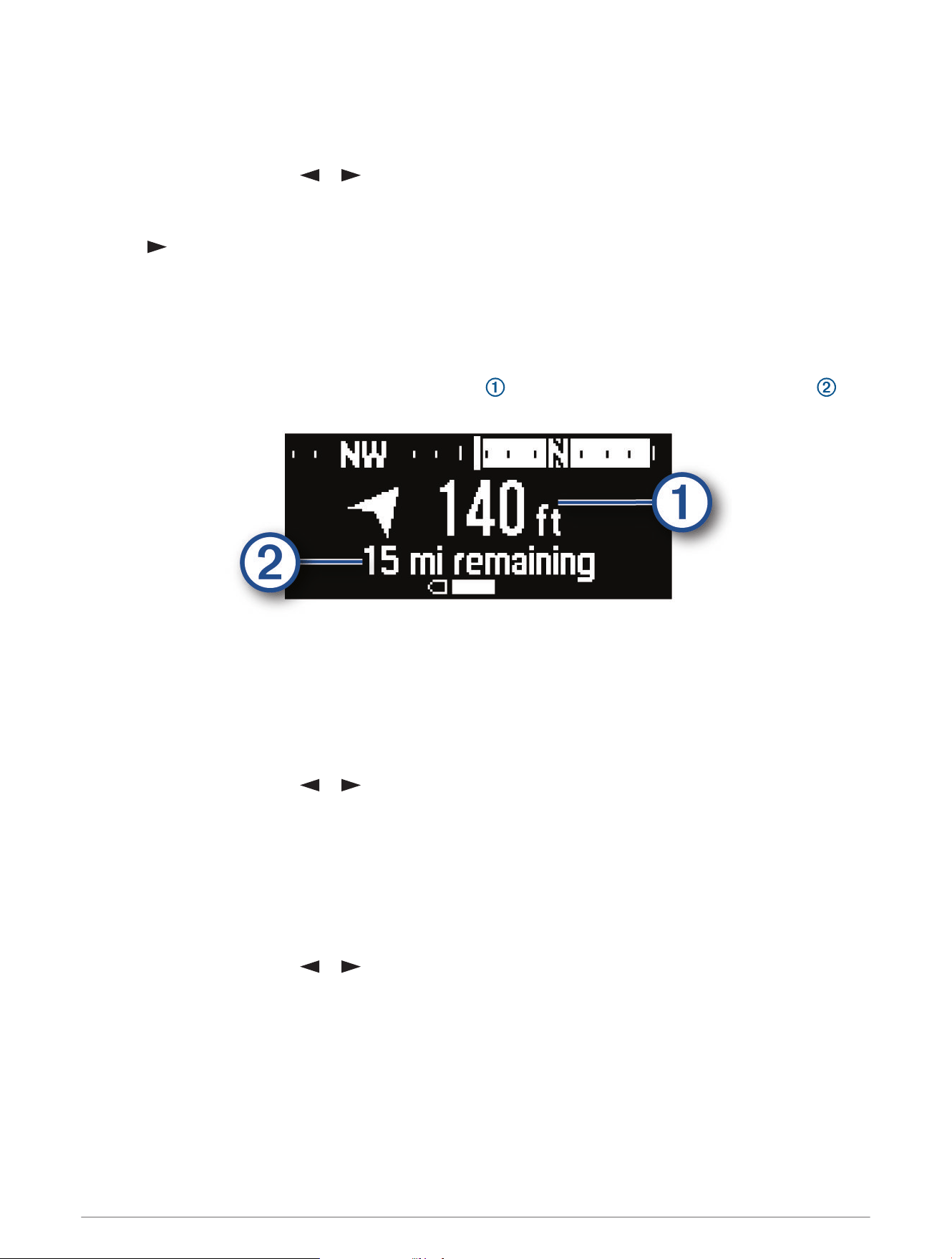
The compass arrow, distance to the next course point , and distance remaining to your destination
appear.
Data Use and History
You can view plan details and data use on the inReach Messenger Plus device.
Viewing Plan Details
You can view the details of your current data plan and check for data plan updates.
1 From the home page, press or to scroll through the main menu options.
2 Select Service Plan.
3 Press OK to open the options menu.
4 Select Plan Details.
Viewing Data Use
You can view the number of messages (including text and media), check-in messages, and track points sent
during the current billing cycle. The data use counter resets automatically at the beginning of each billing cycle.
1 From the home page, press or to scroll through the main menu options.
2 Select Service Plan.
3 Press OK to open the options menu.
4 Select Check for Updates.
10 Navigating Using TracBack
®

Customizing the Device
Tracking Settings
From the home page, press or to scroll through the main menu options. Select Settings > Tracking.
Send Interval: Sets the frequency at which the device records a track point and transmits it over the satellite
network.
NOTE: The Send Interval frequency affects battery life (Battery Information, page16).
Auto Track: Sets the device to start tracking when you turn on the device.
Sounds Settings
From the home page, press or to scroll through the main menu options. Select Settings > Sounds.
Mute All: Mutes all device tones.
Volume: Sets the device volume level.
Message Rec.: Sets the tone that sounds when you receive a message.
Message Sent: Sets the tone that sounds when the you send a message.
Critical Alert: Sets the tone that sounds when the device announces a critical alert.
Power Off: Sets the tone that sounds when you turn off the device.
Ring Until Read: Sets the device to ring until you read a new message. This feature is helpful if you are in a noisy
environment.
Phone Settings
From the home page, press or to scroll through the main menu options. Select Settings > Phone.
Bluetooth Status: Turns on or off Bluetooth technology.
Status: Displays the current connection status for the paired device.
Connected Device: Displays the name of the currently connected device from the list of paired devices. This
option is available only after a device is paired.
Pair Phone: Allows you to pair your device with a compatible Bluetooth enabled smartphone. This setting allows
you to use Bluetooth connected features using the Garmin Messenger app.
inReach Remote Settings
You can use some inReach Messenger Plus features using another compatible device with ANT+
®
wireless
technology, such as the fēnix
®
watch. You can use the inReach Remote option to view incoming messages, send
check-in messages, start and stop tracking, and initiate or cancel an SOS.
From the home page, press or to scroll through the main menu options. Select Settings > inReach
Remote.
Status: Turns on or off the inReach Remote feature and allows you to access some inReach features using
another compatible device.
Device Number: Displays the device number for the ANT+ channel.
Verified Devices: Displays a list of verified devices that this device can wirelessly connect to.
Customizing the Device 11
System Settings
From the home page, press or to scroll through the main menu options. Select Settings > System.
Backlight: Sets the backlight brightness and the length of time before the backlight turns off.
Language: Sets the text language on the device.
NOTE: Changing the text language does not change the language of user-entered data.
Compass Cal.: Calibrates the compass (Calibrating the Compass, page12).
Time: Sets the time format and time zone (Time Settings, page12).
Units: Sets the units of measure for the device (Units Settings, page13).
Auto Download Media: Automatically downloads media messages.
Messaging Mode: Performance mode listens continuously for incoming messages, which reduces battery life.
Low Power mode extends battery life by checking for incoming messages less frequently.
Reverse Charging: Charge other devices with your inReach device (Using Reverse Charging, page13).
GPS: Change the GPS setting. The GPS Only option enables the GPS satellite system. The Multi-GNSS option
enables multiple Global Navigation Satellite Systems (GNSS).
NOTE: Using multiple GNSS systems offers increased performance in challenging environments and faster
position acquisition than using GPS only. However, using multiple GNSS systems can reduce battery life
more quickly than using GPS only.
USB Mode: Sets the device to prompt you or automatically enter USB Mode when connected to a computer.
External Power: Automatically turns off the device when it is disconnected from external power.
Reset: Resets user data and settings (Resetting All Default Settings, page15).
Software Update: Allows you to install software updates downloaded to your device.
About: Displays the IMEI number, authorization code, software, license, and regulatory information.
Calibrating the Compass
NOTICE
Calibrate the electronic compass outdoors. To improve heading accuracy, do not stand near objects that
influence magnetic fields, such as vehicles, buildings, and overhead power lines.
If you experience irregular compass behavior, for example, after moving long distances or after extreme
temperature changes, you can manually calibrate the compass.
1 From the home page, press or to scroll through the main menu options.
2 Select Settings > System > Compass Cal..
3 Follow the on-screen instructions.
Time Settings
From the home page, press or to scroll through the main menu options. Select Settings > System > Time.
Time Format: Sets the device to show time in a 12-hour or 24-hour format.
Time Zone: Sets the time zone for the device.
Daylight Saving: Sets the device to use daylight saving time. This option is not available when Time Zone is set
to Automatic.
12 Customizing the Device

Units Settings
From the home page, press or to scroll through the main menu options. Select Settings > System > Units.
Position Format: Sets the format used for geographical position coordinates and the coordinate system used by
the map (Position Format Settings, page13).
Speed/Distance: Sets the unit of measure for distance.
Wind Speed: Sets the unit of measure for wind speed.
Temperature: Sets the temperature unit of measure to Fahrenheit (°F) or Celsius (°C).
Bearing: Sets the north reference used on the compass to true or magnetic north.
Position Format Settings
NOTE: You should not change the position format or the map datum coordinate system unless you are using a
map or chart that specifies a different position format.
From the home page, press or to scroll through the main menu options. Select Settings > System > Units
> Position Format.
Format: Sets the position format in which a location reading appears.
Datum: Sets the coordinate system on which the map is structured.
Spheroid: Shows the coordinate system the device is using. The default coordinate system is WGS 84.
Using Reverse Charging
The Reverse Charging feature allows you to charge other devices with your inReach satellite communicator.
1 From the home page, press or to scroll through the main menu options.
2 Select Settings > System > Reverse Charging.
3 Use the toggle switch to turn on Reverse Charging.
4 Select an option:
• To charge another device only, and not transmit (send or receive) any messages while charging, select
Charge Only.
• To charge another device, pause charging whenever the inReach satellite communicator is transmitting
messages, and resume charging when transmission is complete, select Charge and Send.
5 Connect the inReach satellite communicator to the device you want to charge using a USB cable.
The Reverse Charging feature stays on for a maximum of 15 minutes before turning off automatically.
6 If necessary, repeat steps 1 through 5 to continue charging.
NOTE: If the inReach device battery drops below 25 percent, the Reverse Charging feature stops automatically.
Device Information
Product Updates
On your computer, install Garmin Express
™
(www.garmin.com/express). On your phone, install the Garmin
Messenger app.
This provides easy access to these services for Garmin devices:
• Software updates
• Data uploads to Garmin Messenger
• Product registration
Setting Up Garmin Express
1 Connect the device to your computer using a USBcable.
2 Go to garmin.com/express.
3 Follow the on-screen instructions.
Device Information 13
Getting More Information
You can find more information about this product on the Garmin website.
• Go to support.garmin.com for additional manuals, articles, and software updates.
• Go to buy.garmin.com, or contact your Garmin dealer for information about optional accessories and
replacement parts.
Viewing E-Label Regulatory and Compliance Information
The label for this device is provided electronically. The e-label may provide regulatory information, such as
identification numbers provided by the FCC or regional compliance markings, the IMEI number, as well as
applicable product and licensing information.
1 From the main menu, select Settings.
2 Select System.
3 Select About.
Locking and Unlocking the Buttons
You can lock the buttons to prevent inadvertent button presses.
1 Press to open the power menu.
2 Select Lock Buttons.
3 Press to unlock the buttons.
Device Care
NOTICE
Avoid chemical cleaners, solvents, and insect repellents that can damage plastic components and finishes.
Do not store the device where prolonged exposure to extreme temperatures can occur, because it can cause
permanent damage.
The device is water resistant to IEC Standard 60529 IPX7. It can withstand accidental immersion in 1 meter of
water for 30 minutes. Prolonged submersion can cause damage to the device. After submersion, be certain to
wipe dry and air dry the device before using or charging.
Thoroughly rinse the device with fresh water after exposure to chlorinated or salt water environments.
Cleaning the Device
1 Wipe the device using a cloth dampened with a mild detergent solution.
2 Wipe it dry.
Troubleshooting
Maximizing Battery Life
• Reduce the backlight timeout and brightness (System Settings, page12).
• Reduce the frequency of the Send Interval tracking setting (Tracking Settings, page11).
• Use Low Power messaging mode (System Settings, page12).
• Turn off Bluetooth technology (Phone Settings, page11).
• Turn off ANT+ technology (inReach Remote Settings, page11).
14 Device Information
Resetting All Default Settings
You can reset all device settings to the factory default values.
1 From the home page, press or to scroll through the main menu options.
2 Select Settings > System > Reset.
3 Select an option:
• To reset all of the device settings to the factory default values and save all user-entered information,
select Reset Default Settings.
• To delete all user conversations, including SOS messages, select Delete All Messages.
• To reset all of the device settings to the factory default values and delete all user-entered information,
select Delete Data and Reset Settings.
My device is in the wrong language
You can change the device language selection if you have accidently selected the wrong language on the
device.
1 From the home page, press .
2 Scroll to the last item in the list, and select it.
3 Scroll to the last item in the list, and select it.
4 Scroll to the second item in the list, and select it.
5 Select your language.
Charging the inReach Device
NOTICE
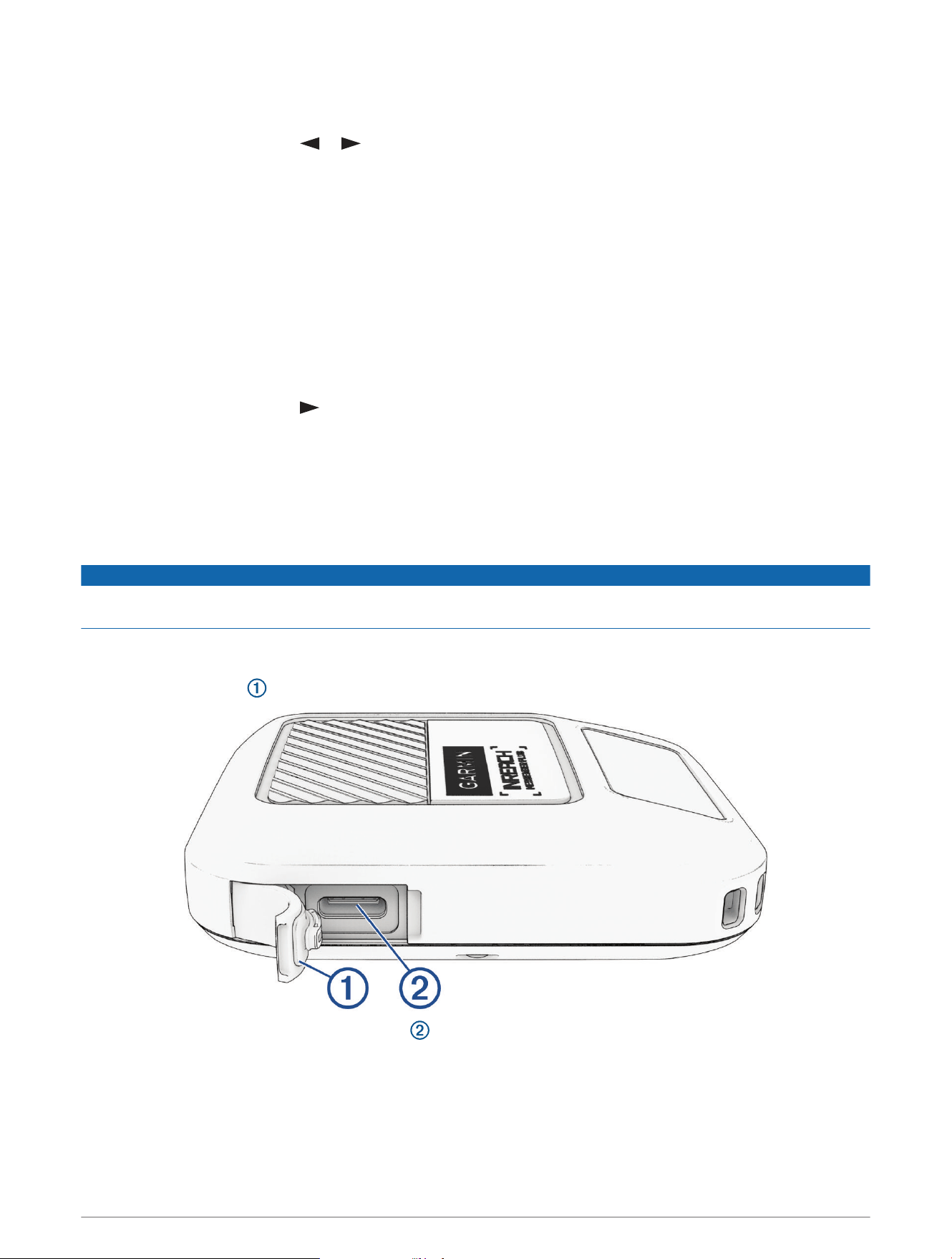
To prevent corrosion, thoroughly dry the USB port, the weather cap, and the surrounding area before charging or
connecting to a computer.
NOTE: The device does not charge when it is outside the approved temperature range (Specifications,
page16).
1 Lift the weather cap .
2 Plug the power cable into the charging port on the device.
3 Plug the other end of the power cable into a compatible AC power adapter (5 V minimum output power).
4 Plug the AC power adapter into a standard wall outlet.
The device displays the current battery charge level.
Device Information 15
Saving Energy While Charging the Device
1 Connect your device to an external power source.
2 Hold the power button until the screen turns off.
The device goes into a low power, battery charging mode, and the battery gauge appears.
3 Charge the device completely.
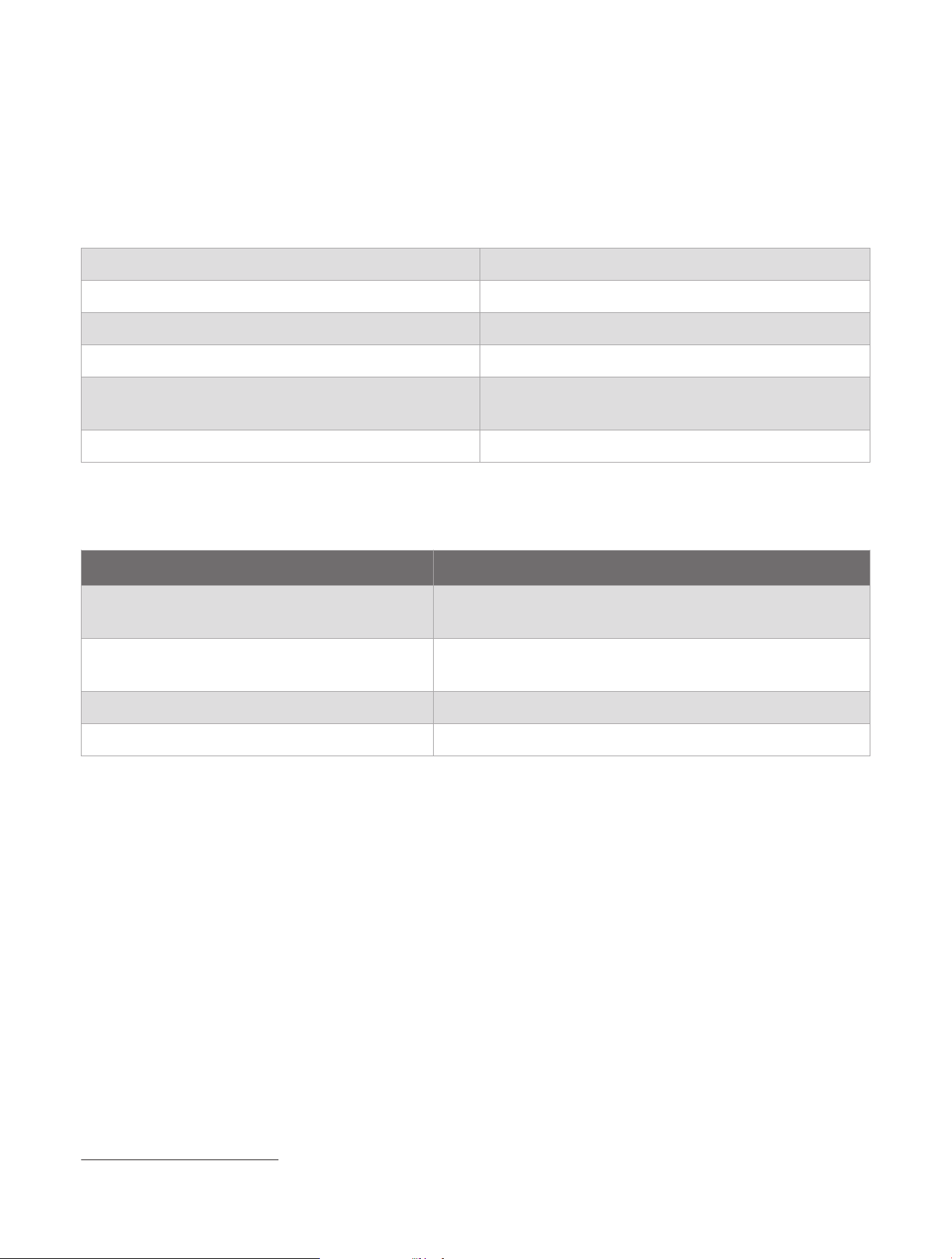
Specifications
Battery type Rechargeable, built-in lithium-ion battery
Water rating IEC 60529 IPX7
1
Operating temperature range From -10° to 60°C (from 14° to 140°F)
Charging temperature range From 0° to 60°C (from 32° to 140°F)
Wireless frequencies and transmit power
2.4 GHz @ 3.18 dBm maximum
1.6 GHz @ 39.7 dBm maximum
EU SAR 0.85 W/kg simultaneous
Battery Information
NOTE: The actual battery life depends on your device settings. Battery life estimates are based on full sky view
and can be significantly reduced by obstructions or tree cover.
Usage Battery Life
Text message or location sent every 2 minutes
Low power messaging mode: Up to 120 hours
Performance messaging mode: Up to 70 hours
Text message or location sent every 10 minutes
Low power messaging mode: Up to 600 hours
Performance messaging mode: Up to 110 hours
Media messages Up to 250 media messages sent with a fully charged battery
Turned off Up to 1 year
1
The device withstands incidental exposure to water of up to 1m for up to 30min. For more information, go to www.garmin.com/waterrating.


support.garmin.com
GUID-A3665AAB-70E7-48F1-9582-988E09455E22 v2April 2025