
1. Product introduction
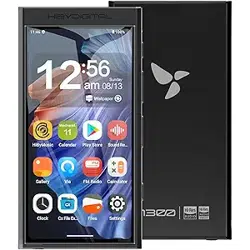
M300 IS A PORTABLE HIFI HD LOSSLESS MUSIC PLAYER
1. Based on Android13 system, Qualcomm Snapdragon 665 master control, with
4G memory + 128GB storage (3G + 32GB version at the same time)
2025/9/27 10:48
HiByDigital M300 User Manual | HiBy WiKi
https://guide.hiby.com/en/docs/products/audio_player/hibydigital_m300/guide
2/15

2. Adopt CS43131 decoding architecture, supports DSD256 and PCM 384kHz
decoding
3. Supports PhoneOut(PO) and speaker analog audio output
4. Supports USB audio (USB Audio) output
5. Supports Bluetooth output (supports encodings such as LDAC, aptX Adaptive,
aptX HD, aptX, AAC, SBC, etc.)
6. Supports double-mix recording and uses the unique double-mix recording noise
reduction algorithm
7. Support FM radio
8. Supports external MicroSD(TF) cards up to 2TB
9. Supports Bluetooth 5.0 and 2.4G and 5G dual-band WiFi
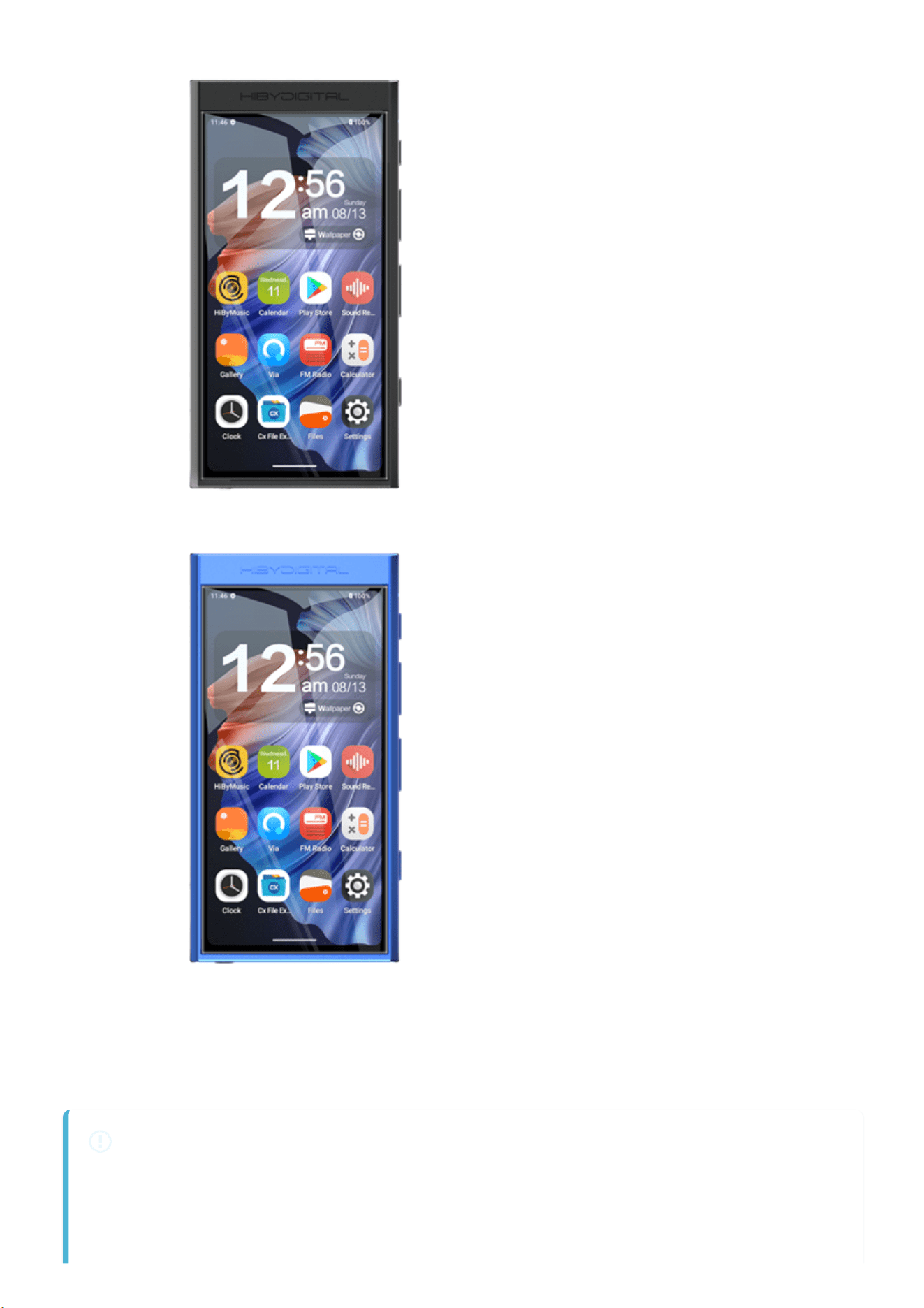
10. Support Theme colors
APPEARANCE INTRODUCTION
The following introduction is the front view of the player screen as reference:
1. Double wheat on the left and right
2. From top to bottom on the right are: LED indicator, power button, volume up,
volume down, playback pause, next song, Fn function key (specific functions can
be customized)
3. On the left are: MicroSD (TF) card slot, lanyard interface
4. The bottom is from left to right: PO, Type-C, speaker
2. Button usage instructions
BUTTON DISTRIBUTION
The following introduction is the front view of the player screen as reference:
1. From top to bottom on the right are: LED indicator, power button, volume up,
volume down, playback pause, next song, Fn function key (specific functions can
be customized)
Button definition
2025/9/27 10:48
HiByDigital M300 User Manual | HiBy WiKi
https://guide.hiby.com/en/docs/products/audio_player/hibydigital_m300/guide
3/15
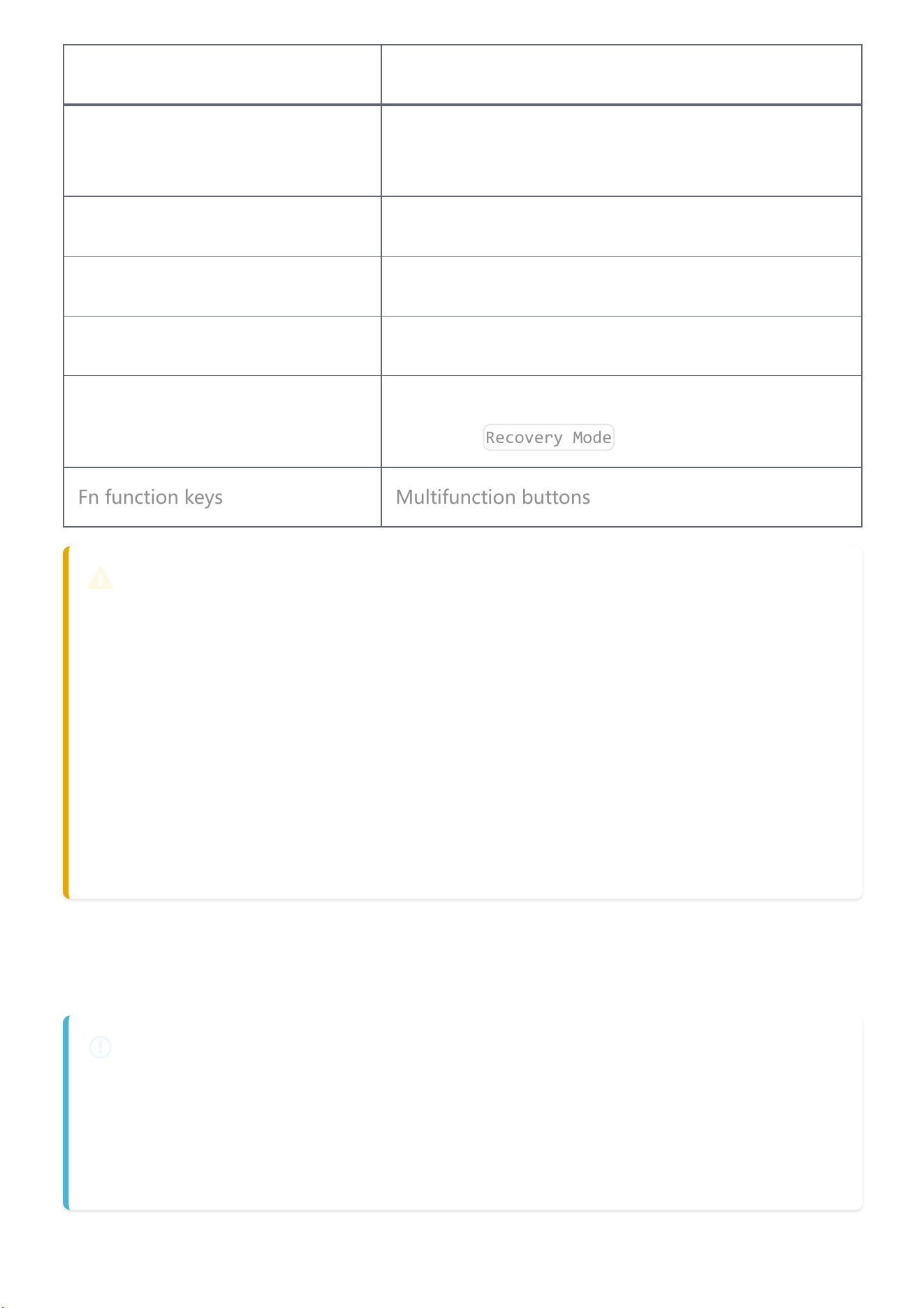
Button Function
Power button
Long press: power on and off; short press: switch
screen
Next song Short button: Next song
Play Pause Short button: Play Pause
Power button Long press for more than 10s: Hardware reset
Press and hold the volume to
turn on the power
Use it to enter recovery mode, see the specific
operation
Recovery Mode
Fn function keys Multifunction buttons
[RECOVERY MODE]
In recovery mode, you can not enter the system for clearing and upgrading system
data.
1. Press and hold the volume to turn on the power, and a robot interface is
displayed.
2. In this interface, press and hold the power button and press the volume to enter
the recovery mode.
3. Volume increase and volume decrease are used to make selections, and the
power button is used to make sure
3. Interface usage instructions
INTERFACE DISTRIBUTION
The following introduction is the front view of the player screen as reference:
1. On the left are: MicroSD (TF) card slot, lanyard interface
2. The bottom is from left to right: PO, Type-C, speaker
2025/9/27 10:48
HiByDigital M300 User Manual | HiBy WiKi
https://guide.hiby.com/en/docs/products/audio_player/hibydigital_m300/guide
4/15
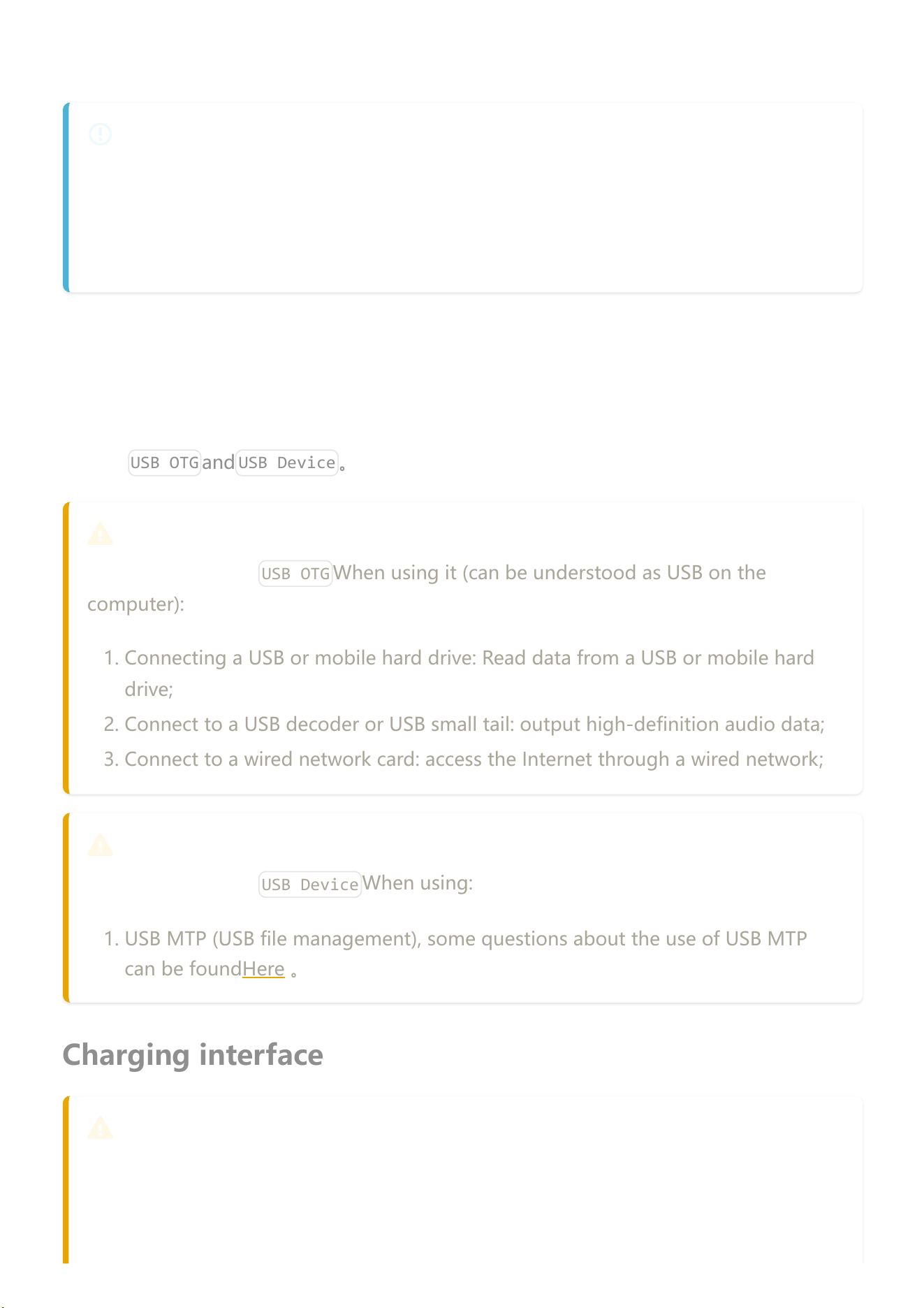
Audio output interface
AUDIO OUTPUT INTERFACE
The audio output interface can be provided to different audio devices for use, such
as headphones with 3.5mm interface, etc.
1. PO: 3.5mm single-ended interface headphone output
USB port
The physical interface used by the USB interface is the Type-C interface, through which
the following functions can be provided. The player allows USB to work in two different
modes:
USB OTG
and
USB Device
。
USB OTG
When the player as
USB OTG
When using it (can be understood as USB on the
computer):
1. Connecting a USB or mobile hard drive: Read data from a USB or mobile hard
drive;
2. Connect to a USB decoder or USB small tail: output high-definition audio data;
3. Connect to a wired network card: access the Internet through a wired network;
USB DEVICE
When the player as
USB Device
When using:
1. USB MTP (USB file management), some questions about the use of USB MTP
can be foundHere 。
Charging interface
CHARGING INTERFACE
The physical interface used by the charging interface is the Type-C interface,
through which the charger can be connected to the charger.
2025/9/27 10:48
HiByDigital M300 User Manual | HiBy WiKi
https://guide.hiby.com/en/docs/products/audio_player/hibydigital_m300/guide
5/15

1. Charging supports ordinary charging heads, which can reach a charging current
of 5V@2A.
MicroSD(TF) card interface
MICROSD(TF) CARD INTERFACE
The MicroSD(TF) card interface is used to insert a MicroSD(TF) card, mainly to
expand storage capacity. The player can support MicroSD(TF) cards up to 2TB, and
the player supports file systems including FAT32\exFAT\NTFS.
LED Indicator
Status Color
Normal Light blue ■
Charging Red breathing effect (normal)■
4. Get started
First boot
FIRST BOOT
1. Press and hold the boot key for 2s, and the player enters the boot state The first
boot time will be longer.
2. After the startup animation is completed, the system enters the boot settings
interface
3. Select the corresponding language
4. Select the corresponding time zone
5. Complete the setup
6. The first startup is completed
Navigation bar
2025/9/27 10:48
HiByDigital M300 User Manual | HiBy WiKi
https://guide.hiby.com/en/docs/products/audio_player/hibydigital_m300/guide
6/15
The system navigation bar is at the bottom of the screen, and there are two modes of the
navigation bar
System navigation
and
3-button nvigatoin
, default is
System navigation
。
Users can operate quickly on the navigation bar through
Settings -》System -》
Gestures -》 System navigation
Users can switch navigation bar mode.
GESTURE NAVIGATION
1. Slide from the navigation bar: Return to desktop
2. Slide over from the navigation bar: Go to the task list
3. Swipe left and right on the navigation bar: quickly switch to the previous and
next APP
"THREE BUTTONS" NAVIGATION
1. The middle button is Home key: Return to the desktop
2. The button on the right is the taskbar key: enter the task list
3. The button on the left is the return key: Return Note: Modifying the display size
may cause the left and right button function swap of the "Three Buttons"
navigation.
Global gestures
GLOBAL GESTURE
1. Swipe from the left and right screens to the inside of the screen: Return
2. Three fingers slide: screenshot
3. Double-click the screen: Open the screen (this function is turned off by default
and needs to be turned on
Settings -》System -》 Gestures -》 Double click
wake up
)
Main interface
Introduce the relevant functions of the main interface and some common operations. The
main interface contains a desktop and an app list. Slide on the desktop to enter the app
list.
desktop
2025/9/27 10:48
HiByDigital M300 User Manual | HiBy WiKi
https://guide.hiby.com/en/docs/products/audio_player/hibydigital_m300/guide
7/15
DESKTOP
1. The status bar is at the top For information descriptions about the status bar,
refer to the information descriptions for the status bar later.
2. The desktop icon area in the middle The desktop area can be used to place fast
operations
App Icon
、
Widgets
wait Press and hold the blank area of the desktop
to pop up the home screen settings, widgets, wallpapers, etc.
3. The bottom is a permanent quick operation
App Icon
The main purpose is to place some preset high-frequency application shortcuts
here to facilitate users to operate quickly.
Application List
APP LIST
1. exist
Desktop
Slide up with a single finger to enter the application list
2. Long press
App Icon
Can call out the menu
3. Long press
App Icon
And move, you can
App Icon
Add to desktop for quick
operation
Status bar
STATUS BAR
Some information on the status bar.
Status bar left
LEFT TO THE STATUS BAR
1. time Shows the current time.
2. Other notification information If the notification information sent by the
application used by the user is insufficient in the current position, it may be
2025/9/27 10:48
HiByDigital M300 User Manual | HiBy WiKi
https://guide.hiby.com/en/docs/products/audio_player/hibydigital_m300/guide
8/15

collapsed in the notification bar. The user needs to pass the status bar position
to release the notification bar.
On the right side of the status bar
RIGHT OF THE STATUS BAR
1. Hide other states Display content: a small dot. It means that there are too many
statuses on the status bar, which cannot be displayed in full, and some statuses
are hidden.
2. Bluetooth status information Displays Bluetooth information, including signal
strength, connection status, etc.
3. WiFi status information Displays WiFi information, including signal strength,
connection status, etc.
4. Battery level information Displays battery icon, charging status, percentage and
other information. Power percentage switch: Settings -》 Battery -》 Battery
percentage.
5. Play music
Import local music
Import music via USB
The player supports connecting to the computer via USB and then using the MTP
protocol to transfer files. Here is a brief introduction. For more information about the use
of MTP, please refer toHere 。
The following is
MacOS
and
Windows
Make a brief description:
MACOS
MacOS requires a third-party driver to be installed before it can be used. Now there
are two options:
app
2025/9/27 10:48
HiByDigital M300 User Manual | HiBy WiKi
https://guide.hiby.com/en/docs/products/audio_player/hibydigital_m300/guide
9/15
Open MTP:https://openmtp.ganeshrvel.com/
Official Android support:https://www.android.com/filetransfer/
WINDOWS
Systems after Windows 7 have already included MTP drivers and can be used
directly.
MTP USAGE PROBLEM
You can try it as follows:
Make sure the USB cable connection is normal
After confirming that the USB cable is connected, select File Storage in USB in
the notification bar;
Restart the computer and try again
Restart the player and try again
Import music via MicroSD(TF) card
MICROSD(TF) CARD
Insert the MicroSD(TF) card into the player's MicroSD(TF) card slot. The player
supports three file formats: FAT32\exFAT\NTFS.
Play local music with HiBy Music
1. Open [HiBy Music]
2. If you have never scanned a song, it will be displayed as follows. Click [Start Scan] at
this time to scan the song and build a song library.
1. Just wait for the scan to complete, click the song to play it
For more instructions on using HiBy Music, please refer toHere。
Play streaming music with HiBy Music
Scan songs
2025/9/27 10:48
HiByDigital M300 User Manual | HiBy WiKi
https://guide.hiby.com/en/docs/products/audio_player/hibydigital_m300/guide
10/15
1. Please make sure you are connected to the network
2. Open [HiBy Music]
3. Click the [Streaming] icon at the top menu, click again to select different streaming
services, such as [Sony Selection] [HiFi Music], and other languages can choose
[Tidal] [Qobuz]
1. Choose [Sony Selection], and there are free trial songs at the bottom
1. Select [HiFi Music] and log in to your account. Users can listen to MP3-specific tracks
for free
1. Select [Tidal] [Qobuz] and you need to log in to the corresponding platform account
and then use the corresponding service.
For more instructions on using HiBy Music, please refer toHere。
6. Settings
WiFi settings
Entrance: Settings -> WLAN -> Internet -> Open WLAN -> will automatically scan, and
then select the corresponding WiFi network connection.
HOW TO ADD A HIDDEN NETWORK?
Enter Settings -》WLAN -》Advanced Options -》Hidden Networks -》Set "Yes"
Bluetooth settings
Entrance: Settings -> Bluetooth -> Open Bluetooth
Streaming
Sony Selected Free Songs
HiFi Music Song
2025/9/27 10:48
HiByDigital M300 User Manual | HiBy WiKi
https://guide.hiby.com/en/docs/products/audio_player/hibydigital_m300/guide
11/15

HOW TO QUICKLY SWITCH DIFFERENT BLUETOOTH CODEC?
Enter Settings -》 Bluetooth -》 Bluetooth Audio Settings
USB
Entrance: Settings -》 USB -》 Default USB configuration
DEFAULT USB CONFIGURATION
1. File transfer MTP protocol transmission, specially used for transferring files.
2. PTP PTP protocol transmission, specially used for photo transmission.
3. Not used for data transmission Specifically used to turn off data transmission, it
can be used to charge only.
application
Entrance: Settings -》 Application
APPLICATION MANAGEMENT
This option allows application management:
1. Application list;
2. Application activation, deactivation, permission management, cache
management, etc.;
APPLY MARKET SWITCH
1. Google App Market The Google Play app market switch can be used to turn the
Google Play app market on or off.
2. Cool'an Application Market The switch of the Kuan Application Market can be
used to turn on or off the Kuan Application Market.
Battery
Entrance: Settings -》 Battery
2025/9/27 10:48
HiByDigital M300 User Manual | HiBy WiKi
https://guide.hiby.com/en/docs/products/audio_player/hibydigital_m300/guide
12/15

BATTERY
1. Battery percentage: used to manage the display of battery percentage in the
status bar;
2. Idle shutdown: used to manage the system with idle shutdown (the idle state is
defined as no audio playback);
3. Timed shutdown: used to manage the system regularly (the system will
automatically shut down when the time comes);
Prompt sound and vibration
Entrance: Settings -》 Prompt sound and vibration
PROMPT SOUND AND VIBRATION
1. Speaker mute: Turn on the switch to mute the speaker;
show
Entrance: Settings -> Display
SHOW
Used to change the display mode of the player:
1. Turn on the power indicator Power indicator switch, used to turn the LED
indicators on or off.
Fn function key settings
Entry: Settings -> System -> Fn Function Key Settings
FN FUNCTION KEY SETTINGS
1. Key lock Quickly perform the key lock function, set the Fn function key to key
lock, that is, the Fn function key can be used as the HOLD key to lock the other
keys.
2. recording Quickly enter the recording mode, set the Fn function key to the
recording button, and let the M300 work in the dedicated recording mode.
2025/9/27 10:48
HiByDigital M300 User Manual | HiBy WiKi
https://guide.hiby.com/en/docs/products/audio_player/hibydigital_m300/guide
13/15

3. Vertical flip Quickly display flip.
4. Speaker mute Quickly mute the speaker.
gesture
Entrance: Settings -> System -> Gestures
GESTURE
1. System Navigation Gesture navigation "Three Buttons" navigation
2. Swipe down on the screen with three points Switch three-finger slide screenshot
function
3. Double-click to wake up Double-click on the switch to wake up
Parental model
Entrance: Settings -> System -> Parent Mode
PARENT MODE
1. Installing the application in parent mode requires an installation password;
2. The device cannot be used from 22 pm to 6 am the next day in parent mode;
Forced speaker output
Entrance: Status Bar Pull-> Forced Speaker Output
FORCE SPEAKER OUTPUT
1. This function is mainly used to solve the problem that the headset needs to be
connected in FM mode, but the speaker output cannot be used;
7. Preinstalled applications
This introduces some related applications preinstalled by HiBy Player and the functions of
these applications. It does not currently support uninstalling preinstalled applications, but
some applications support shutdown and running.
2025/9/27 10:48
HiByDigital M300 User Manual | HiBy WiKi
https://guide.hiby.com/en/docs/products/audio_player/hibydigital_m300/guide
14/15

PREINSTALLED APPLICATION
1. Seashell Music Player software provided by HiBy, you can view the specific
operation instructionsHere。
2. Cool An In the domestic application market with relatively few advertising, you
can download the required third-party applications on the market. 【How to
turn off the run】Settings -》 Applications -》 Cooan Application Market
3. Google Play Google App Market, you can download the required third-party
apps on the market. 【How to turn off the run】Settings -》 Applications -》
Google App Market
4. Via Ultra-lightweight browser, through which you can browse web pages. Similar
applications include: Chrome, Edge, etc.;
5. FM radio FM radio is used to realize the function of FM radio. FM radio needs to
be connected to headphones as an antenna to be used normally;
6. Voice memo Voice memo, through this application, double-mile noise reduction
recording can be achieved;
8. Frequently Asked Questions
FAQs can be foundHere
2025/9/27 10:48
HiByDigital M300 User Manual | HiBy WiKi
https://guide.hiby.com/en/docs/products/audio_player/hibydigital_m300/guide
15/15
