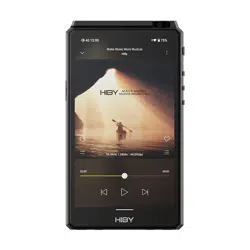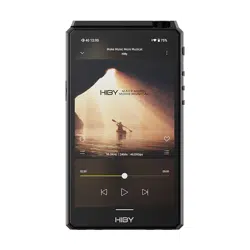
Power on/off, restart, screen locking / unlocking
1.Power on: press and hold power button for two
seconds
2.Power off / restart: hold power button while R6PRO
MAX is powered on to bring up power off / restart
option screen; (press briefly to unlock the screen first if
it is locked)
3.Lock screen: Press power button briefly while R6PRO
MAX is powered on to lock / unlock screen;
4.Turn on screen: when R6PRO MAX is powered on
with screen off, press power button briefly to turn it
on.
Operating System
The R6PRO MAX sports a lightly customized Android
12 operating system which may be operated in the
same way as most smartphones, including the
installation of 3rd party audio and general apps and
use of the Play Store;
Music player app
Preloaded with HiByMusic Professional edition,
specially customized for HiFi digital audio players for
powerful features, perfect sound and ease of use;
Micro SD card installation
Micro SD Card sizes of up to 2TB are accepted.
Charging
PD2.0 is supported.
3.5mm and 4.4mm line out
Auto line out mode switch: the device automatically
detects when it is connected to an amplifier rather
than headphones and switches automatically to Line
Out mode.
RGB LED
1.The LED on the R6PRO MAX power button doubles
as an indicator light for the audio format being sent to
the DAC:
2.
MQA—green
MQA studio—blue
MQA Rendering—magenta
Not playing—pale blue
PCM:
48kHz and under—yellow
88.2-192kHz—cyan blue
≥352.8kHz—orange
All DSD: white
Coaxial digital audio output
The R6 III supports coaxial digital output via its type-c
port. This may be adapted to regular RCA connectors
via our Type-C->RCA interconnect, available at
store.hiby.com or one of the various retail partners
listed at the end of this document.
USB Digital audio output
Connect USB DAC / amps to the R6PRO MAX USB
type-C port.
File transfer: connect the R6PRO MAX to the
computer via the provided USB type-C cable. After
this, pull down the notification shade on the R6PRO
MAX, scroll down to the bottom and tap twice on “USB
for charging”, then select “File transfer” in the menu.
Now the R6PRO MAX will function as an MTP storage
device for file transfer. On a Mac it is necessary to also
install Android File Transfer to enable MTP file transfer.
Acting as USB DAC
a.connect the R6PRO MAX to the computer via the
Wireless connectivity
1.Bluetooth5.0
Connect the R6PRO MAX with new Bluetooth audio
devices as follows:
a.Pull down the notification shade then pull down again
to expand the list of quick status indicator buttons;
press and hold on the Bluetooth icon to enter the
Bluetooth setup screen;
b.Turn on the Bluetooth master switch;
c.Tap “Pair new device” to search for nearby Bluetooth
devices (set the Bluetooth device to be paired to
broadcast or pairing mode according to its instructions)
d.Tap on the name of your Bluetooth device on the
R6PRO MAX to pair with it; once successfully paired, it
will appear under the list of “paired devices”.
2.WiFi
The R6PRO MAX supports both 2.4GHz and 5GHz WiFi.
Apart from using it to connect it to the internet for
music streaming, internet etc., it can also be used for
music transfer, remote control via HiByLink and/or
playing music from network resources via DLNA / LAN
etc.
Fireware update
Over-the-air online update
1.Updating automatically via WiFi is recommended.
2.The R6PRO MAX will automatically detect updates
and prompt about the update in the notification shade if
an update is found.
3. You may also go to Settings->System-> System-
Updates to manually check for and download updates.
Direct Transport Audio architecture
for lossless digital audio on Android
1. DTA (Direct Transport Audio) is the name of HiBy’s
full-time bitperfect android audio framework; it
bypasses Android’s sample rate conversion by
modifying its audio stack to output bitperfect audio;
2. The HiByMusic app bundled with the R6PRO
MAXmay bitperfectly output up to and including
DSD1024 / PCM 768kHz/32bit, however many third
party apps assume bad Android resampling and will
conduct “high quality” resampling internally, in which
case it is impossible to obtain bitperfect audio from
such apps despite DTA.
For further in-depth operation instructions, please
visit (URL) or scan the following QR code:
4.4mm balanced headphone jack
开机/关机、重启/锁屏/亮屏
1、开机:长按电源键两秒即可开机;
2、关机、重启:开机状态下长按电源键,即可弹出关
机/重启菜单;
3、锁屏:开机状态下,点击电源键即可锁屏;
4、亮屏:点击电源键。
操作系统
HiBy R6PRO MAX内置安卓12系统,与日常安卓系统
手机操作系统一致,可随意安装第三方APP等;
1、音乐播放APP
内置海贝音乐APP专业版,专为HiFi设计的音乐播放
器,功能强大简单易用;
2、应用市场
内置酷安应用市场,可以搜索下载任何APP。
3.5mm&4.4mm LO线路输出
LO线路输出:使用时,相关接口检测到设备接入自动
切换LO模式。
COAX同轴输出
R6PRO MAX同轴输出使用TYPE-C口,可以选择使用
TYPE-C转RCA线,相关线材可以通过HiBy官方直营店
铺购买,店铺信息可以查阅本册最后官方店铺链接。
RGB LED
1、R6PRO MAX 电源键上的LED灯能作为当前播放音
频的格式,分别显示对应的颜色;
2、各播放状态指示灯:
MQA—— 绿色
MQA studio —— 蓝色
MQA Rendering——洋红色
不播放——淡蓝色
PCM ≤ 48kHz——黄色
PCM 88.2kHz - 192kHz——青色
PCM ≥352.8kHz——橙色
DSD ——白色
文件传输
数据线连接机器与电脑,连接成功后,需要在机器上把
状态栏拉下,选择USB接入功能信息条,在弹出窗口中
选择传输文件,即可在电脑中操作将文件拉入本机内存
或外置SD卡中;
USB DAC IN传输数字音频信号
1.即作为电脑USB DAC,使用USB数据线与电脑连接
后,下拉状态栏,把USB状态改为音频输入;
2.部分系统需要安装驱动程序,请前往
www.hiby.com进入服务与支持→产品支持→USB DAC
IN驱动,下载并详细阅读内附的USB DAC使用方法.pdf
无线连接功能
1、蓝牙5.0
R6PRO MAX连接到新的蓝牙设备(如蓝牙耳机、
蓝牙音箱等)时,需要先和该蓝牙设备进行配对,
步骤如下:
a.下拉框中点击设置-蓝牙界面;
b.打开蓝牙开关;
c.点击“与新设备配对”,将会自动搜索可用设备;
d.点击连接到相应设备,连接成功的设备将显示在
“已配对的设备”栏。
2、WiFi
R6PRO MAX支持2.4G/5G 双频WiFi,日常使用
外,亦可以通过海贝音乐APP,进行WiFi传歌、使
用WiFi下的HiByLink、使用私有云DLNA/局域网
等。
DTA安卓全局无损输出架构
1 DTA(Direct Transport Audio)、 安卓全局无损
输出系统,通过软件层面绕过安卓系统中重采样
SRC,直接输出原汁原味的声音;
2 R6PRO MAX APP、 内置海贝音乐 可以直接输出
包含 PCM768KHz/32bit主 音频格DSD1024、 流
式;部分第三方 会受限于自身,导致无法APP,
直接输出相应采样率的歌曲。
固件更新
OTA在线升级
1.建议连接WFi进行升级;
2.R6PRO MAX会自动检测版本,如果检测到更新
版本的固件,将在状态栏提示更新;
3.可通过【设置】→【系统】→【系统更新】,
下载升级固件;
4.下载完成后,安装升级即可。
特殊辅助功能
双清
1. 关机;
2. 先按住上一曲键,再按电源键开机,等待出现机器
人界面;
3. 在机器人界面,按住电源键不放的同时按一下播放
暂停键;
4. 下一曲键和播放暂停键为选择按钮,电源键为确认
按钮,这个时候就可以进入选择列表中的 wipe 开头的
选项进行双清(全部数据清除,请谨慎!)。
强制关机
强制关机:开机状态下,机器出现卡死状态或其他异
常情况无法正常关机或重启,可以长按电源键+下一曲
按钮15秒,进行强制关机。
更多详细操作,请扫描以下二维码关注海贝音乐公众
号,并回复“R6PRO MAX说明书”
USB DAC OUT数字转盘
通过USB口,使用R6PRO MAX外接解码放大
器,相关线材可以通过HiBy官方直营店铺购买,店
铺信息可以查阅本册最后官方店铺链接。
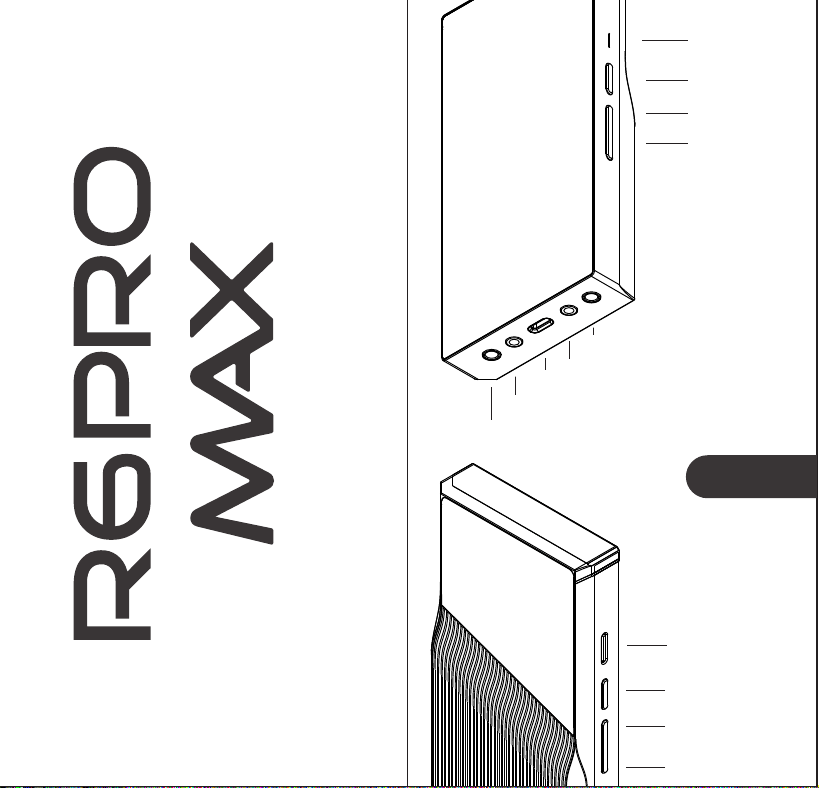
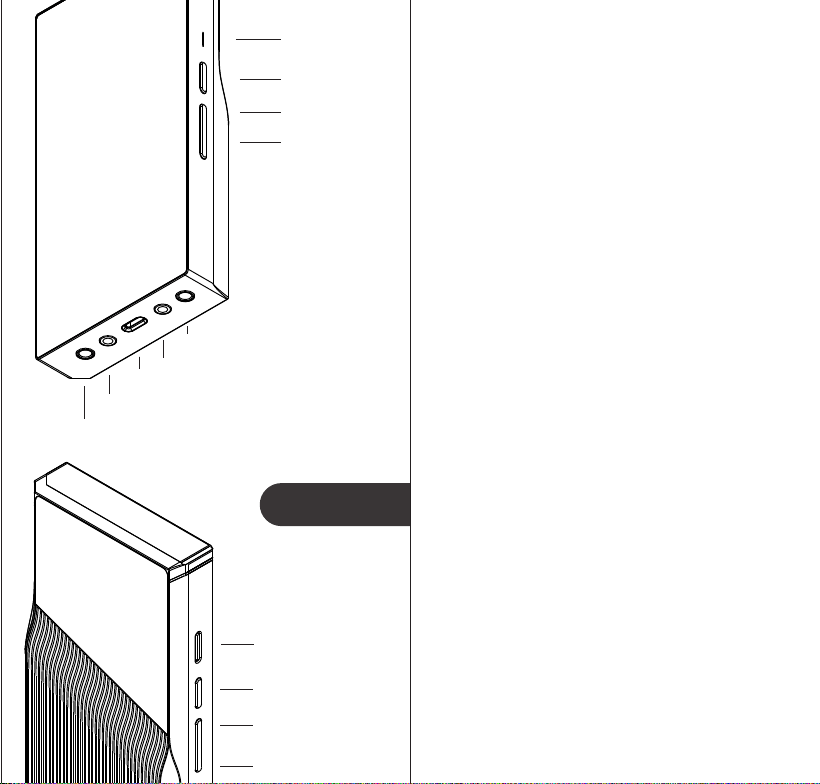
Power button
LED Status light
Previous
Pause/Play
Next
Micro SD card slot
Vloume+
Vloume-
PD3.1 快速充电
R6PRO MAX支持PD充电协议,建议使用支持
PD快充插头,非PD充电头,有可能无法充电或存
在充电慢的问题
PD3.1 charging protocol
R6PRO MAX supports PD3.1 charging protocol. It is
recommended to charge the R6PRO MAX with a USB
PD charger; other chargers may cause charging
failure or charging slowness.
provided USB type-C cable. After this, pull down the
notification shade on the R6PRO MAX, scroll down to
the bottom and tap twice on “USB for charging”, then
select “USB DAC in” in the menu.
b.On windows 7 it would be necessary to install the USB
audio driver for this; go to store.hiby.com -> Scroll to
bottom -> Click “download” under Support -> “USB
DAC Driver & Guidance” -> “HiBy R6PRO MAX USB DAC
Driver Download and Installation Guide”
Buttons & Ports
电源键
LED状态灯
上一曲
暂停/播放
下一曲
MicroSD卡插槽
4.4mm平衡耳机口
3.5mm耳机口
TYPE-C充电口/同轴输出/USB DAC
3.5mm线路输出
4.4mm平衡线路输出
音量+
音量-
按键与接口
快速上手指南 QUCIK GUIDE
3.5mm headphone jack
TYPE-C charging port /
coaxial output/usb dac
3.5mm line out
4.4mm balanced line out

Power on/off, restart, screen locking / unlocking
1.Power on: press and hold power button for two
seconds
2.Power off / restart: hold power button while R6PRO
MAX is powered on to bring up power off / restart
option screen; (press briefly to unlock the screen first if
it is locked)
3.Lock screen: Press power button briefly while R6PRO
MAX is powered on to lock / unlock screen;
4.Turn on screen: when R6PRO MAX is powered on
with screen off, press power button briefly to turn it
on.
Operating System
The R6PRO MAX sports a lightly customized Android
12 operating system which may be operated in the
same way as most smartphones, including the
installation of 3rd party audio and general apps and
use of the Play Store;
Music player app
Preloaded with HiByMusic Professional edition,
specially customized for HiFi digital audio players for
powerful features, perfect sound and ease of use;
Micro SD card installation
Micro SD Card sizes of up to 2TB are accepted.
Charging
PD2.0 is supported.
3.5mm and 4.4mm line out
Auto line out mode switch: the device automatically
detects when it is connected to an amplifier rather
than headphones and switches automatically to Line
Out mode.
RGB LED
1.The LED on the R6PRO MAX power button doubles
as an indicator light for the audio format being sent to
the DAC:
2.
MQA—green
MQA studio—blue
MQA Rendering—magenta
Not playing—pale blue
PCM:
48kHz and under—yellow
88.2-192kHz—cyan blue
≥352.8kHz—orange
All DSD: white
Coaxial digital audio output
The R6 III supports coaxial digital output via its type-c
port. This may be adapted to regular RCA connectors
via our Type-C->RCA interconnect, available at
store.hiby.com or one of the various retail partners
listed at the end of this document.
USB Digital audio output
Connect USB DAC / amps to the R6PRO MAX USB
type-C port.
File transfer: connect the R6PRO MAX to the
computer via the provided USB type-C cable. After
this, pull down the notification shade on the R6PRO
MAX, scroll down to the bottom and tap twice on “USB
for charging”, then select “File transfer” in the menu.
Now the R6PRO MAX will function as an MTP storage
device for file transfer. On a Mac it is necessary to also
install Android File Transfer to enable MTP file transfer.
Acting as USB DAC
a.connect the R6PRO MAX to the computer via the
Wireless connectivity
1.Bluetooth5.0
Connect the R6PRO MAX with new Bluetooth audio
devices as follows:
a.Pull down the notification shade then pull down again
to expand the list of quick status indicator buttons;
press and hold on the Bluetooth icon to enter the
Bluetooth setup screen;
b.Turn on the Bluetooth master switch;
c.Tap “Pair new device” to search for nearby Bluetooth
devices (set the Bluetooth device to be paired to
broadcast or pairing mode according to its instructions)
d.Tap on the name of your Bluetooth device on the
R6PRO MAX to pair with it; once successfully paired, it
will appear under the list of “paired devices”.
2.WiFi
The R6PRO MAX supports both 2.4GHz and 5GHz WiFi.
Apart from using it to connect it to the internet for
music streaming, internet etc., it can also be used for
music transfer, remote control via HiByLink and/or
playing music from network resources via DLNA / LAN
etc.
Fireware update
Over-the-air online update
1.Updating automatically via WiFi is recommended.
2.The R6PRO MAX will automatically detect updates
and prompt about the update in the notification shade if
an update is found.
3. You may also go to Settings->System-> System-
Updates to manually check for and download updates.
Direct Transport Audio architecture
for lossless digital audio on Android
1. DTA (Direct Transport Audio) is the name of HiBy’s
full-time bitperfect android audio framework; it
bypasses Android’s sample rate conversion by
modifying its audio stack to output bitperfect audio;
2. The HiByMusic app bundled with the R6PRO
MAXmay bitperfectly output up to and including
DSD1024 / PCM 768kHz/32bit, however many third
party apps assume bad Android resampling and will
conduct “high quality” resampling internally, in which
case it is impossible to obtain bitperfect audio from
such apps despite DTA.
For further in-depth operation instructions, please
visit (URL) or scan the following QR code:
4.4mm balanced headphone jack
开机/关机、重启/锁屏/亮屏
1、开机:长按电源键两秒即可开机;
2、关机、重启:开机状态下长按电源键,即可弹出关
机/重启菜单;
3、锁屏:开机状态下,点击电源键即可锁屏;
4、亮屏:点击电源键。
操作系统
HiBy R6PRO MAX内置安卓12系统,与日常安卓系统
手机操作系统一致,可随意安装第三方APP等;
1、音乐播放APP
内置海贝音乐APP专业版,专为HiFi设计的音乐播放
器,功能强大简单易用;
2、应用市场
内置酷安应用市场,可以搜索下载任何APP。
3.5mm&4.4mm LO线路输出
LO线路输出:使用时,相关接口检测到设备接入自动
切换LO模式。
COAX同轴输出
R6PRO MAX同轴输出使用TYPE-C口,可以选择使用
TYPE-C转RCA线,相关线材可以通过HiBy官方直营店
铺购买,店铺信息可以查阅本册最后官方店铺链接。
RGB LED
1、R6PRO MAX 电源键上的LED灯能作为当前播放音
频的格式,分别显示对应的颜色;
2、各播放状态指示灯:
MQA—— 绿色
MQA studio —— 蓝色
MQA Rendering——洋红色
不播放——淡蓝色
PCM ≤ 48kHz——黄色
PCM 88.2kHz - 192kHz——青色
PCM ≥352.8kHz——橙色
DSD ——白色
文件传输
数据线连接机器与电脑,连接成功后,需要在机器上把
状态栏拉下,选择USB接入功能信息条,在弹出窗口中
选择传输文件,即可在电脑中操作将文件拉入本机内存
或外置SD卡中;
USB DAC IN传输数字音频信号
1.即作为电脑USB DAC,使用USB数据线与电脑连接
后,下拉状态栏,把USB状态改为音频输入;
2.部分系统需要安装驱动程序,请前往
www.hiby.com进入服务与支持→产品支持→USB DAC
IN驱动,下载并详细阅读内附的USB DAC使用方法.pdf
无线连接功能
1、蓝牙5.0
R6PRO MAX连接到新的蓝牙设备(如蓝牙耳机、
蓝牙音箱等)时,需要先和该蓝牙设备进行配对,
步骤如下:
a.下拉框中点击设置-蓝牙界面;
b.打开蓝牙开关;
c.点击“与新设备配对”,将会自动搜索可用设备;
d.点击连接到相应设备,连接成功的设备将显示在
“已配对的设备”栏。
2、WiFi
R6PRO MAX支持2.4G/5G 双频WiFi,日常使用
外,亦可以通过海贝音乐APP,进行WiFi传歌、使
用WiFi下的HiByLink、使用私有云DLNA/局域网
等。
DTA安卓全局无损输出架构
1 DTA(Direct Transport Audio)、 安卓全局无损
输出系统,通过软件层面绕过安卓系统中重采样
SRC,直接输出原汁原味的声音;
2 R6PRO MAX APP、 内置海贝音乐 可以直接输出
包含 PCM768KHz/32bit主 音频格DSD1024、 流
式;部分第三方 会受限于自身,导致无法APP,
直接输出相应采样率的歌曲。
固件更新
OTA在线升级
1.建议连接WFi进行升级;
2.R6PRO MAX会自动检测版本,如果检测到更新
版本的固件,将在状态栏提示更新;
3.可通过【设置】→【系统】→【系统更新】,
下载升级固件;
4.下载完成后,安装升级即可。
特殊辅助功能
双清
1. 关机;
2. 先按住上一曲键,再按电源键开机,等待出现机器
人界面;
3. 在机器人界面,按住电源键不放的同时按一下播放
暂停键;
4. 下一曲键和播放暂停键为选择按钮,电源键为确认
按钮,这个时候就可以进入选择列表中的 wipe 开头的
选项进行双清(全部数据清除,请谨慎!)。
强制关机
强制关机:开机状态下,机器出现卡死状态或其他异
常情况无法正常关机或重启,可以长按电源键+下一曲
按钮15秒,进行强制关机。
更多详细操作,请扫描以下二维码关注海贝音乐公众
号,并回复“R6PRO MAX说明书”
USB DAC OUT数字转盘
通过USB口,使用R6PRO MAX外接解码放大
器,相关线材可以通过HiBy官方直营店铺购买,店
铺信息可以查阅本册最后官方店铺链接。
Power button
LED Status light
Previous
Pause/Play
Next
Micro SD card slot
Vloume+
Vloume-
PD3.1 快速充电
R6PRO MAX支持PD充电协议,建议使用支持
PD快充插头,非PD充电头,有可能无法充电或存
在充电慢的问题
PD3.1 charging protocol
R6PRO MAX supports PD3.1 charging protocol. It is
recommended to charge the R6PRO MAX with a USB
PD charger; other chargers may cause charging
failure or charging slowness.
provided USB type-C cable. After this, pull down the
notification shade on the R6PRO MAX, scroll down to
the bottom and tap twice on “USB for charging”, then
select “USB DAC in” in the menu.
b.On windows 7 it would be necessary to install the USB
audio driver for this; go to store.hiby.com -> Scroll to
bottom -> Click “download” under Support -> “USB
DAC Driver & Guidance” -> “HiBy R6PRO MAX USB DAC
Driver Download and Installation Guide”
Buttons & Ports
电源键
LED状态灯
上一曲
暂停/播放
下一曲
MicroSD卡插槽
4.4mm平衡耳机口
3.5mm耳机口
TYPE-C充电口/同轴输出/USB DAC
3.5mm线路输出
4.4mm平衡线路输出
音量+
音量-
按键与接口
快速上手指南 QUCIK GUIDE
3.5mm headphone jack
TYPE-C charging port /
coaxial output/usb dac
3.5mm line out
4.4mm balanced line out
Power on/off, restart, screen locking / unlocking
1.Power on: press and hold power button for two
seconds
2.Power off / restart: hold power button while R6PRO
MAX is powered on to bring up power off / restart
option screen; (press briefly to unlock the screen first if
it is locked)
3.Lock screen: Press power button briefly while R6PRO
MAX is powered on to lock / unlock screen;
4.Turn on screen: when R6PRO MAX is powered on
with screen off, press power button briefly to turn it
on.
Operating System
The R6PRO MAX sports a lightly customized Android
12 operating system which may be operated in the
same way as most smartphones, including the
installation of 3rd party audio and general apps and
use of the Play Store;
Music player app
Preloaded with HiByMusic Professional edition,
specially customized for HiFi digital audio players for
powerful features, perfect sound and ease of use;
Micro SD card installation
Micro SD Card sizes of up to 2TB are accepted.
Charging
PD2.0 is supported.
3.5mm and 4.4mm line out
Auto line out mode switch: the device automatically
detects when it is connected to an amplifier rather
than headphones and switches automatically to Line
Out mode.
RGB LED
1.The LED on the R6PRO MAX power button doubles
as an indicator light for the audio format being sent to
the DAC:
2.
MQA—green
MQA studio—blue
MQA Rendering—magenta
Not playing—pale blue
PCM:
48kHz and under—yellow
88.2-192kHz—cyan blue
≥352.8kHz—orange
All DSD: white
Coaxial digital audio output
The R6 III supports coaxial digital output via its type-c
port. This may be adapted to regular RCA connectors
via our Type-C->RCA interconnect, available at
store.hiby.com or one of the various retail partners
listed at the end of this document.
USB Digital audio output
Connect USB DAC / amps to the R6PRO MAX USB
type-C port.
File transfer: connect the R6PRO MAX to the
computer via the provided USB type-C cable. After
this, pull down the notification shade on the R6PRO
MAX, scroll down to the bottom and tap twice on “USB
for charging”, then select “File transfer” in the menu.
Now the R6PRO MAX will function as an MTP storage
device for file transfer. On a Mac it is necessary to also
install Android File Transfer to enable MTP file transfer.
Acting as USB DAC
a.connect the R6PRO MAX to the computer via the
Wireless connectivity
1.Bluetooth5.0
Connect the R6PRO MAX with new Bluetooth audio
devices as follows:
a.Pull down the notification shade then pull down again
to expand the list of quick status indicator buttons;
press and hold on the Bluetooth icon to enter the
Bluetooth setup screen;
b.Turn on the Bluetooth master switch;
c.Tap “Pair new device” to search for nearby Bluetooth
devices (set the Bluetooth device to be paired to
broadcast or pairing mode according to its instructions)
d.Tap on the name of your Bluetooth device on the
R6PRO MAX to pair with it; once successfully paired, it
will appear under the list of “paired devices”.
2.WiFi
The R6PRO MAX supports both 2.4GHz and 5GHz WiFi.
Apart from using it to connect it to the internet for
music streaming, internet etc., it can also be used for
music transfer, remote control via HiByLink and/or
playing music from network resources via DLNA / LAN
etc.
Fireware update
Over-the-air online update
1.Updating automatically via WiFi is recommended.
2.The R6PRO MAX will automatically detect updates
and prompt about the update in the notification shade if
an update is found.
3. You may also go to Settings->System-> System-
Updates to manually check for and download updates.
Direct Transport Audio architecture
for lossless digital audio on Android
1. DTA (Direct Transport Audio) is the name of HiBy’s
full-time bitperfect android audio framework; it
bypasses Android’s sample rate conversion by
modifying its audio stack to output bitperfect audio;
2. The HiByMusic app bundled with the R6PRO
MAXmay bitperfectly output up to and including
DSD1024 / PCM 768kHz/32bit, however many third
party apps assume bad Android resampling and will
conduct “high quality” resampling internally, in which
case it is impossible to obtain bitperfect audio from
such apps despite DTA.
For further in-depth operation instructions, please
visit (URL) or scan the following QR code:
4.4mm balanced headphone jack
开机/关机、重启/锁屏/亮屏
1、开机:长按电源键两秒即可开机;
2、关机、重启:开机状态下长按电源键,即可弹出关
机/重启菜单;
3、锁屏:开机状态下,点击电源键即可锁屏;
4、亮屏:点击电源键。
操作系统
HiBy R6PRO MAX内置安卓12系统,与日常安卓系统
手机操作系统一致,可随意安装第三方APP等;
1、音乐播放APP
内置海贝音乐APP专业版,专为HiFi设计的音乐播放
器,功能强大简单易用;
2、应用市场
内置酷安应用市场,可以搜索下载任何APP。
3.5mm&4.4mm LO线路输出
LO线路输出:使用时,相关接口检测到设备接入自动
切换LO模式。
COAX同轴输出
R6PRO MAX同轴输出使用TYPE-C口,可以选择使用
TYPE-C转RCA线,相关线材可以通过HiBy官方直营店
铺购买,店铺信息可以查阅本册最后官方店铺链接。
RGB LED
1、R6PRO MAX 电源键上的LED灯能作为当前播放音
频的格式,分别显示对应的颜色;
2、各播放状态指示灯:
MQA—— 绿色
MQA studio —— 蓝色
MQA Rendering——洋红色
不播放——淡蓝色
PCM ≤ 48kHz——黄色
PCM 88.2kHz - 192kHz——青色
PCM ≥352.8kHz——橙色
DSD ——白色
文件传输
数据线连接机器与电脑,连接成功后,需要在机器上把
状态栏拉下,选择USB接入功能信息条,在弹出窗口中
选择传输文件,即可在电脑中操作将文件拉入本机内存
或外置SD卡中;
USB DAC IN传输数字音频信号
1.即作为电脑USB DAC,使用USB数据线与电脑连接
后,下拉状态栏,把USB状态改为音频输入;
2.部分系统需要安装驱动程序,请前往
www.hiby.com进入服务与支持→产品支持→USB DAC
IN驱动,下载并详细阅读内附的USB DAC使用方法.pdf
无线连接功能
1、蓝牙5.0
R6PRO MAX连接到新的蓝牙设备(如蓝牙耳机、
蓝牙音箱等)时,需要先和该蓝牙设备进行配对,
步骤如下:
a.下拉框中点击设置-蓝牙界面;
b.打开蓝牙开关;
c.点击“与新设备配对”,将会自动搜索可用设备;
d.点击连接到相应设备,连接成功的设备将显示在
“已配对的设备”栏。
2、WiFi
R6PRO MAX支持2.4G/5G 双频WiFi,日常使用
外,亦可以通过海贝音乐APP,进行WiFi传歌、使
用WiFi下的HiByLink、使用私有云DLNA/局域网
等。
DTA安卓全局无损输出架构
1 DTA(Direct Transport Audio)、 安卓全局无损
输出系统,通过软件层面绕过安卓系统中重采样
SRC,直接输出原汁原味的声音;
2 R6PRO MAX APP、 内置海贝音乐 可以直接输出
包含 PCM768KHz/32bit主 音频格DSD1024、 流
式;部分第三方 会受限于自身,导致无法APP,
直接输出相应采样率的歌曲。
固件更新
OTA在线升级
1.建议连接WFi进行升级;
2.R6PRO MAX会自动检测版本,如果检测到更新
版本的固件,将在状态栏提示更新;
3.可通过【设置】→【系统】→【系统更新】,
下载升级固件;
4.下载完成后,安装升级即可。
特殊辅助功能
双清
1. 关机;
2. 先按住上一曲键,再按电源键开机,等待出现机器
人界面;
3. 在机器人界面,按住电源键不放的同时按一下播放
暂停键;
4. 下一曲键和播放暂停键为选择按钮,电源键为确认
按钮,这个时候就可以进入选择列表中的 wipe 开头的
选项进行双清(全部数据清除,请谨慎!)。
强制关机
强制关机:开机状态下,机器出现卡死状态或其他异
常情况无法正常关机或重启,可以长按电源键+下一曲
按钮15秒,进行强制关机。
更多详细操作,请扫描以下二维码关注海贝音乐公众
号,并回复“R6PRO MAX说明书”
USB DAC OUT数字转盘
通过USB口,使用R6PRO MAX外接解码放大
器,相关线材可以通过HiBy官方直营店铺购买,店
铺信息可以查阅本册最后官方店铺链接。
Power button
LED Status light
Previous
Pause/Play
Next
Micro SD card slot
Vloume+
Vloume-
PD3.1 快速充电
R6PRO MAX支持PD充电协议,建议使用支持
PD快充插头,非PD充电头,有可能无法充电或存
在充电慢的问题
PD3.1 charging protocol
R6PRO MAX supports PD3.1 charging protocol. It is
recommended to charge the R6PRO MAX with a USB
PD charger; other chargers may cause charging
failure or charging slowness.
provided USB type-C cable. After this, pull down the
notification shade on the R6PRO MAX, scroll down to
the bottom and tap twice on “USB for charging”, then
select “USB DAC in” in the menu.
b.On windows 7 it would be necessary to install the USB
audio driver for this; go to store.hiby.com -> Scroll to
bottom -> Click “download” under Support -> “USB
DAC Driver & Guidance” -> “HiBy R6PRO MAX USB DAC
Driver Download and Installation Guide”
Buttons & Ports
电源键
LED状态灯
上一曲
暂停/播放
下一曲
MicroSD卡插槽
4.4mm平衡耳机口
3.5mm耳机口
TYPE-C充电口/同轴输出/USB DAC
3.5mm线路输出
4.4mm平衡线路输出
音量+
音量-
按键与接口
快速上手指南 QUCIK GUIDE
3.5mm headphone jack
TYPE-C charging port /
coaxial output/usb dac
3.5mm line out
4.4mm balanced line out
Power on/off, restart, screen locking / unlocking
1.Power on: press and hold power button for two
seconds
2.Power off / restart: hold power button while R6PRO
MAX is powered on to bring up power off / restart
option screen; (press briefly to unlock the screen first if
it is locked)
3.Lock screen: Press power button briefly while R6PRO
MAX is powered on to lock / unlock screen;
4.Turn on screen: when R6PRO MAX is powered on
with screen off, press power button briefly to turn it
on.
Operating System
The R6PRO MAX sports a lightly customized Android
12 operating system which may be operated in the
same way as most smartphones, including the
installation of 3rd party audio and general apps and
use of the Play Store;
Music player app
Preloaded with HiByMusic Professional edition,
specially customized for HiFi digital audio players for
powerful features, perfect sound and ease of use;
Micro SD card installation
Micro SD Card sizes of up to 2TB are accepted.
Charging
PD2.0 is supported.
3.5mm and 4.4mm line out
Auto line out mode switch: the device automatically
detects when it is connected to an amplifier rather
than headphones and switches automatically to Line
Out mode.
RGB LED
1.The LED on the R6PRO MAX power button doubles
as an indicator light for the audio format being sent to
the DAC:
2.
MQA—green
MQA studio—blue
MQA Rendering—magenta
Not playing—pale blue
PCM:
48kHz and under—yellow
88.2-192kHz—cyan blue
≥352.8kHz—orange
All DSD: white
Coaxial digital audio output
The R6 III supports coaxial digital output via its type-c
port. This may be adapted to regular RCA connectors
via our Type-C->RCA interconnect, available at
store.hiby.com or one of the various retail partners
listed at the end of this document.
USB Digital audio output
Connect USB DAC / amps to the R6PRO MAX USB
type-C port.
File transfer: connect the R6PRO MAX to the
computer via the provided USB type-C cable. After
this, pull down the notification shade on the R6PRO
MAX, scroll down to the bottom and tap twice on “USB
for charging”, then select “File transfer” in the menu.
Now the R6PRO MAX will function as an MTP storage
device for file transfer. On a Mac it is necessary to also
install Android File Transfer to enable MTP file transfer.
Acting as USB DAC
a.connect the R6PRO MAX to the computer via the
Wireless connectivity
1.Bluetooth5.0
Connect the R6PRO MAX with new Bluetooth audio
devices as follows:
a.Pull down the notification shade then pull down again
to expand the list of quick status indicator buttons;
press and hold on the Bluetooth icon to enter the
Bluetooth setup screen;
b.Turn on the Bluetooth master switch;
c.Tap “Pair new device” to search for nearby Bluetooth
devices (set the Bluetooth device to be paired to
broadcast or pairing mode according to its instructions)
d.Tap on the name of your Bluetooth device on the
R6PRO MAX to pair with it; once successfully paired, it
will appear under the list of “paired devices”.
2.WiFi
The R6PRO MAX supports both 2.4GHz and 5GHz WiFi.
Apart from using it to connect it to the internet for
music streaming, internet etc., it can also be used for
music transfer, remote control via HiByLink and/or
playing music from network resources via DLNA / LAN
etc.
Fireware update
Over-the-air online update
1.Updating automatically via WiFi is recommended.
2.The R6PRO MAX will automatically detect updates
and prompt about the update in the notification shade if
an update is found.
3. You may also go to Settings->System-> System-
Updates to manually check for and download updates.
Direct Transport Audio architecture
for lossless digital audio on Android
1. DTA (Direct Transport Audio) is the name of HiBy’s
full-time bitperfect android audio framework; it
bypasses Android’s sample rate conversion by
modifying its audio stack to output bitperfect audio;
2. The HiByMusic app bundled with the R6PRO
MAXmay bitperfectly output up to and including
DSD1024 / PCM 768kHz/32bit, however many third
party apps assume bad Android resampling and will
conduct “high quality” resampling internally, in which
case it is impossible to obtain bitperfect audio from
such apps despite DTA.
For further in-depth operation instructions, please
visit (URL) or scan the following QR code:
4.4mm balanced headphone jack
开机/关机、重启/锁屏/亮屏
1、开机:长按电源键两秒即可开机;
2、关机、重启:开机状态下长按电源键,即可弹出关
机/重启菜单;
3、锁屏:开机状态下,点击电源键即可锁屏;
4、亮屏:点击电源键。
操作系统
HiBy R6PRO MAX内置安卓12系统,与日常安卓系统
手机操作系统一致,可随意安装第三方APP等;
1、音乐播放APP
内置海贝音乐APP专业版,专为HiFi设计的音乐播放
器,功能强大简单易用;
2、应用市场
内置酷安应用市场,可以搜索下载任何APP。
3.5mm&4.4mm LO线路输出
LO线路输出:使用时,相关接口检测到设备接入自动
切换LO模式。
COAX同轴输出
R6PRO MAX同轴输出使用TYPE-C口,可以选择使用
TYPE-C转RCA线,相关线材可以通过HiBy官方直营店
铺购买,店铺信息可以查阅本册最后官方店铺链接。
RGB LED
1、R6PRO MAX 电源键上的LED灯能作为当前播放音
频的格式,分别显示对应的颜色;
2、各播放状态指示灯:
MQA—— 绿色
MQA studio —— 蓝色
MQA Rendering——洋红色
不播放——淡蓝色
PCM ≤ 48kHz——黄色
PCM 88.2kHz - 192kHz——青色
PCM ≥352.8kHz——橙色
DSD ——白色
文件传输
数据线连接机器与电脑,连接成功后,需要在机器上把
状态栏拉下,选择USB接入功能信息条,在弹出窗口中
选择传输文件,即可在电脑中操作将文件拉入本机内存
或外置SD卡中;
USB DAC IN传输数字音频信号
1.即作为电脑USB DAC,使用USB数据线与电脑连接
后,下拉状态栏,把USB状态改为音频输入;
2.部分系统需要安装驱动程序,请前往
www.hiby.com进入服务与支持→产品支持→USB DAC
IN驱动,下载并详细阅读内附的USB DAC使用方法.pdf
无线连接功能
1、蓝牙5.0
R6PRO MAX连接到新的蓝牙设备(如蓝牙耳机、
蓝牙音箱等)时,需要先和该蓝牙设备进行配对,
步骤如下:
a.下拉框中点击设置-蓝牙界面;
b.打开蓝牙开关;
c.点击“与新设备配对”,将会自动搜索可用设备;
d.点击连接到相应设备,连接成功的设备将显示在
“已配对的设备”栏。
2、WiFi
R6PRO MAX支持2.4G/5G 双频WiFi,日常使用
外,亦可以通过海贝音乐APP,进行WiFi传歌、使
用WiFi下的HiByLink、使用私有云DLNA/局域网
等。
DTA安卓全局无损输出架构
1 DTA(Direct Transport Audio)、 安卓全局无损
输出系统,通过软件层面绕过安卓系统中重采样
SRC,直接输出原汁原味的声音;
2 R6PRO MAX APP、 内置海贝音乐 可以直接输出
包含 PCM768KHz/32bit主 音频格DSD1024、 流
式;部分第三方 会受限于自身,导致无法APP,
直接输出相应采样率的歌曲。
固件更新
OTA在线升级
1.建议连接WFi进行升级;
2.R6PRO MAX会自动检测版本,如果检测到更新
版本的固件,将在状态栏提示更新;
3.可通过【设置】→【系统】→【系统更新】,
下载升级固件;
4.下载完成后,安装升级即可。
特殊辅助功能
双清
1. 关机;
2. 先按住上一曲键,再按电源键开机,等待出现机器
人界面;
3. 在机器人界面,按住电源键不放的同时按一下播放
暂停键;
4. 下一曲键和播放暂停键为选择按钮,电源键为确认
按钮,这个时候就可以进入选择列表中的 wipe 开头的
选项进行双清(全部数据清除,请谨慎!)。
强制关机
强制关机:开机状态下,机器出现卡死状态或其他异
常情况无法正常关机或重启,可以长按电源键+下一曲
按钮15秒,进行强制关机。
更多详细操作,请扫描以下二维码关注海贝音乐公众
号,并回复“R6PRO MAX说明书”
USB DAC OUT数字转盘
通过USB口,使用R6PRO MAX外接解码放大
器,相关线材可以通过HiBy官方直营店铺购买,店
铺信息可以查阅本册最后官方店铺链接。
Power button
LED Status light
Previous
Pause/Play
Next
Micro SD card slot
Vloume+
Vloume-
PD3.1 快速充电
R6PRO MAX支持PD充电协议,建议使用支持
PD快充插头,非PD充电头,有可能无法充电或存
在充电慢的问题
PD3.1 charging protocol
R6PRO MAX supports PD3.1 charging protocol. It is
recommended to charge the R6PRO MAX with a USB
PD charger; other chargers may cause charging
failure or charging slowness.
provided USB type-C cable. After this, pull down the
notification shade on the R6PRO MAX, scroll down to
the bottom and tap twice on “USB for charging”, then
select “USB DAC in” in the menu.
b.On windows 7 it would be necessary to install the USB
audio driver for this; go to store.hiby.com -> Scroll to
bottom -> Click “download” under Support -> “USB
DAC Driver & Guidance” -> “HiBy R6PRO MAX USB DAC
Driver Download and Installation Guide”
Buttons & Ports
电源键
LED状态灯
上一曲
暂停/播放
下一曲
MicroSD卡插槽
4.4mm平衡耳机口
3.5mm耳机口
TYPE-C充电口/同轴输出/USB DAC
3.5mm线路输出
4.4mm平衡线路输出
音量+
音量-
按键与接口
快速上手指南 QUCIK GUIDE
3.5mm headphone jack
TYPE-C charging port /
coaxial output/usb dac
3.5mm line out
4.4mm balanced line out
Power on/off, restart, screen locking / unlocking
1.Power on: press and hold power button for two
seconds
2.Power off / restart: hold power button while R6PRO
MAX is powered on to bring up power off / restart
option screen; (press briefly to unlock the screen first if
it is locked)
3.Lock screen: Press power button briefly while R6PRO
MAX is powered on to lock / unlock screen;
4.Turn on screen: when R6PRO MAX is powered on
with screen off, press power button briefly to turn it
on.
Operating System
The R6PRO MAX sports a lightly customized Android
12 operating system which may be operated in the
same way as most smartphones, including the
installation of 3rd party audio and general apps and
use of the Play Store;
Music player app
Preloaded with HiByMusic Professional edition,
specially customized for HiFi digital audio players for
powerful features, perfect sound and ease of use;
Micro SD card installation
Micro SD Card sizes of up to 2TB are accepted.
Charging
PD2.0 is supported.
3.5mm and 4.4mm line out
Auto line out mode switch: the device automatically
detects when it is connected to an amplifier rather
than headphones and switches automatically to Line
Out mode.
RGB LED
1.The LED on the R6PRO MAX power button doubles
as an indicator light for the audio format being sent to
the DAC:
2.
MQA—green
MQA studio—blue
MQA Rendering—magenta
Not playing—pale blue
PCM:
48kHz and under—yellow
88.2-192kHz—cyan blue
≥352.8kHz—orange
All DSD: white
Coaxial digital audio output
The R6 III supports coaxial digital output via its type-c
port. This may be adapted to regular RCA connectors
via our Type-C->RCA interconnect, available at
store.hiby.com or one of the various retail partners
listed at the end of this document.
USB Digital audio output
Connect USB DAC / amps to the R6PRO MAX USB
type-C port.
File transfer: connect the R6PRO MAX to the
computer via the provided USB type-C cable. After
this, pull down the notification shade on the R6PRO
MAX, scroll down to the bottom and tap twice on “USB
for charging”, then select “File transfer” in the menu.
Now the R6PRO MAX will function as an MTP storage
device for file transfer. On a Mac it is necessary to also
install Android File Transfer to enable MTP file transfer.
Acting as USB DAC
a.connect the R6PRO MAX to the computer via the
Wireless connectivity
1.Bluetooth5.0
Connect the R6PRO MAX with new Bluetooth audio
devices as follows:
a.Pull down the notification shade then pull down again
to expand the list of quick status indicator buttons;
press and hold on the Bluetooth icon to enter the
Bluetooth setup screen;
b.Turn on the Bluetooth master switch;
c.Tap “Pair new device” to search for nearby Bluetooth
devices (set the Bluetooth device to be paired to
broadcast or pairing mode according to its instructions)
d.Tap on the name of your Bluetooth device on the
R6PRO MAX to pair with it; once successfully paired, it
will appear under the list of “paired devices”.
2.WiFi
The R6PRO MAX supports both 2.4GHz and 5GHz WiFi.
Apart from using it to connect it to the internet for
music streaming, internet etc., it can also be used for
music transfer, remote control via HiByLink and/or
playing music from network resources via DLNA / LAN
etc.
Fireware update
Over-the-air online update
1.Updating automatically via WiFi is recommended.
2.The R6PRO MAX will automatically detect updates
and prompt about the update in the notification shade if
an update is found.
3. You may also go to Settings->System-> System-
Updates to manually check for and download updates.
Direct Transport Audio architecture
for lossless digital audio on Android
1. DTA (Direct Transport Audio) is the name of HiBy’s
full-time bitperfect android audio framework; it
bypasses Android’s sample rate conversion by
modifying its audio stack to output bitperfect audio;
2. The HiByMusic app bundled with the R6PRO
MAXmay bitperfectly output up to and including
DSD1024 / PCM 768kHz/32bit, however many third
party apps assume bad Android resampling and will
conduct “high quality” resampling internally, in which
case it is impossible to obtain bitperfect audio from
such apps despite DTA.
For further in-depth operation instructions, please
visit (URL) or scan the following QR code:
4.4mm balanced headphone jack
开机/关机、重启/锁屏/亮屏
1、开机:长按电源键两秒即可开机;
2、关机、重启:开机状态下长按电源键,即可弹出关
机/重启菜单;
3、锁屏:开机状态下,点击电源键即可锁屏;
4、亮屏:点击电源键。
操作系统
HiBy R6PRO MAX内置安卓12系统,与日常安卓系统
手机操作系统一致,可随意安装第三方APP等;
1、音乐播放APP
内置海贝音乐APP专业版,专为HiFi设计的音乐播放
器,功能强大简单易用;
2、应用市场
内置酷安应用市场,可以搜索下载任何APP。
3.5mm&4.4mm LO线路输出
LO线路输出:使用时,相关接口检测到设备接入自动
切换LO模式。
COAX同轴输出
R6PRO MAX同轴输出使用TYPE-C口,可以选择使用
TYPE-C转RCA线,相关线材可以通过HiBy官方直营店
铺购买,店铺信息可以查阅本册最后官方店铺链接。
RGB LED
1、R6PRO MAX 电源键上的LED灯能作为当前播放音
频的格式,分别显示对应的颜色;
2、各播放状态指示灯:
MQA—— 绿色
MQA studio —— 蓝色
MQA Rendering——洋红色
不播放——淡蓝色
PCM ≤ 48kHz——黄色
PCM 88.2kHz - 192kHz——青色
PCM ≥352.8kHz——橙色
DSD ——白色
文件传输
数据线连接机器与电脑,连接成功后,需要在机器上把
状态栏拉下,选择USB接入功能信息条,在弹出窗口中
选择传输文件,即可在电脑中操作将文件拉入本机内存
或外置SD卡中;
USB DAC IN传输数字音频信号
1.即作为电脑USB DAC,使用USB数据线与电脑连接
后,下拉状态栏,把USB状态改为音频输入;
2.部分系统需要安装驱动程序,请前往
www.hiby.com进入服务与支持→产品支持→USB DAC
IN驱动,下载并详细阅读内附的USB DAC使用方法.pdf
无线连接功能
1、蓝牙5.0
R6PRO MAX连接到新的蓝牙设备(如蓝牙耳机、
蓝牙音箱等)时,需要先和该蓝牙设备进行配对,
步骤如下:
a.下拉框中点击设置-蓝牙界面;
b.打开蓝牙开关;
c.点击“与新设备配对”,将会自动搜索可用设备;
d.点击连接到相应设备,连接成功的设备将显示在
“已配对的设备”栏。
2、WiFi
R6PRO MAX支持2.4G/5G 双频WiFi,日常使用
外,亦可以通过海贝音乐APP,进行WiFi传歌、使
用WiFi下的HiByLink、使用私有云DLNA/局域网
等。
DTA安卓全局无损输出架构
1 DTA(Direct Transport Audio)、 安卓全局无损
输出系统,通过软件层面绕过安卓系统中重采样
SRC,直接输出原汁原味的声音;
2 R6PRO MAX APP、 内置海贝音乐 可以直接输出
包含 PCM768KHz/32bit主 音频格DSD1024、 流
式;部分第三方 会受限于自身,导致无法APP,
直接输出相应采样率的歌曲。
固件更新
OTA在线升级
1.建议连接WFi进行升级;
2.R6PRO MAX会自动检测版本,如果检测到更新
版本的固件,将在状态栏提示更新;
3.可通过【设置】→【系统】→【系统更新】,
下载升级固件;
4.下载完成后,安装升级即可。
特殊辅助功能
双清
1. 关机;
2. 先按住上一曲键,再按电源键开机,等待出现机器
人界面;
3. 在机器人界面,按住电源键不放的同时按一下播放
暂停键;
4. 下一曲键和播放暂停键为选择按钮,电源键为确认
按钮,这个时候就可以进入选择列表中的 wipe 开头的
选项进行双清(全部数据清除,请谨慎!)。
强制关机
强制关机:开机状态下,机器出现卡死状态或其他异
常情况无法正常关机或重启,可以长按电源键+下一曲
按钮15秒,进行强制关机。
更多详细操作,请扫描以下二维码关注海贝音乐公众
号,并回复“R6PRO MAX说明书”
USB DAC OUT数字转盘
通过USB口,使用R6PRO MAX外接解码放大
器,相关线材可以通过HiBy官方直营店铺购买,店
铺信息可以查阅本册最后官方店铺链接。
Power button
LED Status light
Previous
Pause/Play
Next
Micro SD card slot
Vloume+
Vloume-
PD3.1 快速充电
R6PRO MAX支持PD充电协议,建议使用支持
PD快充插头,非PD充电头,有可能无法充电或存
在充电慢的问题
PD3.1 charging protocol
R6PRO MAX supports PD3.1 charging protocol. It is
recommended to charge the R6PRO MAX with a USB
PD charger; other chargers may cause charging
failure or charging slowness.
provided USB type-C cable. After this, pull down the
notification shade on the R6PRO MAX, scroll down to
the bottom and tap twice on “USB for charging”, then
select “USB DAC in” in the menu.
b.On windows 7 it would be necessary to install the USB
audio driver for this; go to store.hiby.com -> Scroll to
bottom -> Click “download” under Support -> “USB
DAC Driver & Guidance” -> “HiBy R6PRO MAX USB DAC
Driver Download and Installation Guide”
Buttons & Ports
电源键
LED状态灯
上一曲
暂停/播放
下一曲
MicroSD卡插槽
4.4mm平衡耳机口
3.5mm耳机口
TYPE-C充电口/同轴输出/USB DAC
3.5mm线路输出
4.4mm平衡线路输出
音量+
音量-
按键与接口
快速上手指南 QUCIK GUIDE
3.5mm headphone jack
TYPE-C charging port /
coaxial output/usb dac
3.5mm line out
4.4mm balanced line out

Power on/off, restart, screen locking / unlocking
1.Power on: press and hold power button for two
seconds
2.Power off / restart: hold power button while R6PRO
MAX is powered on to bring up power off / restart
option screen; (press briefly to unlock the screen first if
it is locked)
3.Lock screen: Press power button briefly while R6PRO
MAX is powered on to lock / unlock screen;
4.Turn on screen: when R6PRO MAX is powered on
with screen off, press power button briefly to turn it
on.
Operating System
The R6PRO MAX sports a lightly customized Android
12 operating system which may be operated in the
same way as most smartphones, including the
installation of 3rd party audio and general apps and
use of the Play Store;
Music player app
Preloaded with HiByMusic Professional edition,
specially customized for HiFi digital audio players for
powerful features, perfect sound and ease of use;
Micro SD card installation
Micro SD Card sizes of up to 2TB are accepted.
Charging
PD2.0 is supported.
3.5mm and 4.4mm line out
Auto line out mode switch: the device automatically
detects when it is connected to an amplifier rather
than headphones and switches automatically to Line
Out mode.
RGB LED
1.The LED on the R6PRO MAX power button doubles
as an indicator light for the audio format being sent to
the DAC:
2.
MQA—green
MQA studio—blue
MQA Rendering—magenta
Not playing—pale blue
PCM:
48kHz and under—yellow
88.2-192kHz—cyan blue
≥352.8kHz—orange
All DSD: white
Coaxial digital audio output
The R6 III supports coaxial digital output via its type-c
port. This may be adapted to regular RCA connectors
via our Type-C->RCA interconnect, available at
store.hiby.com or one of the various retail partners
listed at the end of this document.
USB Digital audio output
Connect USB DAC / amps to the R6PRO MAX USB
type-C port.
File transfer: connect the R6PRO MAX to the
computer via the provided USB type-C cable. After
this, pull down the notification shade on the R6PRO
MAX, scroll down to the bottom and tap twice on “USB
for charging”, then select “File transfer” in the menu.
Now the R6PRO MAX will function as an MTP storage
device for file transfer. On a Mac it is necessary to also
install Android File Transfer to enable MTP file transfer.
Acting as USB DAC
a.connect the R6PRO MAX to the computer via the
Wireless connectivity
1.Bluetooth5.0
Connect the R6PRO MAX with new Bluetooth audio
devices as follows:
a.Pull down the notification shade then pull down again
to expand the list of quick status indicator buttons;
press and hold on the Bluetooth icon to enter the
Bluetooth setup screen;
b.Turn on the Bluetooth master switch;
c.Tap “Pair new device” to search for nearby Bluetooth
devices (set the Bluetooth device to be paired to
broadcast or pairing mode according to its instructions)
d.Tap on the name of your Bluetooth device on the
R6PRO MAX to pair with it; once successfully paired, it
will appear under the list of “paired devices”.
2.WiFi
The R6PRO MAX supports both 2.4GHz and 5GHz WiFi.
Apart from using it to connect it to the internet for
music streaming, internet etc., it can also be used for
music transfer, remote control via HiByLink and/or
playing music from network resources via DLNA / LAN
etc.
Fireware update
Over-the-air online update
1.Updating automatically via WiFi is recommended.
2.The R6PRO MAX will automatically detect updates
and prompt about the update in the notification shade if
an update is found.
3. You may also go to Settings->System-> System-
Updates to manually check for and download updates.
Direct Transport Audio architecture
for lossless digital audio on Android
1. DTA (Direct Transport Audio) is the name of HiBy’s
full-time bitperfect android audio framework; it
bypasses Android’s sample rate conversion by
modifying its audio stack to output bitperfect audio;
2. The HiByMusic app bundled with the R6PRO
MAXmay bitperfectly output up to and including
DSD1024 / PCM 768kHz/32bit, however many third
party apps assume bad Android resampling and will
conduct “high quality” resampling internally, in which
case it is impossible to obtain bitperfect audio from
such apps despite DTA.
For further in-depth operation instructions, please
visit (URL) or scan the following QR code:
4.4mm balanced headphone jack
开机/关机、重启/锁屏/亮屏
1、开机:长按电源键两秒即可开机;
2、关机、重启:开机状态下长按电源键,即可弹出关
机/重启菜单;
3、锁屏:开机状态下,点击电源键即可锁屏;
4、亮屏:点击电源键。
操作系统
HiBy R6PRO MAX内置安卓12系统,与日常安卓系统
手机操作系统一致,可随意安装第三方APP等;
1、音乐播放APP
内置海贝音乐APP专业版,专为HiFi设计的音乐播放
器,功能强大简单易用;
2、应用市场
内置酷安应用市场,可以搜索下载任何APP。
3.5mm&4.4mm LO线路输出
LO线路输出:使用时,相关接口检测到设备接入自动
切换LO模式。
COAX同轴输出
R6PRO MAX同轴输出使用TYPE-C口,可以选择使用
TYPE-C转RCA线,相关线材可以通过HiBy官方直营店
铺购买,店铺信息可以查阅本册最后官方店铺链接。
RGB LED
1、R6PRO MAX 电源键上的LED灯能作为当前播放音
频的格式,分别显示对应的颜色;
2、各播放状态指示灯:
MQA—— 绿色
MQA studio —— 蓝色
MQA Rendering——洋红色
不播放——淡蓝色
PCM ≤ 48kHz——黄色
PCM 88.2kHz - 192kHz——青色
PCM ≥352.8kHz——橙色
DSD ——白色
文件传输
数据线连接机器与电脑,连接成功后,需要在机器上把
状态栏拉下,选择USB接入功能信息条,在弹出窗口中
选择传输文件,即可在电脑中操作将文件拉入本机内存
或外置SD卡中;
USB DAC IN传输数字音频信号
1.即作为电脑USB DAC,使用USB数据线与电脑连接
后,下拉状态栏,把USB状态改为音频输入;
2.部分系统需要安装驱动程序,请前往
www.hiby.com进入服务与支持→产品支持→USB DAC
IN驱动,下载并详细阅读内附的USB DAC使用方法.pdf
无线连接功能
1、蓝牙5.0
R6PRO MAX连接到新的蓝牙设备(如蓝牙耳机、
蓝牙音箱等)时,需要先和该蓝牙设备进行配对,
步骤如下:
a.下拉框中点击设置-蓝牙界面;
b.打开蓝牙开关;
c.点击“与新设备配对”,将会自动搜索可用设备;
d.点击连接到相应设备,连接成功的设备将显示在
“已配对的设备”栏。
2、WiFi
R6PRO MAX支持2.4G/5G 双频WiFi,日常使用
外,亦可以通过海贝音乐APP,进行WiFi传歌、使
用WiFi下的HiByLink、使用私有云DLNA/局域网
等。
DTA安卓全局无损输出架构
1 DTA(Direct Transport Audio)、 安卓全局无损
输出系统,通过软件层面绕过安卓系统中重采样
SRC,直接输出原汁原味的声音;
2 R6PRO MAX APP、 内置海贝音乐 可以直接输出
包含 PCM768KHz/32bit主 音频格DSD1024、 流
式;部分第三方 会受限于自身,导致无法APP,
直接输出相应采样率的歌曲。
固件更新
OTA在线升级
1.建议连接WFi进行升级;
2.R6PRO MAX会自动检测版本,如果检测到更新
版本的固件,将在状态栏提示更新;
3.可通过【设置】→【系统】→【系统更新】,
下载升级固件;
4.下载完成后,安装升级即可。
特殊辅助功能
双清
1. 关机;
2. 先按住上一曲键,再按电源键开机,等待出现机器
人界面;
3. 在机器人界面,按住电源键不放的同时按一下播放
暂停键;
4. 下一曲键和播放暂停键为选择按钮,电源键为确认
按钮,这个时候就可以进入选择列表中的 wipe 开头的
选项进行双清(全部数据清除,请谨慎!)。
强制关机
强制关机:开机状态下,机器出现卡死状态或其他异
常情况无法正常关机或重启,可以长按电源键+下一曲
按钮15秒,进行强制关机。
更多详细操作,请扫描以下二维码关注海贝音乐公众
号,并回复“R6PRO MAX说明书”
USB DAC OUT数字转盘
通过USB口,使用R6PRO MAX外接解码放大
器,相关线材可以通过HiBy官方直营店铺购买,店
铺信息可以查阅本册最后官方店铺链接。
Power button
LED Status light
Previous
Pause/Play
Next
Micro SD card slot
Vloume+
Vloume-
PD3.1 快速充电
R6PRO MAX支持PD充电协议,建议使用支持
PD快充插头,非PD充电头,有可能无法充电或存
在充电慢的问题
PD3.1 charging protocol
R6PRO MAX supports PD3.1 charging protocol. It is
recommended to charge the R6PRO MAX with a USB
PD charger; other chargers may cause charging
failure or charging slowness.
provided USB type-C cable. After this, pull down the
notification shade on the R6PRO MAX, scroll down to
the bottom and tap twice on “USB for charging”, then
select “USB DAC in” in the menu.
b.On windows 7 it would be necessary to install the USB
audio driver for this; go to store.hiby.com -> Scroll to
bottom -> Click “download” under Support -> “USB
DAC Driver & Guidance” -> “HiBy R6PRO MAX USB DAC
Driver Download and Installation Guide”
Buttons & Ports
电源键
LED状态灯
上一曲
暂停/播放
下一曲
MicroSD卡插槽
4.4mm平衡耳机口
3.5mm耳机口
TYPE-C充电口/同轴输出/USB DAC
3.5mm线路输出
4.4mm平衡线路输出
音量+
音量-
按键与接口
快速上手指南 QUCIK GUIDE
3.5mm headphone jack
TYPE-C charging port /
coaxial output/usb dac
3.5mm line out
4.4mm balanced line out
Power on/off, restart, screen locking / unlocking
1.Power on: press and hold power button for two
seconds
2.Power off / restart: hold power button while R6PRO
MAX is powered on to bring up power off / restart
option screen; (press briefly to unlock the screen first if
it is locked)
3.Lock screen: Press power button briefly while R6PRO
MAX is powered on to lock / unlock screen;
4.Turn on screen: when R6PRO MAX is powered on
with screen off, press power button briefly to turn it
on.
Operating System
The R6PRO MAX sports a lightly customized Android
12 operating system which may be operated in the
same way as most smartphones, including the
installation of 3rd party audio and general apps and
use of the Play Store;
Music player app
Preloaded with HiByMusic Professional edition,
specially customized for HiFi digital audio players for
powerful features, perfect sound and ease of use;
Micro SD card installation
Micro SD Card sizes of up to 2TB are accepted.
Charging
PD2.0 is supported.
3.5mm and 4.4mm line out
Auto line out mode switch: the device automatically
detects when it is connected to an amplifier rather
than headphones and switches automatically to Line
Out mode.
RGB LED
1.The LED on the R6PRO MAX power button doubles
as an indicator light for the audio format being sent to
the DAC:
2.
MQA—green
MQA studio—blue
MQA Rendering—magenta
Not playing—pale blue
PCM:
48kHz and under—yellow
88.2-192kHz—cyan blue
≥352.8kHz—orange
All DSD: white
Coaxial digital audio output
The R6 III supports coaxial digital output via its type-c
port. This may be adapted to regular RCA connectors
via our Type-C->RCA interconnect, available at
store.hiby.com or one of the various retail partners
listed at the end of this document.
USB Digital audio output
Connect USB DAC / amps to the R6PRO MAX USB
type-C port.
File transfer: connect the R6PRO MAX to the
computer via the provided USB type-C cable. After
this, pull down the notification shade on the R6PRO
MAX, scroll down to the bottom and tap twice on “USB
for charging”, then select “File transfer” in the menu.
Now the R6PRO MAX will function as an MTP storage
device for file transfer. On a Mac it is necessary to also
install Android File Transfer to enable MTP file transfer.
Acting as USB DAC
a.connect the R6PRO MAX to the computer via the
Wireless connectivity
1.Bluetooth5.0
Connect the R6PRO MAX with new Bluetooth audio
devices as follows:
a.Pull down the notification shade then pull down again
to expand the list of quick status indicator buttons;
press and hold on the Bluetooth icon to enter the
Bluetooth setup screen;
b.Turn on the Bluetooth master switch;
c.Tap “Pair new device” to search for nearby Bluetooth
devices (set the Bluetooth device to be paired to
broadcast or pairing mode according to its instructions)
d.Tap on the name of your Bluetooth device on the
R6PRO MAX to pair with it; once successfully paired, it
will appear under the list of “paired devices”.
2.WiFi
The R6PRO MAX supports both 2.4GHz and 5GHz WiFi.
Apart from using it to connect it to the internet for
music streaming, internet etc., it can also be used for
music transfer, remote control via HiByLink and/or
playing music from network resources via DLNA / LAN
etc.
Fireware update
Over-the-air online update
1.Updating automatically via WiFi is recommended.
2.The R6PRO MAX will automatically detect updates
and prompt about the update in the notification shade if
an update is found.
3. You may also go to Settings->System-> System-
Updates to manually check for and download updates.
Direct Transport Audio architecture
for lossless digital audio on Android
1. DTA (Direct Transport Audio) is the name of HiBy’s
full-time bitperfect android audio framework; it
bypasses Android’s sample rate conversion by
modifying its audio stack to output bitperfect audio;
2. The HiByMusic app bundled with the R6PRO
MAXmay bitperfectly output up to and including
DSD1024 / PCM 768kHz/32bit, however many third
party apps assume bad Android resampling and will
conduct “high quality” resampling internally, in which
case it is impossible to obtain bitperfect audio from
such apps despite DTA.
For further in-depth operation instructions, please
visit (URL) or scan the following QR code:
4.4mm balanced headphone jack
开机/关机、重启/锁屏/亮屏
1、开机:长按电源键两秒即可开机;
2、关机、重启:开机状态下长按电源键,即可弹出关
机/重启菜单;
3、锁屏:开机状态下,点击电源键即可锁屏;
4、亮屏:点击电源键。
操作系统
HiBy R6PRO MAX内置安卓12系统,与日常安卓系统
手机操作系统一致,可随意安装第三方APP等;
1、音乐播放APP
内置海贝音乐APP专业版,专为HiFi设计的音乐播放
器,功能强大简单易用;
2、应用市场
内置酷安应用市场,可以搜索下载任何APP。
3.5mm&4.4mm LO线路输出
LO线路输出:使用时,相关接口检测到设备接入自动
切换LO模式。
COAX同轴输出
R6PRO MAX同轴输出使用TYPE-C口,可以选择使用
TYPE-C转RCA线,相关线材可以通过HiBy官方直营店
铺购买,店铺信息可以查阅本册最后官方店铺链接。
RGB LED
1、R6PRO MAX 电源键上的LED灯能作为当前播放音
频的格式,分别显示对应的颜色;
2、各播放状态指示灯:
MQA—— 绿色
MQA studio —— 蓝色
MQA Rendering——洋红色
不播放——淡蓝色
PCM ≤ 48kHz——黄色
PCM 88.2kHz - 192kHz——青色
PCM ≥352.8kHz——橙色
DSD ——白色
文件传输
数据线连接机器与电脑,连接成功后,需要在机器上把
状态栏拉下,选择USB接入功能信息条,在弹出窗口中
选择传输文件,即可在电脑中操作将文件拉入本机内存
或外置SD卡中;
USB DAC IN传输数字音频信号
1.即作为电脑USB DAC,使用USB数据线与电脑连接
后,下拉状态栏,把USB状态改为音频输入;
2.部分系统需要安装驱动程序,请前往
www.hiby.com进入服务与支持→产品支持→USB DAC
IN驱动,下载并详细阅读内附的USB DAC使用方法.pdf
无线连接功能
1、蓝牙5.0
R6PRO MAX连接到新的蓝牙设备(如蓝牙耳机、
蓝牙音箱等)时,需要先和该蓝牙设备进行配对,
步骤如下:
a.下拉框中点击设置-蓝牙界面;
b.打开蓝牙开关;
c.点击“与新设备配对”,将会自动搜索可用设备;
d.点击连接到相应设备,连接成功的设备将显示在
“已配对的设备”栏。
2、WiFi
R6PRO MAX支持2.4G/5G 双频WiFi,日常使用
外,亦可以通过海贝音乐APP,进行WiFi传歌、使
用WiFi下的HiByLink、使用私有云DLNA/局域网
等。
DTA安卓全局无损输出架构
1 DTA(Direct Transport Audio)、 安卓全局无损
输出系统,通过软件层面绕过安卓系统中重采样
SRC,直接输出原汁原味的声音;
2 R6PRO MAX APP、 内置海贝音乐 可以直接输出
包含 PCM768KHz/32bit主 音频格DSD1024、 流
式;部分第三方 会受限于自身,导致无法APP,
直接输出相应采样率的歌曲。
固件更新
OTA在线升级
1.建议连接WFi进行升级;
2.R6PRO MAX会自动检测版本,如果检测到更新
版本的固件,将在状态栏提示更新;
3.可通过【设置】→【系统】→【系统更新】,
下载升级固件;
4.下载完成后,安装升级即可。
特殊辅助功能
双清
1. 关机;
2. 先按住上一曲键,再按电源键开机,等待出现机器
人界面;
3. 在机器人界面,按住电源键不放的同时按一下播放
暂停键;
4. 下一曲键和播放暂停键为选择按钮,电源键为确认
按钮,这个时候就可以进入选择列表中的 wipe 开头的
选项进行双清(全部数据清除,请谨慎!)。
强制关机
强制关机:开机状态下,机器出现卡死状态或其他异
常情况无法正常关机或重启,可以长按电源键+下一曲
按钮15秒,进行强制关机。
更多详细操作,请扫描以下二维码关注海贝音乐公众
号,并回复“R6PRO MAX说明书”
USB DAC OUT数字转盘
通过USB口,使用R6PRO MAX外接解码放大
器,相关线材可以通过HiBy官方直营店铺购买,店
铺信息可以查阅本册最后官方店铺链接。
Power button
LED Status light
Previous
Pause/Play
Next
Micro SD card slot
Vloume+
Vloume-
PD3.1 快速充电
R6PRO MAX支持PD充电协议,建议使用支持
PD快充插头,非PD充电头,有可能无法充电或存
在充电慢的问题
PD3.1 charging protocol
R6PRO MAX supports PD3.1 charging protocol. It is
recommended to charge the R6PRO MAX with a USB
PD charger; other chargers may cause charging
failure or charging slowness.
provided USB type-C cable. After this, pull down the
notification shade on the R6PRO MAX, scroll down to
the bottom and tap twice on “USB for charging”, then
select “USB DAC in” in the menu.
b.On windows 7 it would be necessary to install the USB
audio driver for this; go to store.hiby.com -> Scroll to
bottom -> Click “download” under Support -> “USB
DAC Driver & Guidance” -> “HiBy R6PRO MAX USB DAC
Driver Download and Installation Guide”
Buttons & Ports
电源键
LED状态灯
上一曲
暂停/播放
下一曲
MicroSD卡插槽
4.4mm平衡耳机口
3.5mm耳机口
TYPE-C充电口/同轴输出/USB DAC
3.5mm线路输出
4.4mm平衡线路输出
音量+
音量-
按键与接口
快速上手指南 QUCIK GUIDE
3.5mm headphone jack
TYPE-C charging port /
coaxial output/usb dac
3.5mm line out
4.4mm balanced line out
Power on/off, restart, screen locking / unlocking
1.Power on: press and hold power button for two
seconds
2.Power off / restart: hold power button while R6PRO
MAX is powered on to bring up power off / restart
option screen; (press briefly to unlock the screen first if
it is locked)
3.Lock screen: Press power button briefly while R6PRO
MAX is powered on to lock / unlock screen;
4.Turn on screen: when R6PRO MAX is powered on
with screen off, press power button briefly to turn it
on.
Operating System
The R6PRO MAX sports a lightly customized Android
12 operating system which may be operated in the
same way as most smartphones, including the
installation of 3rd party audio and general apps and
use of the Play Store;
Music player app
Preloaded with HiByMusic Professional edition,
specially customized for HiFi digital audio players for
powerful features, perfect sound and ease of use;
Micro SD card installation
Micro SD Card sizes of up to 2TB are accepted.
Charging
PD2.0 is supported.
3.5mm and 4.4mm line out
Auto line out mode switch: the device automatically
detects when it is connected to an amplifier rather
than headphones and switches automatically to Line
Out mode.
RGB LED
1.The LED on the R6PRO MAX power button doubles
as an indicator light for the audio format being sent to
the DAC:
2.
MQA—green
MQA studio—blue
MQA Rendering—magenta
Not playing—pale blue
PCM:
48kHz and under—yellow
88.2-192kHz—cyan blue
≥352.8kHz—orange
All DSD: white
Coaxial digital audio output
The R6 III supports coaxial digital output via its type-c
port. This may be adapted to regular RCA connectors
via our Type-C->RCA interconnect, available at
store.hiby.com or one of the various retail partners
listed at the end of this document.
USB Digital audio output
Connect USB DAC / amps to the R6PRO MAX USB
type-C port.
File transfer: connect the R6PRO MAX to the
computer via the provided USB type-C cable. After
this, pull down the notification shade on the R6PRO
MAX, scroll down to the bottom and tap twice on “USB
for charging”, then select “File transfer” in the menu.
Now the R6PRO MAX will function as an MTP storage
device for file transfer. On a Mac it is necessary to also
install Android File Transfer to enable MTP file transfer.
Acting as USB DAC
a.connect the R6PRO MAX to the computer via the
Wireless connectivity
1.Bluetooth5.0
Connect the R6PRO MAX with new Bluetooth audio
devices as follows:
a.Pull down the notification shade then pull down again
to expand the list of quick status indicator buttons;
press and hold on the Bluetooth icon to enter the
Bluetooth setup screen;
b.Turn on the Bluetooth master switch;
c.Tap “Pair new device” to search for nearby Bluetooth
devices (set the Bluetooth device to be paired to
broadcast or pairing mode according to its instructions)
d.Tap on the name of your Bluetooth device on the
R6PRO MAX to pair with it; once successfully paired, it
will appear under the list of “paired devices”.
2.WiFi
The R6PRO MAX supports both 2.4GHz and 5GHz WiFi.
Apart from using it to connect it to the internet for
music streaming, internet etc., it can also be used for
music transfer, remote control via HiByLink and/or
playing music from network resources via DLNA / LAN
etc.
Fireware update
Over-the-air online update
1.Updating automatically via WiFi is recommended.
2.The R6PRO MAX will automatically detect updates
and prompt about the update in the notification shade if
an update is found.
3. You may also go to Settings->System-> System-
Updates to manually check for and download updates.
Direct Transport Audio architecture
for lossless digital audio on Android
1. DTA (Direct Transport Audio) is the name of HiBy’s
full-time bitperfect android audio framework; it
bypasses Android’s sample rate conversion by
modifying its audio stack to output bitperfect audio;
2. The HiByMusic app bundled with the R6PRO
MAXmay bitperfectly output up to and including
DSD1024 / PCM 768kHz/32bit, however many third
party apps assume bad Android resampling and will
conduct “high quality” resampling internally, in which
case it is impossible to obtain bitperfect audio from
such apps despite DTA.
For further in-depth operation instructions, please
visit (URL) or scan the following QR code:
4.4mm balanced headphone jack
开机/关机、重启/锁屏/亮屏
1、开机:长按电源键两秒即可开机;
2、关机、重启:开机状态下长按电源键,即可弹出关
机/重启菜单;
3、锁屏:开机状态下,点击电源键即可锁屏;
4、亮屏:点击电源键。
操作系统
HiBy R6PRO MAX内置安卓12系统,与日常安卓系统
手机操作系统一致,可随意安装第三方APP等;
1、音乐播放APP
内置海贝音乐APP专业版,专为HiFi设计的音乐播放
器,功能强大简单易用;
2、应用市场
内置酷安应用市场,可以搜索下载任何APP。
3.5mm&4.4mm LO线路输出
LO线路输出:使用时,相关接口检测到设备接入自动
切换LO模式。
COAX同轴输出
R6PRO MAX同轴输出使用TYPE-C口,可以选择使用
TYPE-C转RCA线,相关线材可以通过HiBy官方直营店
铺购买,店铺信息可以查阅本册最后官方店铺链接。
RGB LED
1、R6PRO MAX 电源键上的LED灯能作为当前播放音
频的格式,分别显示对应的颜色;
2、各播放状态指示灯:
MQA—— 绿色
MQA studio —— 蓝色
MQA Rendering——洋红色
不播放——淡蓝色
PCM ≤ 48kHz——黄色
PCM 88.2kHz - 192kHz——青色
PCM ≥352.8kHz——橙色
DSD ——白色
文件传输
数据线连接机器与电脑,连接成功后,需要在机器上把
状态栏拉下,选择USB接入功能信息条,在弹出窗口中
选择传输文件,即可在电脑中操作将文件拉入本机内存
或外置SD卡中;
USB DAC IN传输数字音频信号
1.即作为电脑USB DAC,使用USB数据线与电脑连接
后,下拉状态栏,把USB状态改为音频输入;
2.部分系统需要安装驱动程序,请前往
www.hiby.com进入服务与支持→产品支持→USB DAC
IN驱动,下载并详细阅读内附的USB DAC使用方法.pdf
无线连接功能
1、蓝牙5.0
R6PRO MAX连接到新的蓝牙设备(如蓝牙耳机、
蓝牙音箱等)时,需要先和该蓝牙设备进行配对,
步骤如下:
a.下拉框中点击设置-蓝牙界面;
b.打开蓝牙开关;
c.点击“与新设备配对”,将会自动搜索可用设备;
d.点击连接到相应设备,连接成功的设备将显示在
“已配对的设备”栏。
2、WiFi
R6PRO MAX支持2.4G/5G 双频WiFi,日常使用
外,亦可以通过海贝音乐APP,进行WiFi传歌、使
用WiFi下的HiByLink、使用私有云DLNA/局域网
等。
DTA安卓全局无损输出架构
1 DTA(Direct Transport Audio)、 安卓全局无损
输出系统,通过软件层面绕过安卓系统中重采样
SRC,直接输出原汁原味的声音;
2 R6PRO MAX APP、 内置海贝音乐 可以直接输出
包含 PCM768KHz/32bit主 音频格DSD1024、 流
式;部分第三方 会受限于自身,导致无法APP,
直接输出相应采样率的歌曲。
固件更新
OTA在线升级
1.建议连接WFi进行升级;
2.R6PRO MAX会自动检测版本,如果检测到更新
版本的固件,将在状态栏提示更新;
3.可通过【设置】→【系统】→【系统更新】,
下载升级固件;
4.下载完成后,安装升级即可。
特殊辅助功能
双清
1. 关机;
2. 先按住上一曲键,再按电源键开机,等待出现机器
人界面;
3. 在机器人界面,按住电源键不放的同时按一下播放
暂停键;
4. 下一曲键和播放暂停键为选择按钮,电源键为确认
按钮,这个时候就可以进入选择列表中的 wipe 开头的
选项进行双清(全部数据清除,请谨慎!)。
强制关机
强制关机:开机状态下,机器出现卡死状态或其他异
常情况无法正常关机或重启,可以长按电源键+下一曲
按钮15秒,进行强制关机。
更多详细操作,请扫描以下二维码关注海贝音乐公众
号,并回复“R6PRO MAX说明书”
USB DAC OUT数字转盘
通过USB口,使用R6PRO MAX外接解码放大
器,相关线材可以通过HiBy官方直营店铺购买,店
铺信息可以查阅本册最后官方店铺链接。
Power button
LED Status light
Previous
Pause/Play
Next
Micro SD card slot
Vloume+
Vloume-
PD3.1 快速充电
R6PRO MAX支持PD充电协议,建议使用支持
PD快充插头,非PD充电头,有可能无法充电或存
在充电慢的问题
PD3.1 charging protocol
R6PRO MAX supports PD3.1 charging protocol. It is
recommended to charge the R6PRO MAX with a USB
PD charger; other chargers may cause charging
failure or charging slowness.
provided USB type-C cable. After this, pull down the
notification shade on the R6PRO MAX, scroll down to
the bottom and tap twice on “USB for charging”, then
select “USB DAC in” in the menu.
b.On windows 7 it would be necessary to install the USB
audio driver for this; go to store.hiby.com -> Scroll to
bottom -> Click “download” under Support -> “USB
DAC Driver & Guidance” -> “HiBy R6PRO MAX USB DAC
Driver Download and Installation Guide”
Buttons & Ports
电源键
LED状态灯
上一曲
暂停/播放
下一曲
MicroSD卡插槽
4.4mm平衡耳机口
3.5mm耳机口
TYPE-C充电口/同轴输出/USB DAC
3.5mm线路输出
4.4mm平衡线路输出
音量+
音量-
按键与接口
快速上手指南 QUCIK GUIDE
3.5mm headphone jack
TYPE-C charging port /
coaxial output/usb dac
3.5mm line out
4.4mm balanced line out