
Radiolink Electronic Ltd
www.radiolink.com
Thank you for purchasing RadioLink 2.4 GHz 10CH/12CH remote controller AT9S Pro.
To fully enjoy the benefits of this product and ensure safety, please read the manual carefully and set up
the device as instructed steps.
If any problems found during the operation process, either way listed below can be used as online tech
support.
1. Send mails to after_service@radiolink.com.cn or after_service1@radiolink.com.cn and we will answer
your question at the earliest.
2. PM us on our Facebook page or leave comments on our Youtube page
3. If the product is purchased from the local distributor, you can also ask them for support and repair as
prefer.
All manuals and firmwares are available on RadioLink official website www.radiolink.com and more tutorials
are uploaded. Or follow our Facebook and Youtube homepage to stay tuned with our latest news.
SAFETY PRECAUTIONS
Never operate models during adverse weather conditions. Poor visibility can cause disorientation and
loss of control of pilots’model.
Never use this product in a crowd or illegal areas.
Always check all servos and their connections prior to each run.
Always be sure about turning off the receiver before the transmitter.
To ensure the best radio communication, please enjoy the flight/driving at the space without
interference such as high voltage cable, communication base station or launching tower.
WARNING
This product is not a toy and is NOT suitable for children under the age of 18. Adults should keep the
product out of the reach of children and exercise caution when operating this product in the presence of
children.
Water or moisture may enter the transmitter inside through gaps in the antenna or joystick and cause model
instability, even out of control. If running in the wet weather(such as game) is inevitable, always use plastic
bags or waterproof cloth to cover the transmitter.
FCC Statement
This equipment has been tested and found to comply with the limits for a Class B digital device, pursuant to
Part 15 of the FCC Rules. These limits are designed to provide reasonable protection against harmful
interference in a residential installation. This equipment generates uses and can radiate radio frequency
energy and, if not installed and used in accordance with the instructions, may cause harmful interference to
radio communications. However, there is no guarantee that interference will not occur in a particular
installation. If this equipment does cause harmful interference to radio or television reception, which can be
determined by turning the equipment off and on, the user is encouraged to try to correct the interference by
one or more of the following measures:
-- Reorient or relocate the receiving antenna.
-- Increase the separation between the equipment and receiver.
-- Connect the equipment into an outlet on a circuit different from that to which the receiver is connected.
-- Consult the dealer or an experienced radio/TV technician for help.
This device complies with part 15 of the FCC Rules. Operation is subject to the following two conditions:
(1) This device may not cause harmful interference, and (2) this device must accept any interference
received, including interference that may cause undesired operation.
Changes or modifications not expressly approved by the party responsible for compliance could void the
user's authority to operate the equipment.

Radiolink Electronic Ltd
www.radiolink.com
Content
I. Introduction of AT9S Pro System
···································································································
1
1.1 AT9S Pro System
····························································································· ···················
1
1.1.1 Transmitter Functions
·············································································· ·················
1
1.1.2 Transmitter
················································································································
2
1.1.3 Compatible Receiver
··············································································· ·················
3
1.1.4 Connection to TBS Crossfire TX
································································ ·················
4
1.1.5 RSSI Testing
·························································································· ·················
4
1.2 Radio Installation
···············································································································
5
1.2.1 Guidelines to Mount Servos/RX/Battery
······················································ ·················
5
1.2.2 Receiver and Servo Connection
································································ ·················
6
1.2.3 Installment of Antenna
············································································· ·················
8
1.3 Radio Basic Setting
························································································· ·················
8
1.3.1 Basic Setting of Transmitter
······································································ ·················
8
1.3.2 Model Type
···························································································· ·················
9
1.3.3 Binding
···················································································································
9
1.3.4 Two Signal Working Modes of R9DS
·························································· ·················
9
1.3.5 Transmitter Displays& Buttons
·································································· ················
10
II. Basic Function of Airplane
··········································································································
11
2.1 Quick Guide of Acrobasic Menu
·························································································
12
2.2 Quick Guide:Getting Started with a Basic 4-CH Airplane
······································· ················
12
2.3 Airplane Basic Function
····································································································
14
2.3.1 Model Select
··························································································· ················
14
2.3.2 Model Type
·············································································································
16
2.3.3 EPA
······································································································· ················
17
2.3.4 Trim
·······················································································································
18
2.3.5 Sub Trim
································································································ ················
19
2.3.6 Reverse
································································································· ················
19
2.3.7 D/R,EXP
·················································································································
20
2.3.8 Throttle Cut
·············································································································
23
2.3.9 Idle Down(ACRO Only)
·····························································································
24
2.3.10 Fail Safe(F/S)
························································································ ················
25
2.3.11 Aux Channel Function(incl. CH9-10)
··········································································
26
2.3.12 Timer
··································································································· ················
27
2.3.13 Trainer
··················································································································
28
2.3.14 Logic SW
··············································································································
29
2.3.15 Servo Displays & Cycle Submenu
·············································································
29
2.3.16 Telemetry
·························································································································
30

Radiolink Electronic Ltd
www.radiolink.com
III Acro Advance Menu
································································································ ················
31
3.1 Airplane Wing Types(Acro/Glid)
········································································· ················
31
3.2 Twin Aileron Servos (5-channel receiver, AILE-2 , ACRO/GLID)
··············································
31
3.3 Acro Advance Function Menu
····························································································
32
3.3.1 Program Mix
··························································································· ················
33
3.3.2 Curve Programmable Mixes (PROG.MIX5-8)(HELI: PROG.MIX5-6 )
··············· ················
36
3.3.3 Flaperon (ACRO/GLID 1A+1F )
································································· ················
37
3.3.4 Flap-Trim
················································································································
38
3.3.5 Aile Diff (ACRO/ GLID 2A+1F/ GLID 2A+2F)
················································ ················
39
3.3.6 Air Break (ACRO/ GLID)
··········································································· ················
40
3.3.7 Elev-Flap mixing (ACRO/GLID)
··················································································
41
3.3.8 Dual Elevator Servos (with a rudder) (AILEVATOR) (ACRO)
···········································
42
3.3.9 Snap Rolls (ACRO)
··································································································
43
3.3.10 V-Tail (ACRO/ GLID)
································································································
44
3.3.11 Elevon
··················································································································
45
3.3.12 Gyro Sense
············································································································
45
3.3.13 Thr-Delay (ACRO)
···································································································
46
3.3.14 Thr Curve (ACRO)
················································································· ·················
47
3.3.15 Throttle-Needle mixing (ACRO/ HELI)
······················································· ················
48
IV Glider Model Functions
··························································································· ················
49
4.1 Set Basic Menu of Glid
···················································································· ·················
49
4.2 Set Glid Type
···················································································································
51
4.3 Glid Advance Menu
························································································· ·················
52
4.3.1 Aile Diff ( In ACRO FUNCTION MENU 3.3.5)
··············································· ·················
52
4.3.2 Flaperon ( In GLID 1A+1F, In ACRO 3.3.3)
·················································· ················
52
4.3.3 V-Tail ( In ACRO 3.3.10)
·····························································································
52
4.3.4 Offset (GLID 2A+2F)
················································································ ·················
52
4.3.5 Start Delay (GLID 1A+1F only)
····················································································
53
4.3.6 Chamber-Flp
···········································································································
54
4.3.7 Camber Mixing
························································································ ·················
55
4.3.8 Butterfly (crow) Mixing
·············································································· ················
55
4.3.9 Aile/ Rudd Mix
························································································· ·················
57
4.3.10 Elev-Flap Mixing (In GLID 3.3.7)
················································································
57
4.3.11 Aile-Flap (GLID 2A+2F only)
···································································· ················
57
4.3.12 Spoiler Mix (GLID)
···································································································
58
4.3.13 Flap-Trim (In GLID 3.3.4)
········································································ ·················
59
4.3.14 Condition
······························································································ ·················
59
V Helicopter Model Functions
······················································································ ················
59
5.1 Basic Setting
·································································································· ················
59
5.2 Heli-Specific Basic Menu Functions
··································································· ·················
61

Radiolink Electronic Ltd
www.radiolink.com
5.2.1 Swash Plate Types
·················································································· ·················
62
5.2.2 Swash AFR (not in SWH1)
········································································ ················
63
5.3 Heli-Specific Advance Menu Functions
.................................................................................··············
64
5.3.1 Thr-Curve and Pit-Curve
········································································· ················
64
5.3.2 Revo Mix
······························································································ ·················
65
5.3.3 Gyro Sense
··························································································· ·················
67
5.3.4 Throttle Hold
···········································································································
67
5.3.5 Hovering Adjustments (Hov-Thr and Hov-Pit)
·······························································
68
5.3.6 High/Low Pitch (HI/LO-PIT)
·······················································································
69
5.3.7 Offset
··································································································· ·················
70
5.3.8 Delay
··································································································· ················
70
5.3.9 Governors
··············································································································
71
5.3.10 Throttle Mixing (Throttle Mix)
···················································································
72
5.3.11 Swash-Ring
························································································· ················
73
5.3.12 Throttle Needle (In ACRO 3.3.15)
·············································································
73
5.3.13 Prog. Mix (In ACRO 3.3.1)
····································································· ·················
73
5.3.14 Condition
···························································································· ················
74
VI Multirotor Functions
...........................................................................................................................··············
74
6.1 Multirotor Basic Menu
........................................................................................................... ··············
76
6.1.1 Model Type
.......................................................................................................................··············
76
6.1.2 Aux Channel Setting
....................................................................................................... ················
76
6.2 Multirotor Advance Menu
.........................................................................................................················
76
6.2.1 Attitude
.............................................................................................................................. ················
77
6.2.2 Throttle Curve (In ACRO 3.3.14)
.................................................................................. ··············
77
6.2.3 PROG. MIX (In ACRO 3.3.1)
......................................................................................... ················
77

Radiolink Electronic Ltd
www.radiolink.com
1
Part 1 Introduction of AT9S Pro System
Note that in the text of this manual, beginning at this point, any time we are using a feature's specialized name
or abbreviation as seen on the screen of the AT9S Pro, that name, feature, or abbreviation will be exactly as
seen on the radio’s screen, including capitalization and shown in a DIFFERENT TYPE STYLE for clarity, Any
time we mention a specific control on the radio itself, such as moving SWITCH A, KNOB VR(B), or the
THROTTLE STICK, those words will be displayed as they are here.
1.1 AT9S Pro SYSTEM
1.1.1 Transmitter Functions
Aero basic
•V tail •Twin Aileron Servos
•Elev-flap mix •Twin Elevator Servos
•air brake •Snap roll
•Gyro mixing
Glider (3 wing model: 1A+1F/2A+2F/1A+2F)
•V tail •Twin Ailerons
•Elevon •Butterfly
•Offset
•5 flight conditions (normal, start, speed, distance, landing)
•IDLE- DOWN (ACRO), THR-CUT (ACRO HELI) (engine shut off), and MOTOR CUT (GLID) setups to allow
precise engine/motor control for taxi and landings.
•15 model type memory
•New stick design with improved feel, adjustable length and tension.
•Triple rates available by setting dual rates to 3-position switches.
•Eight SWITCHES, 3 DIALS and 2 SLIDERS; completely assignable in most applications.
•Trainer system includes the “functional” (FUNC) setting, which allows the student to use the AT9’s mixing,
helicopter, and other programming functions even with a 4-channel buddy box. (Optional trainer cord
required.)
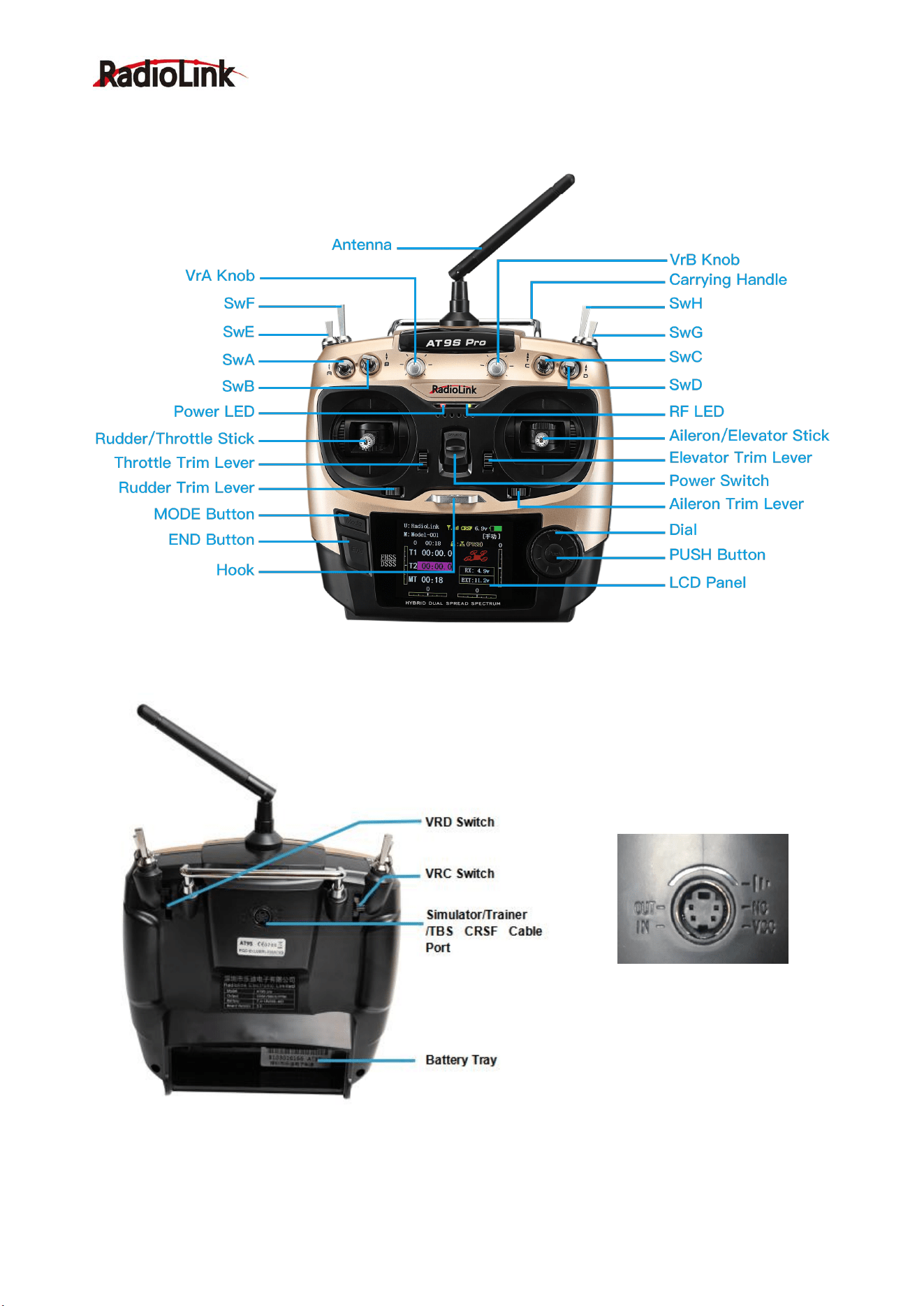
•AT9S Pro transmitter features airplane friendly switch layout, with the trainer switch at the left hand (Mode 2),
and a notched throttle to minimize throttle changes with rudder input. Defaults to ACRO model type.
•AT9S Pro transmitter features helicopter-friendly switch layout, with idle-up and throttle hold switches at the
left hand, and a smooth, ratchet-less (unsprung) throttle for perfect hovering. Defaults to HELI (H-1 swash
plate type) model type
Helicopter (8 swashplate types, including CCPM)
• 3 Idle Ups • Throttle and Pitch Curves per Condition
• Revo. Mixing • Gyro Mixing including Separate Settings per Condition
• Delay • Governor Mixing
MULTIROTOR:
• ATTITUDE (Normal, attitude, GPS, hover, F/S, Aux)
• Throttle curve
• Mix programmable

Radiolink Electronic Ltd
www.radiolink.com
3
SWITCH ASSIGNMENT TABLE
• The factory default functions activated by the switches and knobs for a AT9S Pro transmitter are
shown below.
• Most AT9S Pro functions may be reassigned to non-default positions quickly and easily.
Always check that you have the desired switch assignment for each function during set up.
Switch/Knob
A or H
Airplane (
ACRO
)
Sailplane/Glider
(
GLID
)
Helicopter (
HELI
)
MULTIROTOR
SWITCH A
elevator dual rate
ch10
elevator dual rate
down=butterfly on
ch10
elevator dual rate
ch10
elevator dual rate
ch10
SWITCH B
rudder dual rate
ch9
rudder dual rate
ch9
rudder dual rate
ch9
rudder dual rate
ch9
SWITCH C
up =
ELE-FLP
on
center/down=
IDLE-DOWN
down =
AIRBRAKE
on
up =
ELE-FLP
on
center = Distance
cond.
down = Landing cond.
governor
attitude
SWITCH D
aileron dual rate
aileron dual rate
aileron dual rate
aileron dual rate
SWITCH E or G*
Landing gear/ch5
——
Throttle hold/ch5
——
SWITCH F or H*
Snap roll /trainer
Trainer
Trainer/throttle
cut
trainer
SWITCH G or E*
——
up = Speed cond.
idle-up 1 and 2
——
SWITCH H or F*
——
down = Start cond.
idle-up 3 /gyro
——
KNOB A
Flap/ch6
(
flap trim if
FLAPERON
on)
Flap/ch6
HOVERING
PITCH
ch 6
KNOB B
ch 8
ch 8
ch 8
ch 8
KNOB C
Spoiler/ch7
(disabled if
AIL-DIFF
on)
ch 7
(disabled if
AIL-DIF
on)
HOVERING
THROTTLE
ch7
ch 7
SLIDER D
——
ch 5
——
——
1.1.3 Compatible Receivers
AT9S Pro is a 10 channels transmitter, support 2.4G DSSS and FHSS dual hybrid spread spectrum, 16
channels pseudo random frequency hopping.
AT9S Pro sells with receiver R9DS.
R9DS is a 9 channels receiver when working with PWM signal(red LED), it will a 10 channels receiver when
working with S-BUS signal(purple/blue LED).
Besides R9DS, AT9S Pro is also compatible with Radiolink R6DS, R10DS, R12DS and super mini 10
channels receiver R6DSM and 12 channels mini dual antenna receiver R12DSM.
R6DS, is a 6 channels receiver when working with PWM signal while it is a 10 channels receiver when
Radiolink Electronic Ltd
www.radiolink.com
4
working with SBUS or PPM signal.
R12DS, is a 11 channels receiver when working with PWM signal while it is a 12 channels receiver when
working with SBUS signal.
Note AT9S Pro is default 10 channels, you can upgrade it to 12 channels with USB cable. You have to setup
AT9S Pro to 12 channels first if you use 12 channels receivers R12DS or R12DSM while you have to setup
AT9S Pro back to 10 channels when you use 10 channels receiver R6DS, R6DSM and R10DS.
To setup to 12 channels: power on your AT9S Pro--Press Mode button one second into BASIC MENU--into
SYSTEM menu--change CH-SELECT from 10CH to 12CH.
Since Radiolink radio control systems are not open source, that Radiolink transmitters just compatible with
Radiolink receivers and vice versa.
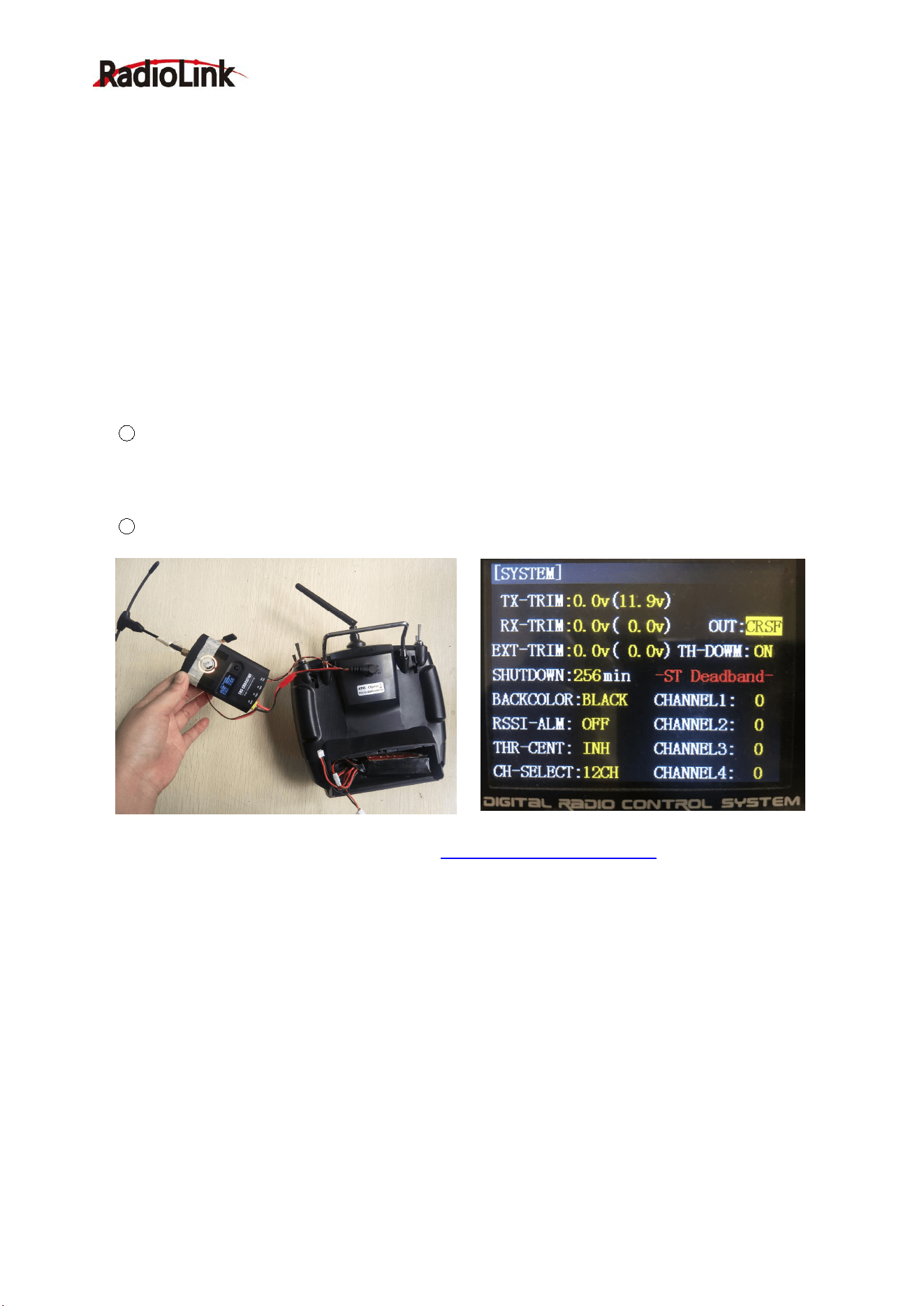
1.1.4 Connection with TBS Crossfire TX
1 Power on the transmitter- Long press the Mode key to enter the BASIC MENU->Rotate the Scroll
Dial to highlight the SYSTEM option and depress the Enter key->Select the OUT and change the output as
CRSF
Note There are totally three signal output SBUS/PPM/CRSF
2 Connect the TBS Crossfire transmitter to the AT9S Pro with the cable(packed inside the box)
The detailed steps please refer to the video tutorial https://youtu.be/g_mfHdeEQCo
Note The compatibility function with TBS Crossfire TX is only available in AT9S Pro, which CANNOT be
upgraded from AT9S Pro directly.
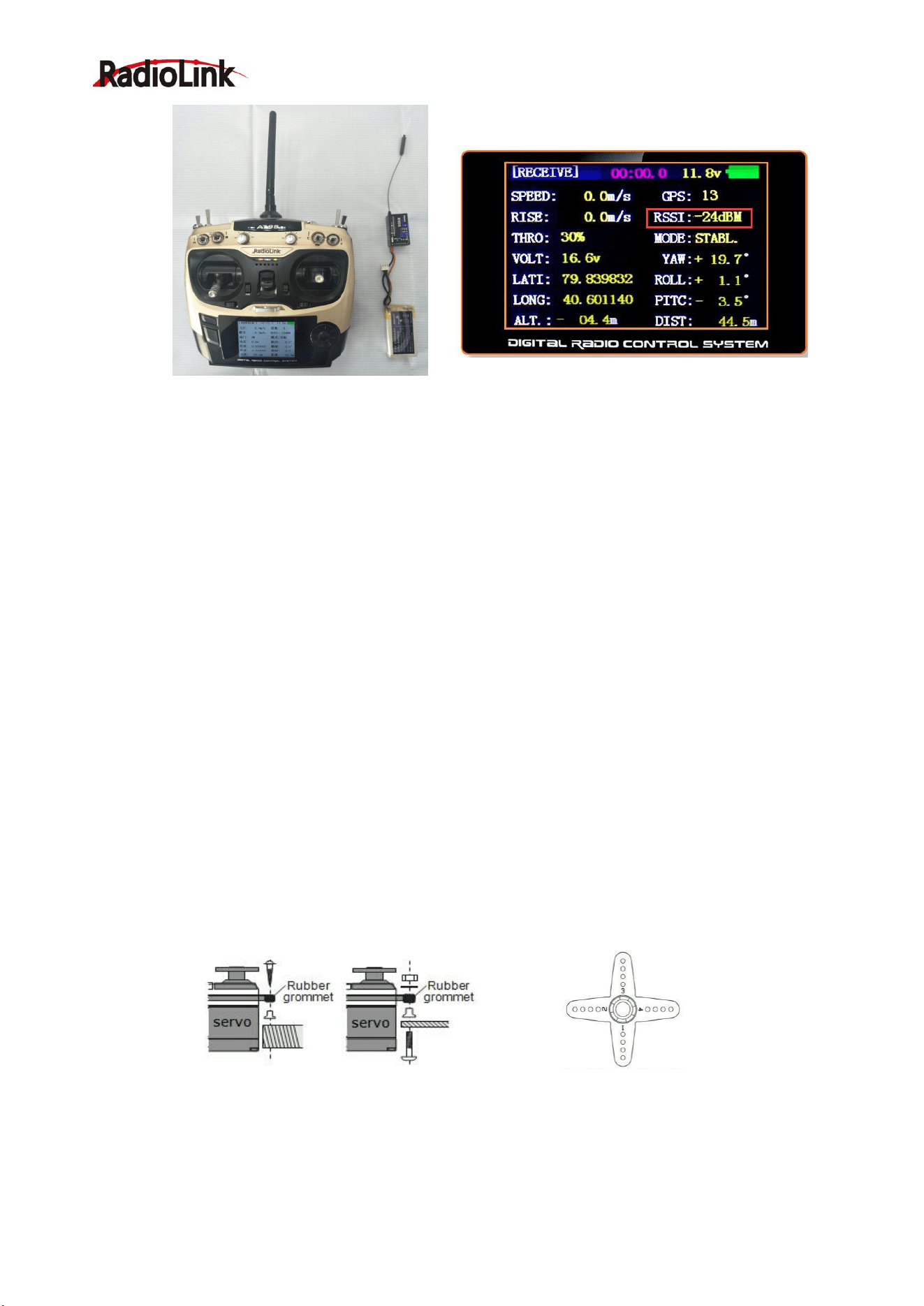
1.1.5 RSSI testing
Power on transmitter and receiver, keep transmitter apart from receiver about 30 centimeters and both
antennas straight.
Enter the parameter setup menu by press MODE one second, you can check the RSSI in RECEIVE.
The RSSI is 0 to 30dBm is normal when the transmitter is apart about 30 centimeters from the receiver, the
signal is more better the RSSI data is more close to 0.
Radiolink Electronic Ltd
www.radiolink.com
5
1.2 RADIO INSTALLATION
1.2.1 Guidelines to mount the servos, receiver and battery
• Make certain the alignment tab on the battery, switch and servo connectors is orient correctly and ‘key’ into
the corresponding notch in the receiver or connectors before plugging them in .When unplugging connectors,
never pull on the wires. Always pull on the plastic connector instead.
• Receiver’s Antenna: In generally receiver’s antenna is longer than remote control, don’t break or retract it,
otherwise shorten the control distance. The antenna must be kept away from conductive materials, such as
metal. Please make distance test before flying.
• If your aileron servos are too far away to plug into the receiver, use an aileron extension cord to extend the
length. Avoid plugging multiple extensions together to obtain your desired length. If the distance is greater
than 50cm or high current draw servos are being used, use heavy servo extensions.
• Receiver Vibration and Waterproofing: the receiver contains precision electronic part. Be sure to avoid
vibration, shock, and temperature extremes. For protection, wrap the receiver in foam rubber or other
vibration-absorbing materials. It is also a good idea to waterproof the receiver by placing it in a plastic bag and
securing the open end of the bag with a rubber band before wrapping it with foam rubber. If you accidentally
get moisture or fuel inside the receiver, you may experience intermittent operation or a crash. If in doubt,
please contact Radiolink aftercares or distributors for service.
• Always mount the servos with the supplied rubber grommets. Don’t over tighten the screws. No part of the
servo casing should contact the mounting rails, servo tray or any part of structure. Otherwise vibration will be
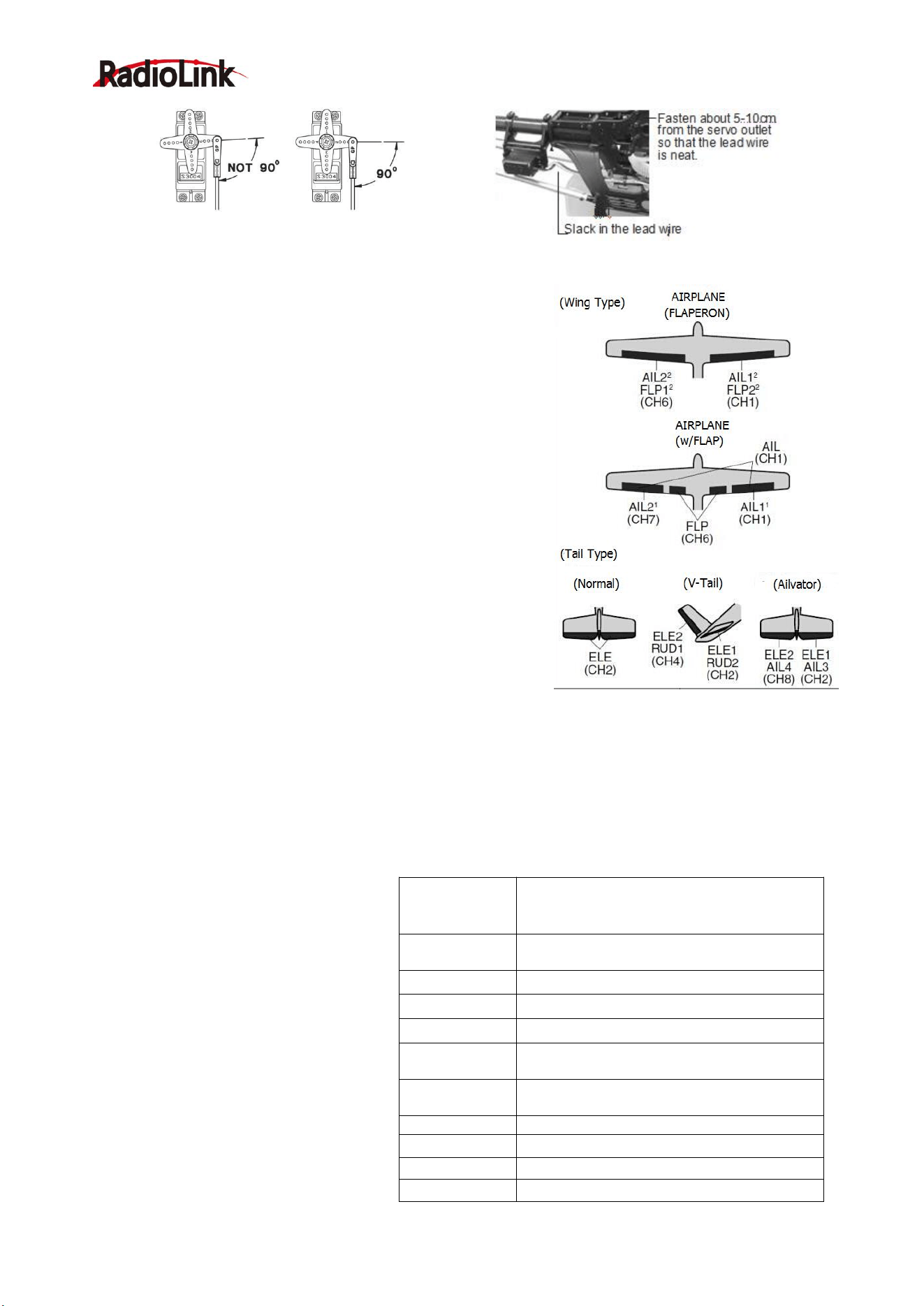
transmitted to the servo causing damage of servo. Note the small numbers (1, 2, 3, and 4) molded into each
arm on the servo arms. The number indicate how many degrees each arm is ‘off’ from 90 degrees to correct
for minute manufacturing deviations from servo to servo.
• To center the servos, connect them to receiver and turn on the transmitter and receiver. Center the
trims on the transmitter, then find the arm that will be perpendicular to the pushrod when placed on the servo.
Radiolink Electronic Ltd
www.radiolink.com
6
•After the servos are installed, operate each servo over its full
travel and check that the pushrods and servo arms don’t bind or
contact each other. Also make sure the controls do not require
excess force to operate. If there is an objectionable buzzing sound
coming from a servo, there is probably too much resistance in the
control. Find and correct the problem. Even is there is no servo
damage, excess battery drain will result.
• Use the mounting plate from the receiver on/off switch as a
template for the cutout and screw holes, mount the switch on the
side of the fuselage opposite the engine exhaust, and where it
won’t be inadvertently turned on or off during handling or storage.
Be certain the switch moves without restriction and ‘snaps’ from
ON to OFF, and that the cutout allows full motion of the switch in
both directions.
• When install the switch harness to the helicopter please use
the switch cover. Generally sandwich the frame between the
switch and switch cover and securely tighten the screws, Different
models might require different installations. If so, please follow the
model’s instruction manual.
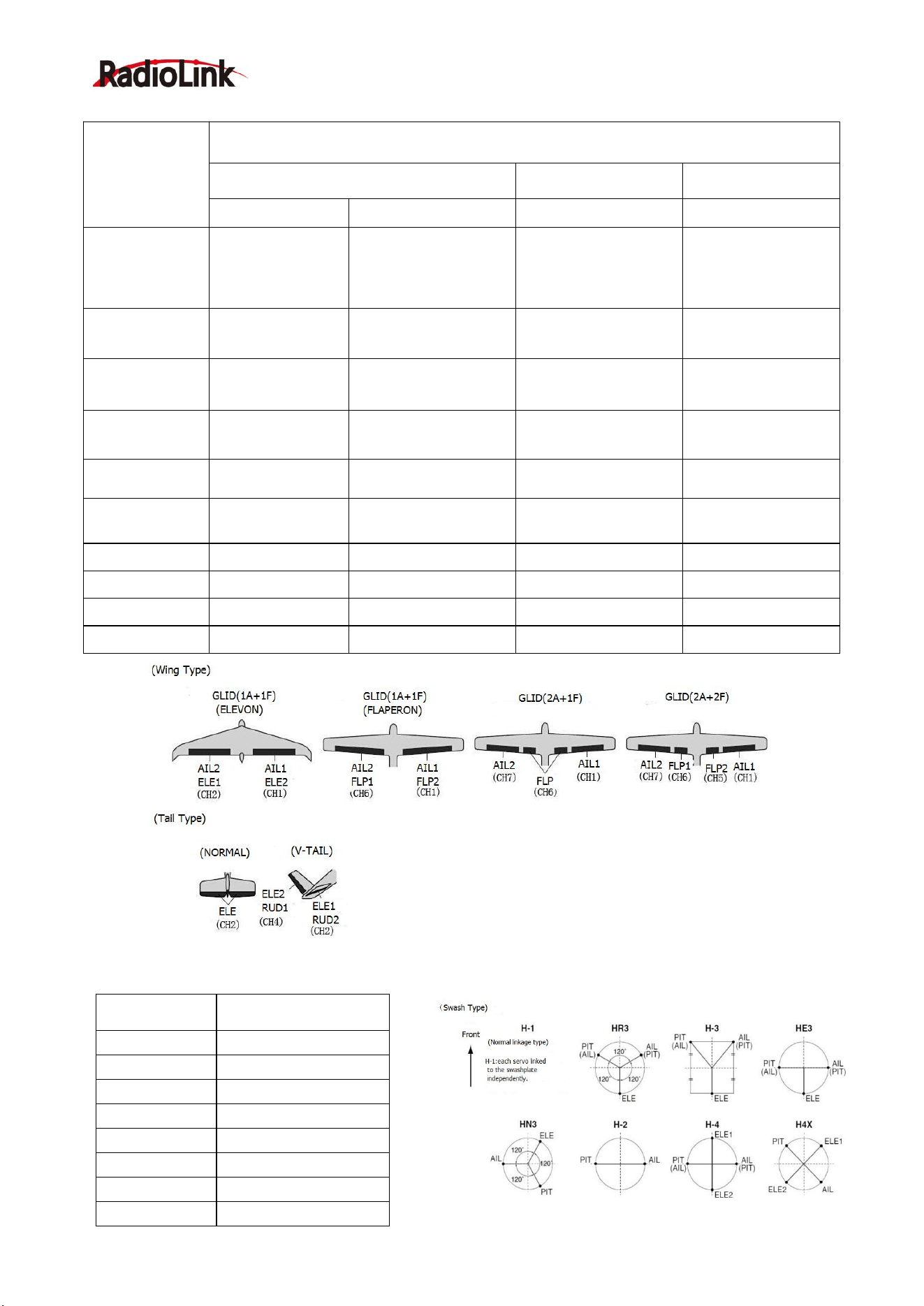
• To prevent the servo lead wires from being broken by vibration during flight, provide a slight amount of
slack or extra so that the wire sticks out slightly and fasten it at suitable points. In addition, periodically check
the wire during daily maintenance.
1.2.2 Receiver and servo connections
(1)
Acrobasic servo connection
Receiver output
and channel
ACROBASIC
1
ailerons/aileron-1¹/combined
flap-2&aileron-1¹
2
elevator
3
throttle
4
rudder
5
spare/landing gear/aileron-2¹
³/combined flap-1 and aileron-2² ³
6
spare/flaps/combined flap-1 and
aileron-2²
7
spare/aileron-2¹
8
spare/elevator-24/mixture control
9
spare
10
spare
Radiolink Electronic Ltd
www.radiolink.com
7
(2) Glider/Sailplane servo connection
RX output & CH
Glider
GLID
(
1
A+
1
F)
GLID (2A+1F)
GLID (2A+2F)
ELEVON
FLAPERON
AILE-DIFF
AILE-DIFF
1
Combined
elev-2&aileron1
elev-1&aileron-2
Combined flap-2
&aileron-1
aileron-1
Aileron-1
2
Combined
elev-1&aileron-2
Elevator/combined
rudder-2&elev-1¹
Elevator/combined
rudder-2&elev-1¹
Elevator/combined
rudder-2&elev-1¹
3
spare/motor
spare/motor
spare/motor
spare/motor/splr-2¹
4
Rudder
Rudder/combined
rudder-2&elev-2²
Rudder/combined
rudder-2&elev-2²
rudder/combined
rudder-1&elev-2²
5
spare/splr-2¹
spare/spoiler-2¹
spare/spoiler-2¹
flap-2
6
Flaps
Combined
flap-1&aileron-2
flaps
flap-1
7
Spare
spare
ailron-2
Aileron-2
8
spare/splr/splr-1¹
spare/splrs/splr-1¹
spare/splrs/splr-1¹
spare/splrs/splr-1¹
9
Spare
spare
spare
spare
10
Spare
spare
spare
Spare
(3) Helicopter servo connection
Receiver output
and channel
Helicopter
1
aileron/cyclic roll
2
Elevator/cyclic pitch
3
Throttle
4
Rudder
5
Spare/gyro
6
Pitch(collective pitch)
7
Spare/governor
8
spare/mixture control
Radiolink Electronic Ltd
www.radiolink.com
8
The above listed receiver and channels is referred to the channel 1~9 of the receiver R9DS, connect the
receiver with the related servo, you can control the servos by the correspondent switch.
To be clear, the servo connected with the receiver channel 1 is controlled by the radio aileron lever; servo
connected with channel 2 is controlled by elevator lever; servo connected with channel 3 is controlled by
throttle stick; servo connected with channel 4 is controlled by the rudder lever. Channel 5~9 can be self-set
with the related switches by the menu AUX-CH, and the sub menu. For channel 9, the LED indicator on the
receiver flashes blue for S-BUS signal and red for PWM.
1.2.3 Installment of antenna
Installment of antenna
1. Receiver Antenna Installment
1 Keep antennas as straight as possible, or the effective control range will reduce.
2 Big models may contain metal parts that influence signal emission. In this case, antennas should be
positioned at both sides of the model to ensure the best signal status in all circumstances.
3 Antennas should be kept away from metal conductor and carbon fiber at least half inch away and no
over bending.
4 Keep antennas away from motor, ESC or other possible interference sources.
5 Press and hold the ID SET for more than one second and receivers will start to work with the RED
LED on.
Note Receiver contains some electronic components of high-precision. Be careful to avoid strong vibration
and high temperature.
When all the above steps are complete, please turn off the transmitter and repower on to test if the receiver is
correctly connected with it.
2. Transmitter Antenna Installment
1
The transmitter antenna is adjustable so please make sure that the antenna never points directly
at the model when flying as this may possibly decrease the receiver signal.
2
Keep the antenna perpendicular to the transmitter to optimize the receiver performance. It also
depends on how you hold the transmitter. But in most cases, adjusting the antenna with perpendicular
position to the transmitter surface will achieve the best result. Please adjust the transmitter antenna
according to the way you hold the transmitter.
3
Never grip the antenna when flying as this degrades= effective control range..
1.3 RADIO BASIC SETTING
1.3.1 Basic setting of the transmitter
1. Display language: can be selected the display language of the function name, etc. in each function menu.
The screen reads "LANGUAGE". Change this to the desired language.
2. Stick Mode: The screen reads "STK-MODE". Change this to the correct mode. Note that this will NOT
change the throttle and elevator ratchets, etc. Those are mechanical changes that must be done by a
service center.
3. RF Mode: the LED indicator will become solid green when RF Mode is active.
4. Adjusting Display Contrast: To adjust the display contrast, from the home menu press and hold the END
BUTTON. Turn the DIAL while still holding the END BUTTON: clockwise to brighten and
9
Spare
10
spare
Radiolink Electronic Ltd
www.radiolink.com
9
counterclockwise to darken the display.
5. User name setting: user name can be set by DIAL and PUSH with letters and numbers.
6. Alarming voltage:
Transmitter: preset 8.6V, can be self-set
Receiver: preset 4.0V, can be self-set
Ext: preset 10.1V, can be self-set
1.3.2 Model type
Under basic menu, use DIAL to select MODEL TYPE and enter by pressing PUSH. There are 6 different type
included in the system, HELICOPTER, AEROBASIC, GLID(1A+1F), GLID(2A+1F), GLID(2A+2F), and
MULTIROTOR, after model type is selected, press and hold PUSH for 1 second, when the word “are you sure
to change” displayed, model type is changed.
1.3.3 Binding
Each transmitter has an individually assigned, unique ID code. Receiver should bind to transmitter before
starting operation. Once binding is complete, the ID code will be stored in the receiver and no further binding
is necessary unless the receiver is used with another transmitter. When you purchase a new R9DS, this
procedure is necessary; otherwise the receiver will not work.
1. Put the transmitter and the receiver close to each other about 50 centimeters.
2. Power on AT9S Pro and receiver R9DS. The RED LED will be on.
3. Turn on AT9S Pro and it will automatically bind with the closest receiver.
4. There is a black binding button (ID SET) on the side of receiver. Press the button for more than 1 second
and release, the RED (by default, could be Purple for SBUS&PWM signal output) LED will flash, meaning
binding process is ongoing.
5. When the LED stops flashing and is always on , binding is complete.
6. Make sure servos connected with the receiver can be operated by the transmitter.
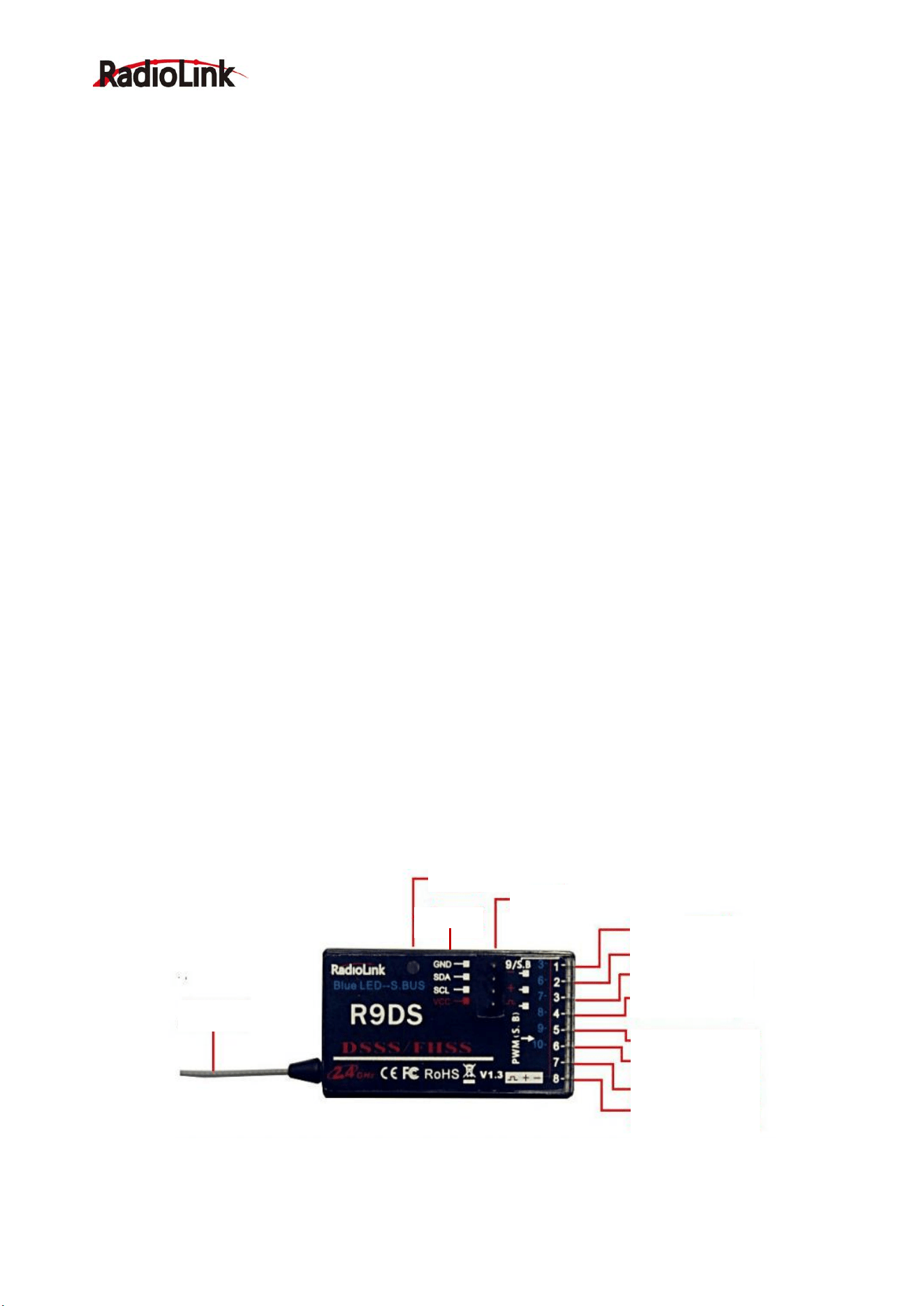
1.3.4 Two signal working modes of R9DS:
There are two signal working modes, PWM and SBUS&PWM signal output. Short press ID SET twice within
1s, the working mode will change.
The RED led indicates the PWM output and BLUE/PURPLE led indicates
SBUS signal.
(1) PWM signal output working mode:RED led indicates PWM signal output, 9 channels totally
CH5 (AUX)
CH6 (AUX)
CH7 (AUX)
CH8 (AUX)
CH1 (AILE)
CH2 (ELEV)
CH3 (THRO)
CH4 (RUDD)
Antenna
Telemetry Connection
Port
LED
Indicator
ID
SET
Radiolink Electronic Ltd
www.radiolink.com
10
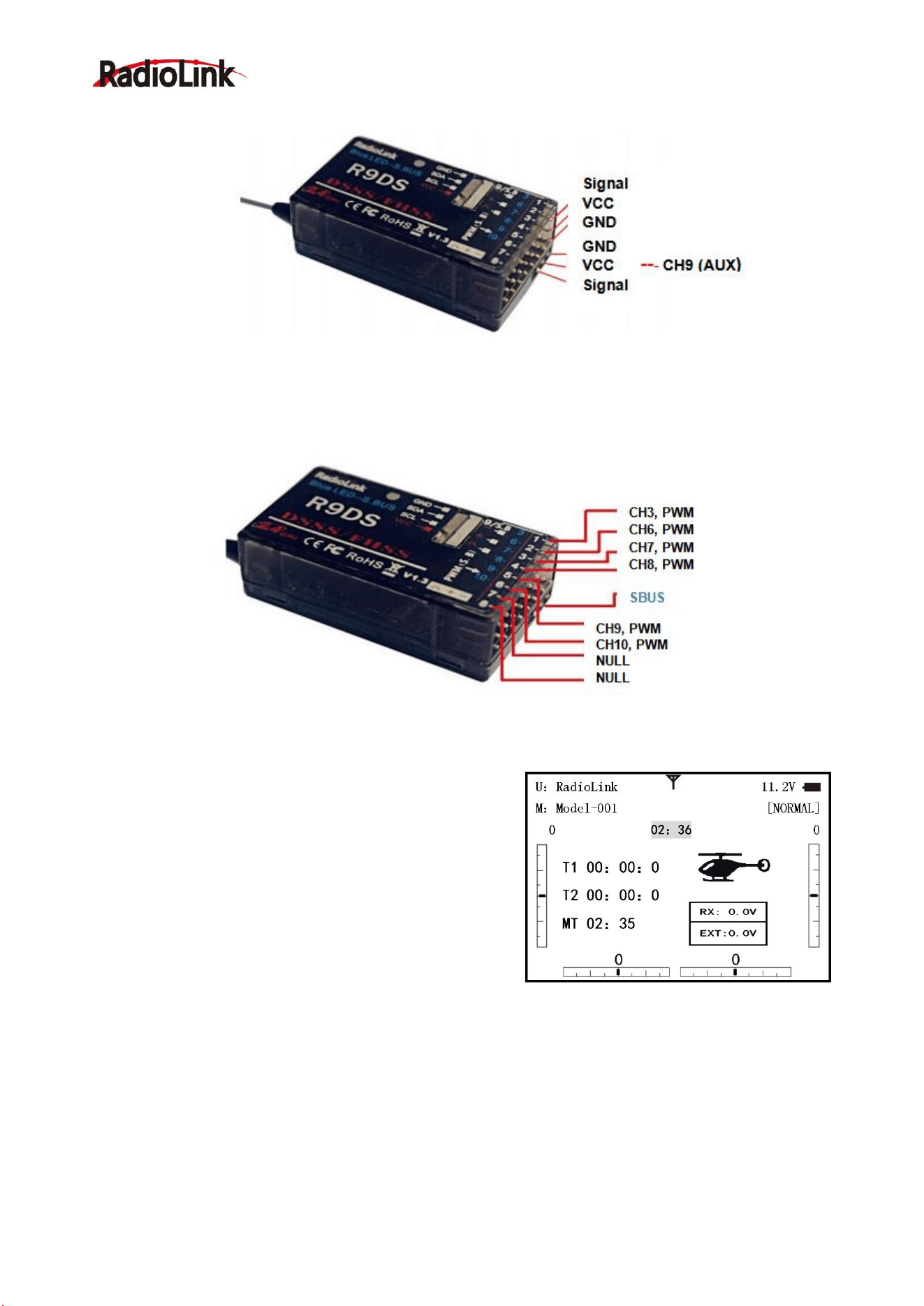
(2) SBUS&PWM dual signal output working mode: blue/purple LED indicates SBUS&PWM signal output at
the same time with 10 channels totally. CH9 outputs SBUS signal while the original CH1 outputs CH3 PWM
signal and original CH2 to CH6 output CH6 to CH10 PWM signal at the same time.
1.3.5 Transmitter Displays & Buttons
When you first turn on your transmitter, a confirmation double
beep sounds, and the screen shown below appears. Before
flying, or even starting the engine, be sure that the model type
and name appearing on the display matches the model that
you are about to fly! If you are in the wrong model memory,
servos may be reversed, and travels and trims will be wrong,
leading to an immediate crash.
Total timer: Shows the cumulated ON times. (Hours:
minutes)
T1/T2:T1/T2 timer display.(minutes: seconds)
MT:Model timer display Shows the cumulated ON time for each model.(hours: minutes)
Button instruction
MODE BUTTON
Press and hold MODE BUTTON for one second to open programming menus. Press MODE BUTTON to
switch between BASIC and ADVANCE. Press MODE BUTTON to scroll between conditions in certain
functions.
END BUTTON:

Radiolink Electronic Ltd
www.radiolink.com
11
Press END BUTTON to return to previous screen. Closes functions back to menus, closes menus to start-up
screen.
PUSH BUTTON:
Press PUSH BUTTON to select a function.
Turn DIAL:
Turn DIAL clockwise or counterclockwise to scroll through choices within an option of a function
Warning and error display
When the transmitter is powered on, warning or error may happen by the following probability
1. Battery low voltage alarming
Lithium battery 2S-4S can fit for the transmitter, warning voltage can be
self-set according to different battery.
Setting step: power on the transmitter, press and hold MODE one
second to enter basic menu, and press PUSH to enter PARAMETER.
Choose TX ALARM by DIAL and PUSH to change relative data.
Suggested min voltage is not less than 7.4V.
When the transmitter voltage is less than the setting voltage, it will beep
till the transmitter is powered off. Most important thing is to land your
model plane when the transmitter alarms.
2. Mixing alarm
When the transmitter alarms mixing, it means at least one mixed switch
is active. And when it is inactive, warning will stop then. When the
transmitter is powered on, in different model type, mixing switch is
shown as below:
ACRO: throttle cut, idle down, snap roll, air brake
GLID: butterfly, condition
HELI: throttle cut, throttle lock, speed up
If the warning continues even the related switch is set OFF, probably it is
because some programs mixed by one switch and status OFF reversed. Now you need to set mixing alarm
again by DIAL.
PART 2. BASIC FUNCTION OF AIRPLANE
Pay attention that the (BASIC) menu is suitable for all type models (airplane, helicopter, glider, MULTIROTOR,
cars and boats). The motor cut will be introduced in Glider (Basic) Menu, except Idle down &Throttle cut.
Helicopter Basic Menu include some extra function (swashplate tilting, throttle and pitch curves and the tail
rotor anti torque mixing under normal flight model) will be discussed in Helicopter section.
******WARNING!!!******
TX LOW POWER!
******WARNING!!!******
THR POSITION
!
Radiolink Electronic Ltd
www.radiolink.com
12
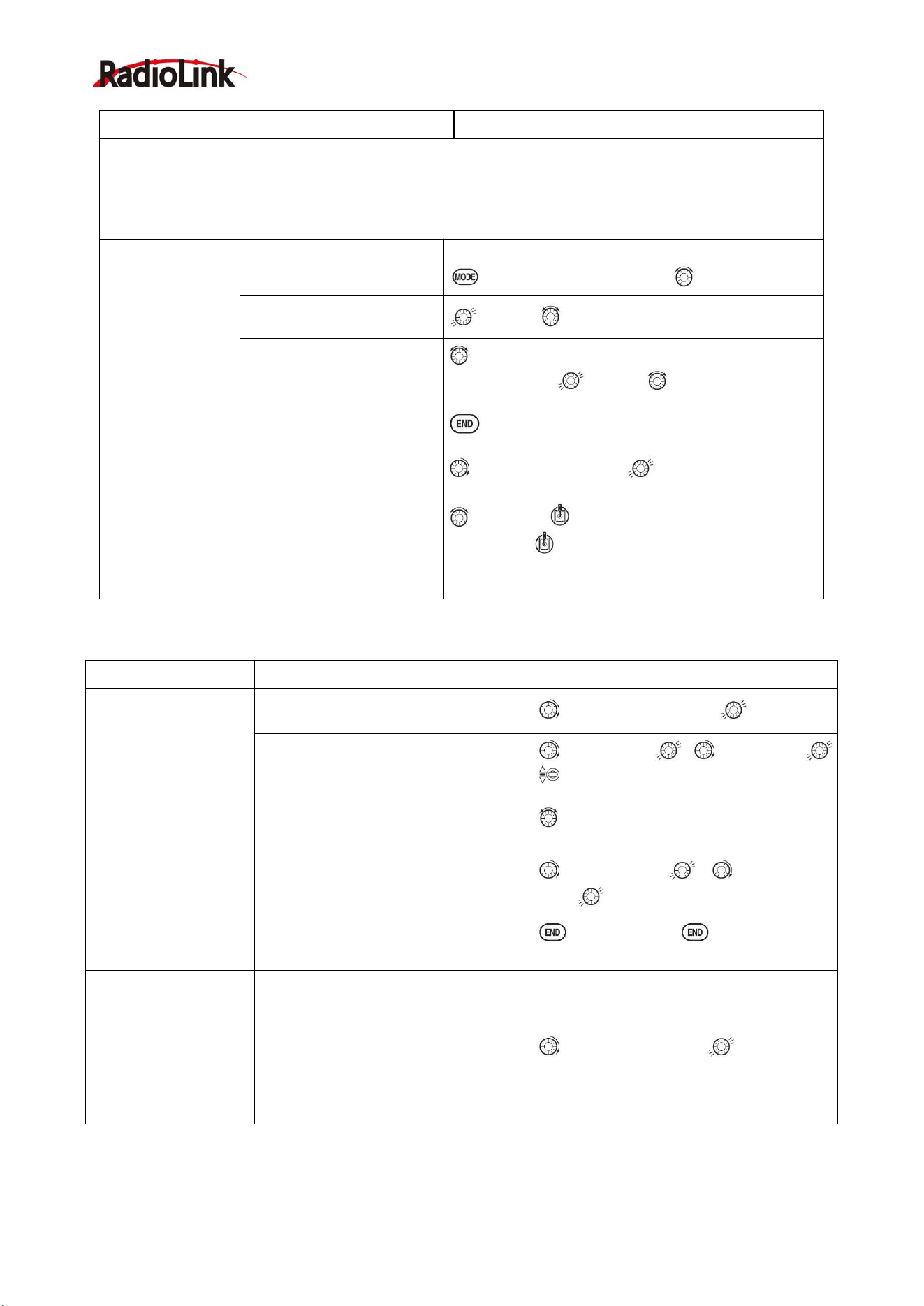
2.1 A QUICK GUIDE OF ACROBASIC MENU
2.2 A QUICK GUIDE: GETTING STARTED WITH A BASIC 4-CHANNEL AIRPLANE
This guide is intended to help you acquainted with the radio, to give you some ideas and direction on how
to do. We give you a big picture overview of what we accomplish; a ‘by name’ description of what we’re
doing to help you with the radio; then a step-by-step instruction to leave out the mystery when setting up
your model.
For additional details on each function, see that function’s section in this manual.
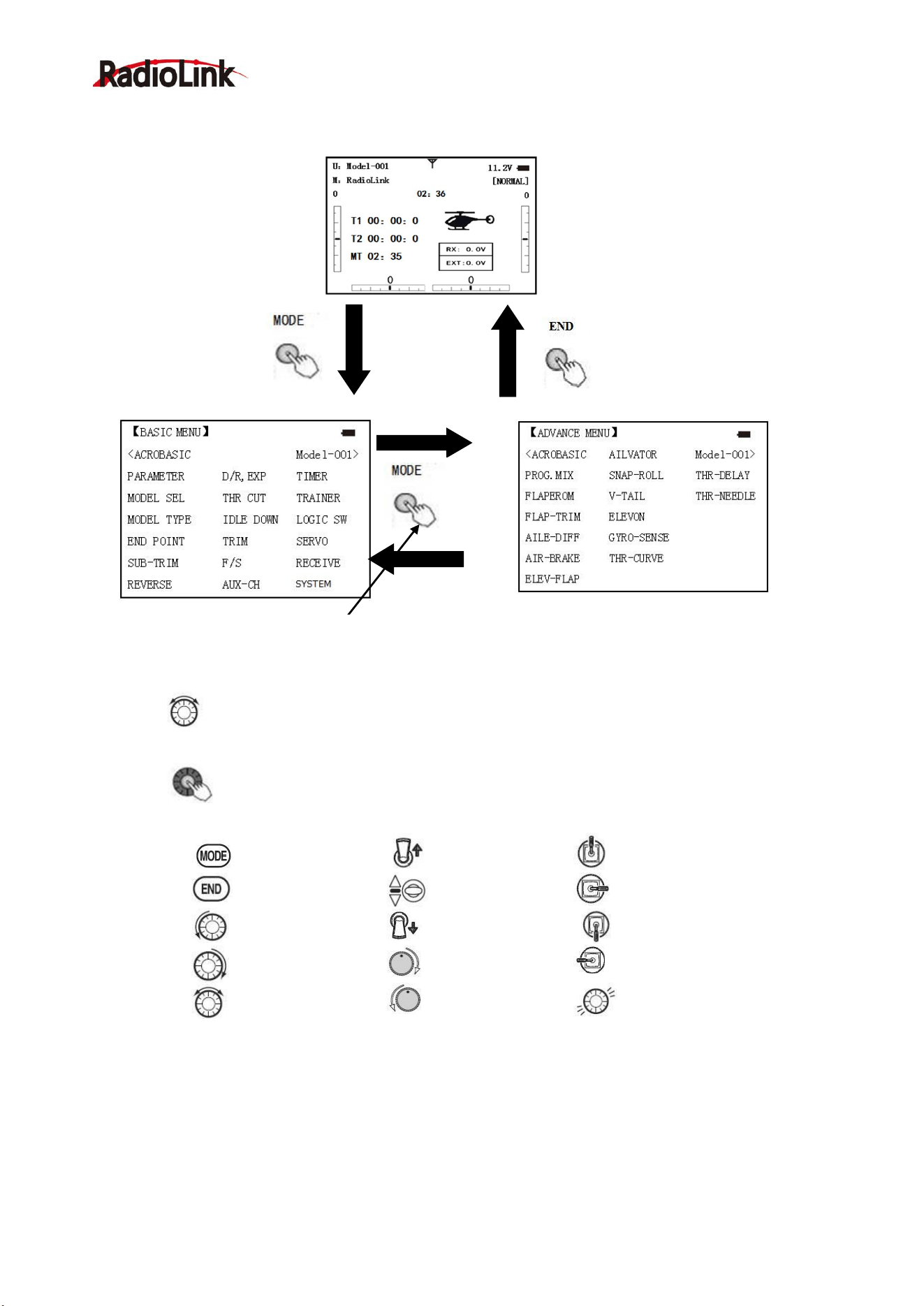
Mode Select
Switch Up
Stick Up
End Selection
Switch at Center
Stick Right
Dail Left
Switch Down
Stick Down
Dail Right
Turn Knob Right
Stick Left
Dail Right or Left
Turn Knob Left
Press Push
Button
Startup screen
BASIC MENU
ADVANCE MENU
Press MODE BUTTON
for more than one
second to enter BASIC
MENU
Press MODE BUTTON to
switch between BASIC and
ADVANCE MENU
Press END BUTTON to
return to Startup screen
Turn DIAL clockwise or counterclockwise to scroll through
choices within an option of a function.
Press PUSH BUTTON to select a function.
Radiolink Electronic Ltd
www.radiolink.com
13
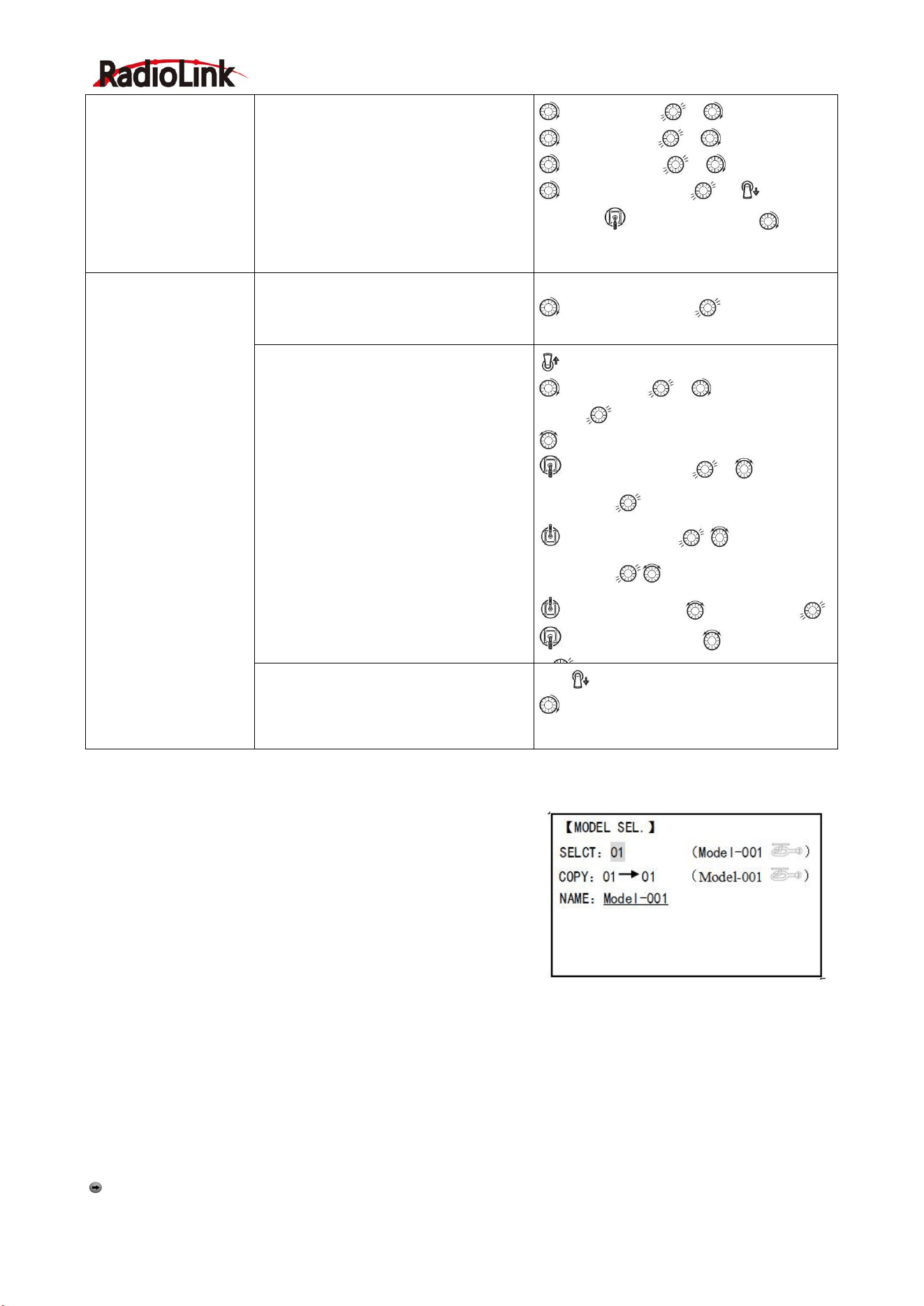
Example
Steps
Input for Example
Prepare your
airplane
Install all servos, switched, receivers, etc. per your model’s instructions. Turn on
transmitter then receiver; adjust all linkages so surfaces are nearly centered.
Mechanically adjust all linkages as close as possible to proper control throws. Check
servo direction. Make notes now of what you will need to change during
programming
.
Name the model
(Note that you do
not need to do
anything to ‘save’
or store this data).
Open the Basic menu, then
open the PARAMETER
T
urn on the transmitter.
for 1second to basic menu. to choose model
Go to Model Name
to Mode, to Mode name,press PUSH to setting
Input airplane’s name
Close the Model submenu
To change first character, when proper character is
displayed, push to select. To move to next
character. Repeat as needed.
return to BASIC menu
Need to adjust EN
D-POINT to meet
with the related ser
vo.
In the BASIC menu find the
END POINT
to END POINT,press to set
Adjust end point (EX: THRO
servo)Close the function
to Throttle Throttle stick until carburetor closes
as desired. until throttle arm just open carburetor
at fully throttle stick. Repeat for each channel as
needed.
With digital trims you don’t shut the engine off with THROTTLE TRIM. Let’s set up IDLE-DOWN and ‘throttle
cut’
Goals
Steps
Input for Example
Idle down setting: Idle
down is to lower the en
gine speed for landing,
snap rolling acrobatic
display, and launching
etc. It is preset OFF an
d mainly used to start
engine and glide, then
to avoid flameout.
From the BASIC menu choose IDLE
DOWN.
to IDLE DOWN,press
Activate and adjust IDLE DOWN
to MIX,press , to ON,press
C to center position, screen now reads
ON.
to RATE, to increase rate until engine
idles reliably but low enough to sit still.
Optional: change switch C command
to POSI,press , as you desired
press
Close the function
BASIC menu, again to startup
screen.
THR CUT shuts the
engine off completely
with the flip of a
switch.(Note: Do Not
assign IDLE DOWN
and THR CUT to both
position of a 2 position
switch
From BASIC menu, choose THR CUT
to THR CUT,press
Radiolink Electronic Ltd
www.radiolink.com
14
2.3 AIRPLANE BASIC FUNCTION
2.3.1 Model Select
Model submenu: includes three function that manage model
memory: MODEL SELECT,MODELCOPY and MODEL NAME.
Since these functions are related, and all basic features are used
with most models, they are together in the Model submenu.
MODEL SELECT
Totally there are 15 models stored in the system, followed by model name and plane type to use on tap,
thus you don’t need to set every time for different plane. MODEL NAME, MODEL TYPE and transmitter
voltage. Make sure that MODEL TYPE is accomplished with your plane type before flight. Or it will cause error
in servo and rudder.
COPY
Save the present data as another model type, it will be displayed by shadow area to differ from. When this
copy start, the object data will be fully covered including name, type and module type, and cannot recover.
Caution: when you save the present model type as another, all related data will be copied including the
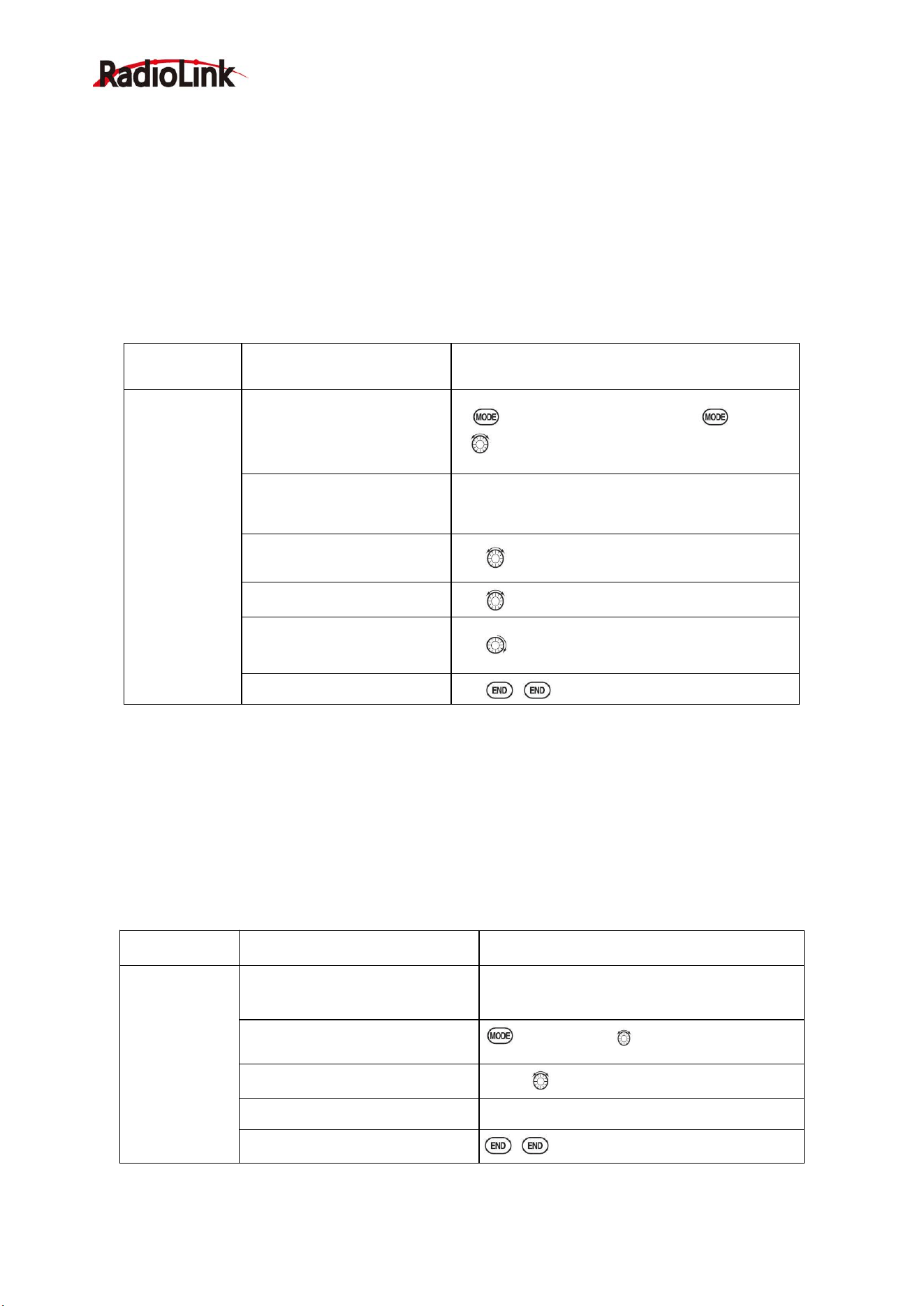
Activate, assign SWITCH and adjust.
Close the function
to MIX,press , to INH
to SW,press , to SwC
to POSI, press , to DOWN
to RATE , press , to down
position, throttle stick down until the
throttle barrel closed
Set up dual/triple rates
and exponential
(D/P,EXP) (Note that in
the middle of the left
side of the screen is
the name of the
channel and the switch
position you are
adjusting. D/R may be
set per channel by
choosing the desired
switch and mix rate.
From BASIC menu, choose the
D/R,EXP
to D/R,EXP,press
Choose the desired control, and set the
first (EX: high) rate throws and
exponential.
SwA to up position A
to CH, press , to choose CH2,
press
to D/R
Stick down,press , to
set ,press
Stick up,press , to
set ,press to EXP
Stick up,press to set,press
Stick up,press, to set,press
Set the second(low)rate throws and
exponential.
SwA to down position
to D/R
Repeat steps above to set low rate.
Radiolink Electronic Ltd
www.radiolink.com
15
original model name. Accordingly, if you want to change the model type, the whole data need to reset, also for
model name. The first thing to copy is to change the model type or delete the original name and rename a
new model to avoid confusion.
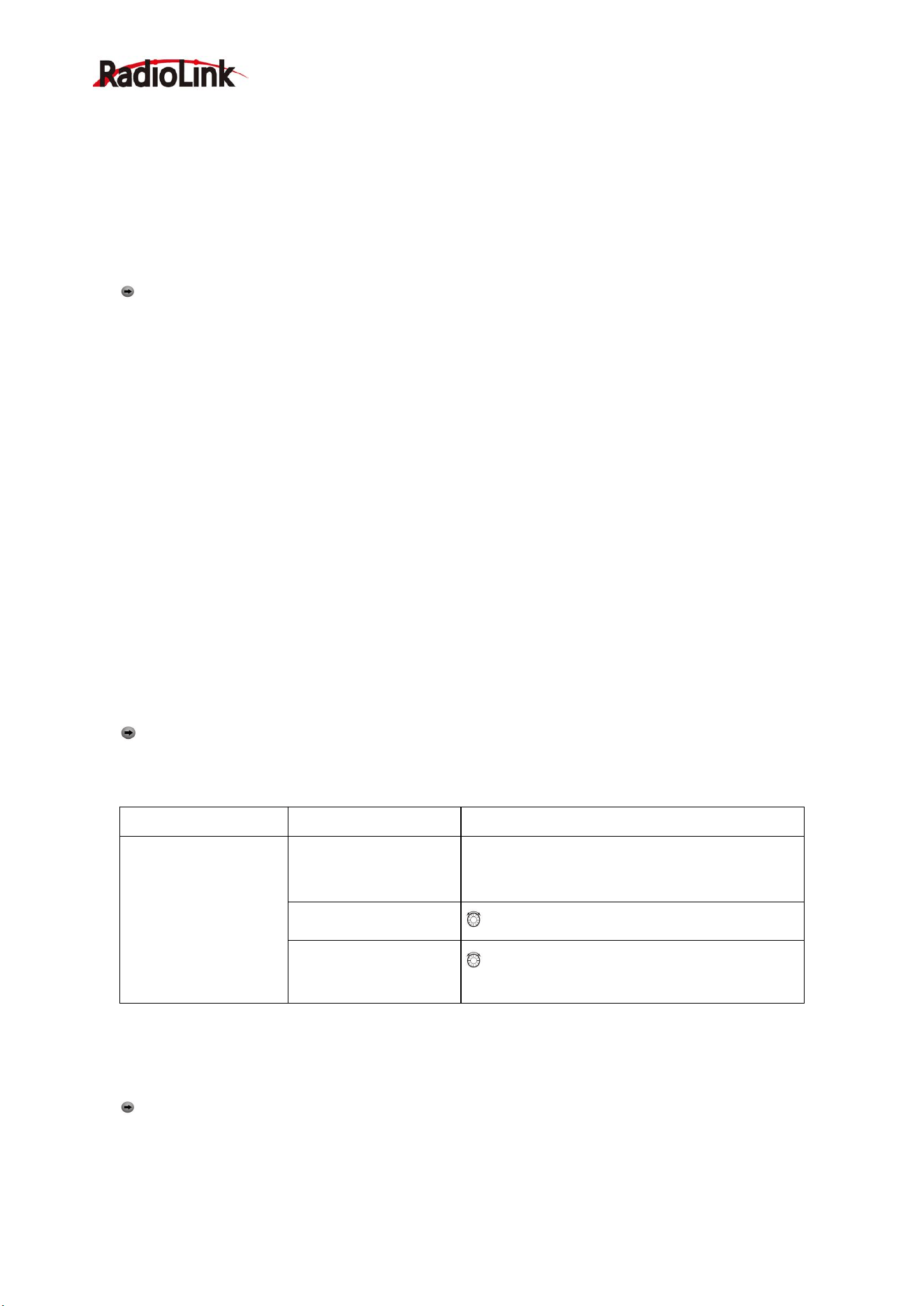
Model Name
This is used to set the present model name. Name all model to identify each other, and fast select the
model type and reduce possible crash by wrong model type using.
Format to name a model:
•the name can be more than 9 characters
•every character can be letter, number, blank or special characters
•factory setting name MODEL-XXXX will be shown as (example model 1 display MODEL-0001)
Goals
Steps
Inputs
Name
model3“Cap-
232_”(where
underline
represents a
blank space
Open Model
for 1second.(If ADVANCE, again)
to MODEL SEL. Press PUSH
Confirm correct model (Ex:3)
If select doesn’t show ‘3’,perform Model
select
Go to Name to change the
first character(Ex: M to C)
M to C, press PUSH.
Change the next character
to choose character, press PUSH to
confirm
Repeat the prior steps until
finish naming model.
to a .Repeat.
Close
Sub-menu select: All parameters need one time setting. After the model type selected, you need to set the
related data for it.
•what is the model type
•whether the throttle channel 3 is right for the selected model type? Or you need to make sure channel 3 is of
full range adjustable (glider only). Also to different model, you can set by throttle reverse correspondingly.
Initialize the original data first, and set new data for the selected model type
Model reset: model reset is available in factory only. If you want to delete a new set model type, you need to
delete one by one.
Goals
Steps
Inputs
Reset model
memory 1
Confirm you’re currently using the
proper model memory(Ex:1)
On home screen, check model name and No.
on top left, if not correct use Model Select.
Open PARAMETER submenu
For 1second to Model SEL, Push.
Reset the memory
Push, to Model 1,PUSH
Confirm the change
Are you sure? Press PUSH
Close
Radiolink Electronic Ltd
www.radiolink.com
16
Model type select
•ACRO basic:
Drive ACRO basic type (multi airfoil. Detail in Twin Aileron Servos, Twin Elevator Servos, ELEV-FLAP mix
and V-tail)
•glider:
Different tail type (detail in glider type)
•helicopter:
8 swash plate types (detail in helicopter type)
Caution: decide a model type for the model plane. To most fixed wing plane, aero basic is better,
because it has some function glider doesn’t have. While sometimes, glider (2A+1F) is better.
•functions specially for aero basic:
•snap roll
•ELEV-flap mix (twin Elevator Servos support)
•oil power plane: idle down、throttle shut、throttle needle mix etc.
•functions aero basic doesn’t have:
5 individual flight conditions (normal, start, speed, distance, landing)
If the model type selected for glider or helicopter, please go to the related chapter for setting. After
model type changed, all parameters need to reset, including name.
2.3.2 Model Type
Data reset
All set data can be reset to factory setting. This function will not delete all model type set in the radio.
Setup step:
Enter the basic menu for MODEL TYPE, use dial to choose a proper type and press PUSH for one
second, when the screen displays “are you sure”, press PUSH and the radio will beep, and it is set to
factory data.
Caution: don’t power the radio off before setting is finished, or the setting is invalid.
Model Select
Goals
Steps
Inputs
Select proper Model
Type for your mode
l(Ex: ACRO)
Open BASIC menu,
then PARAMETER
submenu
Turn on the transmitter. MODE for 1s.(If
ADVANCE, Mode again.
Go to MODEL TYPE.
to Mode TYPE, press PUSH.
Select proper type Ex:
ACRO Confirm the
change. Close.
to ACRBASIC,PUSH for 1s. “Are you sure”
display. PUSH to confirm. End to BASIC menu.
Second aileron :( AILE-2) (ACROGLID1A+1FGLID2A+1F only): change the default choice for dual aileron
servos from channels 6(FLAPERON) to channels 5 and 6, or channel 3 and 6, or channel 7(AIL-DIF) to
channels 5 and 7. This allows you to utilize these 2 great functions while utilizing 5-channel receiver.
Caution: Changing AILE-2 only tells the system which servos to utilize if FLAPERON or AIL-DIF is
activated. You still must activate that function and complete its setup for details on twin aileron servos, including
using AILE-2.
(Only for glider 1A+1F) if the channel 3 is set as the second aileron, the receiver F/S will become invalid.
Radiolink Electronic Ltd
www.radiolink.com
17
Adjustable travel limit (ATL)
Make the channel 3 TRIM LEVER (THROTTLE TRIM) effective only at low throttle, and disabling the trim at
high throttle. This prevents pushrod jamming due to idling trim changes. This function defaults to ON. If you are
not using channel 3 for throttle, you may want trim operation the same as on all other channels. To do so, set
ATL to OFF. If you need the ATL to be effective at the top of the stick instead of the bottom, reverse the
THR-REV setting. Note that this affects all models in the radio, not just the model you are currently editing.
Goals
Steps
Inputs
Change ATL from ON
to OFF for battling
robots, tanks,
airbrakes and other
channel 3 uses.
Open Basic menu,
then to Mode Type.
Mode for 1s (If ADVANCE, Mode again). To
Mode TYPE, press PUSH.
Go to ATL and
change. (Ex: to OFF)
to ATL, to OFF.
Close
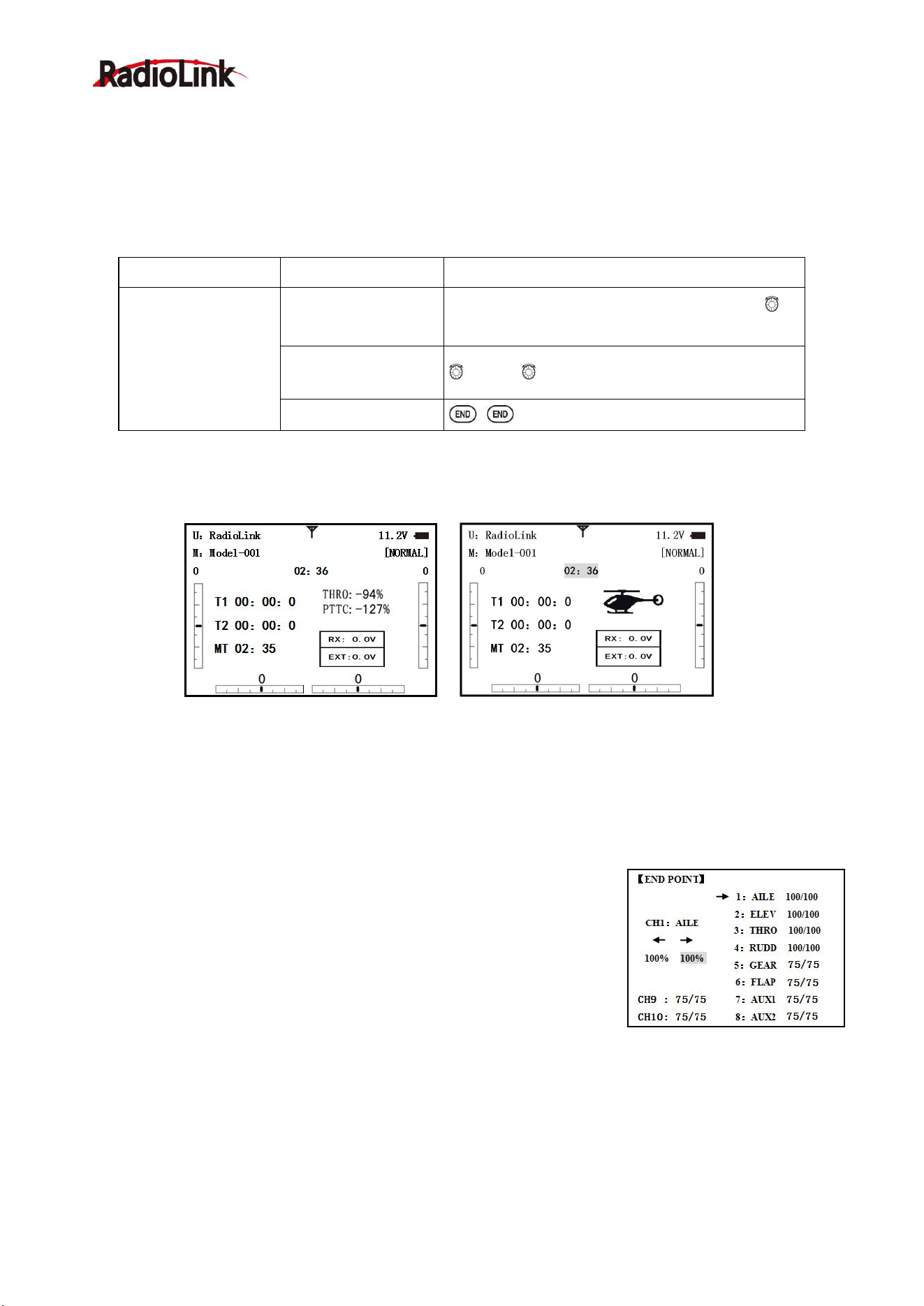
Home screen display
As shown below, home screen will display plane type and throttle pitch:
ILLUST: displays the illustration of helicopter in the home screen. (Default)
THR/PIT: displays the current throttle and pitch position in the home screen.
Step to change plane type image to THR/PIT: under model type helicopter, enter basic menu, choose
MODEL TYPE, and enter HOME DISP, press PUSH, then DIAL to THR/PIT, then press PUSH.
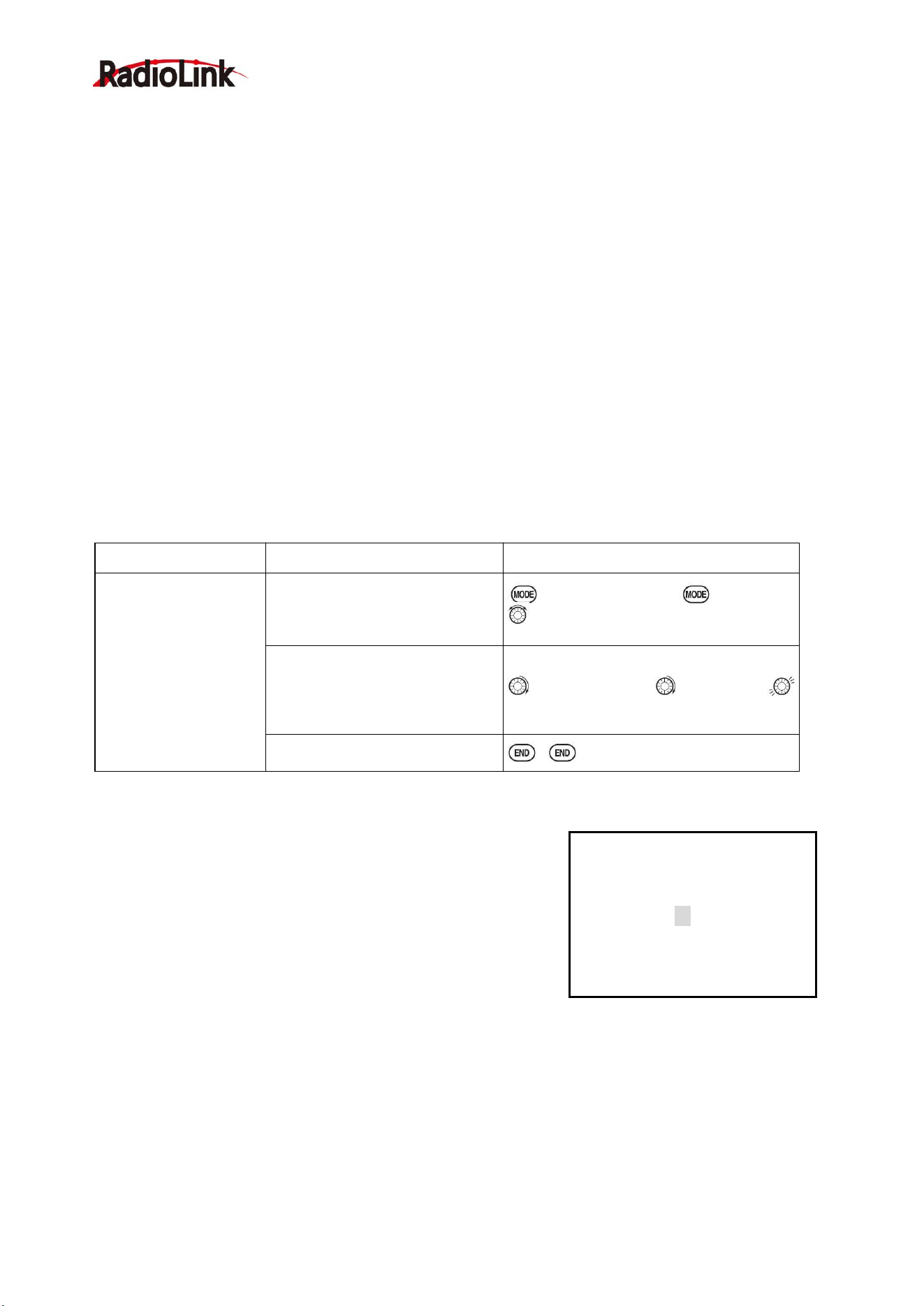
2.3.3 End Point of servo travel adjustment (END POINT, also called EPA)
The most flexible version of travel adjustment is available. It independently
adjusts each end of each individual servo’s travel, rather than one setting for
the servo affecting both directions. Again, for CCPM helicopters, be sure to
see SWASH AFR prior to adjusting end points.
Adjustability:
• Can set each direction independently.
• Ranges from 0% (no servo movement at all) to 140%. At a 100% setting,
the
Throw of the servo is approximately 40°for channels 1-4 and approximately 55°for channels 5-8.
• Reducing the percentage settings reduces the total servo throw in that direction.
Examples:
• Adjust the throttle high end to avoid binding at the carburetor, and low end to allow for proper carburetor
closure.
• END POINT may be adjusted to 0 to keep a servo from moving one direction, such as flaps not intended to
Radiolink Electronic Ltd
www.radiolink.com
18
also operate as spoilers.
• Retract servos are not proportional. Changing END POINT will not adjust the servo.
END POINT adjusts only the individual servo. It will have no effect on any other servo that is operated in
conjunction with this servo via mix or preset programming such as FLAPERON, AILEVATOR, etc. This is so that
each individual servo can be carefully fine-turn to avoid binding and other conflicts. To adjust the total travel of a
function such as FLAPERON, make the adjustments in that function's controls. For CCPM helicopters, adjust
the total travel of the function, such as collective pitch, in SWASH AFR. Adjust the linkage or the END POINT? It
is nearly always best to adjust your linkages to get as close as possible prior to utilizing END POINT. The higher
the END POINT setting, the better position accuracy and the more servo power available at nearly any position
(except if using digital servos). Higher END POINT values also mean longer travel time to reach the desired
position, as you are utilizing more of the servo's total travel. (For example, using 50% END POINT would give
you only half the steps of servo travel, meaning every click of trim has twice the effect and the servo gets there
in half the time). End point (and moving the linkage) = torque, accuracy, but transit time to get there.
• END POINT (instead of adjusting linkages) = travel time, but torque, accuracy.
Engine idle management: IDLE-DOWN and THR-CUT: functions which work with the digital THROTTLE TRIM
to provide a simple, consistent means of engine operation. No more fussing with getting trim in just the right
spot for landings or take offs! For additional engine adjustments, see THROTTLE-NEEDLE and THROTTLE
DELAY.
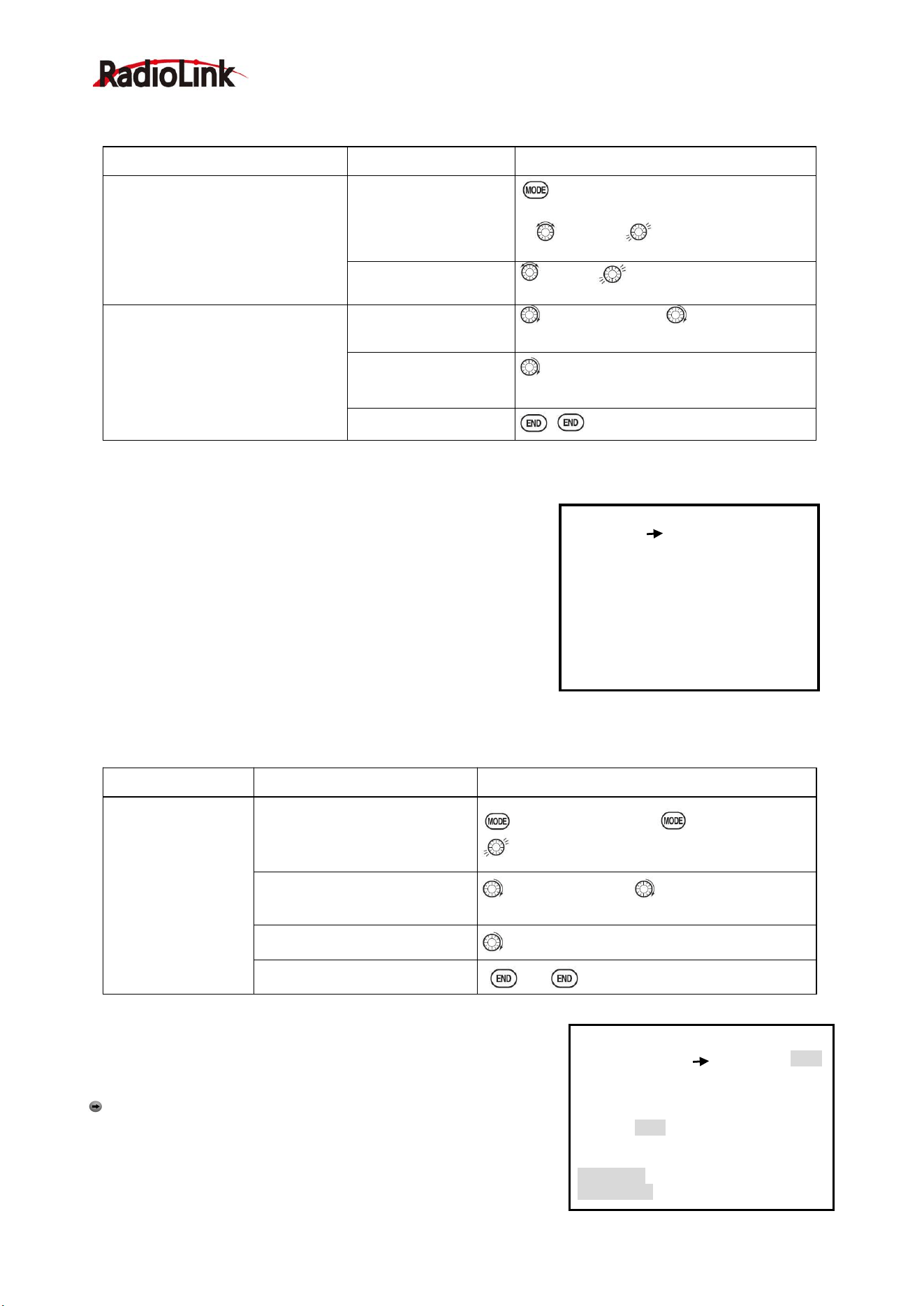
2.3.4 Trim
TRIM submenu: resets and adjust effectiveness of digital trims.
The AT9 has digital trims which are different from conventional
mechanical trim sliders. Each TRIM LEVER is actually a
two-direction switch. Each time the TRIM LEVER is pressed, the
trim is changed a selected amount. When you hold the TRIM
LEVER, the trim speed will increase. The current trim position is
graphically displayed on the start up screen. The TRIM submenu
includes two functions that are used to manage the trim options.
(1) Trim reset (RESET): Electronically centers the trims to their default values. Note that the
SUB-TRIM settings and the trim STEP rate are not reset by this command.
(2) Trim step (STEP): changes the rate at which the trim moves when the TRIM LEVER is activated.
It may be set from 1 to 40 units, depending on the characteristics of the MULTIROTOR. Most
ordinary MULTIROTOR do well at about 2 to 10 units. Generally larger trim steps are for models
with large control throws or for first flights to ensure sufficient trim to properly correct the model.
Smaller trim steps are later used to allow very fine adjustments in flight.
HELI models only: OFFSET is available in the idle ups. If OFFSET is inhibited, adjustment of the TRIM
Goals
Steps
Inputs
Decrease the flap servo
throw in the upward
direction to 5% to allow
trimming of level flight
only and down travel to
85% to prevent binding.
Open END POINT function
for 1s.(If ADVANCE, again)
to END POINT,PUSH
Choose proper channel and
move stick or Knob in direction
you want to adjust and set servo
throw (Ex: flap up 5%)
to FLAP,PUSH, to 5%,press
Close
【TRIM】
RESET:Execute
STEP-AILE: 4( 0)
ELEV: 4( 0)
THRO: 4( 0)
RUDD: 4( 0)
Radiolink Electronic Ltd
www.radiolink.com
19
LEVERS will adjust the trims for all flight conditions. If OFFSET is active, then moving the trims within any one
condition will affect only that condition.
2.3.5 SUB TRIM
SUB-TRIM: makes small changes or corrections to the neutral
position of each servo. Range is -120 to +120, with 0 setting, the
default, being no SUB-TRIM.
We recommend that you center the digital trims before making
SUB-TRIM changes, and that you try to keep all of the SUB-TRIM
values as small as possible. Otherwise, when the SUB-TRIM is of
large values, the servo's range of travel is restricted on one side.
The recommended procedure is as follows:
• Measure and record the desired surface position;
• Zero out both the trims (TRIM RESET menu) and the SUB-TRIM (this menu);
• Mount servo arms and linkages so that the control surface’s neutral is as correct as possible; and
• use a small amount of SUB-TRIM to make fine corrections.
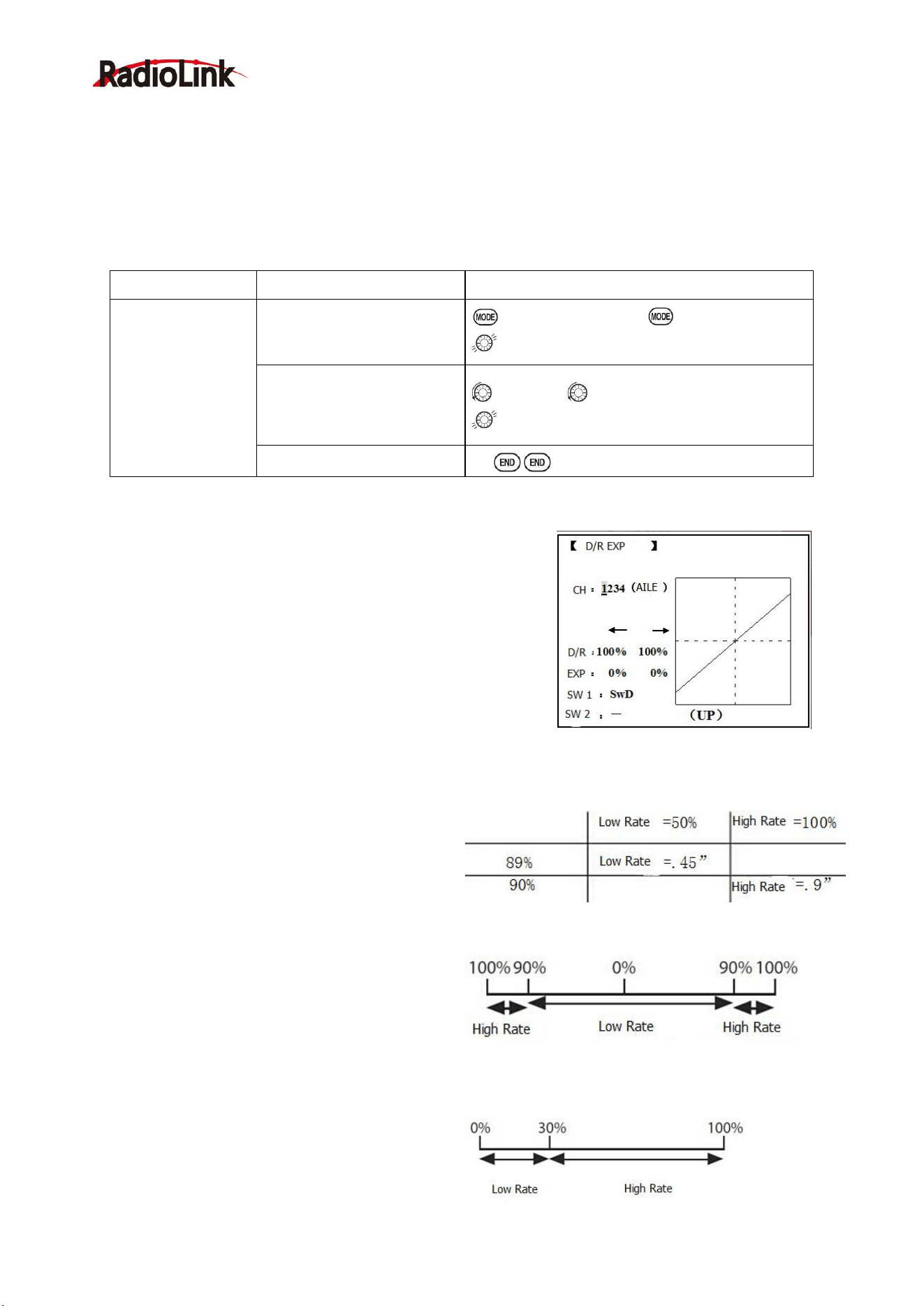
2.3.6 Servo Reversing (REVERSE):
Changes the direction an individual servo responds to a CONTROL
STICK motion.
Caution : Since channel 9 and 10 are switch only, its servo
REVERSE is in the AUX-CH control screen with its switch
assignment. Be sure to read the section on SWASH AFR before
reversing any servos.
Except with CCPM helicopters, always complete your servo
Goals
Steps
Inputs
Reset trims to neutral after having
adjusted all linkage. Note: this is
one of the several functions for
which the radio requires
confirmation to make a change
Open BASIC menu,
then open TRIM
submenu.
For 1s. (If ADVANCE, press again)
TRIM
.
Confirm the reset.
to reset, for 1s. Beep sounds.
Double the sensitivity of the
AILERONTRIM LEVERS for a
first flight of an aerobatic model
to ensure sufficient range to trim
the model for level flight.
Adjust the size of
thestep (Ex:8)
to AILE,PUSH, to 8,PUSH
Repeat for other
channel.
to ELEV,PUSH to new setting.
Repeat as needed.
Close
【SUB-TRIM】
1:AILE
0
CH1:AILE
0
CH9 : 0
CH10 : 0
CH11: 0
CH12: 0
2:ELEV
0
3:THRO
0
4:RUDD
0
5:GEAR
0
6:FLAP
0
7:AUX1
0
8:AUX2
0
Goals
Steps
Inputs
Adjust the flap
servo’s SUB TRIM
until its center
exactly matches the
aileron servo’s
center as they work
together as
FLAPERON.
Open BASIC menu, then open
SUBTRIM
for 1s .(If ADVANCE again)
to SUB-TRIM
Choose the channel to adjust
until surfaces match(Ex: flap)
to FLAP,PUSH, as needed to each
channel.
Repeat for other channels
as needed.
Close
【REVERSE】
1:AILE
NOR
CH1:AILE
REV NOR
CH9: NOR
CH10: NOR
2:ELEV
NOR
3:THRO
NOR
4:RUDD
NOR
5:GEAR
NOR
6:FLAP
NOR
7:AUX1
NOR
8:AUX2
NOR
Radiolink Electronic Ltd
www.radiolink.com
20
reversing prior to any other programming. If you use pre-built ACRO/ GLID functions that control multiple
servos, such as FLAPERON or V-TAIL, it may be confusing to tell whether the servo needs to be reversed or
a setting in the function needs to be reversed. See the instructions for each specialized function for further
details.
Always check servo direction prior to every flight as an additional precaution to confirm proper model memory,
hook ups, and radio functions.
Servo reversing
Goals
Steps
Inputs
Revere the direction
of the elevator
servo.
Open REVERSE function
for 1s .(If ADVANCE again)
to REVERSE, PUSH.
Choose proper channel and
set direction(Ex: ELEV
REV)]
to ELEV,
to REV,’Are you sure? displays
for 1s。
Close
2.3.7 Dual/triple rates and exponential (D/R,EXP)
Dual/Triple Rates: reduce/increase the servo travel by flipping a
switch, or (ACRO GLID) they can be engaged by any stick
position. Dual rates affect the control listed, such as aileron, not
just a single (ex: channel 1) servo. For example, adjusting aileron
dual rate will affect both aileron servos when using FLAPERON or
AIL-DIF, and both aileron and elevator servos’ travel when using
AILEVATOR or ELEVON or a CCPM helicopter.
Activation:
• Any SWITCH, A-H. If you choose a 3-position switch, then that dual rate instantly becomes a triple rate.
• The glider programming offers you the choice of
Condition. This option allows you to have a
separate rate for each of condition. (GLID)
• Stick position (ACRO GLID). (Ex: On rudder you
normally use only the center 3/4 of the stick
movement except for extreme maneuvers such as
snaps/spins/stalls. As long as your RUDDER
STICK does not exceed 90% (ie. stall turn), the
rudder goes to high rate's 90%, which is a MUCH
higher amount of travel than your low rate at 89%)

Radiolink Electronic Ltd
www.radiolink.com
21
Adjustability:
• Range: 0 - 140% (0 setting would deactivate the control completely.) Initial value=100%
• Adjustable for each direction (ACRO/ GLID)
(i.e. Up/down, left/right) (Ex: Most models fly upright without any elevator trim, but require some down
elevator when inverted just to maintain level flight. By increasing the down travel by the amount required to
hold the model inverted, the model now has equal travel available from level upright or level inverted.
Only if any stick is chosen by the item of "SW1", a switch can also be chosen by the item of "SW2." When
operated simultaneously, the switch operation has priority over the stick operation. (ACRO)
Exponential:
Change the response curve of the servos relative to the stick position to make fly more pleasant. You can
make the servo movement less or more sensitive around neutral for rudder, aileron, elevator, and throttle
(except HELI type use THROTTLE CURVE instead). (ACRO type throttle EXP and THROTTLE CURVE can
not be activated simultaneously). Many models require a large amount of travel to perform their best tricks.
However, without exponential, they are touchy around neutral, making them unpleasant to fly and making
small corrections very difficult. Additionally, by setting different exponentials for each rate, you can make the
effectiveness of small corrections similar in each rate, as in our example below:
The best way to understand exponential is to try it:
• Having made no changes yet in the D/R, EXP screen, move SWITCH D to DOWN (toward the AILERON
STICK).
• Move SWITCH D up. Hold the AILERON STICK at 1/4 sticks and moves SWITCH D down.
• Notice how much less travel there is.
• Go to 3/4 stick and repeat. Notice how the travel is much closer, if not identical.
Adjustability:
• More sensitive around neutral. (Positive exponential)
• Less sensitive around neutral. (Negative exponential)
• Adjustable for each direction. (ACRO/GLID)
For throttle, exponential is applied at the low end to help nitro and gasoline engines have a linear throttle
response, so that each 1/4 stick increases engine RPM 25% of the available range. (In most engines this
ranges from 5-60%)
Special note for helicopters: Helicopter model types have just a single rate for each switch position rather
than a rate for each side of the servo's travel per switch position. Additionally, setting the D/R, EXP for each
switch position requires cursor back to the No. setting and changing the switch position here. Just flipping the
switch does not affect the screen setting, allowing dual rates to be assigned with idle-up and other features on
certain switches, and does not require putting the model in that condition to make modifications.
Special note for conditions: The helicopter and glider programming offers you the choice of COND. This
option allows you to have a separate rate for each of the 3 controls automatically selected when changing
conditions, for a total of FIVE rates available. Simply change the switch choice to COND. and then:
(HELI) press the CURSOR LEVER to toggle through the 5 conditions while setting the rates.
(GLID) activate the corresponding condition to edit the rates.
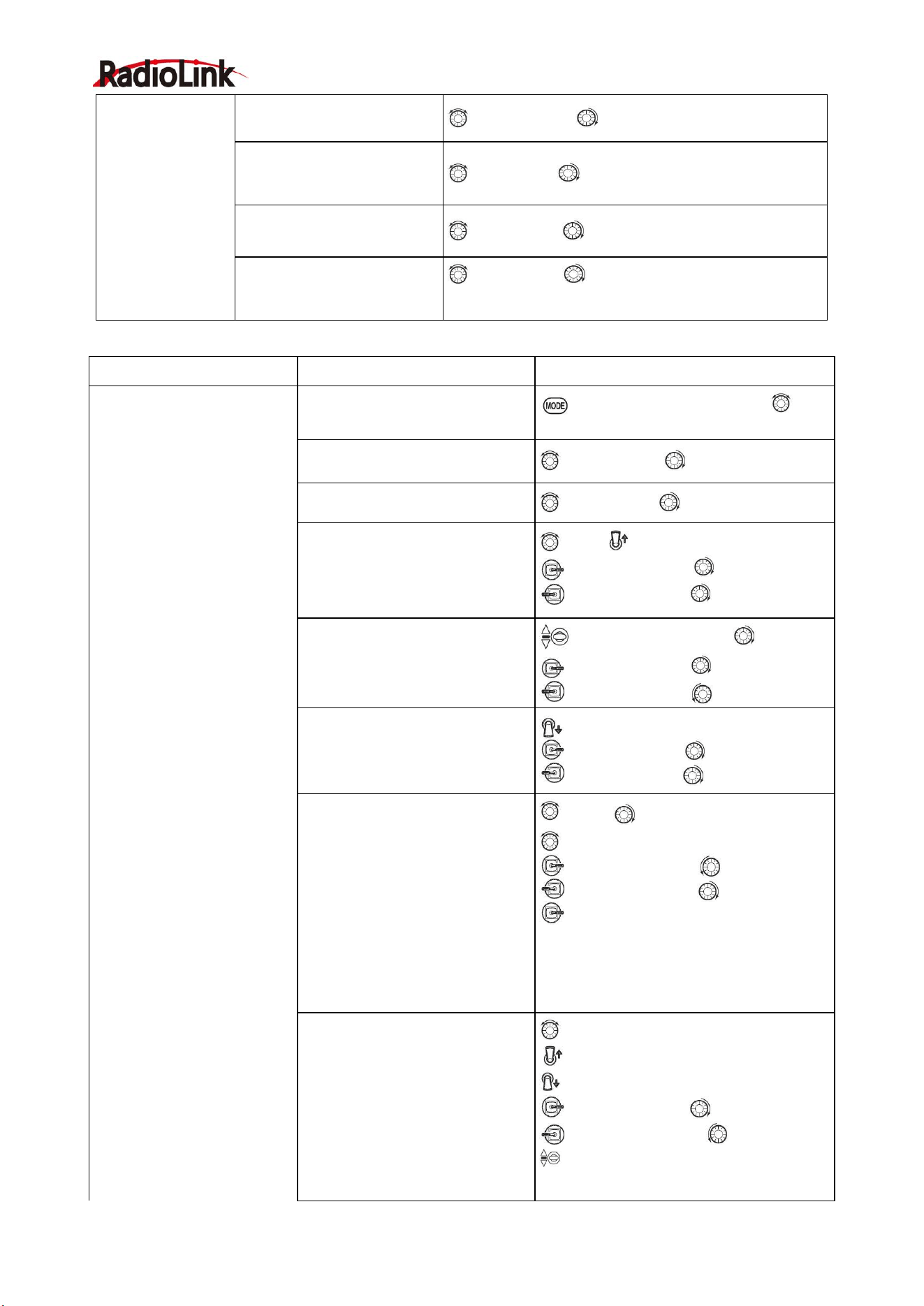
Goals
Steps
Inputs
Set up dual rates
and exponential
in HELI model.
Open D/R,EXP
for 1s.(If ADVANCE again)
to D/R EXP,PUSH.
Choose channel
to CH, Push. to desired channel. PUSH
Choose first channel position
to NO,PUSH. to UP,PUSH.
Radiolink Electronic Ltd
www.radiolink.com
22
Set rate and EXP(Ex: High
rate=95%,0%exponential)
to Rate, PUSH. to 95%,confirm 0% EXP.
Go to 2nd switch position
and set rate and
exponential.
to NO,PUSH to DOWN,PUSH.
Optional: if using a 3 position
switch, set 3rd rate.
to NO,PUSH. to COND repeat above.
Optional: assign dual rates
to have one for each
condition.
to SW,PUSH. to COND.
Repeat steps above to adjust for each condition.
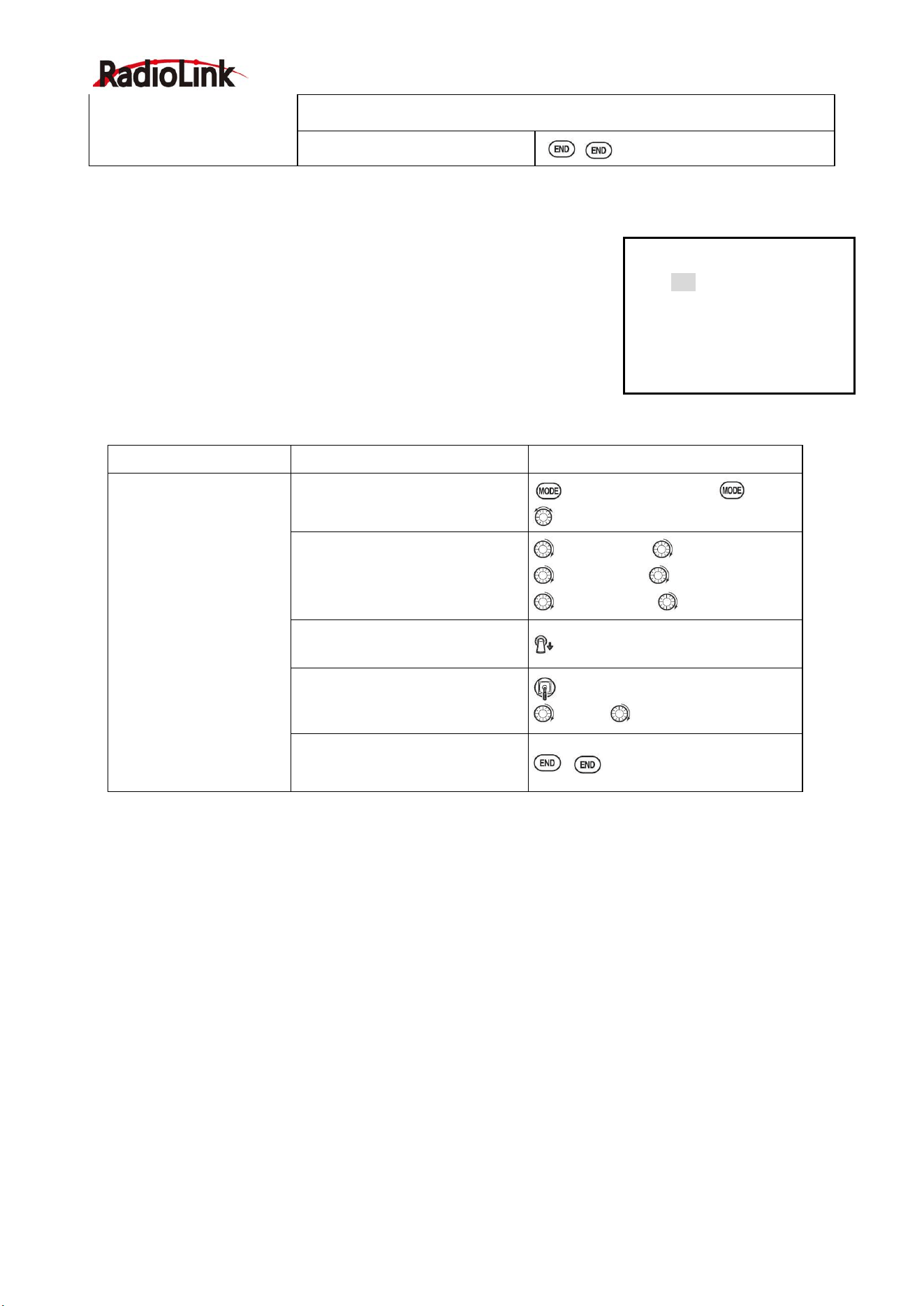
Goals
Steps
Inputs
Set up aileron triple rates on
SWITCH C with travel
settings of 75%(normal)
25%(slow roll)and 140%
(extreme aerobatics)and
exponential setting of
0%, +15%, and -40%
respectively.
NOTE: This normal rate has
no exponential so it has a
Very linear, normal feel.
This is slow roll rate has
positive exponential
(the opposite of what most
people normally uses),
which makes the servos
more responsive around
center. This makes the
servos feel the same around
center in the normal and low
rates, but still gives a very
slow roll rate at full stick.
3D rate (extreme aerobatics)
has a very high distance of
travel nearly twice that of
the normally rate.
Therefore, using a very high
rate negative exponential
setting softens how the
servos responses around
center stick.
Open D/R,EXP
for 1s to BASIC ( to
D/R,EXP,PUSH.
Choose channel to change
(Ex:aileron is already selected)
to CH,PUSH, to AILE,PUSH
Optional: Change switch position.
to SW,PUSH to SWC,PUSH
Confirm switch is in desired
position and set rate.(Ex: up=high
rate,75%)
to D/R
C
to UP po sitio n .
AILERON STICK to75%.PUSH
AILERON STICK to75%.PUSH
Move Switch to 2nd rate position
and set this particular rate (Ex:
center=low rate,25%)
SWC
to center position, to D/R
AILERON STICK to25%,PUSH
AILERON STICK to 25%,PUSH
Optional: If using a 3 position
SW, move SW to 3rd position
and set this rate.(Ex: DOWN=3D
rate, 140%)
SWC to DOWN position.
AILERON STICK to140%,PUSH
AILERON STICK to140%,PUSH
Optional: except using a switch,
you can set high rates to be
triggered when the stick moves
past a certain point. To test this,
set aileron high rate to 25%.Now
set switch assignment to AIL
(90%). Move AILERON STICK to
the right and notice the huge
jump in travel after the stick
moves 90% of its distance.
to SWA to AILE(90%)
,
PUSH
to D/R
AILERON STICK to 25%
AILERON STICK to 25%
AILERON STICK and watch screen
graph. See the change? You may also
change the trigger point by holding the
stick at the desired point then pressing
and holding the PUSH.
Set each rate’s EXP.
(Ex:0%,+15%,-40%)
to EXP .PUSH
C to UP position confirm EXP reads 0.
C to DOWN position.
AILERON STICK to+15% .PUSH
AILERON STICK to+15%.PUSH
C to center position
Repeat to set low rate EXP to -40%.
Radiolink Electronic Ltd
www.radiolink.com
23
Repeat above steps for elevator and rudder.
Close
2.3.8 Throttle Cut
AEROBASIC
Throttle cut (THR-CUT) (ACRO0/HELI): provides an easy way to stop the
engine by flipping a switch (with THROTTLE STICK at idle). The movement
is largest at idle and disappears at high throttle to avoid accidental dead
sticks. In HELI, there is an additional setting.
The switch's location and direction must be chosen. It defaults to NULL to
avoid accidentally assigning it to a switch, which might result in an
unintentional dead stick in flight.
* Also LOGIC SW(Lsw1 to 3) may be assigned.
** Normally, a setting of 10-20% is sufficient. Viewing the carburetor barrel until it fully closes is adequate to
get an approximate setting; then test with engine running to confirm.
GLIDER
Provides an easy way to stop the engine by flipping a switch no matter where the air brake stick is. The
movement of servo will be -30%. Now you must select switch position and direction. Factory setting the
position is NULL to avoid an accident setting on a switch to cause glitches during flight.
Adjustability:
• Range: -30% to +30%. Movement of servo is 0%, air brake stick is on its min and -30% on the max.
• SWA-H and logic switch Ls1-3 is selectable
• All position is available for logic switch including NULL (usually MIX OFF), you can set MIX by different
position of a switch (UP & CEN, CEN & DN) and also NORM, REV.
【THR CUT】
MIX:INH
RATE: 0%
THR:5%(100%)
SW:SwH
POST:DOWN
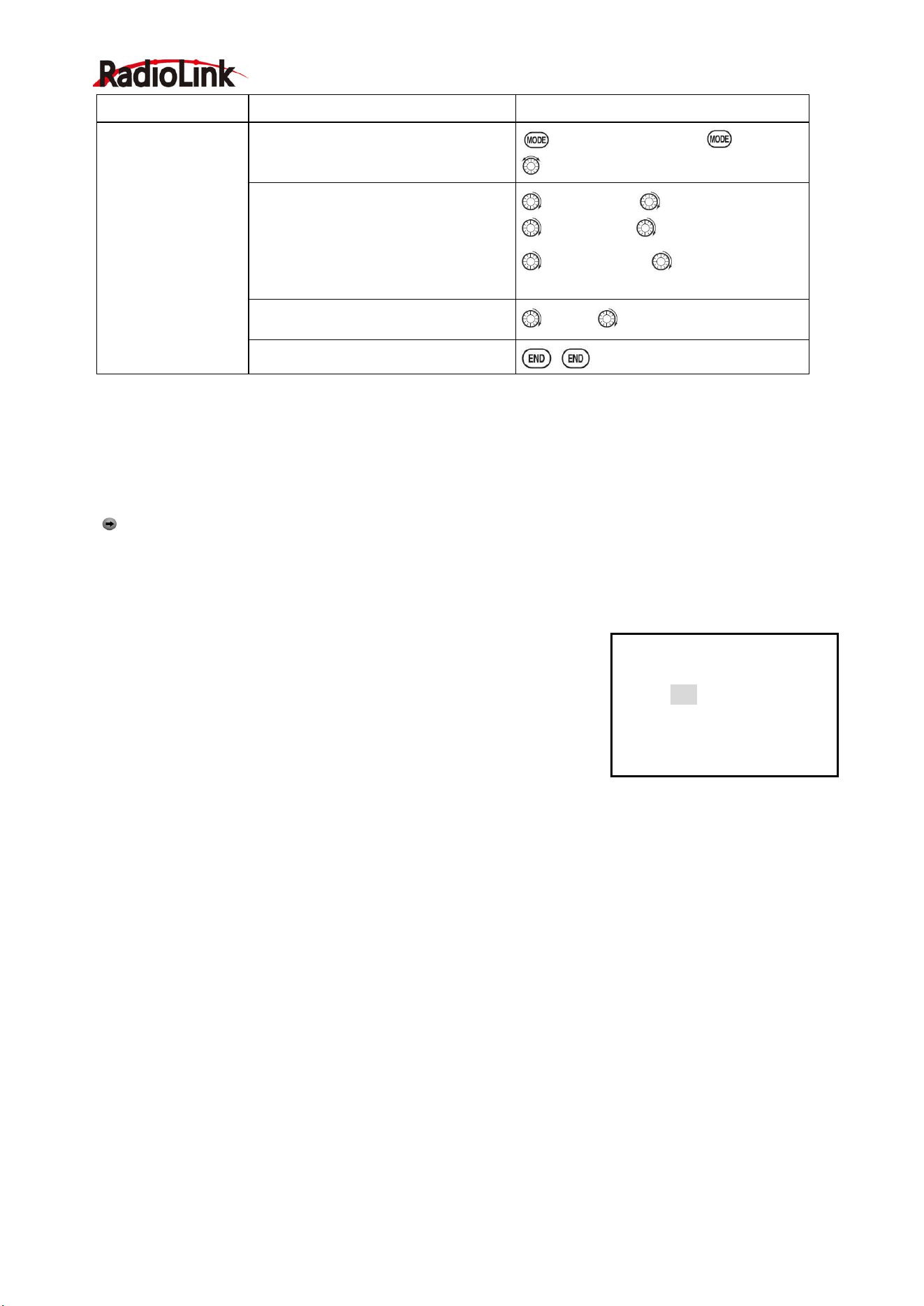
Goals
Steps
Inputs
Decrease the throttle
setting (at idle) to stop
the engine with the flip of
a switch.(NOTE that you
MUST assign a switch.
The default is NULL. We
recommend SWICH C in
the down position, with
IDLE-DOWN
programmed to SWITCH
C in the center and down
position.)
Open BASIC menu, then Open
THR CUT
for 1s .(If ADVANCE again) .
to THR CUT. PUSH.
。
Activate the function .Choose
desired switch, and the position
which activates the function.
to MIX,PUSH, to ON,PUSH
to SW,PUSH, SWC,PUSH
to POSI,PUSH to DOWN,PUSH
With Throttle Stick at idle, adjust
the rate.
SWC to DOWN position.
Until the engine consistently
shuts off but throttle linkage is not
binding.
Throttle Stick.
to Rate. until shuts off.
Close
Radiolink Electronic Ltd
www.radiolink.com
24
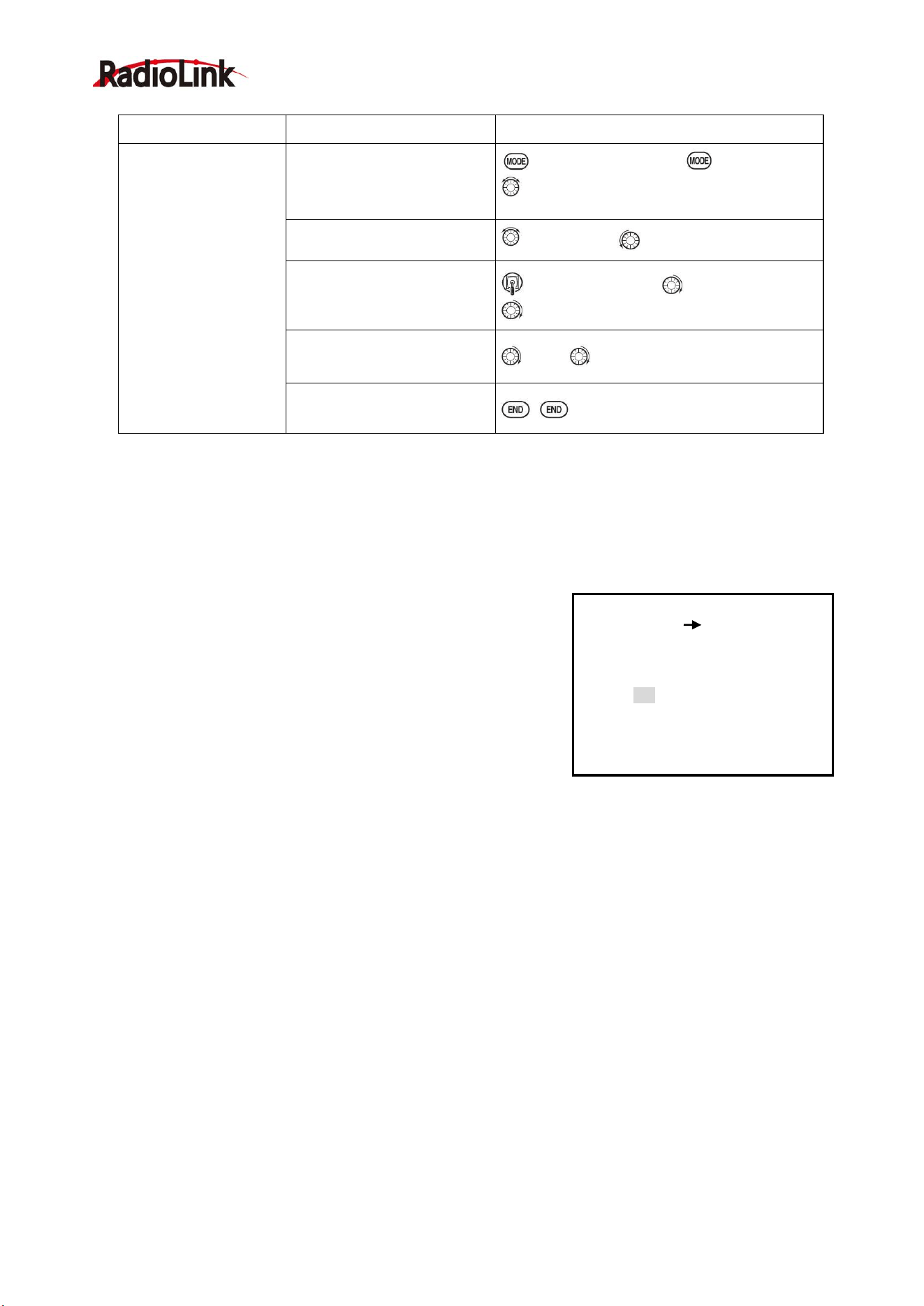
Goals
Steps
Inputs
Flip switch to
decrease the rate
until engine stops.
(NOTE: you MUST
assign a switch to
control which default
is NULL)
Open BASIC menu ,then open THR
CUT
for 1s .(If ADVANCE again) .
to THR CUT. PUSH.
Activate the function Choose desired
switch, and the position.
to MIX,PUSH, to ON,PUSH
to SW,PUSH, to desired SW,PUSH
to POSI,PUSH to desired position,
PUSH
Adjust Rate until the engine shuts off.
to Rate. until shuts off.
Close
HELICOPTER
This function is used to stop engine after flight is finished. You can set engine powered on/ off, without
shifting trim stick to power off and set again every time before flight. Throttle shut for helicopter includes THR
ON/ OFF (position above idle down). Before resetting throttle cut, throttle stick must keep below setting point
to avoid a sudden speeding up.
Notification: trigger point setting step: under the menu THR CUT, choose THRO by DIAL, and press
PUSH and move the throttle stick to trigger point, then press and hold PUSH one second to save. This
function only when the throttle stick moves below trigger point.
2.3.9 IDLE DOWN (ACRO only)
Lowers the engine idle for: set for sitting on the runway prior to take off,
stalls and spins, and landings. The normal idle setting is a little higher for
easier starts and safe flights with less risk of dead sticks.
Important note: The IDLE-DOWN function is not normally used when
starting the engine, and its accidental operation may keep your engine
from starting. The AT9 warns that IDLE-DOWN is on when the transmitter
is turned on. Be sure to turn off the function, or override the warning by pressing CURSOR lever if you
intended the function to be on.
This may be assigned to any switch/position. Some modelers accidentally assign IDLE-DOWN to one side of
a switch and THR-CUT to the other. There is no "normal" setting to start the engine. By default IDLE-DOWN is
get to SWITCH C center and down. This works well with THR-CUT also on SWITCH C down. The SWITCH C
up is normal flight/starting, center for slower maneuvers/landing, and down to cut the engine. If you assign
IDLE-DOWN or THR-CUT to the spring-loaded TRAINER SWITCH H or F, then use the trainer function, you
may risk loss of throttle control or dead stick for your student.
【IDLE DOWN】
MIX:INH
RATE: 0%
SW:SwC
POST:Ct&Dn
Radiolink Electronic Ltd
www.radiolink.com
25
*Normally a value of 10- 20%. Secure the fuselage, engine running. Set the THROTTLE STICK to idle. Adjust
the IDLE-DOWN switch ON and OFF until the desired idle is achieved. Be sure to throttle up periodically to
allow the engine to “clean out” and idle reliably.
*Also LOGIC SW (Lsw1 to 3) may be assigned.
2.3.10 Fail Safe (F/S)
(loss of clean signal and low receiver battery) submenu (F/S): sets
responses in case of loss of signal or low Rx Battery.
Adjustability:
•Each channel may be set independently.
• The NOR (normal) setting holds the servo in its last commanded
position.
• The F/S (Failsafe) function moves each servo to a predetermined
position.
• NOTE: the setting of the throttle's F/S also applies to the Battery F/S.
• The F/S is used in certain competitions to spin the MULTIROTOR to the ground prior to flying away and
doing potential damage elsewhere. Conversely, may also be used to go to neutral on all servos, hopefully
keeping the plane flying as long as possible.
• Competition modelers often maintain the NOR function so that brief interference will not affect their model's
maneuver.
• Set the throttle channel so that the engine idles when there is interference (ACRO). This may give enough
time to fly away from and recover from the radio interference and minimize damage if crashed.
• For helicopters, NOR is typically the safest choice.
•We also recommend setting a gasoline engine's electronic kill switch to the OFF position in the F/S function
for safety reasons.
If you specify a F/S setting, the Failsafe data is automatically transmitted once each two minutes. (PCM)
When you choose the F/S mode, check that your settings are as desired by turning off the transmitter power
switch and verifying that the servos move to the settings that you chose. Be sure to wait at least two minutes
after changing the setting and turning on the receiver power before turning off the transmitter to confirm your
changes have been transmitted.
Goals
Steps
Inputs
Decrease the throttle
setting to idle with the
flip of a switch for spins
and landings.
Open BASIC menu,open
IDLE DOWN
for 1s .(If ADVANCE again) .
to IDLE DOWN,PUSH.
Activate the function
to MIX,PUSH
,
to OFF
Adjust the rate until engine
idles as desired with Throttle
stick.
Throttle Stick down, to RATE,PUSH,
to desired rate, PUSH
Optional:change switch
assignment .
to SW, to desired position, PUSH.
Close
【F/S】
1:AILE NOR
CH1:AILE
NOR F/S
2:ELEV NOR
3:THRO 15%
4:RUDD NOR
5:GEAR NOR
6:FLAP NOR
7:AUX1 NOR
8:AUX2 NOR
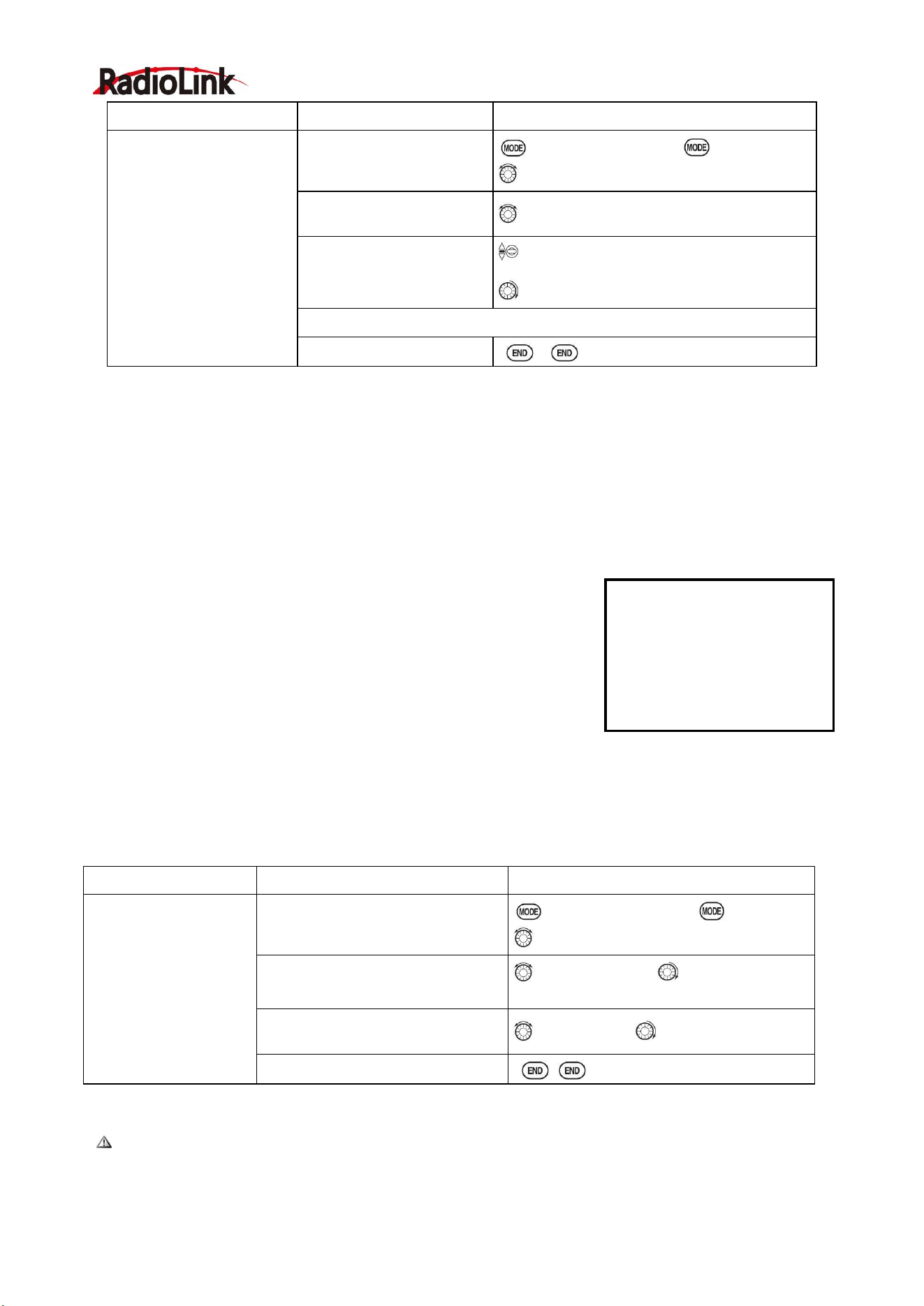
Radiolink Electronic Ltd
www.radiolink.com
26
Goals
Steps
Inputs
Change the receiver
Failsafe command for
channel 8(gasoline engine
kill switch) to a preset
position. NOTE: This is
one of several functions
for which the radio
requires confirmation to
make a change.
Open BASIC menu, then
Open F/S.
for 1s .(If ADVANCE again) .
to F/S, PUSH
Choos e ch ann e l to
chan g e (E x : CH. 8 )
to CH8 ,PUSH
Set and confirm fail safe
command.
that controls CH8 to desired OFF
position.
to adjust ,PUSH
Repeat as desired
Close
2.3.11 Auxiliary Channel Function (including channel 9-10 controls)
(AUX-CH): defines the relationship between the transmitter controls and the receiver output for channels 5-10.
Also, the CH9-10 POSI are used to change the CH9-10 servo direction.
Note that the CH9-10 functions are only visible in the AUX-CH screen and modulation mode must be PCM or
2.4G.
Adjustability:
• channels 5-8 may be assigned to any SWITCH (A-H), LOGIC SWITCH (Lsw1-Lsw3), slider [VR(D) and
VR(E)], or knob [VR(A-C)] (for example, moving flaps to a switch or slider), but not the primary control sticks
(use programmable mixes to do so);
• channel 9-10 may be assigned to any SWITCH (A-H), LOGIC SWITCH
(Lsw1-Lsw3) and the servo direction may be changed.
• multiple channels may be assigned to the same switch, slider or knob;
• channels set to "NULL" are only controlled by mixes. (Ex: utilizing 2
channels for 2 rudder servos. See mixes p. 68.)
• If GYRO SENSE, GOVERNOR, and THR-NEEDLE functions are
activated, AUX-CH settings of related channels become invalid automatically.
Related channels:
GYRO SENSE (ACRO): ch. 5, 7, or 8
GYRO SENSE (HELI): ch. 5
GOVERNOR (HELI): ch. 7, or ch. 7 and 8
THR-NEEDLE (ACRO HELI): ch. 8
Remember that if you assign primary control of a channel to a switch which you later use for other
functions (like dual/triple rates or airbrakes), every time you use that other function you will also be moving the
auxiliary channel.
【AUX-CH】
POST:
DOWN :
DOWN:
CH5:SwG
CH6:VrA
CH7:VrC
CH8:VrB
CH9:SwB
CH10:SwA
Goals
Steps
Inputs
Assign flaps to the right
slider[VR(E)] and set
channel 7 to NULL in
preparation to use it as
a smoke system control
(the smoke system
being activated later by
a throttle to CH7 MIX).
Open BASIC menu, then to
AUX-CH
for 1s .(If ADVANCE again) .
to AUX-CH,PUSH
Choose channel to change
(Ex:CH6)
to CH6,PUSH, to desired switch,
PUSH
Repeat above steps as desired.
(Ex:CH7=NULL)
to CH7,PUSH, to NUL
Close
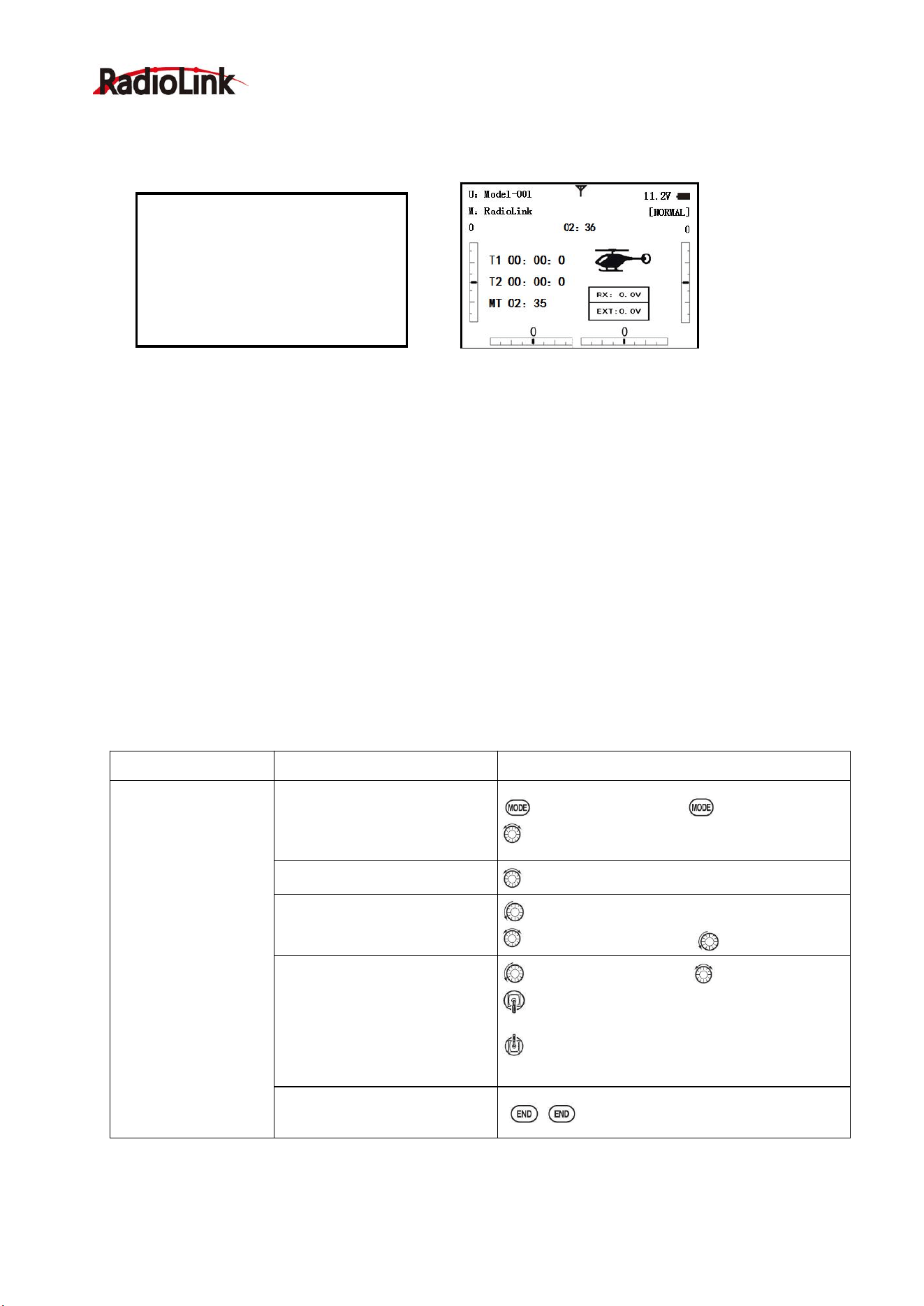
Radiolink Electronic Ltd
www.radiolink.com
27
2.3.12 TIMER submenu (stopwatch functions):
Controls three electronic clocks used to keep track of time remaining in a competition time allowed, flying
time on a tank of fuel, amount of time on a battery, etc.
Adjustability:
• Count down timer: starts from the chosen time, displays time remaining. If the time is exceeded, it
continues to count below 0.
• Count up timer: starts at 0 and displays the elapsed time up to 99 minutes 59 seconds.
• Count down timer (Stop type): starts from the chosen time, displays time remaining, and stops at 0.
• Model timer: cumulates ON time up to 99 hours 59 minutes each model. Once Model timer function is
turned off, the cumulate time will also be reset to "0:00".
• Independent to each model, and automatically updates with model change.
• In either TIMER mode, during the last twenty seconds, there's a beep each second. During the last ten
seconds, there's two beeps each second. A long tone is emitted when the time selected is reached.
(UP/DOWN TIMER)
• To Reset, choose the desired timer with the CURSOR lever (while at the startup screen), then press and
hold DIAL for 1 second.
• Activation by either direction of SWITCH A-H, by THROTTLE STICK (STK-THR) (Using the THROTTLE
STICK is convenient if you are keeping track of fuel remaining, or for an electric, how much battery is left), by
LOGIC SWITCH Lsw1-Lsw3 or by the power SWITCH (PWR SW).
• Also the reset switch can be assigned (SWITCH A-H or LOGIC SWITCH Lsw1-Lsw3)
【TIMER】
<1>OFF
<2>OFF
<3>ON
TIME:10:00
10:00
---
MODE:UP
UP
MODEL
ON:
SwA
SwA
---
NULL
NULL
---
RSET:
SwA
SwA
---
NULL
NULL
---
Goals
Steps
Inputs
Set timer 2 to count
down 4 1/2 minutes,
being controlled by
Throttle Stick position.
This utilized to keep
track of actual Throttle
on time to better
cooperate with
fuel/battery usage.
Open BASIC menu, then to
TIMER
for 1s .(If ADVANCE again) .
to TIMER ,PUSH
Go to TIMER <2>
to TIMER <2> ,PUSH
Adjust time to 4min.30sec.,
count down
to 4,PUSH.
to 00 TIMER<2>,PUSH to 30,PUSH
Assign switch at ST-THK and
set trigger point.
to SWA TIMER<2>,, to ST-THK,PUSH
Throttle Stick down to 50%,PUSH for 1s to
NULL.
Throttle Stick down to desired position(Ex:1/4
stick) PUSH button for 1s to set.
Close

Radiolink Electronic Ltd
www.radiolink.com
28
2.3.13 TRAINER:
For training novice pilots with optional trainer cord connecting 2
transmitters. The instructor has several levels of control.
Adjustability:
• NORM: When the TRAINER SWITCH is ON, the channel set to this
mode can be controlled by the student. The set channel is controlled
according to any programming set at the student's transmitter.
• FUNC: When the TRAINER SWITCH is ON, the channel set to this
mode can be controlled by the student, controlled according to any
mixing set at the instructor's transmitter.
• MIX: When the TRAINER SWITCH is ON, the channel set to this mode can be controlled by both the
student and the instructor, controlled according to any mixing set at the instructor's transmitter. And the
student's mixing rate is adjustable. (Default 30%)
[Note] However, it becomes invalid even if it sets up the channel which is not in a student's transmitter. The
channel serves as operation by the instructor's transmitter automatically.
• OFF: The channel set to this mode cannot be controlled by the student even when the TRAINER SWITCH
is ON. The set channel is controlled by the instructor only, even when the TRAINER SWITCH is ON.
• SWITCH: controlled by spring-loaded SWITCH H only. Not assignable.
• Compatibility: The AT9S Pro may be master or student with any Radiolink transmitter compatible with the
cord. Simply plug the optional trainer cord (For AT9S Pro series, sold separately) into the trainer connection
on each transmitter, and follow the guidelines below.
EXAMPLES:
•When throttle/collective is set to FUNG, 5-channel helicopter practice is possible with a 4-channel
transmitter.
• Set up the model in a second transmitter, use NORM mode to quickly and safely check proper operation of
all functions, and then allow the student radio to fully fly the model.
• Using NORM mode, set lower throws, different exponentials, even different auxiliary channel settings on
the student radio (if it has these features).
• To ease the learning curve, elevator and aileron may be set to the NORM or FUNC mode, with the other
channels set to OFF and controlled by the instructor.
NOTE:
• NEVER turn on the student transmitter power.
•ALWAYS set the student transmitter modulation mode to PPM.
• BE SURE that the student and instructor transmitters have identical trim settings and control motions.
Verify by switching back and forth while moving the control sticks.
• FULLY extend the instructor's antenna. Collapse the student's antenna. (Except 2.4GHz)
• When the TRAINER function is active, the snap roll function is deactivated. Other functions, such as
IDLE-DOWN and THR-CUT, which have been assigned to the same switch, are not deactivated. Always
double check your function assignments prior to utilizing the TRAINER function.
•When you select a different model, the TRAINER function is deactivated in the current model for safety
reasons.
【TRAINR】
MIX: INH
1:AILE FUNC
2:ELEV FUNC
3:THRO FUNC
4:RUDD FUNC
5:GEAR FUNC
6:FLAP FUNC
7:AUX1 FUNC
8:AUX2 FUNC
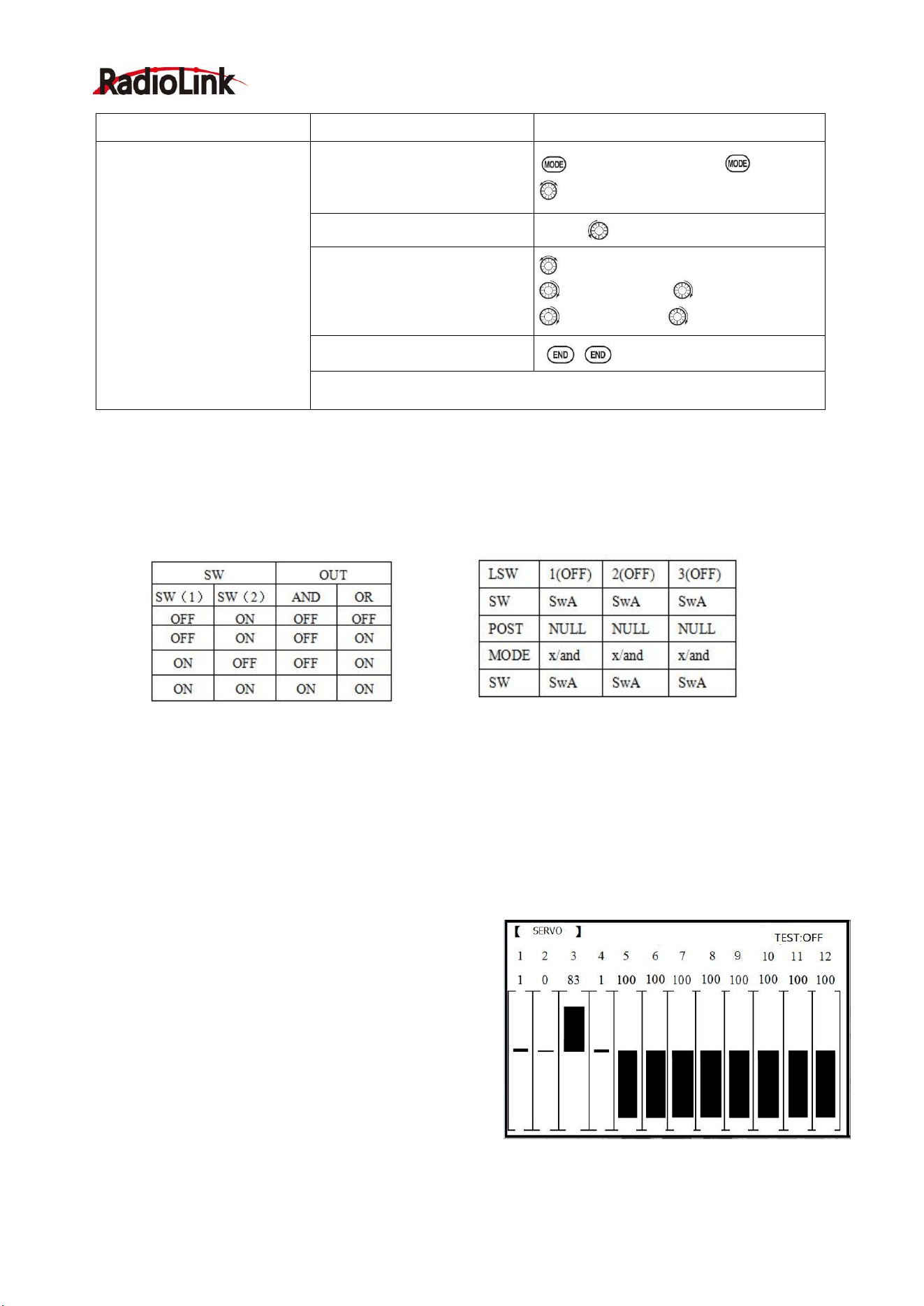
Radiolink Electronic Ltd
www.radiolink.com
29
2.3.14 Logic Switch Selection (LOGIC SW):
The various functions in the AT9S Pro can be selected by switch..
The Logic switch can be assigned to the functions as following: THR-CUT, IDLE DOWN, AUX-CH, TIMER,
PROG. MIX, AIRBRAKE, ELEV-FLAP, and AILE-FLAP. The logic switch can activate functions by two
switches combination. The 2 types of logic, either AND or OR, can be selected.
Adjustability:
• Three logic switches can be used. (LSW1, LSW2, and LSW3 )
• SW (1): Any SWICH A-H or THRSTKS, SW (2): Any SWICH A-H
• Switch position (POSI)
• Logic mode: AND or OR (MODE)
2.3.15 SERVO display and cycle submenu:
Displays radio's output to channels 1-12(defualt 10
channels, you can upgrade firmware to 12 channels)
The servo submenu includes two features:
• Real-time bar-graph display to demonstrate exactly
what commands the transmitter is sending to the servos.
(This can be particularly handy in setting up models with
complicated mixing functions, because the results of each
stick, lever, knob, switch input and delay circuit may be
immediately seen.)
• Servo cycle function to help locate servo problems prior to in-flight failures. (Channels 1-8)
Goals
Steps
Inputs
Turn on the TAINER system
and set up so student
has :fully functional control of
aileron and elevator to
support FLAPERON
&AILERON; normally control
of rudder to allow lowered
travel; and no throttle channel
control(with the instructor for
safety)
Open BASIC menu, then Open
TRAINER
for 1s .(If ADVANCE again) .
to TRAINER ,PUSH
Activate TRAINER
PUSH, to PUSH
Choose desired channels and
proper training types
past AIL and ELE(default FUN)
to THR,PUSH, to OFF, PUSH
to RUD, PUSH, to NORM,PUSH
Close
Test student radio function prior to attempting to fly!
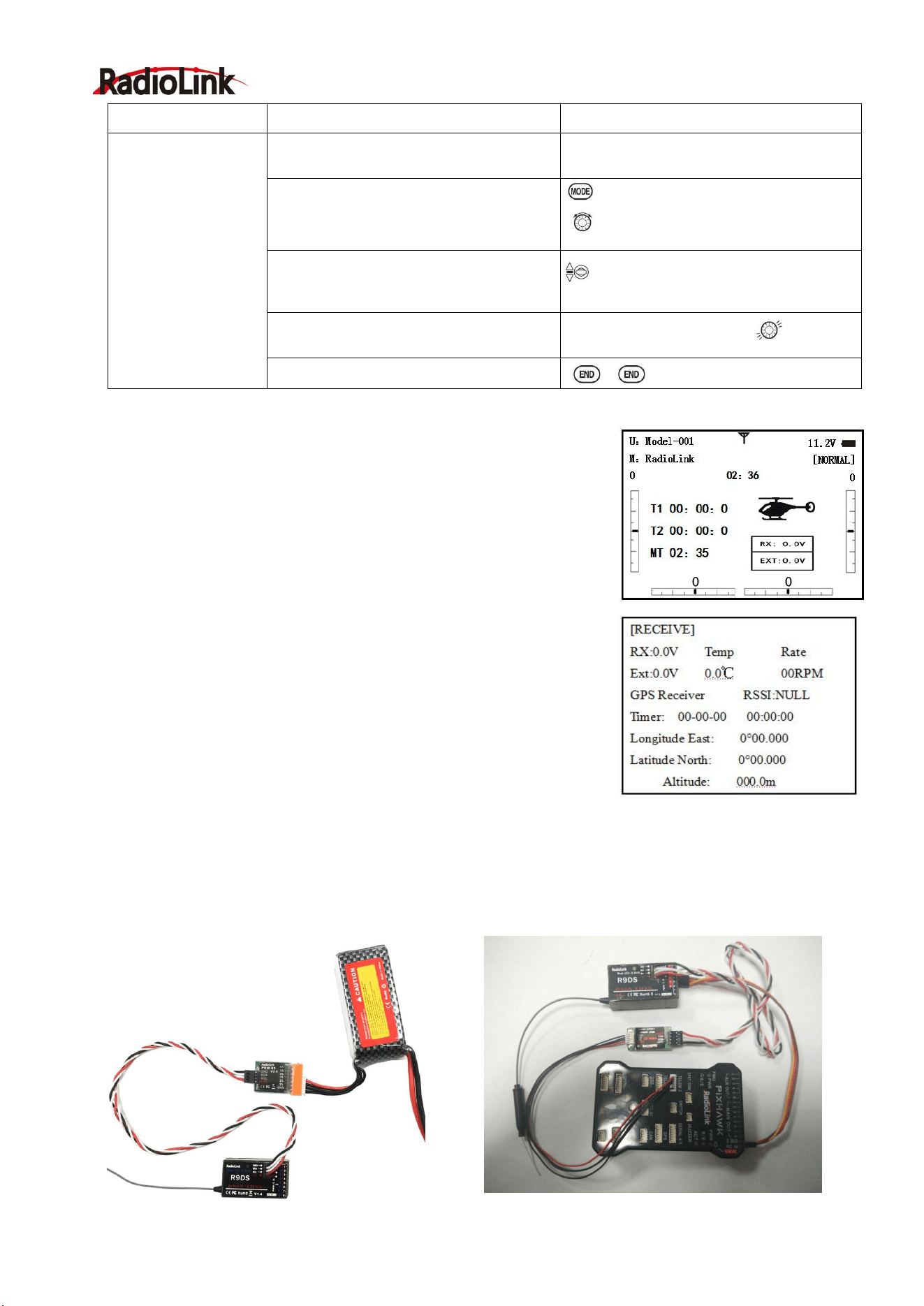
Radiolink Electronic Ltd
www.radiolink.com
30
2.3.16 TELEMETRY
Signal strength and receiver voltage integrated into the radio transmitter.
It is displayed as the following configure, also it is in the sub menu
RECEIVE.
Receiver voltage is shown as RX,
External voltage is shown as EXTY.
Find telemetry information: under BASIC MENU, select RECEIVE,
presses PUSH to enter, you can find the telemetry info, shown as below.
RX is receiver voltage, EXT is external voltage. Also temperature and
engine speed (EXT, TEMPERATURE, RPM, and GPS all need telemetry
sensor).
RSSI is signal strength, NULL is for no signal, and 0 is for max.
Connection of telemetry sensor: sensor of EXT, TEMPERATURE, RPM,
GPS can connect one by one with the receiver port DATA.
Connection between R9DS and telemetry module PRM-01(pic below on left)
Connection between R9DS and OSD telemetry module PRM-03 with PIXHAWK (pic below on right
Goals
Steps
Inputs
View the result of
reassigning channel 6
from VR(A) knob to
three-position
SWITCH C
Cycle the channel 6
servo.
Complete desired programming
function.(Ex: in AUX-CH,move ch.6 to
SWITCH C)
See AUX-CH for details.
Open SERVO function
for 1s .(If ADVANCE, press again) .
to SERVO ,PUSH
Move each control to see the
operation.(Ex: SWITCH C in all positions)
C to center position. Note change in
position of ch.6 servo.
Prepare all servos to be cycled and cycle
Plug in servos. Power on.
Close

Radiolink Electronic Ltd
www.radiolink.com
31
Part 3. ACRO ADVANCE MENU FUNCTIONS
3.1 AIRPLANE WING TYPES (ACRO/GLID):
There are 3 basic wing types in MULTIROTOR models:
• Simple. Model uses one aileron servo (or multiple servos on a Y-harness into a single receiver channel) and
has a tail. This is the default setup and requires no specialized wing programming.
• Twin Aileron Servos. Model uses 2 aileron servos and has a tail. See TWIN AILERON SERVOS.
• Tail-less models (flying wing). Model uses 2 wing servos working together to create both roll and pitch
control. See ELEVON.
Twin Aileron Servos (with a tail) (ACRO/GLID): Many current generation models use two aileron servos,
plugged into two aileron servos, plugged into two separate receiver channels. (If your model is a flying wing
without separate elevators, see ELEVON)
ADVANTAGE:
• Ability to adjust each servo's center and end points for perfectly matched travel.
• Redundancy, for example in case of a servo failure or mid-air collision.
• Ease of assembly and more torque per surface by not requiring torque rods for a single servo to drive 2
surfaces.
• Ease of assembly and more torque per surface by not requiring torque rods for a single servo to drive 2
surfaces.
• Having more up aileron travel than down travel for straighter rolls, aileron differential. (See glossary for
definition.)
• Set a negative percentage to reverse the operation of one of the servos.
Options:
• 5-channel receiver. Set up AILE-2 prior to continuing with FLAPERON or AIL-DIFF.
• FLAPERON:
•Uses CH6 for the second servo
• Allows flap action as well as aileron action from the ailerons.
• Provides FLAP-TRIM function to adjust the neutral point of the FLAPERON for level flight.
• Also allows aileron differential in its own programming (instead of activating AIL-DIFF).
• Uses CH7 for the 2nd servo (see AIL-2 use CH5)
• Leaves CH5 & CH6 free for flap operation, such as FLAPERON and flap action together, in AIRBRAKE.
• Allows for more up aileron travel than down for straighter rolls. You will need to choose which of FLAPERON
or AIL-DIFF is better for your model's setup. If you need the ailerons to also operate as flaps, you most likely
want to use FLAPRON. If your model has 2 aileron servos and flaps, then AIL-DIFF is probably the easiest
choice.
NOTE: Only one of the three wing-type functions (FLAPERON, AIL-DIFF, and ELEVON) can be used at a
time. All three functions cannot be activated simultaneously. To activate a different wing type, the first must be
deactivated.
3.2
TWIN AILERON SERVOS (5-channel receiver, AILE-2 , ACRO/GLID)
AILE-2 allows FLAPERON and AIL-DIFF with a 5-channel receiver. AILE-2 only tells the radio that you are
using CH5 and CH6 (FLAPERON), or CH5 and CH7 (AILDIFF), not CH6 or CH7, as the second servo in
FLAPERON or AILE-DIFF. You still must activate and set up the FLAPERON/AILE-DIFF function.
Note that selecting CH6&5 or CH7&5 does NOT free up CH6 or CH7 to be used for other functions when
using a receiver with more than 5 channels. Both 5 and 6 (FLAPERON/AILE-DIFF) are dedicated to the
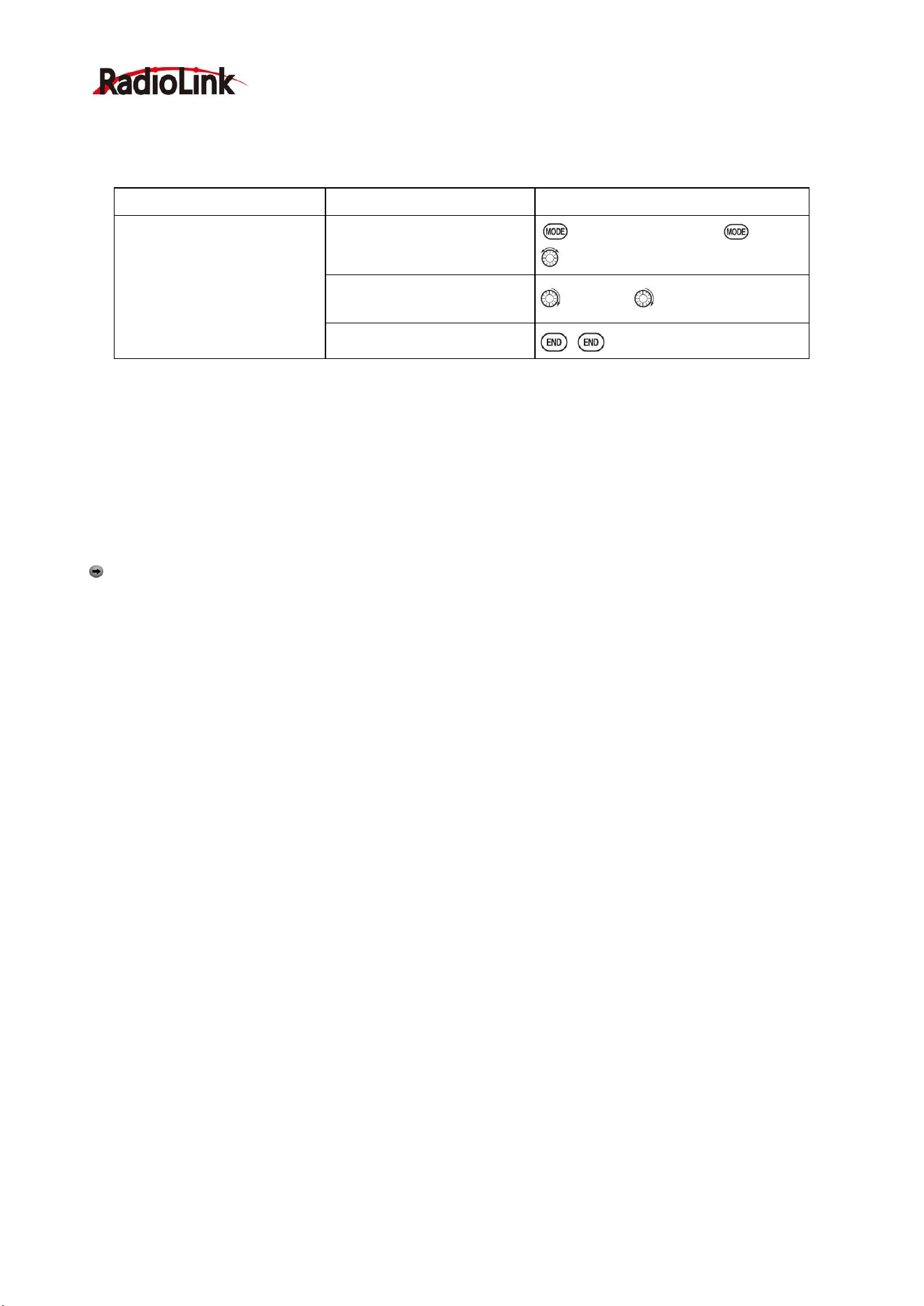
Radiolink Electronic Ltd
www.radiolink.com
32
FLAPERON or AILE-DIFF programming. [This is beneficial with four aileron servos that need to have their
end points or sub-trims set separately. CH1, CH5 and CH6 are already fully set up to operate as ailerons. Mix
the CH7 or CH8 (the second aileron servo on the other side) into ailerons to function properly.
Goals
Steps
Inputs
Adjust the 2
nd
aileron servo
output from CH6or7 to
channel CH6&5 Allow twin
aileron servos operating with
a 5-channel receiver.
Open PARAMETER
submenu.
For 1s. (If ADVANCE again) .
to PARAMETER ,PUSH
Select AILE-2 and change to
CH6&5.
To AILE-2. to CH6&5
Close
There are 4 basic tail types in MULTIROTOR models:
• Simple. Model uses one elevator servo and one rudder servo (or multiple servos on a Y-harness). This is the
default.
• Dual Elevator servos. Model uses 2 elevator servos.
• Tail-less models. Model uses 2 wing servos together to create roll and pitch control. See ELEVON (ACRO/
GLID 1A+1F).
• V-TAIL. Model uses 2 surfaces, at an angle, together to create yaw and pitch control. see V-TAIL (ACRO/
GLID).
Note
: Only one of the three tail-type functions (AILEVATOR, V-TAIL, and ELEVON) can be used at a time.
The radio provides a warming and will not allow the activation of another tail type until the first is deactivated.
An error message of OTHER WING MIXING IS ON will display.
Using ELEVON (ACRO/GLID 1A+1F): it is used with delta wings, flying wings, and other tailless
MULTIROTOR that combine aileron and elevator functions, using two servos, each one on the ELEVON. The
aileron/elevator responses of each servo can be adjusted independently. This is also popular for ground
model use, such as tanks, which drive two motors together for forward, and one motor forward/ one backward
for turning.
3.3 ACRO ADVANCE FUNCTION MENU
Mixes are special programs within the radio that command one or more channels to act together with input
from only one source, such as a stick, slider or knob.
There are a variety of types of mixes:
TYPE:
• Linear: Most mixes are linear. A 100% linear mix tells the slave servo to do exactly what the master servo is
doing, using 100% of the slave channel’s range to do so. An example is FLAPERON, when aileron stick is
moved, the flap servo is told to move exactly the same amount. A 50% linear mix would tell the slave servo,
for example, to move to 50% of its range when the master’s control is moved 100%.
• Offset: An OFFSET mix is a special type of linear mix. When the mix is turned on (usually a flip of a switch),
the slave servo is moved a set percent of its range. An example of this is AIRBRAKE, moving flaps,
FLAPERON, and elevator all to a set position at the flip of a switch.
• Curve: Curve mixes are mostly used in helicopters, but may also be used in airplanes and gliders. An
example is THROTTLE-NEEDLE mixing, where the in-flight needle’s servo is moved, changing the mixture,
as the throttle servo is moved.
• Delay: Delay mixes are part of a few very special functions that make the servo move to its desired range
more slowly.
THROTTLE DELAY (simulates turbine engines) and the elevator delays in AIRBRAKE are two examples of
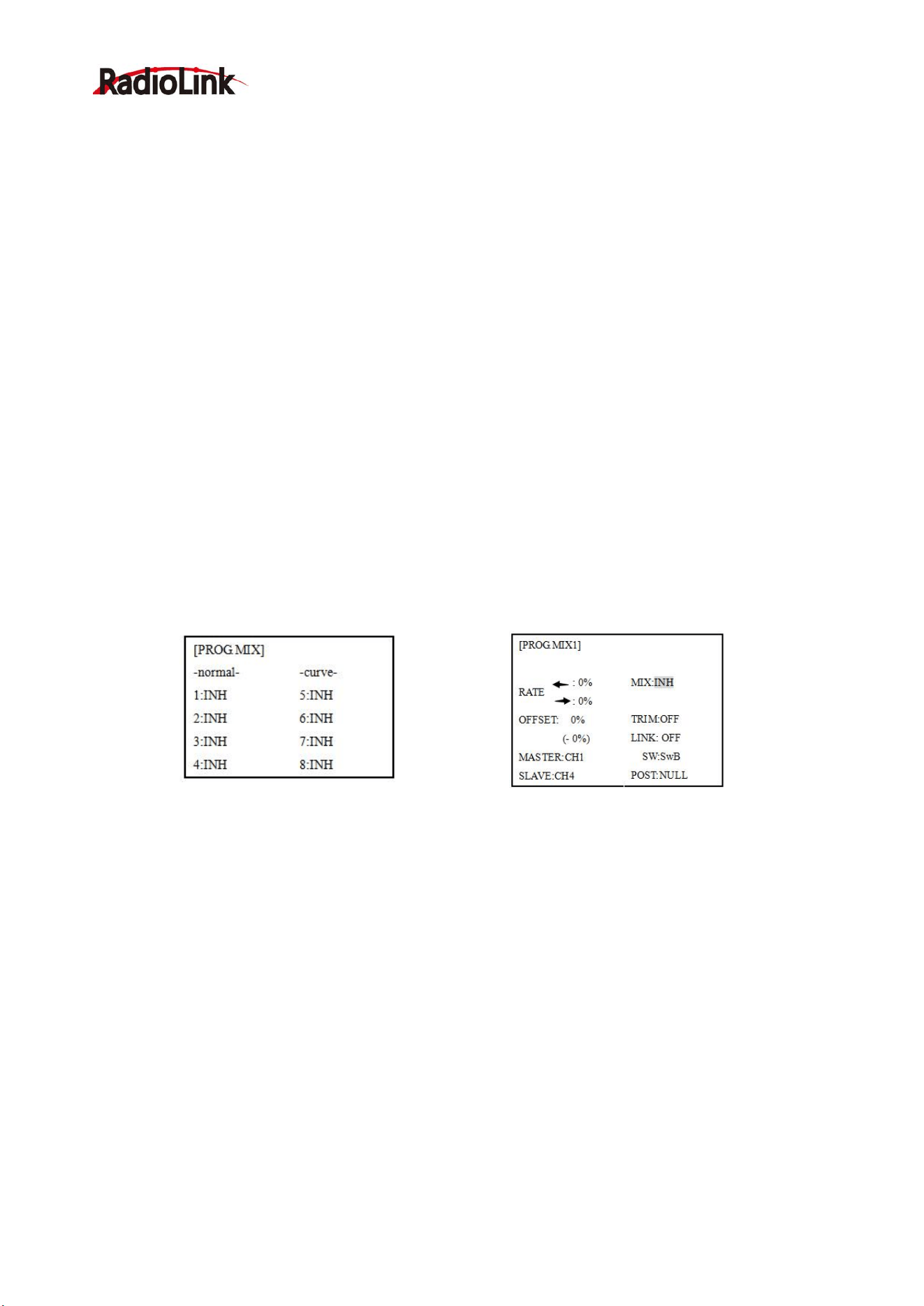
Radiolink Electronic Ltd
www.radiolink.com
33
this. DELAY in HELI is another example that slows the servo movement to the trim settings for the other
conditions.
Essentially every feature in the radio's programming is really a mix, with all assignments/programming set up
and ready to use. Additionally, the AT9 ACRO and GLID programs both provide 4 linear and 4 curve
fully-programmable mixes ( HELI provides 4 linear and 2 curve) that allow you to set up special mixes to
resolve flight difficulties, activate additional functions, etc.
Let’s look quickly at a few examples that are features we’ve already covered. This may help to clarify the mix
types and the importance of mixes:
Additional example:
• Exponential is a preprogrammed curve mix that makes the servos’ response more (+) or less (-) sensitive
around center stick (works in conjunction with dual rate, a linear mix that adjusts the total range). see
D/R,EXP,
• IDLE-DOWN and THR-CUT are two OFFSET pre-programmed mixes. These tell the throttle servo, when
below a certain point, to move toward idle an additional set percentage to help close the carburetor.
• ELEV-TO-FLAP mixing is a pre-programmed linear mix to move the flaps proportionally to elevator control,
helping the model loop even tighter than it can on elevator alone.
• THROTTLE-NEEDLE mixing is a curve mix (like PROG.MIX 5 to 8) for proper in-flight needle setup.
• THROTTLE DELAY mixing is a pre-programmed delay mix that slows down the response of the CH3 servo.
Next, we'll get an in-depth look at some pre-programmed mixes (mixes whose channels are predefined for
simplicity) we’ve not covered yet, and last, look at the fully-programmable mix types.
3.3.1 Program MIX
AT9S Pro contains four separate linear programmable mixes. (Note that mixer #5-8’s mixing RATE are set
with a 5-point curve. HELI has mixer #5-6's mixing. See CURVE MIXES
There are a variety of reasons you might want to use these mixes. A few are listed here. All of the adjustable
parameters are listed below, but don’t let them scare you. For your first few times experimenting with mixes,
just turn on the default mixes, adjust them how you think they need to be, then use the servo screen to check
and see if you were correct. As with all functions, a sample
setup follows, step by step, to assist you.
Sample reasons to use linear programmable mixes:
• To correct bad tendencies of the MULTIROTOR (such as rolling in response to rudder input).
• To operate 2 or more servos for a single axis (such as two rudder servos).
• To automatically correct for a particular action (such as lowering elevator when flaps are lowered).
• To operate a second channel in response to movement in a first channel (such as increasing the amount of
smoke oil in response to more throttle application, but only when the smoke switch is active).
• To turn off response of a primary control in certain circumstances (such as simulating one engine flaming
-out on a twin, or throttle-assisted rudder turns, also with a twin).
Adjustability:
Radiolink Electronic Ltd
www.radiolink.com
34
• Defaults: The 4 programmable mixes default to the most frequently used mixes for simplicity. If you want to
use one of these mixes, simply select that mix number so that the master and slave servos are already
selected for you.
• PROG.MIX1 aileron-to-rudder for coordinated turns
• PROG.MIX2 elevator-to-flap for tighter loops (HELI mixes default to ELEV-to-pitch.)
• PROG.MIX3 flap-to-elevator to compensate pitching with flaps (HELI mixes default to pitch-to-ELEV)
• PROG.MIX4 throttle-to-rudder ground handling compensation
•Channels available to mix: All four mixes may use any combination of CH1-8. (CH9-10 is not proportional
and cannot be mixed.) Offset and dials may also be set to the master channels.
•Master: the controlling channel, the channel whose movement is followed by the slave channel.
•Another channel: Most mixes follow a control channel. (Ex: rudder-to-ailerons, 25%, no switch, corrects roll
coupling.)
MASTER
SLAVE
LINK
TRIM
SWITCH
POSITION
RATE
OFFSET
RUDD
AILE
ON
OFF
ANY
NULL
25%
0
•Offset as master: To create an OFFSET mix, set the master as OFST. (Ex: Move FLAPERON as flaps 20%
of their total throw when SWITCH C is in down position.)
• Dial as master: To directly effect one servo’s position by moving a dial, set the master as the desired dial.
(Ex: create a second throttle trim on left slider.)
MASTER
SLAVE
LINK
TRIM
SWITCH
POSITION
RATE
OFFSET
VR(D)
THRO
OFF
N/A
ANY
NULL
5%
0
•Slave: the controlled channel. The channel is moved automatically in response to the movement of the
master channel. The second channel is in a mix’s name (i.e. aileron-to-rudder).
•Link: Link this programmable mix with other mixes.
Ex: PMIX FLAP-ELEVATOR mixing to correct for ballooning when flaps are lowered, but model has a V-tail.
Without LINK, this mix only moves CH2 elevator when flap is commanded, resulting in a dangerous
combination of yaw and roll. With LINK ON, mixing is applied to both CH2 and CH4.
MASTER
SLAVE
LINK
TRIM
SWITCH
POSITION
RATE
OFFSET
FLAP
ELEV
ON
OFF
ANY
NULL
5
%
0
•Trim: Master’s trim affects slave. Not displayed if master is not CH 1-4, because 5-9 have no trim. Ex: two
rudder servos. With TRIM OFF, rudder trim would bind the two servos. TRIM ON resolves this.
• On/off choices:
• SWITCH: Any of the positions of any of the 8 switches may be used to activate a mix. Up&Cntr, Cntr&Dn
options allow the mix to be ON in 2 of the 3 positions of a 3-position SWITCH.
• NULL: No SWITCH can turn this mix OFF. This mix is active at all times.
• LOGIC SW (Lsw1 to 3) may be assigned.
• STK-THR: Turn on/off by THROTTLE STICK movement. Trigger point/direction are selectable. Ex:
OFST-to-(gear doors) mix to open gear doors at idle, which is only active if throttle is below half.
MASTER
SLAVE
LINK
TRIM
SWITCH
POSITION
RATE
OFFSET
OFST
FLAP
ON
N/A
C
DOWN
20%
0
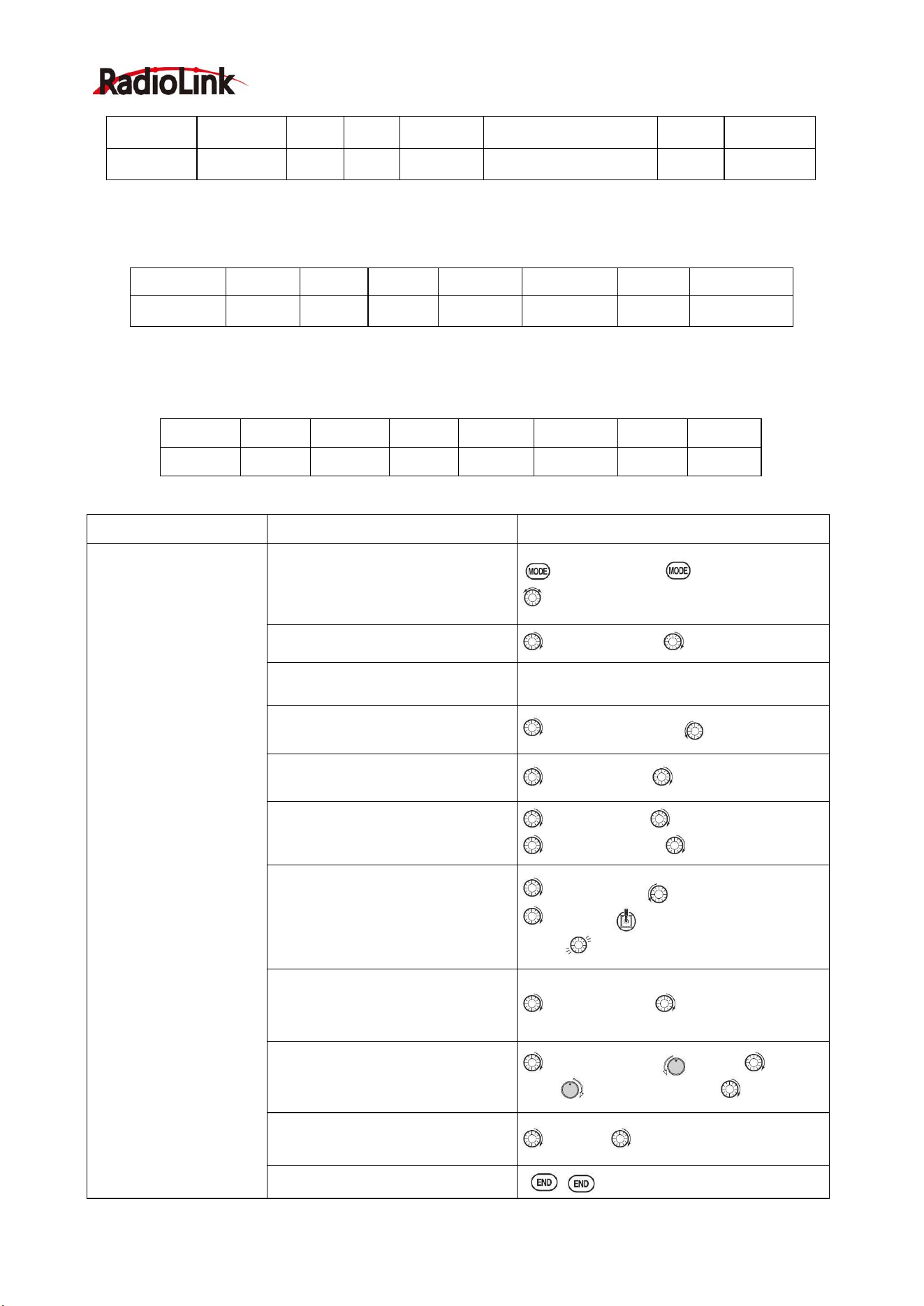
Radiolink Electronic Ltd
www.radiolink.com
35
• Rate: the percentage of the slave’s range it will move upon maximum input from the master channel. Ex:
RUDDERAILERON mix, 50%. Ail range=1''. When rudder is moved full right, ailerons move 1/2''.
MASTER
SLAVE
LINK
TRIM
SWITCH
POSITION
RATE
OFFSET
RUDD
AILE
OFF
OFF
ANY
NULL
50%
0
• Offset: Offsets the slave’s center is relative to the master. Ex: Smoke valve opens wider per throttle servo
position when smoke SWITCH is ON. Smoke servo’s neutral is moved down from THROTTLE STICK center
to the bottom.
MASTER
SLAVE
LINK
TRIM
SWITCH
POSITION
RATE
OFFSET
OFST
AUX2
OFF
ON
STK-THR
Stick at 1/2.for 1 sec.
100%
0
MASTER
SLAVE
LINK
TRIM
SWITCH
POSITION
RATE
OFFSET
THRO
AUX2
OFF
OFF
E
DOWN
100%
100
%
Goals
Steps
Inputs
Set up a FLAP-ELEV
mix:
ON when SWITCH C is
in the down position.
No elevator movement
when flaps move
up(spoilers),5%elevator
movement when flaps
move down. Link should
be ON if mode has twin
elevator servos.
Otherwise, Link remains
OFF.
Open an unused programmable
mix.(Ex: use PROG.MIX3 since it
is already set up for
FLAP-ELEVATOR)
to BASIC menu, again to ADVANCE
to PROG.MIX PUSH
Activate the function
to MIX,PUSH, to ON, PUSH
Choose master and slave
channels.
Already CH6 .Already CH2
Optional: set Master as OFST or
VR(A-E)
to Master,PUSH,
to desiredchoice
Set LINK and TRIM as needed.
to LINK,PUSH , to DWON
Assign SWITCH and position.
(Ex: change from E to C,Down)
to SW,PUSH, to SwC
to POSI,PUSH to DOWN
Optional: set switch to STK-THR to
activate mix with THROTTLE
STICK.
to SW ,PUSH to STK-THR
to POSI, Throttle Stick to desired
point .
Push 1sec.to set.
Optional: set switch position to
NULL. Make mix active at all time.
Not complete with STK-THR.
to POSI, PUSH, to NULL
Set rate. (Ex: Lo=0%,Hi=5%)
to RATE ,PUSH VR(A), leave at
0%, VR(A)past center . to 5%
Set OFF SET, if needed.(Ex:0)
to OFST to 0%
Close
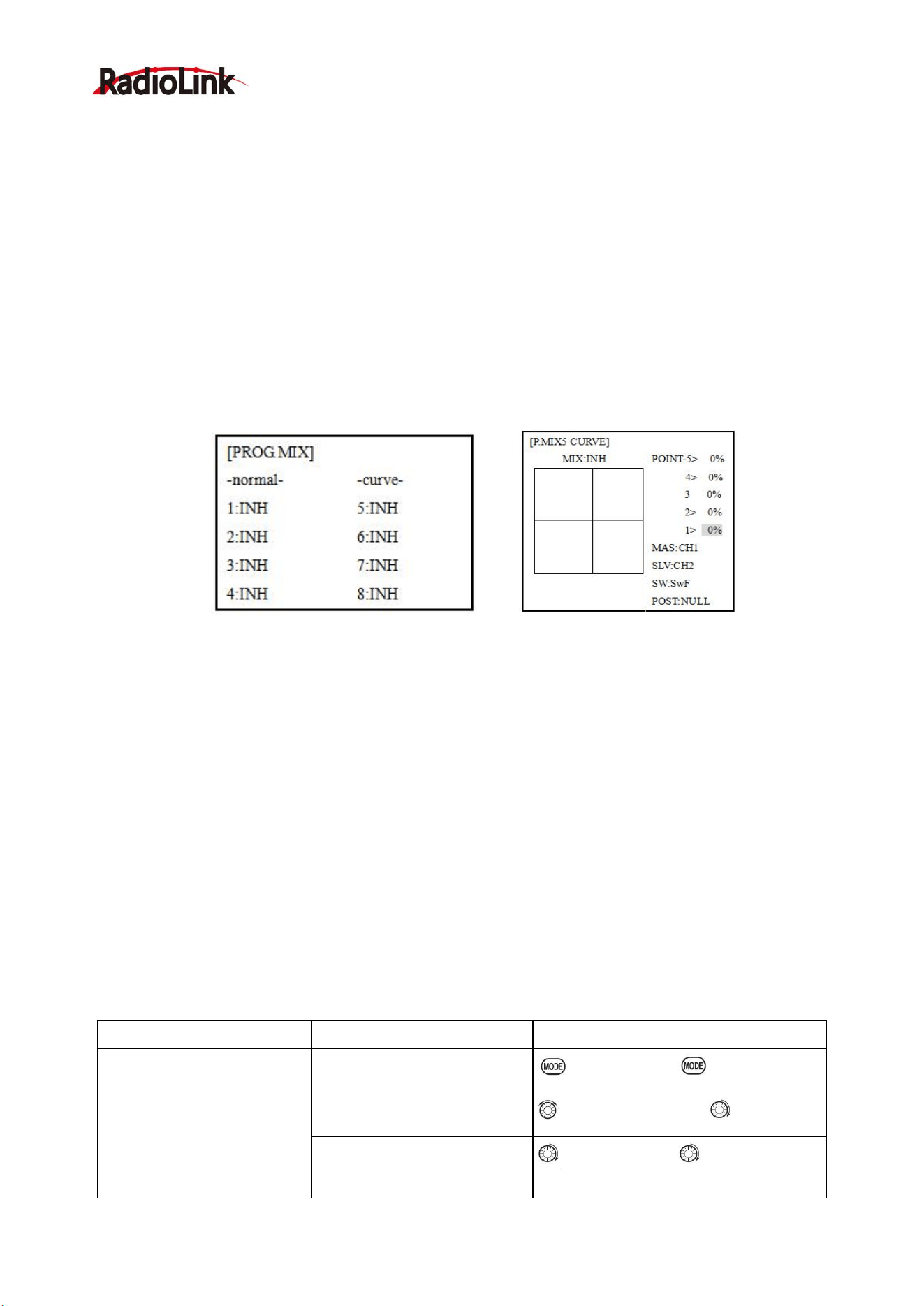
Radiolink Electronic Ltd
www.radiolink.com
36
Other samples:
• RUD-ELEV (ACRO GLID) mix: Compensate for pitching up or down when rudder is applied.
• AIL-RUD mix (ACRO): Coordinate turns by applying rudder automatically with aileron input. All model types.
• ELEV-PIT (HELI) mix: Compensate for the loss of lift of tilting the model
3.3.2 Curve Programmable Mixes (PROG.MIX5-8)(HELI: PROG.MIX5-6 ):
AT9S Pro’s ACRO/GLID programs contain four separate curve programmable mixes. HELI contains two.
There are a variety of reasons you might want curve mixes. Usually a linear mix doesn't fit your needs along
the whole range. One pre-programmed curve mix is the THROTTLE-NEEDLE function. This curve is
adjustable at 5 points, allowing you to adjust the motor’s tuning at 5 points along its RPM range.
One programmable curve mix defaults to RUDDER-AILERON. A linear mix that keeps the model from rolling
in knife-edge is probably too much aileron when rudder is applied in level flight. Create a curve mix and set all
5 points to match the linear mix. Inhibit the linear mix, and then adjust the curve to get the right response all
along the rudder channel’s travel.
Adjustability:
• ACRO/GLID Defaults: The 4 programmable curves mixes default to the most frequent choices, but can be
set to any channel.
• PROG.MIX5 rudder-to-aileron for roll coupling compensation (GLID mixes default to aileron-to-ELEV.)
• PROG.MIX6 rudder-to-aileron for roll coupling compensation (GLID mixes default to aileron-to-ELEV.)
• PROG.MIX7 rudder-to-elevator for pitch coupling compensation (GLID mixes default to
elevator-to-airbrake.)
• PROG.MIX8 rudder-to-elevator for pitch coupling compensation (GLID mixes default to
elevator-to-airbrake.)
• HELI Defaults:
• PROG.MIX5 aileron-to-elevator for coordinated turns
• PROG.MIX6 aileron-to-elevator for coordinated turns
• Master: The controlling channel can only be a channel. Cannot OFFSET or dial.
• Trim: not available in curve mixes.
• Offset: not available in curve mixes.
Goals
Steps
Inputs
Set up a RUDD-ELEV curve
mix on a model that pitches
down severely at full rudder
and not at all with minimal
rudder input, and pitches
worse on right rudder than
left:
Point 1: 25%
Point 2: 8%
Point 3: 0%
Point 4: 10%
Point 5: 28%
LINK
should be
ON
if model
has twin e l e va t o r ser v os .
Oth e r w i se ,
LIN K
remains
OFF
.
(Note that point 3 is 0%.
Otherwise, the elevator would
be retrimmed when the mix is
active and no rudder input is
given.)
Open an unused
programmable mix.(Ex: use
PROG.MIX7 since it is already
set up for FLAP-ELEVATOR)
to BASIC menu, again to
ADVANCE
to PROG.MIX PUSH 7,PUSH
Activate the function
to MIX,PUSH, to ON, PUSH
Choose master and slave
channels.
Already RUDD. Already ELEV
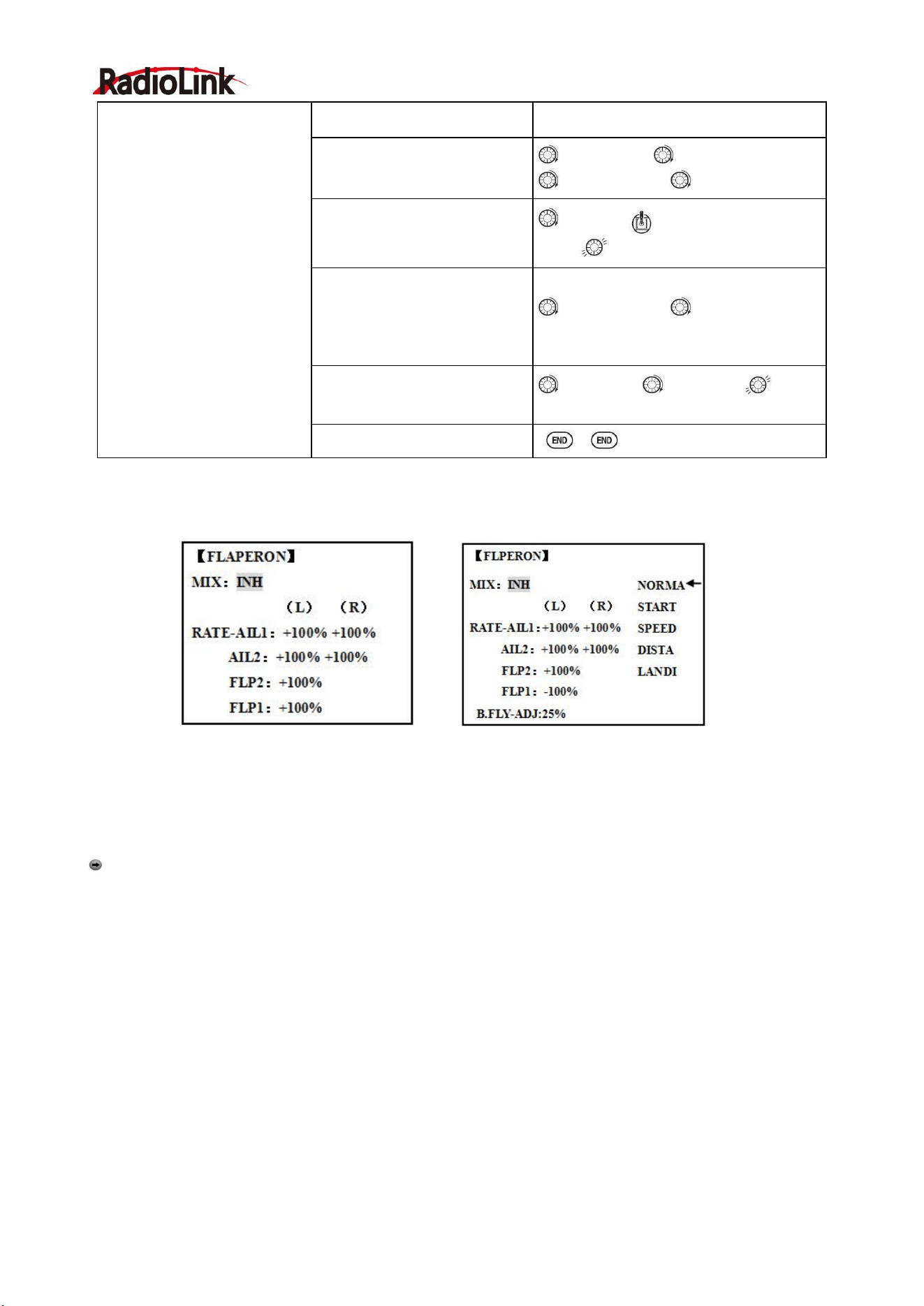
Radiolink Electronic Ltd
www.radiolink.com
37
Set LINK as needed( Ex: off)
Assign SWITCH and position.
(Ex: change from F to C ,
Down)
to SW.PUSH. to C,PUSH
to POSI, PUSH. to DOWN
Optional: set switch to
STK-THR to activate mix with
THROTTLE STICK.
to POSI, Throttle Stick to desired
point .
Push 1sec.to set.
Optional: set switch position to
NULL. Make mix active at all
time. Not complete with
STK-THR.
to POSI, PUSH, to NULL
Set desired percent at five
stick points.
to POINT -1 to 25% ,
Repeat for points 2-5.
Close
3.3.3 FLAPERON (ACRO/GLID 1A+1F ):
ACRO GLID
The FLAPERON mixing function uses one servo on each of the two ailerons, and uses them for both aileron
and flap function. For flap effect, the ailerons raise/lower simultaneously. Of course, aileron function (moving
in opposite directions) is also performed.
Note: When changing the polarity of a rate, "change rate dir?" is displayed for a check. Please set up after
pressing DIAL for 1 second and canceling an alarm display. (GLID only)
Once FLAPERON is activated, any time you program CH6 or "flap" (i.e. ELEVATOR mixing), the radio
commands both servos to operate as flaps. The amount of travel available as flaps is independently
adjustable in FLAPERON. A trimming feature is also available (see FLAP-TRIM) to adjust both neutral
positions together for straight-and-level flight or slight increases/decreases of the flap angle. END POINT and
SUB-TRIM both still adjust each servo individually.
Adjustability:
• Each aileron servo up travel can be set separate from its down travel, creating aileron differential. (See
example).
• Each aileron servo's travel when actuated as a flap is separately adjustable.
• AILE-2 can be utilized to use a 5-channel receiver and still have FLAPERON. NOTE: The AILE-2 function
only commands the channel 5 servo to operate with the aileron servo as ailerons, and to obey the primary flap
control (travel adjusted in FLAP-TRIM.) It does not provide full flap mix capability as when using a 6+ channel
receiver and channel 6.
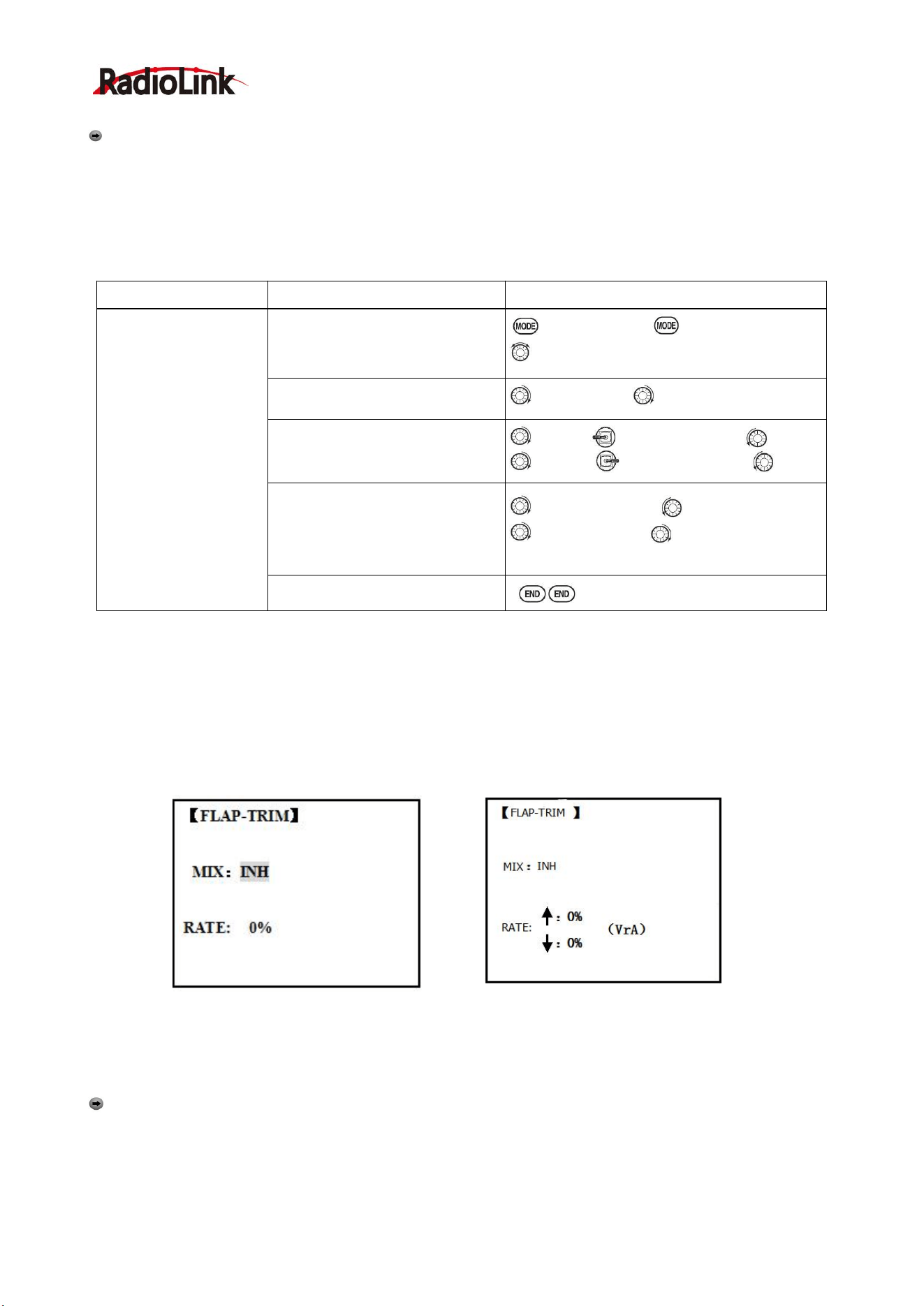
Radiolink Electronic Ltd
www.radiolink.com
38
• The separate FLAPERON settings for each condition can be set. (GLID)
Note: Activating FLAPERON only makes the ailerons work as ailerons and tells the radio how far you want
them to move as flaps. If you then activate other programming that moves them as flaps.
FLAP-TRIM is the flap-trimming feature that allows the flaps to move in reaction to the channel 6 control. It is
meant only for trimming the flaps' center but can also be used as full flap control.
ELEVATOR-FLAP would add elevator mixing into the flap movement from the flap dial after FLAP-TRIM is
activated.
Goals
Steps
Inputs
Activate twin aileron
servos, FLAPERON.
Input 10% less down
travel than up travel
(aileron differential)
within the FLAPERON
programming.(Decreas
e right aileron down
travel to 90%,decrease
left aileron down travel
to 90%)
Adjust total flap travel
available to 50% of
aileron travel available.
Open the FLAPERON.
to BASIC menu, again to ADVANCE
to FLAPERON .PUSH.
Activate the function.
to MIX. PUSH. to ACT
Optional: adjust the up/down
travel for 2 servos.(Ex:90%
down)
to AILE1 AILERON STICK. to 90%
to AILE2, AILERON STICK, to 90%
Optional: Use as total flap
control. Resign CH6 is primary
control in AUX-CH to desired flap
control.(Ex: right slider)
to FLAP2 PUSH, to +50%
to FLAP1.PUSH, to -50%
Close
* If you receive an error message that OTHER WING MIXING IS ON, you must deactivate AIL-DIFF or
ELEVON.
3.3.4 FLAP-TRIM
Using FLAP-TRIM to adjust FLAPERON (ACRO/GLID)
ACRO GLID
FLAP-TRIM assigns the primary FLAPERON control [defaults to VR(A)] to allow trimming in flight of the flap
action of FLAPERON.
Note: Even if FLAP-TRIM is made active with AIL-DIFF, it will not have any effect. The ONLY function that
allows control of the ailerons as flaps in the AIL-DIFF configuration is AIRBRAKE. Most modelers use
AIRBRAKE, or programmable mixes, to move the flaps to a specified position via movement of a switch.
FLAP-TRIM may also be used as the primary flap control in flight. By doing so, you can assign CH6 to a
3-position switch, with a "SPOILERON", neutral, and "FLAPERON" position, and even adjust the percentage
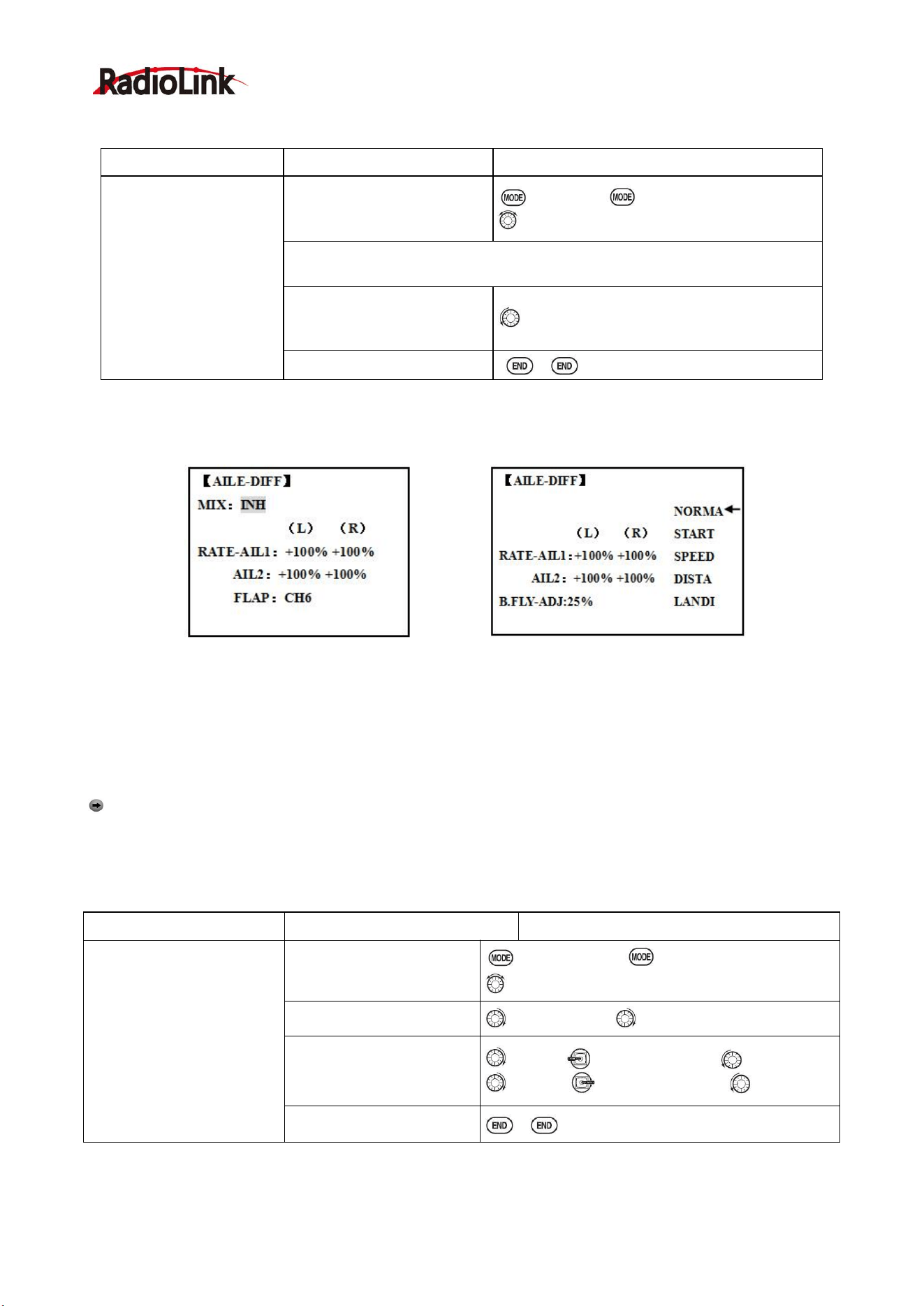
Radiolink Electronic Ltd
www.radiolink.com
39
traveled as FLAPERON/SPOILERON by changing the Flap Trim travel.
Goals
Steps
Inputs
Add FLAP-TRIM to allow
the model’s ailerons to
be trimmed together as
flaps at any time during
the flight, with a
maximum travel of 5% of
the total flap travel set in
FLAPERON.
Open FLAP-TRIM function
to BASIC again to ADVANCE
to FLAP-TRIM.PUSH.
The function is automatically activate with FLAPERON; however the default
travel is 0.
Adjust the travel available to
the FLAPERON when
turning the CH6 dial.
to 5%
Close
3.3.5 AILE DIFF (ACRO/ GLID 2A+1F/ GLID 2A+2F)
ACRO GLID (2A+1F)/GLID (2A+2F)
Aileron differential is primarily used on 3 or 4-servo wings, with one servo operating inboard flap on CH6 or
CH5 & CH6, and AILE-DIFF controlling proper aileron operation of 2 aileron servos, plugged into CH1 and
CH7. The ailerons can not be moved like flaps when using AILE-DIFF, except if using AIRBRAKE. (Note that
even if you make FLAP-TRIM active while using AILE-DIFF, it will not have any effect. ONLY AIRBRAKE
controls the ailerons as flaps in the AILE-DIFF configuration.)
Note: When changing the polarity of a rate in camber-flap, "change rate dir?" is displayed for a check.
Please set up after pressing DIAL for 1 second and canceling an alarm display. (GLID only)
•
FLAP function allows you to set up 1 or 2 servos for flap action.
• The separate AILE-DIFF settings for each condition can be set. (GLID only)
Goals
Steps
Inputs
Activate twin aileron servos
using AILE-DIFF.
Note that the function
defaults to no difference in
down travel vs. up travel. If
you want differential travel,
simply adjust each side.
(Ex: 90%)
Open the FLAPERON.
to BASIC menu, again to ADVANCE
to AILE-DIFF .PUSH.
Activate the function.
to MIX,PUSH. to ACT
Optional: adjust the
up/down travel for 2
servos..(Ex:90% down)
to AILE1 AILERON STICK. to 90%
to AILE2, AILERON STICK, to 90%
Close
* If you receive an error message that OTHER WING MIXING IS ON, you must deactivate ELEVON or
FLAPERON.
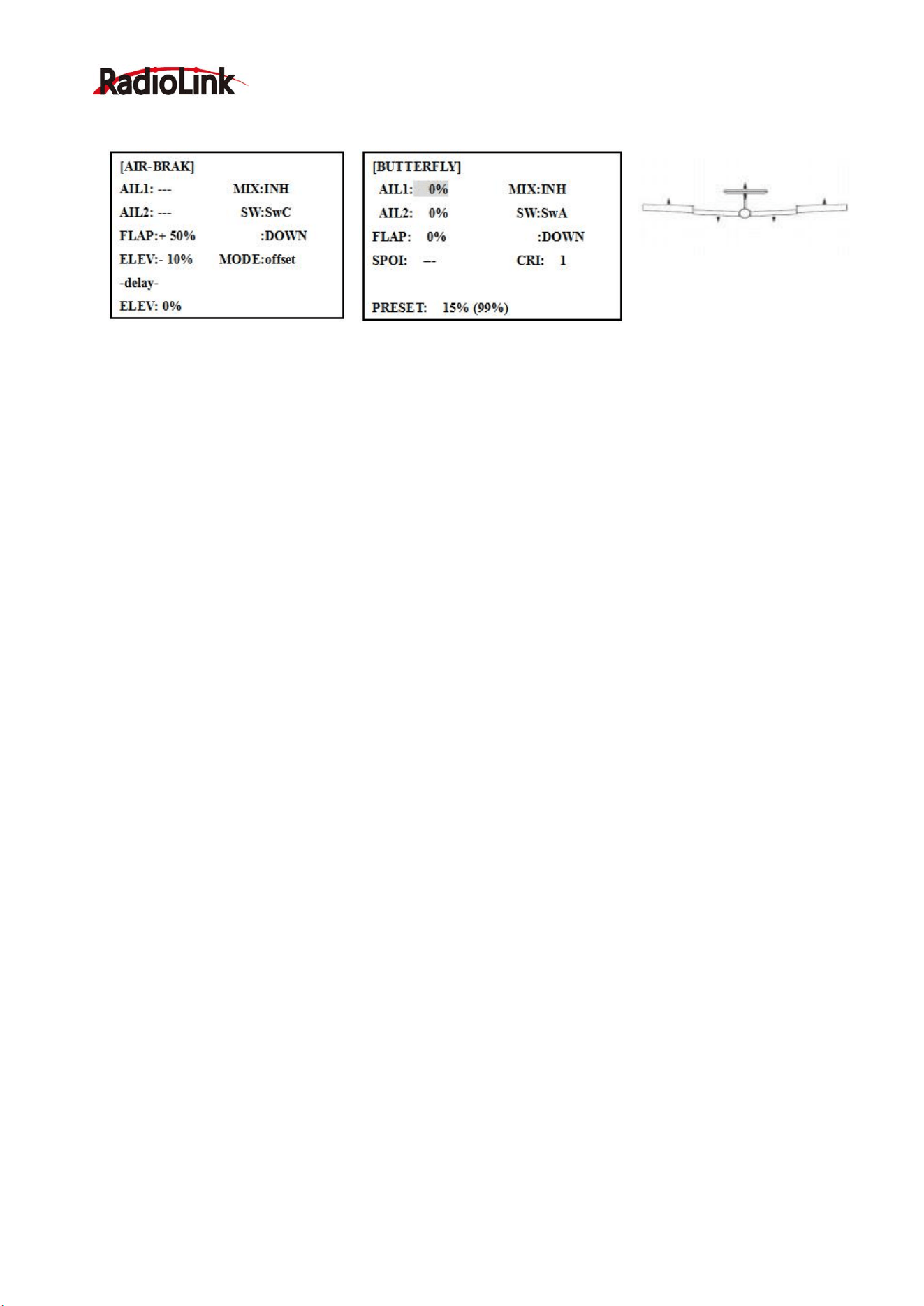
Radiolink Electronic Ltd
www.radiolink.com
40
3.3.6 Air Break (ACRO/ GLID)
ACRO GLID
Like FLAPERON and AILEVATOR, AIRBRAKE is one function that is really made up of a series of
pre-programmed mixes all done for you within the radio. AIRBRAKE (often called "crow" or BUTTERFLY -
see GLID, p. 62 for details) simultaneously moves the flap (if installed), twin ailerons (if installed) and elevator,
and is usually used to make steep descents or to limit increases in airspeed in dives.
This function is often used even on models without flaps as an easy way to use the FLAPERON and
FLAP-ELEVATOR mixing together.
Adjustability:
• Activation: be proportional by moving the THROTTLE STICK, or set positions by flipping the assigned
switch.
• Switch: Mix SWITCH is selectable.
• Also LOGIC SW (Lsw1 to 3) may be assigned.
• Linear(Inversely proportional to THROTTLE STICK): Provides a proportional increase in amount of
AIRBRAKE action as THROTTLE STICK is lowered and assigned switch is on. It provides gradually more
AIRBRAKE as you slow the engine. Includes selectable stick position where AIRBRAKE begins, gradually
increasing to the same setting as the THROTTLE STICK is lowered. If you would like to have the airbrake be
directly proportional to throttle stick, you will
need to reverse the THR-REV function. Note that this changes the throttle stick direction for all models.
• Offset: Provide AIRBRAKE response immediately upon switch movement, going to a pre-set travel on each
active channel without any means of in-flight adjustment.
• During Airbrake operation, the elevator travel is displayed on the elevator trim display in the Startup screen.
•Delayed reaction: You can suppress sudden changes in your model's attitude when
AIRBRAKE BUTTERFLY is activated by setting the delay (delay-ELEV) item, to slow down the elevator
response, allowing the flaps/ailerons/elevator to all reach their desired end point together. A setting of 100%
slows the servo to take approximately one second to travel the prescribed distance. (GLID: B.FLY-ELEV
function)
• Adjustable in flight (ACRO): Using the aileron (when AILE-DIFF or FLAPERON is activated) and elevator
trim lever in flight can be set to adjust the aileron and elevator settings in your airbrake rather than adjusting
the model's actual aileron and elevator trim. This allows easy adjustment for any ballooning while in flight.
When the airbrake switch is moved to off the trim is again adjusting the normal elevator trim.
• Channels controlled: Elevator, twin ailerons and flap may be set independently in AIRBRAKE, including set
to 0 to have no effect.
• If FLAPERON is active, the travel of the ailerons can be independently adjusted for the servos plugged into
CH1 and CH6. The flap choice has no effect on the FLAPERON.
• If AIL-DIFF is active, then CH1 and CH7 may be independently adjusted.
• Normally both ailerons are raised equally in AIRBRAKE, and the elevator motion is set to maintain trim when
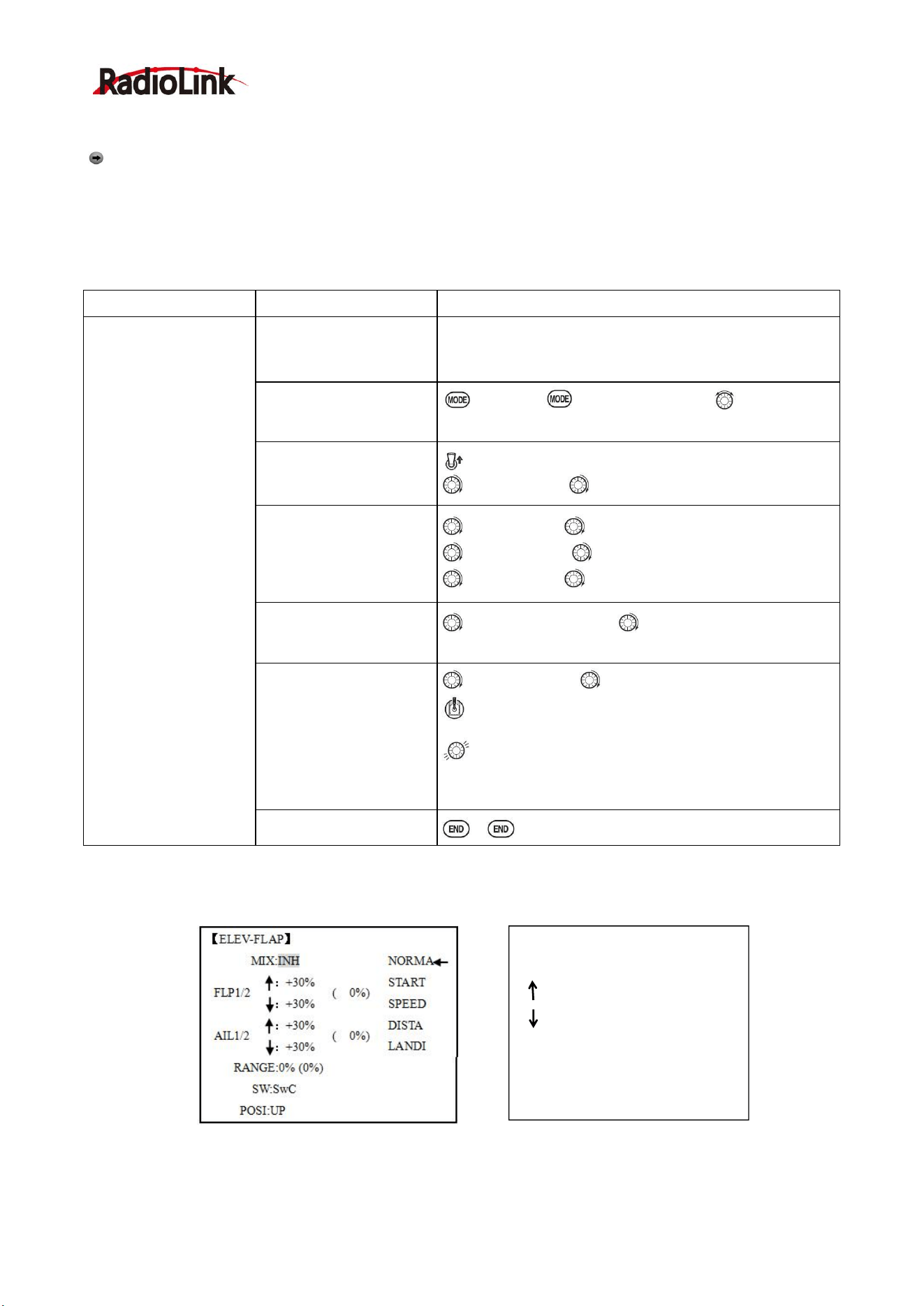
Radiolink Electronic Ltd
www.radiolink.com
41
the ailerons rise. Different amounts may be set for each aileron to correct for torque reactions and other
unique characteristics of the model.
Be sure you understand what dropping ailerons will do when in AIRBRAKE BUTTERFLY. Along with
creating an enormous amount of drag (desirable for spot landings), this also creates "wash-in", a higher angle
of attack where the ailerons are, and encourages tip stalling.
If you are using this for aerobatic performance and not "sudden stops", consider raising the ailerons and
dropping the flaps instead as shown in the diagram above.
Goals
Steps
Inputs
Activate AIR-BREAK
on a FLAPERON.
Mode. Adjust the
FLAPERON travel to
75%, with negative
elevator(push) of 25%.
Confirm FLAPERON is
active.
See FLAPERON instructions.
Open AIR-BREAK.
to BASIC . again to ADVANCE to
AIR-BREAK. PUSH.
Activate the function
SW C in up position
to MIX. PUSH to OFF
Adjust the travels as
needed. (Ex: Ailerons
each 75%,
Elevator-25%)
to AIL1.PUSH. to +75%,PUSH
to ELEV.PUSH. to -25%,PUSH
to AIL2.PUSH. to +75%,PUSH
Optional: delay the
speed of the elevator
servo.
to delay-ELEV. PUSH. to 25%,PUSH
Optional: change the
mixing from full amount
upon switch to
proportional to the
Throttle Stick’s proximity
to idle.
to MODE.PUSH. to Linear(0%),PUSH.
Throttle Stick to desired 0 point.
for 1sec.till beeps
(Display changes if new setting is different from prior
Close
3.3.7 ELEV-FLAP mixing (ACRO/GLID):
ACRO GLID
ELEV-FLAP mixing is the first pre-programmed mix we'll cover. This mix makes the flaps drop or rise
whenever ELEVATOR STICK is moved. It is most commonly used to make tighter pylon turns or squarer
[ELEV-FLAP]
MIX:INH NORMA
:+10% START
RATE SPEED
:+10% DISTA
LANDI
RANGE:0%(0%)
SW: SwC
POSI: UP
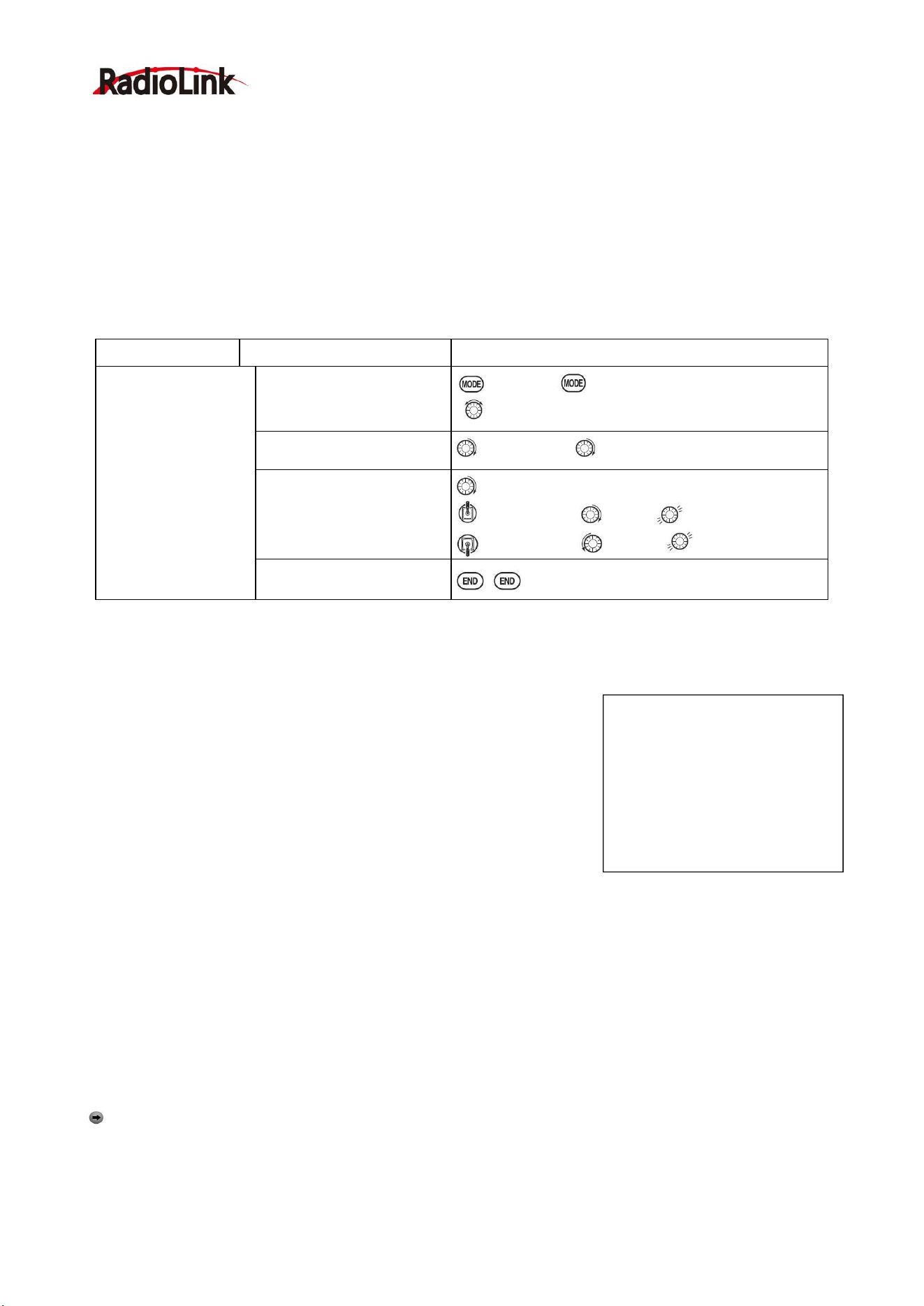
Radiolink Electronic Ltd
www.radiolink.com
42
corners in maneuvers. In most cases, the flaps droop (are lowered) when up elevator is commanded.
Adjustability:
• Rate: -100% (full up flap) to +100% (full down flap), with a default of +50% (one-half of the flap range is
achieved when the ELEVATOR STICK is pulled to provide full up elevator.)
• Switch: Fully assignable. Also LOGIC SW (Lsw1 to 3) may be assigned. IF you set it to NULL, the mix does
not work. (ACRO)
•Range (GLID): The range that mixing does not work near neutral of an elevator stick can be set up. Hold the
stick to the desired point (upper or lower side) , then press DIAL and hold one second to set the range.
• Condition (GLID): The separate ELEV-FLAP settings for each condition can be set.
Goals
Steps
Inputs
Activate ELEV-FLAP
mixing. Adjust flap
travel to 0% flaps with
negative elevator
(push) and 45%flaps
with positive elevator.
Open ELEV-FLAP
to BASIC . again to ADVANCE
to ELEV-FLAP. PUSH.
Activate the function
to MIX,PUSH. to ON.PUSH
Adjust the travels as
needed. (Ex:0%, to45%)
to RATE.
Elevator Stick to0%,
Elevator Stick to +45%,
Close
3.3.8 Dual Elevator Servos (with a rudder) (AILEVATOR) (ACRO):
Many models use two elevator servos, plugged in separate receiver
channels. (Flying wings without a separate aileron control use ELEVON.
V-shaped tail models use V-TAIL,
ADVANTAGE:
•Ability to adjust each servo's center and end points for perfectly matched
travel.
• Ease of assembly, not requiring torque rods for a single servo to drive 2
surfaces.
• Elevators acting also as ailerons for extreme stunt flying or more realistic jet flying (optional).
• Redundancy, for example in case of a servo failure or mid-air collision.
Adjustability:
• CH2 and CH8 only. (With programmable mixing, could utilize CH5 as the 2nd elevator servo.
THROTTLE-NEEDLE uses CH8 and cannot be active simultaneously).
• Direction of each servo's travel may be reversed in REVERSE or the set percentages may be reversed here.
• Elevator travels independently adjustable (both directions and percent).
•Optional action as ailerons (defaults to 50% response). This response cannot be activated/ deactivated in
flight. Setting AIL1 and 2 to 0 disables this feature.
Note: if you want this, but on/off with a switch, set AIL1 and 2 to 0 here, and use 2 mixes. AIL-to-AUX2
(link/trim off, assign a switch), get aileron action from the elevator servos when the assigned switch is on.
The AILEVATOR mixing function uses one servo on each of the two elevators, and combines the elevator
function with the aileron function (unless aileron travel is set to 0). For aileron effect, the elevators are raised
[AILVATOR]
MIX:INH
RATE-AIL3: -50%
AIL4: -50%
ELE2: -100%
ELE1: +100%
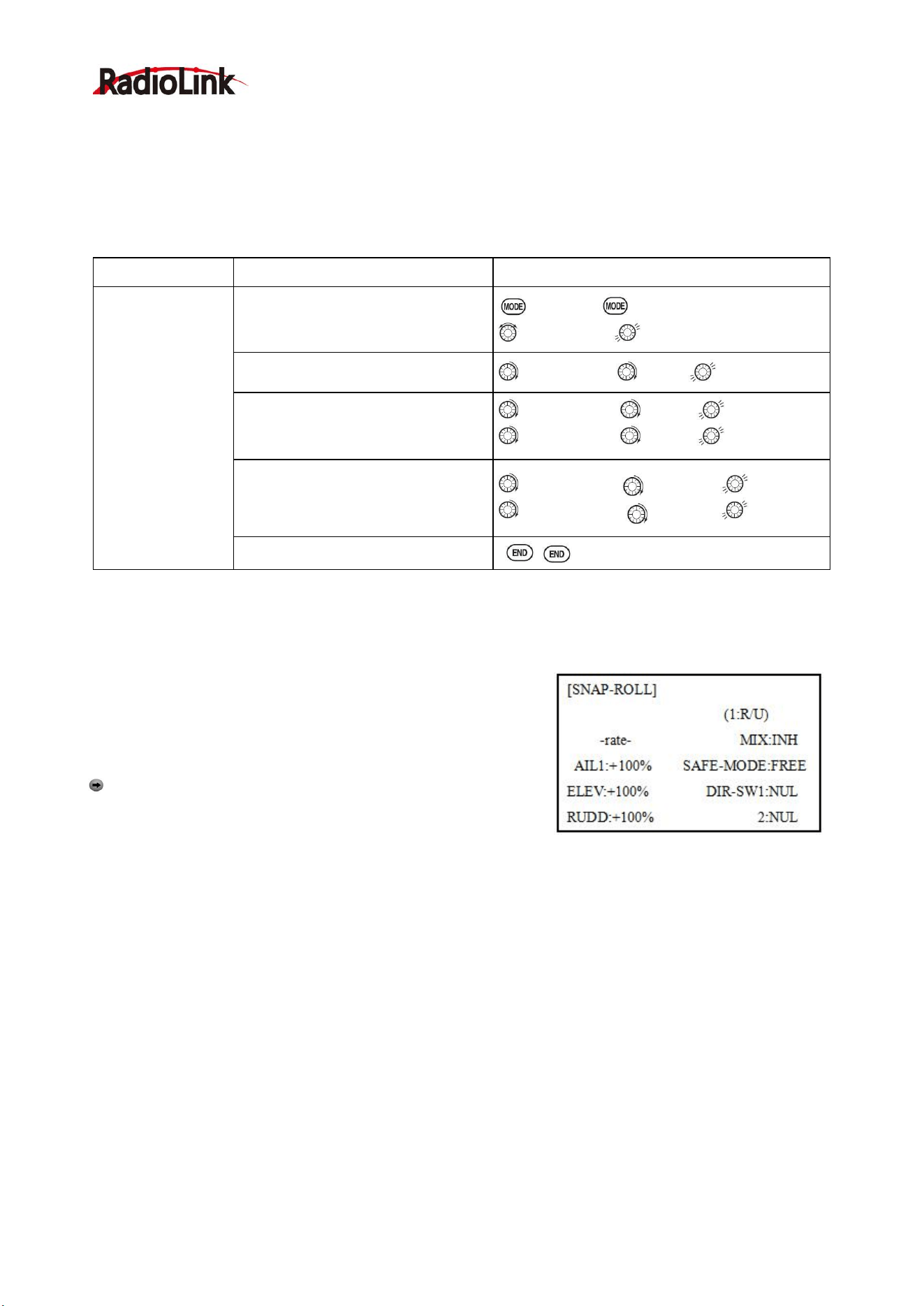
Radiolink Electronic Ltd
www.radiolink.com
43
and lowered opposite of one another in conjunction with the ailerons.’
Once AILEVATOR is activated, unless you zero out the aileron figures (see below), any time you move your
ailerons or any programming moves your ailerons (i.e. RUDDER-AILERON mixing), the radio automatically
commands both elevator servos to also operate as ailerons. To deactivate this action, simply set the 2 aileron
travel settings to 0 in the AILEVATOR function. This way the elevators will work only as elevators.
Goals
Steps
Inputs
Activate twin
elevator servos.
Deactivate the
elevator-acting
–as-ailerons
portion of this
function.
Note: depending
upon your model’s
geometry, may
need to reverse
one servo or set a
negative
percentage here.
Open the AILEVATOR
to BASIC . again to ADVANCE
to AILVATOR,
Activate the function.
to MIX,PUSH. to ACT.
Optional: adjust up/down travel
when operating as ailerons. (Ex:0)
to AIL3,PUSH. to 0%,
to AIL4,PUSH. to 0%,
Optional: adjust total elevator travel
of each servo. (Ex: right servo
elevator travel to 98%,left to 96%)
to ELE2.PUSH to 98%,
to ELE1.PUSH. to 96%,
Close
3.3.9 Snap Rolls (ACRO)
This function allows you to execute snap rolls by flipping a switch,
providing the same input every time. It also removes the need to
change dual rates on the 3 channels prior to performing a snap, as
SNAP-ROLL always takes the servos to the same position,
regardless of dual rates, inputs held during the snap, etc.
Note: Every MULTIROTOR snaps differently due to its C.G.,
control throws, moments, etc. Some models snap without aileron;
others snap on elevator alone. Most models snap most precisely
with a combination of all 3 surfaces. Additionally, rate of speed and acceleration when using the snap switch
will affect how the model snaps. For information using gyros with airplanes for cleaner precision maneuvers,
such as snaps and spins without over rotation.
Adjustability:
• Travel: Adjust the amount of elevator, aileron and rudder travel automatically applied.
• Range: -120 to +120 on all 3 channels. Default is 100% of range of all 3 channels.
• Directions: Up to 4 separate snaps is fully adjustable regarding travels and direction on each of the 3
channels.
Note: for simplicity, the radio refers to snaps that use “UP” or positive elevator as “U” or “UP” snaps. This is
more commonly referred to as a positive or inside snap. “D” or “DOWN” snaps are more commonly referred to
as negative or outside snaps.
• R/U = Right positive R/D = Right negative L/U = Left positive L/D = Left negative snap roll.
• Assignment of the 2 switches (DIR-SW1/2) to change snap directions is fully adjustable and optional. If you
wish to have only one snap, leave the switches as NULL. (If assigned, SW1=up/down, SW2=left/right)
• Safety Switch (SAFE-MOD): a safety may be set up on your landing gear SWITCH, preventing accidental
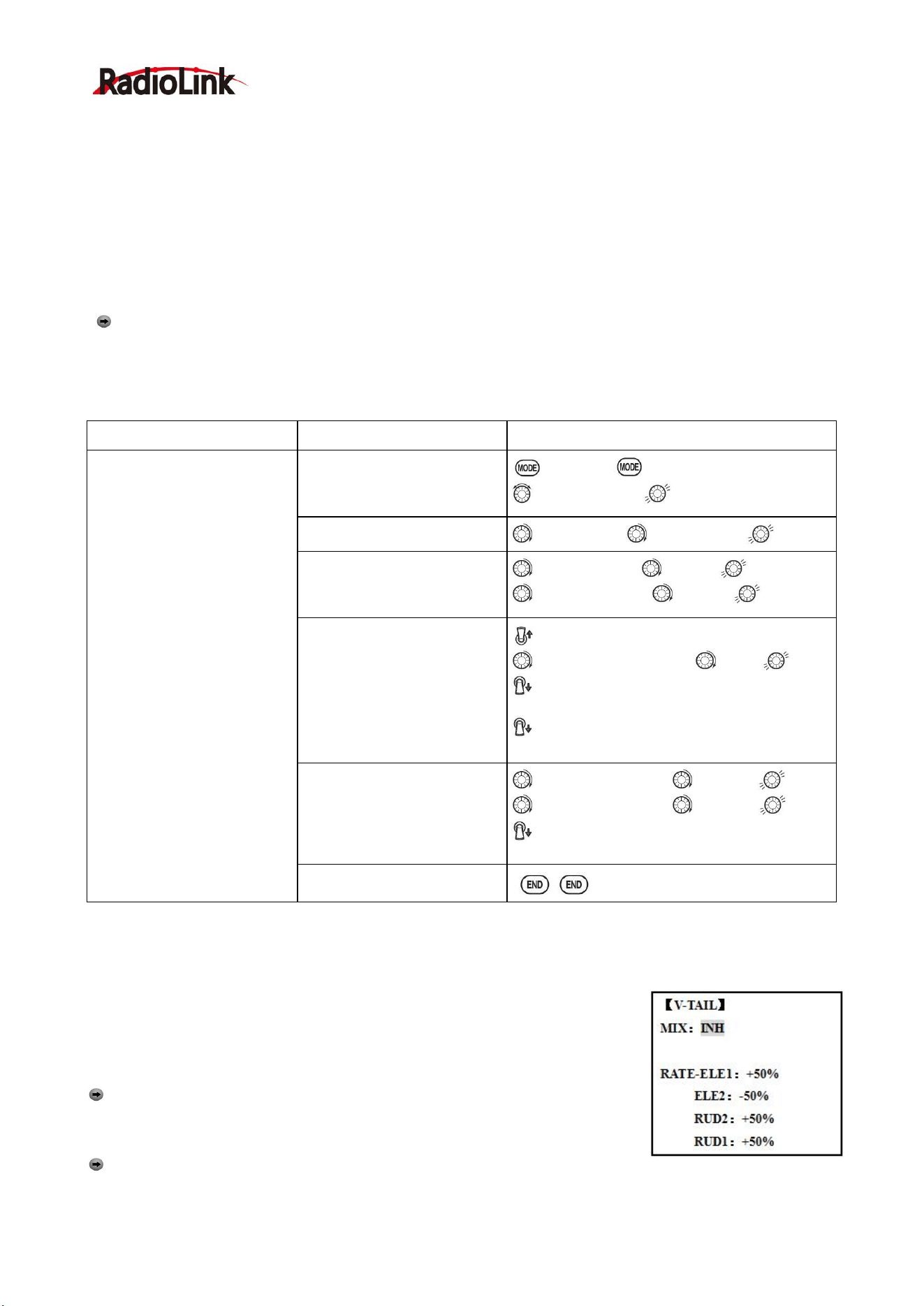
Radiolink Electronic Ltd
www.radiolink.com
44
snap rolls while the landing gear is down. The safety switch is turned on and off with the landing gear
SWITCH.
• ON: the safety mechanism is activated when the landing gear SWITCH is in the same position as at the time
this feature is changed to ON. Snap rolls will not be commanded even if the snap roll SWITCH is turned on
with the gear SWITCH in this position. When the landing gear SWITCH is moved to the opposite position,
snap rolls may be commanded.
• OFF: Activate the safety mechanism in the opposite position from the ON function.
• FREE: The safety mechanism is completely turned off. Snaps can be commanded regardless of the gear
SWITCH POSITION.
Note: The location of the safety switch always follows channel 5. If channel 5 is reassigned to switch C,
for example, switch C is now the safety. If channel 5 is null or used as the second aileron servo, the safety
function will not be available.
• Trainer Safety: SNAP-ROLL is automatically disabled when the trainer function is activated.
Goals
Steps
Inputs
Activate SNAP-ROLL. Adjust
elevator travel to 55%,
rudder travel to 120% in the
right/up snap. Activate
SAFE-MODE so snaps can
not be performed when gear
is down.
Adjust rudder travel in the
left/down snap to 105%.
(Note:using negative
percents can change any of
the 4snap directions. For
example. change snap 1to
‘down’ by changing the
elevator percent to -100%)
Open SNAP-ROLL.
to BASIC . again to ADVANCE
to SNAP-ROLL,
Activate the function
to MIX.PUSH to OFF or ON.
Adjust the travel as needed.
(Ex: elevator to 55%,rudder
to 120%)
to ELEV.PUSH. to 55%
to RUDD.PUSH . to 120%,
Optional: Activate
SAFE-MOD.(Ex: ON when
Sw E or Sw G is down,
meaning snap function is
deactivate when that switch
is in the down position)
E or G to UP position
to SAFE-MODE.PUSH. to ON.
snap switch
NOTE: MIX is OFF.
E or G to DOWN position.
NOTE: MIX is ON.
Optional: Assign switches
up/down and left/right.(Ex:
Change to the left/down snap
and adjust rudder to 105%)
to DIR-SW1.PUSH to SwA
to DIR-SW2.PUSH to SwB,
A down, B down
Repeat steps above to set percentages.
Close
3.3.10 V-Tail (ACRO/ GLID)
V-TAIL mixing is used with v-tail MULTIROTOR so that both elevator and rudder
functions are combined for the two tail surfaces. Both elevator and rudder travel
can be adjusted independently on each surface.
Note: NOTE: If V-TAIL is active, you cannot activate ELEVON or AILEVATOR
functions. If one of these functions is active, an error message will be displayed
and you must deactivate the last function prior to activating ELEVON.
Note: Be sure to move the elevator and rudder sticks regularly while
checking the servo motions. If a large value of travel is specified, when the sticks are moved at the same time,
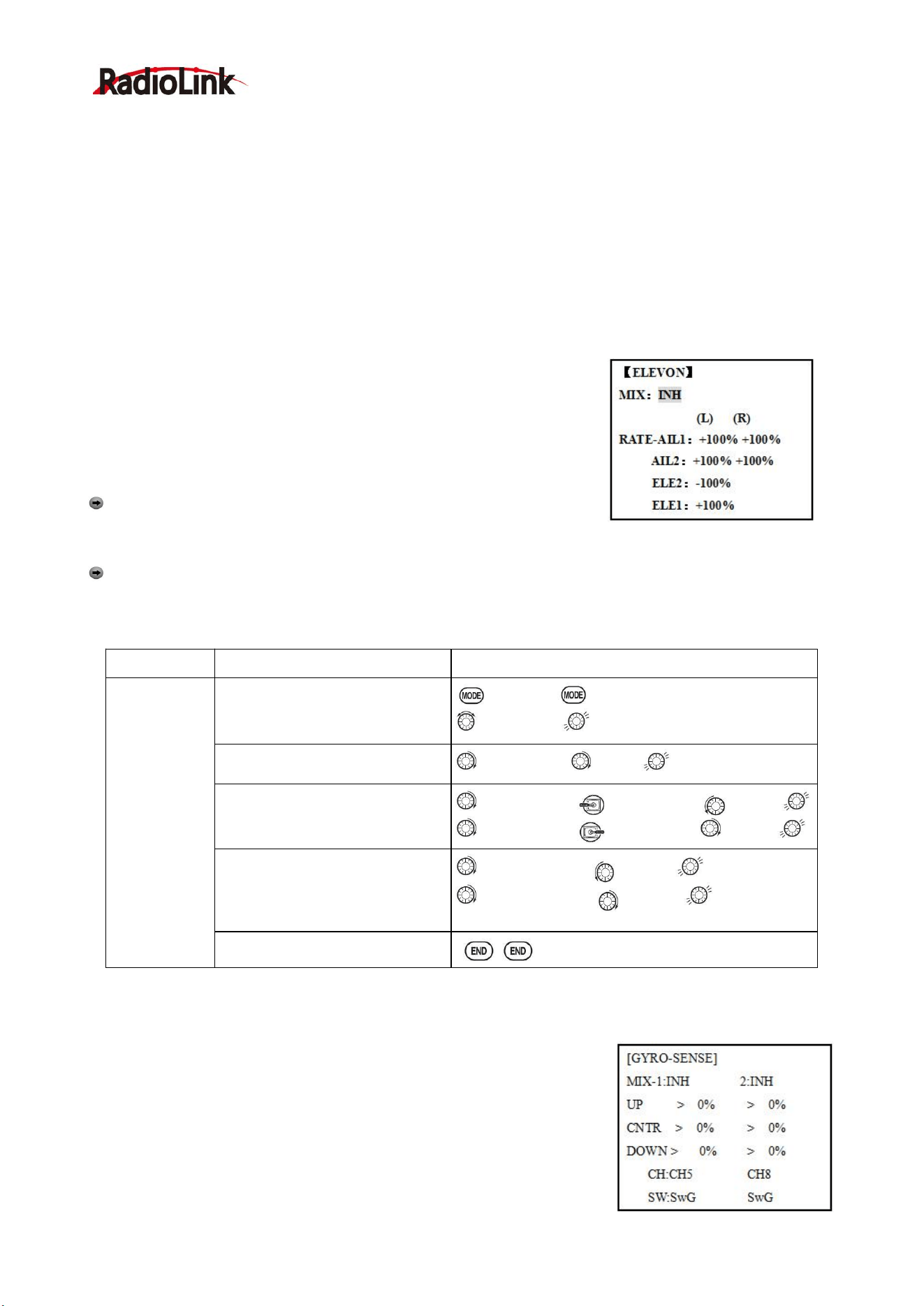
Radiolink Electronic Ltd
www.radiolink.com
45
the controls may bind or run out of travel. Decrease the travel until no binding occurs.
Adjustability:
• Requires use of CH2 and CH4.
• Independently adjustable travels allow for differences in servo travels.
• Rudder differential is not available. (To create rudder differential, set RUD1 and 2 to 0, then use two
programmable mixes, RUD-ELE and RUD-RUD, setting different percents for up and down. These are your
new rudder travels. Trim and link off, switch assignment null so you can’t accidentally turn off rudder.
3.3.11 ELEVON
Adjustability:
• Requires use of CH1 and CH2.
• Independently adjustable aileron travel allows aileron differential.
• Independently adjustable elevator travel allows for differences in up vs.
down travel.
• The separate ELEVON settings for each condition can be set. (GLID
only)
Note: When changing the polarity of a rate, "change rate dir?" is
displayed for a check. Please set up after pressing DIAL for 1 second and
canceling an alarm display. (GLID only)
Note: Be sure to move the elevator and aileron sticks to full deflection during setup. If large travels are
specified, when the AILERON and ELEVATOR STICKS are moved at the same time the controls may bind or
run out of travel.
Goals
Steps
Inputs
Activate
ELEVON.
Adjust aileron
down travel to
90% of up
travel,
creating
aileron
differential.
Open ELEVON
to BASIC . again to ADVANCE
to ELEVON,
Activate the function.
to MIX,PUSH to ACT.
Optional: adjust up/down travel
separately for the servos as
ailerons.(Ex: down to 90%)
to AIL1.PUSH. Aileron Stick. to 90%
to AIL2.PUSH. Aileron Stick. to 90%
Optional: adjust the elevator
travel of each servo.(Ex: right
servos elev. Travel to 98%, left to
105%.)
to ELE2.PUSH. to 98%.
to ELE1.PUSH. to 105%
Close
3.3.12 Gyro Sense
The gyros have two operations modes: GY mode and STD mode.
•STD mode: This mode performs general proportional control operation.
For instance, it controls the gyro so that changes are countered when the
attitude of the MULTIROTOR is changed by cross-wind, etc.
•GY mode: This mode performs both proportional and integrated control
operation. The difference between Normal mode and GY mode operation is
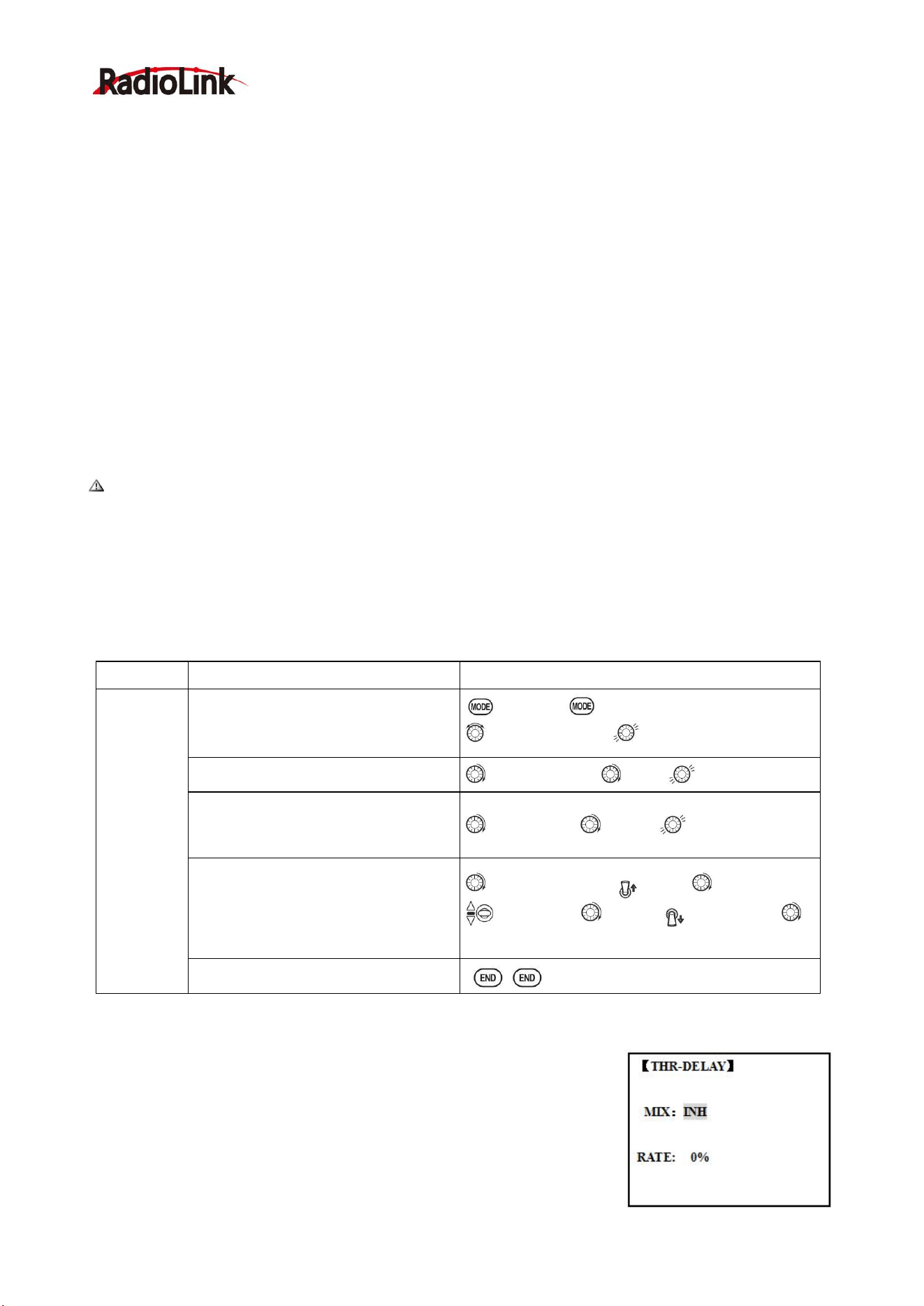
Radiolink Electronic Ltd
www.radiolink.com
46
that where as the Normal mode only counters changes in attitude, the GY mode returns to the original
controlled variable simultaneously with countering changes in attitude. For example, during knife edge flying,
aileron and elevator meeting rudder is normally necessary, but in the GY mode, meeting rudder is performed
automatically by the gyro.
Adjustability:
• Plug the gyro's sensitivity adjustment to channel 5, 7, or 8 of the receiver. (Selectable)
• Full switch assignable (SWITCH A-H)
• Each rate setting may be set from 0 to NOR100% or AVC100% gain. NOR: GY mode gain. AVC: STD mode
gain
• Larger percentages indicate more gain, or gyro responsiveness.
• MIX-1,2: Two surfaces' sensitivity can be adjusted independently.
GYRO GAIN Adjustability:
• When the servo hunts, the gyro gain is too high. Lower the gain until the hunting stops.
• The gyro will display best performance at a gain just before hunting occurs. Perform adjusting by flying the
MULTIROTOR repeatedly.
Precaution:
• When taking off and landing, always switch to the Normal mode. Taking off and landing in the GY mode is
dangerous.
•We recommend that you use the rudder control gyro in the Normal mode. In the GY mode, rudder operation
is necessary when turning because the weather vane effect is lost. Use the gyro in the Normal mode unless
you are an expert in rudder operation.
• And we recommend that you also set to off (0%) mode for safety as follows.
Goals
Steps
Inputs
Set up a
GYA gyro
setting
(Ex:MIX-1)
Open GYRO-SENSE
to BASIC . again to ADVANCE
to GYRO-SENSE,
Activate the function.
to MIX-1.PUSH to ON.
Optional: change switches
assignment.
Ex: select E.
to SW.PUSH. to SwE
Adjust gyro rates as needed.(Ex: UP
to NOR70%,CNTR to 0%[off], DOWN
to AVC70% as starting points.
to gyro rate. Push. E up. to NOR 70%,
E to CNTR, to 0% , E DOWN, to
AVC70%
Close
3.3.13 THR-DELAY (ACRO):
The THR-DELAY function is used to slow the response of the throttle servo
to simulate the slow response of a turbine engine. A 40% delay setting
corresponds to about a one-second delay, while a 100% delay takes about
eight seconds to respond. This function may also be used to create a
“slowed servo” on a channel other than throttle. This is accomplished by
plugging the desired servo (Ex: gear doors) into CH3 (THR), throttle into an
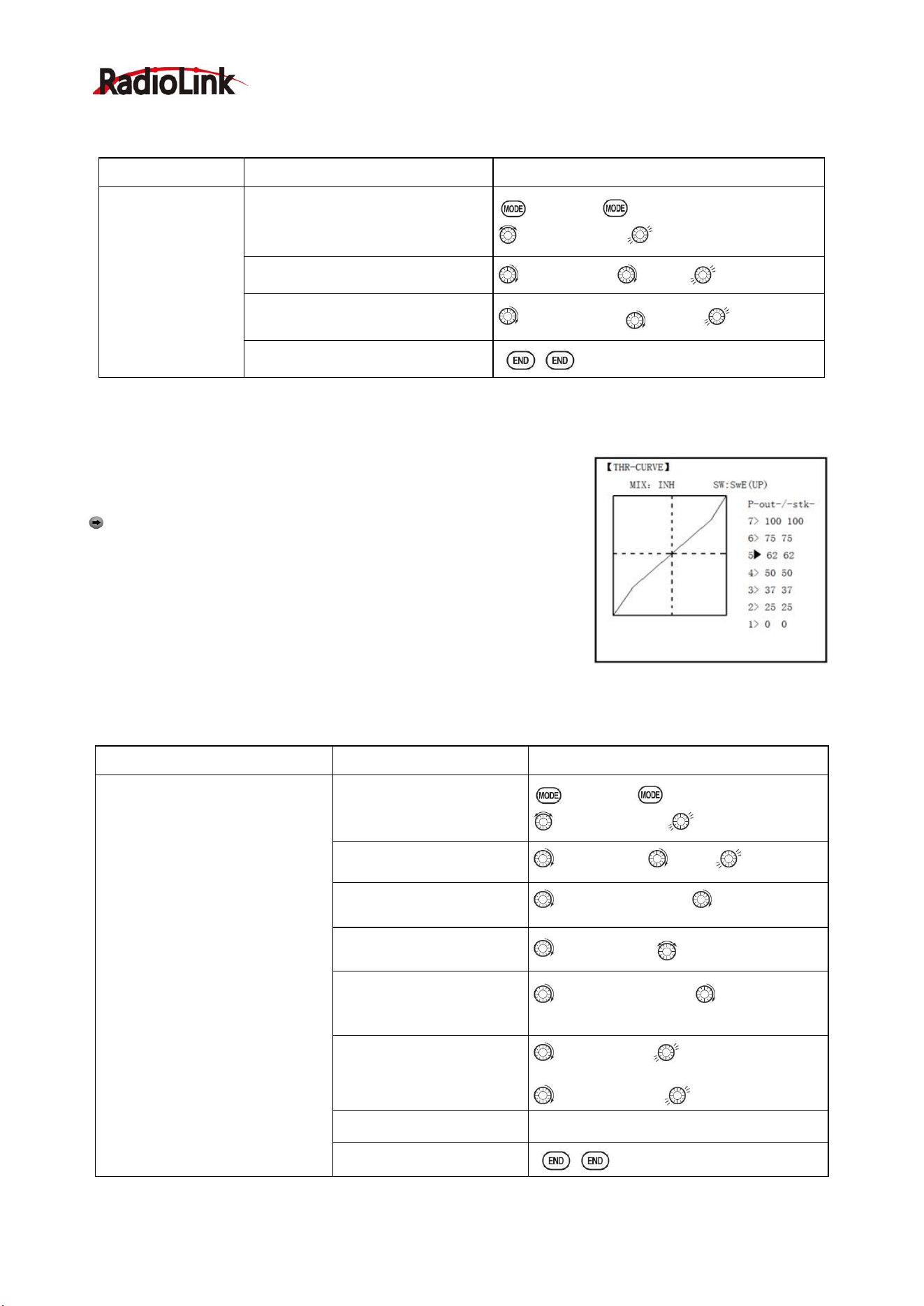
Radiolink Electronic Ltd
www.radiolink.com
47
auxiliary channel such as 8, and then using some creative mixes.
Goals
Steps
Inputs
Activate
THR-DELAY for a
ducted-fan replica
of a
turbine-powered
MULTIROTOR.
Slow the servo
response by one
second.
Open THR-DELAY
to BASIC . again to ADVANCE
to THR-DELAY,
Activate the function.
to MIX.PUSH. to ACT.
Adjust the RATE to match the
desired servo speed.(Ex:40%)
to RATE.PUSH to 40%
Close
3.3.14 THR CURVE (ACRO)
This function adjusts the throttle operation curve for optimum the engine
speed to throttle stick movement.
Note: If the throttle EXP function is activated, you can not use
THR-CURVE function simultaneously.
Adjustability:
• Separate curves for each switch position are available.
• Moving and deleting the curve point: The curve point (-STK-) can be
moved to the left or right by turning the DIAL (up to 2% in front of the adjoining point) and deleted/returned by
pressing the DIAL for one second alternately.
Goals
Steps
Inputs
Base point: Adjust base point of
throttle curve until engine idles
reliably.
-Out-:output,servo position.
-STK-: curve point, stick position.
Open THR-CURVE
to BASIC . again to ADVANCE
to THE-CURVE,
Activate the function.
to MIX.PUSH to ON.
Adjust the 1
st
point
to P1(-out-).PUSH to desired servo
position
Optional: assign the switch.
to SW.PUSH, to desired switch.
Optional: Move the curve
point.(Ex: point 3)
to P3 (-stk-),PUSH to desired
curve point to move to left or right.
Optional: delete the curve
point. And return the curve
point.(Ex: point 3)
to P3 (-stk-). for 1sec.to delete the
curve point.
to P3 (-stk-), for 1sec.to return
Adjust the next point.
Repeat as needed.
Close
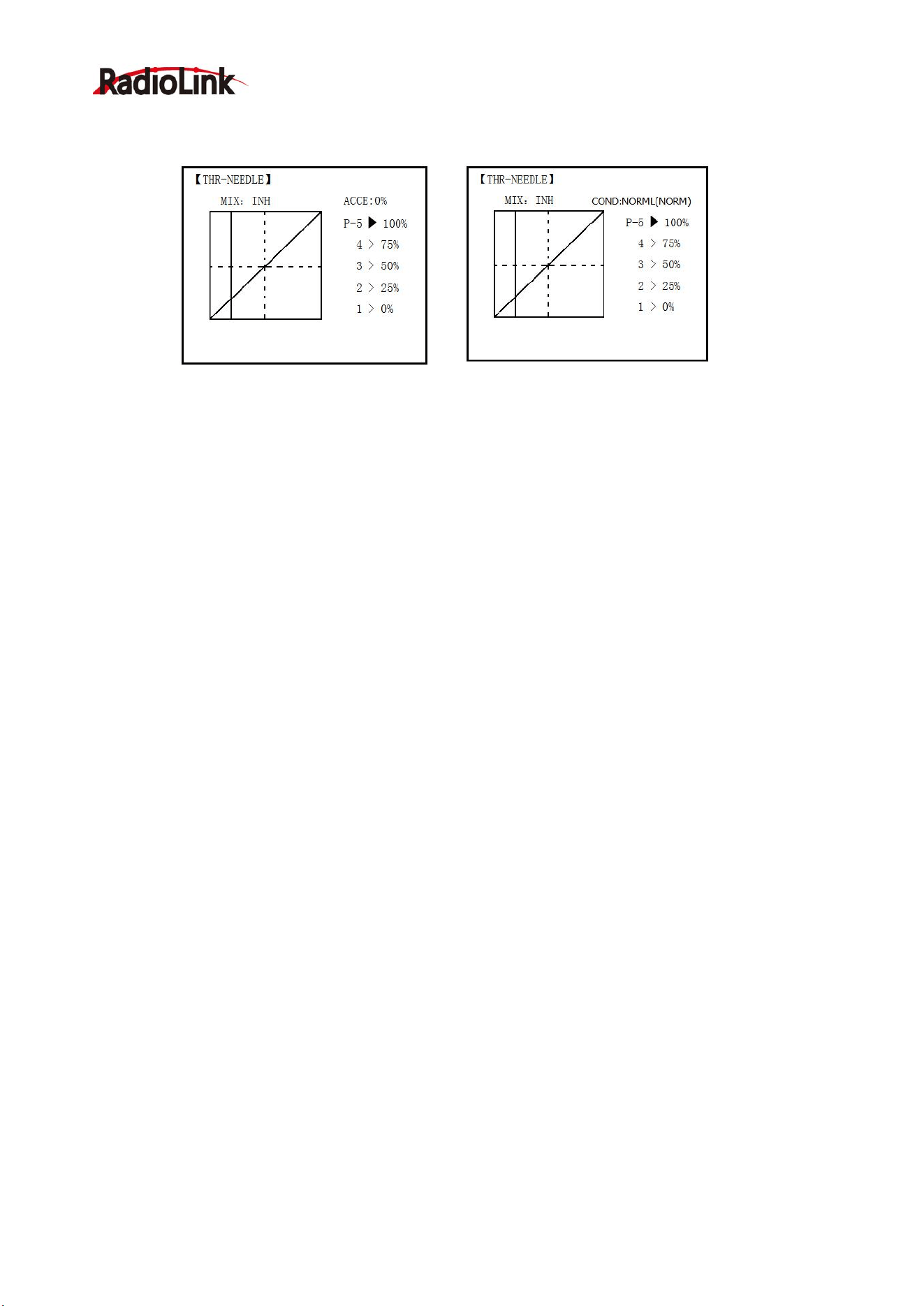
Radiolink Electronic Ltd
www.radiolink.com
48
3.3.15 THROTTLE-NEEDLE mixing (ACRO/ HELI):
ACRO HELI
THROTTLE-NEEDLE is a pre-programmed mix that automatically moves an in-flight mixture servo (CH8) in
response to the THROTTLE STICK inputs for perfect engine turning at all throttle settings. This function is
particularly popular with contest pilots who fly in a large variety of locations, needing regular engine tuning
adjustments, and requiring perfect engine response at all times and in all maneuvers. Also popular to
minimize flooding at idle of inverted engine installations or installations with a high tank position. Not needed
for fuel injection engines, which do this automatically.
Adjustability:
• Five-point curve allows adjustment of engine mixture at varied throttle settings.
• The in-flight mixture servo must connect to receiver CH8.
• In-flight mixture servo may also be used as a second servo for tuning a twin.
• Throttle cut feature also moves the in flight needle servo.
• The CH8 knob adjusts the high throttle mixture (may be deactivated. see AUX-CH).
• Because both use CH8, this function cannot be used simultaneously with AILEVATOR.
• An acceleration (ACCE) function (ACRO only) helps the engine compensate for sudden, large amounts of
throttle input by making the mixture suddenly richer, then easing it back to the proper adjustment for that
throttle setting. This function requires some adjustment to best fit your engine and your flying style. Adjust
engine's response until no hesitation occurs on rapid throttle input.
• Separate curves are available (HELI only) for normal, idle-ups 1 and 2 combined, and idle-up 3. Immediately
below MIX the radio displays the curve you are editing; ex: >NORML; and then which condition is currently
active by your switches ex: (ID1/2). Note that you can edit the mix for a different condition without being in that
condition, to allow editing without having to shut off the helicopter’s engine every time. Be sure you are editing
the proper curve by checking the name after the > and not the one in parentheses.
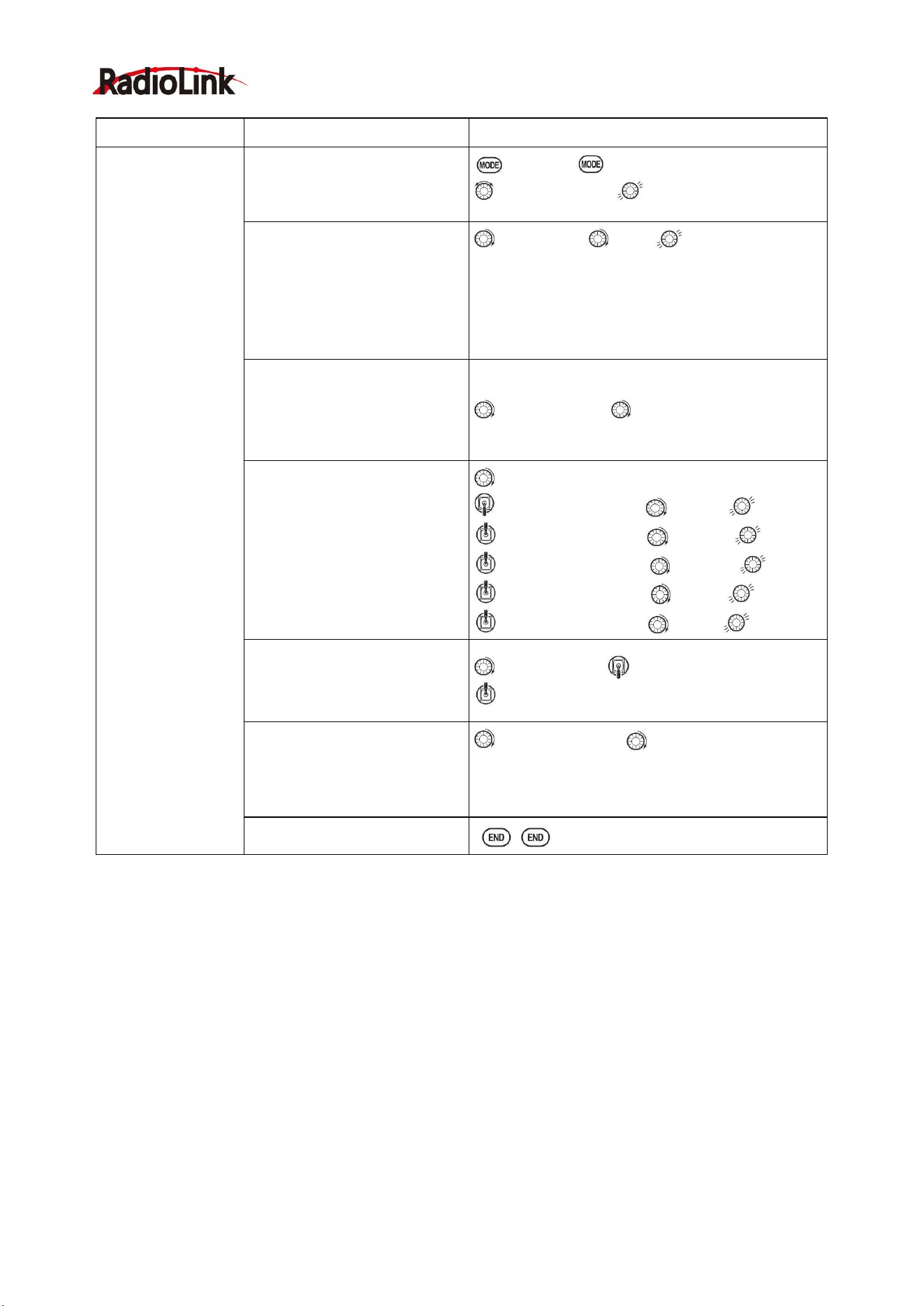
Radiolink Electronic Ltd
www.radiolink.com
49
Goals
Steps
Inputs
Activate
THROTTLE-
NEEDLE mixing.
Adjusting the points
as follows: to
resolve a slight lean
midrange problem:
1:40%
2:45%
3:65%
4:55%
5:40%
Open THROTTLE-NEEDLE
to BASIC . again to ADVANCE
to THR-NEEDLE,
Activate the function.
to MIX.PUSH to ON.
HELI only. Select the condition
to edit.
to COND.PUSH. as needed.
Adjust the travels as needed to
match your engine by slowly
moving the stick to each 5
points, then adjusting the
percentage at that point until
the engine is properly tuned.
to PIONT.
Throttle Stick to P 1, to40%,
Throttle Stick to P 2, to 45%,
Throttle Stick to P 3, to 65%,
Throttle Stick to P 4 , to55% ,
Throttle Stick to P 5, to 40%,
ACRO only . Optional: increase
mixture when throttle is applied
rapidly-ACCE.(see above for
details)
to ACCE. Push Throttle Stick to idle
Throttle Stick to full open quickly.
Heli only: set curves for another
conditions.
to condition name to next condition name to
edit.
Repeat above steps as needed.
Close
PART 4 GLIDER MODEL FUNCTIONS
Please note that nearly all of the BASIC menu functions are the same for airplane (ACRO setup), sailplane
(GLID 1A+1F/ 2A+1F/ 2A+2F setups), and helicopter (HELI setups). The features that are identical refer back
to the ACRO chapter. The glider BASIC menu includes MOTOR CUT and does not include IDLE-DOWN or
THR-CUT.
○
→
Note: in all cases where ACRO programming labels channel 3 as throttle, GLID programming labels
channel 3 as ARB (airbrake), since airbrakes are normally operated on channel 3 in gliders. This includes
STK-THR reading STK-ARB.
4.1 SET BASIC MENU OF GLID
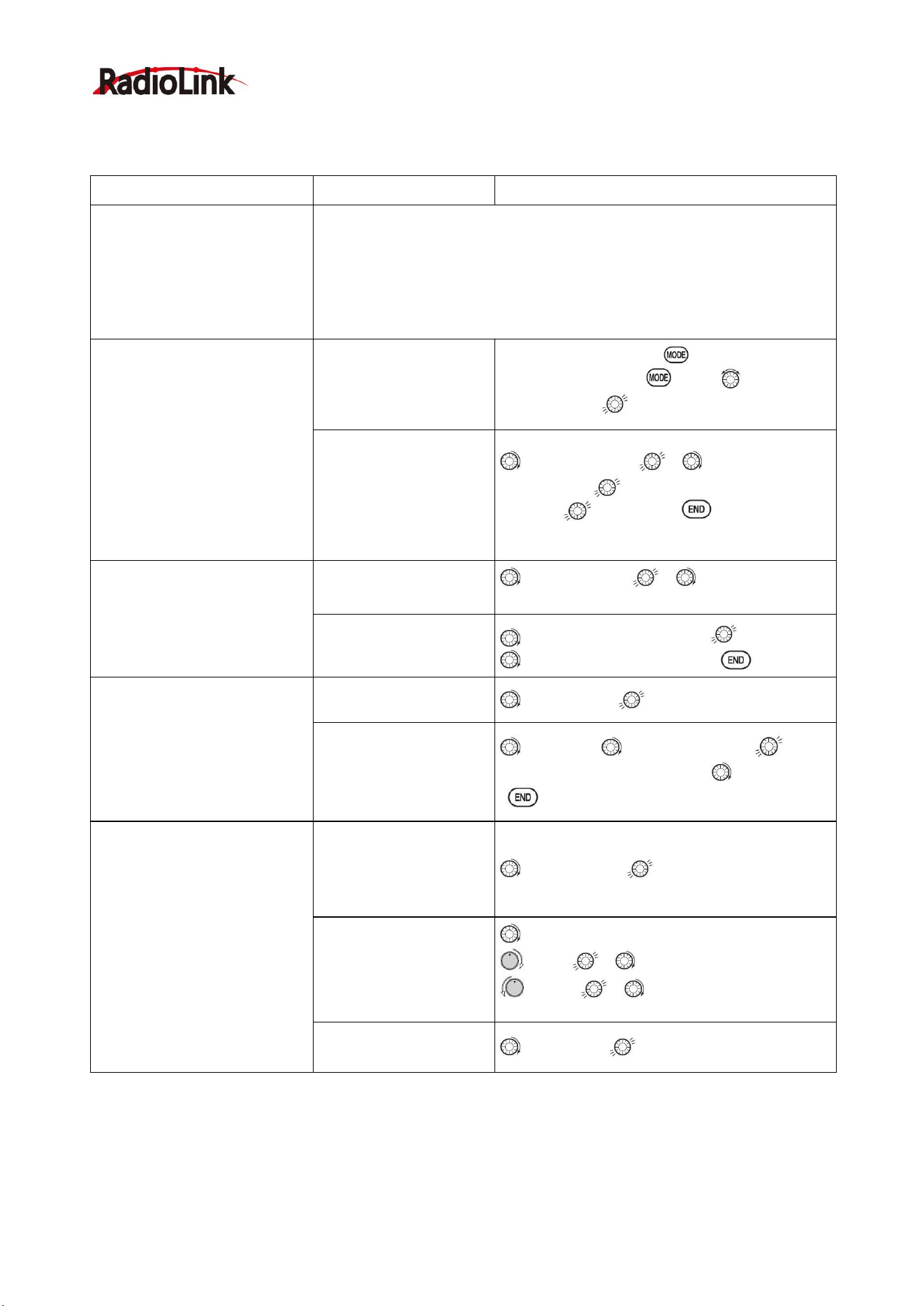
Radiolink Electronic Ltd
www.radiolink.com
50
This guideline is intended to help you get acquainted with the radio, to give you a jump start on using your
new radio, and to give you some ideas and direction in how to do with this powerful system.
Goals
Steps
Inputs
Prepare your airplane.
Install all servos, switches, receiver per your model’s instructions. Turn on
transmitter then receiver; adjust all linkages so surfaces are nearly
centered. Mechanically adjust all linkages to get as close as possible to
proper control throws and minimize binding prior to radio set up.
Check servo direction and throws.
Make notes now of what you will need to change during programming.
Select the proper MODEL
TYPE for your model. (Ex:
GLID 1A+1F)
[NOTE: This is one of several
functions that require
confirmation to make a change.
Only critical changes such as a
MODEL RESET require
additional key strokes to accept
the change.]
In the BASIC menu,
open PARAMETER
submenu.
Turn on the transmitter. for 1 sec. to
BASIC.(If ADVANCE again.) to choose
PARAMETER.
Choose proper MODEL
TYPE. Ex: GLID
(1A+1F).
Confirm the change.
Close submenu.
to MODEL TYPE , to
GLID(1A+1F) for 1 sec. Are you sure?
Displays.
to confir m.
Return to BASIC
menu.
Name the model
Note that you do not need to
do anything to ‘save’ or store
this data.
In BASIC menu open the
MODE SEL submenu.
to MODEL SEL. , to NAME.(1
st
character of model’s name is highlighted).
Input airplane name.
Close the submenu.
to change the 1
st
character. to confirm.
to next character and repeat. to return.
REVERSE servos as needed
for proper control operation.
In the BASIC menu,
open REVERSE.
to REVERSE.
Choose desired servo
and reverse its direction
of travel.
(Ex: reverse rudder
servo.)
to 4.RUDD, REV is highlighted. for 1
sec. ‘Are you sure?’ Displays. to confirm.
To BASIC menu.
Adjust travels as needed to
match model’s recommended
throws (usually listed as high
rates).
In BASIC menu choose
END POINT.
to END POINT.
Adjust the servos’ end
points. (Ex: flap servo).
Close the function.
to FLAP
VR(A). , to desired travel.
VR(A). , to desired travel.
Repeat as needed.
Choose D/R,EXP
to D/R,EXP
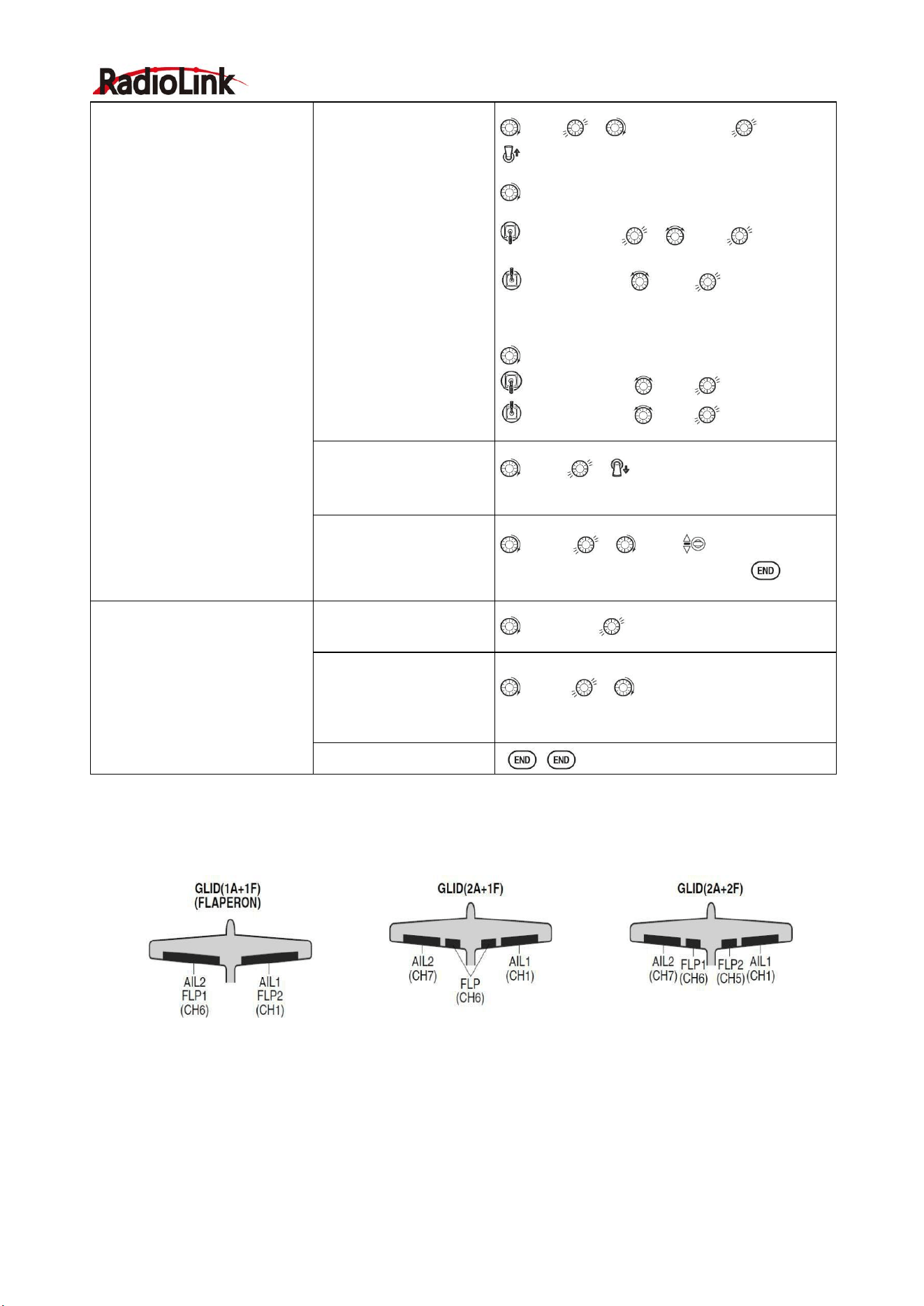
Radiolink Electronic Ltd
www.radiolink.com
51
4.2 SET GLID TYPE
TYPE: (GLID 1A+1F), GLID (2A+1F), GLID (2A+2F)
Before doing anything else to set up a glider or sailplane, first you must decide which MODEL TYPE best fits
your MULTIROTOR.
• GLID(1A+1F): The GLID (1A+1F) MODEL TYPE is intended for sailplanes with one or two aileron servos (or
none), and a single flap servo (or two connected with a y-connector). This TYPE is meant to be a very
simplistic version to set up a basic glider without a lot of added features. Additional flight condition is available.
• GLID (2A+1F): The GLID (2A+1F) MODEL TYPE is intended for sailplanes with dual aileron servos and a
single flap servo (or two connected with a y-connector). Additional flight conditions are available. These flight
Set up dual/triple rates and
exponential (D/R, EXP).
(Note that in the middle of the
left side of the screen is the
name of the channel and the
SWITCH position you are
adjusting. Two or even three
rates maybe set per channel
by simply choosing the desired
SWITCH and programming
percentages with the SWITCH
in each of its 2/3 position.)
Choose the desired
control, and set the first
(Ex: high) rate throws
and exponential.
to CH , to CH2(ELEV).
A to UP position. Screen reads ELEV [UP]
to D/R
Elevator Stick. , to set .
Elevator Stick. to set.
(Normally the same for both direction)
to EXP
Elevator Stick to set
Elevator Stick to set
Set the second (Ex: low)
rate throws and
exponential.
to D/R , A to down position. Repeat
above to set low rate.
Optional: change dual
rate SWITCH
assignment. Ex: elevator
to SWITCH G with 3
positions.
to SW , to G, G to center.
Repeat steps above to set 3rd rate.
Move flap control from the (VR
(A)) dial to the left slider.
[VR(D)](AUX-CH) .
In the BASIC menu,
open AUX-CH.
to AUX-CH
Choose CH5. Change
primary control to VR(D).
Change other channels
as needed.
to CH5 , to VR(D)。
Repeat steps above to set other channels.
Close

Radiolink Electronic Ltd
www.radiolink.com
52
conditions contain different offset trims and aileron differentials to make the sailplane perform certain
maneuvers more easily.
• GLID (2A+2F): The GLID (2A+2F) MODEL TYPE supports dual flap servos that can also act as ailerons,
creating full-span ailerons and flap. Additional flight conditions are available. These flight conditions contain
different offset trims and aileron differentials to make the sailplane perform certain maneuvers more easily.
4.3 GLID ADVANCE MENU
MIXES:
• Linear Programmable mixes (PROG.MIX1-4): Fully assignable programmable mixed with a linear response.
• Curved Programmable mixes (PROG.MIX5-8): Fully assignable programmable mixed with a curved
response.
• ELEV-FLAP pre-programmed mix creates elevator movement from the inboard flaps as well as elevators.
• BUTTERFLY: Often called crow, BUTTERFLY is the glider version of AIRBRAKE. (BUTTERFLY does not
have the option to activate it solely from a switch, and its activation switch. It always provides progressively
more BUTTERFLY as the CHANNEL 3 (THROTTLE) STICK is lowered, or raised if used THR-REV) See
AIRBRAKE.
• CAMBER-MIX AILE-FLAP: This pre-programmed mix is used to create full span flap/aileron action on a
glider with 4 wing servos. This changes the camber over the entire wing, which produces less drag than just
dropping the flaps by themselves.
Note: When you have ELEV-FLAP mixing also, the trailing edge droops with the elevators, increasing
pitch response.
• FLAPERON (GLID 1A+1F only): 2 aileron servos operate in opposite directions as ailerons and same
direction as flaps.
• CAMBER FLAP: Provides camber movement or trimming of flaps. For sailplanes, this function is also used
as wing camber. The amount depends on the model but usually a small amount (less then 10%) is preferred,
since too much camber produces excess drag. Don't use more than about 1/16" travel up or down for glider
camber. Some airfoils, such as the RG15, should be flown with NO reflex/camber. Be sure to consult your
model's manual for guidelines.
Note: even though you may make CAMBER FLAP active while using AILE-DIFF, it will not have any effect.
The ONLY function that allows control of the ailerons as flaps in the AILE-DIFF configuration is airbrake/
butterfly
• ELEVON: for flying wings
• V-TAIL: For models with 2 servos operate together to create roll and pitch control.
• AILEVATOR: Not available in GLID model types.
4.3.1
AILE DIFF (FIND IN ACRO FUNCTION MENU 3.3.5)
4.3.2 FLAPERON (GLID 1A+1F, FIND IN ACRO FUNCTION MENU 3.3.3)
4.3.3 V-TAIL (FIND IN ACRO FUNCTION MENU 3.3.10)
4.3.4 OFFSET (GLID 2A+2F):
Additional flight conditions are available specifically for sailplanes.
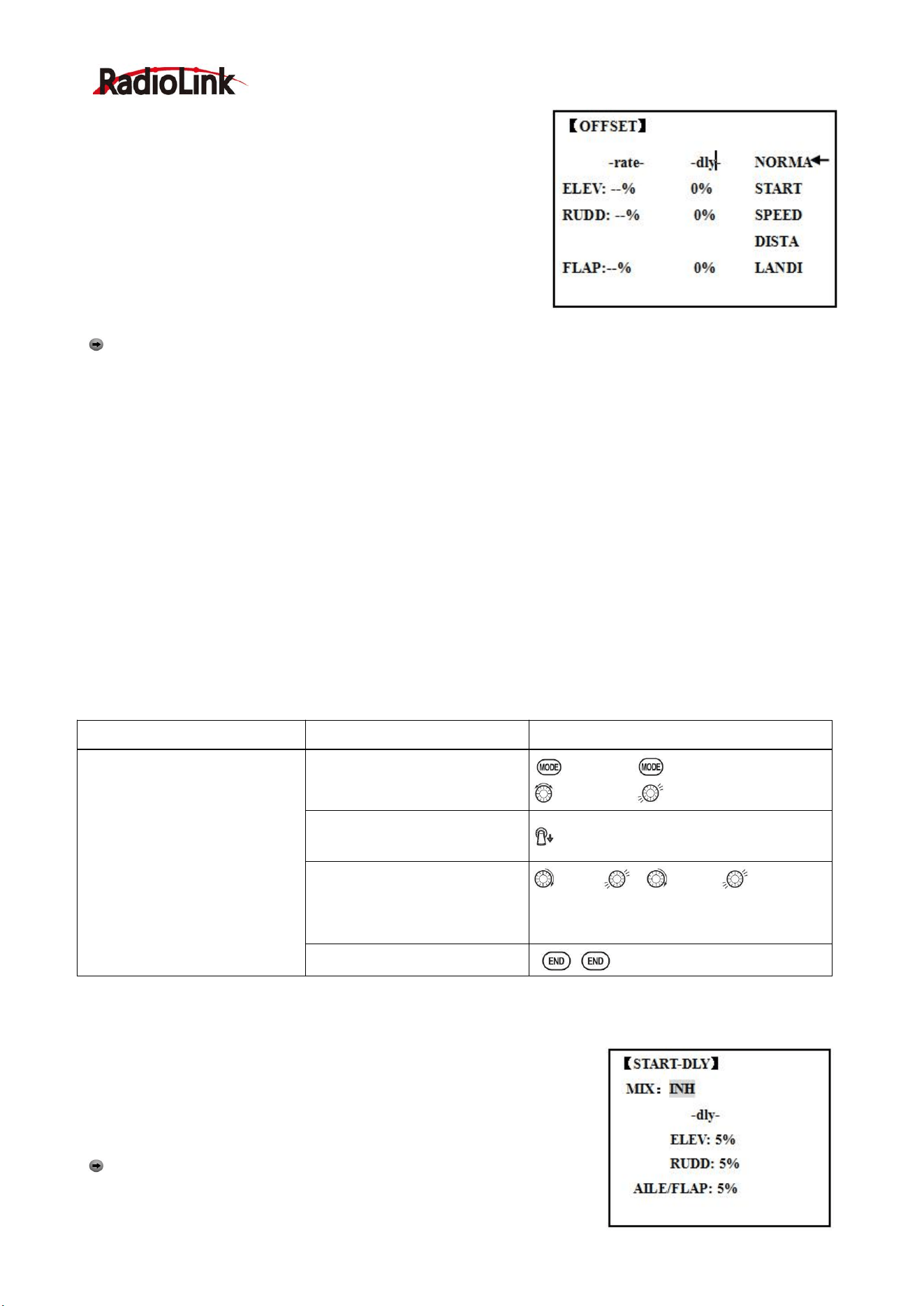
Radiolink Electronic Ltd
www.radiolink.com
53
These additional flight conditions contain different offset trims to
make the sailplane perform certain maneuvers more easily.
Aileron differential functions may be set to provide separate rates
per condition selected.
Prior to setting up OFFSET, you must active the conditions and
assign the switches in the CONDITION/FUNCTION.
Unnecessary fuselage motion is generated when there are
sudden changes in the servo position and variations in the
operating time between channels can be suppressed by using the
delay function.
Note: The same delay amount for elevator and rudder is recommended when using V-tail function.
The AT9 provides 5 additional setups along with the normal flight condition. (NORMAL,
START, SPEED, DISTANCE and LANDING) These offset trims have same setting abilities basically except
the switch and dial assignment. For an example of trim settings, please see the following:
Adjustability:
• Separate adjustments for each aileron, elevator, rudder and flap servo, for each condition.
• SWITCH G (AT10) or E (AT10) is programmed for NORMAL, START, and SPEED trims. SWITCH C is
programmed for DISTANCE and LANDING trims. These switch/position assignment is adjustable.
(CONDITION/FUNCTION)
• TRIM item (Digital trim operation mode):
NORM: normal trim operation mode.
MIX: offset rate trim operation mode while mixing is on.
• Optional assignable knob (CAMBER MIX) to allow trimming in flight of the aileron and flap action of each
flight condition.
• During OFFSET operation, the aileron and elevator travels are displayed on each trim display in the Startup
screen.
4.3.5 START DELAY (GLID 1A+1F only):
START DELAY automatically switch the offset trims (OFFSET) from the
START condition's trims to the normal condition’s trims after proceeding
the delay time (max.10sec.) which is set by the -DLY- item when
activating the START condition. (It is convenient for hand launch glider.)
Note: The same delay amount for elevator and rudder is
recommended when using V-tail function.
Goals
Steps
Inputs
Set up a START to gain
maximum possible lift on
launch.
Each Aileron: 50%. Each Flap:
100%.
Elevator: -5% to compensate.
SWITCH (AT9=G, AT9=E.)
Note: switch is assignable.
(CONDITION)
KNOB(null)
Note: knob is assignable.
(CAMBER MIX)
Open OFFSET function
to BASIC . again to ADVANCE
to OFFSET,
Switch to the START condition.
G or E from NORMA to START
Set the rates. (Ex: AIL 50%,
FLP 100%, ELEV -5 %.)
to AIL , to 50%,
Repeat for FLP and ELEV.
Close
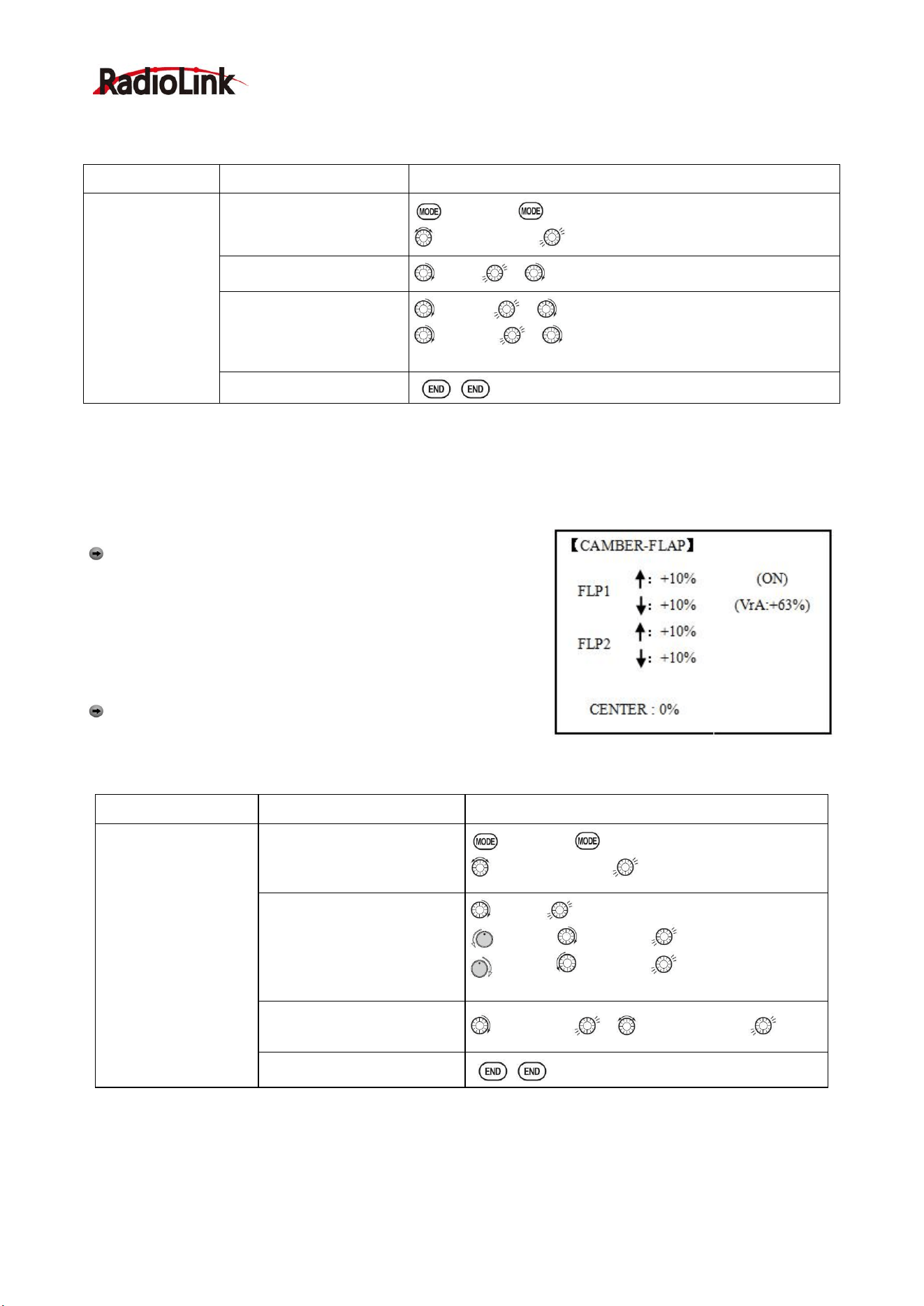
Radiolink Electronic Ltd
www.radiolink.com
54
Adjustability:
• Delay time (-DLY-) range of 0 to 100%. The delay time is 10 second at 100%.
Goals
Steps
Inputs
Ex: delay time=5
second.
Open ADVANCE menu,
then open START DELAY.
to BASIC . again to ADVANCE
to START-DLY,
Activate the function
to MIX , to OFF or ON
Set the delay time.
(Ex:50% each surface)
to ELEV , to 50%
to RUDD , to 50%
Repeat as needed.
Close
4.3.6 CHAMBER-FLP
CAMBER FLAP assigns the primary flap control [defaults to VR (A)] to allow trimming in flight of the flap
action. The up and down travel of each flap (camber flaps: FLP1/2) can be adjusted independently. Also the
center position of flap servo can be offset.
Note: If FLAP-TRIM is activated, you can not use CAMBER
FLAP function simultaneously.
Adjustability
• Rate: -100% to +100%, with a default of +30%
• Center position (CENTER): The operation reference point of flap
can be offset. -100% to +100%, with a default of 0%.
Note: When changing the polarity of a rate, "change rate dir?"
is displayed for a check. Please set up after pressing DIAL for 1
second and canceling an alarm display.
Goals
Steps
Inputs
Ex: Set the maximum
travel of 35% of the
total flap travel.
Open the CAMBER FLAP
function.
to BASIC . again to ADVANCE
to CAMBER-FLP,
Adjust the up/down trim
amount separately.(Ex:
adjust to 35%)
to FLP 。
VR (A), to 35%,
VR (A), to 35%, 。
Repeat.
Or: adjust the center position
of flap servo
to CENTER , to desired point.
Close
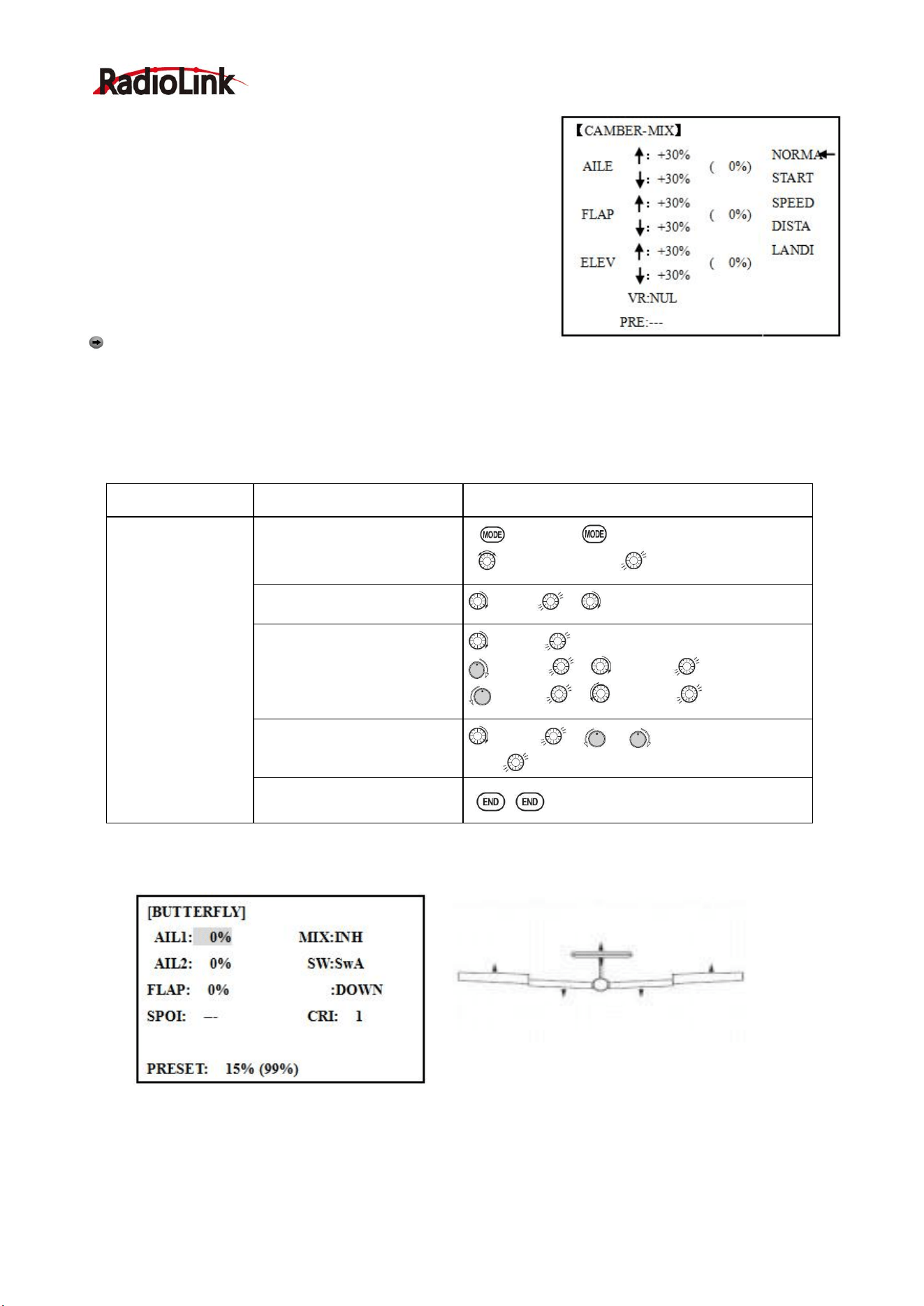
Radiolink Electronic Ltd
www.radiolink.com
55
4.3.7 Camber Mixing:
This function adjusts the mixing rate of camber operation which
operates the wing camber (ailerons and flaps) in the negative and
positive directions. The aileron, flap, and elevator rates can also be
adjusted independently and attitude changes caused by camber
operation can be corrected.
Also the operation reference point of camber control can be offset.
(PRE)
Note:
Camber control is not assigned at initial.
Adjustability:
• Rate: -100% to +100%, with a default of +30%
• Reference point (PRE): The operation reference point of camber control can be offset. -100% to +100%,
with a default of 0%.
4.3.8 BUTTERFLY (crow) mixing
BUTTERFLY simultaneously moves the flaps, twin ailerons and elevator, and is usually used to make steep
descents or to limit increases in airspeed in dives. Separate two BUTTERFLY settings are available.
(CRI1/CRI2)
Adjustability:
• Activation: Get proportional by moving the THROTTLE STICK.
Goals
Steps
Inputs
Ex: set the mixing
amount for aileron
to 40%, camber
control to VR (E),
reference point to
desired point.
Open the CAMBER MIX
function.
to BASIC . again to ADVANCE
to CAMBER-MIX,
Choose desired slider.
to VR , to VrA
Adjust the mixing amount for
AILE. (Ex: adjust to 40%)
to FLP
to VrA , to 40%,
to VrA , to 40%,
Set the reference point.
to PRE , or VrA to desired
point for 1 sec.
Close
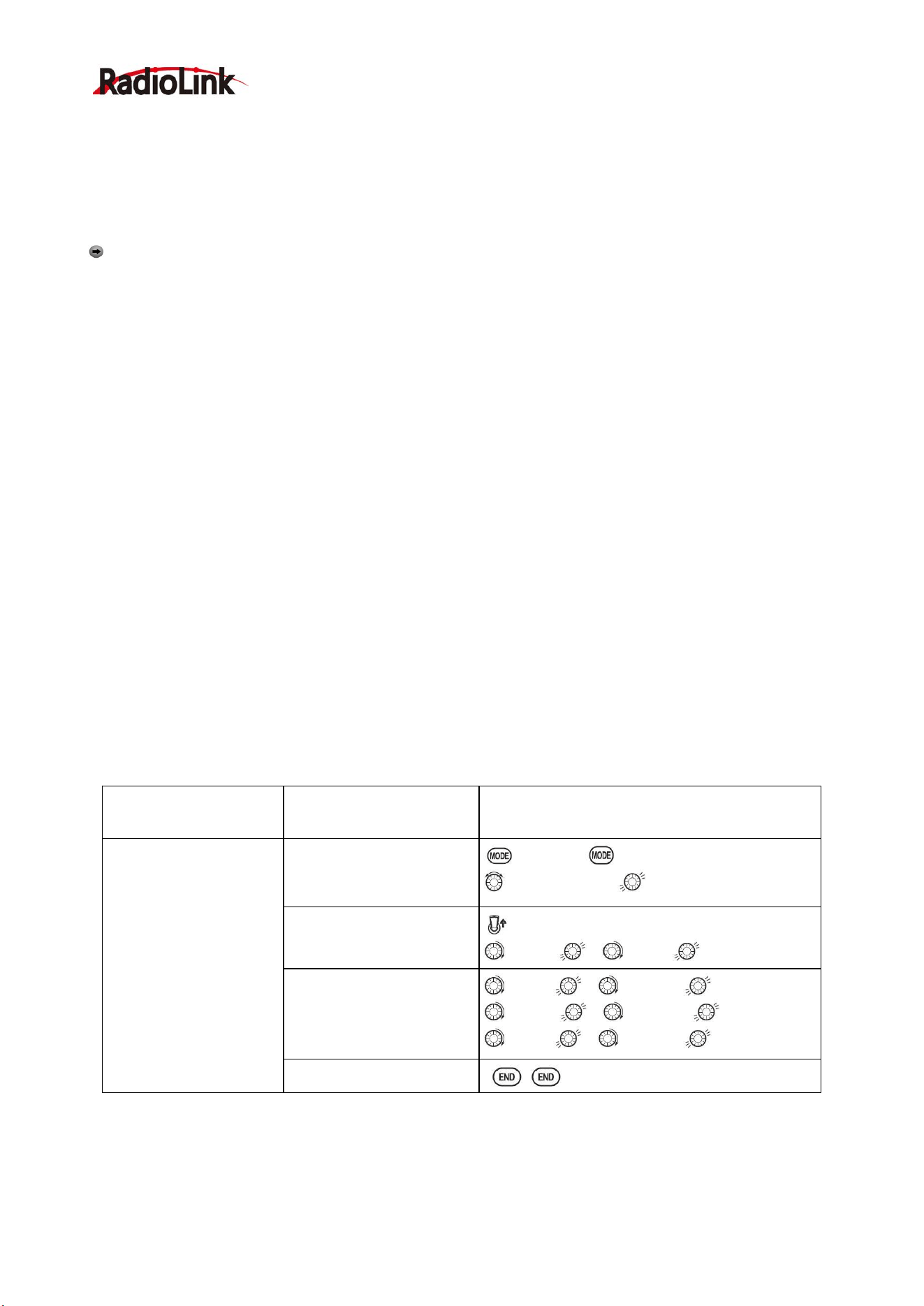
Radiolink Electronic Ltd
www.radiolink.com
56
• Switch: Mix SWITCH is selectable. A to H: SWITCH A to H. Also LOGIC SW (Lsw1 to 3) may be assigned.
NULL: always on.
• Inversely proportional to THROTTLE STICK: provides a proportional increase in amount of airbrake action
as THROTTLE STICK is lowered (when SWITCH A (assignable) is in down position). Includes selectable stick
position where airbrake begins. If you would like to have the airbrake be directly proportional to throttle stick,
you will need to reverse the THR-REV function.
Note:
this changes the throttle stick direction for all models.
INSTRUCTIONS:
• Elevator settings: (Adjustable in the B.FLY-ELE)
B.FLY-ELE works linking with BUTTERFLY function. Elevator rate is adjustable in a 3 point curve.
Point 1: PRESET point. (Fixed)
Point 2: MID point. Position and rate are adjustable.
Point 3: END point. Position and rate are adjustable.
• Delayed reaction: You can suppress sudden changes in your model's attitude when BUTTERFLY is
activated by setting the delay (DELAY) item, to slow down the elevator response, allowing the
flaps/ailerons/elevator to all reach their desired end point together. A setting of 100% slows the servo to take
approximately one second to travel the prescribed distance.
• Channels controlled: Twin ailerons, flap and spoiler may be set independently in BUTTERFLY, including set
to 0 to have no effect.
• Twin aileron servos: If AIL-DIFF function is inhibited, then AIL1 and AIL2 settings will have no effect. If
AIL-DIFF is active, then CH1 and CH7 may be independently adjusted.
• Normally both ailerons are raised equally in BUTTERFLY, and the elevator motion is set to maintain trim
when the ailerons rise. Different amounts may be set for each aileron to correct for torque reactions and other
unique characteristics of the model.
Be sure you understand what dropping ailerons will do when in BUTTERFLY. Along with creating an
enormous amount of drag (desirable for spot landings), this also creates "wash-in", a higher angle of attack
where the ailerons are, and encourages tip stalling. If you are using this for aerobatic performance and not
"sudden stops", consider raising the ailerons and dropping the flaps in stead as shown in the diagram above.
Goals
Steps
Inputs
Activate BUTTERFLY.
Adjust the aileron and
flap travel to 75%
Elevator setting is
adjustable in the
B.FLY-ELE.
MIX switch is selectable
Open the BUTTERFLY
function
to BASIC . again to ADVANCE
to BUTTERFLY,
Activate the function
SWA to UP position
to MIX , to OFF
Adjust the travels as
needed.
(Ex: Aileron each 75%,
Flap 75%)
to AIL1 , to 75%,
to FLP , to75%,
to AIL2 , to 75%,
Close
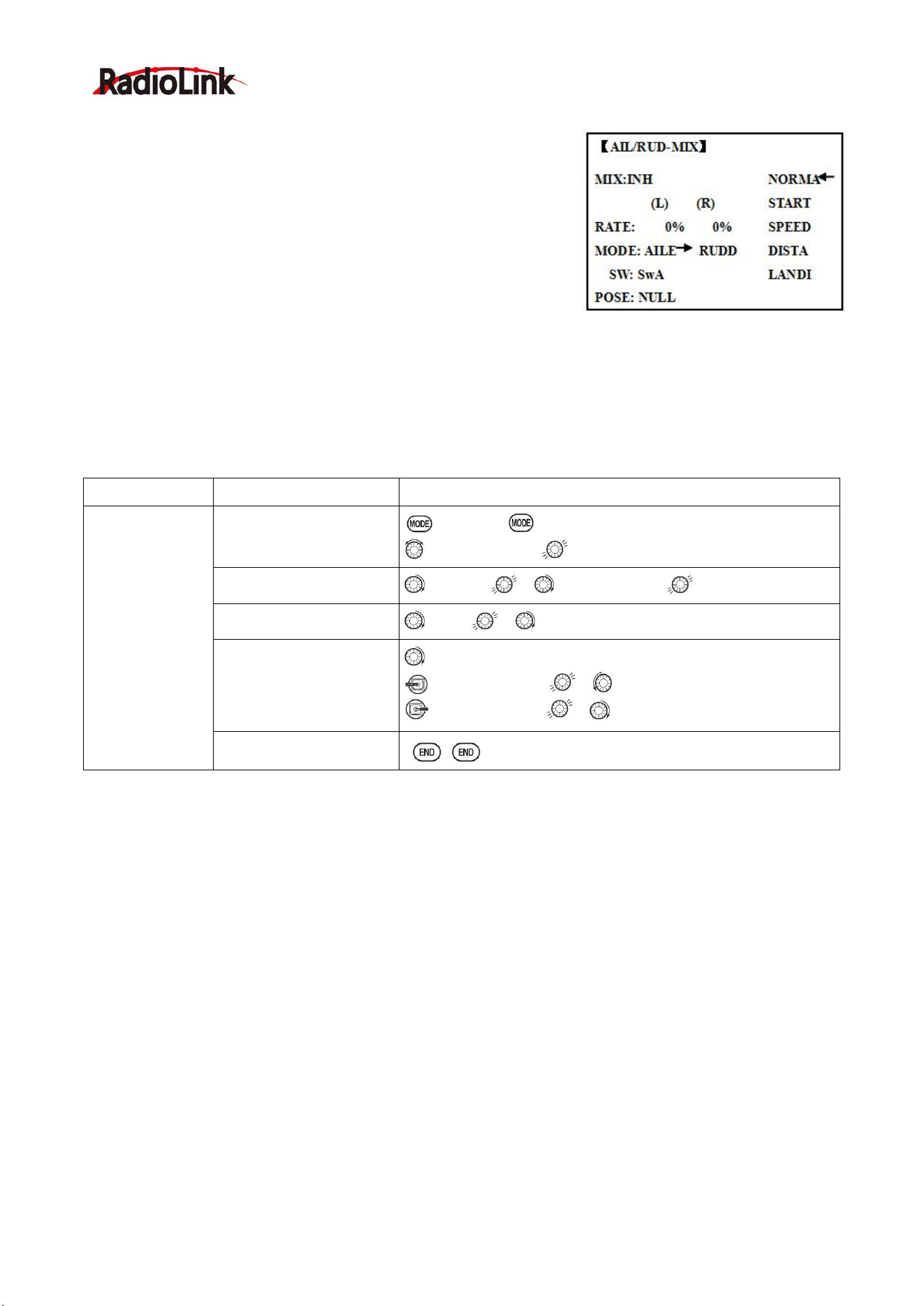
Radiolink Electronic Ltd
www.radiolink.com
57
4.3.9 AILE/ RUDD MIX
You can select a pre-programmed mix which is used to mix the
rudders with aileron operation or the ailerons with rudder operation.
Aileron-to-rudder mix (AILE RUDD): automatically creates a
"coordinated turn".
Rudder -to-aileron mix (RUDD AILE): used to counteract undesirable
roll (roll coupling) that happens with rudder input, especially in
knife-edge.
Adjustability:
• RATE range of -100 to +100. Negative setting would result in opposite rudder (aileron) action from aileron
(rudder).
• SWITCH A-H fully assignable. Also LOGIC SW (Lsw1 to 3) may be assigned.
• POSITION fully assignable, including NULL (mix always on) and Up&Cntr and Cntr&Dn to activate the mix in
2 separate positions of the same SWITCH.
• Condition: The separate AILE RUDD setting for each flight condition can be set.
Goals
Steps
Inputs
Ex:RUDD-AILE,2
5%,no switch,
corrects roll
coupling.
Open AIL/RUD-MIX
submenu.
to BASIC . again to ADVANCE
to AIL/RUD-MIX,
Select the mixing mode.
to MODE , to RUDD-AILE
Activate the function
to MIX , to ON
Set the rate (Ex:100%
each way)
to RATE
RUDDER STICK , to +25%
RUDDER STICK , to +25%
Close
4.3.10
ELEV-FLAP mixing (see GLID menu 3.3.7)
4.3.11 AILE-FLAP(GLID 2A+2F only):
This pre-programmed mix is used to create full span aileron action on a glider
with 4wing servos. This increases the roll rate and decreases induced drag. For normal flying, a value of
about 50% is often used. For slope racing or F3B models in speed runs, you may wish to use a larger value
approaching 100%.
Adjustability:
• RATE range of -100 to +100. Negative setting would result in opposite aileron action from flaps.
• SWITCH A-H fully assignable. Also LOGIC SW (Lsw1 to 3) may be assigned.
• POSITION fully assignable, including NULL (mix always on) and Up&Cntr and Cntr&Dn to activate the mix in
2 separate positions of the same SWITCH.
• Condition: The separate AILE-FLAP settings for each flight condition can be set.
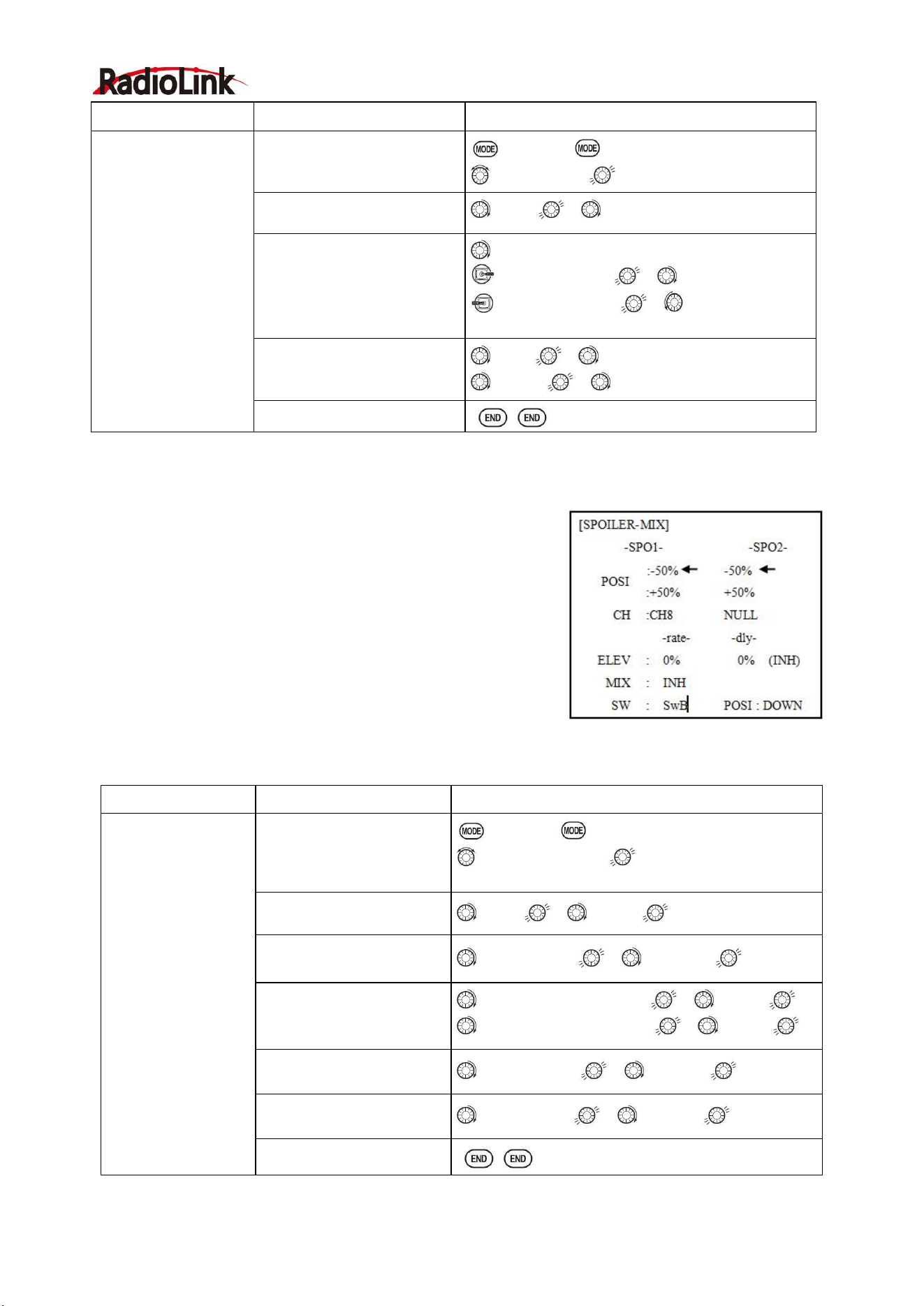
Radiolink Electronic Ltd
www.radiolink.com
58
Goals
Steps
Inputs
Turn on AILE-FLAP
mixing. Set rate to
100% for maximum
possible flap travel
with ailerons .Assign
to SWITCH C center.
Open AILE-FLAP submenu.
to BASIC . again to ADVANCE
to AILE-FLAP,
Activate the function
to MIX , to ON
Set the rate (Ex:100% each
way)
to FLP1
AILERON STICK , to 100%
AILERON STICK , to 100%
Repeat above to set FLP2
Assign the SWITCH and
position.
to SW , to SwC
to POSI , to UP
Close
4.3.12 SPOILER MIX (GLID):
Moves the spoiler by flipping the assigned switch and is used to
make steep decent. SPOILER MIX works linking with BUTTERFLY
MIX.
Adjustability:
• Position: -100% to +100%, with a default of -50% (off), +50% (on)
• Channel: Spoiler 1: ch8, or 3 (ch8 or 3*), Spoiler 2: NULL, or 3
(NULL or ch3*) *GLID (2A+2F) mode.
• Elevator setting: Rate: -100% to +100%, Delay: 0% to 100%
• SWITCH A-H fully assignable. Also LOGIC SW (Lsw1 to 3) may be assigned.
Goals
Steps
Inputs
2-servo spoiler
mode. Adjust the
spoiler servo position
to 60%
Open the SPOILER MIX
function and move to 2
nd
page.
to BASIC . again to ADVANCE
to SPOILER - MIX,
Activate the function.
to MIX , to ON.
Assign the SPO2-CH.(Ex:
CH3)
to –SPO2- CH , to CH3,
Adjust the spoiler servo
position. (Ex:
SPO1/SPO2=+55% to
+60%)
to –SPO1-POSI to -50%, , to 60%,
to –SPO2-POSI to +50%, , to 60%,
Optional: Set the elevator
rate.(Ex:10%)
to –rate- ELEV , to 10%,
Optional: set the delay.
(Ex:25%)
to –dly- ELEV , to 25%,
Close

Radiolink Electronic Ltd
www.radiolink.com
59
4.3.13
FLAP-TRIM (see GLID 3.3.4)
4.3.14 CONDITION
Channel 3's function is selectable in the ARBK-FUNC item. (Throttle
stick, switches, or knobs) By choosing except STK, channel 3's
function may be separated from Butterfly’s function, so channel 3 can
be used for other functions.
Adjustability:
• Channel 3's function:
STK: THROTTLE STICK
Sw-A to H: SWITCH A to H
Vr-A to Vr-E: KNOB A to E
Part. 5 HELICOPTER MODEL FUNCTIONS
Please note that nearly all of the BASIC menu functions are the same for airplane (ACRO setup), sailplane
(GLID setups), and helicopter (HELI) setups. The features that are identical refer back to the ACRO chapter.
5.1 BASIC SETTING WITH HELICOPTER
This guideline is intended to help you set up a basic (H-1) heli, to get acquainted with the radio, to give you
a jump start on using your new radio, and to give you some ideas and direction on how to do even more with
this powerful system than you may have already considered.
Briefly, the typical helicopter's controls are as follows:
• Aileron: Changes cyclic lateral (roll). Roll the helicopter. Tilt the swash plate to the left or right CH1.
• Elevator: Changes cyclic pitch. Change the helicopter’s angle of attack (nose up or nose down). Tilt the
entire Swash plate fore and aft. CH2.
• Rudder: Change the angle of the tail rotor and yaw the helicopter left or right. CH4.
• Collective Pitch: Adjusts main rotor collective [angle of the paddles], changing the main blades’ pitch.
Increased collective pitch (with throttle) causes the helicopter to rise. Moves in conjunction with throttle on the
THROTTLE STICK. CH6.
• Throttle: Open/close carburetor. Move in conjunction with collective pitch on the THROTTLE STICK. CH3.
• REVO: mix that adds rudder in conjunction with pitch. This helps compensate for rotation of the helicopter
caused by the increased engine torque. (Never use REVO. mixing with a heading0hold/AVCS gyro; the gyro
already does this.)
Goals
Steps
Inputs
Prepare your
helicopter.
Install all servos, switches, receiver per your model's instructions. Set all trims, dials
and sliders to neutral.
Confirm all control linkages are 90 degrees (or per instructions ) from the servo
horn to the ball link for proper geometry and that no slop is present.
Mechanically adjust all linkages to get as close as possible to proper control throws
and minimize binding prior to radio set up.
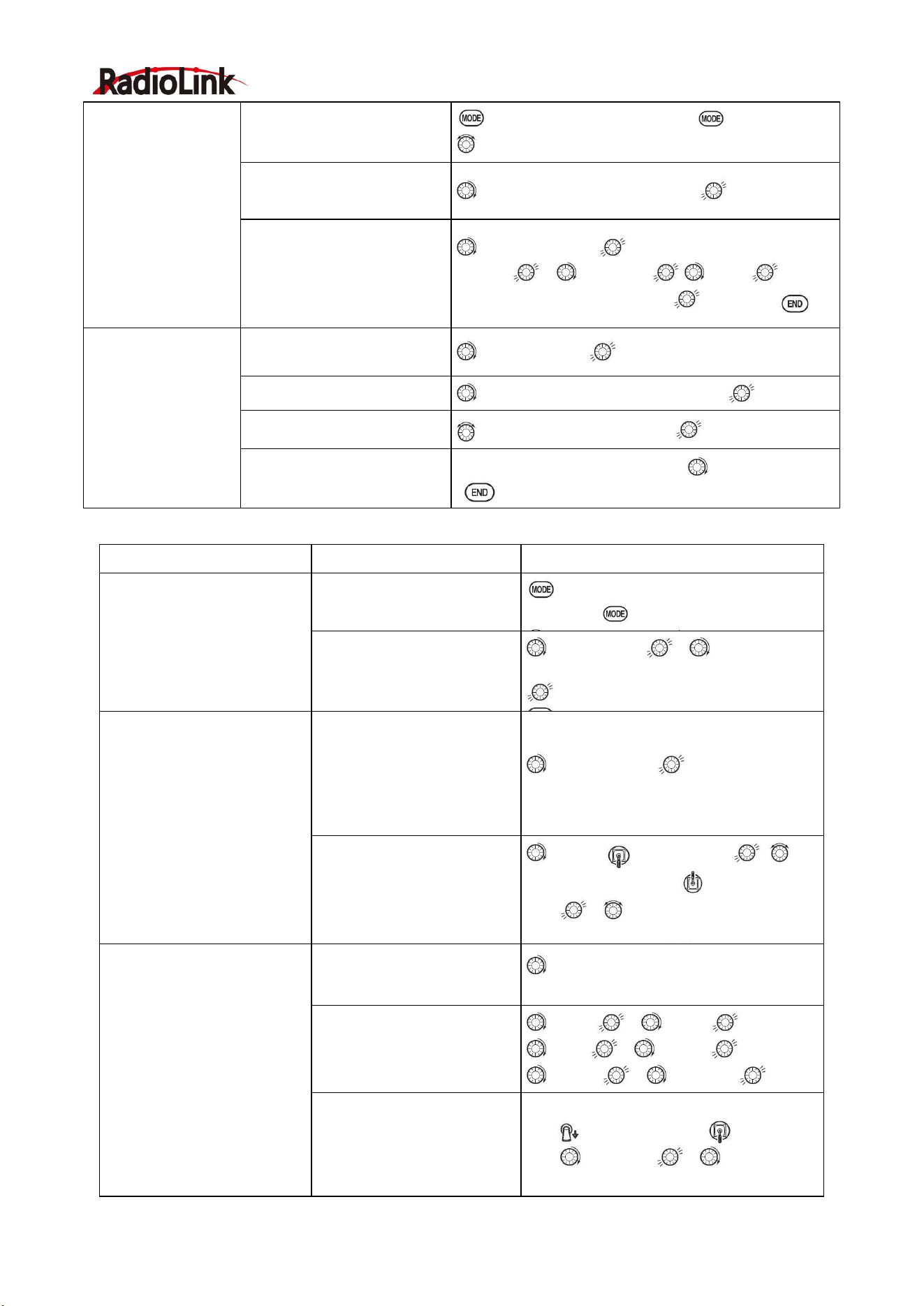
Radiolink Electronic Ltd
www.radiolink.com
60
Select proper mode
type for your model.
Ex: HELI H-1
In the BASIC menu, find
PARAMETER.
for 1s to BASIC.(If ADVANCE again) .
to PARAMETER ,PUSH
Go to MO DEL TYPE .
to MODEL TYPE, then to TYPE.
Select proper mode type. Ex:
HELI H-1. Confirm the
change.
Close.
to HELICOPTER. for 1 sec. ‘Are you sure?’
displays , to SWASH ,
to H-1
for
1sec,’Are you sure ?’ displays. to confirm.
Then , NAME the
model.
In the BASIC menu, find
PARAMETER.
to MODEL SEL.
Go to MODEL SEL.-NAME
to Name(1
st
character is highlighted)
Input name.
to change the first character.
Close the submenu when
done.
When proper character is display. to next. Repeat.
Goals
Steps
Inputs
Reverse servos as needed
for proper control operation.
Ex: Left Rudder Stick results
in leading edges of tail rotor
blades moving left. Reverse
to operate properly.
In BASIC menu, open
Reverse.
for 1s to BASIC.(If
ADVANCE again) .
to REVERSE ,
Choose desired servo and
reverse its direction of travel.
Ex: reverse rudder servo.
to CH4:RUDD , to REV is
highlighted. ‘Are you sure ?’ displays
for 1 sec.
Adjust travels as needed to
match model’s recommended
throws.(usually listed as high
rates.
In BASIC menu, choose
END POINT.
to END POINT to choose end
point.
Adjust the servo’s end
points. (Ex: elevator servo).
Return to BASIC menu.
to ELEV. Elevator Stick , until
up travel is as desired. Elevator
Stick , until down travel is as
desired.
Repeat as needed.
Activate THR-CUT.
Open THROTTLE-CUT
function.
to THR CUT
Activate the function. Choose
desired switch and position
to activate.
to MIX, , to OFF
to SW , to SwC,
to POSI , to DOWN,
With THROTTLE STICK at
idle, adjust the rate until the
engine consistently shuts off,
but throttle linkage is not
binding.Close
SwC to down position, Throttle
Stick ,to RATE , until shuts off.
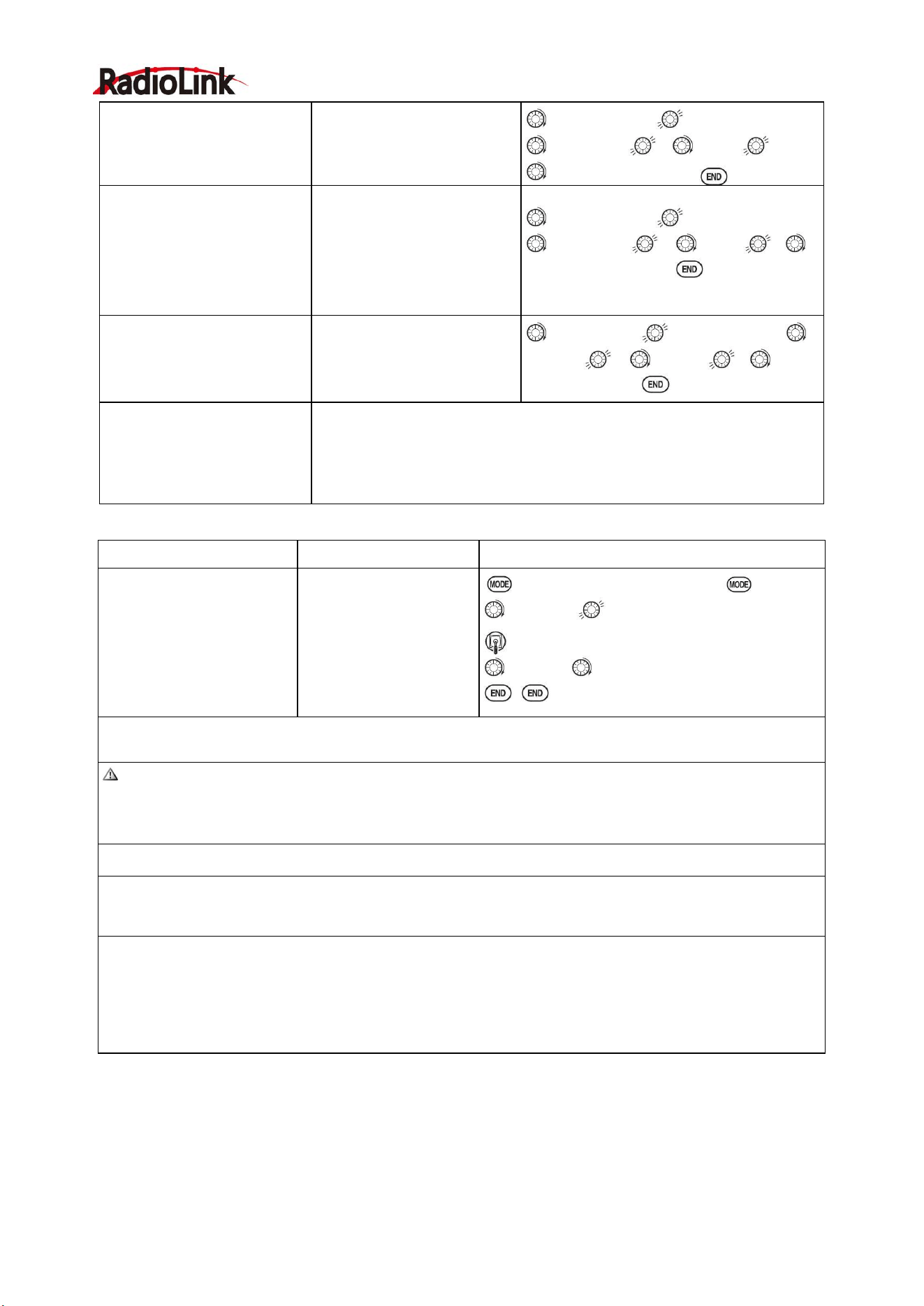
Radiolink Electronic Ltd
www.radiolink.com
61
Set up throttle curve for
normal. (Usually changes will
not need to be made prior to
first flight.)
Open the THR-CURV/NOR
function. Adjust if needed.
Close the function.
to THR-CURVE ,COND:NORM,
to point 1> , to 5%, .
Move to next. Repeat.
Set up collective pitch curve
for normal as base of -4,
center of +5,end of +8 to +10
degrees of blade pitch for
aerobatics.2 (If just learning
to fly, ask your instructor.)
Open the PIT-CURV/NOR
function.
Adjust each point to desired
Curve.(Ex: first Point:8%)
Close the function.
to PIT-CURVE , COND:NORM ,
to point 1> , to 8%, , to
next point. Repeat.
Set up REVO. Mixing for
normal. (For heading-hold
gyros, inhibit REVO.)
Open the REVO./NOR
function.
Adjust to your desired
starting point.
(Ex: 10%.)
to REVO.MIX ,COND:NORM, to
point 1> , to 10%, , to next
point. Repeat.
Confirm gyro direction.
With radio on, move helicopter’s tail to the right by hand.
The gyro should give right rudder input (leading edge of the tail rotor
blades move left).
If the gyro gives the opposite input, reverse direction on the gyro unit
itself.
Goals
Steps
Inputs
Learn how to operate
HOVERING PITCH
and
HOVERING THROTTLE
Notice at half throttle,
the VR(B) dial adjusts
the throttle separately
from the pitch. VR(A)
adjusts the pitch
separately from the
throttle.
for 1s to BASIC.(If ADVANCE again) .
to SERVO 。
Throttle stick to center
VR (B), VR (A)。
Be sure to follow your model’s instructions for preflight checks, blade tracking, ect. Never assume a set of
blades are properly balanced and will track without checking.
Check receiver battery voltage! Always check voltage with a voltmeter prior to each and every engine
start.(Never assume being plugged in all night means your radio gear is ready to fly).Insufficient charge,
binding servo linkages ,and other problems can result in a dangerous crash with the possibility of injury to
yourself, others and property.
Confirm the swashplate is level at 0 travel. Adjust arms if needed.
Apply full collective and check that the swashplate remained level and there is no binding. Repeat for full
cyclic pitch and
roll. If not, adjust as needed to correct in
END POINT
:
Important note: prior to setting up throttle hold, idle-ups, offsets, etc, be sure to get your normal
condition operating properly.
Checking setup prior to going airborne: Check voltage! Then, with the assistance of an instructor, and
having completed all range checks, etc, gradually apply throttle until the helicopter becomes “light on the
skids.” Adjust trims as needed to correct for any roll, pitch, or yaw tendencies. If the tail “wags,” the gyro
gain is too high. Decrease gyro gain.
1. Periodically move the throttle stick to full and back down to ensure proper servo settings.
2. It is critical that dials A and C be centered when the pitch and throttle curves are setup.
5.2 HELI-SPECIFIC BASIC MENU FUNCTIONS
MODEL TYPE: This function of the PARAMETER submenu is used to select the type of model programming
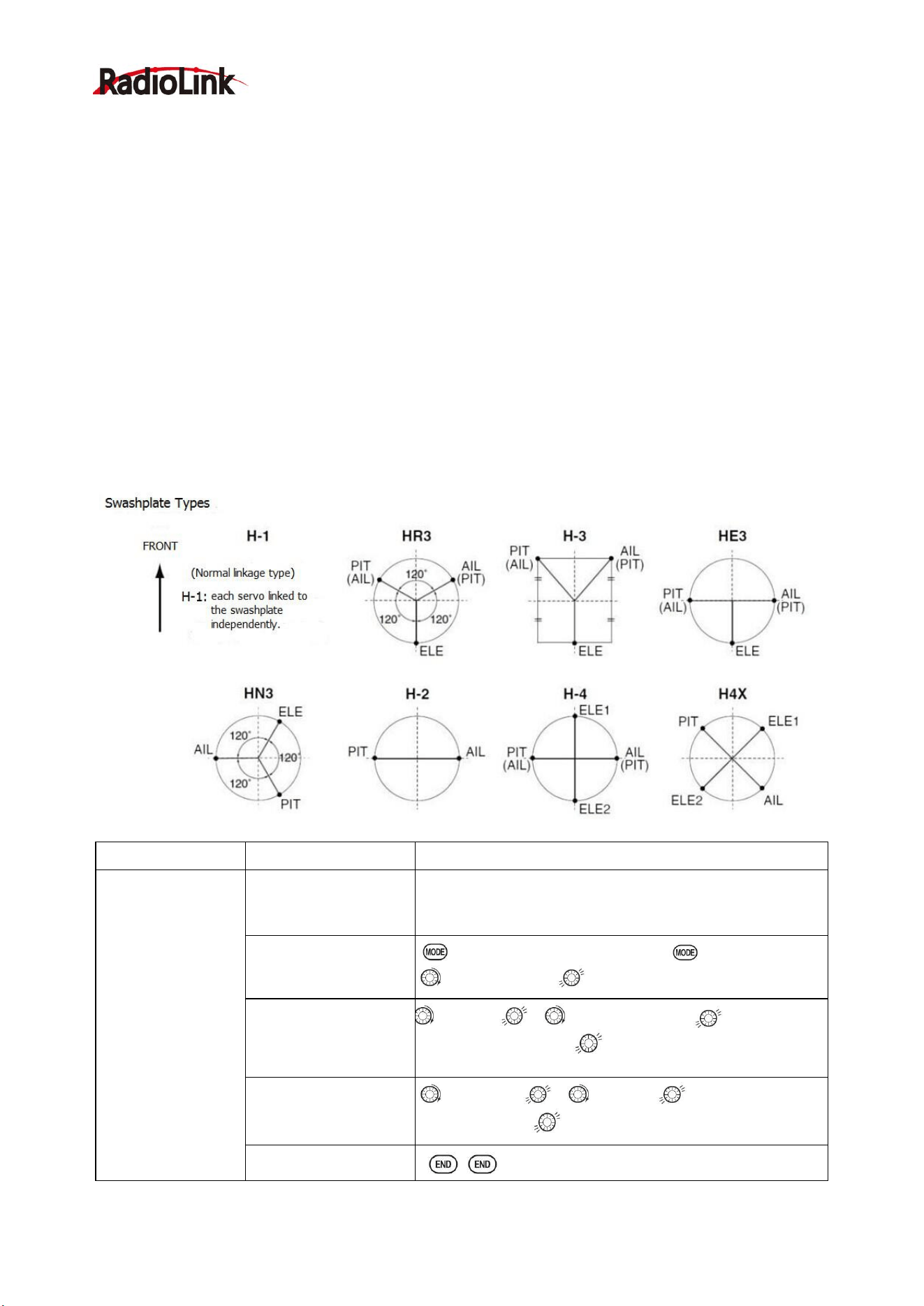
Radiolink Electronic Ltd
www.radiolink.com
62
to be used. Before doing anything else to set up your model, first you must decide which MODEL TYPE best
fits your MULTIROTOR.
HELICOPTER SWASHPLATE TYPES:
The AT9 radios support 8 basic swash plate setups, including "single servo" (H-1-most helicopters use this
type) and 7 types of CCPM (cyclic and collective pitch mixing). A "single servo" swash plate uses one servo
for each axis: aileron, elevator (cyclic pitch), and collective pitch. CCPM helicopters utilize a combination of
servos working together to achieve the 3 axes of motion. There are 7 basic CCPM types, displayed below.
CCPM has several advantages, the most obvious of which is far less mechanical complexity to properly move
the swash plate of the helicopter. Additionally, several servos working in unison (ex: HR3, all 3 servos together
create elevator movement) dramatically increases the torque available as well as the precision and centering.
Please note that some helicopters are type HR3 or HN3, except off by 180 degrees. If your model 's swash
plate is off by 180 you will still use that swash plate type, but also use SWASH AFR to adjust the functions as
needed until it operates properly. Additionally, different angles of CCPM may also be created utilizing the fully
assignable programmable mixes.
5.2.1 Swash Plate Types
Goals
Steps
Inputs
Change the model
type and
swashplate of
model#3 from
MULTIROTOR to
120 degree CCPM
with 2 servos
working in unison
for collective pitch
and aileron (Ex:
HELI HR3)
Confirm you are using
the proper model
memory(Ex:3)
On home screen, check model name and # on top left. If
it is not the correct model (Ex:3) see MODEL SEL.
Open PARAMETER,
go to MODEL SEL.
for 1s to BASIC.(If ADVANCE again) .
to MODEL SEL.
Select proper MODEL
TYPE
(HELICOPTER)
Confirm
to TYPE. , to HELICOPTER. for 1sec. ‘Are
you sure?’ Displays.
Change to desired
SWASH TYPE (Ex:
HR3) Confirm.
to SWASH. , to HR3,
for 1 sec. ‘Are you
sure?’ displays.
Close

Radiolink Electronic Ltd
www.radiolink.com
63
Radio emits a repeating “beep” and shows progress on screen as the model type is being changed. Note that
if the power switch is turned off prior to completion, the model type will not be changed.
5.2.2 SWASH AFR (not in SWH1):
Except SWASH PLATE, function menu of helicopter is same as GLID/
ACRO. Please find the former instructions.
Swash plate function rate settings (SWASH AFR) reduce/increase/reverse
the rate (travel) of the aileron, elevator (except H-2) and collective pitch
functions, adjusting or reversing the motion of all servos involved in that
function, only when using that function. Since these types utilize multiple
servos together to create the controls, simply adjusting a servo's REVERSE
or END POINT would not properly correct the travel of any one control. Since H-1 uses one servo for each
function, there is no need for AFR in H-1.
Since aileron always uses no more than 2 servos, check it first. Either both operate properly (no change
needed), both operate backwards (reverse the whole function), or one servo operates backwards (reverse
that servo alone). Next check elevator. Remember, the aileron servo(s) operate correctly, so if elevator does
not, we should only have 2 choices left—the whole function needs to be reversed, or the servo(s) not shared
with aileron need to be reversed. If aileron and elevator are not working properly, the only thing that could be
wrong is the whole direction collective operates (reverse the whole function). In our example, HR3 is 180
degrees off from the swash plate of the Caliber. Therefore, it is very likely that several functions will not
operate properly. The collective pitch operation is backwards; but reversing all three servos would also
reverse the aileron and elevator operations. Changing the collective pitch rate, however, from +50% to -50%,
will reverse the collective pitch without affecting the aileron action.
Checking For Proper Motion On An HR3 Swashplate
HR3 Swash Typ
Proper Motion
Wrong Motion
How
to Fix
AILERON
STICK.
Swashplate tilts left.
Reverse
AIL
setting in
SWASH
to
-50%
.
Swashplate tilts
right.
Back of Swashplate
moves up.
Ch6 servo moves incorrectly;
REVERSE.
Back of Swashplate
moves down.
Ch1 servo moves incorrectly;
REVERSE.
ELEVATOR
STICK.
Front of swash plate
moves
down;
Swashplate moves
the opposite.
Reverse ELE setting in SWASH. (ex:
+50 to -50)
back of swashplate
moves up.
Entire swashplate
moves up.
Ch2 servo moves incorrectly;
REVERSE.
RUDDER
STICK.
The leading edges
of tail blades rotate
left.
Blades rotated right.
REVERSE the rudder servo.
THROTTLE
STICK.
Entire Swashplate
lifts.
Swashplate lowers.
Reverse PIT setting in SWASH.
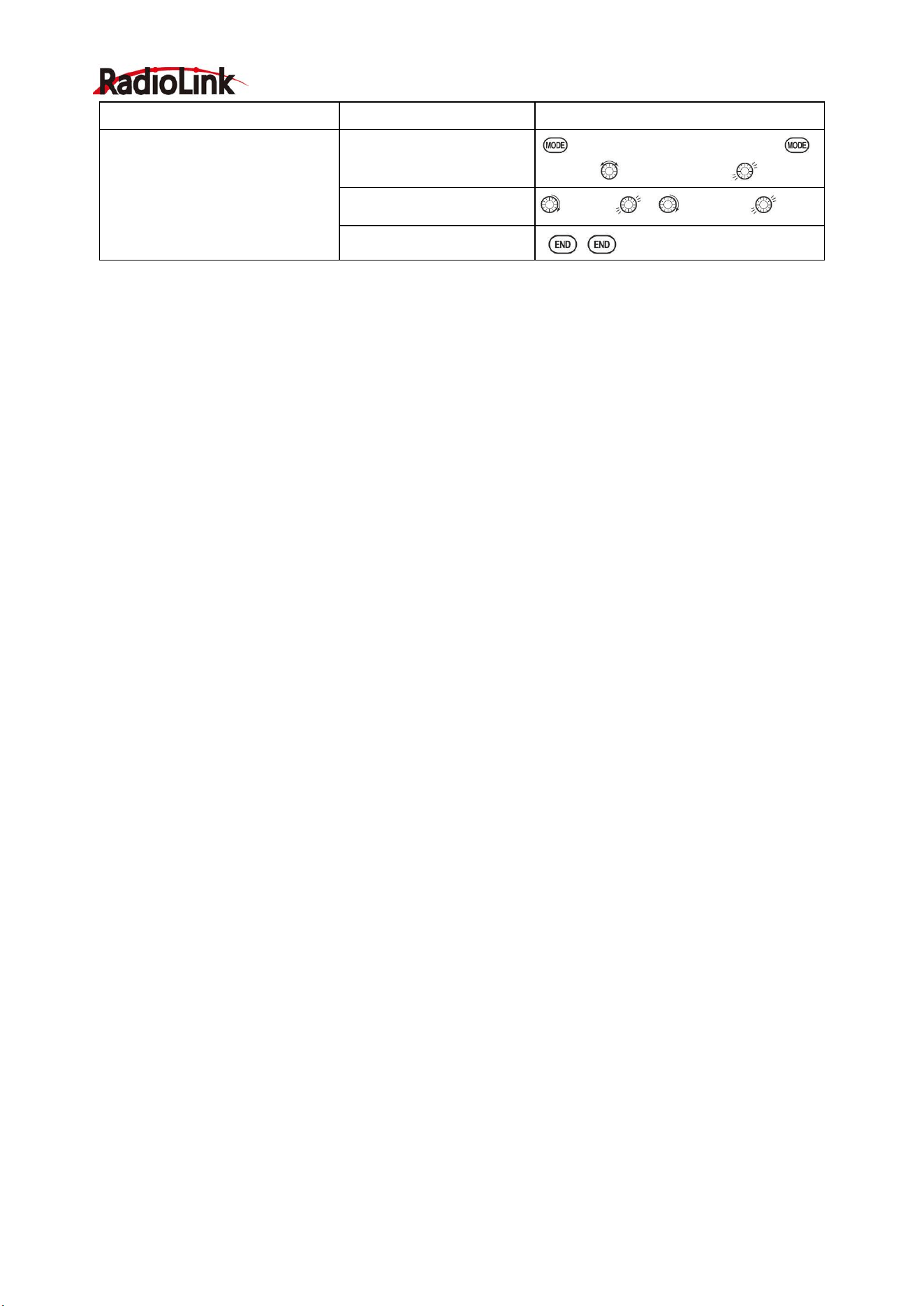
Radiolink Electronic Ltd
www.radiolink.com
64
Goals
Steps
Inputs
Adjust the travel of the collective
pitch from +50% to -23%,
reversing the travel of all 3 servos
and decreasing their travel in
collective pitch only, on an HR3
SWASH TYPE.
Open SWASH AFR
function.
for 1s to BASIC.(If ADVANCE
again) . to SWASH
AFR
Adjust PITC travel to -23%
to PITC , to -23%,
Close
5.3 HELI-SPECIFIC ADVANCE MENU FUNCTIONS
5.3.1 THR-CURVE and PIT-CURVE:
These 7-point curves are utilized to best match the blade collective pitch to the engine RPM for consistent
load on the engine. Curves are separately adjustable for normal, idle-up 1, idle-up 2, and idle-up 3. In addition,
a separate collective pitch curve is available for throttle hold. Sample curves are displayed in the appropriate
setup types (ex: normal flight condition) for clarity.
Suggested defaults:
• Normal: Collective pitch curve that results in points 1, 4 and 7 providing .4, +5, (+8 to +10)* degrees pitch. A
throttle curve setting of 0, 25, 36, 50, 62.5, 75, 100%.
• Idle-ups 1 & 2: Idle-ups 1 and 2 are typically the same except for the gyro settings, with one being
heading-hold/AVCS and the other being normal mode. The pitch curve will likely be similar to the normal
curve above.
• Idle-up 3: Collective pitch curves that result in points 1, 4 and 7 providing (.8 to .10), 0, (+8 to +10) degrees.
A throttle curve of 100, 75, 62.5, 50, 62.5, 75, 100 provide full throttle for inverted maneuvers.
• Throttle Hold pitch curve: Start with the normal pitch curve (for inverted autos, start from the idle-up 3 pitch
curve), but increase the last point approximately 1-2°, if available, to ensure sufficient pitch at landing.
This default recommendation assumes you are doing forward flight. If you are just learning, please follow your
instructor's guidance. Some instructors like a +1 base point for training so that the helicopter comes down
very slowly, even if your instincts pull the throttle/collective stick to the bottom in a hurry.
Adjustability:
• Normal condition curves are editable in the BASIC menu for convenience.
• All curves may be adjusted in the ADVANCE menu.
• Automatically selected with the proper condition.
• The idle-up curves are programmed to maintain constant RPM even when the collective pitch is reduced
during flight (including inverted).
• To change which condition’s curve is being edited, cursor up to <COND> and change the curve named.
• For clarity, the name of the condition currently active (switched on in the radio) is shown in parentheses
behind name of condition whose curve is being edited. (Example: see curve displays below. Note that the
normal condition is active but the idle-up 1 condition’s curves are currently being edited.
• Moving and deleting the curve point: The curve point (-stk-) can be moved to the left or right by turning the
DIAL (up to 2% in front of the adjoining point) and deleted/returned by pressing the DIAL for one second
alternately.
• Idle-ups and throttle hold pitch curves may be edited even before the conditions have been made active.
Activating their throttle curves activates these conditions.
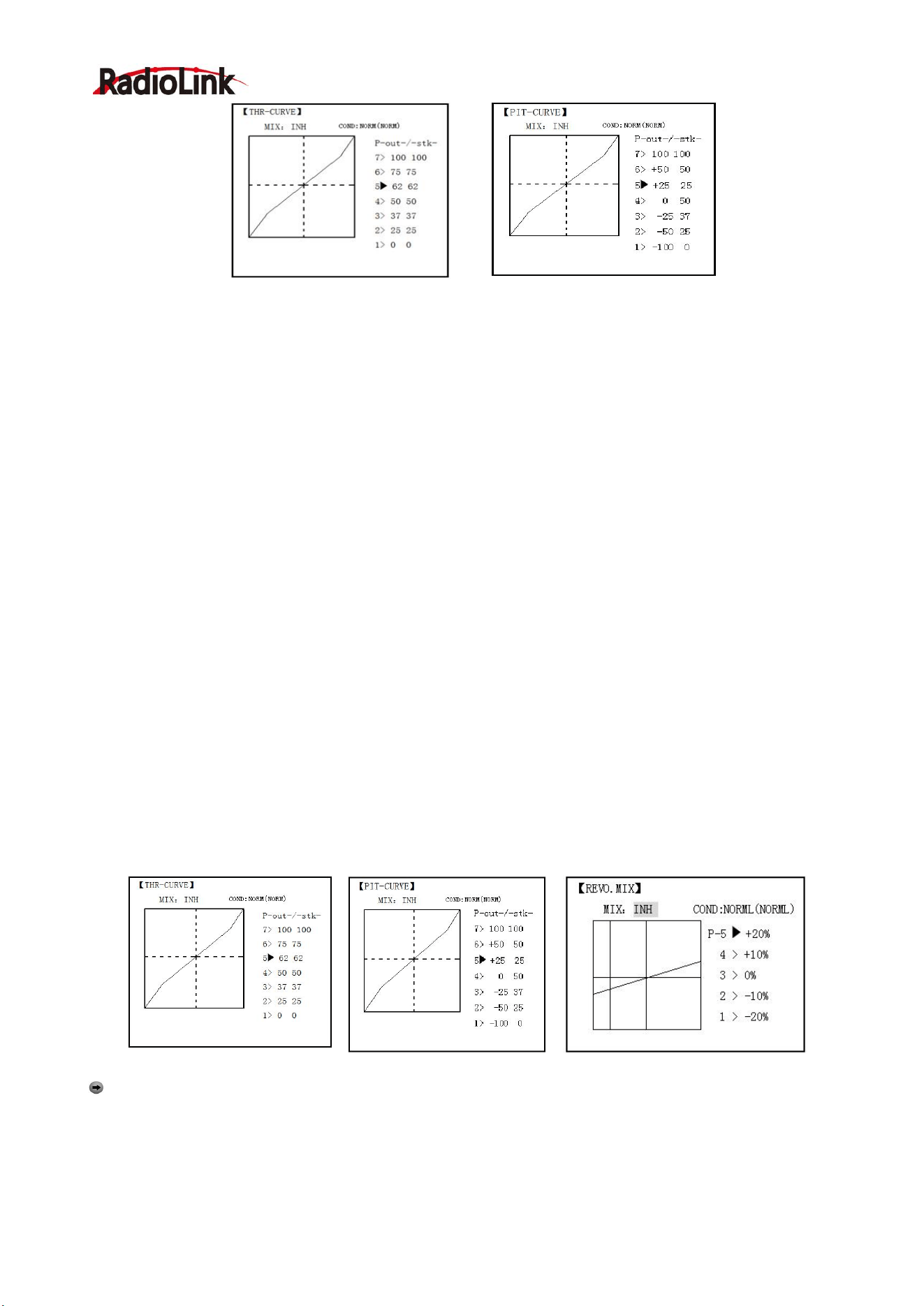
Radiolink Electronic Ltd
www.radiolink.com
65
5.3.2 REVO MIX:
This 5-point curve mix adds opposite rudder input to counteract the changes in torque when the speed and
collective pitch of the blades is changed.
Adjustability:
• Three separate curves available: normal for hovering; idle-ups 1 and 2 combined; and idle-3.
• Normal condition curves are editable in the BASIC menu for convenience.
• All curves may be adjusted in the ADVANCE menu.
• Correct mix is automatically selected in-flight with each condition and automatically activated when the
throttle setup for that condition is activated in the programming (i.e. THROTTLE HOLD or THR-CURVE.)
• To change which condition’s curve is being edited, cursor up above POINT5 and select. For clarity, the name
of the condition currently active (switched on at the radio) is shown in parentheses behind the name of the
condition whose curve is being edited.
Revo. Mixing rates are 5-point curves. For a clockwise-turning rotor, the rudder is mixed in the clockwise
direction when collective pitch is increased; for counterclockwise-turning, the opposite. Change the operating
direction setting by changing the signs of the numbers in the curve from plus (+) to minus (-) and vice versa.
Suggested defaults:
Clockwise rotation: -20, -10, 0, +10, +20% from low throttle to high.
Counterclockwise rotation: +20, +10, 0, -10, -20% from low throttle to high.
Adjust to the actual values that work best for your model.
Revo. Curves for idle-ups are often v-shaped to provide proper rudder input with negative pitch and increased
throttle during inverted flight.(Rudder is needed to counter the reaction whenever there is increased torque. In
inverted flight, throttle stick below half has increased throttle and negative pitch, therefore increasing torque
and rotating the helicopter unless the revo. Mix is also increasing appropriately.)
Note: The throttle and pitch curves for the normal condition is always on. They cannot be inhibited. The
other four conditions are activated with their throttle curves or throttle hold.
• THR-CURV/NOR: Inputs the normal (NORM) throttle curve, which is usually not a linear response to
THROTTLE STICK motion. Adjusting point 4 of the curve adjusts the engine's RPM at the THROTTLE STICK
midpoint, the desired position for hovering. The other 6 points are then adjusted to create the desired idle and
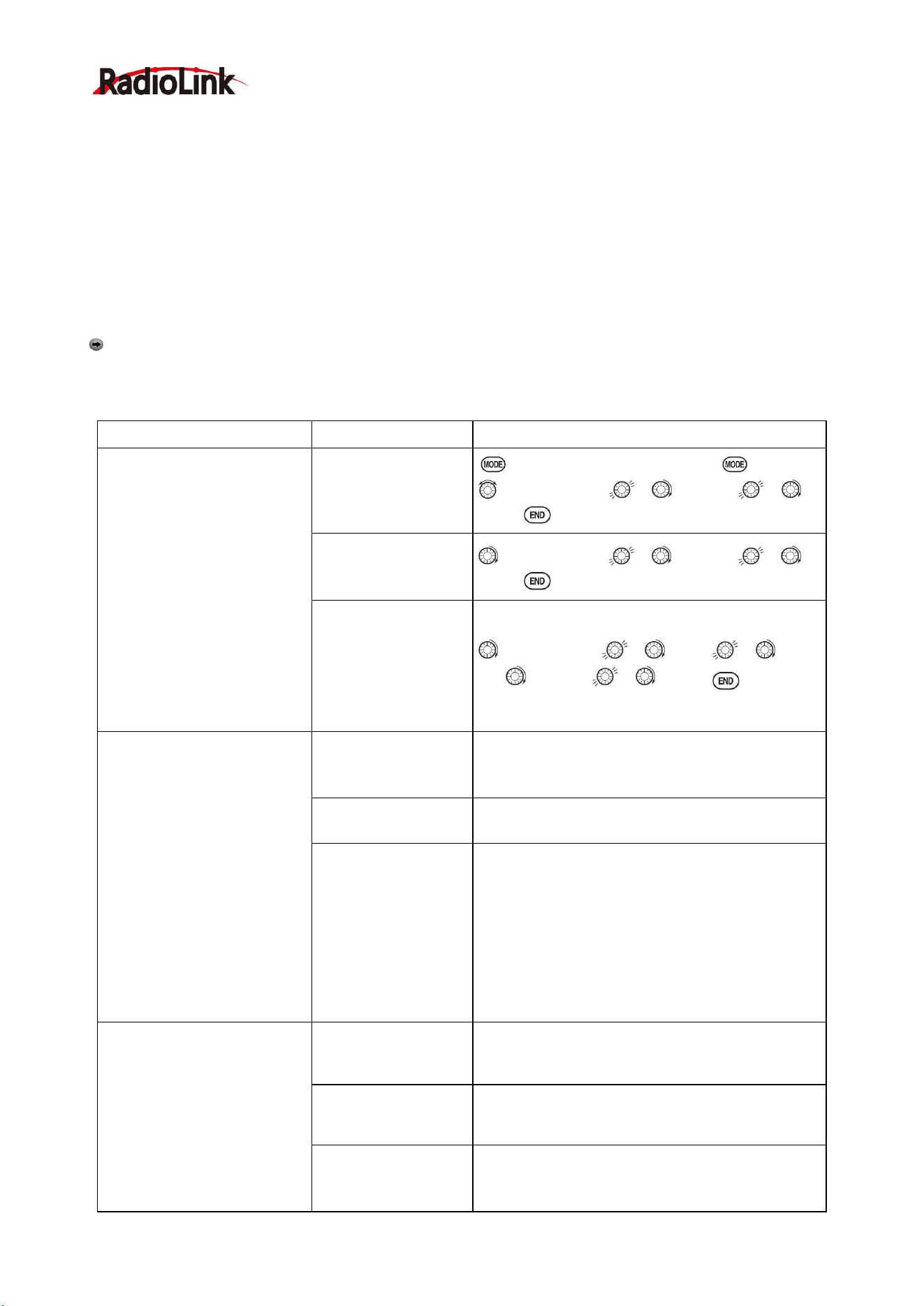
Radiolink Electronic Ltd
www.radiolink.com
66
maximum engine speed, and a smooth transition in-between.
• PIT-CURV/NOR: inputs the normal (NORM) collective pitch curve, the collective pitch curve for flight near
hover. The normal collective pitch curve is adjusted to match the throttle curve, providing the best vertical
performance at a constant engine speed, with a starting curve of 4 base, +5 neutral, and +8 to +10 degrees of
blade pitch maximum. You can program the response over a 7-point curve for the best collective pitch angle
relative to THROTTLE STICK movement.
• REVO./NORM: mixes collective pitch commands to the rudder (a PITCH-RUDDER mix) to suppress the
torque generated by changes in the main rotor's collective pitch angle, keeping the model from yawing when
throttle is applied.
Note: There are three revo, mixes available: normal (NORM), idle-up 1/2 (IDL1/2), and idle-up 3 (IDL3). All
3 are adjustable in the ADVANCE menu. Never use revo mixing in conjunction with heading-hold/AVCS gyros.
For details on revo, including default points for clockwise and counterclockwise rotating rotors.
Goals
Steps
Inputs
Se t u p No rma l Fl i g h t
Co nd i t io n
Throttle/Collective Pitch
Curves and Revo.
Base point: Adjust base point
of throttle curve until engine
idles reliably on ground.
Adjust base point of
collective pitch curve to
achieve -4 degrees of
blade pitch. Apply throttle
until the model sits ‘light’ on
its skids. Adjust
base point
of
REVO
. until model does
not
rotate its nose at all.
Open the
THR-CURVE, Adjust
the first point.(5%)
for 1s to BASIC.(If ADVANCE again) .
to THR-CURVE , to point 1 , to
5%,
。
Open the
PIT-CURVE, Adjust
the first point.(8%)
to PIT-CURVE , to point 1 , to
8%,
Open the REVO.MIX
Adjust the first
point.(4%)
to REVO.MIX , to MIX , to
ON. to point 1 , to 4%,
。
Hover point: Adjust
collective pitch curve to +5
degrees. Ease heli into a
h o v e r . La n d / s h u t
e n g i n e of f . A d j u s t
t hrottle curves and rudder
trim. Repeat until model
hovers smoothly at half
throttle. Rapidly apply
throttle from 1/4 to 1/2
stick. Adjust
REVO
.
points 2 and 3
until the model does not
rotate its nose up on throttle
application.
Adjust
THR-CURV/NOR
Repeat above as needed
Adjust
PIT-CURV/NOR
Repeat above as needed
Adjust
REVO.MIX
Repeat above as needed
High point: Adjust
collective pitchcurve to +8
to +10 degrees. From hover,
throttle up rapidly. If
engine bogs,increase the
throttle curve. If engine
over-revs, increase the
collective pitch curve at
points 6 or 7. Apply full throttle
while hovering, then
Adjust
THR-CURV/NOR
Repeat above as needed
Adjust
PIT-CURV/NOR
Repeat above as needed
Adjust
REVO.MIX
Repeat above as needed
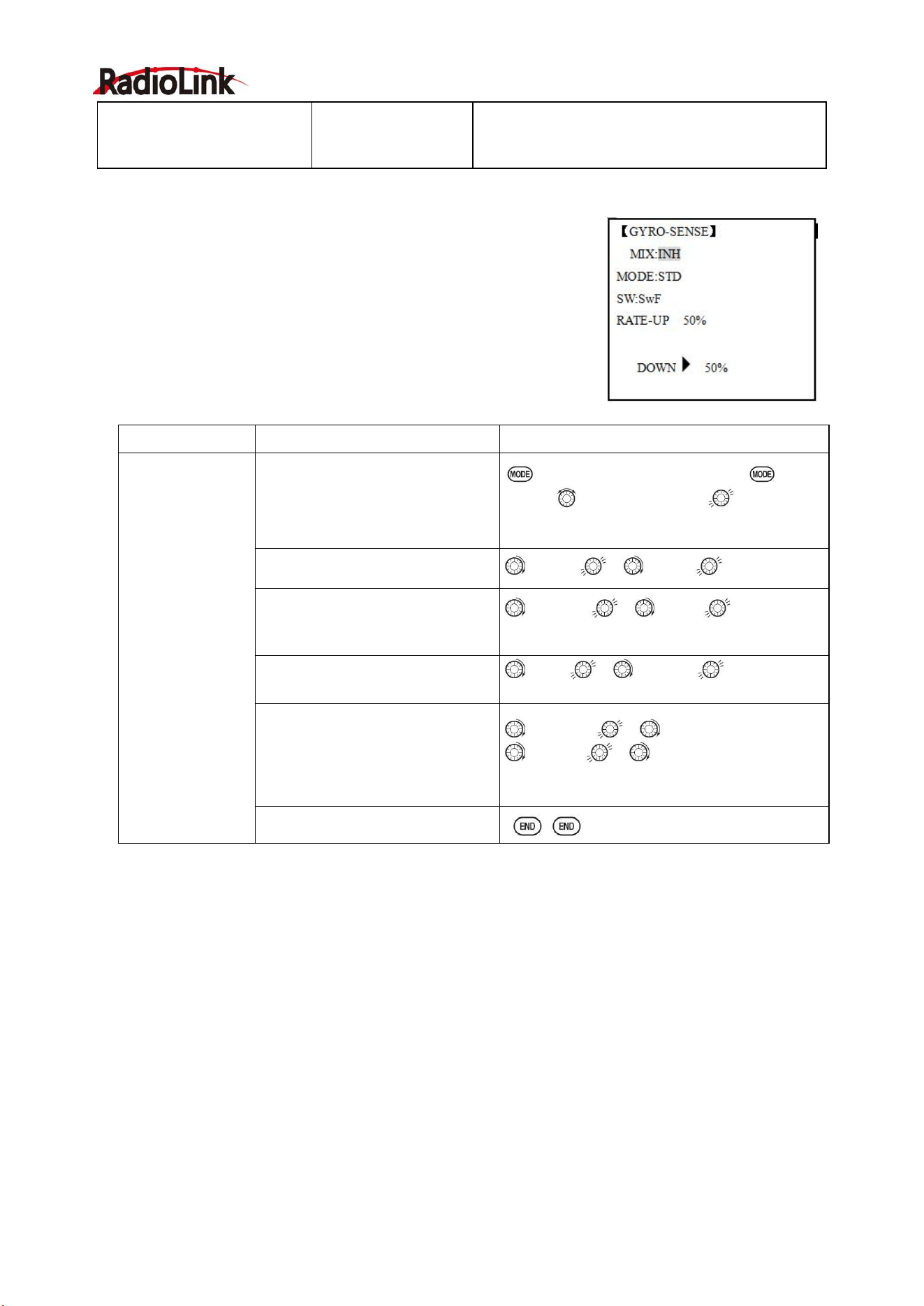
Radiolink Electronic Ltd
www.radiolink.com
67
descend back to
hover.
Adjust
REVO
. until the nose
does
not change heading.
5.3.3 GYRO SENSE
About GYRO SENSE, please refer to 3.3.12, by following steps:
5.3.4 THROTTLE HOLD
This function holds the engine in the idling position and disengages it from the THROTTLE STICK when
SWITCH AT9 is moved. It is commonly used to practice auto-rotation. Prior to setting up THR-HOLD, hook up
the throttle linkage so that the carburetor is opened fully at high throttle, then use the digital trim to adjust the
engine idle position. To have THR- HOLD maintain idle, move the THROTTLE STICK to the idle position,
then move the hold SWITCH on and off and keep changing the offset value until the servo does not move. To
lower the engine idle speed, or if you want to shut off, input a more negative number.
Adjustability:
• Idling position: Range of -50% to +50% centered about the throttle idle position to get the desired engine
RPM.
• Switch assignment: Assigned to SWITCH E(AT10) or G (AT10) down. Adjustable in the CONDITION
(THR-HOLD item), (2-position type switch only)
• Throttle curve: Since the throttle is moved to a single preset position, no curve is available for THR-HOLD.
Goals
Steps
Inputs
Set up heading-
hold /AVCS gyro
with
heading-hold/AVC
S setting in
idle-ups 1 and 2
and normal mode
setting in idle- up3
and normal.
Open and activate the GYRO
SENSE function.
for 1s to BASIC.(If ADVANCE
again) .
to GYRO-SENSE
Activate the function.
to MIX , to ACT.
Optional: Change gyro types to
Heading- hold
(
GY
).
to MODE , to GY
Optional: Changes switch
assignment.
Ex: select
Cond
.
to SW , to Cond
Adjust gyro rates as needed.
(Ex:
NORM
,
IDL3
to
NOR 50%
.
IDL1
and
2
to
AVC 50%
as
starting points.)
to NORM, , to NOR 50%
to IDL1 , to AVC 50%
Repeat.
Close
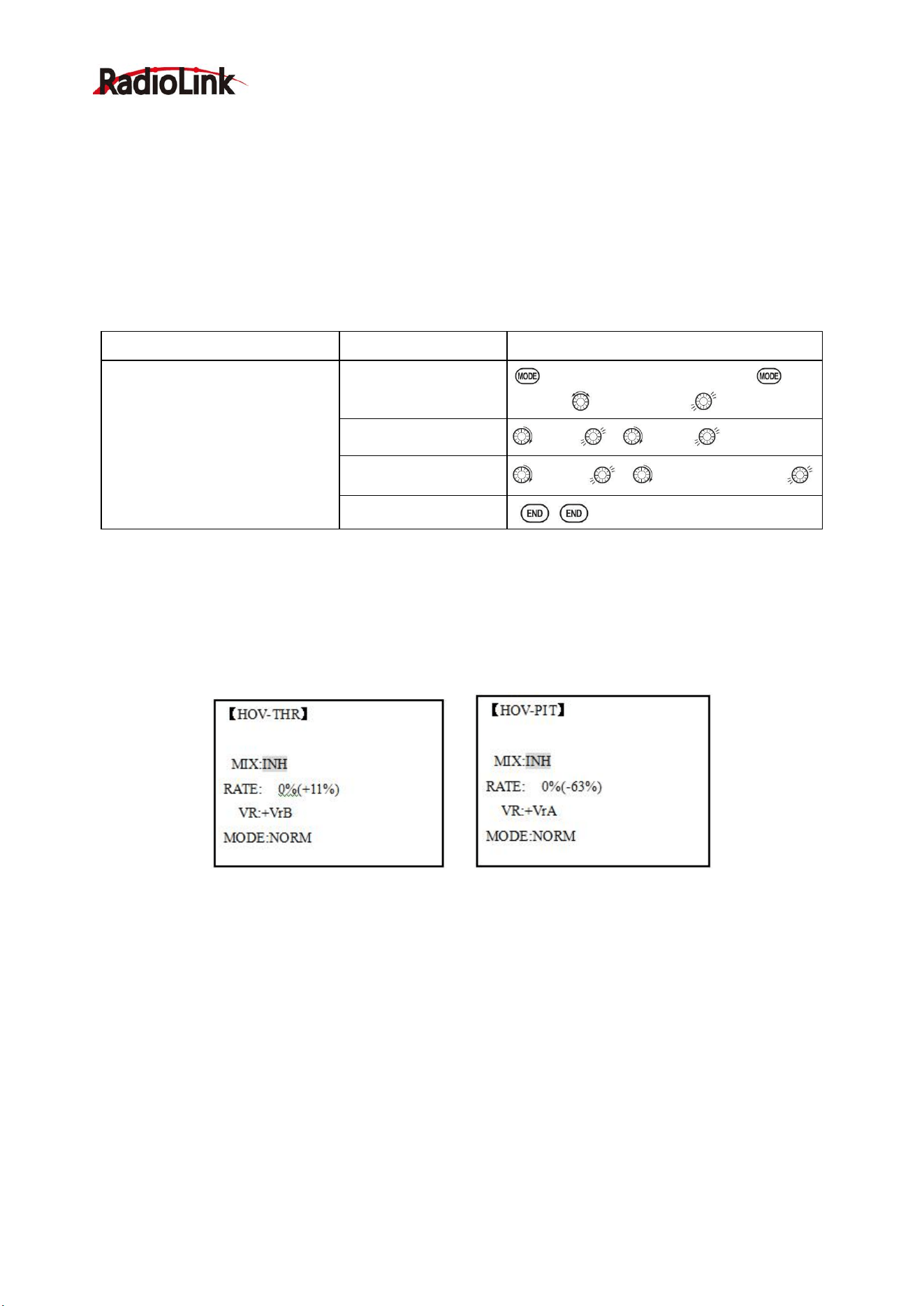
Radiolink Electronic Ltd
www.radiolink.com
68
• Collective pitch curve: Independent curve, typically adjusted to create a blade pitch range of -4% to +10% to
+12%, is automatically activated with THRHOLD.
• Revo. mix: Since revo. mix adjusts for torque from the engine, no revo. mix is available for THR-HOLD.
• Priority: The throttle hold function has priority over idle-up. Be sure that the throttle hold and idle-up
SWITCHES are in the desired positions before trying to start the engine. (We recommend starting your
engine in throttle hold for safety reasons.)
• Gyro: Gyro programming includes an option to have a separate gyro setting for each condition, including
THR-HOLD. This avoids the potential problem of the user being in the wrong gyro setting when going to
THR-HOLD, resulting in an improper rudder offset and the model pirouetting.
Goals
Steps
Inputs
Set up throttle hold.
Determine desired throttle
position by
idling engine, turn
on
THR-HOLD
, and
adjust
percentage as required to reach
the desired running point.
Open
THR-HOLD
function.
for 1s to BASIC.(If ADVANCE
again)
to THR-HOLD
Activate the function.
to MIX , to OFF
Set desired engine
position.
to POSI , to desired percent
Close
5.3.5 HOVERING ADJUSTMENTS (HOV-THR and HOV-PIT):
Hovering throttle and hovering pitch are fine-turning adjustments for the throttle and collective pitch curves
individually, affecting performance only around the center point and only in the normal condition. They allow
in-flight tweaking of the curves for ideal setup.
Adjustability:
• Rotor speed changes caused by temp., humidity, altitude or other changes in flying conditions are easily
accommodated.
• Both adjustments may be inhibited if not desired.
• Both adjustments may also be set to NULL, temporarily turning off the knob but maintaining the last
memorized setting.
• Adjustments may be memorized and then the knobs returned to center point to use that amount of
adjustment, allows easy use of the trimming knobs for multiple models. (Note that when memorization is
repeated with the knob offset from center, the trim value accumulates.)
• Adjustments are quickly reset to the initial value by turning the dial until the trim reads 0%, memorizing, then
returning the knob to its center position.
• Note that all functions, including these, assume the model hovers at half stick.
•Available in normal (NORM) or normal/ idle-up1 (NORM/IDL1) condition only.
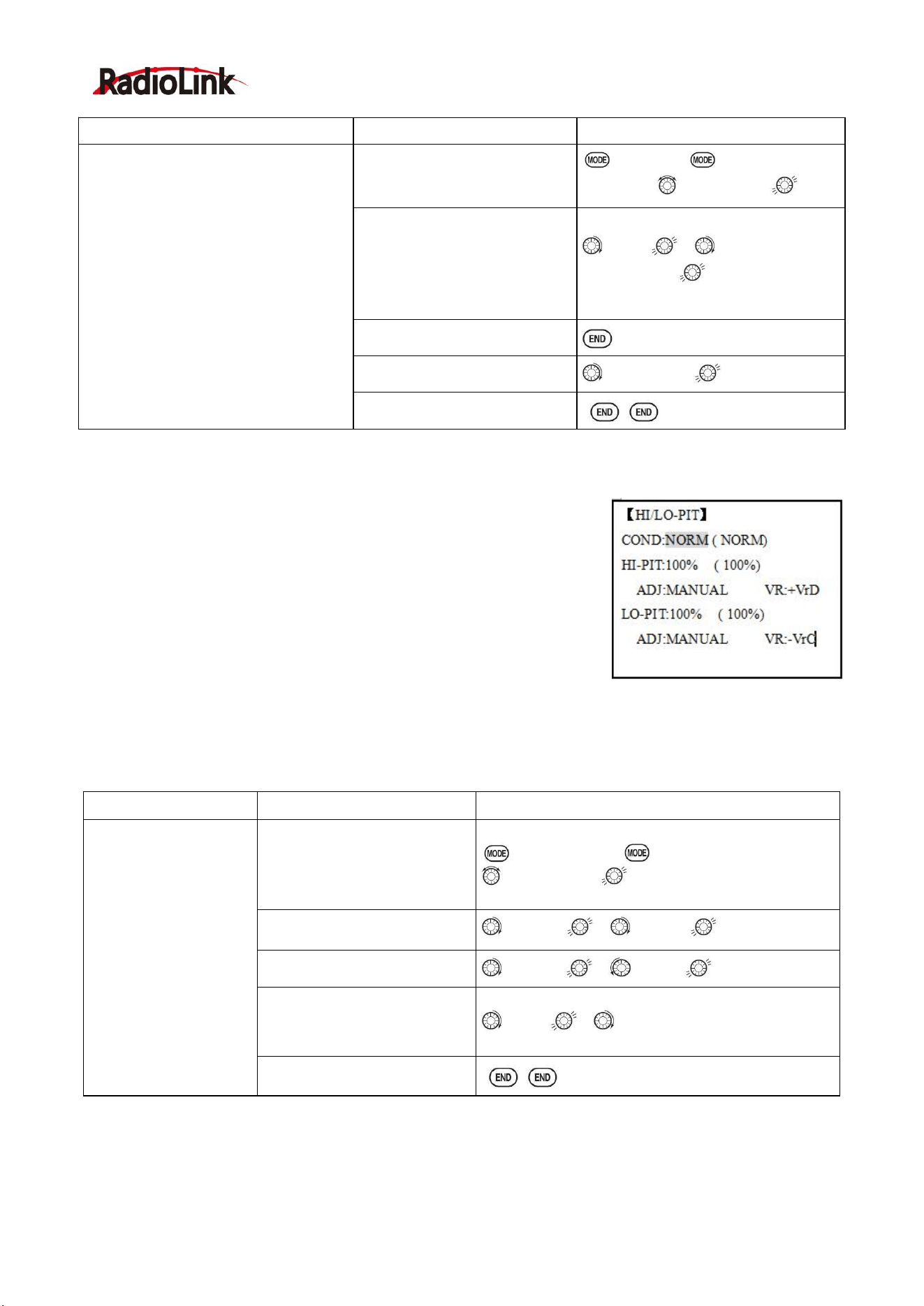
Radiolink Electronic Ltd
www.radiolink.com
69
Goals
Steps
Inputs
Fine-tune hovering with the hovering
adjustments. Remember these
affect only the hovering (normal)
condition.
Adjust throttle and collective pitch
curves until model hovers nicely. In
flight,adjust collective pitch and
throttle
curves near hover point independently
with
HOV-THR
and
HOV-PIT
knobs.
Store new settings after flight.
Open the
HOV-THR
function
to BASIC. again to
ADVANCE
,
to HOV-THR.
Optional: change which
knob adjust
seach hovering
curve.
NULL
locks in
curve
in last stored position.
to VR , to desired knob
and direction
Close
Open the
HOV-PIT
function.
to HOV-PIT. Repeat.
Close
5.3.6 HIGH/LOW PITCH (HI/LO-PIT):
This function may be used to adjust the curves high and low side
individually for each flight condition (normal, idle-up 1, idle-up 2, idle-up 3,
throttle hold).
Adjustability:
• You may define high and low side rate trim knobs (the high side pitch trim
control is defined as the right side lever at initial setting).
• The conditions are activated in the CONDITION SELECT function.
• Both adjustments may be set to MANUAL, temporarily turning off the knob.
• Adjustments may be memorized and then return the knobs to center point to use that amount of adjustment,
allows easy use of the trimming knobs for multiple models.
Goals
Steps
Inputs
Set up a high pitch
curve in the idle-up
1condition.
Open the HI/LO-PIT
to BASIC menu, again to ADVANCE menu.
to HI/LO-PIT.
Select the idle-up 1 condition
to COND , to IDL1
Set the rate (Ex:80%)
to HI-PIT ,
to
80%
Optional:Change which knob
adjusts high pitch curve.
to VR , to desired knob and direction.
Close
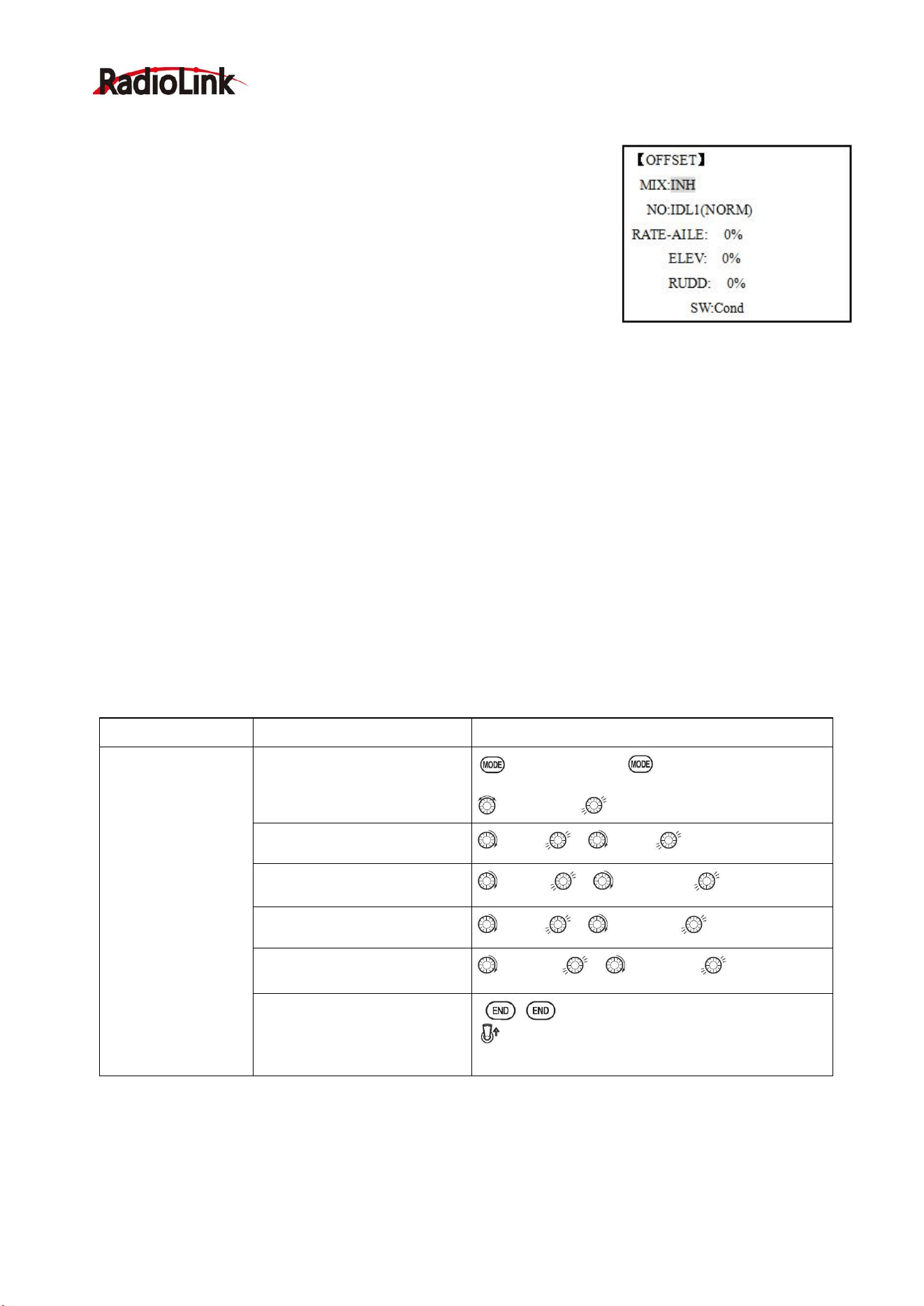
Radiolink Electronic Ltd
www.radiolink.com
70
5.3.7 OFFSET
Optional separate trims in addition to those for the normal condition. This
function is used to automatically change the trim of a helicopter, for example,
when transitioned from hover to flying at high speed. A clockwise-rotation
rotor helicopter tends to drift to the right at high speed, so an aileron offset
may be applied to offset the helicopter to the left.
The necessary elevator offset varies with model geometry, so it must be
determined by noting collective pitch changes at high speed. The rudder
offset is affected by both revo. mixing and trim lever movement while in the
offset function.
Adjustability:
• Complete switch assign ability, plus a CONDITION option that creates/ switches between individual trims for
each of the idle-ups.
• When OFFSET is active (its switch is on), moving the TRIM LEVERS adjust the stored offset, not the trims in
the normal condition.
•When OFFSET is inactive (its switch is off), the OFFSET and any trim adjustments to it have no effect (model
obeys the trim settings of the currently-active flight condition.)
• When OFFSET is inhibited, trim adjustments made in any flight condition affect all flight conditions.
• Rapid jumps caused by large offsets can be slowed using the DELAY function.
• During OFFSET operation, the aileron, elevator, and rudder travels are displayed on each trim display in the
Startup screen.
Note: Remember, offsets and revo mixes are not recommended when using heading-hold/AVCS gyros
because they conflict with the automatic corrections to trim and torque that AVCS provides.
5.3.8 DELAY:
The Delay function provides a smooth transition between the trim positions whenever OFFSET, REVO,
MIXING, or THROTTLE HOLD functions are turned on and off.
Goals
Steps
Inputs
Set up separate
trims for each of
the three idle-up
conditions.
Adjust the idle-up
2 rudder trim to
correct for torque at
high speeds.
Open the
OFFSET
function.
to BASIC menu, again to ADVANCE
menu
to OFFSET.
Activate the function.
to MIX , to ON.
Change switch setting to
Cond
.
to SW , to Cond,
Select
IDL2
.
to NO. , to IDL2,
Adjust trim settings as
needed.
(Ex:rudder to
+8%
.)
to RUDD , to +8%,
Close menus and confirm
slowed transitions.
E (AT9) from NORMAL to IDL2.Check the
changes of rudder trim.
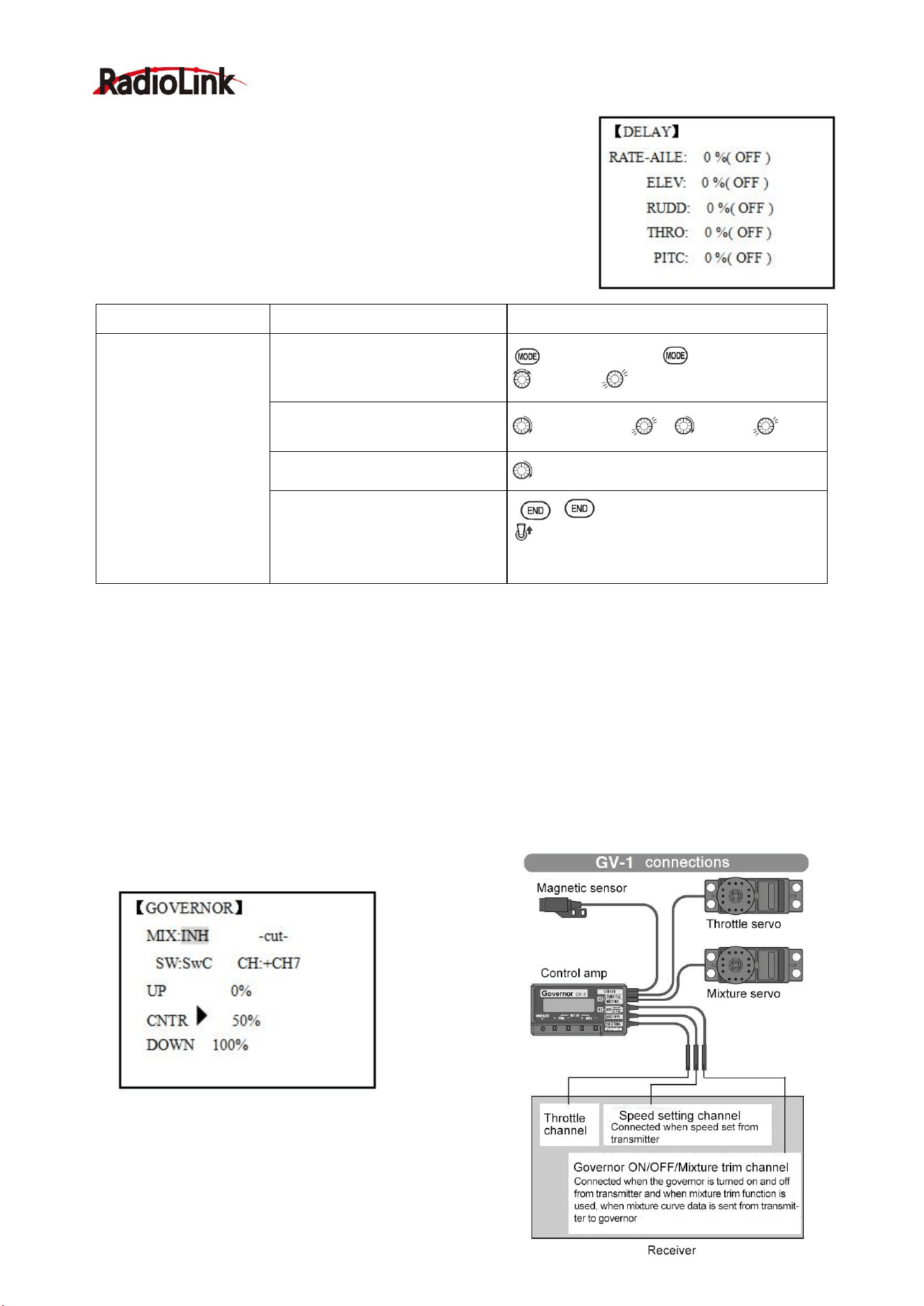
Radiolink Electronic Ltd
www.radiolink.com
71
Adjustability:
• Separate delay times are available for aileron, elevator, rudder, throttle,
and pitch.
• With a 50% delay setting, the servo takes about a half-second to move
to its new position, quite a long time.
• In general, delays of approximately 10-15% are sufficient.
Goals
Steps
Inputs
Set up a delay on all
channels to ease the
transition from one flight
condition to another so
there are no ‘hard
jumps’.
Open the
DELAY
function.
to BASIC menu, again to ADVANCE
to DELAY
Adjust
AILE response
as
needed. (Ex: aileron to
+8%
.)
to RATE-AILE , to 8%,
Repeat for other channels.
to ELEV. Repeat steps above.
Cl os e me n u s an d confirm
slo we d transitions.
E(AT9) from NORMAL to IDL2.Check
that the servos move gradually to new
positions.
5.3.9 GOVERNORS:
The Governor mixing function is used to adjust the Governor speed settings (rS1, rS2, rS3) from the
transmitter.
What is a governor? A governor is made up of a set of sensors which read the RPM of the helicopter’s head,
and a control unit that automatically adjusts the throttle setting to maintain a constant head speed regardless
of changes in pitch of blades, weather conditions, etc. Governors are extremely popular in competition
helicopters due to the consistency provided.
How does it help in helicopter setup? The governor eliminates the need to spend large amounts of time
setting up throttle curves, as it automatically adjusts the engine’s RPM to maintain the desired head speed.
Adjustability:
• On/off may be separate from speed switching by plugging
governor on/off into CH8 and changing CUT-CH setting.
• If using separate on/off, switch assignment is totally adjustable.
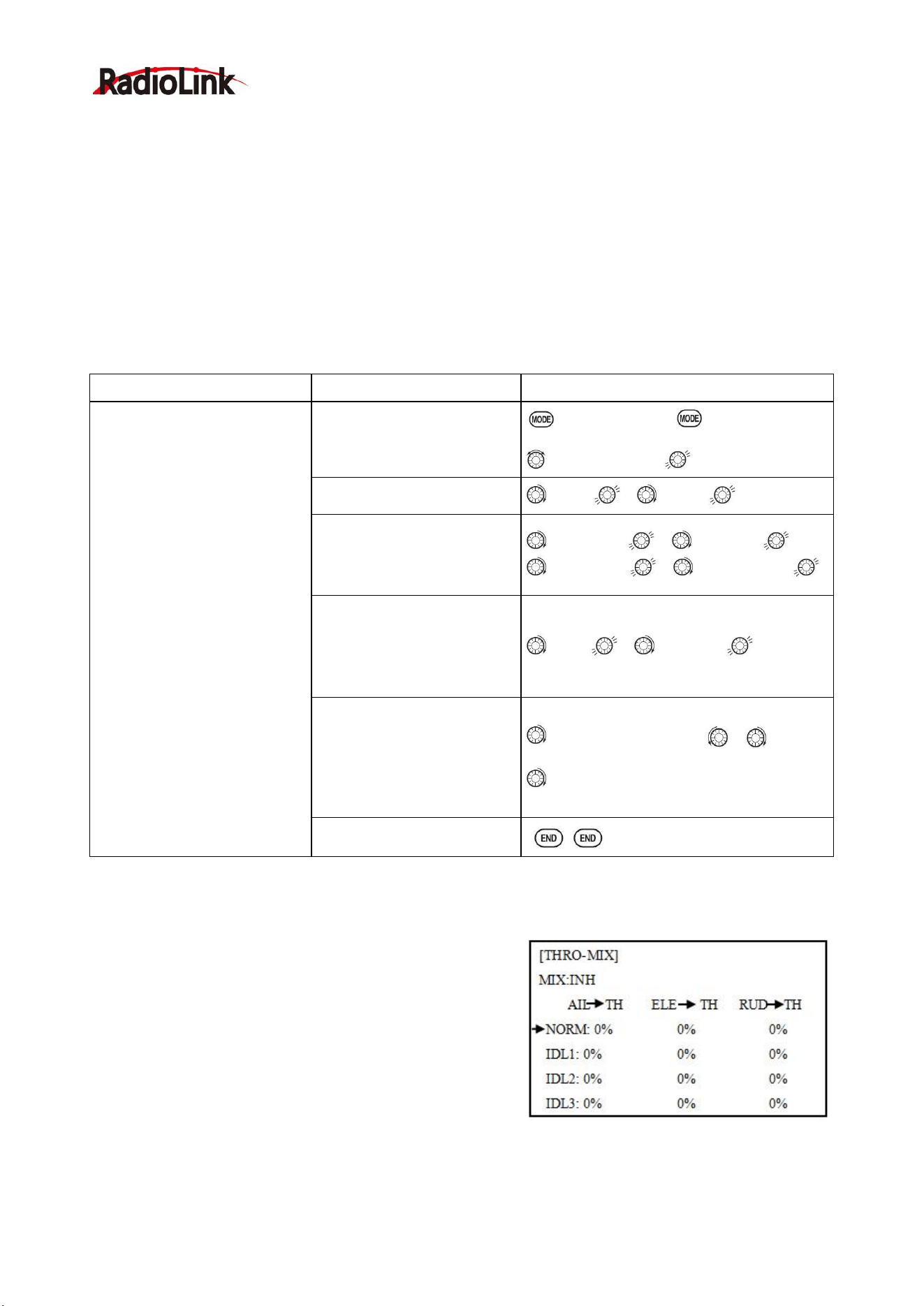
Radiolink Electronic Ltd
www.radiolink.com
72
Be careful not assign governor off to a condition switch if you
want the governor to function in that condition.
• Speed switching and governor ON/OFF may be together using one switch or ON/OFF switching may be
performed using an independent switch/channel.
• When speed setting control uses CH7 and separate ON/OFF switch is not used, CH8 can be used for other
functions.
• In-flight adjustment of the head speed (for easy adjustment during turning) may be created using an
additional channel and a programmable mix.
The GV-1 controls throttle when it is active, so the throttle will not obey any Failsafe settings preset for
throttle in the transmitter. Always set the Failsafe setting for the GV-1's on/off channel to OFF. This way the
governor is shut off and the throttle obeys the Failsafe throttle commands.
Goals
Steps
Inputs
Set up a governor to
use
both channels into the
receiver and switch between
the governor settings
automatically when changing
conditions. Consider setting
the battery Fail Safe settings
and other helpful functions
on the governor itself.
Open and activate the
GOVERNOR Function.
to BASIC menu, again to
ADVANCE
to GOVERNOR
Activate the function.
to MIX , to ACT.
Opt i ona l : chang e cut-of f
ch a n ne lto channel 8 and
assign switch and direction
for on/off (channel 8).
to -cut- CH: , to+CH8,
to -cut-SW , to desired SW
Optional: Changes switch
assignment to select
governor settings.
Ex: sele c t switc h th a t
select s th econditions.
to SW , to Cond,
Adjust governor spee d
settings pe rswitch position
or condition as needed.
(Ex: defaults are fine.)
Allows head speed
adjustment from transmitter.
to each Cond position or as
needed.
to next Cond,repeat .
Close
5.3.10 Throttle Mixing (THROTTLE MIX):
This function can be set for each flight condition, and is used
to correct the tendency of the model to change altitude when
the rotor is tilted by aileron, elevator, and rudder controls.
Adjustability:
• Mixing may be set from 0 to 100% each flight condition.
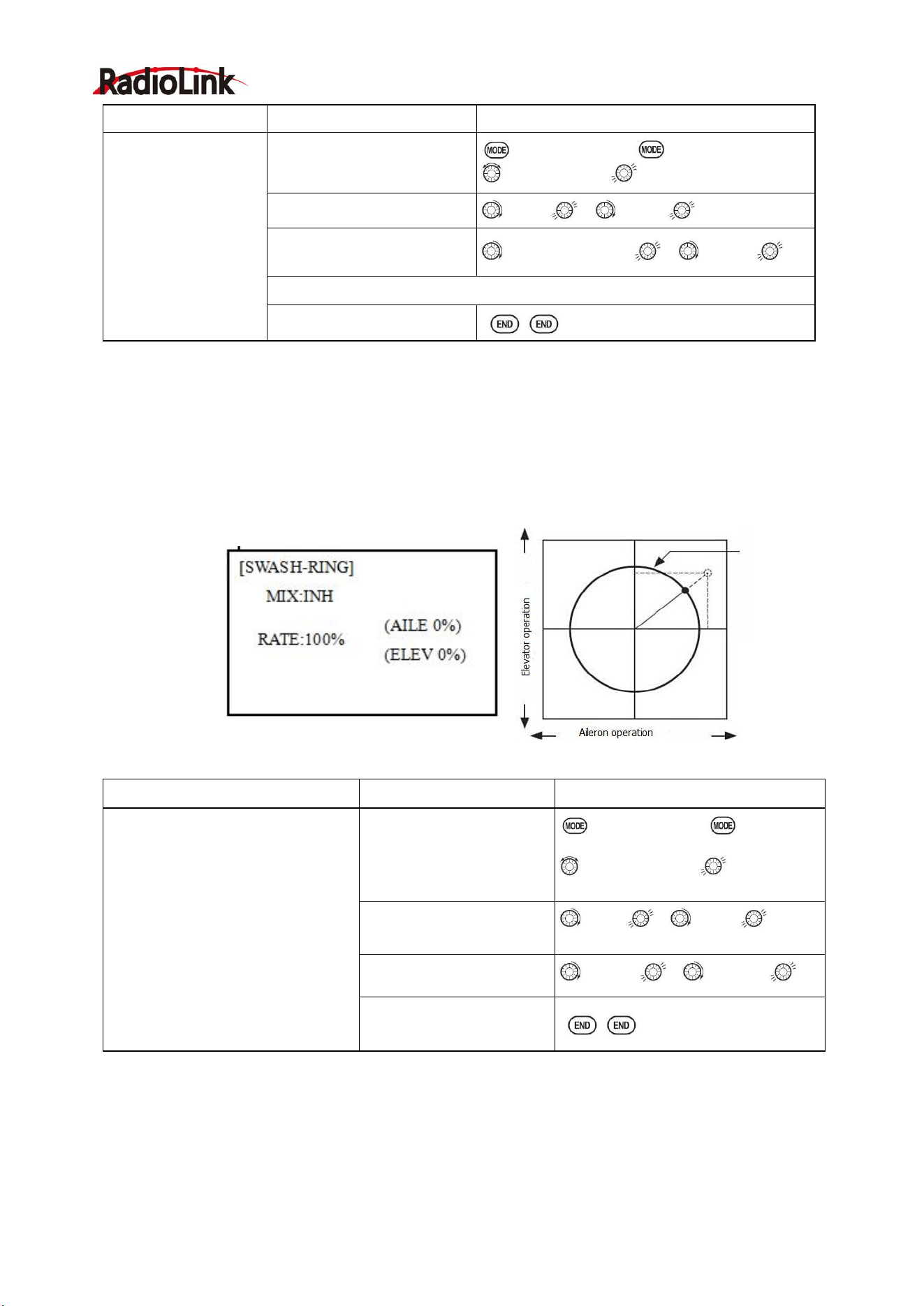
Radiolink Electronic Ltd
www.radiolink.com
73
5.3.11 SWASH-RING
This function is to limit movement of swash plate to avoid damage to the SWASH ROB during operation
aileron and ELEVATOR. It is affected in 3D flight. Movement of AILERON and ELEV is limited in the circle.
Adjustability:
• Initial: 100%
• adjusting range:
0-200%
5.3.12 THROTTLE NEEDLE (see ACRO MENU 3.3.15)
5.3.13 PROG MIX (see ACRO MENU 3.3.1)
Goals
Steps
Inputs
Correct the
tendency of the
model to change
altitude.
Open
THRO- MIX
function.
to BASIC menu, again to ADVANCE
to THRO-MIX
Activate the function.
to MIX , to ON
Adjust the rate.
Ex:
IDL1
(AIL to TH) 10%
to IDL1 (AIL→TH) , to 10%,
Repeat as needed.
Close
Goals
Steps
Inputs
To prevent damaging the swash
linkage by simultaneous operation
of the ailerons and elevators, set
the limit point where swash throw
stops.
*Adjust the rate at the maximum
swash tilt by simultaneous
operation of the ailerons and
elevators.
Open SWASH-RING
function.
to BASIC menu, again to
ADVANCE
to SWASH-RING
Activate the function.
to MIX , to ACT
Adjust the rate Ex:
90%
to RATE , to 90%,
Close
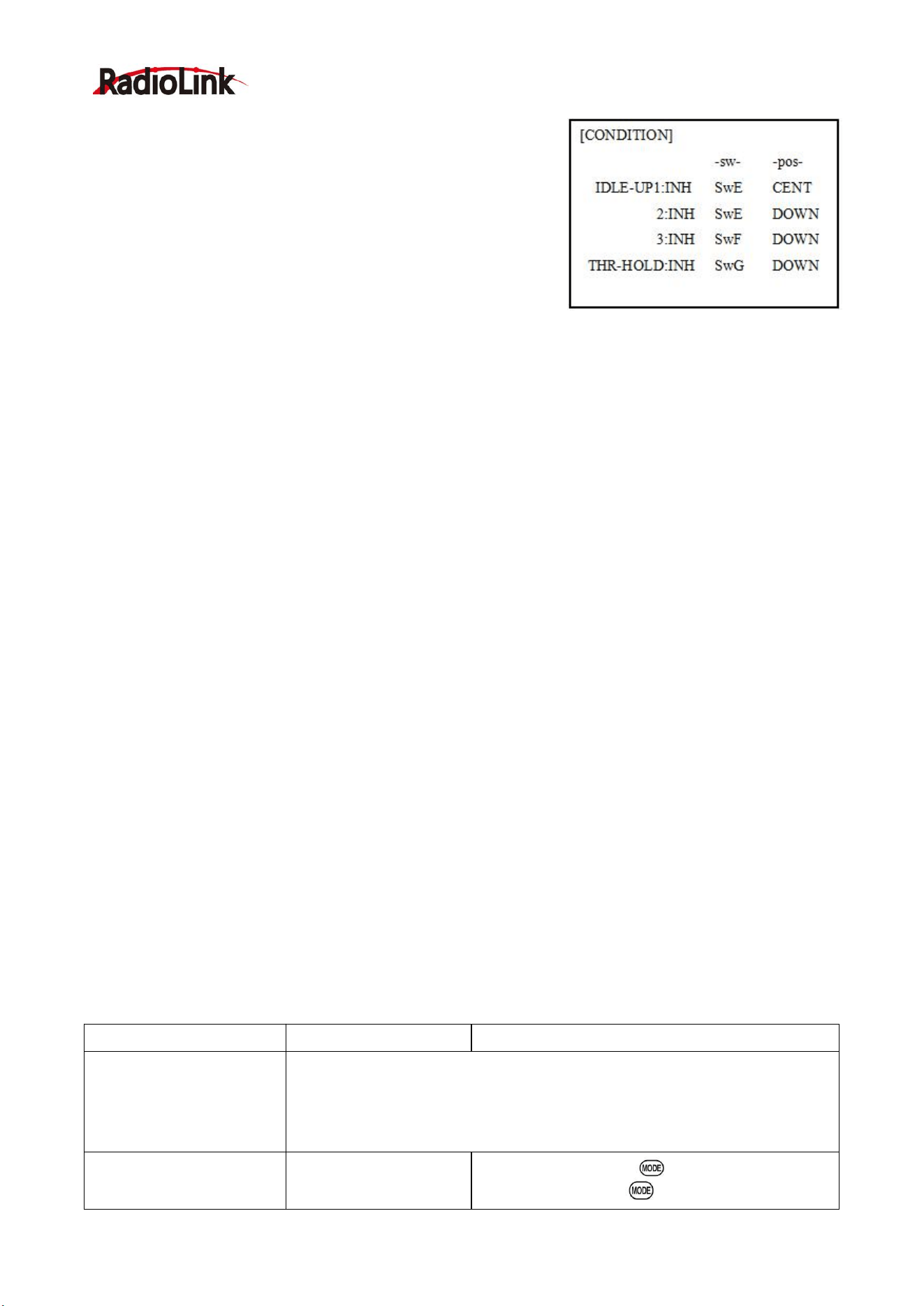
Radiolink Electronic Ltd
www.radiolink.com
74
5.3.14 CONDITION
Revo., curves for idle-ups are often v-shaped to provide proper
rudder input with negative pitch and increased throttle during
inverted flight. (Rudder is needed to counter the reaction whenever
there is increased torque. In inverted flight, throttle stick below half
has increased throttle and negative pitch, therefore increasing
torque and rotating the helicopter unless the revo. mix is also
increasing appropriately.)
Additional flight conditions are available specifically for helicopters. These additional flight conditions contain
different throttle curves, collective pitch curves, revo. mixing, and trims (except IDLE-3) to make the
helicopter perform certain maneuvers more easily. Lastly, the gyro and dual rate functions may be set to
provide separate rates per condition selected, including one for each idle-up.
Additional idle-ups may be used to maximize the helicopter's flight characteristics in certain types of flight
(i.e. fast forward motion, backward) or maneuvers (loops, rolls, stall turns), or even the same maneuver but
changing from heading-hold/AVCS gyro mode to normal gyro mode. The AT9 provides 3 idle-ups to allow
the modeler 3 additional setups along with the normal flight condition. (Note that IDL3 does not include
governor settings.)
Adjustability:
• SWITCH G (AT9) or E (AT9) is programmed for normal (NORM), idle-up 1 (IDLE-UP1), and idle-up 2
(IDLE-UP2) curves, adjustable in CONDITION SELECT (IDLE-UP1/2, IDLE-UP3 items).
(IDLE-UP1/2 3-position type switch only, IDL3 2-position type switch only)
• Activated with the throttle curve for that condition in THR-CURVE.
• Curves are adjusted to maintain constant RPM even when the collective pitch is negative (inverted). Note
that REVO mixing has one curve for idle-ups 1 and 2 and a second curve just for idle-up3.
•Gyro settings may be set separately for each idle-up.
• Governor settings may be set up to follow Normal/Idle1/Idle2, but do not offer a setting to adjust for each of
the 5 conditions like gyro.
• Activating OFFSET makes the TRIM LEVERS adjust the trim separately in each of the idle-up conditions.
Part 6. MULTIROTOR FUNCTIONS
MULTIROTOR menu is the most differ between AT9S Pro and the other brand transmitter. The menu makes it
easier to fly multi-copters. The basic function menu is same like ACRO, GLID and HELI, please find the detail
in the former chapters.
Now let’s start the basic setting, take a quad copter for example:
Goals
Steps
Inputs
Prepare your
MULTIROTOR.
Install all servos switched, receivers, etc. per your model’s instructions. Turn on
the transmitter then receiver; adjust all linkages so surfaces are nearly
centered. Mechanically adjust all linkages as close as possible to proper control
throws. Check servo direction. Make notes now of what you will need to change
during programming
.
Select proper MODEL
TYPE.
Open the BASIC menu
find the MODEL TYPE.
Turn on the transmitter, for 1 sec. to BASIC
menu (If ADVANCE, again)
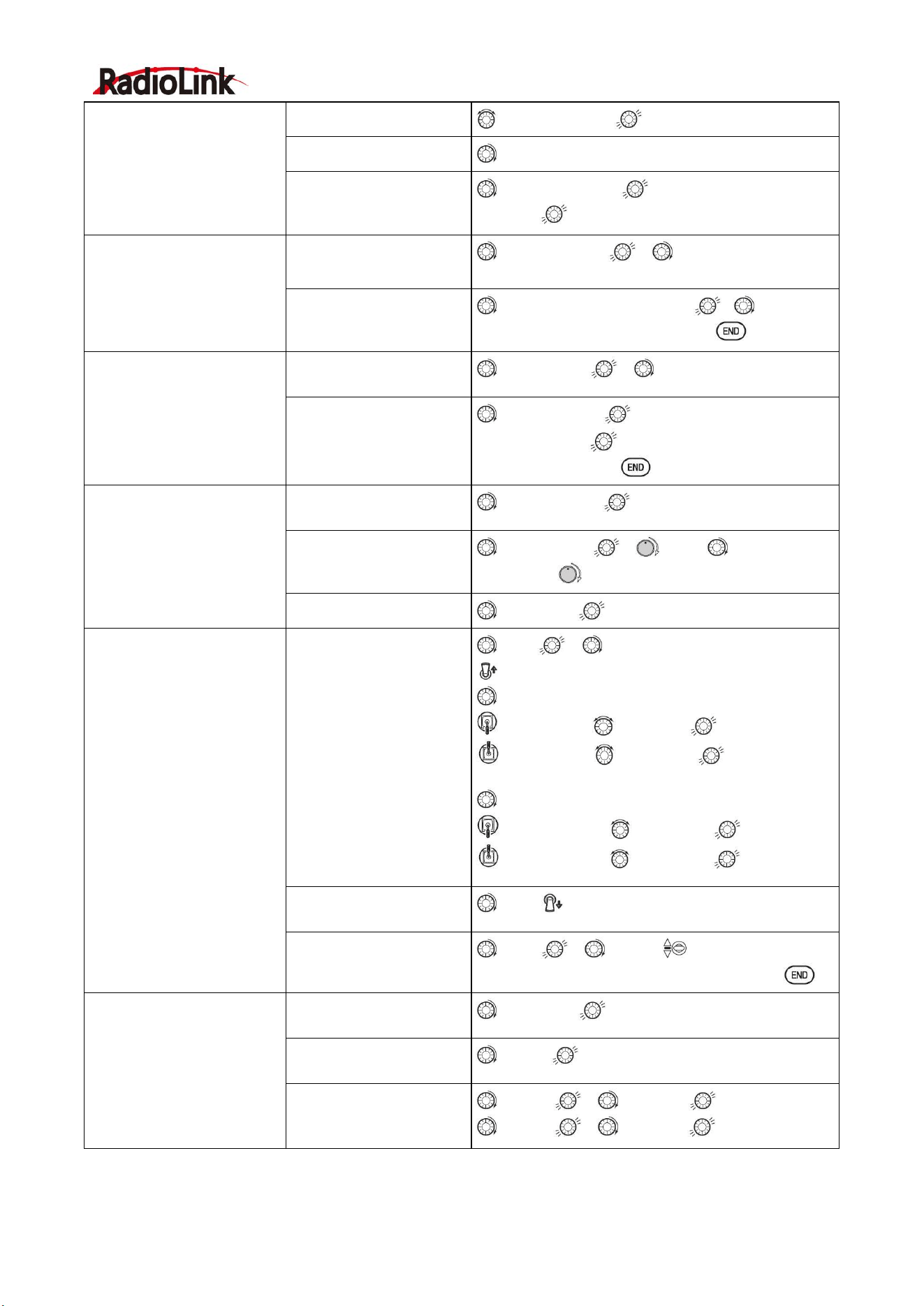
Radiolink Electronic Ltd
www.radiolink.com
75
(Ex: MULTIROTOR)
to MODEL TYPE
Go to TYPE
to TYPE
Choose proper model
type (Ex: MULTIROTOR).
Confirm the change.
to MULTIROTOR, for 1 sec. ‘Are you sure?’
Displays, to confirm.
Name the model.
Note that you do not need
to do anything to ‘save’ or
store this data.
In BASIC menu, Open
MODEL SEL.
to MODEL SEL. , to NAME (the 1
st
character of model name is highlighted)
Input MULTIROTOR’s
name.
Close
to change the 1
st
character. . move to
next character, repeat as needed. to BASIC.
For proper control
operation, reverse servos
as needed.
In the BASIC menu, open
REVERSE.
to REVERSE , to choose REV.
Choose desired servo
and reverse its direction
of travel.(Ex: reverse
rudder servo)
to CH4:RUDD, ,so REV highlighted, ‘Are you
sure?’ Displays.
Repeat as needed. to BASIC.
Adjust travels as needed to
match model’s recommend
throws(usually listed as high
rates)
From BASIC menu
choose END POINT.
to END POINT,
Adjust the servo’s end
points.(Ex: throttle servo)
Close
to CH1:AILE , VR(A), to desired
percentage. VR(A) to repeat above steps.
Back to choose D/R EXP.
to D/R,EXP
Set up dual/triple rates and
exponential (D/P, EXP)
(Note that in the middle of
the left side of the screen is
the name of the channel
and the switch position you
are adjusting. Two or even
THREE rates may be set
per channel by simply
choosing the desired switch
and programming
percentages with the switch
in each of its 2 or 3
positions.
Choose the desired
control and set the first
(Ex: high) rate throws and
exponential.
to CH , to CH:2 (ELEV)
SwA screen reads ELEV (UP)
to D/R
Elevator Stick to set rate.
Elevator Stick to set rate. (Normally set
the same as down.
to EXP
Elevator Stick to set rate.
Elevator Stick to set rate.
set the first (Ex: low) rate
throws and exponential.
to D/R SwA to down,repeat to set low rate.
Optional: change dual
rate switch assignment.
to SW , SwG, SwG to center
position. Repeat steps above to set 3
rd
rate.
Adjust AUX-CH and Knob.
On BASIC menu, then
open AUX-CH function.
to AUX-CH,
Choose CH5 to set
ATTITUDE
to CH5, to ATTITUDE
Assign the switch to
control attitude. Ex: SW3
is SWC,SW2 is SWB
to SW3, , to SWC,
to SW2, , to SWB,
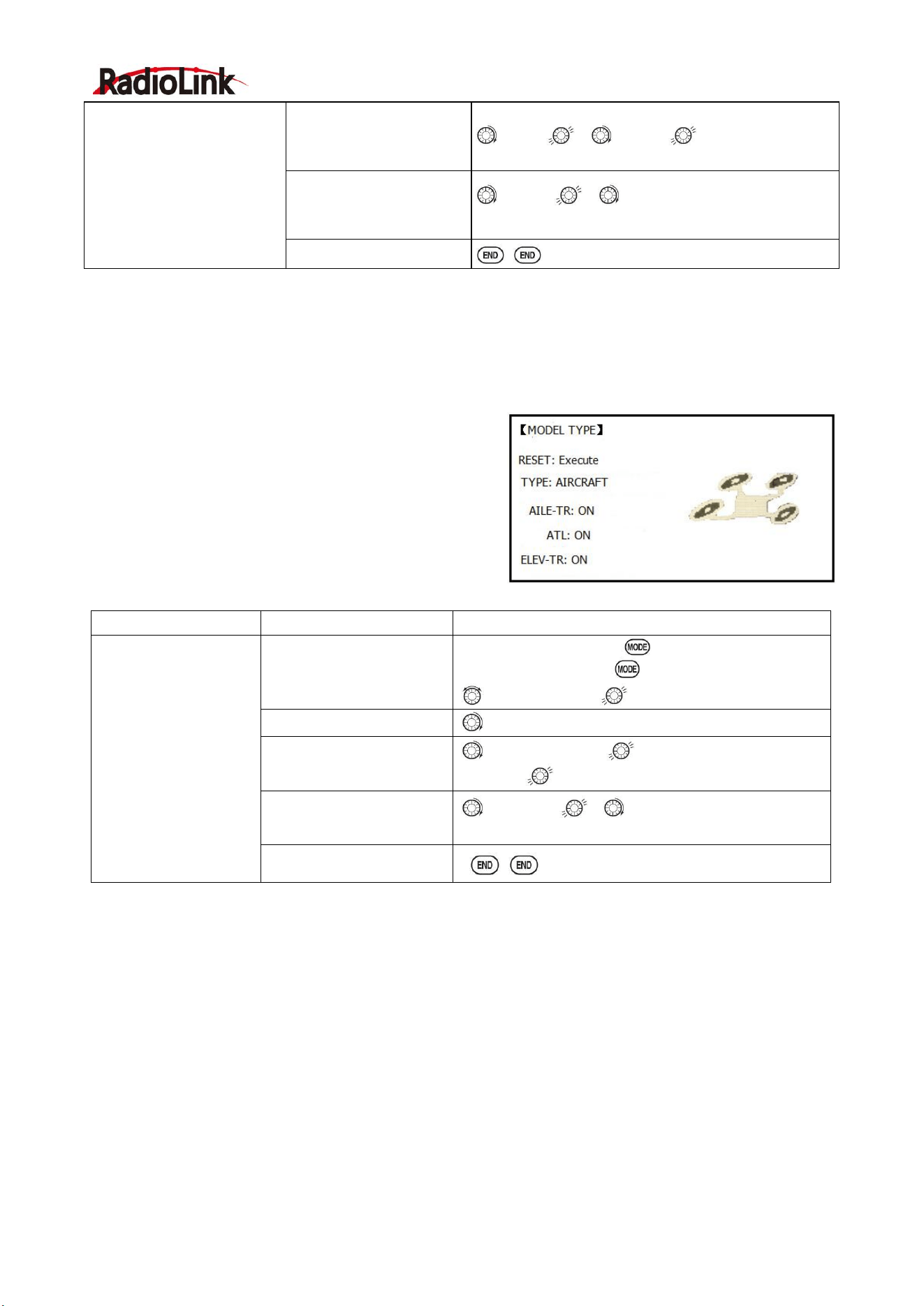
Radiolink Electronic Ltd
www.radiolink.com
76
Set the rate in each
attitude. Ex: ATTI is 50%.
to ATTI , to 50%
Change CH6, use VR (D)
to control change other
channels as needed.
to CH6 , to VR(D).
Repeat as needed.
Close
6.1 MULTIROTOR BASIC MENU
The basic function menu is same like ACRO, GLID and HELI, please find the detail in the former chapters.
Below is the special option:
6.1.1 MODEL TYPE
Different from ACRO, GLID AND HELI, MODEL TYPE for
MULTIROTOR has an additional function TRIM, which is
controlled by the VR switch. Set the TRIM OFF to avoid a
mis-operation damage to the model.
6.1.2 AUX Channel setting
AUX channel for MULTIROTOR is channel 6 to 10, same like ACRO, GLID and HELI, to set auxiliary channel.
CH5 is special for ATTITUDE, enter CH5 and press PUSH for ATTITUDE. Select 3-section and 2-section
switch to get 6 different attitudes. By DIAL set 6 different rates according to the attitudes.
6.2 ADVANCE MENU FOR MULTIROTOR
Goals
Steps
Inputs
Select proper MODEL
TYPE. (Ex:
MULTIROTOR)
Open BASIC menu, find
MODEL TYPE.
Turn on the transmitter, for 1 sec. to BASIC
menu (If ADVANCE, again)
to MODEL TYPE
Go to MODEL TYPE
to TYPE
Choose proper model
type (Ex: MULTIROTOR).
Confirm the change.
to MULTIROTOR, for 1 sec. ‘Are you sure?’
Displays, to confirm.
Turn on the trim.
to AILE-TR , to ON.
Repeat above to turn on other trims
Close
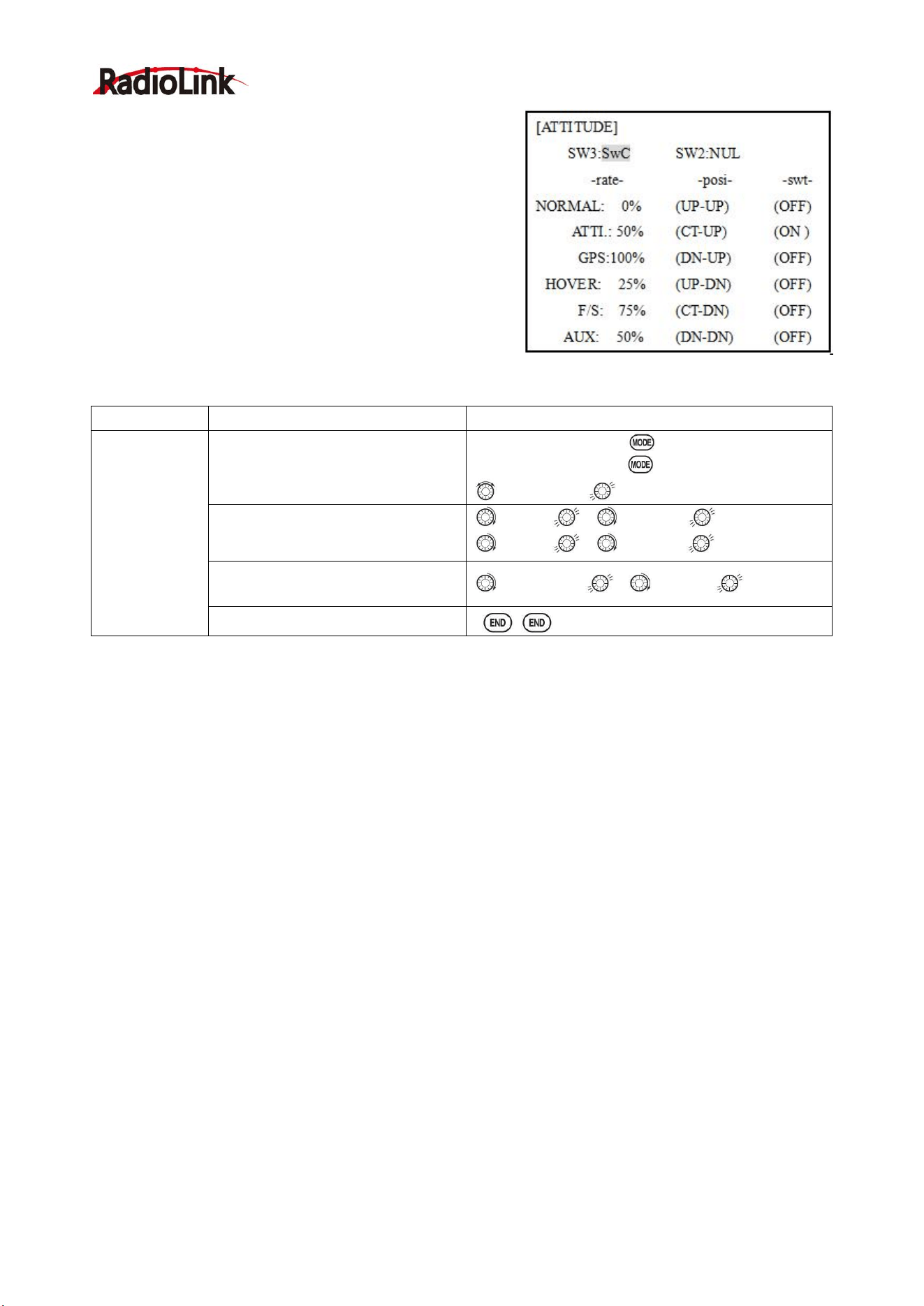
Radiolink Electronic Ltd
www.radiolink.com
77
6.2.1 ATTITUDE
There are 6 different attitude modes for MULTIROTOR:
NORMAL, ATTI, GPS, HOVER, F/S and AUX. Every mode
will have a different rate to get a unique signal. NORMAL
mode preset 0%, ATTI 50%, GPS 100%, HOVER 25%, F/S
75% and AUX 50%.
0% means a output signal 1ms, and 100% means 2ms. You
can totally get 6 different modes by adjusting the related
rates.
Goals
Steps
Inputs
Set the
ATTITUDE of
MULTIROTO
R.
In ADVANCE menu find the
ATTITUDE function.
urn on the transmitter, for 1 sec. to BASIC
menu (If ADVANCE, again)
to ATTITUDE
Assign the switch to control
attitude. Ex: SW3 is SWC,SW2 is
SWB
to SW3, , to SWC,
to SW2, , to SWB,
Set the rate in each attitude.
Ex: ATTI is 60%.
to rate-ATTI, , to 60%,
Close
6.2.2 THROTTLE CURVE (see ACRO 3.3.14)
6.2.3 PROG. MIX (see ACRO 3.3.1)
Thank you again for choosing RadioLink product.