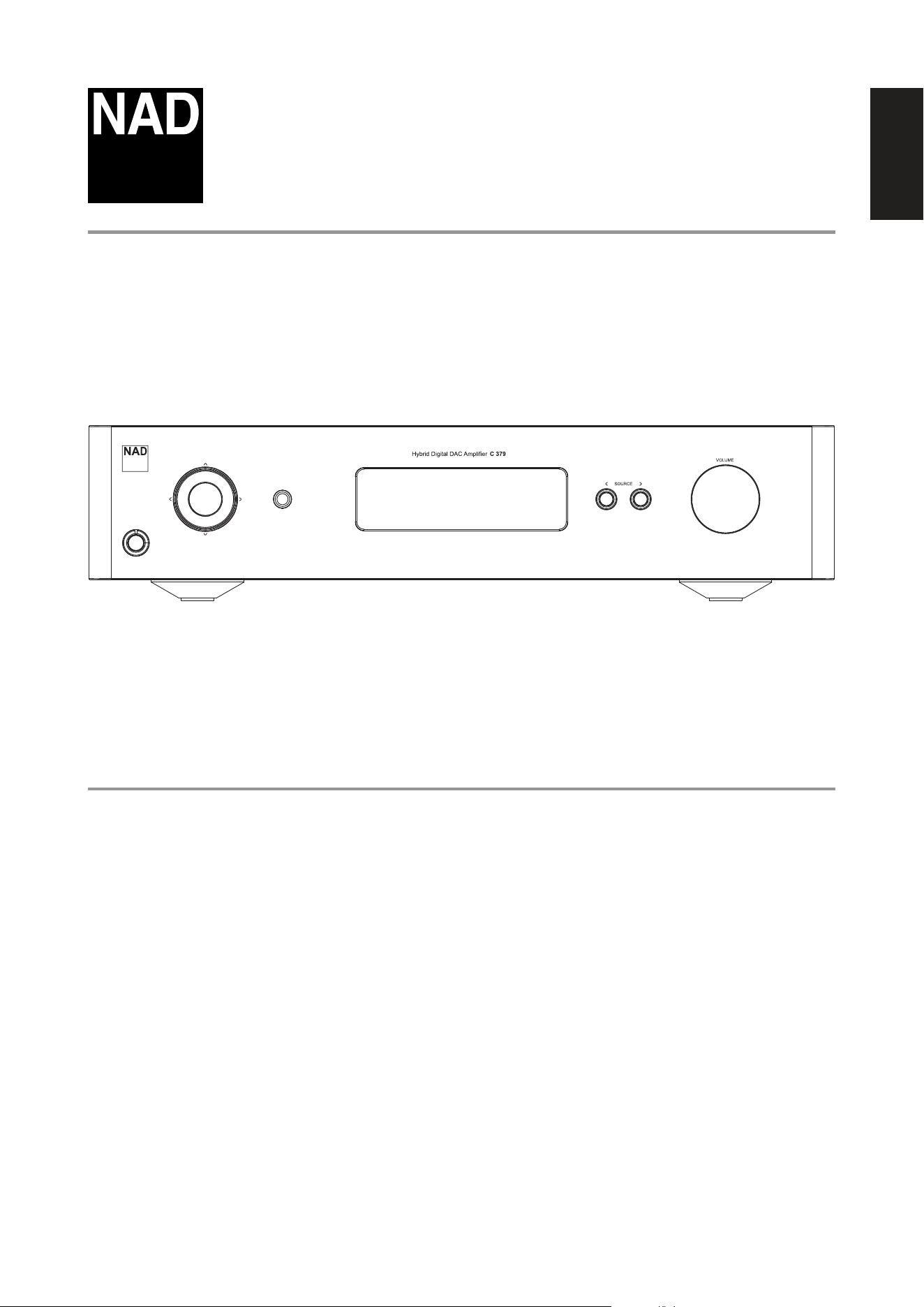
Owner’s Manual
ENGLISH
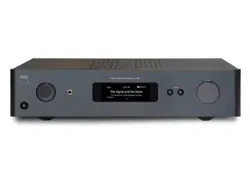
Hybrid Digital DAC Amplifier
®
C 379
ENGLISH
2
• Read instructions - All the safety and operating instructions should be read
before the product is operated.
• Retain instructions - The safety and operating instructions should be retained
for future reference.
• Heed Warnings - All warnings on the product and in the operating instructions
should be adhered to.
• Follow Instructions - All operating and use instructions should be followed.
• Cleaning - Unplug this product from the wall outlet before cleaning. Do not use
liquid cleaners or aerosol cleaners. Use a damp cloth for cleaning.
• Attachments - Do not use attachments not recommended by the product
manufacturer as they may cause hazards.
• Water and Moisture - Do not use this product near water-for example, near a
bath tub, wash bowl, kitchen sink, or laundry tub; in a wet basement; or near a
swimming pool; and the like.
• Accessories - Do not place this product on an unstable cart, stand, tripod,
bracket, or table. The product may fall, causing serious injury to a child or adult
and serious damage to the product. Use only with a cart, stand, tripod, bracket,
or table recommended by the manufacturer, or sold with the product. Any
mounting of the product should follow the manufacturer’s instructions, and
should use a mounting accessory recommended by the manufacturer.
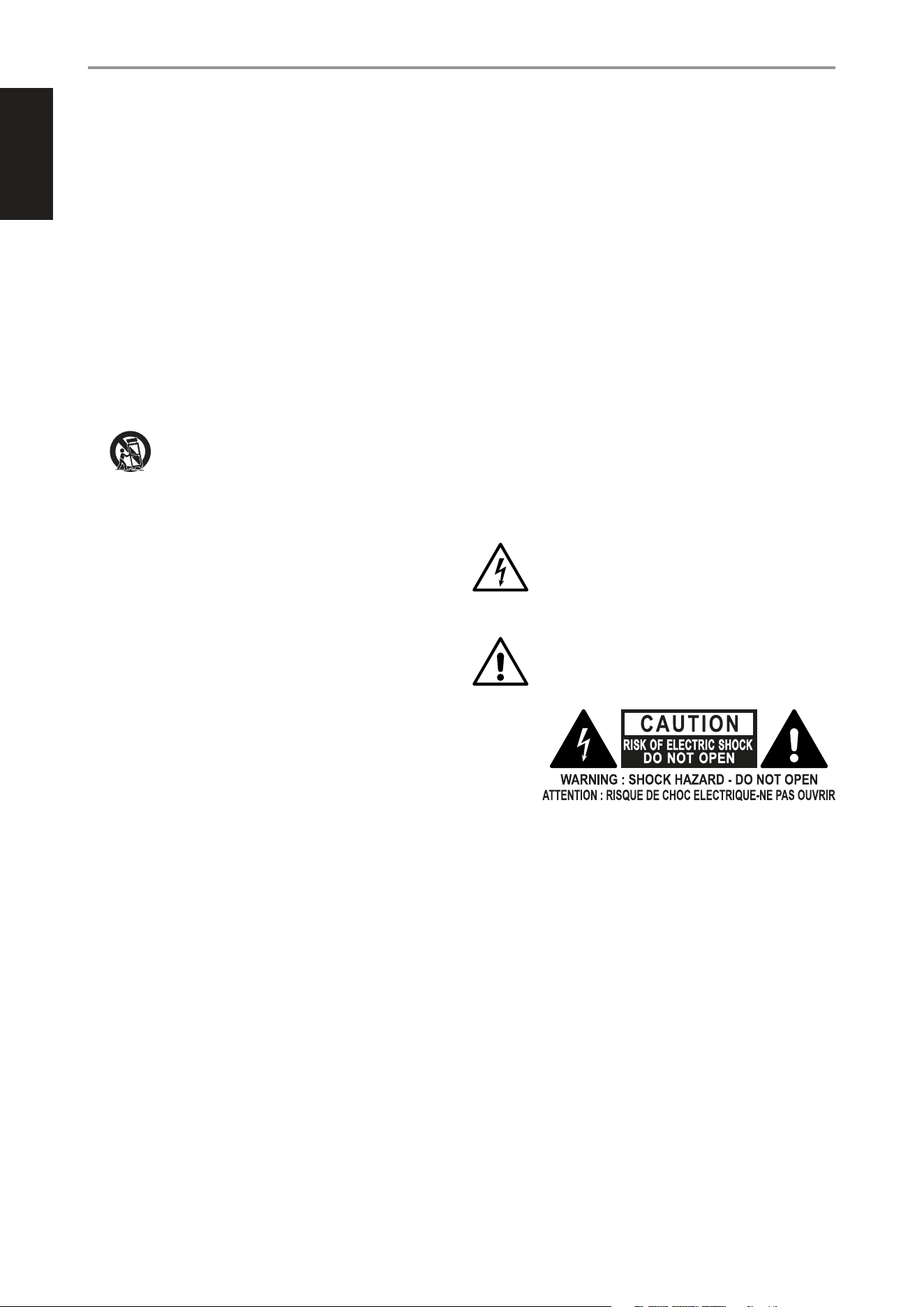
• Cart - A product and cart combination should be moved with care.
Quick stops, excessive force, and uneven surfaces may cause the
product and cart combination to overturn.
• Ventilation - Slots and openings in the cabinet are provided for ventilation
to ensure reliable operation of the product and to protect it from overheating.
These openings must not be blocked or covered. The openings should never be
blocked by placing the product on a bed, sofa, rug, or other similar surface. This
product should not be placed in a built-in installation such as a bookcase or rack
unless proper ventilation is provided or the manufacturer’s instructions have been
adhered to.
• Power Sources - This product should be operated only from the type of power
source indicated on the marking label and connected to a MAINS socket outlet
with a protective earthing connection. If you are not sure of the type of power
supply to your home, consult your product dealer or local power company.
• Power Cord Protection - Power-supply cords should be routed so that they
are not likely to be walked on or pinched by items placed upon or against them,
paying particular attention to cords at plugs, convenience receptacles, and the
point where they exit from the product.
• Mains Plug - Where the mains plug or an appliance coupler is used as the
disconnect device, the disconnect device shall remain readily operable.
• Outdoor Antenna Grounding - If an outside antenna or cable system is
connected to the product, be sure the antenna or cable system is grounded so
as to provide some protection against voltage surges and built-up static charges.
Article 810 of the National Electrical Code, ANSI/NFPA 70, provides information
with regard to proper grounding of the mast and supporting structure, grounding
of the lead-in wire to an antenna discharge unit, size of grounding conductors,
location of antenna discharge unit, connection to grounding electrodes, and
requirements for the grounding electrode.
• Lightning - For added protection for this product during a lightning storm, or
when it is left unattended and unused for long periods of time, unplug it from the
wall outlet and disconnect the antenna or cable system. This will prevent damage
to the product due to lightning and power-line surges.
• Power Lines - An outside antenna system should not be located in the vicinity
of overhead power lines or other electric light or power circuits, or where it can
fall into such power lines or circuits. When installing an outside antenna system,
extreme care should be taken to keep from touching such power lines or circuits
as contact with them might be fatal.
• Overloading - Do not overload wall outlets, extension cords, or integral
convenience receptacles as this can result in a risk of fire or electric shock.
• Flame Sources - No naked flame sources, such as lighted candles, should be
placed on the product.
• Object and Liquid Entry - Never push objects of any kind into this product
through openings as they may touch dangerous voltage points or short-out parts
that could result in a fire or electric shock. Never spill liquid of any kind on the
product.
• Headphones - Excessive sound pressure form earphones and headphones can
cause hearing loss.
• Damage Requiring Service - Unplug this product from the wall outlet and refer
servicing to qualified service personnel under the following conditions:
– When the power-supply cord or plug is damaged.
– If liquid has been spilled, or objects have fallen into the product.
– If the product has been exposed to rain or water.
– If the product does not operate normally by following the operating
instructions. Adjust only those controls that are covered by the operating
instructions as an improper adjustment of other controls may result in
damage and will often require extensive work by a qualified technician to
restore the product to its normal operation.
– If the product has been dropped or damaged in any way.
– When the product exhibits a distinct change in performance-this indicates a
need for service.
• Replacement Parts - When replacement parts are required, be sure the service
technician has used replacement parts specified by the manufacturer or have the
same characteristics as the original part. Unauthorized substitutions may result in
fire, electric shock, or other hazards.
• Battery Disposal - When disposing of used batteries, please comply with
governmental regulations or environmental public instruction’s rules that apply in
your country or area.
• Safety Check - Upon completion of any service or repairs to this product, ask the
service technician to perform safety checks to determine that the product is in
proper operating condition.
• Wall or Ceiling Mounting - The product should be mounted to a wall or ceiling
only as recommended by the manufacturer.
WARNING
THE LIGHTNING FLASH WITH ARROWHEAD SYMBOL, WITHIN AN
EQUILATERAL TRIANGLE, IS INTENDED TO ALERT THE USER TO THE
PRESENCE OF UNINSULATED “DANGEROUS VOLTAGE” WITHIN THE
PRODUCT’S ENCLOSURE THAT MAY BE OF SUFFICIENT MAGNITUDE
TO CONSTITUTE A RISK OF ELECTRIC SHOCK TO PERSONS.
THE EXCLAMATION POINT WITHIN AN EQUILATERAL TRIANGLE IS
INTENDED TO ALERT THE USER TO THE PRESENCE OF IMPORTANT
OPERATING AND MAINTENANCE SERVICING INSTRUCTIONS IN THE
LITERATURE ACCOMPANYING THE APPLIANCE.
CAUTION REGARDING PLACEMENT
To maintain proper ventilation, be sure to leave a space around the unit (from the
largest outer dimensions including projections) than is equal to, or greater than
shown below.
Left and Right Panels: 10 cm
Rear Panel: 10 cm
Top Panel: 10 cm
IMPORTANT SAFETY INSTRUCTIONS
ENGLISH
NAD® is a trademark of NAD Electronics International.
NAD Electronics International is a division of Lenbrook Industries Limited. ©NAD, All Rights Reserved
3
FCC STATEMENT
This equipment has been tested and found to comply with the limits for Class
B digital device, pursuant to Part 15 of the FCC Rules. These limits are designed
to provide reasonable protection against harmful interference in a residential
installation. This equipment generates, uses, and can radiate radio frequency
energy and, if not installed and used in accordance with the instructions, may cause
harmful interference to radio communications. However, there is no guarantee that
interference will not occur in a particular installation. If this equipment does cause
harmful interference to radio or television reception, which can be determined
by turning the equipment off and on, the user is encouraged to try to correct the
interference by one or more of the following measures:
• Reorient or relocate the receiving antenna.
• Increase the separation between the equipment and receiver.
• Connect the equipment into an outlet on a circuit different from that to which
the receiver is connected.
• Consult the dealer or an experienced radio TV technician for help.
CAUTION
• Changes or modifications to this equipment not expressly approved by NAD
Electronics for compliance could void the user’s authority to operate this
equipment.
• This device complies with Part 15 of the FCC Rules / Industry Canada licence-
exempt RSS standard(s). Operation is subject to the following two conditions:
1 This device may not cause harmful interference, and
2 This device must accept any interference received, including interference that
may cause undesired operation.
• Under Industry Canada regulations, this radio transmitter may only operate
using an antenna of a type and maximum (or lesser) gain approved for the
transmitter by Industry Canada. To reduce potential radio interference to other
users, the antenna type and its gain should be so chosen that the equivalent
isotropically radiated power (e.i.r.p.) is not more than that necessary for successful
communication.
• To prevent electric shock, match wide blade of plug to wide slot, fully insert.
• Marking and rating plate can be found at the rear panel of the apparatus.
• To reduce the risk of fire or electric shock, do not expose this apparatus to rain or
moisture. The apparatus shall not be exposed to dripping or splashing and that
no objects filled with liquids, such as vases, shall be placed on apparatus.
• Mains plug is used as disconnect device and it should remain readily operable
during intended use. In order to disconnect the apparatus from the mains
completely, the mains plug should be disconnected from the mains socket outlet
completely.
• An appliance with a protective earth terminal should be connected to a mains
outlet with a protective earth connection.
• Battery shall not be exposed to excessive heat such as sunshine, fire or the like.
• Danger of explosion if battery is incorrectly replaced. Replace only with the same
or equivalent type.
• Battery cannot be subjected to high or low extreme temperatures, low air
pressure at high altitude during use, storage or transportation.
• Replacement of a battery with an incorrect type that can result in an explosion or
the leakage of flammable liquid or gas.
• Disposal of a battery into fire or a hot oven, or mechanically crushing or cutting of
a battery, that can result in an explosion.
• Leaving a battery in an extremely high temperature surrounding environment
that can result in an explosion or the leakage of flammable liquid or gas.
• A battery subjected to extremely low air pressure that may result in an explosion
or the leakage of flammable liquid or gas.
MPE REMINDER
To satisfy FCC/IC RF exposure requirements, a separation distance of 20 cm or more
should be maintained between the antenna of this device and persons during
device operation. To ensure compliance, operations at closer than this distance is not
recommended.
IF IN DOUBT CONSULT A COMPETENT ELECTRICIAN.
RESPONSIBLE PARTY
Lenbrook International
633 Granite Court
Pickering, ON L1W 3K1
Canada
Tel: 1 905 8316555
This product is manufactured to comply with the radio interference
requirements of EEC DIRECTIVE 2004/108/EC.
NOTES ON ENVIRONMENTAL PROTECTION
At the end of its useful life, this product must not be disposed of with
regular household waste but must be returned to a collection point
for the recycling of electrical and electronic equipment. The symbol
on the product, user’s manual and packaging point this out.
The materials can be reused in accordance with their markings.
Through re-use, recycling of raw materials, or other forms of recycling of old products,
you are making an important contribution to the protection of our environment.
Your local administrative office can advise you of the responsible waste disposal point.
INFORMATION ABOUT COLLECTION AND DISPOSAL OF WASTE BATTERIES
(DIRECTIVE 2006/66/EC OF THE EUROPEAN PARLIAMENT AND THE COUNCIL
OF EUROPEAN UNION) (FOR EUROPEAN CUSTOMERS ONLY)
Batteries bearing any of these symbols indicate that
they should be treated as “separate collection” and not
as municipal waste. It is encouraged that necessary
measures are implemented to maximize the separate
collection of waste batteries and to minimize the
disposal of batteries as mixed municipal waste.
End-users are exhorted not to dispose waste batteries
as unsorted municipal waste. In order to achieve a
high level of recycling waste batteries, discard waste
batteries separately and properly through an accessible
collection point in your vicinity. For more information about collection and recycling
of waste batteries, please contact your local municipality, your waste disposal service
or the point of sale where you purchased the items.
By ensuring compliance and conformance to proper disposal of waste batteries,
potential hazardous effects on human health is prevented and the negative impact of
batteries and waste batteries on the environment is minimized, thus contributing to
the protection, preservation and quality improvement of the environment.
IMPORTANT SAFETY INSTRUCTIONS

ENGLISH
INTRODUCTION
TABLE OF CONTENTS
4
IMPORTANT SAFETY INSTRUCTIONS ........................ 2
INTRODUCTION
GETTING STARTED ...............................................5
WHAT’S IN THE BOX ..................................................5
CHOOSING A LOCATION .............................................5
RESTORING C 379 TO FACTORY DEFAULT SETTINGS ..................5
FORCE FACTORY RESET ...............................................5
IDENTIFICATION OF CONTROLS
FRONT PANEL ....................................................6
REAR PANEL .....................................................7
MDC2 UPGRADE SLOTS ..............................................9
MDC2 BLUOSD ......................................................9
SR 10 REMOTE CONTROL ........................................10
USING THE SR 10 REMOTE CONTROL LIBRARY ...................... 12
RESET SR 10 TO ITS FACTORY DEFAULT SETTINGS .................. 13
OPERATION
USING C 379 ....................................................14
ACCESS MAIN MENU ............................................... 14
SETTINGS ........................................................... 14
TONE CONTROL .................................................... 14
BASS, TREBLE, BALANCE ............................................ 14
AUTO STANDBY .................................................... 15
BLUETOOTH MODE ................................................. 15
NETWORK STANDBY ............................................... 16
CEC POWER ........................................................ 16
IR CHANNEL ........................................................ 16
BRIGHTNESS ........................................................ 17
TEMPORARY DISPLAY .............................................. 17
SPEAKER ............................................................ 17
VOLUME DISPLAY MODE ........................................... 17
VOLUME LIMITS .................................................... 17
SOURCE SETUP ..................................................... 17
ENABLE SOURCE ................................................... 18
NAME .............................................................. 18
VOLUME CONTROL ................................................. 18
HOW TO NAVIGATE VOLUME CONTROL LEVEL SETTING ............ 18
AUTO SENSE ........................................................ 19
ANALOG BYPASS ................................................... 19
ANALOG GAIN ...................................................... 19
SYSTEM INFO ...................................................... 19
REFERENCE
SPECIFICATIONS ................................................... 21

ENGLISH
WHAT’S IN THE BOX
Packed with your C 379 you will find
• Two detachable mains power cord
• SR 10 remote control with 2 AA batteries
• Bluetooth antenna
• Quick Setup Guide
SAVE THE PACKAGING
Please save the box and all of the packaging in which your C 379 arrived.
Should you move or need to transport your C 379, this is the safest
container in which to do so. We’ve seen too many otherwise perfect
components damaged in transit for lack of a proper shipping carton so,
please: Save that box!
CHOOSING A LOCATION
Choose a location that is well ventilated (with at least several inches to
both sides and behind), and that will provide a clear line of sight, within
25 feet / 8 meters, between the C 379’s front panel and your primary
listening/viewing position—this will ensure reliable infrared remote control
communications. The C 379 generates a modest amount of heat, but
nothing that should trouble adjacent components.
RESTORING C 379 TO FACTORY DEFAULT SETTINGS
Press and hold both front panel’s a SOURCE s buttons until the display
shows the following two reset options. Use a or s buttons to select
through the options.
• Factory Reset MCU? : Restore MCU factory default settings only
• Factory Reset BluOS? : Restore BluOS factory default settings only.
This option is available only if the optional MDC2 BluOS D is installed.
Press [ENTER] to select “Yes” and initiate selected Factory Reset option.
IMPORTANT
Restoring C 379 to factory default settings will delete all applicable
congured or saved settings.
FORCE FACTORY RESET
1 Switch OFF rear panel POWER switch. Leave the unit powered down for
at least 5 seconds.
2 Press and hold rear panel RESET button and then switch ON the rear
panel POWER switch.
3 Continue hold of the rear panel RESET button. Front panel display will
show
SERVICE MODE
PLEASE WAIT
4 Do not release hold of the rear panel RESET button. Continue hold of
the rear panel RESET button for at least 30 seconds or until the front
panel display shows
SERVICE MODE
PERFORMING FACTORY RESET
Release hold of the rear panel RESET button.
5 Unit will reboot and stay in Standby mode (amber). Unit is restored to
factory default settings.
NOTE
Force factory reset does not include resetting the MDC2 BluOS D card if
installed.
INTRODUCTION
GETTING STARTED
5
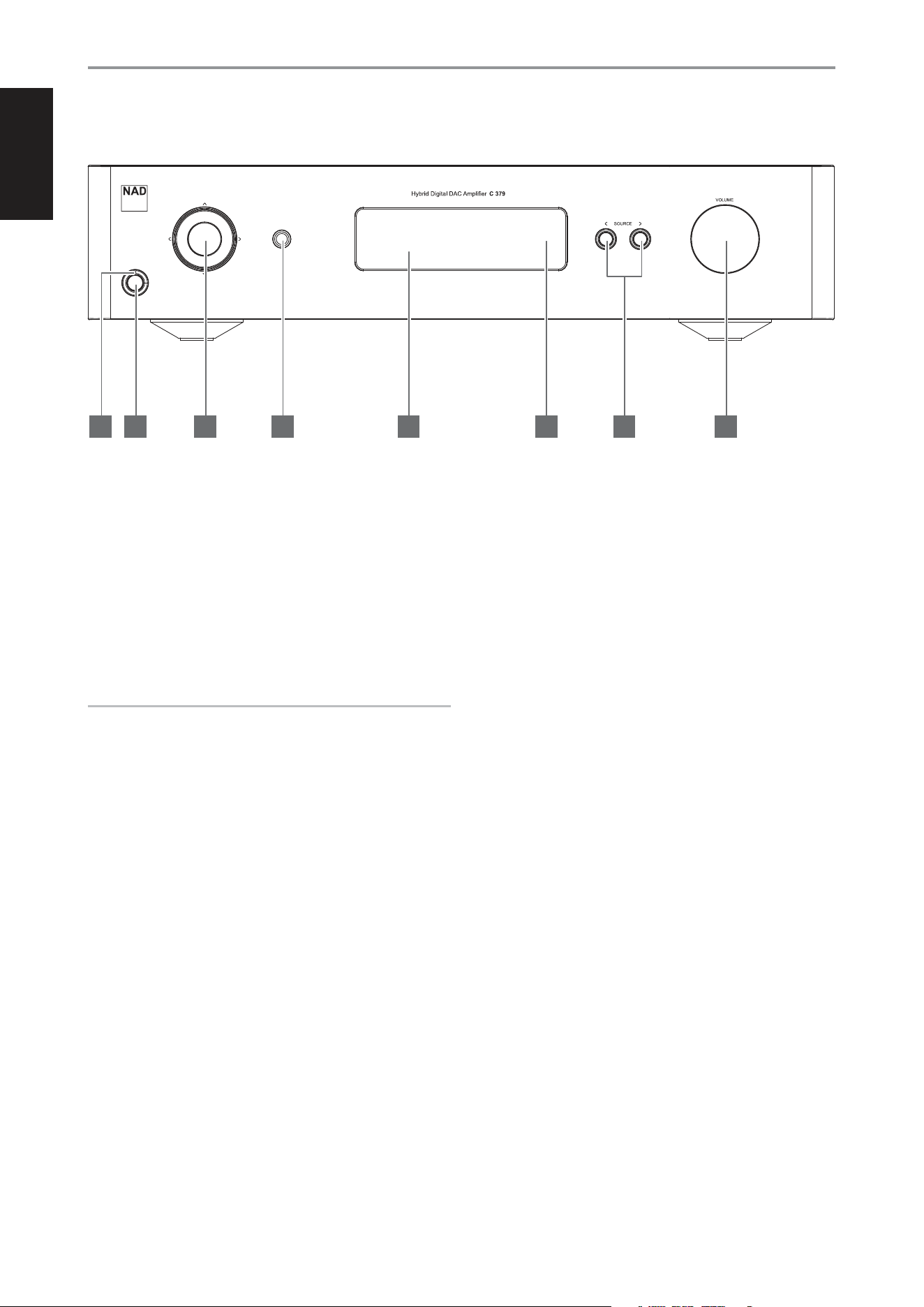
ENGLISH
1 POWER INDICATOR
• This indicator will be amber when the C 379 is in standby mode.
• When the C 379 is powered up from standby mode, this indicator
will change from amber to blue color.
2 STANDBY BUTTON
• Press Standby button to switch ON the C 379 from standby mode.
The Power indicator will change from amber to blue color.
• Pressing Standby button again switches back C 379 to standby
mode. The Power indicator will change from blue to amber color.
• The Standby button cannot activate the C 379 if the rear panel
POWER switch is off.
IMPORTANT NOTES
Conditions for Standby button to activate
a Plug one end of the supplied power cord into a mains power outlet,
making sure the other end is rmly connected to C 379’s AC Mains
input socket.
b The rear panel POWER switch must be set to ON.
3 NAVIGATION AND ENTER BUTTONS
• The navigation [d/f/a/s] and [ENTER] buttons are used to go
through menu options and selections.
• Use [d/f/a/s] to go up, down, left or right the given options or
selections.
• The middle round button is designated as [ENTER] button. This is
normally pressed to complete a selection, procedure, sequence or
other applicable functions.
4 HEADPHONES
• A 1/4” stereo jack socket is supplied for headphone listening and
will work with conventional headphones of any impedance.
• The volume, tone and balance controls are operative for
headphone listening. Use a suitable adapter to connect
headphones with other types of sockets, such as 3.5mm “personal
stereo” jack plugs.
5 DISPLAY
• Visual and menu information are shown according to the selected
settings.
• The following Main menu options are selectable from the display –
Settings, Source Setup and System Info.
• Use the SR 10 remote control or front panel navigation [d/f/a/s]
and [ENTER] buttons to go through menu options and selections.
6 REMOTE SENSOR
• Point the SR 10 remote control at the remote sensor and press the
buttons.
• Do not expose the remote sensor of the C 379 to a strong light
source such as direct sunlight or illumination. If you do so, you may
not be able to operate the C 379 with the remote control.
Distance: About 23ft (7m) from the front of the remote sensor.
Angle: About 30° in each direction of the front of the remote sensor.
7 a SOURCE s
• Press a SOURCE or SOURCE s to select Sources.
8 VOLUME
• The VOLUME control adjusts the overall loudness of the signal sent
to the speakers. The Volume control is characterized by perfect
signal tracking and channel balance. It provides a highly linear and
low noise operation.
• Turn clockwise to increase the volume level and counterclockwise
to lower it.
• The default volume level is -40 dB.
• Volume level will wake up and reset to the -40 dB default setting if
the unit goes to standby mode with a variable volume level higher
than -40 dB. However, if volume level is lower than -40 dB when
the unit goes to standby mode, that level setting will be preserved
when the unit wakes up.
IDENTIFICATION OF CONTROLS
FRONT PANEL
6
7654321 8
ENGLISH
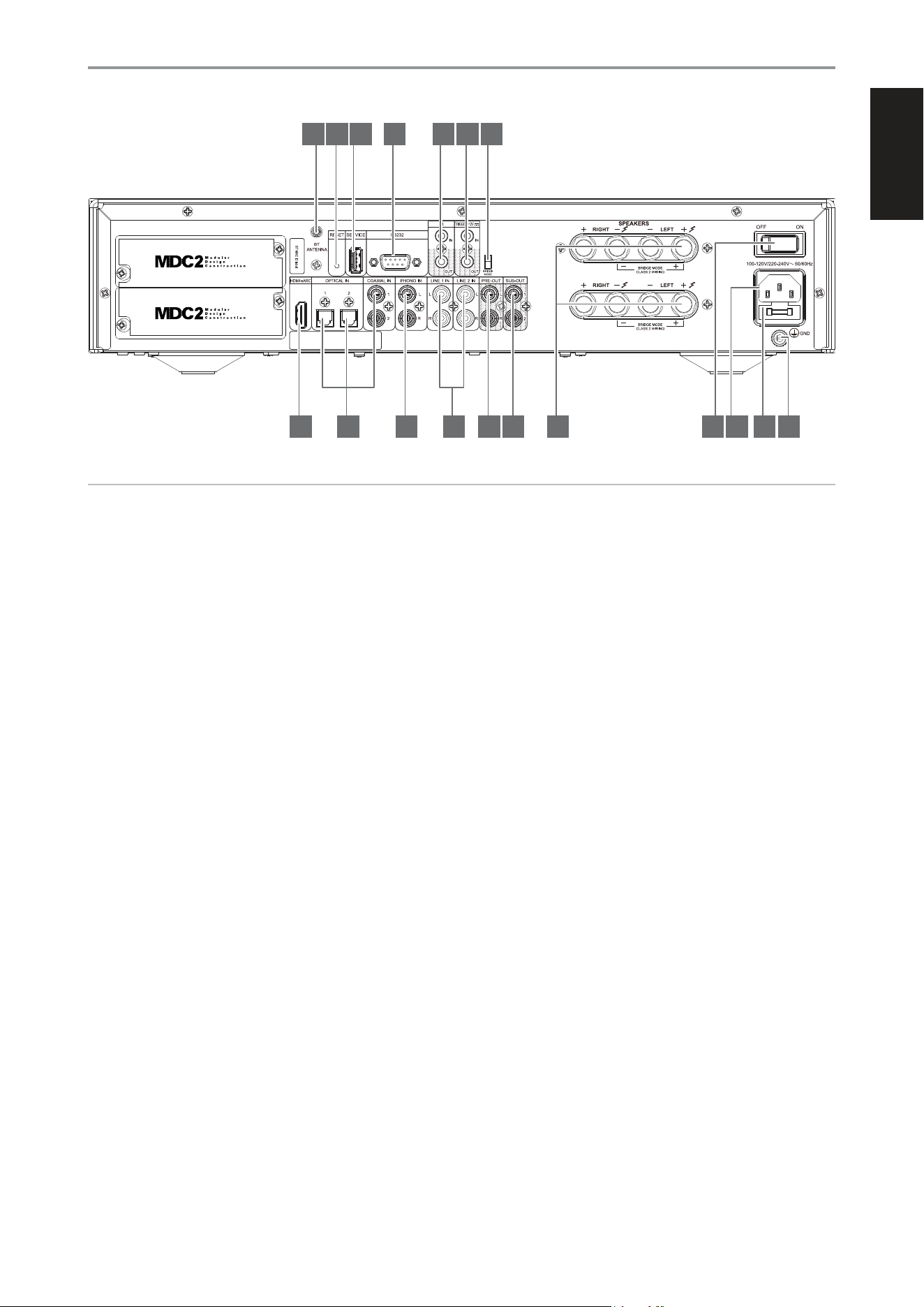
1 BLUETOOTH ANTENNA TERMINAL
• Install supplied Bluetooth antenna to this Bluetooth antenna
terminal.
2 RESET
• It is not recommended to use RESET button unless necessary. Use
the RESET function button when everything else fails and the unit
may not be able to recover.
• Switched OFF the rear panel POWER switch. Press and hold the
RESET button and switch ON the rear panel POWER switch. There
will be two scenarios as you hold on to the RESET button
- Hold on to the RESET button for less than 30 seconds: Initiate
chassis USB stick Upgrade or BluOS MDC card upgrade if a
BluOS card is installed.
- Hold on to the RESET button for more than 30 seconds: Initiate
chassis factory reset.
• Contact your nearest service center for further guidance on how to
use RESET function button.
3 SERVICE
• Use for USB firmware update. Contact your nearest service center
for firmware update guidance.
4 RS 232
NAD is a certified partner of AMX and Crestron and fully supports
these external devices. Check out the NAD website for information
about AMX and Crestron compatibility with NAD. See your NAD audio
specialist for more information.
• Connect this interface using RS-232 serial cable (not supplied) to
any Windows compatible PC to allow remote control of the C 379
via compatible external controllers.
• Refer to the NAD website for information about RS232 Protocol
documents and PC interface program.
5 IR IN/IR OUT
• These mini-jacks accept and output remote-controlled codes in
electrical format, using industry-standard protocols, for use with
“IR-repeater” and multi-room systems and related technologies.
• All NAD products with IR IN/IR OUT features are fully compatible
with the C 379. For non-NAD models, consult the service specialists
for those products to verify compatibility with the C 379’s IR
features.
IR IN
• This input is connected to the output of an IR (infrared) repeater
(Xantech or similar) or the IR output of another compatible device
to allow control of the C 379 from a remote location.
IR OUT
• Connect IR OUT to the IR IN jack of a compatible device.
• Command and control the linked compatible device by directing its
own remote control to C 379’s infrared receiver.
6 +12V TRIGGER
+12V TRIGGER OUT
• The +12V TRIGGER OUT is used for controlling external equipment
equipped with a +12V trigger input.
• Connect this +12V TRIGGER OUT to the other equipment’s
corresponding +12V DC input jack using a mono or stereo cable
with 3.5mm male plug.
• This output will be 12V when the C 379 is ON and 0V when it is
either OFF or in standby mode.
IDENTIFICATION OF CONTROLS
REAR PANEL
7
ON (MONO)
OFF (STEREO)
1716
6 7
15
5
11 12 13 14
4
10
3
9
2
8
1
18
ATTENTION!
Please ensure that the C 379 is powered o or unplugged from the mains power outlet before making any connections. It is also advisable to power down
or unplug all associated components while making or breaking any signal or AC power connections.

ENGLISH
IDENTIFICATION OF CONTROLS
REAR PANEL
8
+12V TRIGGER IN
• With this input triggered by a 12V DC supply, the C 379 can be
switched ON remotely from standby mode by compatible devices
such as amplifiers, preamplifiers, receivers, etc. If the 12V DC supply
is cut off, the C 379 will return to standby mode.
• Connect this +12V Trigger input to the remote device’s
corresponding +12V DC output jack using a mono or stereo cable
with 3.5mm male plug. The controlling device must be equipped
with a +12V trigger output to use this feature.
NOTE
If there is a mono or stereo jack connected to +12V TRIGGER IN, the
C 379 cannot be powered ON/OFF using the front panel Standby button
or SR 10’s ON/OFF buttons. The mono or stereo jack has to be unplugged
to resume normal powering up of the unit via front panel Standby
button or SR 10’s ON/OFF buttons.
7 BRIDGE MODE
The C 379 amplifier can be set up in MONO (Bridge Mode), which more
than doubles its output power. This configuration allows the C 379
to be integrated into a high-power stereo or home theater system by
connecting additional power amplifiers.
• In BRIDGED mode (switch at ON (MONO) setting), the C 379 will
produce approximately 300W into an 8 ohm loudspeaker. In this
mode, the amplifier sections will react as though the speaker
impedance has been halved. Low impedance speakers (under 8
ohms) are not recommended when using Bridge Mode as these
may cause the amplifier’s thermal cut-out to operate if played at
high levels.
• Set the BRIDGE MODE switch to ON (MONO) position and connect
the speaker to the terminals marked “L +” and “R-” ensuring that
the “L+” is connected to the “+” terminal of your speaker and “R-” is
connected to the speaker’s “ - ” terminal.
• Connect the source to the Left input sockets only. Do not connect
anything to the Right Input socket when Bridge Mode is selected.
• Set BRIDGE MODE switch to OFF (STEREO) for normal stereo mode
operation.
8 HDMI eARC
• Connect to TV that supports HDMI Control (CEC) and Enhanced
Audio Return Channel (eARC) functions. HDMI CEC or eARC
functions are possible if external devices that also support these
features are interconnected with C 379 via HDMI connection.
• Use HDMI cable to connect HDMI eARC to corresponding HDMI
eARC port of TV. Use HDMI cable that has Ultra High Speed HDMI
Certification Label to enjoy support for larger bandwidth and high
bitrate format.
• With eARC connection established, C 379 will output audio signal
from TV.
IMPORTANT
• Ensure that the audio setting/format of eARC-connected devices to
C 379 is set to PCM only.
• Only audio output signal from TV is supported by HDMI eARC port.
• There is no video output at HDMI eARC port of C 379.
9 OPTICAL IN 1-2/COAXIAL IN 1-2
• Connect to corresponding optical and coaxial digital output of
sources such as CD or BD/DVD players, digital cable box, digital
tuners and other applicable components.
10 PHONO IN
• Input for a Moving Magnet (MM) phono cartridge only. Connect the
twin RCA-to-RCA lead from your turntable to this input if you are
using a Moving Magnet cartridge.
• If your turntable includes a ground/earth lead, it can be connected
to the Ground Terminal (refer to item 18 below).
11 LINE 1-2 IN
• Input for line level sources such as CD player, tuner or any
compatible devices. Use a twin RCA-to-RCA lead to connect the
source device’s left and right “Audio Output” to these line input
ports.
12 PRE-OUT
• Use dual RCA-to-RCA cable to connect PRE-OUT to corresponding
analog audio input of compatible devices such as amplifiers,
receivers or other applicable devices. This makes it possible to use
C 379 as a pre-amplifier to such devices.
13 SUB-OUT 1, 2
• Connect SUB-OUT 1 and/or 2 to low level input of corresponding
powered subwoofer.
• Anything below your crossover setting (accessible via BluOS
Controller App with optional MDC2 BluOS D installed) will be sent
out via SUB OUT. Default crossover setting is 80Hz.
14 SPEAKERS
• The C 379 has two sets of SPEAKER connections that are identical in
function (parallel connection).
• Connect C 379’s Right speaker terminals marked “R +” and “R-” to
the corresponding “+” and “-“ terminals of your designated right
speaker. Repeat the same for C 379’s Left speaker terminals and
corresponding left speaker.
• Double check the speaker connections before powering up the
C 379.
IMPORTANT NOTES
• The blue terminals must never be connected to ground (earth).
• Never connect the blue terminals together or to any common ground
device.
• Do not connect the output of this amplier to any headphone adapter,
speaker switch or any device that uses common ground for left and
right channels.
15 POWER
• Supplies the AC mains power to C 379.
• When the POWER switch is set to ON position, the C 379 goes to
standby mode as shown by the amber status condition of the front
panel Power indicator.
• Press the front panel Standby button or SR 10’s remote control’s
[ON] button to switch ON the C 379 from standby mode.
• If you do not intend to use the C 379 for long periods of time (such
as when on vacation), switch off the POWER switch.
• With POWER switched off, neither the front panel Standby button
nor SR 10 remote control’s [ON] button can activate the C 379.
16 AC MAINS INPUT
• The C 379 comes supplied with two separate mains power cords.
Select the mains power cord appropriate for your region.
• Before connecting the plug to the mains power outlet, ensure that
it is firmly connected to the C 379’s AC Mains input socket.
• Always disconnect the mains power plug from the mains power
outlet before disconnecting the cable from the C 379’s AC Mains
input socket.
ENGLISH
17 FUSE HOLDER
• Only qualified NAD service technicians can have access to this fuse
holder. Opening this fuse holder may cause damage thus voiding
the warranty of your C 379.
18 GROUND TERMINAL
• Ensure that the C 379 is plugged-in to a grounded AC wall outlet.
• If necessary, use this ground terminal to connect to ground a
phono or turntable source for PHONO input.
• If a separate earth ground is necessary, use this terminal to ground
your C 379. The C 379 can be connected to ground by connecting
a ground lead wire or similar to this terminal. After insertion, tighten
the terminal to secure the lead.
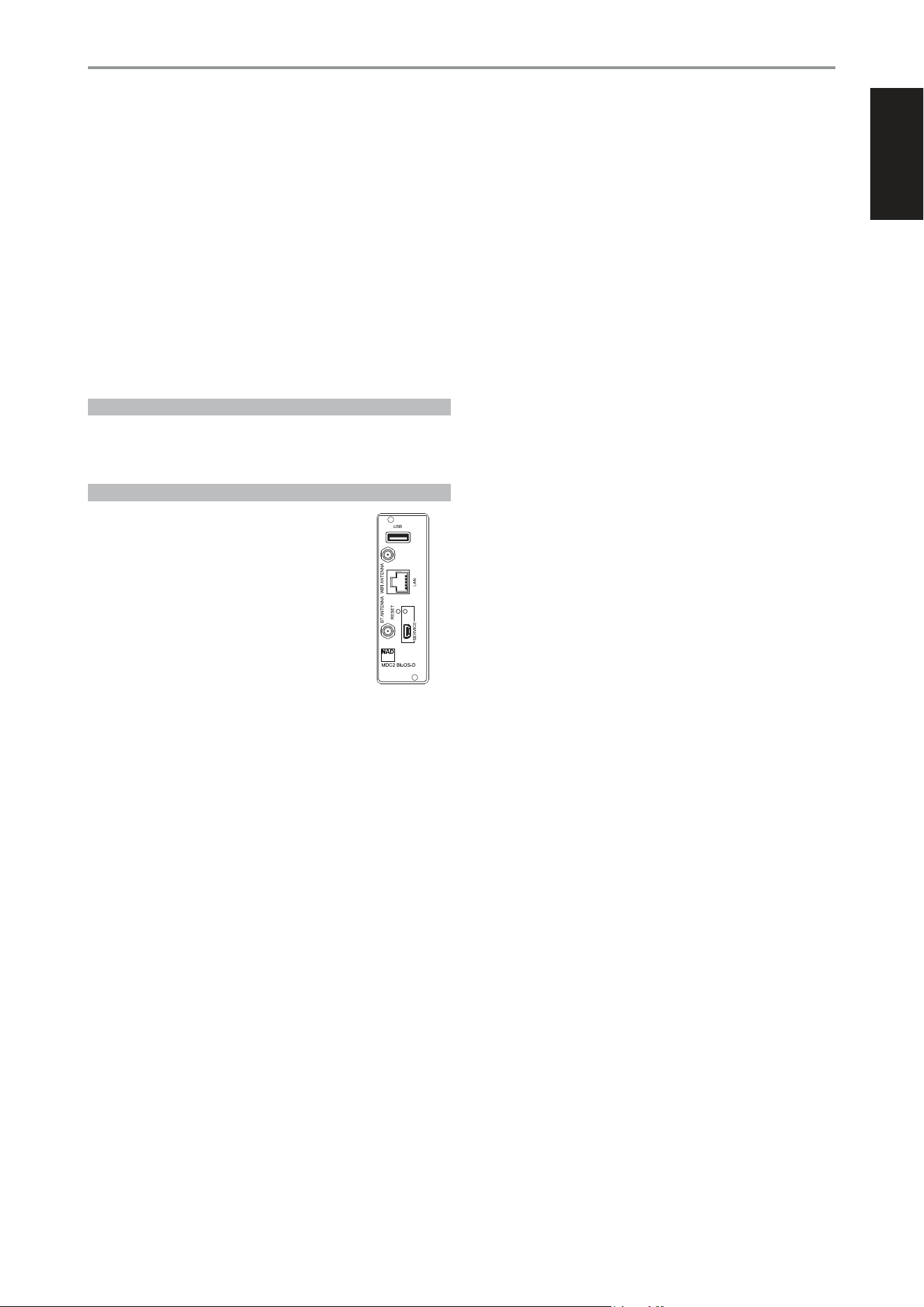
MDC2 UPGRADE SLOTS
C 379 supports NAD’s MDC2 architecture. By enabling two-way
communications between the module and component, MDC2 opens up
the future for new upgrades.
MDC2 BLUOSD
The optional MDC2 BluOS-D module lets listeners play
music from their favourite streaming services through
the C 379. MDC2 BluOS-D is equipped with Wi-Fi and
Ethernet and uses the acclaimed BluOS Controller app
for Android, iOS, macOS, and Windows.
Like all BluOS-enabled products, the MDC2 BluOS-D
has integrated support for dozens of streaming services
and supports Apple AirPlay 2, Spotify Connect, and Tidal
Connect. Two-way communications also enable the
MDC2 BluOS-D to stream music from sources connected
to the C 379 to BluOS-enabled components in other rooms.
The MDC2 BluOS-D comes with Dirac Live® Limited Bandwidth (20Hz –
500Hz) installed with the option for advanced users to upgrade to the
Dirac Live Full Frequency version. Dirac Live function lets you measure
your room’s acoustics using a supplied microphone and intuitive app, and
then upload correction curves to the MDC2 BluOS-D. By compensating for
acoustic anomalies in your listening environment, Dirac Live dramatically
improves bass clarity, imaging, and timbral accuracy.
Thanks to its two-way architecture, the MDC2 BluOS-D performs room
correction for all sources connected to your C 379. For Dirac Live Setup
guidelines, go to support.nadelectronics.com and search for “Dirac
Setup”.
IDENTIFICATION OF CONTROLS
REAR PANEL
9
ENGLISH
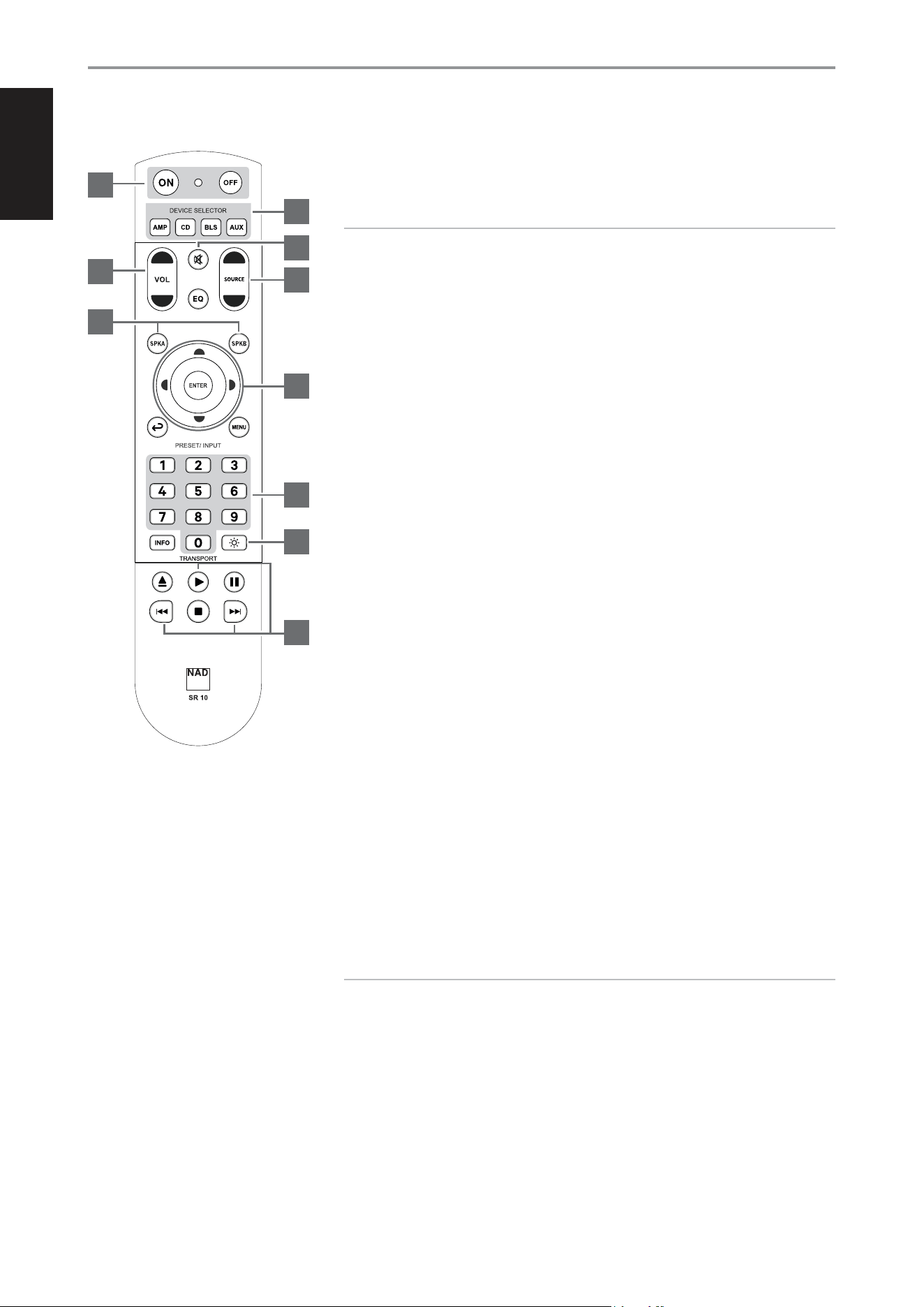
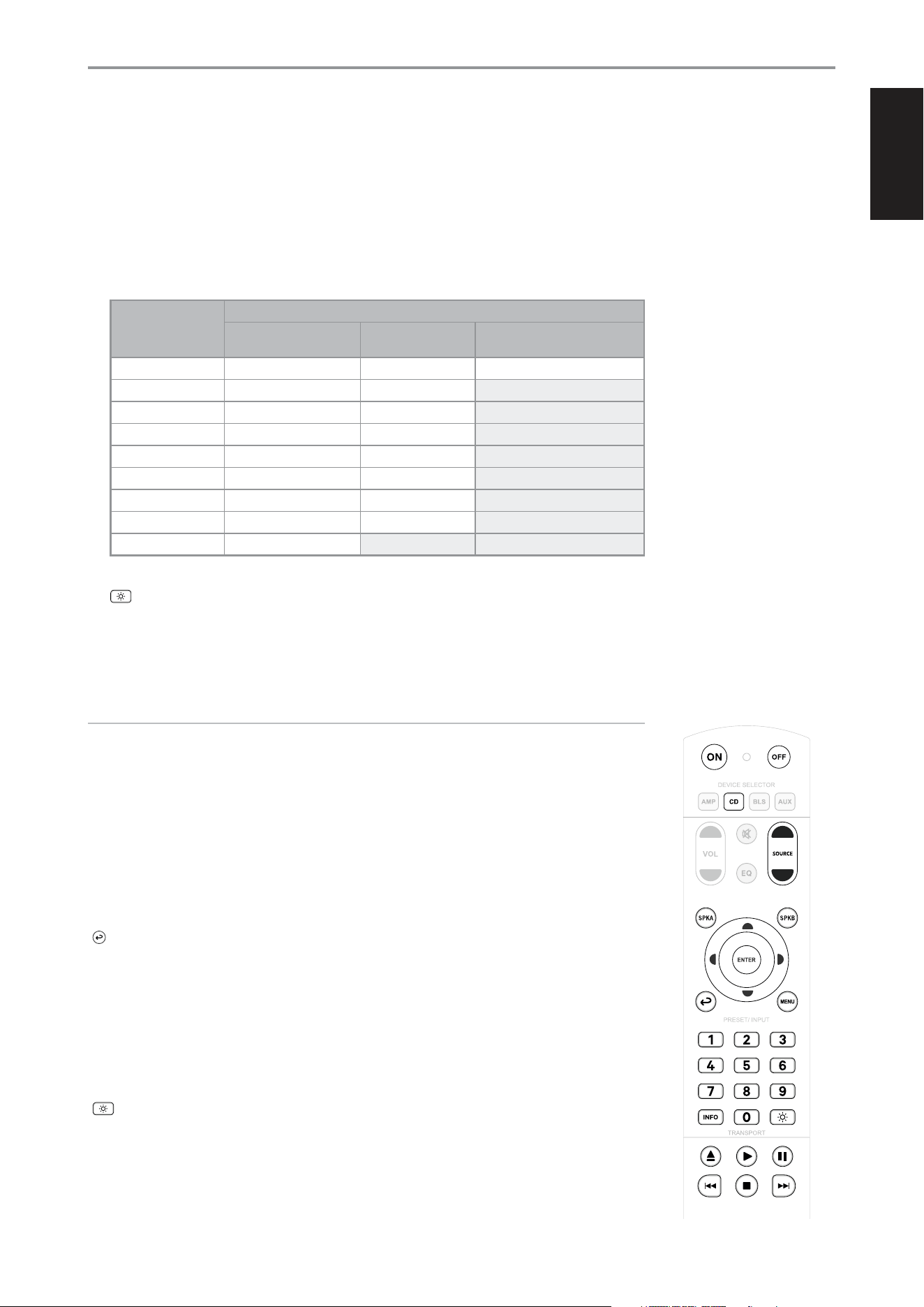
The SR 10 remote control handset handles the key functions of the C 379. It can also control up to
4 devices. SR 10 will operate up to a distance of 23ft (7m). Two AA batteries should be fitted in the
battery compartment at the rear of the remote control handset. Ensure that the batteries are correctly
oriented and installed as indicated on the base of the battery compartment.
NOTES
• SR 10 function buttons not discussed, designated or highlighted indicate they are not applicable or
functional for the particular device.
• The LED indicator between ON and OFF buttons will ash blue whenever a control button is pressed.
Select AMP from the DEVICE SELECTOR buttons to initiate the following C 379 remote control commands.
1 ON/OFF: The SR 10 remote has separate ON and OFF buttons. Press ON to switch C 379 from
Standby to operating mode. Press OFF to switch to Standby mode.
2 DEVICE SELECTOR: A Device Selector button determines only what component the SR 10 will
command; it does not perform any function on the C 379. Press desired Device Selector button
for the applicable buttons to be directed to a “page” of commands relevant to the selected device.
Upon selecting a Device, you can now press the corresponding SR 10 control buttons applicable
for the selected Device.
3 MUTE: Press MUTE button to temporarily switch OFF sound to the speakers and headphones.
MUTE mode is indicated by “Mute” shown in the front panel display. Press MUTE again to restore
sound. Adjusting the volume level via the SR 10 or the front panel volume knob will automatically
release the mute function.
4 VOL [D/F]: Press [D/F] button to increase or decrease volume level. Release the button when
the desired level is reached.
5 SOURCE [D/F]: Toggle through Source input selections. If the optional MDC2 BluOS D module is
installed, the Source selections will include Sources incorporated with the MDC2 BluOS D module.
6 SPK A, SPK B: The C 379 has two sets of SPEAKERS connections that are identical in function
(parallel connection). Toggle either SPK A or SPK B to switch ON or OFF SPEAKERS output at the
same time.
7 NAVIGATION AND ENTER BUTTONS: Use [d/f/a/s] to go up, down, left or right menu options or
selections. Press ENTER to complete a selection, procedure, sequence or other applicable functions.
8 SOURCE INPUT SELECTOR: The numeric buttons allow for direct selection of Source input. Press
corresponding number button to directly select Source.
IDENTIFICATION OF CONTROLS
SR 10 REMOTE CONTROL
10
1 Optical 1
2 Optical 2
3 Coaxial 1
4 Coaxial 2
5 Phono
6 Line 1
7 Line 2
8 HDMI eARC
9 Bluetooth
IMPORTANT NOTES
There are 9 maximum Sources with discrete IR codes and they are mapped out to SR 10 remote
control Source Input Selector buttons 1 – 9.
• If the optional MDC2 BluOS D module is installed, the chassis Bluetooth is disabled or becomes
non-functional.
• With the optional MDC2 BluOS D installed, Source Input Selector “9” becomes assigned to
“BluOS”.
• USB and Bluetooth Sources that are incorporated in the MDC2 BluOS D are accessible via the
BluOS App.
3
1
4
2
5
9
8
7
6
10
ENGLISH
• Referring to below table, Optical 2 and Phono Sources were disabled under “MDC2 BluOS D Installed with
some Sources disabled” column.
With Optical 2 and Phono Sources disabled, the Source Input Selector button allocations will shift to show only
enabled Sources. Coaxial 1 will now move up or be assigned to “2”, Coaxial 2 shifted to “3”, Line 1 to “4” and so
on.
• It is your prerogative which Sources to disable with the expectation that the Source Input Selector buttons will
be re-assigned accordingly.
SR 10 CONTROL
BUTTON
(AMP MODE)
CORRESPONDING SOURCE
C 379 Default Settings
MDC2 BluOS D
Installed
MDC2 BluOS D Installed with
some Sources disabled
1 Optical 1 Optical 1 Optical 1
2 Optical 2 Optical 2 Coaxial 1
3 Coaxial 1 Coaxial 1 Coaxial 2
4 Coaxial 2 Coaxial 2 Line 1
5 Phono Phono Line 2
6 Line 1 Line 1 HDMI eARC
7 Line 2 Line 2 BluOS
8 HDMI eARC HDMI eARC Unassigned
9 Bluetooth BluOS Unassigned
9 : Toggle to vary brightness level of the front panel display - brighter, normal or dimmer.
10 With optional MDC2 BluOS D installed and while at BluOS Source, select
u: Toggle to start or pause playback
9 : Skip back to the beginning of current song
: : Skip forward to the next song
NOTE
Applicable only if optional MDC2 BluOS D is installed.
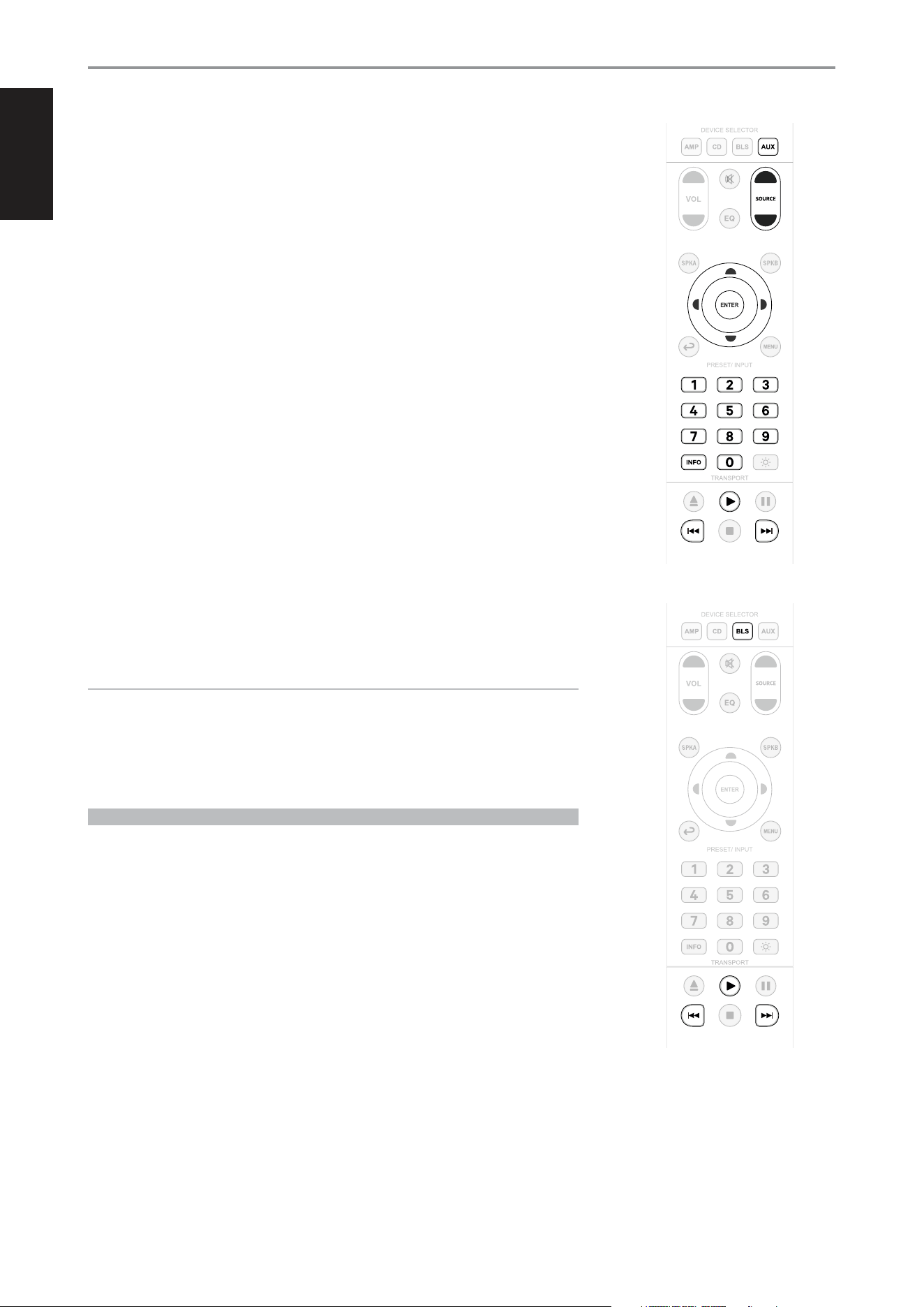
CD PLAYER CONTROL (applicable to most NAD CD Players): Select CD among the DEVICE SELECTOR buttons to
gain access to the following applicable control buttons. Check the owner’s manual of your applicable NAD CD Player
for control button compatibility.
ON/OFF: Press ON to switch CD player from Standby to operating mode. Press OFF to switch to Standby mode.
SOURCE [D/F]: Press and hold to fast forward/reverse playback search
SPK A: Select CD as the active source
SPK B: Select USB as the active source
: Select Optical as the active source
MENU: Toggle to select desired SRC mode
NUMERIC BUTTONS (1-9, 0): Use the numeric buttons to directly key-in and select track number of desired song
D/F: Select through folders
A/S: Select through files
ENTER: Select desired folder or file
INFO: Show playback time and other display information
: Reduce, turn off or restore display brightness
k: Open/close disc tray
u: Start or pause playback
j: Pause playback temporarily
9: Skip back to the beginning of current song
0: Skip forward to the next song
g: Stop playback
IDENTIFICATION OF CONTROLS
SR 10 REMOTE CONTROL
11
ENGLISH
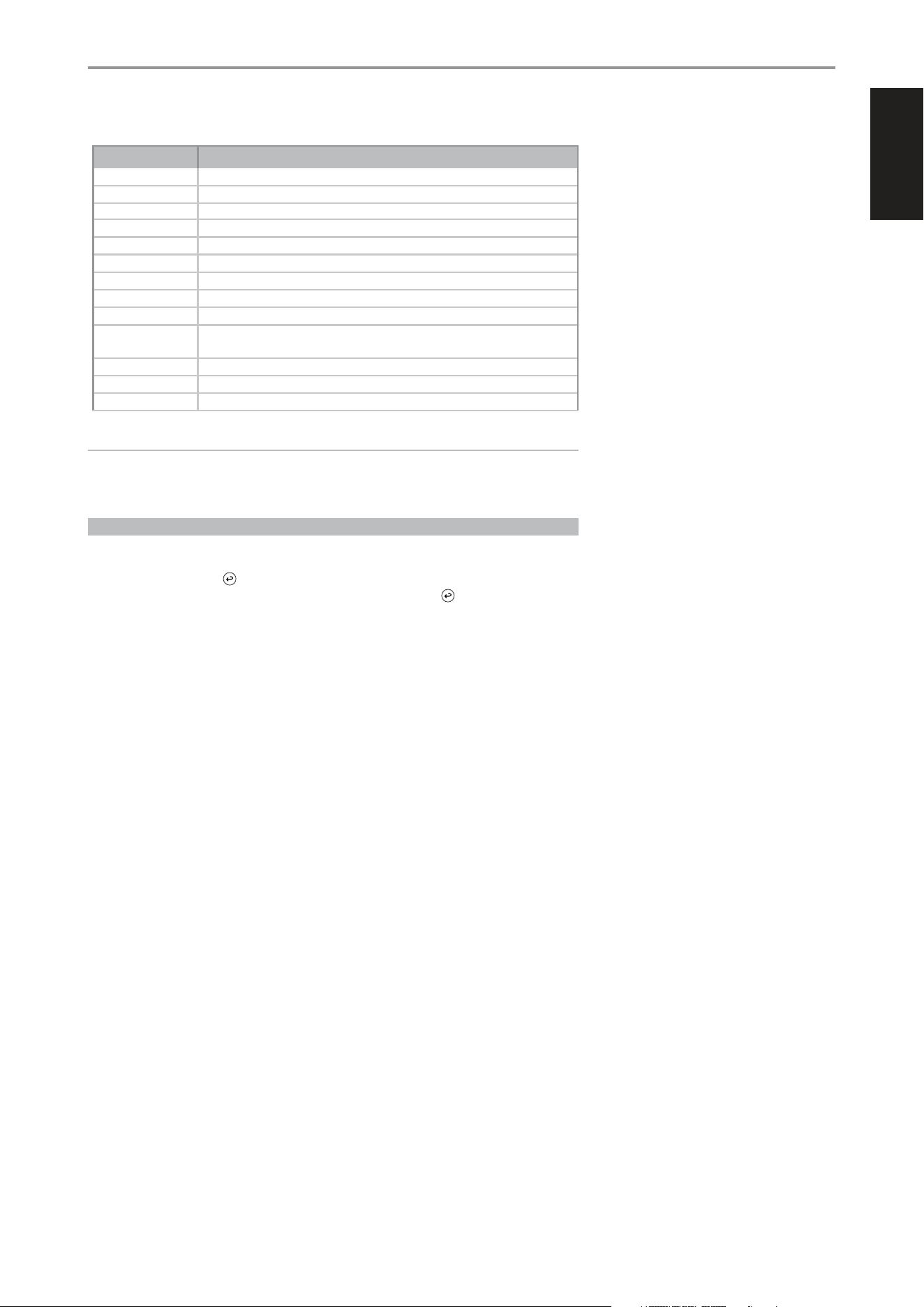
AUX PLAYER CONTROL (applicable to most NAD Tuners): Select AUX among the DEVICE SELECTOR
buttons to gain access to the following applicable control buttons. The AUX device is defaulted to NAD
Tuner device remote control codes.
SOURCE [D/F]: Step up or down between AM or FM frequencies
D/F: Step up or down between stored radio presets
A/S: Step up or down between AM or FM frequencies
ENTER: In AM/FM mode, toggle to select Preset or Tune mode. In DAB mode, press and hold to check
signal strength.
NUMERIC BUTTONS (1-9, 0): Use the numeric buttons to directly key-in frequency number of desired
AM or FM station
INFO: Toggle to display supplied information about the current radio station and applicable media
being played. Some radio stations may not support any display information.
u: Toggle to select AM, FM, DAB or XM band (if applicable)
9/ : : Step up or down between stored radio presets
IDENTIFICATION OF CONTROLS
SR 10 REMOTE CONTROL
12
BluOS PLAYBACK CONTROLS (applicable to NAD products with installed MDC BluOS or MDC2
BluOS D module) Select BLS among the DEVICE SELECTOR buttons to use the following control
buttons for BluOS playback.
IMPORTANT
Ensure that your applicable NAD product is set to BluOS source.
u: Toggle to start or pause playback
9: Skip back to the beginning of current song
: : Skip forward to the next song
USING THE SR 10 REMOTE CONTROL LIBRARY
The SR 10 can store a different library of default NAD codes for each of its DEVICE SELECTOR “pages.”
If the original default library does not control your NAD CD player, BluOS player or Tuner, follow the
procedure below to change the library code. Refer also to the table below for a list of applicable NAD
Library Codes with their corresponding NAD models.
LOAD ANOTHER LIBRARY CODE
Example: Load NAD DVD Player T 517 library codes to SR 10’s AUX device.
1 Press and hold AUX in the DEVICE SELECTOR section of SR 10.
2 While holding down the device button AUX, press 2 and 2 using SR 10’s numeric buttons. 22 is the
corresponding library code for T 517.
3 Press ENTER while still holding down AUX device button. The AUX device selector will flash once
to indicate that the library input is successful. Both AUX device selector and ENTER buttons can
now be released.
ENGLISH
13
IDENTIFICATION OF CONTROLS
SR 10 REMOTE CONTROL
TABLE OF LIBRARY CODES APPLICABLE TO SR 10 REMOTE CONTROL
LIBRARY CODE PRODUCT DESCRIPTION
10 Default library for “AMP” page
11 Zone 2
12 Default library for “AMP” page without discrete ON/OFF (toggle ON/OFF) buttons
20 Default library for “CD” page; C 515BEE, C 545BEE, C 565BEE
21 T 535, T 585, M55, DVD section of L 54, VISO TWO, VISO FIVE
22 T 513, T 514, T 515, T 517
23 T587
30 Default library for “BLS” page
31 IPD 2
40
Default library for “AUX” page. Loaded with Tuner default codes. Applicable also to Tuner section
of C 725BEE, T 175, T 737,T 747, T 755, T 765, T 775, T 785
41 C 422, C 425
42 C 445
50 DAC
IMPORTANT
The SR 10 may not necessarily contain all the control buttons applicable for the above-mentioned
NAD products. Use the prescribed remote control of the specic NAD product for a full complement
of applicable remote control buttons.
RESET SR 10 TO ITS FACTORY DEFAULT SETTINGS
The SR 10 remote control can be restored to its factory default settings (including default libraries) by
the following procedures.
1 Press and hold ON and buttons.
2 As soon as AMP device button lights up, release hold of both ON and buttons.
3 If the CD device button flashes twice, the SR 10 factory reset is completed.
ENGLISH
14
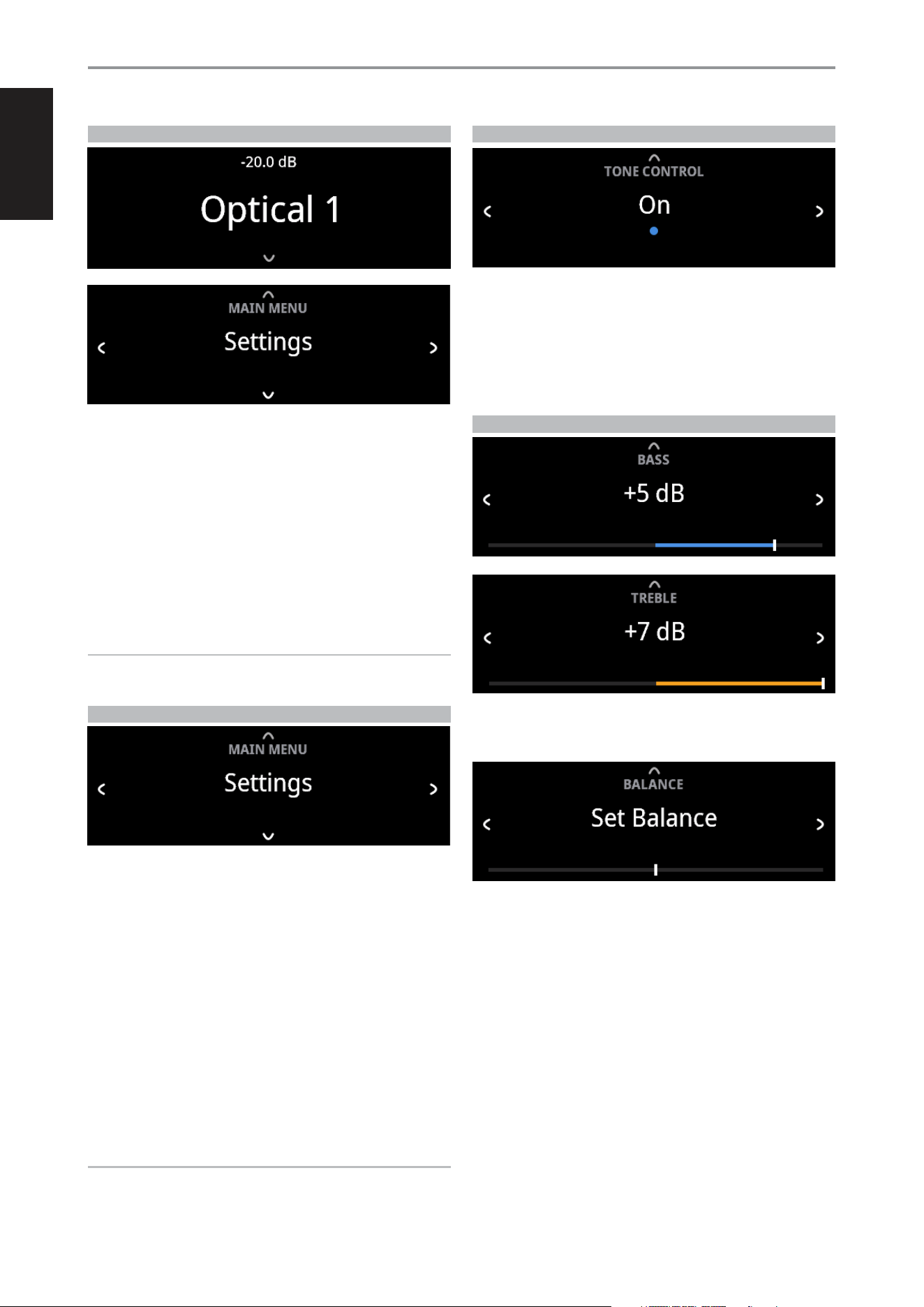
ACCESS MAIN MENU
Press front panel [f] button once for the Main Menu options to appear in
the display. Use front panel a or s button to select through the Main Menu
options – Settings, Source Setup and System Info.
NAVIGATING THE MENU OPTIONS AND MAKING CHANGES
Navigate through the menu options using the front panel buttons or
corresponding SR 10 buttons.
1 Press [f] to select a menu item.
2 Repeatedly press [a/s] to scroll through menu choices, options or
selections.
3 Press [d] or [ENTER] to select or save current selection or option and at
the same time exit or return to the previous menu.
NOTE
Menu option will remain displayed and will only turn o or default to
current Source after 1 minute of non-user interface.
SETTINGS
The “Settings” main menu allows the configuration of the following
features:
• Tone Control
• Treble
• Bass
• Balance
• Auto Standby
• Bluetooth Mode
• Network Standby
• CEC Power
• IR Channel
• Brightness
• Temporary Display
• Speaker
• Volume Display Mode
• Volume Limits
NOTE
If the optional MDC2 BluOS D module is installed, additional MDC2
BluOS D built-in features or options will become available in the Settings
menu.
TONE CONTROL
Tone control allows the boosting or reduction of particular audio frequencies.
The tone control levels, Bass and Treble, can be turned on or off.
• On: Tone control levels are active. At Tone Controls On, Bass and
Treble control levels are available for configuration.
• O: Tone controls levels are bypassed. At Tone Controls Off, Bass
and Treble control levels become unavailable or turned off from the
Settings menu.
BASS, TREBLE, BALANCE
Bass and Treble controls only affect the low bass and high treble leaving
the critical midrange frequencies free of coloration.
• Use [a/s] to boost or cut Bass or Treble levels within ±7 dB range.
Balance control adjusts the relative levels of the left and right channels.
• Press [s] to shift the balance to the right or [a] to shift the balance to
the left. Use [a/s] also to recover or even out the balance levels.
• The center level setting provides equal level to the left and right
channels.
OPERATION
USING C 379
ENGLISH
15
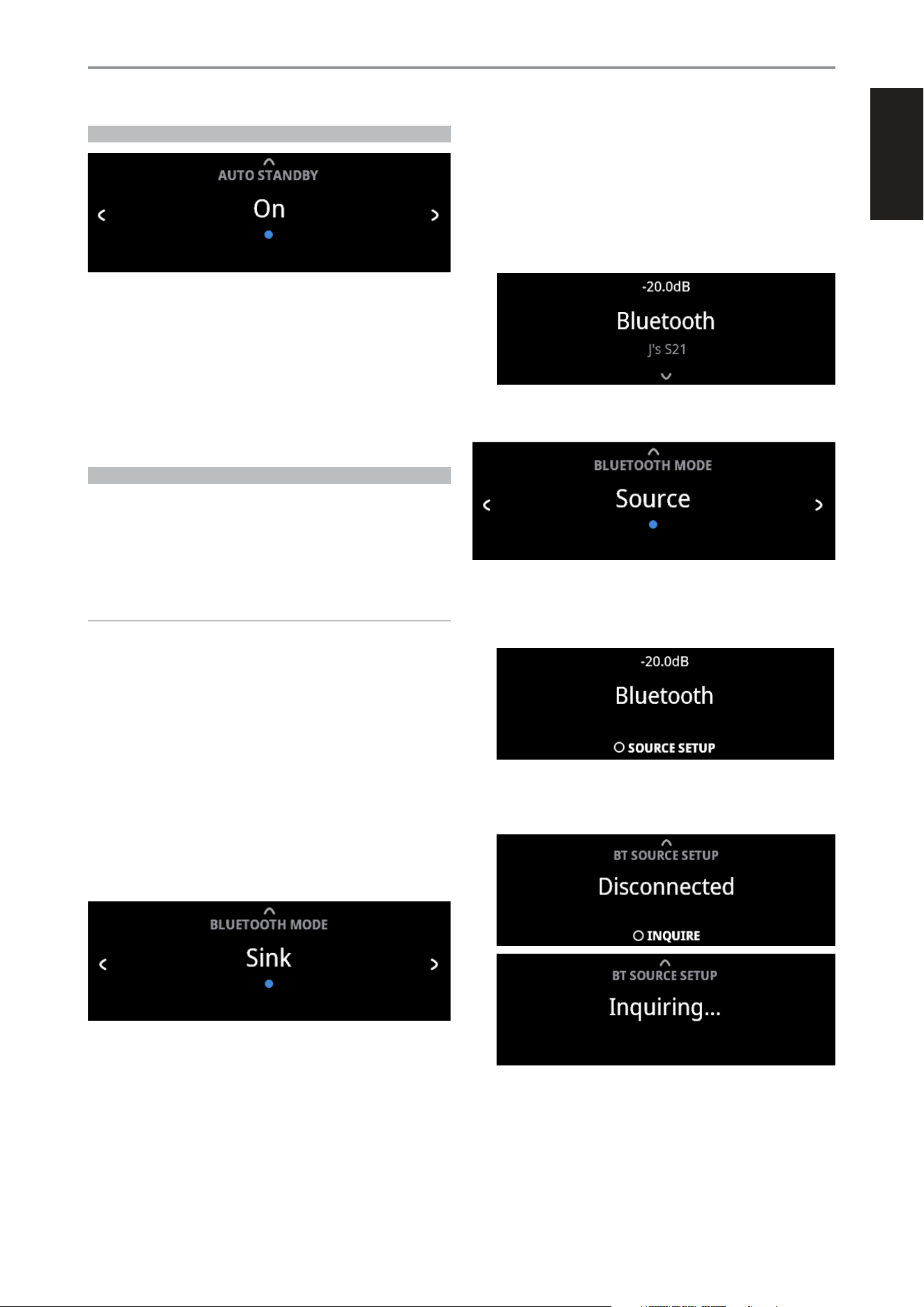
AUTO STANDBY
Auto Standby feature is an integral feature of C 379 that conforms to
European ecodesign regulations. The C 379 can be setup to automatically
go to standby mode if there is no user interface interaction and no active
source input within 15 minutes.
On: C 379 switches to standby mode at lowest power consumption
(less than 0.5W) if there is no user interface interaction and no active
source input within 15 minutes.
O: C 379 remains at operating mode even if there is no user interface
interaction and no active source within 15 minutes.
BLUETOOTH MODE
Bluetooth Mode defines the two roles of the C 379 as either a Bluetooth
Sink or a Bluetooth Source.
Sink: Audio stream is received from a Source on the same Bluetooth
network environment.
Source: Audio is streamed or sent to another device (Sink) on the same
Bluetooth network environment.
IMPORTANT!
1 Bluetooth Mode option is not available if the optional MDC2 BluOS-D is
installed.
2 With no MDC2 BluOS-D installed and “Auto Sense” setting of Bluetooth
source set to “On”, C 379 will go to Network Standby mode under the
following condition.
• With a Bluetooth device connected or disconnected, C 379 will go to
Network Standby mode if there is no user interface interaction and
no active source input within 15 minutes.
C 379 will wake up from Network Standby mode by pressing front panel
Standby button or “OFF” button of SR 10 remote control or playback of
Bluetooth connected device.
C 379 AS BLUETOOTH SINK
Set “Bluetooth Mode” to “Sink”. Initiate pairing of your Bluetooth device with
C 379 by following below procedure.
1 Ensure that the supplied Bluetooth antenna is connected to the BT
antenna terminal at the rear panel.
2 Using your iOS or Android device, go to Settings – Bluetooth and then
scan for Bluetooth devices. Select the unique device ID (example, C379BT)
of your C 379 as listed or selectable in the device list of your Bluetooth
settings. Pair or connect your C 379 and the Bluetooth device.
3 Upon successful pairing of your Bluetooth device and the C 379, front
panel display will show the connected Bluetooth device ID (J’s S21 in
this example).
C 379 AS BLUETOOTH SOURCE
Set “Bluetooth Mode” to “Source”. Ensure that the supplied Bluetooth
antenna is connected to the BT antenna terminal at the rear panel.
1 While at Bluetooth Source Mode, press ENTER to select “Source Setup”.
2 “Disconnected” will appear in the display. Press ENTER to initiate inquiry
(INQUIRE). The unit searches for available Bluetooth devices within the
same Bluetooth network environment.
OPERATION
USING C 379
ENGLISH
16
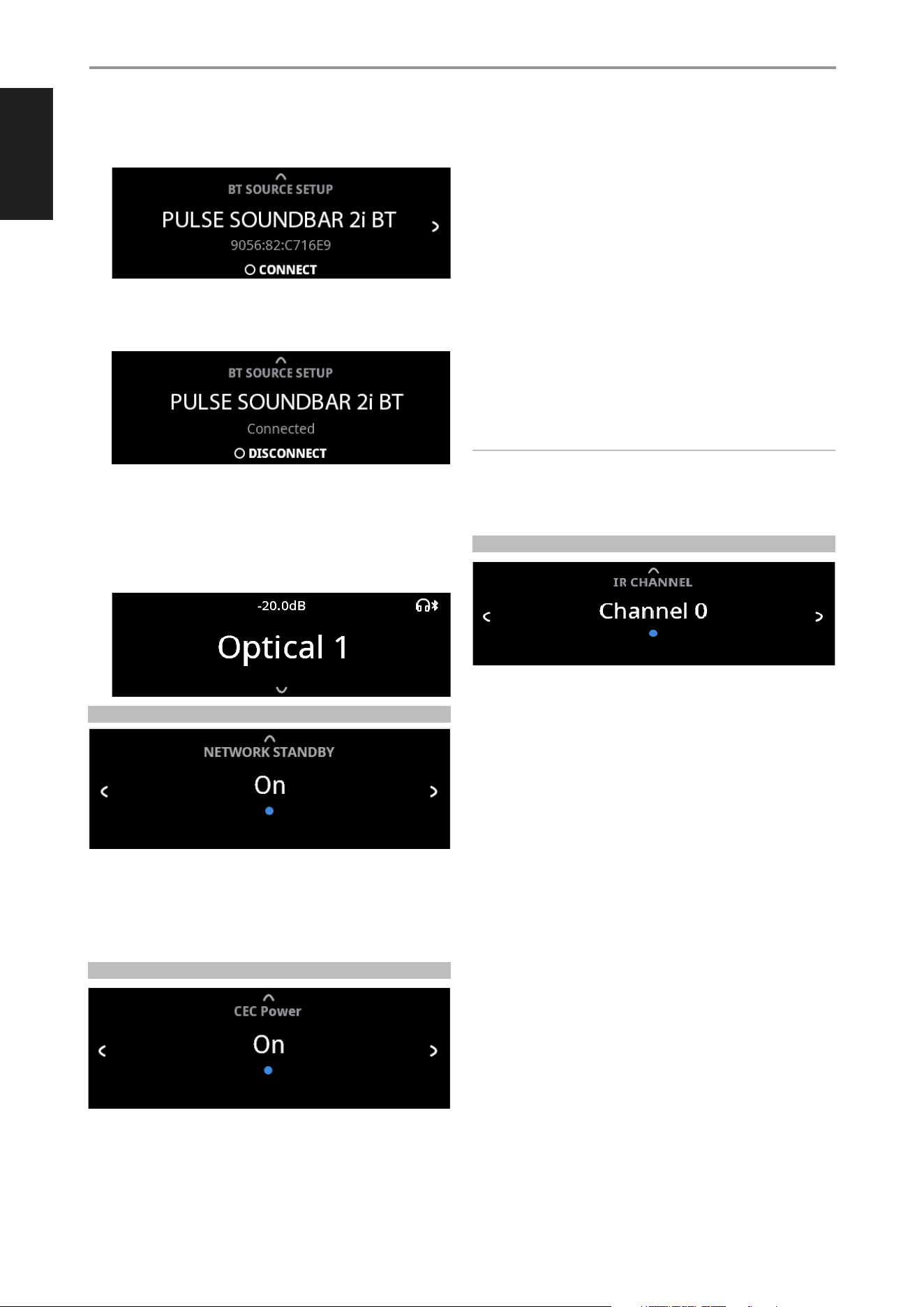
3 Toggle a/s to select through available Bluetooth sources. Press to
connect and select preferred Bluetooth Source.
If you would like to disconnect from current Bluetooth device, press
ENTER to select DISCONNECT. Repeat steps 2 to 3 again to select and
connect to another Bluetooth device.
4 Having settled on a Bluetooth Source device, toggle a SOURCE s to
select the source media you would like streamed to the connected
Bluetooth device. For example, if you want to stream audio from
OPTICAL 1, select OPTICAL 1 as the active source. Note the Headphone
and Bluetooth icons in the front panel display as indication that you are
at Bluetooth Source Mode.
NETWORK STANDBY
Network Standby mode maintains network connection at standby mode
with reduced system performance level.
On: Network connection is maintained at standby mode.
O: Network connection is disconnected at standby mode.
Power consumption at Network Standby mode is <2W.
CEC POWER
HDMI CONTROL (CEC)
Consumer Electronics Control (CEC) is a set of commands that utilizes
HDMI’s two- way communication to allow for single remote control of any
CEC-enabled devices connected with HDMI. A CEC command will trigger
the necessary commands over HDMI for an entire system to auto-configure
itself to respond to the command.
CEC Power O: C 379 cannot be powered up or sent to standby mode
by a CEC-enabled device.
CEC Power On: CEC-enabled device can power ON/OFF the C 379.
HDMI ENHANCED AUDIO RETURN CHANNEL (eARC)
Enhanced Audio Return Channel (eARC) is an advancement over the previous
Audio Return Channel (ARC). eARC simplifies connectivity and provides greater
ease of use for multiple components discovery and audio optimization.
eARC enables the audio to a TV that originates from cable, satellite,
streaming or source devices to be sent to C 379 through a single HDMI
cable. This ensures the simplicity of connectivity and that the original audio
can be experienced. HDMI eARC works with HDMI High Speed Cables with
Ethernet and the new Ultra High Speed HDMI Cable.
eARC is the default mode for C 379 and will fallback to ARC if no eARC
connection happens.
IMPORTANT!
• Ensure that the audio setting/format of eARC-connected devices to
C 379 is set to PCM only.
• Only audio output signal from a connected TV is supported by C 379’s
HDMI eARC port.
IR CHANNEL
The C 379 has the capability to operate via Alternate IR channel. This is
useful if you have two NAD products that can be operated by similar
remote control commands. With alternate IR Channel, two different NAD
products can be controlled independently in the same zone by setting
each one to a different IR channel.
IR Channel Assignment
C 379 and SR 10 remote control must be set to the same channel.
To change the IR Channel on the C 379
While at IR Channel menu, use [a/s] to select through Channel 0 to
Channel 7. Stop at the preferred IR Channel setting and press [d] to
complete the selection. C 379 IR Channel is defaulted to Channel 0.
To change the IR Channel on the SR 10 remote control
• Include a channel number before the library code. For SR 10, library
code “10” is the default library table for “AMP” device. To select this “AMP”
library table for Channel 0, retain the library code “10” (or “010”).
• If you want to load the “AMP” library table on “Channel 1” prefix the
library code with “1” to indicate association with “Channel 1”. Load then
the “AMP” library table using the code “110”. Repeat the same for MP
(130) and TUNER (140).
SAMPLE SETUP OF TWO NAD PRODUCTS ON THE SAME ZONE
C 379 and T 758 are both defaulted to Channel 0. If [OFF] button is pressed
on the SR 10 remote control (or AVR 5 remote control for the T 758), both
products will go to standby mode. Press [ON] and both products will power
up from standby mode.
To prevent both products from simultaneously going in and out of standby
mode along with other common commands, set each one to a different
IR channel. In this setup, we will keep T 758 and AVR 5 remote control
OPERATION
USING C 379
ENGLISH
17
defaulted to “Channel 0”. As for C 379, we will assign it to “Channel 1”; the
same applies to SR 10.
Set C 379 and SR 10 to “Channel 1” via the following procedure.
C 379
While at “IR Channel” menu, use the [a/s] to go to “Channel 1” setting. Press
[d] to select “Channel 1”.
SR 10
• Press and hold [AMP] in the DEVICE SELECTOR section of the SR 10.
• While holding down the device button [AMP], press “1”, “1” and “0” using
SR 10’s numeric buttons.
• Press [ENTER] while still holding down the device button [AMP]. The AMP
device selector will flash once to indicate that the library input is successful.
With both C 379 and SR 10 set to “Channel 1”, the C 379 can now be
remotely controlled independent of the T 758.
NOTE
Performing Factory Reset for C 379 or SR 10 will restore their respective
IR channel setting to “Channel 0”.
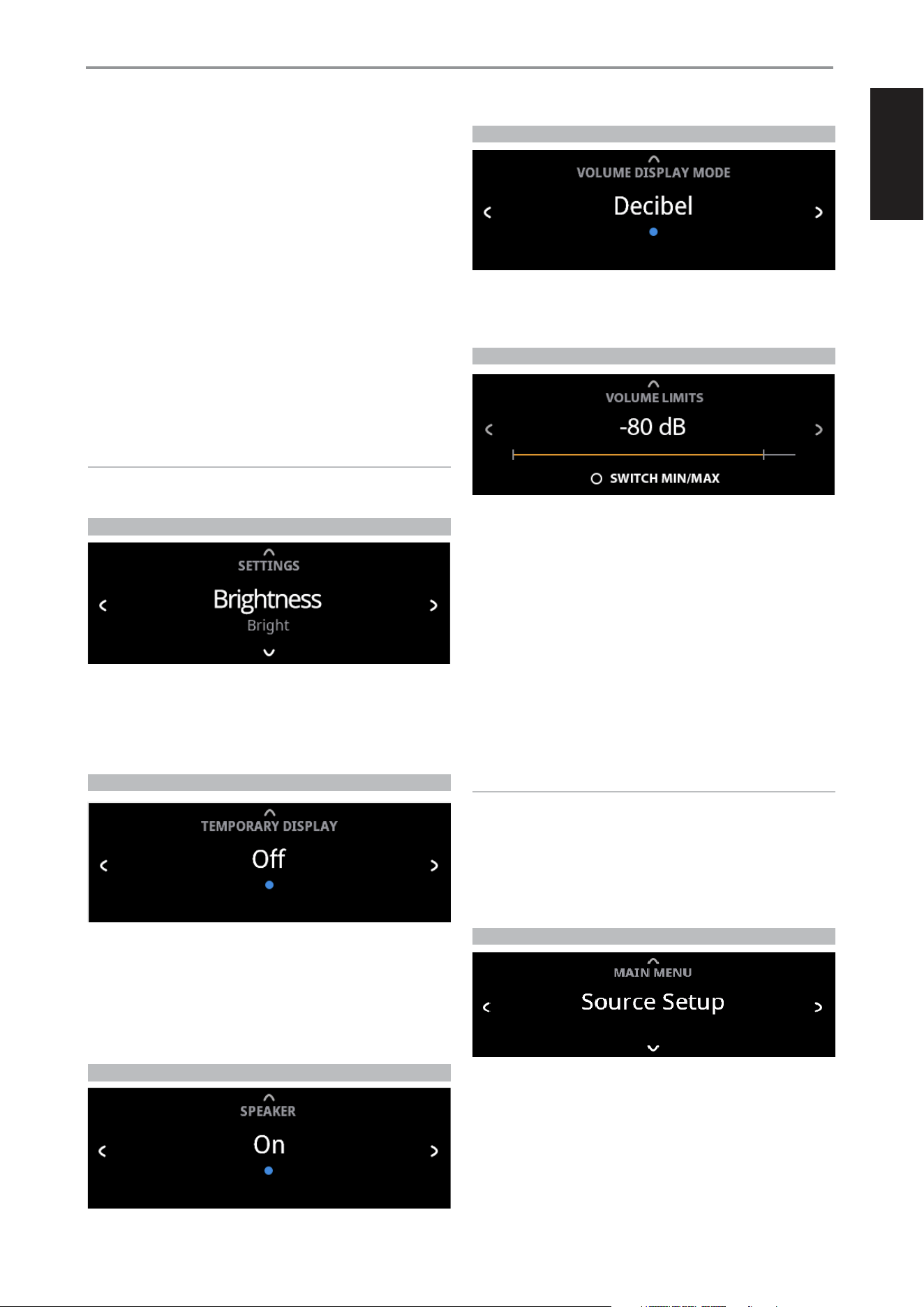
BRIGHTNESS
BRIGHTNESS function makes it possible to adjust the brightness level of the
front panel display.
Normal: Display brightness level is normal.
Bright: Display is at its brightest level or above normal brightness level.
Dim: Display is dimmed or below normal brightness level.
TEMPORARY DISPLAY
Temporary Display feature enables the display to be turned off temporarily
after 30 seconds of non-user interface.
On: Display is turned off temporarily after 30 seconds of non- user
interface. The Power Indicator LED is also turned off at the same time.
Display and Power Indicator LED are activated once user interface is
initiated.
O: Display remains illuminated.
SPEAKER
Select “On” to enable speakers or “Off” to disable speakers.
VOLUME DISPLAY MODE
Volume Display Mode gives the user two options on how to display
Volume level. Use a or s to select between “Decibel” and “Percent” volume
display mode.
VOLUME LIMITS
Volume limit allows the setting up of the upper and lower limit of the
volume control level. Modifying the upper or lower volume limits allows
more fidelity when adjusting the volume level.
ADJUSTING VOLUME LIMITS
While at VOLUME LIMITS menu, toggle ENTER to switch between Minimum
and Maximum Volume Limit options.
Minimum Volume Limit
Toggle or press and hold either navigation buttons a or s to adjust or
set up the Minimum Volume Limit between -80 dB and -30 dB.
Maximum Volume Limit
Toggle or press and hold either navigation buttons a or s to adjust or
set up the Maximum Volume Limit between 12 dB and -50 dB.
NOTES
C 379 maintains a minimum span width of 40 dB between Maximum
and Minimum Volume limits. For example, a maximum volume limit
conguration of - 10 dB limits the range of the minimum volume limit
adjustment from -80 dB to -40dB.
Conversely, a minimum volume limit conguration of -62 dB limits the
range of the maximum volume limit adjustment from 12 dB to -32 dB.
SOURCE SETUP
Source Setup has the following menu items:
• Enable Source
• Name
• Volume Control
• Auto Sense
• Analog Bypass
• Analog Gain
At Source Setup menu, select the particular Source you want to configure.
OPERATION
USING C 379
ENGLISH
18
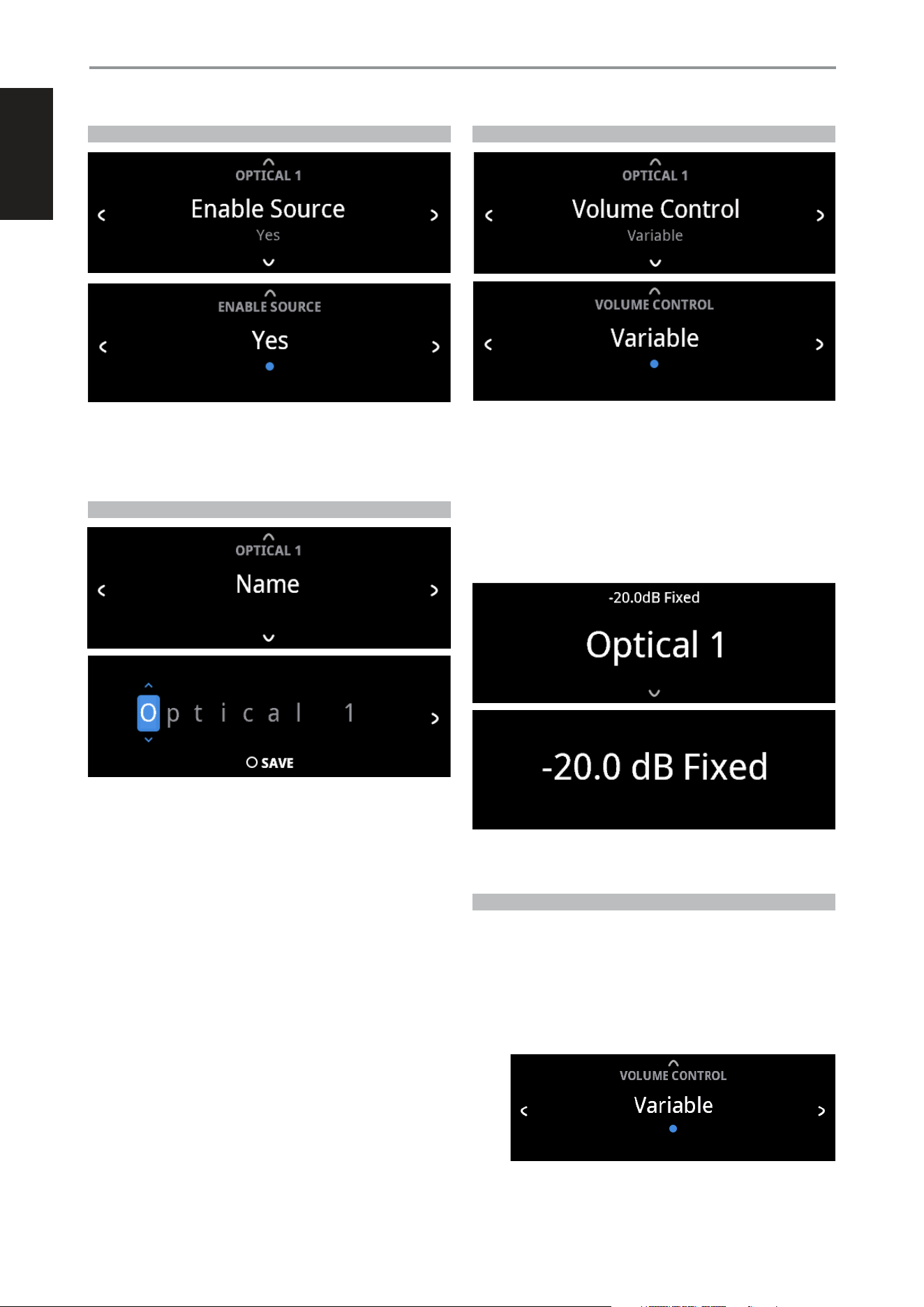
ENABLE SOURCE
One can enable/disable a Source via this option. This is particularly useful if
only few Sources are used thereby bypassing unused sources.
On: Enable selected Source.
O: Disable selected Source.
NAME
A new Name maybe assigned to a Source label. For example, if your
Streaming device (e.g., NODE) is attached to “Optical 1”, it is possible to
rename “Optical 1”to “NODE”.
In order to rename the Source label, select “Name” parameter.
1 While at the selected Source, for example “Optical 1”, press ENTER to
select “EDIT”.
2 Use [f /d ] to pick through the alphanumeric selections.
3 Press [s] to move to the next character and at the same time save the
changes done on the current character. The name can be as long as
fourteen characters.
4 Repeat steps 1 and 2 for each character in sequence.
5 Complete the renaming process by pressing [ENTER button again to
save the new source’s input name. The new Name will be shown in the
display.
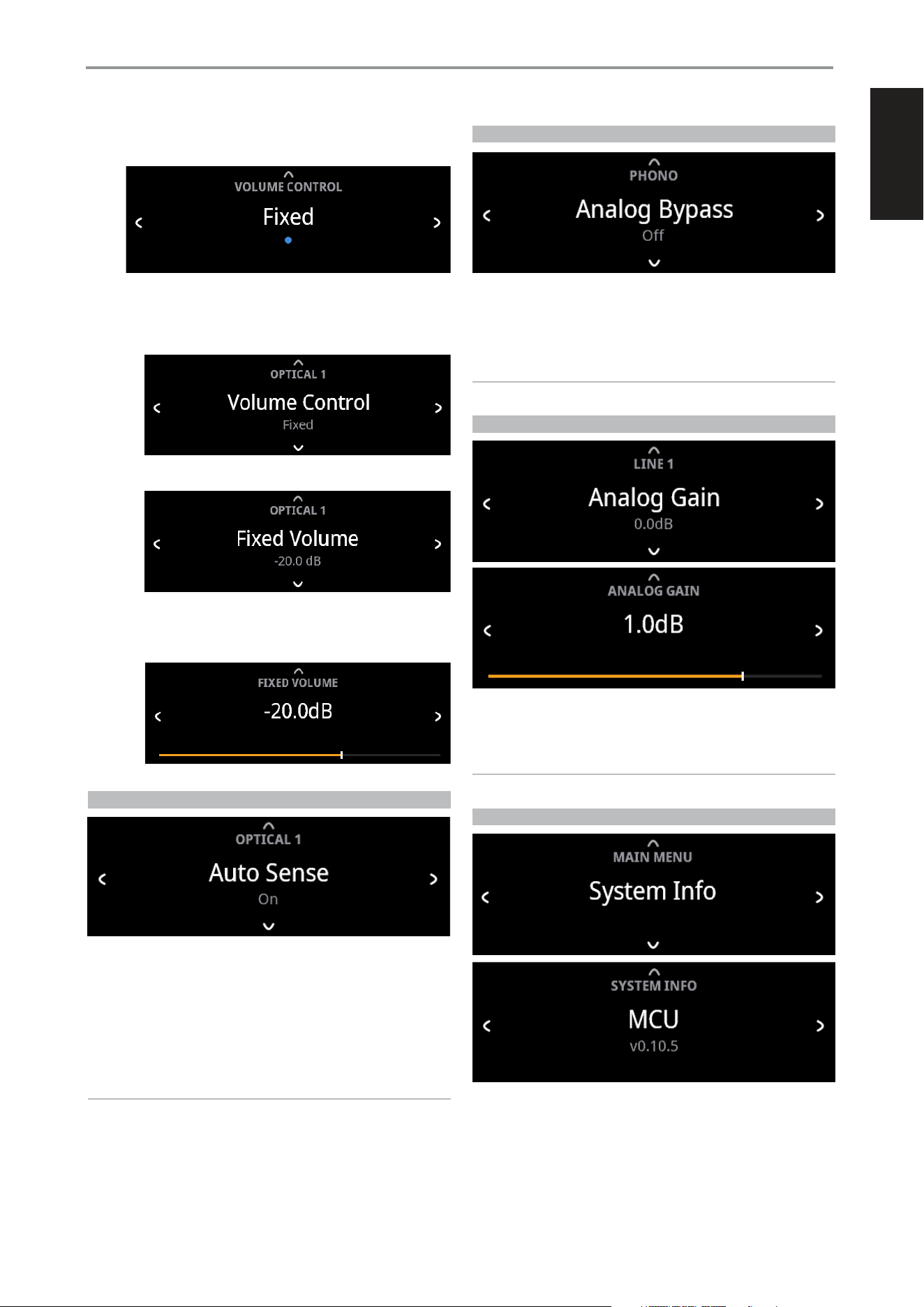
VOLUME CONTROL
Volume control can be set to either Variable or Fixed level.
Variable: Volume level is adjusted using the volume knob or SR 10’s
[VOLD/F] buttons.
Fixed: Output level is fixed and the C 379’s Volume Control is bypassed.
This feature is sometimes referred to as “Cinema Bypass” because it allows
the C 379 to be used for the front channels of a surround sound system by
relegating the volume control function to the surround processor.
At Fixed volume level setting, front panel display will show “xx.x dB Fixed” as
the volume control is adjusted.
HOW TO NAVIGATE VOLUME CONTROL LEVEL SETTING
A While at “Volume Control” menu, press [f].
B Use front panel [a/s] or SR 10’s [A/S] buttons to toggle between
“Variable” and “Fixed” level options.
1 While at “Variable” option, use front panel [d] or SR 10’s [D]
button to select “Variable” level and return to “Source Setup” menu
selections.
OPERATION
USING C 379
ENGLISH
19
2 While at “Fixed” option, use front panel [d] or SR 10’s [D] button to
select “Fixed” level and return to “Source Setup” menu selections.
a With “Fixed” level selected and back to “Source Setup” menu
selections, use front panel [a/s] or SR 10’s [A/S] buttons to go
“Fixed Volume” option. “Fixed Volume” manifests among “Source
Setup” options only if “Fixed” is the selected “Volume Control” level.
b Use [f] button to go to Fixed Volume level setting.
c Use front panel [a/s] or SR 10’s [A/S] buttons to set preferred
dB level setting. Then, use front panel [d] or SR 10’s [D] button
to save dB level selection and exit Fixed Volume setup mode.
AUTO SENSE
Auto Sense can be setup for each Source. Auto Sense feature enables the
designated Source to wake up from standby mode when an active source
is detected from the particular Source’s input.
On: Unit wakes up to the designated Source from standby mode when
an active source is detected from the particular Source’s input.
O: Unit does not wake up to the designated Source from standby
mode even if it is triggered by an active source.
NOTES
• Auto Sense option is not available for Phono and BluOS (if installed)
sources.
• Auto Standby must be set to ON for Auto Sense to work.
ANALOG BYPASS
All analog signals remain in the analog domain without analog-to-digital
conversions.
On: DSP circuitry is bypassed but full tone control functions remain.
O: Analog bypass feature is turned off.
NOTE
Analog Bypass is applicable only for Phono, Line 1 and Line 2 sources.
ANALOG GAIN
• Use front panel [a/s] or SR 10’s [A/S] buttons to set preferred Analog
Gain level.
NOTE
Analog Gain is applicable only for Phono, Line 1 and Line 2 sources.
SYSTEM INFO
“System Info” displays information about current MCU, LCD and FPGA
firmware versions.
Use [a/s] to toggle through the corresponding information.
OPERATION
USING C 379
ENGLISH
20
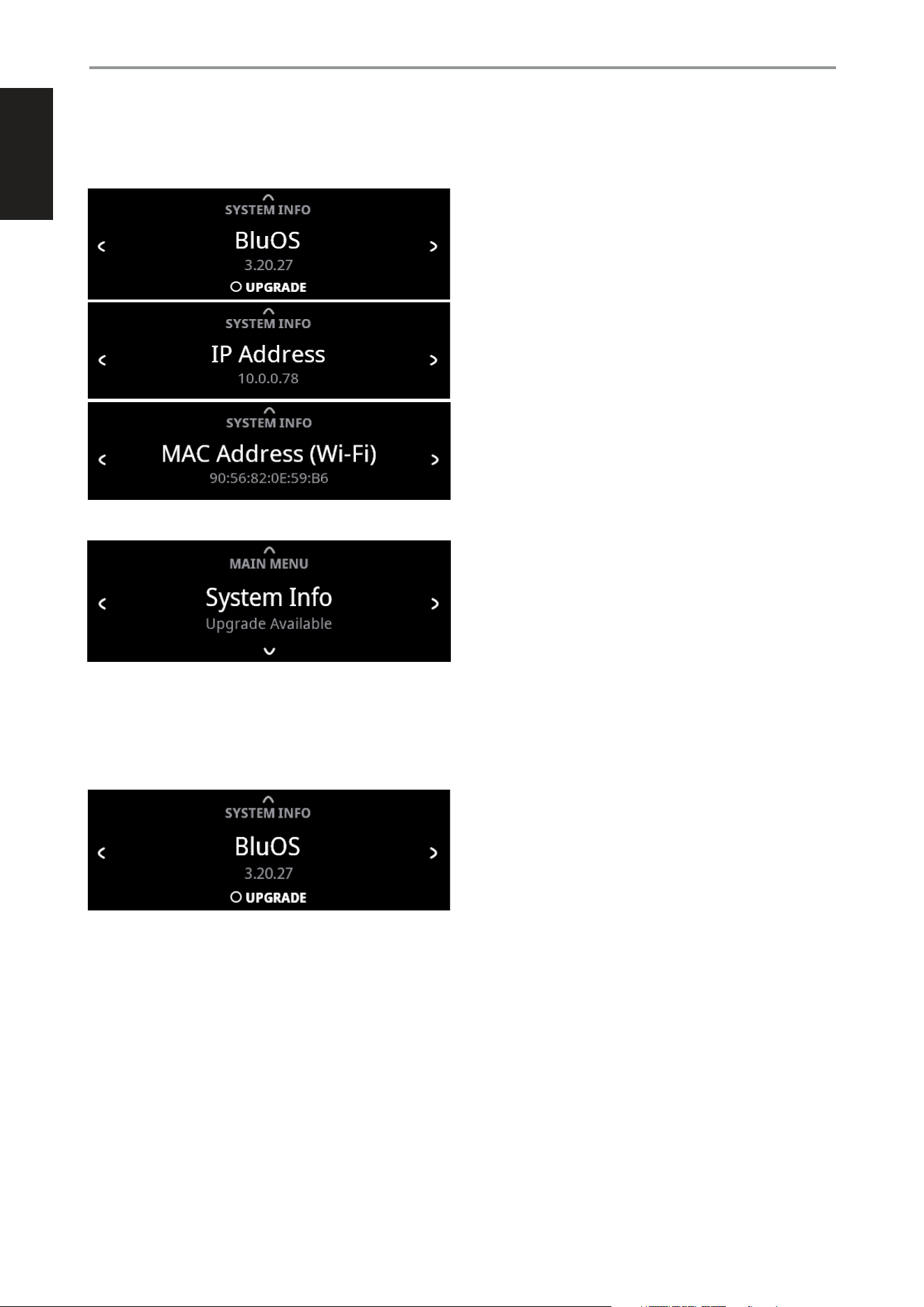
If the optional MDC2 BluOS D is installed, the BluOS firmware version, IP
Address, MAC Address (Ethernet) and MAC Address (Wi-Fi) information are
also shown.
UPGRADE AVAILABLE
With the optional MDC2 BluOS D installed and C 379 connected to internet,
“Upgrade Available” will be shown if a software upgrade is available.
If “Upgrade Available” is shown, use [f] to go to BluOS upgrade menu.
Press [ENTER] to initiate upgrade mode. Internet software upgrade will
proceed automatically.
OPERATION
USING C 379

ENGLISH
21
REFERENCE
SPECIFICATIONS
All specs are measured according to IHF 202 CEA 490-AR-2008 standard. THD is measured using AP AUX 0025 passive filter and AES 17 active filter.
PREAMPLIFIER SECTION
LINE IN, PRE-OUT (Analog bypass on)
THD (20 Hz – 20 kHz) <0.002 % at 2 V out
Signal-to-Noise Ratio >106 dB (IHF; A-weighted, ref. 500 mV out, unity gain)
Channel separation >100 dB (1 kHz)
>90 dB (10 kHz)
Input impedance (R and C) 56.2 kohms + 100 pF
Maximum input signal >4.6 Vrms (ref. 0.1 % THD)
Output impedance Source Z + 320 ohms
Input sensitivity 257 mV (ref. 500 mV out, Volume maximum)
Frequency response ±0.3 dB (20 Hz - 20 kHz)
Maximum voltage output -IHF load >4.5 V (ref. 0.1 % THD)
PHONO IN, PRE-OUT (Analog bypass on)
THD (20 Hz – 20 kHz) <0.01 % at 2 V out
Signal-to-Noise Ratio >83 dB (200 ohms source; A-weighted, ref. 500 mV out)
Input Impedance (R and C) 46 kohms/100 pF
Input sensitivity 4.2 mV (ref. 500 mV out, Volume maximum)
Frequency response* ±0.3 dB (20 Hz - 20 kHz)
Maximum input signal at 1kHz >80 mVrms (ref. 0.1 % THD)
LINE IN, HEADPHONE OUT (Analog bypass on)
THD (20 Hz – 20 kHz) <0.002 % at 1V out
Signal-to-Noise Ratio >101 dB (32 ohms loads; A-WTD, ref. 1V out, unity gain)
Frequency response ±0.3 dB (20 Hz - 20 kHz)
Channel separation >62 dB at 1kHz
Output impedance 2.2 ohms
GENERAL SPECIFICATIONS
LINE IN, SPEAKER OUT (Analog bypass on)
Continuous output power into 8 ohms 80W (ref. 20 Hz-20 kHz at rated THD, both channels driven)
Continuous output power into 8 ohms, Bridge mode >300W
THD (20 Hz – 20 kHz) <0.03% (250 mW to 120 W, 8 ohms and 4 ohms)
Signal-to-Noise Ratio >85 dB (A-weighted, 500 mV input, ref. 1 W out in 8 ohms)
Clipping power >110W (at 1 kHz 0.1 % THD)
IHF dynamic power 8 ohms: 140 W
4 ohms: 250W
2 ohms: 260W
Peak output current >20A (in 1 ohm, 1 ms)
Damping factor >300 (ref. 8 ohms, 20Hz to 6.5kHz)
Frequency response ±0.3 dB (20 Hz - 20 kHz)
Channel separation >75dB (1 kHz)
>70dB (10 kHz)
Input sensitivity (for 80 W in 8 ohms) Line In: 440 mV
Supports bit rate/sample rate up to 24 bit/192 kHz
Frequency band 2.402G- 2.480G
Maximum transmit power (dBm) 7 dBm ± 2 dBm
Standby power <0.5W
Network standby power <2W
DIMENSION AND WEIGHT
Unit gross dimensions (W x H x D) ** 435 x 100 x 410 mm
17 1/4 x 4 x 16 3/16 inches
Net weight 9.04 kg
Shipping weight 10.88 kg
* The RIAA response is consistent with a pre-emphasis that is rolled off at 50 kHz by a second order filter, such as used in Neumann cutting lathes.
** Gross dimension includes feet, volume knob, installed antenna at right angle and extended rear panel terminals.
Specifications are subject to change without notice. For updated documentation and features, please check out www.NADelectronics.com for the latest information about C 379.

www.NADelectronics.com
©2024 NAD ELECTRONICS INTERNATIONAL
A DIVISION OF LENBROOK INDUSTRIES LIMITED
All rights reserved. NAD and the NAD logo are trademarks of NAD Electronics International, a division of Lenbrook Industries Limited.
No part of this publication may be reproduced, stored or transmitted in any form without the written permission of NAD Electronics International.
While every effort has been made to ensure the contents are accurate at the time of publication, features and specifications may be subject to change without prior notice.
C 379OMEN10 SEPT 2024
