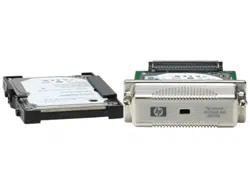

HP High- Performance
Secure Hard Disk
Setup Guide


HP High-Performance Secure Hard Disk
Setup guide

© 2008 Copyright Hewlett-Packard
Development Company, L.P.
Reproduction, adaptation, or translation
without prior written permission is prohibited,
except as allowed under the copyright laws.
The information contained in this document
is subject to change without notice.
The only warranties for HP products and
services are set forth in the express warranty
statements accompanying such products
and services. Nothing herein should be
construed as constituting an additional
warranty. HP shall not be liable for technical
or editorial errors or omissions contained
herein.
Applicable Products: J8018A/J8019A
Edition 1, 6/2008
Microsoft®, Windows®, Windows Vista™
are U.S. registered trademarks of Microsoft
Corporation. NetWare® and Novell® are
registered trademarks of Novell Corporation.
IBM® is a registered trademark of
International Business Machines Corp.
Ethernet is a registered trademark of Xerox
Corporation. Adobe®, PostScript® are
trademarks of Adobe Systems, Incorporated.
UNIX® is a registered trademark of The
Open Group.

Table of contents
1 Introduction
HP Secure Hard Disk products ............................................................................................................ 2
Supported printers/MFPs ..................................................................................................................... 3
Product accessibility ............................................................................................................................. 4
2 Installation
What you need for installation .............................................................................................................. 5
Check printer/MFP operation ............................................................................................................... 9
Backup data and note configuration settings ..................................................................................... 10
Erase existing hard disk data ............................................................................................................. 11
Install the EIO HP Secure Hard Disk (J8019A) .................................................................................. 12
Install the HP Secure Hard Disk lock adapter .................................................................................... 13
Install the HP Secure Hard Disk (J8018A) ......................................................................................... 15
Install in the HP DS9250c digital sender ........................................................................... 15
Install in the HP LaserJet M4345, M5025/M5035, or M9040/M9050 ................................. 16
Install in the HP LaserJet CM3530 .................................................................................... 17
Confirm HP Secure Hard Disk operation ............................................................................................ 19
Restore data and reinstall applications .............................................................................................. 21
3 Manage the HP Secure Hard Disk
General information ............................................................................................................................ 24
Standard hard disks are disabled ...................................................................................... 24
Hard disk priority ................................................................................................................ 24
Reinitialize, Disable, or Erase the HP Secure Hard Disk ................................................................... 26
Reinitialize the HP Secure Hard Disk ................................................................................ 26
Disable encryption ............................................................................................................. 27
Secure storage erase ........................................................................................................ 27
4 Troubleshooting
Solve general problems ...................................................................................................................... 30
Control panel messages ..................................................................................................................... 31
Printer configuration page messages ................................................................................................. 31
Embedded Web server messages ..................................................................................................... 33
Reset to factory defaults ..................................................................................................................... 36
ENWW iii

5 Customer support
HP support online ............................................................................................................................... 37
HP support by phone .......................................................................................................................... 38
Appendix A Specifications
Electrical ............................................................................................................................................. 39
Environmental .................................................................................................................................... 39
Electromagnetic .................................................................................................................................. 40
Acoustic .............................................................................................................................................. 40
Safety ................................................................................................................................................. 40
Appendix B Regulatory Statements
FCC Statements ................................................................................................................................. 41
Regulatory Model Identification Number ............................................................................................ 42
European Community ......................................................................................................................... 42
Canada ............................................................................................................................................... 42
VCCI (Japan) ...................................................................................................................................... 42
RRL Statement (Korea) ...................................................................................................................... 42
Appendix C Warranty Service
Hewlett-Packard Limited Warranty Statement ................................................................................... 43
Your Authorized Dealer ..................................................................................................... 44
Service Billing (Out of Warranty) ....................................................................................... 44
Service Outside the USA ................................................................................................... 44
Local Warranty Statements ................................................................................................................ 45
Australia and New Zealand ................................................................................................ 45
iv ENWW

1 Introduction
HP Secure Hard Disks provide hardware-based encryption to secure sensitive print, scan, and copy
data-at-rest on single and multiple function printing devices. HP Secure Hard Disks use the advanced
encryption standard (AES), and are equipped with versatile time saving features and robust functionality.
The HP Secure Hard Disk includes the following features:
●
Easy to install and configure.
●
Managed with the HP embedded Web server or HP Web Jetadmin.
●
Employs hardware based full-disk encryption for security and performance.
●
Uses an automated randomly generated key or a key that you manually specify.
●
Locked to the printer/MFP in which it is installed.
CAUTION: Once the HP Secure Hard Disk is locked to the printer/MFP, the stored data is unreadable
if removed from the printer/MFP. Secondary hard disks (EIO or internal) that are installed in the printer/
MFP are automatically disabled after the HP Secure Hard Disk is installed.
Installing the HP Secure Hard Disk typically involves the following procedures:
●
Backup any data that you need to save from the standard (non-encrypted) hard disks.
●
Securely erase the standard (non-encrypted) hard disks.
●
Install the HP Secure Hard Disk.
●
Restore data and reinstall any third-party applications.
For detailed instructions see
Installation on page 5.
ENWW 1
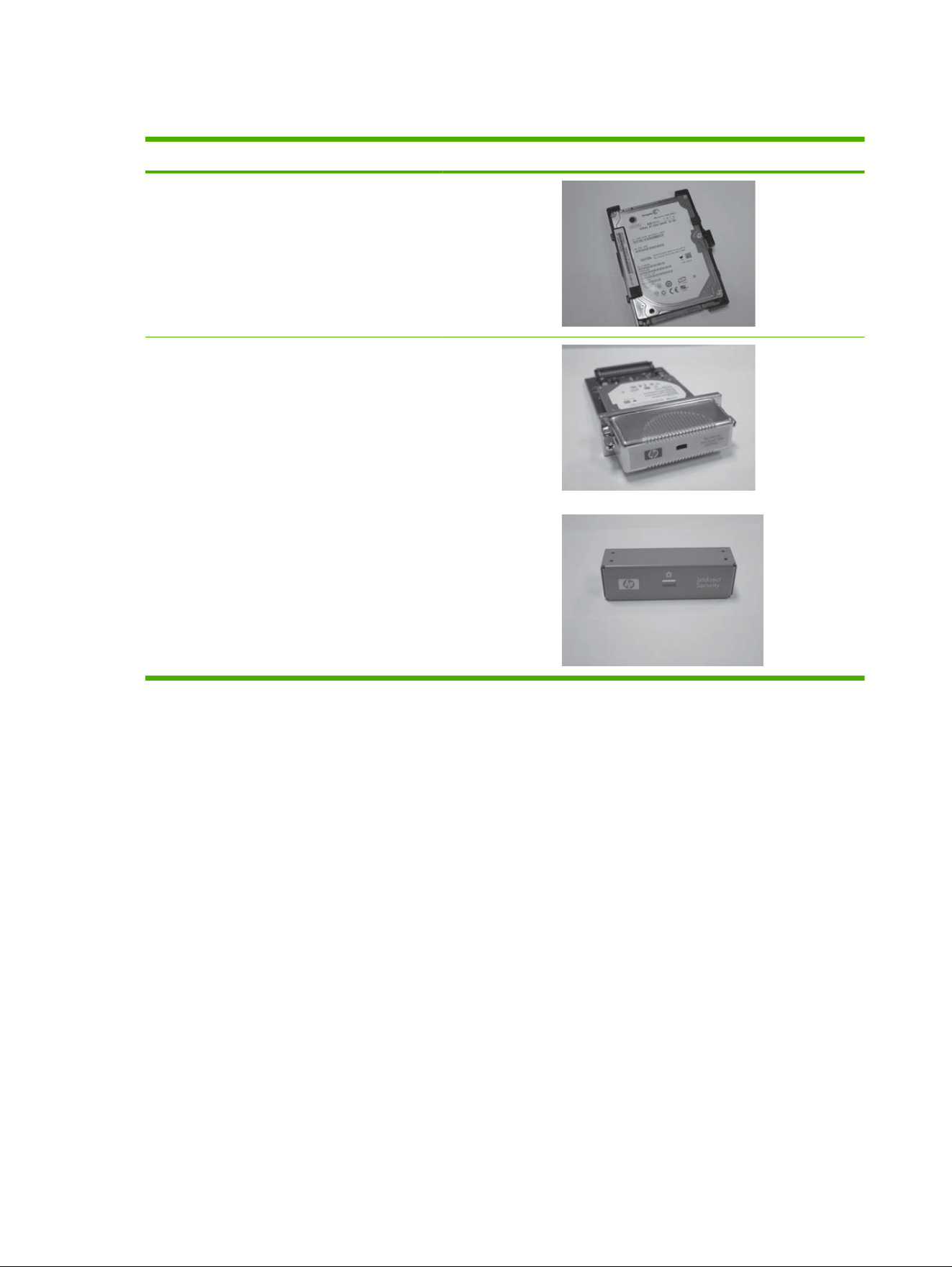
HP Secure Hard Disk products
Product Name Part Number
HP High-Performance Secure Hard Disk J8018A
HP High-Performance Secure EIO Hard Disk
(HP Secure Hard Disk lock adapter)
J8019A
2 Chapter 1 Introduction ENWW

Supported printers/MFPs
Table 1-1 Supported printers/MFPs
HP printer/MFP model number Available HP Secure Hard Disk product
HP LaserJet CP3525, CM4730, CM6030, CM6040 M3027,
M3035
HP High-Performance Secure EIO Hard Disk (J8019A)
HP LaserJet CM3530, DS9250c, M4345, M5025/M5035,
M9040/M9050
HP High-Performance Secure Hard Disk (J8018A)
HP High-Performance Secure EIO Hard Disk (J8019A)
ENWW Supported printers/MFPs 3

Product accessibility
For information on our commitment to accessibility of HP Secure Hard Disk products:
●
Visit the HP Web site at
http://www.hp.com/accessibility.
●
Send an email message to: acce[email protected]om.
4 Chapter 1 Introduction ENWW

2 Installation
Use the information in this section to install the HP Secure Hard Disk in your compatible printer/MFP.
Once installed, you can use the HP embedded Web server (or HP Web Jetadmin) to manage the
HP Secure Hard Disk.
CAUTION: Your HP Secure Hard Disk contains electronic components that might be damaged
by static electricity through electrostatic discharge (ESD). To prevent ESD damage, maintain
frequent contact with any bare sheet metal surface on the printer. A grounding wrist strap (or similar
device) is useful for this purpose. Handle the device carefully at all times. Avoid touching electronic
components or circuit paths
●
What you need for installation
●
Check printer/MFP operation
●
Backup data and note configuration settings
●
Erase existing hard disk data
●
Install the EIO HP Secure Hard Disk (J8019A)
●
Install the HP Secure Hard Disk lock adapter
●
Install the HP Secure Hard Disk (J8018A)
●
Confirm HP Secure Hard Disk operation
●
Restore data and reinstall applications
What you need for installation
●
An HP printer/MFP with an available EIO slot or hard disk drive bay that supports an HP Secure
Hard Disk. See
Table 1-1 Supported printers/MFPs on page 3 for a list of supported printers, MFPs,
and digital senders.
The HP printer/MFP must be functioning properly. If required, use the setup or installation guides
provided to assemble and test the printer/MFP.
ENWW What you need for installation 5
●
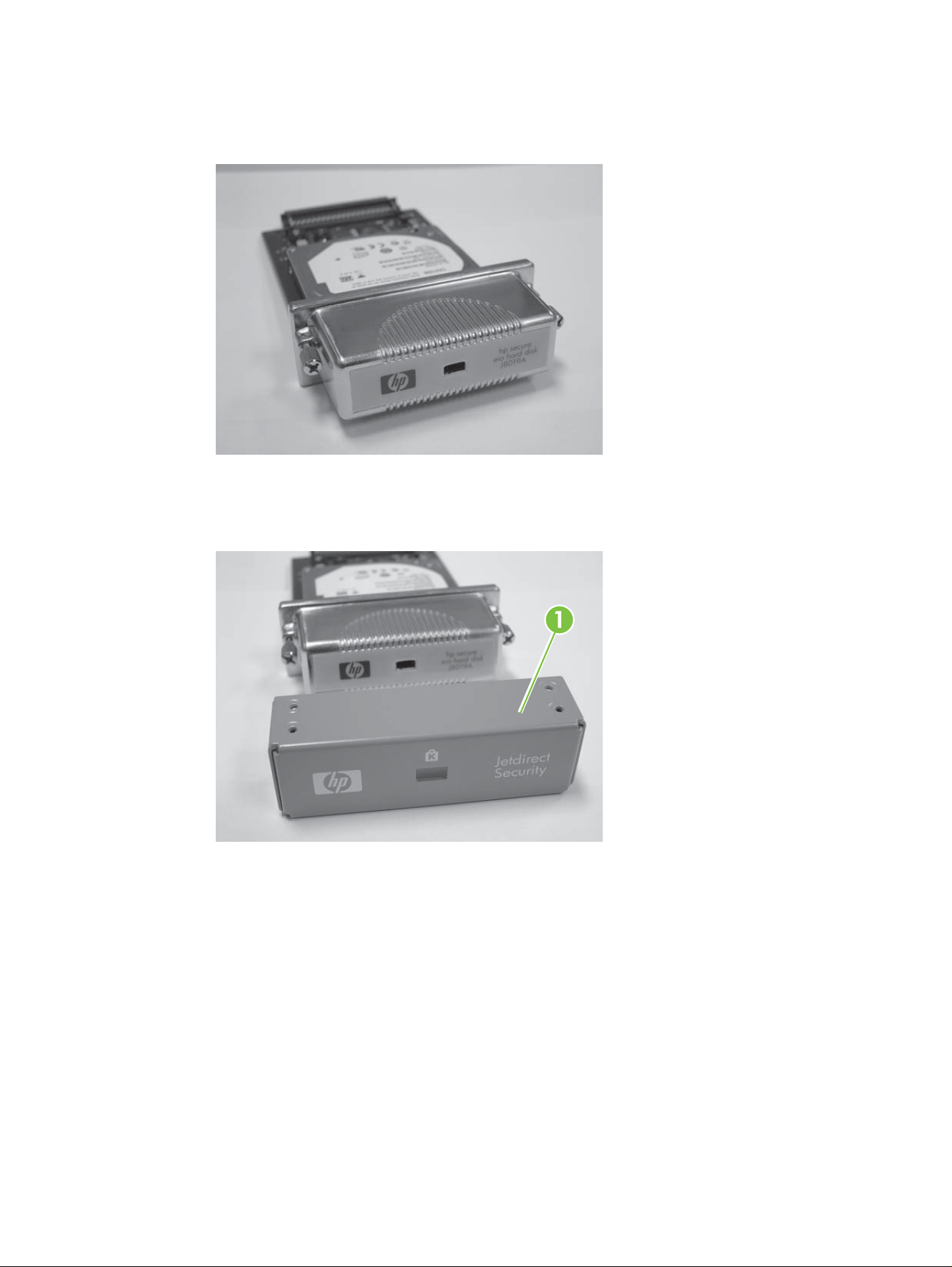
The appropriate HP Secure Hard Disk for your printer/MFP.
◦
HP High-Performance Secure EIO Hard Disk (J8019A).
For added physical security, this HP Secure Hard Disk (J8019A) includes an EIO lock adapter
(callout 1). The adapter can be outfitted with a Kensington-type lock (with or without a cable).
Contact the Kensington Computer Products Group for information about a compatible lock.
6 Chapter 2 Installation ENWW
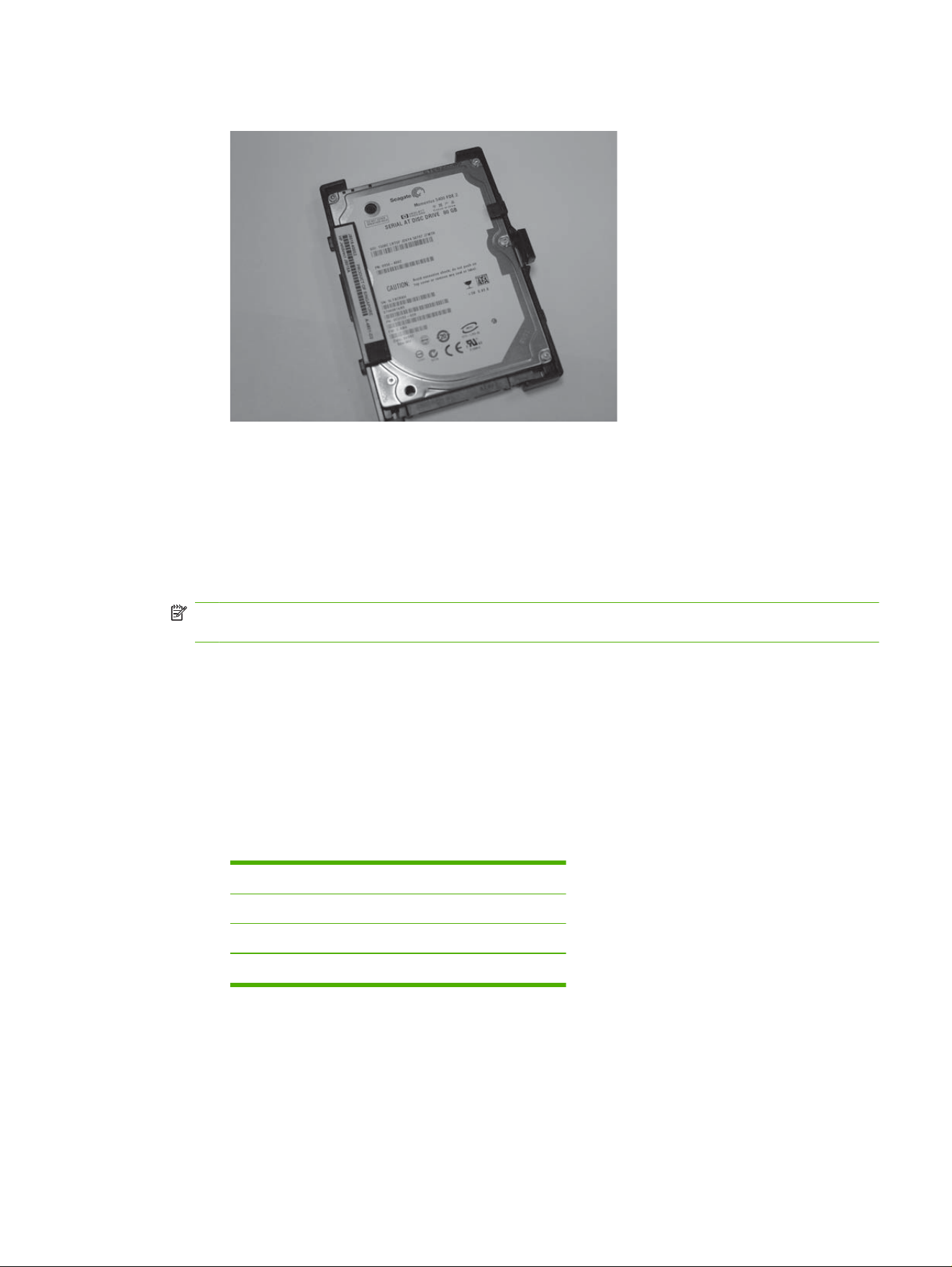
◦
HP High-Performance Secure Hard Disk (J8018A).
This HP Secure Hard Disk (J8018A) includes pre-mounted disk rails that are typically required
for installation in the formatter door.
●
The latest version of the printer/MFP firmware.
If you are installing an HP Secure Hard Disk in an existing printer/MFP, verify that it contains the
latest firmware. For firmware upgrade instructions, see the setup or use guides provided with your
printer/MFP.
NOTE: If you must upgrade the printer/MFP firmware, do this now before you install the
HP Secure Hard Disk.
After upgrading the firmware, and restarting the printer/MFP, you can verify the firmware is installed
correctly by using the following procedure:
◦
Start a supported Web browser and enter the IP address or host name of the printer/MFP.
◦
Select the Settings tab and then select Security.
◦
In the Hard Drive and Mass Storage Security Settings section, select Configure.
Because the current hard disk cannot be encrypted, you should see information similar to the
following displayed in the Hard Drive Status section:
Hard Disk: Internal (Not encryptable)
Serial Number: ABCDE1234567890abcde
Drive Status: Enabled
Encryption Status: Not supported
The Hard Disk, Drive Status, and Encryption Status fields indicate that the firmware is
capable of supporting the HP Secure Hard Disk.
ENWW What you need for installation 7

NOTE: After the firmware upgrade, the check box to Automatically enable encryption
when powered on is selected by default. To manually provide a drive password, select
Manually Specify Drive Password from the HP Encrypted Hard Drive Configuration
selections.
Once installed, the HP Secure Hard Disk automatically locks to the printer/MFP. Because all
data on the HP Secure Hard Disk is encrypted, it is unreadable if removed from the printer/
MFP.
You can exit the HP embedded Web server when you have verified that the firmware is
upgraded.
●
The latest version of HP Web Jetadmin.
If you are installing an HP Secure Hard Disk into an existing printer/MFP, and you use
HP Web Jetadmin, verify that the latest version is installed.
NOTE: If you must upgrade HP Web Jetadmin, do this now before you install the HP Secure
Hard Disk. Older versions of HP Web Jetadmin do not support the HP Secure Hard Disk.
●
Kensington-type locks and/or cables (optional).
The HP EIO lock adapter uses an optional Kensington-type lock (with or without a cable). In
addition, most printer/MFP formatters can be outfitted with an optional Kensington-type lock.
Contact the Kensington Computer Products Group for information about a compatible lock.
●
Setup or use guides provided with your printer/MFP.
These guides are helpful during the HP Secure Hard Disk installation process.
●
Font packages and any third-party party applications that are installed on the standard (non-
encrypted) hard disk(s). These must be reinstalled on the HP Secure Hard Disk.
8 Chapter 2 Installation ENWW

Check printer/MFP operation
Before attempting to install the HP Secure Hard Disk, print a printer configuration page to verify that
your HP printer/MFP is working properly. The configuration page displays the operating status of the
printer/MFP.
The steps to print a configuration page vary with each printer/MFP model. For models with a control
panel, a menu map is provided to navigate the control panel menus. To print a configuration page, use
the menu map or see your printer/MFP documentation for specific instructions.
NOTE: The name of the configuration page might vary by printer type.
ENWW Check printer/MFP operation 9

Backup data and note configuration settings
Because only the HP Secure Hard Disk will be operational, backup any data that you need from the
standard (non-encrypted) hard disk(s). After installation, restore the data to the HP Secure Hard Disk.
In addition, you must reinstall any third-party applications, fonts (including specialized fonts), and
Postscript packages.
Configuration settings are lost and should be noted before installing the HP Secure Hard Disk.
Information you might need includes the following:
●
Address Book, Distribution Lists, and Authorized User List stored on an MFP
You can save the information using the HP embedded Web server by selecting Digital Sending
Tab and Import/Export. Follow the instructions for exporting. (You can import the data to the new
HP Secure Hard Disk.)
●
Stored, Private, and Quick Copy jobs stored on an MFP
Print and scan the jobs, and then re-send to the printer/MFP. To print a list of all stored jobs, select
Print List from the Job Storage application on the control panel.
●
Third-party applications
Verify that you have the source files so you can reinstall the applications on the printer/MFP.
●
Font and Postscript packages
Verify that you have the source files so you can reinstall the fonts and Postscript packages on the
printer/MFP.
●
HP embedded Web server configuration settings
Print or write down any configuration settings you need.
10 Chapter 2 Installation ENWW

Erase existing hard disk data
Before installing the HP Secure Hard Disk, you should securely erase the data from existing EIO or
internal hard disk drives when you complete either of the following procedures:
●
Replace an existing non-encrypted hard disk (either EIO or internal) with an HP Secure Hard Disk.
●
Install an HP Secure Hard Disk in a printer/MFP that contains a secondary (non-encrypted) hard
disk. If the secondary hard disk remains in the printer/MFP, it is deactivated and not accessible.
NOTE: You cannot access a secondary (non-encrypted) hard disk after the HP Secure Hard Disk
is installed. However, if the HP Secure Hard Disk is re-initialized and subsequently removed from
the printer/MFP, the secondary (non-encrypted) hard disk is again accessible.
CAUTION: Verify that you have backed up any data that you need to keep before erasing the
secondary (non-encrypted) hard disk.
See your printer/MFP use guides for information about securely erasing the hard disk. For information
about using the HP embedded Web server Secure storage erase option, see
Secure storage erase
on page 27.
ENWW Erase existing hard disk data 11

Install the EIO HP Secure Hard Disk (J8019A)
Use this section to install the HP High-Performance Secure EIO Hard Disk (J8019A).
CAUTION: Verify that you have backed up any data that you need to keep from the non-encrypted
hard disks. Use Secure Disk Erase or a similar utility to erase the standard non-encrypted hard disks
before removal or deactivation.
NOTE: Before you begin, locate the setup or use guides provided with your printer/MFP.
1. Turn the printer/MFP off, and disconnect the power and all interface cables.
2. Remove the printer/MFP cover, if required, to access the EIO slot.
3. If you are replacing an existing EIO hard disk, remove the two retaining screws, and then remove
the hard disk itself.
4. If you are installing an EIO HP Secure Hard Disk for the first time, locate an available EIO slot.
NOTE: If multiple EIO slots are available, you can typically install the disk into any slot. Review
the setup or use guides provided with your printer/MFP for any restrictions.
5. If the empty slot contains a cover plate, remove the two retaining screws and the plate. (You can
discard the screws and the cover plate.)
6. Align the EIO HP Secure Hard Disk with the guide rails in the slot, slide it into the slot, and press
firmly until it is seated.
7. Tighten each retaining screw a little at a time until both screws are secure. (Do not over tighten.)
8. Replace the printer/MFP cover, if required.
9. Reconnect the power and any interface cables and turn on the printer/MFP.
10. For additional physical security, you can install the EIO HP Secure Hard Disk lock adapter for use
with an optional Kensington-type lock. For instructions, continue with
Install the HP Secure
Hard Disk lock adapter on page 13.
11. If you are not installing the HP Secure Hard Disk lock adapter, continue with
Confirm HP Secure
Hard Disk operation on page 19.
12 Chapter 2 Installation ENWW
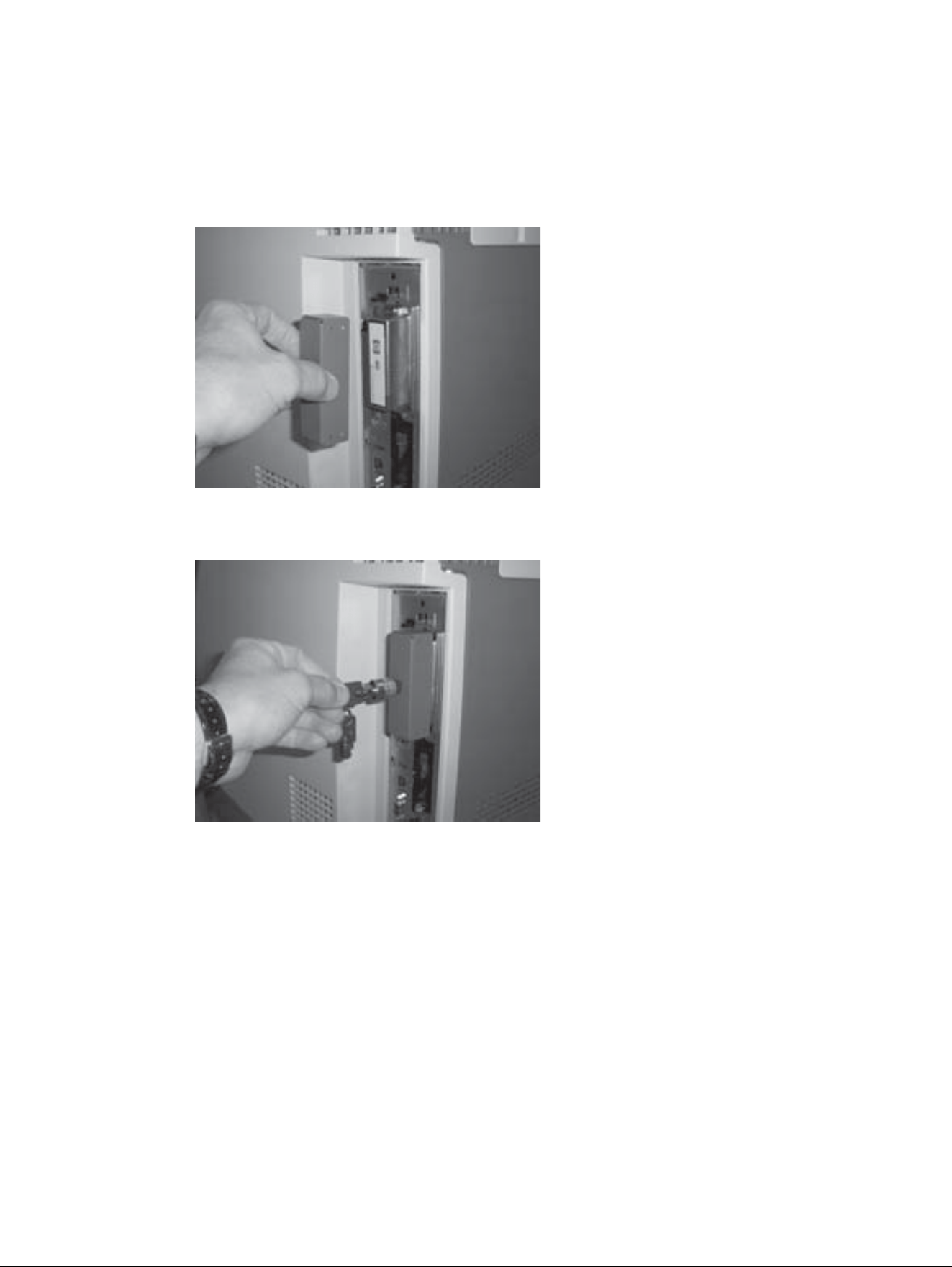
Install the HP Secure Hard Disk lock adapter
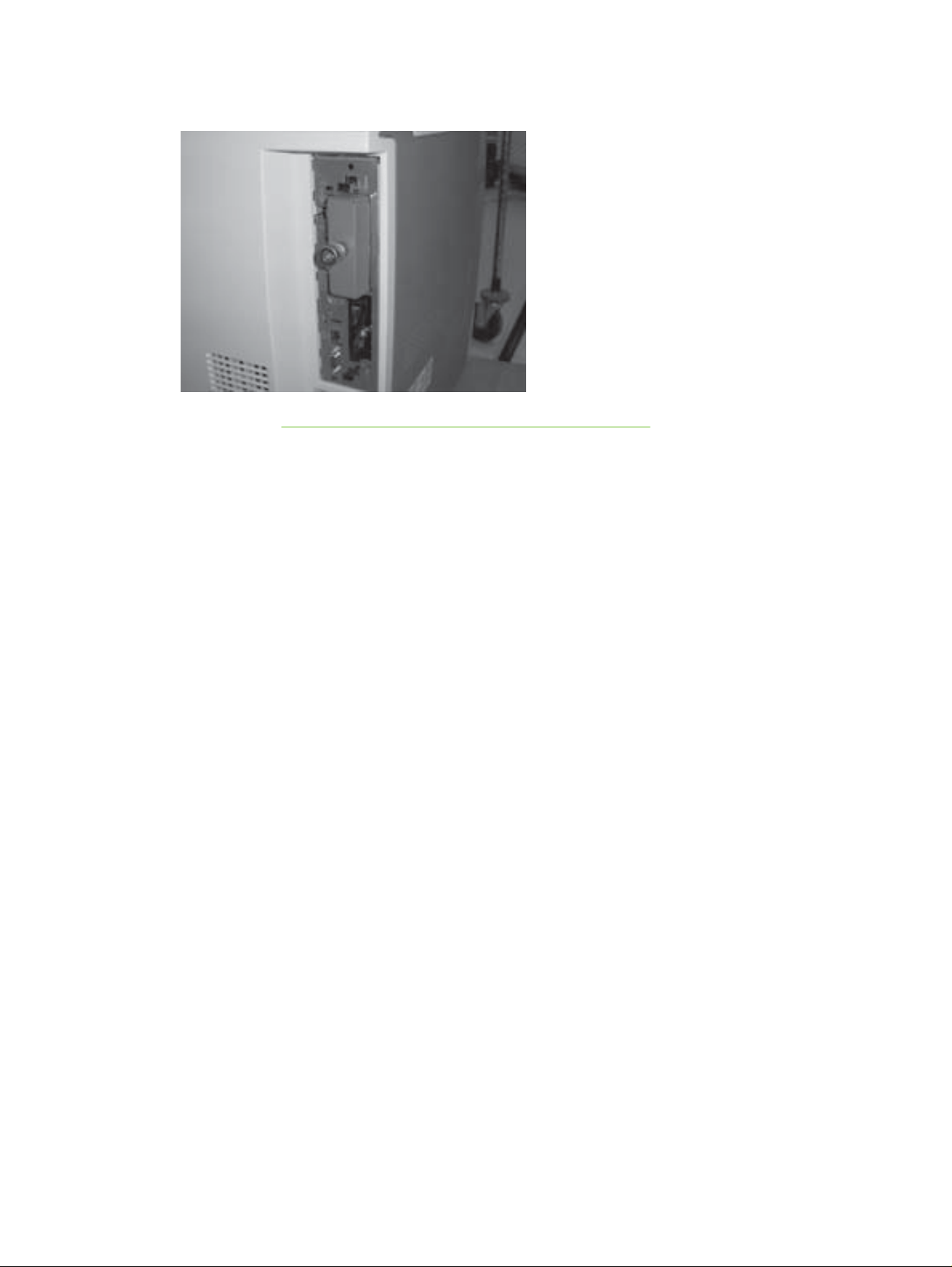
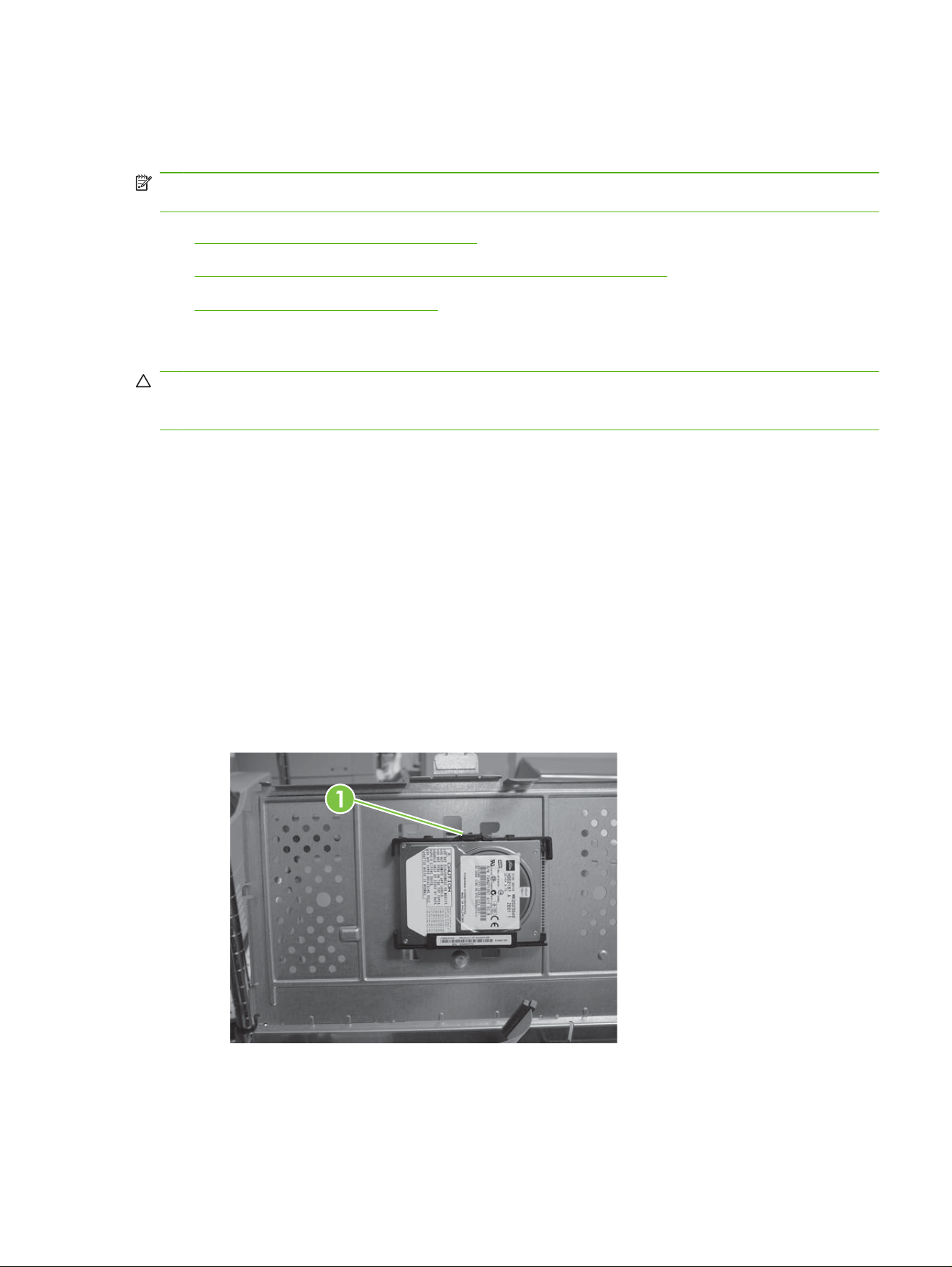
To install the HP Secure Hard Disk lock adapter (for use with an optional Kensington-type lock), use
the following steps:
1. Place the included lock adapter over the EIO HP Secure Hard Disk.
2. Install the optional Kensington-type lock that you purchased for this purpose. (The lock is not
provided with the EIO lock adapter.)
ENWW Install the HP Secure Hard Disk lock adapter 13
Install the HP Secure Hard Disk (J8018A)
Use the appropriate section to install the HP High-Performance Secure Hard Disk (J8018A).
NOTE: Before you begin the installation procedure, locate the setup or use guides provided with your
printer/MFP.
●
Install in the HP DS9250c digital sender
●
Install in the HP LaserJet M4345, M5025/M5035, or M9040/M9050
●
Install in the HP LaserJet CM3530
Install in the HP DS9250c digital sender
CAUTION: Verify that you have backed up any data that you need to keep from the non-encrypted
hard disks. Use Secure Disk Erase or a similar utility to erase the standard non-encrypted hard disks
before removal or deactivation.
1. Turn the digital sender off, and disconnect all power and interface cables.
2. Locate the formatter in the back of the digital sender and loosen the two thumb screws. (See the
setup or use guides provided with your digital sender for the specific location of the formatter.)
3. Pull the formatter out of the digital sender and lay it on a clean, flat, grounded surface, positioning
the formatter so you can access the cage door.
4. Open the formatter cage door.
The hard disk is attached to the inside of the formatter cage door.
5. If you are replacing an existing internal hard disk, use the following steps:
a. Disconnect the data and power cables from the hard disk.
b. Press the black plastic latch on the left side of the hard disk inward to release it (callout 1).
c. Slide the hard disk to remove it from the slot.
6. Slide the new HP Secure Hard Disk into the slot on the formatter cage door ensuring that the black
plastic latch is firmly seated.
ENWW Install the HP Secure Hard Disk (J8018A) 15
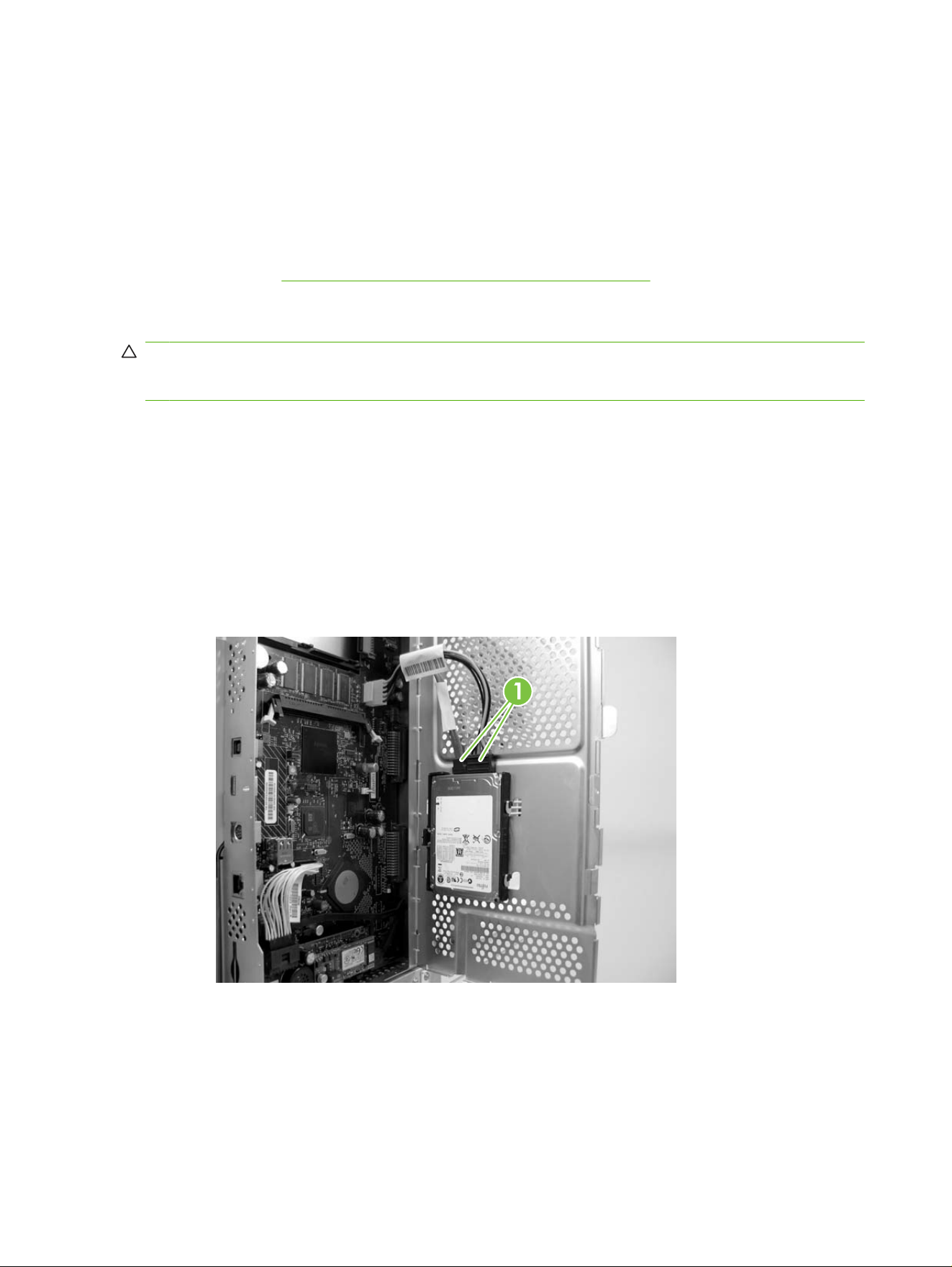
7. Connect the data and power cables.
8. Close the formatter cage door making sure that it is properly latched to the formatter cage.
9. Carefully align the formatter board and slide it back into the digital sender.
10. Tighten the thumb screws.
11. Reconnect the power and all interface cables and turn the digital sender on.
12. Continue with
Confirm HP Secure Hard Disk operation on page 19.
Install in the HP LaserJet M4345, M5025/M5035, or M9040/M9050
CAUTION: Verify that you have backed up any data that you need to keep from the non-encrypted
hard disks. Use Secure Disk Erase or a similar utility to erase the standard non-encrypted hard disks
before removal or deactivation.
1. Turn the printer/MFP off, and disconnect the power and all interface cables.
2. Locate and remove the formatter cover, if required.
3. Open the formatter cage door.
The hard disk is attached to the inside of the formatter cage door. (See the setup or use guides
provided with your printer/MFP for the specific location of the formatter cage door.)
4. If you are replacing an existing internal hard disk, use the following steps:
a. Carefully disconnect the data and power cables from the hard disk (callout 1).
b. Press the black plastic latch on the left side of the hard disk inward to release it (callout 2).
16 Chapter 2 Installation ENWW
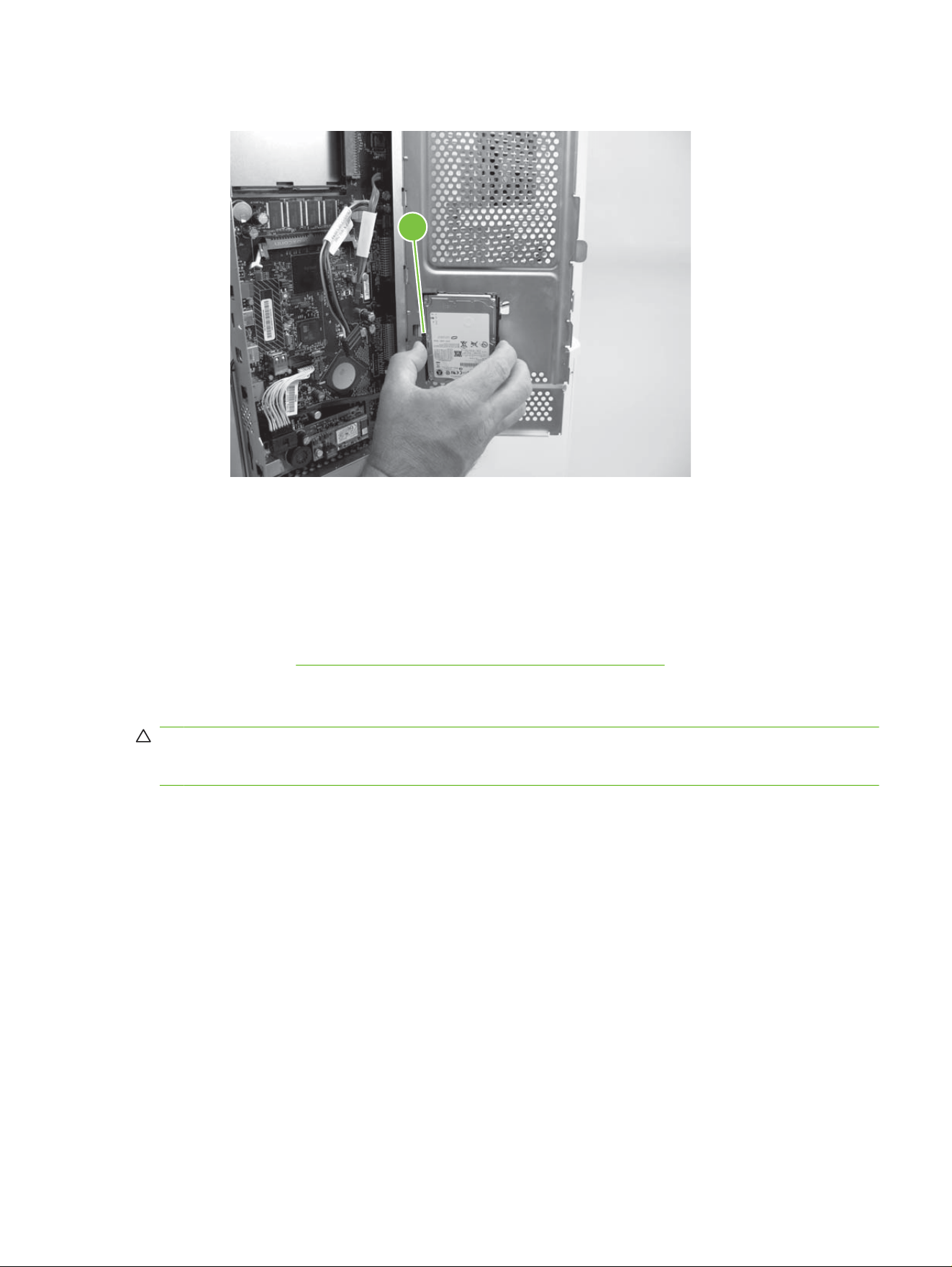
c. Slide the hard disk to remove it from the slot.
2
5. Slide the new HP Secure Hard Disk into the slot on the formatter cage door ensuring that the black
plastic latch on the left side is firmly seated.
6. Connect the data and power cables to the HP Secure Hard Disk.
7. Close the formatter cage door and replace the formatter cover, if required.
8. Reconnect the power and all interface cables and turn the printer/MFP on.
9. Continue with
Confirm HP Secure Hard Disk operation on page 19.
Install in the HP LaserJet CM3530
CAUTION: Verify that you have backed up any data that you need to keep from the non-encrypted
hard disks. Use Secure Disk Erase or a similar utility to erase the standard non-encrypted hard disks
before removal or deactivation.
1. Turn the printer/MFP off, and disconnect the power and all interface cables.
ENWW Install the HP Secure Hard Disk (J8018A) 17
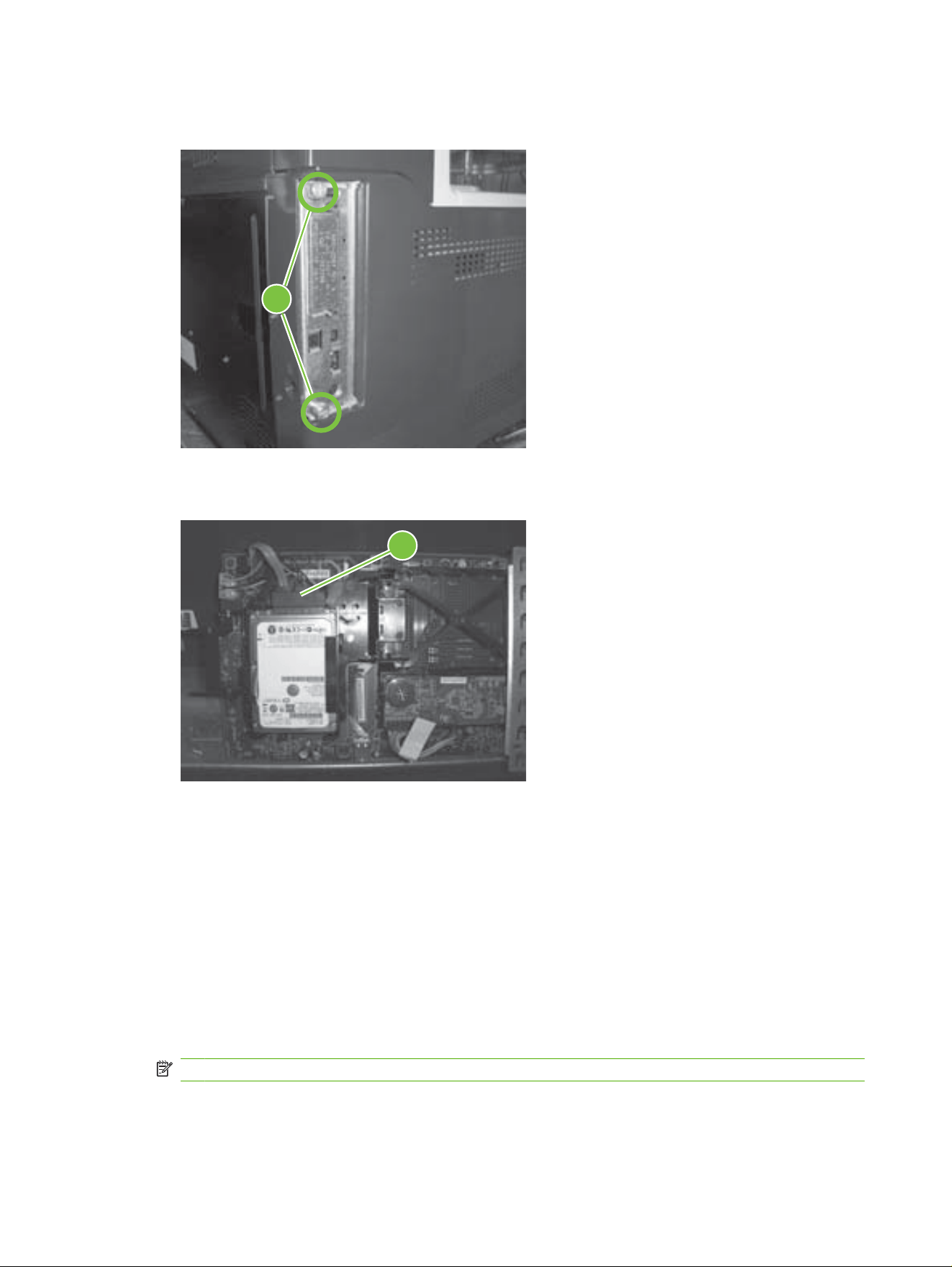
2. Locate the formatter at the rear of the printer/MFP and remove the thumb screws (callout 1). (See
the setup or use guides provided with your printer/MFP for the specific location of the formatter.)
1
3. Pull the formatter out of the printer/MFP and lay it on a clean, flat, grounded surface with the hard
disk slot facing up.
2
4. If you are replacing an existing internal hard disk, use the following steps:
a. Carefully disconnect the data and power cables.
b. Press the black plastic latch on the left side of the hard disk inward to release and then remove
the disk from the slot.
5. Slide the new HP Secure Hard Disk into the slot ensuring that the black plastic latch on the left side
is firmly seated.
6. Connect the data and power cables.
7. Align the formatter board in the tracks at the bottom of the slot, and slide the board back into the
printer/MFP.
NOTE: To prevent formatter board damage, ensure that it is properly aligned in the tracks.
8. Replace the thumb screws and carefully tighten them.
18 Chapter 2 Installation ENWW

9. Reconnect the power and all interface cables and turn the printer/MFP on.
10. Continue with
Confirm HP Secure Hard Disk operation on page 19.
Confirm HP Secure Hard Disk operation
After initially installing the HP Secure Hard Disk, confirm that it is operating correctly by using the
HP embedded Web server.
NOTE: Use this section when you first install the HP Secure Hard Disk and are initially verifying printer/
MFP operation. Otherwise, use the
Troubleshooting on page 29 section.
You can also use the printer configuration page to verify the installation.
1. Start a supported Web browser and enter the IP address or host name of the printer/MFP as the
URL.
See the setup or use guides provided with your printer/MFP for additional information about the
HP embedded Web server.
2. From the HP embedded Web server page, select the Settings tab, and then select Security.
3. In the Hard Drive and Mass Storage Security Settings section, select Configure.
The HP Secure Hard Disk status is displayed, which includes the type, serial number, drive status,
and encryption status, as in the following example:
Hard Disk: Internal (encryptable)
Serial Number: ABCDE1234567890abcde
Drive Status: Enabled
Encryption Status: Encrypted
Encrypted indicates that the HP Secure Hard Disk is locked to the printer/MFP. If the HP Secure
Hard Disk is removed from the printer/MFP, the data is unreadable.
NOTE: Automatic locking is enabled by default. Once installed, the HP Secure Hard Disk
automatically locks to the printer/MFP.
4. If the Hard Disk status is set to None installed, meaning that the printer/MFP is not detecting the
HP Secure Hard Disk, turn the printer/MFP off, disconnect the power cable, and try the following:
a. For the HP High-Performance Secure EIO Hard Disk (J8019A), check to see that it is properly
seated in the slot.
b. For an HP High-Performance Secure Hard Disk (J8018A) mounted on the inside of a formatter
door, ensure that the data and power cables are properly connected.
c. For an HP High-Performance Secure Hard Disk (J8018A) installed on a formatter, verify that
the data and power cables are properly connected and that the formatter is properly seated.
If these steps did not resolve the issue, see
Troubleshooting on page 29.
5. If the Drive Status option is Not applicable, this might also indicate that the HP Secure Hard Disk
is not properly installed. (The Hard Drive option is probably set to None installed.)
ENWW Confirm HP Secure Hard Disk operation 19


Restore data and reinstall applications
After verifying that the HP Secure Hard Disk is operating correctly, you can restore data from your
backup and reinstall third-party applications. Use the following list to verify your progress:
●
MFP Address Book, Distribution Lists, and Authorized User List
To restore previously saved data using the HP embedded Web server, select Digital Sending Tab
and Import/Export. Follow the instructions for importing.
●
MFP Stored, Private, and Quick Copy jobs
Re-send the printed and scanned jobs to the printer/MFP.
●
Third-party applications
Reinstall needed applications on the printer/MFP.
●
Font and Postscript packages
Reinstall needed fonts and Postscript packages on the printer/MFP.
●
Configuration settings
Set specific printer/MFP configuration settings using the HP embedded Web server, if required.
ENWW Restore data and reinstall applications 21

22 Chapter 2 Installation ENWW


General information
This section contains general information about managing your HP Secure Hard Disk.
●
Standard hard disks are disabled
●
Hard disk priority
Standard hard disks are disabled
After the HP Secure Hard Disk is installed, any standard (non-encrypted) EIO or internal hard disks that
remain in the printer/MFP are disabled. Also, if you install a standard hard disk in a printer/MFP after
an HP Secure Hard Disk is installed, that standard hard disk is automatically disabled. Disabled standard
(non-encrypted) hard disks are inaccessible, but are reported as physically present by the
HP embedded Web server and on the configuration page.
The following example shows the status of a standard (non-encrypted) internal hard disk after an
HP High-Performance Secure EIO Hard Disk is installed:
Hard Disk: Internal (Not encryptable)
Serial Number: ABCDE1234567890abcde
Drive Status: Disabled
Encryption Status: Another encrypted drive present
Hard Disk: EIO 1 (encryptable)
Serial Number: ABCDE1234567890abcde
Drive Status: Enabled
Encryption Status: Encrypted
Notice that the Drive Status of the standard hard disk is Disabled and that the Encryption Status is
Another encrypted drive present.
CAUTION: After installation, if the HP Secure Hard Disk is removed from the printer/MFP, any
standard (non-encrypted) hard disks that were previously disabled are again accessible.
Hard disk priority
A printer/MFP can contain one locked HP Secure Hard Disk. If you install multiple hard disks in a printer/
MFP, the system uses the following priority to determine the active hard disk:
●
Internal encrypted
●
EIO encrypted
●
Internal not encrypted
●
EIO not encrypted
24 Chapter 3 Manage the HP Secure Hard Disk ENWW

CAUTION: Installing more than one HP Secure Hard Disk in a printer/MFP can disable a previously
functioning HP Secure Hard Disk. For example, if you install an internal HP Secure Hard Disk in a printer/
MFP that contains a functioning EIO HP Secure Hard Disk, the EIO disk is disabled and no longer
accessible.
ENWW General information 25

Reinitialize, Disable, or Erase the HP Secure Hard Disk
When required, use the HP embedded Web server to reinitialize the HP Secure Hard Disk, disable
encryption, or perform a secure storage erase.
NOTE: For additional information about the HP embedded Web server and the supported Web
browsers, see the setup or use guides for your printer/MFP model. For information about when to use
these options, see
Troubleshooting on page 29.
●
Reinitialize the HP Secure Hard Disk
●
Disable encryption
●
Secure storage erase
Reinitialize the HP Secure Hard Disk
The HP embedded Web server option Reinitialize Hard Drive unlocks the HP Secure Hard Disk from
the printer/MFP and resets encryption making the data inaccessible. You might need to reinitialize if an
installed HP Secure Hard Disk was encrypted or originally locked to a different printer/MFP.
A reinitialized HP Secure Hard Disk can be re-locked to the same printer/MFP, or moved to a different
(compatible) printer/MFP. (Verify that the printer/MFP uses the latest firmware version.)
CAUTION: All existing data on the HP Secure Hard Disk becomes inaccessible and disk encryption
is reset. The printer/MFP restarts at the conclusion of the process. The setting that enables encryption
when the printer/MFP starts (Automatically enable encryption when powered on) is disabled. You
must manually select to enable encryption.
1. Start a supported Web browser and enter the IP address or host name of the printer/MFP as the
URL.
2. From the HP embedded Web server page, select the Settings tab, and then select Security.
3. In the Hard Drive and Mass Storage Security Settings section, select Configure.
The HP Secure Hard Disk status is displayed, which includes the type, serial number, drive status,
and encryption status, as in the following example:
Hard Disk: Internal (encryptable)
Serial Number: ABCDE1234567890abcde
Drive Status: Enabled
Encryption Status: Encrypted
4. Select Reinitialize Hard Drive.
5. When the process is complete and the printer has restarted, go to the Hard Drive and Mass
Storage Security Settings page (HP encrypted Hard Drive Configuration), and select Enable
Encryption using Random Drive Password, which is recommended, or Manually Specify Drive
Password.
6. If you select to manually specify the drive password, enter the password to use. (The password is
displayed for auditing purposes.)
7. To activate your selection, click the Enable Encryption option.
26 Chapter 3 Manage the HP Secure Hard Disk ENWW

Disable encryption
The HP embedded Web server option Disable encryption and continue, disables encryption on the
printer/MFP. Use this option when a printer/MFP is configured to use an HP Secure Hard Disk, but a
standard (non-encrypted) hard disk is installed in its place. Using this option assumes that you want to
disable encryption and continue using the standard (non-encrypted) hard disk. Otherwise, you must
locate and install the correct HP Secure Hard Disk that is locked to this printer/MFP.
When you disable encryption, the information on the previously encrypted HP Secure Hard Disk is
unreadable, since the encryption key no longer matches the key stored on the printer/MFP. Selecting
this option reboots the printer/MFP.
CAUTION: All data on the original HP Secure Hard Disk becomes unreadable. The printer/MFP
restarts at the conclusion of the process. The setting to enable encryption when the printer/MFP starts
(Automatically enable encryption when powered on) is disabled.
1. Start a supported Web browser and enter the IP address or host name of the printer/MFP as the
URL.
2. From the HP embedded Web server page, select the Settings tab, and then select Security.
3. In the Hard Drive and Mass Storage Security Settings section, select Configure.
The HP Secure Hard Disk status is displayed, which includes the type, serial number, drive status,
and encryption status.
4. To reset encryption, select Disable encryption and continue.
NOTE: Disabling encryption occurs almost immediately. However, the time required to reboot
the printer/MFP depends on the model.
Secure storage erase
Select this option to permanently remove all data from the encrypted HP Secure Hard Disk or the
standard (non-encrypted) hard disk(s). After the data is erased, the printer/MFP reboots. Erasing the
disk can take significant time (hours) to complete. (Unlike disabling encryption, which occurs almost
immediately, this option overwrites data.)
CAUTION: All data on the selected HP Secure Hard Disk or the standard (non-encrypted) hard disk
is erased. The printer/MFP restarts at the conclusion of the process.
1. Start a supported Web browser and enter the IP address or host name of the printer/MFP as the
URL.
2. From the HP embedded Web server page, select the Settings tab, and then select Security.
3. In the Hard Drive and Mass Storage Security Settings section, select Configure.
The hard disk status is displayed, which includes the type, serial number, drive status, and
encryption status.
4. Select the device to erase.
NOTE: It can take a significant amount of time (hours) for the printer/MFP to complete this phase
and restart.
5. Click Perform Secure Storage Erase.
ENWW Reinitialize, Disable, or Erase the HP Secure Hard Disk 27

28 Chapter 3 Manage the HP Secure Hard Disk ENWW


Solve general problems
Use the following checklist to address general HP Secure Hard Disk issues. For other issues, use the
control panel, printer configuration page, or the HP embedded Web server.
1. If the Ready light is not on, ensure that the power cable is properly connected and the power switch
for the printer/MFP is turned on.
2. If the printer/MFP control panel display does not show Ready, verify that all cabling was properly
reconnected.
3. If the printer/MFP is not detecting the HP Secure Hard Disk, turn the printer/MFP off, disconnect
the power cable, and check the following items:
a. HP High-Performance Secure EIO Hard Disk (J8019A) — Is it properly seated in the slot?
b. HP High-Performance Secure Hard Disk (J8018A) — Are the data and power cables properly
connected? If the disk is mounted on the formatter, is the formatter properly seated?
4. Check the control-panel display for any error messages.
See
Control panel messages on page 31.
5. Print a printer configuration page and look for status or error messages.
See
Printer configuration page messages on page 31.
6. Run the HP embedded Web server and check the status of the HP Secure Hard Disk.
See
Embedded Web server messages on page 33.
30 Chapter 4 Troubleshooting ENWW

Control panel messages
Review the following information about control panel messages.
NOTE: Control panel information about the HP Secure Hard Disk is limited to short warning messages
about drive and encryption status. For more information about the message, use the
HP embedded Web server.
Some printer/MFP functions might be limited until an error condition is resolved.
Control panel message Description Recommended action
Expected drive missing The printer/MFP was locked to an
HP Secure Hard Disk.
●
Installed hard disk is not capable of
encryption.
●
Installed HP Secure Hard Disk was
locked to a different printer/MFP.
●
Does not contain a hard disk.
Install the correct hard disk for this
printer/MFP. Or, to permanently erase
the contents of the HP Secure Hard Disk,
and reboot the printer/MFP, select
Reinitialize Hard Drive.
HP Encrypted drive disabled Installed HP Secure Hard Disk is not
locked to this printer/MFP.
Install the correct hard disk for this
printer/MFP. Or, to permanently erase
the contents of the HP Secure Hard Disk,
and reboot the printer/MFP, select
Reinitialize Hard Drive.
Unsupported drive installed Installed internal hard disk is not capable
of encryption. However, this printer/MFP
is capable of managing an HP Secure
Hard Disk.
Install the correct HP Secure Hard Disk
for this printer/MFP. Or, you can Disable
printer/MFP encryption and continue.
Printer configuration page messages
The Installed Personalities and Options section of the printer configuration page includes information
such as the EIO slot installed, drive status, serial number, model name, and drive capacity. There are
typically three states for the drive:
●
Empty — No hard disk is installed.
●
Enabled — A hard disk is installed. See the Security section for more information about the
encryption status, such as whether the disk is locked to this printer/MFP and operating normally.
●
Disabled — A hard disk is installed, but it is not operational. See the Security section for more
information.
In the Security section of the configuration page, use the Hard Drive Encryption Status for
troubleshooting. Use the following table to verify whether your HP Secure Hard Disk is functioning
properly. For additional troubleshooting information, use the HP embedded Web server.
Hard Disk Encryption Status Message Recommended Action
Not applicable Normal status when no hard disk is
installed.
Install an HP Secure Hard Disk.
Not supported Normal status for a standard (non-
encrypted) hard disk.
Install an HP Secure Hard Disk.
ENWW Control panel messages 31

Hard Disk Encryption Status Message Recommended Action
ENABLED Normal status when an HP Secure
Hard Disk is installed.
None.
DISABLED Disk is capable of encryption. However,
encryption is disabled.
Enable encryption using the
HP embedded Web server or
HP Web Jetadmin.
CAUTION: Data on this hard disk is
not encrypted.
DISABLED: Expected Drive Missing Incorrect hard disk installed. The
printer/MFP was expecting an
HP Secure Hard Disk that was previously
locked to this printer/MFP.
NOTE: If the hard disk encountered a
serious error, the disk status in the
Installed Personalities and Options
section is Disk Not Functional.
Install the correct hard disk for this
printer/MFP. Or, to permanently erase
the contents of the HP Secure Hard Disk
and reboot the printer/MFP, select
Reinitialize Hard Drive.
If the hard disk is Not Functional, turn
the printer/MFP off and check all power
and interface cables. Then, restart the
printer/MFP. If the error continues,
contact HP Support.
DISABLED: Encrypted by Another
Device
Incorrect hard disk installed. The
installed HP Secure Hard Disk was
locked to a different printer/MFP.
Install the correct hard disk for this
printer/MFP. Or, to permanently erase
the contents of the HP Secure Hard Disk
and reboot the printer/MFP, select
Reinitialize Hard Drive.
DISABLED: Unsupported Drive Installed Incorrect hard disk installed. Only
HP Secure Hard Disks are supported in
this printer/MFP.
Install the correct HP Secure Hard Disk
for this printer/MFP.
Disk Not Functional
(Internal or EIO)
Hard disk is not functional. Turn the printer/MFP off and check all
power and interface cables. Then, restart
the printer/MFP. If the error continues,
contact HP Support.
NOTE: See your printer/MFP documentation for instructions about viewing or printing configuration
pages. For a description of configuration page messages other than those related to the HP Secure
Hard Disk, see the setup or use guides provided with your printer/MFP model.
32 Chapter 4 Troubleshooting ENWW

Embedded Web server messages
Use the HP embedded Web server to review status messages.
1. Start a supported Web browser and enter the IP address or host name of the printer/MFP as the
URL.
2. From the HP embedded Web server page, select the Settings tab, and then select Security.
3. In the Hard Drive and Mass Storage Security Settings section, select Configure.
The HP Secure Hard Disk status is displayed, which includes the type, serial number, drive status,
and encryption status.
4. Use the following information to resolve any issues.
NOTE: Messages are displayed in the section titled HP Encrypted Hard Drive Configuration. If the
printer/MFP is capable of managing an HP Secure Hard Disk, the first message in the section states,
This device allows storage encryption when an HP Encrypted Hard Drive is installed.
Although the Hard Drive field in the table displays EIO or Internal, the information provided can apply
to either type.
For clarity, the table describes only status messages for the HP Secure Hard Disk. However, the Hard
Drive Status section of the HP embedded Web server lists all installed hard disks.
The messages listed in the following table indicate normal operating conditions, and generally do not
require attention.
Table 4-1 Normal Operation Messages
Hard Disk Drive Status Meaning/Description Recommended Action
Hard Drive:
Serial Number:
Drive Status:
Encryption Status:
None installed
Not applicable
Not applicable
Not applicable
No hard disk installed.
However, this printer/MFP can
manage an HP Secure Hard Disk.
Verify that Automatically enable
encryption... is selected, and
install the HP Secure Hard Disk.
Hard Drive:
Serial Number:
Drive Status:
Encryption Status:
Internal (not encryptable)
0987654321
Enabled
Not supported
Standard (non-encrypted) hard
disk is installed.
However, this printer/MFP can
manage an HP Secure Hard Disk.
Verify that Automatically enable
encryption... is selected, and
install the HP Secure Hard Disk.
Hard Drive:
Serial Number:
Drive Status:
Encryption Status:
EIO 1 (encryptable)
0987654321
Enabled
Encrypted
Encryption is enabled and hard
disk is functioning correctly.
None.
The warning messages listed in the following table indicate a condition that might require attention.
ENWW Embedded Web server messages 33

Table 4-2 Warning Messages
Hard Disk Drive Status Meaning/Description Recommended Action
Hard Drive:
Serial Number:
Drive Status:
Encryption Status:
Internal (encryptable)
0987654321
Enabled
Not encrypted
HP Secure Hard Disk installed.
However, it is not locked to the
printer/MFP and it is not
encrypting data.
CAUTION: Data on this
HP Secure Hard Disk can be read
on another device.
Select Enable Encryption using
Random Drive Password
(Recommended), or Manually
Specify Drive Password, and
then select Enable Encryption.
Hard Drive:
Serial Number:
Drive Status:
Encryption Status:
None installed
Not applicable
Drive missing
Not applicable
No hard disk installed.
However, this printer/MFP can
manage an HP Secure Hard Disk.
NOTE: MFPs require a hard
disk for certain operations. Copy,
fax, and send functions might be
disabled.
Verify that Automatically enable
encryption... is selected, and
install an HP Secure Hard Disk.
The messages listed in the following table indicate a condition that requires immediate attention.
Table 4-3 Error Messages
Hard Disk Drive Status Meaning/Description Recommended Action
Hard Drive:
Serial Number:
Drive Status:
Encryption Status:
None installed
Not applicable
Not applicable
Expected drive missing
No hard disk installed.
An HP Secure Hard Disk that was
previously locked to this printer/
MFP was removed.
Locate and install the correct
HP Secure Hard Disk for this
printer/MFP.
Hard Drive:
Serial Number:
Drive Status:
Encryption Status:
Internal (encryptable)
0987654321
Disabled
Encrypted by another
device
Incorrect hard disk installed.
The installed HP Secure
Hard Disk was previously locked
to a different printer/MFP. This
printer/MFP is expecting an
unlocked HP Secure Hard Disk
Install the correct hard disk for this
printer/MFP. Or, select
Reinitialize Hard Drive to unlock
this HP Secure Hard Disk.
CAUTION: The entire contents
of the installed hard disk is erased
and the device reboots.
Hard Drive:
Serial Number:
Drive Status:
Encryption Status:
Internal (encryptable)
0987654321
Disabled
Expected drive missing
Incorrect hard disk installed.
An HP Secure Hard Disk is
installed. However, a different
HP Secure Hard Disk was
previously locked to this printer/
MFP.
Install the correct HP Secure
Hard Disk for this printer/MFP. Or,
to permanently erase the contents
of the installed HP Secure
Hard Disk, select Reinitialize
Hard Drive.
CAUTION: The entire contents
of the installed hard disk is erased
and the device reboots. In
addition, all data on the
HP Secure Hard Disk previously
locked to this printer/MFP is
unreadable.
Hard Drive:
Serial Number:
Internal (not encryptable)
0987654321
Incorrect hard disk installed. Install the correct HP Secure
Hard Disk for this printer/MFP. Or,
34 Chapter 4 Troubleshooting ENWW

Hard Disk Drive Status Meaning/Description Recommended Action
Drive Status:
Encryption Status:
Disabled
Expected drive missing
Standard (non-encrypted) hard
disk is installed. However, an
HP Secure Hard Disk was
previously locked to this printer/
MFP.
select Disable encryption and
continue.
CAUTION: All data on the
HP Secure Hard Disk previously
locked to this printer/MFP is
unreadable.
Hard Drive:
Serial Number:
Drive Status:
Encryption Status:
Internal (not encryptable)
0987654321
Disabled
Unsupported drive
Incorrect hard disk installed.
Installed secure hard disk cannot
be encrypted.
This HP printer/MFP only
supports a genuine HP Secure
Hard Disk. Install the correct hard
disk.
Hard Drive:
Serial Number:
Drive Status:
Encryption Status:
Internal (not encryptable)
0987654321
Not functional
Not applicable
Hard disk is not functional.
NOTE: The hard disk has
encountered a serious error.
Turn the printer/MFP off and
check all power and interface
cables. Then, restart the printer/
MFP. If the error continues,
contact HP Support.
Table 4-3 Error Messages (continued)
ENWW Embedded Web server messages 35

Reset to factory defaults
Resetting to factory defaults does not reset an HP Secure Hard Disk that is locked to a printer/MFP.
NOTE: For information about the factory default values, see the setup or use guides for your printer/
MFP.
36 Chapter 4 Troubleshooting ENWW


HP support by phone
Highly trained technicians are ready to take your call.
For toll-free phone support in the USA and Canada, call HP support at: 1-800-HPINVENT
(1-800-474-6836)
For the most recent HP support telephone numbers and available services worldwide, visit
http://www.hp.com/support.
NOTE: The phone numbers listed may not be toll-free. Telephone fees are the responsibility of the
caller. Rates may vary. Contact your local telephone company for current rates.
38 Chapter 5 Customer support ENWW

A Specifications
●
Electrical
●
Environmental
●
Electromagnetic
●
Acoustic
●
Safety
Electrical
Electrical power is supplied by the device EIO slot.
1.25 A maximum @ 3.3 V nominal
Environmental
Operating Non-Operating
Temperature 0° to 55° C
(32° to 131° F)
-40° to 70° C
(-40° to 158° F)
Relative Humidity (non-
condensing)
15% to 95% at 40° C (104° F) 15% to 95% at 65° C (149° F)
Maximum Altitude 4.6 km (15,000 ft) 4.6 km (15,000 ft)
ENWW Electrical 39

Electromagnetic
●
FCC Title 47 CFR Part 15 Class B for Ethernet (USA)
●
ICES-003 Class B (Canada)
●
VCCI Class B (Japan)
●
AS/NZS3548 Class B (Australia, New Zealand)
●
CISPR-22 Class B (1997)* (International, Europe)
●
CNS 13438 Class B (Taiwan)
●
Korean EMI Law, No. 1996-98 Class B (Korea)
Acoustic
Not applicable.
Safety
Product complies with:
●
EN60950–1 (2000) First edition.
40 Appendix A Specifications ENWW

B Regulatory Statements
FCC Statements
CAUTION: Pursuant to Part 15.21 of the FCC Rules, any changes or modifications to this equipment
not expressly approved by the Hewlett-Packard Company may cause interference and void the FCC
authorization to operate this equipment.
General Information. This device complies with Part 15 of the FCC Rules. Operation is subject to the
following two conditions: (1) This device may not cause interference, and (2) this device must accept
any interference received, including interference that may cause undesired operation.
The Federal Communications Commission has prepared a booklet titled Interference Handbook (1986),
which may be helpful to you. This booklet (stock number 004-000-004505-7) may be purchased from
the Superintendent of Documents, U.S. Government Printing Office, Washington, D.C. 20402.
FCC Class B. This equipment has been tested and found to comply with the limits for a Class B digital
device, pursuant to part 15 of the FCC Rules. These limits are designed to provide reasonable protection
against interference in a residential installation. This equipment generates, uses and can radiate radio
frequency energy and, if not installed and used in accordance with the instructions, may cause
interference to radio communications. However, there is no guarantee that interference will not occur
in a particular installation. If this equipment does cause interference to radio or television reception,
which can be determined by turning the equipment off and on, the user is encouraged to try to correct
the interference by one or more of the following measures:
1. Reorient or relocate the receiving antenna.
2. Increase the separation between the equipment and receiver.
3. Connect the equipment into an outlet on a circuit different from that to which the receiver is
connected.
4. Consult the dealer or an experienced radio/TV technician for help.
NOTE: For further information, contact:
Manager of Corporate Product Regulations
Hewlett-Packard Company
3000 Hanover Street
Palo Alto, California 94304
(650) 857-1501
ENWW FCC Statements 41
Regulatory Model Identification Number
For regulatory identification purposes, these products are assigned a Regulatory Model Number. The
Regulatory Model Number for the HP Secure Hard Disk is:
●
RSVLD-0607
The regulatory numbers should not be confused with the marketing name (such as HP High-
Performance Secure Hard Disk) or the product numbers (J8018A or J8019A).
European Community
This equipment complies with CISPR22/EN55022 Class B. This is a Class B product. In a domestic
environment, this product may cause radio interference in which case the user may be required to take
adequate measures.
Canada
This Class B digital apparatus complies with Canadian ICES-003.
Cet appareil numérique de la classe B est conforme à la norme NMB-003 du Canada.
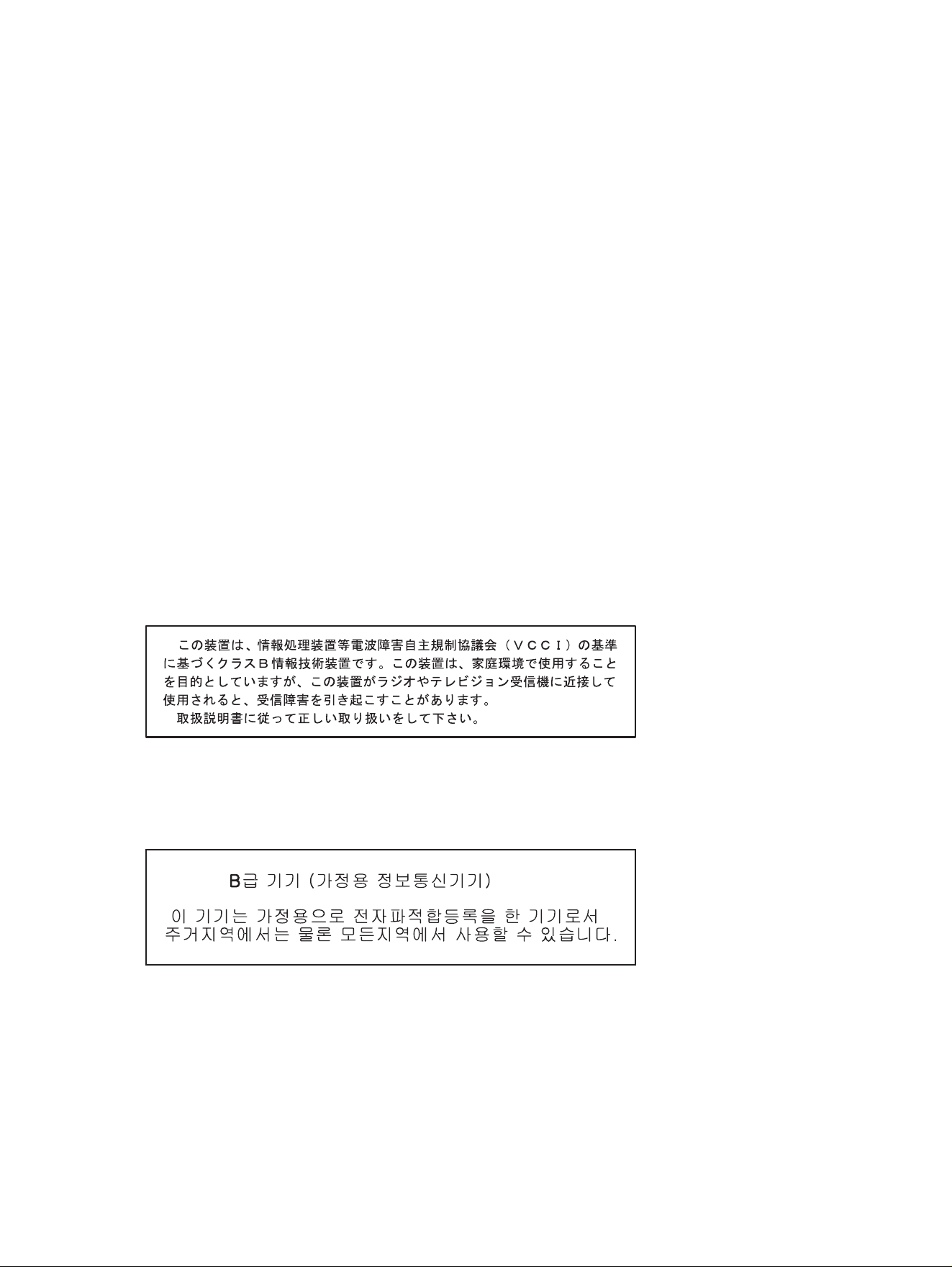
VCCI (Japan)
Class B
RRL Statement (Korea)
Class B
42 Appendix B Regulatory Statements ENWW

C Warranty Service
Hewlett-Packard Limited Warranty Statement
HP Product Duration of Limited Warranty
HP High-Performance Secure Hard Disk 1 Year
HP High-Performance Secure EIO Hard Disk 1 Year
1. HP warrants to you, the original end-user customer, that HP hardware and accessories will be free
from defects in materials and workmanship after the original date of purchase, for the period specified
above. If HP receives notice of such defects during the warranty period, HP will, at its option, either
repair or replace, products, that prove to be defective. Replacement products may be either new or
equivalent in performance to new. If the original end-user customer transfers the HP hardware and
accessories to another user, warranty service is available to that user only for the remainder of the
original warranty period. This Limited Warranty applies only to authentic HP-branded hardware products
sold by or leased from Hewlett-Packard Company, its worldwide subsidiaries, affiliates, authorized
resellers, or authorized country/region distributors.
2. HP warrants to you that HP software will not fail to execute its programming instructions after the date
of purchase, for a period specified above, due to defects in material and workmanship when properly
installed and used. If HP receives notice of such defects during the warranty period, HP will replace
software that does not execute its programming instructions due to such defects.
3. HP does not warrant that the operation of HP products will be uninterrupted or error free. If HP is
unable, within a reasonable time, to repair or replace any product to a condition as warranted, you will
be entitled to a refund of the purchase price upon prompt return of the product.
4. HP products may contain remanufactured parts equivalent to new in performance or may have been
subject to incidental use.
5. Warranty does not apply to defects resulting from (a) improper or inadequate maintenance or
calibration, (b) software, interfacing, parts or supplies not supplied by HP, (c) unauthorized modification
or misuse, (d) operation outside of the published environmental specifications for the product, or (e)
improper site preparation or maintenance.
6. TO THE EXTENT ALLOWED BY LOCAL LAW, THE ABOVE WARRANTIES ARE EXCLUSIVE AND
NO OTHER WARRANTY OR CONDITION, WHETHER WRITTEN OR ORAL, IS EXPRESSED OR
IMPLIED AND HP SPECIFICALLY DISCLAIMS ANY IMPLIED WARRANTIES OR CONDITIONS OF
MERCHANTABILITY, SATISFACTORY QUALITY, AND FITNESS FOR A PARTICULAR PURPOSE.
Some countries/regions, states or provinces do not allow limitations on the duration of an implied
warranty, so the above limitation or exclusion might not apply to you. This warranty gives you specific
legal rights and you might also have other rights that vary from country/region to country/region, state
to state, or province to province.
ENWW Hewlett-Packard Limited Warranty Statement 43

7. HP’s limited warranty is valid in any country/region or locality where HP has a support presence for
this product and where HP has marketed this product. The level of warranty service you receive may
vary according to local standards. HP will not alter form, fit or function of the product to make it operate
in a country/region for which it was never intended to function for legal or regulatory reasons.
8. TO THE EXTENT ALLOWED BY LOCAL LAW, THE REMEDIES IN THIS WARRANTY STATEMENT
ARE YOUR SOLE AND EXCLUSIVE REMEDIES. EXCEPT AS INDICATED ABOVE, IN NO EVENT
WILL HP OR ITS SUPPLIERS BE LIABLE FOR LOSS OF DATA OR FOR DIRECT, SPECIAL,
INCIDENTAL, CONSEQUENTIAL (INCLUDING LOST PROFIT OR DATA), OR OTHER DAMAGE,
WHETHER BASED IN CONTRACT, TORT, OR OTHERWISE. Some countries/regions, states or
provinces do not allow the exclusion or limitation of incidental or consequential damages, so the above
limitation or exclusion may not apply to you.
THE WARRANTY TERMS CONTAINED IN THIS STATEMENT, EXCEPT TO THE EXTENT
LAWFULLY PERMITTED, DO NOT EXCLUDE, RESTRICT OR MODIFY AND ARE IN ADDITION TO
THE MANDATORY STATUTORY RIGHTS APPLICABLE TO THE SALE OF THIS PRODUCT TO YOU.
Your Authorized Dealer
If you encounter difficulty, begin by contacting the person who sold you the HP Secure Hard Disk. Your
HP Authorized Dealer will be familiar with your requirements and can provide assistance.
During the warranty period, HP will replace the unit at no charge provided the defective unit is returned.
You may return the unit to your HP Authorized Dealer or your local HP Sales and Service Office
representative. Be sure to include a copy of your purchase receipt.
For warranty service on HP Secure Hard Disk products, call HP support. When calling, please have the
following information ready:
●
HP Secure Hard Disk product you are calling about.
●
Model number of the product.
●
Serial number of the product.
●
Complete description of the problem.
●
Proof of purchase of your product.
●
Your shipping address.
The HP support representative will help you with troubleshooting, and advise you on warranty service.
Service Billing (Out of Warranty)
When ordering a replacement unit for out-of-warranty service, you may be charged a repair cost. See
your HP Authorized Dealer or your local HP Sales and Service Office representative. Or, you can call
HP at (800) 227-8164 (USA only).
Service Outside the USA
Customers outside the USA should contact their HP Authorized Dealer or HP Sales and Service Office
to obtain information on prices, exchange unit availability and instructions.
44 Appendix C Warranty Service ENWW

Local Warranty Statements
Australia and New Zealand
For consumer transactions in Australia and New Zealand: The warranty terms contained herein except
to the extent lawfully permitted, do not exclude, restrict, or modify and are in addition to the mandatory
statutory rights applicable to the sale of this product to you.
ENWW Local Warranty Statements 45

46 Appendix C Warranty Service ENWW


© 2008 Hewlett-Packard Development C ompany, L.P.
www.hp.com
