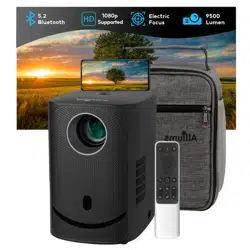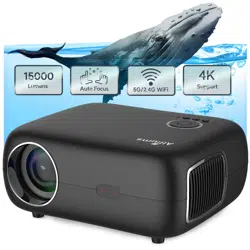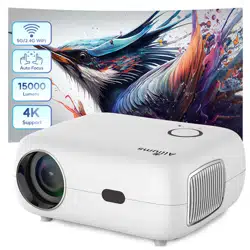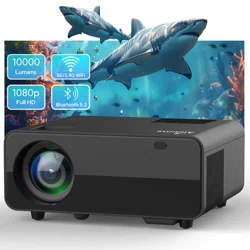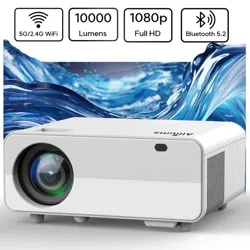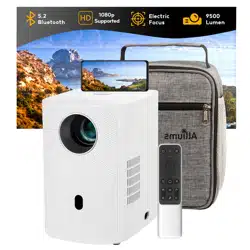
PORTABLE 1080P PROJECTOR WITH BLUETOOTH
MODEL: AP-016 / AP-016B
USER MANUAL

Copyright © 2023, Alliums, Australia. All Rights Reserved.

CONTENTS
IMPORTANT SAFEGUARDS 4
ACCESSORIES LIST 4
PROJECTOR OVERVIEW 5
SPECIFICATIONS 7
MULTIMEDIA SUPPORTED FORMATS 7
REMOTE CONTROL 8
SWITCHING MACHINE OPERATION 9
STANDARD SETTING 10
IMAGE FOCUSING 11
USE OF THE PROJECTOR 12
SOURCE SETTINGS 12
MU LTIM EDIA 12
MENU SETTINGS 13
BLUETOOTH SETTINGS 14
DEFECTIVE PRODUCTS & RETURNS 15
PLEASE READ THROUGH THIS USER’S MANUAL
FOR PROPER USE OF THIS PRODUCT.

Please read the manual carefully before operating projector. To ensure
stable power supply, please use standard power cord.
Please use the power supply and cable indicated on the rating label. The
projector should be kept away from cloths, sofas and anything that may
block the ventilation scoop. Please keep the unit away from flammable and
explosive materials.
Please do not disassemble the unit by yourself as this will invalidate the
warranty service. To protect your eyes, do not stare directly at the lens when
the projector is on. The projector must be kept away from water and any
other liquids.
To prevent electric shock, please keep the projector out of the rain and away
from moisture. It is recommended to switch off the projector after it has run
for 6 hours non-stop. Please use the original foam and other cushioning
materials when transporting the projector.
If the projector does not work, please contact the authorized service agent.
1.
2.
3.
4.
5.
4
Accessories List
Remote Control X 1
Power Cable X 1
HDMI Cable X 1
Carrying Bag X 1
User Manual X 1
IMPORTANT SAFEGUARDS
7
8
9
10
11
1
2
3
4
5
6
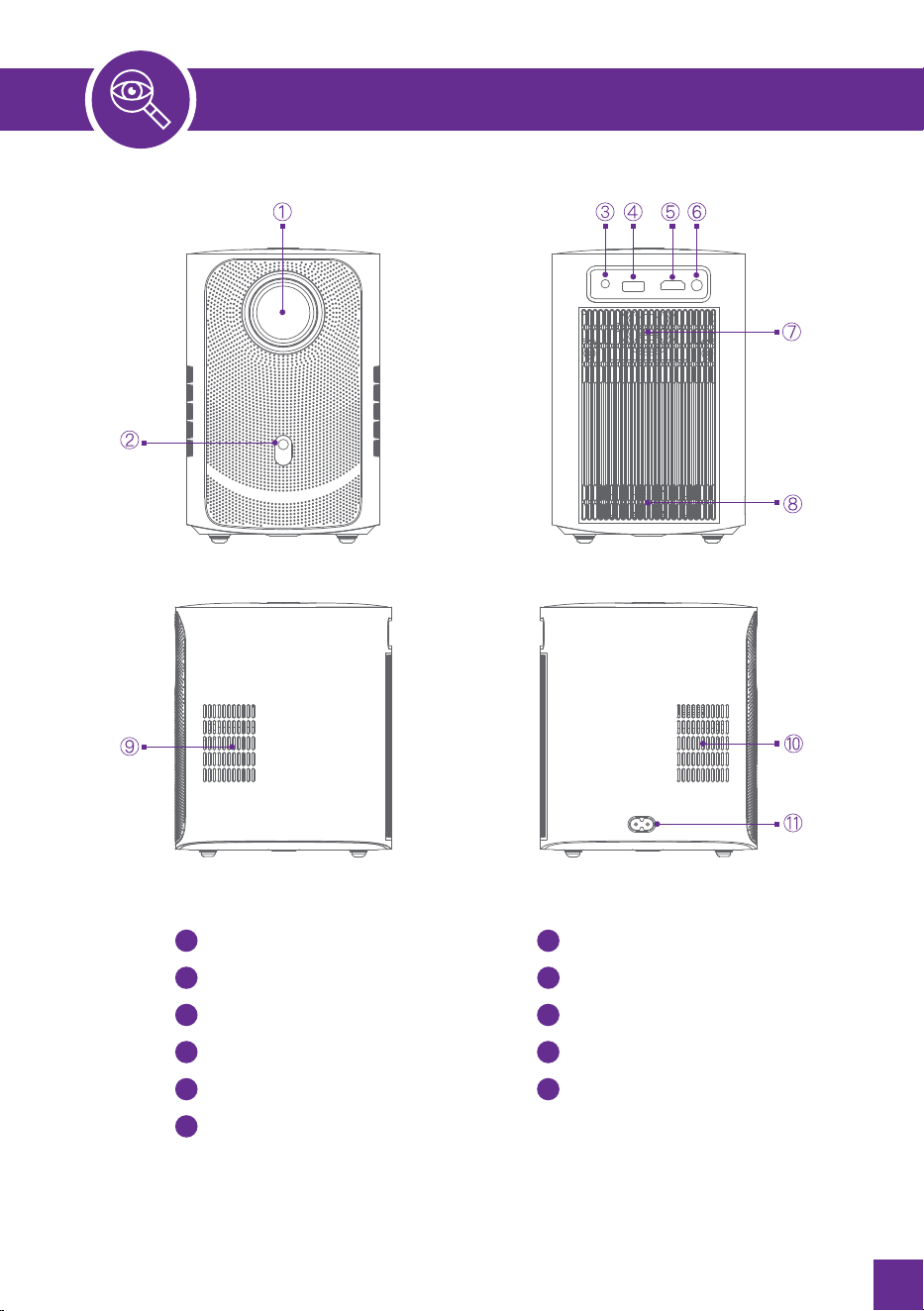
Lens
IR Receiver
Headphone Jack
USB Port
HDMI Port
IR Receiver
Speaker
Air Outlet
CoolingWindow
CoolingWindow
Power Socket
PROJECTOR OVERVIEW
5
Note: Lightly press the dust net, the dust net will pop up, just take out the dust net and clean it.
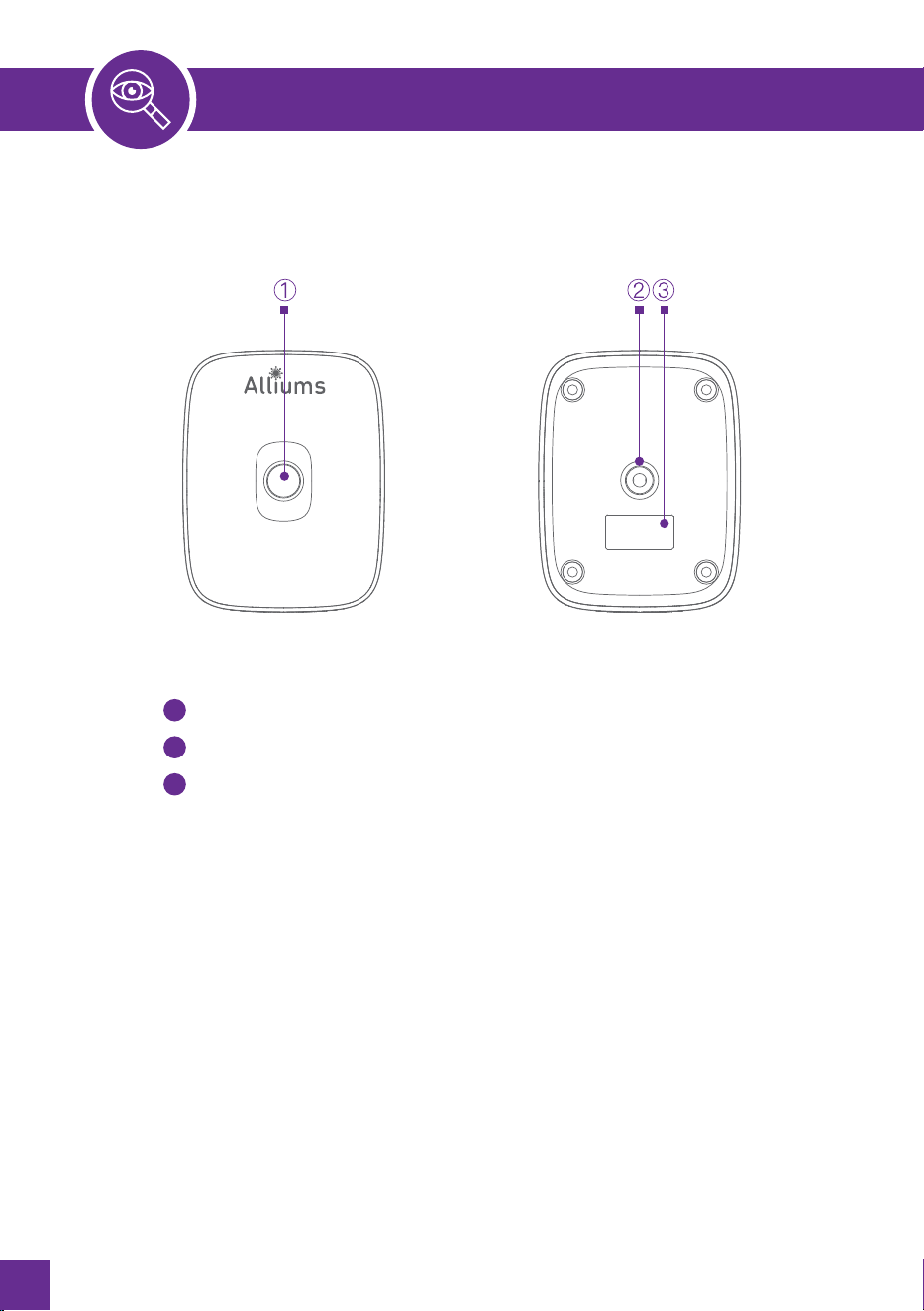
1
2
3
Power Key
Bracket Holes (1/4 inch nut*l, depth 6mm), Supports Hoisting
Bottom Label
6
PROJECTOR OVERVIEW

SPECIFICATIONS
7
MODEL
LAMP
IMAGE SYSTEM
INPUT VOLTAGE
WEIGHT
WORKING TEMP
INPUT PORT
OUTPUT PORT
ASPECT RATIO
SIZE
OPERATION MODE
IMAGE FORMAT
VIDEO FORMAT
AUDIO FORMAT
FILE FORMAT
JPG /JPEG/ BMP / PNG
3GP / AVI / FLY / MP4 / MPG / VOB / TS / MZTS / DAT / MKY
MP3 / AAC / WAV / FLAC / WMA / M4A
TXT
MULTIMEDIA PROJECTOR
LED
LCD
AC100-240 V 50/60HZ
1.3 KG
0-35°C
HDMI /USB
HEADPHONE
16:9 / 4:3
120X156X178MM
MANUAL/ REMOTE CONTROL
MULTIMEDIA SUPPORTED FORMATS
In different angle you put the projector, the projection will Deformation like a
trapezoid, use the keystone correction to make it correctly.
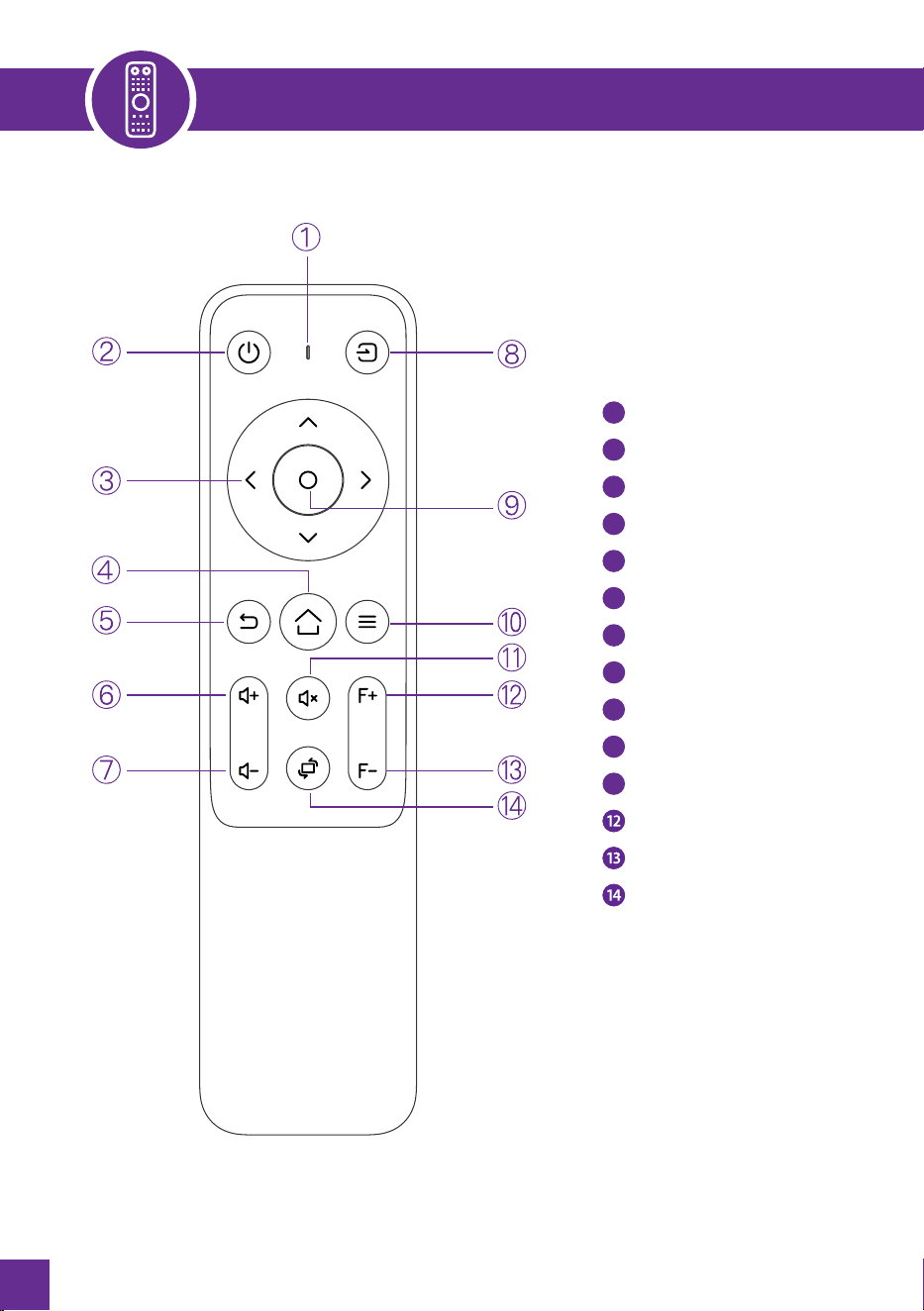
1
2
3
4
5
6
/-4'24*/)':58
5=+8+?
885=1+?9
53++?
+:;841+?
52;3+ૻ
52;3+સ
5;8)+1+?
54,/83':/541+?
+4;
;:++?
5);9ૻ
5);9સ
)8++42/6
7
8
9
10
11
9
10
11
8
REMOTE CONTROL
9
SWITCHING MACHINE OPERATION
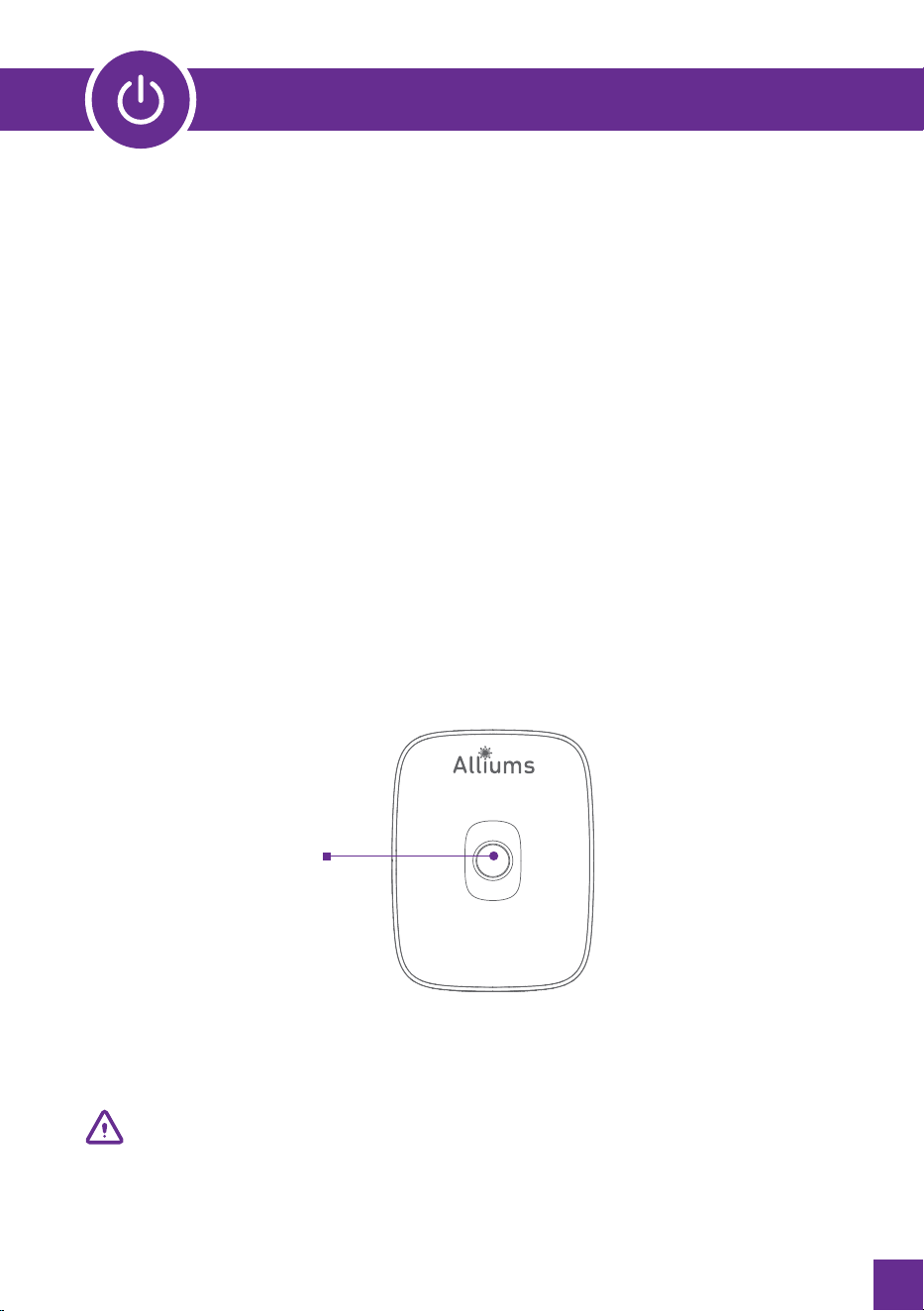
Power On:
Step 1:Press the power button on the body or the power button on the remote
control; the indicator light will turn blue and steady.
Step 2: After 2 seconds, the projector starts to start. The image appears on the
screen. The unit enters the normal working state.
Step 3: If the projector is newly installed, the image may be blurred or have
trapezoidal distortion when turned on for the first time. Please refer to the “
Focus/Keystone Correction” section for calibration.
Step 4:After the image is adjusted clearly, it can be viewed commonly.
Power Off:
Step 1:In the working state, press the power button of the body or the power
button on the remote control to switch the projector to the standby state.
Step 2:After the projector enters into the standby state, the machine is in the
process of automatic heat dissipation, and the indicator light will change from
blue to red.
Power Key
Please connect the power cord to the projector before connecting the power
cord to an electrical outlet.
10
STANDARD SETTING
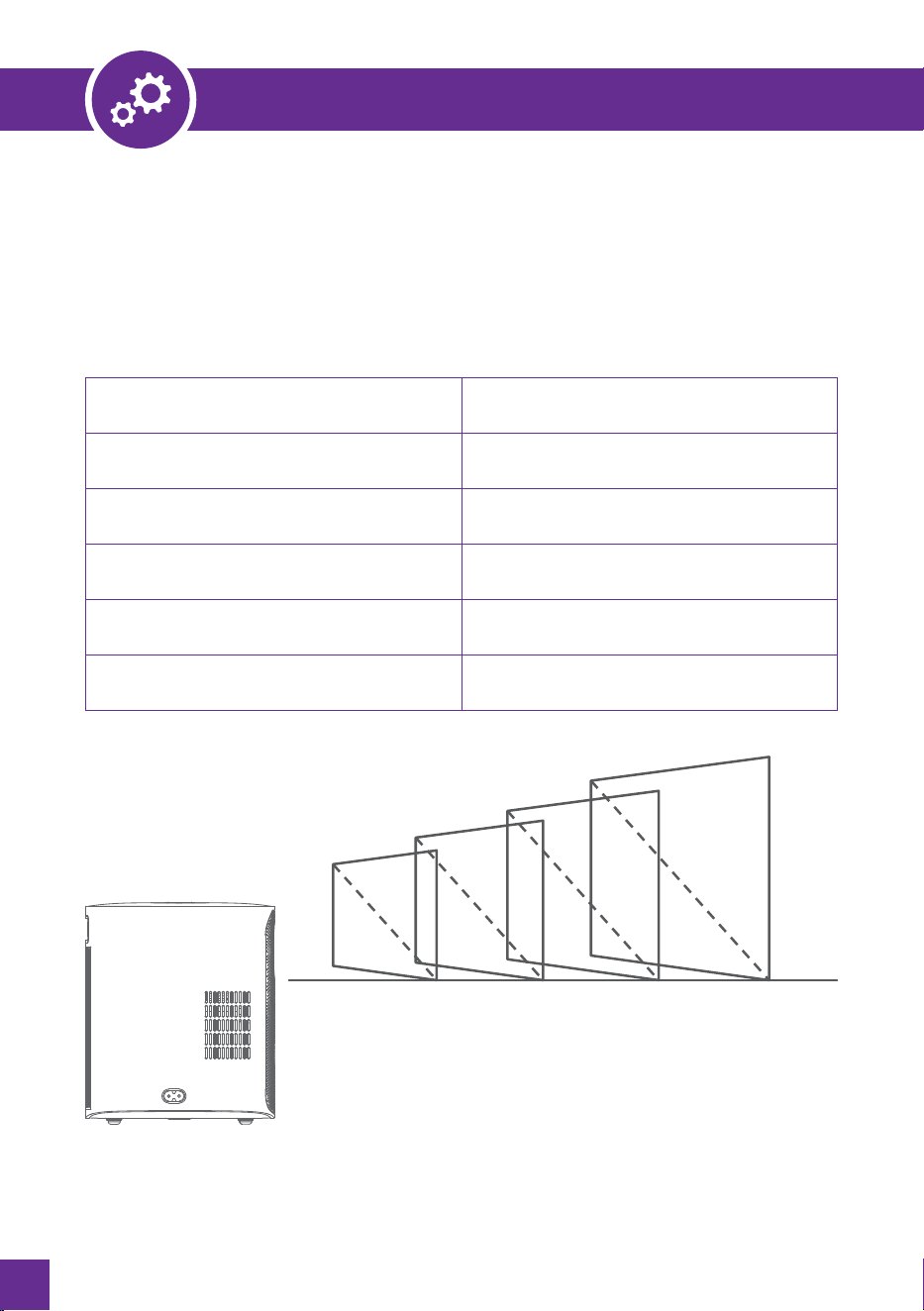
Refer to the data in the table below to place the projector away from the
projection screen according to the preset graphic size. When installing, put the
projector on a solid, stable countertop. The airframe should be well-ventilated.
Do not cover or block the vents. There should be no obstructions within 30cm of
the vents.
ASPECT RATIO
PICTURE SIZE (INCH)
50
80
100
120
16:9
PROJECTION DISTANCE (M)
1.48
2.30
2.86
3.40
120 (inch)
50
80
100
1.48 2.30 2.86 3.40(m)
Note: The above data is for reference only, please refer to the physical measurement.
11
IMAGE FOCUSING
Image Focusing
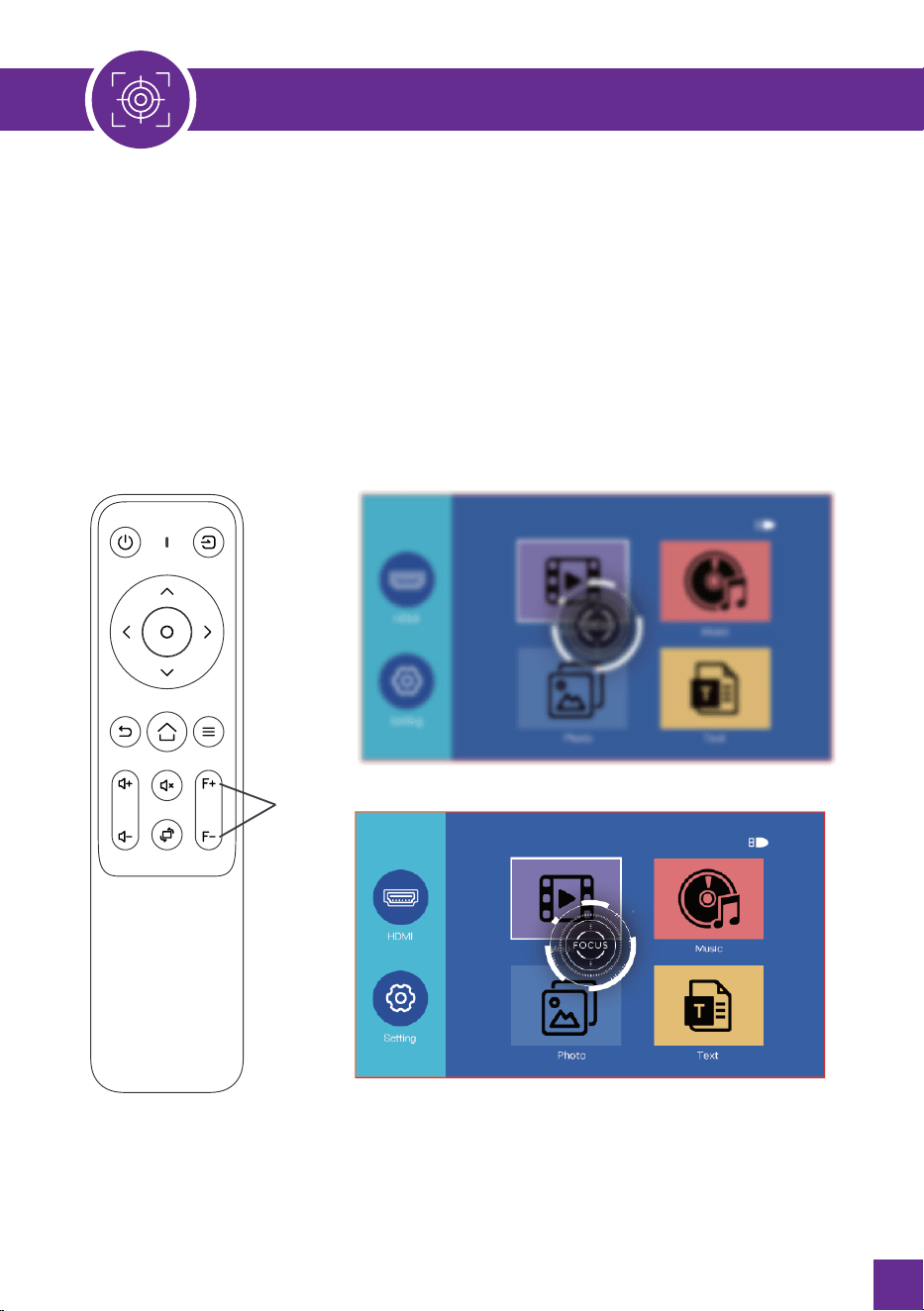
When the newly installed projector is used for the first time, the image will be
blurred, and it is necessary to focus the picture;
Manual Focus
When the picture is blurred, press the focus keys "F+" and" F- "on the remote
control to adjust the lens’s focal length or long-press the focus button until the
picture is clear. (As shown below)
(After the focus)
Focus
(Before the focus)
12
USE OF THE PROJECTOR
Source Settings
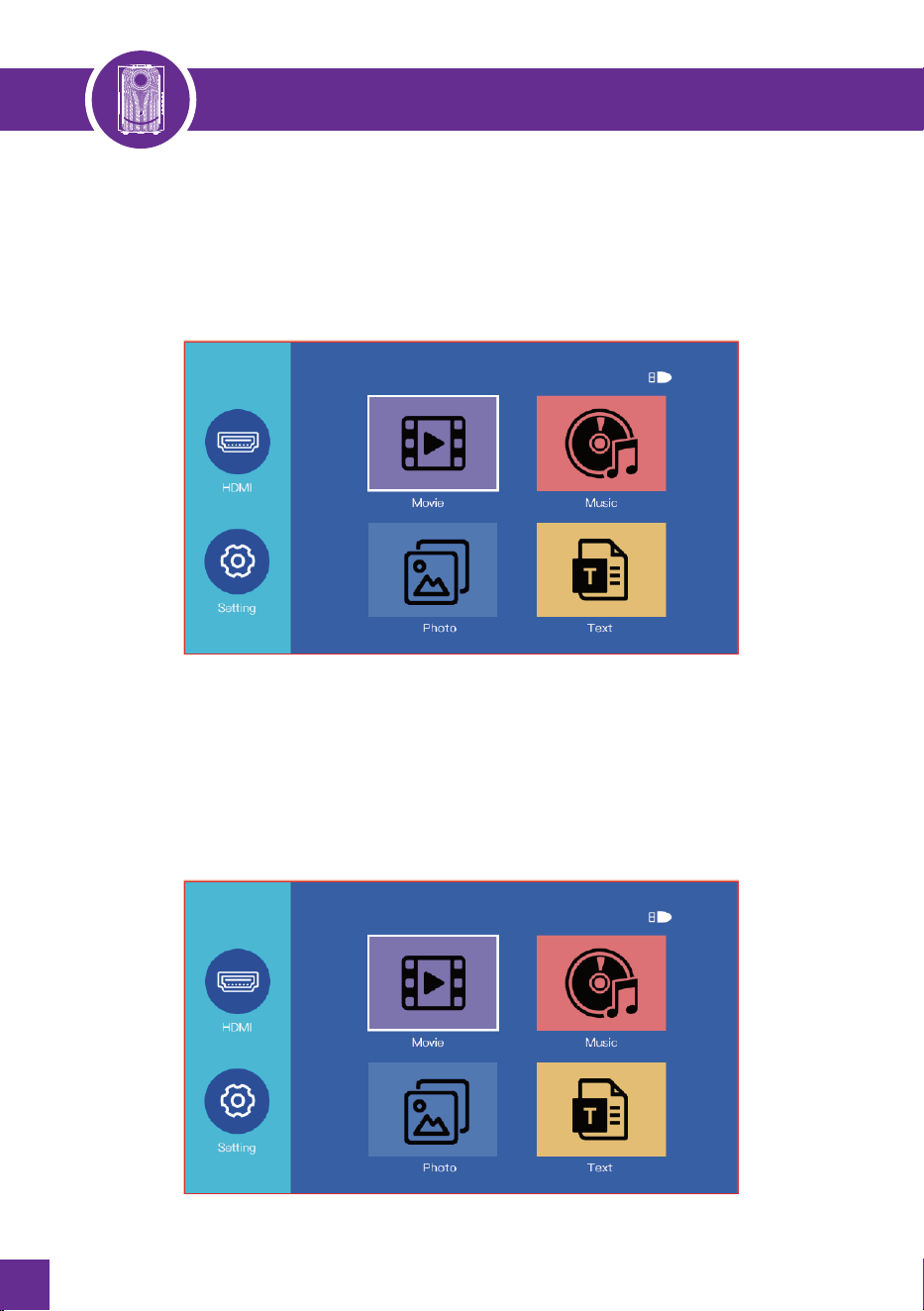
Step 1: Select the source you want in the main interface.
Step 2: Press OK button on the remote control to enter corresponding source
interface.
Note: When the projector is in the no signal interface, please press the source button on the
remote control to select the home page or other source.
Multimedia
Step 1: Connect USB to your projector.
Step 2: Select the required file to play from main interface.
Note: U-disk should be inserted if require to select multimedia files.
13
USE OF THE PROJECTOR
Menu Settings
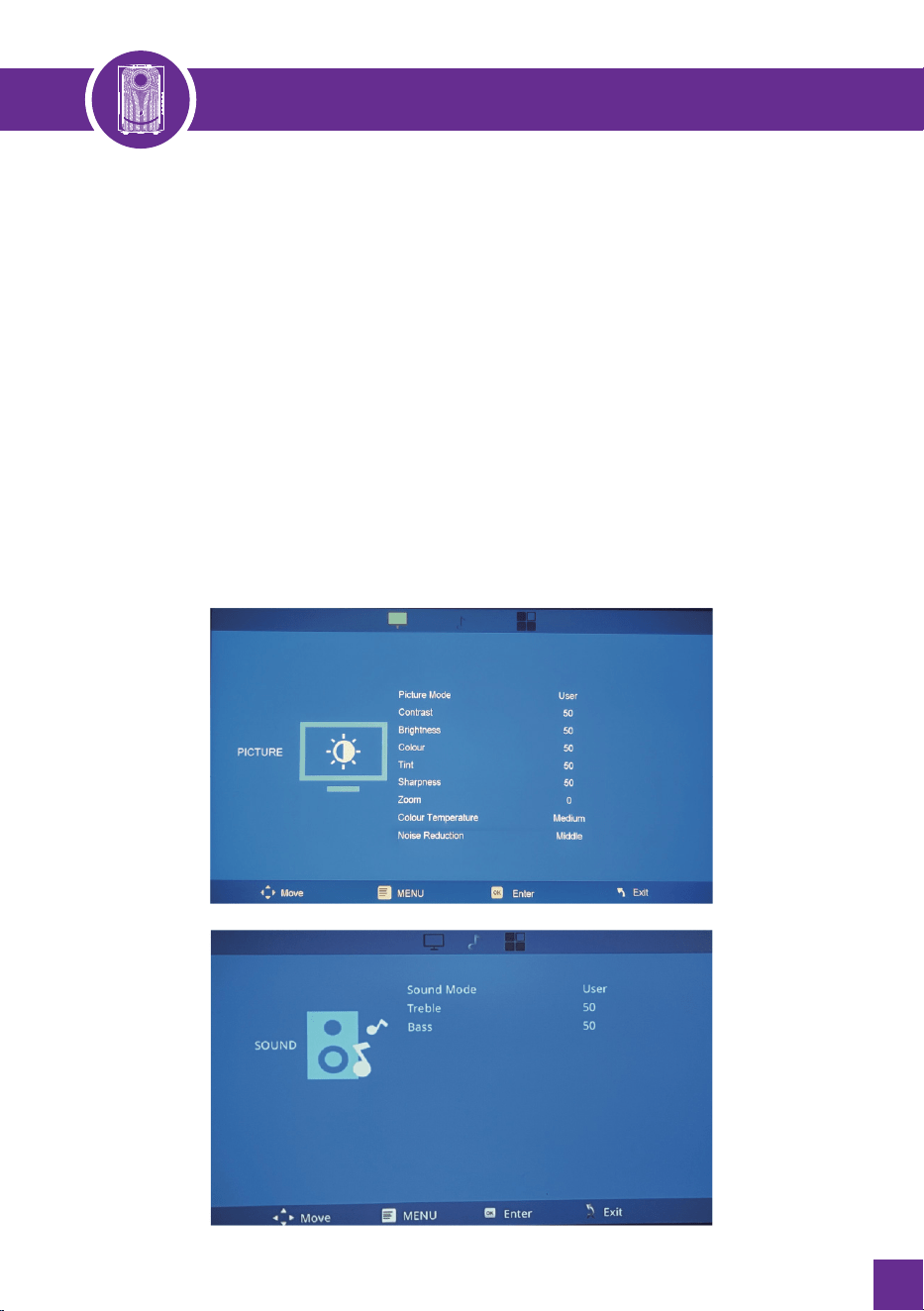
Select Setting in the main interface, first press left/right keys to select sub-menu,
second set up the mode you need, finally press OK key to confirm
Submenu:
PICTURE: Picture Mode/ Contrast/ Brightness/ Color/ Tint/ Sharpness/ Zoom/
Color Temperature/ Noise Reduction.
SOUND: Sound Mode /Treble/ Bass.
OPTION: OSD Language/ Aspect Ratio/ Projection Mode/ Buetooth(Only
available in bluetooth version)/ Factory Reset/ Software Upgrade/ Version.
14
USE OF THE PROJECTOR
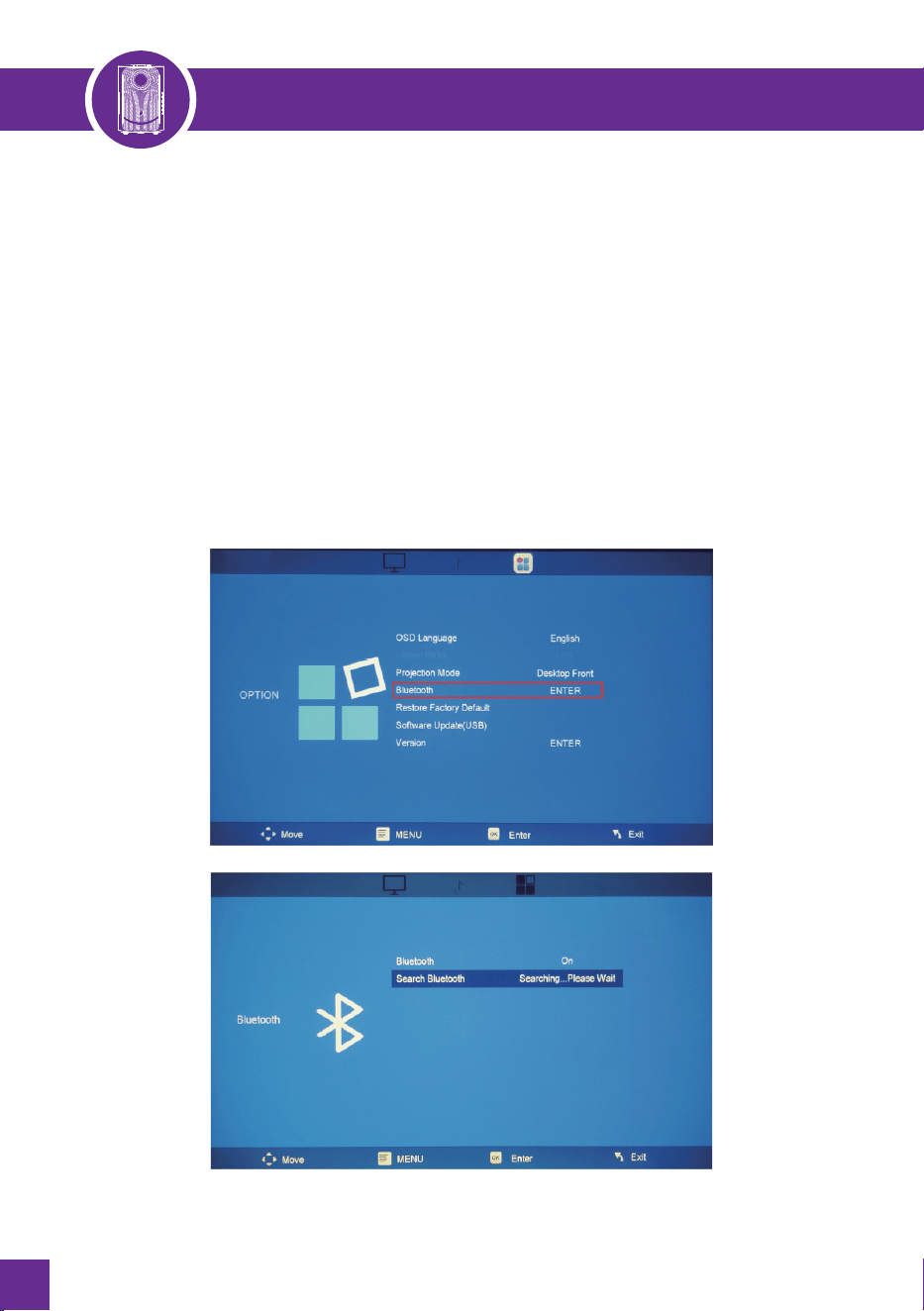
Bluetooth Settings
(Note: Bluetooth function only supports Bluetooth version)
Step 1: Select "SETTING" in the home screen;
Step 2: After entering the interface, select "OPTION" and then find Bluetooth;
Step 3: Enter the Bluetooth interface, turn on or off the Bluetooth via the
"Left/Right" key of the remote control, and then click to search for the Bluetooth
you want to pair, and then pair it.

15
DEFECTIVE PRODUCTS & RETURNS
DISPOSAL
Proved defective products meeting the specified warranty period should be contacted
by customer support via www.alliums.com.au addressing your order number.
Make sure not to dispose of your product before contacting us. Once our customer
support team has approved your request, please return the unit with its order number.
To prevent possible environmental or human health harm from uncontrolled
waste disposal.
Ask your local council where to dispose of your projector and its accessories.
It would help if you did not dispose of your appliance and its related accessories
away with the daily regular household.
ALLIUMS CUSTOMER SUPPORT
Feel free to contact our helpful customer support team with any questions
regarding your product!
Your satisfaction is our priority.
www.alliums.com.au
support@alliums.cpm.au
Please provide your order number when you contact our customer support services.

Questions or Concerns?
support@alliums.com.au