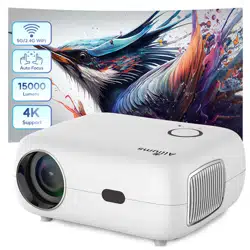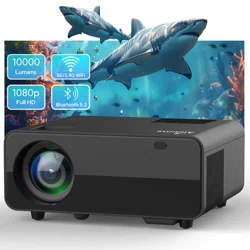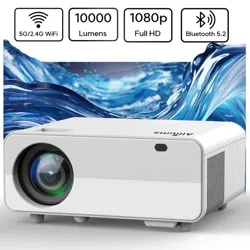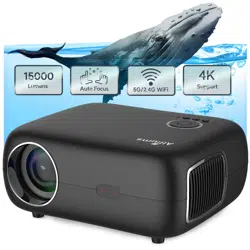
PORTABLE 4K PROJECTOR WITH AUTO FOCUS
MODEL: AP-030 / AP-030B
USER MANUAL

Copyright © 2023, Alliums, Australia. All Rights Reserved.

CONT EN TS
TIPS 4
PROJECTOR SPECIFICATIONS 5
PRODUCT STRUCTURE 6
REMOTE CONTROL 7
INSTALLATION 8
STARTING PROJECTOR 11
PROJECTION IMAGE SETTINGS 12
SETTING UP THE PROJECTOR 15
SIGNAL LINES CONNECTION MAIN 20
MENU FUNCTION 22
FAQ 25
DEFECTIVE PRODUCTS & RETURNS 27
PLEASE READ THROUGH THIS USER’S MANUAL
FOR PROPER USE OF THIS PRODUCT.

TIPS
4
Do not place the projector in a room that is too warm or cold because the high
temperature or low temperature will shorten the device's lifespan. The working
environment would be 5°C-35°C better.
If there are black spots on the projection screen, please don't worry. Please
get in touch with us via email, and we can send you a video about removing
the dust.
The ventilation is equipped for the projector to work stably. Don't cover the
vent with cloth, blanket, or other things. Don't insert anything into the slit o
f
the projector, or it may produce a short circuit or an electric shock to your
device and cause damage.
The projector shall be protected from solid impact, extrusion, and vibration.
Do not try to move on strong impact, extrusion, and vibration. Do not try to
move the internal circuit faults.
Lens, as the core component of the projector, is directly related to the picture
definition and effect. The excessive dust thereon will affect image quality.
The dirty lens shall be wiped with a soft cotton cloth for the glass lens surface.
Stiff cloth or abrasives shall not be used.
1.
2.
3.
4.
5.

PROJECTOR SPECIFICATIONS
DISPLAY TECHNOLOGY
LIGHT SOURCE
NATIVE RESOLUTION
ZOOM FUNCTION
INSTALLATION TYPE
ASPECT RATIO
PROJECTION DISTANCE
POWER VOLTAGE
PRODUCT WEIGHT
PRODUCT SIZE
KEYSTONE CORRECTION
FOCUS
INPUT INTERFACE
VIDEOFORMAT
AUDIO FORMAT
IMAGE FORMAT
LCD
LED
1920XL080P
50%-100%
FRONT/REAR ON DESK. FRONT/ REAR
ON CEILING
16: 9/4: 3/AUTO
1.5-6M
AC100-240V
2.7KG
228* 190*90MM
AUTO + ELECTRIC
AUTO + ELECTRIC
HDML*2/USB*2/ AV /3.5MM AUDIO OUT
H.264/H.265/MP4/ AVI/WMV /MKV/FLV
MP3/WAV/MAK
JPG/PNG/BMP/ JPEG
5
PRODUCT STRUCTURE
IR
1
2
3 4 5 7
6 8 10 11 12
13
9
8
9
10
11
12
13
1
2
3
4
5
6
7
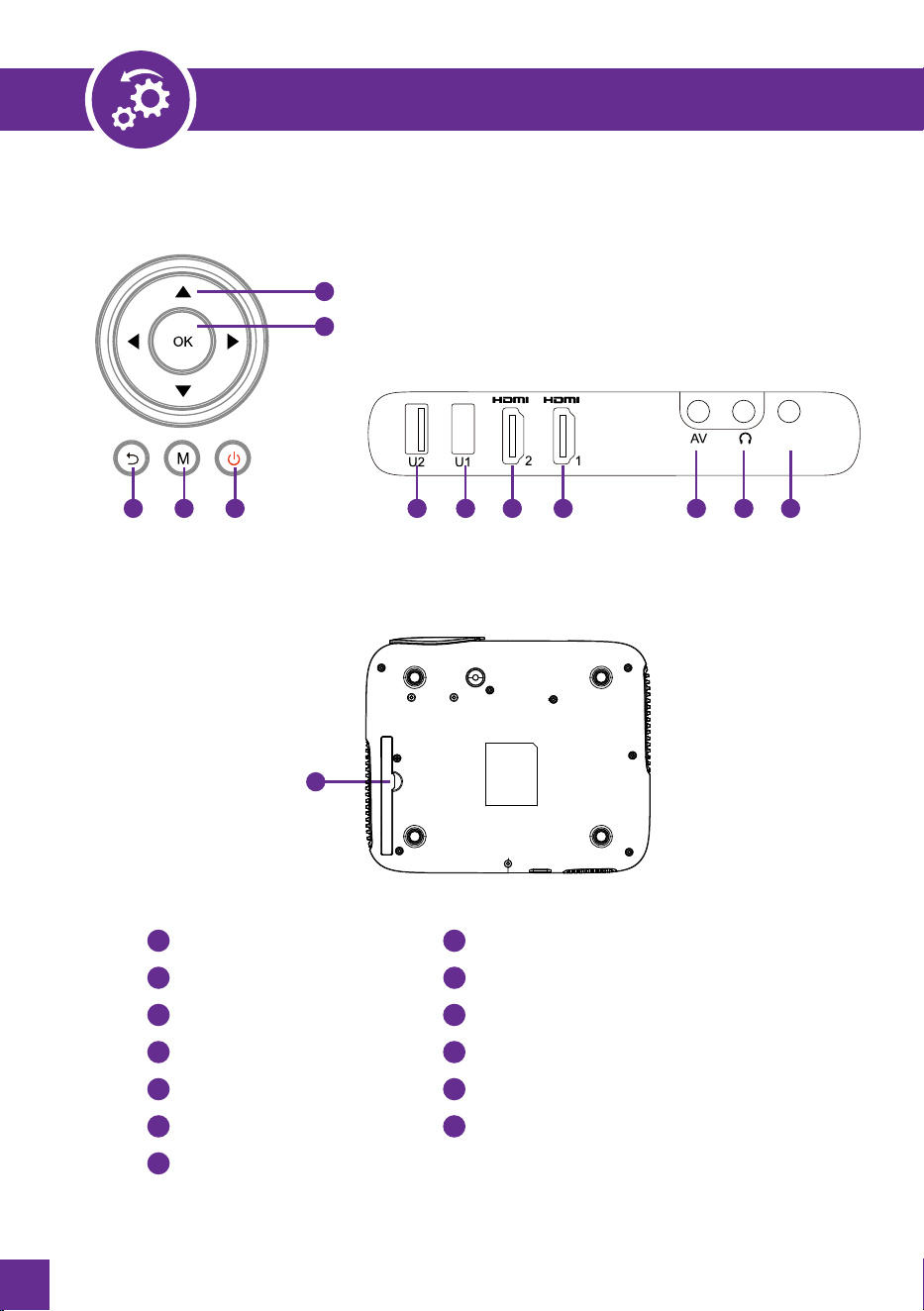
Arrow Keys
Confi rm
Back
Menu
Power
USB Ports
USB Ports
HDMI Ports
HDMI Ports
AV Ports
3.5MM Headphone jack
Infrared signal receiving window
Anti-Dust Mesh
(Regular Cleaning Recommended)
6
REMOTE CONTROL
1
2
3
4
5
6
7
8
9
10
11
12
13
14
1
2
3
4
5
6
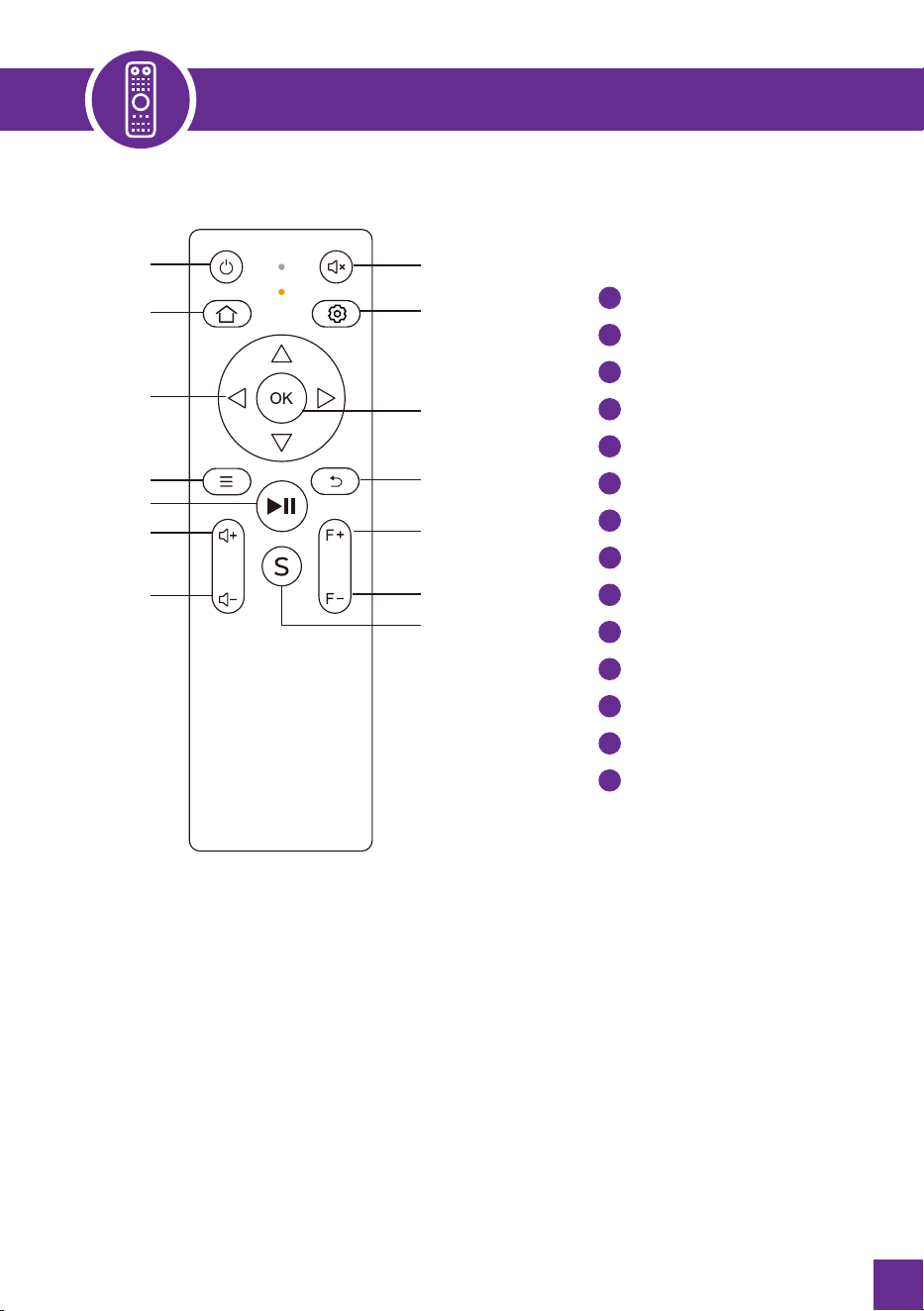
Power
Home
Arrow keys
Menu
Pause the tape
Volume+
Volume -
Mute
Setting
Confirmation key
Back
Focus+
Focus -
Source
7
8
9
10
11
12
13
14
1.
2.
3.
NOTE
Install two pieces of AAA batteries (not included) into the remote before
using it. Do not combine new batteries with old ones in the remote control,
which can cause operation failure due to insufficient power supply.
When using the remote control, please ensure that the signal transmitter
aims at the projector's infrared signal.
When you are not using the remote control for an extended period, please
remove the batteries to prevent them from leaking.
7
INSTALLATION METHOD
1
3
2
4
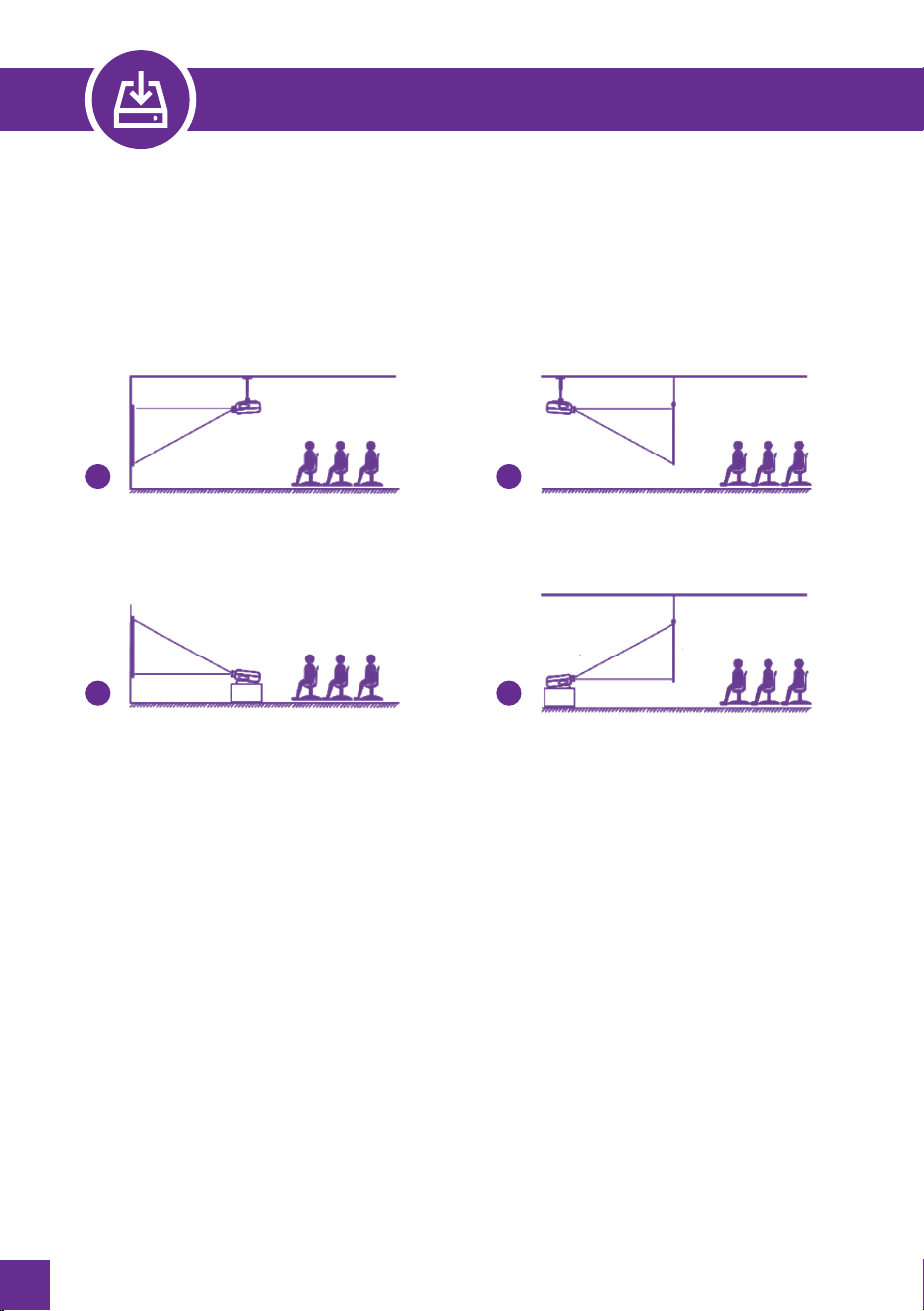
The projector can be hung on the ceiling with a unique hanger frame and placed
on the table desk to project the image according to the operating environment
and requirements. In addition, the projector can be installed with the following
methods:
Keep the projector at a height whose lens is axially symmetrical to the screen.
If this is impossible, use the keystone correction function to adjust the projection
image.
1. Front Projection Ceiling Mount 2. Rear Projection Ceiling Mount
3. Front Projection Desk Mount 4. Rear Projection Desk Mount
8

ASPECT RATIO: 16:9
DISTANCE
1.6M
2M
2.5M
3M
3.5M
4M
4.5M
5M
6M
SCREEN SIZE
49"
60"
75"
93"
109"
125"
141"
157"
300"
The image size depends on the distance between the projector and the
screen. There may be a 3% measure difference among the abovelisted data.
The recommended projection distance is 2.5-3m.
Ambient darkness will improve the clarity of the projected images.
1.
2.
3.
INSTALLATION METHOD
PROJECTION DISTANCE AND SIZE
9
INSTALLATION METHOD
INSTALL ON THE CEILING
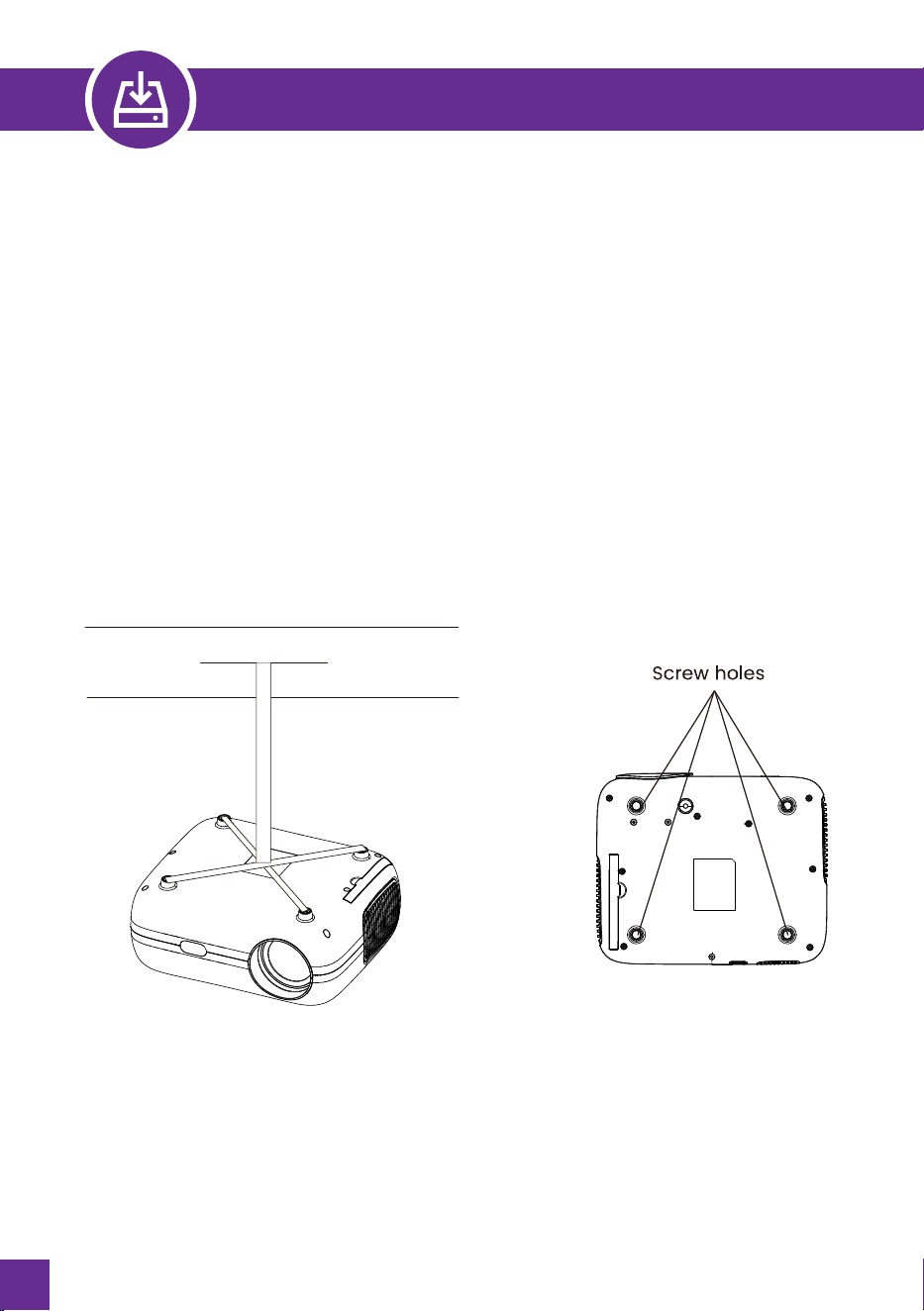
To adjust the tilt base, unscrew the support rod at the bottom of the
projector; see the below picture.
For the Ceiling mount, there are four holes at the bottom of the projector
(M4*10mm). Please slowly unscrew the four black rubbers, and then you can
find the holes for the ceiling mount. See the below picture.
Keep the projector vertical and towards the middle of the projector screen.
And keep the projection image flat on the screen.
1.
2.
NOTE: The hanging bracket or ceiling mount stand is not packaged.
10

STARTING PROJECTOR
Remove the lens cap, connect the projector to the power through the
power supply cable, and press the power key on the remote or projector; it
starts working.
Use the Automatic or Electronic keystone/ focus function of the
projector to get a rectangle and clear image;
Adjust the focus buttons "F+" and "F-" on the projector or the remote
to get the best image performance. (If it is still blurry, please try to
adjust the projection distance.)
Connect the external device (smartphone, iPad, Fire Stick, TV box, DVD
player, PC, etc.) to the corresponding interfaces of the projector. Please
be sure to select the corresponding source. If you do not like the correct
source, the projector will not be able to detect the signal)
Select the " " menu. Enter the [ Language Settings], and then you can
set your preferred language.
1.
2.
3.
4.
5.
11
PROJECTION IMAGE SETTINGS
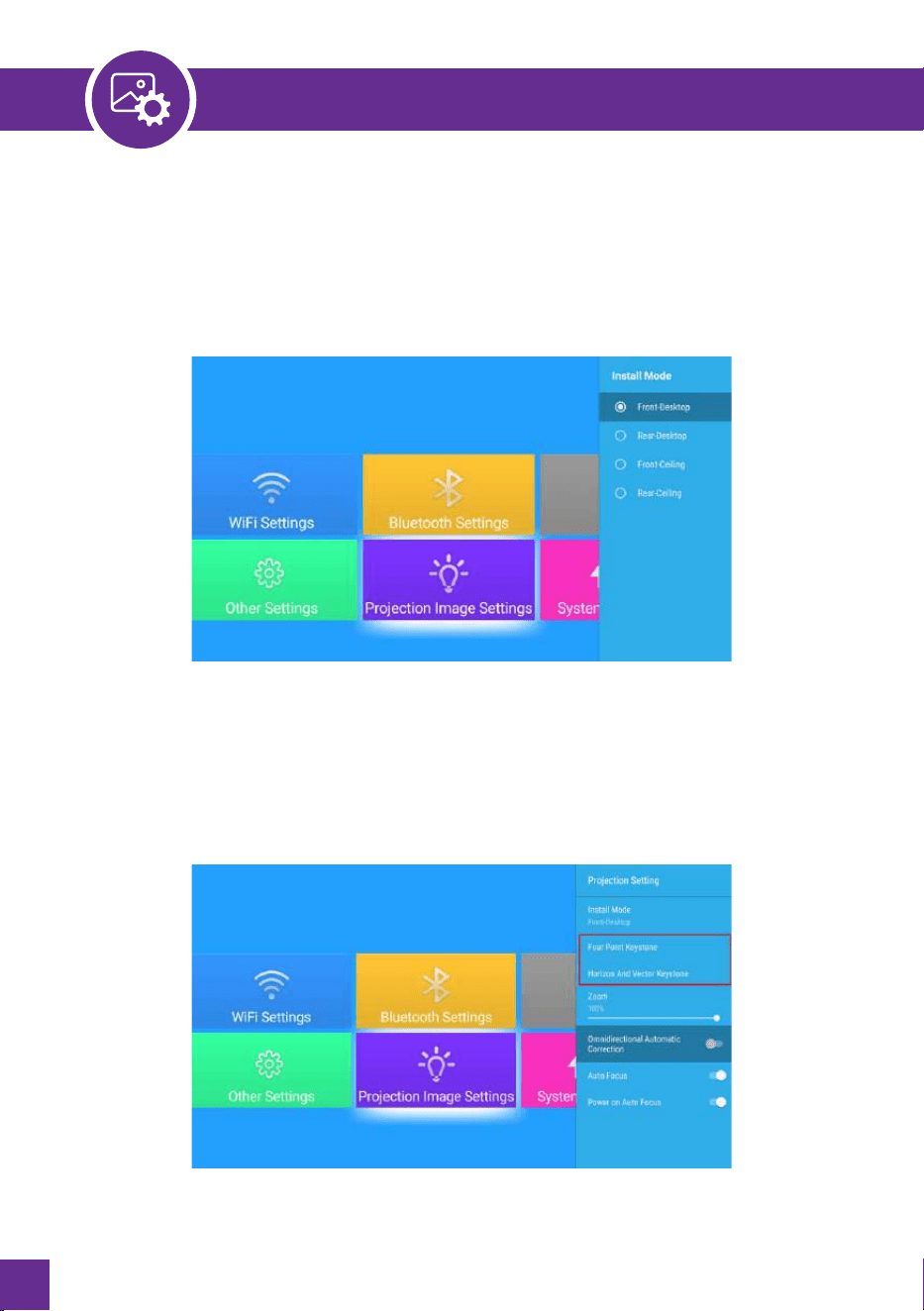
1. PROJECTION MODE
Select the [ Projection Image Settings ] menu, select the [ Projection Setting
Option ], and select the [Install Mode]. Press the arrow key to select and
press "OK" to confirm the projection position.
2. MANUAL KEYSTONE CORRECTION
Select the [ Projection Image Settings ] menu, select the [ Projection Setting
Option ], and select the [Install Mode]. Press the arrow key to select and
press "OK" to confirm the projection position.
12
PROJECTION IMAGE SETTINGS
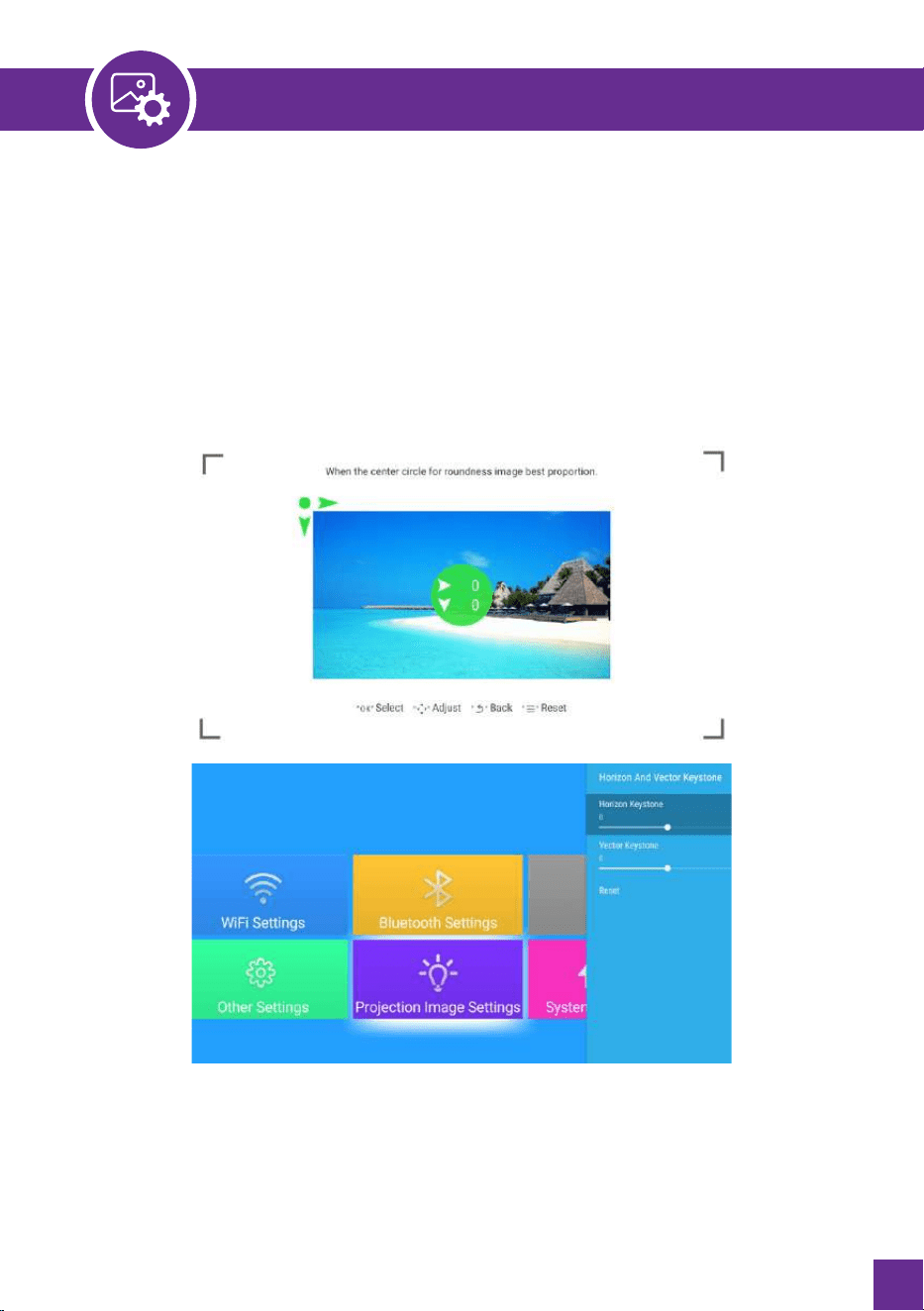
2.1 FOUR-POINT KEYSTONE
Select the [ Projection Image Settings ] menu -- Select the [ Four Point
Keystone ] Option; click the "OK" button to pick the point you want to adjust at
first, and then press the button " ▶ "or" ▼" to set the value(Horizontal and
Vertical 0-100) needed as shown below. Reset Press " =, "and the image will
restore to the original keystone correction settings.
2.2 HORIZONTAL AND VERTICAL KEYSTONE
Select the [ Projection Image Settings ] menu -- Select the Horizontal or
Vertical Keystone Option to adjust the screen horizontally or vertically:t30°
with the arrow keys until the guides are adjusted to a rectangle.
13
PROJECTION IMAGE SETTINGS
3. AUTO KEYSTONE CORRECTION AND FOCUS
Please place the projector horizontally face to the wall first; select the
[Projection Image Settings] menu -- turn on the [ Omnidirectional Automatic
Correction ] or [ Auto Focus ] option, then it will automatically focus the
picture based on the projection distance from the screen and adjust the image
to a rectangle when you change the projection angle.
If the picture is blurry, repeatedly press the focus buttons "F+" and "F-" on the
remote control to adjust the lens focus, and tap or long-press the adjustment
button until the picture is clear(There is no need to press the OK button after
the screen is clear).
Note: The side projection angle of the projector should not exceed 20°, otherwise the automatic
keystone correction function may not work.
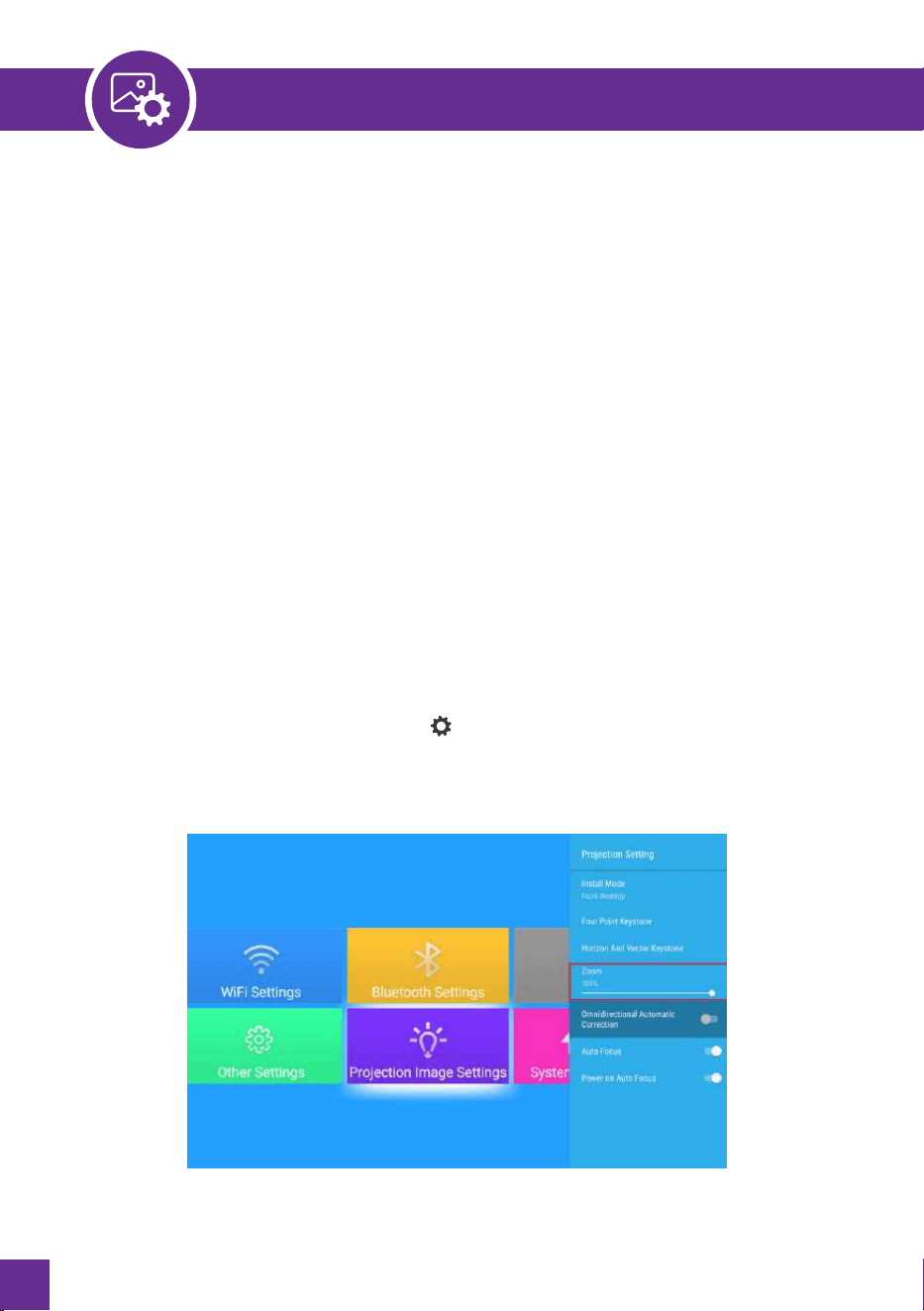
4. ZOOM SETTING
Go to the home page -- Select the [ ] menu -- Select the [ Projection Image
Settings ]-- Select the [ Zoom ] option; the projection screen can be zoomed
50%-100%. Press the"▶ ◀" button to set the value needed, as shown below.
14
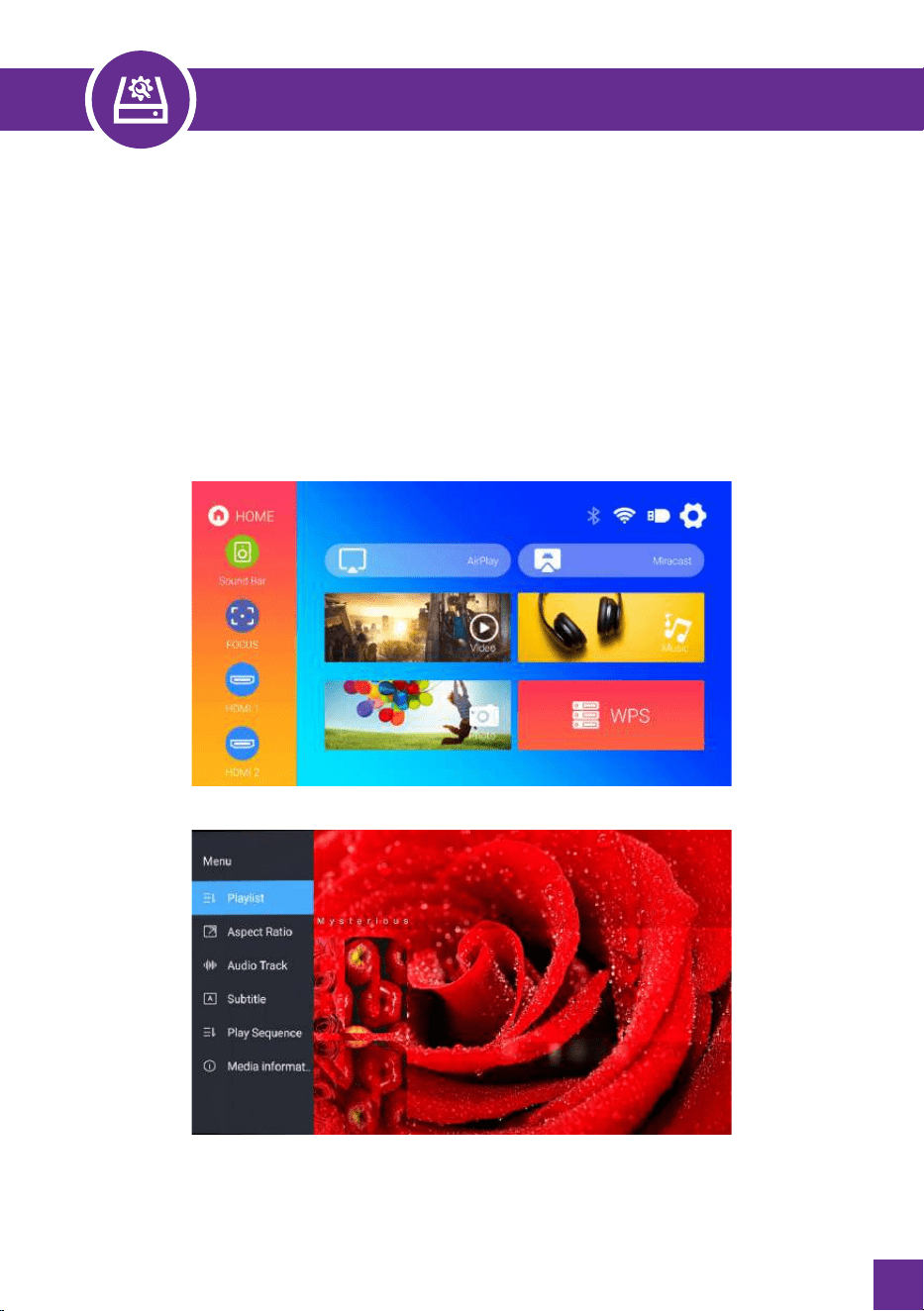
1. SELECT THE INPUT SIGNAL SOURCE
Select the desired input signal source (HDMl1/HDMl2/ AV) on the home
page or press the "S" button on the remote control to select the
corresponding signal source; for USB devices, there is no need to choose
the signal source. The machine will detect them automatically.
You can press the menu button "=" when playing a video. Then, set the
aspect ratio of the image and other.
SETTING UP THE PROJECTOR
15

2. CONNECTING WITH SMARTPHONES AND IPAD
The network environment will affect the fluency of screen mirroring with a
wireless connection. A bandwidth of l00Mbit or more is recommended when
using screen mirroring.
Ensure your mobile device is close to the projector when using a wireless
connection. A distance of l meter is recommended.
Some Android devices may not support screen mirroring due to the
compatibility.
1.
2.
3.
Turn on the Wi-Fi Setting of the projector.
Choose your Home Wi-Fi to connect and enter the correct password, then
click "Done" to Connect; please wait 3-5 seconds to establish the connection.
Once connected, it will remember the password of the connected Wi-Fi.
Please turn on the WiFi setting of your iOS mobile device, then connect it to
the same Home WiFi as the projector.
Then click "Airplay" as the Input Source of your projector.
1.
2.
3.
4.
SETTING UP THE PROJECTOR
WIFI SETTINGS
Select the settings icon in the upper right corner of the main interface, and
then press the "OK" key on the remote control to enter the settings interface
and select 'Wi-Fi Settings."
2.1 FOR IOS SYSTEM (AIRPLAY)
Setting with Home Wi-Fi
Attention: Your device and the projector should be in the same Home Wi-Fi.
16
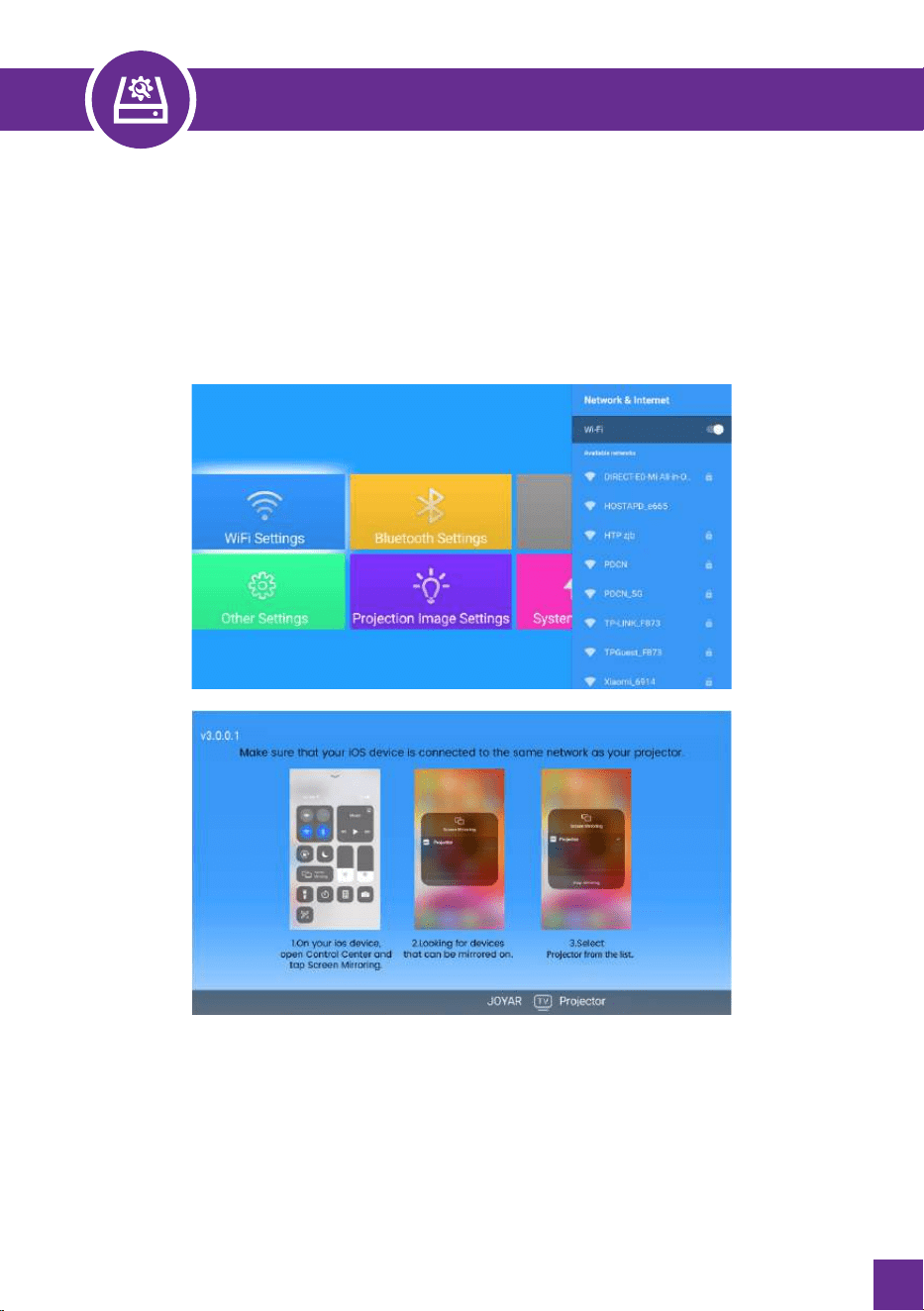
Swipe up the screen of your iOS mobile device and tap ·screen Mirroring"
to search for the projector. Then, select" Projector" from the search results
to connect.
5.
SETTING UP THE PROJECTOR
2.2 FOR ANDROID SYSTEM(MIRACAST)
To activate this function, your Android device must support
Multi-Screen/Wireless Display. The name "Multi-Screen" may vary depending
on the brand of Android device.
Setting with mobile internet
17
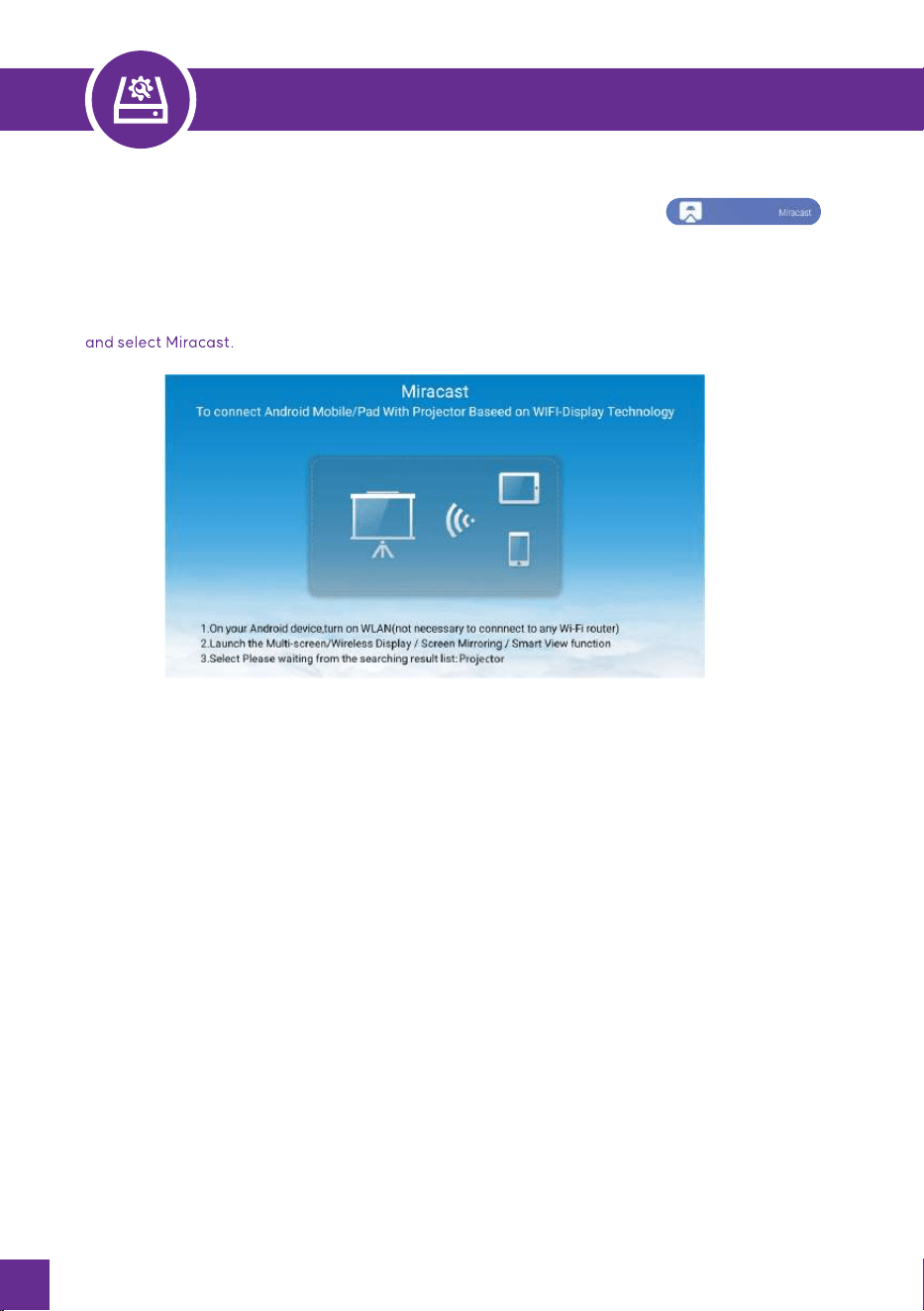
Turn on the projector, and select "Miracast" as the Input Source.
Turn on the "Multi-Screen/Wireless Display" of your Android device.
Select "Projector" from the search results to connect.
1.
2.
3.
Notes: If you want to connect it to your home wifi, just repeat the steps of the 10S system
NOTE:
SETTING UP THE PROJECTOR
3.BLUETOOTH SETTINGS
Turn on your Bluetooth Speaker.
Turn on the [ Bluetooth Settings] of your projector and select [ add accessory]
Select your Bluetooth speaker to connect.
1.
2.
3.
This step only applies to connecting the Bluetooth speaker but not to mobile
phone Bluetooth..
The projector is compatible with most Bluetooth headsets, speakers, and
Airpods but not Bluetooth keyboards.
1.
2.
3.1 CONNECT BLUETOOTH SPEAKERS
18
SETTING UP THE PROJECTOR
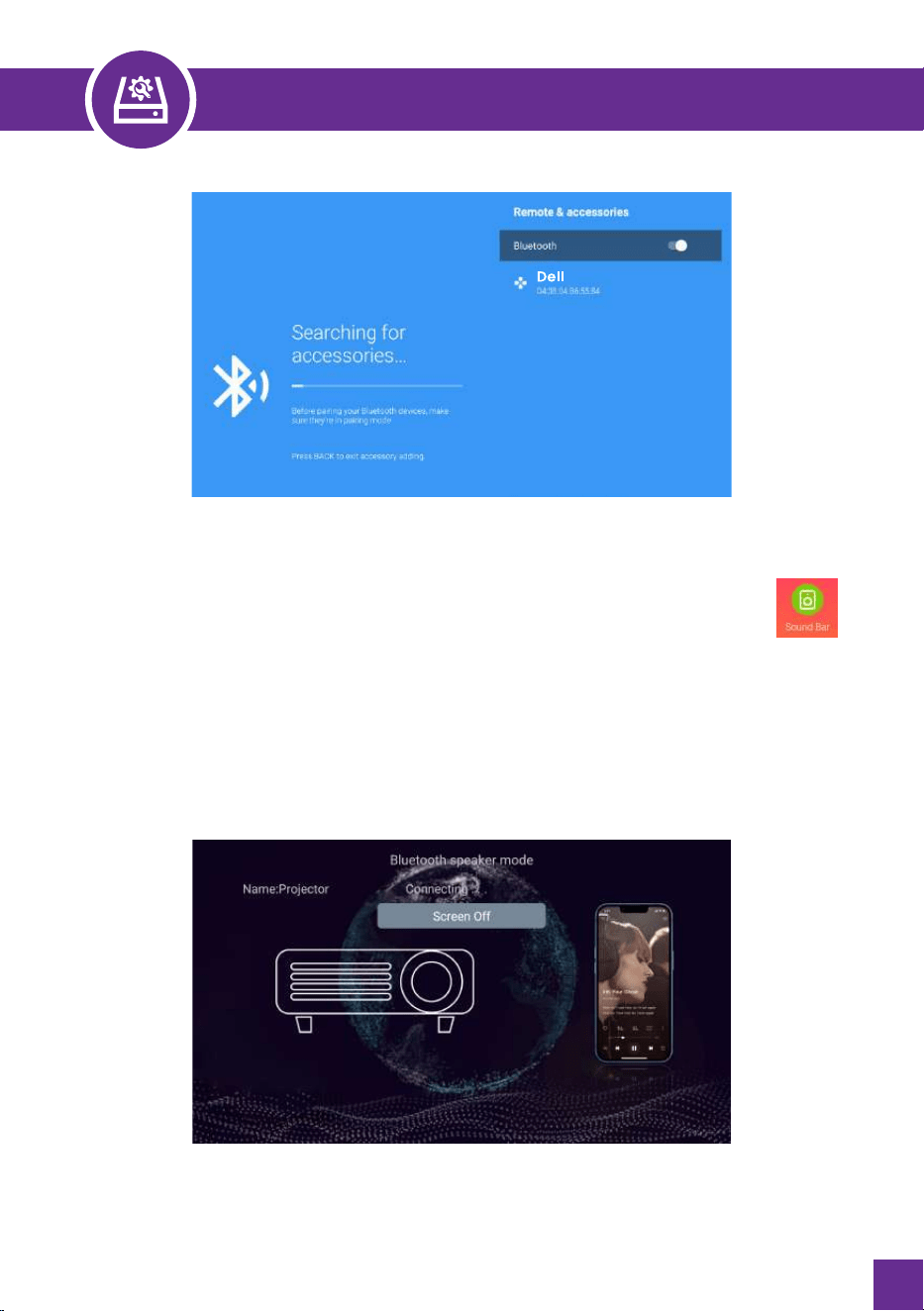
3.2. CONNECT PHONES BLUETOOTH
Enter the soundbar option in the main interface; the following
interface will be displayed.
Turn on your phone's Bluetooth and connect the Bluetooth of the
projector named.
Then the projector can play mobile phone music.
1.
2.
3.
19

1. USB MULTIMEDIA CONNECTING
Select the required category "movie," "music," "photo," or "Office Suite" in
the main interface, and press the "OK" key on the remote control to enter
the corresponding category.
According to the programs, choose: "photos, "music," "movie," or "Office Suite."
Choose the file you want to play, and press the key "OK" to play or pause
the file. (You can only enter the required category if you connect a USB
disk.)
1.
2.
3.
2. CONNECTING WITH PC
• Connect the projector to the PC by HDMI cable.
• Choose the media signal channel: "HDMI"
Note: For the "Office Suite" option, you can play, and demo PPT files.
For USB devices, there is no need to choose the signal source. The machine
will detect them automatically.
SIGNAL LINES CONNECTION
3. CONNECTING WITH MACBOOK OR MAC BOOK AIR
The projector has six interfaces, HDMI ports*2/USB ports*2/3.5mm
headphone output/ AV output. Please select the correct connecting port to
connect your device (PC, Phone, DVD Player, Soundbar, USB, PS4, etc.)
Choose the media signal channel: "HDMI"
Use a Type-C to HDMI adapter to connect your MacBook or a Mini Display to
HDMI adapter to connect with your MacBook Air (adapter not included).
4. CONNECTING WITH THE SOUND BAR
1.
2.
Use the 3.5mm audio cable with the projector to connect with the soundbar.
Turn on the projector and the soundbar (choose AUX mode).
20
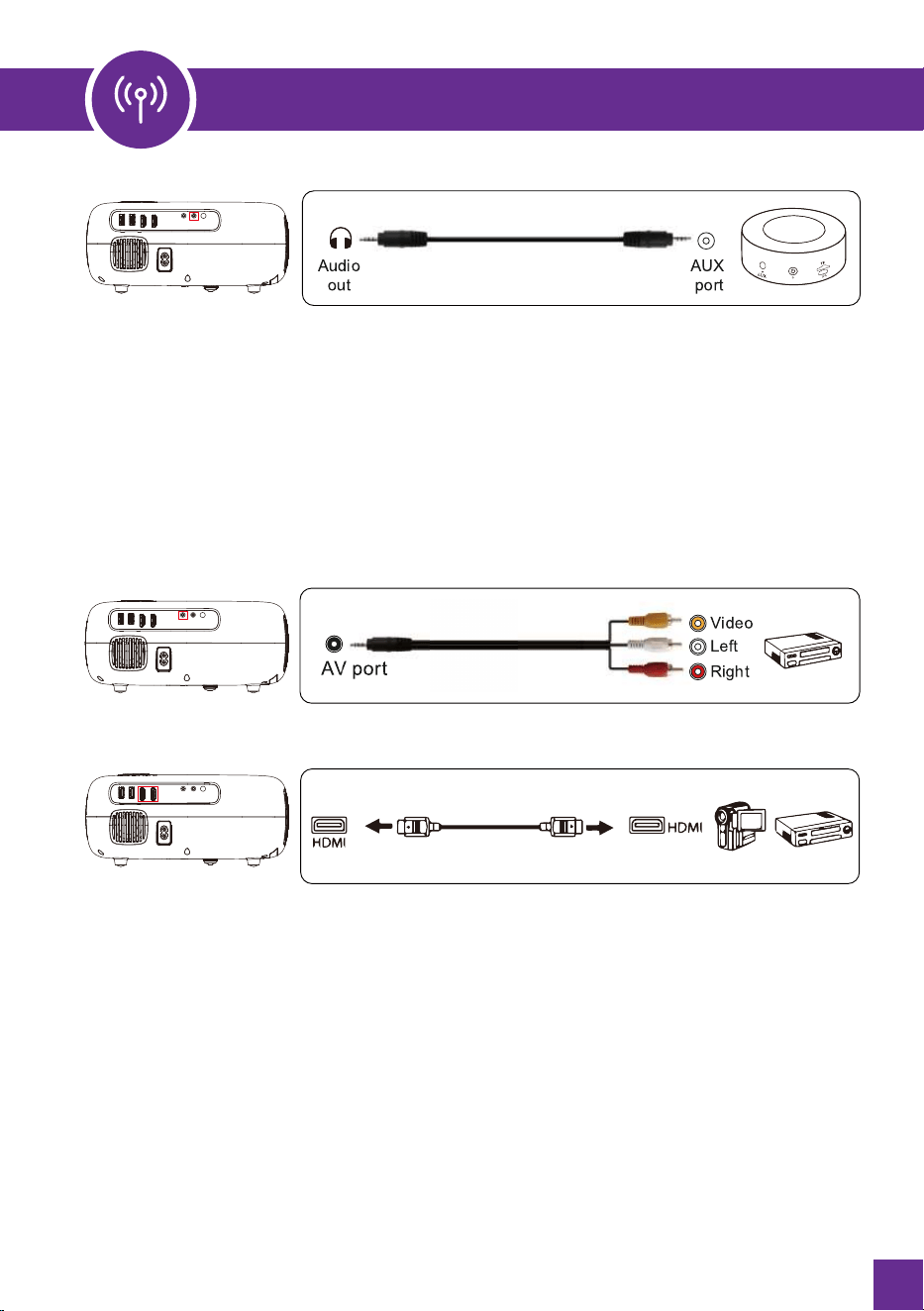
5. CONNECTING WITH DVD
1.
2.
3.
Turn on your DVD player and the projector;
Connect the colorful female connectors to your DVD player's RCA cable with
the 3-in-l AV cable in the package;
Connect the black connector to the AV port of the projector, and enter the home
page to select [ AV ] as the signal source.
Use the 3-in-l AV cable in the package
6. CONNECTING WITH FIRE TV STICK
1.
2.
Choose the media signal channel: "HDMI"
P.S.: It only supports 1080P T.V. sticks, not 4K T.V. sticks.
Plug the TV stick into the HDMI port of the projector.
7. CONNECTING WITH XBOX/PS4
1.
2.
Choose the media signal channel: "HDMI"
Use an HDMI cable to connect to XBOX/PS4.
Or connect to the DVD Player with the HDMI cable in the package.
SIGNAL LINES CONNECTION
21
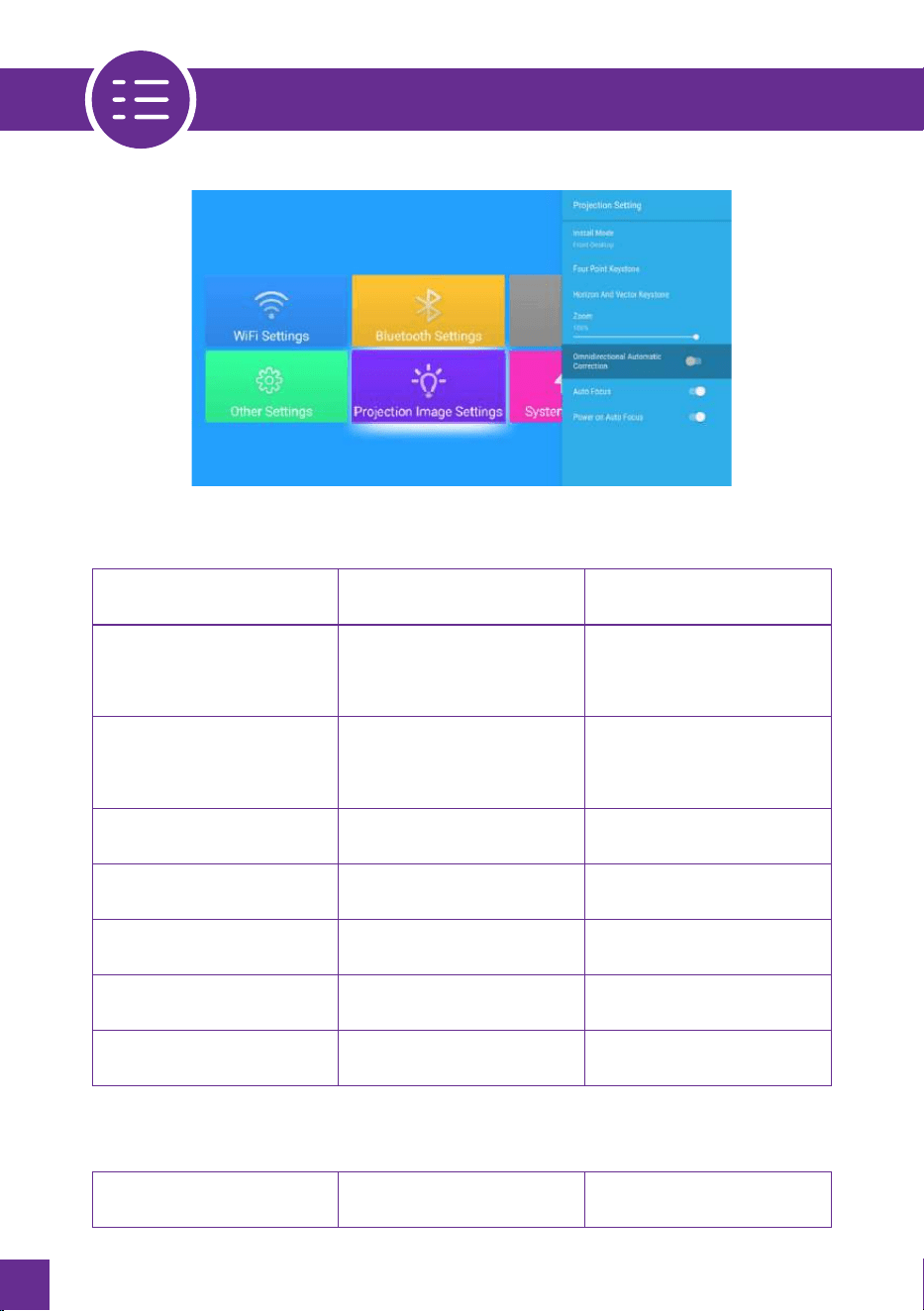
MENU FUNCTION
1. PROJECTION IMAGE SETTING
PROJECTION IMAGE
SETTINGS
MENU INCLUDED FUNCTION
2. SYSTEM LOCAL UPDATE
SYSTEM LOCAL
UPDATE
LOCAL UPDATE(USB) UPDATE OFFLINE
Front-Desktop /
Rear-Desktop /
Front- Ceiling /
Rear-Ceiling
4-point Keystone
correction
Horizontal/Vertical
Keystone/Reset
Choose the
projection methods,
flip the image
Adjust the four points
to make the projected
image a rectangle:
Value 0-100
Adjust Horizontal &
Vertical Keystone: ±30°
Install Mode
FourPoint Keystone
Horizontal & Vertical
Keystone
Reduce Display
100%-50%
Reduce the size of
image size
Zoom
Horizontal/ Vertical
Au
tomatic Correction
on/off
Omnidirectional
Automatic Correction
Auto Focus on/offAuto Focus
on/off on/offPower on Auto Focus
22
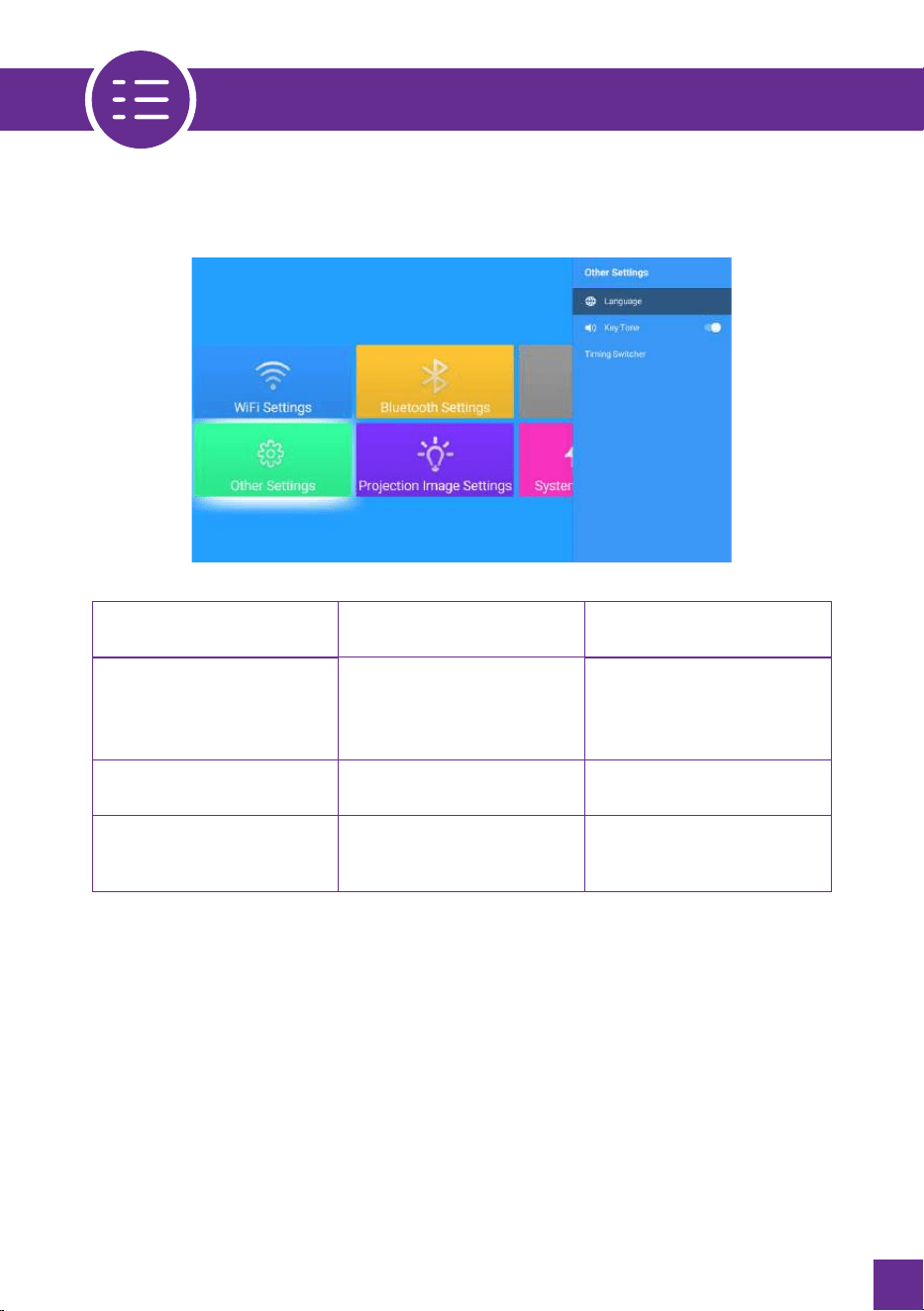
MENU FUNCTION
OTHER SETTINGS MENU INCLUDED FUNCTION
English, French, German,
Italian, Spanish,
Japanese. 20 several
languages
On/Off
Off/ /30min/ 60min/
90min/120mi n/150min/
180min/210m/240m
Choose a language
Adjust the key sound
Set the sleep time
of the projector
Language Settings
Key Tone
Timing Switcher
3. OTHER SETTINGS
23
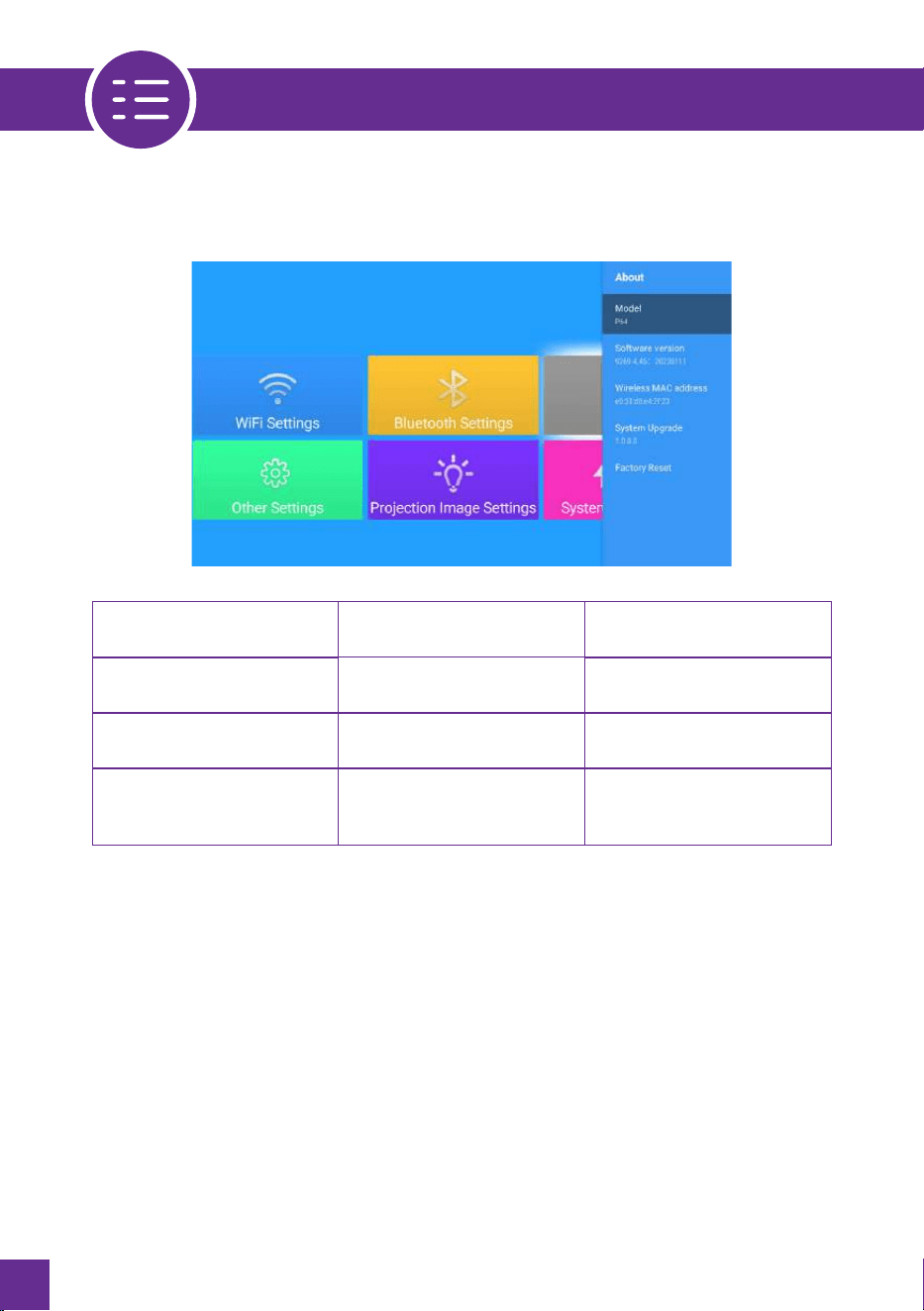
MENU FUNCTION
3. OTHER SETTINGS
ABOUT MENU INCLUDED FUNCTION
Product Version
Update the system
Reset
Product Version
Update Online
Restore all settings to
their factory settings
Software Version
System Upgrade
Factory Reset
24

FAQ
The remote control does not communicate with the projector.
1) The power switch at the back of the projector is turned on or off?
2) The remote control's batteries are depleted?
3) Something obstructing the signal between the remote and IR
No image on the screen.
1) Is the channel set up correct?
2) Is there an input signal ?
3) Is the input cable plugged well ?
4) Under PC mode, is the refresh rate > 75KHz ?
Blue screen.no picture.no sound.
1) Input cables are connected right?
Picture right, no sound.
1) Input cables connected right?
2) Volume at min or on Mute.
3) Trun off the AC3/Dolby sound and set it to stereo sound.
Can't play the movies.
1) The format of the video is right?
2) Files are broken?
3) Device is broken?
Can't play video in App Netflix, Hulu, Prime. Those APPs are limited
with HDCP. This model doesn't support this function. So it can't
support these APPs.
Can't find devices when connected with hard drive or flash drive.
Check if the device is broken.
1.
2.
3.
4.
5.
6.
7.
25

FAQ
Auto-off after working for a while
1) The projector ventilation is blocked or the voltage is not stable.
2) Send a video to check for you.
Not compatible with your bluetooth speaker?
1) The projector may not compatible with some versions bluetooth
speakers of JBL.
2) Contact our after-sales email at immediately and tell us the brand and
model of your bluetooth speaker.
WiFi connection is not stable?
1) Please check whether the network of your phone is well.
2) Make the distance between the phone and the
projector within 1 meter.
8.
9.
10.
26
DEFECTIVE PRODUCTS & RETURNS
DISPOSAL
Proved defective products meeting the specified warranty period should be contacted
by customer support via www.alliums.com.au addressing your order number.
Make sure not to dispose of your product before contacting us. Once our customer
support team has approved your request, please return the unit with its order number.
To prevent possible environmental or human health harm from uncontrolled
waste disposal.
Ask your local council where to dispose of your projector and its accessories.
It would help if you did not dispose of your appliance and its related accessories
away with the daily regular household.
ALLIUMS CUSTOMER SUPPORT
Feel free to contact our helpful customer support team with any questions
regarding your product!
Your satisfaction is our priority.
www.alliums.com.au
support@alliums.com.au
Please provide your order number when you contact our customer support services.
27

Questions or Concerns?
support@alliums.com.au