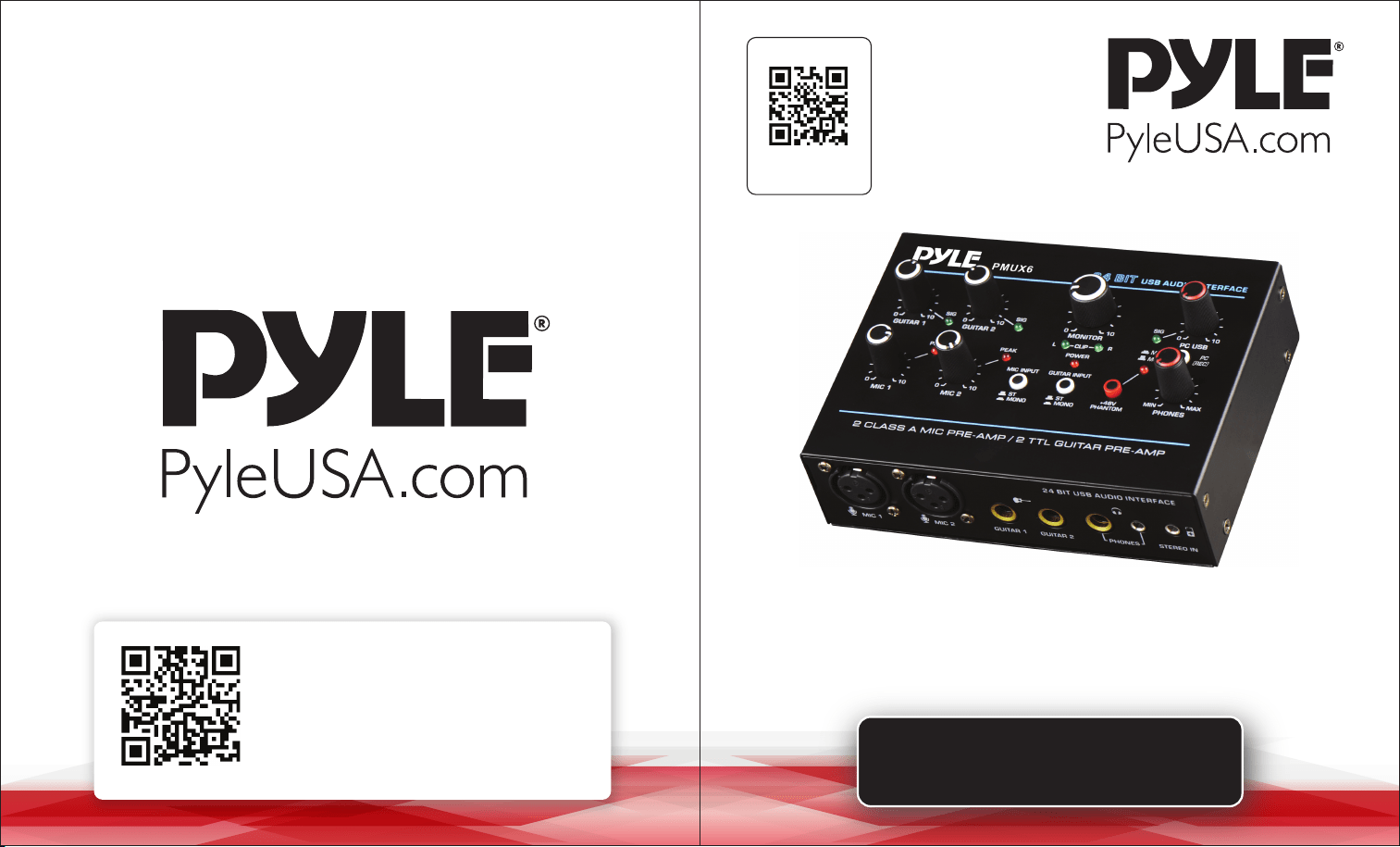
USER GUIDE
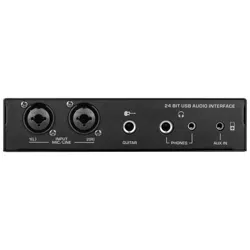
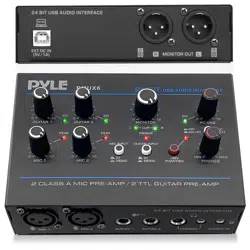
Professional USB Audio Interface
PMUX6
Questions or Comments?
We are here to help!
Phone: 1.718.535.1800
PyleUSA.com/ContactUs
Visit Our Website
SCAN ME
PyleUSA.com

READ ALL INSTRUCTIONS CAREFULLY BEFORE USING THIS PRODUCT.
RETAIN THIS OWNER’S MANUAL FOR FUTURE REFERENCE.
Features:
• Ultra-low noise design with high headroom.
• USB audio interface for computer playback and recording.
• Provides 24-bit, 48 kHz resolution for detailed and pristine recording quality.
• Independent 3.5 mm stereo input.
• Flexible connectivity for a variety of external devices.
• Two headphone output options (6.35 mm and 3.5 mm stereo).
• Compact design for recording, monitoring, and leveling in small spaces.
• Rugged metal housing with a compact size.
• Powered by DC 5V or PC power supply.
What's in the Box:
• USB Audio Interface
• USB Cable
Technical Specications:
• Power Consumption: 3W
• Power Output Current: 1A
• Power Output Voltage: DC 5V
• Phantom Power Voltage: +48V DC
• T.H.D.: <0.5% @ +4 dBu (20 Hz-20 kHz)
• USB Interface: 2.0 Type-B
• Frequency Response: ±1 dB, +4 dBu @ 1 kHz
• MIC/LINE: 2 combo jacks (XLR + 6.35 mm jack)
• Product Dimensions (L x W x H): 1.5" x 5.6" x 4.1"
FCC INFORMATION
WARNING: Changes or modications not expressly approved by the party responsible for
compliance could void the user’s authority to operate the equipment.
NOTE: This equipment has been tested and found to comply with the limits for a Class B
digital device, pursuant to Part 15 of the FCC Rules. These limits are designed to provide
reasonable protection against harmful interference in a residential installation.
This unit generates, uses, and can radiate radio frequency energy, and if not installed and
used in accordance with the instructions, may cause harmful interference to radio
communications. However, there is no guarantee that interference will not occur in a
particular installation. If this equipment does cause harmful interference to radio or
television reception, which can be determined by turning the equipment o and on, the
user is encouraged to try and correct the interference by one or more of the following
measures:
• Reorient or relocate the receiving antenna.
• Increase the separation between the equipment and receiver.
• Connect the equipment to an outlet on a circuit different from that to which the receiver
is connected.
• Consult the dealer or an experienced radio/TV technician for help.
This device complies with Part 15 of the FCC Rules.
Operation is subject to the following two conditions:
1. This device may not cause harmful interference.
2. This device must accept any interference received, including interference that may cause
undesired operation.
ww w.PyleUSA.com
2
ww w.PyleUSA.com
3
California Prop 65 Warning
WARNING:
This product may expose you to chemicals, which is known to
the state of California to cause cancer, birth defects and other
reproductive harm. Do not ingest.
For more info go to: www.P65warnings.ca.gov
Attention:
To avoid possible malfunction, damage to the product, data loss, or harm to
other property, please follow these guidelines:
OPERATION
• Do not use the device near TVs, radios, stereo equipment, mobile phones, or
other electronic devices to prevent noise interference.
• Avoid exposing the device to excessive dust, vibrations, extreme cold, heat, or
direct sunlight.
• Do not place vinyl, plastic, or rubber objects on the device, as they may discolor
the panel.
• Clean the device with a dry, soft cloth. Avoid using paint thinners, solvents, or
chemical-impregnated cloths.
• Allow the device to acclimate if condensation occurs due to temperature changes.
Wait several hours before turning it on.
• Avoid setting all controls to their maximum levels, as this may cause feedback
and damage connected speakers.
• When powering on your audio system, always turn on the power amplier last to
avoid speaker damage. Power o the amplier rst when turning o the system.
Precautions for USB 2.0 and 5V DC Terminals:
• Use an AB-type USB cable (USB 3.0 cables are not supported).
• Disable any power-saving modes (e.g., suspend, sleep, or standby) on your
computer before connecting to the USB 2.0 terminal.
• If the computer or device crashes, restart the software or operating system, or
disconnect and reconnect the unit.
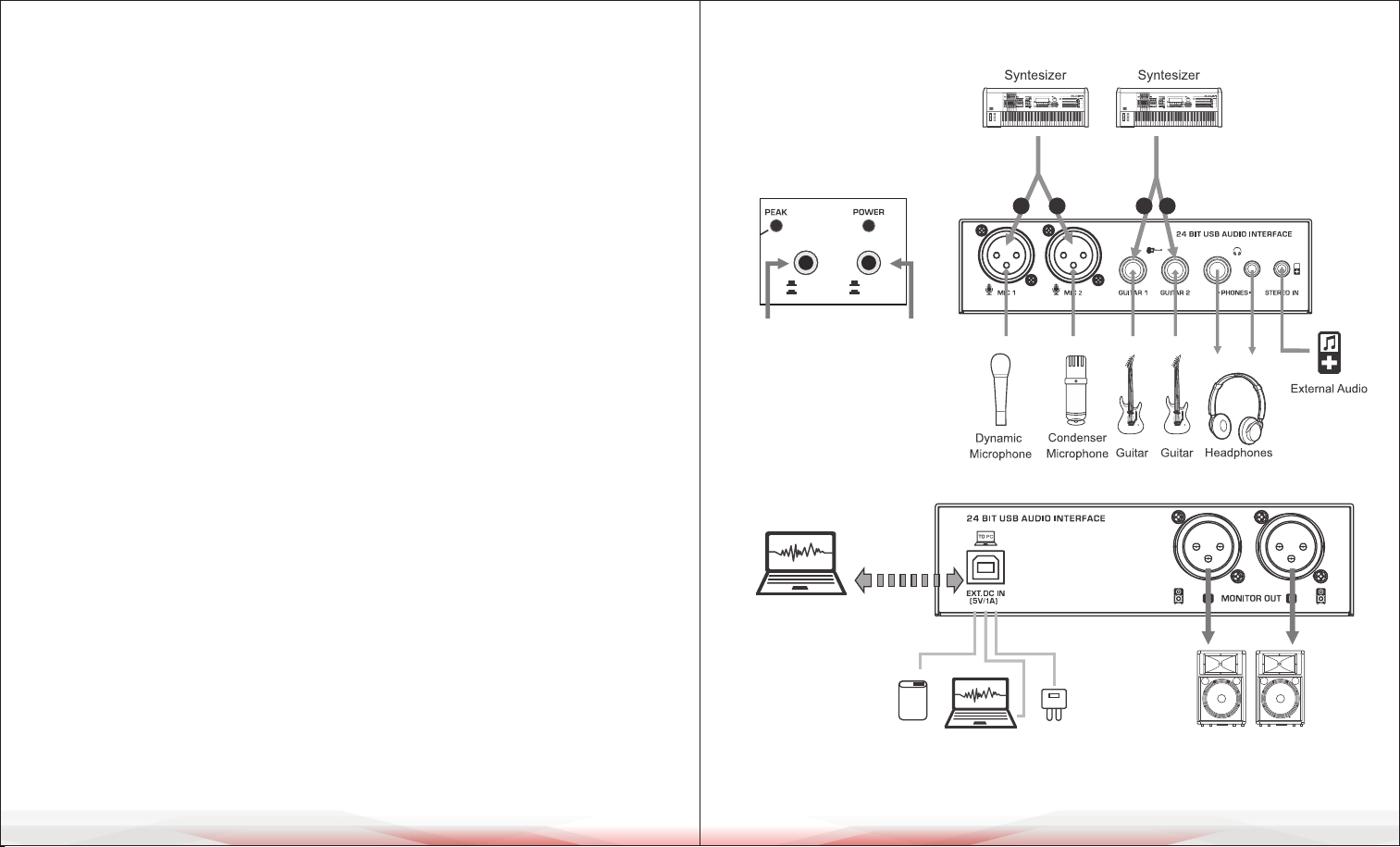
CONNECTION DIAGRAM
ww w.PyleUSA.com
4
ww w.PyleUSA.com
5
L R L R
For MIC & GUITAR inputs
*Keep the buttons bounce
up, for STEREO inputs.
*Press down the buttons,
for MONO inputs.
MONO
ST
MONO
ST
GUITAR INPUT
MIC INPUT
Stereo
Transfer
and
Record
Power Supply:DC 5V,1A
Power Socket
Power Bank
PC USB Power Supply
Active Speakers
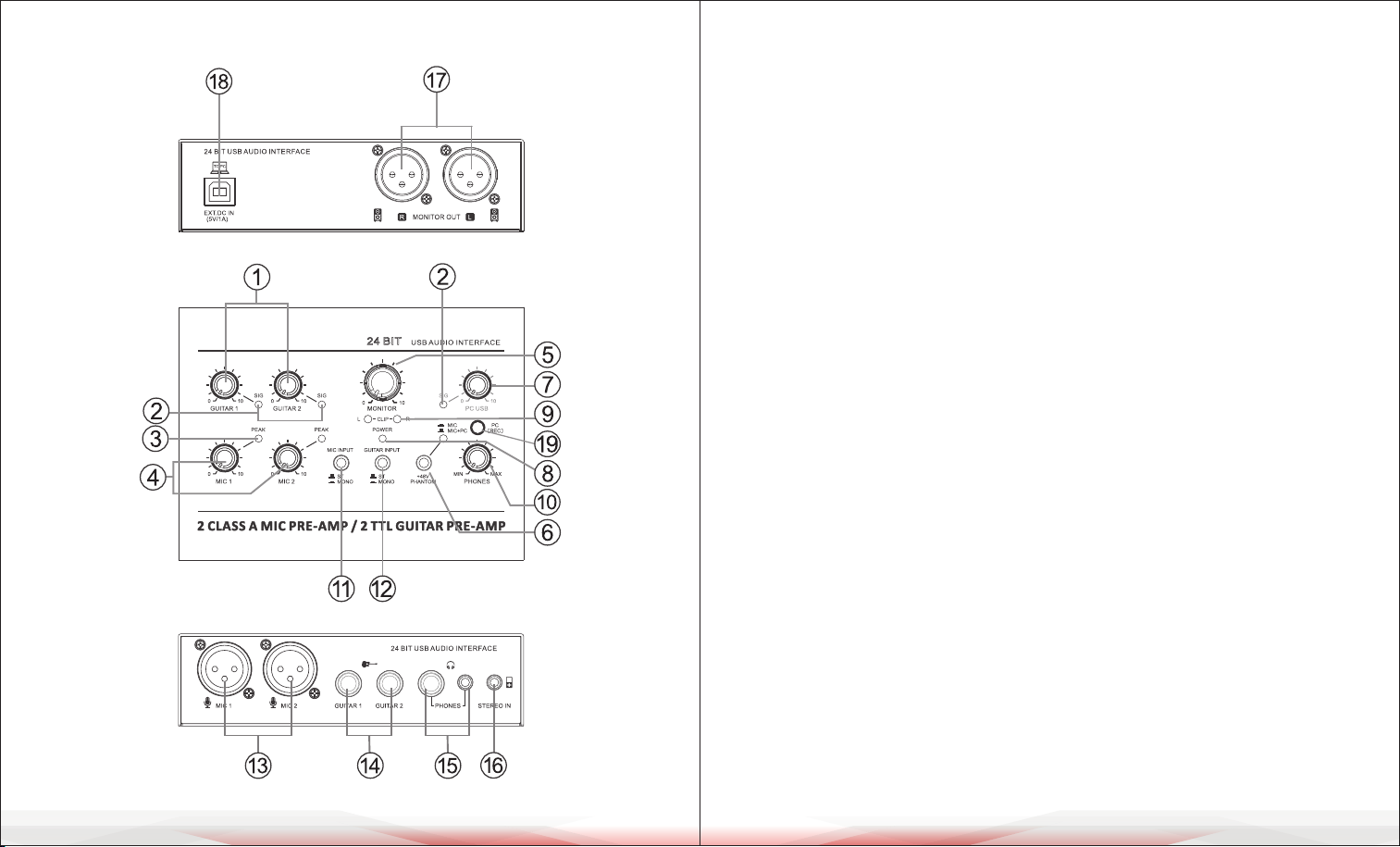
CONTROLS AND FUNCTIONS CONTROLS AND FUNCTIONS
1. [GUITAR] Controller: Adjusts the input level of the guitar channel to balance
the volume.
2. [SIG] Signal Indicator: Brightness changes based on the input signal's intensity.
3. [PEAK] LED: Lights up when the input signal is too high. If it ashes continuously,
turn down the volume by rotating the [MIC] Controller counterclockwise.
4. [MIC] Controller: Adjusts the input level of the microphone channel to balance
the volume.
5. [MONITOR] Controller: Adjusts the volume of the monitor output.
6. [+48V PHANTOM POWER] Button/LED: Provides +48V phantom power to the
XLR plug on the MIC mono input. Turn on this button when using a condenser
microphone powered by phantom power.
7. [PC USB] Controller: Adjusts the input level from the PC USB port to balance
the volume.
8. [POWER ON] LED: Lights up when the device is powered on.
9. [CLIP L & R] LED: Lights up when the monitor output signal is too high.
10. [PHONES] Controller: Adjusts the headphone volume.
11. [MIC INPUT] Converting Switch:
• Up: For stereo input. Connect MIC 1 and MIC 2 inputs
(MIC 1 = channel L, MIC 2 = channel R).
• Down: For mono input. MIC 1 and MIC 2 function separately.
12. [GUITAR INPUT] Converting Switch:
• Up: For stereo input. Connect GUITAR 1 and GUITAR 2 inputs
(GUITAR 1 = channel L, GUITAR 2 = channel R).
• Down: For mono input. GUITAR 1 and GUITAR 2 function separately.
ww w.PyleUSA.com
6
ww w.PyleUSA.com
7

13. [MIC] Input Jack: Connects a microphone using an XLR plug.
14. [GUITAR] Input Jack: For instruments such as electric guitars or basses.
15. [PHONES] Output Jack: Two options (6.35 mm and 3.5 mm) for connecting
stereo headphones.
16. [STEREO IN] 3.5 mm Jack: Auxiliary input for connecting external devices.
The volume can be controlled by the external device or the MONITOR knob.
Input signals from STEREO IN can be recorded to a PC only when the [PC REC]
switch is in the up position.
17. [MONITOR OUT] Output: Connects to an active speaker or amplier.
18. [USB 2.0] Terminal: Used for data transfer, recording, and power supply.
When connected to a computer, the terminal provides power and supports
stereo playback and recording at 24-bit, 48 kHz.
If using a power socket or power bank, ensure the following requirements:
• Output Voltage: 4.8V to 5.2V
• Output Current: ≥ 1A
19. [PC REC] Switch for PC Recording Control:
• Up: Enables MIC+PC recording. Audio from PC playback can ow back to PC
recording. Signals from MIC, GUITAR, and STEREO IN are recorded. MIC and
GUITAR volume are controlled by their respective knobs, while STEREO IN
volume is controlled externally.
• Down: Enables MIC-only recording. PC playback continues but does not ow
back to PC recording. Signals from MIC and GUITAR are recorded, and volume
is controlled by their respective knobs.
CLEANING, MAINTENANCE, AND STORAGE
Cleaning:
• Use a soft, dry cloth to clean the surface of the device.
• Avoid using water, cleaning uids, solvents, or abrasive materials.
Maintenance:
• Regularly check all connections and cables for signs of wear or damage.
• Ensure that vents and openings are free of dust and debris to prevent overheating.
• Periodically test all inputs and outputs to ensure proper functionality.
Storage:
• Store the device in a cool, dry place away from direct sunlight, heat sources, or
high humidity.
• Keep the device in its original box or use a protective cover to prevent dust buildup.
• Disconnect all cables and power sources before storing.
ww w.PyleUSA.com
8
ww w.PyleUSA.com
9
REGISTER PRODUCT
Thank you for choosing PyleUSA. By registering your product,
you ensure that you receive the full benets of our exclusive
warranty and personalized customer support.
Complete the form to access expert support and to keep your
PyleUSA purchase in perfect condition.
Start Here
PyleUSA.com/pages/register