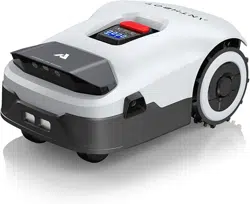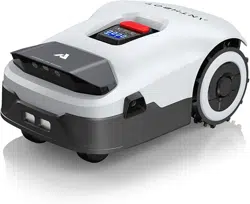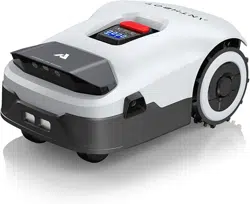
Warning: Ensure
that the RTK is
securely installed
Connect
Unlock the mower
Confirm
Press and hold 3s
Place charging station
Please refer to the user
manual for more details
Welcome to join our FaceBook
Group for a discussion
User manual
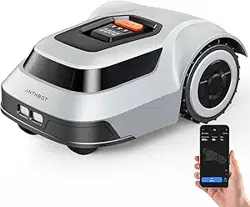
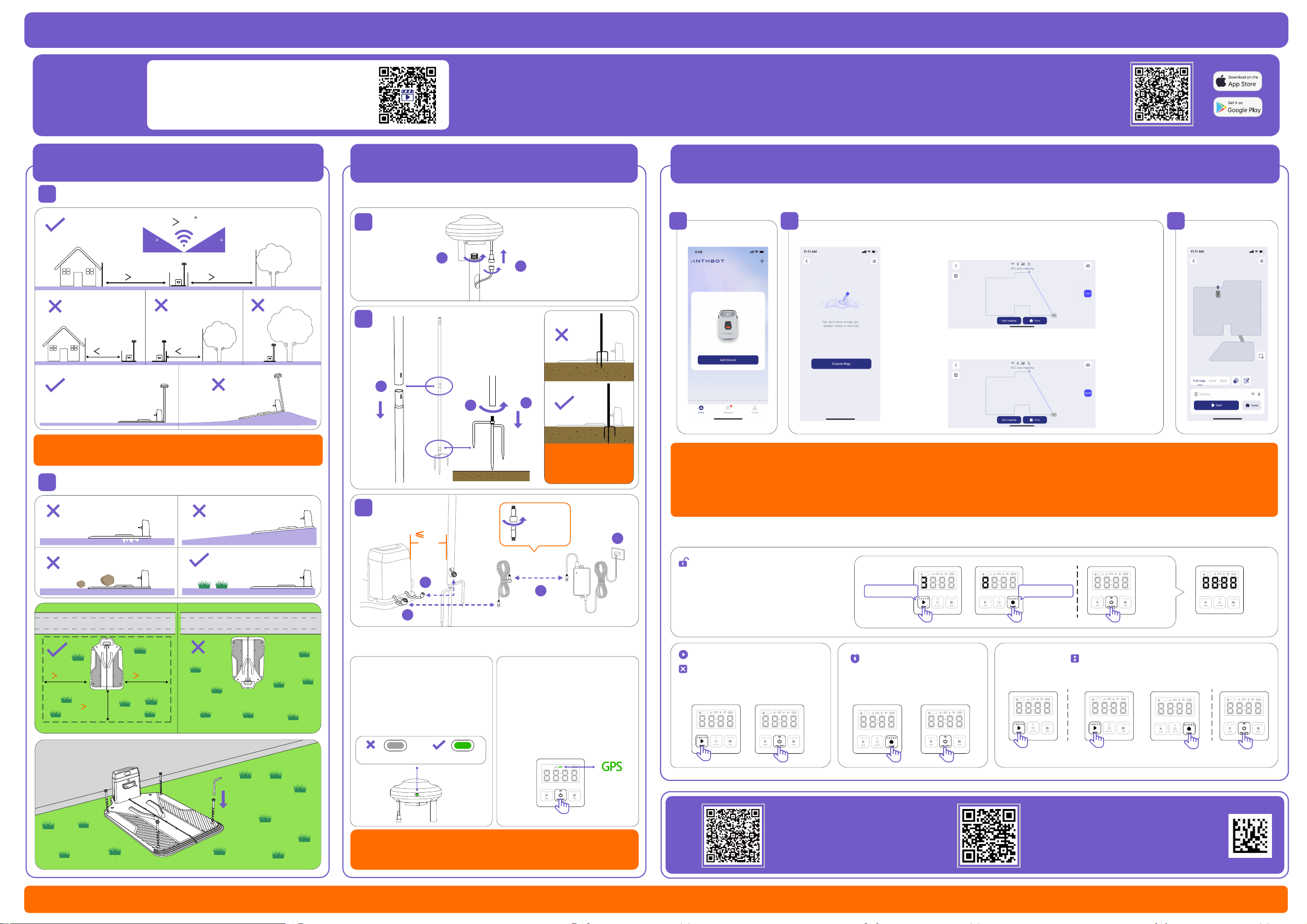
ANTHBOT APP can be downloaded from Apple APP Store or Google Play, or scan the QR code to download and install ANTH-
BOT APP. After downloading, please register an account, log in and follow the APP prompts to add the device to start using.
Note: Please make sure the network frequency band connected to the device is 2.4GHz
Add device
Warning:
Create map
Automatic Mapping: Only supports lawns with
clear boundaries and enclosed areas.
Manual Mapping: Please maintain a distance
within 6 meters of the device for remote control
to avoid signal instability.
Start mowing
ANTHBOT Genie
ANTHBOT Genie
Enter the 4-digit PIN code to
unlock it, the default PIN
code is 0000. Click the OK
button 4 times to confirm.
Step 2
Step 2
Step 1
Step 3
Quick Guide
3m
3m
2m
3m
3m
2m
2m
120
1m
30 30
Move the device to the
location and turn it on. If
the GPS on the display is
always on (it takes about
3 minutes to wait), it
means that the location
meets the installation
requirements.
Step 2
Check signal lights
Installation and power supply
Step 3
1
1
2
1
2
3
3
Help Line Customer Service: suppor[email protected] Website: https://www.anthbot.com
If you have any questions, please feel free to contact us.
Connect a temporary
power source and look
for an installation area
with a stable signal
(green indicates that the
signal is stable).
Find an unobstructed area
Find location Installation
Step 1
Download the ANTHBOT APP
Step 4
Operation
Host operation
APP operation
Warning: Ensure the installation location has
WiFi signal coverage (2.4GHz).
Warning: The indicator light cannot stay green
all the time. Please try again after changing the
installation location.
Stable greenFlash green
Step 2Step 1
Step 1
Tighten
Start global mowing
Mower returns to
the docking station
Remove the error
reporting operation
Odd Number
Even Number
1. Please create a map before starting the task
2. Make sure the RTK base station indicator light is green and the host GPS signal icon is on before operating.
3. Make sure to start from the charging station before creating a map.
4. If the RTK base station is tilted or moved after the map is created, you need to recreate the map.
5. Please create a virtual restricted area in the application to prevent the device from entering the dangerous area.
1
2
3
4
Hold 5s
To plus 5
To minus 5
Adjust cutting height
1
2
2
1
2
3
Scan the QR code on the right and follow
the video instructions to install it.
Installation video guide