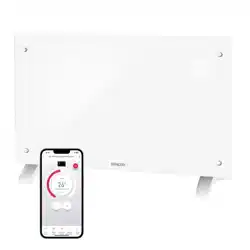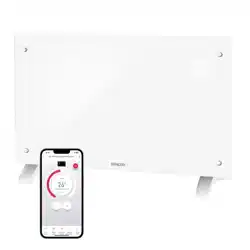
USER MANUAL
WALL MOUNTABLE CONVECTION
PANEL HEATER
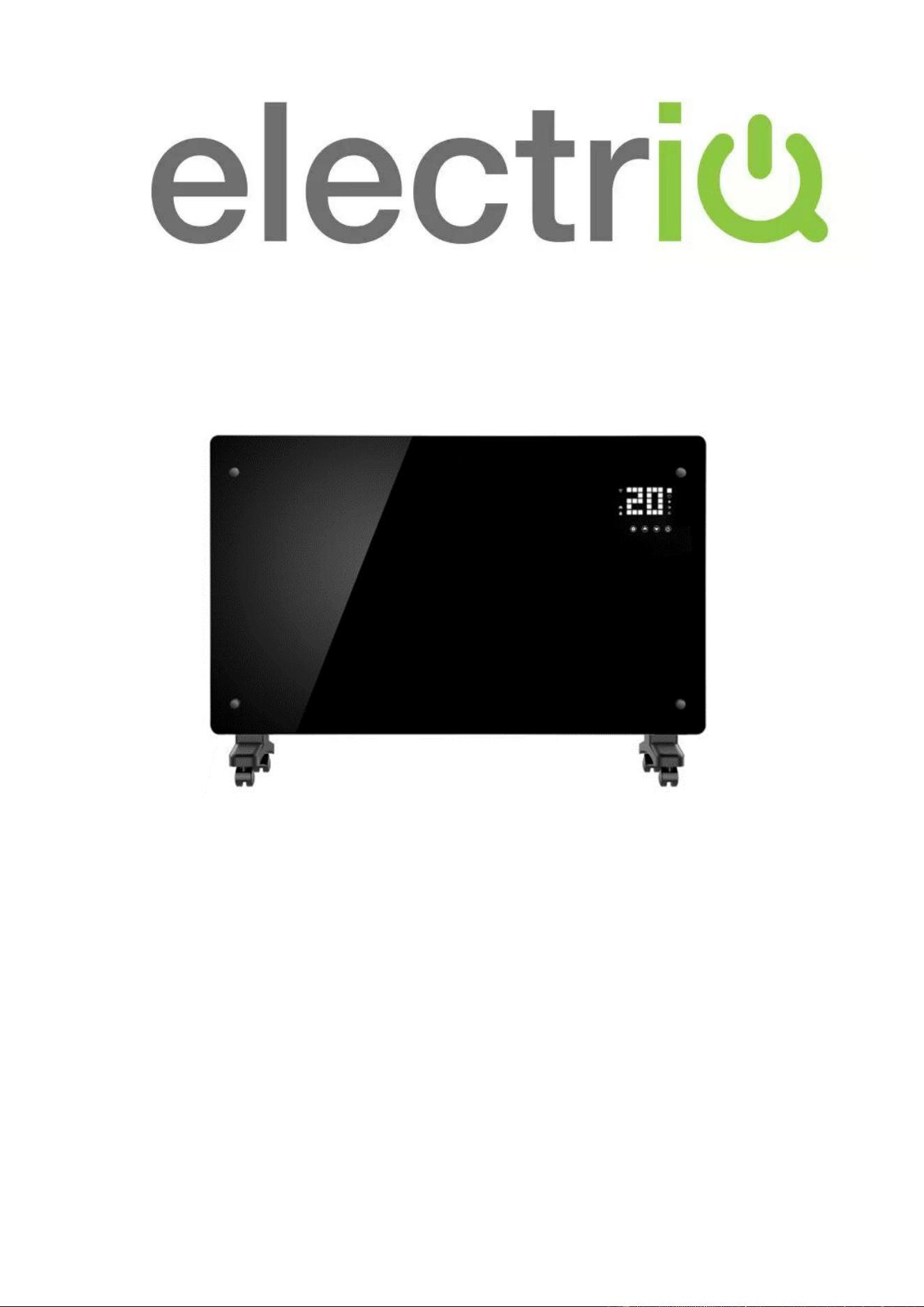
EGH25AWB (Black)
EGH25AW (White)
Thank you for choosing electriQ
Please read this user manual before using this heater and keep it safe for future
reference.
Visit our page www.electriQ.co.uk for our entire range of Intelligent Electricals
Page 2 of 25

Page 3 of 25
CONTENTS
SAFETY INSTRUCTIONS
4
INSTALLING WITHIN A BATHROOM
6
FEATURES
7
PARTS LIST
7
SETTING THE UNIT UP FOR USE
7
ATTACHING THE LEGS
7
WALL MOUNTING
8
OPERATION
9
SETTING UP THE APP
12
USING THE APP
17
CLEANING AND MAINTENANCE
22
TROUBLESHOOTING
22
TECHNICAL SPECIFICATIONS
24
SUPPORT
24
PRODUCT FICHE
25

Page 4 of 25
SAFETY INSTRUCTIONS
IMPORTANT
• Carefully read the instructions before operating the unit.
• This appliance is for indoor use only.
• Rating: This unit must be only connected to a 230 V earthed outlet.
• Installation must be in accordance with the regulations of the country where the unit is
used.
• If you are in any doubt about the suitability of your electrical supply have it checked and,
if necessary, modified by a qualified electrician.
• This heater has been tested and is safe to use. However, as with any electrical appliance
- use it with care.
• Disconnect the power from the unit before dismantling, assembling or cleaning.
• Avoid touching any moving parts within the appliance.
• Never insert fingers, pencils or any other objects through the guard.
• This appliance can be used by children aged from 8 years and above and persons with
reduced physical, sensory or mental capabilities or lack of experience and knowledge if
they have been given supervision or instruction concerning use of the appliance in a safe
way and understand the hazards involved. Children shall not play with the appliance.
Cleaning and user maintenance shall not be carried out by children.
• Children aged from 3 years and less than 8 years shall only switch on/off the appliance
provided that it has been placed or installed in its intended normal operating position and
they have been given supervision or instruction concerning use of the appliance in a safe
way and understand the hazards involved. Children aged from 3 years and less than 8
years shall not plug in, regulate, or clean the appliance or perform user maintenance.
• Children under 3 years should be kept away unless continuously supervised.
• Some parts of this product can become very hot and cause burns. Particular attention
has to be given where children and vulnerable people are present.
• Do not clean the unit by spraying it or immersing it in water.
• Never connect the unit to an electrical outlet using an extension cord. If an outlet is not
available, one should be installed by a qualified electrician.
• Never operate this appliance if the unit, cord or plug is damaged. Ensure the power cord
is not stretched, exposed to sharp objects or edges, or routed under the unit.
• Any service other than regular cleaning should be performed by an authorised service
representative. Failure to comply could result in a voided warranty.
• Never use the plug as a switch to start and turn off the heater. Use the provided power
button on the control panel.
• Do not use an external timer.
• Do not cover the air inlet or outlet, or place items close to the unit which may restrict
airflow, as this may present a fire risk.
• The heater must not be located immediately below a socket outlet.
• Always ensure the unit is secure before operation. Do not use on unstable or uneven
surfaces and if wall-mounted, it must be securely attached to a suitable wall.
• Do not move or tilt the unit.
• Avoid keeping the unit in direct sunlight for a long period of time.
• The heater is designed to be used at temperatures above -20°C. If it is exposed to
temperatures below this, it must be allowed to warm above this level before operation.

Page 5 of 25
• Do not attempt to repair, disassemble or modify the appliance. This unit contains no
user-serviceable parts.
• Always unplug or disconnect the appliance from the mains power supply when not in use,
or when moving or cleaning it. Do not pull the cord to unplug the heater.
• Keep the heater clean. Do not allow any object to enter the ventilation or exhaust opening
as this may cause electric shock, fire, or damage to the heater.
• Do not use the appliance for anything other than its intended use. It is designed for
domestic indoor use only.
• There may be a trace of odour during the first few minutes of initial use, or after a period
of storage. This is normal and will quickly disappear.
• This appliance has hot and arcing or sparking parts inside. Do not use it in areas where
gasoline, paint, or any flammable liquids are used or stored.
• Never locate this appliance where it may fall into a bathtub or otherwise become exposed
to water.
• This appliance is IP24 rated, and so can be used or installed within a bathroom as long
as the appliance and its cables are not within Zones 0-2.
• If used within a bathroom, the circuit must be protected by a suitable RCD to prevent
electric shock.
• Do not allow the appliance to be submerged or sprayed with water.
• If the unit is wall-mounted, it must be installed in accordance with current regulations for
the area of installation. If unsure, professional advice should be sought.
• The remote contains an alkaline battery, keep out of reach of small children. Seek
medical advice if swallowed.
• To prevent battery leakage: Remove the battery from the remote if exhausted or before
long periods of storage.
• WARNING: To reduce the risk of fire or electrical shock, DO NOT use this appliance with
any solid-state Speed Control Device or any variable speed controllers.
THIS SYMBOL MEANS DO NOT COVER, IN ORDER TO AVOID
OVERHEATING. DO NOT COVER OR OBSTRUCT ANY OF THE
HEAT OUTLET GRILLES OR AIR INTAKE OPENINGS OF THE
HEATER.
ENERGY SAVING AND UNIT SAFETY PROTECTION TIP
• Do not cover or restrict the airflow. Do not use in a dusty environment.
• For safety and maximum performance, when the castors are fitted the minimum distance
from a wall or objects should be 50cm.
Page 6 of 25
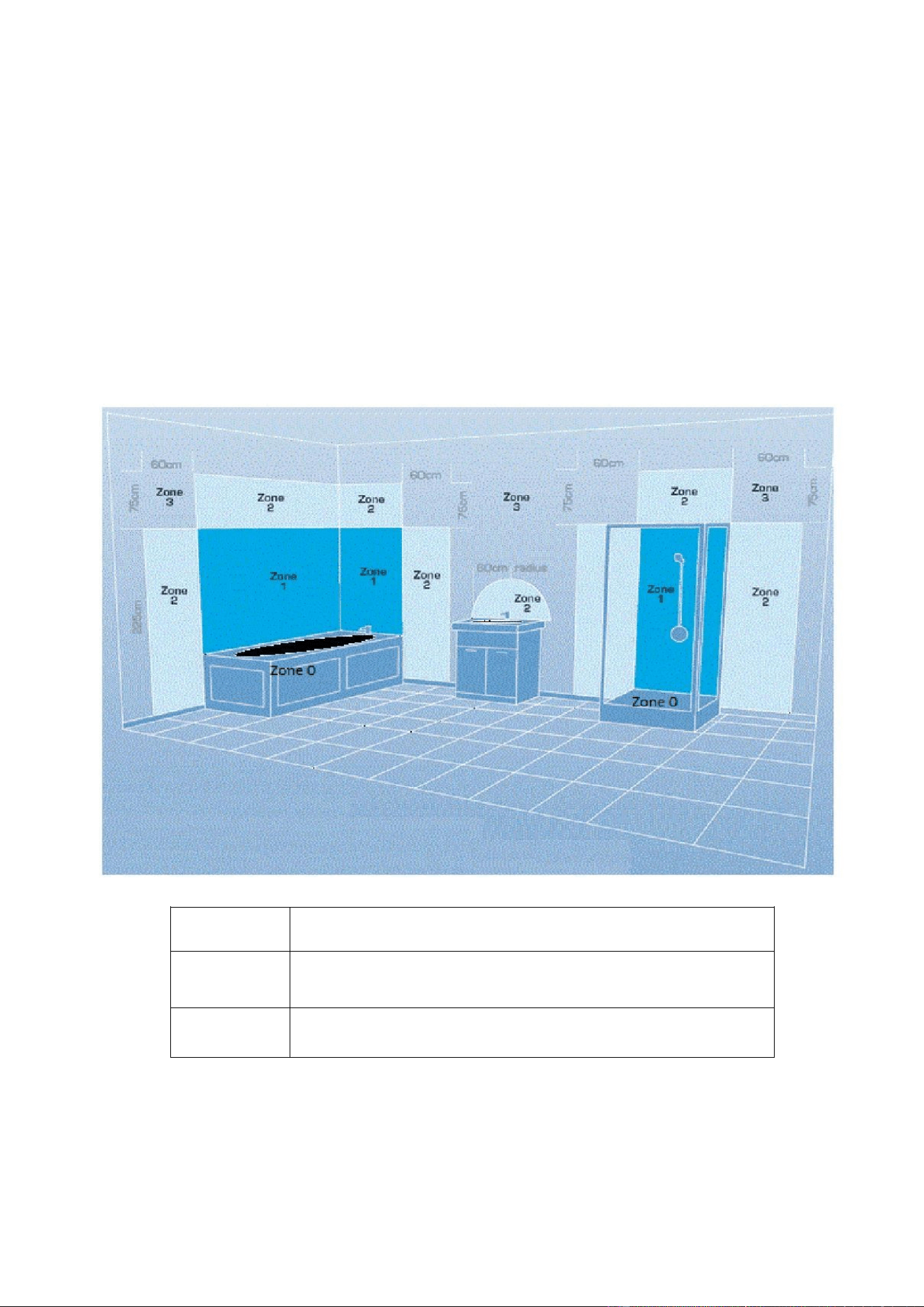
INSTALLING WITHIN A BATHROOM
If the appliance is to be fitted within a bathroom, a good understanding of the
zoning within bathrooms is required to ensure the unit is mounted in a safe position.
The appliance is rated as IPX4 and should be installed outside of Zones 0 -2. We
would advise when the unit is fitted within a bathroom, the plug is removed from
the unit, and a suitable fused spur is installed in accordance with BS 7671. In
addition, when used in a bathroom, it must be protected by a suitable RCD to
prevent the risk of electric shock.
Zone 0:
The interior of the bathtub or shower basin.
Zone 1:
The area around the bathtub or shower basin up to a height
of 2.25m above the floor
Zone 2:
The area stretching to 0.6m outside the bath or shower and
above the bath or shower if over 2.25m
Page 7 of 25
FEATURES
• 3 Heating Modes
• 2 Power levels – Comfort Mode (2.5kw) and Eco Mode (1.25kw)
• Tempered Glass Panel
• Easy to Read LED Display
• 24 Hour Countdown Timer
• Wi-Fi Enabled with App Control
• Scheduling functionality through the app.
• Remote Control
• Electronic Thermostat with Frost Protection Function
• Double Overheat Protection
• Wall Mountable or Portable Using the Supplied Castors
• Ingress Protection Rating of IP24
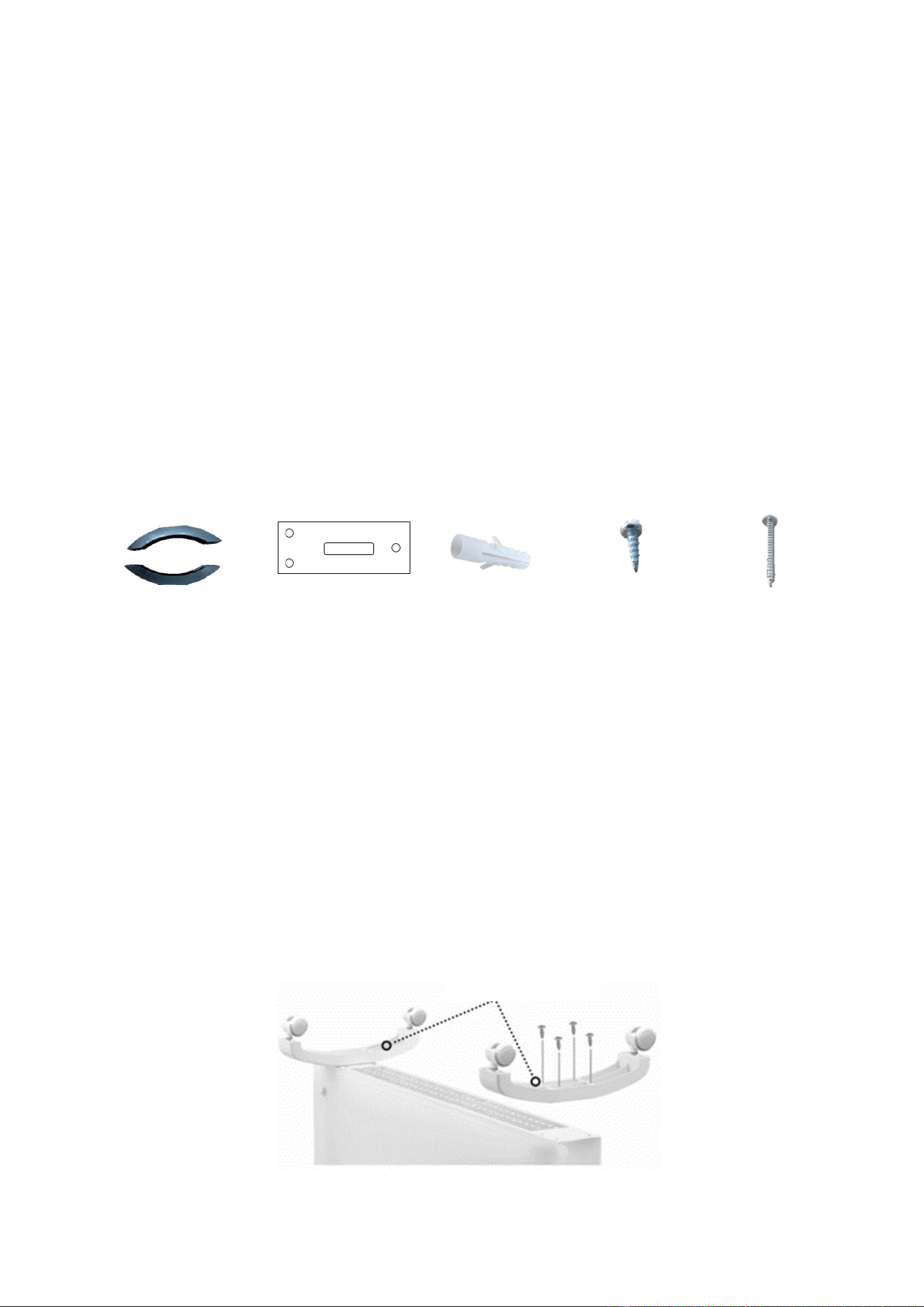
PARTS LIST
2 x Legs
+ 4 Castors
Brackets
Wall plugs
Screws ᶲ4x12
Screws ᶲ4x35
X4
X6
X8
X6
SETTING THE UNIT UP FOR USE
The appliance can be wall-mounted using the supplied mounting brackets, or alternatively
can be set up as a portable heater using the supplied legs with castors. It is important that
the unit is only operated if it is wall-mounted or has the castors fitted.
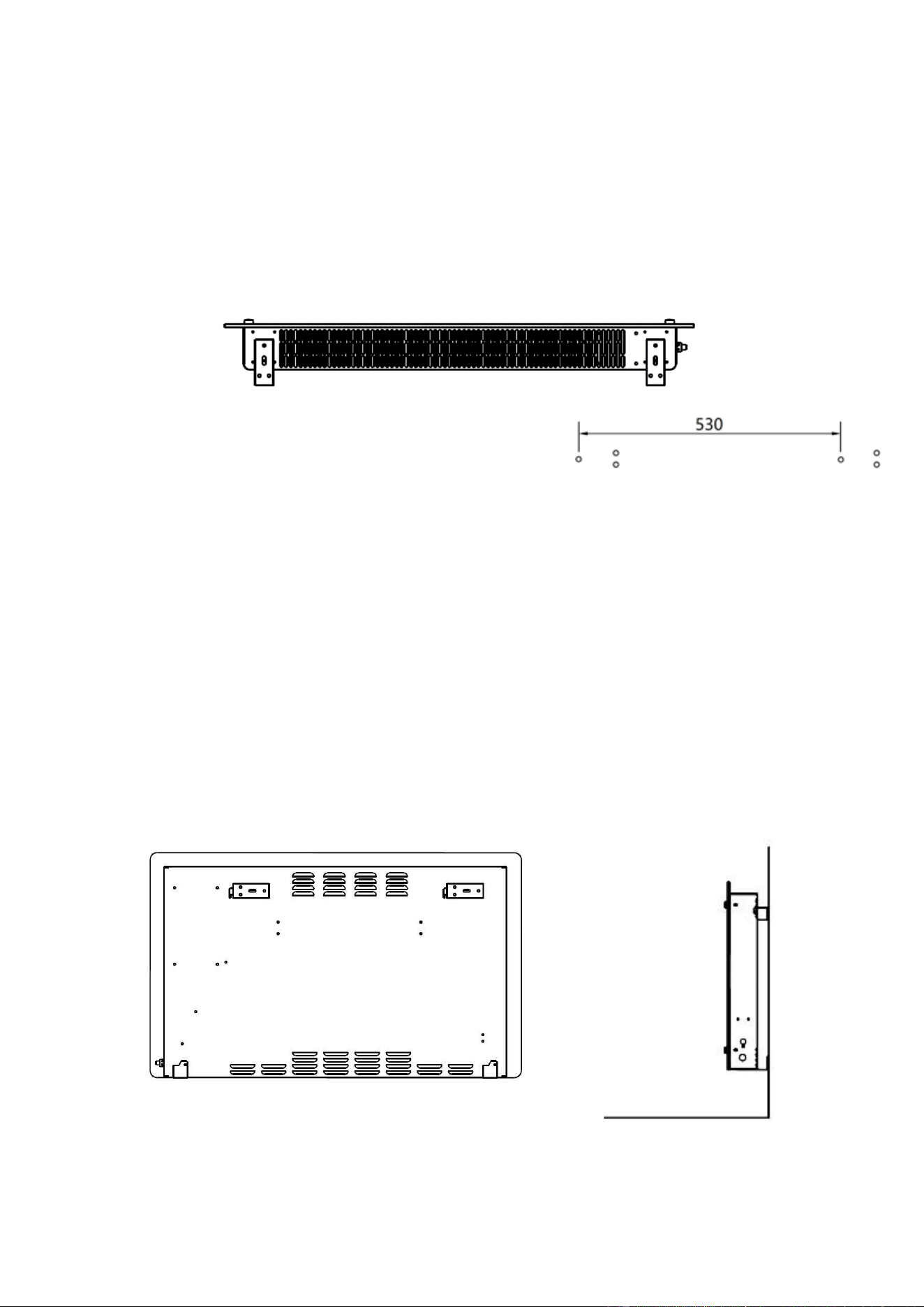
ATTACHING THE LEGS
1. Fit the castors into the legs, ensuring they click into place.
2. Turn the heater upside down and place on a soft surface.
3. Put the leg assembly in position and align the screws (φ4x12) with the 4 holes on the
underside of each leg, and loosely fit.
4. Once all screws are in place, they should be fully tightened.
5. After the installation is complete, turn the heater the right way up.
Leg assembly
Page 8 of 25
WALL MOUNTING
The heater must be installed at least 15cm from the floor and 50cm from the ceiling.
IMPORTANT: Before drilling, ensure that no wires or pipelines are behind the wall to prevent
damage.
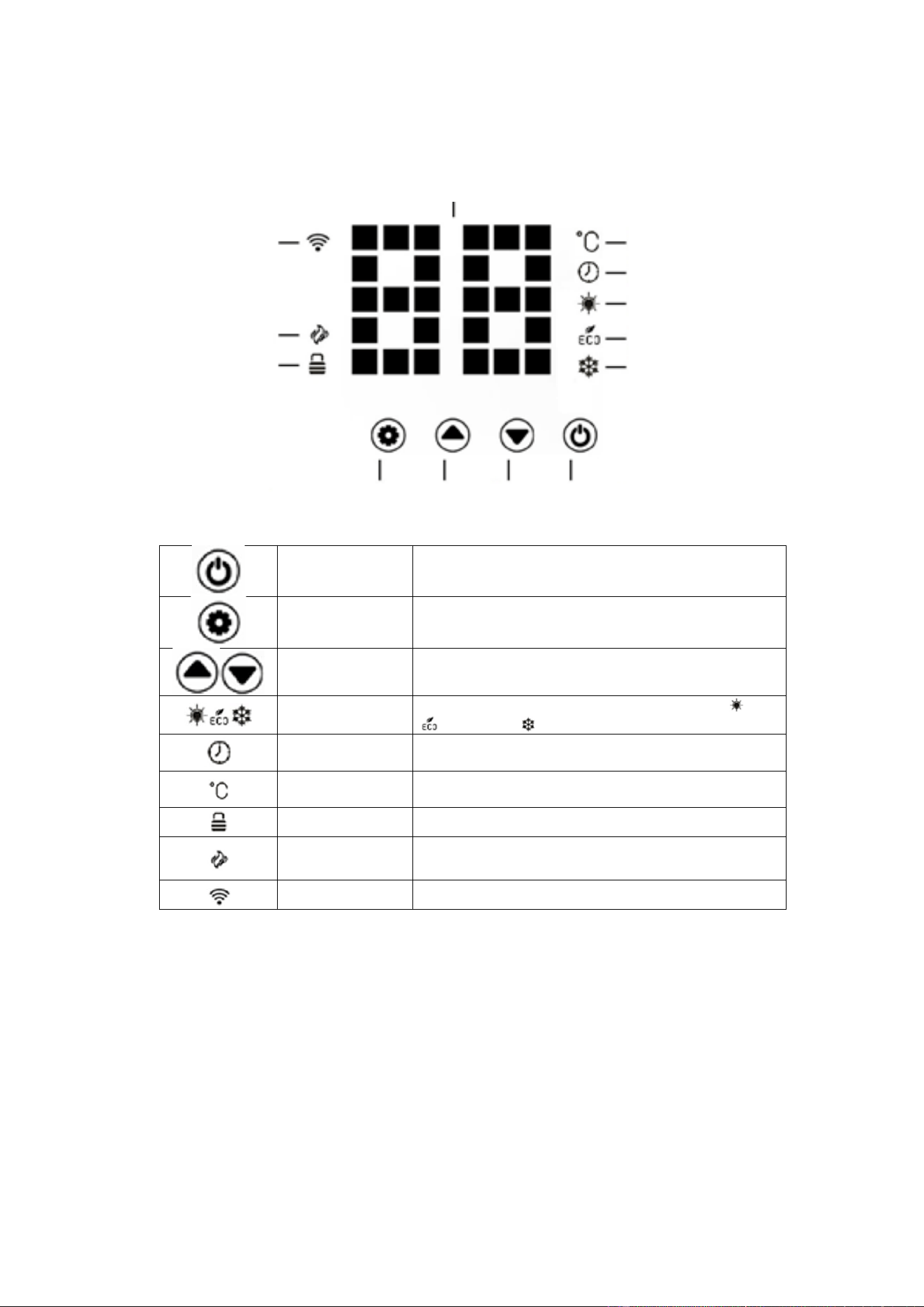
1. Fix two brackets onto the bottom of the unit as shown in the image below using the
screws provided (ᶲ4x12).
2. Measure the distance between the wall hanging holes
on the rear of the heater to confirm they are 530 mm
apart.
3. After double-checking the measurements mark the position of the upper brackets on the
wall, using a pencil (following the diagram above for spacing). We would advise using a
spirit level to ensure the markings are square and level.
4. Once you are happy with the position of the marks, drill 8mm diameter holes using a
suitable drill bit.
5. Insert the wall plugs into the holes. Please note depending on the wall type; alternative
fixings may be required. Ask for professional advice if unsure.
6. Fix the brackets to the wall using 6 screws (ᶲ4x35)
7. Hang the heater onto the wall brackets using the two holes at the back of the heater,
ensuring it is secure, before gently resting the base of the unit against the wall so that
the brackets sit flush.
.
.
Page 9 of 25
OPERATION
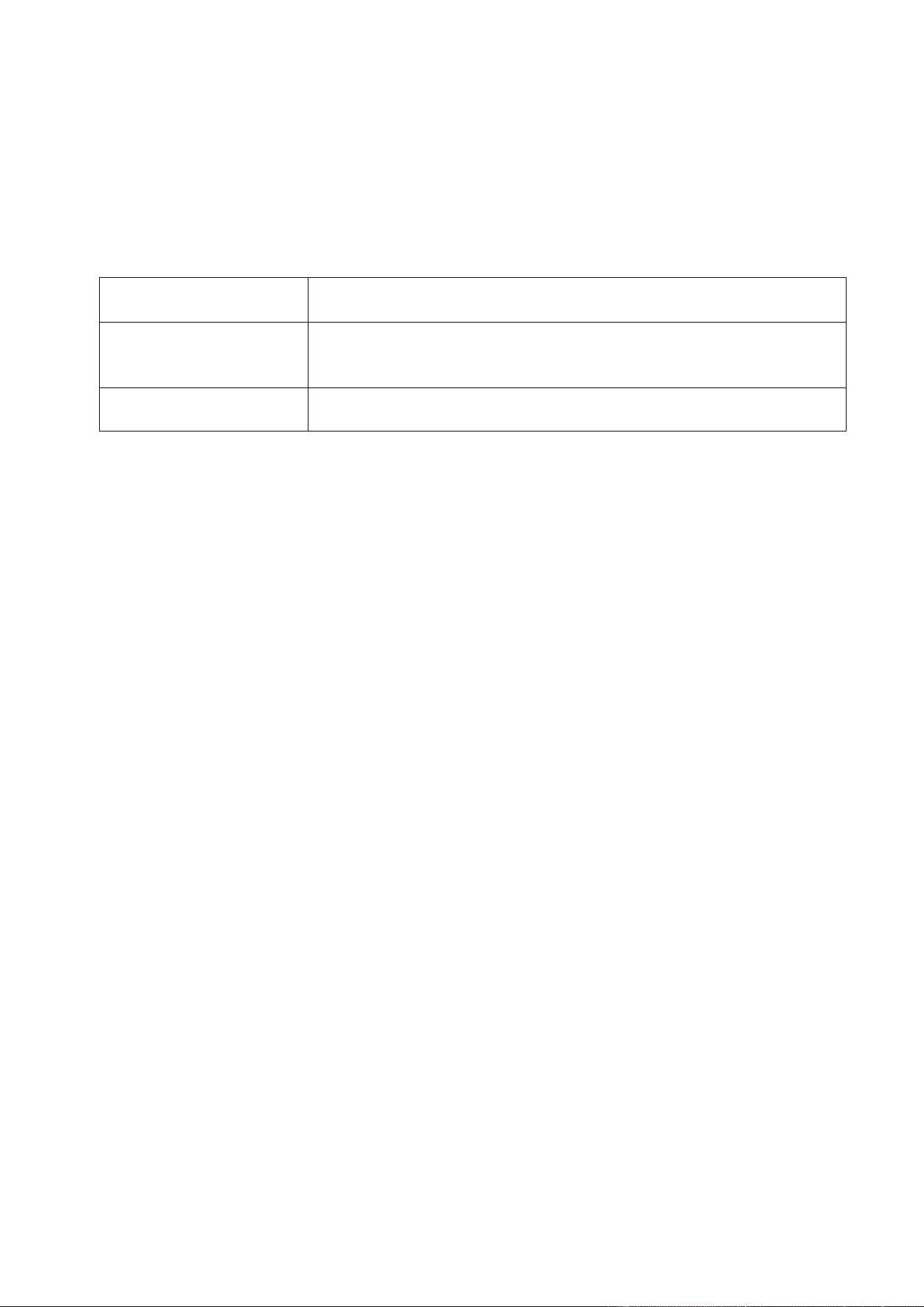
CONTROL PANEL
POWER
BUTTON
Press to turn the appliance on and off.
SETTINGS
BUTTON
Press to change between adjusting the operating mode,
temperature, and setting the timer (Then use the UP and DOWN
buttons to adjust)
UP AND DOWN
BUTTONS
Use to adjust the mode, desired temperature and set the timer.
MODE
SYMBOLS
Displays the currently selected mode, between standard , Eco
and Anti Frost
TIMER
SYMBOL
Illuminates while setting the countdown timer, or while the timer
is active.
TEMPERATURE
SYMBOL
Illuminates when a temperature is shown on the digital display.
LOCK SYMBOL
Indicated the child lock is activated, to unlock, press and hold
the UP button for 3 seconds.
HEATING
SYMBOL
Illuminates when the appliance is providing heating to the room.
This will happen when the desired temperature set is above the
current room temperature.
WIFI SYMBOL
Flashes when the unit is ready to connect to your WiFi, and is
illuminated constantly when successfully connected.
Digital Display
Wi-Fi Icon
Heating Icon
Lock Icon
Temperature Icon
Timer Icon
Comfort Icon
ECO Icon
Anti-Frost Icon
Settings
Up
Down
Power
Page 10 of 25
POWER
Press the POWER button to turn the appliance on and off. The appliance will start in
Comfort mode, with a target room temperature of 25°C.
CHANGING THE HEATING MODE
After turning the appliance on, use the UP or DOWN buttons to cycle through the modes
and choose between COMFORT mode, ECO mode, and ANTI-FROST mode.
COMFORT MODE
Standard operation mode, defaults to 25℃. Full power heat
output (2.5 kW).
ECO MODE
Energy saving mode with a default target temperature of 20℃,
running at 1.25kW. This mode is always 5℃ lower than comfort
mode.
ANTI- FROST MODE
Pre-set to 6℃ to prevent frost, ideal when the area is
unoccupied and there are no other forms of heating.
SETTING THE DESIRED ROOM TEMPERATURE
Press the SETTING button and the DIGITAL DISPLAY and TEMPERATURE icon will flash.
Use the UP and DOWN buttons to adjust the temperature for comfort mode, the
temperature can be adjusted between 10℃ to 50℃.
Any changes made to the temperature will also affect Eco Mode which will be set 5℃
lower. E.g. if the temperature is set to 10℃, eco mode will automatically change to 5℃.
Anti-frost mode is pre-set to 6℃,and cannot be amended.
In order to prevent energy wastage, the heater will operate when the room temperature is a
degree or more under the target temperature, and will turn off when the temperature is a
degree above what has been set.
SETTING THE COUNTDOWN TIMER
Press the SETTING button twice to enter the TIMER setting function. The DIGITAL
DISPLAY and TIMER icons will flash. Press the UP or DOWN buttons to set the time until
the unit will automatically turn off (maximum 24 hours). After the timer has been set, the
TIMER icon will remain illuminated, and the appliance will turn off when the timer elapses.
ACTIVATING/DEACTIVATING THE CHILD LOCK
Press and hold the UP button for 3 seconds to activate the child lock. When the child lock
is activated, the LOCK icon will be displayed and the buttons on the control panel cannot
be used. Press and hold the UP button again for 3 seconds to deactivate the child lock.
Page 11 of 25
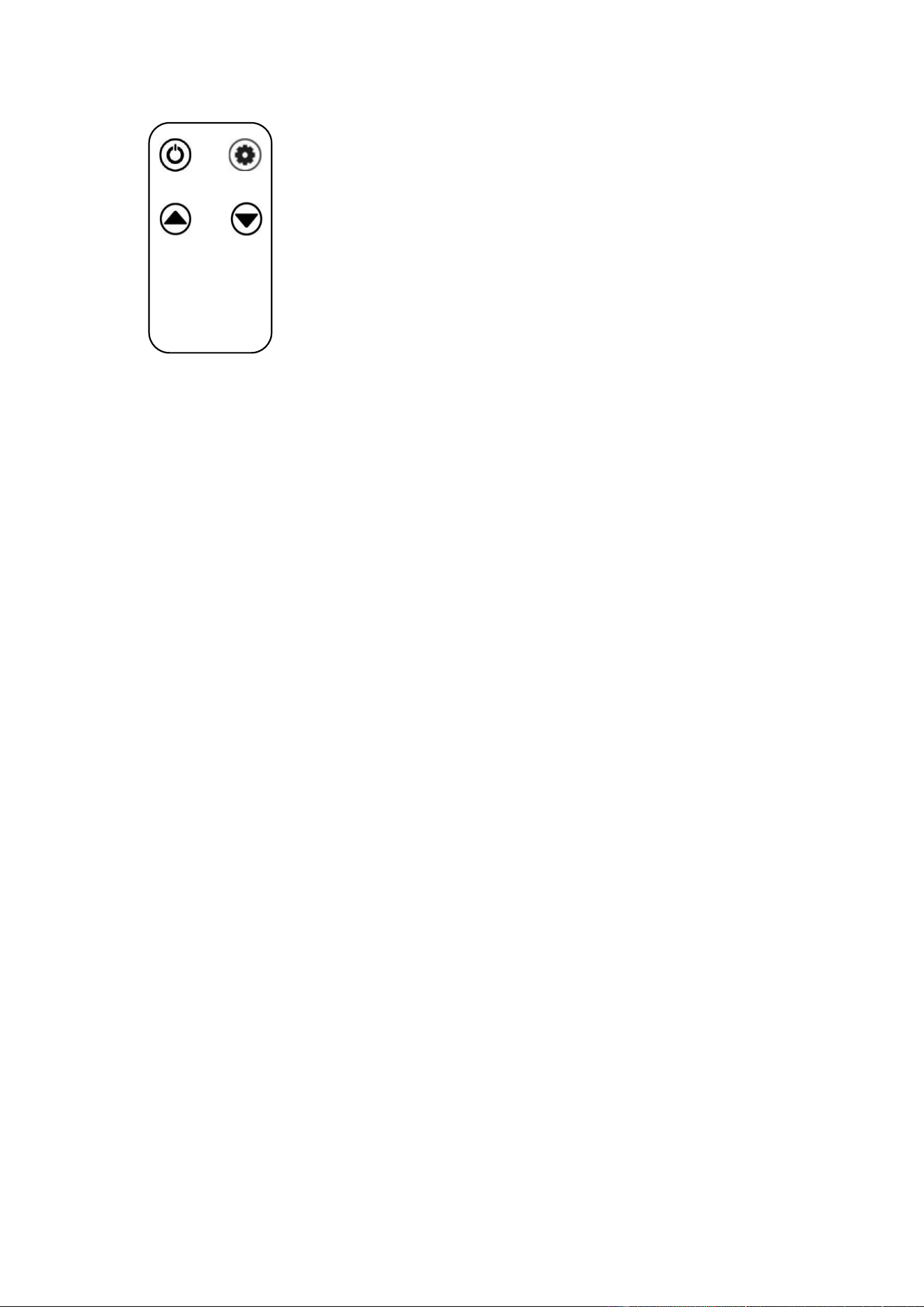
REMOTE CONTROL
ADDITIONAL FEATURES
DISPLAY TIME OUT
If no buttons are pressed for 30 seconds, the display will become dim, but not turn off.
Press any button to return the screen to full brightness.
Press and hold the DOWN button for 3 seconds to turn off the display completely, leaving
only the ON/OFF button on, but dimmed, the unit will still function as normal. Press any
button to turn the display back on to its normal working state.
MEMORY FUNCTION
In case of power failure or after turning the unit off, when turned back on the unit will start in
the previously used settings.
FACTORY RESET
Press and hold the UP and DOWN buttons for 3 seconds to reset the unit back to its
factory settings. A beep will sound and the unit will start in COMFORT mode.
The buttons on the remote work in
exactly the same way as the buttons on
the appliance.
Page 12 of 25
CONNECTING THE APPLIANCE TO Wi-Fi
DOWNLOAD THE APP TO YOUR PHONE
Download the “TUYA SMART” app, from your chosen app store, using the QR codes below,
or by searching for the app in your chosen store.
MODES AVAILABLE FOR SETUP
The heater has two different setup modes, Quick Connection and AP (Access Point). The quick
connection is a quick and simple way to set the unit up. The AP connection uses a direct local WiFi
connection between your phone and the heater to upload the network details.
When first turned on the unit will activate WiFi. If the WiFi symbol is not flashing, press and hold the
POWER button for 3 seconds to reset the WiFi module.
Please ensure your device is in the correct WiFi connection mode for the connection type you are
attempting, the flashing WiFi indicator on your heater will indicate this.
Connection Type
Frequency of Flashes
Quick Connection
Flashes three times per second
AP (Access Point)
Flashes once per second
CHANGING BETWEEN CONNECTION TYPES
To change the unit into AP mode, with the appliance in Quick Connection mode, press and hold the
POWER button for 3 seconds. To change back to Quick connection mode, press and hold the POWER
button again.
Android
IOS
Page 13 of 25
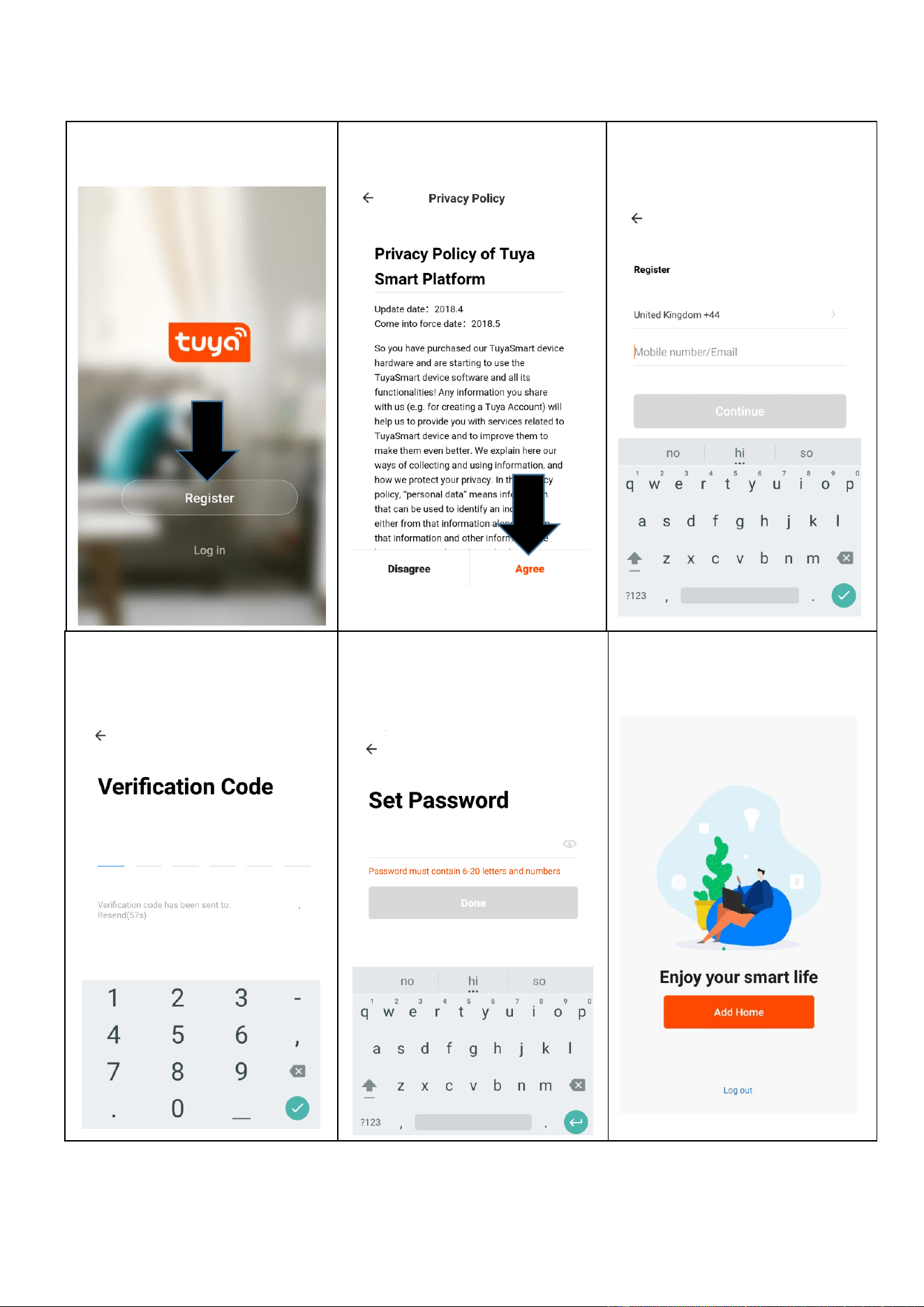
REGISTER THE APP
2. Read the Privacy policy and
press the Agree Button.
3. Enter your email address or
phone number and press
continue to register.
4. A verification code will be sent
by the method selected in step
3. Enter the code into the
app.
2. The app is now registered. It
will automatically log you in
following registration.
5. Type in the password you
would like to create. This
needs to be 6-20 characters,
with letters and numbers.
1. Press on the register button
at the bottom of the screen.
Page 14 of 25
SETTING UP YOUR HOME WITHIN THE APP
TUYA is designed so it can work with a large number of compatible smart devices within
your home. It can also be set up to work with multiple devices within different houses as
such during the setup process the app requires that different areas are created and named
to allow easy management of all your devices. When new devices are added, they are
assigned to one of the rooms you have created.
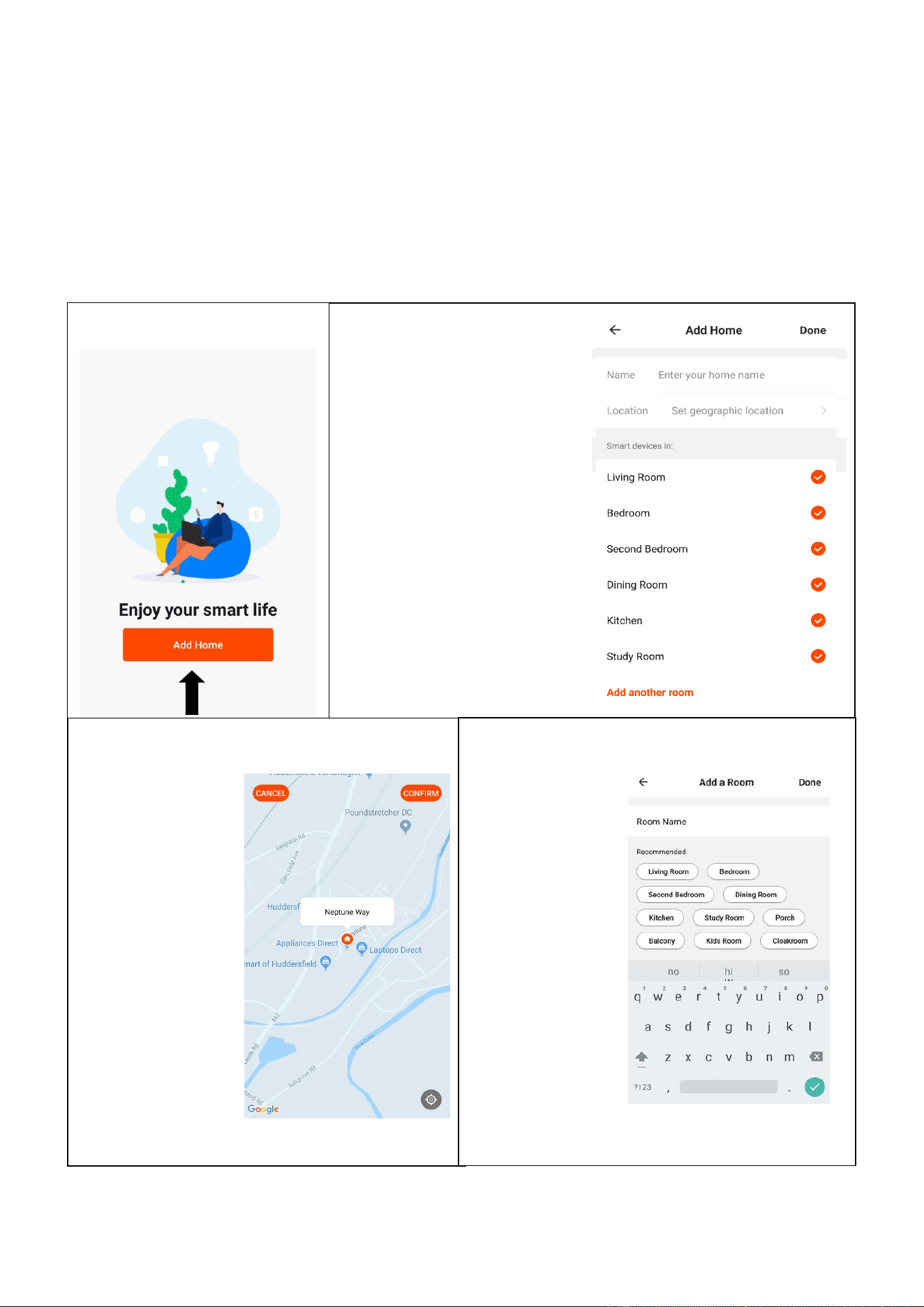
CREATING ROOMS
1. Press on the ADD HOME
button.
3. Type in a name for your
home,
4. Press on the location button
to select the location of your
home. (See SETTING
YOUR LOCATION below)
5. New rooms can be added by
pressing the ADD ANOTHER
ROOM option at the bottom.
(See ADD ANOTHER ROOM
below)
6. Untick any rooms that are not
required on the app.
7. Press DONE in the top right
corner.
SETTING YOUR LOCATION
Use your finger to
move the orange
HOME symbol.
When the symbol is
in the approximate
location of your
home, press the
confirm button in the
top right corner.
Location details
allows the app to be
set up later to
respond to weather
conditions in your
area.
ADD ANOTHER ROOM
Type in the name
of the room, and
press Done in
the top right
corner
Page 15 of 25
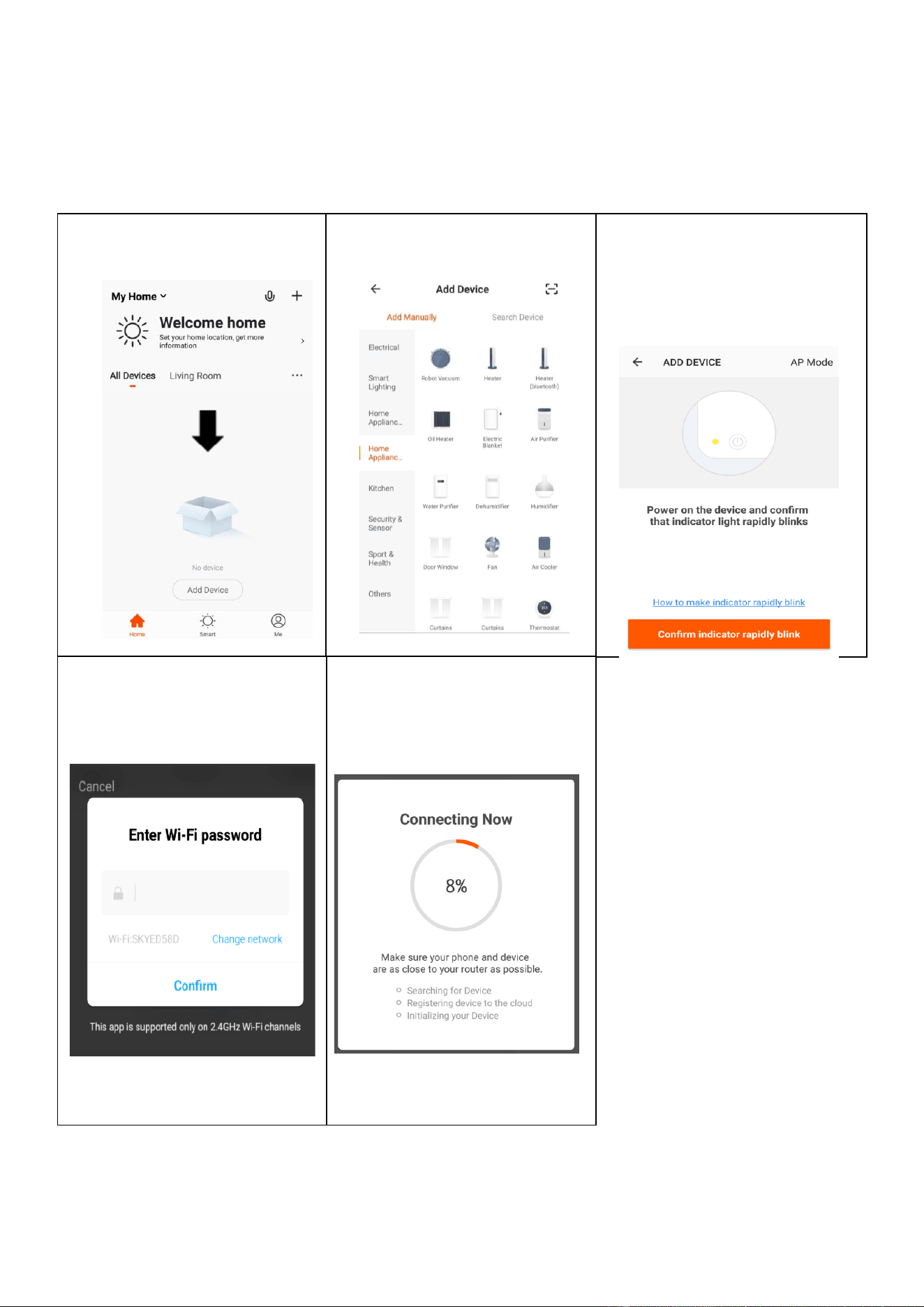
CONNECTING USING THE QUICK CONNECTION METHOD
Before initiating the connection, make sure the unit is in standby mode (Power switch ON,
but unit turned off), with the Wi-Fi indicator flashing twice per second. If not follow the
instructions for changing the connection mode. Also ensure your phone is connected to the
Wi-Fi network. (We advise turning mobile data off during setup)
2. Select the type of device
as “Heater” within the Home
Appliance tab.
3. Ensure the Ambient Light
indicator on the heater is
flashing twice per second,
then press on the orange
button at the bottom of the
screen.
5. This will then transfer the
settings to the heater. Wait for
this to complete. If this fails,
retry. If still unsuccessful please
review the troubleshooting
section for further help.
1. Open app and press “+” to
add device, or use the add
device button
4. Enter your Wi-Fi password and
press confirm.
Page 16 of 25
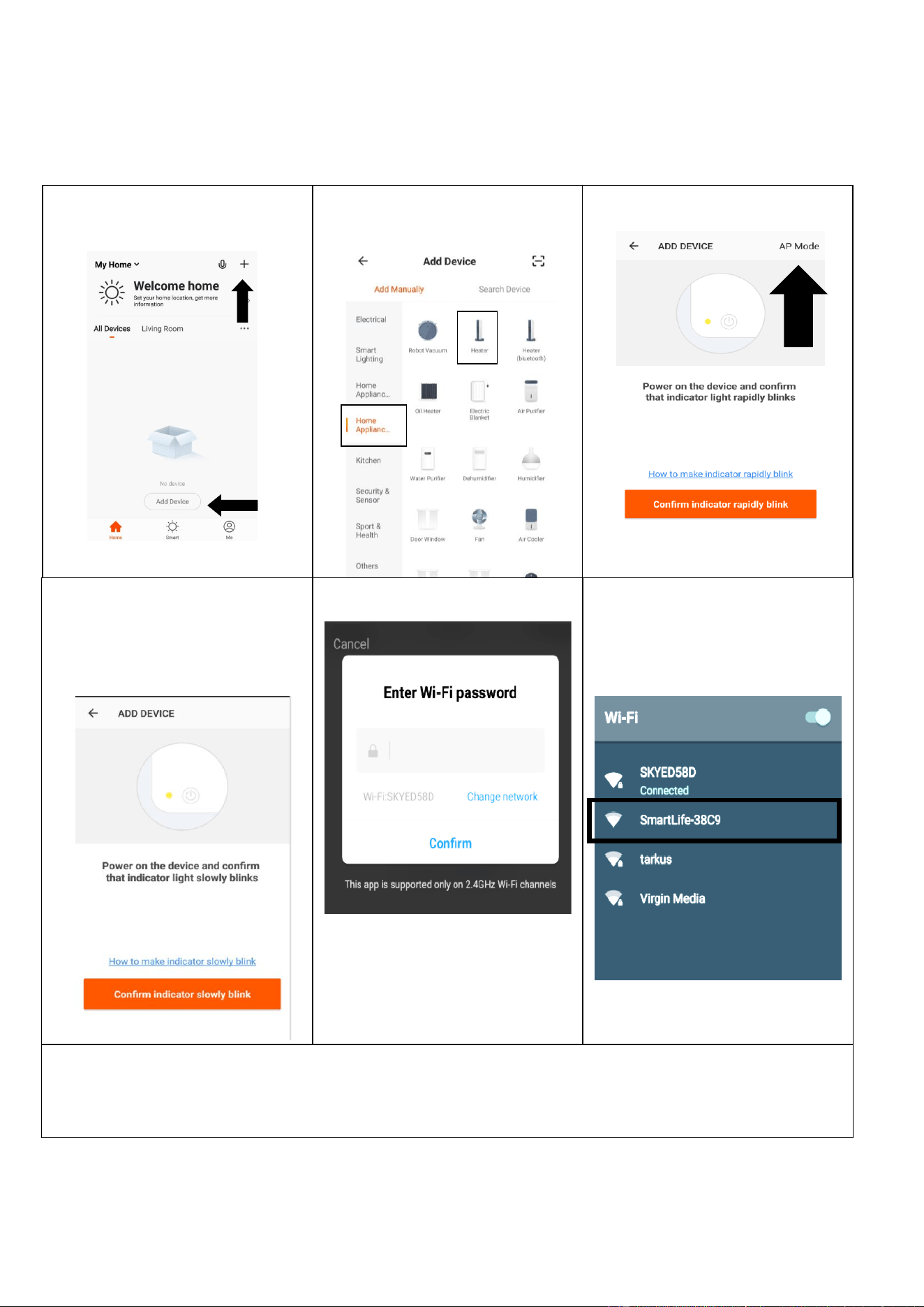
CONNECTING USING AP MODE ALTERNATIVE METHOD
Before initiating the connection, make sure the WiFi Light Indicator flashing once per second. If
not follow the instructions for changing the WiFi connection mode. Also ensure your phone is
connected to the WiFi network. (We advise turning mobile data off during setup)
1. Open app and press “+” to
add device, or use the add
device button
2. Select the type of device
as “Heater” within the Home
Appliance tab.
3. Press on the AP mode button
in the top right of the screen.
4. Ensure the WiFi indicator on
the heater is slowly flashing
(once per second), then press
on the orange button at the
bottom of the screen to
confirm
5. Enter your Wi-Fi password and
press confirm.
6. Go to network settings in your
phone and connect to the
“SmartLife xxx” connection.
There is no password to enter.
Then return back to the app to
complete setup.
This will then transfer the settings to the heater.
Once the connection process has completed, go back to the network settings on your phone to ensure your
phone has reconnected to your Wi-Fi router.
Page 17 of 25
CONTROLLING YOUR APPLIANCE THROUGH THE APP
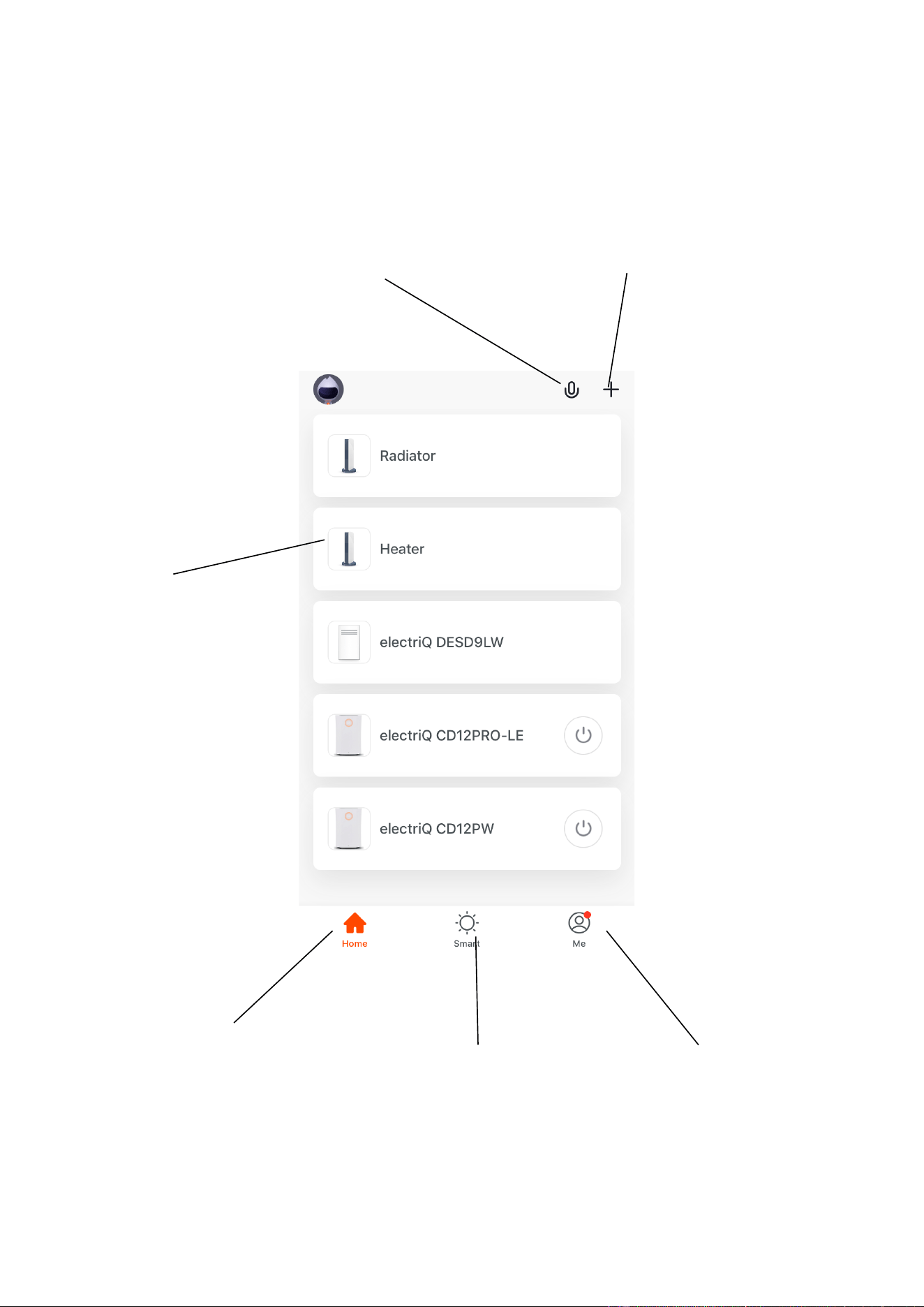
THE HOME SCREEN
Each device has its own entry on the home screen to allow the user to either quickly turn the unit on or off, or
to enter the device screen to make other changes.
Smart Scene: Allows you to
program intelligent behaviour
based on the internal and
external environment
Add Device: Add a device
to the app, and go through
the setup process.
Profile: Provides the option
for changing settings
Name of Heater: Press to
enter the Device Screen
Home: Return to home
screen from the Smart
Scene and Profile screens
Voice Control: Press to
give verbal instructions for
operation.
Page 18 of 25
DEVICE SCREEN
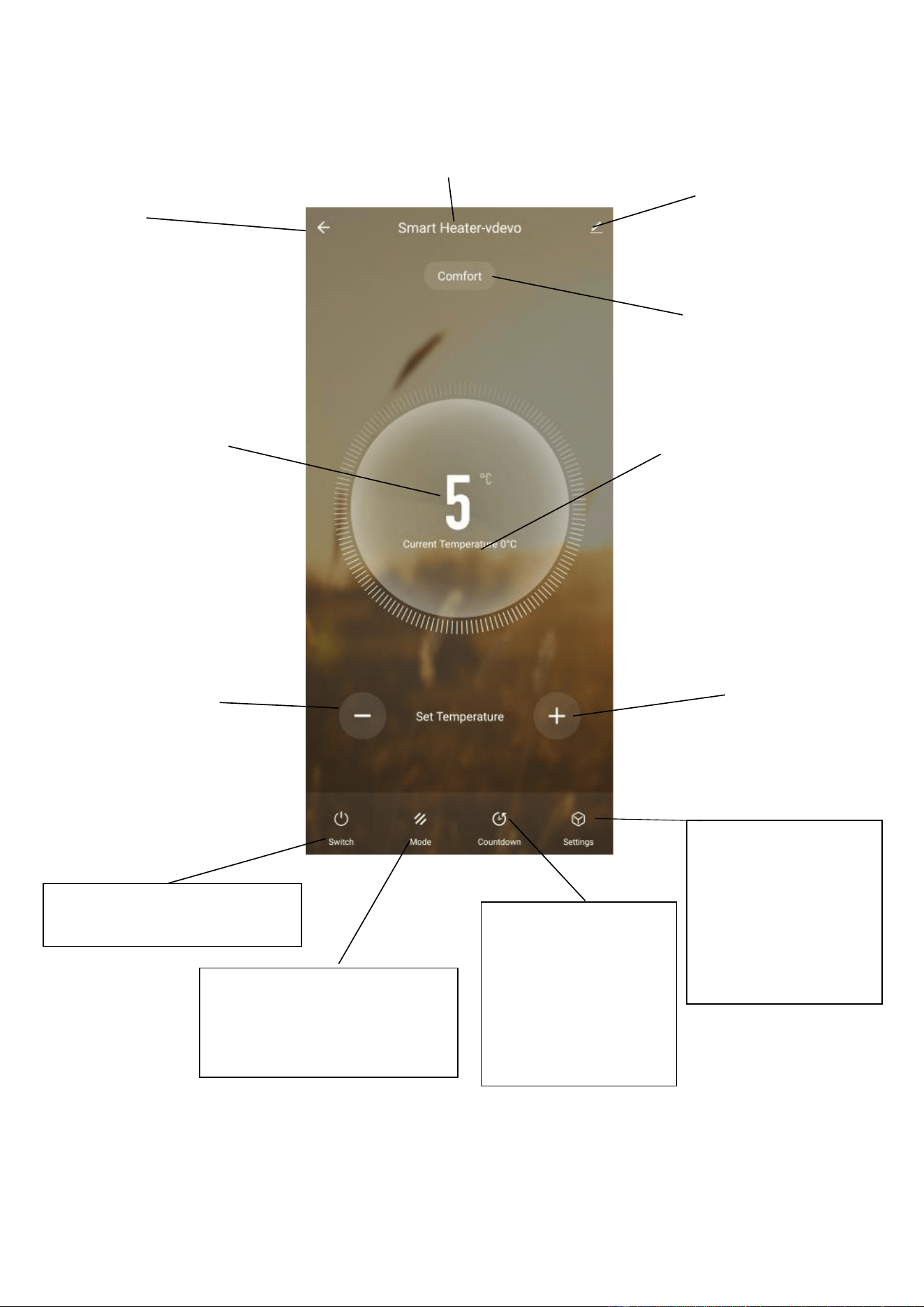
The device screen is the main control screen for the heater, providing access to the controls to amend the
functions and settings.
NOTE: Due to continuous development of the app, the layout and available features may
be subject to change.
Edit Name: Use to change
the name of the heater, and
access additional features.
Back: Returns to the Home
Screen
Power: Use to turn the unit on or
off.
MODE:
Use to change between the
different pre-set modes. Comfort
Mode, Eco Mode, and Anti-Frost
COUNTDOWN TIMER:
Use to add an off timer
while the unit is running,
or an on timer while the
unit is turned off
Device Name
Current Mode: Shows the
mode the heater is currently
working in.
Desired
Temperature:
Displays what has
been set as the target
room temperature.
Decrease desired
Temperature
Temperature range
5-50C
Increase desired
Temperature
Temperature range
5-50C
SETTINGS:
Change other device
settings such as the
Child Lock and Display
Sleep Mode
Current
Temperature:
Displays what the
current room
temperature is.
Page 19 of 25
SMART SCENES
Smart Scenes is a powerful tool providing the option to customize the operation of the air heater based
both on conditions within the room and outside influences. This gives the user the option of specifying
much more intelligent actions. These are split into two categories Scene and Automation.
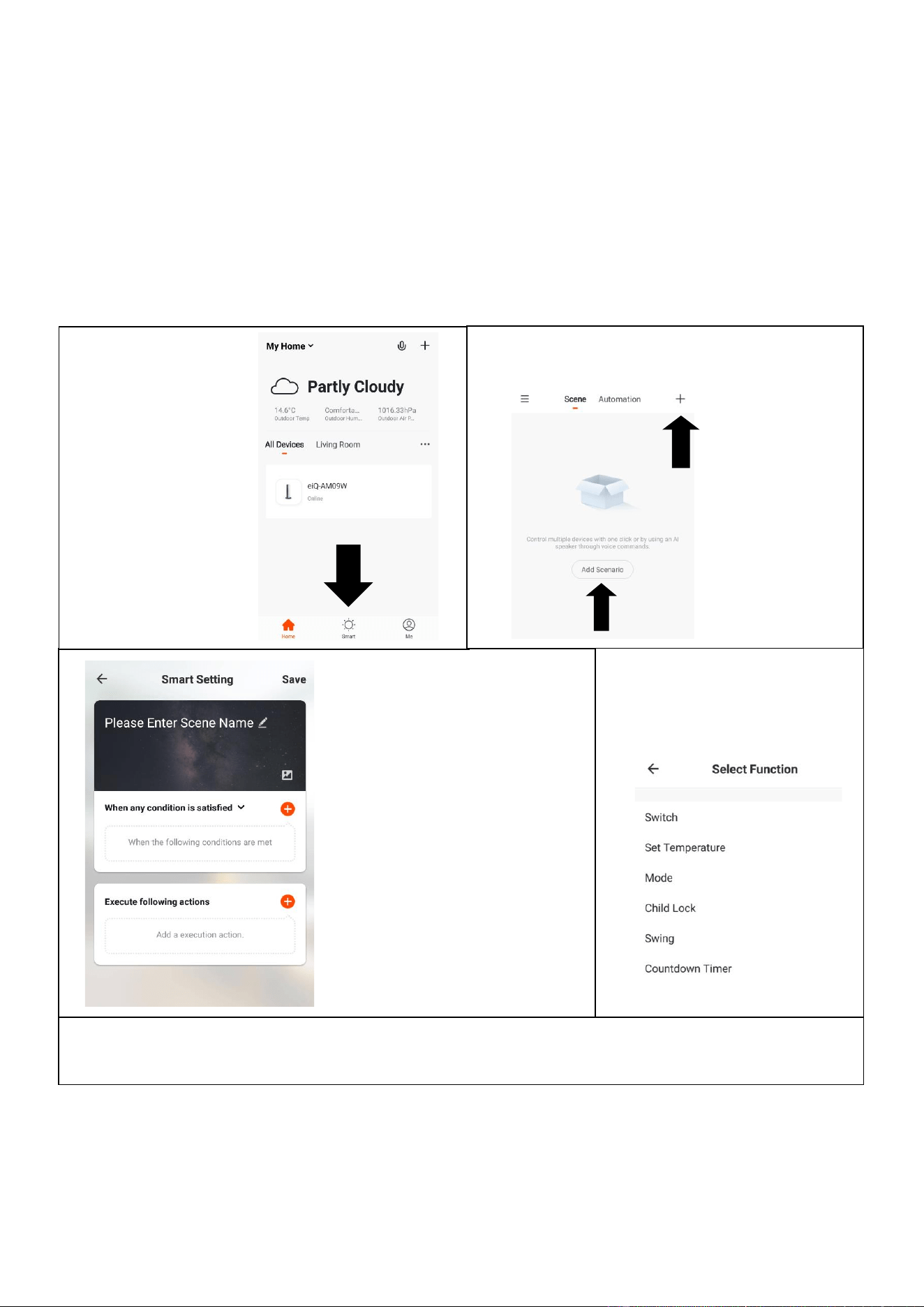
SCENE
Scene allows for a one-touch button to be added to the Home Screen. The button can be used to
change a number of settings in one go and can change all the settings within the unit. A number of
scenes can easily be set up, allowing the user to easily change between a number of pre-set
configurations.
Below is an example of how to set up a scene:
3. Press the Pen next to “Please
Enter Scene Name” to input the
name for your Scene
Show on Dashboard: Leave this
on if you require the scene to be
displayed as a button on the
Home Screen
Press the Red Plus to add the
action required. Then select
the heater from the list of
devices.
4. Chose the function, set the
value for the function, and
then press the back button in
the top right corner, to return to
the previous screen.
6. Once all the functions required have been added, press the Save button in the top right corner to
finalize and save your new Scene. It will then be saved to the home screen
1. Press on the
Smart tab at the
bottom of the
Home screen
2. Press on the Plus in the top right corner or on
Add Scenario to add a smart scene.
Page 20 of 25
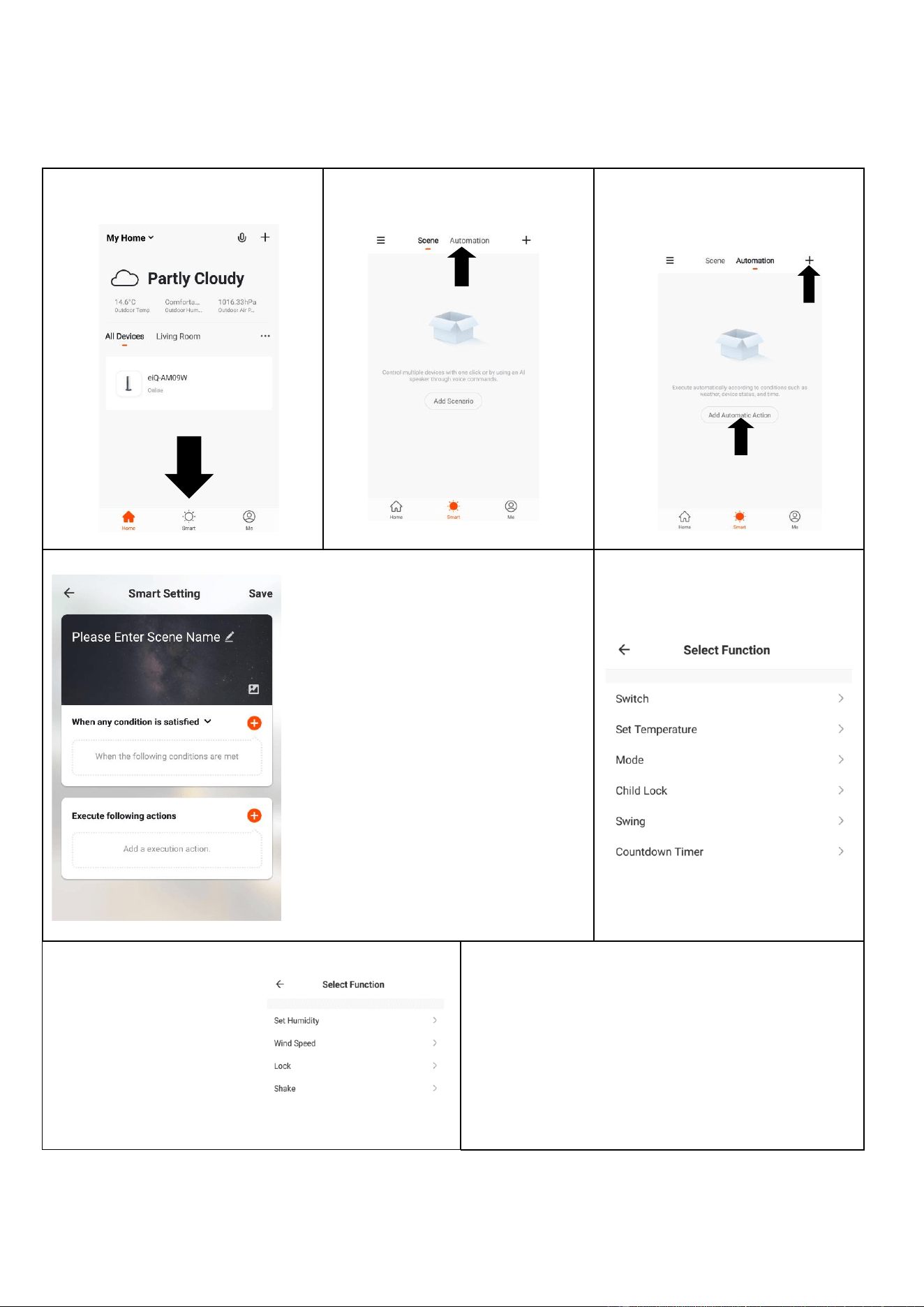
AUTOMATION
Automation allows an automatic action to be set up for the device. This can be triggered by the Time,
and a range of other influences, depending on what other TUYA enabled devices you have on the network.
1. Press on the Scene tab at the
bottom of the Home screen
2. Press on the Automation tab
at the top of the screen.
3. Press on the + at the top of
the screen or press on Add
Automatic Action
4. Setup is very similar to the scene
setup on the previous page, and
includes an extra section for specifying
a trigger for the scene to start.
Press the Pen next to “Please Enter
Scene Name” to input the name for
your Scene
Press the Red Plus next to “When any
condition is satisfied” to add the trigger
Press the Red Plus next to “Execute
following actions” to add the action
required. Then select the heater from
the list of devices.
6. Chose the function, set
the value for the function,
and then press the back
button in the top right
corner, to return to the
previous screen.
5. Select the condition when the
automation should start. A
number of triggers can be
combined.
7. Once all the functions required have been added,
press the Save button in the top right corner to finalize
and save your new scene.
The automation is now set up, it can be turned on and
off using the toggle on the home page.
Page 21 of 25
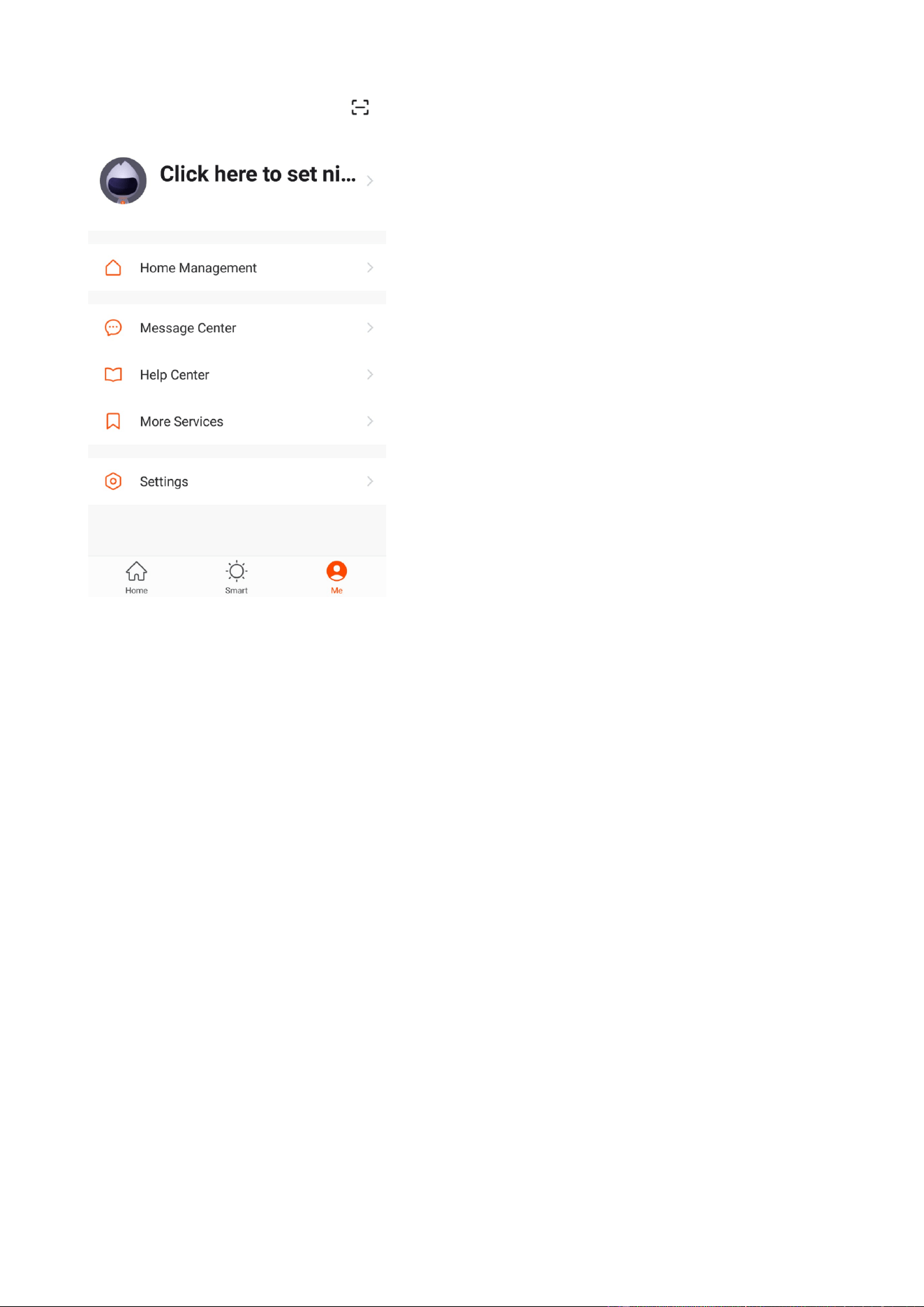
PROFILE TAB
The profile tab gives you the option to edit both your detail, and
use the added features of the unit.
HOME MANAGEMENT
Home Management proves options for managing your TUYA
account, giving options such as adding a home, adding and
removing rooms, and sharing devices with family.
MESSAGE CENTRE
View notifications from devices, if alarms are set up (dependent
on device)
HELP CENTRE
Provides assistance using the features provided within the app
MORE SERVICES
This allows the unit to be integrated with your favourite home
automation hardware such as Google Home and the Amazon
Echo.
CONNECTION TROUBLESHOOTING
1. Check whether the device is powered on and is in the correct Wi-Fi connection mode, if
not please refer to the CHANGING BETWEEN CONNECTION MODES section.
2. Ensure the Wi-Fi password has been entered into the app correctly (Case sensitive)
3. Check that the phone is connected to the Wi-Fi you are connecting the device to.
4. Ensure the network you are connecting it to is 2.4Ghz (5Ghz Wi-Fi networks are not
supported), and that there is a strong Wi-Fi signal to the item.
5. If your router is dual band, ensure that the 2.4ghz network has a different network name
(SSID). Further advice on changing router settings will be available from your Internet
service provider / Router manufacturer.
6. Check the settings on the router. Encryption should be WPA2-PSK and authorisation
type should be set to AES
7. Try using the alternative connection method. i.e. If connection is failing when attempting
to connect through CF mode, try AP mode.
Page 22 of 25
MAINTENANCE
CLEANING AND STORAGE
ATTENTION: Please shut off the unit and unplug from the mains before cleaning or
performing any maintenance.
Cleaning the surface
Clean the heater with a duster or a soft wet cloth.
Do not use chemical solvents (such as benzene, alcohol or gasoline) as they may cause
irreversible damage. Make sure no water enters the control panel or gaps in the casing.
Do not run the unit until completely dry.
Place the heater in its original box or cover to protect it from dust when not in use.
Store it in a cool, dry place.
TROUBLESHOOTING
Do not repair or disassemble the unit by yourself; unauthorised repair attempts will invalidate
the warranty and may cause bodily harm.
Issue
Possible Reason
Solution
No power
1. The power cord is unconnected
2. There is no power from the socket
3. The power switch on the rear of the unit
is turned off.
1. Connect the power cord
2. Check socket is turned on
3. Ensure the power switch on
the rear of the unit is in the on
position
Odour
emission
from the
unit
1. New unit. When the unit is used for the
first time the fan motor may produce an
odour which will dissipate within a week of
use
1. No action required
Strong
vibrations
and noise
1. The Unit is not placed on a flat surface
2. The unit may be damaged
1. Place on a flat surface. May
put an anti-vibration mat
underneath
2. If the heater is damaged
discontinue use and contact the
service centre.
If the above solutions do not resolve the problem please contact the service centre.
DECLARATION OF CONFORMITY
Hereby, electriQ declares that this heater follows Directive 2014/53/EU. The full text of the
EU declaration of conformity is available at the following internet address:
https://www.electriQ.co.uk/content/declaration-of-conformity
Page 23 of 25
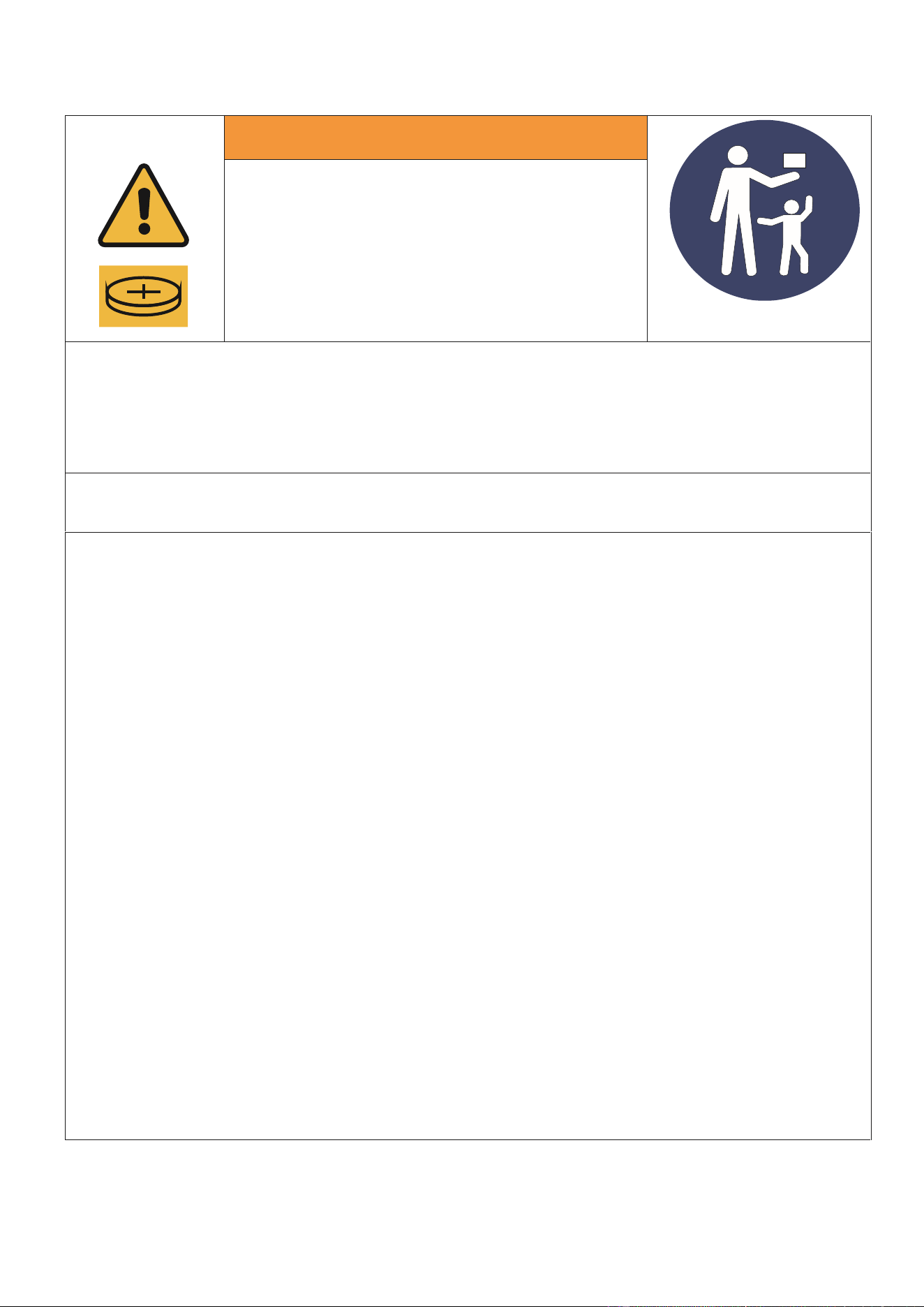
LITHIUM COIN BATTERY WARNINGS
BATTERY WARNING
KEEP OUT OF REACH OF CHILDREN
Swallowing can lead to chemical burns,
perforation of soft tissue, and death.
Severe burns can occur within 2 hours of
ingestion.
Seek medical attention immediately.
• If the battery compartment (if applicable) does not close securely, stop using
the product and keep it away from children.
• If you think batteries might have been swallowed, or placed inside any part
of the body, seek immediate medical attention
THERE MAY BE NO OBVIOUS SYMPTOMS OF BATTERY INGESTION
Unfortunately, it is not obvious when a button or coin battery is stuck in a child’s
oesophagus (food pipe). There are no specific symptoms associated with this.
The child might:
• cough, gag or drool a lot;
• appear to have a stomach upset or a virus;
• be sick;
• point to their throat or stomach;
• have a pain in their abdomen, chest or throat;
• be tired or lethargic;
• be quieter or more clingy than usual or otherwise “not themselves”;
• lose their appetite or have a reduced appetite; and
• not want to eat solid food be unable to eat solid food.
These sorts of symptoms vary or fluctuate, with the pain increasing and then
subsiding.
A specific symptom to button and coin battery ingestion is vomiting fresh (bright
red) blood. If the child does this seek immediate medical help.
The lack of clear symptoms is why it is important to be vigilant with “flat” or spare
button or coin batteries in the home and the products that contain them.
Page 24 of 25
TECHNICAL DATA
Model no.
EGH25AWB EGH25AW
Voltage
230V 2.0kW
Frequency
50 / 60 Hz
Max power
2500W
IP Rating
IP24
Model colour
White/Black
Product dimensions
850x240x555mm
electriQ UK SUPPORT
www.electriQ.co.uk/support
Please, for your own convenience, make these simple checks before calling the service
line.
If the unit still fails to operate call: 0330 390 3061 or email: Support@electriQ.co.uk
1. Is the unit plugged into the mains?
2. Is the fuse OK?
3. Switch the unit off and wait three minutes to see if the issue is resolved. Restart the
unit.
Office hours: 9AM - 5PM Monday to Friday
www.electriQ.co.uk
Unit 2A, Trident Business Park,
Neptune Way, Huddersfield,
HD2 1UA
APPENDIX
Disposal: Do not dispose of this product as unsorted municipal waste. Collection of such
waste must be handled separately as special treatment is necessary.
Recycling facilities are now available for all customers at which you can deposit
your old electrical products. Customers will be able to take any old electrical
equipment to participating civic amenity sites run by their local councils. Please
remember that this equipment will be further handled during the recycling
process, so please be considerate when depositing your equipment. Please
contact the local council for details of your local household waste recycling
centres.
Page 25 of 25
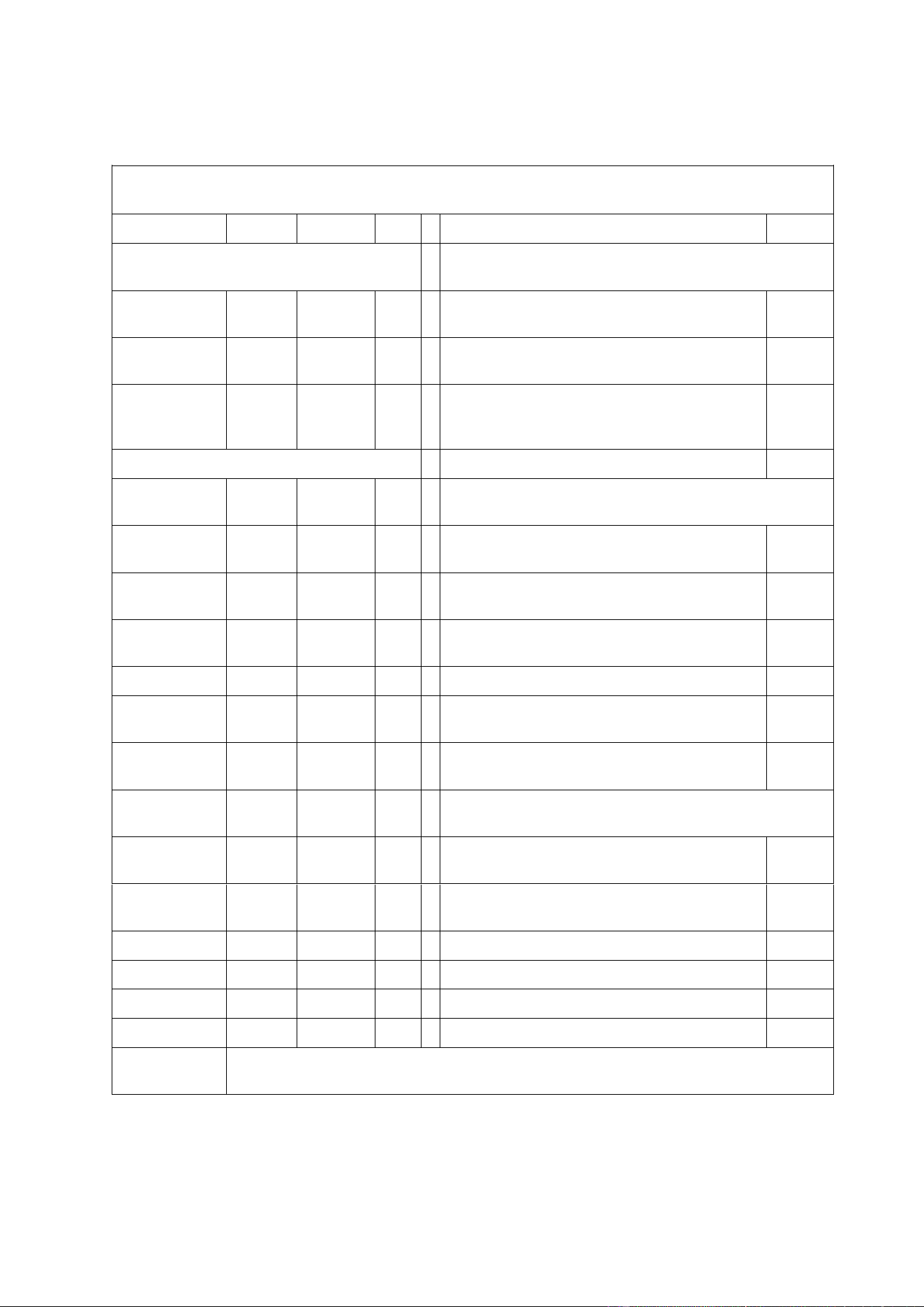
PRODUCT FICHE
Model Identifier: EGH25AWB EGH25AW
Item
Symbol
Value
Unit
Item
Unit
Heat Output
Type of heat input, for electric storage local space
heaters only (select one)
Nominal heat
output
P
nom
2.5
kW
manual heat charge control, with integrated
thermostat
No
Minimal heat
output
P
min
1.25
kW
manual heat charge control with room and/or
outdoor temperature feedback
No
Maximum
continuous
heat output
P
max
2.5
kW
electronic heat charge control with room
and/or outdoor temperature feedback
No
Auxiliary electricity consumption
fan assisted heat output
No
At nominal
heat output
el
max
N/A
kW
Type of heat output/room temperature control
(select one)
At minimum
heat output
el
min
N/A
kW
single stage heat output and no room
temperature control
No
In standby
mode
el
SB
1.35
W
two or more manual stages, no room
temperature control
No
with mechanical thermostat room
temperature control
No
with electronic room temperature control
No
with electronic room temperature control
plus day timer
No
with electronic room temperature control
plus week timer
Yes
Other control options (multiple selections
possible)
room temperature control with presence
detection
No
room temperature control, with open window
detection
Yes
with distance control option
Yes
with adaptive start control
No
with working time limitation
Yes
with black bulb sensor
No
Contact
Details
electriQ, Unit 2A, Trident Business Park, Neptune Way, Huddersfield, HD2 1UA
Buy It Direct, The Black Church, St Mary’s Place, Dublin 7
V20231121