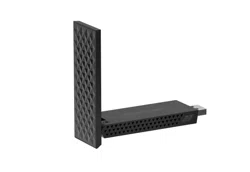
User Manual
Nighthawk® A9000 WiFi 7 USB 3.0 Adapter
NETGEAR, Inc.
350 E. Plumeria DriveApril 2025
San Jose, CA 95134, USA202-12768-02

Support and Community
Get your questions answered and access the latest downloads at netgear.com/support,
and check out our NETGEAR Community at community.netgear.com.
Regulatory and Legal
For regulatory compliance information including the EU Declaration of Conformity, visit
netgear.com/about/regulatory. See the regulatory compliance document before
connecting the power supply. For NETGEAR’s Privacy Policy, visit
netgear.com/about/privacy-policy.
Where permitted by law, by using this device, you are agreeing to NETGEAR’s Terms
and Conditions at netgear.com/about/terms-and-conditions. If you do not agree, return
the device to your place of purchase within your return period.
For 6 GHz devices not designed for outdoor use: Only use the device indoors. The
operation of 6 GHz devices is prohibited on oil platforms, cars, trains, boats, and aircraft,
except that operation of this device is permitted in large aircraft while flying above
10,000 feet. Operation of transmitters in the 5.925-7.125 GHz band is prohibited for
control of or communications with unmanned aircraft systems.
Applicable to 6 GHz devices only: Only use the device indoors. The operation of 6 GHz
devices is prohibited on oil platforms, cars, trains, boats, and aircraft, except that
operation of this device is permitted in large aircraft while flying above 10,000 feet.
Operation of transmitters in the 5.925-7.125 GHz band is prohibited for control of or
communications with unmanned aircraft systems.
Trademarks
©NETGEAR, Inc. NETGEAR and the NETGEAR Logo are trademarks of NETGEAR, Inc.
Any non-NETGEAR trademarks are used for reference purposes only.
User Manual2
A9000

Contents
Chapter 1 Get Started and Connect to a WiFi Network
Copy or Download the A9000 Installation Program...................... 5
Set Up and Install the Adapter.......................................................... 5
Join a WiFi Network............................................................................ 6
Join a Network Using the Adapter Driver................................... 6
Chapter 2 Monitor and Maintain the Adapter
View the Connection Status and Details........................................ 10
Upgrade the Adapter Software....................................................... 10
Uninstall the Adapter Software....................................................... 10
Chapter 3 Troubleshooting and Frequently Asked Questions
Troubleshooting................................................................................ 12
Adapter LED is Not Lit................................................................. 12
When I Connect to the Network, I Cannot Access Shared
Resources Such as Printers.......................................................... 12
Adapter Lost Its IP Address......................................................... 12
Frequently Asked Questions........................................................... 13
Do USB Ports Go into Sleep Mode if No Traffic Is Going to or from
the Port?......................................................................................... 13
How Can I Improve the Speed of My WiFi Connection?......... 13
How Can I View the IP Address of the Adapter?...................... 14
What Types of WiFi Security Does the Adapter Support?...... 14
3

1
Get Started and Connect to a WiFi
Network
The NETGEAR A9000 WiFi 7 USB adapter connects your notebook or desktop computer
over WiFi to an 11be or other network for applications such as lag-free video streaming
throughout your home, online gaming, and secure and reliable Internet connections.
This chapter describes how to set up and connect the A9000 WiFi 7 USB adapter, in
this manual referred to as the adapter, to a WiFi network. The chapter includes the
following sections:
•
Copy or Download the A9000 Installation Program on page 5
•
Set Up and Install the Adapter on page 5
•
Join a WiFi Network on page 6
NOTE: For more information about the topics covered in this manual, visit the
support website at support.netgear.com.
NOTE: You can register your A9000 with NETGEAR and receive notifications
with firmware updates. Firmware updates with new features and bug fixes are
made available from time to time at downloadcenter.netgear.com.
4
Copy or Download the A9000
Installation Program
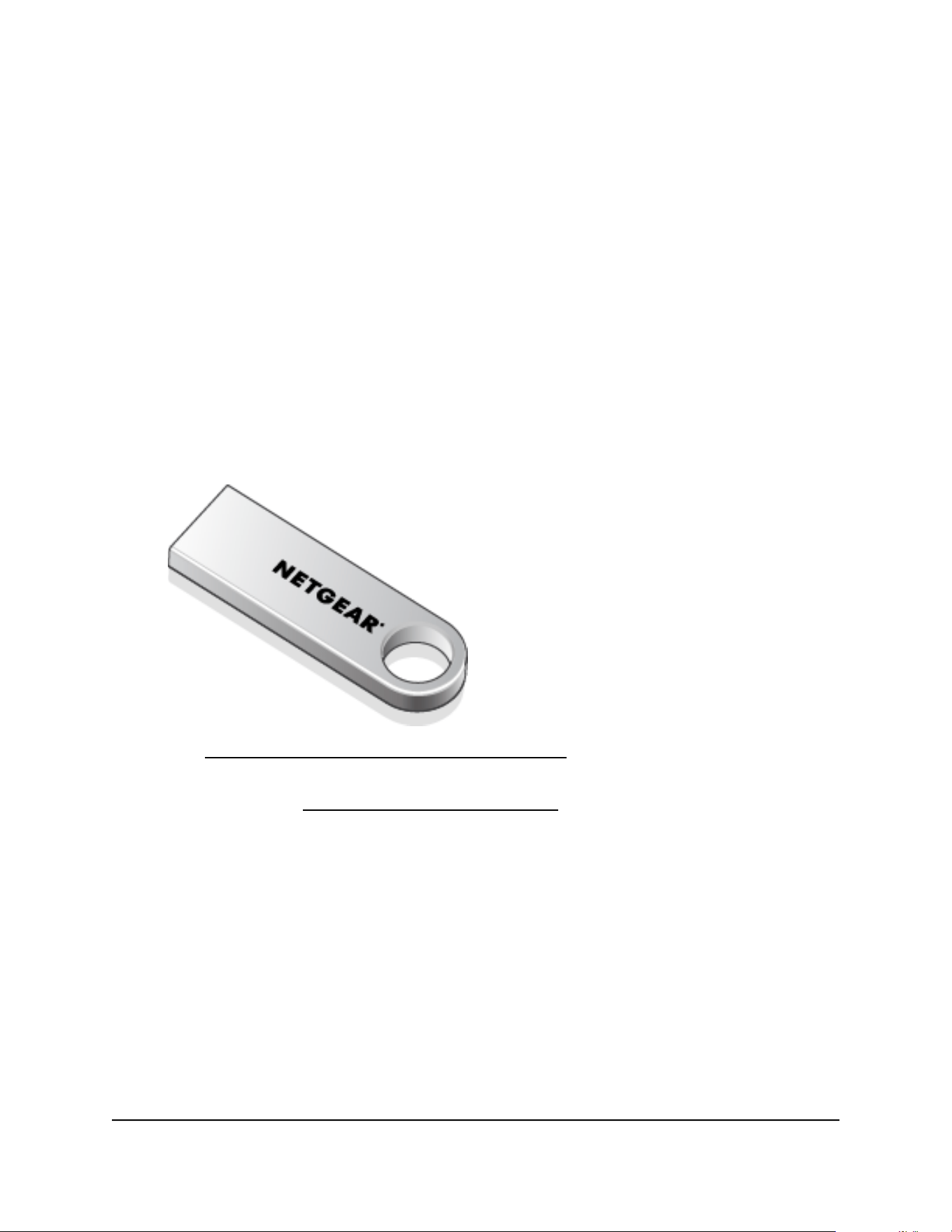
The adapter installation program is provided:
•
On the USB thumb drive included in the A9000 package.
•
On the NETGEAR download site.
To obtain the A9000 standalone adapter installation program:
1. Copy or download the installation program
a. Copy the installation program from the supplied USB thumb drive to your
computer.
b. Visit https://www.netgear.com/A9000-download and download the latest software
file.
2. Follow the steps in Set Up and Install the Adapter on page 5 to run the installation
program.
Set Up and Install the Adapter
Before you begin using your adapter, set up the adapter by running the installation
program to install the required drivers.
To install the Windows driver:
1. Make sure your computer is running an up-to-date version of Windows 11.
User Manual5Get Started and Connect to a
WiFi Network
A9000
For more information about updating Windows, see Microsoft's Update Windows
support article.
2. Complete the steps described in Copy or Download the A9000 Installation Program
on page 5 to download the latest software file for Windows.
3. Run the A9000 installation program:
a. To start extraction of the installation files, double-click on the file that was copied
or downloaded and is named A9000 Windows Installation Program V.xxxx,
where xxxx is the version number.
b. Double-click on the file that was copied or downloaded and is named A9000
Windows Installation Program V.xxxx.exe where xxxx is the version number.
NOTE: If a User Account Control window appears that asks if you want
to allow the app to make changes to your device, select Yes.
c. Follow the prompts to complete installation. When prompted, you can remove
the USB thumb drive, and insert the Nighthawk A9000 WiFi 7 USB 3.0 adapter
into your computer's USB port.
NOTE: The installation program gives you the option to disable other
WiFi adapters. For best performance, we recommend that you disable
other adapters.
4. Click Finish to exit the installation wizard.
Join a WiFi Network
The adapter can join a known WiFi network by using the adapter standalone driver.
•
Install the adapter’s standalone driver.
•
Use the WiFi network settings on your computer to join a WiFi network (see Join a
Network Using the Adapter Driver on page 6).
NOTE: While your adapter can connect to WiFi networks using WEP and
WPA-PSK WiFi security, we recommend that you use newer and more secure
options like WPA2-PSK or WPA3 if your devices support them. WEP and WPA-PSK
use older and less secure encryption, so use caution when connecting to such
networks.
Join a Network Using the Adapter Driver
This task describes how to join a WiFi network using the adapter.
User Manual6Get Started and Connect to a
WiFi Network
A9000
NOTE: The adapter provides the best performance with a USB 3.0 port but is
compatible with a USB 2.0 or USB 1.1 port.
To join a WiFi network:
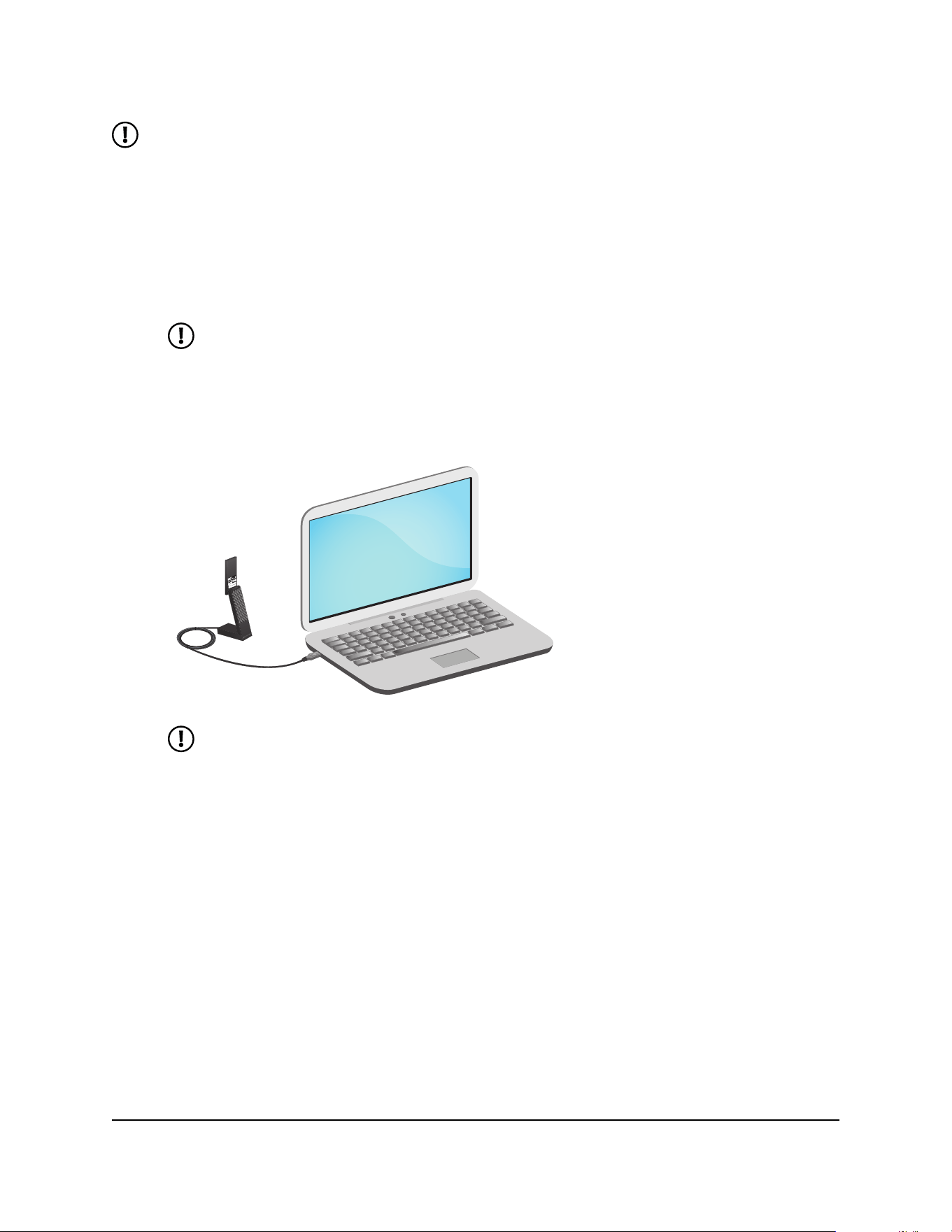
1. Connect your adapter to your computer's USB port with or without the desktop
cradle.
•
With the desktop cradle, place the adapter into the desktop dock and connect
the USB cable to the USB port on your computer.
NOTE: NETGEAR does not recommend that you use another cable to
connect the adapter to the USB port on your computer. Use the desktop
dock with the attached cable that is supplied in the package. Using another
USB cable might affect the performance and correct functioning of the
adapter.
NOTE: When the adapter is placed in the desktop dock, you can fold out
the adapter to its maximum angle for increased WiFi performance.
•
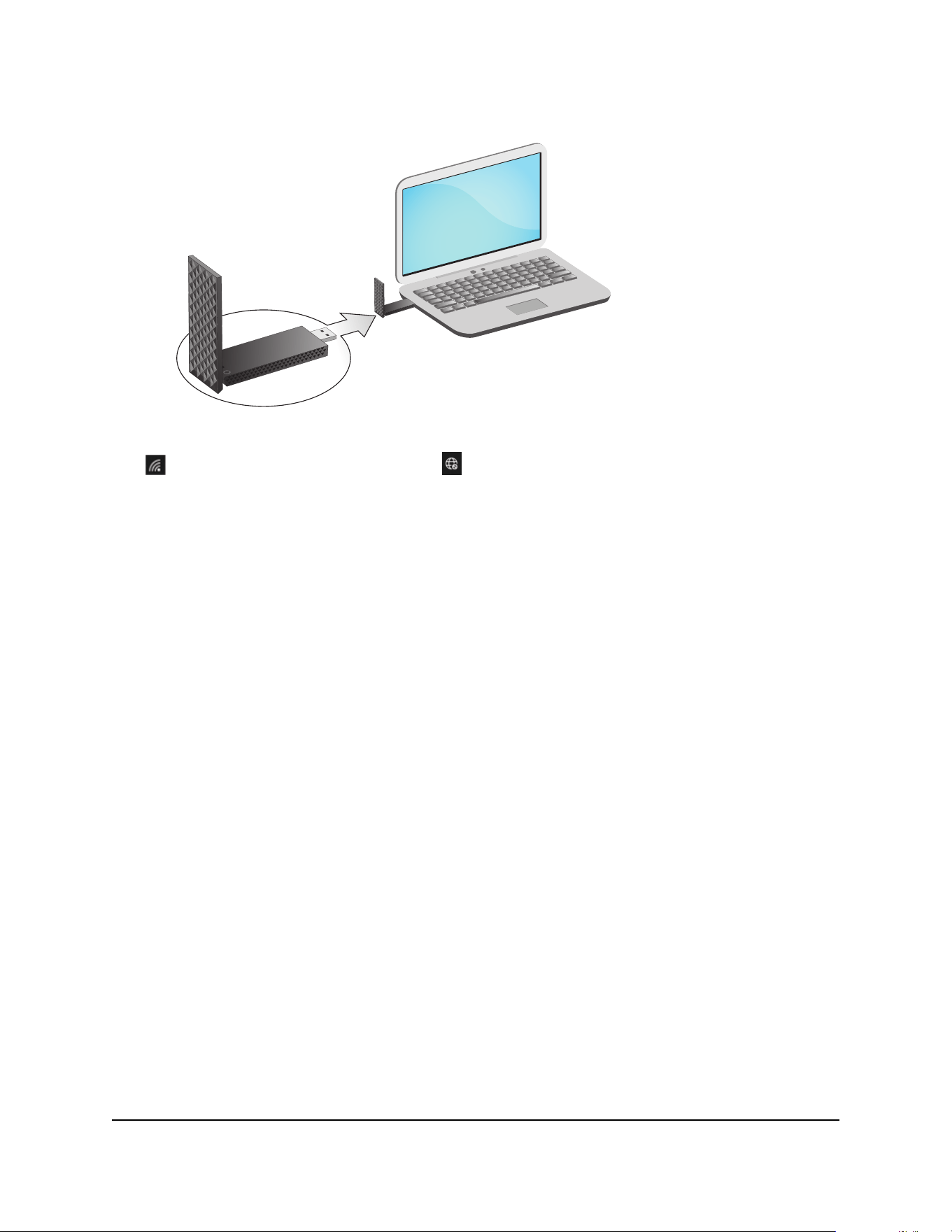
Without the desktop cradle, insert the adapter into a USB port on your computer.
User Manual7Get Started and Connect to a
WiFi Network
A9000
2. Open the WiFi network settings on your computer by right-clicking the WiFi icon.
( ) or the No Internet Access icon ( ), which display in the lower right corner of
your screen
3. Click Manage Wi-Fi connections (>), which is next to the WiFi icon.
4. Select your network's name (SSID).
5. Click Connect.
6. Enter the network security key (WiFi password).
7. Click Next.
When you see the message "Connected, secured," setup is complete.
8. Press the ESC key on the desktop to exit WiFi network settings.
User Manual8Get Started and Connect to a
WiFi Network
A9000


View the Connection Status and
Details
You can check your network connection status in Windows.
To view connection status and details:
1. Select the Start button, then enter Settings.
2. Select Settings > Network & Internet.
Upgrade the Adapter Software
You can upgrade the adapter software by downloading and running the latest installation
program.
If you have registered with NETGEAR, then NETGEAR will notify you that an update is
available when a new version is released.
Uninstall the Adapter Software
You can uninstall the adapter:
•
From the Windows Settings interface.
•
By using the A9000 Installation Program.
1. To uninstall using Windows, select Start > Settings > Apps > Netgear A9000 WiFi
7 Adapter > Uninstall.
2. To uninstall using the A9000 Installation Program:
a. Double-click on the installation program.
b. Select Uninstall to remove the software.
User Manual10Monitor and Maintain the
Adapter
A9000


Troubleshooting
This section provides the following troubleshooting sections:
•
Adapter LED is Not Lit on page 12
•
When I Connect to the Network, I Cannot Access Shared Resources Such as Printers
on page 12
•
Adapter Lost Its IP Address on page 12
Adapter LED is Not Lit
If the LED is not lit, use these troubleshooting tips:
•
Remove and reinsert the adapter.
•
Check the Windows device manager to see if the adapter is recognized and enabled.
Reinstall the adapter software, if necessary.
•
Insert the adapter in a different USB port on your computer if one is available.
When I Connect to the Network, I Cannot
Access Shared Resources Such as Printers
Try these troubleshooting tips:
•
Make sure that the router or access point is physically connected to the Ethernet
network.
•
Make sure that the IP addresses and the Windows networking settings are configured
correctly.
Adapter Lost Its IP Address
The adapter might lose its IP address after you upgrade the adapter software but do
not reboot your computer. Either restart your computer, or connect to a different router
or access point.
User Manual12Troubleshooting and Frequently
Asked Questions
A9000

Frequently Asked Questions
This section addresses the following frequently asked questions (FAQs):
•
Do USB Ports Go into Sleep Mode if No Traffic Is Going to or from the Port? on page
13
•
How Can I Improve the Speed of My WiFi Connection? on page 13
•
How Can I View the IP Address of the Adapter? on page 14
Do USB Ports Go into Sleep Mode if No
Traffic Is Going to or from the Port?
USB devices go into sleep mode if a Windows USB feature called Selective Suspend is
enabled, which it is by default. If your adapter or another USB device goes into Selective
Suspend mode, the network disconnects. To prevent this type of network disconnection,
disable Selective Suspend.
To disable Selective Suspend mode:
1. Select Start > Control Panel > Hardware and Sound > Power Options > Edit Plan
Settings > Change Advanced Power Settings > USB Settings.
2. Change the setting for Selective Suspend mode to Disabled.
How Can I Improve the Speed of My WiFi
Connection?
The connection speed can vary depending on the type of USB port on your computer,
the capacity of the router or access point for the WiFi network, and the type of Internet
connection. The following limits might apply:
•
If the physical rate is limited to 54 Mbps, the adapter might be connected to an
802.11a, 802.11b, or 802.11g network. If you want a faster physical rate, connect to
an 802.11n, 802.11ac, 802.11ax, or 802.11be network, if available.
•
If the physical rate is limited to 54 Mbps, the network security might be WPA (TKIP).
When WPA (TKIP) security mode is configured on the router or access point, WiFi
regulations allow the adapter to connect at up to 54 Mbps only. For a faster
connection, configure the security for the router or access point as WPA2, WPA3,
User Manual13Troubleshooting and Frequently
Asked Questions
A9000

WPA + WPA2, or WPA2 + WPA3 mixed WiFi security. The connection speed still
depends on the WiFi capacity of the router or access point.
•
If your computer does not include a USB 3.0 or USB 2.0 port, the physical rate is
limited to the 14 Mbps of the USB 1.1 legacy standard.
How Can I View the IP Address of the
Adapter?
To check your Adapter IP Address:
1. Select the Start button.
2. Select Settings.
3. Select Settings > Network > Internet > Properties.
What Types of WiFi Security Does the
Adapter Support?
Your WiFi adapter supports the following WiFi security types, in order from most secure
to least secure:
•
WPA3
•
WPA2-PSK [AES]
•
WPA-PSK [TKIP]
•
128-bit WEP data encryption
•
40-bit (also called 64-bit) WEP data encryption
NOTE: While your adapter can connect to WiFi networks using WEP and
WPA-PSK WiFi security, we recommend that you use newer and more secure
options like WPA2-PSK or WPA3 if your devices support them. WEP and WPA-PSK
use older and less secure encryption, so use caution when connecting to such
networks.
User Manual14Troubleshooting and Frequently
Asked Questions
A9000
