AVPROEDGE ~ 2222 E 52ND STREET N, SIOUX FALLS, SD 57104 ~ 1.877.886.5112 ~ +.605.274.6055 ~ SUPPORT@AVPROEDGE.COM
1
USER MANUAL
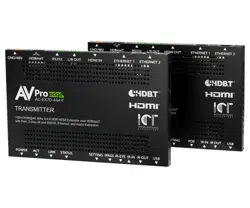
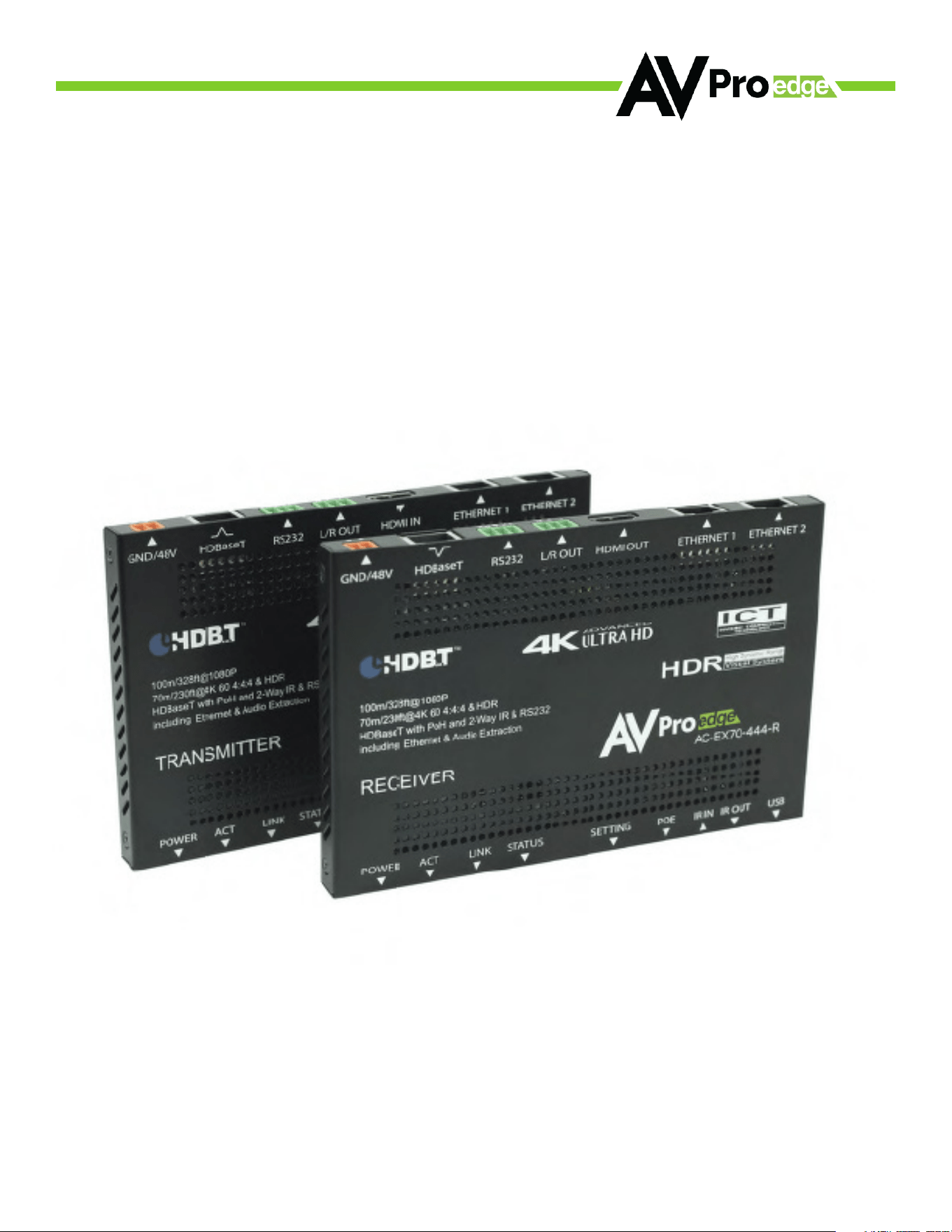
Ultra Slim 70m (100m HD) 4K60 4:4:4, HDR HDBaseT Extender
Audio Extraction, EDID Management, Scaling & Ethernet

AVPROEDGE ~ 2222 E 52ND STREET N, SIOUX FALLS, SD 57104 ~ 1.877.886.5112 ~ +.605.274.6055 ~ SUPPORT@AVPROEDGE.COM
2
INTRODUCTION 3
FEATURES 3
WHAT’S IN THE BOX 3
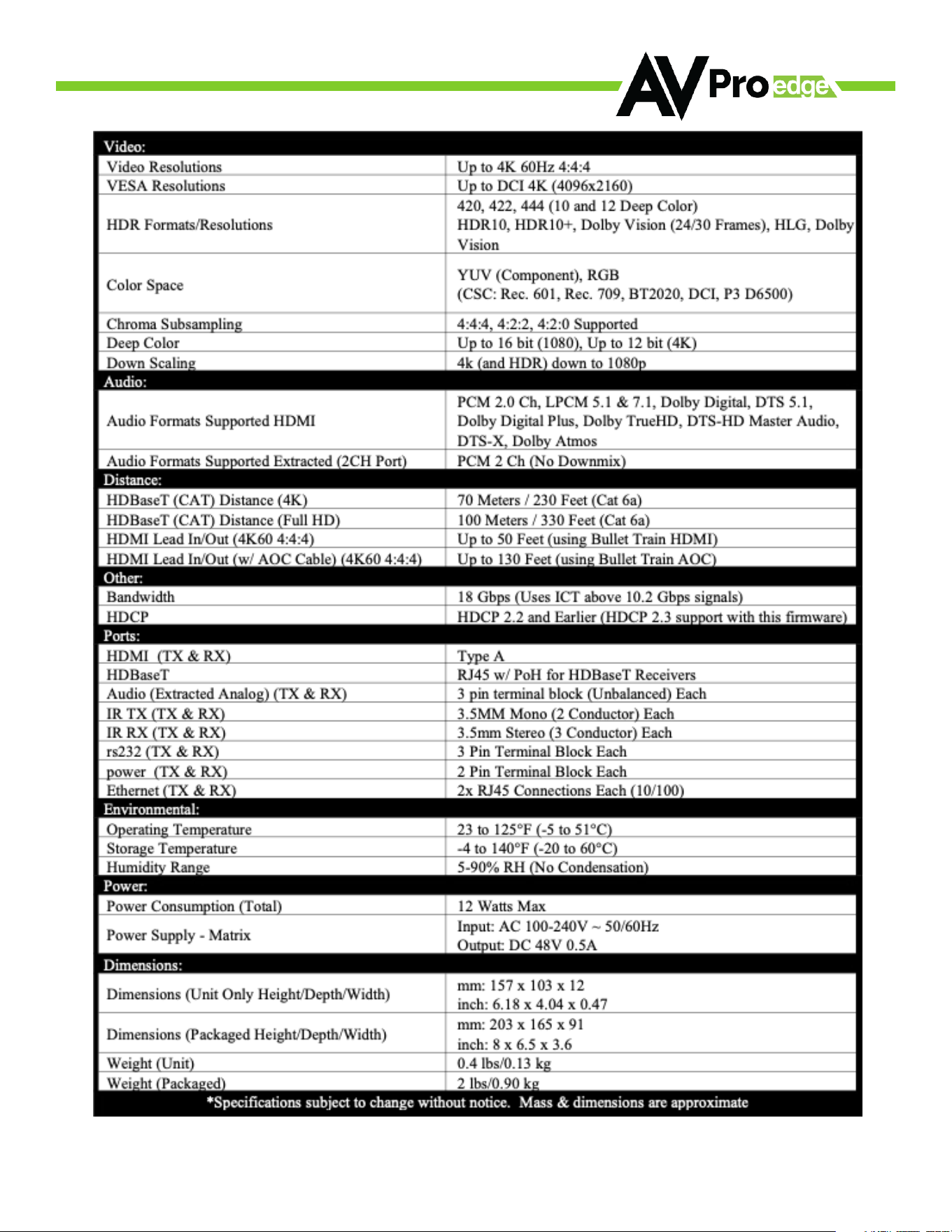
SPECIFICATIONS 4
TRANSMITTER 5
• ETHERNET LIGHTS & USAGE 7
• FUNCTIONS & SETUP 8
• EDID MANAGEMENT 8
• COPY DEVICE EDID 10
RECEIVER 11
• ETHERNET LIGHTS & USAGE 13
• FUNCTIONS & SETUP 14
RS-232 CONFIGURATION 15
IR CONFIGURATION 17
IR CONNECTIONS 18
AUDIO EXTRACTION 19
STERO CABLE PREPARATION 20
TROUBLESHOOTING 21
MAINTENANCE 22
DAMAGE REQUIRING SERVICE 23
SUPPORT 23
WARRANTY 24
TABLE OF CONTENTS

AVPROEDGE ~ 2222 E 52ND STREET N, SIOUX FALLS, SD 57104 ~ 1.877.886.5112 ~ +.605.274.6055 ~ SUPPORT@AVPROEDGE.COM
3
AVPro Edge presents its first 18Gbps over copper extender Using ICT (Invisible Compression Tech-
nology) we have achieved what was thought to be impossible We can deliver a virtually lossless
high bandwidth 4K HDR signal with support for all signals up to 18Gbps Deep Color and HDR
Metadata remain intact making the transmission free of artifacts like banding Other similar devic-
es will deliver a sub-par image that has very visible banding and color shifting
Model Numbers:
• AC-EX70-444-T ~ HDBaseT Transmitter w/IR and RS-2
• AC-EX70-444-R ~ HDBaseT Receiver w/ IR and RS-232
Features
• HDMI 2 0(a/b)
• 18Gbps Bandwidth Support (Using ICT)
• Ultra Slim ( 47 inch/12mm)
• Up to 4K60 4:4:4 Support
• Full HDR Support (HDR 10 & 12 Bit)
• HDR, HDR10+ and HLG Support
• 4K --> 1080P Down-scaling for mixed systems
• EDID Management and EDID emulate
• 4K & HD Test Patterns built into Tx and Rx for
troubleshooting
• Ethernet Hub Capability
• L/R Audio Extraction on Tx and Rx
• HDCP 2 2 (and all earlier versions supported)
• CEC Pass Through
• 3D Support
• 100M (330ft) on 1080P (Cat6a)
• Up to 70m (230ft) on 4K (up to 4K60 4:4:4, HDR)
(Cat6a)
• Bi-directional 48v PoH (Power Over HDBaseT,
only one Power Supply Needed)
• I-Pass Feature for control system “pass-through”
• 3-20v protection circuit built in for safe IR trans-
port
• Bi Directional RS232 Transport
• LED Status, Link, Power indication lights
• Use single UTP/STP LAN cable (CAT-5E/6A) with
substitute HDMI cable to achieve long distance
transmission
• Supports uncompressed PCM 2- Ch , LPCM
5 1 & 7 1, Dolby Digital, DTS, Dolby TrueHD, DTS
HD-Master Audio, Atmos on HDMI
• ESD protection circuitry (Inputs & Outputs) to 7KV
• Can Cascade
Whats in the box
• AC-EX70-444-T (Transmitter)
• AC-EX70-444-R (Receiver)
• 48V Power Supply (One supplied)
• 1 x IR Tx Unit
• 1 x IR Rx Unit
• 4x 3 Pin Terminal blocks for Audio and
RS232 Ports
• Mounting Brackets
*NOTE: Optional 3PIN to STEREO Audio
Cables available for purchase “AC-
CABLE-3PIN-2CH”
AVPROEDGE ~ 2222 E 52ND STREET N, SIOUX FALLS, SD 57104 ~ 1.877.886.5112 ~ +.605.274.6055 ~ SUPPORT@AVPROEDGE.COM
4
AVPROEDGE ~ 2222 E 52ND STREET N, SIOUX FALLS, SD 57104 ~ 1.877.886.5112 ~ +.605.274.6055 ~ SUPPORT@AVPROEDGE.COM
5
THE TRANSMITTER
Back
Ethernet Ports
10/100
HDMI In
RS232
COM & Pass-through
48V
HDBaseT
L/R Out
(PCM Only)
Front
IR Mode
Micro USB
(Firmware)
IR Out
IR In
Indicator Troubleshooting Lights on the Transmitter:
POWER - On the front:
(Red) This is an indicator that the power is connected There are only two states for light:
• Light Is On = Power supply is connected and functioning
• Light Is O = Power supply is not connected or there is no power present (In order to have
power: check the power supply, USP, Outlet, etc )
AV SYSTEM ACT - On the front:
• (Blue) This is an indicator of activity on the link - this light will blink randomly as data is sent/
received
HDBaseT LINK - On the front:
• (Blue) This is an indicator that that the RJ45 HDBaseT Link is stable This light should always be
SOLID
HDMI SIGNAL STATUS - On the front:
• (Blue) This indicator shows that the HDMI source is connected
The states are:
• Light Is On (Solid) = Sync w/ HDMI source is correct and solid
• Light Is Flashing = The light flashes during the sync process If it is flashing continuously, a
picture may not be present
If the BLUE HDMI SIGNAL STATUS LIGHT is flashing, check the following:
1 The source Plug it directly into the display to be sure it’s functioning properly
2 Try a longer HDMI cable Some HDMI cables do not sync well at shorter lengths
3 Set the EDID to state #1 (See below)
4 If these suggestions do not work, enable the “Test Pattern” (See Below) If you see the pattern,
the problem is between the source and the transmitter, please try a dierent source
5 Contact AVProEdge if these suggestions do not work

AVPROEDGE ~ 2222 E 52ND STREET N, SIOUX FALLS, SD 57104 ~ 1.877.886.5112 ~ +.605.274.6055 ~ SUPPORT@AVPROEDGE.COM
6
Indicator Troubleshooting Lights on the Transmitter Cont.
LINK - Above RJ45 (HDBT) Port:
(Green) This indicator shows that the AV HDBT link between the Tx and Rx is in tact This light
should ALWAYS be solid
If this light is flashing or not present attempt following:
1 Check the length The maximum distances are 70m (230ft) on 4K and 100m (330ft) on 1080P
2 Remove any coils of cable and make sure that there is not excess cabling
3 Bypass all patch panels and punch-down blocks
4 Re-terminate connectors Sometimes, even if a cable tester indicates the run is valid,
something may be slightly o
a Standard RJ45 ends are recommended Pass through style types can cause interference/
crosstalk
5 Contact AVProEdge if these suggestions do not work
STATUS- Above RJ45 (HDBT) Port:
(Amber) This is an indicator showing that the power is present between the Transmitter and
Receiver This light ALWAYS BLINKS steadily indicating everything is OK If you do not see this light,
attempt the following:
1 Check the length The maximum distances are 70m (230ft) on 4K and 100m (330ft) on 1080P
2 Remove any coils of cable and make sure that there is not excess cabling
3 Bypass all patch panels and punch-down blocks
4 Re-terminate connectors Sometimes, even if a cable tester indicates the run is valid,
something may be just slightly o
a Standard RJ45 ends are recommended Pass through style types can cause interference/
crosstalk
5 Try powering from the Receiver instead of the Transmitter (See Receiver page for more about
PoE direction)
6 Contact AVProEdge if these steps do not work

AVPROEDGE ~ 2222 E 52ND STREET N, SIOUX FALLS, SD 57104 ~ 1.877.886.5112 ~ +.605.274.6055 ~ SUPPORT@AVPROEDGE.COM
7
ETHERNET LIGHTS & USAGE:
Ethernet usage is very straight-forward It is used for driving network communication over the
HDbaseT link The purpose of these ports is to act as a “Hub”, if you plug one port into a router all
the other ports on both the Tx & Rx now have access to the network
Usage Examples:
• Supplying a hardwire Ethernet connection to video zones for on-device streaming and/or
local gaming devices and players
• Supplying server based content from a server to a remote display
• Supplying a zone with a hardwired Ethernet connection for a Wi-Fi access-point in remote
zones
Usage is plug-&-play - the ports are always active and so long as ONE of the FOUR combined
ports between the Tx and Rx is connected to the network the other three have access
Ethernet Indicator Lights:
• AMBER - This indicates and Ethernet connection is made, and the connection is stable This
should be SOLID
• GREEN - This indicates that there is activity on the line This light flashes randomly as data
is transmitted If this light is steady OFF there is no data coming through or you may need to
reset the Ethernet router
AVPROEDGE ~ 2222 E 52ND STREET N, SIOUX FALLS, SD 57104 ~ 1.877.886.5112 ~ +.605.274.6055 ~ SUPPORT@AVPROEDGE.COM
8
Functions & Setup of the Transmitter:
IR Mode Slide Switch: (On Front) This is used to select a preferred IR Mode -
There are two modes:
• IR-EYE - The IR Input will be configured to operate with an IR Receiver Eye
• I-PASS - The IR Input will be configured to safely operate with a direct
connection from a control system using a mono or stereo 3 5mm cable It’s
protected @ 3v-20v Default mode is IR-EYE
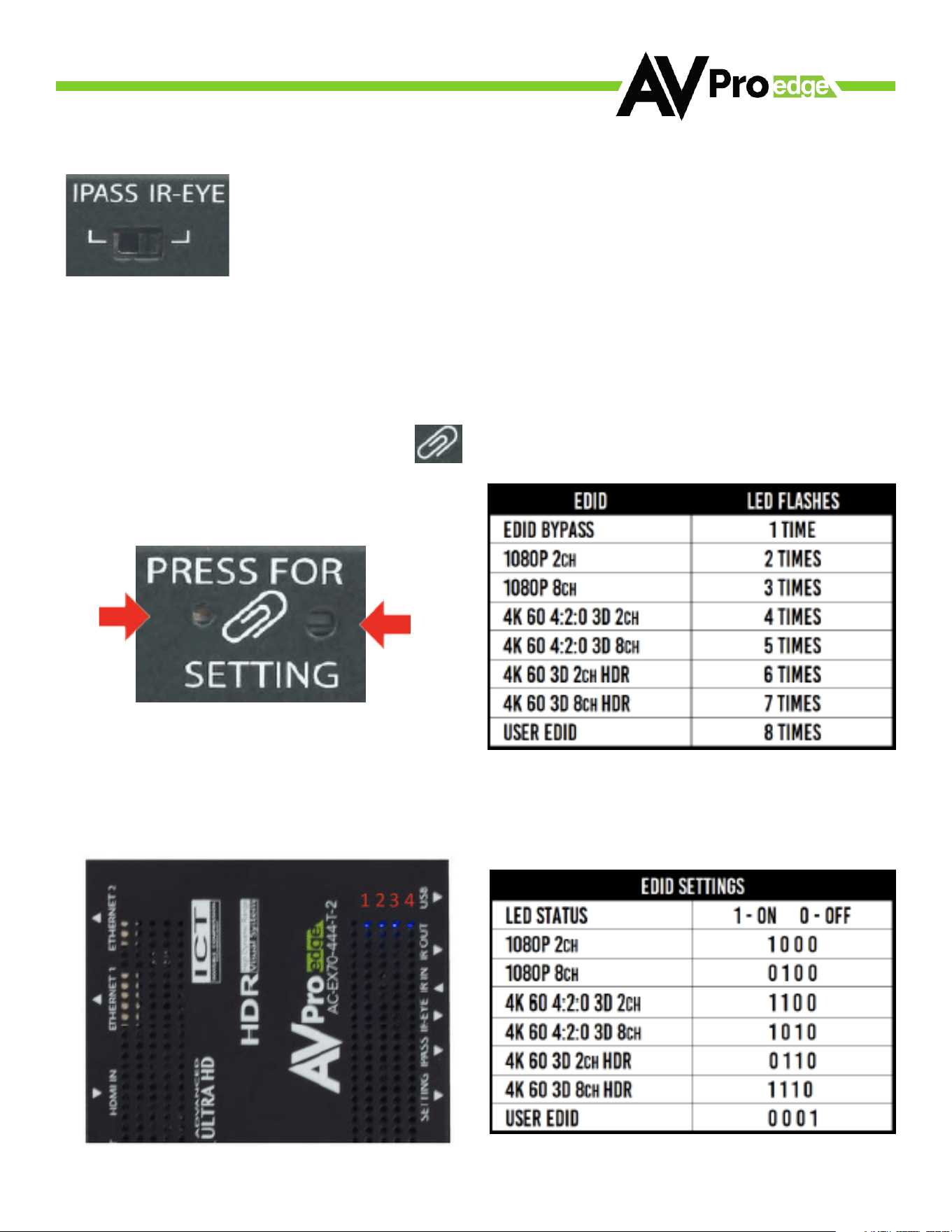
Using the Setting Button:
(On Front) The setting button can be pressed in dierent combinations based on what is needed
The status light on the front will flash based on the selection The selections are in series,
meaning, for example, if you are on selection 5 (listed below), you can come back later and press
it again to move you to 6, 7, 8, 1, 2, etc Using an ink pen is best to press the button
The SETTING BUTTON is located just to
the right of the to the left of the symbol
symbol, and the SETTING INDICATOR LED is just
EDID Management: GEN2
(Indicated by part number AC-EX70-444-T-2)
4 LED lights on the board inside the chassis (see below) Corresponding light will be solid, the
others will flash
EDID Management: GEN1
Quick press to select EDID
LED
BUTTON
AVPROEDGE ~ 2222 E 52ND STREET N, SIOUX FALLS, SD 57104 ~ 1.877.886.5112 ~ +.605.274.6055 ~ SUPPORT@AVPROEDGE.COM
9
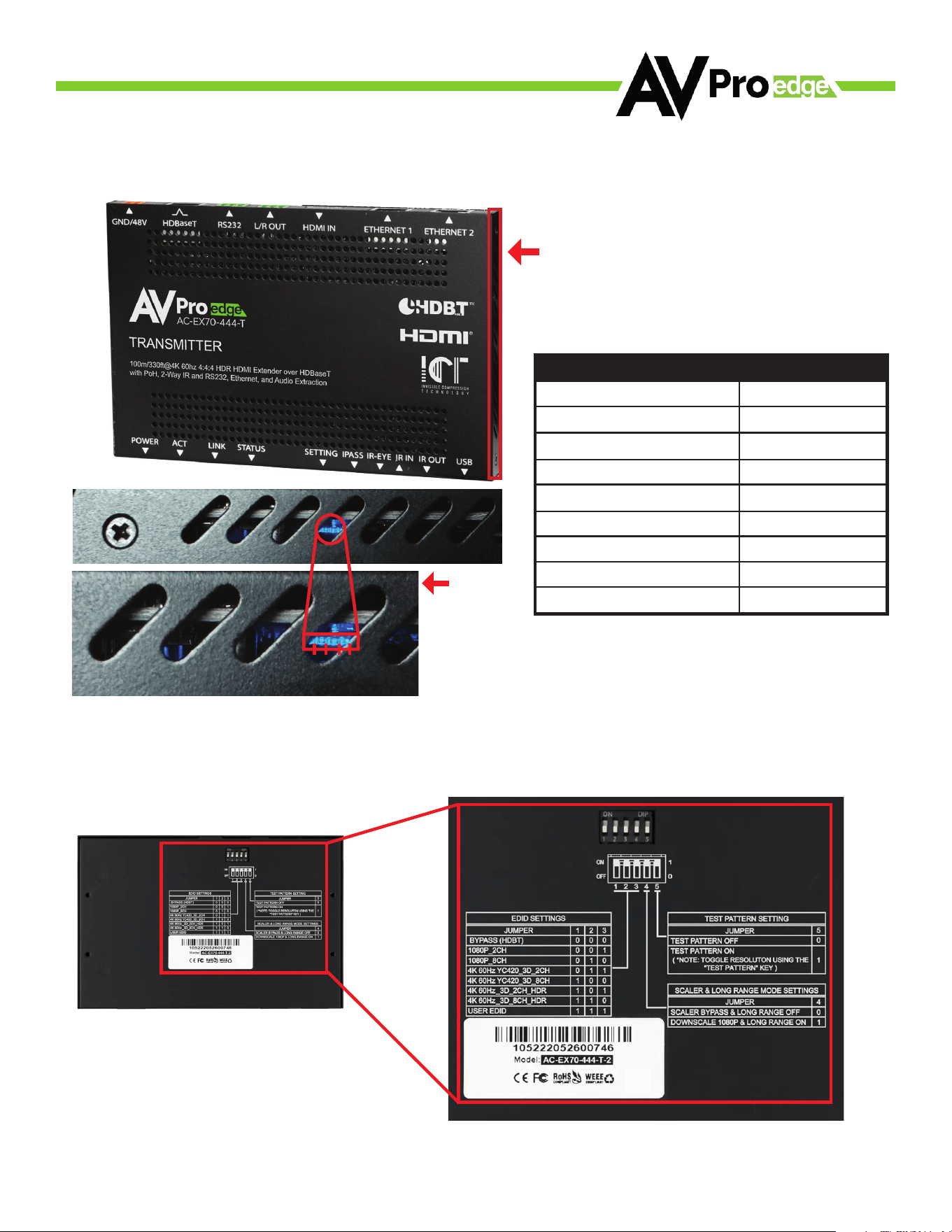
1 2 3 4
EDID Management: GEN3
(If Purchased after April 2024)
Zoomed In
This is the side you can view EDID LED
lights 4th vent hole decal side up: You
can see it in multiple vent holes, just
depends on the angle
EDID
LED STATUS
0:EDID_BYPASS
1:1080P_2CH
2:1080P_8CH
3:4K60HzY420_3D_2CH
4:4K60HzY420_3D_8CH
5:4K60HZ_3D_2CH_HDR
6:4K60HZ_3D_8CH_HDR
7:User_EDID
LED FLASHES
1234
0001
0010
0011
0100
0101
0110
0111
1000
EDID Management: GEN4
(If Purchased after April 2025)
AVPROEDGE ~ 2222 E 52ND STREET N, SIOUX FALLS, SD 57104 ~ 1.877.886.5112 ~ +.605.274.6055 ~ SUPPORT@AVPROEDGE.COM
10
While in the USER EDID state (8), press and hold the setting button (for 4 seconds) in order to copy
the EDID from the connected display or downstream device to the user EDID and it will apply
automatically
Why do this?
This is commonly used when there is a need for a specific, known EDID that the installer may
prefer It can also be used if you want to bypass an EDID of an AVR or another connected device
(IE, plug the extender kit directly into a display and COPY the EDID Plug it back into an AVR that
may not have a current/good EDID)
Scaler Setting:
While in ANY state besides the USER EDID state, press and hold the setting button (for 4 seconds)
to toggle the scaler mode
The options are:
1 Normal Mode(ICT Mode) --- LED Flashes 1 Time
2 Down Scaler Mode (4K->2K) --- LED Flashes 2 Times
Functions & Setup of the Transmitter Cont:
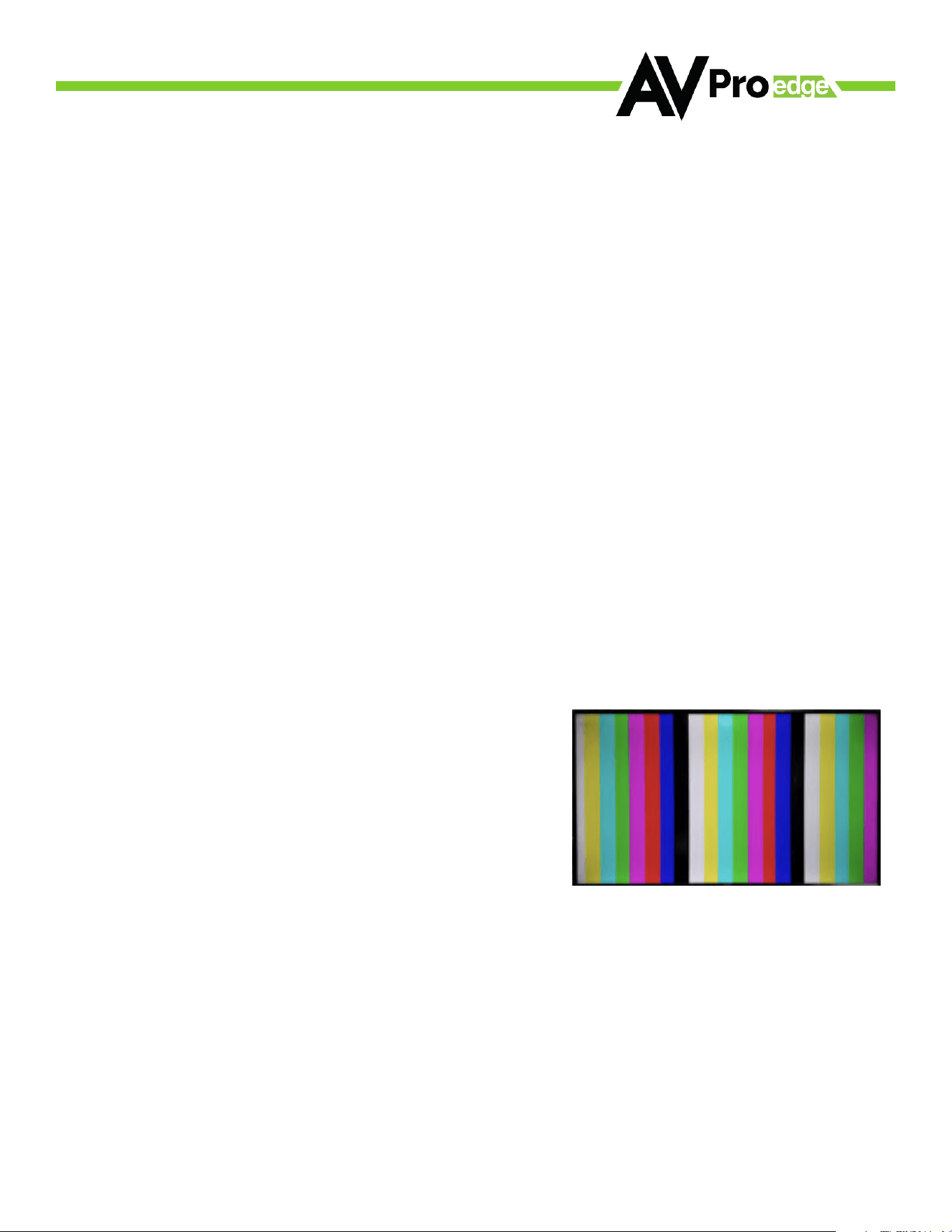
Test Pattern Generator:
Press and hold the setting button (for 4 seconds) while powering up the transmitter You should
see the color bar pattern to the right on screen When in this mode, you can quick press to toggle
the resolution
Long Range Mode:
150m (500ft) on up to 1080P 8-BIT
1 Enable Test Pattern Mode - Press and hold settings button for 4 seconds while powering up the
transmitter
2 In Test Pattern Mode - Press and hold the settings button for 4 seconds to enable/disable Long
Range Mode
a Flash Once - Disabled
b Flash Twice - Enabled
3 Reboot the extender, Long Range Mode is now active
COPY DEVICE EDID
Quick press the setting button---Select the test
pattern timing
• 1080P --- LED Flashes 1 Time (3 sets of color bars,
example to the right)
• 4K --- LED Flashes 2 Times (5 sets of color bars)
* NOTE: This can be useful for checking your
cabling and for troubleshooting You can also
ensure you have sucient distance based on
the resolution as well
AVPROEDGE ~ 2222 E 52ND STREET N, SIOUX FALLS, SD 57104 ~ 1.877.886.5112 ~ +.605.274.6055 ~ SUPPORT@AVPROEDGE.COM
11
Indicator Troubleshooting Lights on the Receiver:
POWER - On the front:
(Red) This is an indicator that the power is connected There are only two states for light:
• Light Is On = Power supply is connected and functioning
• Light Is O = Power supply is not connected or there is no power present (In order to have
power: check the power supply, USP, Outlet, etc )
AV SYSTEM ACT - On the front:
• (Blue) This is an indicator of activity on the link - this light will blink randomly as data is
sent/received
HDBaseT LINK - On the front:
• (Blue) This is an indicator that that the RJ45 HDBaseT Link is stable This light should always
be SOLID
HDMI SIGNAL STATUS - On the front:
• (Blue) This indicator shows that the HDMI source is connected
The states are:
• Light Is On (Solid) = Sync w/ HDMI source is correct and solid
• Light Is Flashing = The light flashes during the sync process If it is flashing continuously, a
picture may not be present
If the BLUE HDMI SIGNAL STATUS LIGHT is flashing, check the following:
1 The source Plug it directly into the display to be sure it’s functioning properly
2 Try a longer HDMI cable Some HDMI cables do not sync well at shorter lengths
3 Set the EDID to state #1 (See below)
4 If these suggestions do not work, enable the “Test Pattern” (See Below) If you see the pattern,
the problem is between the source and the transmitter, please try a dierent source
5 Contact AVProEdge if these suggestions do not work
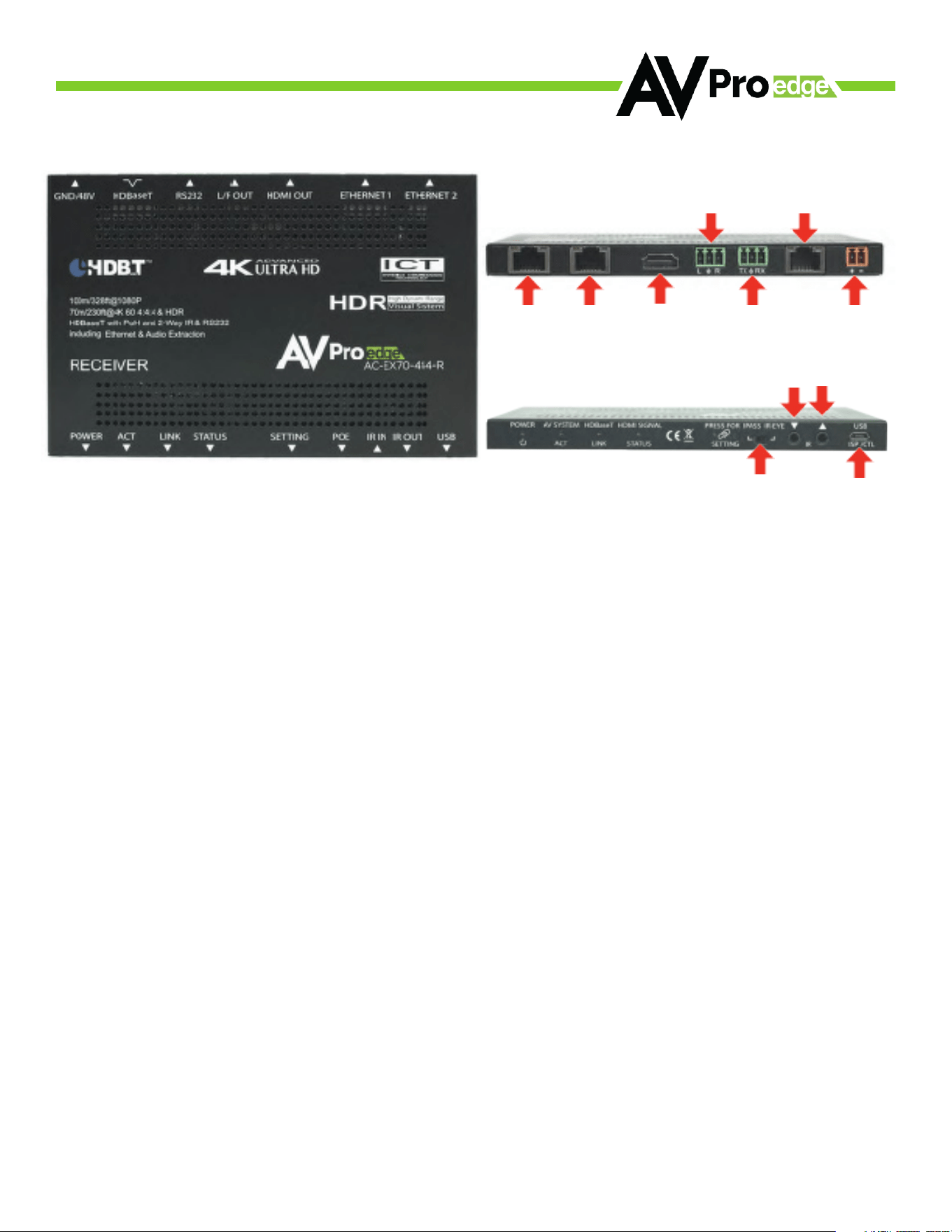
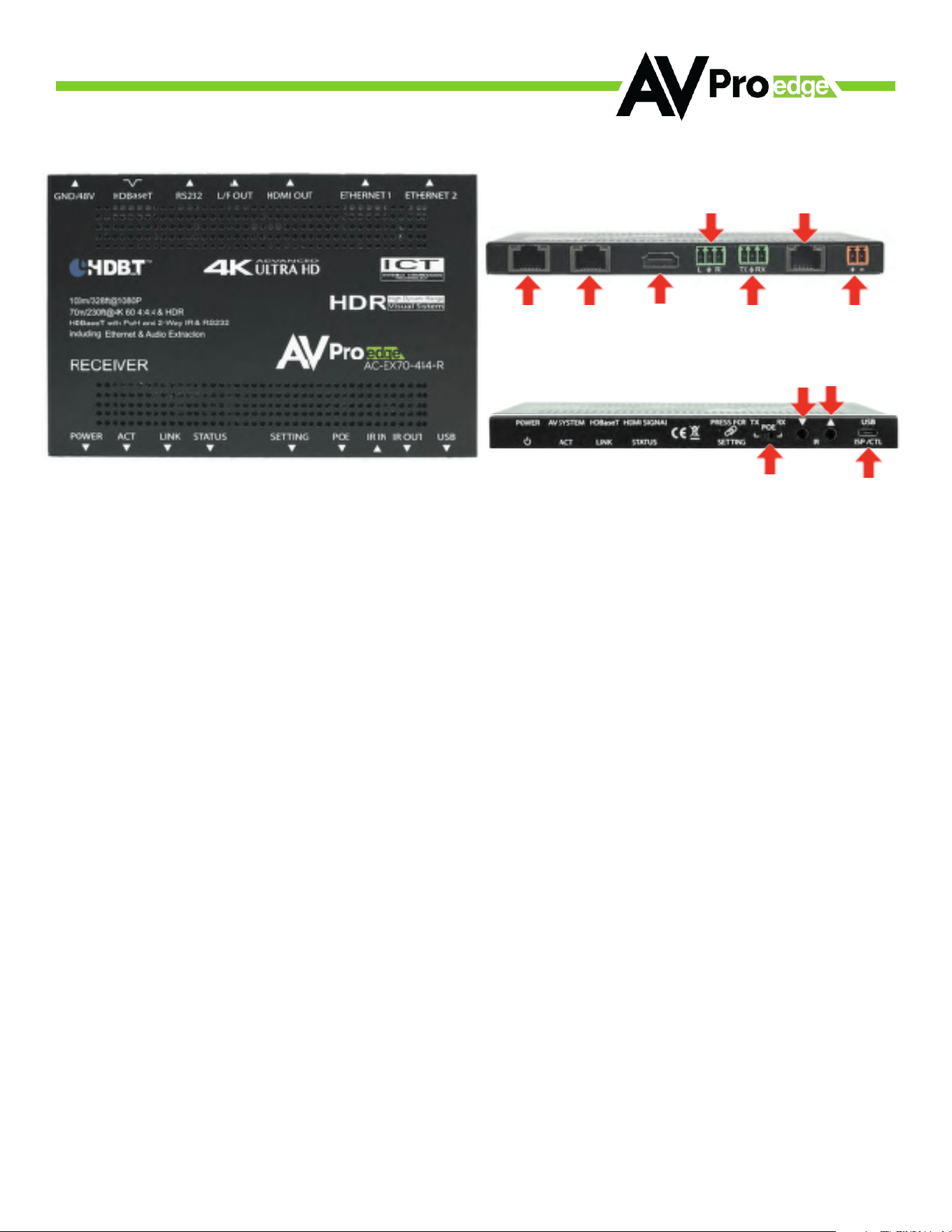
THE RECEIVER
Back
Ethernet Ports
10/100
HDMI In
RS232
COM & Pass-through
48V
HDBaseT
L/R Out
(PCM Only)
Front
POE Mode
Micro USB
(Firmware)
IR Out
IR In

AVPROEDGE ~ 2222 E 52ND STREET N, SIOUX FALLS, SD 57104 ~ 1.877.886.5112 ~ +.605.274.6055 ~ SUPPORT@AVPROEDGE.COM
12
LINK - Above RJ45 (HDBT) Port: (Green) This indicator shows that the AV HDBT link between the Tx
and Rx is in tact This light should ALWAYS be solid
If this light is flashing or not present attempt following:
1 Check the length The maximum distances are 70m (230ft) on 4K and 100m (330ft) on 1080P
2 Remove any coils of cable and make sure that there is not excess cabling
3 Bypass all patch panels and punch-down blocks
4 Re-terminate connectors Sometimes, even if a cable tester indicates the run is valid,
something may be slightly o
a Standard RJ45 ends are recommended Pass through style types can cause interference/
crosstalk
5 Contact AVProEdge if these suggestions do not work
STATUS- Above RJ45 (HDBT) Port
(Amber) This is an indicator showing that the power is present between the Transmitter and
Receiver This light ALWAYS BLINKS steadily indicating everything is OK If you do not see this light,
attempt the following:
1 Check the length The maximum distances are 70m (230ft) on 4K and 100m (330ft) on 1080P
2 Remove any coils of cable and make sure that there is not excess cabling
3 Bypass all patch panels and punch-down blocks
4 Re-terminate connectors Sometimes, even if a cable tester indicates the run is valid,
something may be just slightly o
a Standard RJ45 ends are recommended Pass through style types can cause interference/
crosstalk
5 Try powering from the Receiver instead of the Transmitter (See Receiver page for more about
PoE direction)
6 Contact AVProEdge if these steps do not work
Indicator Troubleshooting Lights on the Receivercont

AVPROEDGE ~ 2222 E 52ND STREET N, SIOUX FALLS, SD 57104 ~ 1.877.886.5112 ~ +.605.274.6055 ~ SUPPORT@AVPROEDGE.COM
13
Ethernet Lights & Usage:
Ethernet usage is very straight-forward It is used for driving network communication over the
HDbaseT link The purpose of these ports is to act as a “Hub”, if you plug one port into a router all
the other ports on both the Tx & Rx now have access to the network
Usage Examples:
• Supplying a hardwire Ethernet connection to video zones for on-device streaming and/or
local gaming devices and players
• Supplying server based content from a server to a remote display
• Supplying a zone with a hardwired Ethernet connection for a Wi-Fi access-point in remote
zones
Usage is plug-&-play - the ports are always active and so long as ONE of the FOUR combined
ports between the Tx and Rx is connected to the network the other three have access
Ethernet Indicator Lights:
• AMBER - This indicates and Ethernet connection is made, and the connection is stable This
should be SOLID
• GREEN - This indicates that there is activity on the line This light flashes randomly as data
is transmitted If this light is steady OFF there is no data coming through or you may need to
reset the Ethernet router
AVPROEDGE ~ 2222 E 52ND STREET N, SIOUX FALLS, SD 57104 ~ 1.877.886.5112 ~ +.605.274.6055 ~ SUPPORT@AVPROEDGE.COM
14
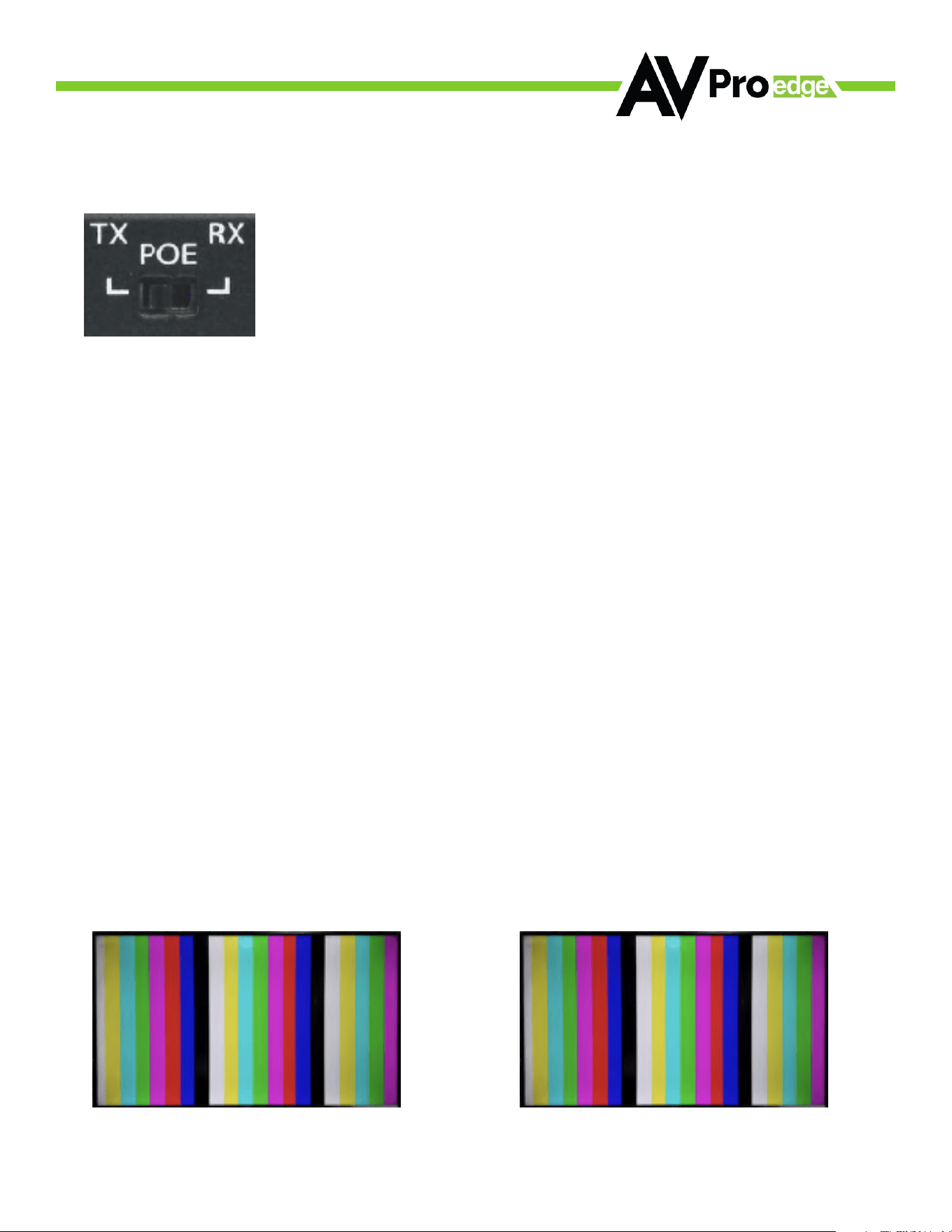
POE Slide Switch
(On Front)
This is used to select how you want to PoE is to be directed There are
two options (you are choosing where the power is ORIGINATING from):
• TX (Default)= You will need to power the TRANSMITTER, the receiver
will be powered over the CAT Cable (Default)
• RX = You will need to power the RECEIVER, the transmitter will
be powered over the CAT Cable from the receiver (This is called
“Reverse Power”)
Functions & Setup of the Receiver:
Using the Setting Button:
(On Front) The SETTING BUTTON is located just to the left of the POE switch This button can
be used to enable/disable the built in Test Pattern Generator
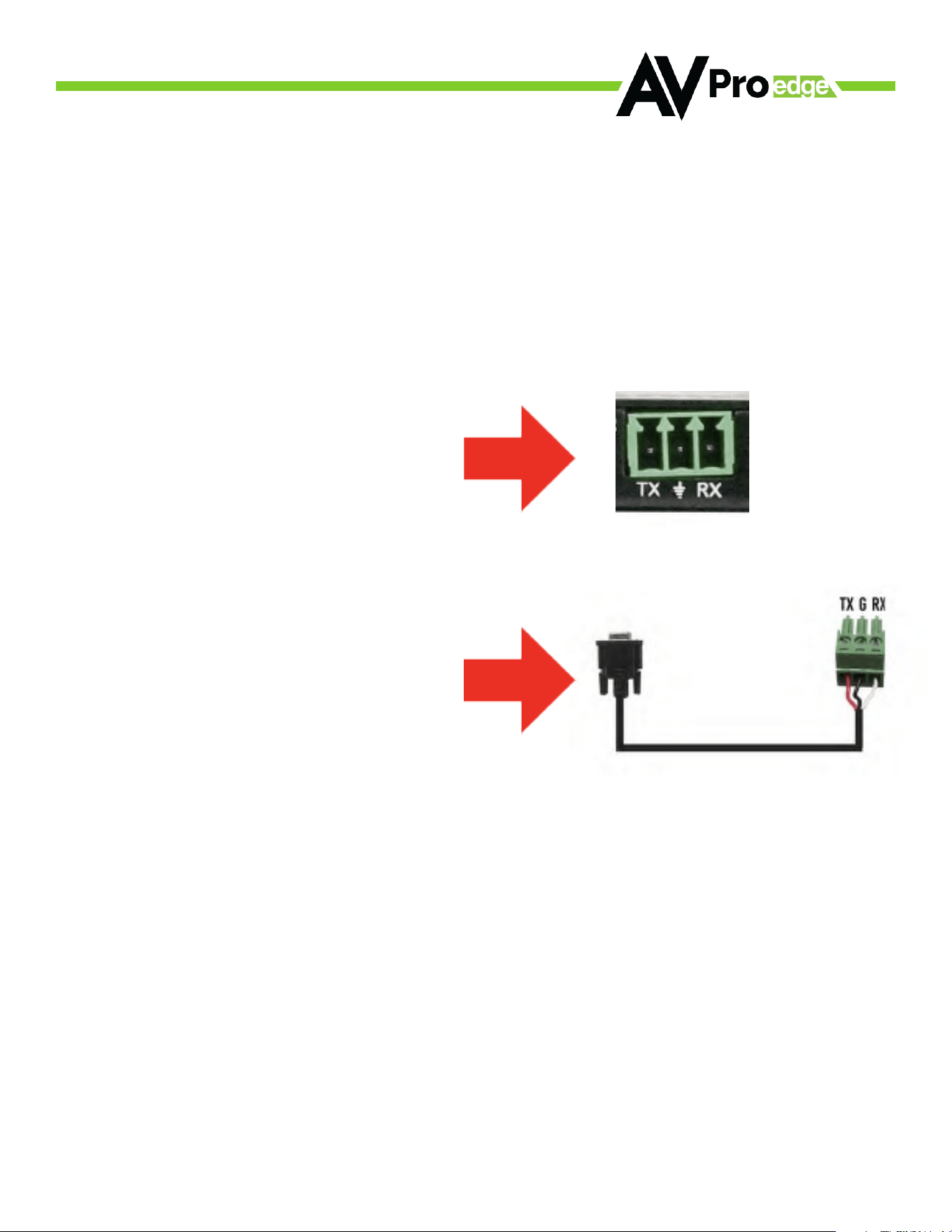
Test Pattern Generator:
Press and hold the setting button (for 4 seconds) while powering up the receiver If you are
powering from the transmitter side, to power cycle the receiver unplug the HDBaseT Category
cable You should see the color bar pattern appear the right on screen When in this mode,
you can quick press the settings button to toggle the two resolutions To Disable, power cycle
the receiver
Quick press the setting button---Select the test pattern timing
• 080P --- LED Flashes 1 Time (3 sets of color bars, example below)
• 4K --- LED Flashes 2 Times (5 sets of color bars, example below)
* NOTE: This can be useful for checking your cabling and for troubleshooting You can
also ensure you have sucient distance based on the resolution as well
Test Pattern Generator (GEN-2):
Quick press the Setting button to cycle through test patterns of 1080p, 4k, and OFF The test
patterns can be used for stand-alone testing as long as the Receiver is powered If the Receiver
is powered o while the test pattern is enabled, it will still generate a test pattern once it is
powered on again Be sure to disable the test pattern on the Receiver before powering it o
1080P Test Pattern 4K Test Pattern
AVPROEDGE ~ 2222 E 52ND STREET N, SIOUX FALLS, SD 57104 ~ 1.877.886.5112 ~ +.605.274.6055 ~ SUPPORT@AVPROEDGE.COM
15
RS-232 can be used to pass control signals bi-directionally to & from any RS-232 compatible
device This is commonly used to route control signals in the following way:
1 Control System --> Display/Projector (ie, Power On/O)
2 Display/Projector --> Control System (ie, Display Status, Volume Status etc )
3 When ultra long-range serial communication is needed (think concerts, live events) Use
the extender
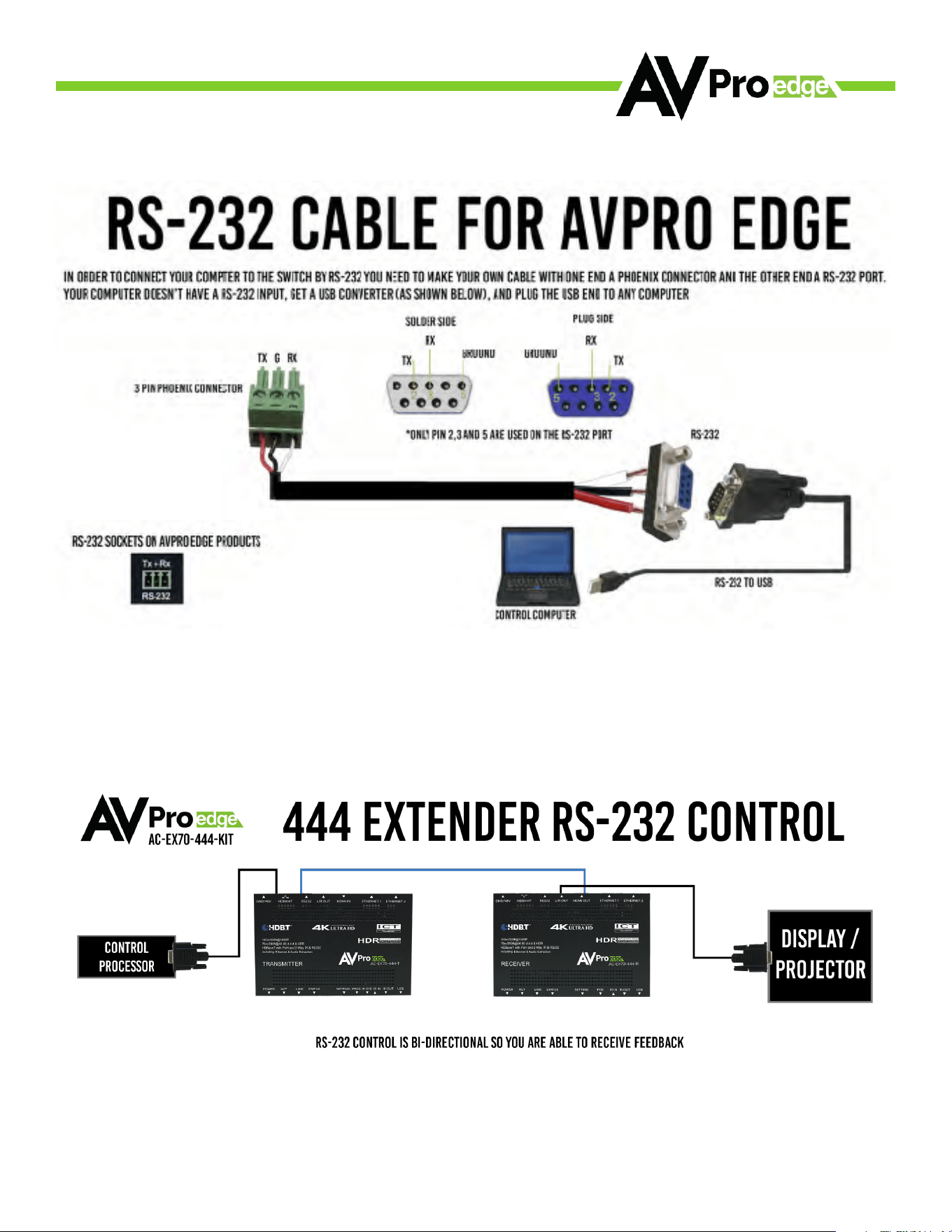
RS-232 CONFIGURATION
The unit comes with 3 pin connectors to
allow for any wire an integrator would
like The pin out configuration Left=TX,
Center=Ground, Right=RX and looks like
this:
This is how the cable should look If using
the AC-CABLE-3 5-DB9F (Female) or
AC-CABLE-3 5-DB9M (Male), the colors
will be the same With any other cable,
please follow Tx, G, Rx as shown below
See RS-232 cable preparation diagram
on the next page
AVPROEDGE ~ 2222 E 52ND STREET N, SIOUX FALLS, SD 57104 ~ 1.877.886.5112 ~ +.605.274.6055 ~ SUPPORT@AVPROEDGE.COM
16
RS-232 Sample Application
AVPROEDGE ~ 2222 E 52ND STREET N, SIOUX FALLS, SD 57104 ~ 1.877.886.5112 ~ +.605.274.6055 ~ SUPPORT@AVPROEDGE.COM
17
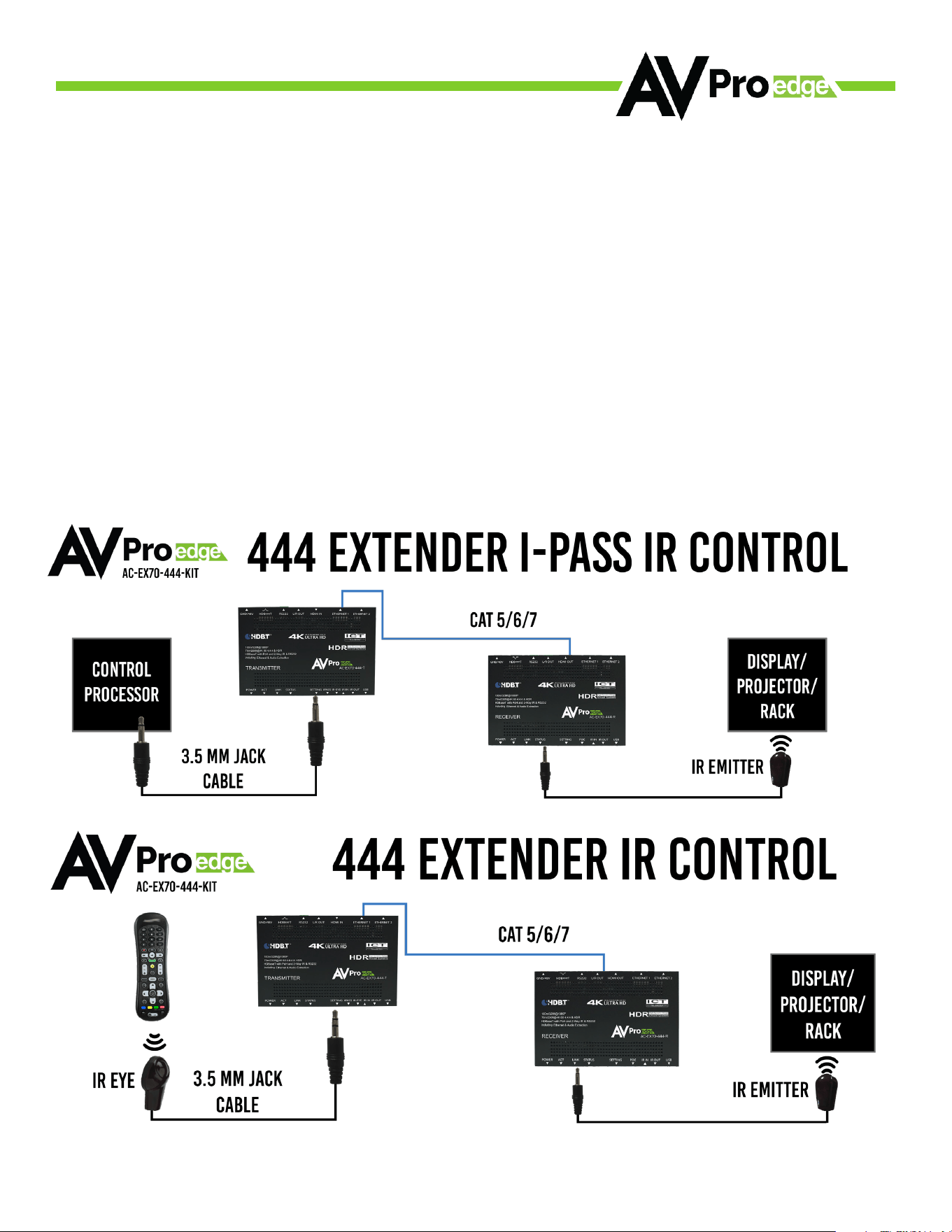
IR can be used in three ways:
1. From Rack (Control System Direct)
• Plug a MONO 3 5mm cable into an emitter port of any control system directly into the
“IR IN” port on the AC-EX40-444 Transmitter to pass IR signals directly to the remote
end
○ NOTE - Be sure the IR MODE Slide Switch is set to “I-PASS” on the Transmitter
2. From Rack (Using IR-EYE)
• Plug an IR-Receiver Eye into the “IR IN” of the AC-EX40-444 Transmitter in order to
pass infrared signals generated from a device or IR Remote
○ NOTE - Be sure the IR MODE Slide Switch is set to “IR-EYE” on the Transmitter
3. From Remote End
• Use an IR-Receiver Eye on the AC-EX40-444 Receiver (IR In Port) in order to send IR
signals BACK to the rack and out of the TRANSMITTER IR Out Port with an emitter
IR CONFIGURATION
AVPROEDGE ~ 2222 E 52ND STREET N, SIOUX FALLS, SD 57104 ~ 1.877.886.5112 ~ +.605.274.6055 ~ SUPPORT@AVPROEDGE.COM
18
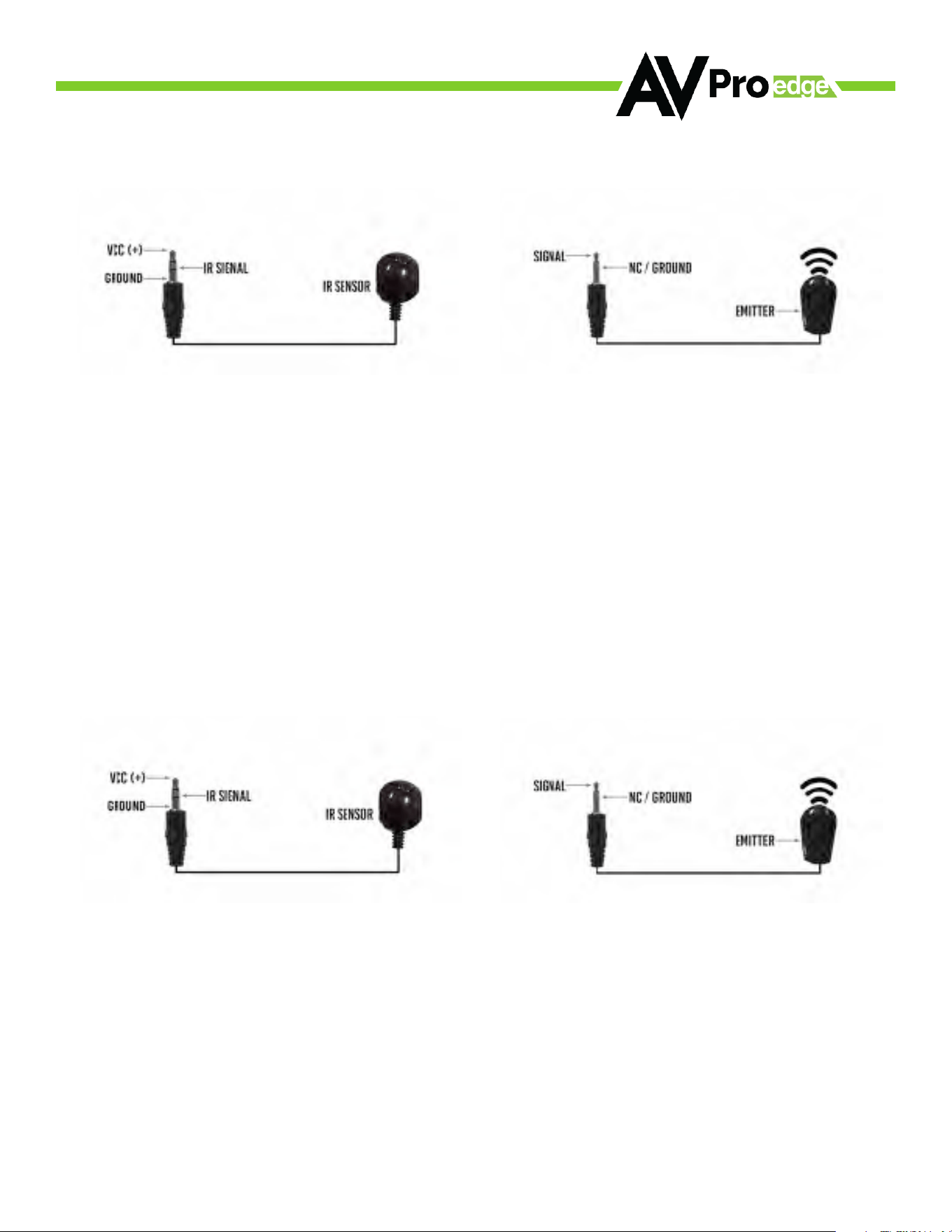
IR Connections to AC-EX70-444-T (Transmitter)
IR Connections to AC-EX70-444-R (Receiver)
IR INPUT
(Receiver Eye)
IR OUTPUT
(IR Emitter)
IR INPUT
(Receiver Eye)
IR OUTPUT
(IR Emitter)
*NOTE: For best results, only use the provided IR EYE’s and Emitters
AVPROEDGE ~ 2222 E 52ND STREET N, SIOUX FALLS, SD 57104 ~ 1.877.886.5112 ~ +.605.274.6055 ~ SUPPORT@AVPROEDGE.COM
19
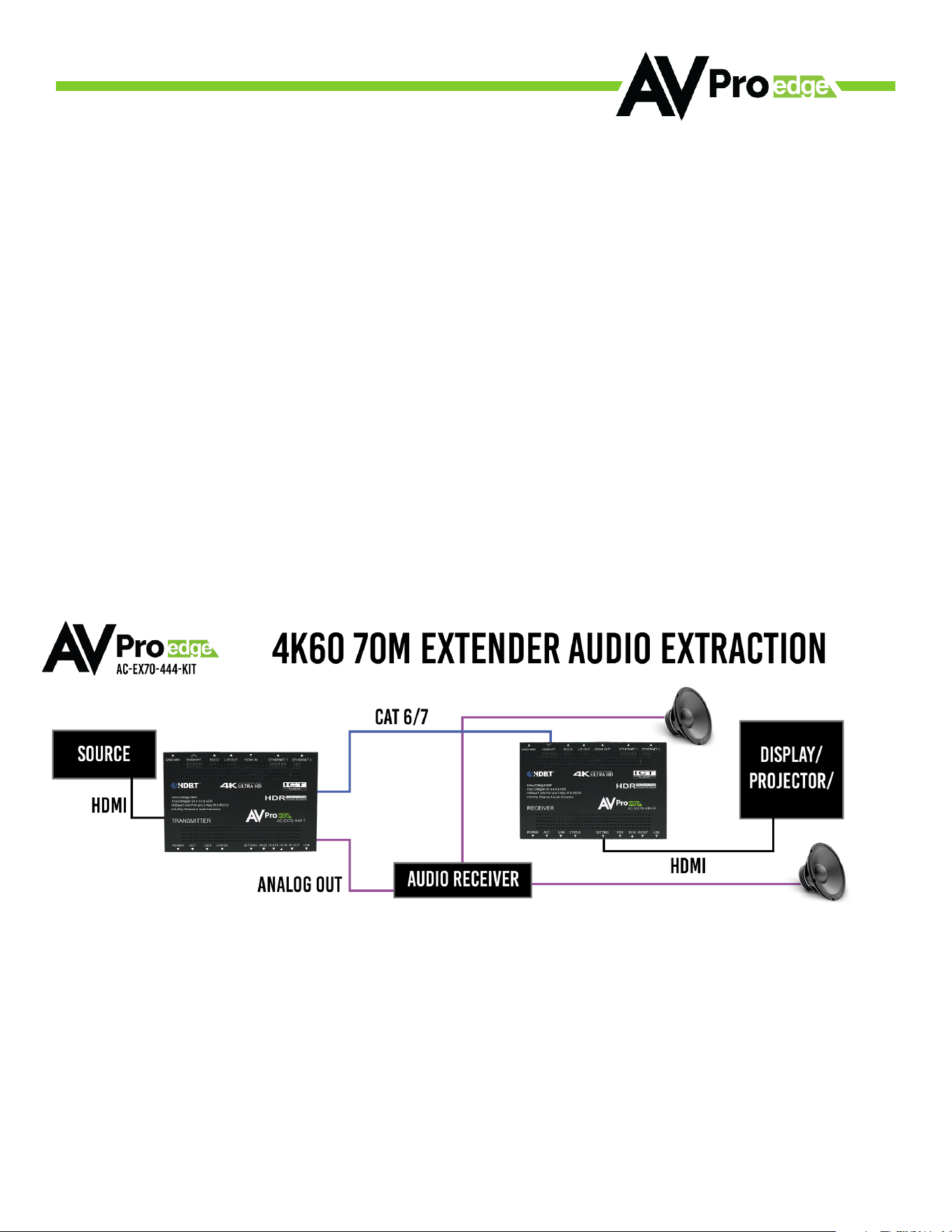
Audio Extraction on AC-EX70-444
A feature that is always active on the AC-EX70-444 (Tx and Rx) is Audio Extraction This
feature extracts PCM Audio (2ch) from the source device in order to be run to a separate
amplifier or AVR BOTH of the audio ports are always active (on Tx & Rx) NOTE - These ports
ONLY work if the source is 2ch If downmixing is needed, check out AC-AVDM-AUHD or AC-
ADM-COTO
To use the ports:
1 Simply plug a 3 pin terminal block into the port on the Tx or Rx
(both are always active) and make your own cable assembly
2 There is an option to buy pre-made unbalanced 3-pin to RCA Female cables from
www avprostore com
NOTE: The source device needs to output PCM audio in order for the feature to work This can
be done by using the on-board EDID management or setting the source as such
Audio Extraction Routing Diagram
AVPROEDGE ~ 2222 E 52ND STREET N, SIOUX FALLS, SD 57104 ~ 1.877.886.5112 ~ +.605.274.6055 ~ SUPPORT@AVPROEDGE.COM
20
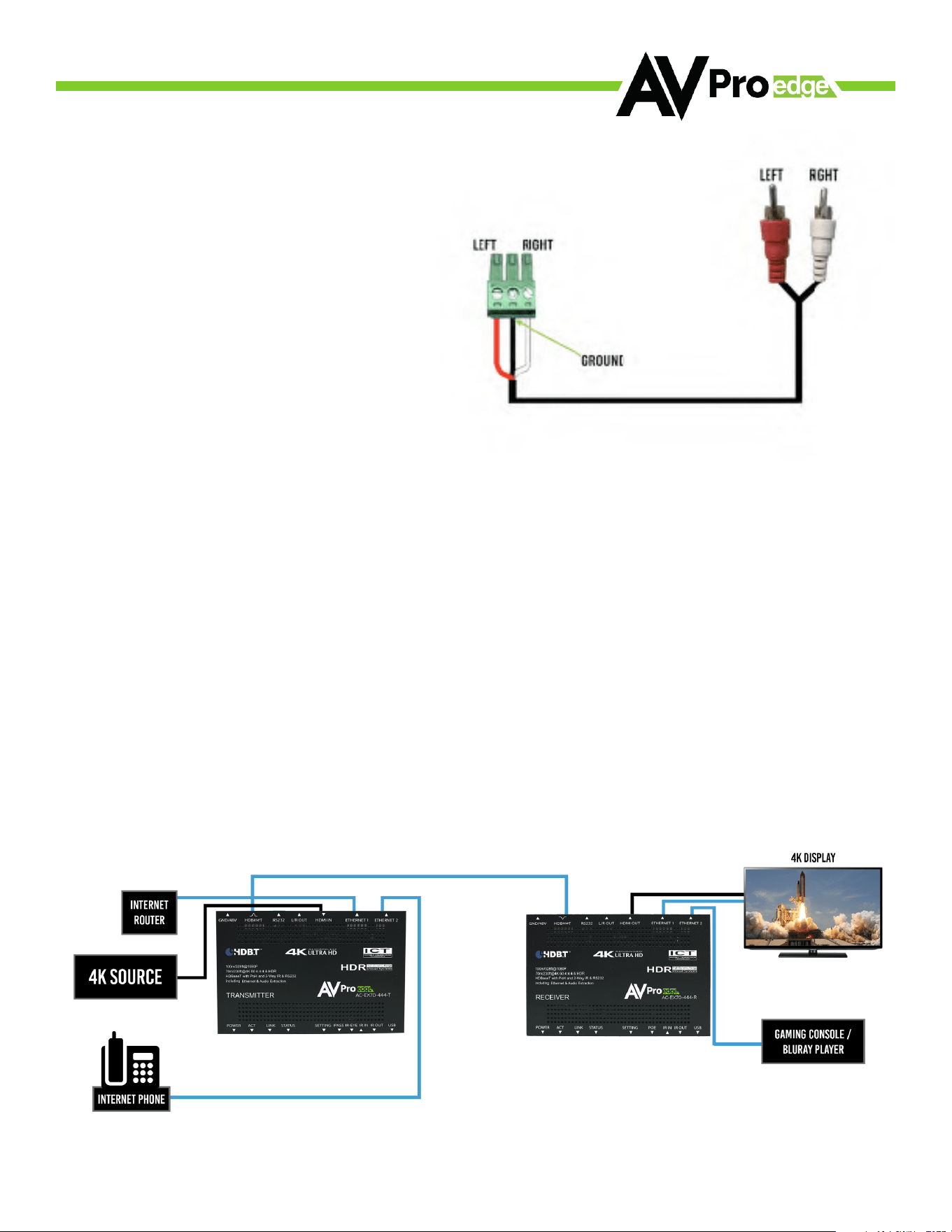
STEREO CABLE PREPARATION
NOTE:
Pre-made audio cables can be purchased.
The part number is: AC-CABLE-3PIN-2CH.
Using Ethernet:
Ethernet usage is very straight-forward It is used for driving network communication over
the HDbaseT link This of these ports as a “hub”, if you plug one port into a router all the other
ports on both the Tx & Rx now have access to the network
Usage Examples:
• Supplying a hardwire Ethernet connection to video zones for on-device streaming and/or
local gaming devices and players
• Supplying server based content from a server to a remote display
• Supplying a zone with a hardwired Ethernet connection for a Wi-Fi access-point in remote
zones
Usage is plug-&-play - the ports are always active and so long as ONE of the FOUR combined
ports between the Tx and Rx is connected to the network the other three have access
Ethernet Indicator Lights:
• AMBER - This indicates and Ethernet connection is made, and the connection is stable
This should be SOLID
• GREEN - This indicates that there is activity on the line This light flashes randomly as data
is transmitted If this light is steady OFF there is no data coming through or you may need
to reset the Ethernet router

AVPROEDGE ~ 2222 E 52ND STREET N, SIOUX FALLS, SD 57104 ~ 1.877.886.5112 ~ +.605.274.6055 ~ SUPPORT@AVPROEDGE.COM
21
• Verify Power
○Verify POE Switch is correct
• Verify Connections - Check that all cables are properly connected
○TX Indicator Troubleshooting Lights
○RX Indicator Troubleshooting Lights
• Not passing video, this may be an EDID issue Out of the box the default is EDID
BYPASS Try a canned EDID or copy the connected displays EDID
• IR Issues - Verify correct connections
○Visibly flashing Emitters may not function properly, try the IR Cables that come in
the box
• Extracted Audio Issues
• Verify Source is set to output 2ch PCM
◊ Note: This unit does NOT downmix
• Still having issues, contact us
○Support Direct
◊ +1-605-977-3477
◊ + 1-605-274-6055
○Submit a support request ticket
◊ https://support avproedge com/hc/en-us/requests/new
TROUBLESHOOTING

AVPROEDGE ~ 2222 E 52ND STREET N, SIOUX FALLS, SD 57104 ~ 1.877.886.5112 ~ +.605.274.6055 ~ SUPPORT@AVPROEDGE.COM
22
To ensure the reliable operation of this product and protect the safety of any person using or
handling this device while powered, please follow the following instructions
• Use the power supply provided If a replacement is required, check voltage, polarity,
and verify it has sucient power to supply this device
• Do not operate this product outside the specified temperature and humidity range in
the above specifications
• Ensure there is adequate ventilation to allow this product to operate eciently
• Repair of this device should only be carried out by qualified professionals as these
products contain sensitive components that mishandling may damage
• Use this device only in a dry environment Do not allow liquids or harmful chemicals to
come into contact with the device
• Clean this unit with a soft, dry cloth Never use alcohol, paint thinner, or benzene to
clean this unit
MAINTENANCE

AVPROEDGE ~ 2222 E 52ND STREET N, SIOUX FALLS, SD 57104 ~ 1.877.886.5112 ~ +.605.274.6055 ~ SUPPORT@AVPROEDGE.COM
23
DAMAGE REQUIRING SERVICE
The unit should be serviced by qualified service personnel if:
• The DC power supply cord or AC adapter has been damaged
• Objects or liquids have gotten into the unit
• The unit has been exposed to rain
• The unit does not operate normally or exhibits a marked change in performance
• The unit has been dropped, or the housing has been damaged
If you experience any problems while using this product, refer to the Troubleshooting section
of this manual before contacting Technical Support When calling, the following information
should be provided:
• Product name and model number
• Product serial number
• Details of the issue and any conditions under which the issue is occurring
SUPPORT

AVPROEDGE ~ 2222 E 52ND STREET N, SIOUX FALLS, SD 57104 ~ 1.877.886.5112 ~ +.605.274.6055 ~ SUPPORT@AVPROEDGE.COM
24
THE BASICS
AVPro Edge warranties its products when purchased from an Authorized AVPro Edge Reseller
or directly purchased from AVPro Edge Products are guaranteed free from manufacturing
defects and in sound physical and electronic condition
AVPro Edge has developed a warranty anyone can get behind We wanted to remove all the
“red tape” from a warranty and simplify it Our 10-YEAR NO BS warranty hinges on three
conditions
1 If you are having trouble, call us We will attempt to troubleshoot your issue over the
phone
2 If it’s broken – We will advance-replace it on our dime (We will cover return shipping,
too ) Repair is also an option, but that is your decision
3 We know that you know what you are doing We will not make you go through
unnecessary steps to troubleshoot a device that appears to have failed
COVERAGE DETAILS
AVPro Edge will replace or repair a defective product (at the customer’s choice) If the
product is out of stock or on back order, it can be replaced with a comparable product of
equal value/feature set (if available) or repaired
Your warranty begins at receipt of the product (as confirmed by shipping firm tracking) If
tracking information is unavailable, the warranty will commence 30 ARO (After Receipt of
Order) The coverage continues for 10 YEARS
RED TAPE
AVPro Edge is not responsible for untraceable purchases or those made outside an
authorized channel
If we conclude that a product or serial number has been tampered with as identified by the
warranty seal or physical examination, the warranty will be void Additionally, for excessive
physical damage (beyond normal wear & tear), the warranty may be voided or pro-rated
based on the extent of the damage as examined by an AVPro Edge representative
WARRANTY

AVPROEDGE ~ 2222 E 52ND STREET N, SIOUX FALLS, SD 57104 ~ 1.877.886.5112 ~ +.605.274.6055 ~ SUPPORT@AVPROEDGE.COM
25
Damage caused by what is conventionally termed an act of God is not covered This may include
natural disasters, power surges, storms, earthquakes, tornadoes, sinkholes, typhoons, tidal waves,
hurricanes, or any other uncontrollable event related to nature
Damage caused by incorrect installation will not be covered Incorrect power supply, inadequate
cooling, improper cabling, inadequate protection, and static discharge are examples
The Authorized AVPro Edge Reseller will service products installed or sold by a third party to AVPro
Edge
This warranty does not include accessories (IR Cables, RS-232, Power Supplies, etc ) We will make
an acceptable eort to source and supply replacements for defective accessories at a discounted
rate as needed
OBTAINING AN RMA
Dealers, Re-sellers, and Installers can request an RMA AVPro Edge Tech Support Rep or their Sales
Engineer Or you may email support@avproedge com or fill out the general contact form at www
avproedge com
End users may not request an RMA directly from AVPro Edge and will be referred back to the
Dealer, Reseller, or Installer
SHIPPING
For the USA (not including Alaska and Hawaii) Shipping is covered on advanced replacements
for FedEx Ground (some expressed exceptions may apply) Defective product return shipping is
covered by AVPro Edge using an emailed return label Item must be returned within 30 days of
receipt of replacement product; after 30 days, the customer will be billed Other return shipping
methods will not be covered
The returnee will be responsible for international, Alaska, or Hawaii return shipping costs Once the
unit is scanned for return shipping, AVPro Edge will ship a new unit for replacement

AVPROEDGE ~ 2222 E 52ND STREET N, SIOUX FALLS, SD 57104 ~ 1.877.886.5112 ~ +.605.274.6055 ~ SUPPORT@AVPROEDGE.COM
26
Legal Stu
Limitation on Liability
The maximum liability of AVPro Global Holdings LLC under this limited warranty shall not exceed
the actual purchase price paid for the product AVPro Global Holdings LLC is not responsible for
direct, special, incidental, or consequential damages resulting from any breach of warranty or
condition or under any other legal theory to the maximum extent permitted by law
Taxes, Duties, VAT, and freight forwarding service charges are not covered or paid for by this
warranty
This warranty does not cover obsolescence or incompatibility with newly invented technologies
(after the manufacture of the product)
Obsolescence is defined as:
“Peripherals are rendered obsolete when current technology does not support product repair or
remanufacture Obsolete products cannot be re-manufactured because advanced technologies
supersede original product manufacturer capabilities Product redevelopment is not an option
because of performance, price, and functionality issues ”
Discontinued or out-of-production items will be credited to a current product with equal or
comparable capabilities and cost at fair market value AVPro Edge determines fair market value
Exclusive Remedy
This limited warranty and the remedies set forth above are exclusive to the maximum extent
permitted by law Instead of all other warranties, remedies, and conditions, whether oral or written,
express or implied To the maximum extent permitted by law, AVPro Global Holdings LLC expressly
disclaims any implied warranties, including, without limitation, warranties of
merchantability and fitness for a particular purpose If AVPro Global Holdings LLC cannot lawfully
disclaim or exclude implied warranties under applicable law, all implied warranties covering this
product, including merchantability and fitness for a particular purpose, shall apply to this product
as provided under applicable law
This warranty supersedes all other warranties, remedies, and conditions, whether oral or written,
express or implied.
AVPROEDGE ~ 2222 E 52ND STREET N, SIOUX FALLS, SD 57104 ~ 1.877.886.5112 ~ +.605.274.6055 ~ SUPPORT@AVPROEDGE.COM
27
AVPROEDGE ~ 2222 E 52ND STREET N, SIOUX FALLS, SD 57104 ~ 1.877.886.5112 ~ +.605.274.6055 ~ SUPPORT@AVPROEDGE.COM
28

AVPROEDGE ~ 2222 E 52ND STREET N, SIOUX FALLS, SD 57104 ~ 1.877.886.5112 ~ +.605.274.6055 ~ SUPPORT@AVPROEDGE.COM
29
Thank you for choosing AVProEdge!
Please Contact us with any questions, we are happily at
your service!
AVProEdge
222 E 52nd Street N ~ Sioux Falls, SD 57104
1-877-886-5112 ~ 274-6055
support@avproedge com