USER MANUAL
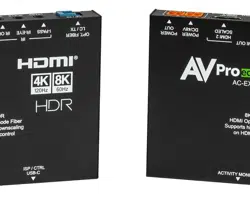
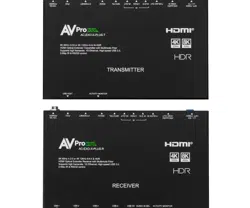
AC-EXO-444-KIT
Fiber Optic Extender 4K/60 fps, 4:4:4 support, and 18 Gbps HDR.
ARC, IR, RS-232, and EDID management with built-in Test Pattern.
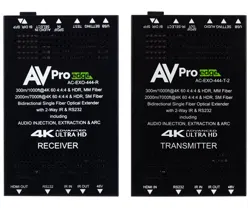
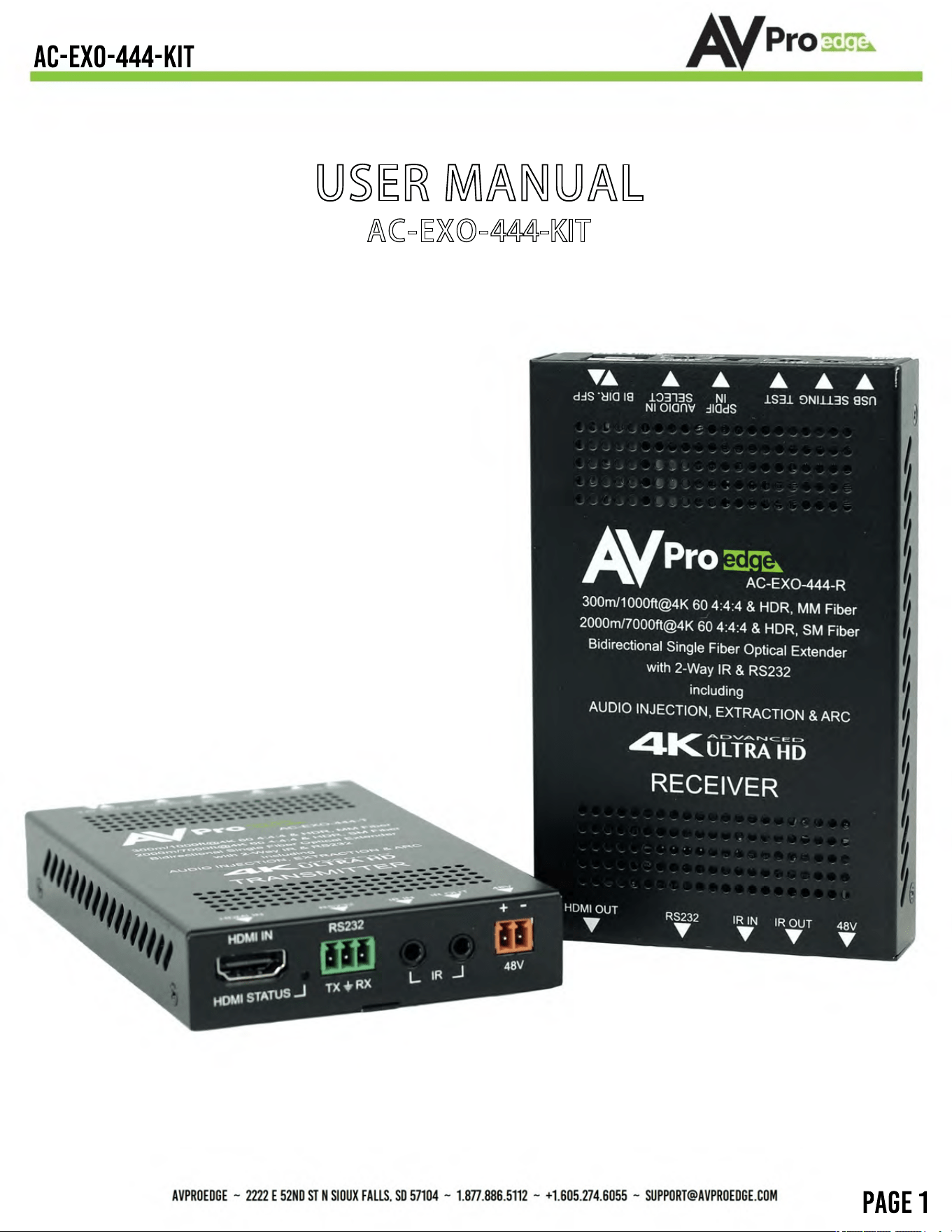
AC-EXO-444-TX (Transmitter)
AC-EXO-444-RX (Receiver)
2x 48V Power Supply
1 x IR Tx Unit
1 x IR Rx Unit
Single-mode Fiber SFP
Mounting Ears
Features
What's in the Box
This is AVProEdge's agship Fiber Optic Extender, allowing the user to extend an HDMI signal 2
kilometers via single-mode ber, and up to 300 meters using multi-mode ber. You can go even
further by installing your own SFP port. It solves problems for both commercial and residential
markets for distributing high value 4K 18Gbps content from rack to display. These extenders go
the distance, no need to nd power and cascade extenders for ultra long runs. Additionally
AC-EXO-444 oers solutions for 18Gbps distribution in residential, digital entertainment centers,
retail stores, AV events that require reliable and long distance distribution, suitable for Data
Center, Control Rooms, Conference Rooms, Schools and Corporate Training environment.
• HDMI 2.0 (a/b)
• 18 Gbps Bandwidth Support (Using ICT)
• Up to 4K/60 fps 4:4:4 Support
• Full HDR Support (HDR 10- & 12-bit)
• HDR, HDR10+ and HLG Support
• Dolby Vision Support
• 4K --> 1080p down-scaling for mixed systems
• EDID Management and EDID emulate
• 4K & HD Test Patterns for troubleshooting
• TOSLINK Multi-channel Audio Extraction
• ARC Support (TOSLINK or HDMI)
• HDCP 2.2 and earlier versions supported
• CEC Pass-through
• 3D Support
• 2 km (1.25 mi) with Single-mode Fiber)
• HDCP 2.2 & Earlier
• Bidirectional IR Pass-through
• Bidirectional RSd232 transport
• I-Pass Feature for control system pass-through
• 3v to 20 v protection circuit built-in for safe IR
transport
• LED Status, Link, and Power indication lights
• Use single ber optic cable
• Removable/changeable SFP for even longer
distances
• Supports uncompressed PCM 2-Ch., LPCM 5.1 &
7.1, Dolby Digital, DTS, Dolby TrueHD, DTS
HD-Master Audio, Atmos (On HDMI)
• ESD protection circuitry (Inputs & Outputs) to 7
kVA
• Cascadable
• Single LC connector type
• Bidirectional IR Pass-through
• Bidirectional RSd232 transport
• I-Pass Feature for control system pass-through
• 3v to 20 v protection circuit built-in for safe IR
transport
• LED Status, Link, and Power indication lights
• Use single ber optic cable
• Removable/changeable SFP for even longer
distances
• Supports uncompressed PCM 2-Ch., LPCM 5.1 &
7.1, Dolby Digital, DTS, Dolby TrueHD, DTS
HD-Master Audio, Atmos (On HDMI)
• ESD protection circuitry (Inputs & Outputs) to 7
kVA
• Cascadable
• Single LC connector type
What is an SFP (Small Form-Factor Pluggable Transceiver)?
A great benet of ber is the interchangeable SFP module, which allows users to
modify the maximum distance for the required transmission run. SFP Modules
are easily and inexpensively attainable.
OS Fiber Grades
OS grading for single-mode ber pertained to the clarity of the ber’s glass. OS1
may be encountered in the eld, however, it is now considered a legacy grade.
Single-mode ber for purchase today is graded as OS2.
AVPro Edge recommends using Cleerline SSF ber, which has proven to be the
strongest and safest to handle, plus the easiest to eld-terminate.
Connector
The AC-EXO-444-KIT uses a universal LC (Lucent connector) connector type, with
two included in the kit that meet the 2 km/1.25 mi distance specication.
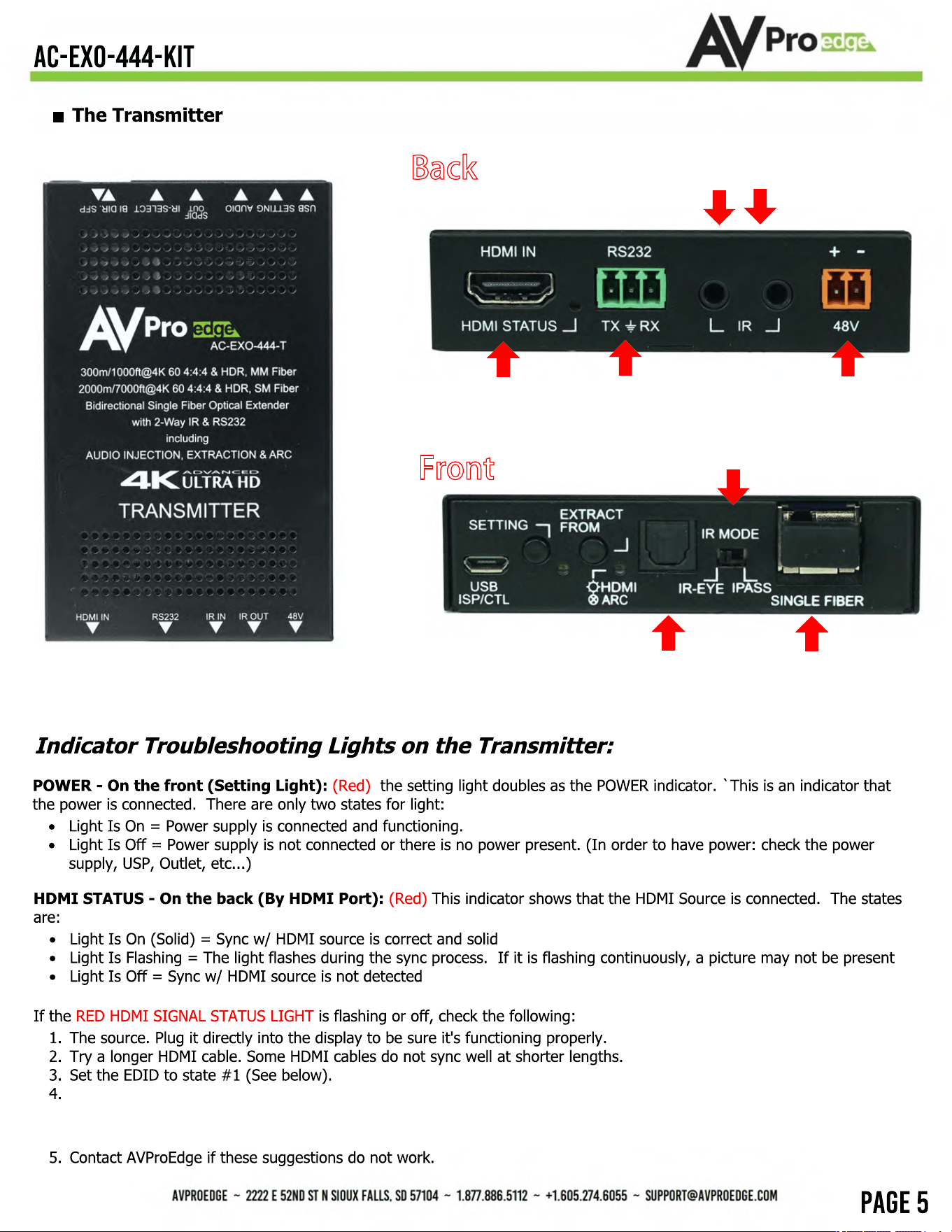
Back
Front
Toslink
(Out)
RS232
(COM & Pass-through)
IR Mode Select
HDMI In
Single LC SFP
Fiber Input
IR In IR Out
48V
If these suggestions do not work, enable the Test Pattern. On the Tx, the Test Pattern is accessed using the API command
line via a connected PC. Using this method, if you see a pattern, the problem exists between the source and the transmitter;
please try a different source.
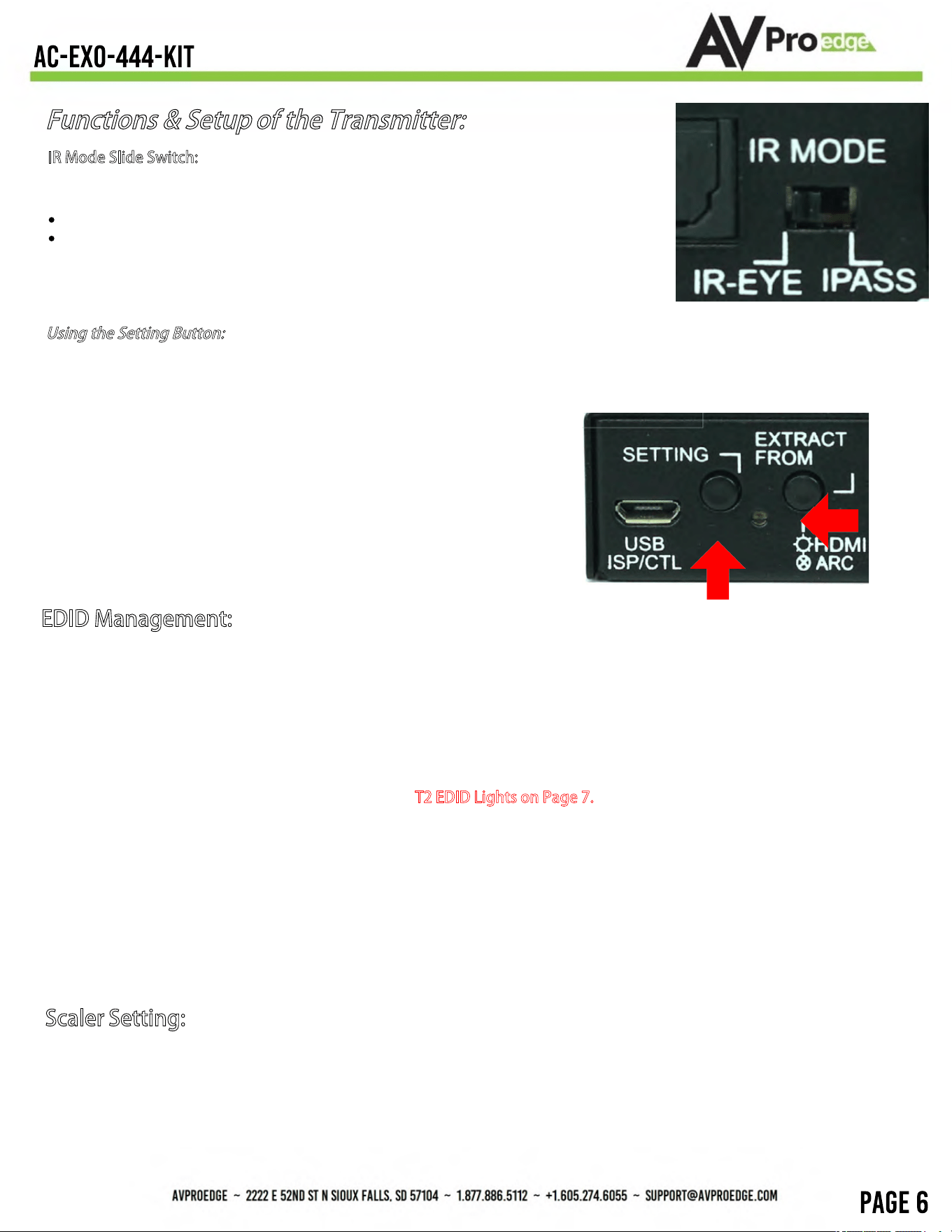
Using the Setting Button:
(On Front) The setting button can be pressed in different combinations based on what
is needed. The status light on the front will flash based on the selection. The selections are in series, meaning, for
example, if you are on selection 5 (listed below), you can come back later and press it again to move you to 6, 7,
8, 1, 2, etc... Using an ink pen is best to press the button.
The SETTING BUTTON is located front of the transmitter next to the
micro USB port. The indicator light is directly next to the button.
The SETTING BUTTON area looks like this:
EDID Management:
Quick press to select EDID
1. EDID BYPASS --- LED Flashes 1 Time (Default,
from downstream device)
2. 1080P_2CH --- LED Flashes 2 Times
3. 1080P_8CH --- LED Flashes 3 Times
4. 4K60HzY420_3D_2CH --- LED Flashes 4 Times
5. 4K60HzY420_3D_8CH --- LED Flashes 5 Times
6. 4K60Hz_3D_2CH_HDR--- LED Flashes 6 Times
7. 4K60Hz_3D_8CH_HDR --- LED Flashes 7 Times
8. USER EDID --- LED Flashes 8 Times
While in the USER EDID state (8), press and hold the setting button (for 4 seconds) in order to copy the EDID
from the connected display or downstream device to the user EDID and it will apply automatically.
Why do this?
This is commonly used when there is a need for a specific, known EDID that the installer may prefer. It can also
be used if you want to bypass an EDID of an AVR or another connected device. (IE, plug the extender kit
directly into a display and COPY the EDID. Plug it back into an AVR that may not have a current/good EDID).
Scaler Setting:
While in ANY state besides the USER EDID state, press and hold the setting button (for 4 seconds) to toggle the
scaler mode.
The options are:
1. Normal Mode(ICT Mode) --- LED Flashes 1 Time
2. Down Scaler Mode (4K->2K) --- LED Flashes 2 Times
Functions & Setup
of the Transmitter:
IR Mode Slide Switch: (On Front) This is used to select a preferred IR Mode
There are two modes:
IR-EYE - The IR Input will be configured to operate with an IR Receiver Eye.
I-PASS - The IR Input will be configured to safely operate with a direct connection
from a control system using a mono or stereo 3.5mm cable. It's protected @ 3v-20v.
Default mode is IR-EYE.
Settings
Button
LED
T2 EDID Lights on Page 7.
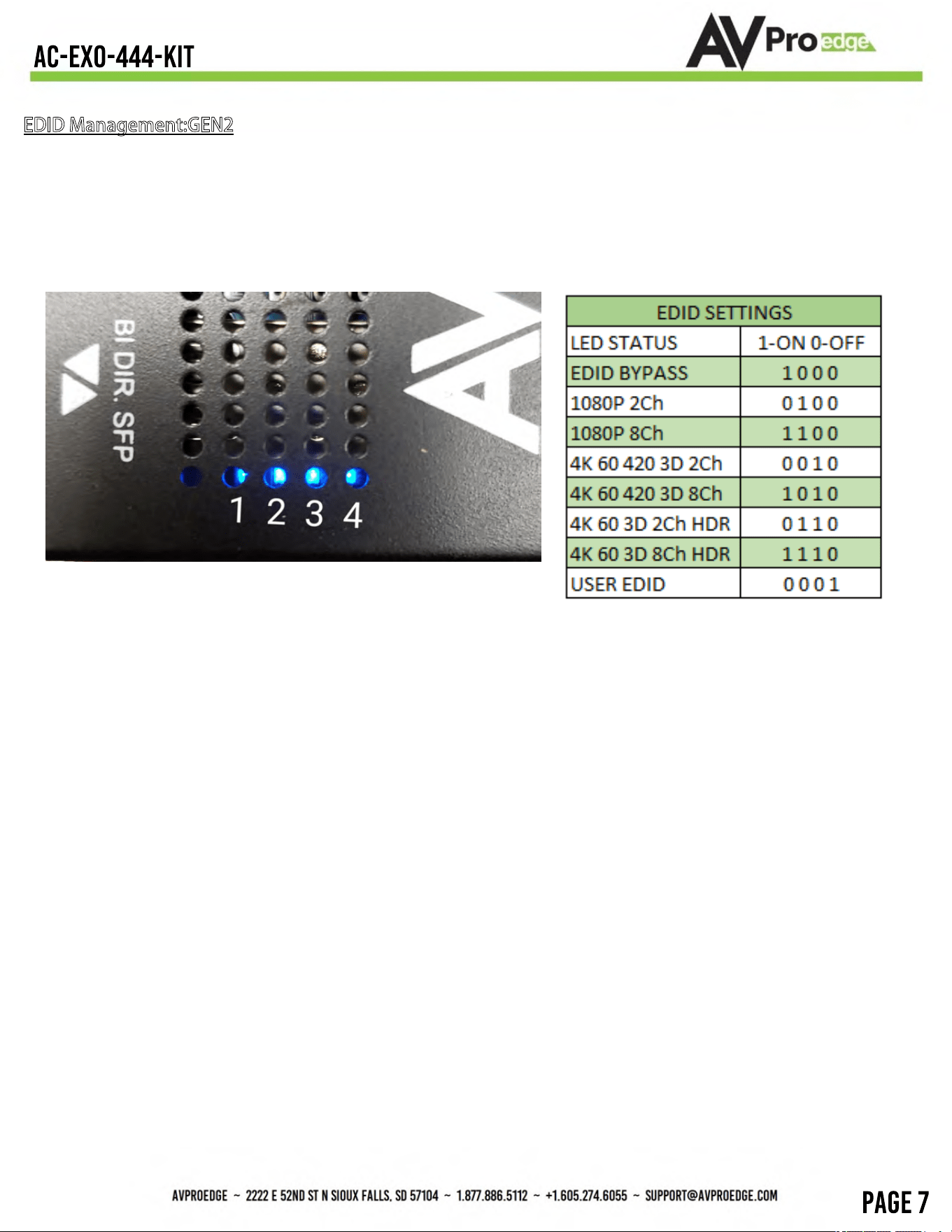
EDID Management:GEN2
(Indicated by part number AC-EXO-444-T-2)
4 LED lights on the board inside the chassis (see below) Corresponding light will be solid, the others
will flash
Functions & Setup
of the Transmitter Cont.:
Using the
"Extract From"
Button:
(On Front)
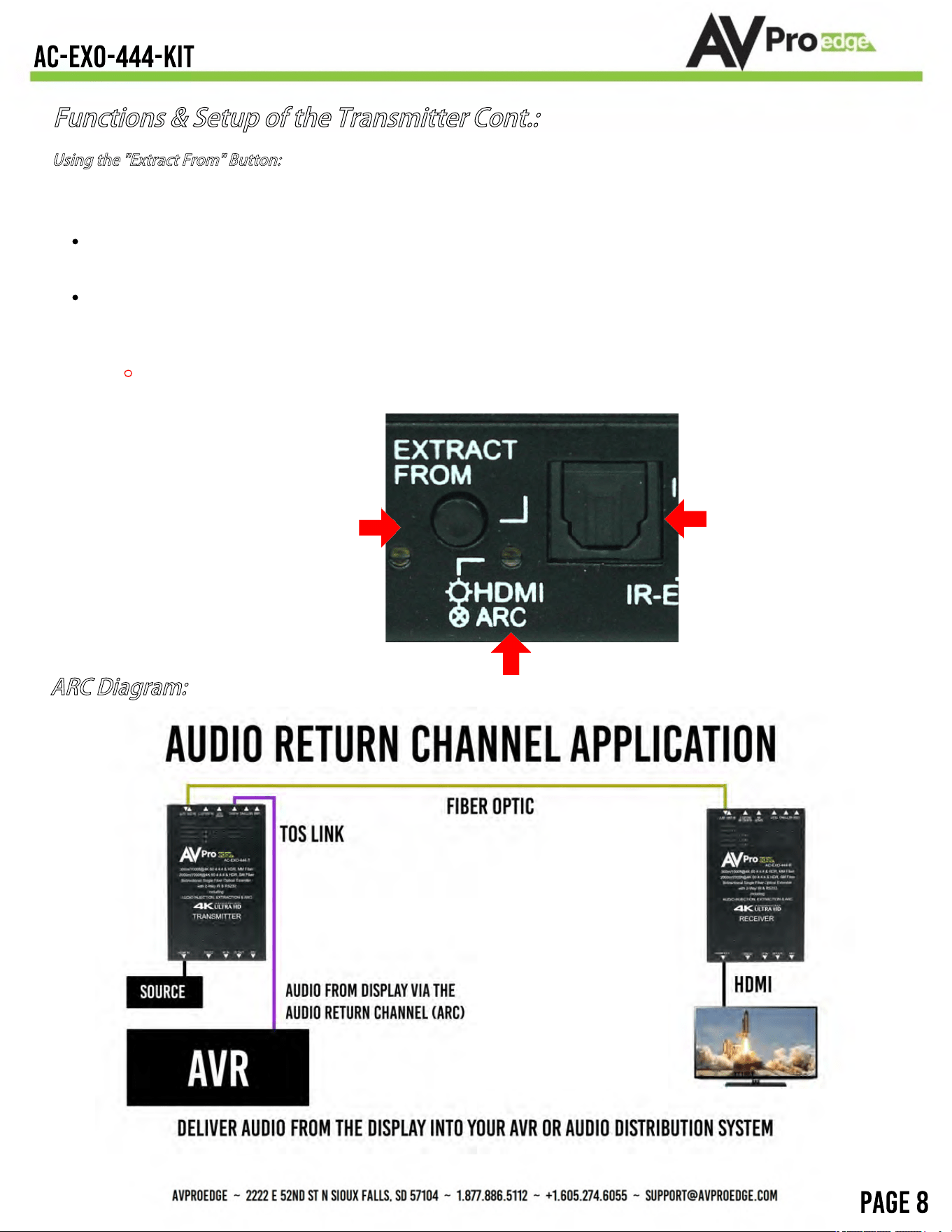
This function allows you to select where the Toslink audio output gets its signal.
There are two options:
Extract from HDMI - The RED light will be on. Audio will be extracted from the local HDMI input plugged into
the transmitter. The supported formats are 2CH PCM, 6CH/7CH LPCM, DTS 5.1, Dolby Digital, Dolby Digital
Plus. No downmixing, Pass-through only. Please see the AC-ADM-COTO for downmixing.
Extract From ARC (Audio Return Channel) - The RED light will be off. In this mode the audio will come the
audio input on the receiver unit, the receiver can be set to HDMI ARC or Toslink (see the receiver section of
the manual for more). The supported formats are 2CH PCM, 6CH/7CH LPCM, DTS 5.1, Dolby Digital, Dolby
Digital Plus. No Downmixing, Pass-through only. Please see the AC-ADM-COTO for downmixing.
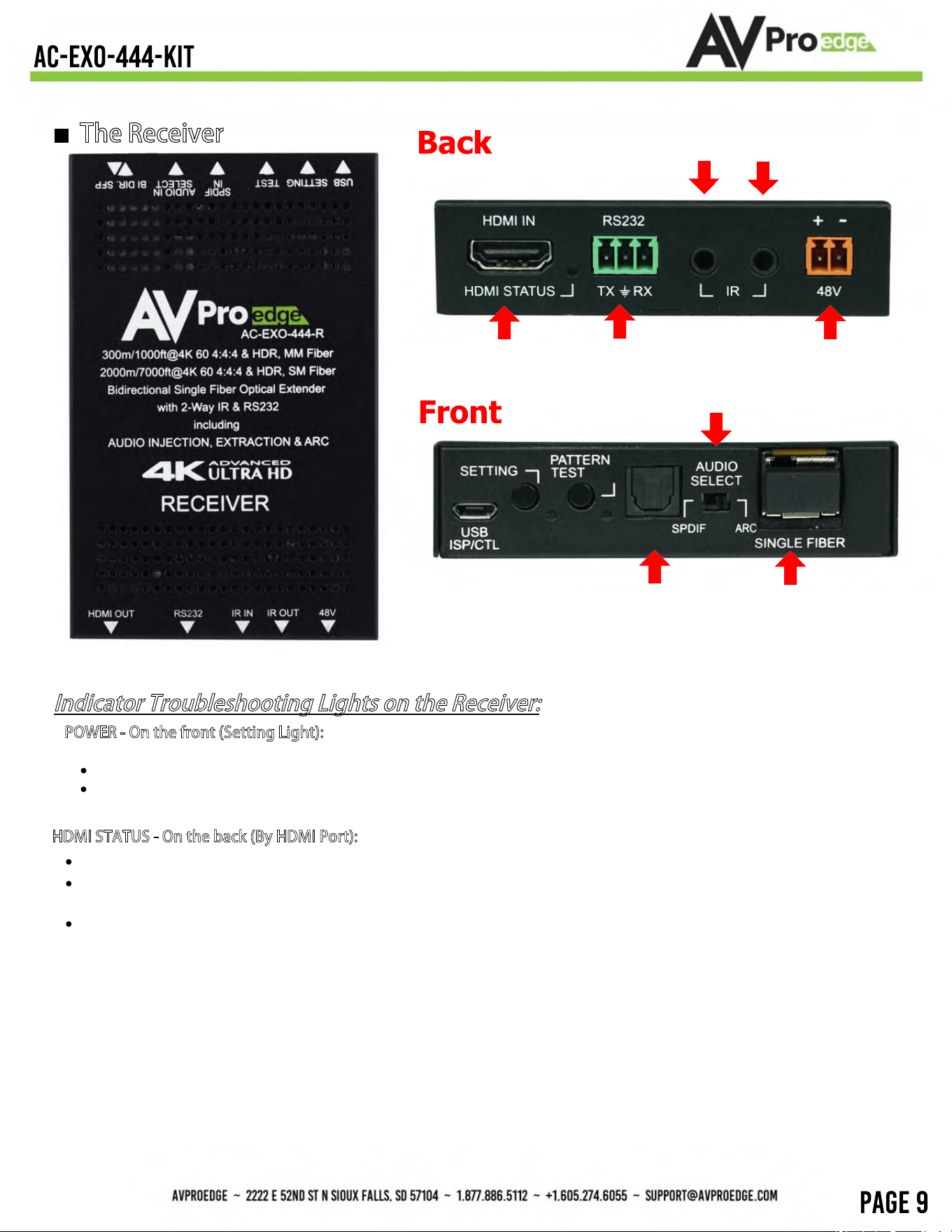
NOTE: When "ARC" is selected on both Tx and Rx the HDMI ARC is open for appropriate devices. ie,
you can plug into an AVR with ARC and a TV with ARC and get support via the HDMI Cable.
The button looks like this:
BUTTON
LED
Toslink Output
ARC Diagram:
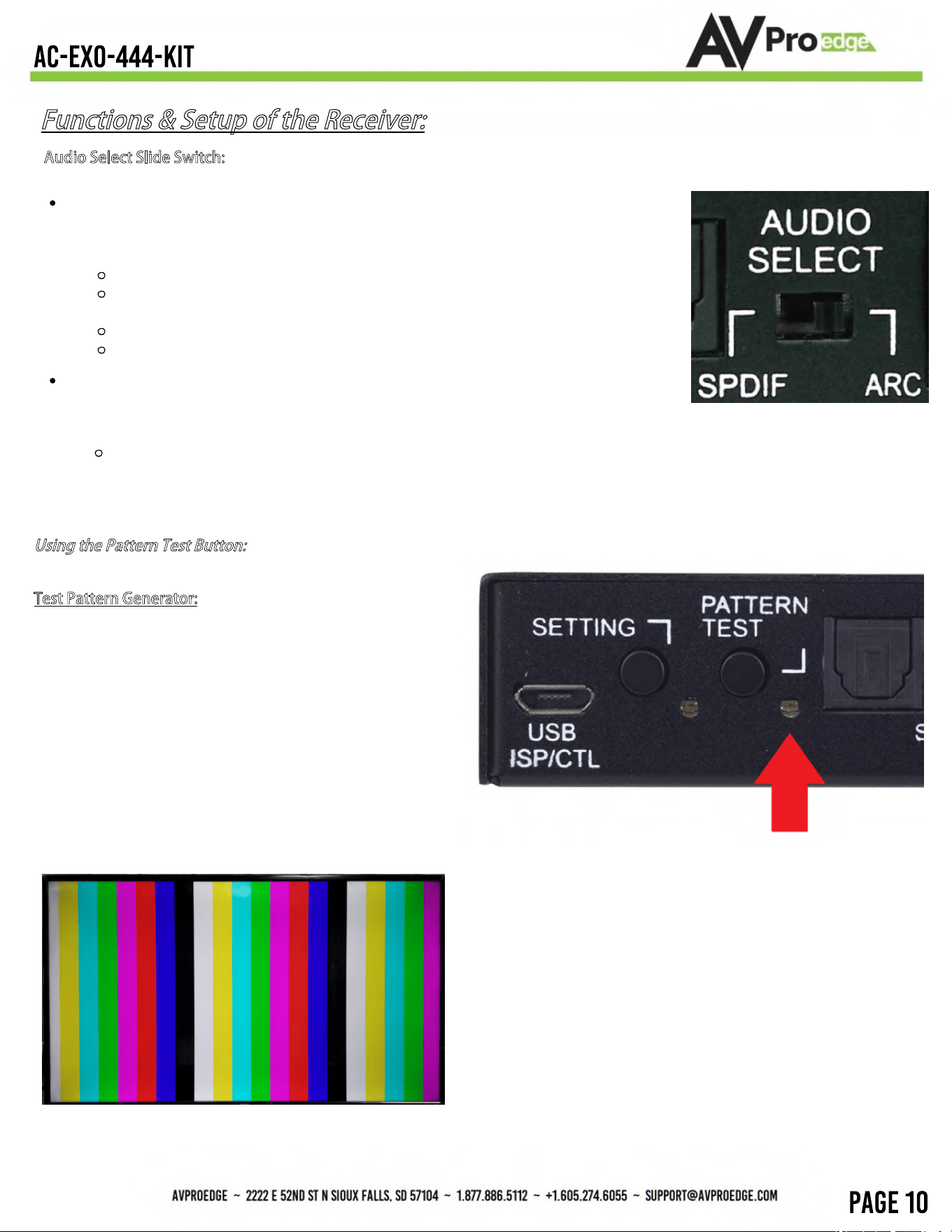
The Receiver
Toslink
(IN)
RS232
(COM & Pass-through)
ARC Select
HDMI In
Single LC SFP
Fiber Input
IR In IR Out
48V
Indicator Troubleshooting
Lights on the
Receiver:
POWER - On the front (Setting Light): (Red) the setting light doubles as the POWER indicator. `This is an indicator that the
power is connected. There are only two states for light:
Light Is On = Power supply is connected and functioning.
Light Is Off = Power supply is not connected or there is no power present. (In order to have power: check the power
supply, USP, Outlet, etc...)
H
DMI STATUS - On the back (By HDMI Port): (Red) This indicator shows that the HDMI Sink is connected. The states are:
Light Is On (Solid) = Sync w/ HDMI sink is correct and solid.
Light Is Flashing = The light flashes during the sync process. If it is flashing continuously, you may still have a
picture, but it is indicating that the Rx is correcting a BE (Bit Error) to make the picture show on the display.
Light Is Off = HDMI is not communicating - Please check the cables.
If the RED HDMI SIGNAL STATUS LIGHT is flashing or off AND you have no picture, check the following:
1. The source. Plug it directly into the display to be sure it's functioning properly.
2. Try a longer HDMI cable. Some HDMI cables do not sync well at shorter lengths.
3. If these suggestions do not work, enable the "Test Pattern" (See Below). If you see the pattern, the problem is
between the Receiver and display/sink please try a different sink input or HDMI cable.
4. Contact AVProEdge if these suggestions do not work.
Functions & Setup
of the Receiver:
Audio Select Slide Switch: (On Front) This is used to select where ARC will come from
There are two modes:
ARC (Default) - The audio sent back to the transmitter will be from the HDMI Audio
Return Channel. The supported formats are 2CH PCM, 6CH/7CH LPCM, DTS 5.1,
Dolby Digital, Dolby Digital Plus. No downmixing, pass-through only. Please see the
AC-ADM-COTO for down-mixing.
In this mode the SPDIF Input is inactive.
To use ARC via HDMI, make sure ARC in enabled on on AVR and Display
properly.
The SPDIF Out on the transmitter will be active for up to DD+
Dolby Atmos can pass over HDMI ARC
SPDIF (Recommended) - The audio sent back to the transmitter will be from the
SPDIF input. The supported formats are 2CH PCM, 6CH/7CH LPCM, DTS 5.1, Dolby
Digital, Dolby Digital Plus. No downmixing, pass-through only. Please see the AC-
ADM-COTO for downmixing.
NOTE - On the Tx, you can retrieve the signal from HDMI or SPDIF Toslink
Note: This can be useful for checking your cabling and
for troubleshooting.
LED On: 1080p test pattern being
generated LED Off: Test pattern disabled
Using the Pattern Test
Button:
(On Front) This button enables the built in Test Pattern Generator
T
est Pattern Generator:
Press the Pattern Test button, you should see the 1080p
color bar pattern as seen below.
RS-232 Configuration
RS-232 can be used to pass control signals bi-directionally to & from any RS-232 compatible device. This is
commonly used to route control signals in the following way:
1. Control System --> Display/Projector (ie, Power On/Off)
2. Display/Projector --> Control System (ie, Display Status, Volume Status etc...)
3. When ultra long-range serial communication is needed (think concerts, live events). Use the extender.
The unit comes with 3 pin connectors
to allow for any wire an integrator
would like.
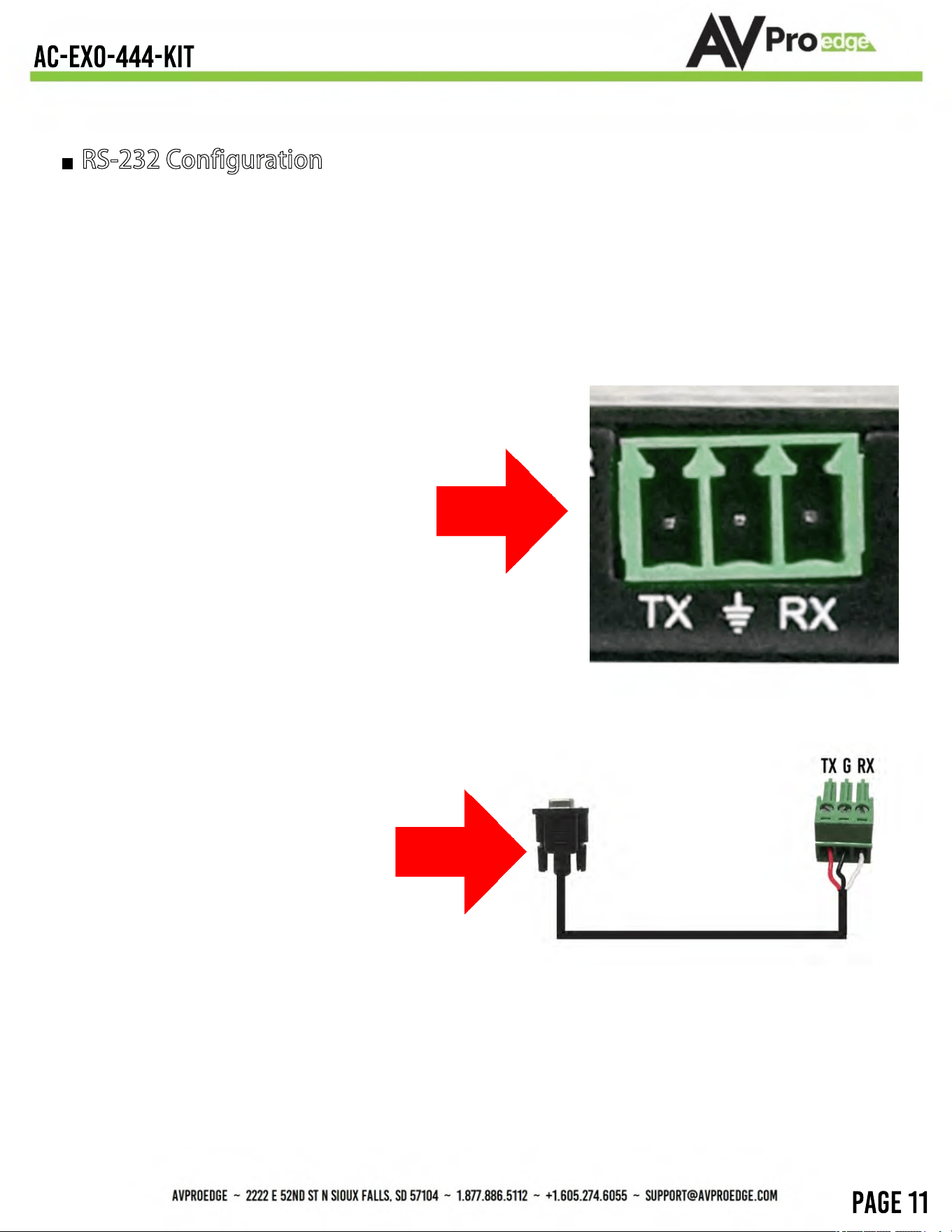
The pin out configuration
Left=TX, Center=Ground, Right=RX
and looks like this:
This is how the cable should look. If
using the AC-CABLE-3.5-DB9F
(Female) or AC-CABLE-3.5-DB9M
(Male), the colors will be the same.
With any other cable, please follow Tx,
G, Rx as shown above.
A RS-232 cable preparation diagram is
on the next page.
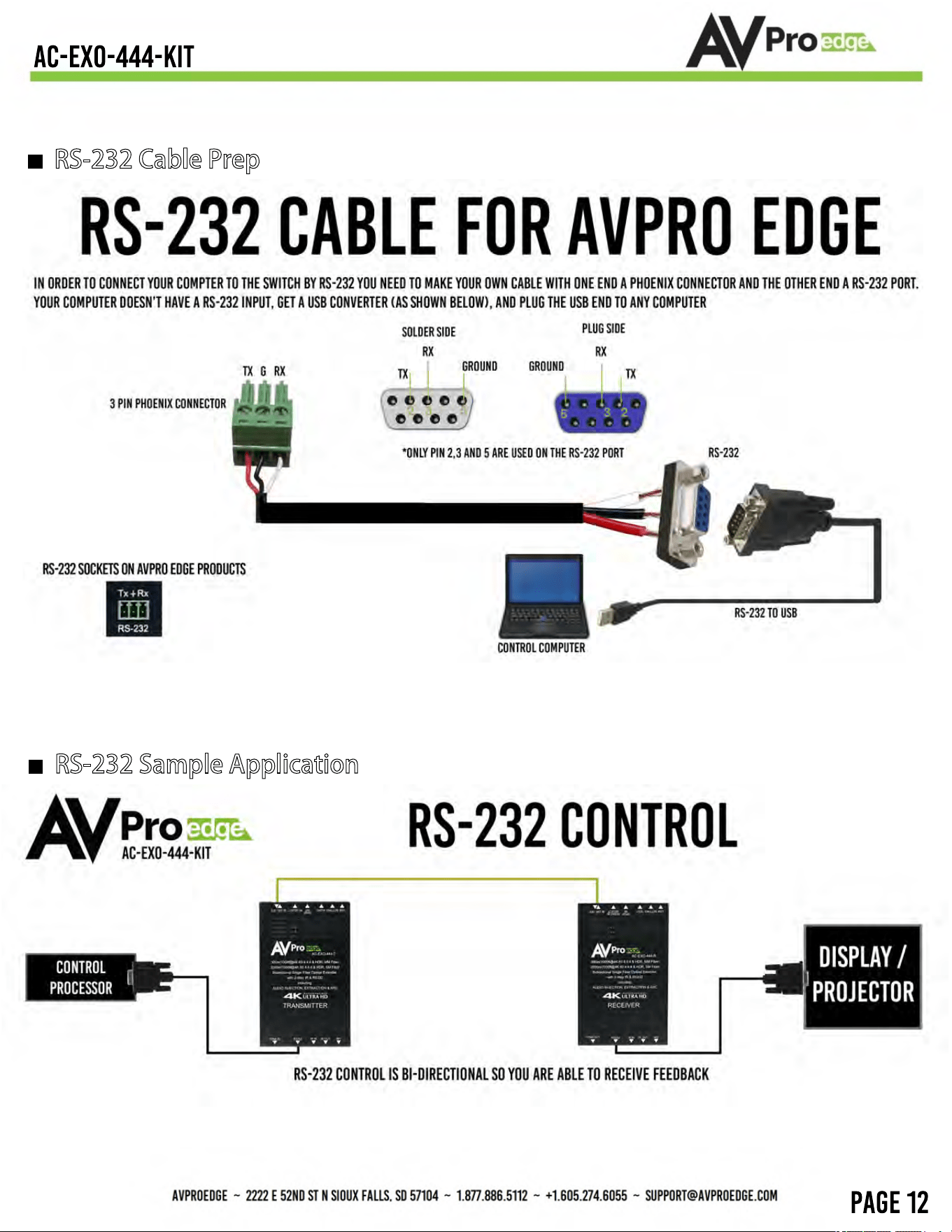
RS-232 Cable Prep
RS-232 Sample Application
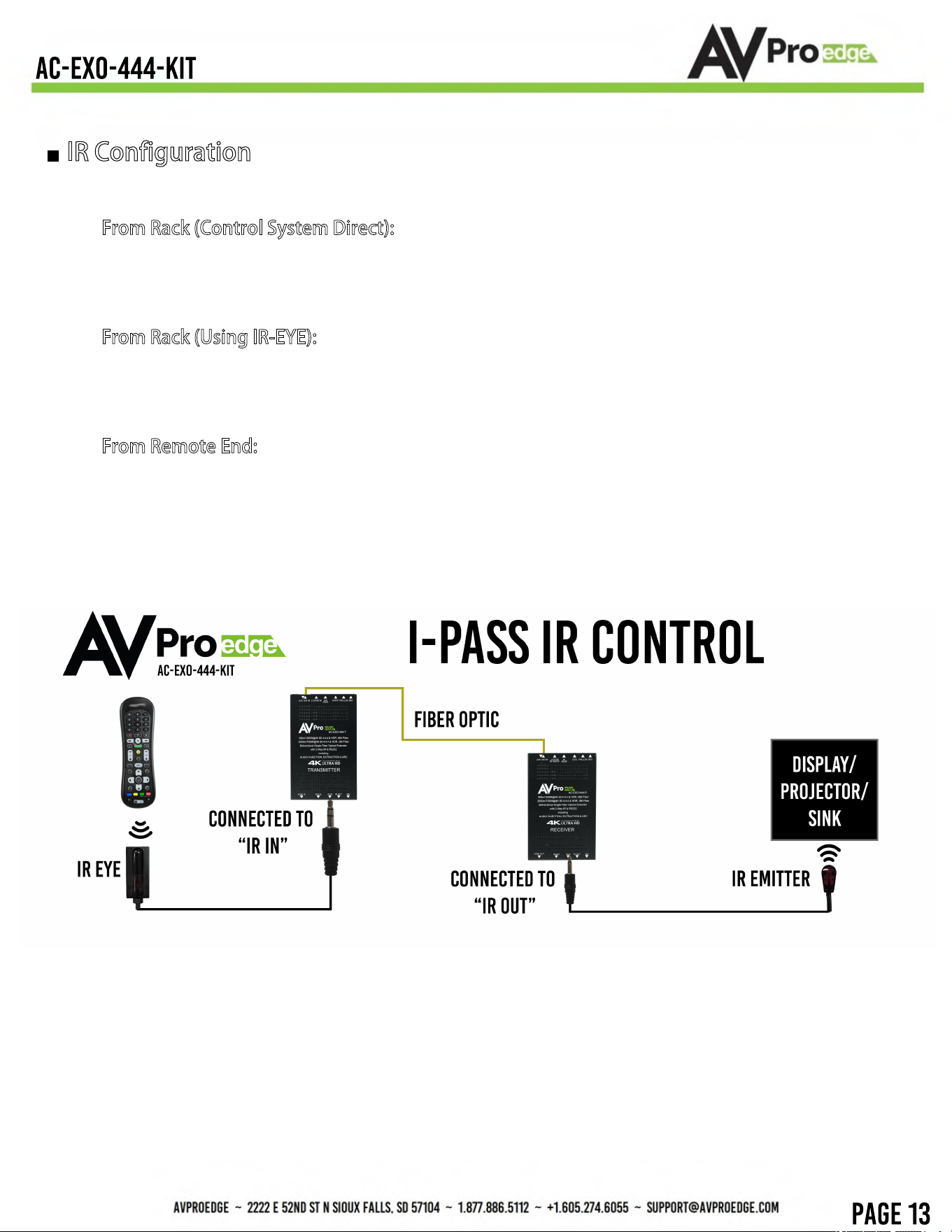
IR Configuration
IR can be used in three ways:
1. F
rom Rack (Control System Direct): Plug a MONO 3.5 mm cable into an emitter port of any control
system directly into the "IR IN" port on the AC-EXO-444 Transmitter to pass IR signals directly to
the remote end. NOTE - Be sure the IR MODE Slide Switch is set to "I-PASS" on the Transmitter
2. F
rom Rack (Using IR-EYE): Plug an IR-Receiver Eye into the "IR IN" of the AC-EXO-444 Transmitter
in order to pass infrared signals generated from a device or IR Remote. NOTE - Be sure the IR
MODE Slide Switch is set to "IR-EYE" on the Transmitter.
3. F
rom Remote End: Use an IR-Receiver Eye on the AC-EXO-444 Receiver (IR In Port) in order to
send IR signals BACK to the rack and out of the TRANSMITTER IR Out Port with an emitter.
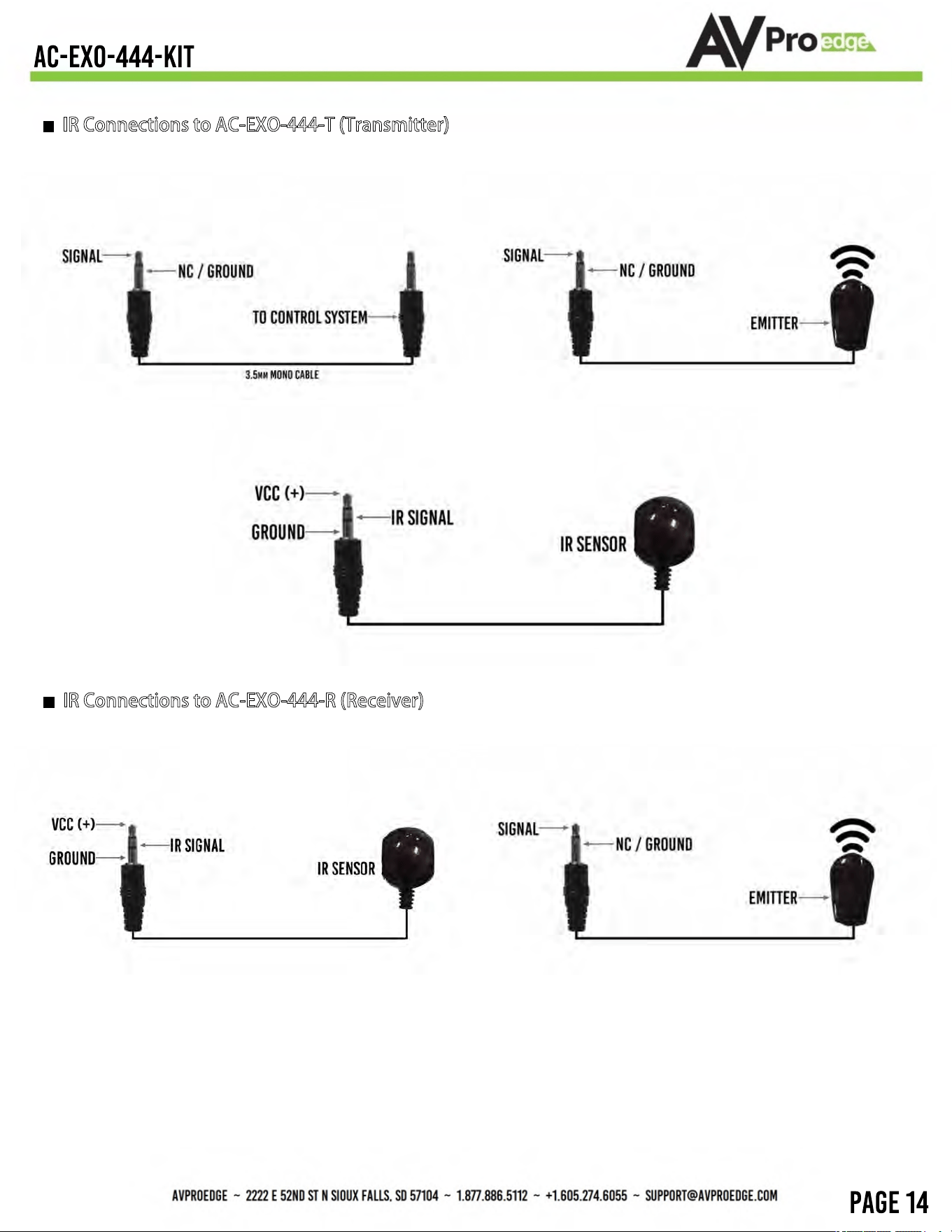
IR Connections to AC-EXO-444-T (Transmitter)
IR Connections to AC-EXO-444-R (Receiver)
IR IN Direct Connect (I-PASS)
IR OUT Emitter (Non-Flashing)
IR IN w/ Receiver Eye ("IR-EYE" MODE)
IR IN (IR-EYE Only)
IR OUT Emitter (Non-Flashing)
Use the power supplies provided. If an alternate supply is required, check
voltage, polarity and that it has sufficient power to supply the device it is
connected to.
Do not operate these products outside the specified temperature and
humidity range given in the above specifications.
Ensure there is adequate ventilation to allow this product to operate
efficiently.
Repair of the equipment should only be carried out by qualified
professionals as these products contain sensitive components that may
be damaged by any mistreatment.
Only use this product in a dry environment. Do not allow any liquids or
harmful chemicals to come into contact with these products.
Clean this unit with a soft, dry cloth. Never use alcohol, paint thinner or
benzene to clean this unit.
Maintenance
To ensure reliable operation of this product as well as protecting the safety of any
person using or handling this device while powered, please observe the following
instructions.
The DC power supply cord or AC adaptor has been damaged
Objects or liquids have gotten into the unit
The unit has been exposed to rain
The unit does not operate normally or exhibits a marked change in
performance
The unit has been dropped or the housing damaged
Damage Requiring Service
The unit should be serviced by qualified service personnel if:
Support
Should you experience any problems while using this product, first, refer to the
Troubleshooting section of this manual before contacting Technical Support. When
calling, the following information should be provided:
Product name and model number
Product serial number
Details of the issue and any conditions under
which the issue is occurring
Warranty
If your product does not work properly because of a defect in materials or
workmanship, AVProEdge (referred to as “the warrantor”) will, for the length of the
period indicated as below, (Parts/Labor (10) Years), which starts with the date of
original purchase (“Limited Warranty period”), at its option either (a) repair your
product with new or refurbished parts, or (b) replace it with a new or a refurbished
product. The decision to repair or replace will be made by the warrantor. During the
“Labor” Limited Warranty period there will be no charge for labor. During the
“Parts” warranty period, there will be no charge for parts. You must mail-in your
product during the warranty period. This Limited Warranty is extended only to the
original purchaser and only covers product purchased as new. A purchase receipt or
other proof of original purchase date is required for Limited Warranty service.
This warranty extends to products purchased directly from AVPro or an authorized
dealer. AVPro is not liable to honor this warranty if the product has been used in any
application other than that for which it was intended, has been subjected to misuse,
accidental damage, modification or improper installation procedures, unauthorized
repairs or is outside of the warranty period. Please direct any questions or issues you
may have to your local dealer before contacting AVPro.
Troubleshooting
Verify Power - Transmitter Pg.5 Receiver Pg.8
Note: Must power from both sides
Verify Connections - Check that all cables are properly connected
TX Indicator Troubleshooting Lights - Pg.5
RX Indicator Troubleshooting Lights - Pg.8
Not passing video - You can use the built in Test Pattern Generator to verify signal from the TX to the
Display Pg.9
Extracted Audio Issues - Verify audio settings - Transmitter Pg.7 Receiver Pg.8
IR Issues - Verify correct connections and settings - P.12 & 13
Note: Visibly flashing Emitters may not function properly, try the IR Cables that come with the kit
Still having issues, contact us
Support Direct - +1-605-977-3477
1-605-274-6055
Submit a support request ticket
https://support.avproedge.com/hc/en-us/requests/new

Thank you for choosing AVProEdge!
Please contact us with any questions. We are happy to be
of service!
AVProEdge
2
22
2 E 52nd St N ~ Sioux Falls, SD 57104
1
-877-886-5112 ~ 605-274-6055
s
upport@avproedge.com