EN
ProVisionaire Plan User Guide

ProVisionaire Plan User Guide
2
Contents
Introduction ____________________________________________________________________ 3
About ProVisionaire Plan ............................................................................................................................... 3
What you can do with ProVisionaire Plan ..................................................................................................... 3
Operating Environment of ProVisionaire Plan .............................................................................................. 4
Room conditions supported by ProVisionaire Plan ..................................................................................... 4
Operating Procedures __________________________________________________________ 5
Opening ProVisionaire Plan/Saving .............................................................................................................. 5
Opening ProVisionaire Plan ..................................................................................................................... 5
Saving a file ............................................................................................................................................... 6
Creating a Plan in ProVisionaire Plan ........................................................................................................... 7
1. Selecting the room’s purpose ............................................................................................................. 7
2. Specifying room conditions by following the procedure guide ........................................................ 8
3. Editing room conditions/arrangement .............................................................................................. 9
4. Generating the plan ............................................................................................................................. 10
5. Reviewing the generated plan ............................................................................................................ 11
Reviewing the simulation of the sound coverage areas ................................................................... 12
Reviewing the device list .................................................................................................................... 13
Exporting the results in the PDF format ............................................................................................. 13
6. Changing the device quantities (if desired) ....................................................................................... 14
Details on Operations ___________________________________________________________ 15
Room Condition Specification Screens ........................................................................................................ 15
Specifying the room size .......................................................................................................................... 15
Specifying the furniture arrangement ...................................................................................................... 16
Selecting room requirements .................................................................................................................. 17
Specifying sound coverage areas ............................................................................................................ 18
Specifying noise sources and their locations ......................................................................................... 19
Specifying locations where devices cannot be installed ....................................................................... 20
Working with Objects ..................................................................................................................................... 21
Details on Screens ______________________________________________________________ 23
Room Condition Specification Screen/Procedure Guide ............................................................................. 23
Arrangement Views/Editing Tools ................................................................................................................ 24
Buttons for Plans/Proposed Devices ............................................................................................................ 26
Application elements ..................................................................................................................................... 27
ProVisionaire Plan User Guide
3
Introduction
This guide provides details on using ProVisionaire Plan.
About the contents of this guide
All copyrights relating to this guide are owned by Yamaha Corporation.
Unauthorized copying or modification of this guide in part or in whole is prohibited.
We assume no responsibility whatsoever for any consequences or subsequent impacts resulting from the use of this
guide.
The illustrations and screens in this guide are for instructional purposes only.
The operation and screen examples provided in this guide are based on Windows 11.
For the purpose of improvement, this guide are subject to change without notice.
The latest version of the User Guide can be downloaded from the Yamaha Pro Audio website.
https://www.yamahaproaudio.com/
Trademarks
Windows is a registered trademark of Microsoft Corporation in the United States and other countries.
Other company names and product names mentioned in this guide are trademarks or registered trademarks of their
respective companies.
About ProVisionaire Plan
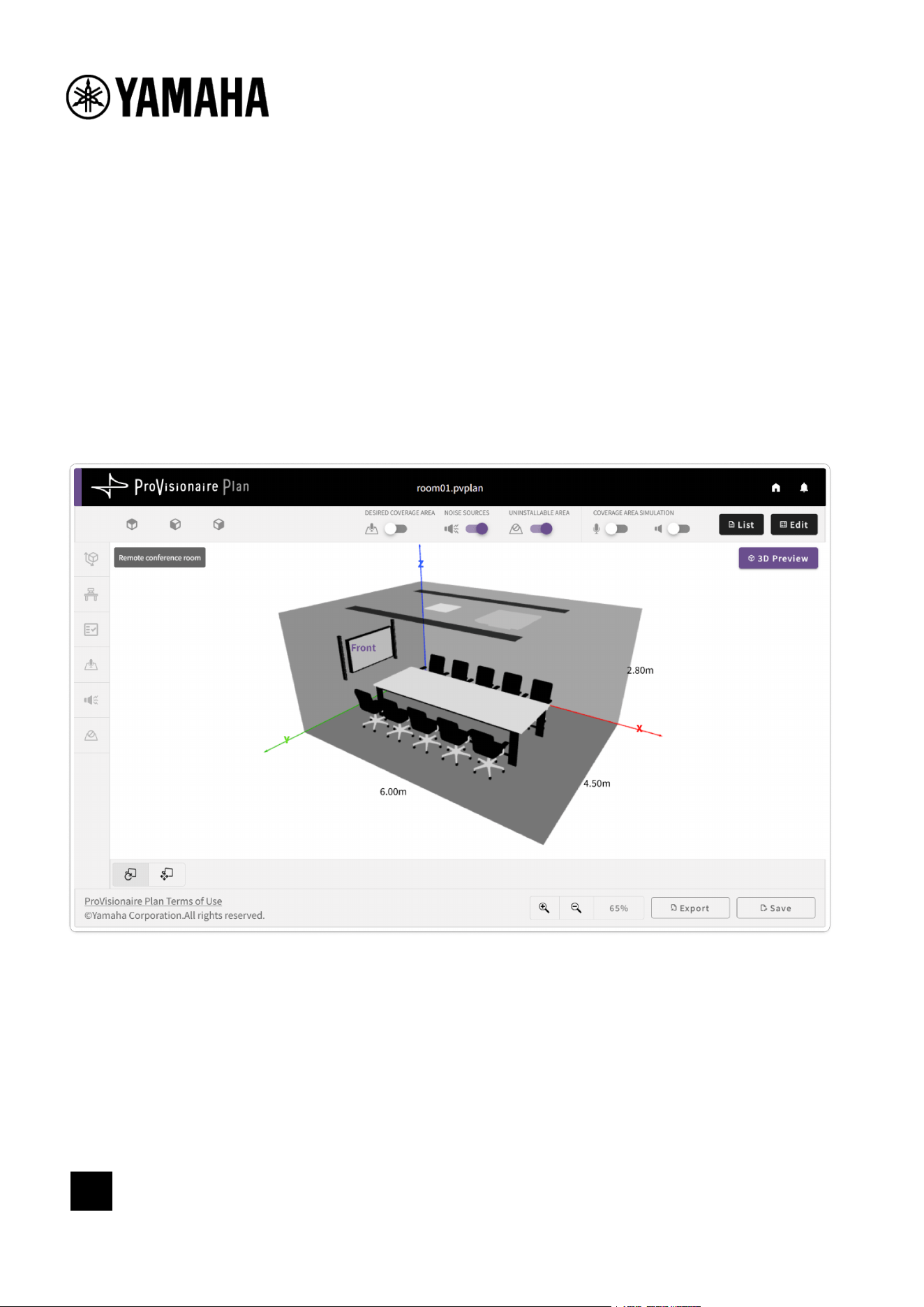
ProVisionaire Plan is a Web application that suggests configurations for audio systems to be installed in
conference rooms, seminar rooms, etc. Simply entering the room’s purpose, environment and requirements
automatically generates a plan for a sound system using ADECIA (a comprehensive remote conferencing solution).
What you can do with ProVisionaire Plan
✔ Get started right away by using your browser
Since this Web application does not require any software to be installed, you can get started as soon as
necessary.
✔
Automatically generate a plan of the appropriate devices and their arrangement based on the room’s
purpose, size and environment
Select the room’s purpose and specify its size as well as the locations of existing furniture, obstacles and noise
sources to automatically generate a plan of the devices and their arrangement suitable for that environment.
✔
Visualize and review the coverage areas of microphones and speakers
Review the coverage areas of the microphones and speakers as if they were installed according to the plan.
This can be used to justify proposals or to check whether the desired area would be covered if the number of
devices or their arrangement is changed.
Specifying sound coverage areas (page 18)
✔ Export room conditions and plan results in the PDF format
The PDF file can be used as is or printed on paper for sharing or in a proposal.
Exporting the results in the PDF format (page 13)
Note
ProVisionaire Plan is continuously being updated in order to add or improve features. View update details from the
top screen of ProVisionaire Plan.
Opening ProVisionaire Plan (page 5)
Introduction
ProVisionaire Plan User Guide
4
Operating Environment of ProVisionaire Plan
ProVisionaire Plan is a Web application that runs in a browser. This application works with the following browsers
connected to the Internet.
Microsoft Edge
Google Chrome
* We recommend installing the latest versions of the browsers listed above.
* We cannot guarantee that the application will work on devices other than computers.
* This software is not guaranteed to work with a Windows touchscreen.
Room conditions supported by ProVisionaire Plan
The compatible room conditions are listed below.
Room size Minimum dimensions: 2.0 m wide, 2.0 m long, 2.0 m high
Maximum dimensions: 15.0 m wide, 15.0 m long, 4.0 m high
Room shape Cuboid
ProVisionaire Plan User Guide
5
Operating Procedures
Opening ProVisionaire Plan/Saving
Opening ProVisionaire Plan
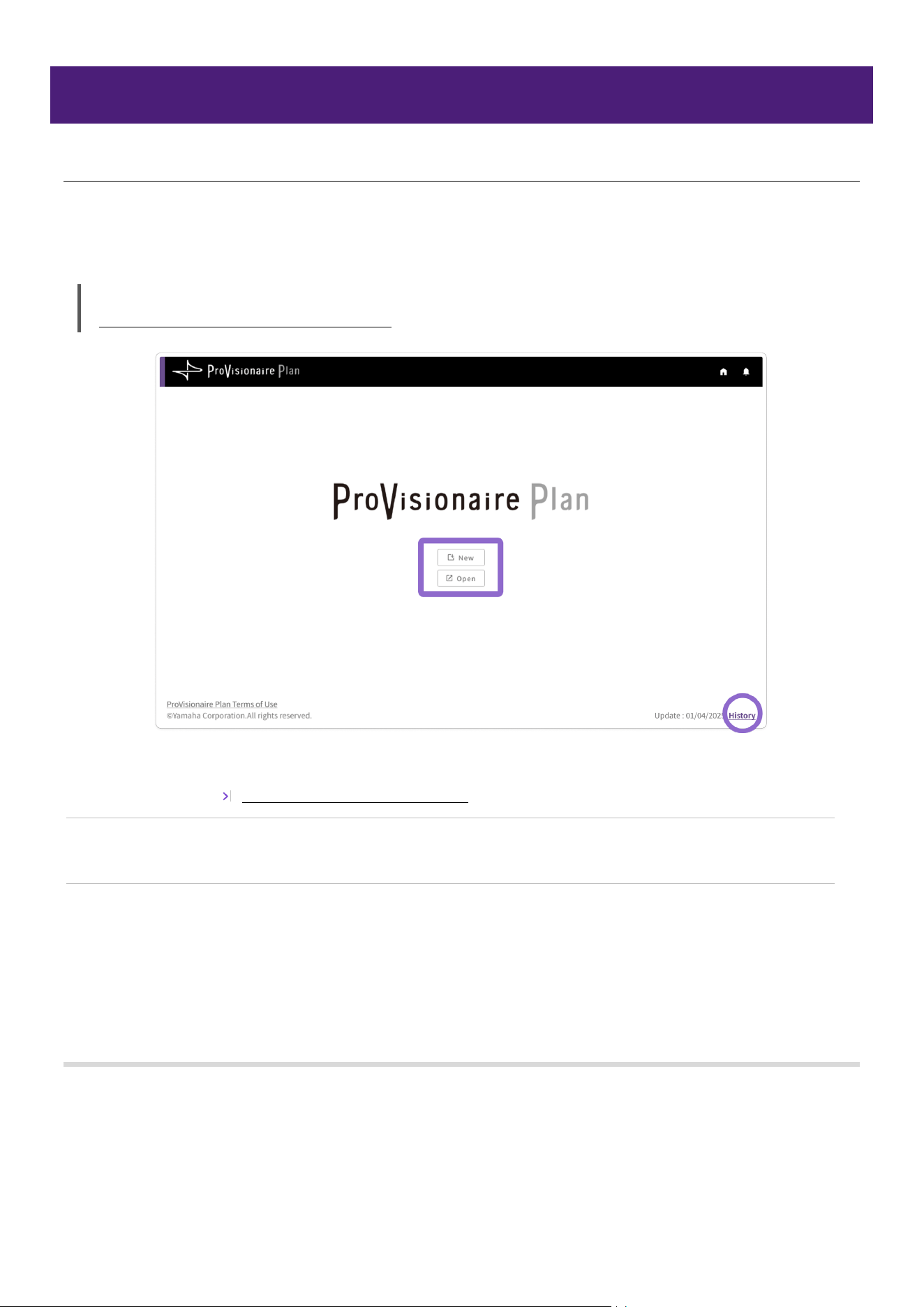
After the ProVisionaire Plan URL is accessed in the browser, the top screen appears.
ProVisionaire Plan
https://provisionaire.yamaha.com/pvplan/
[New] button
Creates a new plan.
Creating a Plan in ProVisionaire Plan (page 7)
[Open] button
Creates a plan by resuming a saved file.
The file selection screen appears. Select a file, and then click the [Open] button.
History
Displays update details for ProVisionaire Plan.
The “Main Revisions and Enhancements” page appears in a separate window.
✔ Clicking either the [New] or [Open] button displays the Terms of use. Read the complete Terms of
use. Select the check box to agree, and then click the [Next] button to continue to the next screen.
Note
After continuing to the next screen, you can view the Terms of use by clicking the link in the bottom left of the
screen.
Operating Procedures
Opening ProVisionaire Plan/Saving
ProVisionaire Plan User Guide
6
Saving a file
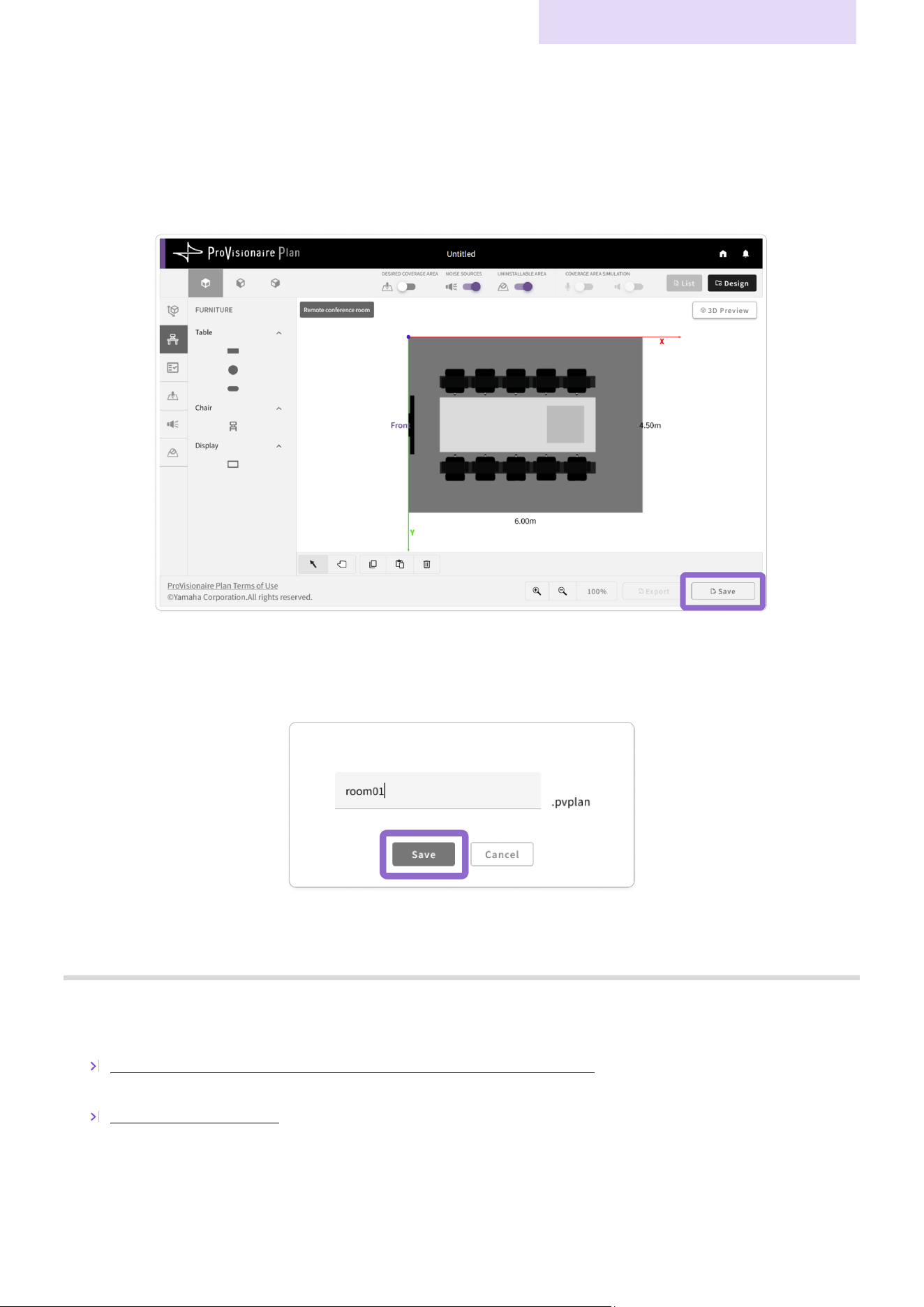
The generated plan can be saved. The saved plan file can be opened from the top screen.
Procedure for saving a file
1. Click the [Save] button.
The file selection screen appears.
2. In the file selection screen, specify the file name, and then click the [Save] button.
The file is saved to the download folder specified in your browser.
Note
The file is saved with the “.pvplan” extension.
A plan in the new plan screen cannot be saved. In order to save a new plan, specify all of the conditions, and
then close the new plan screen.
New plan screen: Specifying room conditions by following the procedure guide (page 8)
To open a saved file, click the [Open] button in the top screen.
Opening ProVisionaire Plan (page 5)
Operating Procedures
Creating a Plan in ProVisionaire Plan
ProVisionaire Plan User Guide
7
Creating a Plan in ProVisionaire Plan
1. Selecting the room’s purpose
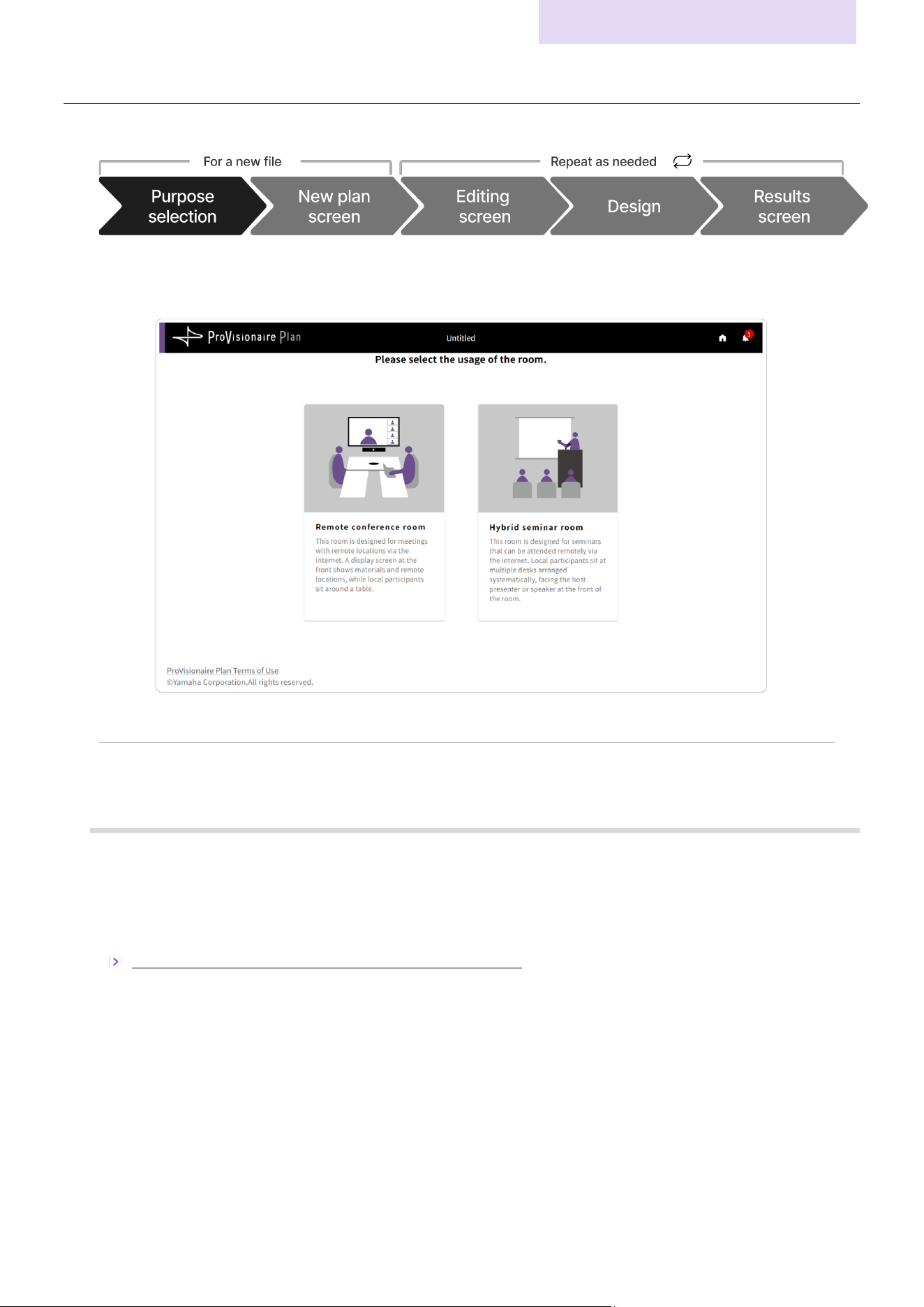
Purpose selection screen
Click the purpose of the room for which you want to create a plan.
Remote conference room
Creates a plan that suits your web conference room.
Hybrid seminar room
Creates a plan for a seminar room used on
-site and/or online.
Note
The room purpose selected in this screen cannot be changed later.
✔
After a purpose is selected, a confirmation message appears. Click the [OK] button to continue to
the new plan screen.
2. Specifying room conditions by following the procedure guide (page 8)
Operating Procedures
Creating a Plan in ProVisionaire Plan
ProVisionaire Plan User Guide
8
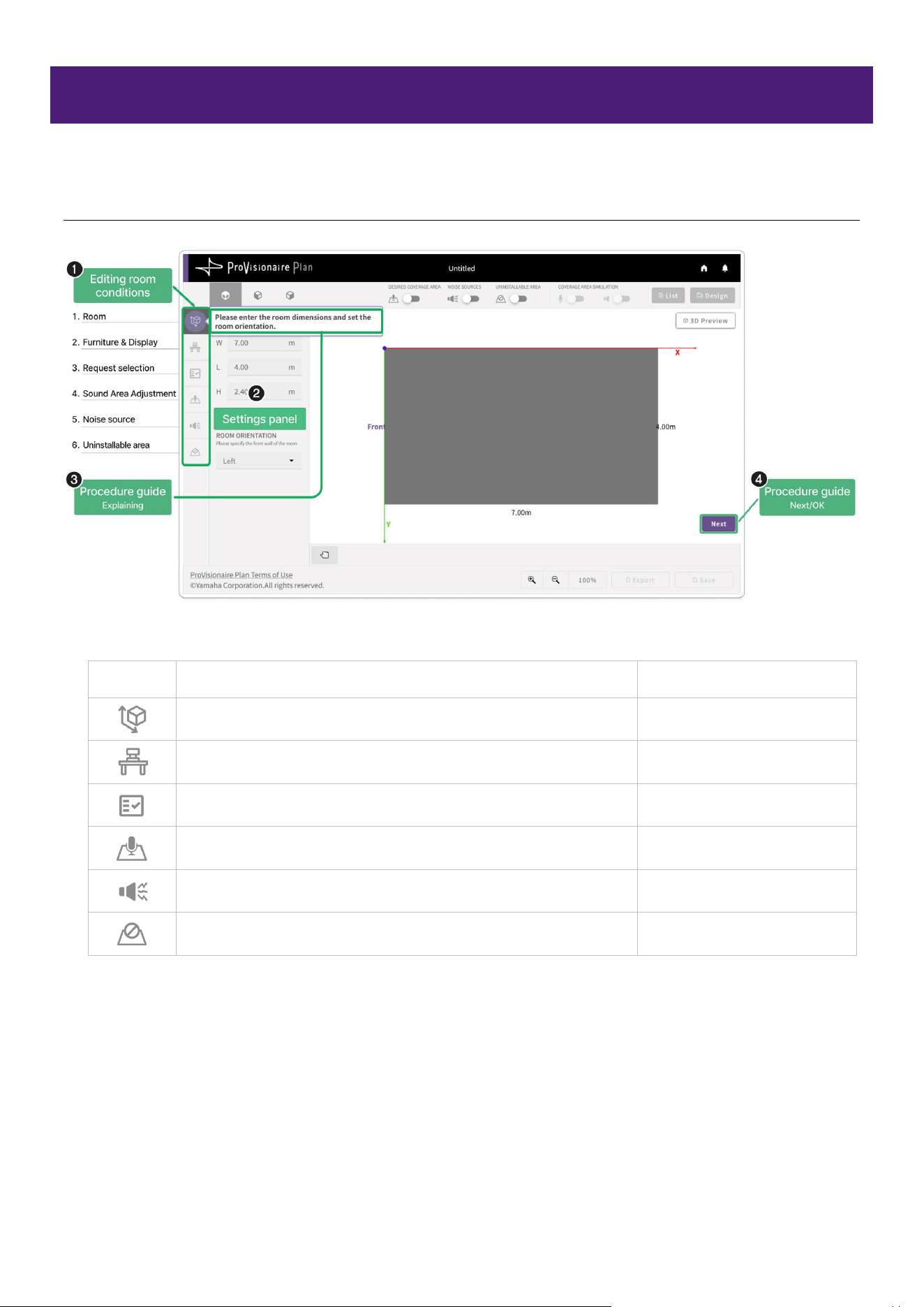
2. Specifying room conditions by following the procedure guide
New plan screen
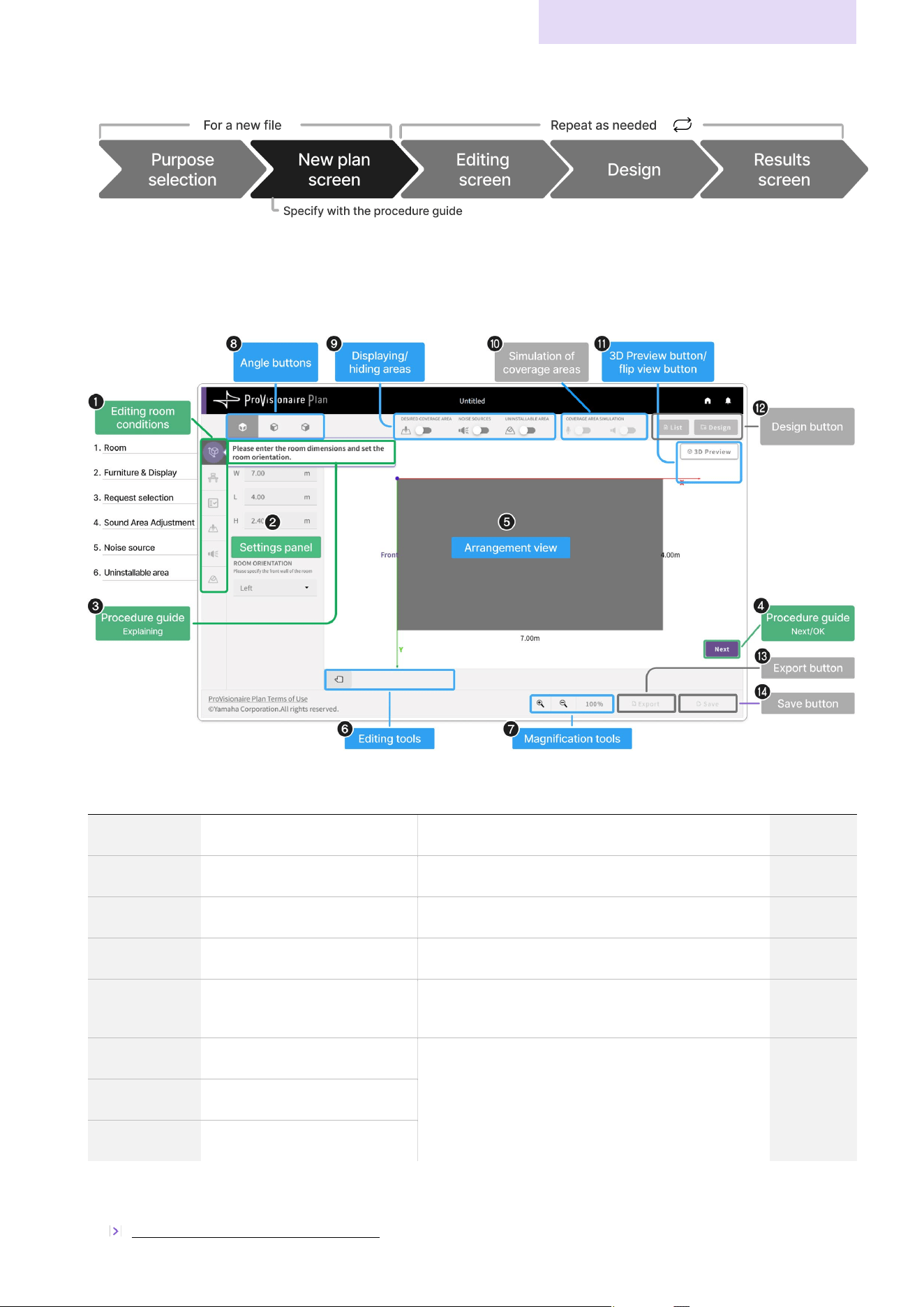
In the new plan screen, follow the procedure guide to specify the room conditions(a) in the given order.
Clicking the [Next] button(d) continues to the next condition specification screen. The specified information
can be edited later in the editing screen.
N
o. Item Description
Reference
page
ab
Specify room conditions
Specify the room conditions in the given order.
page 15
cd
Procedure guide
Clicking button
d
continues to the next condition
specification screen.
page 23
e
Arrangement view
The conditions specified with ab appear in the
arrangement view.
page 24
fg
Tools for arrangement view
Use these buttons and tools to adjust the arrangement
view.
page 24
hik
Switch display of
arrangement view
Use these buttons to switch the display of the
arrangement view.
(
j
is not available in the new plan screen.)
page 24
l
Design (not available)
A plan cannot be generated, exported (downloaded in
the PDF format) or saved in the new plan screen.
m
Export (not available)
n
Save (not available)
✔ After specifying all of the room conditions, click the [OK] button (d) to close the new plan
screen.
3. Editing room conditions/arrangement (page 9)
Operating Procedures
Creating a Plan in ProVisionaire Plan
ProVisionaire Plan User Guide
9
3. Editing room conditions/arrangement
Editing screen
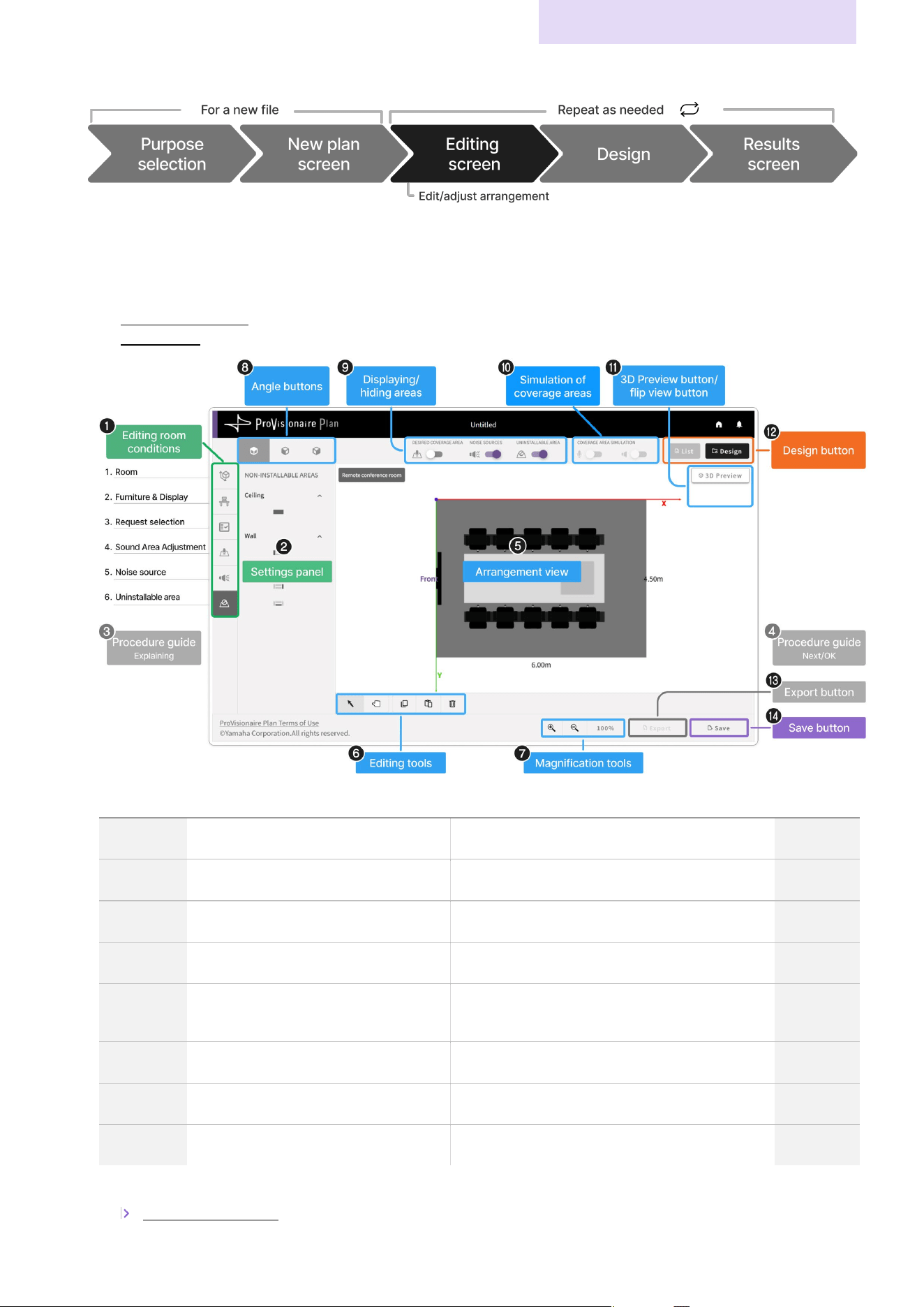
In the editing screen, select an item under Room conditions (a), and then edit the information as desired. If
no editing is required, generate a plan(l) and save(n) it as is. The following can be performed in the editing
screen.
Generating the plan (l) page 10
Saving a file (n) page 6
N
o.
Item
Description
Reference
page
ab
Edit room conditions
Select the item to be edited, and then edit the
information.
page 15
cd
Procedure guide (not displayed)
The procedure guide does not appear in the editing
screen.
e
Arrangement view
The conditions specified with
ab
appear in the
arrangement view.
page 24
fg
Tools for arrangement view
Use these buttons and tools to adjust the
arrangement view.
page 24
hik
Switch display of arrangement view
Use these buttons to switch the display of the
arrangement view.
(
j
is not available in the editing screen.)
page 24
l
Design
Automatically generates a plan.
page 10
m
Export (not available)
A plan cannot be exported (downloaded in the PDF
format) in the editing screen.
n
Save
Saves the file.
page 6
✔ After specifying all of the room conditions, click the [Design] button (l).
4. Generating the plan (page 10)
Operating Procedures
Creating a Plan in ProVisionaire Plan
ProVisionaire Plan User Guide
10
4. Generating the plan
Procedure for generating the plan
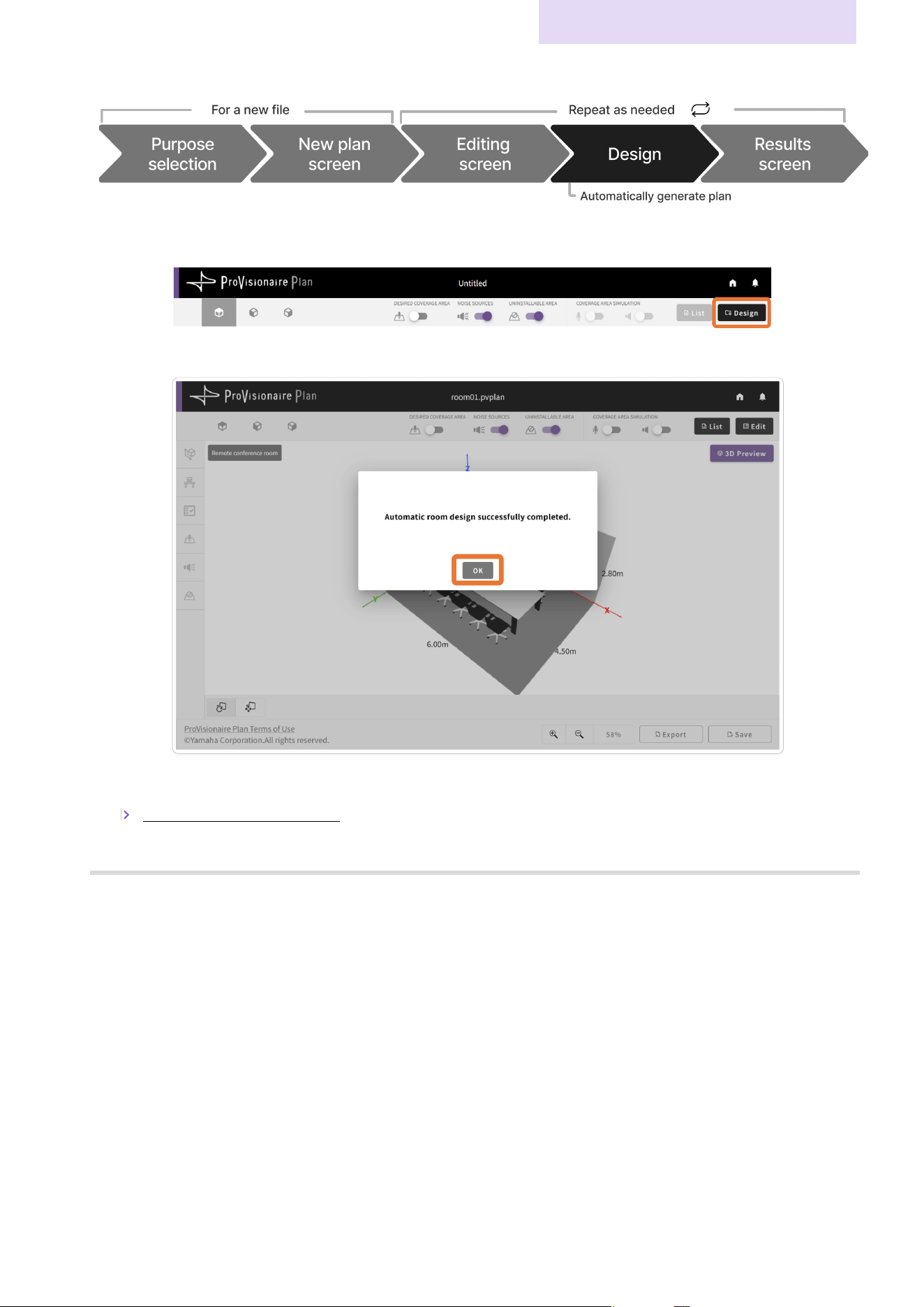
Click the [Design] button to start automatically generating the plan.
W
hen the plan has been generated, the plan completed message appears.
✔
Click the [OK] button to display a 3D preview of the generated plan.
5. Reviewing the generated plan (page 11)
Note
Depending on the specified conditions, it may take up to 30 seconds for the plan to be generated.
Operating Procedures
Creating a Plan in ProVisionaire Plan
ProVisionaire Plan User Guide
11
5. Reviewing the generated plan
Results screen
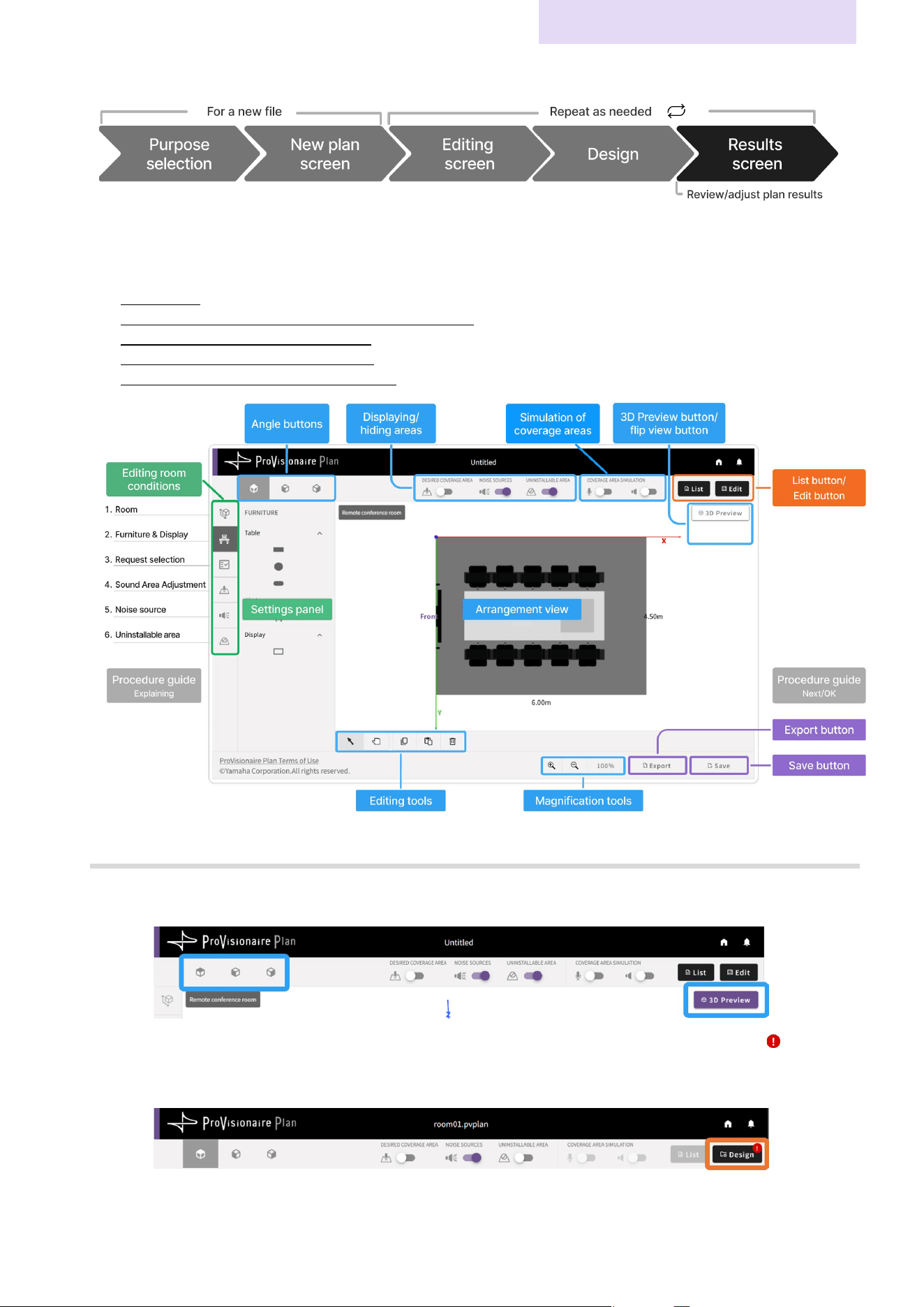
Devices that meet the specified conditions are arranged in the screen. The following can be performed in the
results screen.
Saving a file (page 6)
Reviewing the simulation of the sound coverage areas (page 12)
Reviewing the list of proposed devices (page 12)
Exporting the results in the PDF format (page 13)
Changing the device quantities (if desired) (page 14)
Note
When the plan has been generated, a [3D preview] of the results appears. To edit the room conditions, click
the [3D Preview] button or the desired angle button.
Return to the editing screen to edit the room conditions or arrangement. A notification badge ( ) will
appear on the [Design] button. To apply the changes to the plan, click the [Design] button to regenerate a
plan.
Operating Procedures
Creating a Plan in ProVisionaire Plan
ProVisionaire Plan User Guide
12
Reviewing the simulation of the sound coverage areas
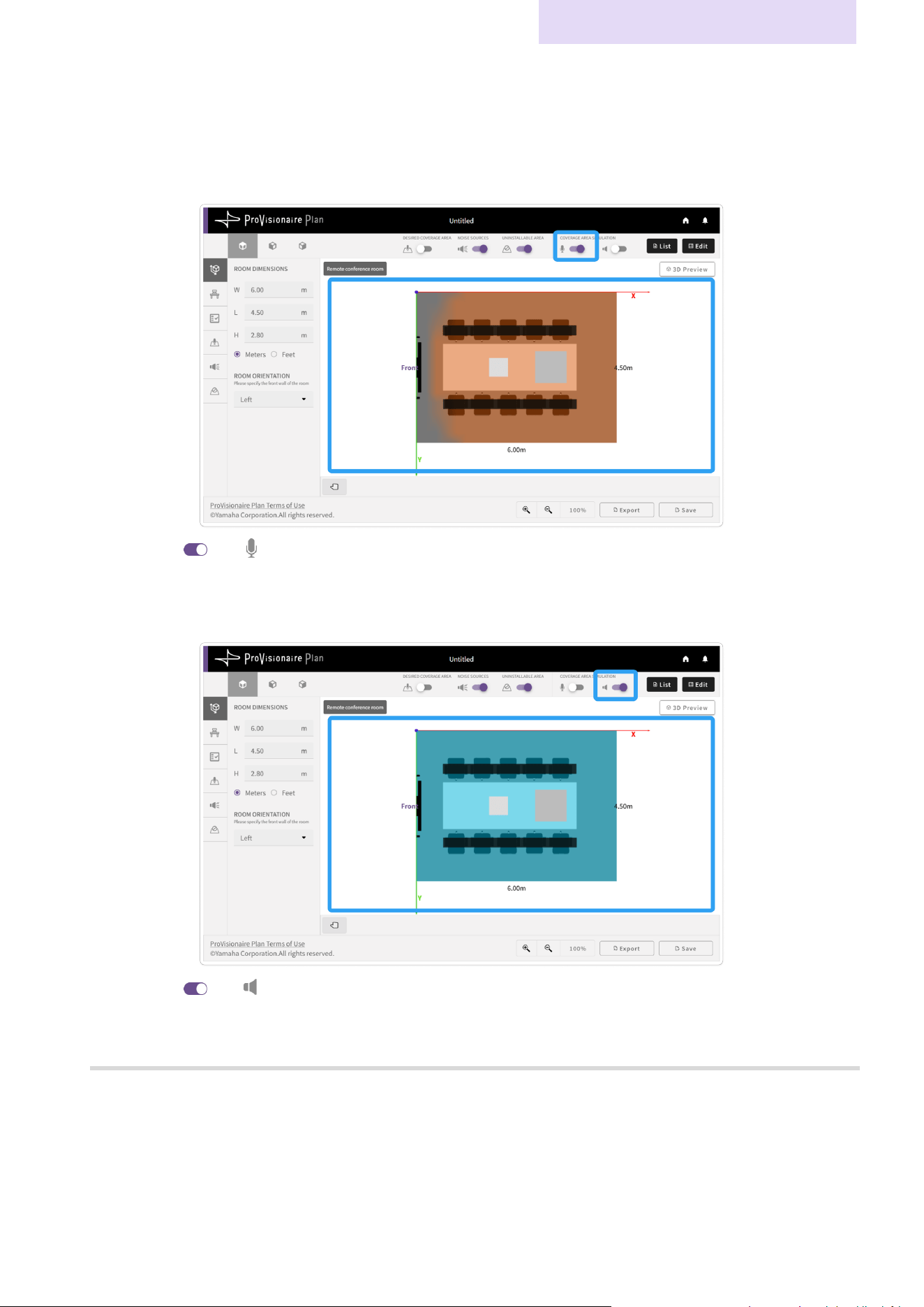
The results screen allows you to view a simulation of the coverage areas for the microphones and speakers.
Confirm that the microphone and speaker coverage areas are as desired.
Coverage area for microphones
1. Turn on ( ) the (microphone) toggle.
2. The microphone coverage area is displayed in orange.
Coverage area for speakers
1. Turn on ( ) the (speaker) toggle.
2. The speaker coverage area is displayed in light blue.
Note
The coverage areas for the microphones and speakers cannot be displayed at the same time.
Operating Procedures
Creating a Plan in ProVisionaire Plan
ProVisionaire Plan User Guide
13
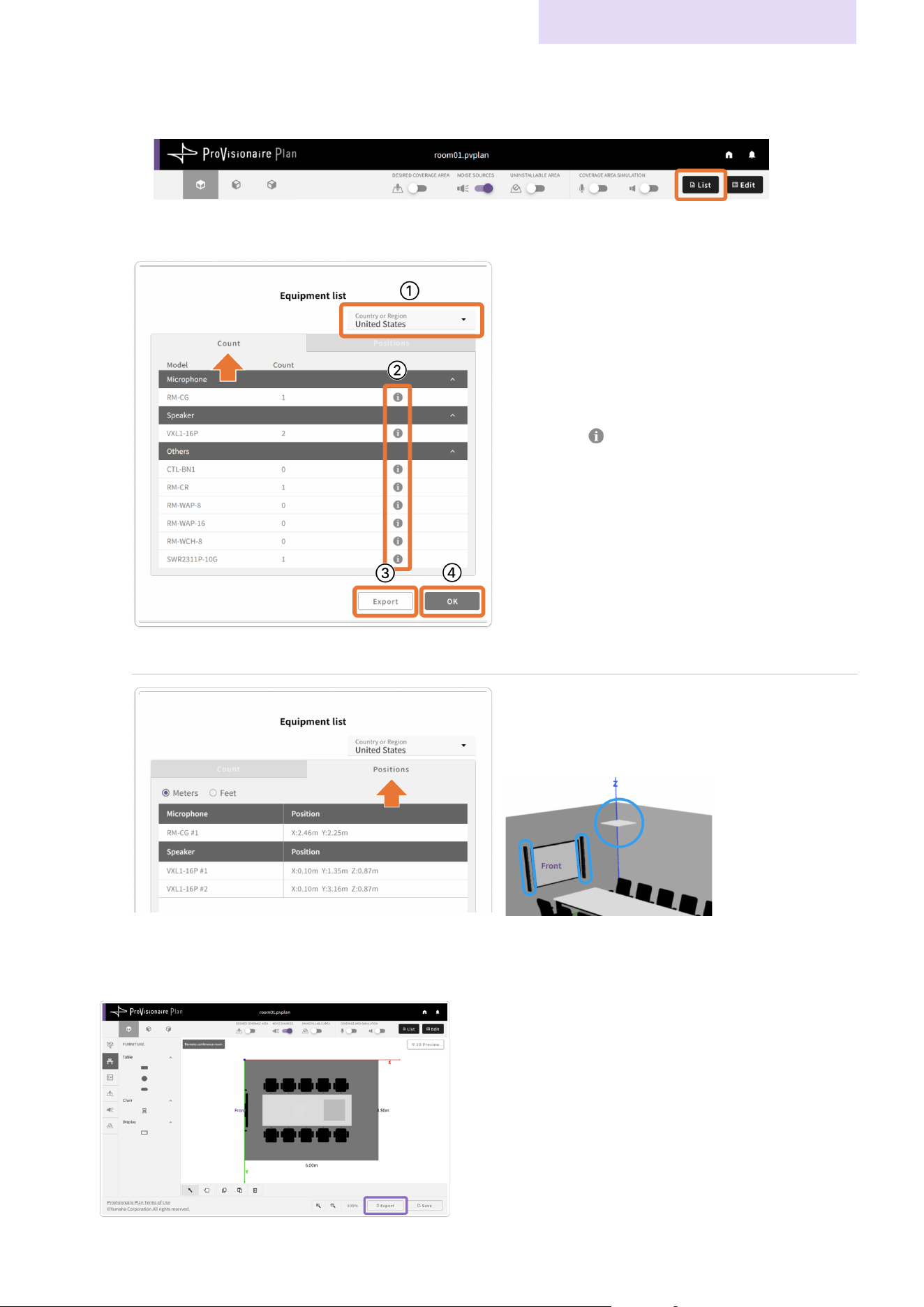
Reviewing the device list
1. Click the [List] button.
2. Review the information proposed by the automatically generated plan.
[Count]tab
On the [Count] tab, the devices with their quantities
are listed by type.
Reviewing device details
a
Specify your location from the [Country or Region]
list in the top right of the screen.
b
Click the (information) mark in the row of the
model number to open the desired product
website of the specified country or region.
*
If a product is not sold in the selected region, a label
appears indicating that the product is unavailable.
Exporting
the results in the PDF format
c
Click the [Export] button to download the room
conditions and plan results as a PDF file.
Closing the list
d
Click the [OK] button to close the device list.
[Positions]tab
On the [Positions] tab, the location of each device
is listed.An image of the device arrangement can
be viewed in the arrangement view.
Exporting the results in the PDF format
Click the [Export] button to download the room conditions and plan results as a PDF file.
Operating Procedures
Creating a Plan in ProVisionaire Plan
ProVisionaire Plan User Guide
14
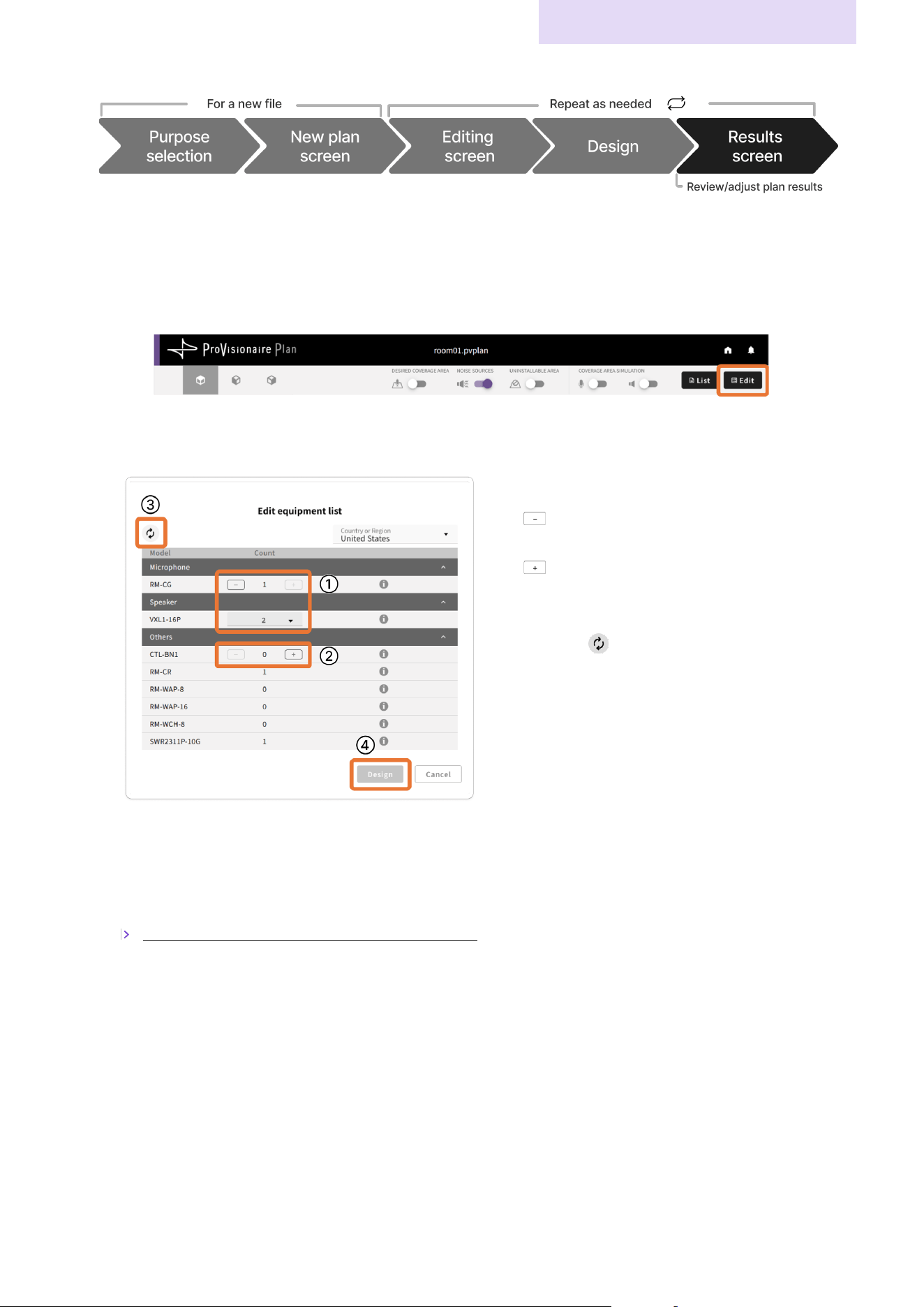
6. Changing the device quantities (if desired)
If the automatically generated plan results in a large number of devices, the quantity of each device can be
reduced, and then the plan can be regenerated.
Procedure for changing the device quantities
1. Click the [Edit] button.
The Edit screen appears.
2. In the Edit screen, change the quantities of the devices.
Changing the quantity of a device
a A (minus) button or drop-down list appears beside
devices whose quantity can be reduced.
b A (plus) button appears beside devices that are not
included in the plan but can be added.
Reverting to the device quantities of the original plan
c Clicking the (reset) button reverts any changed
quantities to those in the original plan.
Redesigning
d If the device quantities have been changed, the [Design]
button becomes available.
3. In the Edit screen, click the [Design] button to regenerate a plan with the changed quantities.
✔ When the plan has been generated, a results screen with the changed quantities appears.
✔ Make sure that the sound coverage areas meet your needs.
Reviewing the simulation of the sound coverage areas (page 12)
ProVisionaire Plan User Guide
15
Details on Operations
This section provides details on the various operations. Refer to this as needed.
Room Condition Specification Screens
Specify the following room conditions.
Icon Items to be specified Reference page
S
pecifying the room size Page
15
Specifying the furniture arrangement Page 16
Selecting room requirements Page
17
Specifying sound coverage areas Page
18
S
pecifying noise sources and their locations Page
19
Specifying locations where devices cannot be installed Page
20
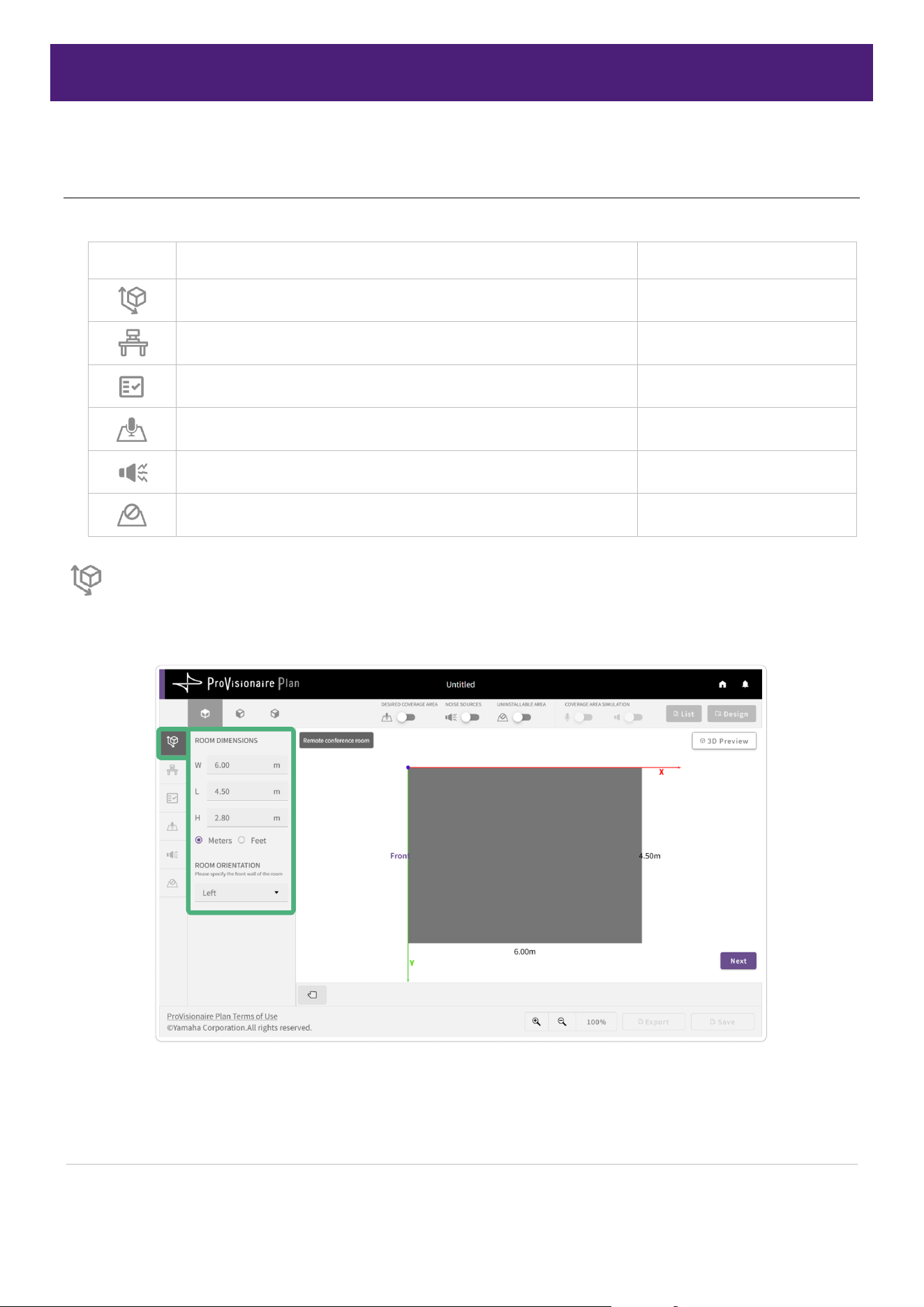
Specifying the room size
Specify the size and front of the room.
Room specifications
Room dimensions
Specify the width, length and height. Select “Meters” or “Feet” as the units for the entered
values.
Room orientation
Select which side of the arrangement view is the front (where the display, etc., is installed).
What
side is selected as the front affects the automatically generated plan for the
microphones and speakers.
Details on Operations
Room Condition Specification Screens
ProVisionaire Plan User Guide
16
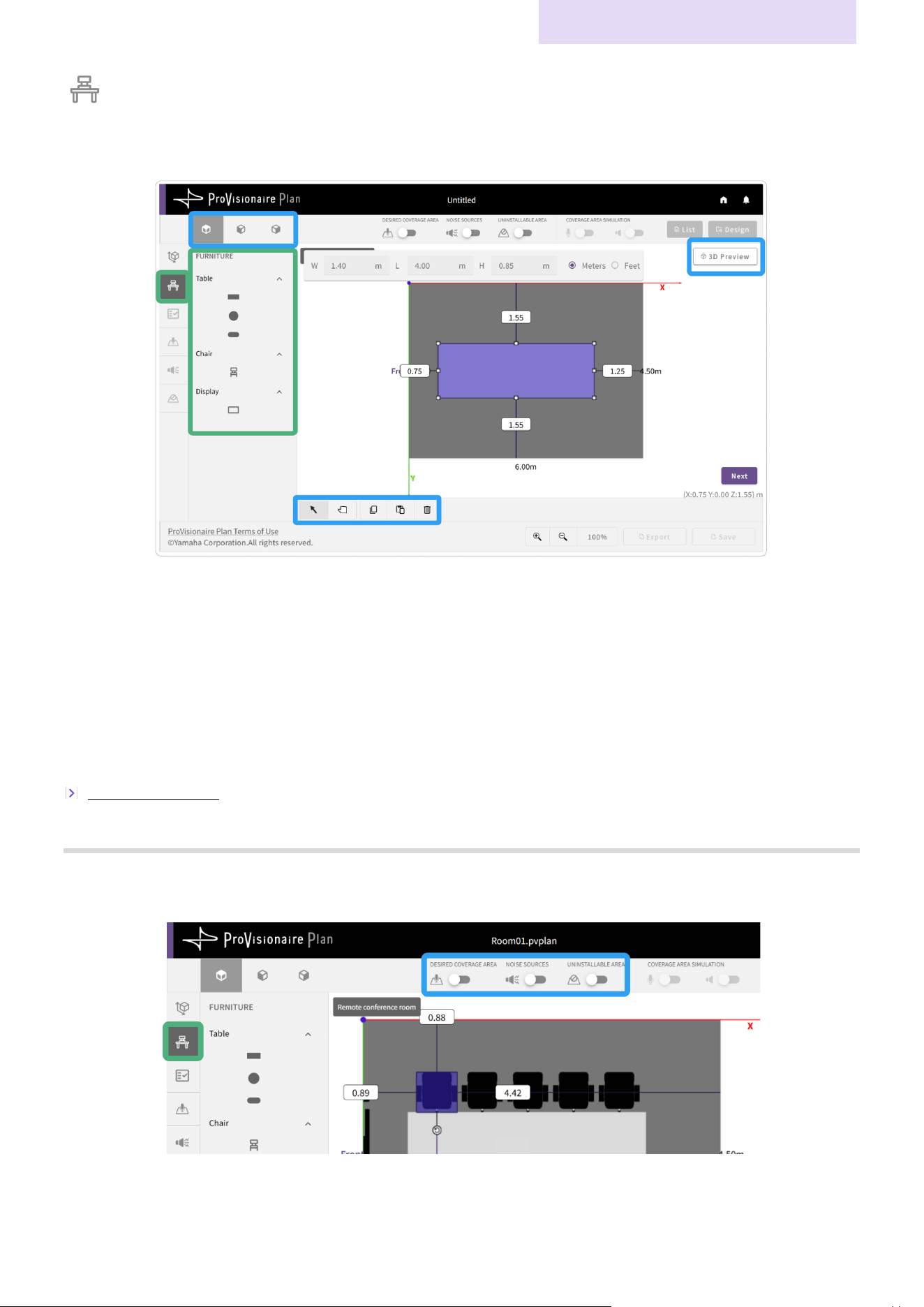
Specifying the furniture arrangement
Arrange the furniture as it is in the room. Specify the size and location of furniture.
Furniture types
The types of furniture available to be arranged depends on the purpose of the room.
Procedure for specifying the furniture arrangement
Clicking the icon for furniture to be arranged places the furniture in the floor corner of the room (origin of the X and
Y axes in the arrangement view). Specify the size and location. If the device, for example, a display, is not installed
on the floor, change the room view angle, and then specify the device’s installation height. For details, refer to
“Working with Objects”.
Working with Objects (page 21)
Note
Furniture can only be rearranged in the furniture screen.
Furniture in the furniture screen can more easily be rearranged by hiding the various areas.
Details on Operations
Room Condition Specification Screens
ProVisionaire Plan User Guide
17
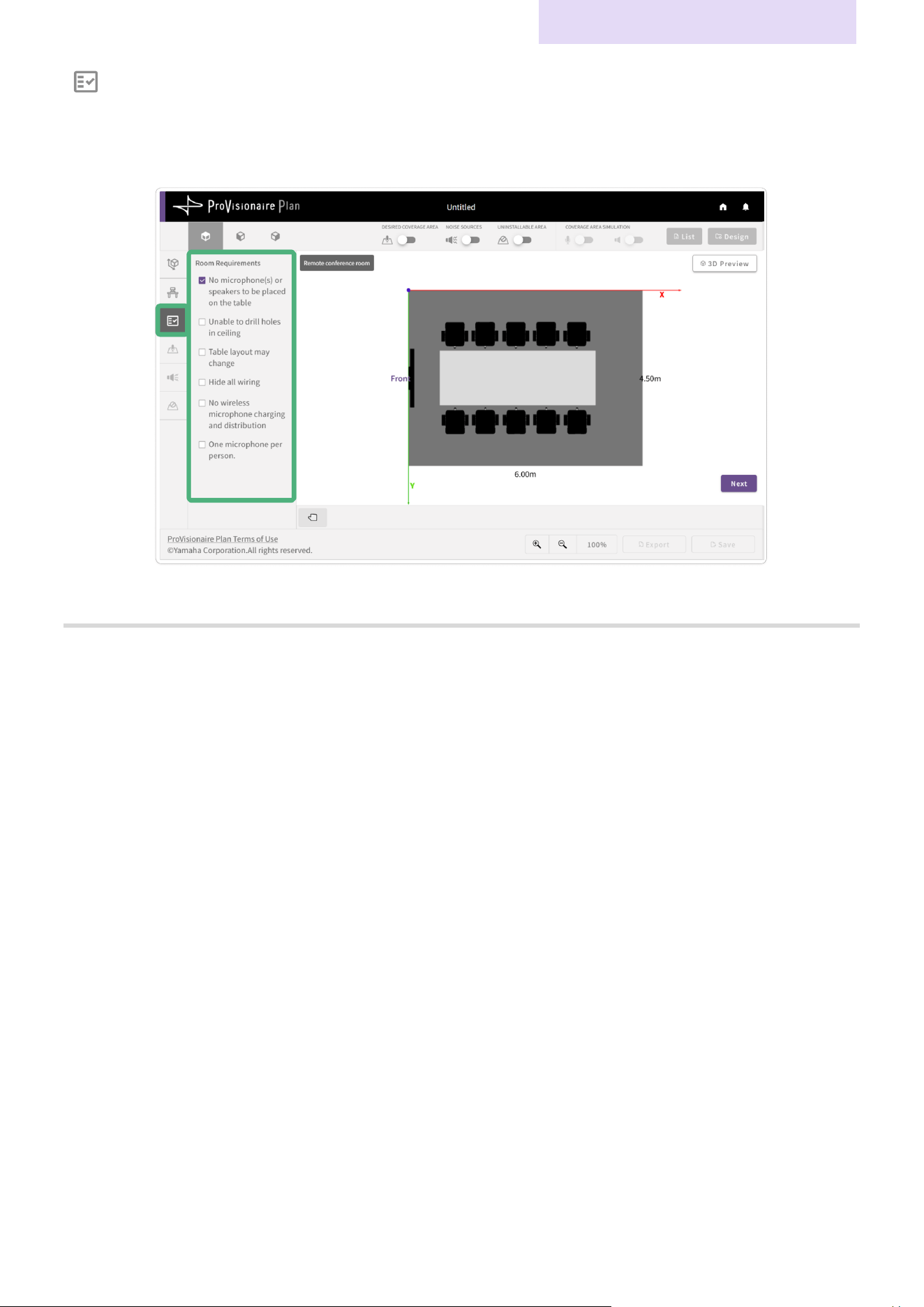
Selecting room requirements
Select the requirements for arranging the devices (multiple selections can be made). The application
automatically selects the devices most suitable for the selected requirements.
Note
The generated plan may not always be able to address all of the selected requirements.
Details on Operations
Room Condition Specification Screens
ProVisionaire Plan User Guide
18
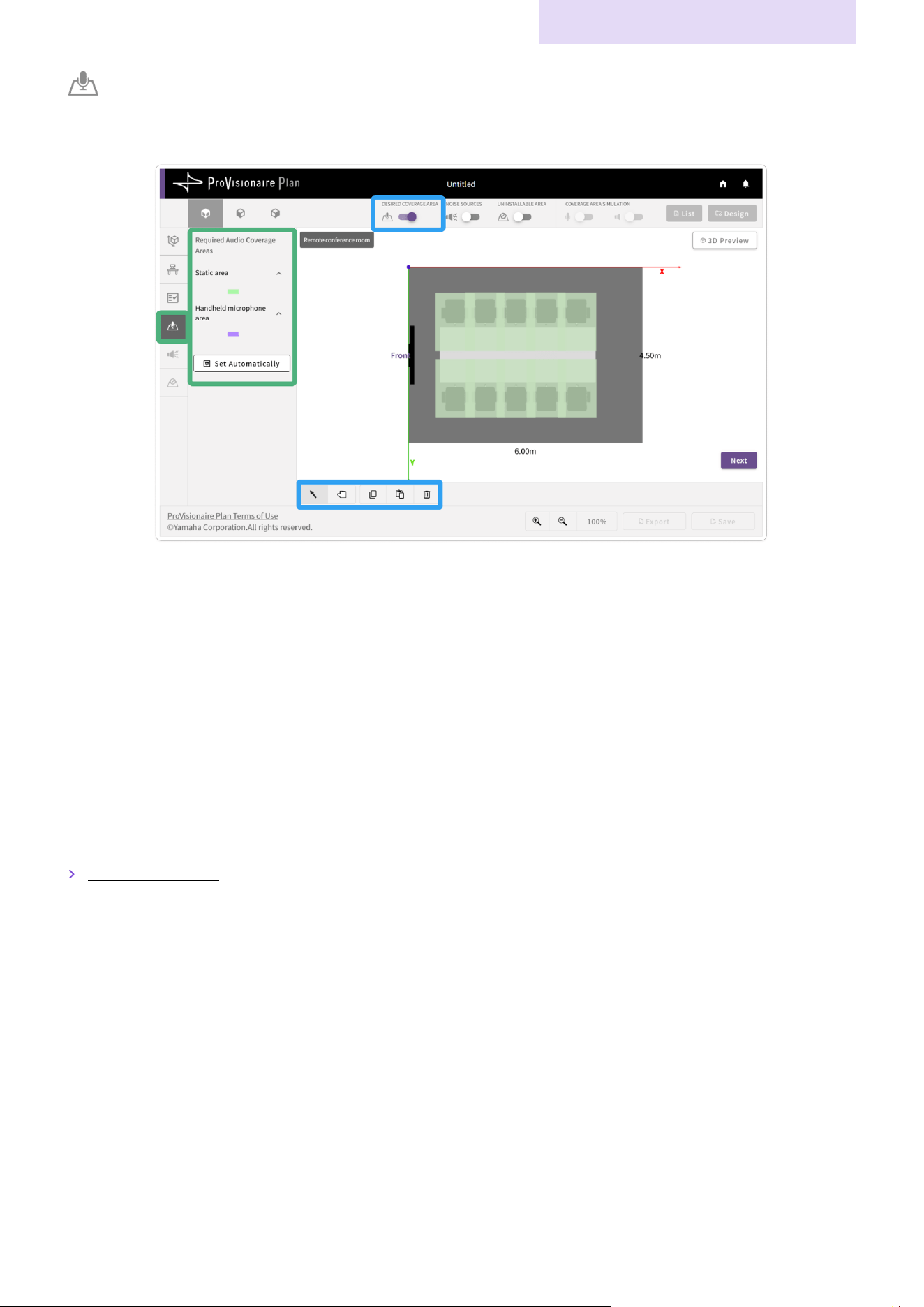
Specifying sound coverage areas
Specify the areas to be covered by the microphones and speakers.
Area types
Static area
Specifies the area to be covered by the microphones and speakers.
Handheld microphone area
Specifies the
location where the handheld microphone is to be used.
Set Automatically
Click the [Set Automatically] button to automatically specify the coverage areas.
Procedure for specifying coverage areas
The first time that this screen is displayed the coverage areas are automatically arranged according to the chair
locations.
Change the areas to be covered by either modifying an automatically specified area or by deleting an area and
specifying a new one in the desired location. For details, refer to “Working with Objects”.
Working with Objects (page 21)
Details on Operations
Room Condition Specification Screens
ProVisionaire Plan User Guide
19
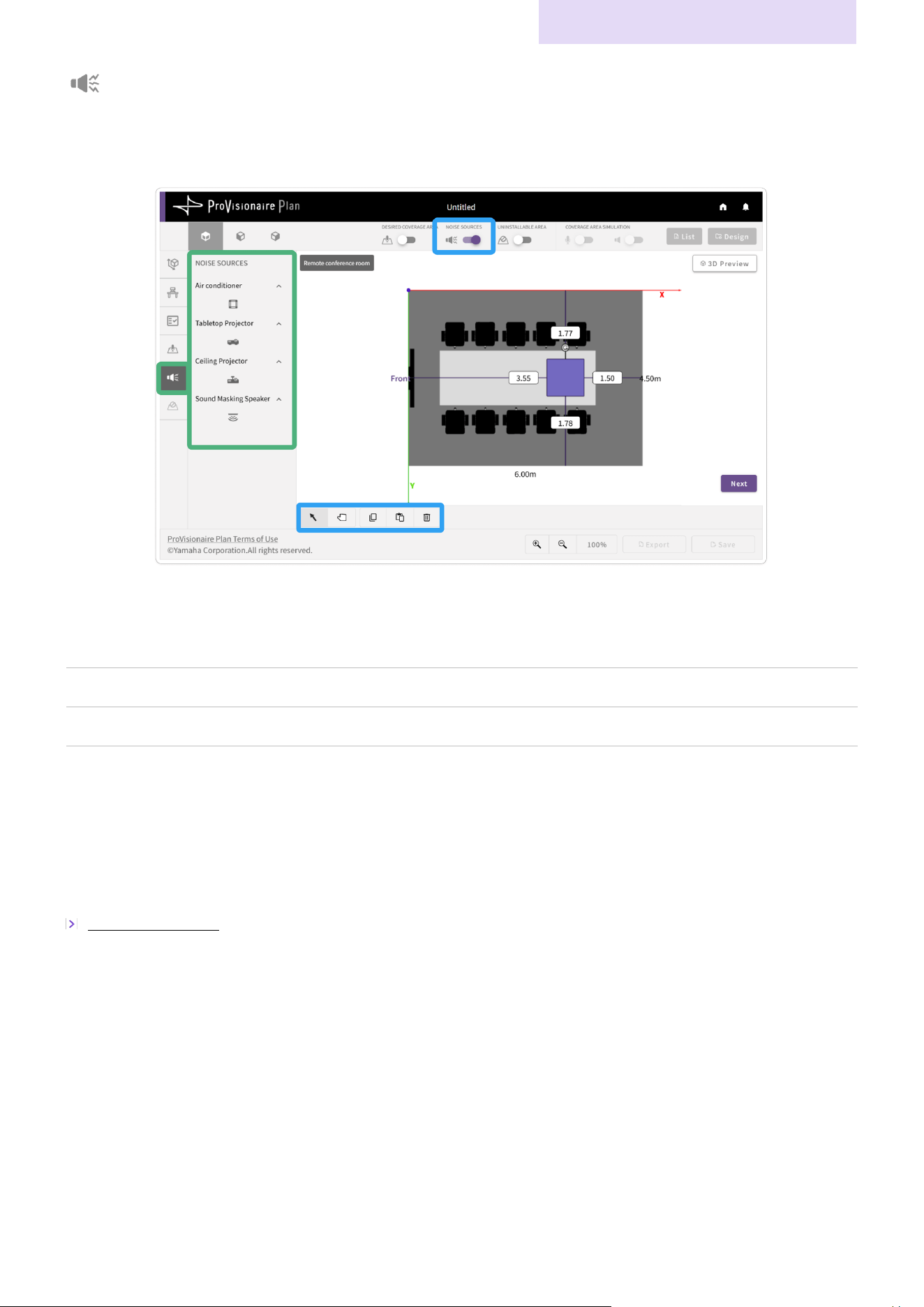
Specifying noise sources and their locations
If there is any noise-producing equipment in the room, specify its type and location. Specified noise
sources affect the automatically generated plan for the microphones and speakers.
Noise source types
Air conditioner
Arranges the object on the ceiling.
Tabletop Projector
Arranges the object on top of a desk.
Ceiling Projector
Arranges the object on the ceiling.
Sound Masking Speaker
Arranges the object on the ceiling.
Procedure for specifying the arrangement of noise sources
Clicking the icon for a noise source places it in the corner of the room (origin of the X and Y axes in the
arrangement view). Specify the location.
For details, refer to “Working with Objects”.
Working with Objects (page 21)
Details on Operations
Room Condition Specification Screens
ProVisionaire Plan User Guide
20
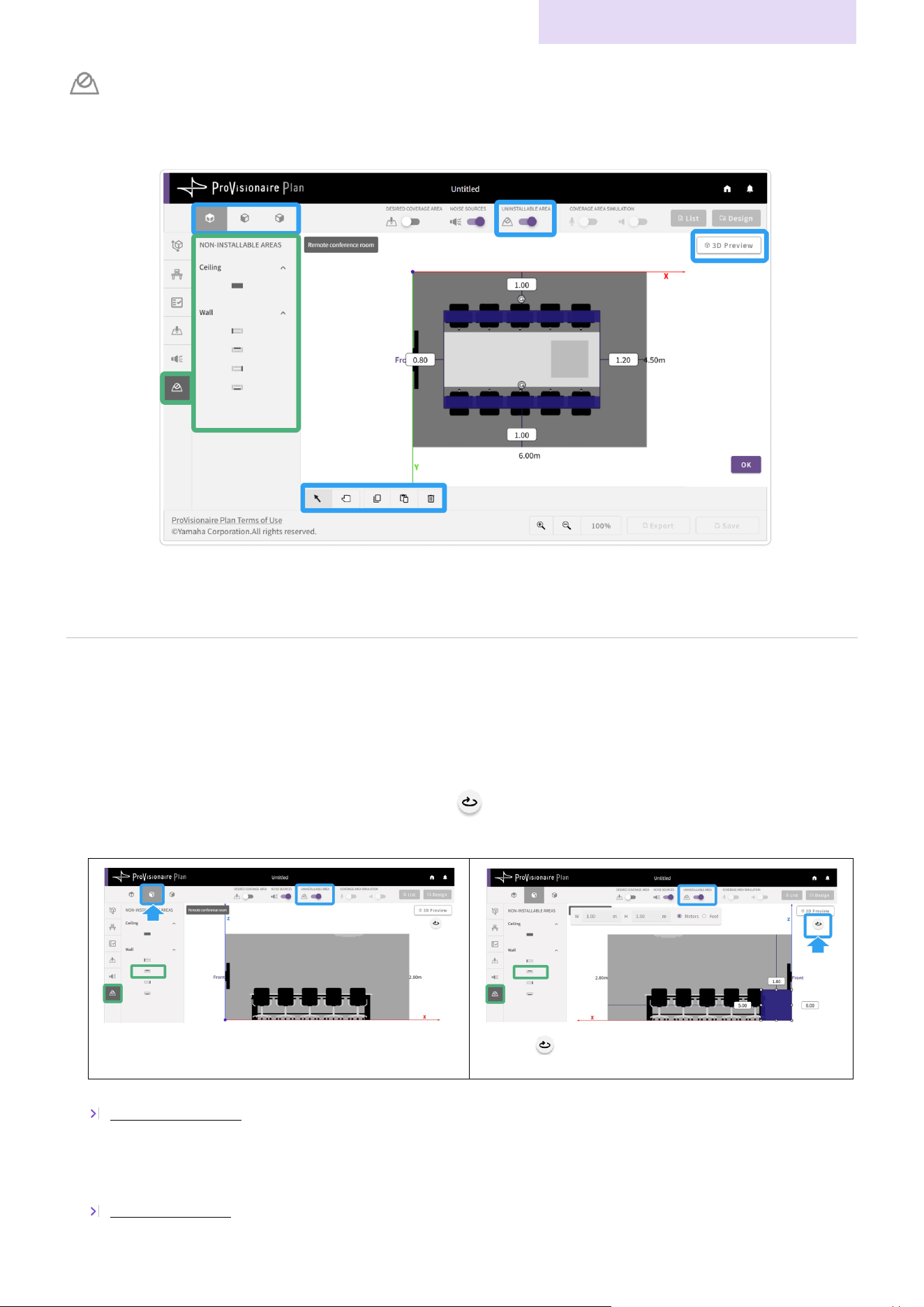
Specifying locations where devices cannot be installed
If there are locations on the ceiling or wall where microphones or speakers cannot be installed (because
of lighting, air conditioning, windows, etc.), specify those locations as non-installable areas.
Non-installable area types
Ceiling
Specifies a non
-installable area on the ceiling.
Wall
Specifies a non
-installable area on a wall. Click the icon for the wall where the area is to be specified.
Procedure for specifying non-installable areas
Clicking the [Ceiling] icon under “NON-INSTALLABLE AREAS” places the object in a ceiling corner of the room.
Clicking a [Wall] icon under “NON-INSTALLABLE AREAS” places the object in the corner of the selected wall
(origin of the X and Y axes). These objects can only be viewed and modified while viewing them from the wall on
which they are placed. Use the angle buttons and the (flip view) button to view the object.
Example: When placed on the far wall
Select the side view angle (the wall facing you is
displayed).
Click the (flip view) button to flip the view and display
the object.
For details on editing objects, refer to “Working with Objects”.
Working with Objects (page 21)
✔ In the new plan screen: After specifying non-installable areas, click the [OK] button. This completes
the procedure guide, and the plan can be edited.
Generating the plan (page 10)
Details on Operations
Working with Objects
ProVisionaire Plan User Guide
21
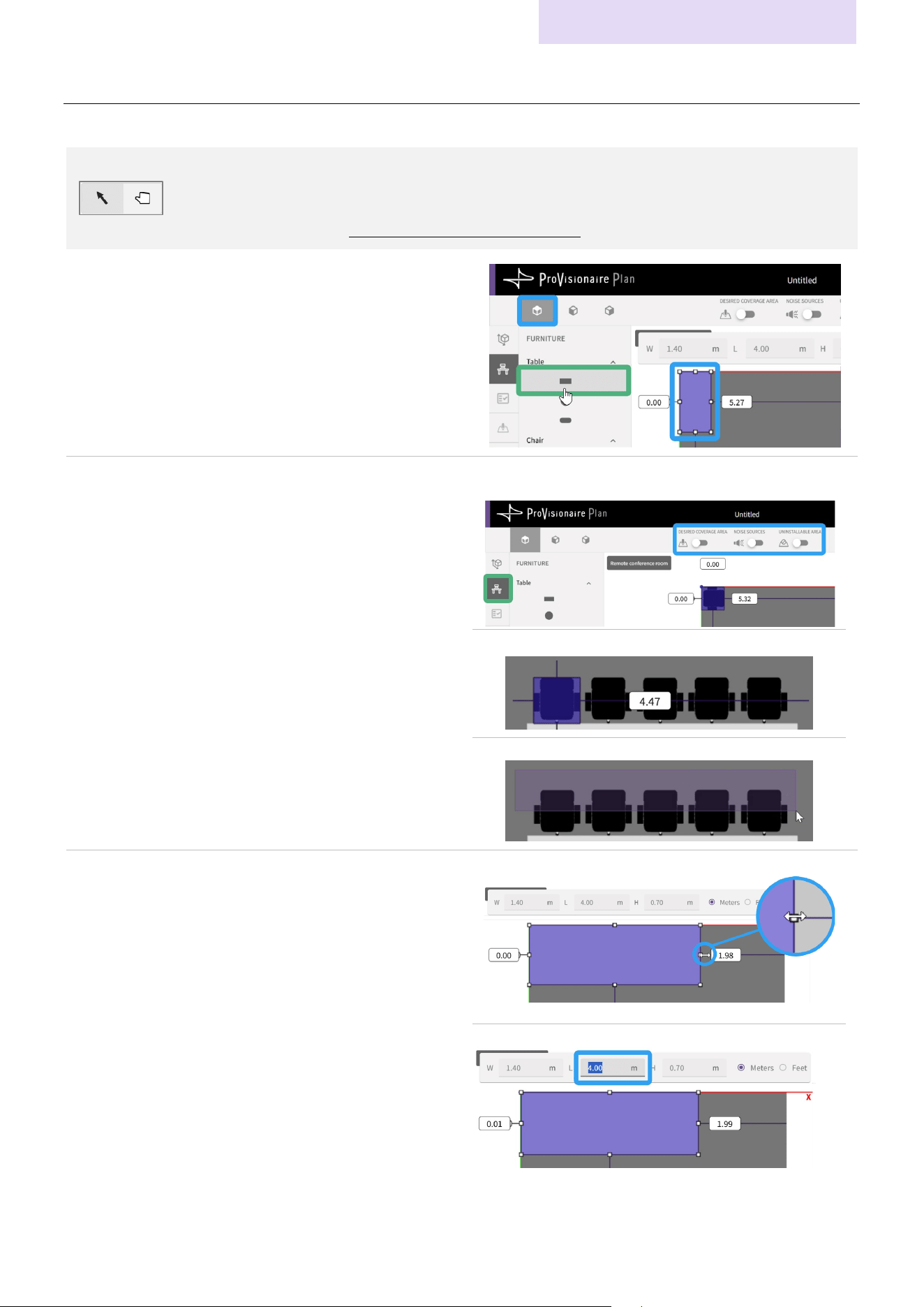
Working with Objects
Furniture, devices and areas are arranged by editing their objects in the arrangement view.
Use the selection tool to edit objects.
For details on using other buttons and tools, refer to the pages providing details on the
corresponding screen.
> Details on Screens: Arrangement Views/Editing Tools (page 24)
Arranging objects
1.
Select the top view angle.
2.
Clicking an icon in the settings panel places the
co
rresponding object in the top left of the room in th
e
a
rrangement view.
Selecting objects
Select the object to be edited.
Display the condition screen for the object to be edited.
(For example, furniture can only be arranged and selected
from the furniture screen.)
Select in one of the following ways:
To select one object:
Place the mouse pointer over an object and, when the
o
bject changes color, click the object.
To select multiple objects:
While holding down the Ctrl key, click the objects to be
s
elected.
Drag the mouse pointer over all objects to be selected in
order to select them all.
To edit the furniture arrangement, display the furniture
screen.
Click an object after it changes color.
Select multiple objects at the same time.
Specifying the object size
When an object whose size can be specified is selected,
a settings bar appears.
Specify the size in one of the following ways:
To r
esize with the mouse:
Move the mouse pointer over a point in the object, and,
when the arrow appears, drag the point to resize th
e
o
bject.
To s
pecify values in the settings bar:
Specify values by directly entering them into the settings
bar
.
Si
nce an object is resized from its center point, it cannot
be enlarged if it is against a wall. In that case, tr
y
en
larging the object with the mouse or moving it awa
y
from the wall before specifying values.
Resize with the mouse.
Specify values in the settings bar.
Details on Operations
Working with Objects
ProVisionaire Plan User Guide
22
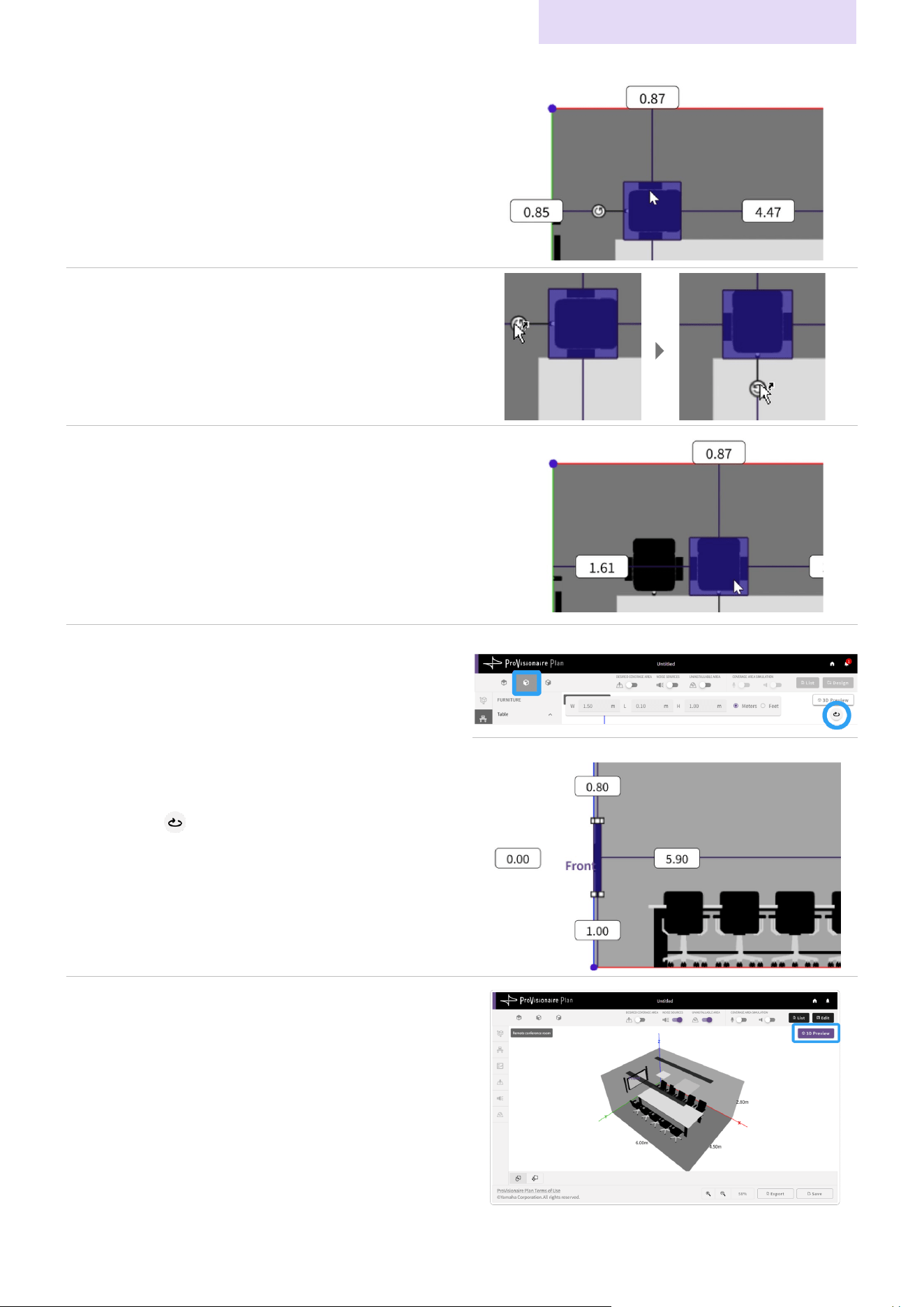
Adjusting the
object location
Select an object, and adjust its location according to the
actual room arrangement.
The distances between the selected object and the walls
and ceiling appear.
Move an object by dragging it with the mouse or by usin
g
th
e arrow keys on the keyboard.
Rotating objects (that can be rotated)
When an object that can be rotated is selected, a rotation
handle appears. When the mouse pointer is moved over
the rotation handle, an arrow appears. Drag the rotation
handle to rotate the object.
Duplicating objects
If multiple copies of the same object are needed, copy and
paste the object to create as many as needed. After the
pasted object is placed in the top left of the room in the
arrangement view, its position can be edited.
Switching the view angle in order to specify the
object arrangement height
The height must be specified for objects that are not
attached to the floor or ceiling. Specify the height by using
the side or front/back view angles.
When using a side, front or back view angle, only objects
placed on the wall facing you can be viewed and edited.
Objects placed on the opposite side can be displayed by
clicking the (flip view) button to flip the view.
Switching the view angle.
Specify the height.
Displaying a 3D preview
Click the [3D Preview] button to display a 3D preview.
Drag the arrangement view to rotate the room up to 360
degrees.
ProVisionaire Plan User Guide
23
Details on Screens
This section provides details about each screen. Refer to this as needed.
Room Condition Specification Screen/Procedure Guide
a Room conditions
Icon Items to be specified Reference page
Specifying the room size Page
15
Specifying the furniture arrangement Page 16
Selecting room requirements Page
17
Specifying sound coverage areas Page
18
S
pecifying noise sources and their locations Page
19
Specifying locations where devices cannot be installed Page
20
b Settings panel
Displays items that can be specified for the selected room condition.
c Procedure guide (displayed only in new plan screen)
Details appear, explaining what to do in this screen.
d Procedure guide button (displayed only in new plan screen)
Clicking the [Next] button continues to the next screen. The procedure guide is finished when the information for
all room conditions has been specified in the given order.
Details on Screens
ProVisionaire Plan User Guide
24
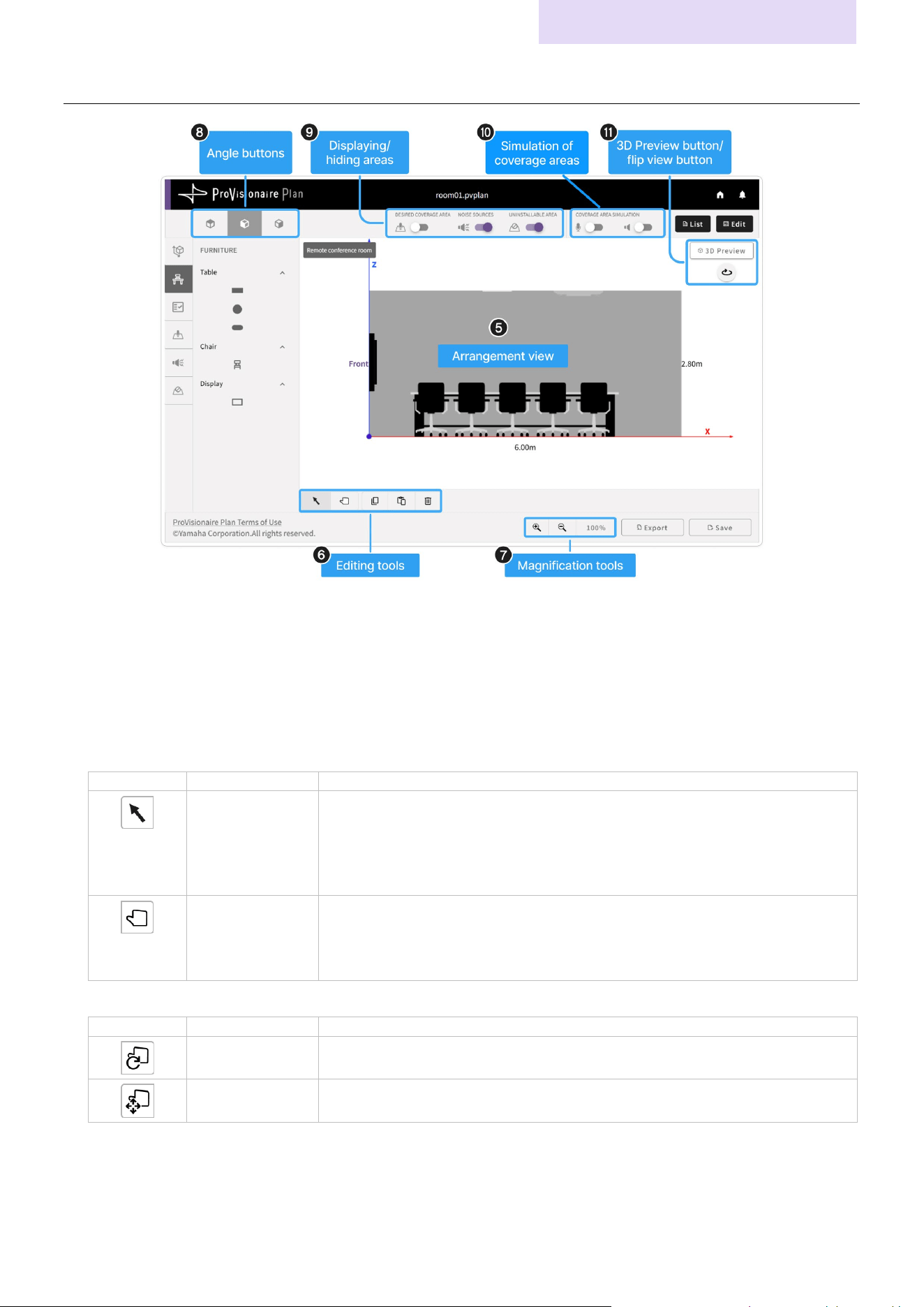
Arrangement Views/Editing Tools
e Arrangement view
Displays the room arrangement and coverage areas.
f Editing tools
Use to move and edit objects in the arrangement view (e).
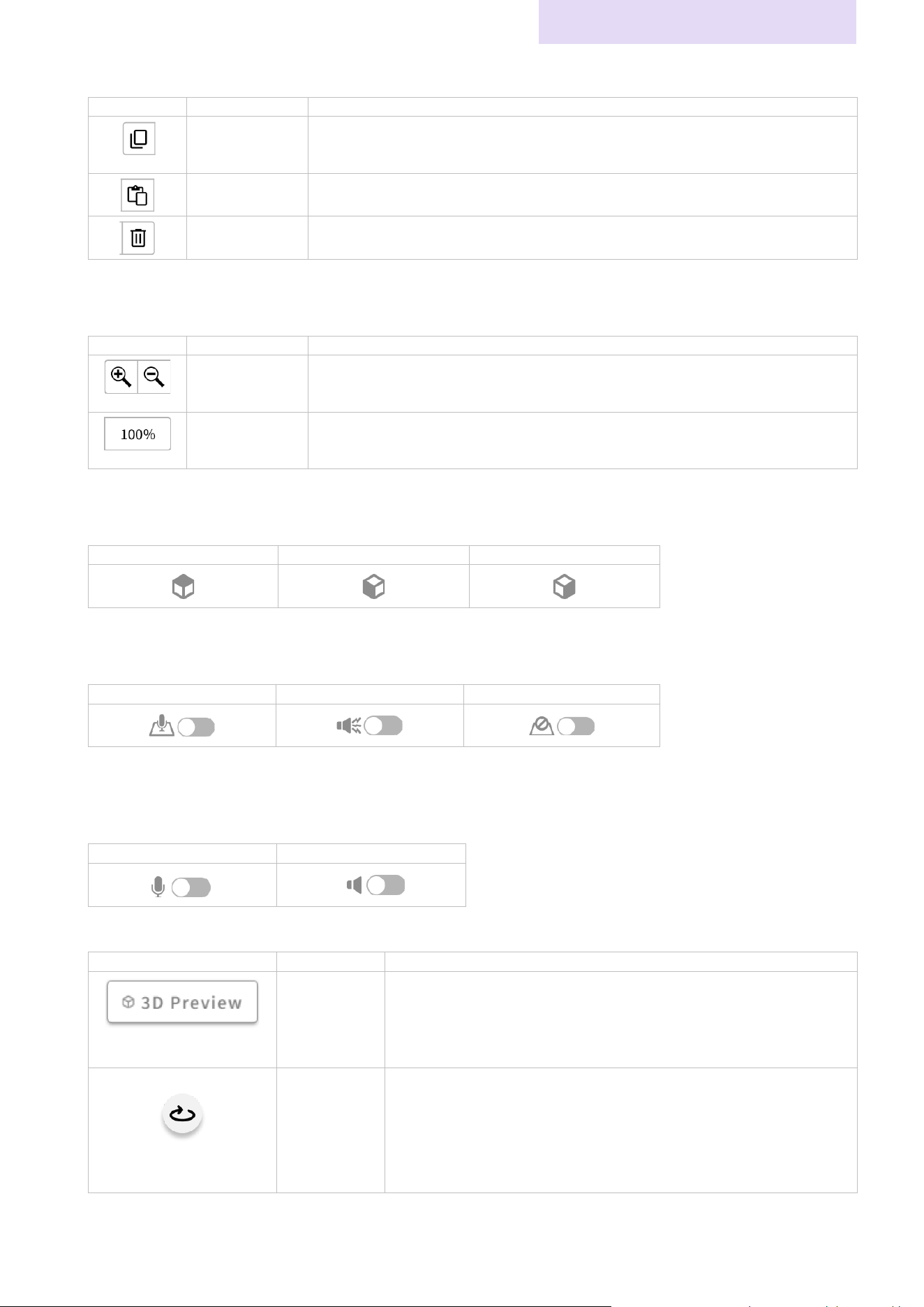
Move tools
Button
Function
Description
S
election tool Selects objects in the arrangement view.
Clicking this button changes the mouse pointer to an arrow.
Move the selected object by dragging it with the mouse or by using th
e
arrow keys on the keyboard.
H
and tool Navigates the canvas.
Clicking this button changes the mouse pointer to a hand.
Drag the canvas to navigate it.
Move tools * Displayed only in 3D preview (k)
Button
Function
Description
Rotate Drag the 3D preview to rotate it up to 360 degrees.
Move Navigates (up, down, left or right) the 3D preview of the room.
Details on Screens
ProVisionaire Plan User Guide
25
Operation tools * Displayed only in the screen for editing objects
Button
Function
Description
Co
py Clicking this tool while an object is selected copies the object. Copied objects
are deleted when a different room condition is selected.
Paste Pastes the copied object.
Delete Deletes the selected object.
g Magnification tools
Use to zoom in on or out of the arrangement view (e).
Button
Function
Description
Z
oom in/out Zooms in on or out of the displayed room. Each press of the button changes
the magnification by 10%.
Magnification
ratio
Displays the magnification ratio.
h Angle buttons
Use to change the angle at which the room is displayed in the arrangement view (e).
Top view angle
Side view angle
Back view angle
i Displaying/hiding areas
Use these toggles to display/hide the following areas.
Coverage areas
Noise sources
Non-installable areas
j Simulation of coverage areas
Use these toggles to display/hide the simulation of the coverage areas for the microphones and speakers. Only
the coverage area for either the microphones or the speakers can be displayed.
Microphones
Speakers
k [3D Preview] button/flip view button
Button
Function
Description
Di
splay/hide
3D preview
Displays a 3D preview of the room in the arrangement view (e).
Clicking this button again returns to a 2D view.
The arrangement of objects cannot be edited in the 3D preview.
F
lip view Flips the view to display the opposite side of the room.
This button is available only when the side view or back view angle
bu
tton (h) has been selected.
Objects arranged on a wall are visible only when the wall is facin
g
y
ou.
Details on Screens
ProVisionaire Plan User Guide
26
Buttons for Plans/Proposed Devices
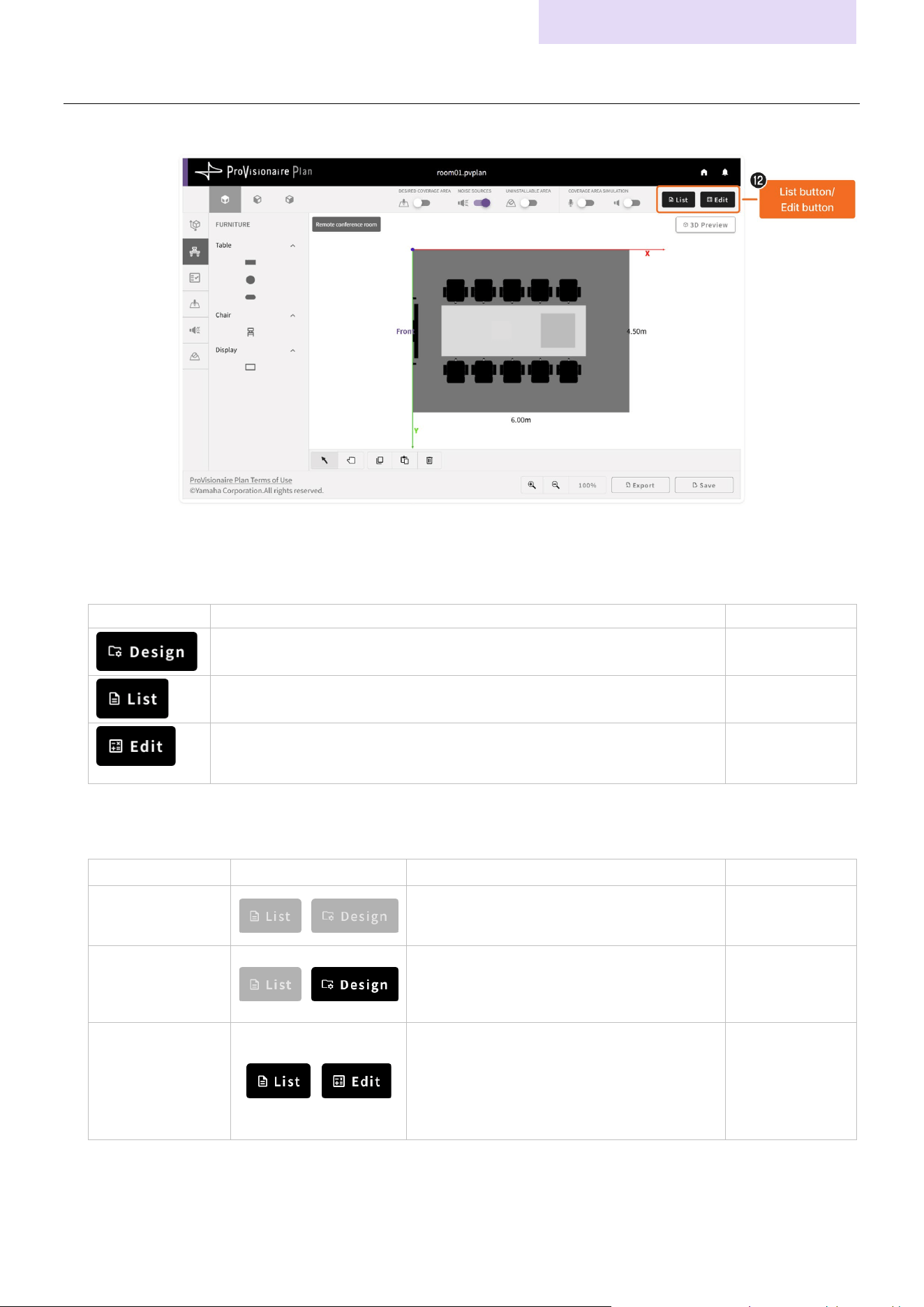
l [Design] button/[List] button/[Edit] button
Button functions
Button
Description
Reference page
Automatically generates a plan from the specified room conditions.
Page
10
Displays a list of the proposed devices from the generated plan.
Page
12
Displays a screen where the quantities of the proposed devices can be
changed.
Page
14
The buttons that appear differ depending on the screen.
Displayed buttons
Screen Displayed buttons Description
Reference page
New plan screen
N
either is available.
Page
8
Editing screen
A
plan can be generated. After the plan in
the editing screen has been generated, the
results screen appears.
Page
9
Results screen
T
he list of devices can be displayed, and
their quantities can be changed. After the
device quantities have been changed and
the [Design] button is clicked, the editing
screen appears again.
Page
11
Details on Screens
ProVisionaire Plan User Guide
27
Application elements
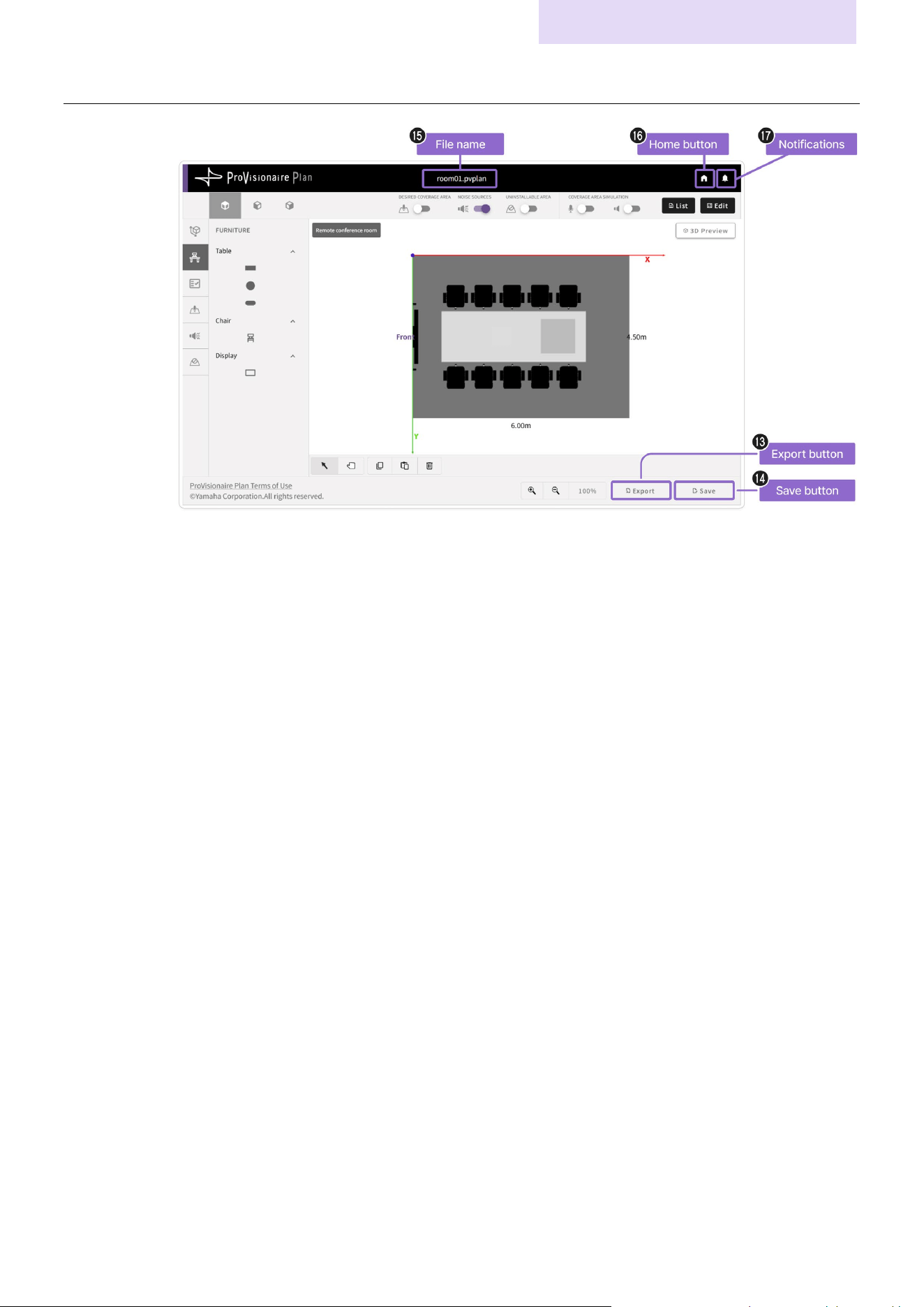
m [Export]button
Export the room conditions and plan results in the PDF format.
n [Save] button
Saves the plan. The saved plan file can be opened from the top screen.
* A plan in the new plan screen cannot be saved. Specify all room conditions, and then close the new plan screen.
o File name
Displays the file name of the plan.
p Home button
Returns to the top screen.
q Notifications
Displays ProVisionaire Plan notifications.

© 2024 Yamaha Corporation
Published 4/2025
YJ-B0